Supplement J: Eclipse Tutorial

            For Introduction to Java Programming, 5E
                       By Y. Daniel Liang

This supplement covers the following topics:

  •    Getting Started with Eclipse
  •    Choosing a Perspective
  •    Creating a Project
  •    Creating a Java Program
  •    Compiling and Running a Java Program
  •    Run Java Applications from the Command Line
  •    Debugging in Eclipse

        NOTE: To use this supplement with the text, you
        may cover Sections 1 – 6 in this supplement
        after Chapter 1 in the text, cover Section 7 in
        this supplement after Chapter 2 in the text, and
        cover Section 8 in this supplement at the
        beginning of Chapter 14 in the text.


0 Introduction
This   tutorial is for students who are currently taking a
Java   course that uses Eclipse and for Java programmers who
want   to develop Java projects using Eclipse. Eclipse is an
open   source supported by IBM.

You can use JDK command line utility to write Java programs.
The JDK command line utility consists of a set of separate
programs, such as compiler and interpreter, each of which is
invoked from a command line. Besides the JDK command line
utility, there are more than a dozen Java development tools
on the market today, including Borland JBuilder, NetBeans,
Sun ONE Studio (a commercial version of NetBeans), Eclipse,
and WebGain Visual Café. These tools support an integrated
development environment (IDE) for rapidly developing Java
programs. Editing, compiling, building, debugging, and
online help are integrated in one graphical user interface.
Using these tools effectively will greatly increase your
programming productivity.

This brief tutorial will help you to become familiar
with Eclipse. Specifically, you will learn how to
create projects, create programs, compile, and run
programs.


                                                               8
© Copyright Y. Daniel Liang, 2005
NOTE: Eclipse can run on any platform with a Java
     Virtual Machine. The screen shots in the tutorial
     are taken from Windows using Eclipse 3.0. You can
     download Eclipse from www.eclipse.org.

     INSTALLATION NOTE: You must install JDK 1.5
     before installing Eclipse. JDK 1.5 can be
     downloaded from
     http://java.sun.com/j2se/1.5/download.html. The
     Windows version of Eclipse 3.0 is contained in a
     ZIP file named eclipse-SDK-3.0-win32.zip. Unzip
     the file into c:. All the files are now
     contained in c:eclipse.

1 Getting Started with Eclipse
Assume that you have installed Eclipse files in c:eclipse.
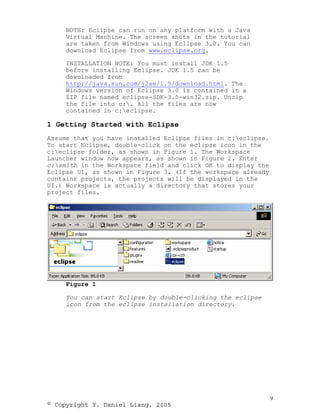
To start Eclipse, double-click on the eclipse icon in the
c:eclipse folder, as shown in Figure 1. The Workspace
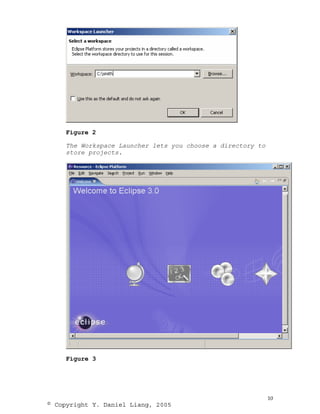
Launcher window now appears, as shown in Figure 2. Enter
c:smith in the Workspace field and click OK to display the
Eclipse UI, as shown in Figure 3. (If the workspace already
contains projects, the projects will be displayed in the
UI.) Workspace is actually a directory that stores your
project files.


     Figure 1

     You can start Eclipse by double-clicking the eclipse
     icon from the eclipse installation directory.


                                                              9
© Copyright Y. Daniel Liang, 2005
Figure 2

    The Workspace Launcher lets you choose a directory to
    store projects.


    Figure 3


                                                            10
© Copyright Y. Daniel Liang, 2005
The Eclipse main window is the command center for the
     IDE.

2 Choosing a Perspective
A perspective defines the initial set and layout of views in
the window. Perspectives control what appears in certain
menus and toolbars. For example, a Java perspective contains
the views that you would commonly use for editing Java
source files, while the Debug perspective contains the views
you would use for debugging Java programs. You may switch
perspectives, but you need to specify an initial perspective
for a workspace.

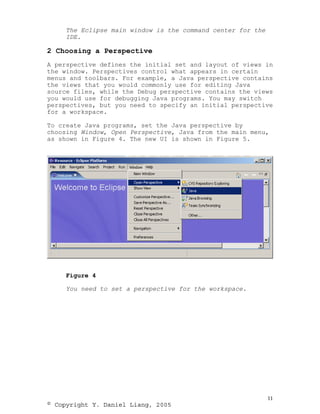
To create Java programs, set the Java perspective by
choosing Window, Open Perspective, Java from the main menu,
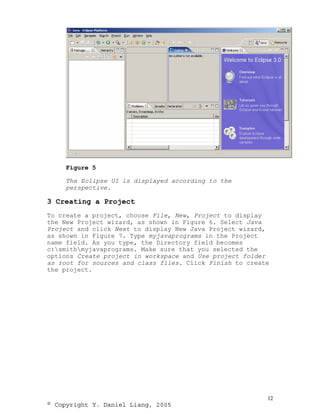
as shown in Figure 4. The new UI is shown in Figure 5.


     Figure 4

     You need to set a perspective for the workspace.


                                                             11
© Copyright Y. Daniel Liang, 2005
Figure 5

     The Eclipse UI is displayed according to the
     perspective.

3 Creating a Project
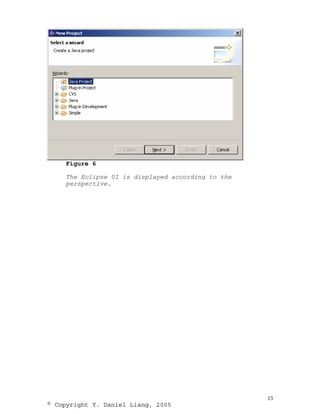
To create a project, choose File, New, Project to display
the New Project wizard, as shown in Figure 6. Select Java
Project and click Next to display New Java Project wizard,
as shown in Figure 7. Type myjavaprograms in the Project
name field. As you type, the Directory field becomes
c:smithmyjavaprograms. Make sure that you selected the
options Create project in workspace and Use project folder
as root for sources and class files. Click Finish to create
the project.


                                                          12
© Copyright Y. Daniel Liang, 2005
Figure 6

     The Eclipse UI is displayed according to the
     perspective.


                                                    13
© Copyright Y. Daniel Liang, 2005
Figure 7

     The Eclipse UI is displayed according to the
     perspective.


4 Creating a Program
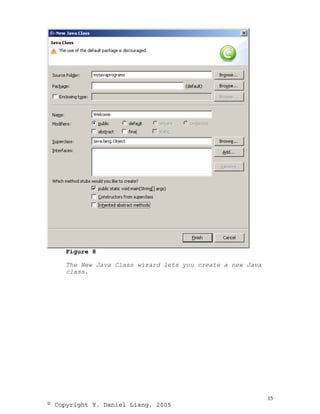
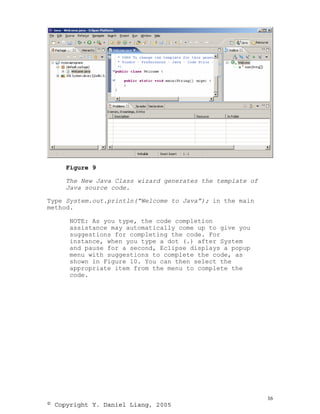
Now you can create a program in the project by choosing
File, New, Class to display the New Java Class wizard, as
shown in Figure 8. Type Welcome in the Name field. Check the
option public static void main(String[] args). Click Finish
to generate the template for the source code Welcome.java,
as shown in Figure 9.

      NOTE:

      You may use a package by entering a package name
      in the Package field in Figure 9. Since the
      source code in the book does not use packages,
      the Package field is left blank to match the
      code in the book.


                                                          14
© Copyright Y. Daniel Liang, 2005
Figure 8

     The New Java Class wizard lets you create a new Java
     class.


                                                            15
© Copyright Y. Daniel Liang, 2005
Figure 9

     The New Java Class wizard generates the template of
     Java source code.

Type System.out.println(“Welcome to Java”); in the main
method.

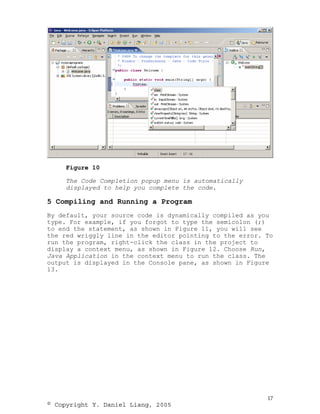
      NOTE: As you type, the code completion
      assistance may automatically come up to give you
      suggestions for completing the code. For
      instance, when you type a dot (.) after System
      and pause for a second, Eclipse displays a popup
      menu with suggestions to complete the code, as
      shown in Figure 10. You can then select the
      appropriate item from the menu to complete the
      code.


                                                           16
© Copyright Y. Daniel Liang, 2005
Figure 10

     The Code Completion popup menu is automatically
     displayed to help you complete the code.

5 Compiling and Running a Program
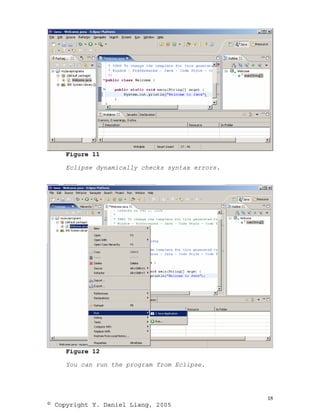
By default, your source code is dynamically compiled as you
type. For example, if you forgot to type the semicolon (;)
to end the statement, as shown in Figure 11, you will see
the red wriggly line in the editor pointing to the error. To
run the program, right-click the class in the project to
display a context menu, as shown in Figure 12. Choose Run,
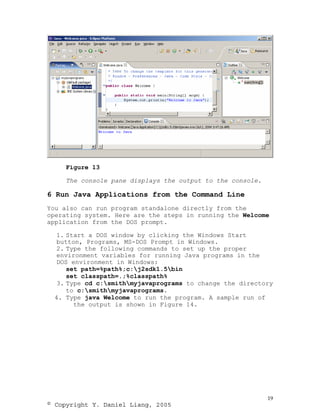
Java Application in the context menu to run the class. The
output is displayed in the Console pane, as shown in Figure
13.


                                                          17
© Copyright Y. Daniel Liang, 2005
Figure 11

    Eclipse dynamically checks syntax errors.


    Figure 12

    You can run the program from Eclipse.


                                                18
© Copyright Y. Daniel Liang, 2005
Figure 13

     The console pane displays the output to the console.

6 Run Java Applications from the Command Line
You also can run program standalone directly from the
operating system. Here are the steps in running the Welcome
application from the DOS prompt.

  1. Start a DOS window by clicking the Windows Start
  button, Programs, MS-DOS Prompt in Windows.
  2. Type the following commands to set up the proper
  environment variables for running Java programs in the
  DOS environment in Windows:
     set path=%path%;c:j2sdk1.5bin
     set classpath=.;%classpath%
  3. Type cd c:smithmyjavaprograms to change the directory
     to c:smithmyjavaprograms.
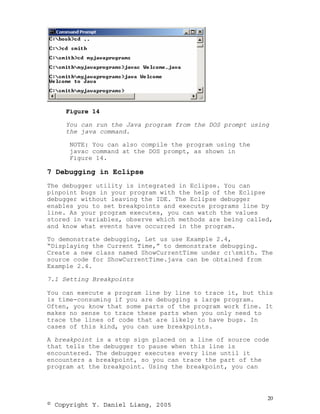
 4. Type java Welcome to run the program. A sample run of
       the output is shown in Figure 14.


                                                            19
© Copyright Y. Daniel Liang, 2005
Figure 14

     You can run the Java program from the DOS prompt using
     the java command.

      NOTE: You can also compile the program using the
      javac command at the DOS prompt, as shown in
      Figure 14.

7 Debugging in Eclipse
The debugger utility is integrated in Eclipse. You can
pinpoint bugs in your program with the help of the Eclipse
debugger without leaving the IDE. The Eclipse debugger
enables you to set breakpoints and execute programs line by
line. As your program executes, you can watch the values
stored in variables, observe which methods are being called,
and know what events have occurred in the program.

To demonstrate debugging, Let us use Example 2.4,
“Displaying the Current Time,” to demonstrate debugging.
Create a new class named ShowCurrentTime under c:smith. The
source code for ShowCurrentTime.java can be obtained from
Example 2.4.

7.1 Setting Breakpoints

You can execute a program line by line to trace it, but this
is time-consuming if you are debugging a large program.
Often, you know that some parts of the program work fine. It
makes no sense to trace these parts when you only need to
trace the lines of code that are likely to have bugs. In
cases of this kind, you can use breakpoints.

A breakpoint is a stop sign placed on a line of source code
that tells the debugger to pause when this line is
encountered. The debugger executes every line until it
encounters a breakpoint, so you can trace the part of the
program at the breakpoint. Using the breakpoint, you can


                                                          20
© Copyright Y. Daniel Liang, 2005
quickly move over the sections you know work correctly and
concentrate on the sections causing problems.

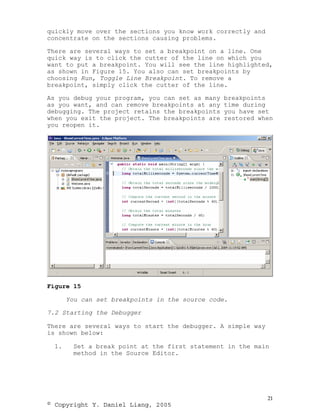
There are several ways to set a breakpoint on a line. One
quick way is to click the cutter of the line on which you
want to put a breakpoint. You will see the line highlighted,
as shown in Figure 15. You also can set breakpoints by
choosing Run, Toggle Line Breakpoint. To remove a
breakpoint, simply click the cutter of the line.

As you debug your program, you can set as many   breakpoints
as you want, and can remove breakpoints at any   time during
debugging. The project retains the breakpoints   you have set
when you exit the project. The breakpoints are   restored when
you reopen it.


Figure 15

       You can set breakpoints in the source code.

7.2 Starting the Debugger

There are several ways to start the debugger. A simple way
is shown below:

  1.    Set a break point at the first statement in the main
        method in the Source Editor.


                                                             21
© Copyright Y. Daniel Liang, 2005
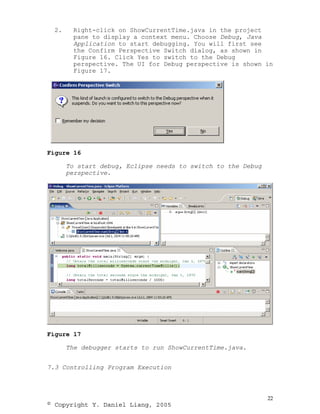
2.    Right-click on ShowCurrentTime.java in the project
        pane to display a context menu. Choose Debug, Java
        Application to start debugging. You will first see
        the Confirm Perspective Switch dialog, as shown in
        Figure 16. Click Yes to switch to the Debug
        perspective. The UI for Debug perspective is shown in
        Figure 17.


Figure 16

       To start debug, Eclipse needs to switch to the Debug
       perspective.


Figure 17

       The debugger starts to run ShowCurrentTime.java.


7.3 Controlling Program Execution


                                                              22
© Copyright Y. Daniel Liang, 2005
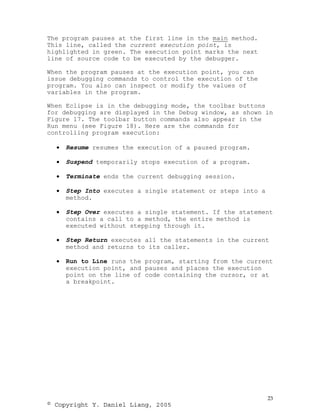
The program pauses at the first line in the main method.
This line, called the current execution point, is
highlighted in green. The execution point marks the next
line of source code to be executed by the debugger.

When the program pauses at the execution point, you can
issue debugging commands to control the execution of the
program. You also can inspect or modify the values of
variables in the program.

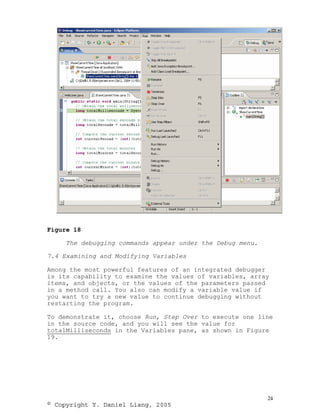
When Eclipse is in the debugging mode, the toolbar buttons
for debugging are displayed in the Debug window, as shown in
Figure 17. The toolbar button commands also appear in the
Run menu (see Figure 18). Here are the commands for
controlling program execution:

  •   Resume resumes the execution of a paused program.

  •   Suspend temporarily stops execution of a program.

  •   Terminate ends the current debugging session.

  •   Step Into executes a single statement or steps into a
      method.

  •   Step Over executes a single statement. If the statement
      contains a call to a method, the entire method is
      executed without stepping through it.

  •   Step Return executes all the statements in the current
      method and returns to its caller.

  •   Run to Line runs the program, starting from the current
      execution point, and pauses and places the execution
      point on the line of code containing the cursor, or at
      a breakpoint.


                                                              23
© Copyright Y. Daniel Liang, 2005
Figure 18

     The debugging commands appear under the Debug menu.

7.4 Examining and Modifying Variables

Among the most powerful features of an integrated debugger
is its capability to examine the values of variables, array
items, and objects, or the values of the parameters passed
in a method call. You also can modify a variable value if
you want to try a new value to continue debugging without
restarting the program.

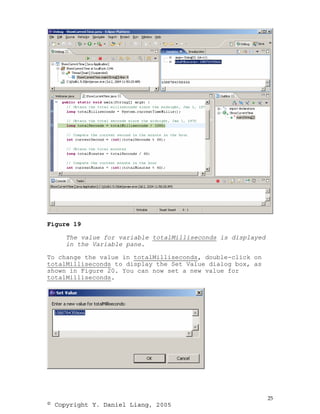
To demonstrate it, choose Run, Step Over to execute one line
in the source code, and you will see the value for
totalMilliseconds in the Variables pane, as shown in Figure
19.


                                                           24
© Copyright Y. Daniel Liang, 2005
Figure 19

     The value for variable totalMilliseconds is displayed
     in the Variable pane.

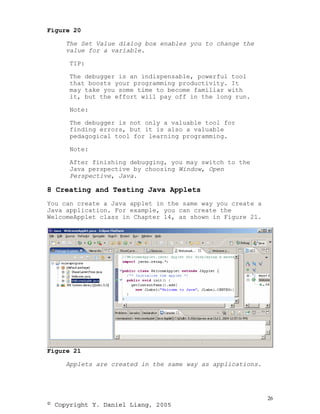
To change the value in totalMilliseconds, double-click on
totalMilliseconds to display the Set Value dialog box, as
shown in Figure 20. You can now set a new value for
totalMilliseconds.


                                                             25
© Copyright Y. Daniel Liang, 2005
Figure 20

     The Set Value dialog box enables you to change the
     value for a variable.

      TIP:

      The debugger is an indispensable, powerful tool
      that boosts your programming productivity. It
      may take you some time to become familiar with
      it, but the effort will pay off in the long run.

      Note:

      The debugger is not only a valuable tool for
      finding errors, but it is also a valuable
      pedagogical tool for learning programming.

      Note:

      After finishing debugging, you may switch to the
      Java perspective by choosing Window, Open
      Perspective, Java.

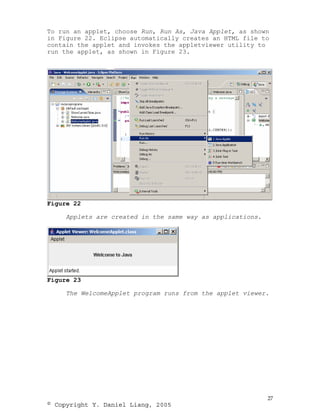
8 Creating and Testing Java Applets
You can create a Java applet in the same way you create a
Java application. For example, you can create the
WelcomeApplet class in Chapter 14, as shown in Figure 21.


Figure 21

     Applets are created in the same way as applications.


                                                            26
© Copyright Y. Daniel Liang, 2005
To run an applet, choose Run, Run As, Java Applet, as shown
in Figure 22. Eclipse automatically creates an HTML file to
contain the applet and invokes the appletviewer utility to
run the applet, as shown in Figure 23.


Figure 22

     Applets are created in the same way as applications.


Figure 23

     The WelcomeApplet program runs from the applet viewer.


                                                            27
© Copyright Y. Daniel Liang, 2005

Supplement J Eclipse

  • 1.
    Supplement J: EclipseTutorial For Introduction to Java Programming, 5E By Y. Daniel Liang This supplement covers the following topics: • Getting Started with Eclipse • Choosing a Perspective • Creating a Project • Creating a Java Program • Compiling and Running a Java Program • Run Java Applications from the Command Line • Debugging in Eclipse NOTE: To use this supplement with the text, you may cover Sections 1 – 6 in this supplement after Chapter 1 in the text, cover Section 7 in this supplement after Chapter 2 in the text, and cover Section 8 in this supplement at the beginning of Chapter 14 in the text. 0 Introduction This tutorial is for students who are currently taking a Java course that uses Eclipse and for Java programmers who want to develop Java projects using Eclipse. Eclipse is an open source supported by IBM. You can use JDK command line utility to write Java programs. The JDK command line utility consists of a set of separate programs, such as compiler and interpreter, each of which is invoked from a command line. Besides the JDK command line utility, there are more than a dozen Java development tools on the market today, including Borland JBuilder, NetBeans, Sun ONE Studio (a commercial version of NetBeans), Eclipse, and WebGain Visual Café. These tools support an integrated development environment (IDE) for rapidly developing Java programs. Editing, compiling, building, debugging, and online help are integrated in one graphical user interface. Using these tools effectively will greatly increase your programming productivity. This brief tutorial will help you to become familiar with Eclipse. Specifically, you will learn how to create projects, create programs, compile, and run programs. 8 © Copyright Y. Daniel Liang, 2005
  • 2.
    NOTE: Eclipse canrun on any platform with a Java Virtual Machine. The screen shots in the tutorial are taken from Windows using Eclipse 3.0. You can download Eclipse from www.eclipse.org. INSTALLATION NOTE: You must install JDK 1.5 before installing Eclipse. JDK 1.5 can be downloaded from http://java.sun.com/j2se/1.5/download.html. The Windows version of Eclipse 3.0 is contained in a ZIP file named eclipse-SDK-3.0-win32.zip. Unzip the file into c:. All the files are now contained in c:eclipse. 1 Getting Started with Eclipse Assume that you have installed Eclipse files in c:eclipse. To start Eclipse, double-click on the eclipse icon in the c:eclipse folder, as shown in Figure 1. The Workspace Launcher window now appears, as shown in Figure 2. Enter c:smith in the Workspace field and click OK to display the Eclipse UI, as shown in Figure 3. (If the workspace already contains projects, the projects will be displayed in the UI.) Workspace is actually a directory that stores your project files. Figure 1 You can start Eclipse by double-clicking the eclipse icon from the eclipse installation directory. 9 © Copyright Y. Daniel Liang, 2005
  • 3.
    Figure 2 The Workspace Launcher lets you choose a directory to store projects. Figure 3 10 © Copyright Y. Daniel Liang, 2005
  • 4.
    The Eclipse mainwindow is the command center for the IDE. 2 Choosing a Perspective A perspective defines the initial set and layout of views in the window. Perspectives control what appears in certain menus and toolbars. For example, a Java perspective contains the views that you would commonly use for editing Java source files, while the Debug perspective contains the views you would use for debugging Java programs. You may switch perspectives, but you need to specify an initial perspective for a workspace. To create Java programs, set the Java perspective by choosing Window, Open Perspective, Java from the main menu, as shown in Figure 4. The new UI is shown in Figure 5. Figure 4 You need to set a perspective for the workspace. 11 © Copyright Y. Daniel Liang, 2005
  • 5.
    Figure 5 The Eclipse UI is displayed according to the perspective. 3 Creating a Project To create a project, choose File, New, Project to display the New Project wizard, as shown in Figure 6. Select Java Project and click Next to display New Java Project wizard, as shown in Figure 7. Type myjavaprograms in the Project name field. As you type, the Directory field becomes c:smithmyjavaprograms. Make sure that you selected the options Create project in workspace and Use project folder as root for sources and class files. Click Finish to create the project. 12 © Copyright Y. Daniel Liang, 2005
  • 6.
    Figure 6 The Eclipse UI is displayed according to the perspective. 13 © Copyright Y. Daniel Liang, 2005
  • 7.
    Figure 7 The Eclipse UI is displayed according to the perspective. 4 Creating a Program Now you can create a program in the project by choosing File, New, Class to display the New Java Class wizard, as shown in Figure 8. Type Welcome in the Name field. Check the option public static void main(String[] args). Click Finish to generate the template for the source code Welcome.java, as shown in Figure 9. NOTE: You may use a package by entering a package name in the Package field in Figure 9. Since the source code in the book does not use packages, the Package field is left blank to match the code in the book. 14 © Copyright Y. Daniel Liang, 2005
  • 8.
    Figure 8 The New Java Class wizard lets you create a new Java class. 15 © Copyright Y. Daniel Liang, 2005
  • 9.
    Figure 9 The New Java Class wizard generates the template of Java source code. Type System.out.println(“Welcome to Java”); in the main method. NOTE: As you type, the code completion assistance may automatically come up to give you suggestions for completing the code. For instance, when you type a dot (.) after System and pause for a second, Eclipse displays a popup menu with suggestions to complete the code, as shown in Figure 10. You can then select the appropriate item from the menu to complete the code. 16 © Copyright Y. Daniel Liang, 2005
  • 10.
    Figure 10 The Code Completion popup menu is automatically displayed to help you complete the code. 5 Compiling and Running a Program By default, your source code is dynamically compiled as you type. For example, if you forgot to type the semicolon (;) to end the statement, as shown in Figure 11, you will see the red wriggly line in the editor pointing to the error. To run the program, right-click the class in the project to display a context menu, as shown in Figure 12. Choose Run, Java Application in the context menu to run the class. The output is displayed in the Console pane, as shown in Figure 13. 17 © Copyright Y. Daniel Liang, 2005
  • 11.
    Figure 11 Eclipse dynamically checks syntax errors. Figure 12 You can run the program from Eclipse. 18 © Copyright Y. Daniel Liang, 2005
  • 12.
    Figure 13 The console pane displays the output to the console. 6 Run Java Applications from the Command Line You also can run program standalone directly from the operating system. Here are the steps in running the Welcome application from the DOS prompt. 1. Start a DOS window by clicking the Windows Start button, Programs, MS-DOS Prompt in Windows. 2. Type the following commands to set up the proper environment variables for running Java programs in the DOS environment in Windows: set path=%path%;c:j2sdk1.5bin set classpath=.;%classpath% 3. Type cd c:smithmyjavaprograms to change the directory to c:smithmyjavaprograms. 4. Type java Welcome to run the program. A sample run of the output is shown in Figure 14. 19 © Copyright Y. Daniel Liang, 2005
  • 13.
    Figure 14 You can run the Java program from the DOS prompt using the java command. NOTE: You can also compile the program using the javac command at the DOS prompt, as shown in Figure 14. 7 Debugging in Eclipse The debugger utility is integrated in Eclipse. You can pinpoint bugs in your program with the help of the Eclipse debugger without leaving the IDE. The Eclipse debugger enables you to set breakpoints and execute programs line by line. As your program executes, you can watch the values stored in variables, observe which methods are being called, and know what events have occurred in the program. To demonstrate debugging, Let us use Example 2.4, “Displaying the Current Time,” to demonstrate debugging. Create a new class named ShowCurrentTime under c:smith. The source code for ShowCurrentTime.java can be obtained from Example 2.4. 7.1 Setting Breakpoints You can execute a program line by line to trace it, but this is time-consuming if you are debugging a large program. Often, you know that some parts of the program work fine. It makes no sense to trace these parts when you only need to trace the lines of code that are likely to have bugs. In cases of this kind, you can use breakpoints. A breakpoint is a stop sign placed on a line of source code that tells the debugger to pause when this line is encountered. The debugger executes every line until it encounters a breakpoint, so you can trace the part of the program at the breakpoint. Using the breakpoint, you can 20 © Copyright Y. Daniel Liang, 2005
  • 14.
    quickly move overthe sections you know work correctly and concentrate on the sections causing problems. There are several ways to set a breakpoint on a line. One quick way is to click the cutter of the line on which you want to put a breakpoint. You will see the line highlighted, as shown in Figure 15. You also can set breakpoints by choosing Run, Toggle Line Breakpoint. To remove a breakpoint, simply click the cutter of the line. As you debug your program, you can set as many breakpoints as you want, and can remove breakpoints at any time during debugging. The project retains the breakpoints you have set when you exit the project. The breakpoints are restored when you reopen it. Figure 15 You can set breakpoints in the source code. 7.2 Starting the Debugger There are several ways to start the debugger. A simple way is shown below: 1. Set a break point at the first statement in the main method in the Source Editor. 21 © Copyright Y. Daniel Liang, 2005
  • 15.
    2. Right-click on ShowCurrentTime.java in the project pane to display a context menu. Choose Debug, Java Application to start debugging. You will first see the Confirm Perspective Switch dialog, as shown in Figure 16. Click Yes to switch to the Debug perspective. The UI for Debug perspective is shown in Figure 17. Figure 16 To start debug, Eclipse needs to switch to the Debug perspective. Figure 17 The debugger starts to run ShowCurrentTime.java. 7.3 Controlling Program Execution 22 © Copyright Y. Daniel Liang, 2005
  • 16.
    The program pausesat the first line in the main method. This line, called the current execution point, is highlighted in green. The execution point marks the next line of source code to be executed by the debugger. When the program pauses at the execution point, you can issue debugging commands to control the execution of the program. You also can inspect or modify the values of variables in the program. When Eclipse is in the debugging mode, the toolbar buttons for debugging are displayed in the Debug window, as shown in Figure 17. The toolbar button commands also appear in the Run menu (see Figure 18). Here are the commands for controlling program execution: • Resume resumes the execution of a paused program. • Suspend temporarily stops execution of a program. • Terminate ends the current debugging session. • Step Into executes a single statement or steps into a method. • Step Over executes a single statement. If the statement contains a call to a method, the entire method is executed without stepping through it. • Step Return executes all the statements in the current method and returns to its caller. • Run to Line runs the program, starting from the current execution point, and pauses and places the execution point on the line of code containing the cursor, or at a breakpoint. 23 © Copyright Y. Daniel Liang, 2005
  • 17.
    Figure 18 The debugging commands appear under the Debug menu. 7.4 Examining and Modifying Variables Among the most powerful features of an integrated debugger is its capability to examine the values of variables, array items, and objects, or the values of the parameters passed in a method call. You also can modify a variable value if you want to try a new value to continue debugging without restarting the program. To demonstrate it, choose Run, Step Over to execute one line in the source code, and you will see the value for totalMilliseconds in the Variables pane, as shown in Figure 19. 24 © Copyright Y. Daniel Liang, 2005
  • 18.
    Figure 19 The value for variable totalMilliseconds is displayed in the Variable pane. To change the value in totalMilliseconds, double-click on totalMilliseconds to display the Set Value dialog box, as shown in Figure 20. You can now set a new value for totalMilliseconds. 25 © Copyright Y. Daniel Liang, 2005
  • 19.
    Figure 20 The Set Value dialog box enables you to change the value for a variable. TIP: The debugger is an indispensable, powerful tool that boosts your programming productivity. It may take you some time to become familiar with it, but the effort will pay off in the long run. Note: The debugger is not only a valuable tool for finding errors, but it is also a valuable pedagogical tool for learning programming. Note: After finishing debugging, you may switch to the Java perspective by choosing Window, Open Perspective, Java. 8 Creating and Testing Java Applets You can create a Java applet in the same way you create a Java application. For example, you can create the WelcomeApplet class in Chapter 14, as shown in Figure 21. Figure 21 Applets are created in the same way as applications. 26 © Copyright Y. Daniel Liang, 2005
  • 20.
    To run anapplet, choose Run, Run As, Java Applet, as shown in Figure 22. Eclipse automatically creates an HTML file to contain the applet and invokes the appletviewer utility to run the applet, as shown in Figure 23. Figure 22 Applets are created in the same way as applications. Figure 23 The WelcomeApplet program runs from the applet viewer. 27 © Copyright Y. Daniel Liang, 2005