Page 0 of 8
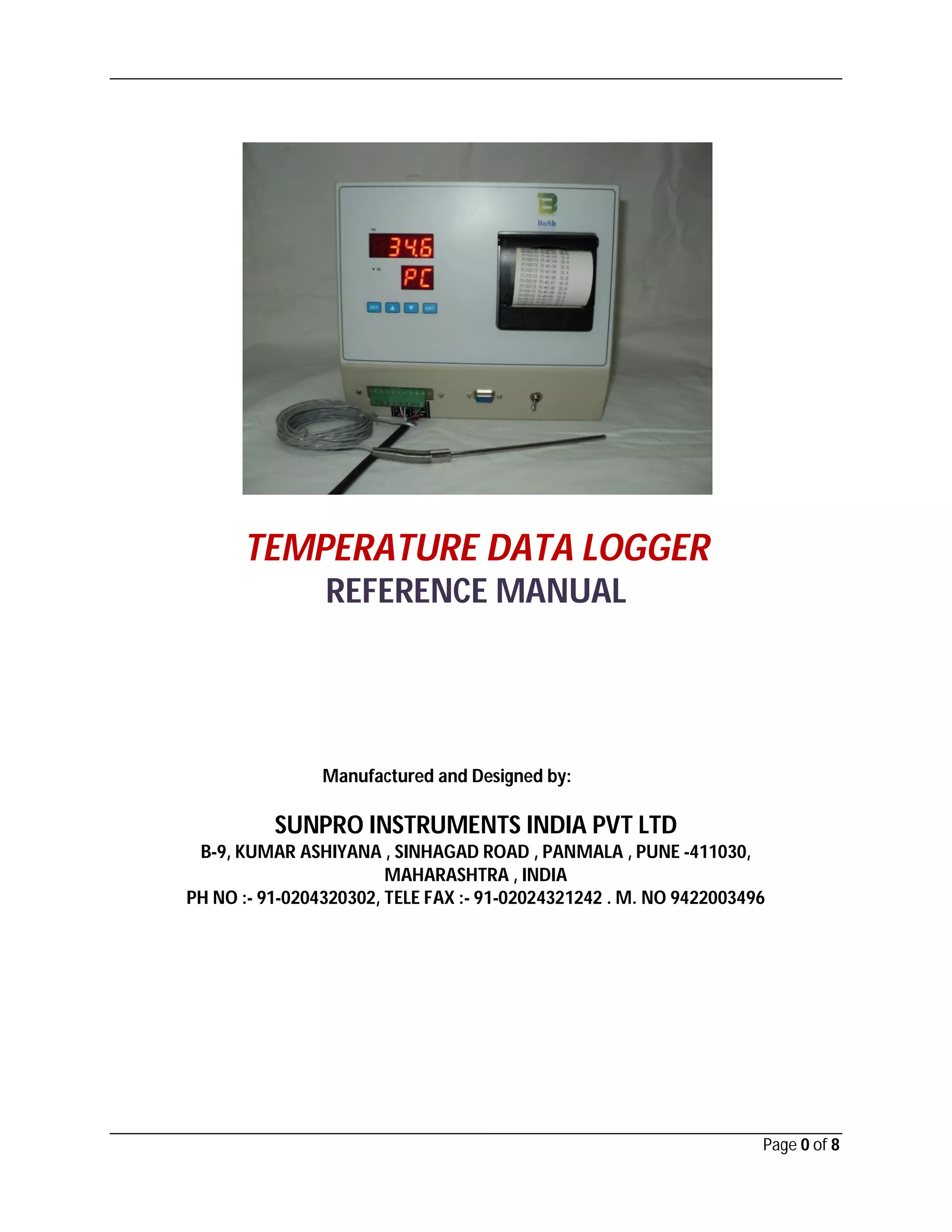
TEMPERATURE DATA LOGGER
REFERENCE MANUAL
Manufactured and Designed by:
SUNPRO INSTRUMENTS INDIA PVT LTD
B-9, KUMAR ASHIYANA , SINHAGAD ROAD , PANMALA , PUNE -411030,
MAHARASHTRA , INDIA
PH NO :- 91-0204320302, TELE FAX :- 91-02024321242 . M. NO 9422003496
Page 1 of 8
TABLE OF CONTENTS
1. Introduction and Features…………………………………………. 2
2. Application Areas………………………………………………………. 2
3. Specifications…………………………………………………………….. 3
4. Hardware Overview…………………………………………………… 4
5. Software Utility…………………………………………………………. 5
6. Installation and Getting Started………………………………… 7
7. Trouble Shooting………………………………………………………. 7
Page 2 of 8
1. Introduction and Features
This Data Logger records data from any closed/open location (like a room, or a process
chamber), displays the same if required.
All the recorded information can be downloaded to a computer, thus being a convenient
and economical for later review. This data can be exported to a WordPad or Excel file.
Basic statistical processing can be done for general data analysis. It also has an
additional provision for thermal printing.
Features:
Single channel PT100 Data Logger with high accuracy and Thermal Printer Interface
 MAX 232 interface
 User-friendly Windows-based software utility
 LED to indicate High and Low values
 48 mm thermal printer compatible
 6 nos. of 7 segment LEDs to show readings
 Password protection
 On line Thermal Printer Compatible
2. Applications areas
 All types of process parameters like Boilers, Dairy equipment, Sugar, Chemical,
Pharmaceutical, Breweries, Paper & Pulp, Food industries, Agriculture,
Metrological, Water treatment, HVAC, Heat treatment & all process industries
Page 3 of 8
3. Specifications:
 Accuracy: ± 0.1 % FS
 Resolution: 0.2 / 1 Count
 Input Analog RTD ( 3 wire)
 Relay outputs (NO/NC)
 Display: 3 ½ Digit LED for PV & 2 digit LED for indication of thermal printer/PC
connection
 Memory: Non-volatile RAM
 Up to 32000 records can be logged
 48mm Thermal printer compatibility
 Switch for selection of thermal printer or PC
 Communication Port: RS-232C
 Dimensions of single channel device: 225 x 200 x 110mm
 Keyboard: 4 key membrane keyboard
 Power Supply: 240 VAC / 50 Hz
 Log time: 1 min to 99 min settable
 Print interval: 1 min to 99 min (according to log time)
 Addressable serial interface
 Adjustable RTC
 Software with Statistic Graph /Online graph/circular graph, High, Low alarm
Page 4 of 8
4. Hardware Overview:
 One serial port on front panel for PC or thermal printer communication
 Toggle button for selection of Thermal printer or PC, also on front panel
 3-pin MKDS on front panel for
i. Power
ii. Relay
iii. 3-wire PT100 input
 4 switches on front panel for
i. Menu
ii. Down
iii. Up
iv. Enter/Select
 1 LED for status indication
 6 nos. of 7-segment displays for reading values
 Thermal printer enclosure on front panel for paper roll and cutter
Page 5 of 8
5. Software Utility:
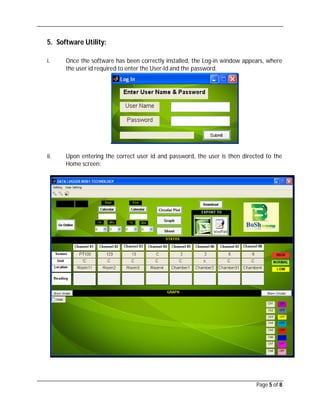
i. Once the software has been correctly installed, the Log-in window appears, where
the user id required to enter the User-Id and the password.
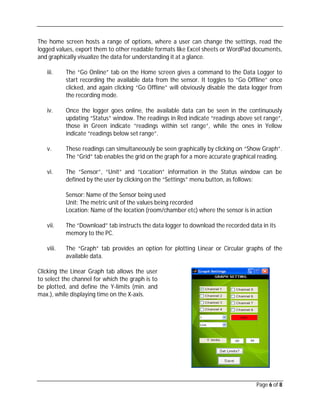
ii. Upon entering the correct user id and password, the user is then directed to the
Home screen:
Page 6 of 8
The home screen hosts a range of options, where a user can change the settings, read the
logged values, export them to other readable formats like Excel sheets or WordPad documents,
and graphically visualize the data for understanding it at a glance.
iii. The “Go Online” tab on the Home screen gives a command to the Data Logger to
start recording the available data from the sensor. It toggles to “Go Offline” once
clicked, and again clicking “Go Offline” will obviously disable the data logger from
the recording mode.
iv. Once the logger goes online, the available data can be seen in the continuously
updating “Status” window. The readings in Red indicate “readings above set range”,
those in Green indicate “readings within set range”, while the ones in Yellow
indicate “readings below set range”.
v. These readings can simultaneously be seen graphically by clicking on “Show Graph”.
The “Grid” tab enables the grid on the graph for a more accurate graphical reading.
vi. The “Sensor”, “Unit” and “Location” information in the Status window can be
defined by the user by clicking on the “Settings” menu button, as follows:
Sensor: Name of the Sensor being used
Unit: The metric unit of the values being recorded
Location: Name of the location (room/chamber etc) where the sensor is in action
vii. The “Download” tab instructs the data logger to download the recorded data in its
memory to the PC.
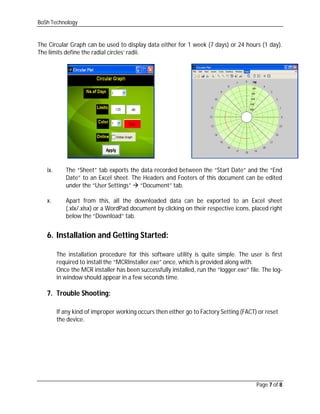
viii. The “Graph” tab provides an option for plotting Linear or Circular graphs of the
available data.
Clicking the Linear Graph tab allows the user
to select the channel for which the graph is to
be plotted, and define the Y-limits (min. and
max.), while displaying time on the X-axis.
BoSh Technology
Page 7 of 8
The Circular Graph can be used to display data either for 1 week (7 days) or 24 hours (1 day).
The limits define the radial circles’ radii.
ix. The “Sheet” tab exports the data recorded between the “Start Date” and the “End
Date” to an Excel sheet. The Headers and Footers of this document can be edited
under the “User Settings”  “Document” tab.
x. Apart from this, all the downloaded data can be exported to an Excel sheet
(.xlx/.xlsx) or a WordPad document by clicking on their respective icons, placed right
below the “Download” tab.
6. Installation and Getting Started:
The installation procedure for this software utility is quite simple. The user is first
required to install the “MCRInstaller.exe” once, which is provided along with.
Once the MCR installer has been successfully installed, run the “logger.exe” file. The log-
in window should appear in a few seconds time.
7. Trouble Shooting:
If any kind of improper working occurs then either go to Factory Setting (FACT) or reset
the device.

Sunpro Instruments (India) Private Limited, Pune, Measuring Instruments

  • 1.
    Page 0 of8 TEMPERATURE DATA LOGGER REFERENCE MANUAL Manufactured and Designed by: SUNPRO INSTRUMENTS INDIA PVT LTD B-9, KUMAR ASHIYANA , SINHAGAD ROAD , PANMALA , PUNE -411030, MAHARASHTRA , INDIA PH NO :- 91-0204320302, TELE FAX :- 91-02024321242 . M. NO 9422003496
  • 2.
    Page 1 of8 TABLE OF CONTENTS 1. Introduction and Features…………………………………………. 2 2. Application Areas………………………………………………………. 2 3. Specifications…………………………………………………………….. 3 4. Hardware Overview…………………………………………………… 4 5. Software Utility…………………………………………………………. 5 6. Installation and Getting Started………………………………… 7 7. Trouble Shooting………………………………………………………. 7
  • 3.
    Page 2 of8 1. Introduction and Features This Data Logger records data from any closed/open location (like a room, or a process chamber), displays the same if required. All the recorded information can be downloaded to a computer, thus being a convenient and economical for later review. This data can be exported to a WordPad or Excel file. Basic statistical processing can be done for general data analysis. It also has an additional provision for thermal printing. Features: Single channel PT100 Data Logger with high accuracy and Thermal Printer Interface  MAX 232 interface  User-friendly Windows-based software utility  LED to indicate High and Low values  48 mm thermal printer compatible  6 nos. of 7 segment LEDs to show readings  Password protection  On line Thermal Printer Compatible 2. Applications areas  All types of process parameters like Boilers, Dairy equipment, Sugar, Chemical, Pharmaceutical, Breweries, Paper & Pulp, Food industries, Agriculture, Metrological, Water treatment, HVAC, Heat treatment & all process industries
  • 4.
    Page 3 of8 3. Specifications:  Accuracy: ± 0.1 % FS  Resolution: 0.2 / 1 Count  Input Analog RTD ( 3 wire)  Relay outputs (NO/NC)  Display: 3 ½ Digit LED for PV & 2 digit LED for indication of thermal printer/PC connection  Memory: Non-volatile RAM  Up to 32000 records can be logged  48mm Thermal printer compatibility  Switch for selection of thermal printer or PC  Communication Port: RS-232C  Dimensions of single channel device: 225 x 200 x 110mm  Keyboard: 4 key membrane keyboard  Power Supply: 240 VAC / 50 Hz  Log time: 1 min to 99 min settable  Print interval: 1 min to 99 min (according to log time)  Addressable serial interface  Adjustable RTC  Software with Statistic Graph /Online graph/circular graph, High, Low alarm
  • 5.
    Page 4 of8 4. Hardware Overview:  One serial port on front panel for PC or thermal printer communication  Toggle button for selection of Thermal printer or PC, also on front panel  3-pin MKDS on front panel for i. Power ii. Relay iii. 3-wire PT100 input  4 switches on front panel for i. Menu ii. Down iii. Up iv. Enter/Select  1 LED for status indication  6 nos. of 7-segment displays for reading values  Thermal printer enclosure on front panel for paper roll and cutter
  • 6.
    Page 5 of8 5. Software Utility: i. Once the software has been correctly installed, the Log-in window appears, where the user id required to enter the User-Id and the password. ii. Upon entering the correct user id and password, the user is then directed to the Home screen:
  • 7.
    Page 6 of8 The home screen hosts a range of options, where a user can change the settings, read the logged values, export them to other readable formats like Excel sheets or WordPad documents, and graphically visualize the data for understanding it at a glance. iii. The “Go Online” tab on the Home screen gives a command to the Data Logger to start recording the available data from the sensor. It toggles to “Go Offline” once clicked, and again clicking “Go Offline” will obviously disable the data logger from the recording mode. iv. Once the logger goes online, the available data can be seen in the continuously updating “Status” window. The readings in Red indicate “readings above set range”, those in Green indicate “readings within set range”, while the ones in Yellow indicate “readings below set range”. v. These readings can simultaneously be seen graphically by clicking on “Show Graph”. The “Grid” tab enables the grid on the graph for a more accurate graphical reading. vi. The “Sensor”, “Unit” and “Location” information in the Status window can be defined by the user by clicking on the “Settings” menu button, as follows: Sensor: Name of the Sensor being used Unit: The metric unit of the values being recorded Location: Name of the location (room/chamber etc) where the sensor is in action vii. The “Download” tab instructs the data logger to download the recorded data in its memory to the PC. viii. The “Graph” tab provides an option for plotting Linear or Circular graphs of the available data. Clicking the Linear Graph tab allows the user to select the channel for which the graph is to be plotted, and define the Y-limits (min. and max.), while displaying time on the X-axis.
  • 8.
    BoSh Technology Page 7of 8 The Circular Graph can be used to display data either for 1 week (7 days) or 24 hours (1 day). The limits define the radial circles’ radii. ix. The “Sheet” tab exports the data recorded between the “Start Date” and the “End Date” to an Excel sheet. The Headers and Footers of this document can be edited under the “User Settings”  “Document” tab. x. Apart from this, all the downloaded data can be exported to an Excel sheet (.xlx/.xlsx) or a WordPad document by clicking on their respective icons, placed right below the “Download” tab. 6. Installation and Getting Started: The installation procedure for this software utility is quite simple. The user is first required to install the “MCRInstaller.exe” once, which is provided along with. Once the MCR installer has been successfully installed, run the “logger.exe” file. The log- in window should appear in a few seconds time. 7. Trouble Shooting: If any kind of improper working occurs then either go to Factory Setting (FACT) or reset the device.