Style Manual for the Computer
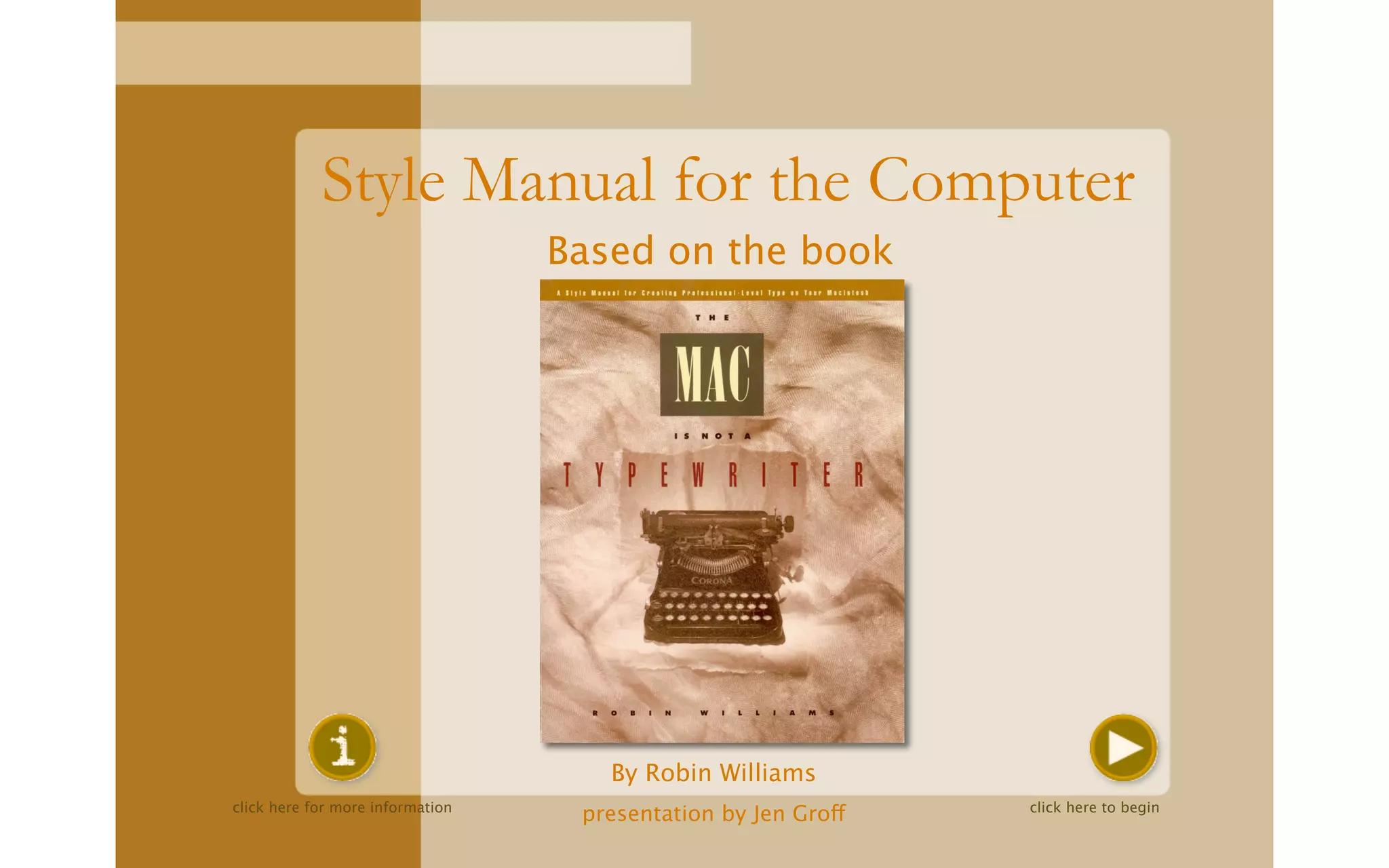
                                  Based on the book


                                     By Robin Williams
click here for more information                                click here to begin
                                   presentation by Jen Groff
Style Manual for the Computer
    This outstanding book was written to outline the basic
    concepts behind using a computer to create professional
    documents. If you would like to learn more once you have
    completed this tutorial, I highly recommend buying the book,
    The MAC is not a Typewriter, by Robin Williams.
    You can tour through this tutorial using the navigation buttons
    located in the bottom right-hand corner of your screen. At any
    time, you may exit by clicking on the button located in the
    upper left-hand corner of your screen. Also located there is
    the index key. This feature allows you to skip right to the page
    you are interested in. You may find this handy once you have
    completed the tutorial, but later would like to reference
    something you here.
               Let’s begin by clicking on the next button.


                                                                       CLICK
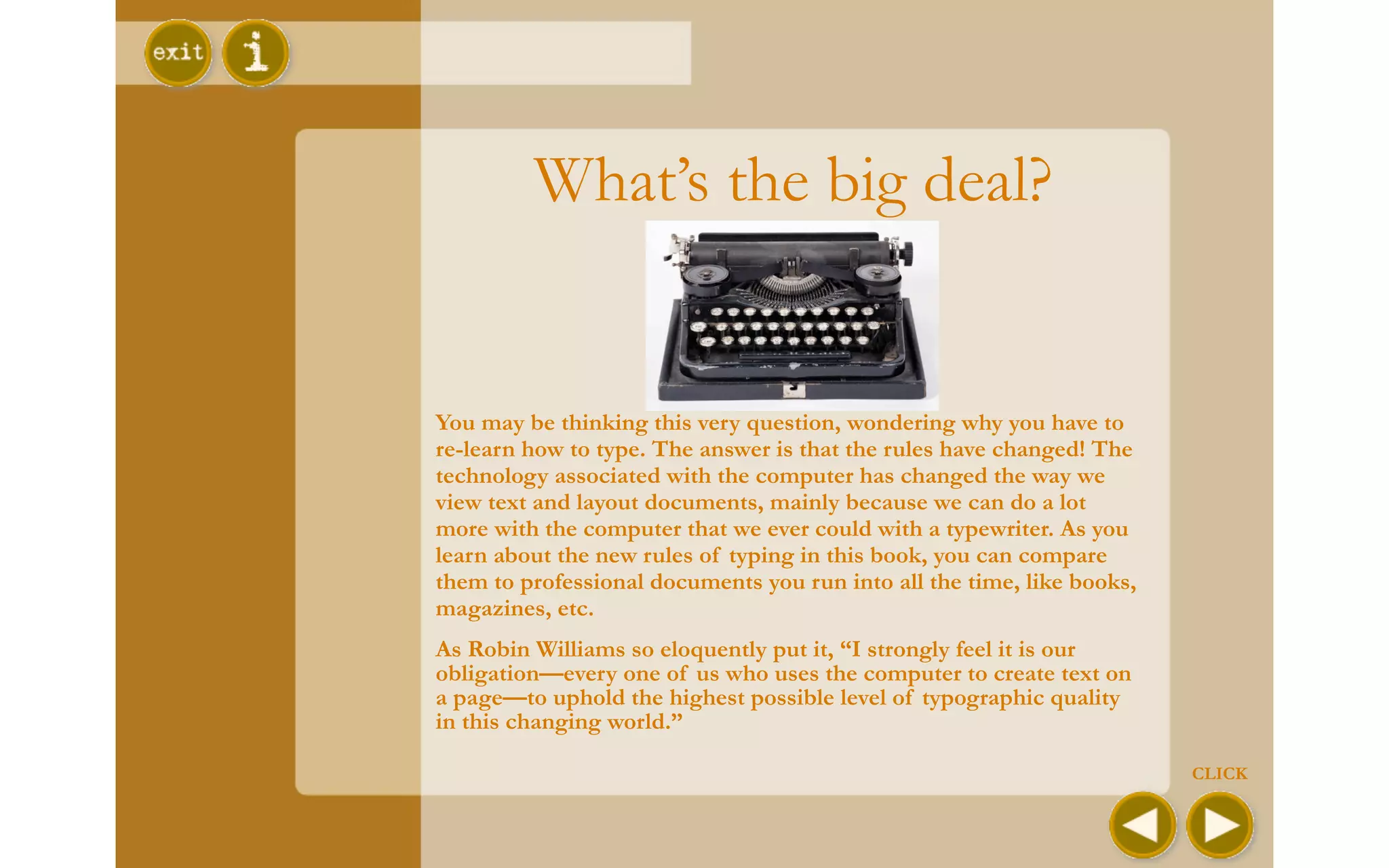
What’s the big deal?


You may be thinking this very question, wondering why you have to
re-learn how to type. The answer is that the rules have changed! The
technology associated with the computer has changed the way we
view text and layout documents, mainly because we can do a lot
more with the computer that we ever could with a typewriter. As you
learn about the new rules of typing in this book, you can compare
them to professional documents you run into all the time, like books,
magazines, etc.
As Robin Williams so eloquently put it, “I strongly feel it is our
obligation—every one of us who uses the computer to create text on
a page—to uphold the highest possible level of typographic quality
in this changing world.”

                                                                        CLICK
S Spacing
       Use only one space after punctuation.
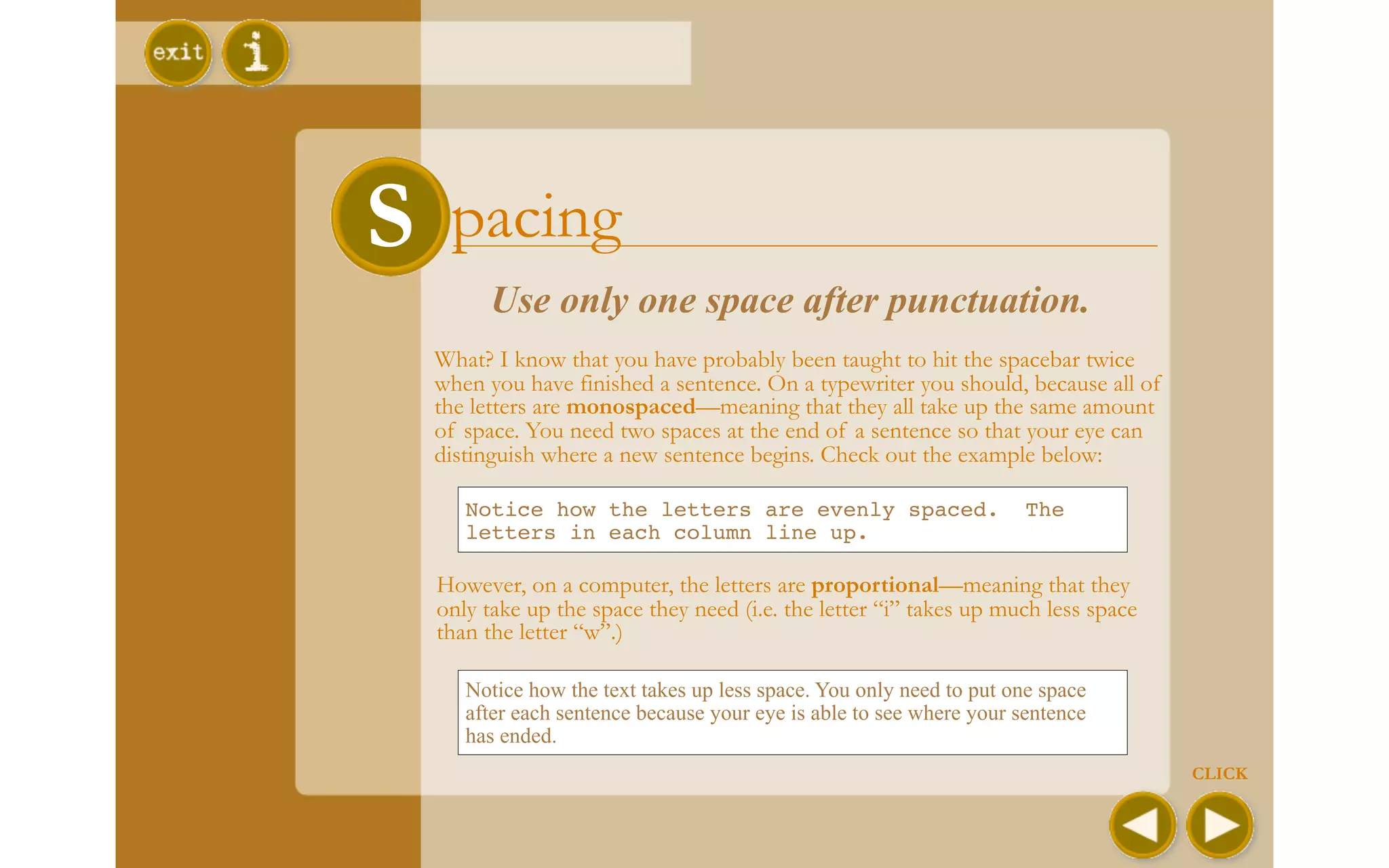
  What? I know that you have probably been taught to hit the spacebar twice
  when you have finished a sentence. On a typewriter you should, because all of
  the letters are monospaced—meaning that they all take up the same amount
  of space. You need two spaces at the end of a sentence so that your eye can
  distinguish where a new sentence begins. Check out the example below:

     Notice how the letters are evenly spaced.                       The
     letters in each column line up.

  However, on a computer, the letters are proportional—meaning that they
  only take up the space they need (i.e. the letter “i” takes up much less space
  than the letter “w”.)

     Notice how the text takes up less space. You only need to put one space
     after each sentence because your eye is able to see where your sentence
     has ended.
                                                                                   CLICK
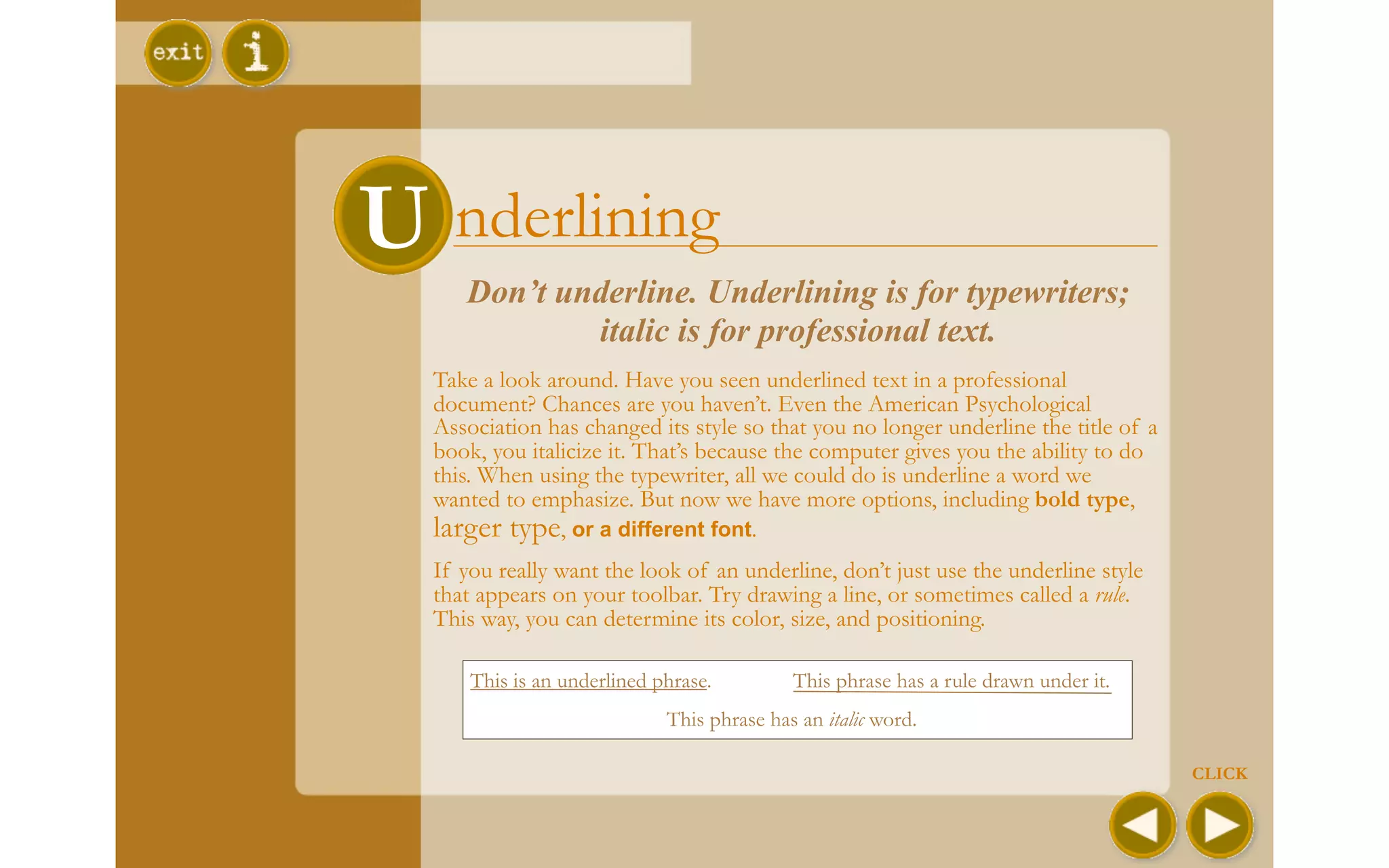
U nderlining
     Don’t underline. Underlining is for typewriters;
             italic is for professional text.
  Take a look around. Have you seen underlined text in a professional
  document? Chances are you haven’t. Even the American Psychological
  Association has changed its style so that you no longer underline the title of a
  book, you italicize it. That’s because the computer gives you the ability to do
  this. When using the typewriter, all we could do is underline a word we
  wanted to emphasize. But now we have more options, including bold type,
  larger type, or a different font.
  If you really want the look of an underline, don’t just use the underline style
  that appears on your toolbar. Try drawing a line, or sometimes called a rule.
  This way, you can determine its color, size, and positioning.

      This is an underlined phrase.         This phrase has a rule drawn under it.
                             This phrase has an italic word.

                                                                                     CLICK
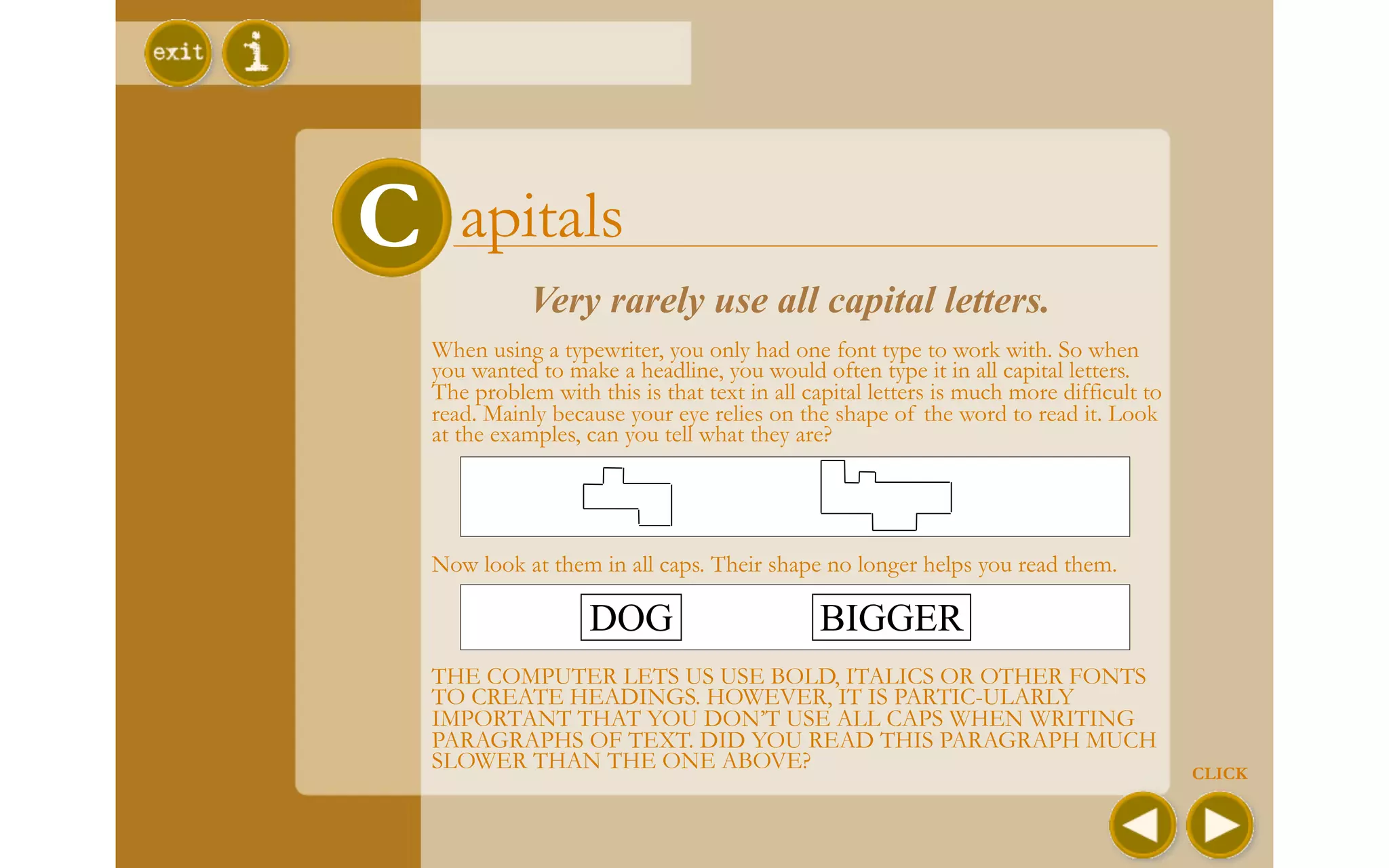
C      apitals
               Very rarely use all capital letters.
    When using a typewriter, you only had one font type to work with. So when
    you wanted to make a headline, you would often type it in all capital letters.
    The problem with this is that text in all capital letters is much more difficult to
    read. Mainly because your eye relies on the shape of the word to read it. Look
    at the examples, can you tell what they are?


    Now look at them in all caps. Their shape no longer helps you read them.

                     DOG                        BIGGER
    THE COMPUTER LETS US USE BOLD, ITALICS OR OTHER FONTS
    TO CREATE HEADINGS. HOWEVER, IT IS PARTIC-ULARLY
    IMPORTANT THAT YOU DON’T USE ALL CAPS WHEN WRITING
    PARAGRAPHS OF TEXT. DID YOU READ THIS PARAGRAPH MUCH
    SLOWER THAN THE ONE ABOVE?                                                            CLICK
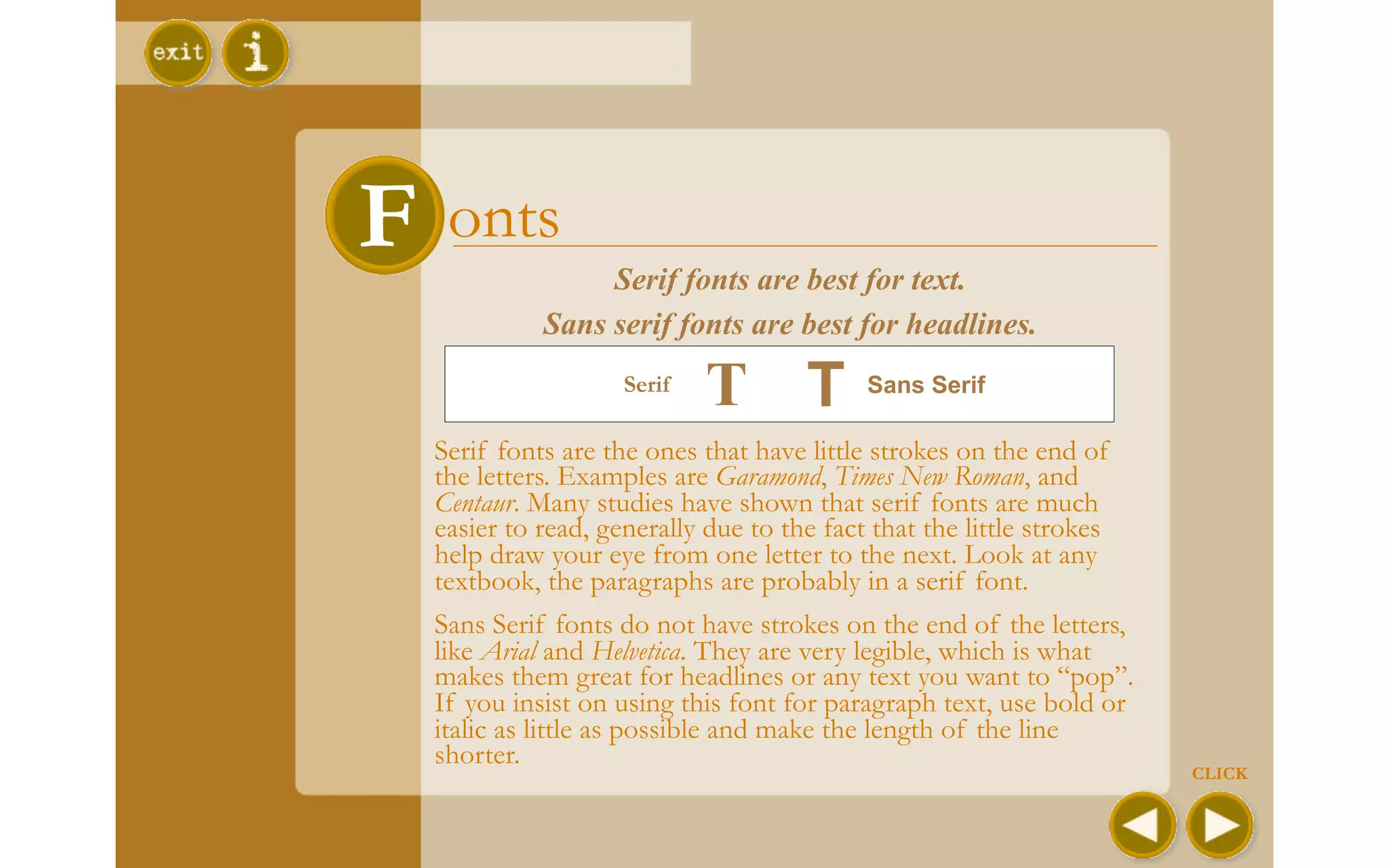
F    onts
                   Serif fonts are best for text.
              Sans serif fonts are best for headlines.
                     Serif
                             T T            Sans Serif

    Serif fonts are the ones that have little strokes on the end of
    the letters. Examples are Garamond, Times New Roman, and
    Centaur. Many studies have shown that serif fonts are much
    easier to read, generally due to the fact that the little strokes
    help draw your eye from one letter to the next. Look at any
    textbook, the paragraphs are probably in a serif font.
    Sans Serif fonts do not have strokes on the end of the letters,
    like Arial and Helvetica. They are very legible, which is what
    makes them great for headlines or any text you want to “pop”.
    If you insist on using this font for paragraph text, use bold or
    italic as little as possible and make the length of the line
    shorter.
                                                                        CLICK
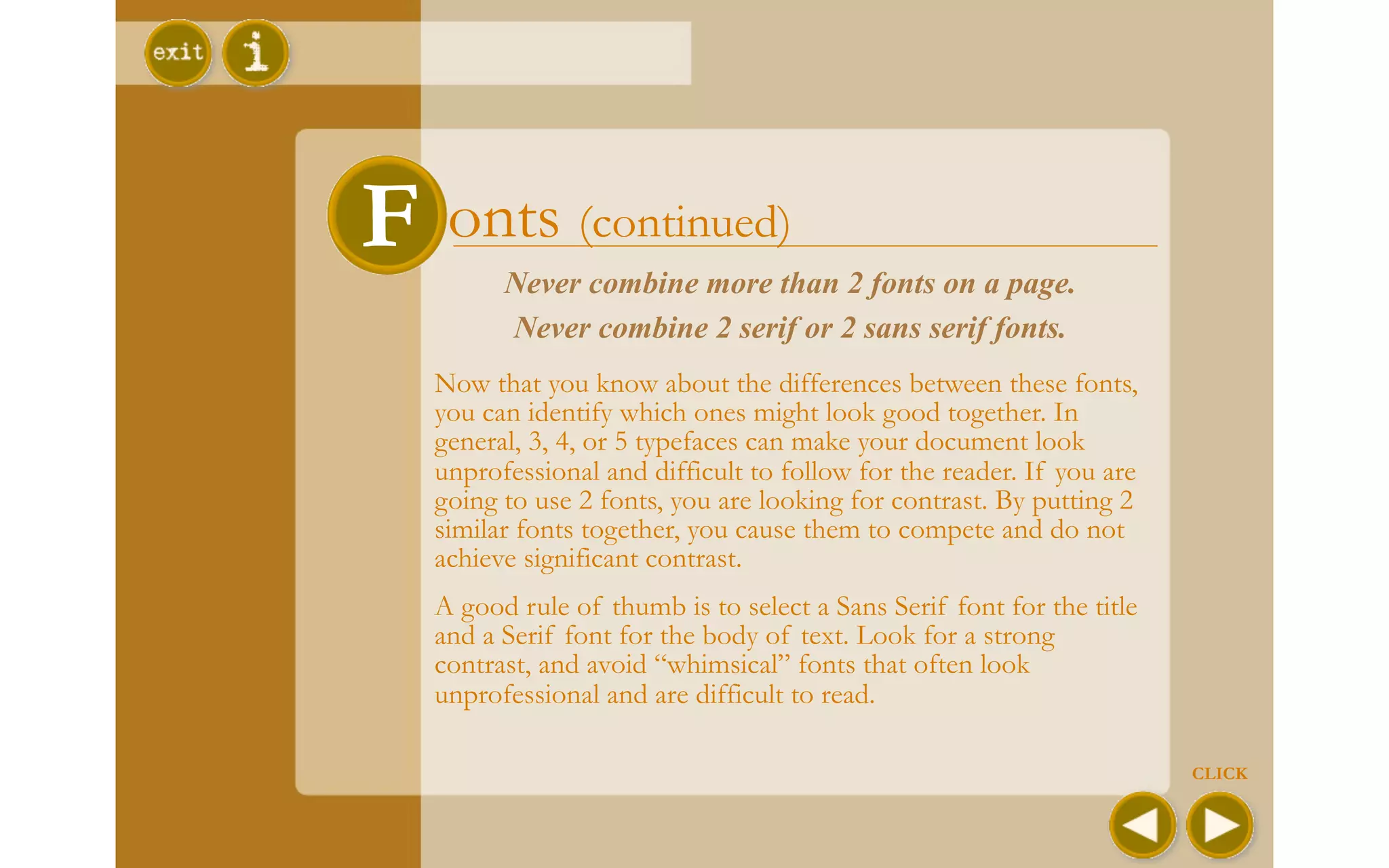
F onts (continued)
         Never combine more than 2 fonts on a page.
         Never combine 2 serif or 2 sans serif fonts.
   Now that you know about the differences between these fonts,
   you can identify which ones might look good together. In
   general, 3, 4, or 5 typefaces can make your document look
   unprofessional and difficult to follow for the reader. If you are
   going to use 2 fonts, you are looking for contrast. By putting 2
   similar fonts together, you cause them to compete and do not
   achieve significant contrast.
   A good rule of thumb is to select a Sans Serif font for the title
   and a Serif font for the body of text. Look for a strong
   contrast, and avoid “whimsical” fonts that often look
   unprofessional and are difficult to read.

                                                                       CLICK
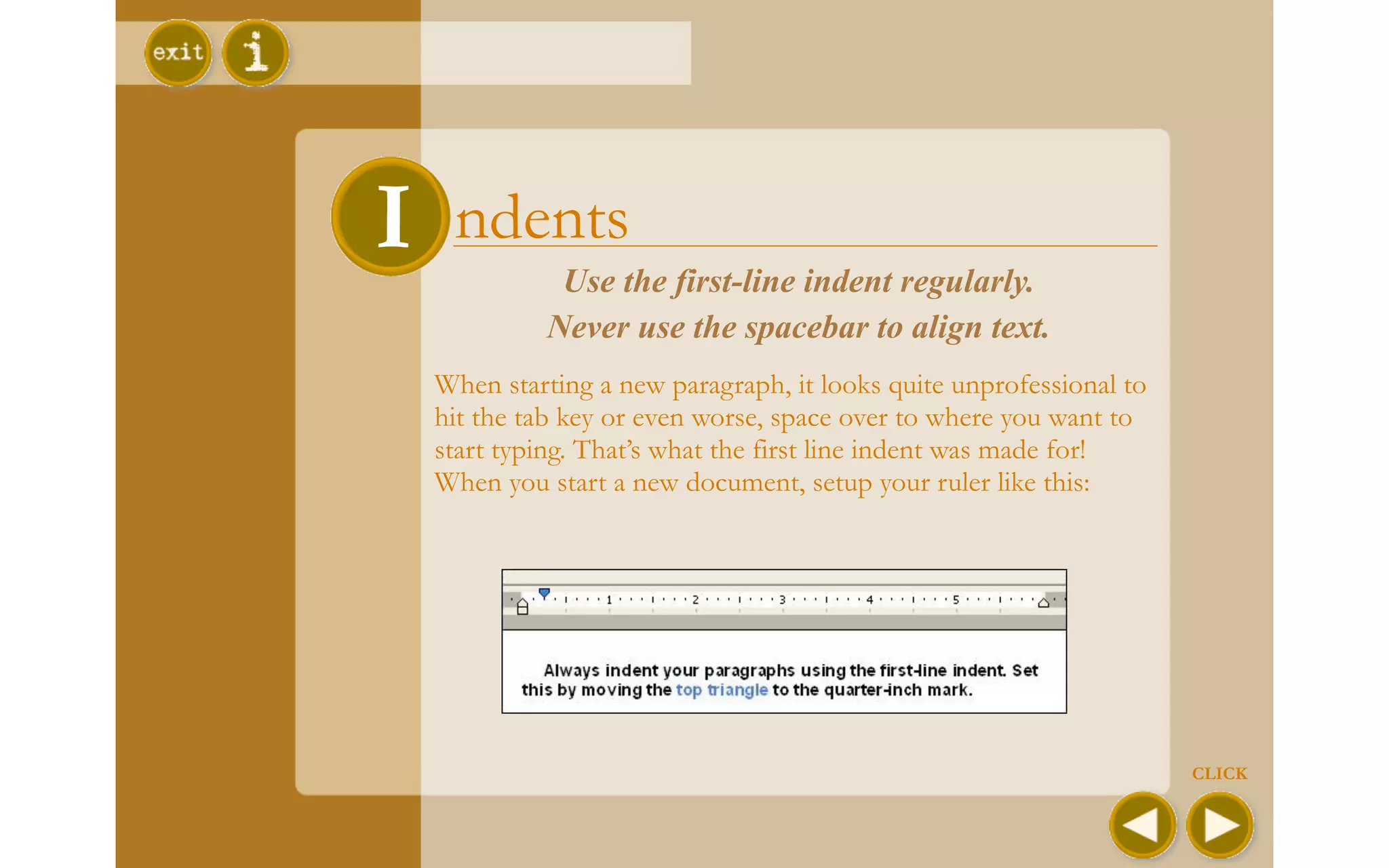
II ndents   Use the first-line indent regularly.
           Never use the spacebar to align text.
  When starting a new paragraph, it looks quite unprofessional to
  hit the tab key or even worse, space over to where you want to
  start typing. That’s what the first line indent was made for!
  When you start a new document, setup your ruler like this:


                                                                    CLICK
T abs
 T
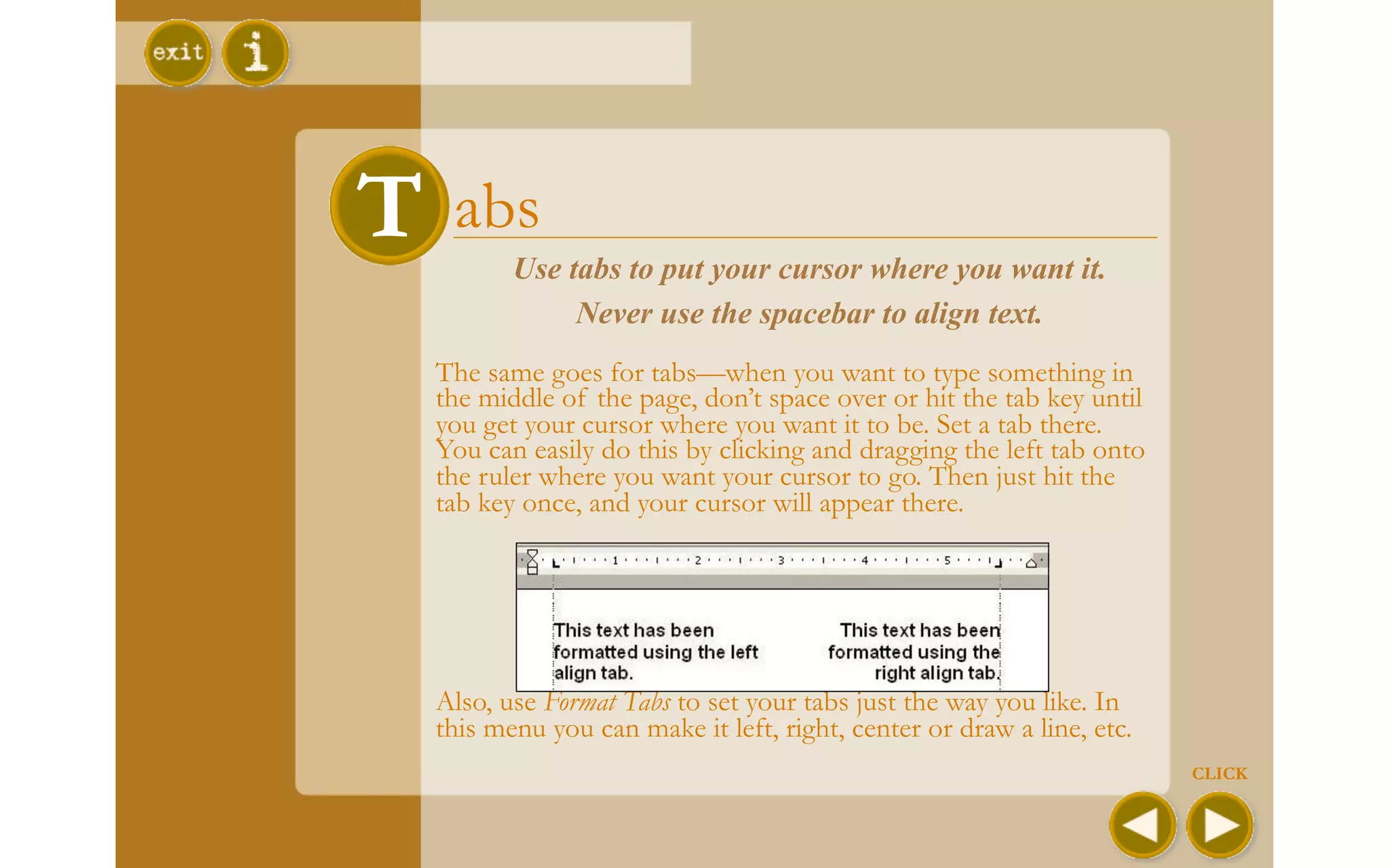
         Use tabs to put your cursor where you want it.
              Never use the spacebar to align text.
  The same goes for tabs—when you want to type something in
  the middle of the page, don’t space over or hit the tab key until
  you get your cursor where you want it to be. Set a tab there.
  You can easily do this by clicking and dragging the left tab onto
  the ruler where you want your cursor to go. Then just hit the
  tab key once, and your cursor will appear there.


  Also, use Format Tabs to set your tabs just the way you like. In
  this menu you can make it left, right, center or draw a line, etc.
                                                                       CLICK
L ine-spacing
 L
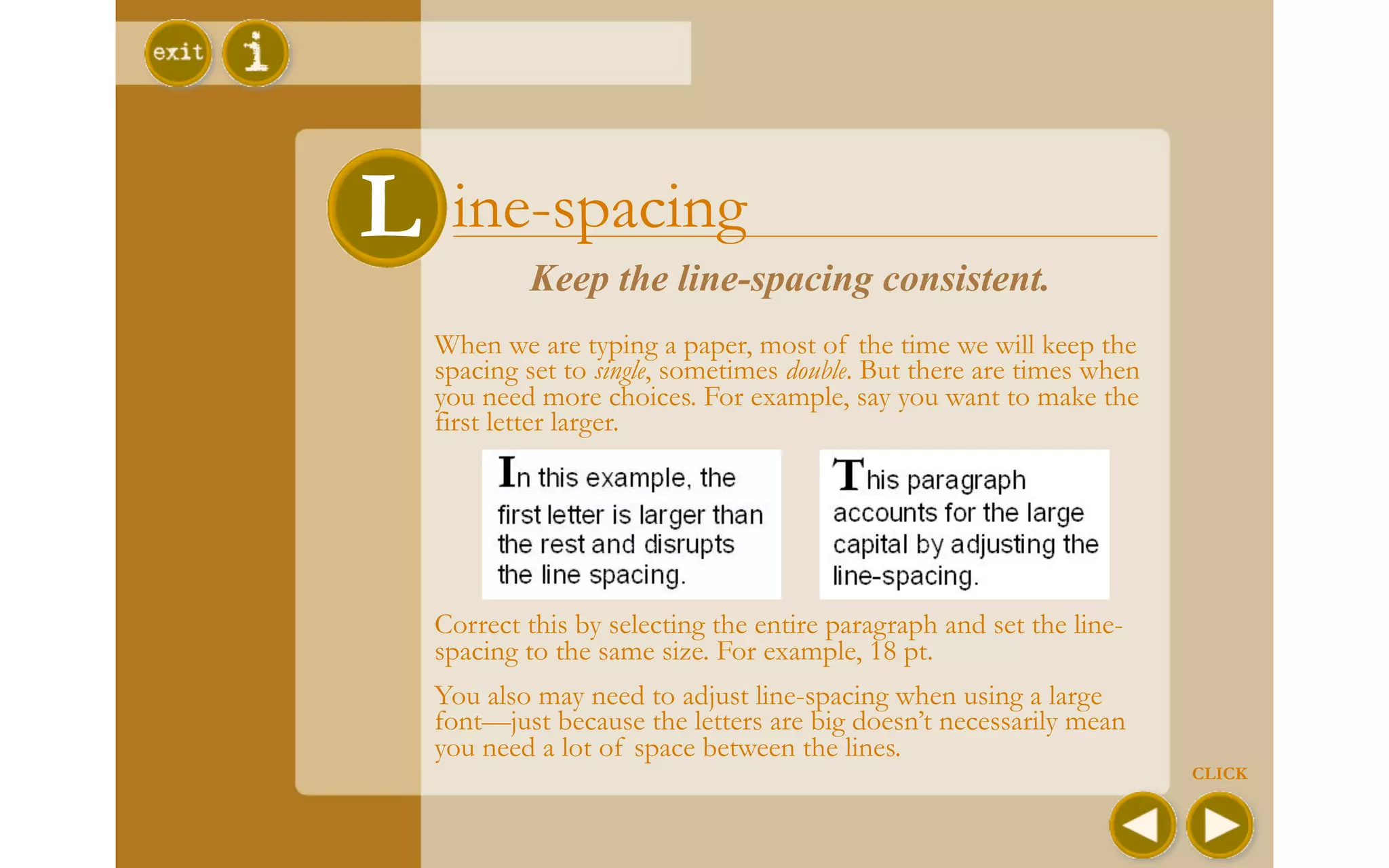
          Keep the line-spacing consistent.
  When we are typing a paper, most of the time we will keep the
  spacing set to single, sometimes double. But there are times when
  you need more choices. For example, say you want to make the
  first letter larger.


  Correct this by selecting the entire paragraph and set the line-
  spacing to the same size. For example, 18 pt.
  You also may need to adjust line-spacing when using a large
  font—just because the letters are big doesn’t necessarily mean
  you need a lot of space between the lines.
                                                                      CLICK
DDashes
          Never use two hyphens instead of a dash.
     Use hyphens, en and em dashes, where appropriate.
  If you are like me, before reading this book I had no idea what an
  en dash or em dash was. Fortunately, programs like Microsoft®
  Word will most times be able to figure out which one you need
  and put it there for you. But here are the rules anyway…
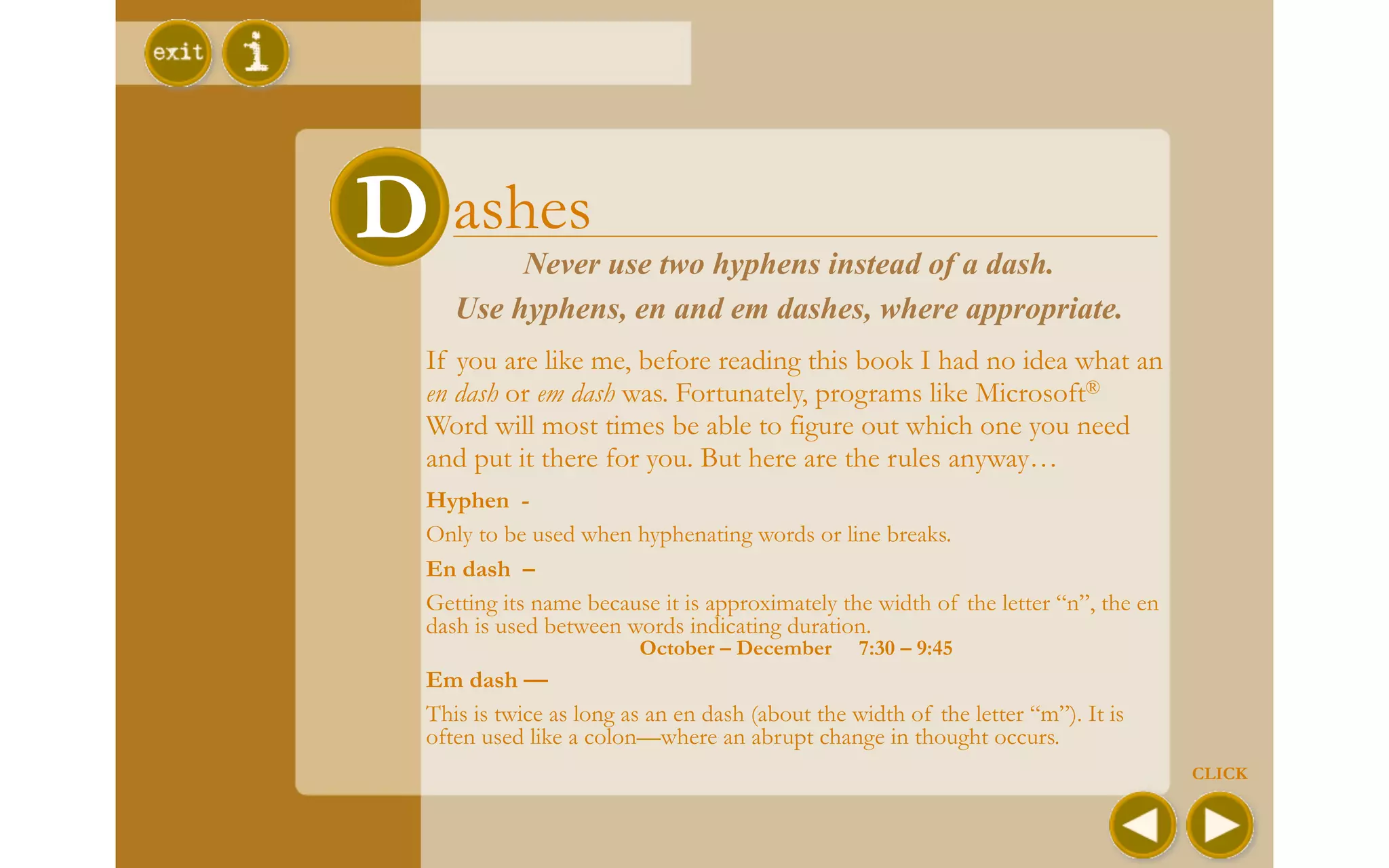
  Hyphen -
  Only to be used when hyphenating words or line breaks.
  En dash –
  Getting its name because it is approximately the width of the letter “n”, the en
  dash is used between words indicating duration.
                         October – December       7:30 – 9:45
  Em dash —
  This is twice as long as an en dash (about the width of the letter “m”). It is
  often used like a colon—where an abrupt change in thought occurs.
                                                                                     CLICK
S Special characters
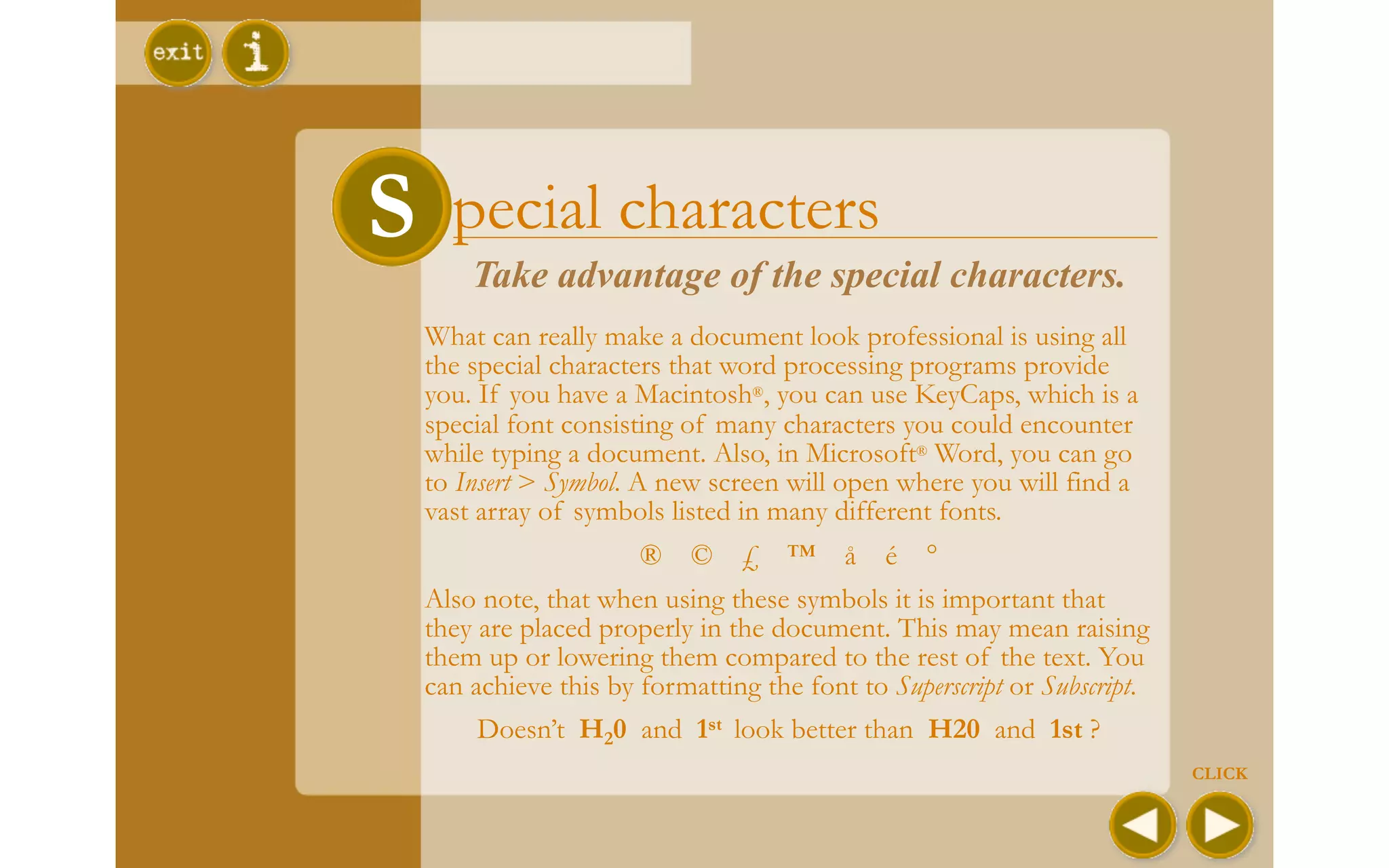
      Take advantage of the special characters.
  What can really make a document look professional is using all
  the special characters that word processing programs provide
  you. If you have a Macintosh®, you can use KeyCaps, which is a
  special font consisting of many characters you could encounter
  while typing a document. Also, in Microsoft® Word, you can go
  to Insert > Symbol. A new screen will open where you will find a
  vast array of symbols listed in many different fonts.
                      ® © £ ™ å é °
  Also note, that when using these symbols it is important that
  they are placed properly in the document. This may mean raising
  them up or lowering them compared to the rest of the text. You
  can achieve this by formatting the font to Superscript or Subscript.
       Doesn’t H20 and 1st look better than H20 and 1st ?
                                                                         CLICK
M iscellaneous
M
        Odds and ends that you should know.
  § Use italic and bold occasionally—too much can overwhelm
    your piece.
  § A.M. and P.M. are too overpowering if left as general text.
    Select them and choose “Small Caps” in the formatting menu.
  § Make a conscious effort to be consistent. If your first heading
    is 18-point bold, then make sure they all are 18-point bold.
  § Avoid abbreviating whenever possible. In the middle of a
    paragraph, don’t use lbs., spell out the word pounds.


                                                                      CLICK
Congratulations!
        You have completed the tutorial!
You now know the rules to creating professional-
    looking documents in your everyday life.
There are more tips in the book, so if you would
  like to learn more, I recommend reading it!


   On the next page you will find a sample
document. See if you can find all the errors that
               have been made!
                  Good luck!

                                                    CLICK
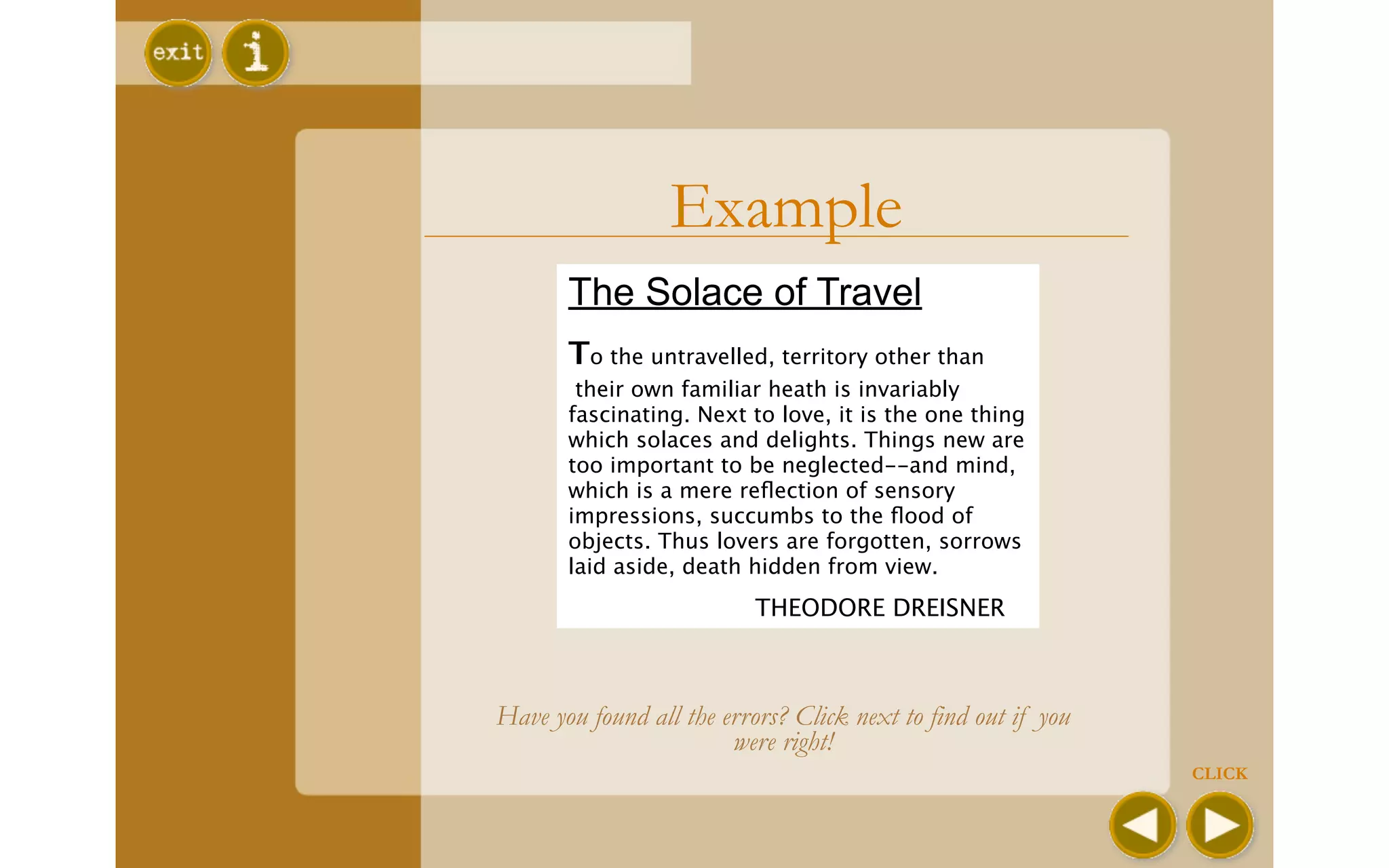
Example
       The Solace of Travel
       To the untravelled, territory other than
        their own familiar heath is invariably
       fascinating. Next to love, it is the one thing
       which solaces and delights. Things new are
       too important to be neglected--and mind,
       which is a mere reflection of sensory
       impressions, succumbs to the flood of
       objects. Thus lovers are forgotten, sorrows
       laid aside, death hidden from view.
       
                   THEODORE DREISNER


Have you found all the errors? Click next to find out if you
                        were right!
                                                               CLICK
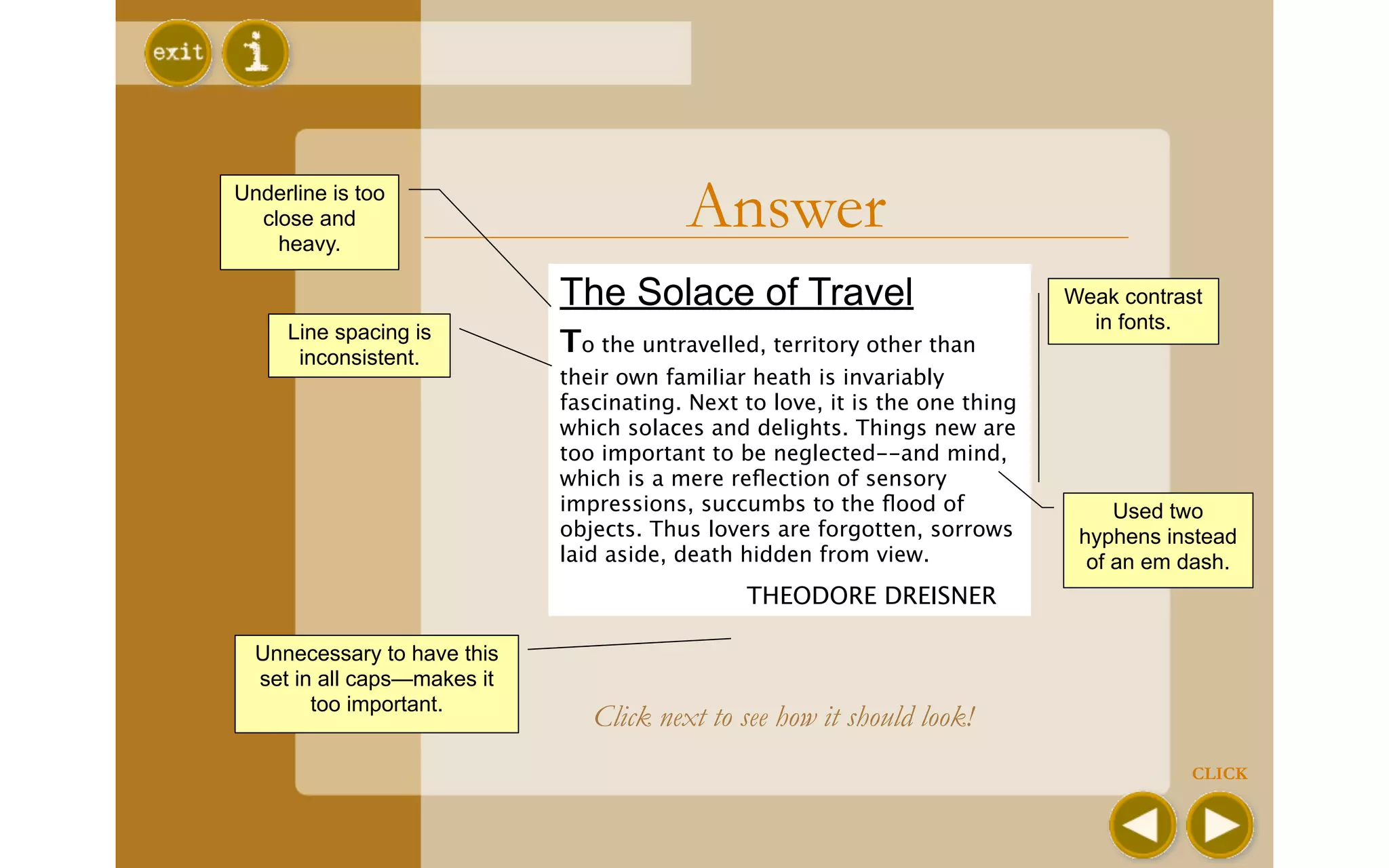
Underline is too
  close and
    heavy.
                                          Answer
                             The Solace of Travel                             Weak contrast
     Line spacing is                                                            in fonts.
      inconsistent.
                             To the untravelled, territory other than
                             their own familiar heath is invariably
                             fascinating. Next to love, it is the one thing
                             which solaces and delights. Things new are
                             too important to be neglected--and mind,
                             which is a mere reflection of sensory
                             impressions, succumbs to the flood of                  Used two
                             objects. Thus lovers are forgotten, sorrows       hyphens instead
                             laid aside, death hidden from view.                of an em dash.
                             
                 THEODORE DREISNER

  Unnecessary to have this
  set in all caps—makes it
        too important.
                                 Click next to see how it should look!
                                                                                          CLICK
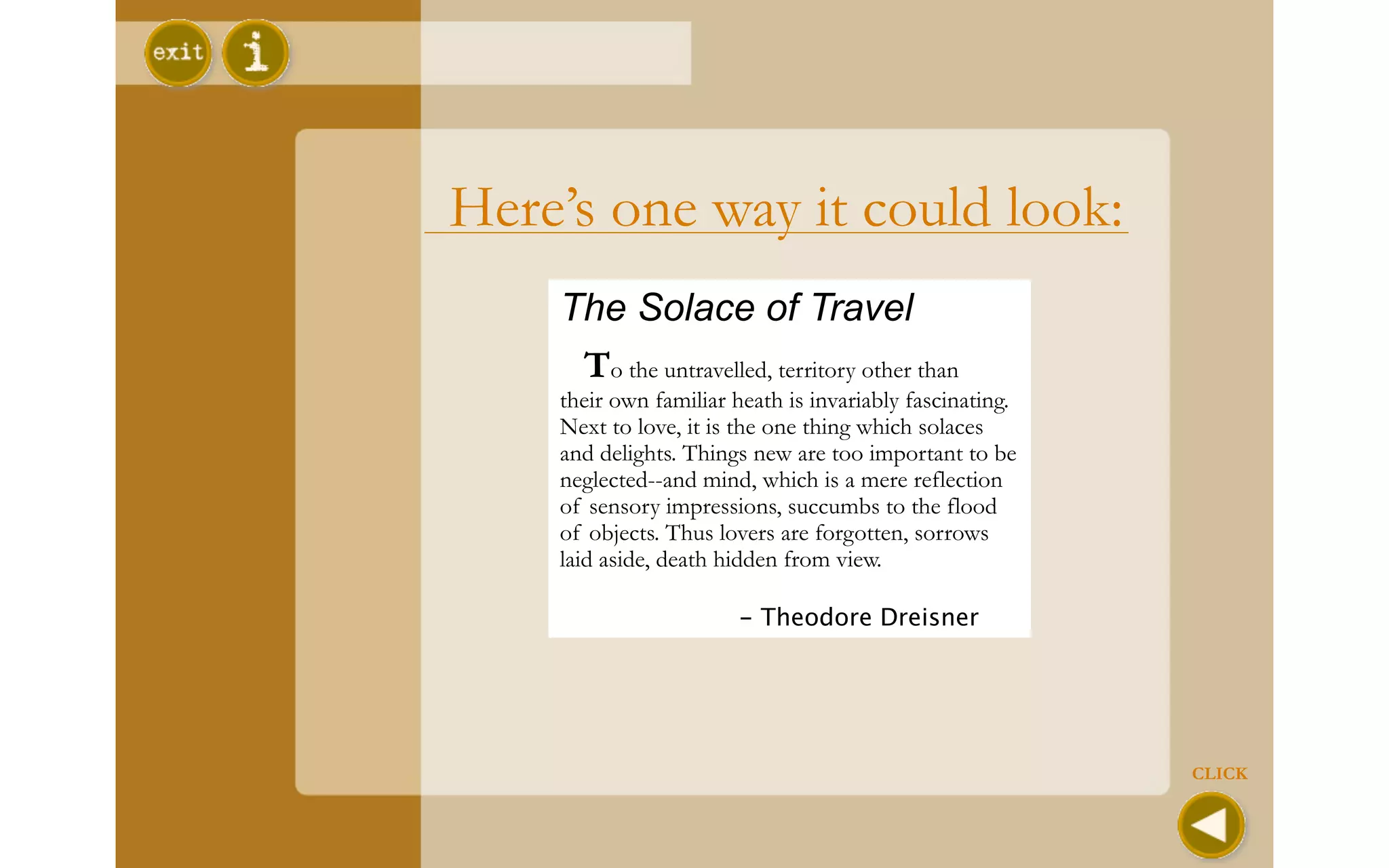
Here’s one way it could look:
    The Solace of Travel
     To the untravelled, territory other than
    their own familiar heath is invariably fascinating.
    Next to love, it is the one thing which solaces
    and delights. Things new are too important to be
    neglected--and mind, which is a mere reflection
    of sensory impressions, succumbs to the flood
    of objects. Thus lovers are forgotten, sorrows
    laid aside, death hidden from view.

    
                   - Theodore Dreisner


                                                          CLICK
Index

S pacing                 T abs
U nderlining             L ine-spacing
C apitals                D ashes
F onts (serif/sans serif) S pecial characters
F onts (formatting)     M iscellaneous
I ndents                 Q uiz

Style Manual for the Computer

  • 1.
    Style Manual forthe Computer Based on the book By Robin Williams click here for more information click here to begin presentation by Jen Groff
  • 2.
    Style Manual forthe Computer This outstanding book was written to outline the basic concepts behind using a computer to create professional documents. If you would like to learn more once you have completed this tutorial, I highly recommend buying the book, The MAC is not a Typewriter, by Robin Williams. You can tour through this tutorial using the navigation buttons located in the bottom right-hand corner of your screen. At any time, you may exit by clicking on the button located in the upper left-hand corner of your screen. Also located there is the index key. This feature allows you to skip right to the page you are interested in. You may find this handy once you have completed the tutorial, but later would like to reference something you here. Let’s begin by clicking on the next button. CLICK
  • 3.
    What’s the bigdeal? You may be thinking this very question, wondering why you have to re-learn how to type. The answer is that the rules have changed! The technology associated with the computer has changed the way we view text and layout documents, mainly because we can do a lot more with the computer that we ever could with a typewriter. As you learn about the new rules of typing in this book, you can compare them to professional documents you run into all the time, like books, magazines, etc. As Robin Williams so eloquently put it, “I strongly feel it is our obligation—every one of us who uses the computer to create text on a page—to uphold the highest possible level of typographic quality in this changing world.” CLICK
  • 4.
    S Spacing Use only one space after punctuation. What? I know that you have probably been taught to hit the spacebar twice when you have finished a sentence. On a typewriter you should, because all of the letters are monospaced—meaning that they all take up the same amount of space. You need two spaces at the end of a sentence so that your eye can distinguish where a new sentence begins. Check out the example below: Notice how the letters are evenly spaced. The letters in each column line up. However, on a computer, the letters are proportional—meaning that they only take up the space they need (i.e. the letter “i” takes up much less space than the letter “w”.) Notice how the text takes up less space. You only need to put one space after each sentence because your eye is able to see where your sentence has ended. CLICK
  • 5.
    U nderlining Don’t underline. Underlining is for typewriters; italic is for professional text. Take a look around. Have you seen underlined text in a professional document? Chances are you haven’t. Even the American Psychological Association has changed its style so that you no longer underline the title of a book, you italicize it. That’s because the computer gives you the ability to do this. When using the typewriter, all we could do is underline a word we wanted to emphasize. But now we have more options, including bold type, larger type, or a different font. If you really want the look of an underline, don’t just use the underline style that appears on your toolbar. Try drawing a line, or sometimes called a rule. This way, you can determine its color, size, and positioning. This is an underlined phrase. This phrase has a rule drawn under it. This phrase has an italic word. CLICK
  • 6.
    C apitals Very rarely use all capital letters. When using a typewriter, you only had one font type to work with. So when you wanted to make a headline, you would often type it in all capital letters. The problem with this is that text in all capital letters is much more difficult to read. Mainly because your eye relies on the shape of the word to read it. Look at the examples, can you tell what they are? Now look at them in all caps. Their shape no longer helps you read them. DOG BIGGER THE COMPUTER LETS US USE BOLD, ITALICS OR OTHER FONTS TO CREATE HEADINGS. HOWEVER, IT IS PARTIC-ULARLY IMPORTANT THAT YOU DON’T USE ALL CAPS WHEN WRITING PARAGRAPHS OF TEXT. DID YOU READ THIS PARAGRAPH MUCH SLOWER THAN THE ONE ABOVE? CLICK
  • 7.
    F onts Serif fonts are best for text. Sans serif fonts are best for headlines. Serif T T Sans Serif Serif fonts are the ones that have little strokes on the end of the letters. Examples are Garamond, Times New Roman, and Centaur. Many studies have shown that serif fonts are much easier to read, generally due to the fact that the little strokes help draw your eye from one letter to the next. Look at any textbook, the paragraphs are probably in a serif font. Sans Serif fonts do not have strokes on the end of the letters, like Arial and Helvetica. They are very legible, which is what makes them great for headlines or any text you want to “pop”. If you insist on using this font for paragraph text, use bold or italic as little as possible and make the length of the line shorter. CLICK
  • 8.
    F onts (continued) Never combine more than 2 fonts on a page. Never combine 2 serif or 2 sans serif fonts. Now that you know about the differences between these fonts, you can identify which ones might look good together. In general, 3, 4, or 5 typefaces can make your document look unprofessional and difficult to follow for the reader. If you are going to use 2 fonts, you are looking for contrast. By putting 2 similar fonts together, you cause them to compete and do not achieve significant contrast. A good rule of thumb is to select a Sans Serif font for the title and a Serif font for the body of text. Look for a strong contrast, and avoid “whimsical” fonts that often look unprofessional and are difficult to read. CLICK
  • 9.
    II ndents Use the first-line indent regularly. Never use the spacebar to align text. When starting a new paragraph, it looks quite unprofessional to hit the tab key or even worse, space over to where you want to start typing. That’s what the first line indent was made for! When you start a new document, setup your ruler like this: CLICK
  • 10.
    T abs T Use tabs to put your cursor where you want it. Never use the spacebar to align text. The same goes for tabs—when you want to type something in the middle of the page, don’t space over or hit the tab key until you get your cursor where you want it to be. Set a tab there. You can easily do this by clicking and dragging the left tab onto the ruler where you want your cursor to go. Then just hit the tab key once, and your cursor will appear there. Also, use Format Tabs to set your tabs just the way you like. In this menu you can make it left, right, center or draw a line, etc. CLICK
  • 11.
    L ine-spacing L Keep the line-spacing consistent. When we are typing a paper, most of the time we will keep the spacing set to single, sometimes double. But there are times when you need more choices. For example, say you want to make the first letter larger. Correct this by selecting the entire paragraph and set the line- spacing to the same size. For example, 18 pt. You also may need to adjust line-spacing when using a large font—just because the letters are big doesn’t necessarily mean you need a lot of space between the lines. CLICK
  • 12.
    DDashes Never use two hyphens instead of a dash. Use hyphens, en and em dashes, where appropriate. If you are like me, before reading this book I had no idea what an en dash or em dash was. Fortunately, programs like Microsoft® Word will most times be able to figure out which one you need and put it there for you. But here are the rules anyway… Hyphen - Only to be used when hyphenating words or line breaks. En dash – Getting its name because it is approximately the width of the letter “n”, the en dash is used between words indicating duration. October – December 7:30 – 9:45 Em dash — This is twice as long as an en dash (about the width of the letter “m”). It is often used like a colon—where an abrupt change in thought occurs. CLICK
  • 13.
    S Special characters Take advantage of the special characters. What can really make a document look professional is using all the special characters that word processing programs provide you. If you have a Macintosh®, you can use KeyCaps, which is a special font consisting of many characters you could encounter while typing a document. Also, in Microsoft® Word, you can go to Insert > Symbol. A new screen will open where you will find a vast array of symbols listed in many different fonts. ® © £ ™ å é ° Also note, that when using these symbols it is important that they are placed properly in the document. This may mean raising them up or lowering them compared to the rest of the text. You can achieve this by formatting the font to Superscript or Subscript. Doesn’t H20 and 1st look better than H20 and 1st ? CLICK
  • 14.
    M iscellaneous M Odds and ends that you should know. § Use italic and bold occasionally—too much can overwhelm your piece. § A.M. and P.M. are too overpowering if left as general text. Select them and choose “Small Caps” in the formatting menu. § Make a conscious effort to be consistent. If your first heading is 18-point bold, then make sure they all are 18-point bold. § Avoid abbreviating whenever possible. In the middle of a paragraph, don’t use lbs., spell out the word pounds. CLICK
  • 15.
    Congratulations! You have completed the tutorial! You now know the rules to creating professional- looking documents in your everyday life. There are more tips in the book, so if you would like to learn more, I recommend reading it! On the next page you will find a sample document. See if you can find all the errors that have been made! Good luck! CLICK
  • 16.
    Example The Solace of Travel To the untravelled, territory other than their own familiar heath is invariably fascinating. Next to love, it is the one thing which solaces and delights. Things new are too important to be neglected--and mind, which is a mere reflection of sensory impressions, succumbs to the flood of objects. Thus lovers are forgotten, sorrows laid aside, death hidden from view. THEODORE DREISNER Have you found all the errors? Click next to find out if you were right! CLICK
  • 17.
    Underline is too close and heavy. Answer The Solace of Travel Weak contrast Line spacing is in fonts. inconsistent. To the untravelled, territory other than their own familiar heath is invariably fascinating. Next to love, it is the one thing which solaces and delights. Things new are too important to be neglected--and mind, which is a mere reflection of sensory impressions, succumbs to the flood of Used two objects. Thus lovers are forgotten, sorrows hyphens instead laid aside, death hidden from view. of an em dash. THEODORE DREISNER Unnecessary to have this set in all caps—makes it too important. Click next to see how it should look! CLICK
  • 18.
    Here’s one wayit could look: The Solace of Travel To the untravelled, territory other than their own familiar heath is invariably fascinating. Next to love, it is the one thing which solaces and delights. Things new are too important to be neglected--and mind, which is a mere reflection of sensory impressions, succumbs to the flood of objects. Thus lovers are forgotten, sorrows laid aside, death hidden from view. - Theodore Dreisner CLICK
  • 19.
    Index S pacing T abs U nderlining L ine-spacing C apitals D ashes F onts (serif/sans serif) S pecial characters F onts (formatting) M iscellaneous I ndents Q uiz