Editing, Presenting and Anal Retenting Thursday Bram, Christopher Swenson Center for Information Security University of Tulsa 600 South College Ave, Tulsa, OK 74104
Overview Editing skills Publications Anal retentive bits and pieces
Manuals Chicago Manual of Style Excellent reference for all things about setting text Elements of Typographic Style , by Robert Bringhurst Best text for typesetting Writing for Computer Science , by Justin Z obel Good book for more technical writing Elements of Style , Strunk and White Classic, cheap, small
Writing: the Three Cs Clear Don’t use difficult vocabulary Unless it is necessary; if so, define it No ambiguity Concise Shorter is almost always better But don’t add ambiguity Consistent Be consistent in language, arguments and formatting
Writing Tips Especially for papers, write in third person Use the academic “we” if necessary, but never “I” or “you” Outline your paper ahead of time Outlining gives you an idea of where you're going and what resources you need  Define any technical or difficult terms at the beginning of your paper Vary your word choice
Common Mistakes  Loose / lose  Its / it’s They’re / their / there  Then / than Effect / affect You’re / your Different than / different from Could of / would of
The Possessive –  Just for Dr. Hale Chicago , 7.17–7.30 Possessives: ’s for everything, except Plural in form, singular in meaning Politics’, species’, United States’, National Academic of Sciences’ Ends in “eez” sound Euripedes’, Xerxes’, Ganges’ Unpronounced “s” Descartes’, marquis’,  For …’ sake righteousness’, goodness’ Not hard and fast: can just omit for any word ending in “s”
More on e.g., etc. i.e. =  id est  = “it is”, “in other words” e.g. =  exempli gratia  = “for the sake of example” Always use commas after (i.e., like now) When using e.g., i.e., and so forth, never end it with “etc.” – it’s implied etc. =  et cetera  = “and the rest”
Always Proofread Run a spell-checker If possible, have someone else look it over If not, try some of the following: Read paragraphs in reverse order Read one line at a time Print out a copy and highlight any words that are commonly mistaken
Cite Your Sources Know where your facts come from Cite consistently, regardless of style used Include all the information someone would need to find that source For papers, the minimum number of references is 10
Example Citation J. Smith,  Analysis of Networking Procedures , Addison-Wesley, Crawfordsville, Indiana, 2005. Included is the name of the author, the name of the publication (article name and journal name), page numbers, the publisher’s name and location and the date published If citing material from the Web, cite the URL Book titles, journal titles should be italicized Article names in quotes Journal volume numbers in bold, issue in parentheses Artificial Intelligence   7 (1)
It’s Plagiarism … If you don’t give credit when you use another person’s idea, opinion or theory If you don’t give credit use facts, graphs, statistics or other pieces of information that are not common knowledge If you don’t give credit for a direct quotation or paraphrase of another person’s work
Style Always conform to the standard style Word limits, text size and formats are all there for a reason When in doubt, ask for a sample or a template Assume that copies of any paper, presentation, etc. will be given to other people Must be understandable without you present
Presentation Tips Bullets are helpful Each bullet should be a complete thought Don’t rely on PowerPoint, except for displaying images Don’t just read off your slides Use easy to read figures Always use easy-to-read text Use strong colors, especially for text Avoid animations, neon colors and sillyness Try to keep bullets to one line
Letters  Every letter should have a header Date (no abbreviations) Addressee and Address (Name, Title, Company, Street Address, City, ZIP) Address letters to an individual Use Mr., Ms. or the appropriate title All letters begin with “Dear” End letters with “Sincerely” or a similar closing Leave a space for a signature and type your name
Email Emails should not necessarily be less informal than a letter Always use the “Subject” field Refer to a specific project or connection Avoid using the words “Urgent” or “Important” Be professional Do not abuse the Caps Lock key (Sunday is INTERNATIONAL CAPS LOCK DAY!) It’s email, not e-mail
Spacing Em – space equal to the font size (12 pt font = 12 pt) En – half of an em Thick – 1/3 of an em Hair – 1/5–1/6 of an em Thin – a little smaller Word spacing should be 1/3 to 1/4 of an em After a period: Ends a sentence, either 1–1.5 word spaces Otherwise, 1 word space (Mr. Smith) Kerning – spacing after a character Special kerning between certain pairs is good, like Te
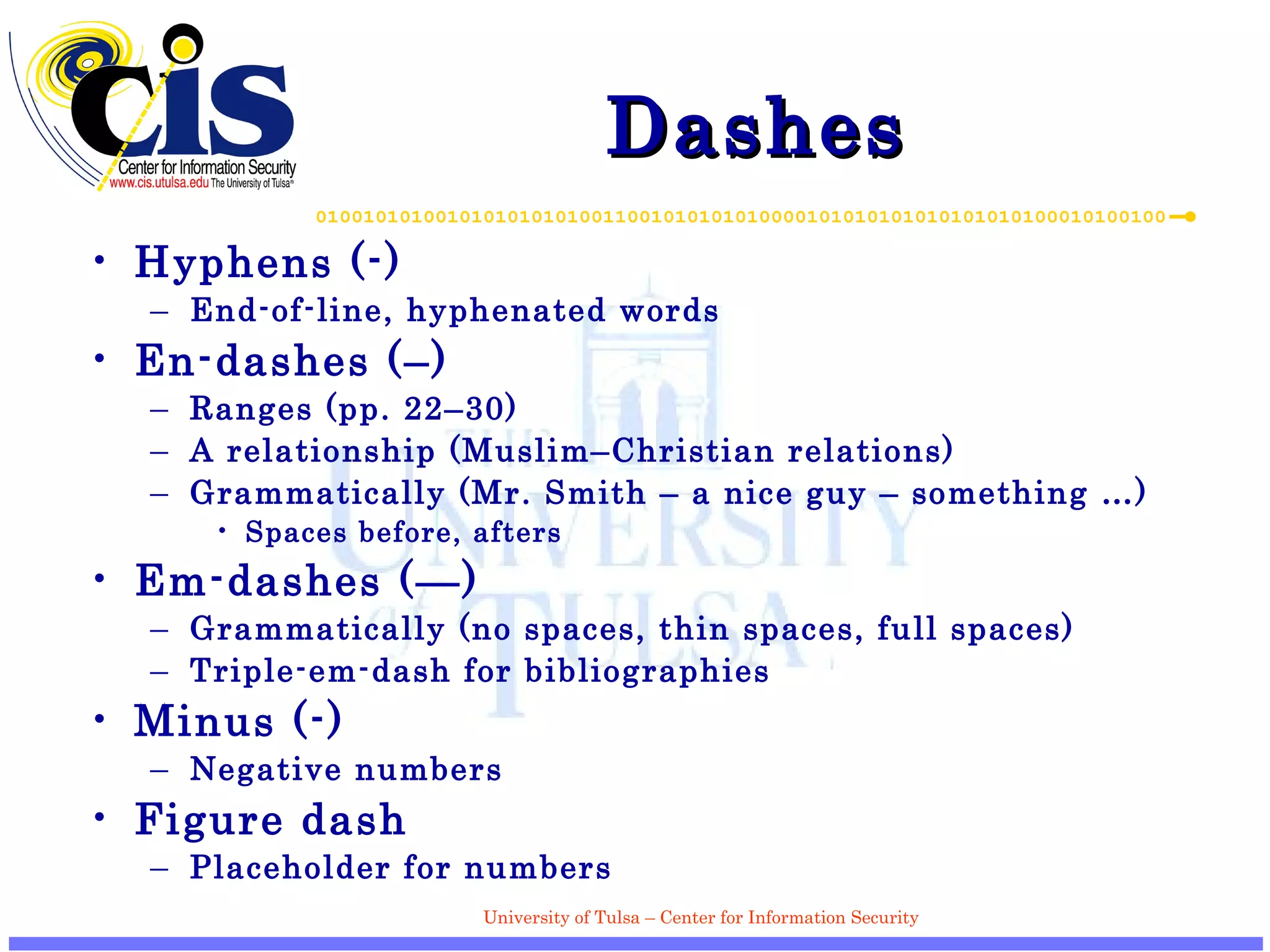
Dashes Hyphens (-) End-of-line, hyphenated words En-dashes (–) Ranges (pp. 22–30) A relationship (Muslim–Christian relations) Grammatically (Mr. Smith – a nice guy – something …) Spaces before, afters Em-dashes (—) Grammatically (no spaces, thin spaces, full spaces) Triple-em-dash for bibliographies Minus (-) Negative numbers Figure dash Placeholder for numbers
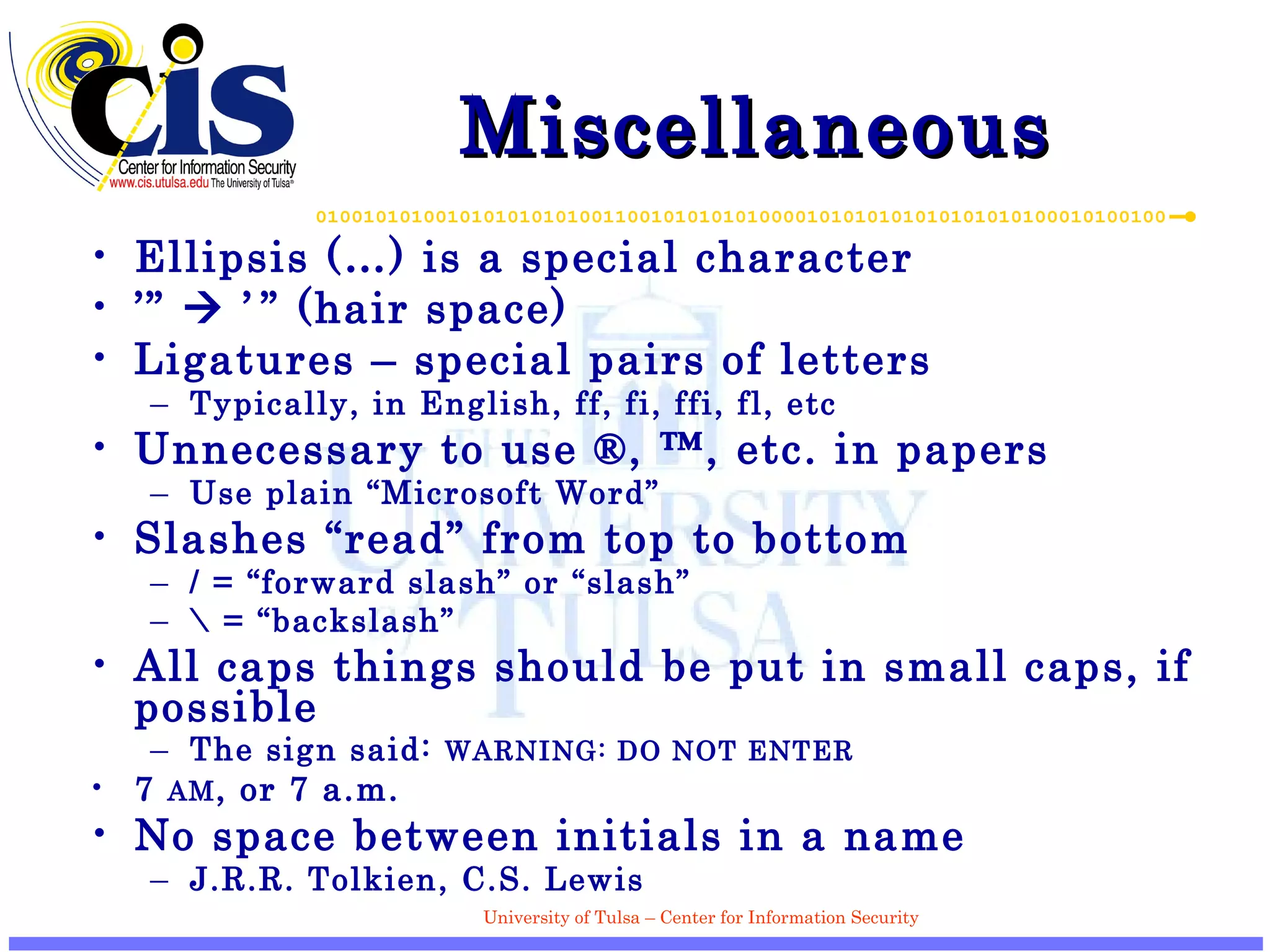
Miscellaneous Ellipsis (…) is a special character ’”    ’   ”  (hair space) Ligatures – special pairs of letters Typically, in English, ff, fi, ffi, fl, etc Unnecessary to use ®, ™, etc. in papers Use plain “Microsoft Word” Slashes “read” from top to bottom / = “forward slash” or “slash” \ = “backslash” All caps things should be put in small caps, if possible The sign said:  WARNING: DO NOT ENTER 7  AM , or 7 a.m. No space between initials in a name J.R.R. Tolkien, C.S. Lewis
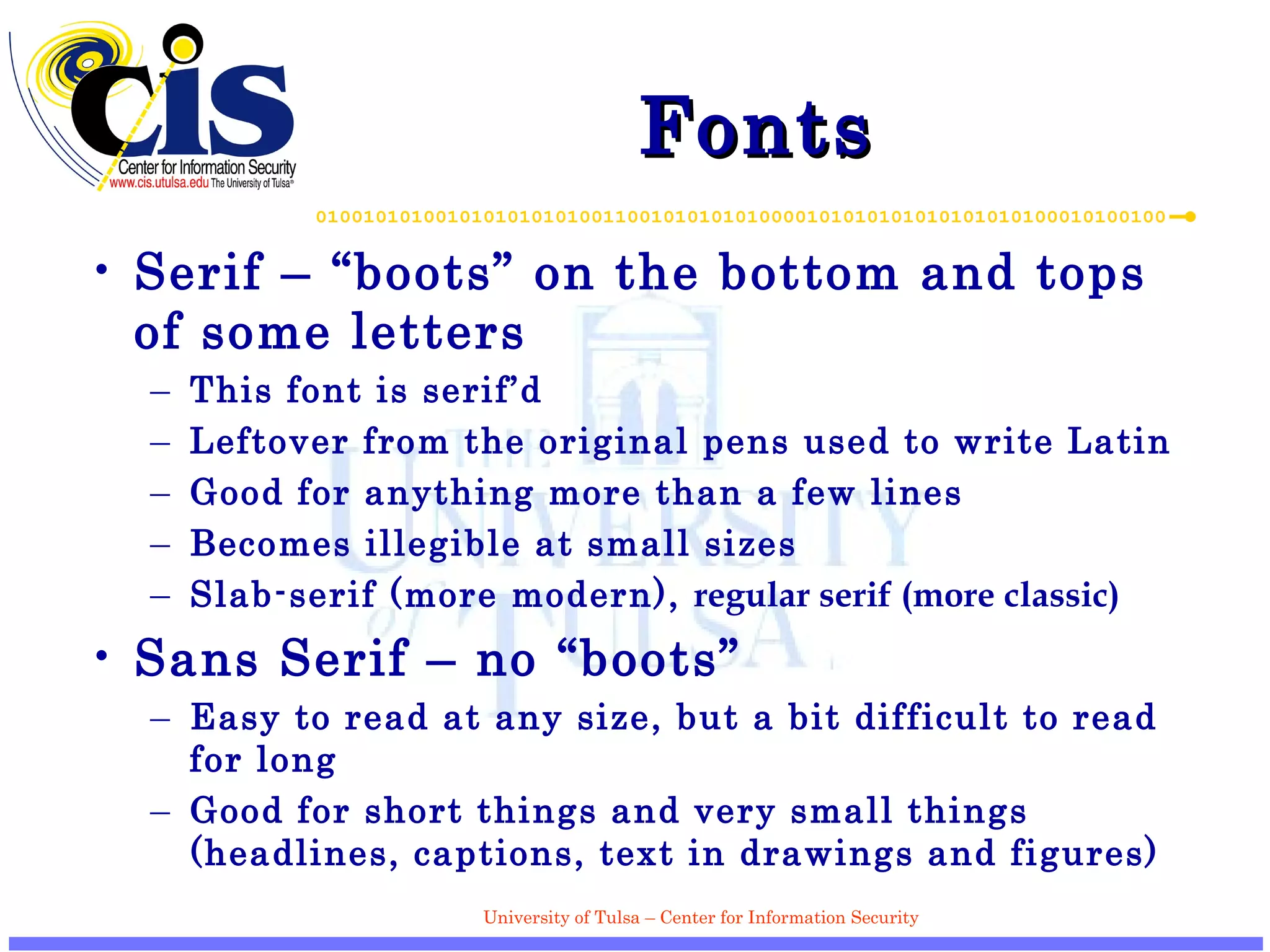
Fonts Serif – “boots” on the bottom and tops of some letters This font is serif’d Leftover from the original pens used to write Latin Good for anything more than a few lines Becomes illegible at small sizes Slab-serif (more modern),  regular serif (more classic) Sans Serif – no “boots” Easy to read at any size, but a bit difficult to read for long Good for short things and very small things (headlines, captions, text in drawings and figures)
Sizes and Measures 72 points (pts) = 6 picas (pcs) = 1 inch Screen resolution: 72–100 dpi Paper resolution: 300–2400 dpi Font size (e.g., 12 pt) = height of ascenders, descenders, and x-height Also height of left-parenthesis ( Distance between two lines is usually 1.2 times the font size 12 pt size    14.4 pt line skip
Common Fonts Times  ( or worse, Times New Roman ) Palatino  ( Book Antiqua ) Century (New Century Schoolbook) Helvetica  (bad imitation,  Arial )
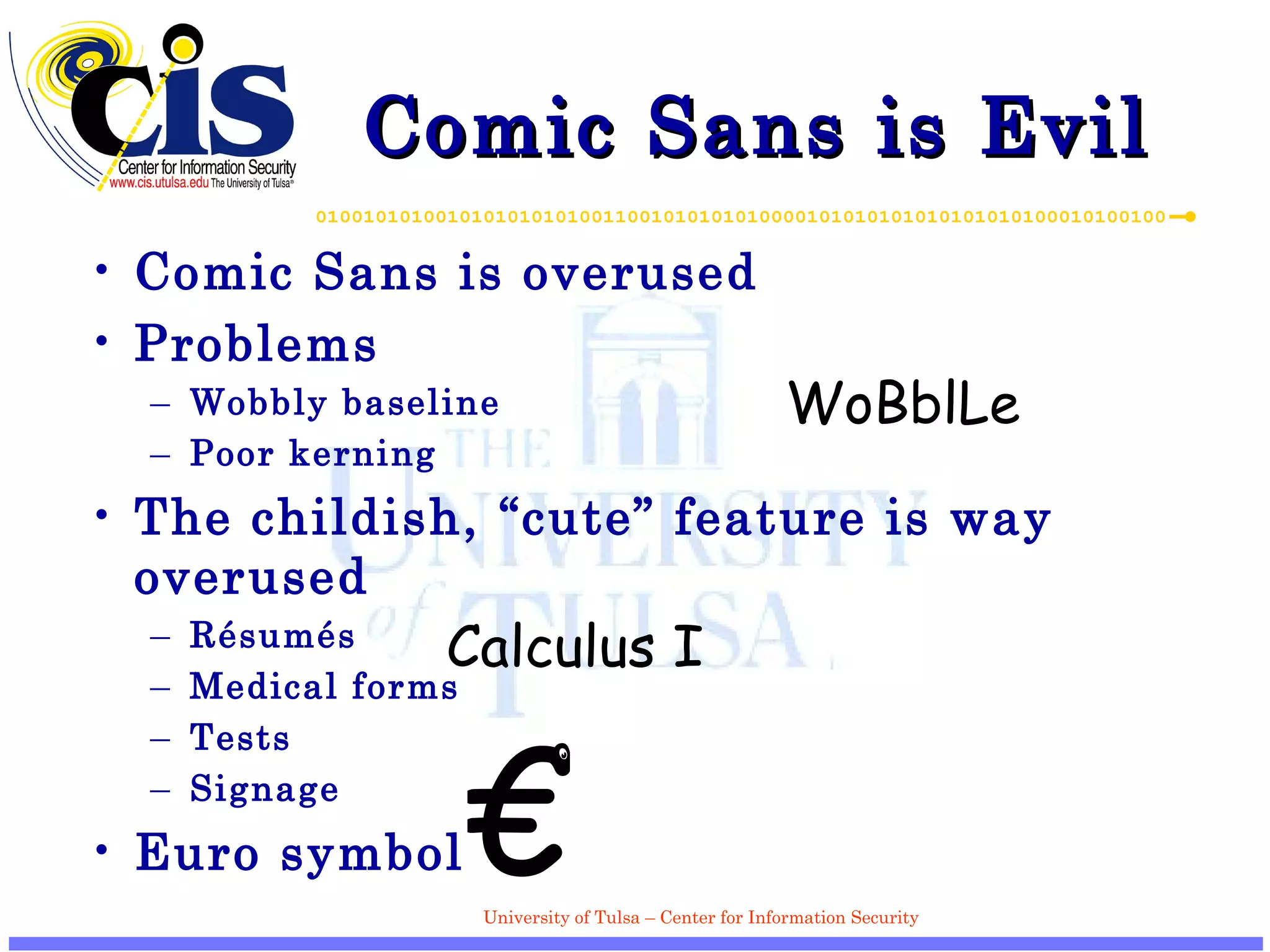
Comic Sans is Evil Comic Sans is overused Problems Wobbly baseline Poor kerning The childish, “cute” feature is way overused R ésumés Medical forms Tests Signage Euro symbol WoBblLe Calculus I €
Final Words About Fonts Use what looks good, clean and professional The key is to actually look and care Some fonts created for the screen Verdana, Tahoma, Calibri
Typesetting Code Use fixed-width fonts at a smaller size Courier New, Bitstream Vera Sans Mono is free Embed in documents Use bold for keywords ( for  i  in  list ) Italics for comments Also use fixed-width fonts for File names Command-line programs Hexadecimal numbers Program output
Alignment Ragged right – like this presentation (left-aligned) Okay for short works and web pages Justified – flush on both sides Anything more than a page or so in length Centered and ragged left (right-aligned) Use sparingly Side-note: double spacing is worthless if someone isn’t going to be editing with a pen Makes text harder to read, wastes paper
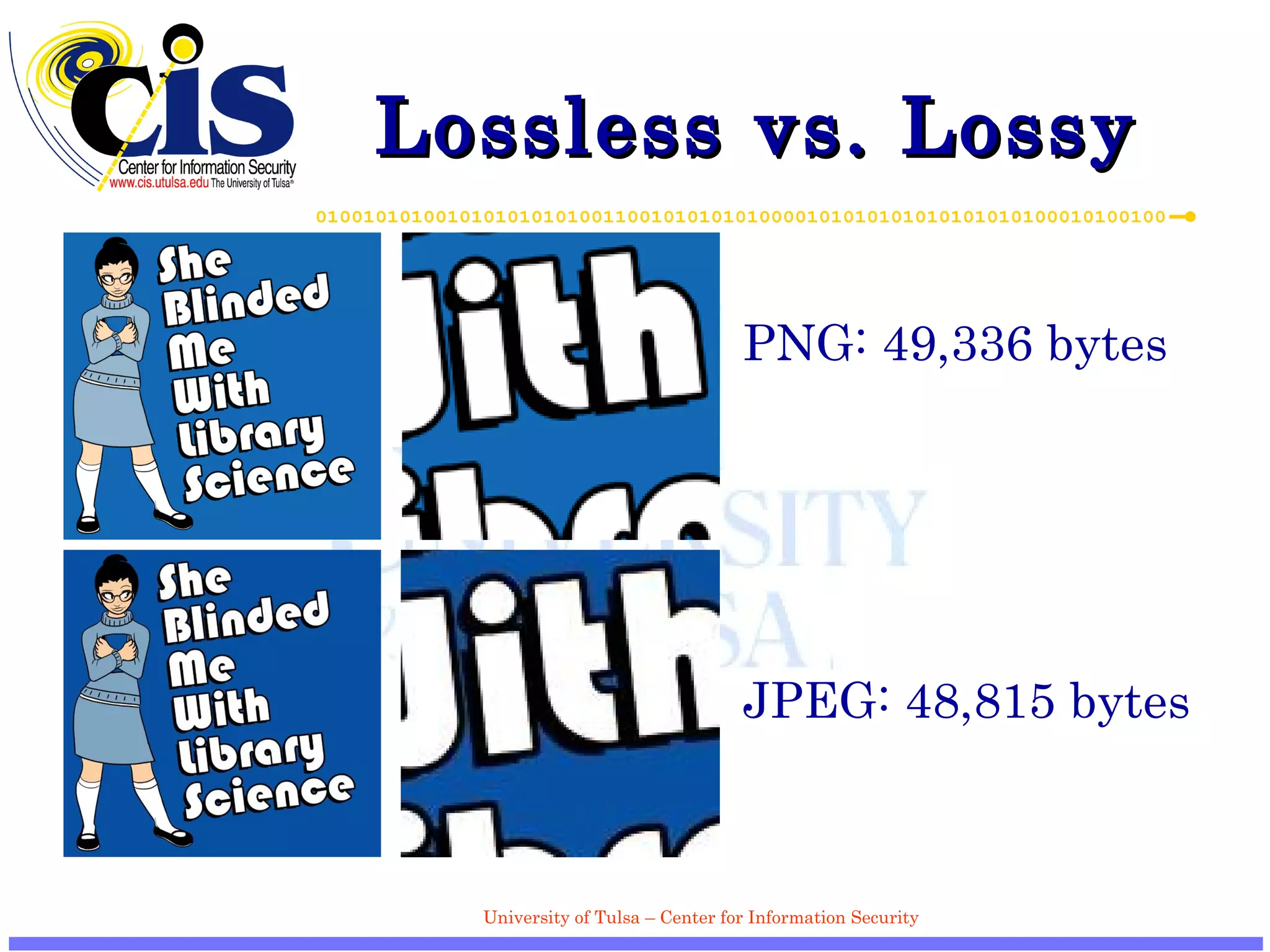
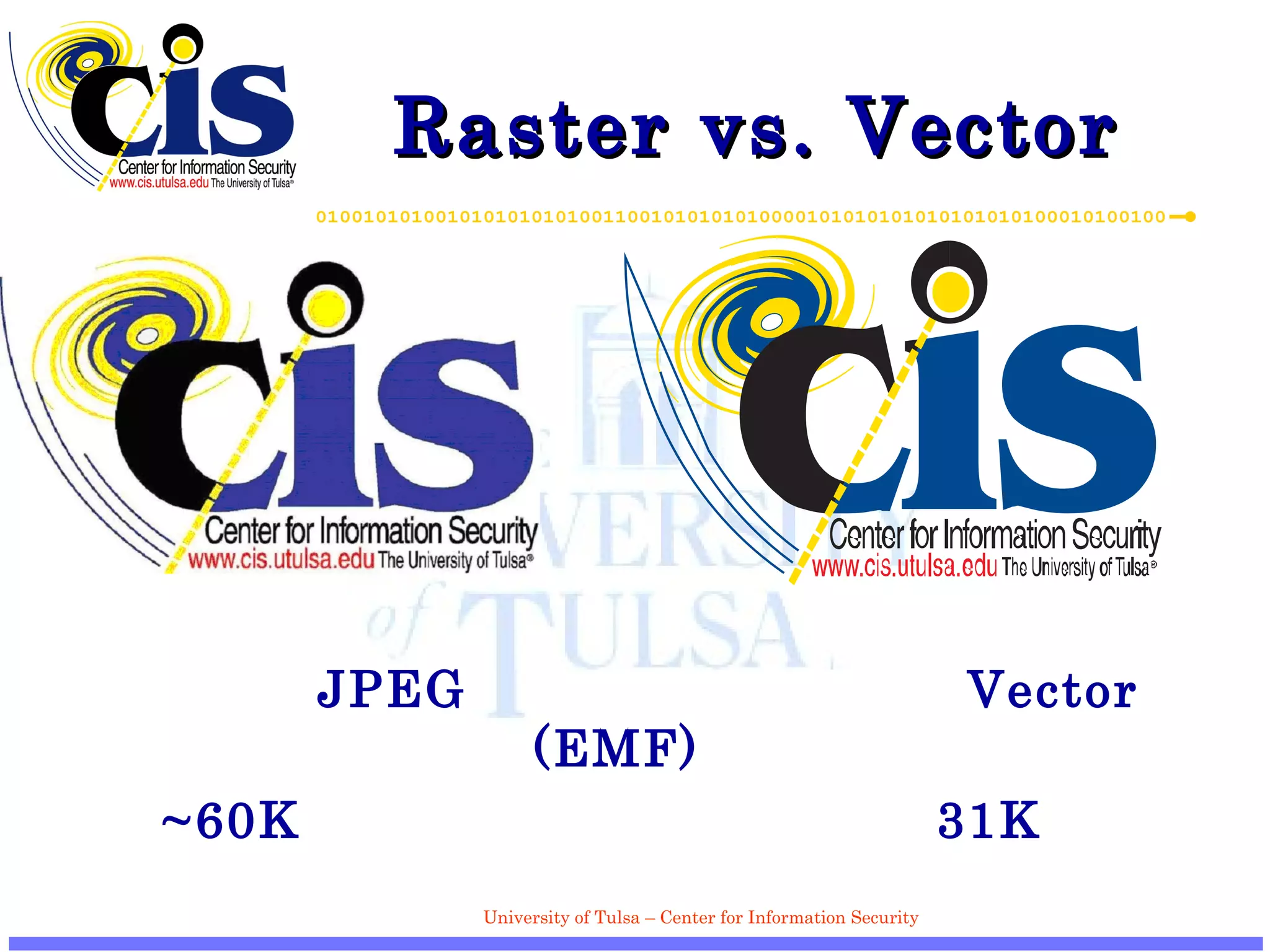
Graphic Formats Vector-based formats Graphics rebuilt by redrawing them (lines, boxes, etc) Great for figures, poor for photos Postscript formats: EPS, PS, PDF Other formats: WMF, EMF, SVG Raster-based formats Rows of pixels JPEG images should only be used for images Lossy (takes advantage of defects in the human eye) Compresses geometric objects poorly PNG is good for non-photographic images (screenshots!) Lossless If it’s going in a paper, go ahead and make it grayscale
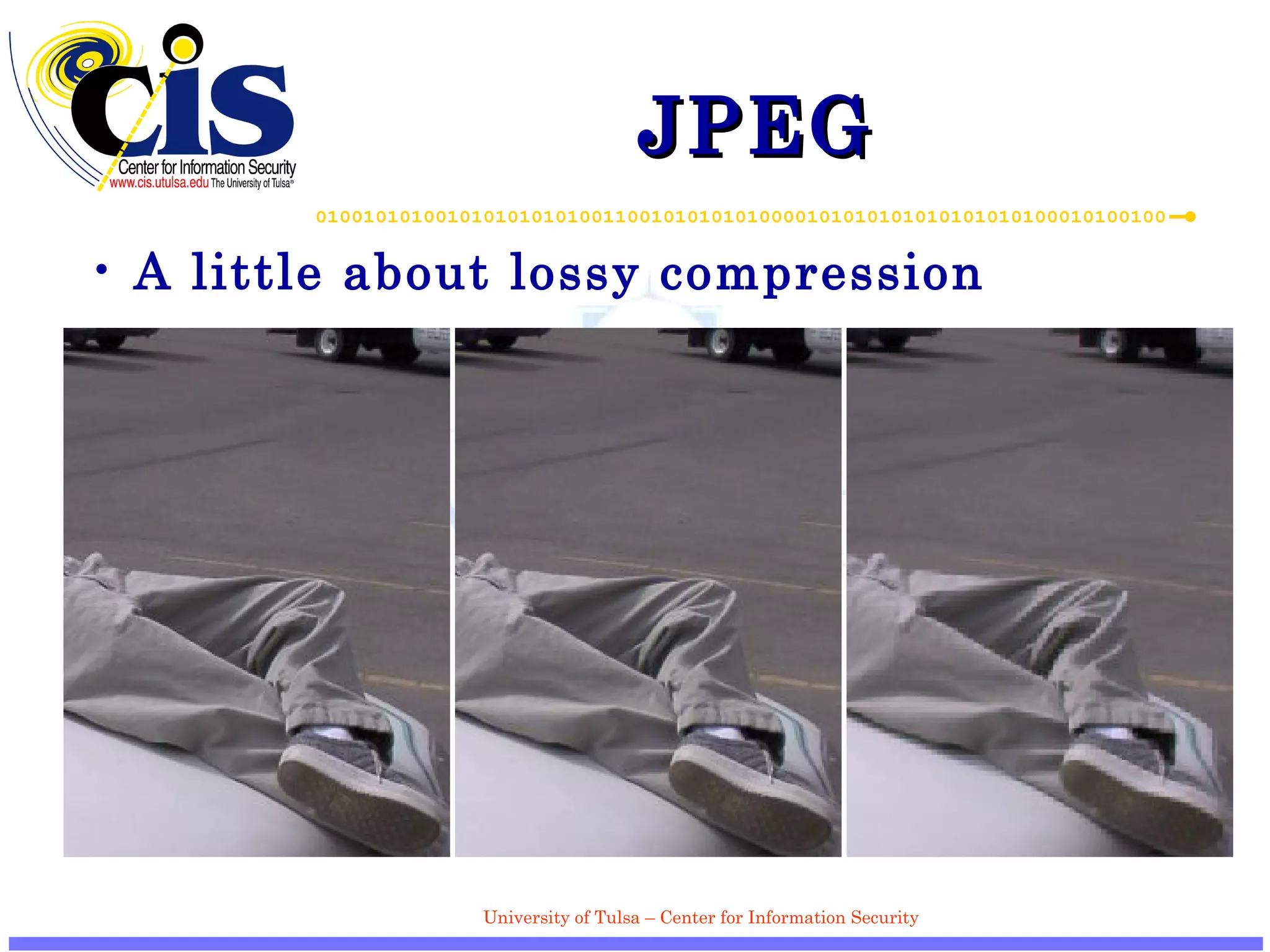
JPEG A little about lossy compression
Lossless vs. Lossy PNG: 49,336 bytes JPEG: 48,815 bytes
Raster vs. Vector  JPEG   Vector (EMF) ~60K   31K
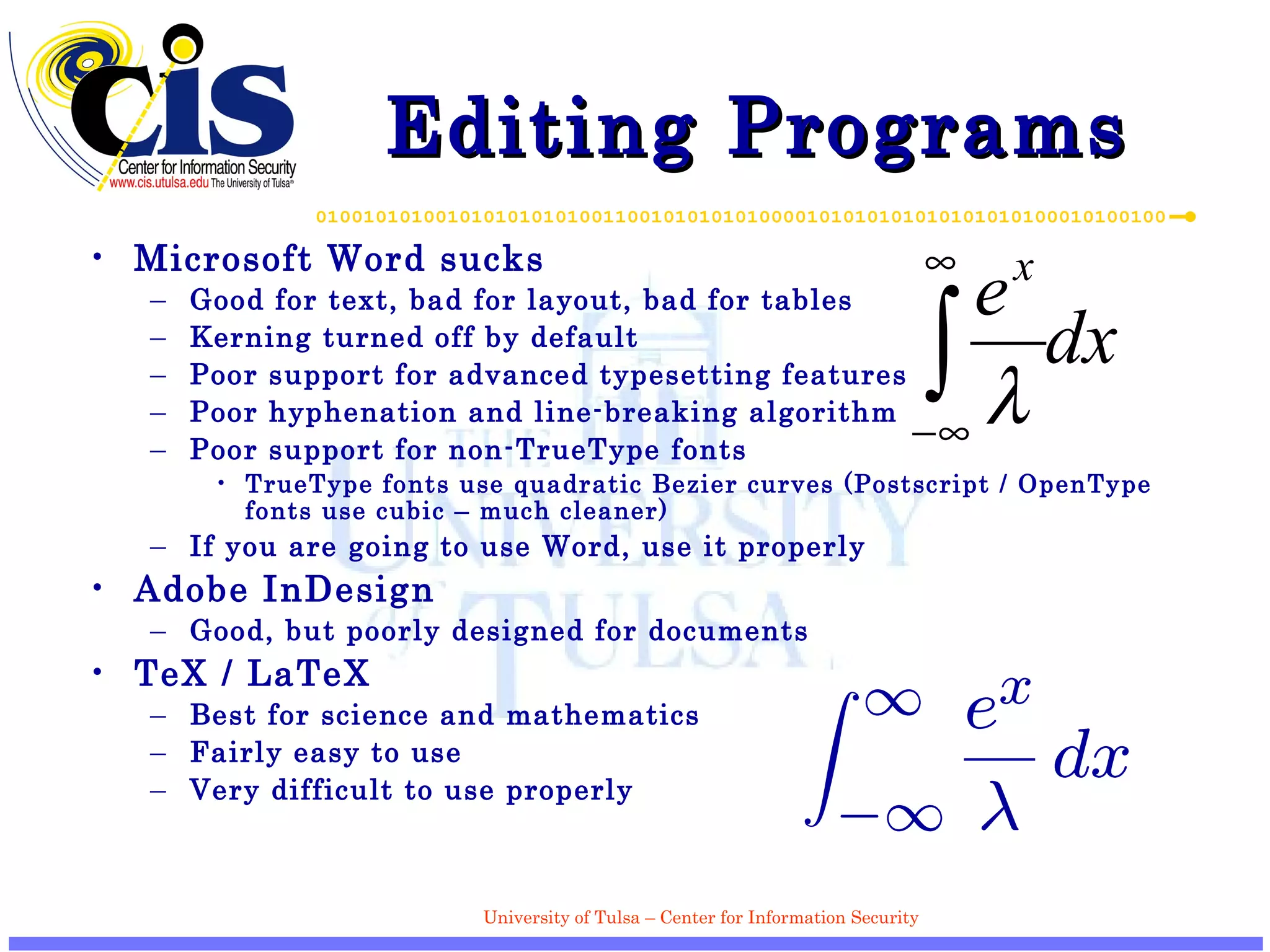
Editing Programs Microsoft Word sucks Good for text, bad for layout, bad for tables Kerning turned off by default Poor support for advanced typesetting features Poor hyphenation and line-breaking algorithm Poor support for non-TrueType fonts TrueType fonts use quadratic Bezier curves (Postscript / OpenType fonts use cubic – much cleaner) If you are going to use Word, use it properly Adobe InDesign Good, but poorly designed for documents TeX / LaTeX Best for science and mathematics Fairly easy to use Very difficult to use properly
Graphic Editing Microsoft Visio Decent, but dropped support for EPS export Fairly large diagrams Dia is a free mostly compatible replacement Illustrator Not as geared towards networks True book-quality figures Photoshop No substitute (GIMP is only okay) *DO NOT USE IT FOR DRAWING FIGURES*
Rules of Thumb for Figures and Graphics Tables are good Vertical rules are very bad Lines should be 1pt thick or more, if possible Font – sans serif and bold (Helvectica, Verdana, Tahoma are okay) Learn to use Alignment, Distribution Avoid shading and gradients Makes a good figure look great Look in professionally-created computer books for examples of good graphics
Choose the Right Format Online viewing XML, HTML, RTF, Word Documents (online or printed) RTF, Word, PDF Printed PDF, RTF, Word PDF is the only true archival format Open standard, everything embedded

Editing, Presenting, and Anal Retenting

  • 1.
    Editing, Presenting andAnal Retenting Thursday Bram, Christopher Swenson Center for Information Security University of Tulsa 600 South College Ave, Tulsa, OK 74104
  • 2.
    Overview Editing skillsPublications Anal retentive bits and pieces
  • 3.
    Manuals Chicago Manualof Style Excellent reference for all things about setting text Elements of Typographic Style , by Robert Bringhurst Best text for typesetting Writing for Computer Science , by Justin Z obel Good book for more technical writing Elements of Style , Strunk and White Classic, cheap, small
  • 4.
    Writing: the ThreeCs Clear Don’t use difficult vocabulary Unless it is necessary; if so, define it No ambiguity Concise Shorter is almost always better But don’t add ambiguity Consistent Be consistent in language, arguments and formatting
  • 5.
    Writing Tips Especiallyfor papers, write in third person Use the academic “we” if necessary, but never “I” or “you” Outline your paper ahead of time Outlining gives you an idea of where you're going and what resources you need Define any technical or difficult terms at the beginning of your paper Vary your word choice
  • 6.
    Common Mistakes Loose / lose Its / it’s They’re / their / there Then / than Effect / affect You’re / your Different than / different from Could of / would of
  • 7.
    The Possessive – Just for Dr. Hale Chicago , 7.17–7.30 Possessives: ’s for everything, except Plural in form, singular in meaning Politics’, species’, United States’, National Academic of Sciences’ Ends in “eez” sound Euripedes’, Xerxes’, Ganges’ Unpronounced “s” Descartes’, marquis’, For …’ sake righteousness’, goodness’ Not hard and fast: can just omit for any word ending in “s”
  • 8.
    More on e.g.,etc. i.e. = id est = “it is”, “in other words” e.g. = exempli gratia = “for the sake of example” Always use commas after (i.e., like now) When using e.g., i.e., and so forth, never end it with “etc.” – it’s implied etc. = et cetera = “and the rest”
  • 9.
    Always Proofread Runa spell-checker If possible, have someone else look it over If not, try some of the following: Read paragraphs in reverse order Read one line at a time Print out a copy and highlight any words that are commonly mistaken
  • 10.
    Cite Your SourcesKnow where your facts come from Cite consistently, regardless of style used Include all the information someone would need to find that source For papers, the minimum number of references is 10
  • 11.
    Example Citation J.Smith, Analysis of Networking Procedures , Addison-Wesley, Crawfordsville, Indiana, 2005. Included is the name of the author, the name of the publication (article name and journal name), page numbers, the publisher’s name and location and the date published If citing material from the Web, cite the URL Book titles, journal titles should be italicized Article names in quotes Journal volume numbers in bold, issue in parentheses Artificial Intelligence 7 (1)
  • 12.
    It’s Plagiarism …If you don’t give credit when you use another person’s idea, opinion or theory If you don’t give credit use facts, graphs, statistics or other pieces of information that are not common knowledge If you don’t give credit for a direct quotation or paraphrase of another person’s work
  • 13.
    Style Always conformto the standard style Word limits, text size and formats are all there for a reason When in doubt, ask for a sample or a template Assume that copies of any paper, presentation, etc. will be given to other people Must be understandable without you present
  • 14.
    Presentation Tips Bulletsare helpful Each bullet should be a complete thought Don’t rely on PowerPoint, except for displaying images Don’t just read off your slides Use easy to read figures Always use easy-to-read text Use strong colors, especially for text Avoid animations, neon colors and sillyness Try to keep bullets to one line
  • 15.
    Letters Everyletter should have a header Date (no abbreviations) Addressee and Address (Name, Title, Company, Street Address, City, ZIP) Address letters to an individual Use Mr., Ms. or the appropriate title All letters begin with “Dear” End letters with “Sincerely” or a similar closing Leave a space for a signature and type your name
  • 16.
    Email Emails shouldnot necessarily be less informal than a letter Always use the “Subject” field Refer to a specific project or connection Avoid using the words “Urgent” or “Important” Be professional Do not abuse the Caps Lock key (Sunday is INTERNATIONAL CAPS LOCK DAY!) It’s email, not e-mail
  • 17.
    Spacing Em –space equal to the font size (12 pt font = 12 pt) En – half of an em Thick – 1/3 of an em Hair – 1/5–1/6 of an em Thin – a little smaller Word spacing should be 1/3 to 1/4 of an em After a period: Ends a sentence, either 1–1.5 word spaces Otherwise, 1 word space (Mr. Smith) Kerning – spacing after a character Special kerning between certain pairs is good, like Te
  • 18.
    Dashes Hyphens (-)End-of-line, hyphenated words En-dashes (–) Ranges (pp. 22–30) A relationship (Muslim–Christian relations) Grammatically (Mr. Smith – a nice guy – something …) Spaces before, afters Em-dashes (—) Grammatically (no spaces, thin spaces, full spaces) Triple-em-dash for bibliographies Minus (-) Negative numbers Figure dash Placeholder for numbers
  • 19.
    Miscellaneous Ellipsis (…)is a special character ’”  ’ ” (hair space) Ligatures – special pairs of letters Typically, in English, ff, fi, ffi, fl, etc Unnecessary to use ®, ™, etc. in papers Use plain “Microsoft Word” Slashes “read” from top to bottom / = “forward slash” or “slash” \ = “backslash” All caps things should be put in small caps, if possible The sign said: WARNING: DO NOT ENTER 7 AM , or 7 a.m. No space between initials in a name J.R.R. Tolkien, C.S. Lewis
  • 20.
    Fonts Serif –“boots” on the bottom and tops of some letters This font is serif’d Leftover from the original pens used to write Latin Good for anything more than a few lines Becomes illegible at small sizes Slab-serif (more modern), regular serif (more classic) Sans Serif – no “boots” Easy to read at any size, but a bit difficult to read for long Good for short things and very small things (headlines, captions, text in drawings and figures)
  • 21.
    Sizes and Measures72 points (pts) = 6 picas (pcs) = 1 inch Screen resolution: 72–100 dpi Paper resolution: 300–2400 dpi Font size (e.g., 12 pt) = height of ascenders, descenders, and x-height Also height of left-parenthesis ( Distance between two lines is usually 1.2 times the font size 12 pt size  14.4 pt line skip
  • 22.
    Common Fonts Times ( or worse, Times New Roman ) Palatino ( Book Antiqua ) Century (New Century Schoolbook) Helvetica (bad imitation, Arial )
  • 23.
    Comic Sans isEvil Comic Sans is overused Problems Wobbly baseline Poor kerning The childish, “cute” feature is way overused R ésumés Medical forms Tests Signage Euro symbol WoBblLe Calculus I €
  • 24.
    Final Words AboutFonts Use what looks good, clean and professional The key is to actually look and care Some fonts created for the screen Verdana, Tahoma, Calibri
  • 25.
    Typesetting Code Usefixed-width fonts at a smaller size Courier New, Bitstream Vera Sans Mono is free Embed in documents Use bold for keywords ( for i in list ) Italics for comments Also use fixed-width fonts for File names Command-line programs Hexadecimal numbers Program output
  • 26.
    Alignment Ragged right– like this presentation (left-aligned) Okay for short works and web pages Justified – flush on both sides Anything more than a page or so in length Centered and ragged left (right-aligned) Use sparingly Side-note: double spacing is worthless if someone isn’t going to be editing with a pen Makes text harder to read, wastes paper
  • 27.
    Graphic Formats Vector-basedformats Graphics rebuilt by redrawing them (lines, boxes, etc) Great for figures, poor for photos Postscript formats: EPS, PS, PDF Other formats: WMF, EMF, SVG Raster-based formats Rows of pixels JPEG images should only be used for images Lossy (takes advantage of defects in the human eye) Compresses geometric objects poorly PNG is good for non-photographic images (screenshots!) Lossless If it’s going in a paper, go ahead and make it grayscale
  • 28.
    JPEG A littleabout lossy compression
  • 29.
    Lossless vs. LossyPNG: 49,336 bytes JPEG: 48,815 bytes
  • 30.
    Raster vs. Vector JPEG Vector (EMF) ~60K 31K
  • 31.
    Editing Programs MicrosoftWord sucks Good for text, bad for layout, bad for tables Kerning turned off by default Poor support for advanced typesetting features Poor hyphenation and line-breaking algorithm Poor support for non-TrueType fonts TrueType fonts use quadratic Bezier curves (Postscript / OpenType fonts use cubic – much cleaner) If you are going to use Word, use it properly Adobe InDesign Good, but poorly designed for documents TeX / LaTeX Best for science and mathematics Fairly easy to use Very difficult to use properly
  • 32.
    Graphic Editing MicrosoftVisio Decent, but dropped support for EPS export Fairly large diagrams Dia is a free mostly compatible replacement Illustrator Not as geared towards networks True book-quality figures Photoshop No substitute (GIMP is only okay) *DO NOT USE IT FOR DRAWING FIGURES*
  • 33.
    Rules of Thumbfor Figures and Graphics Tables are good Vertical rules are very bad Lines should be 1pt thick or more, if possible Font – sans serif and bold (Helvectica, Verdana, Tahoma are okay) Learn to use Alignment, Distribution Avoid shading and gradients Makes a good figure look great Look in professionally-created computer books for examples of good graphics
  • 34.
    Choose the RightFormat Online viewing XML, HTML, RTF, Word Documents (online or printed) RTF, Word, PDF Printed PDF, RTF, Word PDF is the only true archival format Open standard, everything embedded