Study Island
Data into Action…
Agenda
Analyzing Data using Sensei
Build a Test
Suggested Reports
Connecting with Parents
https://www.surveymonkey.com/s/LHXHYG2
Please evaluate today’s training:
Study Island: Data into Action
Presentation: http://www.slideshare.net/rearley/study-island-part-ii
Sensei
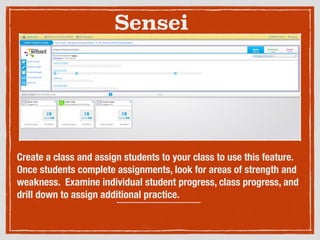
Create a class and assign students to your class to use this feature.
Once students complete assignments, look for areas of strength and
weakness. Examine individual student progress, class progress, and
drill down to assign additional practice.
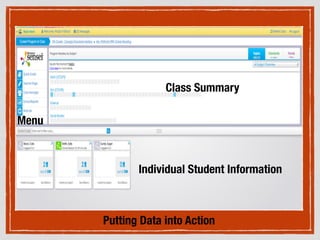
Individual Student Information
Class Summary
Menu
Putting Data into Action
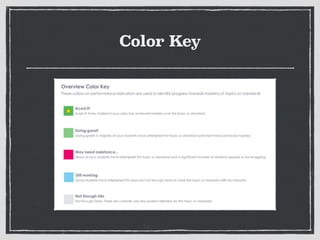
Color Key
Let’s Explore the Summary
Topics
The blue boxes represent topics completed
Click on a topic and drill down
Click on the Quick Guide
Have any students aced an assignment?
Individual assignments can be made
How could this be helpful for grouping students?
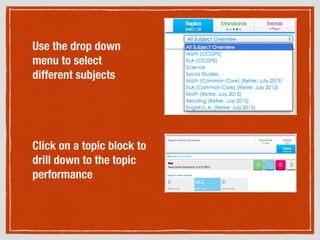
Use the drop down
menu to select
different subjects
Click on a topic block to
drill down to the topic
performance
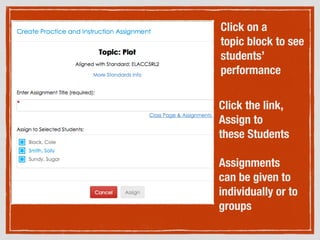
Click on a
topic block to see
students’
performance
!
!
Click the link,
Assign to
these Students
!
Assignments
can be given to
individually or to
groups
!
!
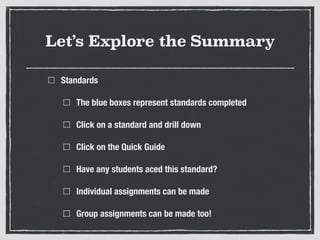
Let’s Explore the Summary
Standards
The blue boxes represent standards completed
Click on a standard and drill down
Click on the Quick Guide
Have any students aced this standard?
Individual assignments can be made
Group assignments can be made too!
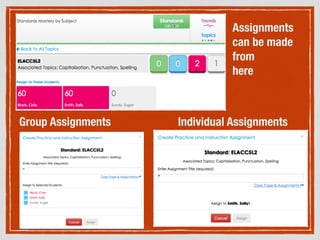
Assignments
can be made
from
here
Group Assignments Individual Assignments
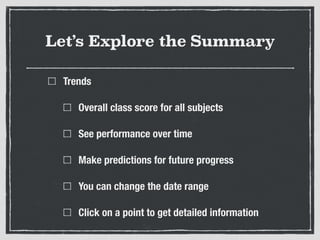
Let’s Explore the Summary
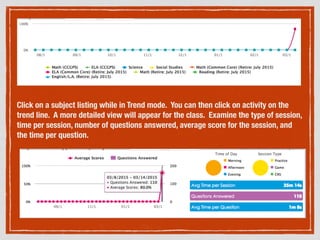
Trends
Overall class score for all subjects
See performance over time
Make predictions for future progress
You can change the date range
Click on a point to get detailed information
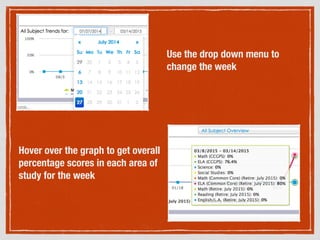
Hover over the graph to get overall
percentage scores in each area of
study for the week
Use the drop down menu to
change the week
Click on a subject listing while in Trend mode. You can then click on activity on the
trend line. A more detailed view will appear for the class. Examine the type of session,
time per session, number of questions answered, average score for the session, and
the time per question.
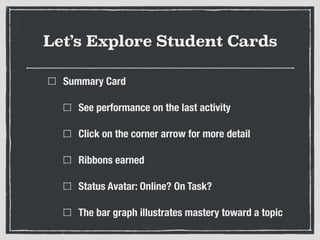
Let’s Explore Student Cards
Summary Card
See performance on the last activity
Click on the corner arrow for more detail
Ribbons earned
Status Avatar: Online? On Task?
The bar graph illustrates mastery toward a topic
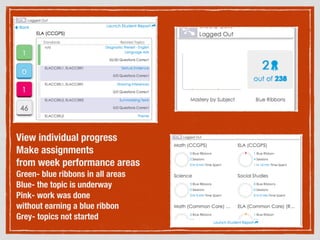
View individual progress
Make assignments
from week performance areas
Green- blue ribbons in all areas
Blue- the topic is underway
Pink- work was done
without earning a blue ribbon
Grey- topics not started
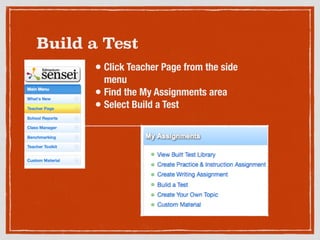
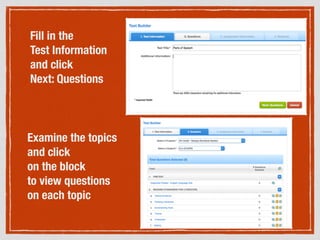
Build a Test
• Click Teacher Page from the side
menu
• Find the My Assignments area
• Select Build a Test
Fill in the
Test Information
and click
Next: Questions
Examine the topics
and click
on the block
to view questions
on each topic
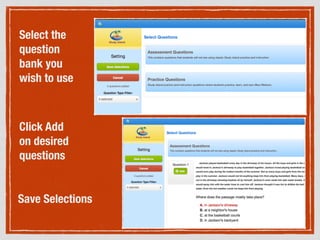
Select the
question
bank you
wish to use
Click Add
on desired
questions
Save Selections
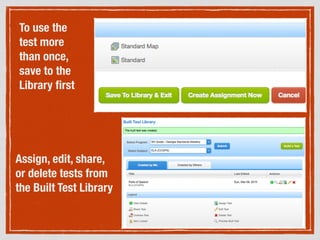
To use the
test more
than once,
save to the
Library first
Assign, edit, share,
or delete tests from
the Built Test Library
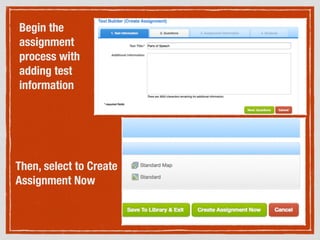
Begin the
assignment
process with
adding test
information
Then, select to Create
Assignment Now
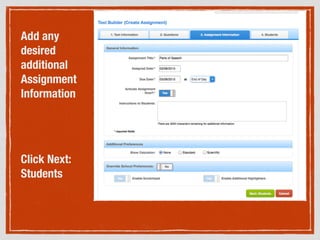
Add any
desired
additional
Assignment
Information
Click Next:
Students
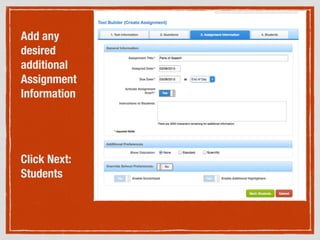
Add any
desired
additional
Assignment
Information
Click Next:
Students
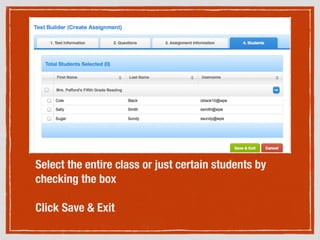
Select the entire class or just certain students by
checking the box
!
Click Save & Exit
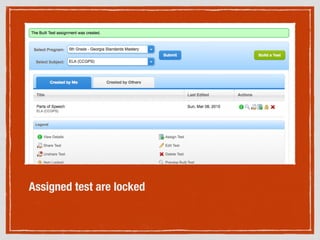
Assigned test are locked
!
!
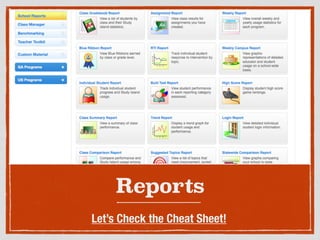
Reports
Let’s Check the Cheat Sheet!
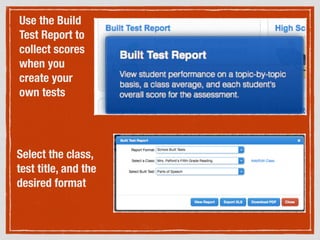
Use the Build
Test Report to
collect scores
when you
create your
own tests
Select the class,
test title, and the
desired format
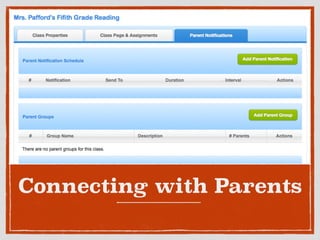
Connecting with Parents
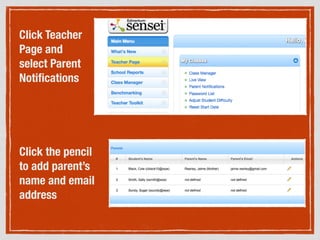
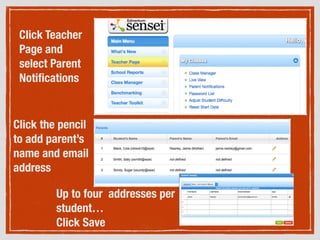
Click Teacher
Page and
select Parent
Notifications
Click the pencil
to add parent’s
name and email
address
Click Teacher
Page and
select Parent
Notifications
Click the pencil
to add parent’s
name and email
address
Up to four addresses per
student…
Click Save
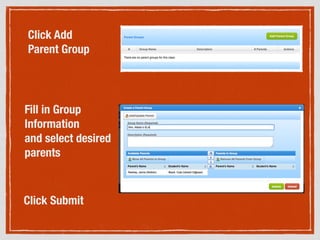
Click Add
Parent Group
Fill in Group
Information
and select desired
parents
!
Click Submit
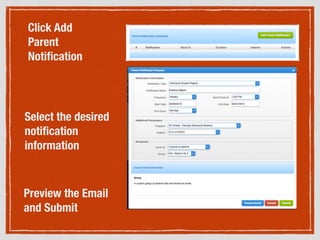
Click Add
Parent
Notification
Select the desired
notification
information
!
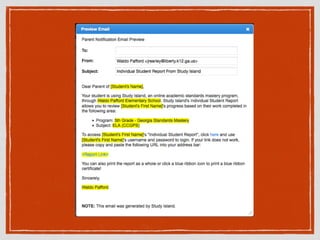
Preview the Email
and Submit
https://
www.surveymonkey.co
m/s/LHXHYG2
Please evaluate today’s training!

Study island part ii