DHCP
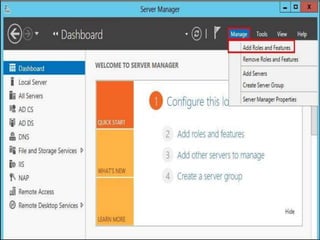
It will open the Add Roles and Features Wizard. On the  
Before you begin page, click Next 
On the Select installation type page, choose Role-  
based or feature-based installation, and then click Next. 
 
On the Select destination server page, verify that the  
Windows Server 2012 Essentials is chosen, and then click 
Next. 
 
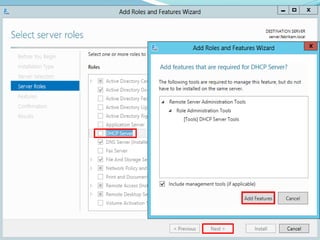
On the Select Server Roles, click to select DHCP Server.  
After this option is selected, you may see a pop up to add 
additional features.
Click Add Features on this popup window. It will redirect  
back to the Select Server Roles page. Click Next. 
 
On the Select features page, do not select anything and  
click Next. 
 
On the Confirm installation selections, click Install. Do  
NOT select the option Restart the 
destination server automatically if required. 
On the Installation progress page, or click Close.
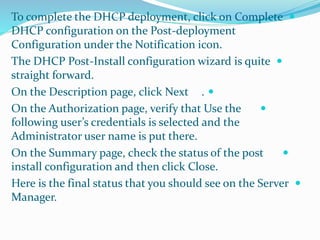
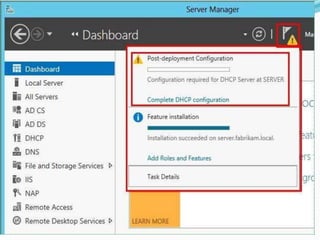
To complete the DHCP deployment, click on Complete  
DHCP configuration on the Post-deployment 
Configuration under the Notification icon. 
The DHCP Post-Install configuration wizard is quite  
straight forward. 
On the Description page, click Next .  
On the Authorization page, verify that Use the  
following user’s credentials is selected and the 
Administrator user name is put there. 
On the Summary page, check the status of the post  
install configuration and then click Close. 
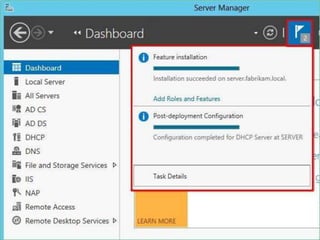
Here is the final status that you should see on the Server  
Manager.
 
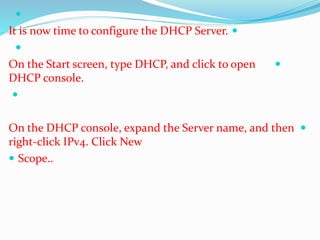
It is now time to configure the DHCP Server.  
 
On the Start screen, type DHCP, and click to open  
DHCP console. 
 
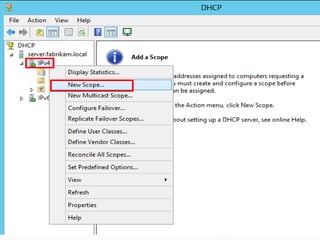
On the DHCP console, expand the Server name, and then  
right-click IPv4. Click New 
 Scope..
It will open New Scope Wizard. Follow this wizard to 
name the Scope conventionally, e.g. Scope [192.168.1.0] 
fabrikam.local. Add the IP Address Range for the client 
computers, e.g. 192.168.1.3 to 192.168.1.50. Add the Default 
Gateway (IP of the router), DNS Server (IP of the Server 
itself ), and activate the scope.
Dhcp windows server 2012

Dhcp windows server 2012

  • 1.
  • 2.
    It will openthe Add Roles and Features Wizard. On the  Before you begin page, click Next On the Select installation type page, choose Role-  based or feature-based installation, and then click Next.  On the Select destination server page, verify that the  Windows Server 2012 Essentials is chosen, and then click Next.  On the Select Server Roles, click to select DHCP Server.  After this option is selected, you may see a pop up to add additional features.
  • 4.
    Click Add Featureson this popup window. It will redirect  back to the Select Server Roles page. Click Next.  On the Select features page, do not select anything and  click Next.  On the Confirm installation selections, click Install. Do  NOT select the option Restart the destination server automatically if required. On the Installation progress page, or click Close.
  • 6.
    To complete theDHCP deployment, click on Complete  DHCP configuration on the Post-deployment Configuration under the Notification icon. The DHCP Post-Install configuration wizard is quite  straight forward. On the Description page, click Next .  On the Authorization page, verify that Use the  following user’s credentials is selected and the Administrator user name is put there. On the Summary page, check the status of the post  install configuration and then click Close. Here is the final status that you should see on the Server  Manager.
  • 8.
     It isnow time to configure the DHCP Server.   On the Start screen, type DHCP, and click to open  DHCP console.  On the DHCP console, expand the Server name, and then  right-click IPv4. Click New  Scope..
  • 10.
    It will openNew Scope Wizard. Follow this wizard to name the Scope conventionally, e.g. Scope [192.168.1.0] fabrikam.local. Add the IP Address Range for the client computers, e.g. 192.168.1.3 to 192.168.1.50. Add the Default Gateway (IP of the router), DNS Server (IP of the Server itself ), and activate the scope.