Ahmed bahaj
Discription 
This article will walk you through setting up the Active Directory Role on a Windows Server 2012 
Content 
Installing active directory 
Configuring Active Directory 
Ahmed bahaj
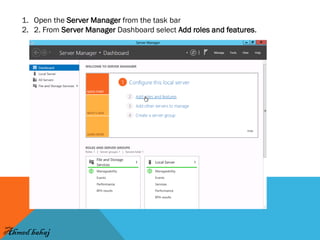
1.Open the Server Manager from the task bar 
2.2. From Server Manager Dashboard select Add roles and features. 
Ahmed bahaj
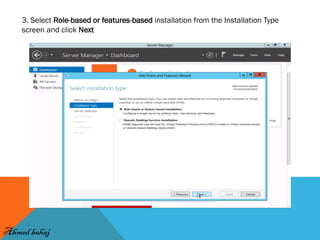
3. Select Role-based or features-based installation from the Installation Type screen and click Next 
Ahmed bahaj
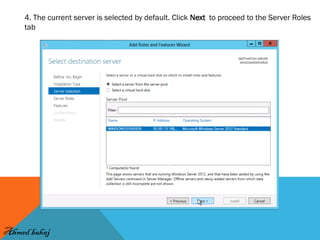
4. The current server is selected by default. Click Next to proceed to the Server Roles tab 
Ahmed bahaj
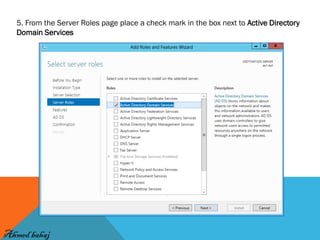
5. From the Server Roles page place a check mark in the box next to Active Directory Domain Services 
Ahmed bahaj
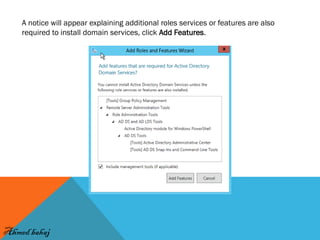
A notice will appear explaining additional roles services or features are also required to install domain services, click Add Features. 
Ahmed bahaj
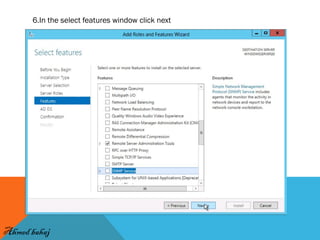
6.In the select features window click next 
Ahmed bahaj
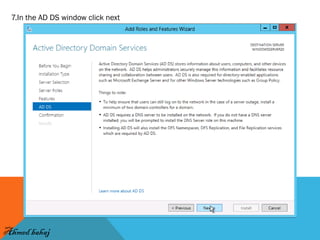
7.In the AD DS window click next 
Ahmed bahaj
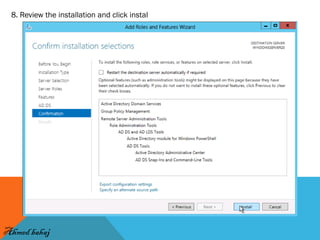
8. Review the installation and click instal 
Ahmed bahaj
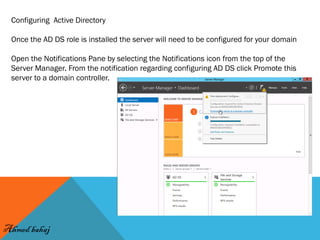
Configuring Active Directory Once the AD DS role is installed the server will need to be configured for your domain Open the Notifications Pane by selecting the Notifications icon from the top of the Server Manager. From the notification regarding configuring AD DS click Promote this server to a domain controller. 
Ahmed bahaj
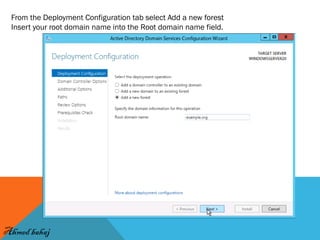
From the Deployment Configuration tab select Add a new forest 
Insert your root domain name into the Root domain name field. 
Ahmed bahaj
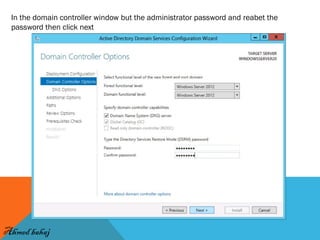
In the domain controller window but the administrator password and reabet the password then click next 
Ahmed bahaj
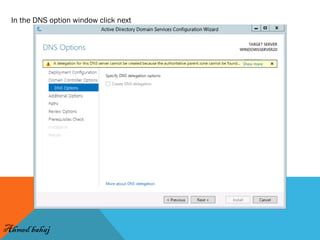
In the DNS option window click next 
Ahmed bahaj
Confirm or enter a NetBIOS name and click Next 
Ahmed bahaj
In the path window confirm the location of the files then click next 
Ahmed bahaj
In the review option window click next 
Ahmed bahaj
In the prerequisites check window the system will tack a few seconds to check then when it done click install 
Ahmed bahaj
After the server reboot . Congratulations on successfully installing and configuring a Active Directory Domain Services on Windows Server 2012. i hope that explanation was enough . And thanks Name: ahmed abdullah bahaj Email.amdboycool2009@hotmail.com 
Ahmed bahaj

Windows server 2012 - installing active directory domain server

  • 1.
  • 2.
    Discription This articlewill walk you through setting up the Active Directory Role on a Windows Server 2012 Content Installing active directory Configuring Active Directory Ahmed bahaj
  • 3.
    1.Open the ServerManager from the task bar 2.2. From Server Manager Dashboard select Add roles and features. Ahmed bahaj
  • 4.
    3. Select Role-basedor features-based installation from the Installation Type screen and click Next Ahmed bahaj
  • 5.
    4. The currentserver is selected by default. Click Next to proceed to the Server Roles tab Ahmed bahaj
  • 6.
    5. From theServer Roles page place a check mark in the box next to Active Directory Domain Services Ahmed bahaj
  • 7.
    A notice willappear explaining additional roles services or features are also required to install domain services, click Add Features. Ahmed bahaj
  • 8.
    6.In the selectfeatures window click next Ahmed bahaj
  • 9.
    7.In the ADDS window click next Ahmed bahaj
  • 10.
    8. Review theinstallation and click instal Ahmed bahaj
  • 11.
    Configuring Active DirectoryOnce the AD DS role is installed the server will need to be configured for your domain Open the Notifications Pane by selecting the Notifications icon from the top of the Server Manager. From the notification regarding configuring AD DS click Promote this server to a domain controller. Ahmed bahaj
  • 12.
    From the DeploymentConfiguration tab select Add a new forest Insert your root domain name into the Root domain name field. Ahmed bahaj
  • 13.
    In the domaincontroller window but the administrator password and reabet the password then click next Ahmed bahaj
  • 14.
    In the DNSoption window click next Ahmed bahaj
  • 15.
    Confirm or entera NetBIOS name and click Next Ahmed bahaj
  • 16.
    In the pathwindow confirm the location of the files then click next Ahmed bahaj
  • 17.
    In the reviewoption window click next Ahmed bahaj
  • 18.
    In the prerequisitescheck window the system will tack a few seconds to check then when it done click install Ahmed bahaj
  • 19.
    After the serverreboot . Congratulations on successfully installing and configuring a Active Directory Domain Services on Windows Server 2012. i hope that explanation was enough . And thanks Name: ahmed abdullah bahaj Email.amdboycool2009@hotmail.com Ahmed bahaj