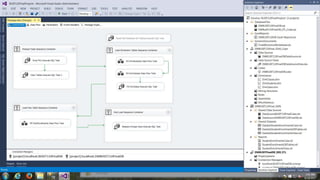
SQL Server 2013 Developer Edition with BI Data Tools
By: Christopher Singleton
Bellevue College BUSIT 110 Final SSIS Project
06-17-2015
Overview of SSIS Project
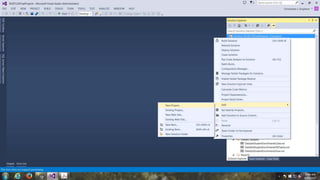
1. Right Click on
Solution, Go To
"Add", Then, Pick
"New Project".
Creating A Solution Within A Solution For SSIS
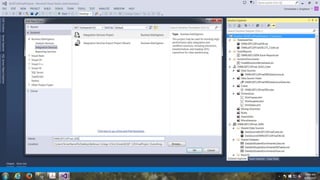
Configure The Solution Name And Output Location
1. Select Project Type. (SSIS)
2. Project Name
3. Project Location
Bellevue College BUSIT 110 Final SSIS Project
By: Christopher Singleton 06-17-2015
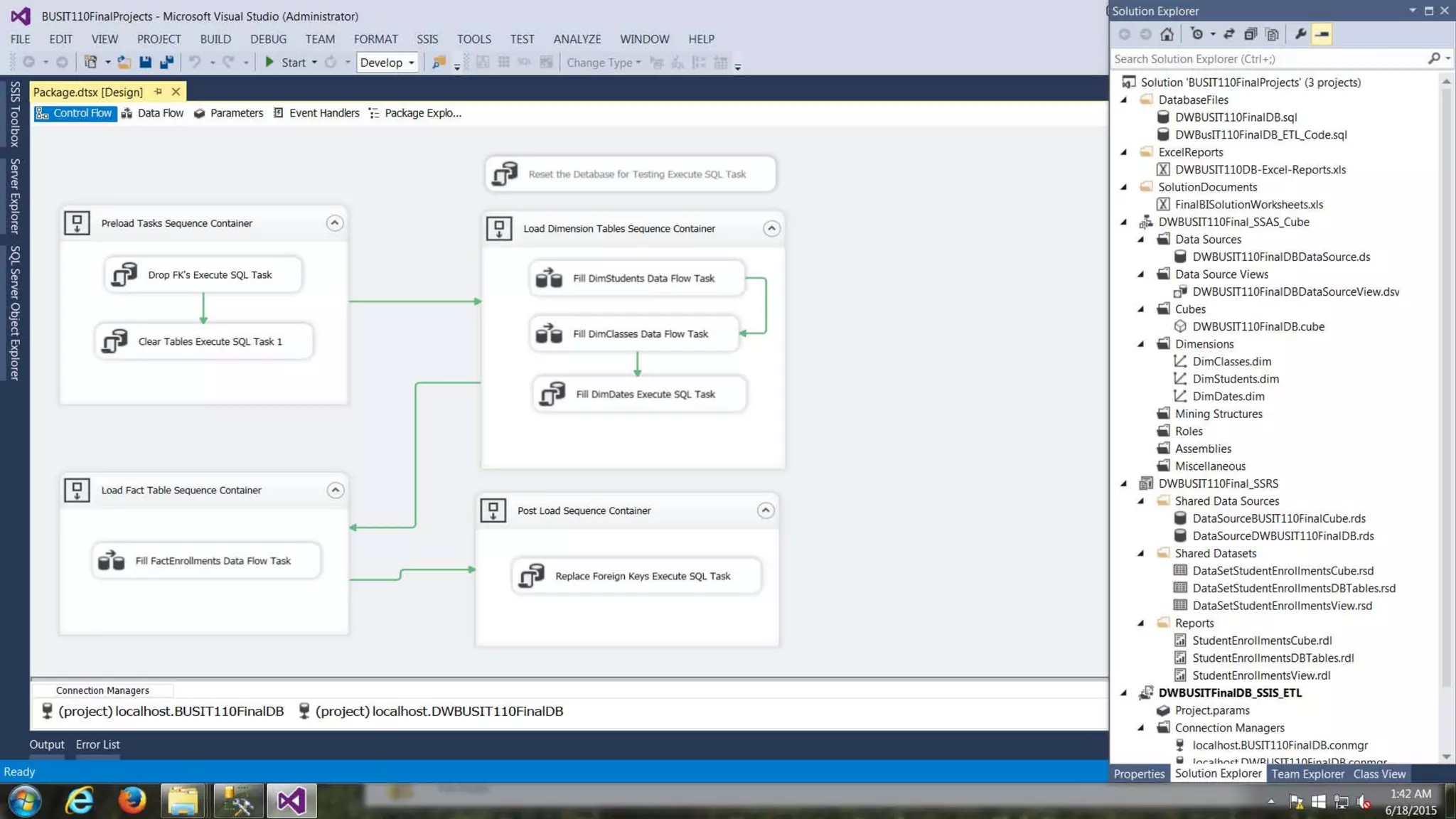
Completely Resets
The Database
Without The Data.
(Disabled)
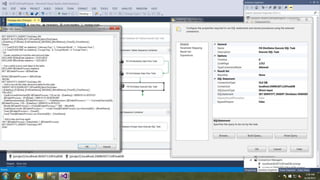
F5 Initiates
ALL Enabled
Sequence
Containers.
SQL Server 2013 Developer Edition with BI Data Tools
Note: Cntrl + F5
Initiates Through DOS.
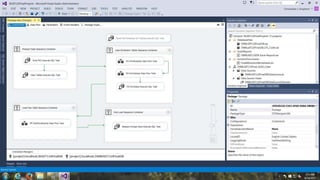
Connection Managers
(OLTP Normalized) (OLAP De-Normalized)
Projects
Project Conainer
SSIS
SSAS
SSRS
Create the Containers With ALL The Tasks
SSIS Toolbox
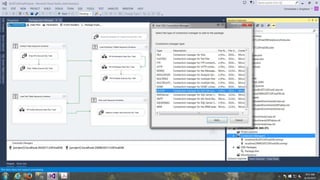
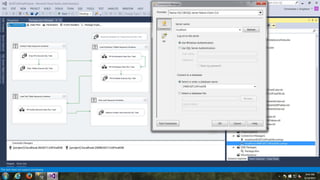
1. Right Click On The Connection Manager
Folder, Select "New Connection Manager"
2. Select The Connection Type. (OLEDB)
Configure The Connection Type To The SQL Server Database
3. Pick "Add" Button.
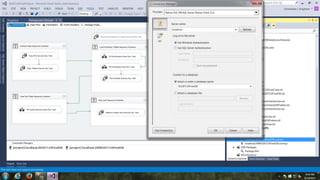
5. OLTP Connection
3. Type Server Host Name
2. Select Client Provider
4. Authentication Method
Set Up The OLTP Connection Manager
6. Test Connection
1. Right Click On The Connection Manager
Folder, Select "New Connection Manager"
Note: Newly Created OLTP Connection.
(Shown Below).
Configure The Connection Type To The SQL Server Database
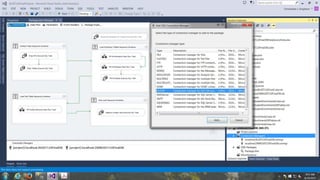
2. Select The Connection Type. (OLEDB)
3. Pick "Add" Button.
1. Right Click On The Connection Manager
Folder, Select "New Connection Manager"
1. Right Click On The Connection Manager
Folder, Select "New Connection Manager"
2. Select Client Provider
3. Type Server Host Name
4. Authentication Method
5. OLAP Connection
6. Test Connection
Note: Newly Created OLAP Connection Manager.
(Shown Below)
Note: You can use just a period (.) for local
host also, or you can use "localhost".
Set Up The OLAP Connection Manager
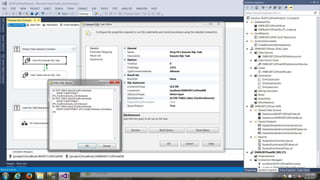
2.Right Click, Edit.
3.Button
4. Place Code Here.
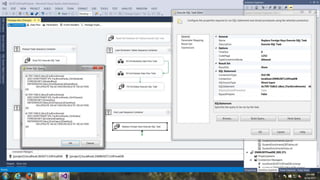
Drop Foreign Keys
5. OLAP Connection
1. Drag-n-Drop
Execute Tasks into the
Container From The
SSIS Tool Box.
6. Test Query Statement(s)
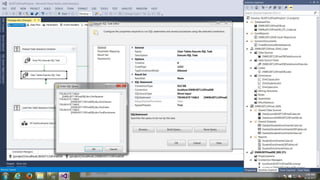
1. Right Click, Edit.
3. Place Code Here
2. Button
Clear Tables
4. OLAP Connection
5. Test Query Statement(s)
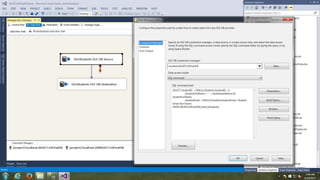
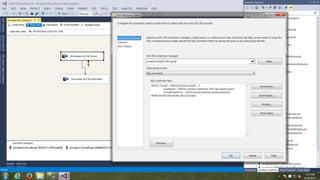
1.Right Click, Edit
4.Place Code Here
DimStudents Source
2. OLTP Connection
3.Drop Down Menu
5. Test Code6. Preview Button
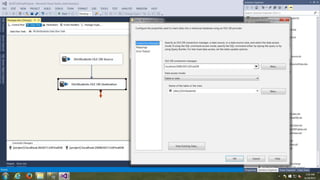
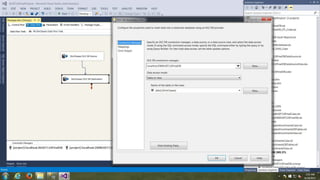
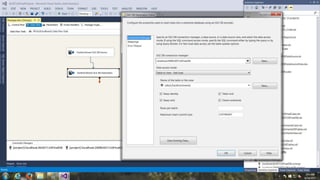
DimStudents Destination
2. OLAP Connection
1. Right Click, Edit
3. Drop Down Menu
4. DimStudents Table
5. Connect This
Blue Arrow To The
Other Container.
To View Columns
And Existing Data.
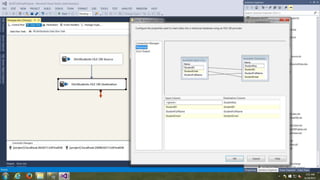
Click Mappings
Note: Data Connections
(Same Name)
Identity_Insert (1,1)
Note: No Mapping Needed for StudentKey, because it is already
configured for Identity_Insert.
(Starts from the first row, first column counting in the beginning.)
2. OLTP Connection
3. Drop Down Menu
1. Right Click, Edit
4. Place Code Here.
5. Test Code
6. Preview empty columns
Connect this Blue Arrow to
the other Container.
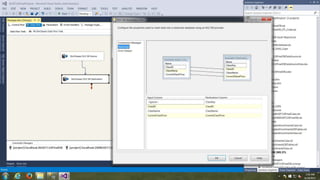
DimClasses Destination
1. Right Click, Edit
2. OLAP Connection
4. DimDates Table
3. Drop Down Menu
To View Columns
And Existing Data.
Note: Mapping Matches
Identity_Insert (1,1)
Note: No Mapping Needed for ClassKey, because Table Column is already
configured for Identity_Insert.
(ClassKey Starts from the first row, first column counting from the beginning.)
Note: Data Connections
(Same Name)Mappings
Mapping The Data Connections To The Columns.
Note: Always Map the Data to the Columns,
or the Task(s) may not run correctly.
DimClasses
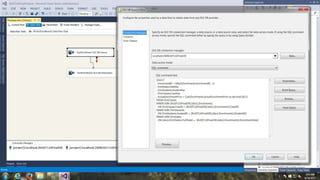
1. Right Click, Edit
3. Button
4. Place Code Here 2. Edit Connection
DimDates SQL Task
5. Check Code
2. OLAP Connection
3. Drop Down Menu
1. Right Click, Edit
5. Check SQL Query
4. Place SQL Code Here.
6. Connect this Blue Arrow to
the Destination Container.
Populating The FactEnrollment Table Using
The Source Data (OLTP Enrollments)
Note: Fact Data Can Come From A Number of
OLTP Source Tables And/Or Views.
FactEnrollments Destination Settings
3. Drop Down Menu
4. OLAP Connection
1. Right Click, Edit
2. OLAP Connection
To View Columns
And Existing Data.
Configure for Nulls And
Identity, If Needed.
4. Place Code Here.
Replace Foreign Keys
3. SQL Statement Button.
2. OLAP Connection
5. Check SQL Query.1. Right Click, Edit
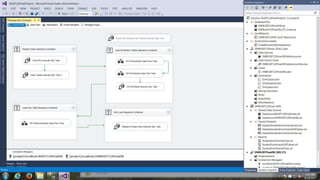
Completed SSIS Project Results

SSIS_Project

  • 1.
    SQL Server 2013Developer Edition with BI Data Tools By: Christopher Singleton Bellevue College BUSIT 110 Final SSIS Project 06-17-2015 Overview of SSIS Project
  • 2.
    1. Right Clickon Solution, Go To "Add", Then, Pick "New Project". Creating A Solution Within A Solution For SSIS
  • 3.
    Configure The SolutionName And Output Location 1. Select Project Type. (SSIS) 2. Project Name 3. Project Location
  • 4.
    Bellevue College BUSIT110 Final SSIS Project By: Christopher Singleton 06-17-2015 Completely Resets The Database Without The Data. (Disabled) F5 Initiates ALL Enabled Sequence Containers. SQL Server 2013 Developer Edition with BI Data Tools Note: Cntrl + F5 Initiates Through DOS. Connection Managers (OLTP Normalized) (OLAP De-Normalized) Projects Project Conainer SSIS SSAS SSRS Create the Containers With ALL The Tasks SSIS Toolbox
  • 5.
    1. Right ClickOn The Connection Manager Folder, Select "New Connection Manager" 2. Select The Connection Type. (OLEDB) Configure The Connection Type To The SQL Server Database 3. Pick "Add" Button.
  • 6.
    5. OLTP Connection 3.Type Server Host Name 2. Select Client Provider 4. Authentication Method Set Up The OLTP Connection Manager 6. Test Connection 1. Right Click On The Connection Manager Folder, Select "New Connection Manager" Note: Newly Created OLTP Connection. (Shown Below).
  • 7.
    Configure The ConnectionType To The SQL Server Database 2. Select The Connection Type. (OLEDB) 3. Pick "Add" Button. 1. Right Click On The Connection Manager Folder, Select "New Connection Manager"
  • 8.
    1. Right ClickOn The Connection Manager Folder, Select "New Connection Manager" 2. Select Client Provider 3. Type Server Host Name 4. Authentication Method 5. OLAP Connection 6. Test Connection Note: Newly Created OLAP Connection Manager. (Shown Below) Note: You can use just a period (.) for local host also, or you can use "localhost". Set Up The OLAP Connection Manager
  • 9.
    2.Right Click, Edit. 3.Button 4.Place Code Here. Drop Foreign Keys 5. OLAP Connection 1. Drag-n-Drop Execute Tasks into the Container From The SSIS Tool Box. 6. Test Query Statement(s)
  • 10.
    1. Right Click,Edit. 3. Place Code Here 2. Button Clear Tables 4. OLAP Connection 5. Test Query Statement(s)
  • 11.
    1.Right Click, Edit 4.PlaceCode Here DimStudents Source 2. OLTP Connection 3.Drop Down Menu 5. Test Code6. Preview Button
  • 12.
    DimStudents Destination 2. OLAPConnection 1. Right Click, Edit 3. Drop Down Menu 4. DimStudents Table 5. Connect This Blue Arrow To The Other Container. To View Columns And Existing Data.
  • 13.
    Click Mappings Note: DataConnections (Same Name) Identity_Insert (1,1) Note: No Mapping Needed for StudentKey, because it is already configured for Identity_Insert. (Starts from the first row, first column counting in the beginning.)
  • 14.
    2. OLTP Connection 3.Drop Down Menu 1. Right Click, Edit 4. Place Code Here. 5. Test Code 6. Preview empty columns
  • 15.
    Connect this BlueArrow to the other Container. DimClasses Destination 1. Right Click, Edit 2. OLAP Connection 4. DimDates Table 3. Drop Down Menu To View Columns And Existing Data.
  • 16.
    Note: Mapping Matches Identity_Insert(1,1) Note: No Mapping Needed for ClassKey, because Table Column is already configured for Identity_Insert. (ClassKey Starts from the first row, first column counting from the beginning.) Note: Data Connections (Same Name)Mappings Mapping The Data Connections To The Columns. Note: Always Map the Data to the Columns, or the Task(s) may not run correctly. DimClasses
  • 17.
    1. Right Click,Edit 3. Button 4. Place Code Here 2. Edit Connection DimDates SQL Task 5. Check Code
  • 18.
    2. OLAP Connection 3.Drop Down Menu 1. Right Click, Edit 5. Check SQL Query 4. Place SQL Code Here. 6. Connect this Blue Arrow to the Destination Container. Populating The FactEnrollment Table Using The Source Data (OLTP Enrollments) Note: Fact Data Can Come From A Number of OLTP Source Tables And/Or Views.
  • 19.
    FactEnrollments Destination Settings 3.Drop Down Menu 4. OLAP Connection 1. Right Click, Edit 2. OLAP Connection To View Columns And Existing Data. Configure for Nulls And Identity, If Needed.
  • 20.
    4. Place CodeHere. Replace Foreign Keys 3. SQL Statement Button. 2. OLAP Connection 5. Check SQL Query.1. Right Click, Edit
  • 21.