SQL Server Management Studio Add-Ins
A long, long time ago, I started to wonder why SQL Server Management Studio (SSMS) was the only
Microsoft project where there wasn’t really a way to create extensions and add-ins for. In my job, I
constantly have to do the following, both of which can be tedious:
a. Only work on 1 database (on an SQL Instance that can have up to 200 databases), and
b. Often copy details where the field is within a range (an IN-Clause).
c. Output data directly to Excel from an SQL Query.
Seeing as there are companies out there such as Redgate (http://www.red-gate.com/ ), where most of
their products include some kind of plugin for SSMS, I knew it wasn’t impossible to do. I found in the
course of my search, an interesting thing: SSMS 2012 uses a version of the same shell used by Visual
Studio 2010 (SSMS 2008 R2 uses the Visual Studio 2005 shell).
The add-ins shown in the below screenshots are upgraded from Shared Add-ins that I started working
with on SSMS 2008 R2. Due to lack of documentation, much of what I learned was applied through
guesswork, theory, and exploring the objects I had to work with. Also, the examples are up-to-date and
were recently recompiled into a VSIX Package, as this is the way Microsoft is going forward (they
dropped Add-in template support in VS 2013, and replaced it with Package support instead).
So, without further ado, I am pleased to display a hobby of mine!
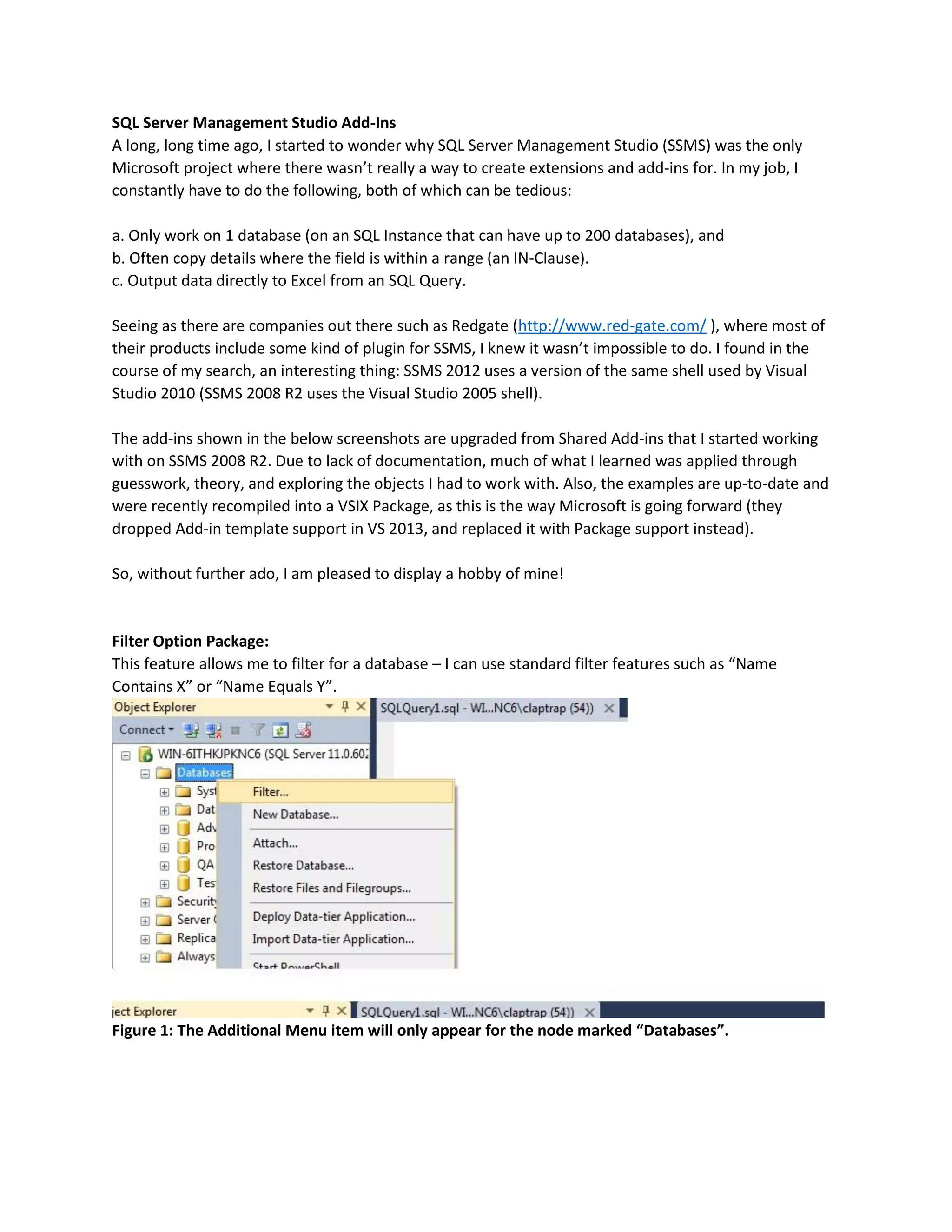
Filter Option Package:
This feature allows me to filter for a database – I can use standard filter features such as “Name
Contains X” or “Name Equals Y”.
Figure 1: The Additional Menu item will only appear for the node marked “Databases”.
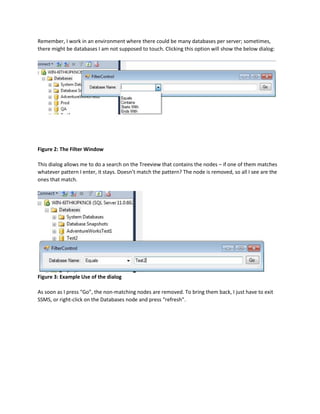
Remember, I work in an environment where there could be many databases per server; sometimes,
there might be databases I am not supposed to touch. Clicking this option will show the below dialog:
Figure 2: The Filter Window
This dialog allows me to do a search on the Treeview that contains the nodes – if one of them matches
whatever pattern I enter, it stays. Doesn’t match the pattern? The node is removed, so all I see are the
ones that match.
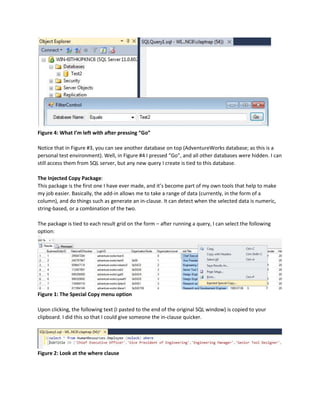
Figure 3: Example Use of the dialog
As soon as I press “Go”, the non-matching nodes are removed. To bring them back, I just have to exit
SSMS, or right-click on the Databases node and press “refresh”.
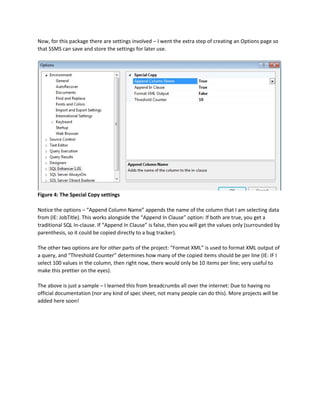
Figure 4: What I’m left with after pressing “Go”
Notice that in Figure #3, you can see another database on top (AdventureWorks database; as this is a
personal test environment). Well, in Figure #4 I pressed “Go”, and all other databases were hidden. I can
still access them from SQL server, but any new query I create is tied to this database.
The Injected Copy Package:
This package is the first one I have ever made, and it’s become part of my own tools that help to make
my job easier. Basically, the add-in allows me to take a range of data (currently, in the form of a
column), and do things such as generate an in-clause. It can detect when the selected data is numeric,
string-based, or a combination of the two.
The package is tied to each result grid on the form – after running a query, I can select the following
option:
Figure 1: The Special Copy menu option
Upon clicking, the following text (I pasted to the end of the original SQL window) is copied to your
clipboard. I did this so that I could give someone the in-clause quicker.
Figure 2: Look at the where clause
Now, for this package there are settings involved – I went the extra step of creating an Options page so
that SSMS can save and store the settings for later use.
Figure 4: The Special Copy settings
Notice the options – “Append Column Name” appends the name of the column that I am selecting data
from (IE: JobTitle). This works alongside the “Append In Clause” option: If both are true, you get a
traditional SQL In-clause. If “Append In Clause” is false, then you will get the values only (surrounded by
parenthesis, so it could be copied directly to a bug tracker).
The other two options are for other parts of the project: “Format XML” is used to format XML output of
a query, and “Threshold Counter” determines how many of the copied items should be per line (IE: IF I
select 100 values in the column, then right now, there would only be 10 items per line; very useful to
make this prettier on the eyes).
The above is just a sample – I learned this from breadcrumbs all over the internet: Due to having no
official documentation (nor any kind of spec sheet, not many people can do this). More projects will be
added here soon!

BlackOps Projects (SQL Server Add-Ins)

  • 1.
    SQL Server ManagementStudio Add-Ins A long, long time ago, I started to wonder why SQL Server Management Studio (SSMS) was the only Microsoft project where there wasn’t really a way to create extensions and add-ins for. In my job, I constantly have to do the following, both of which can be tedious: a. Only work on 1 database (on an SQL Instance that can have up to 200 databases), and b. Often copy details where the field is within a range (an IN-Clause). c. Output data directly to Excel from an SQL Query. Seeing as there are companies out there such as Redgate (http://www.red-gate.com/ ), where most of their products include some kind of plugin for SSMS, I knew it wasn’t impossible to do. I found in the course of my search, an interesting thing: SSMS 2012 uses a version of the same shell used by Visual Studio 2010 (SSMS 2008 R2 uses the Visual Studio 2005 shell). The add-ins shown in the below screenshots are upgraded from Shared Add-ins that I started working with on SSMS 2008 R2. Due to lack of documentation, much of what I learned was applied through guesswork, theory, and exploring the objects I had to work with. Also, the examples are up-to-date and were recently recompiled into a VSIX Package, as this is the way Microsoft is going forward (they dropped Add-in template support in VS 2013, and replaced it with Package support instead). So, without further ado, I am pleased to display a hobby of mine! Filter Option Package: This feature allows me to filter for a database – I can use standard filter features such as “Name Contains X” or “Name Equals Y”. Figure 1: The Additional Menu item will only appear for the node marked “Databases”.
  • 2.
    Remember, I workin an environment where there could be many databases per server; sometimes, there might be databases I am not supposed to touch. Clicking this option will show the below dialog: Figure 2: The Filter Window This dialog allows me to do a search on the Treeview that contains the nodes – if one of them matches whatever pattern I enter, it stays. Doesn’t match the pattern? The node is removed, so all I see are the ones that match. Figure 3: Example Use of the dialog As soon as I press “Go”, the non-matching nodes are removed. To bring them back, I just have to exit SSMS, or right-click on the Databases node and press “refresh”.
  • 3.
    Figure 4: WhatI’m left with after pressing “Go” Notice that in Figure #3, you can see another database on top (AdventureWorks database; as this is a personal test environment). Well, in Figure #4 I pressed “Go”, and all other databases were hidden. I can still access them from SQL server, but any new query I create is tied to this database. The Injected Copy Package: This package is the first one I have ever made, and it’s become part of my own tools that help to make my job easier. Basically, the add-in allows me to take a range of data (currently, in the form of a column), and do things such as generate an in-clause. It can detect when the selected data is numeric, string-based, or a combination of the two. The package is tied to each result grid on the form – after running a query, I can select the following option: Figure 1: The Special Copy menu option Upon clicking, the following text (I pasted to the end of the original SQL window) is copied to your clipboard. I did this so that I could give someone the in-clause quicker. Figure 2: Look at the where clause
  • 4.
    Now, for thispackage there are settings involved – I went the extra step of creating an Options page so that SSMS can save and store the settings for later use. Figure 4: The Special Copy settings Notice the options – “Append Column Name” appends the name of the column that I am selecting data from (IE: JobTitle). This works alongside the “Append In Clause” option: If both are true, you get a traditional SQL In-clause. If “Append In Clause” is false, then you will get the values only (surrounded by parenthesis, so it could be copied directly to a bug tracker). The other two options are for other parts of the project: “Format XML” is used to format XML output of a query, and “Threshold Counter” determines how many of the copied items should be per line (IE: IF I select 100 values in the column, then right now, there would only be 10 items per line; very useful to make this prettier on the eyes). The above is just a sample – I learned this from breadcrumbs all over the internet: Due to having no official documentation (nor any kind of spec sheet, not many people can do this). More projects will be added here soon!