Download to read offline

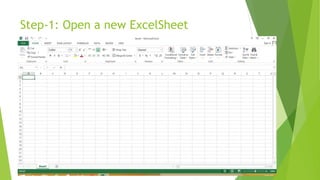
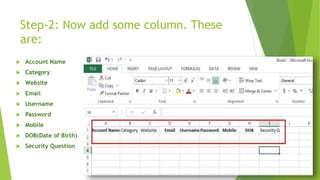
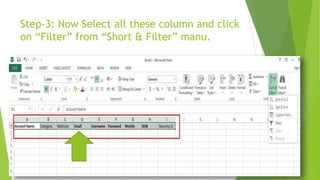
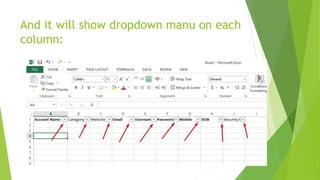
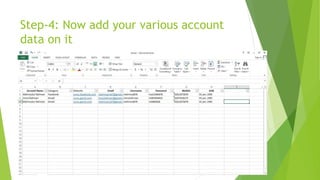
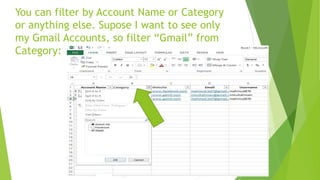
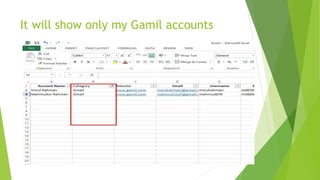
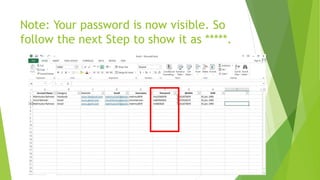
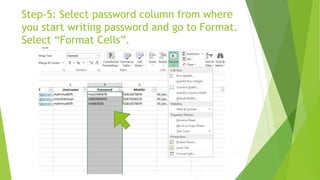
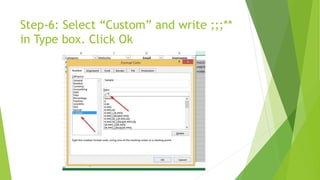
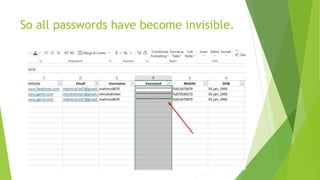
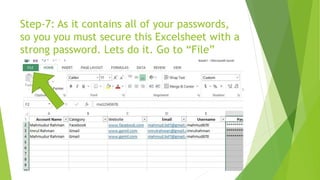
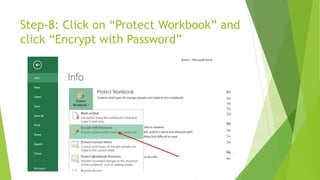
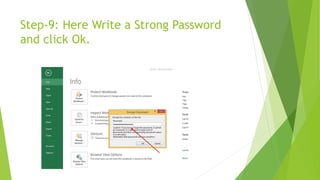

The document provides a step-by-step guide on creating a password storage system using an Excel sheet. It covers how to set up columns for various account details, filter data, hide passwords, and secure the sheet with a strong password. By following these instructions, users can effectively manage their passwords in Excel.


![20260201 [FOSDEM] gomodjail - library sandboxing for Go modules.pdf](https://cdn.slidesharecdn.com/ss_thumbnails/20260201fosdemgomodjail-librarysandboxingforgomodules-260201225659-76609ec4-thumbnail.jpg?width=640&height=640&fit=bounds)


