株式会社 社会情報サービス
ベルカーブビジネスユニット
統計調査研究室
「エクセル統計」の使い方
~重回帰分析編~
Copyright © 2015 Social Survey Research Information. All Rights Reserved.
エクセル統計とは?
2
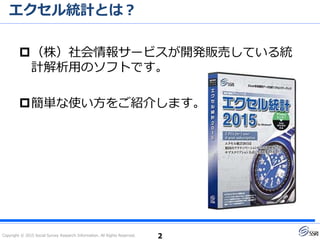
(株)社会情報サービスが開発販売している統
計解析用のソフトです。
簡単な使い方をご紹介します。
2016年2月14日に
新バージョンを発売しました!
Copyright © 2015 Social Survey Research Information. All Rights Reserved.
データの選択①
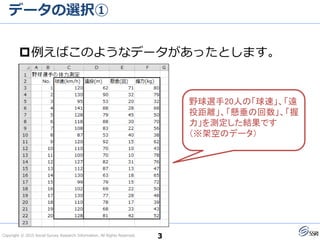
例えばこのようなデータがあったとします。
3
野球選手20人の「球速」、「遠
投距離」、「懸垂の回数」、「握
力」を測定した結果です
(※架空のデータ)
Copyright © 2015 Social Survey Research Information. All Rights Reserved.
データの選択②
4
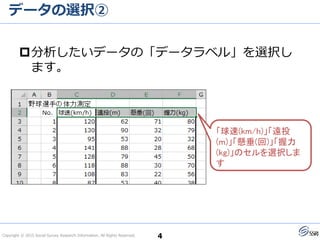
分析したいデータの「データラベル」を選択し
ます。
「球速(km/h)」「遠投
(m)」「懸垂(回)」「握力
(kg)」のセルを選択しま
す
Copyright © 2015 Social Survey Research Information. All Rights Reserved.
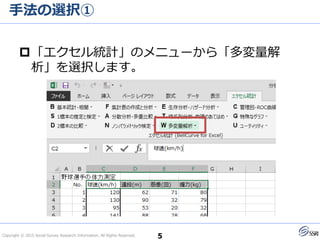
手法の選択①
5
「エクセル統計」のメニューから「多変量解
析」を選択します。
Copyright © 2015 Social Survey Research Information. All Rights Reserved.
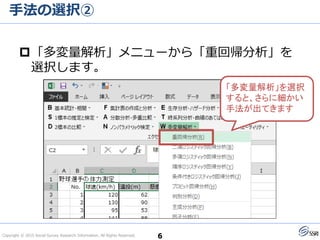
手法の選択②
6
「多変量解析」メニューから「重回帰分析」を
選択します。
「多変量解析」を選択
すると、さらに細かい
手法が出てきます
Copyright © 2015 Social Survey Research Information. All Rights Reserved.
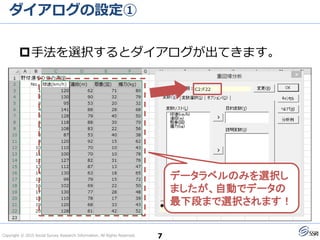
ダイアログの設定①
7
手法を選択するとダイアログが出てきます。
データラベルのみを選択し
ましたが、自動でデータの
最下段まで選択されます!
Copyright © 2015 Social Survey Research Information. All Rights Reserved.
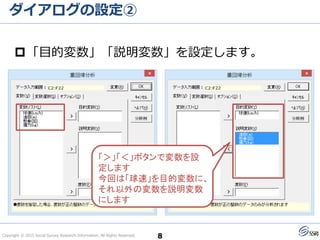
ダイアログの設定②
8
「目的変数」「説明変数」を設定します。
「>」「<」ボタンで変数を設
定します
今回は「球速」を目的変数に、
それ以外の変数を説明変数
にします
Copyright © 2015 Social Survey Research Information. All Rights Reserved.
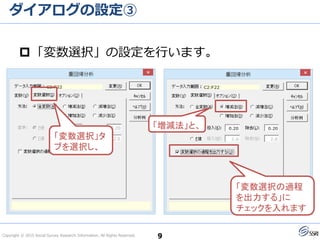
ダイアログの設定③
9
「変数選択」の設定を行います。
「変数選択の過程
を出力する」に
チェックを入れます
「変数選択」タ
ブを選択し、
「増減法」と、
Copyright © 2015 Social Survey Research Information. All Rights Reserved.
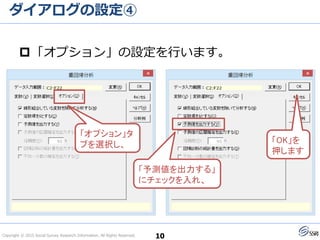
ダイアログの設定④
10
「オプション」の設定を行います。
「予測値を出力する」
にチェックを入れ、
「オプション」タ
ブを選択し、 「OK」を
押します
Copyright © 2015 Social Survey Research Information. All Rights Reserved.
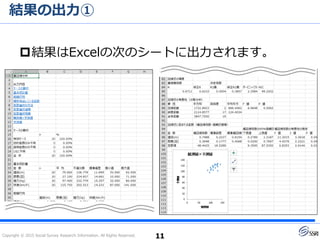
結果の出力①
結果はExcelの次のシートに出力されます。
11
Copyright © 2015 Social Survey Research Information. All Rights Reserved.
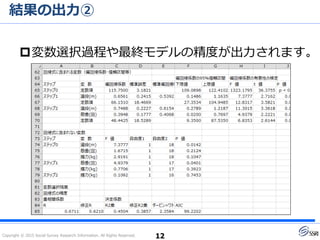
結果の出力②
変数選択過程や最終モデルの精度が出力されます。
12
Copyright © 2015 Social Survey Research Information. All Rights Reserved.
結果の出力③
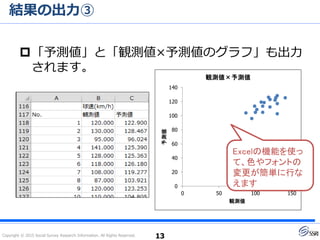
「予測値」と「観測値×予測値のグラフ」も出力
されます。
13
0
20
40
60
80
100
120
140
0 50 100 150
予測値
観測値
観測値×予測値
Excelの機能を使っ
て、色やフォントの
変更が簡単に行な
えます
Copyright © 2015 Social Survey Research Information. All Rights Reserved.
おわりに
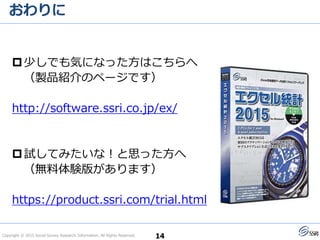
少しでも気になった方はこちらへ
(製品紹介のページです)
https://bellcurve.jp/ex/
試してみたいな!と思った方へ
(無料体験版があります)
https://product.ssri.com/trial.html
14

エクセル統計の使い方(重回帰分析編)

  • 1.
  • 2.
    Copyright © 2015Social Survey Research Information. All Rights Reserved. エクセル統計とは? 2 (株)社会情報サービスが開発販売している統 計解析用のソフトです。 簡単な使い方をご紹介します。 2016年2月14日に 新バージョンを発売しました!
  • 3.
    Copyright © 2015Social Survey Research Information. All Rights Reserved. データの選択① 例えばこのようなデータがあったとします。 3 野球選手20人の「球速」、「遠 投距離」、「懸垂の回数」、「握 力」を測定した結果です (※架空のデータ)
  • 4.
    Copyright © 2015Social Survey Research Information. All Rights Reserved. データの選択② 4 分析したいデータの「データラベル」を選択し ます。 「球速(km/h)」「遠投 (m)」「懸垂(回)」「握力 (kg)」のセルを選択しま す
  • 5.
    Copyright © 2015Social Survey Research Information. All Rights Reserved. 手法の選択① 5 「エクセル統計」のメニューから「多変量解 析」を選択します。
  • 6.
    Copyright © 2015Social Survey Research Information. All Rights Reserved. 手法の選択② 6 「多変量解析」メニューから「重回帰分析」を 選択します。 「多変量解析」を選択 すると、さらに細かい 手法が出てきます
  • 7.
    Copyright © 2015Social Survey Research Information. All Rights Reserved. ダイアログの設定① 7 手法を選択するとダイアログが出てきます。 データラベルのみを選択し ましたが、自動でデータの 最下段まで選択されます!
  • 8.
    Copyright © 2015Social Survey Research Information. All Rights Reserved. ダイアログの設定② 8 「目的変数」「説明変数」を設定します。 「>」「<」ボタンで変数を設 定します 今回は「球速」を目的変数に、 それ以外の変数を説明変数 にします
  • 9.
    Copyright © 2015Social Survey Research Information. All Rights Reserved. ダイアログの設定③ 9 「変数選択」の設定を行います。 「変数選択の過程 を出力する」に チェックを入れます 「変数選択」タ ブを選択し、 「増減法」と、
  • 10.
    Copyright © 2015Social Survey Research Information. All Rights Reserved. ダイアログの設定④ 10 「オプション」の設定を行います。 「予測値を出力する」 にチェックを入れ、 「オプション」タ ブを選択し、 「OK」を 押します
  • 11.
    Copyright © 2015Social Survey Research Information. All Rights Reserved. 結果の出力① 結果はExcelの次のシートに出力されます。 11
  • 12.
    Copyright © 2015Social Survey Research Information. All Rights Reserved. 結果の出力② 変数選択過程や最終モデルの精度が出力されます。 12
  • 13.
    Copyright © 2015Social Survey Research Information. All Rights Reserved. 結果の出力③ 「予測値」と「観測値×予測値のグラフ」も出力 されます。 13 0 20 40 60 80 100 120 140 0 50 100 150 予測値 観測値 観測値×予測値 Excelの機能を使っ て、色やフォントの 変更が簡単に行な えます
  • 14.
    Copyright © 2015Social Survey Research Information. All Rights Reserved. おわりに 少しでも気になった方はこちらへ (製品紹介のページです) https://bellcurve.jp/ex/ 試してみたいな!と思った方へ (無料体験版があります) https://product.ssri.com/trial.html 14