Library Resources to Support
Your Research Topic
Kelly Bennett
Reference & Instruction Librarian
kelly-bennett@berkeleycollege.edu
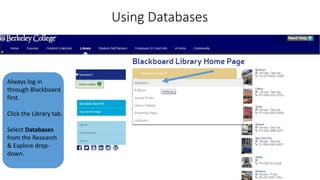
Using Databases
Always log in
through Blackboard
first.
Click the Library tab.
Select Databases
from the Research
& Explore drop-
down.
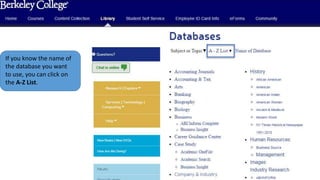
If you know the name of
the database you want
to use, you can click on
the A-Z List.
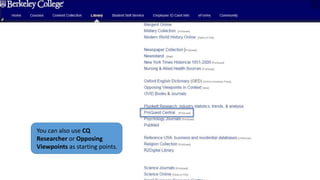
You can also use CQ
Researcher or Opposing
Viewpoints as starting points.
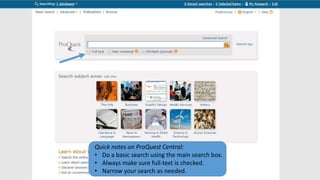
Quick notes on ProQuest Central:
• Do a basic search using the main search box.
• Always make sure full-text is checked.
• Narrow your search as needed.
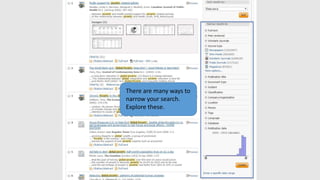
There are many ways to
narrow your search.
Explore these.
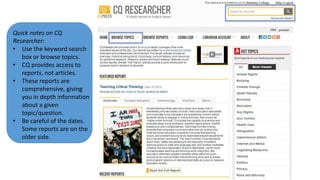
Quick notes on CQ
Researcher:
• Use the keyword search
box or browse topics.
• CQ provides access to
reports, not articles.
• These reports are
comprehensive, giving
you in depth information
about a given
topic/question.
• Be careful of the dates.
Some reports are on the
older side.
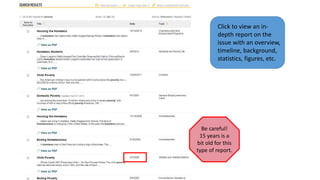
Click to view an in-
depth report on the
issue with an overview,
timeline, background,
statistics, figures, etc.
Be careful!
15 years is a
bit old for this
type of report.
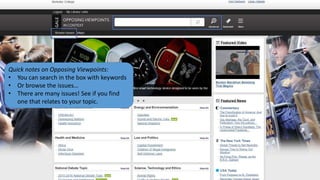
Quick notes on Opposing Viewpoints:
• You can search in the box with keywords
• Or browse the issues…
• There are many issues! See if you find
one that relates to your topic.
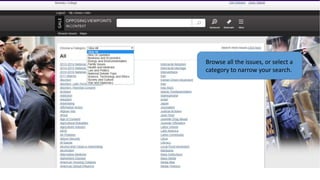
Browse all the issues, or select a
category to narrow your search.
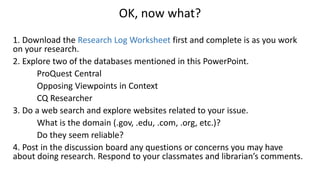
OK, now what?
1. Download the Research Log Worksheet first and complete is as you work
on your research.
2. Explore two of the databases mentioned in this PowerPoint.
ProQuest Central
Opposing Viewpoints in Context
CQ Researcher
3. Do a web search and explore websites related to your issue.
What is the domain (.gov, .edu, .com, .org, etc.)?
Do they seem reliable?
4. Post in the discussion board any questions or concerns you may have
about doing research. Respond to your classmates and librarian’s comments.

SOC 415 Archer Spring 2015

  • 1.
    Library Resources toSupport Your Research Topic Kelly Bennett Reference & Instruction Librarian kelly-bennett@berkeleycollege.edu
  • 2.
    Using Databases Always login through Blackboard first. Click the Library tab. Select Databases from the Research & Explore drop- down.
  • 3.
    If you knowthe name of the database you want to use, you can click on the A-Z List.
  • 4.
    You can alsouse CQ Researcher or Opposing Viewpoints as starting points.
  • 5.
    Quick notes onProQuest Central: • Do a basic search using the main search box. • Always make sure full-text is checked. • Narrow your search as needed.
  • 6.
    There are manyways to narrow your search. Explore these.
  • 7.
    Quick notes onCQ Researcher: • Use the keyword search box or browse topics. • CQ provides access to reports, not articles. • These reports are comprehensive, giving you in depth information about a given topic/question. • Be careful of the dates. Some reports are on the older side.
  • 8.
    Click to viewan in- depth report on the issue with an overview, timeline, background, statistics, figures, etc. Be careful! 15 years is a bit old for this type of report.
  • 9.
    Quick notes onOpposing Viewpoints: • You can search in the box with keywords • Or browse the issues… • There are many issues! See if you find one that relates to your topic.
  • 10.
    Browse all theissues, or select a category to narrow your search.
  • 11.
    OK, now what? 1.Download the Research Log Worksheet first and complete is as you work on your research. 2. Explore two of the databases mentioned in this PowerPoint. ProQuest Central Opposing Viewpoints in Context CQ Researcher 3. Do a web search and explore websites related to your issue. What is the domain (.gov, .edu, .com, .org, etc.)? Do they seem reliable? 4. Post in the discussion board any questions or concerns you may have about doing research. Respond to your classmates and librarian’s comments.