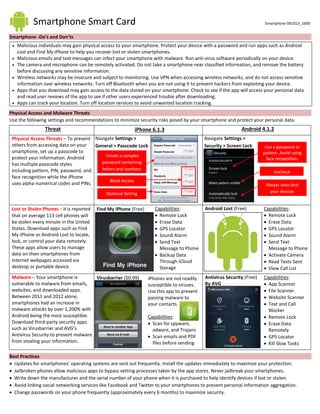
Smartphone Smart Card Smartphone 061013_1600
Smartphone -Do’s and Don’ts
 Malicious individuals may gain physical access to your smartphone. Protect your device with a password and run apps such as Android
Lost and Find My iPhone to help you recover lost or stolen smartphones.
 Malicious emails and text messages can infect your smartphone with malware. Run anti-virus software periodically on your device.
 The camera and microphone can be remotely activated. Do not take a smartphone near classified information, and remove the battery
before discussing any sensitive information.
 Wireless networks may be insecure and subject to monitoring. Use VPN when accessing wireless networks, and do not access sensitive
information over wireless networks. Turn off Bluetooth when you are not using it to prevent hackers from exploiting your device.
 Apps that you download may gain access to the data stored on your smartphone. Check to see if the app will access your personal data
and read user reviews of the app to see if other users experienced trouble after downloading.
 Apps can track your location. Turn off location services to avoid unwanted location tracking.
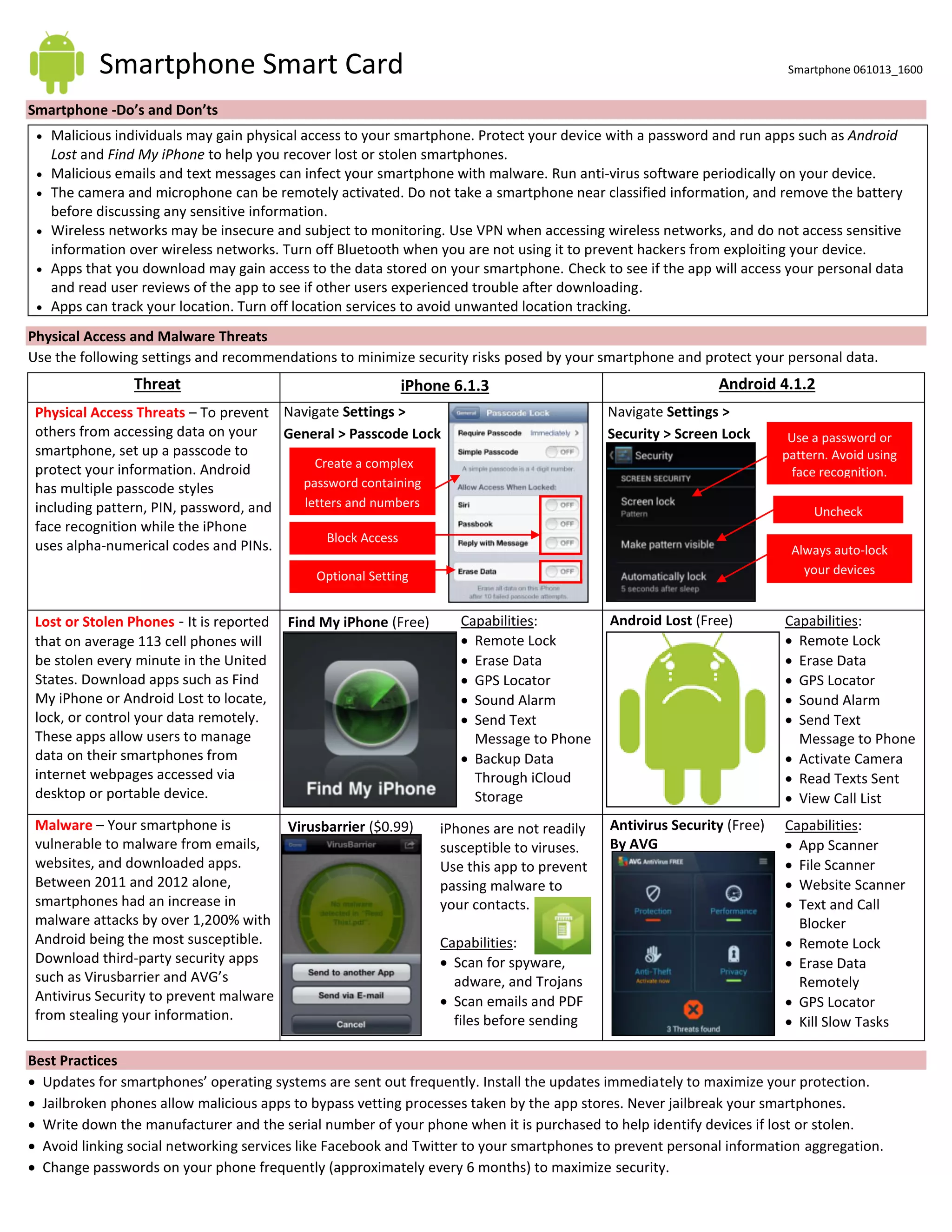
Physical Access and Malware Threats
Use the following settings and recommendations to minimize security risks posed by your smartphone and protect your personal data.
Threat iPhone 6.1.3 Android 4.1.2
Physical Access Threats – To prevent
others from accessing data on your
smartphone, set up a passcode to
protect your information. Android
has multiple passcode styles
including pattern, PIN, password, and
face recognition while the iPhone
uses alpha-numerical codes and PINs.
Lost or Stolen Phones - It is reported
that on average 113 cell phones will
be stolen every minute in the United
States. Download apps such as Find
My iPhone or Android Lost to locate,
lock, or control your data remotely.
These apps allow users to manage
data on their smartphones from
internet webpages accessed via
desktop or portable device.
Find My iPhone (Free) Android Lost (Free)
Malware – Your smartphone is
vulnerable to malware from emails,
websites, and downloaded apps.
Between 2011 and 2012 alone,
smartphones had an increase in
malware attacks by over 1,200% with
Android being the most susceptible.
Download third-party security apps
such as Virusbarrier and AVG’s
Antivirus Security to prevent malware
from stealing your information.
Virusbarrier ($0.99) Antivirus Security (Free)
By AVG
Best Practices
 Updates for smartphones’ operating systems are sent out frequently. Install the updates immediately to maximize your protection.
 Jailbroken phones allow malicious apps to bypass vetting processes taken by the app stores. Never jailbreak your smartphones.
 Write down the manufacturer and the serial number of your phone when it is purchased to help identify devices if lost or stolen.
 Avoid linking social networking services like Facebook and Twitter to your smartphones to prevent personal information aggregation.
 Change passwords on your phone frequently (approximately every 6 months) to maximize security.
Optional Setting
Create a complex
password containing
letters and numbers
Navigate Settings >
General > Passcode Lock
Block Access
Navigate Settings >
Security > Screen Lock
Uncheck
Use a password or
pattern. Avoid using
face recognition.
Capabilities:
 Remote Lock
 Erase Data
 GPS Locator
 Sound Alarm
 Send Text
Message to Phone
 Backup Data
Through iCloud
Storage
Capabilities:
 Remote Lock
 Erase Data
 GPS Locator
 Sound Alarm
 Send Text
Message to Phone
 Activate Camera
 Read Texts Sent
 View Call List
iPhones are not readily
susceptible to viruses.
Use this app to prevent
passing malware to
your contacts.
Capabilities:
 Scan for spyware,
adware, and Trojans
 Scan emails and PDF
files before sending
Capabilities:
 App Scanner
 File Scanner
 Website Scanner
 Text and Call
Blocker
 Remote Lock
 Erase Data
Remotely
 GPS Locator
 Kill Slow Tasks

Always auto-lock
your devices
Smartphone Smart Card Smartphone 061013_1600
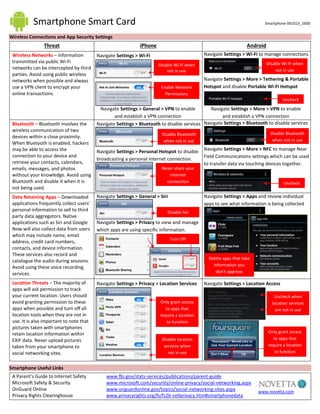
Wireless Connections and App Security Settings
Threat iPhone Android
Wireless Networks – Information
transmitted via public Wi-Fi
networks can be intercepted by third
parties. Avoid using public wireless
networks when possible and always
use a VPN client to encrypt your
online transactions.
Bluetooth – Bluetooth involves the
wireless communication of two
devices within a close proximity.
When Bluetooth is enabled, hackers
may be able to access the
connection to your device and
retrieve your contacts, calendars,
emails, messages, and photos
without your knowledge. Avoid using
Bluetooth and disable it when it is
not being used.
Data Retaining Apps – Downloaded
applications frequently collect users’
personal information to sell to third
party data aggregators. Native
applications such as Siri and Google
Now will also collect data from users
which may include name, email
address, credit card numbers,
contacts, and device information.
These services also record and
catalogue the audio during sessions.
Avoid using these voice recording
services.
Location Threats – The majority of
apps will ask permission to track
your current location. Users should
avoid granting permission to these
apps when possible and turn off all
location tools when they are not in
use. It is also important to note that
pictures taken with smartphones
retain location information within
EXIF data. Never upload pictures
taken from your smartphone to
social networking sites.
Smartphone Useful Links
A Parent’s Guide to Internet Safety www.fbi.gov/stats-services/publications/parent-guide
Microsoft Safety & Security www.microsoft.com/security/online-privacy/social-networking.aspx
OnGuard Online www.onguardonline.gov/topics/social-networking-sites.aspx
Privacy Rights Clearinghouse www.privacyrights.org/fs/fs2b-cellprivacy.htm#smartphonedata
www.novetta.com
Navigate Settings > Wi-Fi
Disable Wi-Fi when
not in use
Enable Network
Permissions
Navigate Settings > General > VPN to enable
and establish a VPN connection
Navigate Settings > Wi-Fi to manage connections
Navigate Settings > More > VPN to enable
and establish a VPN connection
Navigate Settings > More > Tethering & Portable
Hotspot and disable Portable Wi-Fi Hotspot
Disable Wi-Fi when
not in use
Navigate Settings > Bluetooth to disable services
Navigate Settings > More > NFC to manage Near
Field Communications settings which can be used
to transfer data via touching devices together.
Disable Bluetooth
when not in use
Uncheck
Navigate Settings > Bluetooth to disable services
Disable Bluetooth
when not in use
Navigate Settings > Personal Hotspot to disable
broadcasting a personal internet connection.
Never share your
internet
connection
Navigate Settings > General > Siri
Navigate Settings > Privacy > Location Services
Disable Siri
Navigate Settings > Privacy to view and manage
which apps are using specific information.
Only grant access
to apps that
require a location
to function
Disable location
services when
not in use
Turn Off
Navigate Settings > Location Access
Uncheck when
location services
are not in use
Only grant access
to apps that
require a location
to function
Navigate Settings > Apps and review individual
apps to see what information is being collected
Delete apps that take
information you
don’t approve
Uncheck

Smartphone Smart Card 061013

  • 1.
    Smartphone Smart CardSmartphone 061013_1600 Smartphone -Do’s and Don’ts  Malicious individuals may gain physical access to your smartphone. Protect your device with a password and run apps such as Android Lost and Find My iPhone to help you recover lost or stolen smartphones.  Malicious emails and text messages can infect your smartphone with malware. Run anti-virus software periodically on your device.  The camera and microphone can be remotely activated. Do not take a smartphone near classified information, and remove the battery before discussing any sensitive information.  Wireless networks may be insecure and subject to monitoring. Use VPN when accessing wireless networks, and do not access sensitive information over wireless networks. Turn off Bluetooth when you are not using it to prevent hackers from exploiting your device.  Apps that you download may gain access to the data stored on your smartphone. Check to see if the app will access your personal data and read user reviews of the app to see if other users experienced trouble after downloading.  Apps can track your location. Turn off location services to avoid unwanted location tracking. Physical Access and Malware Threats Use the following settings and recommendations to minimize security risks posed by your smartphone and protect your personal data. Threat iPhone 6.1.3 Android 4.1.2 Physical Access Threats – To prevent others from accessing data on your smartphone, set up a passcode to protect your information. Android has multiple passcode styles including pattern, PIN, password, and face recognition while the iPhone uses alpha-numerical codes and PINs. Lost or Stolen Phones - It is reported that on average 113 cell phones will be stolen every minute in the United States. Download apps such as Find My iPhone or Android Lost to locate, lock, or control your data remotely. These apps allow users to manage data on their smartphones from internet webpages accessed via desktop or portable device. Find My iPhone (Free) Android Lost (Free) Malware – Your smartphone is vulnerable to malware from emails, websites, and downloaded apps. Between 2011 and 2012 alone, smartphones had an increase in malware attacks by over 1,200% with Android being the most susceptible. Download third-party security apps such as Virusbarrier and AVG’s Antivirus Security to prevent malware from stealing your information. Virusbarrier ($0.99) Antivirus Security (Free) By AVG Best Practices  Updates for smartphones’ operating systems are sent out frequently. Install the updates immediately to maximize your protection.  Jailbroken phones allow malicious apps to bypass vetting processes taken by the app stores. Never jailbreak your smartphones.  Write down the manufacturer and the serial number of your phone when it is purchased to help identify devices if lost or stolen.  Avoid linking social networking services like Facebook and Twitter to your smartphones to prevent personal information aggregation.  Change passwords on your phone frequently (approximately every 6 months) to maximize security. Optional Setting Create a complex password containing letters and numbers Navigate Settings > General > Passcode Lock Block Access Navigate Settings > Security > Screen Lock Uncheck Use a password or pattern. Avoid using face recognition. Capabilities:  Remote Lock  Erase Data  GPS Locator  Sound Alarm  Send Text Message to Phone  Backup Data Through iCloud Storage Capabilities:  Remote Lock  Erase Data  GPS Locator  Sound Alarm  Send Text Message to Phone  Activate Camera  Read Texts Sent  View Call List iPhones are not readily susceptible to viruses. Use this app to prevent passing malware to your contacts. Capabilities:  Scan for spyware, adware, and Trojans  Scan emails and PDF files before sending Capabilities:  App Scanner  File Scanner  Website Scanner  Text and Call Blocker  Remote Lock  Erase Data Remotely  GPS Locator  Kill Slow Tasks  Always auto-lock your devices
  • 2.
    Smartphone Smart CardSmartphone 061013_1600 Wireless Connections and App Security Settings Threat iPhone Android Wireless Networks – Information transmitted via public Wi-Fi networks can be intercepted by third parties. Avoid using public wireless networks when possible and always use a VPN client to encrypt your online transactions. Bluetooth – Bluetooth involves the wireless communication of two devices within a close proximity. When Bluetooth is enabled, hackers may be able to access the connection to your device and retrieve your contacts, calendars, emails, messages, and photos without your knowledge. Avoid using Bluetooth and disable it when it is not being used. Data Retaining Apps – Downloaded applications frequently collect users’ personal information to sell to third party data aggregators. Native applications such as Siri and Google Now will also collect data from users which may include name, email address, credit card numbers, contacts, and device information. These services also record and catalogue the audio during sessions. Avoid using these voice recording services. Location Threats – The majority of apps will ask permission to track your current location. Users should avoid granting permission to these apps when possible and turn off all location tools when they are not in use. It is also important to note that pictures taken with smartphones retain location information within EXIF data. Never upload pictures taken from your smartphone to social networking sites. Smartphone Useful Links A Parent’s Guide to Internet Safety www.fbi.gov/stats-services/publications/parent-guide Microsoft Safety & Security www.microsoft.com/security/online-privacy/social-networking.aspx OnGuard Online www.onguardonline.gov/topics/social-networking-sites.aspx Privacy Rights Clearinghouse www.privacyrights.org/fs/fs2b-cellprivacy.htm#smartphonedata www.novetta.com Navigate Settings > Wi-Fi Disable Wi-Fi when not in use Enable Network Permissions Navigate Settings > General > VPN to enable and establish a VPN connection Navigate Settings > Wi-Fi to manage connections Navigate Settings > More > VPN to enable and establish a VPN connection Navigate Settings > More > Tethering & Portable Hotspot and disable Portable Wi-Fi Hotspot Disable Wi-Fi when not in use Navigate Settings > Bluetooth to disable services Navigate Settings > More > NFC to manage Near Field Communications settings which can be used to transfer data via touching devices together. Disable Bluetooth when not in use Uncheck Navigate Settings > Bluetooth to disable services Disable Bluetooth when not in use Navigate Settings > Personal Hotspot to disable broadcasting a personal internet connection. Never share your internet connection Navigate Settings > General > Siri Navigate Settings > Privacy > Location Services Disable Siri Navigate Settings > Privacy to view and manage which apps are using specific information. Only grant access to apps that require a location to function Disable location services when not in use Turn Off Navigate Settings > Location Access Uncheck when location services are not in use Only grant access to apps that require a location to function Navigate Settings > Apps and review individual apps to see what information is being collected Delete apps that take information you don’t approve Uncheck