




 Dr. Minnie Ladores
 Frostburg State University
 March2012


Introduction to SlideShare
Signing Up and Uploading your PowerPoint Presentation
1. Go to http://www.slideshare.net
2. Sign Up
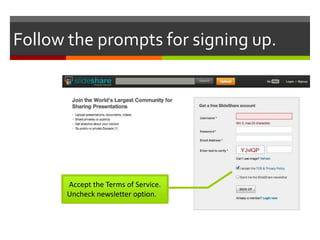
Follow the prompts for signing up.


      Accept the Terms of Service.
      Uncheck newsletter option.
3. Click on the Upload button.
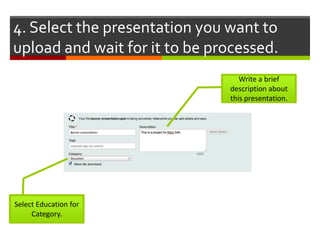
4. Select the presentation you want to
upload and wait for it to be processed.
                                  Write a brief
                               description about
                               this presentation.


Select Education for
     Category.
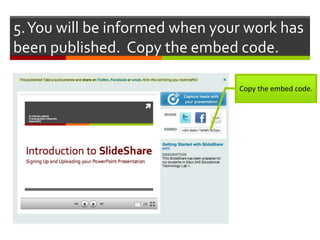
5. You will be informed when your work has
been published. Copy the embed code.

                                Copy the embed code.
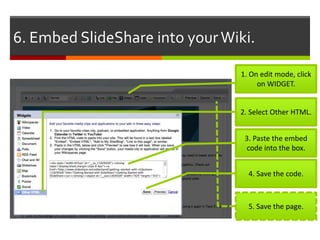
6. Embed SlideShare into your Wiki.

                                1. On edit mode, click
                                     on WIDGET.


                                2. Select Other HTML.


                                 3. Paste the embed
                                 code into the box.


                                  4. Save the code.


                                  5. Save the page.
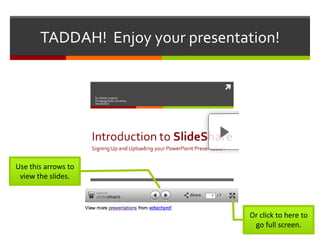
TADDAH! Enjoy your presentation!


Use this arrows to
 view the slides.


                                  Or click to here to
                                   go full screen.
Just so you know…

 SlideShares may also be embedded on
   Blackboard, Google Site, and Glogsters.

 What’s great about embedding is that your viewers
   won’t need to download your PowerPoint
   presentation in order to view it. This saves time
   and computer memory resources. SlideShare
   makes your presentation more accessible.

 Be sure elements on your presentation are
   copyright compliant.
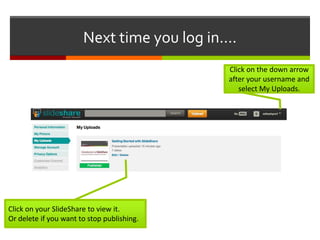
Next time you log in….
                                            Click on the down arrow
                                            after your username and
                                               select My Uploads.


Click on your SlideShare to view it.
Or delete if you want to stop publishing.

Getting Started with SlideShare

  • 1.
     Dr. MinnieLadores Frostburg State University March2012 Introduction to SlideShare Signing Up and Uploading your PowerPoint Presentation
  • 2.
    1. Go tohttp://www.slideshare.net
  • 3.
    1. Go tohttp://www.slideshare.net
  • 4.
  • 5.
    Follow the promptsfor signing up. Accept the Terms of Service. Uncheck newsletter option.
  • 6.
    3. Click onthe Upload button.
  • 7.
    4. Select thepresentation you want to upload and wait for it to be processed. Write a brief description about this presentation. Select Education for Category.
  • 8.
    5. You willbe informed when your work has been published. Copy the embed code. Copy the embed code.
  • 9.
    6. Embed SlideShareinto your Wiki. 1. On edit mode, click on WIDGET. 2. Select Other HTML. 3. Paste the embed code into the box. 4. Save the code. 5. Save the page.
  • 10.
    TADDAH! Enjoy yourpresentation! Use this arrows to view the slides. Or click to here to go full screen.
  • 11.
    Just so youknow…  SlideShares may also be embedded on Blackboard, Google Site, and Glogsters.  What’s great about embedding is that your viewers won’t need to download your PowerPoint presentation in order to view it. This saves time and computer memory resources. SlideShare makes your presentation more accessible.  Be sure elements on your presentation are copyright compliant.
  • 12.
    Next time youlog in…. Click on the down arrow after your username and select My Uploads. Click on your SlideShare to view it. Or delete if you want to stop publishing.