SkyDrive and Web Apps
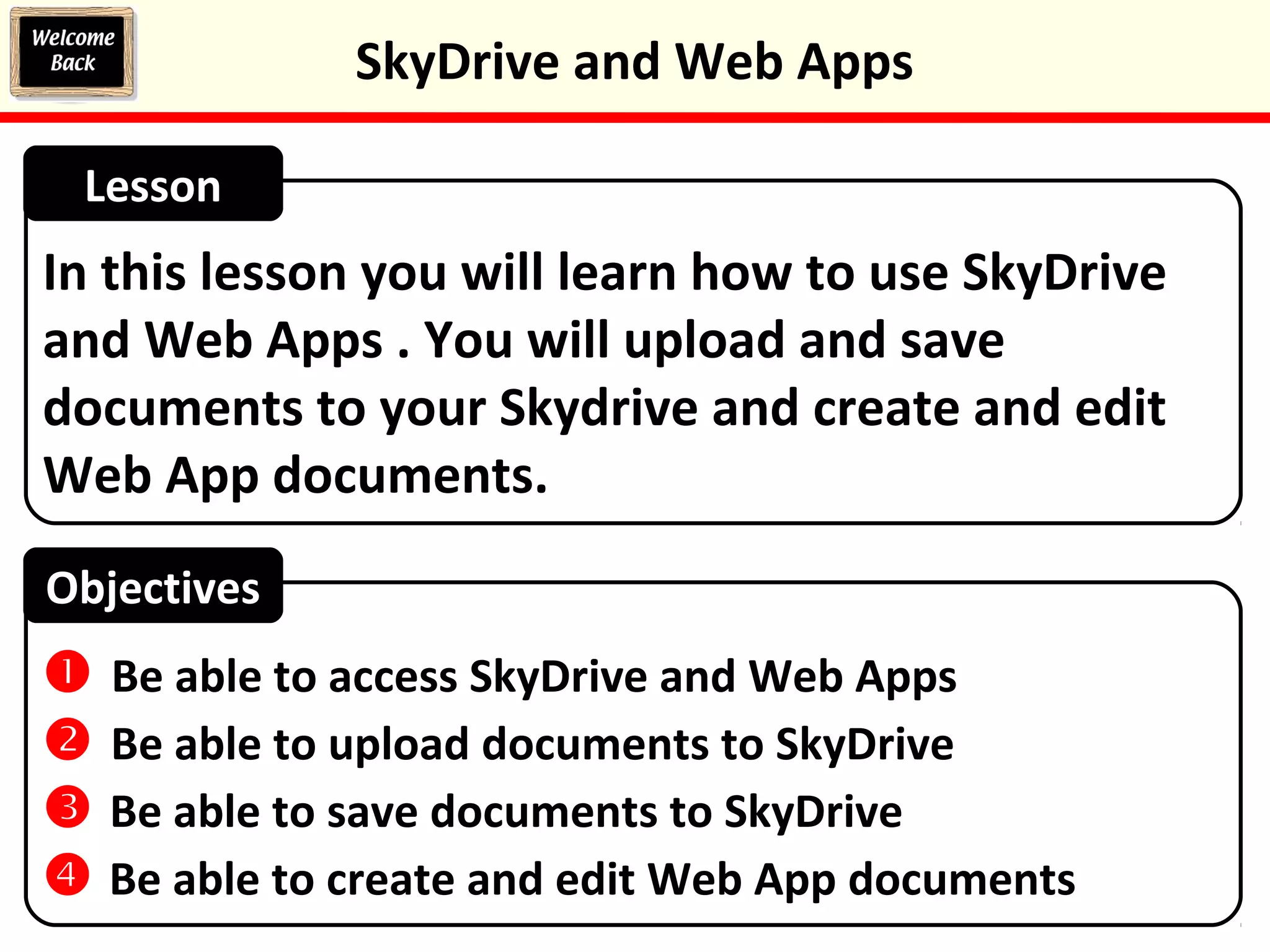
Starter Activity: Office 365
Log in to Office 365. Remember the link is on the
front page of the Virtual Learning Environment.
SkyDrive and Web Apps
In this lesson you will learn how to use SkyDrive
and Web Apps . You will upload and save
documents to your Skydrive and create and edit
Web App documents.
Lesson
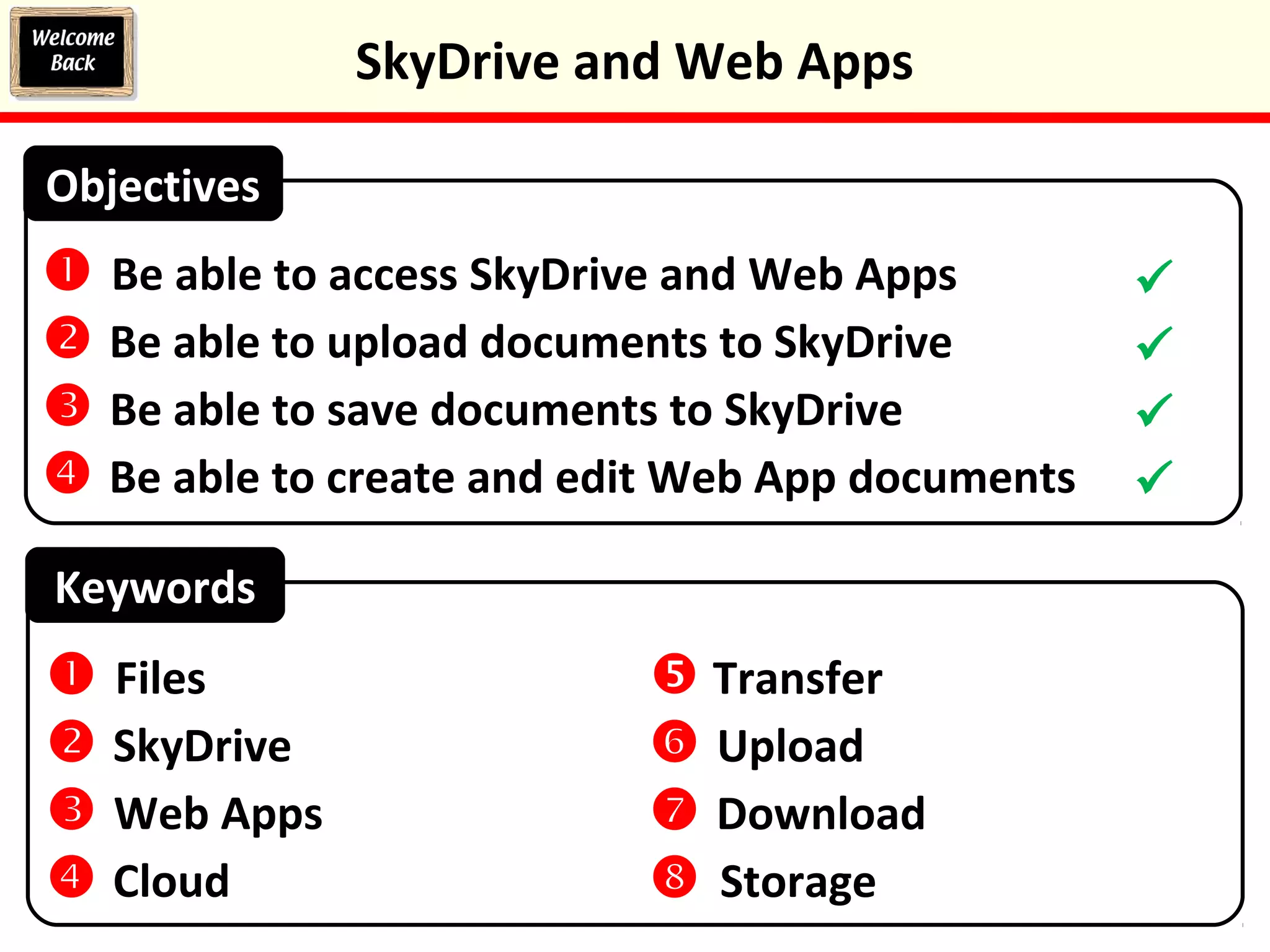
Objectives
 Be able to access SkyDrive and Web Apps
 Be able to upload documents to SkyDrive
 Be able to save documents to SkyDrive
 Be able to create and edit Web App documents
SkyDrive and Web Apps
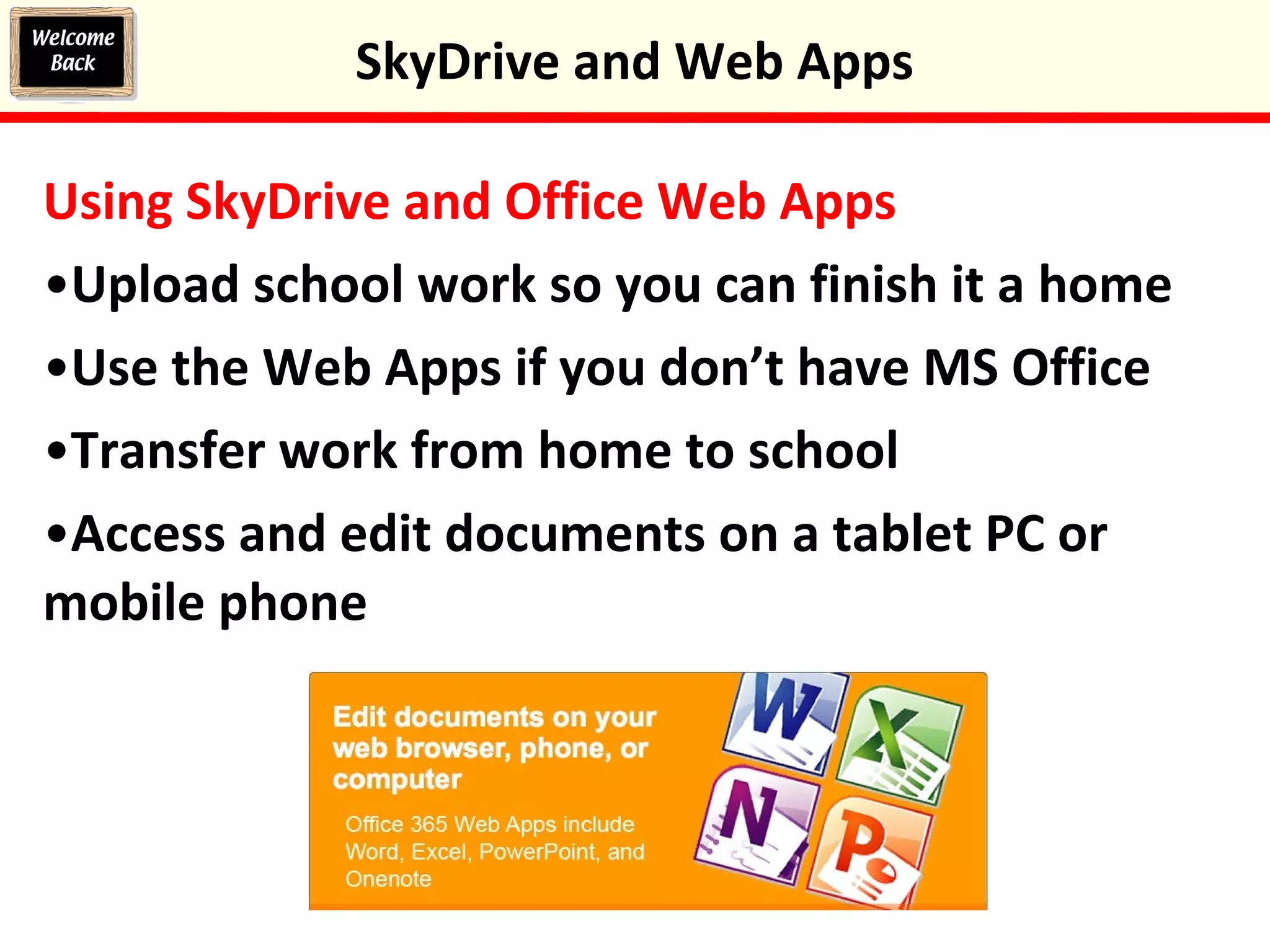
Office Web Apps
Office Web Apps are free, basic versions of Office
programs which are online. They let you create
and work with documents without having to buy
or install any software.
There are four web apps:
•Word – for creating text documents
•Excel – for working with spreadsheets
•PowerPoint – for creating presentations
•OneNote – for taking and organising notes
SkyDrive and Web Apps
SkyDrive
SkyDrive is a free, online storage space that you
can use to save your school work in, so you can
access it from home. Some people refer to this
type of online storage as the cloud.
SkyDrive and Web Apps
Using Web Apps and SkyDrive
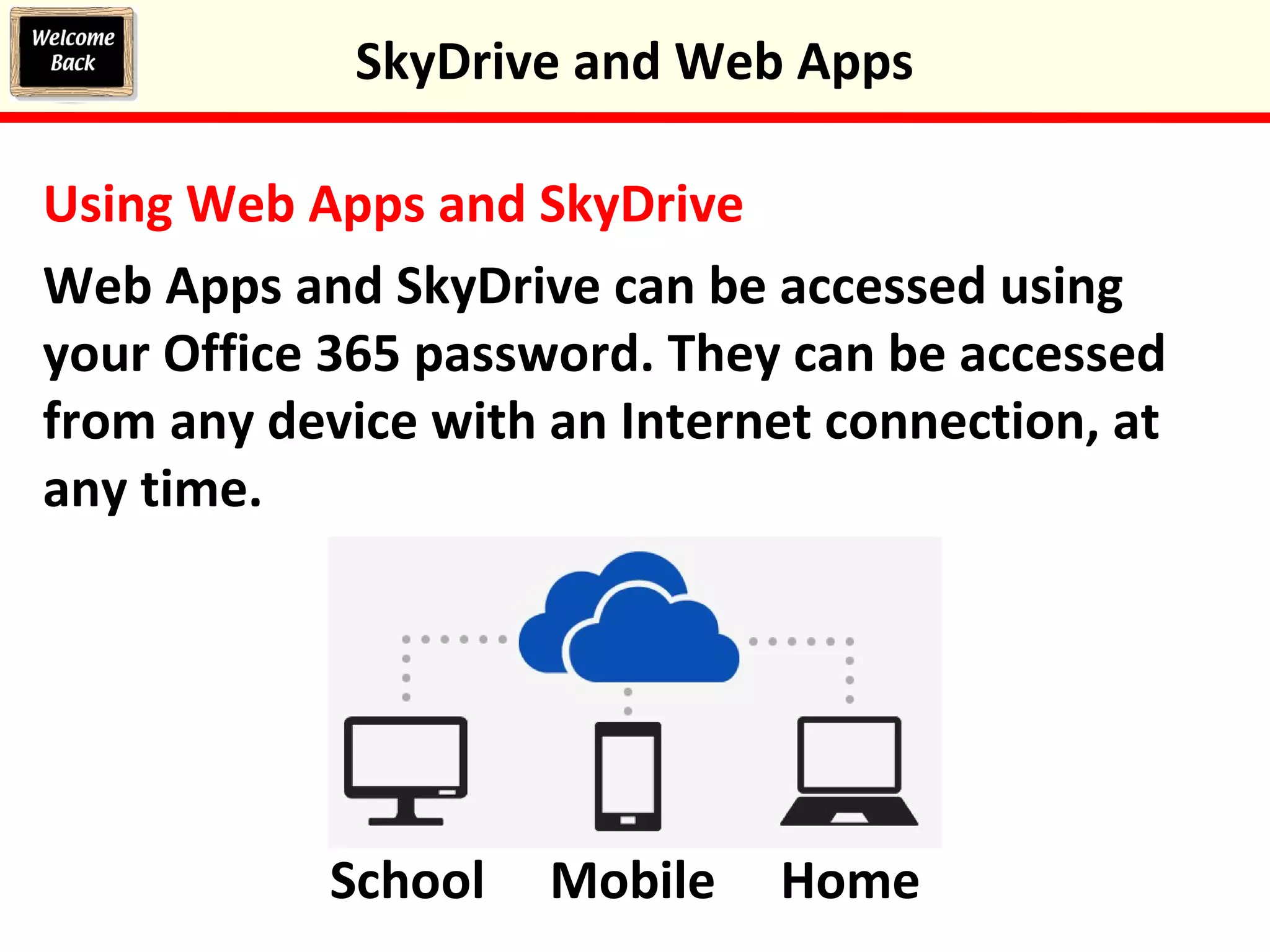
Web Apps and SkyDrive can be accessed using
your Office 365 password. They can be accessed
from any device with an Internet connection, at
any time.
SkyDrive and Web Apps
School Mobile Home
Task 9: Uploading a document to SkyDrive
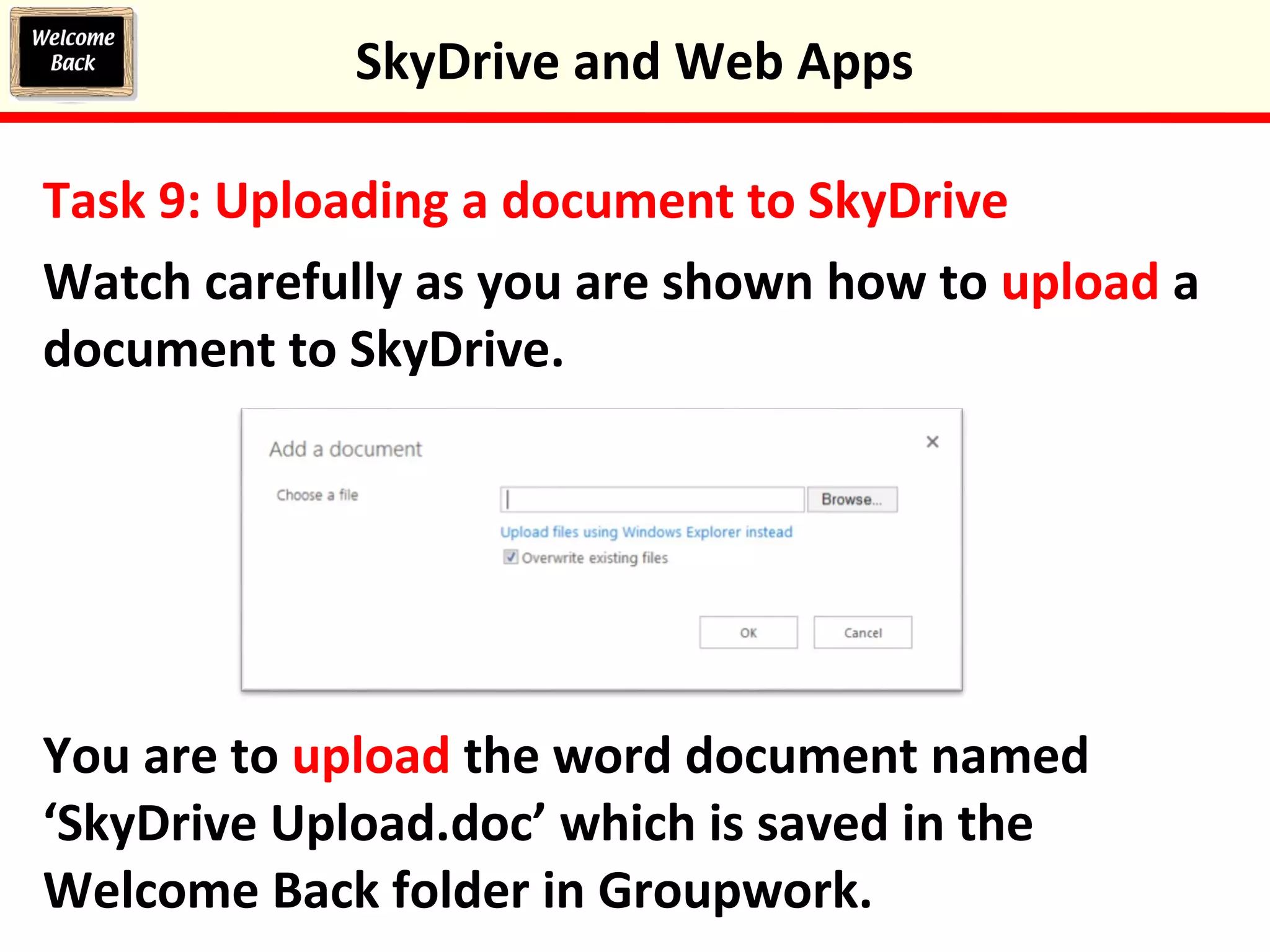
Watch carefully as you are shown how to upload a
document to SkyDrive.
You are to upload the word document named
‘SkyDrive Upload.doc’ which is saved in the
Welcome Back folder in Groupwork.
SkyDrive and Web Apps
Task 10: Saving document to SkyDrive
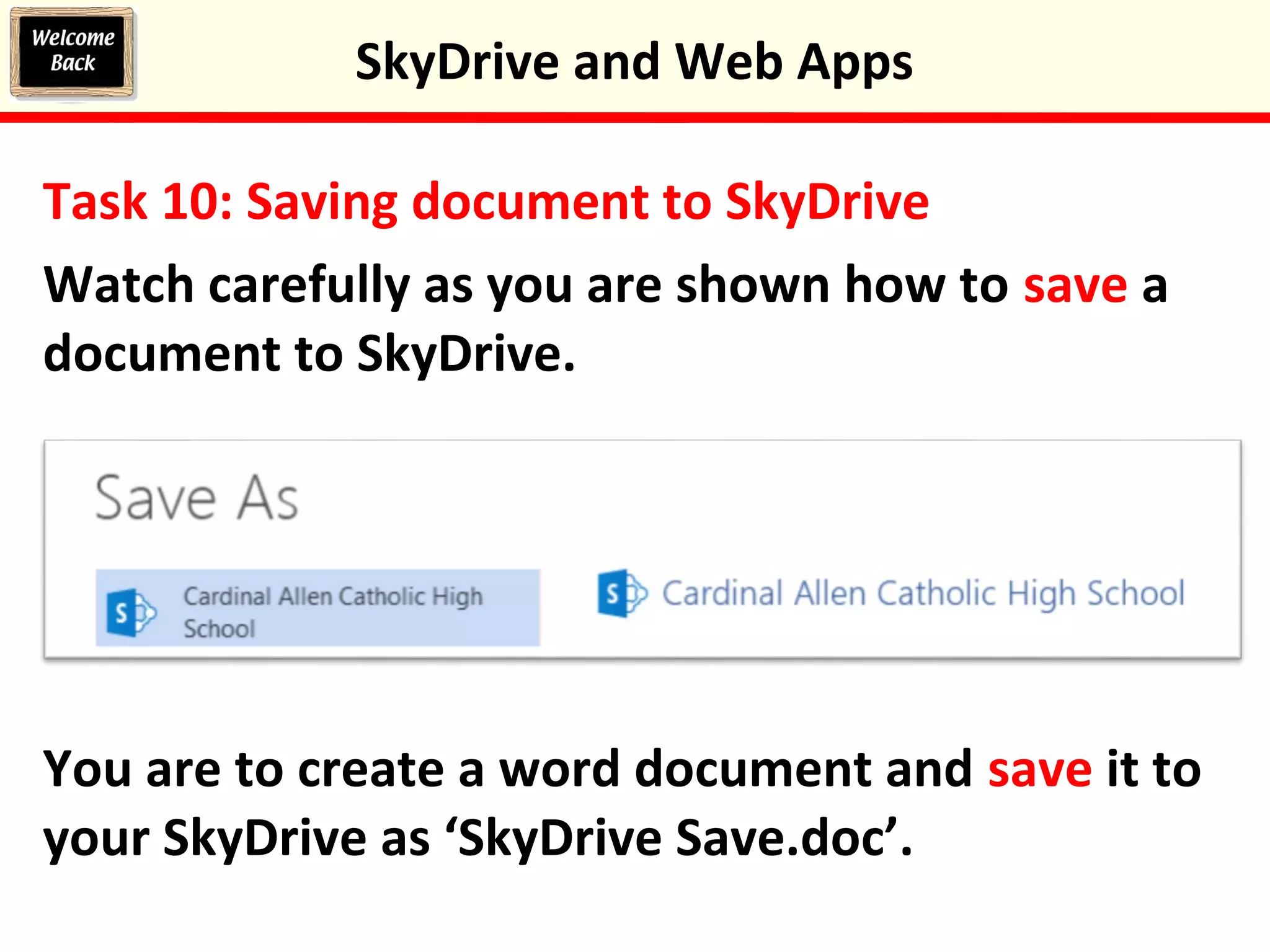
Watch carefully as you are shown how to save a
document to SkyDrive.
You are to create a word document and save it to
your SkyDrive as ‘SkyDrive Save.doc’.
SkyDrive and Web Apps
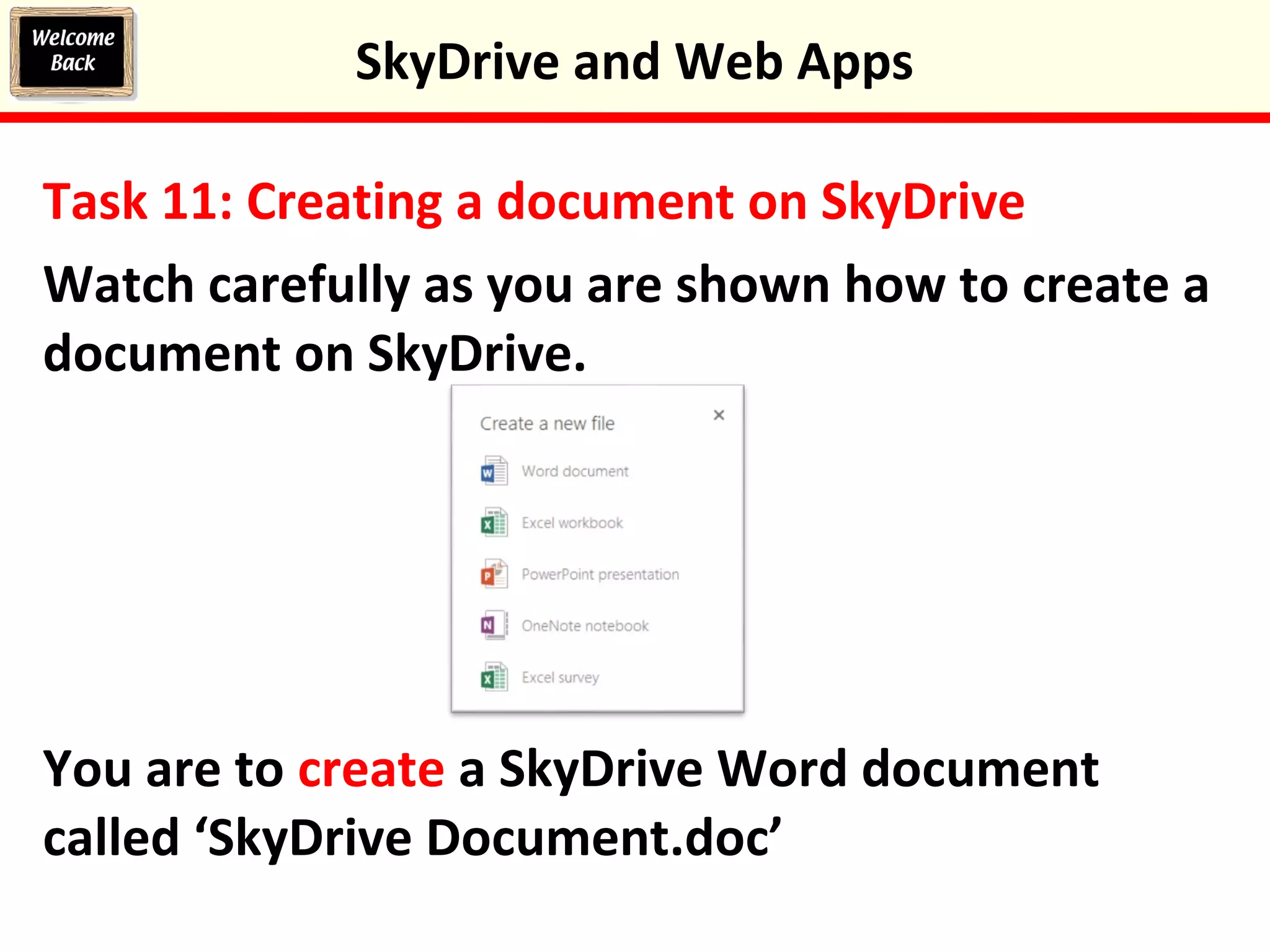
Task 11: Creating a document on SkyDrive
Watch carefully as you are shown how to create a
document on SkyDrive.
You are to create a SkyDrive Word document
called ‘SkyDrive Document.doc’
SkyDrive and Web Apps
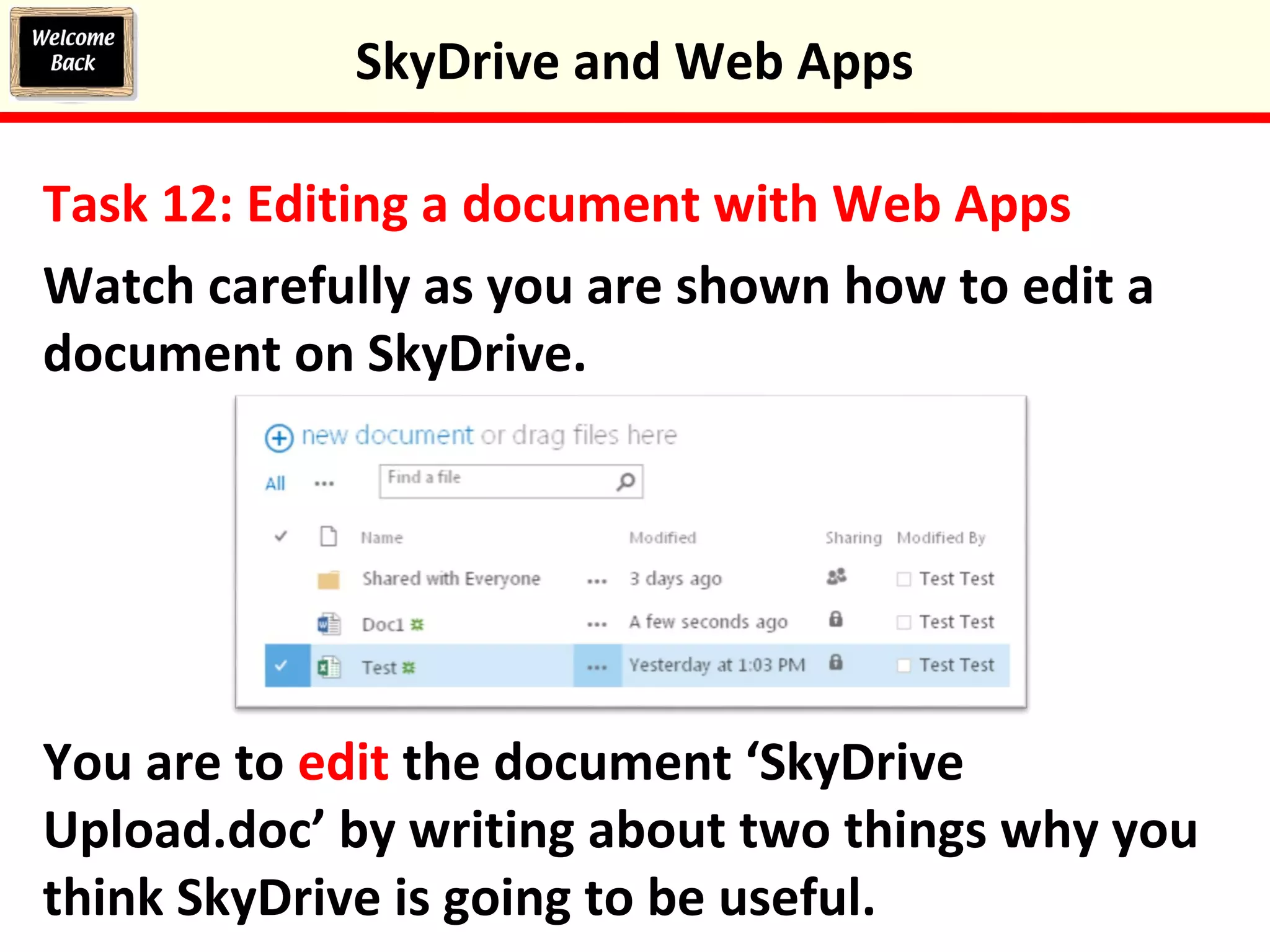
Task 12: Editing a document with Web Apps
Watch carefully as you are shown how to edit a
document on SkyDrive.
You are to edit the document ‘SkyDrive
Upload.doc’ by writing about two things why you
think SkyDrive is going to be useful.
SkyDrive and Web Apps
Using SkyDrive and Office Web Apps
•Upload school work so you can finish it a home
•Use the Web Apps if you don’t have MS Office
•Transfer work from home to school
•Access and edit documents on a tablet PC or
mobile phone
SkyDrive and Web Apps
Plenary: What do you Know!
1.Upload the document ‘SkyDrive Recap.doc’ from
Groupwork to SkyDrive
2.Create a Web App PowerPoint presentation
named ‘Web App PowerPoint’
3.Delete all the files in your SkyDrive
SkyDrive and Web Apps
Keywords
 Be able to access SkyDrive and Web Apps
 Be able to upload documents to SkyDrive
 Be able to save documents to SkyDrive
 Be able to create and edit Web App documents
Objectives
 Files
 SkyDrive
 Web Apps
 Cloud
 Transfer
 Upload
 Download
 Storage




SkyDrive and Web Apps

Sky drive and web apps

  • 1.
  • 2.
    Starter Activity: Office365 Log in to Office 365. Remember the link is on the front page of the Virtual Learning Environment. SkyDrive and Web Apps
  • 3.
    In this lessonyou will learn how to use SkyDrive and Web Apps . You will upload and save documents to your Skydrive and create and edit Web App documents. Lesson Objectives  Be able to access SkyDrive and Web Apps  Be able to upload documents to SkyDrive  Be able to save documents to SkyDrive  Be able to create and edit Web App documents SkyDrive and Web Apps
  • 4.
    Office Web Apps OfficeWeb Apps are free, basic versions of Office programs which are online. They let you create and work with documents without having to buy or install any software. There are four web apps: •Word – for creating text documents •Excel – for working with spreadsheets •PowerPoint – for creating presentations •OneNote – for taking and organising notes SkyDrive and Web Apps
  • 5.
    SkyDrive SkyDrive is afree, online storage space that you can use to save your school work in, so you can access it from home. Some people refer to this type of online storage as the cloud. SkyDrive and Web Apps
  • 6.
    Using Web Appsand SkyDrive Web Apps and SkyDrive can be accessed using your Office 365 password. They can be accessed from any device with an Internet connection, at any time. SkyDrive and Web Apps School Mobile Home
  • 7.
    Task 9: Uploadinga document to SkyDrive Watch carefully as you are shown how to upload a document to SkyDrive. You are to upload the word document named ‘SkyDrive Upload.doc’ which is saved in the Welcome Back folder in Groupwork. SkyDrive and Web Apps
  • 8.
    Task 10: Savingdocument to SkyDrive Watch carefully as you are shown how to save a document to SkyDrive. You are to create a word document and save it to your SkyDrive as ‘SkyDrive Save.doc’. SkyDrive and Web Apps
  • 9.
    Task 11: Creatinga document on SkyDrive Watch carefully as you are shown how to create a document on SkyDrive. You are to create a SkyDrive Word document called ‘SkyDrive Document.doc’ SkyDrive and Web Apps
  • 10.
    Task 12: Editinga document with Web Apps Watch carefully as you are shown how to edit a document on SkyDrive. You are to edit the document ‘SkyDrive Upload.doc’ by writing about two things why you think SkyDrive is going to be useful. SkyDrive and Web Apps
  • 11.
    Using SkyDrive andOffice Web Apps •Upload school work so you can finish it a home •Use the Web Apps if you don’t have MS Office •Transfer work from home to school •Access and edit documents on a tablet PC or mobile phone SkyDrive and Web Apps
  • 12.
    Plenary: What doyou Know! 1.Upload the document ‘SkyDrive Recap.doc’ from Groupwork to SkyDrive 2.Create a Web App PowerPoint presentation named ‘Web App PowerPoint’ 3.Delete all the files in your SkyDrive SkyDrive and Web Apps
  • 13.
    Keywords  Be ableto access SkyDrive and Web Apps  Be able to upload documents to SkyDrive  Be able to save documents to SkyDrive  Be able to create and edit Web App documents Objectives  Files  SkyDrive  Web Apps  Cloud  Transfer  Upload  Download  Storage     SkyDrive and Web Apps

Editor's Notes

  • #5  portable  easy to use  don’t take up much space  connected to the Internet
  • #6  portable  easy to use  don’t take up much space  connected to the Internet
  • #7  portable  easy to use  don’t take up much space  connected to the Internet