
About Basics
What is Office 365?
Office 365 is a web-based subscription service that gives you anywhere-access to
MS Office tools and applications, such as Word, Excel, Access, Publisher,
PowerPoint and Outlook.
What can I do with it?
Depending on the level of subscription selected, you may be able to:
 Work from anywhere using your PC, Mac or mobile device
 Create a website that is specific to your organization and customize it to
promote your company brand
 Collaborate on project documents – with SharePoint, file sharing is fast and
simple and users can access files from almost anywhere
 Access emails, look up contacts and share calendars from wherever you are
 Host online conference meetings with real-time note taking, screen sharing
and HD video conferencing
 Access, edit and share Word, Excel and PowerPoint documents from your
mobile device using Office Web Apps
What else should I know?
 Office 365 is easy to set up and receives automatic
updates
 Your files are automatically backed up online
 Office 365 has built-in anti-malware protection and
spam filters
 Round-the-clock IT-level web and phone support is available
 Guaranteed 99.9% uptime
With SkyDrive, you can store and access files from anywhere, and set permissions
so that you can control who accesses and edits what.
Accessing your Office 365 account
If your network administrator has set up an Office 365 account for you and your
organization, logging into your account is really easy:
 Navigate to your Office 365 login page, using the link provided to you or by
typing https://login.microsoftonline.com into your address bar on your
web browser
 On the sign in page, fill in your credentials and click Sign in
Setting up your mobile device
A great feature of Office 365 is that it allows you to access
files and collaborate with team members from certain mobile
devices – like the Windows Tablet, iPhone, Android or
Blackberry smartphone.
To connect Office 365 to your mobile device:
 On your Office 365 account home page, click the Settings button and
select Office 365 settings from the drop menu
 On the Office 365 settings page, click get started from the list of options
 Select phone & tablet on the Get started with Office 365 page
 Options appear near the bottom of the screen – choose your mobile device
from the list of options available
 The Office 365 help window opens and displays instructions for your
particular device. Follow the instructions to complete setup
You should now be able to access your account from your mobile device. If
prompted, enter in your credentials.
Outlook Web App
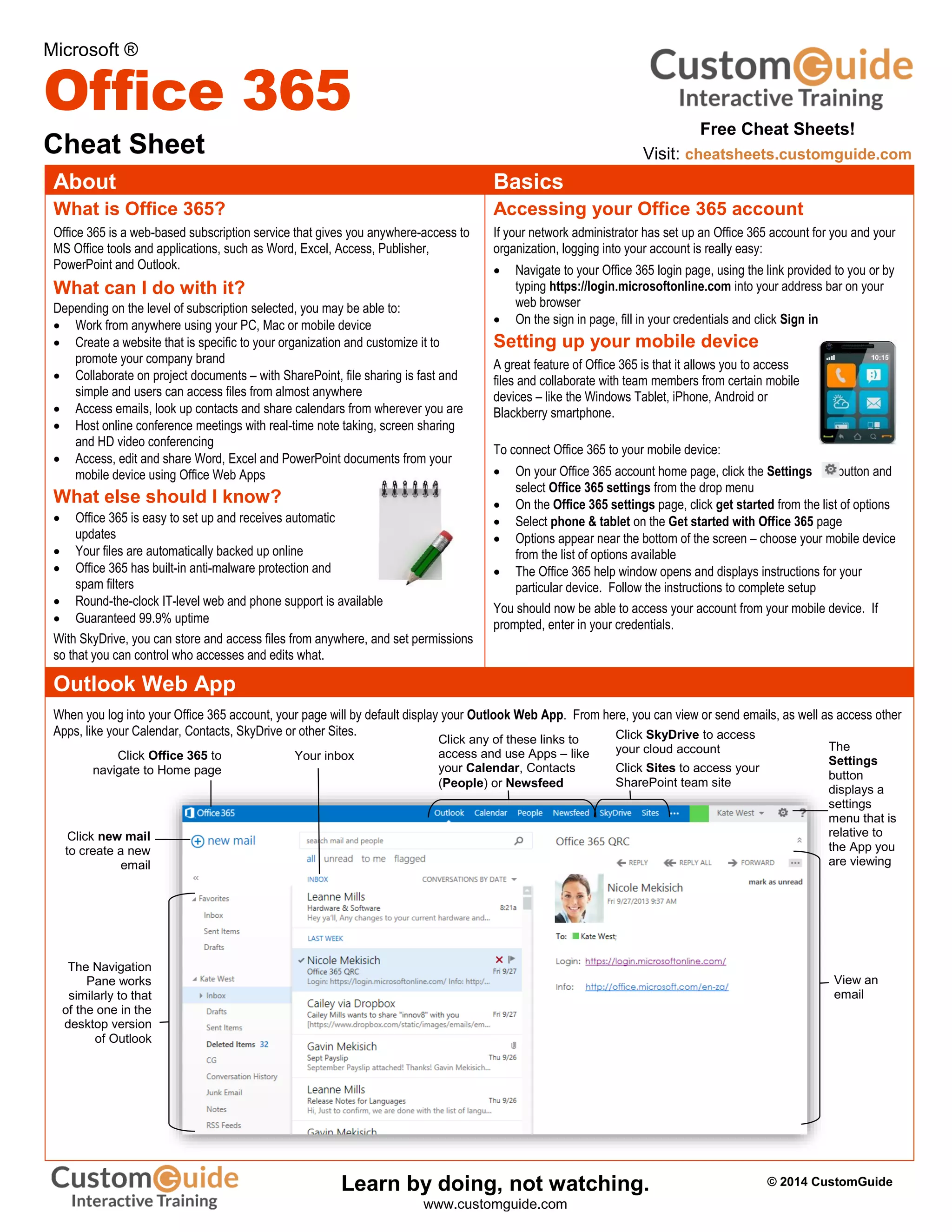
When you log into your Office 365 account, your page will by default display your Outlook Web App. From here, you can view or send emails, as well as access other
Apps, like your Calendar, Contacts, SkyDrive or other Sites.
Microsoft ®
Office 365
Cheat Sheet
Click any of these links to
access and use Apps – like
your Calendar, Contacts
(People) or Newsfeed
Click SkyDrive to access
your cloud account
Click Sites to access your
SharePoint team site
Click Office 365 to
navigate to Home page
Your inbox
The Navigation
Pane works
similarly to that
of the one in the
desktop version
of Outlook
View an
email
Click new mail
to create a new
email
The
Settings
button
displays a
settings
menu that is
relative to
the App you
are viewing
Free Cheat Sheets!
Visit: cheatsheets.customguide.com
© 2014 CustomGuideLearn by doing, not watching.
www.customguide.com
Using SkyDrive with Office 365
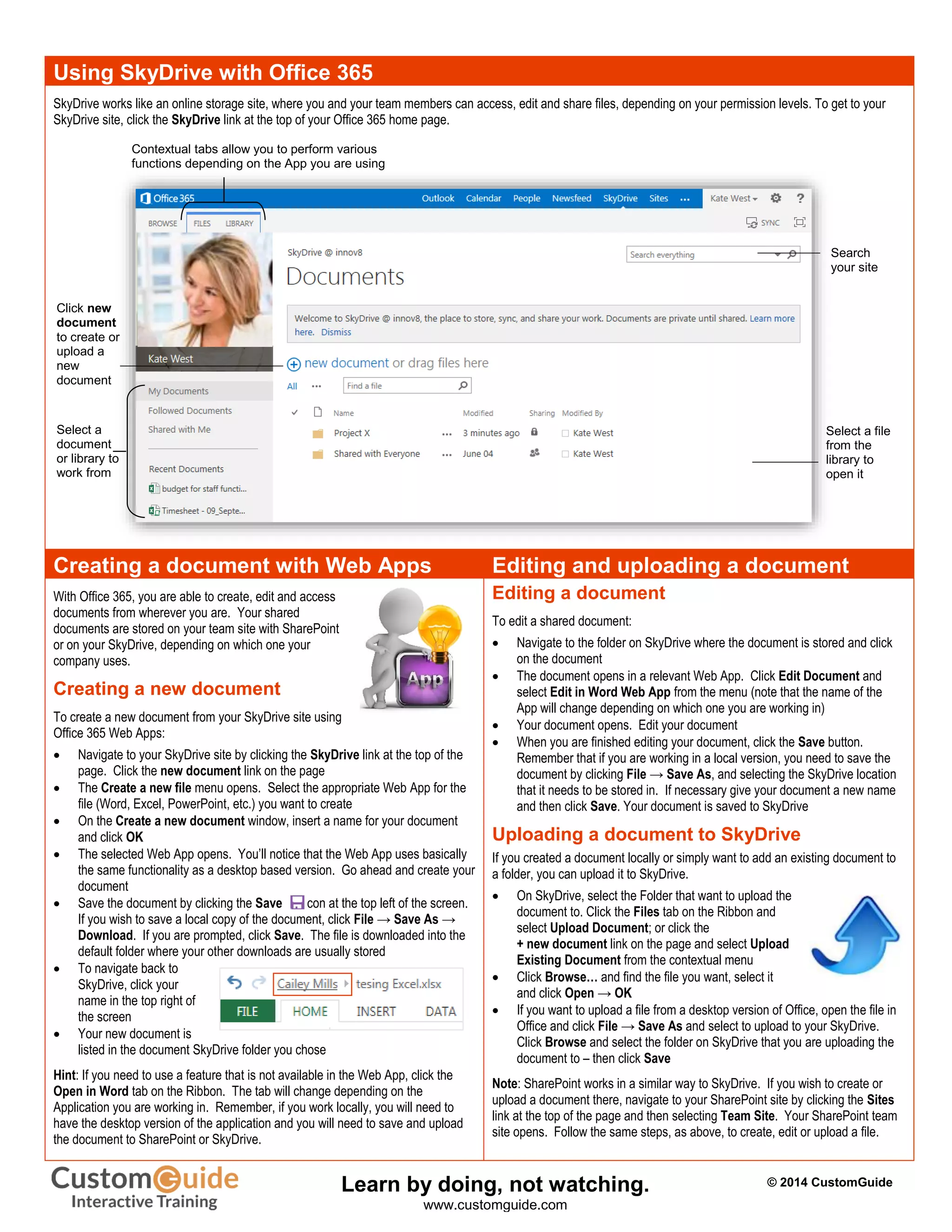
SkyDrive works like an online storage site, where you and your team members can access, edit and share files, depending on your permission levels. To get to your
SkyDrive site, click the SkyDrive link at the top of your Office 365 home page.
Creating a document with Web Apps Editing and uploading a document
With Office 365, you are able to create, edit and access
documents from wherever you are. Your shared
documents are stored on your team site with SharePoint
or on your SkyDrive, depending on which one your
company uses.
Creating a new document
To create a new document from your SkyDrive site using
Office 365 Web Apps:
 Navigate to your SkyDrive site by clicking the SkyDrive link at the top of the
page. Click the new document link on the page
 The Create a new file menu opens. Select the appropriate Web App for the
file (Word, Excel, PowerPoint, etc.) you want to create
 On the Create a new document window, insert a name for your document
and click OK
 The selected Web App opens. You’ll notice that the Web App uses basically
the same functionality as a desktop based version. Go ahead and create your
document
 Save the document by clicking the Save icon at the top left of the screen.
If you wish to save a local copy of the document, click File → Save As →
Download. If you are prompted, click Save. The file is downloaded into the
default folder where your other downloads are usually stored
 To navigate back to
SkyDrive, click your
name in the top right of
the screen
 Your new document is
listed in the document SkyDrive folder you chose
Hint: If you need to use a feature that is not available in the Web App, click the
Open in Word tab on the Ribbon. The tab will change depending on the
Application you are working in. Remember, if you work locally, you will need to
have the desktop version of the application and you will need to save and upload
the document to SharePoint or SkyDrive.
Editing a document
To edit a shared document:
 Navigate to the folder on SkyDrive where the document is stored and click
on the document
 The document opens in a relevant Web App. Click Edit Document and
select Edit in Word Web App from the menu (note that the name of the
App will change depending on which one you are working in)
 Your document opens. Edit your document
 When you are finished editing your document, click the Save button.
Remember that if you are working in a local version, you need to save the
document by clicking File → Save As, and selecting the SkyDrive location
that it needs to be stored in. If necessary give your document a new name
and then click Save. Your document is saved to SkyDrive
Uploading a document to SkyDrive
If you created a document locally or simply want to add an existing document to
a folder, you can upload it to SkyDrive.
 On SkyDrive, select the Folder that want to upload the
document to. Click the Files tab on the Ribbon and
select Upload Document; or click the
+ new document link on the page and select Upload
Existing Document from the contextual menu
 Click Browse… and find the file you want, select it
and click Open → OK
 If you want to upload a file from a desktop version of Office, open the file in
Office and click File → Save As and select to upload to your SkyDrive.
Click Browse and select the folder on SkyDrive that you are uploading the
document to – then click Save
Note: SharePoint works in a similar way to SkyDrive. If you wish to create or
upload a document there, navigate to your SharePoint site by clicking the Sites
link at the top of the page and then selecting Team Site. Your SharePoint team
site opens. Follow the same steps, as above, to create, edit or upload a file.
Select a
document
or library to
work from
Contextual tabs allow you to perform various
functions depending on the App you are using
Select a file
from the
library to
open it
Search
your site
Click new
document
to create or
upload a
new
document
© 2014 CustomGuideLearn by doing, not watching.
www.customguide.com
Try
Interactive
Training
Learn by doing,
not watching.
Visit training.customguide.com
Interactive Training
Free Training
Course!
Short Interactive Fun
www.customguide.com

Office 365-cheat-sheet

  • 1.
    About Basics What isOffice 365? Office 365 is a web-based subscription service that gives you anywhere-access to MS Office tools and applications, such as Word, Excel, Access, Publisher, PowerPoint and Outlook. What can I do with it? Depending on the level of subscription selected, you may be able to:  Work from anywhere using your PC, Mac or mobile device  Create a website that is specific to your organization and customize it to promote your company brand  Collaborate on project documents – with SharePoint, file sharing is fast and simple and users can access files from almost anywhere  Access emails, look up contacts and share calendars from wherever you are  Host online conference meetings with real-time note taking, screen sharing and HD video conferencing  Access, edit and share Word, Excel and PowerPoint documents from your mobile device using Office Web Apps What else should I know?  Office 365 is easy to set up and receives automatic updates  Your files are automatically backed up online  Office 365 has built-in anti-malware protection and spam filters  Round-the-clock IT-level web and phone support is available  Guaranteed 99.9% uptime With SkyDrive, you can store and access files from anywhere, and set permissions so that you can control who accesses and edits what. Accessing your Office 365 account If your network administrator has set up an Office 365 account for you and your organization, logging into your account is really easy:  Navigate to your Office 365 login page, using the link provided to you or by typing https://login.microsoftonline.com into your address bar on your web browser  On the sign in page, fill in your credentials and click Sign in Setting up your mobile device A great feature of Office 365 is that it allows you to access files and collaborate with team members from certain mobile devices – like the Windows Tablet, iPhone, Android or Blackberry smartphone. To connect Office 365 to your mobile device:  On your Office 365 account home page, click the Settings button and select Office 365 settings from the drop menu  On the Office 365 settings page, click get started from the list of options  Select phone & tablet on the Get started with Office 365 page  Options appear near the bottom of the screen – choose your mobile device from the list of options available  The Office 365 help window opens and displays instructions for your particular device. Follow the instructions to complete setup You should now be able to access your account from your mobile device. If prompted, enter in your credentials. Outlook Web App When you log into your Office 365 account, your page will by default display your Outlook Web App. From here, you can view or send emails, as well as access other Apps, like your Calendar, Contacts, SkyDrive or other Sites. Microsoft ® Office 365 Cheat Sheet Click any of these links to access and use Apps – like your Calendar, Contacts (People) or Newsfeed Click SkyDrive to access your cloud account Click Sites to access your SharePoint team site Click Office 365 to navigate to Home page Your inbox The Navigation Pane works similarly to that of the one in the desktop version of Outlook View an email Click new mail to create a new email The Settings button displays a settings menu that is relative to the App you are viewing Free Cheat Sheets! Visit: cheatsheets.customguide.com © 2014 CustomGuideLearn by doing, not watching. www.customguide.com
  • 2.
    Using SkyDrive withOffice 365 SkyDrive works like an online storage site, where you and your team members can access, edit and share files, depending on your permission levels. To get to your SkyDrive site, click the SkyDrive link at the top of your Office 365 home page. Creating a document with Web Apps Editing and uploading a document With Office 365, you are able to create, edit and access documents from wherever you are. Your shared documents are stored on your team site with SharePoint or on your SkyDrive, depending on which one your company uses. Creating a new document To create a new document from your SkyDrive site using Office 365 Web Apps:  Navigate to your SkyDrive site by clicking the SkyDrive link at the top of the page. Click the new document link on the page  The Create a new file menu opens. Select the appropriate Web App for the file (Word, Excel, PowerPoint, etc.) you want to create  On the Create a new document window, insert a name for your document and click OK  The selected Web App opens. You’ll notice that the Web App uses basically the same functionality as a desktop based version. Go ahead and create your document  Save the document by clicking the Save icon at the top left of the screen. If you wish to save a local copy of the document, click File → Save As → Download. If you are prompted, click Save. The file is downloaded into the default folder where your other downloads are usually stored  To navigate back to SkyDrive, click your name in the top right of the screen  Your new document is listed in the document SkyDrive folder you chose Hint: If you need to use a feature that is not available in the Web App, click the Open in Word tab on the Ribbon. The tab will change depending on the Application you are working in. Remember, if you work locally, you will need to have the desktop version of the application and you will need to save and upload the document to SharePoint or SkyDrive. Editing a document To edit a shared document:  Navigate to the folder on SkyDrive where the document is stored and click on the document  The document opens in a relevant Web App. Click Edit Document and select Edit in Word Web App from the menu (note that the name of the App will change depending on which one you are working in)  Your document opens. Edit your document  When you are finished editing your document, click the Save button. Remember that if you are working in a local version, you need to save the document by clicking File → Save As, and selecting the SkyDrive location that it needs to be stored in. If necessary give your document a new name and then click Save. Your document is saved to SkyDrive Uploading a document to SkyDrive If you created a document locally or simply want to add an existing document to a folder, you can upload it to SkyDrive.  On SkyDrive, select the Folder that want to upload the document to. Click the Files tab on the Ribbon and select Upload Document; or click the + new document link on the page and select Upload Existing Document from the contextual menu  Click Browse… and find the file you want, select it and click Open → OK  If you want to upload a file from a desktop version of Office, open the file in Office and click File → Save As and select to upload to your SkyDrive. Click Browse and select the folder on SkyDrive that you are uploading the document to – then click Save Note: SharePoint works in a similar way to SkyDrive. If you wish to create or upload a document there, navigate to your SharePoint site by clicking the Sites link at the top of the page and then selecting Team Site. Your SharePoint team site opens. Follow the same steps, as above, to create, edit or upload a file. Select a document or library to work from Contextual tabs allow you to perform various functions depending on the App you are using Select a file from the library to open it Search your site Click new document to create or upload a new document © 2014 CustomGuideLearn by doing, not watching. www.customguide.com
  • 3.
    Try Interactive Training Learn by doing, notwatching. Visit training.customguide.com Interactive Training Free Training Course! Short Interactive Fun www.customguide.com