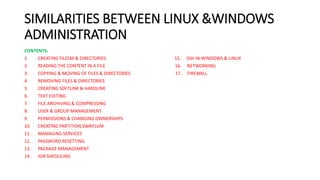
SIMILARITIES BETWEEN LINUX &WINDOWS
ADMINISTRATION
CONTENTS:
1. CREATING FILESM & DIRECTORIES 15. SSH IN WINDOWS & LINUX
2. READING THE CONTENT IN A FILE 16. NETWORKING
3. COPYING & MOVING OF FILES & DIRECTORIES 17. FIREWALL
4. REMOVING FILES & DIRECTORIES
5. CREATING SOFTLINK & HARDLINK
6. TEXT EDITING
7. FILE ARCHIVING & COMPRESSING
8. USER & GROUP MANAGEMENT
9. PERMISSIONS & CHANGING OWNERSHIPS
10. CREATING PARTITION,SWAP,LVM
11. MANAGING SERVICES
12. PASSWORD RESETTING
13. PACKAGE MANAGEMENT
14. JOB SHEDULING
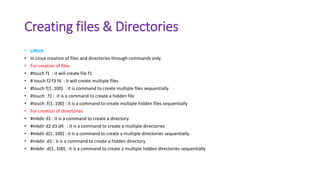
Creating files & Directories
• LINUX:
• In Linux creation of files and directories through commands only.
• For creation of files
• #touch f1 : it will create file f1
• # touch f2 f3 f4 : it will create multiple files
• #touch f{1..100} : it is command to create multiple files sequentially
• #touch .f1 : it is a command to create a hidden file
• #touch .f{1..100} : it is a command to create multiple hidden files sequentially
• For creation of directories
• #mkdir d1 : it is a command to create a directory
• #mkdir d2 d3 d4 : it is a command to create a multiple directories
• #mkdir d{1..100} : it is a command to create a multiple directories sequentially
• #mkdir .d1 : it is a command to create a hidden directory
• #mkdir .d{1..100} : it is a command to create a multiple hidden directories sequentially
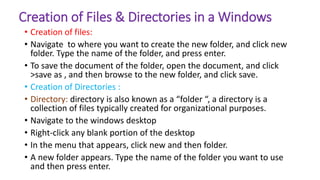
Creation of Files & Directories in a Windows
• Creation of files:
• Navigate to where you want to create the new folder, and click new
folder. Type the name of the folder, and press enter.
• To save the document of the folder, open the document, and click
>save as , and then browse to the new folder, and click save.
• Creation of Directories :
• Directory: directory is also known as a “folder “, a directory is a
collection of files typically created for organizational purposes.
• Navigate to the windows desktop
• Right-click any blank portion of the desktop
• In the menu that appears, click new and then folder.
• A new folder appears. Type the name of the folder you want to use
and then press enter.
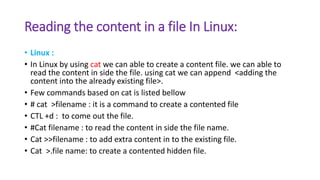
Reading the content in a file In Linux:
• Linux :
• In Linux by using cat we can able to create a content file. we can able to
read the content in side the file. using cat we can append <adding the
content into the already existing file>.
• Few commands based on cat is listed bellow
• # cat >filename : it is a command to create a contented file
• CTL +d : to come out the file.
• #Cat filename : to read the content in side the file name.
• Cat >>filename : to add extra content in to the existing file.
• Cat >.file name: to create a contented hidden file.
Reading the content of a file in Windows:
• Open the program you want to use to view the file .
• Once the program is opened, from the menu, select open or use the
keyboard shortcut CTRL+O.
• In the open window, browse to the location of the file, select the file,
and click ok or Open.
COPYING & MOVING OF FILES & DIRECTORIES:
• Linux :
• In Linux by using cp & mv commands we can copy & move the files &
Directories from one place to another place.
• The few commands based on cp & mv listed bellow
• #cp –rf file1 file2 : it is a command to copy from file1 to file2.
• #mv –f file1 file2 : it is a command to move the file from file1 to file2.
• #cp –rf directory1 directory2 : it is a command to copy from one directory
to another directory.
• #mv –rf directory1 directory2 : it is a command to move the file from one
place to another place.
COPYING & MOVING OF FILES &DIRECTORIES:
• Windows :
• In windows open the file explorer by pressing WINDOWS+E and navigate to
the file you want to copy.
• Highlight the files you want to copy, and then click “copy” in the file menu
or press CTRL+C on the key board to add them to the clipboard by press
CNTRL+V then it will going to paste in the destination.
• To move a file or folder from one window to another, drag it there while
holding down the right mouse button. Select the file which you wanted to
move.
• Moving the mouse drags the file along with it, and windows explains that
you are moving the file.
Removing of Files & Directories :
• In Linux we removing the files and Directories through rm command.
• The few commands based on rm is listed bellow
• #rm –rf file1 :it is a command to remove a file
• #rm –rf file1 file2 file3 : it is a command to remove the files
sequentially.
• #rm –rf directory1 : command to remove the directory
• #rm –rf directory1 directory2 directory3 : command to remove all
directories
• #rm –rf directory{1..100} : to remove all directories sequentially.
Removing of Files & Directories :
• In windows open the file explorer window. A quick way to get to file
explorer is to press windows key. +E .
• Locate the file you want to delete.
• Select the file and press your delete key, or click delete on the home
tab of the ribbon.
CREATING HARDLINK & SOFTLINK
• In Linux Hard link is a backup file of a original file. if we delete the
original file the duplicate file is still available.
• Mostly hard link is used for backup in Linux.
• #ln <source file> <destination file> : Is a command to create a hard
link
• Soft link is a short cut file. If we delete the source file the destination
file will available. The destination file remains unuse.
• #ln –s <source file> <destination file> : it is a command to create a
soft link.
CREATING HARD LINK OR SYMBOLIC LINK
• in Windows You can right-click inside a different folder, point to the
“drop As ” menu and select hard link to a file, “ junction ” to create
a hard link to a Directory, or “symbolic link “ to create a soft link to a
file or directory.
TEXT EDITING IN LINUX & WINDOWS :
• An operating systems like Linux and Windows have both CLI and GUI .
• But in Linux mostly use vim to edit the text .
• In this VIM we have three modes 1.insertmode 2.commandmode
3.collonmode.
• By using these three modes we can edit the text in Linux.
• In Windows we can edit the text by using Microsoft Word document.
• Click the edit. Tab.
• Select the text that you want to edit.
• Using the tools in the tool bar, change the required formatting including
font style, paragraph alignment, list formatting, and indentation options.
ZIP & UNZIP THE FILES IN WINDOWS :
• In windows we can zip or unzip the files by using Microsoft support.
• Select the files or folders you want to compress. To select multiple
files or folders at once, hold down the CTRL key while you can click
each item. Right-click the selected items, choose send to, and then
click compressed (zipped) folder.
• This folder will create a zipped file in the same directory that the files
are located.
FILE ARCHIVING & COMPRESSING IN LINUX :
• In Linux archiving and compressing files are useful when creating backups and
transferring a data across the network .
• One of the oldest and common command to creating and working with the
backup archive is the tar command.
• Users can gather large set of files in to single file is called as archiving.
• The archived file can be compressed using three methods 1.bzip2 2.gzip
3.xzip .
• Few commands are listed bellow for archiving & compressing.
• #tar –CVF <file or directory name.tar> <file or directory name> : is a command to
do archiving.
• #tar –XVF <file or directory name.tar> <file or directory name> :is a command to
do un archiving.
• For compressing file we can go with bzip2
• Bzip2 <archived file name> : it is a command to do compression of a
file.
• Bunzip2 <archived filename> :is a command to un compression.
Users management in windows :
• In the settings window, click Accounts, and then click Family & other
users.
• Click the account you want to modify, to display your options. Then
click change account type. Click to view larger image. Any account can
be an administrator account.
• In the account type list, click Administrator. Then click ok.
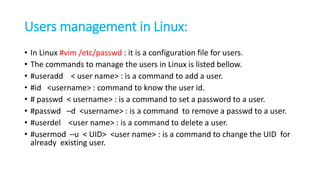
Users management in Linux:
• In Linux #vim /etc/passwd : it is a configuration file for users.
• The commands to manage the users in Linux is listed bellow.
• #useradd < user name> : is a command to add a user.
• #id <username> : command to know the user id.
• # passwd < username> : is a command to set a password to a user.
• #passwd –d <username> : is a command to remove a passwd to a user.
• #userdel <user name> : is a command to delete a user.
• #usermod –u < UID> <user name> : is a command to change the UID for
already existing user.
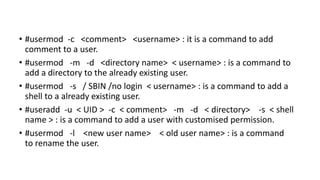
• #usermod -c <comment> <username> : it is a command to add
comment to a user.
• #usermod -m -d <directory name> < username> : is a command to
add a directory to the already existing user.
• #usermod -s / SBIN /no login < username> : is a command to add a
shell to a already existing user.
• #useradd -u < UID > -c < comment> -m -d < directory> -s < shell
name > : is a command to add a user with customised permission.
• #usermod -l <new user name> < old user name> : is a command
to rename the user.
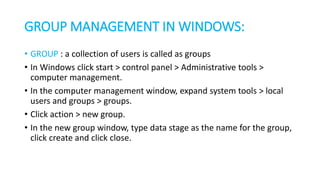
GROUP MANAGEMENT IN WINDOWS:
• GROUP : a collection of users is called as groups
• In Windows click start > control panel > Administrative tools >
computer management.
• In the computer management window, expand system tools > local
users and groups > groups.
• Click action > new group.
• In the new group window, type data stage as the name for the group,
click create and click close.
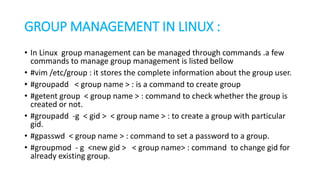
GROUP MANAGEMENT IN LINUX :
• In Linux group management can be managed through commands .a few
commands to manage group management is listed bellow
• #vim /etc/group : it stores the complete information about the group user.
• #groupadd < group name > : is a command to create group
• #getent group < group name > : command to check whether the group is
created or not.
• #groupadd -g < gid > < group name > : to create a group with particular
gid.
• #gpasswd < group name > : command to set a password to a group.
• #groupmod - g <new gid > < group name> : command to change gid for
already existing group.
• #groupmod -n <new group name> < old group name > : is a
command to rename the group.
• #gpasswd -r <group name> : to remove password to the group.
• #gpasswd -a < user name> < group name > : is a command to add a
user in to a group.
• #gpasswd -M <user1> <user2> <user3> < group name > : is a
command to add a multiple users in to a group.
• #groupdel <group name> : is a command to delete a group.
• #gpasswd -d < user name > < group name > : to delete user from a
group.
• #usermod -G < group name > <username> : is a command to add
a users in to group with out deleting the existing users.
CHANGING PERMISSIONS TO A FILES AND
DIRECTORIES IN WINDOWS :
• Access the properties dialog box.
• Select the security tab.
• Click edit .
• In the group or user name section , select the users you wish to set
permissions for.
• in the permission section, use the check boxes to select the
appropriate permission level.
• Click apply.
• Click okay.
Configuring permissions and groups
(Windows Server) :
• Select the folder and click file > properties.
• In the properties window, click the security tab, and click edit.
• In the permission window, click add .
• In the select users or groups window, click locations.
• Click the name of the local computer, and click ok.
CHANGING PERMISSIONS TO A FILES AND
DIRECTORIES IN WINDOWS :
• In Linux we are having three basic permissions.
• Read (4) r , write (2) w, execute (1) x .
• By giving numbers also we can change the permissions to a files and
directories.
• 0 – none
• 1 – execute (X)
• 2 – write (W)
• 3 – write & execute (WX)
• 4 – read (R)
• 5 – read & execute (RX)
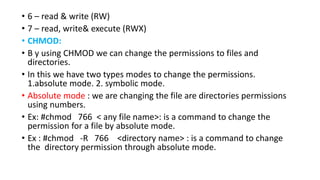
• 6 – read & write (RW)
• 7 – read, write& execute (RWX)
• CHMOD:
• B y using CHMOD we can change the permissions to files and
directories.
• In this we have two types modes to change the permissions.
1.absolute mode. 2. symbolic mode.
• Absolute mode : we are changing the file are directories permissions
using numbers.
• Ex: #chmod 766 < any file name>: is a command to change the
permission for a file by absolute mode.
• Ex : #chmod -R 766 <directory name> : is a command to change
the directory permission through absolute mode.
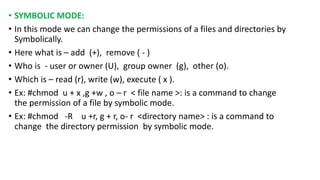
• SYMBOLIC MODE:
• In this mode we can change the permissions of a files and directories by
Symbolically.
• Here what is – add (+), remove ( - )
• Who is - user or owner (U), group owner (g), other (o).
• Which is – read (r), write (w), execute ( x ).
• Ex: #chmod u + x ,g +w , o – r < file name >: is a command to change
the permission of a file by symbolic mode.
• Ex: #chmod -R u +r, g + r, o- r <directory name> : is a command to
change the directory permission by symbolic mode.
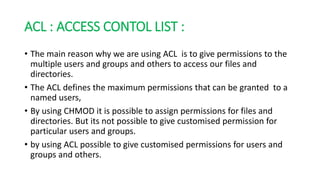
ACL : ACCESS CONTOL LIST :
• The main reason why we are using ACL is to give permissions to the
multiple users and groups and others to access our files and
directories.
• The ACL defines the maximum permissions that can be granted to a
named users,
• By using CHMOD it is possible to assign permissions for files and
directories. But its not possible to give customised permission for
particular users and groups.
• by using ACL possible to give customised permissions for users and
groups and others.
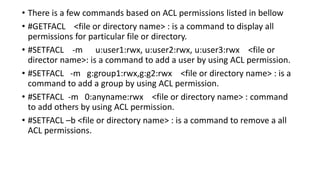
• There is a few commands based on ACL permissions listed in bellow
• #GETFACL <file or directory name> : is a command to display all
permissions for particular file or directory.
• #SETFACL -m u:user1:rwx, u:user2:rwx, u:user3:rwx <file or
director name>: is a command to add a user by using ACL permission.
• #SETFACL -m g:group1:rwx,g:g2:rwx <file or directory name> : is a
command to add a group by using ACL permission.
• #SETFACL -m 0:anyname:rwx <file or directory name> : command
to add others by using ACL permission.
• #SETFACL –b <file or directory name> : is a command to remove a all
ACL permissions.
SPECIAL PERMISSIONS :
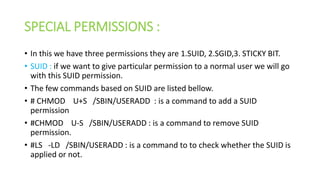
• In this we have three permissions they are 1.SUID, 2.SGID,3. STICKY BIT.
• SUID : if we want to give particular permission to a normal user we will go
with this SUID permission.
• The few commands based on SUID are listed bellow.
• # CHMOD U+S /SBIN/USERADD : is a command to add a SUID
permission
• #CHMOD U-S /SBIN/USERADD : is a command to remove SUID
permission.
• #LS -LD /SBIN/USERADD : is a command to to check whether the SUID is
applied or not.
SGID PERMISSION :
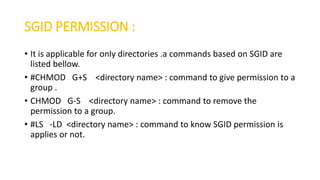
• It is applicable for only directories .a commands based on SGID are
listed bellow.
• #CHMOD G+S <directory name> : command to give permission to a
group .
• CHMOD G-S <directory name> : command to remove the
permission to a group.
• #LS -LD <directory name> : command to know SGID permission is
applies or not.
STICKY BIT PERMISSION :
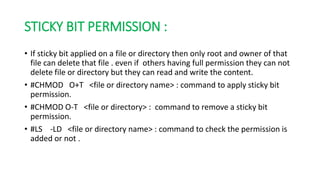
• If sticky bit applied on a file or directory then only root and owner of that
file can delete that file . even if others having full permission they can not
delete file or directory but they can read and write the content.
• #CHMOD O+T <file or directory name> : command to apply sticky bit
permission.
• #CHMOD O-T <file or directory> : command to remove a sticky bit
permission.
• #LS -LD <file or directory name> : command to check the permission is
added or not .
CHANGING OWNERSHIP & GROUP
OWNERSHIP :
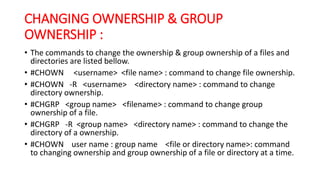
• The commands to change the ownership & group ownership of a files and
directories are listed bellow.
• #CHOWN <username> <file name> : command to change file ownership.
• #CHOWN -R <username> <directory name> : command to change
directory ownership.
• #CHGRP <group name> <filename> : command to change group
ownership of a file.
• #CHGRP -R <group name> <directory name> : command to change the
directory of a ownership.
• #CHOWN user name : group name <file or directory name>: command
to changing ownership and group ownership of a file or directory at a time.
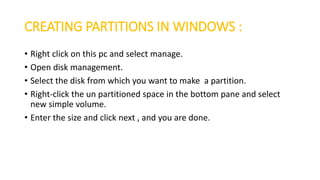
CREATING PARTITIONS IN WINDOWS :
• Right click on this pc and select manage.
• Open disk management.
• Select the disk from which you want to make a partition.
• Right-click the un partitioned space in the bottom pane and select
new simple volume.
• Enter the size and click next , and you are done.
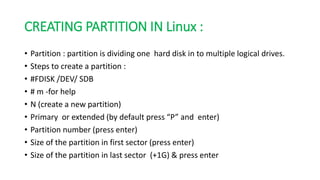
CREATING PARTITION IN Linux :
• Partition : partition is dividing one hard disk in to multiple logical drives.
• Steps to create a partition :
• #FDISK /DEV/ SDB
• # m -for help
• N (create a new partition)
• Primary or extended (by default press “P” and enter)
• Partition number (press enter)
• Size of the partition in first sector (press enter)
• Size of the partition in last sector (+1G) & press enter
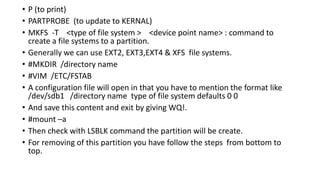
• P (to print)
• PARTPROBE (to update to KERNAL)
• MKFS -T <type of file system > <device point name> : command to
create a file systems to a partition.
• Generally we can use EXT2, EXT3,EXT4 & XFS file systems.
• #MKDIR /directory name
• #VIM /ETC/FSTAB
• A configuration file will open in that you have to mention the format like
/dev/sdb1 /directory name type of file system defaults 0 0
• And save this content and exit by giving WQ!.
• #mount –a
• Then check with LSBLK command the partition will be create.
• For removing of this partition you have follow the steps from bottom to
top.
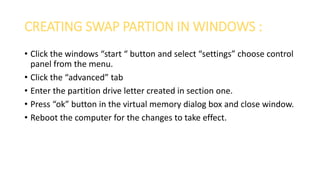
CREATING SWAP PARTION IN WINDOWS :
• Click the windows “start “ button and select “settings” choose control
panel from the menu.
• Click the “advanced” tab
• Enter the partition drive letter created in section one.
• Press “ok” button in the virtual memory dialog box and close window.
• Reboot the computer for the changes to take effect.
CREATING SWAP PARTITION IN LINUX
• swap space in LINUX is used when the amount of physical memory (RAM)
is full. If the system needs more memory resources and the ram is full,
inactive pages in memory are moved to the swap space. While swap space
can help machines with a small amount of RAM, it should not be
considered a replacement for more RAM.
• Steps to create a swap partition in LINUX is given in bellow.
• #FDISK /DEV/SDB
• M (for help )
• N (new partition)
• P (to print)
• Select 1 to 4 partition number
• 1st sector (no need to give size)
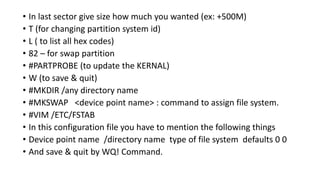
• In last sector give size how much you wanted (ex: +500M)
• T (for changing partition system id)
• L ( to list all hex codes)
• 82 – for swap partition
• #PARTPROBE (to update the KERNAL)
• W (to save & quit)
• #MKDIR /any directory name
• #MKSWAP <device point name> : command to assign file system.
• #VIM /ETC/FSTAB
• In this configuration file you have to mention the following things
• Device point name /directory name type of file system defaults 0 0
• And save & quit by WQ! Command.
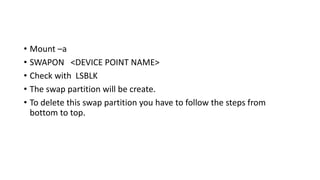
• Mount –a
• SWAPON <DEVICE POINT NAME>
• Check with LSBLK
• The swap partition will be create.
• To delete this swap partition you have to follow the steps from
bottom to top.
LOGICAL VOLUME MANAGER:
• In windows it is not possible to create LVM .
• In LINUX:
• LVM : logical volume manager
• The combination of one or more physical hard disks in order to form a big logical drive is called as a logical
volume manager.
• Using LVM we can extend and reduce the size of partition without loss of data.
• Steps to create a LVM
• After creation of a partition you have to change the hex code of a partition by 8e for LVM partition.
• Then you need to follow the bellow steps.
• #PVCREATE <device point name> : command to create a PV.
• #PVS or PVDISPLAY :command to give complete information about the PV.
• #VGCREATE < VGNAME > <PVNAME1> <PVNAME2> : command to create VG.
• #VGS OR VGDISPLAY : commands to give complete information about the VG .
• #VGCREATE -S 8M <VGNAME> <DEVICE POINT NAME> : command to create vg with
extends.
• #VGRENAME <OLD VG NAME > <NEW VG NAME> : to rename the VG.
• #LVCREATE -N <LVNAME> -L <SIZE> <VGNAME> : command to create LV using size.
• #LVCREATE -n <name> -l <no of extends> <VGNAME>: command to create a LV by
using extends.
• #LVS or LVDISPLAY : commands for complete information about the LV.
• #MKFS -T <FILE SYSTEM TYPE> <LVM PATH>: command to assign the file system.
• #MKDIR /NAME
• #VIM /ETC/FSTAB : in this configuration file you have to enter the following things
• Device point name /directory name file system type defaults 0 0
• #mount –a
• Check with #LSBLK
• The LVM can be create.
• To delete this LVM partition you can follow the above steps from bottom to top.
MANAGING SERVICES IN LINUX :
• In LINUX by using commands we can manage the services.
• #SYSTEMCTL START <service name > : command to start a service.
• #SYSTEMCTL STOP <service name > : command to stop the service.
• #SYSTEMCTL ENABLE <service name > : command to enable the
service.
• #SYSTEMCTL STATUS <service name > : command to check the
status of the service.
• #SYSTEMCTL RESTART <service name > : command to restart the
service.
MANAGING SERVICES IN WINDOWS :
• Right-click on the start button to open the WINX menu.
• Select run.
• Type SERVICES.MSC in the run box which opens.
• Windows services manger will open.
• Select the service then you can do start, stop, pause , resume, restart
the services.
PASSWORD RESETTING IN WINDOWS:
• If you forgot or lost your password for windows 11 , windows 10,
windows 8.1, or windows 7, you may be able to change or reset it. To
get started ,choose your version of windows and follow the bellow
steps.
• Swipe in from the right edge of the screen, tap settings , and then tap
change PC settings.
• Tap or click accounts, and then tap or click sign-in options.
• Tap or click change your password and follow the instructions.
• Select Start > Settings > Accounts > Sign-in options. Under Password,
select Change and follow the directions.
PASSWORD RESETTING IN LINUX:
• If you forgotten the root password what your centos/RHEL systems root
password. Then you need to restart your machines root password.
• Resetting the root pass word requires reboot your cent OS7 machines or
Linux REDHAT 8 machine & then edit the grub parameter during the boot
time.
• STEPS:
• Reboot the system by using the command #reboot.
• Press up & down keys to pause the grub screen.
• Press “e ” to edit the grub parameter
• Go to line starting with LINUX & press end key then type “ rd.break console
=tty1
• Press CTRL-X to resume the booting process then it will stopped in
/SYSROOT <TEMPORARY ROOT FILE SYSTEM>
• Run #MOUNT -O REMOUNT,RW SYSROOT
• Change to root file system by the bellow command.
• #CHROOT /SYSROOT
• #PASSWD - to change the password of root user.
• TOUCH /.AUTORELABEL - for updating SELINUX.
• #EXIT - to come out from root shell.
• #EXIT - to come out from the SYSROOT.
PACKAGE MANAGEMENT IN WINDOWS:
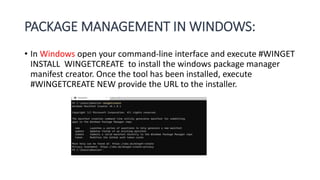
• In Windows open your command-line interface and execute #WINGET
INSTALL WINGETCREATE to install the windows package manager
manifest creator. Once the tool has been installed, execute
#WINGETCREATE NEW provide the URL to the installer.
PACKAGE MANAGEMENT IN LINUX :
• PACKAGE :
• It is a software used to perform a task, software is a basic of operating system
allowing to install and different utilities, package management means installing,
updating, removing the packages. We have two methods to do the package
management in Linux.
• RPM : REDHAT PACKAGE MANAGEMENT.
• YUM : YELLOW DOG UPDATE MANAGEMENT.
• RPM : rpm is the most popular open source to used for package installing and
uninstalling , updating, verifying
• Drawback : rpm can not resolve the dependency packages, there is no
configuration file for rpm.
• Rpm package files names start with combination of version, release, architecture.
• The few commands based on rpm is given bellow.
• # RPM -IVH <PACKAGE NAME> : command to install package by
using rpm.
• #RPM -QA <PACKAGE NAME> : command to check whether the
package is installed or not.
• #RPM -QA : command to list the all installed packages.
• #RPM - EVV <PACKAGE NAME> : command to remove the package or
uninstall the package.
• YUM : by using yum we can able to create a repository whether the
packages are stored. Then packages are downloaded from the
collection of repository.
• Which may be online or installation media. It means yum is used to
reinstalling the repository package.
• The few commands related to yum are given bellow.
• #YUM INSTALL <PACKAGE NAME> : command to install package by using yum.
• #YUM INFO <PACKAGE NAME> : command to give package information whether
it is installed or not.
• #YUM REMOVE <PACKAGE NAME> : command to remove the package or
uninstalling the package.
• # YUM LIST INSTALLED : command to list installed packages.
• #YUM LIST AVILABLE : command to list the all Available packages in repository .
• #YUM DEPLIST <PACKAGE NAME> : command to list all the dependency
packages list .
• #YUM UPDATE <PACKAGE NAME> : command to update the package name.
• #YUM UPADATE ALL : command to update all packages at a time.
• #YUM DOWNGRADE <PACKAGE NAME> : command to get back to the older
version of package.
• #YUM CLEAN ALL : command to remove all the files.
• #YUM REPOLIST ALL : command to give all repository files list.
• STEPS TO CREATE A REPOSITORY :
• #CD /ETC/YUM.REPOS.D
• VIM PRASAD.REPO : you can give any name for the repo with .extension.
[90909]
name = app stream
enabled = 1
GPG check = 0
base URL = file : /// root /App Stream
[78080]
name = Base OS
enabled = 1
GPG check = 0
base URL = file : ///root/Base OS
• In this way we can create repositories and manage packages using
YUM.
JOB SHEDULING IN WINDOWS :
• On windows ETL jobs are run by using the Microsoft task scheduler.
• PROCEDURE :
• To run an ETL jobs, complete the following steps :
• On the windows system, click start > administrative tools > task
scheduler.
• In the task scheduler, in the Actions pane , click create task.
• In the create task window, specify the name for the job.
• Select the run whether user is logged on or not option, and select the
do not store password. The task will only have access to local
computer resources check the box.
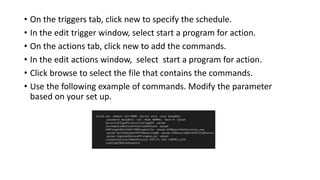
• On the triggers tab, click new to specify the schedule.
• In the edit trigger window, select start a program for action.
• On the actions tab, click new to add the commands.
• In the edit actions window, select start a program for action.
• Click browse to select the file that contains the commands.
• Use the following example of commands. Modify the parameter
based on your set up.
JOB SCHEDULING IN LINUX :
• In Linux we are scheduling the jobs by using two methods 1. at job ,2.
CRONTAB job.
• AT JOB : at jobs are executes only once, editing the existing job is not
possible, repetition of the jobs also not possible ,there is no
configuration file for AT job.
• #at now
• >touch f1
• >MKDIR d1
• Come out from this [CTRL+D].
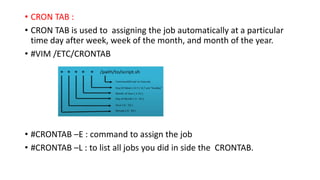
• CRON TAB :
• CRON TAB is used to assigning the job automatically at a particular
time day after week, week of the month, and month of the year.
• #VIM /ETC/CRONTAB
• #CRONTAB –E : command to assign the job
• #CRONTAB –L : to list all jobs you did in side the CRONTAB.
SSH IN WINDOWS :
• SSH :SECURED SHELL : SSH is an encrypted network protocol used for
connecting to devices over a network or the internet.
• Five tools are available for SSH in windows.
1. Putty.
2. Windows power shell .
3. Secure shell for google chrome.
4. Open SSH for CYGWIN terminal.
5. FILE ZILLA’S SSH FTP feature.
PUTTY FOR WINDOWS DESKTOP:
• Putty is the most popular app for connecting to SSH servers on windows.
Putty interface may seem a bit intimidating and complicated at first, but it’s
fairly simple once you start using it.
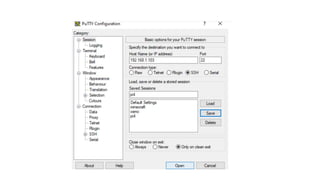
• To use putty, all you really need to do is launch putty.exe. Here, enter the
hostname of the remote Server , ensure the port is correct, and click open.
Putty will connect to the server and prompt you for a username and
password.
• You can also save this session information if you like. Click the default
settings option then click on save and putty will use your saved settings
every time it opens.
• Alternatively, set different profile for each connection, input a name in the
saved sessions field and click save.
SSH IN LINUX :
• SSH is a program for logging in and executing commands on remote
machines, it is design and created to provide the best security when
accessing another computer remotely not only that’s it encrypt the
sessions. It also provides better authentication facilities.
• By generating SSH key, with out asking password we can logging in remote
machine .
• Steps to generate SSH key :
• #SSH-KEYGEN
• #cd .SSH
• LS : then it will show 1. id_rsa.pub 2. ID_RSA
• SSH-COPY-ID -I /ROOT/.SSH/ID_RSA.PUB ROOT@IP ADDRESS (OR) HOST
NAME
• Using two methods we can copy the files and directories .
1. SCP: secondary copy.
2. RSYNC : remote synchronisation.
3. Commands related to SCP & RSYNC are given in bellow.
• #SCP /ROOT/F1 ROOT@SERVER1 : / :- is a command to copy the
file f1 from client machine to server1 in / directory.
• #RSYNC -AVR /ROOT/TOM ROOT@SERVER1 : / :- is a command to
copy the directory from client machine to server1 in / directory.
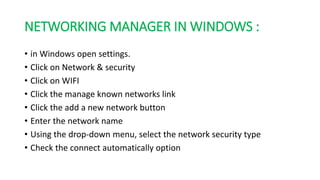
NETWORKING MANAGER IN WINDOWS :
• in Windows open settings.
• Click on Network & security
• Click on WIFI
• Click the manage known networks link
• Click the add a new network button
• Enter the network name
• Using the drop-down menu, select the network security type
• Check the connect automatically option
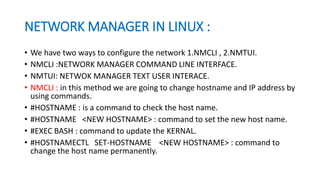
NETWORK MANAGER IN LINUX :
• We have two ways to configure the network 1.NMCLI , 2.NMTUI.
• NMCLI :NETWORK MANAGER COMMAND LINE INTERFACE.
• NMTUI: NETWOK MANAGER TEXT USER INTERACE.
• NMCLI : in this method we are going to change hostname and IP address by
using commands.
• #HOSTNAME : is a command to check the host name.
• #HOSTNAME <NEW HOSTNAME> : command to set the new host name.
• #EXEC BASH : command to update the KERNAL.
• #HOSTNAMECTL SET-HOSTNAME <NEW HOSTNAME> : command to
change the host name permanently.
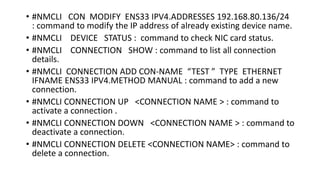
• #NMCLI CON MODIFY ENS33 IPV4.ADDRESSES 192.168.80.136/24
: command to modify the IP address of already existing device name.
• #NMCLI DEVICE STATUS : command to check NIC card status.
• #NMCLI CONNECTION SHOW : command to list all connection
details.
• #NMCLI CONNECTION ADD CON-NAME “TEST ” TYPE ETHERNET
IFNAME ENS33 IPV4.METHOD MANUAL : command to add a new
connection.
• #NMCLI CONNECTION UP <CONNECTION NAME > : command to
activate a connection .
• #NMCLI CONNECTION DOWN <CONNECTION NAME > : command to
deactivate a connection.
• #NMCLI CONNECTION DELETE <CONNECTION NAME> : command to
delete a connection.
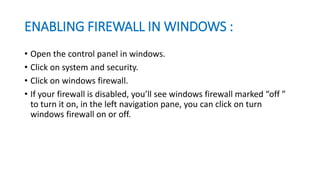
ENABLING FIREWALL IN WINDOWS :
• Open the control panel in windows.
• Click on system and security.
• Click on windows firewall.
• If your firewall is disabled, you’ll see windows firewall marked “off ”
to turn it on, in the left navigation pane, you can click on turn
windows firewall on or off.
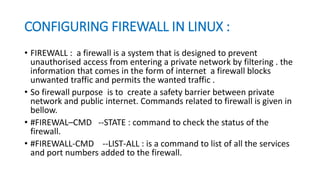
CONFIGURING FIREWALL IN LINUX :
• FIREWALL : a firewall is a system that is designed to prevent
unauthorised access from entering a private network by filtering . the
information that comes in the form of internet a firewall blocks
unwanted traffic and permits the wanted traffic .
• So firewall purpose is to create a safety barrier between private
network and public internet. Commands related to firewall is given in
bellow.
• #FIREWAL–CMD --STATE : command to check the status of the
firewall.
• #FIREWALL-CMD --LIST-ALL : is a command to list of all the services
and port numbers added to the firewall.
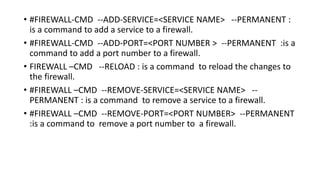
• #FIREWALL-CMD --ADD-SERVICE=<SERVICE NAME> --PERMANENT :
is a command to add a service to a firewall.
• #FIREWALL-CMD --ADD-PORT=<PORT NUMBER > --PERMANENT :is a
command to add a port number to a firewall.
• FIREWALL –CMD --RELOAD : is a command to reload the changes to
the firewall.
• #FIREWALL –CMD --REMOVE-SERVICE=<SERVICE NAME> --
PERMANENT : is a command to remove a service to a firewall.
• #FIREWALL –CMD --REMOVE-PORT=<PORT NUMBER> --PERMANENT
:is a command to remove a port number to a firewall.
THANK YOU

Similarities between linux & windows administration

  • 1.
    SIMILARITIES BETWEEN LINUX&WINDOWS ADMINISTRATION CONTENTS: 1. CREATING FILESM & DIRECTORIES 15. SSH IN WINDOWS & LINUX 2. READING THE CONTENT IN A FILE 16. NETWORKING 3. COPYING & MOVING OF FILES & DIRECTORIES 17. FIREWALL 4. REMOVING FILES & DIRECTORIES 5. CREATING SOFTLINK & HARDLINK 6. TEXT EDITING 7. FILE ARCHIVING & COMPRESSING 8. USER & GROUP MANAGEMENT 9. PERMISSIONS & CHANGING OWNERSHIPS 10. CREATING PARTITION,SWAP,LVM 11. MANAGING SERVICES 12. PASSWORD RESETTING 13. PACKAGE MANAGEMENT 14. JOB SHEDULING
  • 2.
    Creating files &Directories • LINUX: • In Linux creation of files and directories through commands only. • For creation of files • #touch f1 : it will create file f1 • # touch f2 f3 f4 : it will create multiple files • #touch f{1..100} : it is command to create multiple files sequentially • #touch .f1 : it is a command to create a hidden file • #touch .f{1..100} : it is a command to create multiple hidden files sequentially • For creation of directories • #mkdir d1 : it is a command to create a directory • #mkdir d2 d3 d4 : it is a command to create a multiple directories • #mkdir d{1..100} : it is a command to create a multiple directories sequentially • #mkdir .d1 : it is a command to create a hidden directory • #mkdir .d{1..100} : it is a command to create a multiple hidden directories sequentially
  • 3.
    Creation of Files& Directories in a Windows • Creation of files: • Navigate to where you want to create the new folder, and click new folder. Type the name of the folder, and press enter. • To save the document of the folder, open the document, and click >save as , and then browse to the new folder, and click save. • Creation of Directories : • Directory: directory is also known as a “folder “, a directory is a collection of files typically created for organizational purposes. • Navigate to the windows desktop • Right-click any blank portion of the desktop • In the menu that appears, click new and then folder. • A new folder appears. Type the name of the folder you want to use and then press enter.
  • 4.
    Reading the contentin a file In Linux: • Linux : • In Linux by using cat we can able to create a content file. we can able to read the content in side the file. using cat we can append <adding the content into the already existing file>. • Few commands based on cat is listed bellow • # cat >filename : it is a command to create a contented file • CTL +d : to come out the file. • #Cat filename : to read the content in side the file name. • Cat >>filename : to add extra content in to the existing file. • Cat >.file name: to create a contented hidden file.
  • 5.
    Reading the contentof a file in Windows: • Open the program you want to use to view the file . • Once the program is opened, from the menu, select open or use the keyboard shortcut CTRL+O. • In the open window, browse to the location of the file, select the file, and click ok or Open.
  • 6.
    COPYING & MOVINGOF FILES & DIRECTORIES: • Linux : • In Linux by using cp & mv commands we can copy & move the files & Directories from one place to another place. • The few commands based on cp & mv listed bellow • #cp –rf file1 file2 : it is a command to copy from file1 to file2. • #mv –f file1 file2 : it is a command to move the file from file1 to file2. • #cp –rf directory1 directory2 : it is a command to copy from one directory to another directory. • #mv –rf directory1 directory2 : it is a command to move the file from one place to another place.
  • 7.
    COPYING & MOVINGOF FILES &DIRECTORIES: • Windows : • In windows open the file explorer by pressing WINDOWS+E and navigate to the file you want to copy. • Highlight the files you want to copy, and then click “copy” in the file menu or press CTRL+C on the key board to add them to the clipboard by press CNTRL+V then it will going to paste in the destination. • To move a file or folder from one window to another, drag it there while holding down the right mouse button. Select the file which you wanted to move. • Moving the mouse drags the file along with it, and windows explains that you are moving the file.
  • 8.
    Removing of Files& Directories : • In Linux we removing the files and Directories through rm command. • The few commands based on rm is listed bellow • #rm –rf file1 :it is a command to remove a file • #rm –rf file1 file2 file3 : it is a command to remove the files sequentially. • #rm –rf directory1 : command to remove the directory • #rm –rf directory1 directory2 directory3 : command to remove all directories • #rm –rf directory{1..100} : to remove all directories sequentially.
  • 9.
    Removing of Files& Directories : • In windows open the file explorer window. A quick way to get to file explorer is to press windows key. +E . • Locate the file you want to delete. • Select the file and press your delete key, or click delete on the home tab of the ribbon.
  • 10.
    CREATING HARDLINK &SOFTLINK • In Linux Hard link is a backup file of a original file. if we delete the original file the duplicate file is still available. • Mostly hard link is used for backup in Linux. • #ln <source file> <destination file> : Is a command to create a hard link • Soft link is a short cut file. If we delete the source file the destination file will available. The destination file remains unuse. • #ln –s <source file> <destination file> : it is a command to create a soft link.
  • 11.
    CREATING HARD LINKOR SYMBOLIC LINK • in Windows You can right-click inside a different folder, point to the “drop As ” menu and select hard link to a file, “ junction ” to create a hard link to a Directory, or “symbolic link “ to create a soft link to a file or directory.
  • 12.
    TEXT EDITING INLINUX & WINDOWS : • An operating systems like Linux and Windows have both CLI and GUI . • But in Linux mostly use vim to edit the text . • In this VIM we have three modes 1.insertmode 2.commandmode 3.collonmode. • By using these three modes we can edit the text in Linux. • In Windows we can edit the text by using Microsoft Word document. • Click the edit. Tab. • Select the text that you want to edit. • Using the tools in the tool bar, change the required formatting including font style, paragraph alignment, list formatting, and indentation options.
  • 13.
    ZIP & UNZIPTHE FILES IN WINDOWS : • In windows we can zip or unzip the files by using Microsoft support. • Select the files or folders you want to compress. To select multiple files or folders at once, hold down the CTRL key while you can click each item. Right-click the selected items, choose send to, and then click compressed (zipped) folder. • This folder will create a zipped file in the same directory that the files are located.
  • 14.
    FILE ARCHIVING &COMPRESSING IN LINUX : • In Linux archiving and compressing files are useful when creating backups and transferring a data across the network . • One of the oldest and common command to creating and working with the backup archive is the tar command. • Users can gather large set of files in to single file is called as archiving. • The archived file can be compressed using three methods 1.bzip2 2.gzip 3.xzip . • Few commands are listed bellow for archiving & compressing. • #tar –CVF <file or directory name.tar> <file or directory name> : is a command to do archiving. • #tar –XVF <file or directory name.tar> <file or directory name> :is a command to do un archiving.
  • 15.
    • For compressingfile we can go with bzip2 • Bzip2 <archived file name> : it is a command to do compression of a file. • Bunzip2 <archived filename> :is a command to un compression.
  • 16.
    Users management inwindows : • In the settings window, click Accounts, and then click Family & other users. • Click the account you want to modify, to display your options. Then click change account type. Click to view larger image. Any account can be an administrator account. • In the account type list, click Administrator. Then click ok.
  • 17.
    Users management inLinux: • In Linux #vim /etc/passwd : it is a configuration file for users. • The commands to manage the users in Linux is listed bellow. • #useradd < user name> : is a command to add a user. • #id <username> : command to know the user id. • # passwd < username> : is a command to set a password to a user. • #passwd –d <username> : is a command to remove a passwd to a user. • #userdel <user name> : is a command to delete a user. • #usermod –u < UID> <user name> : is a command to change the UID for already existing user.
  • 18.
    • #usermod -c<comment> <username> : it is a command to add comment to a user. • #usermod -m -d <directory name> < username> : is a command to add a directory to the already existing user. • #usermod -s / SBIN /no login < username> : is a command to add a shell to a already existing user. • #useradd -u < UID > -c < comment> -m -d < directory> -s < shell name > : is a command to add a user with customised permission. • #usermod -l <new user name> < old user name> : is a command to rename the user.
  • 19.
    GROUP MANAGEMENT INWINDOWS: • GROUP : a collection of users is called as groups • In Windows click start > control panel > Administrative tools > computer management. • In the computer management window, expand system tools > local users and groups > groups. • Click action > new group. • In the new group window, type data stage as the name for the group, click create and click close.
  • 20.
    GROUP MANAGEMENT INLINUX : • In Linux group management can be managed through commands .a few commands to manage group management is listed bellow • #vim /etc/group : it stores the complete information about the group user. • #groupadd < group name > : is a command to create group • #getent group < group name > : command to check whether the group is created or not. • #groupadd -g < gid > < group name > : to create a group with particular gid. • #gpasswd < group name > : command to set a password to a group. • #groupmod - g <new gid > < group name> : command to change gid for already existing group.
  • 21.
    • #groupmod -n<new group name> < old group name > : is a command to rename the group. • #gpasswd -r <group name> : to remove password to the group. • #gpasswd -a < user name> < group name > : is a command to add a user in to a group. • #gpasswd -M <user1> <user2> <user3> < group name > : is a command to add a multiple users in to a group. • #groupdel <group name> : is a command to delete a group. • #gpasswd -d < user name > < group name > : to delete user from a group. • #usermod -G < group name > <username> : is a command to add a users in to group with out deleting the existing users.
  • 22.
    CHANGING PERMISSIONS TOA FILES AND DIRECTORIES IN WINDOWS : • Access the properties dialog box. • Select the security tab. • Click edit . • In the group or user name section , select the users you wish to set permissions for. • in the permission section, use the check boxes to select the appropriate permission level. • Click apply. • Click okay.
  • 23.
    Configuring permissions andgroups (Windows Server) : • Select the folder and click file > properties. • In the properties window, click the security tab, and click edit. • In the permission window, click add . • In the select users or groups window, click locations. • Click the name of the local computer, and click ok.
  • 24.
    CHANGING PERMISSIONS TOA FILES AND DIRECTORIES IN WINDOWS : • In Linux we are having three basic permissions. • Read (4) r , write (2) w, execute (1) x . • By giving numbers also we can change the permissions to a files and directories. • 0 – none • 1 – execute (X) • 2 – write (W) • 3 – write & execute (WX) • 4 – read (R) • 5 – read & execute (RX)
  • 25.
    • 6 –read & write (RW) • 7 – read, write& execute (RWX) • CHMOD: • B y using CHMOD we can change the permissions to files and directories. • In this we have two types modes to change the permissions. 1.absolute mode. 2. symbolic mode. • Absolute mode : we are changing the file are directories permissions using numbers. • Ex: #chmod 766 < any file name>: is a command to change the permission for a file by absolute mode. • Ex : #chmod -R 766 <directory name> : is a command to change the directory permission through absolute mode.
  • 26.
    • SYMBOLIC MODE: •In this mode we can change the permissions of a files and directories by Symbolically. • Here what is – add (+), remove ( - ) • Who is - user or owner (U), group owner (g), other (o). • Which is – read (r), write (w), execute ( x ). • Ex: #chmod u + x ,g +w , o – r < file name >: is a command to change the permission of a file by symbolic mode. • Ex: #chmod -R u +r, g + r, o- r <directory name> : is a command to change the directory permission by symbolic mode.
  • 27.
    ACL : ACCESSCONTOL LIST : • The main reason why we are using ACL is to give permissions to the multiple users and groups and others to access our files and directories. • The ACL defines the maximum permissions that can be granted to a named users, • By using CHMOD it is possible to assign permissions for files and directories. But its not possible to give customised permission for particular users and groups. • by using ACL possible to give customised permissions for users and groups and others.
  • 28.
    • There isa few commands based on ACL permissions listed in bellow • #GETFACL <file or directory name> : is a command to display all permissions for particular file or directory. • #SETFACL -m u:user1:rwx, u:user2:rwx, u:user3:rwx <file or director name>: is a command to add a user by using ACL permission. • #SETFACL -m g:group1:rwx,g:g2:rwx <file or directory name> : is a command to add a group by using ACL permission. • #SETFACL -m 0:anyname:rwx <file or directory name> : command to add others by using ACL permission. • #SETFACL –b <file or directory name> : is a command to remove a all ACL permissions.
  • 29.
    SPECIAL PERMISSIONS : •In this we have three permissions they are 1.SUID, 2.SGID,3. STICKY BIT. • SUID : if we want to give particular permission to a normal user we will go with this SUID permission. • The few commands based on SUID are listed bellow. • # CHMOD U+S /SBIN/USERADD : is a command to add a SUID permission • #CHMOD U-S /SBIN/USERADD : is a command to remove SUID permission. • #LS -LD /SBIN/USERADD : is a command to to check whether the SUID is applied or not.
  • 30.
    SGID PERMISSION : •It is applicable for only directories .a commands based on SGID are listed bellow. • #CHMOD G+S <directory name> : command to give permission to a group . • CHMOD G-S <directory name> : command to remove the permission to a group. • #LS -LD <directory name> : command to know SGID permission is applies or not.
  • 31.
    STICKY BIT PERMISSION: • If sticky bit applied on a file or directory then only root and owner of that file can delete that file . even if others having full permission they can not delete file or directory but they can read and write the content. • #CHMOD O+T <file or directory name> : command to apply sticky bit permission. • #CHMOD O-T <file or directory> : command to remove a sticky bit permission. • #LS -LD <file or directory name> : command to check the permission is added or not .
  • 32.
    CHANGING OWNERSHIP &GROUP OWNERSHIP : • The commands to change the ownership & group ownership of a files and directories are listed bellow. • #CHOWN <username> <file name> : command to change file ownership. • #CHOWN -R <username> <directory name> : command to change directory ownership. • #CHGRP <group name> <filename> : command to change group ownership of a file. • #CHGRP -R <group name> <directory name> : command to change the directory of a ownership. • #CHOWN user name : group name <file or directory name>: command to changing ownership and group ownership of a file or directory at a time.
  • 33.
    CREATING PARTITIONS INWINDOWS : • Right click on this pc and select manage. • Open disk management. • Select the disk from which you want to make a partition. • Right-click the un partitioned space in the bottom pane and select new simple volume. • Enter the size and click next , and you are done.
  • 34.
    CREATING PARTITION INLinux : • Partition : partition is dividing one hard disk in to multiple logical drives. • Steps to create a partition : • #FDISK /DEV/ SDB • # m -for help • N (create a new partition) • Primary or extended (by default press “P” and enter) • Partition number (press enter) • Size of the partition in first sector (press enter) • Size of the partition in last sector (+1G) & press enter
  • 35.
    • P (toprint) • PARTPROBE (to update to KERNAL) • MKFS -T <type of file system > <device point name> : command to create a file systems to a partition. • Generally we can use EXT2, EXT3,EXT4 & XFS file systems. • #MKDIR /directory name • #VIM /ETC/FSTAB • A configuration file will open in that you have to mention the format like /dev/sdb1 /directory name type of file system defaults 0 0 • And save this content and exit by giving WQ!. • #mount –a • Then check with LSBLK command the partition will be create. • For removing of this partition you have follow the steps from bottom to top.
  • 36.
    CREATING SWAP PARTIONIN WINDOWS : • Click the windows “start “ button and select “settings” choose control panel from the menu. • Click the “advanced” tab • Enter the partition drive letter created in section one. • Press “ok” button in the virtual memory dialog box and close window. • Reboot the computer for the changes to take effect.
  • 37.
    CREATING SWAP PARTITIONIN LINUX • swap space in LINUX is used when the amount of physical memory (RAM) is full. If the system needs more memory resources and the ram is full, inactive pages in memory are moved to the swap space. While swap space can help machines with a small amount of RAM, it should not be considered a replacement for more RAM. • Steps to create a swap partition in LINUX is given in bellow. • #FDISK /DEV/SDB • M (for help ) • N (new partition) • P (to print) • Select 1 to 4 partition number • 1st sector (no need to give size)
  • 38.
    • In lastsector give size how much you wanted (ex: +500M) • T (for changing partition system id) • L ( to list all hex codes) • 82 – for swap partition • #PARTPROBE (to update the KERNAL) • W (to save & quit) • #MKDIR /any directory name • #MKSWAP <device point name> : command to assign file system. • #VIM /ETC/FSTAB • In this configuration file you have to mention the following things • Device point name /directory name type of file system defaults 0 0 • And save & quit by WQ! Command.
  • 39.
    • Mount –a •SWAPON <DEVICE POINT NAME> • Check with LSBLK • The swap partition will be create. • To delete this swap partition you have to follow the steps from bottom to top.
  • 40.
    LOGICAL VOLUME MANAGER: •In windows it is not possible to create LVM . • In LINUX: • LVM : logical volume manager • The combination of one or more physical hard disks in order to form a big logical drive is called as a logical volume manager. • Using LVM we can extend and reduce the size of partition without loss of data. • Steps to create a LVM • After creation of a partition you have to change the hex code of a partition by 8e for LVM partition. • Then you need to follow the bellow steps. • #PVCREATE <device point name> : command to create a PV. • #PVS or PVDISPLAY :command to give complete information about the PV. • #VGCREATE < VGNAME > <PVNAME1> <PVNAME2> : command to create VG. • #VGS OR VGDISPLAY : commands to give complete information about the VG .
  • 41.
    • #VGCREATE -S8M <VGNAME> <DEVICE POINT NAME> : command to create vg with extends. • #VGRENAME <OLD VG NAME > <NEW VG NAME> : to rename the VG. • #LVCREATE -N <LVNAME> -L <SIZE> <VGNAME> : command to create LV using size. • #LVCREATE -n <name> -l <no of extends> <VGNAME>: command to create a LV by using extends. • #LVS or LVDISPLAY : commands for complete information about the LV. • #MKFS -T <FILE SYSTEM TYPE> <LVM PATH>: command to assign the file system. • #MKDIR /NAME • #VIM /ETC/FSTAB : in this configuration file you have to enter the following things • Device point name /directory name file system type defaults 0 0 • #mount –a • Check with #LSBLK • The LVM can be create. • To delete this LVM partition you can follow the above steps from bottom to top.
  • 42.
    MANAGING SERVICES INLINUX : • In LINUX by using commands we can manage the services. • #SYSTEMCTL START <service name > : command to start a service. • #SYSTEMCTL STOP <service name > : command to stop the service. • #SYSTEMCTL ENABLE <service name > : command to enable the service. • #SYSTEMCTL STATUS <service name > : command to check the status of the service. • #SYSTEMCTL RESTART <service name > : command to restart the service.
  • 43.
    MANAGING SERVICES INWINDOWS : • Right-click on the start button to open the WINX menu. • Select run. • Type SERVICES.MSC in the run box which opens. • Windows services manger will open. • Select the service then you can do start, stop, pause , resume, restart the services.
  • 44.
    PASSWORD RESETTING INWINDOWS: • If you forgot or lost your password for windows 11 , windows 10, windows 8.1, or windows 7, you may be able to change or reset it. To get started ,choose your version of windows and follow the bellow steps. • Swipe in from the right edge of the screen, tap settings , and then tap change PC settings. • Tap or click accounts, and then tap or click sign-in options. • Tap or click change your password and follow the instructions. • Select Start > Settings > Accounts > Sign-in options. Under Password, select Change and follow the directions.
  • 45.
    PASSWORD RESETTING INLINUX: • If you forgotten the root password what your centos/RHEL systems root password. Then you need to restart your machines root password. • Resetting the root pass word requires reboot your cent OS7 machines or Linux REDHAT 8 machine & then edit the grub parameter during the boot time. • STEPS: • Reboot the system by using the command #reboot. • Press up & down keys to pause the grub screen. • Press “e ” to edit the grub parameter • Go to line starting with LINUX & press end key then type “ rd.break console =tty1
  • 46.
    • Press CTRL-Xto resume the booting process then it will stopped in /SYSROOT <TEMPORARY ROOT FILE SYSTEM> • Run #MOUNT -O REMOUNT,RW SYSROOT • Change to root file system by the bellow command. • #CHROOT /SYSROOT • #PASSWD - to change the password of root user. • TOUCH /.AUTORELABEL - for updating SELINUX. • #EXIT - to come out from root shell. • #EXIT - to come out from the SYSROOT.
  • 47.
    PACKAGE MANAGEMENT INWINDOWS: • In Windows open your command-line interface and execute #WINGET INSTALL WINGETCREATE to install the windows package manager manifest creator. Once the tool has been installed, execute #WINGETCREATE NEW provide the URL to the installer.
  • 48.
    PACKAGE MANAGEMENT INLINUX : • PACKAGE : • It is a software used to perform a task, software is a basic of operating system allowing to install and different utilities, package management means installing, updating, removing the packages. We have two methods to do the package management in Linux. • RPM : REDHAT PACKAGE MANAGEMENT. • YUM : YELLOW DOG UPDATE MANAGEMENT. • RPM : rpm is the most popular open source to used for package installing and uninstalling , updating, verifying • Drawback : rpm can not resolve the dependency packages, there is no configuration file for rpm. • Rpm package files names start with combination of version, release, architecture.
  • 49.
    • The fewcommands based on rpm is given bellow. • # RPM -IVH <PACKAGE NAME> : command to install package by using rpm. • #RPM -QA <PACKAGE NAME> : command to check whether the package is installed or not. • #RPM -QA : command to list the all installed packages. • #RPM - EVV <PACKAGE NAME> : command to remove the package or uninstall the package. • YUM : by using yum we can able to create a repository whether the packages are stored. Then packages are downloaded from the collection of repository. • Which may be online or installation media. It means yum is used to reinstalling the repository package.
  • 50.
    • The fewcommands related to yum are given bellow. • #YUM INSTALL <PACKAGE NAME> : command to install package by using yum. • #YUM INFO <PACKAGE NAME> : command to give package information whether it is installed or not. • #YUM REMOVE <PACKAGE NAME> : command to remove the package or uninstalling the package. • # YUM LIST INSTALLED : command to list installed packages. • #YUM LIST AVILABLE : command to list the all Available packages in repository . • #YUM DEPLIST <PACKAGE NAME> : command to list all the dependency packages list . • #YUM UPDATE <PACKAGE NAME> : command to update the package name. • #YUM UPADATE ALL : command to update all packages at a time. • #YUM DOWNGRADE <PACKAGE NAME> : command to get back to the older version of package.
  • 51.
    • #YUM CLEANALL : command to remove all the files. • #YUM REPOLIST ALL : command to give all repository files list. • STEPS TO CREATE A REPOSITORY : • #CD /ETC/YUM.REPOS.D • VIM PRASAD.REPO : you can give any name for the repo with .extension. [90909] name = app stream enabled = 1 GPG check = 0 base URL = file : /// root /App Stream
  • 52.
    [78080] name = BaseOS enabled = 1 GPG check = 0 base URL = file : ///root/Base OS • In this way we can create repositories and manage packages using YUM.
  • 53.
    JOB SHEDULING INWINDOWS : • On windows ETL jobs are run by using the Microsoft task scheduler. • PROCEDURE : • To run an ETL jobs, complete the following steps : • On the windows system, click start > administrative tools > task scheduler. • In the task scheduler, in the Actions pane , click create task. • In the create task window, specify the name for the job. • Select the run whether user is logged on or not option, and select the do not store password. The task will only have access to local computer resources check the box.
  • 54.
    • On thetriggers tab, click new to specify the schedule. • In the edit trigger window, select start a program for action. • On the actions tab, click new to add the commands. • In the edit actions window, select start a program for action. • Click browse to select the file that contains the commands. • Use the following example of commands. Modify the parameter based on your set up.
  • 55.
    JOB SCHEDULING INLINUX : • In Linux we are scheduling the jobs by using two methods 1. at job ,2. CRONTAB job. • AT JOB : at jobs are executes only once, editing the existing job is not possible, repetition of the jobs also not possible ,there is no configuration file for AT job. • #at now • >touch f1 • >MKDIR d1 • Come out from this [CTRL+D].
  • 56.
    • CRON TAB: • CRON TAB is used to assigning the job automatically at a particular time day after week, week of the month, and month of the year. • #VIM /ETC/CRONTAB • #CRONTAB –E : command to assign the job • #CRONTAB –L : to list all jobs you did in side the CRONTAB.
  • 57.
    SSH IN WINDOWS: • SSH :SECURED SHELL : SSH is an encrypted network protocol used for connecting to devices over a network or the internet. • Five tools are available for SSH in windows. 1. Putty. 2. Windows power shell . 3. Secure shell for google chrome. 4. Open SSH for CYGWIN terminal. 5. FILE ZILLA’S SSH FTP feature.
  • 58.
    PUTTY FOR WINDOWSDESKTOP: • Putty is the most popular app for connecting to SSH servers on windows. Putty interface may seem a bit intimidating and complicated at first, but it’s fairly simple once you start using it. • To use putty, all you really need to do is launch putty.exe. Here, enter the hostname of the remote Server , ensure the port is correct, and click open. Putty will connect to the server and prompt you for a username and password. • You can also save this session information if you like. Click the default settings option then click on save and putty will use your saved settings every time it opens. • Alternatively, set different profile for each connection, input a name in the saved sessions field and click save.
  • 60.
    SSH IN LINUX: • SSH is a program for logging in and executing commands on remote machines, it is design and created to provide the best security when accessing another computer remotely not only that’s it encrypt the sessions. It also provides better authentication facilities. • By generating SSH key, with out asking password we can logging in remote machine . • Steps to generate SSH key : • #SSH-KEYGEN • #cd .SSH • LS : then it will show 1. id_rsa.pub 2. ID_RSA • SSH-COPY-ID -I /ROOT/.SSH/ID_RSA.PUB ROOT@IP ADDRESS (OR) HOST NAME
  • 61.
    • Using twomethods we can copy the files and directories . 1. SCP: secondary copy. 2. RSYNC : remote synchronisation. 3. Commands related to SCP & RSYNC are given in bellow. • #SCP /ROOT/F1 ROOT@SERVER1 : / :- is a command to copy the file f1 from client machine to server1 in / directory. • #RSYNC -AVR /ROOT/TOM ROOT@SERVER1 : / :- is a command to copy the directory from client machine to server1 in / directory.
  • 62.
    NETWORKING MANAGER INWINDOWS : • in Windows open settings. • Click on Network & security • Click on WIFI • Click the manage known networks link • Click the add a new network button • Enter the network name • Using the drop-down menu, select the network security type • Check the connect automatically option
  • 63.
    NETWORK MANAGER INLINUX : • We have two ways to configure the network 1.NMCLI , 2.NMTUI. • NMCLI :NETWORK MANAGER COMMAND LINE INTERFACE. • NMTUI: NETWOK MANAGER TEXT USER INTERACE. • NMCLI : in this method we are going to change hostname and IP address by using commands. • #HOSTNAME : is a command to check the host name. • #HOSTNAME <NEW HOSTNAME> : command to set the new host name. • #EXEC BASH : command to update the KERNAL. • #HOSTNAMECTL SET-HOSTNAME <NEW HOSTNAME> : command to change the host name permanently.
  • 64.
    • #NMCLI CONMODIFY ENS33 IPV4.ADDRESSES 192.168.80.136/24 : command to modify the IP address of already existing device name. • #NMCLI DEVICE STATUS : command to check NIC card status. • #NMCLI CONNECTION SHOW : command to list all connection details. • #NMCLI CONNECTION ADD CON-NAME “TEST ” TYPE ETHERNET IFNAME ENS33 IPV4.METHOD MANUAL : command to add a new connection. • #NMCLI CONNECTION UP <CONNECTION NAME > : command to activate a connection . • #NMCLI CONNECTION DOWN <CONNECTION NAME > : command to deactivate a connection. • #NMCLI CONNECTION DELETE <CONNECTION NAME> : command to delete a connection.
  • 65.
    ENABLING FIREWALL INWINDOWS : • Open the control panel in windows. • Click on system and security. • Click on windows firewall. • If your firewall is disabled, you’ll see windows firewall marked “off ” to turn it on, in the left navigation pane, you can click on turn windows firewall on or off.
  • 66.
    CONFIGURING FIREWALL INLINUX : • FIREWALL : a firewall is a system that is designed to prevent unauthorised access from entering a private network by filtering . the information that comes in the form of internet a firewall blocks unwanted traffic and permits the wanted traffic . • So firewall purpose is to create a safety barrier between private network and public internet. Commands related to firewall is given in bellow. • #FIREWAL–CMD --STATE : command to check the status of the firewall. • #FIREWALL-CMD --LIST-ALL : is a command to list of all the services and port numbers added to the firewall.
  • 67.
    • #FIREWALL-CMD --ADD-SERVICE=<SERVICENAME> --PERMANENT : is a command to add a service to a firewall. • #FIREWALL-CMD --ADD-PORT=<PORT NUMBER > --PERMANENT :is a command to add a port number to a firewall. • FIREWALL –CMD --RELOAD : is a command to reload the changes to the firewall. • #FIREWALL –CMD --REMOVE-SERVICE=<SERVICE NAME> -- PERMANENT : is a command to remove a service to a firewall. • #FIREWALL –CMD --REMOVE-PORT=<PORT NUMBER> --PERMANENT :is a command to remove a port number to a firewall.
  • 68.