Contents
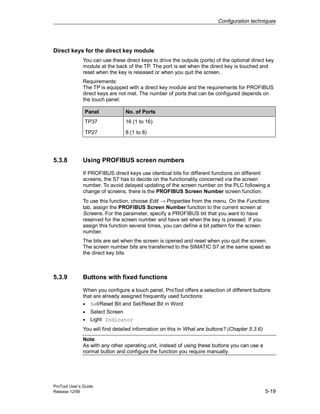
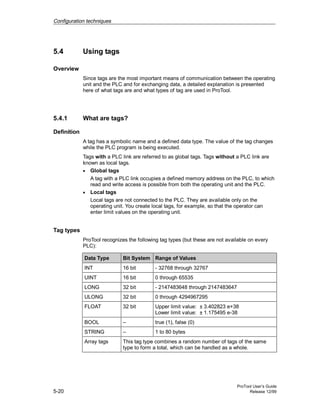
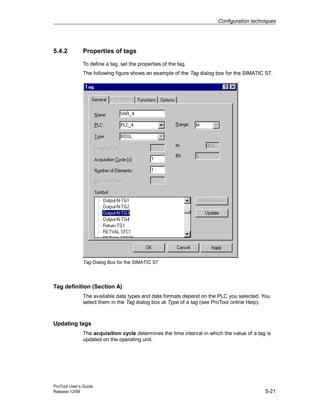
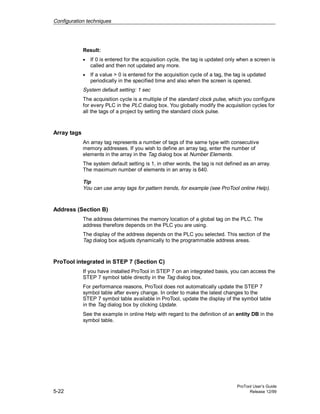
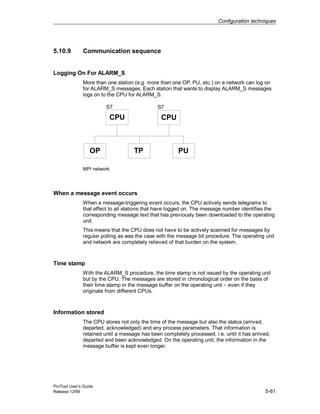
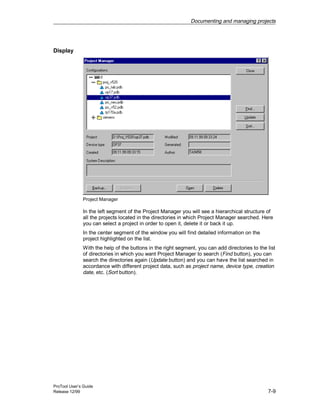
Preface
1
Introduction
2
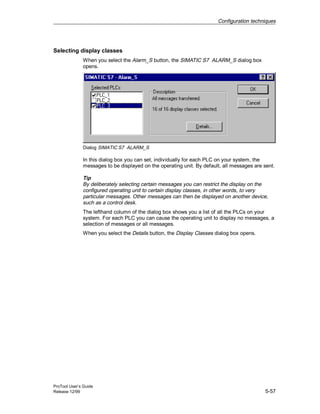
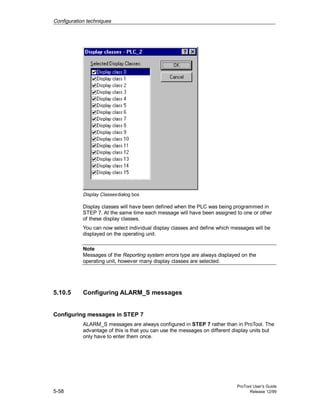
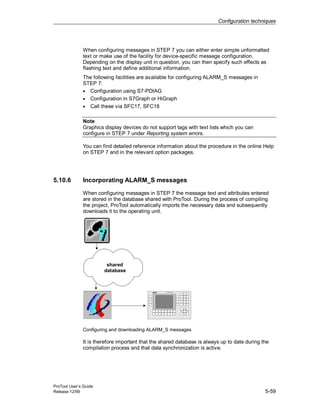
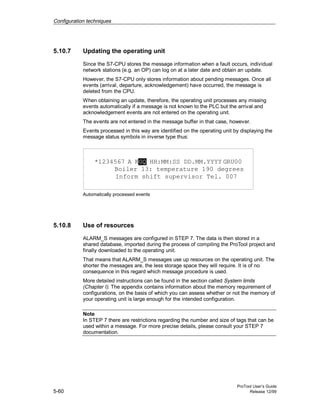
Installing and
configuring ProTool
3
Creating projects
4
Configuration
techniques
5
Testing projects
6
Documenting and
managing projects
7
System limits
A
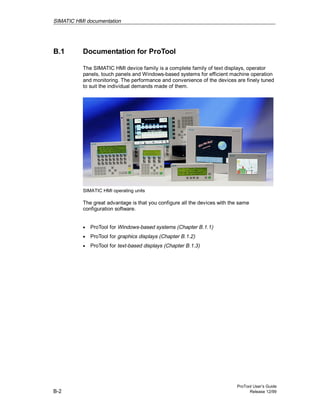
SIMATIC HMI
documentation
B
Abbreviations
C
Glossary, Index
SIMATIC HMI
ProTool
Configuring Graphics Displays
User’s Manual
6AV6594-1BA05-2AB0
Release 12/99
Copyright © Siemens AG 1999. All Rights Reserved.
Distribution or duplication of this document, commercial exploitation or
communication of its content is prohibited unless expressly authorised.
Violation of these conditions shall render the perpetrator liable for
compensation. All rights reserved in particular with respect to the
issue of patents or registration of trademarks.
Siemens AG
Automatisierungs- und Antriebstechnik
Bedien- u. Beobachtungssysteme
Postfach 4848, D-90327 Nuremberg
Liability Disclaimer
The content of the printed document has been checked for consistency
with the hardware and software described. The possibility of inaccuracies
can nevertheless not be entirely eradicated as a result of which no
guarantee of absolute accuracy is offered. The information in this
document is regularly checked and any alterations found to be necessary
included in the subsequent revisions. All suggestions for improvements
gratefully received.
Copyright © Siemens AG 1999
Subject to alteration on the basis of technical modifications or advances.
Siemens Aktiengesellschaft Order No. 6AV6594-1BA05-2AB0
Trademarks The registered trademarks of Siemens AG are listed in the Preface.
Some of the other designations used in these documents are also registered
trademarks; the owner’s rights may be violated if they are used be third parties
for their own purposes.
ProTool User’s Guide
Release 12/99 i
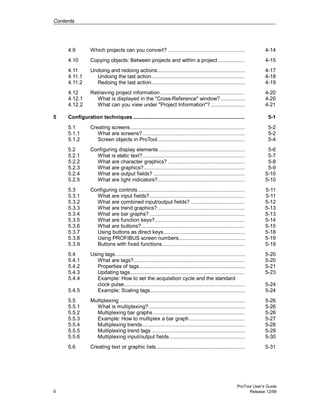
Contents
1 Preface ........................................................................................................ 1-1
1.1 Guide to the Manual....................................................................... 1-2
1.1.1 History ...................................................................................... 1-3
1.1.2 Notation .................................................................................... 1-4
1.2 Other Sources of Assistance .......................................................... 1-5
2 Introduction ................................................................................................ 2-1
2.1 What is ProTool?............................................................................ 2-2
2.2 What is supplied with ProTool ........................................................ 2-4
2.3 Getting started with ProTool ........................................................... 2-6
3 Installing and configuring ProTool............................................................ 3-1
3.1 Installing ProTool............................................................................ 3-2
3.2 ProTool and Asian Windows systems ............................................. 3-5
3.2.1 Suppliers of Asian Windows systems ........................................ 3-5
3.2.2 Example: installing Chinese Windows 95 as a second
operating system....................................................................... 3-6
3.2.3 Example: installing Chinese WindowsNT as a second
operating system....................................................................... 3-8
3.3 Configuring ProTool ....................................................................... 3-10
3.3.1 Configuring with ProTool integrated in STEP 7.......................... 3-10
3.3.2 Example of an instance DB....................................................... 3-12
4 Creating projects ........................................................................................ 4-1
4.1 Fundamental considerations when creating a project ..................... 4-2
4.2 What does a ProTool project consist of? ........................................ 4-3
4.3 Steps to be taken when creating a project ...................................... 4-4
4.4 Setting up area pointers................................................................. 4-5
4.5 Example: How to create an OP37 project....................................... 4-7
4.6 Subdividing the display on the operating unit ................................. 4-8
4.7 Configuration notes for the touch panels ........................................ 4-11
4.8 Selecting a PLC driver ................................................................... 4-13
Contents
ProTool User’s Guide
ii Release 12/99
4.9 Which projects can you convert? ................................................... 4-14
4.10 Copying objects: Between projects and within a project.................. 4-15
4.11 Undoing and redoing actions.......................................................... 4-17
4.11.1 Undoing the last action.............................................................. 4-18
4.11.2 Redoing the last action.............................................................. 4-19
4.12 Retrieving project information ........................................................ 4-20
4.12.1 What is displayed in the "Cross-Reference" window? ................ 4-20
4.12.2 What can you view under "Project Information"?....................... 4-21
5 Configuration techniques .......................................................................... 5-1
5.1 Creating screens............................................................................ 5-2
5.1.1 What are screens?.................................................................... 5-2
5.1.2 Screen objects in ProTool.......................................................... 5-4
5.2 Configuring display elements ......................................................... 5-6
5.2.1 What is static text?.................................................................... 5-7
5.2.2 What are character graphics? ................................................... 5-8
5.2.3 What are graphics?................................................................... 5-9
5.2.4 What are output fields?............................................................. 5-10
5.2.5 What are light indicators?.......................................................... 5-10
5.3 Configuring controls....................................................................... 5-11
5.3.1 What are input fields? ............................................................... 5-11
5.3.2 What are combined input/output fields? .................................... 5-12
5.3.3 What are trend graphics?.......................................................... 5-13
5.3.4 What are bar graphs? ............................................................... 5-13
5.3.5 What are function keys?............................................................ 5-14
5.3.6 What are buttons?..................................................................... 5-15
5.3.7 Using buttons as direct keys...................................................... 5-18
5.3.8 Using PROFIBUS screen numbers............................................ 5-19
5.3.9 Buttons with fixed functions....................................................... 5-19
5.4 Using tags...................................................................................... 5-20
5.4.1 What are tags?.......................................................................... 5-20
5.4.2 Properties of tags...................................................................... 5-21
5.4.3 Updating tags............................................................................ 5-23
5.4.4 Example: How to set the acquisition cycle and the standard
clock pulse................................................................................ 5-24
5.4.5 Example: Scaling tags............................................................... 5-24
5.5 Multiplexing ................................................................................... 5-26
5.5.1 What is multiplexing?................................................................ 5-26
5.5.2 Multiplexing bar graphs............................................................. 5-26
5.5.3 Example: How to multiplex a bar graph..................................... 5-27
5.5.4 Multiplexing trends.................................................................... 5-28
5.5.5 Multiplexing trend tags .............................................................. 5-29
5.5.6 Multiplexing input/output fields.................................................. 5-30
5.6 Creating text or graphic lists........................................................... 5-31
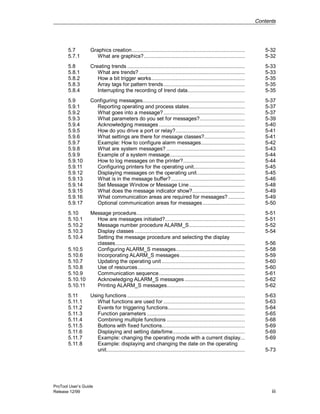
Contents
ProTool User’s Guide
Release 12/99 iii
5.7 Graphics creation........................................................................... 5-32
5.7.1 What are graphics?................................................................... 5-32
5.8 Creating trends .............................................................................. 5-33
5.8.1 What are trends? ...................................................................... 5-33
5.8.2 How a bit trigger works.............................................................. 5-35
5.8.3 Array tags for pattern trends...................................................... 5-35
5.8.4 Interrupting the recording of trend data...................................... 5-35
5.9 Configuring messages.................................................................... 5-37
5.9.1 Reporting operating and process states..................................... 5-37
5.9.2 What goes into a message?...................................................... 5-37
5.9.3 What parameters do you set for messages?.............................. 5-39
5.9.4 Acknowledging messages ......................................................... 5-40
5.9.5 How do you drive a port or relay?.............................................. 5-41
5.9.6 What settings are there for message classes?........................... 5-41
5.9.7 Example: How to configure alarm messages............................. 5-42
5.9.8 What are system messages? .................................................... 5-43
5.9.9 Example of a system message.................................................. 5-44
5.9.10 How to log messages on the printer?......................................... 5-44
5.9.11 Configuring printers for the operating unit.................................. 5-45
5.9.12 Displaying messages on the operating unit................................ 5-45
5.9.13 What is in the message buffer?................................................. 5-46
5.9.14 Set Message Window or Message Line..................................... 5-48
5.9.15 What does the message indicator show?................................... 5-49
5.9.16 What communication areas are required for messages? ........... 5-49
5.9.17 Optional communication areas for messages............................ 5-50
5.10 Message procedure........................................................................ 5-51
5.10.1 How are messages initiated?..................................................... 5-51
5.10.2 Message number procedure ALARM_S..................................... 5-52
5.10.3 Display classes ......................................................................... 5-54
5.10.4 Setting the message procedure and selecting the display
classes...................................................................................... 5-56
5.10.5 Configuring ALARM_S messages.............................................. 5-58
5.10.6 Incorporating ALARM_S messages........................................... 5-59
5.10.7 Updating the operating unit ....................................................... 5-60
5.10.8 Use of resources....................................................................... 5-60
5.10.9 Communication sequence......................................................... 5-61
5.10.10 Acknowledging ALARM_S messages........................................ 5-62
5.10.11 Printing ALARM_S messages.................................................... 5-62
5.11 Using functions .............................................................................. 5-63
5.11.1 What functions are used for ...................................................... 5-63
5.11.2 Events for triggering functions................................................... 5-64
5.11.3 Function parameters ................................................................. 5-65
5.11.4 Combining multiple functions .................................................... 5-68
5.11.5 Buttons with fixed functions....................................................... 5-69
5.11.6 Displaying and setting date/time................................................ 5-69
5.11.7 Example: changing the operating mode with a current display... 5-69
5.11.8 Example: displaying and changing the date on the operating
unit............................................................................................ 5-73
Contents
ProTool User’s Guide
iv Release 12/99
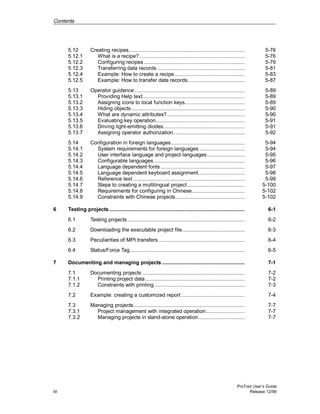
5.12 Creating recipes............................................................................. 5-76
5.12.1 What is a recipe?...................................................................... 5-76
5.12.2 Configuring recipes................................................................... 5-79
5.12.3 Transferring data records .......................................................... 5-81
5.12.4 Example: How to create a recipe............................................... 5-83
5.12.5 Example: How to transfer data records...................................... 5-87
5.13 Operator guidance ......................................................................... 5-89
5.13.1 Providing Help text.................................................................... 5-89
5.13.2 Assigning icons to local function keys........................................ 5-89
5.13.3 Hiding objects ........................................................................... 5-90
5.13.4 What are dynamic attributes?.................................................... 5-90
5.13.5 Evaluating key operation........................................................... 5-91
5.13.6 Driving light-emitting diodes...................................................... 5-91
5.13.7 Assigning operator authorization ............................................... 5-92
5.14 Configuration in foreign languages................................................. 5-94
5.14.1 System requirements for foreign languages .............................. 5-94
5.14.2 User interface language and project languages......................... 5-95
5.14.3 Configurable languages ............................................................ 5-96
5.14.4 Language dependent fonts........................................................ 5-97
5.14.5 Language dependent keyboard assignment............................... 5-98
5.14.6 Reference text .......................................................................... 5-99
5.14.7 Steps to creating a multilingual project ...................................... 5-100
5.14.8 Requirements for configuring in Chinese................................... 5-102
5.14.9 Constraints with Chinese projects.............................................. 5-102
6 Testing projects.......................................................................................... 6-1
6.1 Testing projects.............................................................................. 6-2
6.2 Downloading the executable project file ......................................... 6-3
6.3 Peculiarities of MPI transfers ......................................................... 6-4
6.4 Status/Force Tag ............................................................................ 6-5
7 Documenting and managing projects ....................................................... 7-1
7.1 Documenting projects .................................................................... 7-2
7.1.1 Printing project data .................................................................. 7-2
7.1.2 Constraints with printing ............................................................ 7-3
7.2 Example: creating a customized report .......................................... 7-4
7.3 Managing projects.......................................................................... 7-7
7.3.1 Project management with integrated operation.......................... 7-7
7.3.2 Managing projects in stand-alone operation............................... 7-7
Contents
ProTool User’s Guide
Release 12/99 v
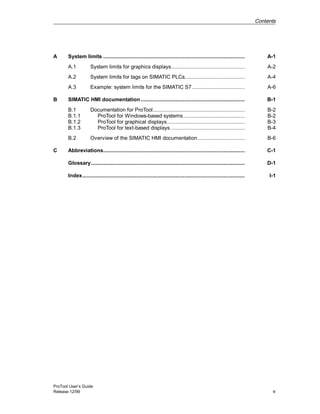
A System limits .............................................................................................. A-1
A.1 System limits for graphics displays................................................. A-2
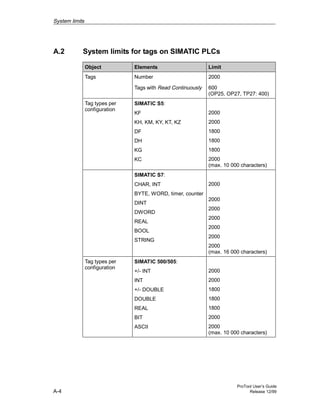
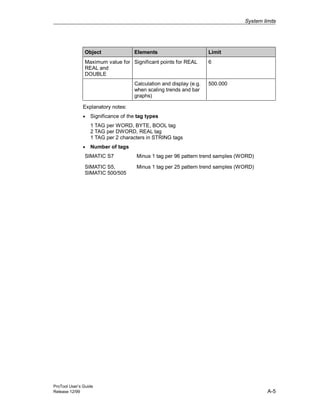
A.2 System limits for tags on SIMATIC PLCs........................................ A-4
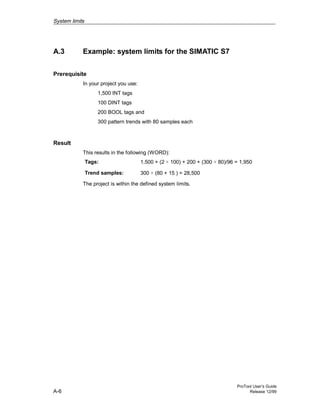
A.3 Example: system limits for the SIMATIC S7................................... A-6
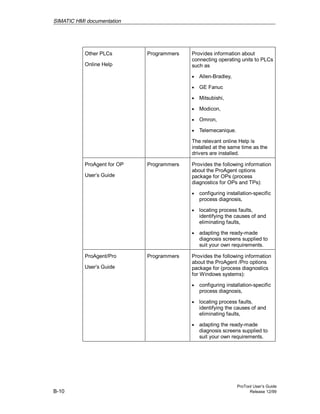
B SIMATIC HMI documentation ..................................................................... B-1
B.1 Documentation for ProTool............................................................. B-2
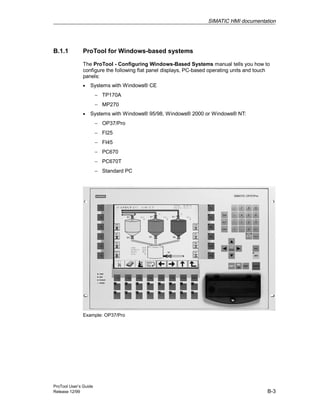
B.1.1 ProTool for Windows-based systems......................................... B-2
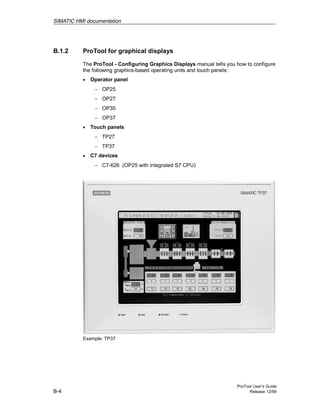
B.1.2 ProTool for graphical displays.................................................... B-3
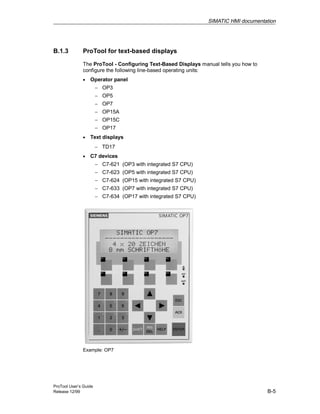
B.1.3 ProTool for text-based displays ................................................. B-4
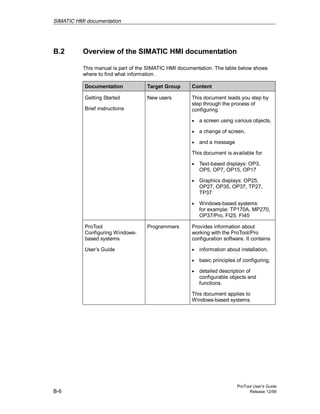
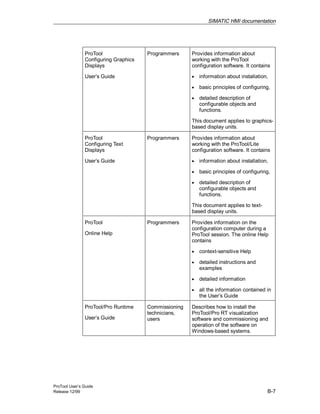
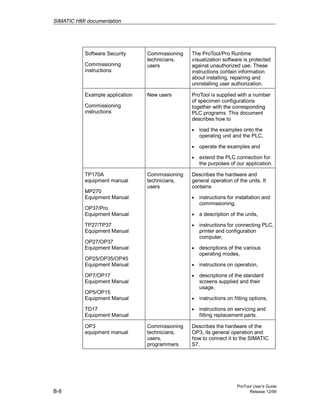
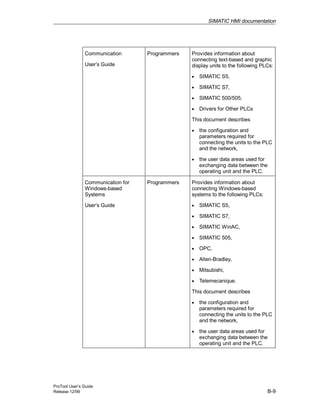
B.2 Overview of the SIMATIC HMI documentation ............................... B-6
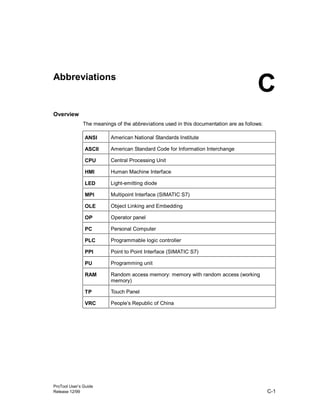
C Abbreviations.............................................................................................. C-1
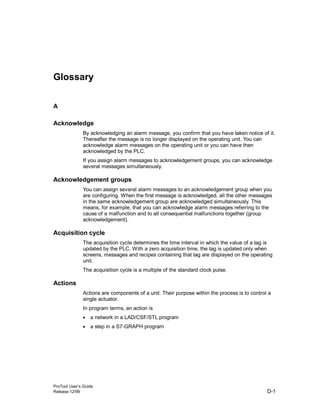
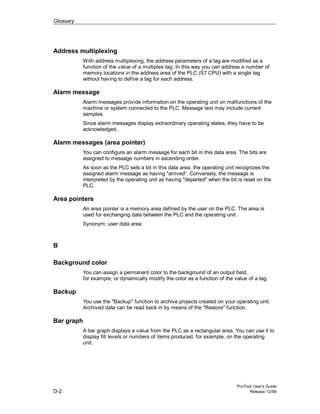
Glossary...................................................................................................... D-1
Index............................................................................................................ I-1
Contents
ProTool User’s Guide
vi Release 12/99
ProTool User’s Guide
Release 12/99 1-1
Preface
Overview
This chapter explains how the manual is organized and where to find what
information.
Trademarks
The following names are registered trademarks of Siemens AG:
• SIMATIC®
• SIMATIC HMI®
• HMI®
• ProTool/Pro®
• ProTool®
• ProTool/Lite®
• ProAgent®
• SIMATIC Multi Panel®
• MP270®
• SIMATIC Multifunctional Platform®
1
Preface
ProTool User’s Guide
1-2 Release 12/99
1.1 Guide to the Manual
Contents
This manual provides all the information you require to
• install and configure ProTool
• configure your operating unit to suit your installation
• upload the executable project file to the system and test it
• manage your project
What you should already know about
This manual assumes that you already have general experience of working with
Windows® applications. The information given in this manual is therefore limited
to a description of the functions and routines provided by ProTool and which are
not involved in the standard operation of the operating system.
This manual also assumes that you have a basic familiarity with the configuration
of your PLC, e.g. SIMATIC S5 or SIMATIC S7.
Where to find what
The chapters of this manual are arranged by topic as follows:
• The Introduction explains the advantages of the ProTool configuration
software and demonstrates how easy it is to create an executable project file
for your operating unit using ProTool.
• The chapter Installing and configuring ProTool explains the requirements
your system must satisfy, how to integrate ProTool in STEP 7 and how to
install ProTool on your configuration computer.
• The chapter Creating projects shows you the basic considerations that are
worth making before creating a project and what a project consists of. It also
explains for what tasks you set up which data areas on the PLC and must
specify in ProTool as area pointers.
• The chapter Configuration techniques shows you how to configure
operating and display elements, how to implement a user prompt system on
your operating unit and report process statuses. In addition, you learn how to
call project information, assign operator permissions and create multi-lingual
projects.
• The chapter Testing projects explains how to check the results of your work.
It shows how to compile your project into an executable project file and
upload it to the system.
Preface
ProTool User’s Guide
Release 12/99 1-3
• The chapter Documenting and managing projects introduces the Project
Manager. It shows you how to print out project data and how to use the
functions Backup and Restore to backup and restore your project data.
• Finally, the Appendix provides details of the system limitations and an
overview of the SIMATIC HMI documentation.
Other sources of information
• You will find more examples and guidance together with reference material,
for example, on functions, libraries, PLC drivers in online Help.
• For device-specific information, please refer to your equipment manual.
• Detailed information about the ProTool/Pro RT visualization software is given in
the ProTool/Pro Runtime User’s Guide.
• The fundamentals of communication between the operating unit and the PLC
are described in the Communication for Windows-based Systems User’s Guide.
• The ProTool ReadMe contains important notes on installation and configuration.
1.1.1 History
This manual describes the configuration of graphics displays with ProTool.
The various issues of the user’s guide correspond to the following versions of
ProTool:
Issue 07/94 Valid for ProTool versions up to and including version 1.31
Issue 09/95 Extended functions and editorial revisions.
Valid for ProTool version 2.0 or higher.
Issue 09/96 Errors corrected and OP37 incorporated.
Valid for ProTool version 2.5 or higher.
Issue 04/97 Extended functions and incorporation of TP37.
Software runs under Windows® 95.
Valid for ProTool version 3.0 or higher.
Issue 10/97 Extended functions and incorporation of OP27 and TP27.
Software runs under Windows® 95 and WindowsNT® 4.0
or higher.
Valid for ProTool version 4.0 or higher.
Issue 07/98 Extended functions and revisions to software interface.
Valid for ProTool version 5.0 or higher.
Preface
ProTool User’s Guide
1-4 Release 12/99
Issue 01/99 Extended functions and editorial revisions of the manual.
Software runs under Windows® 95, Windows® 98 and
WindowsNT® 4.0 or higher.
Valid for ProTool 5.1 or higher
Issue 12/99 Software runs under Windows® 95/98, Windows® 2000
and WindowsNT® 4.0 or higher.
Valid for ProTool/Pro CS 5.2 or higher
1.1.2 Notation
There are a number of character formats used in this manual to assist reader
orientation.
Output Words printed in Courier typeface represent input and
output data as it appears on the screen of the operating
unit.
F1 The names of keys are printed in bold type.
File → Edit Menu items are printed in italics. Succeeding levels are
separated by arrows. The complete sequence of menu
items leading to the final menu item required is always
shown.
Messages dialog
box
The names of dialog boxes, tabs and buttons are printed
in italics.
Preface
ProTool User’s Guide
Release 12/99 1-5
1.2 Other Sources of Assistance
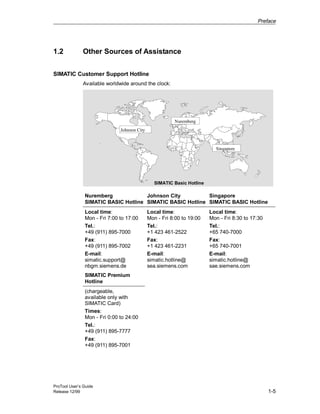
SIMATIC Customer Support Hotline
Available worldwide around the clock:
Johnson City
Nuremberg
Singapore
SIMATIC Basic Hotline
Nuremberg
SIMATIC BASIC Hotline
Johnson City
SIMATIC BASIC Hotline
Singapore
SIMATIC BASIC Hotline
Local time:
Mon - Fri 7:00 to 17:00
Tel.:
+49 (911) 895-7000
Fax:
+49 (911) 895-7002
E-mail:
simatic.support@
nbgm.siemens.de
Local time:
Mon - Fri 8:00 to 19:00
Tel.:
+1 423 461-2522
Fax:
+1 423 461-2231
E-mail:
simatic.hotline@
sea.siemens.com
Local time:
Mon - Fri 8:30 to 17:30
Tel.:
+65 740-7000
Fax:
+65 740-7001
E-mail:
simatic.hotline@
sae.siemens.com
SIMATIC Premium
Hotline
(chargeable,
available only with
SIMATIC Card)
Times:
Mon - Fri 0:00 to 24:00
Tel.:
+49 (911) 895-7777
Fax:
+49 (911) 895-7001
Preface
ProTool User’s Guide
1-6 Release 12/99
SIMATIC Customer Support Online Services
SIMATIC Customer Support Online Services offer extensive additional information
about SIMATIC products as follows.
• Up-to-date general information is available
− on the Internet at http://www.ad.siemens.de/simatic
− by fax polling on 08765–93 02 77 95 00
• Up-to-date product information and downloads for practical use can be obtained
from
− the Internet at http://www.ad.siemens.de/support/html-00/
− the bulletin board system (BBS) in Nuremberg (SIMATIC Customer
Support Mailbox)
on +49 (911) 895–7100.
To call the mailbox, you should use a modem with a transmission rate of
up to V.34 (28.8 kbd) using the following settings: 8, N, 1, ANSI, or you
can connect via ISDN (x.75, 64 kbit).
ProTool User’s Guide
Release 12/99 2-1
Introduction
2
Introduction
ProTool User’s Guide
2-2 Release 12/99
2.1 What is ProTool?
Configuring graphics displays
ProTool is an innovative configuration software package for the whole SIMATIC
HMI family. You use the same configuration software to configure all the devices in
the family. Regardless of the device for which you are creating your project,
ProTool always presents you with the same, familiar user interface.
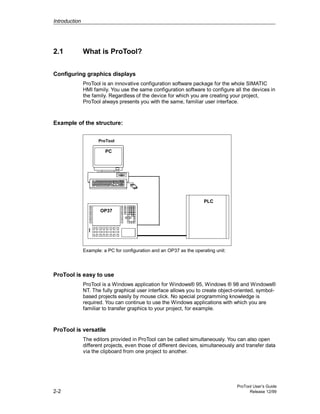
Example of the structure:
OP37
PLC
PC
ProTool
Example: a PC for configuration and an OP37 as the operating unit:
ProTool is easy to use
ProTool is a Windows application for Windows® 95, Windows ® 98 and Windows®
NT. The fully graphical user interface allows you to create object-oriented, symbol-
based projects easily by mouse click. No special programming knowledge is
required. You can continue to use the Windows applications with which you are
familiar to transfer graphics to your project, for example.
ProTool is versatile
The editors provided in ProTool can be called simultaneously. You can also open
different projects, even those of different devices, simultaneously and transfer data
via the clipboard from one project to another.
Introduction
ProTool User’s Guide
Release 12/99 2-3
ProTool can also be integrated in the SIMATIC STEP 7 configuration software,
thus allowing you to select STEP 7 symbols and data blocks as tags in ProTool.
This not only saves you time and money but also eliminates the possibility of
errors made when entering the same data several times.
You will find more information on configuring ProTool with SIMATIC STEP 7 at
Configuring with ProTool integrated in STEP 7 (Chapter 3.3.1).
Offline configuration
With ProTool you create and edit your projects offline. The device need not yet be
available at this time. The configuration computer displays the configured process
data as it will subsequently be displayed on the device.
On completion of configuration you can download the executable project file from
the configuration computer to the device.
Introduction
ProTool User’s Guide
2-4 Release 12/99
2.2 What is supplied with ProTool
PLC drivers
ProTool is shipped as standard with drivers for the following PLCs:
• Siemens PLCs
− SIMATIC S5
− SIMATIC S7
− SIMATIC 500/505
• PLCs of other manufacturers
− Allen-Bradley DF1
− Allen-Bradley DH485
− GE Fanuc
− MITSUBISHI FX
− Modicon Modbus
− OMRON (Link/Multilink)
− Telemecanique TSX Adjust
− Telemecanique Uni-Telway
• FREE SERIAL
Example projects for graphics displays
ProTool is shipped with ready-made sample projects for different PLCs. The
examples are located in the ProTool directory under ..SAMPLES. The directory
also contains the associated PLC programs. The sample project and PLC program
are matched to each other.
Standard projects and standard screens for graphics displays
Standard projects are supplied for almost every configurable operating unit.
Functions that are widely used are already configured in the standard projects.
Standard projects contain device-specific standard screens. These provide all the
functions you need for the basic operation of your operating unit.
If you select the Use Standard Project check box in the project assistant when you
start ProTool, ProTool automatically integrates in your new project the standard
project associated with your operating unit and the set PLC.
Introduction
ProTool User’s Guide
Release 12/99 2-5
Libraries
Once ProTool is installed, the following libraries are available to you in the
..Library directory:
• Symbol-bmp.lib
• Touch-Switches.lib (for TP27, TP37 only)
In ProTool, you open these libraries in the screen editor with Edit → Libraries →
Open.
Utilities
There are a number of utilities and other useful files in the ProTool directory under
UTILITY. There you will find, among other things,
• the RECTRANS utility for converting data records for OP35/37 to an ASCII file
• the Backup/Restore utility ProSave for OP27, OP37, TP27 and TP37.
Introduction
ProTool User’s Guide
2-6 Release 12/99
2.3 Getting started with ProTool
If you are not all that familiar with the ProTool visualization software, we would
recommend you read this brief introduction and get started with ProTool/Pro with
the help of the example. The printed version is enclosed with this manual.
Requirements for working with the brief introduction
To do the exercises for ProTool in this brief introduction, you require
• a PC as a configuration computer
• the SIMATIC ProTool 5.2 software package
ProTool includes the ProTool configuration software and ProTool/Pro RT
runtime software.
• an operating unit - for example, an OP27 or a TP37.
Other documents on ProTool
You will find the electronic manuals on the installation CD under:
Docs..UsersManual_Graph.pdf
You can find all the information contained in this manual in ProTool’s online Help.
ProTool User’s Guide
Release 12/99 3-1
Installing and configuring ProTool
Overview
In this chapter you will learn
• the requirements the configuration computer must meet and
• how to install ProTool.
3
Installing and configuring ProTool
ProTool User’s Guide
3-2 Release 12/99
3.1 Installing ProTool
System requirements
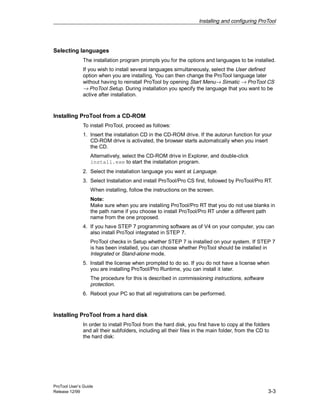
The following table shows the recommended system requirements for running the
ProTool configuration software.
Configuration Recommendation
CPU Pentium 133 MHz
Main memory 64 MB
Free hard disk space 150 MB for ProTool
5 MB for each additional language
Drive CD-ROM
Operating system Microsoft® Windows® 95 with Service Pack 1
(Build 950a)
Microsoft® Windows® 95 OSR 2 (Build 950b)
Microsoft® Windows® 98
Microsoft® Windows NT® 4.0 with Service
Pack 3
Microsoft® Windows® 2000
Remark
Service Pack 1 must not be installed on a Windows 95 OSR 2 (Build 950b) or
higher.
Integration in STEP 7
If you have STEP 7 programming software as of V4 on your computer, you can
also install ProTool integrated in STEP 7.
This has the following advantages:
• You manage ProTool projects using SIMATIC Manager (i.e. the same
management tool that you use for your STEP 7 projects).
• You can select STEP 7 symbols and data blocks from the S7 symbol table as
tags. The data type and address are entered automatically.
• ProTool lists all the PLCs in your STEP 7 project and, once a PLC has been
selected, determines the associated address parameters.
• In STEP 7 you can configure ALARM_S messages and output them to the
operating unit.
Installing and configuring ProTool
ProTool User’s Guide
Release 12/99 3-3
Selecting languages
The installation program prompts you for the options and languages to be installed.
If you wish to install several languages simultaneously, select the User defined
option when you are installing. You can then change the ProTool language later
without having to reinstall ProTool by opening Start Menu→ Simatic → ProTool CS
→ ProTool Setup. During installation you specify the language that you want to be
active after installation.
Installing ProTool from a CD-ROM
To install ProTool, proceed as follows:
1. Insert the installation CD in the CD-ROM drive. If the autorun function for your
CD-ROM drive is activated, the browser starts automatically when you insert
the CD.
Alternatively, select the CD-ROM drive in Explorer, and double-click
install.exe to start the installation program.
2. Select the installation language you want at Language.
3. Select Installation and install ProTool/Pro CS first, followed by ProTool/Pro RT.
When installing, follow the instructions on the screen.
Note:
Make sure when you are installing ProTool/Pro RT that you do not use blanks in
the path name if you choose to install ProTool/Pro RT under a different path
name from the one proposed.
4. If you have STEP 7 programming software as of V4 on your computer, you can
also install ProTool integrated in STEP 7.
ProTool checks in Setup whether STEP 7 is installed on your system. If STEP 7
is has been installed, you can choose whether ProTool should be installed in
Integrated or Stand-alone mode.
5. Install the license when prompted to do so. If you do not have a license when
you are installing ProTool/Pro Runtime, you can install it later.
The procedure for this is described in commissioning instructions, software
protection.
6. Reboot your PC so that all registrations can be performed.
Installing ProTool from a hard disk
In order to install ProTool from the hard disk, you first have to copy al the folders
and all their subfolders, including all their files in the main folder, from the CD to
the hard disk:
Installing and configuring ProTool
ProTool User’s Guide
3-4 Release 12/99
Uninstalling ProTool
On the Windows start menu at Settings → Control Panel → Software, choose
ProTool and installed options from the and click Add/Remove.
Starting ProTool
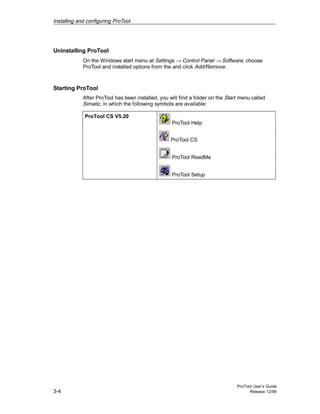
After ProTool has been installed, you will find a folder on the Start menu called
Simatic, in which the following symbols are available:
ProTool CS V5.20
ProTool Help
ProTool CS
ProTool ReadMe
ProTool Setup
Installing and configuring ProTool
ProTool User’s Guide
Release 12/99 3-5
3.2 ProTool and Asian Windows systems
Windows system language
ProTool also supports the Asian languages Chinese (PRC), Chinese (Taiwan) and
Korean as configuration languages.
To create projects in these languages, you need a Windows system in the
language concerned.
This Asian Windows system can be installed either as a stand-alone operating
system or as an additional operating system over and above your present system.
Tip
A Chinese or Korean Windows system is installed in a manner similar to any other
language. In the event of uncertainties with regard to the requisite settings in
Setup, you can clarify them by installing a Windows system in a different language
beforehand.
ProTool user interface language
You can then install ProTool itself under the Asian Windows system in the
customary manner in the user interface languages English, German, French,
Italian or Spanish.
3.2.1 Suppliers of Asian Windows systems
You can obtain information on suppliers of Asian Windows systems from your local
branch of Microsoft.
In Europe, you can obtain Asian Windows systems from the following address:
ARABIA WARE BENELUX
Amsterdamsestraatweg 81
3513 AB Utrecht
Netherlands
Tel: 31-30-2-322093 or 31-30-2-322093
Fax: 31-30-2-343461
Internet: www.arabiaware.com
Installing and configuring ProTool
ProTool User’s Guide
3-6 Release 12/99
3.2.2 Example: installing Chinese Windows 95 as a second operating
system
You can install a Chinese Windows 95 system on your computer alongside a
Windows 95 system in a different language. You can then switch between two
Windows languages.
Requirements:
The following requirements have to be met if you wish to operate ProTool under a
second Windows 95 system:
• ProTool is installed under your present Windows 95 as stand-alone application
or it has been integrated with STEP7.
• To install a second Windows 95 system, you require a second hard disk or
partition, since conflicts may otherwise occur when the Programs directory is
accessed.
• The startup drive has to be formatted in a FAT format that is supported by both
Windows 95 systems.
Procedure:
To use ProTool under Chinese Windows 95 as a second operating system, perform
the following steps:
1. Prior to installation of the second Windows system, save the following five
system files to the directory called C:WinbootOld:
− autoexec.bat
− config.sys
− msdos.sys
− io.sys
− command.com
The files will be required upon changing the operating system.
2. Before you proceed to install Chinese Windows, pay attention to the following
notes so that existing authorization files of STEP7, for example, are not
destroyed:
− Remember to transfer the authorization back to your authorization floppy
disk before you format, compress or restore your hard-disk drive or before
you install a new operating system.
− A cluster identified as "defective" occurs on the destination drive with the
authorization. Do not attempt to restore it.
Installing and configuring ProTool
ProTool User’s Guide
Release 12/99 3-7
3. Install Chinese Windows 95 on a separate partition (e.g. D:). To do this, you
must exit from Windows and restart in DOS mode.
4. All programs that you want to run under Chinese Windows 95 - such as ProTool
or STEP7 - have to be installed under it once more owing to the update of
registry entries and of the system files in the Chinese Windows system.
However, you should you the same directory for installation in order to keep the
memory requirement low.
5. After you have installed Chinese Windows 95 and the application programs,
save the five files of the Chinese Windows version mentioned above to the
C:WinbootChs directory.
6. If you then install another application program in one of the operating system,
you have to save the autoexec.bat and config.sys files concerned yet,
since they may be modified as a result of installation.
Switching between Windows 95 versions:
To switch between the two Windows versions, copy the five saved files for the
language you want to the startup drive C: before exiting from the operating
system. Windows 95 then has to be restarted.
To facilitate this task, various batch and PIF files are supplied with ProTool in the
ProToolUtility subdirectory:
• old.bat Batch for switching to the Windows you installed first
• old.pifLink with batch for placing on the desktop
• chs.bat Batch for switching to Chinese
• chs.pif Link with batch for placing on the desktop
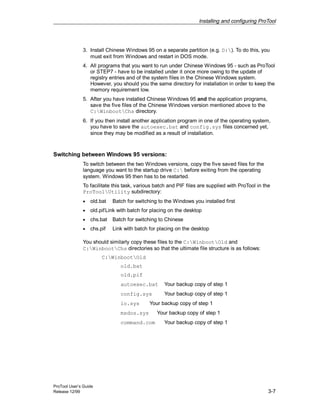
You should similarly copy these files to the C:WinbootOld and
C:WinbootChs directories so that the ultimate file structure is as follows:
C:WinbootOld
old.bat
old.pif
autoexec.bat Your backup copy of step 1
config.sys Your backup copy of step 1
io.sys Your backup copy of step 1
msdos.sys Your backup copy of step 1
command.com Your backup copy of step 1
Installing and configuring ProTool
ProTool User’s Guide
3-8 Release 12/99
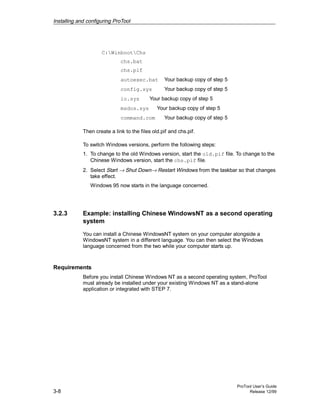
C:WinbootChs
chs.bat
chs.pif
autoexec.bat Your backup copy of step 5
config.sys Your backup copy of step 5
io.sys Your backup copy of step 5
msdos.sys Your backup copy of step 5
command.com Your backup copy of step 5
Then create a link to the files old.pif and chs.pif.
To switch Windows versions, perform the following steps:
1. To change to the old Windows version, start the old.pif file. To change to the
Chinese Windows version, start the chs.pif file.
2. Select Start → Shut Down→ Restart Windows from the taskbar so that changes
take effect.
Windows 95 now starts in the language concerned.
3.2.3 Example: installing Chinese WindowsNT as a second operating
system
You can install a Chinese WindowsNT system on your computer alongside a
WindowsNT system in a different language. You can then select the Windows
language concerned from the two while your computer starts up.
Requirements
Before you install Chinese Windows NT as a second operating system, ProTool
must already be installed under your existing Windows NT as a stand-alone
application or integrated with STEP 7.
Installing and configuring ProTool
ProTool User’s Guide
Release 12/99 3-9
Procedure
To use ProTool under Chinese Windows NT as a second operating system,
perform the following steps:
1. Install Chinese Windows NT.
2. All programs that you want to run under Chinese Windows NT - such as
ProTool or STEP 7 - have to be installed under it once more owing to the
update of registry entries and of the system files in the Chinese Windows
system. However, you should you the same directory for installation in order to
keep the memory requirement low.
Switching WindowsNT:
To switch between the two Windows versions, WindowsNT has to be restarted and
the language has to be selected during startup.
Two identical entries are displayed on the boot menu for each language. The
Windows system you installed last is at the top. If you want to modify an entry for
differentiation purposes, you can adapt the display by editing the boot.ini file.
Installing and configuring ProTool
ProTool User’s Guide
3-10 Release 12/99
3.3 Configuring ProTool
3.3.1 Configuring with ProTool integrated in STEP 7
Requirements
If the PLC you are using is a SIMATIC S7 and you have installed STEP 7
configuration software on your system, you can integrate ProTool in STEP 7.
Advantages of STEP 7 integration
As you are using the same database as STEP 7, you have the following
advantages:
• You assign your symbolic name once only and can then use it everywhere.
Note
If you use an instance DB in the STEP 7 program, the corresponding instance
FB must also be defined in the symbol table in STEP 7. If this is not the case,
this DB is not offered for selection in ProTool.
• When you configure variables and area pointers, you access the STEP 7
symbol table. Changes to the symbol table in STEP 7 are updated in ProTool
(refer to the figure at Properties of tags (Chapter 5.4.2)).
• When the project is compiled, the data is synchronized.
• In STEP 7 you can configure ALARM_S messages and output them to the
operating unit.
• The communication parameters of the PLC are transferred directly to your
project.
Installing and configuring ProTool
ProTool User’s Guide
Release 12/99 3-11
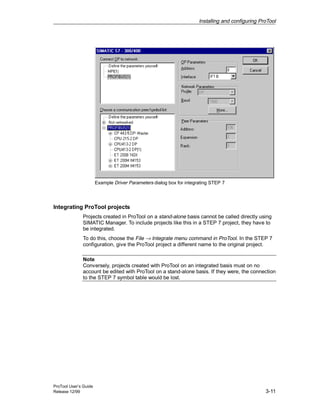
Example Driver Parameters dialog box for integrating STEP 7
Integrating ProTool projects
Projects created in ProTool on a stand-alone basis cannot be called directly using
SIMATIC Manager. To include projects like this in a STEP 7 project, they have to
be integrated.
To do this, choose the File → Integrate menu command in ProTool. In the STEP 7
configuration, give the ProTool project a different name to the original project.
Note
Conversely, projects created with ProTool on an integrated basis must on no
account be edited with ProTool on a stand-alone basis. If they were, the connection
to the STEP 7 symbol table would be lost.
Installing and configuring ProTool
ProTool User’s Guide
3-12 Release 12/99
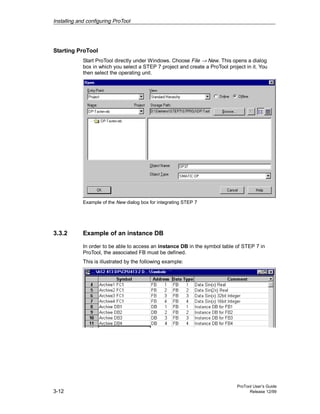
Starting ProTool
Start ProTool directly under Windows. Choose File → New. This opens a dialog
box in which you select a STEP 7 project and create a ProTool project in it. You
then select the operating unit.
Example of the New dialog box for integrating STEP 7
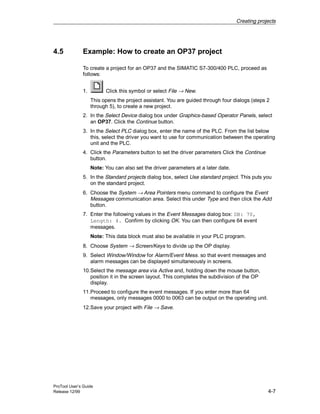
3.3.2 Example of an instance DB
In order to be able to access an instance DB in the symbol table of STEP 7 in
ProTool, the associated FB must be defined.
This is illustrated by the following example:
ProTool User’s Guide
Release 12/99 4-1
Creating projects
Overview
In this chapter you are given an overview
• of the project structure and
• the procedure for creating a project.
4
Creating projects
ProTool User’s Guide
4-2 Release 12/99
4.1 Fundamental considerations when creating a project
Objective
To operate and monitor a machine or process. To do this, you map the machine or
process on the operating unit as accurately as is necessary.
System configuration
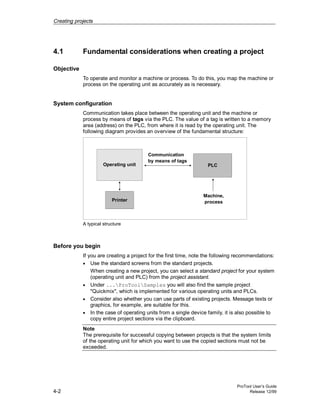
Communication takes place between the operating unit and the machine or
process by means of tags via the PLC. The value of a tag is written to a memory
area (address) on the PLC, from where it is read by the operating unit. The
following diagram provides an overview of the fundamental structure:
Operating unit
Printer
Machine,
process
Communication
by means of tags
PLC
A typical structure
Before you begin
If you are creating a project for the first time, note the following recommendations:
• Use the standard screens from the standard projects.
When creating a new project, you can select a standard project for your system
(operating unit and PLC) from the project assistant.
• Under ...ProToolSamples you will also find the sample project
"Quickmix", which is implemented for various operating units and PLCs.
• Consider also whether you can use parts of existing projects. Message texts or
graphics, for example, are suitable for this.
• In the case of operating units from a single device family, it is also possible to
copy entire project sections via the clipboard.
Note
The prerequisite for successful copying between projects is that the system limits
of the operating unit for which you want to use the copied sections must not be
exceeded.
Creating projects
ProTool User’s Guide
Release 12/99 4-3
4.2 What does a ProTool project consist of?
When you open a new or an existing project, the project window opens.
What objects are there in ProTool?
In the project window, the object types you can configure appear on the left, and
the objects themselves appear on the right. The objects that you can configure
depend on the type of the operating unit.
The various objects are linked directly in ProTool with the tool required to edit
them.
What is displayed in the project window?
The project data of a ProTool project is stored in the form of objects. The objects
in a project are arranged in a tree structure.
The Project window displays object types that belong to the project and that you
can configure for the selected operating unit. The project window is comparable
with Windows® Explorer. The object types contain objects with properties that can
be set.
The project window is structured as follows:
• The title bar contains the project name.
• The left half of the screen displays object types that you can configure, and
the right half of the screen displays the objects contained in them.
Example of a project window with tags
Note
If you maximize the project window, tabs are displayed for the open windows along
the bottom border to enable you to change easily from one window to another.
Creating projects
ProTool User’s Guide
4-4 Release 12/99
4.3 Steps to be taken when creating a project
To create a project, proceed as follows:
1. Create a new project (File → New or File → Open)
Choose File → New to create a new project. The project assistant guides you
through a number of selection dialogs.
2. Select a PLC
Select a driver for your PLC. Only those drivers with which the operating unit
can be run are displayed.
3. Use a standard project
Select a standard project in order to use it as a basis.
4. The project assistant allows you to enter information on the project in the
summary. If you click the Create button, the project window opens.
5. Define communication areas (System → Area Pointers).
To enable the operating unit and PLC to communicate with each other, you
have to define communication areas (Setting up area pointers (Chapter 4.4))
that are to be used by them both.
6. Create a project
This is the most involved part of the work. You can approach it in one of two
ways: Either you create all the individual parts first and then link them to form a
meaningful structure (the bottom → up approach), or you begin by designing a
structure and then fill it with the individual elements (the top → down
approach).
To do this, you basically have to perform the following steps:
− Create the user interface with display and controls.
− Configure tags in order to enable data interchange with the PLC.
− Configure messages in order to obtain information on the state of the
machine or process.
− Split the display on the operating unit (not on devices with a text-based
display).
In addition, you can configure additional objects, such as recipes,
depending on the operating unit.
Creating projects
ProTool User’s Guide
Release 12/99 4-5
4.4 Setting up area pointers
What are area pointers for?
A defined address area on the PLC for data interchange with the operating unit is
addressed by means of an area pointer.
Choose System → Area Pointers to set up area pointers.
What area pointers are available?
The number of area pointers available varies depending on the selected operating
unit.
For information on how large the area pointers should be when you create them,
and the structure they have to have, refer to the Communication User’s Manual.
The overview below lists the various area pointers and what they are used for. The
order in which they are listed corresponds to that in ProTool.
Area pointer Explanation
Interface area The interface area is the interface between the PLC
program and the operating unit. It contains data and
pointers to areas required for data interchange
between the PLC and the operating unit.
User version The user version identifies the version of the project. A
version check is performed on the PLC by means of
this area pointer.
Screen number The operating unit stores information on the current
screen in this data area. You can evaluate this
information in the PLC program in order to call another
screen, for example.
Data mailbox The data mailbox is a data area on the PLC. It is used
as intermediate storage to download data records from
the operating unit to the PLC. The data mailbox
contains only the values of the tag. The addresses are
not transferred.
Event messages You can configure an event message for each bit in
this data area. The bits are assigned to the message
numbers in ascending order.
As soon as the PLC sets a bit in this data area, the
operating unit recognizes that the assigned event
message has "arrived". Conversely, the operating unit
interprets the message as "gone" after the bit is reset
in the PLC.
Creating projects
ProTool User’s Guide
4-6 Release 12/99
Area pointer Explanation
Alarm messages You can configure an alarm message for each bit in
this data area. The bits are assigned to the message
numbers in ascending order.
As soon as the PLC sets a bit in this data area, the
operating unit recognizes that the assigned alarm
message has "arrived". Conversely, the operating unit
interprets the message as "gone" after the bit is reset
in the PLC.
PLC
acknowledgement
The PLC uses this area to indicate to the operating
unit which alarm messages have been acknowledged
by the PLC.
OP
acknowledgement
The operating unit uses this area pointer to indicate to
the PLC which alarm messages have been
acknowledged on the operating unit.
System keyboard The operating unit transfers keystrokes of the system
keys via this data area. You can evaluate this
information in the PLC program in order to indicate
incorrect operation by means of a message, for
example.
Function keyboard The operating unit transfers keystrokes of the function
keys via this data area. You can evaluate this
information in the PLC program in order to indicate
incorrect operation by means of a message, for
example.
LED assignment The PLC can use this area pointer to drive the light-
emitting diodes on the function keys of the operating
unit.
Trend request The PLC can use this area pointer to determine which
trend is currently being displayed on the operating unit.
Trend transfer area 1 This data area is used to trigger trends. As soon as the
PLC program sets the bit assigned to the trend and the
trend communication bit in the trend transfer area, the
operating unit detects the trigger and, depending on
the configuration, reads out either a value or the entire
buffer.
Trend transfer area 2 This data area is required when you configure trends
with a switch buffer. The data area is structured in the
same way as the trend transfer 1 data area.
Creating projects
ProTool User’s Guide
Release 12/99 4-7
4.5 Example: How to create an OP37 project
To create a project for an OP37 and the SIMATIC S7-300/400 PLC, proceed as
follows:
1. Click this symbol or select File → New.
This opens the project assistant. You are guided through four dialogs (steps 2
through 5), to create a new project.
2. In the Select Device dialog box under Graphics-based Operator Panels, select
an OP37. Click the Continue button.
3. In the Select PLC dialog box, enter the name of the PLC. From the list below
this, select the driver you want to use for communication between the operating
unit and the PLC.
4. Click the Parameters button to set the driver parameters Click the Continue
button.
Note: You can also set the driver parameters at a later date.
5. In the Standard projects dialog box, select Use standard project. This puts you
on the standard project.
6. Choose the System → Area Pointers menu command to configure the Event
Messages communication area. Select this under Type and then click the Add
button.
7. Enter the following values in the Event Messages dialog box: DB: 70,
Length: 4. Confirm by clicking OK. You can then configure 64 event
messages.
Note: This data block must also be available in your PLC program.
8. Choose System → Screen/Keys to divide up the OP display.
9. Select Window/Window for Alarm/Event Mess. so that event messages and
alarm messages can be displayed simultaneously in screens.
10.Select the message area via Active and, holding down the mouse button,
position it in the screen layout. This completes the subdivision of the OP
display.
11.Proceed to configure the event messages. If you enter more than 64
messages, only messages 0000 to 0063 can be output on the operating unit.
12.Save your project with File → Save.
Creating projects
ProTool User’s Guide
4-8 Release 12/99
4.6 Subdividing the display on the operating unit
Subdividing the display into several areas
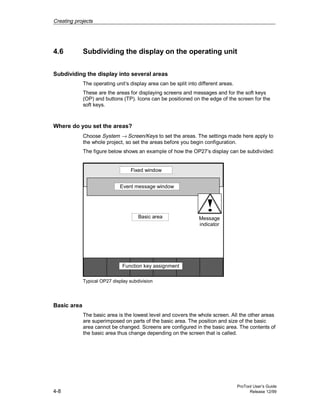
The operating unit’s display area can be split into different areas.
These are the areas for displaying screens and messages and for the soft keys
(OP) and buttons (TP). Icons can be positioned on the edge of the screen for the
soft keys.
Where do you set the areas?
Choose System → Screen/Keys to set the areas. The settings made here apply to
the whole project, so set the areas before you begin configuration.
The figure below shows an example of how the OP27’s display can be subdivided:
Message
indicator
Event message window
Basic area
Function key assignment
Fixed window
Typical OP27 display subdivision
Basic area
The basic area is the lowest level and covers the whole screen. All the other areas
are superimposed on parts of the basic area. The position and size of the basic
area cannot be changed. Screens are configured in the basic area. The contents of
the basic area thus change depending on the screen that is called.
Creating projects
ProTool User’s Guide
Release 12/99 4-9
Fixed window
A fixed window is a window that is always displayed. It uses up part of the basic
area. The fixed window can be switched on or off under Screen/Keys. If it is
switched on, it is displayed during screen configuration and thus reduces the size
of the area available for screens. The size of the fixed window can be changed,
but its position is always the same at the top of the screen. The fixed window is
configured with the Screens editor.
Alarm message window
The alarm message window is the window in which alarm messages appear. The
window only opens when there is an alarm message. When you acknowledge the
alarm message, the window closes again.
The display of alarm messages cannot be switched off. Either an alarm message
window or a message line must be configured.
The position and size of the alarm message window cannot be configured.
Event message window
The event message window is the window in which event messages appear. The
window is only displayed when called. You can switch the event message window
on or off by choosing System → Screen/Keys. The height of the window can be set
to one or two lines, depending on the device type. The position can also be
changed.
Message line
The message line is the area in which alarm and event messages are displayed. In
the case of touch panels, only event messages are displayed in the message line.
You can switch the message line on or off by choosing System → Screen/Keys.
The height of the message line can be set to one or two lines, depending on the
device type. The position can also be changed.
Message indicator
The message indicator is a symbol indicating alarm messages that are still
applicable on the operating unit. You can switch the message indicator on or off by
choosing System → Screen/Keys. You cannot change the size, but you can the
position.
The message indicator can be used with touch panels.
Creating projects
ProTool User’s Guide
4-10 Release 12/99
Dynamic position (OP35/37 only)
The message and help text windows are positioned dynamically as a function of
the cursor position so as not to cover up input fields that are currently being edited.
You can switch this function on or off by choosing System → Screen/Keys.
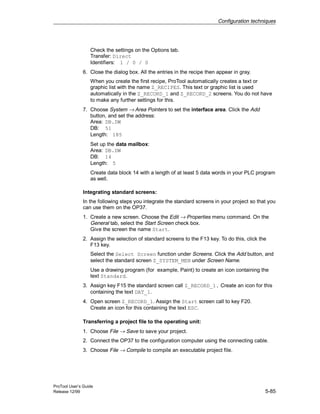
Icons (OP only)
Icons can be placed on the display for soft keys (keys assigned functions locally).
This is only possible for the FX keys arranged around the display.
To find out how to assign keys globally or locally, refer to What are function
keys? (Chapter 5.3.5)
Creating projects
ProTool User’s Guide
Release 12/99 4-11
4.7 Configuration notes for the touch panels
Screen partitioning basics
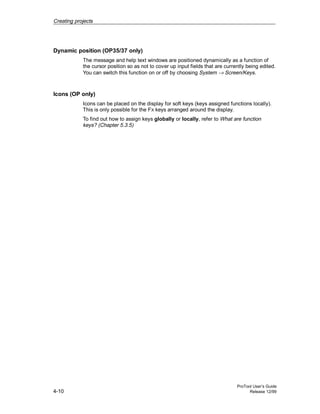
Before you start setting touch panel controls, you should give a thought to the
basic partitioning of a screen. Give consideration to where messages and input
windows will be opened in order to prevent unintentional overlapping of buttons
and input fields.
The figure shows an example of screen partitioning on the TP37.
System messages Global button
Fixed window
Message
indicator
Basic area
Event and
alarm messages
Local buttonLight indicator
Numerical
Input window
Help window
Example of Screen partitioning on the TP37
Touch grid
Enable the display of the touch grid with the illustrated symbol or by
choosing View → Interface from the menu. To do this, activate the Display
touch grid check box.
The touch grid designates the smallest possible spacing between two
points which the touch panel detects as single dots when its screen is
touched. The display grid makes it easier for you to position the controls.
You can place controls anywhere within the touch grid. The grid is not
visible on the operating unit.
Creating projects
ProTool User’s Guide
4-12 Release 12/99
Invisible buttons
If you use invisible buttons in your project, you should enable the display
of invisible buttons while configuring.
To do this, select the symbol illustrated or choose View → Interface from
the menu. Activate the Display invisible buttons check box in the open
dialog box.
Global buttons
Buttons and their assigned functions are available only locally on the screen
concerned. Therefore, position buttons which you want to be available globally in
every operating situation in the fixed window of the TP.
Overlapping controls
Mutual overlapping of controls is not allowed. Since overlapping controls may
result in undefined operating states, they are reported as errors when the project
file is compiled.
Creating projects
ProTool User’s Guide
Release 12/99 4-13
4.8 Selecting a PLC driver
Select the PLC driver with the project assistant in the Select PLC dialog box.
You can also define or later edit the parameters there if you select PLC Properties
in the project window.
Available PLC drivers
You can select the following drivers for devices with a graphics display:
• SIMATIC S5 - AS511
• SIMATIC S5 - FAP
• SIMATIC S5 - L2-DP
• SIMATIC S7-300/400
• SIMATIC S7-200
• SIMATIC 500/505
• Allen-Bradley DF1
• Allen-Bradley DH485
• FREE SERIAL
• GE Fanuc
• MITSUBISHI FX
• Modicon Modbus
• OMRON Hostlink/Multilink
• Telemecanique
Repercussions for tags
The address depends on the PLC you are using. The way in which the address of
a tag with a PLC connection is displayed depends on the PLC selected.
Select the available data types and data formats in the Tag dialog box under Type
or Format.
Creating projects
ProTool User’s Guide
4-14 Release 12/99
4.9 Which projects can you convert?
You can convert a ProTool project that you created for an OPx5 operator panel
into a project for an OPx7.
You can convert the following projects:
Source: Destination:
OP25 → OP27
OP35 → OP37
Example: How to convert an OP25 project
To convert an OP25 project into an OP27 project, proceed as follows:
1. Open the existing OP25 project.
2. Choose the File → Convert menu command.
3. Enter a name for the new project.
OP27 is selected as the device type, since other conversions are not possible.
4. Click Save. If you confirm the query that appears in response to this, the
project is converted and the OP27 project window opens.
Creating projects
ProTool User’s Guide
Release 12/99 4-15
4.10 Copying objects: Between projects and within a project
Principle
You can cut or copy selected parts of your project and paste them via the
clipboard. For example you can copy text and fields from the alarm message
editor to the event message editor, or graphic elements from one screen to
another.
The prerequisite for successful copying between projects is that the system limits
of the destination project must not be exceeded.
Preparations for new projects
Before starting to copy objects from an existing project, you should without fail
carry out the following global settings in the new project. This will ensure that no
loss of data occurs during copying due to different settings.
• Under the heading System → Screen / Keys make the subdivision of the
screen display the same as in the source project.
• Make the name and driver of the PLC the same as in the source project.
Procedures
There are two ways of pasting objects from the clipboard to the destination project:
• Menu command Edit → Paste
The object is pasted from the clipboard to the destination project. If there is
already an object of the same name in the destination project, the object is
pasted under a new name.
• Menu command Edit → Paste Special
Only objects that are different are pasted. If there is already an identical object
of the same name in the destination project, this is used. If there is an object
that has the same name but is not identical, the object from the clipboard is
pasted under a new name. You can utilize this copying variant to make the
destination project the same as the source project, for instance.
Note
In the case of both Paste and Paste Special, ProTool always checks the underlying
objects (such as the limit value tags of a tag which has been copied) to ensure that
existing objects are reusable.
If there is already an object of the same name in the destination project, the object
to be pasted will be renamed if necessary. It is given the next available name in
the destination project.
Creating projects
ProTool User’s Guide
4-16 Release 12/99
Example:
Tag VAR_4 will be renamed VAR_11 if tags VAR_1 through VAR_10 already exist
in the destination project.
What is copied?
You can copy the following via the clipboard:
• All objects listed in the project window, such as screens, text or graphic lists,
tags etc.
• Objects from screens (trends, fields, graphics etc.) in the screen editor.
• Messages and objects from messages (message text, fields, info text etc.) in
the message editor.
An object is copied complete with its attributes and all cross-referenced objects.
Special situations encountered during copying are reported in the system message
window under Clipboard. This gives you information about any objects that have
not been copied or renamed, for example.
Special situation with screens
If the object to be copied refers to a screen that does not exist in the destination
project, the underlying screen is not copied; instead a blank screen is created as a
dummy if the destination project does not contain a screen that can be reused.
This ensures that you will not copy the complete source project by mistake along
with the start screen.
Afterward, when you paste the screen via the clipboard, the dummy screen in the
destination project will be automatically replaced by the proper screen.
What is not copied?
These objects are not copied:
• Objects that are unknown in the destination project (such as functions or
command buttons when copying from TP27 to OP27)
• Area pointers
• Global function key assignments
• Character sets
• In the case of multilingual projects, only the languages available in the
destination project are copied. No new languages will be created.
Creating projects
ProTool User’s Guide
Release 12/99 4-17
4.11 Undoing and redoing actions
Purpose
During configuration, it may become necessary to cancel actions which have been
performed, or to reconstruct actions which have been discarded. The two
commands Undo and Redo in the Edit menu are used for this purpose.
• Cancel (Undo)
The Undo command (key combination Ctrl-Z) cancels the last action
performed. If you keep selecting the command, you can cancel up to 30
successive modifications.
• Restore (Redo)
The Redo command (key combination Ctrl-Y) revokes the last action canceled
thus restoring the status before the last Undo command was executed.
Principle
Each active editor (project window, screen editor, drivers for WS) has its own undo
history. Thus, for example, if three screens are opened at the same time, three
separate Undo Histories will be created. When a screen is closed, the actions
listed in the accompanying History are deleted. When the project is saved, all the
Undo Histories for the current project are deleted.
The last recorded action is displayed in abbreviated form in the menu. The Tooltips
contain more detailed texts for the Undo and Redo buttons and for the status bar.
Example:
• Menu
Undo: VAR_5 edited Ctrl-Z
Redo: PIC_2 edited Ctrl-Y
• Tooltip/Status bar
Undo: property edited of tag VAR_5
Redo: contents edited of screen PIC_2
Until the accompanying Undo History is deleted, deleted objects will continue to be
listed in the cross-reference (Chapter 4.12.1) as used objects. The status of these
objects is given in brackets after each object, e. g. PIC_5 (deleted).
Creating projects
ProTool User’s Guide
4-18 Release 12/99
General Information
The commands Undo and Redo only work with actions taken since the last time
the project was saved. If, for example, you move a screen object and then save
your project, you cannot later cancel this action.
These are some of the rules that apply to Undo/Redo:
• Settings in dialog boxes (properties of a field) can only be canceled in their
entirety. It is not possible to open the dialog box and discard individual entries.
• With multilevel dialog boxes, only changes to the primary object are recorded.
Modifications to underlying objects, or creations or deletions cannot be
reversed.
Example (project window):
Editing tags → Editing limit tags.
Only the tag changes can be reversed here.
• Undo/Redo is ProTool-specific. With a project integrated in STEP 7, the Undo
buffer cannot be accessed by a higher-level Step 7 Undo Manager.
4.11.1 Undoing the last action
To undo your last action in ProTool, choose one of the three following options:
• Choose the Edit → Undo menu command.
The last action that can be undone (canceled) is shown in abbreviated form
after the menu command. A longer description is given in the status bar.
• Click the Undo button in the toolbar.
This opens a Tooltip which shows you the last action that can be undone
(canceled). You are given the same information in the status bar.
• Press the CTRL and Z keys simultaneously.
In contrast to the first two options, you are not given any feedback about which
action has been canceled.
If you keep executing the Undo command, you can successively cancel all the
recorded modifications.
Creating projects
ProTool User’s Guide
Release 12/99 4-19
4.11.2 Redoing the last action
To redo your last canceled action in ProTool, choose one of the three following
options:
• Choose the Edit → Redo menu command
The last canceled action is shown in abbreviated form after the menu
command. A longer description is given in the status bar.
• Click the Redo button in the toolbar.
This opens a Tooltip which shows you the last canceled action. You are given
the same information in the status bar.
• Press the CTRL and Y keys simultaneously.
In contrast to the first two options, you are not given any feedback about which
action has been restored.
If you keep executing the Redo command, you can successively restore all the
recorded cancellations.
Creating projects
ProTool User’s Guide
4-20 Release 12/99
4.12 Retrieving project information
The following tools are available to you for displaying or storing information on a
project.
• Cross-references
• Project information
4.12.1 What is displayed in the "Cross-Reference" window?
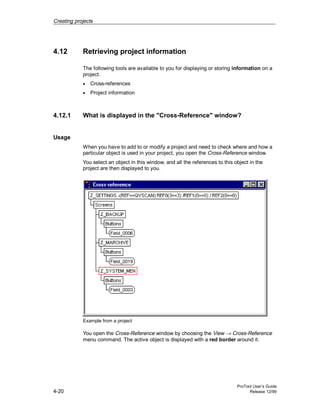
Usage
When you have to add to or modify a project and need to check where and how a
particular object is used in your project, you open the Cross-Reference window.
You select an object in this window, and all the references to this object in the
project are then displayed to you.
Example from a project
You open the Cross-Reference window by choosing the View → Cross-Reference
menu command. The active object is displayed with a red border around it.
Creating projects
ProTool User’s Guide
Release 12/99 4-21
The selected object is at the uppermost level, and all the objects in which the
selected object is used appear under it. The cross-reference list also contains
object in the current undo history(Undo actions (Chapter 4.11)). The status of these
objects is shown in brackets behind the object concerned - for example, PIC_5
(deleted).
Tip
You can use the Cross-Reference window efficiently for troubleshooting.
4.12.2 What can you view under "Project Information"?
To obtain information about a project when projects change or are adapted, open
the Project Information dialog box. To do so, choose File → Project Information
from the menu.
The Project Information dialog box displays general project data and the memory
required by the project. Project information is spread according to subjects over
three tab controls:
• General
• Description
• Statistics
General
The General tab control shows information on the device type, project name, path
name of the stored project file and creator of the project. You fill in the Creator
field and all the other fields are updated automatically by ProTool upon saving the
project.
Description
The Description tab control contains an input field for the project description. Here
you can enter any information you like that are important for your project.
Statistics
The Statistics tab control shows when the project was created, modified, generated
and downloaded, the ProTool version last used to edit the project and the memory
required by the project after it has been downloaded to the flash memory on the
operating unit. The memory requirement is determined and displayed following
the first download operation.
Creating projects
ProTool User’s Guide
4-22 Release 12/99
ProTool User’s Guide
Release 12/99 5-1
Configuration techniques
Overview
In this chapter you will learn how to
• create screens
• configure controls and display elements
• use tags
• configure messages
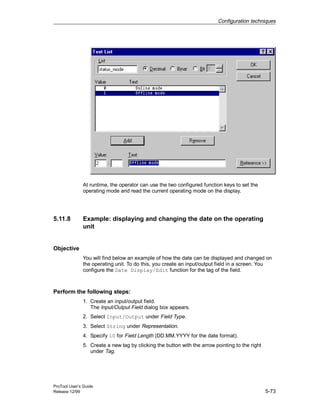
After that we will show you, for example, how you
• Using functions
• create recipes
• assign operator authorization
• create multi-lingual projects
5
Configuration techniques
ProTool User’s Guide
5-2 Release 12/99
5.1 Creating screens
5.1.1 What are screens?
Example
Screens are an image of the process. You can display processes on screens and
specify process values. The figure below shows an example of a mixing unit for
producing different juices. Ingredients are filled into a mixer from different tanks
and then mixed. The liquid levels in the tanks and in the mixer are displayed. The
intake valves can be opened and closed by means of the operating unit. The
motor for the mixer can be turned on and off in a similar manner.
Quantity in tank (in l)
Tank 1:
Tank 2:
Tank 3:
Bottling machine:
Tank 1 Tank 2 Tank 3
Quantity in Valve 4
to bottling machine
off on
Mixing unit
Fixed windowSoft key/button
Help ESC
mixer (l)
Example of a Screen - A Mixing Unit
Configuration techniques
ProTool User’s Guide
Release 12/99 5-3
Components of a screen
A screen can consist of static and dynamic components. Static components
include text and graphics. Dynamic components are linked to the PLC and
visualize current values from the PLC memory. Visualization may take place in the
form of alphanumeric displays, trends and bar graphs. Dynamic components are
also inputs made by the operator on the operating unit and written to the PLC
memory. The link to the PLC is established by means of tags (refer to Using tags
(Chapter 5.4.1)).
Screen editor
Screens are created with a separate editor in ProTool. The operating unit is
displayed when you call the screen editor. Open the screen editor by:
• double-clicking on Screens in the left half of the project window to create a new
screen
• double-clicking in the right half of the project window on an existing configured
screen to open the screen for editing.
You can zoom this display in and out by choosing View → Zoom from the menu. If,
for example, you wish to edit details you can do it much more simply by zooming
in on them.
Screens are stored under a symbolic name. You enter a name by choosing Edit →
Properties from the menu. This name has to be specified when you edit, reference
or delete the screen. In addition, screens are numbered automatically.
Start screen
Declare one screen in every project as a start screen. The start screen is the
screen that is displayed after the operating unit has started up.
To identify a screen as the start screen, select the screen and assign it as the start
screen by choosing Edit → Properties from the menu.
Fixed window
The fixed window is the window that is always flush with the top border of the
operating unit screen. By choosing System → Screen/Keys from the menu, you
can open and close the fixed window and adjust its height by dragging with the
mouse. Since the contents of the fixed window do not depend on the current
screen, you can output important process tags or the date and time to it,
for example.
You configure the contents of the fixed window in the screen editor. To access the
fixed window, click it with the mouse.
Configuration techniques
ProTool User’s Guide
5-4 Release 12/99
Soft keys/buttons
Soft keys are function keys configured for specific screens (refer to What are
function keys? (Chapter 5.3.5)). Buttons are virtual keys on the touch-sensitive
screen of the touch panel (refer to What are buttons? (Chapter 5.3.6)). You can
configure both soft keys and buttons for specific screens. When configuring, you
assign functions to these controls. You can illustrate the task of a control by means
of a graphic or text.
You can use soft keys and buttons to open another screen, turn a motor on and off
or display the message buffer, for example.
Selecting screens
Every configured screen has to be integrated into the control process so that it can
be opened at runtime on the operating unit. The Select Screen function is
available for this purpose. You an assign this function to an input field, a function
key or a button, for example. You specify the name of the screen as the
parameter. This means that a screen can be displayed by means of an input field
or a function key or button.
With input fields, soft keys and buttons, the function can be used only locally on
that screen. Should you wish the function to be available globally, you have to
configure the function on a Kx function key on the operating unit or on a button
positioned in the fixed window of the TP.
5.1.2 Screen objects in ProTool
Screens consist of individual objects. There are different types of object, which you
can use at will when configuring a screen. "At will" means that you determine the
number and type of the objects, as well as their position and size.
ProTool presents you with the following object types:
Screen
object
Name Description
Text With the text box you can configure static text:
various kinds of formatting are possible. Text
can be shown in a wide range of fonts. Text can
be entered over several lines and aligned
vertically or horizontally.
Configuration techniques
ProTool User’s Guide
Release 12/99 5-5
Character graphics By using character graphics, you can compose
graphics from the individual characters
contained in a symbol font.
If you use character graphics instead of
graphics, the memory requirement for your
project file will be reduced significantly.
Graphics With the graphic field you can use graphics
from other graphics programs in your
configuration.
Input/output field With the input/output field, you can enter or
display process values directly. Different display
formats - for example, decimal and binary - are
possible. There are a large number of
formatting options, such as colors, flashing,
etc.
Symbolic input/output
field
Instead of the numerical value of a tag, a text
or a graphic is displayed, to make the current
status more comprehensible to the operator.
The assignment between the values of the tags
and the text or graphics is configured in a text
or graphic list (text list or graphic list).
For example, instead of the numerical values 0
and 1, the phrases Motor Off and Motor On are
displayed.
Trend graphics A trend graphic contains the settings for the
coordinate system - for example, the X and Y
axes. You can display several different trends
on a trend graphic.
Bar graph Bar graphs display a value from the PLC as a
rectangular area. Bar graphs are practical for
displaying fill levels, for example.
Button (Touch panels) Buttons are objects that trigger a function by
using a touch-sensitive screen. You can
configure the function triggered. Buttons can be
freely labeled with text or a graphic.
"Set/Reset Bit" button
(Touch Panel)
Button with a fixed function: to set or reset a bit
in a tag.
"Select Screen" button
(Touch Panel)
Button with a fixed function: to select a different
screen.
Light indicator
(Touch Panel)
Button with a fixed function: light indicators
show the status of a defined bit, for example, by
changing color or by a flashing text.
Configuration techniques
ProTool User’s Guide
5-6 Release 12/99
5.2 Configuring display elements
Purpose
You use display elements to monitor the machine or the system on the operating
unit. You can display current information, such as actual values from the PLC,
process and operating modes and malfunctions, on the operating unit as a
numerical value, in plain language or as a graphic.
Overview
There are essentially two types of display element available for the different tasks:
• Static display elements
Static display elements are pieces of text and graphics that are not linked to the
PLC. They do not react to user inputs and cannot be modified at runtime on the
operating unit. Use static display elements, for example, for system screens or
for textual or graphic explanations for controls and dynamic display elements.
Static display elements are
− Static text (What is static text? (Chapter 5.2.1))
− Graphics (What are graphics? (Chapter 5.7.1))
− Character graphics (What are character graphics? (Chapter 5.2.2))
• Dynamic display elements
Dynamic display elements can be linked to the PLC by means of tags. They
visualize current values from the PLC in alphanumeric or graphic form.
Dynamic display elements can change their display spontaneously at runtime
on the operating unit without the operator intervening.
Use dynamic display elements for all tasks associated with monitoring the
process, a machine or the system.
Dynamic display elements are
− Output fields (What are output fields? (Chapter 5.2.4))
− Trend graphics (What are trend graphics? (Chapter 5.3.3))
− Bar graphs (What are bar graphs? (Chapter 5.3.4))
− Light indicators (What are light indicators? (Chapter 5.2.5))
Detailed descriptions of the different steps to configuration will be found in the
ProTool online Help.
Configuration techniques
ProTool User’s Guide
Release 12/99 5-7
5.2.1 What is static text?
Purpose
Static text is text that is not linked to the PLC. It cannot be modified at runtime on
the operating unit. Use static text (on one or two lines) to explain segments of a
configured screen - for example, for labeling controls and dynamic display
elements.
You can configure static text separately for any language available on the
operating unit.
Fonts
Different fonts are available to indicate the relative importance of text strings on a
screen by means of the font or the font size. All the characters in the font must be
of the same width. This requirement is not met by all fixed-pitch fonts -
for example, Courier.
You can set up to four different fonts for the operating unit. Three fonts are
language dependent, one font is language independent.
• Language-dependent fonts
With language dependent fonts, you can use different characters for every
language available on the operating unit. By default, ProTool fonts are included
in the scope of supply. But you can any Windows font, provided that it is a
fixed-pitch font.
• Language-independent font
The same language independent font is used in all languages. By default, the
symbol set is preset. The symbolism is used for character graphics (What are
character graphics? (Chapter 5.2.2)).
Configure static text by selecting the symbol illustrated or by choosing
Insert → Text from the menu.
Configuration techniques
ProTool User’s Guide
5-8 Release 12/99
5.2.2 What are character graphics?
Purpose
Character graphics are static display elements that are not linked to the PLC. They
cannot be modified at runtime on the operating unit. By using character graphics,
you can compose graphics from the individual characters contained in a symbol
font. An example of character graphics is illustrated below.
If you use character graphics instead of graphics, the memory requirement for
your project file will be reduced significantly.
Configure character graphics by selecting the symbol illustrated or by
choosing Insert → Character Graphics from the menu.
Line characters
Complete symbol packages are available for user-friendly drawing of polylines.
The symbol packages contain symbols for all representations of paths such as
horizontal and vertical lines, corners, crosses and bifurcations. The scope of
supply contains three fixed symbol packages the line characters single, bold
and double. You can customize four other symbol packages (USER 1 through
USER 4) to cover your requirements.
Configuration techniques
ProTool User’s Guide
Release 12/99 5-9
5.2.3 What are graphics?
Purpose
Graphics are static display elements that are not linked to the PLC. They cannot
be modified at runtime on the operating unit. Use graphics, for example, for
displaying your system or as explanatory symbolism for dynamic display and
controls
Creating graphics
ProTool features an option of embedding external graphic editors via the OLE
interface. In this way you can create graphics with your usual applications without
having to become familiar with a new graphics program.
ProTool displays every graphic you are using as a bitmap, irrespective of whether
you create the graphic with a pixel-oriented graphics program - for example, Paint
- or with a vector-oriented graphics program. Vector graphics are converted into
pixel graphics before being displayed in ProTool.
Configure graphics by selecting the symbol illustrated or by choosing
Insert → Graphic from the menu.
Color presentation on the operating unit
With pixel graphics, if you notice differences between the colors displayed on the
operating unit and those configured in ProTool, proceed as follows:
On the configuration computer, select in the start menu Settings → Control Panel
→ Display and on the Settings tab, select at Colors the setting True Color.
Retain this setting for configuring and compiling the project.
Configuration techniques
ProTool User’s Guide
5-10 Release 12/99
5.2.4 What are output fields?
Purpose
Output fields display current values from the PLC on the operating unit. The
values may be output optionally in numerical, alphanumeric or symbolic form.
Numerical and alphanumeric output
Output fields for numerical or alphanumeric values show the value as a number or
as text. A numerical value, for example, is the number 80 as the actual value of a
temperature. An alphanumeric value, for example, is the text string Valve_12.
Configure output fields for numerical and alphanumeric values by
selecting the symbol illustrated or by choosing Insert → Input/Output Field
from the menu.
Symbolic output
Output fields for symbolic values do not display the true value but, optionally, a
text string or a graphic from a text or graphic list. For example, you can store the
two states of a valve in a text list or in a graphic list. When the valve is open, the
output field then points, for example, to the text string OPEN or to a corresponding
graphic.
By using output fields for symbolic values, you eliminate misinterpretations on the
part of the operator to a large extent, since a symbolic value often presents a state
more lucidly than an abstract numerical value, for instance.
Configure output fields for symbolic values by selecting the symbol
illustrated or by choosing Insert → Text or Graphic List from the menu.
5.2.5 What are light indicators?
Purpose
A light indicator is a dynamic display element on a touch panel. Light indicators
indicate the state of a defined bit - for example, by means of a change of color or
by flashing text. Light indicators are shown with a simple border for visual
distinction of buttons which you can press.
Configure light indicators by selecting the symbol illustrated or by
choosing Insert → Light Indicator from the menu.
Configuration techniques
ProTool User’s Guide
Release 12/99 5-11
5.3 Configuring controls
Purpose
You use controls on the operating unit to intervene directly in the process. They
are used, for example, to specify setpoints, trigger functions, open screens (What
are screens? (Chapter 5.1.1)) and acknowledge messages. You can assign a
password level to controls in order to prevent manipulation by unauthorized
persons.
Overview
The following controls are available in ProTool for the different tasks:
• Input fields (What are input fields? (Chapter 5.3.1))
• Input/output fields (What are combined input/output fields? (Chapter 5.3.2))
• Function keys/soft keys (What are function keys? (Chapter 5.3.5))
• Buttons (What are buttons? (Chapter 5.3.6))
By means of dynamic attributes (What are dynamic attributes? (Chapter 5.13.4))
you can indicate, for example, by means of a change of color or by flashing that
an operator input is expected at the control in a certain situation. Furthermore,
event-driven display and hiding of controls can be performed on the operating unit
(Hiding an object (Chapter 5.13.3)).
Detailed descriptions of the different steps to configuration will be found in the
ProTool online Help.
5.3.1 What are input fields?
Purpose
In input fields you enter values on the operating unit that are transferred to the
PLC. The values may be input optionally in numerical, alphanumeric or symbolic
form. If you define limit values for the input field tag, you can reject inputs on the
operating unit that are outside the specified range of values.
Configuration techniques
ProTool User’s Guide
5-12 Release 12/99
Numerical and alphanumeric input
In input fields for numerical and alphanumeric values you enter the value one
character at a time on the operating unit. A numerical value, for example, is the
number 80 as the setpoint for a temperature. An alphanumeric value, for example,
is the text string Valve_12.
Create input fields for numerical and alphanumeric values by selecting
the symbol illustrated or by choosing Insert → Input/Output Field from the
menu.
Symbolic input
In input fields for symbolic values you do not enter the value one character at a
time but select this value on the operating unit from a text list. During configuration
you assign symbolic text on the text list to every value of a tag. In this way,
for example, you can turn a motor on and off by means of the two entries ON and
OFF.
By using input fields for symbolic values, you prevent misinterpretations to a large
extent, since the operating unit accepts only the configured values on the text list.
Create input fields for symbolic values by selecting the symbol illustrated
or by choosing Insert → Text or Graphic List from the menu.
5.3.2 What are combined input/output fields?
Combined input/output fields display current values from the PLC on the operating
unit. You can also enter values that are transferred to the PLC at the same time.
The values may be input and output optionally in numerical, alphanumeric or
symbolic form. During input, the value you want to be output is not updated on the
operating unit.
If you define limit values for the input/output field tag, values that are outside the
specified range can be
• rejected upon input
• displayed in a different color, for example, when read out.
Create combined input/output fields by selecting the symbol illustrated or
by choosing Insert → Input/Output Field from the menu.
Create input fields for symbolic values by selecting the symbol illustrated
or by choosing Insert → Text or Graphic List from the menu.
Configuration techniques
ProTool User’s Guide
Release 12/99 5-13
5.3.3 What are trend graphics?
Purpose
A trend graphic is a dynamic display element. Trend graphics make possible a
particularly lucid form of continuous display of process data on the operating unit.
In a trend graphic, you can display several different trends (What are trends?
(Chapter 5.8.1)) simultaneously on your operating unit.
Configure trend graphics by selecting the symbol illustrated or by
choosing Insert → Trend Graphic from the menu.
5.3.4 What are bar graphs?
Purpose
A bar graph is a dynamic display element. Bar graphs display a value from the
PLC as a rectangular area. This means that you can tell at a glance on the
operating unit how far the current value is from the limits or whether a specified
setpoint has been reached. Bar graphs can be used to display fill levels or
quantities, for example.
Configure character graphics by selecting the symbol illustrated or by
choosing Insert → Bar Graphs from the menu.
Settings
Bar graphs are linked to the PLC by means of a tag. Apart from this tag, which
contains the value that is required to be displayed, you can define other tags in
order, for example, to visualize when a limit value has been reached or to display
or hide the bar field.
You can freely define the direction, scaling, bar and background color and also
labeling of the Y axis. You can also display upper and lower limit value lines for
indicating limit values.
The following figure shows a bar that is updated vertically and has limit value lines
drawn on it.
Configuration techniques
ProTool User’s Guide
5-14 Release 12/99
Limit value lines
80
60
20
40
0
100
Bar graphs with limit value lines
5.3.5 What are function keys?
A function key is a key on the operating unit for configuring a function assignment.
You can assign one or more functions to any function key in ProTool. The functions
are triggered as soon as the key is pressed. The function key assignment may be
locally or globally significant. You can assign a password level to function keys in
order to prevent manipulation by unauthorized persons.
Global assignment
Globally assigned function keys always trigger the same function, irrespective of
the current control situation. You can the open a specific screen, for example,
display queued messages or print the contents of the screen.
By using globally assigned function keys, you cut your configuration effort
considerably since you do not have to assign individual functions to global keys on
every screen.
Assign function keys globally by choosing System → Screen/Keys from
the menu. To do this, click in the Screen/Keys dialog box on one of the
keys K1 through KX or F1 through FX. You can specify the functions you
have assigned to specific keys on the operating unit by means of labeling
strips.
Note
By choosing System → Screen/Keys you can specify global settings for keys that
apply to all screens. The icons appear in each configured screen provided the
settings are not subsequently overwritten by an individual screen. In that case, the
changes apply only to that particular screen.
Configuration techniques
ProTool User’s Guide
Release 12/99 5-15
Local assignment
Locally assigned function keys trigger different actions on the operating unit
depending on the screen. A function key whose assignment may vary from screen
to screen is referred to as a soft key.
Assign soft keys locally in the screen editor. To do so, click in the screen
on one of the keys F1 through FX, which are arranged directly around the
operating unit screen. You can assign an icon that illustrates the soft key
function by means of text or a graphic to any soft key.
You can also assign soft keys globally. A global assignment is active on all screens
to which you do not assign a screen-specific function. Use globally assigned soft
keys, for example, to change from any screen to the same system screen.
Note
Do not assign functions that have to be permanently available on the operating
unit to soft keys.
5.3.6 What are buttons?
Requirements
Buttons can only be configured for touch panels. Before you start configuring
buttons, you should give a thought to the basic partitioning of the touch panel
screen (refer to Configuration notes for the touch panels (Chapter 4.7)).
Purpose
A button is a virtual key on the touch panel screen to which you can assign one or
more functions. You operate a button by touching the touch-sensitive screen. You
can customize the user interface by means of buttons.
You can assign a password level to buttons in order to prevent manipulation by
unauthorized persons.
Labeling
You can label buttons statically or dynamically with text or graphics.
• Static labeling:
When configuring the button enter a text or select a graphic. This type of
labeling is static, which means that it is not changed on the touch panel.
Configuration techniques
ProTool User’s Guide
5-16 Release 12/99
• Dynamic labeling:
When configuring the button, select a text or graphics list and an associated
index tag. The value of the index tag determines which list element is displayed
on the button at runtime.
Operation
Pressing or releasing a button triggers the functions that you set for these events.
To prevent the triggering of a function of a button that has been pressed by
mistake, move your finger from the button while still keeping the button pressed.
This process is not interpreted as a click event.
Check-back indication upon operation
When the button is pressed and released, it is animated by a change in border
color as is usual in Windows. Invisible buttons do not provide an optical check-
back indication upon operation.
Invisible buttons
Invisible buttons are transparent buttons that are not displayed upon the operating
unit. If you place invisible buttons on graphics, you can operate parts of the
graphic - for example, a motor or a valve - by touching the touch panel.
Buttons with a freely definable function
You can create on an individual basis, using a button with freely definable
function, all the buttons that you need for operating the TP. Create buttons
by selecting the symbol illustrated or by choosing Insert → Button from
the menu.
Buttons with a permanent function
ProTool features predefined buttons that can be operated and have the following
functions for quick and efficient configuration of standard functions for touch
panels:
• "Set/Reset Bit" button
• "Select Screen" button
Configuration techniques
ProTool User’s Guide
Release 12/99 5-17
"Set/Reset Bit" button
With the "Set/Reset Bit" button you can set or reset a bit in a tag. The bit
function is triggered as soon as you touch the button. On doing so, the bit
in set in the tag, for example. Press the button a second time to reset the
bit.
Create the button by selecting the symbol shown or by choosing Insert →
Set/Reset Bit from the menu.
Depending on the tag type and on the settings in the option buttons at bit function,
one of the following functions is automatically assigned to the button:
Setting Functions for tag type Condition
BOOL KF/INT
Set Set Bit Set Bit in Word Press button
Reset Reset Bit Reset Bit in Word Press button
Set/Reset Set/Reset Bit Set/Reset Bit in
Word
Press button
Set on Pressing
Button
— Set Bit on Pressing
Button
Press/release
button
"Select Screen" button
With the "Select Screen" button you can select a different screen on the
touch panel. The Select Screen function is triggered and the
corresponding screen is displayed as soon as you click the button.
Create the button by selecting the symbol illustrated or by choosing Insert
→ Select Screen from the menu.
Note
Do not assign functions that have to be permanently available on the operating
unit to soft keys.
Configuration techniques
ProTool User’s Guide
5-18 Release 12/99
5.3.7 Using buttons as direct keys
Purpose
You can also configure buttons on the TP as direct keys in order to allow keyboard
shortcuts without the usual delays caused by communications. Keyboard shortcuts
are a requirement for typing mode, for example.
Direct key types
Basically, you can configure two different types of direct key:
• PROFIBUS direct keys
• direct keys for controlling the direct key module
Simultaneous use of PROFIBUS direct keys and direct keys for the direct key
module is not possible within the same project.
PROFIBUS direct keys
With PROFIBUS direct keys, you set bits on the TP directly in the I/O area of the
SIMATIC S7. The bit area is defined in STEP 7. The bit is set when the direct key
is touched and reset when the key is released or when you quit the screen.
Requirements:
1. You have installed ProTool as integrated at the time the configuration is
compiled.
2. The touch panel is connected to a SIMATIC S7 over the PROFIBUS-DP during
operation.
3. You have defined the bit area for direct keys in STEP 7 (you will find
configuration tips in the Communication User’s Guide).
If all these requirements have not been fulfilled, ProTool interprets the configured
button as a direct key for driving the direct key module. The number of PROFIBUS
bits that can be manipulated by means of direct keys depends on the touch panel:
Panel No. of Bits
TP37 40 (0 to 39)
TP27 24 (0 to 23)
Configuration techniques
ProTool User’s Guide
Release 12/99 5-19
Direct keys for the direct key module
You can use these direct keys to drive the outputs (ports) of the optional direct key
module at the back of the TP. The port is set when the direct key is touched and
reset when the key is released or when you quit the screen.
Requirements:
The TP is equipped with a direct key module and the requirements for PROFIBUS
direct keys are not met. The number of ports that can be configured depends on
the touch panel:
Panel No. of Ports
TP37 16 (1 to 16)
TP27 8 (1 to 8)
5.3.8 Using PROFIBUS screen numbers
If PROFIBUS direct keys use identical bits for different functions on different
screens, the S7 has to decide on the functionality concerned via the screen
number. To avoid delayed updating of the screen number on the PLC following a
change of screens, there is the PROFIBUS Screen Number screen function.
To use this function, choose Edit → Properties from the menu. On the Functions
tab, assign the PROFIBUS Screen Number function to the current screen at
Screens. For the parameter, specify a PROFIBUS bit that you want to have
reserved for the screen number and have set when the key is pressed. If you
assign this function several times, you can define a bit pattern for the screen
number.
The bits are set when the screen is opened and reset when you quit the screen.
The screen number bits are transferred to the SIMATIC S7 at the same speed as
the direct key bits.
5.3.9 Buttons with fixed functions
When you configure a touch panel, ProTool offers a selection of different buttons
that are already assigned frequently used functions:
• Set/Reset Bit and Set/Reset Bit in Word
• Select Screen
• Light Indicator
You will find detailed information on this in What are buttons? (Chapter 5.3.6)
Note
As with any other operating unit, instead of using these buttons you can use a
normal button and configure the function you require manually.
Configuration techniques
ProTool User’s Guide
5-20 Release 12/99
5.4 Using tags
Overview
Since tags are the most important means of communication between the operating
unit and the PLC and for exchanging data, a detailed explanation is presented
here of what tags are and what types of tag are used in ProTool.
5.4.1 What are tags?
Definition
A tag has a symbolic name and a defined data type. The value of the tag changes
while the PLC program is being executed.
Tags with a PLC link are referred to as global tags. Tags without a PLC link are
known as local tags.
• Global tags
A tag with a PLC link occupies a defined memory address on the PLC, to which
read and write access is possible from both the operating unit and the PLC.
• Local tags
Local tags are not connected to the PLC. They are available only on the
operating unit. You create local tags, for example, so that the operator can
enter limit values on the operating unit.
Tag types
ProTool recognizes the following tag types (but these are not available on every
PLC):
Data Type Bit System Range of Values
INT 16 bit - 32768 through 32767
UINT 16 bit 0 through 65535
LONG 32 bit - 2147483648 through 2147483647
ULONG 32 bit 0 through 4294967295
FLOAT 32 bit Upper limit value: ± 3.402823 e+38
Lower limit value: ± 1.175495 e-38
BOOL – true (1), false (0)
STRING – 1 to 80 bytes
Array tags This tag type combines a random number of tags of the same
type to form a total, which can be handled as a whole.
Configuration techniques
ProTool User’s Guide
Release 12/99 5-21
5.4.2 Properties of tags
To define a tag, set the properties of the tag.
The following figure shows an example of the Tag dialog box for the SIMATIC S7.
Tag Dialog Box for the SIMATIC S7
Tag definition (Section A)
The available data types and data formats depend on the PLC you selected. You
select them in the Tag dialog box at Type of a tag (see ProTool online Help).
Updating tags
The acquisition cycle determines the time interval in which the value of a tag is
updated on the operating unit.
Configuration techniques
ProTool User’s Guide
5-22 Release 12/99
Result:
• If 0 is entered for the acquisition cycle, the tag is updated only when a screen is
called and then not updated any more.
• If a value > 0 is entered for the acquisition cycle of a tag, the tag is updated
periodically in the specified time and also when the screen is opened.
System default setting: 1 sec
The acquisition cycle is a multiple of the standard clock pulse, which you configure
for every PLC in the PLC dialog box. You globally modify the acquisition cycles for
all the tags of a project by setting the standard clock pulse.
Array tags
An array tag represents a number of tags of the same type with consecutive
memory addresses. If you wish to define an array tag, enter the number of
elements in the array in the Tag dialog box at Number Elements.
The system default setting is 1, in other words, the tag is not defined as an array.
The maximum number of elements in an array is 640.
Tip
You can use array tags for pattern trends, for example (see ProTool online Help).
Address (Section B)
The address determines the memory location of a global tag on the PLC. The
address therefore depends on the PLC you are using.
The display of the address depends on the PLC you selected. This section of the
Tag dialog box adjusts dynamically to the programmable address areas.
ProTool integrated in STEP 7 (Section C)
If you have installed ProTool in STEP 7 on an integrated basis, you can access the
STEP 7 symbol table directly in the Tag dialog box.
For performance reasons, ProTool does not automatically update the STEP 7
symbol table after every change. In order to make the latest changes to the
STEP 7 symbol table available in ProTool, update the display of the symbol table
in the Tag dialog box by clicking Update.
See the example in online Help with regard to the definition of an entity DB in the
symbol table.
Configuration techniques
ProTool User’s Guide
Release 12/99 5-23
Setting a start value
You can set a start value for the tag at Options. When the project is downloaded,
the tag is assigned the start value. The start value is displayed only on the
operating unit and is not stored on the PLC.
Example:
If tags are used for scaling trends and bar graphs, the initial value may be the start
value of the scaling.
Remark
This is not useful for tags of the type STRING.
Setting limit values
An upper and a lower limit value can be configured at Limit values for tags.
If the tag value is outside the defined range, in other words, it is higher or lower
than the limit value concerned - this has the following effect on the input fields, for
example. If the operator enters a value outside the configured limit values, the
input is rejected and the original value is retained.
Configuring tags with functions
You can assign functions to tags in input/output fields - for example, the Select
Screen function. The screen is selected as soon as the value of the tag changes.
5.4.3 Updating tags
At Options, you set how the values are transferred between the operating unit and
the PLC and updated:
• Write directly (system default setting)
After being entered on the operating unit, the tag value is written directly to the
PLC address.
• Write indirectly (only possible for SIMATIC S5 and SIMATIC S7)
In the case of indirect writing, the tag value on the PLC is written to an address
area, called the data mailbox. In order to ensure the coordinated execution of
the transfer and prevent unwanted overwriting of the tag value in the data
mailbox, bits are set in the interface area. The value can be fetched by the PLC
program from the data mailbox at the appropriate time.
By selecting Write indirectly, you can configure up to three identifications for
every tag, which are likewise written to the data mailbox.
You will find further information in the Communication User’s Guide.
Configuration techniques
ProTool User’s Guide
5-24 Release 12/99
• Read continuously
The tag is updated continuously, even if it is not on the open screen. This is
important with trends. One trend is normally required to be plotted when the
screen is not selected.
• ONLINE
If you select ONLINE (default setting), the tag is serviced during operation. If
you deselect ONLINE, the tag is disconnected from the PLC during operation.
You can use this, for example, if you are taking only parts of the system into
operation.
5.4.4 Example: How to set the acquisition cycle and the standard
clock pulse
System default setting: standard clock pulse 500 ms, acquisition cycle 1 s.
Set the standard clock pulse in the PLC dialog box. If you increase the standard
clock pulse to 1000 ms, the acquisition cycle for all tags is increased to 2 s.
Tip
In order not to overload communication between the PLC and the operating unit,
the times you set for the standard clock pulse should not be too short. This would
mean that other processes, such as the updating of trends or the execution of PLC
jobs, would take considerably longer.
5.4.5 Example: Scaling tags
The scaling of tags is configured as a function relating to a tag. The following
functions are available for this:
• Scaling Linear 1 and Scaling Linear 2
• Scaling Square 1 and Scaling Square 2.
If you configure no scaling, the tag value on the PLC corresponds to the tag value
on the operating unit.
Configuration techniques
ProTool User’s Guide
Release 12/99 5-25
Linear scaling
Scaling can be configured for any tag in the form
y = a*x + b.
• X = displayed value/input value
The Y value read from the PLC undergoes linear scaling before being displayed
on the operating unit as the X value. Inputs X on the operating unit undergo
scaling before being written to the PLC as the Y value.
• X = displayed value/input value
The Y value read from the PLC undergoes linear scaling before being displayed
on the operating unit as the Y value. Inputs Y on the operating unit undergo
scaling before being written to the PLC as the X value.
Example
You have configured 3 as the value of a6 as the value of b. The value 21 is
transferred from the PLC. It is inserted in the conversion formula, thus: 21 = 3 * X
6. This produces a value of 5 for X. That value is displayed on the operating unit.
Square scaling
Scaling can be configured for any tag in the form:
y = a * x^2 + b * x + c.
• X = displayed value/input value
The Y value read from the PLC undergoes square scaling before being
displayed on the operating unit as the X value. Inputs X on the operating unit
undergo scaling before being written to the PLC as the Y value.
• Y = displayed value/input value
The X value read from the PLC undergoes square scaling before being
displayed on the operating unit as the Y value. Inputs Y on the operating unit
undergo scaling before being written to the PLC as the X value.
Example
You have configured a value of 2 for a, and a value of 3 for b and 6 for c. A value
of 71 is transferred from the PLC. It is inserted in the conversion formula, thus: 71
= 2 * X^2 + 3 * X + 6. This produces a value of 5 for X. That value is displayed on
the operating unit.
Configuration techniques
ProTool User’s Guide
5-26 Release 12/99
5.5 Multiplexing
5.5.1 What is multiplexing?
Purpose
When multiplexing, you assign several tags to trends, bar graphs or input/output
fields, not just one. Assignment depends on the value of an index tag. A tag,
selected at runtime, is assigned to each of the index tag values.
Using the index tag, you can control all the tags of a screen, for example. This
spares you the trouble of configuring several screens for similar applications.
Applications
You can multiplex the following objects:
• Bar graphs (Chapter 5.5.2)
• Trends (Chapter 5.5.4)
• Trend tags (Chapter 5.5.5)
• Input/output fields (Chapter 5.5.6)
5.5.2 Multiplexing bar graphs
Purpose
When you configure a bar graph, you define in advance the tag from which you
want the values to be read and displayed on the operating unit. If you multiplex bar
graphs, the assignment of the bar graph to a tag is not static but depends on the
value of an index tag. This allows you to determine several tags whose values are
displayed, depending on the situation, as bar graphs at runtime.
Principle
Selection of the tags is controlled by means of the index tag. Every index tag
value has assigned to it a tag, with values read and displayed. The figure shows
the principle of multiplexing bar graphs by means of three examples.
Configuration techniques
ProTool User’s Guide
Release 12/99 5-27
2000
0
T1
T1
T2
T3
VAR_S1
VAR_1
VAR_2
VAR_3
VAR_S1 Display
0 VAR_1
1 VAR_2
2 VAR_3
Multiplexing bar graphs (principle)
In the bar graph shown, the contents of tanks T1, T2 or T3 are displayed on the
operating unit as a function of the index tag value VAR_S1. The tank contents are
read from tags VAR_1 through VAR_3.
5.5.3 Example: How to multiplex a bar graph
In the following example, three values of index tag VAR_S1 are assigned tags
VAR_1 through VAR_3. The PLC is a SIMATIC S7.
1. On the General tab, click the Multiplex button.
2. Configure index tag Var_S1. The value of the index tag determines at runtime
which tag is selected as a bar graph.
Select this button under index tag.
In the Tag dialog box, enter the symbolic name Var_S1 and the following
values.
Type: INT
DB: 15
DBW: 0
PLC: PLC_1
VAR_S1 accepts the values 0, 1 or 2. Each of these three values is now
assigned a separate tag.
Configuration techniques
ProTool User’s Guide
5-28 Release 12/99
3. Configure the multiplex tags VAR_1, VAR_2 and VAR_3:
Select this button under multiplex tag.
In the Tag dialog box, enter the symbolic name Var_1 and the following
values:
Type: INT
DB: 16
DBW: 1
PLC: PLC_1
Now click the Add button. The tag VAR_1 is accepted into the list and VAR_S1
is assigned to the value (index) 0 of the index tag.
Repeat this step with Var_2 and Var_3.
4. Confirm by clicking OK. A small cross now appears on the Multiplex button to
indicate that multiplexing is being used. The index tag is specified instead of
the tag.
5.5.4 Multiplexing trends
Purpose
When you configure a trend graphic, you determine in advance the trends that you
want to have displayed on the operating unit. If you multiplex trends, selection of
the trends is not static but depends on the value of an index tag. This allows you to
determine which trends are shown in the different situations at runtime.
Principle
Selection of the trends is controlled by means of the index tag. A trend is assigned
to every index tag value. The figure illustrates the principle of multiplexing trends.
Configuration techniques
ProTool User’s Guide
Release 12/99 5-29
PLC
Temp2 Temp3Temp1
DB 10 DW37 DW39 DW41
Trend graphic
Operating unit
Var1 Var2 Var3
Buffer1 Buffer2 Buffer3
1
0
2
Var_A: Index tag
Multiplexing trends (principle)
Temperature values Temp1 through Temp3 are stored in DB 10 on the PLC at
addresses DW 37, DW 39 and DW 41. Tags Var1 through Var3 are configured for
these addresses. A trend buffer is created for every single tag on the operating
unit. The size of the trend buffers depends on the configured number of
samples/max. The value of index tag Var_A determines the buffer from which the
values come for the trend graphic you want to have displayed.
With this type of multiplexing, all the trends are up to date in the background.
5.5.5 Multiplexing trend tags
Purpose
The standard case is to set up a separate trend buffer for each trend to be
displayed on the operating unit.
When multiplexing trend tags, write, depending on the value of an index tag,
different trend tags to a common trend buffer. This means that a trend graphic will
have displayed in it a trend with values read out from the trend buffer by different
tags.
This allows you to determine which trends are required to be shown in the different
situations at runtime. At the same time, you save storage space on the operating
unit by using a common trend buffer.
Configuration techniques
ProTool User’s Guide
5-30 Release 12/99
Principle
Every value of the index tag is assigned a trend tag which writes to the trend
buffer. The figure illustrates the principle of multiplexing trend tags.
PLC
Temp2 Temp3Temp1
DB 10 DW37 DW39 DW41
Trend graphic
Operating unit
Buffer
1
0 2
Var_A: Index tag
Var1 Var2 Var3
Multiplexing trends (principle)
Temperature values Temp1 through Temp3 are stored in DB 10 on the PLC at
addresses DW 37, DW 39 and DW 41. Tags Var1 through Var3 are configured for
these addresses. The value of index tag Var_A determines which tag writes values
to the trend buffer.
With this type of multiplexing, it is possible to display a larger number of process
values as a trend, since separate trend buffers are not created for every trend.
5.5.6 Multiplexing input/output fields
When you configure input or output fields, you define in advance the tag in which
inputs are applied and from which values required to be output are read. If you
multiplex input and output fields, the assignment to a tag is not static but depends
on the value of an index tag. This allows you to determine several tags whose
values can be displayed, depending on the situation, in an output field at runtime
or entered in an input field and modified.
Configuration techniques
ProTool User’s Guide
Release 12/99 5-31
5.6 Creating text or graphic lists
Purpose
Text or graphics are often more meaningful than abstract values. For example, the
pieces of text full and empty or two graphic symbols present the state of a tank
more lucidly than the corresponding numerical values. Which is why ProTool gives
you the opportunity to configure text or graphic lists.
These text or graphic lists are lists in which you assign an element from the list
to each tag value.
Usage
With text or graphic lists, for example, you can label buttons dynamically, display
text or graphics in output fields and select texts for input in input fields. To a large
extent, this eliminates misinterpretations in the display and operator errors during
input.
Further information on using text or graphic lists in a screen can be found under
• Input fields (Chapter 5.3.1)
• Output fields (Chapter 5.2.4)
• Buttons (Chapter 5.3.6)
Text list
A text list assigns text to every value of a tag. At runtime, the tag value determines
which text is selected from the list and displayed, for example, in an input/output
field on the operating unit.
To create a new text list, double-click Text or graphic lists in the project window.
Graphic list
A graphic list assigns a graphic to every value of a tag. At runtime, the tag value
determines which graphic is selected from the list and displayed, for example, in
an output field on the operating unit.
To create a new graphics list, select the symbol illustrated on the open
screen.
Configuration techniques
ProTool User’s Guide
5-32 Release 12/99
5.7 Graphics creation
5.7.1 What are graphics?
Purpose
Graphics are static display elements that are not linked to the PLC. They cannot
be modified at runtime on the operating unit. Use graphics, for example, for
displaying your system or as explanatory symbolism for dynamic display and
controls
Creating graphics
ProTool features an option of embedding external graphic editors via the OLE
interface. In this way you can create graphics with your usual applications without
having to become familiar with a new graphics program.
ProTool displays every graphic you are using as a bitmap, irrespective of whether
you create the graphic with a pixel-oriented graphics program - for example, Paint
- or with a vector-oriented graphics program. Vector graphics are converted into
pixel graphics before being displayed in ProTool.
Configure graphics by selecting the symbol illustrated or by choosing
Insert → Graphic from the menu.
Color presentation on the operating unit
With pixel graphics, if you notice differences between the colors displayed on the
operating unit and those configured in ProTool, proceed as follows:
On the configuration computer, select in the start menu Settings → Control Panel
→ Display and on the Settings tab, select at Colors the setting True Color.
Retain this setting for configuring and compiling the project.
Configuration techniques
ProTool User’s Guide
Release 12/99 5-33
5.8 Creating trends
5.8.1 What are trends?
Usage
• Realtime trend
With a realtime trend only one trend value at a time is read from the PLC for
each time unit (clock pulse) and added to the trend displayed on the operating
unit. Realtime trends are suitable for displaying slow, continuous patterns.
• Pattern trend
With a pattern trend, all trend values are read simultaneously from the PLC and
displayed as a trend on the operating unit by setting a trigger bit. Pattern trends
are suitable for displaying rapid changes if the trend variation, seen in its
entirety, (profile) is more interesting than individual values.
Trigger:
The trigger type defines how trend data is read in:
• Clock trigger (time triggered)
In the case of a clock trigger, the data that has to be acquired in the trend is
read from the PLC in a fixed, adjustable time slot. To do this, select Read
Continuously on the Options tab when you configure the tag. If the configured
number of samples has been reached, the oldest value is overwritten by every
new one.
By means of the specified time slot and the number of samples you want to
have displayed, you set the period of time that has to be covered by the trend
data. This type of trigger is suitable for realtime trends.
• Bit trigger (event triggered)
In the case of a bit trigger, data to be acquired on a trend is read in on an
event-triggered basis. The event is triggered by the PLC as a result of setting a
defined bit. There are two possibilities of reading in trend data:
− Single-value acquisition
Only one value is read from the PLC every time a bit is set. Single-value
acquisition is suitable for displaying realtime trends.
− Buffered data acquisition
Buffered data is read out from the PLC as an entire block every time a bit
is set. Buffered data acquisition is suitable for displaying pattern trends.
Configuration techniques
ProTool User’s Guide
5-34 Release 12/99
Communication areas for bit-triggered trends
For you to be able to configure bit-triggered trends, you have to set
communication areas by choosing System → Area Pointer from the menu and
create them on the PLC. The operating unit and the PLC communicate with each
other via these areas:
• Trend request area
This area can be used by the PLC to evaluate which trend is currently being
displayed on the operating unit.
• Trend transfer area 1
This area is used to trigger the trends.
• Trend transfer area 2
This area is required only for trends that you configure with a switch buffer.
A specific trigger bit is assigned to every trend in all bit areas. If, for example, you
have assigned trigger bit 4 to a trend, that trend will be identified by bit 4 in all bit
areas.
Switch buffer
A switch buffer is a second buffer which you can create for a pattern trend. While
the operating unit is reading the trend values from buffer 1, the PLC can already
write the new values to buffer 2. When the operating unit is reading buffer 2, the
PLC is writing to buffer 1. The switch buffer prevents the PLC from overwriting
values while the operating unit is reading the trend.
Buffer 2
Trend buffer is full, bit is set in trend
transfer area 1
Operating unit
reads
Buffer 1
PLC writes
Switch buffer: reading and writing trend values simultaneously
Configuration techniques
ProTool User’s Guide
Release 12/99 5-35
5.8.2 How a bit trigger works
When a screen containing a trend graphic with one or more bit-triggered trends is
opened on the operating unit, the operating unit sets the bits assigned to the
individual trends in the trend request area in each case. From the bits set, the
PLC can evaluate which trends are currently being displayed on the operating unit.
If the PLC program now sets both the bits assigned to the trends and the trend
communication bit in the trend transfer area, the operating unit detects the
trigger. It resets the trend bits and the trend communication bit and, depending
on the configuration, reads out one value or the entire buffer.
As soon as the conditions for a new trigger have been met, the PLC program sets
the trend bits and the trend communication bit again.
Once the screen has been deselected, the operating unit resets the bits set in the
trend request area.
Define the trend request area and trend transfer area by choosing System → Area
Pointers from the menu. You will find a description of these data areas in the
Communication User’s Guide.
Note
The position of the communication bit in the trend transfer area depends on the
PLC you set. Do not use this bit for the identification of bit-triggered trends.
5.8.3 Array tags for pattern trends
You can configure array tags for pattern trends. You use the number of elements to
set the size of the trend buffer. This number has to be identical to the number of
samples you set for the trend.
The pattern trend is represented by the array tag. If you use this array tag in a
recipe, you can save the pattern trend to a data medium on the operating unit and
read it back in, just like you would with any other data record.
Additional information on tag types can be found under Using tags (Chapter 5.3.1).
5.8.4 Interrupting the recording of trend data
If you interrupt operation of the operating unit while clock-triggered trends are
being recorded, the X axis with the time label is updated immediately upon
restarting. The trend values are, however, updated at the configured clock-pulse
rate and therefore temporarily do not correspond to the time values displayed.
Configuration techniques
ProTool User’s Guide
5-36 Release 12/99
For this reason, the vertical bar displayed on the screen is shown in the trend
graphic when recording restarts. The bar represents the time of interruption and
migrates continuously at the configured clock-pulse rate out of the trend graphic.
Interruption
0
100
0 60
Interrupted trend plotting
Configuration techniques
ProTool User’s Guide
Release 12/99 5-37
5.9 Configuring messages
Overview
To display process and operating states or to acquire and log process data on the
operating unit that you obtain on the process from the PLC, configure messages.
Messages are initiated by the PLC and can be displayed on the operating unit.
5.9.1 Reporting operating and process states
There are the following message types in ProTool:
• Event messages display routine operating and process states and processes.
• Alarm messages display critical or hazardous operating and process states
and require operating personnel to react by issuing an acknowledgement.
• System messages display states and faults of the operating unit, the PLC or
the communications between them. They are issued by the operating unit or by
the PLC.
For what purpose do you use messages?
The messaging system is responsible for the following tasks:
• Reporting events or states that can occur on the system or in the process:
− A state is reported immediately following its occurrence.
− The messages are presented to the operator as a function of their
significance (priority).
• Support in eliminating the cause of error conditions:
− Messages provide in-depth information on the causes of errors
(diagnostics).
− The process can be influenced as a result of the message.
• Printout: the message events are output to a printer.
5.9.2 What goes into a message?
A message consists of:
• a message number
• message text
• a message tag
• help text
Configuration techniques
ProTool User’s Guide
5-38 Release 12/99
The following messages are displayed on the operating unit but cannot be edited
in ProTool:
• The message number cannot be modified in system messages, standard S7
diagnostic results (S7 system messages) and NC alarms. (only with OP7 and
OP17).
• Message numbers of user defined S7 diagnostic results can be freely defined
in STEP 7 within certain limits.
• The message number is assigned to Alarm_S messages in STEP 7.
Message number
The message number is used to reference a message. In ProTool, you have a free
choice of message number (within the range 0 to 2000) and message text.
Message text
Message text contains the description of a message. The length of the message
text depends on the operating unit. The number of characters per line is marked by
this character at the top border of the window during configuration.
By choosing Edit → Style from the menu, you can select from the following styles
for the message text, depending on the operating unit: flashing, underscore, italic,
and capitals (text-based displays only).
Tip
You can also configure operator instructions as a message.
Message tags
A message can contain output fields with tags. They are also referred to as
message tags.
By choosing Edit → Style from the menu, you can select from the following styles
for output fields, depending on the operating unit: flashing, underscore, italic.
Insert an output field by selecting the symbol illustrated.
Note
The values of message tags are updated in the message buffer when messages
are active or are cleared, but not when messages are acknowledged.
Configuration techniques
ProTool User’s Guide
Release 12/99 5-39
Help text
Help text containing further details on a message can be configured for every
message. Help text is displayed for the operator in a separate window on the
operating unit by pressing the HELP key.
Enter Help text by selecting the symbol illustrated or by using the menu
command View → Help text.
5.9.3 What parameters do you set for messages?
You can configure the following parameters for messages:
• priority
• acknowledgement group
• print
• port / relay
Priority
High-priority messages are displayed before low-priority messages on the
operating unit. The lowest priority is 1.
• If several messages having the same priority are waiting to be displayed, the
most recent (last) is displayed.
• If several unacknowledged alarm messages having the same priority are
waiting to be displayed, you can choose whether the most recent (last ) or the
oldest (first) should be displayed.
Configure the priority in the Attributes dialog box for every single message. Set the
sort criterion by choosing System → Messages → Settings from the menu.
Acknowledgement group
Alarm messages can be assigned to acknowledgement groups. Configure the
assignment to an acknowledgement group for every single message. If you
acknowledge an alarm message in one acknowledgement group, all the alarm
messages in that group are acknowledged simultaneously (group
acknowledgement).
Configuration techniques
ProTool User’s Guide
5-40 Release 12/99
Print
If you select Print, the message event (active, cleared, acknowledged) is logged
automatically on the printer if you selected, at System → Messages → Settings,
Print on Message Event.
Configure printing in the Attributes dialog box for every single message.
Port / relay
If you select Relay, the "active" message event automatically drives the relay on
the operating unit.
If you select Port, the "active" message event automatically drives a port on the
operating unit. For this you have connect a direct key module (DKM) to the
operating unit.
You can configure the following ports for the different operating units:
OP25, OP27, TP27 Ports 1 - 8
OP35, OP37, TP37 Ports 1 - 16
Configure Port / Relay for every single message in the Attributes dialog box.
5.9.4 Acknowledging messages
Principle
An alarm message can be acknowledged either by the operator on the operating
unit or by the PLC program. By acknowledging an alarm message, you confirm
that you have taken notice of it.
Assigning acknowledgement groups
You can assign several alarm messages to a single acknowledgement group when
you configure alarm messages. This means that when the first alarm message is
acknowledged – for example, the cause of the malfunction- all the other alarm
messages in the same acknowledgement group (consequential malfunctions) are
acknowledged together.
A blank field in the message editor Attributes window is equivalent to entering 0.
The value 0 results in individual acknowledgement, i.e. when an alarm message
is acknowledged, only that alarm message is acknowledged. If you acknowledge
an alarm message in one acknowledgement group, all the alarm messages in that
group are acknowledged simultaneously (group acknowledgement).
You can allocate the messages to one of 16 acknowledgement groups.
Configuration techniques
ProTool User’s Guide
Release 12/99 5-41
5.9.5 How do you drive a port or relay?
Driving a relay
If you have activated Relay for a message, the relay connected to the operating
unit is driven.
The relay is energized upon the occurrence of the arrive event.
The relay is deenergized in the case of
• event messages: Departed Message Event.
• alarm messages: Acknowledged Message Event.
Driving a port
If you have activated Port for a message, the port connected to the operating unit
is driven - in other words, 24 V DC are applied.
The port is energized upon the occurrence of the arrive event.
The port is disabled again upon the occurrence of
• event messages: Departed Message Event.
• alarm messages: Acknowledged Message Event.
5.9.6 What settings are there for message classes?
You can configure the following parameters for message classes:
• acknowledgement
• printout
Acknowledgement
Alarm messages have to be acknowledged. Alarm messages are displayed until
they have been acknowledged.
Single acknowledgement: when you acknowledge a message only that particular
message is acknowledged.
Group acknowledgement: when you acknowledge a message belonging to an
acknowledgement group, all the queued messages of this group are acknowledged
as well.
Configuration techniques
ProTool User’s Guide
5-42 Release 12/99
Printout
Printing is enabled or disabled by selecting the Print attribute, or is enabled when
the message buffer overflows. The messages are printed on a printer attached to
the operating unit.
Configure Printout by choosing System → Messages → Settings from the menu.
5.9.7 Example: How to configure alarm messages
Example: set the alarm message area and configure an alarm message with a
SIMATIC 300/400 PLC
In this example, you will configure the alarm message area first and then an alarm
message.
1. Choose System → Area Pointers from the menu to create the alarm message
area. The Area Pointers dialog box is opened.
2. In the Type field, select the Alarm messages area pointer. Click the Add button.
3. The Alarm Messages dialog box is opened. Enter at Address:
DB: 10
DW: 2
Length: 2
PLC: PLC_1
You have just created an alarm message area for 32 alarm messages.
4. Confirm all settings by clicking OK. Exit from the Area Pointers dialog box
likewise by clicking OK.
Configuration techniques
ProTool User’s Guide
Release 12/99 5-43
5. Double-click the Alarm Messages window to open it. Position the cursor at
message No. 2.
6. Enter the following message: Motor temperature too high
7. Perform the following settings in the Attributes window:
Priority: 1
Acknowledgement: 7
Print: ã
The figure shows the configured alarm message:
5.9.8 What are system messages?
System messages are always implemented on the operating unit and cannot be
configured in ProTool. They are displayed in a process window.
What is reported?
A system message consists of a message number and message text. The
message text may contain internal system tags that provide further details on the
cause of an error message.
System messages provide information on operating unit operating states. The
wealth of possible system messages ranges from notes to serious errors.
Note
You will find a list of system messages of the operating units, their causes and, if
possible, remedial action in an appendix to the Communication User’s Guide.
Configuration techniques
ProTool User’s Guide
5-44 Release 12/99
Displaying system messages
Choose System → Messages → System Messages from the menu system to set
the system messages you want to have displayed and how long they are to be
displayed.
Note
The 0 setting means the display is static. The process window is not closed until
you press ESC.
5.9.9 Example of a system message
SIMATIC OP
The system messages of the operating unit are read out.
316 Invalid Password Level
Some system messages expect confirmation or a decision by the operator -
for example:
557 Save data record?
0 Yes / 1 No
You decide on how you want to proceed by entering 0 (Yes) or 1 (No).
5.9.10 How to log messages on the printer?
Enabling and disabling message logging
To log messages on the printer, select the Print check box in the Attributes -
Message dialog box. The messages are logged when their status changes (active,
cleared, acknowledged).
By choosing System → Messages → Settings from the menu, you can select the
following settings for message logging:
• Message event
Message logging is activated for those message events for which the attribute
Print has been selected.
Configuration techniques
ProTool User’s Guide
Release 12/99 5-45
• Buffer overflow
When the specified remaining buffer capacity is reached, all messages are
printed out irrespective of whether printing is enabled or not. The message
buffer is then deleted.
• Off
Message logging is disabled.
You use the Message Log ON/OFF function to enable and disable printing of
messages (refer to Functions).
You will find more information on that topic in What is in the message buffer?
(Chapter 5.9.13)
5.9.11 Configuring printers for the operating unit
Attach a printer to your operating unit for the printout of process states or process
data reports.
For this you can configure one or more printers.
• In ProTool, some printers in the list box have already been defined.
Parameters have already been assigned to these printers.
• You can add more new printers to the list box in ProTool. You have to enter
the specific control characters contained in the printer manuals concerned for
these printers.
Perform the settings for the printers and the interface parameters by choosing
System → Printer from the menu.
Tip
Use the Z_PRINTER standard screen belonging to the standard configuration.
5.9.12 Displaying messages on the operating unit
Messages are displayed in special process windows.
Set the properties of the following objects by choosing System → Screen/Keys
from the menu:
• Message window/message line
Messages are output here.
• Message indicator
Indicates that alarm messages are pending or must be acknowledged. The
message indicator is used for acknowledging messages on touch panels.
Configuration techniques
ProTool User’s Guide
5-46 Release 12/99
Sort criterion for alarm messages
If several unacknowledged alarm messages of the same priority are queued,
select the sort criterion by choosing System → Messages → Settings from the
menu:
First The first (oldest) alarm message is displayed first.
Last The last (most recent) alarm message is displayed first.
If you configure the function Alarms - Display First/Last, you can change the sort
sequence in the operating unit too.
Tip
This function has already been implemented on the System Settings standard
screen of the standard project (refer to Standard Screens).
Standby message
The standby message is a special event message. The standby message is
event message number 0. It is displayed on the message bar if no other message
is pending on the operating unit.
Note
The standby message can have only message text and output fields containing the
date and time.
5.9.13 What is in the message buffer?
Definition
A message buffer is a memory area with battery backup in the operating unit RAM
in which message events are stored in chronological order. It takes the form of a
FIFO buffer with a specified size and does not have to be explicitly configured.
The size of the message buffer is 512 message events.
Data storage in message buffer
Every message event is stored with the following information:
• message number
• event identification (A for Arrived, D for Departed, K for AcKnowledged)
• time stamp consisting of date and time
• acknowledgement group QGR (with alarm messages only)
• message text
• value of the message tag at the time of arrival or departure
Configuration techniques
ProTool User’s Guide
Release 12/99 5-47
Example
Below is an example of output from the message buffer to the printer:
0010 D 11:58:08 27/03/98 QGR02
Boiler pressure too high: 7.9 bar
0029 K 11:40:47 27/03/98 QGR00
Oil supply shut off
0029 AK 11:38:09 27/03/98 QGR00
Oil supply shut off.
0010 K 11:35:18 27/03/98 QGR02
Boiler pressure too high: #### bar
0010 AK 11:34:26 27/03/98 QGR02
Boiler pressure too high: 12.7 bar
If a message contains process values, then those values that were available when
the message event arrived or departed are stored in the message buffer. In the
case of the Acknowledged message status, the operating unit does not acquire any
current process values. The characters ### stand for the value.
Behavior on overflow
Under System → Messages → Settings you can select whether an overflow
warning is to be output when the specified remaining buffer capacity is reached.
Before the messages are deleted, they are output to the printer. This applies to all
messages even if they are not marked with the attribute Print.
Using a standard screen
The following functions have already been implemented on the standard screen
known as Edit Message (Z_MESSAGES):
• Display event and alarm buffers
• Print event and alarm buffers
• delete event and alarm buffers
• Display event and alarm pages
• Open event message window
Configuration techniques
ProTool User’s Guide
5-48 Release 12/99
5.9.14 Set Message Window or Message Line
Set the display of messages on the operating unit by choosing System →
Screen/Keys on the menu. Choose between the following combinations:
• Window - window
Event messages and alarm messages are
displayed in separate message windows.
The alarm message window opens
automatically whenever an alarm message
arrives; enable and disable the event
message window by choosing the function
Event Window.
Event message window
Alarm message window
• Window - line
An alarm message is displayed in the
message window, whereas an event
message is displayed on the message line.
The message line is visible at all times. The
alarm message window opens automatically
whenever an alarm message arrives.
Alarm message window
Message line
• Window - off
An alarm message is displayed in the
message window. Event messages are not
displayed.
Alarm message window
• Line - line (not with touch panels)
The message line is visible at all times. Any
alarm messages or event messages that
are issued are displayed on the message
line according to their priority.
Graphics display units:
If no message is pending, the standby
message – if configured – is displayed.
Message line
Dynamic positioning (OP35, OP37 only)
You can activate Dynamic positioning by choosing System → Screen/Keys from
the menu.
This causes the position of the message and Help text windows to be changed
dynamically as a function of cursor position so that input fields just undergoing
editing are not concealed.
Configuration techniques
ProTool User’s Guide
Release 12/99 5-49
5.9.15 What does the message indicator show?
Set display of the message indicator on the operating unit by choosing System →
Screen/Keys from the menu. The message indicator indicates that alarm
messages are waiting.
• As soon as an alarm message is waiting, an alarm message window and the
message indicator are displayed.
• As soon as at least one unacknowledged alarm message is queued, the
message indicator flashes.
Message indicator on touch panels
On touch panels, the message indicator is an operable button and is used to
acknowledge alarm messages. It cannot be hidden for that reason.
The message indicator may assume two states:
• flashing: as soon as at least one unacknowledged alarm message is queued.
• static: when all queued alarm messages have been acknowledged but at least
one of them is not yet cleared.
Not until all acknowledged messages have departed is the message indicator
hidden. In this way it is not possible fore you to forget queued alarm messages.
If the alarm message window is shown on top, the alarm message page is opened
by touching the message indicator.
At each touch you can toggle between the alarm message buffer and the alarm
message page.
5.9.16 What communication areas are required for messages?
For communication between the operating unit and the PLC functions properly,
choose System → Area Pointers from the menu and establish in your project an
assignment to the following communication areas: event messages and/or alarm
messages
These areas are imperative if you have configured event messages and alarm
messages.
They must be chosen at least large enough for a bit to be available for every
configured message. If the communication area is not made large enough, a
warning will be issued during compilation of the project.
Configuration techniques
ProTool User’s Guide
5-50 Release 12/99
If you wish, you can create the following communication areas:
• PLC acknowledgement
• OP acknowledgement
5.9.17 Optional communication areas for messages
If you want the acknowledgement to come from the PLC, you have to create the
following acknowledgement areas by choosing System → Area Pointers from the
system.
• PLC Acknowledgement
The acknowledgement bit is set by the PLC program and thus causes
acknowledgement of the corresponding alarm message to be displayed on the
operating unit.
The PLC Acknowledgement acknowledgement area
− has to be contiguous with the associated alarm message area
− has to have the same acquisition cycle as the alarm messages area
− can have the same length as the associated alarm area at most.
• OP Acknowledgement
The operator acknowledges an alarm message on the operating unit and thus
sets the acknowledgement bit of this alarm message on the PLC. When he
does so, the entire acknowledgement area is transferred to the PLC.
The OP Acknowledgement acknowledgement area may have the same length
as the associated alarm message area at most.
Configuration techniques
ProTool User’s Guide
Release 12/99 5-51
5.10 Message procedure
5.10.1 How are messages initiated?
Message procedure:
The message procedure identified the transfer path of messages and thus also the
parameters of the messages. The message procedure in ProTool is the message
bit procedure.
With this message procedure, the operating unit detects the arrival, departure or
acknowledgement of a message by setting a bit in the address area, the bit being
assigned by choosing System → Area Pointers from the menu to the event/alarm
message area.
A message is event-driven and is issued when a bit is set in the PLC. The setting,
resetting and acknowledging of the bit is known as a message event.
Active (K) The message bit has been set and the message is waiting
to be displayed.
Cleared (G) The message bit has been reset because the cause that
gave rise to the message no longer exists.
Acknowledge (Q) With alarm messages only:
The operator (or the PLC) acknowledges the message to
confirm the noting of the message.
The message events have been acquired by the operating unit and time stamped.
The operating unit automatically enters all the message events in the message
buffer. In this way the message events can be viewed at a later time again.
Communication areas for messages
The display of messages on the operating unit is initiated by the PLC by a bit
being set on it in a defined communication area.
You can see which communication areas for messages have to be created on the
PLC in the following figure:
Configuration techniques
ProTool User’s Guide
5-52 Release 12/99
Alarm message area
Event message area
Adress areaDisplay
000x message
Message buffer
Printer
Operating unit PLC
Displaying messages
5.10.2 Message number procedure ALARM_S
Overview
This chapter gives detailed information on the ALARM_S message number
procedure.
It will show you how ALARM_S differs from the message bit procedure and how
the system behaves in the event of critical bottlenecks.
Requirements
You can only configure ALARM_S messages to be displayed on the operating unit
if you are using a SIMATIC S7 PLC and ProTool has been integrated into STEP 7.
Tip
It is considerably simpler to configure ALARM_S messages if you have installed
S7-PDIAG.
Configuration techniques
ProTool User’s Guide
Release 12/99 5-53
What is ALARM_S?
ALARM_S is a message number procedure. The message numbers are issued
automatically during the configuration process in STEP 7. The numbers are used
as the basis for assignment of the correct message text.
When a fault arises, the operating unit receives a message containing the
message number. On the basis of the number, the corresponding message text is
identified and displayed.
The S7-CPU stores not only the status of the message (arrived, departed,
acknowledged) but also the time. This information is not discarded immediately
after the messages have been sent, either, so individual network components (for
example, operating units) can log on later and update.
Advantages of ALARM_S
As compared with the message bit procedure, ALARM_S has the following
advantages:
• ALARM_S is an active message procedure. When a message is issued, the
CPU actively notifies all networked units. The operating unit is relieved of the
task of continually polling the message area.
• The process data always precisely reflects the situation at the time of the
message. This cannot be guaranteed with the message bit procedure.
• The time stamp precisely indicates when an event occurred even if the
operating unit is not connected until a later time.
Display classes
Individual messages can be assigned different display classes in STEP 7. When
configuring in ProTool, you then can then choose a specific selection of display
classes for an operating unit. In that way you can distribute the messages
selectively between different display units.
Priorities
You can assign the messages different priorities when configuring ALARM_S
messages as well.
Tip
Make sure that you assign messages that can bring about consequential errors a
higher priority than the consequential errors themselves.
Configuration techniques
ProTool User’s Guide
5-54 Release 12/99
Types of ALARM_S messages
With message configuration in STEP 7, there are two types of ALARM_S
messages: alarm messages and event messages.
Remark
You can configure in STEP 7 whether an ALARM_S message needs to be
acknowledged or not.
Configuring ALARM_S messages
ALARM_S messages are not configured in ProTool but in STEP 7 (refer to
Configuring ALARM_S messages (Chapter 5.10.5)). The advantage of this is that
the messages are compiled centrally and only have to be created once.
5.10.3 Display classes
What are display classes?
An S7-CPU always issues ALARM_S messages to all stations that are logged in.
However, it may be that you do not want to display all messages on a particular
operating unit in order to avoid a torrent of messages, for example. In that case,
specific messages could be displayed just on a control desk, for example.
In order to be able to control the display of messages so selectively, in STEP 7
each message can be assigned what is termed a display class. In all, there are
16 display classes (display classes 0 to 15).
Example:
Messages that are to appear on the machine might be assigned display class 1,
those that are to appear on the control desk, display class 2.
The various operating units then only analyze those messages that belong to
specific display classes. Any other ALARM_S messages are immediately
discarded.
Configuration techniques
ProTool User’s Guide
Release 12/99 5-55
COROS OP25
assigned
display class
COROS OP35
selected
display classes
Message A
1
Message B
1
Message C
0
Message D
2
1
1
0 2
Display classes determine which groups of messages are to be displayed on the OP
Specifying display classes
The display class to which an ALARM_S message belongs is determined when the
message is configured in STEP 7. For a precise description of the procedure,
please consult the information on message configuration in your STEP 7
documentation.
If you do not specify a display class in STEP 7 the message concerned is
automatically assigned to display class 0.
Selecting display classes
In ProTool you must specify which display classes are to be displayed on the
operating unit being configured.
You make your selection by choosing System → Messages → Settings. You can
find a precise description in the chapter called Setting the message procedure and
selecting the display classes (Chapter 5.10.4).
If you do not make a selection, all display classes (display classes 0 to 15) are
displayed as the default.
Configuration techniques
ProTool User’s Guide
5-56 Release 12/99
5.10.4 Setting the message procedure and selecting the display
classes
To specify the message procedure(s) you are intending to use, go to the Message
Settings dialog box. To access this dialog box, choose System → Messages →
Settings from the menu.
Message Settings dialog box
Select the required message procedures from the lower part of the dialog box.
Once you have selected ALARM_S, you can use the Alarm_S button to set the
message classes that will be displayed on the operating unit.
Note
If ALARM_S is the only message system you selected in ProTool for a project, the
entries for event messages and alarm messages will no longer be offered in the
ProTool project window.
Configuration techniques
ProTool User’s Guide
Release 12/99 5-57
Selecting display classes
When you select the Alarm_S button, the SIMATIC S7 ALARM_S dialog box
opens.
Dialog SIMATIC S7 ALARM_S
In this dialog box you can set, individually for each PLC on your system, the
messages to be displayed on the operating unit. By default, all messages are sent.
Tip
By deliberately selecting certain messages you can restrict the display on the
configured operating unit to certain display classes, in other words, to very
particular messages. Other messages can then be displayed on another device,
such as a control desk.
The lefthand column of the dialog box shows you a list of all the PLCs on your
system. For each PLC you can cause the operating unit to display no messages, a
selection of messages or all messages.
When you select the Details button, the Display Classes dialog box opens.
Configuration techniques
ProTool User’s Guide
5-58 Release 12/99
Display Classesdialog box
Display classes will have been defined when the PLC was being programmed in
STEP 7. At the same time each message will have been assigned to one or other
of these display classes.
You can now select individual display classes and define which messages will be
displayed on the operating unit.
Note
Messages of the Reporting system errors type are always displayed on the
operating unit, however many display classes are selected.
5.10.5 Configuring ALARM_S messages
Configuring messages in STEP 7
ALARM_S messages are always configured in STEP 7 rather than in ProTool. The
advantage of this is that you can use the messages on different display units but
only have to enter them once.
Configuration techniques
ProTool User’s Guide
Release 12/99 5-59
When configuring messages in STEP 7 you can either enter simple unformatted
text or make use of the facility for device-specific message configuration.
Depending on the display unit in question, you can then specify such effects as
flashing text and define additional information.
The following facilities are available for configuring ALARM_S messages in
STEP 7:
• Configuration using S7-PDIAG
• Configuration in S7Graph or HiGraph
• Call these via SFC17, SFC18
Note
Graphics display devices do not support tags with text lists which you can
configure in STEP 7 under Reporting system errors.
You can find detailed reference information about the procedure in the online Help
on STEP 7 and in the relevant option packages.
5.10.6 Incorporating ALARM_S messages
When configuring messages in STEP 7 the message text and attributes entered
are stored in the database shared with ProTool. During the process of compiling
the project, ProTool automatically imports the necessary data and subsequently
downloads it to the operating unit.
shared
database
COROS OP25
Configuring and downloading ALARM_S messages
It is therefore important that the shared database is always up to date during the
compilation process and that data synchronization is active.
Configuration techniques
ProTool User’s Guide
5-60 Release 12/99
5.10.7 Updating the operating unit
Since the S7-CPU stores the message information when a fault occurs, individual
network stations (e.g. an OP) can log on at a later date and obtain an update.
However, the S7-CPU only stores information about pending messages. Once all
events (arrival, departure, acknowledgement) have occurred, the message is
deleted from the CPU.
When obtaining an update, therefore, the operating unit processes any missing
events automatically if a message is not known to the PLC but the arrival and
acknowledgement events are not entered on the operating unit.
The events are not entered in the message buffer in that case, however.
Events processed in this way are identified on the operating unit by displaying the
message status symbols in inverse type thus:
*1234567 A KGQ HH:MM:SS DD.MM.YYYY GRU00
Boiler 13: temperature 190 degrees
Inform shift supervisor Tel. 007
Automatically processed events
5.10.8 Use of resources
ALARM_S messages are configured in STEP 7. The data is then stored in a
shared database, imported during the process of compiling the ProTool project and
finally downloaded to the operating unit.
That means that ALARM_S messages use up resources on the operating unit. The
shorter the messages are, the less storage space they will require. It is of no
consequence in this regard which message procedure is used.
More detailed instructions can be found in the section called System limits
(Chapter I). The appendix contains information about the memory requirement of
configurations, on the basis of which you can assess whether or not the memory of
your operating unit is large enough for the intended configuration.
Note
In STEP 7 there are restrictions regarding the number and size of tags that can be
used within a message. For more precise details, please consult your STEP 7
documentation.
Configuration techniques
ProTool User’s Guide
Release 12/99 5-61
5.10.9 Communication sequence
Logging On For ALARM_S
More than one station (e.g. more than one OP, PU, etc.) on a network can log on
for ALARM_S messages. Each station that wants to display ALARM_S messages
logs on to the CPU for ALARM_S.
OP
S7
CPU
PUTP
CPU
S7
MPI network
When a message event occurs
When a message-triggering event occurs, the CPU actively sends telegrams to
that effect to all stations that have logged on. The message number identifies the
corresponding message text that has previously been downloaded to the operating
unit.
This means that the CPU does not have to be actively scanned for messages by
regular polling as was the case with the message bit procedure. The operating unit
and network are completely relieved of that burden on the system.
Time stamp
With the ALARM_S procedure, the time stamp is not issued by the operating unit
but by the CPU. The messages are stored in chronological order on the basis of
their time stamp in the message buffer on the operating unit – even if they
originate from different CPUs.
Information stored
The CPU stores not only the time of the message but also the status (arrived,
departed, acknowledged) and any process parameters. That information is
retained until a message has been completely processed, i.e. until it has arrived,
departed and been acknowledged. On the operating unit, the information in the
message buffer is kept even longer.
Configuration techniques
ProTool User’s Guide
5-62 Release 12/99
5.10.10 Acknowledging ALARM_S messages
ALARM_S messages requiring acknowledgement
When a message is acknowledged by a station on the network, the CPU is
immediately notified. The CPU then distributes the acknowledgement to all
connected stations. It is only to this message that the operating unit responds, i.e.
only at this point does it enter the acknowledgement in the message buffer.
Note
The CPU issues a time stamp for the acknowledgement event but does not store
it. When a subsequent update is made, therefore, it is no longer possible to
establish whether and when a message was acknowledged (see Updating the
operating unit).
ALARM_S messages not requiring acknowledgement
Certain ALARM_S messages are configured as alarm messages but do not require
explicit acknowledgement by the user; the CPU acknowledges such a message
automatically when it arrives.
5.10.11 Printing ALARM_S messages
You specify which messages are to be output to a printer in the usual way in
ProTool by choosing the menu option System → Messages → Settings.
Message Logging
If you do not specify any device-specific message settings in STEP 7 (refer to
Configuring ALARM_S messages), all message events are automatically logged
directly to the connected printer.
If you configure device-specific messages, you can specify separately for each
message whether it is to be logged or not.
Messages are always printed in the order in which they are sent by the CPUs. This
is also the case with every synchronisation.
Remark
If there are several CPUs in a network, this means that messages need not always
be received in chronological order by the operating unit.
Configuration techniques
ProTool User’s Guide
Release 12/99 5-63
5.11 Using functions
Overview
Functions are a central element of configuration with ProTool. This section
explains what functions are and how to use them in practice.
5.11.1 What functions are used for
Basic principle
In ProTool, you can link events (e. g. "Key pressed") with predefined functions. If
the event occurs during operation, the function executes a specific action on the
operating unit or the PLC.
For example, the "Select Screen" function on the operating unit opens a particular
configuration screen.
Event
Press key
Action:
Screen is switched
Function:
Select Screen
A B
Triggering a function
Areas of application
In general, you can use functions to:
• Set up the configuration process-specifically
(e.g. to switch from one screen to another)
Configuration techniques
ProTool User’s Guide
5-64 Release 12/99
• Control the process
(e.g. to set a bit in order to switch on a motor with it)
• Use features of the operating unit
(e.g. to display or print out the message buffer)
• Perform system settings online on the operating unit
(for example, change modes)
In most cases, you can configure the behavior of the functions precisely by means
of parameters. If you want to trigger several actions, you can also combine
different functions.
Configuration
You configure functions on the Functions tab in the properties dialog box of the
relevant object.
For some operating units you can also define global entry points by choosing the
System → Functions menu command.
5.11.2 Events for triggering functions
Necessity
The execution of a function is always linked to a specific event. The function is
only triggered when this event occurs.
The events that can be linked to a function depend on the type of the function.
Many functions are only effective with certain specific events.
Examples
Examples of events that can trigger functions are the events "press key" and
"release key". In the case of the former, the function is executed the moment a
particular function key is pressed; in the latter case, it is executed the moment the
function key is released again.
Object-linked functions
Functions and events are generally linked to a specific object. For example, a
function linked to the event "press key" is to be triggered when a specific key is
pressed, not just any key.
Configuration techniques
ProTool User’s Guide
Release 12/99 5-65
The following objects can be linked to functions, for example:
• Function keys, soft keys and buttons
• Screen objects
• Screens
• Tags
Depending on the operating unit, it may not be possible to configure functions for
all these objects.
Tip
Functions with tags are triggered only if the Read Options Continuously tab is
selected or the tag is displayed on the screen.
Global functions
You can also link some functions to global, object-independent events. These can
be triggered in cases such as the following:
• when a tag is initialized or upon system startup
• when a value is entered
• when a screen shot is printed (Print Screen)
• when the message buffer overflows or is deleted
• when a data record of a recipe is read or written
Depending on the operating unit, it may not be possible to configure all events.
You will find a detailed description of all the permissible events in the
ProTool online Help under the topic Configurable events.
5.11.3 Function parameters
Necessity
Many functions can only execute one particular action. For example, the Events
- Delete Buffer function empties the buffer for event messages.
Configuration techniques
ProTool User’s Guide
5-66 Release 12/99
Function predefined action
Function without input parameters
However, many functions can also work in various ways.
Input parameters
Imagine that you want to open another screen using a key on the operating unit. To
do this, you configure the Select Screen function. However, your project will
generally have several screens. Which of these screens should ProTool open?
You therefore have to give the function more information. This is done using
parameters. For the Select Screen function, you specify as a parameter the
name of the screen to be opened, for example.
Another example is the Language function. In this case, the parameter you specify
is the language to be set.
Action depending on
input parameterFunctionInput
parameters
Function with input parameters
Some functions require a single parameter; others require several.
Output parameters
Some functions write the result of their execution (i.e. the current status) to a tag.
You can then further evaluate the value of this tag, for example in order to display
a setting-dependent text on the operating unit.
An example is the Mode function. You specify a code for the operating mode as
the input parameter, and the function supplies the same code in a tag as the output
value. The value of the tag lets you display the current operating mode by means
of a text list, for example.
Configuration techniques
ProTool User’s Guide
Release 12/99 5-67
Note
Output parameters cannot be configured for all operating units.
Output parameter
Evaluation
(optional)
Action depending on
Input parameter
FunctionInput
parameters
Function with input and output parameters
Special case: program-controlled behavior
In the case described above, the behavior of the functions does not change during
runtime. However, in the case of some operating units and some functions, you
can also pass the value of a tag as an input parameter. The behavior of the
function can thus be controlled by the program.
General principle
The following figure illustrates the principle of how a function works:
Tag
Tag
Constant
Function
How a function works
An input parameter is specified for the function. This can be either constant or read
from a tag. The tag may be local or it may have a connection to the PLC. If there
is a connection to the PLC, the value is set by the process. The result of the
function is written to a tag, which itself can either be local or have a connection to
the PLC.
Configuration techniques
ProTool User’s Guide
5-68 Release 12/99
5.11.4 Combining multiple functions
Multiple functions with one object
You can also assign an event several functions. The functions are then initiated
one after the other. You set the order in which this occurs in the Functions dialog
box during configuration. You can change the order of the functions by using the
Up and Down buttons.
Multiple functions with one object
Sequence
The list of functions is processed from the top down.
Note
On account of the differing runtimes of the functions, the start of the next function
in the list is not linked to the completion of the function preceding it in the list.
Thus, it can happen that several functions are being executed concurrently and the
result of a previous function is not yet available.
Configuration techniques
ProTool User’s Guide
Release 12/99 5-69
5.11.5 Buttons with fixed functions
When you configure a touch panel, ProTool offers a selection of different buttons
that are already assigned frequently used functions:
• Set/Reset Bit and Set/Reset Bit in Word
• Select Screen
• Light Indicator
You will find detailed information on this in the topic What are buttons.
(Chapter 5.3.6)
Note
As with any other operating unit, instead of using these buttons you can use a
normal button and configure the function you require manually.
5.11.6 Displaying and setting date/time
The date and time are displayed and changed using functions on the operating
unit. There is a function available for Date Display/Edit and a function for Time
Display/Edit in each case.
Configure these functions with tags that do not have a connection to the PLC. You
can only use one tag to which the date or time are linked in each project. If you
use more than one tag for this, they are not updated when the date and time are
set or changed.
Weekday
You can set the current date and time in a standard screen on the operating unit. In
contrast, you can only set and read the day of the week by means of PLC job no.
15. Before it is read for the first time, the day of the week must be set by means of
a PLC job.
You will find a list of all the PLC jobs in the ProTool online help system.
5.11.7 Example: changing the operating mode with a current display
The following example using the Mode function illustrates How to configure
functions with parameters. You also see how the result appears on the operating
unit.
Configuration techniques
ProTool User’s Guide
5-70 Release 12/99
Objective
You want to set the Online and Offline operating modes by means of two
function keys. The text "Online Mode" or "Offline Mode" is to appear on the
operating unit.
How to configure the functions
1. Create and open the screen in which the switchover and display take place.
2. Click the function key that you want to use to switch on the Online operating
mode.
The Function Key dialog box appears.
3. Select the Functions tab.
4. Select the Display Selectable Functions check box.
The Select Function window appears.
5. Select the Mode function under the Switch function group.
6. Click the Add button.
The Parameters dialog box appears.
7. Select the Operating Mode (Key) parameter from the list, and enter the
value 0 in the input field under the list. This parameter controls the behavior of
the Mode function, so the mode changes to online.
8. Select the Operating Mode (Field) parameter from the list. Here you
specify a tag to which ProTool assigns the value of the current operating mode
at runtime (0 for online mode, 1 for offline mode). This tag subsequently
controls the display.
Configuration techniques
ProTool User’s Guide
Release 12/99 5-71
9. Click the arrow pointing to the right under the list, and choose the New menu
command from the shortcut menu that appears.
The Tag dialog box appears.
10.Configure the following values for the tag:
Name: Operating Mode
PLC: <no PLC>
Type: INT
Decimal places: 0
11.Click OK to close the Tag and Parameters dialog boxes.
The function then appears in the Selected Functions list.
12.Click OK to close the Function Key dialog box.
The configuration of the function for switching on the Online operating mode
is thus complete.
13.Repeat steps 2 to 12 for the second function key. In step 7, however, you use
the parameter 1 this time. In step 8, you select for the second parameter the
Operating Mode tag created in step 10 when configuring the first function.
In the next step you can create an output field whose contents change dynamically
depending on the Operating Mode tag. The user can thus read on the operating
unit at any time which operating mode is currently set.
Configuration techniques
ProTool User’s Guide
5-72 Release 12/99
How to configure the display
1. Insert an input/output field in the screen. The Input/Output Field dialog box
appears.
2. Specify the following settings on the General tab:
Usage Tag
Field Type: Output
Representation: Text
3. Under Tag, select the previously configured Operating Mode tag.
4. Click the arrow pointing to the right under Text or Graphic List, and choose the
New menu command from the shortcut menu that appears.
The Text or Graphic List dialog box appears.
5. Give the text or graphic list the name Status, and create a text or graphic list
with the following data:
Type: Decimal
Value: 0 Text: Online Mode
Value: 1 Text: Offline Mode
Configuration techniques
ProTool User’s Guide
Release 12/99 5-73
At runtime, the operator can use the two configured function keys to set the
operating mode and read the current operating mode on the display.
5.11.8 Example: displaying and changing the date on the operating
unit
Objective
You will find below an example of how the date can be displayed and changed on
the operating unit. To do this, you create an input/output field in a screen. You
configure the Date Display/Edit function for the tag of the field.
Perform the following steps:
1. Create an input/output field.
The Input/Output Field dialog box appears.
2. Select Input/Output under Field Type.
3. Select String under Representation.
4. Specify 10 for Field Length (DD.MM.YYYY for the date format).
5. Create a new tag by clicking the button with the arrow pointing to the right
under Tag.
Configuration techniques
ProTool User’s Guide
5-74 Release 12/99
6. Choose the New menu command from the shortcut menu that appears.
The Tag dialog box appears.
7. Set the following:
Name: Date
PLC: <no PLC>
Type: STRING
Length: 10
8. Select the Functions tab.
9. Select, if appropriate, the Display Selectable Functions check box.
10.In the Select Function window, select the Date Display/Edit function under
Date/Time.
11.Click << Add to transfer the selection to the list of selected functions.
Configuration techniques
ProTool User’s Guide
Release 12/99 5-75
12.Close all open dialog boxes by clicking OK.
The date is then displayed in this field on the operating unit during operation
and can be edited.
Note
If you want to display the date in another field, you use the Date tag for this as
well.
Configuration techniques
ProTool User’s Guide
5-76 Release 12/99
5.12 Creating recipes
Overview
In this chapter you will learn
• what recipes and data records are
• how to configure recipes
• how to transfer data records between the operating unit and the PLC.
5.12.1 What is a recipe?
Purpose
The purpose of recipes is to transfer a group of related data to the PLC together
and synchronously.
Recipe and data record
The terms recipe and data record are defined below using the example of a filling
station for a fruit juice system:
Fruit juice system
Grapefruit
Lemon
Orange
Drink
Nectar
Juice
Apple
Recipe and data record in a filing cabinet analogy
Configuration techniques
ProTool User’s Guide
Release 12/99 5-77
• Recipe
Recipes correspond to the drawers of the filing cabinet shown (for example
Orange or Lemon). The reference value fields (tags) that belong to the recipe
are defined in the recipe. You use the recipe to define the data structure in your
ProTool project. You cannot change this structure subsequently on the
operating unit.
You can configure up to 255 recipes in ProTool.
• Data record
Data records correspond to the filing cards in the drawers of the cabinet (Drink,
Juice and Nectar). A data record contains the values for a recipe. You create,
delete and modify data records on the operating unit.
You can configure up to 500 data records for a recipe.
Example of a recipe
The filling station above is used to produce orange drink, orange juice and orange
nectar. The mixing proportions for each of these are different. The ingredients are
always the same. Let us assume that a recipe called Mixture is created,
containing, for example, the following data structure:
Tag Designation
Var_23 Name
Var_11 l orange
Var_7 l water
Var_19 kg sugar
Var_21 g flavor
The tag designations Name, l orange, g flavor etc., are known as entry
names. The entry names are displayed as well on the operating unit. Tag Var_11,
for example, can thus be identifed as the tag designating the mixture component
orange.
The data records contain the values for the different drink types. The data records
could be as follows, for example:
Orange drink Orange juice Orange nectar
Name Drink Name Juice Name Nectar
l orange 90 l orange 95 l orange 70
l water 10 l water 5 l water 30
kg sugar 1,5 kg sugar 0,5 kg sugar 1,5
g flavor 200 g flavor 100 g flavor 400
Configuration techniques
ProTool User’s Guide
5-78 Release 12/99
Same tags in screens and the recipe
For each ingredient (orange, water, etc.) there is a separate screen in the above
example, containing a supply tank, valves, an overview of the quantities used and
other information. The screens contain input fields that allow you to set the various
supply quantities for the mixer. You can thus enter the mixing proportions screen
by screen. The mixer is then started. This process is repeated for each drink type.
If the tags of the input fields are formed into a recipe, you can store finished
mixtures for the different drink types by creating data records on the operating unit.
The figure below shows how to use the same tags in screens and in the recipe.
To produce a specific drink type, the corresponding data record is transferred to
the PLC. All tags are thus assigned the required values at the same time.
Scr_1
Scr_2
Scr_3
Scr_4
Scr_5
Var_23
Var_11
Var_7
Var_19
Var_21
name
l orange
l water
kg sugar
g a r o m a
"Mixture" recipe
Var_23
Mixer
Var_11
Orange supply
Var_7
Water supply
Var_19
Sugar supply
Var_21
Aroma supply
Same tags in screens and the recipe
Configuration techniques
ProTool User’s Guide
Release 12/99 5-79
Note
If you use a tag in a recipe that is also assigned to an output field in the screen,
the PLC may overwrite the current value.
This situation occurs, for example, when data records are transferred from the
data medium to the PLC. The tags are updated in the operating unit, and the
values are then transferred to the PLC. In the meantime, however, the PLC could
have updated the output field tag. In this case, the value of the PLC is transferred,
not the value of the data record.
• For how to configure a recipe, see Configuring recipes (Chapter 5.12.2).
• For how to transfer data records, see Transferring data records
(Chapter 5.12.3).
5.12.2 Configuring recipes
Identifying a recipe on the operating unit
You create a recipe in your project with a symbolic name. You also use this
symbolic name to select the recipe on the operating unit. The recipe also receives
a number, but this is only valid during configuration.
You can change the recipe’s name and number. In the project window, open the
Recipe dialog box by means of a double-click, and then click the Properties button.
Identifying the recipe on the PLC
Three identifiers are available for identifying recipes on the PLC. You enter the
identifiers on the Options tab in the Recipe dialog box. The identifiers are user-
definable. ProTool automatically enters the number of the recipe in the first
identifier. The identifiers are written to the data mailbox when a data record is
transferred from the operating unit to the PLC and can be evaluated by the PLC.
Identifying a data record
You create a data record on the operating unit with a symbolic name. This name is
only relevant on the operating unit. When a data record is transferred, only the
data and the identifiers of the recipe are transferred. Apart from the identification
of the recipe, the PLC has no special way of identifying the data record. If you
want to identify the data record on the PLC, you create in the recipe a tag that
contains the name of the data record.
Configuration techniques
ProTool User’s Guide
5-80 Release 12/99
Tags in recipes
Tags that you use in recipes must have an address on the PLC and the attribute
Write Directly. Only these tags will be transferred to the PLC when a data
record is transferred. Tags without an address are not transferred. You set the
attributes on the Options tab in the Tag dialog box.
There is no point using the tag types Timer and Counter in recipes.
Standard screens for recipes
The standard screens Z_RECORD_1 and Z_RECORD_2 are available so that you
can create, save and transfer data records on the operating unit. These screens
exist in the standard project but are not yet integrated. Integrate the standard
screens in your project by assigning the Select Screen function to a function key,
for example. Specify the standard screen Z_RECORD_1 or Z_RECORD_2 as a
parameter. If you want to use both standard screens, assign each one to a function
key.
You only need the Z_RECORD_2 standard screen if you want to transfer current
data directly between the operating unit and the PLC.
Text or graphic list for recipes
When you create the first recipe, a text or graphic list with the designation
Z_RECIPES is created automatically. This text or graphic list is used in the
supplied standard screens for data records. The sequence in which the recipes are
entered in the text or graphic list is determined by the recipe numbers. You also
see this sequence on the operating unit when you select a recipe.
Data mailbox
To transfer data records, you must set up a data mailbox on the PLC and specify it
in your project by choosing System → Area Pointers. The operating unit writes the
identifiers and the length of the data record to the data mailbox. The data mailbox
must therefore be at least five words long. The figure below shows its structure.
1st
word
2nd
word
3rd
word
4
th
word
5
th
word Length of the data record
reserved
Identification 3
Identification 2
Identification 1
Structure of the data mailbox
Configuration techniques
ProTool User’s Guide
Release 12/99 5-81
Defining the structure of a recipe
When you have completed your project, you should define the structure of the
recipe. To do this, click the Properties button in the Recipe dialog box. When you
define the structure, you write-protect the recipe. This imposes restrictions on the
changes you can make to the structure. Tags can still be deleted, but this leaves
gaps in the structure. You can only add new tags at the end of the structure.
If you define the structure of the recipe, you can continue to use data records that
you created on the operating unit.
Using symbols
If you also save the symbolic names of the tags in the data record when you
create data records, you can still load data records on the operating unit after a
change to the recipe structure. To do this, click the Properties button in the Recipe
dialog box and select the Use Symbols check box.
If you do not select the Use Symbols check box, only the values are saved. The
symbolic names of the tags are not saved in the data record. If the recipe structure
is changed subsequently, values are interpreted incorrectly.
5.12.3 Transferring data records
Note
When data records are transferred from the data medium to the PLC, the data is
initially written to the tags in the working memory of the operating unit. From there
it is written to the PLC. If you have configured the attribute Read Continuously
for the tags to be transferred, or if the tags are configured as actual values in the
current screen, it may be possible for the tags to be overwritten with current
values. In this case, it is not the data read that has been read that is transferred
from the data medium to the PLC; instead, is the data that has been updated in the
meantime.
How to create data records and transfer them to the PLC is described in detail in
the manual of your operating unit.
Transferring data records when working on the operating unit (standard case)
The transfer of data records from the operating unit to the PLC and vice versa is
the standard case. The special cases are described in the Communication User’s
Manual. We recommend that you only transfer data records by using the operating
unit. To do this, use the standard screen Z_RECORD_1.
Configuration techniques
ProTool User’s Guide
5-82 Release 12/99
• Setting the transfer mode
The selection of the transfer mode depends on the operating unit and the PLC
used:
− Direct transfer:
When a data record is written, the tags of the data record are written
directly to the defined addresses. In direct reading, the tags are
transferred from the system memory of the PLC to the operating unit.
− Indirect transfer:
All the tags of the data record are written to the PLC’s clipboard.
Set the direct transfer mode.
• Creating data records
Data records can only be created on the operating unit and saved on a data
medium there. The data medium that can be used depends on the operating
unit. The Z_MEMORY text and graphic list is used in the Z_RECORD_1 standard
screen. This contains the assignment of data medium and value:
0: Flash
1: Module
2: Floppy disk
• Synchronization during transfer
An essential feature of recipes is that the data is transferred with
synchronization and uncontrolled overwriting of the data is thus prevented. In
order to ensure coordinated operation when data records are transferred, bits
are set in the control and acknowledgment area of the interface area.
The interface area for the SIMATIC PLCs is described in the Communication
User’s Manual. You will find information for non-SIMATIC PLCs in the ProTool
online help system.
Transferring data records by means of a PLC program
• PLC job
You can transfer data records from the PLC to the operating unit and vice versa
by means of PLC jobs 69 and 70. However, the PLC job only writes to the tags
or reads from them. The data record cannot be saved on the data medium or
read from the data medium directly using a PLC job. You have to use the
operating unit for this.
• Function
ProTool offers functions for:
− Reading data records from the PLC and saving them on the data medium
using the operating unit
Configuration techniques
ProTool User’s Guide
Release 12/99 5-83
− Reading data records from the data medium and transferring them to the
PLC
Assign a function like this to a tag. The parameters of the function contain
recipe names and data record names. Assign the parameters of the function
initially from the PLC. If the value of the tag is changed by the PLC, the
function is triggered.
5.12.4 Example: How to create a recipe
Task
In this example you create a recipe for the mixing station of a fruit juice system.
Different fruit juices are to be mixed using the same system. The ingredients are
the same; only the mixing proportions are different.
You begin by creating a recipe called Mixture and then a data record with the
name Orange. This data record contains the mixing proportions for orange juice.
The data record is transferred indirectly (in other words, the data is written to the
data mailbox). During transfer of the data record, the operating unit sets bits in the
control and acknowledgment area. You then have to set and reset bits in the PLC
program in order to release the data mailbox again.
The task involves the following steps:
• Creating a recipe
• Integrating standard screens
• Transferring a project file to the operating unit
• Creating a data record on the operating unit
• Transferring a data record to the PLC
Example system
You are going to create the example recipe for an OP37 linked to the SIMATIC S5
PLC via AS511. The PLC is the AG115U with the CPU 944.
Preparatory settings:
1. Open the standard project OP37_S5.pdb. Save the project with a new name
(for example QUICKMIX.PDB) by choosing File → Save As.
2. In the project window, select PLCs and double-click the entry in the right
column. To change the CPU type, click the Parameters button in the PLC dialog
box. Select the CPU type S5 115U CPU944 and close all the dialog boxes.
Configuration techniques
ProTool User’s Guide
5-84 Release 12/99
Creating a recipe:
1. In the project window, double-click Recipes to create the recipe described
below.
2. Create the new tag Var_23 for the data record name.
Type: KC
Length: 4 bytes.
Set an address for the tag on the PLC, for example DB 12, DW 0. Do not
change the PLC that is set. You can thus also use the tag in screens or
messages.
Do not change the attributes of the tag, since these already have the correct
settings for recipes.
3. Give the tag the entry name Name in the Recipe dialog box. Add the entry to
the recipe structure by clicking the Add button.
4. Create four more tags - Var_11, Var_7, Var_19 and Var_21 - for the mixture
ingredients orange (in liters), water (in liters), sugar (in kilograms) and flavor (in
grams) with the following settings:
Type: KF
Length: 2 bytes.
Specify DB 12 for the address as well. Configure 1 decimal place for tag
Var_19 (sugar).
In the Recipe dialog box, give the tags the entry names shown and add the
entries to the recipe structure. You define the structure of the recipe by means
of the order of the tags.
The value for Length represents the length in bytes. The value for Offset (in
bytes) sets the position in the structure. If you add its length to the offset of the
last entry, you get the total length of the data record.
Additional settings:
In the following steps you change the name of the recipe, set identifiers and
transfer mode and set up the data mailbox.
5. Click the Properties button in the Recipe dialog box. Change the name of the
recipe in Mixture. Freeze the structure of the recipe. To do this, select the Set
check box under Structure.
Configuration techniques
ProTool User’s Guide
Release 12/99 5-85
Check the settings on the Options tab.
Transfer: Direct
Identifiers: 1 / 0 / 0
6. Close the dialog box. All the entries in the recipe then appear in gray.
When you create the first recipe, ProTool automatically creates a text or
graphic list with the name Z_RECIPES. This text or graphic list is used
automatically in the Z_RECORD_1 and Z_RECORD_2 screens. You do not have
to make any further settings for this.
7. Choose System → Area Pointers to set the interface area. Click the Add
button, and set the address:
Area: DB.DW
DB: 51
Length: 185
Set up the data mailbox:
Area: DB.DW
DB: 14
Length: 5
Create data block 14 with a length of at least 5 data words in your PLC program
as well.
Integrating standard screens:
In the following steps you integrate the standard screens in your project so that you
can use them on the OP37.
1. Create a new screen. Choose the Edit → Properties menu command. On the
General tab, select the Start Screen check box.
Give the screen the name Start.
2. Assign the selection of standard screens to the F13 key. To do this, click the
F13 key.
Select the Select Screen function under Screens. Click the Add button, and
select the standard screen Z_SYSTEM_MEN under Screen Name.
Use a drawing program (for example, Paint) to create an icon containing the
text Standard.
3. Assign key F15 the standard screen call Z_RECORD_1. Create an icon for this
containing the text DAT_1.
4. Open screen Z_RECORD_1. Assign the Start screen call to key F20.
Create an icon for this containing the text ESC.
Transferring a project file to the operating unit:
1. Choose File → Save to save your project.
2. Connect the OP37 to the configuration computer using the connecting cable.
3. Choose File → Compile to compile an executable project file.
Configuration techniques
ProTool User’s Guide
5-86 Release 12/99
4. Set the OP37 to download mode.
5. Download the compiled file to the OP37 by choosing File → Download.
6. The start screen is then visible on the OP37. At the same time, the system
message PLC unavailable appears.
7. Connect the OP37 to the PLC. The system message disappears.
Creating a data record on the operating unit:
In the following steps you select the data medium on the OP37 (for example,
"FLASH") and format it. You then create a data record for the mixture orange juice
and save it on the data medium. The tags still have the value 0. You then edit the
data record and enter the actual values.
1. Call the DAT_1 screen from the start screen. The figure below shows the basic
structure of the standard screen Z_RECORD_1.
Data record editing
Recipe:
Data record name:
Comment:
Sorting:
Data medium:
Mixture
Juice
(Text)
A - Z
Flash
format
ESC
FLASH is already set for the data medium. Position the cursor on the Format
Data Medium field. Press the ENTER key twice. Always respond with 0 (for
yes) to the queries that follow.
2. The recipe Mixture is already selected. You can specify in the Sorting input field
how the data records are to be sorted:
- No sorting
- Alphabetical (A - Z)
- Alphabetical descending (Z - A)
- Chronological ascending (data +)
- Chronological descending (date -)
3. Position the cursor on the Data Record Name field. Specify the name Orange
for the data record.
Configuration techniques
ProTool User’s Guide
Release 12/99 5-87
4. Press the F16 key in order to edit the data record. The following query appears:
Create new data record?
0 (yes) / 1 (no)
Specify 0 for yes.
5. Position the cursor on each entry in the data record one after the other. Enter
the following values:
JUICE
95
5
0.5
100
6. Save the data record on the FLASH medium with ENTER. Confirm this by
specifying 0 for yes.
Transferring a data record to the PLC:
When the data record is transferred, the OP sets bits in data word 64 of the
interface area. You then have to confirm the transfer in the PLC program.
1. To transfer the data record, call the DAT_1 screen, assuming it is not already
available as a result of editing the data record. Press the F14 key to transfer
the data record from the data medium of the OP to the PLC.
2. In the PLC program, set bit 13 in DW 64 of the interface area to 1 for error-free
transfer. Then reset bit 11 in DW64 in order to release the data mailbox again.
The program code for this might be as follows:
A DB 51
L DL 64
T MB 200
UN M 200.7
U M 200.6
S M 200.5
R M 200.3
L MB 200
T DL 64
BE
Result:
The values for "Juice" are now located in the addresses on the PLC. The
identifiers are in the data mailbox.
5.12.5 Example: How to transfer data records
Remark
Use the standard project provided. A number of text or graphic lists and the
associated tags have already been created there, and you should use these.
Configuration techniques
ProTool User’s Guide
5-88 Release 12/99
The example describes the individual configuration steps required to enable data
records to be transferred from the operating unit to the PLC. To do this, you
associate the DAT → OP/PLC function with a tag. For the parameters of the
function you use tags already used in the standard screen Z_Record_1.
You proceed in an analogous manner to that described above when you want to
transfer data records in the opposite direction (i.e. from the PLC to the operating
unit).
1. Create an integer tag with the symbolic name VAR_212. Establish a connection
to the PLC.
2. In the Tag dialog box on the Options tab, select the Read Continuously
check box. If you do not do this, the operating unit will not detect it when the
value of the tag changes.
3. Change to the Functions tab. Under Data Record in the Select Function dialog
box, select the DAT → OP/PLC function.
4. Click the Add button to add the function to the Selected Functions field.
5. Set the function parameters. To do this, select the individual parameters one
after the other and assign the tags shown:
6. In order to be able to write to the tags from the PLC, they must have a
connection to the PLC. To do this, configure an address on the PLC for all the
tags specified for step 5. In addition, on the Options tab, assign the attribute
Read Continuously for all the tags.
7. Now trigger the function. To do this, on the PLC, assign to the following tags the
name of the recipe and of the data record that you want to transfer from the
operating unit to the PLC:
Z_MEMORY
Z_DATRNAME
Z_DATRINFO
Z_RECIPE
Specify the data medium as well. The comment is optional.
8. Change the value of the VAR_212 tag on the PLC. This triggers the function
associated with the tag. The data record is transferred from the operating unit to
the PLC.
Configuration techniques
ProTool User’s Guide
Release 12/99 5-89
5.13 Operator guidance
Purpose
In addition to the option of customizing the user interface of your operating unit to
make it easier for you to use, ProTool features other options for supporting and
prompting you on your operating unit as a function of the situation. This means
you can implement mechanisms and decision-making aids that can prevent
possible incorrect operations on the operating unit.
Overview
ProTool makes the following methods available for the implementation of operator
prompting:
• Providing Help text (Chapter 5.13.1)
• Assigning icons to local function keys (Chapter 5.13.2)
• Showing/hiding operating and display elements (Hiding an object
(Chapter 5.13.3))
• Applying dynamic attributes (What are dynamic attributes? (Chapter 5.13.4))
• Evaluating key operation (Chapter 5.13.5)
• Driving light-emitting diodes (Chapter 5.13.6)
5.13.1 Providing Help text
Help text provides additional information and operator instructions on screens,
input and output fields and messages to the operator at runtime. For example,
Help text may be in the form of the permissible range of values for an input field or
the cause and elimination of a malfunction in the case of an alarm message.
Configure information for objects on the Help Text tab.
Configured Help text is displayed in the language set on the operating unit by
pressing the Help key.
5.13.2 Assigning icons to local function keys
Icons are fixed-size pixel graphics that are placed in the immediate vicinity of
screen-specific function keys (soft keys). This means that you can illustrate the
function of a locally assigned function key.
You can prevent inadvertent, incorrect operation of a key to a large extent by
means of an informative symbol.
Configuration techniques
ProTool User’s Guide
5-90 Release 12/99
5.13.3 Hiding objects
Purpose
ProTool features an option of displaying and hiding control and display elements in
runtime. For example, you can hide an output field on the operating unit when the
actual value is within the specified setpoint range.
Alternatively, display an input field only when an operator input is expected for the
control in a specific situation – for example, during startup. The user interface of
your operating unit remains neat and tidy in this manner.
Index tag
You can either link display and hiding to a constant range of values or to the tag of
an input/output field, for instance. You can influence several input/output fields
simultaneously by using a separate tag.
If you assign a password level to the tag, you can display control or display
elements only for a specifically defined group of users.
5.13.4 What are dynamic attributes?
Purpose
To draw the operator's attention on the operating unit to specific situations –
for example, specified limit values have been reached or exceeded – you can
configure attributes for input and output elements. This means that you can
dynamically modify the foreground and background colors, for example, of an
input/output field at runtime as a function of the value of a tag, or you can enable
or disable flashing for the text that is being displayed.
Index tag
You can either link the specified attributed directly to the tag of an input/output
field, for instance, or you can define a separate index tag for it. You can influence
several input/output fields simultaneously with a separate index tag.
Configuration techniques
ProTool User’s Guide
Release 12/99 5-91
5.13.5 Evaluating key operation
Purpose
Key operations on the operating unit can be downloaded to and evaluated on the
PLC. This means, for example, that you can issue a message that will draw the
operator’s attention to the incorrect operation of a key.
Requirements
For the PLC to be able to evaluate whether and, possibly, which key has been
operated on the operating unit, you have to create specific data areas on the PLC
and specify them in your project at System → Area Pointers. These are the two
data areas System keyboard assignment and Function keyboard assignment,
depending on which keys you wish to evaluate. You set the assignment of the
function keys to the bits in the function keyboard assignment when you configure
the function keys.
You will find a description of the keyboard assignments for the different operating
units in the Communication Manual.
5.13.6 Driving light-emitting diodes
Purpose
The light-emitting diodes (LEDs) on the function keys of the operator panel can be
driven on the PLC. By means of a light-emitting or flashing LED, you can indicate
to the operator that, for example, the operating panel is expecting a certain
function key to be operated.
Requirements
For the PLC to be able to drive the LEDs, you have to create the LED assignment
data area on the PLC and in your project by choosing System → Area Pointers
from the menu. Set the assignment of the individual LEDs to the bits in the LED
assignment when you configure the function keys.
You will find a description of the LED assignment and the LED functions for the
different operating units in the Communication Manual.
Configuration techniques
ProTool User’s Guide
5-92 Release 12/99
5.13.7 Assigning operator authorization
Purpose
ProTool allows you to use a password to prevent controls such as input fields and
function keys from being used by those unauthorized to do so. This means that
when you are creating your project you can restrict the use of functions that relate
to security to specific people or groups of operators. Important parameters and
settings can thus only be changed by authorized personnel.
The access protection that you configure allows you to guard against incorrect
usage and increase the security of the system or machine.
Password hierarchy
During the configuration phase you can assign operator authorization to specific
groups. At runtime, individuals can be allocated to one of these groups, as
appropriate, and they thus automatically receive the access rights of that group.
ProTool provides hierarchically organized password levels from level 0 to 9. If a
user is assigned password level 4, for example, this user is authorized to execute
the functions of password levels 0 to 4.
• Password level 0
Password level 0 is the default in ProTool. Use this lowest level in the hierarchy
for functions that have little or no effect on the operational sequence. These are
generally functions that do not required any input, such as the display of
messages. You do not have to enter a password on the operating unit in order
to execute functions with password level 0.
• Password levels 1 to 8
Assign functions to password levels 1 to 8 according to their importance.
Before you execute these functions, the operating unit prompts you to enter a
password.
• Password level 9
The authorization to execute functions at password level 9 is granted only to
the System Administrator or service engineer. This provides access to all the
functions of the operating unit, including password administration.
You define the password of the System Administrator by choosing System →
Settings. The default setting is 100. You can change this setting on the
operating unit at runtime.
You can find more information on password administration in the equipment
manual for your operating unit.
Configuration techniques
ProTool User’s Guide
Release 12/99 5-93
Logging into and out of the operating unit
• When you call a password-protected operation, the operating unit automatically
prompts you to enter an appropriate password.
In order to eliminate the possibility of those without authorization gaining
access, a password level greater than 0 should not remain active on the
operating unit for any length of time.
• If you do not do anything on the operating unit for a configured period of time
(logout time), the operating unit automatically resets the current password level
to 0.
You set the logout time by choosing System → Settings.
The system preset is 5 minutes.
Note
To log into the operating unit, use the Z_PASSWORD standard screen in your
project.
Setting the password level on the operating unit
The following PLC jobs are available for setting a defined password level on the
operating unit:
• PLC job 23 allows you to set any password level on the operating unit from the
PLC, for example in order to allow a defined user group to use the operating
unit.
• PLC job 24 allows you to reset the password level to 0 from the PLC.
You will find a list of all the possible PLC jobs with job numbers and parameters in
the ProTool online help system.
Configuration techniques
ProTool User’s Guide
5-94 Release 12/99
5.14 Configuration in foreign languages
Overview
This chapter shows you what you need to know in order to create a project with a
user interface in a foreign language.
You can create a monolingual or a multilingual project. In a multilingual project you
can decide:
• whether to make several languages available on an OP and provide the user
with a key for switching between them
• whether to download only one language to a specific OP
5.14.1 System requirements for foreign languages
Depending on your Windows language, you can configure nearly all foreign
languages without having to perform changes to you Windows configuration.
The exceptions are languages with special character sets such as Greek, Polish,
Russian, Slovenian, Czech and Hungarian. To be able to use these languages, you
have to enable language support under Windows 95 (Control Panel → Software →
Windows Setup → Language Support → Details). This is not necessary in
Windows NT.
Alternatively, you can install Windows completely in one of these languages, of
course.
Note
The ProTool installation CD-ROM contains support for other languages not
supplied as standard with Windows such as Albanian, Bulgarian, Romanian,
Turkish, etc. in the directory WINLANGS. More detailed information is provided in
the file MULLANGO.INF.
To create projects in Asiatic languages, you require an Asiatic Windows system in
any case. You will find further information about this under the keyword
Requirements for configuring in Asiatic languages (Chapter 5.14.8).
Configuration techniques
ProTool User’s Guide
Release 12/99 5-95
5.14.2 User interface language and project languages
User interface language and project language
Basically, a distinction has to be made between two different display levels:
• ProTool’s user interface language.
This is the language in which text is displayed on menus and dialog boxes in
ProTool. The user interface language is selected in ProTool’s Setup.
• The project language for the operating units.
This is the language in which configured text appears on the operating unit. The
configuration can be created in all of the languages available on the
configuration computer under Windows.
The following objects contain language dependent text:
− event messages
− alarm messages
− screens
− recipes
− text lists
− help texts
The two language levels are completely independent of each other. For example,
you can create French projects with an English ProTool, or English projects with a
French ProTool.
User interface language
Editing language
up to
3 project
languages
-
Language levels in ProTool
Configuration techniques
ProTool User’s Guide
5-96 Release 12/99
Up to three project languages per operating unit
You can store text for any project in as many project languages as you like. You
can even download up to three of these project languages simultaneously to an
operating unit. The operator can switch from one language to another.
To do this, you configure the function Language.
Editing language
The project language in which you edit text at any given time on the configuration
computer is the editing language.
The toolbar and the status bar show the current editing language setting.
Reference language
One of the project languages can be used as the reference language. You can
create all the different pieces of text in the reference language first and then use it
as a basis for translations into other languages.
5.14.3 Configurable languages
Basic requirements
With ProTool you can configure all languages using Latin characters, as well as
Russian and some of the Asiatic languages.
You first have to load many of the languages in Windows, however, or you have to
install Windows in a different language (refer to System requirements for foreign
languages (Chapter 5.14.1)).
Standard projects
The most frequently used languages have been preselected in the standard
projects supplied with ProTool:
• German
• English
• French
• Italian
• Spanish
• Chinese (PRC)
• Chinese (Taiwan)
• Korean
Configuration techniques
ProTool User’s Guide
Release 12/99 5-97
Should you wish to configure another language, you have to add it yourself and
also translate the pieces of text in the standard projects.
System messages
System messages for your operating unit are available in the following languages:
• Chinese (PRC)
• Chinese (Taiwan)
• Czech
• Danish
• English
• Finnish
• Flemish
• French
• German
• Greek
• Hungarian
• Italian
• Korean
• Norwegian
• Polish
• Portuguese
• Russian
• Spanish
• Swedish
• Turkish
When you configure another language, all the system messages appear in
English. You cannot edit system messages in ProTool.
5.14.4 Language dependent fonts
In ProTool you can select four different character sets by choosing System →
Character Sets from the menu, and these are available to you on every screen:
• one language independent character set
• three language dependent character sets
Configuration techniques
ProTool User’s Guide
5-98 Release 12/99
Setting language dependent character sets
The language independent character set is available in all languages. The
language independent character set is the default symbol. The symbol set is used
for character graphics.
The character sets have to be a fixed-pitch font. This means that each letter is the
same width. In the case of proportional font, on the other hand, different letters
have different widths: The letter ”i” needs less space than the letter "w",
for instance.
The language dependent character sets may vary from language to language.
This is always necessary when certain language dependent special characters are
not contained in the ANSI code.
The language dependent character sets change automatically:
• when you change the editing language in ProTool
• when the operator changes from one language to another on the operating unit
5.14.5 Language dependent keyboard assignment
Language dependence
The characters on a PC keyboard are language dependent. For example, no
German or French special characters are available on an English keyboard.
Further, the letters are arranged somewhat differently.
As soon as you change the editing language in ProTool, it modifies the assignment
of your keyboard to the layout of the foreign language concerned.
Configuration techniques
ProTool User’s Guide
Release 12/99 5-99
Auxiliary window with keyboard layout
In order to facilitate the assignment of the characters printed on your keyboard and
those actually entered, ProTool displays a window containing the new key layout
on the screen.
You can then see where differing keys are located and can enter them directly.
Alternatively, you can directly click the different letters and special characters on
the screen with the mouse.
Example of language dependent keyboard with French as the editing language
The language dependent keyboard is hidden automatically as soon as you change
the editing language back to the current Windows language. You can also activate
and deactivate display of the language dependent keyboard by choosing View →
Keyboard.
5.14.6 Reference text
When you create a project for several languages, you normally configure all the
pieces of text in your native tongue first.
If you then change the editing language to enter text in a foreign language, all the
text fields appear blank again.
ProTool features a user-friendly reference text function so that you have a basis
for your translations. In dialog boxes, you can view the original text in the
reference language by clicking a special button. You can display an additional
window with reference text in the screen editors by means of the toolbar or by
choosing View → Reference Text.
Configuration techniques
ProTool User’s Guide
5-100 Release 12/99
Reference text
In the editor you can translate the pieces of text displayed in the window reference
text without having to change from one language to another to do so.
5.14.7 Steps to creating a multilingual project
Scenarios
The basic approach is identical no matter whether:
• you configure in a different language from that installed in ProTool.
(Example: you have ProTool in German and would like to create a French
project.)
• you want to sell a project to several countries, in the language of the countries
concerned.
(Example: you are sending a machine to Germany, England and France. You
want all pieces of text to be displayed on the operating unit in the language of
the countries concerned.)
• you supply a project to a multilingual country.
(Example: you are selling a machine to Switzerland. You want the operator to
be able to choose between German, French and Italian on the operating unit.)
Configuration techniques
ProTool User’s Guide
Release 12/99 5-101
In any case, you should always attempt to create and test the project in one
language first. This language then acts as your reference language for the
translations.
Steps
Configuring in foreign languages consists of the following specific work steps:
1. Comply with the requisite system requirements.
2. Define the languages you want to configure (choose System → Language
Assignment from the menu).
3. Select a language as the first editing language (choose Edit → Languages from
the menu). Create and test the complete project in this language first before
proceeding to translate all the pieces of text later together.
4. Setting up the character set (menu item System → Fonts)
5. Configure a language change (only when you want to offer several languages
simultaneously on one operating unit).
6. Translate the pieces of text. To translate them, change the editing language
(choose Edit → Languages). Select the language in which you created the
project as the reference language (likewise choose Edit → Languages from the
menu).
7. Select the languages to be downloaded to a specific operating unit (choose
System → Language Assignment from the menu). You can select a single
language but, alternatively, you can select up to three languages
simultaneously.
8. Compiling the project.
9. Download the project to the operating unit.
Detailed descriptions of the different steps will be found in ProTool online Help.
Note
Avoid moving fields in event messages and alarm messages when you modify a
configuration that has been created in several languages. Since there is no
permanent assignment between the field and its position within the text, you
should move the pieces of text – if necessary – instead of the fields.
Configuration techniques
ProTool User’s Guide
5-102 Release 12/99
5.14.8 Requirements for configuring in Chinese
Asiatic Windows system
A requirement for creating a project containing Asiatic text is an Asiatic Windows
system, because the requisite character sets can be accessed only on Asiatic
Windows systems.
To assist you with entering Asiatic characters, the "Input Method Editor" (IME) is
available on such systems, and you can use it to define text as phonetic
transliterations, for example. ProTool’s virtual keyboard is therefore not made
available.
Even the compilation must be carried out on an Asiatic Windows system,
otherwise the project language will be ignored during compilation.
Under certain conditions, it is possible to download projects in which an Asiatic
project language has been selected, on a non-Asiatic Windows system.
For this, the *.fud or *.fwd file created during compilation on an Asiatic
Windows system has to be available in the same directory as the *.pdb project
file. The *.pdb configuration file may only be opened before the download
operation, but not modified any more.
Tip
Many projects are multilingual and use, for example, English in addition to an
Asiatic language. In such cases you can first create and test your project on a non-
Asiatic Windows system. Not until it is completed do you change to an Asiatic
system, on which you configure and compile the Asiatic text and perform the
download operation.
It is practical in these cases to have both an Asiatic and a non-Asiatic Windows
system installed on your computer or to work on a network with different
computers for the languages concerned.
5.14.9 Constraints with Chinese projects
The languages Chinese (PRC), Chinese (Taiwan) and Korean are currently
supported.
Configuration memory
Use different character sets as sparingly as possible in a project. Every character
set you use reduces the amount of memory available for projects. Every font size
you load is a separate character set.
Configuration techniques
ProTool User’s Guide
Release 12/99 5-103
64 kB of configuration memory are available per character set, which
approximates to 1900 different Chinese characters, for example. If you configure
more Chinese characters, you obtain an error message during compilation to the
effect that the maximum number of characters has been exceeded. At the same
time, a list of the most infrequently used characters in the configuration is output.
Special characters
Special characters are ASCII characters > 127 – for example, ã, ±, ä, è, ó.
If you use a non-Chinese character set in text under an Asiatic Windows system,
you should not configure any special characters, because they are not displayed
correctly in the following cases:
• in text, input or output fields for the display of which on screens a non-Chinese
character set has been chosen
• for symbolic object names that are displayed, for example, in title bars
Non-Asiatic projects under Asiatic Windows NT
If you create projects under an Asiatic Windows system for a non-Asiatic language
– for example, German – it might not be possible to edit special characters in text
contained in dialog boxes on account of an operating system error – for example,
Help text or labeling on buttons.
To avoid this problem, you have the following options:
• Use another non-Asiatic Windows system.
• Edit your pieces of text in another application and then copy them to your
ProTool project.
• Adapt the registry: in the path
HKEY_LOCAL_MACHINESYSTEMCurrentControlSetControlFontAss
oc AssociatedCharSet all codes have to be assigned the value "no".
Restart Windows for these modifications to take effect.
Warning
This modification may affect other applications and for that reason you should
reset the codes in the Registry to their previous values upon completing your
project.
Configuration techniques
ProTool User’s Guide
5-104 Release 12/99
Messages
All system messages are also available in Asiatic languages.
The message number, message status (Active, Cleared, Acknowledged), date/time
and acknowledgement group remain single-byte characters in Asiatic
configurations.
Messages created with Asiatic characters cannot be exported or imported with
ProTool.
Print jobs on the operating unit
When using a symbolic language, all the print jobs are output in graphics mode to
the operating unit printer.
Field length
Field lengths depend on the width of the characters used. With Asiatic character
sets, the number of configurable characters in fields can be reduced as a result of
the double character width.
Standard projects
Standard projects and examples are also available in Asiatic languages.
ProTool User’s Guide
Release 12/99 6-1
Testing projects
Overview
In this chapter you will learn how to
• create an executable project file
• perform download settings
• download the executable project file to the operating unit, and
• test the project.
6
Testing projects
ProTool User’s Guide
6-2 Release 12/99
6.1 Testing projects
Once you have completed your entire project or self-contained parts within it, the
test phase comes.
The following steps must be taken:
1. Compile the project - in other words, create a file from the project that can be
run on the operating unit.
2. Download the project - in other words, transfer the project to the operating unit.
You have to carry out some settings for this.
3. You test the project; If you find any errors, correct them and begin again with
step 1.
Note
If the PLC you are using is a SIMATIC S5 or S7, configure Status/Force in order to
test certain tags in the PLC program, for example.
Testing projects
ProTool User’s Guide
Release 12/99 6-3
6.2 Downloading the executable project file
Basic procedure
To download the project file, you have to do the following:
1. Set the transfer mode.
2. Select an interface on the configuration computer.
3. Select a storage medium on the operating unit.
4. Download the project file.
Peculiarities
These deviations from the basic procedure are only to be carried out the first time:
• Transfer mode: The first download is always a serial transfer.
• Firmware:
Before a compiled project file can be downloaded to the operating unit for the
first time, the firmware of the operating unit is downloaded automatically. A
corresponding status message is issued.
Download not possible
If no connection to the operating unit can be established, a status message to this
effect is output. Check the physical connection between the operating unit and the
configuration computer.
Note
The project file must not be transferred directly from the configuration computer to
the module, but must first be loaded into the flash memory on the operating unit,
since the memory organization of the two storage media differs. If the project file
were to be downloaded directly to the module and then loaded into the flash
memory on an operating unit, error states can result.
In the DRAM the data are lost when the operating unit is switched off.
Testing projects
ProTool User’s Guide
6-4 Release 12/99
6.3 Peculiarities of MPI transfers
Requirements
• MPI download is possible with the following operating units:
all graphics displays and OP3, C7-633, C7-634, C7-623, C7-624.
• An MPI module is required on the configuration computer.
• The configuration computer and operating unit are connected physically to the
MPI network.
• An MPI network can only be set up with a SIMATIC S7 PLC.
Setting the MPI address on the operating unit
If you have downloaded the compiled project file for the first time, and serially at
that, the operating unit has the configured MPI address.
To carry out an MPI transfer, the standard screen System Settings must be
configured in the project and the MPI transfer operating mode must be selected.
Multiple operating units in the MPI configuration
If you want to integrate multiple operating units in the MPI configuration, you can
only do it successively.
1. Connect the first operating unit physically.
2. Change to serial transfer mode, and download first the firmware and then the
compiled project file.
3. Then connect the next operating unit physically, and so on.
Reason
If you were to connect several operating units physically and then download the
project, this would lead to an address conflict. All the operating units would have
the same default MPI address, namely 1– which is not permissible in the MPI
configuration.
Testing projects
ProTool User’s Guide
Release 12/99 6-5
6.4 Status/Force Tag
Purpose
At runtime you can have direct access to the connected PLC (SIMATIC S5 and
SIMATIC S7) from the operating unit to read and write values. This means you can
monitor and change the PLC operands easily on the operating unit without having
to connect a programming device or PC to the PLC as well.
This is very advantageous particularly during the testing and commissioning phase
of your project.
Requirements:
In order to be able to access values on the PLC directly at runtime, the following
requirements must be met:
• The connected PLC must be a SIMATIC S5 or SIMATIC S7
• You must have integrated the two standard screens Status Tag and/or Force
Tag in your project.
Standard screens
The programming device function STATUS VAR is called in the standard screen
Status Tag. This allows you to monitor PLC operands on the operating unit. Write
access is not possible in this screen.
The programming device function FORCE VAR is called in the standard screen
Force Tag. This allows you to monitor and change PLC operands on the operating
unit.
You will find detailed descriptions about working with the two standard screens in
the equipment manual for your operating unit.
Testing projects
ProTool User’s Guide
6-6 Release 12/99
ProTool User’s Guide
Release 12/99 7-1
Documenting and managing projects
Overview
This chapter details the multiplicity of functions offered by ProTool for printing out,
documenting and managing and archiving your project data.
7
Documenting and managing projects
ProTool User’s Guide
7-2 Release 12/99
7.1 Documenting projects
7.1.1 Printing project data
Print function
ProTool provides a comprehensive printout function that can be accessed via
menu item File → Print. It provides detailed lists for documenting all project-
relevant data such as screens, messages, tags, symbol tables, etc.
Print function in ProTool
In this way it provides the facility for documenting your complete project. An up-to-
date printout can also be very helpful while you are configuring.
Tip
When configuring, as an alternative to the printout function, there is also the
convenient cross-reference function offered by ProTool (see Retrieving project
information (Chapter 4.12)).
Documenting and managing projects
ProTool User’s Guide
Release 12/99 7-3
Chapter
ProTool subdivides printouts into chapters arranged by subject according to object
types. For example, one chapter contains all the definitions on the subject of
screens, another contains a list of all the tags and yet another a list of all the
defined text or graphic lists.
You can print several chapters at once or just print single chapters.
Reports
ProTool offers you the facility of customizing printouts to suit your individual
requirements.
• You can limit a printout to single chapters or single pages.
• You can set the order in which the chapters appear.
• You can decide which data you want to output within a chapter.
• You can set margins, define your own headers and footers and embed your
own graphic in the cover.
These definitions are stored in a report. Frequently required reports have been
defined in ProTool in advance. But you can also create your own reports, as you
wish. All reports are common to all projects.
Every time you want to print, you choose the report with which you would like your
output to conform.
7.1.2 Constraints with printing
Printer drivers
Note the following constraints with certain printer drivers:
• It may not be possible to print the configuration with CANON drivers. Printing
will be discontinued in this case.
• With the Apple laser printer, the first line is not printed. This problem does not
occur with drivers for the HP LaserJet III, PostScript or PostScript printers.
ASCII character set
With some printers, it is not enough simply to set the ASCII character set in the
configuration. Make sure the ASCII character set is set on the printer too.
Documenting and managing projects
ProTool User’s Guide
7-4 Release 12/99
7.2 Example: creating a customized report
Objective
You wish to print all the data in your project. Unlike the default setting, you do not
want the ProTool graphic but your company logo, which you have already used in
your project under the name of LOGO, to be printed on the cover. You want to leave
a margin for handwritten comments on the right side of the printout.
Perform the following steps:
1. Open the project from which you wish to print data.
2. Choose File → Print from the menu.
3. In the Print dialog box at Reports, choose the Complete report. You will now
see the individual chapters on the Contents list in the order in which they will
later be output.
4. Click the Preview button. The print preview shows you how your printout will
look later. You want to replace the graphic on the first page (cover) with your
company logo. You want the right border to be much wider.
Documenting and managing projects
ProTool User’s Guide
Release 12/99 7-5
5. Exit from the preview by clicking the Print button.
6. To perform the changes you require, click the Reports button. The Reports
dialog box is opened.
7. To modify the margin, click the Page button.
Documenting and managing projects
ProTool User’s Guide
7-6 Release 12/99
8. Enter the value you require for the right border at Right - for example, 3 for 3
cm. If you like, you can specify a piece of text here for the headers and footers
at the same time.
9. Confirm your input by clicking OK. You a re now back in the Reports dialog box.
10.To modify the definition for the cover, select the entry Cover on the Contents
list and click the Parameters button.
11.In the Cover dialog box, select the graphic called LOGO with your company logo
at Graphic.
12.Click OK twice until you are back in the Print dialog box.
You have now modified the definitions for the report called Complete. The
changes will be available in future when you print other projects.
13.Finally, click the OK button to activate the printing process.
Documenting and managing projects
ProTool User’s Guide
Release 12/99 7-7
7.3 Managing projects
7.3.1 Project management with integrated operation
If you integrated ProTool into STEP 7 when you installed it, use "SIMATIC
Manager" to manage your projects. You can then copy, move, back up and restore
your projects in the same way as you have been used to from STEP 7. For further
information refer to the documentation on SIMATIC Manager.
Note
ProTool’s Project Manager is not available to you in the event of integrated
operation. ProTool data can no longer be viewed independently in this event, since
the data is always linked to a STEP 7 project. It therefore has to be managed and
backed up using this application.
7.3.2 Managing projects in stand-alone operation
Project Manager
If you installed ProTool as a stand-alone version – in other words, if you are not
operating it under STEP 7 – there is a user-friendly Project Manager incorporated
into ProTool in place of the SIMATIC Manager. You can use it to manage your
projects in a user-friendly way.
Usage
With Project Manager, it is simple for you to:
• back up projects, even on more than one floppy disk
• restore projects that you have backed up
• open projects
• delete projects
Call
You start Project Manager by choosing File→ Project Manager from the menu.
When you call Project Manager for the first time, the Find dialog box is displayed
initially. Here you choose the drives and directories which have to be searched for
ProTool files. Only those projects that are located within these directories are
displayed by Project Manager.
Documenting and managing projects
ProTool User’s Guide
7-8 Release 12/99
Find dialog box
After you have selected the appropriate directories, or when you call Project
Manager later again, the Project Manager window proper appears.
Documenting and managing projects
ProTool User’s Guide
Release 12/99 7-9
Display
Project Manager
In the left segment of the Project Manager you will see a hierarchical structure of
all the projects located in the directories in which Project Manager searched. Here
you can select a project in order to open it, delete it or back it up.
In the center segment of the window you will find detailed information on the
project highlighted on the list.
With the help of the buttons in the right segment, you can add directories to the list
of directories in which you want Project Manager to search (Find button), you can
search the directories again (Update button) and you can have the list searched in
accordance with different project data, such as project name, device type, creation
date, etc. (Sort button).
Documenting and managing projects
ProTool User’s Guide
7-10 Release 12/99
ProTool User’s Guide
Release 12/99 A-1
System limits
Overview
In this chapter you are given a brief overview of the system limits of the operating
units having a graphics display, together with an example.
A
System limits
ProTool User’s Guide
A-2 Release 12/99
A.1 System limits for graphics displays
The following list of system limits helps you estimate whether your project is still
within the system limits of the operating unit.
Object Limit
Tags *) Number of
tags with Read Continuously
2000
600
(OP25, OP27, TP27: 400)
Event messages,
alarm messages
Number Per 2000
Tags Per 5000
Tags per message 8
Screens Number 300
Fields per screen 600
Process values per screen 600
(OP25, OP27, TP27: 400)
Values per screen that can be
represented in trend graphics
2000
(OP25, OP27, TP27: 1000)
Input/output fields Number of dynamic attributes 4000
Trends **) Number 300
Bit-triggered 120
Samples 30,000
(OP25, OP27, TP27: 20
000)
Text or graphic lists Number 500
Entries per list 255
Graphic objects Number 1000
Text elements Recipe entries, information
texts, text list entries
30 000
Recipes Number 255
Data records per recipe 500
Total number of entries 5000
Entries per recipe
SIMATIC S7-300/400
Other PLCs
2000 (6,000 bytes max.)
500 (2,000 bytes max.)
System limits
ProTool User’s Guide
Release 12/99 A-3
Explanatory notes:
*) Significance of the tag type
1 tag per WORD, BYTE, BOOL tag
2 tags per DWORD, REAL tag
1 tag per 2 characters in STRING tags
**) Samples (trends)
Minus 15 samples per trend.
This corresponds, for example, to 300 trends with 85 samples each or
300 trends with 50 samples each in the case of the OP25.
System limits
ProTool User’s Guide
A-4 Release 12/99
A.2 System limits for tags on SIMATIC PLCs
Object Elements Limit
Tags Number
Tags with Read Continuously
2000
600
(OP25, OP27, TP27: 400)
Tag types per
configuration
SIMATIC S5:
KF
KH, KM, KY, KT, KZ
DF
DH
KG
KC
2000
2000
1800
1800
1800
2000
(max. 10 000 characters)
SIMATIC S7:
CHAR, INT
BYTE, WORD, timer, counter
DINT
DWORD
REAL
BOOL
STRING
2000
2000
2000
2000
2000
2000
2000
(max. 16 000 characters)
Tag types per
configuration
SIMATIC 500/505:
+/- INT
INT
+/- DOUBLE
DOUBLE
REAL
BIT
ASCII
2000
2000
1800
1800
1800
2000
2000
(max. 10 000 characters)
System limits
ProTool User’s Guide
Release 12/99 A-5
Object Elements Limit
Maximum value for
REAL and
DOUBLE
Significant points for REAL 6
Calculation and display (e.g.
when scaling trends and bar
graphs)
500.000
Explanatory notes:
• Significance of the tag types
1 TAG per WORD, BYTE, BOOL tag
2 TAG per DWORD, REAL tag
1 TAG per 2 characters in STRING tags
• Number of tags
SIMATIC S7 Minus 1 tag per 96 pattern trend samples (WORD)
SIMATIC S5,
SIMATIC 500/505
Minus 1 tag per 25 pattern trend samples (WORD)
System limits
ProTool User’s Guide
A-6 Release 12/99
A.3 Example: system limits for the SIMATIC S7
Prerequisite
In your project you use:
1,500 INT tags
100 DINT tags
200 BOOL tags and
300 pattern trends with 80 samples each
Result
This results in the following (WORD):
Tags: 1,500 + (2 × 100) + 200 + (300 × 80)/96 = 1,950
Trend samples: 300 × (80 + 15 ) = 28,500
The project is within the defined system limits.
ProTool User’s Guide
Release 12/99 B-1
SIMATIC HMI documentation
Overview
The SIMATIC HMI documentation is made up of a combination of manuals,
instructions and online Help in keeping with the range of target groups. This
chapter provides a broad outline.
B
SIMATIC HMI documentation
ProTool User’s Guide
B-2 Release 12/99
B.1 Documentation for ProTool
The SIMATIC HMI device family is a complete family of text displays, operator
panels, touch panels and Windows-based systems for efficient machine operation
and monitoring. The performance and convenience of the devices are finely tuned
to suit the individual demands made of them.
SIMATIC HMI operating units
The great advantage is that you configure all the devices with the same
configuration software.
• ProTool for Windows-based systems (Chapter B.1.1)
• ProTool for graphics displays (Chapter B.1.2)
• ProTool for text-based displays (Chapter B.1.3)
SIMATIC HMI documentation
ProTool User’s Guide
Release 12/99 B-3
B.1.1 ProTool for Windows-based systems
The ProTool - Configuring Windows-Based Systems manual tells you how to
configure the following flat panel displays, PC-based operating units and touch
panels:
• Systems with Windows® CE
− TP170A
− MP270
• Systems with Windows® 95/98, Windows® 2000 or Windows® NT:
− OP37/Pro
− FI25
− FI45
− PC670
− PC670T
− Standard PC
Example: OP37/Pro
SIMATIC HMI documentation
ProTool User’s Guide
B-4 Release 12/99
B.1.2 ProTool for graphical displays
The ProTool - Configuring Graphics Displays manual tells you how to configure
the following graphics-based operating units and touch panels:
• Operator panel
− OP25
− OP27
− OP35
− OP37
• Touch panels
− TP27
− TP37
• C7 devices
− C7-626 (OP25 with integrated S7 CPU)
Example: TP37
SIMATIC HMI documentation
ProTool User’s Guide
Release 12/99 B-5
B.1.3 ProTool for text-based displays
The ProTool - Configuring Text-Based Displays manual tells you how to
configure the following line-based operating units:
• Operator panel
− OP3
− OP5
− OP7
− OP15A
− OP15C
− OP17
• Text displays
− TD17
• C7 devices
− C7-621 (OP3 with integrated S7 CPU)
− C7-623 (OP5 with integrated S7 CPU)
− C7-624 (OP15 with integrated S7 CPU)
− C7-633 (OP7 with integrated S7 CPU)
− C7-634 (OP17 with integrated S7 CPU)
Example: OP7
SIMATIC HMI documentation
ProTool User’s Guide
B-6 Release 12/99
B.2 Overview of the SIMATIC HMI documentation
This manual is part of the SIMATIC HMI documentation. The table below shows
where to find what information.
Documentation Target Group Content
Getting Started
Brief instructions
New users This document leads you step by
step through the process of
configuring
• a screen using various objects,
• a change of screen,
• and a message
This document is available for
• Text-based displays: OP3,
OP5, OP7, OP15, OP17
• Graphics displays: OP25,
OP27, OP35, OP37, TP27,
TP37
• Windows-based systems:
for example: TP170A, MP270,
OP37/Pro, FI25, FI45
ProTool
Configuring Windows-
based systems
User’s Guide
Programmers Provides information about
working with the ProTool/Pro
configuration software. It contains
• information about installation,
• basic principles of configuring,
• detailed description of
configurable objects and
functions.
This document applies to
Windows-based systems.
SIMATIC HMI documentation
ProTool User’s Guide
Release 12/99 B-7
ProTool
Configuring Graphics
Displays
User’s Guide
Programmers Provides information about
working with the ProTool
configuration software. It contains
• information about installation,
• basic principles of configuring,
• detailed description of
configurable objects and
functions.
This document applies to graphics-
based display units.
ProTool
Configuring Text
Displays
User’s Guide
Programmers Provides information about
working with the ProTool/Lite
configuration software. It contains
• information about installation,
• basic principles of configuring,
• detailed description of
configurable objects and
functions.
This document applies to text-
based display units.
ProTool
Online Help
Programmers Provides information on the
configuration computer during a
ProTool session. The online Help
contains
• context-sensitive Help
• detailed instructions and
examples
• detailed information
• all the information contained in
the User’s Guide
ProTool/Pro Runtime
User’s Guide
Commissioning
technicians,
users
Describes how to install the
ProTool/Pro RT visualization
software and commissioning and
operation of the software on
Windows-based systems.
SIMATIC HMI documentation
ProTool User’s Guide
B-8 Release 12/99
Software Security
Commissioning
instructions
Commissioning
technicians,
users
The ProTool/Pro Runtime
visualization software is protected
against unauthorized use. These
instructions contain information
about installing, repairing and
uninstalling user authorization.
Example application
Commissioning
instructions
New users ProTool is supplied with a number
of specimen configurations
together with the corresponding
PLC programs. This document
describes how to
• load the examples onto the
operating unit and the PLC,
• operate the examples and
• extend the PLC connection for
the purposes of our application.
TP170A
equipment manual
MP270
Equipment Manual
OP37/Pro
Equipment Manual
TP27/TP37
Equipment Manual
OP27/OP37
Equipment Manual
OP25/OP35/OP45
Equipment Manual
OP7/OP17
Equipment Manual
OP5/OP15
Equipment Manual
TD17
Equipment Manual
Commissioning
technicians,
users
Describes the hardware and
general operation of the units. It
contains
• instructions for installation and
commissioning,
• a description of the units,
• instructions for connecting PLC,
printer and configuration
computer,
• descriptions of the various
operating modes,
• instructions on operation,
• descriptions of the standard
screens supplied and their
usage,
• instructions on fitting options,
• instructions on servicing and
fitting replacement parts.
OP3
equipment manual
Commissioning
technicians,
users,
programmers
Describes the hardware of the
OP3, its general operation and
how to connect it to the SIMATIC
S7.
SIMATIC HMI documentation
ProTool User’s Guide
Release 12/99 B-9
Communication
User’s Guide
Programmers Provides information about
connecting text-based and graphic
display units to the following PLCs:
• SIMATIC S5,
• SIMATIC S7,
• SIMATIC 500/505,
• Drivers for Other PLCs
This document describes
• the configuration and
parameters required for
connecting the units to the PLC
and the network,
• the user data areas used for
exchanging data between the
operating unit and the PLC.
Communication for
Windows-based
Systems
User’s Guide
Programmers Provides information about
connecting Windows-based
systems to the following PLCs:
• SIMATIC S5,
• SIMATIC S7,
• SIMATIC WinAC,
• SIMATIC 505,
• OPC,
• Allen-Bradley,
• Mitsubishi,
• Telemecanique.
This document describes
• the configuration and
parameters required for
connecting the units to the PLC
and the network,
• the user data areas used for
exchanging data between the
operating unit and the PLC.
SIMATIC HMI documentation
ProTool User’s Guide
B-10 Release 12/99
Other PLCs
Online Help
Programmers Provides information about
connecting operating units to PLCs
such as
• Allen-Bradley,
• GE Fanuc
• Mitsubishi,
• Modicon,
• Omron,
• Telemecanique.
The relevant online Help is
installed at the same time as the
drivers are installed.
ProAgent for OP
User’s Guide
Programmers Provides the following information
about the ProAgent options
package for OPs (process
diagnostics for OPs and TPs):
• configuring installation-specific
process diagnosis,
• locating process faults,
identifying the causes of and
eliminating faults,
• adapting the ready-made
diagnosis screens supplied to
suit your own requirements.
ProAgent/Pro
User’s Guide
Programmers Provides the following information
about the ProAgent /Pro options
package for (process diagnostics
for Windows systems):
• configuring installation-specific
process diagnosis,
• locating process faults,
identifying the causes of and
eliminating faults,
• adapting the ready-made
diagnosis screens supplied to
suit your own requirements.
ProTool User’s Guide
Release 12/99 C-1
Abbreviations
Overview
The meanings of the abbreviations used in this documentation are as follows:
ANSI American National Standards Institute
ASCII American Standard Code for Information Interchange
CPU Central Processing Unit
HMI Human Machine Interface
LED Light-emitting diode
MPI Multipoint Interface (SIMATIC S7)
OLE Object Linking and Embedding
OP Operator panel
PC Personal Computer
PLC Programmable logic controller
PPI Point to Point Interface (SIMATIC S7)
PU Programming unit
RAM Random access memory: memory with random access (working
memory)
TP Touch Panel
VRC People’s Republic of China
C
Abbreviations
ProTool User’s Guide
C-2 Release 12/99
ProTool User’s Guide
Release 12/99 D-1
Glossary
A
Acknowledge
By acknowledging an alarm message, you confirm that you have taken notice of it.
Thereafter the message is no longer displayed on the operating unit. You can
acknowledge alarm messages on the operating unit or you can have then
acknowledged by the PLC.
If you assign alarm messages to acknowledgement groups, you can acknowledge
several messages simultaneously.
Acknowledgement groups
You can assign several alarm messages to an acknowledgement group when you
are configuring. When the first message is acknowledged, all the other messages
in the same acknowledgement group are acknowledged simultaneously. This
means, for example, that you can acknowledge alarm messages referring to the
cause of a malfunction and to all consequential malfunctions together (group
acknowledgement).
Acquisition cycle
The acquisition cycle determines the time interval in which the value of a tag is
updated by the PLC. With a zero acquisition time, the tag is updated only when
screens, messages and recipes containing that tag are displayed on the operating
unit.
The acquisition cycle is a multiple of the standard clock pulse.
Actions
Actions are components of a unit. Their purpose within the process is to control a
single actuator.
In program terms, an action is
• a network in a LAD/CSF/STL program
• a step in a S7-GRAPH program
Glossary
ProTool User’s Guide
D-2 Release 12/99
Address multiplexing
With address multiplexing, the address parameters of a tag are modified as a
function of the value of a multiplex tag. In this way you can address a number of
memory locations in the address area of the PLC (S7 CPU) with a single tag
without having to define a tag for each address.
Alarm message
Alarm messages provide information on the operating unit on malfunctions of the
machine or system connected to the PLC. Message text may include current
samples.
Since alarm messages display extraordinary operating states, they have to be
acknowledged.
Alarm messages (area pointer)
You can configure an alarm message for each bit in this data area. The bits are
assigned to message numbers in ascending order.
As soon as the PLC sets a bit in this data area, the operating unit recognizes the
assigned alarm message as having "arrived“. Conversely, the message is
interpreted by the operating unit as having "departed" when the bit is reset on the
PLC.
Area pointers
An area pointer is a memory area defined by the user on the PLC. The area is
used for exchanging data between the PLC and the operating unit.
Synonym: user data area
B
Background color
You can assign a permanent color to the background of an output field,
for example, or dynamically modify the color as a function of the value of a tag.
Backup
You use the "Backup" function to archive projects created on your operating unit.
Archived data can be read back in by means of the "Restore" function.
Bar graph
A bar graph displays a value from the PLC as a rectangular area. You can use it to
display fill levels or numbers of items produced, for example, on the operating
unit.
Glossary
ProTool User’s Guide
Release 12/99 D-3
Baud rate
The baud rate is a criterion for the speed with which data are transferred. The baud
rate is specified in bits per second.
Button
A button is a control element that is displayed on the screen. Buttons are touch-
sensitive on touch panels.
C
Clipboard
The Clipboard is a memory area on the configuration computer and is accessed by
ProTool when you cut, copy and paste objects.
Compile
Compile means you create an executable file from your project. You can download
the file to the operating unit. During the compilation process, a consistency check
is performed on the project.
CPU
CPU is the abbreviation for central processing unit.
Cross-reference
Cross-references provide information on which objects refer to each other in the
project. If, for example, you wish to delete a variable, you will learn via the cross-
reference the points at which the variable is used in your project.
D
Date/time (area pointer)
The operating unit writes the data and time to this data area by means of a PLC
job. These data can be evaluated by the PLC program.
Direct key module
The optional direct key module for operator panels and touch panels has 8 or 16
digital outputs. It allows shortcuts on the operating unit without delays attributable
to communications.
Glossary
ProTool User’s Guide
D-4 Release 12/99
Direct key
Direct keys allow shortcuts on the operating unit without delays attributable to
communications. Direct key types
• PROFIBUS direct keys
set bits in the I/O area of a SIMATIC S7 directly from the operating unit.
• Direct keys for the direct key module
control the outputs (ports) of the optional direct key module.
Download
You use the "Download" function to transfer an executable project file to the
operating unit. Before you can do so, connect the operating unit to the
configuration computer by means of a standard cable.
Dynamic attributes
Dynamic attributes control, for example, the colors of an input or output field as a
function of the value of a tag and enable or disable flashing for displaying the
contents of that field.
E
Editing language
The editing language is the language in which you create text for your project.
Event message
Event messages provide information on the operating unit on operating states of
the machine or system connected to the PLC. Message text may include current
samples.
Event messages (area pointer)
You can configure an event message for each bit in this data area. The bits are
assigned to message numbers in ascending order.
As soon as the PLC sets a bit in this data area, the operating unit recognizes the
assigned event message as having "arrived“. Conversely, the message is
interpreted by the operating unit as having "departed" when the bit is reset on the
PLC.
Event
Functions are triggered upon the occurrence of defined events - for example, upon
pressing or releasing a key. Events can be configured as a function of an object.
Glossary
ProTool User’s Guide
Release 12/99 D-5
Export
You can export configured messages as a text file to translate them into a different
language with an external editor, for example.
Using the ProTool’s import function, you can reimport the text file into your project.
F
Fixed window
The fixed window is a window that is always located at the top border of the
operating unit screen. You can adjust its height. Since the contents of the fixed
window do not depend on the current screen, you can output important process
tags or the date and time to it, for example.
Flash memory
A flash memory is a programmable memory that can be erased and then rewritten.
Foreground color
The foreground color of an output field, for example, determines the color of the
value or text output to it. You can either permanently configure this color or
dynamically modify it as a function of the value of a tag.
Function key
A function key is a key on the operating unit for configuring a function assignment.
A function key with a global function assignment always triggers the same
function irrespective of the screen that is currently open.
A function key with a local function assignment (soft key) can trigger a different
function on every screen.
Function keyboard (area pointer)
The operating unit transfers function key operations via this data area. You can
evaluate this information in the PLC program in order to draw attention to an
incorrect operation by means of a message, for example.
Glossary
ProTool User’s Guide
D-6 Release 12/99
G
Global function
Global functions are not assigned to any particular objects but are linked to
specific events. If, for example, you configure the Set Bit function as a global
function with the condition Enter Value, a bit is set every time a value is entered.
Irrespective of the field selected.
Global tag
Global tags (process variables) establish the connection to the PLC. You have a
set address on the PLC. The operating unit reads and writes to and from that
address.
Graphic list
A graphic list assigns a graphic to every value of a tag. This means, for example,
that you can display the assigned graphic on the operating unit in an output field
instead of a value.
Group acknowledgement
You can assign any alarm message to an acknowledgement group when you are
configuring. When the alarm message is acknowledged, all the other messages in
the same acknowledgement group are acknowledged simultaneously too.
Guide line
You can define a horizontal guide line in a trend graphic for each of the two Y axes
in order to gain a quick overview of the deviation of the actual values from their
setpoint.
I
Icon
An icon is a fixed-size pixel graphic. You can assign icons to soft keys,
for example, in order to illustrate their function.
Identification
Freely definable identifications are available for identification of recipes on the
PLC. The identifications are transferred together with the data records from the
operating unit to the PLC and can be evaluated by the PLC.
The identifications are stored in the data mailbox on the PLC.
Glossary
ProTool User’s Guide
Release 12/99 D-7
Import
You reimport text files back into your project that you exported with ProTool’s
export function in order, for example to translate then into another language with
an external editor.
Index tag
An index tag is a tag that refers to different tags, trends, bar graphs or input/output
fields as a function of their value. Index tags are used in multiplexing.
Input field
An input field is where you enter values on the operating unit that are transferred
to the PLC.
Interface area
The interface area is the interface between PLC program and operating unit. It
contains data and pointers to areas required for exchanging data between the PLC
and the operating unit.
Invisible button
An invisible button is a control element that is visible while you are programming
but not at runtime. If you place invisible buttons over a component on your process
screen, you can operate that component by clicking it with your mouse (Windows
system) or by touching it (touch panels).
J
Job mailbox
The PLC uses this data area to pass PLC jobs to the operating unit to initiate
specific functions for example, display a screen.
L
LED assignment
This area pointer can be used by the PLC to drive the light-emitting diodes on the
function keys of the operating unit.
Limit value
You can set for tags an upper and a lower limit value that is determined by a
constant or by a tag. The effects of the specified limit values being exceeded are
as follows:
Glossary
ProTool User’s Guide
D-8 Release 12/99
• Input field:
input is rejected on the operating unit.
• Output field:
Values are output in the color configured.
• Trends:
Trend values are displayed in the color configured.
• Bar graph:
The bar graph is displayed in the color configured.
Local tag
Local tags are not connected to the PLC. They are available only on the operating
unit.
Log off time
With the configurable logoff time you set the time after which the password level is
reset to zero if the operating unit is not operated within that time.
M
Message arrival
The arrival of a message denotes the time at which the message is initiated by the
PLC or operating unit.
Message buffer
A message buffer is a memory area on the operating unit in which message events
are stored in chronological order when they arrive. Event messages and alarm
messages are stored in separate message buffers.
Message departure
The departure of a message indicates the time at which a message is withdrawn
by the PLC.
Message event
Message events are the:
• Message arrival
• Acknowledgement of a message
• Message departure
Message events are stored in chronological order in the message archive on the
operating unit.
Glossary
ProTool User’s Guide
Release 12/99 D-9
Message indicator
The message indicator is a graphic symbol that is displayed on the operating unit
while at least one alarm message is queued.
Message logging
With message logging, messages are output to the printer in addition to being
displayed on the operating unit.
Movements
Movements relate to sequences in the process that can be monitored with the aid
of error definitions in the process diagnosis. There can be several error definitions
for each movement. A movement can be contained within a unit and represents an
actual movement on the part of a physical object within the process (e.g. a die
moves up and down).
Movements are defined in S7-PDIAG by the "movement" UDT being used in a
block.
Multiplex tag
A multiplex tag is a tag that is selected at runtime as a function of the value of an
index tag.
Multiplexing
In multiplexing, trends, bar graphs or input/output fields are assigned several tags.
Assignment depends on the value of an index tag. Using the index tag, you can
control all the tags of a screen, for example. This spares you the trouble of
configuring several screens for similar applications.
O
Object type
The object type specifies whether values or symbols can be entered in or output to
an object on the operating unit.
Object
An object is an integral part of a screen or a message. Depending on the object
type, objects are used to display or enter text and values on the operating unit.
Online Help
ProTool’s online Help provides you with context-dependent information on your
screen while you are configuring.
Glossary
ProTool User’s Guide
D-10 Release 12/99
OP Acknowledgement
This area pointer is used by the operating unit to inform the PLC which alarm
messages have been acknowledged on the operating unit.
OP
OP is the abbreviation for operator panel.
Operator panel
An operator panel (OP) is a configurable operating unit for operating and
monitoring machines and systems.
Output field
An output field displays current values from the PLC on the operating unit.
Overflow warning
The overflow warning is a message that is output to the operating unit as soon as
the configured size of the remaining buffer is reached or exceeded.
P
Password level
You can specifically restrict the privileges of operating the operating unit to certain
users or groups of users. To do this, you assign hierarchically ascending password
levels to individual functions, function keys and input fields.
The password level is linked to the password. It entitles you execute functions at
that or a lower password level on the operating unit.
Password
A password is a string of characters that you have to enter on the operating unit
before you are able to execute a protected function. A defined password level is
assigned to every password.
Pattern trend
With a pattern trend, all trend values are read simultaneously from the PLC and
displayed as a trend on the operating unit by setting a trigger bit.
Pattern trends are suitable for displaying rapid changes if the trend variation, seen
in its entirety, (profile) is more interesting than individual values.
Glossary
ProTool User’s Guide
Release 12/99 D-11
PLC Acknowledgement
This area pointer is used by the PLC to inform the operating unit which alarm
messages have been acknowledged by the PLC.
PLC job
You can trigger functions on the operating unit by means of PLC jobs by the PLC
program - for example, Display Screen.
PLC
PLC is the abbreviation for programmable logic control.
Print Screen
Print Screen prints a copy of the contents of the operating unit screen. Open
windows are not printed.
R
Realtime trend
With a realtime trend only one trend value at a time is read from the PLC for each
clock pulse or trigger and added to the trend displayed on the operating unit. If the
configured number of samples has been reached, the oldest value is overwritten
by every new one.
Realtime trends are suitable for displaying continuous patterns.
Reference language
With multi-lingual projects, the reference language (reference text) serves as a
basis for translations into other languages.
Reference text
With multi-lingual projects, the reference text serves as a basis for translations into
other languages. Reference texts cannot be edited.
Remaining buffer
The remaining buffer is the configurable size of the message buffer at which an
overflow warning is issued when it is exceeded.
Restore
With the "Restore“ function you read data back in which you had previously
archived using the "Backup“ function.
Glossary
ProTool User’s Guide
D-12 Release 12/99
S
Screen number (area pointer)
In this data area the operating unit stores information on the current screen. You
can evaluate this information in the PLC program to call another screen,
for example.
Screen
A screen is a group of logically related process data that can be displayed
collectively on the operating unit and modified individually. Screens consist of
static and dynamic components.
Static components are text and graphics, dynamic components are, for example,
input and output fields.
Soft key
A soft key is a function key with a locally assigned function on the operating unit.
Depending on the current screen, a soft key can trigger different functions.
Standard clock pulse
The standard clock pulse of the operating unit is the basic factor for the update
rate, which you can set by means of the acquisition cycle of the tag. You globally
modify the acquisition cycle for all the tags of a project by modifying the standard
clock pulse.
Start value
The initial value is the value with which a tag preset following downloading of a
new project or following deletion of the buffer. You can configure the start value.
Supervisor
The supervisor is the user who is entitled to execute functions at the highest
password level. He therefore has access to all the functions of the operating unit.
Switch buffer
A switch buffer is a second buffer which you can create for a pattern trend. While
the operating unit is reading the trend values from buffer 1, the PLC is already
writing the new values to buffer 2. When the operating unit is reading buffer 2, the
PLC is writing to buffer 1. The switch buffer prevents the PLC from overwriting
values while the operating unit is reading the trend.
System keyboard (area pointer)
The operating unit transfers system key operations via this data area. You can
evaluate this information in the PLC program in order to draw attention to an
incorrect operation by means of a message, for example.
Glossary
ProTool User’s Guide
Release 12/99 D-13
System keys are all operating unit keys that cannot be configured as function keys.
A detailed description of the system keys you can evaluate on the different
operating units is provided in the Communication User’s Guide.
System
The system is the hardware platform for the executable project file. It includes the
• programmable logic control
• operating unit
• printer
T
Tag
A tag is a defined memory address to and from which values are written and read,
respectively. This can be done by the PLC or by means of the operating unit. A
distinction is made between global tags (process tags) and local tags, depending
on whether a tag is linked to the PLC or not.
Text list
A text list assigns text to every value of a tag. This means, for example, that you
can display the assigned text on the operating unit in an output field instead of a
value.
Text or graphic list
Text or graphic list is the collective expression for text list and graphic list. A text
or graphic list assigns text or a graphic to every value of a tag.
Transitions
A transition describes a condition for progressing from one step to the next within a
sequence of steps.
Transitions occur only with S7-GRAPH.
Trend request
This area pointer can be used by the PLC to evaluate which trend is currently
being displayed on the operating unit.
Glossary
ProTool User’s Guide
D-14 Release 12/99
Trend transfer area 1
This data area is used to trigger trends. As soon as the PLC program sets the bit
assigned to the trend and the trend communication bit in the trend transfer area,
the operating unit detects the trigger and, depending on the setting in your project,
reads out either a value or the entire buffer.
Trend transfer area 2
This data area is required when you configure trends with a switch buffer. The data
area is structured in exactly the same manner as the trend transfer 1 data area.
Trend
A trend continuously displays a value from the PLC as a line or a bar graph on the
operating unit. Depending on the type of trend value acquisition, a distinction is
made between realtime trends and pattern trends.
U
Units
A unit is a block in S7-PDIAG and a sequence of steps in S7-GRAPH.
Units are objects of the process diagnosis that are monitored with the aid of error
definitions. There can be several error definitions for each unit. Units can be
physical objects in the process (e.g. a press or die) which in turn can incorporate
movements (e.g. forward/backwards, up/down).
Units are logical hierarchical criteria and structure the view of the process They
may store data that is shared by all hierarchically subordinate objects.
Hierarchically subordinate objects can in turn be other units or movements, for
example.
Each unit can incorporate one or more actions.
Update time
The update time is the sum of the polling time, download time and processing
time.
User data area
A user data area is a memory area defined by the user on the PLC. It is used to
exchange data between the PLC and the operating unit.
Synonym: area pointer
Glossary
ProTool User’s Guide
Release 12/99 D-15
User version
The user version identifies the version of a project. A version check is performed
on the PLC by means of this area pointer.
X
X axis
The X axis is the horizontal coordinate axis on a trend graphic. It can be labeled,
for example, with the time or with the number of trend values that can be
displayed.
Y
Y axis
The Y axis is the vertical coordinate axis on a trend graphic. You can assign up to
two Y axes to any single trend graphic.
Z
Zoom
You use Zoom to zoom in or out of a screen displayed on the configuration
computer.
Glossary
ProTool User’s Guide
D-16 Release 12/99
ProTool User’s Guide
Release 12/99 I-1
Index
A
Abbreviations C-1
Access protection configuration
overview 5-92
Acknowledge messages 5-40
Acknowledgement 5-62
Acknowledgment 5-41
Acquisition cycle 5-24
Action
canceling 4-17
Alarm message area configuration 5-42
ALARM_S 5-52
acknowledgement 5-62
communication sequence 5-61
display classes 5-54
message printing 5-62
message text configuration 5-58
setting 5-56
Update 5-60
AM C-1
ANSI C-1
Area pointers 5-49
Array tags for pattern trends 5-35
ASCII C-1
B
Bar graph
multiplexing (example) 5-27
Bar graphs
multiplex (overview) 5-26
overview 5-13
Bit trigger 5-13; 5-33; 5-35
Button
light indicators 5-10
Select Screen 5-15
Set/Reset bit 5-15
touch panel 5-15
using buttons as direct keys 5-18
Buttons with fixed functions 5-19; 5-69
C
Canceling 4-17; 4-18
Chapter Summary 1-2
Character graphics
overview 5-8
Clipboard 4-15
copy 4-15
Clock pulse trigger 5-13
Combined input/output field
Overview 5-12
Combining multiple functions 5-68
Communication areas for messages 5-49
optional 5-50
Complete devices B-2
Configuration
ALARM_S messages 5-58
selecting display classes 5-56
setting the message procedure 5-56
Configuration software 2-2
Configuring color change
overview 5-90
Configuring controls 5-11
Configuring display elements 5-6
Configuring user prompts 5-89
Constraints on Asiatic languages 5-102
Control ports 5-18
Conventions
Index
ProTool User’s Guide
I-2 Release 12/99
typefaces 1-4
Converting a project 4-14
Copy 4-15
CPU C-1
Create icons for function keys (overview)
5-89
Creating a project 4-4
Cross-reference (overview) 4-20
D
Data mailbox 5-79
Data record
create 5-81
definition 5-76
identify 5-79
transfer (example) 5-87
transferring 5-81
Database
importing message text 5-59
Delivery package of ProTool 2-4
Device type 4-21
Direct keys
overview 5-18
PROFIBUS screen number 5-19
Direct transfer
data records 5-81
Discarding 4-18
Display
actual values 5-10
Display actual values 5-10
Display classes 5-54
selecting 5-56
Displaying messages 5-48
Displaying messages on the operating unit
5-45
Documentation B-6
Download 6-4
MPI 6-4
Downloading the project file 6-3
Drive LED
overview 5-91
Drive port/relay 5-41
Driving light-emitting diodes
overview 5-91
Driving the LED
overview 5-91
Dynamic attributes
overview 5-90
Dynamizing attributes
overview 5-90
E
Editing language 5-95
EM C-1
Enter alphanumeric values 5-11; 5-12
Enter numerical values 5-11; 5-12
Enter setpoints 5-11; 5-12
Enter symbolical values 5-11; 5-12
Enter values 5-11; 5-12
Evaluate
key operation (overview) 5-91
Evaluating key operation
overview 5-91
Events for triggering functions 5-64
Example
changing the operating mode with a
current display 5-69
creating a customized printout 7-4
displaying and changing the date on the
operating unit 5-73
F
Fields 5-2
Fixed window 5-2
Flashing
fields (overview) 5-90
LED (Overview) 5-91
Fonts
language dependent 5-97
Force Tag 6-5
Foreign languages 5-95
system requirements 5-94
Function key 5-14
assign icon (overview) 5-89
Index
ProTool User’s Guide
Release 12/99 I-3
evaluating key operation (overview) 5-
91
Function parameters 5-65
G
Getting Started 2-6
Global function key 5-14
Graphic
bar graphs 5-13
trends 5-33
Graphic lists 5-31
Graphics
character graphics 5-8
overview 5-9; 5-32
Graphics displays B-2
Guide to the Manual 1-2
H
Help information 5-37
Hiding objects
overview 5-90
HMI C-1
HMI Documentation B-6
Hotline 1-5
I
Indirect transfer
data records 5-81
Information on project 4-21
Input field
multiplexing 5-30
Overview 5-11; 5-12
Input/output field
Overview 5-12
Installing Chinese Windows 95 as a second
operating system 3-6
Installing Chinese Windows NT as a
second operating system 3-8
Installing ProTool 3-2
Instance DB 3-10
Instance DB (ProTool integrated) 3-12
Interrupt
data plotting of trends 5-35
Interruption of data plotting of trends 5-35
Invisible button
overview 5-15
K
Keyboard assignment
language-dependency 5-98
L
Labeling function keys (overview) 5-89
Language-dependency
fonts 5-97
keyboard assignment 5-98
Languages 5-95; 5-102
configurable 5-96
creating a multilingual project 5-100
requirements for Asiatic languages 5-
102
standard screens 5-96
system messages 5-96
LED C-1
Light indicators
overview 5-10
Limitations 7-3
Local function key 5-14
assign icon (overview) 5-89
Logging messages 5-44
Logging off from the operating unit
overview 5-92
Logout 5-92
M
Managing projects in stand-alone operation
7-7
Memory requirement 4-21
Index
ProTool User’s Guide
I-4 Release 12/99
Message acknowledgement 5-40
Message buffer 5-46
Message display on the operating unit 5-
45; 5-48
Message indicator 5-49
Message line 5-48
Message number 5-37
Message procedure
ALARM_S 5-52
setting 5-56
Message text 5-37
Message window 5-48
Messages
acknowledgement 5-62
alarm message area configuration 5-42
communication areas 5-49
overflow 5-37
properties 5-39
structure 5-37
use of resources 5-60
More information 1 5-45
MPI C-1
MPI download 6-4
Multiplex
bar graphs (overview) 5-26
trend tags (verview) 5-29
trends (overview) 5-28
Multiplexing
bar graph (example) 5-27
input/output fields 5-30
Multiplexing (overview) 5-26
N
Notation 1-4
O
Object types in the project window 4-3
Objects in the project window 4-3
OLE C-1
OP C-1
Operation state reporting 5-37
Operator authorization assignment
overview 5-92
Operator Panel B-2
Other Sources of Assistance 1-5
Output alphanumeric values 5-10
Output field
multiplexing 5-30
overview 5-10
Output numerical values 5-10
Output values 5-10
P
Password hierarchy 5-92
Password level 5-92
Pattern trend 5-13; 5-33
PC C-1
PLC 4-13; C-1
driver selection 4-13
Port 5-39
PPI C-1
Printer configuration 5-45
Printing 7-3
example 7-4
project data 7-2
Printing ALARM_S messages 5-62
Printing messages 5-39; 5-41
Priority of messages 5-39
Process state reporting 5-37
PROFIBUS direct keys 5-18
Project 4-4; 4-7; 4-14; 6-2
converting 4-14
converting OP25 to OP27 (example) 4-
14
creating OP37 (example) 4-7
creation 4-4
fundamentals of creating 4-2
test 6-2
Project Information 4-21
Project information (overview) 4-20
Project language 5-95
Project management with integrated
operation 7-7
ProTool
Index
ProTool User’s Guide
Release 12/99 I-5
delivery package 2-4
device family B-2
overview 2-2
ProTool and Chinese Windows systems 3-
5
ProTool device overview B-2
ProTool for graphical displays B-3
ProTool for text-based displays B-4
ProTool for Windows-based systems B-2
ProTool integrated in STEP 7 3-10
ProTool version 4-21
Provide information text
overview 5-89
Providing Help text
overview 5-89
PU C-1
Pulse trigger 5-33
R
RAM C-1
Realtime trend 5-13; 5-33
Recipe
configuring 5-79
configuring (example) 5-83
data mailbox 5-79
data record 5-76
define structure 5-79
example 5-76
overview 5-76
standard screens 5-79
Redo 4-17; 4-19
Reference language 5-95
Reference text 5-99
Relay 5-39
Restoring 4-17; 4-19
Revoking 4-18
S
Screen editor 5-2
Screen number
PROFIBUS 5-19
Screen objects 5-4
Screens
components of a screen 5-2
example 5-2
overview 5-2
select screen 5-2
Security through password protection 5-92
Set Date and Time 5-69
Setting the message procedure 5-56
Setting up area pointers 4-5
Settings for message classes 5-41
Shared database
importing message text 5-59
Show/hide object
overview 5-90
Showing objects
overview 5-90
Signal lamp
light indicators 5-10
SIMATIC HMI device family B-2
SIMATIC HMI Documentation B-6
Soft key 5-14
Standard clock pulse 5-24
Standard screens
languages 5-96
recipe 5-79
Start screen 5-2
Static text
overview 5-7
Status Tag 6-5
Style 5-37
Subdividing the display on the operating
unit 4-8
Superuser 5-92
Suppliers of Chinese Windows systems 3-
5
Support 1-5
Switch buffer 5-13; 5-33
Symbol table
updating 3-10
Symbol table (ProTool integrated) 3-12
System key
evaluating key operation (overview) 5-
91
System limit
SIMATIC S7 (example) A-6
Index
ProTool User’s Guide
I-6 Release 12/99
System limits A-2; A-4; A-6
System limits for tags A-4
System messages 5-43
languages 5-96
System messages (example) 5-44
System requirements
for foreign languages 5-94
T
Tag
multiplex (overview) 5-29
Status/Force 6-5
Tags 5-20; 5-21; 5-23; 5-24
definition 5-20
limit values 5-21
properties 5-21
recipe 5-79
scaling 5-24
start value 5-21
update 5-23
Text
character graphics 5-8
static 5-7
Text displays B-2
Text lists 5-31
Text or graphic list
recipe 5-79
Text or graphic lists 5-31
Text-based displays B-2
Tips on configuring touch panels 4-11
Touch Panel B-2
button 5-15
light indicators 5-10
tips on configuring 4-11
TP C-1
tips on configuring 4-11
Transfer
data records (example) 5-87
Transferring
data records 5-81
Transferring the project file 6-3
Trend graphic
overview 5-33
Trend tags
multiplex (overview) 5-29
Trends
data plotting 5-35
multiplex (overview) 5-28
overview 5-13
Triggering
trends 5-13
Triggering trends 5-35
U
Undo 4-17; 4-18; 4-19
undo buffer 4-20
Updating tags 5-23
Updating the operating unit 5-60
Use of resources 5-60
User interface language 5-95
User prompting 5-89
Using PROFIBUS screen numbers 5-19
V
Version 4-21
Virtual key 5-15
W
What functions are used for 5-63
Windows-based systems B-2

Simatic protool manual

  • 1.
    Contents Preface 1 Introduction 2 Installing and configuring ProTool 3 Creatingprojects 4 Configuration techniques 5 Testing projects 6 Documenting and managing projects 7 System limits A SIMATIC HMI documentation B Abbreviations C Glossary, Index SIMATIC HMI ProTool Configuring Graphics Displays User’s Manual 6AV6594-1BA05-2AB0 Release 12/99
  • 2.
    Copyright © SiemensAG 1999. All Rights Reserved. Distribution or duplication of this document, commercial exploitation or communication of its content is prohibited unless expressly authorised. Violation of these conditions shall render the perpetrator liable for compensation. All rights reserved in particular with respect to the issue of patents or registration of trademarks. Siemens AG Automatisierungs- und Antriebstechnik Bedien- u. Beobachtungssysteme Postfach 4848, D-90327 Nuremberg Liability Disclaimer The content of the printed document has been checked for consistency with the hardware and software described. The possibility of inaccuracies can nevertheless not be entirely eradicated as a result of which no guarantee of absolute accuracy is offered. The information in this document is regularly checked and any alterations found to be necessary included in the subsequent revisions. All suggestions for improvements gratefully received. Copyright © Siemens AG 1999 Subject to alteration on the basis of technical modifications or advances. Siemens Aktiengesellschaft Order No. 6AV6594-1BA05-2AB0 Trademarks The registered trademarks of Siemens AG are listed in the Preface. Some of the other designations used in these documents are also registered trademarks; the owner’s rights may be violated if they are used be third parties for their own purposes.
  • 3.
    ProTool User’s Guide Release12/99 i Contents 1 Preface ........................................................................................................ 1-1 1.1 Guide to the Manual....................................................................... 1-2 1.1.1 History ...................................................................................... 1-3 1.1.2 Notation .................................................................................... 1-4 1.2 Other Sources of Assistance .......................................................... 1-5 2 Introduction ................................................................................................ 2-1 2.1 What is ProTool?............................................................................ 2-2 2.2 What is supplied with ProTool ........................................................ 2-4 2.3 Getting started with ProTool ........................................................... 2-6 3 Installing and configuring ProTool............................................................ 3-1 3.1 Installing ProTool............................................................................ 3-2 3.2 ProTool and Asian Windows systems ............................................. 3-5 3.2.1 Suppliers of Asian Windows systems ........................................ 3-5 3.2.2 Example: installing Chinese Windows 95 as a second operating system....................................................................... 3-6 3.2.3 Example: installing Chinese WindowsNT as a second operating system....................................................................... 3-8 3.3 Configuring ProTool ....................................................................... 3-10 3.3.1 Configuring with ProTool integrated in STEP 7.......................... 3-10 3.3.2 Example of an instance DB....................................................... 3-12 4 Creating projects ........................................................................................ 4-1 4.1 Fundamental considerations when creating a project ..................... 4-2 4.2 What does a ProTool project consist of? ........................................ 4-3 4.3 Steps to be taken when creating a project ...................................... 4-4 4.4 Setting up area pointers................................................................. 4-5 4.5 Example: How to create an OP37 project....................................... 4-7 4.6 Subdividing the display on the operating unit ................................. 4-8 4.7 Configuration notes for the touch panels ........................................ 4-11 4.8 Selecting a PLC driver ................................................................... 4-13
  • 4.
    Contents ProTool User’s Guide iiRelease 12/99 4.9 Which projects can you convert? ................................................... 4-14 4.10 Copying objects: Between projects and within a project.................. 4-15 4.11 Undoing and redoing actions.......................................................... 4-17 4.11.1 Undoing the last action.............................................................. 4-18 4.11.2 Redoing the last action.............................................................. 4-19 4.12 Retrieving project information ........................................................ 4-20 4.12.1 What is displayed in the "Cross-Reference" window? ................ 4-20 4.12.2 What can you view under "Project Information"?....................... 4-21 5 Configuration techniques .......................................................................... 5-1 5.1 Creating screens............................................................................ 5-2 5.1.1 What are screens?.................................................................... 5-2 5.1.2 Screen objects in ProTool.......................................................... 5-4 5.2 Configuring display elements ......................................................... 5-6 5.2.1 What is static text?.................................................................... 5-7 5.2.2 What are character graphics? ................................................... 5-8 5.2.3 What are graphics?................................................................... 5-9 5.2.4 What are output fields?............................................................. 5-10 5.2.5 What are light indicators?.......................................................... 5-10 5.3 Configuring controls....................................................................... 5-11 5.3.1 What are input fields? ............................................................... 5-11 5.3.2 What are combined input/output fields? .................................... 5-12 5.3.3 What are trend graphics?.......................................................... 5-13 5.3.4 What are bar graphs? ............................................................... 5-13 5.3.5 What are function keys?............................................................ 5-14 5.3.6 What are buttons?..................................................................... 5-15 5.3.7 Using buttons as direct keys...................................................... 5-18 5.3.8 Using PROFIBUS screen numbers............................................ 5-19 5.3.9 Buttons with fixed functions....................................................... 5-19 5.4 Using tags...................................................................................... 5-20 5.4.1 What are tags?.......................................................................... 5-20 5.4.2 Properties of tags...................................................................... 5-21 5.4.3 Updating tags............................................................................ 5-23 5.4.4 Example: How to set the acquisition cycle and the standard clock pulse................................................................................ 5-24 5.4.5 Example: Scaling tags............................................................... 5-24 5.5 Multiplexing ................................................................................... 5-26 5.5.1 What is multiplexing?................................................................ 5-26 5.5.2 Multiplexing bar graphs............................................................. 5-26 5.5.3 Example: How to multiplex a bar graph..................................... 5-27 5.5.4 Multiplexing trends.................................................................... 5-28 5.5.5 Multiplexing trend tags .............................................................. 5-29 5.5.6 Multiplexing input/output fields.................................................. 5-30 5.6 Creating text or graphic lists........................................................... 5-31
  • 5.
    Contents ProTool User’s Guide Release12/99 iii 5.7 Graphics creation........................................................................... 5-32 5.7.1 What are graphics?................................................................... 5-32 5.8 Creating trends .............................................................................. 5-33 5.8.1 What are trends? ...................................................................... 5-33 5.8.2 How a bit trigger works.............................................................. 5-35 5.8.3 Array tags for pattern trends...................................................... 5-35 5.8.4 Interrupting the recording of trend data...................................... 5-35 5.9 Configuring messages.................................................................... 5-37 5.9.1 Reporting operating and process states..................................... 5-37 5.9.2 What goes into a message?...................................................... 5-37 5.9.3 What parameters do you set for messages?.............................. 5-39 5.9.4 Acknowledging messages ......................................................... 5-40 5.9.5 How do you drive a port or relay?.............................................. 5-41 5.9.6 What settings are there for message classes?........................... 5-41 5.9.7 Example: How to configure alarm messages............................. 5-42 5.9.8 What are system messages? .................................................... 5-43 5.9.9 Example of a system message.................................................. 5-44 5.9.10 How to log messages on the printer?......................................... 5-44 5.9.11 Configuring printers for the operating unit.................................. 5-45 5.9.12 Displaying messages on the operating unit................................ 5-45 5.9.13 What is in the message buffer?................................................. 5-46 5.9.14 Set Message Window or Message Line..................................... 5-48 5.9.15 What does the message indicator show?................................... 5-49 5.9.16 What communication areas are required for messages? ........... 5-49 5.9.17 Optional communication areas for messages............................ 5-50 5.10 Message procedure........................................................................ 5-51 5.10.1 How are messages initiated?..................................................... 5-51 5.10.2 Message number procedure ALARM_S..................................... 5-52 5.10.3 Display classes ......................................................................... 5-54 5.10.4 Setting the message procedure and selecting the display classes...................................................................................... 5-56 5.10.5 Configuring ALARM_S messages.............................................. 5-58 5.10.6 Incorporating ALARM_S messages........................................... 5-59 5.10.7 Updating the operating unit ....................................................... 5-60 5.10.8 Use of resources....................................................................... 5-60 5.10.9 Communication sequence......................................................... 5-61 5.10.10 Acknowledging ALARM_S messages........................................ 5-62 5.10.11 Printing ALARM_S messages.................................................... 5-62 5.11 Using functions .............................................................................. 5-63 5.11.1 What functions are used for ...................................................... 5-63 5.11.2 Events for triggering functions................................................... 5-64 5.11.3 Function parameters ................................................................. 5-65 5.11.4 Combining multiple functions .................................................... 5-68 5.11.5 Buttons with fixed functions....................................................... 5-69 5.11.6 Displaying and setting date/time................................................ 5-69 5.11.7 Example: changing the operating mode with a current display... 5-69 5.11.8 Example: displaying and changing the date on the operating unit............................................................................................ 5-73
  • 6.
    Contents ProTool User’s Guide ivRelease 12/99 5.12 Creating recipes............................................................................. 5-76 5.12.1 What is a recipe?...................................................................... 5-76 5.12.2 Configuring recipes................................................................... 5-79 5.12.3 Transferring data records .......................................................... 5-81 5.12.4 Example: How to create a recipe............................................... 5-83 5.12.5 Example: How to transfer data records...................................... 5-87 5.13 Operator guidance ......................................................................... 5-89 5.13.1 Providing Help text.................................................................... 5-89 5.13.2 Assigning icons to local function keys........................................ 5-89 5.13.3 Hiding objects ........................................................................... 5-90 5.13.4 What are dynamic attributes?.................................................... 5-90 5.13.5 Evaluating key operation........................................................... 5-91 5.13.6 Driving light-emitting diodes...................................................... 5-91 5.13.7 Assigning operator authorization ............................................... 5-92 5.14 Configuration in foreign languages................................................. 5-94 5.14.1 System requirements for foreign languages .............................. 5-94 5.14.2 User interface language and project languages......................... 5-95 5.14.3 Configurable languages ............................................................ 5-96 5.14.4 Language dependent fonts........................................................ 5-97 5.14.5 Language dependent keyboard assignment............................... 5-98 5.14.6 Reference text .......................................................................... 5-99 5.14.7 Steps to creating a multilingual project ...................................... 5-100 5.14.8 Requirements for configuring in Chinese................................... 5-102 5.14.9 Constraints with Chinese projects.............................................. 5-102 6 Testing projects.......................................................................................... 6-1 6.1 Testing projects.............................................................................. 6-2 6.2 Downloading the executable project file ......................................... 6-3 6.3 Peculiarities of MPI transfers ......................................................... 6-4 6.4 Status/Force Tag ............................................................................ 6-5 7 Documenting and managing projects ....................................................... 7-1 7.1 Documenting projects .................................................................... 7-2 7.1.1 Printing project data .................................................................. 7-2 7.1.2 Constraints with printing ............................................................ 7-3 7.2 Example: creating a customized report .......................................... 7-4 7.3 Managing projects.......................................................................... 7-7 7.3.1 Project management with integrated operation.......................... 7-7 7.3.2 Managing projects in stand-alone operation............................... 7-7
  • 7.
    Contents ProTool User’s Guide Release12/99 v A System limits .............................................................................................. A-1 A.1 System limits for graphics displays................................................. A-2 A.2 System limits for tags on SIMATIC PLCs........................................ A-4 A.3 Example: system limits for the SIMATIC S7................................... A-6 B SIMATIC HMI documentation ..................................................................... B-1 B.1 Documentation for ProTool............................................................. B-2 B.1.1 ProTool for Windows-based systems......................................... B-2 B.1.2 ProTool for graphical displays.................................................... B-3 B.1.3 ProTool for text-based displays ................................................. B-4 B.2 Overview of the SIMATIC HMI documentation ............................... B-6 C Abbreviations.............................................................................................. C-1 Glossary...................................................................................................... D-1 Index............................................................................................................ I-1
  • 8.
  • 9.
    ProTool User’s Guide Release12/99 1-1 Preface Overview This chapter explains how the manual is organized and where to find what information. Trademarks The following names are registered trademarks of Siemens AG: • SIMATIC® • SIMATIC HMI® • HMI® • ProTool/Pro® • ProTool® • ProTool/Lite® • ProAgent® • SIMATIC Multi Panel® • MP270® • SIMATIC Multifunctional Platform® 1
  • 10.
    Preface ProTool User’s Guide 1-2Release 12/99 1.1 Guide to the Manual Contents This manual provides all the information you require to • install and configure ProTool • configure your operating unit to suit your installation • upload the executable project file to the system and test it • manage your project What you should already know about This manual assumes that you already have general experience of working with Windows® applications. The information given in this manual is therefore limited to a description of the functions and routines provided by ProTool and which are not involved in the standard operation of the operating system. This manual also assumes that you have a basic familiarity with the configuration of your PLC, e.g. SIMATIC S5 or SIMATIC S7. Where to find what The chapters of this manual are arranged by topic as follows: • The Introduction explains the advantages of the ProTool configuration software and demonstrates how easy it is to create an executable project file for your operating unit using ProTool. • The chapter Installing and configuring ProTool explains the requirements your system must satisfy, how to integrate ProTool in STEP 7 and how to install ProTool on your configuration computer. • The chapter Creating projects shows you the basic considerations that are worth making before creating a project and what a project consists of. It also explains for what tasks you set up which data areas on the PLC and must specify in ProTool as area pointers. • The chapter Configuration techniques shows you how to configure operating and display elements, how to implement a user prompt system on your operating unit and report process statuses. In addition, you learn how to call project information, assign operator permissions and create multi-lingual projects. • The chapter Testing projects explains how to check the results of your work. It shows how to compile your project into an executable project file and upload it to the system.
  • 11.
    Preface ProTool User’s Guide Release12/99 1-3 • The chapter Documenting and managing projects introduces the Project Manager. It shows you how to print out project data and how to use the functions Backup and Restore to backup and restore your project data. • Finally, the Appendix provides details of the system limitations and an overview of the SIMATIC HMI documentation. Other sources of information • You will find more examples and guidance together with reference material, for example, on functions, libraries, PLC drivers in online Help. • For device-specific information, please refer to your equipment manual. • Detailed information about the ProTool/Pro RT visualization software is given in the ProTool/Pro Runtime User’s Guide. • The fundamentals of communication between the operating unit and the PLC are described in the Communication for Windows-based Systems User’s Guide. • The ProTool ReadMe contains important notes on installation and configuration. 1.1.1 History This manual describes the configuration of graphics displays with ProTool. The various issues of the user’s guide correspond to the following versions of ProTool: Issue 07/94 Valid for ProTool versions up to and including version 1.31 Issue 09/95 Extended functions and editorial revisions. Valid for ProTool version 2.0 or higher. Issue 09/96 Errors corrected and OP37 incorporated. Valid for ProTool version 2.5 or higher. Issue 04/97 Extended functions and incorporation of TP37. Software runs under Windows® 95. Valid for ProTool version 3.0 or higher. Issue 10/97 Extended functions and incorporation of OP27 and TP27. Software runs under Windows® 95 and WindowsNT® 4.0 or higher. Valid for ProTool version 4.0 or higher. Issue 07/98 Extended functions and revisions to software interface. Valid for ProTool version 5.0 or higher.
  • 12.
    Preface ProTool User’s Guide 1-4Release 12/99 Issue 01/99 Extended functions and editorial revisions of the manual. Software runs under Windows® 95, Windows® 98 and WindowsNT® 4.0 or higher. Valid for ProTool 5.1 or higher Issue 12/99 Software runs under Windows® 95/98, Windows® 2000 and WindowsNT® 4.0 or higher. Valid for ProTool/Pro CS 5.2 or higher 1.1.2 Notation There are a number of character formats used in this manual to assist reader orientation. Output Words printed in Courier typeface represent input and output data as it appears on the screen of the operating unit. F1 The names of keys are printed in bold type. File → Edit Menu items are printed in italics. Succeeding levels are separated by arrows. The complete sequence of menu items leading to the final menu item required is always shown. Messages dialog box The names of dialog boxes, tabs and buttons are printed in italics.
  • 13.
    Preface ProTool User’s Guide Release12/99 1-5 1.2 Other Sources of Assistance SIMATIC Customer Support Hotline Available worldwide around the clock: Johnson City Nuremberg Singapore SIMATIC Basic Hotline Nuremberg SIMATIC BASIC Hotline Johnson City SIMATIC BASIC Hotline Singapore SIMATIC BASIC Hotline Local time: Mon - Fri 7:00 to 17:00 Tel.: +49 (911) 895-7000 Fax: +49 (911) 895-7002 E-mail: simatic.support@ nbgm.siemens.de Local time: Mon - Fri 8:00 to 19:00 Tel.: +1 423 461-2522 Fax: +1 423 461-2231 E-mail: simatic.hotline@ sea.siemens.com Local time: Mon - Fri 8:30 to 17:30 Tel.: +65 740-7000 Fax: +65 740-7001 E-mail: simatic.hotline@ sae.siemens.com SIMATIC Premium Hotline (chargeable, available only with SIMATIC Card) Times: Mon - Fri 0:00 to 24:00 Tel.: +49 (911) 895-7777 Fax: +49 (911) 895-7001
  • 14.
    Preface ProTool User’s Guide 1-6Release 12/99 SIMATIC Customer Support Online Services SIMATIC Customer Support Online Services offer extensive additional information about SIMATIC products as follows. • Up-to-date general information is available − on the Internet at http://www.ad.siemens.de/simatic − by fax polling on 08765–93 02 77 95 00 • Up-to-date product information and downloads for practical use can be obtained from − the Internet at http://www.ad.siemens.de/support/html-00/ − the bulletin board system (BBS) in Nuremberg (SIMATIC Customer Support Mailbox) on +49 (911) 895–7100. To call the mailbox, you should use a modem with a transmission rate of up to V.34 (28.8 kbd) using the following settings: 8, N, 1, ANSI, or you can connect via ISDN (x.75, 64 kbit).
  • 15.
    ProTool User’s Guide Release12/99 2-1 Introduction 2
  • 16.
    Introduction ProTool User’s Guide 2-2Release 12/99 2.1 What is ProTool? Configuring graphics displays ProTool is an innovative configuration software package for the whole SIMATIC HMI family. You use the same configuration software to configure all the devices in the family. Regardless of the device for which you are creating your project, ProTool always presents you with the same, familiar user interface. Example of the structure: OP37 PLC PC ProTool Example: a PC for configuration and an OP37 as the operating unit: ProTool is easy to use ProTool is a Windows application for Windows® 95, Windows ® 98 and Windows® NT. The fully graphical user interface allows you to create object-oriented, symbol- based projects easily by mouse click. No special programming knowledge is required. You can continue to use the Windows applications with which you are familiar to transfer graphics to your project, for example. ProTool is versatile The editors provided in ProTool can be called simultaneously. You can also open different projects, even those of different devices, simultaneously and transfer data via the clipboard from one project to another.
  • 17.
    Introduction ProTool User’s Guide Release12/99 2-3 ProTool can also be integrated in the SIMATIC STEP 7 configuration software, thus allowing you to select STEP 7 symbols and data blocks as tags in ProTool. This not only saves you time and money but also eliminates the possibility of errors made when entering the same data several times. You will find more information on configuring ProTool with SIMATIC STEP 7 at Configuring with ProTool integrated in STEP 7 (Chapter 3.3.1). Offline configuration With ProTool you create and edit your projects offline. The device need not yet be available at this time. The configuration computer displays the configured process data as it will subsequently be displayed on the device. On completion of configuration you can download the executable project file from the configuration computer to the device.
  • 18.
    Introduction ProTool User’s Guide 2-4Release 12/99 2.2 What is supplied with ProTool PLC drivers ProTool is shipped as standard with drivers for the following PLCs: • Siemens PLCs − SIMATIC S5 − SIMATIC S7 − SIMATIC 500/505 • PLCs of other manufacturers − Allen-Bradley DF1 − Allen-Bradley DH485 − GE Fanuc − MITSUBISHI FX − Modicon Modbus − OMRON (Link/Multilink) − Telemecanique TSX Adjust − Telemecanique Uni-Telway • FREE SERIAL Example projects for graphics displays ProTool is shipped with ready-made sample projects for different PLCs. The examples are located in the ProTool directory under ..SAMPLES. The directory also contains the associated PLC programs. The sample project and PLC program are matched to each other. Standard projects and standard screens for graphics displays Standard projects are supplied for almost every configurable operating unit. Functions that are widely used are already configured in the standard projects. Standard projects contain device-specific standard screens. These provide all the functions you need for the basic operation of your operating unit. If you select the Use Standard Project check box in the project assistant when you start ProTool, ProTool automatically integrates in your new project the standard project associated with your operating unit and the set PLC.
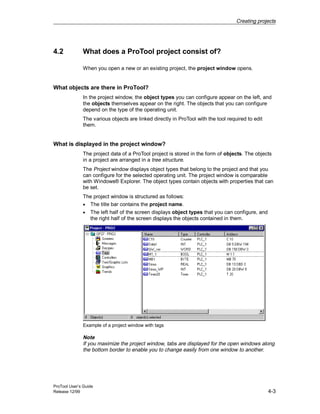
  • 19.
    Introduction ProTool User’s Guide Release12/99 2-5 Libraries Once ProTool is installed, the following libraries are available to you in the ..Library directory: • Symbol-bmp.lib • Touch-Switches.lib (for TP27, TP37 only) In ProTool, you open these libraries in the screen editor with Edit → Libraries → Open. Utilities There are a number of utilities and other useful files in the ProTool directory under UTILITY. There you will find, among other things, • the RECTRANS utility for converting data records for OP35/37 to an ASCII file • the Backup/Restore utility ProSave for OP27, OP37, TP27 and TP37.
  • 20.
    Introduction ProTool User’s Guide 2-6Release 12/99 2.3 Getting started with ProTool If you are not all that familiar with the ProTool visualization software, we would recommend you read this brief introduction and get started with ProTool/Pro with the help of the example. The printed version is enclosed with this manual. Requirements for working with the brief introduction To do the exercises for ProTool in this brief introduction, you require • a PC as a configuration computer • the SIMATIC ProTool 5.2 software package ProTool includes the ProTool configuration software and ProTool/Pro RT runtime software. • an operating unit - for example, an OP27 or a TP37. Other documents on ProTool You will find the electronic manuals on the installation CD under: Docs..UsersManual_Graph.pdf You can find all the information contained in this manual in ProTool’s online Help.
  • 21.
    ProTool User’s Guide Release12/99 3-1 Installing and configuring ProTool Overview In this chapter you will learn • the requirements the configuration computer must meet and • how to install ProTool. 3
  • 22.
    Installing and configuringProTool ProTool User’s Guide 3-2 Release 12/99 3.1 Installing ProTool System requirements The following table shows the recommended system requirements for running the ProTool configuration software. Configuration Recommendation CPU Pentium 133 MHz Main memory 64 MB Free hard disk space 150 MB for ProTool 5 MB for each additional language Drive CD-ROM Operating system Microsoft® Windows® 95 with Service Pack 1 (Build 950a) Microsoft® Windows® 95 OSR 2 (Build 950b) Microsoft® Windows® 98 Microsoft® Windows NT® 4.0 with Service Pack 3 Microsoft® Windows® 2000 Remark Service Pack 1 must not be installed on a Windows 95 OSR 2 (Build 950b) or higher. Integration in STEP 7 If you have STEP 7 programming software as of V4 on your computer, you can also install ProTool integrated in STEP 7. This has the following advantages: • You manage ProTool projects using SIMATIC Manager (i.e. the same management tool that you use for your STEP 7 projects). • You can select STEP 7 symbols and data blocks from the S7 symbol table as tags. The data type and address are entered automatically. • ProTool lists all the PLCs in your STEP 7 project and, once a PLC has been selected, determines the associated address parameters. • In STEP 7 you can configure ALARM_S messages and output them to the operating unit.
  • 23.
    Installing and configuringProTool ProTool User’s Guide Release 12/99 3-3 Selecting languages The installation program prompts you for the options and languages to be installed. If you wish to install several languages simultaneously, select the User defined option when you are installing. You can then change the ProTool language later without having to reinstall ProTool by opening Start Menu→ Simatic → ProTool CS → ProTool Setup. During installation you specify the language that you want to be active after installation. Installing ProTool from a CD-ROM To install ProTool, proceed as follows: 1. Insert the installation CD in the CD-ROM drive. If the autorun function for your CD-ROM drive is activated, the browser starts automatically when you insert the CD. Alternatively, select the CD-ROM drive in Explorer, and double-click install.exe to start the installation program. 2. Select the installation language you want at Language. 3. Select Installation and install ProTool/Pro CS first, followed by ProTool/Pro RT. When installing, follow the instructions on the screen. Note: Make sure when you are installing ProTool/Pro RT that you do not use blanks in the path name if you choose to install ProTool/Pro RT under a different path name from the one proposed. 4. If you have STEP 7 programming software as of V4 on your computer, you can also install ProTool integrated in STEP 7. ProTool checks in Setup whether STEP 7 is installed on your system. If STEP 7 is has been installed, you can choose whether ProTool should be installed in Integrated or Stand-alone mode. 5. Install the license when prompted to do so. If you do not have a license when you are installing ProTool/Pro Runtime, you can install it later. The procedure for this is described in commissioning instructions, software protection. 6. Reboot your PC so that all registrations can be performed. Installing ProTool from a hard disk In order to install ProTool from the hard disk, you first have to copy al the folders and all their subfolders, including all their files in the main folder, from the CD to the hard disk:
  • 24.
    Installing and configuringProTool ProTool User’s Guide 3-4 Release 12/99 Uninstalling ProTool On the Windows start menu at Settings → Control Panel → Software, choose ProTool and installed options from the and click Add/Remove. Starting ProTool After ProTool has been installed, you will find a folder on the Start menu called Simatic, in which the following symbols are available: ProTool CS V5.20 ProTool Help ProTool CS ProTool ReadMe ProTool Setup
  • 25.
    Installing and configuringProTool ProTool User’s Guide Release 12/99 3-5 3.2 ProTool and Asian Windows systems Windows system language ProTool also supports the Asian languages Chinese (PRC), Chinese (Taiwan) and Korean as configuration languages. To create projects in these languages, you need a Windows system in the language concerned. This Asian Windows system can be installed either as a stand-alone operating system or as an additional operating system over and above your present system. Tip A Chinese or Korean Windows system is installed in a manner similar to any other language. In the event of uncertainties with regard to the requisite settings in Setup, you can clarify them by installing a Windows system in a different language beforehand. ProTool user interface language You can then install ProTool itself under the Asian Windows system in the customary manner in the user interface languages English, German, French, Italian or Spanish. 3.2.1 Suppliers of Asian Windows systems You can obtain information on suppliers of Asian Windows systems from your local branch of Microsoft. In Europe, you can obtain Asian Windows systems from the following address: ARABIA WARE BENELUX Amsterdamsestraatweg 81 3513 AB Utrecht Netherlands Tel: 31-30-2-322093 or 31-30-2-322093 Fax: 31-30-2-343461 Internet: www.arabiaware.com
  • 26.
    Installing and configuringProTool ProTool User’s Guide 3-6 Release 12/99 3.2.2 Example: installing Chinese Windows 95 as a second operating system You can install a Chinese Windows 95 system on your computer alongside a Windows 95 system in a different language. You can then switch between two Windows languages. Requirements: The following requirements have to be met if you wish to operate ProTool under a second Windows 95 system: • ProTool is installed under your present Windows 95 as stand-alone application or it has been integrated with STEP7. • To install a second Windows 95 system, you require a second hard disk or partition, since conflicts may otherwise occur when the Programs directory is accessed. • The startup drive has to be formatted in a FAT format that is supported by both Windows 95 systems. Procedure: To use ProTool under Chinese Windows 95 as a second operating system, perform the following steps: 1. Prior to installation of the second Windows system, save the following five system files to the directory called C:WinbootOld: − autoexec.bat − config.sys − msdos.sys − io.sys − command.com The files will be required upon changing the operating system. 2. Before you proceed to install Chinese Windows, pay attention to the following notes so that existing authorization files of STEP7, for example, are not destroyed: − Remember to transfer the authorization back to your authorization floppy disk before you format, compress or restore your hard-disk drive or before you install a new operating system. − A cluster identified as "defective" occurs on the destination drive with the authorization. Do not attempt to restore it.
  • 27.
    Installing and configuringProTool ProTool User’s Guide Release 12/99 3-7 3. Install Chinese Windows 95 on a separate partition (e.g. D:). To do this, you must exit from Windows and restart in DOS mode. 4. All programs that you want to run under Chinese Windows 95 - such as ProTool or STEP7 - have to be installed under it once more owing to the update of registry entries and of the system files in the Chinese Windows system. However, you should you the same directory for installation in order to keep the memory requirement low. 5. After you have installed Chinese Windows 95 and the application programs, save the five files of the Chinese Windows version mentioned above to the C:WinbootChs directory. 6. If you then install another application program in one of the operating system, you have to save the autoexec.bat and config.sys files concerned yet, since they may be modified as a result of installation. Switching between Windows 95 versions: To switch between the two Windows versions, copy the five saved files for the language you want to the startup drive C: before exiting from the operating system. Windows 95 then has to be restarted. To facilitate this task, various batch and PIF files are supplied with ProTool in the ProToolUtility subdirectory: • old.bat Batch for switching to the Windows you installed first • old.pifLink with batch for placing on the desktop • chs.bat Batch for switching to Chinese • chs.pif Link with batch for placing on the desktop You should similarly copy these files to the C:WinbootOld and C:WinbootChs directories so that the ultimate file structure is as follows: C:WinbootOld old.bat old.pif autoexec.bat Your backup copy of step 1 config.sys Your backup copy of step 1 io.sys Your backup copy of step 1 msdos.sys Your backup copy of step 1 command.com Your backup copy of step 1
  • 28.
    Installing and configuringProTool ProTool User’s Guide 3-8 Release 12/99 C:WinbootChs chs.bat chs.pif autoexec.bat Your backup copy of step 5 config.sys Your backup copy of step 5 io.sys Your backup copy of step 5 msdos.sys Your backup copy of step 5 command.com Your backup copy of step 5 Then create a link to the files old.pif and chs.pif. To switch Windows versions, perform the following steps: 1. To change to the old Windows version, start the old.pif file. To change to the Chinese Windows version, start the chs.pif file. 2. Select Start → Shut Down→ Restart Windows from the taskbar so that changes take effect. Windows 95 now starts in the language concerned. 3.2.3 Example: installing Chinese WindowsNT as a second operating system You can install a Chinese WindowsNT system on your computer alongside a WindowsNT system in a different language. You can then select the Windows language concerned from the two while your computer starts up. Requirements Before you install Chinese Windows NT as a second operating system, ProTool must already be installed under your existing Windows NT as a stand-alone application or integrated with STEP 7.
  • 29.
    Installing and configuringProTool ProTool User’s Guide Release 12/99 3-9 Procedure To use ProTool under Chinese Windows NT as a second operating system, perform the following steps: 1. Install Chinese Windows NT. 2. All programs that you want to run under Chinese Windows NT - such as ProTool or STEP 7 - have to be installed under it once more owing to the update of registry entries and of the system files in the Chinese Windows system. However, you should you the same directory for installation in order to keep the memory requirement low. Switching WindowsNT: To switch between the two Windows versions, WindowsNT has to be restarted and the language has to be selected during startup. Two identical entries are displayed on the boot menu for each language. The Windows system you installed last is at the top. If you want to modify an entry for differentiation purposes, you can adapt the display by editing the boot.ini file.
  • 30.
    Installing and configuringProTool ProTool User’s Guide 3-10 Release 12/99 3.3 Configuring ProTool 3.3.1 Configuring with ProTool integrated in STEP 7 Requirements If the PLC you are using is a SIMATIC S7 and you have installed STEP 7 configuration software on your system, you can integrate ProTool in STEP 7. Advantages of STEP 7 integration As you are using the same database as STEP 7, you have the following advantages: • You assign your symbolic name once only and can then use it everywhere. Note If you use an instance DB in the STEP 7 program, the corresponding instance FB must also be defined in the symbol table in STEP 7. If this is not the case, this DB is not offered for selection in ProTool. • When you configure variables and area pointers, you access the STEP 7 symbol table. Changes to the symbol table in STEP 7 are updated in ProTool (refer to the figure at Properties of tags (Chapter 5.4.2)). • When the project is compiled, the data is synchronized. • In STEP 7 you can configure ALARM_S messages and output them to the operating unit. • The communication parameters of the PLC are transferred directly to your project.
  • 31.
    Installing and configuringProTool ProTool User’s Guide Release 12/99 3-11 Example Driver Parameters dialog box for integrating STEP 7 Integrating ProTool projects Projects created in ProTool on a stand-alone basis cannot be called directly using SIMATIC Manager. To include projects like this in a STEP 7 project, they have to be integrated. To do this, choose the File → Integrate menu command in ProTool. In the STEP 7 configuration, give the ProTool project a different name to the original project. Note Conversely, projects created with ProTool on an integrated basis must on no account be edited with ProTool on a stand-alone basis. If they were, the connection to the STEP 7 symbol table would be lost.
  • 32.
    Installing and configuringProTool ProTool User’s Guide 3-12 Release 12/99 Starting ProTool Start ProTool directly under Windows. Choose File → New. This opens a dialog box in which you select a STEP 7 project and create a ProTool project in it. You then select the operating unit. Example of the New dialog box for integrating STEP 7 3.3.2 Example of an instance DB In order to be able to access an instance DB in the symbol table of STEP 7 in ProTool, the associated FB must be defined. This is illustrated by the following example:
  • 33.
    ProTool User’s Guide Release12/99 4-1 Creating projects Overview In this chapter you are given an overview • of the project structure and • the procedure for creating a project. 4
  • 34.
    Creating projects ProTool User’sGuide 4-2 Release 12/99 4.1 Fundamental considerations when creating a project Objective To operate and monitor a machine or process. To do this, you map the machine or process on the operating unit as accurately as is necessary. System configuration Communication takes place between the operating unit and the machine or process by means of tags via the PLC. The value of a tag is written to a memory area (address) on the PLC, from where it is read by the operating unit. The following diagram provides an overview of the fundamental structure: Operating unit Printer Machine, process Communication by means of tags PLC A typical structure Before you begin If you are creating a project for the first time, note the following recommendations: • Use the standard screens from the standard projects. When creating a new project, you can select a standard project for your system (operating unit and PLC) from the project assistant. • Under ...ProToolSamples you will also find the sample project "Quickmix", which is implemented for various operating units and PLCs. • Consider also whether you can use parts of existing projects. Message texts or graphics, for example, are suitable for this. • In the case of operating units from a single device family, it is also possible to copy entire project sections via the clipboard. Note The prerequisite for successful copying between projects is that the system limits of the operating unit for which you want to use the copied sections must not be exceeded.
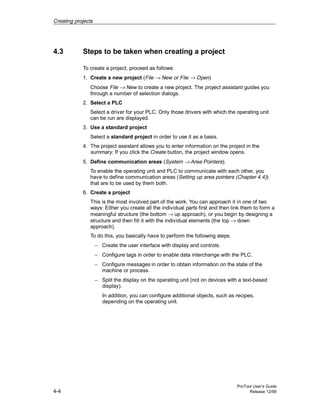
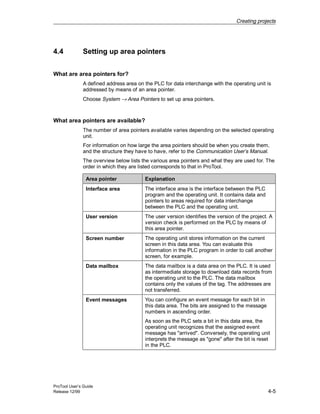
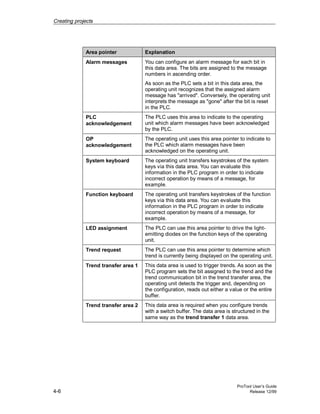
  • 35.
    Creating projects ProTool User’sGuide Release 12/99 4-3 4.2 What does a ProTool project consist of? When you open a new or an existing project, the project window opens. What objects are there in ProTool? In the project window, the object types you can configure appear on the left, and the objects themselves appear on the right. The objects that you can configure depend on the type of the operating unit. The various objects are linked directly in ProTool with the tool required to edit them. What is displayed in the project window? The project data of a ProTool project is stored in the form of objects. The objects in a project are arranged in a tree structure. The Project window displays object types that belong to the project and that you can configure for the selected operating unit. The project window is comparable with Windows® Explorer. The object types contain objects with properties that can be set. The project window is structured as follows: • The title bar contains the project name. • The left half of the screen displays object types that you can configure, and the right half of the screen displays the objects contained in them. Example of a project window with tags Note If you maximize the project window, tabs are displayed for the open windows along the bottom border to enable you to change easily from one window to another.
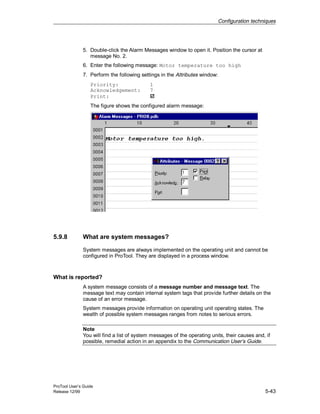
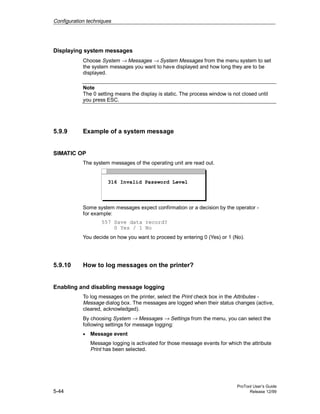
  • 36.
    Creating projects ProTool User’sGuide 4-4 Release 12/99 4.3 Steps to be taken when creating a project To create a project, proceed as follows: 1. Create a new project (File → New or File → Open) Choose File → New to create a new project. The project assistant guides you through a number of selection dialogs. 2. Select a PLC Select a driver for your PLC. Only those drivers with which the operating unit can be run are displayed. 3. Use a standard project Select a standard project in order to use it as a basis. 4. The project assistant allows you to enter information on the project in the summary. If you click the Create button, the project window opens. 5. Define communication areas (System → Area Pointers). To enable the operating unit and PLC to communicate with each other, you have to define communication areas (Setting up area pointers (Chapter 4.4)) that are to be used by them both. 6. Create a project This is the most involved part of the work. You can approach it in one of two ways: Either you create all the individual parts first and then link them to form a meaningful structure (the bottom → up approach), or you begin by designing a structure and then fill it with the individual elements (the top → down approach). To do this, you basically have to perform the following steps: − Create the user interface with display and controls. − Configure tags in order to enable data interchange with the PLC. − Configure messages in order to obtain information on the state of the machine or process. − Split the display on the operating unit (not on devices with a text-based display). In addition, you can configure additional objects, such as recipes, depending on the operating unit.
  • 37.
    Creating projects ProTool User’sGuide Release 12/99 4-5 4.4 Setting up area pointers What are area pointers for? A defined address area on the PLC for data interchange with the operating unit is addressed by means of an area pointer. Choose System → Area Pointers to set up area pointers. What area pointers are available? The number of area pointers available varies depending on the selected operating unit. For information on how large the area pointers should be when you create them, and the structure they have to have, refer to the Communication User’s Manual. The overview below lists the various area pointers and what they are used for. The order in which they are listed corresponds to that in ProTool. Area pointer Explanation Interface area The interface area is the interface between the PLC program and the operating unit. It contains data and pointers to areas required for data interchange between the PLC and the operating unit. User version The user version identifies the version of the project. A version check is performed on the PLC by means of this area pointer. Screen number The operating unit stores information on the current screen in this data area. You can evaluate this information in the PLC program in order to call another screen, for example. Data mailbox The data mailbox is a data area on the PLC. It is used as intermediate storage to download data records from the operating unit to the PLC. The data mailbox contains only the values of the tag. The addresses are not transferred. Event messages You can configure an event message for each bit in this data area. The bits are assigned to the message numbers in ascending order. As soon as the PLC sets a bit in this data area, the operating unit recognizes that the assigned event message has "arrived". Conversely, the operating unit interprets the message as "gone" after the bit is reset in the PLC.
  • 38.
    Creating projects ProTool User’sGuide 4-6 Release 12/99 Area pointer Explanation Alarm messages You can configure an alarm message for each bit in this data area. The bits are assigned to the message numbers in ascending order. As soon as the PLC sets a bit in this data area, the operating unit recognizes that the assigned alarm message has "arrived". Conversely, the operating unit interprets the message as "gone" after the bit is reset in the PLC. PLC acknowledgement The PLC uses this area to indicate to the operating unit which alarm messages have been acknowledged by the PLC. OP acknowledgement The operating unit uses this area pointer to indicate to the PLC which alarm messages have been acknowledged on the operating unit. System keyboard The operating unit transfers keystrokes of the system keys via this data area. You can evaluate this information in the PLC program in order to indicate incorrect operation by means of a message, for example. Function keyboard The operating unit transfers keystrokes of the function keys via this data area. You can evaluate this information in the PLC program in order to indicate incorrect operation by means of a message, for example. LED assignment The PLC can use this area pointer to drive the light- emitting diodes on the function keys of the operating unit. Trend request The PLC can use this area pointer to determine which trend is currently being displayed on the operating unit. Trend transfer area 1 This data area is used to trigger trends. As soon as the PLC program sets the bit assigned to the trend and the trend communication bit in the trend transfer area, the operating unit detects the trigger and, depending on the configuration, reads out either a value or the entire buffer. Trend transfer area 2 This data area is required when you configure trends with a switch buffer. The data area is structured in the same way as the trend transfer 1 data area.
  • 39.
    Creating projects ProTool User’sGuide Release 12/99 4-7 4.5 Example: How to create an OP37 project To create a project for an OP37 and the SIMATIC S7-300/400 PLC, proceed as follows: 1. Click this symbol or select File → New. This opens the project assistant. You are guided through four dialogs (steps 2 through 5), to create a new project. 2. In the Select Device dialog box under Graphics-based Operator Panels, select an OP37. Click the Continue button. 3. In the Select PLC dialog box, enter the name of the PLC. From the list below this, select the driver you want to use for communication between the operating unit and the PLC. 4. Click the Parameters button to set the driver parameters Click the Continue button. Note: You can also set the driver parameters at a later date. 5. In the Standard projects dialog box, select Use standard project. This puts you on the standard project. 6. Choose the System → Area Pointers menu command to configure the Event Messages communication area. Select this under Type and then click the Add button. 7. Enter the following values in the Event Messages dialog box: DB: 70, Length: 4. Confirm by clicking OK. You can then configure 64 event messages. Note: This data block must also be available in your PLC program. 8. Choose System → Screen/Keys to divide up the OP display. 9. Select Window/Window for Alarm/Event Mess. so that event messages and alarm messages can be displayed simultaneously in screens. 10.Select the message area via Active and, holding down the mouse button, position it in the screen layout. This completes the subdivision of the OP display. 11.Proceed to configure the event messages. If you enter more than 64 messages, only messages 0000 to 0063 can be output on the operating unit. 12.Save your project with File → Save.
  • 40.
    Creating projects ProTool User’sGuide 4-8 Release 12/99 4.6 Subdividing the display on the operating unit Subdividing the display into several areas The operating unit’s display area can be split into different areas. These are the areas for displaying screens and messages and for the soft keys (OP) and buttons (TP). Icons can be positioned on the edge of the screen for the soft keys. Where do you set the areas? Choose System → Screen/Keys to set the areas. The settings made here apply to the whole project, so set the areas before you begin configuration. The figure below shows an example of how the OP27’s display can be subdivided: Message indicator Event message window Basic area Function key assignment Fixed window Typical OP27 display subdivision Basic area The basic area is the lowest level and covers the whole screen. All the other areas are superimposed on parts of the basic area. The position and size of the basic area cannot be changed. Screens are configured in the basic area. The contents of the basic area thus change depending on the screen that is called.
  • 41.
    Creating projects ProTool User’sGuide Release 12/99 4-9 Fixed window A fixed window is a window that is always displayed. It uses up part of the basic area. The fixed window can be switched on or off under Screen/Keys. If it is switched on, it is displayed during screen configuration and thus reduces the size of the area available for screens. The size of the fixed window can be changed, but its position is always the same at the top of the screen. The fixed window is configured with the Screens editor. Alarm message window The alarm message window is the window in which alarm messages appear. The window only opens when there is an alarm message. When you acknowledge the alarm message, the window closes again. The display of alarm messages cannot be switched off. Either an alarm message window or a message line must be configured. The position and size of the alarm message window cannot be configured. Event message window The event message window is the window in which event messages appear. The window is only displayed when called. You can switch the event message window on or off by choosing System → Screen/Keys. The height of the window can be set to one or two lines, depending on the device type. The position can also be changed. Message line The message line is the area in which alarm and event messages are displayed. In the case of touch panels, only event messages are displayed in the message line. You can switch the message line on or off by choosing System → Screen/Keys. The height of the message line can be set to one or two lines, depending on the device type. The position can also be changed. Message indicator The message indicator is a symbol indicating alarm messages that are still applicable on the operating unit. You can switch the message indicator on or off by choosing System → Screen/Keys. You cannot change the size, but you can the position. The message indicator can be used with touch panels.
  • 42.
    Creating projects ProTool User’sGuide 4-10 Release 12/99 Dynamic position (OP35/37 only) The message and help text windows are positioned dynamically as a function of the cursor position so as not to cover up input fields that are currently being edited. You can switch this function on or off by choosing System → Screen/Keys. Icons (OP only) Icons can be placed on the display for soft keys (keys assigned functions locally). This is only possible for the FX keys arranged around the display. To find out how to assign keys globally or locally, refer to What are function keys? (Chapter 5.3.5)
  • 43.
    Creating projects ProTool User’sGuide Release 12/99 4-11 4.7 Configuration notes for the touch panels Screen partitioning basics Before you start setting touch panel controls, you should give a thought to the basic partitioning of a screen. Give consideration to where messages and input windows will be opened in order to prevent unintentional overlapping of buttons and input fields. The figure shows an example of screen partitioning on the TP37. System messages Global button Fixed window Message indicator Basic area Event and alarm messages Local buttonLight indicator Numerical Input window Help window Example of Screen partitioning on the TP37 Touch grid Enable the display of the touch grid with the illustrated symbol or by choosing View → Interface from the menu. To do this, activate the Display touch grid check box. The touch grid designates the smallest possible spacing between two points which the touch panel detects as single dots when its screen is touched. The display grid makes it easier for you to position the controls. You can place controls anywhere within the touch grid. The grid is not visible on the operating unit.
  • 44.
    Creating projects ProTool User’sGuide 4-12 Release 12/99 Invisible buttons If you use invisible buttons in your project, you should enable the display of invisible buttons while configuring. To do this, select the symbol illustrated or choose View → Interface from the menu. Activate the Display invisible buttons check box in the open dialog box. Global buttons Buttons and their assigned functions are available only locally on the screen concerned. Therefore, position buttons which you want to be available globally in every operating situation in the fixed window of the TP. Overlapping controls Mutual overlapping of controls is not allowed. Since overlapping controls may result in undefined operating states, they are reported as errors when the project file is compiled.
  • 45.
    Creating projects ProTool User’sGuide Release 12/99 4-13 4.8 Selecting a PLC driver Select the PLC driver with the project assistant in the Select PLC dialog box. You can also define or later edit the parameters there if you select PLC Properties in the project window. Available PLC drivers You can select the following drivers for devices with a graphics display: • SIMATIC S5 - AS511 • SIMATIC S5 - FAP • SIMATIC S5 - L2-DP • SIMATIC S7-300/400 • SIMATIC S7-200 • SIMATIC 500/505 • Allen-Bradley DF1 • Allen-Bradley DH485 • FREE SERIAL • GE Fanuc • MITSUBISHI FX • Modicon Modbus • OMRON Hostlink/Multilink • Telemecanique Repercussions for tags The address depends on the PLC you are using. The way in which the address of a tag with a PLC connection is displayed depends on the PLC selected. Select the available data types and data formats in the Tag dialog box under Type or Format.
  • 46.
    Creating projects ProTool User’sGuide 4-14 Release 12/99 4.9 Which projects can you convert? You can convert a ProTool project that you created for an OPx5 operator panel into a project for an OPx7. You can convert the following projects: Source: Destination: OP25 → OP27 OP35 → OP37 Example: How to convert an OP25 project To convert an OP25 project into an OP27 project, proceed as follows: 1. Open the existing OP25 project. 2. Choose the File → Convert menu command. 3. Enter a name for the new project. OP27 is selected as the device type, since other conversions are not possible. 4. Click Save. If you confirm the query that appears in response to this, the project is converted and the OP27 project window opens.
  • 47.
    Creating projects ProTool User’sGuide Release 12/99 4-15 4.10 Copying objects: Between projects and within a project Principle You can cut or copy selected parts of your project and paste them via the clipboard. For example you can copy text and fields from the alarm message editor to the event message editor, or graphic elements from one screen to another. The prerequisite for successful copying between projects is that the system limits of the destination project must not be exceeded. Preparations for new projects Before starting to copy objects from an existing project, you should without fail carry out the following global settings in the new project. This will ensure that no loss of data occurs during copying due to different settings. • Under the heading System → Screen / Keys make the subdivision of the screen display the same as in the source project. • Make the name and driver of the PLC the same as in the source project. Procedures There are two ways of pasting objects from the clipboard to the destination project: • Menu command Edit → Paste The object is pasted from the clipboard to the destination project. If there is already an object of the same name in the destination project, the object is pasted under a new name. • Menu command Edit → Paste Special Only objects that are different are pasted. If there is already an identical object of the same name in the destination project, this is used. If there is an object that has the same name but is not identical, the object from the clipboard is pasted under a new name. You can utilize this copying variant to make the destination project the same as the source project, for instance. Note In the case of both Paste and Paste Special, ProTool always checks the underlying objects (such as the limit value tags of a tag which has been copied) to ensure that existing objects are reusable. If there is already an object of the same name in the destination project, the object to be pasted will be renamed if necessary. It is given the next available name in the destination project.
  • 48.
    Creating projects ProTool User’sGuide 4-16 Release 12/99 Example: Tag VAR_4 will be renamed VAR_11 if tags VAR_1 through VAR_10 already exist in the destination project. What is copied? You can copy the following via the clipboard: • All objects listed in the project window, such as screens, text or graphic lists, tags etc. • Objects from screens (trends, fields, graphics etc.) in the screen editor. • Messages and objects from messages (message text, fields, info text etc.) in the message editor. An object is copied complete with its attributes and all cross-referenced objects. Special situations encountered during copying are reported in the system message window under Clipboard. This gives you information about any objects that have not been copied or renamed, for example. Special situation with screens If the object to be copied refers to a screen that does not exist in the destination project, the underlying screen is not copied; instead a blank screen is created as a dummy if the destination project does not contain a screen that can be reused. This ensures that you will not copy the complete source project by mistake along with the start screen. Afterward, when you paste the screen via the clipboard, the dummy screen in the destination project will be automatically replaced by the proper screen. What is not copied? These objects are not copied: • Objects that are unknown in the destination project (such as functions or command buttons when copying from TP27 to OP27) • Area pointers • Global function key assignments • Character sets • In the case of multilingual projects, only the languages available in the destination project are copied. No new languages will be created.
  • 49.
    Creating projects ProTool User’sGuide Release 12/99 4-17 4.11 Undoing and redoing actions Purpose During configuration, it may become necessary to cancel actions which have been performed, or to reconstruct actions which have been discarded. The two commands Undo and Redo in the Edit menu are used for this purpose. • Cancel (Undo) The Undo command (key combination Ctrl-Z) cancels the last action performed. If you keep selecting the command, you can cancel up to 30 successive modifications. • Restore (Redo) The Redo command (key combination Ctrl-Y) revokes the last action canceled thus restoring the status before the last Undo command was executed. Principle Each active editor (project window, screen editor, drivers for WS) has its own undo history. Thus, for example, if three screens are opened at the same time, three separate Undo Histories will be created. When a screen is closed, the actions listed in the accompanying History are deleted. When the project is saved, all the Undo Histories for the current project are deleted. The last recorded action is displayed in abbreviated form in the menu. The Tooltips contain more detailed texts for the Undo and Redo buttons and for the status bar. Example: • Menu Undo: VAR_5 edited Ctrl-Z Redo: PIC_2 edited Ctrl-Y • Tooltip/Status bar Undo: property edited of tag VAR_5 Redo: contents edited of screen PIC_2 Until the accompanying Undo History is deleted, deleted objects will continue to be listed in the cross-reference (Chapter 4.12.1) as used objects. The status of these objects is given in brackets after each object, e. g. PIC_5 (deleted).
  • 50.
    Creating projects ProTool User’sGuide 4-18 Release 12/99 General Information The commands Undo and Redo only work with actions taken since the last time the project was saved. If, for example, you move a screen object and then save your project, you cannot later cancel this action. These are some of the rules that apply to Undo/Redo: • Settings in dialog boxes (properties of a field) can only be canceled in their entirety. It is not possible to open the dialog box and discard individual entries. • With multilevel dialog boxes, only changes to the primary object are recorded. Modifications to underlying objects, or creations or deletions cannot be reversed. Example (project window): Editing tags → Editing limit tags. Only the tag changes can be reversed here. • Undo/Redo is ProTool-specific. With a project integrated in STEP 7, the Undo buffer cannot be accessed by a higher-level Step 7 Undo Manager. 4.11.1 Undoing the last action To undo your last action in ProTool, choose one of the three following options: • Choose the Edit → Undo menu command. The last action that can be undone (canceled) is shown in abbreviated form after the menu command. A longer description is given in the status bar. • Click the Undo button in the toolbar. This opens a Tooltip which shows you the last action that can be undone (canceled). You are given the same information in the status bar. • Press the CTRL and Z keys simultaneously. In contrast to the first two options, you are not given any feedback about which action has been canceled. If you keep executing the Undo command, you can successively cancel all the recorded modifications.
  • 51.
    Creating projects ProTool User’sGuide Release 12/99 4-19 4.11.2 Redoing the last action To redo your last canceled action in ProTool, choose one of the three following options: • Choose the Edit → Redo menu command The last canceled action is shown in abbreviated form after the menu command. A longer description is given in the status bar. • Click the Redo button in the toolbar. This opens a Tooltip which shows you the last canceled action. You are given the same information in the status bar. • Press the CTRL and Y keys simultaneously. In contrast to the first two options, you are not given any feedback about which action has been restored. If you keep executing the Redo command, you can successively restore all the recorded cancellations.
  • 52.
    Creating projects ProTool User’sGuide 4-20 Release 12/99 4.12 Retrieving project information The following tools are available to you for displaying or storing information on a project. • Cross-references • Project information 4.12.1 What is displayed in the "Cross-Reference" window? Usage When you have to add to or modify a project and need to check where and how a particular object is used in your project, you open the Cross-Reference window. You select an object in this window, and all the references to this object in the project are then displayed to you. Example from a project You open the Cross-Reference window by choosing the View → Cross-Reference menu command. The active object is displayed with a red border around it.
  • 53.
    Creating projects ProTool User’sGuide Release 12/99 4-21 The selected object is at the uppermost level, and all the objects in which the selected object is used appear under it. The cross-reference list also contains object in the current undo history(Undo actions (Chapter 4.11)). The status of these objects is shown in brackets behind the object concerned - for example, PIC_5 (deleted). Tip You can use the Cross-Reference window efficiently for troubleshooting. 4.12.2 What can you view under "Project Information"? To obtain information about a project when projects change or are adapted, open the Project Information dialog box. To do so, choose File → Project Information from the menu. The Project Information dialog box displays general project data and the memory required by the project. Project information is spread according to subjects over three tab controls: • General • Description • Statistics General The General tab control shows information on the device type, project name, path name of the stored project file and creator of the project. You fill in the Creator field and all the other fields are updated automatically by ProTool upon saving the project. Description The Description tab control contains an input field for the project description. Here you can enter any information you like that are important for your project. Statistics The Statistics tab control shows when the project was created, modified, generated and downloaded, the ProTool version last used to edit the project and the memory required by the project after it has been downloaded to the flash memory on the operating unit. The memory requirement is determined and displayed following the first download operation.
  • 54.
    Creating projects ProTool User’sGuide 4-22 Release 12/99
  • 55.
    ProTool User’s Guide Release12/99 5-1 Configuration techniques Overview In this chapter you will learn how to • create screens • configure controls and display elements • use tags • configure messages After that we will show you, for example, how you • Using functions • create recipes • assign operator authorization • create multi-lingual projects 5
  • 56.
    Configuration techniques ProTool User’sGuide 5-2 Release 12/99 5.1 Creating screens 5.1.1 What are screens? Example Screens are an image of the process. You can display processes on screens and specify process values. The figure below shows an example of a mixing unit for producing different juices. Ingredients are filled into a mixer from different tanks and then mixed. The liquid levels in the tanks and in the mixer are displayed. The intake valves can be opened and closed by means of the operating unit. The motor for the mixer can be turned on and off in a similar manner. Quantity in tank (in l) Tank 1: Tank 2: Tank 3: Bottling machine: Tank 1 Tank 2 Tank 3 Quantity in Valve 4 to bottling machine off on Mixing unit Fixed windowSoft key/button Help ESC mixer (l) Example of a Screen - A Mixing Unit
  • 57.
    Configuration techniques ProTool User’sGuide Release 12/99 5-3 Components of a screen A screen can consist of static and dynamic components. Static components include text and graphics. Dynamic components are linked to the PLC and visualize current values from the PLC memory. Visualization may take place in the form of alphanumeric displays, trends and bar graphs. Dynamic components are also inputs made by the operator on the operating unit and written to the PLC memory. The link to the PLC is established by means of tags (refer to Using tags (Chapter 5.4.1)). Screen editor Screens are created with a separate editor in ProTool. The operating unit is displayed when you call the screen editor. Open the screen editor by: • double-clicking on Screens in the left half of the project window to create a new screen • double-clicking in the right half of the project window on an existing configured screen to open the screen for editing. You can zoom this display in and out by choosing View → Zoom from the menu. If, for example, you wish to edit details you can do it much more simply by zooming in on them. Screens are stored under a symbolic name. You enter a name by choosing Edit → Properties from the menu. This name has to be specified when you edit, reference or delete the screen. In addition, screens are numbered automatically. Start screen Declare one screen in every project as a start screen. The start screen is the screen that is displayed after the operating unit has started up. To identify a screen as the start screen, select the screen and assign it as the start screen by choosing Edit → Properties from the menu. Fixed window The fixed window is the window that is always flush with the top border of the operating unit screen. By choosing System → Screen/Keys from the menu, you can open and close the fixed window and adjust its height by dragging with the mouse. Since the contents of the fixed window do not depend on the current screen, you can output important process tags or the date and time to it, for example. You configure the contents of the fixed window in the screen editor. To access the fixed window, click it with the mouse.
  • 58.
    Configuration techniques ProTool User’sGuide 5-4 Release 12/99 Soft keys/buttons Soft keys are function keys configured for specific screens (refer to What are function keys? (Chapter 5.3.5)). Buttons are virtual keys on the touch-sensitive screen of the touch panel (refer to What are buttons? (Chapter 5.3.6)). You can configure both soft keys and buttons for specific screens. When configuring, you assign functions to these controls. You can illustrate the task of a control by means of a graphic or text. You can use soft keys and buttons to open another screen, turn a motor on and off or display the message buffer, for example. Selecting screens Every configured screen has to be integrated into the control process so that it can be opened at runtime on the operating unit. The Select Screen function is available for this purpose. You an assign this function to an input field, a function key or a button, for example. You specify the name of the screen as the parameter. This means that a screen can be displayed by means of an input field or a function key or button. With input fields, soft keys and buttons, the function can be used only locally on that screen. Should you wish the function to be available globally, you have to configure the function on a Kx function key on the operating unit or on a button positioned in the fixed window of the TP. 5.1.2 Screen objects in ProTool Screens consist of individual objects. There are different types of object, which you can use at will when configuring a screen. "At will" means that you determine the number and type of the objects, as well as their position and size. ProTool presents you with the following object types: Screen object Name Description Text With the text box you can configure static text: various kinds of formatting are possible. Text can be shown in a wide range of fonts. Text can be entered over several lines and aligned vertically or horizontally.
  • 59.
    Configuration techniques ProTool User’sGuide Release 12/99 5-5 Character graphics By using character graphics, you can compose graphics from the individual characters contained in a symbol font. If you use character graphics instead of graphics, the memory requirement for your project file will be reduced significantly. Graphics With the graphic field you can use graphics from other graphics programs in your configuration. Input/output field With the input/output field, you can enter or display process values directly. Different display formats - for example, decimal and binary - are possible. There are a large number of formatting options, such as colors, flashing, etc. Symbolic input/output field Instead of the numerical value of a tag, a text or a graphic is displayed, to make the current status more comprehensible to the operator. The assignment between the values of the tags and the text or graphics is configured in a text or graphic list (text list or graphic list). For example, instead of the numerical values 0 and 1, the phrases Motor Off and Motor On are displayed. Trend graphics A trend graphic contains the settings for the coordinate system - for example, the X and Y axes. You can display several different trends on a trend graphic. Bar graph Bar graphs display a value from the PLC as a rectangular area. Bar graphs are practical for displaying fill levels, for example. Button (Touch panels) Buttons are objects that trigger a function by using a touch-sensitive screen. You can configure the function triggered. Buttons can be freely labeled with text or a graphic. "Set/Reset Bit" button (Touch Panel) Button with a fixed function: to set or reset a bit in a tag. "Select Screen" button (Touch Panel) Button with a fixed function: to select a different screen. Light indicator (Touch Panel) Button with a fixed function: light indicators show the status of a defined bit, for example, by changing color or by a flashing text.
  • 60.
    Configuration techniques ProTool User’sGuide 5-6 Release 12/99 5.2 Configuring display elements Purpose You use display elements to monitor the machine or the system on the operating unit. You can display current information, such as actual values from the PLC, process and operating modes and malfunctions, on the operating unit as a numerical value, in plain language or as a graphic. Overview There are essentially two types of display element available for the different tasks: • Static display elements Static display elements are pieces of text and graphics that are not linked to the PLC. They do not react to user inputs and cannot be modified at runtime on the operating unit. Use static display elements, for example, for system screens or for textual or graphic explanations for controls and dynamic display elements. Static display elements are − Static text (What is static text? (Chapter 5.2.1)) − Graphics (What are graphics? (Chapter 5.7.1)) − Character graphics (What are character graphics? (Chapter 5.2.2)) • Dynamic display elements Dynamic display elements can be linked to the PLC by means of tags. They visualize current values from the PLC in alphanumeric or graphic form. Dynamic display elements can change their display spontaneously at runtime on the operating unit without the operator intervening. Use dynamic display elements for all tasks associated with monitoring the process, a machine or the system. Dynamic display elements are − Output fields (What are output fields? (Chapter 5.2.4)) − Trend graphics (What are trend graphics? (Chapter 5.3.3)) − Bar graphs (What are bar graphs? (Chapter 5.3.4)) − Light indicators (What are light indicators? (Chapter 5.2.5)) Detailed descriptions of the different steps to configuration will be found in the ProTool online Help.
  • 61.
    Configuration techniques ProTool User’sGuide Release 12/99 5-7 5.2.1 What is static text? Purpose Static text is text that is not linked to the PLC. It cannot be modified at runtime on the operating unit. Use static text (on one or two lines) to explain segments of a configured screen - for example, for labeling controls and dynamic display elements. You can configure static text separately for any language available on the operating unit. Fonts Different fonts are available to indicate the relative importance of text strings on a screen by means of the font or the font size. All the characters in the font must be of the same width. This requirement is not met by all fixed-pitch fonts - for example, Courier. You can set up to four different fonts for the operating unit. Three fonts are language dependent, one font is language independent. • Language-dependent fonts With language dependent fonts, you can use different characters for every language available on the operating unit. By default, ProTool fonts are included in the scope of supply. But you can any Windows font, provided that it is a fixed-pitch font. • Language-independent font The same language independent font is used in all languages. By default, the symbol set is preset. The symbolism is used for character graphics (What are character graphics? (Chapter 5.2.2)). Configure static text by selecting the symbol illustrated or by choosing Insert → Text from the menu.
  • 62.
    Configuration techniques ProTool User’sGuide 5-8 Release 12/99 5.2.2 What are character graphics? Purpose Character graphics are static display elements that are not linked to the PLC. They cannot be modified at runtime on the operating unit. By using character graphics, you can compose graphics from the individual characters contained in a symbol font. An example of character graphics is illustrated below. If you use character graphics instead of graphics, the memory requirement for your project file will be reduced significantly. Configure character graphics by selecting the symbol illustrated or by choosing Insert → Character Graphics from the menu. Line characters Complete symbol packages are available for user-friendly drawing of polylines. The symbol packages contain symbols for all representations of paths such as horizontal and vertical lines, corners, crosses and bifurcations. The scope of supply contains three fixed symbol packages the line characters single, bold and double. You can customize four other symbol packages (USER 1 through USER 4) to cover your requirements.
  • 63.
    Configuration techniques ProTool User’sGuide Release 12/99 5-9 5.2.3 What are graphics? Purpose Graphics are static display elements that are not linked to the PLC. They cannot be modified at runtime on the operating unit. Use graphics, for example, for displaying your system or as explanatory symbolism for dynamic display and controls Creating graphics ProTool features an option of embedding external graphic editors via the OLE interface. In this way you can create graphics with your usual applications without having to become familiar with a new graphics program. ProTool displays every graphic you are using as a bitmap, irrespective of whether you create the graphic with a pixel-oriented graphics program - for example, Paint - or with a vector-oriented graphics program. Vector graphics are converted into pixel graphics before being displayed in ProTool. Configure graphics by selecting the symbol illustrated or by choosing Insert → Graphic from the menu. Color presentation on the operating unit With pixel graphics, if you notice differences between the colors displayed on the operating unit and those configured in ProTool, proceed as follows: On the configuration computer, select in the start menu Settings → Control Panel → Display and on the Settings tab, select at Colors the setting True Color. Retain this setting for configuring and compiling the project.
  • 64.
    Configuration techniques ProTool User’sGuide 5-10 Release 12/99 5.2.4 What are output fields? Purpose Output fields display current values from the PLC on the operating unit. The values may be output optionally in numerical, alphanumeric or symbolic form. Numerical and alphanumeric output Output fields for numerical or alphanumeric values show the value as a number or as text. A numerical value, for example, is the number 80 as the actual value of a temperature. An alphanumeric value, for example, is the text string Valve_12. Configure output fields for numerical and alphanumeric values by selecting the symbol illustrated or by choosing Insert → Input/Output Field from the menu. Symbolic output Output fields for symbolic values do not display the true value but, optionally, a text string or a graphic from a text or graphic list. For example, you can store the two states of a valve in a text list or in a graphic list. When the valve is open, the output field then points, for example, to the text string OPEN or to a corresponding graphic. By using output fields for symbolic values, you eliminate misinterpretations on the part of the operator to a large extent, since a symbolic value often presents a state more lucidly than an abstract numerical value, for instance. Configure output fields for symbolic values by selecting the symbol illustrated or by choosing Insert → Text or Graphic List from the menu. 5.2.5 What are light indicators? Purpose A light indicator is a dynamic display element on a touch panel. Light indicators indicate the state of a defined bit - for example, by means of a change of color or by flashing text. Light indicators are shown with a simple border for visual distinction of buttons which you can press. Configure light indicators by selecting the symbol illustrated or by choosing Insert → Light Indicator from the menu.
  • 65.
    Configuration techniques ProTool User’sGuide Release 12/99 5-11 5.3 Configuring controls Purpose You use controls on the operating unit to intervene directly in the process. They are used, for example, to specify setpoints, trigger functions, open screens (What are screens? (Chapter 5.1.1)) and acknowledge messages. You can assign a password level to controls in order to prevent manipulation by unauthorized persons. Overview The following controls are available in ProTool for the different tasks: • Input fields (What are input fields? (Chapter 5.3.1)) • Input/output fields (What are combined input/output fields? (Chapter 5.3.2)) • Function keys/soft keys (What are function keys? (Chapter 5.3.5)) • Buttons (What are buttons? (Chapter 5.3.6)) By means of dynamic attributes (What are dynamic attributes? (Chapter 5.13.4)) you can indicate, for example, by means of a change of color or by flashing that an operator input is expected at the control in a certain situation. Furthermore, event-driven display and hiding of controls can be performed on the operating unit (Hiding an object (Chapter 5.13.3)). Detailed descriptions of the different steps to configuration will be found in the ProTool online Help. 5.3.1 What are input fields? Purpose In input fields you enter values on the operating unit that are transferred to the PLC. The values may be input optionally in numerical, alphanumeric or symbolic form. If you define limit values for the input field tag, you can reject inputs on the operating unit that are outside the specified range of values.
  • 66.
    Configuration techniques ProTool User’sGuide 5-12 Release 12/99 Numerical and alphanumeric input In input fields for numerical and alphanumeric values you enter the value one character at a time on the operating unit. A numerical value, for example, is the number 80 as the setpoint for a temperature. An alphanumeric value, for example, is the text string Valve_12. Create input fields for numerical and alphanumeric values by selecting the symbol illustrated or by choosing Insert → Input/Output Field from the menu. Symbolic input In input fields for symbolic values you do not enter the value one character at a time but select this value on the operating unit from a text list. During configuration you assign symbolic text on the text list to every value of a tag. In this way, for example, you can turn a motor on and off by means of the two entries ON and OFF. By using input fields for symbolic values, you prevent misinterpretations to a large extent, since the operating unit accepts only the configured values on the text list. Create input fields for symbolic values by selecting the symbol illustrated or by choosing Insert → Text or Graphic List from the menu. 5.3.2 What are combined input/output fields? Combined input/output fields display current values from the PLC on the operating unit. You can also enter values that are transferred to the PLC at the same time. The values may be input and output optionally in numerical, alphanumeric or symbolic form. During input, the value you want to be output is not updated on the operating unit. If you define limit values for the input/output field tag, values that are outside the specified range can be • rejected upon input • displayed in a different color, for example, when read out. Create combined input/output fields by selecting the symbol illustrated or by choosing Insert → Input/Output Field from the menu. Create input fields for symbolic values by selecting the symbol illustrated or by choosing Insert → Text or Graphic List from the menu.
  • 67.
    Configuration techniques ProTool User’sGuide Release 12/99 5-13 5.3.3 What are trend graphics? Purpose A trend graphic is a dynamic display element. Trend graphics make possible a particularly lucid form of continuous display of process data on the operating unit. In a trend graphic, you can display several different trends (What are trends? (Chapter 5.8.1)) simultaneously on your operating unit. Configure trend graphics by selecting the symbol illustrated or by choosing Insert → Trend Graphic from the menu. 5.3.4 What are bar graphs? Purpose A bar graph is a dynamic display element. Bar graphs display a value from the PLC as a rectangular area. This means that you can tell at a glance on the operating unit how far the current value is from the limits or whether a specified setpoint has been reached. Bar graphs can be used to display fill levels or quantities, for example. Configure character graphics by selecting the symbol illustrated or by choosing Insert → Bar Graphs from the menu. Settings Bar graphs are linked to the PLC by means of a tag. Apart from this tag, which contains the value that is required to be displayed, you can define other tags in order, for example, to visualize when a limit value has been reached or to display or hide the bar field. You can freely define the direction, scaling, bar and background color and also labeling of the Y axis. You can also display upper and lower limit value lines for indicating limit values. The following figure shows a bar that is updated vertically and has limit value lines drawn on it.
  • 68.
    Configuration techniques ProTool User’sGuide 5-14 Release 12/99 Limit value lines 80 60 20 40 0 100 Bar graphs with limit value lines 5.3.5 What are function keys? A function key is a key on the operating unit for configuring a function assignment. You can assign one or more functions to any function key in ProTool. The functions are triggered as soon as the key is pressed. The function key assignment may be locally or globally significant. You can assign a password level to function keys in order to prevent manipulation by unauthorized persons. Global assignment Globally assigned function keys always trigger the same function, irrespective of the current control situation. You can the open a specific screen, for example, display queued messages or print the contents of the screen. By using globally assigned function keys, you cut your configuration effort considerably since you do not have to assign individual functions to global keys on every screen. Assign function keys globally by choosing System → Screen/Keys from the menu. To do this, click in the Screen/Keys dialog box on one of the keys K1 through KX or F1 through FX. You can specify the functions you have assigned to specific keys on the operating unit by means of labeling strips. Note By choosing System → Screen/Keys you can specify global settings for keys that apply to all screens. The icons appear in each configured screen provided the settings are not subsequently overwritten by an individual screen. In that case, the changes apply only to that particular screen.
  • 69.
    Configuration techniques ProTool User’sGuide Release 12/99 5-15 Local assignment Locally assigned function keys trigger different actions on the operating unit depending on the screen. A function key whose assignment may vary from screen to screen is referred to as a soft key. Assign soft keys locally in the screen editor. To do so, click in the screen on one of the keys F1 through FX, which are arranged directly around the operating unit screen. You can assign an icon that illustrates the soft key function by means of text or a graphic to any soft key. You can also assign soft keys globally. A global assignment is active on all screens to which you do not assign a screen-specific function. Use globally assigned soft keys, for example, to change from any screen to the same system screen. Note Do not assign functions that have to be permanently available on the operating unit to soft keys. 5.3.6 What are buttons? Requirements Buttons can only be configured for touch panels. Before you start configuring buttons, you should give a thought to the basic partitioning of the touch panel screen (refer to Configuration notes for the touch panels (Chapter 4.7)). Purpose A button is a virtual key on the touch panel screen to which you can assign one or more functions. You operate a button by touching the touch-sensitive screen. You can customize the user interface by means of buttons. You can assign a password level to buttons in order to prevent manipulation by unauthorized persons. Labeling You can label buttons statically or dynamically with text or graphics. • Static labeling: When configuring the button enter a text or select a graphic. This type of labeling is static, which means that it is not changed on the touch panel.
  • 70.
    Configuration techniques ProTool User’sGuide 5-16 Release 12/99 • Dynamic labeling: When configuring the button, select a text or graphics list and an associated index tag. The value of the index tag determines which list element is displayed on the button at runtime. Operation Pressing or releasing a button triggers the functions that you set for these events. To prevent the triggering of a function of a button that has been pressed by mistake, move your finger from the button while still keeping the button pressed. This process is not interpreted as a click event. Check-back indication upon operation When the button is pressed and released, it is animated by a change in border color as is usual in Windows. Invisible buttons do not provide an optical check- back indication upon operation. Invisible buttons Invisible buttons are transparent buttons that are not displayed upon the operating unit. If you place invisible buttons on graphics, you can operate parts of the graphic - for example, a motor or a valve - by touching the touch panel. Buttons with a freely definable function You can create on an individual basis, using a button with freely definable function, all the buttons that you need for operating the TP. Create buttons by selecting the symbol illustrated or by choosing Insert → Button from the menu. Buttons with a permanent function ProTool features predefined buttons that can be operated and have the following functions for quick and efficient configuration of standard functions for touch panels: • "Set/Reset Bit" button • "Select Screen" button
  • 71.
    Configuration techniques ProTool User’sGuide Release 12/99 5-17 "Set/Reset Bit" button With the "Set/Reset Bit" button you can set or reset a bit in a tag. The bit function is triggered as soon as you touch the button. On doing so, the bit in set in the tag, for example. Press the button a second time to reset the bit. Create the button by selecting the symbol shown or by choosing Insert → Set/Reset Bit from the menu. Depending on the tag type and on the settings in the option buttons at bit function, one of the following functions is automatically assigned to the button: Setting Functions for tag type Condition BOOL KF/INT Set Set Bit Set Bit in Word Press button Reset Reset Bit Reset Bit in Word Press button Set/Reset Set/Reset Bit Set/Reset Bit in Word Press button Set on Pressing Button — Set Bit on Pressing Button Press/release button "Select Screen" button With the "Select Screen" button you can select a different screen on the touch panel. The Select Screen function is triggered and the corresponding screen is displayed as soon as you click the button. Create the button by selecting the symbol illustrated or by choosing Insert → Select Screen from the menu. Note Do not assign functions that have to be permanently available on the operating unit to soft keys.
  • 72.
    Configuration techniques ProTool User’sGuide 5-18 Release 12/99 5.3.7 Using buttons as direct keys Purpose You can also configure buttons on the TP as direct keys in order to allow keyboard shortcuts without the usual delays caused by communications. Keyboard shortcuts are a requirement for typing mode, for example. Direct key types Basically, you can configure two different types of direct key: • PROFIBUS direct keys • direct keys for controlling the direct key module Simultaneous use of PROFIBUS direct keys and direct keys for the direct key module is not possible within the same project. PROFIBUS direct keys With PROFIBUS direct keys, you set bits on the TP directly in the I/O area of the SIMATIC S7. The bit area is defined in STEP 7. The bit is set when the direct key is touched and reset when the key is released or when you quit the screen. Requirements: 1. You have installed ProTool as integrated at the time the configuration is compiled. 2. The touch panel is connected to a SIMATIC S7 over the PROFIBUS-DP during operation. 3. You have defined the bit area for direct keys in STEP 7 (you will find configuration tips in the Communication User’s Guide). If all these requirements have not been fulfilled, ProTool interprets the configured button as a direct key for driving the direct key module. The number of PROFIBUS bits that can be manipulated by means of direct keys depends on the touch panel: Panel No. of Bits TP37 40 (0 to 39) TP27 24 (0 to 23)
  • 73.
    Configuration techniques ProTool User’sGuide Release 12/99 5-19 Direct keys for the direct key module You can use these direct keys to drive the outputs (ports) of the optional direct key module at the back of the TP. The port is set when the direct key is touched and reset when the key is released or when you quit the screen. Requirements: The TP is equipped with a direct key module and the requirements for PROFIBUS direct keys are not met. The number of ports that can be configured depends on the touch panel: Panel No. of Ports TP37 16 (1 to 16) TP27 8 (1 to 8) 5.3.8 Using PROFIBUS screen numbers If PROFIBUS direct keys use identical bits for different functions on different screens, the S7 has to decide on the functionality concerned via the screen number. To avoid delayed updating of the screen number on the PLC following a change of screens, there is the PROFIBUS Screen Number screen function. To use this function, choose Edit → Properties from the menu. On the Functions tab, assign the PROFIBUS Screen Number function to the current screen at Screens. For the parameter, specify a PROFIBUS bit that you want to have reserved for the screen number and have set when the key is pressed. If you assign this function several times, you can define a bit pattern for the screen number. The bits are set when the screen is opened and reset when you quit the screen. The screen number bits are transferred to the SIMATIC S7 at the same speed as the direct key bits. 5.3.9 Buttons with fixed functions When you configure a touch panel, ProTool offers a selection of different buttons that are already assigned frequently used functions: • Set/Reset Bit and Set/Reset Bit in Word • Select Screen • Light Indicator You will find detailed information on this in What are buttons? (Chapter 5.3.6) Note As with any other operating unit, instead of using these buttons you can use a normal button and configure the function you require manually.
  • 74.
    Configuration techniques ProTool User’sGuide 5-20 Release 12/99 5.4 Using tags Overview Since tags are the most important means of communication between the operating unit and the PLC and for exchanging data, a detailed explanation is presented here of what tags are and what types of tag are used in ProTool. 5.4.1 What are tags? Definition A tag has a symbolic name and a defined data type. The value of the tag changes while the PLC program is being executed. Tags with a PLC link are referred to as global tags. Tags without a PLC link are known as local tags. • Global tags A tag with a PLC link occupies a defined memory address on the PLC, to which read and write access is possible from both the operating unit and the PLC. • Local tags Local tags are not connected to the PLC. They are available only on the operating unit. You create local tags, for example, so that the operator can enter limit values on the operating unit. Tag types ProTool recognizes the following tag types (but these are not available on every PLC): Data Type Bit System Range of Values INT 16 bit - 32768 through 32767 UINT 16 bit 0 through 65535 LONG 32 bit - 2147483648 through 2147483647 ULONG 32 bit 0 through 4294967295 FLOAT 32 bit Upper limit value: ± 3.402823 e+38 Lower limit value: ± 1.175495 e-38 BOOL – true (1), false (0) STRING – 1 to 80 bytes Array tags This tag type combines a random number of tags of the same type to form a total, which can be handled as a whole.
  • 75.
    Configuration techniques ProTool User’sGuide Release 12/99 5-21 5.4.2 Properties of tags To define a tag, set the properties of the tag. The following figure shows an example of the Tag dialog box for the SIMATIC S7. Tag Dialog Box for the SIMATIC S7 Tag definition (Section A) The available data types and data formats depend on the PLC you selected. You select them in the Tag dialog box at Type of a tag (see ProTool online Help). Updating tags The acquisition cycle determines the time interval in which the value of a tag is updated on the operating unit.
  • 76.
    Configuration techniques ProTool User’sGuide 5-22 Release 12/99 Result: • If 0 is entered for the acquisition cycle, the tag is updated only when a screen is called and then not updated any more. • If a value > 0 is entered for the acquisition cycle of a tag, the tag is updated periodically in the specified time and also when the screen is opened. System default setting: 1 sec The acquisition cycle is a multiple of the standard clock pulse, which you configure for every PLC in the PLC dialog box. You globally modify the acquisition cycles for all the tags of a project by setting the standard clock pulse. Array tags An array tag represents a number of tags of the same type with consecutive memory addresses. If you wish to define an array tag, enter the number of elements in the array in the Tag dialog box at Number Elements. The system default setting is 1, in other words, the tag is not defined as an array. The maximum number of elements in an array is 640. Tip You can use array tags for pattern trends, for example (see ProTool online Help). Address (Section B) The address determines the memory location of a global tag on the PLC. The address therefore depends on the PLC you are using. The display of the address depends on the PLC you selected. This section of the Tag dialog box adjusts dynamically to the programmable address areas. ProTool integrated in STEP 7 (Section C) If you have installed ProTool in STEP 7 on an integrated basis, you can access the STEP 7 symbol table directly in the Tag dialog box. For performance reasons, ProTool does not automatically update the STEP 7 symbol table after every change. In order to make the latest changes to the STEP 7 symbol table available in ProTool, update the display of the symbol table in the Tag dialog box by clicking Update. See the example in online Help with regard to the definition of an entity DB in the symbol table.
  • 77.
    Configuration techniques ProTool User’sGuide Release 12/99 5-23 Setting a start value You can set a start value for the tag at Options. When the project is downloaded, the tag is assigned the start value. The start value is displayed only on the operating unit and is not stored on the PLC. Example: If tags are used for scaling trends and bar graphs, the initial value may be the start value of the scaling. Remark This is not useful for tags of the type STRING. Setting limit values An upper and a lower limit value can be configured at Limit values for tags. If the tag value is outside the defined range, in other words, it is higher or lower than the limit value concerned - this has the following effect on the input fields, for example. If the operator enters a value outside the configured limit values, the input is rejected and the original value is retained. Configuring tags with functions You can assign functions to tags in input/output fields - for example, the Select Screen function. The screen is selected as soon as the value of the tag changes. 5.4.3 Updating tags At Options, you set how the values are transferred between the operating unit and the PLC and updated: • Write directly (system default setting) After being entered on the operating unit, the tag value is written directly to the PLC address. • Write indirectly (only possible for SIMATIC S5 and SIMATIC S7) In the case of indirect writing, the tag value on the PLC is written to an address area, called the data mailbox. In order to ensure the coordinated execution of the transfer and prevent unwanted overwriting of the tag value in the data mailbox, bits are set in the interface area. The value can be fetched by the PLC program from the data mailbox at the appropriate time. By selecting Write indirectly, you can configure up to three identifications for every tag, which are likewise written to the data mailbox. You will find further information in the Communication User’s Guide.
  • 78.
    Configuration techniques ProTool User’sGuide 5-24 Release 12/99 • Read continuously The tag is updated continuously, even if it is not on the open screen. This is important with trends. One trend is normally required to be plotted when the screen is not selected. • ONLINE If you select ONLINE (default setting), the tag is serviced during operation. If you deselect ONLINE, the tag is disconnected from the PLC during operation. You can use this, for example, if you are taking only parts of the system into operation. 5.4.4 Example: How to set the acquisition cycle and the standard clock pulse System default setting: standard clock pulse 500 ms, acquisition cycle 1 s. Set the standard clock pulse in the PLC dialog box. If you increase the standard clock pulse to 1000 ms, the acquisition cycle for all tags is increased to 2 s. Tip In order not to overload communication between the PLC and the operating unit, the times you set for the standard clock pulse should not be too short. This would mean that other processes, such as the updating of trends or the execution of PLC jobs, would take considerably longer. 5.4.5 Example: Scaling tags The scaling of tags is configured as a function relating to a tag. The following functions are available for this: • Scaling Linear 1 and Scaling Linear 2 • Scaling Square 1 and Scaling Square 2. If you configure no scaling, the tag value on the PLC corresponds to the tag value on the operating unit.
  • 79.
    Configuration techniques ProTool User’sGuide Release 12/99 5-25 Linear scaling Scaling can be configured for any tag in the form y = a*x + b. • X = displayed value/input value The Y value read from the PLC undergoes linear scaling before being displayed on the operating unit as the X value. Inputs X on the operating unit undergo scaling before being written to the PLC as the Y value. • X = displayed value/input value The Y value read from the PLC undergoes linear scaling before being displayed on the operating unit as the Y value. Inputs Y on the operating unit undergo scaling before being written to the PLC as the X value. Example You have configured 3 as the value of a6 as the value of b. The value 21 is transferred from the PLC. It is inserted in the conversion formula, thus: 21 = 3 * X 6. This produces a value of 5 for X. That value is displayed on the operating unit. Square scaling Scaling can be configured for any tag in the form: y = a * x^2 + b * x + c. • X = displayed value/input value The Y value read from the PLC undergoes square scaling before being displayed on the operating unit as the X value. Inputs X on the operating unit undergo scaling before being written to the PLC as the Y value. • Y = displayed value/input value The X value read from the PLC undergoes square scaling before being displayed on the operating unit as the Y value. Inputs Y on the operating unit undergo scaling before being written to the PLC as the X value. Example You have configured a value of 2 for a, and a value of 3 for b and 6 for c. A value of 71 is transferred from the PLC. It is inserted in the conversion formula, thus: 71 = 2 * X^2 + 3 * X + 6. This produces a value of 5 for X. That value is displayed on the operating unit.
  • 80.
    Configuration techniques ProTool User’sGuide 5-26 Release 12/99 5.5 Multiplexing 5.5.1 What is multiplexing? Purpose When multiplexing, you assign several tags to trends, bar graphs or input/output fields, not just one. Assignment depends on the value of an index tag. A tag, selected at runtime, is assigned to each of the index tag values. Using the index tag, you can control all the tags of a screen, for example. This spares you the trouble of configuring several screens for similar applications. Applications You can multiplex the following objects: • Bar graphs (Chapter 5.5.2) • Trends (Chapter 5.5.4) • Trend tags (Chapter 5.5.5) • Input/output fields (Chapter 5.5.6) 5.5.2 Multiplexing bar graphs Purpose When you configure a bar graph, you define in advance the tag from which you want the values to be read and displayed on the operating unit. If you multiplex bar graphs, the assignment of the bar graph to a tag is not static but depends on the value of an index tag. This allows you to determine several tags whose values are displayed, depending on the situation, as bar graphs at runtime. Principle Selection of the tags is controlled by means of the index tag. Every index tag value has assigned to it a tag, with values read and displayed. The figure shows the principle of multiplexing bar graphs by means of three examples.
  • 81.
    Configuration techniques ProTool User’sGuide Release 12/99 5-27 2000 0 T1 T1 T2 T3 VAR_S1 VAR_1 VAR_2 VAR_3 VAR_S1 Display 0 VAR_1 1 VAR_2 2 VAR_3 Multiplexing bar graphs (principle) In the bar graph shown, the contents of tanks T1, T2 or T3 are displayed on the operating unit as a function of the index tag value VAR_S1. The tank contents are read from tags VAR_1 through VAR_3. 5.5.3 Example: How to multiplex a bar graph In the following example, three values of index tag VAR_S1 are assigned tags VAR_1 through VAR_3. The PLC is a SIMATIC S7. 1. On the General tab, click the Multiplex button. 2. Configure index tag Var_S1. The value of the index tag determines at runtime which tag is selected as a bar graph. Select this button under index tag. In the Tag dialog box, enter the symbolic name Var_S1 and the following values. Type: INT DB: 15 DBW: 0 PLC: PLC_1 VAR_S1 accepts the values 0, 1 or 2. Each of these three values is now assigned a separate tag.
  • 82.
    Configuration techniques ProTool User’sGuide 5-28 Release 12/99 3. Configure the multiplex tags VAR_1, VAR_2 and VAR_3: Select this button under multiplex tag. In the Tag dialog box, enter the symbolic name Var_1 and the following values: Type: INT DB: 16 DBW: 1 PLC: PLC_1 Now click the Add button. The tag VAR_1 is accepted into the list and VAR_S1 is assigned to the value (index) 0 of the index tag. Repeat this step with Var_2 and Var_3. 4. Confirm by clicking OK. A small cross now appears on the Multiplex button to indicate that multiplexing is being used. The index tag is specified instead of the tag. 5.5.4 Multiplexing trends Purpose When you configure a trend graphic, you determine in advance the trends that you want to have displayed on the operating unit. If you multiplex trends, selection of the trends is not static but depends on the value of an index tag. This allows you to determine which trends are shown in the different situations at runtime. Principle Selection of the trends is controlled by means of the index tag. A trend is assigned to every index tag value. The figure illustrates the principle of multiplexing trends.
  • 83.
    Configuration techniques ProTool User’sGuide Release 12/99 5-29 PLC Temp2 Temp3Temp1 DB 10 DW37 DW39 DW41 Trend graphic Operating unit Var1 Var2 Var3 Buffer1 Buffer2 Buffer3 1 0 2 Var_A: Index tag Multiplexing trends (principle) Temperature values Temp1 through Temp3 are stored in DB 10 on the PLC at addresses DW 37, DW 39 and DW 41. Tags Var1 through Var3 are configured for these addresses. A trend buffer is created for every single tag on the operating unit. The size of the trend buffers depends on the configured number of samples/max. The value of index tag Var_A determines the buffer from which the values come for the trend graphic you want to have displayed. With this type of multiplexing, all the trends are up to date in the background. 5.5.5 Multiplexing trend tags Purpose The standard case is to set up a separate trend buffer for each trend to be displayed on the operating unit. When multiplexing trend tags, write, depending on the value of an index tag, different trend tags to a common trend buffer. This means that a trend graphic will have displayed in it a trend with values read out from the trend buffer by different tags. This allows you to determine which trends are required to be shown in the different situations at runtime. At the same time, you save storage space on the operating unit by using a common trend buffer.
  • 84.
    Configuration techniques ProTool User’sGuide 5-30 Release 12/99 Principle Every value of the index tag is assigned a trend tag which writes to the trend buffer. The figure illustrates the principle of multiplexing trend tags. PLC Temp2 Temp3Temp1 DB 10 DW37 DW39 DW41 Trend graphic Operating unit Buffer 1 0 2 Var_A: Index tag Var1 Var2 Var3 Multiplexing trends (principle) Temperature values Temp1 through Temp3 are stored in DB 10 on the PLC at addresses DW 37, DW 39 and DW 41. Tags Var1 through Var3 are configured for these addresses. The value of index tag Var_A determines which tag writes values to the trend buffer. With this type of multiplexing, it is possible to display a larger number of process values as a trend, since separate trend buffers are not created for every trend. 5.5.6 Multiplexing input/output fields When you configure input or output fields, you define in advance the tag in which inputs are applied and from which values required to be output are read. If you multiplex input and output fields, the assignment to a tag is not static but depends on the value of an index tag. This allows you to determine several tags whose values can be displayed, depending on the situation, in an output field at runtime or entered in an input field and modified.
  • 85.
    Configuration techniques ProTool User’sGuide Release 12/99 5-31 5.6 Creating text or graphic lists Purpose Text or graphics are often more meaningful than abstract values. For example, the pieces of text full and empty or two graphic symbols present the state of a tank more lucidly than the corresponding numerical values. Which is why ProTool gives you the opportunity to configure text or graphic lists. These text or graphic lists are lists in which you assign an element from the list to each tag value. Usage With text or graphic lists, for example, you can label buttons dynamically, display text or graphics in output fields and select texts for input in input fields. To a large extent, this eliminates misinterpretations in the display and operator errors during input. Further information on using text or graphic lists in a screen can be found under • Input fields (Chapter 5.3.1) • Output fields (Chapter 5.2.4) • Buttons (Chapter 5.3.6) Text list A text list assigns text to every value of a tag. At runtime, the tag value determines which text is selected from the list and displayed, for example, in an input/output field on the operating unit. To create a new text list, double-click Text or graphic lists in the project window. Graphic list A graphic list assigns a graphic to every value of a tag. At runtime, the tag value determines which graphic is selected from the list and displayed, for example, in an output field on the operating unit. To create a new graphics list, select the symbol illustrated on the open screen.
  • 86.
    Configuration techniques ProTool User’sGuide 5-32 Release 12/99 5.7 Graphics creation 5.7.1 What are graphics? Purpose Graphics are static display elements that are not linked to the PLC. They cannot be modified at runtime on the operating unit. Use graphics, for example, for displaying your system or as explanatory symbolism for dynamic display and controls Creating graphics ProTool features an option of embedding external graphic editors via the OLE interface. In this way you can create graphics with your usual applications without having to become familiar with a new graphics program. ProTool displays every graphic you are using as a bitmap, irrespective of whether you create the graphic with a pixel-oriented graphics program - for example, Paint - or with a vector-oriented graphics program. Vector graphics are converted into pixel graphics before being displayed in ProTool. Configure graphics by selecting the symbol illustrated or by choosing Insert → Graphic from the menu. Color presentation on the operating unit With pixel graphics, if you notice differences between the colors displayed on the operating unit and those configured in ProTool, proceed as follows: On the configuration computer, select in the start menu Settings → Control Panel → Display and on the Settings tab, select at Colors the setting True Color. Retain this setting for configuring and compiling the project.
  • 87.
    Configuration techniques ProTool User’sGuide Release 12/99 5-33 5.8 Creating trends 5.8.1 What are trends? Usage • Realtime trend With a realtime trend only one trend value at a time is read from the PLC for each time unit (clock pulse) and added to the trend displayed on the operating unit. Realtime trends are suitable for displaying slow, continuous patterns. • Pattern trend With a pattern trend, all trend values are read simultaneously from the PLC and displayed as a trend on the operating unit by setting a trigger bit. Pattern trends are suitable for displaying rapid changes if the trend variation, seen in its entirety, (profile) is more interesting than individual values. Trigger: The trigger type defines how trend data is read in: • Clock trigger (time triggered) In the case of a clock trigger, the data that has to be acquired in the trend is read from the PLC in a fixed, adjustable time slot. To do this, select Read Continuously on the Options tab when you configure the tag. If the configured number of samples has been reached, the oldest value is overwritten by every new one. By means of the specified time slot and the number of samples you want to have displayed, you set the period of time that has to be covered by the trend data. This type of trigger is suitable for realtime trends. • Bit trigger (event triggered) In the case of a bit trigger, data to be acquired on a trend is read in on an event-triggered basis. The event is triggered by the PLC as a result of setting a defined bit. There are two possibilities of reading in trend data: − Single-value acquisition Only one value is read from the PLC every time a bit is set. Single-value acquisition is suitable for displaying realtime trends. − Buffered data acquisition Buffered data is read out from the PLC as an entire block every time a bit is set. Buffered data acquisition is suitable for displaying pattern trends.
  • 88.
    Configuration techniques ProTool User’sGuide 5-34 Release 12/99 Communication areas for bit-triggered trends For you to be able to configure bit-triggered trends, you have to set communication areas by choosing System → Area Pointer from the menu and create them on the PLC. The operating unit and the PLC communicate with each other via these areas: • Trend request area This area can be used by the PLC to evaluate which trend is currently being displayed on the operating unit. • Trend transfer area 1 This area is used to trigger the trends. • Trend transfer area 2 This area is required only for trends that you configure with a switch buffer. A specific trigger bit is assigned to every trend in all bit areas. If, for example, you have assigned trigger bit 4 to a trend, that trend will be identified by bit 4 in all bit areas. Switch buffer A switch buffer is a second buffer which you can create for a pattern trend. While the operating unit is reading the trend values from buffer 1, the PLC can already write the new values to buffer 2. When the operating unit is reading buffer 2, the PLC is writing to buffer 1. The switch buffer prevents the PLC from overwriting values while the operating unit is reading the trend. Buffer 2 Trend buffer is full, bit is set in trend transfer area 1 Operating unit reads Buffer 1 PLC writes Switch buffer: reading and writing trend values simultaneously
  • 89.
    Configuration techniques ProTool User’sGuide Release 12/99 5-35 5.8.2 How a bit trigger works When a screen containing a trend graphic with one or more bit-triggered trends is opened on the operating unit, the operating unit sets the bits assigned to the individual trends in the trend request area in each case. From the bits set, the PLC can evaluate which trends are currently being displayed on the operating unit. If the PLC program now sets both the bits assigned to the trends and the trend communication bit in the trend transfer area, the operating unit detects the trigger. It resets the trend bits and the trend communication bit and, depending on the configuration, reads out one value or the entire buffer. As soon as the conditions for a new trigger have been met, the PLC program sets the trend bits and the trend communication bit again. Once the screen has been deselected, the operating unit resets the bits set in the trend request area. Define the trend request area and trend transfer area by choosing System → Area Pointers from the menu. You will find a description of these data areas in the Communication User’s Guide. Note The position of the communication bit in the trend transfer area depends on the PLC you set. Do not use this bit for the identification of bit-triggered trends. 5.8.3 Array tags for pattern trends You can configure array tags for pattern trends. You use the number of elements to set the size of the trend buffer. This number has to be identical to the number of samples you set for the trend. The pattern trend is represented by the array tag. If you use this array tag in a recipe, you can save the pattern trend to a data medium on the operating unit and read it back in, just like you would with any other data record. Additional information on tag types can be found under Using tags (Chapter 5.3.1). 5.8.4 Interrupting the recording of trend data If you interrupt operation of the operating unit while clock-triggered trends are being recorded, the X axis with the time label is updated immediately upon restarting. The trend values are, however, updated at the configured clock-pulse rate and therefore temporarily do not correspond to the time values displayed.
  • 90.
    Configuration techniques ProTool User’sGuide 5-36 Release 12/99 For this reason, the vertical bar displayed on the screen is shown in the trend graphic when recording restarts. The bar represents the time of interruption and migrates continuously at the configured clock-pulse rate out of the trend graphic. Interruption 0 100 0 60 Interrupted trend plotting
  • 91.
    Configuration techniques ProTool User’sGuide Release 12/99 5-37 5.9 Configuring messages Overview To display process and operating states or to acquire and log process data on the operating unit that you obtain on the process from the PLC, configure messages. Messages are initiated by the PLC and can be displayed on the operating unit. 5.9.1 Reporting operating and process states There are the following message types in ProTool: • Event messages display routine operating and process states and processes. • Alarm messages display critical or hazardous operating and process states and require operating personnel to react by issuing an acknowledgement. • System messages display states and faults of the operating unit, the PLC or the communications between them. They are issued by the operating unit or by the PLC. For what purpose do you use messages? The messaging system is responsible for the following tasks: • Reporting events or states that can occur on the system or in the process: − A state is reported immediately following its occurrence. − The messages are presented to the operator as a function of their significance (priority). • Support in eliminating the cause of error conditions: − Messages provide in-depth information on the causes of errors (diagnostics). − The process can be influenced as a result of the message. • Printout: the message events are output to a printer. 5.9.2 What goes into a message? A message consists of: • a message number • message text • a message tag • help text
  • 92.
    Configuration techniques ProTool User’sGuide 5-38 Release 12/99 The following messages are displayed on the operating unit but cannot be edited in ProTool: • The message number cannot be modified in system messages, standard S7 diagnostic results (S7 system messages) and NC alarms. (only with OP7 and OP17). • Message numbers of user defined S7 diagnostic results can be freely defined in STEP 7 within certain limits. • The message number is assigned to Alarm_S messages in STEP 7. Message number The message number is used to reference a message. In ProTool, you have a free choice of message number (within the range 0 to 2000) and message text. Message text Message text contains the description of a message. The length of the message text depends on the operating unit. The number of characters per line is marked by this character at the top border of the window during configuration. By choosing Edit → Style from the menu, you can select from the following styles for the message text, depending on the operating unit: flashing, underscore, italic, and capitals (text-based displays only). Tip You can also configure operator instructions as a message. Message tags A message can contain output fields with tags. They are also referred to as message tags. By choosing Edit → Style from the menu, you can select from the following styles for output fields, depending on the operating unit: flashing, underscore, italic. Insert an output field by selecting the symbol illustrated. Note The values of message tags are updated in the message buffer when messages are active or are cleared, but not when messages are acknowledged.
  • 93.
    Configuration techniques ProTool User’sGuide Release 12/99 5-39 Help text Help text containing further details on a message can be configured for every message. Help text is displayed for the operator in a separate window on the operating unit by pressing the HELP key. Enter Help text by selecting the symbol illustrated or by using the menu command View → Help text. 5.9.3 What parameters do you set for messages? You can configure the following parameters for messages: • priority • acknowledgement group • print • port / relay Priority High-priority messages are displayed before low-priority messages on the operating unit. The lowest priority is 1. • If several messages having the same priority are waiting to be displayed, the most recent (last) is displayed. • If several unacknowledged alarm messages having the same priority are waiting to be displayed, you can choose whether the most recent (last ) or the oldest (first) should be displayed. Configure the priority in the Attributes dialog box for every single message. Set the sort criterion by choosing System → Messages → Settings from the menu. Acknowledgement group Alarm messages can be assigned to acknowledgement groups. Configure the assignment to an acknowledgement group for every single message. If you acknowledge an alarm message in one acknowledgement group, all the alarm messages in that group are acknowledged simultaneously (group acknowledgement).
  • 94.
    Configuration techniques ProTool User’sGuide 5-40 Release 12/99 Print If you select Print, the message event (active, cleared, acknowledged) is logged automatically on the printer if you selected, at System → Messages → Settings, Print on Message Event. Configure printing in the Attributes dialog box for every single message. Port / relay If you select Relay, the "active" message event automatically drives the relay on the operating unit. If you select Port, the "active" message event automatically drives a port on the operating unit. For this you have connect a direct key module (DKM) to the operating unit. You can configure the following ports for the different operating units: OP25, OP27, TP27 Ports 1 - 8 OP35, OP37, TP37 Ports 1 - 16 Configure Port / Relay for every single message in the Attributes dialog box. 5.9.4 Acknowledging messages Principle An alarm message can be acknowledged either by the operator on the operating unit or by the PLC program. By acknowledging an alarm message, you confirm that you have taken notice of it. Assigning acknowledgement groups You can assign several alarm messages to a single acknowledgement group when you configure alarm messages. This means that when the first alarm message is acknowledged – for example, the cause of the malfunction- all the other alarm messages in the same acknowledgement group (consequential malfunctions) are acknowledged together. A blank field in the message editor Attributes window is equivalent to entering 0. The value 0 results in individual acknowledgement, i.e. when an alarm message is acknowledged, only that alarm message is acknowledged. If you acknowledge an alarm message in one acknowledgement group, all the alarm messages in that group are acknowledged simultaneously (group acknowledgement). You can allocate the messages to one of 16 acknowledgement groups.
  • 95.
    Configuration techniques ProTool User’sGuide Release 12/99 5-41 5.9.5 How do you drive a port or relay? Driving a relay If you have activated Relay for a message, the relay connected to the operating unit is driven. The relay is energized upon the occurrence of the arrive event. The relay is deenergized in the case of • event messages: Departed Message Event. • alarm messages: Acknowledged Message Event. Driving a port If you have activated Port for a message, the port connected to the operating unit is driven - in other words, 24 V DC are applied. The port is energized upon the occurrence of the arrive event. The port is disabled again upon the occurrence of • event messages: Departed Message Event. • alarm messages: Acknowledged Message Event. 5.9.6 What settings are there for message classes? You can configure the following parameters for message classes: • acknowledgement • printout Acknowledgement Alarm messages have to be acknowledged. Alarm messages are displayed until they have been acknowledged. Single acknowledgement: when you acknowledge a message only that particular message is acknowledged. Group acknowledgement: when you acknowledge a message belonging to an acknowledgement group, all the queued messages of this group are acknowledged as well.
  • 96.
    Configuration techniques ProTool User’sGuide 5-42 Release 12/99 Printout Printing is enabled or disabled by selecting the Print attribute, or is enabled when the message buffer overflows. The messages are printed on a printer attached to the operating unit. Configure Printout by choosing System → Messages → Settings from the menu. 5.9.7 Example: How to configure alarm messages Example: set the alarm message area and configure an alarm message with a SIMATIC 300/400 PLC In this example, you will configure the alarm message area first and then an alarm message. 1. Choose System → Area Pointers from the menu to create the alarm message area. The Area Pointers dialog box is opened. 2. In the Type field, select the Alarm messages area pointer. Click the Add button. 3. The Alarm Messages dialog box is opened. Enter at Address: DB: 10 DW: 2 Length: 2 PLC: PLC_1 You have just created an alarm message area for 32 alarm messages. 4. Confirm all settings by clicking OK. Exit from the Area Pointers dialog box likewise by clicking OK.
  • 97.
    Configuration techniques ProTool User’sGuide Release 12/99 5-43 5. Double-click the Alarm Messages window to open it. Position the cursor at message No. 2. 6. Enter the following message: Motor temperature too high 7. Perform the following settings in the Attributes window: Priority: 1 Acknowledgement: 7 Print: ã The figure shows the configured alarm message: 5.9.8 What are system messages? System messages are always implemented on the operating unit and cannot be configured in ProTool. They are displayed in a process window. What is reported? A system message consists of a message number and message text. The message text may contain internal system tags that provide further details on the cause of an error message. System messages provide information on operating unit operating states. The wealth of possible system messages ranges from notes to serious errors. Note You will find a list of system messages of the operating units, their causes and, if possible, remedial action in an appendix to the Communication User’s Guide.
  • 98.
    Configuration techniques ProTool User’sGuide 5-44 Release 12/99 Displaying system messages Choose System → Messages → System Messages from the menu system to set the system messages you want to have displayed and how long they are to be displayed. Note The 0 setting means the display is static. The process window is not closed until you press ESC. 5.9.9 Example of a system message SIMATIC OP The system messages of the operating unit are read out. 316 Invalid Password Level Some system messages expect confirmation or a decision by the operator - for example: 557 Save data record? 0 Yes / 1 No You decide on how you want to proceed by entering 0 (Yes) or 1 (No). 5.9.10 How to log messages on the printer? Enabling and disabling message logging To log messages on the printer, select the Print check box in the Attributes - Message dialog box. The messages are logged when their status changes (active, cleared, acknowledged). By choosing System → Messages → Settings from the menu, you can select the following settings for message logging: • Message event Message logging is activated for those message events for which the attribute Print has been selected.
  • 99.
    Configuration techniques ProTool User’sGuide Release 12/99 5-45 • Buffer overflow When the specified remaining buffer capacity is reached, all messages are printed out irrespective of whether printing is enabled or not. The message buffer is then deleted. • Off Message logging is disabled. You use the Message Log ON/OFF function to enable and disable printing of messages (refer to Functions). You will find more information on that topic in What is in the message buffer? (Chapter 5.9.13) 5.9.11 Configuring printers for the operating unit Attach a printer to your operating unit for the printout of process states or process data reports. For this you can configure one or more printers. • In ProTool, some printers in the list box have already been defined. Parameters have already been assigned to these printers. • You can add more new printers to the list box in ProTool. You have to enter the specific control characters contained in the printer manuals concerned for these printers. Perform the settings for the printers and the interface parameters by choosing System → Printer from the menu. Tip Use the Z_PRINTER standard screen belonging to the standard configuration. 5.9.12 Displaying messages on the operating unit Messages are displayed in special process windows. Set the properties of the following objects by choosing System → Screen/Keys from the menu: • Message window/message line Messages are output here. • Message indicator Indicates that alarm messages are pending or must be acknowledged. The message indicator is used for acknowledging messages on touch panels.
  • 100.
    Configuration techniques ProTool User’sGuide 5-46 Release 12/99 Sort criterion for alarm messages If several unacknowledged alarm messages of the same priority are queued, select the sort criterion by choosing System → Messages → Settings from the menu: First The first (oldest) alarm message is displayed first. Last The last (most recent) alarm message is displayed first. If you configure the function Alarms - Display First/Last, you can change the sort sequence in the operating unit too. Tip This function has already been implemented on the System Settings standard screen of the standard project (refer to Standard Screens). Standby message The standby message is a special event message. The standby message is event message number 0. It is displayed on the message bar if no other message is pending on the operating unit. Note The standby message can have only message text and output fields containing the date and time. 5.9.13 What is in the message buffer? Definition A message buffer is a memory area with battery backup in the operating unit RAM in which message events are stored in chronological order. It takes the form of a FIFO buffer with a specified size and does not have to be explicitly configured. The size of the message buffer is 512 message events. Data storage in message buffer Every message event is stored with the following information: • message number • event identification (A for Arrived, D for Departed, K for AcKnowledged) • time stamp consisting of date and time • acknowledgement group QGR (with alarm messages only) • message text • value of the message tag at the time of arrival or departure
  • 101.
    Configuration techniques ProTool User’sGuide Release 12/99 5-47 Example Below is an example of output from the message buffer to the printer: 0010 D 11:58:08 27/03/98 QGR02 Boiler pressure too high: 7.9 bar 0029 K 11:40:47 27/03/98 QGR00 Oil supply shut off 0029 AK 11:38:09 27/03/98 QGR00 Oil supply shut off. 0010 K 11:35:18 27/03/98 QGR02 Boiler pressure too high: #### bar 0010 AK 11:34:26 27/03/98 QGR02 Boiler pressure too high: 12.7 bar If a message contains process values, then those values that were available when the message event arrived or departed are stored in the message buffer. In the case of the Acknowledged message status, the operating unit does not acquire any current process values. The characters ### stand for the value. Behavior on overflow Under System → Messages → Settings you can select whether an overflow warning is to be output when the specified remaining buffer capacity is reached. Before the messages are deleted, they are output to the printer. This applies to all messages even if they are not marked with the attribute Print. Using a standard screen The following functions have already been implemented on the standard screen known as Edit Message (Z_MESSAGES): • Display event and alarm buffers • Print event and alarm buffers • delete event and alarm buffers • Display event and alarm pages • Open event message window
  • 102.
    Configuration techniques ProTool User’sGuide 5-48 Release 12/99 5.9.14 Set Message Window or Message Line Set the display of messages on the operating unit by choosing System → Screen/Keys on the menu. Choose between the following combinations: • Window - window Event messages and alarm messages are displayed in separate message windows. The alarm message window opens automatically whenever an alarm message arrives; enable and disable the event message window by choosing the function Event Window. Event message window Alarm message window • Window - line An alarm message is displayed in the message window, whereas an event message is displayed on the message line. The message line is visible at all times. The alarm message window opens automatically whenever an alarm message arrives. Alarm message window Message line • Window - off An alarm message is displayed in the message window. Event messages are not displayed. Alarm message window • Line - line (not with touch panels) The message line is visible at all times. Any alarm messages or event messages that are issued are displayed on the message line according to their priority. Graphics display units: If no message is pending, the standby message – if configured – is displayed. Message line Dynamic positioning (OP35, OP37 only) You can activate Dynamic positioning by choosing System → Screen/Keys from the menu. This causes the position of the message and Help text windows to be changed dynamically as a function of cursor position so that input fields just undergoing editing are not concealed.
  • 103.
    Configuration techniques ProTool User’sGuide Release 12/99 5-49 5.9.15 What does the message indicator show? Set display of the message indicator on the operating unit by choosing System → Screen/Keys from the menu. The message indicator indicates that alarm messages are waiting. • As soon as an alarm message is waiting, an alarm message window and the message indicator are displayed. • As soon as at least one unacknowledged alarm message is queued, the message indicator flashes. Message indicator on touch panels On touch panels, the message indicator is an operable button and is used to acknowledge alarm messages. It cannot be hidden for that reason. The message indicator may assume two states: • flashing: as soon as at least one unacknowledged alarm message is queued. • static: when all queued alarm messages have been acknowledged but at least one of them is not yet cleared. Not until all acknowledged messages have departed is the message indicator hidden. In this way it is not possible fore you to forget queued alarm messages. If the alarm message window is shown on top, the alarm message page is opened by touching the message indicator. At each touch you can toggle between the alarm message buffer and the alarm message page. 5.9.16 What communication areas are required for messages? For communication between the operating unit and the PLC functions properly, choose System → Area Pointers from the menu and establish in your project an assignment to the following communication areas: event messages and/or alarm messages These areas are imperative if you have configured event messages and alarm messages. They must be chosen at least large enough for a bit to be available for every configured message. If the communication area is not made large enough, a warning will be issued during compilation of the project.
  • 104.
    Configuration techniques ProTool User’sGuide 5-50 Release 12/99 If you wish, you can create the following communication areas: • PLC acknowledgement • OP acknowledgement 5.9.17 Optional communication areas for messages If you want the acknowledgement to come from the PLC, you have to create the following acknowledgement areas by choosing System → Area Pointers from the system. • PLC Acknowledgement The acknowledgement bit is set by the PLC program and thus causes acknowledgement of the corresponding alarm message to be displayed on the operating unit. The PLC Acknowledgement acknowledgement area − has to be contiguous with the associated alarm message area − has to have the same acquisition cycle as the alarm messages area − can have the same length as the associated alarm area at most. • OP Acknowledgement The operator acknowledges an alarm message on the operating unit and thus sets the acknowledgement bit of this alarm message on the PLC. When he does so, the entire acknowledgement area is transferred to the PLC. The OP Acknowledgement acknowledgement area may have the same length as the associated alarm message area at most.
  • 105.
    Configuration techniques ProTool User’sGuide Release 12/99 5-51 5.10 Message procedure 5.10.1 How are messages initiated? Message procedure: The message procedure identified the transfer path of messages and thus also the parameters of the messages. The message procedure in ProTool is the message bit procedure. With this message procedure, the operating unit detects the arrival, departure or acknowledgement of a message by setting a bit in the address area, the bit being assigned by choosing System → Area Pointers from the menu to the event/alarm message area. A message is event-driven and is issued when a bit is set in the PLC. The setting, resetting and acknowledging of the bit is known as a message event. Active (K) The message bit has been set and the message is waiting to be displayed. Cleared (G) The message bit has been reset because the cause that gave rise to the message no longer exists. Acknowledge (Q) With alarm messages only: The operator (or the PLC) acknowledges the message to confirm the noting of the message. The message events have been acquired by the operating unit and time stamped. The operating unit automatically enters all the message events in the message buffer. In this way the message events can be viewed at a later time again. Communication areas for messages The display of messages on the operating unit is initiated by the PLC by a bit being set on it in a defined communication area. You can see which communication areas for messages have to be created on the PLC in the following figure:
  • 106.
    Configuration techniques ProTool User’sGuide 5-52 Release 12/99 Alarm message area Event message area Adress areaDisplay 000x message Message buffer Printer Operating unit PLC Displaying messages 5.10.2 Message number procedure ALARM_S Overview This chapter gives detailed information on the ALARM_S message number procedure. It will show you how ALARM_S differs from the message bit procedure and how the system behaves in the event of critical bottlenecks. Requirements You can only configure ALARM_S messages to be displayed on the operating unit if you are using a SIMATIC S7 PLC and ProTool has been integrated into STEP 7. Tip It is considerably simpler to configure ALARM_S messages if you have installed S7-PDIAG.
  • 107.
    Configuration techniques ProTool User’sGuide Release 12/99 5-53 What is ALARM_S? ALARM_S is a message number procedure. The message numbers are issued automatically during the configuration process in STEP 7. The numbers are used as the basis for assignment of the correct message text. When a fault arises, the operating unit receives a message containing the message number. On the basis of the number, the corresponding message text is identified and displayed. The S7-CPU stores not only the status of the message (arrived, departed, acknowledged) but also the time. This information is not discarded immediately after the messages have been sent, either, so individual network components (for example, operating units) can log on later and update. Advantages of ALARM_S As compared with the message bit procedure, ALARM_S has the following advantages: • ALARM_S is an active message procedure. When a message is issued, the CPU actively notifies all networked units. The operating unit is relieved of the task of continually polling the message area. • The process data always precisely reflects the situation at the time of the message. This cannot be guaranteed with the message bit procedure. • The time stamp precisely indicates when an event occurred even if the operating unit is not connected until a later time. Display classes Individual messages can be assigned different display classes in STEP 7. When configuring in ProTool, you then can then choose a specific selection of display classes for an operating unit. In that way you can distribute the messages selectively between different display units. Priorities You can assign the messages different priorities when configuring ALARM_S messages as well. Tip Make sure that you assign messages that can bring about consequential errors a higher priority than the consequential errors themselves.
  • 108.
    Configuration techniques ProTool User’sGuide 5-54 Release 12/99 Types of ALARM_S messages With message configuration in STEP 7, there are two types of ALARM_S messages: alarm messages and event messages. Remark You can configure in STEP 7 whether an ALARM_S message needs to be acknowledged or not. Configuring ALARM_S messages ALARM_S messages are not configured in ProTool but in STEP 7 (refer to Configuring ALARM_S messages (Chapter 5.10.5)). The advantage of this is that the messages are compiled centrally and only have to be created once. 5.10.3 Display classes What are display classes? An S7-CPU always issues ALARM_S messages to all stations that are logged in. However, it may be that you do not want to display all messages on a particular operating unit in order to avoid a torrent of messages, for example. In that case, specific messages could be displayed just on a control desk, for example. In order to be able to control the display of messages so selectively, in STEP 7 each message can be assigned what is termed a display class. In all, there are 16 display classes (display classes 0 to 15). Example: Messages that are to appear on the machine might be assigned display class 1, those that are to appear on the control desk, display class 2. The various operating units then only analyze those messages that belong to specific display classes. Any other ALARM_S messages are immediately discarded.
  • 109.
    Configuration techniques ProTool User’sGuide Release 12/99 5-55 COROS OP25 assigned display class COROS OP35 selected display classes Message A 1 Message B 1 Message C 0 Message D 2 1 1 0 2 Display classes determine which groups of messages are to be displayed on the OP Specifying display classes The display class to which an ALARM_S message belongs is determined when the message is configured in STEP 7. For a precise description of the procedure, please consult the information on message configuration in your STEP 7 documentation. If you do not specify a display class in STEP 7 the message concerned is automatically assigned to display class 0. Selecting display classes In ProTool you must specify which display classes are to be displayed on the operating unit being configured. You make your selection by choosing System → Messages → Settings. You can find a precise description in the chapter called Setting the message procedure and selecting the display classes (Chapter 5.10.4). If you do not make a selection, all display classes (display classes 0 to 15) are displayed as the default.
  • 110.
    Configuration techniques ProTool User’sGuide 5-56 Release 12/99 5.10.4 Setting the message procedure and selecting the display classes To specify the message procedure(s) you are intending to use, go to the Message Settings dialog box. To access this dialog box, choose System → Messages → Settings from the menu. Message Settings dialog box Select the required message procedures from the lower part of the dialog box. Once you have selected ALARM_S, you can use the Alarm_S button to set the message classes that will be displayed on the operating unit. Note If ALARM_S is the only message system you selected in ProTool for a project, the entries for event messages and alarm messages will no longer be offered in the ProTool project window.
  • 111.
    Configuration techniques ProTool User’sGuide Release 12/99 5-57 Selecting display classes When you select the Alarm_S button, the SIMATIC S7 ALARM_S dialog box opens. Dialog SIMATIC S7 ALARM_S In this dialog box you can set, individually for each PLC on your system, the messages to be displayed on the operating unit. By default, all messages are sent. Tip By deliberately selecting certain messages you can restrict the display on the configured operating unit to certain display classes, in other words, to very particular messages. Other messages can then be displayed on another device, such as a control desk. The lefthand column of the dialog box shows you a list of all the PLCs on your system. For each PLC you can cause the operating unit to display no messages, a selection of messages or all messages. When you select the Details button, the Display Classes dialog box opens.
  • 112.
    Configuration techniques ProTool User’sGuide 5-58 Release 12/99 Display Classesdialog box Display classes will have been defined when the PLC was being programmed in STEP 7. At the same time each message will have been assigned to one or other of these display classes. You can now select individual display classes and define which messages will be displayed on the operating unit. Note Messages of the Reporting system errors type are always displayed on the operating unit, however many display classes are selected. 5.10.5 Configuring ALARM_S messages Configuring messages in STEP 7 ALARM_S messages are always configured in STEP 7 rather than in ProTool. The advantage of this is that you can use the messages on different display units but only have to enter them once.
  • 113.
    Configuration techniques ProTool User’sGuide Release 12/99 5-59 When configuring messages in STEP 7 you can either enter simple unformatted text or make use of the facility for device-specific message configuration. Depending on the display unit in question, you can then specify such effects as flashing text and define additional information. The following facilities are available for configuring ALARM_S messages in STEP 7: • Configuration using S7-PDIAG • Configuration in S7Graph or HiGraph • Call these via SFC17, SFC18 Note Graphics display devices do not support tags with text lists which you can configure in STEP 7 under Reporting system errors. You can find detailed reference information about the procedure in the online Help on STEP 7 and in the relevant option packages. 5.10.6 Incorporating ALARM_S messages When configuring messages in STEP 7 the message text and attributes entered are stored in the database shared with ProTool. During the process of compiling the project, ProTool automatically imports the necessary data and subsequently downloads it to the operating unit. shared database COROS OP25 Configuring and downloading ALARM_S messages It is therefore important that the shared database is always up to date during the compilation process and that data synchronization is active.
  • 114.
    Configuration techniques ProTool User’sGuide 5-60 Release 12/99 5.10.7 Updating the operating unit Since the S7-CPU stores the message information when a fault occurs, individual network stations (e.g. an OP) can log on at a later date and obtain an update. However, the S7-CPU only stores information about pending messages. Once all events (arrival, departure, acknowledgement) have occurred, the message is deleted from the CPU. When obtaining an update, therefore, the operating unit processes any missing events automatically if a message is not known to the PLC but the arrival and acknowledgement events are not entered on the operating unit. The events are not entered in the message buffer in that case, however. Events processed in this way are identified on the operating unit by displaying the message status symbols in inverse type thus: *1234567 A KGQ HH:MM:SS DD.MM.YYYY GRU00 Boiler 13: temperature 190 degrees Inform shift supervisor Tel. 007 Automatically processed events 5.10.8 Use of resources ALARM_S messages are configured in STEP 7. The data is then stored in a shared database, imported during the process of compiling the ProTool project and finally downloaded to the operating unit. That means that ALARM_S messages use up resources on the operating unit. The shorter the messages are, the less storage space they will require. It is of no consequence in this regard which message procedure is used. More detailed instructions can be found in the section called System limits (Chapter I). The appendix contains information about the memory requirement of configurations, on the basis of which you can assess whether or not the memory of your operating unit is large enough for the intended configuration. Note In STEP 7 there are restrictions regarding the number and size of tags that can be used within a message. For more precise details, please consult your STEP 7 documentation.
  • 115.
    Configuration techniques ProTool User’sGuide Release 12/99 5-61 5.10.9 Communication sequence Logging On For ALARM_S More than one station (e.g. more than one OP, PU, etc.) on a network can log on for ALARM_S messages. Each station that wants to display ALARM_S messages logs on to the CPU for ALARM_S. OP S7 CPU PUTP CPU S7 MPI network When a message event occurs When a message-triggering event occurs, the CPU actively sends telegrams to that effect to all stations that have logged on. The message number identifies the corresponding message text that has previously been downloaded to the operating unit. This means that the CPU does not have to be actively scanned for messages by regular polling as was the case with the message bit procedure. The operating unit and network are completely relieved of that burden on the system. Time stamp With the ALARM_S procedure, the time stamp is not issued by the operating unit but by the CPU. The messages are stored in chronological order on the basis of their time stamp in the message buffer on the operating unit – even if they originate from different CPUs. Information stored The CPU stores not only the time of the message but also the status (arrived, departed, acknowledged) and any process parameters. That information is retained until a message has been completely processed, i.e. until it has arrived, departed and been acknowledged. On the operating unit, the information in the message buffer is kept even longer.
  • 116.
    Configuration techniques ProTool User’sGuide 5-62 Release 12/99 5.10.10 Acknowledging ALARM_S messages ALARM_S messages requiring acknowledgement When a message is acknowledged by a station on the network, the CPU is immediately notified. The CPU then distributes the acknowledgement to all connected stations. It is only to this message that the operating unit responds, i.e. only at this point does it enter the acknowledgement in the message buffer. Note The CPU issues a time stamp for the acknowledgement event but does not store it. When a subsequent update is made, therefore, it is no longer possible to establish whether and when a message was acknowledged (see Updating the operating unit). ALARM_S messages not requiring acknowledgement Certain ALARM_S messages are configured as alarm messages but do not require explicit acknowledgement by the user; the CPU acknowledges such a message automatically when it arrives. 5.10.11 Printing ALARM_S messages You specify which messages are to be output to a printer in the usual way in ProTool by choosing the menu option System → Messages → Settings. Message Logging If you do not specify any device-specific message settings in STEP 7 (refer to Configuring ALARM_S messages), all message events are automatically logged directly to the connected printer. If you configure device-specific messages, you can specify separately for each message whether it is to be logged or not. Messages are always printed in the order in which they are sent by the CPUs. This is also the case with every synchronisation. Remark If there are several CPUs in a network, this means that messages need not always be received in chronological order by the operating unit.
  • 117.
    Configuration techniques ProTool User’sGuide Release 12/99 5-63 5.11 Using functions Overview Functions are a central element of configuration with ProTool. This section explains what functions are and how to use them in practice. 5.11.1 What functions are used for Basic principle In ProTool, you can link events (e. g. "Key pressed") with predefined functions. If the event occurs during operation, the function executes a specific action on the operating unit or the PLC. For example, the "Select Screen" function on the operating unit opens a particular configuration screen. Event Press key Action: Screen is switched Function: Select Screen A B Triggering a function Areas of application In general, you can use functions to: • Set up the configuration process-specifically (e.g. to switch from one screen to another)
  • 118.
    Configuration techniques ProTool User’sGuide 5-64 Release 12/99 • Control the process (e.g. to set a bit in order to switch on a motor with it) • Use features of the operating unit (e.g. to display or print out the message buffer) • Perform system settings online on the operating unit (for example, change modes) In most cases, you can configure the behavior of the functions precisely by means of parameters. If you want to trigger several actions, you can also combine different functions. Configuration You configure functions on the Functions tab in the properties dialog box of the relevant object. For some operating units you can also define global entry points by choosing the System → Functions menu command. 5.11.2 Events for triggering functions Necessity The execution of a function is always linked to a specific event. The function is only triggered when this event occurs. The events that can be linked to a function depend on the type of the function. Many functions are only effective with certain specific events. Examples Examples of events that can trigger functions are the events "press key" and "release key". In the case of the former, the function is executed the moment a particular function key is pressed; in the latter case, it is executed the moment the function key is released again. Object-linked functions Functions and events are generally linked to a specific object. For example, a function linked to the event "press key" is to be triggered when a specific key is pressed, not just any key.
  • 119.
    Configuration techniques ProTool User’sGuide Release 12/99 5-65 The following objects can be linked to functions, for example: • Function keys, soft keys and buttons • Screen objects • Screens • Tags Depending on the operating unit, it may not be possible to configure functions for all these objects. Tip Functions with tags are triggered only if the Read Options Continuously tab is selected or the tag is displayed on the screen. Global functions You can also link some functions to global, object-independent events. These can be triggered in cases such as the following: • when a tag is initialized or upon system startup • when a value is entered • when a screen shot is printed (Print Screen) • when the message buffer overflows or is deleted • when a data record of a recipe is read or written Depending on the operating unit, it may not be possible to configure all events. You will find a detailed description of all the permissible events in the ProTool online Help under the topic Configurable events. 5.11.3 Function parameters Necessity Many functions can only execute one particular action. For example, the Events - Delete Buffer function empties the buffer for event messages.
  • 120.
    Configuration techniques ProTool User’sGuide 5-66 Release 12/99 Function predefined action Function without input parameters However, many functions can also work in various ways. Input parameters Imagine that you want to open another screen using a key on the operating unit. To do this, you configure the Select Screen function. However, your project will generally have several screens. Which of these screens should ProTool open? You therefore have to give the function more information. This is done using parameters. For the Select Screen function, you specify as a parameter the name of the screen to be opened, for example. Another example is the Language function. In this case, the parameter you specify is the language to be set. Action depending on input parameterFunctionInput parameters Function with input parameters Some functions require a single parameter; others require several. Output parameters Some functions write the result of their execution (i.e. the current status) to a tag. You can then further evaluate the value of this tag, for example in order to display a setting-dependent text on the operating unit. An example is the Mode function. You specify a code for the operating mode as the input parameter, and the function supplies the same code in a tag as the output value. The value of the tag lets you display the current operating mode by means of a text list, for example.
  • 121.
    Configuration techniques ProTool User’sGuide Release 12/99 5-67 Note Output parameters cannot be configured for all operating units. Output parameter Evaluation (optional) Action depending on Input parameter FunctionInput parameters Function with input and output parameters Special case: program-controlled behavior In the case described above, the behavior of the functions does not change during runtime. However, in the case of some operating units and some functions, you can also pass the value of a tag as an input parameter. The behavior of the function can thus be controlled by the program. General principle The following figure illustrates the principle of how a function works: Tag Tag Constant Function How a function works An input parameter is specified for the function. This can be either constant or read from a tag. The tag may be local or it may have a connection to the PLC. If there is a connection to the PLC, the value is set by the process. The result of the function is written to a tag, which itself can either be local or have a connection to the PLC.
  • 122.
    Configuration techniques ProTool User’sGuide 5-68 Release 12/99 5.11.4 Combining multiple functions Multiple functions with one object You can also assign an event several functions. The functions are then initiated one after the other. You set the order in which this occurs in the Functions dialog box during configuration. You can change the order of the functions by using the Up and Down buttons. Multiple functions with one object Sequence The list of functions is processed from the top down. Note On account of the differing runtimes of the functions, the start of the next function in the list is not linked to the completion of the function preceding it in the list. Thus, it can happen that several functions are being executed concurrently and the result of a previous function is not yet available.
  • 123.
    Configuration techniques ProTool User’sGuide Release 12/99 5-69 5.11.5 Buttons with fixed functions When you configure a touch panel, ProTool offers a selection of different buttons that are already assigned frequently used functions: • Set/Reset Bit and Set/Reset Bit in Word • Select Screen • Light Indicator You will find detailed information on this in the topic What are buttons. (Chapter 5.3.6) Note As with any other operating unit, instead of using these buttons you can use a normal button and configure the function you require manually. 5.11.6 Displaying and setting date/time The date and time are displayed and changed using functions on the operating unit. There is a function available for Date Display/Edit and a function for Time Display/Edit in each case. Configure these functions with tags that do not have a connection to the PLC. You can only use one tag to which the date or time are linked in each project. If you use more than one tag for this, they are not updated when the date and time are set or changed. Weekday You can set the current date and time in a standard screen on the operating unit. In contrast, you can only set and read the day of the week by means of PLC job no. 15. Before it is read for the first time, the day of the week must be set by means of a PLC job. You will find a list of all the PLC jobs in the ProTool online help system. 5.11.7 Example: changing the operating mode with a current display The following example using the Mode function illustrates How to configure functions with parameters. You also see how the result appears on the operating unit.
  • 124.
    Configuration techniques ProTool User’sGuide 5-70 Release 12/99 Objective You want to set the Online and Offline operating modes by means of two function keys. The text "Online Mode" or "Offline Mode" is to appear on the operating unit. How to configure the functions 1. Create and open the screen in which the switchover and display take place. 2. Click the function key that you want to use to switch on the Online operating mode. The Function Key dialog box appears. 3. Select the Functions tab. 4. Select the Display Selectable Functions check box. The Select Function window appears. 5. Select the Mode function under the Switch function group. 6. Click the Add button. The Parameters dialog box appears. 7. Select the Operating Mode (Key) parameter from the list, and enter the value 0 in the input field under the list. This parameter controls the behavior of the Mode function, so the mode changes to online. 8. Select the Operating Mode (Field) parameter from the list. Here you specify a tag to which ProTool assigns the value of the current operating mode at runtime (0 for online mode, 1 for offline mode). This tag subsequently controls the display.
  • 125.
    Configuration techniques ProTool User’sGuide Release 12/99 5-71 9. Click the arrow pointing to the right under the list, and choose the New menu command from the shortcut menu that appears. The Tag dialog box appears. 10.Configure the following values for the tag: Name: Operating Mode PLC: <no PLC> Type: INT Decimal places: 0 11.Click OK to close the Tag and Parameters dialog boxes. The function then appears in the Selected Functions list. 12.Click OK to close the Function Key dialog box. The configuration of the function for switching on the Online operating mode is thus complete. 13.Repeat steps 2 to 12 for the second function key. In step 7, however, you use the parameter 1 this time. In step 8, you select for the second parameter the Operating Mode tag created in step 10 when configuring the first function. In the next step you can create an output field whose contents change dynamically depending on the Operating Mode tag. The user can thus read on the operating unit at any time which operating mode is currently set.
  • 126.
    Configuration techniques ProTool User’sGuide 5-72 Release 12/99 How to configure the display 1. Insert an input/output field in the screen. The Input/Output Field dialog box appears. 2. Specify the following settings on the General tab: Usage Tag Field Type: Output Representation: Text 3. Under Tag, select the previously configured Operating Mode tag. 4. Click the arrow pointing to the right under Text or Graphic List, and choose the New menu command from the shortcut menu that appears. The Text or Graphic List dialog box appears. 5. Give the text or graphic list the name Status, and create a text or graphic list with the following data: Type: Decimal Value: 0 Text: Online Mode Value: 1 Text: Offline Mode
  • 127.
    Configuration techniques ProTool User’sGuide Release 12/99 5-73 At runtime, the operator can use the two configured function keys to set the operating mode and read the current operating mode on the display. 5.11.8 Example: displaying and changing the date on the operating unit Objective You will find below an example of how the date can be displayed and changed on the operating unit. To do this, you create an input/output field in a screen. You configure the Date Display/Edit function for the tag of the field. Perform the following steps: 1. Create an input/output field. The Input/Output Field dialog box appears. 2. Select Input/Output under Field Type. 3. Select String under Representation. 4. Specify 10 for Field Length (DD.MM.YYYY for the date format). 5. Create a new tag by clicking the button with the arrow pointing to the right under Tag.
  • 128.
    Configuration techniques ProTool User’sGuide 5-74 Release 12/99 6. Choose the New menu command from the shortcut menu that appears. The Tag dialog box appears. 7. Set the following: Name: Date PLC: <no PLC> Type: STRING Length: 10 8. Select the Functions tab. 9. Select, if appropriate, the Display Selectable Functions check box. 10.In the Select Function window, select the Date Display/Edit function under Date/Time. 11.Click << Add to transfer the selection to the list of selected functions.
  • 129.
    Configuration techniques ProTool User’sGuide Release 12/99 5-75 12.Close all open dialog boxes by clicking OK. The date is then displayed in this field on the operating unit during operation and can be edited. Note If you want to display the date in another field, you use the Date tag for this as well.
  • 130.
    Configuration techniques ProTool User’sGuide 5-76 Release 12/99 5.12 Creating recipes Overview In this chapter you will learn • what recipes and data records are • how to configure recipes • how to transfer data records between the operating unit and the PLC. 5.12.1 What is a recipe? Purpose The purpose of recipes is to transfer a group of related data to the PLC together and synchronously. Recipe and data record The terms recipe and data record are defined below using the example of a filling station for a fruit juice system: Fruit juice system Grapefruit Lemon Orange Drink Nectar Juice Apple Recipe and data record in a filing cabinet analogy
  • 131.
    Configuration techniques ProTool User’sGuide Release 12/99 5-77 • Recipe Recipes correspond to the drawers of the filing cabinet shown (for example Orange or Lemon). The reference value fields (tags) that belong to the recipe are defined in the recipe. You use the recipe to define the data structure in your ProTool project. You cannot change this structure subsequently on the operating unit. You can configure up to 255 recipes in ProTool. • Data record Data records correspond to the filing cards in the drawers of the cabinet (Drink, Juice and Nectar). A data record contains the values for a recipe. You create, delete and modify data records on the operating unit. You can configure up to 500 data records for a recipe. Example of a recipe The filling station above is used to produce orange drink, orange juice and orange nectar. The mixing proportions for each of these are different. The ingredients are always the same. Let us assume that a recipe called Mixture is created, containing, for example, the following data structure: Tag Designation Var_23 Name Var_11 l orange Var_7 l water Var_19 kg sugar Var_21 g flavor The tag designations Name, l orange, g flavor etc., are known as entry names. The entry names are displayed as well on the operating unit. Tag Var_11, for example, can thus be identifed as the tag designating the mixture component orange. The data records contain the values for the different drink types. The data records could be as follows, for example: Orange drink Orange juice Orange nectar Name Drink Name Juice Name Nectar l orange 90 l orange 95 l orange 70 l water 10 l water 5 l water 30 kg sugar 1,5 kg sugar 0,5 kg sugar 1,5 g flavor 200 g flavor 100 g flavor 400
  • 132.
    Configuration techniques ProTool User’sGuide 5-78 Release 12/99 Same tags in screens and the recipe For each ingredient (orange, water, etc.) there is a separate screen in the above example, containing a supply tank, valves, an overview of the quantities used and other information. The screens contain input fields that allow you to set the various supply quantities for the mixer. You can thus enter the mixing proportions screen by screen. The mixer is then started. This process is repeated for each drink type. If the tags of the input fields are formed into a recipe, you can store finished mixtures for the different drink types by creating data records on the operating unit. The figure below shows how to use the same tags in screens and in the recipe. To produce a specific drink type, the corresponding data record is transferred to the PLC. All tags are thus assigned the required values at the same time. Scr_1 Scr_2 Scr_3 Scr_4 Scr_5 Var_23 Var_11 Var_7 Var_19 Var_21 name l orange l water kg sugar g a r o m a "Mixture" recipe Var_23 Mixer Var_11 Orange supply Var_7 Water supply Var_19 Sugar supply Var_21 Aroma supply Same tags in screens and the recipe
  • 133.
    Configuration techniques ProTool User’sGuide Release 12/99 5-79 Note If you use a tag in a recipe that is also assigned to an output field in the screen, the PLC may overwrite the current value. This situation occurs, for example, when data records are transferred from the data medium to the PLC. The tags are updated in the operating unit, and the values are then transferred to the PLC. In the meantime, however, the PLC could have updated the output field tag. In this case, the value of the PLC is transferred, not the value of the data record. • For how to configure a recipe, see Configuring recipes (Chapter 5.12.2). • For how to transfer data records, see Transferring data records (Chapter 5.12.3). 5.12.2 Configuring recipes Identifying a recipe on the operating unit You create a recipe in your project with a symbolic name. You also use this symbolic name to select the recipe on the operating unit. The recipe also receives a number, but this is only valid during configuration. You can change the recipe’s name and number. In the project window, open the Recipe dialog box by means of a double-click, and then click the Properties button. Identifying the recipe on the PLC Three identifiers are available for identifying recipes on the PLC. You enter the identifiers on the Options tab in the Recipe dialog box. The identifiers are user- definable. ProTool automatically enters the number of the recipe in the first identifier. The identifiers are written to the data mailbox when a data record is transferred from the operating unit to the PLC and can be evaluated by the PLC. Identifying a data record You create a data record on the operating unit with a symbolic name. This name is only relevant on the operating unit. When a data record is transferred, only the data and the identifiers of the recipe are transferred. Apart from the identification of the recipe, the PLC has no special way of identifying the data record. If you want to identify the data record on the PLC, you create in the recipe a tag that contains the name of the data record.
  • 134.
    Configuration techniques ProTool User’sGuide 5-80 Release 12/99 Tags in recipes Tags that you use in recipes must have an address on the PLC and the attribute Write Directly. Only these tags will be transferred to the PLC when a data record is transferred. Tags without an address are not transferred. You set the attributes on the Options tab in the Tag dialog box. There is no point using the tag types Timer and Counter in recipes. Standard screens for recipes The standard screens Z_RECORD_1 and Z_RECORD_2 are available so that you can create, save and transfer data records on the operating unit. These screens exist in the standard project but are not yet integrated. Integrate the standard screens in your project by assigning the Select Screen function to a function key, for example. Specify the standard screen Z_RECORD_1 or Z_RECORD_2 as a parameter. If you want to use both standard screens, assign each one to a function key. You only need the Z_RECORD_2 standard screen if you want to transfer current data directly between the operating unit and the PLC. Text or graphic list for recipes When you create the first recipe, a text or graphic list with the designation Z_RECIPES is created automatically. This text or graphic list is used in the supplied standard screens for data records. The sequence in which the recipes are entered in the text or graphic list is determined by the recipe numbers. You also see this sequence on the operating unit when you select a recipe. Data mailbox To transfer data records, you must set up a data mailbox on the PLC and specify it in your project by choosing System → Area Pointers. The operating unit writes the identifiers and the length of the data record to the data mailbox. The data mailbox must therefore be at least five words long. The figure below shows its structure. 1st word 2nd word 3rd word 4 th word 5 th word Length of the data record reserved Identification 3 Identification 2 Identification 1 Structure of the data mailbox
  • 135.
    Configuration techniques ProTool User’sGuide Release 12/99 5-81 Defining the structure of a recipe When you have completed your project, you should define the structure of the recipe. To do this, click the Properties button in the Recipe dialog box. When you define the structure, you write-protect the recipe. This imposes restrictions on the changes you can make to the structure. Tags can still be deleted, but this leaves gaps in the structure. You can only add new tags at the end of the structure. If you define the structure of the recipe, you can continue to use data records that you created on the operating unit. Using symbols If you also save the symbolic names of the tags in the data record when you create data records, you can still load data records on the operating unit after a change to the recipe structure. To do this, click the Properties button in the Recipe dialog box and select the Use Symbols check box. If you do not select the Use Symbols check box, only the values are saved. The symbolic names of the tags are not saved in the data record. If the recipe structure is changed subsequently, values are interpreted incorrectly. 5.12.3 Transferring data records Note When data records are transferred from the data medium to the PLC, the data is initially written to the tags in the working memory of the operating unit. From there it is written to the PLC. If you have configured the attribute Read Continuously for the tags to be transferred, or if the tags are configured as actual values in the current screen, it may be possible for the tags to be overwritten with current values. In this case, it is not the data read that has been read that is transferred from the data medium to the PLC; instead, is the data that has been updated in the meantime. How to create data records and transfer them to the PLC is described in detail in the manual of your operating unit. Transferring data records when working on the operating unit (standard case) The transfer of data records from the operating unit to the PLC and vice versa is the standard case. The special cases are described in the Communication User’s Manual. We recommend that you only transfer data records by using the operating unit. To do this, use the standard screen Z_RECORD_1.
  • 136.
    Configuration techniques ProTool User’sGuide 5-82 Release 12/99 • Setting the transfer mode The selection of the transfer mode depends on the operating unit and the PLC used: − Direct transfer: When a data record is written, the tags of the data record are written directly to the defined addresses. In direct reading, the tags are transferred from the system memory of the PLC to the operating unit. − Indirect transfer: All the tags of the data record are written to the PLC’s clipboard. Set the direct transfer mode. • Creating data records Data records can only be created on the operating unit and saved on a data medium there. The data medium that can be used depends on the operating unit. The Z_MEMORY text and graphic list is used in the Z_RECORD_1 standard screen. This contains the assignment of data medium and value: 0: Flash 1: Module 2: Floppy disk • Synchronization during transfer An essential feature of recipes is that the data is transferred with synchronization and uncontrolled overwriting of the data is thus prevented. In order to ensure coordinated operation when data records are transferred, bits are set in the control and acknowledgment area of the interface area. The interface area for the SIMATIC PLCs is described in the Communication User’s Manual. You will find information for non-SIMATIC PLCs in the ProTool online help system. Transferring data records by means of a PLC program • PLC job You can transfer data records from the PLC to the operating unit and vice versa by means of PLC jobs 69 and 70. However, the PLC job only writes to the tags or reads from them. The data record cannot be saved on the data medium or read from the data medium directly using a PLC job. You have to use the operating unit for this. • Function ProTool offers functions for: − Reading data records from the PLC and saving them on the data medium using the operating unit
  • 137.
    Configuration techniques ProTool User’sGuide Release 12/99 5-83 − Reading data records from the data medium and transferring them to the PLC Assign a function like this to a tag. The parameters of the function contain recipe names and data record names. Assign the parameters of the function initially from the PLC. If the value of the tag is changed by the PLC, the function is triggered. 5.12.4 Example: How to create a recipe Task In this example you create a recipe for the mixing station of a fruit juice system. Different fruit juices are to be mixed using the same system. The ingredients are the same; only the mixing proportions are different. You begin by creating a recipe called Mixture and then a data record with the name Orange. This data record contains the mixing proportions for orange juice. The data record is transferred indirectly (in other words, the data is written to the data mailbox). During transfer of the data record, the operating unit sets bits in the control and acknowledgment area. You then have to set and reset bits in the PLC program in order to release the data mailbox again. The task involves the following steps: • Creating a recipe • Integrating standard screens • Transferring a project file to the operating unit • Creating a data record on the operating unit • Transferring a data record to the PLC Example system You are going to create the example recipe for an OP37 linked to the SIMATIC S5 PLC via AS511. The PLC is the AG115U with the CPU 944. Preparatory settings: 1. Open the standard project OP37_S5.pdb. Save the project with a new name (for example QUICKMIX.PDB) by choosing File → Save As. 2. In the project window, select PLCs and double-click the entry in the right column. To change the CPU type, click the Parameters button in the PLC dialog box. Select the CPU type S5 115U CPU944 and close all the dialog boxes.
  • 138.
    Configuration techniques ProTool User’sGuide 5-84 Release 12/99 Creating a recipe: 1. In the project window, double-click Recipes to create the recipe described below. 2. Create the new tag Var_23 for the data record name. Type: KC Length: 4 bytes. Set an address for the tag on the PLC, for example DB 12, DW 0. Do not change the PLC that is set. You can thus also use the tag in screens or messages. Do not change the attributes of the tag, since these already have the correct settings for recipes. 3. Give the tag the entry name Name in the Recipe dialog box. Add the entry to the recipe structure by clicking the Add button. 4. Create four more tags - Var_11, Var_7, Var_19 and Var_21 - for the mixture ingredients orange (in liters), water (in liters), sugar (in kilograms) and flavor (in grams) with the following settings: Type: KF Length: 2 bytes. Specify DB 12 for the address as well. Configure 1 decimal place for tag Var_19 (sugar). In the Recipe dialog box, give the tags the entry names shown and add the entries to the recipe structure. You define the structure of the recipe by means of the order of the tags. The value for Length represents the length in bytes. The value for Offset (in bytes) sets the position in the structure. If you add its length to the offset of the last entry, you get the total length of the data record. Additional settings: In the following steps you change the name of the recipe, set identifiers and transfer mode and set up the data mailbox. 5. Click the Properties button in the Recipe dialog box. Change the name of the recipe in Mixture. Freeze the structure of the recipe. To do this, select the Set check box under Structure.
  • 139.
    Configuration techniques ProTool User’sGuide Release 12/99 5-85 Check the settings on the Options tab. Transfer: Direct Identifiers: 1 / 0 / 0 6. Close the dialog box. All the entries in the recipe then appear in gray. When you create the first recipe, ProTool automatically creates a text or graphic list with the name Z_RECIPES. This text or graphic list is used automatically in the Z_RECORD_1 and Z_RECORD_2 screens. You do not have to make any further settings for this. 7. Choose System → Area Pointers to set the interface area. Click the Add button, and set the address: Area: DB.DW DB: 51 Length: 185 Set up the data mailbox: Area: DB.DW DB: 14 Length: 5 Create data block 14 with a length of at least 5 data words in your PLC program as well. Integrating standard screens: In the following steps you integrate the standard screens in your project so that you can use them on the OP37. 1. Create a new screen. Choose the Edit → Properties menu command. On the General tab, select the Start Screen check box. Give the screen the name Start. 2. Assign the selection of standard screens to the F13 key. To do this, click the F13 key. Select the Select Screen function under Screens. Click the Add button, and select the standard screen Z_SYSTEM_MEN under Screen Name. Use a drawing program (for example, Paint) to create an icon containing the text Standard. 3. Assign key F15 the standard screen call Z_RECORD_1. Create an icon for this containing the text DAT_1. 4. Open screen Z_RECORD_1. Assign the Start screen call to key F20. Create an icon for this containing the text ESC. Transferring a project file to the operating unit: 1. Choose File → Save to save your project. 2. Connect the OP37 to the configuration computer using the connecting cable. 3. Choose File → Compile to compile an executable project file.
  • 140.
    Configuration techniques ProTool User’sGuide 5-86 Release 12/99 4. Set the OP37 to download mode. 5. Download the compiled file to the OP37 by choosing File → Download. 6. The start screen is then visible on the OP37. At the same time, the system message PLC unavailable appears. 7. Connect the OP37 to the PLC. The system message disappears. Creating a data record on the operating unit: In the following steps you select the data medium on the OP37 (for example, "FLASH") and format it. You then create a data record for the mixture orange juice and save it on the data medium. The tags still have the value 0. You then edit the data record and enter the actual values. 1. Call the DAT_1 screen from the start screen. The figure below shows the basic structure of the standard screen Z_RECORD_1. Data record editing Recipe: Data record name: Comment: Sorting: Data medium: Mixture Juice (Text) A - Z Flash format ESC FLASH is already set for the data medium. Position the cursor on the Format Data Medium field. Press the ENTER key twice. Always respond with 0 (for yes) to the queries that follow. 2. The recipe Mixture is already selected. You can specify in the Sorting input field how the data records are to be sorted: - No sorting - Alphabetical (A - Z) - Alphabetical descending (Z - A) - Chronological ascending (data +) - Chronological descending (date -) 3. Position the cursor on the Data Record Name field. Specify the name Orange for the data record.
  • 141.
    Configuration techniques ProTool User’sGuide Release 12/99 5-87 4. Press the F16 key in order to edit the data record. The following query appears: Create new data record? 0 (yes) / 1 (no) Specify 0 for yes. 5. Position the cursor on each entry in the data record one after the other. Enter the following values: JUICE 95 5 0.5 100 6. Save the data record on the FLASH medium with ENTER. Confirm this by specifying 0 for yes. Transferring a data record to the PLC: When the data record is transferred, the OP sets bits in data word 64 of the interface area. You then have to confirm the transfer in the PLC program. 1. To transfer the data record, call the DAT_1 screen, assuming it is not already available as a result of editing the data record. Press the F14 key to transfer the data record from the data medium of the OP to the PLC. 2. In the PLC program, set bit 13 in DW 64 of the interface area to 1 for error-free transfer. Then reset bit 11 in DW64 in order to release the data mailbox again. The program code for this might be as follows: A DB 51 L DL 64 T MB 200 UN M 200.7 U M 200.6 S M 200.5 R M 200.3 L MB 200 T DL 64 BE Result: The values for "Juice" are now located in the addresses on the PLC. The identifiers are in the data mailbox. 5.12.5 Example: How to transfer data records Remark Use the standard project provided. A number of text or graphic lists and the associated tags have already been created there, and you should use these.
  • 142.
    Configuration techniques ProTool User’sGuide 5-88 Release 12/99 The example describes the individual configuration steps required to enable data records to be transferred from the operating unit to the PLC. To do this, you associate the DAT → OP/PLC function with a tag. For the parameters of the function you use tags already used in the standard screen Z_Record_1. You proceed in an analogous manner to that described above when you want to transfer data records in the opposite direction (i.e. from the PLC to the operating unit). 1. Create an integer tag with the symbolic name VAR_212. Establish a connection to the PLC. 2. In the Tag dialog box on the Options tab, select the Read Continuously check box. If you do not do this, the operating unit will not detect it when the value of the tag changes. 3. Change to the Functions tab. Under Data Record in the Select Function dialog box, select the DAT → OP/PLC function. 4. Click the Add button to add the function to the Selected Functions field. 5. Set the function parameters. To do this, select the individual parameters one after the other and assign the tags shown: 6. In order to be able to write to the tags from the PLC, they must have a connection to the PLC. To do this, configure an address on the PLC for all the tags specified for step 5. In addition, on the Options tab, assign the attribute Read Continuously for all the tags. 7. Now trigger the function. To do this, on the PLC, assign to the following tags the name of the recipe and of the data record that you want to transfer from the operating unit to the PLC: Z_MEMORY Z_DATRNAME Z_DATRINFO Z_RECIPE Specify the data medium as well. The comment is optional. 8. Change the value of the VAR_212 tag on the PLC. This triggers the function associated with the tag. The data record is transferred from the operating unit to the PLC.
  • 143.
    Configuration techniques ProTool User’sGuide Release 12/99 5-89 5.13 Operator guidance Purpose In addition to the option of customizing the user interface of your operating unit to make it easier for you to use, ProTool features other options for supporting and prompting you on your operating unit as a function of the situation. This means you can implement mechanisms and decision-making aids that can prevent possible incorrect operations on the operating unit. Overview ProTool makes the following methods available for the implementation of operator prompting: • Providing Help text (Chapter 5.13.1) • Assigning icons to local function keys (Chapter 5.13.2) • Showing/hiding operating and display elements (Hiding an object (Chapter 5.13.3)) • Applying dynamic attributes (What are dynamic attributes? (Chapter 5.13.4)) • Evaluating key operation (Chapter 5.13.5) • Driving light-emitting diodes (Chapter 5.13.6) 5.13.1 Providing Help text Help text provides additional information and operator instructions on screens, input and output fields and messages to the operator at runtime. For example, Help text may be in the form of the permissible range of values for an input field or the cause and elimination of a malfunction in the case of an alarm message. Configure information for objects on the Help Text tab. Configured Help text is displayed in the language set on the operating unit by pressing the Help key. 5.13.2 Assigning icons to local function keys Icons are fixed-size pixel graphics that are placed in the immediate vicinity of screen-specific function keys (soft keys). This means that you can illustrate the function of a locally assigned function key. You can prevent inadvertent, incorrect operation of a key to a large extent by means of an informative symbol.
  • 144.
    Configuration techniques ProTool User’sGuide 5-90 Release 12/99 5.13.3 Hiding objects Purpose ProTool features an option of displaying and hiding control and display elements in runtime. For example, you can hide an output field on the operating unit when the actual value is within the specified setpoint range. Alternatively, display an input field only when an operator input is expected for the control in a specific situation – for example, during startup. The user interface of your operating unit remains neat and tidy in this manner. Index tag You can either link display and hiding to a constant range of values or to the tag of an input/output field, for instance. You can influence several input/output fields simultaneously by using a separate tag. If you assign a password level to the tag, you can display control or display elements only for a specifically defined group of users. 5.13.4 What are dynamic attributes? Purpose To draw the operator's attention on the operating unit to specific situations – for example, specified limit values have been reached or exceeded – you can configure attributes for input and output elements. This means that you can dynamically modify the foreground and background colors, for example, of an input/output field at runtime as a function of the value of a tag, or you can enable or disable flashing for the text that is being displayed. Index tag You can either link the specified attributed directly to the tag of an input/output field, for instance, or you can define a separate index tag for it. You can influence several input/output fields simultaneously with a separate index tag.
  • 145.
    Configuration techniques ProTool User’sGuide Release 12/99 5-91 5.13.5 Evaluating key operation Purpose Key operations on the operating unit can be downloaded to and evaluated on the PLC. This means, for example, that you can issue a message that will draw the operator’s attention to the incorrect operation of a key. Requirements For the PLC to be able to evaluate whether and, possibly, which key has been operated on the operating unit, you have to create specific data areas on the PLC and specify them in your project at System → Area Pointers. These are the two data areas System keyboard assignment and Function keyboard assignment, depending on which keys you wish to evaluate. You set the assignment of the function keys to the bits in the function keyboard assignment when you configure the function keys. You will find a description of the keyboard assignments for the different operating units in the Communication Manual. 5.13.6 Driving light-emitting diodes Purpose The light-emitting diodes (LEDs) on the function keys of the operator panel can be driven on the PLC. By means of a light-emitting or flashing LED, you can indicate to the operator that, for example, the operating panel is expecting a certain function key to be operated. Requirements For the PLC to be able to drive the LEDs, you have to create the LED assignment data area on the PLC and in your project by choosing System → Area Pointers from the menu. Set the assignment of the individual LEDs to the bits in the LED assignment when you configure the function keys. You will find a description of the LED assignment and the LED functions for the different operating units in the Communication Manual.
  • 146.
    Configuration techniques ProTool User’sGuide 5-92 Release 12/99 5.13.7 Assigning operator authorization Purpose ProTool allows you to use a password to prevent controls such as input fields and function keys from being used by those unauthorized to do so. This means that when you are creating your project you can restrict the use of functions that relate to security to specific people or groups of operators. Important parameters and settings can thus only be changed by authorized personnel. The access protection that you configure allows you to guard against incorrect usage and increase the security of the system or machine. Password hierarchy During the configuration phase you can assign operator authorization to specific groups. At runtime, individuals can be allocated to one of these groups, as appropriate, and they thus automatically receive the access rights of that group. ProTool provides hierarchically organized password levels from level 0 to 9. If a user is assigned password level 4, for example, this user is authorized to execute the functions of password levels 0 to 4. • Password level 0 Password level 0 is the default in ProTool. Use this lowest level in the hierarchy for functions that have little or no effect on the operational sequence. These are generally functions that do not required any input, such as the display of messages. You do not have to enter a password on the operating unit in order to execute functions with password level 0. • Password levels 1 to 8 Assign functions to password levels 1 to 8 according to their importance. Before you execute these functions, the operating unit prompts you to enter a password. • Password level 9 The authorization to execute functions at password level 9 is granted only to the System Administrator or service engineer. This provides access to all the functions of the operating unit, including password administration. You define the password of the System Administrator by choosing System → Settings. The default setting is 100. You can change this setting on the operating unit at runtime. You can find more information on password administration in the equipment manual for your operating unit.
  • 147.
    Configuration techniques ProTool User’sGuide Release 12/99 5-93 Logging into and out of the operating unit • When you call a password-protected operation, the operating unit automatically prompts you to enter an appropriate password. In order to eliminate the possibility of those without authorization gaining access, a password level greater than 0 should not remain active on the operating unit for any length of time. • If you do not do anything on the operating unit for a configured period of time (logout time), the operating unit automatically resets the current password level to 0. You set the logout time by choosing System → Settings. The system preset is 5 minutes. Note To log into the operating unit, use the Z_PASSWORD standard screen in your project. Setting the password level on the operating unit The following PLC jobs are available for setting a defined password level on the operating unit: • PLC job 23 allows you to set any password level on the operating unit from the PLC, for example in order to allow a defined user group to use the operating unit. • PLC job 24 allows you to reset the password level to 0 from the PLC. You will find a list of all the possible PLC jobs with job numbers and parameters in the ProTool online help system.
  • 148.
    Configuration techniques ProTool User’sGuide 5-94 Release 12/99 5.14 Configuration in foreign languages Overview This chapter shows you what you need to know in order to create a project with a user interface in a foreign language. You can create a monolingual or a multilingual project. In a multilingual project you can decide: • whether to make several languages available on an OP and provide the user with a key for switching between them • whether to download only one language to a specific OP 5.14.1 System requirements for foreign languages Depending on your Windows language, you can configure nearly all foreign languages without having to perform changes to you Windows configuration. The exceptions are languages with special character sets such as Greek, Polish, Russian, Slovenian, Czech and Hungarian. To be able to use these languages, you have to enable language support under Windows 95 (Control Panel → Software → Windows Setup → Language Support → Details). This is not necessary in Windows NT. Alternatively, you can install Windows completely in one of these languages, of course. Note The ProTool installation CD-ROM contains support for other languages not supplied as standard with Windows such as Albanian, Bulgarian, Romanian, Turkish, etc. in the directory WINLANGS. More detailed information is provided in the file MULLANGO.INF. To create projects in Asiatic languages, you require an Asiatic Windows system in any case. You will find further information about this under the keyword Requirements for configuring in Asiatic languages (Chapter 5.14.8).
  • 149.
    Configuration techniques ProTool User’sGuide Release 12/99 5-95 5.14.2 User interface language and project languages User interface language and project language Basically, a distinction has to be made between two different display levels: • ProTool’s user interface language. This is the language in which text is displayed on menus and dialog boxes in ProTool. The user interface language is selected in ProTool’s Setup. • The project language for the operating units. This is the language in which configured text appears on the operating unit. The configuration can be created in all of the languages available on the configuration computer under Windows. The following objects contain language dependent text: − event messages − alarm messages − screens − recipes − text lists − help texts The two language levels are completely independent of each other. For example, you can create French projects with an English ProTool, or English projects with a French ProTool. User interface language Editing language up to 3 project languages - Language levels in ProTool
  • 150.
    Configuration techniques ProTool User’sGuide 5-96 Release 12/99 Up to three project languages per operating unit You can store text for any project in as many project languages as you like. You can even download up to three of these project languages simultaneously to an operating unit. The operator can switch from one language to another. To do this, you configure the function Language. Editing language The project language in which you edit text at any given time on the configuration computer is the editing language. The toolbar and the status bar show the current editing language setting. Reference language One of the project languages can be used as the reference language. You can create all the different pieces of text in the reference language first and then use it as a basis for translations into other languages. 5.14.3 Configurable languages Basic requirements With ProTool you can configure all languages using Latin characters, as well as Russian and some of the Asiatic languages. You first have to load many of the languages in Windows, however, or you have to install Windows in a different language (refer to System requirements for foreign languages (Chapter 5.14.1)). Standard projects The most frequently used languages have been preselected in the standard projects supplied with ProTool: • German • English • French • Italian • Spanish • Chinese (PRC) • Chinese (Taiwan) • Korean
  • 151.
    Configuration techniques ProTool User’sGuide Release 12/99 5-97 Should you wish to configure another language, you have to add it yourself and also translate the pieces of text in the standard projects. System messages System messages for your operating unit are available in the following languages: • Chinese (PRC) • Chinese (Taiwan) • Czech • Danish • English • Finnish • Flemish • French • German • Greek • Hungarian • Italian • Korean • Norwegian • Polish • Portuguese • Russian • Spanish • Swedish • Turkish When you configure another language, all the system messages appear in English. You cannot edit system messages in ProTool. 5.14.4 Language dependent fonts In ProTool you can select four different character sets by choosing System → Character Sets from the menu, and these are available to you on every screen: • one language independent character set • three language dependent character sets
  • 152.
    Configuration techniques ProTool User’sGuide 5-98 Release 12/99 Setting language dependent character sets The language independent character set is available in all languages. The language independent character set is the default symbol. The symbol set is used for character graphics. The character sets have to be a fixed-pitch font. This means that each letter is the same width. In the case of proportional font, on the other hand, different letters have different widths: The letter ”i” needs less space than the letter "w", for instance. The language dependent character sets may vary from language to language. This is always necessary when certain language dependent special characters are not contained in the ANSI code. The language dependent character sets change automatically: • when you change the editing language in ProTool • when the operator changes from one language to another on the operating unit 5.14.5 Language dependent keyboard assignment Language dependence The characters on a PC keyboard are language dependent. For example, no German or French special characters are available on an English keyboard. Further, the letters are arranged somewhat differently. As soon as you change the editing language in ProTool, it modifies the assignment of your keyboard to the layout of the foreign language concerned.
  • 153.
    Configuration techniques ProTool User’sGuide Release 12/99 5-99 Auxiliary window with keyboard layout In order to facilitate the assignment of the characters printed on your keyboard and those actually entered, ProTool displays a window containing the new key layout on the screen. You can then see where differing keys are located and can enter them directly. Alternatively, you can directly click the different letters and special characters on the screen with the mouse. Example of language dependent keyboard with French as the editing language The language dependent keyboard is hidden automatically as soon as you change the editing language back to the current Windows language. You can also activate and deactivate display of the language dependent keyboard by choosing View → Keyboard. 5.14.6 Reference text When you create a project for several languages, you normally configure all the pieces of text in your native tongue first. If you then change the editing language to enter text in a foreign language, all the text fields appear blank again. ProTool features a user-friendly reference text function so that you have a basis for your translations. In dialog boxes, you can view the original text in the reference language by clicking a special button. You can display an additional window with reference text in the screen editors by means of the toolbar or by choosing View → Reference Text.
  • 154.
    Configuration techniques ProTool User’sGuide 5-100 Release 12/99 Reference text In the editor you can translate the pieces of text displayed in the window reference text without having to change from one language to another to do so. 5.14.7 Steps to creating a multilingual project Scenarios The basic approach is identical no matter whether: • you configure in a different language from that installed in ProTool. (Example: you have ProTool in German and would like to create a French project.) • you want to sell a project to several countries, in the language of the countries concerned. (Example: you are sending a machine to Germany, England and France. You want all pieces of text to be displayed on the operating unit in the language of the countries concerned.) • you supply a project to a multilingual country. (Example: you are selling a machine to Switzerland. You want the operator to be able to choose between German, French and Italian on the operating unit.)
  • 155.
    Configuration techniques ProTool User’sGuide Release 12/99 5-101 In any case, you should always attempt to create and test the project in one language first. This language then acts as your reference language for the translations. Steps Configuring in foreign languages consists of the following specific work steps: 1. Comply with the requisite system requirements. 2. Define the languages you want to configure (choose System → Language Assignment from the menu). 3. Select a language as the first editing language (choose Edit → Languages from the menu). Create and test the complete project in this language first before proceeding to translate all the pieces of text later together. 4. Setting up the character set (menu item System → Fonts) 5. Configure a language change (only when you want to offer several languages simultaneously on one operating unit). 6. Translate the pieces of text. To translate them, change the editing language (choose Edit → Languages). Select the language in which you created the project as the reference language (likewise choose Edit → Languages from the menu). 7. Select the languages to be downloaded to a specific operating unit (choose System → Language Assignment from the menu). You can select a single language but, alternatively, you can select up to three languages simultaneously. 8. Compiling the project. 9. Download the project to the operating unit. Detailed descriptions of the different steps will be found in ProTool online Help. Note Avoid moving fields in event messages and alarm messages when you modify a configuration that has been created in several languages. Since there is no permanent assignment between the field and its position within the text, you should move the pieces of text – if necessary – instead of the fields.
  • 156.
    Configuration techniques ProTool User’sGuide 5-102 Release 12/99 5.14.8 Requirements for configuring in Chinese Asiatic Windows system A requirement for creating a project containing Asiatic text is an Asiatic Windows system, because the requisite character sets can be accessed only on Asiatic Windows systems. To assist you with entering Asiatic characters, the "Input Method Editor" (IME) is available on such systems, and you can use it to define text as phonetic transliterations, for example. ProTool’s virtual keyboard is therefore not made available. Even the compilation must be carried out on an Asiatic Windows system, otherwise the project language will be ignored during compilation. Under certain conditions, it is possible to download projects in which an Asiatic project language has been selected, on a non-Asiatic Windows system. For this, the *.fud or *.fwd file created during compilation on an Asiatic Windows system has to be available in the same directory as the *.pdb project file. The *.pdb configuration file may only be opened before the download operation, but not modified any more. Tip Many projects are multilingual and use, for example, English in addition to an Asiatic language. In such cases you can first create and test your project on a non- Asiatic Windows system. Not until it is completed do you change to an Asiatic system, on which you configure and compile the Asiatic text and perform the download operation. It is practical in these cases to have both an Asiatic and a non-Asiatic Windows system installed on your computer or to work on a network with different computers for the languages concerned. 5.14.9 Constraints with Chinese projects The languages Chinese (PRC), Chinese (Taiwan) and Korean are currently supported. Configuration memory Use different character sets as sparingly as possible in a project. Every character set you use reduces the amount of memory available for projects. Every font size you load is a separate character set.
  • 157.
    Configuration techniques ProTool User’sGuide Release 12/99 5-103 64 kB of configuration memory are available per character set, which approximates to 1900 different Chinese characters, for example. If you configure more Chinese characters, you obtain an error message during compilation to the effect that the maximum number of characters has been exceeded. At the same time, a list of the most infrequently used characters in the configuration is output. Special characters Special characters are ASCII characters > 127 – for example, ã, ±, ä, è, ó. If you use a non-Chinese character set in text under an Asiatic Windows system, you should not configure any special characters, because they are not displayed correctly in the following cases: • in text, input or output fields for the display of which on screens a non-Chinese character set has been chosen • for symbolic object names that are displayed, for example, in title bars Non-Asiatic projects under Asiatic Windows NT If you create projects under an Asiatic Windows system for a non-Asiatic language – for example, German – it might not be possible to edit special characters in text contained in dialog boxes on account of an operating system error – for example, Help text or labeling on buttons. To avoid this problem, you have the following options: • Use another non-Asiatic Windows system. • Edit your pieces of text in another application and then copy them to your ProTool project. • Adapt the registry: in the path HKEY_LOCAL_MACHINESYSTEMCurrentControlSetControlFontAss oc AssociatedCharSet all codes have to be assigned the value "no". Restart Windows for these modifications to take effect. Warning This modification may affect other applications and for that reason you should reset the codes in the Registry to their previous values upon completing your project.
  • 158.
    Configuration techniques ProTool User’sGuide 5-104 Release 12/99 Messages All system messages are also available in Asiatic languages. The message number, message status (Active, Cleared, Acknowledged), date/time and acknowledgement group remain single-byte characters in Asiatic configurations. Messages created with Asiatic characters cannot be exported or imported with ProTool. Print jobs on the operating unit When using a symbolic language, all the print jobs are output in graphics mode to the operating unit printer. Field length Field lengths depend on the width of the characters used. With Asiatic character sets, the number of configurable characters in fields can be reduced as a result of the double character width. Standard projects Standard projects and examples are also available in Asiatic languages.
  • 159.
    ProTool User’s Guide Release12/99 6-1 Testing projects Overview In this chapter you will learn how to • create an executable project file • perform download settings • download the executable project file to the operating unit, and • test the project. 6
  • 160.
    Testing projects ProTool User’sGuide 6-2 Release 12/99 6.1 Testing projects Once you have completed your entire project or self-contained parts within it, the test phase comes. The following steps must be taken: 1. Compile the project - in other words, create a file from the project that can be run on the operating unit. 2. Download the project - in other words, transfer the project to the operating unit. You have to carry out some settings for this. 3. You test the project; If you find any errors, correct them and begin again with step 1. Note If the PLC you are using is a SIMATIC S5 or S7, configure Status/Force in order to test certain tags in the PLC program, for example.
  • 161.
    Testing projects ProTool User’sGuide Release 12/99 6-3 6.2 Downloading the executable project file Basic procedure To download the project file, you have to do the following: 1. Set the transfer mode. 2. Select an interface on the configuration computer. 3. Select a storage medium on the operating unit. 4. Download the project file. Peculiarities These deviations from the basic procedure are only to be carried out the first time: • Transfer mode: The first download is always a serial transfer. • Firmware: Before a compiled project file can be downloaded to the operating unit for the first time, the firmware of the operating unit is downloaded automatically. A corresponding status message is issued. Download not possible If no connection to the operating unit can be established, a status message to this effect is output. Check the physical connection between the operating unit and the configuration computer. Note The project file must not be transferred directly from the configuration computer to the module, but must first be loaded into the flash memory on the operating unit, since the memory organization of the two storage media differs. If the project file were to be downloaded directly to the module and then loaded into the flash memory on an operating unit, error states can result. In the DRAM the data are lost when the operating unit is switched off.
  • 162.
    Testing projects ProTool User’sGuide 6-4 Release 12/99 6.3 Peculiarities of MPI transfers Requirements • MPI download is possible with the following operating units: all graphics displays and OP3, C7-633, C7-634, C7-623, C7-624. • An MPI module is required on the configuration computer. • The configuration computer and operating unit are connected physically to the MPI network. • An MPI network can only be set up with a SIMATIC S7 PLC. Setting the MPI address on the operating unit If you have downloaded the compiled project file for the first time, and serially at that, the operating unit has the configured MPI address. To carry out an MPI transfer, the standard screen System Settings must be configured in the project and the MPI transfer operating mode must be selected. Multiple operating units in the MPI configuration If you want to integrate multiple operating units in the MPI configuration, you can only do it successively. 1. Connect the first operating unit physically. 2. Change to serial transfer mode, and download first the firmware and then the compiled project file. 3. Then connect the next operating unit physically, and so on. Reason If you were to connect several operating units physically and then download the project, this would lead to an address conflict. All the operating units would have the same default MPI address, namely 1– which is not permissible in the MPI configuration.
  • 163.
    Testing projects ProTool User’sGuide Release 12/99 6-5 6.4 Status/Force Tag Purpose At runtime you can have direct access to the connected PLC (SIMATIC S5 and SIMATIC S7) from the operating unit to read and write values. This means you can monitor and change the PLC operands easily on the operating unit without having to connect a programming device or PC to the PLC as well. This is very advantageous particularly during the testing and commissioning phase of your project. Requirements: In order to be able to access values on the PLC directly at runtime, the following requirements must be met: • The connected PLC must be a SIMATIC S5 or SIMATIC S7 • You must have integrated the two standard screens Status Tag and/or Force Tag in your project. Standard screens The programming device function STATUS VAR is called in the standard screen Status Tag. This allows you to monitor PLC operands on the operating unit. Write access is not possible in this screen. The programming device function FORCE VAR is called in the standard screen Force Tag. This allows you to monitor and change PLC operands on the operating unit. You will find detailed descriptions about working with the two standard screens in the equipment manual for your operating unit.
  • 164.
    Testing projects ProTool User’sGuide 6-6 Release 12/99
  • 165.
    ProTool User’s Guide Release12/99 7-1 Documenting and managing projects Overview This chapter details the multiplicity of functions offered by ProTool for printing out, documenting and managing and archiving your project data. 7
  • 166.
    Documenting and managingprojects ProTool User’s Guide 7-2 Release 12/99 7.1 Documenting projects 7.1.1 Printing project data Print function ProTool provides a comprehensive printout function that can be accessed via menu item File → Print. It provides detailed lists for documenting all project- relevant data such as screens, messages, tags, symbol tables, etc. Print function in ProTool In this way it provides the facility for documenting your complete project. An up-to- date printout can also be very helpful while you are configuring. Tip When configuring, as an alternative to the printout function, there is also the convenient cross-reference function offered by ProTool (see Retrieving project information (Chapter 4.12)).
  • 167.
    Documenting and managingprojects ProTool User’s Guide Release 12/99 7-3 Chapter ProTool subdivides printouts into chapters arranged by subject according to object types. For example, one chapter contains all the definitions on the subject of screens, another contains a list of all the tags and yet another a list of all the defined text or graphic lists. You can print several chapters at once or just print single chapters. Reports ProTool offers you the facility of customizing printouts to suit your individual requirements. • You can limit a printout to single chapters or single pages. • You can set the order in which the chapters appear. • You can decide which data you want to output within a chapter. • You can set margins, define your own headers and footers and embed your own graphic in the cover. These definitions are stored in a report. Frequently required reports have been defined in ProTool in advance. But you can also create your own reports, as you wish. All reports are common to all projects. Every time you want to print, you choose the report with which you would like your output to conform. 7.1.2 Constraints with printing Printer drivers Note the following constraints with certain printer drivers: • It may not be possible to print the configuration with CANON drivers. Printing will be discontinued in this case. • With the Apple laser printer, the first line is not printed. This problem does not occur with drivers for the HP LaserJet III, PostScript or PostScript printers. ASCII character set With some printers, it is not enough simply to set the ASCII character set in the configuration. Make sure the ASCII character set is set on the printer too.
  • 168.
    Documenting and managingprojects ProTool User’s Guide 7-4 Release 12/99 7.2 Example: creating a customized report Objective You wish to print all the data in your project. Unlike the default setting, you do not want the ProTool graphic but your company logo, which you have already used in your project under the name of LOGO, to be printed on the cover. You want to leave a margin for handwritten comments on the right side of the printout. Perform the following steps: 1. Open the project from which you wish to print data. 2. Choose File → Print from the menu. 3. In the Print dialog box at Reports, choose the Complete report. You will now see the individual chapters on the Contents list in the order in which they will later be output. 4. Click the Preview button. The print preview shows you how your printout will look later. You want to replace the graphic on the first page (cover) with your company logo. You want the right border to be much wider.
  • 169.
    Documenting and managingprojects ProTool User’s Guide Release 12/99 7-5 5. Exit from the preview by clicking the Print button. 6. To perform the changes you require, click the Reports button. The Reports dialog box is opened. 7. To modify the margin, click the Page button.
  • 170.
    Documenting and managingprojects ProTool User’s Guide 7-6 Release 12/99 8. Enter the value you require for the right border at Right - for example, 3 for 3 cm. If you like, you can specify a piece of text here for the headers and footers at the same time. 9. Confirm your input by clicking OK. You a re now back in the Reports dialog box. 10.To modify the definition for the cover, select the entry Cover on the Contents list and click the Parameters button. 11.In the Cover dialog box, select the graphic called LOGO with your company logo at Graphic. 12.Click OK twice until you are back in the Print dialog box. You have now modified the definitions for the report called Complete. The changes will be available in future when you print other projects. 13.Finally, click the OK button to activate the printing process.
  • 171.
    Documenting and managingprojects ProTool User’s Guide Release 12/99 7-7 7.3 Managing projects 7.3.1 Project management with integrated operation If you integrated ProTool into STEP 7 when you installed it, use "SIMATIC Manager" to manage your projects. You can then copy, move, back up and restore your projects in the same way as you have been used to from STEP 7. For further information refer to the documentation on SIMATIC Manager. Note ProTool’s Project Manager is not available to you in the event of integrated operation. ProTool data can no longer be viewed independently in this event, since the data is always linked to a STEP 7 project. It therefore has to be managed and backed up using this application. 7.3.2 Managing projects in stand-alone operation Project Manager If you installed ProTool as a stand-alone version – in other words, if you are not operating it under STEP 7 – there is a user-friendly Project Manager incorporated into ProTool in place of the SIMATIC Manager. You can use it to manage your projects in a user-friendly way. Usage With Project Manager, it is simple for you to: • back up projects, even on more than one floppy disk • restore projects that you have backed up • open projects • delete projects Call You start Project Manager by choosing File→ Project Manager from the menu. When you call Project Manager for the first time, the Find dialog box is displayed initially. Here you choose the drives and directories which have to be searched for ProTool files. Only those projects that are located within these directories are displayed by Project Manager.
  • 172.
    Documenting and managingprojects ProTool User’s Guide 7-8 Release 12/99 Find dialog box After you have selected the appropriate directories, or when you call Project Manager later again, the Project Manager window proper appears.
  • 173.
    Documenting and managingprojects ProTool User’s Guide Release 12/99 7-9 Display Project Manager In the left segment of the Project Manager you will see a hierarchical structure of all the projects located in the directories in which Project Manager searched. Here you can select a project in order to open it, delete it or back it up. In the center segment of the window you will find detailed information on the project highlighted on the list. With the help of the buttons in the right segment, you can add directories to the list of directories in which you want Project Manager to search (Find button), you can search the directories again (Update button) and you can have the list searched in accordance with different project data, such as project name, device type, creation date, etc. (Sort button).
  • 174.
    Documenting and managingprojects ProTool User’s Guide 7-10 Release 12/99
  • 175.
    ProTool User’s Guide Release12/99 A-1 System limits Overview In this chapter you are given a brief overview of the system limits of the operating units having a graphics display, together with an example. A
  • 176.
    System limits ProTool User’sGuide A-2 Release 12/99 A.1 System limits for graphics displays The following list of system limits helps you estimate whether your project is still within the system limits of the operating unit. Object Limit Tags *) Number of tags with Read Continuously 2000 600 (OP25, OP27, TP27: 400) Event messages, alarm messages Number Per 2000 Tags Per 5000 Tags per message 8 Screens Number 300 Fields per screen 600 Process values per screen 600 (OP25, OP27, TP27: 400) Values per screen that can be represented in trend graphics 2000 (OP25, OP27, TP27: 1000) Input/output fields Number of dynamic attributes 4000 Trends **) Number 300 Bit-triggered 120 Samples 30,000 (OP25, OP27, TP27: 20 000) Text or graphic lists Number 500 Entries per list 255 Graphic objects Number 1000 Text elements Recipe entries, information texts, text list entries 30 000 Recipes Number 255 Data records per recipe 500 Total number of entries 5000 Entries per recipe SIMATIC S7-300/400 Other PLCs 2000 (6,000 bytes max.) 500 (2,000 bytes max.)
  • 177.
    System limits ProTool User’sGuide Release 12/99 A-3 Explanatory notes: *) Significance of the tag type 1 tag per WORD, BYTE, BOOL tag 2 tags per DWORD, REAL tag 1 tag per 2 characters in STRING tags **) Samples (trends) Minus 15 samples per trend. This corresponds, for example, to 300 trends with 85 samples each or 300 trends with 50 samples each in the case of the OP25.
  • 178.
    System limits ProTool User’sGuide A-4 Release 12/99 A.2 System limits for tags on SIMATIC PLCs Object Elements Limit Tags Number Tags with Read Continuously 2000 600 (OP25, OP27, TP27: 400) Tag types per configuration SIMATIC S5: KF KH, KM, KY, KT, KZ DF DH KG KC 2000 2000 1800 1800 1800 2000 (max. 10 000 characters) SIMATIC S7: CHAR, INT BYTE, WORD, timer, counter DINT DWORD REAL BOOL STRING 2000 2000 2000 2000 2000 2000 2000 (max. 16 000 characters) Tag types per configuration SIMATIC 500/505: +/- INT INT +/- DOUBLE DOUBLE REAL BIT ASCII 2000 2000 1800 1800 1800 2000 2000 (max. 10 000 characters)
  • 179.
    System limits ProTool User’sGuide Release 12/99 A-5 Object Elements Limit Maximum value for REAL and DOUBLE Significant points for REAL 6 Calculation and display (e.g. when scaling trends and bar graphs) 500.000 Explanatory notes: • Significance of the tag types 1 TAG per WORD, BYTE, BOOL tag 2 TAG per DWORD, REAL tag 1 TAG per 2 characters in STRING tags • Number of tags SIMATIC S7 Minus 1 tag per 96 pattern trend samples (WORD) SIMATIC S5, SIMATIC 500/505 Minus 1 tag per 25 pattern trend samples (WORD)
  • 180.
    System limits ProTool User’sGuide A-6 Release 12/99 A.3 Example: system limits for the SIMATIC S7 Prerequisite In your project you use: 1,500 INT tags 100 DINT tags 200 BOOL tags and 300 pattern trends with 80 samples each Result This results in the following (WORD): Tags: 1,500 + (2 × 100) + 200 + (300 × 80)/96 = 1,950 Trend samples: 300 × (80 + 15 ) = 28,500 The project is within the defined system limits.
  • 181.
    ProTool User’s Guide Release12/99 B-1 SIMATIC HMI documentation Overview The SIMATIC HMI documentation is made up of a combination of manuals, instructions and online Help in keeping with the range of target groups. This chapter provides a broad outline. B
  • 182.
    SIMATIC HMI documentation ProToolUser’s Guide B-2 Release 12/99 B.1 Documentation for ProTool The SIMATIC HMI device family is a complete family of text displays, operator panels, touch panels and Windows-based systems for efficient machine operation and monitoring. The performance and convenience of the devices are finely tuned to suit the individual demands made of them. SIMATIC HMI operating units The great advantage is that you configure all the devices with the same configuration software. • ProTool for Windows-based systems (Chapter B.1.1) • ProTool for graphics displays (Chapter B.1.2) • ProTool for text-based displays (Chapter B.1.3)
  • 183.
    SIMATIC HMI documentation ProToolUser’s Guide Release 12/99 B-3 B.1.1 ProTool for Windows-based systems The ProTool - Configuring Windows-Based Systems manual tells you how to configure the following flat panel displays, PC-based operating units and touch panels: • Systems with Windows® CE − TP170A − MP270 • Systems with Windows® 95/98, Windows® 2000 or Windows® NT: − OP37/Pro − FI25 − FI45 − PC670 − PC670T − Standard PC Example: OP37/Pro
  • 184.
    SIMATIC HMI documentation ProToolUser’s Guide B-4 Release 12/99 B.1.2 ProTool for graphical displays The ProTool - Configuring Graphics Displays manual tells you how to configure the following graphics-based operating units and touch panels: • Operator panel − OP25 − OP27 − OP35 − OP37 • Touch panels − TP27 − TP37 • C7 devices − C7-626 (OP25 with integrated S7 CPU) Example: TP37
  • 185.
    SIMATIC HMI documentation ProToolUser’s Guide Release 12/99 B-5 B.1.3 ProTool for text-based displays The ProTool - Configuring Text-Based Displays manual tells you how to configure the following line-based operating units: • Operator panel − OP3 − OP5 − OP7 − OP15A − OP15C − OP17 • Text displays − TD17 • C7 devices − C7-621 (OP3 with integrated S7 CPU) − C7-623 (OP5 with integrated S7 CPU) − C7-624 (OP15 with integrated S7 CPU) − C7-633 (OP7 with integrated S7 CPU) − C7-634 (OP17 with integrated S7 CPU) Example: OP7
  • 186.
    SIMATIC HMI documentation ProToolUser’s Guide B-6 Release 12/99 B.2 Overview of the SIMATIC HMI documentation This manual is part of the SIMATIC HMI documentation. The table below shows where to find what information. Documentation Target Group Content Getting Started Brief instructions New users This document leads you step by step through the process of configuring • a screen using various objects, • a change of screen, • and a message This document is available for • Text-based displays: OP3, OP5, OP7, OP15, OP17 • Graphics displays: OP25, OP27, OP35, OP37, TP27, TP37 • Windows-based systems: for example: TP170A, MP270, OP37/Pro, FI25, FI45 ProTool Configuring Windows- based systems User’s Guide Programmers Provides information about working with the ProTool/Pro configuration software. It contains • information about installation, • basic principles of configuring, • detailed description of configurable objects and functions. This document applies to Windows-based systems.
  • 187.
    SIMATIC HMI documentation ProToolUser’s Guide Release 12/99 B-7 ProTool Configuring Graphics Displays User’s Guide Programmers Provides information about working with the ProTool configuration software. It contains • information about installation, • basic principles of configuring, • detailed description of configurable objects and functions. This document applies to graphics- based display units. ProTool Configuring Text Displays User’s Guide Programmers Provides information about working with the ProTool/Lite configuration software. It contains • information about installation, • basic principles of configuring, • detailed description of configurable objects and functions. This document applies to text- based display units. ProTool Online Help Programmers Provides information on the configuration computer during a ProTool session. The online Help contains • context-sensitive Help • detailed instructions and examples • detailed information • all the information contained in the User’s Guide ProTool/Pro Runtime User’s Guide Commissioning technicians, users Describes how to install the ProTool/Pro RT visualization software and commissioning and operation of the software on Windows-based systems.
  • 188.
    SIMATIC HMI documentation ProToolUser’s Guide B-8 Release 12/99 Software Security Commissioning instructions Commissioning technicians, users The ProTool/Pro Runtime visualization software is protected against unauthorized use. These instructions contain information about installing, repairing and uninstalling user authorization. Example application Commissioning instructions New users ProTool is supplied with a number of specimen configurations together with the corresponding PLC programs. This document describes how to • load the examples onto the operating unit and the PLC, • operate the examples and • extend the PLC connection for the purposes of our application. TP170A equipment manual MP270 Equipment Manual OP37/Pro Equipment Manual TP27/TP37 Equipment Manual OP27/OP37 Equipment Manual OP25/OP35/OP45 Equipment Manual OP7/OP17 Equipment Manual OP5/OP15 Equipment Manual TD17 Equipment Manual Commissioning technicians, users Describes the hardware and general operation of the units. It contains • instructions for installation and commissioning, • a description of the units, • instructions for connecting PLC, printer and configuration computer, • descriptions of the various operating modes, • instructions on operation, • descriptions of the standard screens supplied and their usage, • instructions on fitting options, • instructions on servicing and fitting replacement parts. OP3 equipment manual Commissioning technicians, users, programmers Describes the hardware of the OP3, its general operation and how to connect it to the SIMATIC S7.
  • 189.
    SIMATIC HMI documentation ProToolUser’s Guide Release 12/99 B-9 Communication User’s Guide Programmers Provides information about connecting text-based and graphic display units to the following PLCs: • SIMATIC S5, • SIMATIC S7, • SIMATIC 500/505, • Drivers for Other PLCs This document describes • the configuration and parameters required for connecting the units to the PLC and the network, • the user data areas used for exchanging data between the operating unit and the PLC. Communication for Windows-based Systems User’s Guide Programmers Provides information about connecting Windows-based systems to the following PLCs: • SIMATIC S5, • SIMATIC S7, • SIMATIC WinAC, • SIMATIC 505, • OPC, • Allen-Bradley, • Mitsubishi, • Telemecanique. This document describes • the configuration and parameters required for connecting the units to the PLC and the network, • the user data areas used for exchanging data between the operating unit and the PLC.
  • 190.
    SIMATIC HMI documentation ProToolUser’s Guide B-10 Release 12/99 Other PLCs Online Help Programmers Provides information about connecting operating units to PLCs such as • Allen-Bradley, • GE Fanuc • Mitsubishi, • Modicon, • Omron, • Telemecanique. The relevant online Help is installed at the same time as the drivers are installed. ProAgent for OP User’s Guide Programmers Provides the following information about the ProAgent options package for OPs (process diagnostics for OPs and TPs): • configuring installation-specific process diagnosis, • locating process faults, identifying the causes of and eliminating faults, • adapting the ready-made diagnosis screens supplied to suit your own requirements. ProAgent/Pro User’s Guide Programmers Provides the following information about the ProAgent /Pro options package for (process diagnostics for Windows systems): • configuring installation-specific process diagnosis, • locating process faults, identifying the causes of and eliminating faults, • adapting the ready-made diagnosis screens supplied to suit your own requirements.
  • 191.
    ProTool User’s Guide Release12/99 C-1 Abbreviations Overview The meanings of the abbreviations used in this documentation are as follows: ANSI American National Standards Institute ASCII American Standard Code for Information Interchange CPU Central Processing Unit HMI Human Machine Interface LED Light-emitting diode MPI Multipoint Interface (SIMATIC S7) OLE Object Linking and Embedding OP Operator panel PC Personal Computer PLC Programmable logic controller PPI Point to Point Interface (SIMATIC S7) PU Programming unit RAM Random access memory: memory with random access (working memory) TP Touch Panel VRC People’s Republic of China C
  • 192.
  • 193.
    ProTool User’s Guide Release12/99 D-1 Glossary A Acknowledge By acknowledging an alarm message, you confirm that you have taken notice of it. Thereafter the message is no longer displayed on the operating unit. You can acknowledge alarm messages on the operating unit or you can have then acknowledged by the PLC. If you assign alarm messages to acknowledgement groups, you can acknowledge several messages simultaneously. Acknowledgement groups You can assign several alarm messages to an acknowledgement group when you are configuring. When the first message is acknowledged, all the other messages in the same acknowledgement group are acknowledged simultaneously. This means, for example, that you can acknowledge alarm messages referring to the cause of a malfunction and to all consequential malfunctions together (group acknowledgement). Acquisition cycle The acquisition cycle determines the time interval in which the value of a tag is updated by the PLC. With a zero acquisition time, the tag is updated only when screens, messages and recipes containing that tag are displayed on the operating unit. The acquisition cycle is a multiple of the standard clock pulse. Actions Actions are components of a unit. Their purpose within the process is to control a single actuator. In program terms, an action is • a network in a LAD/CSF/STL program • a step in a S7-GRAPH program
  • 194.
    Glossary ProTool User’s Guide D-2Release 12/99 Address multiplexing With address multiplexing, the address parameters of a tag are modified as a function of the value of a multiplex tag. In this way you can address a number of memory locations in the address area of the PLC (S7 CPU) with a single tag without having to define a tag for each address. Alarm message Alarm messages provide information on the operating unit on malfunctions of the machine or system connected to the PLC. Message text may include current samples. Since alarm messages display extraordinary operating states, they have to be acknowledged. Alarm messages (area pointer) You can configure an alarm message for each bit in this data area. The bits are assigned to message numbers in ascending order. As soon as the PLC sets a bit in this data area, the operating unit recognizes the assigned alarm message as having "arrived“. Conversely, the message is interpreted by the operating unit as having "departed" when the bit is reset on the PLC. Area pointers An area pointer is a memory area defined by the user on the PLC. The area is used for exchanging data between the PLC and the operating unit. Synonym: user data area B Background color You can assign a permanent color to the background of an output field, for example, or dynamically modify the color as a function of the value of a tag. Backup You use the "Backup" function to archive projects created on your operating unit. Archived data can be read back in by means of the "Restore" function. Bar graph A bar graph displays a value from the PLC as a rectangular area. You can use it to display fill levels or numbers of items produced, for example, on the operating unit.
  • 195.
    Glossary ProTool User’s Guide Release12/99 D-3 Baud rate The baud rate is a criterion for the speed with which data are transferred. The baud rate is specified in bits per second. Button A button is a control element that is displayed on the screen. Buttons are touch- sensitive on touch panels. C Clipboard The Clipboard is a memory area on the configuration computer and is accessed by ProTool when you cut, copy and paste objects. Compile Compile means you create an executable file from your project. You can download the file to the operating unit. During the compilation process, a consistency check is performed on the project. CPU CPU is the abbreviation for central processing unit. Cross-reference Cross-references provide information on which objects refer to each other in the project. If, for example, you wish to delete a variable, you will learn via the cross- reference the points at which the variable is used in your project. D Date/time (area pointer) The operating unit writes the data and time to this data area by means of a PLC job. These data can be evaluated by the PLC program. Direct key module The optional direct key module for operator panels and touch panels has 8 or 16 digital outputs. It allows shortcuts on the operating unit without delays attributable to communications.
  • 196.
    Glossary ProTool User’s Guide D-4Release 12/99 Direct key Direct keys allow shortcuts on the operating unit without delays attributable to communications. Direct key types • PROFIBUS direct keys set bits in the I/O area of a SIMATIC S7 directly from the operating unit. • Direct keys for the direct key module control the outputs (ports) of the optional direct key module. Download You use the "Download" function to transfer an executable project file to the operating unit. Before you can do so, connect the operating unit to the configuration computer by means of a standard cable. Dynamic attributes Dynamic attributes control, for example, the colors of an input or output field as a function of the value of a tag and enable or disable flashing for displaying the contents of that field. E Editing language The editing language is the language in which you create text for your project. Event message Event messages provide information on the operating unit on operating states of the machine or system connected to the PLC. Message text may include current samples. Event messages (area pointer) You can configure an event message for each bit in this data area. The bits are assigned to message numbers in ascending order. As soon as the PLC sets a bit in this data area, the operating unit recognizes the assigned event message as having "arrived“. Conversely, the message is interpreted by the operating unit as having "departed" when the bit is reset on the PLC. Event Functions are triggered upon the occurrence of defined events - for example, upon pressing or releasing a key. Events can be configured as a function of an object.
  • 197.
    Glossary ProTool User’s Guide Release12/99 D-5 Export You can export configured messages as a text file to translate them into a different language with an external editor, for example. Using the ProTool’s import function, you can reimport the text file into your project. F Fixed window The fixed window is a window that is always located at the top border of the operating unit screen. You can adjust its height. Since the contents of the fixed window do not depend on the current screen, you can output important process tags or the date and time to it, for example. Flash memory A flash memory is a programmable memory that can be erased and then rewritten. Foreground color The foreground color of an output field, for example, determines the color of the value or text output to it. You can either permanently configure this color or dynamically modify it as a function of the value of a tag. Function key A function key is a key on the operating unit for configuring a function assignment. A function key with a global function assignment always triggers the same function irrespective of the screen that is currently open. A function key with a local function assignment (soft key) can trigger a different function on every screen. Function keyboard (area pointer) The operating unit transfers function key operations via this data area. You can evaluate this information in the PLC program in order to draw attention to an incorrect operation by means of a message, for example.
  • 198.
    Glossary ProTool User’s Guide D-6Release 12/99 G Global function Global functions are not assigned to any particular objects but are linked to specific events. If, for example, you configure the Set Bit function as a global function with the condition Enter Value, a bit is set every time a value is entered. Irrespective of the field selected. Global tag Global tags (process variables) establish the connection to the PLC. You have a set address on the PLC. The operating unit reads and writes to and from that address. Graphic list A graphic list assigns a graphic to every value of a tag. This means, for example, that you can display the assigned graphic on the operating unit in an output field instead of a value. Group acknowledgement You can assign any alarm message to an acknowledgement group when you are configuring. When the alarm message is acknowledged, all the other messages in the same acknowledgement group are acknowledged simultaneously too. Guide line You can define a horizontal guide line in a trend graphic for each of the two Y axes in order to gain a quick overview of the deviation of the actual values from their setpoint. I Icon An icon is a fixed-size pixel graphic. You can assign icons to soft keys, for example, in order to illustrate their function. Identification Freely definable identifications are available for identification of recipes on the PLC. The identifications are transferred together with the data records from the operating unit to the PLC and can be evaluated by the PLC. The identifications are stored in the data mailbox on the PLC.
  • 199.
    Glossary ProTool User’s Guide Release12/99 D-7 Import You reimport text files back into your project that you exported with ProTool’s export function in order, for example to translate then into another language with an external editor. Index tag An index tag is a tag that refers to different tags, trends, bar graphs or input/output fields as a function of their value. Index tags are used in multiplexing. Input field An input field is where you enter values on the operating unit that are transferred to the PLC. Interface area The interface area is the interface between PLC program and operating unit. It contains data and pointers to areas required for exchanging data between the PLC and the operating unit. Invisible button An invisible button is a control element that is visible while you are programming but not at runtime. If you place invisible buttons over a component on your process screen, you can operate that component by clicking it with your mouse (Windows system) or by touching it (touch panels). J Job mailbox The PLC uses this data area to pass PLC jobs to the operating unit to initiate specific functions for example, display a screen. L LED assignment This area pointer can be used by the PLC to drive the light-emitting diodes on the function keys of the operating unit. Limit value You can set for tags an upper and a lower limit value that is determined by a constant or by a tag. The effects of the specified limit values being exceeded are as follows:
  • 200.
    Glossary ProTool User’s Guide D-8Release 12/99 • Input field: input is rejected on the operating unit. • Output field: Values are output in the color configured. • Trends: Trend values are displayed in the color configured. • Bar graph: The bar graph is displayed in the color configured. Local tag Local tags are not connected to the PLC. They are available only on the operating unit. Log off time With the configurable logoff time you set the time after which the password level is reset to zero if the operating unit is not operated within that time. M Message arrival The arrival of a message denotes the time at which the message is initiated by the PLC or operating unit. Message buffer A message buffer is a memory area on the operating unit in which message events are stored in chronological order when they arrive. Event messages and alarm messages are stored in separate message buffers. Message departure The departure of a message indicates the time at which a message is withdrawn by the PLC. Message event Message events are the: • Message arrival • Acknowledgement of a message • Message departure Message events are stored in chronological order in the message archive on the operating unit.
  • 201.
    Glossary ProTool User’s Guide Release12/99 D-9 Message indicator The message indicator is a graphic symbol that is displayed on the operating unit while at least one alarm message is queued. Message logging With message logging, messages are output to the printer in addition to being displayed on the operating unit. Movements Movements relate to sequences in the process that can be monitored with the aid of error definitions in the process diagnosis. There can be several error definitions for each movement. A movement can be contained within a unit and represents an actual movement on the part of a physical object within the process (e.g. a die moves up and down). Movements are defined in S7-PDIAG by the "movement" UDT being used in a block. Multiplex tag A multiplex tag is a tag that is selected at runtime as a function of the value of an index tag. Multiplexing In multiplexing, trends, bar graphs or input/output fields are assigned several tags. Assignment depends on the value of an index tag. Using the index tag, you can control all the tags of a screen, for example. This spares you the trouble of configuring several screens for similar applications. O Object type The object type specifies whether values or symbols can be entered in or output to an object on the operating unit. Object An object is an integral part of a screen or a message. Depending on the object type, objects are used to display or enter text and values on the operating unit. Online Help ProTool’s online Help provides you with context-dependent information on your screen while you are configuring.
  • 202.
    Glossary ProTool User’s Guide D-10Release 12/99 OP Acknowledgement This area pointer is used by the operating unit to inform the PLC which alarm messages have been acknowledged on the operating unit. OP OP is the abbreviation for operator panel. Operator panel An operator panel (OP) is a configurable operating unit for operating and monitoring machines and systems. Output field An output field displays current values from the PLC on the operating unit. Overflow warning The overflow warning is a message that is output to the operating unit as soon as the configured size of the remaining buffer is reached or exceeded. P Password level You can specifically restrict the privileges of operating the operating unit to certain users or groups of users. To do this, you assign hierarchically ascending password levels to individual functions, function keys and input fields. The password level is linked to the password. It entitles you execute functions at that or a lower password level on the operating unit. Password A password is a string of characters that you have to enter on the operating unit before you are able to execute a protected function. A defined password level is assigned to every password. Pattern trend With a pattern trend, all trend values are read simultaneously from the PLC and displayed as a trend on the operating unit by setting a trigger bit. Pattern trends are suitable for displaying rapid changes if the trend variation, seen in its entirety, (profile) is more interesting than individual values.
  • 203.
    Glossary ProTool User’s Guide Release12/99 D-11 PLC Acknowledgement This area pointer is used by the PLC to inform the operating unit which alarm messages have been acknowledged by the PLC. PLC job You can trigger functions on the operating unit by means of PLC jobs by the PLC program - for example, Display Screen. PLC PLC is the abbreviation for programmable logic control. Print Screen Print Screen prints a copy of the contents of the operating unit screen. Open windows are not printed. R Realtime trend With a realtime trend only one trend value at a time is read from the PLC for each clock pulse or trigger and added to the trend displayed on the operating unit. If the configured number of samples has been reached, the oldest value is overwritten by every new one. Realtime trends are suitable for displaying continuous patterns. Reference language With multi-lingual projects, the reference language (reference text) serves as a basis for translations into other languages. Reference text With multi-lingual projects, the reference text serves as a basis for translations into other languages. Reference texts cannot be edited. Remaining buffer The remaining buffer is the configurable size of the message buffer at which an overflow warning is issued when it is exceeded. Restore With the "Restore“ function you read data back in which you had previously archived using the "Backup“ function.
  • 204.
    Glossary ProTool User’s Guide D-12Release 12/99 S Screen number (area pointer) In this data area the operating unit stores information on the current screen. You can evaluate this information in the PLC program to call another screen, for example. Screen A screen is a group of logically related process data that can be displayed collectively on the operating unit and modified individually. Screens consist of static and dynamic components. Static components are text and graphics, dynamic components are, for example, input and output fields. Soft key A soft key is a function key with a locally assigned function on the operating unit. Depending on the current screen, a soft key can trigger different functions. Standard clock pulse The standard clock pulse of the operating unit is the basic factor for the update rate, which you can set by means of the acquisition cycle of the tag. You globally modify the acquisition cycle for all the tags of a project by modifying the standard clock pulse. Start value The initial value is the value with which a tag preset following downloading of a new project or following deletion of the buffer. You can configure the start value. Supervisor The supervisor is the user who is entitled to execute functions at the highest password level. He therefore has access to all the functions of the operating unit. Switch buffer A switch buffer is a second buffer which you can create for a pattern trend. While the operating unit is reading the trend values from buffer 1, the PLC is already writing the new values to buffer 2. When the operating unit is reading buffer 2, the PLC is writing to buffer 1. The switch buffer prevents the PLC from overwriting values while the operating unit is reading the trend. System keyboard (area pointer) The operating unit transfers system key operations via this data area. You can evaluate this information in the PLC program in order to draw attention to an incorrect operation by means of a message, for example.
  • 205.
    Glossary ProTool User’s Guide Release12/99 D-13 System keys are all operating unit keys that cannot be configured as function keys. A detailed description of the system keys you can evaluate on the different operating units is provided in the Communication User’s Guide. System The system is the hardware platform for the executable project file. It includes the • programmable logic control • operating unit • printer T Tag A tag is a defined memory address to and from which values are written and read, respectively. This can be done by the PLC or by means of the operating unit. A distinction is made between global tags (process tags) and local tags, depending on whether a tag is linked to the PLC or not. Text list A text list assigns text to every value of a tag. This means, for example, that you can display the assigned text on the operating unit in an output field instead of a value. Text or graphic list Text or graphic list is the collective expression for text list and graphic list. A text or graphic list assigns text or a graphic to every value of a tag. Transitions A transition describes a condition for progressing from one step to the next within a sequence of steps. Transitions occur only with S7-GRAPH. Trend request This area pointer can be used by the PLC to evaluate which trend is currently being displayed on the operating unit.
  • 206.
    Glossary ProTool User’s Guide D-14Release 12/99 Trend transfer area 1 This data area is used to trigger trends. As soon as the PLC program sets the bit assigned to the trend and the trend communication bit in the trend transfer area, the operating unit detects the trigger and, depending on the setting in your project, reads out either a value or the entire buffer. Trend transfer area 2 This data area is required when you configure trends with a switch buffer. The data area is structured in exactly the same manner as the trend transfer 1 data area. Trend A trend continuously displays a value from the PLC as a line or a bar graph on the operating unit. Depending on the type of trend value acquisition, a distinction is made between realtime trends and pattern trends. U Units A unit is a block in S7-PDIAG and a sequence of steps in S7-GRAPH. Units are objects of the process diagnosis that are monitored with the aid of error definitions. There can be several error definitions for each unit. Units can be physical objects in the process (e.g. a press or die) which in turn can incorporate movements (e.g. forward/backwards, up/down). Units are logical hierarchical criteria and structure the view of the process They may store data that is shared by all hierarchically subordinate objects. Hierarchically subordinate objects can in turn be other units or movements, for example. Each unit can incorporate one or more actions. Update time The update time is the sum of the polling time, download time and processing time. User data area A user data area is a memory area defined by the user on the PLC. It is used to exchange data between the PLC and the operating unit. Synonym: area pointer
  • 207.
    Glossary ProTool User’s Guide Release12/99 D-15 User version The user version identifies the version of a project. A version check is performed on the PLC by means of this area pointer. X X axis The X axis is the horizontal coordinate axis on a trend graphic. It can be labeled, for example, with the time or with the number of trend values that can be displayed. Y Y axis The Y axis is the vertical coordinate axis on a trend graphic. You can assign up to two Y axes to any single trend graphic. Z Zoom You use Zoom to zoom in or out of a screen displayed on the configuration computer.
  • 208.
  • 209.
    ProTool User’s Guide Release12/99 I-1 Index A Abbreviations C-1 Access protection configuration overview 5-92 Acknowledge messages 5-40 Acknowledgement 5-62 Acknowledgment 5-41 Acquisition cycle 5-24 Action canceling 4-17 Alarm message area configuration 5-42 ALARM_S 5-52 acknowledgement 5-62 communication sequence 5-61 display classes 5-54 message printing 5-62 message text configuration 5-58 setting 5-56 Update 5-60 AM C-1 ANSI C-1 Area pointers 5-49 Array tags for pattern trends 5-35 ASCII C-1 B Bar graph multiplexing (example) 5-27 Bar graphs multiplex (overview) 5-26 overview 5-13 Bit trigger 5-13; 5-33; 5-35 Button light indicators 5-10 Select Screen 5-15 Set/Reset bit 5-15 touch panel 5-15 using buttons as direct keys 5-18 Buttons with fixed functions 5-19; 5-69 C Canceling 4-17; 4-18 Chapter Summary 1-2 Character graphics overview 5-8 Clipboard 4-15 copy 4-15 Clock pulse trigger 5-13 Combined input/output field Overview 5-12 Combining multiple functions 5-68 Communication areas for messages 5-49 optional 5-50 Complete devices B-2 Configuration ALARM_S messages 5-58 selecting display classes 5-56 setting the message procedure 5-56 Configuration software 2-2 Configuring color change overview 5-90 Configuring controls 5-11 Configuring display elements 5-6 Configuring user prompts 5-89 Constraints on Asiatic languages 5-102 Control ports 5-18 Conventions
  • 210.
    Index ProTool User’s Guide I-2Release 12/99 typefaces 1-4 Converting a project 4-14 Copy 4-15 CPU C-1 Create icons for function keys (overview) 5-89 Creating a project 4-4 Cross-reference (overview) 4-20 D Data mailbox 5-79 Data record create 5-81 definition 5-76 identify 5-79 transfer (example) 5-87 transferring 5-81 Database importing message text 5-59 Delivery package of ProTool 2-4 Device type 4-21 Direct keys overview 5-18 PROFIBUS screen number 5-19 Direct transfer data records 5-81 Discarding 4-18 Display actual values 5-10 Display actual values 5-10 Display classes 5-54 selecting 5-56 Displaying messages 5-48 Displaying messages on the operating unit 5-45 Documentation B-6 Download 6-4 MPI 6-4 Downloading the project file 6-3 Drive LED overview 5-91 Drive port/relay 5-41 Driving light-emitting diodes overview 5-91 Driving the LED overview 5-91 Dynamic attributes overview 5-90 Dynamizing attributes overview 5-90 E Editing language 5-95 EM C-1 Enter alphanumeric values 5-11; 5-12 Enter numerical values 5-11; 5-12 Enter setpoints 5-11; 5-12 Enter symbolical values 5-11; 5-12 Enter values 5-11; 5-12 Evaluate key operation (overview) 5-91 Evaluating key operation overview 5-91 Events for triggering functions 5-64 Example changing the operating mode with a current display 5-69 creating a customized printout 7-4 displaying and changing the date on the operating unit 5-73 F Fields 5-2 Fixed window 5-2 Flashing fields (overview) 5-90 LED (Overview) 5-91 Fonts language dependent 5-97 Force Tag 6-5 Foreign languages 5-95 system requirements 5-94 Function key 5-14 assign icon (overview) 5-89
  • 211.
    Index ProTool User’s Guide Release12/99 I-3 evaluating key operation (overview) 5- 91 Function parameters 5-65 G Getting Started 2-6 Global function key 5-14 Graphic bar graphs 5-13 trends 5-33 Graphic lists 5-31 Graphics character graphics 5-8 overview 5-9; 5-32 Graphics displays B-2 Guide to the Manual 1-2 H Help information 5-37 Hiding objects overview 5-90 HMI C-1 HMI Documentation B-6 Hotline 1-5 I Indirect transfer data records 5-81 Information on project 4-21 Input field multiplexing 5-30 Overview 5-11; 5-12 Input/output field Overview 5-12 Installing Chinese Windows 95 as a second operating system 3-6 Installing Chinese Windows NT as a second operating system 3-8 Installing ProTool 3-2 Instance DB 3-10 Instance DB (ProTool integrated) 3-12 Interrupt data plotting of trends 5-35 Interruption of data plotting of trends 5-35 Invisible button overview 5-15 K Keyboard assignment language-dependency 5-98 L Labeling function keys (overview) 5-89 Language-dependency fonts 5-97 keyboard assignment 5-98 Languages 5-95; 5-102 configurable 5-96 creating a multilingual project 5-100 requirements for Asiatic languages 5- 102 standard screens 5-96 system messages 5-96 LED C-1 Light indicators overview 5-10 Limitations 7-3 Local function key 5-14 assign icon (overview) 5-89 Logging messages 5-44 Logging off from the operating unit overview 5-92 Logout 5-92 M Managing projects in stand-alone operation 7-7 Memory requirement 4-21
  • 212.
    Index ProTool User’s Guide I-4Release 12/99 Message acknowledgement 5-40 Message buffer 5-46 Message display on the operating unit 5- 45; 5-48 Message indicator 5-49 Message line 5-48 Message number 5-37 Message procedure ALARM_S 5-52 setting 5-56 Message text 5-37 Message window 5-48 Messages acknowledgement 5-62 alarm message area configuration 5-42 communication areas 5-49 overflow 5-37 properties 5-39 structure 5-37 use of resources 5-60 More information 1 5-45 MPI C-1 MPI download 6-4 Multiplex bar graphs (overview) 5-26 trend tags (verview) 5-29 trends (overview) 5-28 Multiplexing bar graph (example) 5-27 input/output fields 5-30 Multiplexing (overview) 5-26 N Notation 1-4 O Object types in the project window 4-3 Objects in the project window 4-3 OLE C-1 OP C-1 Operation state reporting 5-37 Operator authorization assignment overview 5-92 Operator Panel B-2 Other Sources of Assistance 1-5 Output alphanumeric values 5-10 Output field multiplexing 5-30 overview 5-10 Output numerical values 5-10 Output values 5-10 P Password hierarchy 5-92 Password level 5-92 Pattern trend 5-13; 5-33 PC C-1 PLC 4-13; C-1 driver selection 4-13 Port 5-39 PPI C-1 Printer configuration 5-45 Printing 7-3 example 7-4 project data 7-2 Printing ALARM_S messages 5-62 Printing messages 5-39; 5-41 Priority of messages 5-39 Process state reporting 5-37 PROFIBUS direct keys 5-18 Project 4-4; 4-7; 4-14; 6-2 converting 4-14 converting OP25 to OP27 (example) 4- 14 creating OP37 (example) 4-7 creation 4-4 fundamentals of creating 4-2 test 6-2 Project Information 4-21 Project information (overview) 4-20 Project language 5-95 Project management with integrated operation 7-7 ProTool
  • 213.
    Index ProTool User’s Guide Release12/99 I-5 delivery package 2-4 device family B-2 overview 2-2 ProTool and Chinese Windows systems 3- 5 ProTool device overview B-2 ProTool for graphical displays B-3 ProTool for text-based displays B-4 ProTool for Windows-based systems B-2 ProTool integrated in STEP 7 3-10 ProTool version 4-21 Provide information text overview 5-89 Providing Help text overview 5-89 PU C-1 Pulse trigger 5-33 R RAM C-1 Realtime trend 5-13; 5-33 Recipe configuring 5-79 configuring (example) 5-83 data mailbox 5-79 data record 5-76 define structure 5-79 example 5-76 overview 5-76 standard screens 5-79 Redo 4-17; 4-19 Reference language 5-95 Reference text 5-99 Relay 5-39 Restoring 4-17; 4-19 Revoking 4-18 S Screen editor 5-2 Screen number PROFIBUS 5-19 Screen objects 5-4 Screens components of a screen 5-2 example 5-2 overview 5-2 select screen 5-2 Security through password protection 5-92 Set Date and Time 5-69 Setting the message procedure 5-56 Setting up area pointers 4-5 Settings for message classes 5-41 Shared database importing message text 5-59 Show/hide object overview 5-90 Showing objects overview 5-90 Signal lamp light indicators 5-10 SIMATIC HMI device family B-2 SIMATIC HMI Documentation B-6 Soft key 5-14 Standard clock pulse 5-24 Standard screens languages 5-96 recipe 5-79 Start screen 5-2 Static text overview 5-7 Status Tag 6-5 Style 5-37 Subdividing the display on the operating unit 4-8 Superuser 5-92 Suppliers of Chinese Windows systems 3- 5 Support 1-5 Switch buffer 5-13; 5-33 Symbol table updating 3-10 Symbol table (ProTool integrated) 3-12 System key evaluating key operation (overview) 5- 91 System limit SIMATIC S7 (example) A-6
  • 214.
    Index ProTool User’s Guide I-6Release 12/99 System limits A-2; A-4; A-6 System limits for tags A-4 System messages 5-43 languages 5-96 System messages (example) 5-44 System requirements for foreign languages 5-94 T Tag multiplex (overview) 5-29 Status/Force 6-5 Tags 5-20; 5-21; 5-23; 5-24 definition 5-20 limit values 5-21 properties 5-21 recipe 5-79 scaling 5-24 start value 5-21 update 5-23 Text character graphics 5-8 static 5-7 Text displays B-2 Text lists 5-31 Text or graphic list recipe 5-79 Text or graphic lists 5-31 Text-based displays B-2 Tips on configuring touch panels 4-11 Touch Panel B-2 button 5-15 light indicators 5-10 tips on configuring 4-11 TP C-1 tips on configuring 4-11 Transfer data records (example) 5-87 Transferring data records 5-81 Transferring the project file 6-3 Trend graphic overview 5-33 Trend tags multiplex (overview) 5-29 Trends data plotting 5-35 multiplex (overview) 5-28 overview 5-13 Triggering trends 5-13 Triggering trends 5-35 U Undo 4-17; 4-18; 4-19 undo buffer 4-20 Updating tags 5-23 Updating the operating unit 5-60 Use of resources 5-60 User interface language 5-95 User prompting 5-89 Using PROFIBUS screen numbers 5-19 V Version 4-21 Virtual key 5-15 W What functions are used for 5-63 Windows-based systems B-2