Web services and EAI allow for the exchange of data between different applications and systems. Web services use common protocols like HTTP, SOAP and XML to enable interoperability. To set up inbound and outbound web services in Siebel, integration objects are created to define the data structure and business service methods are defined as the service interface. The Siebel web service configuration is then completed by creating web service records in the application administration.
Introduction to web services and Enterprise Application Integration (EAI) as a means to facilitate data exchange.
Web services enable reuse, cross-platform development, and data exchange using protocols like HTTP, SOAP, and XML.
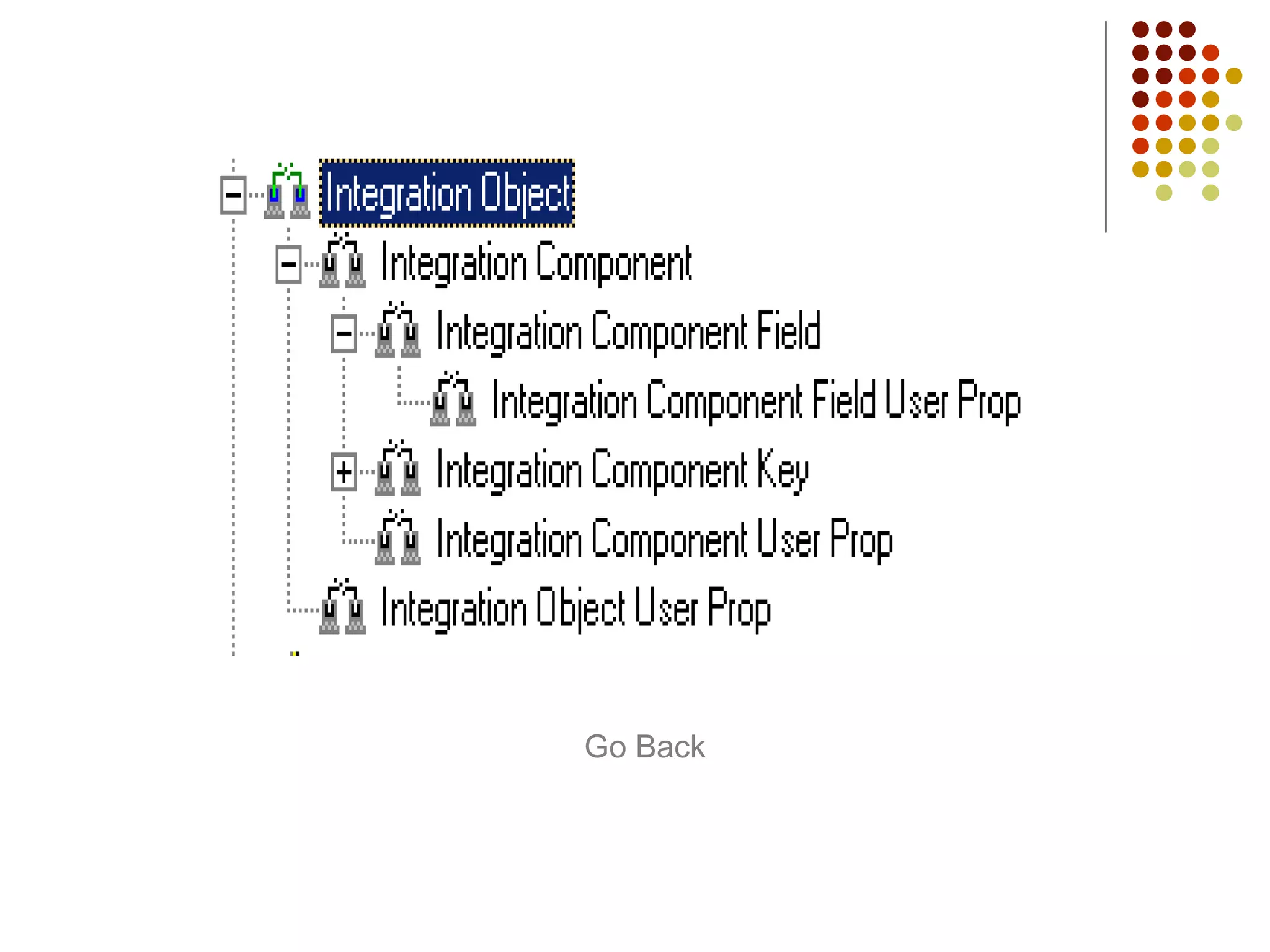
Definitions for integration objects in Siebel, XML structures for common data formats.
Explanation of WSDL for service interfaces and SOAP protocols for XML-based message exchange.
Discussion on inbound and outbound communication mechanisms in Siebel Web Service architecture.
Steps to identify Siebel components and configuration for creating an inbound web service. Instructions on using Siebel Tools to create integration objects and business services.
Specification of method names and arguments for the business service linked to web services.
Completing the creation of web service records and defining service ports and methods.
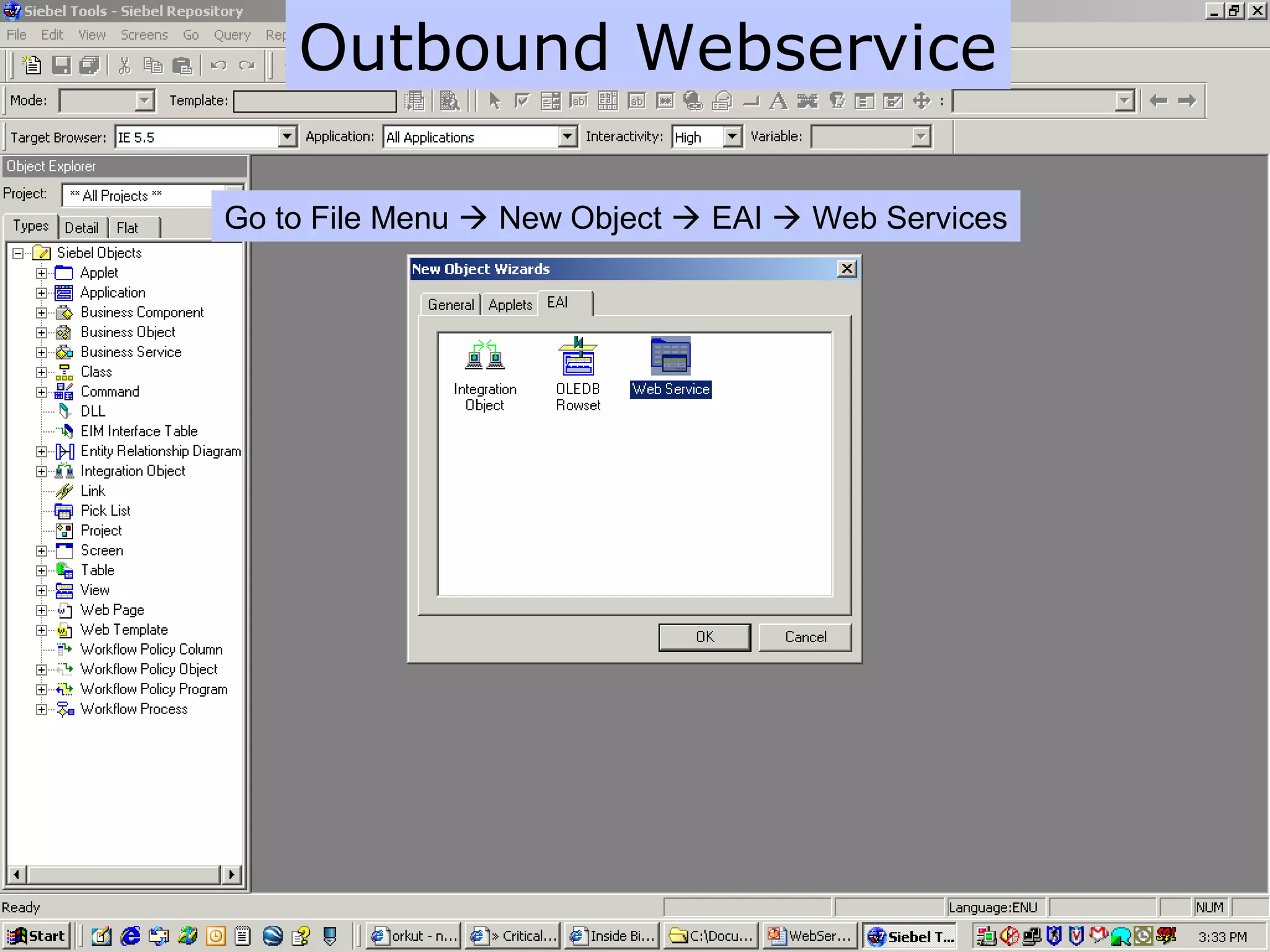
Procedure for setting up outbound Web Service using WSDL from external applications.
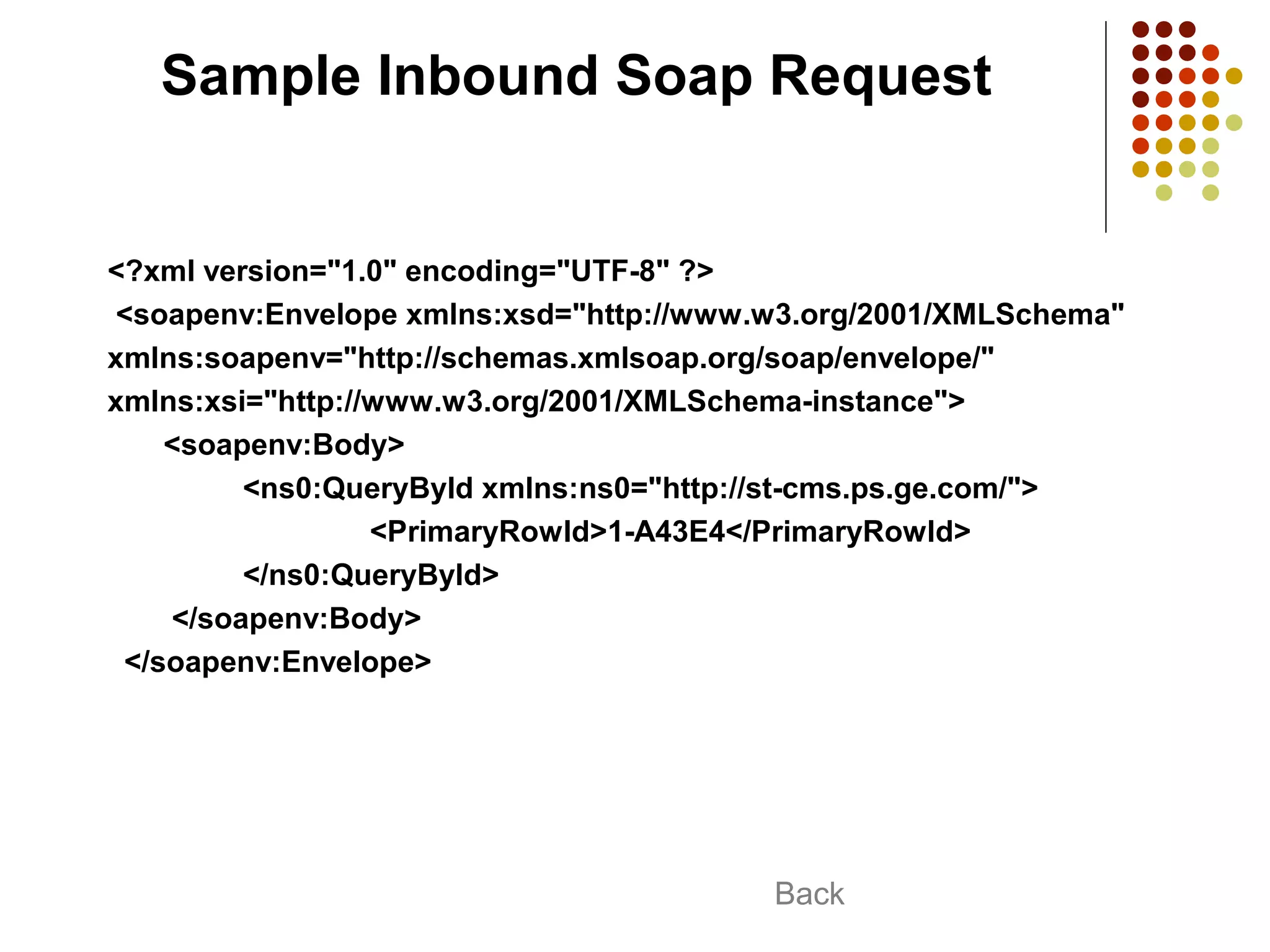
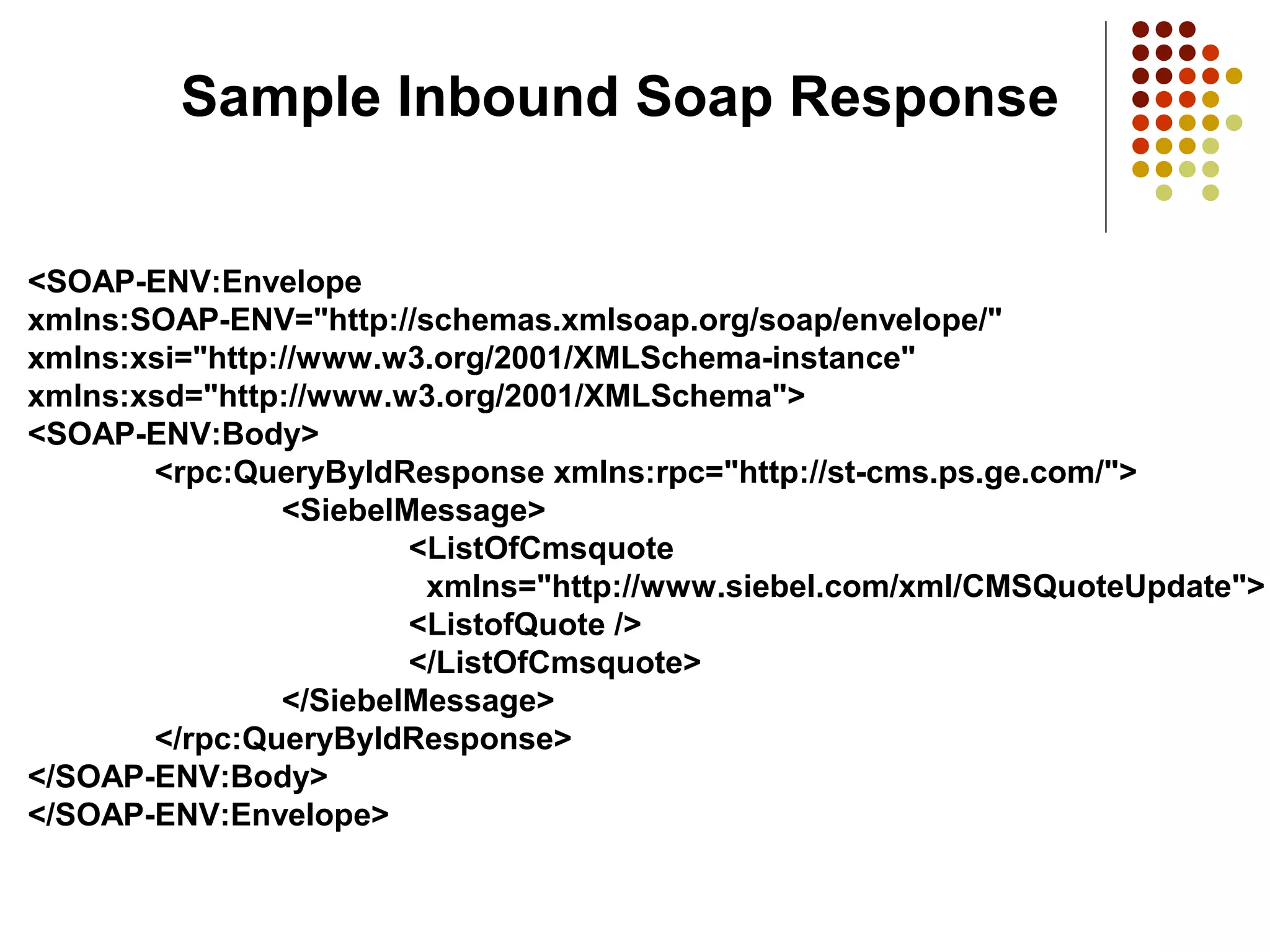
Examples of inbound SOAP request and response formats illustrating how services communicate.
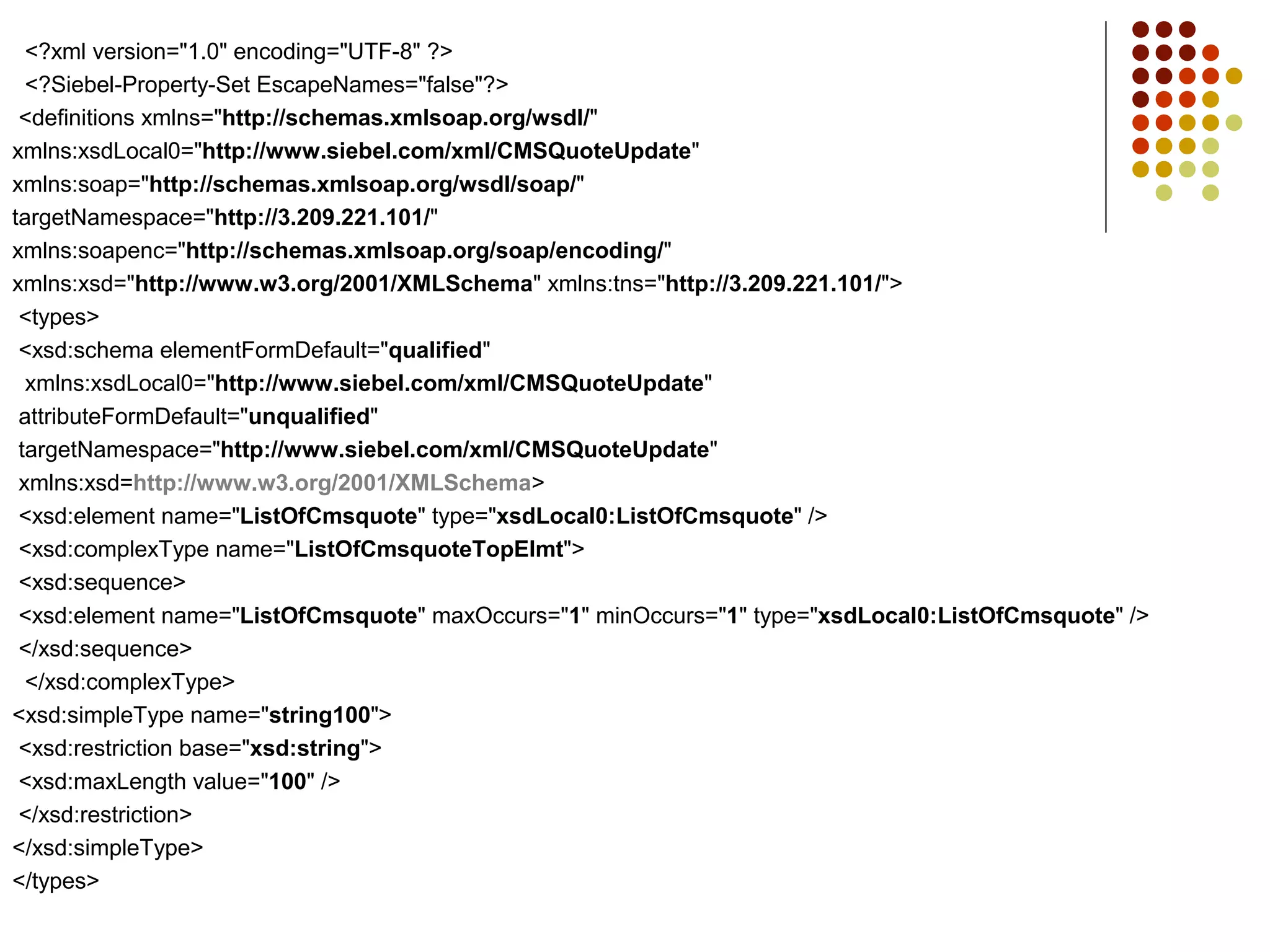
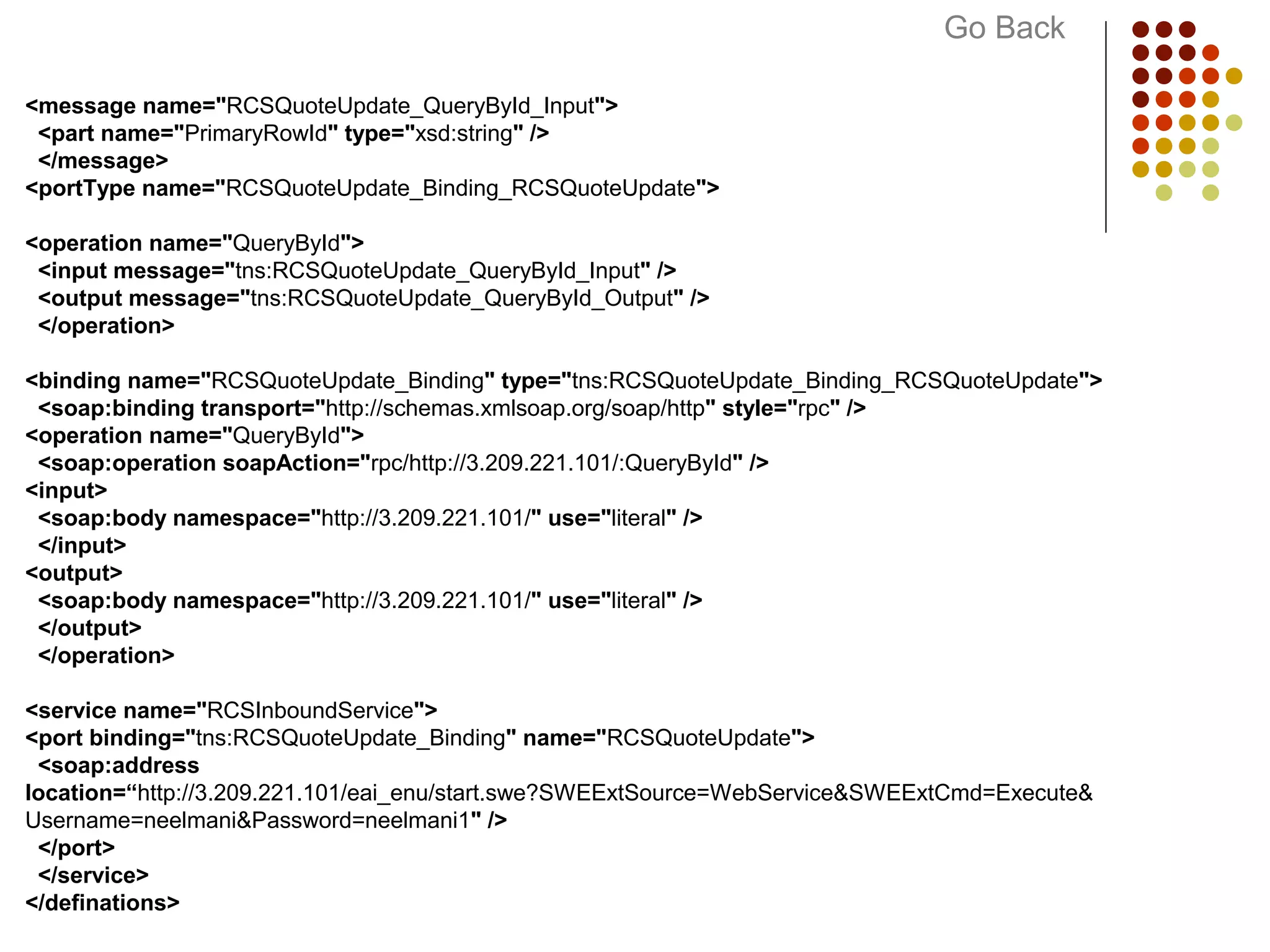
Detailed structure of WSDL definitions including message formats and service bindings.
What & Why
WHAT
Web Services can be reused
Web Services can be developed on any computer platform
In Any development environment.
A web service is a collection of protocols and standards.
Used for exchanging data between applications or systems.
Various Programming languages and Software running on various platforms
can use web services to exchange data over computer networks.
Similar to inter-process communication on a single computer.
Uses Common Network Protocols such as HTTP, SOAP, XML
WHY
3.
Important Terms andDefinition
Integration Object :
Represent integration metadata for Siebel business objects, XML as common structures that the
EAI infrastructure can understand.
Structural conventions, they can be traversed and transformed programmatically
Very similar to Siebel Business Object (BO)
Can contain various integration components (BC)
XML (Extensible Markup Language) :
A flexible way to create common information formats
Based on SGML (Standard Generalized Markup Language)
Share both the format and the data on the World Wide Web, intranets etc.
View SnapShot
4.
WSDL (Web ServiceDescription Language) :
How To interface with XML-based services.
Standard format for describing a web service
Acts as an End point for a Web Service
SOAP (Simple Object Access Protocol ) :
SOAP is a standard for exchanging XML-based messages using HTTP.
SOAP forms the foundation layer of the web services stack.
Providing a basic messaging framework.
5.
Siebel Web Service
SiebelWeb Service can be used to perform two types of communication
Inbound Communication
Service that is setup to receive the requests from external application or in simple
words it can be said that it acts as an interface to the Siebel application for the 3rd
party applications.
Outbound Communication
Service that is setup to send data to 3rd party external applications which is acts as an
interface of external applications for Siebel Application
6.
Inbound Web ServiceSetup
Ground Work Needed to setup a Inbound Service
Identify the information that needs to inserted in the Siebel Application
Identify the which Siebel Business Components and Siebel Business Objects it
involves
Identify the class of Business Component
Identify the User Properties
Actual Steps Involved in Creating Inbound Web Service
7.
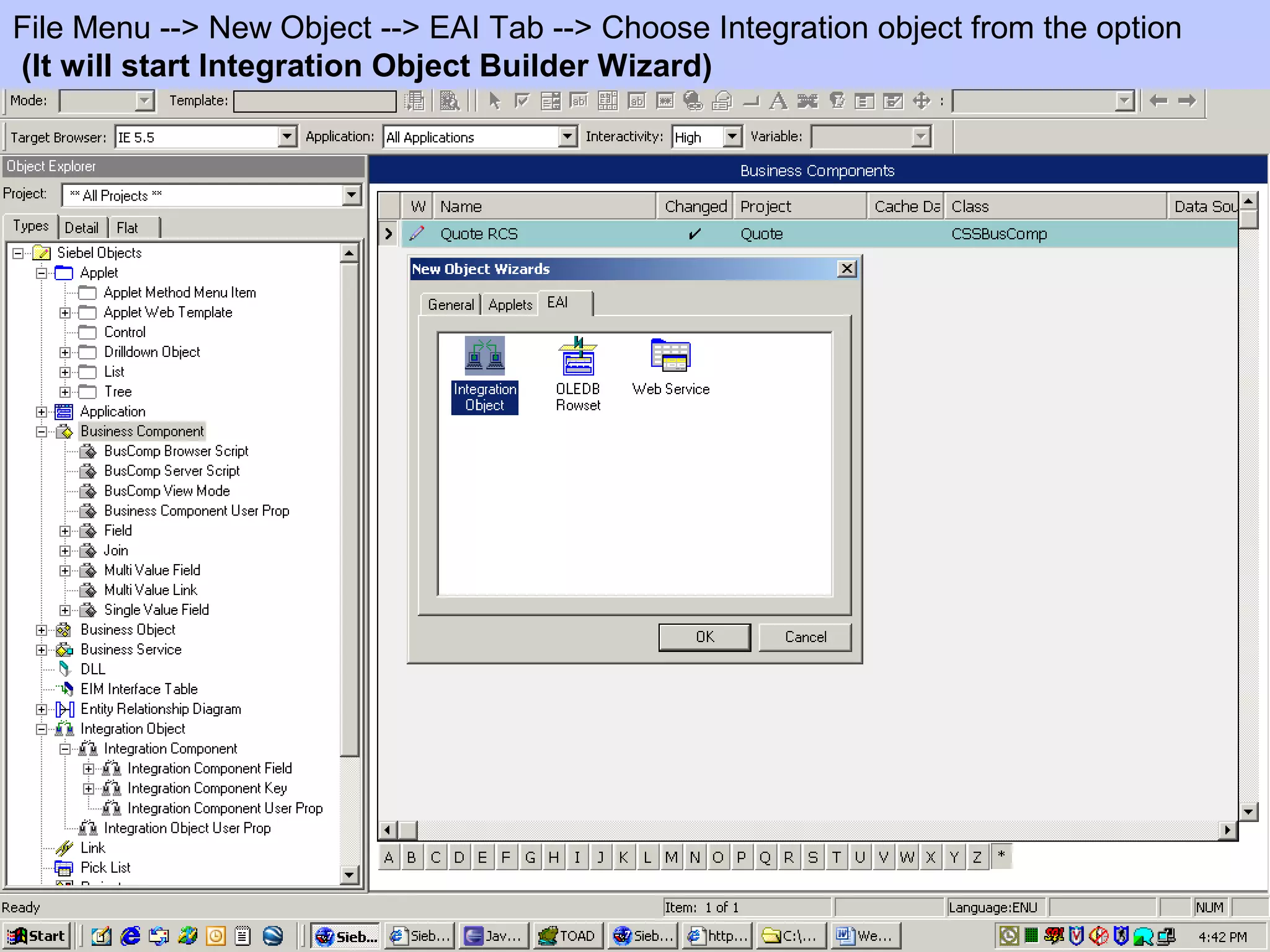
File Menu -->New Object --> EAI Tab --> Choose Integration object from the option
(It will start Integration Object Builder Wizard)
8.
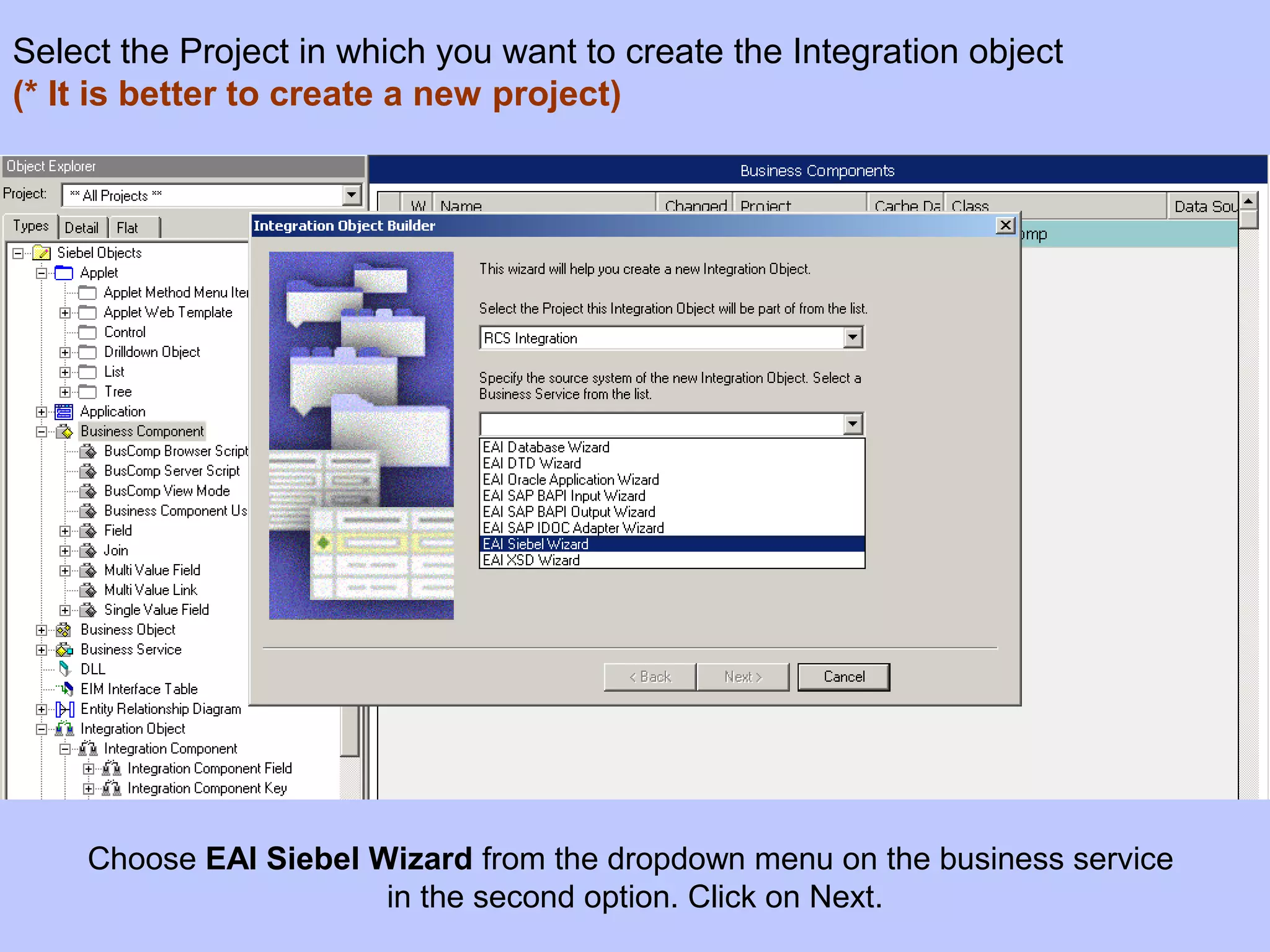
Choose EAI SiebelWizard from the dropdown menu on the business service
in the second option. Click on Next.
Select the Project in which you want to create the Integration object
(* It is better to create a new project)
9.
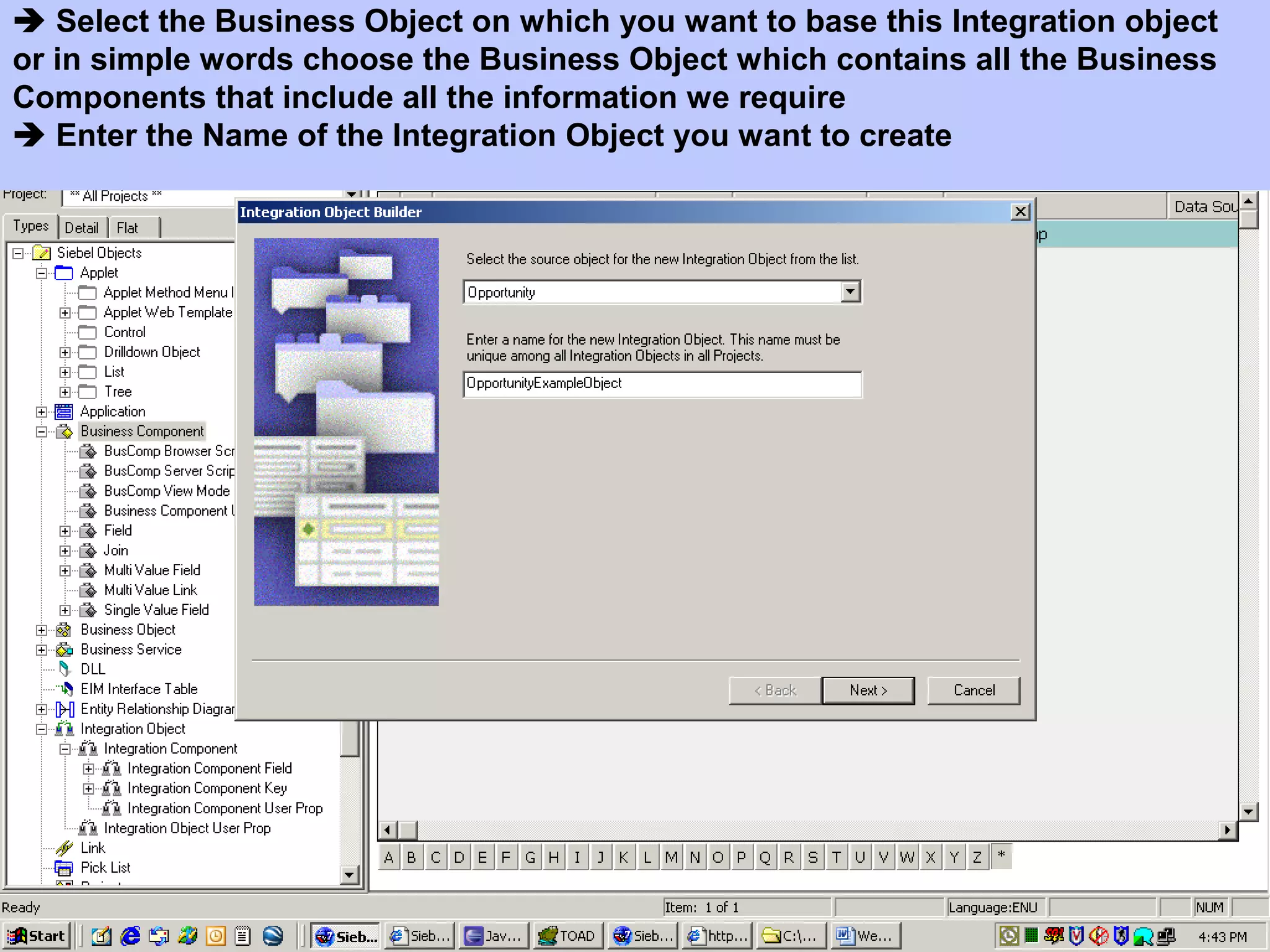
Select theBusiness Object on which you want to base this Integration object
or in simple words choose the Business Object which contains all the Business
Components that include all the information we require
Enter the Name of the Integration Object you want to create
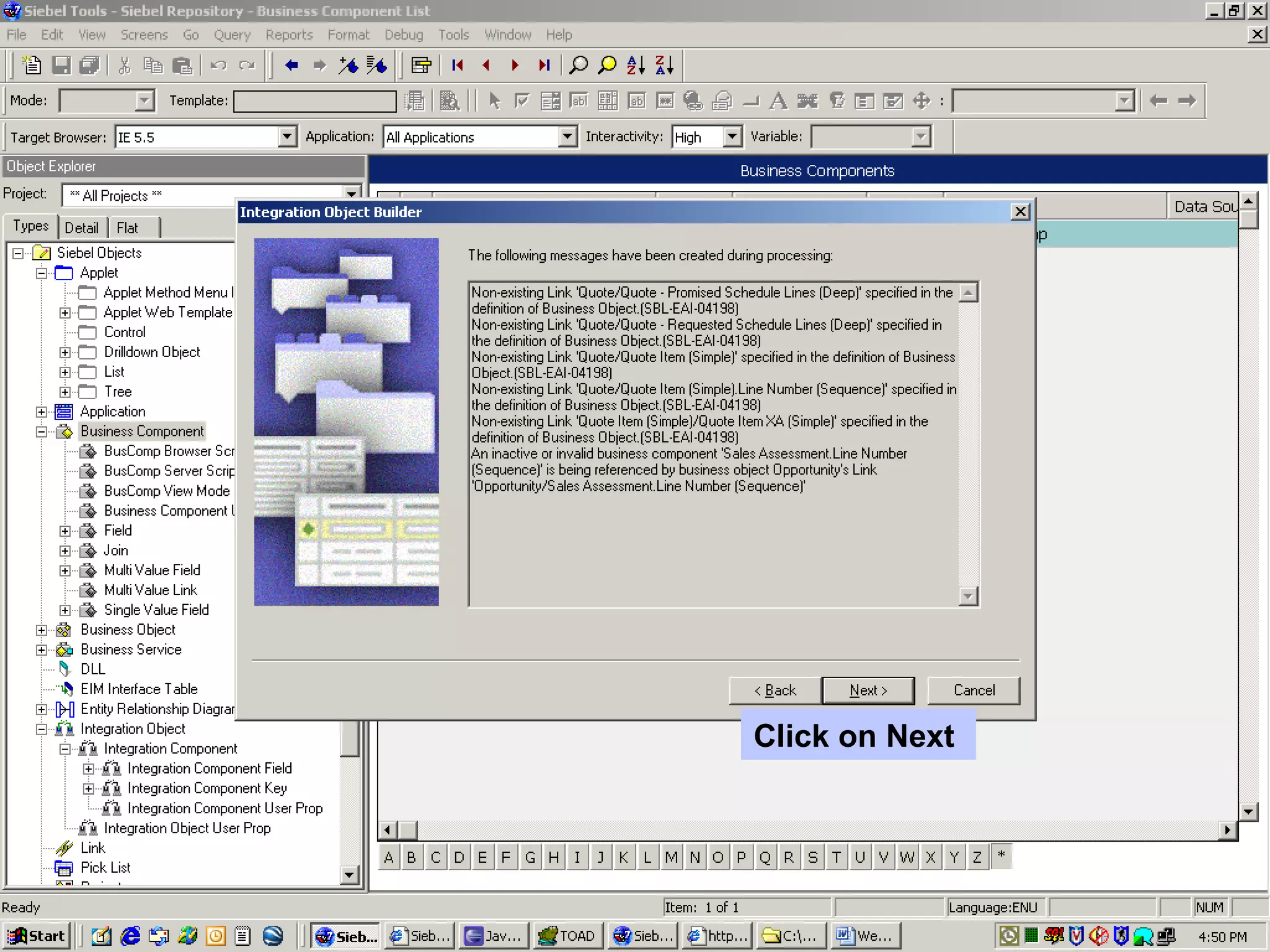
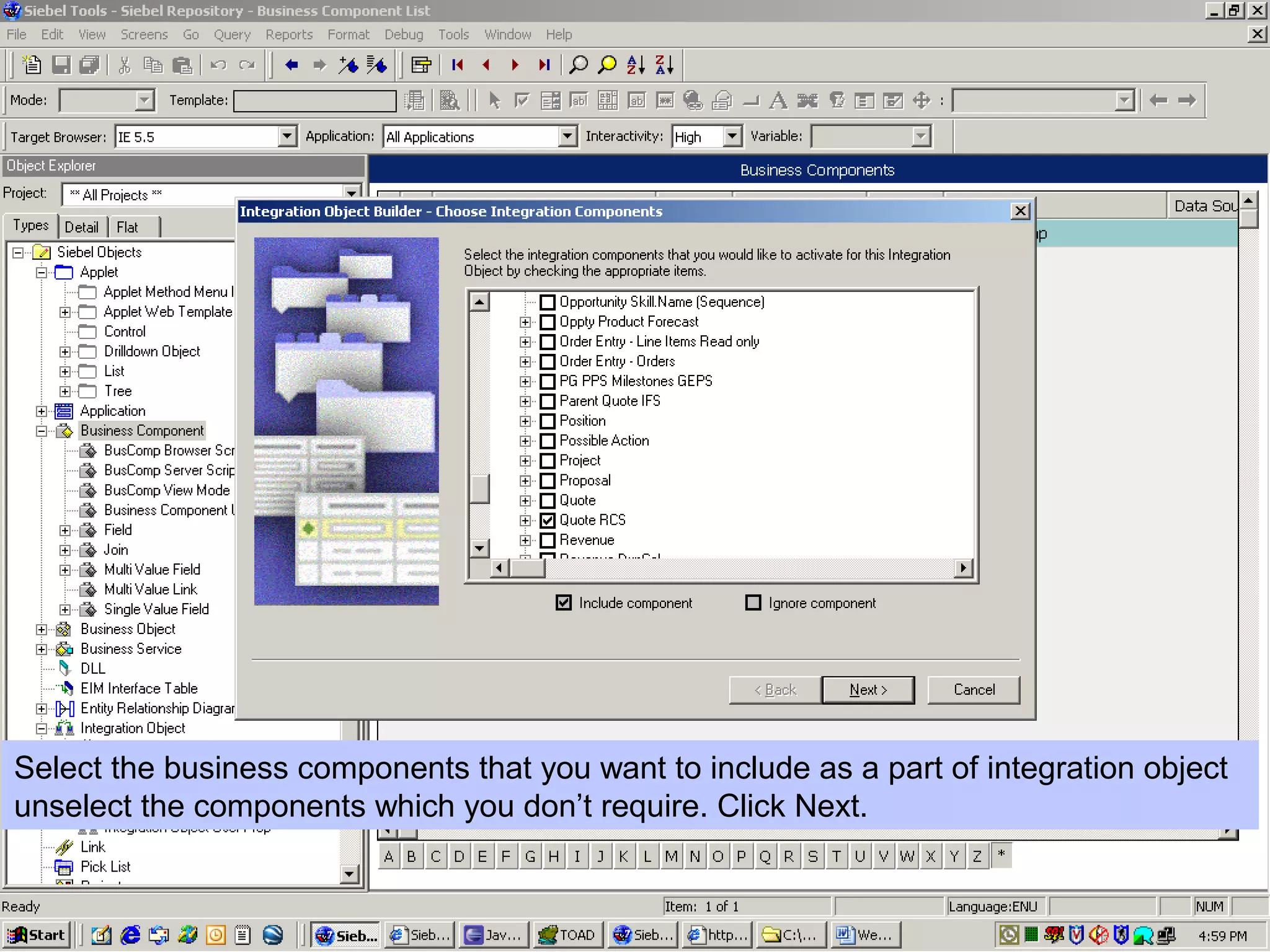
Select the businesscomponents that you want to include as a part of integration object
unselect the components which you don’t require. Click Next.
12.
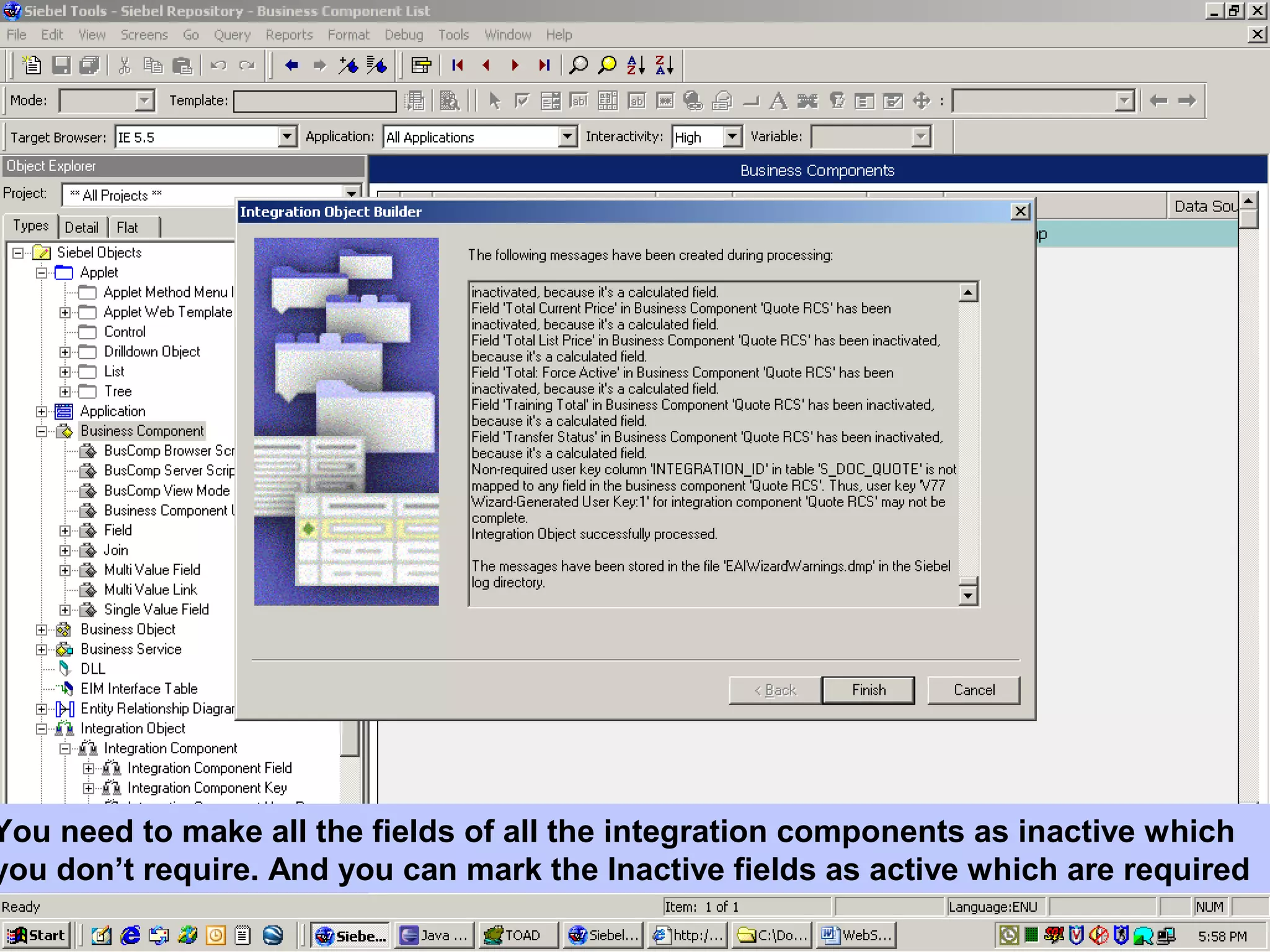
You need tomake all the fields of all the integration components as inactive which
you don’t require. And you can mark the Inactive fields as active which are required
13.
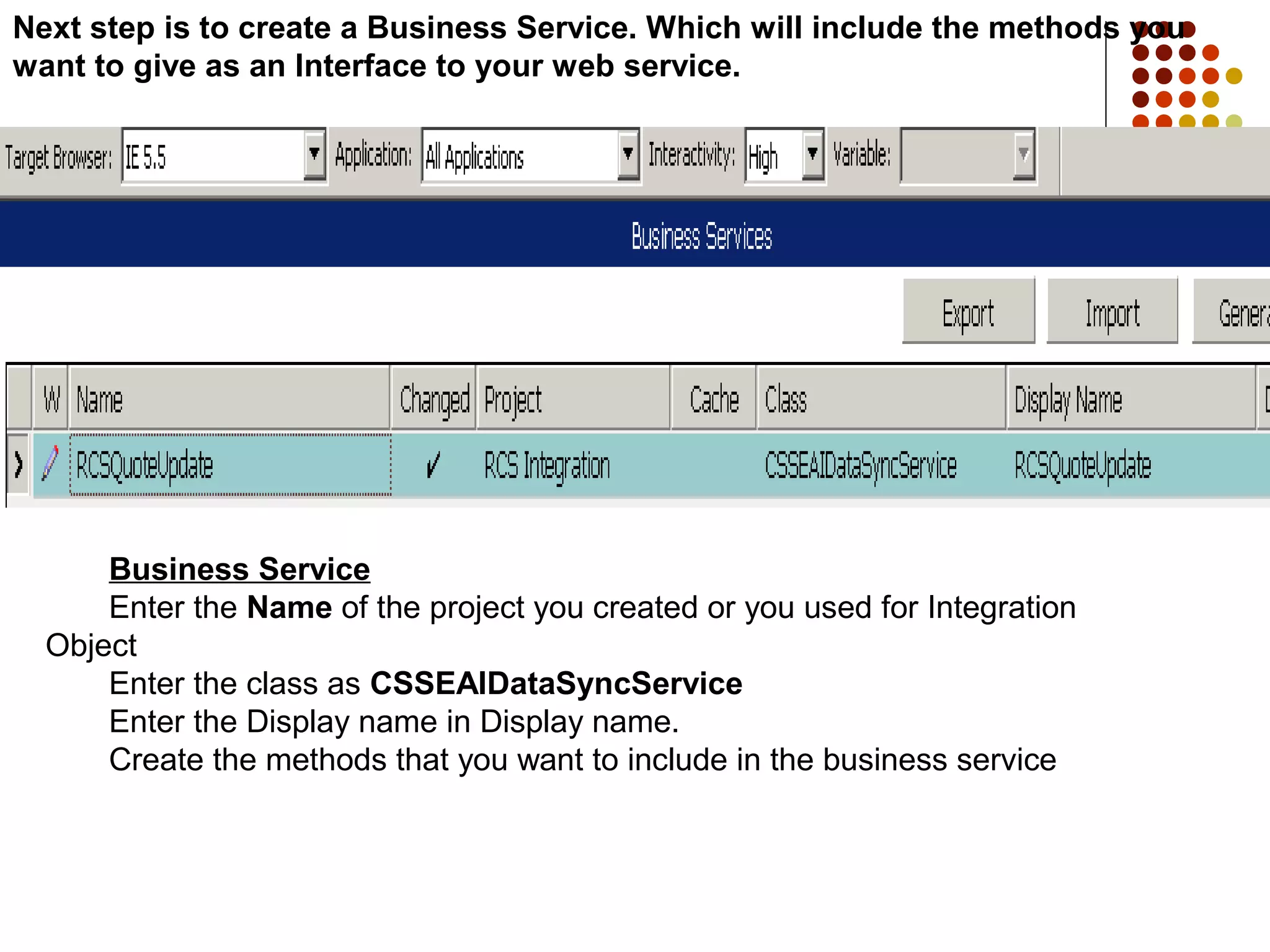
Next step isto create a Business Service. Which will include the methods you
want to give as an Interface to your web service.
Business Service
Enter the Name of the project you created or you used for Integration
Object
Enter the class as CSSEAIDataSyncService
Enter the Display name in Display name.
Create the methods that you want to include in the business service
14.
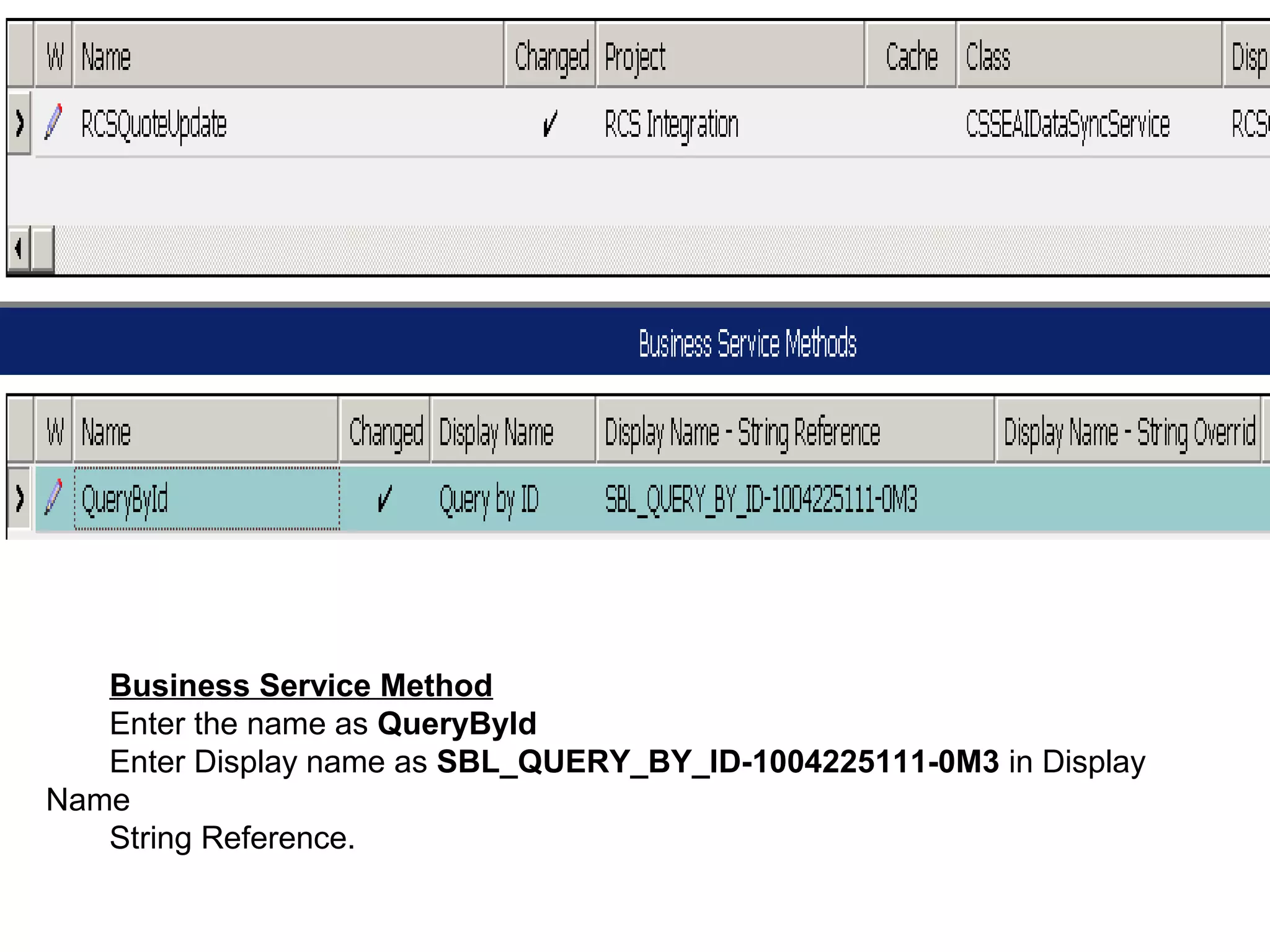
Business Service Method
Enterthe name as QueryById
Enter Display name as SBL_QUERY_BY_ID-1004225111-0M3 in Display
Name
String Reference.
15.
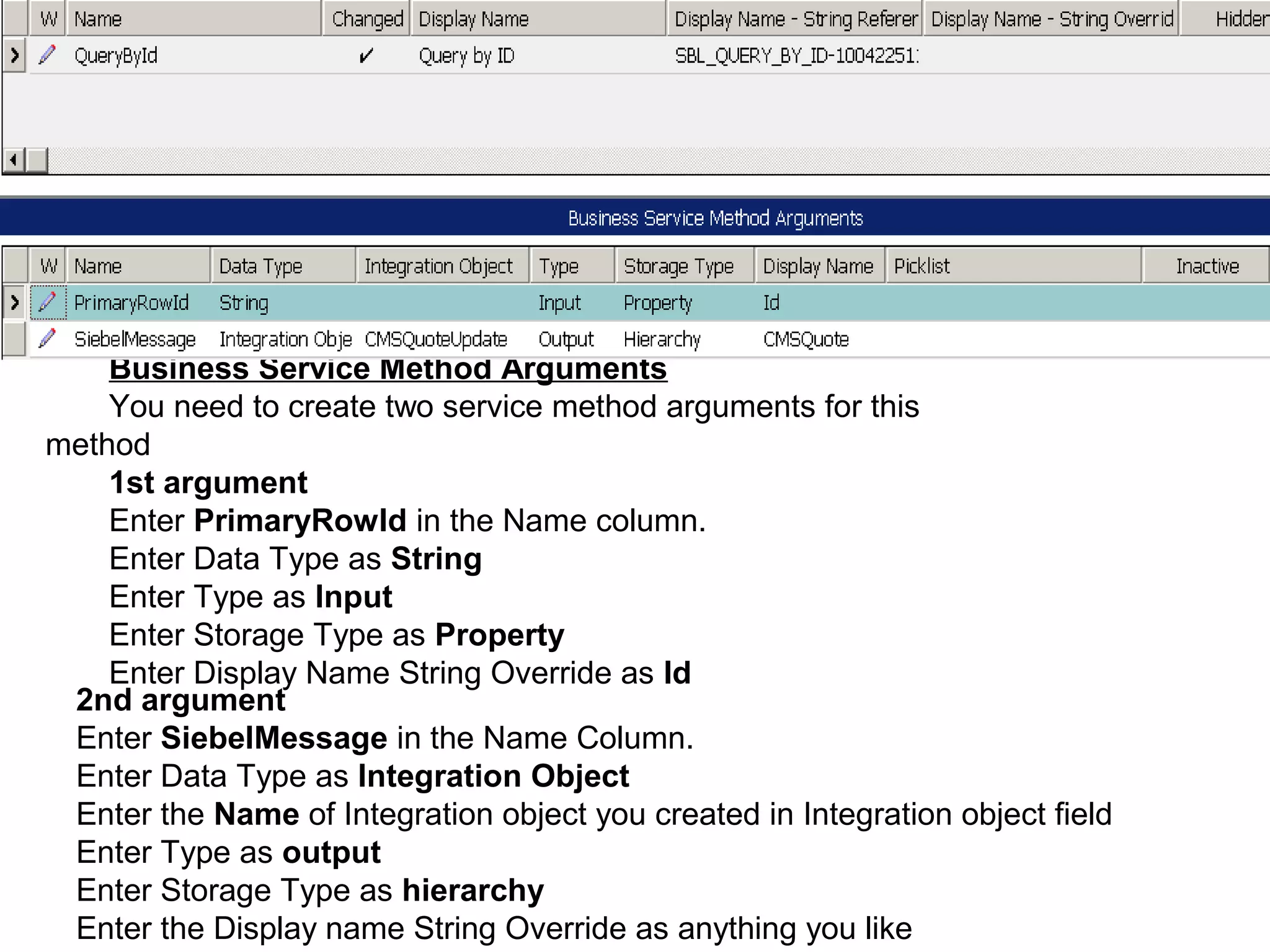
Business Service MethodArguments
You need to create two service method arguments for this
method
1st argument
Enter PrimaryRowId in the Name column.
Enter Data Type as String
Enter Type as Input
Enter Storage Type as Property
Enter Display Name String Override as Id
2nd argument
Enter SiebelMessage in the Name Column.
Enter Data Type as Integration Object
Enter the Name of Integration object you created in Integration object field
Enter Type as output
Enter Storage Type as hierarchy
Enter the Display name String Override as anything you like
16.
Your configuration inSiebel Tools is
Complete
You need to create Web Service Record
in Application
17.
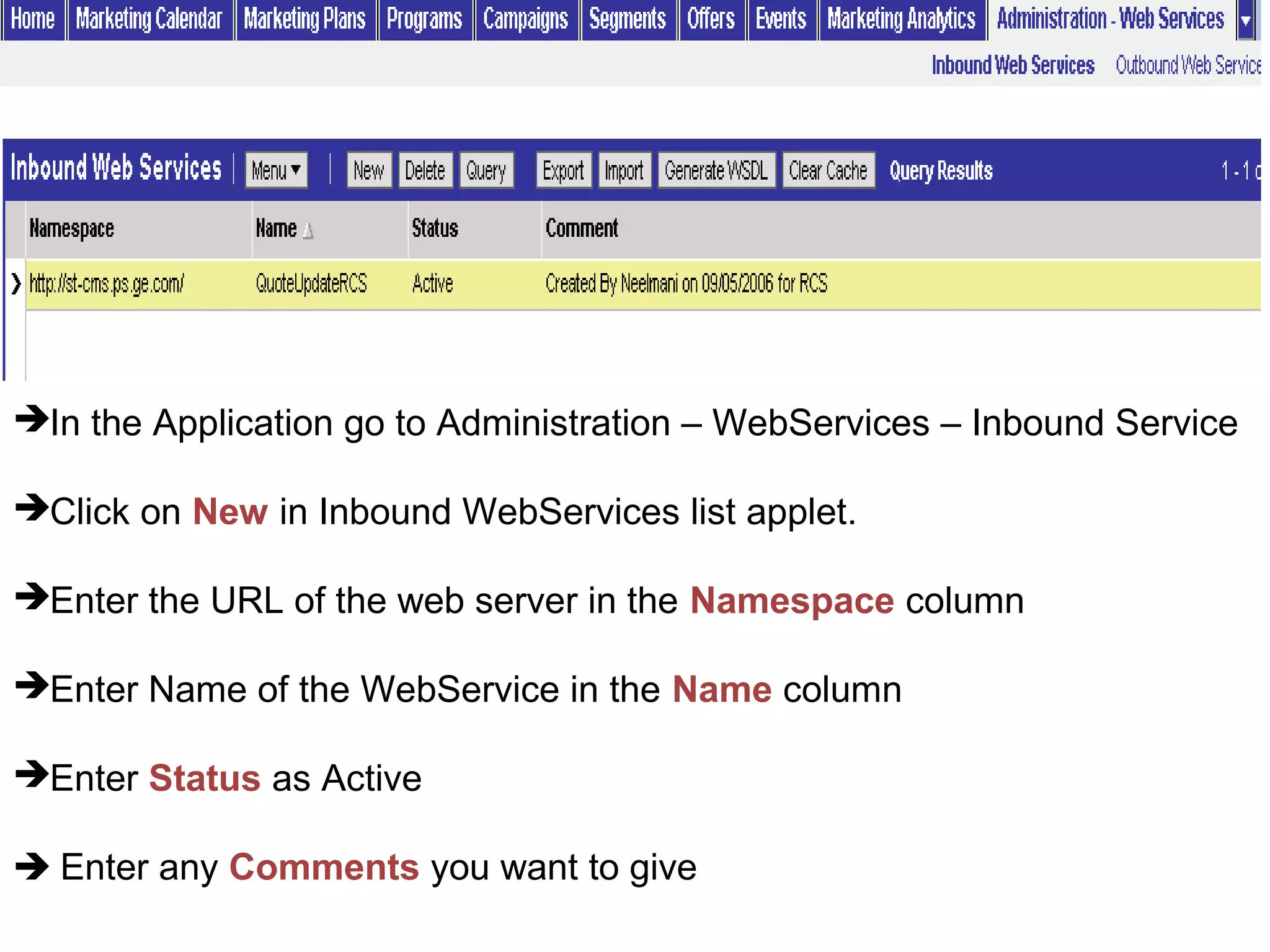
In the Applicationgo to Administration – WebServices – Inbound Service
Click on New in Inbound WebServices list applet.
Enter the URL of the web server in the Namespace column
Enter Name of the WebService in the Name column
Enter Status as Active
Enter any Comments you want to give
18.
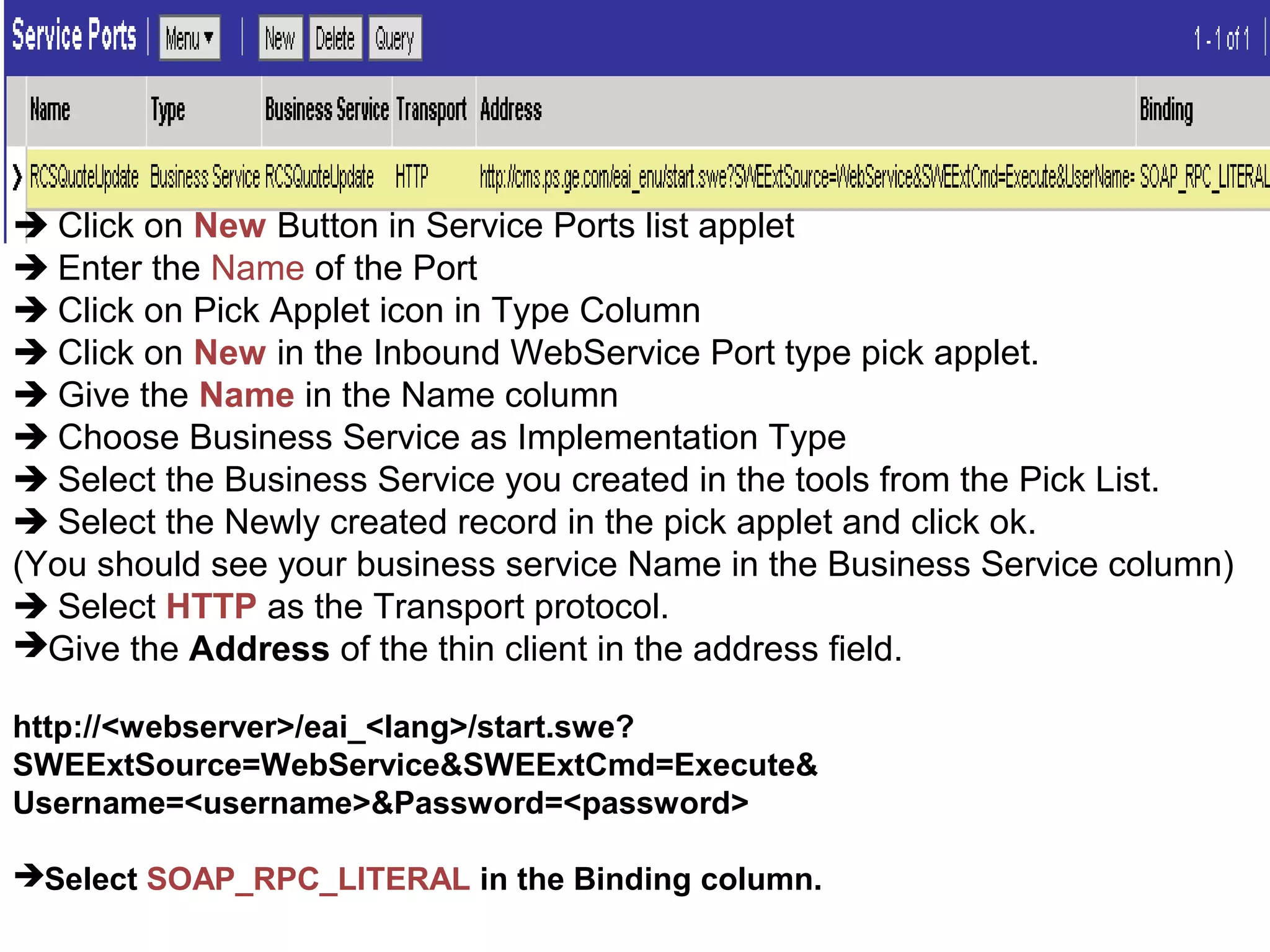
Click onNew Button in Service Ports list applet
Enter the Name of the Port
Click on Pick Applet icon in Type Column
Click on New in the Inbound WebService Port type pick applet.
Give the Name in the Name column
Choose Business Service as Implementation Type
Select the Business Service you created in the tools from the Pick List.
Select the Newly created record in the pick applet and click ok.
(You should see your business service Name in the Business Service column)
Select HTTP as the Transport protocol.
Give the Address of the thin client in the address field.
http://<webserver>/eai_<lang>/start.swe?
SWEExtSource=WebService&SWEExtCmd=Execute&
Username=<username>&Password=<password>
Select SOAP_RPC_LITERAL in the Binding column.
19.
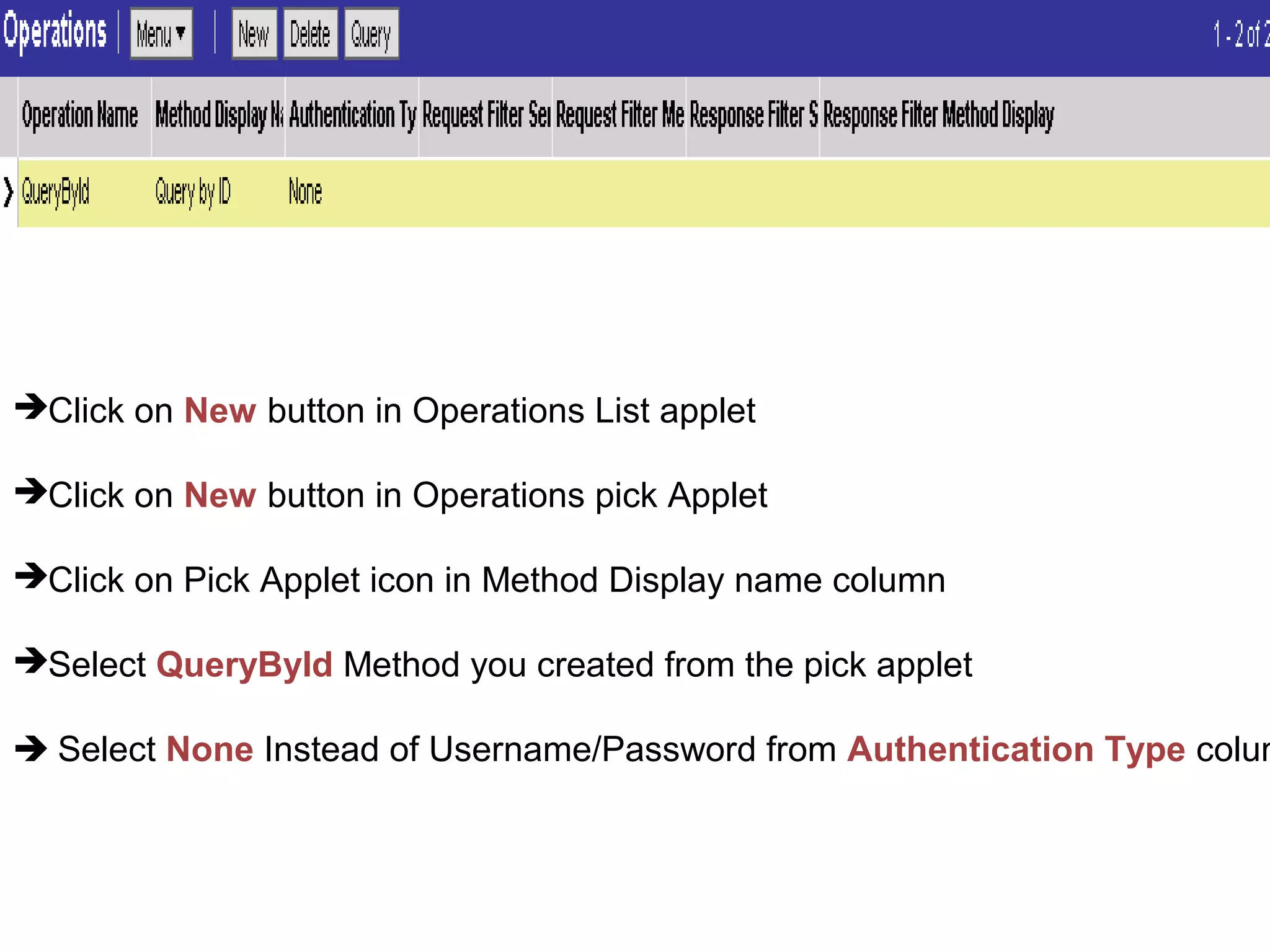
Click on Newbutton in Operations List applet
Click on New button in Operations pick Applet
Click on Pick Applet icon in Method Display name column
Select QueryById Method you created from the pick applet
Select None Instead of Username/Password from Authentication Type colum
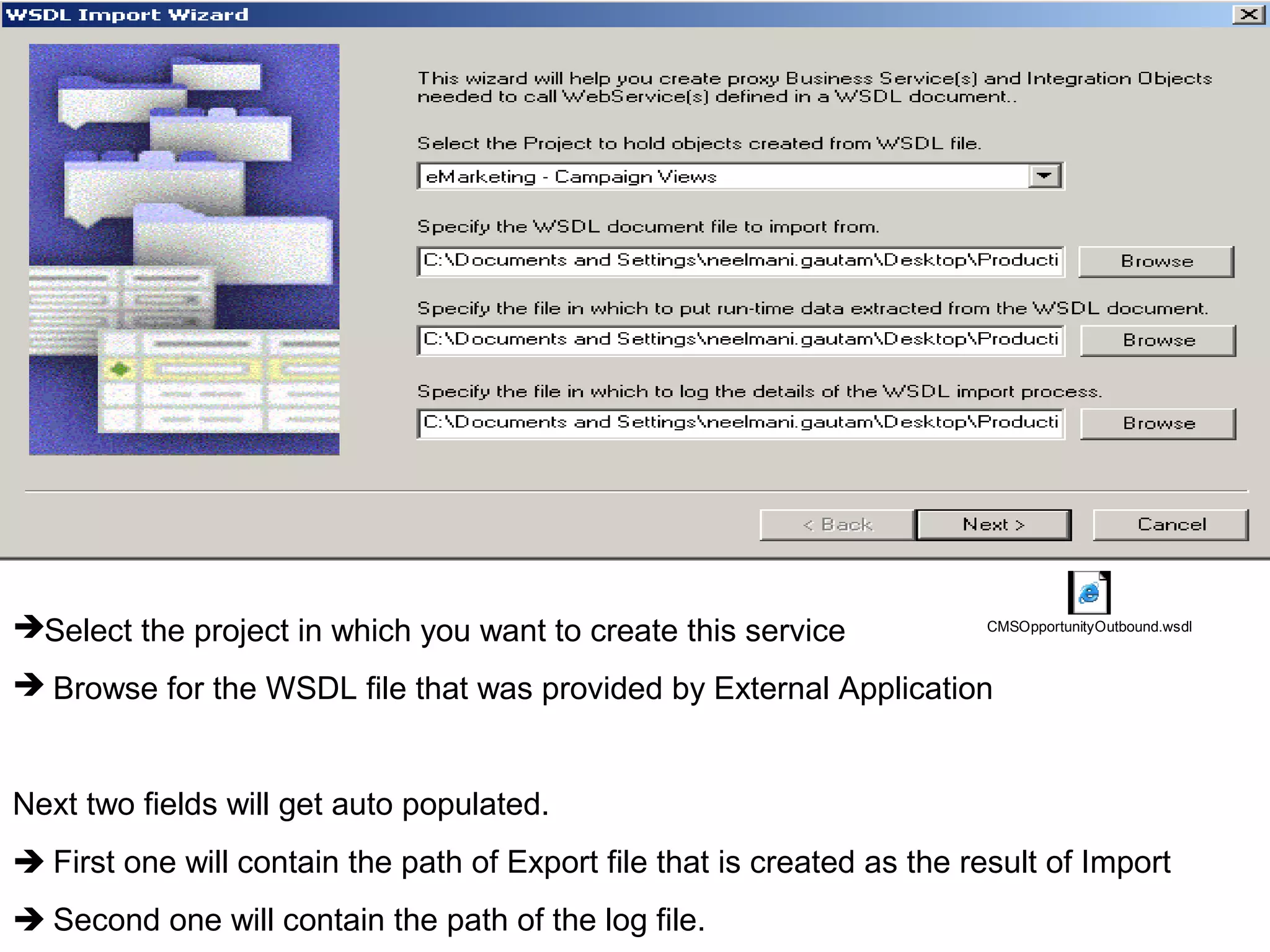
Select the projectin which you want to create this service
Browse for the WSDL file that was provided by External Application
Next two fields will get auto populated.
First one will contain the path of Export file that is created as the result of Import
Second one will contain the path of the log file.
CMSOpportunityOutbound.wsdl
22.
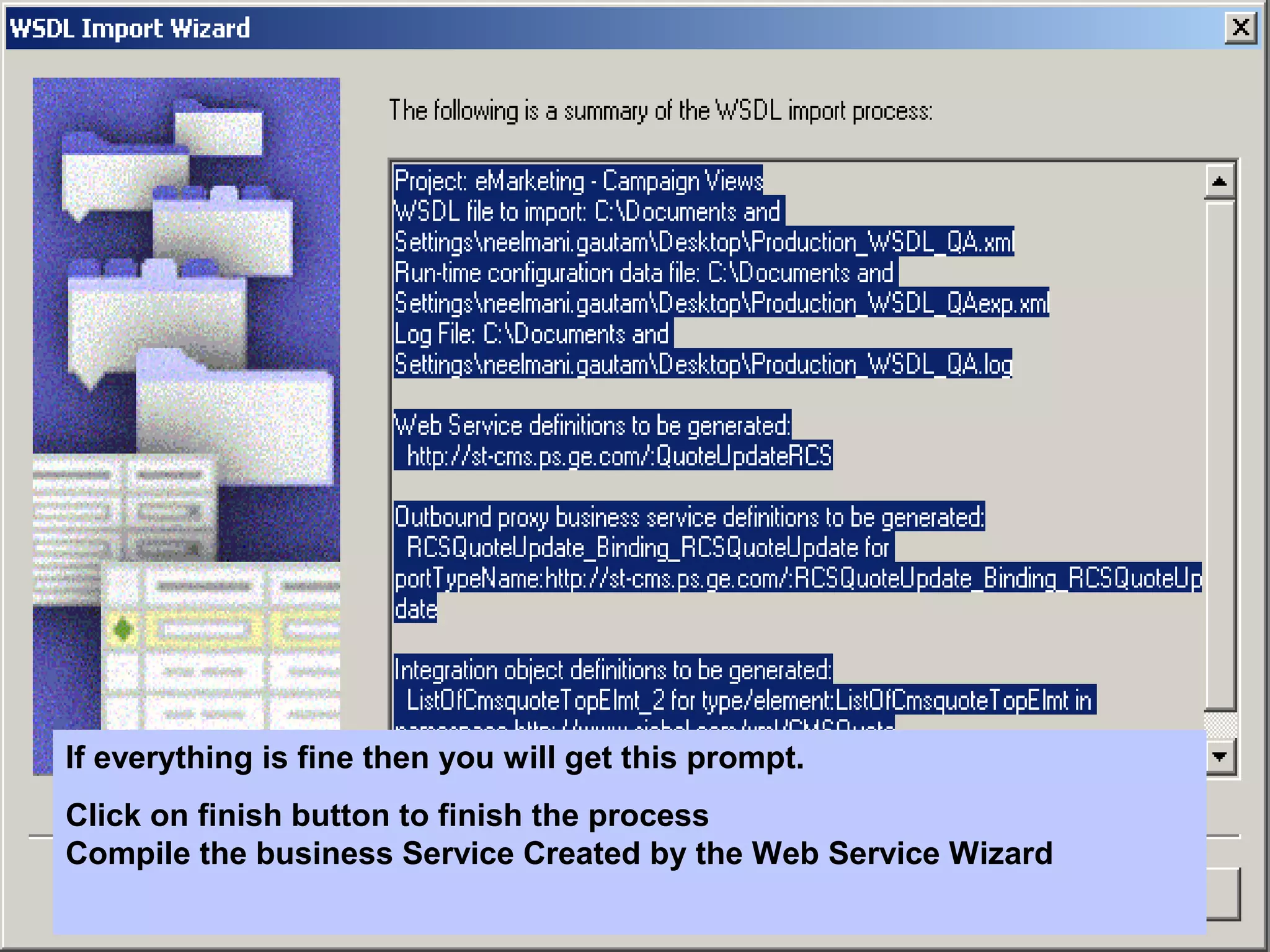
If everything isfine then you will get this prompt.
Click on finish button to finish the process
Compile the business Service Created by the Web Service Wizard
23.
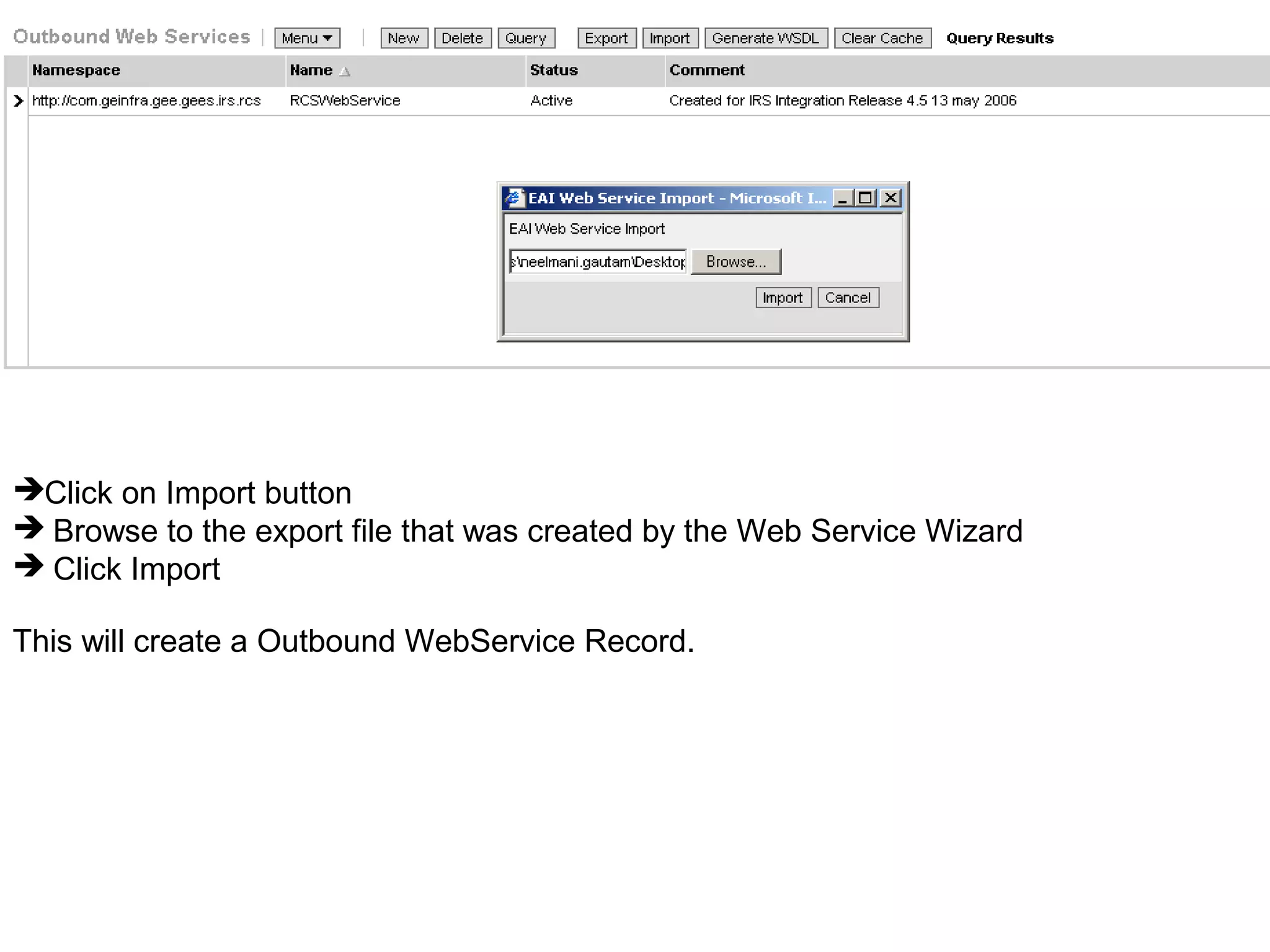
Click on Importbutton
Browse to the export file that was created by the Web Service Wizard
Click Import
This will create a Outbound WebService Record.