Test Complete
Presentation
Agenda
What is, what to test?
Test Complete IDE
Create projects, tested application
Create/record tests, tests execution
order, run tests
Identify objects
Checkpoints
Work
What is Test Complete?
 Automated testing tool that lets you create,
manage and run tests for any Windows,
Web
 Can test applications that were created in
C#, C++, Delphi, Java, or any other
development language
 Automate your tests and you can run them
anytime, day or night by using a
continuous integration tool or by using
Task Scheduler
SmartBear
 http://smartbear.com/
 User guide:
http://support.smartbear.com/viewarticle/3
2760/?st=0
 Forum:
http://smartbear.com/forums/f81/general-
testcomplete-discussions
 Screencasts and Videos:
http://support.smartbear.com/screencasts/t
estcomplete/
Decide What Test Cases to Automate
 Impossible to automate all testing, in this case
we should automate
 Repetitive tests that run for multiple builds
 Tests that tend to cause human error
 Frequently used functionality that introduces high risk
conditions
 Tests that are impossible to perform manually
 Tests that run on several different hardware or
software platforms and configurations
 Tests that take a lot of effort and time when manual
testing
Divide Your Automated Testing Efforts
 Identify the level of experience and skills for
each of your team members and divide your
automated testing efforts accordingly
 Writing automated test scripts requires expert
knowledge of scripting languages
 Test Complete‘s keyword tests feature (TC7)=
simple series of keywords with a specified
action. With keyword tests, you can simulate
keystrokes, click buttons, select menu items, call
object methods and properties
Keyword Testing
Types of software testing
Unit
Load (WEB)
Keyword-Driven
Manual
Test Complete IDE (1)
 Test Complete’s desktop is organized into a
number of panels (View  Select Panels)
 Project Explorer panel: displays a tree of project
items, their child elements and test log nodes :
Project Suite, Projects, Project Items, Project Items
Elements
Test Complete IDE (2)
 Project Workspace panel: placeholder for different
editors that let you view and modify the contents of
the project suite, project, project item or its child item
you are exploring using the Project Explorer panel
Test Complete IDE (3)
 Object browser panel: lets you explore what
properties, fields, methods and events your
application has. The tree view on the left contains a
list of processes that are currently running in the
operating system and their windows. All processes
are direct children of System (the Sys object in
scripts), and windows are children of the process that
opened them
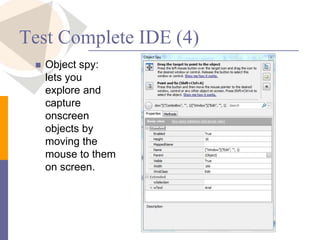
Test Complete IDE (4)
 Object spy:
lets you
explore and
capture
onscreen
objects by
moving the
mouse to them
on screen.
Test Complete IDE (5)
 Debugging panels: Call Stack, Locals, Breakpoints,
Watch List
Create Projects
 Project Suite  Right-click  Add new Item
 File  New  New Project
 Choose programming language
 Default content contains
 Events
 Unit test
 Keyword test
Tested Application (1)
 Each project may have a list of tested
applications
Tested Application (2)
 Launch tested application
 Workspace  Right-click Run Selected
 Scripts
 Recording
Creating Tests
 Define the test goal: functionalities to be tested,
create a simple test aimed at one objective only
 Plan testing steps: decide which actions the
test will perform
 Check test results: decide how to determine
that the test passed successfully or failed
 Logging the result: file, images, test complete
log
 Create you test
Recording Tests
 To start the recording, select Script | Record
from Test Complete’s main menu or press
Record on the Test Engine toolbar
Editing and Writing Scripts (1)
 First record a script and then modify it
 Create new scripts manually without recording
anything
 Syntax highlighting (for each of the supported
languages, the Code Editor uses syntax color
highlighting - different fonts and colors for different code
elements, making them easier to locate and
distinguish.)
 Outlining
 Code templates
 Code navigation (CTRL+function)
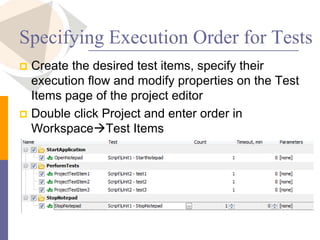
Specifying Execution Order for Tests
 Create the desired test items, specify their
execution flow and modify properties on the Test
Items page of the project editor
 Double click Project and enter order in
WorkspaceTest Items
Running the Created Test
 Run from Application Menu: solution, project,
script
 Run from Tested Items
 Run from Code Editor
 Run from Project Explorer
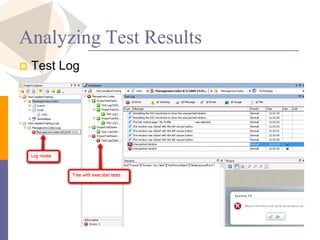
Analyzing Test Results
 Test Log
Log
 Test Log
Checkpoints
 Comparison (or verification) operation that is
performed during testing
 Perform verifications of different kinds:
 If you test a new control, you may need to verify that
after a user performs actions, certain control’s
properties contain the appropriate values. The
operation that will check the property value is called a
property checkpoint.
 If the tested application exports data to a file, you may
need to compare this file with a baseline copy. This
check is called a file checkpoint. Similarly, to verify that
the application changes the database as expected, you
create a database checkpoint.
Object Checkpoints
 Verifying several properties of the object with a
single test command
 Object checkpoints obtain the specified object in
your application (this object must exist at that
moment), verify that some or all properties of the
object and, optionally, its child objects contain
the expected values and report the results.
 The baseline data used by the object checkpoint
for comparison is stored in the Stores | Objects
collection of your project.
 Objects.CheckpointName.Check
Property Checkpoints
 Verifies that an object property has the expected
value in the tested application. For example, it
verifies the text in a text box or the state of a
check box. This helps you check whether your
tested application works correctly.
 In scripts, property checkpoints are performed
using the aqObject.CheckProperty method:
aqObject.CheckProperty(Aliases.Orders.MainForm.OrdersView,
"wItem(5, 0)", cmpContains, "Mark Twain")
Table Checkpoints
 Quite often applications use controls that display
information in a tabular form. During testing, you
may need to verify that these controls contain the
appropriate data.
 Use table checkpoints to verify data in the
following controls: Microsoft DataGridView
controls, Microsoft DataGrid .NET controls,
Microsoft PropertyGrid controls, Developer
Express XtraGrid controls, Developer Express
QuantumGrid controls etc
File Checkpoints
 During testing, you may need to check whether a
file stores the appropriate data. This may be
needed if your application exports some data, for
example, the customers list, to a file and you
need to check whether the exporting procedure
functions properly
 File.Check
Region Checkpoints
 One of the most common testing tasks is to verify
that an application’s window or control is
displayed correctly. This can be done by
comparing the actual image of the object with the
previously captured baseline image stored in your
test project.
 Regions.Compare
Work (1)
 Create a new solution with a project. Open
NotepadFont dialog and set Times New Roman
Bold 36. Reopen dialog and check if the values
were stored.
 Create a new solution with a project. Add as
tested application
c:UsersPublicDocumentsTestComplete 9
SamplesWorking With GridsMicrosoft
DataGridDataGridSamplebinReleaseDataGrid
Sample.exe. Create a test that modifies the table
content and performs a table checkpoint.
Work (2)
 Create a new solution with a project. Add
DataGridSample.exe as a Tested Application. Copy all
content of the grid in a notepad, save the file and perform
a file checkpoint. Write in logs all steps that you are
performing. Use aqFile object to work with files
 Create a function to report the testing results as .mht in
foder Reports (relative to current project path)
 Use Project["ConfigPath"] to take the path for the project
 Use aqFileSystem to delete folder Reports if exists
 Use Log.SaveResultsAs function to store the results
 Run this project from Task Scheduler
 ActionProgram/script: “…TestComplete.exe"
 Actionargument“…ProjectSuite1.pjs" /r /e

Test Complete

  • 1.
  • 2.
    Agenda What is, whatto test? Test Complete IDE Create projects, tested application Create/record tests, tests execution order, run tests Identify objects Checkpoints Work
  • 3.
    What is TestComplete?  Automated testing tool that lets you create, manage and run tests for any Windows, Web  Can test applications that were created in C#, C++, Delphi, Java, or any other development language  Automate your tests and you can run them anytime, day or night by using a continuous integration tool or by using Task Scheduler
  • 4.
    SmartBear  http://smartbear.com/  Userguide: http://support.smartbear.com/viewarticle/3 2760/?st=0  Forum: http://smartbear.com/forums/f81/general- testcomplete-discussions  Screencasts and Videos: http://support.smartbear.com/screencasts/t estcomplete/
  • 5.
    Decide What TestCases to Automate  Impossible to automate all testing, in this case we should automate  Repetitive tests that run for multiple builds  Tests that tend to cause human error  Frequently used functionality that introduces high risk conditions  Tests that are impossible to perform manually  Tests that run on several different hardware or software platforms and configurations  Tests that take a lot of effort and time when manual testing
  • 6.
    Divide Your AutomatedTesting Efforts  Identify the level of experience and skills for each of your team members and divide your automated testing efforts accordingly  Writing automated test scripts requires expert knowledge of scripting languages  Test Complete‘s keyword tests feature (TC7)= simple series of keywords with a specified action. With keyword tests, you can simulate keystrokes, click buttons, select menu items, call object methods and properties
  • 7.
  • 8.
    Types of softwaretesting Unit Load (WEB) Keyword-Driven Manual
  • 9.
    Test Complete IDE(1)  Test Complete’s desktop is organized into a number of panels (View  Select Panels)  Project Explorer panel: displays a tree of project items, their child elements and test log nodes : Project Suite, Projects, Project Items, Project Items Elements
  • 10.
    Test Complete IDE(2)  Project Workspace panel: placeholder for different editors that let you view and modify the contents of the project suite, project, project item or its child item you are exploring using the Project Explorer panel
  • 11.
    Test Complete IDE(3)  Object browser panel: lets you explore what properties, fields, methods and events your application has. The tree view on the left contains a list of processes that are currently running in the operating system and their windows. All processes are direct children of System (the Sys object in scripts), and windows are children of the process that opened them
  • 12.
    Test Complete IDE(4)  Object spy: lets you explore and capture onscreen objects by moving the mouse to them on screen.
  • 13.
    Test Complete IDE(5)  Debugging panels: Call Stack, Locals, Breakpoints, Watch List
  • 14.
    Create Projects  ProjectSuite  Right-click  Add new Item  File  New  New Project  Choose programming language  Default content contains  Events  Unit test  Keyword test
  • 15.
    Tested Application (1) Each project may have a list of tested applications
  • 16.
    Tested Application (2) Launch tested application  Workspace  Right-click Run Selected  Scripts  Recording
  • 17.
    Creating Tests  Definethe test goal: functionalities to be tested, create a simple test aimed at one objective only  Plan testing steps: decide which actions the test will perform  Check test results: decide how to determine that the test passed successfully or failed  Logging the result: file, images, test complete log  Create you test
  • 18.
    Recording Tests  Tostart the recording, select Script | Record from Test Complete’s main menu or press Record on the Test Engine toolbar
  • 19.
    Editing and WritingScripts (1)  First record a script and then modify it  Create new scripts manually without recording anything  Syntax highlighting (for each of the supported languages, the Code Editor uses syntax color highlighting - different fonts and colors for different code elements, making them easier to locate and distinguish.)  Outlining  Code templates  Code navigation (CTRL+function)
  • 20.
    Specifying Execution Orderfor Tests  Create the desired test items, specify their execution flow and modify properties on the Test Items page of the project editor  Double click Project and enter order in WorkspaceTest Items
  • 21.
    Running the CreatedTest  Run from Application Menu: solution, project, script  Run from Tested Items  Run from Code Editor  Run from Project Explorer
  • 22.
  • 23.
  • 24.
    Checkpoints  Comparison (orverification) operation that is performed during testing  Perform verifications of different kinds:  If you test a new control, you may need to verify that after a user performs actions, certain control’s properties contain the appropriate values. The operation that will check the property value is called a property checkpoint.  If the tested application exports data to a file, you may need to compare this file with a baseline copy. This check is called a file checkpoint. Similarly, to verify that the application changes the database as expected, you create a database checkpoint.
  • 25.
    Object Checkpoints  Verifyingseveral properties of the object with a single test command  Object checkpoints obtain the specified object in your application (this object must exist at that moment), verify that some or all properties of the object and, optionally, its child objects contain the expected values and report the results.  The baseline data used by the object checkpoint for comparison is stored in the Stores | Objects collection of your project.  Objects.CheckpointName.Check
  • 26.
    Property Checkpoints  Verifiesthat an object property has the expected value in the tested application. For example, it verifies the text in a text box or the state of a check box. This helps you check whether your tested application works correctly.  In scripts, property checkpoints are performed using the aqObject.CheckProperty method: aqObject.CheckProperty(Aliases.Orders.MainForm.OrdersView, "wItem(5, 0)", cmpContains, "Mark Twain")
  • 27.
    Table Checkpoints  Quiteoften applications use controls that display information in a tabular form. During testing, you may need to verify that these controls contain the appropriate data.  Use table checkpoints to verify data in the following controls: Microsoft DataGridView controls, Microsoft DataGrid .NET controls, Microsoft PropertyGrid controls, Developer Express XtraGrid controls, Developer Express QuantumGrid controls etc
  • 28.
    File Checkpoints  Duringtesting, you may need to check whether a file stores the appropriate data. This may be needed if your application exports some data, for example, the customers list, to a file and you need to check whether the exporting procedure functions properly  File.Check
  • 29.
    Region Checkpoints  Oneof the most common testing tasks is to verify that an application’s window or control is displayed correctly. This can be done by comparing the actual image of the object with the previously captured baseline image stored in your test project.  Regions.Compare
  • 30.
    Work (1)  Createa new solution with a project. Open NotepadFont dialog and set Times New Roman Bold 36. Reopen dialog and check if the values were stored.  Create a new solution with a project. Add as tested application c:UsersPublicDocumentsTestComplete 9 SamplesWorking With GridsMicrosoft DataGridDataGridSamplebinReleaseDataGrid Sample.exe. Create a test that modifies the table content and performs a table checkpoint.
  • 31.
    Work (2)  Createa new solution with a project. Add DataGridSample.exe as a Tested Application. Copy all content of the grid in a notepad, save the file and perform a file checkpoint. Write in logs all steps that you are performing. Use aqFile object to work with files  Create a function to report the testing results as .mht in foder Reports (relative to current project path)  Use Project["ConfigPath"] to take the path for the project  Use aqFileSystem to delete folder Reports if exists  Use Log.SaveResultsAs function to store the results  Run this project from Task Scheduler  ActionProgram/script: “…TestComplete.exe"  Actionargument“…ProjectSuite1.pjs" /r /e