Automated Testing Tool
Presenter: Feroz Khan
• Developed in 2004 by Jason Huggins as a JavaScript library used to
automate his manual testing routines
• Selenium Core is born whose functionality underlies the Selenium
RC (Remote Control) and Selenium IDE tools
• The Limitation of having a JavaScript based automation engine and
browser security restricted Selenium to specific functionality
• Google, who has been a long time user of Selenium, had a
developer named Simon Stewart who developed WebDriver. This
tool circumvented Selenium’s JavaScript sandbox to allow it to
communicate with the Browser and Operating System directly using
native methods
• In 2008, Selenium and WebDriver merged technologies and
intellectual intelligence to provide the best possible test automation
framework
• Selenium is a suite of testing automation tools used for Web-
Base applications: Selenium IDE, Selenium RC, Selenium
WebDriver and Selenium Grid
• These tools provide a rich set of testing functions specifically
geared to varied testing scenarios of all types of Web
applications
• The operations provided by these tools are highly flexible and
afford many options for comparing UI elements to expected
application behavior
• Selenium tests can be executed on multiple browser platforms
 Increases you marketability
 Has a lot of Java planks
 Growing Industry standard
 Assist with the deployment of defective-free code
 Open source, web-based testing automation tool and
cross-browser compliant
 Muti-language backend support (Java, Ruby, Python,
C#, PHP, ect…)
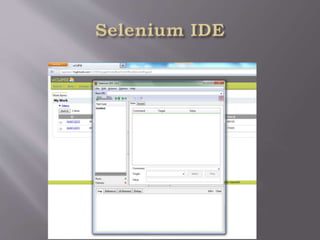
• Selenium IDE
• Rapid prototyping tool for building test scripts
• Firefox plugin
• Can be used by developers with little to no programming experience to
write simple tests quickly and gain familiarity with the Selenese commands
• Has a recording feature that records a user’s live actions that can be
exported in one of many programming languages
• Does not provide iteration or conditional statements for test scripts
• Can only run tests against FireFox
• Developed tests can be run against other browsers, using a simple
command-line interface that invokes the Selenium RC server
• Can export WebDriver or Remote Control scripts (these scripts should be in
PageObject structure)
• Allows you the option to select a language for saving and displaying test
cases
• Selenium RC aka Selenium 1
• It ‘inject’ JavaScript functions into the browser when the browser is loaded and
then uses its JavaScript to drive the AUT within the browser
• Mainly supported in maintenance mode
• Provides support for several programming languages
• Selenium WebDriver
• Designed to provide a simpler, more concise programming interface in
addition to addressing some limitations in the Selenium-RC API
• Developed to better support dynamic web pages where elements of a page may
change without the page itself being reloaded
• Makes direct calls to the browser using each browser’s native support for
automation.
• Has the Selenium 1 (aka Selenium RC) underlying technology for flexibility and
Portability
• Migrating From Selenium RC to Selenium WebDriver
• Not tied to any particular test framework, so it can be used equally well in unit
testing or from a plain old “main” method.
• Selenium Grid
• Scales the Selenium RC solution for large test suites and test that must
be run in multiple environments
• Tests can be run in parallel with simultaneous execution (different tests
on different remote machines)
• It allows for running your tests in a distributed test execution
environment
• Used to run your tests against multiple browsers, multiple versions of
browser, and browsers running on different operating systems
• It reduces the time it takes for the test suite to complete a test pass
 Selenese Commands
 Action
 Manipulate the state of the application
 Used with “AndWait” (clickAndWait)
 Accessors
 Examines the application state and stores the results in
variables
 Used to auto generate Assertions
 Assertions
 Similar to Accessors but verifies the state of the
application to what is expected
 Modes: assert, verify and waitFor
 Syntax
 Has two parameters (both are not required)
 Can view command requirements from the command
reference tab
 Parameters
 Locators identify a UI Element on a page
 Test Patterns are used for asserting or verifying
 Selenium variable or Text Patterns that can be entered
in input fields or drop down selections
 Selenese Command (continued)
 AndWait
 Tells Selenium to wait for the page to load after an action has
been performed
 Used when triggering navigation/page refresh (test will fail
otherwise)
 Command: clickAndWait
 WaitFor
 No set time period
 Dynamically waits for the desired condition, checking every
second
 Commands: waitForElementPresent, waitForVisible, etc…
 Echo
 Used to display information progress notes that is displayed
to the console during test execution
 Informational notes can be used to provide context within
 Store Commands and Selenium Variables
 Selenium variables can be used to store constants at
the beginning of scripts and values passed to a test
script from the command-line, another program or
file
 Store Command
 Two parameters (text value and Selenium variable)
 Uses ${} to access the value of a variable
 Can be used in the first or second parameter or within a
locator expression
 Other Store Commands: storeElementPresent,
storeText, storeEval, ect…
 JavaScript and Selenese Parameters
 JavaScript uses script and non-script Selenese
parameters
 Parameters can be accessed via a JavaScript
associative array “storedVars[]”
 Script Parameters
 Specified by assertEval, verifyEval, storeEval and
waitForEval
 A snippet of JavaScript code is placed into the
appropriate field, normally the Target field (script
parameters are usually the first or only parameter)
 Non-Script Parameters
 Uses JavaScript to generate values for elements with
 Commonly Used Selenium Commands
 open
 click/clickAndWait
 verifyTitle/assertTitle
 verifyTextPresent
 verifyElementPresent
 verifyText
 verifyTable
 waitForPageToLoad
 waitForElementPresent
 Locators
 By Identifier
 Used by default
 Locator type is “identifier”
 First element with id attribute value matching the location
will be used
 First element with a name attribute matching the location
will be used if there are no id matches
 By ID
 More limited than the “identifier” type
 Locator type is “id”
 Use this type when you know the element’s id
 By Name
 Locates an element with a matching name attribute
 Filters can be applied for elements with the same name
 X-Path
 Used for locating nodes in an XML document
 Elements can be located in regards to absolute terms or
a relative position to an element that has a specified id
or name attribute
 Can locate elements via attributes other than id or name
 Starts with “//”
 By DOM
 Can be accessed using Javascript
 Locator type is “document”
 By CSS
 Uses the style binding of selectors to elements in a
document as a locating strategy
 Faster than X-Path and can find the most complicated
 Matching Patterns
 Text Patterns
 A parameter required by following Selenese commands:
verifyText, verifyText, verifyTitle, verifyAlert,
assertConfirmation, verifyPrompt, ect…
 Globbing Patterns
 Pattern matching based on wild card characters (*, [], -)
 Uses the “glob:” label
 Default pattern matching scheme
 Regular Expressions
 The most powerful pattern matching scheme
 Prefixed with “regexp:” label
 Exact Patterns
 Uses no special characters, no need to escape characters
 Prefixed with “exact:” label
• Alerts, Pop-ups and Multiple Windows
• In Selenium, JavaScript alert and confirmation pop-ups
will not appear, they are overridden at runtime by
Selenium’s own JavaScript
• Alert pop-ups, however, still have a presence and would
need to be asserted with one of the various assertFoo
functions (assertFoo(pattern), assertFooPresent(),
assertFooNotPresent(), storeFoo(variable),
storeFooPresent(variable), ect…
• Confirmation pop-ups select “Ok” by default and use
assertConfirmation, assertConfirmationPresent, ect..
functions
• Debugging and Start Points
• Set a debug start point by right-clicking a command and
toggle “break point/start point”
• The Find button highlights the currently selected UI
element on the displayed page. From the Table view,
select any command that has a locator parameter and
click the Find button
• To view portions of the Page Source, select the respective
portion of the web page, right-click, select view selection
source
• In recording a locator-type argument, Selenium IDE
stores additional information that presents the user with
alternative locator-type arguments
• User Extensions
• JavaScript files created for customizations and features to
add additional functionality to Selenium IDE
• For Flow Control, install the goto_sel_ide.js extension
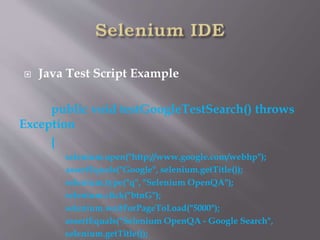
 Java Test Script Example
public void testGoogleTestSearch() throws
Exception
{
selenium.open("http://www.google.com/webhp");
assertEquals("Google", selenium.getTitle());
selenium.type("q", "Selenium OpenQA");
selenium.click("btnG");
selenium.waitForPageToLoad("5000");
assertEquals("Selenium OpenQA - Google Search",
selenium.getTitle());
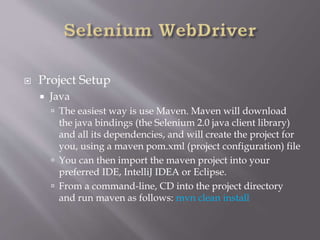
 Project Setup
 Java
 The easiest way is use Maven. Maven will download
the java bindings (the Selenium 2.0 java client library)
and all its dependencies, and will create the project for
you, using a maven pom.xml (project configuration) file
 You can then import the maven project into your
preferred IDE, IntelliJ IDEA or Eclipse.
 From a command-line, CD into the project directory
and run maven as follows: mvn clean install
• Commands and Operations
• To fetch a page you would use the “get” command
• driver.get("http://www.google.com");
• Locating UI Elements
• Language bindings expose a “findElement” and “Find Elements” method
• The “Find” methods take a locator or query object called “By”
• WebElement element= driver.findElement(By.id("coolestWidgetEvah"));
• List<WebElement>cheeses = driver.findElements(By.className("cheese"));
• WebElement frame = driver.findElement(By.tagName("iframe"));
• WebElement cheese = driver.findElement(By.name("cheese"));
• WebElement cheese = driver.findElement(By.linkText("cheese"));
• WebElement cheese = driver.findElement(By.partialLinkText("cheese"));
• Web Element cheese = driver.findElement(By.cssSelector(“#food.span.dairy.aged”))
List<WebElement> inputs = driver.findElements(By.xpath("//input"));
• WebElement element = (WebElement) ((JavascriptExecutor)driver).executeScript("return
$('.cheese')[0]");
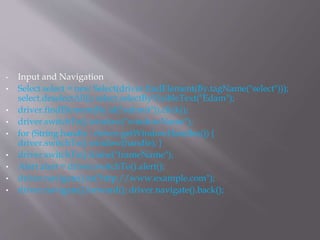
• Input and Navigation
• Select select = new Select(driver.findElement(By.tagName("select")));
select.deselectAll(); select.selectByVisibleText("Edam");
• driver.findElement(By.id("submit")).click();
• driver.switchTo().window("windowName");
• for (String handle : driver.getWindowHandles()) {
driver.switchTo().window(handle); }
• driver.switchTo().frame("frameName");
• Alert alert = driver.switchTo().alert();
• driver.navigate().to("http://www.example.com");
• driver.navigate().forward(); driver.navigate().back();
 Page Objects
 OO Library that separates test code into a MVC pattern
bringing OOP to test scripts
 Language neutral pattern for representing a complete
page or position of a page in an OO manner
 Requires Language specific coding
 Used for maintenance, script cascading, enhanced
script readability/functionality
 Scripts and Page Objects
 Scripts are more procedural while Page Objects are
detail oriented
 Locators appear once in all Page Objects of a page
and do not cross Page Object boundaries
 Uses Elements, Actions and Synchronization
 Order of Operation
 Locator
 Element Implementation
 Add Elements to Page Objects
 Actions
 Do not create the Page Object all at once, build test
incrementally
 Scripts Should
 Not contain any synchronization code
 Not contain any Driver API calls (promotes changes to
Selenium or other technology without changing the
scripts)
 Has asserts (determination of results)
 Driver Implementations
 HtmlUnitDriver
 The fastest and most lightweight implementation of
WebDriver
 HtmlUnit is a java based implementation of a
WebBrowser without a GUI
 For any language binding (other than java) the
Selenium Server is required to use this driver
 A pure Java solution and so it is platform independent
 Supports JavaScript but emulates other browsers’
JavaScript behaviour
 FireFox Driver
 Controls the Firefox browser using a Firefox plugin
 Internet Explorer Driver
 This driver is controlled by a .dll files and is thus only
available on Windows OS
 Each Selenium release has its core functionality tested
against versions 6, 7 and 8 on XP, and 9 on Windows7
 Runs in a real browser and supports JavaScript
 XPath is not natively supported in most versions
 CSS is not natively supported in versions 6 and 7
 CSS selectors in IE 8 and 9 are native, but those
browsers don’t fully support CSS3
 Driver Implementation
 Chrome Driver
 Chrome Driver is maintained / supported by the
Chromium Project
 WebDriver works with Chrome through the
chromedriver binary (found on the chromium project’s
download page)
 Runs in a real browser and supports JavaScript
 Because Chrome is a Webkit-based browser, the
Chrome Driver may allow you to verify that your site
works in Safari. Note that since Chrome uses its own
V8 JavaScript engine rather than Safari’s Nitro engine,
JavaScript execution may differ
 Slower than the HtmlUnit Driver
 Opera Driver
 See the Opera Driver wiki article in the Selenium Wiki
for information on using the Opera Driver
 iOS Driver
 See either the ios-driver or appium projects
 Android Driver
 See the Selendroid project
 Example Java Implementation
 LoginPage.java
 HomePage.java
 LoginTest.java
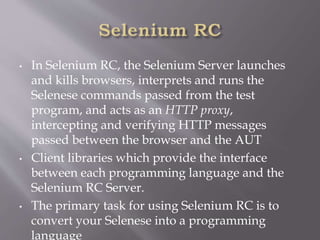
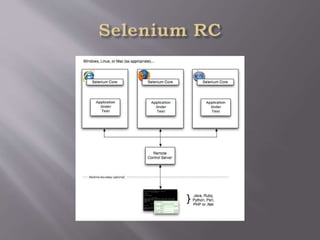
• In Selenium RC, the Selenium Server launches
and kills browsers, interprets and runs the
Selenese commands passed from the test
program, and acts as an HTTP proxy,
intercepting and verifying HTTP messages
passed between the browser and the AUT
• Client libraries which provide the interface
between each programming language and the
Selenium RC Server.
• The primary task for using Selenium RC is to
convert your Selenese into a programming
language
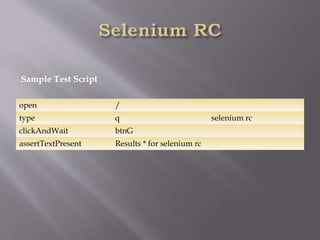
open /
type q selenium rc
clickAndWait btnG
assertTextPresent Results * for selenium rc
Sample Test Script
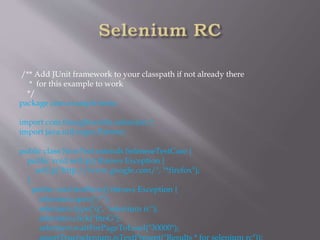
/** Add JUnit framework to your classpath if not already there
* for this example to work
*/
package com.example.tests;
import com.thoughtworks.selenium.*;
import java.util.regex.Pattern;
public class NewTest extends SeleneseTestCase {
public void setUp() throws Exception {
setUp("http://www.google.com/", "*firefox");
}
public void testNew() throws Exception {
selenium.open("/");
selenium.type("q", "selenium rc");
selenium.click("btnG");
selenium.waitForPageToLoad("30000");
assertTrue(selenium.isTextPresent("Results * for selenium rc"));
 Learning the API
 setUp("http://www.google.com/", "*firefox");
 The Browser is manipulated by a Browser Instance that
is assigned to a program variable
 This program variable is then used to call methods
from the browser
 Selenese commands are then ran by calling the
respective methods from the browser variable -
selenium.type(“field-id”,”string to type”)
 To utilize iteration and conditional logic, Selenium RC
uses program language specific methods in conjunction
with Selenese commands
 Use the getEval method of selenium API to execute
• Server, Security and Browers Configurations
• Command line options can be used to change the default
server behaviour.
• If your AUT is behind an HTTP proxy which requires
authentication then you should configure http.proxyHost,
http.proxyPort, http.proxyUser and http.proxyPassword
• You can run Selenese html files directly within the Selenium
Server by passing the html file to the server’s command line
• When launching selenium server the -log option can be used
to record valuable debugging information reported by the
Selenium Server to a text file
• When dealing with HTTPS in a Selenium RC test, there is a
run mode that supports handling security pop-ups and
processes the security certificate for you
• When a browser is not directly supported, you may still run
your Selenium tests against a browser of your choice by using
• A Grid consists of a single Hub, and one or more
Nodes. Both are started using a selenium-
server.jar executable.
• The Hub receives a test to be executed along
with information on which browser and
‘platform’ (i.e. WINDOWS, LINUX, etc) where
the test should be run.
• Since the Hub knows the configuration for each
registered Node, it selects an available Node that
has the requested browser-platform combination
• Selenium commands initiated by the test are
 PushToTest.com
 SelenuiumHQ

Selenium

  • 1.
  • 2.
    • Developed in2004 by Jason Huggins as a JavaScript library used to automate his manual testing routines • Selenium Core is born whose functionality underlies the Selenium RC (Remote Control) and Selenium IDE tools • The Limitation of having a JavaScript based automation engine and browser security restricted Selenium to specific functionality • Google, who has been a long time user of Selenium, had a developer named Simon Stewart who developed WebDriver. This tool circumvented Selenium’s JavaScript sandbox to allow it to communicate with the Browser and Operating System directly using native methods • In 2008, Selenium and WebDriver merged technologies and intellectual intelligence to provide the best possible test automation framework
  • 3.
    • Selenium isa suite of testing automation tools used for Web- Base applications: Selenium IDE, Selenium RC, Selenium WebDriver and Selenium Grid • These tools provide a rich set of testing functions specifically geared to varied testing scenarios of all types of Web applications • The operations provided by these tools are highly flexible and afford many options for comparing UI elements to expected application behavior • Selenium tests can be executed on multiple browser platforms
  • 4.
     Increases youmarketability  Has a lot of Java planks  Growing Industry standard  Assist with the deployment of defective-free code  Open source, web-based testing automation tool and cross-browser compliant  Muti-language backend support (Java, Ruby, Python, C#, PHP, ect…)
  • 5.
    • Selenium IDE •Rapid prototyping tool for building test scripts • Firefox plugin • Can be used by developers with little to no programming experience to write simple tests quickly and gain familiarity with the Selenese commands • Has a recording feature that records a user’s live actions that can be exported in one of many programming languages • Does not provide iteration or conditional statements for test scripts • Can only run tests against FireFox • Developed tests can be run against other browsers, using a simple command-line interface that invokes the Selenium RC server • Can export WebDriver or Remote Control scripts (these scripts should be in PageObject structure) • Allows you the option to select a language for saving and displaying test cases
  • 6.
    • Selenium RCaka Selenium 1 • It ‘inject’ JavaScript functions into the browser when the browser is loaded and then uses its JavaScript to drive the AUT within the browser • Mainly supported in maintenance mode • Provides support for several programming languages • Selenium WebDriver • Designed to provide a simpler, more concise programming interface in addition to addressing some limitations in the Selenium-RC API • Developed to better support dynamic web pages where elements of a page may change without the page itself being reloaded • Makes direct calls to the browser using each browser’s native support for automation. • Has the Selenium 1 (aka Selenium RC) underlying technology for flexibility and Portability • Migrating From Selenium RC to Selenium WebDriver • Not tied to any particular test framework, so it can be used equally well in unit testing or from a plain old “main” method.
  • 7.
    • Selenium Grid •Scales the Selenium RC solution for large test suites and test that must be run in multiple environments • Tests can be run in parallel with simultaneous execution (different tests on different remote machines) • It allows for running your tests in a distributed test execution environment • Used to run your tests against multiple browsers, multiple versions of browser, and browsers running on different operating systems • It reduces the time it takes for the test suite to complete a test pass
  • 9.
     Selenese Commands Action  Manipulate the state of the application  Used with “AndWait” (clickAndWait)  Accessors  Examines the application state and stores the results in variables  Used to auto generate Assertions  Assertions  Similar to Accessors but verifies the state of the application to what is expected  Modes: assert, verify and waitFor
  • 10.
     Syntax  Hastwo parameters (both are not required)  Can view command requirements from the command reference tab  Parameters  Locators identify a UI Element on a page  Test Patterns are used for asserting or verifying  Selenium variable or Text Patterns that can be entered in input fields or drop down selections
  • 11.
     Selenese Command(continued)  AndWait  Tells Selenium to wait for the page to load after an action has been performed  Used when triggering navigation/page refresh (test will fail otherwise)  Command: clickAndWait  WaitFor  No set time period  Dynamically waits for the desired condition, checking every second  Commands: waitForElementPresent, waitForVisible, etc…  Echo  Used to display information progress notes that is displayed to the console during test execution  Informational notes can be used to provide context within
  • 12.
     Store Commandsand Selenium Variables  Selenium variables can be used to store constants at the beginning of scripts and values passed to a test script from the command-line, another program or file  Store Command  Two parameters (text value and Selenium variable)  Uses ${} to access the value of a variable  Can be used in the first or second parameter or within a locator expression  Other Store Commands: storeElementPresent, storeText, storeEval, ect…
  • 13.
     JavaScript andSelenese Parameters  JavaScript uses script and non-script Selenese parameters  Parameters can be accessed via a JavaScript associative array “storedVars[]”  Script Parameters  Specified by assertEval, verifyEval, storeEval and waitForEval  A snippet of JavaScript code is placed into the appropriate field, normally the Target field (script parameters are usually the first or only parameter)  Non-Script Parameters  Uses JavaScript to generate values for elements with
  • 14.
     Commonly UsedSelenium Commands  open  click/clickAndWait  verifyTitle/assertTitle  verifyTextPresent  verifyElementPresent  verifyText  verifyTable  waitForPageToLoad  waitForElementPresent
  • 15.
     Locators  ByIdentifier  Used by default  Locator type is “identifier”  First element with id attribute value matching the location will be used  First element with a name attribute matching the location will be used if there are no id matches  By ID  More limited than the “identifier” type  Locator type is “id”  Use this type when you know the element’s id  By Name  Locates an element with a matching name attribute  Filters can be applied for elements with the same name
  • 16.
     X-Path  Usedfor locating nodes in an XML document  Elements can be located in regards to absolute terms or a relative position to an element that has a specified id or name attribute  Can locate elements via attributes other than id or name  Starts with “//”  By DOM  Can be accessed using Javascript  Locator type is “document”  By CSS  Uses the style binding of selectors to elements in a document as a locating strategy  Faster than X-Path and can find the most complicated
  • 17.
     Matching Patterns Text Patterns  A parameter required by following Selenese commands: verifyText, verifyText, verifyTitle, verifyAlert, assertConfirmation, verifyPrompt, ect…  Globbing Patterns  Pattern matching based on wild card characters (*, [], -)  Uses the “glob:” label  Default pattern matching scheme  Regular Expressions  The most powerful pattern matching scheme  Prefixed with “regexp:” label  Exact Patterns  Uses no special characters, no need to escape characters  Prefixed with “exact:” label
  • 18.
    • Alerts, Pop-upsand Multiple Windows • In Selenium, JavaScript alert and confirmation pop-ups will not appear, they are overridden at runtime by Selenium’s own JavaScript • Alert pop-ups, however, still have a presence and would need to be asserted with one of the various assertFoo functions (assertFoo(pattern), assertFooPresent(), assertFooNotPresent(), storeFoo(variable), storeFooPresent(variable), ect… • Confirmation pop-ups select “Ok” by default and use assertConfirmation, assertConfirmationPresent, ect.. functions
  • 19.
    • Debugging andStart Points • Set a debug start point by right-clicking a command and toggle “break point/start point” • The Find button highlights the currently selected UI element on the displayed page. From the Table view, select any command that has a locator parameter and click the Find button • To view portions of the Page Source, select the respective portion of the web page, right-click, select view selection source • In recording a locator-type argument, Selenium IDE stores additional information that presents the user with alternative locator-type arguments
  • 20.
    • User Extensions •JavaScript files created for customizations and features to add additional functionality to Selenium IDE • For Flow Control, install the goto_sel_ide.js extension
  • 21.
     Java TestScript Example public void testGoogleTestSearch() throws Exception { selenium.open("http://www.google.com/webhp"); assertEquals("Google", selenium.getTitle()); selenium.type("q", "Selenium OpenQA"); selenium.click("btnG"); selenium.waitForPageToLoad("5000"); assertEquals("Selenium OpenQA - Google Search", selenium.getTitle());
  • 22.
     Project Setup Java  The easiest way is use Maven. Maven will download the java bindings (the Selenium 2.0 java client library) and all its dependencies, and will create the project for you, using a maven pom.xml (project configuration) file  You can then import the maven project into your preferred IDE, IntelliJ IDEA or Eclipse.  From a command-line, CD into the project directory and run maven as follows: mvn clean install
  • 23.
    • Commands andOperations • To fetch a page you would use the “get” command • driver.get("http://www.google.com"); • Locating UI Elements • Language bindings expose a “findElement” and “Find Elements” method • The “Find” methods take a locator or query object called “By” • WebElement element= driver.findElement(By.id("coolestWidgetEvah")); • List<WebElement>cheeses = driver.findElements(By.className("cheese")); • WebElement frame = driver.findElement(By.tagName("iframe")); • WebElement cheese = driver.findElement(By.name("cheese")); • WebElement cheese = driver.findElement(By.linkText("cheese")); • WebElement cheese = driver.findElement(By.partialLinkText("cheese")); • Web Element cheese = driver.findElement(By.cssSelector(“#food.span.dairy.aged”)) List<WebElement> inputs = driver.findElements(By.xpath("//input")); • WebElement element = (WebElement) ((JavascriptExecutor)driver).executeScript("return $('.cheese')[0]");
  • 24.
    • Input andNavigation • Select select = new Select(driver.findElement(By.tagName("select"))); select.deselectAll(); select.selectByVisibleText("Edam"); • driver.findElement(By.id("submit")).click(); • driver.switchTo().window("windowName"); • for (String handle : driver.getWindowHandles()) { driver.switchTo().window(handle); } • driver.switchTo().frame("frameName"); • Alert alert = driver.switchTo().alert(); • driver.navigate().to("http://www.example.com"); • driver.navigate().forward(); driver.navigate().back();
  • 25.
     Page Objects OO Library that separates test code into a MVC pattern bringing OOP to test scripts  Language neutral pattern for representing a complete page or position of a page in an OO manner  Requires Language specific coding  Used for maintenance, script cascading, enhanced script readability/functionality
  • 26.
     Scripts andPage Objects  Scripts are more procedural while Page Objects are detail oriented  Locators appear once in all Page Objects of a page and do not cross Page Object boundaries  Uses Elements, Actions and Synchronization  Order of Operation  Locator  Element Implementation  Add Elements to Page Objects  Actions
  • 27.
     Do notcreate the Page Object all at once, build test incrementally  Scripts Should  Not contain any synchronization code  Not contain any Driver API calls (promotes changes to Selenium or other technology without changing the scripts)  Has asserts (determination of results)
  • 28.
     Driver Implementations HtmlUnitDriver  The fastest and most lightweight implementation of WebDriver  HtmlUnit is a java based implementation of a WebBrowser without a GUI  For any language binding (other than java) the Selenium Server is required to use this driver  A pure Java solution and so it is platform independent  Supports JavaScript but emulates other browsers’ JavaScript behaviour  FireFox Driver  Controls the Firefox browser using a Firefox plugin
  • 29.
     Internet ExplorerDriver  This driver is controlled by a .dll files and is thus only available on Windows OS  Each Selenium release has its core functionality tested against versions 6, 7 and 8 on XP, and 9 on Windows7  Runs in a real browser and supports JavaScript  XPath is not natively supported in most versions  CSS is not natively supported in versions 6 and 7  CSS selectors in IE 8 and 9 are native, but those browsers don’t fully support CSS3
  • 30.
     Driver Implementation Chrome Driver  Chrome Driver is maintained / supported by the Chromium Project  WebDriver works with Chrome through the chromedriver binary (found on the chromium project’s download page)  Runs in a real browser and supports JavaScript  Because Chrome is a Webkit-based browser, the Chrome Driver may allow you to verify that your site works in Safari. Note that since Chrome uses its own V8 JavaScript engine rather than Safari’s Nitro engine, JavaScript execution may differ  Slower than the HtmlUnit Driver
  • 31.
     Opera Driver See the Opera Driver wiki article in the Selenium Wiki for information on using the Opera Driver  iOS Driver  See either the ios-driver or appium projects  Android Driver  See the Selendroid project
  • 32.
     Example JavaImplementation  LoginPage.java  HomePage.java  LoginTest.java
  • 33.
    • In SeleniumRC, the Selenium Server launches and kills browsers, interprets and runs the Selenese commands passed from the test program, and acts as an HTTP proxy, intercepting and verifying HTTP messages passed between the browser and the AUT • Client libraries which provide the interface between each programming language and the Selenium RC Server. • The primary task for using Selenium RC is to convert your Selenese into a programming language
  • 35.
    open / type qselenium rc clickAndWait btnG assertTextPresent Results * for selenium rc Sample Test Script
  • 36.
    /** Add JUnitframework to your classpath if not already there * for this example to work */ package com.example.tests; import com.thoughtworks.selenium.*; import java.util.regex.Pattern; public class NewTest extends SeleneseTestCase { public void setUp() throws Exception { setUp("http://www.google.com/", "*firefox"); } public void testNew() throws Exception { selenium.open("/"); selenium.type("q", "selenium rc"); selenium.click("btnG"); selenium.waitForPageToLoad("30000"); assertTrue(selenium.isTextPresent("Results * for selenium rc"));
  • 37.
     Learning theAPI  setUp("http://www.google.com/", "*firefox");  The Browser is manipulated by a Browser Instance that is assigned to a program variable  This program variable is then used to call methods from the browser  Selenese commands are then ran by calling the respective methods from the browser variable - selenium.type(“field-id”,”string to type”)  To utilize iteration and conditional logic, Selenium RC uses program language specific methods in conjunction with Selenese commands  Use the getEval method of selenium API to execute
  • 38.
    • Server, Securityand Browers Configurations • Command line options can be used to change the default server behaviour. • If your AUT is behind an HTTP proxy which requires authentication then you should configure http.proxyHost, http.proxyPort, http.proxyUser and http.proxyPassword • You can run Selenese html files directly within the Selenium Server by passing the html file to the server’s command line • When launching selenium server the -log option can be used to record valuable debugging information reported by the Selenium Server to a text file • When dealing with HTTPS in a Selenium RC test, there is a run mode that supports handling security pop-ups and processes the security certificate for you • When a browser is not directly supported, you may still run your Selenium tests against a browser of your choice by using
  • 39.
    • A Gridconsists of a single Hub, and one or more Nodes. Both are started using a selenium- server.jar executable. • The Hub receives a test to be executed along with information on which browser and ‘platform’ (i.e. WINDOWS, LINUX, etc) where the test should be run. • Since the Hub knows the configuration for each registered Node, it selects an available Node that has the requested browser-platform combination • Selenium commands initiated by the test are
  • 40.