
Setup Windows Server 2008R2 –
Create Organizational Unit & Users
Create OU &
Users
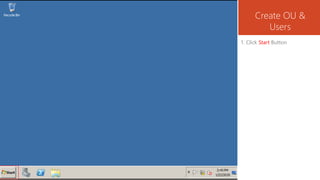
1. Click Start Button
Create OU &
Users
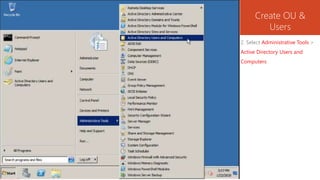
2. Select Administrative Tools >
Active Directory Users and
Computers
Create OU &
Users
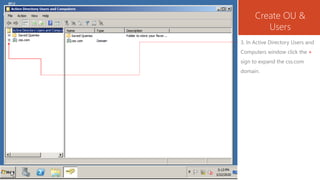
3. In Active Directory Users and
Computers window click the +
sign to expand the css.com
domain.
Create OU &
Users
4. Right click css.com then select
New >Organizational UnitContains
Show
Create OU &
Users
Expected output view
Create OU &
Users
5. In the New Object-OU Input
Box Type CSS
Create OU &
Users
6. Click OK
Create OU &
Users
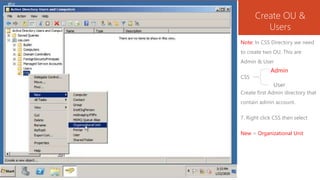
Note: In CSS Directory we need
to create two OU. This are
Admin & User
CSS
Create first Admin directory that
contain admin account.
7. Right click CSS then select
New > Organizational Unit
Admin
User
Create OU &
Users
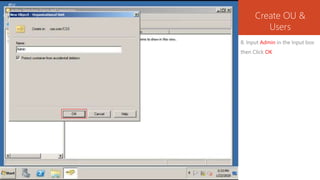
8. Input Admin in the Input box
then Click OK
Create OU &
Users
CSS
Create User directory that
contain users account.
9. Right click CSS then select
New > Organizational Unit
Admin
User
Create OU &
Users
10. Input User in the Input box
then Click OK
Create OU &
Users
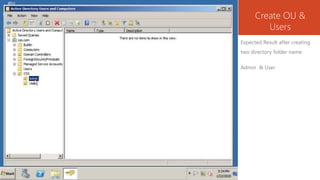
Expected Result after creating
two directory folder name
Admin & User
Create OU &
Users
11. Select Users to view its
contains in the right window
Create OU &
Users
12. Right click Administrator
account then select Copy
Create OU &
Users
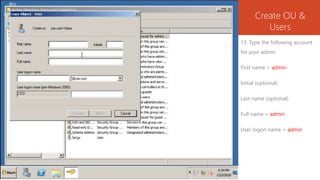
13. Type the following account
for your admin
First name = admin
Initial (optional)
Last name (optional)
Full name = admin
User logon name = admin
Create OU &
Users
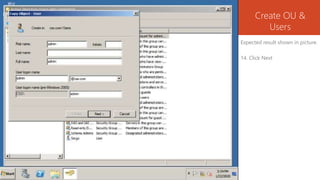
Expected result shown in picture.
14. Click Next
Create OU &
Users
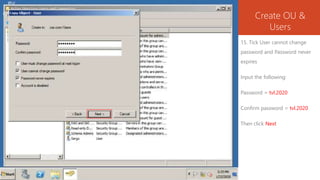
15. Tick User cannot change
password and Password never
expires
Input the following:
Password = tvl.2020
Confirm password = tvl.2020
Then click Next
Create OU &
Users
16. Select admin then drag and
drop into CSS > Admin
Create OU &
Users
Do the same as shown in the
picture
Create OU &
Users
17. Check Don’t show this
warning while this snap-in is
open then click Yes
Create OU &
Users
Do the same as shown in the
picture
Create OU &
Users
18. Click Admin directory to see
the admin account
Create OU &
Users
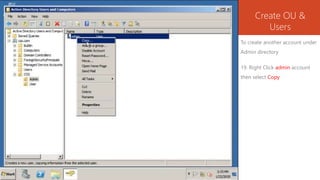
To create another account under
Admin directory
19. Right Click admin account
then select Copy
Create OU &
Users
20. Input the following:
first name = admin2
Initial (optional)
Last name (optional)
Full name = admin2
User logon name = admin2
Then click Next
Create OU &
Users
21. Tick User cannot change
password and Password never
expires
Input the following:
Password = tvl.2020
Confirm password = tvl.2020
Then click Next
Create OU &
Users
22. Click Finish
Create OU &
Users
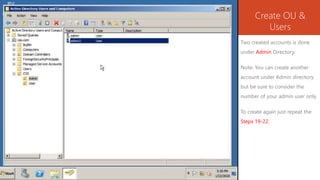
Two created accounts is done
under Admin Directory.
Note: You can create another
account under Admin directory
but be sure to consider the
number of your admin user only.
To create again just repeat the
Steps 19-22.
Create OU &
Users
For User directory, three
accounts are required, 2 for
clients and 1 for assessor.
See figure below
User
23. Right click User
Select New > Organizational
Unit
User1
User2
Assessor
Create OU &
Users
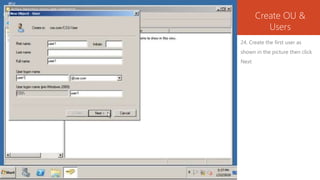
24. Create the first user as
shown in the picture then click
Next
Create OU &
Users
25. Do the same as in the
picture and set
Password = tvl.2020
Confirm password = tvl.2020
User1 is done, then do the same
for User2 with the same
password.
Create OU &
Users
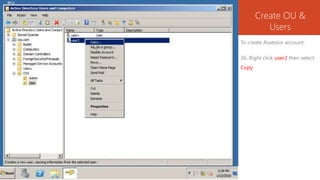
To create Assessor account:
26. Right click user2 then select
Copy
Create OU &
Users
27. Do the same as shown in the
picture then click Next
Assessor account details:
First name = assessor
Initials (optional)
Last name (optional)
Full name = assessor
User logon name = assessor
Create OU &
Users
28. Do the same as shown in the
picture for assessor account
then click Next
Password = tvl.2020
Confirm password = tvl.2020
Create OU &
Users
29. Click finish.
Create OU &
Users
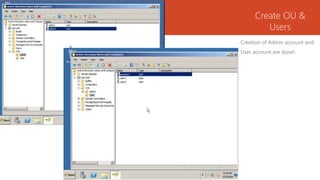
Creation of Admin account and
User account are done!.
Setup Windows Server 2008R2 – Create Organizational
Unit & Users
For those would like to try again you may
repeat the steps.
God luck!...
GBSJR.
Computer System Servicing NC II
COC 3 – Setup Windows Server 2008R2 –
Create Organizational Unit & Users
Find out more for the next tutorial by GBSJR

Setup windows server 2008 r2 create ou and users

Editor's Notes

  • #39 In Slide Show mode, click the arrow to enter the PowerPoint Getting Started Center.