USER INTERFACE DESIGN PROCESS
• KYOW YOUR USER DCLIENTs
• UNDERSTAND THE BUSINESS FUNCTIONS
• UNDERSTAND THE PRINCIPLES OF GOOD SCREEN
DESIGN
• DEVELOP SYSTEM MENUS AND NAVIGATION
SCHEMES
• SELECT THE PROPER KINDS OF WINDOWS
• SELECT THE PROPER DEVICE BASED CONTROLS
CONTD..
• WRITE CLEAR TEXT AND MESSAGES
• PROVIDE EFFECTIVE FEEDBACK AND
GUIDANCE AND ASSISTANCE
• PROVIDE EFFECTIVE INTERNALIZATION AND
ACCESSIBILITY
• CREATE MEANINGFUL GRAPHICS,ICONS AND
IMAGES
• CHOOSE THE PROPER COLURS
CONTD..
• ORGANIZE AND LAYOUT WINDOWS AND
PAGES
• TEST ,TEST AND RETEST
DEVICE BASED CONTROLS
• Input Devices: Through which people
communicate to system.
TRACKBALL
JOYSTICK
GRAPHICS TABLET
LIGHT PEN
TOUCH SCREEN
VOICE
MOUSE
KEYBOARD
TYPES OF DEVICE CONTROLL
• Operated on the screen itself-DIRECT DEVICES
Eg:light pen, touch screen
• Other than the screen :INDIRECT DEVICES
Eg:Mouse,Keyboard
USE OF DEVICE BAESD CONTROL
• To point an object on the screen
• To select an object
• To drag
• To track or follow a moving object
• To position an object
• To enter or manipulate information
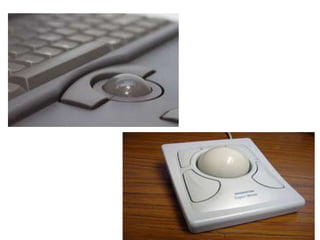
TRACKBALL
• A spherical object(ball) that rotates freely
• Direction and speed is translated in to cursor
movement
• Well suited for video games or 3D
Environments
CONTD..
• ADVANTAGES
Direct relationship between hand and pointer in
terms of direction and speed
Does not require additional desk space
• DISADVANTAGES
5 finger movement is needed
indirect control
difficult to control
requires a degree of eye hand coordination
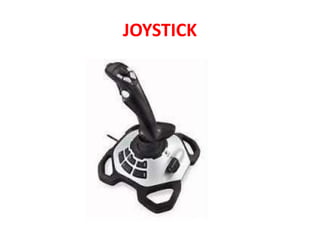
JOYSTICK
CONTD..
• Stick /bat shaped device in variable sizes
• It responds by exerting pressure on them
• Some permits continuous movement, some
others support vertical & horizontal
movement
• Direct relation between pointer and hand in
terms of direction.
• Indirect relation between hand and pointer in
terms of speed and distance
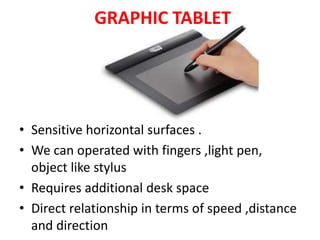
GRAPHIC TABLET
• Sensitive horizontal surfaces .
• We can operated with fingers ,light pen,
object like stylus
• Requires additional desk space
• Direct relationship in terms of speed ,distance
and direction
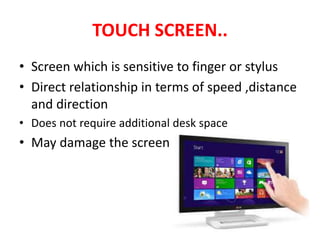
TOUCH SCREEN..
• Screen which is sensitive to finger or stylus
• Direct relationship in terms of speed ,distance
and direction
• Does not require additional desk space
• May damage the screen
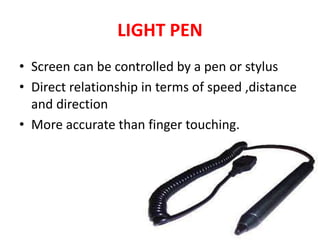
LIGHT PEN
• Screen can be controlled by a pen or stylus
• Direct relationship in terms of speed ,distance
and direction
• More accurate than finger touching.
VOICE
• Automatic speech recognition by the
computer
• Useful when people does not use keyboard
• Simple and direct
• Difficult to use in noisy environment
• High error rates
MOUSE
• A rectangular or dome shaped movable device
containing one to three buttons used to
manipulate objects on the screen
• Direct relationship in terms of speed ,distance
and direction
• Requires additional desk space
KEYBOARD
• Standard typewriter keyboard and cursor
movement keys
• No direct relation ship between finger
movement on the keyboard and cursor
movement on the screen
• Keyboard accelerators: way to access menu
elements without displaying a menu
How to select one?????
• Factors
 Task
 User
 Environment
 Hardware
 The device in relation to application
 Minimizing eye and hand movements
CONTD..
• Pointer Guidelines
 Should be visible all times
 Shape should clearly indicate the purpose of movement
 Should maintain fixed size
 Do not create new shapes for already defined standard
functions
 User should always position the pointer

SELECT THE PROPER DEVICE BASED CONTROLS

  • 1.
    USER INTERFACE DESIGNPROCESS • KYOW YOUR USER DCLIENTs • UNDERSTAND THE BUSINESS FUNCTIONS • UNDERSTAND THE PRINCIPLES OF GOOD SCREEN DESIGN • DEVELOP SYSTEM MENUS AND NAVIGATION SCHEMES • SELECT THE PROPER KINDS OF WINDOWS • SELECT THE PROPER DEVICE BASED CONTROLS
  • 2.
    CONTD.. • WRITE CLEARTEXT AND MESSAGES • PROVIDE EFFECTIVE FEEDBACK AND GUIDANCE AND ASSISTANCE • PROVIDE EFFECTIVE INTERNALIZATION AND ACCESSIBILITY • CREATE MEANINGFUL GRAPHICS,ICONS AND IMAGES • CHOOSE THE PROPER COLURS
  • 3.
    CONTD.. • ORGANIZE ANDLAYOUT WINDOWS AND PAGES • TEST ,TEST AND RETEST
  • 4.
    DEVICE BASED CONTROLS •Input Devices: Through which people communicate to system. TRACKBALL JOYSTICK GRAPHICS TABLET LIGHT PEN TOUCH SCREEN VOICE MOUSE KEYBOARD
  • 5.
    TYPES OF DEVICECONTROLL • Operated on the screen itself-DIRECT DEVICES Eg:light pen, touch screen • Other than the screen :INDIRECT DEVICES Eg:Mouse,Keyboard
  • 6.
    USE OF DEVICEBAESD CONTROL • To point an object on the screen • To select an object • To drag • To track or follow a moving object • To position an object • To enter or manipulate information
  • 7.
    TRACKBALL • A sphericalobject(ball) that rotates freely • Direction and speed is translated in to cursor movement • Well suited for video games or 3D Environments
  • 9.
    CONTD.. • ADVANTAGES Direct relationshipbetween hand and pointer in terms of direction and speed Does not require additional desk space • DISADVANTAGES 5 finger movement is needed indirect control difficult to control requires a degree of eye hand coordination
  • 10.
  • 11.
    CONTD.. • Stick /batshaped device in variable sizes • It responds by exerting pressure on them • Some permits continuous movement, some others support vertical & horizontal movement • Direct relation between pointer and hand in terms of direction. • Indirect relation between hand and pointer in terms of speed and distance
  • 12.
    GRAPHIC TABLET • Sensitivehorizontal surfaces . • We can operated with fingers ,light pen, object like stylus • Requires additional desk space • Direct relationship in terms of speed ,distance and direction
  • 13.
    TOUCH SCREEN.. • Screenwhich is sensitive to finger or stylus • Direct relationship in terms of speed ,distance and direction • Does not require additional desk space • May damage the screen
  • 14.
    LIGHT PEN • Screencan be controlled by a pen or stylus • Direct relationship in terms of speed ,distance and direction • More accurate than finger touching.
  • 15.
    VOICE • Automatic speechrecognition by the computer • Useful when people does not use keyboard • Simple and direct • Difficult to use in noisy environment • High error rates
  • 16.
    MOUSE • A rectangularor dome shaped movable device containing one to three buttons used to manipulate objects on the screen • Direct relationship in terms of speed ,distance and direction • Requires additional desk space
  • 17.
    KEYBOARD • Standard typewriterkeyboard and cursor movement keys • No direct relation ship between finger movement on the keyboard and cursor movement on the screen • Keyboard accelerators: way to access menu elements without displaying a menu
  • 18.
    How to selectone????? • Factors  Task  User  Environment  Hardware  The device in relation to application  Minimizing eye and hand movements
  • 19.
    CONTD.. • Pointer Guidelines Should be visible all times  Shape should clearly indicate the purpose of movement  Should maintain fixed size  Do not create new shapes for already defined standard functions  User should always position the pointer