Secondary Education
Social Studies
Instructor Training Guide
1
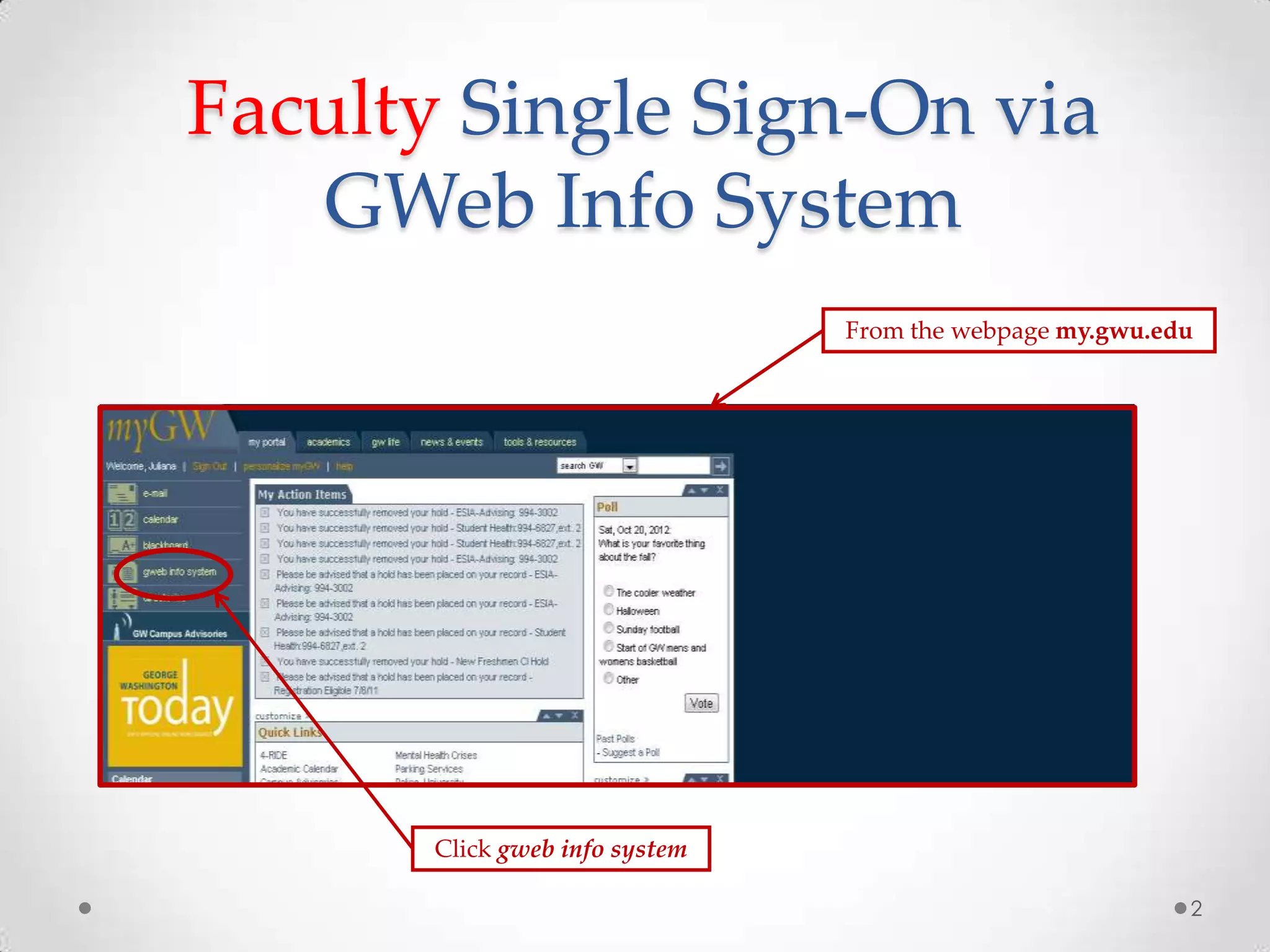
Faculty Single Sign-On via
GWeb Info System
Click gweb info system
From the webpage my.gwu.edu
2
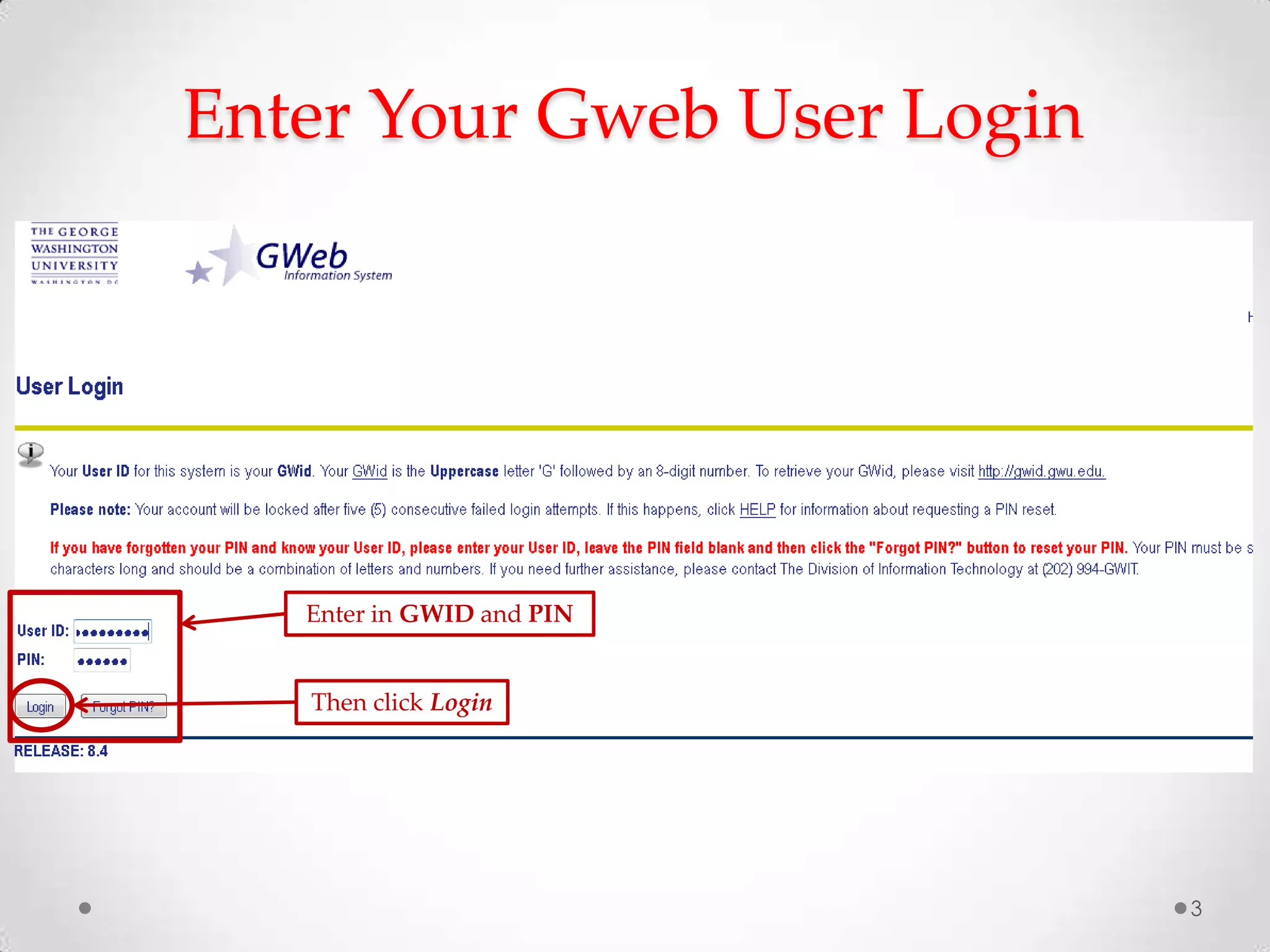
Enter in GWID and PIN
3
Enter Your Gweb User Login
Then click Login
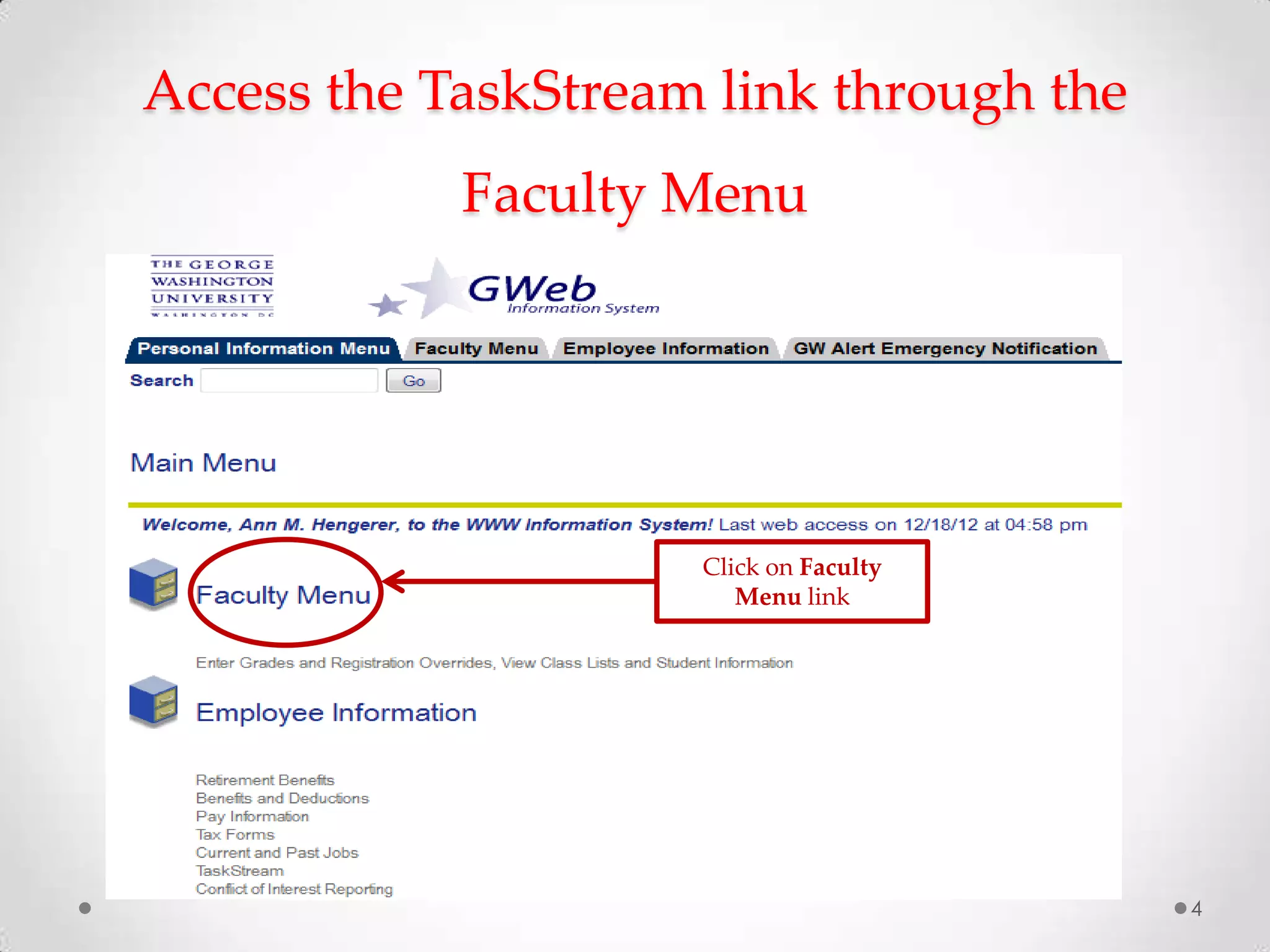
Access the TaskStream link through the
Faculty Menu
4
Click on Faculty
Menu link
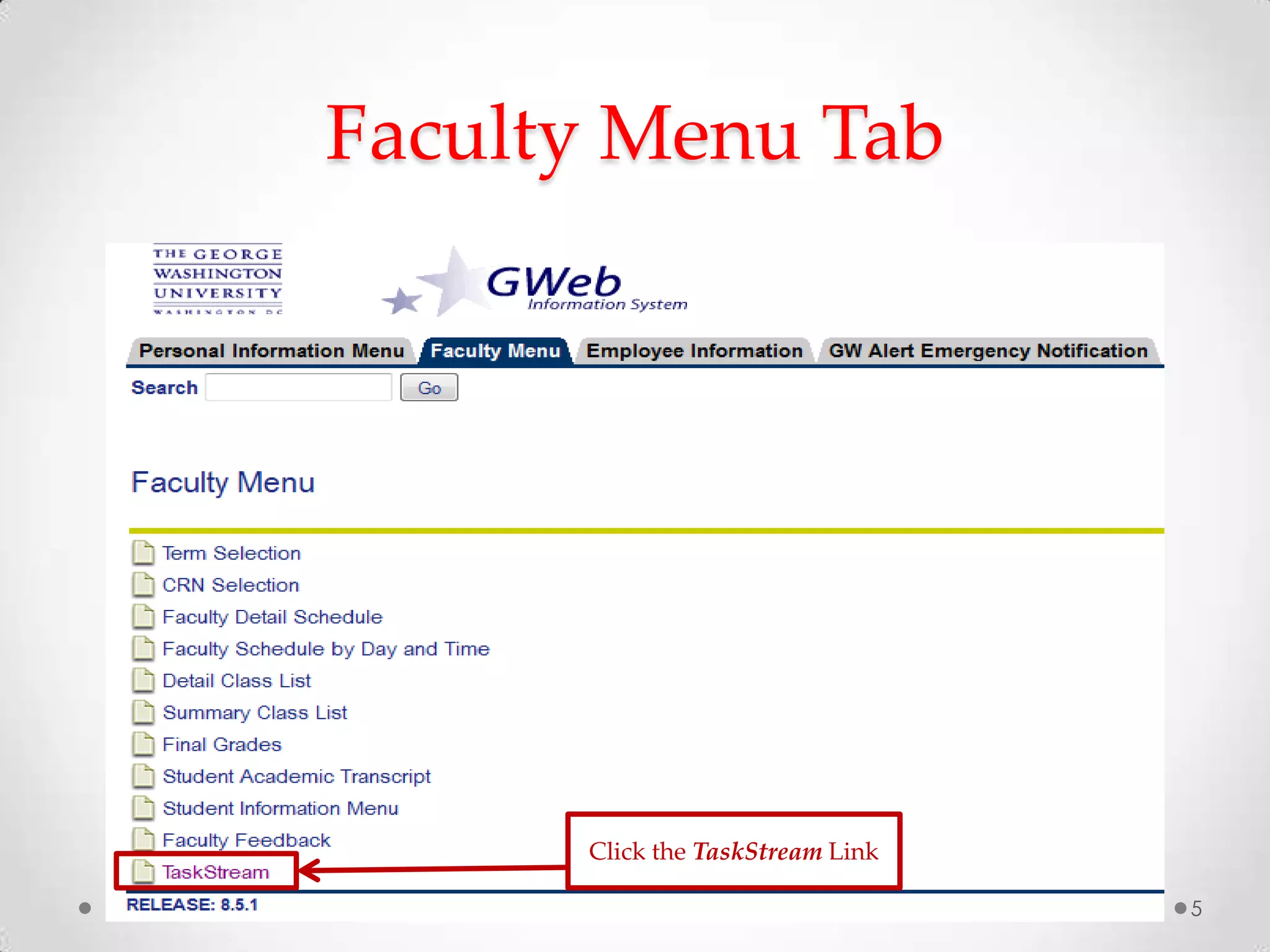
Faculty Menu Tab
5
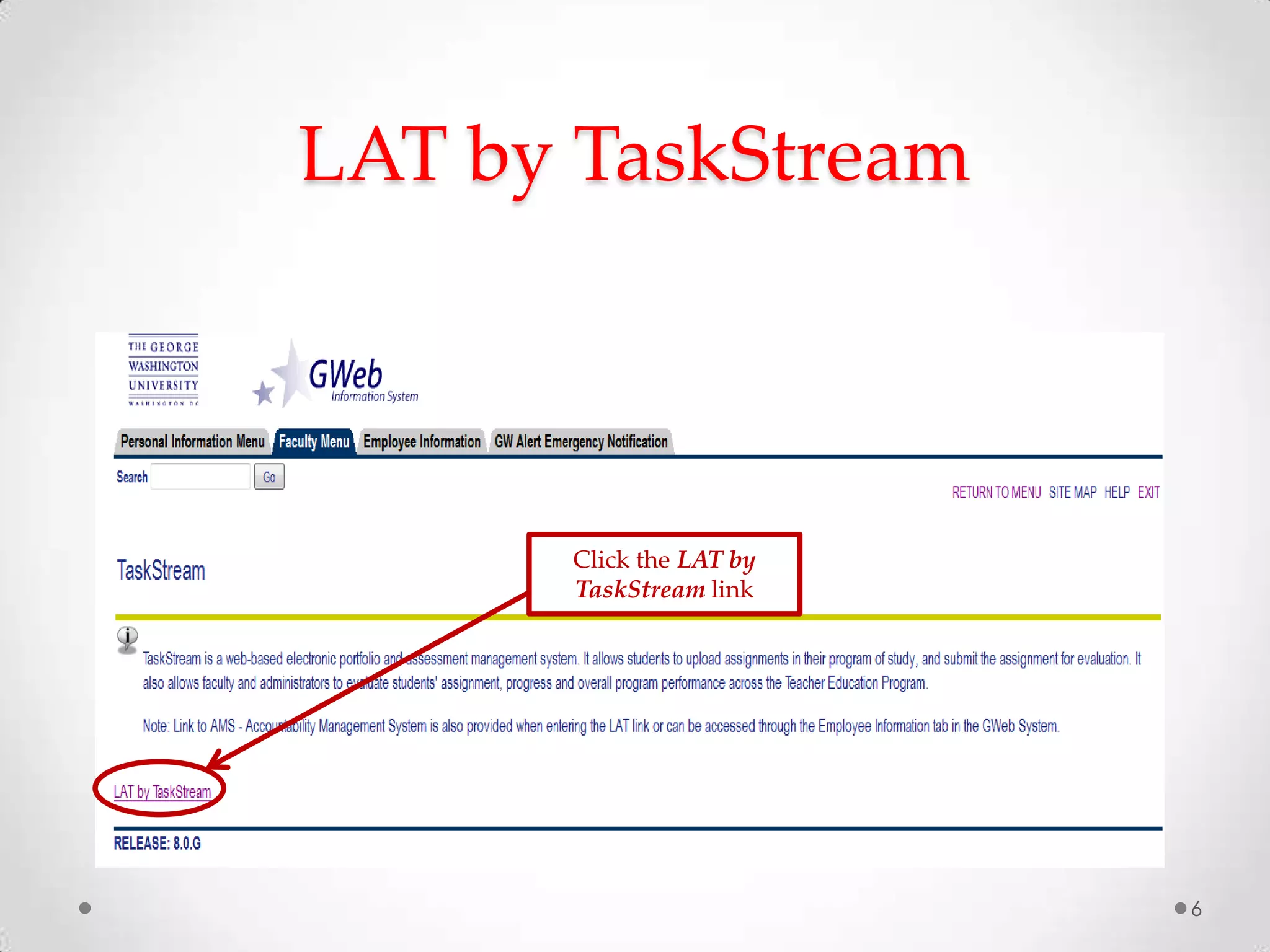
Click the TaskStream Link
LAT by TaskStream
6
Click the LAT by
TaskStream link
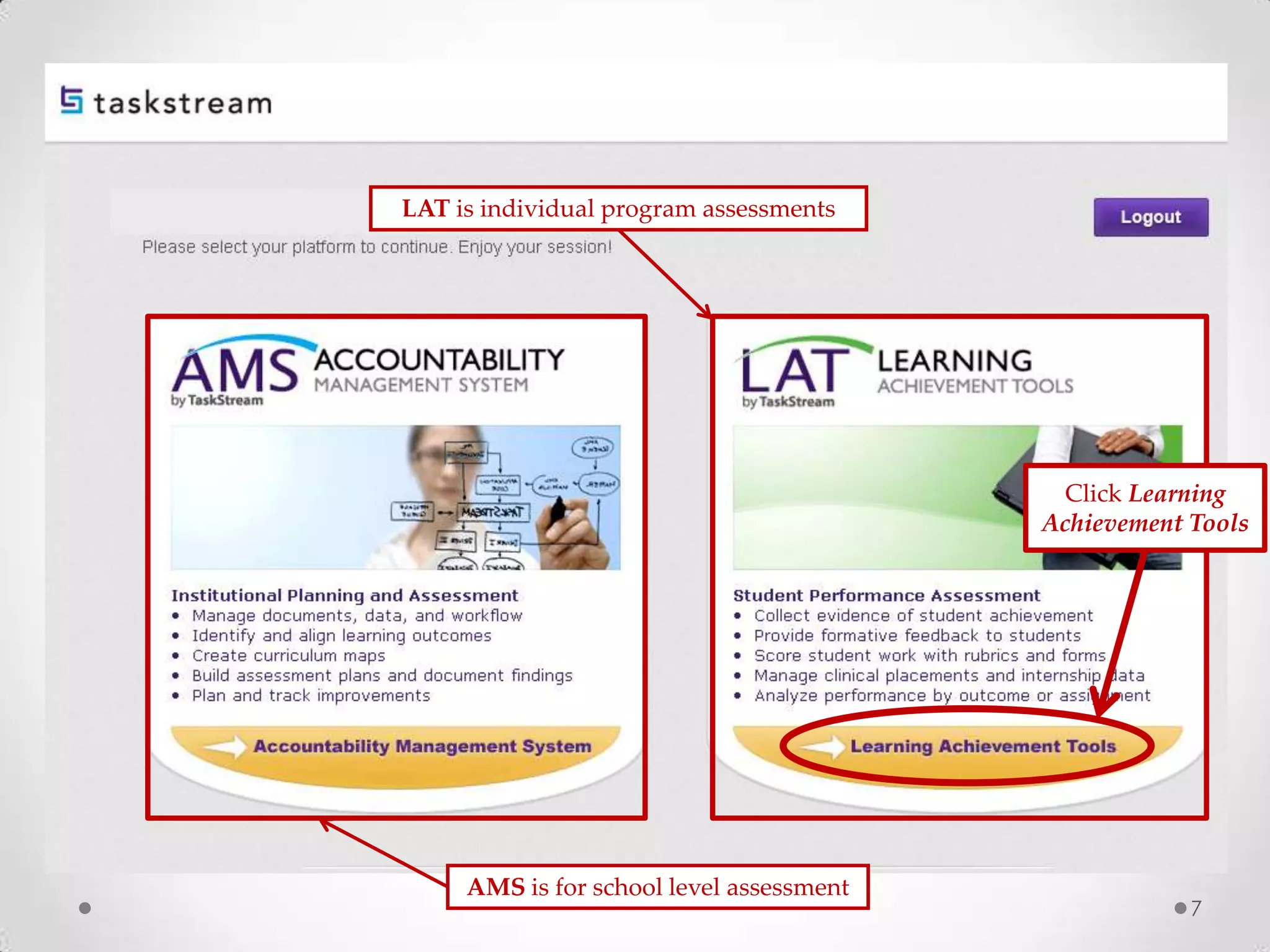
LAT is individual program assessments
AMS is for school level assessment
Click Learning
Achievement Tools
7
Faculty Scoring Work
8
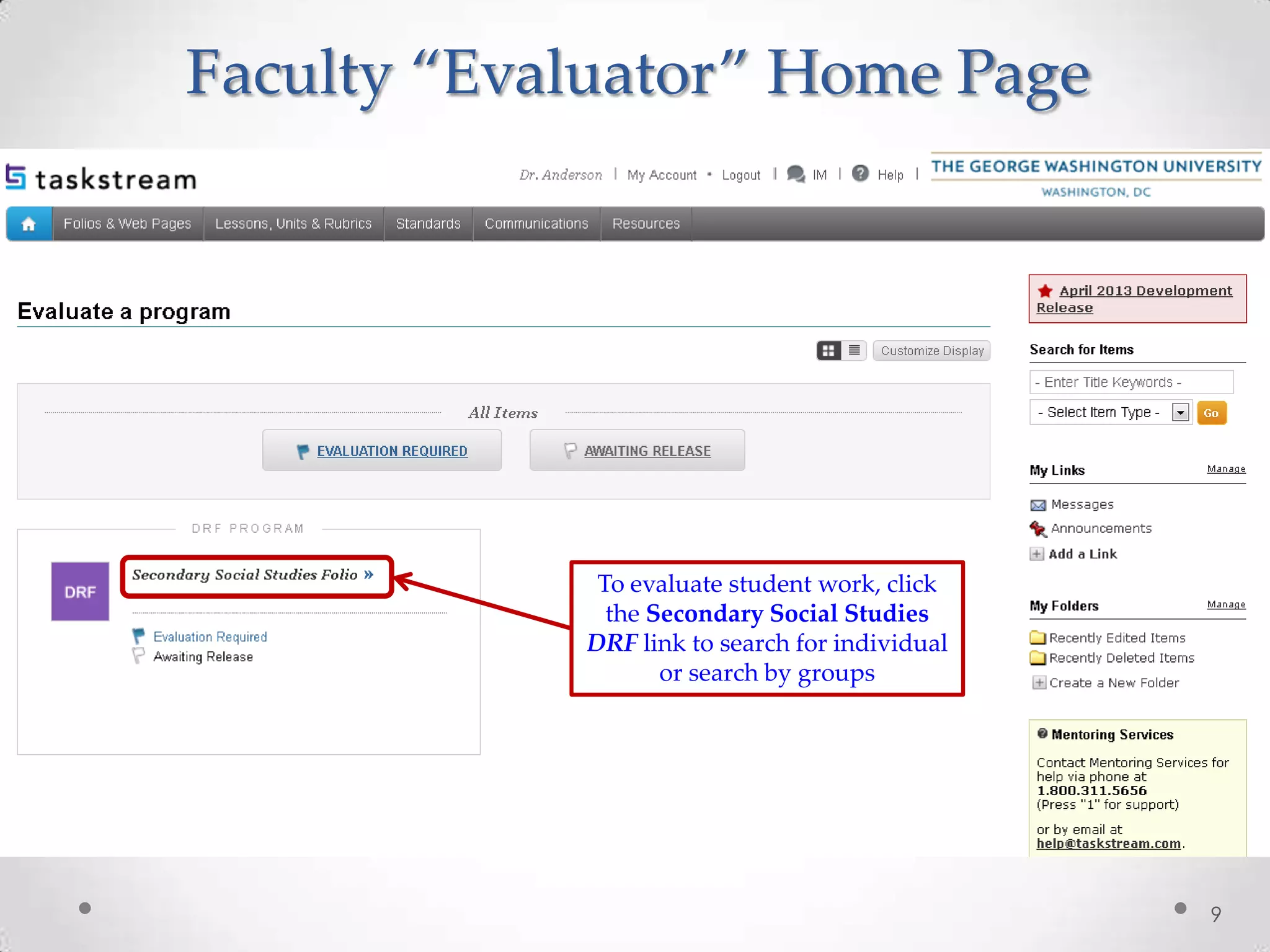
Faculty “Evaluator” Home Page
9
To evaluate student work, click
the Secondary Social Studies
DRF link to search for individual
or search by groups
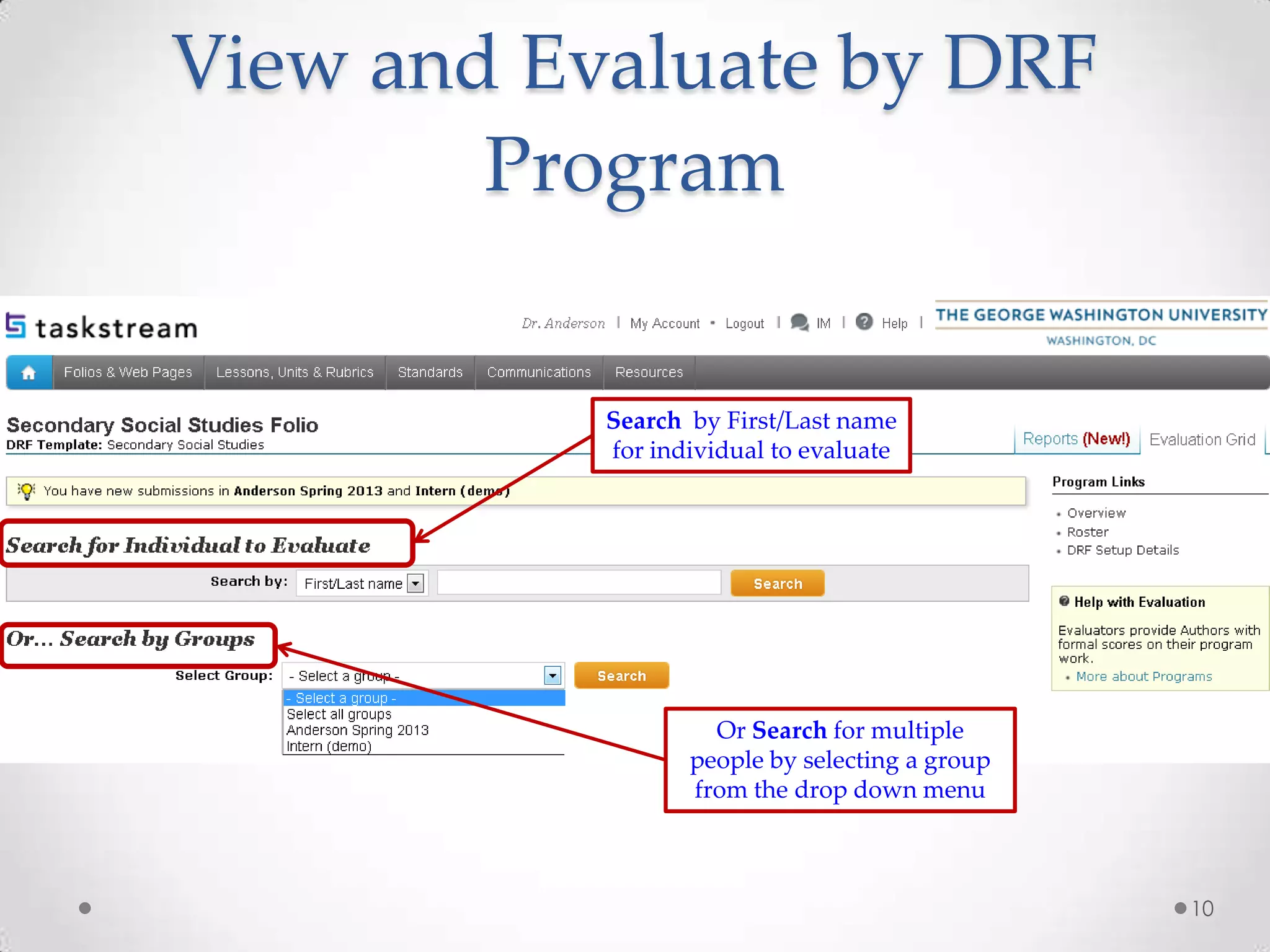
View and Evaluate by DRF
Program
10
Search by First/Last name
for individual to evaluate
Or Search for multiple
people by selecting a group
from the drop down menu
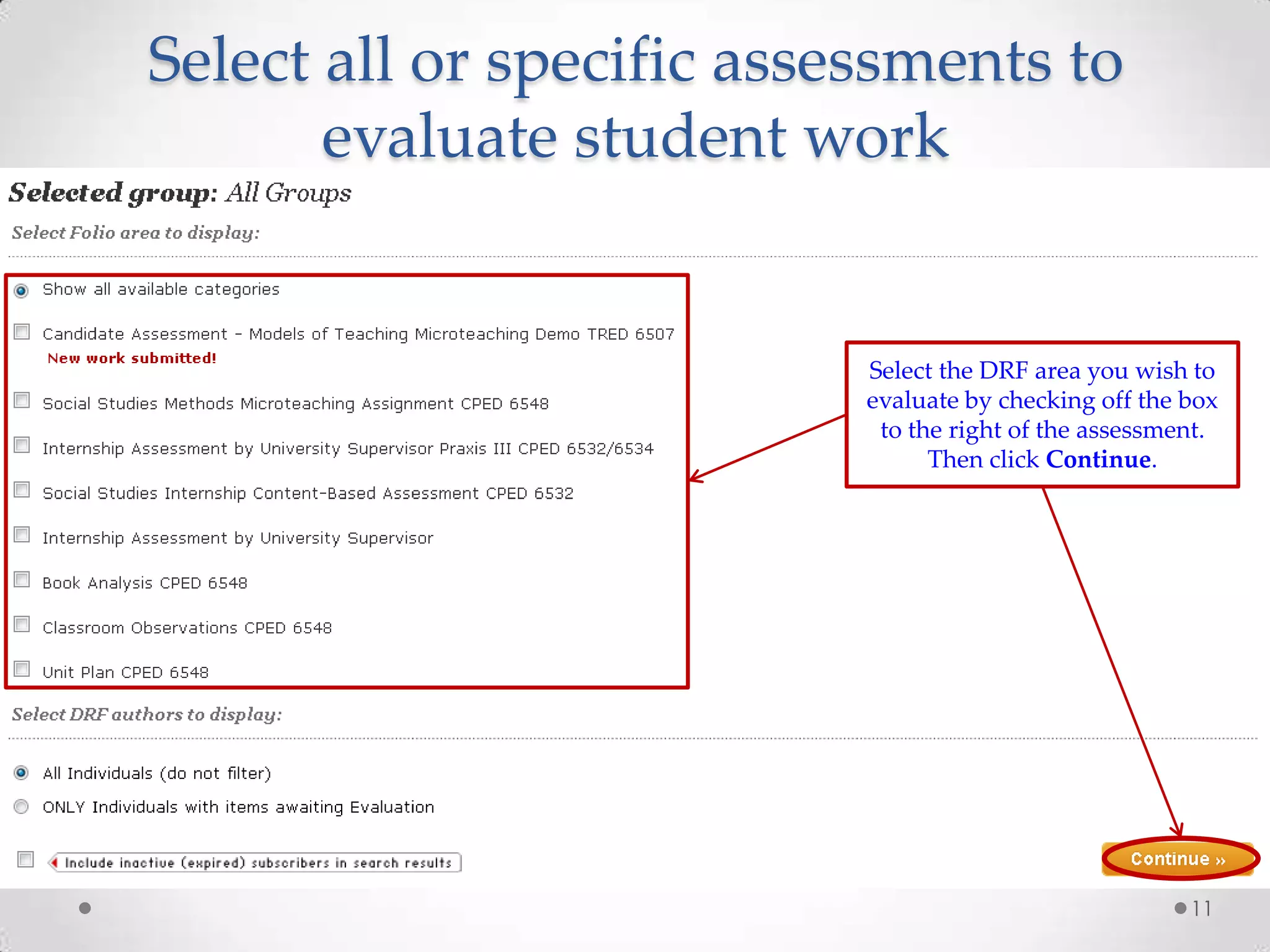
Select all or specific assessments to
evaluate student work
11
Select the DRF area you wish to
evaluate by checking off the box
to the right of the assessment.
Then click Continue.
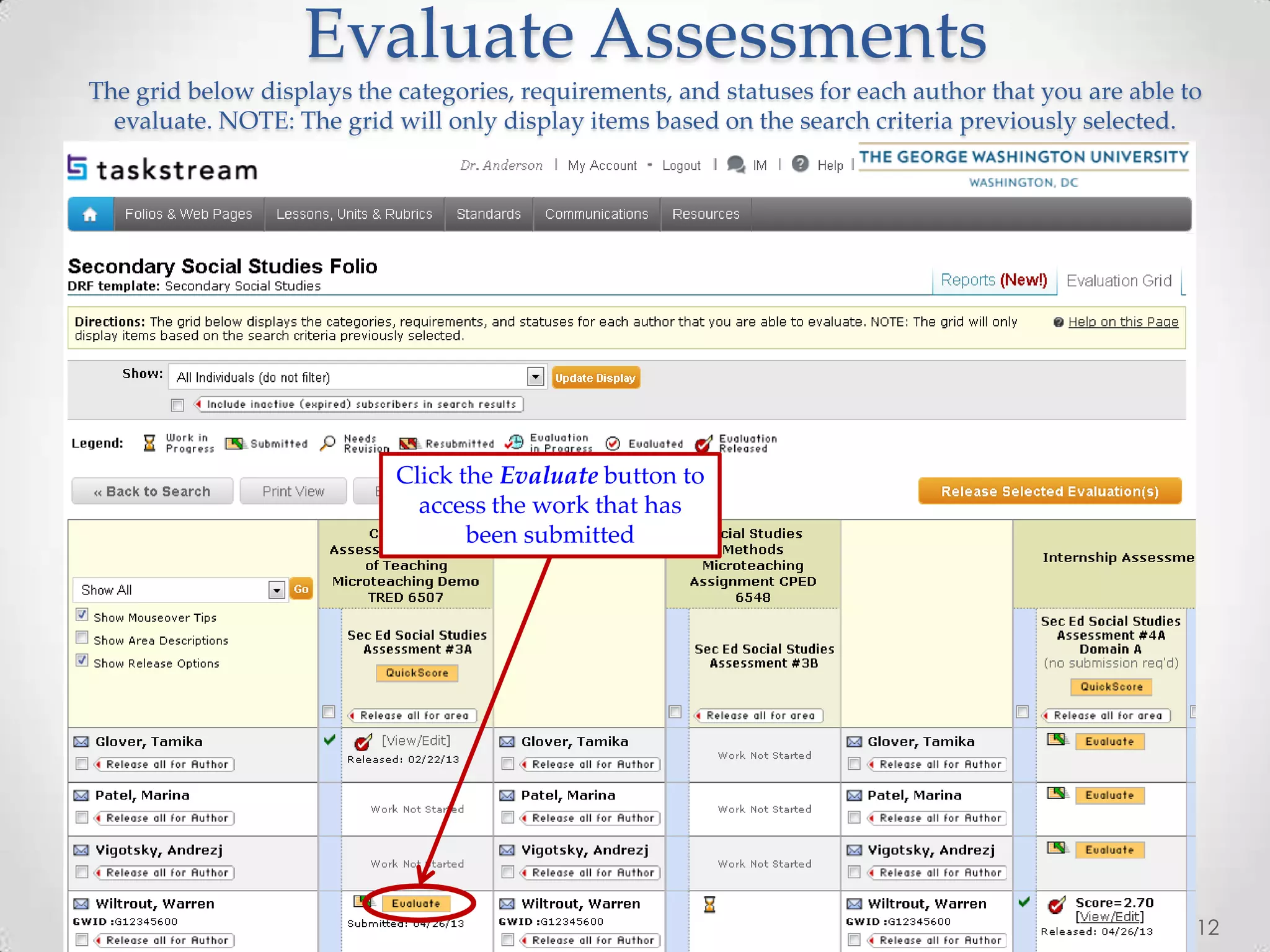
Evaluate Assessments
The grid below displays the categories, requirements, and statuses for each author that you are able to
evaluate. NOTE: The grid will only display items based on the search criteria previously selected.
12
Click the Evaluate button to
access the work that has
been submitted
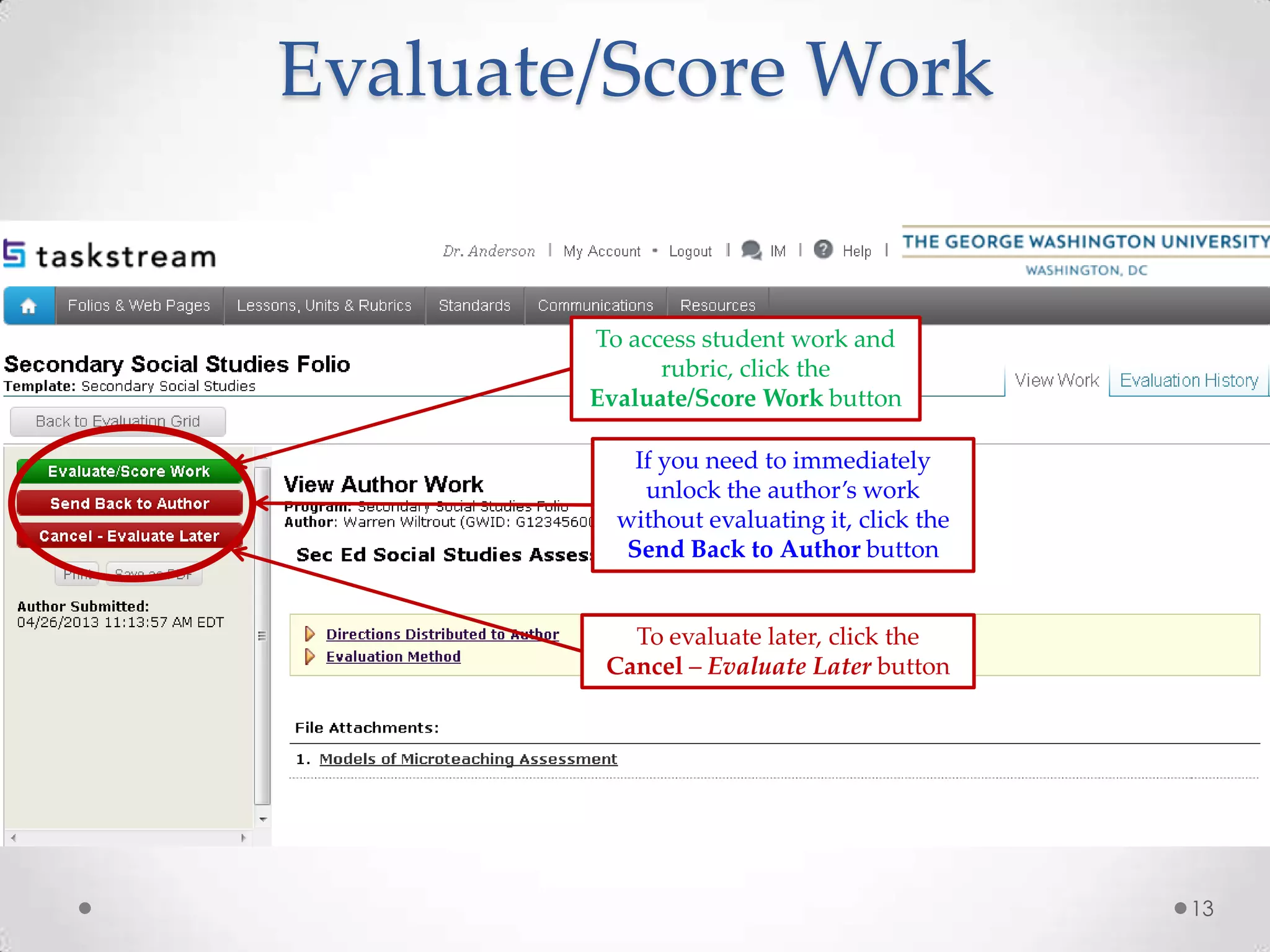
Evaluate/Score Work
13
To access student work and
rubric, click the
Evaluate/Score Work button
To evaluate later, click the
Cancel – Evaluate Later button
If you need to immediately
unlock the author’s work
without evaluating it, click the
Send Back to Author button
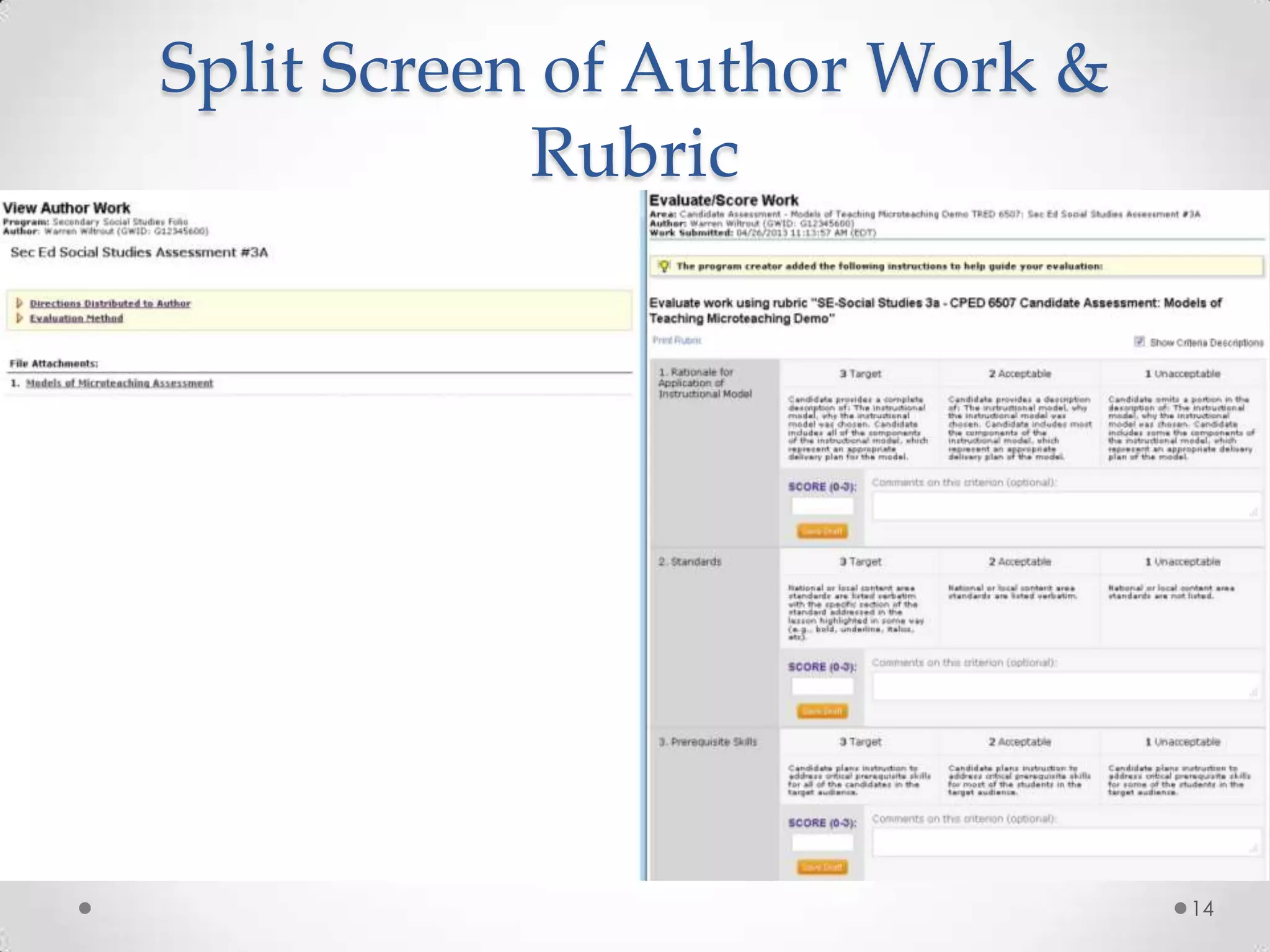
Split Screen of Author Work &
Rubric
14
15
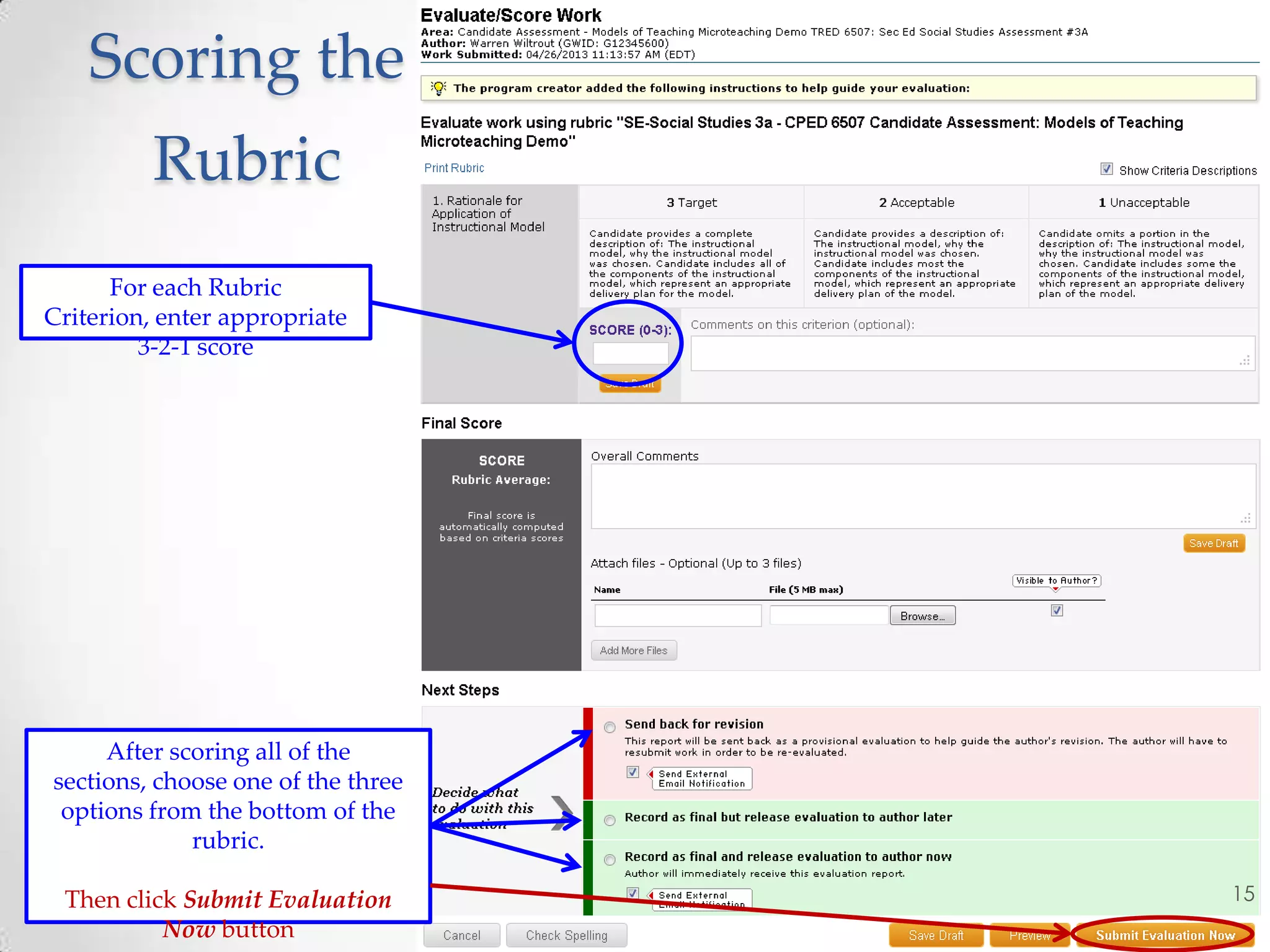
Scoring the
Rubric
After scoring all of the
sections, choose one of the three
options from the bottom of the
rubric.
Then click Submit Evaluation
Now button
For each Rubric
Criterion, enter appropriate
3-2-1 score
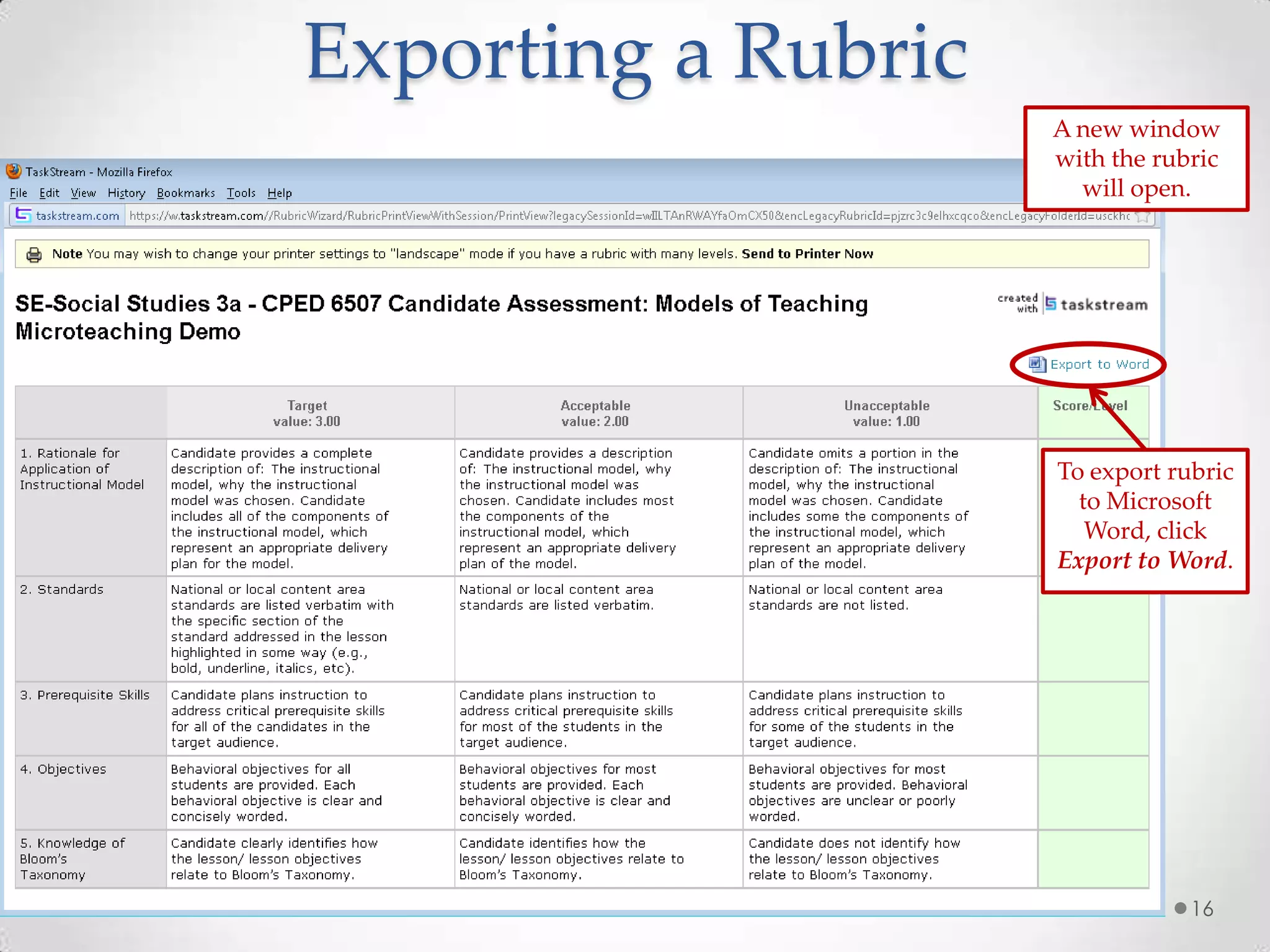
Exporting a Rubric
To export rubric
to Microsoft
Word, click
Export to Word.
A new window
with the rubric
will open.
16
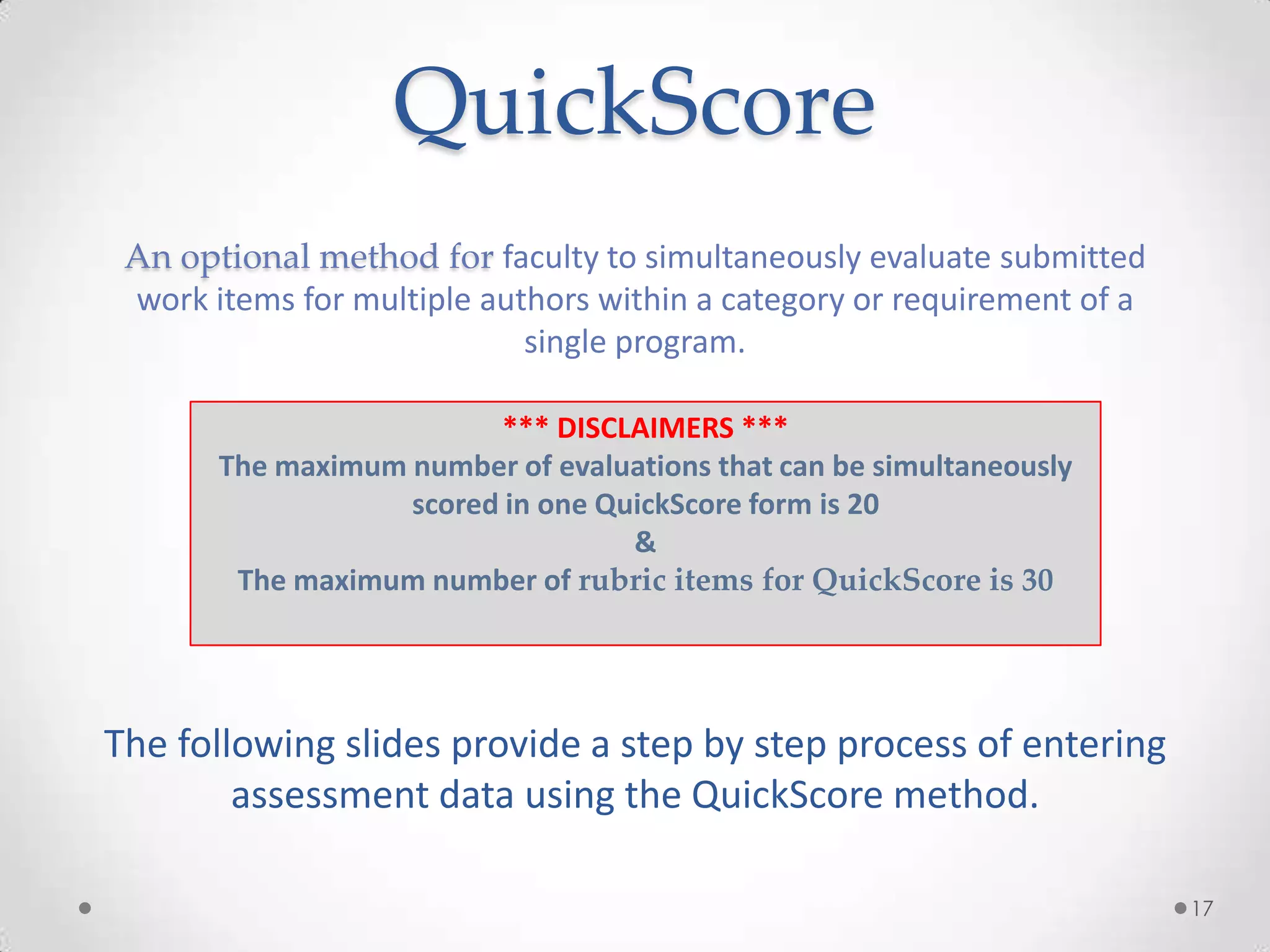
QuickScore
An optional method for faculty to simultaneously evaluate submitted
work items for multiple authors within a category or requirement of a
single program.
The following slides provide a step by step process of entering
assessment data using the QuickScore method.
17
*** DISCLAIMERS ***
The maximum number of evaluations that can be simultaneously
scored in one QuickScore form is 20
&
The maximum number of rubric items for QuickScore is 30
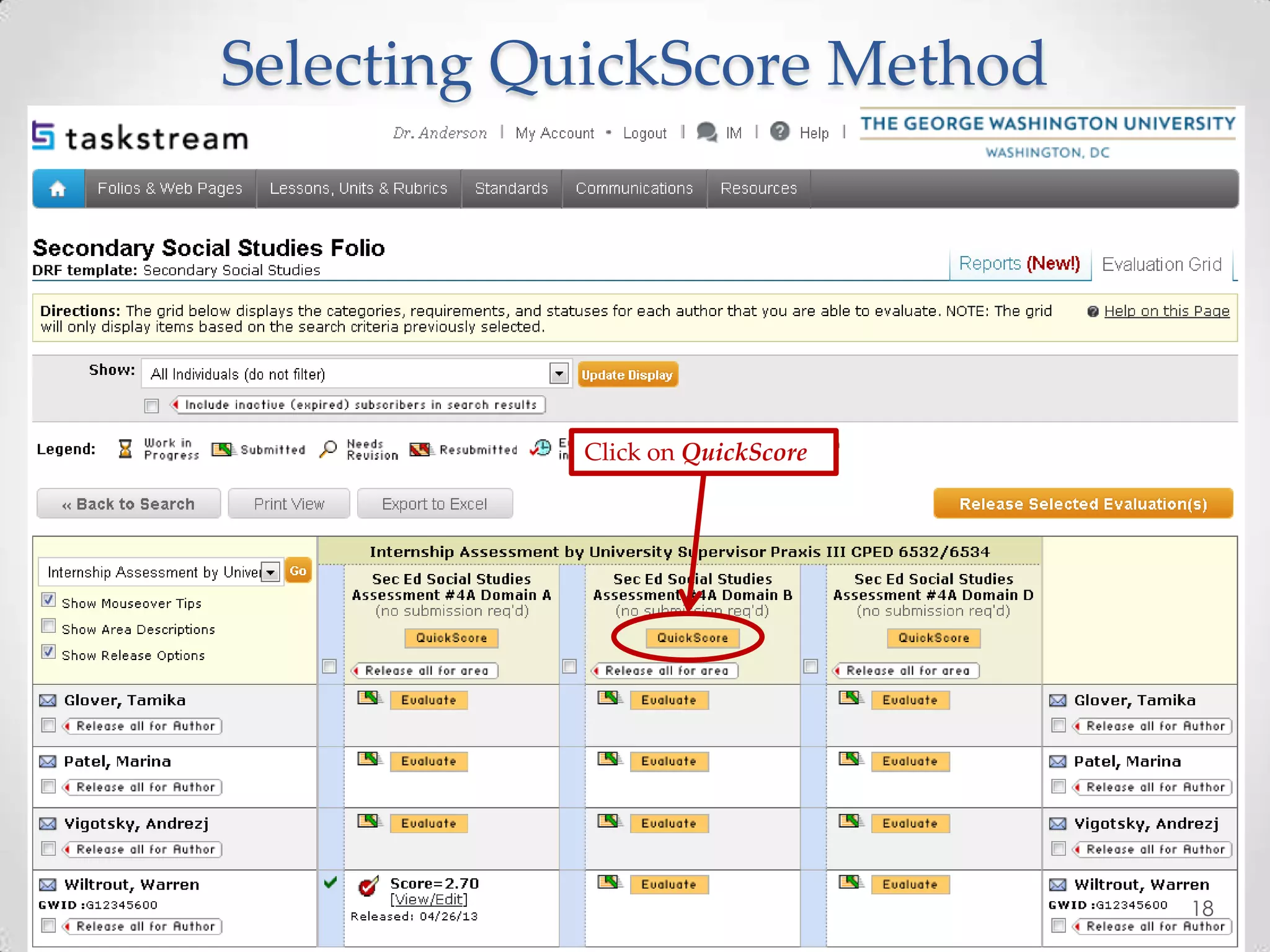
Selecting QuickScore Method
Click on QuickScore
18
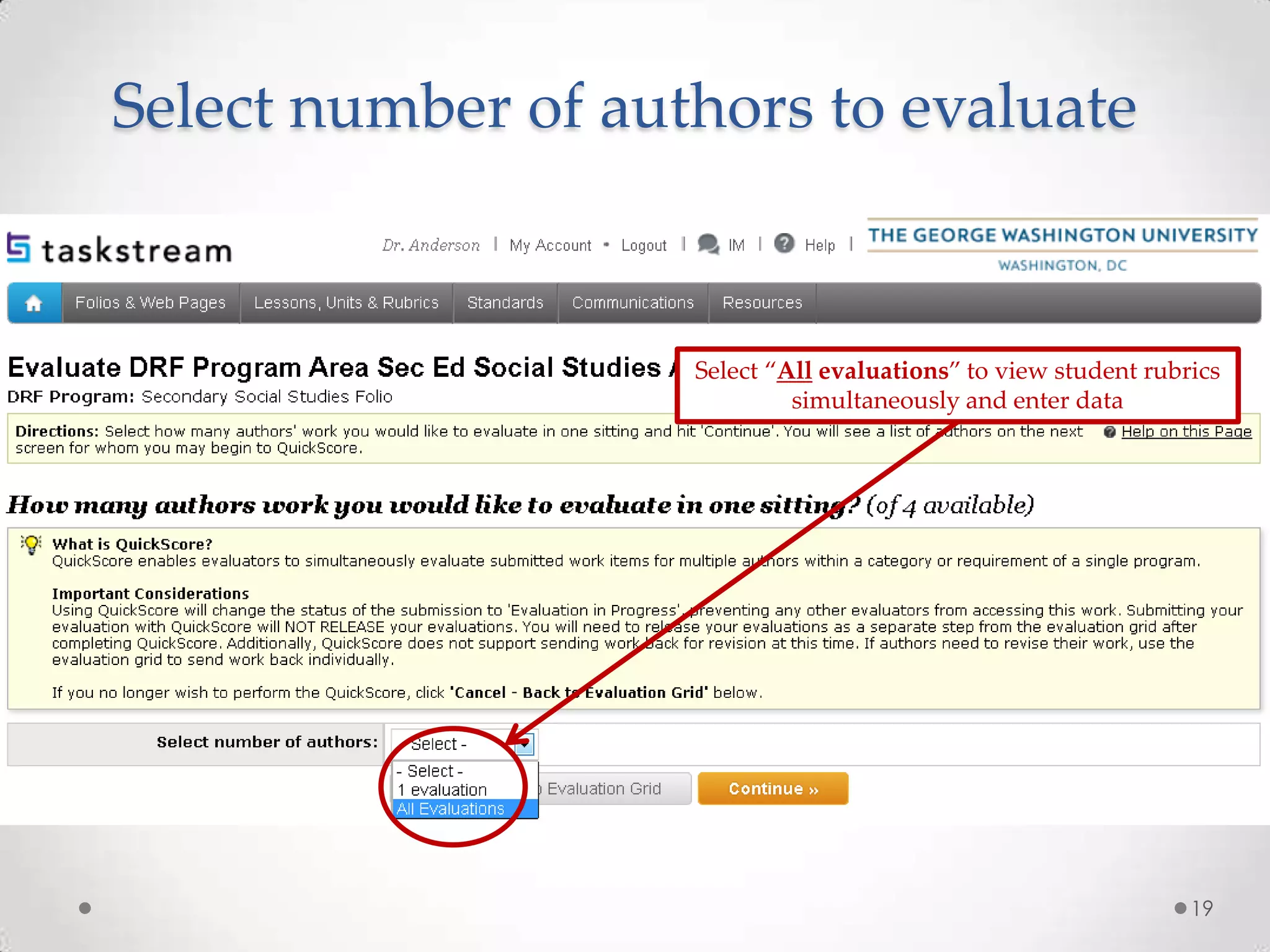
Select number of authors to evaluate
Select “All evaluations” to view student rubrics
simultaneously and enter data
19
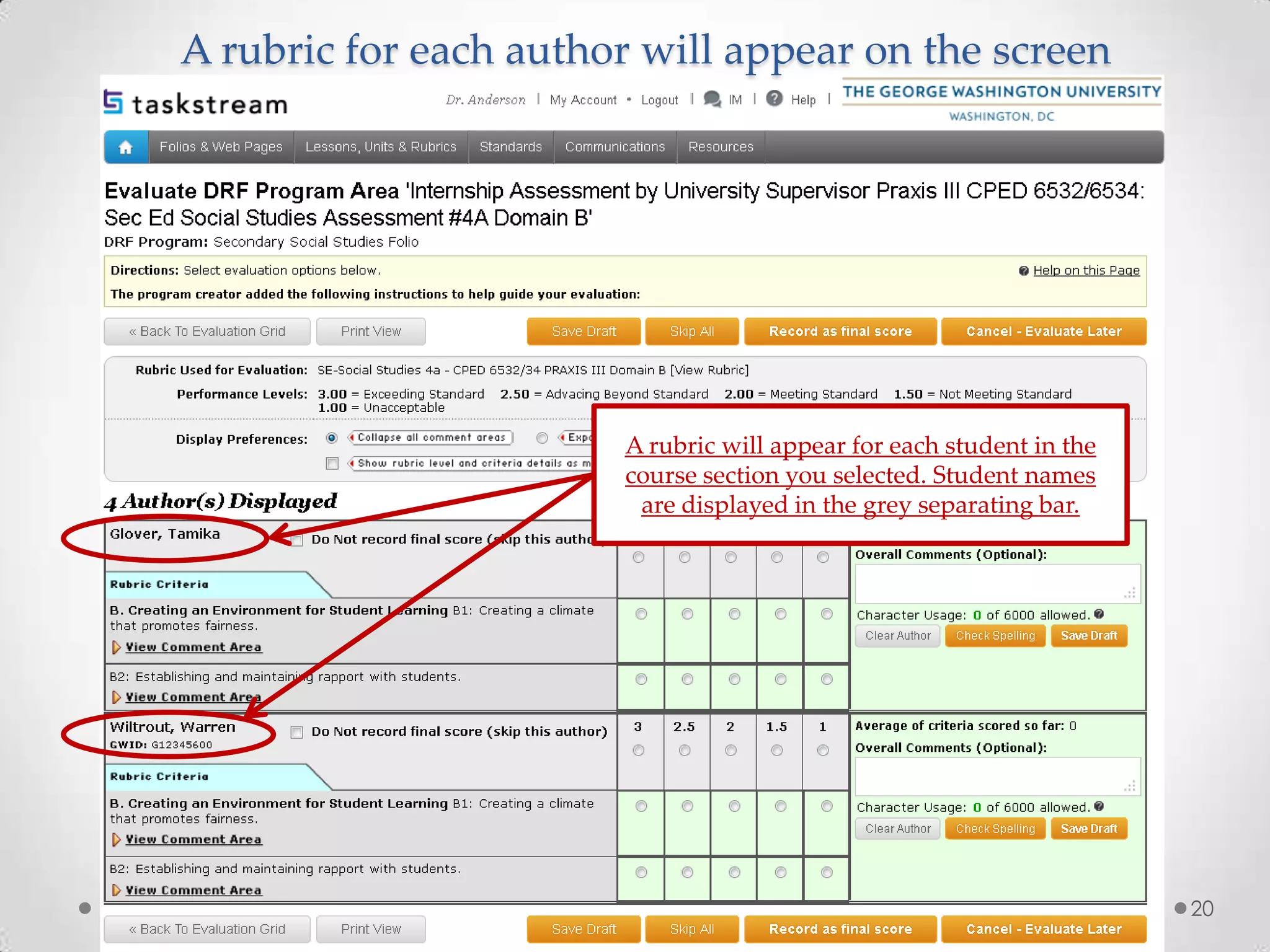
A rubric for each author will appear on the screen
A rubric will appear for each student in the
course section you selected. Student names
are displayed in the grey separating bar.
20
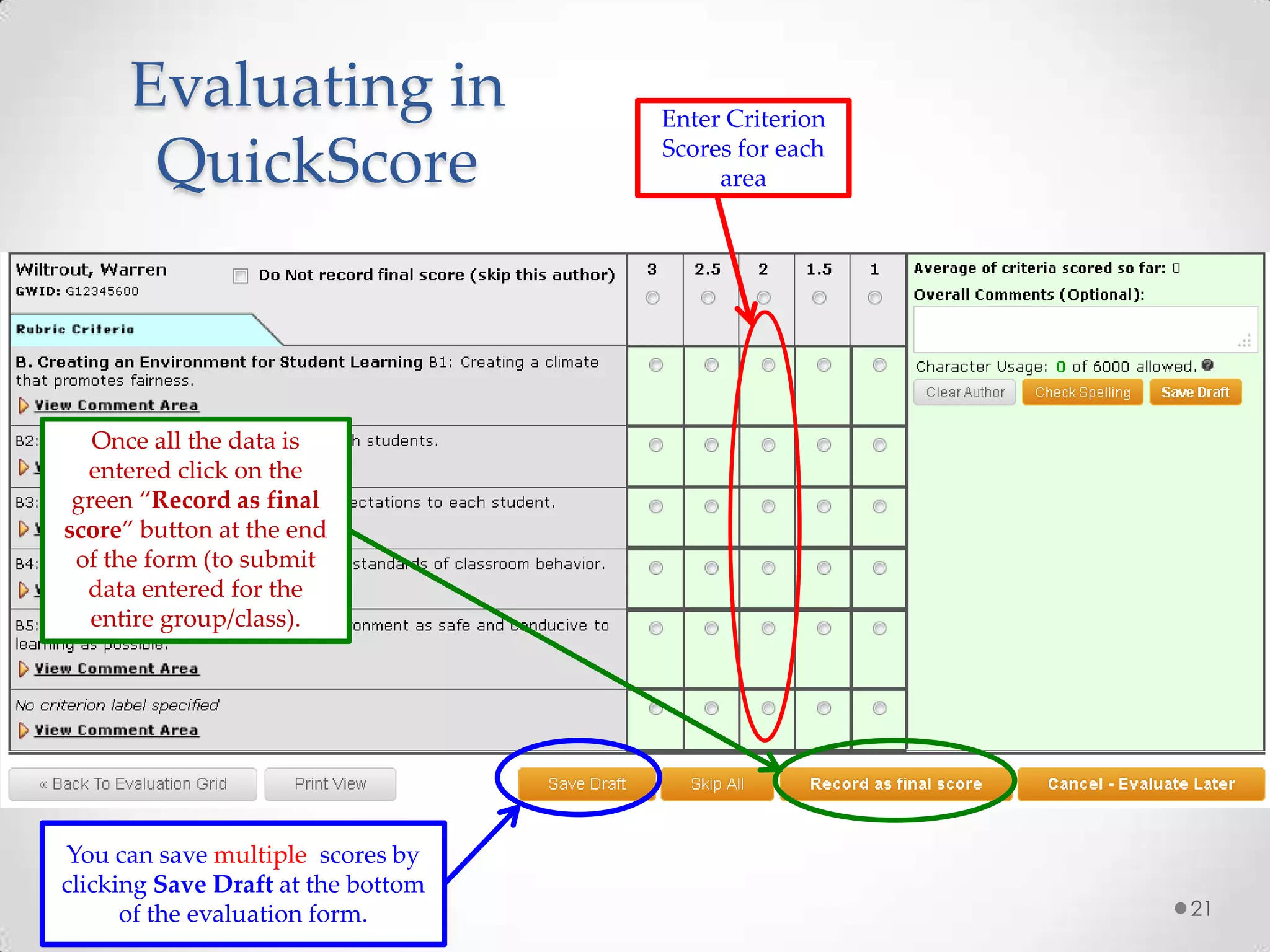
You can save multiple scores by
clicking Save Draft at the bottom
of the evaluation form. 21
Once all the data is
entered click on the
green “Record as final
score” button at the end
of the form (to submit
data entered for the
entire group/class).
Evaluating in
QuickScore
Enter Criterion
Scores for each
area
Thank you!
For additional assistance, feel free to contact:
TaskStream’s Mentoring Services department by calling 1-800-311-
5656 or email help@taskstream.com
Or the GSEHD TaskStream Administrators, Leslie J. Ward, Ed.D., and
Ellen Wanjiru by calling 202-994-0359 or emailing oppats@gwu.edu
22

Sec ed social studies ts faculty instructional guide

  • 1.
  • 2.
    Faculty Single Sign-Onvia GWeb Info System Click gweb info system From the webpage my.gwu.edu 2
  • 3.
    Enter in GWIDand PIN 3 Enter Your Gweb User Login Then click Login
  • 4.
    Access the TaskStreamlink through the Faculty Menu 4 Click on Faculty Menu link
  • 5.
    Faculty Menu Tab 5 Clickthe TaskStream Link
  • 6.
    LAT by TaskStream 6 Clickthe LAT by TaskStream link
  • 7.
    LAT is individualprogram assessments AMS is for school level assessment Click Learning Achievement Tools 7
  • 8.
  • 9.
    Faculty “Evaluator” HomePage 9 To evaluate student work, click the Secondary Social Studies DRF link to search for individual or search by groups
  • 10.
    View and Evaluateby DRF Program 10 Search by First/Last name for individual to evaluate Or Search for multiple people by selecting a group from the drop down menu
  • 11.
    Select all orspecific assessments to evaluate student work 11 Select the DRF area you wish to evaluate by checking off the box to the right of the assessment. Then click Continue.
  • 12.
    Evaluate Assessments The gridbelow displays the categories, requirements, and statuses for each author that you are able to evaluate. NOTE: The grid will only display items based on the search criteria previously selected. 12 Click the Evaluate button to access the work that has been submitted
  • 13.
    Evaluate/Score Work 13 To accessstudent work and rubric, click the Evaluate/Score Work button To evaluate later, click the Cancel – Evaluate Later button If you need to immediately unlock the author’s work without evaluating it, click the Send Back to Author button
  • 14.
    Split Screen ofAuthor Work & Rubric 14
  • 15.
    15 Scoring the Rubric After scoringall of the sections, choose one of the three options from the bottom of the rubric. Then click Submit Evaluation Now button For each Rubric Criterion, enter appropriate 3-2-1 score
  • 16.
    Exporting a Rubric Toexport rubric to Microsoft Word, click Export to Word. A new window with the rubric will open. 16
  • 17.
    QuickScore An optional methodfor faculty to simultaneously evaluate submitted work items for multiple authors within a category or requirement of a single program. The following slides provide a step by step process of entering assessment data using the QuickScore method. 17 *** DISCLAIMERS *** The maximum number of evaluations that can be simultaneously scored in one QuickScore form is 20 & The maximum number of rubric items for QuickScore is 30
  • 18.
  • 19.
    Select number ofauthors to evaluate Select “All evaluations” to view student rubrics simultaneously and enter data 19
  • 20.
    A rubric foreach author will appear on the screen A rubric will appear for each student in the course section you selected. Student names are displayed in the grey separating bar. 20
  • 21.
    You can savemultiple scores by clicking Save Draft at the bottom of the evaluation form. 21 Once all the data is entered click on the green “Record as final score” button at the end of the form (to submit data entered for the entire group/class). Evaluating in QuickScore Enter Criterion Scores for each area
  • 22.
    Thank you! For additionalassistance, feel free to contact: TaskStream’s Mentoring Services department by calling 1-800-311- 5656 or email help@taskstream.com Or the GSEHD TaskStream Administrators, Leslie J. Ward, Ed.D., and Ellen Wanjiru by calling 202-994-0359 or emailing oppats@gwu.edu 22