Transportation module

Transpor tation (LE-TRA)
          Purpose


Transportation is an essential element in the logistics chain. It affects both incoming and outgoing goods.
Effective transportation planning and processing ensure that shipments are dispatched without delay and
arrive on schedule. Transportation costs play an essential role in the calculation of the price of a product. It is
important to keep these transportation costs to a minimum so that the price of a product remains competitive.
Efficient transportation planning and processing helps to keep these costs down.

          Integration


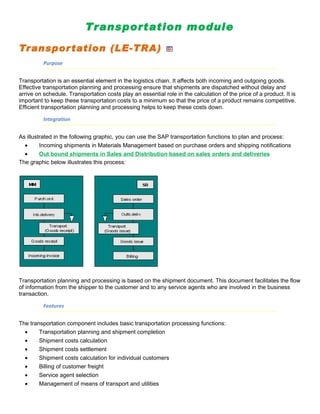
As illustrated in the following graphic, you can use the SAP transportation functions to plan and process:
  •      Incoming shipments in Materials Management based on purchase orders and shipping notifications
  •      Out bound shipments in Sales and Distribution based on sales orders and deliveries
The graphic below illustrates this process:


Transportation planning and processing is based on the shipment document. This document facilitates the flow
of information from the shipper to the customer and to any service agents who are involved in the business
transaction.

          Features


The transportation component includes basic transportation processing functions:
  •     Transportation planning and shipment completion
  •     Shipment costs calculation
  •     Shipment costs settlement
  •     Shipment costs calculation for individual customers
  •     Billing of customer freight
  •     Service agent selection
  •     Management of means of transport and utilities
•     Follow-up and supervision of shipments
  •     Management of shipment costs
These transportation functions can handle planning and processing for both inbound and outbound shipments.
You can control and monitor the entire transportation process from the planning stage to goods issue at your
shipping point (for outbound shipments) or vendor location (for inbound shipments), through to goods receipt at
the customer location or your plant.
Other available functions include: shipment costs calculation and settlement with the service agent, transfer to
accounting, credit memo creation and invoice verification.


            This documentation describes procedures in outbound shipment processing. Unless specifically
            stated otherwise, the information here also applies to inbound shipment processing. Differences
            between the two will be pointed out where necessary.
            For more information about creating and processing inbound deliveries, see the Confirmations
            section of the documentation for Purchasing (MM-PUR).


About Transportation
The following text describes basic elements of shipment processing, which also include:

   •   the function of the organizational unit of transportation planning point
   •   the function of the shipment document
   •   output determination
   •   a compilation of the reports available in shipment processing

Transportation Planning Point
         Definition


You can now carry out transportation planning and shipment completion using a new organizational unit, the
transportation planning point. Basically, the transportation planning point consists of a group of employees
responsible for organizing transportation activities. Each shipment is assigned to a specific transportation
planning point for transportation planning and shipment completion. You must define the various transportation
planning points used in your organization in Customizing for Corporate Structure before they can be used to
perform transportation functions. You can define this organizational unit according to your company’s needs,
for example, according to geographical location or mode of transport.


               The transportation planning point is assigned to a company code, but is otherwise independent
               of other organizational units.


Procedures Valid for Entire Company Codes
         Use


It is not necessary to assign the transportation planning point to a company code for transportation planning
purposes. However, company code assignment is necessary for shipment costing and settlement. Internal
offsetting of costs between company codes (one company code takes care of transportation processing for all
the firm’s company codes, for example) is presently not available. These must be manually entered in the
financial accounting ledgers.

          Prerequisites


In order for this cross-company-code manual processing to be possible in financial accounting, cost distribution
for shipment costs must occur on the shipment cost item level rather than delivery level or delivery item level,
since in the latter two cases, the delivery’s company code would be adapted to the transportation planning
point’s company code.


               A company’s plant in Japan delivers goods to a plant in Houston. The plant in Japan takes care
               of the shipment costs until the goods reach the airport in Japan, and the Houston plant pays the
               rest of the shipment costs (Japan airport → Houston airport → Houston plant).

               The transportation chain with cross-company-code billing looks like this:

               There are a total of three shipments:

   •    The first shipment is created by the transportation planning point in Japan and ends at the airport in
        Japan. Cost distribution occurs on the shipment cost item level.
   •    The second and third shipment are created by the transportation planning point in Houston. In both
        cases, cost distribution occurs on the shipment cost item level.


       Shipment Types
          Definition


The shipment type contains all the important control features for a shipment, such as the number range,
whether the shipment is inbound or outbound, how leg determination is performed, and which leg indicator has
been set for a shipment of this type. You can also enter a selection variant for the shipment type. The values
defined in the variant appear on the selection screen when you create a shipment document of this type.

The system supports the following shipment types:

   •    Individual shipment

   •    Collective shipment

   •    Transportation chain

          Individual shipment


An individual shipment includes

   •    One or more deliveries

   •    One point of departure

   •    One destination
•   One mode of transport


         Collective shipment


A collective (or milk-run) shipment includes

   •   One or more deliveries

   •   Several points of departure

   •   Several destinations

   •   One mode of transport


         Transportation chain


A transportation chain is useful if you are dealing with deliveries that will be transported using multiple modes
of transportation (and are thus processed by different departments at the transportation planning point).

Transportation Chain
The department responsible for transportation by land organizes truck shipments and another
               department organizes ships and their cargo for goods shipment by sea. Each mode of transport
               (truck and ship) requires individual shipping papers. Each mode of transportation requires
               separate transportation papers, meaning that you need to create a shipment document for the
               overland leg and another for the overseas leg of the journey.


               If shipments use more than one mode of transportation, it is a good idea to create a
               transportation chain. Because you will have a separate shipment document for each mode of
               transportation, you can maintain separate output, texts, statuses, and so on.


Example for using a transportation chain

At shipping points 0001 and 0002 in Germany, a large number of deliveries are to be sent to customers in the
United States by the beginning of December. You and your customers agreed that part of the shipment be sent
carriage paid and the other part carriage, insurance, freight paid to (CIF) New York only (meaning that the end
customer must pay carriage, insurance and freight from New York to the final destination).

The goods are to be transported by land within Germany, by sea from Hamburg to New York, and by land
again in the United States. It is, of course, possible to document the entire process in a shipment document.
However, problems can arise if certain parts of the shipment functions are used:

   •   For instance, data on the shipment status always refers to the entire shipment document (for example,
       the status "Loading finished"). However, in this example loading takes place several times.

   •   For the same reason, an assignment of dates and texts to a handling unit is difficult because these can
       change within the shipment document. The very definition of a handling unit is in itself problematic.

   •   Output to be created in combination with the shipment document contains all data for the entire
       shipment document. When the truck driver leaves the shipping point, his printout also contains data that
       refers to the ship. This is unnecessary and a nuisance. Processing several required preliminary legs at
       different times also requires that output be printed at different times.

In cases like this, it makes more sense to use a transportation chain in which deliveries are passed on in a
series of different shipments. In the above example, you would create several shipment documents in the
system: ten preliminary leg shipments by truck, one main leg by ship, and if necessary, eight subsequent legs
by truck again. That way, you avoid the problem of assigning deadlines, output, or texts to the packaging
material.

With that in mind, you might put together your transportation chain like this:
1. Create a main leg

   At transportation planning point 0001, you create a main leg shipment for all deliveries to be sent by
   ship from Hamburg to New York City at the beginning of December. There should be a special
   shipment type set for this set in Customizing. This could include the following settings:

      o   Set the leg indicator field for the shipment header to Main leg. The system will recognize that
          this shipment must be linked to other shipments.
      o   The leg determination type for this shipment type should be ‘ ‘.This means that no automatic leg
          determination will be carried out. This is reasonable since the Hamburg-to-New York leg does
          not include any points of departure or destinations from the delivery (however, this data will be
          taken into account during leg determination).
      o   Route determination resulting in the Hamburg-to-New York route may have already been
          carried out in the delivery. If you want to copy this route automatically into the main leg
          shipment, you can specify in Customizing that routes must be copied into the shipment
          document. Copying starts as soon as you set the Planned status in the shipment document.
          (Note that the route in the deliveries must be unique.) At the same time, the service agent can
          also be copied automatically from the delivery provided you have made the appropriate settings
          in Customizing and that the same service agent has been assigned to the deliveries.

   When the deliveries were created, they were given transportation planning status A, meaning they were
   ready for transportation planning. Now, after creating the main leg shipment, these deliveries have
   transportation planning status B, meaning that they have been partially planned (since a main leg
   shipment needs preliminary and possibly subsequent legs).


2. Create preliminary legs

   The preliminary leg shipments that are used to send the goods from shipping points 0001 and 0002 to
   the ship in Hamburg can be organized much faster than the ship itself, which is why they are planned at
   this time. You must now combine all deliveries in the main leg shipment into one or more preliminary
   leg shipments. You can do this in the Create Shipment transaction.

   To do this, you must select all deliveries in the main leg shipment. The transportation planning status of
   the delivery may be helpful in determining which deliveries are in the main leg shipment since their
   status is now set to B instead of A. Of course, this is not sufficient as a single selection criterion. He can
   enter further selection criteria that are used during delivery selection for the main leg. This may be
   impractical since you may not now what the selection criteria were or too many deliveries may be
   selected.

   Therefore, it is better to specify the shipment number of the corresponding main leg shipment in the
   Reference to line when selecting deliveries. If you do not know the number, press F4 and a selection
   screen will appear. In this case, a further selection screen for shipment number selection appears. On
   this screen, you can specify the person who created the shipment document, the point of departure,
   and the date in order to determine the number of the main leg shipment.

   You create shipments using the worklist you defined. If each delivery corresponds to exactly one
   truckload, the planner can call up the function Edit → Automatic planning → One dlv. one shipment,
   which creates a separate shipment for each delivery.

   You should use the following settings:

      o   Set the leg indicator to preliminary leg.
o   Set the leg determination type to 1 (leg determination according to pick-up sequence and
              itinerary).
          o   Do not copy the route from the delivery. It may be a good idea to copy the service agent.

       When the Planned status is set, leg determination begins, but the route is not copied from the
       deliveries. It will determine the pick-up sequence. In addition, the system suggests Hamburg as
       destination since the deliveries are part of a main leg shipment that runs from Hamburg to New York.

       When the shipment is saved, the system updates the delivery status. The status for the carriage paid
       deliveries remains B (partially planned), since the second part of the Incoterm was left blank and the
       system assumes that a subsequent leg is required. The status of the deliveries with CIF New York is
       set to C (completely planned) since the second part of the Incoterm has been specified and the system
       assumes that a subsequent leg is not necessary.

   3. Create subsequent legs

       You create subsequent legs the same way you create preliminary legs. Use these settings:

          o   Set the leg indicator to subsequent leg.
          o   Use category 1 for leg determination.
          o   Do not copy the route from the deliveries.

       In order to create these shipments, search for deliveries with a transportation planning status of B. The
       system then finds only those deliveries for which a subsequent leg is to be created. If the Planned
       status is set, it also carries out leg determination. The system automatically suggests ‘New York’ as a
       point of departure, since the main leg shipment ends in New York. The sequence in which the goods
       are delivered (itinerary) is determined by the sequence in which the deliveries are displayed on the
       screen. If the subsequent leg shipments are saved, the transportation planning status of the
       corresponding deliveries is set to C (completely planned) since these deliveries now have preliminary,
       main, and subsequent legs.

       Following these steps ensures that every delivery is included in the transportation chain. In the
       example, there are ten preliminary leg shipments to Hamburg followed by a main leg shipment and
       eight possible subsequent leg shipments in the United States. In this way, a group of deliveries forms a
       network of shipments.

   4. Monitor the transportation chain

       In order to monitor the shipments, choose Environment → Transportation info → Shipment list or
       Environment → Transportation info → Transportat.network depending on whether you are processing
       orders, deliveries, or shipments. Worklists for transportation planning and processing may also provide
       an overview. To generate a worklist, enter one of the shipment numbers that make up the
       transportation network in the Reference to line. The system will then select all shipment documents in
       the network.


Shipment document
         Definition


The shipping document is the central element of transportation planning and shipment completion. It contains
all the information necessary for carrying out transportation.
Use


You create shipment documents using a worklist. Different types of shipment documents have been defined to
enable you to reflect in the system the various forms of transportation used in your organization.

For example, you use the individual shipment document to plan and process the transportation of goods from
one location to another. You use the collective shipment to move goods from one or more points of departure
to one or more destinations. Separate document types deal with inbound and outbound shipments.

You can use shipment documents to:

   •   Combine deliveries into one inbound or outbound shipment

   •   Specify shipment stages

          o     Legs
          o     border crossing points
          o     load transfer points

   •   Assign goods to handling units

   •   Assign service agents

   •   Specify planned transportation deadlines

   •   Record actual transportation deadlines

   •   Specify output required for transportation (such as shipping papers or EDI messages)

   •   Define transport-relevant texts


Information in the Shipment Document
         Use


You can record the following information in the shipment document:

   •   Means of transport

   •   Service agents

   •   Deadlines

   •   Status
   •   Tendering status
   •   Route

   •   Texts

   •   Output
•   Dangerous goods

         Features


Means of transport

The means of transport necessary for a shipment is reflected in the system as a handling unit. These handling
units contain information about tare weight and -volume of the means of transport as well as the weight of the
packed handling unit. Information about the country providing the means of transport, details about the driver
and travel time are also included in these handling units. Handling units that have already been created for
delivery items are copied into the shipment document where they can be packed further, if necessary. Delivery
items that have only been partially packed or not packed at all can be packed in the shipment documents.

See also:

Packing in the Shipment Document

Service agents

You can store information about the service agents (such as forwarding agents or customs agents) who are
involved in the transportation process. You can record this information at the header or stage level of the
shipment document.

See also:

Assigning Service Agents in the Shipment Document

Deadlines

The time required for organizing and performing the various transportation activities is stored as planned and
actual deadlines in the shipment document. This information can be used for monitoring and analysis
purposes.

See also:

Maintaining Planned and Actual Deadlines in the Shipment Document

Transfer of Delivery Dates to Shipment

         Status


Once you have completed the planning activities for a shipment document, you can set the Planned status. As
soon as you set this status, you can no longer carry out planning activities for this shipment document (remove
deliveries from the document or move deliveries within the document, for example). Leg determination is
carried out automatically. You can define which activities take place when you set the status in the Activity
Profiles section.

A traffic light icon indicates the overall status of the shipment document. The icon can be interpreted as
follows:

   •   No traffic light:

               No planning activities have been performed
•    Red light:

               Transportation planning is complete

   •    Yellow light:

               Loading at the plant has either started or is complete

   •    Green light:

               Shipment has been processed and is in route or has arrived

See also:

Maintaining Status in the Shipment Document

Tendering status

The tendering status describes the current status of a shipment with respect to negotiations with a forwarding
agent through the Internet.

Route

If the route and the forwarding agent are the same in all deliveries, they are copied from the deliveries into the
shipment document when you set the status to Planned.

Country-specific restrictions with respect to total weight of the shipment on a particular route require recording
the restriction already at the route level. This upper level can be specified at route level and is then taken into
consideration during shipment processing. If the allowed total weight is exceeded during delivery assignment
to the shipment, the system issues a warning message. The shipment can then be changed accordingly. The
fields are displayed on the planning screen.

During order processing and delivery processing, this check is not taken into consideration.

Further transportation-relevant information is copied into the shipment document if you define the Copying
Routines in the Implementation Guide.

Texts

Additional information that could help the transportation process to run smoothly can be entered as text at
header level in the shipment document. This information can be accessed by all business partners involved in
the process. Shipment text types are defined in Customizing and assigned to text determination procedures.
Text determination procedures are defined in the shipment document type.

Output

Output processing is performed just as it is in other areas of the Sales and Distribution module: using the
condition technique. The types of output that have been set in Customizing for transportation and for which you
have created condition records appear in the shipment document and apply to the entire document. The output
type ALTR has been defined for transportation in the standard SAP System. You can change this output type
to suit your needs.
Copying Information Relevant for Transportation
          Use


When you create shipments, you can use information relevant for transportation as selection criteria. For
example, you can group together outbound deliveries with means-of-transport type "Truck" and means of
transport "Small truck" into one shipment. In sales orders and/or deliveries, you can specify that the following
information is relevant for transportation:

   •   Means of transport
   •   Shipping type
   •   Type of means of transport
   •   Special processing

          Integration


In order to copy proposals for dates and times from the delivery, you must create a connection between the
shipment dates and delivery dates. Copy routines serve this purpose.

          Prerequisites


The system uses the copy routine to copy data from sales orders into deliveries and then into shipments. In
order for the system to do this, you must first carry out the following activities in the Implementation Guide
(IMG):

   •   Specify copy control for deliveries
   •   Define shipment types

          Features


Information relevant for transportation is copied from the order into the header of the outbound delivery, and
thus supplies split criteria for outbound deliveries. For example, two order items with different shipping types,
means of transport or means-of-transport types cannot be combined into the same outbound delivery.

However, information can be copied from the outbound deliveries into the shipment, provided it is unique data.
You create a handling unit in the shipment for the means of transport (likewise only if this is unique). The
copying takes place when you set the status "Planned". Here you must store an appropriate copy routine in
Customizing for the shipment type.

The system also checks the capacity of the mode of transport in the delivery. If this capacity is exceeded, you
will receive a warning message.

Since the means of transport can also be specified on the Pack screen, the means of transport entries in the
sales order, delivery header and the corresponding packing information could vary. Changes made on the
Pack screen have no effect on the transportation-relevant information in sales orders and deliveries.
Shipment Outputs
           Purpose


In addition to printing and faxing, electronic data exchange is becoming increasingly important as a method of
communicating transportation data. Senders (shippers) transmit their shipping orders and transportation
information to their service agents (forwarding agents, ship owners, customs agents). The service agents
organize the transportation process and ensure that it is carried out smoothly. A logistics transportation chain
involving multiple modes of transport and service agents often occurs during the shipment. To ensure
efficiency in such a situation, it is especially important to get all necessary information to all parties involved at
the earliest possible point in the process.

           Process Flow


Sample process flow for electronic data exchange:


Shipping                                              Inbound Processing
   1.     The shipper sends the forwarding            The forwarding agent receives the
        agent a partially- or completely planned      transportation requests and assumes
        shipment (shipping order).                    responsibility for planning the shipment details.
   2.      The forwarding agent sends                 The vendor receives the completely planned
        information about the completely planned      shipments from the forwarding agent.
        shipments back to the shipper.
   3.      The shipper or forwarding agent      The customer receives information about the
        informs the customer about the upcoming upcoming shipment.
        shipment (shipment notification).


For more information on output control, see the Outputsection of the Implementation Guide.
You can find more information about output administration in     Working with Output in Sales and Distribution.

Output Control
         Use


You can use output control to automate either messages or subsequent processing of partner-specific
messages. The application uses interfaces that were predefined in Customizing for conditions to call up output
control.

You can use these interfaces to describe different constellations of data and the processing methods of your
choice. If one of these data constellations occurs in the application, it triggers the corresponding processing
method (either sy n ch ron ously or asynchronously). You can define processing methods in many different
ways (as print output or as a shipping IDoc for EDI, for example).

         Prerequisites


The Logistics Execution application always uses output control for issuing output. You can maintain settings for
output control in Customizing in Message control activity.

         Features


The condition technique is used in the SAP System for formulating data constellation conditions. If the current
application data matches one of the conditions defined in Customizing, output determination was successful and
an output proposal is generated. You can then change this proposal ( edit) and the output will be processed
either immediately or at a specified time. The output's processing status is saved in a status record and a
processing log is created.

See also:

  Message Control Structure

Output control only supports certain transmission media. For more information, see      Transmission media.

         Activities


In Message Control Customizing, you can define rules according to which the system accesses individual
condition records.

You can define concrete messages as condition records in the application:      Message definition in the
application


Determining Output in the Shipment Document
         Use


The output determination function enables you to perform tasks for shipping and transportation output for
delivery and transportation processing with your customers and within your company. You can create shipment
output and output for handling units. Staff members in your company can send messages. For example, the
system automatically finds the message that a bill of lading is to be printed.

          Integration


The output control checks whether the application data matches the condition records (that were defined in
Customizing). If this is the case, one or several messages are "found", and they can then be processed (for
example, sent electronically). The condition records are searched for during output determination on the basis
of a predefined hierarchy.

The Output determination function is used in output control. You can use the output control function to
exchange information with internal and external partners. Output control consists of the following functions that
are described in the cross-application documentation CA – Output Control:

    •     Output Determination
    •     Output Processing
    •     Status Management

          Prerequisites


For output determination, the condition elements and condition records need to be defined since the output
determination runs using the condition technique.

In Customizing, you can define the conditions in which the output types you define will be selected. For more
information on output control, see the Output section of the Implementation Guide.

          Features


The system can propose output automatically for a document. You can change this output in the document.

Output determination occurs when:

    •   Accessing the output screen during shipment processing
    •   Saving a shipment document that is new or has been changed

See also:

For more information on output, refer to the following documentation:


Application                                            Documentation

Basis                                                  BC – SAP Communication: Configuration

Cross-application functions                              Output Control

                                                         SAP Business Workflow


You will find Customizing settings and examples in the above documentation.

          Example
Bill of lading

    1. Output determination starts in V7STRA with output type CMR1 and the assigned access sequence.
    2. The access sequence defines the fields with which the key for the condition table is read. (for example,
       condition table B017: shipment type of the shipment is read)
    3. If the condition record is found, the system proposes an output with the output attributes found in the
       table.
    4. The output proposal (possibly not yet processed) is stored after the document is posted as an output
       status record in the NAST table.


Output Type

           Definition


There are predefined output types for shipments. You can display a list of predefined output types by using the
input help. The output type contains parameters, such as partner functions, that are valid for all outputs that
are assigned to that type.

    •   Shipment outputs include: ALTR general shipment, bill of lading, shipping order, EDI in general (SEDI),
        shipment notification, goods receipt/issue slip.
    •   Delivery outputs include: delivery note, mail (internal output), shipping notification, warehouse order,
        and package labels.

The output type signals the use of a printed form such as a delivery note that will be sent to a customer. An
output type can also be an internal, electronic-mail message that you send to a mail recipient (partner).

           Use


The output type is assigned, per transmission medium, to a form routine in a program that is called up to
process the output (output status record).

For more information, see    Defining Output Types.

           Integration


The output type comes after the procedure in the condition element hierarchy. The output type is assigned
exactly one access sequence (next hierarchical level), which in turn is assigned one or more condition
tables (next and lowest hierarchy level).

  Condition Components: Sample Hierarchy


Output Processing
           Use


Output proposals are presented to you in an application transaction. You can then either change (process) the
proposed output before you save the object (bill of lading, for example).
Features


The output proposal that was created includes, among other things, the output's recipient, the transmission
medium and the processing time for subsequent (automatic) processing. You can change all these
parameters in the application transaction.

When you create an output manually, you can specify the output type, transmission medium, print parameters,
partners, and language.

You can display a determination analysis, which displays the outputs that were found in the procedure. You
can display details for an output that show which application data the condition table was read with.

After you post the document, the processed output proposal is recorded in the NAST table as a        message
status record.


       You create a shipment with forwarding agent 1, and the system proposes a shipping order that is to be
       sent via EDI.

       The determination analysis shows that the Shipment type and Transportation planning point application
       fields were read and a condition record was found.

         Output partners


The output recipient of the output that is sent is defined as the output partner. Use the input help to choose an
output partner (sold-to party, Electronic Data Interchange -EDI mail recipient, forwarding agent, or employee
responsible, for example).

During output determination, the output recipients are determined from the partners listed in the document. In
other words, the partner function is used to determine the recipient (forwarding agent, for example).

You can enter a specific output recipient in this field. Your entry overrides the standard partner that appears.
Output recipients that are entered specifically must also be listed in the document as partners.

         Output's transmission medium


The type of processing is determined by the transmission medium. You can specify, for example, that an
output be printed out or sent by mail, fax or EDI.

Processing status

Possible status values:

Status 0 (not yet processed)

1 (processed - no errors)

2 (processed - with errors)

Dispatch time
The dispatch time is stored in the condition record. You can have the system process and update the output
either immediately or at a later time. You can use the RSNAST00 report or a special application function that
triggers processing in order to process the outputs at a later time. The following are linked to the dispatch time
as follows:

   •   Time 1: Send via periodically-planned jobs (next processing run) or start sending from RSNAST00
       online by using the ABAP/4 Development Workbench
   •   Time 2: send via jobs (as in time 1) with additional time specification of the processing time: start from
       RSNAST00 in the background at a defined time (Tools → Administration, Jobs → Job definition).


       RSNAST00 processes all output status records that meet the selection criteria and whose processing
       times or intervals either include the current date or lie in the past. Processing times or intervals are
       fields in the message status record in the NAST table. These fields are not filled with information in
       the standard system. Please note: The first Time field is different from the second Time field. In order to
       have the system complete these fields, you can define a corresponding routine in a report as an
       attribute of an output type. This routine will then be run for each output determination of this output
       type.

   •   Time 3: Send using an application transaction (specific entry): Call up an application function.

       Print transaction VT70

       Only outputs with the status 0 and the dispatch time 3 are included in initial processing.

       An output can be sent more than once. This is useful, for instance, if technical problems or other
       problems occurred in the first print output. The system copies the output that was selected; you can
       then process and send this copy.

       In repeat processing, only outputs with status 1 or 2 are selected (dispatch time is not taken into
       account). Only outputs with status 2 are selected for error processing (once again, dispatch time is
       not taken into consideration).

       There can be several versions of the same output that only differ in date or time of creation (because of
       repeat processing or multiple sending, for example). During selection, the system always chooses the
       last (chronologically latest) output from a group of similar outputs.

   •   Time 4: Send immediately (during save in the application). The output is processed when the
       document is updated.

         Activities


See also:

Selecting Output Worklist

Changing Data Relevant to Output

Changing Outputs in Document Processing

Sending Internal Mail
Selecting a Worklist for Output

           Use


Before you can process messages, you must first select a worklist.

           Procedure


    1. Call up the respective task:

Function                              Menu Path                        What you should know


Shipping                              Initial Screen Shipping
Processing delivery output            Communication/Printing →
                                      Outbound Delivery Output
Processing loading output             Communication/Printing →
                                      Loading Output
Processing handling unit output       Communication/Printing → HU
                                      output


Shipment                              Initial Screen Transportation
Processing transportation output      Communication/Printing →         You can process transportation output as
                                      Transportation Output            well as output for documents that have a
                                                                       reference to a shipment (for example,
                                                                       billing documents, deliveries). To do this,
                                                                       select the respective field and enter the
                                                                       selection criteria in the appropriate
                                                                       section
With background processing              Tools → ABAP Workbench → Print transactions VT70
                                        Development → ABAP Editor
    2. Enter the output type, the transmission medium, and, if required, further selection parameters. If you
       want to call up a worklist of all outputs that have not been processed successfully, enter 3 in the field
       Processing mode. The system displays all the incorrect outputs, and you can process them once again.
    3. If you wish to look at the worklist first and/or then make changes, choose Program → Execute.

If you wish to process the output as a background job, choose Program → Execute in the background. In this
case, you cannot execute any changes.

    4. If you wish to process output, select the respective output.

       For more information on processing output, refer to the section Processing Existing Output.

    5. Choose Edit → Process.

The system processes the selected output.

    6. If you wish to receive a log after output processing, choose Goto → Log
Changing Data Relevant to Output

           Prerequisites


You must have the worklist created. For more information on creating a worklist, refer to the section       Creating
a Worklist for Output.

           Procedure


Select the respective output and execute the task you require.

Function                              Menu Path                    What you should know
Changing print parameters             Edit → Printer specification Use this task if wish to enter the same print
                                                                   parameters for several outputs.

                                                                   All the selected outputs receive the print
                                                                   parameters from the screen Printer specification
                                                                   if there is 1 ( Print) in the field Transmission
                                                                   medium.
Issuing output (printing, sending     Edit → Process               After processing, output is highlighted as
fax, and so on)                                                    follows:

                                                                      •   green (processed successfully)

                                                                      •   red (processed incorrectly)
Changing details data                 Goto → Communication         Use this task if wish to enter the separate print
                                                                   parameters for each output.

                                                                   You may only change the parameters for the
                                                                   transmission media Printing and Telefax. The
                                                                   parameters are merely displayed for all other
                                                                   transmission media.
Creating screen display               Goto → View                  The system displays the first selected output.
Display processing log                Goto → Log                   The system creates a separate log for each
                                                                   output.


Changing Outputs in Document Processing

           Prerequisites


Normally, the system automatically proposes data for output control in the sales document. If you must process
outputs, choose the following menu path that corresponds to the sales document you are processing:


Document                            Menu Path
Delivery                        Extras → Delivery output → Header or Item

Shipment                        Goto → Output


If you selected several outputs, use Goto → Next detail screen to process the next output.

           Procedure


Function                          Menu Path                       What you should know
Repeating an output               Select an output and choose     An output can be sent more than once. This
                                  Repeat output.                  is useful, for instance, if technical problems
                                                                  or other problems occurred in the first print
                                                                  output.

                                                                  The system copies the output that was
                                                                  selected; you can then process and send
                                                                  this copy.
Sending a change output           Select an output and choose     If you have made changes in a document,
                                  Change output.                  you can create and send change outputs for
                                                                  outputs that are based on this document and
                                                                  have already been sent.

                                                                  The system copies the output that was
                                                                  selected; you can then process and send
                                                                  this copy.

                                                                  An indicator identifying this output as a
                                                                  change output then appears in its Change
                                                                  column.
Changing print parameters         Select an output and choose     The output must be set for printing: for
                                  Communication method.           example, the Medium field must be set to 1 (
                                                                  Print output) or 2 ( Fax).
Changing send data                Select an output and choose     Dispatch time, for example.
                                  Further data.
                                                                  Processing date and status are also
                                                                  displayed here.
Carrying out output determination Goto → Determin. analysis       This function is described in detail in Output
analysis                                                          Determination Analysis.

                                                                  The system displays all accesses. You can
                                                                  display the fields that triggered each
                                                                  individual access by choosing the folder that
                                                                  you want more information about.
Sending Internal Mail

         Use


You can use internal mail to send a message referring to a sales document to the person responsible for that
document. That person can then call up the document directly from your mail in order to check or process it, for
instance.

         Features


The procedure for processing internal mail can be found in    Processing Internal Mails in SD.

You can attach certain criteria to automatic proposals so that you only receive an automatic message from
order processing if the value of an order is greater than $1000, for example. For more information, see
Example Message Determination: Processing Condition Component Hierarchies.

See also:

  Formatting SAPoffice Messages


Processing Internal Mail

         Procedure


To process an internal mail that you have received, proceed as follows:

   1. On the initial screen, choose Office → Inbox.
   2. Select the mail you wish to process and choose Document → Display.

       The system displays information on the created document, such as document number, name of creator,
       and so on. If the creator has entered a text in the mail, this text will also be displayed.

   3. Choose Edit → Process.

You automatically branch to the transaction specified in the mail. After document processing you return to the
mail. You can repeat this process as often as required.


       You can process the mail directly without displaying the content if, after selecting the mail, you choose
       Edit → Process.
Output Determination Analysis

          Use


A determination analysis can be run for outputs. For example, you can find out which keys were used to find
outputs and whether output determination was successful.

          Features


An output determination analysis provides you with the following information:

   •   Origin of the output proposal (via condition record or from the customer master, for example)
   •   Output search results (which outputs were found in the corresponding output procedure and which
       outputs could not be found)
   •   Access information (which accesses occurred for outputs that were found using condition records and
       the results of the accesses)
   •   Key combinations (with which key combinations, or combinations of fields, did the accesses occur?)

          Activities


   1. Change the corresponding document. For a shipment document, for example, you would choose:

           a. Shipment screen
           b. Shipment → Change

   2. Goto → Output
   3. Goto → Determin. analysis

Determination analysis only works if you are in the change or create mode of the shipment document. (In other
words, this function does not work in display mode.)


There is no output determination analysis for the picking list


Printing Output

          Use


You can, for example, print a delivery note for a delivery.

          Prerequisites


The following prerequisites apply:
•   The document must have an output that is designated for printing. The output can be

                          Transmitted directly by the system to the document through Output Determination
                          Entered manually into the document.

If an output is allowed according to the output determination procedure, you can enter this output into the
document manually.

For more information, see        Output Determination Procedure Technique.

To enter an output manually (or display an existing output), choose in the overview screen of the document
Extras → Output → Header or Item → Edit. You must have 1 (Print output) set in the field Transmission
medium for the output to be printed.

For more information on output, refer to the section Output Processing.

    •   In addition the column Status must have the traffic light set to yellow. If the traffic light is set to red, you
        must repeat the print by selecting the output and choosing Repeat output.

           Features


You can print in the following ways:

    •   Through the worklist (online)
    •   Through the worklist (background job)

See also:

For further information on the worklist, refer to the section Selecting Worklist for Output


Printing Outputs from Document Processing

           Prerequisites


The general prerequisites listed in Printing Outputs apply.

Additionally, the following settings must be made on the output screen for the output that you want to print.

    •   In the second Time column: 3

           Procedure


Document                                                 Menu Path
Delivery                                                 (Create/Change) Outbound delivery  Issue delivery
                                                         output
Shipment                                                 (Shipment screen) Goto  Output

Function                                                 Menu Path
Printing an output                                     Specify which printer
Displaying an output on a screen                       Specify which screen


Outbound EDI messages

          Use


Shipment documents are normally sent in one of the following two situations:

    1. The shipper sends the forwarding agent a partially- or completely-planned shipment (transfer order).
    2. The shipper or forwarding agent informs the customer about the upcoming shipment (shipment
       notification).

          Prerequisites


You need to create an output type that you can use to send the shipment document per Electronic Data
Interchange (EDI). Output type SEDI is provided for this purpose. You can also make a copy of this output type
and tailor it to your needs, if necessary. The transmission medium must be set to 6 (EDI).

The following condition components must be maintained:


Condition component                Value

Access sequence                    0001

Output type                        SEDI (or copy of SEDI)

Schema                             V7STRA, for example

Application                        V7

Processing routine                 RSNASTED program, FORM-routine EDI-PROCESSING

General data                       Select Access to conditions and Multiple sending of output. Leave all other
                                   fields blank.

Time                               3 (explicit request), as an example

Transmission medium                6

Partner function                   CR (Carrier) or SH (Ship-to party)

          IDoc interface


You must also enter the following values for outbound partner profiles and any additional outbound parameters
under message control.


Field                                                       Value
Output type                                                 SHPMNT or SHPADV

Partner type                                                LI (vendor/creditor) or KU (customer)

Partner function                                            CR (Carrier) or SH (Ship-to party)

Port                                                        SUBSYSTEM

Output mode                                                 Collect IDocs, for example

Basic type                                                  SHPMNT03

Application                                                 V7

Output type                                                 SEDI, or your modified copy of SEDI

Process code                                                SHPM


       1. Scenario: The shipper sends the forwarding agent a partially- or completely-planned shipment (transfer
          order).

          You create a shipment document that is either partially or fully planned (depending on whether the
          transportation planning details will be carried out by the forwarding agent or if you do it yourself).

          Depending on what point in the process the message determination is set to take place, the EDI is
          triggered immediately after posting (time 4) or when explicitly requested (time 3).

                 Scenario: The shipper or forwarding agent informs the customer about the upcoming shipment
                 (shipment notification).

                 You have a fully-planned shipment document (that you have created and planned yourself, or
                 that the forwarding agent has planned for you).

                 Depending on what point in the process the message determination is set to take place, the EDI
                 is triggered immediately after posting (time 4) or when explicitly requested (time 3).
To improve performance, you should make sure that when you use IDocs for special purposes
               that you only generate segments that include the data you need. You can hide certain segments
               by using a reduction technique.

               To make the necessary settings in Customizing, choose Cross-Application Components →
               Distribution (ALE) → Processing IDocs → Set up segment filtering


Inbound EDI messages

Use

You can create or change shipment using EDI output.

In this way, the following tasks are possible:

Collective Goods Traffic

The forwarding agent picks up deliveries from the vendor during the preliminary leg. Then the agent puts
together the shipment for the main leg and passes on this information to the customer as a shipment
notification. Now the customer can easily post a goods issue for the entire shipment (more precisely, for the
deliveries it contains).

Transportation planning

A vendor supplies the forwarding agent with the outbound deliveries as transfer requirements. The forwarding
agent plans the shipment and informs the vendor of the result, who can then start the appropriate activities for
goods issue of the respective outbound deliveries. To create shipments at the customer site, you can use
message SHPADV (shipment message or shipment notification). To create or change your own shipments,
use message SHPMNT. Both messages are based on IDoc type SHPMNT03; processing is executed through
process code SHPM. You can maintain these parameters within the EDI partner profile. For this purpose,
select Tools ->Business Communication -> IDoc -> Partner profile.

Output for deadline and status

The forwarding agent confirms the planned or actual deadline via EDI, including the status for the end of the
shipment with the respective time.


                The inbound deliveries to which the shipment refers must exist in the system. The reference is
                made through the delivery number of the vendor (collective goods traffic) or directly
                (transportation planning). Therefore, it is necessary to notify the customer of the deliveries
                where collective goods traffic is concerned. You can do this using the DESADV (shipping
                notification) message. It is not possible to create deliveries in the initial processing of shipments,
                as required for direct shipments. Also, no change is made to the delivery (with effects on
                material planning) if there is a change in the shipment (planned arrival date, for example).

          Prerequisites


The deliveries that the shipment refers to must exist in the receiving system.

          Features


Control of IDoc Receipt SHPMNT03

You can control the processing of the receipt of IDoc SHPMNT03 using the specifications in the segment
E1EDT18. For this purpose, you can use the following E1EDT18-QUALF qualifiers:

QUALF          =       ORI          Shipment document is created

QUALF          =       CHA          Shipment document is changed

QUALF          =       PID          Specification of an identification field for
                                    the shipment document.

Processing and copy control

If you use the qualifier ORI or CHA, you can control the data transfer strategy from the IDoc into the shipment
document using the parameter field. Basically, there are four strategies which are indicated by the first
character in the E1EDT18-PARAM field. The respective marker characters are in the second character in the
E1EDT18-PARAM field:

0 IDoc fields are always copied; empty ID fields cause document fields to be deleted (standard case; will be
processed if no specification is made).

1 IDoc fields are only copied if they are empty

2 Similar to strategy 0, but an IDoc field is not transferred if it is filled completely with the marker character.

3 Similar to strategy 1, but an IDoc field is not transferred if it is filled completely with the marker character.
Example of segment E1EDT18:

QUALF      PARAM
ORI        2!               Copy all fields, except those containing a !
CHA        3%               Copy fields that are filled in and delete fields with %%%%... in the document.


Control of identification


You can control the identification link between the IDoc and the shipment document in segment E1EDT18 with
qualifier PID, which can appear up to three times per IDoc.


In most day-to-day cases, the PID qualifier is not present. In this case, the E1EDT20-TKNUM field is copied
into VTTK-EXTI1 during creation. The system assigns the shipment number VTTK-TKNUM internally. If there
is a change, the system searches for a suitable shipment document using the following criteria:

E1EDT20-TKNUM                =       VTTK-EXTI1

and

E1ADRE4-EXTEND_D                 =   VTTK-TDLNR (where you must have E1ADRE4-
                                     EXTEND_Q = 300)


If PID qualifiers are specified in E1EDT18, no data is copied from TKNUM to EXTI1.


If the shipment number is to have external number assignment, you can specify the shipment number as a
primary identification with E1EDT18-QUALF = PID and E1EDT18-PARAM = TKNUM. The shipment is created
using VTTK-TKNUM = E1EDT20-TKNUM, and is searched for with the same condition if you want to change it.

You can use the IDoc fields EXTI1, EXTI2, and TKNUM for the identification.


Examples of segment E1EDT18:

QUALF     PARAM       Function for creating                     Function for changing
None      None        Copy E1EDT20-TKNUM to VTTK-               Search for shipment with VTTK-EXTI1 =
                      EXTI1                                     E1EDT20-TKNUM and VTTK-TDLNR =
                                                                E1ADRE4-EXTEND_D
                      Internal number assignment
PID           TKNUM     External number assignment VTTK-       Search with VTTK-TKNUM = E1EDT20-TKNUM
                        TKNUM = E1EDT20-TKNUM
PID           EXTI1     Internal number assignment             Search with VTTK-EXTI1 = E1EDT20-EXTI1
PID           TKNUM     External number assignment             Search with VTTK-TKNUM = E1EDT20-TKNUM
                                                               and VTTK-EXTI2 = E1EDT20-EXTI2
PID           EXTI2
PID           EXTI1     Internal number assignment             Search with VTTK-EXTI1 = E1EDT20-EXTI1 and
                                                               VTTK-EXTI2 = E1EDT20-EXTI2
PID           EXTI2


          Activities


You must also enter the following values for outbound partner profiles and any additional outbound parameters
under message control.


Field                                                     Value

Output type                                               SHPMNT or SHPADV

Partner type                                              LI (vendor/creditor)

Basic type                                                SHPMNT03

Application                                               V7

Output type                                               SEDI, or your modified copy of SEDI

Process code                                              SHPM


Report: Output for Shipments

          Use


You can use this report to create a list of outputs that meet your selection criteria. You can specify whether
your list should include outputs related to shipments, deliveries, handling units, or invoices. You can then
display or process the output of your choice from the list.

          Features


You can enter shipment numbers, planned shipment completion dates, transportation planning points or
partners as selection criteria. You can also specify that you want to see only those outputs relating to
shipments or deliveries, for example. Use output type, transmission medium and processing mode to further
limit the search.

From the list of outputs that appears, you can start immediate processing, make changes to the processing
parameters, or display either the output itself or its corresponding log. The log records how often the output is
processed or printed.


               This report only lists outputs that have been found via output determination or defined manually
               in the selected documents (shipments, deliveries, or invoices, for example). Output
               determination is not carried out in this report.


See also:

Creating Output Lists


Creating Output Lists

          Procedure


To create an output list, proceed as follows:

   1. Choose Logistics Execution → Goods Issue for Outbound Delivery → Communication/Printing →
      Transportation Output.

       The Output for Shipments screen appears.

   2. To use other selection criteria, choose Edit → All selections.

       To define reoccurring selection criteria, you can create a variant for the selection screen using Goto →
       Variants → Save as variant. You can then retrieve these variants with Goto → Variants → Get.

   3. Enter the criteria you want to use for selecting the output.
   4. Choose Program → Execute.

       The system then gives you a list of all the outputs that match the selection criteria.


Freight Codes and Freight Code Sets; Freight Classes
          Definition


Forwarding agents or railroads use freight codes (and sets of freight codes) to classify the goods they
transport. Freight codes are specified in the transportation papers, and some are specific to rail or road
transportation.
These are compiled in freight code sets published by forwarding agents and the railroad authorities and are
used specifically when referring to rail or road transport. Specific freight codes are defined in each freight code
set.


Freight code                    Description

4001                            Methyl alcohol

4002                            Glycol

4003                            Alcohol

4004                            Formaldehyde


Freight classes are made up of one or more freight codes and are one of the criteria for shipment costing.


Determining the Freight Code
          Process Flow


Determining the freight code is carried out in two steps:

          Step 1


Automatic freight code determination uses the following criteria:

   •   Country of origin
   •   Shipping type (truck, rail, etc.)
   •   Forwarding agent (forwarding agent freight group in the vendor master)

If an external transportation planning system is being used, then the freight code set can also be defined by the
route.

          Step 2


Automatic freight code determination uses the following criteria:

   •   Freight code set
   •   Material (material freight group in the material master)

This allows you to determine the freight codes of all materials in a shipment.


The following illustration shows an example of freight code determination.
Freight classes
          Definition


A freight class is a group of freight codes used to calculate shipment costs.

          Use


The freight class can be used as one of the criteria for figuring shipment costs. For example, you could enter
condition records for freight rates that specifically refer to a combination of tariff zone and freight class. The
freight code is used if the material that is being shipped should figure into the shipment costs.

          Integration


One or more freight codes are assigned to a freight class within a freight code set.

The following illustration is an example of how freight code set, freight code and freight class are interrelated.
Transportation Processing Reports
          Use


The following reports are available in transportation processing:

Select Shipments: Planning

Select Shipments: Utilization of Capacity

Select Shipments: Free Capacity

Select Shipments: Shipment Completion

Select Shipments: Check-in

Displaying Transportation Change Documents
Report: Output for Shipments

Scales List

Shipment Costs List: Calculation

Shipment Costs List: Settlement


Editing Shipment Lists

There are various functions which you can perform in both the transportation planning and shipment
completion worklists to help you locate the documents you want to edit.

          Transportation List Views


To switch from the normal to the status view of the transportation list and vice versa, choose Edit → Change
view.

          Search Function


To find documents with a particular characteristic (for example, you want to find all documents with a specific
forwarding agent), proceed as follows:

    1. Choose Edit → Find → Find delivery.

        The screen Delivery selection view appears where you can specify characteristics of the delivery you
        are looking for.

    2. Enter one or more delivery characteristics.
    3. Choose Program → Execute.

        The system finds all deliveries that match your selection criteria.

          Sort Function


You can navigate within the transportation list much easier by sorting it according to criteria such as shipment
type or planned loading date. To do this, proceed as follows:

    1. Place your cursor on the column heading according to which you want to sort your list.
    2. Choose Edit → Sort → Ascending order to sort the list in ascending order. If you want to sort the list in
       descending order, choose Edit → Sort → Descending.

        The system sorts the list based on the column header on which you placed your cursor and, depending
        on the menu option you select, in either descending or ascending order.

          List Viewer Functions
Some lists are managed with a special tool, the ABAP List Viewer. The List Viewer features various functions
that you can use to tailor the list to your needs. This tool allows you to make settings such as which columns
appear in what order, for example. For more information, see ABAP List Viewer.

Searching for Deliveries in a Transportation List

To locate specific deliveries within a transportation list, proceed as follows:

   1. Choose Edit → Find → Find delivery.
   2. Enter your selection criteria (for example, the number of the ship-to party).
   3. Choose Program → Execute.

       The system issues a list of all the shipment documents in the list which contain deliveries that match
       your selection criteria.


Transportation Planning
          Use


Transportation planning involves all the activities that must be performed before the shipment leaves the
shipping point. These activities include:

Acquiring the services of a forwarding agent

Organizing the means of transport

Specifying the route for the shipment

Defining the stages for covering this route in the most efficient way.

There are different types of shipment document types to deal with the various forms of transportation (for
example, individual shipments or collective shipments). The shipment documents are used as a basis for
carrying out transportation planning. This includes, among other things, the execution of the above activities.

          Prerequisites


Before you can carry out transportation planning, the following requirements must be met:

       For outbound shipments

                Specify in Customizing for Transportation that a delivery type for the shipping notification is
                relevant for transportation planning and shipment completion.

                Specify a route in the deliveries.

                Specify in Customizing for Transportation that the routes in the deliveries are relevant for
                transportation planning and shipment completion.

                Make sure the ShpmtBlReason (shipment blocking reason) field is blank. You can find this field
                in the delivery header on the transportation screen.
Once these requirements have been met, the system automatically sets the transportation planning status to A
(Not yet planned) in the Trns.plan.status field in the delivery header.

       For inbound shipments

               Specify in Customizing for Transportation that a delivery type for the inbound delivery is relevant
               for transportation planning and shipment completion.

               Assign all items to the same plant in the inbound delivery. The system carries out a
               corresponding check.

         Features


There are different types of worklists and lists you can use to perform various tasks in transportation planning:

       Shipment list

       You use the shipment list to establish which inbound or outbound deliveries are due for shipment. After
       you have created the list, you can

       – Create the necessary shipment documents for particular inbound or outbound deliveries

       – Specify the order in which the inbound or outbound deliveries (or shipment items) are to be
       delivered

       Transportation planning list

       When you are creating the shipment due list, you do not usually have all the information you need to
       complete transportation planning. For instance, you probably do not know which forwarding agent will
       take care of goods shipment at this stage. You could also decide not to finish the entire planning for a
       shipment in the shipment list because the capacity for this shipment is not yet used to the full. Once you
       have the information you require or once there are enough deliveries to fill the shipment, you can use
       the transportation-planning list to locate these documents and complete transportation planning.

       This list contains shipment documents for which planning activities still have to be completed and which
       match selection criteria that you define. You can use the list as a basis for performing transportation
       planning activities, such as organizing a means of transport, scheduling loading activities and acquiring
       the services of forwarding agents.

       Besides this "normal" transportation planning list, there are additional lists that you can use to find
       shipments according to certain categories. For instance, in the Utilization list, you could enter the
       shipment’s degree of utilization as a percent, according to weight and volume, as one of the selection
       criteria.

         Activities


You must first determine which inbound or outbound deliveries are due for transport. A worklist for this purpose
is created using selection criteria. Deliveries or outbound deliveries are then assigned automatically or
manually to shipment documents. Relevant data, such as shipping points and destinations, is then used to
determine the route and to break it into stages.
The route in the delivery can be used as one of the criteria for selecting deliveries due for
               shipment. It is not, however, copied into the shipment document. More information is available
               in the following sections.

               You can make the appropriate settings in Customizing so that routes and service agents are
               copied from the deliveries into the shipment documents.

         Using the Route as Selection Criterion


The route in the delivery can represent:

       One or more legs

A link between the point of departure and the destination

       The destination region

The route in the shipment document differs from the route in the delivery. The following examples should
illustrate the difference between a route in the delivery and a route in the shipment document.

Example of a route as a link between departure and destination locations

The following graphic shows the route as a link between the point of departure and the destination.
In the delivery document, the route NA indicates that both deliveries are to be transported across the North
Atlantic.

During transportation planning, you select all deliveries with the route NA and then look for a ship that can
transport the deliveries at the required time. You find a ship that sails from Antwerp to New York and enter the
route NA1 in the shipment document header.

Example of a route as a target area:

Routes can also be destination regions. The following graphic shows routes R5, R6, R7, and so on as
destination regions.


During transportation planning, you select all deliveries with route R5. You notice that there is still room in the
truck. To make use of this capacity, the deliveries with route R6 are selected as well


Creating Shipments
          Purpose


When you create shipments, you can choose deliveries according to certain selection criteria and then assign
them to the new shipment.
On the overview screen you can, for example, assign deliveries to the shipment manually or automatically, or
also remove deliveries from the shipments. On the selection screen that is within the overview screen you can
also enter selection criteria for the relevant deliveries or inbound deliveries.

         Process Flow


1. Activities on the Selection Screen

On the selection screen, you can enter selection criteria for the documents (inbound or outbound deliveries)
that you want to assign to a shipment. You define the selection criteria that are displayed on the selection
screen beforehand. You can use selection variants to specify these criteria. On the selection screen, you
specify whether you want the documents due for shipment to be assigned automatically to a shipment
document or whether you want to assign them manually once the shipment has been created. There are
separate selection screens for inbound and outbound shipments. The selection screen for creating an inbound
shipment contains, for example, the selection criteria Vendor and Destination point: Plant; in the case of an
outbound shipment, the criteria are Ordering party and Destination point: Shipping point.

2. Activities on the Selection Screen

The overview screen is divided into two sections: One section contains one or several shipment documents,
and the other section lists the deliveries that have not yet been assigned to shipment documents. If the
documents have not been assigned automatically to a shipment document, you can do this manually on the
overview screen. You can also create new shipment documents and move shipment items (inbound or
outbound deliveries) within a shipment or from one shipment to another. In addition, you can remove shipment
items from the shipment if, for example, you run out of room on a truck. If you decide that you do have the
capacity to select additional deliveries or inbound deliveries for additional shipments, you can create a new
shipment from the overview screen.

Two views are possible: For example, one view displays the address of the ship-to party, and the other
displays the name of the ship-to party. Different data is made available for shipments and shipment items
(delivery, inbound delivery).

The settings can be changed through trees and table controls.


               You cannot place outbound deliveries and inbound deliveries together in the same shipment
               document. Nor is it possible to assign Items from a delivery or an inbound delivery to different
               shipment documents. You must decide at the delivery stage whether order items can be
               shipped together in one delivery and therefore require only one shipment.

See also:

Creating Shipment Worklist


Creating Shipments
         Procedure


To create a shipment, proceed as follows:
1. From shipment, choose Create → Single Documents.

       The Create Shipment: Initial Screen appears.

   2. Enter a transportation planning point.
   3. Choose the required shipment type from the list field.
   4. Enter a selection variant, if necessary.


              You can assign a selection variant to each shipment type in Customizing. When you create a
              shipment list for the document type to which a variant has been assigned, the system
              automatically proposes these values on the selection screen.

   5. Choose Edit → Select further deliveries.

       Depending on the type of shipment you enter, the selection screen for inbound or outbound shipments
       will appear. Enter your selection criteria for creating a shipment. If you have specified a selection
       variant or if one has already been assigned to the shipment type, the system will automatically propose
       these values in the relevant selection fields.

       For further information on delivery selection, refer to the section Screen Info for Delivery Selection.

   6. Enter the selection criteria you require.


              The system automatically resets the Trns. plan. status field from value A (not yet processed) to
              B (Partially processed) and the Total gds mvt stat. field to value A (not yet processed). Based
              on these values, the system selects all deliveries that need shipment documents. The system
              defines deliveries that need shipment documents as all deliveries with either no transportation
              planning or only partial transportation planning (because certain shipment stages still need to be
              defined, for instance).

   7. If you want the deliveries selected to be assigned automatically to a shipment document, you must
      select the Include deliveries in processed shipment field.
   8. Choose Enter.

       The system returns a list of deliveries that match your selection criteria. The system automatically
       creates a shipment document and assigns the selected deliveries to it if you have selected the Include
       deliveries in processed shipment field. If you have not set the indicator, you must make the necessary
       assignments manually.

   9. By choosing Edit → Selection log, you can obtain information on the selection run such as the total
       number of deliveries and items selected, the selection criteria used, and any problems that occurred.
   10. If you still have room in the shipment, you can repeat the selection procedure and fill the shipment with
       more deliveries. To repeat the selection procedure, choose Edit → Select further deliveries.

For information on processing the worklist, see:

Defining Selection Variants for Shipments

Creating Additional Shipment Documents
Moving Deliveries

Removing Deliveries from a Shipment

Creating Shipment Documents for Individual Deliveries

See also:

Shipment Types

Screen Info for Delivery Selection

On this screen you define the selection criteria for selecting deliveries that are to be assigned to a shipment.

You can select deliveries, for example, according to geographical factors, due date, and status of the delivery.

The general term "Delivery" stands for deliveries, return deliveries, or inbound deliveries.

How the Delivery Selection Works

When you create or change a delivery, the shipment planning status of the delivery is queried. The shipment
planning status indicates the current processing status of the delivery, that is, how far processing has
developed so far.

The shipment planning status can have the following settings:

        ''          Not transportation-relevant
        A           Transportation-relevant, but not yet processed
        B           Transportation-relevant, partially processed
        C           Transportation-relevant, completely processed

For the user to be able to select the delivery, the shipment planning status must have the setting
"transportation-relevant".

You can display the shipment planning status as follows:

   1. In the Shipping Screen, select the activity Change outbound delivery.
   2. Select a delivery.
   3. Choose Goto → Header → Shipment.

On the detailed screen for Change Outbound Delivery, you see the status on the tab page Shipment in the
field TranspPlngStat.

For more information on the field for the shipment planning status, refer to the F1 help.

If the shipment planning status is "transportation-relevant", you can select the delivery through the Shipping
Screen → Create Shipment..

If you cannot select a particular delivery, go through the items in the checklist.
Checklist


   •   If the shipment planning status of the delivery is not "transportation-relevant", check the following items:

           o   If the delivery type is marked as transportation-relevant, proceed to the Implementation Guide,
               and, under Logistics Execution → Transportation → Shipments → Maintain Transportation
               Relevance, choose the activity Maintain transportation relevance for delivery types.
           o   If a route is entered in the delivery, and the route is marked as relevant for transportation,
               proceed in the Implementation Guide under Logistics Execution → Transportation → Shipments
               → Maintain Transportation Relevance and choose the activity Maintain transportation
               relevance for routes.


           o   No transportation blocking reason may be set in the delivery!
               Choose Change Delivery, and proceed to the detailed screen through the path Header →
               Shipment. Under the tab page Shipment, you can see whether the field TrBlckResn is filled.

           o   If a transportation blocking reason is set in the delivery, you can change this in the
               Implementation Guide by calling up the activity Logistics Execution → Transportation →
               Shipments → Maintain transportation relevance → Maintain transportation relevance for
               delivery types.
           o   If you have an inbound delivery (delivery type EL), the delivery type must be marked in the
               Implementation Guide as relevant for transportation.
           o   If you change the Customizing setting after you have created a delivery, you must change and
               save the delivery. Then the system calculates the status on the basis of the new Customizing
               setting. Now call up the function Change delivery and save the delivery.

   •   As soon as you have checked that the transportation planning status is set to "relevant for
       transportation", you can choose the function Select delivery when creating or changing the shipment.

Check the following points:

           o   You can assign either deliveries / return deliveries or inbound deliveries to a shipment. A
               mixture of documents, however, is not possible.
               On the basis of the shipment type that is assigned to a shipment, the system recognizes
               whether the shipment is incoming or outgoing. To do so, it uses the indicator Completion type,
               which you can specify in Customizing for shipment type under the following activity: Logistics
               Execution → Transportation → Shipments → Define Shipment Types. On the detailed screen
               of a shipment type, you can set the following processing types through the field Completion
               type:
               '1' means Outbound shipment loaded
               You can select deliveries / return deliveries for this shipment.
               2 means Loaded incoming shipment
               You can select inbound deliveries.

           o   You can define selection criteria for a shipment type. In the Implementation Guide, choose
               Logistics Execution -> Transportation -> Shipments -> Define Shipment Types, and then
               select the field Selection variant in the screen section Proposal on the details screen for
               Change shipment.
In a selection variant, you can enter values in certain fields and also make them invisible on the
               screen. This can be useful, for example, if you select deliveries from shipping point 0001. Note
               that with the selection variant in the example above you cannot select deliveries from shipping
               point 0002.

           o   Note that the screens for deliveries / return deliveries and inbound deliveries differ from one
               another.
           o   Make sure that the transportation planning status is specified correctly. The standard values are
               A and B. If you wish to select deliveries that are already fully planned, you must choose the
               status Transportation-relevant fully processed. Deliveries with the transportation planning status
               Not relevant for transportation are not selected.
           o   Make sure that you have maintained the goods movement status correctly. If you wish to select
               deliveries that are already fully planned, you must choose the status Transportation-relevant
               fully processed.
           o   If you wish to select return deliveries, deliveries, or both, select the respective radio button in the
               type of delivery.
           o   Make sure when you specify several selection criteria that these are linked by an AND
               condition, not an OR condition.
               Example 1: You have specified ship-to party XY and also entered shipping condition 01. In the
               system, however, there are no deliveries with this ship-to party and this shipping condition. With
               the criteria you have entered, the system has not found any delivery.
               Example 2: In the section "Reference" you have entered shipment number A and order number
               B. Through these specifications you want to select all deliveries that are included both in
               shipment A and in order B. The system does not select any deliveries that are in order B, but
               not in shipment A.

   •   If the system was not able to select deliveries during creation of a shipment, you can display the
       selection log. On the overview screen Shipments and Deliveries, choose the activity Edit → Selection
       log.

The following can be possible reasons:

           o   The delivery is blocked by another user.
           o   The delivery does not contain any items.
           o   The delivery does not contain any items relevant for transportation. You can set the
               transportation relevance for delivery items in Customizing under the following activity: Logistics
               Execution → Transportation → Shipments → Maintain Transportation Relevance → Maintain
               transportation relevance for delivery item types.
           o   The delivery is a return delivery, but (also) contains outbound delivery items. Since the point of
               departure and destination are no longer uniquely defined, these deliveries can no longer be
               processed in the transportation system.
               In the case of return deliveries with reference to an order, note that in the copy control function
               in Customizing a copy routine is stored that also copies this indicator from the order item into
               the delivery item.

       For this purpose, proceed to the Implementation Guide and choose the activity          Specify Copy Control
       for Deliveries under Logistics Execution → Shipping → Copying control.

           o   The delivery contains return items.
           o   If you have an inbound delivery, the plant in the items must be unique.

         Example


Special selection options for outbound deliveries:
•    Selection by status of credit limit check in the delivery selection

During delivery selection you can only select deliveries where the credit limit has not been exceeded. You can
also define a selection variant for this selection.

   •    Selection by picking status

You can define that only deliveries where picking is not yet complete are selected.

Defining Selection Variants for Shipments
          Procedure


In the shipment document:

   1.   Enter the selection criteria that you want to save as a variant on the selection screen.
   2.   Choose the button for selection options and select the required variant from the list.
   3.   Enter a code and name for the selection variant.
   4.   Save your data.

        The system informs you that the selection variant with the code you specified in Step 3 has been
        saved. You can now use this selection variant when you create shipment documents.


In the shipment lists for transportation planning and processing (Transp. Planning, Utilization, Free Capacity,
Check-in, Shipment Completion):

   1.   Enter the selection criteria that you want to save as a variant on the selection screen.
   2.   Choose Goto → Variants → Save as variant.
   3.   Enter a code and name for the selection variant.
   4.   Save your data.


Creating Additional Shipment Documents
          Procedure


If you wish to assign the selected deliveries to several different shipment documents, for example, for capacity
reasons, you can create additional shipment documents on the overview screen Shipments and Deliveries.
Proceed as follows:

   1. Select the deliveries and choose Sie Edit → Automatic planning → Shipment per delivery.

        A message appears informing you that a new shipment document with a provisional number has been
        created.

   2. Assign the deliveries to the new shipment document, as required.
   3. Save the new shipment document. The system displays the number that it assigned to this document,
      according to the number range defined for shipment documents.
Moving Deliveries
          Use


As long as you have not set the Planned status in a shipment document, you can move deliveries

   •   From one shipment to another

   •   Within a shipment

   •   From a shipment to the screen section

          Procedure


Moving Deliveries From One Shipment to Another

To move a delivery from one shipment document to another, you can use the drag-and-drop function or the
appropriate pushbutton on the overview screen.


                If items or handling units of a delivery are packed into a handling unit of a shipment, the delivery
                can no longer be removed from the shipment. In such a case, the items or handling units in the
                delivery must first be unpacked from the handling unit of the shipment.
                See also: Packing in the Shipment Document


Removing Deliveries from a Shipment
          Use

You can remove deliveries from a shipment document as long as the Planned status has not been set for that shipment
document. There are no restrictions for removing deliveries from the Deliveries not assigned section of the overview
screen. When a delivery is removed from a shipment due list, the system determines the transportation planning status
anew. Depending on this status, you can select the delivery when you create a new shipment.


                Your customer postpones the delivery date for a certain delivery. The delivery has already been assigned
                to a shipment. The planned status has not yet been set for the shipment, so you can remove it from the
                shipment. The transportation planning status is reset to A (not yet planned). The delivery is included in a
                later shipment.


          Procedure

To remove a delivery from a shipment, use the Drag & Drop operation or press the key Remove delivery from shipment.
Result

The deliveries are removed from the shipment. The transportation planning status for this delivery is determined anew by
the system.


Creating Shipment Documents for Individual Deliveries
          Use


To plan and process individual deliveries in a shipment using separate shipment documents (FTL (full truck
load) or FCL (full container load) transactions, for example):

          Procedure


    1. Select the deliveries for which you wish to create a separate shipment document.
    2. Choose Edit → Automatic planning → One dlv.one shipment.

        A message appears informing you how many new shipments have been created and what provisional
        numbers have been assigned to them.

    3. Save your data.

        The new shipment documents are saved and assigned numbers


Planning Proposal
          Use


The planning proposal enables you as the material requirements planning (MRP) controller to simplify your
manual planning. As you create or change shipments manually, the planning proposal gives you default
profiles, which include "rules" that automatically create shipments and fill them with data. You can still make
manual changes to the planning proposal during processing, unlike collective processing for shipment creation,
where you cannot influence processing manually.

          Features


You can save the selection criteria that you use for collective processing for shipment creation as a selection
variant. You can also save combination criteria that you have maintained as a combination profile and save the
data that is used to fill the shipment as a data profile. You can then access these profiles as you carry out
collective processing for the automatic creation of shipments, for example. You can also save settings,
selection criteria, combination criteria and data together in one planning profile. Technically , the planning
profile is a variant of collective processing for shipment creation. A planning profile can be assigned to a
shipment type.
If you select a planning proposal while you are creating shipments manually, a dialog box containing that
planning proposal with its corresponding data appears, provided a planning proposal was assigned to the
shipment type. All default values in the dialog box can be changed except for the basic data (transportation
planning location and shipment type), since you just entered that data in the initial screen for creating a
shipment. When you choose Execute, the selected deliveries are automatically put together in a shipment and
filled in with data, according to the specifications you just made. If errors or warnings occur, they are recorded
in a log.


Subsequent Delivery Split in Shipments
          Use


During shipment processing it is often necessary to split a delivery up into two or more shipments because
they do not all fit on to one truck, for example. However, since it is not possible to assign deliveries to
shipments item by item, there is a special function called Subsequent Delivery Split. You can carry out a
subsequent split either in outbound deliveries or in shipments. The following are a few examples in which a
delivery split would be necessary:

   •   A customer's purchase order cannot be transported in a single shipment (for example, 100 tons of coal
       per truck; delivery would have fitted into a 30 foot container, but there is only a 20 foot container
       available).
   •   No suitable means of transport is available when transportation planning takes place.
   •   Estimates based on SAP System calculations are not appropriate for the actual situation.

In the first example, the delivery split could take place as the delivery is being created; in the second and third
examples, the delivery split would happen after the delivery was created (during loading or transportation
planning).

          Prerequisites


So that you can use the functionality of the subsequent delivery split, you need to configure the respective
settings for the activity subsequent delivery split in the Implementation Guide under the path Logistics
Execution → Shipping → Deliveries. Pay attention to the conditions that are listed under the heading
"Prerequisites".

A delivery split is only allowed, for example, if the delivery has a particular status. This means that, for
example, no goods movement, no invoice, and not pick quantity pending confirmation (at least for the split
quantity of an item) may exist. The shipment must also be fully processed already.

The type of split is controlled through a Split Profile that you define in Customizing and assign to the shipment
type. You store a profile for the delivery split before planning and after planning. Whether or not the split
deliveries remain in the shipment depends on your Customizing settings:

   •   before planning: Already when you are making up the shipment, you know that the delivery needs
       splitting. The split results and the split remainder remain in the shipment.
   •   after planning: Already when you are loading up the means of transport you determine that the delivery
       needs splitting. In the case of a loading ramp split, the split results are removed from the shipment.
Features


You can use the Subsequent delivery split function to divide up a delivery that does not fit into one shipment
and redistribute parts of that delivery to two or more shipments. You can split deliveries on the Shipments and
Deliveries overview screen of the Create Shipment or Change Shipment transaction.

You can also split handling units, delivery items, and partial quantities of delivery items. You always have the
option of running a simulation of the split beforehand.

During the subsequent delivery split, the system checks the status (no goods movements or billing documents,
for example), confirms characteristics (delivery groups and correlation), copies data (texts), calculates
attributes (volume and weight) and executes output determination.

The split result controls which delivery items are grouped together in the same delivery. All remaining items
make up the split remainder.


          Activities


You are now on the overview screen for Shipments and Deliveries. Select a delivery, choose the pushbutton
Split deliveries, and break up the respective quantity. While saving the shipment, the system automatically
generates further outbound deliveries for the split quantities (split results). Whether or not the split deliveries
remain in the shipment depends on your Customizing settings.

The system checks whether the delivery contains items that have not been packed. If all items have already
been packed, they must be unpacked (from the packing screen). If the delivery contains items that have not
been packed, you can define how the delivery is to be split. You can enter as split quantity the quantity
displayed under Non-packed quantity, as maximum.

One delivery can be split into several deliveries. You can use the result number to control the combination of
deliveries that are involved in the split. If you assign the same result number to delivery items in one delivery,
these items will remain together in the delivery after the split. If delivery items have different result numbers,
the split distributes them among several deliveries (split results). Result numbers are only ever valid for one
delivery at a time. In other words, the same result numbers can be assigned in splits of different deliveries.
Entire deliveries cannot be combined by assigning the same result number. Combination by assigning the
same result number is only valid for items, as described above.

The split produces one split remainder and one or more split results with temporary delivery numbers.
If a delivery was assigned to a shipment before it was split, you must indicate whether the split result(s) should
remain in the shipment or whether the split remainder should be assigned to the shipment instead and the split
result(s) should be assigned to Deliveries not assigned. If the delivery was not assigned to a shipment before
the split, both the split remainder and the split result(s) are not assigned. If the shipment is saved, the split
results and split remainder are also saved. For more information, refer to the section Executing Subsequent
Delivery Split.


Please note the following points regarding delivery splits:

   •   Delivery items that are packed into a single shipment item can not longer be split.
   •   The delivery-item quantity that is to be split cannot be larger than the quantity of that item that is not
       packed.
   •   Automatic delivery splits cannot be used for mass changes.
   •   A shipment transaction that is running can either be split or packed, but not both.
   •   In a transportation chain, there is no difference made between the preliminary leg, main leg, and
       subsequent leg during the delivery split. Depending on your Customizing settings for the current
       shipment type, the split results and the split remainder are also assigned in the background for all the
       other shipments to which the delivery is assigned, or this assignment is deleted.
   •   The delivery split is no longer possible after shipment completion


Using Collective Processing to Create Shipments
         Use


This function lets you create shipments automatically in the system (either in the foreground or background).
You can define simple rules as to how deliveries are to be grouped into shipments.

You can use collective processing to:

   •   Create individual shipments
   •   Create collective shipments
   •   Create Full Truck Loads (one shipment per delivery)
   •   Create parts of a transportation chain
   •   Create entire transportation chains
   •   Define field groupings that can then be used as individual criteria


       (You could, for example, define shipping points 1 and 2 as a group if they are near each other in the
       same geographical area. You can still use a shipping point as a criterion. It is, however, possible to
       transport deliveries from shipping points 1 and 2 together, because of the grouping you have just
       defined.)
       You can also use groupings to define the order of deliveries within a shipment (according to zip code,
       transportation zone, etc.).

         Integration
You can use collective processing for both inbound and outbound shipments. This way, you can combine
inbound deliveries generated in purchasing or deliveries generated in sales and distribution into shipments.

         Features


Collective processing normally entails three steps:

   •   Definition of selection variants

       Define which deliveries are to be considered in the creation process. The same selection criteria as
       those in the individual creation process can be used here.

   •   Definition of grouping criteria

       You can define which fields in the deliveries must be identical so that those deliveries can be grouped
       together into one shipment. You can also define in which order the deliveries appear in the shipment
       and enter capacity limits for those shipments that are to be considered. To define grouping and sort
       criteria, you can choose from over 80 delivery header fields in the field catalog.

   •
   •   Set default shipment data

       You can define shipment data, such as forwarding agents or deadlines, that should appear in each
       shipment you create.


       When you create transportation chains, the system copies dates and times from the preliminary leg into
       the main leg. For example, the loading end time in the preliminary leg is automatically copied into the
       main leg as the loading start time.


Creating Shipments with Collective Processing

         Procedure


   1. From shipment, choose Create → Collective Processing.

      A screen appears on which you can define how the collective processing for the creation of shipments
      should be carried out.
   2. Enter which kind of shipments (inbound or outbound) you want to create in the Default settings section.

      Among other things, this entry controls which selection variants you can use to choose deliveries. One
      of the variants that is used to select inbound deliveries may not be used for outgoing shipments, for
      example.
   3. Enter which outbound (or inbound) deliveries are to be processed in this collective shipment in the
      Select deliveries section of the screen.

       You can also enter the name of a selection variant that you may have already created, for example, for
       the creation of individual shipments (transaction VT01). You can either enter the name of this selection
       variant here or choose it from the list of possible entries in input help. You can display and change the
content of this variant by choosing Maintn (to the right of the field).

   You may also create a new variant. Simply enter the name of the new variant and choose Maintn. The
   selection screen for selecting deliveries then appears. Specify the criteria according to which you want
   to select deliveries. For example, you would enter here that all deliveries that have route 000001
   (north route) or 000002 (west route) should be selected.

   The Selection variant field is a mandatory entry field and therefore must contain a name.
4. Enter the rules according to which the selected deliveries should be divided into shipments in the
   Grouping criteria field in the Rules section of the screen.

   As with the Selection variants field (see point 3), you can enter the name of a variant that defines the
   rules for grouping deliveries into shipments in this field. For example, you could specify that all
   deliveries with the same shipping point and route should be grouped together into one shipment. You
   can further specify that these deliveries are to be sorted according to the ship-to party’s zip code and
   that the shipment may weigh no more than 30 tons.

   The Grouping criteria field is optional. If it is left blank, all deliveries that are selected are assigned to
   one shipment.
5. In the Data and options field in the Rules section of the screen, you can specify which data should be
   found in the shipment documents you create (transportation planning point, shipment type, service
   agent, route, etc.) and which functions should be carried out (leg determination, set status to planned,
   etc). As with the other fields, you must either enter the name of a variant or create a new variant here.

   This field is a mandatory entry field and therefore must be filled in.
6. Enter whether or not the system should save the shipment if errors or warnings occur in the Save
   created shipments part of the screen.


   Some errors prevent a document from being created. For example, you cannot create a document with
   a shipment type that does not exist. Other errors or warnings do not necessarily indicate an
   inconsistent document, but the system indicates that you may want to reconsider creating the
   document in its current state. For example, you may not want to create the document if leg
   determination could not be carried out, if the service agent could not be transferred from the delivery or
   if the maximum weight has been exceeded.
   Indicate here whether the system should save shipments if one of the above-mentioned minor errors
   occur. If you choose Do not save if warning/error, shipments will only be created when all necessary
   data was entered (when no corrections are necessary).
   If you choose Do not save if error, a shipment is created in spite of any warnings that occur. As a result,
   a few corrections may be necessary after the document is created.
   If you choose Simulation (do not save), you are only running a test process to see if errors would occur.
   If you choose Always save data, the document is always saved, even if errors or warnings have
   occurred. In this case, we recommend that you check the document manually.

7. Indicate whether you want a log to be created and how detailed it should be on the Log portion of the
   screen.

   For example, if you indicate that the log should not be saved, it is displayed at the end of collective
   processing, but disappears after the transaction is finished. Only errors, warnings (invalid service agent,
   etc.) and important messages ("Shipment 1013 was created") are included in the normal log. The
   detailed log also contains information about partial functions that were carried out successfully ("Leg
   determination was carried out," for example). The very detailed version of the log also includes
   technical information ("Stage with key 1013/0004 was created," for example).
8. Choose Execute.
Result


The log that lists the collective processing results is then displayed after collective processing has been carried
out.


Creating Transportation Chains with Collective Processing

         Prerequisites


Within collective processing, you can also define that a transportation chain consisting of multiple shipment
documents should be created. For example, all deliveries you select (outbound shipments, for example) are
grouped together into main leg, preliminary leg and subsequent leg shipments. The selected deliveries are
then processed as the system makes multiple runs through the transportation chain.

         Procedure


   1. From Transportation, choose Create → Collective Processing.
   2. Choose Create transportat. chain.

       You can define for each run which grouping criteria should be valid and what data the runs (individual
       shipments within the transportation chain) should contain. This data fill-in process is similar to the one
       that occurs when you create collective shipments. See also Creating Shipments with Collective
       Processing.


               All deliveries should first be packed onto a main leg shipment, which goes by rail from Frankfurt
               to Hannover. So, you enter a variant that contains the transportation planning point, shipment
               type, service agent and route for this rail shipment in the Data and options field found in the 1st
               run (create main leg shipments) part of the screen. Leave the Grouping criteria field blank, since
               all deliveries in one shipment should be grouped together. In the second run, all deliveries are
               distributed among the corresponding preliminary leg shipments that lead from the shipping point
               to the train station in Frankfurt. Create a variant that contains the shipping point as one of the
               grouping criteria in the Grouping criteria field. Also specify that one shipment can hold a
               maximum of 30 tons. Enter a variant that contains the transportation planning point, shipment
               type, etc. for the preliminary leg by land in the Data and options field. Then specify that leg
               determination should also be carried out. In the third run, subsequent legs are created in the
               same way as preliminary shipments.

               The dates from the preliminary leg are transferred automatically to the main leg: The load finish
               date from the preliminary leg will be the load start date in the main leg, for example
Automatic Leg Determination
         Purpose


Automatic leg determination is an easy-to-use function that simplifies manual leg creation, or even eliminates
the need for it. It does not involve optimization algorithms and also has no "geographical intelligence".

Automatic leg determination creates legs using simple rules that determine point of departure and destination
as well as some leg data (service agent, shipping type, leg indicator, and shipment cost relevance for the leg).

The result of automatic leg determination is determined by different parameters you have set; this allows you to
simulate various business scenarios.

The most important parameter is the type of leg determination, which can have five characteristics. For more
information, see Leg Determination Categories.

The following data is taken from the shipment document:

   •   Deliveries in the shipment (departure point, destination, sequence)
   •   Existing shipment legs (for example, created through the route that was entered in the shipment
       header)
   •   Shipment header: Service agents
   •   Shipment header: Shipping type
   •   Shipment header: shipping type preliminary leg (this field is not always available for entry)
   •   Shipment header: Shipping type subsequent leg (this field is not always available for entry)
   •   Shipment header: Leg indicator

         Process Flow


Leg determination is generally executed as follows:

   1. The system checks whether leg determination can be carried out. Leg determination cannot be carried
      out, for example, if the leg determination type is set to ‘_’ (blank), if there are no deliveries in the
      shipment, or if the shipping types mentioned above have not been filled in (see step 6 for more details).

       In this case, the system responds with a message.

   2. The system analyzes the deliveries in the shipment. What is the point of departure and the destination
      for the deliveries?


               A delivery can go from shipping point ‘0001’/ loading point ‘01’ to customer ‘123’ unloading point
               ‘ramp 15’. A return goes the opposite way, however. An inbound shipment goes from vendor
               ‘456’ to plant ‘0005’ to storage location ‘0004’.

       Warehouse number and door are also taken into account where necessary.

       Places (departure points and destinations of deliveries or of a leg, etc.) are given a unique identification
       number during leg determination; this number is then used in further processing. See also Identification
       of Places.
3. The system analyzes the stages that exist in the document as they relate to the following questions:
        Which stages are legs, border crossing points, or load transfer points? How were they created (did they
        come from a route, were they entered manually, or are they from a previous leg determination run that
        was changed later, and so on)? This information is important, since leg determination can calculate
        legs connecting to a route (or manual legs).


                  You can display the history of a leg on the stage detail screen. For this purpose, select
                  Management in this screen. You can tell which route a leg originated from and whether it was
                  created manually or automatically.

     4. The system checks to see if this shipment is part of a transportation chain. This information can be
        determined from the leg indicator in the shipment header (not to be confused with the leg indicator in
        the leg of the shipment).

Leg indicator                                   Effect
‘4’ (direct leg) or ‘5’ (return leg)            The entire shipment process appears in one shipment document.
                                                The shipment document is not related to any other shipments.
‘1’ (preliminary leg) ‘2’ (main leg) or ‘3’     This shipment is part of a transportation chain that is reflected in
(subsequent leg)                                multiple shipment documents.

         This information is important because, as in the case of a preliminary leg shipment, for example, the
         deliveries are not to be delivered directly to the customer, but to another destination where they are
         then transferred to the main shipment.


                  A delivery is brought by truck from shipping point ‘0001’ to Hamburg harbor as a preliminary leg
                  shipment. The delivery is loaded onto a ship in Hamburg harbor. The ship then transports the
                  delivery from Hamburg harbor to New York harbor (main leg). The delivery is then transferred
                  once again and is shipped by train to customers in Chicago (subsequent leg).

         For the preliminary shipment, the destination is not the customer in Chicago, but Hamburg harbor. A
         dialog box appears during leg determination that asks you to enter the destination. If the main leg
         shipment was created beforehand in the system, Hamburg is automatically taken as a default.
         If a destination was entered, the original destination is replaced by the new one in all deliveries. If this
         does not occur, leg determination is terminated.
         The same is valid for a subsequent leg shipment (leg indicator value ‘3’ in the shipment header), except
         that the point of departure for the deliveries is replaced by the destination harbor from the main leg, as
         an example.

     5. The system now carries out the actual leg determination. For more information, see Leg Determination
        Categories. A certain number of legs that must still be filled in with data appear.
     6. The system fills the legs it created with data. If there are legs that were entered or modified manually
        beforehand, their data is directly transferred.

         If new legs are involved, the following data is re-determined:

             o    Service agents in the leg

                  (copied from the shipment header)
o   Shipment cost relevance for the leg

                (default triggered by the shipment type)

            o   Leg indicator

                If a preliminary shipment is concerned, the leg also gets this indicator (the same applies to
                subsequent shipment). If only one leg exists or if the leg links the delivery departure point
                directly to the destination, the leg is a direct leg. For all other shipments, the following applies:

                If leg departure point = delivery departure point, then preliminary leg

                If leg destination = delivery destination, then subsequent leg

                If both apply = main leg

            o   Shipping type for the leg

                (copied from the shipment header)

                Exception: In leg determination types ‘2’ to ‘4’, the shipping type preliminary leg is copied to
                preliminary legs and shipping type subsequent leg is copied to subsequent legs. In this case,
                these two shipping types can be maintained in the shipment header (on the Control tab page)
                and are suggested from the shipment type.


                If no shipment type can be determined for a leg, the shipment type is not created. This
                characteristic can be used to better illustrate certain scenarios (for example, it could make
                sense to give the subsequent legs lower priority in the shipment since they are not important).

   7. The border crossing points and load transfer points taken out in step three are replaced. The system
      attempts to place them correctly.


                There are two existing legs from A to G and from G to B. The border crossing point G is placed
                between the two legs.

   8. Finally, the assignments of deliveries to stages are determined. For more information, see Automatic
      Assignment of Deliveries.

Step 8 is the only step carried out during leg determination of type ‘0’. This means that no legs at all are
determined. This may be useful if you want to enter all legs manually (if a scenario is very complicated, for
example), but an automatic assignment of deliveries to stages should occur at the very least.


                If the standard leg determination does not meet your needs, you can activate a customer
                enhancement (enhancement ‘V56SLDET’), in which you can create your own leg determination.

See also:
Automatic Assignment of Deliveries

Identification of Places

Leg Determination Categories

Executing Automatic Leg Determination


Automatic Assignment of Deliveries
          Use


It often happens that the deliveries in a shipment are only to be assigned to a few rather than all stages of the
shipment. This function is useful if a shipment stops at various locations, unloading or loading goods along the
way, for example. In such a situation, not all deliveries would be included in each stage of transportation.

The system provides an algorithm that attempts to determine these assignments automatically to save you
from having to do so manually.

          Prerequisites


This algorithm is triggered automatically in the following circumstances:

   •   When a route is entered in the shipment header
   •   After you carry out leg determination with category ‘0’ to ‘4’ (leg determination category ‘0’ initiates the
       assignment determination process only).

          Features


Assignment determination is carried out as follows:

   1. The system analyzes the point of departure and destination for each delivery, one after the other (see
      also step 2 in Automatic Leg Determination.
   2. If the point of departure of this delivery is found among the departure points of the existing legs and the
      destination is found among existing destinations, the system then looks for the legs that connect these
      two locations.


                If the legs are incomplete (that is, if there are gaps between them), the delivery is assigned to all
                legs that start at the beginning point and also to all those that end at the destination.

   3. If only the departure point exists in the system, the system assigns all adjoining legs to the delivery.
   4. If only the destination exists in the system, all adjoining legs are assigned to the delivery (in other
      words, similar to step 3, only backwards).
   5. If neither the departure point nor the destination exists in the system and if the delivery is a preliminary
      leg shipment or subsequent leg shipment, it is assigned to all legs. All other shipments with no
departure point or destination in the system are only assigned to main legs. If this does not work either
      (because the leg indicator is not maintained, for instance), the deliveries are assigned to all legs that
      were created manually.
   6. Now the system assigns the deliveries to border crossing points and load transfer points. The system
      then also checks which legs start or end at border point G, for example. All deliveries that are found in
      these legs are assigned to this border crossing point, since all deliveries that are shipped to this border
      crossing point must most likely go through customs.

       Only deliveries that are to be loaded or unloaded at this point or those whose shipping type or service
       agent changes (meaning that they must be transferred) are assigned to a load transfer point.

       If there are no legs that begin or end at this point, the system assigns all deliveries to this point.

Identification of Places
         Use


During leg determination (and also as assignments of deliveries to stages are being determined), various
locations must be compared to one another at many points in the component. In other words, the system
checks to make sure the location defined is the same physical location that exists in the system.

This can sometimes be rather difficult, since one location can appear in the system in various ways.


               A customer with the number ‘ABCD’ is created in the system. This customer’s address is Mr.
               Smith, 1200 Main Street, Anytown, USA 90018. A transportation connection point that refers to
               this customer has been entered in Customizing. A one-time customer with the same address
               was also entered (the same customer called up to order an express shipment and could not
               remember the customer number from previous orders, for example). All three of these entries
               describe the same physical location and should be identified as such.


               Delivery 1 has a destination of customer ‘ABCD’, unloading point ‘dock door 29’; but delivery 2
               has customer ‘ABCD’ and unloading point ‘dock door 1’ as its destination. These are most likely
               two distinct physical locations. In this case, the truck needs to go to both dock door 1 and dock
               door 29 at this customer’s warehouse.

         Features


Location entries are analyzed by the system as follows:

The system takes the address and other important data from the location description:

   •   Location description:

               − Loading point at the shipping point

               − Customer’s unloading point

               − Storage location at the plant
− Warehouse number

               − Door for the warehouse number

               − Additional information

   •   Address:

               − Name 1

               − Location

               − Zip code for location

               − Zip code for the post office box

               − Company zip code (for major customers)

               − Street

               − Street number

               − Post office box

               − Location of the post office box

               − Transportation zone

               − Country key

If this data is identical for two location entries, the system assumes that they are the exact same location.
(Technically speaking, the system assigns a temporary number within the program for this identification. This
number is then also assigned to every location that is identified with the same entries.


               If this method of location comparison is not sufficient for your business scenario (if you would
               also like to include a phonetic comparison to allow for typing errors, for example), you can
               modify the analysis to fit your needs using customer enhancement ‘V56LOCID’


Leg Determination Categories
         Use


The basic procedures are described in Automatic Leg Determination.
Prerequisites


In the Customizing application, you can define for the shipment type (Parameters for ‘Determine legs’) how
leg determination should be carried out.

You can also display this information on the overview screen of the shipment document (Control tab).

         Features


The R/3 System supports the following categories of leg determination:

   •   Leg determination ‘_’ (blank):

       The system does not perform leg determination.

   •   Leg determination ‘0’:

       The system does not perform leg determination, but the assignment of deliveries to stages is
       determined. (See also Automatic Assignment of Deliveries.)

   •   Leg determination ‘1’

       Legs are determined according to the itinerary (order of deliveries) in the shipment document.

       This type of leg determination is used for collective shipments in which the goods are picked up at
       individual shipping points in a certain order and then delivered to individual ship-to parties in a certain
       order.

   •   Leg determination ‘2’

       A type of leg determination in which a preliminary leg is created for each starting point and a
       subsequent leg is created for each destination point.

       This type of leg determination is used for transporting deliveries that are to be sent by sea in a group,
       but originate from different shipping points or are to be transported to different ship-to parties.

   •   Leg determination ‘3’

       A type of leg determination in which a preliminary leg and a subsequent leg are created for each
       delivery.

       This leg determination type is used for transporting extensive amounts of goods that must be
       distributed among multiple deliveries because one delivery would not offer enough capacity.

   •   Leg determination ‘4’

       This type of leg determination is similar to type ‘1’ except that shipment types for preliminary and
       subsequent legs (which you can enter in the shipment header) are taken into consideration. This way
       you can suppress certain preliminary or subsequent legs.


              Each type of leg determination is described in detail in the following sections:
Category 1: According to the Itinerary

               Category 2: Preliminary/Subsequent Leg for Point of Departure/Destination

               Category 3: Preliminary and Subsequent Leg for Each Delivery

               Category 4: With Shipping Type for Preliminary Leg and Subsequent Leg


Executing Automatic Leg Determination
          Procedure


The following options are available for initiating automatic leg determination:

   •   Set the Planned status on the screen Overview Shipment in the shipment document.

       After setting the status, choose the tabstrip Control to check the results of leg determination.

   •   Choose the pushbutton Leg determination on the tabstrip Stages.

          Result


The system calculates the shipment legs based on the leg determination indicator for the shipment document
type. It takes into account the shipping points and ship-to parties in the deliveries, as well as the shipping type,
the leg indicator, and the route (if you have defined one). If your shipment is part of a transportation chain, the
system also takes this into consideration.


               If you have leg determination category 1 or 4, the system displays a dialog box in which you can
               modify the sequence of the relevant locations. This dialog box always appears if you execute
               leg determination on the overview screen for the stages. However, if you set the status planned
               for the general header data (this means that leg determination will be initiated), this dialog box
               only appears if absolutely necessary (for more information, refer to the descriptions for the
               individual leg determination types).


Shipment Stages
          Definition


Stages contain information about the geographical factors for a shipment. In addition to their other functions,
stages can also be the basis for calculation of shipment costs. Shipment stages can include:
•   Legs

       A beginning point and end point is defined. For example, you can define main, preliminary, and
       subsequent legs.

   •   Load transfer points

       The point where a shipment is unloaded from one means of transport and loaded onto another.

   •   Border crossing points

       The point where a shipment crosses the border.

The various types of shipment stages are illustrated in the following figure:


         Use


The following can be beginning points or end points:

   •   Transportation connection point (train station or port, for example)

   •   Shipping point (or loading point)

   •   Plant (or storage location)

   •   Customer location (may include customer’s unloading point)

   •   Vendor

   •   Freely-definable address

It is also possible to record other information about beginning or end points:
•   Warehouse number/dock door

   •   Additional info, can be any text you choose (quay 17, for example)

If reference to a customer, shipping point, etc. is made in Customizing in the definition of a transportation
connection point, that reference is automatically copied. This reference cannot be changed in the document
since it was copied from the transportation connection point.

You can display the address of each point by choosing Address. If you are in change mode, you can make any
necessary changes to the address. If you make changes to the address, the system simply creates a different
address in the current shipment document.

Load transfer points can be defined the same way as beginning or end points of a leg. This means that it is
possible to create a load transfer point at a customer or vendor address. If a transportation connection point is
to serve as a location entry, however, it must have the corresponding characteristic Load transfer point in
Customizing.

You can only use transportation connection points for border crossing points. These must already be set up in
Customizing with the Border crossing point attribute.

Certain rules must be followed when defining a point in a shipment stage (a customer and a shipping point may
not be entered at the same time, for example). You can find these rules in the Creating Shipment Stages
Manually section.


You can create stages manually in the shipment document.

You can, however, use various functions to simplify or automate the entries:

   •   Entering a route in the shipment header. The stages defined in Customizing for the route are then
       transferred to the shipment document. You can control which stages are transferred, if any.

   •   Using the Leg determination function. Leg determination is a mechanism that generates stages. The
       determination is based on simple rules. It uses delivery information that is relevant for shipment in order
       to generate stages. (No optimization is involved here.)

See also:

Automatic Leg Determination

By combining various control parameters for the transfer of the routes with leg determination, you can
automatically generate leg scenarios (either fully or partially).


Creating Shipment Stages Manually
         Procedure


You can use the following functions when you create a shipment stage:
•   Create a shipment leg
   •   Create a load transfer point
   •   Create a border crossing point

         Create a shipment leg


To create a leg in the shipment document:

   1. On the initial shipment screen or any of the shipment overview screens, choose Overview → Stage
      overview.

       Choose Stage → New stage → Leg. You can now see how a location can be defined (entry of a
       transportation connection point, shipping point, customer, etc.) by looking at the Departure and
       Destination point data fields.

   2. Now enter the departure point and destination point (shipping point 0001 and customer K1, for
      example).

       This departure point must be defined as a transportation connection point in Customizing for Shipping.

       • The location definition must be unique, meaning that only one of the following fields should contain a
       value:

       – Transportation connection point

       – Shipping point

       – Customer

       – Plant

       – Vendor


       • An exception is made for transportation connection points that refer to shipping points, customers,
       plants, vendors, etc. In such a case, only the transportation connection point and the shipping point (for
       instance) may contain values. Except for the transportation connection point itself, all other fields are
       not available for entry and are only displayed.

       • Some fields are optional, meaning that they do not have to be maintained. They may only be
       maintained in the following situations, however:

       – Loading point: The shipping point must have been maintained

       – Storage location: The plant must have been maintained

       – Unloading point: The customer must have been maintained

       – Warehouse: The shipping point or the plant must have been maintained

       – Dock door: The warehouse must have been maintained
– Additional info: can always be maintained

       • You can always maintain the address:

       – As a newly-defined, independent address without any other field having been filled in. Example:
       Delivery to a construction site

       – As an alternative address for an object (alternative customer address, for instance).

       After entering the locations and pressing a key, the entry fields for departure and destination point are
       automatically reduced in size, since now the Transportation planning point field may not contain a value
       for the departure point, for example, according to the above rules. You can make these fields available
       for input once again by either deleting the shipping point or choosing Change for the destination point.

       This screen compression serves to display only the important location information so that the lower
       data area remains accessible, even on small screens. Choose Address to change an existing location
       address or add a new one.

   3. Maintain other data about the stage on the various tab pages.
   4. The system automatically inserts the agent’s name in the header of the shipment document. Enter the
      name or number of a service agent in the Service agent field if you are working with an agent other
      than the one defined in the shipment header.


       Default values for the shipping type and leg indicator are suggested by the system depending on the
       shipment type, but you can change them if necessary.

   5. Maintain the planned and actual transportation deadlines if needed.
   6. Save your data.

To create another leg immediately following this transaction, you can choose Stage → New stage → Leg again
from the details screen. This takes you directly to the entry screen for the next new leg.


              The shipping document currently contains no scheduling. Planned deadlines on the leg level
              can therefore only be maintained manually.

              The shipping document also has no distance determination. You therefore have to maintain the
              Distance field manually. If you still want to have an automatic distance determination function,
              you can activate customer enhancement V56DISTZ.

         Creating a load transfer point


To create a load-transfer point in the shipment document:

   1. On the initial shipment screen or any of the shipment overview screens, choose Overview → Stage
      overview.
   2. Choose Stage → New stage → Load transfer point.
   3. Enter the transportation connection point for the load transfer point.
The same rules as for definition of a departure or destination point are valid for definition of a load
       transfer point.

       The specified transportation connection point must be classified in Customizing as a load transfer
       point.

   4. Enter the name or number of a service agent in the Service agent field if you are working with an agent
      other than the one defined in the shipment header.
   5. Maintain the planned and actual transportation deadlines if needed.
   6. In many cases, the costs calculated for a load transfer depend on where the shipment is being
      transported (load transfer at the harbor, for instance). If this is the case, you can define a destination
      point for a load transfer point by choosing Stage → Load transfer point → Define destination. A dialog
      box appears in which you can enter a destination point (following the same rules as for the load transfer
      point).
   7. Save your data.

         Creating a border crossing point


To create a border-crossing point in the shipment document:

   1. On the initial shipment screen or any of the shipment overview screens, choose Overview → Stage
      overview.
   2. Choose Stage → New stage → Boarder crossing point.
   3. Enter the transportation connection point for the border crossing point.

       The specified transportation connection point must be classified in Customizing as a border crossing
       point.

   4. Enter the name or number of a service agent in the Service agent field if you are working with an agent
      other than the one defined in the shipment header.
   5. Maintain the planned and actual transportation deadlines if needed.
   6. Save your data.


Assigning Deliveries to Stages
         Prerequisites


You can either assign all deliveries in the shipment to a stage or only a few deliveries to each stage. This
function is useful if a shipment stops at various locations, unloading or loading goods along the way, for
example. In such a situation, not all deliveries would be included in each stage of transportation.

Deliveries can be assigned to stages automatically (see Leg Determination Categories).

This process can also be carried out manually.

         Procedure


   1. Choose Overview → Stage overview on the initial screen or one of the overview screens.
2. Select the stage that the delivery is to be assigned to on this overview screen. Choose Stage →
      Deliveries in stage.

       A screen that is divided into two parts appears.

           o   Deliveries in stage
           o   Deliveries not in stage

               Here you will find data for each delivery in table format.

   3. Select the deliveries and then use the movement buttons that are found between the two halves of the
      screen to assign deliveries to the stage. You can also delete deliveries


Maintaining Partners for Stages
          Prerequisites


You can enter a service agent on the detail screen of each stage. In a leg, the partner is the forwarding agent;
at a load transfer point, it is the load transfer service provider, and at a border crossing point, it is the customs
agent.

You can enter a different address for this service agent by going to the partner maintenance section of the
stage. You can also enter an additional partner (carrier) for a leg. Entry of additional partner roles for load
transfer points or border crossing points is not currently possible.


               The partner determination procedures for stages are fixed and therefore cannot be set in
               Customizing.

          Procedure


   1. Choose Goto → Shipment Overview → Stages on the initial screen or one of the overview screens.
   2. Select the stage to which deliveries are to be assigned and choose the tab page Partner.

       A partner overview screen for the stage appears. If necessary, you can enter another partner here and
       change address data in the detail screen


Displaying Details About Stages

To display details about the stages in the shipment document:
1. On any of the shipment overview screens, choose Overview → Stages.
   2. Select the stage(s) for which you want to display details.
   3. Choose Stage → Stage detail.

        You can also display the deliveries or partners for the stage by choosing Deliveries in stage or Partner
        stage.

        You will reach the detail screen for the first stage that you selected. If you are in change mode, you can
        make any necessary changes. To reach the detail screen for any other stages you marked, choose
        Stage → Next stage.

   4. Save your changes.


Deleting Stages in the Shipment Document
          Procedure


To delete stages from the shipment document:

   1. From the shipment overview screen, choose the Stages tab.
   2. Select the stages you want to delete.
   3. Choose Delete section.

        The stages will be deleted.

   4. Save your changes


Moving Stages in the Shipment Document
          Procedure


   1.   Choose the Stage tab on the overview screen.
   2.   Select the stages you want to move.
   3.   Place the cursor on the stage you want the selected stages to appear after.
   4.   Choose Move stage.


               If you want to move the stages to the top of the list, put the cursor in a field above the overview
               screen (in the Shipment number field, for example).
Routes and Shipment Stages
         Use


If you find that you use certain routes and stages often, you can define them in Customizing. This way, you
spare yourself the unnecessary effort of creating and re-creating the same stages. You can find more
information in the Define routes and stages section of the Implementation Guide (IMG).

         Features


You can enter the route manually in the shipment’s general header data. All stages of the route, including their
detail screens, are then copied into the shipment automatically. The system also copies data (such as service
agent, shipping type, distance and planned duration) from the route header into the shipment document
header. This only occurs when the relevant fields in the document header are blank or originate from the old
route. Manual entries have priority.

You can control which stages are to be transferred by maintaining the Adopt route control parameters in
Customizing for the shipment type. The control parameters can have the following values:

   •   blank All stages are copied over from the route (standard)
   •   ‘1’: Only stages that have the exact same leg indicator that appears in the transport header of the
       current transport document are copied from the route. This is useful when you want to copy only the
       preliminary legs of a route into a preliminary shipment which itself is part of a transportation chain, for
       example.
   •   ‘2’: No stages are taken from the route. In this case, the route is only a classification characteristic in
       the shipment header.

In the shipment header, you can also display which route stages are to be copied over by choosing Control on
the general header screen.

If you change the route in the shipment document, the system automatically deletes the stages of the old route
and adds the stages of the new one.

After a route is entered, the system tries to assign the deliveries in the shipment automatically to stages. For
more details about this process, see Leg Determination Categories.

         Automatic Route Transfer


You can automate route entry by choosing the Route from del. option in Customizing for the shipment type.
When you set the status to Planned in the shipment document, the route is automatically adopted from the
deliveries into the shipment document (provided it is unique). The data transfer described above (route stages
and route header data) then occurs automatically.

The service agent field can also be automatically filled in for the stages. For this, you only need to enter the
service agent in the shipment header. It is also automatically copied into all existing legs that have no service
agent.

If you change the service agent in the shipment header, the system also substitutes the new service agent for
the old one in the stages. You can also make the service agent entry happen automatically if you choose the
Frwd. agent delivery indicator in Customizing for shipment types. As in route processing, when you set the
status to Planned, the forwarding agent is automatically adopted from the deliveries into the shipment
document (and, in turn, into the stages). This can only occur if the forwarding agent is unique.
A Service agent selection function is not currently available.


Planning Activities in the Shipment Document
         Use


You can execute various activities in the shipment document, including assigning service agents, packing
deliveries or maintaining shipment texts, for example


Processing Shipment Documents
         Procedure


   1. In the Shipment Screen, choose Change → Single document.

       The Change Shipment: screen appears.

   2. Enter the number of the shipment document that you want to change.
   3. If you do not know the document number, select the possible entries button to call up the Find
      Shipments selection screen. Enter your selection criteria (for example, the name of the service agent or
      the transportation planning point) and choose Program → Execute. The system will return a list of all
      the shipments that match the selection criteria. Select the document that you want to process. The
      system then enters that number in the Shipment number field on the initial Change Shipment screen.

   4. Press ENTER .

       You see the overview screen in the shipment document. From this screen, you can maintain data such
       as deadlines, handling units, output data, and stages.


               Follow the same procedure to display a shipment document, but select Display instead of
               Change in Step 2


Mass Shipment Changes
         Use
Sometimes it is necessary to make changes to more than one shipment. For example, a forwarding agent that
has agreed to ship multiple shipments for you is suddenly no longer available. Instead of changing each
document individually, you can make a mass change in multiple shipment documents in one step.

          Features


You can select shipments according to certain criteria and carry out changes at header level. This
comprehensive change function also allows you to enter changes in a sample line and then carry those
changes over into all selected shipments. That way, you can change the forwarding agent in multiple
shipments by making a single entry


Making Mass Changes to Shipments

To make changes in multiple shipments simultaneously:

   1. Choose Logistics → Logistics Execution → Transportation.
   2. Choose Shipment →Mass change.

       A selection criteria entry screen appears.

   3. Choose which shipments you want to change by entering the corresponding selection criteria.
   4. Choose Execute.

       A list of all shipments that meet your selection criteria appears. This list includes all the shipment header data.
       The tab pages correspond to those found on the general header screen of the shipment.

   5. Make your changes.

       If you want to carry out the same changes in multiple shipments, select those shipments, enter the value you want
       to add to those shipments in the default line and choose Ref.doc. The value in the default line is substituted for
       older values in the selected shipments.

   6. Save your changes.


Packing in the Shipment Document

The packing hierarchy, which is set up in the delivery, is continued in the shipment document. Delivery items
that were packed into crates and loaded on pallets can be packed into containers and loaded on trucks in the
shipment document.

   1. To pack items in the shipment document, choose Goto → Shipment and Packaging Matls on the initial
      screen or any of the shipment document overview screens. You see the screen for Editing Handling
      Units. All the delivery items not packed are displayed in the screen section Items to be packed.

       If goods have already been packed into the deliveries, the system displays the individual handling units
       and you can, if necessary, pack these further.

   2. To pack a delivery item that has not yet been packed, mark the item and choose Extras → Allowed
      pack.matl to find the appropriate packaging materials.
3. Select a packaging material from the Allowed packaging materials dialog box.
   4. In the quantity overview of the delivery, choose Edit → Pack → Pack.
   5. In the screen section All existing HUs (into which you can pack materials), create the required handling
      units. You can also call up handling units that have already been created ( Non-Assigned Handling
      Units) . For further information on creating handling units, refer to the section Working with Handling
      Units.
   6. In the screen section Material to be packed or material packed, select the items that you wish to pack.
      Then in the section All existing HUs, select the handling units into which you wish to pack the goods
      and choose Pack material. See also: Pack if full, New HU per Number of HUs, and Packing per
      Partial Quantity).
   7. To pack an existing HU into a larger HU, for example into a truck, select the HU and choose Extras
      → Allowed pack.matl to select the appropriate packaging material for the HUs concerned.
   8. Select a packaging material from the Allowed packaging materials dialog box.
   9. The system marks both the handling unit to be packed and the packaging material. Then choose Edit
      → Pack → Pack item.

       You either receive a message from the system that the handling units are packed or you are notified
       that not all the items could be packed because the system reached the weight or volume limits.


               If you have marked several handling units for packing, the handling units at the top of the list are
               packed fully first. If not all the items to be packed fit onto this handling unit, the packing process
               is automatically continued with the next selected handling unit.

       If only a partial quantity of a delivery item is to be packed, you must enter this in the section Material to
       be packed or packed material for the respective item in the field Partial quantity.

       The total weight of the delivery is not increased by the packing weights.


               For handling units that represent means of transport, you may want to maintain the additional
               data such as the truck driver’s name or nationality..

   1. Select the respective HU and choose Edit → Detailed data HU.
   2. Maintain the necessary data and return to the Pack Items screen.
   3. Save your data.

               Note:- Handling units that were created in the delivery cannot be unpacked in the shipment
               document


Delivery Item Generation in the Shipment
         Use


Packaging materials for handling units are mostly cost items and are man a ged as stock in inventory
management. For goods receipt from suppliers and goods issue to customers, it is therefore important to
generate delivery items for the respective packaging materials so that these can be seen in the delivery note,
posted in stock, and then invoiced as required.
Using the function for delivery item generation, you can generate delivery items for packaging materials that
are only yet in planning for the shipment.

          Prerequisites


Choose the following activities in the Implementation Guide for delivery item generation from the shipment.

Logistics Execution → Transportation → Shipments →          Define Transportation Relevance

Logistics Execution → Transportation → Shipments →          Define and Assign Activity Profiles

Logistics - General → Handling Unit Management → Basics →           Define Packaging Material Types

Logistics Execution → Shipping → Deliveries →        Define Delivery Types

          Features


In delivery processing, the plant and the item category in the handling unit are decisive factors in the
generation of delivery items. In the shipment, you can set the control for delivery item generation using an
indicator for generation relevance in the Customizing application under Shipment Type. In the activity
profile you can determine at which times (for example, during planning, processing) the delivery items for the
HUs are to be generated. For example, changes can occur during planning and processing.

Also, in the Customizing section for Handling Unit Management, there is an indicator in the       packaging material
type for generation relevance.


   •   Delivery items generated from packaging materials are not updated if there is a change to the handling
       unit (plant, weight, and so on).
   •   Generated delivery items are deleted only if the handling unit is deleted.
   •   The generation of packaging materials in deliveries already posted for goods issue is not possible.
   •   Any change in the HU content does not affect the generated item, even if the new contents do not have
       any reference to this delivery.
   •   For technical reasons, the delivery update can only be called up during the update of the shipment.
       Issuing a log is no longer possible at this point.

For further information on delivery item generation, refer to the section un d er   Delivery Item Generation for
Packaging Materials.


Assigning Service Agents in the Shipment Document
          Prerequisites


Before you assign a service agent to a shipment document, make sure that a vendor master record has been
maintained for that service agent.

          At Header Level
1. On the initial shipment screen or any of the shipment overview screens, choose Header → General
      data.
   2. Enter the name of the service agent or the service agent number.
   3. Save your data.

         At Stage Level


   1. On the overview screen of the shipment document, choose Overview → Stage overview.
   2. Mark the stage to which you want to assign a service agent and choose Stage → Stage detail.
   3. Enter the name or service agent number of the service agent who is responsible for this stage of the
      shipment.


       The service agent in the shipment header is entered for the shipment leg and the load transfer point
       and can be overwritten. No default appears for the border crossing point.

   4. Save your data.

Maintaining Texts in the Shipment Document

In the shipment document, texts are maintained manually at header level. No automatic text determination
occurs for shipments.

To enter important information for shipment planning and completion as a text in the shipment document,
proceed as follows:

   1. On the overview screen of the shipment document, choose the tab page Texts.

       The text screen appears, where you can maintain various types of texts (for example, freight list texts,
       header notes, or forwarder’s order texts).


              The text types that appear for maintenance depend on the text procedure, which is specified for
              the shipment document type in Customizing.

   2. Enter your text.
   3. If you need additional space, mark the text and choose Edit → Details.

       The SAPscript editor will appear and you can complete your text.

   4. Save your text on the SAPscript editor screen and choose Back to return to the text screen.
   5. Save your text once again on the text screen
Maintaining Planned and Actual Deadlines in the Shipment
Document

To maintain planned deadlines in the shipment document:

   1. On the overview screen in the shipment document, choose the screen sections Status and Deadlines.
   2. The most important shipment deadlines are listed in the screen section Status and Deadlines. Enter the
      planned or actual deadlines for the different activities in the Planning and Execute fields.


       You can enter actual deadlines for the required activities automatically or manually.

       • Automatically

       To enter deadlines automatically, set the status and the system fills in the current date. You can find
       further information in Maintaining Status in the Shipment Document.

       • Manual

       You enter the date; the system automatically sets the status.

   3. If you want to maintain deadlines that do not appear in the Dates or Status sections on the overview
      screen, choose More Deadlines.

       You will reach a screen where you can maintain any other planned or actual deadlines. If planned and
       actual deadlines are different, you can record why and where the deviation occurred by choosing Goto
       → Details and maintaining the fields Point and DeviationReason.


       The transportation of a shipment is delayed because of a defective freight car at the train station in
       Chicago. Enter the name of the station in Chicago in the Point field and record that a defective freight
       car delayed proceedings in the DeviationReason field.

   4. Save your data.


Status in the Shipment Document
         Definition


The overall shipment status shows the shipment’s processing stage. There are various transportation statuses:

   •   Planned: The shipment´s planning is complete.
   •   Check-in: The vehicle arrives at the plant.
   •   Start load: The vehicle is loaded or unloaded.
   •   End load: Loading and unloading finished.
•   Shipment completion: The documents are created.
   •   Shipment start: The shipment starts.
   •   Shipment end: The shipment is finished.

         Integration


In Customizing, you can define Activity profiles for the shipment types, i.e. for the statuses for which
activities are to be carried out.

         Example


Possible activities of shipment completion:

   •   Posting the goods issue for the deliveries in shipment
   •   Billing the deliveries in shipment
   •   Printing outputs


Maintaining Status in Shipment Documents

         Procedure


To maintain status in the shipment document, proceed as follows:

   1. On the overview screen for the shipment, set the Planned status in the Deadlines section.
   2. Choose the appropriate button for the relevant activity (such as Check-in) on the Deadl. tab page.

       The system records the current date and time as the actual deadline when you choose the button for
       the relevant activity.


               When you set a status, the status traffic light icon appears on the Status tab page. For more
               detailed information on the status that the traffic light represents, click once on the traffic light
               and choose F1 .

For more information on setting this status, see Transfer of Delivery Dates to Shipment


Transfer of Delivery Dates to Shipments

         Use


You can have planned dates proposed in the shipment for the individual transportation activities. You can copy
these from the outbound deliveries that belong to the shipment. You can use a copy routine to copy dates and
times into the shipment document. There are two copy routine options: you can either accept the default copy
routine or create your own copy routine.
Integration


In order to copy proposals for dates and times from the delivery, you must create a connection between the
shipment dates and delivery dates. Copy routines serve this purpose.

Copy routines link shipment dates and times to previous documents, such as deliveries. In other words, date
and time entries in the shipment can use date and time entries in previous documents as references.

         Prerequisites


A copy routine must be set in the Implementation Guide (IMG) for copying the dates and times. You can
choose a suitable copy routine as a standard default or create your own copy routine to use as a default in the
  Define shipment types activity under the path Logistics Execution → Transportation → Shipments.

         Features


You can use this function to have the system propose shipment dates and times from the delivery. There are
two methods to choose from:

   •   Standard default

When this indicator is set, dates and times are copied from deliveries into the shipment. There are a few rules
that apply to standard defaults. First, the loading date and time in the delivery becomes check-in time and
loading start in the shipment. The delivery's planned goods-issue time becomes the loading end, shipment
completion and transportation start time for the shipment. If the goods-issue date and time (loading time) is
unclear in the delivery, the latest goods issue date that appears in the delivery is copied into the shipment. The
delivery date and time is copied into the shipment's transportation end.

When shipment planning is complete, set the Planned status. At this point, the dates and times are copied from
the delivery into the shipment.

   •   You can create your own copy routine to use for date and time defaults by using the flexible default
       option.

         Activities


In shipment processing, choose Planning. Shipment dates and times appear as defaults. A dialog box appears,
in which you can choose whether you want the system to copy the default dates and times into the shipment or
whether leg determination should be re-run


Function Authorization for Status

         Use


The scope of transportation status activities should be reserved for administrative personnel for various
reasons. For example, it could be the case that some employees only process one shipment type, that some
are only responsible for transportation by land while others are responsible for transportation by sea. Still
others could be responsible for organizing transportation planning and some could monitor all activities up
through shipment completion. It may not make sense for someone who only works with one status activity to
be authorized to execute other status activities. The system should carry out an authorization check to see if
the user has the authorization to set or reset a particular transportation status. Status authorization can be an
important security instrument to avoid the shipment being changed after the fact by someone with no
authorization because of an accident during shipping, for example.

         Integration


The SAP standard function for checking authorization is used. The new authorization object V_VTTK_TSA is
used with authorization fields SHTYP for the shipment type and TRSTACT for the shipment status activities to
check authorization.

         Features


When the shipment status is changed, the system checks whether the user is authorized to process the
shipment type and status. If the user has this authorization in his or her user master record, processing of the
status activity is allowed. Otherwise, an message appears in which the causes and further procedures appear


Completing Transportation Planning
         Procedure


To complete transportation planning for a shipment document, first access the document either using the
change function or using a worklist for transportation planning (see Processing Shipment Documents).

After you have completed all the necessary activities, such as packing, maintaining texts, or assigning service
providers, you can set the Planned status in the shipment header screen. For more information on setting this
status, see Maintaining Status in the Shipment Document. Once the Planned status has been set, leg
determination is performed automatically. The shipment document is then ready for shipment completion.

         Result


Setting the Planned indicator in the header screen of a shipment document will result in the following:

                       • You can no longer add deliveries to the shipment document.

                       • You cannot move deliveries within the shipment document.

                       • You cannot remove deliveries in the shipment document.

                       • You cannot reassign deliveries to other shipment documents in the transportation
                       planning work list.

                       • You can copy the route from the deliveries into the shipment header if the appropriate
                       indicator is set in the shipment type and if all deliveries in the shipment document have
                       the same route.
• You can copy the forwarding agent from the deliveries as the transportation service
                         agent in the shipment header. However, the indicator for copying the forwarding agent
                         must first be set in the shipment type and all deliveries must have the same forwarding
                         agent.

                        You can transfer delivery dates to the shipment document, if you set a copy routine for
                         Transfer of Delivery Dates in the Implementation Guide (IMG).


Shipment Execution
          Use


The aim of shipment completion is to complete the formalities involved in getting a shipment ready for
dispatching to the customer. Tasks in shipment completion include weighing the shipments, loading, and
posting goods issue. At check-in (when a truck arrives on the company’s premises) information about the
means of transport such as driver details, the weight of the truck, and its arrival time can be recorded. You can
store all this information in the shipment document and it is printed out on the transportation documents, for
example, when the completion status is set. There are various reports available to assist you in choosing the
shipments relevant for check-in and those relevant for shipment completion.

          Features


You can carry out certain functions configured in Customizing using Shpmt completion in the shipment
completion list (see About Transportation Processing and Creating Shipment Completion Lists). These functions
include goods issue posting or billing as well as printing transportation documents, deliveries or billing
documents.

Using this function button, you can quickly and efficiently carry out all functions that you want to use during
shipment completion.

You can use the Shipment completion log to display which functions were carried out or which ones led to
problems.


Following shipment completion, you can compare any differences that were found between the shipment
completion and the delivery (during weighing, for example) directly to the delivery.

For example, in bulk product transportation (gases or liquids), the actual quantity often is different from the
quantity that was ordered.


Activity Profiles
          Use
Activity profiles define activities that are to be carried out in the shipment document when a certain status is set
for that shipment. You can define a different profile for each status (planning, check-in, completion, etc.)
Possible activities that can be carried out as the status is set include:

   •   Add to the data in the dialog box
   •   Post goods issue for the deliveries in the shipment
   •   Calculate the shipping costs
   •   Create invoices for the deliveries in the shipment
   •   Print certain outputs

          Prerequisites


A variant in Customizing must be maintained per shipment type for the status that is to be carried out. Define in
this variant which activities should be carried out and whether a dialog box should appear when the status is
set.

To configure the activity profiles, choose   Define and assign activity profiles in the Implementation Guide
(IMG).

          Features


The system automatically executes the activities that you specified for the respective shipment type and status,
once the relevant status is set.


                You want to make sure that goods issue is always posted for all deliveries in shipments with
                shipment type Individual shipment immediately after the shipment is marked as complete. You
                also want a dialog box containing the driver’s name to appear when the status is set to Check-
                in.

                You then define activity profiles for Check-in and Completion for shipment type Individual
                shipment. For check-in, you set the default for a dialog box that appears containing the contents
                of the field Driver. For completion, you set goods issue posting to be carried out automatically
                as this status is set.

          Activities


Define activity profiles for your shipment types for any status at which activities should be carried out


Reports for Shipment Completion
          Use


For shipment completion, there are two reports available that you can call up to select shipments:

   •   Select Shipments: Shipment Completion
•   Select Shipments: Check-in


Creating Check-in Lists

To create a transportation completion list, proceed as follows:

   1. Choose Shipment→ Environment → Check-in.

       You branch to the screen List Shipments: Check-in.

   2. To use other selection criteria, choose Edit → All selections.

       To define recurring selection criteria, you can create selection screen variants by choosing Goto →
       Variants → Save as a variant. Then, to retrieve these variants, choose Goto → Variants → Get.

   3. Enter the criteria you want to use for selecting the shipment document.
   4. Choose Program → Execute.

       You obtain a list of all the shipment documents that match your selection criteria.

You can find more information on processing these lists in Editing Shipment Lists


Creating Shipment Completion Lists

Transport

To create a transportation processing list, proceed as follows:

   1. Choose Environment → Shipment completion on the Transportation screen.

       You branch to the List Shipment screen: Transportation processing

   2. To use other selection criteria, choose Edit → All selections.

       To define recurring selection criteria, you can create selection screen variants by choosing Goto →
       Variants → Save as a variant. Then, to retrieve these variants, choose Goto → Variants → Get.

   3. Enter the criteria you want to use for selecting the shipment document.
   4. Choose Program → Execute.

       You obtain a list of all the shipment documents that match your selection criteria.

You can find more information on processing these lists in Editing Shipment Lists.
Posting Goods Issue for Shipments
          Use


You can post goods issue for an entire shipment. This is appropriate, for example, if you have several
deliveries in a shipment that you do not want to have to select and post individually.

When you enter the shipment number, the system automatically selects all the deliveries belonging to the
shipment and then posts goods issue for them.

          Procedure


   1. Choose Logistics → Logistics Execution → Outbound Process → Goods Issue for Outbound Delivery
      → Post Goods Issue → Collective Processing Via Outb. Delivery Monitor.
   2. The delivery monitor takes you to the Outbound Deliveries for Goods Issue screen. Here you enter
      the shipment number and select Program → Execute


Monitoring Shipments
          Use


In order to be able to plan and execute shipments, it is important that you have an overview of planned
shipment activities as well as shipments already underway at all times. You have a number of tools at your
disposal for this purpose.

          Features


You can use both the Graphical Information System (GIS) or the Information System in list form to gain an
overview of a transportation network or itinerary. You can also display a Gantt chart for deliveries or call up
individual information relative to the shipments.

Moreover, you can also simply display all changes to a shipment document
Shipment Cost Processing
         Purpose


This component contains the functions for calculating and settling shipment costs in transportation. The
following items describe how the shipment costs are determined in the shipment, how they are transmitted to
accounting, and how they are settled with the service provider. The system also shows you how to obtain
information regarding the shipment costs to be expected in the order.


         Features


Calculation of shipment costs is carried out using the condition technique in SAP pricing. For further
information on pricing, see Conditions and Pricing. As well as general pricing functionality, the following
additional functions are available for shipment costs calculation:

   •   Pricing procedure determination

       The system determines the pricing procedure to be used to calculate shipment costs. Determination is
       carried out by transportation planning point, service agent, shipment cost item, and shipping type.

   •   Determining the Calculation Base

       The origin of the data upon which a condition type is based during shipment costing determines the
       calculation basis. The following possibilities exist:
o   Delivery
           o   Delivery item
           o   Handling unit
           o   Shipment cost item
           o   All

   •   Determination of Geographical Influencing Factors

       The following options are available for representing geographical considerations in transportation:

           o   Distances

               In the shipment stage and/or the shipment header, you can either enter the distance manually
               or it can be automatically copied from the route stage. If you want the system to determine
               distance automatically, you can also use a customer enhancement (enhancement V56DISTZ).

           o   Locations and zones

               You can use some of the data from the address data in the shipment (e.g. country, postal code,
               transportation zone) for condition determination. This data is separated according to departure
               and destination locations. The system can also automatically determine a tariff zone. A tariff
               zone is the combination of a postal code area of a country from the point of view of shipment
               costs calculation.

   •   Determination of the pricing date and the settlement date

       The system can automatically determine the pricing date and/or the settlement date. You can also
       define a date rule in Customizing in which a sequence of shipment deadlines is defined to be used as
       date proposals. When defining the item categories, you can then assign a date rule for the pricing date
       and the settlement date.

   •   Shipment Comparisons

       You can combine the conditions of a pricing procedure into groups. The system evaluates these
       conditions and compares the values of the groups. You can configure the system so that the most
       favorable group is always selected.

   •   Tax Determination

       When determining shipment costs, you can also have the system determine the corresponding tax.
       Certain rules regarding the tax country of departure and destination apply to this calculation. The
       system takes into account whether the shipment cost items refer to the shipment header or to a
       shipment stage and whether the stage includes a load transfer or border crossing point.

         Constraints


The component includes the following functionality constraints:

   •   It is not possible to carry out shipment costing in the customer billing document depending upon
       transportation-specific data (for example, freight code, means of transport).

   •   You cannot settle shipment costs internally if a company code is performing shipments for another
       company code.
See also:

Shipment Cost Document

Shipment Costing

Shipment Costing with Service Agents


Shipment cost document
         Definition


An object in which the shipment cost-related data are combined. The shipment cost document allows you to
refer to parts of the shipment document for which shipment costing must be carried out separately.

         Structure


The shipment cost document consists of the following parts:

   •   Shipment cost header

       The shipment cost header contains general information on the entire document. You can view status,
       reference and administration information. The status information is the cumulative status that is
       calculated from the individual items.

   •   Shipment cost items

       The items refer either to a shipment header or a shipment stage. The items contain general data for
       shipment costing and settlement, such as service agent, pricing date and settlement date, tax amount
       and tax basis as well as organizational data such as company code, plant and purchasing organization.

       There is an individual status at item level for each of the shipment costing, account assignment and
       forwarding to FI functions.

   •   Shipment cost sub-items

       Calculation of the shipment costs is carried out at the level of the shipment cost sub-items and this is
       also the level at which the result of the calculation is stored. Depending upon the calculation basis that
       was determined, this can involve single delivery items, deliveries, shipping units or the entire shipment
       cost item. Different information is received depending on the type of sub-item involved. The delivery
       item, for example, has no information on the handling units.
See also:

Determining the Calculation Basis

          Integration


The shipment cost document is integrated in the document flow for SD documents. You can call the document
flow from the shipment cost document.


Shipment Costing
          Purpose


This process describes how the R/3 System calculates shipment costs for shipment documents or stages. The
system does this using the R/3 condition technique in pricing.

          Prerequisites


To carry out shipment costing for a shipment document, the following requirements must be met:
•   The shipment must be marked as relevant for shipment costing.
   •   The shipment must have the required total status as set in the definition of the shipment cost type.
   •   The shipment must have a transportation status of at least planned.
   •   The shipment must have a service agent.
   •   Customizing for shipment cost pricing must be set.

       To make this setting, go to the IMG and select Logistics Execution → Transportation → Shipment costs
       → Pricing → Pricing Control.

   •   Condition records must be maintained.

         Process Flow


Calculating shipment costs involves the following steps:

   1. The system determines a pricing procedure for the shipment cost item (for example, a shipment
      stage) using transportation planning point, service agent, shipment cost item category and shipping
      type as criteria.
   2. The system determines the shipment costing calculation basis for the individual condition types in the
      pricing procedure. This controls whether costing is carried out per container, for example, or per
      delivery item (the shipment cost sub-items).
   3. The system then searches for a valid condition record in the pricing procedure for the first condition
      type.
   4. The priority of the criteria the system uses to search for condition records is determined by the access
      sequence. For example, you can set the system so that it first of all checks whether condition records
      of the correct condition type exist for a combination of freight class and forwarding agent. If this is not
      the case, then the system could check whether condition records exist just for the forwarding agent (set
      as the second point in the access sequence). The system continues to search until it has found a valid
      condition record.
   5. The system can use the information stored in the condition record to determine values such as the
      basic freight.
   6. The system now searches for the second and then the third condition record, until values have been
      determined for all condition types in the pricing procedure.
   7. The values of the individual condition types are cumulated as specified by the pricing procedure. The
      final amount calculated is copied to the shipment cost sub-item.

The following figure describes the steps made by the system when calculating shipment costs.
See also:

Pricing Procedure Determination

Shipment Comparisons

Determining the Calculation Basis

Determination of Geographical Influencing Factors

Determining Pricing Date and Settlement Date.

Tax Determination


Pricing Procedure Determination
          Use


Because the R/3 condition technique from pricing is used for calculating the shipment costs, the most
important tool for controlling shipment costing is the pricing procedure. The pricing procedure contains all
condition types that are to be used for shipment costing and it defines the sequence in which calculation is
carried out in the shipment cost document. You can specify requirements in the determination procedure which
define when individual conditions are considered. The pricing procedure allows any number of subtotals
between the gross value and the net value.

For further information on the role of the pricing procedure in pricing, see   Pricing Procedures.

The following figure gives an example of the role of a pricing procedure within shipment costing.
The pricing procedure is automatically determined during shipment costing.

The pricing procedure determined for shipment costing depends upon the transaction. Therefore, a pricing
procedure is determined for every shipment cost item, depending on

   •   Transportation planning point
   •   Service agents
   •   Shipment cost item
   •   Shipping type

You can also override automatic determination of the pricing procedure by specifying it in the shipment header
or the shipment stage.

         Prerequisites


To determine the pricing procedure automatically, you must make the following settings in Customizing:

   •   Item category determination procedure group

       You must define an item category determination group and assign the corresponding items to this
       group.

   •   Service agent determination procedure group

       You must define a service agent determination group and assign the corresponding service agents to
       this group.

   •   Shipping type determination procedure group
You must define a shipping type determination group and assign the corresponding shipping types to
       this group.

   •   Assignment by transportation planning point

       You must then assign a valid combination of item category determination group, service agent
       determination group and shipping type determination group to a pricing procedure for every
       transportation planning point.

         Features


Based on the configurations made in Customizing, the system automatically determines a pricing procedure.
This is carried out either when you create a shipment cost item or when you carry out pricing again for an item.

You can also override automatic determination of the pricing procedure by specifying it in the shipment header
or the shipment stage. You can also specify a pricing procedure in Customizing for route definition in the
stages overview.


Freight Cost Estimate
         Use


Using this function, the transportation planner can execute a freight cost estimate during shipment processing.
In this way, he can take a look at the shipment costs that may be incurred by the shipment. The freight cost
comparison forms an important basis for making a decision in transportation planning and thus also helps to
reduce the shipment costs.

In transportation tendering in the business-to-business scenario through the Internet, the planner can also
calculate the maximum price that is not to be exceeded by the forwarding agent.

         Integration


This function is used within the framework of the business-to-business Internet functionality Transportation
Tendering.

         Features


The planner can change shipment data such as the forwarding agent, shipping conditions, mode of transport,
and can calculate his shipment costs on the basis of this data.

The functions include:

   •   Calculation and display of shipment costs
   •   Detailed display of shipment cost document
   •   Display of processing log
   •   Calculation of maximum price within transportation tendering
Activities


You can simulate the shipment costs during shipment processing. To do this, select the pushbutton "Freight
cost estimate" on the overview screen. The system calculates a price on the basis of the data specified. Under
the tab page "Tendering" you can have the system propose a maximum price that is not to be exceeded by the
forwarding agent. Choose the pushbutton "Shipment cost proposal".


Determining the Calculation Basis
         Use


The origin of the data upon which a condition type is based during shipment costing determines the calculation
basis. During shipment costing, the system determines the shipment cost items from the different calculation
bases for the condition types of a pricing procedure. Shipment costing itself is carried out for each sub-item.

         Prerequisites


You must maintain a suitable calculation base in the definition for the condition type in Customizing.

If you select handling units as the calculation basis, you must also specify the packaging material type so that
only the relevant handling units are used for shipment cost calculation.

         Features


The calculation bases are determined during shipment costing for a shipment cost item on the basis of the
settings made in the condition type.

During pricing, the calculation base influences

   •   The condition types to be considered for each sub-item

   •   The information available for determination of the conditions

       All condition bases contain information from the shipment header or shipment stage, as well as from
       the shipment cost item. This information includes service agents, geographical information (point of
       departure and destination) and shipping type, for example.

   •   How the scale base types (gross weight, net weight and volume) are calculated

The following graphic contains examples of calculation bases.
The following types of calculation bases are possible:

   •   Deliveries

           o   If condition types with this calculation base exist in the pricing procedure, then the system
               creates a shipment cost sub-item for every relevant delivery.
           o   No information from the delivery items (such as materials) or the handling units is available.
           o   The scale base types (gross weight, net weight, volume) refer to the corresponding information
               from the delivery headers.

   •   Delivery items

           o   If condition types with this calculation base exist in the pricing procedure, then the system
               creates shipment cost sub-items for every relevant delivery item.
           o   Information from the delivery header and the relevant delivery item is available. There is no
               information from the handling units, however.
           o   The scale base types (gross weight, net weight, volume) refer to the corresponding information
               from the delivery items.

   •   Group of Handling Units

           o   If condition types with this calculation base exist in the pricing procedure, then the system
               creates shipment cost sub-items for the sum of all identical handling units with the relevant
               packaging material type (also specified in the condition type).
           o   There is no information from the deliveries or the delivery items available.
           o   The scale base types (gross weight, net weight, volume) refer to the corresponding cumulated
               information from the relevant handling units.

   •   Shipment cost item
o   If condition types with this calculation base exist in the pricing procedure, then the system
                 creates exactly one shipment cost sub-item.
             o   There is no information from the deliveries, the delivery items or the handling units.
             o   The scale base types (gross weight, net weight, volume) refer to the corresponding information
                 from the relevant delivery headers.

   •   Per handling unit

       This calculation basis corresponds to the calculation basis handling units, with the only difference that
       each handling unit is calculated individually. This calculation base is necessary for shipping packages,
       for example.

   •   Handling unit including delivery item
          o If condition types with this calculation basis exist in the pricing procedure, then the system
              creates a shipment cost sub-item for every packaged delivery item and handling unit (per
              combination of delivery item and handling unit). Shipment costs are therefore calculated with
              content depending on the handling unit.
          o All of the information from the handling units and delivery items is available.
          o The scale basis types (gross weight, net weight, volume) refer to the gross weight of a handling
              unit per delivery item.

   •   All

       You can use this calculation base if, for example, you want to define a discount that applies to both
       delivery-related and handling unit-related shipment prices. A condition type with this calculation base
       can be used for every shipment cost sub-item.

Several calculation bases may be used within a shipment cost item. In performing a shipment comparison, for
example, the calculation could be performed using two calculation bases. You could then compare the results.
See also Shipment Comparisons.


                 For system load and clarity reasons, we recommend selecting a calculation base that is only as
                 detailed as absolutely necessary. For example, if only the total weight and the transportation leg
                 are relevant, the calculation base for shipment cost items is sufficient. However, you can still
                 distribute the costs in greater detail. The cost distribution is independent of the calculation base.
                 For example, you can calculate shipment costs using the calculation basis for shipment cost
                 items and distribute the costs at delivery item level. The system weights the costs and
                 distributes them accordingly.


                 When defining the condition tables in Customizing (Logistics Execution → Transportation →
                 Shipment Costs → Pricing → Pricing Control → Define price dependencies (condition tables),
                 you should make sure that information is not available for every field - depending upon
                 calculation base. If, for example, you select the field Incoterms for a condition table when
                 condition types with the calculation basis Handling units exist in the pricing procedure, there can
                 be no information on Incoterms for the corresponding sub-item. This means that no condition
                 records will be found for this key. For further information on the role of the condition table in
                 pricing, see Condition Tables
Examples for Calculation Bases


If only the leg and total weight are relevant for you, it is sufficient to perform a calculation at the level of the
shipment cost item. In this way, you achieve the greatest clarity, as additional data from deliveries or handling
units is superfluous.

If you draw up your contracts with the forwarding agent in such a way that the system performs a calculation
per wire box, then you should use the calculation basis for handling units. All data relating to weight and
volume then refers to the handling units.

If you charge each ship-to party but do not require any delivery item information, you can select the calculation
base for deliveries.

If you must take different freight classes into account in the calculation, you require material data from the
delivery item and must therefore perform a calculation per delivery item.

If you use a package shipment and must calculate each shipping unit separately, use the calculation basis per
handling unit.


Consistency Check for Freight Costs

          Use
You can check certain settings in the price determination control for consistency.

         Prerequisites


In the Implementation Guide (IMG), you can maintain the       Consistency Check for Settings for Price
Determination.

         Features


   1. The system checks for all condition types: Do the access sequences and calculation base match?
   2. The system checks for all pricing procedures: Is at least one condition type entered whose calculation
      base is not ' '?.

If the system finds an inconsistency, it issues a warning message.


Determination of Geographical Influencing Factors
         Use


Distance and other geographical considerations play an important role when calculating shipment costs.

You can define shipment cost conditions as dependent upon these considerations. For example, when defining
a condition table in Customizing, you can select fields such as departure zone, destination region, destination
postal code, and so on.


               You define the condition tables for shipment costing in SD Customizing: Logistics Execution →
               Transportation → Shipment Costs → Pricing → Pricing Control → Define price dependencies
               (condition tables).

               For further information on the role of the condition table in pricing, see   Condition Tables.

         Features


You have the following options for representing geographical considerations in the system as part of pricing:

   •   Distances

       The distance can be used as a scale basis and calculation rule during the calculation of shipment costs.
       The distance can be stored in the shipment header or the shipment stage header. The distance can be
       entered in the following ways:

               − Manually

               You can enter the distance manually in the shipment document
− Routes and route stages

           You can maintain the distance in route definition in Customizing for both routes and route
           stages. When the corresponding route is used, this value is copied to the shipment document as
           a system proposal.

           − Customer enhancement for distance determination

           If you want to determine distances automatically, you can activate a customer enhancement
           (enhancement ‘V56DISTZ’), for user-defined distance determination.

•   Locations and zones

    You have the following options for the origin of locations and zones that can be used to influence
    shipment costing. They are categorized into departure and destination-related data:

           − Address data

           Data such as the country, region, postal code or transportation zone that can be used as fields
           to define the condition tables, can be taken from the shipment address data.

           − Determination of tariff zones

           You can set the automatic determination of tariff zones in Customizing. A tariff zone is the
           combination of a postal code area for a country. The tariff zone is defined in terms of the

                      • Transportation planning point

                      • Service agents

                      • Shipping type

                      • Country

           . For example, a postal code area has been assigned to a predefined tariff zone for a
           combination of transportation planning point, service agent, etc. If the system does not find a
           valid tariff zone for these criteria, it carries out determination again with an "empty" shipping
           type.

           With the corresponding system settings, the tariff zone is determined automatically when it
           creates a shipment cost item. That is, when it creates a shipment cost document or when
           another item is created manually.

      Prerequisites


•   If you want the system to determine distances from the route or route stage, you must maintain the
    distances in Customizing for route definition. You make these settings in Customizing: Sales and
    Distribution → Basic Functions → Routes → Define Routes → Define routes and stages.
•   If you want to use tariff zones for shipment costing, you must define them in Customizing and select
    them there for automatic determination. You make these settings in Customizing: Logistics Execution
    → Transportation → Shipment Costs → Basic Shipping Functions → Define and assign tariff zones
Determining Pricing Date and Settlement Date
         Use


The shipment document contains pricing date fields and settlement date fields at header level and at item
level.

         Pricing date


The pricing date is the date defined by date-dependent pricing elements such as conditions and the foreign
currency rate.

         Settlement date


The settlement date is the date on which the shipment cost item is entered in financial accounting or cost
accounting. It is also the date entered in tax determination.

         Prerequisites


To activate automatic determination of the pricing date or the settlement date, you must make the following
settings in Customizing:

   •   Definition of the date rule

       When you define the date rule, you specify a sequence of shipping deadlines (for example, end of
       transportation planning or planned start of loading) which are used to determine the pricing date or the
       settlement date. The sequence of the deadlines reflects their priority for access. If there is no value for
       the first deadline, then the next deadline is checked, etc.

       You make these settings in Customizing: Logistics Execution → Transportation → Shipment Costs →
       Basic Shipping Functions → Define date rules.

   •   Assigning the date rule

       In the definition of shipment cost item categories, you can assign a date rule to the pricing date and one
       to the settlement date.

       You make these settings in Customizing: Logistics Execution → Transportation → Shipment Costs →
       Shipment Cost Document → Shipment Cost Types and Item cats → Define item categories.

         Features


When calculating a shipment cost item, the system automatically determines the pricing date and the
settlement date based on the settings in Customizing. You can overwrite this automatically determined date.
When you create a shipment cost document manually, you can specify pricing date and settlement date
manually. This date will be valid for all items and overrides the date determined. You can also overwrite this
date at item level.
The following graphic illustrates automatic-date determination for the pricing date and settlement date.


Tax Determination

          Use


When determining shipment costs, the system can also determine relevant taxes. Certain rules regarding the
tax countries involved apply to this calculation.

          Features


The system carries out tax determination within the framework of pricing. The settlement date is used to
access the conditions. See also Determining Pricing Date and Settlement Date.

To determine taxes within shipment costing, the system refers to the shipment document in order to determine
the departure country and the destination country for tax determination.

The following rules apply to system determination of the tax countries:

Departure tax country

The departure country is determined for all relevant deliveries. If the country is the same for all of them, the
system uses it as the departure tax country.

Otherwise:

If the shipment cost item refers to

   •   the shipment header,
then the departure country from the first shipment leg is used as the tax country.

   •   a shipment stage (leg, load transfer point or border crossing point),

       then the departure country of the shipment stage is used as the tax country.

Destination tax country

The destination country is determined for all relevant deliveries. If the country is the same for all of them, the
system uses it as the destination tax country.

Otherwise:

If the shipment cost item refers to

   •   the shipment header,

       then the receiving country of the last shipment leg is used as the tax country.

   •   a shipment leg,

       then the receiving country of the shipment leg is used as the tax country.

   •   a load transfer point or border crossing point,

       then the departure country of the shipment stage is used as the tax country.


               To carry out your own tax country determination, you can use customer enhancement
               V54D0001


Scales
          Definition


Freight depends on certain influential sizes, which are illustrated with scales. Scales are divided into levels that
have different values.

A scale consists of:

   •   A scale header, which includes general information about the scale (scale base type, scale type,
       rounding rule)
   •   An unlimited amount of scale levels, each of which is made up of a value (such as weight, volume,
       postal code or distance) and a calculation type.
Each scale is an independent piece of master data that can be used in many different condition records. When
you create a condition record, you can also maintain the condition rates or condition percentage rates
according to the assigned scales.

         Scale base type


The scale base type defines how the system interprets the scale. The scale can refer to weight or volume, for
example. You can base a pricing element scale on one of the following criteria:

Examples of scale base types

   •   Gross weight
   •   Net weight
   •   Volume
   •   Distance
   •   Number of different means of transportation
   •   Time (travel time or wait time)
   •   Tariff zone (destination)
   •   Destination region

         Scale type


A scale type is an indicator that controls how the scale levels are defined. The scale type indicates whether the
scale values that were specified depict the upper- or lower boundaries for the scale levels.

   •   From a certain value, such as weight, onward (base scale)
   •   Up to a certain value, such as weight (to-scale)
   •   For exactly one value, such as postal code (same-scale)

         Use


You can define scales when you create condition records. The scale you use determines how shipment costs
are calculated. For example, you can use a scale to define that the freight rate that is used for calculation
depends on the weight being transported and the distance it is being transported.

Freight rates can be maintained depending on scaling:

   •   Individual value (no scaling)
   •   One scale (weight, for example)

Maintain freight rates for each scale value

   •   Two or three scales (weight and postal code, for example)

Maintain freight rates for various combinations of the scale values

         Example


Example of a freight matrix

Kilometers / Tons Minimum value       up to               up to              up to               up to
20 tons
                                        5 tons             10 tons                                 25 tons
Maximum value                                    2000.00             3200.00             5200.00             6000.00
up to 100 km            250.00                     20.35               18.55               15.20               12.75
up to 500 km            450.00                     33.60               29.50               25.20               21.30
up to 1,000 km          800.00                     43.50               37.30               33.20               28.50
(and so on)             850.00                      1.50                2.50                3.20                3.50

Weight scale

Scale base type: gross weight

Scale type: to-scale

Distance scale

Scale base type: distance

Scale type: to-scale

Determining freight:

Up to a scale value of 100 km and 5 tons, the scale rate is 20.35. For a scale value of 5 tons and 100 km to
500 km, the scale rate is 33.60. At a scale value of 90 km and 800 kg, the freight rate would be 20.35. The
freight is calculated as follows: 8 * 20.35 = 162.80. Since the minimum value is 250, however, the freight
charged in this case is 250.

For more information, see:

Creating Scales


Creating Scales

         Procedure


To create scales, proceed as follows:

    1. Choose Logistics Execution → Master Data → Transportation → Shipment Costs → Scales → Create.
    2. The Create scale: Initial screen appears.
    3. Enter the scale base type. You can choose from the selection list, which includes gross weight, tariff
       zone, postal code, region, distance, for example.
    4. Choose ENTER .

Create Scale: Overview Screen

    1. Enter a name for the scale.
2. Indicate the scale type on the Scale tab page.
    3. You can use a rounding rule for the scale base type to define that a value be rounded either up or
       down, for example. You can choose a suitable rounding rule from the selection list.
    4. Enter a unit of measure for the scale.
    5. Enter a Calculat. rule (condition basis) on the Calculatn tab page. You can choose gross weight,
       distance or travel time from the selection list, for example. This rule defines the multiplication factor.
    6. In the Rounding rule field for the condition basis, you can specify how the value that is used as the
       starting value for the calculation should be rounded.
    7. Enter the scale values you require.
    8. Specify the calculation type.

        Calculation types (calculation rules) for scales:

    •   Absolute value (an absolute value is chosen as the basis for calculation)
    •   Relative to scale base type
    •   Minimum value
    •   Maximum value
    •   Proportional rate

        It is also possible to go from absolute to relative values in the scale.

The calculation type and rules control how the condition rate is interpreted in the condition record.

    9. Enter a price unit and a value in the Price unit field (100 kg, for example).
    10. Save your entries.

The system informs you that the scale was saved. The scale creation screen reappears.


If you want to create multi-dimensional conditions (you can create up to 3 scales), simply repeat the process
for creating scales.


Assigning Scales for Condition Types

          Use

The condition types represent the shipments. Using the condition types, you can determine whether the deduction is to be
in percentage terms or in absolute terms. You enter an access sequence in each condition type that determines which
fields are checked during the condition type search.

          Prerequisites

The scales must already be created.

          Procedure

In the Implementation Guide (IMG) you can assign scales to the condition types:
1. Select LE → Transportation → Shipping Costs → Price Determination → Pricing Control →        Define Condition
       Types
    2. Select a condition type on the "Change condition types" overview screen and double-click on "Scales for condition
       types" in the dialog structure.
    3. Enter the scale ID of the scales, to which you want to assign condition types.
    4. Save your entries.


C R E A T IN G C O N D I T IO N R E C O R D S

          Procedure


To define condition records (shipment rates), proceed as follows:

    1. Choose Logistics Execution → Master Data → Transportation → Shipment Costs → Prices → Create.
    2. In the screen "Create Condition Records", choose a condition type. The condition records refer to the
       condition type that you have created.
    3. Choose ENTER .
    4. Confirm the assignment of the scales in the dialog box. You now have the option of choosing scales
       that were created with the same scale base type or creating new scales.

        On the tabstrip Key, you see an overview of the selected values, and on the tabstrip Scales you see the
        values of the scales.

    5. Using the pushbutton Scales, you can branch to the screen for creating condition records.
    6. Now you can enter values in the freight matrix.
    7. Save your entries.


For more information, see       Condition Technique.


Shipment Cost Settlement with Service Agent
          Purpose


The settlement of shipment costs with the service agent is carried out per shipment cost item.

Settlement includes:

    •   Assignment and forwarding of the shipment costs to FI and cost accounting for creation of accruals and
        posting of payables
•   Automatic settlement using the self-billing procedure or manual settlement with the transportation
       service agent

         Prerequisites


You can only carry out settlement for shipment cost items that have already been calculated.

The necessary settings in Customizing must also be made. This includes maintaining the account assignment
category or the settings for G/L account determination. You can make these settings in the IMG under
Logistics Execution → Transportation → Shipment costs → Settlement.

         Process Flow


   1. Account assignment

       During account assignment, the system carries out the two following functions simultaneously:

           o   G/L account determination

               First the system determines the correct G/L account in FI for every individual shipment cost
               item.

           o   Assignments for cost accounting

               The system also determines the accounts in cost accounting. Account assignment can be
               carried out at several levels, depending on how closely you want to monitor costs.

   2. Release or transfer to financial accounting

       After account assignment, you can start transferring to financial accounting. This phase involves two
       stages that can be carried out either consecutively or simultaneously. See also Transferring Shipment
       Costs to Accounting.

           o   Purchase order determination

               Transfer to accounting for the creation of accruals requires a service entry. Every service entry
               sheet is based on a purchase order. This purchase order must first be created in purchasing for
               the service agent. The first stage in the transfer involves the system determining these purchase
               orders according to certain settings.

               If several possible purchase orders were selected, the system sorts them according to the
               following criteria:

                             According to date type (ascending)
                             According to validity period start date (descending)
                             According to validity period end date (ascending)
                             According to purchase order number (ascending)
                             According to purchase order item number (ascending)


           o   Creating the service entry sheet and creating accruals
The second stage in the transfer involves creating the service entry sheet that refers to a
                purchase order. Acceptance of services performed is posted and an accounting document is
                created in FI for creation of accruals. The system creates further subsequent documents in FI.

   3. Invoice creation

            o   Self-billing procedure (Evaluated Receipt Settlement procedure -ERS)

                Using this procedure, you can settle the shipment costs with the service agent without having to
                receive an invoice. You can select between several settlement periods. You transfer the
                shipment costs that were calculated to Accounting. I II nvoice verification is carried out by the
                service agent. If the service agent finds errors, you can post these as subsequent debits.

       – Manual invoice check

                When the service agent receives the invoices, you can also carry out an invoice check manually
                and create the invoices manually.

The following figure illustrates the settlement process:


See also:

G/L Account Determination

Assignments for Cost Accounting

Purchase Order Determination

Creation of Accruals

Self-billing Procedure

Manual Invoice Verification
G/L Account Determination
         Use


To create accruals and post payables, the system must first of all determine the correct G/L accounts for
posting in FI.

         Prerequisites


Before the system can determine the G/L accounts, certain settings must be made in Customizing. In the IMG,
select: Logistics Execution → Transportation → Shipment costs → Settlement → Automatic G/L account
determination. The settings required are described in detail here.

         Features


G/L account determination is carried out automatically. The following parameters are used for determination:

   •   Chart of accounts
   •   Valuation grouping code
   •   Transaction key
   •   Account grouping
   •   Valuation class

G/L account determination can be carried out at shipment cost item level or you can have the system carry out
posting at delivery or delivery item level for a more detailed process. Also refer to Cost Apportionment in
Assignments for Cost Accounting.

See also:

Carrying out Account Assignment


Assignments for Cost Accounting
         Use


To post objects in cost accounting, the system first has to determine the correct objects. The system can carry
this out automatically during account assignment. You can also enter the assignments manually.

         Prerequisites
If you want the system to determine the objects in cost accounting, you must make certain that certain settings
have been made in Customizing.

         Features


The system automatically determines the objects to be posted in cost accounting. The following parameters
are important:

   •   Account assignment category

       The account assignment category determines which object needs to be posted to (e.g. cost center or
       order) and which account assignment data are necessary. In order to define account assignment
       categories, go to the IMG and choose Logistics Execution → Transportation → Shipment costs →
       Settlement → Maintain account assignment category.

   •   Cost apportionment

       The cost apportionment determines the level at which the costs are to be forwarded. You can apportion
       the costs at more detailed levels than the shipment cost item, depending on the how closely you want
       to follow costs. Possible apportionments are:

              − Shipment cost item

              − Delivery

              − Delivery item

       These apportionments are completely independent of the calculation bases. If they do agree with the
       calculation bases, then the system apportions costs according to origin. If the costs are apportioned to
       a more detailed level than the calculation bases, then this is carried out according to the proportional
       weight. (Example: calculation basis = delivery; cost apportionment by delivery item).


              If costs are not to be apportioned by the proportional weight, then you can program the
              apportionment according to other rules in customer enhancement V54SFRC.

       You can use the origin of the CO assignments to restrict the possible levels of the cost apportionment.

              − You assign the cost apportionments in Customizing for the shipment cost item category. To
              make this setting, go to the IMG and choose Logistics Execution → Transportation → Shipment
              costs → Shipment cost document → Shipment cost types and item categories → Assign
              shipment cost types and item categories.

   •   Origin of CO assignments

       This parameter determines the origin of the information used for determining the CO object. The
       possible sources of this information are:

              − G/L account

              If the G/L account is determined by the system or entered manually, then the system accesses
              a Customizing table in which a CO assignment is maintained for each G/L account. You can find
this table in the IMG by selecting Logistics Execution → Transportation → Shipment costs →
               Settlement → Automatic determination of CO assignments.

               − Delivery, order

               The system first searches the delivery for CO assignments. If it doesn’t find any, it searches the
               order.

               − Delivery, order, G/L account

               The system first searches the delivery for CO assignments. If it doesn’t find any, it searches the
               order. If it doesn’t find any in the order, it accesses the Customizing table where the CO
               assignments for the G/L account assignments are maintained.

See also:

Carrying out Account Assignment


Shipment Costs as Delivery Costs
         Use


Regarding transportation processing, delivery costs can be considered for both standard purchase orders and
stock transfer orders. The determined shipment costs are not directly transferred to the accounting department,
but are are included in the MM goods receipt document and added to the respective material. This scenario is
relevant for company-internal shipments or for inbound shipments that are picked up from the vendor since the
customer might get better conditions from his carriers.

The business process could be as follows:

   •   Entering the standard purchase order with shipping notification
   •   Editing the delivery from the delivery due list (VL32)
   •   Generating an inbound shipment with the delivery
   •   Creating the shipment cost document on the basis of the shipment
   •   Posting the goods receipt with reference to the inbound delivery

         Prerequisites


To add shipment costs to delivery costs in the incoming shipments, you need the following settings in
Customizing:

   •   Shipment cost item categories

Under the Shipment cost types and item categories activity, set the Relevant for costing field to A =
Relevant for calculating delivery costs (Delivery costs). This results in the shipment costs not being transferred
directly into accounting. The accounting is done via the purchasing functionality for delivery costs.

   •   Conditions in the purchase order
Under the Define condition types activity, set the Condition type field to B = Delivery costs. In addition, select
the Transfer shipment costs field. The system only shows this field, if you have chosen delivery costs as
condition type. In the purchase order, you have to enter the condition type in the item category section.
However, you do not enter a value since this value will be determined by the shipment cost document and will
then be automatically transferred to the goods receipt document.

   •   Goods receipt

To find the relevant shipment cost documents, you must know the corresponding inbound deliveries. Therefore
for incoming goods this must relate to confirmation-related goods receipts. Under the Set up confirmation
control activity, select the GR-relevant and GR assignment fields for the appropriate confirmation control key
(which is then entered in the purchase order).

         Features


Further information can be found in Purchasing     Delivery costs.

         Example


The following shows an example of shipment costs being included in material costs. These shipment costs are
shown as delivery costs.


           Purchase order: Material 4711, 200 pcs, DEM 20 per piece

       Inbound delivery 1: 100 pcs (Date 1)

       Inbound delivery 2: 100 pcs (Date 2)

       Shipment 1 with inbound delivery 1: Costs DEM 250


       Goods receipt for inbound delivery 1 – 100 pcs


       Material costs DEM 2000

       Shipment costs DEM 250


       Overall costs posted

       to the material account DEM 2250


       Unit costs that are included

       In the material master DEM 22.50
The assumption is that the stock included 50 pcs with unit costs of DEM 18.00 before this goods receipt was
posted. After the goods receipt the stock would now include 150 pcs with costs of DEM 21.00 per piece:

50 pcs/ DEM 18.00 = DEM 900.00

100 pcs/DEM 22.50 = DEM 2250.00

Total = DEM 3150.00 : 150 pcs = DEM 21.00/pc.

If the system had not found any shipment costs, the costs would amount to DEM 19.33 per pc.:

50 pcs/DEM 18.00 = DEM 900.00

100 pcs/DEM 20.00 = DEM 2000.00

Total = DEM 2900.00 : 150 pcs = DEM 19.33/pc.

Shipment costs of this kind are not included in the purchase order. Therefore, the system does not display
these costs on the item category view of the purchase order. The system copies these costs during the goods
receipt posting. The shipment cost processing is carried out as if you had entered them in the purchase order
item.

In general, such shipment costs are treated as planned delivery costs in purchase order processsing


Carrying out Account Assignment
         Prerequisites


Account assignment for the shipment cost item, that is G/L account determination and assignment for cost
accounting can only be carried out if shipment cost calculation has been carried out.

         Procedure


   1. In the shipment cost document, go to the detail screen of a shipment cost item, for which costing has
      already been carried out and for which you want to carry out account assignment.

       In the Settlement tab page, the field should have a status of account assigned.

   2. Choose Item → Account assignment.

       You reach the Shipment cost item: Account assignment screen. This is where you can view the account
       assignment data and the account assignment lines, as well as the G/L account determined and the CO
       assignments per account assignment line. You can also change these accounts and assignments
       manually.
The number of account assignment lines depends on the value in the cost apportionment field.
              This field determines whether account assignment is carried out per shipment cost item, per
              delivery or per delivery item. The definition of the shipment cost item category controls the cost
              apportionment .

   3. If you want to change the G/L accounts or the CO assignments determined, you can overwrite the
      default values.
   4. You can make additional entries in the detail screen for account assignment.
   5. Save the shipment cost document.

       After saving, you return to the initial screen for shipment costs.


              You can still delete an account assignment that has been carried out, as long as forwarding to
              FI has not yet taken place. Otherwise, you must cancel forwarding first and then delete the
              account assignment.

              To delete the account assignment you select Settlement in the tab field of the detail screen for
              the shipment cost item, and then Item → Delete account assignment.

         Result


The account assignment status is changed. The shipment cost item can now be forwarded to FI.

See also:

G/L Account Determination

Assignments for Cost Accounting


Transferring Shipment Costs to Accounting
         Prerequisites


To transfer shipment cost items to FI, they must have status Account assigned. In other words, G/L account
determination and assignment for cost accounting must have been carried out already.

Transferring of shipment costs in order to create accruals comprises two functions:

   •   Purchase Order Determination
   •   Transfer and creation of the relevant documents in FI

         Procedure


   1. In the shipment cost document, go to the detail screen of a shipment cost item, for which costing and
      account assignment has already been carried out and which you want to transfer to FI.
2. Select the Transfer indicator. This indicator can only be selected after account assignment.


        Purchase order determination is automatically started when you select the Transfer indicator. As long
        as the indicator is selected, the purchase order will be displayed in the Service procurement tab field in
        the Purchase order field. For further information, see Purchase Order Determination.

    3. Save the shipment cost document.

            Result


When you save, the system creates a service entry sheet with reference to the purchase order determined, an
accounting document for creation of accruals and further documents in FI.

See also:

Creation of Accruals


Shipment Costs List: Settlement
            Use

            You can use this report to list shipment cost documents which have not yet been completely
            calculated. As selection criteria for the shipment cost documents, you can use, for example,
            the account assignment status or transfer status.

            Features

After executing the report you receive a list of all shipment cost documents, which correspond to your selection criteria.

The List Viewer features various functions that you can use to tailor the list to your needs. This tool allows you to total or
sort columns, for example. You can also decide the sequence in which the columns are displayed. For more information,
see ABAP List Viewer.

            Example

The system is set up so that the shipment cost items are automatically created when creating the shipment cost
documents and the calculation is automatically implemented. The transfer is carried out twice a week in the evening as a
collective batch. Then an employee creates a list of shipment costs for calculation. As selection criteria he enters the
status Not assigned to an account and Not completely assigned to an account and Not transferred.


See also:

Creating List of Shipment Documents for Settlement
Billing the Shipment Costs to the Customer
         Use


Shipment costs can be a considerable cost factor. For this reason, they are often not included in the material
price, but are billed separately by the shipper to the customer during billing.

You can bill the customer with the actual shipment costs, which include technical aspects such as distances,
tariff zones, means-of-transport types, type and number of pallets.

         Prerequisites


In Customizing, the following settings are required so that shipment costs that are not calculated in the
shipment cost document can be billed to the customer in the customer billing document.

   •   In addition to the condition types that already exist, you must create condition types of the same name
       in the pricing procedure for shipment cost calculation and in the pricing procedure for billing price
       determination. In the pricing procedure for shipment cost calculation, you can mark the condition types
       as statistical values in order not to influence the shipment cost calculation. To do this, choose the
       following path in Customizing Logistics Execution → Transportation → Shipment costs → Pricing →
       Pricing control → Define and assign pricing procedures.

       In the pricing procedure for billing price determination, these condition types must be marked manually.
       To do this, choose the following path in Customizing Logistics Execution → Basic functions → Pricing
       → Pricing control → Define and assign pricing procedures → Maintain pricing procedure.

   •   For the billing price procedure, the indicator Specific procedure must be selected so that the condition
       class and the statistical indicator are re-determined and are not copied from the shipment cost pricing
       procedure.
   •   Also, you must specify the price source "shipment costs" at the item level for copying control for billing
       documents. For this purpose, choose the following path in the Implementation Guide: Logistics
       Execution → Billing → Billing documents → Maintain copying control for billing documents → Copying
       Control: Delivery document to billing document, and specify the price source F for shipment costs for
       the respective billing and delivery types for the respective item.

         Features


The shipment costs that are billed to the customer are based on the actual shipment costs that were calculated
in transportation and shipment costing for settlement with the forwarding agent. The shipment costs appear as
an additional entry in the customer billing document. It is possible to use all the calculation options that are
available in the shipment cost document for settlement of costs with the service provider. Shipment costs that
were calculated in the shipment cost document on the basis of delivery items are assigned directly to the
respective billing document item. Costs that were calculated using a different calculation base, for example, on
the basis of shipment cost items, are allocated to the billing document items according to the proportionate
weight of the delivery items.

A billing document whose copying control is set in Customizing so that the shipment costs are part of the billing
document can only be created when the shipment costs have been calculated and billed fully.
Since a delivery for which the billing document is to be created can be part of several shipments
               (for example, in the case of a transportation chain), it can happen that several shipment cost
               documents need to be calculated so that the billing document itself can at all be created.

               Also, you should be aware that the system first checks the shipment cost calculation status in
               the shipment document. If both the header and the leg of the respective shipment type are
               marked in Customizing as being relevant for shipment costs, the shipment costs calculation
               status at the header level and at the stage level must be completely processed


Shipment Cost Information in the Order
         Use


As the shipment costs can make up a large proportion of the total cost of a product it is important and therefore
recommended that you have a rough idea of the shipment costs when the order is created. As in normal
situations no deliveries, shipments or shipment cost documents exist at this point, simulated versions of these
can be "created" in the background to enable you to calculate shipment costs on the basis of these documents.

This means that you can estimate shipment costs. When you make the appropriate setting it is also possible to
implement several calculations at the same time, in order, for example, to determine whether transport by lorry
or by train would be cheaper or how much more it would cost to send by express delivery rather than by
standard transport.

         Integration


Shipment cost information is called up in SD order processing but uses the transportation and shipment cost
processing functions.

         Prerequisites


Shipment cost information in the order can only be used if the control parameters and master data for
transportation and shipment cost processing have been maintained.

         Features


To calculate shipment costs in the order you can define profiles for shipment cost information. The profile for
shipment cost information contains default values for shipment cost information in the order, for example, the
transportation planning point, transportation type and the shipment pricing procedure. The profile for shipment
cost information is assigned to a sales document type (when defining the sales document types in Customizing
for Sales and Distribution). If you do not want to carry out comparisons between the calculation methods, but
just want to receive an estimated value for the shipment costs, then use the details from the profile for
shipment cost information (transportation planning point, transport type, pricing procedure) and the data from
the order (forwarding agent, route) for calculating shipment costs and the related simulated creation of
transports.


               If you do not assign a profile to the sales document type, you can also enter the transportation
               planning point, shipment type and service agent in the order.
To carry out a comparison of different calculation methods, you can assign one or more shipment planning
profiles to a profile for shipment cost information. This planning profile is used to create shipments in collective
processing, in order to store specific selection variants and data, which should always be used, in the memory.
A planning profile determines how deliveries should be put together with shipments and which data should be
put in the shipment documents. You can assign various planning profiles to the profile for shipment cost
information, in order, for example, to compare whether it is cheaper to transport by train or by lorry. It is also
possible to assign a planning profile for creating transportation chains.

If you begin the calculation of shipment costs in the sales document, the data that is used to simulate the
putting together of the two types of transportation, is the data which is saved in the order and in the shipment
costs profile, which is assigned to the corresponding sales document type. If the planning profile is assigned to
the shipment cost type, this data is also used for the parallel calculation of shipment costs, so that it is possible
to compare different transportation option


Calling up Shipment Cost Information in the Order
          Procedure


   1.   Choose Logistics → Sales and distribution → Sales.
   2.   Choose Order → Create.
   3.   Enter all the data from your order and save the document.
   4.   Call up the document again by choosing Order → Change.
   5.   In the order, choose Details → Shipment cost information.

        You reach the screen where the planning profiles are listed. In the first line, you always have the
        planning profile <From order>. In this line you see the default values from the shipment cost profile that
        is assigned to the respective sales document type.

        If you have not assigned a shipment cost profile to the sales document type, now enter the missing
        data for Transportation planning point, shipment type, and service provider.

        If you have assigned a shipment cost profile to the sales document type, and there are shipment
        planning profiles assigned to this shipment cost profile, then the system will list all the shipment
        planning profiles that are assigned to the shipment cost profile.

   6. Choose Execute.

          Result


In the column Net value, you see the values calculated by the system. If several planning profiles are assigned,
you can have the system make comparisons. In the log, you can display the details of the simulated
shipments. If you have problems with the calculations, you can check the reasons listed on the log

SAP - Transportation Module Study material

  • 1.
    Transportation module Transpor tation(LE-TRA) Purpose Transportation is an essential element in the logistics chain. It affects both incoming and outgoing goods. Effective transportation planning and processing ensure that shipments are dispatched without delay and arrive on schedule. Transportation costs play an essential role in the calculation of the price of a product. It is important to keep these transportation costs to a minimum so that the price of a product remains competitive. Efficient transportation planning and processing helps to keep these costs down. Integration As illustrated in the following graphic, you can use the SAP transportation functions to plan and process: • Incoming shipments in Materials Management based on purchase orders and shipping notifications • Out bound shipments in Sales and Distribution based on sales orders and deliveries The graphic below illustrates this process: Transportation planning and processing is based on the shipment document. This document facilitates the flow of information from the shipper to the customer and to any service agents who are involved in the business transaction. Features The transportation component includes basic transportation processing functions: • Transportation planning and shipment completion • Shipment costs calculation • Shipment costs settlement • Shipment costs calculation for individual customers • Billing of customer freight • Service agent selection • Management of means of transport and utilities
  • 2.
    Follow-up and supervision of shipments • Management of shipment costs These transportation functions can handle planning and processing for both inbound and outbound shipments. You can control and monitor the entire transportation process from the planning stage to goods issue at your shipping point (for outbound shipments) or vendor location (for inbound shipments), through to goods receipt at the customer location or your plant. Other available functions include: shipment costs calculation and settlement with the service agent, transfer to accounting, credit memo creation and invoice verification. This documentation describes procedures in outbound shipment processing. Unless specifically stated otherwise, the information here also applies to inbound shipment processing. Differences between the two will be pointed out where necessary. For more information about creating and processing inbound deliveries, see the Confirmations section of the documentation for Purchasing (MM-PUR). About Transportation The following text describes basic elements of shipment processing, which also include: • the function of the organizational unit of transportation planning point • the function of the shipment document • output determination • a compilation of the reports available in shipment processing Transportation Planning Point Definition You can now carry out transportation planning and shipment completion using a new organizational unit, the transportation planning point. Basically, the transportation planning point consists of a group of employees responsible for organizing transportation activities. Each shipment is assigned to a specific transportation planning point for transportation planning and shipment completion. You must define the various transportation planning points used in your organization in Customizing for Corporate Structure before they can be used to perform transportation functions. You can define this organizational unit according to your company’s needs, for example, according to geographical location or mode of transport. The transportation planning point is assigned to a company code, but is otherwise independent of other organizational units. Procedures Valid for Entire Company Codes Use It is not necessary to assign the transportation planning point to a company code for transportation planning purposes. However, company code assignment is necessary for shipment costing and settlement. Internal offsetting of costs between company codes (one company code takes care of transportation processing for all
  • 3.
    the firm’s companycodes, for example) is presently not available. These must be manually entered in the financial accounting ledgers. Prerequisites In order for this cross-company-code manual processing to be possible in financial accounting, cost distribution for shipment costs must occur on the shipment cost item level rather than delivery level or delivery item level, since in the latter two cases, the delivery’s company code would be adapted to the transportation planning point’s company code. A company’s plant in Japan delivers goods to a plant in Houston. The plant in Japan takes care of the shipment costs until the goods reach the airport in Japan, and the Houston plant pays the rest of the shipment costs (Japan airport → Houston airport → Houston plant). The transportation chain with cross-company-code billing looks like this: There are a total of three shipments: • The first shipment is created by the transportation planning point in Japan and ends at the airport in Japan. Cost distribution occurs on the shipment cost item level. • The second and third shipment are created by the transportation planning point in Houston. In both cases, cost distribution occurs on the shipment cost item level. Shipment Types Definition The shipment type contains all the important control features for a shipment, such as the number range, whether the shipment is inbound or outbound, how leg determination is performed, and which leg indicator has been set for a shipment of this type. You can also enter a selection variant for the shipment type. The values defined in the variant appear on the selection screen when you create a shipment document of this type. The system supports the following shipment types: • Individual shipment • Collective shipment • Transportation chain Individual shipment An individual shipment includes • One or more deliveries • One point of departure • One destination
  • 4.
    One mode of transport Collective shipment A collective (or milk-run) shipment includes • One or more deliveries • Several points of departure • Several destinations • One mode of transport Transportation chain A transportation chain is useful if you are dealing with deliveries that will be transported using multiple modes of transportation (and are thus processed by different departments at the transportation planning point). Transportation Chain
  • 5.
    The department responsiblefor transportation by land organizes truck shipments and another department organizes ships and their cargo for goods shipment by sea. Each mode of transport (truck and ship) requires individual shipping papers. Each mode of transportation requires separate transportation papers, meaning that you need to create a shipment document for the overland leg and another for the overseas leg of the journey. If shipments use more than one mode of transportation, it is a good idea to create a transportation chain. Because you will have a separate shipment document for each mode of transportation, you can maintain separate output, texts, statuses, and so on. Example for using a transportation chain At shipping points 0001 and 0002 in Germany, a large number of deliveries are to be sent to customers in the United States by the beginning of December. You and your customers agreed that part of the shipment be sent carriage paid and the other part carriage, insurance, freight paid to (CIF) New York only (meaning that the end customer must pay carriage, insurance and freight from New York to the final destination). The goods are to be transported by land within Germany, by sea from Hamburg to New York, and by land again in the United States. It is, of course, possible to document the entire process in a shipment document. However, problems can arise if certain parts of the shipment functions are used: • For instance, data on the shipment status always refers to the entire shipment document (for example, the status "Loading finished"). However, in this example loading takes place several times. • For the same reason, an assignment of dates and texts to a handling unit is difficult because these can change within the shipment document. The very definition of a handling unit is in itself problematic. • Output to be created in combination with the shipment document contains all data for the entire shipment document. When the truck driver leaves the shipping point, his printout also contains data that refers to the ship. This is unnecessary and a nuisance. Processing several required preliminary legs at different times also requires that output be printed at different times. In cases like this, it makes more sense to use a transportation chain in which deliveries are passed on in a series of different shipments. In the above example, you would create several shipment documents in the system: ten preliminary leg shipments by truck, one main leg by ship, and if necessary, eight subsequent legs by truck again. That way, you avoid the problem of assigning deadlines, output, or texts to the packaging material. With that in mind, you might put together your transportation chain like this:
  • 6.
    1. Create amain leg At transportation planning point 0001, you create a main leg shipment for all deliveries to be sent by ship from Hamburg to New York City at the beginning of December. There should be a special shipment type set for this set in Customizing. This could include the following settings: o Set the leg indicator field for the shipment header to Main leg. The system will recognize that this shipment must be linked to other shipments. o The leg determination type for this shipment type should be ‘ ‘.This means that no automatic leg determination will be carried out. This is reasonable since the Hamburg-to-New York leg does not include any points of departure or destinations from the delivery (however, this data will be taken into account during leg determination). o Route determination resulting in the Hamburg-to-New York route may have already been carried out in the delivery. If you want to copy this route automatically into the main leg shipment, you can specify in Customizing that routes must be copied into the shipment document. Copying starts as soon as you set the Planned status in the shipment document. (Note that the route in the deliveries must be unique.) At the same time, the service agent can also be copied automatically from the delivery provided you have made the appropriate settings in Customizing and that the same service agent has been assigned to the deliveries. When the deliveries were created, they were given transportation planning status A, meaning they were ready for transportation planning. Now, after creating the main leg shipment, these deliveries have transportation planning status B, meaning that they have been partially planned (since a main leg shipment needs preliminary and possibly subsequent legs). 2. Create preliminary legs The preliminary leg shipments that are used to send the goods from shipping points 0001 and 0002 to the ship in Hamburg can be organized much faster than the ship itself, which is why they are planned at this time. You must now combine all deliveries in the main leg shipment into one or more preliminary leg shipments. You can do this in the Create Shipment transaction. To do this, you must select all deliveries in the main leg shipment. The transportation planning status of the delivery may be helpful in determining which deliveries are in the main leg shipment since their status is now set to B instead of A. Of course, this is not sufficient as a single selection criterion. He can enter further selection criteria that are used during delivery selection for the main leg. This may be impractical since you may not now what the selection criteria were or too many deliveries may be selected. Therefore, it is better to specify the shipment number of the corresponding main leg shipment in the Reference to line when selecting deliveries. If you do not know the number, press F4 and a selection screen will appear. In this case, a further selection screen for shipment number selection appears. On this screen, you can specify the person who created the shipment document, the point of departure, and the date in order to determine the number of the main leg shipment. You create shipments using the worklist you defined. If each delivery corresponds to exactly one truckload, the planner can call up the function Edit → Automatic planning → One dlv. one shipment, which creates a separate shipment for each delivery. You should use the following settings: o Set the leg indicator to preliminary leg.
  • 7.
    o Set the leg determination type to 1 (leg determination according to pick-up sequence and itinerary). o Do not copy the route from the delivery. It may be a good idea to copy the service agent. When the Planned status is set, leg determination begins, but the route is not copied from the deliveries. It will determine the pick-up sequence. In addition, the system suggests Hamburg as destination since the deliveries are part of a main leg shipment that runs from Hamburg to New York. When the shipment is saved, the system updates the delivery status. The status for the carriage paid deliveries remains B (partially planned), since the second part of the Incoterm was left blank and the system assumes that a subsequent leg is required. The status of the deliveries with CIF New York is set to C (completely planned) since the second part of the Incoterm has been specified and the system assumes that a subsequent leg is not necessary. 3. Create subsequent legs You create subsequent legs the same way you create preliminary legs. Use these settings: o Set the leg indicator to subsequent leg. o Use category 1 for leg determination. o Do not copy the route from the deliveries. In order to create these shipments, search for deliveries with a transportation planning status of B. The system then finds only those deliveries for which a subsequent leg is to be created. If the Planned status is set, it also carries out leg determination. The system automatically suggests ‘New York’ as a point of departure, since the main leg shipment ends in New York. The sequence in which the goods are delivered (itinerary) is determined by the sequence in which the deliveries are displayed on the screen. If the subsequent leg shipments are saved, the transportation planning status of the corresponding deliveries is set to C (completely planned) since these deliveries now have preliminary, main, and subsequent legs. Following these steps ensures that every delivery is included in the transportation chain. In the example, there are ten preliminary leg shipments to Hamburg followed by a main leg shipment and eight possible subsequent leg shipments in the United States. In this way, a group of deliveries forms a network of shipments. 4. Monitor the transportation chain In order to monitor the shipments, choose Environment → Transportation info → Shipment list or Environment → Transportation info → Transportat.network depending on whether you are processing orders, deliveries, or shipments. Worklists for transportation planning and processing may also provide an overview. To generate a worklist, enter one of the shipment numbers that make up the transportation network in the Reference to line. The system will then select all shipment documents in the network. Shipment document Definition The shipping document is the central element of transportation planning and shipment completion. It contains all the information necessary for carrying out transportation.
  • 8.
    Use You create shipmentdocuments using a worklist. Different types of shipment documents have been defined to enable you to reflect in the system the various forms of transportation used in your organization. For example, you use the individual shipment document to plan and process the transportation of goods from one location to another. You use the collective shipment to move goods from one or more points of departure to one or more destinations. Separate document types deal with inbound and outbound shipments. You can use shipment documents to: • Combine deliveries into one inbound or outbound shipment • Specify shipment stages o Legs o border crossing points o load transfer points • Assign goods to handling units • Assign service agents • Specify planned transportation deadlines • Record actual transportation deadlines • Specify output required for transportation (such as shipping papers or EDI messages) • Define transport-relevant texts Information in the Shipment Document Use You can record the following information in the shipment document: • Means of transport • Service agents • Deadlines • Status • Tendering status • Route • Texts • Output
  • 9.
    Dangerous goods Features Means of transport The means of transport necessary for a shipment is reflected in the system as a handling unit. These handling units contain information about tare weight and -volume of the means of transport as well as the weight of the packed handling unit. Information about the country providing the means of transport, details about the driver and travel time are also included in these handling units. Handling units that have already been created for delivery items are copied into the shipment document where they can be packed further, if necessary. Delivery items that have only been partially packed or not packed at all can be packed in the shipment documents. See also: Packing in the Shipment Document Service agents You can store information about the service agents (such as forwarding agents or customs agents) who are involved in the transportation process. You can record this information at the header or stage level of the shipment document. See also: Assigning Service Agents in the Shipment Document Deadlines The time required for organizing and performing the various transportation activities is stored as planned and actual deadlines in the shipment document. This information can be used for monitoring and analysis purposes. See also: Maintaining Planned and Actual Deadlines in the Shipment Document Transfer of Delivery Dates to Shipment Status Once you have completed the planning activities for a shipment document, you can set the Planned status. As soon as you set this status, you can no longer carry out planning activities for this shipment document (remove deliveries from the document or move deliveries within the document, for example). Leg determination is carried out automatically. You can define which activities take place when you set the status in the Activity Profiles section. A traffic light icon indicates the overall status of the shipment document. The icon can be interpreted as follows: • No traffic light: No planning activities have been performed
  • 10.
    Red light: Transportation planning is complete • Yellow light: Loading at the plant has either started or is complete • Green light: Shipment has been processed and is in route or has arrived See also: Maintaining Status in the Shipment Document Tendering status The tendering status describes the current status of a shipment with respect to negotiations with a forwarding agent through the Internet. Route If the route and the forwarding agent are the same in all deliveries, they are copied from the deliveries into the shipment document when you set the status to Planned. Country-specific restrictions with respect to total weight of the shipment on a particular route require recording the restriction already at the route level. This upper level can be specified at route level and is then taken into consideration during shipment processing. If the allowed total weight is exceeded during delivery assignment to the shipment, the system issues a warning message. The shipment can then be changed accordingly. The fields are displayed on the planning screen. During order processing and delivery processing, this check is not taken into consideration. Further transportation-relevant information is copied into the shipment document if you define the Copying Routines in the Implementation Guide. Texts Additional information that could help the transportation process to run smoothly can be entered as text at header level in the shipment document. This information can be accessed by all business partners involved in the process. Shipment text types are defined in Customizing and assigned to text determination procedures. Text determination procedures are defined in the shipment document type. Output Output processing is performed just as it is in other areas of the Sales and Distribution module: using the condition technique. The types of output that have been set in Customizing for transportation and for which you have created condition records appear in the shipment document and apply to the entire document. The output type ALTR has been defined for transportation in the standard SAP System. You can change this output type to suit your needs.
  • 11.
    Copying Information Relevantfor Transportation Use When you create shipments, you can use information relevant for transportation as selection criteria. For example, you can group together outbound deliveries with means-of-transport type "Truck" and means of transport "Small truck" into one shipment. In sales orders and/or deliveries, you can specify that the following information is relevant for transportation: • Means of transport • Shipping type • Type of means of transport • Special processing Integration In order to copy proposals for dates and times from the delivery, you must create a connection between the shipment dates and delivery dates. Copy routines serve this purpose. Prerequisites The system uses the copy routine to copy data from sales orders into deliveries and then into shipments. In order for the system to do this, you must first carry out the following activities in the Implementation Guide (IMG): • Specify copy control for deliveries • Define shipment types Features Information relevant for transportation is copied from the order into the header of the outbound delivery, and thus supplies split criteria for outbound deliveries. For example, two order items with different shipping types, means of transport or means-of-transport types cannot be combined into the same outbound delivery. However, information can be copied from the outbound deliveries into the shipment, provided it is unique data. You create a handling unit in the shipment for the means of transport (likewise only if this is unique). The copying takes place when you set the status "Planned". Here you must store an appropriate copy routine in Customizing for the shipment type. The system also checks the capacity of the mode of transport in the delivery. If this capacity is exceeded, you will receive a warning message. Since the means of transport can also be specified on the Pack screen, the means of transport entries in the sales order, delivery header and the corresponding packing information could vary. Changes made on the Pack screen have no effect on the transportation-relevant information in sales orders and deliveries.
  • 12.
    Shipment Outputs Purpose In addition to printing and faxing, electronic data exchange is becoming increasingly important as a method of communicating transportation data. Senders (shippers) transmit their shipping orders and transportation information to their service agents (forwarding agents, ship owners, customs agents). The service agents organize the transportation process and ensure that it is carried out smoothly. A logistics transportation chain involving multiple modes of transport and service agents often occurs during the shipment. To ensure efficiency in such a situation, it is especially important to get all necessary information to all parties involved at the earliest possible point in the process. Process Flow Sample process flow for electronic data exchange: Shipping Inbound Processing 1. The shipper sends the forwarding The forwarding agent receives the agent a partially- or completely planned transportation requests and assumes shipment (shipping order). responsibility for planning the shipment details. 2. The forwarding agent sends The vendor receives the completely planned information about the completely planned shipments from the forwarding agent. shipments back to the shipper. 3. The shipper or forwarding agent The customer receives information about the informs the customer about the upcoming upcoming shipment. shipment (shipment notification). For more information on output control, see the Outputsection of the Implementation Guide.
  • 13.
    You can findmore information about output administration in Working with Output in Sales and Distribution. Output Control Use You can use output control to automate either messages or subsequent processing of partner-specific messages. The application uses interfaces that were predefined in Customizing for conditions to call up output control. You can use these interfaces to describe different constellations of data and the processing methods of your choice. If one of these data constellations occurs in the application, it triggers the corresponding processing method (either sy n ch ron ously or asynchronously). You can define processing methods in many different ways (as print output or as a shipping IDoc for EDI, for example). Prerequisites The Logistics Execution application always uses output control for issuing output. You can maintain settings for output control in Customizing in Message control activity. Features The condition technique is used in the SAP System for formulating data constellation conditions. If the current application data matches one of the conditions defined in Customizing, output determination was successful and an output proposal is generated. You can then change this proposal ( edit) and the output will be processed either immediately or at a specified time. The output's processing status is saved in a status record and a processing log is created. See also: Message Control Structure Output control only supports certain transmission media. For more information, see Transmission media. Activities In Message Control Customizing, you can define rules according to which the system accesses individual condition records. You can define concrete messages as condition records in the application: Message definition in the application Determining Output in the Shipment Document Use The output determination function enables you to perform tasks for shipping and transportation output for delivery and transportation processing with your customers and within your company. You can create shipment
  • 14.
    output and outputfor handling units. Staff members in your company can send messages. For example, the system automatically finds the message that a bill of lading is to be printed. Integration The output control checks whether the application data matches the condition records (that were defined in Customizing). If this is the case, one or several messages are "found", and they can then be processed (for example, sent electronically). The condition records are searched for during output determination on the basis of a predefined hierarchy. The Output determination function is used in output control. You can use the output control function to exchange information with internal and external partners. Output control consists of the following functions that are described in the cross-application documentation CA – Output Control: • Output Determination • Output Processing • Status Management Prerequisites For output determination, the condition elements and condition records need to be defined since the output determination runs using the condition technique. In Customizing, you can define the conditions in which the output types you define will be selected. For more information on output control, see the Output section of the Implementation Guide. Features The system can propose output automatically for a document. You can change this output in the document. Output determination occurs when: • Accessing the output screen during shipment processing • Saving a shipment document that is new or has been changed See also: For more information on output, refer to the following documentation: Application Documentation Basis BC – SAP Communication: Configuration Cross-application functions Output Control SAP Business Workflow You will find Customizing settings and examples in the above documentation. Example
  • 15.
    Bill of lading 1. Output determination starts in V7STRA with output type CMR1 and the assigned access sequence. 2. The access sequence defines the fields with which the key for the condition table is read. (for example, condition table B017: shipment type of the shipment is read) 3. If the condition record is found, the system proposes an output with the output attributes found in the table. 4. The output proposal (possibly not yet processed) is stored after the document is posted as an output status record in the NAST table. Output Type Definition There are predefined output types for shipments. You can display a list of predefined output types by using the input help. The output type contains parameters, such as partner functions, that are valid for all outputs that are assigned to that type. • Shipment outputs include: ALTR general shipment, bill of lading, shipping order, EDI in general (SEDI), shipment notification, goods receipt/issue slip. • Delivery outputs include: delivery note, mail (internal output), shipping notification, warehouse order, and package labels. The output type signals the use of a printed form such as a delivery note that will be sent to a customer. An output type can also be an internal, electronic-mail message that you send to a mail recipient (partner). Use The output type is assigned, per transmission medium, to a form routine in a program that is called up to process the output (output status record). For more information, see Defining Output Types. Integration The output type comes after the procedure in the condition element hierarchy. The output type is assigned exactly one access sequence (next hierarchical level), which in turn is assigned one or more condition tables (next and lowest hierarchy level). Condition Components: Sample Hierarchy Output Processing Use Output proposals are presented to you in an application transaction. You can then either change (process) the proposed output before you save the object (bill of lading, for example).
  • 16.
    Features The output proposalthat was created includes, among other things, the output's recipient, the transmission medium and the processing time for subsequent (automatic) processing. You can change all these parameters in the application transaction. When you create an output manually, you can specify the output type, transmission medium, print parameters, partners, and language. You can display a determination analysis, which displays the outputs that were found in the procedure. You can display details for an output that show which application data the condition table was read with. After you post the document, the processed output proposal is recorded in the NAST table as a message status record. You create a shipment with forwarding agent 1, and the system proposes a shipping order that is to be sent via EDI. The determination analysis shows that the Shipment type and Transportation planning point application fields were read and a condition record was found. Output partners The output recipient of the output that is sent is defined as the output partner. Use the input help to choose an output partner (sold-to party, Electronic Data Interchange -EDI mail recipient, forwarding agent, or employee responsible, for example). During output determination, the output recipients are determined from the partners listed in the document. In other words, the partner function is used to determine the recipient (forwarding agent, for example). You can enter a specific output recipient in this field. Your entry overrides the standard partner that appears. Output recipients that are entered specifically must also be listed in the document as partners. Output's transmission medium The type of processing is determined by the transmission medium. You can specify, for example, that an output be printed out or sent by mail, fax or EDI. Processing status Possible status values: Status 0 (not yet processed) 1 (processed - no errors) 2 (processed - with errors) Dispatch time
  • 17.
    The dispatch timeis stored in the condition record. You can have the system process and update the output either immediately or at a later time. You can use the RSNAST00 report or a special application function that triggers processing in order to process the outputs at a later time. The following are linked to the dispatch time as follows: • Time 1: Send via periodically-planned jobs (next processing run) or start sending from RSNAST00 online by using the ABAP/4 Development Workbench • Time 2: send via jobs (as in time 1) with additional time specification of the processing time: start from RSNAST00 in the background at a defined time (Tools → Administration, Jobs → Job definition). RSNAST00 processes all output status records that meet the selection criteria and whose processing times or intervals either include the current date or lie in the past. Processing times or intervals are fields in the message status record in the NAST table. These fields are not filled with information in the standard system. Please note: The first Time field is different from the second Time field. In order to have the system complete these fields, you can define a corresponding routine in a report as an attribute of an output type. This routine will then be run for each output determination of this output type. • Time 3: Send using an application transaction (specific entry): Call up an application function. Print transaction VT70 Only outputs with the status 0 and the dispatch time 3 are included in initial processing. An output can be sent more than once. This is useful, for instance, if technical problems or other problems occurred in the first print output. The system copies the output that was selected; you can then process and send this copy. In repeat processing, only outputs with status 1 or 2 are selected (dispatch time is not taken into account). Only outputs with status 2 are selected for error processing (once again, dispatch time is not taken into consideration). There can be several versions of the same output that only differ in date or time of creation (because of repeat processing or multiple sending, for example). During selection, the system always chooses the last (chronologically latest) output from a group of similar outputs. • Time 4: Send immediately (during save in the application). The output is processed when the document is updated. Activities See also: Selecting Output Worklist Changing Data Relevant to Output Changing Outputs in Document Processing Sending Internal Mail
  • 18.
    Selecting a Worklistfor Output Use Before you can process messages, you must first select a worklist. Procedure 1. Call up the respective task: Function Menu Path What you should know Shipping Initial Screen Shipping Processing delivery output Communication/Printing → Outbound Delivery Output Processing loading output Communication/Printing → Loading Output Processing handling unit output Communication/Printing → HU output Shipment Initial Screen Transportation Processing transportation output Communication/Printing → You can process transportation output as Transportation Output well as output for documents that have a reference to a shipment (for example, billing documents, deliveries). To do this, select the respective field and enter the selection criteria in the appropriate section With background processing Tools → ABAP Workbench → Print transactions VT70 Development → ABAP Editor 2. Enter the output type, the transmission medium, and, if required, further selection parameters. If you want to call up a worklist of all outputs that have not been processed successfully, enter 3 in the field Processing mode. The system displays all the incorrect outputs, and you can process them once again. 3. If you wish to look at the worklist first and/or then make changes, choose Program → Execute. If you wish to process the output as a background job, choose Program → Execute in the background. In this case, you cannot execute any changes. 4. If you wish to process output, select the respective output. For more information on processing output, refer to the section Processing Existing Output. 5. Choose Edit → Process. The system processes the selected output. 6. If you wish to receive a log after output processing, choose Goto → Log
  • 19.
    Changing Data Relevantto Output Prerequisites You must have the worklist created. For more information on creating a worklist, refer to the section Creating a Worklist for Output. Procedure Select the respective output and execute the task you require. Function Menu Path What you should know Changing print parameters Edit → Printer specification Use this task if wish to enter the same print parameters for several outputs. All the selected outputs receive the print parameters from the screen Printer specification if there is 1 ( Print) in the field Transmission medium. Issuing output (printing, sending Edit → Process After processing, output is highlighted as fax, and so on) follows: • green (processed successfully) • red (processed incorrectly) Changing details data Goto → Communication Use this task if wish to enter the separate print parameters for each output. You may only change the parameters for the transmission media Printing and Telefax. The parameters are merely displayed for all other transmission media. Creating screen display Goto → View The system displays the first selected output. Display processing log Goto → Log The system creates a separate log for each output. Changing Outputs in Document Processing Prerequisites Normally, the system automatically proposes data for output control in the sales document. If you must process outputs, choose the following menu path that corresponds to the sales document you are processing: Document Menu Path
  • 20.
    Delivery Extras → Delivery output → Header or Item Shipment Goto → Output If you selected several outputs, use Goto → Next detail screen to process the next output. Procedure Function Menu Path What you should know Repeating an output Select an output and choose An output can be sent more than once. This Repeat output. is useful, for instance, if technical problems or other problems occurred in the first print output. The system copies the output that was selected; you can then process and send this copy. Sending a change output Select an output and choose If you have made changes in a document, Change output. you can create and send change outputs for outputs that are based on this document and have already been sent. The system copies the output that was selected; you can then process and send this copy. An indicator identifying this output as a change output then appears in its Change column. Changing print parameters Select an output and choose The output must be set for printing: for Communication method. example, the Medium field must be set to 1 ( Print output) or 2 ( Fax). Changing send data Select an output and choose Dispatch time, for example. Further data. Processing date and status are also displayed here. Carrying out output determination Goto → Determin. analysis This function is described in detail in Output analysis Determination Analysis. The system displays all accesses. You can display the fields that triggered each individual access by choosing the folder that you want more information about.
  • 21.
    Sending Internal Mail Use You can use internal mail to send a message referring to a sales document to the person responsible for that document. That person can then call up the document directly from your mail in order to check or process it, for instance. Features The procedure for processing internal mail can be found in Processing Internal Mails in SD. You can attach certain criteria to automatic proposals so that you only receive an automatic message from order processing if the value of an order is greater than $1000, for example. For more information, see Example Message Determination: Processing Condition Component Hierarchies. See also: Formatting SAPoffice Messages Processing Internal Mail Procedure To process an internal mail that you have received, proceed as follows: 1. On the initial screen, choose Office → Inbox. 2. Select the mail you wish to process and choose Document → Display. The system displays information on the created document, such as document number, name of creator, and so on. If the creator has entered a text in the mail, this text will also be displayed. 3. Choose Edit → Process. You automatically branch to the transaction specified in the mail. After document processing you return to the mail. You can repeat this process as often as required. You can process the mail directly without displaying the content if, after selecting the mail, you choose Edit → Process.
  • 22.
    Output Determination Analysis Use A determination analysis can be run for outputs. For example, you can find out which keys were used to find outputs and whether output determination was successful. Features An output determination analysis provides you with the following information: • Origin of the output proposal (via condition record or from the customer master, for example) • Output search results (which outputs were found in the corresponding output procedure and which outputs could not be found) • Access information (which accesses occurred for outputs that were found using condition records and the results of the accesses) • Key combinations (with which key combinations, or combinations of fields, did the accesses occur?) Activities 1. Change the corresponding document. For a shipment document, for example, you would choose: a. Shipment screen b. Shipment → Change 2. Goto → Output 3. Goto → Determin. analysis Determination analysis only works if you are in the change or create mode of the shipment document. (In other words, this function does not work in display mode.) There is no output determination analysis for the picking list Printing Output Use You can, for example, print a delivery note for a delivery. Prerequisites The following prerequisites apply:
  • 23.
    The document must have an output that is designated for printing. The output can be  Transmitted directly by the system to the document through Output Determination  Entered manually into the document. If an output is allowed according to the output determination procedure, you can enter this output into the document manually. For more information, see Output Determination Procedure Technique. To enter an output manually (or display an existing output), choose in the overview screen of the document Extras → Output → Header or Item → Edit. You must have 1 (Print output) set in the field Transmission medium for the output to be printed. For more information on output, refer to the section Output Processing. • In addition the column Status must have the traffic light set to yellow. If the traffic light is set to red, you must repeat the print by selecting the output and choosing Repeat output. Features You can print in the following ways: • Through the worklist (online) • Through the worklist (background job) See also: For further information on the worklist, refer to the section Selecting Worklist for Output Printing Outputs from Document Processing Prerequisites The general prerequisites listed in Printing Outputs apply. Additionally, the following settings must be made on the output screen for the output that you want to print. • In the second Time column: 3 Procedure Document Menu Path Delivery (Create/Change) Outbound delivery  Issue delivery output Shipment (Shipment screen) Goto  Output Function Menu Path
  • 24.
    Printing an output Specify which printer Displaying an output on a screen Specify which screen Outbound EDI messages Use Shipment documents are normally sent in one of the following two situations: 1. The shipper sends the forwarding agent a partially- or completely-planned shipment (transfer order). 2. The shipper or forwarding agent informs the customer about the upcoming shipment (shipment notification). Prerequisites You need to create an output type that you can use to send the shipment document per Electronic Data Interchange (EDI). Output type SEDI is provided for this purpose. You can also make a copy of this output type and tailor it to your needs, if necessary. The transmission medium must be set to 6 (EDI). The following condition components must be maintained: Condition component Value Access sequence 0001 Output type SEDI (or copy of SEDI) Schema V7STRA, for example Application V7 Processing routine RSNASTED program, FORM-routine EDI-PROCESSING General data Select Access to conditions and Multiple sending of output. Leave all other fields blank. Time 3 (explicit request), as an example Transmission medium 6 Partner function CR (Carrier) or SH (Ship-to party) IDoc interface You must also enter the following values for outbound partner profiles and any additional outbound parameters under message control. Field Value
  • 25.
    Output type SHPMNT or SHPADV Partner type LI (vendor/creditor) or KU (customer) Partner function CR (Carrier) or SH (Ship-to party) Port SUBSYSTEM Output mode Collect IDocs, for example Basic type SHPMNT03 Application V7 Output type SEDI, or your modified copy of SEDI Process code SHPM 1. Scenario: The shipper sends the forwarding agent a partially- or completely-planned shipment (transfer order). You create a shipment document that is either partially or fully planned (depending on whether the transportation planning details will be carried out by the forwarding agent or if you do it yourself). Depending on what point in the process the message determination is set to take place, the EDI is triggered immediately after posting (time 4) or when explicitly requested (time 3). Scenario: The shipper or forwarding agent informs the customer about the upcoming shipment (shipment notification). You have a fully-planned shipment document (that you have created and planned yourself, or that the forwarding agent has planned for you). Depending on what point in the process the message determination is set to take place, the EDI is triggered immediately after posting (time 4) or when explicitly requested (time 3).
  • 26.
    To improve performance,you should make sure that when you use IDocs for special purposes that you only generate segments that include the data you need. You can hide certain segments by using a reduction technique. To make the necessary settings in Customizing, choose Cross-Application Components → Distribution (ALE) → Processing IDocs → Set up segment filtering Inbound EDI messages Use You can create or change shipment using EDI output. In this way, the following tasks are possible: Collective Goods Traffic The forwarding agent picks up deliveries from the vendor during the preliminary leg. Then the agent puts together the shipment for the main leg and passes on this information to the customer as a shipment notification. Now the customer can easily post a goods issue for the entire shipment (more precisely, for the deliveries it contains). Transportation planning A vendor supplies the forwarding agent with the outbound deliveries as transfer requirements. The forwarding agent plans the shipment and informs the vendor of the result, who can then start the appropriate activities for goods issue of the respective outbound deliveries. To create shipments at the customer site, you can use message SHPADV (shipment message or shipment notification). To create or change your own shipments, use message SHPMNT. Both messages are based on IDoc type SHPMNT03; processing is executed through
  • 27.
    process code SHPM.You can maintain these parameters within the EDI partner profile. For this purpose, select Tools ->Business Communication -> IDoc -> Partner profile. Output for deadline and status The forwarding agent confirms the planned or actual deadline via EDI, including the status for the end of the shipment with the respective time. The inbound deliveries to which the shipment refers must exist in the system. The reference is made through the delivery number of the vendor (collective goods traffic) or directly (transportation planning). Therefore, it is necessary to notify the customer of the deliveries where collective goods traffic is concerned. You can do this using the DESADV (shipping notification) message. It is not possible to create deliveries in the initial processing of shipments, as required for direct shipments. Also, no change is made to the delivery (with effects on material planning) if there is a change in the shipment (planned arrival date, for example). Prerequisites The deliveries that the shipment refers to must exist in the receiving system. Features Control of IDoc Receipt SHPMNT03 You can control the processing of the receipt of IDoc SHPMNT03 using the specifications in the segment E1EDT18. For this purpose, you can use the following E1EDT18-QUALF qualifiers: QUALF = ORI Shipment document is created QUALF = CHA Shipment document is changed QUALF = PID Specification of an identification field for the shipment document. Processing and copy control If you use the qualifier ORI or CHA, you can control the data transfer strategy from the IDoc into the shipment document using the parameter field. Basically, there are four strategies which are indicated by the first character in the E1EDT18-PARAM field. The respective marker characters are in the second character in the E1EDT18-PARAM field: 0 IDoc fields are always copied; empty ID fields cause document fields to be deleted (standard case; will be processed if no specification is made). 1 IDoc fields are only copied if they are empty 2 Similar to strategy 0, but an IDoc field is not transferred if it is filled completely with the marker character. 3 Similar to strategy 1, but an IDoc field is not transferred if it is filled completely with the marker character.
  • 28.
    Example of segmentE1EDT18: QUALF PARAM ORI 2! Copy all fields, except those containing a ! CHA 3% Copy fields that are filled in and delete fields with %%%%... in the document. Control of identification You can control the identification link between the IDoc and the shipment document in segment E1EDT18 with qualifier PID, which can appear up to three times per IDoc. In most day-to-day cases, the PID qualifier is not present. In this case, the E1EDT20-TKNUM field is copied into VTTK-EXTI1 during creation. The system assigns the shipment number VTTK-TKNUM internally. If there is a change, the system searches for a suitable shipment document using the following criteria: E1EDT20-TKNUM = VTTK-EXTI1 and E1ADRE4-EXTEND_D = VTTK-TDLNR (where you must have E1ADRE4- EXTEND_Q = 300) If PID qualifiers are specified in E1EDT18, no data is copied from TKNUM to EXTI1. If the shipment number is to have external number assignment, you can specify the shipment number as a primary identification with E1EDT18-QUALF = PID and E1EDT18-PARAM = TKNUM. The shipment is created using VTTK-TKNUM = E1EDT20-TKNUM, and is searched for with the same condition if you want to change it. You can use the IDoc fields EXTI1, EXTI2, and TKNUM for the identification. Examples of segment E1EDT18: QUALF PARAM Function for creating Function for changing None None Copy E1EDT20-TKNUM to VTTK- Search for shipment with VTTK-EXTI1 = EXTI1 E1EDT20-TKNUM and VTTK-TDLNR = E1ADRE4-EXTEND_D Internal number assignment
  • 29.
    PID TKNUM External number assignment VTTK- Search with VTTK-TKNUM = E1EDT20-TKNUM TKNUM = E1EDT20-TKNUM PID EXTI1 Internal number assignment Search with VTTK-EXTI1 = E1EDT20-EXTI1 PID TKNUM External number assignment Search with VTTK-TKNUM = E1EDT20-TKNUM and VTTK-EXTI2 = E1EDT20-EXTI2 PID EXTI2 PID EXTI1 Internal number assignment Search with VTTK-EXTI1 = E1EDT20-EXTI1 and VTTK-EXTI2 = E1EDT20-EXTI2 PID EXTI2 Activities You must also enter the following values for outbound partner profiles and any additional outbound parameters under message control. Field Value Output type SHPMNT or SHPADV Partner type LI (vendor/creditor) Basic type SHPMNT03 Application V7 Output type SEDI, or your modified copy of SEDI Process code SHPM Report: Output for Shipments Use You can use this report to create a list of outputs that meet your selection criteria. You can specify whether your list should include outputs related to shipments, deliveries, handling units, or invoices. You can then display or process the output of your choice from the list. Features You can enter shipment numbers, planned shipment completion dates, transportation planning points or partners as selection criteria. You can also specify that you want to see only those outputs relating to
  • 30.
    shipments or deliveries,for example. Use output type, transmission medium and processing mode to further limit the search. From the list of outputs that appears, you can start immediate processing, make changes to the processing parameters, or display either the output itself or its corresponding log. The log records how often the output is processed or printed. This report only lists outputs that have been found via output determination or defined manually in the selected documents (shipments, deliveries, or invoices, for example). Output determination is not carried out in this report. See also: Creating Output Lists Creating Output Lists Procedure To create an output list, proceed as follows: 1. Choose Logistics Execution → Goods Issue for Outbound Delivery → Communication/Printing → Transportation Output. The Output for Shipments screen appears. 2. To use other selection criteria, choose Edit → All selections. To define reoccurring selection criteria, you can create a variant for the selection screen using Goto → Variants → Save as variant. You can then retrieve these variants with Goto → Variants → Get. 3. Enter the criteria you want to use for selecting the output. 4. Choose Program → Execute. The system then gives you a list of all the outputs that match the selection criteria. Freight Codes and Freight Code Sets; Freight Classes Definition Forwarding agents or railroads use freight codes (and sets of freight codes) to classify the goods they transport. Freight codes are specified in the transportation papers, and some are specific to rail or road transportation.
  • 31.
    These are compiledin freight code sets published by forwarding agents and the railroad authorities and are used specifically when referring to rail or road transport. Specific freight codes are defined in each freight code set. Freight code Description 4001 Methyl alcohol 4002 Glycol 4003 Alcohol 4004 Formaldehyde Freight classes are made up of one or more freight codes and are one of the criteria for shipment costing. Determining the Freight Code Process Flow Determining the freight code is carried out in two steps: Step 1 Automatic freight code determination uses the following criteria: • Country of origin • Shipping type (truck, rail, etc.) • Forwarding agent (forwarding agent freight group in the vendor master) If an external transportation planning system is being used, then the freight code set can also be defined by the route. Step 2 Automatic freight code determination uses the following criteria: • Freight code set • Material (material freight group in the material master) This allows you to determine the freight codes of all materials in a shipment. The following illustration shows an example of freight code determination.
  • 32.
    Freight classes Definition A freight class is a group of freight codes used to calculate shipment costs. Use The freight class can be used as one of the criteria for figuring shipment costs. For example, you could enter condition records for freight rates that specifically refer to a combination of tariff zone and freight class. The freight code is used if the material that is being shipped should figure into the shipment costs. Integration One or more freight codes are assigned to a freight class within a freight code set. The following illustration is an example of how freight code set, freight code and freight class are interrelated.
  • 33.
    Transportation Processing Reports Use The following reports are available in transportation processing: Select Shipments: Planning Select Shipments: Utilization of Capacity Select Shipments: Free Capacity Select Shipments: Shipment Completion Select Shipments: Check-in Displaying Transportation Change Documents
  • 34.
    Report: Output forShipments Scales List Shipment Costs List: Calculation Shipment Costs List: Settlement Editing Shipment Lists There are various functions which you can perform in both the transportation planning and shipment completion worklists to help you locate the documents you want to edit. Transportation List Views To switch from the normal to the status view of the transportation list and vice versa, choose Edit → Change view. Search Function To find documents with a particular characteristic (for example, you want to find all documents with a specific forwarding agent), proceed as follows: 1. Choose Edit → Find → Find delivery. The screen Delivery selection view appears where you can specify characteristics of the delivery you are looking for. 2. Enter one or more delivery characteristics. 3. Choose Program → Execute. The system finds all deliveries that match your selection criteria. Sort Function You can navigate within the transportation list much easier by sorting it according to criteria such as shipment type or planned loading date. To do this, proceed as follows: 1. Place your cursor on the column heading according to which you want to sort your list. 2. Choose Edit → Sort → Ascending order to sort the list in ascending order. If you want to sort the list in descending order, choose Edit → Sort → Descending. The system sorts the list based on the column header on which you placed your cursor and, depending on the menu option you select, in either descending or ascending order. List Viewer Functions
  • 35.
    Some lists aremanaged with a special tool, the ABAP List Viewer. The List Viewer features various functions that you can use to tailor the list to your needs. This tool allows you to make settings such as which columns appear in what order, for example. For more information, see ABAP List Viewer. Searching for Deliveries in a Transportation List To locate specific deliveries within a transportation list, proceed as follows: 1. Choose Edit → Find → Find delivery. 2. Enter your selection criteria (for example, the number of the ship-to party). 3. Choose Program → Execute. The system issues a list of all the shipment documents in the list which contain deliveries that match your selection criteria. Transportation Planning Use Transportation planning involves all the activities that must be performed before the shipment leaves the shipping point. These activities include: Acquiring the services of a forwarding agent Organizing the means of transport Specifying the route for the shipment Defining the stages for covering this route in the most efficient way. There are different types of shipment document types to deal with the various forms of transportation (for example, individual shipments or collective shipments). The shipment documents are used as a basis for carrying out transportation planning. This includes, among other things, the execution of the above activities. Prerequisites Before you can carry out transportation planning, the following requirements must be met: For outbound shipments Specify in Customizing for Transportation that a delivery type for the shipping notification is relevant for transportation planning and shipment completion. Specify a route in the deliveries. Specify in Customizing for Transportation that the routes in the deliveries are relevant for transportation planning and shipment completion. Make sure the ShpmtBlReason (shipment blocking reason) field is blank. You can find this field in the delivery header on the transportation screen.
  • 36.
    Once these requirementshave been met, the system automatically sets the transportation planning status to A (Not yet planned) in the Trns.plan.status field in the delivery header. For inbound shipments Specify in Customizing for Transportation that a delivery type for the inbound delivery is relevant for transportation planning and shipment completion. Assign all items to the same plant in the inbound delivery. The system carries out a corresponding check. Features There are different types of worklists and lists you can use to perform various tasks in transportation planning: Shipment list You use the shipment list to establish which inbound or outbound deliveries are due for shipment. After you have created the list, you can – Create the necessary shipment documents for particular inbound or outbound deliveries – Specify the order in which the inbound or outbound deliveries (or shipment items) are to be delivered Transportation planning list When you are creating the shipment due list, you do not usually have all the information you need to complete transportation planning. For instance, you probably do not know which forwarding agent will take care of goods shipment at this stage. You could also decide not to finish the entire planning for a shipment in the shipment list because the capacity for this shipment is not yet used to the full. Once you have the information you require or once there are enough deliveries to fill the shipment, you can use the transportation-planning list to locate these documents and complete transportation planning. This list contains shipment documents for which planning activities still have to be completed and which match selection criteria that you define. You can use the list as a basis for performing transportation planning activities, such as organizing a means of transport, scheduling loading activities and acquiring the services of forwarding agents. Besides this "normal" transportation planning list, there are additional lists that you can use to find shipments according to certain categories. For instance, in the Utilization list, you could enter the shipment’s degree of utilization as a percent, according to weight and volume, as one of the selection criteria. Activities You must first determine which inbound or outbound deliveries are due for transport. A worklist for this purpose is created using selection criteria. Deliveries or outbound deliveries are then assigned automatically or manually to shipment documents. Relevant data, such as shipping points and destinations, is then used to determine the route and to break it into stages.
  • 37.
    The route inthe delivery can be used as one of the criteria for selecting deliveries due for shipment. It is not, however, copied into the shipment document. More information is available in the following sections. You can make the appropriate settings in Customizing so that routes and service agents are copied from the deliveries into the shipment documents. Using the Route as Selection Criterion The route in the delivery can represent: One or more legs A link between the point of departure and the destination The destination region The route in the shipment document differs from the route in the delivery. The following examples should illustrate the difference between a route in the delivery and a route in the shipment document. Example of a route as a link between departure and destination locations The following graphic shows the route as a link between the point of departure and the destination.
  • 38.
    In the deliverydocument, the route NA indicates that both deliveries are to be transported across the North Atlantic. During transportation planning, you select all deliveries with the route NA and then look for a ship that can transport the deliveries at the required time. You find a ship that sails from Antwerp to New York and enter the route NA1 in the shipment document header. Example of a route as a target area: Routes can also be destination regions. The following graphic shows routes R5, R6, R7, and so on as destination regions. During transportation planning, you select all deliveries with route R5. You notice that there is still room in the truck. To make use of this capacity, the deliveries with route R6 are selected as well Creating Shipments Purpose When you create shipments, you can choose deliveries according to certain selection criteria and then assign them to the new shipment.
  • 39.
    On the overviewscreen you can, for example, assign deliveries to the shipment manually or automatically, or also remove deliveries from the shipments. On the selection screen that is within the overview screen you can also enter selection criteria for the relevant deliveries or inbound deliveries. Process Flow 1. Activities on the Selection Screen On the selection screen, you can enter selection criteria for the documents (inbound or outbound deliveries) that you want to assign to a shipment. You define the selection criteria that are displayed on the selection screen beforehand. You can use selection variants to specify these criteria. On the selection screen, you specify whether you want the documents due for shipment to be assigned automatically to a shipment document or whether you want to assign them manually once the shipment has been created. There are separate selection screens for inbound and outbound shipments. The selection screen for creating an inbound shipment contains, for example, the selection criteria Vendor and Destination point: Plant; in the case of an outbound shipment, the criteria are Ordering party and Destination point: Shipping point. 2. Activities on the Selection Screen The overview screen is divided into two sections: One section contains one or several shipment documents, and the other section lists the deliveries that have not yet been assigned to shipment documents. If the documents have not been assigned automatically to a shipment document, you can do this manually on the overview screen. You can also create new shipment documents and move shipment items (inbound or outbound deliveries) within a shipment or from one shipment to another. In addition, you can remove shipment items from the shipment if, for example, you run out of room on a truck. If you decide that you do have the capacity to select additional deliveries or inbound deliveries for additional shipments, you can create a new shipment from the overview screen. Two views are possible: For example, one view displays the address of the ship-to party, and the other displays the name of the ship-to party. Different data is made available for shipments and shipment items (delivery, inbound delivery). The settings can be changed through trees and table controls. You cannot place outbound deliveries and inbound deliveries together in the same shipment document. Nor is it possible to assign Items from a delivery or an inbound delivery to different shipment documents. You must decide at the delivery stage whether order items can be shipped together in one delivery and therefore require only one shipment. See also: Creating Shipment Worklist Creating Shipments Procedure To create a shipment, proceed as follows:
  • 40.
    1. From shipment,choose Create → Single Documents. The Create Shipment: Initial Screen appears. 2. Enter a transportation planning point. 3. Choose the required shipment type from the list field. 4. Enter a selection variant, if necessary. You can assign a selection variant to each shipment type in Customizing. When you create a shipment list for the document type to which a variant has been assigned, the system automatically proposes these values on the selection screen. 5. Choose Edit → Select further deliveries. Depending on the type of shipment you enter, the selection screen for inbound or outbound shipments will appear. Enter your selection criteria for creating a shipment. If you have specified a selection variant or if one has already been assigned to the shipment type, the system will automatically propose these values in the relevant selection fields. For further information on delivery selection, refer to the section Screen Info for Delivery Selection. 6. Enter the selection criteria you require. The system automatically resets the Trns. plan. status field from value A (not yet processed) to B (Partially processed) and the Total gds mvt stat. field to value A (not yet processed). Based on these values, the system selects all deliveries that need shipment documents. The system defines deliveries that need shipment documents as all deliveries with either no transportation planning or only partial transportation planning (because certain shipment stages still need to be defined, for instance). 7. If you want the deliveries selected to be assigned automatically to a shipment document, you must select the Include deliveries in processed shipment field. 8. Choose Enter. The system returns a list of deliveries that match your selection criteria. The system automatically creates a shipment document and assigns the selected deliveries to it if you have selected the Include deliveries in processed shipment field. If you have not set the indicator, you must make the necessary assignments manually. 9. By choosing Edit → Selection log, you can obtain information on the selection run such as the total number of deliveries and items selected, the selection criteria used, and any problems that occurred. 10. If you still have room in the shipment, you can repeat the selection procedure and fill the shipment with more deliveries. To repeat the selection procedure, choose Edit → Select further deliveries. For information on processing the worklist, see: Defining Selection Variants for Shipments Creating Additional Shipment Documents
  • 41.
    Moving Deliveries Removing Deliveriesfrom a Shipment Creating Shipment Documents for Individual Deliveries See also: Shipment Types Screen Info for Delivery Selection On this screen you define the selection criteria for selecting deliveries that are to be assigned to a shipment. You can select deliveries, for example, according to geographical factors, due date, and status of the delivery. The general term "Delivery" stands for deliveries, return deliveries, or inbound deliveries. How the Delivery Selection Works When you create or change a delivery, the shipment planning status of the delivery is queried. The shipment planning status indicates the current processing status of the delivery, that is, how far processing has developed so far. The shipment planning status can have the following settings: '' Not transportation-relevant A Transportation-relevant, but not yet processed B Transportation-relevant, partially processed C Transportation-relevant, completely processed For the user to be able to select the delivery, the shipment planning status must have the setting "transportation-relevant". You can display the shipment planning status as follows: 1. In the Shipping Screen, select the activity Change outbound delivery. 2. Select a delivery. 3. Choose Goto → Header → Shipment. On the detailed screen for Change Outbound Delivery, you see the status on the tab page Shipment in the field TranspPlngStat. For more information on the field for the shipment planning status, refer to the F1 help. If the shipment planning status is "transportation-relevant", you can select the delivery through the Shipping Screen → Create Shipment.. If you cannot select a particular delivery, go through the items in the checklist.
  • 42.
    Checklist • If the shipment planning status of the delivery is not "transportation-relevant", check the following items: o If the delivery type is marked as transportation-relevant, proceed to the Implementation Guide, and, under Logistics Execution → Transportation → Shipments → Maintain Transportation Relevance, choose the activity Maintain transportation relevance for delivery types. o If a route is entered in the delivery, and the route is marked as relevant for transportation, proceed in the Implementation Guide under Logistics Execution → Transportation → Shipments → Maintain Transportation Relevance and choose the activity Maintain transportation relevance for routes. o No transportation blocking reason may be set in the delivery! Choose Change Delivery, and proceed to the detailed screen through the path Header → Shipment. Under the tab page Shipment, you can see whether the field TrBlckResn is filled. o If a transportation blocking reason is set in the delivery, you can change this in the Implementation Guide by calling up the activity Logistics Execution → Transportation → Shipments → Maintain transportation relevance → Maintain transportation relevance for delivery types. o If you have an inbound delivery (delivery type EL), the delivery type must be marked in the Implementation Guide as relevant for transportation. o If you change the Customizing setting after you have created a delivery, you must change and save the delivery. Then the system calculates the status on the basis of the new Customizing setting. Now call up the function Change delivery and save the delivery. • As soon as you have checked that the transportation planning status is set to "relevant for transportation", you can choose the function Select delivery when creating or changing the shipment. Check the following points: o You can assign either deliveries / return deliveries or inbound deliveries to a shipment. A mixture of documents, however, is not possible. On the basis of the shipment type that is assigned to a shipment, the system recognizes whether the shipment is incoming or outgoing. To do so, it uses the indicator Completion type, which you can specify in Customizing for shipment type under the following activity: Logistics Execution → Transportation → Shipments → Define Shipment Types. On the detailed screen of a shipment type, you can set the following processing types through the field Completion type: '1' means Outbound shipment loaded You can select deliveries / return deliveries for this shipment. 2 means Loaded incoming shipment You can select inbound deliveries. o You can define selection criteria for a shipment type. In the Implementation Guide, choose Logistics Execution -> Transportation -> Shipments -> Define Shipment Types, and then select the field Selection variant in the screen section Proposal on the details screen for Change shipment.
  • 43.
    In a selectionvariant, you can enter values in certain fields and also make them invisible on the screen. This can be useful, for example, if you select deliveries from shipping point 0001. Note that with the selection variant in the example above you cannot select deliveries from shipping point 0002. o Note that the screens for deliveries / return deliveries and inbound deliveries differ from one another. o Make sure that the transportation planning status is specified correctly. The standard values are A and B. If you wish to select deliveries that are already fully planned, you must choose the status Transportation-relevant fully processed. Deliveries with the transportation planning status Not relevant for transportation are not selected. o Make sure that you have maintained the goods movement status correctly. If you wish to select deliveries that are already fully planned, you must choose the status Transportation-relevant fully processed. o If you wish to select return deliveries, deliveries, or both, select the respective radio button in the type of delivery. o Make sure when you specify several selection criteria that these are linked by an AND condition, not an OR condition. Example 1: You have specified ship-to party XY and also entered shipping condition 01. In the system, however, there are no deliveries with this ship-to party and this shipping condition. With the criteria you have entered, the system has not found any delivery. Example 2: In the section "Reference" you have entered shipment number A and order number B. Through these specifications you want to select all deliveries that are included both in shipment A and in order B. The system does not select any deliveries that are in order B, but not in shipment A. • If the system was not able to select deliveries during creation of a shipment, you can display the selection log. On the overview screen Shipments and Deliveries, choose the activity Edit → Selection log. The following can be possible reasons: o The delivery is blocked by another user. o The delivery does not contain any items. o The delivery does not contain any items relevant for transportation. You can set the transportation relevance for delivery items in Customizing under the following activity: Logistics Execution → Transportation → Shipments → Maintain Transportation Relevance → Maintain transportation relevance for delivery item types. o The delivery is a return delivery, but (also) contains outbound delivery items. Since the point of departure and destination are no longer uniquely defined, these deliveries can no longer be processed in the transportation system. In the case of return deliveries with reference to an order, note that in the copy control function in Customizing a copy routine is stored that also copies this indicator from the order item into the delivery item. For this purpose, proceed to the Implementation Guide and choose the activity Specify Copy Control for Deliveries under Logistics Execution → Shipping → Copying control. o The delivery contains return items. o If you have an inbound delivery, the plant in the items must be unique. Example Special selection options for outbound deliveries:
  • 44.
    Selection by status of credit limit check in the delivery selection During delivery selection you can only select deliveries where the credit limit has not been exceeded. You can also define a selection variant for this selection. • Selection by picking status You can define that only deliveries where picking is not yet complete are selected. Defining Selection Variants for Shipments Procedure In the shipment document: 1. Enter the selection criteria that you want to save as a variant on the selection screen. 2. Choose the button for selection options and select the required variant from the list. 3. Enter a code and name for the selection variant. 4. Save your data. The system informs you that the selection variant with the code you specified in Step 3 has been saved. You can now use this selection variant when you create shipment documents. In the shipment lists for transportation planning and processing (Transp. Planning, Utilization, Free Capacity, Check-in, Shipment Completion): 1. Enter the selection criteria that you want to save as a variant on the selection screen. 2. Choose Goto → Variants → Save as variant. 3. Enter a code and name for the selection variant. 4. Save your data. Creating Additional Shipment Documents Procedure If you wish to assign the selected deliveries to several different shipment documents, for example, for capacity reasons, you can create additional shipment documents on the overview screen Shipments and Deliveries. Proceed as follows: 1. Select the deliveries and choose Sie Edit → Automatic planning → Shipment per delivery. A message appears informing you that a new shipment document with a provisional number has been created. 2. Assign the deliveries to the new shipment document, as required. 3. Save the new shipment document. The system displays the number that it assigned to this document, according to the number range defined for shipment documents.
  • 45.
    Moving Deliveries Use As long as you have not set the Planned status in a shipment document, you can move deliveries • From one shipment to another • Within a shipment • From a shipment to the screen section Procedure Moving Deliveries From One Shipment to Another To move a delivery from one shipment document to another, you can use the drag-and-drop function or the appropriate pushbutton on the overview screen. If items or handling units of a delivery are packed into a handling unit of a shipment, the delivery can no longer be removed from the shipment. In such a case, the items or handling units in the delivery must first be unpacked from the handling unit of the shipment. See also: Packing in the Shipment Document Removing Deliveries from a Shipment Use You can remove deliveries from a shipment document as long as the Planned status has not been set for that shipment document. There are no restrictions for removing deliveries from the Deliveries not assigned section of the overview screen. When a delivery is removed from a shipment due list, the system determines the transportation planning status anew. Depending on this status, you can select the delivery when you create a new shipment. Your customer postpones the delivery date for a certain delivery. The delivery has already been assigned to a shipment. The planned status has not yet been set for the shipment, so you can remove it from the shipment. The transportation planning status is reset to A (not yet planned). The delivery is included in a later shipment. Procedure To remove a delivery from a shipment, use the Drag & Drop operation or press the key Remove delivery from shipment.
  • 46.
    Result The deliveries areremoved from the shipment. The transportation planning status for this delivery is determined anew by the system. Creating Shipment Documents for Individual Deliveries Use To plan and process individual deliveries in a shipment using separate shipment documents (FTL (full truck load) or FCL (full container load) transactions, for example): Procedure 1. Select the deliveries for which you wish to create a separate shipment document. 2. Choose Edit → Automatic planning → One dlv.one shipment. A message appears informing you how many new shipments have been created and what provisional numbers have been assigned to them. 3. Save your data. The new shipment documents are saved and assigned numbers Planning Proposal Use The planning proposal enables you as the material requirements planning (MRP) controller to simplify your manual planning. As you create or change shipments manually, the planning proposal gives you default profiles, which include "rules" that automatically create shipments and fill them with data. You can still make manual changes to the planning proposal during processing, unlike collective processing for shipment creation, where you cannot influence processing manually. Features You can save the selection criteria that you use for collective processing for shipment creation as a selection variant. You can also save combination criteria that you have maintained as a combination profile and save the data that is used to fill the shipment as a data profile. You can then access these profiles as you carry out collective processing for the automatic creation of shipments, for example. You can also save settings, selection criteria, combination criteria and data together in one planning profile. Technically , the planning profile is a variant of collective processing for shipment creation. A planning profile can be assigned to a shipment type.
  • 47.
    If you selecta planning proposal while you are creating shipments manually, a dialog box containing that planning proposal with its corresponding data appears, provided a planning proposal was assigned to the shipment type. All default values in the dialog box can be changed except for the basic data (transportation planning location and shipment type), since you just entered that data in the initial screen for creating a shipment. When you choose Execute, the selected deliveries are automatically put together in a shipment and filled in with data, according to the specifications you just made. If errors or warnings occur, they are recorded in a log. Subsequent Delivery Split in Shipments Use During shipment processing it is often necessary to split a delivery up into two or more shipments because they do not all fit on to one truck, for example. However, since it is not possible to assign deliveries to shipments item by item, there is a special function called Subsequent Delivery Split. You can carry out a subsequent split either in outbound deliveries or in shipments. The following are a few examples in which a delivery split would be necessary: • A customer's purchase order cannot be transported in a single shipment (for example, 100 tons of coal per truck; delivery would have fitted into a 30 foot container, but there is only a 20 foot container available). • No suitable means of transport is available when transportation planning takes place. • Estimates based on SAP System calculations are not appropriate for the actual situation. In the first example, the delivery split could take place as the delivery is being created; in the second and third examples, the delivery split would happen after the delivery was created (during loading or transportation planning). Prerequisites So that you can use the functionality of the subsequent delivery split, you need to configure the respective settings for the activity subsequent delivery split in the Implementation Guide under the path Logistics Execution → Shipping → Deliveries. Pay attention to the conditions that are listed under the heading "Prerequisites". A delivery split is only allowed, for example, if the delivery has a particular status. This means that, for example, no goods movement, no invoice, and not pick quantity pending confirmation (at least for the split quantity of an item) may exist. The shipment must also be fully processed already. The type of split is controlled through a Split Profile that you define in Customizing and assign to the shipment type. You store a profile for the delivery split before planning and after planning. Whether or not the split deliveries remain in the shipment depends on your Customizing settings: • before planning: Already when you are making up the shipment, you know that the delivery needs splitting. The split results and the split remainder remain in the shipment. • after planning: Already when you are loading up the means of transport you determine that the delivery needs splitting. In the case of a loading ramp split, the split results are removed from the shipment.
  • 48.
    Features You can usethe Subsequent delivery split function to divide up a delivery that does not fit into one shipment and redistribute parts of that delivery to two or more shipments. You can split deliveries on the Shipments and Deliveries overview screen of the Create Shipment or Change Shipment transaction. You can also split handling units, delivery items, and partial quantities of delivery items. You always have the option of running a simulation of the split beforehand. During the subsequent delivery split, the system checks the status (no goods movements or billing documents, for example), confirms characteristics (delivery groups and correlation), copies data (texts), calculates attributes (volume and weight) and executes output determination. The split result controls which delivery items are grouped together in the same delivery. All remaining items make up the split remainder. Activities You are now on the overview screen for Shipments and Deliveries. Select a delivery, choose the pushbutton Split deliveries, and break up the respective quantity. While saving the shipment, the system automatically generates further outbound deliveries for the split quantities (split results). Whether or not the split deliveries remain in the shipment depends on your Customizing settings. The system checks whether the delivery contains items that have not been packed. If all items have already been packed, they must be unpacked (from the packing screen). If the delivery contains items that have not been packed, you can define how the delivery is to be split. You can enter as split quantity the quantity displayed under Non-packed quantity, as maximum. One delivery can be split into several deliveries. You can use the result number to control the combination of deliveries that are involved in the split. If you assign the same result number to delivery items in one delivery, these items will remain together in the delivery after the split. If delivery items have different result numbers, the split distributes them among several deliveries (split results). Result numbers are only ever valid for one delivery at a time. In other words, the same result numbers can be assigned in splits of different deliveries. Entire deliveries cannot be combined by assigning the same result number. Combination by assigning the same result number is only valid for items, as described above. The split produces one split remainder and one or more split results with temporary delivery numbers.
  • 49.
    If a deliverywas assigned to a shipment before it was split, you must indicate whether the split result(s) should remain in the shipment or whether the split remainder should be assigned to the shipment instead and the split result(s) should be assigned to Deliveries not assigned. If the delivery was not assigned to a shipment before the split, both the split remainder and the split result(s) are not assigned. If the shipment is saved, the split results and split remainder are also saved. For more information, refer to the section Executing Subsequent Delivery Split. Please note the following points regarding delivery splits: • Delivery items that are packed into a single shipment item can not longer be split. • The delivery-item quantity that is to be split cannot be larger than the quantity of that item that is not packed. • Automatic delivery splits cannot be used for mass changes. • A shipment transaction that is running can either be split or packed, but not both. • In a transportation chain, there is no difference made between the preliminary leg, main leg, and subsequent leg during the delivery split. Depending on your Customizing settings for the current shipment type, the split results and the split remainder are also assigned in the background for all the other shipments to which the delivery is assigned, or this assignment is deleted. • The delivery split is no longer possible after shipment completion Using Collective Processing to Create Shipments Use This function lets you create shipments automatically in the system (either in the foreground or background). You can define simple rules as to how deliveries are to be grouped into shipments. You can use collective processing to: • Create individual shipments • Create collective shipments • Create Full Truck Loads (one shipment per delivery) • Create parts of a transportation chain • Create entire transportation chains • Define field groupings that can then be used as individual criteria (You could, for example, define shipping points 1 and 2 as a group if they are near each other in the same geographical area. You can still use a shipping point as a criterion. It is, however, possible to transport deliveries from shipping points 1 and 2 together, because of the grouping you have just defined.) You can also use groupings to define the order of deliveries within a shipment (according to zip code, transportation zone, etc.). Integration
  • 50.
    You can usecollective processing for both inbound and outbound shipments. This way, you can combine inbound deliveries generated in purchasing or deliveries generated in sales and distribution into shipments. Features Collective processing normally entails three steps: • Definition of selection variants Define which deliveries are to be considered in the creation process. The same selection criteria as those in the individual creation process can be used here. • Definition of grouping criteria You can define which fields in the deliveries must be identical so that those deliveries can be grouped together into one shipment. You can also define in which order the deliveries appear in the shipment and enter capacity limits for those shipments that are to be considered. To define grouping and sort criteria, you can choose from over 80 delivery header fields in the field catalog. • • Set default shipment data You can define shipment data, such as forwarding agents or deadlines, that should appear in each shipment you create. When you create transportation chains, the system copies dates and times from the preliminary leg into the main leg. For example, the loading end time in the preliminary leg is automatically copied into the main leg as the loading start time. Creating Shipments with Collective Processing Procedure 1. From shipment, choose Create → Collective Processing. A screen appears on which you can define how the collective processing for the creation of shipments should be carried out. 2. Enter which kind of shipments (inbound or outbound) you want to create in the Default settings section. Among other things, this entry controls which selection variants you can use to choose deliveries. One of the variants that is used to select inbound deliveries may not be used for outgoing shipments, for example. 3. Enter which outbound (or inbound) deliveries are to be processed in this collective shipment in the Select deliveries section of the screen. You can also enter the name of a selection variant that you may have already created, for example, for the creation of individual shipments (transaction VT01). You can either enter the name of this selection variant here or choose it from the list of possible entries in input help. You can display and change the
  • 51.
    content of thisvariant by choosing Maintn (to the right of the field). You may also create a new variant. Simply enter the name of the new variant and choose Maintn. The selection screen for selecting deliveries then appears. Specify the criteria according to which you want to select deliveries. For example, you would enter here that all deliveries that have route 000001 (north route) or 000002 (west route) should be selected. The Selection variant field is a mandatory entry field and therefore must contain a name. 4. Enter the rules according to which the selected deliveries should be divided into shipments in the Grouping criteria field in the Rules section of the screen. As with the Selection variants field (see point 3), you can enter the name of a variant that defines the rules for grouping deliveries into shipments in this field. For example, you could specify that all deliveries with the same shipping point and route should be grouped together into one shipment. You can further specify that these deliveries are to be sorted according to the ship-to party’s zip code and that the shipment may weigh no more than 30 tons. The Grouping criteria field is optional. If it is left blank, all deliveries that are selected are assigned to one shipment. 5. In the Data and options field in the Rules section of the screen, you can specify which data should be found in the shipment documents you create (transportation planning point, shipment type, service agent, route, etc.) and which functions should be carried out (leg determination, set status to planned, etc). As with the other fields, you must either enter the name of a variant or create a new variant here. This field is a mandatory entry field and therefore must be filled in. 6. Enter whether or not the system should save the shipment if errors or warnings occur in the Save created shipments part of the screen. Some errors prevent a document from being created. For example, you cannot create a document with a shipment type that does not exist. Other errors or warnings do not necessarily indicate an inconsistent document, but the system indicates that you may want to reconsider creating the document in its current state. For example, you may not want to create the document if leg determination could not be carried out, if the service agent could not be transferred from the delivery or if the maximum weight has been exceeded. Indicate here whether the system should save shipments if one of the above-mentioned minor errors occur. If you choose Do not save if warning/error, shipments will only be created when all necessary data was entered (when no corrections are necessary). If you choose Do not save if error, a shipment is created in spite of any warnings that occur. As a result, a few corrections may be necessary after the document is created. If you choose Simulation (do not save), you are only running a test process to see if errors would occur. If you choose Always save data, the document is always saved, even if errors or warnings have occurred. In this case, we recommend that you check the document manually. 7. Indicate whether you want a log to be created and how detailed it should be on the Log portion of the screen. For example, if you indicate that the log should not be saved, it is displayed at the end of collective processing, but disappears after the transaction is finished. Only errors, warnings (invalid service agent, etc.) and important messages ("Shipment 1013 was created") are included in the normal log. The detailed log also contains information about partial functions that were carried out successfully ("Leg determination was carried out," for example). The very detailed version of the log also includes technical information ("Stage with key 1013/0004 was created," for example). 8. Choose Execute.
  • 52.
    Result The log thatlists the collective processing results is then displayed after collective processing has been carried out. Creating Transportation Chains with Collective Processing Prerequisites Within collective processing, you can also define that a transportation chain consisting of multiple shipment documents should be created. For example, all deliveries you select (outbound shipments, for example) are grouped together into main leg, preliminary leg and subsequent leg shipments. The selected deliveries are then processed as the system makes multiple runs through the transportation chain. Procedure 1. From Transportation, choose Create → Collective Processing. 2. Choose Create transportat. chain. You can define for each run which grouping criteria should be valid and what data the runs (individual shipments within the transportation chain) should contain. This data fill-in process is similar to the one that occurs when you create collective shipments. See also Creating Shipments with Collective Processing. All deliveries should first be packed onto a main leg shipment, which goes by rail from Frankfurt to Hannover. So, you enter a variant that contains the transportation planning point, shipment type, service agent and route for this rail shipment in the Data and options field found in the 1st run (create main leg shipments) part of the screen. Leave the Grouping criteria field blank, since all deliveries in one shipment should be grouped together. In the second run, all deliveries are distributed among the corresponding preliminary leg shipments that lead from the shipping point to the train station in Frankfurt. Create a variant that contains the shipping point as one of the grouping criteria in the Grouping criteria field. Also specify that one shipment can hold a maximum of 30 tons. Enter a variant that contains the transportation planning point, shipment type, etc. for the preliminary leg by land in the Data and options field. Then specify that leg determination should also be carried out. In the third run, subsequent legs are created in the same way as preliminary shipments. The dates from the preliminary leg are transferred automatically to the main leg: The load finish date from the preliminary leg will be the load start date in the main leg, for example
  • 53.
    Automatic Leg Determination Purpose Automatic leg determination is an easy-to-use function that simplifies manual leg creation, or even eliminates the need for it. It does not involve optimization algorithms and also has no "geographical intelligence". Automatic leg determination creates legs using simple rules that determine point of departure and destination as well as some leg data (service agent, shipping type, leg indicator, and shipment cost relevance for the leg). The result of automatic leg determination is determined by different parameters you have set; this allows you to simulate various business scenarios. The most important parameter is the type of leg determination, which can have five characteristics. For more information, see Leg Determination Categories. The following data is taken from the shipment document: • Deliveries in the shipment (departure point, destination, sequence) • Existing shipment legs (for example, created through the route that was entered in the shipment header) • Shipment header: Service agents • Shipment header: Shipping type • Shipment header: shipping type preliminary leg (this field is not always available for entry) • Shipment header: Shipping type subsequent leg (this field is not always available for entry) • Shipment header: Leg indicator Process Flow Leg determination is generally executed as follows: 1. The system checks whether leg determination can be carried out. Leg determination cannot be carried out, for example, if the leg determination type is set to ‘_’ (blank), if there are no deliveries in the shipment, or if the shipping types mentioned above have not been filled in (see step 6 for more details). In this case, the system responds with a message. 2. The system analyzes the deliveries in the shipment. What is the point of departure and the destination for the deliveries? A delivery can go from shipping point ‘0001’/ loading point ‘01’ to customer ‘123’ unloading point ‘ramp 15’. A return goes the opposite way, however. An inbound shipment goes from vendor ‘456’ to plant ‘0005’ to storage location ‘0004’. Warehouse number and door are also taken into account where necessary. Places (departure points and destinations of deliveries or of a leg, etc.) are given a unique identification number during leg determination; this number is then used in further processing. See also Identification of Places.
  • 54.
    3. The systemanalyzes the stages that exist in the document as they relate to the following questions: Which stages are legs, border crossing points, or load transfer points? How were they created (did they come from a route, were they entered manually, or are they from a previous leg determination run that was changed later, and so on)? This information is important, since leg determination can calculate legs connecting to a route (or manual legs). You can display the history of a leg on the stage detail screen. For this purpose, select Management in this screen. You can tell which route a leg originated from and whether it was created manually or automatically. 4. The system checks to see if this shipment is part of a transportation chain. This information can be determined from the leg indicator in the shipment header (not to be confused with the leg indicator in the leg of the shipment). Leg indicator Effect ‘4’ (direct leg) or ‘5’ (return leg) The entire shipment process appears in one shipment document. The shipment document is not related to any other shipments. ‘1’ (preliminary leg) ‘2’ (main leg) or ‘3’ This shipment is part of a transportation chain that is reflected in (subsequent leg) multiple shipment documents. This information is important because, as in the case of a preliminary leg shipment, for example, the deliveries are not to be delivered directly to the customer, but to another destination where they are then transferred to the main shipment. A delivery is brought by truck from shipping point ‘0001’ to Hamburg harbor as a preliminary leg shipment. The delivery is loaded onto a ship in Hamburg harbor. The ship then transports the delivery from Hamburg harbor to New York harbor (main leg). The delivery is then transferred once again and is shipped by train to customers in Chicago (subsequent leg). For the preliminary shipment, the destination is not the customer in Chicago, but Hamburg harbor. A dialog box appears during leg determination that asks you to enter the destination. If the main leg shipment was created beforehand in the system, Hamburg is automatically taken as a default. If a destination was entered, the original destination is replaced by the new one in all deliveries. If this does not occur, leg determination is terminated. The same is valid for a subsequent leg shipment (leg indicator value ‘3’ in the shipment header), except that the point of departure for the deliveries is replaced by the destination harbor from the main leg, as an example. 5. The system now carries out the actual leg determination. For more information, see Leg Determination Categories. A certain number of legs that must still be filled in with data appear. 6. The system fills the legs it created with data. If there are legs that were entered or modified manually beforehand, their data is directly transferred. If new legs are involved, the following data is re-determined: o Service agents in the leg (copied from the shipment header)
  • 55.
    o Shipment cost relevance for the leg (default triggered by the shipment type) o Leg indicator If a preliminary shipment is concerned, the leg also gets this indicator (the same applies to subsequent shipment). If only one leg exists or if the leg links the delivery departure point directly to the destination, the leg is a direct leg. For all other shipments, the following applies: If leg departure point = delivery departure point, then preliminary leg If leg destination = delivery destination, then subsequent leg If both apply = main leg o Shipping type for the leg (copied from the shipment header) Exception: In leg determination types ‘2’ to ‘4’, the shipping type preliminary leg is copied to preliminary legs and shipping type subsequent leg is copied to subsequent legs. In this case, these two shipping types can be maintained in the shipment header (on the Control tab page) and are suggested from the shipment type. If no shipment type can be determined for a leg, the shipment type is not created. This characteristic can be used to better illustrate certain scenarios (for example, it could make sense to give the subsequent legs lower priority in the shipment since they are not important). 7. The border crossing points and load transfer points taken out in step three are replaced. The system attempts to place them correctly. There are two existing legs from A to G and from G to B. The border crossing point G is placed between the two legs. 8. Finally, the assignments of deliveries to stages are determined. For more information, see Automatic Assignment of Deliveries. Step 8 is the only step carried out during leg determination of type ‘0’. This means that no legs at all are determined. This may be useful if you want to enter all legs manually (if a scenario is very complicated, for example), but an automatic assignment of deliveries to stages should occur at the very least. If the standard leg determination does not meet your needs, you can activate a customer enhancement (enhancement ‘V56SLDET’), in which you can create your own leg determination. See also:
  • 56.
    Automatic Assignment ofDeliveries Identification of Places Leg Determination Categories Executing Automatic Leg Determination Automatic Assignment of Deliveries Use It often happens that the deliveries in a shipment are only to be assigned to a few rather than all stages of the shipment. This function is useful if a shipment stops at various locations, unloading or loading goods along the way, for example. In such a situation, not all deliveries would be included in each stage of transportation. The system provides an algorithm that attempts to determine these assignments automatically to save you from having to do so manually. Prerequisites This algorithm is triggered automatically in the following circumstances: • When a route is entered in the shipment header • After you carry out leg determination with category ‘0’ to ‘4’ (leg determination category ‘0’ initiates the assignment determination process only). Features Assignment determination is carried out as follows: 1. The system analyzes the point of departure and destination for each delivery, one after the other (see also step 2 in Automatic Leg Determination. 2. If the point of departure of this delivery is found among the departure points of the existing legs and the destination is found among existing destinations, the system then looks for the legs that connect these two locations. If the legs are incomplete (that is, if there are gaps between them), the delivery is assigned to all legs that start at the beginning point and also to all those that end at the destination. 3. If only the departure point exists in the system, the system assigns all adjoining legs to the delivery. 4. If only the destination exists in the system, all adjoining legs are assigned to the delivery (in other words, similar to step 3, only backwards). 5. If neither the departure point nor the destination exists in the system and if the delivery is a preliminary leg shipment or subsequent leg shipment, it is assigned to all legs. All other shipments with no
  • 57.
    departure point ordestination in the system are only assigned to main legs. If this does not work either (because the leg indicator is not maintained, for instance), the deliveries are assigned to all legs that were created manually. 6. Now the system assigns the deliveries to border crossing points and load transfer points. The system then also checks which legs start or end at border point G, for example. All deliveries that are found in these legs are assigned to this border crossing point, since all deliveries that are shipped to this border crossing point must most likely go through customs. Only deliveries that are to be loaded or unloaded at this point or those whose shipping type or service agent changes (meaning that they must be transferred) are assigned to a load transfer point. If there are no legs that begin or end at this point, the system assigns all deliveries to this point. Identification of Places Use During leg determination (and also as assignments of deliveries to stages are being determined), various locations must be compared to one another at many points in the component. In other words, the system checks to make sure the location defined is the same physical location that exists in the system. This can sometimes be rather difficult, since one location can appear in the system in various ways. A customer with the number ‘ABCD’ is created in the system. This customer’s address is Mr. Smith, 1200 Main Street, Anytown, USA 90018. A transportation connection point that refers to this customer has been entered in Customizing. A one-time customer with the same address was also entered (the same customer called up to order an express shipment and could not remember the customer number from previous orders, for example). All three of these entries describe the same physical location and should be identified as such. Delivery 1 has a destination of customer ‘ABCD’, unloading point ‘dock door 29’; but delivery 2 has customer ‘ABCD’ and unloading point ‘dock door 1’ as its destination. These are most likely two distinct physical locations. In this case, the truck needs to go to both dock door 1 and dock door 29 at this customer’s warehouse. Features Location entries are analyzed by the system as follows: The system takes the address and other important data from the location description: • Location description: − Loading point at the shipping point − Customer’s unloading point − Storage location at the plant
  • 58.
    − Warehouse number − Door for the warehouse number − Additional information • Address: − Name 1 − Location − Zip code for location − Zip code for the post office box − Company zip code (for major customers) − Street − Street number − Post office box − Location of the post office box − Transportation zone − Country key If this data is identical for two location entries, the system assumes that they are the exact same location. (Technically speaking, the system assigns a temporary number within the program for this identification. This number is then also assigned to every location that is identified with the same entries. If this method of location comparison is not sufficient for your business scenario (if you would also like to include a phonetic comparison to allow for typing errors, for example), you can modify the analysis to fit your needs using customer enhancement ‘V56LOCID’ Leg Determination Categories Use The basic procedures are described in Automatic Leg Determination.
  • 59.
    Prerequisites In the Customizingapplication, you can define for the shipment type (Parameters for ‘Determine legs’) how leg determination should be carried out. You can also display this information on the overview screen of the shipment document (Control tab). Features The R/3 System supports the following categories of leg determination: • Leg determination ‘_’ (blank): The system does not perform leg determination. • Leg determination ‘0’: The system does not perform leg determination, but the assignment of deliveries to stages is determined. (See also Automatic Assignment of Deliveries.) • Leg determination ‘1’ Legs are determined according to the itinerary (order of deliveries) in the shipment document. This type of leg determination is used for collective shipments in which the goods are picked up at individual shipping points in a certain order and then delivered to individual ship-to parties in a certain order. • Leg determination ‘2’ A type of leg determination in which a preliminary leg is created for each starting point and a subsequent leg is created for each destination point. This type of leg determination is used for transporting deliveries that are to be sent by sea in a group, but originate from different shipping points or are to be transported to different ship-to parties. • Leg determination ‘3’ A type of leg determination in which a preliminary leg and a subsequent leg are created for each delivery. This leg determination type is used for transporting extensive amounts of goods that must be distributed among multiple deliveries because one delivery would not offer enough capacity. • Leg determination ‘4’ This type of leg determination is similar to type ‘1’ except that shipment types for preliminary and subsequent legs (which you can enter in the shipment header) are taken into consideration. This way you can suppress certain preliminary or subsequent legs. Each type of leg determination is described in detail in the following sections:
  • 60.
    Category 1: Accordingto the Itinerary Category 2: Preliminary/Subsequent Leg for Point of Departure/Destination Category 3: Preliminary and Subsequent Leg for Each Delivery Category 4: With Shipping Type for Preliminary Leg and Subsequent Leg Executing Automatic Leg Determination Procedure The following options are available for initiating automatic leg determination: • Set the Planned status on the screen Overview Shipment in the shipment document. After setting the status, choose the tabstrip Control to check the results of leg determination. • Choose the pushbutton Leg determination on the tabstrip Stages. Result The system calculates the shipment legs based on the leg determination indicator for the shipment document type. It takes into account the shipping points and ship-to parties in the deliveries, as well as the shipping type, the leg indicator, and the route (if you have defined one). If your shipment is part of a transportation chain, the system also takes this into consideration. If you have leg determination category 1 or 4, the system displays a dialog box in which you can modify the sequence of the relevant locations. This dialog box always appears if you execute leg determination on the overview screen for the stages. However, if you set the status planned for the general header data (this means that leg determination will be initiated), this dialog box only appears if absolutely necessary (for more information, refer to the descriptions for the individual leg determination types). Shipment Stages Definition Stages contain information about the geographical factors for a shipment. In addition to their other functions, stages can also be the basis for calculation of shipment costs. Shipment stages can include:
  • 61.
    Legs A beginning point and end point is defined. For example, you can define main, preliminary, and subsequent legs. • Load transfer points The point where a shipment is unloaded from one means of transport and loaded onto another. • Border crossing points The point where a shipment crosses the border. The various types of shipment stages are illustrated in the following figure: Use The following can be beginning points or end points: • Transportation connection point (train station or port, for example) • Shipping point (or loading point) • Plant (or storage location) • Customer location (may include customer’s unloading point) • Vendor • Freely-definable address It is also possible to record other information about beginning or end points:
  • 62.
    Warehouse number/dock door • Additional info, can be any text you choose (quay 17, for example) If reference to a customer, shipping point, etc. is made in Customizing in the definition of a transportation connection point, that reference is automatically copied. This reference cannot be changed in the document since it was copied from the transportation connection point. You can display the address of each point by choosing Address. If you are in change mode, you can make any necessary changes to the address. If you make changes to the address, the system simply creates a different address in the current shipment document. Load transfer points can be defined the same way as beginning or end points of a leg. This means that it is possible to create a load transfer point at a customer or vendor address. If a transportation connection point is to serve as a location entry, however, it must have the corresponding characteristic Load transfer point in Customizing. You can only use transportation connection points for border crossing points. These must already be set up in Customizing with the Border crossing point attribute. Certain rules must be followed when defining a point in a shipment stage (a customer and a shipping point may not be entered at the same time, for example). You can find these rules in the Creating Shipment Stages Manually section. You can create stages manually in the shipment document. You can, however, use various functions to simplify or automate the entries: • Entering a route in the shipment header. The stages defined in Customizing for the route are then transferred to the shipment document. You can control which stages are transferred, if any. • Using the Leg determination function. Leg determination is a mechanism that generates stages. The determination is based on simple rules. It uses delivery information that is relevant for shipment in order to generate stages. (No optimization is involved here.) See also: Automatic Leg Determination By combining various control parameters for the transfer of the routes with leg determination, you can automatically generate leg scenarios (either fully or partially). Creating Shipment Stages Manually Procedure You can use the following functions when you create a shipment stage:
  • 63.
    Create a shipment leg • Create a load transfer point • Create a border crossing point Create a shipment leg To create a leg in the shipment document: 1. On the initial shipment screen or any of the shipment overview screens, choose Overview → Stage overview. Choose Stage → New stage → Leg. You can now see how a location can be defined (entry of a transportation connection point, shipping point, customer, etc.) by looking at the Departure and Destination point data fields. 2. Now enter the departure point and destination point (shipping point 0001 and customer K1, for example). This departure point must be defined as a transportation connection point in Customizing for Shipping. • The location definition must be unique, meaning that only one of the following fields should contain a value: – Transportation connection point – Shipping point – Customer – Plant – Vendor • An exception is made for transportation connection points that refer to shipping points, customers, plants, vendors, etc. In such a case, only the transportation connection point and the shipping point (for instance) may contain values. Except for the transportation connection point itself, all other fields are not available for entry and are only displayed. • Some fields are optional, meaning that they do not have to be maintained. They may only be maintained in the following situations, however: – Loading point: The shipping point must have been maintained – Storage location: The plant must have been maintained – Unloading point: The customer must have been maintained – Warehouse: The shipping point or the plant must have been maintained – Dock door: The warehouse must have been maintained
  • 64.
    – Additional info:can always be maintained • You can always maintain the address: – As a newly-defined, independent address without any other field having been filled in. Example: Delivery to a construction site – As an alternative address for an object (alternative customer address, for instance). After entering the locations and pressing a key, the entry fields for departure and destination point are automatically reduced in size, since now the Transportation planning point field may not contain a value for the departure point, for example, according to the above rules. You can make these fields available for input once again by either deleting the shipping point or choosing Change for the destination point. This screen compression serves to display only the important location information so that the lower data area remains accessible, even on small screens. Choose Address to change an existing location address or add a new one. 3. Maintain other data about the stage on the various tab pages. 4. The system automatically inserts the agent’s name in the header of the shipment document. Enter the name or number of a service agent in the Service agent field if you are working with an agent other than the one defined in the shipment header. Default values for the shipping type and leg indicator are suggested by the system depending on the shipment type, but you can change them if necessary. 5. Maintain the planned and actual transportation deadlines if needed. 6. Save your data. To create another leg immediately following this transaction, you can choose Stage → New stage → Leg again from the details screen. This takes you directly to the entry screen for the next new leg. The shipping document currently contains no scheduling. Planned deadlines on the leg level can therefore only be maintained manually. The shipping document also has no distance determination. You therefore have to maintain the Distance field manually. If you still want to have an automatic distance determination function, you can activate customer enhancement V56DISTZ. Creating a load transfer point To create a load-transfer point in the shipment document: 1. On the initial shipment screen or any of the shipment overview screens, choose Overview → Stage overview. 2. Choose Stage → New stage → Load transfer point. 3. Enter the transportation connection point for the load transfer point.
  • 65.
    The same rulesas for definition of a departure or destination point are valid for definition of a load transfer point. The specified transportation connection point must be classified in Customizing as a load transfer point. 4. Enter the name or number of a service agent in the Service agent field if you are working with an agent other than the one defined in the shipment header. 5. Maintain the planned and actual transportation deadlines if needed. 6. In many cases, the costs calculated for a load transfer depend on where the shipment is being transported (load transfer at the harbor, for instance). If this is the case, you can define a destination point for a load transfer point by choosing Stage → Load transfer point → Define destination. A dialog box appears in which you can enter a destination point (following the same rules as for the load transfer point). 7. Save your data. Creating a border crossing point To create a border-crossing point in the shipment document: 1. On the initial shipment screen or any of the shipment overview screens, choose Overview → Stage overview. 2. Choose Stage → New stage → Boarder crossing point. 3. Enter the transportation connection point for the border crossing point. The specified transportation connection point must be classified in Customizing as a border crossing point. 4. Enter the name or number of a service agent in the Service agent field if you are working with an agent other than the one defined in the shipment header. 5. Maintain the planned and actual transportation deadlines if needed. 6. Save your data. Assigning Deliveries to Stages Prerequisites You can either assign all deliveries in the shipment to a stage or only a few deliveries to each stage. This function is useful if a shipment stops at various locations, unloading or loading goods along the way, for example. In such a situation, not all deliveries would be included in each stage of transportation. Deliveries can be assigned to stages automatically (see Leg Determination Categories). This process can also be carried out manually. Procedure 1. Choose Overview → Stage overview on the initial screen or one of the overview screens.
  • 66.
    2. Select thestage that the delivery is to be assigned to on this overview screen. Choose Stage → Deliveries in stage. A screen that is divided into two parts appears. o Deliveries in stage o Deliveries not in stage Here you will find data for each delivery in table format. 3. Select the deliveries and then use the movement buttons that are found between the two halves of the screen to assign deliveries to the stage. You can also delete deliveries Maintaining Partners for Stages Prerequisites You can enter a service agent on the detail screen of each stage. In a leg, the partner is the forwarding agent; at a load transfer point, it is the load transfer service provider, and at a border crossing point, it is the customs agent. You can enter a different address for this service agent by going to the partner maintenance section of the stage. You can also enter an additional partner (carrier) for a leg. Entry of additional partner roles for load transfer points or border crossing points is not currently possible. The partner determination procedures for stages are fixed and therefore cannot be set in Customizing. Procedure 1. Choose Goto → Shipment Overview → Stages on the initial screen or one of the overview screens. 2. Select the stage to which deliveries are to be assigned and choose the tab page Partner. A partner overview screen for the stage appears. If necessary, you can enter another partner here and change address data in the detail screen Displaying Details About Stages To display details about the stages in the shipment document:
  • 67.
    1. On anyof the shipment overview screens, choose Overview → Stages. 2. Select the stage(s) for which you want to display details. 3. Choose Stage → Stage detail. You can also display the deliveries or partners for the stage by choosing Deliveries in stage or Partner stage. You will reach the detail screen for the first stage that you selected. If you are in change mode, you can make any necessary changes. To reach the detail screen for any other stages you marked, choose Stage → Next stage. 4. Save your changes. Deleting Stages in the Shipment Document Procedure To delete stages from the shipment document: 1. From the shipment overview screen, choose the Stages tab. 2. Select the stages you want to delete. 3. Choose Delete section. The stages will be deleted. 4. Save your changes Moving Stages in the Shipment Document Procedure 1. Choose the Stage tab on the overview screen. 2. Select the stages you want to move. 3. Place the cursor on the stage you want the selected stages to appear after. 4. Choose Move stage. If you want to move the stages to the top of the list, put the cursor in a field above the overview screen (in the Shipment number field, for example).
  • 68.
    Routes and ShipmentStages Use If you find that you use certain routes and stages often, you can define them in Customizing. This way, you spare yourself the unnecessary effort of creating and re-creating the same stages. You can find more information in the Define routes and stages section of the Implementation Guide (IMG). Features You can enter the route manually in the shipment’s general header data. All stages of the route, including their detail screens, are then copied into the shipment automatically. The system also copies data (such as service agent, shipping type, distance and planned duration) from the route header into the shipment document header. This only occurs when the relevant fields in the document header are blank or originate from the old route. Manual entries have priority. You can control which stages are to be transferred by maintaining the Adopt route control parameters in Customizing for the shipment type. The control parameters can have the following values: • blank All stages are copied over from the route (standard) • ‘1’: Only stages that have the exact same leg indicator that appears in the transport header of the current transport document are copied from the route. This is useful when you want to copy only the preliminary legs of a route into a preliminary shipment which itself is part of a transportation chain, for example. • ‘2’: No stages are taken from the route. In this case, the route is only a classification characteristic in the shipment header. In the shipment header, you can also display which route stages are to be copied over by choosing Control on the general header screen. If you change the route in the shipment document, the system automatically deletes the stages of the old route and adds the stages of the new one. After a route is entered, the system tries to assign the deliveries in the shipment automatically to stages. For more details about this process, see Leg Determination Categories. Automatic Route Transfer You can automate route entry by choosing the Route from del. option in Customizing for the shipment type. When you set the status to Planned in the shipment document, the route is automatically adopted from the deliveries into the shipment document (provided it is unique). The data transfer described above (route stages and route header data) then occurs automatically. The service agent field can also be automatically filled in for the stages. For this, you only need to enter the service agent in the shipment header. It is also automatically copied into all existing legs that have no service agent. If you change the service agent in the shipment header, the system also substitutes the new service agent for the old one in the stages. You can also make the service agent entry happen automatically if you choose the Frwd. agent delivery indicator in Customizing for shipment types. As in route processing, when you set the status to Planned, the forwarding agent is automatically adopted from the deliveries into the shipment document (and, in turn, into the stages). This can only occur if the forwarding agent is unique.
  • 69.
    A Service agentselection function is not currently available. Planning Activities in the Shipment Document Use You can execute various activities in the shipment document, including assigning service agents, packing deliveries or maintaining shipment texts, for example Processing Shipment Documents Procedure 1. In the Shipment Screen, choose Change → Single document. The Change Shipment: screen appears. 2. Enter the number of the shipment document that you want to change. 3. If you do not know the document number, select the possible entries button to call up the Find Shipments selection screen. Enter your selection criteria (for example, the name of the service agent or the transportation planning point) and choose Program → Execute. The system will return a list of all the shipments that match the selection criteria. Select the document that you want to process. The system then enters that number in the Shipment number field on the initial Change Shipment screen. 4. Press ENTER . You see the overview screen in the shipment document. From this screen, you can maintain data such as deadlines, handling units, output data, and stages. Follow the same procedure to display a shipment document, but select Display instead of Change in Step 2 Mass Shipment Changes Use
  • 70.
    Sometimes it isnecessary to make changes to more than one shipment. For example, a forwarding agent that has agreed to ship multiple shipments for you is suddenly no longer available. Instead of changing each document individually, you can make a mass change in multiple shipment documents in one step. Features You can select shipments according to certain criteria and carry out changes at header level. This comprehensive change function also allows you to enter changes in a sample line and then carry those changes over into all selected shipments. That way, you can change the forwarding agent in multiple shipments by making a single entry Making Mass Changes to Shipments To make changes in multiple shipments simultaneously: 1. Choose Logistics → Logistics Execution → Transportation. 2. Choose Shipment →Mass change. A selection criteria entry screen appears. 3. Choose which shipments you want to change by entering the corresponding selection criteria. 4. Choose Execute. A list of all shipments that meet your selection criteria appears. This list includes all the shipment header data. The tab pages correspond to those found on the general header screen of the shipment. 5. Make your changes. If you want to carry out the same changes in multiple shipments, select those shipments, enter the value you want to add to those shipments in the default line and choose Ref.doc. The value in the default line is substituted for older values in the selected shipments. 6. Save your changes. Packing in the Shipment Document The packing hierarchy, which is set up in the delivery, is continued in the shipment document. Delivery items that were packed into crates and loaded on pallets can be packed into containers and loaded on trucks in the shipment document. 1. To pack items in the shipment document, choose Goto → Shipment and Packaging Matls on the initial screen or any of the shipment document overview screens. You see the screen for Editing Handling Units. All the delivery items not packed are displayed in the screen section Items to be packed. If goods have already been packed into the deliveries, the system displays the individual handling units and you can, if necessary, pack these further. 2. To pack a delivery item that has not yet been packed, mark the item and choose Extras → Allowed pack.matl to find the appropriate packaging materials.
  • 71.
    3. Select apackaging material from the Allowed packaging materials dialog box. 4. In the quantity overview of the delivery, choose Edit → Pack → Pack. 5. In the screen section All existing HUs (into which you can pack materials), create the required handling units. You can also call up handling units that have already been created ( Non-Assigned Handling Units) . For further information on creating handling units, refer to the section Working with Handling Units. 6. In the screen section Material to be packed or material packed, select the items that you wish to pack. Then in the section All existing HUs, select the handling units into which you wish to pack the goods and choose Pack material. See also: Pack if full, New HU per Number of HUs, and Packing per Partial Quantity). 7. To pack an existing HU into a larger HU, for example into a truck, select the HU and choose Extras → Allowed pack.matl to select the appropriate packaging material for the HUs concerned. 8. Select a packaging material from the Allowed packaging materials dialog box. 9. The system marks both the handling unit to be packed and the packaging material. Then choose Edit → Pack → Pack item. You either receive a message from the system that the handling units are packed or you are notified that not all the items could be packed because the system reached the weight or volume limits. If you have marked several handling units for packing, the handling units at the top of the list are packed fully first. If not all the items to be packed fit onto this handling unit, the packing process is automatically continued with the next selected handling unit. If only a partial quantity of a delivery item is to be packed, you must enter this in the section Material to be packed or packed material for the respective item in the field Partial quantity. The total weight of the delivery is not increased by the packing weights. For handling units that represent means of transport, you may want to maintain the additional data such as the truck driver’s name or nationality.. 1. Select the respective HU and choose Edit → Detailed data HU. 2. Maintain the necessary data and return to the Pack Items screen. 3. Save your data. Note:- Handling units that were created in the delivery cannot be unpacked in the shipment document Delivery Item Generation in the Shipment Use Packaging materials for handling units are mostly cost items and are man a ged as stock in inventory management. For goods receipt from suppliers and goods issue to customers, it is therefore important to generate delivery items for the respective packaging materials so that these can be seen in the delivery note, posted in stock, and then invoiced as required.
  • 72.
    Using the functionfor delivery item generation, you can generate delivery items for packaging materials that are only yet in planning for the shipment. Prerequisites Choose the following activities in the Implementation Guide for delivery item generation from the shipment. Logistics Execution → Transportation → Shipments → Define Transportation Relevance Logistics Execution → Transportation → Shipments → Define and Assign Activity Profiles Logistics - General → Handling Unit Management → Basics → Define Packaging Material Types Logistics Execution → Shipping → Deliveries → Define Delivery Types Features In delivery processing, the plant and the item category in the handling unit are decisive factors in the generation of delivery items. In the shipment, you can set the control for delivery item generation using an indicator for generation relevance in the Customizing application under Shipment Type. In the activity profile you can determine at which times (for example, during planning, processing) the delivery items for the HUs are to be generated. For example, changes can occur during planning and processing. Also, in the Customizing section for Handling Unit Management, there is an indicator in the packaging material type for generation relevance. • Delivery items generated from packaging materials are not updated if there is a change to the handling unit (plant, weight, and so on). • Generated delivery items are deleted only if the handling unit is deleted. • The generation of packaging materials in deliveries already posted for goods issue is not possible. • Any change in the HU content does not affect the generated item, even if the new contents do not have any reference to this delivery. • For technical reasons, the delivery update can only be called up during the update of the shipment. Issuing a log is no longer possible at this point. For further information on delivery item generation, refer to the section un d er Delivery Item Generation for Packaging Materials. Assigning Service Agents in the Shipment Document Prerequisites Before you assign a service agent to a shipment document, make sure that a vendor master record has been maintained for that service agent. At Header Level
  • 73.
    1. On theinitial shipment screen or any of the shipment overview screens, choose Header → General data. 2. Enter the name of the service agent or the service agent number. 3. Save your data. At Stage Level 1. On the overview screen of the shipment document, choose Overview → Stage overview. 2. Mark the stage to which you want to assign a service agent and choose Stage → Stage detail. 3. Enter the name or service agent number of the service agent who is responsible for this stage of the shipment. The service agent in the shipment header is entered for the shipment leg and the load transfer point and can be overwritten. No default appears for the border crossing point. 4. Save your data. Maintaining Texts in the Shipment Document In the shipment document, texts are maintained manually at header level. No automatic text determination occurs for shipments. To enter important information for shipment planning and completion as a text in the shipment document, proceed as follows: 1. On the overview screen of the shipment document, choose the tab page Texts. The text screen appears, where you can maintain various types of texts (for example, freight list texts, header notes, or forwarder’s order texts). The text types that appear for maintenance depend on the text procedure, which is specified for the shipment document type in Customizing. 2. Enter your text. 3. If you need additional space, mark the text and choose Edit → Details. The SAPscript editor will appear and you can complete your text. 4. Save your text on the SAPscript editor screen and choose Back to return to the text screen. 5. Save your text once again on the text screen
  • 74.
    Maintaining Planned andActual Deadlines in the Shipment Document To maintain planned deadlines in the shipment document: 1. On the overview screen in the shipment document, choose the screen sections Status and Deadlines. 2. The most important shipment deadlines are listed in the screen section Status and Deadlines. Enter the planned or actual deadlines for the different activities in the Planning and Execute fields. You can enter actual deadlines for the required activities automatically or manually. • Automatically To enter deadlines automatically, set the status and the system fills in the current date. You can find further information in Maintaining Status in the Shipment Document. • Manual You enter the date; the system automatically sets the status. 3. If you want to maintain deadlines that do not appear in the Dates or Status sections on the overview screen, choose More Deadlines. You will reach a screen where you can maintain any other planned or actual deadlines. If planned and actual deadlines are different, you can record why and where the deviation occurred by choosing Goto → Details and maintaining the fields Point and DeviationReason. The transportation of a shipment is delayed because of a defective freight car at the train station in Chicago. Enter the name of the station in Chicago in the Point field and record that a defective freight car delayed proceedings in the DeviationReason field. 4. Save your data. Status in the Shipment Document Definition The overall shipment status shows the shipment’s processing stage. There are various transportation statuses: • Planned: The shipment´s planning is complete. • Check-in: The vehicle arrives at the plant. • Start load: The vehicle is loaded or unloaded. • End load: Loading and unloading finished.
  • 75.
    Shipment completion: The documents are created. • Shipment start: The shipment starts. • Shipment end: The shipment is finished. Integration In Customizing, you can define Activity profiles for the shipment types, i.e. for the statuses for which activities are to be carried out. Example Possible activities of shipment completion: • Posting the goods issue for the deliveries in shipment • Billing the deliveries in shipment • Printing outputs Maintaining Status in Shipment Documents Procedure To maintain status in the shipment document, proceed as follows: 1. On the overview screen for the shipment, set the Planned status in the Deadlines section. 2. Choose the appropriate button for the relevant activity (such as Check-in) on the Deadl. tab page. The system records the current date and time as the actual deadline when you choose the button for the relevant activity. When you set a status, the status traffic light icon appears on the Status tab page. For more detailed information on the status that the traffic light represents, click once on the traffic light and choose F1 . For more information on setting this status, see Transfer of Delivery Dates to Shipment Transfer of Delivery Dates to Shipments Use You can have planned dates proposed in the shipment for the individual transportation activities. You can copy these from the outbound deliveries that belong to the shipment. You can use a copy routine to copy dates and times into the shipment document. There are two copy routine options: you can either accept the default copy routine or create your own copy routine.
  • 76.
    Integration In order tocopy proposals for dates and times from the delivery, you must create a connection between the shipment dates and delivery dates. Copy routines serve this purpose. Copy routines link shipment dates and times to previous documents, such as deliveries. In other words, date and time entries in the shipment can use date and time entries in previous documents as references. Prerequisites A copy routine must be set in the Implementation Guide (IMG) for copying the dates and times. You can choose a suitable copy routine as a standard default or create your own copy routine to use as a default in the Define shipment types activity under the path Logistics Execution → Transportation → Shipments. Features You can use this function to have the system propose shipment dates and times from the delivery. There are two methods to choose from: • Standard default When this indicator is set, dates and times are copied from deliveries into the shipment. There are a few rules that apply to standard defaults. First, the loading date and time in the delivery becomes check-in time and loading start in the shipment. The delivery's planned goods-issue time becomes the loading end, shipment completion and transportation start time for the shipment. If the goods-issue date and time (loading time) is unclear in the delivery, the latest goods issue date that appears in the delivery is copied into the shipment. The delivery date and time is copied into the shipment's transportation end. When shipment planning is complete, set the Planned status. At this point, the dates and times are copied from the delivery into the shipment. • You can create your own copy routine to use for date and time defaults by using the flexible default option. Activities In shipment processing, choose Planning. Shipment dates and times appear as defaults. A dialog box appears, in which you can choose whether you want the system to copy the default dates and times into the shipment or whether leg determination should be re-run Function Authorization for Status Use The scope of transportation status activities should be reserved for administrative personnel for various reasons. For example, it could be the case that some employees only process one shipment type, that some are only responsible for transportation by land while others are responsible for transportation by sea. Still
  • 77.
    others could beresponsible for organizing transportation planning and some could monitor all activities up through shipment completion. It may not make sense for someone who only works with one status activity to be authorized to execute other status activities. The system should carry out an authorization check to see if the user has the authorization to set or reset a particular transportation status. Status authorization can be an important security instrument to avoid the shipment being changed after the fact by someone with no authorization because of an accident during shipping, for example. Integration The SAP standard function for checking authorization is used. The new authorization object V_VTTK_TSA is used with authorization fields SHTYP for the shipment type and TRSTACT for the shipment status activities to check authorization. Features When the shipment status is changed, the system checks whether the user is authorized to process the shipment type and status. If the user has this authorization in his or her user master record, processing of the status activity is allowed. Otherwise, an message appears in which the causes and further procedures appear Completing Transportation Planning Procedure To complete transportation planning for a shipment document, first access the document either using the change function or using a worklist for transportation planning (see Processing Shipment Documents). After you have completed all the necessary activities, such as packing, maintaining texts, or assigning service providers, you can set the Planned status in the shipment header screen. For more information on setting this status, see Maintaining Status in the Shipment Document. Once the Planned status has been set, leg determination is performed automatically. The shipment document is then ready for shipment completion. Result Setting the Planned indicator in the header screen of a shipment document will result in the following: • You can no longer add deliveries to the shipment document. • You cannot move deliveries within the shipment document. • You cannot remove deliveries in the shipment document. • You cannot reassign deliveries to other shipment documents in the transportation planning work list. • You can copy the route from the deliveries into the shipment header if the appropriate indicator is set in the shipment type and if all deliveries in the shipment document have the same route.
  • 78.
    • You cancopy the forwarding agent from the deliveries as the transportation service agent in the shipment header. However, the indicator for copying the forwarding agent must first be set in the shipment type and all deliveries must have the same forwarding agent.  You can transfer delivery dates to the shipment document, if you set a copy routine for Transfer of Delivery Dates in the Implementation Guide (IMG). Shipment Execution Use The aim of shipment completion is to complete the formalities involved in getting a shipment ready for dispatching to the customer. Tasks in shipment completion include weighing the shipments, loading, and posting goods issue. At check-in (when a truck arrives on the company’s premises) information about the means of transport such as driver details, the weight of the truck, and its arrival time can be recorded. You can store all this information in the shipment document and it is printed out on the transportation documents, for example, when the completion status is set. There are various reports available to assist you in choosing the shipments relevant for check-in and those relevant for shipment completion. Features You can carry out certain functions configured in Customizing using Shpmt completion in the shipment completion list (see About Transportation Processing and Creating Shipment Completion Lists). These functions include goods issue posting or billing as well as printing transportation documents, deliveries or billing documents. Using this function button, you can quickly and efficiently carry out all functions that you want to use during shipment completion. You can use the Shipment completion log to display which functions were carried out or which ones led to problems. Following shipment completion, you can compare any differences that were found between the shipment completion and the delivery (during weighing, for example) directly to the delivery. For example, in bulk product transportation (gases or liquids), the actual quantity often is different from the quantity that was ordered. Activity Profiles Use
  • 79.
    Activity profiles defineactivities that are to be carried out in the shipment document when a certain status is set for that shipment. You can define a different profile for each status (planning, check-in, completion, etc.) Possible activities that can be carried out as the status is set include: • Add to the data in the dialog box • Post goods issue for the deliveries in the shipment • Calculate the shipping costs • Create invoices for the deliveries in the shipment • Print certain outputs Prerequisites A variant in Customizing must be maintained per shipment type for the status that is to be carried out. Define in this variant which activities should be carried out and whether a dialog box should appear when the status is set. To configure the activity profiles, choose Define and assign activity profiles in the Implementation Guide (IMG). Features The system automatically executes the activities that you specified for the respective shipment type and status, once the relevant status is set. You want to make sure that goods issue is always posted for all deliveries in shipments with shipment type Individual shipment immediately after the shipment is marked as complete. You also want a dialog box containing the driver’s name to appear when the status is set to Check- in. You then define activity profiles for Check-in and Completion for shipment type Individual shipment. For check-in, you set the default for a dialog box that appears containing the contents of the field Driver. For completion, you set goods issue posting to be carried out automatically as this status is set. Activities Define activity profiles for your shipment types for any status at which activities should be carried out Reports for Shipment Completion Use For shipment completion, there are two reports available that you can call up to select shipments: • Select Shipments: Shipment Completion
  • 80.
    Select Shipments: Check-in Creating Check-in Lists To create a transportation completion list, proceed as follows: 1. Choose Shipment→ Environment → Check-in. You branch to the screen List Shipments: Check-in. 2. To use other selection criteria, choose Edit → All selections. To define recurring selection criteria, you can create selection screen variants by choosing Goto → Variants → Save as a variant. Then, to retrieve these variants, choose Goto → Variants → Get. 3. Enter the criteria you want to use for selecting the shipment document. 4. Choose Program → Execute. You obtain a list of all the shipment documents that match your selection criteria. You can find more information on processing these lists in Editing Shipment Lists Creating Shipment Completion Lists Transport To create a transportation processing list, proceed as follows: 1. Choose Environment → Shipment completion on the Transportation screen. You branch to the List Shipment screen: Transportation processing 2. To use other selection criteria, choose Edit → All selections. To define recurring selection criteria, you can create selection screen variants by choosing Goto → Variants → Save as a variant. Then, to retrieve these variants, choose Goto → Variants → Get. 3. Enter the criteria you want to use for selecting the shipment document. 4. Choose Program → Execute. You obtain a list of all the shipment documents that match your selection criteria. You can find more information on processing these lists in Editing Shipment Lists.
  • 81.
    Posting Goods Issuefor Shipments Use You can post goods issue for an entire shipment. This is appropriate, for example, if you have several deliveries in a shipment that you do not want to have to select and post individually. When you enter the shipment number, the system automatically selects all the deliveries belonging to the shipment and then posts goods issue for them. Procedure 1. Choose Logistics → Logistics Execution → Outbound Process → Goods Issue for Outbound Delivery → Post Goods Issue → Collective Processing Via Outb. Delivery Monitor. 2. The delivery monitor takes you to the Outbound Deliveries for Goods Issue screen. Here you enter the shipment number and select Program → Execute Monitoring Shipments Use In order to be able to plan and execute shipments, it is important that you have an overview of planned shipment activities as well as shipments already underway at all times. You have a number of tools at your disposal for this purpose. Features You can use both the Graphical Information System (GIS) or the Information System in list form to gain an overview of a transportation network or itinerary. You can also display a Gantt chart for deliveries or call up individual information relative to the shipments. Moreover, you can also simply display all changes to a shipment document
  • 82.
    Shipment Cost Processing Purpose This component contains the functions for calculating and settling shipment costs in transportation. The following items describe how the shipment costs are determined in the shipment, how they are transmitted to accounting, and how they are settled with the service provider. The system also shows you how to obtain information regarding the shipment costs to be expected in the order. Features Calculation of shipment costs is carried out using the condition technique in SAP pricing. For further information on pricing, see Conditions and Pricing. As well as general pricing functionality, the following additional functions are available for shipment costs calculation: • Pricing procedure determination The system determines the pricing procedure to be used to calculate shipment costs. Determination is carried out by transportation planning point, service agent, shipment cost item, and shipping type. • Determining the Calculation Base The origin of the data upon which a condition type is based during shipment costing determines the calculation basis. The following possibilities exist:
  • 83.
    o Delivery o Delivery item o Handling unit o Shipment cost item o All • Determination of Geographical Influencing Factors The following options are available for representing geographical considerations in transportation: o Distances In the shipment stage and/or the shipment header, you can either enter the distance manually or it can be automatically copied from the route stage. If you want the system to determine distance automatically, you can also use a customer enhancement (enhancement V56DISTZ). o Locations and zones You can use some of the data from the address data in the shipment (e.g. country, postal code, transportation zone) for condition determination. This data is separated according to departure and destination locations. The system can also automatically determine a tariff zone. A tariff zone is the combination of a postal code area of a country from the point of view of shipment costs calculation. • Determination of the pricing date and the settlement date The system can automatically determine the pricing date and/or the settlement date. You can also define a date rule in Customizing in which a sequence of shipment deadlines is defined to be used as date proposals. When defining the item categories, you can then assign a date rule for the pricing date and the settlement date. • Shipment Comparisons You can combine the conditions of a pricing procedure into groups. The system evaluates these conditions and compares the values of the groups. You can configure the system so that the most favorable group is always selected. • Tax Determination When determining shipment costs, you can also have the system determine the corresponding tax. Certain rules regarding the tax country of departure and destination apply to this calculation. The system takes into account whether the shipment cost items refer to the shipment header or to a shipment stage and whether the stage includes a load transfer or border crossing point. Constraints The component includes the following functionality constraints: • It is not possible to carry out shipment costing in the customer billing document depending upon transportation-specific data (for example, freight code, means of transport). • You cannot settle shipment costs internally if a company code is performing shipments for another company code.
  • 84.
    See also: Shipment CostDocument Shipment Costing Shipment Costing with Service Agents Shipment cost document Definition An object in which the shipment cost-related data are combined. The shipment cost document allows you to refer to parts of the shipment document for which shipment costing must be carried out separately. Structure The shipment cost document consists of the following parts: • Shipment cost header The shipment cost header contains general information on the entire document. You can view status, reference and administration information. The status information is the cumulative status that is calculated from the individual items. • Shipment cost items The items refer either to a shipment header or a shipment stage. The items contain general data for shipment costing and settlement, such as service agent, pricing date and settlement date, tax amount and tax basis as well as organizational data such as company code, plant and purchasing organization. There is an individual status at item level for each of the shipment costing, account assignment and forwarding to FI functions. • Shipment cost sub-items Calculation of the shipment costs is carried out at the level of the shipment cost sub-items and this is also the level at which the result of the calculation is stored. Depending upon the calculation basis that was determined, this can involve single delivery items, deliveries, shipping units or the entire shipment cost item. Different information is received depending on the type of sub-item involved. The delivery item, for example, has no information on the handling units.
  • 85.
    See also: Determining theCalculation Basis Integration The shipment cost document is integrated in the document flow for SD documents. You can call the document flow from the shipment cost document. Shipment Costing Purpose This process describes how the R/3 System calculates shipment costs for shipment documents or stages. The system does this using the R/3 condition technique in pricing. Prerequisites To carry out shipment costing for a shipment document, the following requirements must be met:
  • 86.
    The shipment must be marked as relevant for shipment costing. • The shipment must have the required total status as set in the definition of the shipment cost type. • The shipment must have a transportation status of at least planned. • The shipment must have a service agent. • Customizing for shipment cost pricing must be set. To make this setting, go to the IMG and select Logistics Execution → Transportation → Shipment costs → Pricing → Pricing Control. • Condition records must be maintained. Process Flow Calculating shipment costs involves the following steps: 1. The system determines a pricing procedure for the shipment cost item (for example, a shipment stage) using transportation planning point, service agent, shipment cost item category and shipping type as criteria. 2. The system determines the shipment costing calculation basis for the individual condition types in the pricing procedure. This controls whether costing is carried out per container, for example, or per delivery item (the shipment cost sub-items). 3. The system then searches for a valid condition record in the pricing procedure for the first condition type. 4. The priority of the criteria the system uses to search for condition records is determined by the access sequence. For example, you can set the system so that it first of all checks whether condition records of the correct condition type exist for a combination of freight class and forwarding agent. If this is not the case, then the system could check whether condition records exist just for the forwarding agent (set as the second point in the access sequence). The system continues to search until it has found a valid condition record. 5. The system can use the information stored in the condition record to determine values such as the basic freight. 6. The system now searches for the second and then the third condition record, until values have been determined for all condition types in the pricing procedure. 7. The values of the individual condition types are cumulated as specified by the pricing procedure. The final amount calculated is copied to the shipment cost sub-item. The following figure describes the steps made by the system when calculating shipment costs.
  • 87.
    See also: Pricing ProcedureDetermination Shipment Comparisons Determining the Calculation Basis Determination of Geographical Influencing Factors Determining Pricing Date and Settlement Date. Tax Determination Pricing Procedure Determination Use Because the R/3 condition technique from pricing is used for calculating the shipment costs, the most important tool for controlling shipment costing is the pricing procedure. The pricing procedure contains all condition types that are to be used for shipment costing and it defines the sequence in which calculation is carried out in the shipment cost document. You can specify requirements in the determination procedure which define when individual conditions are considered. The pricing procedure allows any number of subtotals between the gross value and the net value. For further information on the role of the pricing procedure in pricing, see Pricing Procedures. The following figure gives an example of the role of a pricing procedure within shipment costing.
  • 88.
    The pricing procedureis automatically determined during shipment costing. The pricing procedure determined for shipment costing depends upon the transaction. Therefore, a pricing procedure is determined for every shipment cost item, depending on • Transportation planning point • Service agents • Shipment cost item • Shipping type You can also override automatic determination of the pricing procedure by specifying it in the shipment header or the shipment stage. Prerequisites To determine the pricing procedure automatically, you must make the following settings in Customizing: • Item category determination procedure group You must define an item category determination group and assign the corresponding items to this group. • Service agent determination procedure group You must define a service agent determination group and assign the corresponding service agents to this group. • Shipping type determination procedure group
  • 89.
    You must definea shipping type determination group and assign the corresponding shipping types to this group. • Assignment by transportation planning point You must then assign a valid combination of item category determination group, service agent determination group and shipping type determination group to a pricing procedure for every transportation planning point. Features Based on the configurations made in Customizing, the system automatically determines a pricing procedure. This is carried out either when you create a shipment cost item or when you carry out pricing again for an item. You can also override automatic determination of the pricing procedure by specifying it in the shipment header or the shipment stage. You can also specify a pricing procedure in Customizing for route definition in the stages overview. Freight Cost Estimate Use Using this function, the transportation planner can execute a freight cost estimate during shipment processing. In this way, he can take a look at the shipment costs that may be incurred by the shipment. The freight cost comparison forms an important basis for making a decision in transportation planning and thus also helps to reduce the shipment costs. In transportation tendering in the business-to-business scenario through the Internet, the planner can also calculate the maximum price that is not to be exceeded by the forwarding agent. Integration This function is used within the framework of the business-to-business Internet functionality Transportation Tendering. Features The planner can change shipment data such as the forwarding agent, shipping conditions, mode of transport, and can calculate his shipment costs on the basis of this data. The functions include: • Calculation and display of shipment costs • Detailed display of shipment cost document • Display of processing log • Calculation of maximum price within transportation tendering
  • 90.
    Activities You can simulatethe shipment costs during shipment processing. To do this, select the pushbutton "Freight cost estimate" on the overview screen. The system calculates a price on the basis of the data specified. Under the tab page "Tendering" you can have the system propose a maximum price that is not to be exceeded by the forwarding agent. Choose the pushbutton "Shipment cost proposal". Determining the Calculation Basis Use The origin of the data upon which a condition type is based during shipment costing determines the calculation basis. During shipment costing, the system determines the shipment cost items from the different calculation bases for the condition types of a pricing procedure. Shipment costing itself is carried out for each sub-item. Prerequisites You must maintain a suitable calculation base in the definition for the condition type in Customizing. If you select handling units as the calculation basis, you must also specify the packaging material type so that only the relevant handling units are used for shipment cost calculation. Features The calculation bases are determined during shipment costing for a shipment cost item on the basis of the settings made in the condition type. During pricing, the calculation base influences • The condition types to be considered for each sub-item • The information available for determination of the conditions All condition bases contain information from the shipment header or shipment stage, as well as from the shipment cost item. This information includes service agents, geographical information (point of departure and destination) and shipping type, for example. • How the scale base types (gross weight, net weight and volume) are calculated The following graphic contains examples of calculation bases.
  • 91.
    The following typesof calculation bases are possible: • Deliveries o If condition types with this calculation base exist in the pricing procedure, then the system creates a shipment cost sub-item for every relevant delivery. o No information from the delivery items (such as materials) or the handling units is available. o The scale base types (gross weight, net weight, volume) refer to the corresponding information from the delivery headers. • Delivery items o If condition types with this calculation base exist in the pricing procedure, then the system creates shipment cost sub-items for every relevant delivery item. o Information from the delivery header and the relevant delivery item is available. There is no information from the handling units, however. o The scale base types (gross weight, net weight, volume) refer to the corresponding information from the delivery items. • Group of Handling Units o If condition types with this calculation base exist in the pricing procedure, then the system creates shipment cost sub-items for the sum of all identical handling units with the relevant packaging material type (also specified in the condition type). o There is no information from the deliveries or the delivery items available. o The scale base types (gross weight, net weight, volume) refer to the corresponding cumulated information from the relevant handling units. • Shipment cost item
  • 92.
    o If condition types with this calculation base exist in the pricing procedure, then the system creates exactly one shipment cost sub-item. o There is no information from the deliveries, the delivery items or the handling units. o The scale base types (gross weight, net weight, volume) refer to the corresponding information from the relevant delivery headers. • Per handling unit This calculation basis corresponds to the calculation basis handling units, with the only difference that each handling unit is calculated individually. This calculation base is necessary for shipping packages, for example. • Handling unit including delivery item o If condition types with this calculation basis exist in the pricing procedure, then the system creates a shipment cost sub-item for every packaged delivery item and handling unit (per combination of delivery item and handling unit). Shipment costs are therefore calculated with content depending on the handling unit. o All of the information from the handling units and delivery items is available. o The scale basis types (gross weight, net weight, volume) refer to the gross weight of a handling unit per delivery item. • All You can use this calculation base if, for example, you want to define a discount that applies to both delivery-related and handling unit-related shipment prices. A condition type with this calculation base can be used for every shipment cost sub-item. Several calculation bases may be used within a shipment cost item. In performing a shipment comparison, for example, the calculation could be performed using two calculation bases. You could then compare the results. See also Shipment Comparisons. For system load and clarity reasons, we recommend selecting a calculation base that is only as detailed as absolutely necessary. For example, if only the total weight and the transportation leg are relevant, the calculation base for shipment cost items is sufficient. However, you can still distribute the costs in greater detail. The cost distribution is independent of the calculation base. For example, you can calculate shipment costs using the calculation basis for shipment cost items and distribute the costs at delivery item level. The system weights the costs and distributes them accordingly. When defining the condition tables in Customizing (Logistics Execution → Transportation → Shipment Costs → Pricing → Pricing Control → Define price dependencies (condition tables), you should make sure that information is not available for every field - depending upon calculation base. If, for example, you select the field Incoterms for a condition table when condition types with the calculation basis Handling units exist in the pricing procedure, there can be no information on Incoterms for the corresponding sub-item. This means that no condition records will be found for this key. For further information on the role of the condition table in pricing, see Condition Tables
  • 93.
    Examples for CalculationBases If only the leg and total weight are relevant for you, it is sufficient to perform a calculation at the level of the shipment cost item. In this way, you achieve the greatest clarity, as additional data from deliveries or handling units is superfluous. If you draw up your contracts with the forwarding agent in such a way that the system performs a calculation per wire box, then you should use the calculation basis for handling units. All data relating to weight and volume then refers to the handling units. If you charge each ship-to party but do not require any delivery item information, you can select the calculation base for deliveries. If you must take different freight classes into account in the calculation, you require material data from the delivery item and must therefore perform a calculation per delivery item. If you use a package shipment and must calculate each shipping unit separately, use the calculation basis per handling unit. Consistency Check for Freight Costs Use
  • 94.
    You can checkcertain settings in the price determination control for consistency. Prerequisites In the Implementation Guide (IMG), you can maintain the Consistency Check for Settings for Price Determination. Features 1. The system checks for all condition types: Do the access sequences and calculation base match? 2. The system checks for all pricing procedures: Is at least one condition type entered whose calculation base is not ' '?. If the system finds an inconsistency, it issues a warning message. Determination of Geographical Influencing Factors Use Distance and other geographical considerations play an important role when calculating shipment costs. You can define shipment cost conditions as dependent upon these considerations. For example, when defining a condition table in Customizing, you can select fields such as departure zone, destination region, destination postal code, and so on. You define the condition tables for shipment costing in SD Customizing: Logistics Execution → Transportation → Shipment Costs → Pricing → Pricing Control → Define price dependencies (condition tables). For further information on the role of the condition table in pricing, see Condition Tables. Features You have the following options for representing geographical considerations in the system as part of pricing: • Distances The distance can be used as a scale basis and calculation rule during the calculation of shipment costs. The distance can be stored in the shipment header or the shipment stage header. The distance can be entered in the following ways: − Manually You can enter the distance manually in the shipment document
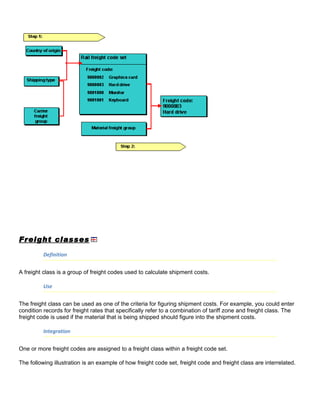
  • 95.
    − Routes androute stages You can maintain the distance in route definition in Customizing for both routes and route stages. When the corresponding route is used, this value is copied to the shipment document as a system proposal. − Customer enhancement for distance determination If you want to determine distances automatically, you can activate a customer enhancement (enhancement ‘V56DISTZ’), for user-defined distance determination. • Locations and zones You have the following options for the origin of locations and zones that can be used to influence shipment costing. They are categorized into departure and destination-related data: − Address data Data such as the country, region, postal code or transportation zone that can be used as fields to define the condition tables, can be taken from the shipment address data. − Determination of tariff zones You can set the automatic determination of tariff zones in Customizing. A tariff zone is the combination of a postal code area for a country. The tariff zone is defined in terms of the • Transportation planning point • Service agents • Shipping type • Country . For example, a postal code area has been assigned to a predefined tariff zone for a combination of transportation planning point, service agent, etc. If the system does not find a valid tariff zone for these criteria, it carries out determination again with an "empty" shipping type. With the corresponding system settings, the tariff zone is determined automatically when it creates a shipment cost item. That is, when it creates a shipment cost document or when another item is created manually. Prerequisites • If you want the system to determine distances from the route or route stage, you must maintain the distances in Customizing for route definition. You make these settings in Customizing: Sales and Distribution → Basic Functions → Routes → Define Routes → Define routes and stages. • If you want to use tariff zones for shipment costing, you must define them in Customizing and select them there for automatic determination. You make these settings in Customizing: Logistics Execution → Transportation → Shipment Costs → Basic Shipping Functions → Define and assign tariff zones
  • 96.
    Determining Pricing Dateand Settlement Date Use The shipment document contains pricing date fields and settlement date fields at header level and at item level. Pricing date The pricing date is the date defined by date-dependent pricing elements such as conditions and the foreign currency rate. Settlement date The settlement date is the date on which the shipment cost item is entered in financial accounting or cost accounting. It is also the date entered in tax determination. Prerequisites To activate automatic determination of the pricing date or the settlement date, you must make the following settings in Customizing: • Definition of the date rule When you define the date rule, you specify a sequence of shipping deadlines (for example, end of transportation planning or planned start of loading) which are used to determine the pricing date or the settlement date. The sequence of the deadlines reflects their priority for access. If there is no value for the first deadline, then the next deadline is checked, etc. You make these settings in Customizing: Logistics Execution → Transportation → Shipment Costs → Basic Shipping Functions → Define date rules. • Assigning the date rule In the definition of shipment cost item categories, you can assign a date rule to the pricing date and one to the settlement date. You make these settings in Customizing: Logistics Execution → Transportation → Shipment Costs → Shipment Cost Document → Shipment Cost Types and Item cats → Define item categories. Features When calculating a shipment cost item, the system automatically determines the pricing date and the settlement date based on the settings in Customizing. You can overwrite this automatically determined date. When you create a shipment cost document manually, you can specify pricing date and settlement date manually. This date will be valid for all items and overrides the date determined. You can also overwrite this date at item level.
  • 97.
    The following graphicillustrates automatic-date determination for the pricing date and settlement date. Tax Determination Use When determining shipment costs, the system can also determine relevant taxes. Certain rules regarding the tax countries involved apply to this calculation. Features The system carries out tax determination within the framework of pricing. The settlement date is used to access the conditions. See also Determining Pricing Date and Settlement Date. To determine taxes within shipment costing, the system refers to the shipment document in order to determine the departure country and the destination country for tax determination. The following rules apply to system determination of the tax countries: Departure tax country The departure country is determined for all relevant deliveries. If the country is the same for all of them, the system uses it as the departure tax country. Otherwise: If the shipment cost item refers to • the shipment header,
  • 98.
    then the departurecountry from the first shipment leg is used as the tax country. • a shipment stage (leg, load transfer point or border crossing point), then the departure country of the shipment stage is used as the tax country. Destination tax country The destination country is determined for all relevant deliveries. If the country is the same for all of them, the system uses it as the destination tax country. Otherwise: If the shipment cost item refers to • the shipment header, then the receiving country of the last shipment leg is used as the tax country. • a shipment leg, then the receiving country of the shipment leg is used as the tax country. • a load transfer point or border crossing point, then the departure country of the shipment stage is used as the tax country. To carry out your own tax country determination, you can use customer enhancement V54D0001 Scales Definition Freight depends on certain influential sizes, which are illustrated with scales. Scales are divided into levels that have different values. A scale consists of: • A scale header, which includes general information about the scale (scale base type, scale type, rounding rule) • An unlimited amount of scale levels, each of which is made up of a value (such as weight, volume, postal code or distance) and a calculation type.
  • 99.
    Each scale isan independent piece of master data that can be used in many different condition records. When you create a condition record, you can also maintain the condition rates or condition percentage rates according to the assigned scales. Scale base type The scale base type defines how the system interprets the scale. The scale can refer to weight or volume, for example. You can base a pricing element scale on one of the following criteria: Examples of scale base types • Gross weight • Net weight • Volume • Distance • Number of different means of transportation • Time (travel time or wait time) • Tariff zone (destination) • Destination region Scale type A scale type is an indicator that controls how the scale levels are defined. The scale type indicates whether the scale values that were specified depict the upper- or lower boundaries for the scale levels. • From a certain value, such as weight, onward (base scale) • Up to a certain value, such as weight (to-scale) • For exactly one value, such as postal code (same-scale) Use You can define scales when you create condition records. The scale you use determines how shipment costs are calculated. For example, you can use a scale to define that the freight rate that is used for calculation depends on the weight being transported and the distance it is being transported. Freight rates can be maintained depending on scaling: • Individual value (no scaling) • One scale (weight, for example) Maintain freight rates for each scale value • Two or three scales (weight and postal code, for example) Maintain freight rates for various combinations of the scale values Example Example of a freight matrix Kilometers / Tons Minimum value up to up to up to up to
  • 100.
    20 tons 5 tons 10 tons 25 tons Maximum value 2000.00 3200.00 5200.00 6000.00 up to 100 km 250.00 20.35 18.55 15.20 12.75 up to 500 km 450.00 33.60 29.50 25.20 21.30 up to 1,000 km 800.00 43.50 37.30 33.20 28.50 (and so on) 850.00 1.50 2.50 3.20 3.50 Weight scale Scale base type: gross weight Scale type: to-scale Distance scale Scale base type: distance Scale type: to-scale Determining freight: Up to a scale value of 100 km and 5 tons, the scale rate is 20.35. For a scale value of 5 tons and 100 km to 500 km, the scale rate is 33.60. At a scale value of 90 km and 800 kg, the freight rate would be 20.35. The freight is calculated as follows: 8 * 20.35 = 162.80. Since the minimum value is 250, however, the freight charged in this case is 250. For more information, see: Creating Scales Creating Scales Procedure To create scales, proceed as follows: 1. Choose Logistics Execution → Master Data → Transportation → Shipment Costs → Scales → Create. 2. The Create scale: Initial screen appears. 3. Enter the scale base type. You can choose from the selection list, which includes gross weight, tariff zone, postal code, region, distance, for example. 4. Choose ENTER . Create Scale: Overview Screen 1. Enter a name for the scale.
  • 101.
    2. Indicate thescale type on the Scale tab page. 3. You can use a rounding rule for the scale base type to define that a value be rounded either up or down, for example. You can choose a suitable rounding rule from the selection list. 4. Enter a unit of measure for the scale. 5. Enter a Calculat. rule (condition basis) on the Calculatn tab page. You can choose gross weight, distance or travel time from the selection list, for example. This rule defines the multiplication factor. 6. In the Rounding rule field for the condition basis, you can specify how the value that is used as the starting value for the calculation should be rounded. 7. Enter the scale values you require. 8. Specify the calculation type. Calculation types (calculation rules) for scales: • Absolute value (an absolute value is chosen as the basis for calculation) • Relative to scale base type • Minimum value • Maximum value • Proportional rate It is also possible to go from absolute to relative values in the scale. The calculation type and rules control how the condition rate is interpreted in the condition record. 9. Enter a price unit and a value in the Price unit field (100 kg, for example). 10. Save your entries. The system informs you that the scale was saved. The scale creation screen reappears. If you want to create multi-dimensional conditions (you can create up to 3 scales), simply repeat the process for creating scales. Assigning Scales for Condition Types Use The condition types represent the shipments. Using the condition types, you can determine whether the deduction is to be in percentage terms or in absolute terms. You enter an access sequence in each condition type that determines which fields are checked during the condition type search. Prerequisites The scales must already be created. Procedure In the Implementation Guide (IMG) you can assign scales to the condition types:
  • 102.
    1. Select LE→ Transportation → Shipping Costs → Price Determination → Pricing Control → Define Condition Types 2. Select a condition type on the "Change condition types" overview screen and double-click on "Scales for condition types" in the dialog structure. 3. Enter the scale ID of the scales, to which you want to assign condition types. 4. Save your entries. C R E A T IN G C O N D I T IO N R E C O R D S Procedure To define condition records (shipment rates), proceed as follows: 1. Choose Logistics Execution → Master Data → Transportation → Shipment Costs → Prices → Create. 2. In the screen "Create Condition Records", choose a condition type. The condition records refer to the condition type that you have created. 3. Choose ENTER . 4. Confirm the assignment of the scales in the dialog box. You now have the option of choosing scales that were created with the same scale base type or creating new scales. On the tabstrip Key, you see an overview of the selected values, and on the tabstrip Scales you see the values of the scales. 5. Using the pushbutton Scales, you can branch to the screen for creating condition records. 6. Now you can enter values in the freight matrix. 7. Save your entries. For more information, see Condition Technique. Shipment Cost Settlement with Service Agent Purpose The settlement of shipment costs with the service agent is carried out per shipment cost item. Settlement includes: • Assignment and forwarding of the shipment costs to FI and cost accounting for creation of accruals and posting of payables
  • 103.
    Automatic settlement using the self-billing procedure or manual settlement with the transportation service agent Prerequisites You can only carry out settlement for shipment cost items that have already been calculated. The necessary settings in Customizing must also be made. This includes maintaining the account assignment category or the settings for G/L account determination. You can make these settings in the IMG under Logistics Execution → Transportation → Shipment costs → Settlement. Process Flow 1. Account assignment During account assignment, the system carries out the two following functions simultaneously: o G/L account determination First the system determines the correct G/L account in FI for every individual shipment cost item. o Assignments for cost accounting The system also determines the accounts in cost accounting. Account assignment can be carried out at several levels, depending on how closely you want to monitor costs. 2. Release or transfer to financial accounting After account assignment, you can start transferring to financial accounting. This phase involves two stages that can be carried out either consecutively or simultaneously. See also Transferring Shipment Costs to Accounting. o Purchase order determination Transfer to accounting for the creation of accruals requires a service entry. Every service entry sheet is based on a purchase order. This purchase order must first be created in purchasing for the service agent. The first stage in the transfer involves the system determining these purchase orders according to certain settings. If several possible purchase orders were selected, the system sorts them according to the following criteria:  According to date type (ascending)  According to validity period start date (descending)  According to validity period end date (ascending)  According to purchase order number (ascending)  According to purchase order item number (ascending) o Creating the service entry sheet and creating accruals
  • 104.
    The second stagein the transfer involves creating the service entry sheet that refers to a purchase order. Acceptance of services performed is posted and an accounting document is created in FI for creation of accruals. The system creates further subsequent documents in FI. 3. Invoice creation o Self-billing procedure (Evaluated Receipt Settlement procedure -ERS) Using this procedure, you can settle the shipment costs with the service agent without having to receive an invoice. You can select between several settlement periods. You transfer the shipment costs that were calculated to Accounting. I II nvoice verification is carried out by the service agent. If the service agent finds errors, you can post these as subsequent debits. – Manual invoice check When the service agent receives the invoices, you can also carry out an invoice check manually and create the invoices manually. The following figure illustrates the settlement process: See also: G/L Account Determination Assignments for Cost Accounting Purchase Order Determination Creation of Accruals Self-billing Procedure Manual Invoice Verification
  • 105.
    G/L Account Determination Use To create accruals and post payables, the system must first of all determine the correct G/L accounts for posting in FI. Prerequisites Before the system can determine the G/L accounts, certain settings must be made in Customizing. In the IMG, select: Logistics Execution → Transportation → Shipment costs → Settlement → Automatic G/L account determination. The settings required are described in detail here. Features G/L account determination is carried out automatically. The following parameters are used for determination: • Chart of accounts • Valuation grouping code • Transaction key • Account grouping • Valuation class G/L account determination can be carried out at shipment cost item level or you can have the system carry out posting at delivery or delivery item level for a more detailed process. Also refer to Cost Apportionment in Assignments for Cost Accounting. See also: Carrying out Account Assignment Assignments for Cost Accounting Use To post objects in cost accounting, the system first has to determine the correct objects. The system can carry this out automatically during account assignment. You can also enter the assignments manually. Prerequisites
  • 106.
    If you wantthe system to determine the objects in cost accounting, you must make certain that certain settings have been made in Customizing. Features The system automatically determines the objects to be posted in cost accounting. The following parameters are important: • Account assignment category The account assignment category determines which object needs to be posted to (e.g. cost center or order) and which account assignment data are necessary. In order to define account assignment categories, go to the IMG and choose Logistics Execution → Transportation → Shipment costs → Settlement → Maintain account assignment category. • Cost apportionment The cost apportionment determines the level at which the costs are to be forwarded. You can apportion the costs at more detailed levels than the shipment cost item, depending on the how closely you want to follow costs. Possible apportionments are: − Shipment cost item − Delivery − Delivery item These apportionments are completely independent of the calculation bases. If they do agree with the calculation bases, then the system apportions costs according to origin. If the costs are apportioned to a more detailed level than the calculation bases, then this is carried out according to the proportional weight. (Example: calculation basis = delivery; cost apportionment by delivery item). If costs are not to be apportioned by the proportional weight, then you can program the apportionment according to other rules in customer enhancement V54SFRC. You can use the origin of the CO assignments to restrict the possible levels of the cost apportionment. − You assign the cost apportionments in Customizing for the shipment cost item category. To make this setting, go to the IMG and choose Logistics Execution → Transportation → Shipment costs → Shipment cost document → Shipment cost types and item categories → Assign shipment cost types and item categories. • Origin of CO assignments This parameter determines the origin of the information used for determining the CO object. The possible sources of this information are: − G/L account If the G/L account is determined by the system or entered manually, then the system accesses a Customizing table in which a CO assignment is maintained for each G/L account. You can find
  • 107.
    this table inthe IMG by selecting Logistics Execution → Transportation → Shipment costs → Settlement → Automatic determination of CO assignments. − Delivery, order The system first searches the delivery for CO assignments. If it doesn’t find any, it searches the order. − Delivery, order, G/L account The system first searches the delivery for CO assignments. If it doesn’t find any, it searches the order. If it doesn’t find any in the order, it accesses the Customizing table where the CO assignments for the G/L account assignments are maintained. See also: Carrying out Account Assignment Shipment Costs as Delivery Costs Use Regarding transportation processing, delivery costs can be considered for both standard purchase orders and stock transfer orders. The determined shipment costs are not directly transferred to the accounting department, but are are included in the MM goods receipt document and added to the respective material. This scenario is relevant for company-internal shipments or for inbound shipments that are picked up from the vendor since the customer might get better conditions from his carriers. The business process could be as follows: • Entering the standard purchase order with shipping notification • Editing the delivery from the delivery due list (VL32) • Generating an inbound shipment with the delivery • Creating the shipment cost document on the basis of the shipment • Posting the goods receipt with reference to the inbound delivery Prerequisites To add shipment costs to delivery costs in the incoming shipments, you need the following settings in Customizing: • Shipment cost item categories Under the Shipment cost types and item categories activity, set the Relevant for costing field to A = Relevant for calculating delivery costs (Delivery costs). This results in the shipment costs not being transferred directly into accounting. The accounting is done via the purchasing functionality for delivery costs. • Conditions in the purchase order
  • 108.
    Under the Definecondition types activity, set the Condition type field to B = Delivery costs. In addition, select the Transfer shipment costs field. The system only shows this field, if you have chosen delivery costs as condition type. In the purchase order, you have to enter the condition type in the item category section. However, you do not enter a value since this value will be determined by the shipment cost document and will then be automatically transferred to the goods receipt document. • Goods receipt To find the relevant shipment cost documents, you must know the corresponding inbound deliveries. Therefore for incoming goods this must relate to confirmation-related goods receipts. Under the Set up confirmation control activity, select the GR-relevant and GR assignment fields for the appropriate confirmation control key (which is then entered in the purchase order). Features Further information can be found in Purchasing Delivery costs. Example The following shows an example of shipment costs being included in material costs. These shipment costs are shown as delivery costs. Purchase order: Material 4711, 200 pcs, DEM 20 per piece Inbound delivery 1: 100 pcs (Date 1) Inbound delivery 2: 100 pcs (Date 2) Shipment 1 with inbound delivery 1: Costs DEM 250 Goods receipt for inbound delivery 1 – 100 pcs Material costs DEM 2000 Shipment costs DEM 250 Overall costs posted to the material account DEM 2250 Unit costs that are included In the material master DEM 22.50
  • 109.
    The assumption isthat the stock included 50 pcs with unit costs of DEM 18.00 before this goods receipt was posted. After the goods receipt the stock would now include 150 pcs with costs of DEM 21.00 per piece: 50 pcs/ DEM 18.00 = DEM 900.00 100 pcs/DEM 22.50 = DEM 2250.00 Total = DEM 3150.00 : 150 pcs = DEM 21.00/pc. If the system had not found any shipment costs, the costs would amount to DEM 19.33 per pc.: 50 pcs/DEM 18.00 = DEM 900.00 100 pcs/DEM 20.00 = DEM 2000.00 Total = DEM 2900.00 : 150 pcs = DEM 19.33/pc. Shipment costs of this kind are not included in the purchase order. Therefore, the system does not display these costs on the item category view of the purchase order. The system copies these costs during the goods receipt posting. The shipment cost processing is carried out as if you had entered them in the purchase order item. In general, such shipment costs are treated as planned delivery costs in purchase order processsing Carrying out Account Assignment Prerequisites Account assignment for the shipment cost item, that is G/L account determination and assignment for cost accounting can only be carried out if shipment cost calculation has been carried out. Procedure 1. In the shipment cost document, go to the detail screen of a shipment cost item, for which costing has already been carried out and for which you want to carry out account assignment. In the Settlement tab page, the field should have a status of account assigned. 2. Choose Item → Account assignment. You reach the Shipment cost item: Account assignment screen. This is where you can view the account assignment data and the account assignment lines, as well as the G/L account determined and the CO assignments per account assignment line. You can also change these accounts and assignments manually.
  • 110.
    The number ofaccount assignment lines depends on the value in the cost apportionment field. This field determines whether account assignment is carried out per shipment cost item, per delivery or per delivery item. The definition of the shipment cost item category controls the cost apportionment . 3. If you want to change the G/L accounts or the CO assignments determined, you can overwrite the default values. 4. You can make additional entries in the detail screen for account assignment. 5. Save the shipment cost document. After saving, you return to the initial screen for shipment costs. You can still delete an account assignment that has been carried out, as long as forwarding to FI has not yet taken place. Otherwise, you must cancel forwarding first and then delete the account assignment. To delete the account assignment you select Settlement in the tab field of the detail screen for the shipment cost item, and then Item → Delete account assignment. Result The account assignment status is changed. The shipment cost item can now be forwarded to FI. See also: G/L Account Determination Assignments for Cost Accounting Transferring Shipment Costs to Accounting Prerequisites To transfer shipment cost items to FI, they must have status Account assigned. In other words, G/L account determination and assignment for cost accounting must have been carried out already. Transferring of shipment costs in order to create accruals comprises two functions: • Purchase Order Determination • Transfer and creation of the relevant documents in FI Procedure 1. In the shipment cost document, go to the detail screen of a shipment cost item, for which costing and account assignment has already been carried out and which you want to transfer to FI.
  • 111.
    2. Select theTransfer indicator. This indicator can only be selected after account assignment. Purchase order determination is automatically started when you select the Transfer indicator. As long as the indicator is selected, the purchase order will be displayed in the Service procurement tab field in the Purchase order field. For further information, see Purchase Order Determination. 3. Save the shipment cost document. Result When you save, the system creates a service entry sheet with reference to the purchase order determined, an accounting document for creation of accruals and further documents in FI. See also: Creation of Accruals Shipment Costs List: Settlement Use You can use this report to list shipment cost documents which have not yet been completely calculated. As selection criteria for the shipment cost documents, you can use, for example, the account assignment status or transfer status. Features After executing the report you receive a list of all shipment cost documents, which correspond to your selection criteria. The List Viewer features various functions that you can use to tailor the list to your needs. This tool allows you to total or sort columns, for example. You can also decide the sequence in which the columns are displayed. For more information, see ABAP List Viewer. Example The system is set up so that the shipment cost items are automatically created when creating the shipment cost documents and the calculation is automatically implemented. The transfer is carried out twice a week in the evening as a collective batch. Then an employee creates a list of shipment costs for calculation. As selection criteria he enters the status Not assigned to an account and Not completely assigned to an account and Not transferred. See also: Creating List of Shipment Documents for Settlement
  • 112.
    Billing the ShipmentCosts to the Customer Use Shipment costs can be a considerable cost factor. For this reason, they are often not included in the material price, but are billed separately by the shipper to the customer during billing. You can bill the customer with the actual shipment costs, which include technical aspects such as distances, tariff zones, means-of-transport types, type and number of pallets. Prerequisites In Customizing, the following settings are required so that shipment costs that are not calculated in the shipment cost document can be billed to the customer in the customer billing document. • In addition to the condition types that already exist, you must create condition types of the same name in the pricing procedure for shipment cost calculation and in the pricing procedure for billing price determination. In the pricing procedure for shipment cost calculation, you can mark the condition types as statistical values in order not to influence the shipment cost calculation. To do this, choose the following path in Customizing Logistics Execution → Transportation → Shipment costs → Pricing → Pricing control → Define and assign pricing procedures. In the pricing procedure for billing price determination, these condition types must be marked manually. To do this, choose the following path in Customizing Logistics Execution → Basic functions → Pricing → Pricing control → Define and assign pricing procedures → Maintain pricing procedure. • For the billing price procedure, the indicator Specific procedure must be selected so that the condition class and the statistical indicator are re-determined and are not copied from the shipment cost pricing procedure. • Also, you must specify the price source "shipment costs" at the item level for copying control for billing documents. For this purpose, choose the following path in the Implementation Guide: Logistics Execution → Billing → Billing documents → Maintain copying control for billing documents → Copying Control: Delivery document to billing document, and specify the price source F for shipment costs for the respective billing and delivery types for the respective item. Features The shipment costs that are billed to the customer are based on the actual shipment costs that were calculated in transportation and shipment costing for settlement with the forwarding agent. The shipment costs appear as an additional entry in the customer billing document. It is possible to use all the calculation options that are available in the shipment cost document for settlement of costs with the service provider. Shipment costs that were calculated in the shipment cost document on the basis of delivery items are assigned directly to the respective billing document item. Costs that were calculated using a different calculation base, for example, on the basis of shipment cost items, are allocated to the billing document items according to the proportionate weight of the delivery items. A billing document whose copying control is set in Customizing so that the shipment costs are part of the billing document can only be created when the shipment costs have been calculated and billed fully.
  • 113.
    Since a deliveryfor which the billing document is to be created can be part of several shipments (for example, in the case of a transportation chain), it can happen that several shipment cost documents need to be calculated so that the billing document itself can at all be created. Also, you should be aware that the system first checks the shipment cost calculation status in the shipment document. If both the header and the leg of the respective shipment type are marked in Customizing as being relevant for shipment costs, the shipment costs calculation status at the header level and at the stage level must be completely processed Shipment Cost Information in the Order Use As the shipment costs can make up a large proportion of the total cost of a product it is important and therefore recommended that you have a rough idea of the shipment costs when the order is created. As in normal situations no deliveries, shipments or shipment cost documents exist at this point, simulated versions of these can be "created" in the background to enable you to calculate shipment costs on the basis of these documents. This means that you can estimate shipment costs. When you make the appropriate setting it is also possible to implement several calculations at the same time, in order, for example, to determine whether transport by lorry or by train would be cheaper or how much more it would cost to send by express delivery rather than by standard transport. Integration Shipment cost information is called up in SD order processing but uses the transportation and shipment cost processing functions. Prerequisites Shipment cost information in the order can only be used if the control parameters and master data for transportation and shipment cost processing have been maintained. Features To calculate shipment costs in the order you can define profiles for shipment cost information. The profile for shipment cost information contains default values for shipment cost information in the order, for example, the transportation planning point, transportation type and the shipment pricing procedure. The profile for shipment cost information is assigned to a sales document type (when defining the sales document types in Customizing for Sales and Distribution). If you do not want to carry out comparisons between the calculation methods, but just want to receive an estimated value for the shipment costs, then use the details from the profile for shipment cost information (transportation planning point, transport type, pricing procedure) and the data from the order (forwarding agent, route) for calculating shipment costs and the related simulated creation of transports. If you do not assign a profile to the sales document type, you can also enter the transportation planning point, shipment type and service agent in the order.
  • 114.
    To carry outa comparison of different calculation methods, you can assign one or more shipment planning profiles to a profile for shipment cost information. This planning profile is used to create shipments in collective processing, in order to store specific selection variants and data, which should always be used, in the memory. A planning profile determines how deliveries should be put together with shipments and which data should be put in the shipment documents. You can assign various planning profiles to the profile for shipment cost information, in order, for example, to compare whether it is cheaper to transport by train or by lorry. It is also possible to assign a planning profile for creating transportation chains. If you begin the calculation of shipment costs in the sales document, the data that is used to simulate the putting together of the two types of transportation, is the data which is saved in the order and in the shipment costs profile, which is assigned to the corresponding sales document type. If the planning profile is assigned to the shipment cost type, this data is also used for the parallel calculation of shipment costs, so that it is possible to compare different transportation option Calling up Shipment Cost Information in the Order Procedure 1. Choose Logistics → Sales and distribution → Sales. 2. Choose Order → Create. 3. Enter all the data from your order and save the document. 4. Call up the document again by choosing Order → Change. 5. In the order, choose Details → Shipment cost information. You reach the screen where the planning profiles are listed. In the first line, you always have the planning profile <From order>. In this line you see the default values from the shipment cost profile that is assigned to the respective sales document type. If you have not assigned a shipment cost profile to the sales document type, now enter the missing data for Transportation planning point, shipment type, and service provider. If you have assigned a shipment cost profile to the sales document type, and there are shipment planning profiles assigned to this shipment cost profile, then the system will list all the shipment planning profiles that are assigned to the shipment cost profile. 6. Choose Execute. Result In the column Net value, you see the values calculated by the system. If several planning profiles are assigned, you can have the system make comparisons. In the log, you can display the details of the simulated shipments. If you have problems with the calculations, you can check the reasons listed on the log