 SAP MM is known as SAP Material
Management system. SAP MM role in
business process is as follows:
 A business process in SAP is termed as
“Module”.
 SAP Materials Management (MM) is a part
of Logistics area and helps to manage the
procurement activity of an organization from
procurement.
 It supports all aspects of material
management (planning, control etc).
 It is the backbone of the Logistics area which
incorporates modules like Sales and
Distribution, Production Planning, Plant
Maintenance, Project Systems, Warehouse
Management which are extremely obsessed
on Materials Management module.
 SAP MM is one of the modules of SAP that
deals with material management and
inventory management.
 Material Management process ensures that
there is never a shortage of materials or any
gaps in the supply chain process of the
organization.
 It deals with managing the materials (products and
or services) resources of an organization with the
aim of accelerating productivity, reducing costs and
increase improvement and at a similar time be
versatile to accommodate changes in day to day
life.
 It deals with the Procurement Process, Master Data
(Material & Vendor Master), Account Determination
& Valuation of Material, Inventory Management,
Invoice Verification, Material Requirement Planning
etc.
What is Master Data?
Master data in SAP is used as a base for any
transaction. If you are producing, transferring
stock, selling, purchasing, doing physical
inventory, whatever your activity may be , it
requires certain master data to be maintained.
We have material master data, customer master
data, vendor master data, pricing/conditions
master data, warehouse management master
data (storage bin master data) etc.
SAP Master Data is of following two types:
 Material Master Data
 Vendor Master Data
 The key points about material master are as
follows:
 This is the enterprise main source of material
specific data. This data will include information on
the materials that a company can procure, or
produce, or store or sell.
 Since there are different departments in an
enterprise and each department works on some
specific material. So they will enter different
information regarding their material. So each user
department has its own view of material master
record.
 The data screens that are used to create
material master can be divided into two
categories:
Main Data: This will include basic data (base
unit of measure, weight), purchasing data (over
tolerance and under tolerance), accounting data
(standard price, moving price).
Additional Data: This will include additional
information like short description about material,
currency etc.
 The key points about vendor master are as
follows:
 This is the enterprise main source of vendor
specific data. This data will include
information on vendors from which a
company can procure or it can sell.
 Vendor Master Record will contain
information like vendor's name, address.
 Data in vendor master record is divided into
three categories:
General Data: General data is maintained at
client level and it is valid for all organizational
levels.
Accounting Data: Accounting data is
maintained at company level and it is valid for
all plants belonging to that company.
Purchasing Data: Purchasing data is
maintained at purchasing organization level.
 When we want to use a new material in SAP,
we have to define it's characteristics, in order to
control it's behaviour in all of the transactions.
Every material is created in the either of these
two ways:
 By calling transaction MM01 (mostly used in a
productive environment)
 Mass creation (mainly used only once on
transition of materials from the previous system
into SAP ERP)
 We will focus now on transaction MM01, and
leave the mass creation for later since it is
an advanced tool. We will discuss it after you
have enough knowledge about material
master views and organizational levels.
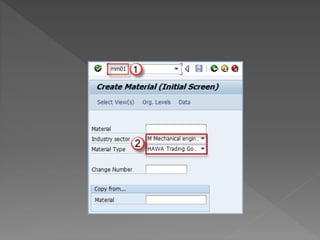
 Step 1) Transaction that is used for the creation
of material master record, as stated above
is MM01. The execution of the transaction
brings us to the initial screen, which consists of
few fields that contain the basic information on
our material.
 Enter Industry sector (mostly used: M-
Mechanical engineering)
 Enter Material type, (it can be FERT, ROH,
HALB, HAWA - the appropriate material type for
current material)
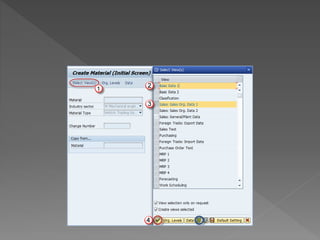
 Step 2) We can choose which master data
to create.
 We can click on Select View(s) to choose
which views we need to create for the
material.
 Select Basic Data 1
 Select Sales Org Data 1. You can always
extend the material master data later if you
forgot to choose all needed views.
 Select the Check Mark. You can see an
option button marked in blue on the screen
below for selecting all views (rarely used in a
productive environment).
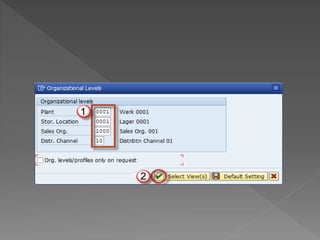
 Step 3) In the next screen
 Enter Organizational levels for the views we
selected in the previous step.For example,
those could be Plant, Storage Location,
Sales Organization and Distribution Channel
etc.
 Click the Check Button
Step 1)
 Enter transaction code MMO2 in the command
prompt
 Enter the material number whose material
master data we want to change.
Step 2)
 The next step is choosing the views for which
data is to be changed. For example, we will
choose sales organization data 2 view.
 You can choose one or more organizational
levels for change.
 Click on Organizational Levels
 Organizational level selection
Step 3)
 Maker the desired changes.
 Click the check button.
 Step 4) After you have made the changes ,
you can check the changes in the
corresponding view
 Step 5) Click the save button , to save the
changes NOTE:You can use transaction
MM03 to display Material Master Data. In
MM03, we can only display data without the
possibility to change it (fields are greyed
out).
 In order to create multiple materials at once,
you should have access to a function like
 eCatt tool
 LSMW(Legacy System Migration
Workbench)
 BDC (Batch Data Communication)
recordings
 BAPI (Business Application Programing
Interface)
 You can use MM17 for mass changing of
material master data (if something can't be
accomplished by this transaction it can be
done using LSMW, BDC or BAPI).
Step 1)
 Enter transaction MM17
 Select the data type you need to change, for
example, we need to change a field in
general data.
 Execute.
Step 2)
 Enter the material range or list for which we
want to change the data
 Execute
Step 3)
 When clicking on the button shown below – you
will get the Select fields screen.
 Check the appropriate field (we are changing
base unit of measure for our two materials).
 Click the arrow pointing to the left to add the
selected field to the list of fields to be changed.
 Click the OK button.
Step 4)
 Now we are presented with the next screen
where we can input our value to be transferred.
Let's say we have maintained PAL – pallet as
the base unit of measure for our TV sets of 24"
and 32" and we need to change that to PCS –
pieces.
 Enter the value you want to copy in the box.
 Click on the column heading.
 Select the button, to overwrite the old values
by "PCS".
 Execute.
 In this Presentation I have explained about the
Master and the remaining topics will be explain
in the next Presentation.
 If you want to get the real time training then
reach us. We provide you the real time and live
scenarios training
 Contact us:8122241286
 Visit us: www.thecreatingexperts.com/sap-mm-
training-in-chennai/

SAP MM Training in Chennai

  • 2.
     SAP MMis known as SAP Material Management system. SAP MM role in business process is as follows:  A business process in SAP is termed as “Module”.  SAP Materials Management (MM) is a part of Logistics area and helps to manage the procurement activity of an organization from procurement.
  • 3.
     It supportsall aspects of material management (planning, control etc).  It is the backbone of the Logistics area which incorporates modules like Sales and Distribution, Production Planning, Plant Maintenance, Project Systems, Warehouse Management which are extremely obsessed on Materials Management module.
  • 4.
     SAP MMis one of the modules of SAP that deals with material management and inventory management.  Material Management process ensures that there is never a shortage of materials or any gaps in the supply chain process of the organization.
  • 5.
     It dealswith managing the materials (products and or services) resources of an organization with the aim of accelerating productivity, reducing costs and increase improvement and at a similar time be versatile to accommodate changes in day to day life.  It deals with the Procurement Process, Master Data (Material & Vendor Master), Account Determination & Valuation of Material, Inventory Management, Invoice Verification, Material Requirement Planning etc.
  • 6.
    What is MasterData? Master data in SAP is used as a base for any transaction. If you are producing, transferring stock, selling, purchasing, doing physical inventory, whatever your activity may be , it requires certain master data to be maintained. We have material master data, customer master data, vendor master data, pricing/conditions master data, warehouse management master data (storage bin master data) etc.
  • 7.
    SAP Master Datais of following two types:  Material Master Data  Vendor Master Data
  • 8.
     The keypoints about material master are as follows:  This is the enterprise main source of material specific data. This data will include information on the materials that a company can procure, or produce, or store or sell.  Since there are different departments in an enterprise and each department works on some specific material. So they will enter different information regarding their material. So each user department has its own view of material master record.
  • 9.
     The datascreens that are used to create material master can be divided into two categories: Main Data: This will include basic data (base unit of measure, weight), purchasing data (over tolerance and under tolerance), accounting data (standard price, moving price). Additional Data: This will include additional information like short description about material, currency etc.
  • 10.
     The keypoints about vendor master are as follows:  This is the enterprise main source of vendor specific data. This data will include information on vendors from which a company can procure or it can sell.  Vendor Master Record will contain information like vendor's name, address.
  • 11.
     Data invendor master record is divided into three categories: General Data: General data is maintained at client level and it is valid for all organizational levels. Accounting Data: Accounting data is maintained at company level and it is valid for all plants belonging to that company. Purchasing Data: Purchasing data is maintained at purchasing organization level.
  • 12.
     When wewant to use a new material in SAP, we have to define it's characteristics, in order to control it's behaviour in all of the transactions. Every material is created in the either of these two ways:  By calling transaction MM01 (mostly used in a productive environment)  Mass creation (mainly used only once on transition of materials from the previous system into SAP ERP)
  • 13.
     We willfocus now on transaction MM01, and leave the mass creation for later since it is an advanced tool. We will discuss it after you have enough knowledge about material master views and organizational levels.
  • 14.
     Step 1)Transaction that is used for the creation of material master record, as stated above is MM01. The execution of the transaction brings us to the initial screen, which consists of few fields that contain the basic information on our material.  Enter Industry sector (mostly used: M- Mechanical engineering)  Enter Material type, (it can be FERT, ROH, HALB, HAWA - the appropriate material type for current material)
  • 15.
     Step 2)We can choose which master data to create.  We can click on Select View(s) to choose which views we need to create for the material.  Select Basic Data 1  Select Sales Org Data 1. You can always extend the material master data later if you forgot to choose all needed views.
  • 17.
     Select theCheck Mark. You can see an option button marked in blue on the screen below for selecting all views (rarely used in a productive environment).
  • 19.
     Step 3)In the next screen  Enter Organizational levels for the views we selected in the previous step.For example, those could be Plant, Storage Location, Sales Organization and Distribution Channel etc.  Click the Check Button
  • 21.
    Step 1)  Entertransaction code MMO2 in the command prompt  Enter the material number whose material master data we want to change. Step 2)  The next step is choosing the views for which data is to be changed. For example, we will choose sales organization data 2 view.
  • 22.
     You canchoose one or more organizational levels for change.  Click on Organizational Levels  Organizational level selection Step 3)  Maker the desired changes.  Click the check button.
  • 23.
     Step 4)After you have made the changes , you can check the changes in the corresponding view  Step 5) Click the save button , to save the changes NOTE:You can use transaction MM03 to display Material Master Data. In MM03, we can only display data without the possibility to change it (fields are greyed out).
  • 24.
     In orderto create multiple materials at once, you should have access to a function like  eCatt tool  LSMW(Legacy System Migration Workbench)  BDC (Batch Data Communication) recordings  BAPI (Business Application Programing Interface)
  • 25.
     You canuse MM17 for mass changing of material master data (if something can't be accomplished by this transaction it can be done using LSMW, BDC or BAPI). Step 1)  Enter transaction MM17  Select the data type you need to change, for example, we need to change a field in general data.  Execute.
  • 26.
    Step 2)  Enterthe material range or list for which we want to change the data  Execute Step 3)  When clicking on the button shown below – you will get the Select fields screen.  Check the appropriate field (we are changing base unit of measure for our two materials).
  • 27.
     Click thearrow pointing to the left to add the selected field to the list of fields to be changed.  Click the OK button. Step 4)  Now we are presented with the next screen where we can input our value to be transferred. Let's say we have maintained PAL – pallet as the base unit of measure for our TV sets of 24" and 32" and we need to change that to PCS – pieces.
  • 28.
     Enter thevalue you want to copy in the box.  Click on the column heading.  Select the button, to overwrite the old values by "PCS".  Execute.
  • 29.
     In thisPresentation I have explained about the Master and the remaining topics will be explain in the next Presentation.  If you want to get the real time training then reach us. We provide you the real time and live scenarios training  Contact us:8122241286  Visit us: www.thecreatingexperts.com/sap-mm- training-in-chennai/