Salesforce1 Mobile App
UX Design Guidelines
For Independent Software Vendors and Partners
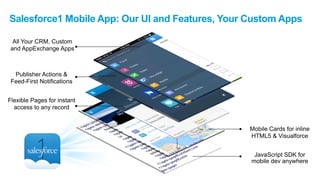
Salesforce1 Mobile App: Our UI and Features, Your Custom Apps
Publisher Actions &
Feed-First Notifications
All Your CRM, Custom
and AppExchange Apps
Flexible Pages for instant
access to any record
Mobile Cards for inline
HTML5 & Visualforce
JavaScript SDK for
mobile dev anywhere
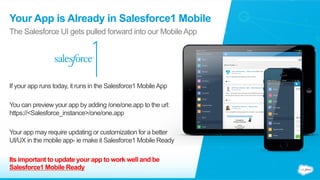
Your App is Already in Salesforce1 Mobile
The Salesforce UI gets pulled forward into our MobileApp
If your app runs today, it runs in the Salesforce1 MobileApp
You can preview your app by adding /one/one.app to the url:
https://<Salesforce_instance>/one/one.app
Your app may require updating or customization for a better
UI/UX in the mobile app- ie make it Salesforce1 Mobile Ready
Its important to update your app to work well and be
Salesforce1 Mobile Ready
Table of Contents
Architecture & Integration Options
CustomActions
Left NavApps
Cards & Notifications
Branding
UX No-No’s
Architecture & Integration Options
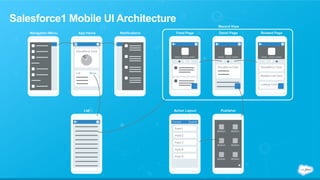
Salesforce1 Mobile UI Architecture
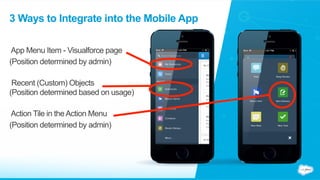
3 Ways to Integrate into the Mobile App
App Menu Item - Visualforce page
(Position determined by admin)
Recent (Custom) Objects
(Position determined based on usage)
Action Tile in theAction Menu
(Position determined by admin)
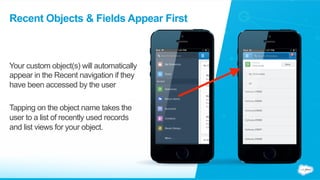
Recent Objects & Fields Appear First
Your custom object(s) will automatically
appear in the Recent navigation if they
have been accessed by the user
Tapping on the object name takes the
user to a list of recently used records
and list views for your object.
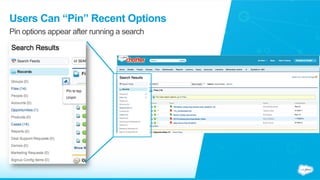
Users Can “Pin” Recent Options
Pin options appear after running a search
Custom Actions
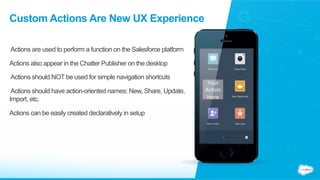
Custom Actions Are New UX Experience
Actions are used to perform a function on the Salesforce platform
Actions also appear in the Chatter Publisher on the desktop
Actions should NOT be used for simple navigation shortcuts
Actions should have action-oriented names: New, Share, Update,
Import, etc.
Actions can be easily created declaratively in setup
Your	
  
Ac(on	
  
Here	
  
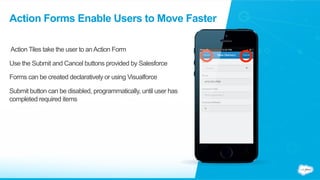
Action Forms Enable Users to Move Faster
Action Tiles take the user to anAction Form
Use the Submit and Cancel buttons provided by Salesforce
Forms can be created declaratively or using Visualforce
Submit button can be disabled, programmatically, until user has
completed required items
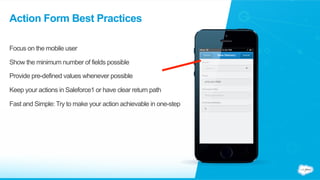
Action Form Best Practices
Focus on the mobile user
Show the minimum number of fields possible
Provide pre-defined values whenever possible
Keep your actions in Saleforce1 or have clear return path
Fast and Simple: Try to make your action achievable in one-step
Left Nav Apps
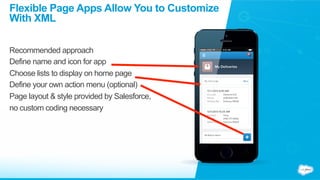
Flexible Page Apps Allow You to Customize
With XML
Recommended approach
Define name and icon for app
Choose lists to display on home page
Define your own action menu (optional)
Page layout & style provided by Salesforce,
no custom coding necessary
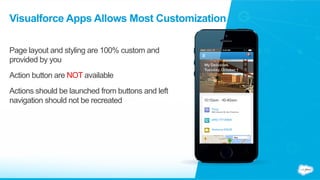
Visualforce Apps Allows Most Customization
Page layout and styling are 100% custom and
provided by you
Action button are NOT available
Actions should be launched from buttons and left
navigation should not be recreated
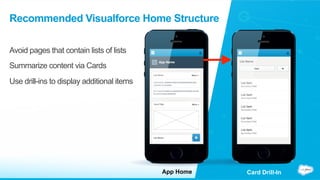
Recommended Visualforce Home Structure
Avoid pages that contain lists of lists
Summarize content via Cards
Use drill-ins to display additional items
Card Drill-InApp Home
Cards & Notifications
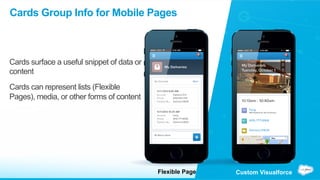
Cards Group Info for Mobile Pages
Cards surface a useful snippet of data or
content
Cards can represent lists (Flexible
Pages), media, or other forms of content
Custom VisualforceFlexible Page
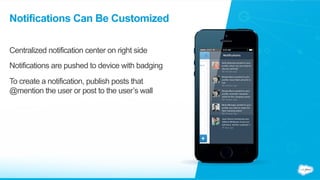
Notifications Can Be Customized
Centralized notification center on right side
Notifications are pushed to device with badging
To create a notification, publish posts that
@mention the user or post to the user’s wall
Branding
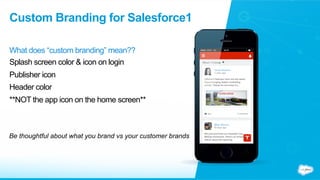
Custom Branding for Salesforce1
What does “custom branding” mean??
Splash screen color & icon on login
Publisher icon
Header color
**NOT the app icon on the home screen**
Be thoughtful about what you brand vs your customer brands
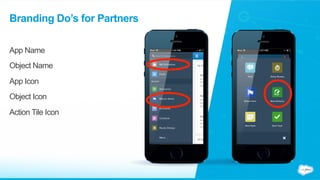
Branding Do’s for Partners
App Name
Object Name
App Icon
Object Icon
Action Tile Icon
UX Things NOT TO DO
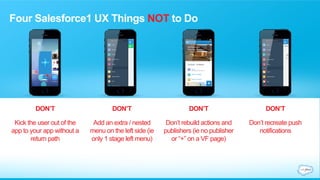
Four Salesforce1 UX Things NOT to Do
DON’T
Kick the user out of the
app to your app without a
return path
DON’T
Add an extra / nested
menu on the left side (ie
only 1 stage left menu)
DON’T
Don’t rebuild actions and
publishers (ie no publisher
or “+” on a VF page)
DON’T
Don’t recreate push
notifications
Additional Resource
Additional Resources
Salesforce1 MobileApp Style Guide:
http://sfdc-styleguide.herokuapp.com/?id=style
Salesforce1 and Visualforce Best Practices:
http://www.slideshare.net/developerforce/visualforce-in-salesforce1-1-1
Salesforce1 MobileApp Workbook
http://res.cloudinary.com/hy4kyit2a/image/upload/s1_mobile_woorkbook_v3-21.pdf
Salesforce1 UX Overview for ISVs and Partners

Salesforce1 UX Overview for ISVs and Partners

  • 1.
    Salesforce1 Mobile App UXDesign Guidelines For Independent Software Vendors and Partners
  • 2.
    Salesforce1 Mobile App:Our UI and Features, Your Custom Apps Publisher Actions & Feed-First Notifications All Your CRM, Custom and AppExchange Apps Flexible Pages for instant access to any record Mobile Cards for inline HTML5 & Visualforce JavaScript SDK for mobile dev anywhere
  • 3.
    Your App isAlready in Salesforce1 Mobile The Salesforce UI gets pulled forward into our MobileApp If your app runs today, it runs in the Salesforce1 MobileApp You can preview your app by adding /one/one.app to the url: https://<Salesforce_instance>/one/one.app Your app may require updating or customization for a better UI/UX in the mobile app- ie make it Salesforce1 Mobile Ready Its important to update your app to work well and be Salesforce1 Mobile Ready
  • 4.
    Table of Contents Architecture& Integration Options CustomActions Left NavApps Cards & Notifications Branding UX No-No’s
  • 5.
  • 6.
  • 7.
    3 Ways toIntegrate into the Mobile App App Menu Item - Visualforce page (Position determined by admin) Recent (Custom) Objects (Position determined based on usage) Action Tile in theAction Menu (Position determined by admin)
  • 8.
    Recent Objects &Fields Appear First Your custom object(s) will automatically appear in the Recent navigation if they have been accessed by the user Tapping on the object name takes the user to a list of recently used records and list views for your object.
  • 9.
    Users Can “Pin”Recent Options Pin options appear after running a search
  • 10.
  • 11.
    Custom Actions AreNew UX Experience Actions are used to perform a function on the Salesforce platform Actions also appear in the Chatter Publisher on the desktop Actions should NOT be used for simple navigation shortcuts Actions should have action-oriented names: New, Share, Update, Import, etc. Actions can be easily created declaratively in setup Your   Ac(on   Here  
  • 12.
    Action Forms EnableUsers to Move Faster Action Tiles take the user to anAction Form Use the Submit and Cancel buttons provided by Salesforce Forms can be created declaratively or using Visualforce Submit button can be disabled, programmatically, until user has completed required items
  • 13.
    Action Form BestPractices Focus on the mobile user Show the minimum number of fields possible Provide pre-defined values whenever possible Keep your actions in Saleforce1 or have clear return path Fast and Simple: Try to make your action achievable in one-step
  • 14.
  • 15.
    Flexible Page AppsAllow You to Customize With XML Recommended approach Define name and icon for app Choose lists to display on home page Define your own action menu (optional) Page layout & style provided by Salesforce, no custom coding necessary
  • 16.
    Visualforce Apps AllowsMost Customization Page layout and styling are 100% custom and provided by you Action button are NOT available Actions should be launched from buttons and left navigation should not be recreated
  • 17.
    Recommended Visualforce HomeStructure Avoid pages that contain lists of lists Summarize content via Cards Use drill-ins to display additional items Card Drill-InApp Home
  • 18.
  • 19.
    Cards Group Infofor Mobile Pages Cards surface a useful snippet of data or content Cards can represent lists (Flexible Pages), media, or other forms of content Custom VisualforceFlexible Page
  • 20.
    Notifications Can BeCustomized Centralized notification center on right side Notifications are pushed to device with badging To create a notification, publish posts that @mention the user or post to the user’s wall
  • 21.
  • 22.
    Custom Branding forSalesforce1 What does “custom branding” mean?? Splash screen color & icon on login Publisher icon Header color **NOT the app icon on the home screen** Be thoughtful about what you brand vs your customer brands
  • 23.
    Branding Do’s forPartners App Name Object Name App Icon Object Icon Action Tile Icon
  • 24.
  • 25.
    Four Salesforce1 UXThings NOT to Do DON’T Kick the user out of the app to your app without a return path DON’T Add an extra / nested menu on the left side (ie only 1 stage left menu) DON’T Don’t rebuild actions and publishers (ie no publisher or “+” on a VF page) DON’T Don’t recreate push notifications
  • 26.
  • 27.
    Additional Resources Salesforce1 MobileAppStyle Guide: http://sfdc-styleguide.herokuapp.com/?id=style Salesforce1 and Visualforce Best Practices: http://www.slideshare.net/developerforce/visualforce-in-salesforce1-1-1 Salesforce1 MobileApp Workbook http://res.cloudinary.com/hy4kyit2a/image/upload/s1_mobile_woorkbook_v3-21.pdf