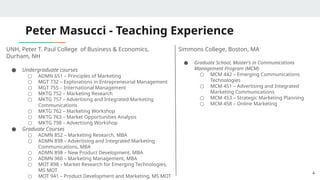
Peter Masucci -Teaching Experience
UNH, Peter T. Paul College of Business & Economics,
Durham, NH
● Undergraduate courses
○ ADMN 651 – Principles of Marketing
○ MGT 732 – Explorations in Entrepreneurial Management
○ MGT 755 – International Management
○ MKTG 752 – Marketing Research
○ MKTG 757 – Advertising and Integrated Marketing
Communications
○ MKTG 762 – Marketing Workshop
○ MKTG 763 – Market Opportunities Analysis
○ MKTG 798 – Advertising Workshop
● Graduate Courses
○ ADMN 852 – Marketing Research, MBA
○ ADMN 898 – Advertising and Integrated Marketing
Communications, MBA
○ ADMN 898 – New Product Development, MBA
○ ADMN 960 – Marketing Management, MBA
○ MOT 898 – Market Research for Emerging Technologies,
MS MOT
○ MOT 941 – Product Development and Marketing, MS MOT
4
Simmons College, Boston, MA
● Graduate School, Master’s in Communications
Management Program (MCM)
○ MCM 442 – Emerging Communications
Technologies
○ MCM 451 – Advertising and Integrated
Marketing Communications
○ MCM 453 – Strategic Marketing Planning
○ MCM 458 – Online Marketing
5.
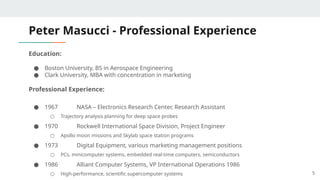
Peter Masucci -Professional Experience
Education:
● Boston University, BS in Aerospace Engineering
● Clark University, MBA with concentration in marketing
Professional Experience:
● 1967 NASA – Electronics Research Center, Research Assistant
○ Trajectory analysis planning for deep space probes
● 1970 Rockwell International Space Division, Project Engineer
○ Apollo moon missions and Skylab space station programs
● 1973 Digital Equipment, various marketing management positions
○ PCs, minicomputer systems, embedded real-time computers, semiconductors
● 1986 Alliant Computer Systems, VP International Operations 1986
○ High-performance, scientific supercomputer systems 5
6.
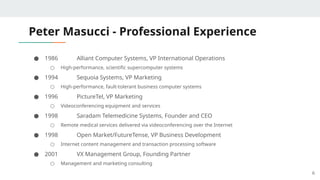
Peter Masucci -Professional Experience
● 1986 Alliant Computer Systems, VP International Operations
○ High-performance, scientific supercomputer systems
● 1994 Sequoia Systems, VP Marketing
○ High-performance, fault-tolerant business computer systems
● 1996 PictureTel, VP Marketing
○ Videoconferencing equipment and services
● 1998 Saradam Telemedicine Systems, Founder and CEO
○ Remote medical services delivered via videoconferencing over the Internet
● 1998 Open Market/FutureTense, VP Business Development
○ Internet content management and transaction processing software
● 2001 VX Management Group, Founding Partner
○ Management and marketing consulting
6
Public Speaking, ACommon Fear
● Feared more than death!
● Often experience:
○ Shaky hands
○ Blushing cheeks
○ Memory loss
○ Nausea
○ Knocking knees
● All completely normal!
10
11.
Causes of PresentationAnxiety
● Fear of the unknown OR loss of control
● Fight or flight mode
● No backup plan
● No enthusiasm for subject
● Focus of attention
11
12.
Creating Effective Presentations
●Control anxiety – Don’t fight it
● Audience centered
● Accomplishes objective
● Conducted within time frame
● Fun for audience
● Fun for you!
12
Planning an EffectivePresentation
14
1. Determine purpose - What do you want to accomplish?
2. Know your audience! - Success depends on your ability to reach
your audience
- Size
- Demographics
- Knowledge level
- Motivation
- Why are they attending?
- What do they expect?
15.
More Planning…
3. Planspace accordingly:
● Number of attendees and
seats
● Seating arrangement
● Lighting & lighting controls
● Audio & visual equipment
● Any distractions
15
4. Think about what day and
time:
● Morning
● Afternoon
● Evening
● Work day vs. weekend
● Any day!
16.
… and Moreplanning!
5. Organization
● Determine main points (1-5)
● Evidence
● Transitions
● Prepare outline
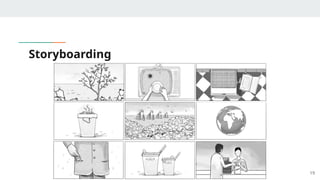
● Prepare a storyboard
6. Rehearse!
● In the actual room (if
possible)
● Follow a script and time your
presentation
● Practice Q & A
● Check all equipment and
devices
16
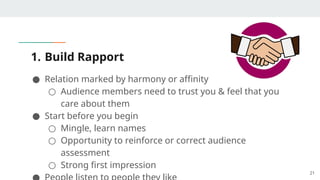
1. Build Rapport
●Relation marked by harmony or affinity
○ Audience members need to trust you & feel that you
care about them
● Start before you begin
○ Mingle, learn names
○ Opportunity to reinforce or correct audience
assessment
○ Strong first impression
21
22.
2. Opening YourPresentation
● Introduce yourself
○ Why should they listen
● Gett attention, build more rapport, introduce topic
○ Humor
○ Short story
○ Startling statistic
○ Make audience think
○ Invite participation
● Get audience response 22
23.
3. Completing theOpening
● Clearly define topic
● If informative…
○ Clear parameters for content within time
● If persuasive…
○ What’s the problem
○ Who cares
○ What’s the solution
● Overview 23
24.
4. Presenting MainPoints
● Make point transition … make point transition … make
→ →
point transition …
→
● Include supporting evidence
● Use examples
● Feedback & questions from the audience
● Pay attention to and focus on audience, are they listening? 24
25.
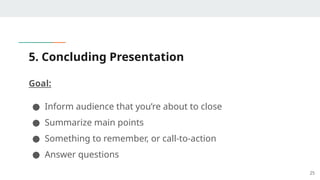
5. Concluding Presentation
Goal:
●Inform audience that you’re about to close
● Summarize main points
● Something to remember, or call-to-action
● Answer questions
25
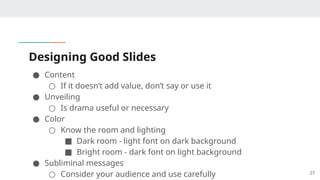
Designing Good Slides
●Content
○ If it doesn’t add value, don’t say or use it
● Unveiling
○ Is drama useful or necessary
● Color
○ Know the room and lighting
■ Dark room - light font on dark background
■ Bright room - dark font on light background
● Subliminal messages
○ Consider your audience and use carefully 27
28.
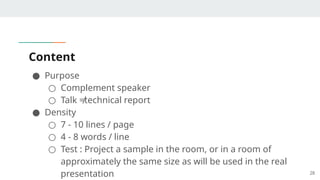
Content
● Purpose
○ Complementspeaker
○ Talk ≠technical report
● Density
○ 7 - 10 lines / page
○ 4 - 8 words / line
○ Test : Project a sample in the room, or in a room of
approximately the same size as will be used in the real
presentation 28
29.
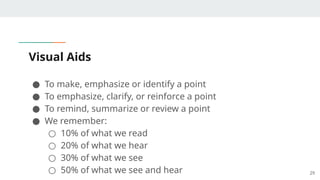
Visual Aids
● Tomake, emphasize or identify a point
● To emphasize, clarify, or reinforce a point
● To remind, summarize or review a point
● We remember:
○ 10% of what we read
○ 20% of what we hear
○ 30% of what we see
○ 50% of what we see and hear 29
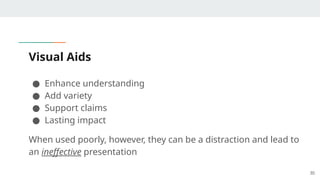
30.
Visual Aids
● Enhanceunderstanding
● Add variety
● Support claims
● Lasting impact
When used poorly, however, they can be a distraction and lead to
an ineffective presentation
30
31.
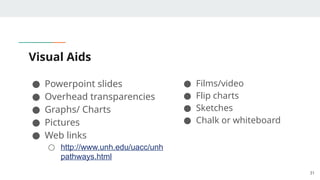
Visual Aids
● Powerpointslides
● Overhead transparencies
● Graphs/ Charts
● Pictures
● Web links
○ http://www.unh.edu/uacc/unh
pathways.html
31
● Films/video
● Flip charts
● Sketches
● Chalk or whiteboard
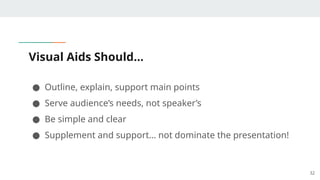
32.
Visual Aids Should…
●Outline, explain, support main points
● Serve audience’s needs, not speaker’s
● Be simple and clear
● Supplement and support… not dominate the presentation!
32
33.
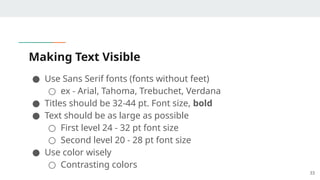
Making Text Visible
●Use Sans Serif fonts (fonts without feet)
○ ex - Arial, Tahoma, Trebuchet, Verdana
● Titles should be 32-44 pt. Font size, bold
● Text should be as large as possible
○ First level 24 - 32 pt font size
○ Second level 20 - 28 pt font size
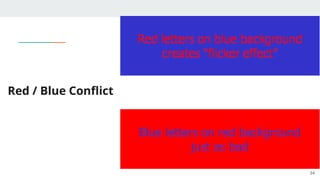
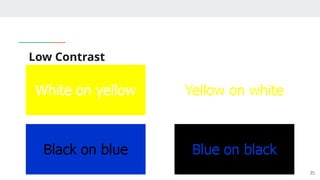
● Use color wisely
○ Contrasting colors
33
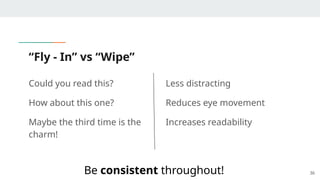
“Fly - In”vs “Wipe”
Could you read this?
How about this one?
Maybe the third time is the
charm!
36
Less distracting
Reduces eye movement
Increases readability
Be consistent throughout!
What Makes anEffective Speaker?
● Control of information
● The voice used
● The right words
● Use of body language
● Prompts, scripts and notes
● The right location
● Useful and meaningful visual aids
38
39.
Vocal Techniques
● Loudness
○Will you be using a microphone?
● Pitch
○ Vary to make points
● Rate
○ Watch your audience
● Pause for effect
○ Allow time for message to “sink in”
● Deviate from the norm for emphasis 39
40.
The Voice
C: Clear- the use of simple, easily understood words and
phrases
L: Loud (enough) - it is important everyone can hear you
A: Assertive - a bright and confident air born of
knowledge of the subject and good preparation
P: Pause - it is essential to allow the listeners time to
digest what you have said 40
41.
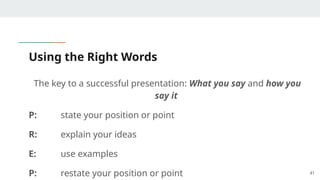
Using the RightWords
The key to a successful presentation: What you say and how you
say it
P: state your position or point
R: explain your ideas
E: use examples
P: restate your position or point 41
42.
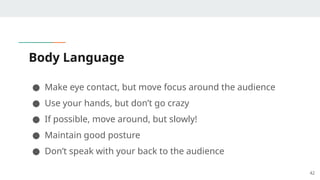
Body Language
● Makeeye contact, but move focus around the audience
● Use your hands, but don’t go crazy
● If possible, move around, but slowly!
● Maintain good posture
● Don’t speak with your back to the audience
42
43.
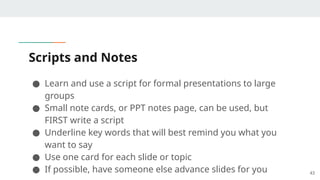
Scripts and Notes
●Learn and use a script for formal presentations to large
groups
● Small note cards, or PPT notes page, can be used, but
FIRST write a script
● Underline key words that will best remind you what you
want to say
● Use one card for each slide or topic
● If possible, have someone else advance slides for you 43
44.
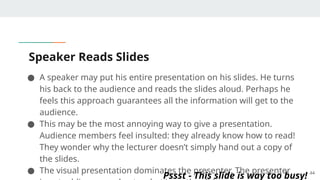
Speaker Reads Slides
●A speaker may put his entire presentation on his slides. He turns
his back to the audience and reads the slides aloud. Perhaps he
feels this approach guarantees all the information will get to the
audience.
● This may be the most annoying way to give a presentation.
Audience members feel insulted: they already know how to read!
They wonder why the lecturer doesn’t simply hand out a copy of
the slides.
● The visual presentation dominates the presenter. The presenter 44
Pssst - This slide is way too busy!
45.
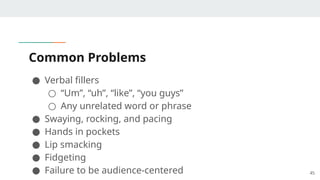
Common Problems
● Verbalfillers
○ “Um”, “uh”, “like”, “you guys”
○ Any unrelated word or phrase
● Swaying, rocking, and pacing
● Hands in pockets
● Lip smacking
● Fidgeting
● Failure to be audience-centered 45
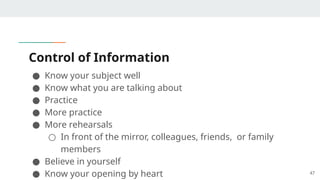
Control of Information
●Know your subject well
● Know what you are talking about
● Practice
● More practice
● More rehearsals
○ In front of the mirror, colleagues, friends, or family
members
● Believe in yourself
● Know your opening by heart 47
48.
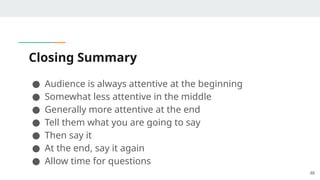
Closing Summary
● Audienceis always attentive at the beginning
● Somewhat less attentive in the middle
● Generally more attentive at the end
● Tell them what you are going to say
● Then say it
● At the end, say it again
● Allow time for questions
48
49.
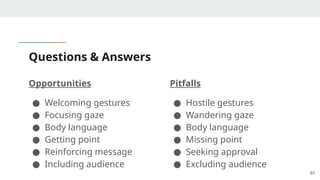
Questions & Answers
Opportunities
●Welcoming gestures
● Focusing gaze
● Body language
● Getting point
● Reinforcing message
● Including audience
Pitfalls
● Hostile gestures
● Wandering gaze
● Body language
● Missing point
● Seeking approval
● Excluding audience
49