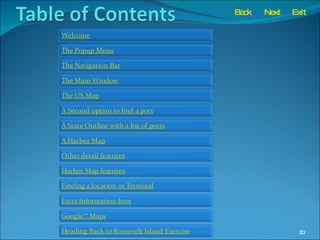
Welcome to the Tutorial of Local Knowledge Next The goal of the designers of  Local Knowledge  was originally to pass on information of the massive number of terminals in New York to younger captains and mates .  The idea then evolved into a central program for all ports in the US with the ability to be edited and information added by local captains.  This tutorial is designed to show the user the available features of the program.  Please submit any comments you may have about this tutorial or the program structure of the Local Knowledge program. NOTE: Now and anytime during the tutorial you may click  Next  at the top of the screen to advance to the next slide or view the  Table of Contents . Exit
The Popup Menu Exit Next In this tutorial and the main program you can right click anywhere on the screen to make a popup menu appear.  To the right is an example of a menu that appears. Try right clicking now and exploring the options.  To cancel the menu, click anywhere on the screen except on the menu. Back
The Navigation Bar Exit Next The navigation bar at the top of the screen consists of four basic options for navigating  the program.  Back
The Navigation Bar Exit Next The navigation bar at the top of the screen  consists of four basic options for navigating  the program.  Main :  Returns you to the main window of the program. Back
The Navigation Bar Exit Next The navigation bar at the top of the screen  consists of four basic options for navigating  the program.  Back :  Returns you to the previously viewed slide in the program. Back
The Navigation Bar Exit Next The navigation bar at the top of the screen  consists of four basic options for navigating  the program.  Next :  Advances you to the next slide in the program. Back
The Navigation Bar Exit Next The navigation bar at the top of the screen  consists of four basic options for navigating  the program.  Exit :  Closes the program completely.  A window will appear  and ask for confirmation of your desire to exit. Back
The Main Window Exit Next The Main Slide appears after accepting the conditions of use Slide or after clicking  Main  on the navigation bar.  This Slide gives the available options on how to find information you need.  Your first goal is to find the port you need local knowledge for.  Let us assume you want to find Roosevelt Island in New York.  First you have the option to view a regional map of the all US ports.  Click  it on the computer to the right  to view the map. Back
The US Map Exit Next This brings you to a US Map.  You may then click any state to view the available ports in that state.  Click  on New York on the computer to the right  to view a map of New York State. Back
A list of ports in a state Exit Next You have now reached a list of ports available in New York State. Let us back up a moment so you may see the another option on how to get to this same slide. Click Main on the computer to the right to return us to the Main Slide. Back
A second option to find a port Exit Next Now that you are back to the main slide, let’s look at a second options to get to the outline of New York. The second option is simply to click List Ports by State.  Click that option . Back
List of Ports by State Exit Next Now click the state with the port you are interested in.  Click New York. Back
The outline of New York State Exit Next You have now seen two options on how to get to this outline of New York.  Alright, lets find Roosevelt Island.  Notice the list of ports in New York and click The Port of New Jersey, New York. Or click the number 1 on the outline.  Back
A Harbor Map Exit Next Lets assume you know where Governors  Island is on this map. Red boxes outline the locations of a more detailed graphics.  Click the red bordered box over Roosevelt Island. Back
We found Roosevelt Island Exit Next OK, you have found Roosevelt Island.  What if you didn’t know where it was?  We’ll get to that as  we look at more features . We still can’t see the upper end of Roosevelt Island.  The quickest way to view the next slide up is to click the red arrow at the top of the graphic. Arrows are available any time another slide is available.  Click the up arrow. Back
Other detail features Exit Next Now we need to look a little closer at the slide.  The green, thick, straight arrow points at the location of this graphic on the small harbor map.  The map is turned in order to emphasize which direction is north. Click the harbor map to return to the full size harbor map. Back
Harbor Map Features Exit Next Two other features exist in some Harbor  Maps.  The first is the camera icon.  Click the camera icon to view a picture. Back
Photos Exit Next Click back to return to the last slide. Back
Finding a location or terminal Exit Next Let’s now assume we are looking for Penhorn Creek but  only know it is somewhere near the Port of New York, New Jersey. Click on link “All Terminals and Locations”. Back
Finding a location or terminal Exit Next You are now at the alphabetical list of all terminals in the Port of New York, New Jersey. Click the P to show locations starting with P. Back
Finding a location or terminal Exit Next Now look down the alphabetical list for Penhorn Creek. Click Penhorn Creek to see the slide that has it. Back
Finding a location or terminal Exit Next Look for Penhorn Creek on the graphic. Information icons indicate additional information is available in the area with the icon.  Click the information icon. Back
Extra Information Exit Next In this case the information is about the bridges on the graphic. Click  Back . Back
Harbor Map Features Exit Next Next click the Google™ icon on the bottom right to open a Google™ Map of the same location.  Back
Google™ Maps Exit Next If you have a compatible browser and an active internet connection a fully capable Google™ Map will open in a browser window.  Use caution since North is up in Google™ Maps and not in the graphic.  Let’s look at another example of this. Click  “X” to close the browser. Back
Heading back to Roosevelt Island Exit Next Let’s go back to Roosevelt Island.  See if you can do it.  If you click in the wrong spot an arrow will appear where you should have clicked. The first step is to go to the map of the Port of New York, New Jersey. Back You should have clicked the small map to return to the full size map of the port.
Heading back to Roosevelt Island Exit Next Click the red box around Roosevelt Island. Back You should have clicked the red box around Roosevelt Island.
Back to Roosevelt Island Exit Next Now that we made it back to Roosevelt Island let’s click the Google™ Map icon and compare it to the present graphic sheet. Back You should have clicked the Google™ Map icon.
Back to Roosevelt Island Exit Next Since North is up in the Google™ Map and not on the previous slide  it is necessary to use caution.  This concludes the tutorial.  Most of the features have been covered.  Click  Exit  or  view a  Table of Contents  to review. Back
Exit Next Back
Are you sure you want to exit? Yes  No Back Main Table of Contents

Local Knowledge Tutorial

  • 1.
    Welcome to theTutorial of Local Knowledge Next The goal of the designers of Local Knowledge was originally to pass on information of the massive number of terminals in New York to younger captains and mates . The idea then evolved into a central program for all ports in the US with the ability to be edited and information added by local captains. This tutorial is designed to show the user the available features of the program. Please submit any comments you may have about this tutorial or the program structure of the Local Knowledge program. NOTE: Now and anytime during the tutorial you may click Next at the top of the screen to advance to the next slide or view the Table of Contents . Exit
  • 2.
    The Popup MenuExit Next In this tutorial and the main program you can right click anywhere on the screen to make a popup menu appear. To the right is an example of a menu that appears. Try right clicking now and exploring the options. To cancel the menu, click anywhere on the screen except on the menu. Back
  • 3.
    The Navigation BarExit Next The navigation bar at the top of the screen consists of four basic options for navigating the program. Back
  • 4.
    The Navigation BarExit Next The navigation bar at the top of the screen consists of four basic options for navigating the program. Main : Returns you to the main window of the program. Back
  • 5.
    The Navigation BarExit Next The navigation bar at the top of the screen consists of four basic options for navigating the program. Back : Returns you to the previously viewed slide in the program. Back
  • 6.
    The Navigation BarExit Next The navigation bar at the top of the screen consists of four basic options for navigating the program. Next : Advances you to the next slide in the program. Back
  • 7.
    The Navigation BarExit Next The navigation bar at the top of the screen consists of four basic options for navigating the program. Exit : Closes the program completely. A window will appear and ask for confirmation of your desire to exit. Back
  • 8.
    The Main WindowExit Next The Main Slide appears after accepting the conditions of use Slide or after clicking Main on the navigation bar. This Slide gives the available options on how to find information you need. Your first goal is to find the port you need local knowledge for. Let us assume you want to find Roosevelt Island in New York. First you have the option to view a regional map of the all US ports. Click it on the computer to the right to view the map. Back
  • 9.
    The US MapExit Next This brings you to a US Map. You may then click any state to view the available ports in that state. Click on New York on the computer to the right to view a map of New York State. Back
  • 10.
    A list ofports in a state Exit Next You have now reached a list of ports available in New York State. Let us back up a moment so you may see the another option on how to get to this same slide. Click Main on the computer to the right to return us to the Main Slide. Back
  • 11.
    A second optionto find a port Exit Next Now that you are back to the main slide, let’s look at a second options to get to the outline of New York. The second option is simply to click List Ports by State. Click that option . Back
  • 12.
    List of Portsby State Exit Next Now click the state with the port you are interested in. Click New York. Back
  • 13.
    The outline ofNew York State Exit Next You have now seen two options on how to get to this outline of New York. Alright, lets find Roosevelt Island. Notice the list of ports in New York and click The Port of New Jersey, New York. Or click the number 1 on the outline. Back
  • 14.
    A Harbor MapExit Next Lets assume you know where Governors Island is on this map. Red boxes outline the locations of a more detailed graphics. Click the red bordered box over Roosevelt Island. Back
  • 15.
    We found RooseveltIsland Exit Next OK, you have found Roosevelt Island. What if you didn’t know where it was? We’ll get to that as we look at more features . We still can’t see the upper end of Roosevelt Island. The quickest way to view the next slide up is to click the red arrow at the top of the graphic. Arrows are available any time another slide is available. Click the up arrow. Back
  • 16.
    Other detail featuresExit Next Now we need to look a little closer at the slide. The green, thick, straight arrow points at the location of this graphic on the small harbor map. The map is turned in order to emphasize which direction is north. Click the harbor map to return to the full size harbor map. Back
  • 17.
    Harbor Map FeaturesExit Next Two other features exist in some Harbor Maps. The first is the camera icon. Click the camera icon to view a picture. Back
  • 18.
    Photos Exit NextClick back to return to the last slide. Back
  • 19.
    Finding a locationor terminal Exit Next Let’s now assume we are looking for Penhorn Creek but only know it is somewhere near the Port of New York, New Jersey. Click on link “All Terminals and Locations”. Back
  • 20.
    Finding a locationor terminal Exit Next You are now at the alphabetical list of all terminals in the Port of New York, New Jersey. Click the P to show locations starting with P. Back
  • 21.
    Finding a locationor terminal Exit Next Now look down the alphabetical list for Penhorn Creek. Click Penhorn Creek to see the slide that has it. Back
  • 22.
    Finding a locationor terminal Exit Next Look for Penhorn Creek on the graphic. Information icons indicate additional information is available in the area with the icon. Click the information icon. Back
  • 23.
    Extra Information ExitNext In this case the information is about the bridges on the graphic. Click Back . Back
  • 24.
    Harbor Map FeaturesExit Next Next click the Google™ icon on the bottom right to open a Google™ Map of the same location. Back
  • 25.
    Google™ Maps ExitNext If you have a compatible browser and an active internet connection a fully capable Google™ Map will open in a browser window. Use caution since North is up in Google™ Maps and not in the graphic. Let’s look at another example of this. Click “X” to close the browser. Back
  • 26.
    Heading back toRoosevelt Island Exit Next Let’s go back to Roosevelt Island. See if you can do it. If you click in the wrong spot an arrow will appear where you should have clicked. The first step is to go to the map of the Port of New York, New Jersey. Back You should have clicked the small map to return to the full size map of the port.
  • 27.
    Heading back toRoosevelt Island Exit Next Click the red box around Roosevelt Island. Back You should have clicked the red box around Roosevelt Island.
  • 28.
    Back to RooseveltIsland Exit Next Now that we made it back to Roosevelt Island let’s click the Google™ Map icon and compare it to the present graphic sheet. Back You should have clicked the Google™ Map icon.
  • 29.
    Back to RooseveltIsland Exit Next Since North is up in the Google™ Map and not on the previous slide it is necessary to use caution. This concludes the tutorial. Most of the features have been covered. Click Exit or view a Table of Contents to review. Back
  • 30.
  • 31.
    Are you sureyou want to exit? Yes No Back Main Table of Contents