REMINDER
Check in on the
COLLABORATE mobile app
Rev Up Your Revenue Recognition
with EBS R12
Prepared by:
Karen Brownfield
Practice Director
Infosemantics.com
Session ID#: 13935
About the Speaker
■ Oracle Ace
■ Oracle Certified Specialist (EBS and Fusion)
■ Over 20 years E-Business Suite support
■ OAUG Board 1994-2009, 2014-2015, former President
■ Member ATG Customer Advisory Board
■ Co-Chair Oracle EBS User Management SIG
■ Over 100 presentations worldwide
■ Co-author multiple books on E-Business Suite
■ Visit us at booth 933
■ Established in 2001
■ SBA 8(a) Small Business
disadvantaged company
■ GSA Schedule contract GS-
35F-0680V
■ Texas State HUB vendor
■ For more information, check
out our web site at
www.Infosemantics.com
▪ R12.1.3, R12.2, OBIEE public
vision instances
▪ Posted presentations on
functional and technical topicsGold
Partner
Copyright © 2014 Infosemantics, Inc. All Rights Reserved . Any other commercial product names
herein are trademark, registered trademarks or service marks of their respective owners.
Agenda
■ Overview
■ Invoice and Accounting Rules
■ The Process
■ Event Based Revenue Management
■ Revenue Accounting Management (RAM) Wizard
■ COGS
■ References
■ Questions
Overview
■ Revenue Recognition – the ability to spread out revenue for a
transaction across multiple periods or (R12) delay recognition
until the occurrence of an event
■ The default is “Immediately”, i.e. GL Date of the Transaction
■ Methods
▪ None – equivalent to Immediate
▪ Accounting Rules – similar functionality exists in 11i
▪ Event Based
▪ Revenue Accounting Management (RAM) Wizard
Invoice and Accounting Rules
Invoice Rules
■ Required if need to use Accounting Rules
■ Govern recognition of Receivables (not Revenue)
■ Oracle seeds two types
▪ Bill in Advance – uses start of Revenue recognition cycle
▪ Bill in Arrears – uses end of Revenue recognition cycle
■ No user-defined types allowed
■ Assigned at invoice header
■ Only applicable when class = Invoice
▪ Credit / Debit Memo inherit rule from associated invoice
Accounting Rules
■ Govern recognition of Revenue
■ Oracle seeds one type
▪ Immediate – 100% recognized immediately
— Assumes Period Type is Month – this can be changed
■ Can define own rules
■ Assigned at line level so each line can have a different rule
■ Only applicable when class = Invoice
▪ Credit / Debit Memo inherit rule from associated invoice
■ Navigation from Receivables Manager
▪ Setup > Transactions > Accounting Rules
Accounting Rules
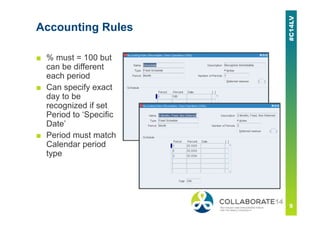
■ % must = 100 but
can be different
each period
■ Can specify exact
day to be
recognized if set
Period to ‘Specific
Date’
■ Period must match
Calendar period
type
Example – Fixed Schedule
Deferred Revenue Flag Checked
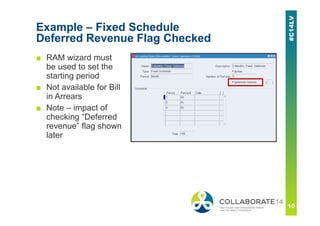
■ RAM wizard must
be used to set the
starting period
■ Not available for Bill
in Arrears
■ Note – impact of
checking “Deferred
revenue” flag shown
later
Example – Variable Schedule
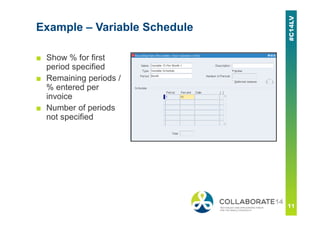
■ Show % for first
period specified
■ Remaining periods /
% entered per
invoice
■ Number of periods
not specified
Example – Daily Revenue Rate
All Periods and Partial Period
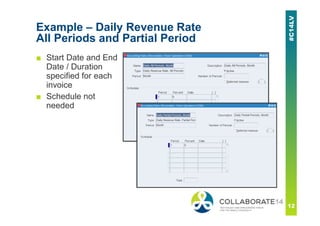
■ Start Date and End
Date / Duration
specified for each
invoice
■ Schedule not
needed
Type
■ Fixed Schedule – even division across all periods
▪ In 11i, called Fixed Duration
■ Variable Schedule – number of periods is specified during
invoice entry
▪ Can specify % for first period
▪ In 11i, called Variable Duration
■ Daily Revenue Rate, All Periods
▪ Start Date, End Date / Duration specified at invoice entry
▪ Calculation based on days in period
— Partial period counted as days left in period
▪ Added to 11i in PF.G via patch 5684129
Type
■ Daily Revenue Rate, Partial Periods
▪ Start Date, End Date / Duration specified at invoice entry
▪ Calculation for partial period based on partial days in period
▪ Calculation for full period = (total – partial) / # full
▪ Added to 11i in FP.G via patch 5684129
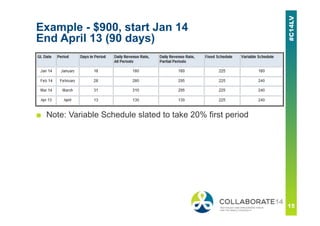
Example - $900, start Jan 14
End April 13 (90 days)
■ Note: Variable Schedule slated to take 20% first period
Affect on Transaction
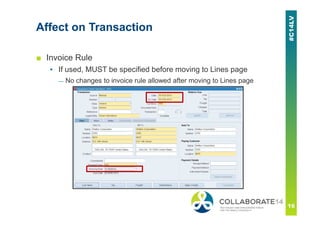
■ Invoice Rule
▪ If used, MUST be specified before moving to Lines page
— No changes to invoice rule allowed after moving to Lines page
Affect on Transaction
■ Invoice Rule
▪ In Advance – recognized Receivable on the GL date associated
with the first period of the schedule (start date entered on the
line)
▪ In Arrears – recognizes Receivable on the GL date associated
with the last period of the schedule (end date entered on the line
or calculated end date based on start date and number of
periods entered on the line)
▪ Null – uses GL Date entered / defaulted
— Unless Revenue Policies impose a Contingency, this is equivalent to
Immediate
Affect on Transaction
■ Invoice Rule In Arrears – GL Date and Transaction Date will
change when invoice saved based on number of periods
entered in rule
▪ GL Date becomes either the End Date specified or the same
date in the last period of the revenue recognition schedule
▪ Transaction Date = GL Date – 1
— If 11.i.AR.N, 11i.AR.O or R12.0/12.1 patch 6350680 is applied,
transaction date is not altered
▪ Pop-up messages will detail new dates
▪ Can change dates back to original date or any other date
■ Accounting Rule
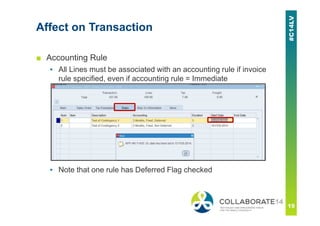
▪ All Lines must be associated with an accounting rule if invoice
rule specified, even if accounting rule = Immediate
▪ Note that one rule has Deferred Flag checked
Affect on Transaction
■ Accounting Rule
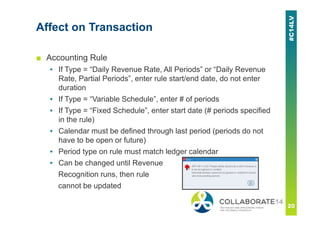
▪ If Type = “Daily Revenue Rate, All Periods” or “Daily Revenue
Rate, Partial Periods”, enter rule start/end date, do not enter
duration
▪ If Type = “Variable Schedule”, enter # of periods
▪ If Type = “Fixed Schedule”, enter start date (# periods specified
in the rule)
▪ Calendar must be defined through last period (periods do not
have to be open or future)
▪ Period type on rule must match ledger calendar
▪ Can be changed until Revenue
Recognition runs, then rule
cannot be updated
Affect on Transaction
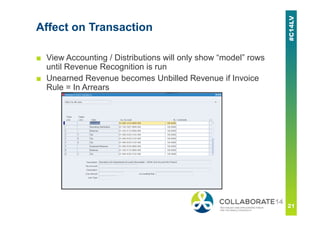
■ View Accounting / Distributions will only show “model” rows
until Revenue Recognition is run
■ Unearned Revenue becomes Unbilled Revenue if Invoice
Rule = In Arrears
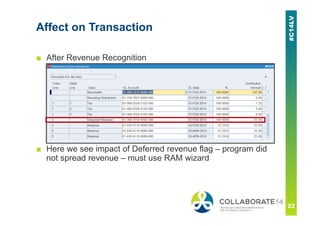
■ After Revenue Recognition
■ Here we see impact of Deferred revenue flag – program did
not spread revenue – must use RAM wizard
Affect on Transaction
If Rules are Assigned to Item
■ Used in transfer from OM or when manually enter item on
invoice
■ Navigation from Receivables Manager
▪ Setup > Transactions > Items > Define Items
■ Manual entry of invoice
▪ Invoice rule must be entered on header, will not default from
item
■ If invoice has accounting rule, passes through Revenue
Recognition engine, even if rule = Immediate
▪ Change from 11i (11i behavior caused grouping rules to fail)
The Process
Revenue Recognition Process
■ All invoices with an invoicing rule are tagged for revenue
recognition processing
■ Invoices pending revenue recognition are stored in the queue
AR_REV_REC_Q
■ Methods of running Revenue Recognition
▪ From the Transaction Tools menu (R12 only)
— Create Accounting
– Does not run Revenue Recognition if choose “Create Draft
Accounting”
Revenue Recognition Process
■ Methods of running Revenue Recognition (cont.)
▪ Standalone process in batch mode
— Control > Accounting > Revenue Recognition
— Select either ‘Revenue Recognition’ or ‘Revenue Recognition Master
Program’ (latter used for high volume and servers with 2+
processors)
– Parameters for Revenue Recognition
» Print Format – Summary or Detail
» Commit Work – Yes or No
– Parameters for Revenue Recognition Master Program
» Print Format – Summary or Detail
» Number of Workers
Revenue Recognition Process
■ Methods of running Revenue Recognition (cont.)
▪ Implicitly via Submit Accounting (NOT Create Accounting)
— Control > Requests > Run
— Parameters – Accounting Mode cannot = Draft
— Revenue recognition report is always Summary mode
▪ (11i) Transfer to General Ledger
— Control > Requests > Run
— Revenue recognition report is always Detail mode
Event Based Revenue
Management
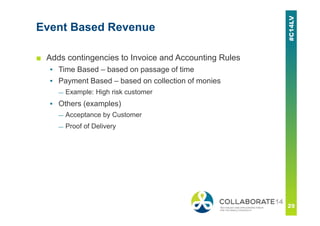
Event Based Revenue
■ Adds contingencies to Invoice and Accounting Rules
▪ Time Based – based on passage of time
▪ Payment Based – based on collection of monies
— Example: High risk customer
▪ Others (examples)
— Acceptance by Customer
— Proof of Delivery
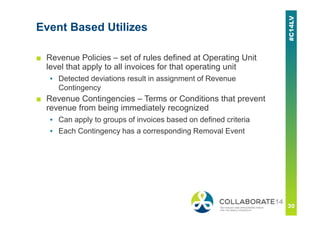
Event Based Utilizes
■ Revenue Policies – set of rules defined at Operating Unit
level that apply to all invoices for that operating unit
▪ Detected deviations result in assignment of Revenue
Contingency
■ Revenue Contingencies – Terms or Conditions that prevent
revenue from being immediately recognized
▪ Can apply to groups of invoices based on defined criteria
▪ Each Contingency has a corresponding Removal Event
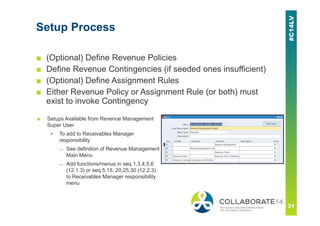
Setup Process
■ (Optional) Define Revenue Policies
■ Define Revenue Contingencies (if seeded ones insufficient)
■ (Optional) Define Assignment Rules
■ Either Revenue Policy or Assignment Rule (or both) must
exist to invoke Contingency
■ Setups Available from Revenue Management
Super User
▪ To add to Receivables Manager
responsibility
— See definition of Revenue Management
Main Menu
— Add functions/menus in seq 1,3,4,5,6
(12.1.3) or seq 5,15, 20,25,30 (12.2.3)
to Receivables Manager responsibility
menu
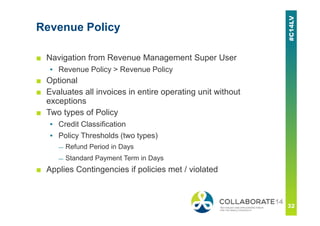
Revenue Policy
■ Navigation from Revenue Management Super User
▪ Revenue Policy > Revenue Policy
■ Optional
■ Evaluates all invoices in entire operating unit without
exceptions
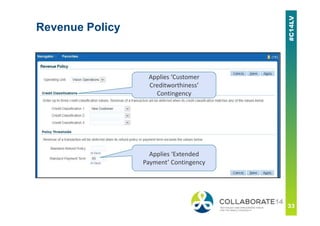
■ Two types of Policy
▪ Credit Classification
▪ Policy Thresholds (two types)
— Refund Period in Days
— Standard Payment Term in Days
■ Applies Contingencies if policies met / violated
Revenue Policy
Applies ‘Customer
Creditworthiness’
Contingency
Applies ‘Extended
Payment’ Contingency
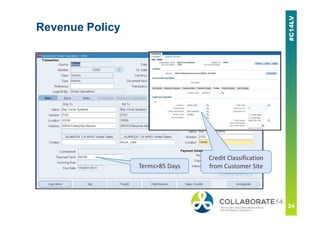
Revenue Policy
Terms>85 Days
Credit Classification
from Customer Site
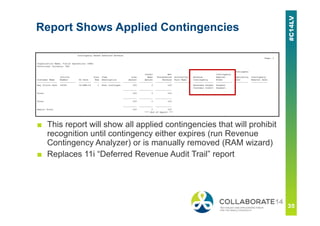
Report Shows Applied Contingencies
■ This report will show all applied contingencies that will prohibit
recognition until contingency either expires (run Revenue
Contingency Analyzer) or is manually removed (RAM wizard)
■ Replaces 11i “Deferred Revenue Audit Trail” report
Revenue Contingency
■ Can be used w/o creating Revenue Policy or used to refine
Policy for select groups of invoices
■ 13 Contingencies seeded by Oracle, can create additional
ones
■ Each Contingency will need a Removal Event to release the
contingency
■ Navigation from Revenue Management Super User
▪ Revenue Contingencies > Contingencies Definition
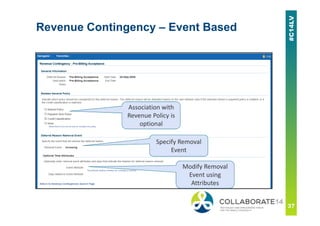
Revenue Contingency – Event Based
Association with
Revenue Policy is
optional
Modify Removal
Event using
Attributes
Specify Removal
Event
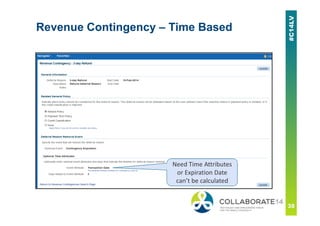
Revenue Contingency – Time Based
Need Time Attributes
or Expiration Date
can’t be calculated
Assignment Rules
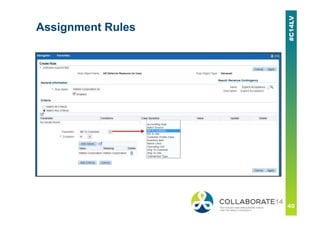
■ Tells Revenue Management Engine when to apply a
contingency
■ Used when Revenue Policy doesn’t provide sufficient criteria
■ Navigation from Revenue Management Super User
▪ Revenue Contingencies > Assignment Rules
Assignment Rules
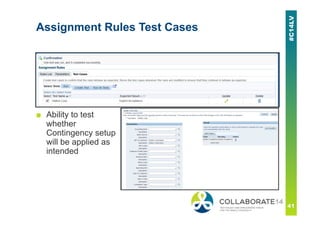
Assignment Rules Test Cases
■ Ability to test
whether
Contingency setup
will be applied as
intended
How it Works
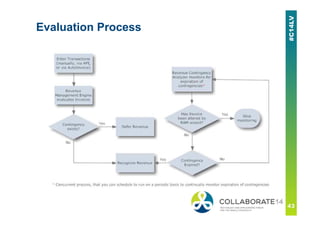
■ Revenue Management Engine automatically evaluates and
applies policies and contingencies
▪ Additional Contingencies cannot be added in Transaction
Workbench
▪ Can be assigned using AutoInvoice
■ Revenue Contingency Analyzer must be run to determine if
contingencies have expired
▪ Concurrent program
▪ Runs automatically when Submit Accounting is run
■ Revenue Recognition does not run against an invoice if other
contingencies place in doubt the collectability of the invoice
Evaluation Process
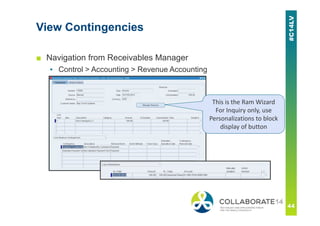
View Contingencies
■ Navigation from Receivables Manager
▪ Control > Accounting > Revenue Accounting
This is the Ram Wizard
For Inquiry only, use
Personalizations to block
display of button
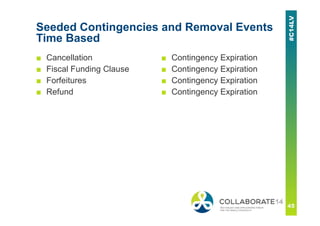
Seeded Contingencies and Removal Events
Time Based
■ Cancellation
■ Fiscal Funding Clause
■ Forfeitures
■ Refund
■ Contingency Expiration
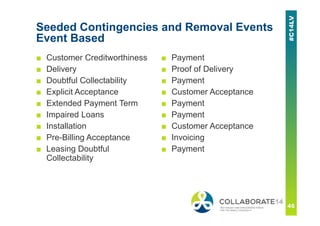
Seeded Contingencies and Removal Events
Event Based
■ Customer Creditworthiness
■ Delivery
■ Doubtful Collectability
■ Explicit Acceptance
■ Extended Payment Term
■ Impaired Loans
■ Installation
■ Pre-Billing Acceptance
■ Leasing Doubtful
Collectability
■ Payment
■ Proof of Delivery
■ Payment
■ Customer Acceptance
■ Payment
■ Payment
■ Customer Acceptance
■ Invoicing
■ Payment
Revenue Accounting
Management (RAM) Wizard
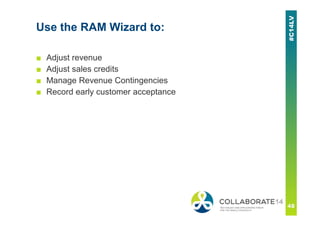
Use the RAM Wizard to:
■ Adjust revenue
■ Adjust sales credits
■ Manage Revenue Contingencies
■ Record early customer acceptance
Prerequisites to Using RAM Wizard
■ Set System Options
▪ Enable ‘Require Salesperson’ system option
— Must assign sales credit to all invoices that may be adjusted for
either revenue or sales credits
— To use only for revenue adjustments, can use seeded salesperson
value of “No Sales Credit”
— Not required to set up AutoAccounting to derive an Accounting
Flexfield segment from the salesperson table
■ Create Revenue Adjustment Reason Lookup Codes
▪ 3 seeded, can add more
Prerequisites to Using RAM Wizard
■ Recognize Revenue – cannot adjust transactions with rules
until Revenue Recognition program is run
■ To enable adjustments to on-account credit memos, set
profile option “AR: User invoice Accounting for credit” to No
▪ Only on-account credit memos can be adjusted and only if this
profile option is set to No
After RAM is Used
■ Invoice is no longer subject to automatic revenue recognition
■ If adjustment does not cause all of revenue to be recognized,
wizard will continue to be required to recognize any remaining
revenue
Process to Adjust Revenue
■ Navigation from Receivables Manager
▪ Control > Accounting > Revenue Accounting
■ Query Transaction
■ Choose Manage Revenue button
■ Select type of adjustment and click Next
▪ Modify Revenue Contingencies
▪ Schedule Revenue
▪ Unschedule Revenue
▪ (if applicable) Record Acceptance
■ Enter any criteria to limit lines that will be adjusted
■ For partial adjustments, enter either amount or %
■ For full amount, select “All Adjustable Revenue”
Process to Adjust Revenue
■ Select reason for adjustment
■ Optionally add comments
■ Optionally change GL Date – new date used if any of the
following is true
▪ No accounting rule exists on the line
▪ Accounting Rule is for a single period
▪ Deferred accounting rule exists for the line
— New date is ignored if multi-period rule exists and is not deferred
▪ View results in Action Results
■ It is recommended that same adjustments be made to any
related credit memos to keep accounting in sync
Process to Manage Contingencies
■ Navigation from Receivables Manager
▪ Control > Accounting > Revenue Accounting
■ Query Transaction
■ Choose Manage Revenue button
■ Select “Modify Revenue”
■ Enter any criteria to limit lines that will be adjusted
■ Select transaction line to be adjusted
■ In “Line Revenue Contingencies” adjust either
▪ Number of Days
▪ Estimated Expiration Date
Process to Manage Contingencies
■ To expire a contingency, set Expiration Date to today’s date
■ If a parent-child relationship exists from OM, only the parent
line can be adjusted as children inherit contingencies from
their parent
If a Receipt if Reversed
■ If revenue was deferred due to payment-based contingency,
then the previously earned revenue becomes unearned
▪ If Pending Flag was applied (i.e. other contingencies haven’t
expired), pending flag removed
Impact on Credit Memos
■ Following on applicable if set profile option “Use Invoice
Accounting for Credit Memos” to yes
■ If no event-based contingencies, credit memo prorated
between earned/unearned identical to invoice prorate
■ If applied against invoice whose revenue was already
manually adjusted via the RAM wizard, standard credit memo
functionality is followed (i.e. prorated based on
earned/unearned on the invoice)
▪ Must use RAM wizard to make any adjustments
Impact on Credit Memos
■ Behavior dependant on original reason for revenue deferral
▪ Payment-based contingency – credit memo charged to
unearned revenue (not prorated between earned/unearned)
— If amount of credit memo exceeds unearned revenue on invoice and
“Allow overapplication” is checked on credit memo type, then
overage is debited to unearned revenue
– RAM wizard can be used to clear this overage
▪ Time-based contingency – credit memo is prorated between
earned and unearned based on invoice accounting. If multi-
period rule exists on invoice it is applied to the credit memo
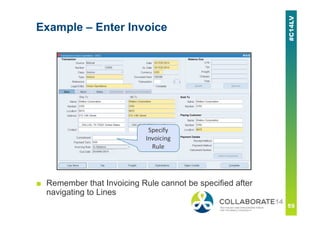
Example – Enter Invoice
■ Remember that Invoicing Rule cannot be specified after
navigating to Lines
Specify
Invoicing
Rule
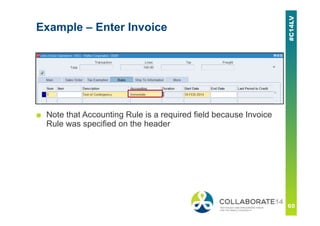
Example – Enter Invoice
■ Note that Accounting Rule is a required field because Invoice
Rule was specified on the header
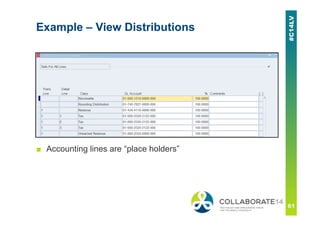
Example – View Distributions
■ Accounting lines are “place holders”
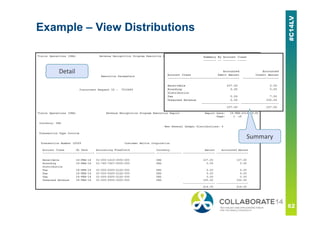
Example – View Distributions
Detail
Summary
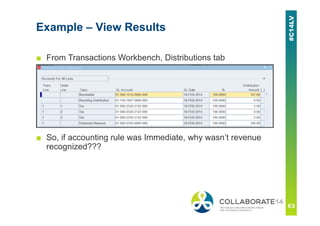
Example – View Results
■ From Transactions Workbench, Distributions tab
■ So, if accounting rule was Immediate, why wasn’t revenue
recognized???
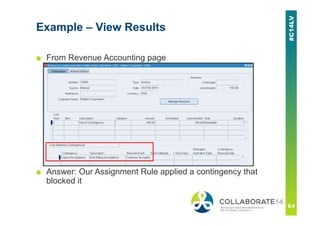
■ From Revenue Accounting page
■ Answer: Our Assignment Rule applied a contingency that
blocked it
Example – View Results
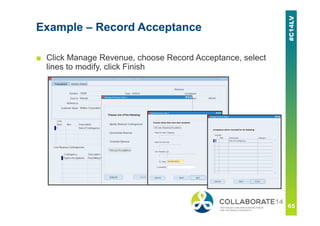
Example – Record Acceptance
■ Click Manage Revenue, choose Record Acceptance, select
lines to modify, click Finish
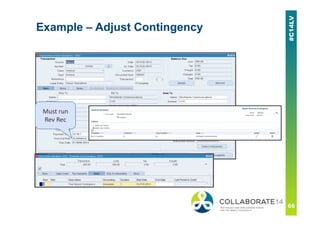
Example – Adjust Contingency
Must run
Rev Rec
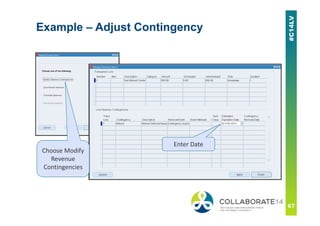
Example – Adjust Contingency
Choose Modify
Revenue
Contingencies
Enter Date
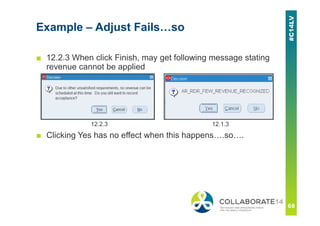
Example – Adjust Fails…so
■ 12.2.3 When click Finish, may get following message stating
revenue cannot be applied
12.2.3 12.1.3
■ Clicking Yes has no effect when this happens….so….
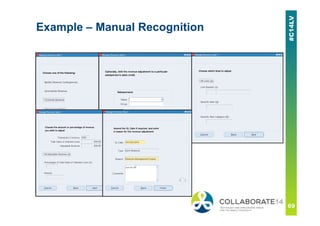
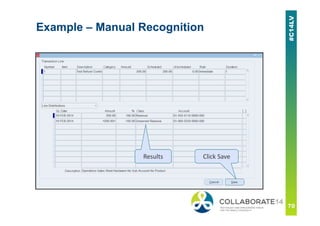
Example – Manual Recognition
Results Click Save
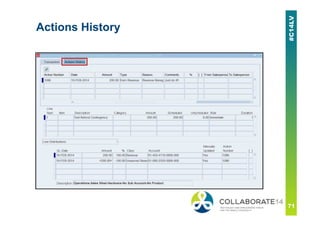
Actions History
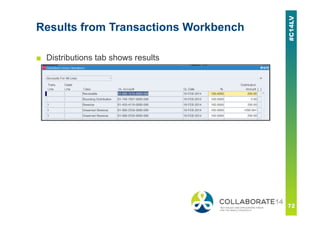
Results from Transactions Workbench
■ Distributions tab shows results
Very Limited Reporting
■ Contingency Based Deferred Revenue
▪ Shows each transaction with a contingency
■ Revenue Recognition
▪ Shows totals based on transactions deferred or recognized in
that run, but not totals across OU
■ Missing – Status x Invoice Recognized/Unearned
▪ MOS notes 1121944.1 and 1116934.1 – detailed discussion of
tables with examples
COGS
Summary
■ COGS is now matched to Revenue – when revenue is
recognized, COGS is recognized
■ Applied to
▪ Sales orders of both non-configurable and configurable items
(Pick-To-Order and Assemble-To-Order)
▪ Sales orders from customer facing op units where drop
shipment is used when new accounting flow from 11.5.10 is
used
▪ RMAs that reference a sales order whose COGS is deferred
— RMA will maintain the same COGS/Deferred COGS ratio
Summary
■ During “SO Issue transaction”
▪ If SELLING_OU = SHIPPING_OU, deferred COGS is used and
COGS account is reflected when revenue recognition happens
▪ IF SELLING_OU <> SHIPPING_OU, if intercompany flow exists,
checks if “Advanced Accounting” is enabled. If so, used
deferred COGS, if not uses COGS
■ Deferred COGS cannot be customized like COGS
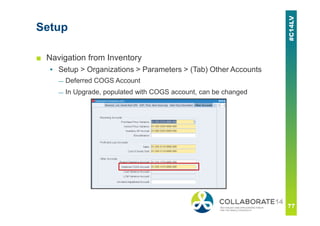
Setup
■ Navigation from Inventory
▪ Setup > Organizations > Parameters > (Tab) Other Accounts
— Deferred COGS Account
— In Upgrade, populated with COGS account, can be changed
Process
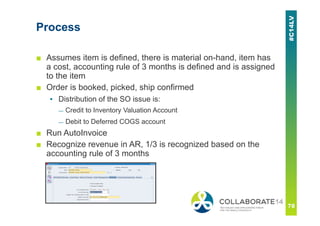
■ Assumes item is defined, there is material on-hand, item has
a cost, accounting rule of 3 months is defined and is assigned
to the item
■ Order is booked, picked, ship confirmed
▪ Distribution of the SO issue is:
— Credit to Inventory Valuation Account
— Debit to Deferred COGS account
■ Run AutoInvoice
■ Recognize revenue in AR, 1/3 is recognized based on the
accounting rule of 3 months
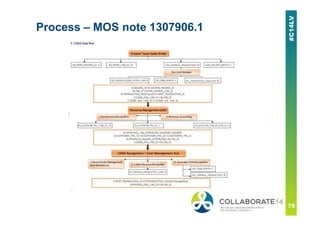
Process – MOS note 1307906.1
Process
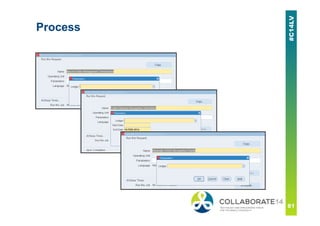
■ Run Record Order Management Transactions
▪ (Optional) Inserts uncosted SO / RMA Returns and inserts
records in COGS tables
— If Cost Manager has costed all transactions, not necessary
■ Run Collect Revenue Recognition Information program
▪ Collects changes in revenue recognition based on dates entered
■ Run Generate COGS Recognition Events
▪ Creates COGS recognition transaction where COGS recognition
doesn’t match revenue recognition
▪ Navigation from Cost Management
— COGS Recognition > Collect Revenue Recognition Information
— COGS Recognition > Generate COGS Recognition Events
Process
Process
■ View Results (from Cost Management)
▪ View Transactions > Material Transactions, Distributions Tab
■ Result (based on the revenue recognition rule)
▪ Credit of 1/3 to Deferred COGS account
▪ Debit of 1/3 to COGS account
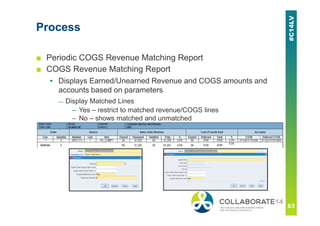
Process
■ Periodic COGS Revenue Matching Report
■ COGS Revenue Matching Report
▪ Displays Earned/Unearned Revenue and COGS amounts and
accounts based on parameters
— Display Matched Lines
– Yes – restrict to matched revenue/COGS lines
– No – shows matched and unmatched
References
More Info – Revenue Recognition
■ My Oracle Support
▪ 1116934.1 – How to Setup and Troubleshoot Invoicing Rules
and Accounting Rules
▪ 1121944.1 – Understanding and Troubleshooting Revenue
Recognition in Oracle Receivables
▪ 1130963.1 – Understanding and Troubleshooting Event-Based
Revenue Management
■ Receivables Users Guide Release 12.1 (Part No. E13622-
02), Chapter 3 – Revenue Management
More Info – COGS
■ My Oracle Support
▪ 1314335.1 – COGS/Deferred COGS common problems
▪ 416678.1 – R12: Deferred COGS Accounting
▪ 567261.1 – COGS: New Process for Cost of Goods Sold
▪ 867912.1 – COGS and DCOGS Workflow
▪ 580360.1 – R12: Can We Customize The Deferred COGS
Account?
▪ 747638.1 – How To Define Inventory Cost of Goods Sold
Account Workflow?
▪ 1060202.1 – COGS and DCOGS Recognition Accounting Useful
Tips
▪ 1307906.1 – COGS Dataflow and Diagnostics [Video]
▪ 1607921.1 – FAQ in COGS / DCOGS
Thank you!!
Karen.Brownfield@Infosemantics.com
Please complete the session
evaluation (#13955)
We appreciate your feedback and insight
You may complete the session evaluation either
on paper or online via the mobile app

R12 revenue recognition_oaug

  • 1.
    REMINDER Check in onthe COLLABORATE mobile app Rev Up Your Revenue Recognition with EBS R12 Prepared by: Karen Brownfield Practice Director Infosemantics.com Session ID#: 13935
  • 2.
    About the Speaker ■Oracle Ace ■ Oracle Certified Specialist (EBS and Fusion) ■ Over 20 years E-Business Suite support ■ OAUG Board 1994-2009, 2014-2015, former President ■ Member ATG Customer Advisory Board ■ Co-Chair Oracle EBS User Management SIG ■ Over 100 presentations worldwide ■ Co-author multiple books on E-Business Suite
  • 3.
    ■ Visit usat booth 933 ■ Established in 2001 ■ SBA 8(a) Small Business disadvantaged company ■ GSA Schedule contract GS- 35F-0680V ■ Texas State HUB vendor ■ For more information, check out our web site at www.Infosemantics.com ▪ R12.1.3, R12.2, OBIEE public vision instances ▪ Posted presentations on functional and technical topicsGold Partner Copyright © 2014 Infosemantics, Inc. All Rights Reserved . Any other commercial product names herein are trademark, registered trademarks or service marks of their respective owners.
  • 4.
    Agenda ■ Overview ■ Invoiceand Accounting Rules ■ The Process ■ Event Based Revenue Management ■ Revenue Accounting Management (RAM) Wizard ■ COGS ■ References ■ Questions
  • 5.
    Overview ■ Revenue Recognition– the ability to spread out revenue for a transaction across multiple periods or (R12) delay recognition until the occurrence of an event ■ The default is “Immediately”, i.e. GL Date of the Transaction ■ Methods ▪ None – equivalent to Immediate ▪ Accounting Rules – similar functionality exists in 11i ▪ Event Based ▪ Revenue Accounting Management (RAM) Wizard
  • 6.
  • 7.
    Invoice Rules ■ Requiredif need to use Accounting Rules ■ Govern recognition of Receivables (not Revenue) ■ Oracle seeds two types ▪ Bill in Advance – uses start of Revenue recognition cycle ▪ Bill in Arrears – uses end of Revenue recognition cycle ■ No user-defined types allowed ■ Assigned at invoice header ■ Only applicable when class = Invoice ▪ Credit / Debit Memo inherit rule from associated invoice
  • 8.
    Accounting Rules ■ Governrecognition of Revenue ■ Oracle seeds one type ▪ Immediate – 100% recognized immediately — Assumes Period Type is Month – this can be changed ■ Can define own rules ■ Assigned at line level so each line can have a different rule ■ Only applicable when class = Invoice ▪ Credit / Debit Memo inherit rule from associated invoice ■ Navigation from Receivables Manager ▪ Setup > Transactions > Accounting Rules
  • 9.
    Accounting Rules ■ %must = 100 but can be different each period ■ Can specify exact day to be recognized if set Period to ‘Specific Date’ ■ Period must match Calendar period type
  • 10.
    Example – FixedSchedule Deferred Revenue Flag Checked ■ RAM wizard must be used to set the starting period ■ Not available for Bill in Arrears ■ Note – impact of checking “Deferred revenue” flag shown later
  • 11.
    Example – VariableSchedule ■ Show % for first period specified ■ Remaining periods / % entered per invoice ■ Number of periods not specified
  • 12.
    Example – DailyRevenue Rate All Periods and Partial Period ■ Start Date and End Date / Duration specified for each invoice ■ Schedule not needed
  • 13.
    Type ■ Fixed Schedule– even division across all periods ▪ In 11i, called Fixed Duration ■ Variable Schedule – number of periods is specified during invoice entry ▪ Can specify % for first period ▪ In 11i, called Variable Duration ■ Daily Revenue Rate, All Periods ▪ Start Date, End Date / Duration specified at invoice entry ▪ Calculation based on days in period — Partial period counted as days left in period ▪ Added to 11i in PF.G via patch 5684129
  • 14.
    Type ■ Daily RevenueRate, Partial Periods ▪ Start Date, End Date / Duration specified at invoice entry ▪ Calculation for partial period based on partial days in period ▪ Calculation for full period = (total – partial) / # full ▪ Added to 11i in FP.G via patch 5684129
  • 15.
    Example - $900,start Jan 14 End April 13 (90 days) ■ Note: Variable Schedule slated to take 20% first period
  • 16.
    Affect on Transaction ■Invoice Rule ▪ If used, MUST be specified before moving to Lines page — No changes to invoice rule allowed after moving to Lines page
  • 17.
    Affect on Transaction ■Invoice Rule ▪ In Advance – recognized Receivable on the GL date associated with the first period of the schedule (start date entered on the line) ▪ In Arrears – recognizes Receivable on the GL date associated with the last period of the schedule (end date entered on the line or calculated end date based on start date and number of periods entered on the line) ▪ Null – uses GL Date entered / defaulted — Unless Revenue Policies impose a Contingency, this is equivalent to Immediate
  • 18.
    Affect on Transaction ■Invoice Rule In Arrears – GL Date and Transaction Date will change when invoice saved based on number of periods entered in rule ▪ GL Date becomes either the End Date specified or the same date in the last period of the revenue recognition schedule ▪ Transaction Date = GL Date – 1 — If 11.i.AR.N, 11i.AR.O or R12.0/12.1 patch 6350680 is applied, transaction date is not altered ▪ Pop-up messages will detail new dates ▪ Can change dates back to original date or any other date
  • 19.
    ■ Accounting Rule ▪All Lines must be associated with an accounting rule if invoice rule specified, even if accounting rule = Immediate ▪ Note that one rule has Deferred Flag checked Affect on Transaction
  • 20.
    Affect on Transaction ■Accounting Rule ▪ If Type = “Daily Revenue Rate, All Periods” or “Daily Revenue Rate, Partial Periods”, enter rule start/end date, do not enter duration ▪ If Type = “Variable Schedule”, enter # of periods ▪ If Type = “Fixed Schedule”, enter start date (# periods specified in the rule) ▪ Calendar must be defined through last period (periods do not have to be open or future) ▪ Period type on rule must match ledger calendar ▪ Can be changed until Revenue Recognition runs, then rule cannot be updated
  • 21.
    Affect on Transaction ■View Accounting / Distributions will only show “model” rows until Revenue Recognition is run ■ Unearned Revenue becomes Unbilled Revenue if Invoice Rule = In Arrears
  • 22.
    ■ After RevenueRecognition ■ Here we see impact of Deferred revenue flag – program did not spread revenue – must use RAM wizard Affect on Transaction
  • 23.
    If Rules areAssigned to Item ■ Used in transfer from OM or when manually enter item on invoice ■ Navigation from Receivables Manager ▪ Setup > Transactions > Items > Define Items ■ Manual entry of invoice ▪ Invoice rule must be entered on header, will not default from item ■ If invoice has accounting rule, passes through Revenue Recognition engine, even if rule = Immediate ▪ Change from 11i (11i behavior caused grouping rules to fail)
  • 24.
  • 25.
    Revenue Recognition Process ■All invoices with an invoicing rule are tagged for revenue recognition processing ■ Invoices pending revenue recognition are stored in the queue AR_REV_REC_Q ■ Methods of running Revenue Recognition ▪ From the Transaction Tools menu (R12 only) — Create Accounting – Does not run Revenue Recognition if choose “Create Draft Accounting”
  • 26.
    Revenue Recognition Process ■Methods of running Revenue Recognition (cont.) ▪ Standalone process in batch mode — Control > Accounting > Revenue Recognition — Select either ‘Revenue Recognition’ or ‘Revenue Recognition Master Program’ (latter used for high volume and servers with 2+ processors) – Parameters for Revenue Recognition » Print Format – Summary or Detail » Commit Work – Yes or No – Parameters for Revenue Recognition Master Program » Print Format – Summary or Detail » Number of Workers
  • 27.
    Revenue Recognition Process ■Methods of running Revenue Recognition (cont.) ▪ Implicitly via Submit Accounting (NOT Create Accounting) — Control > Requests > Run — Parameters – Accounting Mode cannot = Draft — Revenue recognition report is always Summary mode ▪ (11i) Transfer to General Ledger — Control > Requests > Run — Revenue recognition report is always Detail mode
  • 28.
  • 29.
    Event Based Revenue ■Adds contingencies to Invoice and Accounting Rules ▪ Time Based – based on passage of time ▪ Payment Based – based on collection of monies — Example: High risk customer ▪ Others (examples) — Acceptance by Customer — Proof of Delivery
  • 30.
    Event Based Utilizes ■Revenue Policies – set of rules defined at Operating Unit level that apply to all invoices for that operating unit ▪ Detected deviations result in assignment of Revenue Contingency ■ Revenue Contingencies – Terms or Conditions that prevent revenue from being immediately recognized ▪ Can apply to groups of invoices based on defined criteria ▪ Each Contingency has a corresponding Removal Event
  • 31.
    Setup Process ■ (Optional)Define Revenue Policies ■ Define Revenue Contingencies (if seeded ones insufficient) ■ (Optional) Define Assignment Rules ■ Either Revenue Policy or Assignment Rule (or both) must exist to invoke Contingency ■ Setups Available from Revenue Management Super User ▪ To add to Receivables Manager responsibility — See definition of Revenue Management Main Menu — Add functions/menus in seq 1,3,4,5,6 (12.1.3) or seq 5,15, 20,25,30 (12.2.3) to Receivables Manager responsibility menu
  • 32.
    Revenue Policy ■ Navigationfrom Revenue Management Super User ▪ Revenue Policy > Revenue Policy ■ Optional ■ Evaluates all invoices in entire operating unit without exceptions ■ Two types of Policy ▪ Credit Classification ▪ Policy Thresholds (two types) — Refund Period in Days — Standard Payment Term in Days ■ Applies Contingencies if policies met / violated
  • 33.
  • 34.
    Revenue Policy Terms>85 Days CreditClassification from Customer Site
  • 35.
    Report Shows AppliedContingencies ■ This report will show all applied contingencies that will prohibit recognition until contingency either expires (run Revenue Contingency Analyzer) or is manually removed (RAM wizard) ■ Replaces 11i “Deferred Revenue Audit Trail” report
  • 36.
    Revenue Contingency ■ Canbe used w/o creating Revenue Policy or used to refine Policy for select groups of invoices ■ 13 Contingencies seeded by Oracle, can create additional ones ■ Each Contingency will need a Removal Event to release the contingency ■ Navigation from Revenue Management Super User ▪ Revenue Contingencies > Contingencies Definition
  • 37.
    Revenue Contingency –Event Based Association with Revenue Policy is optional Modify Removal Event using Attributes Specify Removal Event
  • 38.
    Revenue Contingency –Time Based Need Time Attributes or Expiration Date can’t be calculated
  • 39.
    Assignment Rules ■ TellsRevenue Management Engine when to apply a contingency ■ Used when Revenue Policy doesn’t provide sufficient criteria ■ Navigation from Revenue Management Super User ▪ Revenue Contingencies > Assignment Rules
  • 40.
  • 41.
    Assignment Rules TestCases ■ Ability to test whether Contingency setup will be applied as intended
  • 42.
    How it Works ■Revenue Management Engine automatically evaluates and applies policies and contingencies ▪ Additional Contingencies cannot be added in Transaction Workbench ▪ Can be assigned using AutoInvoice ■ Revenue Contingency Analyzer must be run to determine if contingencies have expired ▪ Concurrent program ▪ Runs automatically when Submit Accounting is run ■ Revenue Recognition does not run against an invoice if other contingencies place in doubt the collectability of the invoice
  • 43.
  • 44.
    View Contingencies ■ Navigationfrom Receivables Manager ▪ Control > Accounting > Revenue Accounting This is the Ram Wizard For Inquiry only, use Personalizations to block display of button
  • 45.
    Seeded Contingencies andRemoval Events Time Based ■ Cancellation ■ Fiscal Funding Clause ■ Forfeitures ■ Refund ■ Contingency Expiration ■ Contingency Expiration ■ Contingency Expiration ■ Contingency Expiration
  • 46.
    Seeded Contingencies andRemoval Events Event Based ■ Customer Creditworthiness ■ Delivery ■ Doubtful Collectability ■ Explicit Acceptance ■ Extended Payment Term ■ Impaired Loans ■ Installation ■ Pre-Billing Acceptance ■ Leasing Doubtful Collectability ■ Payment ■ Proof of Delivery ■ Payment ■ Customer Acceptance ■ Payment ■ Payment ■ Customer Acceptance ■ Invoicing ■ Payment
  • 47.
  • 48.
    Use the RAMWizard to: ■ Adjust revenue ■ Adjust sales credits ■ Manage Revenue Contingencies ■ Record early customer acceptance
  • 49.
    Prerequisites to UsingRAM Wizard ■ Set System Options ▪ Enable ‘Require Salesperson’ system option — Must assign sales credit to all invoices that may be adjusted for either revenue or sales credits — To use only for revenue adjustments, can use seeded salesperson value of “No Sales Credit” — Not required to set up AutoAccounting to derive an Accounting Flexfield segment from the salesperson table ■ Create Revenue Adjustment Reason Lookup Codes ▪ 3 seeded, can add more
  • 50.
    Prerequisites to UsingRAM Wizard ■ Recognize Revenue – cannot adjust transactions with rules until Revenue Recognition program is run ■ To enable adjustments to on-account credit memos, set profile option “AR: User invoice Accounting for credit” to No ▪ Only on-account credit memos can be adjusted and only if this profile option is set to No
  • 51.
    After RAM isUsed ■ Invoice is no longer subject to automatic revenue recognition ■ If adjustment does not cause all of revenue to be recognized, wizard will continue to be required to recognize any remaining revenue
  • 52.
    Process to AdjustRevenue ■ Navigation from Receivables Manager ▪ Control > Accounting > Revenue Accounting ■ Query Transaction ■ Choose Manage Revenue button ■ Select type of adjustment and click Next ▪ Modify Revenue Contingencies ▪ Schedule Revenue ▪ Unschedule Revenue ▪ (if applicable) Record Acceptance ■ Enter any criteria to limit lines that will be adjusted ■ For partial adjustments, enter either amount or % ■ For full amount, select “All Adjustable Revenue”
  • 53.
    Process to AdjustRevenue ■ Select reason for adjustment ■ Optionally add comments ■ Optionally change GL Date – new date used if any of the following is true ▪ No accounting rule exists on the line ▪ Accounting Rule is for a single period ▪ Deferred accounting rule exists for the line — New date is ignored if multi-period rule exists and is not deferred ▪ View results in Action Results ■ It is recommended that same adjustments be made to any related credit memos to keep accounting in sync
  • 54.
    Process to ManageContingencies ■ Navigation from Receivables Manager ▪ Control > Accounting > Revenue Accounting ■ Query Transaction ■ Choose Manage Revenue button ■ Select “Modify Revenue” ■ Enter any criteria to limit lines that will be adjusted ■ Select transaction line to be adjusted ■ In “Line Revenue Contingencies” adjust either ▪ Number of Days ▪ Estimated Expiration Date
  • 55.
    Process to ManageContingencies ■ To expire a contingency, set Expiration Date to today’s date ■ If a parent-child relationship exists from OM, only the parent line can be adjusted as children inherit contingencies from their parent
  • 56.
    If a Receiptif Reversed ■ If revenue was deferred due to payment-based contingency, then the previously earned revenue becomes unearned ▪ If Pending Flag was applied (i.e. other contingencies haven’t expired), pending flag removed
  • 57.
    Impact on CreditMemos ■ Following on applicable if set profile option “Use Invoice Accounting for Credit Memos” to yes ■ If no event-based contingencies, credit memo prorated between earned/unearned identical to invoice prorate ■ If applied against invoice whose revenue was already manually adjusted via the RAM wizard, standard credit memo functionality is followed (i.e. prorated based on earned/unearned on the invoice) ▪ Must use RAM wizard to make any adjustments
  • 58.
    Impact on CreditMemos ■ Behavior dependant on original reason for revenue deferral ▪ Payment-based contingency – credit memo charged to unearned revenue (not prorated between earned/unearned) — If amount of credit memo exceeds unearned revenue on invoice and “Allow overapplication” is checked on credit memo type, then overage is debited to unearned revenue – RAM wizard can be used to clear this overage ▪ Time-based contingency – credit memo is prorated between earned and unearned based on invoice accounting. If multi- period rule exists on invoice it is applied to the credit memo
  • 59.
    Example – EnterInvoice ■ Remember that Invoicing Rule cannot be specified after navigating to Lines Specify Invoicing Rule
  • 60.
    Example – EnterInvoice ■ Note that Accounting Rule is a required field because Invoice Rule was specified on the header
  • 61.
    Example – ViewDistributions ■ Accounting lines are “place holders”
  • 62.
    Example – ViewDistributions Detail Summary
  • 63.
    Example – ViewResults ■ From Transactions Workbench, Distributions tab ■ So, if accounting rule was Immediate, why wasn’t revenue recognized???
  • 64.
    ■ From RevenueAccounting page ■ Answer: Our Assignment Rule applied a contingency that blocked it Example – View Results
  • 65.
    Example – RecordAcceptance ■ Click Manage Revenue, choose Record Acceptance, select lines to modify, click Finish
  • 66.
    Example – AdjustContingency Must run Rev Rec
  • 67.
    Example – AdjustContingency Choose Modify Revenue Contingencies Enter Date
  • 68.
    Example – AdjustFails…so ■ 12.2.3 When click Finish, may get following message stating revenue cannot be applied 12.2.3 12.1.3 ■ Clicking Yes has no effect when this happens….so….
  • 69.
    Example – ManualRecognition
  • 70.
    Example – ManualRecognition Results Click Save
  • 71.
  • 72.
    Results from TransactionsWorkbench ■ Distributions tab shows results
  • 73.
    Very Limited Reporting ■Contingency Based Deferred Revenue ▪ Shows each transaction with a contingency ■ Revenue Recognition ▪ Shows totals based on transactions deferred or recognized in that run, but not totals across OU ■ Missing – Status x Invoice Recognized/Unearned ▪ MOS notes 1121944.1 and 1116934.1 – detailed discussion of tables with examples
  • 74.
  • 75.
    Summary ■ COGS isnow matched to Revenue – when revenue is recognized, COGS is recognized ■ Applied to ▪ Sales orders of both non-configurable and configurable items (Pick-To-Order and Assemble-To-Order) ▪ Sales orders from customer facing op units where drop shipment is used when new accounting flow from 11.5.10 is used ▪ RMAs that reference a sales order whose COGS is deferred — RMA will maintain the same COGS/Deferred COGS ratio
  • 76.
    Summary ■ During “SOIssue transaction” ▪ If SELLING_OU = SHIPPING_OU, deferred COGS is used and COGS account is reflected when revenue recognition happens ▪ IF SELLING_OU <> SHIPPING_OU, if intercompany flow exists, checks if “Advanced Accounting” is enabled. If so, used deferred COGS, if not uses COGS ■ Deferred COGS cannot be customized like COGS
  • 77.
    Setup ■ Navigation fromInventory ▪ Setup > Organizations > Parameters > (Tab) Other Accounts — Deferred COGS Account — In Upgrade, populated with COGS account, can be changed
  • 78.
    Process ■ Assumes itemis defined, there is material on-hand, item has a cost, accounting rule of 3 months is defined and is assigned to the item ■ Order is booked, picked, ship confirmed ▪ Distribution of the SO issue is: — Credit to Inventory Valuation Account — Debit to Deferred COGS account ■ Run AutoInvoice ■ Recognize revenue in AR, 1/3 is recognized based on the accounting rule of 3 months
  • 79.
    Process – MOSnote 1307906.1
  • 80.
    Process ■ Run RecordOrder Management Transactions ▪ (Optional) Inserts uncosted SO / RMA Returns and inserts records in COGS tables — If Cost Manager has costed all transactions, not necessary ■ Run Collect Revenue Recognition Information program ▪ Collects changes in revenue recognition based on dates entered ■ Run Generate COGS Recognition Events ▪ Creates COGS recognition transaction where COGS recognition doesn’t match revenue recognition ▪ Navigation from Cost Management — COGS Recognition > Collect Revenue Recognition Information — COGS Recognition > Generate COGS Recognition Events
  • 81.
  • 82.
    Process ■ View Results(from Cost Management) ▪ View Transactions > Material Transactions, Distributions Tab ■ Result (based on the revenue recognition rule) ▪ Credit of 1/3 to Deferred COGS account ▪ Debit of 1/3 to COGS account
  • 83.
    Process ■ Periodic COGSRevenue Matching Report ■ COGS Revenue Matching Report ▪ Displays Earned/Unearned Revenue and COGS amounts and accounts based on parameters — Display Matched Lines – Yes – restrict to matched revenue/COGS lines – No – shows matched and unmatched
  • 84.
  • 85.
    More Info –Revenue Recognition ■ My Oracle Support ▪ 1116934.1 – How to Setup and Troubleshoot Invoicing Rules and Accounting Rules ▪ 1121944.1 – Understanding and Troubleshooting Revenue Recognition in Oracle Receivables ▪ 1130963.1 – Understanding and Troubleshooting Event-Based Revenue Management ■ Receivables Users Guide Release 12.1 (Part No. E13622- 02), Chapter 3 – Revenue Management
  • 86.
    More Info –COGS ■ My Oracle Support ▪ 1314335.1 – COGS/Deferred COGS common problems ▪ 416678.1 – R12: Deferred COGS Accounting ▪ 567261.1 – COGS: New Process for Cost of Goods Sold ▪ 867912.1 – COGS and DCOGS Workflow ▪ 580360.1 – R12: Can We Customize The Deferred COGS Account? ▪ 747638.1 – How To Define Inventory Cost of Goods Sold Account Workflow? ▪ 1060202.1 – COGS and DCOGS Recognition Accounting Useful Tips ▪ 1307906.1 – COGS Dataflow and Diagnostics [Video] ▪ 1607921.1 – FAQ in COGS / DCOGS
  • 87.
  • 88.
    Please complete thesession evaluation (#13955) We appreciate your feedback and insight You may complete the session evaluation either on paper or online via the mobile app