Quick Installation Guide
EnGenius Europe | Veldzigt 28, 3454 PW De Meern,
Netherlands | 0900-WIFIABC | www.wifiabc.com
Disclaimer: Information may be subject to changes without prior notification. Follow us
https://www.linkedin.com/company/engeniuseurope
https://plus.google.com/+EngeniusEuropeBVDeMeern
https://www.youtube.com/user/engeniuseuropebv
https://twitter.com/engeniuseu
EAP900H
Package content
Unpack the box and verify the content:
- EAP900H access point
- Power adapter
- Quick Installation Guide
- RJ-45 Ethernet cable
Minimum requirements
- Broadband Internet Service (Cable or DSL Modem)
- Internet Browser (Internet Explorer, Safari, Firefox, Chrome)
Hardware installation
1. Ensure that the computer in use has an Ethernet Card (RJ-45 Ethernet port).
For more information, verify with the user manual.
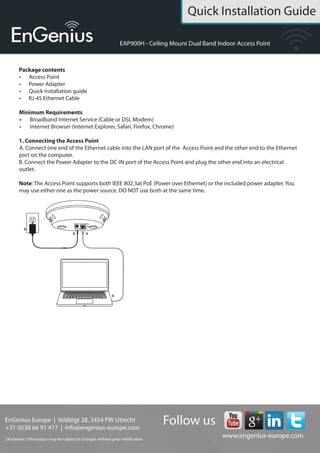
2. Connect one end of the Ethernet cable into the RJ-45 port of the EAP900H
and the other end to the RJ-45 port on the computer that will use the EAP900H.
Ensure that the cable is securely connected to both the EAP900H and the
computer.
3. Connect the power DC inlet to the DC-IN port of the EAP900H and the
power to the electrical outlet.
Note: The EAP900H supports both IEEE 802.3at PoE (power over Ethernet)
and regular power adapter. You should use either one as the power source.
Please do not apply both at the same time.
Computer setup
1. After ensuring the EnGenius device is powered on and plugged in, ensure
that your computer is on.
2. For the next steps, refer to your operating system user manual.
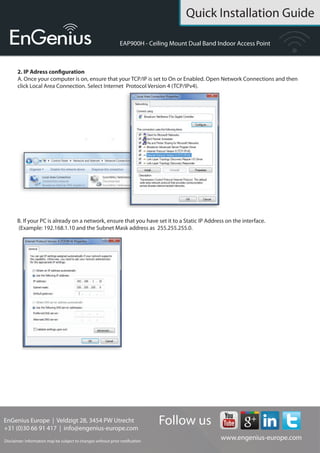
3. Once your computer is on, ensure that your TCP/IP is set to ON or
ENABLED. In the control panel, double click network connections and then
double click on the connection of your Network Interface Card (NIC). Select
Internet Protocol (TCP/IP) and then click on the properties button.
4. If your PC is already on a computer network, ensure that you have set it to
a Static IP adress on the interface (or Ethernet card that will use the EAP900H)
as 192.168.1.21 and the Subnet Mask address as 255.255.255.0. Select
‘Use the following IP address’-radio button. Once the computer has been
prepared, proceed to setting up the EAP900H.
EAP900H setup
1. To configure the EAP900H, open a web browser (example: Microsoft Internet
Explorer, MozillaFirefox, Google Chrome, etc.)
2. In the adress bar of the web browser, enter: 192.168.1.1 (the default IP
address of the EAP900H) and hit ENTER.
3. A login screen will appear. By default, the username of the EAP900H is
admin and the password is admin. Enter the current username and password of
the EAP900H and then click Login. Refer to the EAP900H user manual on how
to change the username and password.
4. After clicking ‘Login’ with the correct username an password, the EAP900H
main menu will appear. If you are successful, proceed to setting up the wireless
connection.
Quick Installation Guide
EnGenius Europe | Veldzigt 28, 3454 PW De Meern,
Netherlands | 0900-WIFIABC | www.wifiabc.com
Disclaimer: Information may be subject to changes without prior notification. Follow us
https://www.linkedin.com/company/engeniuseurope
https://plus.google.com/+EngeniusEuropeBVDeMeern
https://www.youtube.com/user/engeniuseuropebv
https://twitter.com/engeniuseu
EAP900H
Switching between operating modes
This device can operate in the following modes: Access point, WDS AP and
WDS Bridge.
A. Click on the operation mode link under the system navigation drop-down
menu.
B. Operating mode: Select an operating mode from the list (Access point, WDS
AP or WDS Bridge) and then click on the ‘Apply’-button.
C. All basic setup is completed. Note: The wireless connection is not secure. To
setup security on the EAP900H, refer to the EAP900H user manual.

Quick Installation Guide EnGenius EAP900H

  • 1.
    Quick Installation Guide EnGeniusEurope | Veldzigt 28, 3454 PW De Meern, Netherlands | 0900-WIFIABC | www.wifiabc.com Disclaimer: Information may be subject to changes without prior notification. Follow us https://www.linkedin.com/company/engeniuseurope https://plus.google.com/+EngeniusEuropeBVDeMeern https://www.youtube.com/user/engeniuseuropebv https://twitter.com/engeniuseu EAP900H Package content Unpack the box and verify the content: - EAP900H access point - Power adapter - Quick Installation Guide - RJ-45 Ethernet cable Minimum requirements - Broadband Internet Service (Cable or DSL Modem) - Internet Browser (Internet Explorer, Safari, Firefox, Chrome) Hardware installation 1. Ensure that the computer in use has an Ethernet Card (RJ-45 Ethernet port). For more information, verify with the user manual. 2. Connect one end of the Ethernet cable into the RJ-45 port of the EAP900H and the other end to the RJ-45 port on the computer that will use the EAP900H. Ensure that the cable is securely connected to both the EAP900H and the computer. 3. Connect the power DC inlet to the DC-IN port of the EAP900H and the power to the electrical outlet. Note: The EAP900H supports both IEEE 802.3at PoE (power over Ethernet) and regular power adapter. You should use either one as the power source. Please do not apply both at the same time. Computer setup 1. After ensuring the EnGenius device is powered on and plugged in, ensure that your computer is on. 2. For the next steps, refer to your operating system user manual. 3. Once your computer is on, ensure that your TCP/IP is set to ON or ENABLED. In the control panel, double click network connections and then double click on the connection of your Network Interface Card (NIC). Select Internet Protocol (TCP/IP) and then click on the properties button. 4. If your PC is already on a computer network, ensure that you have set it to a Static IP adress on the interface (or Ethernet card that will use the EAP900H) as 192.168.1.21 and the Subnet Mask address as 255.255.255.0. Select ‘Use the following IP address’-radio button. Once the computer has been prepared, proceed to setting up the EAP900H. EAP900H setup 1. To configure the EAP900H, open a web browser (example: Microsoft Internet Explorer, MozillaFirefox, Google Chrome, etc.) 2. In the adress bar of the web browser, enter: 192.168.1.1 (the default IP address of the EAP900H) and hit ENTER. 3. A login screen will appear. By default, the username of the EAP900H is admin and the password is admin. Enter the current username and password of the EAP900H and then click Login. Refer to the EAP900H user manual on how to change the username and password. 4. After clicking ‘Login’ with the correct username an password, the EAP900H main menu will appear. If you are successful, proceed to setting up the wireless connection.
  • 2.
    Quick Installation Guide EnGeniusEurope | Veldzigt 28, 3454 PW De Meern, Netherlands | 0900-WIFIABC | www.wifiabc.com Disclaimer: Information may be subject to changes without prior notification. Follow us https://www.linkedin.com/company/engeniuseurope https://plus.google.com/+EngeniusEuropeBVDeMeern https://www.youtube.com/user/engeniuseuropebv https://twitter.com/engeniuseu EAP900H Switching between operating modes This device can operate in the following modes: Access point, WDS AP and WDS Bridge. A. Click on the operation mode link under the system navigation drop-down menu. B. Operating mode: Select an operating mode from the list (Access point, WDS AP or WDS Bridge) and then click on the ‘Apply’-button. C. All basic setup is completed. Note: The wireless connection is not secure. To setup security on the EAP900H, refer to the EAP900H user manual.