






GDG DevFest @ Kathmandu, Nepal
Latest & Interesting updates
#AndroidDev
@pareshmayani
Paresh Mayani
Android Developer
Manager, GDG Ahmedabad
Interesting updates - #AndroidDev
• Android Studio
• Gradle Build System
• Volley Library
• Google Maps Android API v2
• Staged rollouts
• Alpha and Beta Testing
• Optimization Tips
• App Translation Service
@pareshmayani
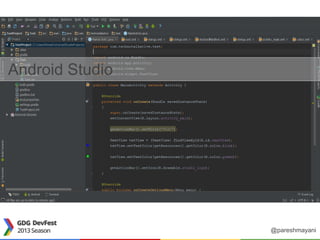
Android Studio
@pareshmayani
Android Studio
• Android focused IDE (designed
specifically for Android development)
• New Android development environment
based on IntelliJ IDEA
• Similar to Eclipse with the ADT Plug-in
• Contains All the Android SDK Tools to
design, test, debug, and profile your app
@pareshmayani
Gradle Build System
@pareshmayani
Gradle Build System
• Gradle is an advanced build
management system based on Groovy
• Its an Open source build system
• Combines the power of Ant and Maven
@pareshmayani
Features of Gradle build system
• Dependency Management (Flexible approach to
dependency management that can reuse existing maven
repositories or reference local JARs)
@pareshmayani
Features of Gradle build system
• Dependency Management (Flexible approach to
dependency management that can reuse existing maven
repositories or reference local JARs)
• A single build system (Gradle is the authoritative build
across the IDE and the command-line.)
@pareshmayani
Features of Gradle build system
• Dependency Management (Flexible approach to
dependency management that can reuse existing maven
repositories or reference local JARs)
• A single build system (Gradle is the authoritative build
across the IDE and the command-line.)
• Product Flavors (Free & Paid version), Build Variants (Play
store OR Amazon OR Any other store), Build Type (Debug,
QA, Release)
@pareshmayani
Features of Gradle build system
• Dependency Management (Flexible approach to
dependency management that can reuse existing maven
repositories or reference local JARs)
• A single build system (Gradle is the authoritative build
across the IDE and the command-line.)
• Product Flavors (Free & Paid version), Build Variants (Play
store OR Amazon OR Any other store), Build Type (Debug,
QA, Release)
• Binary Bundles for Libaries (.aar) (Gradle supports the new
.aar binary bundle format for the library projects)
@pareshmayani
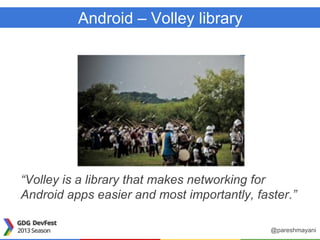
Volley – “the simultaneous firing of a
number of missiles”
@pareshmayani
Android – Volley library
“Volley is a library that makes networking for
Android apps easier and most importantly, faster.”
@pareshmayani
Advantages of using Volley Library
• Volley automatically schedule all network requests.
Volley will be taking care of all the network requests your app
executes for fetching response or image from web.
• Volley provides powerful customization abilities.
• Volley provides Debugging and tracing tools.
• Volley provides powerful cancellation request API.
- You can cancel a single request or
- You can set blocks or scopes of requests to cancel.
@pareshmayani
How to get started?
1. Clone the Volley project
2. Import the code into your project
@pareshmayani
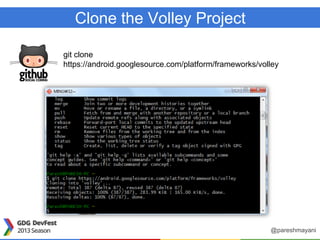
Clone the Volley Project
git clone
https://android.googlesource.com/platform/frameworks/volley
@pareshmayani
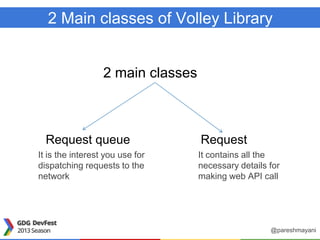
2 Main classes of Volley Library
2 main classes
Request queue
It is the interest you use for
dispatching requests to the
network
It contains all the
necessary details for
making web API call
Request
@pareshmayani
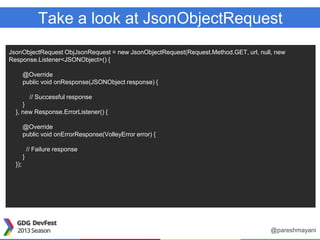
Take a look at JsonObjectRequest
JsonObjectRequest ObjJsonRequest = new JsonObjectRequest(Request.Method.GET, url, null, new
Response.Listener<JSONObject>() {
@Override
public void onResponse(JSONObject response) {
// Successful response
}
}, new Response.ErrorListener() {
@Override
public void onErrorResponse(VolleyError error) {
// Failure response
}
});
@pareshmayani
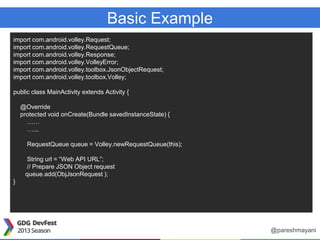
Basic Example
import com.android.volley.Request;
import com.android.volley.RequestQueue;
import com.android.volley.Response;
import com.android.volley.VolleyError;
import com.android.volley.toolbox.JsonObjectRequest;
import com.android.volley.toolbox.Volley;
public class MainActivity extends Activity {
@Override
protected void onCreate(Bundle savedInstanceState) {
……
…...
RequestQueue queue = Volley.newRequestQueue(this);
String url = “Web API URL”;
// Prepare JSON Object request
queue.add(ObjJsonRequest );
}
@pareshmayani
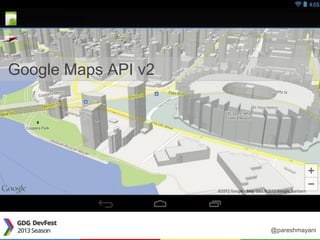
Google Maps API v2
@pareshmayani
Google Maps Android API v2
• With v2 of Maps Android API, you can embed maps into an
activity as a fragment
@pareshmayani
Google Maps Android API v2
• With v2 of Maps Android API, you can embed maps into an
activity as a fragment
• The API is now distributed as part of the Google Play
services SDK
@pareshmayani
Google Maps Android API v2
• With v2 of Maps Android API, you can embed maps into an
activity as a fragment
• The API is now distributed as part of the Google Play
services SDK
• Maps are now 3D
@pareshmayani
Google Maps Android API v2
• With v2 of Maps Android API, you can embed maps into an
activity as a fragment
• The API is now distributed as part of the Google Play
services SDK
• Maps are now 3D
• The Maps API now uses vector tiles. Their data
representation is smaller, so maps appear in your apps faster,
and use less bandwidth.
@pareshmayani
Google Maps Android API v2
• With v2 of Maps Android API, you can embed maps into an
activity as a fragment
• The API is now distributed as part of the Google Play
services SDK
• Maps are now 3D
• The Maps API now uses vector tiles. Their data
representation is smaller, so maps appear in your apps faster,
and use less bandwidth.
• Caching is improved
@pareshmayani
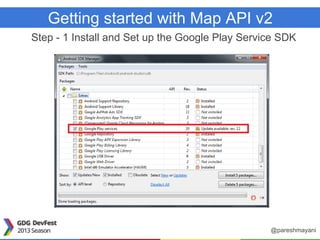
Getting started with Map API v2
Step - 1 Install and Set up the Google Play Service SDK
@pareshmayani
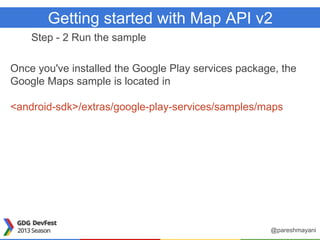
Getting started with Map API v2
Step - 2 Run the sample
Once you've installed the Google Play services package, the
Google Maps sample is located in
<android-sdk>/extras/google-play-services/samples/maps
@pareshmayani
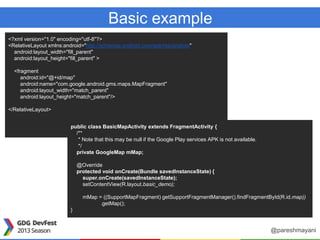
Basic example
<?xml version="1.0" encoding="utf-8"?>
<RelativeLayout xmlns:android="http://schemas.android.com/apk/res/android"
android:layout_width="fill_parent"
android:layout_height="fill_parent" >
<fragment
android:id="@+id/map"
android:name="com.google.android.gms.maps.MapFragment"
android:layout_width="match_parent"
android:layout_height="match_parent"/>
</RelativeLayout>
public class BasicMapActivity extends FragmentActivity {
/**
* Note that this may be null if the Google Play services APK is not available.
*/
private GoogleMap mMap;
@Override
protected void onCreate(Bundle savedInstanceState) {
super.onCreate(savedInstanceState);
setContentView(R.layout.basic_demo);
mMap = ((SupportMapFragment) getSupportFragmentManager().findFragmentById(R.id.map))
.getMap();
}
@pareshmayani
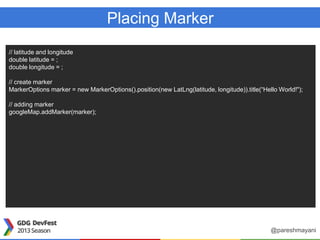
Placing Marker
// latitude and longitude
double latitude = ;
double longitude = ;
// create marker
MarkerOptions marker = new MarkerOptions().position(new LatLng(latitude, longitude)).title(“Hello World!");
// adding marker
googleMap.addMarker(marker);
@pareshmayani
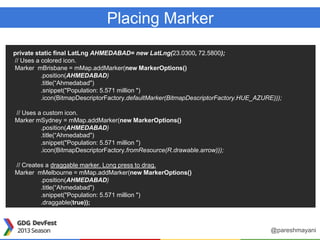
Placing Marker
private static final LatLng AHMEDABAD= new LatLng(23.0300, 72.5800);
// Uses a colored icon.
Marker mBrisbane = mMap.addMarker(new MarkerOptions()
.position(AHMEDABAD)
.title(“Ahmedabad")
.snippet("Population: 5.571 million ")
.icon(BitmapDescriptorFactory.defaultMarker(BitmapDescriptorFactory.HUE_AZURE)));
// Uses a custom icon.
Marker mSydney = mMap.addMarker(new MarkerOptions()
.position(AHMEDABAD)
.title(“Ahmedabad")
.snippet("Population: 5.571 million ")
.icon(BitmapDescriptorFactory.fromResource(R.drawable.arrow)));
// Creates a draggable marker. Long press to drag.
Marker mMelbourne = mMap.addMarker(new MarkerOptions()
.position(AHMEDABAD)
.title(“Ahmedabad")
.snippet("Population: 5.571 million ")
.draggable(true));
@pareshmayani
Staged Rollouts
@pareshmayani
Staged Rollouts
• With a staged rollout, you can
publish your app to a certain
percentage of the market first to
make sure that your app works
properly before rolling it out to
everybody.
• Users receiving the staged
rollout can leave public reviews
in Google Play.
@pareshmayani
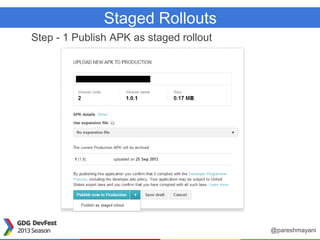
Staged Rollouts
Step - 1 Publish APK as staged rollout
@pareshmayani
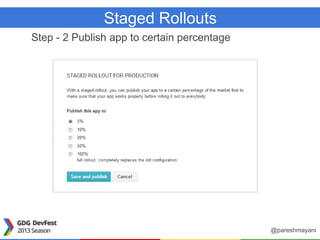
Staged Rollouts
Step - 2 Publish app to certain percentage
@pareshmayani
Alpha and Beta Testing
@pareshmayani
Alpha and Beta Testing
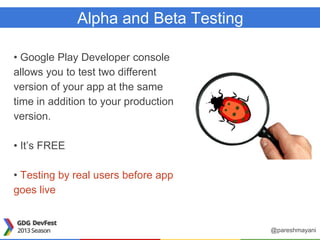
• Google Play Developer console
allows you to test two different
version of your app at the same
time in addition to your production
version.
• It’s FREE
• Testing by real users before app
goes live
@pareshmayani
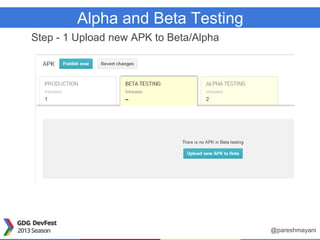
Alpha and Beta Testing
Step - 1 Upload new APK to Beta/Alpha
@pareshmayani
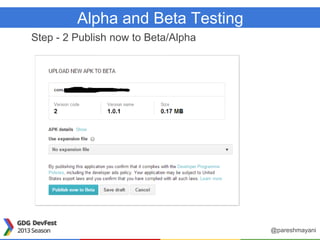
Alpha and Beta Testing
Step - 2 Publish now to Beta/Alpha
@pareshmayani
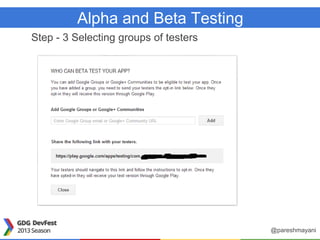
Alpha and Beta Testing
Step - 3 Selecting groups of testers
@pareshmayani
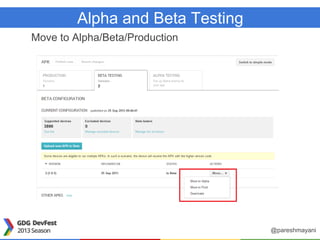
Alpha and Beta Testing
Move to Alpha/Beta/Production
@pareshmayani
Google Play ServicesOptimization Tips
@pareshmayani
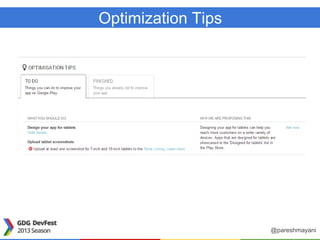
Optimization Tips
@pareshmayani
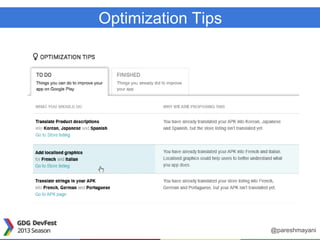
Optimization Tips
@pareshmayani
App Translation Service
@pareshmayani
App Translation Service
• Google Play can help you quickly find and purchase
translations of your app.
• In the Developer Console, you can browse a list of third-
party vendors who are pre-qualified by Google to offer high-
quality translation at competitive prices.
Steps:
1. Upload the strings you want translated, select the
languages you want to translate into.
2. Select your translation vendor based on time and price.
@pareshmayani
Links
1. https://github.com/PareshMayani/Android-Volley-Example
2. https://developers.google.com/maps/documentation/andro
id/
3. http://developer.android.com/distribute/googleplay/publish
/localizing.html#gp-trans
@pareshmayani
Paresh Mayani
Manager, GDG Ahmedabad
Android Developer
pareshmayani@gmail.com
@pareshmayani
< Stay in Touch >

Latest & interesting updates #android dev

  • 1.
    GDG DevFest @Kathmandu, Nepal
  • 2.
    Latest & Interestingupdates #AndroidDev @pareshmayani
  • 3.
  • 4.
    Interesting updates -#AndroidDev • Android Studio • Gradle Build System • Volley Library • Google Maps Android API v2 • Staged rollouts • Alpha and Beta Testing • Optimization Tips • App Translation Service @pareshmayani
  • 5.
  • 6.
    Android Studio • Androidfocused IDE (designed specifically for Android development) • New Android development environment based on IntelliJ IDEA • Similar to Eclipse with the ADT Plug-in • Contains All the Android SDK Tools to design, test, debug, and profile your app @pareshmayani
  • 7.
  • 8.
    Gradle Build System •Gradle is an advanced build management system based on Groovy • Its an Open source build system • Combines the power of Ant and Maven @pareshmayani
  • 9.
    Features of Gradlebuild system • Dependency Management (Flexible approach to dependency management that can reuse existing maven repositories or reference local JARs) @pareshmayani
  • 10.
    Features of Gradlebuild system • Dependency Management (Flexible approach to dependency management that can reuse existing maven repositories or reference local JARs) • A single build system (Gradle is the authoritative build across the IDE and the command-line.) @pareshmayani
  • 11.
    Features of Gradlebuild system • Dependency Management (Flexible approach to dependency management that can reuse existing maven repositories or reference local JARs) • A single build system (Gradle is the authoritative build across the IDE and the command-line.) • Product Flavors (Free & Paid version), Build Variants (Play store OR Amazon OR Any other store), Build Type (Debug, QA, Release) @pareshmayani
  • 12.
    Features of Gradlebuild system • Dependency Management (Flexible approach to dependency management that can reuse existing maven repositories or reference local JARs) • A single build system (Gradle is the authoritative build across the IDE and the command-line.) • Product Flavors (Free & Paid version), Build Variants (Play store OR Amazon OR Any other store), Build Type (Debug, QA, Release) • Binary Bundles for Libaries (.aar) (Gradle supports the new .aar binary bundle format for the library projects) @pareshmayani
  • 13.
    Volley – “thesimultaneous firing of a number of missiles” @pareshmayani
  • 14.
    Android – Volleylibrary “Volley is a library that makes networking for Android apps easier and most importantly, faster.” @pareshmayani
  • 15.
    Advantages of usingVolley Library • Volley automatically schedule all network requests. Volley will be taking care of all the network requests your app executes for fetching response or image from web. • Volley provides powerful customization abilities. • Volley provides Debugging and tracing tools. • Volley provides powerful cancellation request API. - You can cancel a single request or - You can set blocks or scopes of requests to cancel. @pareshmayani
  • 16.
    How to getstarted? 1. Clone the Volley project 2. Import the code into your project @pareshmayani
  • 17.
    Clone the VolleyProject git clone https://android.googlesource.com/platform/frameworks/volley @pareshmayani
  • 18.
    2 Main classesof Volley Library 2 main classes Request queue It is the interest you use for dispatching requests to the network It contains all the necessary details for making web API call Request @pareshmayani
  • 19.
    Take a lookat JsonObjectRequest JsonObjectRequest ObjJsonRequest = new JsonObjectRequest(Request.Method.GET, url, null, new Response.Listener<JSONObject>() { @Override public void onResponse(JSONObject response) { // Successful response } }, new Response.ErrorListener() { @Override public void onErrorResponse(VolleyError error) { // Failure response } }); @pareshmayani
  • 20.
    Basic Example import com.android.volley.Request; importcom.android.volley.RequestQueue; import com.android.volley.Response; import com.android.volley.VolleyError; import com.android.volley.toolbox.JsonObjectRequest; import com.android.volley.toolbox.Volley; public class MainActivity extends Activity { @Override protected void onCreate(Bundle savedInstanceState) { …… …... RequestQueue queue = Volley.newRequestQueue(this); String url = “Web API URL”; // Prepare JSON Object request queue.add(ObjJsonRequest ); } @pareshmayani
  • 21.
    Google Maps APIv2 @pareshmayani
  • 22.
    Google Maps AndroidAPI v2 • With v2 of Maps Android API, you can embed maps into an activity as a fragment @pareshmayani
  • 23.
    Google Maps AndroidAPI v2 • With v2 of Maps Android API, you can embed maps into an activity as a fragment • The API is now distributed as part of the Google Play services SDK @pareshmayani
  • 24.
    Google Maps AndroidAPI v2 • With v2 of Maps Android API, you can embed maps into an activity as a fragment • The API is now distributed as part of the Google Play services SDK • Maps are now 3D @pareshmayani
  • 25.
    Google Maps AndroidAPI v2 • With v2 of Maps Android API, you can embed maps into an activity as a fragment • The API is now distributed as part of the Google Play services SDK • Maps are now 3D • The Maps API now uses vector tiles. Their data representation is smaller, so maps appear in your apps faster, and use less bandwidth. @pareshmayani
  • 26.
    Google Maps AndroidAPI v2 • With v2 of Maps Android API, you can embed maps into an activity as a fragment • The API is now distributed as part of the Google Play services SDK • Maps are now 3D • The Maps API now uses vector tiles. Their data representation is smaller, so maps appear in your apps faster, and use less bandwidth. • Caching is improved @pareshmayani
  • 27.
    Getting started withMap API v2 Step - 1 Install and Set up the Google Play Service SDK @pareshmayani
  • 28.
    Getting started withMap API v2 Step - 2 Run the sample Once you've installed the Google Play services package, the Google Maps sample is located in <android-sdk>/extras/google-play-services/samples/maps @pareshmayani
  • 29.
    Basic example <?xml version="1.0"encoding="utf-8"?> <RelativeLayout xmlns:android="http://schemas.android.com/apk/res/android" android:layout_width="fill_parent" android:layout_height="fill_parent" > <fragment android:id="@+id/map" android:name="com.google.android.gms.maps.MapFragment" android:layout_width="match_parent" android:layout_height="match_parent"/> </RelativeLayout> public class BasicMapActivity extends FragmentActivity { /** * Note that this may be null if the Google Play services APK is not available. */ private GoogleMap mMap; @Override protected void onCreate(Bundle savedInstanceState) { super.onCreate(savedInstanceState); setContentView(R.layout.basic_demo); mMap = ((SupportMapFragment) getSupportFragmentManager().findFragmentById(R.id.map)) .getMap(); } @pareshmayani
  • 30.
    Placing Marker // latitudeand longitude double latitude = ; double longitude = ; // create marker MarkerOptions marker = new MarkerOptions().position(new LatLng(latitude, longitude)).title(“Hello World!"); // adding marker googleMap.addMarker(marker); @pareshmayani
  • 31.
    Placing Marker private staticfinal LatLng AHMEDABAD= new LatLng(23.0300, 72.5800); // Uses a colored icon. Marker mBrisbane = mMap.addMarker(new MarkerOptions() .position(AHMEDABAD) .title(“Ahmedabad") .snippet("Population: 5.571 million ") .icon(BitmapDescriptorFactory.defaultMarker(BitmapDescriptorFactory.HUE_AZURE))); // Uses a custom icon. Marker mSydney = mMap.addMarker(new MarkerOptions() .position(AHMEDABAD) .title(“Ahmedabad") .snippet("Population: 5.571 million ") .icon(BitmapDescriptorFactory.fromResource(R.drawable.arrow))); // Creates a draggable marker. Long press to drag. Marker mMelbourne = mMap.addMarker(new MarkerOptions() .position(AHMEDABAD) .title(“Ahmedabad") .snippet("Population: 5.571 million ") .draggable(true)); @pareshmayani
  • 32.
  • 33.
    Staged Rollouts • Witha staged rollout, you can publish your app to a certain percentage of the market first to make sure that your app works properly before rolling it out to everybody. • Users receiving the staged rollout can leave public reviews in Google Play. @pareshmayani
  • 34.
    Staged Rollouts Step -1 Publish APK as staged rollout @pareshmayani
  • 35.
    Staged Rollouts Step -2 Publish app to certain percentage @pareshmayani
  • 36.
    Alpha and BetaTesting @pareshmayani
  • 37.
    Alpha and BetaTesting • Google Play Developer console allows you to test two different version of your app at the same time in addition to your production version. • It’s FREE • Testing by real users before app goes live @pareshmayani
  • 38.
    Alpha and BetaTesting Step - 1 Upload new APK to Beta/Alpha @pareshmayani
  • 39.
    Alpha and BetaTesting Step - 2 Publish now to Beta/Alpha @pareshmayani
  • 40.
    Alpha and BetaTesting Step - 3 Selecting groups of testers @pareshmayani
  • 41.
    Alpha and BetaTesting Move to Alpha/Beta/Production @pareshmayani
  • 42.
  • 43.
  • 44.
  • 45.
  • 46.
    App Translation Service •Google Play can help you quickly find and purchase translations of your app. • In the Developer Console, you can browse a list of third- party vendors who are pre-qualified by Google to offer high- quality translation at competitive prices. Steps: 1. Upload the strings you want translated, select the languages you want to translate into. 2. Select your translation vendor based on time and price. @pareshmayani
  • 47.
    Links 1. https://github.com/PareshMayani/Android-Volley-Example 2. https://developers.google.com/maps/documentation/andro id/ 3.http://developer.android.com/distribute/googleplay/publish /localizing.html#gp-trans @pareshmayani
  • 48.
    Paresh Mayani Manager, GDGAhmedabad Android Developer pareshmayani@gmail.com @pareshmayani < Stay in Touch >