Pspug.book Page 1 Tuesday, May 16, 2000 1:17 PM


                                                                                         PSpice®
                                                  includes PSpice A/D, PSpice A/D Basics, and PSpice


                                                                           User’s Guide
Pspug.book Page 2 Tuesday, May 16, 2000 1:17 PM


         Copyright © 1985-2000 Cadence Design Systems, Inc. All rights reserved.

         Trademarks
         Allegro, Ambit, BuildGates, Cadence, Cadence logo, Concept, Diva, Dracula, Gate
         Ensemble, NC Verilog, OpenBook online documentation library, Orcad, Orcad
         Capture, PSpice, SourceLink online customer support, SPECCTRA, Spectre, Vampire,
         Verifault-XL, Verilog, Verilog-XL, and Virtuoso are registered trademarks of Cadence
         Design Systems, Inc.
         Affirma, Assura, Cierto, Envisia, Mercury Plus, Quickturn, Radium, Silicon Ensemble,
         and SPECCTRAQuest are trademarks of Cadence Design Systems, Inc.
         Alanza is a service mark of Cadence Design Systems, Inc.
         All other brand and product names mentioned herein are used for identification
         purposes only and are registered trademarks, trademarks, or service marks of their
         respective holders.


         Part Number 60-30-632
         Second Edition 31 May 2000


         Cadence PCB Systems Division (PSD) offices
          PSD main office (Portland)      (503) 671-9500
          PSD Irvine office               (949) 788-6080
          PSD Japan office                81-45-682-5770
          PSD UK office                   44-1256-381-400
         PSD customer support                     (877) 237-4911
         PSD web site                             www.orcad.com
         PSD customer support web page            www.orcad.com/technical/technical.asp
         PSD customer support email form          www.orcad.com/technical/email_support.asp


         Cadence PCB Systems Division
         13221 SW 68th Parkway, Suite 200
         Portland, OR 97223
Pspug.book Page iii Tuesday, May 16, 2000 1:17 PM


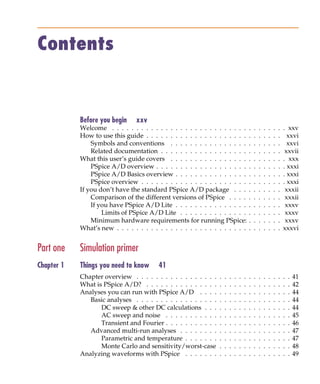
            Contents


                                   Before you begin     xxv
                                   Welcome . . . . . . . . . . . . . . . . . . . . . . . . . . . .               .   .   .   .   .   .   .   . xxv
                                   How to use this guide . . . . . . . . . . . . . . . . . . . . .               .   .   .   .   .   .   .     xxvi
                                       Symbols and conventions . . . . . . . . . . . . . . . .                   .   .   .   .   .   .   .     xxvi
                                       Related documentation . . . . . . . . . . . . . . . . . .                 .   .   .   .   .   .   .    xxvii
                                   What this user’s guide covers . . . . . . . . . . . . . . . .                 .   .   .   .   .   .   .   . xxx
                                       PSpice A/D overview . . . . . . . . . . . . . . . . . . .                 .   .   .   .   .   .   .   . xxxi
                                       PSpice A/D Basics overview . . . . . . . . . . . . . . .                  .   .   .   .   .   .   .   . xxxi
                                       PSpice overview . . . . . . . . . . . . . . . . . . . . . .               .   .   .   .   .   .   .   . xxxi
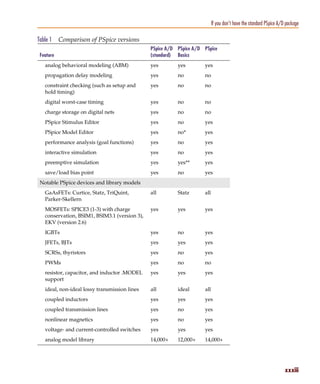
                                   If you don’t have the standard PSpice A/D package . . .                       .   .   .   .   .   .   .    xxxii
                                       Comparison of the different versions of PSpice . . . .                    .   .   .   .   .   .   .    xxxii
                                       If you have PSpice A/D Lite . . . . . . . . . . . . . . .                 .   .   .   .   .   .   .    xxxv
                                           Limits of PSpice A/D Lite . . . . . . . . . . . . . .                 .   .   .   .   .   .   .    xxxv
                                       Minimum hardware requirements for running PSpice:                         .   .   .   .   .   .   .    xxxv
                                   What’s new . . . . . . . . . . . . . . . . . . . . . . . . . . .              .   .   .   .   .   .   .   xxxvi


            Part one               Simulation primer
            Chapter 1              Things you need to know       41
                                   Chapter overview . . . . . . . . . . . . . . . . .    .   .   .   .   .   .   .   .   .   .   .   .   .   .   .   41
                                   What is PSpice A/D? . . . . . . . . . . . . . . .     .   .   .   .   .   .   .   .   .   .   .   .   .   .   .   42
                                   Analyses you can run with PSpice A/D . . . .          .   .   .   .   .   .   .   .   .   .   .   .   .   .   .   44
                                      Basic analyses . . . . . . . . . . . . . . . . .   .   .   .   .   .   .   .   .   .   .   .   .   .   .   .   44
                                          DC sweep & other DC calculations . . .         .   .   .   .   .   .   .   .   .   .   .   .   .   .   .   44
                                          AC sweep and noise . . . . . . . . . . .       .   .   .   .   .   .   .   .   .   .   .   .   .   .   .   45
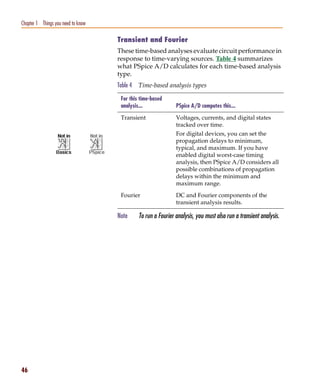
                                          Transient and Fourier . . . . . . . . . . .    .   .   .   .   .   .   .   .   .   .   .   .   .   .   .   46
                                      Advanced multi-run analyses . . . . . . . .        .   .   .   .   .   .   .   .   .   .   .   .   .   .   .   47
                                          Parametric and temperature . . . . . . .       .   .   .   .   .   .   .   .   .   .   .   .   .   .   .   47
                                          Monte Carlo and sensitivity/worst-case         .   .   .   .   .   .   .   .   .   .   .   .   .   .   .   48
                                   Analyzing waveforms with PSpice . . . . . . .         .   .   .   .   .   .   .   .   .   .   .   .   .   .   .   49
Pspug.book Page iv Tuesday, May 16, 2000 1:17 PM


   Contents

                              What is waveform analysis? . . . . . . . . . . . . . . . . .             .   .   .   .   .   .   49
                          Using PSpice with Orcad programs . . . . . . . . . . . . . . .               .   .   .   .   .   .   50
                              Using Capture to prepare for simulation . . . . . . . . . .              .   .   .   .   .   .   50
                              What is the PSpice Stimulus Editor? . . . . . . . . . . . .              .   .   .   .   .   .   50
                              What is the PSpice Model Editor? . . . . . . . . . . . . . .             .   .   .   .   .   .   51
                          Files needed for simulation . . . . . . . . . . . . . . . . . . . .          .   .   .   .   .   .   51
                              Files that Capture generates . . . . . . . . . . . . . . . . .           .   .   .   .   .   .   51
                                  Netlist file . . . . . . . . . . . . . . . . . . . . . . . . . .     .   .   .   .   .   .   52
                                  Circuit file . . . . . . . . . . . . . . . . . . . . . . . . .       .   .   .   .   .   .   52
                              Other files that you can configure for simulation . . . . .              .   .   .   .   .   .   52
                                  Model library . . . . . . . . . . . . . . . . . . . . . . . .        .   .   .   .   .   .   53
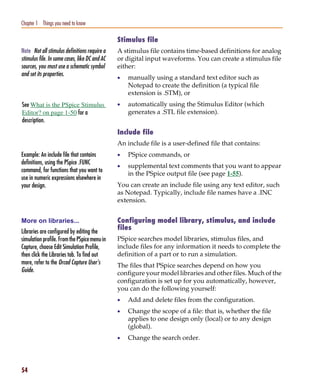
                                  Stimulus file . . . . . . . . . . . . . . . . . . . . . . . .        .   .   .   .   .   .   54
                                  Include file . . . . . . . . . . . . . . . . . . . . . . . . .       .   .   .   .   .   .   54
                                  Configuring model library, stimulus, and include files               .   .   .   .   .   .   54
                          Files that PSpice generates . . . . . . . . . . . . . . . . . . . .          .   .   .   .   .   .   55
                                  Waveform data file . . . . . . . . . . . . . . . . . . . .           .   .   .   .   .   .   55
                                  PSpice output file . . . . . . . . . . . . . . . . . . . . .         .   .   .   .   .   .   55

   Chapter 2              Simulation examples       57
                          Chapter overview . . . . . . . . . . . . . . . . . . . . . . .       .   .   .   .   .   .   .   .   57
                          Example circuit creation . . . . . . . . . . . . . . . . . . . .     .   .   .   .   .   .   .   .   58
                             Finding out more about setting up your design . . . .             .   .   .   .   .   .   .   .   63
                          Running PSpice . . . . . . . . . . . . . . . . . . . . . . . . .     .   .   .   .   .   .   .   .   64
                             Performing a bias point analysis . . . . . . . . . . . . .        .   .   .   .   .   .   .   .   64
                             Using the simulation output file . . . . . . . . . . . . .        .   .   .   .   .   .   .   .   66
                             Finding out more about bias point calculations . . . .            .   .   .   .   .   .   .   .   67
                          DC sweep analysis . . . . . . . . . . . . . . . . . . . . . . .      .   .   .   .   .   .   .   .   68
                             Setting up and running a DC sweep analysis . . . . . .            .   .   .   .   .   .   .   .   68
                             Displaying DC analysis results . . . . . . . . . . . . . .        .   .   .   .   .   .   .   .   70
                             Finding out more about DC sweep analysis . . . . . .              .   .   .   .   .   .   .   .   73
                          Transient analysis . . . . . . . . . . . . . . . . . . . . . . .     .   .   .   .   .   .   .   .   74
                             Finding out more about transient analysis . . . . . . .           .   .   .   .   .   .   .   .   78
                          AC sweep analysis . . . . . . . . . . . . . . . . . . . . . . .      .   .   .   .   .   .   .   .   79
                             Setting up and running an AC sweep analysis . . . . .             .   .   .   .   .   .   .   .   79
                             AC sweep analysis results . . . . . . . . . . . . . . . .         .   .   .   .   .   .   .   .   81
                             Finding out more about AC sweep and noise analysis                .   .   .   .   .   .   .   .   83
                          Parametric analysis . . . . . . . . . . . . . . . . . . . . . . .    .   .   .   .   .   .   .   .   84
                             Setting up and running the parametric analysis . . . .            .   .   .   .   .   .   .   .   85
                             Analyzing waveform families . . . . . . . . . . . . . .           .   .   .   .   .   .   .   .   87
                             Finding out more about parametric analysis . . . . . .            .   .   .   .   .   .   .   .   89
                          Performance analysis . . . . . . . . . . . . . . . . . . . . .       .   .   .   .   .   .   .   .   90

   iv
Pspug.book Page v Tuesday, May 16, 2000 1:17 PM


                                                                                                                         Contents

                                       Finding out more about performance analysis . . . . . . . . . . . . . . 92


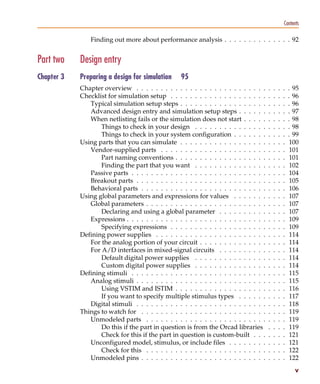
            Part two              Design entry
            Chapter 3             Preparing a design for simulation      95
                                  Chapter overview . . . . . . . . . . . . . . . . . . . . . . . . . . .     .   .   .   .   . 95
                                  Checklist for simulation setup . . . . . . . . . . . . . . . . . . . .     .   .   .   .   . 96
                                     Typical simulation setup steps . . . . . . . . . . . . . . . . . .      .   .   .   .   . 96
                                     Advanced design entry and simulation setup steps . . . . . .            .   .   .   .   . 97
                                     When netlisting fails or the simulation does not start . . . . .        .   .   .   .   . 98
                                         Things to check in your design . . . . . . . . . . . . . . .        .   .   .   .   . 98
                                         Things to check in your system configuration . . . . . . .          .   .   .   .   . 99
                                  Using parts that you can simulate . . . . . . . . . . . . . . . . . .      .   .   .   .    100
                                     Vendor-supplied parts . . . . . . . . . . . . . . . . . . . . . .       .   .   .   .    101
                                         Part naming conventions . . . . . . . . . . . . . . . . . . .       .   .   .   .    101
                                         Finding the part that you want . . . . . . . . . . . . . . .        .   .   .   .    102
                                     Passive parts . . . . . . . . . . . . . . . . . . . . . . . . . . . .   .   .   .   .    104
                                     Breakout parts . . . . . . . . . . . . . . . . . . . . . . . . . . .    .   .   .   .    105
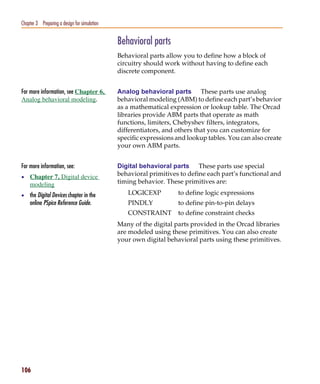
                                     Behavioral parts . . . . . . . . . . . . . . . . . . . . . . . . . .    .   .   .   .    106
                                  Using global parameters and expressions for values . . . . . . .           .   .   .   .    107
                                     Global parameters . . . . . . . . . . . . . . . . . . . . . . . . .     .   .   .   .    107
                                         Declaring and using a global parameter . . . . . . . . . .          .   .   .   .    107
                                     Expressions . . . . . . . . . . . . . . . . . . . . . . . . . . . . .   .   .   .   .    109
                                         Specifying expressions . . . . . . . . . . . . . . . . . . . .      .   .   .   .    109
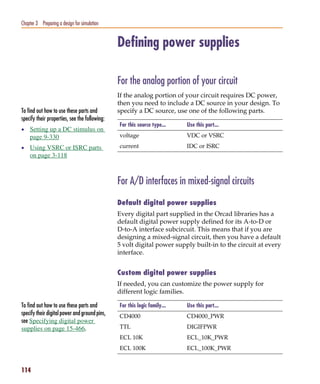
                                  Defining power supplies . . . . . . . . . . . . . . . . . . . . . . .      .   .   .   .    114
                                     For the analog portion of your circuit . . . . . . . . . . . . . .      .   .   .   .    114
                                     For A/D interfaces in mixed-signal circuits . . . . . . . . . .         .   .   .   .    114
                                         Default digital power supplies . . . . . . . . . . . . . . .        .   .   .   .    114
                                         Custom digital power supplies . . . . . . . . . . . . . . .         .   .   .   .    114
                                  Defining stimuli . . . . . . . . . . . . . . . . . . . . . . . . . . . .   .   .   .   .    115
                                     Analog stimuli . . . . . . . . . . . . . . . . . . . . . . . . . . .    .   .   .   .    115
                                         Using VSTIM and ISTIM . . . . . . . . . . . . . . . . . . .         .   .   .   .    116
                                         If you want to specify multiple stimulus types . . . . . .          .   .   .   .    117
                                     Digital stimuli . . . . . . . . . . . . . . . . . . . . . . . . . . .   .   .   .   .    118
                                  Things to watch for . . . . . . . . . . . . . . . . . . . . . . . . . .    .   .   .   .    119
                                     Unmodeled parts . . . . . . . . . . . . . . . . . . . . . . . . .       .   .   .   .    119
                                         Do this if the part in question is from the Orcad libraries         .   .   .   .    119
                                         Check for this if the part in question is custom-built . . .        .   .   .   .    121
                                     Unconfigured model, stimulus, or include files . . . . . . . .          .   .   .   .    121
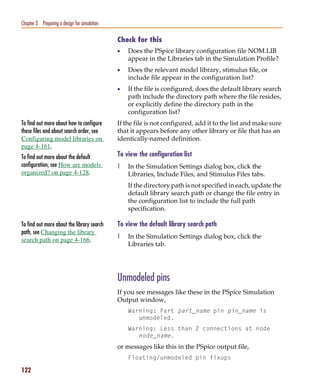
                                         Check for this . . . . . . . . . . . . . . . . . . . . . . . . .    .   .   .   .    122
                                     Unmodeled pins . . . . . . . . . . . . . . . . . . . . . . . . . .      .   .   .   .    122
                                                                                                                               v
Pspug.book Page vi Tuesday, May 16, 2000 1:17 PM


   Contents

                                  Check for this . . . . .   .   .   .   .   .   .   .   .   .   .   .   .   .   .   .   .   .   .   .   .   .   .   .   .   123
                               Missing ground . . . . . .    .   .   .   .   .   .   .   .   .   .   .   .   .   .   .   .   .   .   .   .   .   .   .   .   123
                                  Check for this . . . . .   .   .   .   .   .   .   .   .   .   .   .   .   .   .   .   .   .   .   .   .   .   .   .   .   123
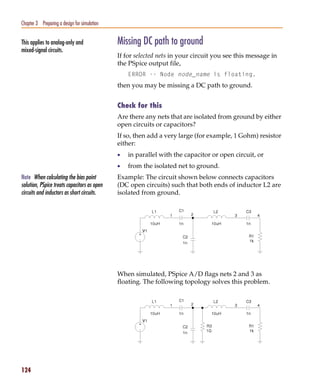
                               Missing DC path to ground     .   .   .   .   .   .   .   .   .   .   .   .   .   .   .   .   .   .   .   .   .   .   .   .   124
                                  Check for this . . . . .   .   .   .   .   .   .   .   .   .   .   .   .   .   .   .   .   .   .   .   .   .   .   .   .   124

   Chapter 4              Creating and editing models      125
                          Chapter overview . . . . . . . . . . . . . . . . . . . . . . . . .                                         .   .   .   .   .   .   125
                          What are models? . . . . . . . . . . . . . . . . . . . . . . . . .                                         .   .   .   .   .   .   127
                                  Models defined as model parameter sets . . . . . . . .                                             .   .   .   .   .   .   127
                                  Models defined as subcircuit netlists . . . . . . . . . .                                          .   .   .   .   .   .   127
                          How are models organized? . . . . . . . . . . . . . . . . . . .                                            .   .   .   .   .   .   128
                             Model libraries . . . . . . . . . . . . . . . . . . . . . . . . .                                       .   .   .   .   .   .   128
                             Model library configuration . . . . . . . . . . . . . . . . .                                           .   .   .   .   .   .   129
                             Global vs. design models and libraries . . . . . . . . . . .                                            .   .   .   .   .   .   129
                             Nested model libraries . . . . . . . . . . . . . . . . . . . .                                          .   .   .   .   .   .   130
                             Orcad-provided models . . . . . . . . . . . . . . . . . . . .                                           .   .   .   .   .   .   130
                          Tools to create and edit models . . . . . . . . . . . . . . . . . .                                        .   .   .   .   .   .   131
                          Ways to create and edit models . . . . . . . . . . . . . . . . . .                                         .   .   .   .   .   .   132
                          Using the Model Editor to edit models . . . . . . . . . . . . .                                            .   .   .   .   .   .   134
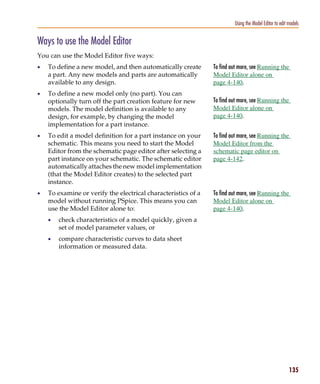
                             Ways to use the Model Editor . . . . . . . . . . . . . . . .                                            .   .   .   .   .   .   135
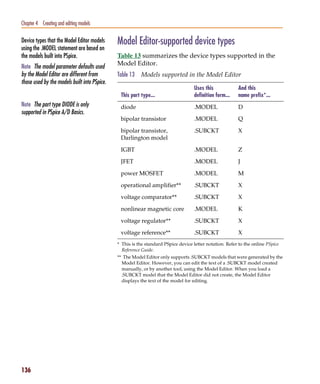
                             Model Editor-supported device types . . . . . . . . . . . .                                             .   .   .   .   .   .   136
                             Ways To Characterize Models . . . . . . . . . . . . . . . .                                             .   .   .   .   .   .   137
                                  Creating models from data sheet information . . . . .                                              .   .   .   .   .   .   137
                                  Analyzing the effect of model parameters
                                          on device characteristics . . . . . . . . . . . . .                                        .   .   .   .   .   .   138
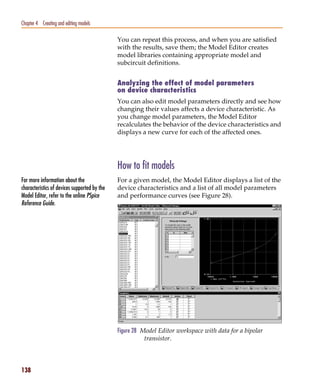
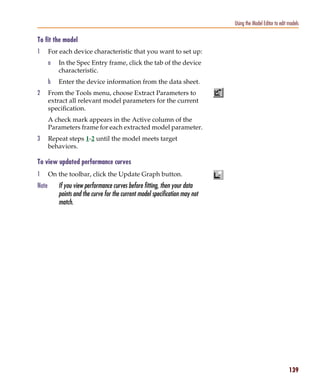
                             How to fit models . . . . . . . . . . . . . . . . . . . . . . .                                         .   .   .   .   .   .   138
                             Running the Model Editor alone . . . . . . . . . . . . . . .                                            .   .   .   .   .   .   140
                                  Starting the Model Editor . . . . . . . . . . . . . . . . .                                        .   .   .   .   .   .   140
                                  Enabling and disabling automatic part creation . . . .                                             .   .   .   .   .   .   141
                                  Saving global models (and parts) . . . . . . . . . . . .                                           .   .   .   .   .   .   141
                             Running the Model Editor from the schematic page editor                                                 .   .   .   .   .   .   142
                                  What is an instance model? . . . . . . . . . . . . . . . .                                         .   .   .   .   .   .   142
                                  Starting the Model Editor . . . . . . . . . . . . . . . . .                                        .   .   .   .   .   .   143
                                  Saving design models . . . . . . . . . . . . . . . . . . .                                         .   .   .   .   .   .   143
                                  What happens if you don’t save the instance model . .                                              .   .   .   .   .   .   144
                             The Model Editor tutorial . . . . . . . . . . . . . . . . . . .                                         .   .   .   .   .   .   145
                                  Creating the half-wave rectifier design . . . . . . . . .                                          .   .   .   .   .   .   145
                                  Using the Model Editor to edit the D1 diode model . .                                              .   .   .   .   .   .   146
                                  Entering data sheet information . . . . . . . . . . . . .                                          .   .   .   .   .   .   146
                                  Extracting model parameters . . . . . . . . . . . . . . .                                          .   .   .   .   .   .   149

   vi
Pspug.book Page vii Tuesday, May 16, 2000 1:17 PM


                                                                                                                                          Contents

                                         Adding curves for more than one temperature . . . . .                            .   .   .   .   .   149
                                         Completing the model definition . . . . . . . . . . . . .                        .   .   .   .   .   150
                                  Editing model text . . . . . . . . . . . . . . . . . . . . . . . . . .                  .   .   .   .   .   151
                                         Editing .MODEL definitions . . . . . . . . . . . . . . . .                       .   .   .   .   .   152
                                         Editing .SUBCKT definitions . . . . . . . . . . . . . . .                        .   .   .   .   .   152
                                         Changing the model name . . . . . . . . . . . . . . . . .                        .   .   .   .   .   152
                                     Starting the Model Editor from the schematic page
                                             editor in Capture . . . . . . . . . . . . . . . . . . . .                    .   .   .   .   .   152
                                         What is an instance model? . . . . . . . . . . . . . . . .                       .   .   .   .   .   153
                                         Starting the Model Editor . . . . . . . . . . . . . . . . .                      .   .   .   .   .   153
                                         Saving design models . . . . . . . . . . . . . . . . . . .                       .   .   .   .   .   154
                                     Example: editing a Q2N2222 instance model . . . . . . . . .                          .   .   .   .   .   155
                                         Starting the Model Editor . . . . . . . . . . . . . . . . .                      .   .   .   .   .   155
                                         Editing the Q2N2222-X model instance . . . . . . . . .                           .   .   .   .   .   155
                                         Saving the edits and updating the schematic . . . . . .                          .   .   .   .   .   156
                                  Using the Create Subcircuit command . . . . . . . . . . . . . .                         .   .   .   .   .   156
                                  Changing the model reference to an existing model definition .                          .   .   .   .   .   158
                                  Reusing instance models . . . . . . . . . . . . . . . . . . . . . .                     .   .   .   .   .   159
                                     Reusing instance models in the same schematic . . . . . . .                          .   .   .   .   .   159
                                     Making instance models available to all designs . . . . . .                          .   .   .   .   .   160
                                  Configuring model libraries . . . . . . . . . . . . . . . . . . . .                     .   .   .   .   .   161
                                     The Libraries and Include Files tabs . . . . . . . . . . . . . .                     .   .   .   .   .   161
                                     How PSpice uses model libraries . . . . . . . . . . . . . . .                        .   .   .   .   .   162
                                         Search order . . . . . . . . . . . . . . . . . . . . . . . . .                   .   .   .   .   .   162
                                         Handling duplicate model names . . . . . . . . . . . . .                         .   .   .   .   .   163
                                     Adding model libraries to the configuration . . . . . . . . .                        .   .   .   .   .   163
                                     Changing design and global scope . . . . . . . . . . . . . .                         .   .   .   .   .   164
                                     Changing model library search order . . . . . . . . . . . . .                        .   .   .   .   .   165
                                     Changing the library search path . . . . . . . . . . . . . . .                       .   .   .   .   .   166

            Chapter 5             Creating parts for models     167
                                  Chapter overview . . . . . . . . . . . . . . . . . .    .   .   .   .   .   .   .   .   .   .   .   .   .   167
                                  What’s different about parts used for simulation?       .   .   .   .   .   .   .   .   .   .   .   .   .   169
                                  Ways to create parts for models . . . . . . . . . .     .   .   .   .   .   .   .   .   .   .   .   .   .   170
                                  Preparing your models for part creation . . . . .       .   .   .   .   .   .   .   .   .   .   .   .   .   171
                                  Using the Model Editor to create parts . . . . . .      .   .   .   .   .   .   .   .   .   .   .   .   .   172
                                     Starting the Model Editor . . . . . . . . . . . .    .   .   .   .   .   .   .   .   .   .   .   .   .   172
                                     Setting up automatic part creation . . . . . .       .   .   .   .   .   .   .   .   .   .   .   .   .   173
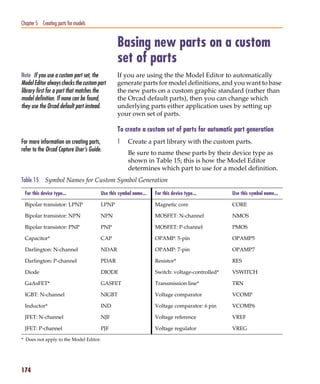
                                  Basing new parts on a custom set of parts . . . .       .   .   .   .   .   .   .   .   .   .   .   .   .   174
                                  Editing part graphics . . . . . . . . . . . . . . . .   .   .   .   .   .   .   .   .   .   .   .   .   .   176
                                     How Capture places parts . . . . . . . . . . .       .   .   .   .   .   .   .   .   .   .   .   .   .   176

                                                                                                                                              vii
Pspug.book Page viii Tuesday, May 16, 2000 1:17 PM


   Contents

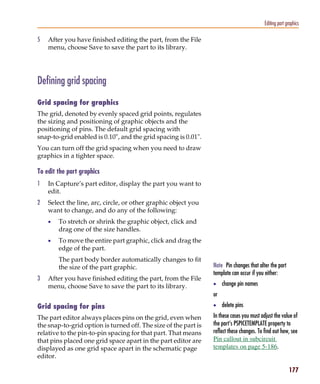
                             Defining grid spacing . . . . . . . . . . . . .     .   .   .   .   .   .   .   .   .   .   .   .   .   .   177
                                 Grid spacing for graphics . . . . . . . . .     .   .   .   .   .   .   .   .   .   .   .   .   .   .   177
                                 Grid spacing for pins . . . . . . . . . . .     .   .   .   .   .   .   .   .   .   .   .   .   .   .   177
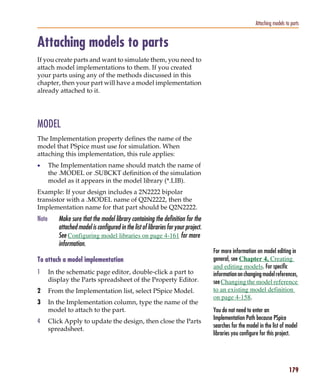
                          Attaching models to parts . . . . . . . . . . . . .    .   .   .   .   .   .   .   .   .   .   .   .   .   .   179
                             MODEL . . . . . . . . . . . . . . . . . . . . .     .   .   .   .   .   .   .   .   .   .   .   .   .   .   179
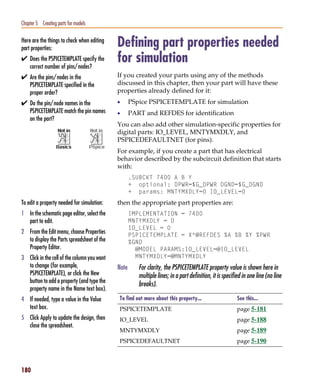
                          Defining part properties needed for simulation         .   .   .   .   .   .   .   .   .   .   .   .   .   .   180
                             PSPICETEMPLATE . . . . . . . . . . . . . .          .   .   .   .   .   .   .   .   .   .   .   .   .   .   181
                                 PSPICETEMPLATE syntax . . . . . . . .           .   .   .   .   .   .   .   .   .   .   .   .   .   .   181
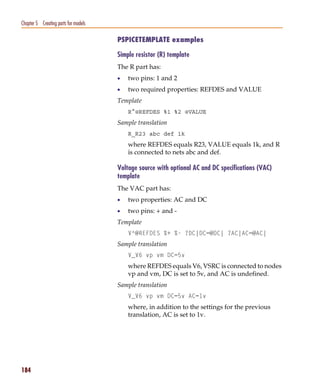
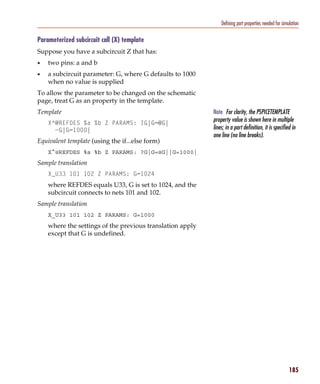
                                 PSPICETEMPLATE examples . . . . . .             .   .   .   .   .   .   .   .   .   .   .   .   .   .   184
                             IO_LEVEL . . . . . . . . . . . . . . . . . . .      .   .   .   .   .   .   .   .   .   .   .   .   .   .   188
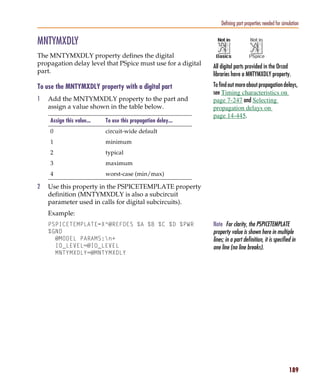
                             MNTYMXDLY . . . . . . . . . . . . . . . . .         .   .   .   .   .   .   .   .   .   .   .   .   .   .   189
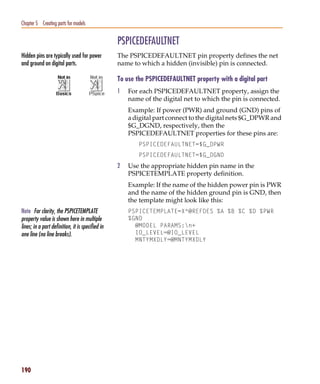
                             PSPICEDEFAULTNET . . . . . . . . . . . .            .   .   .   .   .   .   .   .   .   .   .   .   .   .   190

   Chapter 6              Analog behavioral modeling       191
                          Chapter overview . . . . . . . . . . . . . . . . . . . . . . . .                   .   .   .   .   .   .   .   191
                          Overview of analog behavioral modeling . . . . . . . . . . .                       .   .   .   .   .   .   .   192
                          The ABM.OLB part library file . . . . . . . . . . . . . . . . .                    .   .   .   .   .   .   .   193
                          Placing and specifying ABM parts . . . . . . . . . . . . . . .                     .   .   .   .   .   .   .   194
                              Net names and device names in ABM expressions . . .                            .   .   .   .   .   .   .   194
                              Forcing the use of a global definition . . . . . . . . . . .                   .   .   .   .   .   .   .   195
                          ABM part templates . . . . . . . . . . . . . . . . . . . . . . .                   .   .   .   .   .   .   .   196
                          Control system parts . . . . . . . . . . . . . . . . . . . . . . .                 .   .   .   .   .   .   .   197
                              Basic components . . . . . . . . . . . . . . . . . . . . . .                   .   .   .   .   .   .   .   199
                              Limiters . . . . . . . . . . . . . . . . . . . . . . . . . . . .               .   .   .   .   .   .   .   200
                              Chebyshev filters . . . . . . . . . . . . . . . . . . . . . . .                .   .   .   .   .   .   .   201
                              Integrator and differentiator . . . . . . . . . . . . . . . .                  .   .   .   .   .   .   .   204
                              Table look-up parts . . . . . . . . . . . . . . . . . . . . .                  .   .   .   .   .   .   .   204
                              Laplace transform part . . . . . . . . . . . . . . . . . . .                   .   .   .   .   .   .   .   208
                              Math functions . . . . . . . . . . . . . . . . . . . . . . . .                 .   .   .   .   .   .   .   211
                              ABM expression parts . . . . . . . . . . . . . . . . . . .                     .   .   .   .   .   .   .   212
                              An instantaneous device example: modeling a triode . .                         .   .   .   .   .   .   .   215
                          PSpice-equivalent parts . . . . . . . . . . . . . . . . . . . . .                  .   .   .   .   .   .   .   218
                              Implementation of PSpice-equivalent parts . . . . . . . .                      .   .   .   .   .   .   .   219
                              Modeling mathematical or instantaneous relationships .                         .   .   .   .   .   .   .   220
                                  EVALUE and GVALUE parts . . . . . . . . . . . . .                          .   .   .   .   .   .   .   220
                                  EMULT, GMULT, ESUM, and GSUM . . . . . . . . .                             .   .   .   .   .   .   .   222
                              Lookup tables (ETABLE and GTABLE) . . . . . . . . . .                          .   .   .   .   .   .   .   223
                              Frequency-domain device models . . . . . . . . . . . . .                       .   .   .   .   .   .   .   225
                              Laplace transforms (LAPLACE) . . . . . . . . . . . . . .                       .   .   .   .   .   .   .   225
                              Frequency response tables (EFREQ and GFREQ) . . . .                            .   .   .   .   .   .   .   227
                          Cautions and recommendations for simulation and analysis                           .   .   .   .   .   .   .   230

   viii
Pspug.book Page ix Tuesday, May 16, 2000 1:17 PM


                                                                                                                                           Contents

                                     Instantaneous device modeling . . . . . . . .         .   .   .   .   .   .   .   .   .   .   .   .   .   230
                                     Frequency-domain parts . . . . . . . . . . . .        .   .   .   .   .   .   .   .   .   .   .   .   .   231
                                     Laplace transforms . . . . . . . . . . . . . . .      .   .   .   .   .   .   .   .   .   .   .   .   .   231
                                          Non-causality and Laplace transforms . .         .   .   .   .   .   .   .   .   .   .   .   .   .   233
                                          Chebyshev filters . . . . . . . . . . . . . .    .   .   .   .   .   .   .   .   .   .   .   .   .   234
                                          Frequency tables . . . . . . . . . . . . . .     .   .   .   .   .   .   .   .   .   .   .   .   .   234
                                     Trading off computer resources for accuracy           .   .   .   .   .   .   .   .   .   .   .   .   .   235
                                  Basic controlled sources . . . . . . . . . . . . . . .   .   .   .   .   .   .   .   .   .   .   .   .   .   236
                                     Creating custom ABM parts . . . . . . . . . .         .   .   .   .   .   .   .   .   .   .   .   .   .   236

            Chapter 7             Digital device modeling      237
                                  Chapter overview . . . . . . . . . . . . . . . . . . . . . . . . .                   .   .   .   .   .   .   237
                                  Introduction . . . . . . . . . . . . . . . . . . . . . . . . . . . .                 .   .   .   .   .   .   238
                                  Functional behavior . . . . . . . . . . . . . . . . . . . . . . . .                  .   .   .   .   .   .   239
                                          Digital primitive syntax . . . . . . . . . . . . . . . . .                   .   .   .   .   .   .   242
                                  Timing characteristics . . . . . . . . . . . . . . . . . . . . . . .                 .   .   .   .   .   .   247
                                      Timing model . . . . . . . . . . . . . . . . . . . . . . . . .                   .   .   .   .   .   .   247
                                          Treatment of unspecified propagation delays              . . .               .   .   .   .   .   .   248
                                          Treatment of unspecified timing constraints . . . . . .                      .   .   .   .   .   .   249
                                      Propagation delay calculation . . . . . . . . . . . . . . . .                    .   .   .   .   .   .   250
                                      Inertial and transport delay . . . . . . . . . . . . . . . . .                   .   .   .   .   .   .   251
                                          Inertial delay . . . . . . . . . . . . . . . . . . . . . . . .               .   .   .   .   .   .   251
                                          Transport delay          . . . . . . . . . . . . . . . . . . .               .   .   .   .   .   .   252
                                  Input/Output characteristics . . . . . . . . . . . . . . . . . . .                   .   .   .   .   .   .   253
                                      Input/Output model . . . . . . . . . . . . . . . . . . . . .                     .   .   .   .   .   .   253
                                      Defining Output Strengths . . . . . . . . . . . . . . . . . .                    .   .   .   .   .   .   257
                                          Configuring the strength scale . . . . . . . . . . . . . .                   .   .   .   .   .   .   258
                                          Determining the strength of a device output . . . . .                        .   .   .   .   .   .   258
                                          Controlling overdrive . . . . . . . . . . . . . . . . . .                    .   .   .   .   .   .   259
                                      Charge storage nets . . . . . . . . . . . . . . . . . . . . . .                  .   .   .   .   .   .   259
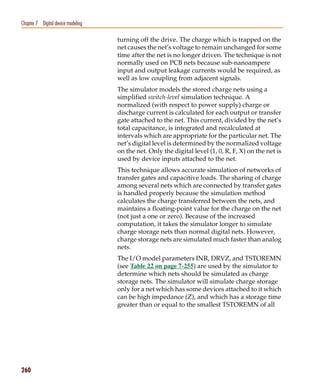
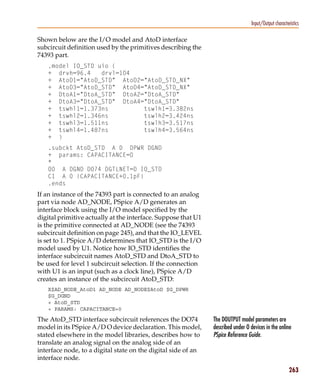
                                      Creating your own interface subcircuits for
                                              additional technologies . . . . . . . . . . . . . . .                    . . . . . . 261
                                  Creating a digital model using the PINDLY and LOGICEXP
                                          primitives . . . . . . . . . . . . . . . . . . . . . . . . .                 .   .   .   .   .   .   266
                                      Digital primitives . . . . . . . . . . . . . . . . . . . . . . .                 .   .   .   .   .   .   267
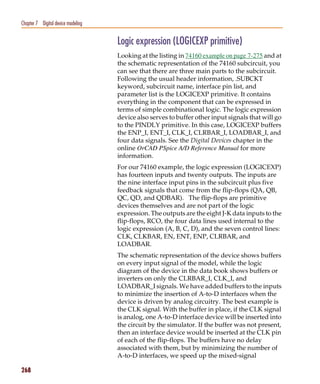
                                      Logic expression (LOGICEXP primitive) . . . . . . . . . .                        .   .   .   .   .   .   268
                                      Pin-to-pin delay (PINDLY primitive) . . . . . . . . . . . .                      .   .   .   .   .   .   270
                                      BOOLEAN . . . . . . . . . . . . . . . . . . . . . . . . . . .                    .   .   .   .   .   .   271
                                      PINDLY . . . . . . . . . . . . . . . . . . . . . . . . . . . .                   .   .   .   .   .   .   272
                                      Constraint checker (CONSTRAINT primitive) . . . . . . .                          .   .   .   .   .   .   273
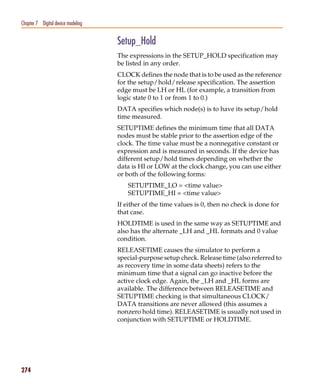
                                      Setup_Hold . . . . . . . . . . . . . . . . . . . . . . . . . . .                 .   .   .   .   .   .   274

                                                                                                                                                ix
Pspug.book Page x Tuesday, May 16, 2000 1:17 PM


   Contents

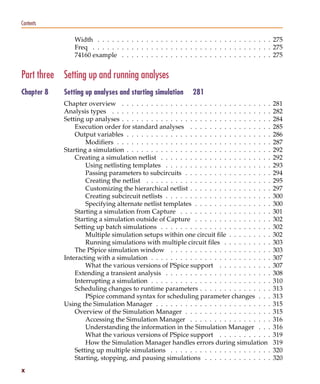
                               Width . . . . . . . . . . . . . . . . . . . . . . . . . . . . . . . . . . . . 275
                               Freq . . . . . . . . . . . . . . . . . . . . . . . . . . . . . . . . . . . . . 275
                               74160 example . . . . . . . . . . . . . . . . . . . . . . . . . . . . . . . 275


   Part three Setting up and running analyses
   Chapter 8             Setting up analyses and starting simulation         281
                         Chapter overview . . . . . . . . . . . . . . . . . . . . . . . . . . . . . . .      281
                         Analysis types . . . . . . . . . . . . . . . . . . . . . . . . . . . . . . . . .    282
                         Setting up analyses . . . . . . . . . . . . . . . . . . . . . . . . . . . . . . .   284
                             Execution order for standard analyses . . . . . . . . . . . . . . . . .         285
                             Output variables . . . . . . . . . . . . . . . . . . . . . . . . . . . . . .    286
                                 Modifiers . . . . . . . . . . . . . . . . . . . . . . . . . . . . . . . .   287
                         Starting a simulation . . . . . . . . . . . . . . . . . . . . . . . . . . . . . .   292
                             Creating a simulation netlist . . . . . . . . . . . . . . . . . . . . . . .     292
                                 Using netlisting templates . . . . . . . . . . . . . . . . . . . . . .      293
                                 Passing parameters to subcircuits . . . . . . . . . . . . . . . . . .       294
                                 Creating the netlist . . . . . . . . . . . . . . . . . . . . . . . . . .    295
                                 Customizing the hierarchical netlist . . . . . . . . . . . . . . . . .      297
                                 Creating subcircuit netlists . . . . . . . . . . . . . . . . . . . . . .    300
                                 Specifying alternate netlist templates . . . . . . . . . . . . . . . .      300
                             Starting a simulation from Capture . . . . . . . . . . . . . . . . . . .        301
                             Starting a simulation outside of Capture . . . . . . . . . . . . . . . .        302
                             Setting up batch simulations . . . . . . . . . . . . . . . . . . . . . . .      302
                                 Multiple simulation setups within one circuit file . . . . . . . . .        302
                                 Running simulations with multiple circuit files . . . . . . . . . .         303
                             The PSpice simulation window . . . . . . . . . . . . . . . . . . . . .          303
                         Interacting with a simulation . . . . . . . . . . . . . . . . . . . . . . . . .     307
                                 What the various versions of PSpice support . . . . . . . . . . .           307
                             Extending a transient analysis . . . . . . . . . . . . . . . . . . . . . .      308
                             Interrupting a simulation . . . . . . . . . . . . . . . . . . . . . . . . .     310
                             Scheduling changes to runtime parameters . . . . . . . . . . . . . . .          313
                                 PSpice command syntax for scheduling parameter changes . . .                313
                         Using the Simulation Manager . . . . . . . . . . . . . . . . . . . . . . . .        315
                             Overview of the Simulation Manager . . . . . . . . . . . . . . . . . .          315
                                 Accessing the Simulation Manager . . . . . . . . . . . . . . . . .          316
                                 Understanding the information in the Simulation Manager . . .               316
                                 What the various versions of PSpice support . . . . . . . . . . .           319
                                 How the Simulation Manager handles errors during simulation                 319
                             Setting up multiple simulations . . . . . . . . . . . . . . . . . . . . .       320
                             Starting, stopping, and pausing simulations . . . . . . . . . . . . . .         320
   x
Pspug.book Page xi Tuesday, May 16, 2000 1:17 PM


                                                                                                                         Contents

                                        Attaching PSpice to a simulation . . . . . . . . . . . . . . . . . . . . 321
                                        Setting options in the Simulation Manager . . . . . . . . . . . . . . . 322

            Chapter 9             DC analyses      325
                                  Chapter overview . . . . . . . . . . . . . . . . . . . . . . . . . . . . . .           .   325
                                  DC Sweep . . . . . . . . . . . . . . . . . . . . . . . . . . . . . . . . . . .         .   326
                                      Minimum requirements to run a DC sweep analysis . . . . . . . .                    .   326
                                      Overview of DC sweep . . . . . . . . . . . . . . . . . . . . . . . . .             .   328
                                      Setting up a DC stimulus . . . . . . . . . . . . . . . . . . . . . . . .           .   330
                                      Nested DC sweeps . . . . . . . . . . . . . . . . . . . . . . . . . . .             .   331
                                      Curve families for DC sweeps . . . . . . . . . . . . . . . . . . . . .             .   332
                                  Bias point . . . . . . . . . . . . . . . . . . . . . . . . . . . . . . . . . . .       .   334
                                      Minimum requirements to run a bias point analysis . . . . . . . .                  .   334
                                      Overview of bias point . . . . . . . . . . . . . . . . . . . . . . . . .           .   334
                                  Small-signal DC transfer . . . . . . . . . . . . . . . . . . . . . . . . . .           .   336
                                      Minimum requirements to run a small-signal DC transfer analysis                    .   336
                                      Overview of small-signal DC transfer . . . . . . . . . . . . . . . . .             .   337
                                  DC sensitivity . . . . . . . . . . . . . . . . . . . . . . . . . . . . . . . .         .   339
                                      Minimum requirements to run a DC sensitivity analysis . . . . . .                  .   339
                                      Overview of DC sensitivity . . . . . . . . . . . . . . . . . . . . . . .           .   340

            Chapter 10            AC analyses      341
                                  Chapter overview . . . . . . . . . . . . . . . . . . . . . . . . . . .     .   .   .   .   341
                                  AC sweep analysis . . . . . . . . . . . . . . . . . . . . . . . . . . .    .   .   .   .   342
                                     Setting up and running an AC sweep . . . . . . . . . . . . . .          .   .   .   .   342
                                     What is AC sweep? . . . . . . . . . . . . . . . . . . . . . . . .       .   .   .   .   342
                                     Setting up an AC stimulus . . . . . . . . . . . . . . . . . . . .       .   .   .   .   343
                                     Setting up an AC analysis . . . . . . . . . . . . . . . . . . . .       .   .   .   .   345
                                     AC sweep setup in example.opj . . . . . . . . . . . . . . . . .         .   .   .   .   347
                                     How PSpice treats nonlinear devices . . . . . . . . . . . . . .         .   .   .   .   349
                                         What’s required to transform a device into a linear circuit         .   .   .   .   349
                                         What PSpice does . . . . . . . . . . . . . . . . . . . . . . .      .   .   .   .   349
                                         Example: nonlinear behavioral modeling block . . . . . .            .   .   .   .   349
                                  Noise analysis . . . . . . . . . . . . . . . . . . . . . . . . . . . . .   .   .   .   .   351
                                     Setting up and running a noise analysis . . . . . . . . . . . .         .   .   .   .   351
                                     What is noise analysis? . . . . . . . . . . . . . . . . . . . . . .     .   .   .   .   352
                                         How PSpice calculates total output and input noise . . .            .   .   .   .   352
                                     Setting up a noise analysis . . . . . . . . . . . . . . . . . . . .     .   .   .   .   353
                                     Analyzing Noise in the Probe window . . . . . . . . . . . . .           .   .   .   .   355
                                         About noise units . . . . . . . . . . . . . . . . . . . . . . .     .   .   .   .   356
                                         Example . . . . . . . . . . . . . . . . . . . . . . . . . . . .     .   .   .   .   356

                                                                                                                              xi
Pspug.book Page xii Tuesday, May 16, 2000 1:17 PM


   Contents

   Chapter 11             Transient analysis        359
                          Chapter overview . . . . . . . . . . . . . . . . . . . . . . . . .       .   .   .   .   .   .   359
                          Overview of transient analysis . . . . . . . . . . . . . . . . . .       .   .   .   .   .   .   360
                              Minimum requirements to run a transient analysis . . . .             .   .   .   .   .   .   360
                                  Minimum circuit design requirements . . . . . . . . .            .   .   .   .   .   .   360
                                  Minimum program setup requirements . . . . . . . .               .   .   .   .   .   .   360
                          Defining a time-based stimulus . . . . . . . . . . . . . . . . .         .   .   .   .   .   .   362
                              Overview of stimulus generation . . . . . . . . . . . . . .          .   .   .   .   .   .   362
                          The Stimulus Editor utility . . . . . . . . . . . . . . . . . . . .      .   .   .   .   .   .   364
                              Stimulus files . . . . . . . . . . . . . . . . . . . . . . . . . .   .   .   .   .   .   .   364
                              Configuring stimulus files . . . . . . . . . . . . . . . . . .       .   .   .   .   .   .   365
                              Starting the Stimulus Editor . . . . . . . . . . . . . . . . .       .   .   .   .   .   .   365
                              Defining stimuli     . . . . . . . . . . . . . . . . . . . . . . .   .   .   .   .   .   .   366
                                  Example: piecewise linear stimulus . . . . . . . . . . .         .   .   .   .   .   .   366
                                  Example: sine wave sweep . . . . . . . . . . . . . . . .         .   .   .   .   .   .   367
                              Creating new stimulus symbols . . . . . . . . . . . . . . .          .   .   .   .   .   .   369
                              Editing a stimulus . . . . . . . . . . . . . . . . . . . . . . .     .   .   .   .   .   .   370
                                  To edit an existing stimulus . . . . . . . . . . . . . . .       .   .   .   .   .   .   370
                                  To edit a PWL stimulus . . . . . . . . . . . . . . . . . .       .   .   .   .   .   .   370
                                  To select a time and value scale factor for PWL stimuli          .   .   .   .   .   .   370
                              Deleting and removing traces . . . . . . . . . . . . . . . .         .   .   .   .   .   .   371
                              Manual stimulus configuration . . . . . . . . . . . . . . . .        .   .   .   .   .   .   371
                                  To manually configure a stimulus . . . . . . . . . . . .         .   .   .   .   .   .   371
                          Transient (time) response . . . . . . . . . . . . . . . . . . . . .      .   .   .   .   .   .   373
                          Internal time steps in transient analyses . . . . . . . . . . . . .      .   .   .   .   .   .   376
                          Switching circuits in transient analyses . . . . . . . . . . . . .       .   .   .   .   .   .   377
                          Plotting hysteresis curves . . . . . . . . . . . . . . . . . . . . .     .   .   .   .   .   .   377
                          Fourier components . . . . . . . . . . . . . . . . . . . . . . . .       .   .   .   .   .   .   379

   Chapter 12             Parametric and temperature analysis        381
                          Chapter overview . . . . . . . . . . . . . . . . . . . . . . . . . . . .             .   .   .   381
                          Parametric analysis . . . . . . . . . . . . . . . . . . . . . . . . . . . .          .   .   .   382
                             Minimum requirements to run a parametric analysis . . . . . .                     .   .   .   382
                             Overview of parametric analysis . . . . . . . . . . . . . . . . . .               .   .   .   383
                             RLC filter example . . . . . . . . . . . . . . . . . . . . . . . . . .            .   .   .   384
                                Entering the design . . . . . . . . . . . . . . . . . . . . . . .              .   .   .   384
                                Running the simulation . . . . . . . . . . . . . . . . . . . . .               .   .   .   385
                                Using performance analysis to plot overshoot and rise time                     .   .   .   385
                             Example: frequency response vs. arbitrary parameter . . . . . .                   .   .   .   388
                                Setting up the circuit . . . . . . . . . . . . . . . . . . . . . .             .   .   .   388
                          Temperature analysis . . . . . . . . . . . . . . . . . . . . . . . . . .             .   .   .   391

   xii
Pspug.book Page xiii Tuesday, May 16, 2000 1:17 PM


                                                                                                                     Contents

                                        Minimum requirements to run a temperature analysis . . . . . . . . 391
                                        Overview of temperature analysis . . . . . . . . . . . . . . . . . . . . 392

            Chapter 13             Monte Carlo and sensitivity/worst-case analyses            393
                                   Chapter overview . . . . . . . . . . . . . . . . . . . . . . . . . . . . . . .        393
                                   Statistical analyses . . . . . . . . . . . . . . . . . . . . . . . . . . . . . . .    394
                                       Overview of statistical analyses . . . . . . . . . . . . . . . . . . . . .        394
                                       Output control for statistical analyses . . . . . . . . . . . . . . . . . .       395
                                       Model parameter values reports . . . . . . . . . . . . . . . . . . . . .          395
                                       Waveform reports . . . . . . . . . . . . . . . . . . . . . . . . . . . . .        396
                                       Collating functions . . . . . . . . . . . . . . . . . . . . . . . . . . . .       397
                                       Temperature considerations in statistical analyses . . . . . . . . . .            398
                                   Monte Carlo analysis . . . . . . . . . . . . . . . . . . . . . . . . . . . . .        399
                                            Reading the summary report . . . . . . . . . . . . . . . . . . . .           401
                                       Example: Monte Carlo analysis of a pressure sensor . . . . . . . . .              403
                                            Drawing the schematic . . . . . . . . . . . . . . . . . . . . . . . .        403
                                            Defining part values . . . . . . . . . . . . . . . . . . . . . . . . .       404
                                            Setting up the parameters . . . . . . . . . . . . . . . . . . . . . .        405
                                            Using resistors with models . . . . . . . . . . . . . . . . . . . . .        406
                                            Saving the design . . . . . . . . . . . . . . . . . . . . . . . . . . .      407
                                            Defining tolerances for the resistor models . . . . . . . . . . . .          407
                                            Setting up the analyses . . . . . . . . . . . . . . . . . . . . . . . .      409
                                            Running the analysis and viewing the results . . . . . . . . . . .           410
                                       Monte Carlo Histograms . . . . . . . . . . . . . . . . . . . . . . . . .          411
                                            Chebyshev filter example . . . . . . . . . . . . . . . . . . . . . .         411
                                            Creating models for Monte Carlo analysis . . . . . . . . . . . . .           412
                                            Setting up the analysis . . . . . . . . . . . . . . . . . . . . . . . .      412
                                            Creating histograms . . . . . . . . . . . . . . . . . . . . . . . . .        413
                                            Copying histogram data . . . . . . . . . . . . . . . . . . . . . . .         416
                                   Worst-case analysis . . . . . . . . . . . . . . . . . . . . . . . . . . . . . .       417
                                       Overview of worst-case analysis . . . . . . . . . . . . . . . . . . . . .         417
                                            Inputs . . . . . . . . . . . . . . . . . . . . . . . . . . . . . . . . . .   417
                                            Procedure . . . . . . . . . . . . . . . . . . . . . . . . . . . . . . .      418
                                            Outputs . . . . . . . . . . . . . . . . . . . . . . . . . . . . . . . . .    418
                                            Caution: An important condition for correct worst-case analysis              419
                                       Worst-case analysis example . . . . . . . . . . . . . . . . . . . . . . .         420
                                       Tips and other useful information . . . . . . . . . . . . . . . . . . . .         424
                                            VARY BOTH, VARY DEV, and VARY LOT . . . . . . . . . . . .                    424
                                            Gaussian distributions . . . . . . . . . . . . . . . . . . . . . . . .       425
                                            YMAX collating function . . . . . . . . . . . . . . . . . . . . . . .        425
                                            RELTOL . . . . . . . . . . . . . . . . . . . . . . . . . . . . . . . .       425

                                                                                                                         xiii
Pspug.book Page xiv Tuesday, May 16, 2000 1:17 PM


   Contents

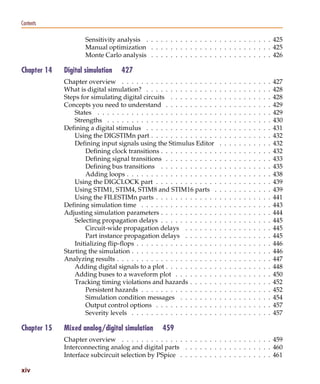
                                     Sensitivity analysis . . . . . . . . . . . . . . . . . . . . . . . . . . 425
                                     Manual optimization . . . . . . . . . . . . . . . . . . . . . . . . . 425
                                     Monte Carlo analysis . . . . . . . . . . . . . . . . . . . . . . . . . 426

   Chapter 14             Digital simulation        427
                          Chapter overview . . . . . . . . . . . . . . . . . . . .        .   .   .   .   .   .   .   .   .   .   .   427
                          What is digital simulation? . . . . . . . . . . . . . . .       .   .   .   .   .   .   .   .   .   .   .   428
                          Steps for simulating digital circuits . . . . . . . . . .       .   .   .   .   .   .   .   .   .   .   .   428
                          Concepts you need to understand . . . . . . . . . . .           .   .   .   .   .   .   .   .   .   .   .   429
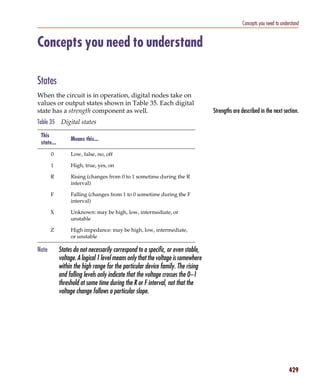
                              States . . . . . . . . . . . . . . . . . . . . . . . . .    .   .   .   .   .   .   .   .   .   .   .   429
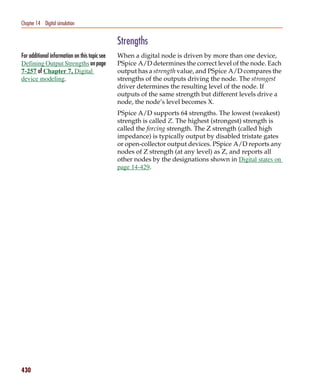
                              Strengths . . . . . . . . . . . . . . . . . . . . . . .     .   .   .   .   .   .   .   .   .   .   .   430
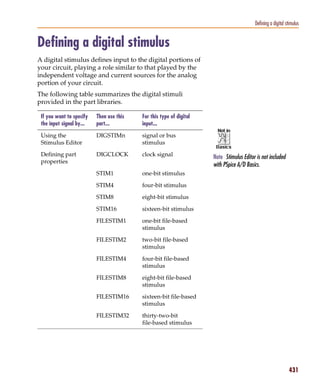
                          Defining a digital stimulus . . . . . . . . . . . . . . .       .   .   .   .   .   .   .   .   .   .   .   431
                              Using the DIGSTIMn part . . . . . . . . . . . . . .         .   .   .   .   .   .   .   .   .   .   .   432
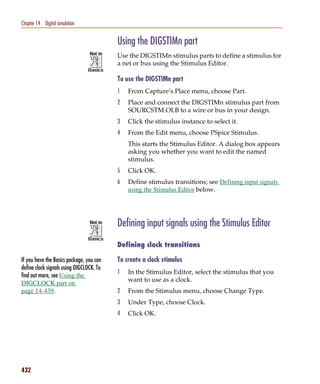
                              Defining input signals using the Stimulus Editor            .   .   .   .   .   .   .   .   .   .   .   432
                                  Defining clock transitions . . . . . . . . . . . .      .   .   .   .   .   .   .   .   .   .   .   432
                                  Defining signal transitions . . . . . . . . . . .       .   .   .   .   .   .   .   .   .   .   .   433
                                  Defining bus transitions . . . . . . . . . . . .        .   .   .   .   .   .   .   .   .   .   .   435
                                  Adding loops . . . . . . . . . . . . . . . . . . .      .   .   .   .   .   .   .   .   .   .   .   438
                              Using the DIGCLOCK part . . . . . . . . . . . . .           .   .   .   .   .   .   .   .   .   .   .   439
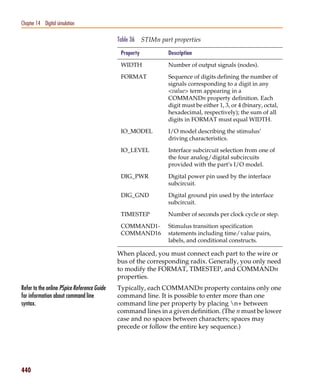
                              Using STIM1, STIM4, STIM8 and STIM16 parts .                .   .   .   .   .   .   .   .   .   .   .   439
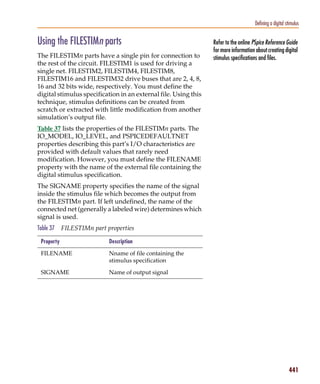
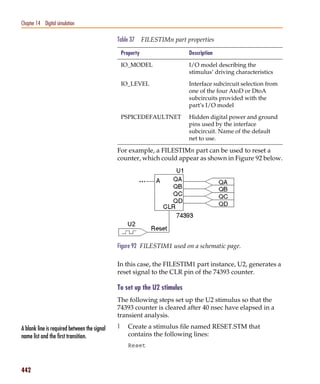
                              Using the FILESTIMn parts . . . . . . . . . . . . .         .   .   .   .   .   .   .   .   .   .   .   441
                          Defining simulation time . . . . . . . . . . . . . . . .        .   .   .   .   .   .   .   .   .   .   .   443
                          Adjusting simulation parameters . . . . . . . . . . . .         .   .   .   .   .   .   .   .   .   .   .   444
                              Selecting propagation delays . . . . . . . . . . . .        .   .   .   .   .   .   .   .   .   .   .   445
                                  Circuit-wide propagation delays . . . . . . .           .   .   .   .   .   .   .   .   .   .   .   445
                                  Part instance propagation delays . . . . . . .          .   .   .   .   .   .   .   .   .   .   .   445
                              Initializing flip-flops . . . . . . . . . . . . . . . . .   .   .   .   .   .   .   .   .   .   .   .   446
                          Starting the simulation . . . . . . . . . . . . . . . . . .     .   .   .   .   .   .   .   .   .   .   .   446
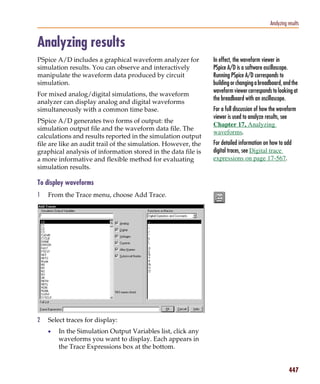
                          Analyzing results . . . . . . . . . . . . . . . . . . . . .     .   .   .   .   .   .   .   .   .   .   .   447
                              Adding digital signals to a plot . . . . . . . . . . .      .   .   .   .   .   .   .   .   .   .   .   448
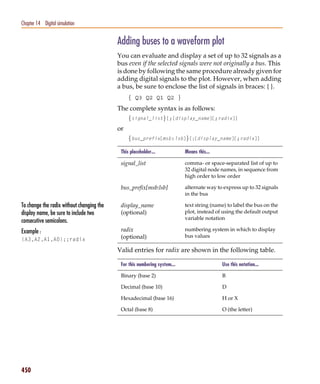
                              Adding buses to a waveform plot . . . . . . . . .           .   .   .   .   .   .   .   .   .   .   .   450
                              Tracking timing violations and hazards . . . . . .          .   .   .   .   .   .   .   .   .   .   .   452
                                  Persistent hazards . . . . . . . . . . . . . . . .      .   .   .   .   .   .   .   .   .   .   .   452
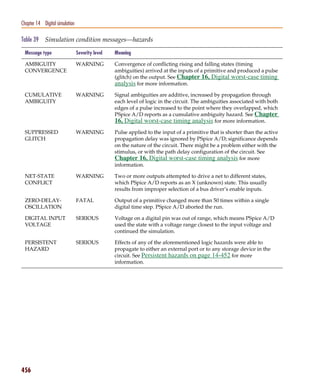
                                  Simulation condition messages . . . . . . . .           .   .   .   .   .   .   .   .   .   .   .   454
                                  Output control options . . . . . . . . . . . . .        .   .   .   .   .   .   .   .   .   .   .   457
                                  Severity levels . . . . . . . . . . . . . . . . . .     .   .   .   .   .   .   .   .   .   .   .   457

   Chapter 15             Mixed analog/digital simulation         459
                          Chapter overview . . . . . . . . . . . . . . . . . . . . . . . . . . . . . . . 459
                          Interconnecting analog and digital parts . . . . . . . . . . . . . . . . . . 460
                          Interface subcircuit selection by PSpice . . . . . . . . . . . . . . . . . . . 461

   xiv
Pspug.book Page xv Tuesday, May 16, 2000 1:17 PM


                                                                                                                              Contents

                                      Level 1 interface . . . . . . . . . . . . . . . . . . . . . . . . . . . . . .               462
                                      Level 2 interface . . . . . . . . . . . . . . . . . . . . . . . . . . . . . .               464
                                      Setting the default A/D interface . . . . . . . . . . . . . . . . . . . .                   465
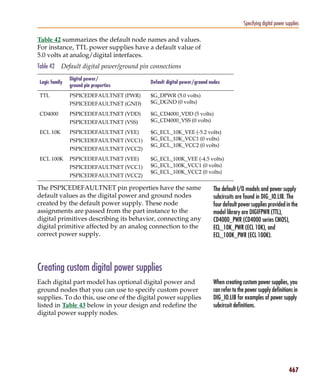
                                  Specifying digital power supplies . . . . . . . . . . . . . . . . . . . . . .                   466
                                      Default power supply selection by PSpice A/D . . . . . . . . . . . .                        466
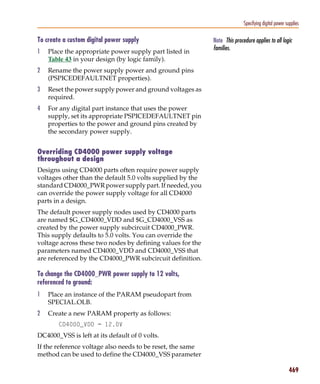
                                      Creating custom digital power supplies . . . . . . . . . . . . . . . .                      467
                                          Overriding CD4000 power supply voltage throughout a design                              469
                                          Creating a secondary CD4000, TTL, or ECL power supply . . .                             470
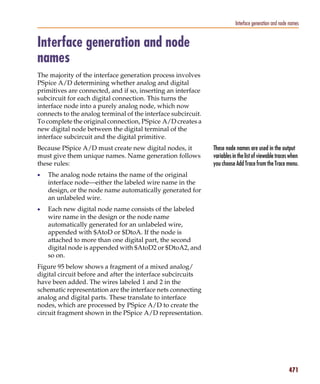
                                  Interface generation and node names . . . . . . . . . . . . . . . . . . . .                     471

           Chapter 16             Digital worst-case timing analysis       475
                                  Chapter overview . . . . . . . . . . . . . . . . . . . . . . . . . . . . . . .                  475
                                  Digital worst-case timing . . . . . . . . . . . . . . . . . . . . . . . . . . .                 476
                                      Digital worst-case analysis compared to analog worst-case analysis                          477
                                  Starting digital worst-case timing analysis . . . . . . . . . . . . . . . . .                   478
                                  Simulator representation of timing ambiguity . . . . . . . . . . . . . . .                      478
                                  Propagation of timing ambiguity . . . . . . . . . . . . . . . . . . . . . .                     480
                                  Identification of timing hazards . . . . . . . . . . . . . . . . . . . . . . .                  481
                                      Convergence hazard . . . . . . . . . . . . . . . . . . . . . . . . . . .                    481
                                      Critical hazard . . . . . . . . . . . . . . . . . . . . . . . . . . . . . . .               482
                                      Cumulative ambiguity hazard . . . . . . . . . . . . . . . . . . . . . .                     483
                                      Reconvergence hazard . . . . . . . . . . . . . . . . . . . . . . . . . .                    485
                                  Glitch suppression due to inertial delay . . . . . . . . . . . . . . . . . .                    487
                                  Methodology . . . . . . . . . . . . . . . . . . . . . . . . . . . . . . . . . .                 488


           Part four              Viewing results
           Chapter 17             Analyzing waveforms        493
                                  Chapter overview . . . . . . . . . . . . . . . . . . . . . . . . .      .   .   .   .   .   .   493
                                  Overview of waveform analysis . . . . . . . . . . . . . . . . .         .   .   .   .   .   .   494
                                      Elements of a plot . . . . . . . . . . . . . . . . . . . . . . .    .   .   .   .   .   .   495
                                      Elements of a Probe window . . . . . . . . . . . . . . . . .        .   .   .   .   .   .   496
                                      Managing multiple Probe windows . . . . . . . . . . . . .           .   .   .   .   .   .   497
                                          Printing multiple windows . . . . . . . . . . . . . . .         .   .   .   .   .   .   497
                                          Toggling between display modes . . . . . . . . . . . .          .   .   .   .   .   .   497
                                          Keeping the Probe window visible at all times . . . .           .   .   .   .   .   .   498
                                  Setting up waveform analysis . . . . . . . . . . . . . . . . . .        .   .   .   .   .   .   499
                                      Setting up colors . . . . . . . . . . . . . . . . . . . . . . . .   .   .   .   .   .   .   499
                                          Editing display and print colors in the PSPICE.INI file         .   .   .   .   .   .   499
                                          Configuring trace color schemes . . . . . . . . . . . .         .   .   .   .   .   .   501

                                                                                                                                  xv
Pspug.book Page xvi Tuesday, May 16, 2000 1:17 PM


   Contents

                          Viewing waveforms . . . . . . . . . . . . . . . . . . . . . . . . .       .   .   .   .   .   502
                             Setting up waveform display from Capture . . . . . . . . .             .   .   .   .   .   502
                             Viewing waveforms while simulating . . . . . . . . . . . . .           .   .   .   .   .   503
                                 Configuring update intervals . . . . . . . . . . . . . . .         .   .   .   .   .   504
                                 Interacting with waveform analysis during simulation .             .   .   .   .   .   504
                                 Pausing a simulation and viewing waveforms . . . . . .             .   .   .   .   .   505
                             Using schematic page markers to add traces . . . . . . . . .           .   .   .   .   .   506
                             Using display control . . . . . . . . . . . . . . . . . . . . . .      .   .   .   .   .   509
                             Using plot window templates . . . . . . . . . . . . . . . . .          .   .   .   .   .   512
                             Limiting waveform data file size . . . . . . . . . . . . . . . .       .   .   .   .   .   525
                                 Limiting file size using markers . . . . . . . . . . . . . .       .   .   .   .   .   525
                                 Limiting file size by excluding internal subcircuit data .         .   .   .   .   .   528
                                 Limiting file size by suppressing the first part
                                         of simulation output . . . . . . . . . . . . . . . .       .   .   .   .   .   528
                             Using simulation data from multiple files . . . . . . . . . .          .   .   .   .   .   529
                                 Appending waveform data files . . . . . . . . . . . . . .          .   .   .   .   .   529
                                 Adding traces from specific loaded waveform data files             .   .   .   .   .   530
                             Saving simulation results in ASCII format . . . . . . . . . .          .   .   .   .   .   531
                          Analog example . . . . . . . . . . . . . . . . . . . . . . . . . . .      .   .   .   .   .   533
                                 Running the simulation . . . . . . . . . . . . . . . . . . .       .   .   .   .   .   533
                                 Displaying voltages on nets . . . . . . . . . . . . . . . .        .   .   .   .   .   535
                          Mixed analog/digital tutorial . . . . . . . . . . . . . . . . . . . .     .   .   .   .   .   536
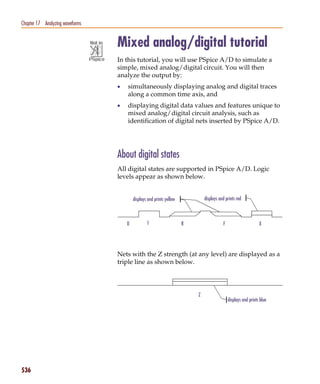
                             About digital states . . . . . . . . . . . . . . . . . . . . . . .     .   .   .   .   .   536
                             About the oscillator circuit . . . . . . . . . . . . . . . . . . .     .   .   .   .   .   537
                             Setting up the design . . . . . . . . . . . . . . . . . . . . . .      .   .   .   .   .   537
                             Running the simulation . . . . . . . . . . . . . . . . . . . . .       .   .   .   .   .   538
                             Analyzing simulation results . . . . . . . . . . . . . . . . . .       .   .   .   .   .   538
                          User interface features for waveform analysis . . . . . . . . . .         .   .   .   .   .   541
                             Zoom regions . . . . . . . . . . . . . . . . . . . . . . . . . . .     .   .   .   .   .   541
                             Scrolling traces . . . . . . . . . . . . . . . . . . . . . . . . . .   .   .   .   .   .   543
                             Sizing digital plots . . . . . . . . . . . . . . . . . . . . . . .     .   .   .   .   .   544
                             Modifying trace expressions and labels . . . . . . . . . . . .         .   .   .   .   .   545
                             Moving and copying trace names and expressions . . . . .               .   .   .   .   .   546
                             Copying and moving labels . . . . . . . . . . . . . . . . . . .        .   .   .   .   .   547
                             Tabulating trace data values . . . . . . . . . . . . . . . . . .       .   .   .   .   .   548
                             Using cursors . . . . . . . . . . . . . . . . . . . . . . . . . . .    .   .   .   .   .   549
                                 Displaying cursors . . . . . . . . . . . . . . . . . . . . . .     .   .   .   .   .   549
                                 Moving cursors . . . . . . . . . . . . . . . . . . . . . . .       .   .   .   .   .   550
                                 Applying cursors to a different trace . . . . . . . . . . .        .   .   .   .   .   551
                                 Example: using cursors . . . . . . . . . . . . . . . . . . .       .   .   .   .   .   552
                          Tracking digital simulation messages . . . . . . . . . . . . . . .        .   .   .   .   .   554
                             Message tracking from the message summary . . . . . . . .              .   .   .   .   .   554

   xvi
Pspug.book Page xvii Tuesday, May 16, 2000 1:17 PM


                                                                                                                                                                        Contents

                                         The Simulation Message Summary dialog box                                                  .   .   .   .   .   .   .   .   .   .   554
                                         Persistent hazards . . . . . . . . . . . . . . . . .                                       .   .   .   .   .   .   .   .   .   .   555
                                     Message tracking from the waveform . . . . . . . .                                             .   .   .   .   .   .   .   .   .   .   556
                                  Trace expressions . . . . . . . . . . . . . . . . . . . . .                                       .   .   .   .   .   .   .   .   .   .   556
                                     Basic output variable form . . . . . . . . . . . . . .                                         .   .   .   .   .   .   .   .   .   .   557
                                     Output variable form for device terminals . . . . .                                            .   .   .   .   .   .   .   .   .   .   558
                                     Analog trace expressions . . . . . . . . . . . . . . .                                         .   .   .   .   .   .   .   .   .   .   564
                                         Trace expression aliases . . . . . . . . . . . . .                                         .   .   .   .   .   .   .   .   .   .   564
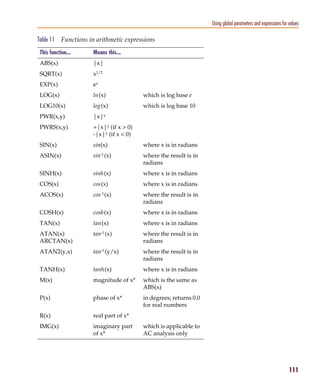
                                         Arithmetic functions . . . . . . . . . . . . . . .                                         .   .   .   .   .   .   .   .   .   .   564
                                         Rules for numeric values suffixes . . . . . . . .                                          .   .   .   .   .   .   .   .   .   .   566
                                     Digital trace expressions . . . . . . . . . . . . . . .                                        .   .   .   .   .   .   .   .   .   .   567

            Chapter 18            Other output options     571
                                  Chapter overview . . . . . . . . . . . . . . . . . . .                                    .   .   .   .   .   .   .   .   .   .   .   .   571
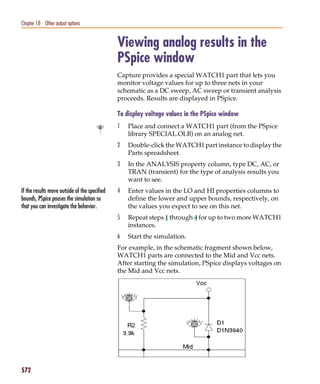
                                  Viewing analog results in the PSpice window . . .                                         .   .   .   .   .   .   .   .   .   .   .   .   572
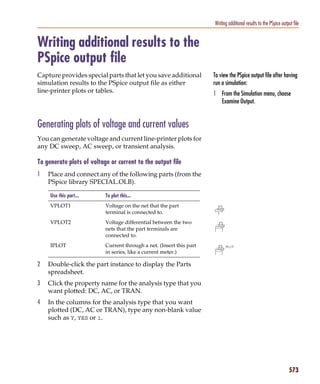
                                  Writing additional results to the PSpice output file                                      .   .   .   .   .   .   .   .   .   .   .   .   573
                                     Generating plots of voltage and current values                                         .   .   .   .   .   .   .   .   .   .   .   .   573
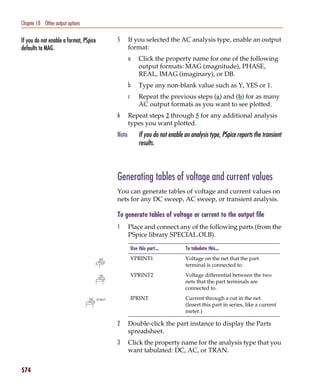
                                     Generating tables of voltage and current values                                        .   .   .   .   .   .   .   .   .   .   .   .   574
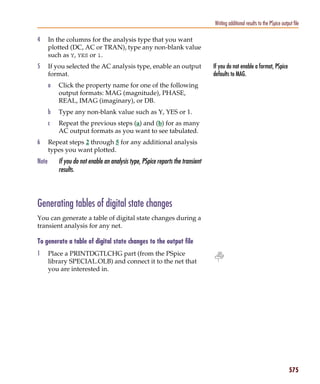
                                     Generating tables of digital state changes . . .                                       .   .   .   .   .   .   .   .   .   .   .   .   575
                                  Creating test vector files . . . . . . . . . . . . . . .                                  .   .   .   .   .   .   .   .   .   .   .   .   576

            Appendix A            Setting initial state   577
                                  Appendix overview . . .       .   .   .   .   .   .   .   .   .   .   .   .   .   .   .   .   .   .   .   .   .   .   .   .   .   .   .   577
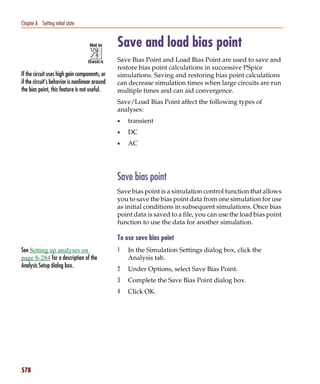
                                  Save and load bias point      .   .   .   .   .   .   .   .   .   .   .   .   .   .   .   .   .   .   .   .   .   .   .   .   .   .   .   578
                                      Save bias point . . . .   .   .   .   .   .   .   .   .   .   .   .   .   .   .   .   .   .   .   .   .   .   .   .   .   .   .   .   578
                                      Load bias point . . .     .   .   .   .   .   .   .   .   .   .   .   .   .   .   .   .   .   .   .   .   .   .   .   .   .   .   .   579
                                  Setpoints . . . . . . . . .   .   .   .   .   .   .   .   .   .   .   .   .   .   .   .   .   .   .   .   .   .   .   .   .   .   .   .   580
                                  Setting initial conditions    .   .   .   .   .   .   .   .   .   .   .   .   .   .   .   .   .   .   .   .   .   .   .   .   .   .   .   582

            Appendix B            Convergence and “time step too small errors”                                      583
                                  Appendix overview . . . . . . . . . . . . . . .                               .   .   .   .   .   .   .   .   .   .   .   .   .   .   .   583
                                  Introduction . . . . . . . . . . . . . . . . . . .                            .   .   .   .   .   .   .   .   .   .   .   .   .   .   .   584
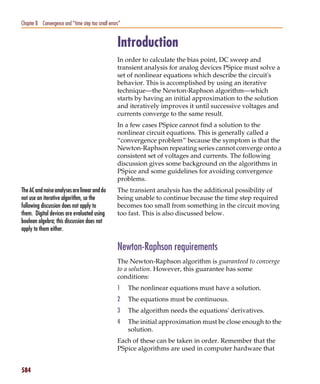
                                      Newton-Raphson requirements . . . . . .                                   .   .   .   .   .   .   .   .   .   .   .   .   .   .   .   584
                                      Is there a solution? . . . . . . . . . . . . .                            .   .   .   .   .   .   .   .   .   .   .   .   .   .   .   585
                                      Are the Equations Continuous? . . . . . .                                 .   .   .   .   .   .   .   .   .   .   .   .   .   .   .   586
                                           Are the derivatives correct? . . . . . .                             .   .   .   .   .   .   .   .   .   .   .   .   .   .   .   586
                                      Is the initial approximation close enough?                                .   .   .   .   .   .   .   .   .   .   .   .   .   .   .   587
                                  Bias point and DC sweep . . . . . . . . . . . .                               .   .   .   .   .   .   .   .   .   .   .   .   .   .   .   589
                                      Semiconductors . . . . . . . . . . . . . . .                              .   .   .   .   .   .   .   .   .   .   .   .   .   .   .   589
                                      Switches . . . . . . . . . . . . . . . . . . .                            .   .   .   .   .   .   .   .   .   .   .   .   .   .   .   590
                                      Behavioral modeling expressions . . . . .                                 .   .   .   .   .   .   .   .   .   .   .   .   .   .   .   591
                                                                                                                                                                            xvii
Pspug.book Page xviii Tuesday, May 16, 2000 1:17 PM


   Contents

                          Transient analysis . . . . . . . . . . . . .    .   .   .   .   .   .   .   .   .   .   .   .   .   .   .   .   .   .   592
                             Skipping the bias point . . . . . . . .      .   .   .   .   .   .   .   .   .   .   .   .   .   .   .   .   .   .   593
                             The dynamic range of TIME . . . . .          .   .   .   .   .   .   .   .   .   .   .   .   .   .   .   .   .   .   593
                             Failure at the first time step . . . . . .   .   .   .   .   .   .   .   .   .   .   .   .   .   .   .   .   .   .   594
                             Parasitic capacitances . . . . . . . . .     .   .   .   .   .   .   .   .   .   .   .   .   .   .   .   .   .   .   595
                             Inductors and transformers . . . . . .       .   .   .   .   .   .   .   .   .   .   .   .   .   .   .   .   .   .   595
                             Bipolar transistors substrate junction       .   .   .   .   .   .   .   .   .   .   .   .   .   .   .   .   .   .   596
                          Diagnostics . . . . . . . . . . . . . . . . .   .   .   .   .   .   .   .   .   .   .   .   .   .   .   .   .   .   .   597

                          Index        599


   xviii
Pspug.book Page xix Tuesday, May 16, 2000 1:17 PM


            Figures


            Figure 1              User-configurable data files that PSpice A/D reads . . . . . . . . . .         .   .   . 52
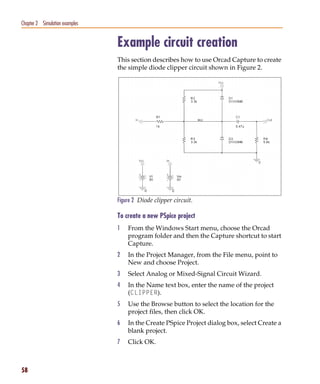
            Figure 2              Diode clipper circuit. . . . . . . . . . . . . . . . . . . . . . . . . . . .   .   .   . 58
            Figure 3              Connection points. . . . . . . . . . . . . . . . . . . . . . . . . . . . . .   .   .   . 61
            Figure 4              PSpice simulation output window. . . . . . . . . . . . . . . . . . . .         .   .   . 64
            Figure 5              Simulation output file. . . . . . . . . . . . . . . . . . . . . . . . . . .    .   .   . 66
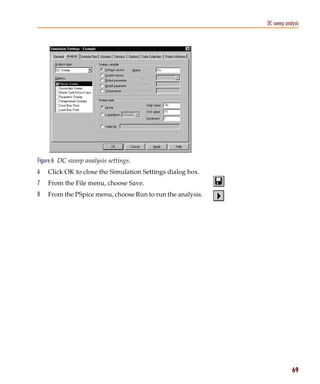
            Figure 6              DC sweep analysis settings. . . . . . . . . . . . . . . . . . . . . . . .      .   .   . 69
            Figure 7              Probe window. . . . . . . . . . . . . . . . . . . . . . . . . . . . . . . .    .   .   . 70
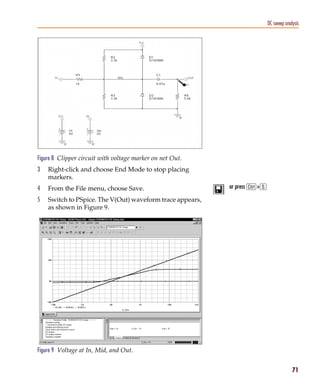
            Figure 8              Clipper circuit with voltage marker on net Out. . . . . . . . . . . . .        .   .   . 71
            Figure 9              Voltage at In, Mid, and Out. . . . . . . . . . . . . . . . . . . . . . . .     .   .   . 71
            Figure 10             Trace legend with cursors activated. . . . . . . . . . . . . . . . . . .       .   .   . 72
            Figure 11             Trace legend with V(Mid) symbol outlined. . . . . . . . . . . . . . .          .   .   . 72
            Figure 12             Voltage difference at V(In) = 4 volts. . . . . . . . . . . . . . . . . . .     .   .   . 73
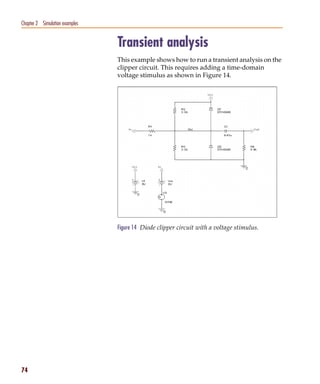
            Figure 13             Diode clipper circuit with a voltage stimulus. . . . . . . . . . . . . .       .   .   . 74
            Figure 14             Stimulus Editor window. . . . . . . . . . . . . . . . . . . . . . . . . .      .   .   . 76
            Figure 15             Transient analysis simulation settings. . . . . . . . . . . . . . . . . .      .   .   . 76
            Figure 16             Sinusoidal input and clipped output waveforms. . . . . . . . . . . .           .   .   . 77
            Figure 17             Clipper circuit with AC stimulus. . . . . . . . . . . . . . . . . . . . .      .   .   . 79
            Figure 18             AC sweep and noise analysis simulation settings. . . . . . . . . . . .         .   .   . 80
            Figure 19             dB magnitude curves for “gain” at Mid and Out. . . . . . . . . . . .           .   .   . 82
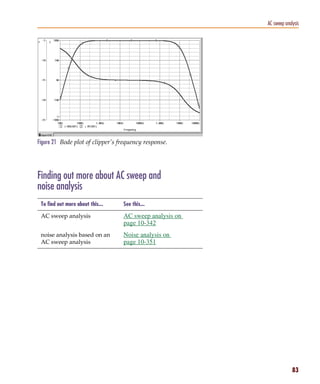
            Figure 20             Bode plot of clipper’s frequency response. . . . . . . . . . . . . . . .       .   .   . 83
            Figure 21             Clipper circuit with global parameter Rval. . . . . . . . . . . . . . .        .   .   . 84
            Figure 22             Parametric simulation settings. . . . . . . . . . . . . . . . . . . . . . .    .   .   . 86
            Figure 23             Small signal response as R1 is varied from 100Ω to 10 kΩ . . . . . .           .   .   . 87
            Figure 24             Small signal frequency response at 100 and 10 kΩ input resistance.             .   .   . 89
            Figure 25             Performance analysis plots of bandwidth and gain vs. Rval. . . . . .           .   .   . 91
            Figure 26             Relationship of the Model Editor to Capture and PSpice. . . . . . . .          .   .    134
            Figure 27             Process and data flow for the Model Editor. . . . . . . . . . . . . . .        .   .    137
            Figure 28             Model Editor workspace with data for a bipolar transistor. . . . . .           .   .    138
            Figure 29             Design for a half-wave rectifier. . . . . . . . . . . . . . . . . . . . . .    .   .    145
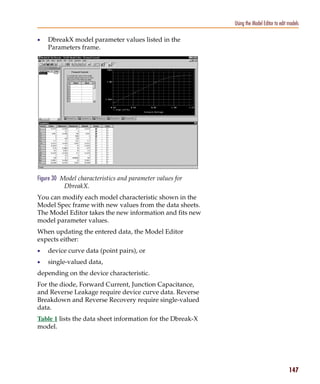
            Figure 30             Model characteristics and parameter values for DbreakX. . . . . . .            .   .    147
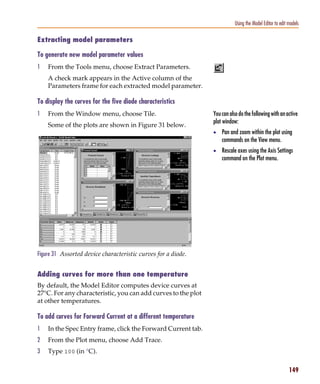
            Figure 31             Assorted device characteristic curves for a diode. . . . . . . . . . . .       .   .    149
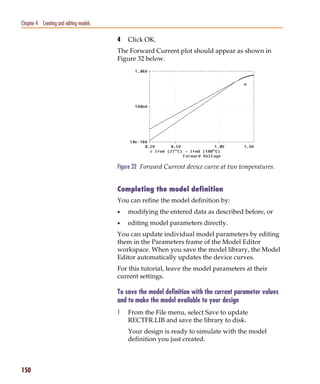
            Figure 32             Forward Current device curve at two temperatures. . . . . . . . . .            .   .    150
Pspug.book Page xx Tuesday, May 16, 2000 1:17 PM


   Figures

   Figure 33             Rules for pin callout in subcircuit templates. . . . . . . . . . . . . . .        .   .   187
   Figure 34             LOPASS filter example. . . . . . . . . . . . . . . . . . . . . . . . . . .        .   .   201
   Figure 35             HIPASS filter part example. . . . . . . . . . . . . . . . . . . . . . . . .       .   .   202
   Figure 36             BANDPASS filter part example. . . . . . . . . . . . . . . . . . . . . .           .   .   203
   Figure 37             BANDREJ filter part example. . . . . . . . . . . . . . . . . . . . . . .          .   .   203
   Figure 38             FTABLE part example. . . . . . . . . . . . . . . . . . . . . . . . . . . .        .   .   206
   Figure 39             LAPLACE part example one. . . . . . . . . . . . . . . . . . . . . . . .           .   .   209
   Figure 40             Viewing gain and phase characteristics of a lossy integrator. . . . . .           .   .   209
   Figure 41             LAPLACE part example two. . . . . . . . . . . . . . . . . . . . . . . .           .   .   209
   Figure 42             ABM expression part example one. . . . . . . . . . . . . . . . . . . .            .   .   213
   Figure 43             ABM expression part example two. . . . . . . . . . . . . . . . . . . .            .   .   213
   Figure 44             ABM expression part example three. . . . . . . . . . . . . . . . . . . .          .   .   214
   Figure 45             ABM expression part example four. . . . . . . . . . . . . . . . . . . .           .   .   214
   Figure 46             Triode circuit. . . . . . . . . . . . . . . . . . . . . . . . . . . . . . . . .   .   .   215
   Figure 47             Triode subcircuit producing a family of I-V curves. . . . . . . . . . .           .   .   217
   Figure 48             EVALUE part example. . . . . . . . . . . . . . . . . . . . . . . . . . .          .   .   221
   Figure 49             GVALUE part example. . . . . . . . . . . . . . . . . . . . . . . . . . .          .   .   221
   Figure 50             EMULT part example. . . . . . . . . . . . . . . . . . . . . . . . . . . .         .   .   222
   Figure 51             GMULT part example. . . . . . . . . . . . . . . . . . . . . . . . . . . .         .   .   223
   Figure 52             EFREQ part example. . . . . . . . . . . . . . . . . . . . . . . . . . . .         .   .   229
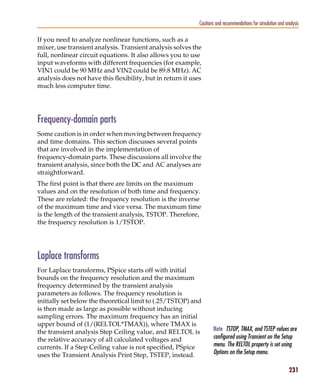
   Figure 53             Voltage multiplier circuit (mixer). . . . . . . . . . . . . . . . . . . . .       .   .   230
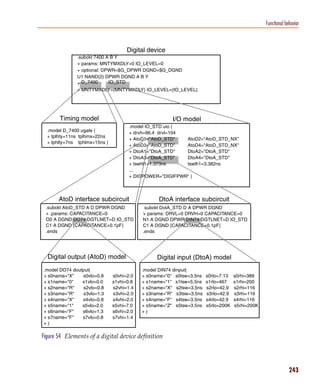
   Figure 54             Elements of a digital device definition . . . . . . . . . . . . . . . . .         .   .   243
   Figure 55             Level 1 and 0 strength determination. . . . . . . . . . . . . . . . . . .         .   .   258
   Figure 56             PSpice simulation window . . . . . . . . . . . . . . . . . . . . . . . .          .   .   305
   Figure 57             Example schematic EXAMPLE.OPJ. . . . . . . . . . . . . . . . . . . .              .   .   329
   Figure 58             Curve family example schematic. . . . . . . . . . . . . . . . . . . . .           .   .   332
   Figure 59             Device curve family. . . . . . . . . . . . . . . . . . . . . . . . . . . . .      .   .   333
   Figure 60             Operating point determination for each member of the curve family.                .   .   333
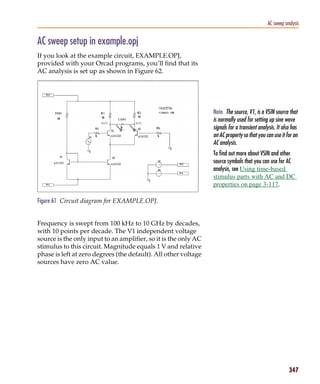
   Figure 61             Circuit diagram for EXAMPLE.OPJ. . . . . . . . . . . . . . . . . . . .            .   .   347
   Figure 62             AC analysis setup for EXAMPLE.OPJ. . . . . . . . . . . . . . . . . . .            .   .   348
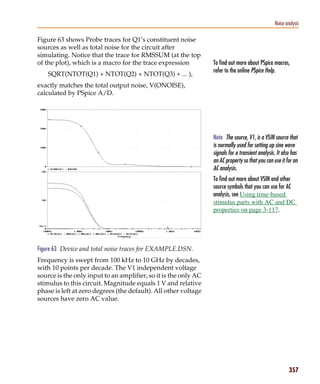
   Figure 63             Device and total noise traces for EXAMPLE.DSN. . . . . . . . . . . .              .   .   357
   Figure 64             Transient analysis setup for EXAMPLE.OPJ. . . . . . . . . . . . . . .             .   .   374
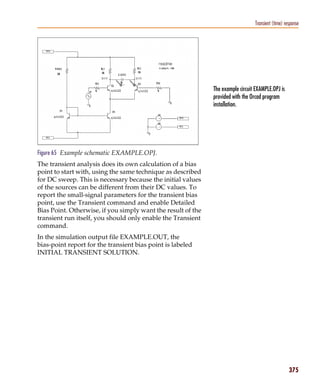
   Figure 65             Example schematic EXAMPLE.OPJ. . . . . . . . . . . . . . . . . . . .              .   .   375
   Figure 66             ECL-compatible Schmitt trigger. . . . . . . . . . . . . . . . . . . . . .         .   .   377
   Figure 67             Netlist for Schmitt trigger circuit. . . . . . . . . . . . . . . . . . . . . .    .   .   378
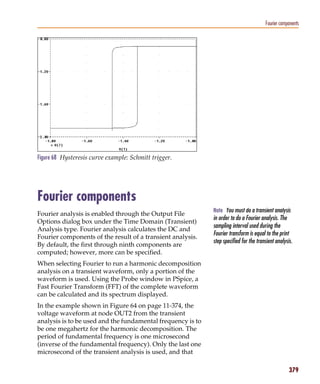
   Figure 68             Hysteresis curve example: Schmitt trigger. . . . . . . . . . . . . . . .          .   .   379
   Figure 69             Passive filter schematic. . . . . . . . . . . . . . . . . . . . . . . . . . .     .   .   384
   Figure 70             Current of L1 when R1 is 1.5 ohms. . . . . . . . . . . . . . . . . . . .          .   .   386
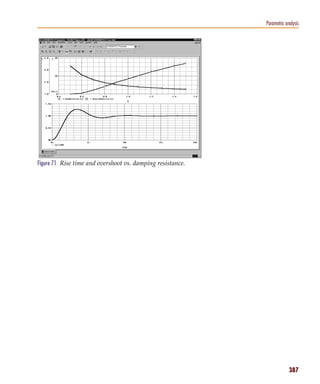
   Figure 71             Rise time and overshoot vs. damping resistance. . . . . . . . . . . . .           .   .   387
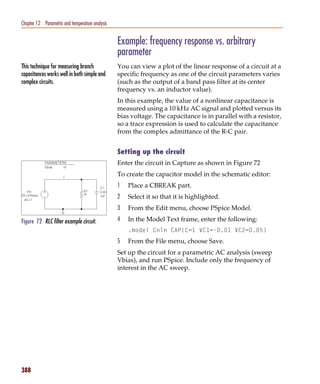
   Figure 72             RLC filter example circuit. . . . . . . . . . . . . . . . . . . . . . . . . .     .   .   388
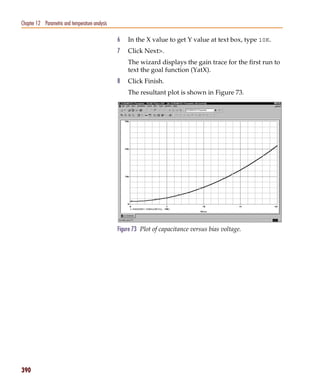
   Figure 73             Plot of capacitance versus bias voltage. . . . . . . . . . . . . . . . . .        .   .   390
   Figure 74             Example schematic EXAMPLE.OPJ. . . . . . . . . . . . . . . . . . . .              .   .   392

   xx
Pspug.book Page xxi Tuesday, May 16, 2000 1:17 PM


                                                                                                                        Figures

            Figure 75             Example schematic EXAMPLE.DSN. . . . . . . . . . . . . . . . . . . .              .    398
            Figure 76             Monte Carlo analysis setup for EXAMPLE.DSN. . . . . . . . . . . . .               .    400
            Figure 77             Summary of Monte Carlo runs for EXAMPLE.OPJ. . . . . . . . . . . .                .    401
            Figure 78             Parameter values for Monte Carlo pass three. . . . . . . . . . . . . . .          .    402
            Figure 79             Pressure sensor circuit. . . . . . . . . . . . . . . . . . . . . . . . . . . .    .    403
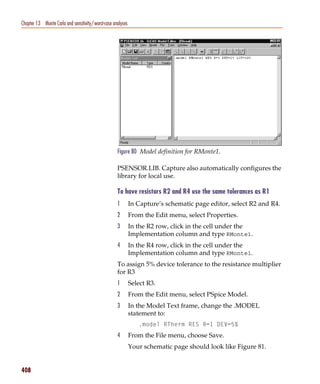
            Figure 80             Model definition for RMonte1. . . . . . . . . . . . . . . . . . . . . . . .       .    408
            Figure 81             Pressure sensor circuit with RMonte1 and RTherm model definitions.                .    409
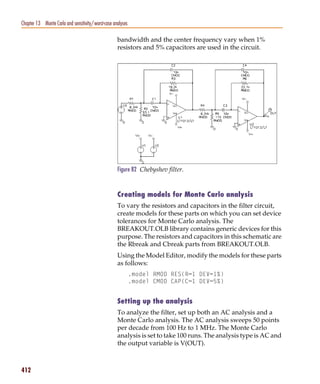
            Figure 82             Chebyshev filter. . . . . . . . . . . . . . . . . . . . . . . . . . . . . . . .   .    412
            Figure 83             1 dB bandwidth histogram. . . . . . . . . . . . . . . . . . . . . . . . . .       .    415
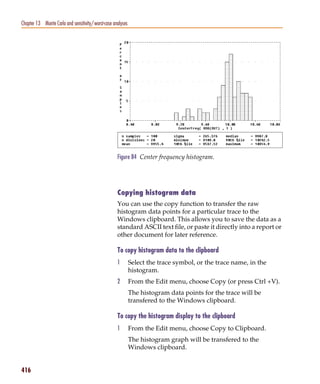
            Figure 84             Center frequency histogram. . . . . . . . . . . . . . . . . . . . . . . . .       .    416
            Figure 85             Simple biased BJT amplifier. . . . . . . . . . . . . . . . . . . . . . . . .      .    420
            Figure 86             Amplifier netlist and circuit file. . . . . . . . . . . . . . . . . . . . . . .   .    421
            Figure 87             YatX Goal Function. . . . . . . . . . . . . . . . . . . . . . . . . . . . . .     .    422
            Figure 88             Correct worst-case results. . . . . . . . . . . . . . . . . . . . . . . . . .     .    423
            Figure 89             Incorrect worst-case results. . . . . . . . . . . . . . . . . . . . . . . . .     .    423
            Figure 90             Schematic using VARY BOTH. . . . . . . . . . . . . . . . . . . . . . . .          .    424
            Figure 91             Circuit file using VARY BOTH. . . . . . . . . . . . . . . . . . . . . . .         .    424
            Figure 92             FILESTIM1 used on a schematic page. . . . . . . . . . . . . . . . . . .           .    442
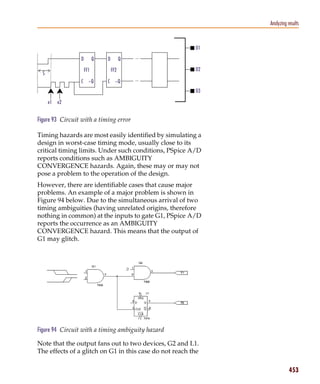
            Figure 93             Circuit with a timing error . . . . . . . . . . . . . . . . . . . . . . . . .     .    453
            Figure 94             Circuit with a timing ambiguity hazard . . . . . . . . . . . . . . . . . .        .    453
            Figure 95             Mixed analog/digital circuit before and after interface generation. . .           .    472
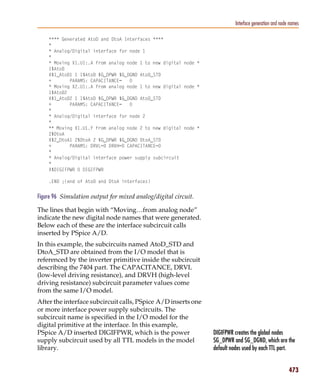
            Figure 96             Simulation output for mixed analog/digital circuit. . . . . . . . . . .           .    473
            Figure 97             Timing ambiguity example one. . . . . . . . . . . . . . . . . . . . . . .         .    479
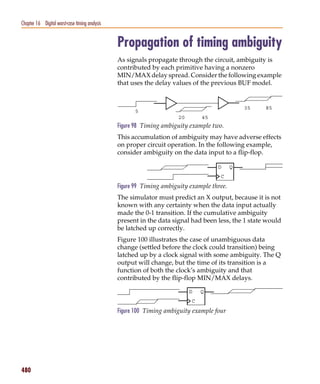
            Figure 98             Timing ambiguity example two. . . . . . . . . . . . . . . . . . . . . . .         .    480
            Figure 99             Timing ambiguity example three. . . . . . . . . . . . . . . . . . . . . .         .    480
            Figure 100            Timing ambiguity example four . . . . . . . . . . . . . . . . . . . . . .         .    480
            Figure 101            Timing hazard example. . . . . . . . . . . . . . . . . . . . . . . . . . .        .    481
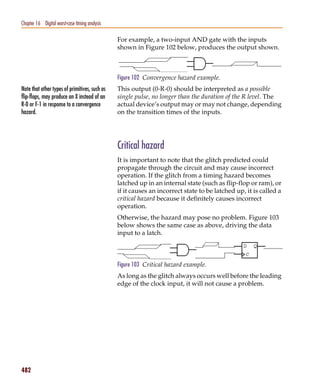
            Figure 102            Convergence hazard example. . . . . . . . . . . . . . . . . . . . . . . .         .    482
            Figure 103            Critical hazard example. . . . . . . . . . . . . . . . . . . . . . . . . . .      .    482
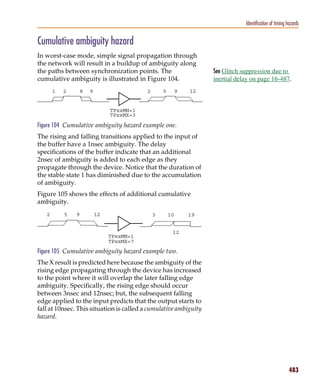
            Figure 104            Cumulative ambiguity hazard example one. . . . . . . . . . . . . . . .            .    483
            Figure 105            Cumulative ambiguity hazard example two. . . . . . . . . . . . . . . .            .    483
            Figure 106            Cumulative ambiguity hazard example three. . . . . . . . . . . . . . .            .    484
            Figure 107            Reconvergence hazard example one. . . . . . . . . . . . . . . . . . . .           .    485
            Figure 108            Reconvergence hazard example two. . . . . . . . . . . . . . . . . . . .           .    485
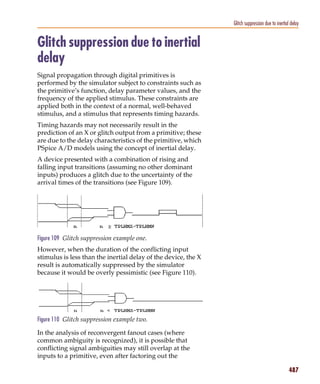
            Figure 109            Glitch suppression example one. . . . . . . . . . . . . . . . . . . . . . .       .    487
            Figure 110            Glitch suppression example two. . . . . . . . . . . . . . . . . . . . . .         .    487
            Figure 111            Glitch suppression example three. . . . . . . . . . . . . . . . . . . . . .       .    488
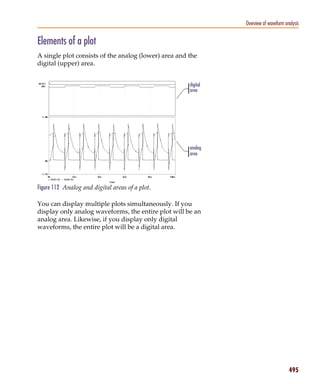
            Figure 112            Analog and digital areas of a plot. . . . . . . . . . . . . . . . . . . . . .     .    495
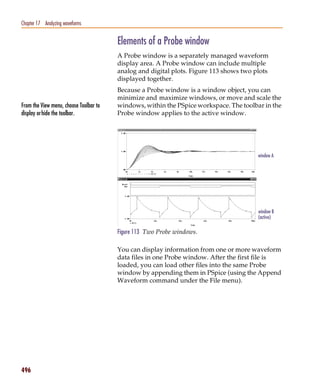
            Figure 113            Two Probe windows. . . . . . . . . . . . . . . . . . . . . . . . . . . . .        .    496
            Figure 114            Trace legend symbols. . . . . . . . . . . . . . . . . . . . . . . . . . . . .     .    530
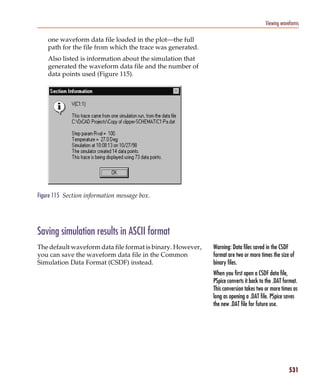
            Figure 115            Section information message box. . . . . . . . . . . . . . . . . . . . . .        .    531
            Figure 116            Example schematic EXAMPLE.OPJ. . . . . . . . . . . . . . . . . . . . .            .    533

                                                                                                                          xxi
Pspug.book Page xxii Tuesday, May 16, 2000 1:17 PM


   Figures

   Figure 117             Waveform display for EXAMPLE.DAT. . . . . . .              .   .   .   .   .   .   .   .   .   .   .   .   .   534
   Figure 118             Mixed analog/digital oscillator design . . . . . .         .   .   .   .   .   .   .   .   .   .   .   .   .   537
   Figure 119             Voltage at net 1 with y-axis added. . . . . . . . . .      .   .   .   .   .   .   .   .   .   .   .   .   .   539
   Figure 120             Mixed analog/digital oscillator results, . . . . . .       .   .   .   .   .   .   .   .   .   .   .   .   .   540
   Figure 121             Cursors positioned on a trough and peak of V(1)            .   .   .   .   .   .   .   .   .   .   .   .   .   552
   Figure 122             Waveform display for a persistent hazard. . . . .          .   .   .   .   .   .   .   .   .   .   .   .   .   555
   Figure A-1             Setpoints. . . . . . . . . . . . . . . . . . . . . . . .   .   .   .   .   .   .   .   .   .   .   .   .   .   580


   xxii
Pspug.book Page xxiii Tuesday, May 16, 2000 1:17 PM


             Tables


            Table 1               Comparison of PSpice versions . . . . . . . . . . . . .          .   .   .   .   .   .   .   .   .    xxxii
            Table 2               DC analysis types . . . . . . . . . . . . . . . . . . . . .      .   .   .   .   .   .   .   .   .   . . 44
            Table 3               AC analysis types . . . . . . . . . . . . . . . . . . . . .      .   .   .   .   .   .   .   .   .   . . 45
            Table 4               Time-based analysis types . . . . . . . . . . . . . . . .        .   .   .   .   .   .   .   .   .   . . 46
            Table 5               Parametric and temperature analysis types . . . . . . .          .   .   .   .   .   .   .   .   .   . . 47
            Table 6               Statistical analysis types . . . . . . . . . . . . . . . . . .   .   .   .   .   .   .   .   .   .   . . 48
            Table 7               Association of cursors with mouse buttons. . . . . . .           .   .   .   .   .   .   .   .   .   . . 72
            Table 8               Passive parts . . . . . . . . . . . . . . . . . . . . . . . .    .   .   .   .   .   .   .   .   .   . 104
            Table 9               Breakout parts . . . . . . . . . . . . . . . . . . . . . . .     .   .   .   .   .   .   .   .   .   . 105
            Table 10              Operators in expressions . . . . . . . . . . . . . . . . .       .   .   .   .   .   .   .   .   .   . 110
            Table 11              Functions in arithmetic expressions . . . . . . . . . . .        .   .   .   .   .   .   .   .   .   . 111
            Table 12              System variables . . . . . . . . . . . . . . . . . . . . . .     .   .   .   .   .   .   .   .   .   . 113
            Table 13              Models supported in the Model Editor . . . . . . . . .           .   .   .   .   .   .   .   .   .   . 136
            Table 14              Sample diode data sheet values . . . . . . . . . . . . .         .   .   .   .   .   .   .   .   .   . 148
            Table 15              Symbol Names for Custom Symbol Generation . . . .                .   .   .   .   .   .   .   .   .   . 174
            Table 16              Control system parts . . . . . . . . . . . . . . . . . . .       .   .   .   .   .   .   .   .   .   . 197
            Table 17              ABM math function parts . . . . . . . . . . . . . . . . .        .   .   .   .   .   .   .   .   .   . 211
            Table 18              ABM expression parts . . . . . . . . . . . . . . . . . .         .   .   .   .   .   .   .   .   .   . 212
            Table 19              PSpice-equivalent parts . . . . . . . . . . . . . . . . . .      .   .   .   .   .   .   .   .   .   . 218
            Table 20              Basic controlled sources in ANALOG.OLB . . . . . . .             .   .   .   .   .   .   .   .   .   . 236
            Table 21              Digital primitives summary . . . . . . . . . . . . . . .         .   .   .   .   .   .   .   .   .   . 239
            Table 22              Digital I/O model parameters . . . . . . . . . . . . . .         .   .   .   .   .   .   .   .   .   . 255
            Table 23              Classes of PSpice analyses . . . . . . . . . . . . . . . .       .   .   .   .   .   .   .   .   .   . 283
            Table 24              Execution order for standard analyses . . . . . . . . .          .   .   .   .   .   .   .   .   .   . 285
            Table 25              PSpice output variable formats . . . . . . . . . . . . . .       .   .   .   .   .   .   .   .   .   . 288
            Table 26              Element definitions for 2-terminal devices . . . . . . .         .   .   .   .   .   .   .   .   .   . 289
            Table 27              Element definitions for 3- or 4-terminal devices . . . .         .   .   .   .   .   .   .   .   .   . 290
            Table 28              Element definitions for transmission line devices . . .          .   .   .   .   .   .   .   .   .   . 290
            Table 29              Element definitions for AC analysis specific elements            .   .   .   .   .   .   .   .   .   . 291
            Table 30              DC sweep circuit design requirements . . . . . . . . .           .   .   .   .   .   .   .   .   .   . 326
            Table 31              Curve family example setup . . . . . . . . . . . . . . .         .   .   .   .   .   .   .   .   .   . 332
            Table 32              Stimulus symbols for time-based input signals . . . .            .   .   .   .   .   .   .   .   .   . 362
Pspug.book Page xxiv Tuesday, May 16, 2000 1:17 PM


    Tables                                                                                                                 May 15, 2000

   Table 33               Parametric analysis circuit design requirements . .          .   .   .   .   .   .   .   .   .   .   .   .   382
   Table 34               Collating functions used in statistical analyses . . .       .   .   .   .   .   .   .   .   .   .   .   .   397
   Table 35               Digital states . . . . . . . . . . . . . . . . . . . . . .   .   .   .   .   .   .   .   .   .   .   .   .   429
   Table 36               STIMn part properties . . . . . . . . . . . . . . . . .      .   .   .   .   .   .   .   .   .   .   .   .   440
   Table 37               FILESTIMn part properties . . . . . . . . . . . . . .        .   .   .   .   .   .   .   .   .   .   .   .   441
   Table 38               Simulation condition messages—timing violations              .   .   .   .   .   .   .   .   .   .   .   .   455
   Table 39               Simulation condition messages—hazards . . . . . .            .   .   .   .   .   .   .   .   .   .   .   .   456
   Table 40               Simulation message output control options . . . . .          .   .   .   .   .   .   .   .   .   .   .   .   457
   Table 41               Interface subcircuit models . . . . . . . . . . . . . .      .   .   .   .   .   .   .   .   .   .   .   .   462
   Table 42               Default digital power/ground pin connections . . .           .   .   .   .   .   .   .   .   .   .   .   .   467
   Table 43               Digital power supply parts in SPECIAL.OLB . . . .            .   .   .   .   .   .   .   .   .   .   .   .   468
   Table 44               Digital power supply properties . . . . . . . . . . .        .   .   .   .   .   .   .   .   .   .   .   .   468
   Table 45               Default waveform viewing colors. . . . . . . . . . .         .   .   .   .   .   .   .   .   .   .   .   .   500
   Table 46               Mouse actions for cursor control . . . . . . . . . . .       .   .   .   .   .   .   .   .   .   .   .   .   550
   Table 47               Key combinations for cursor control . . . . . . . . .        .   .   .   .   .   .   .   .   .   .   .   .   550
   Table 48               Output variable formats . . . . . . . . . . . . . . . .      .   .   .   .   .   .   .   .   .   .   .   .   559
   Table 49               Examples of output variable formats . . . . . . . .          .   .   .   .   .   .   .   .   .   .   .   .   560
   Table 50               Output variable AC suffixes . . . . . . . . . . . . .        .   .   .   .   .   .   .   .   .   .   .   .   561
   Table 51               Device names for two-terminal device types . . . .           .   .   .   .   .   .   .   .   .   .   .   .   561
   Table 52               Terminal IDs by three & four-terminal device type            .   .   .   .   .   .   .   .   .   .   .   .   562
   Table 53               Noise types by device type . . . . . . . . . . . . . .       .   .   .   .   .   .   .   .   .   .   .   .   563
   Table 54               Analog arithmetic functions for trace expressions .          .   .   .   .   .   .   .   .   .   .   .   .   565
   Table 55               Output units for trace expressions . . . . . . . . . .       .   .   .   .   .   .   .   .   .   .   .   .   567
   Table 56               Digital logical and arithmetic operators . . . . . . .       .   .   .   .   .   .   .   .   .   .   .   .   569
   Table 57               Signal constants for digital trace expressions . . . .       .   .   .   .   .   .   .   .   .   .   .   .   569


   xxiv
Pspug.book Page xxv Tuesday, May 16, 2000 1:17 PM


           Before you begin


           Welcome
           Orcad family products offer a total solution for your core
           design tasks: schematic- and VHDL-based design entry;
           FPGA and CPLD design synthesis; digital, analog, and
           mixed-signal simulation; and printed circuit board layout.
           What's more, Orcad family products are a suite of
           applications built around an engineer's design flow—not
           just a collection of independently developed point tools.
           PSpice is just one element in our total solution design
           flow.
           PSpice is a simulation program that models the behavior
           of a circuit. PSpice simulates analog only circuits, whereas
           PSpice A/D simulates any mix of analog and digital
           devices. Used with Orcad Capture for design entry, you
           can think of PSpice as a software-based breadboard of
           your circuit that you can use to test and refine your design
           before manufacturing the physical circuit board or IC.
Pspug.book Page xxvi Tuesday, May 16, 2000 1:17 PM


   Before you begin


                                                     How to use this guide
                                                     This guide is designed so you can quickly find the
                                                     information you need to use PSpice. To help you learn and
                                                     use PSpice efficiently, this manual is separated into the
                                                     following sections:
                                                     •   Part 1 - Simulation primer
                                                     •   Part 2 - Design entry
                                                     •   Part 3 - Setting up and running analyses
                                                     •   Part 4 - Viewing results


                                                     Symbols and conventions
                                                     Our printed documentation uses a few special symbols
                                                     and conventions.
   Notation                       Examples                                   Description
   C+r                            Press C+r.                                 Means to hold down the C key while
                                                                             pressing r.
   A, f, o                        From the File menu, choose Open (A, f,     Means that you have two options. You
                                  o).                                        can use the mouse to choose the Open
                                                                             command from the File menu, or you
                                                                             can press each of the keys in
                                                                             parentheses in order: first A, then f,
                                                                             then o.
   Monospace font                 In the Part Name text box, type PARAM.     Text that you type is shown in
                                                                             monospace font. In the example, you
                                                                             type the characters P, A, R, A, and
                                                                             M.
   UPPERCASE                      In Capture, open CLIPPERA.DSN.             Path and filenames are shown in
                                                                             uppercase. In the example, you open
                                                                             the design file named CLIPPERA.DSN.
   Italics                        In Capture, save design_name.DSN.          Information that you are to provide is
                                                                             shown in italics. In the example, you
                                                                             save the design with a name of your
                                                                             choice, but it must have an extension of
                                                                             .DSN.


   xxvi
Pspug.book Page xxvii Tuesday, May 16, 2000 1:17 PM


                                                                                                                  How to use this guide


            Related documentation
            In addition to this guide, you can find technical product
            information in the online help, the online interactive
            tutorial, online books, and our technical web site, as well
            as in other books. The table below describes the types of
            technical documentation provided with PSpice.
            Note       The documentation you receive depends on the software
                       configuration you have purchased. Previous editions of the PSpice
                       User’s Guide focused only on PSpice. The current PSpice User’s
                       Guide supersedes all other editions and covers PSpice A/D, PSpice
                       A/D Basics, and PSpice.


             This documentation component . . .                    Provides this . . .
             This guide—                                           A comprehensive guide for understanding and using the
             PSpice User’s Guide                                   features available in PSpice A/D, PSpice A/D Basics, and
                                                                   PSpice.
             Online help                                           Comprehensive information for understanding and using
                                                                   the features available in PSpice A/D, PSpice A/D Basics,
                                                                   and PSpice.
                                                                   You can access help from the Help menu in PSpice A/D,
                                                                   PSpice A/D Basics, or PSpice, by choosing the Help button
                                                                   in a dialog box, or by pressing 1. Topics include:
                                                                    • Explanations and instructions for common tasks.
                                                                    • Descriptions of menu commands, dialog boxes, tools on
                                                                       the toolbar and tool palettes, and the status bar.
                                                                    • Error messages and glossary terms.
                                                                    • Reference information.
                                                                    • Product support information.
                                                                   You can get context-sensitive help for a error message by
                                                                   placing your cursor in the error message line in the session
                                                                   log and pressing 1.
             Online PSpice User’s Guide                            An online, searchable version of this guide, available when
                                                                   choosing Online Manuals from the Orcad family program
                                                                   group (on the Start menu).


                                                                                                                                xxvii
Pspug.book Page xxviii Tuesday, May 16, 2000 1:17 PM


   Before you begin


     This documentation component . . .                Provides this . . .
     Online PSpice Reference Guide                     An online, searchable reference guide for PSpice decribing:
                                                       detailed descriptions of the simulation controls and
                                                       analysis specifications, start-up option definitions, and a
                                                       list of device types in the analog and digital model
                                                       libraries. User interface commands are provided to instruct
                                                       you on each of the screen commands. This is available
                                                       when choosing Online Manuals from the Orcad family
                                                       program group (on the Start menu).
     Online PSpice Library List                        An online, searchable listing of all of the analog, digital,
                                                       and mixed-signal parts in the model and part libraries that
                                                       are shipped with PSpice. This is available when choosing
                                                       Online Manuals from the Orcad family program group (on
                                                       the Start menu).
     Online PSpice quick reference                     Concise descriptions of the commands, shortcuts, and tools
                                                       available in PSpice, available when choosing Online
                                                       Manuals from the Orcad family program group (on the
                                                       Start menu).


   xxviii
Pspug.book Page xxix Tuesday, May 16, 2000 1:17 PM


                                                                                                    How to use this guide


             This documentation component . . .      Provides this . . .
             Orcad family customer support at        An Internet-based support service available to customers
             www.orcad.com/technical/technical.asp   with current support options. A few of the technical
                                                     solutions within the customer support area are:
                                                      • The Knowledge Base, which is a searchable database
                                                         containing thousands of articles on topics ranging from
                                                         schematic design entry and VHDL-based PLD design to
                                                         PCB layout methodologies. It also contains answers to
                                                         frequently asked questions.
                                                      • The Knowledge Exchange, which enables you to share
                                                         information and ideas with other users and with our
                                                         technical experts in a real-time online forum. You can
                                                         submit issues or questions for open discussion, search
                                                         the Knowledge Exchange for information, or send email
                                                         to another participant for one-on-one communication. A
                                                         list of new postings will appear each time you visit the
                                                         Knowledge Exchange, providing you with a quick
                                                         update of what's been discussed since your last visit.
                                                      • The Technical Library, which contains online customer
                                                         support information that you can search through by
                                                         category or product. You can find product manuals,
                                                         product literature, technical notes, articles, samples,
                                                         books, and other technical information. Additionally,
                                                         technical information can be obtained through
                                                         SourceLink, which is an online customer support
                                                         information service for users of Cadence software other
                                                         than Capture, Component Information System (CIS),
                                                         Express, Layout, or PSpice.
                                                      • The Support Connection, which allows you to choose to
                                                         either view and update existing incidents, or create new
                                                         incidents. The information is delivered directly to us via
                                                         our internal database. This service is only available to
                                                         customers with current maintenance or Extended
                                                         Support Options (ESOs) in the United States and
                                                         Canada.
                                                      • The Live Connection, which enables you to open access
                                                         to your computer to a Customer Support person, who
                                                         can then view your actions on your computer monitor
                                                         as you demonstrate the problem you're having. Live
                                                         Connection's two-way transmission can also let you
                                                         view the actions on the Customer Support person's
                                                         computer monitor, as he or she demonstrates a method
                                                         or procedure to help you solve your problem. To
                                                         participate in Live Connection, you need to contact a
                                                         Customer Support person, in order to obtain a support
                                                         number to grant you access to the Live Connection site,
                                                         and to set up a time to “meet online” using Live
                                                         Connection.

                                                                                                                  xxix
Pspug.book Page xxx Tuesday, May 16, 2000 1:17 PM


   Before you begin


                                                    What this user’s guide covers
    Note For a summary of the differences           PSpice is available in three versions:
    between the versions of PSpice, please see         •     PSpice A/D
    the sections below.
                                                       •     PSpice A/D Basics
                                                       •     PSpice
    Note An evaluation/academic version             This user’s guide is intended to provide a complete
    called PSpice Lite is also available.           understanding of how to use all of the features and
                                                    functionality provided by PSpice A/D. Because PSpice
                                                    A/D Basics and PSpice are each limited versions of the
                                                    full PSpice A/D product, their functionality is also
                                                    described in this guide.
                                                    Wherever certain features or functions of PSpice A/D are
                                                    explained in this guide which are not available in one of
                                                    the other two versions, that limitation is noted with the
                                                    following special icons:
                                                      The icon...         Indicates this...

                                                                          The feature or function described in the
                                                                          corresponding chapter or section is
                                                                          available in PSpice A/D, but is not offered
                                                                          with PSpice A/D Basics.


                                                                          The feature or function described in the
                                                                          corresponding chapter or section is
                                                                          available in PSpice A/D, but is not offered
                                                                          with PSpice.


                                                    If you are currently using PSpice A/D Basics or PSpice
                                                    and discover that you need the expanded capabilities
                                                    offered by PSpice A/D, you can easily upgrade without
                                                    any loss of data or conversion utilities. Any circuit file
                                                    designed to simulate with PSpice A/D Basics or PSpice
                                                    will simulate with PSpice A/D.


   xxx
Pspug.book Page xxxi Tuesday, May 16, 2000 1:17 PM


                                                                                              What this user’s guide covers


            PSpice A/D overview
            PSpice A/D simulates analog-only, mixed analog/digital,
                                                                             Note For a more detailed ilist of the
            and digital-only circuits. PSpice A/D’s analog and digital
                                                                             features and functionality in each version
            algorithms are built into the same program so that mixed
                                                                             of PSpice, see If you don’t have the
            analog/digital circuits can be simulated with tightly-
                                                                             standard PSpice A/D package
            coupled feedback loops between the analog and digital
                                                                             on page -xxxii.
            sections without any performance degradation.
            After you prepare a design for simulation, Orcad Capture
            generates a circuit file set. The circuit file set, containing
            the circuit netlist and analysis commands, is read by
            PSpice A/D for simulation. PSpice A/D formulates these
            into meaningful graphical plots, which you can mark for
            display directly from your schematic page using markers.


            PSpice A/D Basics overview
            PSpice A/D Basics provides the basic functionality
            needed for analog and mixed-signal design without the
            advanced features in the full PSpice A/D package.


            PSpice overview
            PSpice simulates analog circuits only, not mixed signal or
            digital circuits. Otherwise, PSpice offers essentially the
            same set of features and functionality as that provided by
            PSpice A/D.


                                                                                                                    xxxi
Pspug.book Page xxxii Tuesday, May 16, 2000 1:17 PM


   Before you begin


                                                      If you don’t have the standard
                                                      PSpice A/D package

                                                      Comparison of the different versions of PSpice
                                                      The following table identifies which significant features
                                                      are included with PSpice A/D, PSpice A/D Basics, or
    Note For expert PSpice users, these are           PSpice.
    the PSpice circuit file commands that are
                                                      Another version of PSpice A/D, called PSpice A/D Lite, is
    not available in the Basics package:
                                                      also available. This product is intended for use by
    • .STIMULUS                                       students, and is provided for evaluation purposes as well.
    • .STIMLIB                                        The limitations of PSpice A/D Lite are listed after this
                                                      table.
    • .SAVEBIAS
                                                      For the most current information about the features and
    • .LOADBIAS
                                                      functionality available in the different versions of PSpice,
                                                      contact PSpice Customer Support.
                                                      Table 1   Comparison of PSpice versions
                                                                                        PSpice A/D PSpice A/D PSpice
                                         Feature                                        (standard) Basics
                                         Benefits of integration with Orcad Capture

                                            graphical design entry (schematic capture) yes         yes        yes
                                            simulation setup using dialog boxes         yes        yes        yes
                                            cross-probing                               yes        yes        yes
                                            multi-window analysis of PSpice data sets   yes        yes        yes
                                            marching waveforms in PSpice                yes        yes        yes
                                            board layout package interfaces             yes        yes        yes
                                         Notable PSpice analysis and simulation features
                                            DC sweep, AC sweep, transient analysis      yes        yes        yes
                                            noise, Fourier, temperature analysis        yes        yes        yes
                                            parametric analysis                         yes        no         yes
                                            Monte Carlo, sensitivity/worst-case         yes        no         yes
                                            analysis


   xxxii
Pspug.book Page xxxiii Tuesday, May 16, 2000 1:17 PM


                                                                                        If you don’t have the standard PSpice A/D package

            Table 1    Comparison of PSpice versions
                                                            PSpice A/D PSpice A/D PSpice
             Feature                                        (standard) Basics
                analog behavioral modeling (ABM)            yes        yes        yes
                propagation delay modeling                  yes        no         no
                constraint checking (such as setup and      yes        no         no
                hold timing)
                digital worst-case timing                   yes        no         no
                charge storage on digital nets              yes        no         no
                PSpice Stimulus Editor                      yes        no         yes
                PSpice Model Editor                         yes        no*        yes
                performance analysis (goal functions)       yes        no         yes
                interactive simulation                      yes        no         yes
                preemptive simulation                       yes        yes**      yes
                save/load bias point                        yes        no         yes
             Notable PSpice devices and library models
                GaAsFETs: Curtice, Statz, TriQuint,         all        Statz      all
                Parker-Skellern
                MOSFETs: SPICE3 (1-3) with charge           yes        yes        yes
                conservation, BSIM1, BSIM3.1 (version 3),
                EKV (version 2.6)
                IGBTs                                       yes        no         yes
                JFETs, BJTs                                 yes        yes        yes
                SCRSs, thyristors                           yes        no         yes
                PWMs                                        yes        no         no
                resistor, capacitor, and inductor .MODEL    yes        yes        yes
                support
                ideal, non-ideal lossy transmission lines   all        ideal      all
                coupled inductors                           yes        yes        yes
                coupled transmission lines                  yes        no         yes
                nonlinear magnetics                         yes        no         yes
                voltage- and current-controlled switches    yes        yes        yes
                analog model library                        14,000+    12,000+    14,000+


                                                                                                                                 xxxiii
Pspug.book Page xxxiv Tuesday, May 16, 2000 1:17 PM


   Before you begin

                                                      Table 1   Comparison of PSpice versions
                                                                                             PSpice A/D PSpice A/D PSpice
                                        Feature                                              (standard) Basics
                                           digital primitives                                all          most***     none
                                           digital model library                             1,600+       1,600+      0
                                        Purchase options
                                           PSpice Optimizer                                  yes          no          yes
                                           network licensing                                 yes          no          yes
                                        Other options
                                           PSpice Device Equations Developer’s Kit           yes          no          yes
                                           (DEDK)****
                                        Miscellaneous specifications
                                           unlimited circuit size                            yes          yes*****    yes
                                       * Limited to text editing and diode device characterization.
                                       ** Only allows one paused simulation in the queue.
                                       *** PSpice A/D Basics does not include bidirectional transfer gates.
                                       **** Available to qualified customers - contact PSpice Customer Support for qualification
                                         criteria.
                                       ***** Depends on system resources.


   xxxiv
Pspug.book Page xxxv Tuesday, May 16, 2000 1:17 PM


                                                                           If you don’t have the standard PSpice A/D package


           If you have PSpice A/D Lite
           Limits of PSpice A/D Lite
           PSpice A/D Lite has the following limitations:
           •     circuit simulation limited to circuits with up to 64
                 nodes, 10 transistors, two operational amplifiers or 65
                 digital primitive devices, and 10 transmission lines
                 (ideal or non-ideal) with not more than 4 pairwise
                 coupled lines
           •     device characterization using the PSpice Model Editor
                 limited to diodes
           •     stimulus generation limited to sine waves (analog)
                 and clocks (digital)
           •     sample library of approximately 39 analog and 134
                 digital parts
           •     displays only simulation data created using the demo
                 version of the simulator
           •     PSpice Optimizer limited to one goal, one parameter
                 and one constraint
           •     designs created in Capture can be saved if they have
                 no more than 30 part instances


           Minimum hardware requirements for running
           PSpice:
                 •     Intel Pentium 90MHz or equivalent processor
                 •     Windows 95, Windows 98 or Windows NT
                 •     16MB RAM (32MB recommended)
                 •     90MB of free hard disk space
                 •     CD-ROM drive
                 •     Mouse or similar pointing device


                                                                                                                    xxxv
Pspug.book Page xxxvi Tuesday, May 16, 2000 1:17 PM


   Before you begin


                                                      What’s new
                                                      For this release, PSpice offers several enhancements and
                                                      improvements over previous versions, as described
                                                      below.


                                                      Hierarchical netlisting You now have the option of
                                                      generating hierarchical netlists as well as flat netlists for
                                                      your hierarchical designs. With hierarchical netlists, you
                                                      can define default parameter values for subcircuits, and
                                                      override them by "passing" parameters via its occurrence
                                                      in the parent schematic. Cross-probing between the front-
                                                      end design entry tool and PSpice at the lower level circuits
                                                      of a hierarchical design work as it does with flat netlists.


                                                      Measuring pin currents on subcircuits You can
                                                      now view pin-currents on any part that is represented by
                                                      a PSpice subcircuit (.SUBCKT) model. These
                                                      measurements can be cross-probed with current markers
                                                      in the schematic, and are available as traces to add in
                                                      Probe windows. Using hierarchical netlists allows pin
                                                      current measurement for more of the parts in the
                                                      schematic.


                                                      Measuring power consumption on devices             You
                                                      can also measure the power consumption of a particular
                                                      device by using the new power markers in the schematic,
                                                      or by adding the corresponding trace in Probe. You can
                                                      use power markers in the same way you use current and
                                                      voltage markers. Power markers are annotated with "W"
                                                      and are available in the toolbar. They attach to the center
                                                      of parts in the schematic..


                                                      Plot window templates in Probe          You can create
                                                      and reuse custom displays in Probe with defined
                                                      arguments using plot window templates in PSpice and
                                                      PSpice A/D. A plot window template is a pre-defined plot
                                                      window where one or more of the voltage(s) or current(s)
                                                      is an argument that can be identified using markers in the
   xxxvi
Pspug.book Page xxxvii Tuesday, May 16, 2000 1:17 PM


                                                                          What’s new

            schematic, or by selecting a trace in the PSpice user
            interface.


            Preemptive simulation You now have more control
            over how multiple simulations are handled by PSpice and
            PSpice A/D, with the new Simulation Manager. You can
            preempt the currently active simulation and run another
            one ahead of it, and complete the paused simulation later.
            The Simulation Manager replaces the simulation queue
            functionality in previous releases of PSpice. You can still
            add and remove simulations, and reorder the sequence of
            batch simulations waiting in the queue to insure that the
            most important jobs are run first. When needed, the
            Simulation Manager will appear as an icon in the system
            tray of the Windows taskbar, and can be opened from
            within PSpice.


            Interactive simulation      You can interactively pause a
            simulation, change certain simulation parameters, and
            then continue the simulation from the point at which it
            was paused using the new parameter values. By
            interacting with the simulation while it is running you can
            improve convergence or make other adjustments that will
            maximize the efficiency of the simulation run.


            Enhancements to options for limiting data
            collection You now have greater control and flexibility
            over what types of data, and how much data, is collected
            and saved during a particular simulation. See the Data
            Collection tab in the Simulation Settings dialog for the
            enhanced options.


                                                                            xxxvii
Pspug.book Page xxxviii Tuesday, May 16, 2000 1:17 PM


   Before you begin


   xxxviii
Pspug.book Page 39 Tuesday, May 16, 2000 1:17 PM


           Part one
           Simulation primer


           Part one provides basic information about circuit
           simulation including examples of common analyses.
           •     Chapter 1, Things you need to know, provides an
                 overview of the circuit simulation process including
                 what PSpice does, descriptions of analysis types, and
                 descriptions of important files.
           •     Chapter 2, Simulation examples, presents examples of
                 common analyses to introduce the methods and tools
                 you’ll need to enter, simulate, and analyze your
                 design.
Pspug.book Page 40 Tuesday, May 16, 2000 1:17 PM
Pspug.book Page 41 Tuesday, May 16, 2000 1:17 PM


           Things you need to know


                                                                          1

           Chapter overview
           This chapter introduces the purpose and function of the
           PSpice A/D circuit simulator.
           •     What is PSpice A/D? on page 1-42 describes PSpice A/D
                 capabilities.
           •     Analyses you can run with PSpice A/D on page 1-44
                 introduces the different kinds of basic and advanced
                 analyses that PSpice A/D supports.
           •     Using PSpice with Orcad programs on page 1-50 presents
                 the high-level simulation design flow.
           •     Files needed for simulation on page 1-51 describes the
                 files used to pass information between PSpice and
                 other programs. This section also introduces the
                 things you can do to customize where and how PSpice
                 finds simulation information.
           •     Files that PSpice generates on page 1-55 describes the
                 files that contain simulation results.
Pspug.book Page 42 Tuesday, May 16, 2000 1:17 PM


   Chapter 1 Things you need to know


                                                   What is PSpice A/D?
   Because the analog and digital simulation       PSpice A/D is a simulation program that models the
   algorithms are built into the same              behavior of a circuit containing any mix of analog and
   program, PSpice A/D simulates                   digital devices. Used with Orcad Capture for design entry,
   mixed-signal circuits with no performance       you can think of PSpice A/D as a software-based
   degradation because of tightly coupled          breadboard of your circuit that you can use to test and
   feedback loops between the analog and           refine your design before ever touching a piece of
   digital sections.                               hardware.


                                                   Run basic and advanced analyses            PSpice A/D can
                                                   perform:
                                                   •   DC, AC, and transient analyses, so you can test the
                                                       response of your circuit to different inputs.
                                                   •   Parametric, Monte Carlo, and sensitivity/worst-case
                                                       analyses, so you can see how your circuit’s behavior
                                                       varies with changing component values.
                                                   •   Digital worst-case timing analysis to help you find
                                                       timing problems that occur with only certain
                                                       combinations of slow and fast signal transmissions.
                                                   The range of models built into PSpice A/D include not
                                                   only those for resistors, inductors, capacitors, and bipolar
                                                   transistors, but also these:
                                                       •   transmission line models, including delay,
                                                           reflection, loss, dispersion, and crosstalk (no lossy
                                                           in PSpice A/D Basics)
                                                       •   nonlinear magnetic core models, including
                                                           saturation and hysteresis (not in PSpice A/D
                                                           Basics)
                                                       •   seven MOSFET models, including BSIM3 version
                                                           3.1 and EKV version 2.6
                                                       •   five GaAsFET models, including Parker-Skellern
                                                           and TriQuint’s TOM2 model (only Statz in PSpice
                                                           A/D Basics)
                                                       •   IGBTs (not in PSpice A/D Basics)


   42
Pspug.book Page 43 Tuesday, May 16, 2000 1:17 PM


                                                                        What is PSpice A/D?

                 •     digital components with analog I/O models (not
                       in PSpice)


           Use parts from Orcad’s extensive set of libraries
           The model libraries feature over 11,300 analog and 1,600
           digital models of devices manufactured in North
           America, Japan, and Europe.


           Vary device characteristics without creating
           new parts PSpice A/D has numerous built-in models
           with parameters that you can tweak for a given device.
           These include independent temperature effects.


           Model behavior       PSpice A/D supports analog and
           digital behavioral modeling, so you can describe
           functional blocks of circuitry using mathematical
           expressions and functions.


                                                                                       43
Pspug.book Page 44 Tuesday, May 16, 2000 1:17 PM


   Chapter 1 Things you need to know


   See Chapter 2, Simulation
   examples, for introductory examples
                                                   Analyses you can run with
   showing how to run each type of analysis.       PSpice A/D
   See Part three, Setting up and
   running analyses, for a more detailed
   discussion of each type of analysis and how
   to set it up.
                                                   Basic analyses
                                                   DC sweep & other DC calculations
                                                   These DC analyses evaluate circuit performance in
                                                   response to a direct current source. Table 2 summarizes
                                                   what PSpice A/D calculates for each DC analysis type.
                                                   Table 2   DC analysis types

                                                    For this DC analysis...   PSpice A/D computes this...

                                                    DC sweep                  Steady-state voltages, currents, and
                                                                              digital states when sweeping a source, a
                                                                              model parameter, or temperature over
                                                                              a range of values.

                                                    Bias point detail         Bias point data in addition to what is
                                                                              automatically computed in any
                                                                              simulation.

                                                    DC sensitivity            Sensitivity of a net or part voltage as a
                                                                              function of bias point.

                                                    Small-signal              Small-signal DC gain, input resistance,
                                                    DC transfer               and output resistance as a function of
                                                                              bias point.


   44
Pspug.book Page 45 Tuesday, May 16, 2000 1:17 PM


                                                                                          Analyses you can run with PSpice A/D

           AC sweep and noise
           These AC analyses evaluate circuit performance in
           response to a small-signal alternating current source.
           Table 3 summarizes what PSpice A/D calculates for each
           AC analysis type.
           Table 3    AC analysis types

             For this AC analysis...      PSpice A/D computes this...

             AC sweep                     Small-signal response of the circuit
                                          (linearized around the bias point) when
                                          sweeping one or more sources over a
                                          range of frequencies. Outputs include
                                          voltages and currents with magnitude
                                          and phase. You can also use Bode Plot
                                          Template Windows in Probe to view
                                          this information.

             Noise                        For each frequency specified in the AC
                                          analysis:
                                           • Propagated noise contributions at an
                                             output net from every noise
                                             generator in the circuit.
                                           • RMS sum of the noise contributions
                                             at the output.
                                           • Equivalent input noise.

           Note        To run a noise analysis, you must also run an AC sweep analysis.


                                                                                                                          45
Pspug.book Page 46 Tuesday, May 16, 2000 1:17 PM


   Chapter 1 Things you need to know

                                                   Transient and Fourier
                                                   These time-based analyses evaluate circuit performance in
                                                   response to time-varying sources. Table 4 summarizes
                                                   what PSpice A/D calculates for each time-based analysis
                                                   type.
                                                   Table 4   Time-based analysis types

                                                    For this time-based
                                                    analysis...               PSpice A/D computes this...

                                                    Transient                 Voltages, currents, and digital states
                                                                              tracked over time.
                                                                              For digital devices, you can set the
                                                                              propagation delays to minimum,
                                                                              typical, and maximum. If you have
                                                                              enabled digital worst-case timing
                                                                              analysis, then PSpice A/D considers all
                                                                              possible combinations of propagation
                                                                              delays within the minimum and
                                                                              maximum range.

                                                    Fourier                   DC and Fourier components of the
                                                                              transient analysis results.

                                                   Note      To run a Fourier analysis, you must also run a transient analysis.


   46
Pspug.book Page 47 Tuesday, May 16, 2000 1:17 PM


                                                                         Analyses you can run with PSpice A/D


           Advanced multi-run analyses
           The multi-run analyses—parametric, temperature, Monte
           Carlo, and sensitivity/worst-case—result in a series of DC
           sweep, AC sweep, or transient analyses depending on
           which basic analyses you enabled.


           Parametric and temperature
           For parametric and temperature analyses, PSpice A/D
           steps a circuit value in a sequence that you specify and
           runs a simulation for each value.
           Table 5 shows the circuit values that you can step for each
           kind of analysis.
           Table 5    Parametric and temperature analysis types

             For this analysis...         You can step one of these...

             Parametric                   global parameter
                                          model parameter
                                          component value
                                          DC source
                                          operational temperature

             Temperature                  operational temperature


                                                                                                         47
Pspug.book Page 48 Tuesday, May 16, 2000 1:17 PM


   Chapter 1 Things you need to know

                                                   Monte Carlo and sensitivity/worst-case
                                                   Monte Carlo and sensitivity/worst-case analyses are
                                                   statistical. PSpice changes device model parameter values
                                                   with respect to device and lot tolerances that you specify,
                                                   and runs a simulation for each value.
                                                   Table 6 summarizes how PSpice runs each statistical
                                                   analysis type.
                                                   Table 6   Statistical analysis types

                                                    For this statistical
                                                    analysis...             PSpice does this...

                                                    Monte Carlo             For each simulation, randomly varies all
                                                                            device model parameters for which you
                                                                            have defined a tolerance.

                                                    Sensitivity/            Computes the probable worst-case
                                                    worst-case              response of the circuit in two steps:
                                                                            1 Computes component sensitivity to
                                                                                changes in the device model
                                                                                parameters. This means PSpice A/D
                                                                                nonrandomly varies device model
                                                                                parameters for which you have
                                                                                defined a tolerance, one at a time for
                                                                                each device and runs a simulation
                                                                                with each change.
                                                                            2 Sets all model parameters for all
                                                                                devices to their worst-case values
                                                                                (assumed to be at one of the
                                                                                tolerance limits) and runs a final
                                                                                simulation.


   48
Pspug.book Page 49 Tuesday, May 16, 2000 1:17 PM


                                                                                      Analyzing waveforms with PSpice


           Analyzing waveforms with
           PSpice

           What is waveform analysis?
           After completing the simulation, PSpice plots the
           waveform results so you can visualize the circuit’s
           behavior and determine the validity of your design.          Taken together, simulation and waveform
                                                                        analysis is an iterative process. After
                                                                        analyzing simulation results, you can refine
           Perform post-simulation analysis of the                      your design and simulation settings and
           results This means you can plot additional information       then perform a new simulation and
           derived from the waveforms. What you can plot depends
                                                                        waveform analysis.
           on the types of analyses you run. Bode plots, phase
           margin, derivatives for small-signal characteristics,
           waveform families, and histograms are only a few of the
           possibilities. You can also plot other waveform
           characteristics such as rise time versus temperature, or
           percent overshoot versus component value.


           Pinpoint design errors in digital circuits When
           PSpice detects setup and hold violations, race conditions,
           or timing hazards, a detailed message appears along with
           corresponding waveforms. PSpice also helps you locate
           the problem in your design.


                                                                                                                 49
Pspug.book Page 50 Tuesday, May 16, 2000 1:17 PM


   Chapter 1 Things you need to know


                                                   Using PSpice with Orcad
                                                   programs

                                                   Using Capture to prepare for simulation
                                                   Capture is a design entry program you need to prepare
                                                   your circuit for simulation. This means:
                                                   •   placing and connecting part symbols,
                                                   •   defining component values and other attributes,
                                                   •   defining input waveforms,
                                                   •   enabling one or more analyses, and
                                                   •   marking the points in the circuit where you want to
                                                       see results.
                                                   Capture is also the control point for running other
                                                   programs used in the simulation design flow.


                                                   What is the PSpice Stimulus Editor?
                                                   The Stimulus Editor is a graphical input waveform editor
                                                   that lets you define the shape of time-based signals used
                                                   to test your circuit’s response during simulation. Using
                                                   the Stimulus Editor, you can define:
                                                   •   analog stimuli with sine wave, pulse, piecewise linear,
                                                       exponential pulse, single-frequency FM shapes, and
                                                   •   digital stimuli that range from simple clocks to
                                                       complex pulse patterns and bus sequences.
                                                   The Stimulus Editor lets you draw analog piecewise linear
                                                   and all digital stimuli by clicking at the points along the
                                                   timeline that correspond to the input values that you want
                                                   at transitions.


   50
Pspug.book Page 51 Tuesday, May 16, 2000 1:17 PM


                                                                                                 Files needed for simulation


           What is the PSpice Model Editor?                                 Note In PSpice A/D Basics, the PSpice
                                                                            Model Editor is available but is limited to
           The PSpice Model Editor is a model extractor that                text editing and diode device
           generates model definitions for PSpice A/D to use during
           simulation. All the PSpice Model Editor needs is
           information about the device found in standard data
           sheets. As you enter the data sheet information, the Model
           Editor displays device characteristic curves so you can
           verify the model-based behavior of the device. When you
           are finished, the PSpice Model Editor automatically
           creates a part for the model so you can use the modeled
           part in your design immediately.


           Files needed for simulation
           To simulate your design, PSpice needs to know about:
           •     the parts in your circuit and how they are connected,
           •     what analyses to run,
           •     the simulation models that correspond to the parts in
                 your circuit, and
           •     the stimulus definitions to test with.
           This information is provided in various data files. Some of
           these are generated by Capture, others come from
           libraries (which can also be generated by other programs
           like the PSpice Stimulus Editor and the PSpice Model
           Editor), and still others are user-defined.


           Files that Capture generates
           When you begin the simulation process, Capture first
           generates files describing the parts and connections in
           your circuit. These files are the netlist file and the circuit
           file that PSpice reads before doing anything else.


                                                                                                                        51
Pspug.book Page 52 Tuesday, May 16, 2000 1:17 PM


   Chapter 1 Things you need to know

                                                    Netlist file
   Refer to the online PSpice Reference Guide       The netlist file contains a list of device names, values, and
   for the syntax of the statements in the          how they are connected with other devices. The name that
   netlist file and the circuit file.               Capture generates for this file is DESIGN_NAME.NET.


                                                    Circuit file
                                                    The circuit file contains commands describing how to run
                                                    the simulation. This file also refers to other files that
                                                    contain netlist, model, stimulus, and any other
                                                    user-defined information that apply to the simulation.
                                                    The name that Capture generates for this file is
                                                    DESIGN_NAME.CIR.


                                                    Other files that you can configure for simulation
                                                                                                                 Orcad
                                                                                                                 Stimulus Editor

                                                                       global
                                                                       model
                                                                       libraries
                                                       Orcad
                                                       Model Editor
                                                           MODEL                   model                input
                                                           + BF =
                                                                                   definitions          waveforms

                                                                                                                   stimulus file
                                                                                                           simulation
                                                                                                           primitives

                                                                       local
                                                                       model
                                                                       libraries                                    custom
                                                                                                                    include file
                                                                                           Orcad
                                                                                           PSpice A/D

                                                    Figure 1 User-configurable data files that PSpice A/D reads
   The circuit file (.CIR) that Capture generates   Before starting simulation, PSpice needs to read other files
   contains references to the other                 that contain simulation information for your circuit. These
   user-configurable files that PSpice needs to     are model files, and if required, stimulus files and include
   read.                                            files.
   52
Pspug.book Page 53 Tuesday, May 16, 2000 1:17 PM


                                                                                              Files needed for simulation

           You can create these files using Orcad programs like the
           PSpice Stimulus Editor and the PSpice Model Editor.
           These programs automate file generation and provide
           graphical ways to verify the data. You can also use the
           Model Text view in the PSpice Model Editor (or another
           text editor like Notepad) to enter the data manually.


           Model library
           A model library is a file that contains the electrical
           definition of one or more parts. PSpice uses this
           information to determine how a part will respond to
           different electrical inputs.
           These definitions take the form of either a:
           •     model parameter set, which defines the behavior of a
                 part by fine-tuning the underlying model built into
                 PSpice, or
           •     subcircuit netlist, which describes the structure and     A subcircuit, sometimes called a
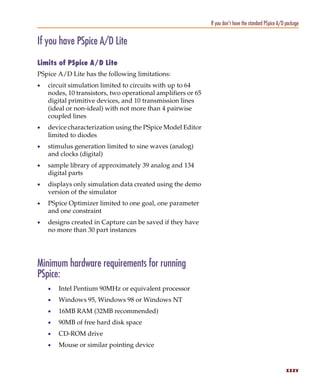
                 function of the part by interconnecting other parts and   macromodel, is analogous to a procedure
                 primitives.                                               call in a software programming language.
           The most commonly used models are available in the
           Orcad model libraries shipped with your programs. The
           model library names have a .LIB extension.
           If needed, however, you can create your own models and
           libraries, either:
           •     manually using the Model Text view in the PSpice
                 Model Editor (or another text editor like Notepad), or
           •     automatically using the PSpice Model Editor.                See What is the PSpice Model
                                                                             Editor? on page 1-51 for a
                                                                             description.


                                                                                                                     53
Pspug.book Page 54 Tuesday, May 16, 2000 1:17 PM


   Chapter 1 Things you need to know

                                                   Stimulus file
   Note Not all stimulus definitions require a     A stimulus file contains time-based definitions for analog
   stimulus file. In some cases, like DC and AC    or digital input waveforms. You can create a stimulus file
   sources, you must use a schematic symbol        either:
   and set its properties.
                                                   •   manually using a standard text editor such as
                                                       Notepad to create the definition (a typical file
                                                       extension is .STM), or
    See What is the PSpice Stimulus                •   automatically using the Stimulus Editor (which
    Editor? on page 1-50 for a                         generates a .STL file extension).
    description.
                                                   Include file
                                                   An include file is a user-defined file that contains:
   Example: An include file that contains          •   PSpice commands, or
   definitions, using the PSpice .FUNC
                                                   •   supplemental text comments that you want to appear
   command, for functions that you want to
                                                       in the PSpice output file (see page 1-55).
   use in numeric expressions elsewhere in
   your design.                                    You can create an include file using any text editor, such
                                                   as Notepad. Typically, include file names have a .INC
                                                   extension.


   More on libraries...                            Configuring model library, stimulus, and include
                                                   files
   Libraries are configured by editing the
   simulation profile. From the PSpice menu in     PSpice searches model libraries, stimulus files, and
   Capture, choose Edit Simulation Profile,        include files for any information it needs to complete the
   then click the Libraries tab. To find out       definition of a part or to run a simulation.
   more, refer to the Orcad Capture User’s         The files that PSpice searches depend on how you
   Guide.                                          configure your model libraries and other files. Much of the
                                                   configuration is set up for you automatically, however,
                                                   you can do the following yourself:
                                                   •   Add and delete files from the configuration.
                                                   •   Change the scope of a file: that is, whether the file
                                                       applies to one design only (local) or to any design
                                                       (global).
                                                   •   Change the search order.


   54
Pspug.book Page 55 Tuesday, May 16, 2000 1:17 PM


                                                                                                Files that PSpice generates


           Files that PSpice generates
           After reading the circuit file, netlist file, model libraries,
           and any other required inputs, PSpice starts the
           simulation. As simulation progresses, PSpice saves results
           to two files—the data file and the PSpice output file.


           Waveform data file                                               For a description of how to display
           The data file contains simulation results that can be            simulation results, see Part four,
           displayed graphically. PSpice reads this file automatically      Viewing results.
           and displays waveforms reflecting circuit response at            For a description of the waveform analyzer
           nets, pins, and parts that you marked in your schematic          program, see What is waveform
           (cross-probing). You can set up your design so PSpice            analysis? on page 1-49.
           displays the results as the simulation progresses or after
           the simulation completes.
           After PSpice has read the data file and displays the initial     There are two ways to add waveforms to
           set of results, you can add more waveforms and perform           the display:
           post-simulation analysis of the data.                            • From within PSpice, by specifying trace
                                                                                expressions.
           PSpice output file                                               • From within Capture, by cross-probing.
           The PSpice output file is an ASCII text file that contains:
           •     the netlist representation of the circuit,
           •     the PSpice command syntax for simulation commands
                 and options (like the enabled analyses),
           •     simulation results, and
           •     warning and error messages for problems
                 encountered during read-in or simulation.
           Its content is determined by:
           •     the types of analyses you run,
           •     the options you select for running PSpice, and
           •     the simulation control symbols (like VPRINT1 and           Example: Each instance of a VPRINT1
                 VPLOT1, available in SPECIAL.OLB) that you place           symbol placed in your schematic causes
                 and connect to nets in your design.                        PSpice to generate a table of voltage values
                                                                            for the connecting net, and to write the
                                                                            table to the PSpice output file.

                                                                                                                       55
Pspug.book Page 56 Tuesday, May 16, 2000 1:17 PM


   Chapter 1 Things you need to know


   56
Pspug.book Page 57 Tuesday, May 16, 2000 1:17 PM


           Simulation examples


                                                                       2

           Chapter overview
           The examples in this chapter provide an introduction to
           the methods and tools for creating circuit designs,
           running simulations, and analyzing simulation results.
           All analyses are performed on the same example circuit to
           clearly illustrate analysis setup, simulation, and
           result-analysis procedures for each analysis type.
           This chapter includes the following sections:
           •     Example circuit creation on page 2-58
           •     Performing a bias point analysis on page 2-64
           •     DC sweep analysis on page 2-68
           •     Transient analysis on page 2-74
           •     AC sweep analysis on page 2-79
           •     Parametric analysis on page 2-84
           •     Performance analysis on page 2-90
Pspug.book Page 58 Tuesday, May 16, 2000 1:17 PM


   Chapter 2 Simulation examples


                                                   Example circuit creation
                                                   This section describes how to use Orcad Capture to create
                                                   the simple diode clipper circuit shown in Figure 2.


                                                   Figure 2 Diode clipper circuit.

                                                   To create a new PSpice project
                                                   1   From the Windows Start menu, choose the Orcad
                                                       program folder and then the Capture shortcut to start
                                                       Capture.
                                                   2   In the Project Manager, from the File menu, point to
                                                       New and choose Project.
                                                   3   Select Analog or Mixed-Signal Circuit Wizard.
                                                   4   In the Name text box, enter the name of the project
                                                       (CLIPPER).
                                                   5   Use the Browse button to select the location for the
                                                       project files, then click OK.
                                                   6   In the Create PSpice Project dialog box, select Create a
                                                       blank project.
                                                   7   Click OK.


   58
Pspug.book Page 59 Tuesday, May 16, 2000 1:17 PM


                                                                                                   Example circuit creation

                 No special libraries need to be configured at this time.
                 A new page will be displayed in Capture and the new
                 project will be configured in the Project Manager.

           To place the voltage sources
           1     In Capture, switch to the schematic page editor.
           2     From the Place menu, choose Part to display the Place             or press S+p
                 Part dialog box.
           3     Add the library for the parts you need to place:
                 a     Click the Add Library button.
                 b     Select SOURCE.OLB (from the PSpice library) and      Note There are two sets of library files
                       click Open.                                          supplied with Capture and PSpice. The
                                                                            standard schematic part libraries are found
           4     In the Part text box, type VDC.                            in the directory CaptureLibrary. The part
           5     Click OK.                                                  libraries that are designed for simulation
                                                                            with PSpice are found in the sub-directory
           6     Move the pointer to the correct position on the
                                                                            CaptureLibraryPSpice. In order to have
                 schematic page (see Figure 2) and click to place the
                                                                            access to specific parts, you must first
                 first part.
                                                                            configure the library in Capture using the
           7     Move the cursor and click again to place the second        Add Library function.
                 part.
           8     Right-click and choose End Mode to stop placing
                 parts.

           To place the diodes
           1     From the Place menu, choose Part to display the Place             or press S+p
                 Part dialog box.
           2     Add the library for the parts you need to place:
                 a     Click the Add Library button.
                 b     Select DIODE.OLB (from the PSpice library) and
                       click Open.
                                                                            When placing parts:
           3     In the Part text box, type D1N39 to display a list of
                                                                            • Leave space to connect the parts with
                 diodes.
                                                                                wires.
           4     Select D1N3940 from the Part List and click OK.
                                                                            • You will change part names and values
           5     Press r to rotate the diode to the correct orientation.        that do not match those shown in
                                                                                Figure 2 later in this section.

                                                                                                                       59
Pspug.book Page 60 Tuesday, May 16, 2000 1:17 PM


   Chapter 2 Simulation examples

                                                   6   Click to place the first diode (D1), then click to place
                                                       the second diode (D2).
                                                   7   Right-click and choose End Mode to stop placing
                                                       parts.

                                                   To move the text associated with the diodes (or any other object)
                                                   1   Click the text to select it, then drag the text to a new
                                                       location.

                                                   To place the other parts
              press S+p or                         1   From the Place menu, choose Part to display the Place
                                                       Part dialog box.
                                                   2   Add the library for the parts you need to place:
                                                       a   Click the Add Library button.
                                                       b   Select ANALOG.OLB (from the PSpice library)
                                                           and click Open.
                                                   3   Follow similar steps as described for the diodes to
                                                       place the parts listed below, according to Figure 2. The
                                                       part names you need to type in the Part name text box
                                                       of the Place Part dialog box are shown in parentheses:
                                                       •   resistors (R)
                                                       •   capacitor (C)
                                                   4   To place the off-page connector parts
                                                       (OFFPAGELEFT-R), click the Place Off-Page
                                                       Connector button on the tool palette.
                                                   5   Add the library for the parts you need to place:
                                                       a   Click the Add Library button.
                                                       b   Select CAPSYM.OLB (from the Capture library)
                                                           and click Open.
                                                   6   Place the off-page connector parts according to
                                                       Figure 2.
                                                   7   To place the ground parts (0), click the GND button on
                                                       the tool palette.


   60
Pspug.book Page 61 Tuesday, May 16, 2000 1:17 PM


                                                                                                   Example circuit creation

           8     Add the library for the parts you need to place:
                 a     Click the Add Library button.
                 b     Select SOURCE.OLB (from the PSpice library) and
                       click Open.
           9     Place the ‘0’ ground part from SOURCE .OLB as
                 shown in Figure 2.

           To connect the parts
           1     From the Place menu, choose Wire to begin wiring                   or press S+w
                 parts.
                 The pointer changes to a crosshair.                        To stop wiring, right-click and choose End
           2     Click the connection point (the very end) of the pin on    Wire. The pointer changes to the default
                 the off-page connector at the input of the circuit.        arrow.
                                                                            Clicking on any valid connection point ends
           3     Click the nearest connection point of the input resistor
                                                                            a wire. A valid connection point is shown as
                 R1.
                                                                            a box (see Figure 3).
           4     Connect the other end of R1 to the output capacitor.
           5     Connect the diodes to each other and to the wire
                 between them:
                 a     Click the connection point of the cathode for the
                       lower diode.                                         Figure 3 Connection points.
                 b     Move the cursor straight up and click the wire       If you make a mistake when placing or
                       between the diodes. The wire ends, and the           connecting components:
                       junction of the wire segments becomes visible.
                                                                            1 From the Edit menu, choose Undo, or
                 c     Click again on the junction to continue wiring.        click     .
                 d     Click the end of the upper diode’s anode pin.
           6     Continue connecting parts until the circuit is wired as
                 shown in Figure 2 on page 2-58.

           To assign names (labels) to the nets
           1     From the Place menu, choose Net Alias to display the
                 Place Net Alias dialog box.
           2     In the Name text box, type Mid.


                                                                                                                       61
Pspug.book Page 62 Tuesday, May 16, 2000 1:17 PM


   Chapter 2 Simulation examples

                                                   3   Click OK.
                                                   4   Place the net alias on any segment of the wire that
                                                       connects R1, R2, R3, the diodes, and the capacitor. The
                                                       lower left corner of the net alias must touch the wire.
                                                   5   Right-click and choose End Mode to quit the Net Alias
                                                       function.

                                                   To assign names (labels) to the off-page connectors
                                                   Label the off-page connectors as shown in Figure 2 on
                                                   page 2-58.
                                                   1   Double-click the name of an off-page connector to
                                                       display the Display Properties dialog box.
                                                   2   In the Name text box, type the new name.
                                                   3   Click OK.
                                                   4   Select and relocate the new name as desired.

                                                   To assign names to the parts
      A more efficient way to change the           1   Double-click the second VDC part to display the Parts
      names, values and other properties of            spreadsheet.
      several parts in your design is to use the   2   Click in the first cell under the Reference column.
      Property Editor, as follows:
                                                   3   Type in the new name Vin.
      1 Select all of the parts to be modified
        by pressing C and clicking each            4   Click Apply to update the changes to the part, then
        part.                                          close the spreadsheet.
      2 From the Edit menu, choose                 5   Continue naming the remaining parts until your
        Properties.                                    schematic looks like Figure 2 on page 2-58.
      The Parts Spreadsheet appears.
                                                   To change the values of the parts
      Change the entries in as many of the
      cells as needed, and then click Apply to     1   Double-click the voltage label (0V) on V1 to display
      update all of the changes at once.               the Display Properties dialog box.
                                                   2   In the Value text box, type 5V.
                                                   3   Click OK.
                                                   4   Continue changing the Part Value properties of the
                                                       parts until all the parts are defined as in Figure 2 on
                                                       page 2-58.

   62
Pspug.book Page 63 Tuesday, May 16, 2000 1:17 PM


                                                                                Example circuit creation

                 Your schematic page should now have the same parts,
                 wiring, labels, and properties as Figure 2 on page 2-58.

           To save your design
           1     From the File menu, choose Save.                           press C+s or


           Finding out more about setting up your design
           About setting up a design for simulation
           For a checklist of all of the things you need to do to set up
           your design for simulation, and how to avoid common
           problems, see Chapter 3, Preparing a design for simulation.


                                                                                                    63
Pspug.book Page 64 Tuesday, May 16, 2000 1:17 PM


   Chapter 2 Simulation examples


                                                   Running PSpice
                                                   When you perform a simulation, PSpice generates an
                                                   output file (*.OUT).
   You can set up a simulation profile to run      While PSpice is running, the progress of the simulation
   one analysis at a time. To run multiple         appears and is updated in the PSpice simulation output
   analyses (for example, both DC sweep and        window (see Figure 4).
   transient analyses), set up a batch
   simulation. For more information, see
   Chapter 8, Setting up analyses
   and starting simulation.


                                                   Figure 4 PSpice simulation output window.


                                                   Performing a bias point analysis
                                                   To set up a bias point analysis in Capture
                                                   1   In Capture, switch to CLIPPER.OPJ in the schematic
                                                       page editor.
                                                   2   From the PSpice menu, choose New Simulation
                                                       Profile to display the New Simulation dialog box.
                                                   3   In the Name text box, type Bias.
   The root schematic listed is the schematic      4   From the Inherit From list, select None, then click
   page associated with the simulation profile         Create.
   you are creating.
                                                       The Simulation Settings dialog box appears.
                                                   5   From the Analysis type list, select Bias Point.
                                                   6   Click OK to close the Simulation Settings dialog box.


   64
Pspug.book Page 65 Tuesday, May 16, 2000 1:17 PM


                                                                                            Running PSpice

           To simulate the circuit from within Capture
           1      From the PSpice menu, choose Run.
                  PSpice simulates the circuit and calculates the bias
                  point information.
           Note        Because waveform data is not calculated during a bias point
                       analysis, you will not see any plots displayed in the Probe window
                       for this simulation. To find out how to view the results of this
                       simulation, see Using the simulation output file below.


                                                                                                      65
Pspug.book Page 66 Tuesday, May 16, 2000 1:17 PM


   Chapter 2 Simulation examples


                                                   Using the simulation output file
                                                   The simulation output file acts as an audit trail of the
                                                   simulation. This file optionally echoes the contents of the
                                                   circuit file as well as the results of the bias point
                                                   calculation. If there are any syntax errors in the netlist
                                                   declarations or simulation commands, or anomalies while
                                                   performing the calculation, PSpice writes error or
                                                   warning messages to the output file.

                                                   To view the simulation output file
                                                   1   In PSpice, from the View menu, choose Output File.
                                                       Figure 5 shows the results of the bias point calculation
                                                       as written in the simulation output file.


                                                   Figure 5 Simulation output file.
                                                   2   When finished, close the window.


   66
Pspug.book Page 67 Tuesday, May 16, 2000 1:17 PM


                                                                              Running PSpice

           PSpice measures the current through a two terminal
           device into the first terminal and out of the second
           terminal. For voltage sources, current is measured from
           the positive terminal to the negative terminal; this is
           opposite to the positive current flow convention and
           results in a negative value in the output file.


           Finding out more about bias point calculations
             To find out more about this...        See this...

             bias point calculations               Bias point on page 9-334


                                                                                        67
Pspug.book Page 68 Tuesday, May 16, 2000 1:17 PM


   Chapter 2 Simulation examples


                                                   DC sweep analysis
                                                   You can visually verify the DC response of the clipper by
                                                   performing a DC sweep of the input voltage source and
                                                   displaying the waveform results in the Probe window in
                                                   PSpice. This example sets up DC sweep analysis
                                                   parameters to sweep Vin from -10 to 15 volts in 1 volt
                                                   increments.


                                                   Setting up and running a DC sweep analysis
                                                   To set up and run a DC sweep analysis
                                                   1   In Capture, from the PSpice menu, choose
                                                       New Simulation Profile.
                                                       The New Simulation dialog box appears.
                                                   2   In the Name text box, type DC Sweep.
                                                   3   From the Inherit From list, select Schematic1-Bias,
                                                       then click Create.
                                                       The Simulation Settings dialog box appears.
                                                   4   Click the Analysis tab.
   Note The default settings for DC Sweep          5   From the Analysis type list, select DC Sweep and enter
   simulation are Voltage Source as the swept          the values shown in Figure 6.
   variable type and Linear as the sweep type.
   To use a different swept variable type or
   sweep type, choose different options under
   Sweep variable and Sweep type.


   68
Pspug.book Page 69 Tuesday, May 16, 2000 1:17 PM


                                                                         DC sweep analysis


           Figure 6 DC sweep analysis settings.
           6     Click OK to close the Simulation Settings dialog box.
           7     From the File menu, choose Save.
           8     From the PSpice menu, choose Run to run the analysis.


                                                                                      69
Pspug.book Page 70 Tuesday, May 16, 2000 1:17 PM


   Chapter 2 Simulation examples


                                                   Displaying DC analysis results
                                                   Probe windows can appear during or after the simulation
                                                   is finished.


                                                   Figure 7 Probe window.

                                                   To plot voltages at nets In and Mid

                       press I or                  1   From PSpice’s Trace menu, choose Add Trace.
                                                   2   In the Add Traces dialog box, select V(In) and V(Mid).
                                                   3   Click OK.

                                                   To display a trace using a marker
                               press C+M           1   From Capture’s PSpice menu, point to Markers and
                                                       choose Voltage Level.
                                                   2   Click to place a marker on net Out, as shown in
                                                       Figure 8.


   70
Pspug.book Page 71 Tuesday, May 16, 2000 1:17 PM


                                                                                       DC sweep analysis


           Figure 8 Clipper circuit with voltage marker on net Out.
           3     Right-click and choose End Mode to stop placing
                 markers.
           4     From the File menu, choose Save.                       or press C+s

           5     Switch to PSpice. The V(Out) waveform trace appears,
                 as shown in Figure 9.


           Figure 9 Voltage at In, Mid, and Out.


                                                                                                    71
Pspug.book Page 72 Tuesday, May 16, 2000 1:17 PM


   Chapter 2 Simulation examples

   This example uses the cursors feature to          To place cursors on V(In) and V(Mid)
   view the numeric values for two traces and
                                                     1   From PSpice’s Trace menu, point to Cursor and
   the difference between them by placing a
                                                         choose Display.
   cursor on each trace.
                                                         Two cursors appear for the first trace defined in the
                                                         legend below the x-axis—V(In) in this example. The
                                                         Probe Cursor window also appears.
   Table 10 Association of cursors with mouse        2   To display the cursor crosshairs:
   buttons.                                              a   Position the mouse anywhere inside the Probe
    cursor 1        left mouse button                        window.
    cursor 2        right mouse button                   b   Click to display the crosshairs for the first cursor.
                                                         c   Right-click to display the crosshairs for the second
                                                             cursor.
                                                         In the trace legend, the part for V(In) is outlined in the
                                                         crosshair pattern for each cursor, resulting in a dashed
   Figure 11 Trace legend with cursors                   line as shown in Figure 11.
   activated.
                                                     3   Place the first cursor on the V(In) waveform:
                                                         a   Click the portion of the V(In) trace in the proximity
                                                             of 4 volts on the x-axis. The cursor crosshair
                                                             appears, and the current X and Y values for the
                                                             first cursor appear in the cursor window.
   Your ability to get as close to 4.0 as possible       b   To fine-tune the cursor location to 4 volts on the
   depends on screen resolution and window                   x-axis, drag the crosshairs until the x-axis value of
   size.                                                     the A1 cursor in the cursor window is
                                                             approximately 4.0. You can also press r and l
                                                             for tighter control.
                                                     4   Place the second cursor on the V(Mid) waveform:
                                                         a   Right-click the trace legend part (diamond) for
                                                             V(Mid) to associate the second cursor with the Mid
   Figure 12 Trace legend with V(Mid)                        waveform. The crosshair pattern for the second
   symbol outlined.                                          cursor outlines the V(Mid) trace part as shown in
                                                             Figure 12.
                                                         b   Right-click the portion on the V(Mid) trace that is
                                                             in the proximity of 4 volts on the x-axis. The X and
                                                             Y values for the second cursor appear in the cursor
                                                             window along with the difference (dif) between
                                                             the two cursors’ X and Y values.

   72
Pspug.book Page 73 Tuesday, May 16, 2000 1:17 PM


                                                                                                         DC sweep analysis

                  c    To fine-tune the location of the second cursor to 4
                       volts on the x-axis, drag the crosshairs until the
                       x-axis value of the A2 cursor in the cursor window
                       is approximately 4.0. You can also press V+r
                       and V+l for tighter control.
           Figure 13 shows the Probe window with both cursors                There are also ways to display the
           placed.                                                           difference between two voltages as a trace:
                                                                             • In PSpice, add the trace expression
                                                                                 V(In)-V(Mid).
                                                                             • In Capture, from the PSpice menu,
                                                                                 point to Markers and choose Voltage
                                                                                 Differential. Place the two markers on
                                                                                 different pins or wires.


           Figure 13 Voltage difference at V(In) = 4 volts.

           To delete all of the traces                                       You can also delete an individual trace by
                                                                             selecting its name in the trace legend and
           1      From the Trace menu, choose Delete All Traces.
                                                                             then pressing D.
                  At this point, the design has been saved. If needed,
                                                                             Example: To delete the V(In) trace, click the
                  you can quit Capture and PSpice and complete the
                                                                             text, V(In), located under the plot’s
                  remaining analysis exercises later using the saved
                                                                             x-axis, and then press D.
                  design.


           Finding out more about DC sweep analysis
               To find out more about this...      See this...

               DC sweep analysis                   DC Sweep on page 9-326


                                                                                                                       73
Pspug.book Page 74 Tuesday, May 16, 2000 1:17 PM


   Chapter 2 Simulation examples


                                                   Transient analysis
                                                   This example shows how to run a transient analysis on the
                                                   clipper circuit. This requires adding a time-domain
                                                   voltage stimulus as shown in Figure 14.


                                                   Figure 14 Diode clipper circuit with a voltage stimulus.


   74
Pspug.book Page 75 Tuesday, May 16, 2000 1:17 PM


                                                                                                    Transient analysis

           To add a time-domain voltage stimulus
           1     From Capture’s PSpice menu, point to Markers and
                 choose Delete All.
           2     Select the ground part beneath the VIN source.
           3     From the Edit menu, choose Cut.
           4     Scroll down (or from the View menu, point to Zoom,
                 then choose Out).
           5     Place a VSTIM part (from the PSpice library
                 SOURCESTM.OLB) as shown in Figure 14.
           6     From the Edit menu, choose Paste.                              or press C+v
           7     Place the ground part under the VSTIM part as shown
                 in Figure 14.
           8     From the View menu, point to Zoom, then choose All.
           9     From the File menu, choose Save to save the design.

           To set up the stimulus
           1     Select the VSTIM part (V3).
           2     From the Edit menu, choose PSpice Stimulus.
                 The New Stimulus dialog box appears.                    If you do not have the
           3     In the New Stimulus dialog box, type SINE.              Stimulus Editor

           4     Click SIN (sinusoidal), then click OK.                  1 Place a VSIN part instead of VSTIM and
                                                                           double-click it.
           5     In the SIN Attributes dialog box, set the first three
                 properties as follows:                                  2 In the Edit Part dialog box, click User
                                                                           Properties.
                       Offset Voltage = 0
                                                                         3 Set values for the VOFF, VAMPL, and
                       Amplitude = 10
                                                                           FREQ properties as defined in step 5.
                       Frequency = 1kHz
                                                                           When finished, click OK.
           6     Click Apply to view the waveform.
                 The Stimulus Editor window should look like
                 Figure 15.


                                                                                                                  75
Pspug.book Page 76 Tuesday, May 16, 2000 1:17 PM


   Chapter 2 Simulation examples


                                                   Figure 15 Stimulus Editor window.
                                                   7   Click OK.

                  press V+@ or                     8   From the File menu, choose Save to save the stimulus
                                                       information. Click Yes to update the schematic.
                                                   9   From the File menu, choose Exit to exit the Stimulus
                                                       Editor.

                                                   To set up and run the transient analysis
                                                   1   From Capture’s PSpice menu, choose
                                                       New Simulation Profile.
                                                       The New Simulation dialog box appears.
                                                   2   In the Name text box, type Transient.
                                                   3   From the Inherit From list, select
                                                       Schematic1-DC Sweep, then click Create.
                                                       The Simulation Settings dialog box appears.
                                                   4   Click the Analysis tab.
                                                   5   From the Analysis list, select Time Domain (Transient)
                                                       and enter the settings shown in Figure 16.
                                                       TSTOP = 2ms
   Figure 16 Transient analysis simulation             Start saving data after = 20ns
   settings.
   76
Pspug.book Page 77 Tuesday, May 16, 2000 1:17 PM


                                                                                                       Transient analysis

           6     Click OK to close the Simulation Settings dialog box.
           7     From the PSpice menu, choose Run to perform the
                 analysis.
                 PSpice uses its own internal time steps for               Note The internal time step is different
                 computation. The internal time step is adjusted           from the Print Step value. Print Step
                 according to the requirements of the transient analysis   controls how often optional text format
                 as it proceeds. PSpice saves data to the waveform data    data is written to the simulation output
                 file for each internal time step.                         file (*.OUT).

           To display the input sine wave and clipped wave at V(Out)
           1     From PSpice’s Trace menu, choose Add Trace.                       or press I

           2     In the trace list, select V(In) and V(Out) by clicking
                 them.
           3     Click OK to display the traces.
           4     From the Tools menu, choose Options to display the
                 Probe Options dialog box.
           5     In the Use Symbols frame, click Always if it is not
                 already enabled.
           6     Click OK.


                                                                           These waveforms illustrate the clipping of
                                                                           the input signal.


           Figure 17 Sinusoidal input and clipped output waveforms.


                                                                                                                      77
Pspug.book Page 78 Tuesday, May 16, 2000 1:17 PM


   Chapter 2 Simulation examples


                                                   Finding out more about transient analysis
                                                    To find out more about this...         See this...

                                                    transient analysis for analog          Chapter 11, Transient
                                                    and mixed-signal designs*              analysis
                                                    transient analysis for digital         Chapter 14, Digital
                                                    designs*                               simulation
                                                   * Includes how to set up time-based stimuli using the Stimulus Editor.


   78
Pspug.book Page 79 Tuesday, May 16, 2000 1:17 PM


                                                                         AC sweep analysis


           AC sweep analysis
           The AC sweep analysis in PSpice is a linear (or small
           signal) frequency domain analysis that can be used to
           observe the frequency response of any circuit at its bias
           point.


           Setting up and running an AC sweep analysis
           In this example, you will set up the clipper circuit for AC
           analysis by adding an AC voltage source for a stimulus
           signal (see Figure 18) and by setting up AC sweep
           parameters.


           Figure 18 Clipper circuit with AC stimulus.

           To change Vin to include the AC stimulus signal
           1     In Capture, open CLIPPER.OPJ.
           2     Select the DC voltage source, Vin, and press D to
                 remove the part from the schematic page.


                                                                                      79
Pspug.book Page 80 Tuesday, May 16, 2000 1:17 PM


   Chapter 2 Simulation examples

                                                   3    From the Place menu, choose Part.
                                                   4    In the Part text box, type VAC (from the PSpice library
                                                        SOURCE.OLB) and click OK.
                                                   5    Place the AC voltage source on the schematic page, as
                                                        shown in Figure 17.
                                                   6    Double-click the VAC part (0V) to display the Parts
                                                        spreadsheet.
                                                   7    Change the Reference cell to Vin and change the
                                                        ACMAG cell to 1V.
                                                   8    Click Apply to update the changes and then close the
                                                        spreadsheet.

                                                   To set up and run the AC sweep simulation
   Note PSpice simulation is not                   1    From Capture’s PSpice menu, choose New Simulation
   case-sensitive, so both M and m can be used          Profile.
   as “milli,” and MEG, Meg, and meg can all
                                                   2    In the Name text box, enter AC Sweep, then click
   be used for “mega.” However, waveform
                                                        create.
   analysis treats M and m as mega and milli,
   respectively.                                        The Simulation Settings dialog box appears.
                                                   3    Click the Analysis tab.
                                                   4    From the Analysis type list, select AC Sweep/Noise
                                                        and enter the settings shown in Figure 19.


                                                   Figure 19 AC sweep and noise analysis simulation settings.

   80
Pspug.book Page 81 Tuesday, May 16, 2000 1:17 PM


                                                                                                      AC sweep analysis

           5     Click OK to close the Simulation Settings dialog box.
           6     From the PSpice menu, choose Run to start the
                 simulation.
                 PSpice performs the AC analysis.

           To add markers for waveform analysis
           1     From Capture’s PSpice menu, point to Markers, point        Note You must first define a simulation
                 to Advanced, then choose db Magnitude of Voltage.          profile for the AC Sweep/Noise analysis
           2     Place one Vdb marker on the Out net, then place            in order to use advanced markers.
                 another on the Mid net.
           3     From the File menu, choose Save to save the design.


           AC sweep analysis results
           PSpice displays the dB magnitude (20log10) of the voltage
           at the marked nets, Out and Mid, in a Probe window as
           shown in Figure 20 below. VDB(Mid) has a lowpass
           response due to the diode capacitances to ground. The
           output capacitance and load resistor act as a highpass
           filter, so the overall response, illustrated by VDB(out), is a
           bandpass response. Because AC is a linear analysis and
           the input voltage was set to 1V, the output voltage is the
           same as the gain (or attenuation) of the circuit.


                                                                                                                   81
Pspug.book Page 82 Tuesday, May 16, 2000 1:17 PM


   Chapter 2 Simulation examples


                                                   Figure 20 dB magnitude curves for “gain” at Mid and Out.

                                                   To display a Bode plot of the output voltage, including phase
   Note Depending upon where the Vphase            1   From Capture’s PSpice menu, point to Markers, point
   marker was placed, the trace name may be            to Advanced and choose Phase of Voltage.
   different, such as VP(Cout:2), VP(R4:1), or     2   Place a Vphase marker on the output next to the Vdb
   VP(R4:2).                                           marker.
                                                   3   Delete the Vdb marker on Mid.
                                                   4   Switch to PSpice.
   For more information on Probe windows               In the Probe window, the gain and phase plots both
   and trace expressions, see Chapter 17,              appear on the same graph with the same scale.
   Analyzing waveforms.
                                                   5   Click the trace name VP(Out) to select the trace.
                    press C+x or                   6   From the Edit menu, choose Cut.
                                                   7   From the Plot menu, choose Add Y Axis.
                    press C+V or                   8   From the Edit menu, choose Paste.
                                                       The Bode plot appears, as shown in Figure 21.


   82
Pspug.book Page 83 Tuesday, May 16, 2000 1:17 PM


                                                                          AC sweep analysis


           Figure 21 Bode plot of clipper’s frequency response.


           Finding out more about AC sweep and
           noise analysis
             To find out more about this...        See this...

             AC sweep analysis                     AC sweep analysis on
                                                   page 10-342
             noise analysis based on an            Noise analysis on
             AC sweep analysis                     page 10-351


                                                                                       83
Pspug.book Page 84 Tuesday, May 16, 2000 1:17 PM


   Chapter 2 Simulation examples


                                                   Parametric analysis
                                                   This example shows the effect of varying input resistance
                                                   on the bandwidth and gain of the clipper circuit by:
                                                   •   Changing the value of R1 to the expression {Rval}.
                                                   •   Placing a PARAM part to declare the parameter Rval.
                                                   •   Setting up and running a parametric analysis to step
                                                       the value of R1 using Rval.


                                                   Figure 22 Clipper circuit with global parameter Rval.
                                                   This example produces multiple analysis runs, each with
                                                   a different value of R1. After the analysis is complete, you
                                                   can analyze curve families for the analysis runs using
                                                   PSpice A/D.


   84
Pspug.book Page 85 Tuesday, May 16, 2000 1:17 PM


                                                                                                    Parametric analysis


           Setting up and running the parametric analysis
           To change the value of R1 to the expression {Rval}
           1     In Capture, open CLIPPER.OPJ.                           PSpice interprets text in curly braces as an
                                                                         expression that evaluates to a numerical
           2     Double-click the value (1k) of part R1 to display the
                                                                         value. This example uses the simplest form
                 Display Properties dialog box.
                                                                         of an expression—a constant. The value of
           3     In the Value text box, replace 1k with {Rval}.          R1 will take on the value of the Rval
           4     Click OK.                                               parameter, whatever it may be.

           To add a PARAM part to declare the parameter Rval
           1     From Capture’s Place menu, choose Part.
           2     In the Part text box, type PARAM (from the PSpice
                 library SPECIAL.OLB) , then click OK.
           3     Place one PARAM part in any open area on the
                 schematic page.
           4     Double-click the PARAM part to display the Parts        Note For more information about using
                 spreadsheet, then click New.                            the Parts spreadsheet, see the Orcad
                                                                         Capture User’s Guide.
           5     In the Property Name text box, enter Rval (no curly
                 braces), then click OK.
                 This creates a new property for the PARAM part, as
                 shown by the new column labeled Rval in the
                 spreadsheet.
           6     Click in the cell below the Rval column and enter 1k
                 as the initial value of the parametric sweep.
           7     While this cell is still selected, click Display.
           8     In the Display Format frame, select Name and Value,
                 then click OK.
           9     Click Apply to update all the changes to the PARAM
                 part.
           10 Close the Parts spreadsheet.
           11 Select the VP marker and press D to remove the             This example is only interested in the
              marker from the schematic page.                            magnitude of the response.
           12 From the File menu, choose Save to save the design.

                                                                                                                   85
Pspug.book Page 86 Tuesday, May 16, 2000 1:17 PM


   Chapter 2 Simulation examples

                                                   To set up and run a parametric analysis to step the value of R1
                                                   using Rval
                                                   1   From Capture’s PSpice menu, choose
                                                       New Simulation Profile.
                                                       The New Simulation dialog box appears.
                                                   2   In the Name text box, type Parametric.
   The root schematic listed is the schematic      3   From the Inherit From list, select AC Sweep, then click
   page associated with the simulation profile         Create.
   you are creating.
                                                       The Simulation Settings dialog box appears.
                                                   4   Click the Analysis tab.
                                                   5   Under Options, select Parametric Sweep and enter the
                                                       settings as shown below.
   This profile specifies that the parameter
   Rval is to be stepped from 100 to 10k
   logarithmically with a resolution of 10
   points per decade.
   The analysis is run for each value of Rval.
   Because the value of R1 is defined as
   {Rval}, the analysis is run for each value of
   R1 as it logarithmically increases from
   100Ω to 10 kΩ in 20 steps, resulting in a
   total of 21 runs.


                                                   Figure 23 Parametric simulation settings.
                                                   6   Click OK.
                                                   7   From the PSpice menu, choose Run to start the
                                                       analysis.


   86
Pspug.book Page 87 Tuesday, May 16, 2000 1:17 PM


                                                                                                       Parametric analysis


           Analyzing waveform families
           Continuing from the example above, there are 21 analysis
           runs, each with a different value of R1. After PSpice
           completes the simulation, the Available Sections dialog
           box appears, listing all 21 runs and the Rval parameter
           value for each. You can select one or more runs to display.

           To display all 21 traces
           1     In the Available Sections dialog box, click OK.            To select individual runs, click each one
                                                                            separately.
                 All 21 traces (the entire family of curves) for VDB(Out)
                 appear in the Probe window as shown in Figure 24.


                                                                            To see more information about the section
                                                                            that produced a specific trace, double-click
                                                                            the corresponding symbol in the legend
                                                                            below the x-axis.


           Figure 24 Small signal response as R1 is varied from 100Ω
                      to 10 kΩ
           2     Click the trace name to select it, then press D to         You can also remove the traces by
                 remove the traces shown.                                   removing the VDB marker from your
                                                                            schematic page in Capture.


                                                                                                                        87
Pspug.book Page 88 Tuesday, May 16, 2000 1:17 PM


   Chapter 2 Simulation examples

                                                   To compare the last run to the first run
                       press I or                  1      From the Trace menu, choose Add Trace to display the
                                                          Add Traces dialog box.
                                                   2      In the Trace Expression text box, type the following:
   You can avoid some of the typing for the               Vdb(Out)@1 Vdb(Out)@21
   Trace Expression text box by selecting
                                                   3      Click OK.
   V(OUT) twice in the trace list and inserting
   text where appropriate in the resulting         Note       The difference in gain is apparent. You can also plot the difference
   Trace Expression.                                          of the waveforms for runs 21 and 1, then use the search commands
                                                              to find certain characteristics of the difference.
                                                   4      Plot the new trace by specifying a waveform
                                                          expression:
                       press I or                         a   From the Trace menu, choose Add Trace.
                                                          b   In the Trace Expression text box, type the
                                                              following waveform expression:
                                                              Vdb(Out)@1-Vdb(OUT)@21
                                                          c   Click OK.
                                                   5      Use the search commands to find the value of the
                                                          difference trace at its maximum and at a specific
                                                          frequency:
                                                          a   From the Trace menu, point to Cursor and choose
                                                              Display.
                                                          b   Right-click then left-click the trace part (triangle)
                                                              for Vdb(Out)@1 - Vdb(Out)@21. Make sure that
                                                              you left-click last to make cursor 1 the active
                                                              cursor.
                                                          c   From the Trace menu, point to Cursor and choose
                                                              Max.
                                                          d   From the Trace menu, point to Cursor and choose
                                                              Search Commands.
                                                          e   In the Search Command text box, type the
                                                              following:
   The search command tells PSpice to search                  search forward x value (100)
   for the point on the trace where the x-axis
                                                          f   Select 2 as the Cursor to Move option.
   value is 100.

   88
Pspug.book Page 89 Tuesday, May 16, 2000 1:17 PM


                                                                                 Parametric analysis

                  g    Click OK.
                  Figure 25 shows the Probe window with cursors
                  placed.


                   Figure 25 Small signal frequency response at 100 and 10 kΩ
                              input resistance.
                  Note that the Y value for cursor 2 in the cursor box is
                  about 17.87. This indicates that when R1 is set to 10 kΩ,
                  the small signal attenuation of the circuit at 100Hz is
                  17.87dB greater than when R1 is 100Ω.
           6      From the Trace menu, point to Cursor and choose
                  Display to turn off the display of the cursors.
           7      Delete the trace.


           Finding out more about parametric analysis
               To find out more about this...      See this...

               parametric analysis                 Parametric analysis on
                                                   page 12-382
               using global parameters             Using global parameters and
                                                   expressions for values on
                                                   page 3-107


                                                                                                89
Pspug.book Page 90 Tuesday, May 16, 2000 1:17 PM


   Chapter 2 Simulation examples


                                                   Performance analysis
                                                   Performance analysis is an advanced feature in PSpice
                                                   that you can use to compare the characteristics of a family
                                                   of waveforms. Performance analysis uses the principle of
                                                   search commands introduced earlier in this chapter to
                                                   define functions that detect points on each curve in the
                                                   family.
                                                   After you define these functions, you can apply them to a
                                                   family of waveforms and produce traces that are a
                                                   function of the variable that changed within the family.
                                                   This example shows how to use performance analysis to
                                                   view the dependence of circuit characteristics on a swept
                                                   parameter. In this case, the small signal bandwidth and
                                                   gain of the clipper circuit are plotted against the swept
                                                   input resistance value.

                                                   To plot bandwidth vs. Rval using the performance analysis wizard
                                                   1   In Capture, open CLIPPER.OPJ.
   The Performance Analysis menu item is           2   From PSpice’s Trace menu, choose Performance
   only available if an analysis data file is          Analysis.
   available. In this case, the data from
                                                       The Performance Analysis dialog box appears with
   theparametric analysis of the previous
                                                       information about the currently loaded data and
   example should still be open.
                                                       performance analysis in general.
   At each step, the wizard provides               3   Click the Wizard button.
   information and guidelines.
                                                   4   Click the Next> button.
                                                   5   In the Choose a Goal Function list, click Bandwidth,
                                                       then click the Next> button.
   Click       , then double-click V(Out).         6   Click in the Name of Trace to search text box and type
                                                       V(Out).
                                                   7   Click in the db level down for bandwidth calc text box
                                                       and type 3.
                                                   8   Click the Next> button.
                                                       The wizard displays the gain trace for the first run
                                                       (R=100) and shows how the bandwidth is measured.
                                                       This is done to test the goal function.
   90
Pspug.book Page 91 Tuesday, May 16, 2000 1:17 PM


                                                                                                       Performance analysis

           9     Click the Next> button or the Finish button.
                 A plot of the 3dB bandwidth vs. Rval appears.
           10 Change the x-axis to log scale:
                 a     From the Plot menu, choose Axis Settings.            Double-click the x-axis.
                 b     Click the X Axis tab.
                 c     Under Scale, choose Log.
                 d     Click OK.

           To plot gain vs. Rval manually
           1     From the Plot menu, choose Add Y Axis.
           2     From the Trace menu, choose Add to display the Add                 or press I
                 Traces dialog box.
           3     In the Functions or Macros frame, select the Goal
                 Functions list, and then click the Max(1) goal function.   The Trace list includes goal functions only in
           4     In the Simulation Output Variables list, click V(out).     performance analysis mode when the
                                                                            x-axis variable is the swept parameter.
           5     In the Trace Expression text box, edit the text to be
                 Max(Vdb(out)), then click OK.
                 PSpice displays gain on the second y-axis vs. Rval.
           Figure 26 shows the final performance analysis plot of 3dB
           bandwidth and gain in dB vs. the swept input resistance
           value.


           Figure 26 Performance analysis plots of bandwidth and gain vs.
                      Rval.

                                                                                                                       91
Pspug.book Page 92 Tuesday, May 16, 2000 1:17 PM


   Chapter 2 Simulation examples


                                                   Finding out more about performance analysis
                                                    To find out more about this...   See this...

                                                    how to use performance           RLC filter example on
                                                    analysis                         page 12-384
                                                                                     Example: Monte Carlo
                                                                                     analysis of a pressure sensor
                                                                                     on page 13-403
                                                    how to use search                online PSpice Help
                                                    commands and create goal
                                                    functions


   92
Pspug.book Page 93 Tuesday, May 16, 2000 1:17 PM


           Part two
           Design entry


           Part two provides information about how to enter circuit
           designs in Orcad® Capture that you want to simulate.
           •     Chapter 3, Preparing a design for simulation, outlines the
                 things you need to do to successfully simulate your
                 schematic including troubleshooting tips for the most
                 frequently asked questions.
           •     Chapter 4, Creating and editing models, describes how to
                 use the tools to create and edit model definitions, and
                 how to configure the models for use.
           •     Chapter 5, Creating parts for models, explains how to
                 create symbols for existing or new model definitions
                 so you can use the models when simulating from your
                 schematic.
           •     Chapter 6, Analog behavioral modeling, describes how to
                 model analog behavior mathematically or using table
                 lookups.
           •     Chapter 7, Digital device modeling, explains the
                 structure of digital subcircuits and how to create your
                 own from primitives.
Pspug.book Page 94 Tuesday, May 16, 2000 1:17 PM
Pspug.book Page 95 Tuesday, May 16, 2000 1:17 PM


           Preparing a design for
           simulation


                                                                                                           3

           Chapter overview
           This chapter provides introductory information to help        Refer to the Orcad Capture User’s Guide for
           you enter circuit designs that simulate properly. If you      general schematic entry information.
           want an overview, use the checklist on page 3-96 to guide
           you to specific topics.
           Topics include:
           •     Checklist for simulation setup on page 3-96
           •     Using parts that you can simulate on page 3-100
           •     Using global parameters and expressions for values on
                 page 3-107
           •     Defining power supplies on page 3-114
           •     Defining stimuli on page 3-115
           •     Things to watch for on page 3-119
Pspug.book Page 96 Tuesday, May 16, 2000 1:17 PM


   Chapter 3 Preparing a design for simulation


                                                          Checklist for simulation setup
                                                          This section describes what you need to do to set up your
                                                          circuit for simulation.
                                                          1    Find the topic that is of interest in the first column of
                                                               any of these tables.
                                                          2    Go to the referenced section. For those sections that
                                                               provide overviews, you will find references to more
                                                               detailed discussions.


                                                          Typical simulation setup steps
     For more information on this step...        See this...                        To find out this...

     ✔ Set component values                      Using parts that you can           An overview of vendor, passive,
           and other properties.                 simulate on page 3-100             breakout, and behavioral parts.

                                                 Using global parameters and        How to define values using variable
                                                 expressions for values on          parameters, functional calls, and
                                                 page 3-107                         mathematical expressions.

     ✔ Define power                              Defining power supplies on         An overview of DC power for
           supplies.                             page 3-114                         analog circuits and digital power for
                                                                                    mixed-signal circuits.

     ✔ Define input                              Defining stimuli on                An overview of DC, AC, and
           waveforms.                            page 3-115                         time-based stimulus parts.

     ✔ Set up one or more                        Chapter 8, Setting up              Procedures, general to all analysis
           analyses.                             analyses and starting              types, to set up and start the
                                                 simulation                         simulation.

                                                 Chapter 9 through                  Detailed information about DC, AC,
                                                 Chapter 14 (see the table of       transient, parametric, temperature,
                                                 contents)                          Monte Carlo,
                                                                                    sensitivity/worst-case, and digital
                                                                                    analyses.


   96
Pspug.book Page 97 Tuesday, May 16, 2000 1:17 PM


                                                                                                         Checklist for simulation setup


                   For more information on this step...                          See this...

             ✔ Place markers.                        Using schematic page        How to display results in PSpice by
                                                     markers to add traces on    picking design nets.
                                                     page 17-506
             ✔                                       Using display control on    How to limit the data file size.
                                                     page 17-509


           Advanced design entry and simulation setup steps
             For more information on this step...    See this...                 To find out how to...

             ✔ Create new models.                    Chapter 4, Creating and     Define models using the Model
                                                     editing models              Editor or Create Subcircuit
                                                                                 command.

                                                     Chapter 6, Analog           Define the behavior of a block of
                                                     behavioral modeling         analog circuitry as a mathematical
                                                                                 function or lookup table.

                                                     Chapter 7, Digital device   Define the functional, timing, and
                                                     modeling                    I/O characteristics of a digital part.

             ✔ Create new parts.                     Chapter 5, Creating parts   Create parts either automatically for
                                                     for models                  models using the part wizard or the
                                                                                 Parts utility, or by manually
                                                                                 defining AKO parts; define
                                                                                 simulation-specific properties.

                                                     The Orcad Capture User’s    Create and edit part graphics, pins,
                                                     Guide                       and properties in general.


                                                                                                                                   97
Pspug.book Page 98 Tuesday, May 16, 2000 1:17 PM


   Chapter 3 Preparing a design for simulation


                                                   When netlisting fails or the simulation does not
                                                   start
                                                   If you have problems starting the simulation, there may be
                                                   problems with the design or with system resources. If
                                                   there are problems with the design, PSpice displays errors
                                                   and warnings in the Simulation Output window. You can
                                                   use the Simulation Output window to get more
                                                   information quickly about the specific problem.

                                                   To get online information about an error or warning shown in the
                                                   Simulation Output window
                                                   1   Select the error or warning message.
                                                   2   Press 1.
                                                   The following tables list the most commonly encountered
                                                   problems and where to find out more about what to do.


                                                   Things to check in your design
    Make sure that...                                          To find out more, see this...

    ✔ The model libraries, stimulus files, and                 Configuring model libraries on page 4-161
          include files are configured.
    ✔ The parts you are using have models.                     Unmodeled parts on page 3-119 and Defining
                                                               part properties needed for simulation on
                                                               page 5-180
    ✔ You are not using unmodeled pins.                        Unmodeled pins on page 3-122
    ✔ You have defined the grounds.                            Missing ground on page 3-123
    ✔ Every analog net has a DC path to ground. Missing DC path to ground on page 3-124
    ✔ The part template is correct.                            Defining part properties needed for simulation on
                                                               page 5-180
    ✔ Hierarchical parts, if used, are properly                The Orcad Capture User’s Guide
          defined.
    ✔ Ports that connect to the same net have the The Orcad Capture User’s Guide
          same name.


   98
Pspug.book Page 99 Tuesday, May 16, 2000 1:17 PM


                                                                                         Checklist for simulation setup

           Things to check in your system configuration
             Make sure that...                           To find out more, see this...

             ✔ Path to the PSpice programs is correct.
             ✔ Directory containing your design has write Your operating system manual
                  permission.
             ✔ Your system has sufficient free memory    Your operating system manual
                  and disk space.


                                                                                                                   99
Pspug.book Page 100 Tuesday, May 16, 2000 1:17 PM


   Chapter 3 Preparing a design for simulation


                                                    Using parts that you can
                                                    simulate
   The Orcad part libraries also include special    The Orcad part libraries supply numerous parts designed
   parts that you can use for simulation only.      for simulation. These include:
   These include:
                                                    •      vendor-supplied parts
   • stimulus parts to generate
        input signals to the circuit (see           •      passive parts
        Defining stimuli on                         •      breakout parts
        page 3-115)
                                                    •      behavioral parts
   • ground parts required by all
        analog and mixed-signal circuits, which     At minimum, a part that you can simulate has these
        need reference to ground                    properties:
   • simulation control parts                       •      A simulation model to describe the part’s electrical
        to do things like set bias values (see             behavior; the model can be:
        Appendix A, Setting initial                        •   explicitly defined in a model library
        state)
                                                           •   built into PSpice
   • output control parts to do
        things like generate tables and                    •   built into the part (for some kinds of analog
        line-printer plots to the PSpice output                behavioral parts)
        file (see Chapter 18, Other                 •      A part with modeled pins to form electrical
        output options)                                    connections in your design.
                                                    •      A translation from design part to netlist statement so
                                                           that PSpice can read it in.
                                                    Note       Not all parts in the libraries are set up for simulation. For example,
                                                               connectors are parts destined for board layout only and do not
                                                               have these simulation properties.


   100
Pspug.book Page 101 Tuesday, May 16, 2000 1:17 PM


                                                                                      Using parts that you can simulate


           Vendor-supplied parts
           The Orcad libraries provide an extensive selection of       For a listing of vendor-supplied parts
           manufacturers’ analog and digital parts. Typically, the     contained in the Orcad libraries, refer to the
           library name reflects the kind of parts contained in the    online Library List.
           library and the vendor that provided the models.            To find out more about each model library,
           Example: MOTOR_RF.OLB and MOTOR_RF.LIB contain              read the comments in the .LIB file header.
           parts and models, respectively, for Motorola-made RF
           bipolar transistors.


           Part naming conventions
           The part names in the Orcad libraries usually reflect the
           manufacturers’ part names. If multiple vendors supply
           the same part, each part name includes a suffix that
           indicates the vendor that supplied the model.
           Example: The Orcad libraries include several models for
           the OP-27 opamp as shown by these entries in the online
           Library List.


                                                                                                                 101
Pspug.book Page 102 Tuesday, May 16, 2000 1:17 PM


   Chapter 3 Preparing a design for simulation

                                                    Notice the following:
                                                    •   There is a generic OP-27 part provided by Orcad, the
                                                        OP-27/AD from Analog Devices, Inc., and the
                                                        OP-27/LT from Linear Technology Corporation.
                                                    •   The Model column for all of these parts contains an
                                                        asterisk. This indicates that this part is modeled and
                                                        that you can simulate it.


                                                    Finding the part that you want
                                                    If you are having trouble finding a part, you can search the
                                                    libraries for parts with similar names by using either:
                                                    •   the parts browser in Capture and restricting the parts
                                                        list to those names that match a specified wildcard text
                                                        string, or
                                                    •   the online Library List and searching for the generic
                                                        part name using capabilities of the Adobe Acrobat
                                                        Reader.

                                                    To find parts using the parts browser
                                                    1   In Capture, from the Place menu, choose Part.
   Note This method finds any part contained        2   In the Part Name text box, type a text string with
   in the current part libraries configuration,         wildcards that approximates the part name that you
   including parts for user-defined models.             want to find. Use this syntax:
   If you want to find out more about a part            <wildcard><part_name_fragment><wildcard>
   supplied in the Orcad libraries, such as
                                                        where <wildcard> is one of the following:
   manufacturer or whether you can simulate
   it, then search the online Library List              *        to match zero or more characters
   (see page 3-103).                                    ?        to match exactly one character
                                                        The parts browser displays only the matching part
                                                        names.


   102
Pspug.book Page 103 Tuesday, May 16, 2000 1:17 PM


                                                                                          Using parts that you can simulate

           To find parts using the online PSpice Library List              Note This method finds only the parts that
                                                                           Orcad supplies that have models.
           1     From the Windows Start menu, choose the Orcad
                 program folder and then Online Manuals.                   If you want to include user-defined parts in
                                                                           the search, use the parts browser in Capture
           2     On the index page, click on the link PSpice Library
                                                                           (see page 3-102).
                 List.
                 This opens the PSpice Library List.
           3     Follow the instructions described on the front page for
                 how to use the PSpice Library List.


                                                                                                                     103
Pspug.book Page 104 Tuesday, May 16, 2000 1:17 PM


   Chapter 3 Preparing a design for simulation


                                                    Passive parts
                                                    The Orcad libraries supply several basic parts based on
                                                    the passive device models built into PSpice. These are
                                                    summarized in the following table.
                                                    Table 8   Passive parts
   To find out more about how to use these           These parts are                                            Which is this PSpice
   parts and define their properties, look up        available...             For this device type...           device letter...
   the corresponding PSpice device letter in         C                        capacitor                         C
   the Analog Devices chapter in the online          C_VAR
   PSpice Reference Guide, and then see the          L                        inductor                          L
   Capture Parts sections.
                                                     R                        resistor                          R
                                                     R_VAR
                                                     XFRM_LINEAR              transformer                       K and L
                                                     K_LINEAR
                                                     T                        ideal transmission line           T
                                                     TLOSSY*                  Lossy transmission line           T
                                                     TnCOUPLED**              coupled transmission line         T and K
                                                     TnCOUPLEDX**
                                                     KCOUPLEn**
                                                    * TLOSSY is not available in Basics+ packages.
                                                    ** For these device types, the Orcad libraries supply several parts. Refer to the
                                                      online OrCAD PSpice A/D Reference Manual for the available parts.


   104
Pspug.book Page 105 Tuesday, May 16, 2000 1:17 PM


                                                                                                             Using parts that you can simulate


           Breakout parts
           The Orcad libraries supply passive and semiconductor
           parts with default model definitions that define a basic set                       To find out more about models, see What
           of model parameters. This way, you can easily:                                     are models? on page 4-127.
           •     assign device and lot tolerances to model parameters                         To find out more about Monte Carlo and
                 for Monte Carlo and sensitivity/worst-case analyses,                         sensitivity/worst-case analyses, see
                                                                                              Chapter 13, Monte Carlo and
           •     define temperature coefficients, and
                                                                                              sensitivity/worst-case analyses.
           •     define device-specific operating temperatures.                               To find out more about setting temperature
           These are called breakout parts and are summarized in the                          parameters, see the Analog Devices chapter
           following table.                                                                   of the online PSpice Reference Guide and
                                                                                              find the device type that you are interested
           Table 9    Breakout parts
                                                                                              in.
             Use this                                                  Which is this PSpice
             breakout part...                For this device type...   device letter...
             BBREAK                          GaAsFET                   B                      To find out more about how to use these
             CBREAK                          capacitor                 C                      parts and define their properties, look up
                                                                                              the corresponding PSpice device letter in
             DBREAKx*                        diode                     D
                                                                                              the Analog Devices chapter of the online
             JBREAKx*                        JFET                      J                      PSpice Reference Guide, and then look in
             KBREAK                          inductor coupling         K                      the Capture Parts section.
             LBREAK                          inductor                  L
             MBREAKx*                        MOSFET                    M
             QBREAKx*                        bipolar transistor        Q
             RBREAK                          resistor                  R
             SBREAK                          voltage-controlled        S
                                             switch
             WBREAK                          current-controlled        W
                                             switch
             XFRM_NONLINEAR                  transformer               K and L
             ZBREAKN                         IGBT                      Z
           * For this device type, the Orcad libraries supply several breakout parts. Refer
             to the online PSpice Reference Guide for the available parts.


                                                                                                                                        105
Pspug.book Page 106 Tuesday, May 16, 2000 1:17 PM


   Chapter 3 Preparing a design for simulation


                                                    Behavioral parts
                                                    Behavioral parts allow you to define how a block of
                                                    circuitry should work without having to define each
                                                    discrete component.


   For more information, see Chapter 6,             Analog behavioral parts These parts use analog
   Analog behavioral modeling.                      behavioral modeling (ABM) to define each part’s behavior
                                                    as a mathematical expression or lookup table. The Orcad
                                                    libraries provide ABM parts that operate as math
                                                    functions, limiters, Chebyshev filters, integrators,
                                                    differentiators, and others that you can customize for
                                                    specific expressions and lookup tables. You can also create
                                                    your own ABM parts.


   For more information, see:                       Digital behavioral parts These parts use special
   • Chapter 7, Digital device
                                                    behavioral primitives to define each part’s functional and
        modeling                                    timing behavior. These primitives are:

   • the Digital Devices chapter in the                LOGICEXP          to define logic expressions
        online PSpice Reference Guide.                 PINDLY            to define pin-to-pin delays
                                                       CONSTRAINT        to define constraint checks
                                                    Many of the digital parts provided in the Orcad libraries
                                                    are modeled using these primitives. You can also create
                                                    your own digital behavioral parts using these primitives.


   106
Pspug.book Page 107 Tuesday, May 16, 2000 1:17 PM


                                                                          Using global parameters and expressions for values


           Using global parameters and
           expressions for values
           In addition to literal values, you can use global parameters
           and expressions to represent numeric values in your
           circuit design.


           Global parameters
           A global parameter is like a programming variable that         When multiple parts are set to the same
           represents a numeric value by name.                            value, global parameters provide a
                                                                          convenient way to change all of their
           Once you have defined a parameter (declared its name
                                                                          values for “what-if” analyses.
           and given it a value), you can use it to represent circuit
           values anywhere in the design; this applies to any             Example: If two independent sources have
           hierarchical level.                                            a value defined by the parameter
                                                                          VSUPPLY, then you can change both
           Some ways that you can use parameters are as follows:
                                                                          sources to 10 volts by assigning the value
           •     Apply the same value to multiple part instances.         once to VSUPPLY.
           •     Set up an analysis that sweeps a variable through a
                 range of values (for example, DC sweep or parametric
                 analysis).


           Declaring and using a global parameter
           To use a global parameter in your design, you need to:
           •     define the parameter using a PARAM part, and
           •     use the parameter in place of a literal value
                 somewhere in your design.


                                                                                                                      107
Pspug.book Page 108 Tuesday, May 16, 2000 1:17 PM


   Chapter 3 Preparing a design for simulation

                                                    To declare a global parameter
                                                    1      Place a PARAM part in your design.

   Note For more information about using            2      Double-click the PARAM part to display the Parts
   the Parts spreadsheet, see the Orcad                    spreadsheet, then click New.
   Capture User’s Guide.                            3      Declare up to three global parameters by doing the
                                                           following for each global parameter:
   Example: To declare the global parameter                a   Click New.
   VSUPPLY that will set the value of an
   independent voltage source to 14 volts,                 b   In the Property Name text box, enter NAMEn, then
   place the PARAM part, and then create a                     click OK.
   new property named VSUPPLY with a                           This creates a new property for the PARAM part,
   value of 14v.                                               NAMEn in the spreadsheet.
                                                           c   Click in the cell below the NAMEn column and
                                                               enter a default value for the parameter.
                                                           d   While this cell is still selected, click Display.
                                                           e   In the Display Format frame, select Name and
                                                               Value, then click OK.
                                                    Note       The system variables in Table 12 on page 3-113 have
                                                               reserved parameter names. Do not use these parameter names
                                                               when defining your own parameters.
                                                    4      Click Apply to update all the changes to the PARAM
                                                           part.
   Note To avoid adding the new parameter
                                                    5      Close the Parts spreadsheet.
   to the selected filter for all parts, change
   the Filter by field to Current properties.
                                                    To use the global parameter in your circuit
   Example: To set the independent voltage          1      Find the numeric value that you want to replace: a
   source, VCC, to the value of the VSUPPLY                component value, model parameter value, or other
   parameter, set its DC property to                       property value.
   {VSUPPLY}.
                                                    2      Replace the value with the name of the global
                                                           parameter using the following syntax:
                                                           { global_parameter_name }
                                                           The curly braces tell PSpice to evaluate the parameter
                                                           and use its value.


   108
Pspug.book Page 109 Tuesday, May 16, 2000 1:17 PM


                                                                              Using global parameters and expressions for values


           Expressions
           An expression is a mathematical relationship that you can
           use to define a numeric or boolean (TRUE/FALSE) value.
           PSpice evaluates the expression to a single value every
           time:
           •     it reads in a new circuit, and
           •     a parameter value used within an expression changes          Example: A parameter that changes with
                 during an analysis.                                          each step of a DC sweep or parametric
                                                                              analysis.
           Specifying expressions

           To use an expression in your circuit
           1     Find the numeric or boolean value you want to                Example: Suppose you have declared a
                 replace: a component value, model parameter value,           parameter named FACTOR (with a value of
                 other property value, or logic in an IF function test (see   1.2) and want to scale a -10 V independent
                 page 3-112 for a description of the IF function).            voltage source, VEE, by the value of
                                                                              FACTOR. To do this, set the DC property of
           2     Replace the value with an expression using the
                                                                              VEE to:
                 following syntax:
                                                                                    {-10*FACTOR}
                 { expression }
                                                                              PSpice A/D evaluates this expression to:
                 where expression can contain any of the following:
                                                                                    (-10 * 1.2) or -12 volts
                 •     standard operators listed in Table 10
                 •     built-in functions listed in Table 11
                 •     user-defined functions                                 For more information on user-defined
                                                                              functions, see the .FUNC command in the
                 •     system variables listed in Table 12
                                                                              Commands chapter in the online PSpice
                 •     user-defined global parameters                         Reference Guide.
                 •     literal operands                                       For more information on user-defined
                                                                              parameters, see Using global
                 The curly braces tell PSpice to evaluate the expression
                                                                              parameters and expressions for
                 and use its value.
                                                                              values on page 3-107.


                                                                                                                          109
Pspug.book Page 110 Tuesday, May 16, 2000 1:17 PM


   Chapter 3 Preparing a design for simulation

                                                    Table 10    Operators in expressions

                                                     This operator            Includes this
                                                     class...                 operator...      Which means...

                                                     arithmetic               +                addition or string
                                                                                               concatenation

                                                                              -                subtraction

                                                                              *                multiplication

                                                                              /                division

                                                                              **               exponentiation

                                                     logical*                 ~                unary NOT

                                                                              |                boolean OR

                                                                              ^                boolean XOR

                                                                              &                boolean AND

                                                     relational*              ==               equality test

                                                                              !=               non-equality test

                                                                              >                greater than test

                                                                              >=               greater than or equal to test

                                                                              <                less than test

                                                                              <=               less than or equal to test
                                                    * Logical and relational operators are used within the IF() function; for digital
                                                      parts, logical operators are used in Boolean expressions.


   110
Pspug.book Page 111 Tuesday, May 16, 2000 1:17 PM


                                                                                     Using global parameters and expressions for values

           Table 11     Functions in arithmetic expressions
             This function...           Means this...
             ABS(x)                     |x|
             SQRT(x)                    x1/2
             EXP(x)                     ex
             LOG(x)                     ln(x)              which is log base e
             LOG10(x)                   log(x)             which is log base 10
             PWR(x,y)                   |x|y
             PWRS(x,y)                  +|x|y (if x > 0)
                                        -|x|y (if x < 0)
             SIN(x)                     sin(x)             where x is in radians
             ASIN(x)                    sin-1 (x)          where the result is in
                                                           radians
             SINH(x)                    sinh(x)            where x is in radians
             COS(x)                     cos(x)             where x is in radians
             ACOS(x)                    cos-1 (x)          where the result is in
                                                           radians
             COSH(x)                    cosh(x)            where x is in radians
             TAN(x)                     tan(x)             where x is in radians
             ATAN(x)                    tan-1 (x)          where the result is in
             ARCTAN(x)                                     radians
             ATAN2(y,x)                 tan-1 (y/x)        where the result is in
                                                           radians
             TANH(x)                    tanh(x)            where x is in radians
             M(x)                       magnitude of x*    which is the same as
                                                           ABS(x)
             P(x)                       phase of x*        in degrees; returns 0.0
                                                           for real numbers
             R(x)                       real part of x*
             IMG(x)                     imaginary part     which is applicable to
                                        of x*              AC analysis only


                                                                                                                                 111
Pspug.book Page 112 Tuesday, May 16, 2000 1:17 PM


   Chapter 3 Preparing a design for simulation

                                                    Table 11     Functions in arithmetic expressions (continued)
                                                     This function...         Means this...
   Note In waveform analysis, this function is       DDT(x)                   time derivative         which is applicable to
   D(x).                                                                      of x                    transient analysis
                                                                                                      only
   Note In waveform analysis, this function is       SDT(x)                   time integral of x which is applicable to
   S(x).                                                                                         transient analysis
                                                                                                 only
                                                     TABLE(x,x1,y1,...)       y value as a            where xn,yn point
                                                                              function of x           pairs are plotted and
                                                                                                      connected by straight
                                                                                                      lines
                                                     MIN(x,y)                 minimum of x
                                                                              and y
                                                     MAX(x,y)                 maximum of x
                                                                              and y
                                                     LIMIT(x,min,max) min if x < min
                                                                      max if x > max
                                                                      else x
                                                     SGN(x)                   +1 if x > 0
                                                                              0 if x = 0
                                                                              -1 if x < 0
   Example: {v(1)*STP(TIME-10ns)} gives a            STP(x)                   1 if x > 0              which is used to
   value of 0.0 until 10 nsec has elapsed, then                               0 otherwise             suppress a value until
   gives v(1).                                                                                        a given amount of
                                                                                                      time has passed
                                                     IF(t,x,y)                x if t is true          where t is a relational
                                                                              y otherwise             expression using the
                                                                                                      relational operators
                                                                                                      shown in Table 10
                                                    * M(x), P(x), R(x), and IMG(x) apply to Laplace expressions only.


   112
Pspug.book Page 113 Tuesday, May 16, 2000 1:17 PM


                                                                                     Using global parameters and expressions for values

           Table 12     System variables

             This variable...     Evaluates to this...

             TEMP                 Temperature values resulting from a                Note If a passive or semiconductor device
                                  temperature, parametric temperature, or DC         has an independent temperature
                                  temperature sweep analysis.                        assignment, then TEMP does not represent
                                  The default temperature, TNOM, is set in the       that device’s temperature.
                                  Options dialog box (from the Simulation
                                                                                     To find out more about customizing
                                  Settings dialog box, choose the Options tab).
                                  TNOM defaults to 27°C.                             temperatures for passive or semiconductor
                                                                                     devices, refer to the .MODEL command in
                                  Note TEMP can only be used in expressions
                                                                                     the Commands chapter in the online PSpice
                                  pertaining to analog behavioral modeling and the
                                  propagation delay of digital models.               Reference Guide.

             TIME                 Time values resulting from a transient
                                  analysis. If no transient analysis is run, this
                                  variable is undefined.
                                  Note TIME can only be used in analog
                                  behavioral modeling expressions.


                                                                                                                                 113
Pspug.book Page 114 Tuesday, May 16, 2000 1:17 PM


   Chapter 3 Preparing a design for simulation


                                                    Defining power supplies

                                                    For the analog portion of your circuit
                                                    If the analog portion of your circuit requires DC power,
                                                    then you need to include a DC source in your design. To
   To find out how to use these parts and           specify a DC source, use one of the following parts.
   specify their properties, see the following:
                                                    For this source type...    Use this part...
   • Setting up a DC stimulus on
        page 9-330                                  voltage                    VDC or VSRC

   • Using VSRC or ISRC parts                       current                    IDC or ISRC
        on page 3-118


                                                    For A/D interfaces in mixed-signal circuits
                                                    Default digital power supplies
                                                    Every digital part supplied in the Orcad libraries has a
                                                    default digital power supply defined for its A-to-D or
                                                    D-to-A interface subcircuit. This means that if you are
                                                    designing a mixed-signal circuit, then you have a default
                                                    5 volt digital power supply built-in to the circuit at every
                                                    interface.


                                                    Custom digital power supplies
                                                    If needed, you can customize the power supply for
                                                    different logic families.

   To find out how to use these parts and           For this logic family...   Use this part...
   specify their digital power and ground pins,     CD4000                     CD4000_PWR
   see Specifying digital power
   supplies on page 15-466.                         TTL                        DIGIFPWR
                                                    ECL 10K                    ECL_10K_PWR
                                                    ECL 100K                   ECL_100K_PWR


   114
Pspug.book Page 115 Tuesday, May 16, 2000 1:17 PM


                                                                                                         Defining stimuli


           Defining stimuli
           To simulate your circuit, you need to connect one or more
           source parts that describe the input signal that the circuit
           must respond to.
           The Orcad libraries supply several source parts that are
           described in the tables that follow. These parts depend on:
           •     the kind of analysis you are running,
           •     whether you are connecting to the analog or digital
                 portion of your circuit, and
           •     how you want to define the stimulus: using the
                 Stimulus Editor, using a file specification, or by
                 defining part property values.


           Analog stimuli
           Analog stimuli include both voltage and current sources.
           The following table shows the part names for voltage
           sources.

             If you want this kind of input...      Use this part for voltage...
             For DC analyses                                                       See Setting up a DC stimulus on
             DC bias                                VDC or VSRC                    page 9-330 for more details.
             For AC analyses                                                       See Setting up an AC stimulus on
             AC magnitude and phase                 VAC or VSRC                    page 10-343 for more details.
             For transient analyses                                                See Defining a time-based
             exponential                            VEXP or VSTIM*                 stimulus on page 11-362 for more
                                                                                   details.
             periodic pulse                         VPULSE or VSTIM*
             piecewise-linear                       VPWL or VSTIM*
             piecewise-linear that repeats          VPWL_RE_FOREVER or
             forever                                VPWL_F_RE_FOREVER**


                                                                                                                   115
Pspug.book Page 116 Tuesday, May 16, 2000 1:17 PM


   Chapter 3 Preparing a design for simulation


                                                     If you want this kind of input...          Use this part for voltage...
                                                     piecewise-linear that repeats n            VPWL_N_TIMES or
                                                     times                                      VPWL_F_N_TIMES**
                                                     frequency-modulated sine wave              VSFFM or VSTIM*
                                                     sine wave                                  VSIN or VSTIM*
                                                    * VSTIM and ISTIM parts require the Stimulus Editor to define the input signal;
                                                      these parts are not available in Basics+.
                                                    ** VPWL_F_RE_FOREVER and VPWL_F_N_TIMES are file-based parts; the
                                                      stimulus specification is saved in a file and adheres to PSpice netlist syntax.


   Example: The current source equivalent to        To determine the part name for an equivalent current source
   VDC is IDC, to VAC is IAC, to VEXP is IEXP,
                                                    1    In the table of voltage source parts, replace the first V
   and so on.
                                                         in the part name with I.


                                                    Using VSTIM and ISTIM
                                                    You can use VSTIM and ISTIM parts to define any kind of
                                                    time-based input signal. To specify the input signal itself,
                                                    you need to use the Stimulus Editor. See The Stimulus
   Note The Stimulus Editor is not included         Editor utility on page 11-364.
   with PSpice A/D Basics.


   116
Pspug.book Page 117 Tuesday, May 16, 2000 1:17 PM


                                                                                                         Defining stimuli

           If you want to specify multiple stimulus types
           If you want to run more than one analysis type, including
           a transient analysis, then you need to use either of the
           following:
           •      time-based stimulus parts with AC and DC properties
           •      VSRC or ISRC parts

           Using time-based stimulus parts with AC and DC properties
           The time-based stimulus parts that you can use to define a
           transient, DC, and/or AC input signal are listed below.

            VEXP                                       IEXP
            VPULSE                                     IPULSE
            VPWL                                       IPWL
            VPWL_F_RE_FOREVER                          IPWL_F_RE_FOREVER
            VPWL_F_N_TIMES                             IPWL_F_N_TIMES
            VPWL_RE_FOREVER                            IPWL_RE_FOREVER
            VPWL_RE_N_TIMES                            IPWL_RE_N_TIMES
            VSFFM                                      ISFFM
            VSIN                                       ISIN


           In addition to the transient properties, each of these parts
           also has a DC and AC property. When you use one of              For the meaning of transient source
           these parts, you must define all of the transient properties.   properties, refer to the I/V (independent
           However, it is common to leave DC and/or AC undefined           current and voltage source) device type
           (blank). When you give them a value, the syntax you need        syntax in the Analog Devices chapter in the
           to use is as follows.                                           online PSpice Reference Guide.

             This property...     Has this syntax...
             DC                   DC_value[units]
             AC                   magnitude_value[units] [phase_value]


                                                                                                                   117
Pspug.book Page 118 Tuesday, May 16, 2000 1:17 PM


   Chapter 3 Preparing a design for simulation

                                                    Using VSRC or ISRC parts
                                                    The VSRC and ISRC parts have one property for each
                                                    analysis type: DC, AC, and TRAN. You can set any or all
                                                    of them using PSpice netlist syntax. When you give them
                                                    a value, the syntax you need to use is as follows.

                                                     This property...    Has this syntax...
                                                     DC                  DC_value[units]
                                                     AC                  magnitude_value[units] [phase_value]
   For the syntax and meaning of transient           TRAN                time-based_type (parameters)
   source specifications, refer to the I/V                               where time-based_type is EXP, PULSE, PWL,
   (independent current and voltage source)                              SFFM, or SIN, and the parameters depend on
   device type in the Analog Devices chapter                             the time-based_type.
   in the online PSpice Reference Guide.
                                                    Note      Orcad recommends that if you are running only a transient
                                                              analysis, use a VSTIM or ISTIM part if you have the standard
                                                              package, or one of the other time-based source parts that has
                                                              properties specific for a waveform shape.


                                                    Digital stimuli
                                                     If you want this kind of input...                      Use this part....
   You can use the DIGSTIM part to define            For transient analyses
   both 1-bit signal or bus (n width) input          signal or bus (n width)                                DIGSTIMn*
   signals using the Stimulus Editor.
                                                     clock signal                                           DIGCLOCK
   See Defining a digital stimulus on
                                                     1-bit signal                                           STIM1
   page 14-431 to find out more about:
                                                     4-bit bus                                              STIM4
   • all of these source parts, and
                                                     8-bit bus                                              STIM8
   • how to use the Stimulus Editor to
        specify DIGSTIMn (DIGSTIM1,                  16-bit bus                                             STIM16
        DIGSTIM4, etc.) part.                        file-based signal or bus (n width)                     FILESTIMn
                                                    * The DIGSTIM part requires the Stimulus Editor to define the input signal;
                                                      these parts are not available in Basics+.


   118
Pspug.book Page 119 Tuesday, May 16, 2000 1:17 PM


                                                                                                                          Things to watch for


           Things to watch for
           This section includes troubleshooting tips for some of the                        For a roadmap to other commonly
           most common reasons your circuit design may not netlist                           encountered problems and solutions, see
           or simulate.                                                                      When netlisting fails or the
                                                                                             simulation does not start on
                                                                                             page 3-98.

           Unmodeled parts
           If you see messages like this in the PSpice Simulation
           Output window,
                  Warning: Part part_name has no simulation
                  model.
           then you may have done one of the following things:
           •      Placed a part from the Orcad libraries that is not
                  available for simulation (used only for board layout).
           •      Placed a custom part that has been incompletely
                  defined for simulation.


           Do this if the part in question is from the Orcad
           libraries
           •      Replace the part with an equivalent part from one of
                  the libraries listed in the tables below.                                  The libraries listed in the tables that follow
                                                                                             all contain parts that you can simulate.
           •      Make sure that you can simulate the part by checking
                                                                                             Some files also contain parts that you can
                  the following:
                                                                                             only use for board layout. That’s why you
                  •    That it has a PSPICETEMPLATE property and that                        need to check the PSPICETEMPLATE
                       its value is non-blank.                                               property if you are unsure or still getting
                  •    That it has an Implementation Type = PSpice                           warnings when you try to simulate your
                       MODEL property and that its Implementation                            circuit.
                       property is non-blank.
           Note        The PSPICETEMPLATE property is case insensitive, and is shown
                       throughout the documentation in capital letters by convention only.


                                                                                                                                       119
Pspug.book Page 120 Tuesday, May 16, 2000 1:17 PM


   Chapter 3 Preparing a design for simulation


   To find out more about a particular library,     Analog libraries with modeled parts (installed in CaptureLibraryPSpice)
   refer to the online PSpice Library List or
                                                    1_SHOT                     ELANTEC                    MOTORSEN
   read the header of the model library file
                                                    ABM                        EPWRBJT                    MOTOR_RF
   itself.
                                                    ADV_LIN                    FILTSUB                    NAT_SEMI
                                                    AMP                        FWBELL                     OPAMP
                                                    ANALOG                     HARRIS                     OPTO
                                                    ANA_SWIT                   IGBT*                      PHIL_BJT
                                                    ANLG_DEV                   JBIPOLAR                   PHIL_FET
                                                    ANL_MISC                   JDIODE                     PHIL_RF
                                                    APEX                       JFET                       POLYFET
                                                    BIPOLAR                    JJFET                      PWRBJT
                                                    BREAKOUT                   JOPAMP                     PWRMOS
                                                    BUFFER                     JPWRBJT                    SIEMENS
                                                    BURR_BRN                   JPWRMOS                    SWIT_RAV
                                                    CD4000                     LINEDRIV                   SWIT_REG
                                                    COMLINR                    LIN_TECH                   TEX_INST
                                                    DATACONV                   MAGNETIC*                  THYRISTR*
                                                    DARLNGTN                   MAXIM                      TLINE*
                                                    DIODE                      MIX_MISC**                 XTAL
                                                    EBIPOLAR                   MOTORAMP                   ZETEX
                                                    EDIODE                     MOTORMOS

                                                    * Not included in Basics+.
                                                    ** Contains mixed-signal parts.


                                                    Digital libraries with modeled parts
                                                    7400                       74H                        DIG_ECL
                                                    74AC                       74HC                       DIG_GAL
                                                    74ACT                      74HCT                      DIG_MISC
                                                    74ALS                      74L                        DIG_PAL
                                                    74AS                       74LS                       DIG_PRIM
                                                    74F                        74S


   120
Pspug.book Page 121 Tuesday, May 16, 2000 1:17 PM


                                                                                                Things to watch for

           Check for this if the part in question is custom-built
           Are there blank (or inappropriate) values for the part’s
           Implementation and PSPICETEMPLATE properties?
           If so, load this part into the part editor and set these
           properties appropriately. One way to approach this is to
           edit the part that appears in your design.

           To edit the properties for the part in question               To find out more about setting the
                                                                         simulation properties for parts, see
           1     In the schematic page editor, select the part.
                                                                         Defining part properties needed
           2     From the Edit menu, choose Part.                        for simulation on page 5-180.
                 The part editor window appears with the part already    To find out more about using the part
                 loaded.                                                 editor, refer to your OrCAD Capture
                                                                         User’s Guide.
           3     From the Edit menu, choose Properties and proceed to
                 change the property values.


           Unconfigured model, stimulus, or include files
           If you see messages like these in the PSpice Simulation
           Output window,
                 (design_name) Floating pin: refdes pin
                    pin_name
                 Floating pin: pin_id
                 File not found
                 Can’t open stimulus file
           or messages like these in the PSpice output file,
                 Model model_name used by device_name is
                    undefined.
                 Subcircuit subckt_name used by device_name
                    is undefined.
                 Can’t find .STIMULUS “refdes” definition
           then you may be missing a model library, stimulus file, or
           include file from the configuration list, or the configured
           file is not on the library path.

                                                                                                             121
Pspug.book Page 122 Tuesday, May 16, 2000 1:17 PM


   Chapter 3 Preparing a design for simulation

                                                    Check for this
                                                    •   Does the PSpice library configuration file NOM.LIB
                                                        appear in the Libraries tab in the Simulation Profile?
                                                    •   Does the relevant model library, stimulus file, or
                                                        include file appear in the configuration list?
                                                    •   If the file is configured, does the default library search
                                                        path include the directory path where the file resides,
                                                        or explicitly define the directory path in the
                                                        configuration list?
   To find out more about how to configure          If the file is not configured, add it to the list and make sure
   these files and about search order, see          that it appears before any other library or file that has an
   Configuring model libraries on                   identically-named definition.
   page 4-161.
   To find out more about the default               To view the configuration list
   configuration, see How are models                1   In the Simulation Settings dialog box, click the
   organized? on page 4-128.                            Libraries, Include Files, and Stimulus Files tabs.
                                                        If the directory path is not specified in each, update the
                                                        default library search path or change the file entry in
                                                        the configuration list to include the full path
                                                        specification.

   To find out more about the library search        To view the default library search path
   path, see Changing the library
                                                    1   In the Simulation Settings dialog box, click the
   search path on page 4-166.
                                                        Libraries tab.


                                                    Unmodeled pins
                                                    If you see messages like these in the PSpice Simulation
                                                    Output window,
                                                        Warning: Part part_name pin pin_name is
                                                           unmodeled.
                                                        Warning: Less than 2 connections at node
                                                           node_name.
                                                    or messages like this in the PSpice output file,
                                                        Floating/unmodeled pin fixups

   122
Pspug.book Page 123 Tuesday, May 16, 2000 1:17 PM


                                                                                                       Things to watch for

           then you may have drawn a wire to an unmodeled pin.
           The Orcad libraries include parts that are suitable for both
           simulation and board layout. The unmodeled pins map
           into packages but have no electrical significance; PSpice
           ignores unmodeled pins during simulation.


           Check for this
           Are there connections to unmodeled pins?
           If so, do one of the following:
           •     Remove wires connected to unmodeled pins.
           •     If you expect the connection to affect simulation          To find out more about searching for parts,
                 results, find an equivalent part that models the pins in   see Finding the part that you want
                 question and draw the connections.                         on page 3-102.


           Missing ground                                                   This applies to analog-only and
                                                                            mixed-signal circuits.
           If for every net in your circuit you see this message in the
           PSpice output file,
                 ERROR -- Node node_name is floating.
           then your circuit may not be tied to ground.


           Check for this
           Are there ground parts named 0 (zero) connected
           appropriately in your design?
           If not, place and connect one (or more, as needed) in your
           design. You can use the 0 (zero) ground part in
           SOURCE.OLB or any other ground part as long as you
           change its name to 0.


                                                                                                                    123
Pspug.book Page 124 Tuesday, May 16, 2000 1:17 PM


   Chapter 3 Preparing a design for simulation


   This applies to analog-only and                  Missing DC path to ground
   mixed-signal circuits.
                                                    If for selected nets in your circuit you see this message in
                                                    the PSpice output file,
                                                        ERROR -- Node node_name is floating.
                                                    then you may be missing a DC path to ground.


                                                    Check for this
                                                    Are there any nets that are isolated from ground by either
                                                    open circuits or capacitors?
                                                    If so, then add a very large (for example, 1 Gohm) resistor
                                                    either:
                                                    •   in parallel with the capacitor or open circuit, or
                                                    •   from the isolated net to ground.
   Note When calculating the bias point             Example: The circuit shown below connects capacitors
   solution, PSpice treats capacitors as open       (DC open circuits) such that both ends of inductor L2 are
   circuits and inductors as short circuits.        isolated from ground.


                                                    When simulated, PSpice A/D flags nets 2 and 3 as
                                                    floating. The following topology solves this problem.


   124
Pspug.book Page 125 Tuesday, May 16, 2000 1:17 PM


           Creating and editing models


                                                                          4

           Chapter overview
           This chapter provides information about creating and
           editing models for parts that you want to simulate.
           Topics are grouped into four areas introduced later in this
           overview. If you want to find out quickly which tools to
           use to complete a given task and how to start, then:
           1     Go to the roadmap in Ways to create and edit models on
                 page 4-132.
           2     Find the task you want to complete.
           3     Go to the sections referenced for that task for more
                 information about how to proceed.
Pspug.book Page 126 Tuesday, May 16, 2000 1:17 PM


   Chapter 4 Creating and editing models

                                                    Background information         These sections present
                                                    model library concepts and an overview of the tools that
                                                    you can use to create and edit models:
                                                    •   What are models? on page 4-127
                                                    •   How are models organized? on page 4-128
                                                    •   Tools to create and edit models on page 4-131


                                                    Task roadmap This section helps you find other
                                                    sections in this chapter that are relevant to the model
                                                    editing task that you want to complete:
                                                    •   Ways to create and edit models on page 4-132


                                                    How to use the tools        These sections explain how to
                                                    use different tools to create and edit models on their own
                                                    and when editing schematic pages or parts:
                                                    •   For a list of device types that the Model Editor
                                                        supports, see Model Editor-supported device types on
                                                        page 4-136. If the Model Editor does not support the
                                                        device type for the model definition that you want to
                                                        create, then you can use a standard text editor to create
                                                        a model definition using the PSpice .MODEL and
                                                        .SUBCKT command syntax. Remember to configure
                                                        the new model library (see Configuring model libraries
                                                        on page 4-161).
                                                    •   Editing model text on page 4-151
                                                    •   Using the Create Subcircuit command on page 4-156


                                                    Other useful information These sections explain
                                                    how to configure and reuse models after you have created
                                                    or edited them:
                                                    •   Changing the model reference to an existing model
                                                        definition on page 4-158
                                                    •   Reusing instance models on page 4-159
                                                    •   Configuring model libraries on page 4-161


   126
Pspug.book Page 127 Tuesday, May 16, 2000 1:17 PM


                                                                                                      What are models?


           What are models?
           A model defines the electrical behavior of a part. On a
           schematic page, this correspondence is defined by a part’s
           Implementation property, which is assigned the model
           name.
           Depending on the device type that it describes, a model is
           defined as one of the following:
           •     a model parameter set
           •     a subcircuit netlist
           Both ways of defining a model are text-based, with
           specific rules of syntax.


           Models defined as model parameter sets
           PSpice has built-in algorithms or models that describe the
           behavior of many device types. The behavior of these
           built-in models is described by a set of model parameters.
           You can define the behavior for a device that is based on a
           built-in model by setting all or any of the corresponding
           model parameters to new values using the PSpice
           .MODEL syntax. For example:                                    In addition to the analog models built in to
                 .MODEL MLOAD NMOS
                                                                          PSpice, the .MODEL syntax applies to the
                 + (LEVEL=1 VTO=0.7 CJ=0.02pF)                            timing and I/O characteristics of digital
                                                                          parts.

           Models defined as subcircuit netlists
           For some devices, there are no PSpice built-in models that     To find out more about PSpice command
           can describe their behavior fully. These types of devices      and netlist syntax, refer to the online
           are defined using the PSpice .SUBCKT/.ENDS or                  PSpice Reference Guide.
           subcircuit syntax instead.
           Subcircuit syntax includes:
           •     Netlists to describe the structure and function of the
                 part.
           •     Variable input parameters to fine-tune the model.


                                                                                                                 127
Pspug.book Page 128 Tuesday, May 16, 2000 1:17 PM


   Chapter 4 Creating and editing models

                                                    For example:
                                                        * FIRST ORDER RC STAGE
                                                        .SUBCKT LIN/STG IN OUT AGND
                                                        + PARAMS: C1VAL=1 C2VAL=1 R1VAL=1 R2VAL=1
                                                        +         GAIN=10000
                                                        C1 IN N1    {C1VAL}
                                                        C2 N1 OUT {C2VAL}
                                                        R1 IN N1    {R1VAL}
                                                        R2 N1 OUT {R2VAL}
                                                        EAMP1 OUT AGND VALUE={V(AGND,N1)*GAIN}
                                                        .ENDS


                                                    How are models organized?
                                                    The key concepts behind model organization are as
                                                    follows:
                                                    •   Model definitions are saved in files called model
                                                        libraries.
                                                    •   Model libraries must be configured so that PSpice
                                                        searches them for definitions.
                                                    •   Depending on the configuration, model libraries are
                                                        available either to a specific design or to all (global)
                                                        designs.


                                                    Model libraries
                                                    Device model and subcircuit definitions are organized
   You can use the Orcad Model Editor, or any       into model libraries. Model libraries are text files that
   standard text editor, to view model              contain one or more model definitions. Typically, model
   definitions in the libraries.                    library names have a .LIB extension.
                                                    Most model libraries contain models of similar type. For
                                                    vendor-supplied models, libraries are also partitioned by
   For example: MOTOR_RF.LIB contains               manufacturer. To find out more about the models
   models for Motorola-made RF bipolar              contained in a model library, read the comments in the file
   transistors.                                     header.

   128
Pspug.book Page 129 Tuesday, May 16, 2000 1:17 PM


                                                                                             How are models organized?


           Model library configuration
           PSpice searches model libraries for the model names            To optimize the search, PSpice uses
           specified by the MODEL implementation for parts in your        indexes. To find out more about this and
           design. These are the model definitions that PSpice uses to    how to add, delete, and rearrange
           simulate your circuit.                                         configured libraries, see Configuring
                                                                          model libraries on page 4-161.
           In order for PSpice to know where to look for these model
           definitions, you must configure the libraries. This means:
           •     Specifying the directory path or paths to the model
                 libraries.
           •     Naming each model library that PSpice should search
                 and listing them in the needed search order.
           •     Assigning global or design scope to the model library.


           Global vs. design models and libraries                         To find out how to change the design and
                                                                          global configuration of model libraries, see
           Model libraries and the models they contain have either        Changing design and global
           design or global application to your designs.                  scope on page 4-164.


           Design models        Design models apply to one design.        Example usage: To set up device and lot
           The schematic page editor automatically creates a design       tolerances on the model parameters for a
           model whenever you modify the model definition for a           particular part instance when running a
           part instance on your schematic page. You can also create      Monte Carlo or sensitivity/worst-case
           models externally and then manually configure the new          analysis.
           libraries for a specific design.


           Global models      Global models are available to all          PSpice searches design libraries before
           designs you create. The part editor automatically creates a    global libraries. To find out more, see
           global model whenever you create a part with a new             Changing model library search
           model definition. The Model Editor also creates global         order on page 4-165.
           models. You can also create models externally and then
           manually configure the new libraries for use in all designs.


                                                                                                                 129
Pspug.book Page 130 Tuesday, May 16, 2000 1:17 PM


   Chapter 4 Creating and editing models


                                                    Nested model libraries
                                                    Besides model and subcircuit definitions, model libraries
                                                    can also contain references to other model libraries using
                                                    the PSpice .LIB syntax. When searching model libraries for
                                                    matches, PSpice also scans these referenced libraries.
                                                    Example: Suppose you have two custom model libraries,
                                                    MYDIODES.LIB and MYOPAMPS.LIB, that you want
                                                    PSpice A/D to search any time you simulate a design.
                                                    Then you can create a third model library,
                                                    MYMODELS.LIB, that contains these two statements:
                                                       .LIB mydiodes.lib
                                                       .LIB myopamps.lib
                                                    and configure MYMODELS.LIB for global use. Because
                                                    MYDIODES.LIB and MYOPAMPS.LIB are referenced
                                                    from MYMODELS.LIB, they are automatically configured
                                                    for global use as well.


   For a list of device models provided by          Orcad-provided models
   Orcad, refer to the online PSpice Library
   List.                                            The model libraries that you initially install with your
                                                    Orcad programs are listed in NOM.LIB. This file
                                                    demonstrates how you can nest references to other
                                                    libraries and models.
                                                    If you click the Libraries tab in the Simulation Settings
                                                    dialog box immediately after installation, you see the
                                                    NOM.LIB* entry in the Library Files list. The asterisk
                                                    means that this model library, and any of the model
                                                    libraries it references, contain global model definitions.


   130
Pspug.book Page 131 Tuesday, May 16, 2000 1:17 PM


                                                                                                            Tools to create and edit models


           Tools to create and edit models
           There are three tools that you can use to create and edit
           model definitions. Use the:                                                      Note A limited version of the Model Editor
                                                                                            is supplied with PSpice A/D Basics.
           •      Model Editor when you want to:
                  •    derive models from data sheet curves provided by
                       manufacturers, or
                  •    modify the behavior of a Model Editor-supported
                       model.
                  •    edit the PSpice command syntax (text) for
                       .MODEL and .SUBCKT definitions.
           Note        The Model Editor does not support the use of AKOs in the .MODEL      For a description of models supported by
                       statement. A model statement containing an AKO will not simulate     the Model Editor, see Model
                       in PSpice.                                                           Editor-supported device types on

           •      Create Subcircuit command in the schematic page                           Note The Create Subcircuit command does
                  editor when you have a hierarchical level in your                         not help you create a hierarchical design.
                  design that you want to set up as an equivalent part                      You need to create this yourself before
                  with behavior described as a subcircuit netlist                           using the Create Subcircuit command. For
                  (.SUBCKT syntax).                                                         information on hierarchical designs and
                                                                                            how to create them, refer to the OrCAD
           Note        If you created a subcircuit definition using the Create Subcircuit
                                                                                            Capture User’s Guide.
                       command and want to alter it, use the Model Editor to edit the
                       definition, or modify the original hierarchical schematic and run
                       Create Subcircuit again to replace the definition.


                                                                                                                                     131
Pspug.book Page 132 Tuesday, May 16, 2000 1:17 PM


   Chapter 4 Creating and editing models


                                                      Ways to create and edit models
                                                      This section is a roadmap to other information in this
                                                      chapter. Find the task that you want to complete, then go
                                                      to the referenced sections for more information.

     If you want to...                              Then do this...                       To find out more, see this...
     ➥ Create or edit the model for                 Create or load the symbol first in    Running the Model Editor
         an existing symbol and have                the symbol editor, then edit the      from the
         it affect all schematics that use          model using either the:               schematic page editor on page
         that symbol.                                • Model Editor, or                   142.
                                                     • Edit Model Text dialog box in
                                                        Schematics.

     ➥ Create a model from scratch and              Start the Model Editor and            Running the Model Editor
         automatically create a symbol for it       enable/disable automatic symbol       alone on page 140.
         to use in any schematic.                   creation as needed; then create or
     ➥   Create a model from scratch without a      view the model.
         symbol and have the model
         definition available to any
         design.
     ➥   View model characteristics
         for a part.

     ➥ Define tolerances on model                   Select the part instance on your      Starting the Model Editor
         parameters for statistical                 schematic then edit the model text    from the schematic page editor
         analyses.                                  using the Model Editor.               in Capture on page 4-152.
     ➥ Test behavior variations on a                Select the part instance on your      Running the Model Editor
         part.                                      schematic then edit the model         from the
                                                    using either the:                     schematic page editor on page
                                                     • Model Editor, or                   142.
     ➥ Refine a model before
         making it available to all                  • Edit Model Text dialog box in
         schematics.                                    Schematics.                       Starting the Model Editor
                                                                                          from the schematic page editor
                                                                                          in Capture on page 4-152
     ➥ Derive subcircuit definitions                In the Project Manager, under the     Using the Create Subcircuit
         from a hierarchical schematic.             Tools menu, choose Create             command on page 4-156.
                                                    Netlist, select the PSpice tab, and
                                                    then check the Create Subcircuit
                                                    box.

     ➥ Copy an existing model                       Copy the text of an existing
                                                    model in a text editor and rename
                                                    the file. (This is the most common
                                                    way to create a new model.)


   132
Pspug.book Page 133 Tuesday, May 16, 2000 1:17 PM


                                                                                               Ways to create and edit models

           Note        For a list of device types that the Model Editor supports, see Model
                       Editor-supported device types on page 4-136. If the Model
                       Editor does not support the device type for the model definition that
                       you want to create, then you can use a standard text editor to
                       create a model definition using the PSpice .MODEL and .SUBCKT
                       command syntax. Remember to configure the new model library
                       (see Configuring model libraries on page 4-161).


                                                                                                                       133
Pspug.book Page 134 Tuesday, May 16, 2000 1:17 PM


   Chapter 4 Creating and editing models


                                                    Using the Model Editor to edit
   Note A limited version of the Model Editor
                                                    models
   is supplied with PSpice A/D Basics.              The Model Editor converts information that you enter
                                                    from the device manufacturer’s data sheet into either:
   Note The Model Editor does not support           •      model parameter sets using PSpice .MODEL syntax,
   the use of AKOs in the .MODEL statement. A              or
   model statement containing an AKO will not
                                                    •      subcircuit netlists using PSpice .SUBCKT syntax,
   simulate in PSpice.
                                                    and saves these definitions to model libraries that PSpice
   The Normal view in the Model Editor does         can search when looking for simulation models.
   not support the following subcircuit                                                             model libraries
   constructs:
   • optional nodes construct, OPTIONAL:            Orcad              Orcad Model Editor                             Orcad
   • variable parameters construct,                 Capture                                                           PSpice A/D
                                                                            MODEL
        PARAMS:                                                             + BF =

   • local .PARAM command                                                             model            exported
                                                                                      definitions      model file
   • local .FUNC command
   To refine the subcircuit definition for these
   constructs, use the Model Text view in
   Model Editor, described in Editing               Figure 26 Relationship of the Model Editor to Capture and
   model text on page 4-151.                                   PSpice.
                                                    Note      By default, the Model Editor creates or updates model libraries. To
                                                              create an exported model file, choose the Export command from
                                                              the Model menu and configure it as an include file. For more
                                                              information, see How PSpice uses model libraries on
                                                              page 4-162.


   134
Pspug.book Page 135 Tuesday, May 16, 2000 1:17 PM


                                                                                     Using the Model Editor to edit models


           Ways to use the Model Editor
           You can use the Model Editor five ways:
           •     To define a new model, and then automatically create       To find out more, see Running the
                 a part. Any new models and parts are automatically         Model Editor alone on
                 available to any design.                                   page 4-140.
           •     To define a new model only (no part). You can
                 optionally turn off the part creation feature for new      To find out more, see Running the
                 models. The model definition is available to any           Model Editor alone on
                 design, for example, by changing the model                 page 4-140.
                 implementation for a part instance.
           •     To edit a model definition for a part instance on your     To find out more, see Running the
                 schematic. This means you need to start the Model          Model Editor from the
                 Editor from the schematic page editor after selecting a    schematic page editor on
                 part instance on your schematic. The schematic editor      page 4-142.
                 automatically attaches the new model implementation
                 (that the Model Editor creates) to the selected part
                 instance.
           •     To examine or verify the electrical characteristics of a   To find out more, see Running the
                 model without running PSpice. This means you can           Model Editor alone on
                 use the Model Editor alone to:                             page 4-140.
                 •     check characteristics of a model quickly, given a
                       set of model parameter values, or
                 •     compare characteristic curves to data sheet
                       information or measured data.


                                                                                                                    135
Pspug.book Page 136 Tuesday, May 16, 2000 1:17 PM


   Chapter 4 Creating and editing models

   Device types that the Model Editor models        Model Editor-supported device types
   using the .MODEL statement are based on
   the models built into PSpice.                    Table 13 summarizes the device types supported in the
                                                    Model Editor.
   Note The model parameter defaults used
   by the Model Editor are different from           Table 13   Models supported in the Model Editor
   those used by the models built into PSpice.
                                                                                          Uses this            And this
                                                     This part type...                    definition form...   name prefix*...
   Note The part type DIODE is only                  diode                                .MODEL               D
   supported in PSpice A/D Basics.
                                                     bipolar transistor                   .MODEL               Q

                                                     bipolar transistor,                  .SUBCKT              X
                                                     Darlington model

                                                     IGBT                                 .MODEL               Z

                                                     JFET                                 .MODEL               J

                                                     power MOSFET                         .MODEL               M

                                                     operational amplifier**              .SUBCKT              X

                                                     voltage comparator**                 .SUBCKT              X

                                                     nonlinear magnetic core              .MODEL               K

                                                     voltage regulator**                  .SUBCKT              X

                                                     voltage reference**                  .SUBCKT              X
                                                    * This is the standard PSpice device letter notation. Refer to the online PSpice
                                                      Reference Guide.
                                                    ** The Model Editor only supports .SUBCKT models that were generated by the
                                                      Model Editor. However, you can edit the text of a .SUBCKT model created
                                                      manually, or by another tool, using the Model Editor. When you load a
                                                      .SUBCKT model that the Model Editor did not create, the Model Editor
                                                      displays the text of the model for editing.


   136
Pspug.book Page 137 Tuesday, May 16, 2000 1:17 PM


                                                                                               Using the Model Editor to edit models


           Ways To Characterize Models
           Figure 27 shows two ways to characterize models using                    Testing and verifying
           the Model Editor.                                                        models created with the
                                                                                    Model Editor
              device data from
                 data sheets                                                        Each curve in the Model Editor is defined
                                                                                    only by the parameters being adjusted. For
                                                                                    the diode, the forward current curve only
                                                                                    shows the part of the current equation that
                    parts                                                           is associated with the forward characteristic
                 estimation                                                         parameters (such as IS, N, Rs).
                                                                                    However, PSpice uses the full equation for
                                                                                    the diode model, which includes a term
                                                                                    involving the reverse characteristic
                                                    PSpice A/D
                  model                              simplified   graph of device   parameters (such as ISR, NR). These
                parameters                           equation      characteristic   parameters could have a significant effect
                                                    evaluation                      at low current.
                                                                                    This means that the curve displayed in the
                                                                                    Model Editor does not exactly match what is
                    user                                                            displayed in PSpice after a simulation. Be
                 data-entry
                                                                                    sure to test and verify models using PSpice.
                                                                                    If needed, fine-tune the models.


           “what-if” model data

           Figure 27 Process and data flow for the Model Editor.


           Creating models from data sheet information
           The most common way to characterize models is to enter                   Note When specifying operating
           data sheet information for each device characteristic. After             characteristics for a model, you can use
           you are satisfied with the behavior of each characteristic,              typical values found on data sheets
           you can have the Model Editor estimate (or extract) the                  effectively for most simulations. To verify
           corresponding model parameters and generate a graph                      your design, you may also want to use
           showing the behavior of the characteristic. This is called               best- and worst-case values to create
           the fitting process.                                                     separate models, and then swap them into
                                                                                    the circuit design.


                                                                                                                              137
Pspug.book Page 138 Tuesday, May 16, 2000 1:17 PM


   Chapter 4 Creating and editing models

                                                    You can repeat this process, and when you are satisfied
                                                    with the results, save them; the Model Editor creates
                                                    model libraries containing appropriate model and
                                                    subcircuit definitions.


                                                    Analyzing the effect of model parameters
                                                    on device characteristics
                                                    You can also edit model parameters directly and see how
                                                    changing their values affects a device characteristic. As
                                                    you change model parameters, the Model Editor
                                                    recalculates the behavior of the device characteristics and
                                                    displays a new curve for each of the affected ones.


                                                    How to fit models
   For more information about the                   For a given model, the Model Editor displays a list of the
   characteristics of devices supported by the      device characteristics and a list of all model parameters
   Model Editor, refer to the online PSpice         and performance curves (see Figure 28).
   Reference Guide.


                                                    Figure 28 Model Editor workspace with data for a bipolar
                                                               transistor.


   138
Pspug.book Page 139 Tuesday, May 16, 2000 1:17 PM


                                                                                          Using the Model Editor to edit models

           To fit the model
           1      For each device characteristic that you want to set up:
                  a    In the Spec Entry frame, click the tab of the device
                       characteristic.
                  b    Enter the device information from the data sheet.
           2      From the Tools menu, choose Extract Parameters to
                  extract all relevant model parameters for the current
                  specification.
                  A check mark appears in the Active column of the
                  Parameters frame for each extracted model parameter.
           3      Repeat steps 1-2 until the model meets target
                  behaviors.

           To view updated performance curves
           1      On the toolbar, click the Update Graph button.
           Note        If you view performance curves before fitting, then your data
                       points and the curve for the current model specification may not
                       match.


                                                                                                                         139
Pspug.book Page 140 Tuesday, May 16, 2000 1:17 PM


   Chapter 4 Creating and editing models


   After you have selected the part that you        Running the Model Editor alone
   want to model, you can proceed with
   entering data sheet information and model        Run the Model Editor alone if you want to do any of the
   fitting as described in How to fit               following:
   models on page 4-138.                            •      create a model and use the model in any design (and
                                                           automatically create a part),
                                                    •      create a model and have the model definition available
                                                           to any design (without creating a part), or
                                                    •      examine or verify the characteristics of a given model
                                                           without using PSpice.
                                                    Running the Model Editor alone means that the model
                                                    you are creating or examining is not currently tied to a
                                                    part instance on your schematic page or to a part editing
                                                    session.
                                                    Note      You can only edit models in the Normal View for device types that
                                                              the Model Editor supports. See Model Editor-supported
                                                              device types on page 4-136 for details.


                                                    Starting the Model Editor

   If you have already started the Model            To start the Model Editor alone
   Editor from Capture and want to continue
   working on new models, then:                     1      From the Start menu, point to the Orcad program
                                                           folder, then choose Model Editor.
   1 Save the opened model library.
                                                    2      From the File menu, choose New or Open.
   2 Open or create a different model
     library.
                                                    To import an existing model
   3 Get a model, or create a new one.
                                                    1      From the Start menu, point to the Orcad program
                                                           folder, then choose Model Editor.
                                                    2      From the File menu, choose New or Open.
                                                    3      If you chose New, from the Model menu, choose either
                                                           Model New, Model Copy From, IBIS Translator, or
                                                           Import.


   140
Pspug.book Page 141 Tuesday, May 16, 2000 1:17 PM


                                                                                                          Using the Model Editor to edit models

           Enabling and disabling automatic part creation
           Part creation in the Model Editor is optional. By default,                          Instead of using the Orcad default part set
           automatic part creation is enabled. However, if you                                 for new models, you can have the Model
           previously disabled part creation, you will need to enable                          Editor use your own set of standard parts.
           it before creating a new model and part.                                            To find out more, see Basing new
                                                                                               parts on a custom set of parts on
           To automatically create parts for new models                                        page 5-174.
           1      From the Tools menu, choose Options.
           2      If not already checked, select Always Create Part to
                  enable automatic part creation.
           3      Under Save Part To, enter the name of the part library
                  for the new part. Choose either:
                  •    Part Library Path Same As Model Library to create                       Example: If the model library is
                       or open the *.OLB file that has the same name                           MYPARTS.LIB, then the Model Editor
                       prefix as the currently open model library (*.LIB).                     creates the part library MYPARTS.OLB.
                  •    User-Defined Part Library, and then enter a file
                       name in the Part Library Name text box.
           Note        If you select a user-defined Part library, the Model Editor saves all   If you want to save the open model library
                       new parts to the specified file until you change it.                    to a new library, then:
                                                                                               1 From the File menu, choose Save As.
           Saving global models (and parts)                                                    2 Enter the name of the new model
                                                                                                 library.
           When you save your changes, the Model Editor does the
           following for you:                                                                  If you want to save only the model
                                                                                               definition that you are currently editing to
           •      Saves the model definition to the model library that                         a different library, then
                  you originally opened.
                                                                                               1 From the Part menu, select Export.
           •      If you had the automatic part creation option enabled,
                                                                                               2 Enter the name of the new file.
                  saves the part definition to
                  MODEL_LIBRARY_NAME.OLB.                                                      3 If you want PSpice to search this file
                                                                                                 automatically, configure it in Capture
           To save the new model (and part)                                                      (using the Libraries tab on the
                                                                                                 Simulation Settings dialog box).
           1      From the File menu, choose Save to update
                  MODEL_LIBRARY_NAME.LIB (and, if you enabled
                  part creation, MODEL_LIBRARY_NAME.OLB), and
                  save them to disk.


                                                                                                                                         141
Pspug.book Page 142 Tuesday, May 16, 2000 1:17 PM


   Chapter 4 Creating and editing models


                                                    Running the Model Editor from the
                                                    schematic page editor
   Once you have started the Model Editor ,         If you want to:
   you can proceed with entering data sheet         •      test behavior variations on a part, or
   information and model fitting as described
   in How to fit models on                          •      refine a model before making it available to all
   page 4-138.                                             designs,
                                                    then run the Model Editor from the schematic page editor
                                                    in Capture.
                                                    This means editing models for part instances on your
                                                    schematic page. When you select a part instance and edit
                                                    its model, the schematic page editor automatically creates
                                                    an instance model that you can then change.
                                                    Note      You can only edit models in the Normal View for device types that
                                                              the Model Editor supports. See Model Editor-supported
                                                              device types on page 4-136 for details.


   For more information on instance models,         What is an instance model?
   see Reusing instance models on                   An instance model is a copy of the part’s original model.
   page 4-159.                                      The copied model is local to the design. You can
                                                    customize the instance model without impacting any
                                                    other design that uses the original part from the library.
                                                    When the schematic editor creates the copy, it assigns a
                                                    unique name that is by default:
                                                           original_model_name-Xn
                                                    where n is <blank 1 | 2 | ... > depending on the number of
                                                    different instance models derived from the original model
                                                    for the current design.


   142
Pspug.book Page 143 Tuesday, May 16, 2000 1:17 PM


                                                                                   Using the Model Editor to edit models

           Starting the Model Editor

           To start editing an instance model
           1     In Capture, select one part on your schematic page.
           2     From the Edit menu, choose PSpice Model.
                 The schematic page editor searches the model libraries   To find out how Capture searches the
                 for the instance model.                                  library, see Changing model library
                                                                          search order on page 4-165.
           •     If found, the schematic page editor starts the Model
                 Editor, which opens the model library that contains
                 the instance model and loads the instance model.
           •     If not found, the schematic page editor assumes that
                 this is a new instance model and does the following:
                 makes a copy of the original model definition, names
                 it original_model_name-Xn, and starts the Model Editor
                 with the new model loaded.


           Saving design models
           When you save your edits, the Model Editor saves the
           model definition to DESIGN_NAME.LIB, which is already
           configured for local use (see What happens if you don’t save
           the instance model on page 4-144).

           To save instance models
           1     From the File menu, choose Save to update
                 DESIGN_NAME.LIB and save it to disk.


                                                                                                                  143
Pspug.book Page 144 Tuesday, May 16, 2000 1:17 PM


   Chapter 4 Creating and editing models

                                                    What happens if you don’t save the instance model
                                                    Before the schematic page editor starts the Model Editor,
                                                    it does these things:
                                                    •   Makes a copy of the original model and saves it as an
                                                        instance model in SCHEMATIC_NAME.LIB.
                                                    •   Configures SCHEMATIC_NAME.LIB for design use, if
                                                        not already done.
                                                    •   Attaches the new instance model name to the
                                                        Implementation property for the selected part
                                                        instance.
                                                    This means that if you:
                                                    •   quit the Model Editor, or
                                                    •   return to Capture to simulate the design
                                                    without first saving the model you are editing, the part
                                                    instance on your schematic page is still attached to the
                                                    instance model implementation.
                                                    In this case, the instance model is identical to the original
                                                    model. If you decide to edit this model later, be sure to do
                                                    one of the following:
                                                    •   If you want the changes to remain specific to the
                                                        current design, edit the instance model in the design
                                                        library, using the Model Editor.
   To find out how to change model                  •   If you want the change to be global, change the model
   references, see Changing the model                   implementation for the part instance in your design
   reference to an existing model                       back to the original model name in the global library,
   definition on page 4-158.                            and then edit the original model from within the part
                                                        editor.


   144
Pspug.book Page 145 Tuesday, May 16, 2000 1:17 PM


                                                                                    Using the Model Editor to edit models


           The Model Editor tutorial
           In this tutorial, you will model a simple diode device as
           follows:
           •     Create the schematic for a simple half-wave rectifier.
           •     Run the Model Editor from the schematic editor to
                 create an instance model for the diode in your
                 schematic.


           Creating the half-wave rectifier design

           To draw the design
           1     From the Project Manager, from the File menu point to
                 New, then choose Project.
           2     Enter the name of the new project (RECTFR) and click
                 Create.
           3     From Capture’s Place menu, choose Part.                  press P
           4     Place one each of the following parts (reference
                 designator shown in parentheses) as shown in
                 Figure 29:
                 •     Dbreak (D1 diode)
                 •     C (C1 capacitor)
                 •     R (R1 resistor)
                 •     VSIN (V1 sine wave source)
                                                                          Figure 29 Design for a half-wave rectifier.
           5     Click the Ground button and place the ‘0’ analog
                 ground.
           6     From the Place menu, choose Wire, and draw the           press W
                 connections between parts as shown in Figure 29.
           7     From the File menu, choose Save.


                                                                                                                   145
Pspug.book Page 146 Tuesday, May 16, 2000 1:17 PM


   Chapter 4 Creating and editing models

                                                    Note       If you were to simulate this design using a transient analysis, you
                                                               would also need to set up a transient specification for V1; most
                                                               likely, this would mean defining the VOFF (offset voltage), VAMPL
                                                               (amplitude), and FREQ (frequency) properties for V1. For this
                                                               tutorial, however, you will not perform a simulation, so you can
                                                               skip this step.

                                                    Using the Model Editor to edit the D1 diode model

                                                    To create a new model and model library
                                                    1      In the Model Editor, from the Model menu, choose
                                                           New.
                                                    2      In the New dialog box, do the following:
                                                           a   In the Model text box, type DbreakX.
                                                           b   From the From Model list, select Diode.
                                                           c   Click OK.
                                                    3      From the File menu, choose Save As.
                                                    4      In the File name text box, type rectfr.lib to save the
                                                           library as RECTFR.LIB.


                                                    Entering data sheet information
                                                    As shown in Figure 30, the Model Editor initially displays:
                                                    •      diode model characteristics listed in the Models List
                                                           frame, and


   146
Pspug.book Page 147 Tuesday, May 16, 2000 1:17 PM


                                                                       Using the Model Editor to edit models

           •     DbreakX model parameter values listed in the
                 Parameters frame.


           Figure 30 Model characteristics and parameter values for
                      DbreakX.
           You can modify each model characteristic shown in the
           Model Spec frame with new values from the data sheets.
           The Model Editor takes the new information and fits new
           model parameter values.
           When updating the entered data, the Model Editor
           expects either:
           •     device curve data (point pairs), or
           •     single-valued data,
           depending on the device characteristic.
           For the diode, Forward Current, Junction Capacitance,
           and Reverse Leakage require device curve data. Reverse
           Breakdown and Reverse Recovery require single-valued
           data.
           Table 1 lists the data sheet information for the Dbreak-X
           model.


                                                                                                      147
Pspug.book Page 148 Tuesday, May 16, 2000 1:17 PM


   Chapter 4 Creating and editing models

                                                    Table 1     Sample diode data sheet values

                                                        For this model characteristic...   Enter this...

                                                        forward current                    (1.3, 0.2)

                                                        junction capacitance               (1m, 120p) (1, 73p) (3.75, 45p)

                                                        reverse leakage                    (6, 20n)

                                                        reverse breakdown                  (Vz=7.5, Iz=20m, Zz=5)

                                                        reverse recovery                   no changes


                                                    To change the Forward Current characteristic
                                                    1      In the Spec Entry frame, click the Forward Current tab.
                                                           This tab requires curve data.
                                                    2      In the Vfwd text box, type 1.3.
                                                    3      Press F to move to the Ifwd text box, and then type
                                                           0.2.

                                                    To change the values for Junction Capacitance and
                                                    Reverse Leakage
                                                    1      Follow the same steps as for Forward Current,
                                                           entering the data sheet information listed in Table 1
                                                           that corresponds to the current model characteristic.

                                                    To change the Reverse Breakdown characteristic
                                                    1      In the Spec Editing frame, click the Reverse
                                                           Breakdown tab.
                                                           This tab requires single-valued data.
                                                    2      In the Vz text box, type 7.5.
   The Model Editor accepts the same scale          3      Press F to move to the Iz text box, and then type 20m.
   factors normally accepted by PSpice.
                                                    4      Press F to move to the Zz text box, and then type 5.


   148
Pspug.book Page 149 Tuesday, May 16, 2000 1:17 PM


                                                                                      Using the Model Editor to edit models

           Extracting model parameters

           To generate new model parameter values
           1     From the Tools menu, choose Extract Parameters.
                 A check mark appears in the Active column of the
                 Parameters frame for each extracted model parameter.

           To display the curves for the five diode characteristics
           1     From the Window menu, choose Tile.                        You can also do the following with an active
                                                                           plot window:
                 Some of the plots are shown in Figure 31 below.
                                                                           • Pan and zoom within the plot using
                                                                               commands on the View menu.
                                                                           • Rescale axes using the Axis Settings
                                                                               command on the Plot menu.


           Figure 31 Assorted device characteristic curves for a diode.


           Adding curves for more than one temperature
           By default, the Model Editor computes device curves at
           27°C. For any characteristic, you can add curves to the plot
           at other temperatures.

           To add curves for Forward Current at a different temperature
           1     In the Spec Entry frame, click the Forward Current tab.
           2     From the Plot menu, choose Add Trace.
           3     Type 100 (in °C).

                                                                                                                     149
Pspug.book Page 150 Tuesday, May 16, 2000 1:17 PM


   Chapter 4 Creating and editing models

                                                    4   Click OK.
                                                    The Forward Current plot should appear as shown in
                                                    Figure 32 below.


                                                    Figure 32 Forward Current device curve at two temperatures.


                                                    Completing the model definition
                                                    You can refine the model definition by:
                                                    •   modifying the entered data as described before, or
                                                    •   editing model parameters directly.
                                                    You can update individual model parameters by editing
                                                    them in the Parameters frame of the Model Editor
                                                    workspace. When you save the model library, the Model
                                                    Editor automatically updates the device curves.
                                                    For this tutorial, leave the model parameters at their
                                                    current settings.

                                                    To save the model definition with the current parameter values
                                                    and to make the model available to your design
                                                    1   From the File menu, select Save to update
                                                        RECTFR.LIB and save the library to disk.
                                                        Your design is ready to simulate with the model
                                                        definition you just created.


   150
Pspug.book Page 151 Tuesday, May 16, 2000 1:17 PM


                                                                                                   Editing model text


           Editing model text
           For any model, you can edit model text in the Model          Caution—If you edit the text of a
           Editor instead of using the Spec Entry and Parameter         model that was created by entering data
           frames. However, there are two cases where you must edit     sheet values, you may not be able to edit
           the model text:                                              the model in Normal view again.
           •     When you want to edit models of device types not
                 supported by the Model Editor. The model text is
                 displayed automatically when you load one of these
                 models.
           •     When you want to add DEV and LOT tolerances to a
                 model for Monte Carlo or sensitivity/worst-case
                 analysis.
           By typing PSpice commands and netlist entries, you can
           do the following:
           •     change definitions, and
           •     create new definitions
           When you are finished, the Model Editor automatically
           configures the model definitions into the model libraries.

           To display the model text
           1     From the View menu, choose Model Text.
                 The Model Editor displays the PSpice syntax for        To find out more about PSpice command
                 model definitions:                                     and netlist syntax, refer to the online
                                                                        PSpice Reference Guide.
                 •     .MODEL syntax for models defined as parameter
                       sets
                 •     .SUBCKT syntax for models defined as netlist
                       subcircuits
                 You can edit the definition just as you would in any
                 standard text editor.


                                                                                                               151
Pspug.book Page 152 Tuesday, May 16, 2000 1:17 PM


   Chapter 4 Creating and editing models

                                                    Editing .MODEL definitions
                                                    For definitions implemented as model parameter sets
                                                    using PSpice .MODEL syntax, the Model Editor lists one
                                                    parameter per line. This makes it easier to add DEV/LOT
                                                    tolerances to model parameters for Monte Carlo or
                                                    sensitivity/worst-case analysis.


                                                    Editing .SUBCKT definitions
                                                    For definitions implemented as subcircuit netlists using
                                                    PSpice .SUBCKT syntax, the model editor displays the
                                                    subcircuit syntax exactly as it appears in the model
                                                    library. The Model Editor also includes all of the
                                                    comments immediately before or after the subcircuit
                                                    definition.


                                                    Changing the model name
   To find out more about instance model            You can change the model name directly in the PSpice
   naming conventions, see What is an               .MODEL or .SUBCKT syntax, but double-check that the
   instance model? on page 4-153.                   new name does not conflict with models already
                                                    contained in the libraries.
   To find out more about search order in the       Note      If you do create a model with the same name as another model and
   model library, see Changing model                          want PSpice to always use your model, make sure the configured
   library search order on                                    model libraries are ordered so your definition precedes any other
   page 4-165.                                                definitions.


                                                    Starting the Model Editor from the schematic page
                                                    editor in Capture
                                                    Start the model editor from the schematic page editor in
                                                    Capture when you want to:
   You can also use the model editor to view        •      define tolerances on model parameters for statistical
   the syntax for a model definition. When                 analyses,
   you are finished viewing, be sure to quit the
   Model Editor without saving the library, so      •      test behavior variations on a part, or
   the schematic page editor does not create        •      refine a model before making it available to all
   an instance model.                                      designs.
   152
Pspug.book Page 153 Tuesday, May 16, 2000 1:17 PM


                                                                                                     Editing model text

           This means editing models for part instances in your
           design. When you select a part instance and edit its model,
           the schematic page editor automatically creates an instance
           model that you can then change.


           What is an instance model?                                     For more information on instance models,
           An instance model is a copy of the part’s original model.      see Reusing instance models on
           The copied model is limited to use in the current design.      page 4-159.
           You can customize the instance model without impacting
           any other design that uses the original part from the
           library.
           When the schematic page editor creates the copy, it
           assigns a unique name that is by default:
                 original_model_name-Xn
           where n is <blank 1 | 2 | ... > depending on the number of
           different instance models derived from the original model
           for the current design.


           Starting the Model Editor

           To start editing an instance model                             After you start the Model Editor, you can
                                                                          proceed to change the text as described in
           1     In the schematic page editor, select the part on the
                                                                          To display the model text on
                 schematic page.
                                                                          page 4-151.
           2     From the Edit menu, choose PSpice Model.
                 The schematic page editor searches the configured        To find out how Capture searches the
                 libraries for the instance model:                        library, see Changing model library
                                                                          search order on page 4-165.
                 •     If found, the schematic page editor starts the
                       Model Editor, which opens the library containing
                       the instance model and displays the model for
                       editing.
                 •     If not found, the schematic page editor assumes
                       that this is a new instance model and starts the
                       Model Editor, which does the following: makes a
                       copy of the original model definition, names it
                       original_model_name-Xn, and displays the new
                       model text for editing.

                                                                                                                 153
Pspug.book Page 154 Tuesday, May 16, 2000 1:17 PM


   Chapter 4 Creating and editing models

   Actions that automatically                       Saving design models
   configure the instance                           When you save your edits, the following is done for you
   model library for global use                     to make sure the instance model is linked to the selected
   instead                                          part instances in your design:
   Instance model libraries are normally
                                                    •   The Model Editor saves the model definition to
   configured for design use. However, if you
                                                        DESIGN_NAME.LIB.
   perform the following action, the model
   editor configures the library for global use     •   If the library is new, the Model Editor configures
   instead:                                             DESIGN_NAME.LIB for local use.
   • Save the model to a different library          •   The schematic page editor assigns the new model
        by typing a new file name in the                name to the Implementation property for each of the
        Library text box in the Save To frame.          selected part instances.

                                                    To save instance models
                                                    1   In the Model Editor, from the File menu, choose Save.
                                                    2   From the File menu, choose Exit to quit the Model
                                                        Editor.


   154
Pspug.book Page 155 Tuesday, May 16, 2000 1:17 PM


                                                                                                    Editing model text


           Example: editing a Q2N2222 instance model
           Suppose you have a design named MY.OPJ that contains
           several instances of a Q2N2222 bipolar transistor.
           Suppose also that you are interested in the effect of base
           resistance variation on one specific device: Q6. To do this,
           you need to do the following:
           •     Define a tolerance (in this example, 5%) on the Rb
                 model parameter.
           •     Set up and run a Monte Carlo analysis.
           The following example demonstrates how to set up the
           instance model for Q6.


           Starting the Model Editor
           To start the Model Editor, you need to:
           1     In the schematic page editor, select Q6 on the
                 schematic page.
           2     From the Edit menu, choose PSpice Model.
                 The Model Editor automatically creates a copy of the
                 Q2N2222 base model definition.
           3     In the Model Editor, from the View menu, choose
                 Model Text.
                 The Model Editor displays the PSpice syntax for the
                 copied model in the text editing area.


           Editing the Q2N2222-X model instance
           Text edits appropriate to this example are as follows:         To find out more about PSpice command
                                                                          and netlist syntax, refer to the online
           •     Add the DEV 5% clause to the Rb statement (required).
                                                                          PSpice Reference Guide.
           •     Change the model name to Q2N2222-MC (optional, for
                 descriptive purposes only).


                                                                                                                155
Pspug.book Page 156 Tuesday, May 16, 2000 1:17 PM


   Chapter 4 Creating and editing models

                                                    Saving the edits and updating the schematic
   If you verify the model library                  When you choose Save from the File menu, two things
   configuration (in the Simulation Settings        happen:
   dialog box, click the Libraries tab), you see
                                                    •   The Model Editor saves the model definition to the
   entries for NOM.LIB* (for global use, as
                                                        model library.
   denoted by the asterisk) and MY.LIB (for
   design use, no asterisk) in the Library files    •   The schematic page editor updates the
   list.                                                Implementation property value to Q2N2222-MC for
                                                        the Q6 part instance.
   You can change the model reference for
   this part back to the original Q2N2222 by        In this example, the default model library is MY.LIB. If
   following the procedure To change                MY.LIB does not already exist, the Model Editor creates
   model references for part                        and saves it in the current working directory. The
   instances on your design on                      schematic page editor then automatically configures it as
   page 4-158.                                      a design model library for use with the current design
                                                    only.
                                                    Now you are ready to set up and run the Monte Carlo
                                                    analysis.


                                                    Using the Create Subcircuit
                                                    command
                                                    The Create Subcircuit command creates a subcircuit
                                                    netlist definition for the displayed level of hierarchy and
                                                    all lower levels in your design.

   The Create Subcircuit command does not           The schematic page editor does the following things for
   help you create a hierarchical design. You       you:
   need to do this yourself before using the        •   Maps any named interface ports at the active level of
   Create Subcircuit command. For                       hierarchy to terminal nodes in the PSpice .SUBCKT
   information on hierarchical designs and              statement.
   how to create them, refer to the OrCAD
   Capture User’s Guide.                            •   Saves the subcircuit definition to a file named
                                                        DESIGN_NAME.SUB.


   156
Pspug.book Page 157 Tuesday, May 16, 2000 1:17 PM


                                                                                         Using the Create Subcircuit command

           Before you can use the subcircuit definition in your
           design, you need to:
           •     Create a part for the subcircuit.
           •     Configure the DESIGN_NAME.SUB file so
                 PSpice knows where to find it.

           To create a subcircuit definition for a portion of your design
           To create a part for the subcircuit
           1     In the schematic page editor, move to the level of
                 hierarchy for which you want to create a subcircuit
                 (.SUBCKT) definition.
           2     From the Place menu, choose Hierarchical Port.
           3     From the File menu, choose Save.
           4     In the Project Manager, from the Tools menu, choose
                 Create Netlist.
           5     Select the PSpice tab.
           6     In the Options frame, select Create SubCircuit Format
                 Netlist.
           7     Click OK to generate the subcircuit definition and save
                 it to DESIGN_NAME.SUB.
           To configure the subcircuit file
           1     In the schematic page editor, from the PSpice menu,
                 choose Edit Simulation Settings to display the
                 Simulation Settings dialog box.
           2     Click either the Libraries tab or the Include Files tab,
                 then configure DESIGN_NAME.SUB as either a model
                 library or an include file (see Configuring model libraries
                 on page 4-161).
           3     If necessary, refine the subcircuit definition for the        Refinements can include extending the
                 new part or for a part instance on your schematic page        subcircuit definition using the optional
                 using the Model Editor (see Editing model text on             nodes construct, OPTIONAL:, the variable
                 page 4-151).                                                  parameters construct, PARAMS:, and the
                                                                               .FUNC and local .PARAM commands.
           4     From Capture’s Edit menu, choose Part to start the
                 part editor.


                                                                                                                      157
Pspug.book Page 158 Tuesday, May 16, 2000 1:17 PM


   Chapter 4 Creating and editing models

                                                    5   Create a new part for the subcircuit definition.
                                                        One way to do this is to use the part wizard. See
                                                        Chapter 5, Creating parts for models for a complete
                                                        discussion.


                                                    Changing the model reference to
                                                    an existing model definition
                                                    Parts are linked to models by the model name assigned to
                                                    the parts’ Implementation property. You can change this
                                                    assignment by replacing the Implementation property
                                                    value with the name of a different model that already
                                                    exists in the library.
                                                    You can do this for:
                                                    •   A part instance in your design.
                                                    •   A part in the part library.

                                                    To change model references for part instances on your design
                                                    1   Find the name of the model that you want to use.
                                                    2   In the schematic page editor, select one or more parts
                                                        on your schematic page.
                                                    3   From the Edit menu, choose Properties.
                                                        The Parts spreadsheet appears.
                                                    4   Click the cell under the column Implementation Type.
                                                    5   From the Implementation list, select PSpice Model.
                                                    6   In the Implementation column, type the name of the
                                                        existing model that you want to use if it is not already
                                                        listed.
                                                    7   Click Apply to update the changes, then close the
                                                        spreadsheet.


   158
Pspug.book Page 159 Tuesday, May 16, 2000 1:17 PM


                                                                                                 Reusing instance models

           To change the model reference for a part in the part library
           1     Find the name of the model that you want to use.
           2     In the schematic page editor, select the part you want
                 to change.
           3     From the Edit menu, choose Part to start the part
                 editor with that part loaded for editing.
           4     From the Options menu, choose Part Properties to
                 display the User Properties dialog box.
           5     Select Implementation Type.
           6     From the Implementation list, select PSpice Model.
           7     In the Implementation text box, type the name of the
                 existing model that you want to use if it is not already
                 listed.
           8     Click OK to close the Edit Part dialog box.


           Reusing instance models
           If you created instance models in your design and want to        For information on how to create instance
           reuse them, there are two things you can do:                     models, see:
           •     Attach the instance model implementation to other          • Running the Model Editor
                 part instances in the same design.                             from the
                                                                                schematic page editor on
           •     Change the instance model to a global model and
                                                                                page 4-142.
                 create a part that corresponds to it.
                                                                            • Starting the Model Editor
                                                                                from the schematic page
                                                                                editor in Capture on
                                                                                page 4-152.
           Reusing instance models in the same schematic
           There are two ways to use the instance model elsewhere
           in the same design.

           To use the instance model elsewhere in your design
           1     Do one of the following:

                                                                                                                  159
Pspug.book Page 160 Tuesday, May 16, 2000 1:17 PM


   Chapter 4 Creating and editing models

   See Changing the model                                  •   Change the model reference for other part
   reference to an existing model                              instances to the name of the new model instance.
   definition on page 4-158.                               •   From the Edit menu, use the Copy and Paste
                                                               commands to place more part instances.


                                                    Making instance models available to all designs
                                                    If you are refining model behavior specific to your design,
                                                    and are ready to make it available to any design, then you
                                                    need to link the model definition to a part and configure it
                                                    for global use.

                                                    To make your instance model available to any design
   See Chapter 5, Creating parts for                1      Create a part and assign the instance model name to
   models for more information.                            the Implementation property.
   See Configuring model libraries                  2      If needed, move the instance model definition to an
   on page 4-161 for more information.                     appropriate model library, and make sure the library
                                                           is configured for global use.
                                                    Note       If you use the part wizard to create the part automatically from the
                                                               model definition, then this step is completed for you.


   160
Pspug.book Page 161 Tuesday, May 16, 2000 1:17 PM


                                                                                                                      Configuring model libraries


           Configuring model libraries
           Although model libraries are usually configured for you,
           there are things that you sometimes must do yourself.
           These are:
           •      adding new model libraries that were created outside
                  of Capture or the Model Editor
           •      changing the global or design scope of a model library
           •      changing the library search order
           •      changing or adding directory search paths


           The Libraries and Include Files tabs
           The Libraries and Include Files tabs of the Simulation
           Settings dialog box are where you can add, change, and
           remove model libraries and include files from the
           configuration or resequence the search order.
           Note        Removing a library in this dialog box means that you are removing
                       the model library from the configured list. The library still exists on
                       your computer and you can add it back to the configuration later.

           To display the Libraries tab
           1      In PSpice, open or create a PSpice project.
           2      From the PSpice menu, choose either Create
                  Simulation Profile or Edit Simulation Settings if a
                  profile already exists.
           3      Click the Libraries tab.                                                       The Include Files tab contains include files.
                                                                                                 You can manually add design and global
                  The Library Files list shows the model libraries that                          include files to your configuration using the
                  PSpice searches for definitions matching the parts in                          Add to Design and Add as Global buttons,
                  your design. Files showing an asterisk ( * ) after their                       respectively.
                  name have global scope; files with names left
                  unmarked have design scope.                                                    The Stimulus tab contains stimulus files. See
                                                                                                 Configuring stimulus files on
                                                                                                 page 11-365 for more information.


                                                                                                                                           161
Pspug.book Page 162 Tuesday, May 16, 2000 1:17 PM


   Chapter 4 Creating and editing models


   Caution—When you use                                 The buttons for adding model libraries to the
   include files instead                                configuration follow the same local/global syntax
                                                        convention. Click one of the following:
   PSpice treats model library and include files
   differently as follows:                              •   Add to Design for design models.
   • For model library files, PSpice reads in           •   Add as Global for global models.
        only the definitions it needs to run the
        current simulation.
   • For include files, PSpice reads in the file
        in its entirety.                            How PSpice uses model libraries
   This means if you configure a model library      PSpice searches libraries for any information it needs to
   (*.LIB extension) as an include file using       complete the definition of a part or to run a simulation. If
   the Add to Design or Add as Global button,       an up-to-date index does not already exist, PSpice
   PSpice loads every model definition              automatically generates an index file and uses the index to
   contained in that file.                          access only the model definitions relevant to the
   If the model library is large, you may           simulation. This means:
   overload the memory capacity of your             •   Disk space is not used up with definitions that your
   system. However, when developing                     design does not use.
   models, you can do the following:
                                                    •   There is no memory penalty for having large model
   1 Initially configure the model library as
                                                        libraries.
     an include file; this avoids rebuilding
     the index files every time the model           •   Loading time is kept to a minimum.
     library changes.
   2 When your models are stable,                   Search order
     reconfigure the include file containing
     the model definitions as a library file.       When searching for model definitions, PSpice scans the
                                                    model libraries using these criteria:
   To reconfigure an include file as a library
   file:                                            •   design model libraries before global model libraries

   1 From the Simulation menu, choose Edit          •   model library sequence as listed in the Libraries tab of
     Simulation Settings, then click the                the Simulation Settings dialog box
     Include Files tab.                             •   local directory (where the current design resides) first,
   2 Select the include file that you want to           then the list of directories specified in the library
     change.                                            search path in the order given (see Changing the library
                                                        search path on page 4-166)
   3 Click either the Add as Global or the
     Add to Design button.
   4 Click Remove to remove the include file
     entry.


   162
Pspug.book Page 163 Tuesday, May 16, 2000 1:17 PM


                                                                                             Configuring model libraries

           Handling duplicate model names
           If your model libraries contain duplicate model names,
           PSpice always uses the first model it finds. This means
           you might need to resequence the search order to make
           sure PSpice uses the model that you want. See Changing
           model library search order on page 4-165.
           Note        PSpice searches design libraries before global libraries, so if the
                       new model you want to use is specific to your design and the
                       duplicate definition is global, you do not need to make any
                       changes.


           Adding model libraries to the configuration
           New libraries are added above the selected library name
           in the Library Files list box.

           To add model libraries to the configuration
           1      From the Simulation menu, choose Edit Simulation
                  Settings, then click the Libraries tab.
           2      Click the library name positioned one entry below
                  where you want to add the new library.
           3      In the Filename text box, either:
                  •    type the name of the model library, or
                  •    click Browse to locate and select the library.
           4      Do one of the following:
                  •    If the model definitions are for use in the current
                       design only, click the Add to Design button.
                  •    If the model definitions are for global use in any
                       schematic, click the Add as Global button instead.
           5      Click OK.


                                                                                                                  163
Pspug.book Page 164 Tuesday, May 16, 2000 1:17 PM


   Chapter 4 Creating and editing models

                                                    Note       If the model libraries reside in a directory that is not on the library
                                                               search path, and you use the Browse button in step 3 to select the
                                                               libraries you want to add, then the schematic editor automatically
                                                               updates the library search path. Otherwise, you need to add the
                                                               directory path yourself. See Changing the library search path
                                                               on page 4-166.


                                                    Changing design and global scope
   Example: If you have an instance model           There are times when you might need to change the scope
   that you now want to make available to           of a model library from design to global, or vice versa.
   any design, then you need to change the
   local model library that contains it to have     To change the scope of a design model to global
   global scope.
                                                    1      From the Simulation menu, choose Edit Simulation
   For more information, see Global vs.                    Settings, then click the Libraries tab.
   design models and libraries on
   page 4-129.                                      2      Select the model library that you want to change.
                                                    3      Do one of the following:
                                                           •   Click the Add as Global button to add a global
                                                               entry.
                                                           •   Click the Add to Design button to add a design
                                                               entry.
                                                    4      Click the Delete toolbar button to remove the local
                                                           entry.


   164
Pspug.book Page 165 Tuesday, May 16, 2000 1:17 PM


                                                                                              Configuring model libraries


           Changing model library search order
           Two reasons why you might want to change the search
           order are to:
           •     reduce the search time
           •     avoid using the wrong model when there are model          See Handling duplicate model
                 names duplicated across libraries; PSpice A/D always      names on page 4-163 for more
                 uses the first instance                                   information.

           To change the order of libraries
           1     On the Libraries tab of the Simulation Settings dialog
                 box:
                 a     Select the library name you wish to move.
                 b     Use either the Up Arrow or Down Arrow toolbar
                       button to move the library name to a different
                       place in the list.
           2     If you have listed multiple *.LIB commands within a
                 single library (like NOM.LIB), then edit the library
                 using a text editor to change the order.
           Example: The model libraries DIODES.LIB and
           EDIODES.LIB (European manufactured diodes) shipped
           with your Orcad programs have identically named device
           definitions. If your design uses a device out of one of these
           libraries, you need to position the model library
           containing the definition of choice earlier in the list. If     Caution—Do not edit NOM.LIB. If you
           your system is configured as originally shipped, this           do, PSpice will recreate the indexes for
           means you need to add the specific library to the list before   every model library referenced in
           NOM.LIB.                                                        NOM.LIB. This can take some time.


                                                                                                                   165
Pspug.book Page 166 Tuesday, May 16, 2000 1:17 PM


   Chapter 4 Creating and editing models


                                                    Changing the library search path
                                                    For model libraries that are configured without explicit
                                                    path names, PSpice first searches the directory where the
                                                    current design resides, then steps down the list of
                                                    directories specified in the Library Path text box on the
                                                    Libraries tab of the Simulation Settings dialog box.


                                                    To change the library search path
                                                    1   From the Simulation menu, choose Edit Simulation
                                                        Settings to display the Simulation Settings dialog box.
                                                    2   Click the Libraries tab.
                                                    3   In the Library Path text box, position the pointer after
                                                        the directory path that PSpice should search before the
                                                        new path.
   Example: To search first                         4   Type in the new path name following these rules:
   C:ORCADLIB, then
                                                        •   Use a semi-colon character ( ; ) to separate two
   C:MYLIBS, for model libraries, type
                                                            path names.
   "C:ORCADLIB";"C:MYLIBS"
                                                        •   Do not follow the last path name with a
   in the Library Path text box.                            semi-colon.


   166
Pspug.book Page 167 Tuesday, May 16, 2000 1:17 PM


           Creating parts for models


                                                                                                             5

           Chapter overview
           This chapter provides information about creating parts for      For general information about creating
           model definitions, so you can simulate the model from           parts, refer to the Orcad Capture User’s
           your design using Orcad Capture.                                Guide.
           Topics are grouped into four areas introduced later in this
           overview. If you want to find out quickly which tools to
           use to complete a given task and how to start, then:
           1     Go to the roadmap in Ways to create parts for models on
                 page 5-170.
           2     Find the task you want to complete.
           3     Go to the sections referenced for that task for more
                 information about how to proceed.
Pspug.book Page 168 Tuesday, May 16, 2000 1:17 PM


   Chapter 5 Creating parts for models

                                                    Background information      These sections provide
                                                    background on the things you need to know and do to
                                                    prepare for creating parts:
                                                    •   What’s different about parts used for simulation? on
                                                        page 5-169
                                                    •   Preparing your models for part creation on page 5-171


                                                    Task roadmap This section helps you find the sections
                                                    in this chapter that are relevant to the part creation task
                                                    that you want to complete:
                                                    •   Ways to create parts for models on page 5-170


                                                    How to use the tools        These sections explain how to
                                                    use different tools to create parts for model definitions:
                                                    •   Using the Model Editor to create parts on page 5-172
                                                    •   Using the Model Editor to create parts on page 5-172
                                                    •   Basing new parts on a custom set of parts on page 5-174


                                                    Other useful information       These sections explain
                                                    how to refine part graphics and properties:
                                                    •   Editing part graphics on page 5-176
                                                    •   Defining part properties needed for simulation on
                                                        page 5-180


   168
Pspug.book Page 169 Tuesday, May 16, 2000 1:17 PM


                                                                           What’s different about parts used for simulation?


           What’s different about parts
           used for simulation?
           A part used for simulation has these special
           characteristics:
           •     a link to a simulation model                              For information on adding simulation
                                                                           models to a model library, see Chapter 4 -
           •     a netlist translation
                                                                           Creating and editing models.
           •     modeled pins
           •     other simulation properties specific to the part, which
                 can include hidden pin connections or propagation
                 delay level (for digital parts)


                                                                                                                      169
Pspug.book Page 170 Tuesday, May 16, 2000 1:17 PM


   Chapter 5 Creating parts for models


                                                      Ways to create parts for models
     If you want to...                              Then do this...                To find out more, see this...

     ➥ Create parts for a set of                    Use the Model Editor to        Basing new parts on a custom set
         vendor or user-defined                     create parts from a model      of parts on page 5-174
         models saved in a model                    library.
         library.
     ➥ Change the graphic
         standard for an existing
         model library.

     ➥ Automatically create                         Use the Model Editor* and      Using the Model Editor to create
         one part each time you                     enable automatic creation      parts on page 5-172
         extract a new model.                       of parts.                      For a list of device types that the
                                                                                   Model Editor supports, see Model
                                                                                   Editor-supported device types on
                                                                                   page 4-136. If the Model Editor
                                                                                   does not support the device type
                                                                                   for the model definition that you
                                                                                   want to create, then you can use a
                                                                                   standard text editor to create a
                                                                                   model definition using the PSpice
                                                                                   .MODEL and .SUBCKT command
                                                                                   syntax. Remember to configure
                                                                                   the new model library (see
                                                                                   Configuring model libraries on
                                                                                   page 4-161).
                                                                                   Basing new parts on a custom set
                                                                                   of parts on page 5-174
   * For a list of device types that the Model Editor supports, see Model   Editor-supported device types on
     page 4-136.


   170
Pspug.book Page 171 Tuesday, May 16, 2000 1:17 PM


                                                                                      Preparing your models for part creation


           Preparing your models for part
           creation
           If you already have model definitions and want to create
           parts for them, you should organize the definitions into
           libraries containing similar device types.

           To set up a model library for part creation
           1     If all of your models are in one file and you wish to
                 keep them that way, rename the file to:
                 •     Reflect the kinds of models contained in the file.
                 •     Have the .LIB extension.                             Model libraries typically have a .LIB
                                                                            extension. However, you can use a
           2     If each model is in its own file, and you want to
                                                                            different file extension as long as the file
                 concatenate them into one file, use the DOS copy
                                                                            format conforms to the standard model
                 command.
                                                                            library file format.
                 Example: You can append a set of files with .MOD
                 extensions into a single .LIB file using the DOS
                 command:
                       copy *.MOD MYLIB.LIB
           3     Make sure the model names in your new library do           For information on managing model
                 not conflict with model names in any other model           libraries, including the search order PSpice
                 library.                                                   uses, see Configuring model
                                                                            libraries on page 4-161.


                                                                                                                       171
Pspug.book Page 172 Tuesday, May 16, 2000 1:17 PM


   Chapter 5 Creating parts for models


                                                    Using the Model Editor to create
   Note A limited version of the Model Editor
                                                    parts
   is supplied with PSpice A/D Basics.              If you want to run the Model Editor and enable automatic
                                                    creation of parts for any model that you create or change,
   To find out how to use the Model Editor to       then run the Model Editor alone. This means any models
   create models, see Ways to create                you create are not tied to the current design or to a part
   and edit models on page 4-132.                   editing session.
   To find out which device types the Model         Note      If you open an existing model library, the Model Editor creates
   Editor supports, see Model                                 parts for only the models that you change or add to it.
   Editor-supported device types on
   page 4-136. If the Model Editor does not
   support the device type for the model
   definition that you want to create, then you
   can use a standard text editor to create a       Starting the Model Editor
   model definition using the PSpice .MODEL
   and .SUBCKT command syntax. Remember             To start the Model Editor alone
   to configure the new model library.              1      From the Windows Start menu, point to the Orcad
                                                           program folder, then choose PSpice Model Editor.
                                                    2      From the File menu, choose Open or New, and enter
                                                           an existing or new model library name.
                                                    3      In the Models List frame, select the name of a model to
                                                           display it for editing in the Spec Entry frame.

   If you have already started the Model            To start the Model Editor from within Capture
   Editor from Capture, and want to continue
   working on new models and parts, then:           1      In the schematic page editor, select the part whose
                                                           model you want to edit.
   1 Close the opened model library.
                                                    2      From the Edit menu, choose PSpice Model.
   2 Open a new model library.
                                                           The Model Editor starts with the model loaded for
   3 Load a device model or create a new
                                                           editing.
     one.


   172
Pspug.book Page 173 Tuesday, May 16, 2000 1:17 PM


                                                                                         Using the Model Editor to create parts


           Setting up automatic part creation
           Part creation from the Model Editor is optional. By
           default, automatic part creation is enabled. However, if
           you previously disabled part creation, you need to enable
           it before creating a new model and part.

           To automatically create parts for new models                       Instead of using the Orcad default part set,
                                                                              you can use your own set of standard parts.
           1     In the Model Editor, from the Tools menu, choose
                                                                              To find out more, see Basing new
                 Options.
                                                                              parts on a custom set of parts on
           2     In the Part Creation Setup frame, select Create Parts        page 5-174.
                 for Models if it is not already enabled.
           3     In the Save Part To frame, define the name of the part
                 library for the new part. Choose one of the following:
                 •     Part library path same as model library to create or   For example, if the model library is named
                       open the *.OLB file that has the same filename as      MYPARTS.LIB, then the Model Editor creates
                       the open model library (*.LIB).                        the part library named MYPARTS.OLB.
                 •     User-defined part library, and then enter a library
                       name in the part Library Name text box.


                                                                                                                         173
Pspug.book Page 174 Tuesday, May 16, 2000 1:17 PM


   Chapter 5 Creating parts for models


                                                    Basing new parts on a custom
                                                    set of parts
   Note If you use a custom part set, the           If you are using the the Model Editor to automatically
   Model Editor always checks the custom part       generate parts for model definitions, and you want to base
   library first for a part that matches the        the new parts on a custom graphic standard (rather than
   model definition. If none can be found,          the Orcad default parts), then you can change which
   they use the Orcad default part instead.         underlying parts either application uses by setting up
                                                    your own set of parts.

                                                    To create a custom set of parts for automatic part generation
   For more information on creating parts,          1    Create a part library with the custom parts.
   refer to the Orcad Capture User’s Guide.
                                                         Be sure to name these parts by their device type as
                                                         shown in Table 15; this is how the Model Editor
                                                         determines which part to use for a model definition.
   Table 15     Symbol Names for Custom Symbol Generation
     For this device type...                Use this symbol name...   For this device type...       Use this symbol name...

     Bipolar transistor: LPNP               LPNP                      Magnetic core                 CORE

     Bipolar transistor: NPN                NPN                       MOSFET: N-channel             NMOS

     Bipolar transistor: PNP                PNP                       MOSFET: P-channel             PMOS

     Capacitor*                             CAP                       OPAMP: 5-pin                  OPAMP5

     Darlington: N-channel                  NDAR                      OPAMP: 7-pin                  OPAMP7

     Darlington: P-channel                  PDAR                      Resistor*                     RES

     Diode                                  DIODE                     Switch: voltage-controlled*   VSWITCH

     GaAsFET*                               GASFET                    Transmission line*            TRN

     IGBT: N-channel                        NIGBT                     Voltage comparator            VCOMP

     Inductor*                              IND                       Voltage comparator: 6 pin     VCOMP6

     JFET: N-channel                        NJF                       Voltage reference             VREF

     JFET: P-channel                        PJF                       Voltage regulator             VREG

   * Does not apply to the Model Editor.


   174
Pspug.book Page 175 Tuesday, May 16, 2000 1:17 PM


                                                                              Basing new parts on a custom set of parts

           2     For each custom part, set its MODEL property to `M
                 where ` is a back-single quote or grave character.
                 This tells the Model Editor to substitute the correct
                 model name.

           To base new parts on custom parts using the Model Editor
           1     In the Model Editor, from the Options menu, choose
                 Part Creation Setup, and enable automatic part
                 creation as described in To automatically create parts for
                 new models on page 5-173.
           2     In the Base Parts On frame, enter the name of the
                 existing part library (*.OLB) that contains your custom
                 parts.
           3     Click OK.


                                                                                                                 175
Pspug.book Page 176 Tuesday, May 16, 2000 1:17 PM


   Chapter 5 Creating parts for models


                                                    Editing part graphics
   When changing part graphics, check to see        If you created parts using the Model Editor, and you want
   that all pins are on the grid.                   to make further changes, the following sections explain a
                                                    few important things to remember when you edit the
                                                    parts.


                                                    How Capture places parts
                                                    When placing parts on the schematic page, the schematic
                                                    page editor uses the grid as a point of reference for
                                                    different editing activities. The part’s pin ends are
                                                    positioned on the grid points.


                                                                                                      grid point


                                                                                         part body border


                                                    To edit a part in a library
                                                    1   From Capture’s File menu, point to Open, then choose
                                                        Library.
                                                    2   Select the library that has the part you want to edit.
                                                        The library opens and displays all its parts.
                                                    3   Double-click the part you want to edit.
                                                        The part appears in the part editor.
                                                    4   Edit the part.
   For more information about specific part
   editing tasks, refer to the OrCAD                    You can resize it, add or delete graphics, and add or
   Capture User’s Guide.                                delete pins.
   176
Pspug.book Page 177 Tuesday, May 16, 2000 1:17 PM


                                                                                                       Editing part graphics

           5     After you have finished editing the part, from the File
                 menu, choose Save to save the part to its library.


           Defining grid spacing
           Grid spacing for graphics
           The grid, denoted by evenly spaced grid points, regulates
           the sizing and positioning of graphic objects and the
           positioning of pins. The default grid spacing with
           snap-to-grid enabled is 0.10", and the grid spacing is 0.01".
           You can turn off the grid spacing when you need to draw
           graphics in a tighter space.

           To edit the part graphics
           1     In Capture’s part editor, display the part you want to
                 edit.
           2     Select the line, arc, circle, or other graphic object you
                 want to change, and do any of the following:
                 •     To stretch or shrink the graphic object, click and
                       drag one of the size handles.
                 •     To move the entire part graphic, click and drag the
                       edge of the part.
                       The part body border automatically changes to fit
                       the size of the part graphic.                         Note Pin changes that alter the part
                                                                             template can occur if you either:
           3     After you have finished editing the part, from the File
                 menu, choose Save to save the part to its library.          • change pin names
                                                                             or
           Grid spacing for pins                                             • delete pins

           The part editor always places pins on the grid, even when         In these cases you must adjust the value of
           the snap-to-grid option is turned off. The size of the part is    the part’s PSPICETEMPLATE property to
           relative to the pin-to-pin spacing for that part. That means      reflect these changes. To find out how, see
           that pins placed one grid space apart in the part editor are      Pin callout in subcircuit
           displayed as one grid space apart in the schematic page           templates on page 5-186.
           editor.

                                                                                                                     177
Pspug.book Page 178 Tuesday, May 16, 2000 1:17 PM


   Chapter 5 Creating parts for models

                                                    Pins must be placed on the grid at integer multiples of the
                                                    grid spacing. Because the default grid spacing for the
                                                    Schematic Page Grid is set at 0.10", you will achieve the
                                                    best results by setting pin spacing in the Part and Symbol
                                                    Grid at 0.10" intervals from the origin of the part and at
   For more information about grid spacing          least 0.10" from any adjacent pins.
   and pin placement, refer to the OrCAD
                                                    The part editor considers pins that are not placed at
   Capture User’s Guide.
                                                    integer multiples of the grid spacing from the origin as
                                                    off-grid, and a warning appears when you try to save the
                                                    part.
                                                    Here are two guidelines:
                                                    •   Make sure Pointer Snap to Grid is enabled when
                                                        editing part pins and editing schematic pages so you
                                                        can easily make connections.
                                                    •   Make sure the Part and Symbol Grid spacing matches
                                                        the Schematic Page Grid spacing.


   178
Pspug.book Page 179 Tuesday, May 16, 2000 1:17 PM


                                                                                                                      Attaching models to parts


           Attaching models to parts
           If you create parts and want to simulate them, you need to
           attach model implementations to them. If you created
           your parts using any of the methods discussed in this
           chapter, then your part will have a model implementation
           already attached to it.


           MODEL
           The Implementation property defines the name of the
           model that PSpice must use for simulation. When
           attaching this implementation, this rule applies:
           •      The Implementation name should match the name of
                  the .MODEL or .SUBCKT definition of the simulation
                  model as it appears in the model library (*.LIB).
           Example: If your design includes a 2N2222 bipolar
           transistor with a .MODEL name of Q2N2222, then the
           Implementation name for that part should be Q2N2222.
           Note        Make sure that the model library containing the definition for the
                       attached model is configured in the list of libraries for your project.
                       See Configuring model libraries on page 4-161 for more
                       information.
                                                                                                 For more information on model editing in
           To attach a model implementation                                                      general, see Chapter 4, Creating
                                                                                                 and editing models. For specific
           1      In the schematic page editor, double-click a part to                           information on changing model references,
                  display the Parts spreadsheet of the Property Editor.                          see Changing the model reference
           2      From the Implementation list, select PSpice Model.                             to an existing model definition
                                                                                                 on page 4-158.
           3      In the Implementation column, type the name of the
                  model to attach to the part.                                                   You do not need to enter an
                                                                                                 Implementation Path because PSpice
           4      Click Apply to update the design, then close the Parts
                                                                                                 searches for the model in the list of model
                  spreadsheet.
                                                                                                 libraries you configure for this project.


                                                                                                                                         179
Pspug.book Page 180 Tuesday, May 16, 2000 1:17 PM


   Chapter 5 Creating parts for models

   Here are the things to check when editing
   part properties:
                                                    Defining part properties needed
   ✔ Does the PSPICETEMPLATE specify the
        correct number of pins/nodes?
                                                    for simulation
   ✔ Are the pins/nodes in the                      If you created your parts using any of the methods
        PSPICETEMPLATE specified in the             discussed in this chapter, then your part will have these
        proper order?                               properties already defined for it:
   ✔ Do the pin/node names in the                   •      PSpice PSPICETEMPLATE for simulation
        PSPICETEMPLATE match the pin names          •      PART and REFDES for identification
        on the part?
                                                    You can also add other simulation-specific properties for
                                                    digital parts: IO_LEVEL, MNTYMXDLY, and
                                                    PSPICEDEFAULTNET (for pins).
                                                    For example, if you create a part that has electrical
                                                    behavior described by the subcircuit definition that starts
                                                    with:
                                                           .SUBCKT 7400 A B Y
                                                           + optional: DPWR=$G_DPWR DGND=$G_DGND
                                                           + params: MNTYMXDLY=0 IO_LEVEL=0
   To edit a property needed for simulation:        then the appropriate part properties are:
   1 In the schematic page editor, select the              IMPLEMENTATION = 7400
     part to edit.                                         MNTYMXDLY = 0
                                                           IO_LEVEL = 0
   2 From the Edit menu, choose Properties                 PSPICETEMPLATE = X^@REFDES %A %B %Y %PWR
     to display the Parts spreadsheet of the               %GND
     Property Editor.                                        @MODEL PARAMS:IO_LEVEL=@IO_LEVEL
   3 Click in the cell of the column you want                MNTYMXDLY=@MNTYMXDLY
     to change (for example,                        Note      For clarity, the PSPICETEMPLATE property value is shown here in
     PSPICETEMPLATE), or click the New                        multiple lines; in a part definition, it is specified in one line (no line
     button to add a property (and type the
                                                              breaks).
     property name in the Name text box).
   4 If needed, type a value in the Value           To find out more about this property...                      See this...
     text box.                                      PSPICETEMPLATE                                               page 5-181
   5 Click Apply to update the design, then         IO_LEVEL                                                     page 5-188
     close the spreadsheet.
                                                    MNTYMXDLY                                                    page 5-189
                                                    PSPICEDEFAULTNET                                             page 5-190


   180
Pspug.book Page 181 Tuesday, May 16, 2000 1:17 PM


                                                                                Defining part properties needed for simulation


           PSPICETEMPLATE
           The PSPICETEMPLATE property defines the PSpice                   Caution—Creating parts
           syntax for the part’s netlist entry. When creating a netlist,    not intended for simulation
           Capture substitutes actual values from the circuit into the      Some part libraries contain parts designed
           appropriate places in the PSPICETEMPLATE syntax, then            only for board layout; PSpice cannot
           saves the translated statement to the netlist file.              simulate these parts. This means they do
           Any part that you want to simulate must have a defined           not have PSPICETEMPLATE properties or
           PSPICETEMPLATE property. These rules apply:                      that the PSPICETEMPLATE property value is
                                                                            blank.
           •     The pin names specified in the PSPICETEMPLATE
                 property must match the pin names on the part.
           •     The number and order of the pins listed in the
                 PSPICETEMPLATE property must match those for
                 the associated .MODEL or .SUBCKT definition
                 referenced for simulation.
           •     The first character in a PSPICETEMPLATE must be a
                 PSpice device letter appropriate for the part (such as Q
                 for a bipolar transistor).


           PSPICETEMPLATE syntax
           The PSPICETEMPLATE contains:
           •     regular characters that the schematic page editor
                 interprets verbatim
           •     property names and control characters that the schematic
                 page editor translates

           Regular characters in templates
           Regular characters include the following:
           •     alphanumerics
           •     any keyboard part except the special syntactical parts
                 used with properties (@ & ? ~ #).
           •     white space
           An identifier is a collection of regular characters of the
           form:
                 alphabetic character [any other regular character]*.

                                                                                                                        181
Pspug.book Page 182 Tuesday, May 16, 2000 1:17 PM


   Chapter 5 Creating parts for models

                                                    Property names in templates
                                                    Property names are preceded by a special character as
                                                    follows:
                                                           [ @ | ? | ~ | # | & ]<identifier>
                                                    The schematic page editor processes the property
                                                    according to the special character as shown in the
                                                    following table.

                                                    This syntax...*         Is replaced with this...
                                                    @<id>                   Value of <id>. Error if no <id> attribute or
                                                                            if no value assigned.
                                                    &<id>                   Value of <id> if <id> is defined.
                                                    ?<id>s...s              Text between s...s separators if <id> is
                                                                            defined.
                                                    ?<id>s...ss...s         Text between the first s...s separators if
                                                                            <id> is defined, else the second s...s clause.
                                                    ~<id>s...s              Text between s...s separators if <id> is
                                                                            undefined.
                                                    ~<id> s...ss...s        Text between the first s...s separators if
                                                                            <id> is undefined, else the second s...s
                                                                            clause.
                                                    #<id>s...s              Text between s...s separators if <id> is
                                                                            defined, but delete rest of template if <id>
                                                                            is undefined.
                                                           * s is a separator character

   Example: The template fragment                   Separator characters include commas (,), periods (.),
   ?G|G=@G||G=1000| uses the vertical               semi-colons (;), forward slashes (/), and vertical
   bar as the separator between the                 bars ( | ). You must always use the same character to
   if-then-else parts of this conditional clause.   specify an opening-closing pair of separators.
   If G has a value, then this fragment
                                                    Note       You can use different separator characters to nest conditional
   translates to G=<G property
   value>. Otherwise, this fragment
                                                               property clauses.
   translates to G=1000.


   182
Pspug.book Page 183 Tuesday, May 16, 2000 1:17 PM


                                                                                             Defining part properties needed for simulation

           The ^ character in templates                                                  Caution—Recommended
                                                                                         scheme for netlist
           The schematic page editor replaces the ^ character with
                                                                                         templates
           the complete hierarchical path to the device being
           netlisted.                                                                    Templates for devices in the part library
                                                                                         start with a PSpice device letter, followed
           The n character sequence in templates                                        by the hierarchical path, and then the
                                                                                         reference designator (REFDES) property.
           The part editor replaces the character sequence n with a
           new line. Using n, you can specify a multi-line netlist                      Orcad recommends that you adopt this
           entry from a one-line template.                                               scheme when defining your own netlist
                                                                                         templates.
           The % character and pin names in templates                                    Example: R^@REFDES ... for a resistor
           Pin names are denoted as follows:
                  %<pin name>
           where pin name is one or more regular characters.
           The schematic page editor replaces the %<pin name>
           clause in the template with the name of the net connected
           to that pin.
           The end of the pin name is marked with a separator (see
           Property names in templates on page 5-182). To avoid name
           conflicts in PSpice, the schematic page editor translates
           the following characters contained in pin names.

             This pin name character... Is replaced with this...
             <                              l (L)
             >                              g
             =                              e
             XXX                          XXXbar

           Note        To include a literal % character in the netlist, type %% in the
                       template.


                                                                                                                                     183
Pspug.book Page 184 Tuesday, May 16, 2000 1:17 PM


   Chapter 5 Creating parts for models

                                                    PSPICETEMPLATE examples

                                                    Simple resistor (R) template
                                                    The R part has:
                                                    •   two pins: 1 and 2
                                                    •   two required properties: REFDES and VALUE
                                                    Template
                                                        R^@REFDES %1 %2 @VALUE
                                                    Sample translation
                                                        R_R23 abc def 1k
                                                        where REFDES equals R23, VALUE equals 1k, and R
                                                        is connected to nets abc and def.

                                                    Voltage source with optional AC and DC specifications (VAC)
                                                    template
                                                    The VAC part has:
                                                    •   two properties: AC and DC
                                                    •   two pins: + and -
                                                    Template
                                                        V^@REFDES %+ %- ?DC|DC=@DC| ?AC|AC=@AC|
                                                    Sample translation
                                                        V_V6 vp vm DC=5v
                                                        where REFDES equals V6, VSRC is connected to nodes
                                                        vp and vm, DC is set to 5v, and AC is undefined.
                                                    Sample translation
                                                        V_V6 vp vm DC=5v AC=1v
                                                        where, in addition to the settings for the previous
                                                        translation, AC is set to 1v.


   184
Pspug.book Page 185 Tuesday, May 16, 2000 1:17 PM


                                                                            Defining part properties needed for simulation

           Parameterized subcircuit call (X) template
           Suppose you have a subcircuit Z that has:
           •     two pins: a and b
           •     a subcircuit parameter: G, where G defaults to 1000
                 when no value is supplied
           To allow the parameter to be changed on the schematic
           page, treat G as an property in the template.
           Template                                                     Note For clarity, the PSPICETEMPLATE
                 X^@REFDES %a %b Z PARAMS: ?G|G=@G|
                                                                        property value is shown here in multiple
                   ~G|G=1000|                                           lines; in a part definition, it is specified in
                                                                        one line (no line breaks).
           Equivalent template (using the if...else form)
                 X^@REFDES %a %b Z PARAMS: ?G|G=@G||G=1000|
           Sample translation
                 X_U33 101 102 Z PARAMS: G=1024
                 where REFDES equals U33, G is set to 1024, and the
                 subcircuit connects to nets 101 and 102.
           Sample translation
                 X_U33 101 102 Z PARAMS: G=1000
                 where the settings of the previous translation apply
                 except that G is undefined.


                                                                                                                    185
Pspug.book Page 186 Tuesday, May 16, 2000 1:17 PM


   Chapter 5 Creating parts for models

                                                     Digital stimulus parts with variable width pins template
                                                     For a digital stimulus device template (such as that for a
                                                     DIGSTIM part), a pin name can be preceded by a
                                                     * character. This signifies that the pin can be connected to
                                                     a bus and the width of the pin is set to be equal to the
                                                     width of the bus.
   Note For clarity, the PSPICETEMPLATE              Template
   property value is shown here in multiple                U^@REFDES STIM(%#PIN, 0) %*PIN
   lines; in a part definition, it is specified in           n+ STIMULUS=@STIMULUS
   one line (no line breaks).
                                                           where #PIN refers to a variable width pin.
                                                     Sample translation
                                                           U_U1 STIM(4,0) 5PIN1 %PIN2 %PIN3 %PIN4
                                                           + STIMULUS=mystim
                                                           where the stimulus is connected to a four-input bus,
                                                           a[0-3].

                                                     Pin callout in subcircuit templates
   To find out how to define subcircuits, refer      The number and sequence of pins named in a template for
   to the .SUBCKT command in the online              a subcircuit must agree with the definition of the
   PSpice Reference Guide.                           subcircuit itself—that is, the node names listed in the
                                                     .SUBCKT statement, which heads the definition of a
                                                     subcircuit. These are the pinouts of the subcircuit.
                                                     Example: Consider the following first line of a
                                                     (hypothetical) subcircuit definition:
                                                           .SUBCKT SAMPLE 10 3 27 2
                                                     The four numbers following the name SAMPLE—10, 3,
                                                     27, and 2—are the node names for this subcircuit’s
                                                     pinouts.
                                                     Now suppose that the part definition shows four pins:
                                                     IN+                OUT+               IN-              OUT-
                                                     The number of pins on the part equals the number of
                                                     nodes in the subcircuit definition.


   186
Pspug.book Page 187 Tuesday, May 16, 2000 1:17 PM


                                                                                                                           Defining part properties needed for simulation

           If the correspondence between pin names and nodes is as
           follows:

             This node name...                 Corresponds to this pin name...

             10                                IN+

             3                                 IN-

             27                                OUT+

             2                                 OUT-

           then the template looks like this:
                   X^@REFDES %IN+ %IN- %OUT+ %OUT- @MODEL
           The rules of agreement are outlined in Figure 33.


                  Number of nodes in first line                         Number of pins called out                                     Number of modeled* pins
                                                      must equal                                               must equal
                  of subcircuit definition                              in template                                                   shown in part


                 Sequence of nodes in first line                       Sequence of pins called out
                                                     must match
                 of subcircuit definition                              in template


                                                                        Names of pins called out                                      Names of modeled* pins
                                                                                                              must match
                                                                        in template                                                   shown in part


                                                                     * Unmodeled pins may appear on a part (like the two voltage offset pins on a 741 opamp part).
                                                                       These pins are not netlisted and do not appear on the template.


           Figure 33 Rules for pin callout in subcircuit templates.


                                                                                                                                                                     187
Pspug.book Page 188 Tuesday, May 16, 2000 1:17 PM


   Chapter 5 Creating parts for models


                                                     IO_LEVEL
                                                     The IO_LEVEL property defines what level of interface
                                                     subcircuit model PSpice must use for a digital part that is
   All digital parts provided in the Orcad
                                                     connected to an analog part.
   libraries have an IO_LEVEL property.
   To find out more about interface                  To use the IO_LEVEL property with a digital part
   subcircuits, see Interface subcircuit
   selection by PSpice on                            1   Add the IO_LEVEL property to the part and assign a
   page 15-461.                                          value shown in the table below.

                                                          Assign this value...   To use this interface subcircuit (level)...
                                                          0                      circuit-wide default
                                                          1                      AtoD1 and DtoA1
                                                          2                      AtoD2 and DtoA2
                                                          3                      AtoD3 and DtoA3
                                                          4                      AtoD4 and DtoA4

                                                     2   Use this property in the PSPICETEMPLATE property
                                                         definition (IO_LEVEL is also a subcircuit parameter
                                                         used in calls for digital subcircuits).
                                                         Example:
   Note For clarity, the PSPICETEMPLATE                  PSPICETEMPLATE=X^@REFDES %A %B %C %D %PWR
   property value is shown here in multiple              %GND
   lines; in a part definition, it is specified in         @MODEL PARAMS:n+
   one line (no line breaks).                              IO_LEVEL=@IO_LEVEL
                                                           MNTYMXDLY=@MNTYMXDLY


   188
Pspug.book Page 189 Tuesday, May 16, 2000 1:17 PM


                                                                                      Defining part properties needed for simulation


           MNTYMXDLY
           The MNTYMXDLY property defines the digital
           propagation delay level that PSpice must use for a digital             All digital parts provided in the Orcad
           part.                                                                  libraries have a MNTYMXDLY property.
           To use the MNTYMXDLY property with a digital part                      To find out more about propagation delays,
                                                                                  see Timing characteristics on
           1     Add the MNTYMXDLY property to the part and                       page 7-247 and Selecting
                 assign a value shown in the table below.                         propagation delays on
                                                                                  page 14-445.
                  Assign this value...         To use this propagation delay...
                  0                            circuit-wide default
                  1                            minimum
                  2                            typical
                  3                            maximum
                  4                            worst-case (min/max)

           2     Use this property in the PSPICETEMPLATE property
                 definition (MNTYMXDLY is also a subcircuit
                 parameter used in calls for digital subcircuits).
                 Example:
                 PSPICETEMPLATE=X^@REFDES %A %B %C %D %PWR                        Note For clarity, the PSPICETEMPLATE
                 %GND                                                             property value is shown here in multiple
                   @MODEL PARAMS:n+                                              lines; in a part definition, it is specified in
                   IO_LEVEL=@IO_LEVEL                                             one line (no line breaks).
                   MNTYMXDLY=@MNTYMXDLY


                                                                                                                              189
Pspug.book Page 190 Tuesday, May 16, 2000 1:17 PM


   Chapter 5 Creating parts for models


                                                     PSPICEDEFAULTNET
   Hidden pins are typically used for power          The PSPICEDEFAULTNET pin property defines the net
   and ground on digital parts.                      name to which a hidden (invisible) pin is connected.

                                                     To use the PSPICEDEFAULTNET property with a digital part
                                                     1   For each PSPICEDEFAULTNET property, assign the
                                                         name of the digital net to which the pin is connected.
                                                         Example: If power (PWR) and ground (GND) pins of
                                                         a digital part connect to the digital nets $G_DPWR and
                                                         $G_DGND, respectively, then the
                                                         PSPICEDEFAULTNET properties for these pins are:
                                                            PSPICEDEFAULTNET=$G_DPWR
                                                            PSPICEDEFAULTNET=$G_DGND
                                                     2   Use the appropriate hidden pin name in the
                                                         PSPICETEMPLATE property definition.
                                                         Example: If the name of the hidden power pin is PWR
                                                         and the name of the hidden ground pin is GND, then
                                                         the template might look like this:
   Note For clarity, the PSPICETEMPLATE                  PSPICETEMPLATE=X^@REFDES %A %B %C %D %PWR
   property value is shown here in multiple              %GND
   lines; in a part definition, it is specified in         @MODEL PARAMS:n+
   one line (no line breaks).                              IO_LEVEL=@IO_LEVEL
                                                           MNTYMXDLY=@MNTYMXDLY


   190
Pspug.book Page 191 Tuesday, May 16, 2000 1:17 PM


           Analog behavioral modeling


                                                                            6

           Chapter overview
           This chapter describes how to use the Analog Behavioral
           Modeling (ABM) feature of PSpice. This chapter includes
           the following sections:
           •     Overview of analog behavioral modeling on page 6-192
           •     The ABM.OLB part library file on page 6-193
           •     Placing and specifying ABM parts on page 6-194
           •     ABM part templates on page 6-196
           •     Control system parts on page 6-197
           •     PSpice-equivalent parts on page 6-218
           •     Cautions and recommendations for simulation and analysis
                 on page 6-230
           •     Basic controlled sources on page 6-236
Pspug.book Page 192 Tuesday, May 16, 2000 1:17 PM


   Chapter 6 Analog behavioral modeling


                                                    Overview of analog behavioral
                                                    modeling
                                                    You can use the Analog Behavioral Modeling (ABM)
                                                    feature of PSpice to make flexible descriptions of
                                                    electronic components in terms of a transfer function or
                                                    lookup table. In other words, a mathematical relationship
                                                    is used to model a circuit segment, so you do not need to
                                                    design the segment component by component.
                                                    The part library contains several ABM parts that are
                                                    classified as either control system parts or as
                                                    PSpice-equivalent parts. See Basic controlled sources on
                                                    page 6-236 for an introduction to these parts, how to use
                                                    them, and the difference between parts with
                                                    general-purpose application and parts with
                                                    special-purpose application.
                                                    Control system parts are defined with the reference
                                                    voltage preset to ground so that each controlling input
                                                    and output are represented by a single pin in the part.
                                                    These are described in Control system parts on page 6-197.
                                                    PSpice-equivalent parts reflect the structure of the PSpice
                                                    E and G device types, which respond to a differential
                                                    input and have double-ended output. These are described
                                                    in PSpice-equivalent parts on page 6-218.
                                                    You can also use the Device Equations option (described
                                                    in the online PSpice Reference Guide) for modeling of this
                                                    type, but Orcad recommends using the ABM feature
                                                    wherever possible. With Device Equations, the PSpice
                                                    source code is actually modified. While this is more
                                                    flexible and produces faster results, it is also much more
                                                    difficult to use and to troubleshoot. Also, any changes you
                                                    make using Device Equations must be made to all new
                                                    PSpice updates you install.
                                                    Device models made with ABM can be used for most
                                                    cases, are much easier to create, and are compatible with
                                                    PSpice updates.


   192
Pspug.book Page 193 Tuesday, May 16, 2000 1:17 PM


                                                                         The ABM.OLB part library file


           The ABM.OLB part library file
           The part library ABM.OLB contains the ABM
           components. This library contains two sections.
           The first section has parts that you can quickly connect to
           form control system types of circuits. These components
           have names like SUM, GAIN, LAPLACE, and HIPASS.
           The second section contains parts that are useful for more
           traditional controlled source forms of schematic parts.
           These PSpice-equivalent parts have names like EVALUE
           and GFREQ and are based on extensions to traditional
           PSpice E and G device types.
           Implement ABM components by using PSpice primitives;
           there is no corresponding abm.lib model library. A few
           components generate multi-line netlist entries, but most
           are implemented as single PSpice E or G device
           declarations. See ABM part templates on page 6-196 for a
           description of PSPICETEMPLATE properties and their
           role in generating netlist declarations. See Implementation
           of PSpice-equivalent parts on page 6-219 for more
           information about PSpice E and G syntax.


                                                                                                193
Pspug.book Page 194 Tuesday, May 16, 2000 1:17 PM


   Chapter 6 Analog behavioral modeling


                                                    Placing and specifying ABM
                                                    parts
                                                    Place and connect ABM parts the same way you place
                                                    other parts. After you place an ABM part, you can edit the
                                                    instance properties to customize the operational behavior
                                                    of the part. This is equivalent to defining an ABM
                                                    expression describing how inputs are transformed into
                                                    outputs. The following sections describe the rules for
                                                    specifying ABM expressions.


                                                    Net names and device names in ABM expressions
                                                    In ABM expressions, refer to signals by name. This is also
                                                    considerably more convenient than having to connect a
                                                    wire from a pin on an ABM component to a point carrying
                                                    the voltage of interest.
   The name of an interface port does not           If you used an expression such as V(2), then the referenced
   extend to any connected nets. To refer to a      net (2 in this case) is interpreted as the name of a local or
   signal originating at an interface port,         global net. A local net is a labeled wire or bus segment in
   connect the port to an offpage connector of      a hierarchical schematic, or a labeled offpage connector. A
   the desired name.                                global net is a labeled wire or bus segment at the top level,
                                                    or a global connector.
                                                    Orcad Capture recognizes these constructs in ABM
                                                    expressions:
                                                        V(<net name>)
                                                        V(<net name>,<net name>)
                                                        I(<vdevice>)
                                                    When one of these is recognized, Capture searches for
                                                    <net name> or <vdevice> in the net name space or the
                                                    device name space, respectively. Names are searched for
                                                    first at the hierarchical level of the part being netlisted. If
                                                    not found there, then the set of global names is searched.
                                                    If the fragment is not found, then a warning is issued but
                                                    Capture still outputs the resulting netlist. When a match is


   194
Pspug.book Page 195 Tuesday, May 16, 2000 1:17 PM


                                                                           Placing and specifying ABM parts

           found, the original fragment is replaced by the fully
           qualified name of the net or device.
           For example, suppose we have a hierarchical part U1.
           Inside the schematic representing U1 we have an ABM
           expression including the term V(Reference). If
           “Reference” is the name of a local net, then the fragment
           written to the netlist will be translated to
           V(U1_Reference). If “Reference” is the name of a global
           net, the corresponding netlist fragment will be
           V(Reference).
           Names of voltage sources are treated similarly. For
           example, an expression including the term I(Vsense) will
           be output as I(V_U1_Vsense) if the voltage source exists
           locally, and as I(V_Vsense) if the voltage source exists at
           the top level.


           Forcing the use of a global definition
           If a net name exists both at the local hierarchical level and
           at the top level, the search mechanism used by Capture
           will find the local definition. You can override this, and
           force Capture to use the global definition, by prefixing the
           name with a single quote (') character.
           For example, suppose there is a net called Reference both
           inside hierarchical part U1 and at the top level. Then, the
           ABM fragment V(Reference) will result in
           V(U1_Reference) in the netlist, while the fragment
           V('Reference) will produce V(Reference).


                                                                                                     195
Pspug.book Page 196 Tuesday, May 16, 2000 1:17 PM


   Chapter 6 Analog behavioral modeling


                                                    ABM part templates
                                                    For most ABM parts, a single PSpice “E” or “G” device
                                                    declaration is output to the netlist per part instance. The
                                                    PSPICETEMPLATE property in these cases is
                                                    straightforward. For example the LOG part defines an
                                                    expression variant of the E device with its output being
                                                    the natural logarithm of the voltage between the input pin
                                                    and ground:
                                                       E^@REFDES %out 0 VALUE { LOG(V(%in)) }
                                                    The fragment E^@REFDES is standard. The “E” specifies
                                                    a PSpice A/D controlled voltage source (E device); %in
                                                    and %out are the input and output pins, respectively;
                                                    VALUE is the keyword specifying the type of ABM
                                                    device; and the expression inside the curly braces defines
                                                    the logarithm of the input voltage.
                                                    Several ABM parts produce more than one primitive
                                                    PSpice A/D device per part instance. In this case, the
                                                    PSPICETEMPLATE property may be quite complicated.
                                                    An example is the DIFFER (differentiator) part. This is
                                                    implemented as a capacitor in series with a current sensor
                                                    together with an E device which outputs a voltage
                                                    proportional to the current through the capacitor.
                                                    The template has several unusual features: it gives rise to
                                                    three primitives in the PSpice A/D netlist, and it creates a
                                                    local node for the connection of the capacitor and its
                                                    current-sensing V device.
   For clarity, the template is shown on three         C^@REFDES %in $$U^@REFDES 1n
   lines although the actual template is a             V^@REFDES $$U^@REFDES 0 0vn
   single line.                                        E^@REFDES %out 0 VALUE {@GAIN *
                                                       I(V^@REFDES)}
                                                    The fragments C^@REFDES, V^@REFDES, and
                                                    E^@REFDES create a uniquely named capacitor, current
                                                    sensing V device, and E device, respectively. The
                                                    fragment $$U^@REFDES creates a name suitable for use
                                                    as a local node. The E device generates an output
                                                    proportional to the current through the local V device.


   196
Pspug.book Page 197 Tuesday, May 16, 2000 1:17 PM


                                                                                          Control system parts


           Control system parts
           Control system parts have single-pin inputs and outputs.
           The reference for input and output voltages is analog
           ground (0). An enhancement to PSpice means these
           components can be connected together with no need for
           dummy load or input resistors.
           Table 16 lists the control system parts, grouped by
           function. Also listed are characteristic properties that may
           be set. In the sections that follow, each part and its
           properties are described in more detail.
           Table 16     Control system parts
             Category              Part             Description         Properties
             Basic                 CONST            constant            VALUE
             components
                                   SUM              adder
                                   MULT             multiplier
                                   GAIN             gain block          GAIN
                                   DIFF             subtracter
             Limiters              LIMIT            hard limiter        LO, HI
                                   GLIMIT           limiter with gain   LO, HI, GAIN
                                   SOFTLIM          soft (tanh) limiter LO, HI, GAIN
             Chebyshev             LOPASS           lowpass filter      FP, FS, RIPPLE,
             filters                                                    STOP
                                   HIPASS           highpass filter     FP, FS, RIPPLE,
                                                                        STOP
                                   BANDPASS bandpass filter             F0, F1, F2, F3,
                                                                        RIPPLE, STOP
                                   BANDREJ          band reject         F0, F1, F2, F3,
                                                    (notch) filter      RIPPLE, STOP
             Integrator and        INTEG            integrator          GAIN, IC
             differentiator
                                   DIFFER           differentiator      GAIN
             Table look-ups        TABLE            lookup table        ROW1...ROW5
                                   FTABLE           frequency lookup ROW1...ROW5
                                                    table


                                                                                                        197
Pspug.book Page 198 Tuesday, May 16, 2000 1:17 PM


   Chapter 6 Analog behavioral modeling

                                                    Table 16    Control system parts (continued)
                                                     Category            Part       Description        Properties
                                                     Laplace             LAPLACE    Laplace            NUM, DENOM
                                                     transform                      expression
                                                     Math functions      ABS        |x|
                                                     (where ‘x’ is the
                                                                         SQRT       x1/2
                                                     input)
                                                                         PWR        |x|EXP             EXP
                                                                         PWRS       xEXP               EXP
                                                                         LOG        ln(x)
                                                                         LOG10      log(x)
                                                                         EXP        ex
                                                                         SIN        sin(x)
                                                                         COS        cos(x)
                                                                         TAN        tan(x)
                                                                         ATAN       tan-1 (x)
                                                                         ARCTAN     tan-1 (x)
                                                     Expression          ABM        no inputs, V out   EXP1...EXP4
                                                     functions
                                                                         ABM1       1 input, V out     EXP1...EXP4
                                                                         ABM2       2 inputs, V out    EXP1...EXP4
                                                                         ABM3       3 inputs, V out    EXP1...EXP4
                                                                         ABM/I      no input, I out    EXP1...EXP4
                                                                         ABM1/I     1 input, I out     EXP1...EXP4
                                                                         ABM2/I     2 inputs, I out    EXP1...EXP4
                                                                         ABM3/I     3 inputs, I out    EXP1...EXP4


   198
Pspug.book Page 199 Tuesday, May 16, 2000 1:17 PM


                                                                         Control system parts


           Basic components
           The basic components provide fundamental functions
           and in many cases, do not require specifying property
           values. These parts are described below.

           CONST
                 VALUE            constant value
           The CONST part outputs the voltage specified by the
           VALUE property. This part provides no inputs and one
           output.

           SUM
           The SUM part evaluates the voltages of the two input
           sources, adds the two inputs together, then outputs the
           sum. This part provides two inputs and one output.

           MULT
           The MULT part evaluates the voltages of the two input
           sources, multiplies the two together, then outputs the
           product. This part provides two inputs and one output.

           GAIN
                 GAIN             constant gain value
           The GAIN part multiplies the input by the constant
           specified by the GAIN property, then outputs the result.
           This part provides one input and one output.

           DIFF
           The DIFF part evaluates the voltage difference between
           two inputs, then outputs the result. This part provides two
           inputs and one output.


                                                                                       199
Pspug.book Page 200 Tuesday, May 16, 2000 1:17 PM


   Chapter 6 Analog behavioral modeling


                                                    Limiters
                                                    The Limiters can be used to restrict an output to values
                                                    between a set of specified ranges. These parts are
                                                    described below.

                                                    LIMIT
                                                       HI          upper limit value
                                                       LO          lower limit value
                                                    The LIMIT part constrains the output voltage to a value
                                                    between an upper limit (set with the HI property) and a
                                                    lower limit (set with the LO property). This part takes one
                                                    input and provides one output.

                                                    GLIMIT
                                                       HI          upper limit value
                                                       LO          lower limit value
                                                       GAIN        constant gain value
                                                    The GLIMIT part functions as a one-line opamp. The gain
                                                    is applied to the input voltage, then the output is
                                                    constrained to the limits set by the LO and HI properties.
                                                    This part takes one input and provides one output.

                                                    SOFTLIMIT
                                                       HI          upper limit value
                                                       LO          lower limit value
                                                       GAIN        constant gain value
                                                       A, B, V,    internal variables used to define the
                                                       TANH        limiting function
                                                    The SOFTLIMIT part provides a limiting function much
                                                    like the LIMIT device, except that it uses a continuous
                                                    curve limiting function, rather than a discontinuous
                                                    limiting function. This part takes one input and provides
                                                    one output.


   200
Pspug.book Page 201 Tuesday, May 16, 2000 1:17 PM


                                                                                                                         Control system parts


           Chebyshev filters
           The Chebyshev filters allow filtering of the signal based                            Orcad recommends looking at one or more
           on a set of frequency characteristics. The output of a                               of the references cited in
           Chebyshev filter depends upon the analysis being                                     Frequency-domain device
           performed.                                                                           models on page 6-225, as well as
                                                                                                some of the following references on analog
           Note        PSpice computes the impulse response of each Chebyshev filter
                                                                                                filter design:
                       used in a transient analysis during circuit read-in. This may require
                       considerable computing time. A message is displayed on your              1 Ghavsi, M.S. & Laker, K.R., Modern
                       screen indicating that the computation is in progress.                     Filter Design, Prentice-Hall, 1981.
                                                                                                2 Gregorian, R. & Temes, G., Analog
           For DC and bias point, the output is simply the DC
                                                                                                  MOS Integrated Circuits,
           response of the filter. For AC analysis, the output for each
                                                                                                  Wiley-Interscience, 1986.
           frequency is the filter response at that frequency. For
           transient analysis, the output is then the convolution of                            3 Johnson, David E., Introduction to
           the past values of the input with the impulse response of                              Filter Theory, Prentice-Hall, 1976.
           the filter. These rules follow the standard method of using                          4 Lindquist, Claude S., Active Network
           Fourier transforms.                                                                    Design with Signal Filtering
           Note        To obtain a listing of the filter Laplace coefficients for each stage,     Applications, Steward & Sons, 1977.
                       choose Setup from the Analysis menu, click on Options, and enable        5 Stephenson, F.W. (ed), RC Active Filter
                       LIST in the Options dialog box.                                            Design Handbook, Wiley, 1985.
           Each of the Chebyshev filter parts is described in the                               6 Van Valkenburg, M.E., Analog Filter
           following pages.                                                                       Design, Holt, Rinehart & Winston,
                                                                                                  1982.
           LOPASS                                                                               7 Williams, A.B., Electronic Filter Design
                  FS              stop band frequency                                             Handbook, McGraw-Hill, 1981.
                  FP              pass band frequency
                  RIPPLE          pass band ripple in dB
                  STOP            stop band attenuation in dB
           The LOPASS part is characterized by two cutoff
           frequencies that delineate the boundaries of the filter pass
           band and stop band. The attenuation values, RIPPLE and
           STOP, define the maximum allowable attenuation in the
           pass band, and the minimum required attenuation in the
           stop band, respectively. The LOPASS part provides one
           input and one output.
           Figure 34 shows an example of a LOPASS filter device.
           The filter provides a pass band cutoff of 800 Hz and a stop
                                                                                                Figure 34 LOPASS filter example.
                                                                                                                                       201
Pspug.book Page 202 Tuesday, May 16, 2000 1:17 PM


   Chapter 6 Analog behavioral modeling

                                                    band cutoff of 1.2 kHz. The pass band ripple is 0.1 dB and
                                                    the minimum stop band attenuation is 50 dB. Assuming
                                                    that the input to the filter is the voltage at net 10 and
                                                    output is a voltage between nets 5 and 0, this will produce
                                                    a PSpice netlist declaration like this:
                                                       ELOWPASS 5 0 CHEBYSHEV {V(10)} = LP 800 1.2K .1dB 50dB


                                                    HIPASS
                                                       FS          stop band frequency
                                                       FP          pass band frequency
                                                       RIPPLE      pass band ripple in dB
                                                       STOP        stop band attenuation in dB
                                                    The HIPASS part is characterized by two cutoff
                                                    frequencies that delineate the boundaries of the filter pass
                                                    band and stop band. The attenuation values, RIPPLE and
                                                    STOP, define the maximum allowable attenuation in the
                                                    pass band, and the minimum required attenuation in the
                                                    stop band, respectively. The HIPASS part provides one
                                                    input and one output.
                                                    Figure 35 shows an example of a HIPASS filter device.
                                                    This is a high pass filter with the pass band above 1.2 kHz
                                                    and the stop band below 800 Hz. Again, the pass band
   Figure 35 HIPASS filter part example.            ripple is 0.1 dB and the minimum stop band attenuation is
                                                    50 dB. This will produce a PSpice netlist declaration like
                                                    this:
                                                       EHIGHPASS 5 0 CHEBYSHEV {V(10)} = HP 1.2K 800 .1dB 50dB


                                                    BANDPASS
                                                       RIPPLE      pass band ripple in dB
                                                       STOP        stop band attenuation in dB
                                                       F0, F1,     cutoff frequencies
                                                       F2, F3
                                                    The BANDPASS part is characterized by four cutoff
                                                    frequencies. The attenuation values, RIPPLE and STOP,
                                                    define the maximum allowable attenuation in the pass
                                                    band, and the minimum required attenuation in the stop


   202
Pspug.book Page 203 Tuesday, May 16, 2000 1:17 PM


                                                                                                     Control system parts

           band, respectively. The BANDPASS part provides one
           input and one output.
           Figure 36 shows an example of a BANDPASS filter device.
           This is a band pass filter with the pass band between 1.2
           kHz and 2 kHz, and stop bands below 800 Hz and above
           3 kHz. The pass band ripple is 0.1 dB and the minimum              Figure 36 BANDPASS filter part example.
           stop band attenuation is 50 dB. This will produce a
           PSpice A/D netlist declaration like this:
                 EBANDPASS 5 0 CHEBYSHEV
                 + {V(10)} = BP 800 1.2K 2K 3K .1dB 50dB


           BANDREJ
                 RIPPLE           is the pass band ripple in dB
                 STOP             is the stop band attenuation in dB
                 F0, F1,          are the cutoff frequencies
                 F2, F3
           The BANDREJ part is characterized by four cutoff
           frequencies. The attenuation values, RIPPLE and STOP,
           define the maximum allowable attenuation in the pass
           band, and the minimum required attenuation in the stop
           band, respectively. The BANDREJ part provides one
           input and one output.
           Figure 37 shows an example of a BANDREJ filter device.
           This is a band reject (or “notch”) filter with the stop band
           between 1.2 kHz and 2 kHz, and pass bands below 800 Hz
           and above 3 kHz. The pass band ripple is 0.1 dB and the            Figure 37 BANDREJ filter part example.
           minimum stop band attenuation is 50 dB. This will
           produce a PSpice netlist declaration like this:
                 ENOTCH 5 0 CHEBYSHEV {V(10)} = BR 1.2K 800 3K 2K .1dB 50dB


                                                                                                                   203
Pspug.book Page 204 Tuesday, May 16, 2000 1:17 PM


   Chapter 6 Analog behavioral modeling


                                                    Integrator and differentiator
                                                    The integrator and differentiator parts are described
                                                    below.

                                                    INTEG
                                                       IC          initial condition of the integrator output
                                                       GAIN        gain value
                                                    The INTEG part implements a simple integrator. A
                                                    current source/capacitor implementation is used to
                                                    provide support for setting the initial condition.

                                                    DIFFER
                                                       GAIN        gain value
                                                    The DIFFER part implements a simple differentiator. A
                                                    voltage source/capacitor implementation is used. The
                                                    DIFFER part provides one input and one output.


                                                    Table look-up parts
                                                    TABLE and FTABLE parts provide a lookup table that is
                                                    used to correlate an input and an output based on a set of
                                                    data points. These parts are described below and on the
                                                    following pages.

                                                    TABLE
   If more than five values are required, the          ROWn        is an (input, output) pair; by default, up to
   part can be customized through the part                         five triplets are allowed where n=1, 2, 3, 4,
   editor. Insert additional row variables into                    or 5
   the template using the same form as the
                                                    The TABLE part allows the response to be defined by a
   first five, and add ROWn properties as
                                                    table of one to five values. Each row contains an input and
   needed to the list of properties.
                                                    a corresponding output value. Linear interpolation is
                                                    performed between entries.
                                                    For values outside the table’s range, the device’s output is
                                                    a constant with a value equal to the entry with the smallest
                                                    (or largest) input. This characteristic can be used to
   204
Pspug.book Page 205 Tuesday, May 16, 2000 1:17 PM


                                                                                                                  Control system parts

           impose an upper and lower limit on the output. The
           TABLE part provides one input and one output.

           FTABLE
                 ROWn                    either an (input frequency, magnitude,         If more than five values are required, the
                                         phase) triplet, or an (input frequency, real   part can be customized through the part
                                         part, imaginary part) triplet describing a     editor. Insert additional row variables into
                                         complex value; by default, up to five          the template using the same form as the
                                         triplets are allowed where n=1, 2, 3, 4, or    first five, and add ROWn properties as
                                         5
                                                                                        needed to the list of properties.
                 DELAY                   group delay increment; defaults to 0 if
                                         left blank
                 R_I                      table type; if left blank, the frequency
                                         table is interpreted in the (input
                                         frequency, magnitude, phase) format; if
                                         defined with any value (such as YES), the
                                         table is interpreted in the (input
                                         frequency, real part, imaginary part)
                                         format
                 MAGUNITS                units for magnitude where the value can
                                         be DB (decibels) or MAG (raw
                                         magnitude); defaults to DB if left blank
                 PHASEUNITS              units for phase where the value can be
                                         DEG (degrees) or RAD (radians); defaults
                                         to DEG if left blank
           The FTABLE part is described by a table of frequency
           responses in either the magnitude/phase domain (R_I= )
           or complex number domain (R_I=YES). The entire table is
           read in and converted to magnitude in dB and phase in
           degrees.
           Interpolation is performed between entries. Magnitude is
           interpolated logarithmically; phase is interpolated
           linearly. For frequencies outside the table’s range, 0 (zero)
           magnitude is used. This characteristic can be used to
           impose an upper and lower limit on the output.
           The DELAY property increases the group delay of the
           frequency table by the specified amount. The delay term
           is particularly useful when a frequency table device
           generates a non-causality warning message during a
           transient analysis. The warning message issues a delay

                                                                                                                                205
Pspug.book Page 206 Tuesday, May 16, 2000 1:17 PM


   Chapter 6 Analog behavioral modeling

                                                    value that can be assigned to the part’s DELAY property
                                                    for subsequent runs, without otherwise altering the table.
                                                    The output of the part depends on the analysis being
                                                    done. For DC and bias point, the output is the zero
                                                    frequency magnitude times the input voltage. For AC
                                                    analysis, the input voltage is linearized around the bias
                                                    point (similar to EVALUE and GVALUE parts, Modeling
                                                    mathematical or instantaneous relationships on page 6-220).
                                                    The output for each frequency is then the input times the
                                                    gain, times the value of the table at that frequency.
                                                    For transient analysis, the voltage is evaluated at each
                                                    time point. The output is then the convolution of the past
                                                    values with the impulse response of the frequency
                                                    response. These rules follow the standard method of using
                                                    Fourier transforms. We recommend looking at one or
                                                    more of the references cited in Frequency-domain device
                                                    models on page 6-225 for more information.
                                                    Note   The table’s frequencies must be in order from lowest to highest. The
                                                           TABLE part provides one input and one output.

                                                    Example
                                                    A device, ELOFILT, is used as a frequency filter. The input
                                                    to the frequency response is the voltage at net 10. The
                                                    output is a voltage across nets 5 and 0. The table describes
                                                    a low pass filter with a response of 1 (0 dB) for frequencies
                                                    below 5 kilohertz and a response of 0.001 (-60 dB) for
                                                    frequencies above 6 kilohertz. The phase lags linearly with
                                                    frequency. This is the same as a constant time delay. The
   Figure 38 FTABLE part example.
                                                    delay is necessary so that the impulse response is causal.
                                                    That is, so that the impulse response does not have any
                                                    significant components before time zero. The FTABLE
                                                    part in Figure 38 could be used.


   206
Pspug.book Page 207 Tuesday, May 16, 2000 1:17 PM


                                                                              Control system parts

           This part is characterized by the following properties:
                 ROW1 = 0Hz                  0      0
                 ROW2 = 5kHz                 0      -5760
                 ROW3 = 6kHz                 -60    -6912
                 DELAY =
                 R_I =
                 MAGUNITS =
                 PHASEUNITS =
           Since R_I, MAGUNITS, and PHASEUNITS are undefined,
           each table entry is interpreted as containing frequency,
           magnitude value in dB, and phase values in degrees.
           Delay defaults to 0.
           This produces a PSpice netlist declaration like this:
                 ELOFILT 5 0 FREQ {V(10)} = (0,0,0) (5kHz,0,-5760)
                 + (6kHz,-60,-6912)

           Since constant group delay is calculated from the values
           for a given table entry as:
                 group delay = phase / 360 / frequency
           An equivalent FTABLE instance could be defined using
           the DELAY property. For this example, the group delay is
           3.2 msec (6912 / 360 / 6k = 5760 / 360 / 6k = 3.2m).
           Equivalent property assignments are:
                 ROW1 = 0Hz                  0      0
                 ROW2 = 5kHz                 0      0
                 ROW3 = 6kHz                 -60    0
                 DELAY = 3.2ms
                 R_I =
                 MAGUNITS =
                 PHASEUNITS =
           This produces a PSpice netlist declaration like this:
                 ELOFILT 5 0 FREQ {V(10)} = (0,0,0) (5kHz,0,0) (6kHz,-60,0)
                 + DELAY=3.2ms


                                                                                            207
Pspug.book Page 208 Tuesday, May 16, 2000 1:17 PM


   Chapter 6 Analog behavioral modeling


                                                    Laplace transform part
                                                    The LAPLACE part specifies a Laplace transform which is
                                                    used to determine an output for each input value.

                                                    LAPLACE
                                                           NUM              numerator of the Laplace expression
                                                           DENOM            denominator of the Laplace expression
                                                    The LAPLACE part uses a Laplace transform description.
                                                    The input to the transform is a voltage. The numerator
                                                    and denominator of the Laplace transform function are
                                                    specified as properties for the part.
                                                    Note     Voltages, currents, and TIME may not appear in a Laplace
                                                             transform specification.
                                                    The output of the part depends on the type of analysis
                                                    being done. For DC and bias point, the output is the zero
                                                    frequency gain times the value of the input. The zero
                                                    frequency gain is the value of the Laplace transform with
                                                    s=0. For AC analysis, the output is then the input times the
                                                    gain times the value of the Laplace transform. The value
                                                    of the Laplace transform at a frequency is calculated by
                                                    substituting j·ω for s, where ω is 2π·frequency. For
                                                    transient analysis, the output is the convolution of the
                                                    input waveform with the impulse response of the
                                                    transform. These rules follow the standard method of
                                                    using Laplace transforms.

                                                    Example one
                                                    The input to the Laplace transform is the voltage at net 10.
                                                    The output is a voltage and is applied between nets 5 and
                                                    0. For DC, the output is simply equal to the input, since the
                                                    gain at s = 0 is 1. The transform, 1/(1+.001·s), describes a
                                                    simple, lossy integrator with a time constant of 1
                                                    millisecond. This can be implemented with an RC pair
                                                    that has a time constant of 1 millisecond.
                                                    For AC analysis, the gain is found by substituting j·ω for s.
                                                    This gives a flat response out to a corner frequency of
                                                    1000/(2π) = 159 hertz and a roll-off of 6 dB per octave after

   208
Pspug.book Page 209 Tuesday, May 16, 2000 1:17 PM


                                                                                               Control system parts

           159 Hz. There is also a phase shift centered around 159 Hz.
           In other words, the gain has both a real and an imaginary
           component. For transient analysis, the output is the
           convolution of the input waveform with the impulse
           response of 1/(1+.001·s). The impulse response is a
           decaying exponential with a time constant of 1
           millisecond. This means that the output is the “lossy
           integral” of the input, where the loss has a time constant
           of 1 millisecond. The LAPLACE part shown in Figure 39
           could be used for this purpose.
           The transfer function is the Laplace transform
           (1/[1+.001*s]). This LAPLACE part is characterized by the     Figure 39 LAPLACE part example one.
           following properties:
                 NUM = 1
                 DENOM = 1 + .001*s
           The gain and phase characteristics are shown in Figure 40.


           Figure 40 Viewing gain and phase characteristics of a lossy
                      integrator.
           This produces a PSpice netlist declaration like this:
                 ERC      5 0 LAPLACE {V(10)} = {1/(1+.001*s)}


           Example two
           The input is V(10). The output is a current applied
           between nets 5 and 0. The Laplace transform describes a       Figure 41 LAPLACE part example two.
                                                                                                             209
Pspug.book Page 210 Tuesday, May 16, 2000 1:17 PM


   Chapter 6 Analog behavioral modeling

                                                    lossy transmission line. R, L, and C are the resistance,
                                                    inductance, and capacitance of the line per unit length.
                                                    If R is small, the characteristic impedance of such a line is
                                                    Z = ((R + j·ω·L)/(j·ω·C))1/2, the delay per unit length is
                                                    (L C)1/2, and the loss in dB per unit length is 23·R/Z. This
                                                    could be represented by the device in Figure 41.
                                                    The parameters R, L, and C can be defined in a .PARAM
                                                    statement contained in a model file. (Refer to the online
                                                    PSpice Reference Guide for more information about using
                                                    .PARAM statements.) More useful, however, is for R, L,
                                                    and C to be arguments passed into a subcircuit. This part
                                                    has the following characteristics:
                                                       NUM = EXP(-SQRT(C*s*(R+L*s)))
                                                       DENOM = 1
                                                    This produces a PSpice netlist declaration like this:
                                                       GLOSSY 5 0 LAPLACE {V(10)} = {exp(-sqrt(C*s*(R + L*s)))}

                                                    The Laplace transform parts are, however, an inefficient
                                                    way, in both computer time and memory, to implement a
                                                    delay. For ideal delays we recommend using the
                                                    transmission line part instead.


   210
Pspug.book Page 211 Tuesday, May 16, 2000 1:17 PM


                                                                                   Control system parts


           Math functions
           The ABM math function parts are shown in Table 1. For
           each device, the corresponding template is shown,
           indicating the order in which the inputs are processed, if
           applicable.
           Table 1    ABM math function parts

             For this device...    Output is the...

             ABS                    absolute value of the input

             SQRT                   square root of the input

             PWR                   result of raising the absolute value of the
                                   input to the power specified by EXP

             PWRS                  result of raising the (signed) input value to
                                   the power specified by EXP

             LOG                   LOG of the input

             LOG10                 LOG10 of the input

             EXP                   result of e raised to the power specified by
                                   the input value (ex where x is the input)

             SIN                   sin of the input (where the input is in
                                   radians)

             COS                   cos of the input (where the input is in
                                   radians)

             TAN                   tan of the input (where the input is in
                                   radians)

             ATAN,                 tan-1 of the input (where the output is in
             ARCTAN                radians)

           Math function parts are based on the PSpice “E” device
           type. Each provides one or more inputs, and a
           mathematical function which is applied to the input. The
           result is output on the output net.


                                                                                                 211
Pspug.book Page 212 Tuesday, May 16, 2000 1:17 PM


   Chapter 6 Analog behavioral modeling


                                                    ABM expression parts
                                                    The expression parts are shown in Table 2. These parts can
                                                    be customized to perform a variety of functions
                                                    depending on your requirements. Each of these parts has
                                                    a set of four expression building block properties of the
                                                    form:
                                                         EXPn
                                                    where n = 1, 2, 3, or 4.
                                                    During netlist generation, the complete expression is
                                                    formed by concatenating the building block expressions
                                                    in numeric order, thus defining the transfer function.
                                                    Hence, the first expression fragment should be assigned to
                                                    the EXP1 property, the second fragment to EXP2, and so
                                                    on.
                                                    Expression properties can be defined using a combination
                                                    of arithmetic operators and input designators. You may
                                                    use any of the standard PSpice arithmetic operators (see
                                                    Table 10 on page 3-110) within an expression statement.
                                                    You may also use the EXPn properties as variables to
                                                    represent nets or constants.
                                                    Table 2   ABM expression parts

                                                     Part                      Inputs        Output

                                                     ABM                       none          V

                                                     ABM1                      1             V

                                                     ABM2                      2             V

                                                     ABM3                      3             V

                                                     ABM/I                     none          I

                                                     ABM1/I                    1             I

                                                     ABM2/I                    2             I

                                                     ABM3/I                    3             I

                                                    The following examples illustrate a variety of ABM
                                                    expression part applications.


   212
Pspug.book Page 213 Tuesday, May 16, 2000 1:17 PM


                                                                                                Control system parts

           Example one
           Suppose you want to set an output voltage on net 4 to 5
           volts times the square root of the voltage between nets 3
           and 2. You could use an ABM2 part (which takes two
           inputs and provides a voltage output) to define a part like
           the one shown in Figure 42.                                    Figure 42 ABM expression part
                                                                          example one.
           In this example of an ABM device, the output voltage is set
           to 5 volts times the square root of the voltage between
           net 3 and net 2. The property settings for this part are as
           follows:
                 EXP1 = 5V *
                 EXP2 = SQRT(V(%IN2,%IN1))
           This will produce a PSpice netlist declaration like this:
                 ESQROOT 4 0 VALUE = {5V*SQRT(V(3,2))}


           Example two
           GPSK is an oscillator for a PSK (Phase Shift Keyed)
           modulator. Current is pumped from net 11 through the
           source to net 6. Its value is a sine wave with an amplitude
           of 15 mA and a frequency of 10 kHz. The voltage at net 3
           can shift the phase of GPSK by 1 radian/volt. Note the use     Figure 43 ABM expression part
           of the TIME parameter in the EXP2 expression. This is the      example two.
           PSpice A/D internal sweep variable used in transient
           analyses. For any analysis other than transient, TIME = 0.
           This could be represented with an ABM1/I part (single
           input, current output) like the one shown in Figure 43.
           This part is characterized by the following properties:
                 EXP1 = 15ma * SIN(
                 EXP2 = 6.28*10kHz*TIME
                 EXP3 = + V(%IN))
            This produces a PSpice netlist declaration like this:
                 GPSK     11 6 VALUE = {15MA*SIN(6.28*10kHz*TIME+V(3))}


                                                                                                              213
Pspug.book Page 214 Tuesday, May 16, 2000 1:17 PM


   Chapter 6 Analog behavioral modeling

                                                    Example three
                                                    A device, EPWR, computes the instantaneous power by
                                                    multiplying the voltage across nets 5 and 4 by the current
                                                    through VSENSE. Sources are controlled by expressions
                                                    which may contain voltages or currents or both. The
   Figure 44 ABM expression part                    ABM2 part (two inputs, current output) in Figure 44 could
   example three.                                   represent this.
                                                    This part is characterized by the following properties:
                                                           EXP1 = V(%IN2,%IN1) *
                                                           EXP2 = I(VSENSE)
                                                    This produces a PSpice netlist declaration like this:
                                                           EPWR       3 0 VALUE = {V(5,4)*I(VSENSE)}


                                                    Example four
                                                    The output of a component, GRATIO, is a current whose
                                                    value (in amps) is equal to the ratio of the voltages at nets
                                                    13 and 2. If V(2) = 0, the output depends upon V(13) as
                                                    follows:
                                                           if V(13) = 0, output = 0
                                                           if V(13) > 0, output = MAXREAL
                                                           if V(13) < 0, output = -MAXREAL
                                                    where MAXREAL is a PSpice internal constant
                                                    representing a very large number (on the order of 1e30). In
                                                    general, the result of evaluating an expression is limited to
                                                    MAXREAL. This is modeled with an ABM2/I (two input,
   Figure 45 ABM expression part                    current output) part like this one in Figure 45.
   example four.
                                                    This part is characterized by the following properties:
                                                           EXP1 = V(%IN2)/V(%IN1)
                                                    Note that output of GRATIO can be used as part of the
                                                    controlling function. This produces a PSpice netlist
                                                    declaration like this:
                                                           GRATIO 2 3 VALUE = {V(13)/V(2)}

                                                    Note          Letting a current approach ±1e30 will almost certainly cause
                                                                  convergence problems. To avoid this, use the limit function on the
                                                                  ratio to keep the current within reasonable limits.


   214
Pspug.book Page 215 Tuesday, May 16, 2000 1:17 PM


                                                                       Control system parts


           An instantaneous device example: modeling a
           triode
           This section provides an example of using various ABM
           parts to model a triode vacuum tube. The schematic of the
           triode subcircuit is shown in Figure 46.


           Figure 46 Triode circuit.
           Assumptions: In its main operating region, the triode’s
           current is proportional to the 3/2 power of a linear
           combination of the grid and anode voltages:
                 ianode = k0*(vg + k1*va)1.5
           For a typical triode, k0 = 200e-6 and k1 = 0.12.
           Looking at the upper left-hand portion of the schematic,
           notice the a general-purpose ABM part used to take the
           input voltages from anode, grid, and cathode. Assume the
           following associations:
           •     V(anode) is associated with V(%IN1)
           •     V(grid) is associated with V(%IN2)
           •     V(cathode) is associated with V(%IN3)
           The expression property EXP1 then represents V(grid,
           cathode) and the expression property EXP2 represents
           0.12[V(anode, cathode)]. When the template substitution
           is performed, the resulting VALUE is equivalent to the
           following:
                 V = V(grid, cathode) + 0.12*V(anode, cathode)


                                                                                     215
Pspug.book Page 216 Tuesday, May 16, 2000 1:17 PM


   Chapter 6 Analog behavioral modeling

                                                    The part would be defined with the following
                                                    characteristics:
                                                       EXP1 = V(%IN2,%IN3)+
                                                       EXP2 = 0.12*V(%IN1,%IN3)
                                                    This works for the main operating region but does not
                                                    model the case in which the current stays 0 when
                                                    combined grid and anode voltages go negative. We can
                                                    accommodate that situation as follows by adding the
                                                    LIMIT part with the following characteristics:
                                                       HI = 1E3
                                                       LO = 0
                                                    This part instance, LIMIT1, converts all negative values of
                                                    vg+.12*va to 0 and leaves all positive values (up to 1 kV)
                                                    alone. For a more realistic model, we could have used
                                                    TABLE to correctly model how the tube turns off at 0 or at
                                                    small negative grid voltages.
                                                    We also need to make sure that the current becomes zero
                                                    when the anode alone goes negative. To do this, we can
                                                    use a DIFF device, (immediately below the ABM3 device)
                                                    to monitor the difference between V(anode) and
                                                    V(cathode), and output the difference to the TABLE part.
                                                    The table translates all values at or below zero to zero, and
                                                    all values greater than or equal to 30 to one. All values
                                                    between 0 and 30 are linearly interpolated. The properties
                                                    for the TABLE part are as follows:
                                                       ROW1 = 00
                                                       ROW2 = 301
                                                    The TABLE part is a simple one, and ensures that only a
                                                    zero value is output to the multiplier for negative anode
                                                    voltages.
                                                    The output from the TABLE part and the LIMIT part are
                                                    combined at the MULT multiplier part. The output of the
                                                    MULT part is the product of the two input voltages. This
                                                    value is then raised to the 3/2 or 1.5 power using the PWR
                                                    part. The exponential property of the PWR part is defined
                                                    as follows:
                                                       EXP = 1.5


   216
Pspug.book Page 217 Tuesday, May 16, 2000 1:17 PM


                                                                           Control system parts

           The last major component is an ABM expression
           component to take an input voltage and convert it into a
           current. The relevant ABM1/I part property looks like
           this:
                 EXP1 = 200E-6 * V(%IN)
           A final step in the model is to add device parasitics. For
           example, a resistor can be used to give a finite output
           impedance. Capacitances between the grid, cathode, and
           anode are also needed. The lower part of the schematic in
           Figure 46 shows a possible method for incorporating
           these effects. To complete the example, one could add a
           circuit which produces the family of I-V curves (shown in
           Figure 47).


           Figure 47 Triode subcircuit producing a family of I-V curves.


                                                                                         217
Pspug.book Page 218 Tuesday, May 16, 2000 1:17 PM


   Chapter 6 Analog behavioral modeling


                                                    PSpice-equivalent parts
                                                    PSpice-equivalent parts respond to a differential input
                                                    and have double-ended output. These parts reflect the
                                                    structure of PSpice E and G devices, thus having two pins
                                                    for each controlling input and the output in the part.
                                                    Table 1 summarizes the PSpice-equivalent parts available
                                                    in the part library.
                                                    Table 1   PSpice-equivalent parts

                                                     Category           Part            Description       Properties

                                                     Mathematical       EVALUE          general purpose   EXPR
                                                     expression
                                                                        GVALUE

                                                                        ESUM            special purpose   (none)

                                                                        GSUM

                                                                        EMULT

                                                                        GMULT

                                                     Table look-up      ETABLE          general purpose   EXPR

                                                                        GTABLE                            TABLE

                                                     Frequency          EFREQ           general purpose   EXPR
                                                     table look-up
                                                                        GFREQ                             TABLE

                                                     Laplace            ELAPLACE        general purpose   EXPR
                                                     transform
                                                                        GLAPLACE                          XFORM

   There are no equivalent “F” or “H” part          PSpice-equivalent ABM parts can be classified as either E
   types in the part library becayse PSpice “F”     or G device types. The E part type provides a voltage
   and “H” devices do not support the ABM           output, and the G device type provides a current output.
   extensions.                                      The device’s transfer function can contain any mixture of
                                                    voltages and currents as inputs. Hence, there is no longer
                                                    a division between voltage-controlled and
                                                    current-controlled parts. Rather the part type is dictated
                                                    only by the output requirements. If a voltage output is
                                                    required, use an E part type. If a current output is
                                                    necessary, use a G part type.


   218
Pspug.book Page 219 Tuesday, May 16, 2000 1:17 PM


                                                                                 PSpice-equivalent parts

           Each E or G part type in the ABM.OLB part file is defined
           by a template that provides the specifics of the transfer
           function. Other properties in the model definition can be
           edited to customize the transfer function. By default, the
           template cannot be modified directly choosing Properties
           from the Edit menu in Capture. Rather, the values for
           other properties (such as the expressions used in the
           template) are usually edited, then these values are
           substituted into the template. However, the part editor
           can be used to modify the template or designate the
           template as modifiable from within Capture. This way,
           custom parts can be created for special-purpose
           application.


           Implementation of PSpice-equivalent parts
           Although you generally use Capture to place and specify
           PSpice-equivalent ABM parts, it is useful to know the
           PSpice command syntax for “E” and “G” devices. This is
           especially true when creating custom ABM parts since
           part templates must adhere to PSpice syntax.
           The general forms for PSpice “E” and “G” extensions are:
                 E <name> <connecting nodes> <ABM keyword> <ABM function>
                 G <name> <connecting nodes> <ABM keyword> <ABM function>

           where
                 <name>                   is the device name appended to the E
                                          or G device type character
                 <connecting              specifies the <(+ node name, - node
                 nodes>                   name)> pair between which the
                                          device is connected


                                                                                                  219
Pspug.book Page 220 Tuesday, May 16, 2000 1:17 PM


   Chapter 6 Analog behavioral modeling


                                                           <ABM                 specifies the form of the transfer
                                                           keyword>             function to be used, as one of:
                                                                                VALUE               arithmetic expression
                                                                                TABLE               lookup table
                                                                                LAPLACE             Laplace transform
                                                                                FREQ                frequency response
                                                                                table
                                                                                CHEBYSHEV           Chebyshev filter
                                                                                                    characteristics
                                                           <ABM                 specifies the transfer function as a
                                                           function>            formula or lookup table as required
                                                                                by the specified <ABM keyword>
                                                    Refer to the online PSpice Reference Guide for detailed
                                                    information.


                                                    Modeling mathematical or instantaneous
                                                    relationships
                                                    The instantaneous models (using VALUE and TABLE
                                                    extensions to PSpice “E” and “G” devices in the part
                                                    templates) enforce a direct response to the input at each
                                                    moment in time. For example, the output might be equal
                                                    to the square root of the input at every point in time. Such
                                                    a device has no memory, or, a flat frequency response.
                                                    These techniques can be used to model both linear and
                                                    nonlinear responses.
                                                    Note      For AC analysis, a nonlinear device is first linearized around the
                                                              bias point, and then the linear equivalent is used.

                                                    EVALUE and GVALUE parts
                                                    The EVALUE and GVALUE parts allow an instantaneous
                                                    transfer function to be written as a mathematical
                                                    expression in standard notation. These parts take the
                                                    input signal, perform the function specified by the EXPR
                                                    property on the signal, and output the result on the output
                                                    pins.


   220
Pspug.book Page 221 Tuesday, May 16, 2000 1:17 PM


                                                                                               PSpice-equivalent parts

           In controlled sources, EXPR may contain constants and
           parameters as well as voltages, currents, or time. Voltages
           may be either the voltage at a net, such as V(5), or the
           voltage across two nets, such as V(4,5). Currents must be
           the current through a voltage source (V device), for
           example, I(VSENSE). Voltage sources with a value of 0 are
           handy for sensing current for use in these expressions.
           Functions may be used in expressions, along with
           arithmetic operators (+, -, *, and /) and parentheses.
           Available built-in functions are summarized in Table 11
           on page 3-111.
           The EVALUE and GVALUE parts are defined, in part, by
           the following properties (default values are shown):
                 EVALUE
                       EXPR                  V(%IN+, %IN-)
                 GVALUE
                       EXPR                  V(%IN+, %IN-)
           Sources are controlled by expressions which may contain
           voltages, currents, or both. The following examples
           illustrate customized EVALUE and GVALUE parts.

           Example 1
           In the example of an EVALUE device shown in Figure 48,
           the output voltage is set to 5 volts times the square root of
           the voltage between pins %IN+ and %IN-.
           The property settings for this device are as follows:
                                                                           Figure 48 EVALUE part example.
                 EXPR = 5v * SQRT(V(%IN+,%IN-))

           Example 2
           Consider the device in Figure 49. This device could be
           used as an oscillator for a PSK (Phase Shift Keyed)
           modulator.
           A current through a source is a sine wave with an
           amplitude of 15 mA and a frequency of 10 kHz. The               Figure 49 GVALUE part example.
           voltage at the input pin can shift the phase by 1
           radian/volt. Note the use of the TIME parameter in this

                                                                                                                221
Pspug.book Page 222 Tuesday, May 16, 2000 1:17 PM


   Chapter 6 Analog behavioral modeling

                                                    expression. This is the PSpice internal sweep variable
                                                    used in transient analyses. For any analysis other than
                                                    transient, TIME = 0. The relevant property settings for this
                                                    device are shown below:
                                                       EXPR = 15ma*SIN(6.28*10kHz*TIME+V(%IN+,%IN-))


                                                    EMULT, GMULT, ESUM, and GSUM
                                                    The EMULT and GMULT parts provide output which is
                                                    based on the product of two input sources. The ESUM and
                                                    GSUM parts provide output which is based on the sum of
                                                    two input sources. The complete transfer function may
                                                    also include other mathematical expressions.

                                                    Example 1
                                                    Consider the device in Figure 50. This device computes
                                                    the instantaneous power by multiplying the voltage
                                                    across pins %IN+ and %IN- by the current through
                                                    VSENSE. This device’s behavior is built-in to the
                                                    PSPICETEMPLATE property as follows (appears on one
                                                    line):
   Figure 50 EMULT part example.                       TEMPLATE=E^@REFDES %OUT+ %OUT- VALUE {V(%IN1+,%IN1-)
                                                           *V(%IN2+,%IN2-)}

                                                    You can use the part editor to change the characteristics of
                                                    the template to accommodate additional mathematical
                                                    functions, or to change the nature of the transfer function
                                                    itself. For example, you may want to create a voltage
                                                    divider, rather than a multiplier. This is illustrated in the
                                                    following example.

                                                    Example 2
                                                    Consider the device in Figure 51.


   222
Pspug.book Page 223 Tuesday, May 16, 2000 1:17 PM


                                                                           PSpice-equivalent parts


           Figure 51 GMULT part example.
           With this device, the output is a current is equal to the
           ratio of the voltages at input pins 1 and input pins 2. If
           V(%IN2+, %IN2-) = 0, the output depends upon V(%IN1+,
           %IN1-) as follows:
                 if V(%IN1+, %IN1-) = 0, output = 0
                 if V(%IN1+, %IN1-) > 0, output = MAXREAL
                 if V(%IN1+, %IN1-) < 0, output = -MAXREAL
           where MAXREAL is a PSpice internal constant
           representing a very large number (on the order of 1e30). In
           general, the result of evaluating an expression is limited to
           MAXREAL. Note that the output of the part can also be
           used as part of the controlling function.
           To create this device, you would first make a new part,
           GDIV, based on the GMULT part. Edit the GDIV template
           to divide the two input values rather than multiply them.


           Lookup tables (ETABLE and GTABLE)
           The ETABLE and GTABLE parts use a transfer function
           described by a table. These device models are well suited
           for use with measured data.
           The ETABLE and GTABLE parts are defined in part by the
           following properties (default values are shown):
                 ETABLE
                       TABLE                 (-15, -15), (15,15)
                       EXPR                  V(%IN+, %IN-)
                 GTABLE


                                                                                            223
Pspug.book Page 224 Tuesday, May 16, 2000 1:17 PM


   Chapter 6 Analog behavioral modeling

                                                            TABLE           (-15, -15), (15,15)
                                                            EXPR            V(%IN+, %IN-)
                                                    First, EXPR is evaluated, and that value is used to look up
                                                    an entry in the table. EXPR is a function of the input
                                                    (current or voltage) and follows the same rules as for
                                                    VALUE expressions.
                                                    The table consists of pairs of values, the first of which is an
                                                    input, and the second of which is the corresponding
                                                    output. Linear interpolation is performed between entries.
                                                    For values of EXPR outside the table’s range, the device’s
                                                    output is a constant with a value equal to the entry with
                                                    the smallest (or largest) input. This characteristic can be
                                                    used to impose an upper and lower limit on the output.
                                                    An example of a table declaration (using the TABLE
                                                    property) would be the following:
                                                        TABLE =
                                                        + (0, 0) (.02, 2.690E-03) (.04, 4.102E-03) (.06, 4.621E-03)
                                                        + (.08, 4.460E-03) (.10, 3.860E-03) (.12, 3.079E-03) (.14,
                                                        + 2.327E-03)
                                                        + (.16, 1.726E-03) (.18, 1.308E-03) (.20, 1.042E-03) (.22,
                                                        + 8.734E-04)
                                                        + (.24, 7.544E-04) (.26, 6.566E-04) (.28, 5.718E-04) (.30,
                                                        + 5.013E-04)
                                                        + (.32, 4.464E-04) (.34, 4.053E-04) (.36, 3.781E-04) (.38,
                                                        + 3.744E-04)
                                                        + (.40, 4.127E-04) (.42, 5.053E-04) (.44, 6.380E-04) (.46,
                                                        + 7.935E-04)
                                                        + (.48, 1.139E-03) (.50, 2.605E-03) (.52, 8.259E-03) (.54,
                                                        + 2.609E-02)
                                                        + (.56, 7.418E-02) (.58, 1.895E-01) (.60, 4.426E-01)


   224
Pspug.book Page 225 Tuesday, May 16, 2000 1:17 PM


                                                                                                   PSpice-equivalent parts


           Frequency-domain device models
           Frequency-domain models (ELAPLACE, GLAPLACE,                     Moving back and forth between the time
           EFREQ, and GFREQ) are characterized by output that               and frequency-domains can cause
           depends on the current input as well as the input history.       surprising results. Often the results are
           The relationship is therefore non-instantaneous. For             quite different than what one would
           example, the output may be equal to the integral of the          intuitively expect. For this reason, we
           input over time. In other words, the response depends            strongly recommend familiarity with a
           upon frequency.                                                  reference on Fourier and Laplace
                                                                            transforms. A good one is:
           During AC analysis, the frequency response determines
           the complex gain at each frequency. During DC analysis           1 R. Bracewell, The Fourier Transform
           and bias point calculation, the gain is the zero-frequency         and Its Applications, McGraw-Hill,
           response. During transient analysis, the output of the             Revised Second Edition (1986)
           device is the convolution of the input and the impulse           We also recommend familiarity with the
           response of the device.                                          use of transforms in analyzing linear
                                                                            systems. Some references on this subject:
                                                                            2 W. H. Chen, The Analysis of Linear
                                                                              Systems, McGraw-Hill (1962)
           Laplace transforms (LAPLACE)                                     3 J. A. Aseltine, Transform Method in
           The ELAPLACE and GLAPLACE parts allow a transfer                   Linear System Analysis, McGraw-Hill
           function to be described by a Laplace transform function.          (1958)
           The ELAPLACE and GLAPLACE parts are defined, in                  4 G. R. Cooper and C. D. McGillen,
           part, by the following properties (default values are              Methods of Signal and System
           shown):                                                            Analysis, Holt, Rinehart, and Winston
                 ELAPLACE                                                     (1967)
                       EXPR                  V(%IN+, %IN-)
                       XFORM                 1/s
                 GLAPLACE
                       EXPR                  V(%IN+, %IN-)
                       XFORM                 1/s
           The LAPLACE parts use a Laplace transform description.           Voltages, currents, and TIME cannot appear
           The input to the transform is the value of EXPR, where           in a Laplace transform.
           EXPR follows the same rules as for VALUE expressions
           (see EVALUE and GVALUE parts on page 6-220). XFORM is
           an expression in the Laplace variable, s. It follows the rules
           for standard expressions as described for VALUE
           expressions with the addition of the s variable.


                                                                                                                    225
Pspug.book Page 226 Tuesday, May 16, 2000 1:17 PM


   Chapter 6 Analog behavioral modeling

                                                    The output of the device depends on the type of analysis
                                                    being done. For DC and bias point, the output is simply
                                                    the zero frequency gain times the value of EXPR. The zero
                                                    frequency gain is the value of XFORM with s = 0. For AC
                                                    analysis, EXPR is linearized around the bias point (similar
                                                    to the VALUE parts). The output is then the input times
                                                    the gain of EXPR times the value of XFORM. The value of
                                                    XFORM at a frequency is calculated by substituting j·w for
                                                    s, where w is 2p·frequency. For transient analysis, the
                                                    value of EXPR is evaluated at each time point. The output
                                                    is then the convolution of the past values of EXPR with the
                                                    impulse response of XFORM. These rules follow the
                                                    standard method of using Laplace transforms. We
                                                    recommend looking at one or more of the references cited
                                                    in Frequency-domain device models on page 6-225 for more
                                                    information.

                                                    Example
                                                    The input to the Laplace transform is the voltage across
                                                    the input pins, or V(%IN+, %IN-). The EXPR property
                                                    may be edited to include constants or functions, as with
                                                    other parts. The transform, 1/(1+.001·s), describes a
                                                    simple, lossy integrator with a time constant of 1
                                                    millisecond. This can be implemented with an RC pair
                                                    that has a time constant of 1 millisecond.
                                                    Using the part editor, you would define the XFORM and
                                                    EXPR properties as follows:
                                                       XFORM = 1/(1+.001*s)
                                                       EXPR = V(%IN+, %IN-)
                                                    The default template remains (appears on one line):
                                                       TEMPLATE= E^@REFDES %OUT+ %OUT- LAPLACE
                                                       {@EXPR}= (@XFORM)
                                                    After netlist substitution of the template, the resulting
                                                    transfer function would become:
                                                       V(%OUT+, %OUT-) = LAPLACE {V(%IN+, %IN-)}= (1/1+.001*s))

                                                    The output is a voltage and is applied between pins
                                                    %OUT+ and %OUT-. For DC, the output is simply equal
                                                    to the input, since the gain at s = 0 is 1.


   226
Pspug.book Page 227 Tuesday, May 16, 2000 1:17 PM


                                                                           PSpice-equivalent parts

           For AC analysis, the gain is found by substituting j·ω for s.
           This gives a flat response out to a corner frequency of
           1000/(2π) = 159 Hz and a roll-off of 6 dB per octave after
           159 Hz. There is also a phase shift centered around 159 Hz.
           In other words, the gain has both a real and an imaginary
           component. The gain and phase characteristic is the same
           as that shown for the equivalent control system part
           example using the LAPLACE part (see Figure 40 on
           page 6-209).
           For transient analysis, the output is the convolution of the
           input waveform with the impulse response of
           1/(1+.001·s). The impulse response is a decaying
           exponential with a time constant of 1 millisecond. This
           means that the output is the “lossy integral” of the input,
           where the loss has a time constant of 1 millisecond.
           This will produce a PSpice A/D netlist declaration similar
           to:
                 ERC 5 0 LAPLACE {V(10)} = {1/(1+.001*s)}


           Frequency response tables (EFREQ and GFREQ)
           The EFREQ and GFREQ parts are described by a table of
           frequency responses in either the magnitude/phase
           domain or complex number domain. The entire table is
           read in and converted to magnitude in dB and phase in
           degrees. Interpolation is performed between entries.
           Phase is interpolated linearly; magnitude is interpolated
           logarithmically. For frequencies outside the table’s range,
           0 (zero) magnitude is used.


                                                                                            227
Pspug.book Page 228 Tuesday, May 16, 2000 1:17 PM


   Chapter 6 Analog behavioral modeling

                                                    EFREQ and GFREQ properties are defined as follows:
                                                       EXPR              value used for table lookup; defaults
                                                                         to V(%IN+, %IN-) if left blank.
                                                       TABLE             series of either (input frequency,
                                                                         magnitude, phase) triplets, or (input
                                                                         frequency, real part, imaginary part)
                                                                         triplets describing a complex value;
                                                                         defaults to (0,0,0) (1Meg,-10,90) if left
                                                                         blank.
                                                       DELAY             group delay increment; defaults to 0
                                                                         if left blank.
                                                       R_I               table type; if left blank, the frequency
                                                                         table is interpreted in the (input
                                                                         frequency, magnitude, phase)
                                                                         format; if defined with any value
                                                                         (such as YES), the table is interpreted
                                                                         in the (input frequency, real part,
                                                                         imaginary part) format.
                                                       MAGUNITS          units for magnitude where the value
                                                                         can be DB (decibels) or MAG (raw
                                                                         magnitude); defaults to DB if left
                                                                         blank.
                                                       PHASEUNITS        units for phase where the value can
                                                                         be DEG (degrees) or RAD (radians);
                                                                         defaults to DEG if left blank.
                                                    The DELAY property increases the group delay of the
                                                    frequency table by the specified amount. The delay term
                                                    is particularly useful when an EFREQ or GFREQ device
                                                    generates a non-causality warning message during a
                                                    transient analysis. The warning message issues a delay
                                                    value that can be assigned to the part’s DELAY property
                                                    for subsequent runs, without otherwise altering the table.
                                                    The output of the device depends on the analysis being
                                                    done. For DC and bias point, the output is simply the zero
                                                    frequency magnitude times the value of EXPR. For AC
                                                    analysis, EXPR is linearized around the bias point (similar
                                                    to EVALUE and GVALUE parts). The output for each
                                                    frequency is then the input times the gain of EXPR times
                                                    the value of the table at that frequency. For transient

   228
Pspug.book Page 229 Tuesday, May 16, 2000 1:17 PM


                                                                                                              PSpice-equivalent parts

           analysis, the value of EXPR is evaluated at each time
           point. The output is then the convolution of the past
           values of EXPR with the impulse response of the
           frequency response. These rules follow the standard
           method of using Fourier transforms. We recommend
           looking at one or more of the references cited in
           Frequency-domain device models on page 6-225 for more
           information.
           Note        The table’s frequencies must be in order from lowest to highest.
           Figure 52 shows an EFREQ device used as a low pass
           filter. The input to the frequency response is the voltage
           across the input pins. The table describes a low pass filter
           with a response of 1 (0 dB) for frequencies below 5
           kilohertz and a response of .001 (-60 dB) for frequencies
           above 6 kilohertz. The output is a voltage across the
           output pins.                                                                   Figure 52 EFREQ part example.

           This part is defined by the following properties:
                  TABLE = (0, 0, 0) (5kHz, 0, -5760) (6kHz, -60, -6912)
                  DELAY =
                  R_I =
                  MAGUNITS =
                  PHASEUNITS =

           Since R_I, MAGUNITS, and PHASEUNITS are undefined,
           each table entry is interpreted as containing frequency,
           magnitude value in dB, and phase values in degrees.
           Delay defaults to 0.
           The phase lags linearly with frequency meaning that this
           table exhibits a constant time (group) delay. The delay is
           necessary so that the impulse response is causal. That is,
           so that the impulse response does not have any significant
           components before time zero.
           The constant group delay is calculated from the values for
           a given table entry as follows:
                  group delay = phase / 360 / frequency
           For this example, the group delay is 3.2 msec
           (6912 / 360 / 6k = 5760 / 360 / 6k = 3.2m). An alternative
           specification for this table could be:
                  TABLE = (0, 0, 0) (5kHz, 0, 0) (6kHz, -60, 0)
                  DELAY = 3.2ms


                                                                                                                               229
Pspug.book Page 230 Tuesday, May 16, 2000 1:17 PM


   Chapter 6 Analog behavioral modeling

                                                       R_I =
                                                       MAGUNITS =
                                                       PHASEUNITS =

                                                    This produces a PSpice netlist declaration like this:
                                                       ELOWPASS 5 0 FREQ {V(10)} = (0,0,0) (5kHz,0,0) (6kHz-60,0)
                                                       + DELAY = 3.2ms


                                                    Cautions and recommendations
                                                    for simulation and analysis

                                                    Instantaneous device modeling
                                                    During AC analysis, nonlinear transfer functions are
                                                    handled the same way as other nonlinear parts: each
                                                    function is linearized around the bias point and the
                                                    resulting small-signal equivalent is used.
                                                    Consider the voltage multiplier (mixer) shown in
                                                    Figure 53. This circuit has the following characteristics:
                                                       Vin1:          DC=0v AC=1v
                                                       Vin2:          DC=0v AC=1v
                                                    where the output on net 3 is V(1)*V(2).
                                                    During AC analysis, V(3) = 0 due to the 0 volts bias point
                                                    voltage on nets 1, 2, and 3. The small-signal equivalent
   Figure 53 Voltage multiplier circuit
                                                    therefore has 0 gain (the derivative of V(1)*V(2) with
   (mixer).
                                                    respect to both V(1) and V(2) is 0 when V(1)=V(2)=0). So,
                                                    the output of the mixer during AC analysis will be 0
                                                    regardless of the AC values of V(1) and V(2).
                                                    Another way of looking at this is that a mixer is a
                                                    nonlinear device and AC analysis is a linear analysis. The
                                                    output of the mixer has 0 amplitude at the fundamental.
                                                    (Output is nonzero at DC and twice the input frequency,
                                                    but these are not included in a linear analysis.)


   230
Pspug.book Page 231 Tuesday, May 16, 2000 1:17 PM


                                                                        Cautions and recommendations for simulation and analysis

           If you need to analyze nonlinear functions, such as a
           mixer, use transient analysis. Transient analysis solves the
           full, nonlinear circuit equations. It also allows you to use
           input waveforms with different frequencies (for example,
           VIN1 could be 90 MHz and VIN2 could be 89.8 MHz). AC
           analysis does not have this flexibility, but in return it uses
           much less computer time.


           Frequency-domain parts
           Some caution is in order when moving between frequency
           and time domains. This section discusses several points
           that are involved in the implementation of
           frequency-domain parts. These discussions all involve the
           transient analysis, since both the DC and AC analyses are
           straightforward.
           The first point is that there are limits on the maximum
           values and on the resolution of both time and frequency.
           These are related: the frequency resolution is the inverse
           of the maximum time and vice versa. The maximum time
           is the length of the transient analysis, TSTOP. Therefore,
           the frequency resolution is 1/TSTOP.


           Laplace transforms
           For Laplace transforms, PSpice starts off with initial
           bounds on the frequency resolution and the maximum
           frequency determined by the transient analysis
           parameters as follows. The frequency resolution is
           initially set below the theoretical limit to (.25/TSTOP) and
           is then made as large as possible without inducing
           sampling errors. The maximum frequency has an initial
           upper bound of (1/(RELTOL*TMAX)), where TMAX is
           the transient analysis Step Ceiling value, and RELTOL is            Note TSTOP, TMAX, and TSTEP values are
           the relative accuracy of all calculated voltages and                configured using Transient on the Setup
           currents. If a Step Ceiling value is not specified, PSpice          menu. The RELTOL property is set using
           uses the Transient Analysis Print Step, TSTEP, instead.             Options on the Setup menu.

                                                                                                                          231
Pspug.book Page 232 Tuesday, May 16, 2000 1:17 PM


   Chapter 6 Analog behavioral modeling

                                                    PSpice then attempts to reduce the maximum frequency
                                                    by searching for the frequency at which the response has
                                                    fallen to RELTOL times the maximum response. For
                                                    instance, for the transform:
                                                       1/(1+s)
                                                    the maximum response, 1.0, is at s = j·ω = 0 (DC). The
                                                    cutoff frequency used when RELTOL=.001, is
                                                    approximately 1000/(2π) = 159 Hz. At 159 Hz, the
                                                    response is down to .001 (down by 60 db). Since some
                                                    transforms do not have such a limit, there is also a limit of
                                                    10/RELTOL times the frequency resolution, or
                                                    10/(RELTOL·TSTOP). For example, consider the
                                                    transform:
                                                       e-0.001·s
                                                    This is an ideal delay of 1 millisecond and has no
                                                    frequency cutoff. If TSTOP = 10 milliseconds and
                                                    RELTOL=.001, then PSpice imposes a frequency cutoff of
                                                    10 MHz. Since the time resolution is the inverse of the
                                                    maximum frequency, this is equivalent to saying that the
                                                    delay cannot resolve changes in the input at a rate faster
                                                    than .1 microseconds. In general, the time resolution will
                                                    be limited to RELTOL·TSTOP/10.
                                                    A final computational consideration for Laplace parts is
                                                    that the impulse response is determined by means of an
                                                    FFT on the Laplace expression. The FFT is limited to 8192
                                                    points to keep it tractable, and this places an additional
                                                    limit on the maximum frequency, which may not be
                                                    greater than 8192 times the frequency resolution.
                                                    If your circuit contains many Laplace parts which can be
                                                    combined into a more complex single device, it is
                                                    generally preferable to do this. This saves computation
                                                    and memory since there are fewer impulse responses. It
                                                    also reduces the number of opportunities for numerical
                                                    artifacts that might reduce the accuracy of your transient
                                                    analyses.
                                                    Laplace transforms can contain poles in the left half-plane.
                                                    Such poles will cause an impulse response that increases
                                                    with time instead of decaying. Since the transient analysis
                                                    is always for a finite time span, PSpice does not have a

   232
Pspug.book Page 233 Tuesday, May 16, 2000 1:17 PM


                                                                        Cautions and recommendations for simulation and analysis

           problem calculating the transient (or DC) response.
           However, such poles will make the actual device oscillate.


           Non-causality and Laplace transforms
           PSpice applies an inverse FFT to the Laplace expression to
           obtain an impulse response, and then convolves the
           impulse response with the dependent source input to
           obtain the output. Some common impulse responses are
           inherently non-causal. This means that the convolution
           must be applied to both past and future samples of the
           input in order to properly represent the inverse of the
           Laplace expression.
           For example, the expression {S} corresponds to
           differentiation in the time domain. The impulse response
           for {S} is an impulse pair separated by an infinitesimal
           distance in time. The impulses have opposite signs, and
           are situated one in the infinitesimal past, the other in the
           infinitesimal future. In other words, convolution with this
           corresponds to applying a finite-divided difference in the
           time domain.
           The problem with this for PSpice is that the simulator only
           has the present and past values of the simulated input, so
           it can only apply half of the impulse pair during
           convolution. This will obviously not result in
           time-domain differentiation. PSpice can detect, but not fix
           this condition, and issues a non-causality warning
           message when it occurs. The message tells what
           percentage of the impulse response is non-causal, and
           how much delay would need to be added to slide the
           non-causal part into a causal region. {S} is theoretically
           50% non-causal. Non-causality on the order of 1% or less
           is usually not critical to the simulation results.
           You can delay {S} to keep it causal, but the separation
           between the impulses is infinitesimal. This means that a
           very small time step is needed. For this reason, it is usually
           better to use a macromodel to implement differentiation.
           Here are some guidelines:


                                                                                                                          233
Pspug.book Page 234 Tuesday, May 16, 2000 1:17 PM


   Chapter 6 Analog behavioral modeling

                                                    •   In the case of a Laplace device (ELAPLACE), multiply
                                                        the Laplace expression by e to the
                                                        (-s ∗ <the suggested delay>).
                                                    •   In the case of a frequency table (EFREQ or GFREQ), do
                                                        either of the following:
                                                        •   Specify the table with
                                                            DELAY=<the suggested delay>.
                                                        •   Compute the delay by adding a phase shift.


                                                    Chebyshev filters
                                                    All of the considerations given above for Laplace parts
                                                    also apply to Chebyshev filter parts. However,
                                                    PSpice A/D also attempts to deal directly with
                                                    inaccuracies due to sampling by applying Nyquist criteria
                                                    based on the highest filter cutoff frequency. This is done
                                                    by checking the value of TMAX. If TMAX is not specified
                                                    it is assigned a value, or if it is specified, it may be reduced.
                                                    For low pass and band pass filters, TMAX is set to
                                                    (0.5/FS), where FS is the stop band cutoff in the case of a
                                                    low pass filter, or the upper stop band cutoff in the case of
                                                    a band pass filter.
                                                    For high pass and band reject filters, there is no clear way
                                                    to apply the Nyquist criterion directly, so an additional
                                                    factor of two is thrown in as a safety margin. Thus, TMAX
                                                    is set to (0.25/FP), where FP is the pass band cutoff for the
                                                    high pass case or the upper pass band cutoff for the band
                                                    reject case. It may be necessary to set TMAX to something
                                                    smaller if the filter input has significant frequency content
                                                    above these limits.


                                                    Frequency tables
                                                    For frequency response tables, the maximum frequency is
                                                    twice the highest value. It will be reduced to
                                                    10/(RELTOL⋅TSTOP) or 8192 times the frequency
                                                    resolution if either value is smaller.
                                                    The frequency resolution for frequency response tables is
                                                    taken to be either the smallest frequency increment in the

   234
Pspug.book Page 235 Tuesday, May 16, 2000 1:17 PM


                                                                                     Cautions and recommendations for simulation and analysis

           table or the fastest rate of phase change, whichever is least.
           PSpice then checks to see if it can be loosened without
           inducing sampling errors.


           Trading off computer resources for accuracy
           There is a significant trade-off between accuracy and
           computation time for parts modeled in the frequency
           domain. The amount of computer time and memory scale
           approximately inversely to RELTOL. Therefore, if you can
           use RELTOL=.01 instead of the default .001, you will be
           ahead. However, this will not adversely affect the impulse
           response. You may also wish to vary TMAX and TSTOP,
           since these also come into play.
           Since the trade-off issues are fairly complex, it is advisable
           to first simulate a small test circuit containing only the
           frequency-domain device, and then after proper
           validation, proceed to incorporate it in your larger design.
           The PSpice defaults will be appropriate most of the time if
           accuracy is your main concern, but it is still worth
           checking.
           Note        Do not set RELTOL to a value above 0.01. This can seriously
                       compromise the accuracy of your simulation.


                                                                                                                                       235
Pspug.book Page 236 Tuesday, May 16, 2000 1:17 PM


   Chapter 6 Analog behavioral modeling


                                                    Basic controlled sources
                                                    As with basic SPICE, PSpice has basic controlled sources
                                                    derived from the standard SPICE E, F, G, and H devices.
                                                    Table 1 summarizes the linear controlled source types
                                                    provided in the standard part library.
                                                    Table 1    Basic controlled sources in ANALOG.OLB

                                                        Device type                                  Part name

                                                        Controlled Voltage Source                    E
                                                        (PSpice A/D E device)

                                                        Current-Controlled Current Source            F
                                                        (PSpice A/D F device)

                                                        Controlled Current Source                    G
                                                        (PSpice A/D G device)

                                                        Current-Controlled Voltage Source            H
                                                        (PSpice A/D H device)


                                                    Creating custom ABM parts
   Refer to your OrCAD Capture                      Create a custom part when you need a controlled source
   User’s Guide for a description of how            that is not provided in the special purpose set or that is
   to create a custom part.                         more elaborate than you can build with the general
                                                    purpose parts (with multiple controlling inputs, for
                                                    example).
                                                    The transfer function can be built into the part two
                                                    different ways:
                                                    •      directly in the PSPICETEMPLATE definition.
                                                    •      by defining the part’s EXPR and related properties (if
                                                           any).
   Refer to the online PSpice Reference Guide       The PSpice syntax for declaring E and G devices can help
   for more information about E and G               you form a PSPICETEMPLATE definition.
   devices.


   236
Pspug.book Page 237 Tuesday, May 16, 2000 1:17 PM


           Digital device modeling


                                                              7

           Chapter overview
           This chapter provides information about digital
           modeling, and includes the following sections:
           •     Introduction on page 7-238
           •     Functional behavior on page 7-239
           •     Timing characteristics on page 7-247
           •     Input/Output characteristics on page 7-253
Pspug.book Page 238 Tuesday, May 16, 2000 1:17 PM


   Chapter 7 Digital device modeling


                                                    Introduction
                                                    The standard part libraries contain a comprehensive set of
                                                    digital parts in many different technologies. Each digital
                                                    part is described electrically by a digital device model in
                                                    the form of a subcircuit definition stored in a model
                                                    library. The corresponding subcircuit name is defined by
                                                    the part’s MODEL attribute value. Other attributes—
                                                    MNTYMXDLY, IO_LEVEL, and the
                                                    PSPICEDEFAULTNET set—are passed to the subcircuit,
                                                    thus providing a high-level means for influencing the
                                                    behavior of the digital device model.
                                                    Generally, the digital parts provided in the part libraries
                                                    are satisfactory for most circuit designs. However, if your
                                                    design requires digital parts that are not already provided
                                                    in Orcad’s part and model libraries, you need to define
                                                    digital device models corresponding to the new digital
                                                    parts.
                                                    A complete digital device model has three main
                                                    characteristics:
                                                    •   Functional behavior: described by the gate-level and
                                                        behavioral digital primitives comprising the
                                                        subcircuit.
                                                    •   I/O behavior: described by the I/O model, interface
                                                        subcircuits, and power supplies related to a logic
                                                        family.
                                                    •   Timing behavior: described by one or more timing
                                                        models, pin-to-pin delay primitives, or constraint
                                                        checker primitives.
                                                    These characteristics are described in this chapter with a
                                                    running example demonstrating the use of gate-level
                                                    primitives.


   238
Pspug.book Page 239 Tuesday, May 16, 2000 1:17 PM


                                                                         Functional behavior


           Functional behavior
           A digital device model’s functional behavior is defined by
           one or more interconnected digital primitives. Typically, a
           logic diagram in a data book can be implemented directly
           using the primitives provided by PSpice A/D. The table
           below provides a summary of the digital primitives.
           Table 21     Digital primitives summary

             Type                     Description

             Standard gates

             BUF                      buffer
             INV                      inverter
             AND                      AND gate
             NAND                     NAND gate
             OR                       OR gate
             NOR                      NOR gate
             XOR                      exclusive OR gate
             NXOR                     exclusive NOR gate
             BUFA                     buffer array
             INVA                     inverter array
             ANDA                     AND gate array
             NANDA                    NAND gate array
             ORA                      OR gate array
             NORA                     NOR gate array
             XORA                     exclusive OR gate array
             NXORA                    exclusive NOR gate array
             AO                       AND-OR compound gate
             OA                       OR-AND compound gate
             AOI                      AND-NOR compound gate
             OA                       OR-NAND compound gate


                                                                                      239
Pspug.book Page 240 Tuesday, May 16, 2000 1:17 PM


   Chapter 7 Digital device modeling

                                                    Table 21   Digital primitives summary (continued)

                                                     Type                     Description

                                                     Tristate gates

                                                     BUF3                     buffer
                                                     INV3                     inverter
                                                     AND3                     AND gate
                                                     NAND3                    NAND gate
                                                     OR3                      OR gate
                                                     NOR3                     NOR gate
                                                     XOR3                     exclusive OR gate
                                                     NXOR3                    exclusive NOR gate
                                                     BUF3A                    buffer array
                                                     INV3A                    inverter array
                                                     AND3A                    AND gate array
                                                     NAND3A                   NAND gate array
                                                     OR3A                     OR gate array
                                                     NOR3A                    NOR gate array
                                                     XOR3A                    exclusive OR gate array
                                                     NXOR3A                   exclusive NOR gate array

                                                     Bidirectional transfer gates

                                                     NBTG                     N-channel transfer gate
                                                     PBTG                     P-channel transfer gate

                                                     Flip-flops and latches

                                                     JKFF                     J-K, negative-edge triggered
                                                     DFF                      D-type, positive-edge triggered
                                                     SRFF                     S-R gated latch
                                                     DLTCH                    D gated latch

                                                     Pullup/pulldown resistors

                                                     PULLUP                   pullup resistor array
                                                     PULLDN                   pulldown resistor array

                                                     Delay lines

                                                     DLYLINE                  delay line


   240
Pspug.book Page 241 Tuesday, May 16, 2000 1:17 PM


                                                                                Functional behavior

           Table 21     Digital primitives summary (continued)

               Type                   Description

               Programmable logic arrays

               PLAND                  AND array
               PLOR                   OR array
               PLXOR                  exclusive OR array
               PLNAND                 NAND array
               PLNOR                  NOR array
               PLNXOR                 exclusive NOR array
               PLANDC                 AND array, true and complement
               PLORC                  OR array, true and complement
               PLXORC                 exclusive OR array, true and complement
               PLNANDC                NAND array, true and complement
               PLNORC                 NOR array, true and complement
               PLNXORC                exclusive NOR array, true and
                                      complement

               Memory

               ROM                    read-only memory
               RAM                    random access read-write memory

               Multi-Bit A/D & D/A Converters

               ADC                    multi-bit A/D converter
               DAC                    multi-bit D/A converter

               Behavioral

               LOGICEXP               logic expression
               PINDLY                 pin-to-pin delay
               CONSTRAINT             constraint checking


           The format for digital primitives is similar to that for
           analog devices. One difference is that most digital
           primitives require two models instead of one:
           •      The timing model, which specifies propagation delays
                  and timing constraints such as setup and hold times.


                                                                                             241
Pspug.book Page 242 Tuesday, May 16, 2000 1:17 PM


   Chapter 7 Digital device modeling

                                                    •   The I/O model, which specifies information specific to
                                                        the device’s input/output characteristics.
                                                    The reason for having two models is that, while timing
                                                    information is specific to a device, the input/output
                                                    characteristics are specific to a whole logic family. Thus,
                                                    many devices in the same family reference the same I/O
                                                    model, but each device has its own timing model.
                                                    Figure 54 presents an overview of a digital device
                                                    definition in terms of its primitives and underlying model
                                                    attributes. These models are discussed further on Timing
   For specific information on each primitive       model on page 7-247 and Input/Output model on page 7-253.
   type see the online PSpice Reference Guide.
   Note that some digital primitives, such as       Digital primitive syntax
   pullups, do not have Timing models. See
   Timing model on page 7-247 for                   The general digital primitive format is shown below.
   more information.                                U<name> <primitive type> [( <parameter value>* )]
                                                    + <digital power node> <digital ground node>
                                                    + <node>*
                                                    + <Timing Model name> <I/O Model name>
                                                    + [MNTYMXDLY=<delay select value>]
                                                    + [IO_LEVEL=<interface subckt select value>]
                                                    where
                                                    <primitive type> [( <parameter value>* )]
                                                    is the type of digital device, such as NAND, JKFF, or INV.
                                                    It is followed by zero or more parameters specific to the
                                                    primitive type, such as number of inputs. The number and
                                                    meaning of the parameters depends on the primitive type.
                                                    <digital power node> <digital ground node>
                                                        are the nodes used by the interface subcircuits which
                                                        connect analog nodes to digital nodes or vice versa.
                                                    <node>*
                                                        is one or more input and output nodes. The number of
                                                        nodes depends on the primitive type and its
                                                        parameters. Analog devices, digital devices, or both
                                                        may be connected to a node. If a node has both analog
                                                        and digital connections, then PSpice A/D


   242
Pspug.book Page 243 Tuesday, May 16, 2000 1:17 PM


                                                                                                                     Functional behavior


                                                          Digital device
                                .subckt 7400 A B Y
                                + params: MNTYMXDLY=0 IO_LEVEL=0
                                + optional: DPWR=$G_DPWR DGND=$G_DGND
                                U1 NAND(2) DPWR DGND A B Y
                                + D_7400      IO_STD
                                + MNTYMXDLY={MNTYMXDLY} IO_LEVEL={IO_LEVEL}


                       Timing model                                         I/O model
                                                           .model IO_STD uio (
                 .model D_7400 ugate (                     + drvh=96.4 drvl=104
                 + tplhty=11ns tplhmx=22ns
                                                           + AtoD1="AtoD_STD"   AtoD2="AtoD_STD_NX"
                 + tphlty=7ns tphlmx=15ns )
                                                           + AtoD3="AtoD_STD"   AtoD4="AtoD_STD_NX"
                                                           + DtoA1="DtoA_STD"   DtoA2="DtoA_STD"
                                                           + DtoA3="DtoA_STD"   DtoA4="DtoA_STD"
                                                           + tswhl1=1.373ns     tswlh1=3.382ns
                                                           ...
                                                           + DIGPOWER="DIGIFPWR" )


                       AtoD interface subcircuit                      DtoA interface subcircuit
                .subckt AtoD_STD A D DPWR DGND                    subckt DotA_STD D A DPWR DGND
                                                                .
                + .params: CAPACITANCE=0                        + params: DRVL=0 DRVH=0 CAPACITANCE=0
                O0 A DGND DO74 DGTLNET=D IO_STD                 N1 A DGND DPWR DIN74 DGTLNET=D IO_STD
                C1 A DGND {CAPACITANCE+0.1pF}                   C1 A DGND {CAPACITANCE+0.1pF}
                .ends                                           .ends


                 Digital output (AtoD) model                          Digital input (DtoA) model
               .model DO74 doutput(                             .model DIN74 dinput(
               + s0name="X"    s0vlo=0.8            s0vhi=2.0   + s0name="0" s0tsw=3.5ns   s0rlo=7.13   s0rhi=389
               + s1name="0"    s1vlo=0.0            s1vhi=0.8   + s1name="1" s1tsw=5.5ns   s1rlo=467    s1rhi=200
               + s2name="R"    s2vlo=0.8            s2vhi=1.4   + s2name="X" s2tsw=3.5ns   s2rlo=42.9   s2rhi=116
               + s3name="R"    s3vlo=1.3            s3vhi=2.0   + s3name="R" s3tsw=3.5ns   s3rlo=42.9   s3rhi=116
               + s4name="X"    s4vlo=0.8            s4vhi=2.0   + s4name="F" s4tsw=3.5ns   s4rlo=42.9   s4rhi=116
               + s5name="1"    s5vlo=2.0            s5vhi=7.0   + s5name="Z" s5tsw=3.5ns   s5rlo=200K   s5rhi=200K
               + s6name="F"    s6vlo=1.3            s6vhi=2.0   +)
               + s7name="F"    s7vlo=0.8            s7vhi=1.4
               +)

              Figure 54 Elements of a digital device definition


                                                                                                                                  243
Pspug.book Page 244 Tuesday, May 16, 2000 1:17 PM


   Chapter 7 Digital device modeling

                                                       automatically inserts an interface subcircuit to
                                                       translate between digital output states and voltages.
   This type of Timing model and its                <Timing model name>
   parameters are specific to each primitive
   type and are discussed in the online PSpice         is the name of a timing model that describes the
   Reference Guide.                                    device’s timing characteristics, such as propagation
                                                       delay and setup and hold times. Each timing
                                                       parameter has a minimum, typical, and maximum
                                                       value which may be selected during analysis setup.
   See Input/Output model on                        <I/O model name>
   page 7-253 for more information.
                                                       is the name of an I/O model that describes the device’s
                                                       loading and driving characteristics. I/O models also
                                                       contain the names of up to four DtoA and AtoD
                                                       interface subcircuits, which are automatically called
                                                       by PSpice A/D to handle analog/digital interface
                                                       nodes.
                                                    MNTYMXDLY
                                                       is an optional device parameter that selects either the
                                                       minimum, typical, or maximum delay values from the
                                                       device’s timing model. If not specified, MNTYMXDLY
                                                       defaults to 0. Valid values are:


                                                       0   =    the current value of the circuit-wide
                                                                DIGMNTYMX option (default=2)
                                                       1   =    minimum
                                                       2   =    typical
                                                       3   =    maximum
                                                       4   =    worst-case timing (min-max)


                                                    IO_LEVEL
                                                       is an optional device parameter that selects one of the
                                                       four AtoD or DtoA interface subcircuits from the
                                                       device’s I/O model. PSpice A/D calls the selected
                                                       subcircuit automatically in the event a node
                                                       connecting to the primitive also connects to an analog
                                                       device. If not specified, IO_LEVEL defaults to 0. Valid
                                                       values are:

   244
Pspug.book Page 245 Tuesday, May 16, 2000 1:17 PM


                                                                         Functional behavior


                 0      =     the current value of the circuit-wide
                              DIGIOLVL option (default=1)
                 1      =     AtoD1/DtoA1
                 2      =     AtoD2/DtoA2
                 3      =     AtoD3/DtoA3
                 4      =     AtoD4/DtoA4


           Following are some simple examples of “U” device
           declarations:
                 U1 NAND(2) $G_DPWR $G_DGND 1 2 10 D0_GATE IO_DFT
                 U2 JKFF(1) $G_DPWR $G_DGND 3 5 200 3 3 10 2 D_293ASTD
                 + IO_STD

                 U3 INV $G_DPWR $G_DGND IN OUT D_INV IO_INV
                 MNTYMXDLY=3
                 + IO_LEVEL=2
           For example, the 74393 part could be defined as a
           subcircuit composed of “U” devices as shown below.
                 .subckt 74393 A CLR QA QB QC QD
                 + optional: DPWR=$G_DPWR DGND=$G_DGND
                 + params: MNTYMXDLY=0 IO_LEVEL=0
                 UINV inv DPWR DGND
                 + CLR    CLRBAR D0_GATE IO_STD
                 + IO_LEVEL={IO_LEVEL}
                 U1 jkff(1) DPWR DGND
                 + $D_HI CLRBAR A     $D_HI $D_HI
                 + QA_BUF $D_NC D_393_1 IO_STD
                 + MNTYMXDLY={MNTYMXDLY}
                 + IO_LEVEL={IO_LEVEL}
                 U2 jkff(1) DPWR DGND
                 + $D_HI CLRBAR QA_BUF     $D_HI $D_HI
                 + QB_BUF $D_NC D_393_2 IO_STD
                 + MNTYMXDLY={MNTYMXDLY}
                 U3 jkff(1) DPWR DGND
                 + $D_HI CLRBAR QB_BUF     $D_HI $D_HI
                 + QC_BUF $D_NC D_393_2 IO_STD
                 + MNTYMXDLY={MNTYMXDLY}
                 U4 jkff(1) DPWR DGND
                 + $D_HI CLRBAR QC_BUF     $D_HI $D_HI
                 + QD_BUF $D_NC D_393_3 IO_STD

                                                                                      245
Pspug.book Page 246 Tuesday, May 16, 2000 1:17 PM


   Chapter 7 Digital device modeling

                                                       + MNTYMXDLY={MNTYMXDLY}
                                                       UBUFF bufa(4) DPWR DGND
                                                       + QA_BUF QB_BUF QC_BUF QD_BUF
                                                       + QA QB QC QD D_393_4 IO_STD
                                                       + MNTYMXDLY={MNTYMXDLY}
                                                       + IO_LEVEL={IO_LEVEL}
                                                       .ends
                                                    When adding digital parts to the part libraries, you must
                                                    create corresponding digital device models by connecting
                                                    U devices in a subcircuit definition similar to the one
                                                    shown above. You should save these in your own custom
                                                    model library, which you can then configure for use with
                                                    a given design.


   246
Pspug.book Page 247 Tuesday, May 16, 2000 1:17 PM


                                                                                                   Timing characteristics


           Timing characteristics
           A digital device model’s timing behavior can be defined in
           one of two ways:
           •     Most primitives have an associated Timing model, in
                 which propagation delays and timing constraints
                 (such as setup/hold times) are specified. This method
                 is used when it is easy to partition delays among
                 individual primitives; typically when the number of
                 primitives is small.
           •     Use the PINDLY and CONSTRAINT primitives,
                 which can directly model pin-to-pin delays and timing
                 constraints for the whole device model. With this
                 method, all other functional primitives operate in zero
                 delay.                                                    Refer to the online PSpice Reference Guide
                                                                           for a detailed discussion on these two
           In addition to explicit propagation delays, other factors,
                                                                           primitives.
           such as output loads, can affect the total propagation
           delay through a device.


           Timing model
           With the exception of the PULLUP, PULLDN, and
           PINDLY devices, all digital primitives have a Timing
           model which provides timing parameters to the
           simulator. The Timing model for each primitive type is
           unique. That is, the model name and the parameters that
           can be defined for that model vary with the primitive
           type.
           Within a Timing model, there may be one or more types of
           parameters:
           •     Propagation delays (TP)
           •     Setup times (TSU)
           •     Hold times (TH)
           •     Pulse widths (TW)
           •     Switching times (TSW)

                                                                                                                   247
Pspug.book Page 248 Tuesday, May 16, 2000 1:17 PM


   Chapter 7 Digital device modeling

                                                    Each parameter is further divided into three values:
                                                    minimum (MN), typical (TY), and maximum (MX). For
                                                    example, the typical low-to-high propagation delay on a
                                                    gate is specified as the parameter TPLHTY. The minimum
                                                    data-to-clock setup time on a flip-flop is specified as the
                                                    parameter TSUDCLKMN.
                                                    Several timing models are used by digital device 74393
                                                    from the model libraries. One of them, D_393_1, is shown
                                                    below for an edge-triggered flip-flop.
                                                       .model D_393_1 ueff (
                                                       + tppcqhlty=18ns      tppcqhlmx=33ns
                                                       + tpclkqlhty=6ns      tpclkqlhmx=14ns
                                                       + tpclkqhlty=7ns      tpclkqhlmx=14ns
                                                       + twclkhmn=20ns       twclklmn=20ns
                                                       + twpclmn=20ns        tsudclkmn=25ns
                                                       + )
                                                    When creating your own digital device models, you can
   For a description of Timing model                create Timing models like these for the primitives you are
   parameters, see the specific primitive type      using. Orcad recommends that you save these in your
   under U devices in the online PSpice             own custom model library, which you can then configure
   Reference Guide.                                 for use with a given design.
                                                    One or more parameters may be missing from the Timing
                                                    model definition. Data books do not always provide all
                                                    three (minimum, typical, and maximum) timing
                                                    specifications. The way the simulator handles missing
                                                    parameters depends on the type of parameter.


   Note This discussion applies only to             Treatment of unspecified propagation delays
   propagation delay parameters (TP). All           Often, only the typical and maximum delays are specified
   other timing parameters, such as                 in data books. If, in this case, the simulator were to assume
   setup/hold times and pulse widths are            that the unspecified minimum delay defaults to zero, the
   handled differently, and are discussed in        logic in certain circuits could break down.
   the following section.
                                                    For this reason, the simulator provides two configurable
                                                    options, DIGMNTYSCALE and DIGTYMXSCALE, which
                                                    are used to extrapolate unspecified propagation delays in
                                                    the Timing models.


   248
Pspug.book Page 249 Tuesday, May 16, 2000 1:17 PM


                                                                         Timing characteristics

           DIGMNTYSCALE
           This option computes the minimum delay when a typical
           delay is known, using the formula:
                       TPxxMN = DIGMNTYSCALE ⋅ TPxxTY
           DIGMNTYSCALE defaults to the value 0.4, or 40% of the
           typical delay. Its value must be between 0.0 and 1.0.


           DIGTYMXSCALE
           This option computes the maximum delay from a typical
           delay, using the formula
                       TPxxMX = DIGTYMXSCALE ⋅ TPxxTY
           DIGTYMXSCALE defaults to the value 1.6. Its value must
           be greater than 1.0.
           When a typical delay is unspecified, its value is derived
           from the minimum and/or maximum delays, in one of the
           following ways. If both the minimum and maximum
           delays are known, the typical delay is the average of these
           two values. If only the minimum delay is known, the
           typical delay is derived using the value of the
           DIGMNTYSCALE option. Likewise, if only the maximum
           delay is specified, the typical delay is derived using
           DIGTYMXSCALE. Obviously, if no values are specified,
           all three delays will default to zero.


           Treatment of unspecified timing constraints
           The remaining timing constraint parameters are handled
           differently than the propagation delays. Often, data books
           state pulse widths, setup times, and hold times as a
           minimum value. These parameters do not lend
           themselves to the extrapolation method used for
           propagation delays.


                                                                                         249
Pspug.book Page 250 Tuesday, May 16, 2000 1:17 PM


   Chapter 7 Digital device modeling

                                                    Instead, when one or more timing constraints are omitted,
                                                    the simulator uses the following steps to fill in the missing
                                                    values:
                                                    •   If the minimum value is omitted, it defaults to zero.
                                                    •   If the maximum value is omitted, it takes on the
                                                        typical value if one was specified, otherwise it takes on
                                                        the minimum value.
                                                    •   If the typical value is omitted, it is computed as the
                                                        average of the minimum and maximum values.


                                                    Propagation delay calculation
                                                    The timing characteristics of digital primitives are
                                                    determined by both the timing models and the I/O
                                                    models. Timing models specify propagation delays and
                                                    timing constraints such as setup and hold times. I/O
                                                    models specify input and output loading, driving
                                                    resistances, and switching times.
                                                    When a device’s output connects to another digital device,
                                                    the total propagation delay through a device is
                                                    determined by adding the loading delay (on the output
                                                    terminal) to the delay specified in the device’s timing
                                                    model. Loading delay is calculated from the total load on
                                                    the output and the device’s driving resistances. The total
                                                    load on an output is found by summing the output and
                                                    input loads (OUTLD and INLD in the I/O model) of all
                                                    devices connected to that output. This total load,
                                                    combined with the device’s driving resistances (DRVL
                                                    and DRVH in the I/O model), allows the loading delay to
                                                    be calculated:
                                                           Loading delay = RDRIVE·CTOTAL·ln(2)
                                                    The loading delay is calculated for each output terminal of
                                                    every device before the simulation begins. The total
                                                    propagation delay is easily calculated during the
                                                    simulation by adding the pre-calculated loading delay to
                                                    the device’s timing delay. However, for any individual


   250
Pspug.book Page 251 Tuesday, May 16, 2000 1:17 PM


                                                                                                  Timing characteristics

           timing delay specification (e.g., TPLH) having a value of
           0, the loading delay is not used.
           When outputs connect to analog devices, the propagation           See Input/Output characteristics
           delay is reduced by the switching times specified in the          on page 7-253 for more information.
           I/O model.


           Inertial and transport delay
           The simulator uses two different types of internal delay
           functions when simulating the digital portion of the
           circuit: inertial delay and transport delay. The application of
           these concepts is embodied within the implementation of
           the digital primitives within the simulator. Therefore,
           they are not user-selectable.


           Inertial delay
           The simulation of a device may be described as the
           application of some stimulus (S) to a function (F) and              S                              R
           predicting the response (R).
                                                                                             F

           If this device is electrical in nature, application of the
           stimulus implies that energy will be imparted to the
           device to cause it to change state. The amount of such
           energy is a function of the signal’s amplitude and
           duration. If the stimulus is applied to the device for a
           length of time that is too short, the device will not switch.
           The minimum duration required for an input change to
           have an effect on a device’s output state is called the
           inertial delay of the device. For digital simulation, all delay
           parameters specified in timing models are considered
           inertial, with the exception of the delay line primitive,
           DLYLINE.
           To model the noise immunity behavior of digital devices
           correctly, the TPWRT (pulse width rejection threshold)
           parameter can be set in the digital device’s I/O model.
           When pulse width ≥ TPWRT and pulse width < propagation
           delay, then the device generates either a 0-R-0, 1-F-1, or an
           X pulse.

                                                                                                                  251
Pspug.book Page 252 Tuesday, May 16, 2000 1:17 PM


   Chapter 7 Digital device modeling

                                                    This example shows normal operation in which a pulse of
                                                    20 nsec width is applied to a BUF primitive having
                                                    propagation delays of 10 nsec. TPWRT is not set.


                                                             20        40                                   30        50

                                                                                     TPLHTY=10
                                                                                     TPHLTY=10
                                                                                    (TPWRT not set)

                                                    The same device with a short pulse applied produces no
                                                    output change.


                                                                  20        22
                                                                                         TPLHTY=10
                                                                                         TPHLTY=10
                                                                                        (TPWRT not set)

                                                    However, if TPWRT is assigned a numerical value (1 or 2
                                                    for this example), then the device outputs a glitch.


                                                                  20        22                                   30        32

                                                                                           TPLHTY=10
                                                                                           TPHLTY=10
                                                                                           TPWRT=1


   See the DLYLINE digital primitive in the         Transport delay
   online PSpice Reference Guide.                   The delay line primitive is the only simulator model that
                                                    can propagate any width pulse applied to its input. Its
                                                    function is to skew the applied stimulus by some constant
                                                    time value. For example:

                                                                                    T


                                       0   2   6    8   12   14                  DLYTY=4          4    6   10 12      16 18


   252
Pspug.book Page 253 Tuesday, May 16, 2000 1:17 PM


                                                                         Input/Output characteristics


           Input/Output characteristics
           A digital device model’s input/output characteristics are
           defined by the I/O model that it references. Some
           characteristics, such as output drive resistance and
           loading capacitances, apply to digital simulation. Others,
           such as the interface subcircuits and the power supplies,
           apply only to mixed analog/digital simulation.
           This section describes in detail:
           •     the I/O model
           •     the relationship between drive resistances and output
                 strengths
           •     charge storage on digital nets
           •     the format of the interface subcircuits


           Input/Output model
           I/O models are common to entire logic families. For
           example, in the model libraries, there are only four I/O
           models for the entire 74LS family: IO_LS, for standard
           inputs and outputs; IO_LS_OC, for standard inputs and
           open-collector outputs; IO_LS_ST, for Schmitt trigger
           inputs and standard outputs; and IO_LS_OC_ST, for
           Schmitt trigger inputs and open-collector outputs. In
           contrast, timing models are unique to each device.
           I/O models are specified as
                 .MODEL <I/O model name> UIO [model parameters]*
           where valid model parameters are described in Table 22.


                                                                                               253
Pspug.book Page 254 Tuesday, May 16, 2000 1:17 PM


   Chapter 7 Digital device modeling

                                                    INLD and OUTLD
                                                    These are used in the calculation of loading capacitance,
                                                    which factors into the propagation delay discussed under
                                                    timing models on Timing model on page 7-247. Note that
                                                    INLD does not apply to stimulus generators because they
                                                    have no input nodes.

                                                    DRVH and DRVL
                                                    These are used to determine the strength of the output.
                                                    Strengths are discussed on Defining Output Strengths on
                                                    page 7-257.

                                                    DRVZ, INR, and TSTOREMN
                                                    These are used to determine which nets should be
                                                    simulated as charge storage nets. These are discussed in
                                                    Charge storage nets on page 7-259.

                                                    TPWRT
                                                    This is used to specify the pulse width above which the
                                                    noise immunity behavior of a device is to be considered.
                                                    See Inertial delay on page 7-251 on inertial delay for detail.
                                                    The following UIO model parameters are needed only
                                                    when creating models for use in mixed-signal
                                                    simulations, and therefore only apply to PSpice A/D
                                                    simulations.

                                                    AtoD1 through AtoD4, and DtoA1 through DtoA4
                                                    These are used to hold the names of interface subcircuits.
                                                    Note that AtoD1 through AtoD4 do not apply to stimulus
                                                    generators because digital stimuli have no input nodes.

                                                    DIGPOWER
                                                    This is used to specify the name of the digital power
                                                    supply PSpice A/D should call if one of the AtoD or DtoA
                                                    interface subcircuits is called.


   254
Pspug.book Page 255 Tuesday, May 16, 2000 1:17 PM


                                                                                                              Input/Output characteristics

           TSWLHn and TSWHLn
           These switching times are subtracted from a device’s
           propagation delay on the outputs which connect to
           interface nodes. This compensates for the time it takes the
           DtoA device to change its output voltage from its current
           level to that of the switching threshold. By subtracting the
           switching time from the propagation delay, the analog
           signal reaches the switching threshold at the correct time
           (that is, at the exact time of the digital transition). The
           values for these model parameters should be obtained by
           measuring the time it takes the analog output of the DtoA
           (with a nominal analog load attached) to change to the
           switching threshold after its digital input changes. If the
           switching time is larger than the propagation delay for an
           output, no warning is issued, and a delay of zero is
           used.
           When creating your own digital device models, you can
           create I/O models like these for the primitives you are
           using. Orcad recommends that you save these in your
           own custom model library, which you can then configure
           for use with a given design.                                                    See the online PSpice Reference Guidefor
                                                                                           more informaiton on units and defaults for
           Note        The switching time parameters are not used when the output drives
                                                                                           these parameters.
                       a digital node.
            Table 22     Digital I/O model parameters

              UIO model
                                         Description
              parameter

              INLD                       input load capacitance

              OUTLD                      output load capacitance

              DRVH                       output high level resistance

              DRVL                       output low level resistance

              DRVZ                       output Z-state leakage resistance

              INR                        input leakage resistance

              TSTOREMN                   minimum storage time for net to be
                                         simulated as a charge


                                                                                                                                    255
Pspug.book Page 256 Tuesday, May 16, 2000 1:17 PM


   Chapter 7 Digital device modeling

                                                    Table 22   Digital I/O model parameters (continued)

                                                     UIO model
                                                                          Description
                                                     parameter

                                                     TPWRT                pulse width rejection threshold

                                                     AtoD1 (Level 1)      name of AtoD interface subcircuit

                                                     DtoA1 (Level 1)      name of DtoA interface subcircuit

                                                     AtoD2 (Level 2)      name of AtoD interface subcircuit

                                                     DtoA2 (Level 2)      name of DtoA interface subcircuit

                                                     AtoD3 (Level 3)      name of AtoD interface subcircuit

                                                     DtoA3 (Level 3)      name of DtoA interface subcircuit

                                                     AtoD4 (Level 4)      name of AtoD interface subcircuit

                                                     DtoA4 (Level 4)      name of DtoA interface subcircuit

                                                     DIGPOWER             name of power supply subcircuit

                                                     TSWLH1               switching time low to high for DtoA1

                                                     TSWLH2               switching time low to high for DtoA2

                                                     TSWLH3               switching time low to high for DtoA3

                                                     TSWLH4               switching time low to high for DtoA4

                                                     TSWHL1               switching time high to low for DtoA1

                                                     TSWHL2               switching time high to low for DtoA2

                                                     TSWHL3               switching time high to low for DtoA3

                                                     TSWHL4               switching time high to low for DtoA4


   256
Pspug.book Page 257 Tuesday, May 16, 2000 1:17 PM


                                                                                               Input/Output characteristics

           The digital primitives comprising the 74393 part reference
           the IO_STD I/O model in the model libraries as shown:
                 .model IO_STD uio (
                 + drvh=96.4    drvl=104
                 + AtoD1="AtoD_STD" AtoD2="AtoD_STD_NX"
                 + AtoD3="AtoD_STD" AtoD4="AtoD_STD_NX"
                 + DtoA1="DtoA_STD" DtoA2="DtoA_STD"
                 + DtoA3="DtoA_STD" DtoA4="DtoA_STD"
                 + tswhl1=1.373ns         tswlh1=3.382ns
                 + tswhl2=1.346ns         tswlh2=3.424ns
                 + tswhl3=1.511ns         tswlh3=3.517ns
                 + tswhl4=1.487ns         tswlh4=3.564ns
                 + )


           Defining Output Strengths
           The goal of running simulations is to calculate values for
           each node in the circuit. For analog nodes, the values are
           voltages. For digital nodes, these values are states. The
           state of a digital node is calculated from the output
           strengths of the devices driving the node and the logic
           level of the node.                                               Node strength calculations are described in
                                                                            Chapter 14, Digital simulation.
           The purpose of strengths is to allow the simulator to find
           the value of a node when more than one output is driving
           it. A common example is a bus line which is driven by
           more than one tristate driver. Under normal
           circumstances, all drivers except one are driving at the Z
           (high impedance) strength. Thus, the bus line will take on
           the value of the one gate that is driving at a higher
           strength (lower impedance).
           Another example is a bus line connected to several open
           collector output devices and a digital pullup resistor. The
           pullup resistor outputs a 1 level at a weak (but non-Z)
           strength. If all of the open-collector devices are outputting
           at Z strength, then the node will have a 1 level because of
           the pullup resistor. If any of the open collectors output a 0,
           at a higher strength than the pullup resistor, then the 0
           will overpower the weak 1 from the pullup, and the node
           will be a 0 level.

                                                                                                                     257
Pspug.book Page 258 Tuesday, May 16, 2000 1:17 PM


   Chapter 7 Digital device modeling

                                                    Configuring the strength scale
   You can set these options in the Simulation      The 64 strengths are determined by two configurable
   Settings dialog box in PSpice A/D.               options: DIGDRVZ and DIGDRVF. DIGDRVZ defines the
                                                    impedance of the Z strength, and DIGDRVF defines the
                                                    impedance of the forcing strength. These two values
                                                    define a logarithmic scale consisting of 64 ranges of
                                                    impedance values. By default, DIGDRVZ is 20 kohms and
                                                    DIGDRVF is 2 ohms. The larger the range between
                                                    DIGDRVZ and DIGDRVF, the larger the range of
                                                    impedance values in each of the 64 strengths.


                                                    Determining the strength of a device output
   See Input/Output model on                        The simulator uses the value of the DRVH (high-level
   page 7-253                                       driving resistance) or DRVL (low-level driving resistance)
   f       if   ti                                  parameters from the device’s I/O model. If the level of the
                                                    output is a 1, the simulator obtains the strength by finding
                                                    the bin which contains the value of the DRVH parameter.
                                                    Likewise, if the level is a 0, the simulator uses the value of
                                                    the DRVL parameter to obtain the strength.


                                                                Output      Output         Output     Output
                                                                Drive       Strength       Drive      Strength

                                                               DIGDRVF         63        DIGDRVF         63

                                                                   .                          .
                                                                   .                          .
                                                                   .                          .

                                                    Higher                  Level 1                   Level 0    Higher
                                                    Strength   (DRVH)       Strength      (DRVL)      Strength Impedance

                                                                   .                          .
                                                                   .                          .
                                                                   .                          .

                                                               DIGDRVZ         0         DIGDRVZ         0


                                                    Figure 55 Level 1 and 0 strength determination.


   258
Pspug.book Page 259 Tuesday, May 16, 2000 1:17 PM


                                                                                              Input/Output characteristics

           Note that if the values of DRVH and DRVL in the I/O
           model are different, it is possible for the 1 and 0 levels to
           have different strengths. This is useful for open-collector
           devices, where the 0 level is at a higher strength than the
           1 level (which drives at the Z strength).
           Drive impedances which are higher than the value of
           DIGDRVZ are assigned the Z strength (0). Likewise, drive
           impedances lower than the value of DIGDRVF are
           assigned the forcing strength (63).


           Controlling overdrive
           During a simulation, the simulator uses only the strength
           range number (0-63) to compare the driving strength of
           outputs. The simulator allows you to control how much
           stronger an output must be before it overdrives the other
           outputs driving the same node. This is controlled with the
           configurable DIGOVRDRV option. By default,
           DIGOVRDRV is 3, meaning that the strength value
           assigned to an output must be at least 3 greater than all
           other drivers before it determines the level of the node.       You can set these options in the Simulation
                                                                           Settings dialog box in PSpice A/D.
           The accuracy of the DIGOVRDRV strength comparison is
           limited by the size of the strength range, DIGDRVZ
           through DIGDRVF. The default drive range of 2 ohms to
           20,000 ohms gives strength ranges of 7.5%. The accuracy
           of the strength comparison is 15%. In other words,
           depending on the particular values of DRVH and DRVL,
           it might take as much as a factor of 3.45 to overdrive a
           signal, or as little as a factor of 2.55. The accuracy of the
           comparison increases as the ratio between DIGDRVF and
           DIGDRVZ decreases.


           Charge storage nets
           The ability to model charge storage on digital nets is
           useful for engineers who are designing dynamic MOS
           integrated circuits. In such circuits, it is common for the
           designer to temporarily store a one or zero on a net by
           driving the net to the appropriate voltage and then
                                                                                                                    259
Pspug.book Page 260 Tuesday, May 16, 2000 1:17 PM


   Chapter 7 Digital device modeling

                                                    turning off the drive. The charge which is trapped on the
                                                    net causes the net’s voltage to remain unchanged for some
                                                    time after the net is no longer driven. The technique is not
                                                    normally used on PCB nets because sub-nanoampere
                                                    input and output leakage currents would be required, as
                                                    well as low coupling from adjacent signals.
                                                    The simulator models the stored charge nets using a
                                                    simplified switch-level simulation technique. A
                                                    normalized (with respect to power supply) charge or
                                                    discharge current is calculated for each output or transfer
                                                    gate attached to the net. This current, divided by the net’s
                                                    total capacitance, is integrated and recalculated at
                                                    intervals which are appropriate for the particular net. The
                                                    net’s digital level is determined by the normalized voltage
                                                    on the net. Only the digital level (1, 0, R, F, X) on the net is
                                                    used by device inputs attached to the net.
                                                    This technique allows accurate simulation of networks of
                                                    transfer gates and capacitive loads. The sharing of charge
                                                    among several nets which are connected by transfer gates
                                                    is handled properly because the simulation method
                                                    calculates the charge transferred between the nets, and
                                                    maintains a floating-point value for the charge on the net
                                                    (not just a one or zero). Because of the increased
                                                    computation, it takes the simulator longer to simulate
                                                    charge storage nets than normal digital nets. However,
                                                    charge storage nets are simulated much faster than analog
                                                    nets.
                                                    The I/O model parameters INR, DRVZ, and TSTOREMN
                                                    (see Table 22 on page 7-255) are used by the simulator to
                                                    determine which nets should be simulated as charge
                                                    storage nets. The simulator will simulate charge storage
                                                    only for a net which has some devices attached to it which
                                                    can be high impedance (Z), and which has a storage time
                                                    greater than or equal to the smallest TSTOREMN of all


   260
Pspug.book Page 261 Tuesday, May 16, 2000 1:17 PM


                                                                                            Input/Output characteristics

           inputs attached to the net. The storage time is calculated as
           the total capacitance (sum of all INLD and OUTLD values
           for attached inputs and outputs) multiplied by the total
           leakage resistance for the net (the parallel combination of
           all INR and DRVZ values for attached inputs and
           outputs).
           Note        The default values provided by the UIO model will not allow the
                       use of charge-storage simulation techniques—even with circuits
                       using non-Orcad libraries of digital devices. This is appropriate,
                       since these libraries are usually for PCB-based designs.


           Creating your own interface subcircuits for
           additional technologies
           If you are creating custom digital parts for a technology
           which is not in the model libraries, you may also need to
           create AtoD and DtoA subcircuits. The new subcircuits
           need to be referenced by the I/O models for that
           technology. The AtoD and DtoA interfaces have specific
           formats, such as node order and parameters, which are
           expected by PSpice A/D for mixed-signal simulations.
           If you are creating parts in one of the logic families already
           in the model libraries, you should reference the existing
           I/O models appropriate to that family. The I/O models, in
           turn, automatically reference the correct interface
           subcircuits for that family. These, too, are already
           contained in the model libraries.
           The AtoD interface subcircuit format is shown here:
                  .SUBCKT ATOD <name suffix>
                  + <analog input node>
                  + <digital output node>
                  + <digital power supply node>
                  + <digital ground node>
                  + PARAMS: CAPACITANCE=<input load value>
                  + {O device, loading capacitor, and other
                  + declarations}
                  .ENDS


                                                                                                                  261
Pspug.book Page 262 Tuesday, May 16, 2000 1:17 PM


   Chapter 7 Digital device modeling

                                                    It has four nodes as described. The AtoD subcircuit has
                                                    one parameter, CAPACITANCE, which corresponds to
                                                    the input load. PSpice A/D passes the value of the I/O
                                                    model parameter INLD to this parameter when the
                                                    interface subcircuit is called.
                                                    The DtoA interface subcircuit format is shown here:
                                                       .SUBCKT DTOA <name suffix>
                                                       + <digital input node> <analog output node>
                                                       + <digital power supply node> <digital
                                                       + ground node>
                                                       + PARAMS:   DRVL=<0 level driving resistance>
                                                       + DRVH=<1 level driving resistance>
                                                       + CAPACITANCE=<output load value>
                                                       + {N device, loading capacitor, and other
                                                       + declarations}
                                                       .ENDS
                                                    It also has four nodes. Unlike the AtoD subcircuit, the
                                                    DtoA subcircuit has three parameters. PSpice A/D will
                                                    pass the values of the I/O model parameters DRVL,
                                                    DRVH, and OUTLD to the interface subcircuit’s DRVL,
                                                    DRVH, and CAPACITANCE parameters when it is called.
                                                    The library file DIG_IO.LIB contains the I/O models and
                                                    interface subcircuits for all logic families supported in the
                                                    model libraries. You should refer to this file for examples
                                                    of the I/O models, interface subcircuits, and the proper
                                                    use of N and O devices.


   262
Pspug.book Page 263 Tuesday, May 16, 2000 1:17 PM


                                                                                             Input/Output characteristics

           Shown below are the I/O model and AtoD interface
           subcircuit definition used by the primitives describing the
           74393 part.
                 .model IO_STD uio (
                 + drvh=96.4    drvl=104
                 + AtoD1="AtoD_STD" AtoD2="AtoD_STD_NX"
                 + AtoD3="AtoD_STD" AtoD4="AtoD_STD_NX"
                 + DtoA1="DtoA_STD" DtoA2="DtoA_STD"
                 + DtoA3="DtoA_STD" DtoA4="DtoA_STD"
                 + tswhl1=1.373ns         tswlh1=3.382ns
                 + tswhl2=1.346ns         tswlh2=3.424ns
                 + tswhl3=1.511ns         tswlh3=3.517ns
                 + tswhl4=1.487ns         tswlh4=3.564ns
                 + )
                 .subckt AtoD_STD A D DPWR DGND
                 + params: CAPACITANCE=0
                 *
                 O0 A DGND DO74 DGTLNET=D IO_STD
                 C1 A 0 {CAPACITANCE+0.1pF}
                 .ends
           If an instance of the 74393 part is connected to an analog
           part via node AD_NODE, PSpice A/D generates an
           interface block using the I/O model specified by the
           digital primitive actually at the interface. Suppose that U1
           is the primitive connected at AD_NODE (see the 74393
           subcircuit definition on page 245), and that the IO_LEVEL
           is set to 1. PSpice A/D determines that IO_STD is the I/O
           model used by U1. Notice how IO_STD identifies the
           interface subcircuit names AtoD_STD and DtoA_STD to
           be used for level 1 subcircuit selection. If the connection
           with U1 is an input (such as a clock line), PSpice A/D
           creates an instance of the subcircuit AtoD_STD:
                 X$AD_NODE_AtoD1 AD_NODE AD_NODE$AtoD $G_DPWR
                 $G_DGND
                 + AtoD_STD
                 + PARAMS: CAPACITANCE=0

           The AtoD_STD interface subcircuit references the DO74          The DOUTPUT model parameters are
           model in its PSpice A/D O device declaration. This model,      described under O devices in the online
           stated elsewhere in the model libraries, describes how to      PSpice Reference Guide.
           translate an analog signal on the analog side of an
           interface node, to a digital state on the digital side of an
           interface node.
                                                                                                                   263
Pspug.book Page 264 Tuesday, May 16, 2000 1:17 PM


   Chapter 7 Digital device modeling

                                                       .model DO74 doutput
                                                       + s0name="X" s0vlo=0.8              s0vhi=2.0
                                                       + s1name="0" s1vlo=-1.5             s1vhi=0.8
                                                       + s2name="R" s2vlo=0.8              s2vhi=1.4
                                                       + s3name="R" s3vlo=1.3              s3vhi=2.0
                                                       + s4name="X" s4vlo=0.8              s4vhi=2.0
                                                       + s5name="1" s5vlo=2.0              s5vhi=7.0
                                                       + s6name="F" s6vlo=1.3              s6vhi=2.0
                                                       + s7name="F" s7vlo=0.8              s7vhi=1.4
                                                       +
                                                    Supposing the output of the 74393 is connected to an
                                                    analog part via the digital primitive UBUFF. At
                                                    IO_LEVEL set to 1, PSpice A/D determines that the
                                                    DtoA_STD interface subcircuit identified in the IO_STD
                                                    model, should be used.
                                                       .subckt DtoA_STD D A DPWR DGND
                                                       + params: DRVL=0 DRVH=0 CAPACITANCE=0
                                                       *
                                                       N1 A DGND DPWR DIN74 DGTLNET=D IO_STD
                                                       C1 A DGND {CAPACITANCE+0.1pF}
                                                       .ends
                                                    For this subcircuit, the DRVH and DRVL parameters
                                                    values specified in the IO_STD model would be passed to
                                                    it. (The interface subcircuits in the model libraries do not
                                                    currently use these values.)


   264
Pspug.book Page 265 Tuesday, May 16, 2000 1:17 PM


                                                                                               Input/Output characteristics

           The DtoA_STD interface subcircuit references the DIN74
           model in its PSpice A/D N device declaration. This
           model, stated elsewhere in the libraries, describes how to
           translate a digital state into a voltage and impedance.           The DINPUT model parameters are
                 .model DIN74 dinput (
                                                                             described under PSpice A/D N devices in
                 + s0name="0" s0tsw=3.5ns s0rlo=7.13                         the online PSpice Reference Guide.
                 + s0rhi=389 ; 7ohm, 0.09v
                 + s1name="1" s1tsw=5.5ns s1rlo=467
                 + s1rhi=200 ; 140ohm, 3.5v
                 + s2name="X" s2tsw=3.5ns s2rlo=42.9
                 + s2rhi=116 ; 31.3ohm, 1.35v
                 + s3name="R" s3tsw=3.5ns s3rlo=42.9
                 + s3rhi=116 ; 31.3ohm, 1.35v
                 + s4name="F" s4tsw=3.5ns s4rlo=42.9
                 + s4rhi=116 ; 31.3ohm, 1.35v
                 + s5name="Z" s5tsw=3.5ns s5rlo=200K
                 + s5rhi=200K
                 +)
           Each state is turned into a pullup and pulldown resistor
           pair to provide the correct voltage and impedance. The Z
           state is accounted for as well as the 0, 1, and X logic levels.
           You can create your own interface subcircuits, DINPUT
           models, DOUTPUT models, and I/O models like these for
           technologies not currently supported in the model
           libraries. Orcad recommends that you save these in your
           own custom model library, which you can then configure
           for use with a given design.


                                                                                                                     265
Pspug.book Page 266 Tuesday, May 16, 2000 1:17 PM


   Chapter 7 Digital device modeling


                                                    Creating a digital model using
                                                    the PINDLY and LOGICEXP
                                                    primitives
                                                    Unlike the majority of analog device types, the bulk of
                                                    digital devices are not primitives that are compiled into
                                                    the simulator. Instead, most digital models are macro
                                                    models or subcircuits that are built from a few primitive
                                                    devices.
                                                    These subcircuits reference interface and timing models to
                                                    handle the D-to-A and A-to-D interfaces and the overall
                                                    timing parameters of the physical device. For most
                                                    families of digital components, the interface models are
                                                    already defined and available in the DIG_IO.LIB library,
                                                    which is supplied with all digital and mixed-signal
                                                    packages. If you are unsure of the exact name of the
                                                    interface model you need to use, use a text editor to look
                                                    in DIG_IO.LIB.
                                                    For instance, if you are trying to model a 74LS component
                                                    that is not already in a library, open DIG_IO.LIB with your
                                                    text editor and search for 74LS to get the interface models
                                                    for the 74LS family. You can also read the information at
                                                    the beginning of the file which explains many of the terms
                                                    and uses for the I/O models.
                                                    In the past, the timing model has presented the greatest
                                                    challenge when trying to model a digital component. This
                                                    was due to the delays of a component being distributed
                                                    among the various gates. Recently, the ability to model
                                                    digital components using logic expressions (LOGICEXP)
                                                    and pin-to-pin delays (PINDLY) has been added to the
                                                    simulator. Using the LOGICEXP and PINDLY digital
                                                    primitives, you can describe the logic of the device with
                                                    zero delay and then enter the timing parameters for the
                                                    pin-to-pin delays directly from the manufacturer’s data
                                                    sheet. Digital primitives still must reference a standard
                                                    timing model, but when the PINDLY device is used, the
                                                    timing models are simply zero-delay models that are
                                                    supplied in DIG_IO.LIB. The default timing models can be

   266
Pspug.book Page 267 Tuesday, May 16, 2000 1:17 PM


                                                                  Creating a digital model using the PINDLY and LOGICEXP primitives

           found in the same manner as the standard I/O models.
           The PINDLY primitive also incorporates constraint
           checking which allows you to enter device data such as
           pulse width and setup/hold timing from the data sheet.
           Then the simulator can verify that these conditions are
           met during the simulation.


           Digital primitives
           Primitives in the simulator are devices or functions which
           are compiled directly into the code. The primitives serve
           as fundamental building blocks for more complex macro
           models.
           There are two types of primitives in the simulator: gate
           level and behavioral. A gate level primitive normally
           refers to an actual physical device (such as buffers, AND
           gates, inverters). A behavioral primitive is not an actual
           physical device, but rather helps to define parameters of a
           higher level model. Just like gate level primitives,
           behavioral primitives are intrinsic functions in the
           simulator and are treated in much the same manner. They
           are included in the gate count for circuit size and cannot
           be described by any lower level model.
           In our 74160 example (see The TTL Data Book from Texas
           Instruments for schematic and description), the four J-K
           flip-flops are the four digital gate level primitives. While
           flip-flops are physically more complex than gates in terms
           of modeling, they are defined on the same level as a gate
           (for example, flip-flops are a basic device in the simulator).
           Since all four share a common Reset, Clear, and Clock
           signal, they can be combined into one statement as an
           array of flip-flops. They could just as easily have been
           written separately, but the array method is more compact.
           See the Digital Devices chapter in the online OrCAD PSpice
           A/D Reference Manual for more information.


                                                                                                                             267
Pspug.book Page 268 Tuesday, May 16, 2000 1:17 PM


   Chapter 7 Digital device modeling


                                                    Logic expression (LOGICEXP primitive)
                                                    Looking at the listing in 74160 example on page 7-275 and at
                                                    the schematic representation of the 74160 subcircuit, you
                                                    can see that there are three main parts to the subcircuit.
                                                    Following the usual header information, .SUBCKT
                                                    keyword, subcircuit name, interface pin list, and
                                                    parameter list is the LOGICEXP primitive. It contains
                                                    everything in the component that can be expressed in
                                                    terms of simple combinational logic. The logic expression
                                                    device also serves to buffer other input signals that will go
                                                    to the PINDLY primitive. In this case, LOGICEXP buffers
                                                    the ENP_I, ENT_I, CLK_I, CLRBAR_I, LOADBAR_I, and
                                                    four data signals. See the Digital Devices chapter in the
                                                    online OrCAD PSpice A/D Reference Manual for more
                                                    information.
                                                    For our 74160 example, the logic expression (LOGICEXP)
                                                    has fourteen inputs and twenty outputs. The inputs are
                                                    the nine interface input pins in the subcircuit plus five
                                                    feedback signals that come from the flip-flops (QA, QB,
                                                    QC, QD, and QDBAR). The flip-flops are primitive
                                                    devices themselves and are not part of the logic
                                                    expression. The outputs are the eight J-K data inputs to the
                                                    flip-flops, RCO, the four data lines used internal to the
                                                    logic expression (A, B, C, D), and the seven control lines:
                                                    CLK, CLKBAR, EN, ENT, ENP, CLRBAR, and
                                                    LOADBAR.
                                                    The schematic representation of the device shows buffers
                                                    on every input signal of the model, while the logic
                                                    diagram of the device in the data book shows buffers or
                                                    inverters on only the CLRBAR_I, CLK_I, and
                                                    LOADBAR_I signals. We have added buffers to the inputs
                                                    to minimize the insertion of A-to-D interfaces when the
                                                    device is driven by analog circuitry. The best example is
                                                    the CLK signal. With the buffer in place, if the CLK signal
                                                    is analog, one A-to-D interface device will be inserted into
                                                    the circuit by the simulator. If the buffer was not present,
                                                    then an interface device would be inserted at the CLK pin
                                                    of each of the flip-flops. The buffers have no delay
                                                    associated with them, but by minimizing the number of
                                                    A-to-D interfaces, we speed up the mixed-signal

   268
Pspug.book Page 269 Tuesday, May 16, 2000 1:17 PM


                                                                  Creating a digital model using the PINDLY and LOGICEXP primitives

           simulation by reducing the number of necessary
           calculations. For situations where the device is only
           connected to other digital nodes, the buffers have no effect
           on the simulation.
           The D0_GATE, shown in the listing, is a zero-delay
           primitive gate timing model. For most TTL modeling
           applications, this only serves as a place holder and is not
           an active part of the model. Its function has been replaced
           by the PINDLY primitive. The D0_GATE model can be
           found in the library file DIG_IO.LIB. For a more detailed
           description of digital primitives, see the Digital Devices
           chapter in the online PSpice Reference Guide.
           IO_STD, shown in the listing, is the standard I/O model.
           This determines the A-to-D and D-to-A interface
           characteristics for the subcircuit. The device contains
           family-specific information, but the models have been
           created for nearly all of the stock families. The various I/O
           models can be found in the library file DIG_IO.LIB.
           The logic expressions themselves are straightforward. The
           first nine are buffering the input signals from outside the
           subcircuit. The rest describe the logic of the actual device
           up to the flip-flops. By tracing the various paths in the
           design, you can derive each of the logic equations.
           The D0_EFF timing model, shown in the listing, is a
           zero-delay default model already defined in DIG_IO.LIB
           for use with flip-flops. All of the delays for the device are
           defined in the PINDLY section. The I/O model is IO_STD
           as identified previously. We have not specified a
           MNTYMXDLY or IO_LEVEL parameter, so the default
           values are used. For a more detailed description of the
           general digital primitives MNTYMXDLY and IO_LEVEL,
           see the Digital Devices chapter in the online PSpice
           Reference Guide.
           The primitive MNTYMXDLY specifies whether to use the
           minimum, typical, maximum, or digital worst-case timing
           values from the device’s timing model (in this case the
           PINDLY device). For the 74160, MNTYMXDLY is set to 0.
           This means that it takes on the current value of the
           DIGMNTYMX parameter. DIGMNTYMX defaults to 2


                                                                                                                             269
Pspug.book Page 270 Tuesday, May 16, 2000 1:17 PM


   Chapter 7 Digital device modeling

                                                    (typical timing) unless specifically changed using the
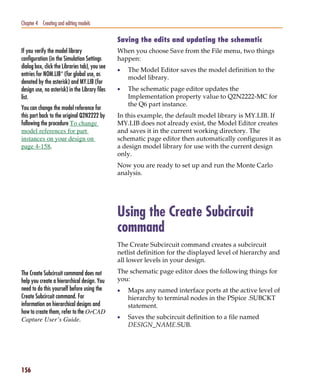
                                                    .OPTIONS command.
                                                    The primitive IO_LEVEL selects one of four possible
                                                    A-to-D and D-to-A interface subcircuits from the device’s
                                                    I/O model. In the header of this subcircuit, IO_LEVEL is
                                                    set to 0. This means that it takes on the value of the
                                                    DIGIOLVL parameter. DIGIOLVL defaults to 1 unless
                                                    specifically changed using the .OPTIONS command.


                                                    Pin-to-pin delay (PINDLY primitive)
                                                    The delay and constraint specifications for the model are
                                                    specified using the PINDLY primitive. The PINDLY
                                                    primitive is evaluated every time any of its inputs or
                                                    outputs change. See the Digital Devices chapter in the
                                                    online PSpice Reference Guide for more information.
                                                    For the 74160, we have five delay paths, the four flip-flop
                                                    outputs to subcircuit outputs QA...QD to QA_O...QD_O,
                                                    and RCO to RCO_O. The five paths are seen in the Delay
                                                    & Constraint section of the design. For delay paths, the
                                                    number of inputs must equal the number of outputs. Since
                                                    the 74160 does not have TRI-STATE outputs, there are no
                                                    enable signals for this example, but there are ten reference
                                                    nodes. The first four (CLK, LOADBAR, ENT, and
                                                    CLRBAR) are used for both the pin-to-pin delay
                                                    specification and the constraint checking. The last six
                                                    (ENP, A, B, C, D, and EN) are used only for the constraint
                                                    checking.
                                                    The PINDLY primitive also allows constraint checking of
                                                    the model. It can verify the setup, hold times, pulse width,
                                                    and frequency. It also has a general mechanism to allow
                                                    for user-defined conditions to be reported. The constraint
                                                    checking only reports timing violations; it does not affect
                                                    the propagation delay or the logic state of the device. Since
                                                    the timing parameters are generally specified at the pin
                                                    level of the actual device, the checking is normally done at
                                                    the interface pins of the subcircuit after the appropriate
                                                    buffering has been done.

   270
Pspug.book Page 271 Tuesday, May 16, 2000 1:17 PM


                                                                Creating a digital model using the PINDLY and LOGICEXP primitives


           BOOLEAN
           The keyword BOOLEAN begins the boolean assignments
           which define temporary variables that can be used later in
           the PINDLY primitive. The form is:
                 boolean variable = {boolean expression}
           The curly braces are required.
           In the 74160 model, the boolean expressions are actually
           reference functions. There are three reference functions
           available: CHANGED, CHANGED_LH, and
           CHANGED_HL. The format is:
                 function name (node, delta time)
           For our example, we define the variable CLOCK as a
           logical TRUE if there has been a LO-to-HI transition of the
           CLK signal at simulation time. We define CNTENT as
           TRUE if there has been any transition of the ENT signal at
           the simulation time.
           Boolean operators take the following boolean values as
           operands:
           •     reference functions
           •     transition functions
           •     previously assigned boolean variables
           •     boolean constants TRUE and FALSE
           Transition functions have the general form of:
                 TRN_pn
           For a complete list of reference functions and transition
           functions, see the Digital Devices chapter in the online
           PSpice Reference Guide.


                                                                                                                           271
Pspug.book Page 272 Tuesday, May 16, 2000 1:17 PM


   Chapter 7 Digital device modeling


                                                    PINDLY
                                                    PINDLY contains the actual delay and constraint
                                                    expressions for each of the outputs.
                                                    The CASE function defines a more complex, rule-based
                                                    <delay expression> and works as a rule section mechanism
                                                    for establishing path delays. Each boolean expression in
                                                    the CASE function is evaluated in order until one is
                                                    encountered that produces a TRUE result. Once a TRUE
                                                    expression is found, the delay expression portion of the
                                                    rule is associated with the output node being evaluated,
                                                    and the remainder of the CASE function is ignored. If
                                                    none of the expressions evaluate to TRUE, then the
                                                    DEFAULT delay is used. Since it is possible for none of the
                                                    expressions to yield a TRUE result, you must include a
                                                    default delay in every CASE function. Also note that the
                                                    expressions must be separated by a comma.
                                                    In the PINDLY section of the PINDLY primitive in the
                                                    model listing, the four output nodes (QA_O through
                                                    QD_O) all use the same delay rules. The CASE function is
                                                    evaluated independently for each of the outputs in turn.
                                                    The first delay expression is:
                                                       CLOCK & LOADBAR=='1 & TRN_LH, DELAY(-1,13NS,20NS)

                                                    This means that if CLOCK is TRUE, and LOADBAR is
                                                    equal to 1, and QA_O is transitioning from 0 to 1, then the
                                                    values of -1, 13ns, and 20ns are used for the MINIMUM,
                                                    TYPICAL, and MAXIMUM propagation delay for the
                                                    CLK-to-QA data output of the chip. In this case, the
                                                    manufacturer did not supply a minimum prop delay, so
                                                    we used the value -1 to tell the simulator to derive a value
                                                    from what was given. If this statement is TRUE, then the
                                                    simulator assigns the values and move on to the CASE
                                                    function for QB_O and eventually RCO_O.
                                                    For instances where one or more propagation delay
                                                    parameters are not supplied by the data sheet, the
                                                    simulator derives a value from what is known and the
                                                    values specified for the .OPTION DIGMNTYSCALE and
                                                    DIGTYMXSCALE.


   272
Pspug.book Page 273 Tuesday, May 16, 2000 1:17 PM


                                                                  Creating a digital model using the PINDLY and LOGICEXP primitives

           When the typical value for a delay parameter is known
           but the minimum is not, the simulator uses the formula:
                 TPxxMN = DIGMNTYSCALE X TPxxTY
           where the value of DIGMNTYSCALE is between 0.1 and
           1.0 with the default value being 0.4. If the typical is known
           and the maximum is not, then the simulator uses the
           formula:
                 TPxxMX = DIGTYMXSCALE X TPxxTY
           where the value of DIGTYMXSCALE is greater than 1.0
           with the default being 1.6. If the typical value is not
           known, and both the minimum and maximum are, then
           the typical value used by the simulator will be the average
           of the minimum and maximum propagation delays. If
           only one of min or max is known, then the typical delay is
           calculated using the appropriate formula as listed above.
           If all three are unknown, then they all default to a value
           of 0.


           Constraint checker (CONSTRAINT primitive)
           The CONSTRAINT primitive provides a general
           constraint checking mechanism to the digital device
           modeler. It performs setup and hold time checks, pulse
           width checks, frequency checks, and includes a general
           mechanism to allow user-defined conditions to be
           reported. See the Digital Devices chapter in the online
           PSpice Reference Guide for more information.


                                                                                                                             273
Pspug.book Page 274 Tuesday, May 16, 2000 1:17 PM


   Chapter 7 Digital device modeling


                                                    Setup_Hold
                                                    The expressions in the SETUP_HOLD specification may
                                                    be listed in any order.
                                                    CLOCK defines the node that is to be used as the reference
                                                    for the setup/hold/release specification. The assertion
                                                    edge must be LH or HL (for example, a transition from
                                                    logic state 0 to 1 or from 1 to 0.)
                                                    DATA specifies which node(s) is to have its setup/hold
                                                    time measured.
                                                    SETUPTIME defines the minimum time that all DATA
                                                    nodes must be stable prior to the assertion edge of the
                                                    clock. The time value must be a nonnegative constant or
                                                    expression and is measured in seconds. If the device has
                                                    different setup/hold times depending on whether the
                                                    data is HI or LOW at the clock change, you can use either
                                                    or both of the following forms:
                                                       SETUPTIME_LO = <time value>
                                                       SETUPTIME_HI = <time value>
                                                    If either of the time values is 0, then no check is done for
                                                    that case.
                                                    HOLDTIME is used in the same way as SETUPTIME and
                                                    also has the alternate _LH and _HL formats and 0 value
                                                    condition.
                                                    RELEASETIME causes the simulator to perform a
                                                    special-purpose setup check. Release time (also referred to
                                                    as recovery time in some data sheets) refers to the
                                                    minimum time that a signal can go inactive before the
                                                    active clock edge. Again, the _LH and _HL forms are
                                                    available. The difference between RELEASETIME and
                                                    SETUPTIME checking is that simultaneous CLOCK/
                                                    DATA transitions are never allowed (this assumes a
                                                    nonzero hold time). RELEASETIME is usually not used in
                                                    conjunction with SETUPTIME or HOLDTIME.


   274
Pspug.book Page 275 Tuesday, May 16, 2000 1:17 PM


                                                                  Creating a digital model using the PINDLY and LOGICEXP primitives


           Width
           WIDTH does the minimum pulse-width checking.
           MIN_HI/MIN_LO is the minimum time that the node can
           remain HI/LOW. The value must be a nonnegative
           constant, or expression. A value of 0 means that any pulse
           width is allowed. At least one of MIN_HI or MIN_LO
           must be used within a WIDTH section.


           Freq
           FREQ checks the frequency. MINFREQ/MAXFREQ is the
           minimum/maximum frequency that is allowed on the
           node in question. The value must be a nonnegative
           floating point constant or expression measured in hertz.
           At least one of MINFREQ or MAXFREQ must be used
           within a FREQ section.
           AFFECTS clauses (not used in this example) can be
           included in constraints to describe how the simulator
           should associate the failure of a constraint check with the
           outputs (paths through the device) of the PINDLY. This
           information does not affect the logic state of the outputs
           but provides causality detail used by the error tracking
           mechanism in PSpice A/D waveform analysis.


           74160 example
           In the 74160 example, we are checking that the maximum
           clock frequency (CLK) is not more than 25 MHz and the
           pulse width is 25 ns. We are also checking that the
           CLRBAR signal has a minimum LO pulse width of 20 ns,
           and that the 4 data inputs (A, B, C, D) have a setup/hold
           time of 20 ns in reference to the CLK signal. We are also
           checking that ENP and ENT have a setup/hold time of
           20 ns with respect to the 0 to 1 transition of the CLK signal,
           but only when the conditions in the WHEN statement are
           met. All of the delay and constraint checking values were

                                                                                                                             275
Pspug.book Page 276 Tuesday, May 16, 2000 1:17 PM


   Chapter 7 Digital device modeling

                                                    taken directly from the actual data sheet. This makes the
                                                    delay modeling both easy and accurate.
                                                    All of the above primitives and modeling methods, as well
                                                    as a few special cases that are not covered here, can be
                                                    found in the Digital Devices chapter of the online PSpice
                                                    Reference Guide.

                                                       * 74160 Synchronous 4-bit Decade Counters with
                                                       asynchronous clear

                                                       * Modeled using LOGICEXP, PINDLY, & CONSTRAINT devices

                                                       .SUBCKT 74160 CLK_I ENP_I ENT_I CLRBAR_I LOADBAR_I A_I B_I
                                                       C_I D_I
                                                       + QA_O QB_O QC_O QD_O RCO_O
                                                       + OPTIONAL: DPWR=$G_DPWR DGND=$G_DGND
                                                       + PARAMS: MNTYMXDLY=0 IO_LEVEL=0
                                                       *
                                                       U160LOG LOGICEXP(14,20) DPWR DGND
                                                       + CLK_I ENP_I ENT_I CLRBAR_I LOADBAR_I A_I B_I C_I D_I
                                                       +     QDBAR QA QB QC QD
                                                       + CLK ENP ENT CLRBAR LOADBAR A B C D
                                                       + CLKBAR RCO JA JB JC JD KA KB KC KD EN
                                                       + D0_GATE IO_STD IO_LEVEL={IO_LEVEL}
                                                       + LOGIC:
                                                       +   CLK = { CLK_I }                    ;Buffering
                                                       +   ENP = { ENP_I }
                                                       +   ENT = { ENT_I }
                                                       +   CLRBAR = { CLRBAR_I }
                                                       +   LOADBAR = { LOADBAR_I }
                                                       +   A = { A_I }
                                                       +   B = { B_I }
                                                       +   C = { C_I }
                                                       +   D = { D_I }
                                                       +   CLKBAR = { ~CLK }               ;Logic expressions
                                                       +   LOAD = { ~LOADBAR }
                                                       +   EN = { ENP & ENT }
                                                       +   I1A = { LOAD | EN }
                                                       +   I2A = { ~(LOAD & A) }
                                                       +   JA = { I1A & ~(LOAD & I2A) }
                                                       +   KA = { I1A & I2A }
                                                       +   I1B = { (QA & EN & QDBAR) | LOAD }
                                                       +   I2B = { ~(LOAD & B) }
                                                       +   JB = { I1B & ~(LOAD & I2B) }
                                                       +   KB = { I1B & I2B }
                                                       +   I1C = { (QA & EN & QB) | LOAD }
                                                       +   I2C = { ~(LOAD & C) }
                                                       +   JC = { I1C & ~(LOAD & I2C) }
                                                       +   KC = { I1C & I2C }
                                                       +   I1D = { ((QC & QB & QA & EN) | (EN & QA & QD)) | LOAD }
                                                       +   I2D = { ~(LOAD & D) }
                                                       +   JD = { I1D & ~(LOAD & I2D) }

   276
Pspug.book Page 277 Tuesday, May 16, 2000 1:17 PM


                                                                     Creating a digital model using the PINDLY and LOGICEXP primitives

                 +   KD = { I1D & I2D }
                 +   RCO = { QD & QA & ENT }
                 *
                 UJKFF JKFF(4) DPWR DGND $D_HI CLRBAR CLKBAR JA JB JC JD KA
                 KB KC KD
                 + QA QB QC QD QABAR QBBAR QCBAR QDBAR D0_EFF IO_STD
                 U160DLY PINDLY (5,0,10) DPWR DGND
                 + RCO QA QB QC QD
                 + CLK LOADBAR ENT CLRBAR ENP A B C D EN
                 + RCO_O QA_O QB_O QC_O QD_O
                 + IO_STD MNTYMXDLY={MNTYMXDLY} IO_LEVEL={IO_LEVEL}
                 + BOOLEAN:
                 +   CLOCK = { CHANGED_LH(CLK,0) }
                 +   CNTENT = { CHANGED(ENT,0) }
                 + PINDLY:
                 +   QA_O QB_O QC_O QD_O = {
                 +     CASE(
                 +       CLOCK & LOADBAR=='1 & TRN_LH, DELAY(-1,13NS,20NS),
                 +       CLOCK & LOADBAR=='1 & TRN_HL, DELAY(-1,15NS,23NS),
                 +       CLOCK & LOADBAR=='0 & TRN_LH, DELAY(-1,17NS,25NS),
                 +       CLOCK & LOADBAR=='0 & TRN_HL, DELAY(-1,19NS,29NS),
                 +       CHANGED_HL(CLRBAR,0), DELAY(-1,26NS,38NS),
                 +       DELAY(-1,26NS,38NS)
                 +   )
                 +     }
                 +   RCO_O = {
                 +     CASE(
                 +       CNTENT, DELAY(-1,11NS,16NS),
                 +       CLOCK, DELAY(-1,23NS,35NS),
                 +       DELAY(-1,23NS,35NS)
                 +       )
                 +     }
                 + FREQ:
                 +   NODE = CLK
                 +   MAXFREQ = 25MEG
                 + WIDTH:
                 +   NODE = CLK
                 +   MIN_LO = 25NS
                 +   MIN_HI = 25NS
                 + WIDTH:
                 +   NODE = CLRBAR
                 +   MIN_LO = 20NS
                 + SETUP_HOLD:
                 +   DATA(4) = A B C D
                 +   CLOCK LH = CLK
                 +   SETUPTIME = 20NS
                 +   WHEN = { (LOADBAR!='1 ^ CHANGED(LOADBAR,0)) &
                 +     CLRBAR!='0 }
                 + SETUP_HOLD:
                 +   DATA(2) = ENP ENT
                 +   CLOCK LH = CLK
                 +   SETUPTIME = 20NS
                 +   WHEN = { CLRBAR!='0 & (LOADBAR!='0 ^
                 +     CHANGED(LOADBAR,0))
                 +     & CHANGED(EN,20NS) }

                                                                                                                                277
Pspug.book Page 278 Tuesday, May 16, 2000 1:17 PM


   Chapter 7 Digital device modeling

                                                    + SETUP_HOLD:
                                                    +   DATA(1) = LOADBAR
                                                    +   CLOCK LH = CLK
                                                    +   SETUPTIME = 25NS
                                                    +   WHEN = { CLRBAR!='0 }
                                                    + SETUP_HOLD:
                                                    +   DATA(1) = CLRBAR
                                                    +   CLOCK LH = CLK
                                                    +   RELEASETIME_LH = 20NS
                                                    .ENDS


   278
Pspug.book Page 279 Tuesday, May 16, 2000 1:17 PM


           Part three
           Setting up and running
           analyses


           Part Three describes how to set up and run analyses and
           provides setup information specific to each analysis type.
           •     Chapter 8, Setting up analyses and starting simulation,
                 explains the procedures general to all analysis types to
                 set up and start the simulation.
           •     Chapter 9, DC analyses, describes how to set up DC
                 analyses, including DC sweep, bias point detail, small-
                 signal DC transfer, and DC sensitivity.
           •     Chapter 10, AC analyses, describes how to set up AC
                 sweep and noise analyses.
           •     Chapter 11, Transient analysis, describes how to set up
                 transient analysis and optionally Fourier components.
                 This chapter also explains how to use the Stimulus
                 Editor to create time-based input.
           •     Chapter 12, Parametric and temperature analysis,
                 describes how to set up parametric and temperature
                 analyses, and how to run post-simulation
                 performance analysis in Probe on the results of these
                 analyses.
Pspug.book Page 280 Tuesday, May 16, 2000 1:17 PM


                                                    •   Chapter 13, Monte Carlo and sensitivity/worst-case
                                                        analyses, describes how to set up Monte Carlo and
                                                        sensitivity/worst-case analyses for statistical
                                                        interpretation of your circuit’s behavior.
                                                    •   Chapter 14, Digital simulation, describes how to set up
                                                        a digital simulation analysis on either a digital-only or
                                                        mixed-signal circuit.
                                                    •   Chapter 15, Mixed analog/digital simulation, explains
                                                        how PSpice A/D processes the analog and digital
                                                        interfaces in mixed-signal circuits.
                                                    •   Chapter 16, Digital worst-case timing analysis, describes
                                                        how PSpice A/D performs digital worst-case timing
                                                        analysis and the kinds of hazards that this analysis can
                                                        help you detect.
Pspug.book Page 281 Tuesday, May 16, 2000 1:17 PM


           Setting up analyses and
           starting simulation


                                                                        8

           Chapter overview
           This chapter provides an overview of setting up analyses
           and starting simulation that applies to any analysis type.
           The other chapters in Part three, Setting up and running
           analyses provide specific analysis setup information for
           each analysis type.
           This chapter includes the following sections:
           •     Analysis types on page 8-282
           •     Setting up analyses on page 8-284
           •     Starting a simulation on page 8-292
           •     Interacting with a simulation on page 307
           •     Using the Simulation Manager on page 315
Pspug.book Page 282 Tuesday, May 16, 2000 1:17 PM


   Chapter 8 Setting up analyses and starting simulation


                                                           Analysis types
                                                           PSpice supports analyses that can simulate analog-only,
                                                           mixed-signal, and digital-only circuits.
                                                           PSpice fully supports digital analysis by simulating the
                                                           timing behavior of digital devices within a standard
                                                           transient analysis, including worst-case (min/max)
                                                           timing. For mixed analog/digital circuits, all of the
                                                           above-mentioned analyses can be run. If the circuit is
                                                           digital-only, only the transient analysis can be run.
                                                           Table 23 provides a summary of the available PSpice
                                                           analyses and the corresponding Analysis type options
                                                           where the analysis parameters are specified. In Capture,
                                                           switch to the PSpice view, then from the PSpice menu,
                                                           choose New Simulation Profile .


   282
Pspug.book Page 283 Tuesday, May 16, 2000 1:17 PM


                                                                                                                          Analysis types


           Table 23     Classes of PSpice analyses
             Analysis                               Analysis type or Option Swept variable
             Standard analyses
              DC sweep                              DC Sweep                source
                                                                            parameter
                                                                            temperature
              Bias point                            Bias Point
              Small-signal DC transfer              Bias Point
              DC sensitivity                        Bias Point
              Frequency response                    AC Sweep/Noise          frequency
              Noise (requires a frequency           AC Sweep/Noise          frequency
              response analysis)
              Transient response                    Time Domain             time
                                                    (Transient)
              Fourier (requires transient           Time Domain             time
              response analysis)                    (Transient)
             Simple multi-run analyses
              Parametric                            Parametric Sweep
              Temperature                           Temperature
                                                    (Sweep)
             Statistical analyses
             Monte Carlo                            Monte Carlo/
                                                    Worst Case
             Sensitivity/worst-case                 Monte Carlo/
                                                    Worst Case


           The waveform analyzer calculates and displays the results                         See Part four, Viewing results, for
           of PSpice simulations for swept analyses. The waveform                            information about using waveform analysis
           analyzer also generates supplementary analysis                                    in PSpice.
           information in the form of lists and tables, and saves this
           in the simulation output file.


                                                                                                                                  283
Pspug.book Page 284 Tuesday, May 16, 2000 1:17 PM


   Chapter 8 Setting up analyses and starting simulation


                                                           Setting up analyses
                                                           To set up one or more analyses
   Specific information for setting up each                1   From the PSpice menu, choose New Simulation
   type of analysis is discussed in the following              Profile.
   chapters.
                                                           2   Enter the name of the profile and click OK.
                                                           3   Click the Analysis tab if it is not already the active tab
                                                               in the dialog box.


   See Output variables on                                 4   Enter the necessary parameter values and select the
   page 8-286 for a description of the                         appropriate check boxes to complete the analysis
   output variables that can be entered in the                 specifications.
   Simulation Settings dialog box displayed
                                                           5   Set up any other analyses you want to perform for the
   for an analysis type.
                                                               circuit by selecting any of the remaining analysis types
   Specific information for setting up each                    and options, then complete their setup dialog boxes.
   type of analysis is discussed in the following
   chapters.


   284
Pspug.book Page 285 Tuesday, May 16, 2000 1:17 PM


                                                                          Setting up analyses


           Execution order for standard analyses
           For normal simulations that are run from a simulation
           profile, or in batch mode, only the particular analysis type
           that is specified will be executed.
           During simulation of a circuit file, the analysis types are
           performed in the order shown in Table 24. Each type of
           analysis is conducted only once per run.
           Several of the analyses (small-signal transfer, DC
           sensitivity, and frequency response) depend upon the bias
           point calculation. Because so many analyses use the bias
           point, PSpice calculates this automatically. PSpice’s bias
           point calculation computes initial states of digital
           components as well as the analog components.


           T
           . able 24    Execution order for standard analyses

             1. DC sweep

             2. Bias point

             3. Frequency response

             4. Noise

             5. DC sensitivity

             6. Small-signal DC transfer

             7. Transient response

             8. Fourier components


                                                                                       285
Pspug.book Page 286 Tuesday, May 16, 2000 1:17 PM


   Chapter 8 Setting up analyses and starting simulation


                                                           Output variables
                                                           Certain analyses (such as noise, Monte Carlo, sensitivity/
                                                           worst-case, DC sensitivity, Fourier, and small-signal DC
                                                           transfer function) require you to specify output variables
                                                           for voltages and currents at specific points on the
                                                           schematic. Depending upon the analysis type, you may
                                                           need to specify the following:
                                                           •   Voltage on a net, a pin, or at a terminal of a
                                                               semiconductor device
                                                           •   Current through a part or into a terminal of a
                                                               semiconductor device
                                                           •   A device name
                                                           If output variables or other information are required,
                                                           select Output File Options in the Monte Carlo/Worst Case
                                                           dialog box and enter the required parameters.

                                                           Voltage
                                                           Specify voltage in the following format:
                                                               v[modifiers](<out id>[,<out id>])                    (1)
                                                           where <out id > is:
                                                               <net id> or <pin id>                                 (2)
                                                               <net id> is a fully qualified net name               (3)
                                                               <pin id> is <fully qualified device name>:<pin name> (4)
                                                           A fully qualified net name (as referred to in line 3 above)
                                                           is formed by prefixing the visible net name (from a label
                                                           applied to one of the segments of a wire or bus, or an
                                                           offpage port connected to the net) with the full
                                                           hierarchical path, separated by periods. At the top level of
                                                           hierarchy, this is just the visible name.
                                                           A fully qualified device name (from line 4 above) is
                                                           distinguished by specifying the full hierarchical path
                                                           followed by the device’s part reference, separated by
                                                           period characters. For example, a resistor with part
                                                           reference R34 inside part Y1 placed on a top-level


   286
Pspug.book Page 287 Tuesday, May 16, 2000 1:17 PM


                                                                                Setting up analyses

           schematic page is referred to as Y1.R34 when used in an
           output variable.
           A <pin id> (from line 4) is uniquely distinguished by
           specifying the full part name (as described above)
           followed by a colon, and the pin name. For example, the
           pins on a capacitor with reference designator C31 placed
           on a top-level page and pin names 1 and 2 would be
           identified as C31:1 and C31:2, respectively.

           Current
           Specify current in the following format:
                 i[modifiers](<out device>[:modifiers])
           where <out device> is a fully qualified device name.


           Modifiers
           The basic syntax for output variables can be modified to
           indicate terminals of semiconductors and AC
           specifications. The modifiers come before <out id> or
           <out device>. Or, when specifying terminals (such as
           source or drain), the modifier is the pin name contained in
           <out id>, or is appended to <out device> separated by a
           colon.
           Modifiers can be specified as follows:
           •     For voltage:
                       v[AC suffix](<out id>[, out id])
                       v[terminal]*(<out device>)
           •     For current:
                       i[AC suffix](<out device>[:terminal])
                       i[terminal][AC suffix](<out device>])
           where
                 terminal          specifies one or two terminals for devices
                                   with more than two terminals, such as D
                                   (drain), G (gate), S (source)


                                                                                             287
Pspug.book Page 288 Tuesday, May 16, 2000 1:17 PM


   Chapter 8 Setting up analyses and starting simulation


                                                               AC suffix          specifies the quantity to be reported for an
                                                                                  AC analysis, such as M (magnitude), P
                                                                                  (phase), G (group delay)
                                                               out id             specifies either the <net id> or <pin id>
                                                                                  (<fully qualified device name>:<pin name>)
                                                               out device         specifies the <fully qualified device name>
                                                           These building blocks can be used for specifying output
                                                           variables as shown in Table 25 (which summarizes the
                                                           accepted output variable formats) and Tables 26 through
                                                           29 (which list valid elements for two-terminal, three- or
                                                           four-terminal devices, transmission line devices, and AC
                                                           specifications).


                                                           Table 25   PSpice output variable formats
                                                            Format                                         Meaning
                                                            V[ac](< + out id >)                            voltage at out id
                                                            V[ac](< +out id >,< - out id >)                voltage across + and -
                                                                                                           out id’s
                                                            V[ac](< 2-terminal device out id >)            voltage at a 2-terminal
                                                                                                           device out id
                                                            V[ac](< 3 or 4-terminal device out id >) or    voltage at
                                                            V<x>[ac](< 3 or 4-terminal out device >)       non-grounded terminal
                                                                                                           x of a 3 or 4-terminal
                                                                                                           device
                                                            V<x><y>[ac](< 3 or 4-terminal out device >) voltage across terminals
                                                                                                        x and y of a
                                                                                                        3 or 4-terminal device
                                                            V[ac](< transmission line out id >) or         voltage at one end z of a
                                                            V<z>[ac](< transmission line out device >)     transmission line device

                                                            I[ac](< 3 or 4-terminal out device >:<x>) or   current through
                                                            I<x>[ac](< 3 or 4-terminal out device >)       non-grounded terminal
                                                                                                           x of a 3 or 4-terminal out
                                                                                                           device
                                                            I[ac](< transmission line out device >:<z>) or current through one end
                                                            I<z>[ac](< 3 or 4-terminal out device >)       z of a transmission line
                                                                                                           out device
                                                            < DC sweep variable >                          voltage or current
                                                                                                           source name


   288
Pspug.book Page 289 Tuesday, May 16, 2000 1:17 PM


                                                                                     Setting up analyses

           Table 26     Element definitions for 2-terminal devices

                                                <out id> or
                                                                   Output variable
             Device type                        <out device>
                                                                   examples
                                                device indicator

             capacitor                          C                  V(CAP:1)
                                                                   I(CAP)

             diode                              D                  V(D23:1)
                                                                   I(D23)

             voltage-controlled                 E                  V(E14:1)
             voltage source                                        I(E14)

             current-controlled                 F                  V(F1:1)
             current source                                        I(F1)

             voltage-controlled                 G                  V(G2:1)
             current source                                        I(G2)

             current-controlled                 H                  V(HSOURCE:1)
             voltage source                                        I(HSOURCE)

             independent current                I                  V(IDRIV:+)
             source                                                I(IDRIV)

             inductor                           L                  V(L1:1)
                                                                   I(L1)

             resistor                           R                  V(RC1:1)
                                                                   I(RC1)

             voltage-controlled                 S                  V(SWITCH:+)
             switch                                                I(SWITCH)

             independent voltage                V                  V(VSRC:+)
             source                                                I(VSRC)

             current-controlled                 W                  V(W22:-)
             switch                                                I(W22)


                                                                                                  289
Pspug.book Page 290 Tuesday, May 16, 2000 1:17 PM


   Chapter 8 Setting up analyses and starting simulation

                                                           Table 27   Element definitions for 3- or 4-terminal devices
                                                                             <out id> or
                                                                             <out device>                               Output variable
                                                            Device type                     <pin id>
                                                                             device                                     examples
                                                                             indicator
                                                            GaAs MESFET      B              D (Drain terminal)          V(B11:D)
                                                                                            G (Gate terminal)           ID(B11)
                                                                                            S (Source terminal)
                                                            Junction FET     J               D (Drain terminal)         VG(JFET)
                                                                                            G (Gate terminal)           I(JFET:G)
                                                                                            S (Source terminal)
                                                            MOSFET           M               B (Bulk, substrate         VDG(M1)
                                                                                                terminal)               ID(M1)
                                                                                            D (Drain terminal)
                                                                                            G (Gate terminal)
                                                                                            S (Source terminal)
                                                            bipolar          Q              B (Base terminal)           V(Q1:B)
                                                            transistor                      C (Collector terminal)      I(Q1:C)
                                                                                            E (Emitter terminal)
                                                                                            S (Source terminal)
                                                            IGBT             Z               C (Collector terminal)     V(Z1:C)
                                                                                            E (Emitter terminal)        I(Z1:C)
                                                                                            G (Gate terminal)


                                                           Table 28   Element definitions for transmission line devices

                                                                                 <out id> or
                                                                                                                      Output variable
                                                            Device type          <out device>          <z>
                                                                                                                      examples
                                                                                 device indicator

                                                            transmission         T                     A (Port A)     V(T32:A+)
                                                            line                                       B (Port B)     I(T32:B-)


   290
Pspug.book Page 291 Tuesday, May 16, 2000 1:17 PM


                                                                                Setting up analyses

           Table 29     Element definitions for AC analysis specific elements

             <ac suffix>                                     Output variable
                                    Meaning
             device symbol                                   examples

             (none)                 magnitude (default)      V(V1)
                                                             I(V1)

             M                      magnitude                VM(CAP1:1)
                                                             IM(CAP1:1)

             DB                     magnitude in decibels    VDB(R1)

             P                      phase                    IP(R1)

             R                      real part                VR(R1)

             I                      imaginary part           VI(R1)


           The INOISE, ONOISE, DB(INOISE), and DB(ONOISE)
           output variables are predefined for use with noise (AC
           sweep) analysis.


                                                                                             291
Pspug.book Page 292 Tuesday, May 16, 2000 1:17 PM


   Chapter 8 Setting up analyses and starting simulation


                                                           Starting a simulation
                                                           After you have used Capture to enter your circuit design
                                                           and have set up the analyses to be performed, you can
                                                           start a simulation by choosing Run from the PSpice menu.
                                                           When you enter and set up your circuit this way, Capture
                                                           automatically generates the simulation files and starts
                                                           PSpice.
                                                           There may be situations, however, when you want to run
                                                           PSpice outside of Capture. You may want to simulate a
                                                           circuit that was not created in Capture, for example, or
                                                           you may want to run simulations of multiple circuits in
                                                           batch mode.
                                                           This section includes the following:
                                                           •   Creating a simulation netlist on page 8-292
                                                           •   Starting a simulation from Capture on page 8-301
                                                           •   Starting a simulation outside of Capture on page 8-302
                                                           •   Setting up batch simulations on page 8-302
                                                           •   The PSpice simulation window on page 8-303


                                                           Creating a simulation netlist
                                                           A netlist is the connectivity description of a circuit,
                                                           showing all of the components, their interconnections,
                                                           and their values. When you create a simulation netlist
                                                           from Orcad Capture, that netlist describes the current
                                                           design.
                                                           You have a choice between two types of netlist formats:
                                                           •   a flat netlist
                                                           •   a hierarchical netlist
                                                           The flat netlist is generated for all levels of hierarchy,
                                                           starting from the top, regardless of whether you are
                                                           pushed into any level of the hierarchy. Flat netlists are
                                                           most commonly used as input to PCB layout tools. The flat

   292
Pspug.book Page 293 Tuesday, May 16, 2000 1:17 PM


                                                                          Starting a simulation

           simulation netlist format for PSpice contains device
           entries for all parts on a subcircuit (child) schematic
           multiple times, once for each instance of the hierarchical
           part or block used.
           The hierarchical netlist preserves the hierarchical
           information in any subcircuit (child) schematics. It
           contains a single .SUBCKT definition for each child
           schematic. The devices in the subcircuit are therefore
           netlisted only once. Each instance of the hierarchical part
           or block is then netlisted as an instance of that subcircuit
           (as an “X” device). The subcircuit name corresponds to the
           name of the subcircuit (child) schematic. Hierarchical
           netlists are especially useful to IC designers who want to
           perform Layout vs. Schematic (LVS) verification because
           they are more accurate descriptions of the true circuit. The
           hierarchical netlist format supports LVS tools such as
           Dracula.


           Using netlisting templates
           In Orcad Capture, the PSPICETEMPLATE property
           specifies how primitive parts are described in the
           simulation netlist. It defines the pin order and which other
           part property values to include in the netlist. Only parts
           with a PSPICETEMPLATE property are included in the
           simulation. In the process of creating the netlist, buses,
           connectors, and so on, are resolved.
           An alternate template option is provided which allows
           you to define which netlisting template property to use.
           This option applies to both flat and hierarchical netlists.
           With this option, you may specify a particular netlist
           template for generating netlists that can be used by other
           simulation tools, for example, or for creating alternate
           PSpice netlists that contain different part descriptions.
           To learn more about using alternate netlist templates, see
           Specifying alternate netlist templates on page 8-300.


                                                                                         293
Pspug.book Page 294 Tuesday, May 16, 2000 1:17 PM


   Chapter 8 Setting up analyses and starting simulation

                                                           Passing parameters to subcircuits
                                                           Hierarchical netlists have the advantage of allowing
                                                           parameters to be passed from the top level schematic to
                                                           any subcircuit schematics. To take advantage of this
                                                           feature, you must use the new SUBPARAM part in the
                                                           SPECIAL.OLB library.
                                                           Note      Hierarchical netlists do not support cross-probing from a subcircuit,
                                                                     nor do they support Probe markers in a subcircuit.
                                                           With the SUBPARAM part, you can pass parameters from
                                                           the top-level schematic to a subcircuit schematic. This
                                                           allows you to explicitly define the properties and default
                                                           values to be used during netlisting and simulation.

                                                           To set up parameter passing to a subcircuit using SUBPARAM
                                                           1      Make the subcircuit your active schematic page in the
                                                                  Capture editor.
                                                           2      From the Place menu, choose the Part command.
                                                           3      Select the part SUBPARAM from the PSpice library
                                                                  SPECIAL.OLB and place it on the subcircuit.
                                                           4      With the SUBPARAM part still selected, from the Edit
                                                                  menu, choose Properties.
                                                                  The Property Editor spreadsheet appears.
                                                           5      In the spreadsheet, define the names and default
                                                                  values for the properties that can be changed on an
                                                                  instance-by-instance basis.
                                                           6      In the top-level schematic, use the Property Editor
                                                                  spreadsheet to edit the properties of the hierarchical
                                                                  part or block that references the subcircuit (child)
                                                                  schematic so they match the properties you defined in
                                                                  Step 5.
                                                           Any part in the subcircuit (child) schematic can reference
                                                           the properties in its PSPICETEMPLATE. The PSpice
                                                           subcircuit mechanism supports parameterizing:
                                                           •      constants specified on device statements
                                                           •      model parameters


   294
Pspug.book Page 295 Tuesday, May 16, 2000 1:17 PM


                                                                              Starting a simulation

           •     expressions consisting of constants
           •     parameters
           •     functions


           Creating the netlist
           You can generate a simulation netlist in one of two ways:
           •     from Capture’s Project Manager by using the Create
                 Netlist command under the Tools menu. (If this is the
                 first time you’re creating a hierarchical netlist for this
                 project, you can only use this method.)
                       - or -
           •     directly from within Capture itself by using the Create
                 Netlist command under the PSpice menu.
           During the netlist process, Capture creates several files
           with different extensions: the .NET file contains the
           netlist; the .CIR file contains simulation commands; and
           the .ALS file contains alias information.

           To create a flat netlist
           1     In the Capture Project manager, select the design file
                 (.DSN) you want to netlist.
           2     From the Tools menu, choose Create Netlist to display
                 the Create Netlist dialog box.
           3     Select the PSpice tab.
           4     Under the Options frame, leave all the checkboxes
                 blank.
           5     In the Netlist File text box, type a name for the output
                 file, or click the Browse button to assign a filename.
           6     If desired, click the View Output checkbox to display
                 the netlist after it has been generated.
           7     Click OK.


                                                                                             295
Pspug.book Page 296 Tuesday, May 16, 2000 1:17 PM


   Chapter 8 Setting up analyses and starting simulation

                                                           To create a hierarchical netlist
                                                           1   In the Capture Project manager, select the design file
                                                               (.DSN) you want to netlist.
                                                           2   From the Tools menu, choose Create Netlist to display
                                                               the Create Netlist dialog box.


                                                           3   Select the PSpice tab.
                                                           4   Under the Options frame, click Create Hierarchical
                                                               Format Netlist.
                                                           5   Click Settings to customize the format of the
                                                               hierarchical netlist (see Customizing the hierarchical
                                                               netlist on page 8-297).
                                                           6   Click Create Subcircuit Format Netlist to specify how
                                                               subcircuits will be netlisted (see Creating subcircuit
                                                               netlists on page 8-300).
                                                           7   In the Use Template list box, select the netlisting
                                                               template(s) you wish to apply (see Specifying alternate
                                                               netlist templates on page 8-300).


   296
Pspug.book Page 297 Tuesday, May 16, 2000 1:17 PM


                                                                                               Starting a simulation

           8      In the Netlist File text box, type a name for the output
                  file, or click the Browse button to assign a filename.
           9      If desired, click the View Output checkbox to display
                  the netlist after it has been generated.
           10 Click OK.
           For more information on netlist formats, refer to Orcad
           Capture’s online help.


           Customizing the hierarchical netlist
           You can customize the hierarchical netlist by specifying
           various options using the Settings button in the Create
           Netlist dialog box. You can also customize the format of
           the subcircuit definition and reference text in the netlist.
           These settings, once defined, will apply to all subsequent
           PSpice netlists whether the netlist is invoked from the
           Tools menu in the Project Manager or directly from the
           schematic editor.
           Two groups of settings are saved: PSpice and LVS. Having
           two groups makes it easy to switch between netlisting for
           PSpice and netlisting for an LVS compatible format. You
           can specify which group of settings is active for the
           netlister by using the Products list box.
           Note        The settings you define are project specific. If you want to save the
                       settings globally, click the Save as Default Project Settings button.

           To customize the hierarchical netlist
           1      In the PSpice tab of the Create Netlist dialog box,
                  under the Options frame, click Create Hierarchical
                  Format Netlist.


                                                                                                              297
Pspug.book Page 298 Tuesday, May 16, 2000 1:17 PM


   Chapter 8 Setting up analyses and starting simulation


                                                           2   Click Settings, then enable or specify the following
                                                               options, as desired:
                                                               •   Make .PARAM Commands Global: If this
                                                                   checkbox is enabled, any param parts in the design
                                                                   become global in scope. If it is disabled, the param
                                                                   parts are local to the subcircuit in which they
                                                                   occur.
                                                               •   Products: This list box specifies which group of
                                                                   settings is active for the netlister. Selecting a
                                                                   different group changes the Subcircuit Patterns
                                                                   frame to reflect the settings of the specified tool.
                                                               •   Global Net Prefix: This text box allows you to
                                                                   define the syntax of the global net of a subcircuit.
                                                               •   Reference frame
                                                                   •   Subcircuit Call: This list box allows you to
                                                                       select the syntax of the subcircuit call using a
                                                                       modified TEMPLATE syntax.
                                                                   •   ParamList Element Definition: This list box
                                                                       allows you to select the syntax of how

   298
Pspug.book Page 299 Tuesday, May 16, 2000 1:17 PM


                                                                               Starting a simulation

                            parameters are passed from a reference to a
                            part definition.
                 •     Definition frame
                       •    Subcircuit Header: This list box allows you to
                            select the syntax of the subcircuit header using
                            a modified TEMPLATE syntax. If modified,
                            you must make sure the definition header is
                            consistent with the call.
                       •    ParamList Element Definition: This list box
                            allows you to select the syntax of how
                            parameters are passed from a reference to a
                            part definition.
                       •    Param Usage Reference: This list box allows
                            you to select the syntax used to enclose the
                            parameters in references.
                       •    Subcircuit Ends: This list box allows you to
                            select the syntax used for the termination of a
                            subcircuit.
                 •     Save as Project Default Settings: This button saves
                       the current settings in the CAPTURE.INI file, and
                       thereby makes the current settings the default
                       settings for any new Capture projects.
           3     Click OK.


           For more detailed information about the syntax for these
           commands, and examples of how to use them, see the
           online PSpice Reference Guide.


                                                                                              299
Pspug.book Page 300 Tuesday, May 16, 2000 1:17 PM


   Chapter 8 Setting up analyses and starting simulation

                                                           Creating subcircuit netlists
                                                           You can specify how subcircuits in a hierarchical design
                                                           are processed and defined in the simulation netlist.

                                                           To create a subcircuit format netlist
                                                           1   In the Capture Project manager, select the design file
                                                               (.DSN) you want to netlist.
                                                           2   From the Tools menu, choose Create Netlist to display
                                                               the Create Netlist dialog box.
                                                           3   Select the PSpice tab.
                                                           4   Under the Options frame, click Create Subcircuit
                                                               Format Netlist, then click one of the following options,
                                                               as desired:
                                                               •   Descend: This generates a definition of a
                                                                   hierarchical design that includes the top level
                                                                   circuit as well as its subcircuits. (This option is
                                                                   only available if Create Hierarchical Format
                                                                   Netlist is enabled.)
                                                               •   Do Not Descend: This generates a definition of a
                                                                   hierarchical design that includes only the top level
                                                                   circuit, without any of its subcircuits. (This option
                                                                   is only available if Create Hierarchical Format
                                                                   Netlist is enabled.)
                                                               •   Descend and Fully Expand: This generates a
                                                                   definition of a flat design. (This option is only
                                                                   available if Create Hierarchical Format Netlist is
                                                                   not enabled.)


                                                           Specifying alternate netlist templates

                                                           To specify an alternate netlist template
                                                           1   In the Capture Project manager, select the design file
                                                               (.DSN) you want to netlist.
                                                           2   From the Tools menu, choose Create Netlist to display
                                                               the Create Netlist dialog box.
                                                           3   Select the PSpice tab.

   300
Pspug.book Page 301 Tuesday, May 16, 2000 1:17 PM


                                                                                                  Starting a simulation

           4      In the Use Template list box, select the name of the
                  template you want to use.
           By default, the netlister will use the PSPICETEMPLATE.
           Alternate templates in the Use Template list box will be
           processed in the order in which they appear. The ordering
           of the templates is therefore important to the netlister and
           determines what the output will be.
           Use the control buttons located directly above the Use
           Template list box to configure the list of templates. You
           can:
           •      add a new template by clicking the New icon or by
                  double-clicking in the dashed box at the beginning of
                  the list.
           •      delete a template by selecting the name and then
                  clicking the Delete icon.
           •      edit a template name by selecting the name and then
                  clicking the Edit icon.
           •      change the order of the listing (move a template up or
                  down in the listing) by selecting the name and clicking
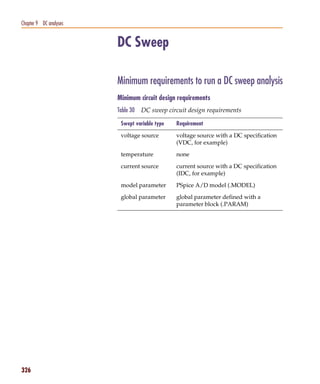
                  the Up or Down arrows.
           Note        Templates are not specific to either a flat or hierarchical netlist. The
                       same template may be used for both types.


           Starting a simulation from Capture
           After you have set up the analyses for the circuit, you can
           start a simulation from Capture in either of the following
           ways:
           •      From the PSpice menu select Run.
           •      Click the Simulate button on the PSpice toolbar.


                                                                                                                 301
Pspug.book Page 302 Tuesday, May 16, 2000 1:17 PM


   Chapter 8 Setting up analyses and starting simulation


                                                           Starting a simulation outside of Capture
                                                           To start PSpice outside of Capture
                                                           1   From the Start menu, point to the Orcad program
                                                               group, then choose PSpice.
                                                           2   From the File menu, choose Open Simulation.
                                                           3   Do one of the following:
                                                               •   Double-click on the simulation profile filename
                                                                   (*.SIM) in the list box.
                                                               •   Enter the simulation profile filename (*.SIM) in the
                                                                   File name text box and click Open.
                                                           4   From the Simulation menu, choose Edit Settings to
                                                               modify any of the analysis setup parameters.
                                                           5   From the Simulation menu, choose Run (or click the
                                                               Run toolbar button) to begin the simulation.


                                                           Setting up batch simulations
                                                           Multiple simulations can be run in batch mode when
                                                           starting PSpice directly with circuit file input. You can use
                                                           batch mode, for example, to run a number of simulations
                                                           overnight. There are two ways to do this, as described
                                                           below.


                                                           Multiple simulation setups within one circuit file
                                                           Multiple circuit/simulation descriptions can be
                                                           concatenated into a single circuit file and simulated all at
                                                           once with PSpice. Each circuit/simulation description in
                                                           the file must begin with a title line and end with a .END
                                                           statement.
                                                           The simulator reads all the circuits in the circuit file and
                                                           then processes each one in sequence. The data file and
                                                           simulation output file contain the outputs from each
                                                           circuit in the same order as they appeared in the circuit

   302
Pspug.book Page 303 Tuesday, May 16, 2000 1:17 PM


                                                                            Starting a simulation

           file. The effect is the same as if you had run each circuit
           separately and then concatenated all of the outputs.


           Running simulations with multiple circuit files
           You can direct PSpice to simulate multiple circuit files
           using either of the following methods.

           Method 1
           1     From the Start menu, point to the Orcad program
                 group, then choose PSpice.
           2     Select Open Simulation from the File menu from the
                 PSpice window.
           3     Do one of the following:
                 •     Type each file name in the File Name text box
                       separated by a space.
                 •     Use the combination keystrokes and mouse clicks
                       in the list box as follows: C+click to select file
                       names one at a time, and V+click to select groups
                       of files.

           Method 2
           1     From the Start menu, point to the Orcad program
                 group, then choose PSpice.
           2     Update the command line in the following way:
                 •     Include a list of circuit file names separated by
                       spaces.
                 Circuit file names can be fully qualified or can contain
                 the wild card characters (* and ?).


           The PSpice simulation window
           The PSpice Simulation Window is an MDI (Multiple
           Document Interface) application. This implies that you
           can open and display multiple files at the same time in this

                                                                                           303
Pspug.book Page 304 Tuesday, May 16, 2000 1:17 PM


   Chapter 8 Setting up analyses and starting simulation

                                                           window. For instance, you can have a waveform file
                                                           (.DAT), a circuit file (.CIR), and a simulation output file
                                                           (.OUT) open and displayed in different child windows
                                                           within this one window.
                                                           The PSpice Simulation Window consists of three sections:
                                                           the main window section where the open files are
                                                           displayed, the output window section where output
                                                           information such as informational, warning, and error
                                                           messages from the simulator are shown, and the
                                                           simulation status window section where detailed status
                                                           information about the simulation are shown. These three
                                                           sections are shown in Figure 56.
                                                           The windows in these sections may be resized, moved,
                                                           and reordered as needed.
                                                           The simulation window also includes a menu bar and
                                                           toolbars for controlling the simulation and the waveform
                                                           display.


                                                           Title bar The title bar of the simulation window (the
                                                           area at the top of the window) identifies the name of the
                                                           currently open simulation (either simulation profile or
                                                           circuit file) and the name of the currently active document
                                                           displayed in the main window area. For example, the
                                                           simulation window shown in Figure 56 indicates that
                                                           simulation profile Example-TRAN is currently open and
                                                           the active document displayed is
                                                           Example-Example-TRAN.DAT.


                                                           Menus and Toolbars       The menus accessed from the
                                                           menu bar include commands to set up and control the
                                                           simulator, customize the window display characteristics,
                                                           and configure the way the waveforms are displayed. The
                                                           toolbar buttons duplicate many of the more frequently
                                                           used commands.


   304
Pspug.book Page 305 Tuesday, May 16, 2000 1:17 PM


                                                                        Starting a simulation


           Figure 56 PSpice simulation window


           Main window section The top central portion (by
           default) of the simulation window is the main window
           section where documents (such as waveforms, circuit
           description, output information etc.) are displayed within
           child windows. These windows are tabbed by default.
           The tabs at the bottom left show the names of the
           documents that each child window contains. Clicking on
           a tab brings that child window to the foreground. Figure
           56 shows the tabbed document windows for
           Example-Example-TRAN.DAT and
           Example-Example-TRAN.OUT.
           You can configure the display of these windows to suit
           your preferences and to make the analysis of the circuit
           quick and readily understandable. These windows can
           also be resized, moved, and reordered to suit your needs.


           Output window section        The lower left portion of the
           simulation window provides a listing of the output from
           the simulation. It shows informational, warning, and
           error messages from the simulation. You can resize and
           relocate this window to make it easier to read.
                                                                                       305
Pspug.book Page 306 Tuesday, May 16, 2000 1:17 PM


   Chapter 8 Setting up analyses and starting simulation

                                                           Simulation status window section         The lower right
                                                           portion of the simulation window presents a set of tabbed
                                                           windows that show detailed status about the simulation.
                                                           There are three tabbed windows in this section: the
                                                           Analysis window, the Watch Variable window, and the
                                                           Devices window. The Analysis window provides a
                                                           running log of values of simulation variables (parameters
                                                           such as Temperature, Time Step, and Time). The Watch
                                                           Variable window displays watch variables and their
                                                           values. These are the variables setup to be monitored
                                                           during simulation. The Devices window displays the
                                                           devices that are being simulated.


   306
Pspug.book Page 307 Tuesday, May 16, 2000 1:17 PM


                                                                                              Interacting with a simulation


           Interacting with a simulation
           For this release, PSpice includes options for interacting
           with a simulation by changing certain runtime parameters
           in the course of the analysis. With the interactive
           simulation feature, you can do the following:
           •      Extend a transient analysis after TSTOP has been
                  reached in order to achieve the desired results.
           •      Interrupt a bias or transient analysis, change certain
                  runtime parameters, and then resume the simulation
                  with the new settings.
           •      Schedule changes to certain runtime parameters so
                  that they are made automatically during a simulation.
           Note        The ability to interact with a simulation only applies to bias point
                       and transient analyses. You cannot interact with other analysis
                       types.

           What the various versions of PSpice support
           The following table identifies what interactive
           functionality is available with each version of PSpice.


                  PSpice version                    Interactive simulation functionality
                  PSpice Lite                       •   extend transient analysis
                  PSpice A/D Basics

                  PSpice                            •   extend transient analysis
                  PSpice A/D                        •   interrupt a simulation, change
                                                        parameters, and resume the
                                                        simulation
                                                    •   schedule automatic changes to
                                                        parameters during simulation


                                                                                                                     307
Pspug.book Page 308 Tuesday, May 16, 2000 1:17 PM


   Chapter 8 Setting up analyses and starting simulation


                                                           Extending a transient analysis
                                                           Often, a long transient analysis will run to the completion
                                                           time (TSTOP) without achieving the desired simulation
                                                           results (achieving a steady state, for instance). To achieve
                                                           better results, the value for TSTOP would have to be
                                                           increased and the entire simulation would have to be
                                                           rerun from the beginning. This was time-consuming and
                                                           inefficient for large simulations.
                                                           With this release, a transient analysis will automatically
                                                           pause rather than stop when it reaches the TSTOP value.
                                                           Once paused, you can review the results and determine if
                                                           the simulation should run longer. If desired, you can
                                                           increase the value of TSTOP and resume the transient
                                                           analysis from the point at which it paused, thus saving a
                                                           good deal of processing time.
                                                           Note   For more details about using TSTOP, see the online PSpice
                                                                  Reference Guide.
                                                           To help clarify under what conditions simulations will
                                                           either be terminated or paused, the following table
                                                           explains the different behaviors of PSpice for particular
                                                           simulation scenarios:


                                 Simulation scenario                                 Behavior of PSpice
                                 Running a single transient                          PSpice will pause after a successful
                                 simulation using a profile or a                     simulation, or if a convergence
                                 circuit file containing one circuit.                error occurs, allowing you to
                                                                                     change certain runtime parameters
                                                                                     and resume the analysis.


   308
Pspug.book Page 309 Tuesday, May 16, 2000 1:17 PM


                                                                                          Interacting with a simulation


                 Running a single AC/DC                 PSpice will stop (terminate) after a
                 simulation using a profile or a        successful simulation.
                 circuit file containing one circuit.
                                                        -or-
                                                        PSpice will pause if a convergence
                                                        error occurs, allowing you to
                                                        change certain runtime parameters
                                                        and resume the analysis.


                 Running a single simulation with a     PSpice will stop (terminate) after a
                 profile or a circuit file containing   successful simulation, or if a
                 outer loops.                           convergence error occurs.


                 Running a queued simulation.           PSpice will stop (terminate) after a
                                                        successful simulation, or if a
                                                        convergence error occurs.


                 Launching a new simulation when        If the old simulation has
                 anotheroneisalreadyactiveinPSpice.     completed, PSpice will load the
                                                        new simulation and run it.
                                                        -or-
                                                        If the old simulation is running or
                                                        paused, PSpice will prompt you to
                                                        choose whether to run the new
                                                        simulation instead, place it in the
                                                        queue or cancel it.


           To extend a transient analysis
           1     After you pause a transient analysis, click in the
                 RunFor text box on the PSpice toolbar.


                                                                                                                 309
Pspug.book Page 310 Tuesday, May 16, 2000 1:17 PM


   Chapter 8 Setting up analyses and starting simulation


                                                           2      Enter a new value for TSTOP.
                                                           3      Click on the Run toolbar button to resume the
                                                                  simulation.
                                                                  The simulation will resume from the point at which it
                                                                  last paused, and then run for the amount of time
                                                                  specified in the RunFor text box, at which point it will
                                                                  pause again.
                                                           Note      Each time you resume the simulation after changing TSTOP, the
                                                                     transient analysis will always pause when completed. In this way,
                                                                     you can continue extending the analysis indefinitely. If the
                                                                     simulation is paused before TSTOP is reached, and you enter a
                                                                     value in the RunFor text box and click the RunFor toolbar button,
                                                                     PSpice will run for the time specified and then pause. If you click
                                                                     the Run button and if the total time has not yet reached TSTOP,
                                                                     PSpice will run until TSTOP. If you pause the simulation while it is
                                                                     in the middle of a RunFor operation and then resume the
                                                                     simulation, PSpice will complete the RunFor operation. If you click
                                                                     the Run button while the simulation is paused in the middle of a
                                                                     RunFor operation, PSpice will run until TSTOP is reached.


                                                           Interrupting a simulation
                                                           With this release, you have the ability to interrupt (pause)
                                                           a simulation, change certain runtime parameters, and
                                                           then resume the simulation from the point at which it was
                                                           paused using the new parameters.
                                                           Note      The new parameters are temporary values and are not saved in the
                                                                     simulation profile. However, they are logged in the output file so
                                                                     that you can refer to them later.


   310
Pspug.book Page 311 Tuesday, May 16, 2000 1:17 PM


                                                                                        Interacting with a simulation

           When a simulation has been paused, you can change the
           following runtime parameters in the Edit Runtime
           Settings dialog box:
                  •    RELTOL
                  •    ABSTOL
                  •    VNTOL
                  •    GMIN
                  •    TSTOP
                  •    TMAX
                  •    ITL1
                  •    ITL2
                  •    ITL4
           Note        For more details about using these runtime parameters, see the
                       online PSpice Reference Guide.
           The Edit Runtime Settings dialog box will appear
           automatically whenever a simulation fails to converge. (In
           such cases, the simulation will be paused automatically.)
           It will also appear if you attach PSpice to a simulation that
           was paused in the background. (For more information
           about managing background simulations, see Using the
           Simulation Manager on page 315.)

           To interrupt a simulation and change parameters
           1      In PSpice, from the Simulation menu, choose Edit
                  Runtime Settings.
                  The PSpice Runtime Settings dialog box appears.


                                                                                                               311
Pspug.book Page 312 Tuesday, May 16, 2000 1:17 PM


   Chapter 8 Setting up analyses and starting simulation


                                                           2      If you want to use the original value for a particular
                                                                  parameter, click the Use Original Value check box for
                                                                  that parameter.
                                                                  The original parameter values are derived from the
                                                                  simulation profile. By default, the Use Original Value
                                                                  check boxes are checked (enabled).
                                                           3      If you want to change one or more parameters, enter
                                                                  new values for each of the runtime parameters you
                                                                  want to change in the text boxes under the column
                                                                  Change To.
                                                                  If a Change To text box is grayed out, uncheck the Use
                                                                  Original Value check box.
                                                           4      Click OK & Resume Simulation to resume the
                                                                  simulation with the new parameters.
                                                           Note      If you do not want to resume the simulation, but merely want to
                                                                     exit this dialog box and preserve the values you entered, click OK.
                                                                     If you run the simulation later, the new parameters will be applied.
                                                                     If you want to exit this dialog box without preserving the values,
                                                                     click Cancel.


   312
Pspug.book Page 313 Tuesday, May 16, 2000 1:17 PM


                                                                                        Interacting with a simulation


           Scheduling changes to runtime parameters
           In certain situations, you may want to predefine a set of
           values for a parameter and schedule these values to take
           effect at various time intervals during a long simulation.
           For instance, you may want to use a smaller time step
           value during periods where the input stimulus changes
           rapidly, but otherwise use a larger value.
           With this release, you have the ability to set up automatic
           changes to certain runtime parameters that will occur at
           scheduled times during a simulation. By scheduling the
           changes, you don't have to interrupt the simulation
           manually, and can even run it in a batch mode in the
           background.
           The following runtime parameters can be changed at
           scheduled times during a simulation. Note that these only
           apply to transient analysis; you cannot interact with other
           analysis types.
                  •    RELTOL
                  •    ABSTOL
                  •    VNTOL
                  •    GMIN
                  •    ITL4


           Note        For more details about using these runtime parameters, see the
                       online PSpice Reference Guide.

           PSpice command syntax for scheduling parameter
           changes
           You can schedule parameter changes by entering them
           either in the Simulation Profile or in a text file using the
           new expression SCHEDULE, and then including that file
           in the simulation profile settings.
           The expression SCHEDULE is a piecewise constant
           function (from time x forward use y) and takes the form:


                                                                                                               313
Pspug.book Page 314 Tuesday, May 16, 2000 1:17 PM


   Chapter 8 Setting up analyses and starting simulation

                                                                  SCHEDULE(x1,y1,x2,y2…xn,yn)
                                                                  where x is the time value, which must be x >= 0,
                                                                  and y is the value of the associated parameter. You
                                                                  must include an entry for time = 0.
                                                           When used with the .OPTION command, the syntax is as
                                                           follows:
                                                                  .OPTIONS <Parameter Name>=
                                                                  {SCHEDULE(<time-value>, <parameter value>,
                                                                  <time-value>, <parameter value>, …)}
                                                           For example,
                                                           .OPTIONS RELTOL={SCHEDULE( 0s,.001,2s,.005)}
                                                           indicates that RELTOL should have a value of 0.001 from
                                                           time 0 up to time 2s, and a value of 0.005 from time 2s and
                                                           beyond (that is: RELTOL=.001 for t, where 0 <= t < 2s, and
                                                           RELTOL=.005 for t, where t >= 2s).

                                                           To schedule changes to runtime parameters
                                                           1   Open a standard text editor (such as Notepad) and
                                                               create a text file with the command syntax shown
                                                               above, using the appropriate values for the different
                                                               parameters.
                                                           2   In Capture, open the design you want to simulate.
                                                           3   From the PSpice menu, choose Edit Simulation Profile.
                                                           4   Click on the Include Files tab.
                                                           5   Under the Filename text box, enter the name of the text
                                                               file you created in Step 1, or click the Browse button to
                                                               locate the file and enter the full path and filename.
                                                           6   Click the Add to Design button to include the file as
                                                               part of the circuit.
                                                           7   Click OK.
                                                               When you run the simulation, the scheduled
                                                               parameter changes will be included as part of the
                                                               circuit file and the simulation will run to completion
                                                               automatically.


   314
Pspug.book Page 315 Tuesday, May 16, 2000 1:17 PM


                                                                                              Using the Simulation Manager


           Using the Simulation Manager

           Overview of the Simulation Manager
           For this release, PSpice includes a new Simulation
           Manager that provides enhanced control over how
           multiple simulations are processed. You can preempt the
           current simulation to run another one first. Or, you can
           use the Simulation Manager to monitor the progress of a
           set of batch simulations that were set up and launched
           earlier.
           Note        None of the earlier functionality of batch processing has been lost.
                       For more information, see Setting up batch simulations on
                       page 302.
           The PSpice Simulation Manager provides a familiar,
           easy-to-use interface for controlling how multiple
           simulations are processed.


           The Simulation Manager allows you to do the following:
                  •    add or delete simulations
                  •    start, stop or pause simulations


                                                                                                                    315
Pspug.book Page 316 Tuesday, May 16, 2000 1:17 PM


   Chapter 8 Setting up analyses and starting simulation

                                                              •   rearrange the order of the simulations in the queue
   Note For simulations that are queued in                    •   attach PSpice to a simulation to make it the active
   the Simulation Manager, the setting in the                     display
   Simulation Profile to start Probe
                                                              •   view the status and progress of simulations
   automatically is ignored. When a queued
                                                                  running in the background
   simulation runs to completion and finishes,
   it will not be loaded into Probe. You must              You can accomplish most of these functions by selecting
   do this manually if you want to see the                 the desired simulation in the list, then clicking on the
   results of that simulation.                             appropriate toolbar button to execute the command.


                                                           Accessing the Simulation Manager
                                                           The Simulation Manager is invoked whenever you start a
                                                           new simulation, either from PSpice or from a front-end
                                                           design entry tool. Since it is active as long as a simulation
                                                           is running in the background, you can also call up the
                                                           Simulation Manager from the Windows system tray.
                                                           You can also launch the Simulation Manager by itself from
                                                           the Windows Start menu. You do not need to have PSpice
                                                           running in order to work with the Simulation Manager.


                                                           Understanding the information in the Simulation
                                                           Manager
                                                           Every job listed in the Simulation Manager will have a
                                                           specific entry for Schedule, Status and Percent Complete.
                                                           In addition, certain color-coded icons are shown to the left
                                                           of each simulation file name to indicate their current state.
                                                           A quick glance over the list of jobs will tell you
                                                           immediately where any particular job is and how it will be
                                                           processed. The following tables explain the meanings of
                                                           the various categories and states.


                                                              Icon         Explanation
                                                                           The simulation is either in the queue and
                                                                           has not been run yet, or has been run to
                                                                           completion.
                                                                           The simulation is currently running.


   316
Pspug.book Page 317 Tuesday, May 16, 2000 1:17 PM


                                                                                                  Using the Simulation Manager


                                   The simulation has been paused and is on
                                   hold, waiting to either be continued or
                                   stopped.
                                   The simulation has been stopped and is
                                   not completed.


                 Schedule          Explanation
                 queued            The simulation is in the queue. It will be
                                   run in the order in which it is listed in the
                                   queue. (This is the default setting.)
                 running           The simulation is currently running and
                                   ongoing status information is displayed.
                 on hold           The simulation has been paused.
                 stopped           The simulation has been run completely,
                                   or was stopped because of an error.
                                   Note       You must manually restart a stopped
                                              simulation if you want it to run again at a later
                                              time.


                 Status            Explanation
                 not run           The simulation has not been started yet.
                                   (This is the default setting.)
                 <status>          Basic status information about the
                                   progress of the analysis will be displayed
                                   for a simulation that is currently running.
                 paused            The simulation has been paused either
                                   manually or automatically by the
                                   Simulation Manager.
                                   Note       If you change the default option that
                                              automatically resumes paused simulations in
                                              the queue, then you must remember to
                                              manually resume a paused simulation if you
                                              want it to continue at a later time.


                                                                                                                        317
Pspug.book Page 318 Tuesday, May 16, 2000 1:17 PM


   Chapter 8 Setting up analyses and starting simulation


                                                           complete    The simulation has run to completion and
                                                           –noerrors   no errors were encountered.
                                                           errors      The simulation ran partially but stopped
                                                                       automatically because errors were
                                                                       encountered.


                                                           Percent     Explanation
                                                           <%>         The percentage of completion for a
                                                                       simulation. This number increases as a
                                                                       simulation progresses.


   318
Pspug.book Page 319 Tuesday, May 16, 2000 1:17 PM


                                                                                                      Using the Simulation Manager

           What the various versions of PSpice support
           The following table identifies what functionality in the
           Simulation Manager is available with each version of
           PSpice.


                 PSpice version                     Functionality of Simulation Manager
                 PSpice Lite                        •   Only one simulation may be running
                 PSpice A/D Basics                      or paused at a time.
                                                    •   The queue is run sequentially.


                 PSpice                             •   One simulation may be running and
                 PSpice A/D                             multiple simulations may be paused.
                                                    •   The queue is run sequentially.


           How the Simulation Manager handles errors during
           simulation
           Since each simulation that runs in the background runs
           independently, an error that occurs during one simulation
           will not prevent the remaining jobs in the queue from
           running subsequently, in order. The following common
           error conditions may arise, but these will not prevent the
           Simulation Manager from running the remaining
           simulations pending in the queue.
           Simulation crash: If a simulation crashes for whatever
           reason, the Simulation Manager will stop receiving
           progress updates. After a certain period, the Simulation
           Manager will stop that simulation and will automatically
           start the next job in the queue.
           Simulation pause: If a simulation pauses automatically                    Note You must manually restart a stopped
           and requires manual intervention to continue, the                         or paused simulation if you want it to run
           Simulation Manager will automatically start the next job                  again at a later time. You will not be able
           in the queue.                                                             to shut down the Simulation Manager until
                                                                                     all stopped and paused simulations have
           Simulation stop: If a simulation stops automatically, the
                                                                                     been deleted.
           Simulation Manager will automatically start the next job
           in the queue.


                                                                                                                            319
Pspug.book Page 320 Tuesday, May 16, 2000 1:17 PM


   Chapter 8 Setting up analyses and starting simulation


                                                           Setting up multiple simulations
                                                           With the Simulation Manager, you can set up any number
                                                           of batch simulations to be run sequentially in the
                                                           background while you do other work in PSpice. Each new
                                                           simulation that you set up will be added to the bottom of
                                                           the simulation queue and will be assigned the schedule
                                                           category "queued". It will be run after all other queued
                                                           jobs ahead of it have been run.
                                                           Once a job has been added, you can change its position in
                                                           the queue, start, stop or pause it, or make other
                                                           modifications to its status.

                                                           To add a simulation to the queue
                                                           1      From the File menu, choose Add Simulation or click
                                                                  the Add Simulation button on the toolbar.
                                                           2      Locate the file (.SIM, .CIR) you wish to add to the
                                                                  queue.
                                                           Alternately, you can add a simulation to the queue by
                                                           starting the PSpice simulation directly from within the
                                                           front-end tool you are using, such as Orcad Capture.
                                                           Note       If one simulation is already running in the Simulation Manager and
                                                                      you start another one, you will be prompted to direct the Simulation
                                                                      Manager in how to proceed with the new simulation. For more
                                                                      information about the different ways to handle this situation, see
                                                                      Setting options in the Simulation Manager on page 322.


                                                           Starting, stopping, and pausing simulations
                                                           In the Simulation Manager, you can easily manage the
                                                           various batch simulations in the queue. The most
                                                           fundamental controls that are provided are the ability to
                                                           start a simulation, stop it, or pause it temporarily.

                                                           To start a simulation from the Simulation Manager
                                                           1      Select a simulation in the list.

   320
Pspug.book Page 321 Tuesday, May 16, 2000 1:17 PM


                                                                                             Using the Simulation Manager

           2      From the Simulation menu, choose Run or click the
                  Run Selected button on the toolbar.

           To stop a simulation from the Simulation Manager
           1      Select the simulation that is currently running.
           2      From the Simulation menu, choose Stop or click the
                  Stop Selected button on the toolbar.

           To pause a simulation from the Simulation Manager
           1      Select the simulation that is currently running.
           2      From the Simulation menu, choose Pause or click the
                  Pause Selected button on the toolbar.


           Attaching PSpice to a simulation
           A simulation that is running in the Simulation Manager
           will not be loaded into PSpice or displayed in Probe while
           it is running. This allows you to work on a different design
           in the PSpice application while a simulation is running in
           the Simulation Manager.
           Note        If you start a new simulation from within PSpice while another is
                       running in the queue in the Simulation Manager, the Simulation
                       Manager must decide how to treat the new job. You will be
                       prompted to choose whether you want the new job to preempt the
                       current simulation and start running immediately. For more details,
                       click Setting options in the Simulation Manager on page
                       322.
           If you want to display a different simulation in PSpice by
           choosing from the list of jobs in the Simulation Manager,
           you can attach PSpice to a particular job in the queue.

           To attach PSpice to a simulation
           1      Select the simulation you want to attach PSpice to.
           2      From the View menu, choose Simulation Results.


                                                                                                                   321
Pspug.book Page 322 Tuesday, May 16, 2000 1:17 PM


   Chapter 8 Setting up analyses and starting simulation

                                                           The PSpice program will activate and the results of the
                                                           simulation you selected will become the current display in
                                                           Probe. If the simulation is currently running, you will be
                                                           able to view the marching waveforms.


                                                           Setting options in the Simulation Manager
                                                           Each time you add a new simulation while another is
                                                           running, the Simulation Manager must decide how to
                                                           treat the new job. The default setting is to add the new
                                                           simulation to the bottom of the queue and continue
                                                           running whatever job is currently being simulated.
                                                           You can change this default so that the Simulation
                                                           Manager will start each new simulation immediately and
                                                           either stop or pause whatever job is currently running.
                                                           The options you can choose from are explained in the
                                                           procedure below.
                                                           You can also choose to have the Options dialog box
                                                           display each time you add a new simulation, or not show
                                                           this anymore. If you disable the prompting, you can
                                                           always enable it again using the following procedure.
                                                           In addition, you can define how paused simulations
                                                           should be handled by the Simulation Manager. You can
                                                           configure them to be resumed automatically after the
                                                           previous simulation stops, or you can choose to leave
                                                           them in a paused state until you manually resume them.

                                                           To set the default options for the Simulation Manager
                                                           1   From the Tools menu, choose Options.
                                                               The Options dialog box appears.


   322
Pspug.book Page 323 Tuesday, May 16, 2000 1:17 PM


                                                                                               Using the Simulation Manager


           2     In the top frame dealing with simulations that are
                 already running, click the appropriate radio button for
                 the option you wish to set.
                 Radio button                       Function
                 Display the simulation             The simulation that is currently running will
                 in the queue.                      be displayed in PSpice. The new simulation
                                                    will be added to the bottom of the queue and
                                                    will be run after all other jobs in the queue
                                                    have been run. (This is the default setting.)
                 Pause the current                  The simulation that is currently running will
                 simulation and run the             be paused. The new simulation will be started
                 new one.                           immediately. You must remember to resume
                                                    the paused simulation later if you want it to
                                                    continue.
                 Stop the current                   The simulation that is currently running will
                 simulation and run the             be stopped. The new simulation will be started
                 new one.                           immediately. You must remember to restart
                                                    the stopped simulation later if you want it to
                                                    run again.
           3     If you want the Options dialog box to appear as a
                 reminder each time you add a new simulation, be sure
                 to check the Always Prompt box. (The default setting
                 is to enable this feature.)


                                                                                                                     323
Pspug.book Page 324 Tuesday, May 16, 2000 1:17 PM


   Chapter 8 Setting up analyses and starting simulation

                                                           4   In the bottom frame dealing with paused simulations,
                                                               click the appropriate radio button for the option you
                                                               wish to set.
                                 Radio button                         Function
                                 Resume simulating.                   The first paused simulation in the list will
                                                                      automatically resume after the previous
                                                                      simulation has stopped. (This is the default
                                                                      setting.)
                                 Waitforuserintervention.             The Simulation Manager will not resume any
                                                                      paused simulations automatically. You must
                                                                      intervene manually to resume them.
                                                                      Note    If you enable this radio button, you must remember
                                                                              to intervene manually if you want paused
                                                                              simulations to resume later.
                                                           5   Click OK to save the settings.


   324
Pspug.book Page 325 Tuesday, May 16, 2000 1:17 PM


           DC analyses


                                                                  9

           Chapter overview
           This chapter describes how to set up DC analyses and
           includes the following sections:
           •     DC Sweep on page 9-326
           •     Bias point on page 9-334
           •     Small-signal DC transfer on page 9-336
           •     DC sensitivity on page 9-339
Pspug.book Page 326 Tuesday, May 16, 2000 1:17 PM


   Chapter 9 DC analyses


                                                    DC Sweep

                                                    Minimum requirements to run a DC sweep analysis
                                                    Minimum circuit design requirements
                                                    Table 30   DC sweep circuit design requirements

                                                     Swept variable type   Requirement

                                                     voltage source        voltage source with a DC specification
                                                                           (VDC, for example)

                                                     temperature           none

                                                     current source        current source with a DC specification
                                                                           (IDC, for example)

                                                     model parameter       PSpice A/D model (.MODEL)

                                                     global parameter      global parameter defined with a
                                                                           parameter block (.PARAM)


   326
Pspug.book Page 327 Tuesday, May 16, 2000 1:17 PM


                                                                                          DC Sweep

           Minimum program setup requirements


           1      In Capture, select New Simulation Profile or Edit
                  Simulation Settings from the PSpice menu. (If this is a
                  new simulation, enter the name of the profile and click
                  OK.)
                  The Simulation Settings dialog box appears.
           2      Under Analysis type, select DC Sweep.
           3      For the Primary Sweep option, enter the necessary
                  parameter values and select the appropriate check
                  boxes to complete the analysis specifications.
           4      Click OK to save the simulation profile.
           5      Select Run under the PSpice menu to start the
                  simulation.
           Note        Do not specify a DC sweep and a parametric analysis for the same
                       variable.


                                                                                             327
Pspug.book Page 328 Tuesday, May 16, 2000 1:17 PM


   Chapter 9 DC analyses


                                                    Overview of DC sweep
                                                    The DC sweep analysis causes a DC sweep to be
                                                    performed on the circuit. DC sweep allows you to sweep
                                                    a source (voltage or current), a global parameter, a model
                                                    parameter, or the temperature through a range of values.
                                                    The bias point of the circuit is calculated for each value of
                                                    the sweep. This is useful for finding the transfer function
                                                    of an amplifier, the high and low thresholds of a logic gate,
                                                    and so on.
                                                    For the DC sweep analysis specified in Figure 57, the
                                                    voltage source V1 is swept from -0.125 volts to 0.125 volts
                                                    by steps of 0.005. This means that the output has
                                                    (0.125 + 0.125)/0.005 +1 = 51 steps or simulation points.
                                                    A source with a DC specification (such as VDC or IDC)
                                                    must be used if the swept variable is to be a voltage type
                                                    or current source. To set the DC value, select Properties
                                                    from the Edit menu, then click on the cell under the DC
                                                    column and type in its value.
                                                    The default DC value of V1 is overridden during the DC
                                                    sweep analysis and is made to be the swept value. All of
                                                    the other sources retain their values.
                                                    After running the analysis, the simulation output file
                                                    (EXAMPLE.OUT for the EXAMPLE.OPJ circuit in
                                                    Figure 57) contains a table of voltages relating V1, node
                                                    OUT1, and node OUT2.


   328
Pspug.book Page 329 Tuesday, May 16, 2000 1:17 PM


                                                                                                          DC Sweep


                                                                          The example circuit EXAMPLE.OPJ is
                                                                          provided with the Orcad program
                                                                          installation.


           Figure 57 Example schematic EXAMPLE.OPJ.
           To calculate the DC response of an analog circuit, PSpice
           removes time from the circuit. This is done by treating all
           capacitors as open circuits, all inductors as shorts, and
           using only the DC values of voltage and current sources.
           A similar approach is used for digital devices: all
           propagation delays are set to zero, and all stimulus
           generators are set to their time-zero values.
           In order to solve the circuit equations, PSpice uses an
           iterative algorithm. For analog devices, the equations are
           continuous, and for digital devices, the equations are
           Boolean. If PSpice cannot get a self-consistent result after
           a certain number of iterations, the analog/digital devices
           are forced to the X value, and more iterations are done.
           Since X as input to a digital component gives X as output,
           the Boolean equations can always be solved this way.
           If a digital node cannot be driven by known values during
           the DC iterations (for instance, the output of a flip-flop
           with the clock line held low), then its DC state will be X.
           Depending on the circuit, some, none, or all of the digital
           nodes may have the state X when the bias point is
           calculated.


                                                                                                               329
Pspug.book Page 330 Tuesday, May 16, 2000 1:17 PM


   Chapter 9 DC analyses


                                                    Setting up a DC stimulus
                                                    To run a DC sweep or small-signal DC transfer analysis,
                                                    you need to place and connect one or more independent
                                                    sources and then set the DC voltage or current level for
                                                    each source.

                                                    To set up a DC stimulus
                                                    1      Place and connect one of these symbols in your
                                                           schematic:

   If you are planning to run an AC or                  For voltage input
   transient analysis in addition to a DC
                                                        Use this...     When you are running...
   analysis, see the following:
   • Using time-based stimulus                          VDC             A DC Sweep and/or Bias Point (transfer
                                                                        function) analysis only.
        parts with AC and DC
        properties on page 3-117 for                    VSRC            Multiple analysis types including DC
        other source symbols that you can use.                          Sweep and/or Bias Point (transfer
                                                                        function).
   • Using VSRC or ISRC parts
        on page 3-118 to find out how to
        specify the TRAN attribute for a                For current input
        time-based input signal when using              Use this...     When you are running...
        VSRC or ISRC symbols.
                                                        IDC             A DC Sweep and/or Bias Point (transfer
                                                                        function) analysis only.

                                                        ISRC            Multiple analysis types including DC
                                                                        Sweep and/or Bias Point (transfer
                                                                        function).

                                                    2      Double-click the symbol instance to display the Parts
                                                           spreadsheet appears.
                                                    3      Click in the cell under the DC column to edit its value.
                                                    4      Define the DC specification as follows:


                                                        Set this attribute...   To this value...

                                                        DC                      DC_level
                                                                                where DC_level is in volts or amps
                                                                                (units are optional).


   330
Pspug.book Page 331 Tuesday, May 16, 2000 1:17 PM


                                                                       DC Sweep

           5     Click OK twice to exit the dialog boxes.


           Nested DC sweeps
           A second sweep variable can be selected after a primary
           sweep value has been specified in the DC Sweep dialog
           box. When you specify a secondary sweep variable, it
           forms the outer loop for the analysis. That is, for every
           increment of the second sweep variable, the first sweep
           variable is stepped through its entire range of values.


           To set up a nested sweep
           1     Under Options, select the Secondary Sweep box for
                 the DC Sweep Analysis type.
           2     Enter the necessary parameter values and select the
                 appropriate check boxes to complete the analysis
                 specifications.


                                                                          331
Pspug.book Page 332 Tuesday, May 16, 2000 1:17 PM


   Chapter 9 DC analyses


                                                    Curve families for DC sweeps
                                                    When a nested DC sweep is performed, the entire curve
                                                    family is displayed. That is, the nested DC sweep is
                                                    treated as a single data section (or you can think of it as a
                                                    single PSpice run).
                                                    For the circuit shown in Figure 58, you can set up a DC
                                                    sweep analysis with an outer sweep of the voltage source
                                                    VD and an inner sweep of the voltage source VG as listed
                                                    in Table 1.
                                                    Table 1   Curve family example setup

                                                                          Outer sweep       Nested sweep
                                                     Swept Var Type       voltage source    voltage source

   Figure 58 Curve family example                    Sweep Type           linear            linear
   schematic.                                        Name                 VD                VG

                                                     Start Value          0                 0

                                                     End Value            5                 2

                                                     Increment            0.1               0.5

   In Capture, from the PSpice menu, point to       When the DC sweep analysis is run, add a current marker
   Markers, then choose Mark Current Into Pin       at the drain pin of M1 and display the simulation results
   to add a current marker.                         in PSpice. The result will look like Figure 59.
                                                    To add a load line for a resistor, add a trace that computes
                                                    the load line from the sweep voltage. Assume that the X
   V_VD is the hierarchical name for VD             axis variable is the sweep voltage V_VD, which runs from
   created by netlisting the schematic.             0 to 5 volts. The expression which will add a trace that is
                                                    the load line for a 50 kohm resistor is:
                                                         (5V-V_VD)/50K
                                                    This can be useful for determining the bias point for each
                                                    member of a curve family as shown in Figure 60.


   332
Pspug.book Page 333 Tuesday, May 16, 2000 1:17 PM


                                                                            DC Sweep


           Figure 59 Device curve family.


           Figure 60 Operating point determination for each member of the
                      curve family.


                                                                               333
Pspug.book Page 334 Tuesday, May 16, 2000 1:17 PM


   Chapter 9 DC analyses


                                                    Bias point

                                                    Minimum requirements to run a bias point analysis
                                                    Minimum circuit design requirements
                                                    None.

                                                    Minimum program setup requirements
                                                    1   Under Analysis type in the Simulation Settings dialog
                                                        box, select Bias Point.
                                                    2   For the General Settings option, enter the necessary
                                                        parameter values and select the appropriate check
                                                        boxes to complete the analysis specifications.
                                                    3   Click OK to save the simulation profile.
                                                    4   In Capture, from the PSpice menu, select Run to start
                                                        the simulation.


                                                    Overview of bias point
   Also see Save and load bias point                The bias point is calculated for any analysis whether or
   on page A-578.                                   not the Bias Point analysis is enabled in the Simulation
                                                    Settings dialog box. However, additional information is
                                                    reported when the Bias Point analysis is enabled.
                                                    When Bias Point analysis is not enabled, only analog node
                                                    voltages and digital node states are reported to the output
                                                    file.


   334
Pspug.book Page 335 Tuesday, May 16, 2000 1:17 PM


                                                                         Bias point

           When the Bias Point analysis is enabled, the following
           information is reported to the output file:
           •     a list of all analog node voltages
           •     a list of all digital node states
           •     the currents of all voltage sources and their total
                 power
           •     a list of the small-signal parameters for all devices
           If Bias Point is enabled, you can suppress the reporting of
           the bias point analog and digital node values, as follows:
           1     Under the Options tab in the Simulation Settings
                 dialog box, select Output file in the Category box.
           2     Uncheck the box for Bias point node voltages
                 (NOBIAS).


                                                                             335
Pspug.book Page 336 Tuesday, May 16, 2000 1:17 PM


   Chapter 9 DC analyses


                                                    Small-signal DC transfer

                                                    Minimum requirements to run a small-signal DC
                                                    transfer analysis
                                                    Minimum circuit design requirements
                                                    •   The circuit should contain an input source, such as
                                                        VSRC.

                                                    Minimum program setup requirements
                                                    1   Under Analysis type in the Simulation Settings dialog
                                                        box, select Bias Point.
                                                    2   Specify the name of the input source desired. See
                                                        Output variables on page 8-286 for a description of
                                                        output variable formats.
                                                    3   Click OK to save the simulation profile.
                                                    4   In Capture, from the PSpice menu, select Run to start
                                                        the simulation.


   336
Pspug.book Page 337 Tuesday, May 16, 2000 1:17 PM


                                                                              Small-signal DC transfer


           Overview of small-signal DC transfer
           The small-signal DC transfer analysis calculates the
           small-signal transfer function by transforming the circuit
           around the bias point and treating it as a linear circuit .
           The small-signal gain, input resistance, and output
           resistance are calculated and reported.
           The digital devices themselves are not included in the
           small-signal analysis. A gate, for example, does not have a
           frequency response. Instead, all the digital devices hold
           the states that were calculated when solving for the bias
           point. However, for N and O devices in the analog/digital
           interface subcircuits, the analog side has a well-defined
           linear equivalent.

           To calculate the small-signal gain, input resistance, and output
           resistance


           1     In the Bias Point dialog box, select Calculate
                 small-signal DC gain (.TF).
           2     Specify the value for either an output voltage or the
                 current through a voltage source in the To Output
                 variable box.


                                                                                                337
Pspug.book Page 338 Tuesday, May 16, 2000 1:17 PM


   Chapter 9 DC analyses

                                                        For example, entering V(a,b) as the output variable
                                                        specifies that the output variable is the output voltage
                                                        between two nets, a and b. Entering I(VDRIV) as the
                                                        output variable specifies that the output variable is the
                                                        current through a voltage source VDRIV.
                                                    3   Specify the input source name in the Calculate
                                                        small-signal DC gain (.TF) portion of the Bias Point
                                                        dialog box.
                                                        The gain from the input source to the output variable
                                                        is calculated along with the input and output
                                                        resistances.
                                                        For example, if you enter V(OUT2) as the output
                                                        variable and V1 as the input source, the input
                                                        resistance for V1 is calculated, the output resistance
                                                        for V(OUT2) is calculated, and the gain from V1 to
                                                        V(OUT2) is calculated. All calculations are reported to
                                                        the simulation output file.


   338
Pspug.book Page 339 Tuesday, May 16, 2000 1:17 PM


                                                                            DC sensitivity


           DC sensitivity

           Minimum requirements to run a DC sensitivity
           analysis
           Minimum circuit design requirements
           None.

           Minimum program setup requirements
           1     In the Bias Point dialog box, select Perform Sensitivity
                 analysis (.SENS).
           2     Enter the required value(s) in the Output variable(s)
                 box.
           3     Click OK to save the simulation profile. (Be sure you
                 give the new profile an appropriate name under the
                 General tab prior to saving.)
           4     In Capture, from the PSpice menu, select Run to start
                 the simulation.


                                                                                   339
Pspug.book Page 340 Tuesday, May 16, 2000 1:17 PM


   Chapter 9 DC analyses


                                                    Overview of DC sensitivity
                                                    DC sensitivity analysis calculates and reports the
                                                    sensitivity of one node voltage to each device parameter
                                                    for the following device types:
                                                    •   resistors
                                                    •   independent voltage and current sources
                                                    •   voltage and current-controlled switches
                                                    •   diodes
                                                    •   bipolar transistors
                                                    The sensitivity is calculated by linearizing all devices
                                                    around the bias point. Purely digital devices hold the
                                                    states calculated when solving for the bias point as
                                                    discussed in Small-signal DC transfer on page 9-336.


   340
Pspug.book Page 341 Tuesday, May 16, 2000 1:17 PM


           AC analyses


                                                                            10

           Chapter overview
           This chapter describes how to set up AC sweep and noise
           analyses.
           •     AC sweep analysis on page 10-342 describes how to set
                 up an analysis to calculate the frequency response of
                 your circuit. This section also discusses how to define
                 an AC stimulus and how PSpice treats nonlinear
                 devices in an AC sweep.
           •     Noise analysis on page 10-351 describes how to set up an
                 analysis to calculate device noise contributions and
                 total input and output noise.
Pspug.book Page 342 Tuesday, May 16, 2000 1:17 PM


   Chapter 10 AC analyses


                                                    AC sweep analysis

                                                    Setting up and running an AC sweep
                                                    The following procedure describes the minimum setup
                                                    requirements for running an AC sweep analysis. For more
                                                    detail on any step, go to the pages referenced in the
                                                    sidebars.

                                                    To set up and run an AC sweep
   To find out how, see Setting up an AC            1   Place and connect a voltage or current source with an
   stimulus on page 10-343.                             AC input signal.
                                                    2   From the PSpice menu, select New Simulation Profile
                                                        or Edit Simulation Settings. (If this is a new
                                                        simulation, enter the name of the profile and click
                                                        OK.)
                                                        The Simulation Settings dialog box appears.
                                                    3   Choose AC Sweep/Noise in the Analysis type list box.
   To find out how, see Setting up an AC            4   Specify the required parameters for the AC sweep or
   analysis on page 10-345.                             noise analysis you want to run.
                                                    5   Click OK to save the simulation profile.
                                                    6   From the PSpice menu, select Run to start the
                                                        simulation.


                                                    What is AC sweep?
                                                    AC sweep is a frequency response analysis. PSpice
                                                    calculates the small-signal response of the circuit to a
                                                    combination of inputs by transforming it around the bias
                                                    point and treating it as a linear circuit. Here are a few
                                                    things to note:
   To find out more, see How PSpice                 •   Nonlinear devices, such as voltage- or
   treats nonlinear devices on                          current-controlled switches, are transformed to linear
          10 349
   342
Pspug.book Page 343 Tuesday, May 16, 2000 1:17 PM


                                                                                                         AC sweep analysis

                  circuits about their bias point value before PSpice
                  A/D runs the linear (small-signal) analysis.
           •      Digital devices hold the states that PSpice calculated
                  when solving for the bias point.
           •      Because AC sweep analysis is a linear analysis, it only
                  considers the gain and phase response of the circuit; it
                  does not limit voltages or currents.
           The best way to use AC sweep analysis is to set the source
           magnitude to one. This way, the measured output equals
           the gain, relative to the input source, at that output.


           Setting up an AC stimulus
           To run an AC sweep analysis, you need to place and                Note Unlike DC sweep, the AC
           connect one or more independent sources and then set the          Sweep/Noise dialog box does not include
           AC magnitude and phase for each source.                           an input source option. Instead, each
                                                                             independent source in your circuit contains
           To set up an AC stimulus                                          its own AC specification for magnitude and
                                                                             phase.
           1      Place and connect one of these symbols in your
                  schematic:

               For voltage input                                             If you are planning to run a DC or transient
                                                                             analysis in addition to an AC analysis, see
               Use this...    When you are running...
                                                                             If you want to specify multiple
               VAC            An AC sweep analysis only.                     stimulus types on page 3-117 for
                                                                             additional information and source symbols
               VSRC           Multiple analysis types including AC
                                                                             that you can use.
                              sweep.

               For current input

               Use this...    When you are running...

               IAC            An AC sweep analysis only.

               ISRC           Multiple analysis types including AC
                              sweep.


                                                                                                                    343
Pspug.book Page 344 Tuesday, May 16, 2000 1:17 PM


   Chapter 10 AC analyses

                                                    2      Double-click the symbol instance to display the Parts
                                                           spreadsheet.
                                                    3      Click in the cell under the appropriate property
                                                           column to edit its value. Depending on the source
                                                           symbol that you placed, define the AC specification as
                                                           follows:

                                                        For VAC or IAC

                                                        Set this property...   To this value...

                                                        ACMAG                  AC magnitude in volts (for VAC) or
                                                                               amps (for IAC); units are optional.

                                                        ACPHASE                Optional AC phase in degrees.

                                                        For VSRC or ISRC

                                                        Set this property...   To this value...

   If you are also planning to run a transient          AC                     Magnitude_value [phase_value]
   analysis, see Using VSRC or ISRC                                            where magnitude_value is in volts or
   parts on page 3-118 to find out how                                         amps (units are optional) and the
   to specify the TRAN property.                                               optional phase_value is in degrees.


   344
Pspug.book Page 345 Tuesday, May 16, 2000 1:17 PM


                                                                          AC sweep analysis


           Setting up an AC analysis
           To set up the AC analysis
           1     From the PSpice menu, choose New Simulation
                 Profile or Edit Simulation Settings. (If this is a new
                 simulation, enter the name of the profile and click
                 OK.)
                 The Simulation Settings dialog box appears.


           2     Choose AC Sweep/Noise in the Analysis type list box.
           3     Under Options, select General Settings if it is not
                 already enabled.
           4     Set the number of sweep points as follows:


                                                                                     345
Pspug.book Page 346 Tuesday, May 16, 2000 1:17 PM


   Chapter 10 AC analyses


                                                        To sweep frequency...   Do this...

                                                        linearly                Under AC Sweep Type, click
                                                                                Linear, and enter the total number
                                                                                of points in the sweep in the Total
                                                                                Points box.

                                                        logarithmically by      Under AC Sweep Type, click
                                                        decades                 Logarithmic, select Decade
                                                                                (default), and enter the total
                                                                                number of points per decade in the
                                                                                Total Points box.

                                                        logarithmically by      Under AC Sweep Type, click
                                                        octaves                 Logarithmic, select Octave, and
                                                                                enter the total number of points
                                                                                per octave in the Total Points box.

   If you also want to run a noise analysis,        5      In the Start Frequency and End Frequency text boxes,
   then before clicking OK, complete the Noise             enter the starting and ending frequencies,
   Analysis frame in this dialog box as                    respectively, for the sweep.
   described in Setting up a noise
                                                    6      Click OK to save the simulation profile.
   analysis on page 10-353.


   346
Pspug.book Page 347 Tuesday, May 16, 2000 1:17 PM


                                                                                                         AC sweep analysis


           AC sweep setup in example.opj
           If you look at the example circuit, EXAMPLE.OPJ,
           provided with your Orcad programs, you’ll find that its
           AC analysis is set up as shown in Figure 62.


                                                                            Note The source, V1, is a VSIN source that
                                                                            is normally used for setting up sine wave
                                                                            signals for a transient analysis. It also has
                                                                            an AC property so that you can use it for an
                                                                            AC analysis.
                                                                            To find out more about VSIN and other
                                                                            source symbols that you can use for AC
                                                                            analysis, see Using time-based
                                                                            stimulus parts with AC and DC
                                                                            properties on page 3-117.

           Figure 61 Circuit diagram for EXAMPLE.OPJ.


           Frequency is swept from 100 kHz to 10 GHz by decades,
           with 10 points per decade. The V1 independent voltage
           source is the only input to an amplifier, so it is the only AC
           stimulus to this circuit. Magnitude equals 1 V and relative
           phase is left at zero degrees (the default). All other voltage
           sources have zero AC value.


                                                                                                                    347
Pspug.book Page 348 Tuesday, May 16, 2000 1:17 PM


   Chapter 10 AC analyses


   Note The source, V1, is a VSIN source that
   is normally used for setting up sine wave
   signals for a transient analysis. It also has
   an AC property so that you can use it for an
   AC analysis.
   To find out more about VSIN and other
   source symbols that you can use for AC
   analysis, see Using time-based
   stimulus parts with AC and DC
   properties on page 3-117.


                                                    Figure 62 AC analysis setup for EXAMPLE.OPJ.
                                                    Frequency is swept from 100 kHz to 10 GHz by decades,
                                                    with 10 points per decade. The V1 independent voltage
                                                    source is the only input to an amplifier, so it is the only AC
                                                    stimulus to this circuit. Magnitude equals 1 V and relative
                                                    phase is left at zero degrees (the default). All other voltage
                                                    sources have zero AC value.


   348
Pspug.book Page 349 Tuesday, May 16, 2000 1:17 PM


                                                                                                        AC sweep analysis


           How PSpice treats nonlinear devices
           An AC Sweep analysis is a linear or small-signal analysis.
           This means that nonlinear devices must be linearized to
           run the analysis.


           What’s required to transform a device into a linear
           circuit
           In order to transform a device (such as a transistor
           amplifier) into a linear circuit, you must do the following:
           1     Compute the DC bias point for the circuit.
           2     Compute the complex impedance and/or
                 transconductance values for each device at this bias
                 point.
           3     Perform the linear circuit analysis at the frequencies of   Example: Replace a bipolar transistor in
                 interest by using simplifying approximations.               common-emitter mode with a constant
                                                                             transconductance (collector current
                                                                             proportional to base-emitter voltage) and a
           What PSpice does                                                  number of constant impedances.
           PSpice automates this process for you. PSpice computes
           the partial derivatives for nonlinear devices at the bias
           point and uses these to perform small-signal analysis.


           Example: nonlinear behavioral modeling block
           Suppose you have an analog behavioral modeling block
           that multiplies V(1) by V(2). Multiplication is a nonlinear
           operation. To run an AC sweep analysis on this block, the
           block needs to be replaced with its linear equivalent. To
           determine the linear equivalent block, PSpice needs a
           known bias point.


                                                                                                                   349
Pspug.book Page 350 Tuesday, May 16, 2000 1:17 PM


   Chapter 10 AC analyses

                                                    Using a DC source
                                                    Consider the circuit shown here. At the DC bias point,
                                                    PSpice calculates the partial derivatives which determine
                                                    the linear response of the multiplier as follows:

                                                                            ∂V ( Out )                         ∂V ( Out )
                                                    V ( Out ) = V ( In1 ) ⋅ -------------------- + V ( In2 ) ⋅ --------------------
                                                                                               -                                  -
                                                                             ∂V ( In1 )                         ∂V ( In2 )
                                                               = V ( In1 ) ⋅ V ( In2 ) + V ( In2 ) ⋅ V ( In1 )

                                                    For this circuit, this equation reduces to:
                                                    V ( Out ) = V ( In1 ) ⋅ 2 + V ( In2 ) ⋅ 0

                                                    This means that the multiplier acts as an amplifier of the
                                                    AC input with a gain that is set by the DC input.

                                                    Caution: multiplying AC sources
                                                    Suppose that you replace the 2 volt DC source in this
   This is exactly how a double-balanced            example with an AC source with amplitude 1 and no DC
   mixer behaves. In practice, this is a simple     value (DC=0). When PSpice computes the bias point, there
   multiplier.                                      are no DC sources in the circuit, so all nodes are at 0 volts
   Note A double-balanced mixer with inputs         at the bias point. The linear equivalent of the multiplier
   at the same frequency would produce              block is a block with gain 0, which means that there is no
   outputs at DC at twice the input frequency,      output voltage at the fundamental frequency.
   but these terms cannot be seen with a
   linear, small-signal analysis.


   350
Pspug.book Page 351 Tuesday, May 16, 2000 1:17 PM


                                                                                                     Noise analysis


           Noise analysis

           Setting up and running a noise analysis
           The following procedure describes the minimum setup
           requirements for running a noise analysis. For more detail
           on any step, go to the pages referenced in the sidebars.

           To set up and run an AC sweep
           1     Place and connect a voltage or current source with an   To find out how, see Setting up an AC
                 AC input signal.                                        stimulus on page 10-343.
           2     Set up the AC sweep simulation specifications.          To find out how, see Setting up an AC
                                                                         analysis on page 10-345.
           3     Set up the noise simulation specifications and enable
                 the analysis in the AC Sweep/Noise portion of the       To find out how, see Setting up a noise
                 Simulation Settings dialog box.                         analysis on page 10-353.
           4     Click OK to save the simulation profile.
           5     From the PSpice menu, choose Run to start the
                 simulation.


                                                                                                             351
Pspug.book Page 352 Tuesday, May 16, 2000 1:17 PM


   Chapter 10 AC analyses


                                                    What is noise analysis?
                                                    When running a noise analysis, PSpice calculates and
                                                    reports the following for each frequency specified for the
                                                    AC Sweep/Noise analysis:
                                                    •      Device noise, which is the noise contribution
                                                           propagated to the specified output net from every
   Example: Diodes have separate noise                     resistor and semiconductor device in the circuit; for
   contributions from thermal, shot, and                   semiconductor devices, the device noise is also broken
   flicker noise.                                          down into constituent noise contributions where
                                                           applicable
                                                    •      Total output and equivalent input noise

                                                        This value...   Means this...

                                                        Output noise    RMS sum of all the device contributions
                                                                        propagated to a specified output net

                                                        Input noise     equivalent noise that would be needed
                                                                        at the input source to generate the
                                                                        calculated output noise in an ideal
                                                                        (noiseless) circuit


                                                    How PSpice calculates total output and input noise
                                                    To calculate total noise at an output net, PSpice computes
                                                    the RMS sum of the noise propagated to the net by all
                                                    noise-generating devices in the circuit.
                                                    To calculate the equivalent input noise, PSpice then
                                                    divides total output noise by the gain from the input
                                                    source to the output net. This results in the amount of
                                                    noise which, if injected at the input source into a noiseless
                                                    circuit, would produce the total noise originally
                                                    calculated for the output net.


   352
Pspug.book Page 353 Tuesday, May 16, 2000 1:17 PM


                                                                          Noise analysis


           Setting up a noise analysis
           To set up the noise analysis
           1     From the PSpice menu, choose New Simulation
                 Profile or Edit Simulation Settings. (If this is a new
                 simulation, enter the name of the profile and click
                 OK.)
                 The Simulation Settings dialog box appears.


           2     Choose AC Sweep/Noise in the Analysis type list box.
           3     Under Options, select General Settings if it is not
                 already enabled.
           4     Specify the AC sweep analysis parameters as
                 described on page 10-345.
           5     Enable the Noise Analysis check box.


                                                                                  353
Pspug.book Page 354 Tuesday, May 16, 2000 1:17 PM


   Chapter 10 AC analyses

                                                    6      Enter the noise analysis parameters as follows:

                                                        In this text box...   Type this...

   To find out more about valid syntax, see             Output Voltage        A voltage output variable of the
   Output variables on page 8-286.                                            form V(node, [node]) where you
                                                                              want the total output noise
                                                                              calculated.

                                                        I/V Source            The name of an independent current
                                                                              or voltage source where you want
                                                                              the equivalent input noise
                                                                              calculated.
                                                                              Note If the source is in a lower level of
                                                                              a hierarchical schematic, separate the
   Example: U1.V2                                                             names of the hierarchical devices with
                                                                              periods (.).

   Note In the Probe window, you can view               Interval              An integer n designating that at
   the device noise contributions at every                                    every nth frequency, you want to see
   frequency specified in the AC sweep. The                                   a table printed in the PSpice output
   Interval parameter has no effect on what                                   file (.out) showing the individual
   PSpice writes to the Probe data file.                                      contributions of all of the circuit’s
                                                                              noise generators to the total noise.

                                                    7      Click OK to save the simulation profile.


   354
Pspug.book Page 355 Tuesday, May 16, 2000 1:17 PM


                                                                                                                                               Noise analysis


           Analyzing Noise in the Probe window
           You can use these output variable formats to view traces                                For a break down of noise output variables
           for device noise contributions and total input or output                                by supported device type, see Table 8
           noise at every frequency in the analysis.                                               on page 17-563.

             To view this...                                  Use this output variable...    Which is represented by this equation*...
                                                                                                                                   af
             Flicker noise for a device                       NFID(device_name)                                                I
                                                              NFIB(device_name)              noise ∝ k f ⋅ -----
                                                                                                              b
                                                                                                                               f
             Shot noise for a device                          NSID(device_name)              For diodes and BJTs:
                                                              NSIB(device_name)              noise ∝ 2qI
                                                              NSIC(device_name)
                                                                                             For GaAsFETs, JFETs, and
                                                                                             MOSFETs:
                                                                                                            dI --
                                                                                             noise ∝ 4kT ⋅ ------ ⋅ 2
                                                                                                                    -
                                                                                                                                        dV 3
             Thermal noise for the RB, RC, RD,                NRB(device_name)                       4kT
             RE, RG, or RS constituent of a                   NRC(device_name)               noise ∝ ---------
                                                                                                                      R
             device, respectively                             NRD(device_name)
                                                              NRE(device_name)
                                                              NRG(device_name)
                                                              NRS(device_name)

             Thermal noise generated by                       NRLO(device_name)                      4kT
             equivalent resistances in the output             NRHI(device_name)              noise ∝ ---------
                                                                                                                      R
             of a digital device

             Total noise for a device                         NTOT(device_name)              Sum of all contributors in
                                                                                             device_name

             Total output noise for the circuit               NTOT(ONOISE)                       å         NTOT ( device )
                                                                                              device

             RMS-summed output noise for the                  V(ONOISE)                      RMS sum of all contributors
             circuit                                                                          ( NTOT ( ONOISE ) )

             Equivalent input noise for the                   V(INOISE)                      V ( ONOISE )
                                                                                             -------------------------------
                                                                                                                           -
             circuit                                                                                   gain
           * To find out more about the equations that describe noise behavior, refer to the appropriate device type in the Analog Devices
             chapter in the onlin PSpice Reference Guide.


                                                                                                                                                       355
Pspug.book Page 356 Tuesday, May 16, 2000 1:17 PM


   Chapter 10 AC analyses

                                                    About noise units
                                                        This type of noise output variable...      Is reported in these units...

                                                        Device contribution of the form                    2
                                                                                                   ( volts ) ⁄ ( Hz )
                                                        Nxxx

                                                        Total input or output noise of the
                                                                                                   ( volts ) ⁄ ( Hz )
                                                        form V(ONOISE) or V(INOISE)


                                                    Example
                                                    You can run a noise analysis on the circuit shown in
                                                    Figure 61 on page 10-347.

                                                    To run a noise analysis on the example:
                                                    In Capture, open the EXAMPLE.DSN circuit provided
                                                    with your Orcad programs in the
                                                    ORCADCAPTURESAMPLES subdirectory.
                                                    1      From the PSpice menu, choose New Simulation
                                                           Profile or Edit Simulation Settings. (If this is a new
                                                           simulation, enter the name of the profile and click
                                                           OK.)
                                                           The Simulation Settings dialog box appears.
                                                    2      Choose AC Sweep/Noise in the Analysis type list box.
                                                    3      Under Options, select General Settings if it is not
                                                           already enabled.
                                                    4      Enable the Noise Analysis check box.
                                                    5      Enter the following parameters for the noise analysis:
                                                           Output Voltage                V(OUT2)
                                                           I/V Source                    V1
   For a description of the Interval parameter,            Interval                      30
   see page 10-354.
                                                    These settings mean that PSpice will calculate noise
                                                    contributions and total output noise at net OUT2 and
                                                    equivalent input noise from V1.


   356
Pspug.book Page 357 Tuesday, May 16, 2000 1:17 PM


                                                                                                            Noise analysis

           Figure 63 shows Probe traces for Q1’s constituent noise
           sources as well as total noise for the circuit after
           simulating. Notice that the trace for RMSSUM (at the top
           of the plot), which is a macro for the trace expression          To find out more about PSpice macros,
                                                                            refer to the online PSpice Help.
                 SQRT(NTOT(Q1) + NTOT(Q2) + NTOT(Q3) + ... ),
           exactly matches the total output noise, V(ONOISE),
           calculated by PSpice A/D.


                                                                            Note The source, V1, is a VSIN source that
                                                                            is normally used for setting up sine wave
                                                                            signals for a transient analysis. It also has
                                                                            an AC property so that you can use it for an
                                                                            AC analysis.
                                                                            To find out more about VSIN and other
                                                                            source symbols that you can use for AC
                                                                            analysis, see Using time-based
                                                                            stimulus parts with AC and DC
                                                                            properties on page 3-117.


           Figure 63 Device and total noise traces for EXAMPLE.DSN.
           Frequency is swept from 100 kHz to 10 GHz by decades,
           with 10 points per decade. The V1 independent voltage
           source is the only input to an amplifier, so it is the only AC
           stimulus to this circuit. Magnitude equals 1 V and relative
           phase is left at zero degrees (the default). All other voltage
           sources have zero AC value.


                                                                                                                    357
Pspug.book Page 358 Tuesday, May 16, 2000 1:17 PM


   Chapter 10 AC analyses


   358
Pspug.book Page 359 Tuesday, May 16, 2000 1:17 PM


           Transient analysis


                                                                            11

           Chapter overview
           This chapter describes how to set up a transient analysis
           and includes the following sections:
           •     Overview of transient analysis on page 11-360
           •     Defining a time-based stimulus on page 11-362
           •     Transient (time) response on page 11-373
           •     Internal time steps in transient analyses on page 11-376
           •     Switching circuits in transient analyses on page 11-377
           •     Plotting hysteresis curves on page 11-377
           •     Fourier components on page 11-379
Pspug.book Page 360 Tuesday, May 16, 2000 1:17 PM


   Chapter 11 Transient analysis


                                                    Overview of transient analysis

                                                    Minimum requirements to run a transient analysis
                                                    Minimum circuit design requirements
                                                    Circuit should contain one of the following:
                                                    •   An independent source with a transient specification
                                                        (see Table 32)
                                                    •   An initial condition on a reactive element
                                                    •   A controlled source that is a function of time


                                                    Minimum program setup requirements


   See Setting up analyses on                       1   From the PSpice menu, choose New Simulation
   page 8-284 for a description of the                  Profile or Edit Simulation Settings. (If this is a new
   Analysis Setup dialog box.                           simulation, enter the name of the profile and click
                                                        OK.)


   360
Pspug.book Page 361 Tuesday, May 16, 2000 1:17 PM


                                                                       Overview of transient analysis

                 The Simulation Settings dialog box appears.
           2     From the Analysis type list box, select Time Domain
                 (Transient).
           3     Specify the required parameters for the transient
                 analysis you want to run.
           4     Click OK to save the simulation profile.
           5     From the PSpice menu, choose Run to start the
                 simulation.


                                                                                               361
Pspug.book Page 362 Tuesday, May 16, 2000 1:17 PM


   Chapter 11 Transient analysis


                                                    Defining a time-based stimulus

                                                    Overview of stimulus generation
                                                    Symbols that generate input signals for your circuit can be
                                                    divided into two categories:
                                                    •    those whose transient behavior is characterized
                                                         graphically using the Stimulus Editor
                                                    •    those whose transient behavior is characterized by
                                                         manually defining their properties within Capture
      Note Stimulus Editor is not included
      with PSpice A/D Basics.                       Their symbols are summarized in Table 32.
                                                    Table 32    Stimulus symbols for time-based input signals
                                                     Specified by...     Symbol name             Description
                                                     Using the           VSTIM                   voltage source
                                                     Stimulus Editor
                                                                         ISTIM                   current source
                                                                         DIGSTIM1                digital stimuli
                                                                         DIGSTIM2
                                                                         DIGSTIM4
      Note Digital stimuli are not supported                             DIGSTIM8
      in PSpice.                                                         DIGSTIM16
                                                                         DIGSTIM32
                                                     Defining symbol     VSRC                    voltage sources
                                                     attribute           VEXP
                                                                         VPULSE
                                                                         VPWL
                                                                         VPWL_RE_FOREVER
                                                                         VPWL_F_RE_FOREVER
                                                                         VPWL_N_TIMES
                                                                         VPWL_F_N_TIMES
                                                                         VSFFM
                                                                         VSIN


   362
Pspug.book Page 363 Tuesday, May 16, 2000 1:17 PM


                                                                                                 Defining a time-based stimulus

           Table 32     Stimulus symbols for time-based input signals
             Specified by...          Symbol name         Description
                                      ISRC                current sources
                                      IEXP
                                      IPULSE
                                      IPWL
                                      IPWL_RE_FOREVER
                                      IPWL_F_RE_FOREVER
                                      IPWL_N_TIMES
                                      IPWL_F_N_TIMES
                                      ISFFM
                                      ISIN
                                      DIGCLOCK            digital clock signal
                                      STIM1               digital stimuli
                                      STIM4
                                      STIM8
                                      STIM16
                                      FILESTIM1           digital file stimuli
                                      FILESTIM2                                  Note Digital stimuli are not supported
                                      FILESTIM4                                  in PSpice.
                                      FILESTIM8
                                      FILESTIM16
                                      FILESTIM32

           To use any of these source types, you must place the
           symbol in your schematic and then define its transient
           behavior.
           Each property-characterized stimulus has a distinct set of
           attributes depending upon the kind of transient behavior
           it represents. For VPWL_F_xxx, IPWL_F_xxx, and FSTIM,                  For information on digital stimuli
           a separate file contains the stimulus specification.                  characterized by property, see Chapter
                                                                                 14, Digital simulation.
           As an alternative, the Stimulus Editor utility automates
           the process of defining the transient behavior of stimulus
           devices. The Stimulus Editor allows you to create analog
           stimuli which generate sine wave, repeating pulse,
           exponential pulse, single-frequency FM, and piecewise
           linear waveforms. It also facilitates creating digital stimuli
           with complex timing relations. This applies to both
           stimulus symbols placed in your schematic as well as new
           ones that you might create.


                                                                                                                         363
Pspug.book Page 364 Tuesday, May 16, 2000 1:17 PM


   Chapter 11 Transient analysis

                                                    The stimulus specification created using the Stimulus
                                                    Editor is saved to a file, automatically configured into the
                                                    schematic, and associated with the corresponding VSTIM,
                                                    ISTIM, or DIGSTIM part instance or symbol definition.


                                                    The Stimulus Editor utility
                                                    The Stimulus Editor is a utility that allows you to quickly
                                                    set up and verify the input waveforms for a transient
                                                    analysis. You can create and edit voltage sources, current
                                                    sources, and digital stimuli for your circuit. Menu
                                                    prompts guide you to provide the necessary parameters,
   Orcad program versions without the               such as the rise time, fall time, and period of an analog
   Stimulus Editor must use the                     repeating pulse, or the complex timing relations with
   characterized-by-property sources listed in      repeating segments of a digital stimulus. Graphical
   Table 32 on page 11-362.                         feedback allows you to quickly verify the waveform.


                                                    Stimulus files
                                                    The Stimulus Editor produces a file containing the stimuli
                                                    with their transient specification. These stimuli are
                                                    defined as simulator device declarations using the V
                                                    (voltage source), I (current source), and U STIM (digital
                                                    stimulus generator) forms. Since the Stimulus Editor
                                                    produces these statements automatically, you will never
                                                    have to be concerned with their syntax. However, if you
                                                    are interested in a detailed description of their syntax, see
                                                    the descriptions of V and I devices in the Analog Devices
                                                    chapter and stimulus generator in the Digital Devices
                                                    chapter of the the online PSpice Reference Guide.


   364
Pspug.book Page 365 Tuesday, May 16, 2000 1:17 PM


                                                                           The Stimulus Editor utility


           Configuring stimulus files
           The Include Files tab in the Simulation Settings dialog box
           allows you to view the list of stimulus files pertaining to
           your current schematic. You can also manually add,
           delete, or change the stimulus file configuration in this tab
           dialog box. The list box displays all of the currently
           configured stimulus files. One file is specified per line.
           Files can be configured as either global to the Capture
           environment or local to the current design. Global files are
           marked with an asterisk (*) after the file name.
           When starting the Stimulus Editor from Capture, stimulus
           files are automatically configured (added to the list) as
           local to the current design. Otherwise, new stimulus files
           can be added to the list by entering the file name in the
           Filename text box and then clicking the Add to design
           (local configuration) or Add as global (global
           configuration) button.


           Starting the Stimulus Editor
           The Stimulus Editor is fully integrated with Capture and
           can be run from either the schematic editor or symbol
           editor.
           You can start the Stimulus Editor by doing the following:
           1     Select one or more stimulus instances in the schematic
           2     From the Edit menu, choose PSpice Stimulus.
           When you first start the Stimulus Editor, you may need to
           adjust the scale settings to fit the trace you are going to
           add. You can use Axis Settings on the Plot menu or the
           corresponding toolbar button to change the displayed
           data, the extent of the scrolling region, and the minimum
           resolution for each of the axes. Displayed Data Range
           parameters determine what portion of the stimulus data
           set will be presented on the screen. Extent of Scrolling
           Region parameters set the absolute limits on the viewable
           range. Minimum Resolution parameters determine the

                                                                                               365
Pspug.book Page 366 Tuesday, May 16, 2000 1:17 PM


   Chapter 11 Transient analysis

                                                    smallest usable increment (example: if it is set to 1 msec,
                                                    then you cannot add a data point at 1.5 msec).


   See Chapter 14, Digital
   simulation, for detailed information
                                                    Defining stimuli
   about creating digital stimuli.                  1   Place stimulus part instances from the symbol set:
                                                        VSTIM, ISTIM and DIGSTIMn (found in the
                                                        SOURCESTM.OLB part library).
                                                    2   Click the source instance to select it.
                                                    3   From the Edit menu, choose PSpice Stimulus to start
                                                        the Stimulus Editor.
                                                    4   Fill in the transient specification according to the
                                                        dialogs and prompts.
                                                        Piecewise linear and digital stimuli can be specified by
                                                        direct manipulation of the input waveform display.
                                                    5   From the File menu, choose Save to save the edits.


                                                    Example: piecewise linear stimulus
                                                    1   Open an existing schematic or start a new one.
                                                    2   From the Place menu, choose Part and browse the
                                                        SOURCESTM.OLB part library file for VSTIM (and
                                                        select it).
                                                    3   Place the part. It looks like a regular voltage source
                                                        with an implementation property displayed.
                                                    4   Click the implementation label and type Vfirst. This
                                                        names the stimulus that you are going to create.
                                                    5   If you are working in a new schematic, use Save from
                                                        the File menu to save it. This is necessary since the
                                                        schematic name is used to create the default stimulus
                                                        file name.
                                                    6   Click the VSTIM part to select it.
                                                    7   From the Edit menu, choose PSpice Stimulus. This
                                                        starts the Stimulus Editor and displays the New


   366
Pspug.book Page 367 Tuesday, May 16, 2000 1:17 PM


                                                                                                  The Stimulus Editor utility

                 Stimulus dialog box. You can see that the stimulus
                 already has the name of Vfirst.
           8     Select PWL in the dialog box and click OK. The cursor
                 looks like a pencil. The message in the status bar at the
                 bottom of the screen lets you know that you are in the
                 process of adding new data points to the stimulus. The
                 left end of the bottom status bar displays the current
                 coordinates of the cursor.
           9     Move the cursor to (200ns, 1) and click the left mouse
                 button. This adds the point. Notice that there is
                 automatically a point at (0,0). Ignore it for now and
                 continue to add a couple more points to the right of the
                 current one.
           10 Click-right to stop adding points.
           11 From the File menu, choose Save.
           If you make a mistake or want to make any changes,
           reshape the trace by dragging any of the handles to a new
           location. The dragged handle cannot pass any other
           defined data point.
           To delete a point, click its handle and press X.
           To add additional points, either choose Add Point from
           the Edit menu, press A+A, or click the Add Point
           toolbar button.
           At this point you can return to Capture, edit the current
           stimulus, or go on to create another.


           Example: sine wave sweep                                          This example creates a 10 k sine wave with
           1     Open an existing schematic or start a new one.              the amplitude parameterized so that it can
                                                                             be swept during a simulation.
           2     Place a VSTIM part on your schematic.
           3     To name the stimulus, double-click the
                 implementation property and type Vsin.
           4     Click the VSTIM part to select it.
           5     From the PSpice menu, choose Edit Stimulus to start
                 the Stimulus Editor.


                                                                                                                      367
Pspug.book Page 368 Tuesday, May 16, 2000 1:17 PM


   Chapter 11 Transient analysis

                                                    6   Define the stimulus parameter for amplitude:
                                                        a   From the New Stimulus dialog box, choose Cancel.
                                                        b   From the Tools menu, choose Parameters.
                                                        c   Enter AMP=1 in the Definition text box, and click
                                                            OK.
                                                        d   From the Stimulus menu, choose New or click the
                                                            New Stimulus button in the toolbar.
                                                        e   Give the stimulus the name of Vsin.
                                                        f   Select SIN as the type of stimulus to be created,
                                                            and click OK.
                                                    7   Define the other stimulus properties:
                                                        a   Enter 0 for Offset Value.
                                                        b   Enter {AMP} for Amplitude. The curly braces are
                                                            required. They indicate that the expression needs
                                                            to be evaluated at simulation time.
                                                        c   Enter 10k for Frequency and click OK.
                                                        d   From the File menu, choose Save.
                                                    8   Within Capture, place and define the PARAM symbol:
                                                        a   From the Place menu, choose Part.
                                                        b   Either browse SPECIAL.OLB for the PARAM part
                                                            or type in the name.
                                                        c   Place the part on your schematic and double-click
                                                            it.
                                                        d   Click New to add a new user property.
                                                        e   Set the value property name to AMP (no curly
                                                            braces).
                                                        f   Set the value of the AMP property to 1.
                                                    9   Set up the parametric sweep and other analyses:
                                                        a   From the PSpice menu, choose Edit Simulation
                                                            Profile, and click the Parametric Sweep button.
                                                        b   Select Global Parameter in the Swept Var. Type
                                                            frame.

   368
Pspug.book Page 369 Tuesday, May 16, 2000 1:17 PM


                                                                                        The Stimulus Editor utility

                 c     Select Linear in the Sweep type frame.
           10 Enter AMP in the Name text box.
           11 Specify values for the Start Value, End Value, and
              Increment text boxes.
           You can now set up your usual Transient, AC, or DC
           analysis and run the simulation.


           Creating new stimulus symbols
           1     Use the Capture part editor to edit or create a part with
                 the following properties:
                       Implementation Type          PSpice Stimulus
                       Implementation               name of the stimulus model
                       STIMTYPE                     type of stimulus; valid values
                                                    are ANALOG or DIGITAL; if
                                                    this property is nonexistent, the
                                                    stimulus is assumed to be
                                                    ANALOG


                                                                                                            369
Pspug.book Page 370 Tuesday, May 16, 2000 1:17 PM


   Chapter 11 Transient analysis


                                                    Editing a stimulus
                                                    To edit an existing stimulus
                                                    1   Start the Stimulus Editor and select Get from the
                                                        Stimulus menu.
                                                    2   Double-click the trace name (at the bottom of the X
                                                        axis for analog and to the left of the Y axis for digital
                                                        traces.) This opens the Stimulus Attributes dialog box
                                                        where you can modify the attributes of the stimulus
                                                        directly and immediately see the effect of the changes.


   PWL stimuli are a little different since they    To edit a PWL stimulus
   are a series of time/value pairs.                1   Double click the trace name. This displays the handles
                                                        for each defined data point.
                                                    2   Click any handle to select it. To reshape the trace, drag
                                                        it to a new location. To delete the data point, press X.
                                                    3   To add additional data points, either select Add from
                                                        the Edit menu or click the Add Point button.
                                                    4   Right-click to end adding new points.


   This provides a fast way to scale a PWL          To select a time and value scale factor for PWL
   stimulus.                                        stimuli
                                                    1   Select the PWL trace by clicking on its name.
                                                    2   Select Attributes from the Edit menu or click the
                                                        corresponding toolbar button.


   370
Pspug.book Page 371 Tuesday, May 16, 2000 1:17 PM


                                                                                             The Stimulus Editor utility


           Deleting and removing traces
           To delete a trace from the displayed screen, select the trace
           name by clicking on its name, then press X. This will
           only erase the display of the trace, not delete it from your
           file. The trace is still available by selecting Get from the
           Stimulus menu.
           To remove a trace from a file, select Remove from the
           Stimulus menu.
           Note        Once a trace is removed, it is no longer retrievable. Delete traces
                       with caution.


           Manual stimulus configuration
           Stimuli can be characterized by manually starting the
           Stimulus Editor and saving their specifications to a file.
           These stimulus specifications can then be associated to
           stimulus instances in your schematic or to stimulus
           symbols in the symbol library.


           To manually configure a stimulus
           1      Start the Stimulus Editor by double-clicking on the
                  Stimulus Editor icon in the Orcad program group.
           2      Open a stimulus file by selecting Open from the File
                  menu. If the file is not found in your current library
                  search path, you are prompted for a new file name.
           3      Create one or more stimuli to be used in your
                  schematic. For each stimulus:
                  a    Name it whatever you want. This name will be
                       used to associate the stimulus specification to the
                       stimulus instance in your schematic, or to the
                       symbol in the symbol library.
                  b    Provide the transient specification.
                  c    From the File menu, choose Save.


                                                                                                                 371
Pspug.book Page 372 Tuesday, May 16, 2000 1:17 PM


   Chapter 11 Transient analysis

                                                    4   In the schematic page editor, configure the Stimulus
                                                        Editor’s output file into your schematic:
                                                        a   From the Pspice menu, choose Edit Simulation
                                                            Profile.
                                                        a   In the Simulation Settings dialog box, select the
                                                            Include Files tab.
                                                        b   Enter the file name specified in step 2.
                                                        c   If the stimulus specifications are for local use in the
                                                            current design, click the Add to design button. For
                                                            global use by any design, use Add as global
                                                            instead.
                                                        d   Click OK.
                                                    5   Modify either the stimulus instances in the schematic
                                                        or symbols in the symbol library to reference the new
                                                        stimulus specification.
                                                    6   Associate the transient stimulus specification to a
                                                        stimulus instance:
                                                        a   Place a stimulus part in your schematic from the
                                                            part set: VSTIM, ISTIM, and DIGSTIMn.
                                                        b   Click the VSTIM, ISTIM, or DIGSTIMn instance.
                                                        c   From the Edit menu, choose Properties.
                                                        d   Click the Implementation cell, type in the name of
                                                            the stimulus, and click Apply.
                                                        e   Complete specification of any VSTIM or ISTIM
                                                            instances by selecting Properties from the Edit
                                                            menu and editing their DC and AC attributes.
                                                            Click the DC cell and type its value.
                                                            Click the AC cell, type its value, and then click
                                                            Apply.
                                                        f   Close the property editor spreadsheet.


   372
Pspug.book Page 373 Tuesday, May 16, 2000 1:17 PM


                                                                                                      Transient (time) response

           7     To change stimulus references globally for a part:
                 a     Select the part you want to edit.
                 a     From the Edit menu, choose Part to start the part
                       editor.
                 b     Create or change the part definition, making sure          See Chapter 5, Creating parts for
                       to define the following properties:                        models, for a description of how to create
                                                                                  and edit parts.
                       Implementation               stimulus name as defined in
                                                    the Stimulus Editor


           Transient (time) response
           The Transient response analysis causes the response of the
           circuit to be calculated from TIME = 0 to a specified time.
           A transient analysis specification is shown for the circuit
           EXAMPLE.OPJ in Figure 64. (EXAMPLE.OPJ is shown in
           Figure 65.)
           The analysis is to span the time interval from 0 to 1000
           nanoseconds and values should be reported to the
           simulation output file every 20 nanoseconds.


                                                                                                                         373
Pspug.book Page 374 Tuesday, May 16, 2000 1:17 PM


   Chapter 11 Transient analysis


                                                    Figure 64 Transient analysis setup for EXAMPLE.OPJ.

                                                    During a transient analysis, any or all of the independent
                                                    sources may have time-varying values. In EXAMPLE.OPJ,
                                                    the only source which has a time-varying value is V1
                                                    (VSIN part) with attributes:
                                                       VOFF = 0v
                                                       VAMPL = 0.1v
                                                       FREQ = 5Meg
                                                    V1’s value varies as a 5 MHz sine wave with an offset
                                                    voltage of 0 volts and a peak amplitude of 0.1 volts. In
                                                    general, more than one source has time-varying values;
                                                    for instance, two or more clocks in a digital circuit.


   374
Pspug.book Page 375 Tuesday, May 16, 2000 1:17 PM


                                                                                            Transient (time) response


                                                                         The example circuit EXAMPLE.OPJ is
                                                                         provided with the Orcad program
                                                                         installation.


           Figure 65 Example schematic EXAMPLE.OPJ.
           The transient analysis does its own calculation of a bias
           point to start with, using the same technique as described
           for DC sweep. This is necessary because the initial values
           of the sources can be different from their DC values. To
           report the small-signal parameters for the transient bias
           point, use the Transient command and enable Detailed
           Bias Point. Otherwise, if you simply want the result of the
           transient run itself, you should only enable the Transient
           command.
           In the simulation output file EXAMPLE.OUT, the
           bias-point report for the transient bias point is labeled
           INITIAL TRANSIENT SOLUTION.


                                                                                                               375
Pspug.book Page 376 Tuesday, May 16, 2000 1:17 PM


   Chapter 11 Transient analysis


                                                    Internal time steps in transient
                                                    analyses
                                                    During analog analysis, PSpice maintains an internal time
                                                    step which is continuously adjusted to maintain accuracy
                                                    while not performing unnecessary steps. During periods
                                                    of inactivity, the internal time step is increased. During
                                                    active regions, it is decreased. The maximum internal step
                                                    size can be controlled by specifying it in the Maximum
                                                    Time Step text box in the Transient dialog box. PSpice will
                                                    never exceed either the step ceiling value or two percent
                                                    of the total transient run time, whichever is less.
                                                    The internal time steps used may not correspond to the
                                                    time steps at which information has been requested to be
                                                    reported. The values at the print time steps are obtained
                                                    by second-order polynomial interpolation from values at
                                                    the internal steps.
   See Chapter 14, Digital                          When simulating mixed analog/digital circuits, there are
   simulation, for more information on the          actually two time steps: one analog and one digital. This is
   digital timing analysis of PSpice A/D.           necessary for efficiency. Since the analog and digital
                                                    circuitry usually have very different time constants, any
                                                    attempt to lock them together would greatly slow down
                                                    the simulation. The time step shown on the PSpice display
                                                    during a transient analysis is that of the analog section.


   376
Pspug.book Page 377 Tuesday, May 16, 2000 1:17 PM


                                                                                    Switching circuits in transient analyses


           Switching circuits in transient
           analyses
           Running transient analysis on switching circuits can lead
           to long run times. PSpice must keep the internal time step
           short compared to the switching period, but the circuit’s
           response extends over many switching cycles.
           One method of avoiding this problem is to transform the        This technique is described in:
           switching circuit into an equivalent circuit without           V. Bello, “Computer Program Adds SPICE to
           switching. The equivalent circuit represents a sort of quasi   Switching-Regulator Analysis,” Electronic
           steady-state of the actual circuit and can correctly model     Design, March 5, 1981.
           the actual circuit’s response as long as the inputs do not
           change too fast.


           Plotting hysteresis curves
           Transient analysis can be used to look at a circuit’s
           hysteresis. Consider, for instance, the circuit shown in
           Figure 66 (netlist in Figure 67).


           Figure 66 ECL-compatible Schmitt trigger.


                                                                                                                     377
Pspug.book Page 378 Tuesday, May 16, 2000 1:17 PM


   Chapter 11 Transient analysis

                                                        * Capture Netlist

                                                        R_RIN    1 2 50
                                                        R_RC1    0 3 50
                                                        R_R1     3 5 185
                                                        R_R2     5 8 760
                                                        R_RC2    0 6 100
                                                        R_RE     4 8 260
                                                        R_RTH2   7 0 85
                                                        C_CLOAD 0 7 5PF
                                                        V_VEE    8 0 dc -5
                                                        V_VIN    1 0
                                                        +PWL 0 -8 1MS -1.0V 2MS -1.8V
                                                        R_RTH1   8 7 125
                                                        Q_Q1     3 2 4 QSTD
                                                        Q_Q2     6 5 4 QSTD
                                                        Q_Q3     0 6 7 QSTD
                                                        Q_Q4     0 6 7 QSTD

                                                    Figure 67 Netlist for Schmitt trigger circuit.

                                                    The QSTD model is defined as:
                                                      .MODEL QSTD NPN( is=1e-16 bf=50 br=0.1 rb=50 rc=10
                                                    tf=.12ns tr=5ns
                                                      + cje=.4pF pe=.8 me=.4 cjc=.5pF pc=.8 mc=.333 ccs=1pF
                                                    va=50)
                                                    Instead of using the DC sweep to look at the hysteresis,
                                                    use the transient analysis, (Print Step = .01ms and Final
                                                    Time = 2ms) sweeping VIN from -1.8 volts to -1.0 volts
                                                    and back down to -1.8 volts, very slowly. This has two
                                                    advantages:
                                                    •   it avoids convergence problems
                                                    •   it covers both the upward and downward transitions
                                                        in one analysis
                                                    After the simulation, in the Probe window in PSpice, the
                                                    X axis variable is initially set to be Time. By selecting
                                                    X Axis Settings from the Plot menu and clicking on the
                                                    Axis Variable button, you can set the X axis variable to be
                                                    V(1). Then use Add on the Trace menu to display V(7),
                                                    and change the X axis to a user defined data range from
                                                    -1.8V to -1.0V (Axis Settings on the Plot menu). This plots
                                                    the output of the Schmitt trigger against its input, which is
                                                    the desired outcome. The result looks similar to Figure 68.


   378
Pspug.book Page 379 Tuesday, May 16, 2000 1:17 PM


                                                                                                   Fourier components


           Figure 68 Hysteresis curve example: Schmitt trigger.


           Fourier components
                                                                        Note You must do a transient analysis
           Fourier analysis is enabled through the Output File
                                                                        in order to do a Fourier analysis. The
           Options dialog box under the Time Domain (Transient)
                                                                        sampling interval used during the
           Analysis type. Fourier analysis calculates the DC and
                                                                        Fourier transform is equal to the print
           Fourier components of the result of a transient analysis.
                                                                        step specified for the transient analysis.
           By default, the first through ninth components are
           computed; however, more can be specified.
           When selecting Fourier to run a harmonic decomposition
           analysis on a transient waveform, only a portion of the
           waveform is used. Using the Probe window in PSpice, a
           Fast Fourier Transform (FFT) of the complete waveform
           can be calculated and its spectrum displayed.
           In the example shown in Figure 64 on page 11-374, the
           voltage waveform at node OUT2 from the transient
           analysis is to be used and the fundamental frequency is to
           be one megahertz for the harmonic decomposition. The
           period of fundamental frequency is one microsecond
           (inverse of the fundamental frequency). Only the last one
           microsecond of the transient analysis is used, and that

                                                                                                                379
Pspug.book Page 380 Tuesday, May 16, 2000 1:17 PM


   Chapter 11 Transient analysis

                                                    portion is assumed to repeat indefinitely. Since V1’s sine
                                                    wave does indeed repeat every one microsecond, this is
                                                    sufficient. In general, however, you must make sure that
                                                    the fundamental Fourier period fits the waveform in the
                                                    transient analysis.


   380
Pspug.book Page 381 Tuesday, May 16, 2000 1:17 PM


           Parametric and temperature
           analysis


                                                                  12

           Chapter overview
           This chapter describes how to set up parametric and
           temperature analyses. Parametric and temperature are
           both simple multi-run analysis types.
           This chapter includes the following sections:
           •     Parametric analysis on page 12-382
           •     Temperature analysis on page 12-391
Pspug.book Page 382 Tuesday, May 16, 2000 1:17 PM


   Chapter 12 Parametric and temperature analysis


                                                    Parametric analysis

                                                    Minimum requirements to run a parametric
                                                    analysis
                                                    Minimum circuit design requirements
                                                    •      Set up the circuit according to the swept variable type
                                                           as listed in Table 33.
                                                    •      Set up a DC sweep, AC sweep, or transient analysis.
                                                    Table 33    Parametric analysis circuit design requirements

                                                        Swept variable type   Requirement

                                                        voltage source        voltage source with a DC specification
                                                                              (VDC, for example)

                                                        temperature           none

                                                        current source        current source with a DC specification
                                                                              (IDC, for example)

                                                        model parameter       PSpice A/D model

                                                        global parameter      global parameter defined with a
                                                                              parameter block (PARAM)


                                                    Minimum program setup requirements
   See Setting up analyses on                       1      In the Simulation Settings dialog box, from the
   page 8-284 for a description of the                     Analysis type list box, select Time Domain (Transient).
   Simulation Settings dialog box.
                                                    2      Under Options, select Parametric Sweep if it is not
                                                           already enabled.
                                                    3      Specify the required parameters for the sweep.


   382
Pspug.book Page 383 Tuesday, May 16, 2000 1:17 PM


                                                                                          Parametric analysis


           4      Click OK to save the simulation profile.
           5      From the PSpice menu, choose Run to start the
                  simulation.
           Note        Do not specify a DC sweep and a parametric analysis for the same
                       variable.


           Overview of parametric analysis
           Parametric analysis performs multiple iterations of a
           specified standard analysis while varying a global
           parameter, model parameter, component value, or
           operational temperature. The effect is the same as running
           the circuit several times, once for each value of the swept
           variable.
           See Parametric analysis on page 2-84 for a description of how
           to set up a parametric analysis.


                                                                                                       383
Pspug.book Page 384 Tuesday, May 16, 2000 1:17 PM


   Chapter 12 Parametric and temperature analysis


                                                    RLC filter example
                                                    This example shows how to perform a parametric sweep
                                                    and analyze the results with performance analysis.
                                                    Use performance analysis to derive values from a series of
                                                    simulator runs and plot these values versus a parameter
                                                    that varies between the simulator runs.
                                                    For this example, the derived values are the overshoot and
                                                    the rise time versus the damping resistance of the filter.


                                                    Entering the design
                                                    The schematic representation for the RLC filter
                                                    (RLCFILT.OPJ) is shown in Figure 69.


                                                    Figure 69 Passive filter schematic.

                                                    This series of PSpice runs varies the value of resistor R1
                                                    from 0.5 to 1.5 ohms in 0.1 ohm steps. Since the
                                                    time-constant of the circuit is about one second, perform a
                                                    transient analysis of approximately 20 seconds.
                                                    Create the circuit in Orcad Capture by placing a piecewise
                                                    linear independent current source (IPWL from
                                                    SOURCE.OLB). Set the current source properties as
                                                    follows:
                                                        AC   =   1a
                                                        T1   =   0s
                                                        I1   =   0a
                                                        T2   =   10ms

   384
Pspug.book Page 385 Tuesday, May 16, 2000 1:17 PM


                                                                                                       Parametric analysis

                 I2 = 0a
                 T3 = 10.1ms
                 I3 = 1a
           Place an instance of a resistor and set its VALUE property
           to the expression, {R}. To define R as a global parameter,
           place a PARAM pseudocomponent and use the Property
           Editor to create a new property R and set its value to 0.5.
           Place an inductor and set its value to 1H, place a capacitor
           and set its value to 1, and place an analog ground symbol
           (0 from SOURCE.OLB). Wire the schematic symbols
           together as shown in Figure 69.


           Running the simulation
           Run PSpice A/D with the following analyses enabled:
                 transient             print step:        100ms
                                       final time:        20s
                 parametric            swept var. type:   global parameter
                                       sweep type:        linear
                                       name:              R
                                       start value:       0.5
                                       end value:         1.5
                                       increment:         0.1
           After setting up the analyses, start the simulation by
           choosing Run from the PSpice menu.


           Using performance analysis to plot overshoot and
           rise time
           After performing the simulation that creates the data file
           RLCFILT.DAT, you can calcualte the specified
           performance analysis goal functions.
           When the simulation is finished, a list appears containing
                                                                             To display the Add Traces dialog box, from
           all of the sections (runs) in the data file produced by
                                                                             the Trace menu, choose Add Trace or click
           PSpice. To use the data from every run, select All and click
                                                                             the Add Trace toolbar button.
           OK in the Available Selections dialog box. In the case of
           Figure 70, the trace I(L1) from the ninth section was added
           by specifying the following in the Add Traces dialog box:
                 I(L1)@9


                                                                                                                    385
Pspug.book Page 386 Tuesday, May 16, 2000 1:17 PM


   Chapter 12 Parametric and temperature analysis


   Troubleshooting tip
   More than one PSpice run or data section is      Figure 70 Current of L1 when R1 is 1.5 ohms.
   required for performance analysis. Because
   one data value is derived for each               To run performance analysis
   waveform in a related set of waveforms, at
   least two data points are required to            1   From the Trace menu, choose Performance Analysis .
   produce a trace.                                 2   Click OK.
   Use Eval Goal Function (from the Trace               PSpice resets the X-axis variable for the graph to be the
   menu) to evaluate a goal function on a               parameter that changed between PSpice runs. In the
   single waveform and produce a single data            example, this is the R parameter.
   point result.
                                                    To see the rise time for the current through the inductor
                                                    L1, click the Add Trace toolbar button and then enter:
                                                        genrise( I(L1) )
   The genrise and overshoot goal functions         Figure 71, shows how the rise time decreases as the
   are contained in the file PSPICE.PRB in the      damping resistance increases for the filter.
   Orcad directory.
                                                    Another Y axis can be added to the plot for the overshoot
                                                    of the current through L1 by selecting Add Y Axis from
                                                    the Plot menu. The Y axis is immediately added. Now
                                                    click the Add Trace toolbar button and enter:
                                                        overshoot( I(L1) )
                                                    Figure 71 shows how the overshoot increases with
                                                    increasing resistance.


   386
Pspug.book Page 387 Tuesday, May 16, 2000 1:17 PM


                                                                       Parametric analysis


           Figure 71 Rise time and overshoot vs. damping resistance.


                                                                                    387
Pspug.book Page 388 Tuesday, May 16, 2000 1:17 PM


   Chapter 12 Parametric and temperature analysis


                                                    Example: frequency response vs. arbitrary
                                                    parameter
   This technique for measuring branch              You can view a plot of the linear response of a circuit at a
   capacitances works well in both simple and       specific frequency as one of the circuit parameters varies
   complex circuits.                                (such as the output of a band pass filter at its center
                                                    frequency vs. an inductor value).
                                                    In this example, the value of a nonlinear capacitance is
                                                    measured using a 10 kHz AC signal and plotted versus its
                                                    bias voltage. The capacitance is in parallel with a resistor,
                                                    so a trace expression is used to calculate the capacitance
                                                    from the complex admittance of the R-C pair.


                                                    Setting up the circuit
                                                    Enter the circuit in Capture as shown in Figure 72
                                                    To create the capacitor model in the schematic editor:
                                                    1   Place a CBREAK part.
                                                    2   Select it so that it is highlighted.
                                                    3   From the Edit menu, choose PSpice Model.

   Figure 72 RLC filter example circuit.            4   In the Model Text frame, enter the following:
                                                        .model Cnln CAP(C=1 VC1=-0.01 VC2=0.05)
                                                    5   From the File menu, choose Save.
                                                    Set up the circuit for a parametric AC analysis (sweep
                                                    Vbias), and run PSpice. Include only the frequency of
                                                    interest in the AC sweep.


   388
Pspug.book Page 389 Tuesday, May 16, 2000 1:17 PM


                                                                                       Parametric analysis

           To display the results
           Use PSpice to display the capacitance calculated at the
           frequency of interest versus the stepped parameter.
           1      Simulate the circuit.
           2      Load all AC analysis sections.
           3      From the Trace menu, choose Add Trace or click the
                  Add Trace toolbar button.
           4      Add the following trace expression:
                       IMG(-I(Vin)/V(1,0))/(2*3.1416*Frequency)
                  Or add the expression:
                       CvF(-I(Vin)/V(1,0))
           Where CvF is a macro which measures the effective
           capacitance in a complex conductance. Macros are defined
           using the Macros command on the Trace menu. The CvF
           macro should be defined as:
                  CvF(G)= IMG(G)/(2*3.1416*Frequency)
           Note        -I(Vin)/V(1) is the complex admittance of the R-C branch; the
                       minus sign is required for correct polarity.

           To use performance analysis to plot capacitance vs. bias voltage
           1      From the Trace menu, choose Performance Analysis.
           2      Click Wizard.
           3      Click Next>.
           4      Click YatX in the Choose a Goal Function list, and then
                  click Next>.
           5      In the Name of Trace text box, type the following:
                       CvF(-I(Vin)/V(1))


                                                                                                    389
Pspug.book Page 390 Tuesday, May 16, 2000 1:17 PM


   Chapter 12 Parametric and temperature analysis

                                                    6   In the X value to get Y value at text box, type 10K.
                                                    7   Click Next>.
                                                        The wizard displays the gain trace for the first run to
                                                        text the goal function (YatX).
                                                    8   Click Finish.
                                                        The resultant plot is shown in Figure 73.


                                                    Figure 73 Plot of capacitance versus bias voltage.


   390
Pspug.book Page 391 Tuesday, May 16, 2000 1:17 PM


                                                                                                 Temperature analysis


           Temperature analysis

           Minimum requirements to run a temperature
           analysis
           Minimum circuit design requirements
           None.

           Minimum program setup requirements
           1     In the Simulation Settings dialog box, from the           See Setting up analyses on
                 Analysis type list box, select Time Domain (Transient).   page 8-284 for a description of the
                                                                           Simulation Settings dialog box.
           2     Under Options, select Temperature Sweep if it is not
                 already enabled.
           3     Specify the required parameters for the sweep.


           4     Click OK to save the simulation profile.
           5     From the PSpice menu, choose Run to start the
                 simulation.

                                                                                                               391
Pspug.book Page 392 Tuesday, May 16, 2000 1:17 PM


   Chapter 12 Parametric and temperature analysis


                                                    Overview of temperature analysis
   Running multiple analyses for different          For a temperature analysis, PSpice reruns standard
   temperatures can also be achieved using          analyses set in the Simulation Settings dialog box at
   parametric analysis (see Parametric              different temperatures.
   analysis on page 12-382). With
                                                    You can specify zero or more temperatures. If no
   parametric analysis, the temperatures can
                                                    temperature is specified, the circuit is run at 27°C. If more
   be specified either by list, or by range and
                                                    than one temperature is listed, the simulation runs once
   increments within the range.
                                                    for each temperature in the list.
                                                    Setting the temperature to a value other than the default
                                                    results in recalculating the values of
                                                    temperature-dependent devices. In EXAMPLE.OPJ (see
                                                    Figure 74), the temperature for all of the analyses is set to
                                                    35°C. The values for resistors RC1 and RC2 are
                                                    recomputed based upon the CRES model which has
                                                    parameters TC1 and TC2 reflecting linear and quadratic
                                                    temperature dependencies.
                                                    Likewise, the Q3 and Q4 device values are recomputed
                                                    using the Q2N2222 model which also has
                                                    temperature-dependent parameters. In the simulation
                                                    output file, these recomputed device values are reported
                                                    in the section labeled TEMPERATURE ADJUSTED
                                                    VALUES.


   The example circuit EXAMPLE.OPJ is
   provided with the Orcad program
   installation.


                                                    Figure 74 Example schematic EXAMPLE.OPJ.


   392
Pspug.book Page 393 Tuesday, May 16, 2000 1:17 PM


           Monte Carlo and sensitivity/
           worst-case analyses


                                                                                           13

           Chapter overview
           This chapter describes how to set up Monte Carlo and
           sensitivity/worst-case analyses and includes the
           following sections:
                                                                  Note This entire chapter describes features
           •     Statistical analyses on page 13-394
                                                                  that are not included in PSpice A/D Basics.
           •     Monte Carlo analysis on page 13-399
           •     Worst-case analysis on page 13-417
Pspug.book Page 394 Tuesday, May 16, 2000 1:17 PM


   Chapter 13 Monte Carlo and sensitivity/worst-case analyses


                                                       Statistical analyses
                                                       Monte Carlo and sensitivity/worst-case are statistical
                                                       analyses. This section describes information common to
                                                       both types of analyses.
                                                       See Monte Carlo analysis on page 13-399 for information
                                                       specific to Monte Carlo analyses, and see Worst-case
                                                       analysis on page 13-417 for information specific to
                                                       sensitivity/worst-case analyses.


                                                       Overview of statistical analyses
   Generating statistical results                      The Monte Carlo and worst-case analyses vary the lot or
   As the number of Monte Carlo or worst-case          device tolerances of devices between multiple runs of an
   runs increases, simulation takes longer and         analysis (DC, AC, or transient). Before running the
   the data file gets larger. Large data files         analysis, you must set up the model and/or lot tolerances
   may be slow to open and slow to draw                of the model parameter to be investigated.
   traces.                                             A Monte Carlo analysis performs a Monte Carlo
   One way to work around this is to set up an         (statistical) analysis of the circuit. A worst-case analysis
   overnight batch job to run the simulation           performs a sensitivity and worst-case analysis of the
   and execute commands. You can even set              circuit.
   up the batch job to produce a series of plots       Sensitivity/worst-case analyses are different from Monte
   on paper to be ready for you in the                 Carlo analyses in that they compute the parameters using
   morning.                                            the sensitivity data rather than using random numbers.
                                                       You can run either a Monte Carlo or a worst-case analysis,
                                                       but you cannot run both at the same time. Multiple runs of
                                                       the selected analysis are done while parameters are
                                                       varied. You can select only one analysis type (AC, DC, or
                                                       transient) per run. The selected analysis is repeated in
                                                       subsequent passes of the analysis.


   394
Pspug.book Page 395 Tuesday, May 16, 2000 1:17 PM


                                                                                                     Statistical analyses


           Output control for statistical analyses
           Monte Carlo and sensitivity/worst-case analyses
           generate the following types of reports:
           •     Model parameter values used for each run (that is, the
                 values with tolerances applied)
           •     Waveforms from each run, as a function of specifying
                 data collection, or by specifying output variables in
                 the analysis set up
           •     Summary of all the runs using a collating function
           Output is saved to the data file for use by the waveform        For information about performance
           analyzer. For Monte Carlo analyses, you can use the             analysis, see RLC filter example on
           performance analysis feature to produce histograms of           page 12-384.
           derived data.                                                   For information about histograms, see
                                                                           Creating histograms on
                                                                           page 13-413.

           Model parameter values reports
           To produce a list of the model parameters actually used
           for each run,
           1     In the Simulation Settings dialog box, click the
                 Analysis tab.
           2     From the Analysis type list, select an analysis type.
           3     Under Options, select Monte Carlo/Worst Case.
           4     Click the More Settings button.
           5     Select List model parameter values.
           6     Click OK to close the Simulation Settings dialog box.
           This list is written to the simulation output file at the
           beginning of the run and contains the parameters for each
           device, as opposed to the parameters for each .MODEL
           statement. This is because devices can have different
           parameter values when using a model statement
           containing a DEV tolerance.
           Note that for midsize and large circuits, the List option can
           produce a large output file.

                                                                                                                  395
Pspug.book Page 396 Tuesday, May 16, 2000 1:17 PM


   Chapter 13 Monte Carlo and sensitivity/worst-case analyses


                                                       Waveform reports
                                                       For Monte Carlo analyses, there are five variations of the
                                                       output that you can specify in the Save data from text box
                                                       on the Monte Carlo dialog box. Options:


                                                                <none>              No output is generated
                                                                All                 Forces all output to be generated
   In excess of about 10 runs, the waveform                                         (including nominal run)
   display can look more like a band than a                     First*              Generates output only during the first
   set of individual waveforms. This can be                                         n runs
   useful for seeing the typical spread for a
   particular output variable. As the number                    Every*              Generates output for every nth run
   of runs increases, the spread more closely                   Runs(list)*         Does specified analysis and generates
   approximates the actual worst-case limits                                        outputs only for the listed runs (up to
   for the circuit.                                                                 25 values can be specified in the list)
                                                       The * indicates that you can set the number of runs in the
                                                       runs text box.
                                                       Values for the output variables specified in the selected
                                                       analyses are saved to the simulation output file and data
                                                       file.
                                                       Note           Even a modest number of runs can produce large output files.


   396
Pspug.book Page 397 Tuesday, May 16, 2000 1:17 PM


                                                                                Statistical analyses


           Collating functions
           You can further compress the results of Monte Carlo and
           worst-case analyses. If you use the collating function, a
           single number represents each run. (Click the Output File
           Options button and select a function from the Find list.) A
           table of deviations per run is reported in the simulation
           output file.
           Collating functions are listed in Table 34.
           Table 34     Collating functions used in statistical analyses

             Function              Description

             YMAX                  Find the greatest difference in each
                                   waveform from the nominal

             MAX                   Find the maximum value of each waveform

             MIN                   Find the minimum value of each waveform

             RISE_EDGE             Find the first occurrence of the waveform
                                   crossing above a specified threshold value

             FALL_EDGE             Find the first occurrence of the waveform
                                   crossing below a specified threshold value


                                                                                             397
Pspug.book Page 398 Tuesday, May 16, 2000 1:17 PM


   Chapter 13 Monte Carlo and sensitivity/worst-case analyses


                                                       Temperature considerations in statistical analyses
                                                       The statistical analyses perform multiple runs, as does the
                                                       temperature analysis. Conceptually, the Monte Carlo and
                                                       worst-case loops are inside the temperature loop.
                                                       However, since both temperature and tolerances affect the
                                                       model parameters, Orcad recommends not using
                                                       temperature analysis when using Monte Carlo or
                                                       worst-case analysis.
                                                       Also, you cannot sweep the temperature in a DC sweep
                                                       analysis or put tolerances on temperature coefficients
                                                       while performing one of these statistical analyses. In
                                                       EXAMPLE.DSN, the temperature value is fixed at 35 ° C.


   The example schematic EXAMPLE.DSN is
   provided on the Orcad installation CD.


                                                       Figure 75 Example schematic EXAMPLE.DSN.


   398
Pspug.book Page 399 Tuesday, May 16, 2000 1:17 PM


                                                                                                   Monte Carlo analysis


           Monte Carlo analysis
           The Monte Carlo analysis calculates the circuit response to
           changes in part values by randomly varying all of the
           model parameters for which a tolerance is specified. This
           provides statistical data on the impact of a device
           parameter’s variance.
           With Monte Carlo analysis, model parameters are given         Monte Carlo analysis is frequently used to
           tolerances, and multiple analyses (DC, AC, or transient)      predict yields on production runs of a
           are run using these tolerances.                               circuit.
           For EXAMPLE.DSN in Figure 75 on page 13-398, you can
           analyze the effects of variances in the values of resistors
           RC1 and RC2 by assigning a model description to these
           resistors that includes a 5% device tolerance on the
           multiplier parameter R.
           Then you can perform a Monte Carlo analysis. First, the
           simulator performs a DC analysis with the nominal R
           multiplier value for RC1 and RC2. Then it performs a set
           number of additional runs with the R multiplier varied
           independently for RC1 and RC2 within a 5% tolerance.

           To modify example.dsn and set up simulation
           1     Replace RC1 and RC2 with RBREAK parts, setting
                 property values to match the resistors that are being
                 replaced (VALUE=10k) and reference designators to
                 match previous names.
           2     Select PSpice Model from the Edit menu. Create the
                 model CRES as follows:
                       .MODEL CRES RES( R=1 DEV=5% TC1=0.02              TC1 is the linear temperature coefficient.
                       + TC2=0.0045 )                                    TC2 is the quadratic temperature
                 From the File menu, choose Save. By default, Capture    coefficient.
                 saves the definition to the model library
                 EXAMPLE.LIB and automatically configures the file
                 for local use with the current schematic.
           3     In Capture, set up a new Monte Carlo analysis as
                 shown in Figure 76. The analysis specification tells
                 PSpice to do one nominal run and four Monte Carlo


                                                                                                                 399
Pspug.book Page 400 Tuesday, May 16, 2000 1:17 PM


   Chapter 13 Monte Carlo and sensitivity/worst-case analyses

                                                                runs, saving the DC analysis output from those five
                                                                runs.


                                                        Figure 76 Monte Carlo analysis setup for EXAMPLE.DSN.

                                                       PSpice starts by running all of the analyses enabled in the
                                                       Simulation Settings dialog box with all parameters set to
                                                       their nominal values.
                                                       However, with Monte Carlo enabled, PSpice saves the DC
                                                       sweep analysis results for later reference and comparison.
                                                       After the nominal analyses are finished, PSpice A/D
                                                       performs the additional specified analysis runs (in this
   PSpice offers a facility to generate                example, DC sweep).
   histograms of data derived from Monte
                                                       Subsequent runs use the same analysis specification as the
   Carlo waveform families through the
                                                       nominal run with one major exception: instead of using
   performance analysis feature.
                                                       the nominal parameter values, the tolerances are applied
   For information about performance                   to set new parameter values and thus, new part values.
   analysis, see RLC filter example on
                                                       There is a trade-off in choosing the number of Monte
   page 12-384.
                                                       Carlo runs. More runs provide better statistics, but they
   For information about histograms, see               require more time. The amount of time scales directly with
   Creating histograms on                              the number of runs: 20 transient analyses take 20 times as
   page 13-413.                                        long as one transient analysis. During Monte Carlo runs,
                                                       the PSpice status display includes the current run number
                                                       and the total number of runs left.


   400
Pspug.book Page 401 Tuesday, May 16, 2000 1:17 PM


                                                                         Monte Carlo analysis

           Reading the summary report
           The summary report generated in this example (see
           Figure 77) specifies that the waveform generated from
           V(OUT1, OUT2) should be the subject of the collating
           function YMAX. In each of the last four runs, the new
           V(OUT1, OUT2) waveform is compared to the nominal
           V(OUT1, OUT2) waveform for the first run, calculating
           the maximum deviation in the Y direction (YMAX
           collating function). The deviations are printed in order of
           size along with their run number .


           Figure 77 Summary of Monte Carlo runs for EXAMPLE.OPJ.


           With the List option enabled, a report is also generated
           showing the parameter value used for each device in each
           run. In this case (see Figure 78), run three shows the
           highest deviation.


                                                                                       401
Pspug.book Page 402 Tuesday, May 16, 2000 1:17 PM


   Chapter 13 Monte Carlo and sensitivity/worst-case analyses


                                                        Figure 78 Parameter values for Monte Carlo pass three.


   402
Pspug.book Page 403 Tuesday, May 16, 2000 1:17 PM


                                                                          Monte Carlo analysis


           Example: Monte Carlo analysis of a pressure sensor
           This example shows how the performance of a pressure
           sensor circuit with a pressure-dependent resistor bridge is
           affected by manufacturing tolerances, using Monte Carlo
           analysis to explore these effects.


           Drawing the schematic
           To begin, construct the bridge as shown in Figure 79.


           Figure 79 Pressure sensor circuit.

           Here are a few things to know when placing and
           connecting the part:
           •     To get the part you want to place, from the Place
                 menu, choose Part.
           •     To rotate a part before placing it, press R.
           •     For V1 and Meter, place a generic voltage source using
                 the VSRC part. When you place the source for the
                 meter, change its name by double-clicking the part
                 and typing Meter in the Reference cell in the Parts
                 Spreadsheet.
           •     For R1-R7, place a resistor using the R part.
           •     Place the analog ground using the 0 ground symbol.


                                                                                        403
Pspug.book Page 404 Tuesday, May 16, 2000 1:17 PM


   Chapter 13 Monte Carlo and sensitivity/worst-case analyses

                               S+W                     •        To connect the parts, from the Place menu, choose
                                                                Wire.
                                                       •        To move values or reference designators, click the
                                                                value or reference designator to select it, then drag it
                                                                to the new location.


                                                       Defining part values
                                                       Define the part values as shown in Figure 79. For the
                                                       pressure sensor, you need to do the following:
                                                       •        Change the resistor values for R3, R5, R6, and R7 from
                                                                their default value of 1 k.
   Note Because the Meter source is used to            •        Set the DC value for the V1 voltage source.
   measure current, it has no DC value and
   can be left unchanged.                              To change resistor values
                                                       1        Double-click the value for a resistor.
                                                       2        Type the new value. Depending on the resistor you are
                                                                changing, set its value to one of the following (refer to
                                                                Figure 79).

                                                                If you are changing
                                                                this resistor...      Type this...

   Note The value for R3—                                       R3                    {1k*(1+P*Pcoeff/Pnom)}
   {1k*(1+P*Pcoeff/Pnom)}—is an
                                                                R5                    2k
   expression that represents linear
   dependence of resistance on pressure. To                     R6                    470
   complete the definition for R3, you will
                                                                R7                    25
   create and define global parameters for
   Pcoeff, P, and Pnom later on in this                3        Repeat steps 1-2 for each resistor on your schematic
   example                                                      page.

                                                       To set the DC value for the V1 source and make it visible
                                                       1        Double-click the V1 source part.
                                                       2        In the Parts Spreadsheet, click in the cell under the DC
                                                                column.
                                                       3        Type 1.35v.
                                                       4        Click the Display button.

   404
Pspug.book Page 405 Tuesday, May 16, 2000 1:17 PM


                                                                         Monte Carlo analysis

           5     In the Display Format frame, choose the Value Only
                 option to make the DC value (1.35v) visible on the
                 schematic.
           6     Click OK, then click Apply to apply the changes you
                 have made to the part.
           7     Close the Parts Spreadsheet.


           Setting up the parameters
           To complete the value specification for R3, define the
           global parameters Pcoeff, P, and Pnom.

           To define and initialize Pcoeff, P, and Pnom
           1     Place a PARAM part on the schematic page.
           2     Double-click the PARAM part to display the Parts
                 Spreadsheet.
           3     For each parameter, create a new property by clicking
                 New and typing its name. Enter its corresponding
                 value by clicking in the cell under the new property
                 name and typing its value. Specify the parameter
                 name and corresponding value as follows.

                  Property                    Value

                  Pcoeff                      -0.06

                  P                           0

                  Pnom                        1.0

           4     Click Apply to save the changes you have made then
                 close the Parts Spreadsheet.


                                                                                       405
Pspug.book Page 406 Tuesday, May 16, 2000 1:17 PM


   Chapter 13 Monte Carlo and sensitivity/worst-case analyses

                                                       Using resistors with models
   When PSpice A/D runs a Monte Carlo                  To explore the effects of manufacturing tolerances on the
   analysis, it uses tolerance values to               behavior of this circuit, you set device (DEV) and (LOT)
   determine how to vary model parameters              tolerances on the model parameters for resistors R1, R2,
   during the simulation.                              R3, and R4 in a later step (see page 13-407). This means
                                                       you need to use resistor parts that have model
                                                       associations.
                                                       Because R parts do not have associated models (and
                                                       therefore no model parameters), change the resistor parts
                                                       to Rbreak parts that do have models.

                                                       To replace R1, R2, R3, and R4 with the RBREAK part
                                                       1        Click R1 to select it.
                                                       2        Hold down the C key and click R2, R3 and R4 to add
                                                                them to the selection set.
                                                       3        Press D to delete the selection set.
                                                       4        From the Place menu, choose Part.
                                                       5        Type RBREAK in the Part text box. (If RBREAK is not
                                                                available, click the Add Library button and select
                                                                BREAKOUT.OLB to configure it for use in Capture.)
                                                       6        Click OK.
                                                       7        Manually place the RBREAK part in the circuit
                                                                diagram where R1, R2, R3 and R4 were located.
                                                       8        Double-click on each RBREAK part and change the
                                                                reference designators as desired.


   406
Pspug.book Page 407 Tuesday, May 16, 2000 1:17 PM


                                                                                                   Monte Carlo analysis

           Saving the design
           Before editing the models for the Rbreak resistors, save
           the schematic.

           To save the design
           1     From Capture’s File menu, choose Save.


           Defining tolerances for the resistor models
           This section shows how to assign device (DEV) and lot
           (LOT) tolerances to the model parameters for resistors R1,
           R2, R3, and R4 using the model editor.                         You can use the model editor to change the
                                                                          .MODEL or .SUBCKT syntax for a model
           To assign 2% device and 10% lot tolerances to the resistance   definition. To find out more about the
           multiplier for R1                                              model editor, see Editing model text
                                                                          on page 4-151, or refer to the online
           1     Select R1.                                               PSpice Reference Guide.
           2     From the Edit menu, choose PSpice Model.
                 Capture searches the libraries for the Rbreak model
                 definition and makes a copy to create an instance
                 model.
           3     To change the instance model name from Rbreak to
                 Rmonte1, do the following:
                 a     In the Model Text frame, double-click Rbreak.
                 b     Type RMonte1.
           4     To add a 2% device tolerance and a 10% lot tolerance
                 to the resistance multiplier, do the following:
                 a     Add the following to the .MODEL statement (after
                       R=1):
                       DEV=2% LOT=10%
                 The model editing window should look something
                 like Figure 80.
           5     From the File menu, choose Save.
                                                                          To find out more about adding model
           By default, Capture saves the RMonte1 .MODEL                   libraries to the configuration, see
           definition to the design_name.lib library, which is            Configuring model libraries on
                                                                          page 4-161.

                                                                                                                 407
Pspug.book Page 408 Tuesday, May 16, 2000 1:17 PM


   Chapter 13 Monte Carlo and sensitivity/worst-case analyses


                                                       Figure 80 Model definition for RMonte1.

                                                       PSENSOR.LIB. Capture also automatically configures the
                                                       library for local use.

                                                       To have resistors R2 and R4 use the same tolerances as R1
                                                       1        In Capture’s schematic page editor, select R2 and R4.
                                                       2        From the Edit menu, select Properties.
                                                       3        In the R2 row, click in the cell under the
                                                                Implementation column and type RMonte1.
                                                       4        In the R4 row, click in the cell under the
                                                                Implementation column and type RMonte1.
                                                       To assign 5% device tolerance to the resistance multiplier
                                                       for R3
                                                       1        Select R3.
                                                       2        From the Edit menu, select PSpice Model.
                                                       3        In the Model Text frame, change the .MODEL
                                                                statement to:
                                                                   .model RTherm RES R=1 DEV=5%
                                                       4        From the File menu, choose Save.
                                                                Your schematic page should look like Figure 81.


   408
Pspug.book Page 409 Tuesday, May 16, 2000 1:17 PM


                                                                                                  Monte Carlo analysis

           Setting up the analyses
           This section shows how to define and enable a DC
           analysis that sweeps the pressure value and a Monte Carlo
           analysis that runs the DC sweep with each change to the
           resistance multipliers.

           To set up the DC sweep
           1     In the PSpice menu, choose New Simulation Profile or      See Setting up analyses on
                 Edit Simulation Settings. (If this is a new simulation,   page 8-284 for a description of the
                 enter the name of the profile and click OK.)              Simulation Settings dialog box.
                 The Simulation Settings dialog box appears.


            Figure 81 Pressure sensor circuit with RMonte1 and RTherm
                       model definitions.
           2     Select DC Sweep in the Analysis type list box.
           3     In the Sweep Variable frame, select Global Parameter.
           4     Enter the following values:

                  In this text box...         Type this...

                  Parameter name              P


                                                                                                                409
Pspug.book Page 410 Tuesday, May 16, 2000 1:17 PM


   Chapter 13 Monte Carlo and sensitivity/worst-case analyses


                                                                In this text box...   Type this...

                                                                Start value           0

                                                                End value             5.0

                                                                Increment             0.1

                                                       To set up the Monte Carlo analysis
                                                       1        Select the Monte Carlo/Worst Case option.
                                                       2        Check Monte Carlo if it is not already selected.
                                                       3        In the Number of runs text box, type 10.
                                                       4        In the Save data from list box, select All.
                                                       5        Type I(Meter) in the Output variable text box.
                                                       6        Click OK to save the simulation profile.


                                                       Running the analysis and viewing the results

                                                       To complete setup, simulate, and view results
                                                       1        From Capture’s PSpice menu, choose Run to start the
                                                                simulation
                                                                When the simulation is complete, PSpice
                                                                automatically displays the selected waveform.
                                                                Because PSpice ran a Monte Carlo analysis, it saved
                                                                multiple runs or sections of data. These are listed in
                                                                the Available Sections dialog box.
                                                       2        From PSpice’s Trace menu, choose Performance
                                                                Analysis.
                                                       3        Click the Select sections button.
                                                       4        In the Available Sections dialog box, click the All
                                                                button.
                                                       5        Click OK.


   410
Pspug.book Page 411 Tuesday, May 16, 2000 1:17 PM


                                                                                                                    Monte Carlo analysis

           6      To display current through the Meter voltage source,
                  do the following:
                  a    From Capture’s PSpice menu, point to markers
                       and choose Current into Pin.
                  b    Place a current probe on the left-hand pin of the
                       Meter source.
           7      Switch to the Probe window to see the family of curves                   Another way to view the family of curves
                  for I(Meter) as a function of P.                                         without using schematic markers is as
                                                                                           follows:
           Note        For more on analyzing Monte Carlo results in PSpice, see the next
                       section on Monte Carlo histograms.                                  1 From PSpice ’s Trace menu, choose Add
                                                                                             Trace.
                                                                                           2 In the Simulation Output Variables list,
                                                                                             double-click I(Meter).
           Monte Carlo Histograms
           You can display data derived from Monte Carlo                                   Monte Carlo analysis is frequently used to
           waveform families as histograms. This is part of the                            predict yields on production runs of a
           performance analysis feature.                                                   circuit.
           In this example, you simulate a fourth-order Chebyshev
           active filter, running a series of 100 AC analyses while
           randomly varying resistor and capacitor values for each
           run. Then, having defined performance analysis goal                             For more information about performance
           functions for bandwidth and center frequency, you                               analysis, see RLC filter example on
           observe the statistical distribution of these quantities for                    page 12-384.
           the 100 runs.


           Chebyshev filter example
           The Chebyshev filter is designed to have a 10 kHz center
           frequency and a 1.5 kHz bandwidth. The schematic page
           for the filter is shown in Figure 82. The stimulus
           specifications for V1, V2, and V3 are:
                  V1: DC=-15
                  V2: DC=+15
                  V3: AC=1
           The parts are rounded to the nearest available 1% resistor
           and 5% capacitor value. In this example, note how the


                                                                                                                                  411
Pspug.book Page 412 Tuesday, May 16, 2000 1:17 PM


   Chapter 13 Monte Carlo and sensitivity/worst-case analyses

                                                       bandwidth and the center frequency vary when 1%
                                                       resistors and 5% capacitors are used in the circuit.


                                                       Figure 82 Chebyshev filter.


                                                       Creating models for Monte Carlo analysis
                                                       To vary the resistors and capacitors in the filter circuit,
                                                       create models for these parts on which you can set device
                                                       tolerances for Monte Carlo analysis. The
                                                       BREAKOUT.OLB library contains generic devices for this
                                                       purpose. The resistors and capacitors in this schematic are
                                                       the Rbreak and Cbreak parts from BREAKOUT.OLB.
                                                       Using the Model Editor, modify the models for these parts
                                                       as follows:
                                                                .model RMOD RES(R=1 DEV=1%)
                                                                .model CMOD CAP(C=1 DEV=5%)


                                                       Setting up the analysis
                                                       To analyze the filter, set up both an AC analysis and a
                                                       Monte Carlo analysis. The AC analysis sweeps 50 points
                                                       per decade from 100 Hz to 1 MHz. The Monte Carlo
                                                       analysis is set to take 100 runs. The analysis type is AC and
                                                       the output variable is V(OUT).


   412
Pspug.book Page 413 Tuesday, May 16, 2000 1:17 PM


                                                                          Monte Carlo analysis

           To set up the analysis
           1     From PSpice’s Trace menu, choose Performance
                 Analysis.
           2     In the Save data from list box, choose All.
           3     Click OK.


           Creating histograms
           Because the data file can become quite large when
           running a Monte Carlo analysis, to view just the output of
           the filter, you place a voltage probe at the output of the
           filter.

           To collect data for the marked node only
           1     From the PSpice menu, choose New Simulation
                 Profile or Edit Simulation Settings. (If this is a new
                 simulation, enter the name of the profile and click
                 OK.)
                 The Simulation Settings dialog box appears.
           2     On the Data Collection tab, choose the At Markers
                 Only option for each type of marker (Voltages,
                 Currents, Power, Digital, Noise).
           3     Click OK.

           To run the simulation and load Probe with data
           1     From Capture’s PSpice menu, choose Run to start the
                 simulation.
                 When the simulation is complete, PSpice
                 automatically displays the selected waveform.
                 Because PSpice ran a Monte Carlo analysis, it saved
                 multiple runs or sections of data. These are listed in
                 the Available Sections dialog box.
           2     From PSpice’s Trace menu, choose Performance
                 Analysis.
           3     Click the Select sections button.
           4     In the Available Sections dialog box, click All.

                                                                                        413
Pspug.book Page 414 Tuesday, May 16, 2000 1:17 PM


   Chapter 13 Monte Carlo and sensitivity/worst-case analyses

                                                       5        Click OK.

                                                       To display a histogram for the 1 dB bandwidth
                                                       1        From PSpice’s Plot menu, choose Axis Settings.
                                                       2        Select the X Axis tab.
   For information about performance                   3        In the Processing Options frame, select the
   analysis, see RLC filter example on                          Performance Analysis check box.
   page 12-384.
                                                       4        Click OK.
                                                                The histogram display appears. The Y axis is the
                                                                percent of samples.
   You can also display this histogram by              5        From the Trace menu, choose Add Trace.
   using the performance analysis wizard to
                                                       6        Choose Bandwidth.
   display Bandwidth (VDB(OUT) , 1).
                                                       7        Click Eval.
                                                       8        Enter V(OUT) in the Name of trace to search text box.
                                                       9        Enter 1 in the db level down for bandwidth calc text
                                                                box.
                                                       10 Click OK, then click Close to view the histogram.

                                                       To change the number of histogram divisions
                                                       1        From the Tools menu, choose Options.
                                                       2        In the Number of Histogram Divisions text box,
                                                                replace 10 with 20.
                                                       3        Click OK.
                                                       The histogram for 1 dB bandwidth is shown in Figure 83.


   414
Pspug.book Page 415 Tuesday, May 16, 2000 1:17 PM


                                                                                                  Monte Carlo analysis


                                                                        If needed, you can turn off the statistical
                                                                        data display as follows:
           Figure 83 1 dB bandwidth histogram.                          1 From the Tools menu, choose Options.
           The statistics for the histogram are shown along the         2 Clear the Display Statistics check box.
           bottom of the display. The statistics show the number of     3 Click Save, and then OK.
           Monte Carlo runs, the number of divisions or vertical bars
           that make up the histogram, mean, sigma, minimum,
           maximum, 10th percentile, median, and 90th percentile.       Ten percent of the goal function values is
                                                                        less than or equal to the 10th percentile
           You can also show the distribution of the center frequency
                                                                        number, and 90% of the goal function
           of the filter.
                                                                        values is greater than or equal to that
                                                                        number.
           To display the center frequency
                                                                        If there is more than one goal function
           1     From the Trace menu, choose Add Trace.                 value that satisfies this criteria, then the
           2     Choose CenterFreq.                                     10th percentile is the midpoint of the
                                                                        interval between the goal function values
           3     Click Eval.                                            that satisfy the criteria. Similarly, the
           4     Enter VDB(OUT) in the Name of trace to search text     median and 90th percentile numbers
                 box.                                                   represent goal function values such that
                                                                        50% and 90% (respectively) of the goal
           5     Enter 1 in the db level down for measurement text
                                                                        function values are less than or equal to
                 box.
                                                                        those numbers.
           6     Click OK, then click Close to view the histogram.      Sigma is the standard deviation of the goal
           The new histogram replaces the previous histogram. To        function values.
           display both histograms at once, choose Add Plot to
           Window on the Plot menu before choosing Add from the
           Trace menu. The histogram of the center frequency is as
           shown in Figure 84.
                                                                                                                415
Pspug.book Page 416 Tuesday, May 16, 2000 1:17 PM


   Chapter 13 Monte Carlo and sensitivity/worst-case analyses


                                                       Figure 84 Center frequency histogram.


                                                       Copying histogram data
                                                       You can use the copy function to transfer the raw
                                                       histogram data points for a particular trace to the
                                                       Windows clipboard. This allows you to save the data as a
                                                       standard ASCII text file, or paste it directly into a report or
                                                       other document for later reference.

                                                       To copy histogram data to the clipboard
                                                       1        Select the trace symbol, or the trace name, in the
                                                                histogram.
                                                       2        From the Edit menu, choose Copy (or press Ctrl +V).
                                                                The histogram data points for the trace will be
                                                                transfered to the Windows clipboard.

                                                       To copy the histogram display to the clipboard
                                                       1        From the Edit menu, choose Copy to Clipboard.
                                                                The histogram graph will be transfered to the
                                                                Windows clipboard.


   416
Pspug.book Page 417 Tuesday, May 16, 2000 1:17 PM


                                                                                                       Worst-case analysis


           Worst-case analysis
           This section discusses the analog worst-case analysis
           feature of PSpice. The information provided in this section
           explains how to use worst-case analysis properly and with
           realistic expectations.


           Overview of worst-case analysis
           Worst-case analysis is used to find the worst probable
           output of a circuit or system given the restricted variance
           of its parameters. For instance, if the values of R1, R2, and
           R3 can vary by +10%, then the worst-case analysis
           attempts to find the combination of possible resistor
           values which result in the worst simulated output. As
           with any other analysis, there are three important parts:
           inputs, procedure, and outputs.


           Inputs
           In addition to the circuit description, you need to provide
           two pieces of information:
           •     the parameter tolerances
           •     a definition of what worst means
           You can set tolerances on any number of the parameters
           that characterize a model.                                      You can define models for nearly all
                                                                           primitive analog circuit parts, such as
           The criterion for determining the worst values for the
                                                                           resistors, capacitors, inductors, and
           relevant model parameters is defined in the .WC
                                                                           semiconductor devices. PSpice reads the
           statement as a function of any standard output variable in
                                                                           standard model parameter tolerance
           a specified range of the sweep.
                                                                           syntax specified in the .MODEL statement.
                                                                           For each model parameter, PSpice uses the
                                                                           nominal, minimum, and maximum
                                                                           probable values, and the DEV and/or LOT
                                                                           specifiers; the probability distribution type
                                                                           (such as UNIFORM or GAUSS) is ignored.


                                                                                                                    417
Pspug.book Page 418 Tuesday, May 16, 2000 1:17 PM


   Chapter 13 Monte Carlo and sensitivity/worst-case analyses

                                                       In a given range, reduce the measurement to a single value
                                                       by one of these five collating functions:
                                                                MAX         Maximum output variable value
                                                                MIN         Minimum output variable value
                                                                YMAX        Output variable value at the point
                                                                            where it differs the most with the
                                                                            nominal run
   You can use analog behavioral models to                      RISE_EDGE   Sweep value where the output
   measure waveform characteristics other                       (value)     variable value crosses above a given
   than those detected by the available                                     threshold value
   collating functions, such as rise time or                    FALL_EDGE   Sweep value where the output
   slope. You can also use analog behavioral                    (value)     variable value crosses below a given
   models to incorporate several voltages and                               threshold value
   currents into one output variable to which a
   collating function may be applied. See              You can define Worst as the highest (HI) or lowest (LO)
   Chapter 6, Analog behavioral                        possible collating function relative to the nominal run.
   modeling, for more information.
                                                       Procedure
   This procedure saves time by performing             To establish the initial value of the collating function,
   the minimum number of simulations                   worst-case analysis begins with a nominal run using all
   required to make an educated guess at the           model parameters at their nominal values.
   parameter values that produce the worst
                                                       Next, multiple sensitivity analyses determine the
   results. It also has some limitations, which
                                                       individual effect of each model parameter on the collating
   are described in the following sections.
                                                       function. This is accomplished by varying model
                                                       parameters, one at a time, in consecutive simulations. The
                                                       direction (better or worse) in which the collating function
                                                       changes with a small increase in each model parameter is
                                                       recorded.
                                                       Finally, for the worst-case run, each parameter value is
                                                       taken as far from its nominal as allowed by its tolerance,
                                                       in the direction which should cause the collating function
                                                       to be its worst (given by the HI or LO specification).


                                                       Outputs
                                                       A summary of the sensitivity analysis is printed in the
                                                       PSpice output file (.OUT). This summary shows the
                                                       percent change in the collating function corresponding to
                                                       a small change in each model parameter. If a .PROBE

   418
Pspug.book Page 419 Tuesday, May 16, 2000 1:17 PM


                                                                            Worst-case analysis

           statement is included in the circuit file, then the results of
           the nominal and worst-case runs are saved for viewing in
           the Probe window.


           Caution: An important condition for correct
           worst-case analysis
           Worst-case analysis is not an optimization process; it does
           not search for the set of parameter values that result in the
           worst result.
           It assumes that the worst case occurs when each
           parameter has been either pushed to one of its limits or left
           at its nominal value as indicated by the sensitivity
           analysis. It shows the true worst-case results when the
           collating function is monotonic within all tolerance
           combinations.
           Otherwise, there is no guarantee. Usually you cannot be
           certain whether this condition is true, but insight into the
           operation of the circuit may alert you to possible
           anomalies.


                                                                                         419
Pspug.book Page 420 Tuesday, May 16, 2000 1:17 PM


   Chapter 13 Monte Carlo and sensitivity/worst-case analyses


                                                       Worst-case analysis example
                                                       The schematic shown in Figure 85 is for an amplifier
                                                       circuit that is a biased BJT. This circuit is used to
                                                       demonstrate how a simple worst-case analysis works. It
                                                       also shows how non-monotonic dependence of the output
                                                       on a single parameter can adversely affect the worst-case
                                                       analysis.
                                                       Because an AC (small-signal) analysis is being performed,
                                                       setting the input to unity means that the output,
                                                       Vm([OUT]), is the magnitude of the gain of the amplifier.
                                                       The only variable declared in this circuit is the resistance
                                                       of Rb2. Because the value of Rb2 determines the bias on the
                                                       BJT, it also affects the amplifier’s gain.


                                                       Figure 85 Simple biased BJT amplifier.

                                                       Figure 86 is the circuit file used to run one of the
                                                       following:
                                                       •        a parametric analysis (.STEP, shown enabled in the
                                                                circuit file) that sets the value of resistor Rb2 by
                                                                stepping model parameter R through values spanning
                                                                the specified DEV tolerance range, or
                                                       •        a worst-case analysis (shown disabled in the circuit
                                                                file) that allows PSpice to determine the worst-case
                                                                value for parameter R based upon a sensitivity
                                                                analysis.

   420
Pspug.book Page 421 Tuesday, May 16, 2000 1:17 PM


                                                                                          Worst-case analysis

           Only one of these analyses can run in any given
           simulation.
           Note        The AC and worst-case analysis specifications (.AC and .WC
                       statements) are written so that the worst-case analysis tries to
                       minimize Vm([OUT]) at 100 kHz.
           The netlist and circuit file in Figure 86 are set up to run
           either a parametric (.STEP) or worst-case (.WC) analysis of
           the specified AC analysis. These simulations demonstrate
           the conditions under which worst-case analysis works
           well and those that can produce misleading results when

           * Worst-case analysis comparing monotonic and non-monotonic
           * output with a variable parameter
           .lib
           ***** Input signal and blocking capacitor *****
           Vin In      0       ac       1
           Cin In      B       1u
           ***** "Amplifier" *****
           *   gain increases with small increase in Rb2, but
           *   device saturates if Rb2 is maximized.
           Vcc Vcc     0       10
           Rc Vcc      C       1k
           Q1 C        B       0        Q2N2222
           Rb1 Vcc     B       10k
           Rb2 B       0       Rbmod    720
           .model Rbmod res(R=1 dev 5%)         ; WC analysis results
                                                ; are correct
           * .model Rbmod res(R=1.1 dev 5%)     ; WC analysis misled
                                                ; by sensitivity
           ***** Load and blocking capacitor *****
           CoutC       Out     1u
           Rl Out      0       1k
           * Run with either the .STEP or the .WC, but not both.
           * This circuit file is currently set up to run the .STEP
           * (.WC is commented out)
           **** Parametric Sweep—providing plot of Vm([OUT]) vs. Rb2 ****
           .STEP Res Rbmod(R)     0.8 1.2 10m
           ***** Worst-case analysis *****
           * run once for each of the .model definitions stated above)
           * WC AC Vm([Out]) min range 99k 101k list output all
           .AC Lin       3   90k    110k
           .probe
           .end

           Figure 86 Amplifier netlist and circuit file.

                                                                                                       421
Pspug.book Page 422 Tuesday, May 16, 2000 1:17 PM


   Chapter 13 Monte Carlo and sensitivity/worst-case analyses

                                                       output is not monotonic with a variable parameter (see
                                                       Figure 88 and Figure 89)
                                                       For demonstration, the parametric analysis is run first,
                                                       generating the curve shown in Figure 88 and Figure 89.
                                                       This curve, derived using the YatX goal function shown in
                                                       Figure 87 illustrates the non-monotonic dependence of
                                                       gain on Rb2.

                                                          YatX(1, X_value)=y1{1|sfxv(X_value)!1;}


                                                          Figure 87 YatX Goal Function.
                                                       To do this yourself, place the goal function definition in a
                                                       PROBE.GF file in the circuit directory. Then start PSpice,
                                                       load all of the AC sweeps, set up the X axis for
                                                       performance analysis, and add the following trace:
   Note The YatX goal function is used on the                   YatX(Vm([OUT]),100k)
   simulation results for the parametric sweep
                                                       Next, the parametric analysis is commented out and the
   (.STEP) defined in Figure 86. The resulting
                                                       worst-case analysis is enabled. Two runs are made using
   curves are shown in Figure 88 and
                                                       the two versions of the Rbmod .MODEL statement shown
   Figure 89.
                                                       in the circuit file. The model parameter, R, is a multiplier
                                                       which is used to scale the nominal value of any resistor
                                                       referencing the Rbmod model (Rb2 in this case).
                                                       The first .MODEL statement leaves the nominal value of
                                                       Rb2 at 720 ohms. The sensitivity analysis increments R by
                                                       a small amount and checks its effect on Vm([OUT]). This
                                                       slight increase in R causes an increase in the base bias
                                                       voltage of the BJT, and increases the amplifier’s gain,
                                                       Vm([OUT]). The worst-case analysis correctly sets R to its
                                                       minimum value for the lowest possible Vm([OUT]) (see
                                                       Figure 88).


   422
Pspug.book Page 423 Tuesday, May 16, 2000 1:17 PM


                                                                                                     Worst-case analysis

           The second .MODEL statement scales the nominal value          Consider a slightly different scenario: Rb2
           of Rb2 by 1.1 to approximately 800 ohms. The gain still       is set to 720 ohms so that maximizing it is
           increases with a small increase in R, but a larger increase   not enough to saturate the BJT, but Rb1 is
           in R increases the base voltage so much that it drives the    variable also. The true worst case occurs
           BJT into saturation and nearly eliminates the gain. The       when Rb2 is maximized and Rb1 is
           worst-case analysis is fooled by the sensitivity analysis     minimized. Checking their individual
           into assuming that Rb2 must be minimized to degrade the       effects is not sufficient, even if the circuit
           gain, but maximizing Rb2 is much worse (see Figure 89).       were simulated four times with each
           Note that even an optimizer, which checks the local           resistor in turn set to its extreme values.
           gradients to determine how the parameters should be
           varied, is fooled by this circuit.


                                                                         Output is monotonic within the tolerance
                                                                         range. Sensitivity analysis correctly points
                                                                         to the minimum value.


           Figure 88 Correct worst-case results.


                                                                         Output is non-monotonic within the
                                                                         tolerance range, thus producing incorrect
                                                                         worst-case results.


           Figure 89 Incorrect worst-case results.

                                                                                                                  423
Pspug.book Page 424 Tuesday, May 16, 2000 1:17 PM


   Chapter 13 Monte Carlo and sensitivity/worst-case analyses


                                                       Tips and other useful information
                                                       VARY BOTH, VARY DEV, and VARY LOT
                                                       When VARY BOTH is specified in the .WC statement and
                                                       a model parameter is specified with both DEV and LOT
                                                       tolerances defined, the worst-case analysis may produce
                                                       unexpected results. The sensitivity of the collating
                                                       function is only tested with respect to LOT variations of
                                                       such a parameter.
                                                       For example, during the sensitivity analysis, the
                                                       parameter is varied once affecting all devices referring to
                                                       it and its effect on the collating function is recorded. For
                                                       the worst-case analysis, the parameter is changed for all
   Figure 90 Schematic using VARY BOTH.                devices by LOT + DEV in the determined direction. See
                                                       the example schematic in Figure 90 and circuit file in
                                                       Figure 91.
                                                       WCASE      VARY   BOTH   Test
                                                       Vin        1      0       10V
                                                       Rs         1      2       1K
                                                       Rwc1       2      3       Rmod    100
                                                       Rwc2       3      0       Rmod    100
                                                       .MODEL Rmod RES(R=1 LOT 10% DEV 5%)
                                                       .DC Vin    LIST   10
                                                       .WC DC     V(3)   MAX     VARY BOTH         LIST   OUTPUT ALL
                                                       .ENDS

                                                       Figure 91 Circuit file using VARY BOTH.
                                                       In this case, V(3) is maximized if:
                                                       •        Rwc1 and Rwc2 are both increased by 10% per the LOT
                                                                tolerance specification, and
                                                       •        Rwc1 is decreased by 5% and Rwc2 is increased by 5%
                                                                per the DEV tolerance specification.
   The purpose of the technique is to reduce           The final values for Rwc1 and Rwc2 should be 105 and 115,
   the number of simulations. For a more               respectively. However, because Rwc1 and Rwc2 are varied
   accurate worst-case analysis, you should            together during the sensitivity analysis, it is assumed that
   first perform a worst-case analysis with            both must be increased to their maximum for a maximum
   VARY LOT, manually adjust the nominal               V(3). Therefore, both are increased by 15%.
   model parameter values according to the
   results, then perform another analysis with
   VARY DEV specified.
   424
Pspug.book Page 425 Tuesday, May 16, 2000 1:17 PM


                                                                                                    Worst-case analysis

           Gaussian distributions
           Parameters using Gaussian distributions are changed by
           3σ (three times sigma) for the worst-case analysis.


           YMAX collating function
           The purpose of the YMAX collating function is often          This may result in maximizing or
           misunderstood. This function does not try to maximize        minimizing the output variable value over
           the deviation of the output variable value from nominal.     the entire range of the sweep. This collating
           Depending on whether HI or LO is specified, it tries to      function is useful when you know the
           maximize or minimize the output variable value itself at     direction in which the maximum deviation
           the point where maximum deviation occurred during            occurs.
           sensitivity analysis.


           RELTOL
           During the sensitivity analysis, each parameter is varied
           (multiplied) by 1+RELTOL where RELTOL is specified in
           a .OPTIONS statement, or defaults to 0.001.


           Sensitivity analysis
           The sensitivity analysis results are printed in the output
           file (.OUT). For each varied parameter, the percent change
           in the collating function and the sweep variable value at
           which the collating function was measured are given. The
           parameters are listed in worst output order; for example,
           the collating function was its worst when the first
           parameter printed in the list was varied.
           When you use the YMAX collating function, the output
           file also lists mean deviation and sigma values. These are
           based on the changes in the output variable from nominal
           at every sweep point in every sensitivity run.


           Manual optimization
           You can use worst-case analysis to perform manual
           optimization with PSpice. The monotonicity condition is
           usually met if the parameters have a very limited range.


                                                                                                                 425
Pspug.book Page 426 Tuesday, May 16, 2000 1:17 PM


   Chapter 13 Monte Carlo and sensitivity/worst-case analyses

   Parametric sweeps (.STEP), like the one             Performing worst-case analysis with tight tolerances on
   performed in the circuit file shown in              the parameters produces sensitivity and worst-case
   Figure 86, can be used to augment this              results (in the output file). You can use these to decide
   procedure.                                          how the parameters should be varied to achieve the
                                                       desired response. You can then make adjustments to the
                                                       nominal values in the circuit file, and perform the
                                                       worst-case analysis again for a new set of gradients.


                                                       Monte Carlo analysis
                                                       Monte Carlo (.MC) analysis may be helpful when
                                                       worst-case analysis cannot be used. Monte Carlo analysis
                                                       can often be used to verify or improve on worst-case
                                                       analysis results. Monte Carlo analysis randomly selects
                                                       possible parameter values, which can be thought of as
                                                       randomly selecting points in the parameter space. The
                                                       worst-case analysis assumes that the worst results occur
                                                       somewhere on the surface of this space, where parameters
                                                       (to which the output is sensitive) are at one of their
                                                       extreme values.
                                                       If this is not true, the Monte Carlo analysis may find a
                                                       point at which the results are worse. To try this, replace
                                                       .WC in the circuit file with .MC <#runs>, where <#runs> is
   To save disk space, do not specify any              the number of simulations you want to perform. More
   OUTPUT options.                                     runs provide higher confidence results. The Monte Carlo
                                                       summary in the output file lists the runs in decreasing
                                                       order of collating function value.
                                                       Next, add the following option to the .MC statement, and
                                                       simulate again.
                                                                OUTPUT LIST RUNS <worst_run#>
                                                       This performs only two simulations: the nominal and the
                                                       worst Monte Carlo run. The parameter values used
                                                       during the worst run are written to the output file, and the
                                                       results of both simulations are saved.
                                                       Using Monte Carlo analysis with YMAX is a good way to
                                                       obtain a conservative guess at the maximum possible
                                                       deviation from nominal, since worst-case analysis usually
                                                       cannot provide this information.


   426
Pspug.book Page 427 Tuesday, May 16, 2000 1:17 PM


           Digital simulation


                                                                                                 14

           Chapter overview
           This chapter describes how to set up a digital simulation
           analysis and includes the following sections:
           •     What is digital simulation? on page 14-428
                                                                        Note This entire chapter describes features
           •     Steps for simulating digital circuits on page 14-428   that are not included in PSpice.
           •     Concepts you need to understand on page 14-429
           •     Defining a digital stimulus on page 14-431
           •     Defining simulation time on page 14-443
           •     Adjusting simulation parameters on page 14-444
           •     Starting the simulation on page 14-446
           •     Analyzing results on page 14-447
Pspug.book Page 428 Tuesday, May 16, 2000 1:17 PM


   Chapter 14 Digital simulation


                                                    What is digital simulation?
                                                    Digital simulation is the analysis of logic and timing
                                                    behavior of digital devices over time. PSpice A/D
                                                    simulates this behavior during transient analysis. When
                                                    computing the bias point, PSpice A/D considers the
                                                    digital devices in addition to any analog devices in the
                                                    circuit.
   See Tracking timing violations                   PSpice A/D performs detailed timing analysis subject to
   and hazards on page 14-452 for                   the constraints specified for the devices. For example,
   information about persistent hazards, and        flip-flops perform setup checks on the incoming clock and
   for descriptions of the warning messages.        data signals. PSpice A/D reports any timing violations or
                                                    hazards as messages written to the simulation output file
                                                    and the waveform data file.


                                                    Steps for simulating digital
                                                    circuits
                                                    There are six steps in the development and simulation of
                                                    digital circuits:
   For more information on drawing designs          1   Drawing the design.
   see your Orcad Capture User’s Guide. Steps
                                                    2   Defining the stimuli.
   2 through 6 of this process are covered in
   this chapter.                                    3   Setting the simulation time.
                                                    4   Adjusting the simulation parameters.
                                                    5   Starting the simulation.
                                                    6   Analyzing the results.


   428
Pspug.book Page 429 Tuesday, May 16, 2000 1:17 PM


                                                                                                             Concepts you need to understand


           Concepts you need to understand

           States
           When the circuit is in operation, digital nodes take on
           values or output states shown in Table 35. Each digital
           state has a strength component as well.                                            Strengths are described in the next section.
           Table 35      Digital states

             This
                             Means this...
             state...
                   0         Low, false, no, off

                   1         High, true, yes, on

                  R          Rising (changes from 0 to 1 sometime during the R
                             interval)

                  F          Falling (changes from 1 to 0 sometime during the F
                             interval)

                  X          Unknown: may be high, low, intermediate, or
                             unstable

                  Z          High impedance: may be high, low, intermediate,
                             or unstable

           Note         States do not necessarily correspond to a specific, or even stable,
                        voltage. A logical 1 level means only that the voltage is somewhere
                        within the high range for the particular device family. The rising
                        and falling levels only indicate that the voltage crosses the 0–1
                        threshold at some time during the R or F interval, not that the
                        voltage change follows a particular slope.


                                                                                                                                      429
Pspug.book Page 430 Tuesday, May 16, 2000 1:17 PM


   Chapter 14 Digital simulation


                                                    Strengths
   For additional information on this topic see     When a digital node is driven by more than one device,
   Defining Output Strengths on page                PSpice A/D determines the correct level of the node. Each
   7-257 of Chapter 7, Digital                      output has a strength value, and PSpice A/D compares the
   device modeling.                                 strengths of the outputs driving the node. The strongest
                                                    driver determines the resulting level of the node. If
                                                    outputs of the same strength but different levels drive a
                                                    node, the node’s level becomes X.
                                                    PSpice A/D supports 64 strengths. The lowest (weakest)
                                                    strength is called Z. The highest (strongest) strength is
                                                    called the forcing strength. The Z strength (called high
                                                    impedance) is typically output by disabled tristate gates
                                                    or open-collector output devices. PSpice A/D reports any
                                                    nodes of Z strength (at any level) as Z, and reports all
                                                    other nodes by the designations shown in Digital states on
                                                    page 14-429.


   430
Pspug.book Page 431 Tuesday, May 16, 2000 1:17 PM


                                                                                                         Defining a digital stimulus


           Defining a digital stimulus
           A digital stimulus defines input to the digital portions of
           your circuit, playing a role similar to that played by the
           independent voltage and current sources for the analog
           portion of your circuit.
           The following table summarizes the digital stimuli
           provided in the part libraries.

             If you want to specify       Then use this   For this type of digital
             the input signal by...       part...         input...

             Using the                    DIGSTIMn        signal or bus
             Stimulus Editor                              stimulus

             Defining part                DIGCLOCK        clock signal               Note Stimulus Editor is not included
             properties
                                                                                     with PSpice A/D Basics.
                                          STIM1           one-bit stimulus

                                          STIM4           four-bit stimulus

                                          STIM8           eight-bit stimulus

                                          STIM16          sixteen-bit stimulus

                                          FILESTIM1       one-bit file-based
                                                          stimulus

                                          FILESTIM2       two-bit file-based
                                                          stimulus

                                          FILESTIM4       four-bit file-based
                                                          stimulus

                                          FILESTIM8       eight-bit file-based
                                                          stimulus

                                          FILESTIM16      sixteen-bit file-based
                                                          stimulus

                                          FILESTIM32      thirty-two-bit
                                                          file-based stimulus


                                                                                                                             431
Pspug.book Page 432 Tuesday, May 16, 2000 1:17 PM


   Chapter 14 Digital simulation


                                                    Using the DIGSTIMn part
                                                    Use the DIGSTIMn stimulus parts to define a stimulus for
                                                    a net or bus using the Stimulus Editor.

                                                    To use the DIGSTIMn part
                                                    1   From Capture’s Place menu, choose Part.
                                                    2   Pla
PSpice
PSpice
PSpice
PSpice
PSpice
PSpice
PSpice
PSpice
PSpice
PSpice
PSpice
PSpice
PSpice
PSpice
PSpice
PSpice
PSpice
PSpice
PSpice
PSpice
PSpice
PSpice
PSpice
PSpice
PSpice
PSpice
PSpice
PSpice
PSpice
PSpice
PSpice
PSpice
PSpice
PSpice
PSpice
PSpice
PSpice
PSpice
PSpice
PSpice
PSpice
PSpice
PSpice
PSpice
PSpice
PSpice
PSpice
PSpice
PSpice
PSpice
PSpice
PSpice
PSpice
PSpice
PSpice
PSpice
PSpice
PSpice
PSpice
PSpice
PSpice
PSpice
PSpice
PSpice
PSpice
PSpice
PSpice
PSpice
PSpice
PSpice
PSpice
PSpice
PSpice
PSpice
PSpice
PSpice
PSpice
PSpice
PSpice
PSpice
PSpice
PSpice
PSpice
PSpice
PSpice
PSpice
PSpice
PSpice
PSpice
PSpice
PSpice
PSpice
PSpice
PSpice
PSpice
PSpice
PSpice
PSpice
PSpice
PSpice
PSpice
PSpice
PSpice
PSpice
PSpice
PSpice
PSpice
PSpice
PSpice
PSpice
PSpice
PSpice
PSpice
PSpice
PSpice
PSpice
PSpice
PSpice
PSpice
PSpice
PSpice
PSpice
PSpice
PSpice
PSpice
PSpice
PSpice
PSpice
PSpice
PSpice
PSpice
PSpice
PSpice
PSpice
PSpice
PSpice
PSpice
PSpice
PSpice
PSpice
PSpice
PSpice
PSpice
PSpice
PSpice
PSpice
PSpice
PSpice
PSpice
PSpice
PSpice
PSpice
PSpice
PSpice
PSpice
PSpice
PSpice
PSpice
PSpice
PSpice
PSpice
PSpice
PSpice
PSpice
PSpice
PSpice
PSpice
PSpice
PSpice
PSpice
PSpice
PSpice
PSpice
PSpice
PSpice
PSpice
PSpice
PSpice

PSpice

  • 1.
    Pspug.book Page 1Tuesday, May 16, 2000 1:17 PM PSpice® includes PSpice A/D, PSpice A/D Basics, and PSpice User’s Guide
  • 2.
    Pspug.book Page 2Tuesday, May 16, 2000 1:17 PM Copyright © 1985-2000 Cadence Design Systems, Inc. All rights reserved. Trademarks Allegro, Ambit, BuildGates, Cadence, Cadence logo, Concept, Diva, Dracula, Gate Ensemble, NC Verilog, OpenBook online documentation library, Orcad, Orcad Capture, PSpice, SourceLink online customer support, SPECCTRA, Spectre, Vampire, Verifault-XL, Verilog, Verilog-XL, and Virtuoso are registered trademarks of Cadence Design Systems, Inc. Affirma, Assura, Cierto, Envisia, Mercury Plus, Quickturn, Radium, Silicon Ensemble, and SPECCTRAQuest are trademarks of Cadence Design Systems, Inc. Alanza is a service mark of Cadence Design Systems, Inc. All other brand and product names mentioned herein are used for identification purposes only and are registered trademarks, trademarks, or service marks of their respective holders. Part Number 60-30-632 Second Edition 31 May 2000 Cadence PCB Systems Division (PSD) offices PSD main office (Portland) (503) 671-9500 PSD Irvine office (949) 788-6080 PSD Japan office 81-45-682-5770 PSD UK office 44-1256-381-400 PSD customer support (877) 237-4911 PSD web site www.orcad.com PSD customer support web page www.orcad.com/technical/technical.asp PSD customer support email form www.orcad.com/technical/email_support.asp Cadence PCB Systems Division 13221 SW 68th Parkway, Suite 200 Portland, OR 97223
  • 3.
    Pspug.book Page iiiTuesday, May 16, 2000 1:17 PM Contents Before you begin xxv Welcome . . . . . . . . . . . . . . . . . . . . . . . . . . . . . . . . . . . . xxv How to use this guide . . . . . . . . . . . . . . . . . . . . . . . . . . . . xxvi Symbols and conventions . . . . . . . . . . . . . . . . . . . . . . . xxvi Related documentation . . . . . . . . . . . . . . . . . . . . . . . . . xxvii What this user’s guide covers . . . . . . . . . . . . . . . . . . . . . . . . xxx PSpice A/D overview . . . . . . . . . . . . . . . . . . . . . . . . . . . xxxi PSpice A/D Basics overview . . . . . . . . . . . . . . . . . . . . . . . xxxi PSpice overview . . . . . . . . . . . . . . . . . . . . . . . . . . . . . . xxxi If you don’t have the standard PSpice A/D package . . . . . . . . . . xxxii Comparison of the different versions of PSpice . . . . . . . . . . . xxxii If you have PSpice A/D Lite . . . . . . . . . . . . . . . . . . . . . . xxxv Limits of PSpice A/D Lite . . . . . . . . . . . . . . . . . . . . . xxxv Minimum hardware requirements for running PSpice: . . . . . . . xxxv What’s new . . . . . . . . . . . . . . . . . . . . . . . . . . . . . . . . . . xxxvi Part one Simulation primer Chapter 1 Things you need to know 41 Chapter overview . . . . . . . . . . . . . . . . . . . . . . . . . . . . . . . . 41 What is PSpice A/D? . . . . . . . . . . . . . . . . . . . . . . . . . . . . . . 42 Analyses you can run with PSpice A/D . . . . . . . . . . . . . . . . . . . 44 Basic analyses . . . . . . . . . . . . . . . . . . . . . . . . . . . . . . . . 44 DC sweep & other DC calculations . . . . . . . . . . . . . . . . . . 44 AC sweep and noise . . . . . . . . . . . . . . . . . . . . . . . . . . 45 Transient and Fourier . . . . . . . . . . . . . . . . . . . . . . . . . . 46 Advanced multi-run analyses . . . . . . . . . . . . . . . . . . . . . . . 47 Parametric and temperature . . . . . . . . . . . . . . . . . . . . . . 47 Monte Carlo and sensitivity/worst-case . . . . . . . . . . . . . . . 48 Analyzing waveforms with PSpice . . . . . . . . . . . . . . . . . . . . . . 49
  • 4.
    Pspug.book Page ivTuesday, May 16, 2000 1:17 PM Contents What is waveform analysis? . . . . . . . . . . . . . . . . . . . . . . . 49 Using PSpice with Orcad programs . . . . . . . . . . . . . . . . . . . . . 50 Using Capture to prepare for simulation . . . . . . . . . . . . . . . . 50 What is the PSpice Stimulus Editor? . . . . . . . . . . . . . . . . . . 50 What is the PSpice Model Editor? . . . . . . . . . . . . . . . . . . . . 51 Files needed for simulation . . . . . . . . . . . . . . . . . . . . . . . . . . 51 Files that Capture generates . . . . . . . . . . . . . . . . . . . . . . . 51 Netlist file . . . . . . . . . . . . . . . . . . . . . . . . . . . . . . . . 52 Circuit file . . . . . . . . . . . . . . . . . . . . . . . . . . . . . . . 52 Other files that you can configure for simulation . . . . . . . . . . . 52 Model library . . . . . . . . . . . . . . . . . . . . . . . . . . . . . . 53 Stimulus file . . . . . . . . . . . . . . . . . . . . . . . . . . . . . . 54 Include file . . . . . . . . . . . . . . . . . . . . . . . . . . . . . . . 54 Configuring model library, stimulus, and include files . . . . . . 54 Files that PSpice generates . . . . . . . . . . . . . . . . . . . . . . . . . . 55 Waveform data file . . . . . . . . . . . . . . . . . . . . . . . . . . 55 PSpice output file . . . . . . . . . . . . . . . . . . . . . . . . . . . 55 Chapter 2 Simulation examples 57 Chapter overview . . . . . . . . . . . . . . . . . . . . . . . . . . . . . . . 57 Example circuit creation . . . . . . . . . . . . . . . . . . . . . . . . . . . . 58 Finding out more about setting up your design . . . . . . . . . . . . 63 Running PSpice . . . . . . . . . . . . . . . . . . . . . . . . . . . . . . . . . 64 Performing a bias point analysis . . . . . . . . . . . . . . . . . . . . . 64 Using the simulation output file . . . . . . . . . . . . . . . . . . . . . 66 Finding out more about bias point calculations . . . . . . . . . . . . 67 DC sweep analysis . . . . . . . . . . . . . . . . . . . . . . . . . . . . . . . 68 Setting up and running a DC sweep analysis . . . . . . . . . . . . . . 68 Displaying DC analysis results . . . . . . . . . . . . . . . . . . . . . . 70 Finding out more about DC sweep analysis . . . . . . . . . . . . . . 73 Transient analysis . . . . . . . . . . . . . . . . . . . . . . . . . . . . . . . 74 Finding out more about transient analysis . . . . . . . . . . . . . . . 78 AC sweep analysis . . . . . . . . . . . . . . . . . . . . . . . . . . . . . . . 79 Setting up and running an AC sweep analysis . . . . . . . . . . . . . 79 AC sweep analysis results . . . . . . . . . . . . . . . . . . . . . . . . 81 Finding out more about AC sweep and noise analysis . . . . . . . . 83 Parametric analysis . . . . . . . . . . . . . . . . . . . . . . . . . . . . . . . 84 Setting up and running the parametric analysis . . . . . . . . . . . . 85 Analyzing waveform families . . . . . . . . . . . . . . . . . . . . . . 87 Finding out more about parametric analysis . . . . . . . . . . . . . . 89 Performance analysis . . . . . . . . . . . . . . . . . . . . . . . . . . . . . 90 iv
  • 5.
    Pspug.book Page vTuesday, May 16, 2000 1:17 PM Contents Finding out more about performance analysis . . . . . . . . . . . . . . 92 Part two Design entry Chapter 3 Preparing a design for simulation 95 Chapter overview . . . . . . . . . . . . . . . . . . . . . . . . . . . . . . . . 95 Checklist for simulation setup . . . . . . . . . . . . . . . . . . . . . . . . . 96 Typical simulation setup steps . . . . . . . . . . . . . . . . . . . . . . . 96 Advanced design entry and simulation setup steps . . . . . . . . . . . 97 When netlisting fails or the simulation does not start . . . . . . . . . . 98 Things to check in your design . . . . . . . . . . . . . . . . . . . . 98 Things to check in your system configuration . . . . . . . . . . . . 99 Using parts that you can simulate . . . . . . . . . . . . . . . . . . . . . . 100 Vendor-supplied parts . . . . . . . . . . . . . . . . . . . . . . . . . . 101 Part naming conventions . . . . . . . . . . . . . . . . . . . . . . . 101 Finding the part that you want . . . . . . . . . . . . . . . . . . . 102 Passive parts . . . . . . . . . . . . . . . . . . . . . . . . . . . . . . . . 104 Breakout parts . . . . . . . . . . . . . . . . . . . . . . . . . . . . . . . 105 Behavioral parts . . . . . . . . . . . . . . . . . . . . . . . . . . . . . . 106 Using global parameters and expressions for values . . . . . . . . . . . 107 Global parameters . . . . . . . . . . . . . . . . . . . . . . . . . . . . . 107 Declaring and using a global parameter . . . . . . . . . . . . . . 107 Expressions . . . . . . . . . . . . . . . . . . . . . . . . . . . . . . . . . 109 Specifying expressions . . . . . . . . . . . . . . . . . . . . . . . . 109 Defining power supplies . . . . . . . . . . . . . . . . . . . . . . . . . . . 114 For the analog portion of your circuit . . . . . . . . . . . . . . . . . . 114 For A/D interfaces in mixed-signal circuits . . . . . . . . . . . . . . 114 Default digital power supplies . . . . . . . . . . . . . . . . . . . 114 Custom digital power supplies . . . . . . . . . . . . . . . . . . . 114 Defining stimuli . . . . . . . . . . . . . . . . . . . . . . . . . . . . . . . . 115 Analog stimuli . . . . . . . . . . . . . . . . . . . . . . . . . . . . . . . 115 Using VSTIM and ISTIM . . . . . . . . . . . . . . . . . . . . . . . 116 If you want to specify multiple stimulus types . . . . . . . . . . 117 Digital stimuli . . . . . . . . . . . . . . . . . . . . . . . . . . . . . . . 118 Things to watch for . . . . . . . . . . . . . . . . . . . . . . . . . . . . . . 119 Unmodeled parts . . . . . . . . . . . . . . . . . . . . . . . . . . . . . 119 Do this if the part in question is from the Orcad libraries . . . . 119 Check for this if the part in question is custom-built . . . . . . . 121 Unconfigured model, stimulus, or include files . . . . . . . . . . . . 121 Check for this . . . . . . . . . . . . . . . . . . . . . . . . . . . . . 122 Unmodeled pins . . . . . . . . . . . . . . . . . . . . . . . . . . . . . . 122 v
  • 6.
    Pspug.book Page viTuesday, May 16, 2000 1:17 PM Contents Check for this . . . . . . . . . . . . . . . . . . . . . . . . . . . . . 123 Missing ground . . . . . . . . . . . . . . . . . . . . . . . . . . . . . . 123 Check for this . . . . . . . . . . . . . . . . . . . . . . . . . . . . . 123 Missing DC path to ground . . . . . . . . . . . . . . . . . . . . . . . . 124 Check for this . . . . . . . . . . . . . . . . . . . . . . . . . . . . . 124 Chapter 4 Creating and editing models 125 Chapter overview . . . . . . . . . . . . . . . . . . . . . . . . . . . . . . . 125 What are models? . . . . . . . . . . . . . . . . . . . . . . . . . . . . . . . 127 Models defined as model parameter sets . . . . . . . . . . . . . . 127 Models defined as subcircuit netlists . . . . . . . . . . . . . . . . 127 How are models organized? . . . . . . . . . . . . . . . . . . . . . . . . . 128 Model libraries . . . . . . . . . . . . . . . . . . . . . . . . . . . . . . . 128 Model library configuration . . . . . . . . . . . . . . . . . . . . . . . 129 Global vs. design models and libraries . . . . . . . . . . . . . . . . . 129 Nested model libraries . . . . . . . . . . . . . . . . . . . . . . . . . . 130 Orcad-provided models . . . . . . . . . . . . . . . . . . . . . . . . . . 130 Tools to create and edit models . . . . . . . . . . . . . . . . . . . . . . . . 131 Ways to create and edit models . . . . . . . . . . . . . . . . . . . . . . . . 132 Using the Model Editor to edit models . . . . . . . . . . . . . . . . . . . 134 Ways to use the Model Editor . . . . . . . . . . . . . . . . . . . . . . 135 Model Editor-supported device types . . . . . . . . . . . . . . . . . . 136 Ways To Characterize Models . . . . . . . . . . . . . . . . . . . . . . 137 Creating models from data sheet information . . . . . . . . . . . 137 Analyzing the effect of model parameters on device characteristics . . . . . . . . . . . . . . . . . . . 138 How to fit models . . . . . . . . . . . . . . . . . . . . . . . . . . . . . 138 Running the Model Editor alone . . . . . . . . . . . . . . . . . . . . . 140 Starting the Model Editor . . . . . . . . . . . . . . . . . . . . . . . 140 Enabling and disabling automatic part creation . . . . . . . . . . 141 Saving global models (and parts) . . . . . . . . . . . . . . . . . . 141 Running the Model Editor from the schematic page editor . . . . . . 142 What is an instance model? . . . . . . . . . . . . . . . . . . . . . . 142 Starting the Model Editor . . . . . . . . . . . . . . . . . . . . . . . 143 Saving design models . . . . . . . . . . . . . . . . . . . . . . . . . 143 What happens if you don’t save the instance model . . . . . . . . 144 The Model Editor tutorial . . . . . . . . . . . . . . . . . . . . . . . . . 145 Creating the half-wave rectifier design . . . . . . . . . . . . . . . 145 Using the Model Editor to edit the D1 diode model . . . . . . . . 146 Entering data sheet information . . . . . . . . . . . . . . . . . . . 146 Extracting model parameters . . . . . . . . . . . . . . . . . . . . . 149 vi
  • 7.
    Pspug.book Page viiTuesday, May 16, 2000 1:17 PM Contents Adding curves for more than one temperature . . . . . . . . . . 149 Completing the model definition . . . . . . . . . . . . . . . . . . 150 Editing model text . . . . . . . . . . . . . . . . . . . . . . . . . . . . . . . 151 Editing .MODEL definitions . . . . . . . . . . . . . . . . . . . . . 152 Editing .SUBCKT definitions . . . . . . . . . . . . . . . . . . . . 152 Changing the model name . . . . . . . . . . . . . . . . . . . . . . 152 Starting the Model Editor from the schematic page editor in Capture . . . . . . . . . . . . . . . . . . . . . . . . . 152 What is an instance model? . . . . . . . . . . . . . . . . . . . . . 153 Starting the Model Editor . . . . . . . . . . . . . . . . . . . . . . 153 Saving design models . . . . . . . . . . . . . . . . . . . . . . . . 154 Example: editing a Q2N2222 instance model . . . . . . . . . . . . . . 155 Starting the Model Editor . . . . . . . . . . . . . . . . . . . . . . 155 Editing the Q2N2222-X model instance . . . . . . . . . . . . . . 155 Saving the edits and updating the schematic . . . . . . . . . . . 156 Using the Create Subcircuit command . . . . . . . . . . . . . . . . . . . 156 Changing the model reference to an existing model definition . . . . . . 158 Reusing instance models . . . . . . . . . . . . . . . . . . . . . . . . . . . 159 Reusing instance models in the same schematic . . . . . . . . . . . . 159 Making instance models available to all designs . . . . . . . . . . . 160 Configuring model libraries . . . . . . . . . . . . . . . . . . . . . . . . . 161 The Libraries and Include Files tabs . . . . . . . . . . . . . . . . . . . 161 How PSpice uses model libraries . . . . . . . . . . . . . . . . . . . . 162 Search order . . . . . . . . . . . . . . . . . . . . . . . . . . . . . . 162 Handling duplicate model names . . . . . . . . . . . . . . . . . . 163 Adding model libraries to the configuration . . . . . . . . . . . . . . 163 Changing design and global scope . . . . . . . . . . . . . . . . . . . 164 Changing model library search order . . . . . . . . . . . . . . . . . . 165 Changing the library search path . . . . . . . . . . . . . . . . . . . . 166 Chapter 5 Creating parts for models 167 Chapter overview . . . . . . . . . . . . . . . . . . . . . . . . . . . . . . . 167 What’s different about parts used for simulation? . . . . . . . . . . . . . 169 Ways to create parts for models . . . . . . . . . . . . . . . . . . . . . . . 170 Preparing your models for part creation . . . . . . . . . . . . . . . . . . 171 Using the Model Editor to create parts . . . . . . . . . . . . . . . . . . . 172 Starting the Model Editor . . . . . . . . . . . . . . . . . . . . . . . . . 172 Setting up automatic part creation . . . . . . . . . . . . . . . . . . . 173 Basing new parts on a custom set of parts . . . . . . . . . . . . . . . . . 174 Editing part graphics . . . . . . . . . . . . . . . . . . . . . . . . . . . . . 176 How Capture places parts . . . . . . . . . . . . . . . . . . . . . . . . 176 vii
  • 8.
    Pspug.book Page viiiTuesday, May 16, 2000 1:17 PM Contents Defining grid spacing . . . . . . . . . . . . . . . . . . . . . . . . . . . 177 Grid spacing for graphics . . . . . . . . . . . . . . . . . . . . . . . 177 Grid spacing for pins . . . . . . . . . . . . . . . . . . . . . . . . . 177 Attaching models to parts . . . . . . . . . . . . . . . . . . . . . . . . . . . 179 MODEL . . . . . . . . . . . . . . . . . . . . . . . . . . . . . . . . . . . 179 Defining part properties needed for simulation . . . . . . . . . . . . . . 180 PSPICETEMPLATE . . . . . . . . . . . . . . . . . . . . . . . . . . . . 181 PSPICETEMPLATE syntax . . . . . . . . . . . . . . . . . . . . . . 181 PSPICETEMPLATE examples . . . . . . . . . . . . . . . . . . . . 184 IO_LEVEL . . . . . . . . . . . . . . . . . . . . . . . . . . . . . . . . . 188 MNTYMXDLY . . . . . . . . . . . . . . . . . . . . . . . . . . . . . . . 189 PSPICEDEFAULTNET . . . . . . . . . . . . . . . . . . . . . . . . . . 190 Chapter 6 Analog behavioral modeling 191 Chapter overview . . . . . . . . . . . . . . . . . . . . . . . . . . . . . . . 191 Overview of analog behavioral modeling . . . . . . . . . . . . . . . . . . 192 The ABM.OLB part library file . . . . . . . . . . . . . . . . . . . . . . . . 193 Placing and specifying ABM parts . . . . . . . . . . . . . . . . . . . . . . 194 Net names and device names in ABM expressions . . . . . . . . . . 194 Forcing the use of a global definition . . . . . . . . . . . . . . . . . . 195 ABM part templates . . . . . . . . . . . . . . . . . . . . . . . . . . . . . . 196 Control system parts . . . . . . . . . . . . . . . . . . . . . . . . . . . . . . 197 Basic components . . . . . . . . . . . . . . . . . . . . . . . . . . . . . 199 Limiters . . . . . . . . . . . . . . . . . . . . . . . . . . . . . . . . . . . 200 Chebyshev filters . . . . . . . . . . . . . . . . . . . . . . . . . . . . . . 201 Integrator and differentiator . . . . . . . . . . . . . . . . . . . . . . . 204 Table look-up parts . . . . . . . . . . . . . . . . . . . . . . . . . . . . 204 Laplace transform part . . . . . . . . . . . . . . . . . . . . . . . . . . 208 Math functions . . . . . . . . . . . . . . . . . . . . . . . . . . . . . . . 211 ABM expression parts . . . . . . . . . . . . . . . . . . . . . . . . . . 212 An instantaneous device example: modeling a triode . . . . . . . . . 215 PSpice-equivalent parts . . . . . . . . . . . . . . . . . . . . . . . . . . . . 218 Implementation of PSpice-equivalent parts . . . . . . . . . . . . . . . 219 Modeling mathematical or instantaneous relationships . . . . . . . . 220 EVALUE and GVALUE parts . . . . . . . . . . . . . . . . . . . . 220 EMULT, GMULT, ESUM, and GSUM . . . . . . . . . . . . . . . . 222 Lookup tables (ETABLE and GTABLE) . . . . . . . . . . . . . . . . . 223 Frequency-domain device models . . . . . . . . . . . . . . . . . . . . 225 Laplace transforms (LAPLACE) . . . . . . . . . . . . . . . . . . . . . 225 Frequency response tables (EFREQ and GFREQ) . . . . . . . . . . . 227 Cautions and recommendations for simulation and analysis . . . . . . . 230 viii
  • 9.
    Pspug.book Page ixTuesday, May 16, 2000 1:17 PM Contents Instantaneous device modeling . . . . . . . . . . . . . . . . . . . . . 230 Frequency-domain parts . . . . . . . . . . . . . . . . . . . . . . . . . 231 Laplace transforms . . . . . . . . . . . . . . . . . . . . . . . . . . . . 231 Non-causality and Laplace transforms . . . . . . . . . . . . . . . 233 Chebyshev filters . . . . . . . . . . . . . . . . . . . . . . . . . . . 234 Frequency tables . . . . . . . . . . . . . . . . . . . . . . . . . . . 234 Trading off computer resources for accuracy . . . . . . . . . . . . . 235 Basic controlled sources . . . . . . . . . . . . . . . . . . . . . . . . . . . . 236 Creating custom ABM parts . . . . . . . . . . . . . . . . . . . . . . . 236 Chapter 7 Digital device modeling 237 Chapter overview . . . . . . . . . . . . . . . . . . . . . . . . . . . . . . . 237 Introduction . . . . . . . . . . . . . . . . . . . . . . . . . . . . . . . . . . 238 Functional behavior . . . . . . . . . . . . . . . . . . . . . . . . . . . . . . 239 Digital primitive syntax . . . . . . . . . . . . . . . . . . . . . . . 242 Timing characteristics . . . . . . . . . . . . . . . . . . . . . . . . . . . . . 247 Timing model . . . . . . . . . . . . . . . . . . . . . . . . . . . . . . . 247 Treatment of unspecified propagation delays . . . . . . . . . 248 Treatment of unspecified timing constraints . . . . . . . . . . . . 249 Propagation delay calculation . . . . . . . . . . . . . . . . . . . . . . 250 Inertial and transport delay . . . . . . . . . . . . . . . . . . . . . . . 251 Inertial delay . . . . . . . . . . . . . . . . . . . . . . . . . . . . . . 251 Transport delay . . . . . . . . . . . . . . . . . . . . . . . . . 252 Input/Output characteristics . . . . . . . . . . . . . . . . . . . . . . . . . 253 Input/Output model . . . . . . . . . . . . . . . . . . . . . . . . . . . 253 Defining Output Strengths . . . . . . . . . . . . . . . . . . . . . . . . 257 Configuring the strength scale . . . . . . . . . . . . . . . . . . . . 258 Determining the strength of a device output . . . . . . . . . . . 258 Controlling overdrive . . . . . . . . . . . . . . . . . . . . . . . . 259 Charge storage nets . . . . . . . . . . . . . . . . . . . . . . . . . . . . 259 Creating your own interface subcircuits for additional technologies . . . . . . . . . . . . . . . . . . . . . 261 Creating a digital model using the PINDLY and LOGICEXP primitives . . . . . . . . . . . . . . . . . . . . . . . . . . . . . . . 266 Digital primitives . . . . . . . . . . . . . . . . . . . . . . . . . . . . . 267 Logic expression (LOGICEXP primitive) . . . . . . . . . . . . . . . . 268 Pin-to-pin delay (PINDLY primitive) . . . . . . . . . . . . . . . . . . 270 BOOLEAN . . . . . . . . . . . . . . . . . . . . . . . . . . . . . . . . . 271 PINDLY . . . . . . . . . . . . . . . . . . . . . . . . . . . . . . . . . . 272 Constraint checker (CONSTRAINT primitive) . . . . . . . . . . . . . 273 Setup_Hold . . . . . . . . . . . . . . . . . . . . . . . . . . . . . . . . . 274 ix
  • 10.
    Pspug.book Page xTuesday, May 16, 2000 1:17 PM Contents Width . . . . . . . . . . . . . . . . . . . . . . . . . . . . . . . . . . . . 275 Freq . . . . . . . . . . . . . . . . . . . . . . . . . . . . . . . . . . . . . 275 74160 example . . . . . . . . . . . . . . . . . . . . . . . . . . . . . . . 275 Part three Setting up and running analyses Chapter 8 Setting up analyses and starting simulation 281 Chapter overview . . . . . . . . . . . . . . . . . . . . . . . . . . . . . . . 281 Analysis types . . . . . . . . . . . . . . . . . . . . . . . . . . . . . . . . . 282 Setting up analyses . . . . . . . . . . . . . . . . . . . . . . . . . . . . . . . 284 Execution order for standard analyses . . . . . . . . . . . . . . . . . 285 Output variables . . . . . . . . . . . . . . . . . . . . . . . . . . . . . . 286 Modifiers . . . . . . . . . . . . . . . . . . . . . . . . . . . . . . . . 287 Starting a simulation . . . . . . . . . . . . . . . . . . . . . . . . . . . . . . 292 Creating a simulation netlist . . . . . . . . . . . . . . . . . . . . . . . 292 Using netlisting templates . . . . . . . . . . . . . . . . . . . . . . 293 Passing parameters to subcircuits . . . . . . . . . . . . . . . . . . 294 Creating the netlist . . . . . . . . . . . . . . . . . . . . . . . . . . 295 Customizing the hierarchical netlist . . . . . . . . . . . . . . . . . 297 Creating subcircuit netlists . . . . . . . . . . . . . . . . . . . . . . 300 Specifying alternate netlist templates . . . . . . . . . . . . . . . . 300 Starting a simulation from Capture . . . . . . . . . . . . . . . . . . . 301 Starting a simulation outside of Capture . . . . . . . . . . . . . . . . 302 Setting up batch simulations . . . . . . . . . . . . . . . . . . . . . . . 302 Multiple simulation setups within one circuit file . . . . . . . . . 302 Running simulations with multiple circuit files . . . . . . . . . . 303 The PSpice simulation window . . . . . . . . . . . . . . . . . . . . . 303 Interacting with a simulation . . . . . . . . . . . . . . . . . . . . . . . . . 307 What the various versions of PSpice support . . . . . . . . . . . 307 Extending a transient analysis . . . . . . . . . . . . . . . . . . . . . . 308 Interrupting a simulation . . . . . . . . . . . . . . . . . . . . . . . . . 310 Scheduling changes to runtime parameters . . . . . . . . . . . . . . . 313 PSpice command syntax for scheduling parameter changes . . . 313 Using the Simulation Manager . . . . . . . . . . . . . . . . . . . . . . . . 315 Overview of the Simulation Manager . . . . . . . . . . . . . . . . . . 315 Accessing the Simulation Manager . . . . . . . . . . . . . . . . . 316 Understanding the information in the Simulation Manager . . . 316 What the various versions of PSpice support . . . . . . . . . . . 319 How the Simulation Manager handles errors during simulation 319 Setting up multiple simulations . . . . . . . . . . . . . . . . . . . . . 320 Starting, stopping, and pausing simulations . . . . . . . . . . . . . . 320 x
  • 11.
    Pspug.book Page xiTuesday, May 16, 2000 1:17 PM Contents Attaching PSpice to a simulation . . . . . . . . . . . . . . . . . . . . 321 Setting options in the Simulation Manager . . . . . . . . . . . . . . . 322 Chapter 9 DC analyses 325 Chapter overview . . . . . . . . . . . . . . . . . . . . . . . . . . . . . . . 325 DC Sweep . . . . . . . . . . . . . . . . . . . . . . . . . . . . . . . . . . . . 326 Minimum requirements to run a DC sweep analysis . . . . . . . . . 326 Overview of DC sweep . . . . . . . . . . . . . . . . . . . . . . . . . . 328 Setting up a DC stimulus . . . . . . . . . . . . . . . . . . . . . . . . . 330 Nested DC sweeps . . . . . . . . . . . . . . . . . . . . . . . . . . . . 331 Curve families for DC sweeps . . . . . . . . . . . . . . . . . . . . . . 332 Bias point . . . . . . . . . . . . . . . . . . . . . . . . . . . . . . . . . . . . 334 Minimum requirements to run a bias point analysis . . . . . . . . . 334 Overview of bias point . . . . . . . . . . . . . . . . . . . . . . . . . . 334 Small-signal DC transfer . . . . . . . . . . . . . . . . . . . . . . . . . . . 336 Minimum requirements to run a small-signal DC transfer analysis . 336 Overview of small-signal DC transfer . . . . . . . . . . . . . . . . . . 337 DC sensitivity . . . . . . . . . . . . . . . . . . . . . . . . . . . . . . . . . 339 Minimum requirements to run a DC sensitivity analysis . . . . . . . 339 Overview of DC sensitivity . . . . . . . . . . . . . . . . . . . . . . . . 340 Chapter 10 AC analyses 341 Chapter overview . . . . . . . . . . . . . . . . . . . . . . . . . . . . . . . 341 AC sweep analysis . . . . . . . . . . . . . . . . . . . . . . . . . . . . . . . 342 Setting up and running an AC sweep . . . . . . . . . . . . . . . . . . 342 What is AC sweep? . . . . . . . . . . . . . . . . . . . . . . . . . . . . 342 Setting up an AC stimulus . . . . . . . . . . . . . . . . . . . . . . . . 343 Setting up an AC analysis . . . . . . . . . . . . . . . . . . . . . . . . 345 AC sweep setup in example.opj . . . . . . . . . . . . . . . . . . . . . 347 How PSpice treats nonlinear devices . . . . . . . . . . . . . . . . . . 349 What’s required to transform a device into a linear circuit . . . . 349 What PSpice does . . . . . . . . . . . . . . . . . . . . . . . . . . . 349 Example: nonlinear behavioral modeling block . . . . . . . . . . 349 Noise analysis . . . . . . . . . . . . . . . . . . . . . . . . . . . . . . . . . 351 Setting up and running a noise analysis . . . . . . . . . . . . . . . . 351 What is noise analysis? . . . . . . . . . . . . . . . . . . . . . . . . . . 352 How PSpice calculates total output and input noise . . . . . . . 352 Setting up a noise analysis . . . . . . . . . . . . . . . . . . . . . . . . 353 Analyzing Noise in the Probe window . . . . . . . . . . . . . . . . . 355 About noise units . . . . . . . . . . . . . . . . . . . . . . . . . . . 356 Example . . . . . . . . . . . . . . . . . . . . . . . . . . . . . . . . 356 xi
  • 12.
    Pspug.book Page xiiTuesday, May 16, 2000 1:17 PM Contents Chapter 11 Transient analysis 359 Chapter overview . . . . . . . . . . . . . . . . . . . . . . . . . . . . . . . 359 Overview of transient analysis . . . . . . . . . . . . . . . . . . . . . . . . 360 Minimum requirements to run a transient analysis . . . . . . . . . . 360 Minimum circuit design requirements . . . . . . . . . . . . . . . 360 Minimum program setup requirements . . . . . . . . . . . . . . 360 Defining a time-based stimulus . . . . . . . . . . . . . . . . . . . . . . . 362 Overview of stimulus generation . . . . . . . . . . . . . . . . . . . . 362 The Stimulus Editor utility . . . . . . . . . . . . . . . . . . . . . . . . . . 364 Stimulus files . . . . . . . . . . . . . . . . . . . . . . . . . . . . . . . . 364 Configuring stimulus files . . . . . . . . . . . . . . . . . . . . . . . . 365 Starting the Stimulus Editor . . . . . . . . . . . . . . . . . . . . . . . 365 Defining stimuli . . . . . . . . . . . . . . . . . . . . . . . . . . . . . 366 Example: piecewise linear stimulus . . . . . . . . . . . . . . . . . 366 Example: sine wave sweep . . . . . . . . . . . . . . . . . . . . . . 367 Creating new stimulus symbols . . . . . . . . . . . . . . . . . . . . . 369 Editing a stimulus . . . . . . . . . . . . . . . . . . . . . . . . . . . . . 370 To edit an existing stimulus . . . . . . . . . . . . . . . . . . . . . 370 To edit a PWL stimulus . . . . . . . . . . . . . . . . . . . . . . . . 370 To select a time and value scale factor for PWL stimuli . . . . . . 370 Deleting and removing traces . . . . . . . . . . . . . . . . . . . . . . 371 Manual stimulus configuration . . . . . . . . . . . . . . . . . . . . . . 371 To manually configure a stimulus . . . . . . . . . . . . . . . . . . 371 Transient (time) response . . . . . . . . . . . . . . . . . . . . . . . . . . . 373 Internal time steps in transient analyses . . . . . . . . . . . . . . . . . . . 376 Switching circuits in transient analyses . . . . . . . . . . . . . . . . . . . 377 Plotting hysteresis curves . . . . . . . . . . . . . . . . . . . . . . . . . . . 377 Fourier components . . . . . . . . . . . . . . . . . . . . . . . . . . . . . . 379 Chapter 12 Parametric and temperature analysis 381 Chapter overview . . . . . . . . . . . . . . . . . . . . . . . . . . . . . . . 381 Parametric analysis . . . . . . . . . . . . . . . . . . . . . . . . . . . . . . . 382 Minimum requirements to run a parametric analysis . . . . . . . . . 382 Overview of parametric analysis . . . . . . . . . . . . . . . . . . . . . 383 RLC filter example . . . . . . . . . . . . . . . . . . . . . . . . . . . . . 384 Entering the design . . . . . . . . . . . . . . . . . . . . . . . . . . 384 Running the simulation . . . . . . . . . . . . . . . . . . . . . . . . 385 Using performance analysis to plot overshoot and rise time . . . 385 Example: frequency response vs. arbitrary parameter . . . . . . . . . 388 Setting up the circuit . . . . . . . . . . . . . . . . . . . . . . . . . 388 Temperature analysis . . . . . . . . . . . . . . . . . . . . . . . . . . . . . 391 xii
  • 13.
    Pspug.book Page xiiiTuesday, May 16, 2000 1:17 PM Contents Minimum requirements to run a temperature analysis . . . . . . . . 391 Overview of temperature analysis . . . . . . . . . . . . . . . . . . . . 392 Chapter 13 Monte Carlo and sensitivity/worst-case analyses 393 Chapter overview . . . . . . . . . . . . . . . . . . . . . . . . . . . . . . . 393 Statistical analyses . . . . . . . . . . . . . . . . . . . . . . . . . . . . . . . 394 Overview of statistical analyses . . . . . . . . . . . . . . . . . . . . . 394 Output control for statistical analyses . . . . . . . . . . . . . . . . . . 395 Model parameter values reports . . . . . . . . . . . . . . . . . . . . . 395 Waveform reports . . . . . . . . . . . . . . . . . . . . . . . . . . . . . 396 Collating functions . . . . . . . . . . . . . . . . . . . . . . . . . . . . 397 Temperature considerations in statistical analyses . . . . . . . . . . 398 Monte Carlo analysis . . . . . . . . . . . . . . . . . . . . . . . . . . . . . 399 Reading the summary report . . . . . . . . . . . . . . . . . . . . 401 Example: Monte Carlo analysis of a pressure sensor . . . . . . . . . 403 Drawing the schematic . . . . . . . . . . . . . . . . . . . . . . . . 403 Defining part values . . . . . . . . . . . . . . . . . . . . . . . . . 404 Setting up the parameters . . . . . . . . . . . . . . . . . . . . . . 405 Using resistors with models . . . . . . . . . . . . . . . . . . . . . 406 Saving the design . . . . . . . . . . . . . . . . . . . . . . . . . . . 407 Defining tolerances for the resistor models . . . . . . . . . . . . 407 Setting up the analyses . . . . . . . . . . . . . . . . . . . . . . . . 409 Running the analysis and viewing the results . . . . . . . . . . . 410 Monte Carlo Histograms . . . . . . . . . . . . . . . . . . . . . . . . . 411 Chebyshev filter example . . . . . . . . . . . . . . . . . . . . . . 411 Creating models for Monte Carlo analysis . . . . . . . . . . . . . 412 Setting up the analysis . . . . . . . . . . . . . . . . . . . . . . . . 412 Creating histograms . . . . . . . . . . . . . . . . . . . . . . . . . 413 Copying histogram data . . . . . . . . . . . . . . . . . . . . . . . 416 Worst-case analysis . . . . . . . . . . . . . . . . . . . . . . . . . . . . . . 417 Overview of worst-case analysis . . . . . . . . . . . . . . . . . . . . . 417 Inputs . . . . . . . . . . . . . . . . . . . . . . . . . . . . . . . . . . 417 Procedure . . . . . . . . . . . . . . . . . . . . . . . . . . . . . . . 418 Outputs . . . . . . . . . . . . . . . . . . . . . . . . . . . . . . . . . 418 Caution: An important condition for correct worst-case analysis 419 Worst-case analysis example . . . . . . . . . . . . . . . . . . . . . . . 420 Tips and other useful information . . . . . . . . . . . . . . . . . . . . 424 VARY BOTH, VARY DEV, and VARY LOT . . . . . . . . . . . . 424 Gaussian distributions . . . . . . . . . . . . . . . . . . . . . . . . 425 YMAX collating function . . . . . . . . . . . . . . . . . . . . . . . 425 RELTOL . . . . . . . . . . . . . . . . . . . . . . . . . . . . . . . . 425 xiii
  • 14.
    Pspug.book Page xivTuesday, May 16, 2000 1:17 PM Contents Sensitivity analysis . . . . . . . . . . . . . . . . . . . . . . . . . . 425 Manual optimization . . . . . . . . . . . . . . . . . . . . . . . . . 425 Monte Carlo analysis . . . . . . . . . . . . . . . . . . . . . . . . . 426 Chapter 14 Digital simulation 427 Chapter overview . . . . . . . . . . . . . . . . . . . . . . . . . . . . . . . 427 What is digital simulation? . . . . . . . . . . . . . . . . . . . . . . . . . . 428 Steps for simulating digital circuits . . . . . . . . . . . . . . . . . . . . . 428 Concepts you need to understand . . . . . . . . . . . . . . . . . . . . . . 429 States . . . . . . . . . . . . . . . . . . . . . . . . . . . . . . . . . . . . 429 Strengths . . . . . . . . . . . . . . . . . . . . . . . . . . . . . . . . . . 430 Defining a digital stimulus . . . . . . . . . . . . . . . . . . . . . . . . . . 431 Using the DIGSTIMn part . . . . . . . . . . . . . . . . . . . . . . . . . 432 Defining input signals using the Stimulus Editor . . . . . . . . . . . 432 Defining clock transitions . . . . . . . . . . . . . . . . . . . . . . . 432 Defining signal transitions . . . . . . . . . . . . . . . . . . . . . . 433 Defining bus transitions . . . . . . . . . . . . . . . . . . . . . . . 435 Adding loops . . . . . . . . . . . . . . . . . . . . . . . . . . . . . . 438 Using the DIGCLOCK part . . . . . . . . . . . . . . . . . . . . . . . . 439 Using STIM1, STIM4, STIM8 and STIM16 parts . . . . . . . . . . . . 439 Using the FILESTIMn parts . . . . . . . . . . . . . . . . . . . . . . . . 441 Defining simulation time . . . . . . . . . . . . . . . . . . . . . . . . . . . 443 Adjusting simulation parameters . . . . . . . . . . . . . . . . . . . . . . . 444 Selecting propagation delays . . . . . . . . . . . . . . . . . . . . . . . 445 Circuit-wide propagation delays . . . . . . . . . . . . . . . . . . 445 Part instance propagation delays . . . . . . . . . . . . . . . . . . 445 Initializing flip-flops . . . . . . . . . . . . . . . . . . . . . . . . . . . . 446 Starting the simulation . . . . . . . . . . . . . . . . . . . . . . . . . . . . . 446 Analyzing results . . . . . . . . . . . . . . . . . . . . . . . . . . . . . . . . 447 Adding digital signals to a plot . . . . . . . . . . . . . . . . . . . . . . 448 Adding buses to a waveform plot . . . . . . . . . . . . . . . . . . . . 450 Tracking timing violations and hazards . . . . . . . . . . . . . . . . . 452 Persistent hazards . . . . . . . . . . . . . . . . . . . . . . . . . . . 452 Simulation condition messages . . . . . . . . . . . . . . . . . . . 454 Output control options . . . . . . . . . . . . . . . . . . . . . . . . 457 Severity levels . . . . . . . . . . . . . . . . . . . . . . . . . . . . . 457 Chapter 15 Mixed analog/digital simulation 459 Chapter overview . . . . . . . . . . . . . . . . . . . . . . . . . . . . . . . 459 Interconnecting analog and digital parts . . . . . . . . . . . . . . . . . . 460 Interface subcircuit selection by PSpice . . . . . . . . . . . . . . . . . . . 461 xiv
  • 15.
    Pspug.book Page xvTuesday, May 16, 2000 1:17 PM Contents Level 1 interface . . . . . . . . . . . . . . . . . . . . . . . . . . . . . . 462 Level 2 interface . . . . . . . . . . . . . . . . . . . . . . . . . . . . . . 464 Setting the default A/D interface . . . . . . . . . . . . . . . . . . . . 465 Specifying digital power supplies . . . . . . . . . . . . . . . . . . . . . . 466 Default power supply selection by PSpice A/D . . . . . . . . . . . . 466 Creating custom digital power supplies . . . . . . . . . . . . . . . . 467 Overriding CD4000 power supply voltage throughout a design 469 Creating a secondary CD4000, TTL, or ECL power supply . . . 470 Interface generation and node names . . . . . . . . . . . . . . . . . . . . 471 Chapter 16 Digital worst-case timing analysis 475 Chapter overview . . . . . . . . . . . . . . . . . . . . . . . . . . . . . . . 475 Digital worst-case timing . . . . . . . . . . . . . . . . . . . . . . . . . . . 476 Digital worst-case analysis compared to analog worst-case analysis 477 Starting digital worst-case timing analysis . . . . . . . . . . . . . . . . . 478 Simulator representation of timing ambiguity . . . . . . . . . . . . . . . 478 Propagation of timing ambiguity . . . . . . . . . . . . . . . . . . . . . . 480 Identification of timing hazards . . . . . . . . . . . . . . . . . . . . . . . 481 Convergence hazard . . . . . . . . . . . . . . . . . . . . . . . . . . . 481 Critical hazard . . . . . . . . . . . . . . . . . . . . . . . . . . . . . . . 482 Cumulative ambiguity hazard . . . . . . . . . . . . . . . . . . . . . . 483 Reconvergence hazard . . . . . . . . . . . . . . . . . . . . . . . . . . 485 Glitch suppression due to inertial delay . . . . . . . . . . . . . . . . . . 487 Methodology . . . . . . . . . . . . . . . . . . . . . . . . . . . . . . . . . . 488 Part four Viewing results Chapter 17 Analyzing waveforms 493 Chapter overview . . . . . . . . . . . . . . . . . . . . . . . . . . . . . . . 493 Overview of waveform analysis . . . . . . . . . . . . . . . . . . . . . . . 494 Elements of a plot . . . . . . . . . . . . . . . . . . . . . . . . . . . . . 495 Elements of a Probe window . . . . . . . . . . . . . . . . . . . . . . . 496 Managing multiple Probe windows . . . . . . . . . . . . . . . . . . . 497 Printing multiple windows . . . . . . . . . . . . . . . . . . . . . 497 Toggling between display modes . . . . . . . . . . . . . . . . . . 497 Keeping the Probe window visible at all times . . . . . . . . . . 498 Setting up waveform analysis . . . . . . . . . . . . . . . . . . . . . . . . 499 Setting up colors . . . . . . . . . . . . . . . . . . . . . . . . . . . . . . 499 Editing display and print colors in the PSPICE.INI file . . . . . . 499 Configuring trace color schemes . . . . . . . . . . . . . . . . . . 501 xv
  • 16.
    Pspug.book Page xviTuesday, May 16, 2000 1:17 PM Contents Viewing waveforms . . . . . . . . . . . . . . . . . . . . . . . . . . . . . . 502 Setting up waveform display from Capture . . . . . . . . . . . . . . 502 Viewing waveforms while simulating . . . . . . . . . . . . . . . . . . 503 Configuring update intervals . . . . . . . . . . . . . . . . . . . . 504 Interacting with waveform analysis during simulation . . . . . . 504 Pausing a simulation and viewing waveforms . . . . . . . . . . . 505 Using schematic page markers to add traces . . . . . . . . . . . . . . 506 Using display control . . . . . . . . . . . . . . . . . . . . . . . . . . . 509 Using plot window templates . . . . . . . . . . . . . . . . . . . . . . 512 Limiting waveform data file size . . . . . . . . . . . . . . . . . . . . . 525 Limiting file size using markers . . . . . . . . . . . . . . . . . . . 525 Limiting file size by excluding internal subcircuit data . . . . . . 528 Limiting file size by suppressing the first part of simulation output . . . . . . . . . . . . . . . . . . . . . 528 Using simulation data from multiple files . . . . . . . . . . . . . . . 529 Appending waveform data files . . . . . . . . . . . . . . . . . . . 529 Adding traces from specific loaded waveform data files . . . . . 530 Saving simulation results in ASCII format . . . . . . . . . . . . . . . 531 Analog example . . . . . . . . . . . . . . . . . . . . . . . . . . . . . . . . 533 Running the simulation . . . . . . . . . . . . . . . . . . . . . . . . 533 Displaying voltages on nets . . . . . . . . . . . . . . . . . . . . . 535 Mixed analog/digital tutorial . . . . . . . . . . . . . . . . . . . . . . . . . 536 About digital states . . . . . . . . . . . . . . . . . . . . . . . . . . . . 536 About the oscillator circuit . . . . . . . . . . . . . . . . . . . . . . . . 537 Setting up the design . . . . . . . . . . . . . . . . . . . . . . . . . . . 537 Running the simulation . . . . . . . . . . . . . . . . . . . . . . . . . . 538 Analyzing simulation results . . . . . . . . . . . . . . . . . . . . . . . 538 User interface features for waveform analysis . . . . . . . . . . . . . . . 541 Zoom regions . . . . . . . . . . . . . . . . . . . . . . . . . . . . . . . . 541 Scrolling traces . . . . . . . . . . . . . . . . . . . . . . . . . . . . . . . 543 Sizing digital plots . . . . . . . . . . . . . . . . . . . . . . . . . . . . 544 Modifying trace expressions and labels . . . . . . . . . . . . . . . . . 545 Moving and copying trace names and expressions . . . . . . . . . . 546 Copying and moving labels . . . . . . . . . . . . . . . . . . . . . . . . 547 Tabulating trace data values . . . . . . . . . . . . . . . . . . . . . . . 548 Using cursors . . . . . . . . . . . . . . . . . . . . . . . . . . . . . . . . 549 Displaying cursors . . . . . . . . . . . . . . . . . . . . . . . . . . . 549 Moving cursors . . . . . . . . . . . . . . . . . . . . . . . . . . . . 550 Applying cursors to a different trace . . . . . . . . . . . . . . . . 551 Example: using cursors . . . . . . . . . . . . . . . . . . . . . . . . 552 Tracking digital simulation messages . . . . . . . . . . . . . . . . . . . . 554 Message tracking from the message summary . . . . . . . . . . . . . 554 xvi
  • 17.
    Pspug.book Page xviiTuesday, May 16, 2000 1:17 PM Contents The Simulation Message Summary dialog box . . . . . . . . . . 554 Persistent hazards . . . . . . . . . . . . . . . . . . . . . . . . . . . 555 Message tracking from the waveform . . . . . . . . . . . . . . . . . . 556 Trace expressions . . . . . . . . . . . . . . . . . . . . . . . . . . . . . . . 556 Basic output variable form . . . . . . . . . . . . . . . . . . . . . . . . 557 Output variable form for device terminals . . . . . . . . . . . . . . . 558 Analog trace expressions . . . . . . . . . . . . . . . . . . . . . . . . . 564 Trace expression aliases . . . . . . . . . . . . . . . . . . . . . . . 564 Arithmetic functions . . . . . . . . . . . . . . . . . . . . . . . . . 564 Rules for numeric values suffixes . . . . . . . . . . . . . . . . . . 566 Digital trace expressions . . . . . . . . . . . . . . . . . . . . . . . . . 567 Chapter 18 Other output options 571 Chapter overview . . . . . . . . . . . . . . . . . . . . . . . . . . . . . . . 571 Viewing analog results in the PSpice window . . . . . . . . . . . . . . . 572 Writing additional results to the PSpice output file . . . . . . . . . . . . 573 Generating plots of voltage and current values . . . . . . . . . . . . 573 Generating tables of voltage and current values . . . . . . . . . . . . 574 Generating tables of digital state changes . . . . . . . . . . . . . . . 575 Creating test vector files . . . . . . . . . . . . . . . . . . . . . . . . . . . 576 Appendix A Setting initial state 577 Appendix overview . . . . . . . . . . . . . . . . . . . . . . . . . . . . . . 577 Save and load bias point . . . . . . . . . . . . . . . . . . . . . . . . . . . 578 Save bias point . . . . . . . . . . . . . . . . . . . . . . . . . . . . . . . 578 Load bias point . . . . . . . . . . . . . . . . . . . . . . . . . . . . . . 579 Setpoints . . . . . . . . . . . . . . . . . . . . . . . . . . . . . . . . . . . . 580 Setting initial conditions . . . . . . . . . . . . . . . . . . . . . . . . . . . 582 Appendix B Convergence and “time step too small errors” 583 Appendix overview . . . . . . . . . . . . . . . . . . . . . . . . . . . . . . 583 Introduction . . . . . . . . . . . . . . . . . . . . . . . . . . . . . . . . . . 584 Newton-Raphson requirements . . . . . . . . . . . . . . . . . . . . . 584 Is there a solution? . . . . . . . . . . . . . . . . . . . . . . . . . . . . 585 Are the Equations Continuous? . . . . . . . . . . . . . . . . . . . . . 586 Are the derivatives correct? . . . . . . . . . . . . . . . . . . . . . 586 Is the initial approximation close enough? . . . . . . . . . . . . . . . 587 Bias point and DC sweep . . . . . . . . . . . . . . . . . . . . . . . . . . . 589 Semiconductors . . . . . . . . . . . . . . . . . . . . . . . . . . . . . . 589 Switches . . . . . . . . . . . . . . . . . . . . . . . . . . . . . . . . . . 590 Behavioral modeling expressions . . . . . . . . . . . . . . . . . . . . 591 xvii
  • 18.
    Pspug.book Page xviiiTuesday, May 16, 2000 1:17 PM Contents Transient analysis . . . . . . . . . . . . . . . . . . . . . . . . . . . . . . . 592 Skipping the bias point . . . . . . . . . . . . . . . . . . . . . . . . . . 593 The dynamic range of TIME . . . . . . . . . . . . . . . . . . . . . . . 593 Failure at the first time step . . . . . . . . . . . . . . . . . . . . . . . . 594 Parasitic capacitances . . . . . . . . . . . . . . . . . . . . . . . . . . . 595 Inductors and transformers . . . . . . . . . . . . . . . . . . . . . . . . 595 Bipolar transistors substrate junction . . . . . . . . . . . . . . . . . . 596 Diagnostics . . . . . . . . . . . . . . . . . . . . . . . . . . . . . . . . . . . 597 Index 599 xviii
  • 19.
    Pspug.book Page xixTuesday, May 16, 2000 1:17 PM Figures Figure 1 User-configurable data files that PSpice A/D reads . . . . . . . . . . . . . 52 Figure 2 Diode clipper circuit. . . . . . . . . . . . . . . . . . . . . . . . . . . . . . . 58 Figure 3 Connection points. . . . . . . . . . . . . . . . . . . . . . . . . . . . . . . . . 61 Figure 4 PSpice simulation output window. . . . . . . . . . . . . . . . . . . . . . . 64 Figure 5 Simulation output file. . . . . . . . . . . . . . . . . . . . . . . . . . . . . . 66 Figure 6 DC sweep analysis settings. . . . . . . . . . . . . . . . . . . . . . . . . . . 69 Figure 7 Probe window. . . . . . . . . . . . . . . . . . . . . . . . . . . . . . . . . . . 70 Figure 8 Clipper circuit with voltage marker on net Out. . . . . . . . . . . . . . . . 71 Figure 9 Voltage at In, Mid, and Out. . . . . . . . . . . . . . . . . . . . . . . . . . . 71 Figure 10 Trace legend with cursors activated. . . . . . . . . . . . . . . . . . . . . . 72 Figure 11 Trace legend with V(Mid) symbol outlined. . . . . . . . . . . . . . . . . . 72 Figure 12 Voltage difference at V(In) = 4 volts. . . . . . . . . . . . . . . . . . . . . . 73 Figure 13 Diode clipper circuit with a voltage stimulus. . . . . . . . . . . . . . . . . 74 Figure 14 Stimulus Editor window. . . . . . . . . . . . . . . . . . . . . . . . . . . . . 76 Figure 15 Transient analysis simulation settings. . . . . . . . . . . . . . . . . . . . . 76 Figure 16 Sinusoidal input and clipped output waveforms. . . . . . . . . . . . . . . 77 Figure 17 Clipper circuit with AC stimulus. . . . . . . . . . . . . . . . . . . . . . . . 79 Figure 18 AC sweep and noise analysis simulation settings. . . . . . . . . . . . . . . 80 Figure 19 dB magnitude curves for “gain” at Mid and Out. . . . . . . . . . . . . . . 82 Figure 20 Bode plot of clipper’s frequency response. . . . . . . . . . . . . . . . . . . 83 Figure 21 Clipper circuit with global parameter Rval. . . . . . . . . . . . . . . . . . 84 Figure 22 Parametric simulation settings. . . . . . . . . . . . . . . . . . . . . . . . . . 86 Figure 23 Small signal response as R1 is varied from 100Ω to 10 kΩ . . . . . . . . . 87 Figure 24 Small signal frequency response at 100 and 10 kΩ input resistance. . . . 89 Figure 25 Performance analysis plots of bandwidth and gain vs. Rval. . . . . . . . . 91 Figure 26 Relationship of the Model Editor to Capture and PSpice. . . . . . . . . . 134 Figure 27 Process and data flow for the Model Editor. . . . . . . . . . . . . . . . . 137 Figure 28 Model Editor workspace with data for a bipolar transistor. . . . . . . . 138 Figure 29 Design for a half-wave rectifier. . . . . . . . . . . . . . . . . . . . . . . . 145 Figure 30 Model characteristics and parameter values for DbreakX. . . . . . . . . 147 Figure 31 Assorted device characteristic curves for a diode. . . . . . . . . . . . . . 149 Figure 32 Forward Current device curve at two temperatures. . . . . . . . . . . . 150
  • 20.
    Pspug.book Page xxTuesday, May 16, 2000 1:17 PM Figures Figure 33 Rules for pin callout in subcircuit templates. . . . . . . . . . . . . . . . . 187 Figure 34 LOPASS filter example. . . . . . . . . . . . . . . . . . . . . . . . . . . . . 201 Figure 35 HIPASS filter part example. . . . . . . . . . . . . . . . . . . . . . . . . . . 202 Figure 36 BANDPASS filter part example. . . . . . . . . . . . . . . . . . . . . . . . 203 Figure 37 BANDREJ filter part example. . . . . . . . . . . . . . . . . . . . . . . . . 203 Figure 38 FTABLE part example. . . . . . . . . . . . . . . . . . . . . . . . . . . . . . 206 Figure 39 LAPLACE part example one. . . . . . . . . . . . . . . . . . . . . . . . . . 209 Figure 40 Viewing gain and phase characteristics of a lossy integrator. . . . . . . . 209 Figure 41 LAPLACE part example two. . . . . . . . . . . . . . . . . . . . . . . . . . 209 Figure 42 ABM expression part example one. . . . . . . . . . . . . . . . . . . . . . 213 Figure 43 ABM expression part example two. . . . . . . . . . . . . . . . . . . . . . 213 Figure 44 ABM expression part example three. . . . . . . . . . . . . . . . . . . . . . 214 Figure 45 ABM expression part example four. . . . . . . . . . . . . . . . . . . . . . 214 Figure 46 Triode circuit. . . . . . . . . . . . . . . . . . . . . . . . . . . . . . . . . . . 215 Figure 47 Triode subcircuit producing a family of I-V curves. . . . . . . . . . . . . 217 Figure 48 EVALUE part example. . . . . . . . . . . . . . . . . . . . . . . . . . . . . 221 Figure 49 GVALUE part example. . . . . . . . . . . . . . . . . . . . . . . . . . . . . 221 Figure 50 EMULT part example. . . . . . . . . . . . . . . . . . . . . . . . . . . . . . 222 Figure 51 GMULT part example. . . . . . . . . . . . . . . . . . . . . . . . . . . . . . 223 Figure 52 EFREQ part example. . . . . . . . . . . . . . . . . . . . . . . . . . . . . . 229 Figure 53 Voltage multiplier circuit (mixer). . . . . . . . . . . . . . . . . . . . . . . 230 Figure 54 Elements of a digital device definition . . . . . . . . . . . . . . . . . . . 243 Figure 55 Level 1 and 0 strength determination. . . . . . . . . . . . . . . . . . . . . 258 Figure 56 PSpice simulation window . . . . . . . . . . . . . . . . . . . . . . . . . . 305 Figure 57 Example schematic EXAMPLE.OPJ. . . . . . . . . . . . . . . . . . . . . . 329 Figure 58 Curve family example schematic. . . . . . . . . . . . . . . . . . . . . . . 332 Figure 59 Device curve family. . . . . . . . . . . . . . . . . . . . . . . . . . . . . . . 333 Figure 60 Operating point determination for each member of the curve family. . . 333 Figure 61 Circuit diagram for EXAMPLE.OPJ. . . . . . . . . . . . . . . . . . . . . . 347 Figure 62 AC analysis setup for EXAMPLE.OPJ. . . . . . . . . . . . . . . . . . . . . 348 Figure 63 Device and total noise traces for EXAMPLE.DSN. . . . . . . . . . . . . . 357 Figure 64 Transient analysis setup for EXAMPLE.OPJ. . . . . . . . . . . . . . . . . 374 Figure 65 Example schematic EXAMPLE.OPJ. . . . . . . . . . . . . . . . . . . . . . 375 Figure 66 ECL-compatible Schmitt trigger. . . . . . . . . . . . . . . . . . . . . . . . 377 Figure 67 Netlist for Schmitt trigger circuit. . . . . . . . . . . . . . . . . . . . . . . . 378 Figure 68 Hysteresis curve example: Schmitt trigger. . . . . . . . . . . . . . . . . . 379 Figure 69 Passive filter schematic. . . . . . . . . . . . . . . . . . . . . . . . . . . . . 384 Figure 70 Current of L1 when R1 is 1.5 ohms. . . . . . . . . . . . . . . . . . . . . . 386 Figure 71 Rise time and overshoot vs. damping resistance. . . . . . . . . . . . . . . 387 Figure 72 RLC filter example circuit. . . . . . . . . . . . . . . . . . . . . . . . . . . . 388 Figure 73 Plot of capacitance versus bias voltage. . . . . . . . . . . . . . . . . . . . 390 Figure 74 Example schematic EXAMPLE.OPJ. . . . . . . . . . . . . . . . . . . . . . 392 xx
  • 21.
    Pspug.book Page xxiTuesday, May 16, 2000 1:17 PM Figures Figure 75 Example schematic EXAMPLE.DSN. . . . . . . . . . . . . . . . . . . . . 398 Figure 76 Monte Carlo analysis setup for EXAMPLE.DSN. . . . . . . . . . . . . . 400 Figure 77 Summary of Monte Carlo runs for EXAMPLE.OPJ. . . . . . . . . . . . . 401 Figure 78 Parameter values for Monte Carlo pass three. . . . . . . . . . . . . . . . 402 Figure 79 Pressure sensor circuit. . . . . . . . . . . . . . . . . . . . . . . . . . . . . 403 Figure 80 Model definition for RMonte1. . . . . . . . . . . . . . . . . . . . . . . . . 408 Figure 81 Pressure sensor circuit with RMonte1 and RTherm model definitions. . 409 Figure 82 Chebyshev filter. . . . . . . . . . . . . . . . . . . . . . . . . . . . . . . . . 412 Figure 83 1 dB bandwidth histogram. . . . . . . . . . . . . . . . . . . . . . . . . . . 415 Figure 84 Center frequency histogram. . . . . . . . . . . . . . . . . . . . . . . . . . 416 Figure 85 Simple biased BJT amplifier. . . . . . . . . . . . . . . . . . . . . . . . . . 420 Figure 86 Amplifier netlist and circuit file. . . . . . . . . . . . . . . . . . . . . . . . 421 Figure 87 YatX Goal Function. . . . . . . . . . . . . . . . . . . . . . . . . . . . . . . 422 Figure 88 Correct worst-case results. . . . . . . . . . . . . . . . . . . . . . . . . . . 423 Figure 89 Incorrect worst-case results. . . . . . . . . . . . . . . . . . . . . . . . . . 423 Figure 90 Schematic using VARY BOTH. . . . . . . . . . . . . . . . . . . . . . . . . 424 Figure 91 Circuit file using VARY BOTH. . . . . . . . . . . . . . . . . . . . . . . . 424 Figure 92 FILESTIM1 used on a schematic page. . . . . . . . . . . . . . . . . . . . 442 Figure 93 Circuit with a timing error . . . . . . . . . . . . . . . . . . . . . . . . . . 453 Figure 94 Circuit with a timing ambiguity hazard . . . . . . . . . . . . . . . . . . . 453 Figure 95 Mixed analog/digital circuit before and after interface generation. . . . 472 Figure 96 Simulation output for mixed analog/digital circuit. . . . . . . . . . . . 473 Figure 97 Timing ambiguity example one. . . . . . . . . . . . . . . . . . . . . . . . 479 Figure 98 Timing ambiguity example two. . . . . . . . . . . . . . . . . . . . . . . . 480 Figure 99 Timing ambiguity example three. . . . . . . . . . . . . . . . . . . . . . . 480 Figure 100 Timing ambiguity example four . . . . . . . . . . . . . . . . . . . . . . . 480 Figure 101 Timing hazard example. . . . . . . . . . . . . . . . . . . . . . . . . . . . 481 Figure 102 Convergence hazard example. . . . . . . . . . . . . . . . . . . . . . . . . 482 Figure 103 Critical hazard example. . . . . . . . . . . . . . . . . . . . . . . . . . . . 482 Figure 104 Cumulative ambiguity hazard example one. . . . . . . . . . . . . . . . . 483 Figure 105 Cumulative ambiguity hazard example two. . . . . . . . . . . . . . . . . 483 Figure 106 Cumulative ambiguity hazard example three. . . . . . . . . . . . . . . . 484 Figure 107 Reconvergence hazard example one. . . . . . . . . . . . . . . . . . . . . 485 Figure 108 Reconvergence hazard example two. . . . . . . . . . . . . . . . . . . . . 485 Figure 109 Glitch suppression example one. . . . . . . . . . . . . . . . . . . . . . . . 487 Figure 110 Glitch suppression example two. . . . . . . . . . . . . . . . . . . . . . . 487 Figure 111 Glitch suppression example three. . . . . . . . . . . . . . . . . . . . . . . 488 Figure 112 Analog and digital areas of a plot. . . . . . . . . . . . . . . . . . . . . . . 495 Figure 113 Two Probe windows. . . . . . . . . . . . . . . . . . . . . . . . . . . . . . 496 Figure 114 Trace legend symbols. . . . . . . . . . . . . . . . . . . . . . . . . . . . . . 530 Figure 115 Section information message box. . . . . . . . . . . . . . . . . . . . . . . 531 Figure 116 Example schematic EXAMPLE.OPJ. . . . . . . . . . . . . . . . . . . . . . 533 xxi
  • 22.
    Pspug.book Page xxiiTuesday, May 16, 2000 1:17 PM Figures Figure 117 Waveform display for EXAMPLE.DAT. . . . . . . . . . . . . . . . . . . . 534 Figure 118 Mixed analog/digital oscillator design . . . . . . . . . . . . . . . . . . . 537 Figure 119 Voltage at net 1 with y-axis added. . . . . . . . . . . . . . . . . . . . . . . 539 Figure 120 Mixed analog/digital oscillator results, . . . . . . . . . . . . . . . . . . . 540 Figure 121 Cursors positioned on a trough and peak of V(1) . . . . . . . . . . . . . 552 Figure 122 Waveform display for a persistent hazard. . . . . . . . . . . . . . . . . . 555 Figure A-1 Setpoints. . . . . . . . . . . . . . . . . . . . . . . . . . . . . . . . . . . . . 580 xxii
  • 23.
    Pspug.book Page xxiiiTuesday, May 16, 2000 1:17 PM Tables Table 1 Comparison of PSpice versions . . . . . . . . . . . . . . . . . . . . . . xxxii Table 2 DC analysis types . . . . . . . . . . . . . . . . . . . . . . . . . . . . . . . . 44 Table 3 AC analysis types . . . . . . . . . . . . . . . . . . . . . . . . . . . . . . . . 45 Table 4 Time-based analysis types . . . . . . . . . . . . . . . . . . . . . . . . . . . 46 Table 5 Parametric and temperature analysis types . . . . . . . . . . . . . . . . . . 47 Table 6 Statistical analysis types . . . . . . . . . . . . . . . . . . . . . . . . . . . . . 48 Table 7 Association of cursors with mouse buttons. . . . . . . . . . . . . . . . . . 72 Table 8 Passive parts . . . . . . . . . . . . . . . . . . . . . . . . . . . . . . . . . . 104 Table 9 Breakout parts . . . . . . . . . . . . . . . . . . . . . . . . . . . . . . . . . 105 Table 10 Operators in expressions . . . . . . . . . . . . . . . . . . . . . . . . . . . 110 Table 11 Functions in arithmetic expressions . . . . . . . . . . . . . . . . . . . . . 111 Table 12 System variables . . . . . . . . . . . . . . . . . . . . . . . . . . . . . . . . 113 Table 13 Models supported in the Model Editor . . . . . . . . . . . . . . . . . . . 136 Table 14 Sample diode data sheet values . . . . . . . . . . . . . . . . . . . . . . . 148 Table 15 Symbol Names for Custom Symbol Generation . . . . . . . . . . . . . . 174 Table 16 Control system parts . . . . . . . . . . . . . . . . . . . . . . . . . . . . . 197 Table 17 ABM math function parts . . . . . . . . . . . . . . . . . . . . . . . . . . . 211 Table 18 ABM expression parts . . . . . . . . . . . . . . . . . . . . . . . . . . . . 212 Table 19 PSpice-equivalent parts . . . . . . . . . . . . . . . . . . . . . . . . . . . . 218 Table 20 Basic controlled sources in ANALOG.OLB . . . . . . . . . . . . . . . . . 236 Table 21 Digital primitives summary . . . . . . . . . . . . . . . . . . . . . . . . . 239 Table 22 Digital I/O model parameters . . . . . . . . . . . . . . . . . . . . . . . . 255 Table 23 Classes of PSpice analyses . . . . . . . . . . . . . . . . . . . . . . . . . . 283 Table 24 Execution order for standard analyses . . . . . . . . . . . . . . . . . . . 285 Table 25 PSpice output variable formats . . . . . . . . . . . . . . . . . . . . . . . . 288 Table 26 Element definitions for 2-terminal devices . . . . . . . . . . . . . . . . . 289 Table 27 Element definitions for 3- or 4-terminal devices . . . . . . . . . . . . . . 290 Table 28 Element definitions for transmission line devices . . . . . . . . . . . . . 290 Table 29 Element definitions for AC analysis specific elements . . . . . . . . . . 291 Table 30 DC sweep circuit design requirements . . . . . . . . . . . . . . . . . . . 326 Table 31 Curve family example setup . . . . . . . . . . . . . . . . . . . . . . . . . 332 Table 32 Stimulus symbols for time-based input signals . . . . . . . . . . . . . . 362
  • 24.
    Pspug.book Page xxivTuesday, May 16, 2000 1:17 PM Tables May 15, 2000 Table 33 Parametric analysis circuit design requirements . . . . . . . . . . . . . . 382 Table 34 Collating functions used in statistical analyses . . . . . . . . . . . . . . . 397 Table 35 Digital states . . . . . . . . . . . . . . . . . . . . . . . . . . . . . . . . . . 429 Table 36 STIMn part properties . . . . . . . . . . . . . . . . . . . . . . . . . . . . . 440 Table 37 FILESTIMn part properties . . . . . . . . . . . . . . . . . . . . . . . . . . 441 Table 38 Simulation condition messages—timing violations . . . . . . . . . . . . 455 Table 39 Simulation condition messages—hazards . . . . . . . . . . . . . . . . . . 456 Table 40 Simulation message output control options . . . . . . . . . . . . . . . . . 457 Table 41 Interface subcircuit models . . . . . . . . . . . . . . . . . . . . . . . . . . 462 Table 42 Default digital power/ground pin connections . . . . . . . . . . . . . . . 467 Table 43 Digital power supply parts in SPECIAL.OLB . . . . . . . . . . . . . . . . 468 Table 44 Digital power supply properties . . . . . . . . . . . . . . . . . . . . . . . 468 Table 45 Default waveform viewing colors. . . . . . . . . . . . . . . . . . . . . . . 500 Table 46 Mouse actions for cursor control . . . . . . . . . . . . . . . . . . . . . . . 550 Table 47 Key combinations for cursor control . . . . . . . . . . . . . . . . . . . . . 550 Table 48 Output variable formats . . . . . . . . . . . . . . . . . . . . . . . . . . . . 559 Table 49 Examples of output variable formats . . . . . . . . . . . . . . . . . . . . 560 Table 50 Output variable AC suffixes . . . . . . . . . . . . . . . . . . . . . . . . . 561 Table 51 Device names for two-terminal device types . . . . . . . . . . . . . . . . 561 Table 52 Terminal IDs by three & four-terminal device type . . . . . . . . . . . . 562 Table 53 Noise types by device type . . . . . . . . . . . . . . . . . . . . . . . . . . 563 Table 54 Analog arithmetic functions for trace expressions . . . . . . . . . . . . . 565 Table 55 Output units for trace expressions . . . . . . . . . . . . . . . . . . . . . . 567 Table 56 Digital logical and arithmetic operators . . . . . . . . . . . . . . . . . . . 569 Table 57 Signal constants for digital trace expressions . . . . . . . . . . . . . . . . 569 xxiv
  • 25.
    Pspug.book Page xxvTuesday, May 16, 2000 1:17 PM Before you begin Welcome Orcad family products offer a total solution for your core design tasks: schematic- and VHDL-based design entry; FPGA and CPLD design synthesis; digital, analog, and mixed-signal simulation; and printed circuit board layout. What's more, Orcad family products are a suite of applications built around an engineer's design flow—not just a collection of independently developed point tools. PSpice is just one element in our total solution design flow. PSpice is a simulation program that models the behavior of a circuit. PSpice simulates analog only circuits, whereas PSpice A/D simulates any mix of analog and digital devices. Used with Orcad Capture for design entry, you can think of PSpice as a software-based breadboard of your circuit that you can use to test and refine your design before manufacturing the physical circuit board or IC.
  • 26.
    Pspug.book Page xxviTuesday, May 16, 2000 1:17 PM Before you begin How to use this guide This guide is designed so you can quickly find the information you need to use PSpice. To help you learn and use PSpice efficiently, this manual is separated into the following sections: • Part 1 - Simulation primer • Part 2 - Design entry • Part 3 - Setting up and running analyses • Part 4 - Viewing results Symbols and conventions Our printed documentation uses a few special symbols and conventions. Notation Examples Description C+r Press C+r. Means to hold down the C key while pressing r. A, f, o From the File menu, choose Open (A, f, Means that you have two options. You o). can use the mouse to choose the Open command from the File menu, or you can press each of the keys in parentheses in order: first A, then f, then o. Monospace font In the Part Name text box, type PARAM. Text that you type is shown in monospace font. In the example, you type the characters P, A, R, A, and M. UPPERCASE In Capture, open CLIPPERA.DSN. Path and filenames are shown in uppercase. In the example, you open the design file named CLIPPERA.DSN. Italics In Capture, save design_name.DSN. Information that you are to provide is shown in italics. In the example, you save the design with a name of your choice, but it must have an extension of .DSN. xxvi
  • 27.
    Pspug.book Page xxviiTuesday, May 16, 2000 1:17 PM How to use this guide Related documentation In addition to this guide, you can find technical product information in the online help, the online interactive tutorial, online books, and our technical web site, as well as in other books. The table below describes the types of technical documentation provided with PSpice. Note The documentation you receive depends on the software configuration you have purchased. Previous editions of the PSpice User’s Guide focused only on PSpice. The current PSpice User’s Guide supersedes all other editions and covers PSpice A/D, PSpice A/D Basics, and PSpice. This documentation component . . . Provides this . . . This guide— A comprehensive guide for understanding and using the PSpice User’s Guide features available in PSpice A/D, PSpice A/D Basics, and PSpice. Online help Comprehensive information for understanding and using the features available in PSpice A/D, PSpice A/D Basics, and PSpice. You can access help from the Help menu in PSpice A/D, PSpice A/D Basics, or PSpice, by choosing the Help button in a dialog box, or by pressing 1. Topics include: • Explanations and instructions for common tasks. • Descriptions of menu commands, dialog boxes, tools on the toolbar and tool palettes, and the status bar. • Error messages and glossary terms. • Reference information. • Product support information. You can get context-sensitive help for a error message by placing your cursor in the error message line in the session log and pressing 1. Online PSpice User’s Guide An online, searchable version of this guide, available when choosing Online Manuals from the Orcad family program group (on the Start menu). xxvii
  • 28.
    Pspug.book Page xxviiiTuesday, May 16, 2000 1:17 PM Before you begin This documentation component . . . Provides this . . . Online PSpice Reference Guide An online, searchable reference guide for PSpice decribing: detailed descriptions of the simulation controls and analysis specifications, start-up option definitions, and a list of device types in the analog and digital model libraries. User interface commands are provided to instruct you on each of the screen commands. This is available when choosing Online Manuals from the Orcad family program group (on the Start menu). Online PSpice Library List An online, searchable listing of all of the analog, digital, and mixed-signal parts in the model and part libraries that are shipped with PSpice. This is available when choosing Online Manuals from the Orcad family program group (on the Start menu). Online PSpice quick reference Concise descriptions of the commands, shortcuts, and tools available in PSpice, available when choosing Online Manuals from the Orcad family program group (on the Start menu). xxviii
  • 29.
    Pspug.book Page xxixTuesday, May 16, 2000 1:17 PM How to use this guide This documentation component . . . Provides this . . . Orcad family customer support at An Internet-based support service available to customers www.orcad.com/technical/technical.asp with current support options. A few of the technical solutions within the customer support area are: • The Knowledge Base, which is a searchable database containing thousands of articles on topics ranging from schematic design entry and VHDL-based PLD design to PCB layout methodologies. It also contains answers to frequently asked questions. • The Knowledge Exchange, which enables you to share information and ideas with other users and with our technical experts in a real-time online forum. You can submit issues or questions for open discussion, search the Knowledge Exchange for information, or send email to another participant for one-on-one communication. A list of new postings will appear each time you visit the Knowledge Exchange, providing you with a quick update of what's been discussed since your last visit. • The Technical Library, which contains online customer support information that you can search through by category or product. You can find product manuals, product literature, technical notes, articles, samples, books, and other technical information. Additionally, technical information can be obtained through SourceLink, which is an online customer support information service for users of Cadence software other than Capture, Component Information System (CIS), Express, Layout, or PSpice. • The Support Connection, which allows you to choose to either view and update existing incidents, or create new incidents. The information is delivered directly to us via our internal database. This service is only available to customers with current maintenance or Extended Support Options (ESOs) in the United States and Canada. • The Live Connection, which enables you to open access to your computer to a Customer Support person, who can then view your actions on your computer monitor as you demonstrate the problem you're having. Live Connection's two-way transmission can also let you view the actions on the Customer Support person's computer monitor, as he or she demonstrates a method or procedure to help you solve your problem. To participate in Live Connection, you need to contact a Customer Support person, in order to obtain a support number to grant you access to the Live Connection site, and to set up a time to “meet online” using Live Connection. xxix
  • 30.
    Pspug.book Page xxxTuesday, May 16, 2000 1:17 PM Before you begin What this user’s guide covers Note For a summary of the differences PSpice is available in three versions: between the versions of PSpice, please see • PSpice A/D the sections below. • PSpice A/D Basics • PSpice Note An evaluation/academic version This user’s guide is intended to provide a complete called PSpice Lite is also available. understanding of how to use all of the features and functionality provided by PSpice A/D. Because PSpice A/D Basics and PSpice are each limited versions of the full PSpice A/D product, their functionality is also described in this guide. Wherever certain features or functions of PSpice A/D are explained in this guide which are not available in one of the other two versions, that limitation is noted with the following special icons: The icon... Indicates this... The feature or function described in the corresponding chapter or section is available in PSpice A/D, but is not offered with PSpice A/D Basics. The feature or function described in the corresponding chapter or section is available in PSpice A/D, but is not offered with PSpice. If you are currently using PSpice A/D Basics or PSpice and discover that you need the expanded capabilities offered by PSpice A/D, you can easily upgrade without any loss of data or conversion utilities. Any circuit file designed to simulate with PSpice A/D Basics or PSpice will simulate with PSpice A/D. xxx
  • 31.
    Pspug.book Page xxxiTuesday, May 16, 2000 1:17 PM What this user’s guide covers PSpice A/D overview PSpice A/D simulates analog-only, mixed analog/digital, Note For a more detailed ilist of the and digital-only circuits. PSpice A/D’s analog and digital features and functionality in each version algorithms are built into the same program so that mixed of PSpice, see If you don’t have the analog/digital circuits can be simulated with tightly- standard PSpice A/D package coupled feedback loops between the analog and digital on page -xxxii. sections without any performance degradation. After you prepare a design for simulation, Orcad Capture generates a circuit file set. The circuit file set, containing the circuit netlist and analysis commands, is read by PSpice A/D for simulation. PSpice A/D formulates these into meaningful graphical plots, which you can mark for display directly from your schematic page using markers. PSpice A/D Basics overview PSpice A/D Basics provides the basic functionality needed for analog and mixed-signal design without the advanced features in the full PSpice A/D package. PSpice overview PSpice simulates analog circuits only, not mixed signal or digital circuits. Otherwise, PSpice offers essentially the same set of features and functionality as that provided by PSpice A/D. xxxi
  • 32.
    Pspug.book Page xxxiiTuesday, May 16, 2000 1:17 PM Before you begin If you don’t have the standard PSpice A/D package Comparison of the different versions of PSpice The following table identifies which significant features are included with PSpice A/D, PSpice A/D Basics, or Note For expert PSpice users, these are PSpice. the PSpice circuit file commands that are Another version of PSpice A/D, called PSpice A/D Lite, is not available in the Basics package: also available. This product is intended for use by • .STIMULUS students, and is provided for evaluation purposes as well. • .STIMLIB The limitations of PSpice A/D Lite are listed after this table. • .SAVEBIAS For the most current information about the features and • .LOADBIAS functionality available in the different versions of PSpice, contact PSpice Customer Support. Table 1 Comparison of PSpice versions PSpice A/D PSpice A/D PSpice Feature (standard) Basics Benefits of integration with Orcad Capture graphical design entry (schematic capture) yes yes yes simulation setup using dialog boxes yes yes yes cross-probing yes yes yes multi-window analysis of PSpice data sets yes yes yes marching waveforms in PSpice yes yes yes board layout package interfaces yes yes yes Notable PSpice analysis and simulation features DC sweep, AC sweep, transient analysis yes yes yes noise, Fourier, temperature analysis yes yes yes parametric analysis yes no yes Monte Carlo, sensitivity/worst-case yes no yes analysis xxxii
  • 33.
    Pspug.book Page xxxiiiTuesday, May 16, 2000 1:17 PM If you don’t have the standard PSpice A/D package Table 1 Comparison of PSpice versions PSpice A/D PSpice A/D PSpice Feature (standard) Basics analog behavioral modeling (ABM) yes yes yes propagation delay modeling yes no no constraint checking (such as setup and yes no no hold timing) digital worst-case timing yes no no charge storage on digital nets yes no no PSpice Stimulus Editor yes no yes PSpice Model Editor yes no* yes performance analysis (goal functions) yes no yes interactive simulation yes no yes preemptive simulation yes yes** yes save/load bias point yes no yes Notable PSpice devices and library models GaAsFETs: Curtice, Statz, TriQuint, all Statz all Parker-Skellern MOSFETs: SPICE3 (1-3) with charge yes yes yes conservation, BSIM1, BSIM3.1 (version 3), EKV (version 2.6) IGBTs yes no yes JFETs, BJTs yes yes yes SCRSs, thyristors yes no yes PWMs yes no no resistor, capacitor, and inductor .MODEL yes yes yes support ideal, non-ideal lossy transmission lines all ideal all coupled inductors yes yes yes coupled transmission lines yes no yes nonlinear magnetics yes no yes voltage- and current-controlled switches yes yes yes analog model library 14,000+ 12,000+ 14,000+ xxxiii

  • 34.
    Pspug.book Page xxxivTuesday, May 16, 2000 1:17 PM Before you begin Table 1 Comparison of PSpice versions PSpice A/D PSpice A/D PSpice Feature (standard) Basics digital primitives all most*** none digital model library 1,600+ 1,600+ 0 Purchase options PSpice Optimizer yes no yes network licensing yes no yes Other options PSpice Device Equations Developer’s Kit yes no yes (DEDK)**** Miscellaneous specifications unlimited circuit size yes yes***** yes * Limited to text editing and diode device characterization. ** Only allows one paused simulation in the queue. *** PSpice A/D Basics does not include bidirectional transfer gates. **** Available to qualified customers - contact PSpice Customer Support for qualification criteria. ***** Depends on system resources. xxxiv
  • 35.
    Pspug.book Page xxxvTuesday, May 16, 2000 1:17 PM If you don’t have the standard PSpice A/D package If you have PSpice A/D Lite Limits of PSpice A/D Lite PSpice A/D Lite has the following limitations: • circuit simulation limited to circuits with up to 64 nodes, 10 transistors, two operational amplifiers or 65 digital primitive devices, and 10 transmission lines (ideal or non-ideal) with not more than 4 pairwise coupled lines • device characterization using the PSpice Model Editor limited to diodes • stimulus generation limited to sine waves (analog) and clocks (digital) • sample library of approximately 39 analog and 134 digital parts • displays only simulation data created using the demo version of the simulator • PSpice Optimizer limited to one goal, one parameter and one constraint • designs created in Capture can be saved if they have no more than 30 part instances Minimum hardware requirements for running PSpice: • Intel Pentium 90MHz or equivalent processor • Windows 95, Windows 98 or Windows NT • 16MB RAM (32MB recommended) • 90MB of free hard disk space • CD-ROM drive • Mouse or similar pointing device xxxv
  • 36.
    Pspug.book Page xxxviTuesday, May 16, 2000 1:17 PM Before you begin What’s new For this release, PSpice offers several enhancements and improvements over previous versions, as described below. Hierarchical netlisting You now have the option of generating hierarchical netlists as well as flat netlists for your hierarchical designs. With hierarchical netlists, you can define default parameter values for subcircuits, and override them by "passing" parameters via its occurrence in the parent schematic. Cross-probing between the front- end design entry tool and PSpice at the lower level circuits of a hierarchical design work as it does with flat netlists. Measuring pin currents on subcircuits You can now view pin-currents on any part that is represented by a PSpice subcircuit (.SUBCKT) model. These measurements can be cross-probed with current markers in the schematic, and are available as traces to add in Probe windows. Using hierarchical netlists allows pin current measurement for more of the parts in the schematic. Measuring power consumption on devices You can also measure the power consumption of a particular device by using the new power markers in the schematic, or by adding the corresponding trace in Probe. You can use power markers in the same way you use current and voltage markers. Power markers are annotated with "W" and are available in the toolbar. They attach to the center of parts in the schematic.. Plot window templates in Probe You can create and reuse custom displays in Probe with defined arguments using plot window templates in PSpice and PSpice A/D. A plot window template is a pre-defined plot window where one or more of the voltage(s) or current(s) is an argument that can be identified using markers in the xxxvi
  • 37.
    Pspug.book Page xxxviiTuesday, May 16, 2000 1:17 PM What’s new schematic, or by selecting a trace in the PSpice user interface. Preemptive simulation You now have more control over how multiple simulations are handled by PSpice and PSpice A/D, with the new Simulation Manager. You can preempt the currently active simulation and run another one ahead of it, and complete the paused simulation later. The Simulation Manager replaces the simulation queue functionality in previous releases of PSpice. You can still add and remove simulations, and reorder the sequence of batch simulations waiting in the queue to insure that the most important jobs are run first. When needed, the Simulation Manager will appear as an icon in the system tray of the Windows taskbar, and can be opened from within PSpice. Interactive simulation You can interactively pause a simulation, change certain simulation parameters, and then continue the simulation from the point at which it was paused using the new parameter values. By interacting with the simulation while it is running you can improve convergence or make other adjustments that will maximize the efficiency of the simulation run. Enhancements to options for limiting data collection You now have greater control and flexibility over what types of data, and how much data, is collected and saved during a particular simulation. See the Data Collection tab in the Simulation Settings dialog for the enhanced options. xxxvii
  • 38.
    Pspug.book Page xxxviiiTuesday, May 16, 2000 1:17 PM Before you begin xxxviii
  • 39.
    Pspug.book Page 39Tuesday, May 16, 2000 1:17 PM Part one Simulation primer Part one provides basic information about circuit simulation including examples of common analyses. • Chapter 1, Things you need to know, provides an overview of the circuit simulation process including what PSpice does, descriptions of analysis types, and descriptions of important files. • Chapter 2, Simulation examples, presents examples of common analyses to introduce the methods and tools you’ll need to enter, simulate, and analyze your design.
  • 40.
    Pspug.book Page 40Tuesday, May 16, 2000 1:17 PM
  • 41.
    Pspug.book Page 41Tuesday, May 16, 2000 1:17 PM Things you need to know 1 Chapter overview This chapter introduces the purpose and function of the PSpice A/D circuit simulator. • What is PSpice A/D? on page 1-42 describes PSpice A/D capabilities. • Analyses you can run with PSpice A/D on page 1-44 introduces the different kinds of basic and advanced analyses that PSpice A/D supports. • Using PSpice with Orcad programs on page 1-50 presents the high-level simulation design flow. • Files needed for simulation on page 1-51 describes the files used to pass information between PSpice and other programs. This section also introduces the things you can do to customize where and how PSpice finds simulation information. • Files that PSpice generates on page 1-55 describes the files that contain simulation results.
  • 42.
    Pspug.book Page 42Tuesday, May 16, 2000 1:17 PM Chapter 1 Things you need to know What is PSpice A/D? Because the analog and digital simulation PSpice A/D is a simulation program that models the algorithms are built into the same behavior of a circuit containing any mix of analog and program, PSpice A/D simulates digital devices. Used with Orcad Capture for design entry, mixed-signal circuits with no performance you can think of PSpice A/D as a software-based degradation because of tightly coupled breadboard of your circuit that you can use to test and feedback loops between the analog and refine your design before ever touching a piece of digital sections. hardware. Run basic and advanced analyses PSpice A/D can perform: • DC, AC, and transient analyses, so you can test the response of your circuit to different inputs. • Parametric, Monte Carlo, and sensitivity/worst-case analyses, so you can see how your circuit’s behavior varies with changing component values. • Digital worst-case timing analysis to help you find timing problems that occur with only certain combinations of slow and fast signal transmissions. The range of models built into PSpice A/D include not only those for resistors, inductors, capacitors, and bipolar transistors, but also these: • transmission line models, including delay, reflection, loss, dispersion, and crosstalk (no lossy in PSpice A/D Basics) • nonlinear magnetic core models, including saturation and hysteresis (not in PSpice A/D Basics) • seven MOSFET models, including BSIM3 version 3.1 and EKV version 2.6 • five GaAsFET models, including Parker-Skellern and TriQuint’s TOM2 model (only Statz in PSpice A/D Basics) • IGBTs (not in PSpice A/D Basics) 42
  • 43.
    Pspug.book Page 43Tuesday, May 16, 2000 1:17 PM What is PSpice A/D? • digital components with analog I/O models (not in PSpice) Use parts from Orcad’s extensive set of libraries The model libraries feature over 11,300 analog and 1,600 digital models of devices manufactured in North America, Japan, and Europe. Vary device characteristics without creating new parts PSpice A/D has numerous built-in models with parameters that you can tweak for a given device. These include independent temperature effects. Model behavior PSpice A/D supports analog and digital behavioral modeling, so you can describe functional blocks of circuitry using mathematical expressions and functions. 43
  • 44.
    Pspug.book Page 44Tuesday, May 16, 2000 1:17 PM Chapter 1 Things you need to know See Chapter 2, Simulation examples, for introductory examples Analyses you can run with showing how to run each type of analysis. PSpice A/D See Part three, Setting up and running analyses, for a more detailed discussion of each type of analysis and how to set it up. Basic analyses DC sweep & other DC calculations These DC analyses evaluate circuit performance in response to a direct current source. Table 2 summarizes what PSpice A/D calculates for each DC analysis type. Table 2 DC analysis types For this DC analysis... PSpice A/D computes this... DC sweep Steady-state voltages, currents, and digital states when sweeping a source, a model parameter, or temperature over a range of values. Bias point detail Bias point data in addition to what is automatically computed in any simulation. DC sensitivity Sensitivity of a net or part voltage as a function of bias point. Small-signal Small-signal DC gain, input resistance, DC transfer and output resistance as a function of bias point. 44
  • 45.
    Pspug.book Page 45Tuesday, May 16, 2000 1:17 PM Analyses you can run with PSpice A/D AC sweep and noise These AC analyses evaluate circuit performance in response to a small-signal alternating current source. Table 3 summarizes what PSpice A/D calculates for each AC analysis type. Table 3 AC analysis types For this AC analysis... PSpice A/D computes this... AC sweep Small-signal response of the circuit (linearized around the bias point) when sweeping one or more sources over a range of frequencies. Outputs include voltages and currents with magnitude and phase. You can also use Bode Plot Template Windows in Probe to view this information. Noise For each frequency specified in the AC analysis: • Propagated noise contributions at an output net from every noise generator in the circuit. • RMS sum of the noise contributions at the output. • Equivalent input noise. Note To run a noise analysis, you must also run an AC sweep analysis. 45
  • 46.
    Pspug.book Page 46Tuesday, May 16, 2000 1:17 PM Chapter 1 Things you need to know Transient and Fourier These time-based analyses evaluate circuit performance in response to time-varying sources. Table 4 summarizes what PSpice A/D calculates for each time-based analysis type. Table 4 Time-based analysis types For this time-based analysis... PSpice A/D computes this... Transient Voltages, currents, and digital states tracked over time. For digital devices, you can set the propagation delays to minimum, typical, and maximum. If you have enabled digital worst-case timing analysis, then PSpice A/D considers all possible combinations of propagation delays within the minimum and maximum range. Fourier DC and Fourier components of the transient analysis results. Note To run a Fourier analysis, you must also run a transient analysis. 46
  • 47.
    Pspug.book Page 47Tuesday, May 16, 2000 1:17 PM Analyses you can run with PSpice A/D Advanced multi-run analyses The multi-run analyses—parametric, temperature, Monte Carlo, and sensitivity/worst-case—result in a series of DC sweep, AC sweep, or transient analyses depending on which basic analyses you enabled. Parametric and temperature For parametric and temperature analyses, PSpice A/D steps a circuit value in a sequence that you specify and runs a simulation for each value. Table 5 shows the circuit values that you can step for each kind of analysis. Table 5 Parametric and temperature analysis types For this analysis... You can step one of these... Parametric global parameter model parameter component value DC source operational temperature Temperature operational temperature 47
  • 48.
    Pspug.book Page 48Tuesday, May 16, 2000 1:17 PM Chapter 1 Things you need to know Monte Carlo and sensitivity/worst-case Monte Carlo and sensitivity/worst-case analyses are statistical. PSpice changes device model parameter values with respect to device and lot tolerances that you specify, and runs a simulation for each value. Table 6 summarizes how PSpice runs each statistical analysis type. Table 6 Statistical analysis types For this statistical analysis... PSpice does this... Monte Carlo For each simulation, randomly varies all device model parameters for which you have defined a tolerance. Sensitivity/ Computes the probable worst-case worst-case response of the circuit in two steps: 1 Computes component sensitivity to changes in the device model parameters. This means PSpice A/D nonrandomly varies device model parameters for which you have defined a tolerance, one at a time for each device and runs a simulation with each change. 2 Sets all model parameters for all devices to their worst-case values (assumed to be at one of the tolerance limits) and runs a final simulation. 48
  • 49.
    Pspug.book Page 49Tuesday, May 16, 2000 1:17 PM Analyzing waveforms with PSpice Analyzing waveforms with PSpice What is waveform analysis? After completing the simulation, PSpice plots the waveform results so you can visualize the circuit’s behavior and determine the validity of your design. Taken together, simulation and waveform analysis is an iterative process. After analyzing simulation results, you can refine Perform post-simulation analysis of the your design and simulation settings and results This means you can plot additional information then perform a new simulation and derived from the waveforms. What you can plot depends waveform analysis. on the types of analyses you run. Bode plots, phase margin, derivatives for small-signal characteristics, waveform families, and histograms are only a few of the possibilities. You can also plot other waveform characteristics such as rise time versus temperature, or percent overshoot versus component value. Pinpoint design errors in digital circuits When PSpice detects setup and hold violations, race conditions, or timing hazards, a detailed message appears along with corresponding waveforms. PSpice also helps you locate the problem in your design. 49
  • 50.
    Pspug.book Page 50Tuesday, May 16, 2000 1:17 PM Chapter 1 Things you need to know Using PSpice with Orcad programs Using Capture to prepare for simulation Capture is a design entry program you need to prepare your circuit for simulation. This means: • placing and connecting part symbols, • defining component values and other attributes, • defining input waveforms, • enabling one or more analyses, and • marking the points in the circuit where you want to see results. Capture is also the control point for running other programs used in the simulation design flow. What is the PSpice Stimulus Editor? The Stimulus Editor is a graphical input waveform editor that lets you define the shape of time-based signals used to test your circuit’s response during simulation. Using the Stimulus Editor, you can define: • analog stimuli with sine wave, pulse, piecewise linear, exponential pulse, single-frequency FM shapes, and • digital stimuli that range from simple clocks to complex pulse patterns and bus sequences. The Stimulus Editor lets you draw analog piecewise linear and all digital stimuli by clicking at the points along the timeline that correspond to the input values that you want at transitions. 50
  • 51.
    Pspug.book Page 51Tuesday, May 16, 2000 1:17 PM Files needed for simulation What is the PSpice Model Editor? Note In PSpice A/D Basics, the PSpice Model Editor is available but is limited to The PSpice Model Editor is a model extractor that text editing and diode device generates model definitions for PSpice A/D to use during simulation. All the PSpice Model Editor needs is information about the device found in standard data sheets. As you enter the data sheet information, the Model Editor displays device characteristic curves so you can verify the model-based behavior of the device. When you are finished, the PSpice Model Editor automatically creates a part for the model so you can use the modeled part in your design immediately. Files needed for simulation To simulate your design, PSpice needs to know about: • the parts in your circuit and how they are connected, • what analyses to run, • the simulation models that correspond to the parts in your circuit, and • the stimulus definitions to test with. This information is provided in various data files. Some of these are generated by Capture, others come from libraries (which can also be generated by other programs like the PSpice Stimulus Editor and the PSpice Model Editor), and still others are user-defined. Files that Capture generates When you begin the simulation process, Capture first generates files describing the parts and connections in your circuit. These files are the netlist file and the circuit file that PSpice reads before doing anything else. 51
  • 52.
    Pspug.book Page 52Tuesday, May 16, 2000 1:17 PM Chapter 1 Things you need to know Netlist file Refer to the online PSpice Reference Guide The netlist file contains a list of device names, values, and for the syntax of the statements in the how they are connected with other devices. The name that netlist file and the circuit file. Capture generates for this file is DESIGN_NAME.NET. Circuit file The circuit file contains commands describing how to run the simulation. This file also refers to other files that contain netlist, model, stimulus, and any other user-defined information that apply to the simulation. The name that Capture generates for this file is DESIGN_NAME.CIR. Other files that you can configure for simulation Orcad Stimulus Editor global model libraries Orcad Model Editor MODEL model input + BF = definitions waveforms stimulus file simulation primitives local model libraries custom include file Orcad PSpice A/D Figure 1 User-configurable data files that PSpice A/D reads The circuit file (.CIR) that Capture generates Before starting simulation, PSpice needs to read other files contains references to the other that contain simulation information for your circuit. These user-configurable files that PSpice needs to are model files, and if required, stimulus files and include read. files. 52
  • 53.
    Pspug.book Page 53Tuesday, May 16, 2000 1:17 PM Files needed for simulation You can create these files using Orcad programs like the PSpice Stimulus Editor and the PSpice Model Editor. These programs automate file generation and provide graphical ways to verify the data. You can also use the Model Text view in the PSpice Model Editor (or another text editor like Notepad) to enter the data manually. Model library A model library is a file that contains the electrical definition of one or more parts. PSpice uses this information to determine how a part will respond to different electrical inputs. These definitions take the form of either a: • model parameter set, which defines the behavior of a part by fine-tuning the underlying model built into PSpice, or • subcircuit netlist, which describes the structure and A subcircuit, sometimes called a function of the part by interconnecting other parts and macromodel, is analogous to a procedure primitives. call in a software programming language. The most commonly used models are available in the Orcad model libraries shipped with your programs. The model library names have a .LIB extension. If needed, however, you can create your own models and libraries, either: • manually using the Model Text view in the PSpice Model Editor (or another text editor like Notepad), or • automatically using the PSpice Model Editor. See What is the PSpice Model Editor? on page 1-51 for a description. 53
  • 54.
    Pspug.book Page 54Tuesday, May 16, 2000 1:17 PM Chapter 1 Things you need to know Stimulus file Note Not all stimulus definitions require a A stimulus file contains time-based definitions for analog stimulus file. In some cases, like DC and AC or digital input waveforms. You can create a stimulus file sources, you must use a schematic symbol either: and set its properties. • manually using a standard text editor such as Notepad to create the definition (a typical file extension is .STM), or See What is the PSpice Stimulus • automatically using the Stimulus Editor (which Editor? on page 1-50 for a generates a .STL file extension). description. Include file An include file is a user-defined file that contains: Example: An include file that contains • PSpice commands, or definitions, using the PSpice .FUNC • supplemental text comments that you want to appear command, for functions that you want to in the PSpice output file (see page 1-55). use in numeric expressions elsewhere in your design. You can create an include file using any text editor, such as Notepad. Typically, include file names have a .INC extension. More on libraries... Configuring model library, stimulus, and include files Libraries are configured by editing the simulation profile. From the PSpice menu in PSpice searches model libraries, stimulus files, and Capture, choose Edit Simulation Profile, include files for any information it needs to complete the then click the Libraries tab. To find out definition of a part or to run a simulation. more, refer to the Orcad Capture User’s The files that PSpice searches depend on how you Guide. configure your model libraries and other files. Much of the configuration is set up for you automatically, however, you can do the following yourself: • Add and delete files from the configuration. • Change the scope of a file: that is, whether the file applies to one design only (local) or to any design (global). • Change the search order. 54
  • 55.
    Pspug.book Page 55Tuesday, May 16, 2000 1:17 PM Files that PSpice generates Files that PSpice generates After reading the circuit file, netlist file, model libraries, and any other required inputs, PSpice starts the simulation. As simulation progresses, PSpice saves results to two files—the data file and the PSpice output file. Waveform data file For a description of how to display The data file contains simulation results that can be simulation results, see Part four, displayed graphically. PSpice reads this file automatically Viewing results. and displays waveforms reflecting circuit response at For a description of the waveform analyzer nets, pins, and parts that you marked in your schematic program, see What is waveform (cross-probing). You can set up your design so PSpice analysis? on page 1-49. displays the results as the simulation progresses or after the simulation completes. After PSpice has read the data file and displays the initial There are two ways to add waveforms to set of results, you can add more waveforms and perform the display: post-simulation analysis of the data. • From within PSpice, by specifying trace expressions. PSpice output file • From within Capture, by cross-probing. The PSpice output file is an ASCII text file that contains: • the netlist representation of the circuit, • the PSpice command syntax for simulation commands and options (like the enabled analyses), • simulation results, and • warning and error messages for problems encountered during read-in or simulation. Its content is determined by: • the types of analyses you run, • the options you select for running PSpice, and • the simulation control symbols (like VPRINT1 and Example: Each instance of a VPRINT1 VPLOT1, available in SPECIAL.OLB) that you place symbol placed in your schematic causes and connect to nets in your design. PSpice to generate a table of voltage values for the connecting net, and to write the table to the PSpice output file. 55
  • 56.
    Pspug.book Page 56Tuesday, May 16, 2000 1:17 PM Chapter 1 Things you need to know 56
  • 57.
    Pspug.book Page 57Tuesday, May 16, 2000 1:17 PM Simulation examples 2 Chapter overview The examples in this chapter provide an introduction to the methods and tools for creating circuit designs, running simulations, and analyzing simulation results. All analyses are performed on the same example circuit to clearly illustrate analysis setup, simulation, and result-analysis procedures for each analysis type. This chapter includes the following sections: • Example circuit creation on page 2-58 • Performing a bias point analysis on page 2-64 • DC sweep analysis on page 2-68 • Transient analysis on page 2-74 • AC sweep analysis on page 2-79 • Parametric analysis on page 2-84 • Performance analysis on page 2-90
  • 58.
    Pspug.book Page 58Tuesday, May 16, 2000 1:17 PM Chapter 2 Simulation examples Example circuit creation This section describes how to use Orcad Capture to create the simple diode clipper circuit shown in Figure 2. Figure 2 Diode clipper circuit. To create a new PSpice project 1 From the Windows Start menu, choose the Orcad program folder and then the Capture shortcut to start Capture. 2 In the Project Manager, from the File menu, point to New and choose Project. 3 Select Analog or Mixed-Signal Circuit Wizard. 4 In the Name text box, enter the name of the project (CLIPPER). 5 Use the Browse button to select the location for the project files, then click OK. 6 In the Create PSpice Project dialog box, select Create a blank project. 7 Click OK. 58
  • 59.
    Pspug.book Page 59Tuesday, May 16, 2000 1:17 PM Example circuit creation No special libraries need to be configured at this time. A new page will be displayed in Capture and the new project will be configured in the Project Manager. To place the voltage sources 1 In Capture, switch to the schematic page editor. 2 From the Place menu, choose Part to display the Place or press S+p Part dialog box. 3 Add the library for the parts you need to place: a Click the Add Library button. b Select SOURCE.OLB (from the PSpice library) and Note There are two sets of library files click Open. supplied with Capture and PSpice. The standard schematic part libraries are found 4 In the Part text box, type VDC. in the directory CaptureLibrary. The part 5 Click OK. libraries that are designed for simulation with PSpice are found in the sub-directory 6 Move the pointer to the correct position on the CaptureLibraryPSpice. In order to have schematic page (see Figure 2) and click to place the access to specific parts, you must first first part. configure the library in Capture using the 7 Move the cursor and click again to place the second Add Library function. part. 8 Right-click and choose End Mode to stop placing parts. To place the diodes 1 From the Place menu, choose Part to display the Place or press S+p Part dialog box. 2 Add the library for the parts you need to place: a Click the Add Library button. b Select DIODE.OLB (from the PSpice library) and click Open. When placing parts: 3 In the Part text box, type D1N39 to display a list of • Leave space to connect the parts with diodes. wires. 4 Select D1N3940 from the Part List and click OK. • You will change part names and values 5 Press r to rotate the diode to the correct orientation. that do not match those shown in Figure 2 later in this section. 59
  • 60.
    Pspug.book Page 60Tuesday, May 16, 2000 1:17 PM Chapter 2 Simulation examples 6 Click to place the first diode (D1), then click to place the second diode (D2). 7 Right-click and choose End Mode to stop placing parts. To move the text associated with the diodes (or any other object) 1 Click the text to select it, then drag the text to a new location. To place the other parts press S+p or 1 From the Place menu, choose Part to display the Place Part dialog box. 2 Add the library for the parts you need to place: a Click the Add Library button. b Select ANALOG.OLB (from the PSpice library) and click Open. 3 Follow similar steps as described for the diodes to place the parts listed below, according to Figure 2. The part names you need to type in the Part name text box of the Place Part dialog box are shown in parentheses: • resistors (R) • capacitor (C) 4 To place the off-page connector parts (OFFPAGELEFT-R), click the Place Off-Page Connector button on the tool palette. 5 Add the library for the parts you need to place: a Click the Add Library button. b Select CAPSYM.OLB (from the Capture library) and click Open. 6 Place the off-page connector parts according to Figure 2. 7 To place the ground parts (0), click the GND button on the tool palette. 60
  • 61.
    Pspug.book Page 61Tuesday, May 16, 2000 1:17 PM Example circuit creation 8 Add the library for the parts you need to place: a Click the Add Library button. b Select SOURCE.OLB (from the PSpice library) and click Open. 9 Place the ‘0’ ground part from SOURCE .OLB as shown in Figure 2. To connect the parts 1 From the Place menu, choose Wire to begin wiring or press S+w parts. The pointer changes to a crosshair. To stop wiring, right-click and choose End 2 Click the connection point (the very end) of the pin on Wire. The pointer changes to the default the off-page connector at the input of the circuit. arrow. Clicking on any valid connection point ends 3 Click the nearest connection point of the input resistor a wire. A valid connection point is shown as R1. a box (see Figure 3). 4 Connect the other end of R1 to the output capacitor. 5 Connect the diodes to each other and to the wire between them: a Click the connection point of the cathode for the lower diode. Figure 3 Connection points. b Move the cursor straight up and click the wire If you make a mistake when placing or between the diodes. The wire ends, and the connecting components: junction of the wire segments becomes visible. 1 From the Edit menu, choose Undo, or c Click again on the junction to continue wiring. click . d Click the end of the upper diode’s anode pin. 6 Continue connecting parts until the circuit is wired as shown in Figure 2 on page 2-58. To assign names (labels) to the nets 1 From the Place menu, choose Net Alias to display the Place Net Alias dialog box. 2 In the Name text box, type Mid. 61
  • 62.
    Pspug.book Page 62Tuesday, May 16, 2000 1:17 PM Chapter 2 Simulation examples 3 Click OK. 4 Place the net alias on any segment of the wire that connects R1, R2, R3, the diodes, and the capacitor. The lower left corner of the net alias must touch the wire. 5 Right-click and choose End Mode to quit the Net Alias function. To assign names (labels) to the off-page connectors Label the off-page connectors as shown in Figure 2 on page 2-58. 1 Double-click the name of an off-page connector to display the Display Properties dialog box. 2 In the Name text box, type the new name. 3 Click OK. 4 Select and relocate the new name as desired. To assign names to the parts A more efficient way to change the 1 Double-click the second VDC part to display the Parts names, values and other properties of spreadsheet. several parts in your design is to use the 2 Click in the first cell under the Reference column. Property Editor, as follows: 3 Type in the new name Vin. 1 Select all of the parts to be modified by pressing C and clicking each 4 Click Apply to update the changes to the part, then part. close the spreadsheet. 2 From the Edit menu, choose 5 Continue naming the remaining parts until your Properties. schematic looks like Figure 2 on page 2-58. The Parts Spreadsheet appears. To change the values of the parts Change the entries in as many of the cells as needed, and then click Apply to 1 Double-click the voltage label (0V) on V1 to display update all of the changes at once. the Display Properties dialog box. 2 In the Value text box, type 5V. 3 Click OK. 4 Continue changing the Part Value properties of the parts until all the parts are defined as in Figure 2 on page 2-58. 62
  • 63.
    Pspug.book Page 63Tuesday, May 16, 2000 1:17 PM Example circuit creation Your schematic page should now have the same parts, wiring, labels, and properties as Figure 2 on page 2-58. To save your design 1 From the File menu, choose Save. press C+s or Finding out more about setting up your design About setting up a design for simulation For a checklist of all of the things you need to do to set up your design for simulation, and how to avoid common problems, see Chapter 3, Preparing a design for simulation. 63
  • 64.
    Pspug.book Page 64Tuesday, May 16, 2000 1:17 PM Chapter 2 Simulation examples Running PSpice When you perform a simulation, PSpice generates an output file (*.OUT). You can set up a simulation profile to run While PSpice is running, the progress of the simulation one analysis at a time. To run multiple appears and is updated in the PSpice simulation output analyses (for example, both DC sweep and window (see Figure 4). transient analyses), set up a batch simulation. For more information, see Chapter 8, Setting up analyses and starting simulation. Figure 4 PSpice simulation output window. Performing a bias point analysis To set up a bias point analysis in Capture 1 In Capture, switch to CLIPPER.OPJ in the schematic page editor. 2 From the PSpice menu, choose New Simulation Profile to display the New Simulation dialog box. 3 In the Name text box, type Bias. The root schematic listed is the schematic 4 From the Inherit From list, select None, then click page associated with the simulation profile Create. you are creating. The Simulation Settings dialog box appears. 5 From the Analysis type list, select Bias Point. 6 Click OK to close the Simulation Settings dialog box. 64
  • 65.
    Pspug.book Page 65Tuesday, May 16, 2000 1:17 PM Running PSpice To simulate the circuit from within Capture 1 From the PSpice menu, choose Run. PSpice simulates the circuit and calculates the bias point information. Note Because waveform data is not calculated during a bias point analysis, you will not see any plots displayed in the Probe window for this simulation. To find out how to view the results of this simulation, see Using the simulation output file below. 65
  • 66.
    Pspug.book Page 66Tuesday, May 16, 2000 1:17 PM Chapter 2 Simulation examples Using the simulation output file The simulation output file acts as an audit trail of the simulation. This file optionally echoes the contents of the circuit file as well as the results of the bias point calculation. If there are any syntax errors in the netlist declarations or simulation commands, or anomalies while performing the calculation, PSpice writes error or warning messages to the output file. To view the simulation output file 1 In PSpice, from the View menu, choose Output File. Figure 5 shows the results of the bias point calculation as written in the simulation output file. Figure 5 Simulation output file. 2 When finished, close the window. 66
  • 67.
    Pspug.book Page 67Tuesday, May 16, 2000 1:17 PM Running PSpice PSpice measures the current through a two terminal device into the first terminal and out of the second terminal. For voltage sources, current is measured from the positive terminal to the negative terminal; this is opposite to the positive current flow convention and results in a negative value in the output file. Finding out more about bias point calculations To find out more about this... See this... bias point calculations Bias point on page 9-334 67
  • 68.
    Pspug.book Page 68Tuesday, May 16, 2000 1:17 PM Chapter 2 Simulation examples DC sweep analysis You can visually verify the DC response of the clipper by performing a DC sweep of the input voltage source and displaying the waveform results in the Probe window in PSpice. This example sets up DC sweep analysis parameters to sweep Vin from -10 to 15 volts in 1 volt increments. Setting up and running a DC sweep analysis To set up and run a DC sweep analysis 1 In Capture, from the PSpice menu, choose New Simulation Profile. The New Simulation dialog box appears. 2 In the Name text box, type DC Sweep. 3 From the Inherit From list, select Schematic1-Bias, then click Create. The Simulation Settings dialog box appears. 4 Click the Analysis tab. Note The default settings for DC Sweep 5 From the Analysis type list, select DC Sweep and enter simulation are Voltage Source as the swept the values shown in Figure 6. variable type and Linear as the sweep type. To use a different swept variable type or sweep type, choose different options under Sweep variable and Sweep type. 68
  • 69.
    Pspug.book Page 69Tuesday, May 16, 2000 1:17 PM DC sweep analysis Figure 6 DC sweep analysis settings. 6 Click OK to close the Simulation Settings dialog box. 7 From the File menu, choose Save. 8 From the PSpice menu, choose Run to run the analysis. 69
  • 70.
    Pspug.book Page 70Tuesday, May 16, 2000 1:17 PM Chapter 2 Simulation examples Displaying DC analysis results Probe windows can appear during or after the simulation is finished. Figure 7 Probe window. To plot voltages at nets In and Mid press I or 1 From PSpice’s Trace menu, choose Add Trace. 2 In the Add Traces dialog box, select V(In) and V(Mid). 3 Click OK. To display a trace using a marker press C+M 1 From Capture’s PSpice menu, point to Markers and choose Voltage Level. 2 Click to place a marker on net Out, as shown in Figure 8. 70
  • 71.
    Pspug.book Page 71Tuesday, May 16, 2000 1:17 PM DC sweep analysis Figure 8 Clipper circuit with voltage marker on net Out. 3 Right-click and choose End Mode to stop placing markers. 4 From the File menu, choose Save. or press C+s 5 Switch to PSpice. The V(Out) waveform trace appears, as shown in Figure 9. Figure 9 Voltage at In, Mid, and Out. 71
  • 72.
    Pspug.book Page 72Tuesday, May 16, 2000 1:17 PM Chapter 2 Simulation examples This example uses the cursors feature to To place cursors on V(In) and V(Mid) view the numeric values for two traces and 1 From PSpice’s Trace menu, point to Cursor and the difference between them by placing a choose Display. cursor on each trace. Two cursors appear for the first trace defined in the legend below the x-axis—V(In) in this example. The Probe Cursor window also appears. Table 10 Association of cursors with mouse 2 To display the cursor crosshairs: buttons. a Position the mouse anywhere inside the Probe cursor 1 left mouse button window. cursor 2 right mouse button b Click to display the crosshairs for the first cursor. c Right-click to display the crosshairs for the second cursor. In the trace legend, the part for V(In) is outlined in the crosshair pattern for each cursor, resulting in a dashed Figure 11 Trace legend with cursors line as shown in Figure 11. activated. 3 Place the first cursor on the V(In) waveform: a Click the portion of the V(In) trace in the proximity of 4 volts on the x-axis. The cursor crosshair appears, and the current X and Y values for the first cursor appear in the cursor window. Your ability to get as close to 4.0 as possible b To fine-tune the cursor location to 4 volts on the depends on screen resolution and window x-axis, drag the crosshairs until the x-axis value of size. the A1 cursor in the cursor window is approximately 4.0. You can also press r and l for tighter control. 4 Place the second cursor on the V(Mid) waveform: a Right-click the trace legend part (diamond) for V(Mid) to associate the second cursor with the Mid Figure 12 Trace legend with V(Mid) waveform. The crosshair pattern for the second symbol outlined. cursor outlines the V(Mid) trace part as shown in Figure 12. b Right-click the portion on the V(Mid) trace that is in the proximity of 4 volts on the x-axis. The X and Y values for the second cursor appear in the cursor window along with the difference (dif) between the two cursors’ X and Y values. 72
  • 73.
    Pspug.book Page 73Tuesday, May 16, 2000 1:17 PM DC sweep analysis c To fine-tune the location of the second cursor to 4 volts on the x-axis, drag the crosshairs until the x-axis value of the A2 cursor in the cursor window is approximately 4.0. You can also press V+r and V+l for tighter control. Figure 13 shows the Probe window with both cursors There are also ways to display the placed. difference between two voltages as a trace: • In PSpice, add the trace expression V(In)-V(Mid). • In Capture, from the PSpice menu, point to Markers and choose Voltage Differential. Place the two markers on different pins or wires. Figure 13 Voltage difference at V(In) = 4 volts. To delete all of the traces You can also delete an individual trace by selecting its name in the trace legend and 1 From the Trace menu, choose Delete All Traces. then pressing D. At this point, the design has been saved. If needed, Example: To delete the V(In) trace, click the you can quit Capture and PSpice and complete the text, V(In), located under the plot’s remaining analysis exercises later using the saved x-axis, and then press D. design. Finding out more about DC sweep analysis To find out more about this... See this... DC sweep analysis DC Sweep on page 9-326 73
  • 74.
    Pspug.book Page 74Tuesday, May 16, 2000 1:17 PM Chapter 2 Simulation examples Transient analysis This example shows how to run a transient analysis on the clipper circuit. This requires adding a time-domain voltage stimulus as shown in Figure 14. Figure 14 Diode clipper circuit with a voltage stimulus. 74
  • 75.
    Pspug.book Page 75Tuesday, May 16, 2000 1:17 PM Transient analysis To add a time-domain voltage stimulus 1 From Capture’s PSpice menu, point to Markers and choose Delete All. 2 Select the ground part beneath the VIN source. 3 From the Edit menu, choose Cut. 4 Scroll down (or from the View menu, point to Zoom, then choose Out). 5 Place a VSTIM part (from the PSpice library SOURCESTM.OLB) as shown in Figure 14. 6 From the Edit menu, choose Paste. or press C+v 7 Place the ground part under the VSTIM part as shown in Figure 14. 8 From the View menu, point to Zoom, then choose All. 9 From the File menu, choose Save to save the design. To set up the stimulus 1 Select the VSTIM part (V3). 2 From the Edit menu, choose PSpice Stimulus. The New Stimulus dialog box appears. If you do not have the 3 In the New Stimulus dialog box, type SINE. Stimulus Editor 4 Click SIN (sinusoidal), then click OK. 1 Place a VSIN part instead of VSTIM and double-click it. 5 In the SIN Attributes dialog box, set the first three properties as follows: 2 In the Edit Part dialog box, click User Properties. Offset Voltage = 0 3 Set values for the VOFF, VAMPL, and Amplitude = 10 FREQ properties as defined in step 5. Frequency = 1kHz When finished, click OK. 6 Click Apply to view the waveform. The Stimulus Editor window should look like Figure 15. 75
  • 76.
    Pspug.book Page 76Tuesday, May 16, 2000 1:17 PM Chapter 2 Simulation examples Figure 15 Stimulus Editor window. 7 Click OK. press V+@ or 8 From the File menu, choose Save to save the stimulus information. Click Yes to update the schematic. 9 From the File menu, choose Exit to exit the Stimulus Editor. To set up and run the transient analysis 1 From Capture’s PSpice menu, choose New Simulation Profile. The New Simulation dialog box appears. 2 In the Name text box, type Transient. 3 From the Inherit From list, select Schematic1-DC Sweep, then click Create. The Simulation Settings dialog box appears. 4 Click the Analysis tab. 5 From the Analysis list, select Time Domain (Transient) and enter the settings shown in Figure 16. TSTOP = 2ms Figure 16 Transient analysis simulation Start saving data after = 20ns settings. 76
  • 77.
    Pspug.book Page 77Tuesday, May 16, 2000 1:17 PM Transient analysis 6 Click OK to close the Simulation Settings dialog box. 7 From the PSpice menu, choose Run to perform the analysis. PSpice uses its own internal time steps for Note The internal time step is different computation. The internal time step is adjusted from the Print Step value. Print Step according to the requirements of the transient analysis controls how often optional text format as it proceeds. PSpice saves data to the waveform data data is written to the simulation output file for each internal time step. file (*.OUT). To display the input sine wave and clipped wave at V(Out) 1 From PSpice’s Trace menu, choose Add Trace. or press I 2 In the trace list, select V(In) and V(Out) by clicking them. 3 Click OK to display the traces. 4 From the Tools menu, choose Options to display the Probe Options dialog box. 5 In the Use Symbols frame, click Always if it is not already enabled. 6 Click OK. These waveforms illustrate the clipping of the input signal. Figure 17 Sinusoidal input and clipped output waveforms. 77
  • 78.
    Pspug.book Page 78Tuesday, May 16, 2000 1:17 PM Chapter 2 Simulation examples Finding out more about transient analysis To find out more about this... See this... transient analysis for analog Chapter 11, Transient and mixed-signal designs* analysis transient analysis for digital Chapter 14, Digital designs* simulation * Includes how to set up time-based stimuli using the Stimulus Editor. 78
  • 79.
    Pspug.book Page 79Tuesday, May 16, 2000 1:17 PM AC sweep analysis AC sweep analysis The AC sweep analysis in PSpice is a linear (or small signal) frequency domain analysis that can be used to observe the frequency response of any circuit at its bias point. Setting up and running an AC sweep analysis In this example, you will set up the clipper circuit for AC analysis by adding an AC voltage source for a stimulus signal (see Figure 18) and by setting up AC sweep parameters. Figure 18 Clipper circuit with AC stimulus. To change Vin to include the AC stimulus signal 1 In Capture, open CLIPPER.OPJ. 2 Select the DC voltage source, Vin, and press D to remove the part from the schematic page. 79
  • 80.
    Pspug.book Page 80Tuesday, May 16, 2000 1:17 PM Chapter 2 Simulation examples 3 From the Place menu, choose Part. 4 In the Part text box, type VAC (from the PSpice library SOURCE.OLB) and click OK. 5 Place the AC voltage source on the schematic page, as shown in Figure 17. 6 Double-click the VAC part (0V) to display the Parts spreadsheet. 7 Change the Reference cell to Vin and change the ACMAG cell to 1V. 8 Click Apply to update the changes and then close the spreadsheet. To set up and run the AC sweep simulation Note PSpice simulation is not 1 From Capture’s PSpice menu, choose New Simulation case-sensitive, so both M and m can be used Profile. as “milli,” and MEG, Meg, and meg can all 2 In the Name text box, enter AC Sweep, then click be used for “mega.” However, waveform create. analysis treats M and m as mega and milli, respectively. The Simulation Settings dialog box appears. 3 Click the Analysis tab. 4 From the Analysis type list, select AC Sweep/Noise and enter the settings shown in Figure 19. Figure 19 AC sweep and noise analysis simulation settings. 80
  • 81.
    Pspug.book Page 81Tuesday, May 16, 2000 1:17 PM AC sweep analysis 5 Click OK to close the Simulation Settings dialog box. 6 From the PSpice menu, choose Run to start the simulation. PSpice performs the AC analysis. To add markers for waveform analysis 1 From Capture’s PSpice menu, point to Markers, point Note You must first define a simulation to Advanced, then choose db Magnitude of Voltage. profile for the AC Sweep/Noise analysis 2 Place one Vdb marker on the Out net, then place in order to use advanced markers. another on the Mid net. 3 From the File menu, choose Save to save the design. AC sweep analysis results PSpice displays the dB magnitude (20log10) of the voltage at the marked nets, Out and Mid, in a Probe window as shown in Figure 20 below. VDB(Mid) has a lowpass response due to the diode capacitances to ground. The output capacitance and load resistor act as a highpass filter, so the overall response, illustrated by VDB(out), is a bandpass response. Because AC is a linear analysis and the input voltage was set to 1V, the output voltage is the same as the gain (or attenuation) of the circuit. 81
  • 82.
    Pspug.book Page 82Tuesday, May 16, 2000 1:17 PM Chapter 2 Simulation examples Figure 20 dB magnitude curves for “gain” at Mid and Out. To display a Bode plot of the output voltage, including phase Note Depending upon where the Vphase 1 From Capture’s PSpice menu, point to Markers, point marker was placed, the trace name may be to Advanced and choose Phase of Voltage. different, such as VP(Cout:2), VP(R4:1), or 2 Place a Vphase marker on the output next to the Vdb VP(R4:2). marker. 3 Delete the Vdb marker on Mid. 4 Switch to PSpice. For more information on Probe windows In the Probe window, the gain and phase plots both and trace expressions, see Chapter 17, appear on the same graph with the same scale. Analyzing waveforms. 5 Click the trace name VP(Out) to select the trace. press C+x or 6 From the Edit menu, choose Cut. 7 From the Plot menu, choose Add Y Axis. press C+V or 8 From the Edit menu, choose Paste. The Bode plot appears, as shown in Figure 21. 82
  • 83.
    Pspug.book Page 83Tuesday, May 16, 2000 1:17 PM AC sweep analysis Figure 21 Bode plot of clipper’s frequency response. Finding out more about AC sweep and noise analysis To find out more about this... See this... AC sweep analysis AC sweep analysis on page 10-342 noise analysis based on an Noise analysis on AC sweep analysis page 10-351 83
  • 84.
    Pspug.book Page 84Tuesday, May 16, 2000 1:17 PM Chapter 2 Simulation examples Parametric analysis This example shows the effect of varying input resistance on the bandwidth and gain of the clipper circuit by: • Changing the value of R1 to the expression {Rval}. • Placing a PARAM part to declare the parameter Rval. • Setting up and running a parametric analysis to step the value of R1 using Rval. Figure 22 Clipper circuit with global parameter Rval. This example produces multiple analysis runs, each with a different value of R1. After the analysis is complete, you can analyze curve families for the analysis runs using PSpice A/D. 84
  • 85.
    Pspug.book Page 85Tuesday, May 16, 2000 1:17 PM Parametric analysis Setting up and running the parametric analysis To change the value of R1 to the expression {Rval} 1 In Capture, open CLIPPER.OPJ. PSpice interprets text in curly braces as an expression that evaluates to a numerical 2 Double-click the value (1k) of part R1 to display the value. This example uses the simplest form Display Properties dialog box. of an expression—a constant. The value of 3 In the Value text box, replace 1k with {Rval}. R1 will take on the value of the Rval 4 Click OK. parameter, whatever it may be. To add a PARAM part to declare the parameter Rval 1 From Capture’s Place menu, choose Part. 2 In the Part text box, type PARAM (from the PSpice library SPECIAL.OLB) , then click OK. 3 Place one PARAM part in any open area on the schematic page. 4 Double-click the PARAM part to display the Parts Note For more information about using spreadsheet, then click New. the Parts spreadsheet, see the Orcad Capture User’s Guide. 5 In the Property Name text box, enter Rval (no curly braces), then click OK. This creates a new property for the PARAM part, as shown by the new column labeled Rval in the spreadsheet. 6 Click in the cell below the Rval column and enter 1k as the initial value of the parametric sweep. 7 While this cell is still selected, click Display. 8 In the Display Format frame, select Name and Value, then click OK. 9 Click Apply to update all the changes to the PARAM part. 10 Close the Parts spreadsheet. 11 Select the VP marker and press D to remove the This example is only interested in the marker from the schematic page. magnitude of the response. 12 From the File menu, choose Save to save the design. 85
  • 86.
    Pspug.book Page 86Tuesday, May 16, 2000 1:17 PM Chapter 2 Simulation examples To set up and run a parametric analysis to step the value of R1 using Rval 1 From Capture’s PSpice menu, choose New Simulation Profile. The New Simulation dialog box appears. 2 In the Name text box, type Parametric. The root schematic listed is the schematic 3 From the Inherit From list, select AC Sweep, then click page associated with the simulation profile Create. you are creating. The Simulation Settings dialog box appears. 4 Click the Analysis tab. 5 Under Options, select Parametric Sweep and enter the settings as shown below. This profile specifies that the parameter Rval is to be stepped from 100 to 10k logarithmically with a resolution of 10 points per decade. The analysis is run for each value of Rval. Because the value of R1 is defined as {Rval}, the analysis is run for each value of R1 as it logarithmically increases from 100Ω to 10 kΩ in 20 steps, resulting in a total of 21 runs. Figure 23 Parametric simulation settings. 6 Click OK. 7 From the PSpice menu, choose Run to start the analysis. 86
  • 87.
    Pspug.book Page 87Tuesday, May 16, 2000 1:17 PM Parametric analysis Analyzing waveform families Continuing from the example above, there are 21 analysis runs, each with a different value of R1. After PSpice completes the simulation, the Available Sections dialog box appears, listing all 21 runs and the Rval parameter value for each. You can select one or more runs to display. To display all 21 traces 1 In the Available Sections dialog box, click OK. To select individual runs, click each one separately. All 21 traces (the entire family of curves) for VDB(Out) appear in the Probe window as shown in Figure 24. To see more information about the section that produced a specific trace, double-click the corresponding symbol in the legend below the x-axis. Figure 24 Small signal response as R1 is varied from 100Ω to 10 kΩ 2 Click the trace name to select it, then press D to You can also remove the traces by remove the traces shown. removing the VDB marker from your schematic page in Capture. 87
  • 88.
    Pspug.book Page 88Tuesday, May 16, 2000 1:17 PM Chapter 2 Simulation examples To compare the last run to the first run press I or 1 From the Trace menu, choose Add Trace to display the Add Traces dialog box. 2 In the Trace Expression text box, type the following: You can avoid some of the typing for the Vdb(Out)@1 Vdb(Out)@21 Trace Expression text box by selecting 3 Click OK. V(OUT) twice in the trace list and inserting text where appropriate in the resulting Note The difference in gain is apparent. You can also plot the difference Trace Expression. of the waveforms for runs 21 and 1, then use the search commands to find certain characteristics of the difference. 4 Plot the new trace by specifying a waveform expression: press I or a From the Trace menu, choose Add Trace. b In the Trace Expression text box, type the following waveform expression: Vdb(Out)@1-Vdb(OUT)@21 c Click OK. 5 Use the search commands to find the value of the difference trace at its maximum and at a specific frequency: a From the Trace menu, point to Cursor and choose Display. b Right-click then left-click the trace part (triangle) for Vdb(Out)@1 - Vdb(Out)@21. Make sure that you left-click last to make cursor 1 the active cursor. c From the Trace menu, point to Cursor and choose Max. d From the Trace menu, point to Cursor and choose Search Commands. e In the Search Command text box, type the following: The search command tells PSpice to search search forward x value (100) for the point on the trace where the x-axis f Select 2 as the Cursor to Move option. value is 100. 88
  • 89.
    Pspug.book Page 89Tuesday, May 16, 2000 1:17 PM Parametric analysis g Click OK. Figure 25 shows the Probe window with cursors placed. Figure 25 Small signal frequency response at 100 and 10 kΩ input resistance. Note that the Y value for cursor 2 in the cursor box is about 17.87. This indicates that when R1 is set to 10 kΩ, the small signal attenuation of the circuit at 100Hz is 17.87dB greater than when R1 is 100Ω. 6 From the Trace menu, point to Cursor and choose Display to turn off the display of the cursors. 7 Delete the trace. Finding out more about parametric analysis To find out more about this... See this... parametric analysis Parametric analysis on page 12-382 using global parameters Using global parameters and expressions for values on page 3-107 89
  • 90.
    Pspug.book Page 90Tuesday, May 16, 2000 1:17 PM Chapter 2 Simulation examples Performance analysis Performance analysis is an advanced feature in PSpice that you can use to compare the characteristics of a family of waveforms. Performance analysis uses the principle of search commands introduced earlier in this chapter to define functions that detect points on each curve in the family. After you define these functions, you can apply them to a family of waveforms and produce traces that are a function of the variable that changed within the family. This example shows how to use performance analysis to view the dependence of circuit characteristics on a swept parameter. In this case, the small signal bandwidth and gain of the clipper circuit are plotted against the swept input resistance value. To plot bandwidth vs. Rval using the performance analysis wizard 1 In Capture, open CLIPPER.OPJ. The Performance Analysis menu item is 2 From PSpice’s Trace menu, choose Performance only available if an analysis data file is Analysis. available. In this case, the data from The Performance Analysis dialog box appears with theparametric analysis of the previous information about the currently loaded data and example should still be open. performance analysis in general. At each step, the wizard provides 3 Click the Wizard button. information and guidelines. 4 Click the Next> button. 5 In the Choose a Goal Function list, click Bandwidth, then click the Next> button. Click , then double-click V(Out). 6 Click in the Name of Trace to search text box and type V(Out). 7 Click in the db level down for bandwidth calc text box and type 3. 8 Click the Next> button. The wizard displays the gain trace for the first run (R=100) and shows how the bandwidth is measured. This is done to test the goal function. 90
  • 91.
    Pspug.book Page 91Tuesday, May 16, 2000 1:17 PM Performance analysis 9 Click the Next> button or the Finish button. A plot of the 3dB bandwidth vs. Rval appears. 10 Change the x-axis to log scale: a From the Plot menu, choose Axis Settings. Double-click the x-axis. b Click the X Axis tab. c Under Scale, choose Log. d Click OK. To plot gain vs. Rval manually 1 From the Plot menu, choose Add Y Axis. 2 From the Trace menu, choose Add to display the Add or press I Traces dialog box. 3 In the Functions or Macros frame, select the Goal Functions list, and then click the Max(1) goal function. The Trace list includes goal functions only in 4 In the Simulation Output Variables list, click V(out). performance analysis mode when the x-axis variable is the swept parameter. 5 In the Trace Expression text box, edit the text to be Max(Vdb(out)), then click OK. PSpice displays gain on the second y-axis vs. Rval. Figure 26 shows the final performance analysis plot of 3dB bandwidth and gain in dB vs. the swept input resistance value. Figure 26 Performance analysis plots of bandwidth and gain vs. Rval. 91
  • 92.
    Pspug.book Page 92Tuesday, May 16, 2000 1:17 PM Chapter 2 Simulation examples Finding out more about performance analysis To find out more about this... See this... how to use performance RLC filter example on analysis page 12-384 Example: Monte Carlo analysis of a pressure sensor on page 13-403 how to use search online PSpice Help commands and create goal functions 92
  • 93.
    Pspug.book Page 93Tuesday, May 16, 2000 1:17 PM Part two Design entry Part two provides information about how to enter circuit designs in Orcad® Capture that you want to simulate. • Chapter 3, Preparing a design for simulation, outlines the things you need to do to successfully simulate your schematic including troubleshooting tips for the most frequently asked questions. • Chapter 4, Creating and editing models, describes how to use the tools to create and edit model definitions, and how to configure the models for use. • Chapter 5, Creating parts for models, explains how to create symbols for existing or new model definitions so you can use the models when simulating from your schematic. • Chapter 6, Analog behavioral modeling, describes how to model analog behavior mathematically or using table lookups. • Chapter 7, Digital device modeling, explains the structure of digital subcircuits and how to create your own from primitives.
  • 94.
    Pspug.book Page 94Tuesday, May 16, 2000 1:17 PM
  • 95.
    Pspug.book Page 95Tuesday, May 16, 2000 1:17 PM Preparing a design for simulation 3 Chapter overview This chapter provides introductory information to help Refer to the Orcad Capture User’s Guide for you enter circuit designs that simulate properly. If you general schematic entry information. want an overview, use the checklist on page 3-96 to guide you to specific topics. Topics include: • Checklist for simulation setup on page 3-96 • Using parts that you can simulate on page 3-100 • Using global parameters and expressions for values on page 3-107 • Defining power supplies on page 3-114 • Defining stimuli on page 3-115 • Things to watch for on page 3-119
  • 96.
    Pspug.book Page 96Tuesday, May 16, 2000 1:17 PM Chapter 3 Preparing a design for simulation Checklist for simulation setup This section describes what you need to do to set up your circuit for simulation. 1 Find the topic that is of interest in the first column of any of these tables. 2 Go to the referenced section. For those sections that provide overviews, you will find references to more detailed discussions. Typical simulation setup steps For more information on this step... See this... To find out this... ✔ Set component values Using parts that you can An overview of vendor, passive, and other properties. simulate on page 3-100 breakout, and behavioral parts. Using global parameters and How to define values using variable expressions for values on parameters, functional calls, and page 3-107 mathematical expressions. ✔ Define power Defining power supplies on An overview of DC power for supplies. page 3-114 analog circuits and digital power for mixed-signal circuits. ✔ Define input Defining stimuli on An overview of DC, AC, and waveforms. page 3-115 time-based stimulus parts. ✔ Set up one or more Chapter 8, Setting up Procedures, general to all analysis analyses. analyses and starting types, to set up and start the simulation simulation. Chapter 9 through Detailed information about DC, AC, Chapter 14 (see the table of transient, parametric, temperature, contents) Monte Carlo, sensitivity/worst-case, and digital analyses. 96
  • 97.
    Pspug.book Page 97Tuesday, May 16, 2000 1:17 PM Checklist for simulation setup For more information on this step... See this... ✔ Place markers. Using schematic page How to display results in PSpice by markers to add traces on picking design nets. page 17-506 ✔ Using display control on How to limit the data file size. page 17-509 Advanced design entry and simulation setup steps For more information on this step... See this... To find out how to... ✔ Create new models. Chapter 4, Creating and Define models using the Model editing models Editor or Create Subcircuit command. Chapter 6, Analog Define the behavior of a block of behavioral modeling analog circuitry as a mathematical function or lookup table. Chapter 7, Digital device Define the functional, timing, and modeling I/O characteristics of a digital part. ✔ Create new parts. Chapter 5, Creating parts Create parts either automatically for for models models using the part wizard or the Parts utility, or by manually defining AKO parts; define simulation-specific properties. The Orcad Capture User’s Create and edit part graphics, pins, Guide and properties in general. 97
  • 98.
    Pspug.book Page 98Tuesday, May 16, 2000 1:17 PM Chapter 3 Preparing a design for simulation When netlisting fails or the simulation does not start If you have problems starting the simulation, there may be problems with the design or with system resources. If there are problems with the design, PSpice displays errors and warnings in the Simulation Output window. You can use the Simulation Output window to get more information quickly about the specific problem. To get online information about an error or warning shown in the Simulation Output window 1 Select the error or warning message. 2 Press 1. The following tables list the most commonly encountered problems and where to find out more about what to do. Things to check in your design Make sure that... To find out more, see this... ✔ The model libraries, stimulus files, and Configuring model libraries on page 4-161 include files are configured. ✔ The parts you are using have models. Unmodeled parts on page 3-119 and Defining part properties needed for simulation on page 5-180 ✔ You are not using unmodeled pins. Unmodeled pins on page 3-122 ✔ You have defined the grounds. Missing ground on page 3-123 ✔ Every analog net has a DC path to ground. Missing DC path to ground on page 3-124 ✔ The part template is correct. Defining part properties needed for simulation on page 5-180 ✔ Hierarchical parts, if used, are properly The Orcad Capture User’s Guide defined. ✔ Ports that connect to the same net have the The Orcad Capture User’s Guide same name. 98
  • 99.
    Pspug.book Page 99Tuesday, May 16, 2000 1:17 PM Checklist for simulation setup Things to check in your system configuration Make sure that... To find out more, see this... ✔ Path to the PSpice programs is correct. ✔ Directory containing your design has write Your operating system manual permission. ✔ Your system has sufficient free memory Your operating system manual and disk space. 99
  • 100.
    Pspug.book Page 100Tuesday, May 16, 2000 1:17 PM Chapter 3 Preparing a design for simulation Using parts that you can simulate The Orcad part libraries also include special The Orcad part libraries supply numerous parts designed parts that you can use for simulation only. for simulation. These include: These include: • vendor-supplied parts • stimulus parts to generate input signals to the circuit (see • passive parts Defining stimuli on • breakout parts page 3-115) • behavioral parts • ground parts required by all analog and mixed-signal circuits, which At minimum, a part that you can simulate has these need reference to ground properties: • simulation control parts • A simulation model to describe the part’s electrical to do things like set bias values (see behavior; the model can be: Appendix A, Setting initial • explicitly defined in a model library state) • built into PSpice • output control parts to do things like generate tables and • built into the part (for some kinds of analog line-printer plots to the PSpice output behavioral parts) file (see Chapter 18, Other • A part with modeled pins to form electrical output options) connections in your design. • A translation from design part to netlist statement so that PSpice can read it in. Note Not all parts in the libraries are set up for simulation. For example, connectors are parts destined for board layout only and do not have these simulation properties. 100
  • 101.
    Pspug.book Page 101Tuesday, May 16, 2000 1:17 PM Using parts that you can simulate Vendor-supplied parts The Orcad libraries provide an extensive selection of For a listing of vendor-supplied parts manufacturers’ analog and digital parts. Typically, the contained in the Orcad libraries, refer to the library name reflects the kind of parts contained in the online Library List. library and the vendor that provided the models. To find out more about each model library, Example: MOTOR_RF.OLB and MOTOR_RF.LIB contain read the comments in the .LIB file header. parts and models, respectively, for Motorola-made RF bipolar transistors. Part naming conventions The part names in the Orcad libraries usually reflect the manufacturers’ part names. If multiple vendors supply the same part, each part name includes a suffix that indicates the vendor that supplied the model. Example: The Orcad libraries include several models for the OP-27 opamp as shown by these entries in the online Library List. 101
  • 102.
    Pspug.book Page 102Tuesday, May 16, 2000 1:17 PM Chapter 3 Preparing a design for simulation Notice the following: • There is a generic OP-27 part provided by Orcad, the OP-27/AD from Analog Devices, Inc., and the OP-27/LT from Linear Technology Corporation. • The Model column for all of these parts contains an asterisk. This indicates that this part is modeled and that you can simulate it. Finding the part that you want If you are having trouble finding a part, you can search the libraries for parts with similar names by using either: • the parts browser in Capture and restricting the parts list to those names that match a specified wildcard text string, or • the online Library List and searching for the generic part name using capabilities of the Adobe Acrobat Reader. To find parts using the parts browser 1 In Capture, from the Place menu, choose Part. Note This method finds any part contained 2 In the Part Name text box, type a text string with in the current part libraries configuration, wildcards that approximates the part name that you including parts for user-defined models. want to find. Use this syntax: If you want to find out more about a part <wildcard><part_name_fragment><wildcard> supplied in the Orcad libraries, such as where <wildcard> is one of the following: manufacturer or whether you can simulate it, then search the online Library List * to match zero or more characters (see page 3-103). ? to match exactly one character The parts browser displays only the matching part names. 102
  • 103.
    Pspug.book Page 103Tuesday, May 16, 2000 1:17 PM Using parts that you can simulate To find parts using the online PSpice Library List Note This method finds only the parts that Orcad supplies that have models. 1 From the Windows Start menu, choose the Orcad program folder and then Online Manuals. If you want to include user-defined parts in the search, use the parts browser in Capture 2 On the index page, click on the link PSpice Library (see page 3-102). List. This opens the PSpice Library List. 3 Follow the instructions described on the front page for how to use the PSpice Library List. 103
  • 104.
    Pspug.book Page 104Tuesday, May 16, 2000 1:17 PM Chapter 3 Preparing a design for simulation Passive parts The Orcad libraries supply several basic parts based on the passive device models built into PSpice. These are summarized in the following table. Table 8 Passive parts To find out more about how to use these These parts are Which is this PSpice parts and define their properties, look up available... For this device type... device letter... the corresponding PSpice device letter in C capacitor C the Analog Devices chapter in the online C_VAR PSpice Reference Guide, and then see the L inductor L Capture Parts sections. R resistor R R_VAR XFRM_LINEAR transformer K and L K_LINEAR T ideal transmission line T TLOSSY* Lossy transmission line T TnCOUPLED** coupled transmission line T and K TnCOUPLEDX** KCOUPLEn** * TLOSSY is not available in Basics+ packages. ** For these device types, the Orcad libraries supply several parts. Refer to the online OrCAD PSpice A/D Reference Manual for the available parts. 104
  • 105.
    Pspug.book Page 105Tuesday, May 16, 2000 1:17 PM Using parts that you can simulate Breakout parts The Orcad libraries supply passive and semiconductor parts with default model definitions that define a basic set To find out more about models, see What of model parameters. This way, you can easily: are models? on page 4-127. • assign device and lot tolerances to model parameters To find out more about Monte Carlo and for Monte Carlo and sensitivity/worst-case analyses, sensitivity/worst-case analyses, see Chapter 13, Monte Carlo and • define temperature coefficients, and sensitivity/worst-case analyses. • define device-specific operating temperatures. To find out more about setting temperature These are called breakout parts and are summarized in the parameters, see the Analog Devices chapter following table. of the online PSpice Reference Guide and find the device type that you are interested Table 9 Breakout parts in. Use this Which is this PSpice breakout part... For this device type... device letter... BBREAK GaAsFET B To find out more about how to use these CBREAK capacitor C parts and define their properties, look up the corresponding PSpice device letter in DBREAKx* diode D the Analog Devices chapter of the online JBREAKx* JFET J PSpice Reference Guide, and then look in KBREAK inductor coupling K the Capture Parts section. LBREAK inductor L MBREAKx* MOSFET M QBREAKx* bipolar transistor Q RBREAK resistor R SBREAK voltage-controlled S switch WBREAK current-controlled W switch XFRM_NONLINEAR transformer K and L ZBREAKN IGBT Z * For this device type, the Orcad libraries supply several breakout parts. Refer to the online PSpice Reference Guide for the available parts. 105
  • 106.
    Pspug.book Page 106Tuesday, May 16, 2000 1:17 PM Chapter 3 Preparing a design for simulation Behavioral parts Behavioral parts allow you to define how a block of circuitry should work without having to define each discrete component. For more information, see Chapter 6, Analog behavioral parts These parts use analog Analog behavioral modeling. behavioral modeling (ABM) to define each part’s behavior as a mathematical expression or lookup table. The Orcad libraries provide ABM parts that operate as math functions, limiters, Chebyshev filters, integrators, differentiators, and others that you can customize for specific expressions and lookup tables. You can also create your own ABM parts. For more information, see: Digital behavioral parts These parts use special • Chapter 7, Digital device behavioral primitives to define each part’s functional and modeling timing behavior. These primitives are: • the Digital Devices chapter in the LOGICEXP to define logic expressions online PSpice Reference Guide. PINDLY to define pin-to-pin delays CONSTRAINT to define constraint checks Many of the digital parts provided in the Orcad libraries are modeled using these primitives. You can also create your own digital behavioral parts using these primitives. 106
  • 107.
    Pspug.book Page 107Tuesday, May 16, 2000 1:17 PM Using global parameters and expressions for values Using global parameters and expressions for values In addition to literal values, you can use global parameters and expressions to represent numeric values in your circuit design. Global parameters A global parameter is like a programming variable that When multiple parts are set to the same represents a numeric value by name. value, global parameters provide a convenient way to change all of their Once you have defined a parameter (declared its name values for “what-if” analyses. and given it a value), you can use it to represent circuit values anywhere in the design; this applies to any Example: If two independent sources have hierarchical level. a value defined by the parameter VSUPPLY, then you can change both Some ways that you can use parameters are as follows: sources to 10 volts by assigning the value • Apply the same value to multiple part instances. once to VSUPPLY. • Set up an analysis that sweeps a variable through a range of values (for example, DC sweep or parametric analysis). Declaring and using a global parameter To use a global parameter in your design, you need to: • define the parameter using a PARAM part, and • use the parameter in place of a literal value somewhere in your design. 107
  • 108.
    Pspug.book Page 108Tuesday, May 16, 2000 1:17 PM Chapter 3 Preparing a design for simulation To declare a global parameter 1 Place a PARAM part in your design. Note For more information about using 2 Double-click the PARAM part to display the Parts the Parts spreadsheet, see the Orcad spreadsheet, then click New. Capture User’s Guide. 3 Declare up to three global parameters by doing the following for each global parameter: Example: To declare the global parameter a Click New. VSUPPLY that will set the value of an independent voltage source to 14 volts, b In the Property Name text box, enter NAMEn, then place the PARAM part, and then create a click OK. new property named VSUPPLY with a This creates a new property for the PARAM part, value of 14v. NAMEn in the spreadsheet. c Click in the cell below the NAMEn column and enter a default value for the parameter. d While this cell is still selected, click Display. e In the Display Format frame, select Name and Value, then click OK. Note The system variables in Table 12 on page 3-113 have reserved parameter names. Do not use these parameter names when defining your own parameters. 4 Click Apply to update all the changes to the PARAM part. Note To avoid adding the new parameter 5 Close the Parts spreadsheet. to the selected filter for all parts, change the Filter by field to Current properties. To use the global parameter in your circuit Example: To set the independent voltage 1 Find the numeric value that you want to replace: a source, VCC, to the value of the VSUPPLY component value, model parameter value, or other parameter, set its DC property to property value. {VSUPPLY}. 2 Replace the value with the name of the global parameter using the following syntax: { global_parameter_name } The curly braces tell PSpice to evaluate the parameter and use its value. 108
  • 109.
    Pspug.book Page 109Tuesday, May 16, 2000 1:17 PM Using global parameters and expressions for values Expressions An expression is a mathematical relationship that you can use to define a numeric or boolean (TRUE/FALSE) value. PSpice evaluates the expression to a single value every time: • it reads in a new circuit, and • a parameter value used within an expression changes Example: A parameter that changes with during an analysis. each step of a DC sweep or parametric analysis. Specifying expressions To use an expression in your circuit 1 Find the numeric or boolean value you want to Example: Suppose you have declared a replace: a component value, model parameter value, parameter named FACTOR (with a value of other property value, or logic in an IF function test (see 1.2) and want to scale a -10 V independent page 3-112 for a description of the IF function). voltage source, VEE, by the value of FACTOR. To do this, set the DC property of 2 Replace the value with an expression using the VEE to: following syntax: {-10*FACTOR} { expression } PSpice A/D evaluates this expression to: where expression can contain any of the following: (-10 * 1.2) or -12 volts • standard operators listed in Table 10 • built-in functions listed in Table 11 • user-defined functions For more information on user-defined functions, see the .FUNC command in the • system variables listed in Table 12 Commands chapter in the online PSpice • user-defined global parameters Reference Guide. • literal operands For more information on user-defined parameters, see Using global The curly braces tell PSpice to evaluate the expression parameters and expressions for and use its value. values on page 3-107. 109
  • 110.
    Pspug.book Page 110Tuesday, May 16, 2000 1:17 PM Chapter 3 Preparing a design for simulation Table 10 Operators in expressions This operator Includes this class... operator... Which means... arithmetic + addition or string concatenation - subtraction * multiplication / division ** exponentiation logical* ~ unary NOT | boolean OR ^ boolean XOR & boolean AND relational* == equality test != non-equality test > greater than test >= greater than or equal to test < less than test <= less than or equal to test * Logical and relational operators are used within the IF() function; for digital parts, logical operators are used in Boolean expressions. 110
  • 111.
    Pspug.book Page 111Tuesday, May 16, 2000 1:17 PM Using global parameters and expressions for values Table 11 Functions in arithmetic expressions This function... Means this... ABS(x) |x| SQRT(x) x1/2 EXP(x) ex LOG(x) ln(x) which is log base e LOG10(x) log(x) which is log base 10 PWR(x,y) |x|y PWRS(x,y) +|x|y (if x > 0) -|x|y (if x < 0) SIN(x) sin(x) where x is in radians ASIN(x) sin-1 (x) where the result is in radians SINH(x) sinh(x) where x is in radians COS(x) cos(x) where x is in radians ACOS(x) cos-1 (x) where the result is in radians COSH(x) cosh(x) where x is in radians TAN(x) tan(x) where x is in radians ATAN(x) tan-1 (x) where the result is in ARCTAN(x) radians ATAN2(y,x) tan-1 (y/x) where the result is in radians TANH(x) tanh(x) where x is in radians M(x) magnitude of x* which is the same as ABS(x) P(x) phase of x* in degrees; returns 0.0 for real numbers R(x) real part of x* IMG(x) imaginary part which is applicable to of x* AC analysis only 111
  • 112.
    Pspug.book Page 112Tuesday, May 16, 2000 1:17 PM Chapter 3 Preparing a design for simulation Table 11 Functions in arithmetic expressions (continued) This function... Means this... Note In waveform analysis, this function is DDT(x) time derivative which is applicable to D(x). of x transient analysis only Note In waveform analysis, this function is SDT(x) time integral of x which is applicable to S(x). transient analysis only TABLE(x,x1,y1,...) y value as a where xn,yn point function of x pairs are plotted and connected by straight lines MIN(x,y) minimum of x and y MAX(x,y) maximum of x and y LIMIT(x,min,max) min if x < min max if x > max else x SGN(x) +1 if x > 0 0 if x = 0 -1 if x < 0 Example: {v(1)*STP(TIME-10ns)} gives a STP(x) 1 if x > 0 which is used to value of 0.0 until 10 nsec has elapsed, then 0 otherwise suppress a value until gives v(1). a given amount of time has passed IF(t,x,y) x if t is true where t is a relational y otherwise expression using the relational operators shown in Table 10 * M(x), P(x), R(x), and IMG(x) apply to Laplace expressions only. 112
  • 113.
    Pspug.book Page 113Tuesday, May 16, 2000 1:17 PM Using global parameters and expressions for values Table 12 System variables This variable... Evaluates to this... TEMP Temperature values resulting from a Note If a passive or semiconductor device temperature, parametric temperature, or DC has an independent temperature temperature sweep analysis. assignment, then TEMP does not represent The default temperature, TNOM, is set in the that device’s temperature. Options dialog box (from the Simulation To find out more about customizing Settings dialog box, choose the Options tab). TNOM defaults to 27°C. temperatures for passive or semiconductor devices, refer to the .MODEL command in Note TEMP can only be used in expressions the Commands chapter in the online PSpice pertaining to analog behavioral modeling and the propagation delay of digital models. Reference Guide. TIME Time values resulting from a transient analysis. If no transient analysis is run, this variable is undefined. Note TIME can only be used in analog behavioral modeling expressions. 113
  • 114.
    Pspug.book Page 114Tuesday, May 16, 2000 1:17 PM Chapter 3 Preparing a design for simulation Defining power supplies For the analog portion of your circuit If the analog portion of your circuit requires DC power, then you need to include a DC source in your design. To To find out how to use these parts and specify a DC source, use one of the following parts. specify their properties, see the following: For this source type... Use this part... • Setting up a DC stimulus on page 9-330 voltage VDC or VSRC • Using VSRC or ISRC parts current IDC or ISRC on page 3-118 For A/D interfaces in mixed-signal circuits Default digital power supplies Every digital part supplied in the Orcad libraries has a default digital power supply defined for its A-to-D or D-to-A interface subcircuit. This means that if you are designing a mixed-signal circuit, then you have a default 5 volt digital power supply built-in to the circuit at every interface. Custom digital power supplies If needed, you can customize the power supply for different logic families. To find out how to use these parts and For this logic family... Use this part... specify their digital power and ground pins, CD4000 CD4000_PWR see Specifying digital power supplies on page 15-466. TTL DIGIFPWR ECL 10K ECL_10K_PWR ECL 100K ECL_100K_PWR 114
  • 115.
    Pspug.book Page 115Tuesday, May 16, 2000 1:17 PM Defining stimuli Defining stimuli To simulate your circuit, you need to connect one or more source parts that describe the input signal that the circuit must respond to. The Orcad libraries supply several source parts that are described in the tables that follow. These parts depend on: • the kind of analysis you are running, • whether you are connecting to the analog or digital portion of your circuit, and • how you want to define the stimulus: using the Stimulus Editor, using a file specification, or by defining part property values. Analog stimuli Analog stimuli include both voltage and current sources. The following table shows the part names for voltage sources. If you want this kind of input... Use this part for voltage... For DC analyses See Setting up a DC stimulus on DC bias VDC or VSRC page 9-330 for more details. For AC analyses See Setting up an AC stimulus on AC magnitude and phase VAC or VSRC page 10-343 for more details. For transient analyses See Defining a time-based exponential VEXP or VSTIM* stimulus on page 11-362 for more details. periodic pulse VPULSE or VSTIM* piecewise-linear VPWL or VSTIM* piecewise-linear that repeats VPWL_RE_FOREVER or forever VPWL_F_RE_FOREVER** 115
  • 116.
    Pspug.book Page 116Tuesday, May 16, 2000 1:17 PM Chapter 3 Preparing a design for simulation If you want this kind of input... Use this part for voltage... piecewise-linear that repeats n VPWL_N_TIMES or times VPWL_F_N_TIMES** frequency-modulated sine wave VSFFM or VSTIM* sine wave VSIN or VSTIM* * VSTIM and ISTIM parts require the Stimulus Editor to define the input signal; these parts are not available in Basics+. ** VPWL_F_RE_FOREVER and VPWL_F_N_TIMES are file-based parts; the stimulus specification is saved in a file and adheres to PSpice netlist syntax. Example: The current source equivalent to To determine the part name for an equivalent current source VDC is IDC, to VAC is IAC, to VEXP is IEXP, 1 In the table of voltage source parts, replace the first V and so on. in the part name with I. Using VSTIM and ISTIM You can use VSTIM and ISTIM parts to define any kind of time-based input signal. To specify the input signal itself, you need to use the Stimulus Editor. See The Stimulus Note The Stimulus Editor is not included Editor utility on page 11-364. with PSpice A/D Basics. 116
  • 117.
    Pspug.book Page 117Tuesday, May 16, 2000 1:17 PM Defining stimuli If you want to specify multiple stimulus types If you want to run more than one analysis type, including a transient analysis, then you need to use either of the following: • time-based stimulus parts with AC and DC properties • VSRC or ISRC parts Using time-based stimulus parts with AC and DC properties The time-based stimulus parts that you can use to define a transient, DC, and/or AC input signal are listed below. VEXP IEXP VPULSE IPULSE VPWL IPWL VPWL_F_RE_FOREVER IPWL_F_RE_FOREVER VPWL_F_N_TIMES IPWL_F_N_TIMES VPWL_RE_FOREVER IPWL_RE_FOREVER VPWL_RE_N_TIMES IPWL_RE_N_TIMES VSFFM ISFFM VSIN ISIN In addition to the transient properties, each of these parts also has a DC and AC property. When you use one of For the meaning of transient source these parts, you must define all of the transient properties. properties, refer to the I/V (independent However, it is common to leave DC and/or AC undefined current and voltage source) device type (blank). When you give them a value, the syntax you need syntax in the Analog Devices chapter in the to use is as follows. online PSpice Reference Guide. This property... Has this syntax... DC DC_value[units] AC magnitude_value[units] [phase_value] 117
  • 118.
    Pspug.book Page 118Tuesday, May 16, 2000 1:17 PM Chapter 3 Preparing a design for simulation Using VSRC or ISRC parts The VSRC and ISRC parts have one property for each analysis type: DC, AC, and TRAN. You can set any or all of them using PSpice netlist syntax. When you give them a value, the syntax you need to use is as follows. This property... Has this syntax... DC DC_value[units] AC magnitude_value[units] [phase_value] For the syntax and meaning of transient TRAN time-based_type (parameters) source specifications, refer to the I/V where time-based_type is EXP, PULSE, PWL, (independent current and voltage source) SFFM, or SIN, and the parameters depend on device type in the Analog Devices chapter the time-based_type. in the online PSpice Reference Guide. Note Orcad recommends that if you are running only a transient analysis, use a VSTIM or ISTIM part if you have the standard package, or one of the other time-based source parts that has properties specific for a waveform shape. Digital stimuli If you want this kind of input... Use this part.... You can use the DIGSTIM part to define For transient analyses both 1-bit signal or bus (n width) input signal or bus (n width) DIGSTIMn* signals using the Stimulus Editor. clock signal DIGCLOCK See Defining a digital stimulus on 1-bit signal STIM1 page 14-431 to find out more about: 4-bit bus STIM4 • all of these source parts, and 8-bit bus STIM8 • how to use the Stimulus Editor to specify DIGSTIMn (DIGSTIM1, 16-bit bus STIM16 DIGSTIM4, etc.) part. file-based signal or bus (n width) FILESTIMn * The DIGSTIM part requires the Stimulus Editor to define the input signal; these parts are not available in Basics+. 118
  • 119.
    Pspug.book Page 119Tuesday, May 16, 2000 1:17 PM Things to watch for Things to watch for This section includes troubleshooting tips for some of the For a roadmap to other commonly most common reasons your circuit design may not netlist encountered problems and solutions, see or simulate. When netlisting fails or the simulation does not start on page 3-98. Unmodeled parts If you see messages like this in the PSpice Simulation Output window, Warning: Part part_name has no simulation model. then you may have done one of the following things: • Placed a part from the Orcad libraries that is not available for simulation (used only for board layout). • Placed a custom part that has been incompletely defined for simulation. Do this if the part in question is from the Orcad libraries • Replace the part with an equivalent part from one of the libraries listed in the tables below. The libraries listed in the tables that follow all contain parts that you can simulate. • Make sure that you can simulate the part by checking Some files also contain parts that you can the following: only use for board layout. That’s why you • That it has a PSPICETEMPLATE property and that need to check the PSPICETEMPLATE its value is non-blank. property if you are unsure or still getting • That it has an Implementation Type = PSpice warnings when you try to simulate your MODEL property and that its Implementation circuit. property is non-blank. Note The PSPICETEMPLATE property is case insensitive, and is shown throughout the documentation in capital letters by convention only. 119
  • 120.
    Pspug.book Page 120Tuesday, May 16, 2000 1:17 PM Chapter 3 Preparing a design for simulation To find out more about a particular library, Analog libraries with modeled parts (installed in CaptureLibraryPSpice) refer to the online PSpice Library List or 1_SHOT ELANTEC MOTORSEN read the header of the model library file ABM EPWRBJT MOTOR_RF itself. ADV_LIN FILTSUB NAT_SEMI AMP FWBELL OPAMP ANALOG HARRIS OPTO ANA_SWIT IGBT* PHIL_BJT ANLG_DEV JBIPOLAR PHIL_FET ANL_MISC JDIODE PHIL_RF APEX JFET POLYFET BIPOLAR JJFET PWRBJT BREAKOUT JOPAMP PWRMOS BUFFER JPWRBJT SIEMENS BURR_BRN JPWRMOS SWIT_RAV CD4000 LINEDRIV SWIT_REG COMLINR LIN_TECH TEX_INST DATACONV MAGNETIC* THYRISTR* DARLNGTN MAXIM TLINE* DIODE MIX_MISC** XTAL EBIPOLAR MOTORAMP ZETEX EDIODE MOTORMOS * Not included in Basics+. ** Contains mixed-signal parts. Digital libraries with modeled parts 7400 74H DIG_ECL 74AC 74HC DIG_GAL 74ACT 74HCT DIG_MISC 74ALS 74L DIG_PAL 74AS 74LS DIG_PRIM 74F 74S 120
  • 121.
    Pspug.book Page 121Tuesday, May 16, 2000 1:17 PM Things to watch for Check for this if the part in question is custom-built Are there blank (or inappropriate) values for the part’s Implementation and PSPICETEMPLATE properties? If so, load this part into the part editor and set these properties appropriately. One way to approach this is to edit the part that appears in your design. To edit the properties for the part in question To find out more about setting the simulation properties for parts, see 1 In the schematic page editor, select the part. Defining part properties needed 2 From the Edit menu, choose Part. for simulation on page 5-180. The part editor window appears with the part already To find out more about using the part loaded. editor, refer to your OrCAD Capture User’s Guide. 3 From the Edit menu, choose Properties and proceed to change the property values. Unconfigured model, stimulus, or include files If you see messages like these in the PSpice Simulation Output window, (design_name) Floating pin: refdes pin pin_name Floating pin: pin_id File not found Can’t open stimulus file or messages like these in the PSpice output file, Model model_name used by device_name is undefined. Subcircuit subckt_name used by device_name is undefined. Can’t find .STIMULUS “refdes” definition then you may be missing a model library, stimulus file, or include file from the configuration list, or the configured file is not on the library path. 121
  • 122.
    Pspug.book Page 122Tuesday, May 16, 2000 1:17 PM Chapter 3 Preparing a design for simulation Check for this • Does the PSpice library configuration file NOM.LIB appear in the Libraries tab in the Simulation Profile? • Does the relevant model library, stimulus file, or include file appear in the configuration list? • If the file is configured, does the default library search path include the directory path where the file resides, or explicitly define the directory path in the configuration list? To find out more about how to configure If the file is not configured, add it to the list and make sure these files and about search order, see that it appears before any other library or file that has an Configuring model libraries on identically-named definition. page 4-161. To find out more about the default To view the configuration list configuration, see How are models 1 In the Simulation Settings dialog box, click the organized? on page 4-128. Libraries, Include Files, and Stimulus Files tabs. If the directory path is not specified in each, update the default library search path or change the file entry in the configuration list to include the full path specification. To find out more about the library search To view the default library search path path, see Changing the library 1 In the Simulation Settings dialog box, click the search path on page 4-166. Libraries tab. Unmodeled pins If you see messages like these in the PSpice Simulation Output window, Warning: Part part_name pin pin_name is unmodeled. Warning: Less than 2 connections at node node_name. or messages like this in the PSpice output file, Floating/unmodeled pin fixups 122
  • 123.
    Pspug.book Page 123Tuesday, May 16, 2000 1:17 PM Things to watch for then you may have drawn a wire to an unmodeled pin. The Orcad libraries include parts that are suitable for both simulation and board layout. The unmodeled pins map into packages but have no electrical significance; PSpice ignores unmodeled pins during simulation. Check for this Are there connections to unmodeled pins? If so, do one of the following: • Remove wires connected to unmodeled pins. • If you expect the connection to affect simulation To find out more about searching for parts, results, find an equivalent part that models the pins in see Finding the part that you want question and draw the connections. on page 3-102. Missing ground This applies to analog-only and mixed-signal circuits. If for every net in your circuit you see this message in the PSpice output file, ERROR -- Node node_name is floating. then your circuit may not be tied to ground. Check for this Are there ground parts named 0 (zero) connected appropriately in your design? If not, place and connect one (or more, as needed) in your design. You can use the 0 (zero) ground part in SOURCE.OLB or any other ground part as long as you change its name to 0. 123
  • 124.
    Pspug.book Page 124Tuesday, May 16, 2000 1:17 PM Chapter 3 Preparing a design for simulation This applies to analog-only and Missing DC path to ground mixed-signal circuits. If for selected nets in your circuit you see this message in the PSpice output file, ERROR -- Node node_name is floating. then you may be missing a DC path to ground. Check for this Are there any nets that are isolated from ground by either open circuits or capacitors? If so, then add a very large (for example, 1 Gohm) resistor either: • in parallel with the capacitor or open circuit, or • from the isolated net to ground. Note When calculating the bias point Example: The circuit shown below connects capacitors solution, PSpice treats capacitors as open (DC open circuits) such that both ends of inductor L2 are circuits and inductors as short circuits. isolated from ground. When simulated, PSpice A/D flags nets 2 and 3 as floating. The following topology solves this problem. 124
  • 125.
    Pspug.book Page 125Tuesday, May 16, 2000 1:17 PM Creating and editing models 4 Chapter overview This chapter provides information about creating and editing models for parts that you want to simulate. Topics are grouped into four areas introduced later in this overview. If you want to find out quickly which tools to use to complete a given task and how to start, then: 1 Go to the roadmap in Ways to create and edit models on page 4-132. 2 Find the task you want to complete. 3 Go to the sections referenced for that task for more information about how to proceed.
  • 126.
    Pspug.book Page 126Tuesday, May 16, 2000 1:17 PM Chapter 4 Creating and editing models Background information These sections present model library concepts and an overview of the tools that you can use to create and edit models: • What are models? on page 4-127 • How are models organized? on page 4-128 • Tools to create and edit models on page 4-131 Task roadmap This section helps you find other sections in this chapter that are relevant to the model editing task that you want to complete: • Ways to create and edit models on page 4-132 How to use the tools These sections explain how to use different tools to create and edit models on their own and when editing schematic pages or parts: • For a list of device types that the Model Editor supports, see Model Editor-supported device types on page 4-136. If the Model Editor does not support the device type for the model definition that you want to create, then you can use a standard text editor to create a model definition using the PSpice .MODEL and .SUBCKT command syntax. Remember to configure the new model library (see Configuring model libraries on page 4-161). • Editing model text on page 4-151 • Using the Create Subcircuit command on page 4-156 Other useful information These sections explain how to configure and reuse models after you have created or edited them: • Changing the model reference to an existing model definition on page 4-158 • Reusing instance models on page 4-159 • Configuring model libraries on page 4-161 126
  • 127.
    Pspug.book Page 127Tuesday, May 16, 2000 1:17 PM What are models? What are models? A model defines the electrical behavior of a part. On a schematic page, this correspondence is defined by a part’s Implementation property, which is assigned the model name. Depending on the device type that it describes, a model is defined as one of the following: • a model parameter set • a subcircuit netlist Both ways of defining a model are text-based, with specific rules of syntax. Models defined as model parameter sets PSpice has built-in algorithms or models that describe the behavior of many device types. The behavior of these built-in models is described by a set of model parameters. You can define the behavior for a device that is based on a built-in model by setting all or any of the corresponding model parameters to new values using the PSpice .MODEL syntax. For example: In addition to the analog models built in to .MODEL MLOAD NMOS PSpice, the .MODEL syntax applies to the + (LEVEL=1 VTO=0.7 CJ=0.02pF) timing and I/O characteristics of digital parts. Models defined as subcircuit netlists For some devices, there are no PSpice built-in models that To find out more about PSpice command can describe their behavior fully. These types of devices and netlist syntax, refer to the online are defined using the PSpice .SUBCKT/.ENDS or PSpice Reference Guide. subcircuit syntax instead. Subcircuit syntax includes: • Netlists to describe the structure and function of the part. • Variable input parameters to fine-tune the model. 127
  • 128.
    Pspug.book Page 128Tuesday, May 16, 2000 1:17 PM Chapter 4 Creating and editing models For example: * FIRST ORDER RC STAGE .SUBCKT LIN/STG IN OUT AGND + PARAMS: C1VAL=1 C2VAL=1 R1VAL=1 R2VAL=1 + GAIN=10000 C1 IN N1 {C1VAL} C2 N1 OUT {C2VAL} R1 IN N1 {R1VAL} R2 N1 OUT {R2VAL} EAMP1 OUT AGND VALUE={V(AGND,N1)*GAIN} .ENDS How are models organized? The key concepts behind model organization are as follows: • Model definitions are saved in files called model libraries. • Model libraries must be configured so that PSpice searches them for definitions. • Depending on the configuration, model libraries are available either to a specific design or to all (global) designs. Model libraries Device model and subcircuit definitions are organized You can use the Orcad Model Editor, or any into model libraries. Model libraries are text files that standard text editor, to view model contain one or more model definitions. Typically, model definitions in the libraries. library names have a .LIB extension. Most model libraries contain models of similar type. For vendor-supplied models, libraries are also partitioned by For example: MOTOR_RF.LIB contains manufacturer. To find out more about the models models for Motorola-made RF bipolar contained in a model library, read the comments in the file transistors. header. 128
  • 129.
    Pspug.book Page 129Tuesday, May 16, 2000 1:17 PM How are models organized? Model library configuration PSpice searches model libraries for the model names To optimize the search, PSpice uses specified by the MODEL implementation for parts in your indexes. To find out more about this and design. These are the model definitions that PSpice uses to how to add, delete, and rearrange simulate your circuit. configured libraries, see Configuring model libraries on page 4-161. In order for PSpice to know where to look for these model definitions, you must configure the libraries. This means: • Specifying the directory path or paths to the model libraries. • Naming each model library that PSpice should search and listing them in the needed search order. • Assigning global or design scope to the model library. Global vs. design models and libraries To find out how to change the design and global configuration of model libraries, see Model libraries and the models they contain have either Changing design and global design or global application to your designs. scope on page 4-164. Design models Design models apply to one design. Example usage: To set up device and lot The schematic page editor automatically creates a design tolerances on the model parameters for a model whenever you modify the model definition for a particular part instance when running a part instance on your schematic page. You can also create Monte Carlo or sensitivity/worst-case models externally and then manually configure the new analysis. libraries for a specific design. Global models Global models are available to all PSpice searches design libraries before designs you create. The part editor automatically creates a global libraries. To find out more, see global model whenever you create a part with a new Changing model library search model definition. The Model Editor also creates global order on page 4-165. models. You can also create models externally and then manually configure the new libraries for use in all designs. 129
  • 130.
    Pspug.book Page 130Tuesday, May 16, 2000 1:17 PM Chapter 4 Creating and editing models Nested model libraries Besides model and subcircuit definitions, model libraries can also contain references to other model libraries using the PSpice .LIB syntax. When searching model libraries for matches, PSpice also scans these referenced libraries. Example: Suppose you have two custom model libraries, MYDIODES.LIB and MYOPAMPS.LIB, that you want PSpice A/D to search any time you simulate a design. Then you can create a third model library, MYMODELS.LIB, that contains these two statements: .LIB mydiodes.lib .LIB myopamps.lib and configure MYMODELS.LIB for global use. Because MYDIODES.LIB and MYOPAMPS.LIB are referenced from MYMODELS.LIB, they are automatically configured for global use as well. For a list of device models provided by Orcad-provided models Orcad, refer to the online PSpice Library List. The model libraries that you initially install with your Orcad programs are listed in NOM.LIB. This file demonstrates how you can nest references to other libraries and models. If you click the Libraries tab in the Simulation Settings dialog box immediately after installation, you see the NOM.LIB* entry in the Library Files list. The asterisk means that this model library, and any of the model libraries it references, contain global model definitions. 130
  • 131.
    Pspug.book Page 131Tuesday, May 16, 2000 1:17 PM Tools to create and edit models Tools to create and edit models There are three tools that you can use to create and edit model definitions. Use the: Note A limited version of the Model Editor is supplied with PSpice A/D Basics. • Model Editor when you want to: • derive models from data sheet curves provided by manufacturers, or • modify the behavior of a Model Editor-supported model. • edit the PSpice command syntax (text) for .MODEL and .SUBCKT definitions. Note The Model Editor does not support the use of AKOs in the .MODEL For a description of models supported by statement. A model statement containing an AKO will not simulate the Model Editor, see Model in PSpice. Editor-supported device types on • Create Subcircuit command in the schematic page Note The Create Subcircuit command does editor when you have a hierarchical level in your not help you create a hierarchical design. design that you want to set up as an equivalent part You need to create this yourself before with behavior described as a subcircuit netlist using the Create Subcircuit command. For (.SUBCKT syntax). information on hierarchical designs and how to create them, refer to the OrCAD Note If you created a subcircuit definition using the Create Subcircuit Capture User’s Guide. command and want to alter it, use the Model Editor to edit the definition, or modify the original hierarchical schematic and run Create Subcircuit again to replace the definition. 131
  • 132.
    Pspug.book Page 132Tuesday, May 16, 2000 1:17 PM Chapter 4 Creating and editing models Ways to create and edit models This section is a roadmap to other information in this chapter. Find the task that you want to complete, then go to the referenced sections for more information. If you want to... Then do this... To find out more, see this... ➥ Create or edit the model for Create or load the symbol first in Running the Model Editor an existing symbol and have the symbol editor, then edit the from the it affect all schematics that use model using either the: schematic page editor on page that symbol. • Model Editor, or 142. • Edit Model Text dialog box in Schematics. ➥ Create a model from scratch and Start the Model Editor and Running the Model Editor automatically create a symbol for it enable/disable automatic symbol alone on page 140. to use in any schematic. creation as needed; then create or ➥ Create a model from scratch without a view the model. symbol and have the model definition available to any design. ➥ View model characteristics for a part. ➥ Define tolerances on model Select the part instance on your Starting the Model Editor parameters for statistical schematic then edit the model text from the schematic page editor analyses. using the Model Editor. in Capture on page 4-152. ➥ Test behavior variations on a Select the part instance on your Running the Model Editor part. schematic then edit the model from the using either the: schematic page editor on page • Model Editor, or 142. ➥ Refine a model before making it available to all • Edit Model Text dialog box in schematics. Schematics. Starting the Model Editor from the schematic page editor in Capture on page 4-152 ➥ Derive subcircuit definitions In the Project Manager, under the Using the Create Subcircuit from a hierarchical schematic. Tools menu, choose Create command on page 4-156. Netlist, select the PSpice tab, and then check the Create Subcircuit box. ➥ Copy an existing model Copy the text of an existing model in a text editor and rename the file. (This is the most common way to create a new model.) 132
  • 133.
    Pspug.book Page 133Tuesday, May 16, 2000 1:17 PM Ways to create and edit models Note For a list of device types that the Model Editor supports, see Model Editor-supported device types on page 4-136. If the Model Editor does not support the device type for the model definition that you want to create, then you can use a standard text editor to create a model definition using the PSpice .MODEL and .SUBCKT command syntax. Remember to configure the new model library (see Configuring model libraries on page 4-161). 133
  • 134.
    Pspug.book Page 134Tuesday, May 16, 2000 1:17 PM Chapter 4 Creating and editing models Using the Model Editor to edit Note A limited version of the Model Editor models is supplied with PSpice A/D Basics. The Model Editor converts information that you enter from the device manufacturer’s data sheet into either: Note The Model Editor does not support • model parameter sets using PSpice .MODEL syntax, the use of AKOs in the .MODEL statement. A or model statement containing an AKO will not • subcircuit netlists using PSpice .SUBCKT syntax, simulate in PSpice. and saves these definitions to model libraries that PSpice The Normal view in the Model Editor does can search when looking for simulation models. not support the following subcircuit model libraries constructs: • optional nodes construct, OPTIONAL: Orcad Orcad Model Editor Orcad • variable parameters construct, Capture PSpice A/D MODEL PARAMS: + BF = • local .PARAM command model exported definitions model file • local .FUNC command To refine the subcircuit definition for these constructs, use the Model Text view in Model Editor, described in Editing Figure 26 Relationship of the Model Editor to Capture and model text on page 4-151. PSpice. Note By default, the Model Editor creates or updates model libraries. To create an exported model file, choose the Export command from the Model menu and configure it as an include file. For more information, see How PSpice uses model libraries on page 4-162. 134
  • 135.
    Pspug.book Page 135Tuesday, May 16, 2000 1:17 PM Using the Model Editor to edit models Ways to use the Model Editor You can use the Model Editor five ways: • To define a new model, and then automatically create To find out more, see Running the a part. Any new models and parts are automatically Model Editor alone on available to any design. page 4-140. • To define a new model only (no part). You can optionally turn off the part creation feature for new To find out more, see Running the models. The model definition is available to any Model Editor alone on design, for example, by changing the model page 4-140. implementation for a part instance. • To edit a model definition for a part instance on your To find out more, see Running the schematic. This means you need to start the Model Model Editor from the Editor from the schematic page editor after selecting a schematic page editor on part instance on your schematic. The schematic editor page 4-142. automatically attaches the new model implementation (that the Model Editor creates) to the selected part instance. • To examine or verify the electrical characteristics of a To find out more, see Running the model without running PSpice. This means you can Model Editor alone on use the Model Editor alone to: page 4-140. • check characteristics of a model quickly, given a set of model parameter values, or • compare characteristic curves to data sheet information or measured data. 135
  • 136.
    Pspug.book Page 136Tuesday, May 16, 2000 1:17 PM Chapter 4 Creating and editing models Device types that the Model Editor models Model Editor-supported device types using the .MODEL statement are based on the models built into PSpice. Table 13 summarizes the device types supported in the Model Editor. Note The model parameter defaults used by the Model Editor are different from Table 13 Models supported in the Model Editor those used by the models built into PSpice. Uses this And this This part type... definition form... name prefix*... Note The part type DIODE is only diode .MODEL D supported in PSpice A/D Basics. bipolar transistor .MODEL Q bipolar transistor, .SUBCKT X Darlington model IGBT .MODEL Z JFET .MODEL J power MOSFET .MODEL M operational amplifier** .SUBCKT X voltage comparator** .SUBCKT X nonlinear magnetic core .MODEL K voltage regulator** .SUBCKT X voltage reference** .SUBCKT X * This is the standard PSpice device letter notation. Refer to the online PSpice Reference Guide. ** The Model Editor only supports .SUBCKT models that were generated by the Model Editor. However, you can edit the text of a .SUBCKT model created manually, or by another tool, using the Model Editor. When you load a .SUBCKT model that the Model Editor did not create, the Model Editor displays the text of the model for editing. 136
  • 137.
    Pspug.book Page 137Tuesday, May 16, 2000 1:17 PM Using the Model Editor to edit models Ways To Characterize Models Figure 27 shows two ways to characterize models using Testing and verifying the Model Editor. models created with the Model Editor device data from data sheets Each curve in the Model Editor is defined only by the parameters being adjusted. For the diode, the forward current curve only shows the part of the current equation that parts is associated with the forward characteristic estimation parameters (such as IS, N, Rs). However, PSpice uses the full equation for the diode model, which includes a term involving the reverse characteristic PSpice A/D model simplified graph of device parameters (such as ISR, NR). These parameters equation characteristic parameters could have a significant effect evaluation at low current. This means that the curve displayed in the Model Editor does not exactly match what is user displayed in PSpice after a simulation. Be data-entry sure to test and verify models using PSpice. If needed, fine-tune the models. “what-if” model data Figure 27 Process and data flow for the Model Editor. Creating models from data sheet information The most common way to characterize models is to enter Note When specifying operating data sheet information for each device characteristic. After characteristics for a model, you can use you are satisfied with the behavior of each characteristic, typical values found on data sheets you can have the Model Editor estimate (or extract) the effectively for most simulations. To verify corresponding model parameters and generate a graph your design, you may also want to use showing the behavior of the characteristic. This is called best- and worst-case values to create the fitting process. separate models, and then swap them into the circuit design. 137
  • 138.
    Pspug.book Page 138Tuesday, May 16, 2000 1:17 PM Chapter 4 Creating and editing models You can repeat this process, and when you are satisfied with the results, save them; the Model Editor creates model libraries containing appropriate model and subcircuit definitions. Analyzing the effect of model parameters on device characteristics You can also edit model parameters directly and see how changing their values affects a device characteristic. As you change model parameters, the Model Editor recalculates the behavior of the device characteristics and displays a new curve for each of the affected ones. How to fit models For more information about the For a given model, the Model Editor displays a list of the characteristics of devices supported by the device characteristics and a list of all model parameters Model Editor, refer to the online PSpice and performance curves (see Figure 28). Reference Guide. Figure 28 Model Editor workspace with data for a bipolar transistor. 138
  • 139.
    Pspug.book Page 139Tuesday, May 16, 2000 1:17 PM Using the Model Editor to edit models To fit the model 1 For each device characteristic that you want to set up: a In the Spec Entry frame, click the tab of the device characteristic. b Enter the device information from the data sheet. 2 From the Tools menu, choose Extract Parameters to extract all relevant model parameters for the current specification. A check mark appears in the Active column of the Parameters frame for each extracted model parameter. 3 Repeat steps 1-2 until the model meets target behaviors. To view updated performance curves 1 On the toolbar, click the Update Graph button. Note If you view performance curves before fitting, then your data points and the curve for the current model specification may not match. 139
  • 140.
    Pspug.book Page 140Tuesday, May 16, 2000 1:17 PM Chapter 4 Creating and editing models After you have selected the part that you Running the Model Editor alone want to model, you can proceed with entering data sheet information and model Run the Model Editor alone if you want to do any of the fitting as described in How to fit following: models on page 4-138. • create a model and use the model in any design (and automatically create a part), • create a model and have the model definition available to any design (without creating a part), or • examine or verify the characteristics of a given model without using PSpice. Running the Model Editor alone means that the model you are creating or examining is not currently tied to a part instance on your schematic page or to a part editing session. Note You can only edit models in the Normal View for device types that the Model Editor supports. See Model Editor-supported device types on page 4-136 for details. Starting the Model Editor If you have already started the Model To start the Model Editor alone Editor from Capture and want to continue working on new models, then: 1 From the Start menu, point to the Orcad program folder, then choose Model Editor. 1 Save the opened model library. 2 From the File menu, choose New or Open. 2 Open or create a different model library. To import an existing model 3 Get a model, or create a new one. 1 From the Start menu, point to the Orcad program folder, then choose Model Editor. 2 From the File menu, choose New or Open. 3 If you chose New, from the Model menu, choose either Model New, Model Copy From, IBIS Translator, or Import. 140
  • 141.
    Pspug.book Page 141Tuesday, May 16, 2000 1:17 PM Using the Model Editor to edit models Enabling and disabling automatic part creation Part creation in the Model Editor is optional. By default, Instead of using the Orcad default part set automatic part creation is enabled. However, if you for new models, you can have the Model previously disabled part creation, you will need to enable Editor use your own set of standard parts. it before creating a new model and part. To find out more, see Basing new parts on a custom set of parts on To automatically create parts for new models page 5-174. 1 From the Tools menu, choose Options. 2 If not already checked, select Always Create Part to enable automatic part creation. 3 Under Save Part To, enter the name of the part library for the new part. Choose either: • Part Library Path Same As Model Library to create Example: If the model library is or open the *.OLB file that has the same name MYPARTS.LIB, then the Model Editor prefix as the currently open model library (*.LIB). creates the part library MYPARTS.OLB. • User-Defined Part Library, and then enter a file name in the Part Library Name text box. Note If you select a user-defined Part library, the Model Editor saves all If you want to save the open model library new parts to the specified file until you change it. to a new library, then: 1 From the File menu, choose Save As. Saving global models (and parts) 2 Enter the name of the new model library. When you save your changes, the Model Editor does the following for you: If you want to save only the model definition that you are currently editing to • Saves the model definition to the model library that a different library, then you originally opened. 1 From the Part menu, select Export. • If you had the automatic part creation option enabled, 2 Enter the name of the new file. saves the part definition to MODEL_LIBRARY_NAME.OLB. 3 If you want PSpice to search this file automatically, configure it in Capture To save the new model (and part) (using the Libraries tab on the Simulation Settings dialog box). 1 From the File menu, choose Save to update MODEL_LIBRARY_NAME.LIB (and, if you enabled part creation, MODEL_LIBRARY_NAME.OLB), and save them to disk. 141
  • 142.
    Pspug.book Page 142Tuesday, May 16, 2000 1:17 PM Chapter 4 Creating and editing models Running the Model Editor from the schematic page editor Once you have started the Model Editor , If you want to: you can proceed with entering data sheet • test behavior variations on a part, or information and model fitting as described in How to fit models on • refine a model before making it available to all page 4-138. designs, then run the Model Editor from the schematic page editor in Capture. This means editing models for part instances on your schematic page. When you select a part instance and edit its model, the schematic page editor automatically creates an instance model that you can then change. Note You can only edit models in the Normal View for device types that the Model Editor supports. See Model Editor-supported device types on page 4-136 for details. For more information on instance models, What is an instance model? see Reusing instance models on An instance model is a copy of the part’s original model. page 4-159. The copied model is local to the design. You can customize the instance model without impacting any other design that uses the original part from the library. When the schematic editor creates the copy, it assigns a unique name that is by default: original_model_name-Xn where n is <blank 1 | 2 | ... > depending on the number of different instance models derived from the original model for the current design. 142
  • 143.
    Pspug.book Page 143Tuesday, May 16, 2000 1:17 PM Using the Model Editor to edit models Starting the Model Editor To start editing an instance model 1 In Capture, select one part on your schematic page. 2 From the Edit menu, choose PSpice Model. The schematic page editor searches the model libraries To find out how Capture searches the for the instance model. library, see Changing model library search order on page 4-165. • If found, the schematic page editor starts the Model Editor, which opens the model library that contains the instance model and loads the instance model. • If not found, the schematic page editor assumes that this is a new instance model and does the following: makes a copy of the original model definition, names it original_model_name-Xn, and starts the Model Editor with the new model loaded. Saving design models When you save your edits, the Model Editor saves the model definition to DESIGN_NAME.LIB, which is already configured for local use (see What happens if you don’t save the instance model on page 4-144). To save instance models 1 From the File menu, choose Save to update DESIGN_NAME.LIB and save it to disk. 143
  • 144.
    Pspug.book Page 144Tuesday, May 16, 2000 1:17 PM Chapter 4 Creating and editing models What happens if you don’t save the instance model Before the schematic page editor starts the Model Editor, it does these things: • Makes a copy of the original model and saves it as an instance model in SCHEMATIC_NAME.LIB. • Configures SCHEMATIC_NAME.LIB for design use, if not already done. • Attaches the new instance model name to the Implementation property for the selected part instance. This means that if you: • quit the Model Editor, or • return to Capture to simulate the design without first saving the model you are editing, the part instance on your schematic page is still attached to the instance model implementation. In this case, the instance model is identical to the original model. If you decide to edit this model later, be sure to do one of the following: • If you want the changes to remain specific to the current design, edit the instance model in the design library, using the Model Editor. To find out how to change model • If you want the change to be global, change the model references, see Changing the model implementation for the part instance in your design reference to an existing model back to the original model name in the global library, definition on page 4-158. and then edit the original model from within the part editor. 144
  • 145.
    Pspug.book Page 145Tuesday, May 16, 2000 1:17 PM Using the Model Editor to edit models The Model Editor tutorial In this tutorial, you will model a simple diode device as follows: • Create the schematic for a simple half-wave rectifier. • Run the Model Editor from the schematic editor to create an instance model for the diode in your schematic. Creating the half-wave rectifier design To draw the design 1 From the Project Manager, from the File menu point to New, then choose Project. 2 Enter the name of the new project (RECTFR) and click Create. 3 From Capture’s Place menu, choose Part. press P 4 Place one each of the following parts (reference designator shown in parentheses) as shown in Figure 29: • Dbreak (D1 diode) • C (C1 capacitor) • R (R1 resistor) • VSIN (V1 sine wave source) Figure 29 Design for a half-wave rectifier. 5 Click the Ground button and place the ‘0’ analog ground. 6 From the Place menu, choose Wire, and draw the press W connections between parts as shown in Figure 29. 7 From the File menu, choose Save. 145
  • 146.
    Pspug.book Page 146Tuesday, May 16, 2000 1:17 PM Chapter 4 Creating and editing models Note If you were to simulate this design using a transient analysis, you would also need to set up a transient specification for V1; most likely, this would mean defining the VOFF (offset voltage), VAMPL (amplitude), and FREQ (frequency) properties for V1. For this tutorial, however, you will not perform a simulation, so you can skip this step. Using the Model Editor to edit the D1 diode model To create a new model and model library 1 In the Model Editor, from the Model menu, choose New. 2 In the New dialog box, do the following: a In the Model text box, type DbreakX. b From the From Model list, select Diode. c Click OK. 3 From the File menu, choose Save As. 4 In the File name text box, type rectfr.lib to save the library as RECTFR.LIB. Entering data sheet information As shown in Figure 30, the Model Editor initially displays: • diode model characteristics listed in the Models List frame, and 146
  • 147.
    Pspug.book Page 147Tuesday, May 16, 2000 1:17 PM Using the Model Editor to edit models • DbreakX model parameter values listed in the Parameters frame. Figure 30 Model characteristics and parameter values for DbreakX. You can modify each model characteristic shown in the Model Spec frame with new values from the data sheets. The Model Editor takes the new information and fits new model parameter values. When updating the entered data, the Model Editor expects either: • device curve data (point pairs), or • single-valued data, depending on the device characteristic. For the diode, Forward Current, Junction Capacitance, and Reverse Leakage require device curve data. Reverse Breakdown and Reverse Recovery require single-valued data. Table 1 lists the data sheet information for the Dbreak-X model. 147
  • 148.
    Pspug.book Page 148Tuesday, May 16, 2000 1:17 PM Chapter 4 Creating and editing models Table 1 Sample diode data sheet values For this model characteristic... Enter this... forward current (1.3, 0.2) junction capacitance (1m, 120p) (1, 73p) (3.75, 45p) reverse leakage (6, 20n) reverse breakdown (Vz=7.5, Iz=20m, Zz=5) reverse recovery no changes To change the Forward Current characteristic 1 In the Spec Entry frame, click the Forward Current tab. This tab requires curve data. 2 In the Vfwd text box, type 1.3. 3 Press F to move to the Ifwd text box, and then type 0.2. To change the values for Junction Capacitance and Reverse Leakage 1 Follow the same steps as for Forward Current, entering the data sheet information listed in Table 1 that corresponds to the current model characteristic. To change the Reverse Breakdown characteristic 1 In the Spec Editing frame, click the Reverse Breakdown tab. This tab requires single-valued data. 2 In the Vz text box, type 7.5. The Model Editor accepts the same scale 3 Press F to move to the Iz text box, and then type 20m. factors normally accepted by PSpice. 4 Press F to move to the Zz text box, and then type 5. 148
  • 149.
    Pspug.book Page 149Tuesday, May 16, 2000 1:17 PM Using the Model Editor to edit models Extracting model parameters To generate new model parameter values 1 From the Tools menu, choose Extract Parameters. A check mark appears in the Active column of the Parameters frame for each extracted model parameter. To display the curves for the five diode characteristics 1 From the Window menu, choose Tile. You can also do the following with an active plot window: Some of the plots are shown in Figure 31 below. • Pan and zoom within the plot using commands on the View menu. • Rescale axes using the Axis Settings command on the Plot menu. Figure 31 Assorted device characteristic curves for a diode. Adding curves for more than one temperature By default, the Model Editor computes device curves at 27°C. For any characteristic, you can add curves to the plot at other temperatures. To add curves for Forward Current at a different temperature 1 In the Spec Entry frame, click the Forward Current tab. 2 From the Plot menu, choose Add Trace. 3 Type 100 (in °C). 149
  • 150.
    Pspug.book Page 150Tuesday, May 16, 2000 1:17 PM Chapter 4 Creating and editing models 4 Click OK. The Forward Current plot should appear as shown in Figure 32 below. Figure 32 Forward Current device curve at two temperatures. Completing the model definition You can refine the model definition by: • modifying the entered data as described before, or • editing model parameters directly. You can update individual model parameters by editing them in the Parameters frame of the Model Editor workspace. When you save the model library, the Model Editor automatically updates the device curves. For this tutorial, leave the model parameters at their current settings. To save the model definition with the current parameter values and to make the model available to your design 1 From the File menu, select Save to update RECTFR.LIB and save the library to disk. Your design is ready to simulate with the model definition you just created. 150
  • 151.
    Pspug.book Page 151Tuesday, May 16, 2000 1:17 PM Editing model text Editing model text For any model, you can edit model text in the Model Caution—If you edit the text of a Editor instead of using the Spec Entry and Parameter model that was created by entering data frames. However, there are two cases where you must edit sheet values, you may not be able to edit the model text: the model in Normal view again. • When you want to edit models of device types not supported by the Model Editor. The model text is displayed automatically when you load one of these models. • When you want to add DEV and LOT tolerances to a model for Monte Carlo or sensitivity/worst-case analysis. By typing PSpice commands and netlist entries, you can do the following: • change definitions, and • create new definitions When you are finished, the Model Editor automatically configures the model definitions into the model libraries. To display the model text 1 From the View menu, choose Model Text. The Model Editor displays the PSpice syntax for To find out more about PSpice command model definitions: and netlist syntax, refer to the online PSpice Reference Guide. • .MODEL syntax for models defined as parameter sets • .SUBCKT syntax for models defined as netlist subcircuits You can edit the definition just as you would in any standard text editor. 151
  • 152.
    Pspug.book Page 152Tuesday, May 16, 2000 1:17 PM Chapter 4 Creating and editing models Editing .MODEL definitions For definitions implemented as model parameter sets using PSpice .MODEL syntax, the Model Editor lists one parameter per line. This makes it easier to add DEV/LOT tolerances to model parameters for Monte Carlo or sensitivity/worst-case analysis. Editing .SUBCKT definitions For definitions implemented as subcircuit netlists using PSpice .SUBCKT syntax, the model editor displays the subcircuit syntax exactly as it appears in the model library. The Model Editor also includes all of the comments immediately before or after the subcircuit definition. Changing the model name To find out more about instance model You can change the model name directly in the PSpice naming conventions, see What is an .MODEL or .SUBCKT syntax, but double-check that the instance model? on page 4-153. new name does not conflict with models already contained in the libraries. To find out more about search order in the Note If you do create a model with the same name as another model and model library, see Changing model want PSpice to always use your model, make sure the configured library search order on model libraries are ordered so your definition precedes any other page 4-165. definitions. Starting the Model Editor from the schematic page editor in Capture Start the model editor from the schematic page editor in Capture when you want to: You can also use the model editor to view • define tolerances on model parameters for statistical the syntax for a model definition. When analyses, you are finished viewing, be sure to quit the Model Editor without saving the library, so • test behavior variations on a part, or the schematic page editor does not create • refine a model before making it available to all an instance model. designs. 152
  • 153.
    Pspug.book Page 153Tuesday, May 16, 2000 1:17 PM Editing model text This means editing models for part instances in your design. When you select a part instance and edit its model, the schematic page editor automatically creates an instance model that you can then change. What is an instance model? For more information on instance models, An instance model is a copy of the part’s original model. see Reusing instance models on The copied model is limited to use in the current design. page 4-159. You can customize the instance model without impacting any other design that uses the original part from the library. When the schematic page editor creates the copy, it assigns a unique name that is by default: original_model_name-Xn where n is <blank 1 | 2 | ... > depending on the number of different instance models derived from the original model for the current design. Starting the Model Editor To start editing an instance model After you start the Model Editor, you can proceed to change the text as described in 1 In the schematic page editor, select the part on the To display the model text on schematic page. page 4-151. 2 From the Edit menu, choose PSpice Model. The schematic page editor searches the configured To find out how Capture searches the libraries for the instance model: library, see Changing model library search order on page 4-165. • If found, the schematic page editor starts the Model Editor, which opens the library containing the instance model and displays the model for editing. • If not found, the schematic page editor assumes that this is a new instance model and starts the Model Editor, which does the following: makes a copy of the original model definition, names it original_model_name-Xn, and displays the new model text for editing. 153
  • 154.
    Pspug.book Page 154Tuesday, May 16, 2000 1:17 PM Chapter 4 Creating and editing models Actions that automatically Saving design models configure the instance When you save your edits, the following is done for you model library for global use to make sure the instance model is linked to the selected instead part instances in your design: Instance model libraries are normally • The Model Editor saves the model definition to configured for design use. However, if you DESIGN_NAME.LIB. perform the following action, the model editor configures the library for global use • If the library is new, the Model Editor configures instead: DESIGN_NAME.LIB for local use. • Save the model to a different library • The schematic page editor assigns the new model by typing a new file name in the name to the Implementation property for each of the Library text box in the Save To frame. selected part instances. To save instance models 1 In the Model Editor, from the File menu, choose Save. 2 From the File menu, choose Exit to quit the Model Editor. 154
  • 155.
    Pspug.book Page 155Tuesday, May 16, 2000 1:17 PM Editing model text Example: editing a Q2N2222 instance model Suppose you have a design named MY.OPJ that contains several instances of a Q2N2222 bipolar transistor. Suppose also that you are interested in the effect of base resistance variation on one specific device: Q6. To do this, you need to do the following: • Define a tolerance (in this example, 5%) on the Rb model parameter. • Set up and run a Monte Carlo analysis. The following example demonstrates how to set up the instance model for Q6. Starting the Model Editor To start the Model Editor, you need to: 1 In the schematic page editor, select Q6 on the schematic page. 2 From the Edit menu, choose PSpice Model. The Model Editor automatically creates a copy of the Q2N2222 base model definition. 3 In the Model Editor, from the View menu, choose Model Text. The Model Editor displays the PSpice syntax for the copied model in the text editing area. Editing the Q2N2222-X model instance Text edits appropriate to this example are as follows: To find out more about PSpice command and netlist syntax, refer to the online • Add the DEV 5% clause to the Rb statement (required). PSpice Reference Guide. • Change the model name to Q2N2222-MC (optional, for descriptive purposes only). 155
  • 156.
    Pspug.book Page 156Tuesday, May 16, 2000 1:17 PM Chapter 4 Creating and editing models Saving the edits and updating the schematic If you verify the model library When you choose Save from the File menu, two things configuration (in the Simulation Settings happen: dialog box, click the Libraries tab), you see • The Model Editor saves the model definition to the entries for NOM.LIB* (for global use, as model library. denoted by the asterisk) and MY.LIB (for design use, no asterisk) in the Library files • The schematic page editor updates the list. Implementation property value to Q2N2222-MC for the Q6 part instance. You can change the model reference for this part back to the original Q2N2222 by In this example, the default model library is MY.LIB. If following the procedure To change MY.LIB does not already exist, the Model Editor creates model references for part and saves it in the current working directory. The instances on your design on schematic page editor then automatically configures it as page 4-158. a design model library for use with the current design only. Now you are ready to set up and run the Monte Carlo analysis. Using the Create Subcircuit command The Create Subcircuit command creates a subcircuit netlist definition for the displayed level of hierarchy and all lower levels in your design. The Create Subcircuit command does not The schematic page editor does the following things for help you create a hierarchical design. You you: need to do this yourself before using the • Maps any named interface ports at the active level of Create Subcircuit command. For hierarchy to terminal nodes in the PSpice .SUBCKT information on hierarchical designs and statement. how to create them, refer to the OrCAD Capture User’s Guide. • Saves the subcircuit definition to a file named DESIGN_NAME.SUB. 156
  • 157.
    Pspug.book Page 157Tuesday, May 16, 2000 1:17 PM Using the Create Subcircuit command Before you can use the subcircuit definition in your design, you need to: • Create a part for the subcircuit. • Configure the DESIGN_NAME.SUB file so PSpice knows where to find it. To create a subcircuit definition for a portion of your design To create a part for the subcircuit 1 In the schematic page editor, move to the level of hierarchy for which you want to create a subcircuit (.SUBCKT) definition. 2 From the Place menu, choose Hierarchical Port. 3 From the File menu, choose Save. 4 In the Project Manager, from the Tools menu, choose Create Netlist. 5 Select the PSpice tab. 6 In the Options frame, select Create SubCircuit Format Netlist. 7 Click OK to generate the subcircuit definition and save it to DESIGN_NAME.SUB. To configure the subcircuit file 1 In the schematic page editor, from the PSpice menu, choose Edit Simulation Settings to display the Simulation Settings dialog box. 2 Click either the Libraries tab or the Include Files tab, then configure DESIGN_NAME.SUB as either a model library or an include file (see Configuring model libraries on page 4-161). 3 If necessary, refine the subcircuit definition for the Refinements can include extending the new part or for a part instance on your schematic page subcircuit definition using the optional using the Model Editor (see Editing model text on nodes construct, OPTIONAL:, the variable page 4-151). parameters construct, PARAMS:, and the .FUNC and local .PARAM commands. 4 From Capture’s Edit menu, choose Part to start the part editor. 157
  • 158.
    Pspug.book Page 158Tuesday, May 16, 2000 1:17 PM Chapter 4 Creating and editing models 5 Create a new part for the subcircuit definition. One way to do this is to use the part wizard. See Chapter 5, Creating parts for models for a complete discussion. Changing the model reference to an existing model definition Parts are linked to models by the model name assigned to the parts’ Implementation property. You can change this assignment by replacing the Implementation property value with the name of a different model that already exists in the library. You can do this for: • A part instance in your design. • A part in the part library. To change model references for part instances on your design 1 Find the name of the model that you want to use. 2 In the schematic page editor, select one or more parts on your schematic page. 3 From the Edit menu, choose Properties. The Parts spreadsheet appears. 4 Click the cell under the column Implementation Type. 5 From the Implementation list, select PSpice Model. 6 In the Implementation column, type the name of the existing model that you want to use if it is not already listed. 7 Click Apply to update the changes, then close the spreadsheet. 158
  • 159.
    Pspug.book Page 159Tuesday, May 16, 2000 1:17 PM Reusing instance models To change the model reference for a part in the part library 1 Find the name of the model that you want to use. 2 In the schematic page editor, select the part you want to change. 3 From the Edit menu, choose Part to start the part editor with that part loaded for editing. 4 From the Options menu, choose Part Properties to display the User Properties dialog box. 5 Select Implementation Type. 6 From the Implementation list, select PSpice Model. 7 In the Implementation text box, type the name of the existing model that you want to use if it is not already listed. 8 Click OK to close the Edit Part dialog box. Reusing instance models If you created instance models in your design and want to For information on how to create instance reuse them, there are two things you can do: models, see: • Attach the instance model implementation to other • Running the Model Editor part instances in the same design. from the schematic page editor on • Change the instance model to a global model and page 4-142. create a part that corresponds to it. • Starting the Model Editor from the schematic page editor in Capture on page 4-152. Reusing instance models in the same schematic There are two ways to use the instance model elsewhere in the same design. To use the instance model elsewhere in your design 1 Do one of the following: 159
  • 160.
    Pspug.book Page 160Tuesday, May 16, 2000 1:17 PM Chapter 4 Creating and editing models See Changing the model • Change the model reference for other part reference to an existing model instances to the name of the new model instance. definition on page 4-158. • From the Edit menu, use the Copy and Paste commands to place more part instances. Making instance models available to all designs If you are refining model behavior specific to your design, and are ready to make it available to any design, then you need to link the model definition to a part and configure it for global use. To make your instance model available to any design See Chapter 5, Creating parts for 1 Create a part and assign the instance model name to models for more information. the Implementation property. See Configuring model libraries 2 If needed, move the instance model definition to an on page 4-161 for more information. appropriate model library, and make sure the library is configured for global use. Note If you use the part wizard to create the part automatically from the model definition, then this step is completed for you. 160
  • 161.
    Pspug.book Page 161Tuesday, May 16, 2000 1:17 PM Configuring model libraries Configuring model libraries Although model libraries are usually configured for you, there are things that you sometimes must do yourself. These are: • adding new model libraries that were created outside of Capture or the Model Editor • changing the global or design scope of a model library • changing the library search order • changing or adding directory search paths The Libraries and Include Files tabs The Libraries and Include Files tabs of the Simulation Settings dialog box are where you can add, change, and remove model libraries and include files from the configuration or resequence the search order. Note Removing a library in this dialog box means that you are removing the model library from the configured list. The library still exists on your computer and you can add it back to the configuration later. To display the Libraries tab 1 In PSpice, open or create a PSpice project. 2 From the PSpice menu, choose either Create Simulation Profile or Edit Simulation Settings if a profile already exists. 3 Click the Libraries tab. The Include Files tab contains include files. You can manually add design and global The Library Files list shows the model libraries that include files to your configuration using the PSpice searches for definitions matching the parts in Add to Design and Add as Global buttons, your design. Files showing an asterisk ( * ) after their respectively. name have global scope; files with names left unmarked have design scope. The Stimulus tab contains stimulus files. See Configuring stimulus files on page 11-365 for more information. 161
  • 162.
    Pspug.book Page 162Tuesday, May 16, 2000 1:17 PM Chapter 4 Creating and editing models Caution—When you use The buttons for adding model libraries to the include files instead configuration follow the same local/global syntax convention. Click one of the following: PSpice treats model library and include files differently as follows: • Add to Design for design models. • For model library files, PSpice reads in • Add as Global for global models. only the definitions it needs to run the current simulation. • For include files, PSpice reads in the file in its entirety. How PSpice uses model libraries This means if you configure a model library PSpice searches libraries for any information it needs to (*.LIB extension) as an include file using complete the definition of a part or to run a simulation. If the Add to Design or Add as Global button, an up-to-date index does not already exist, PSpice PSpice loads every model definition automatically generates an index file and uses the index to contained in that file. access only the model definitions relevant to the If the model library is large, you may simulation. This means: overload the memory capacity of your • Disk space is not used up with definitions that your system. However, when developing design does not use. models, you can do the following: • There is no memory penalty for having large model 1 Initially configure the model library as libraries. an include file; this avoids rebuilding the index files every time the model • Loading time is kept to a minimum. library changes. 2 When your models are stable, Search order reconfigure the include file containing the model definitions as a library file. When searching for model definitions, PSpice scans the model libraries using these criteria: To reconfigure an include file as a library file: • design model libraries before global model libraries 1 From the Simulation menu, choose Edit • model library sequence as listed in the Libraries tab of Simulation Settings, then click the the Simulation Settings dialog box Include Files tab. • local directory (where the current design resides) first, 2 Select the include file that you want to then the list of directories specified in the library change. search path in the order given (see Changing the library search path on page 4-166) 3 Click either the Add as Global or the Add to Design button. 4 Click Remove to remove the include file entry. 162
  • 163.
    Pspug.book Page 163Tuesday, May 16, 2000 1:17 PM Configuring model libraries Handling duplicate model names If your model libraries contain duplicate model names, PSpice always uses the first model it finds. This means you might need to resequence the search order to make sure PSpice uses the model that you want. See Changing model library search order on page 4-165. Note PSpice searches design libraries before global libraries, so if the new model you want to use is specific to your design and the duplicate definition is global, you do not need to make any changes. Adding model libraries to the configuration New libraries are added above the selected library name in the Library Files list box. To add model libraries to the configuration 1 From the Simulation menu, choose Edit Simulation Settings, then click the Libraries tab. 2 Click the library name positioned one entry below where you want to add the new library. 3 In the Filename text box, either: • type the name of the model library, or • click Browse to locate and select the library. 4 Do one of the following: • If the model definitions are for use in the current design only, click the Add to Design button. • If the model definitions are for global use in any schematic, click the Add as Global button instead. 5 Click OK. 163
  • 164.
    Pspug.book Page 164Tuesday, May 16, 2000 1:17 PM Chapter 4 Creating and editing models Note If the model libraries reside in a directory that is not on the library search path, and you use the Browse button in step 3 to select the libraries you want to add, then the schematic editor automatically updates the library search path. Otherwise, you need to add the directory path yourself. See Changing the library search path on page 4-166. Changing design and global scope Example: If you have an instance model There are times when you might need to change the scope that you now want to make available to of a model library from design to global, or vice versa. any design, then you need to change the local model library that contains it to have To change the scope of a design model to global global scope. 1 From the Simulation menu, choose Edit Simulation For more information, see Global vs. Settings, then click the Libraries tab. design models and libraries on page 4-129. 2 Select the model library that you want to change. 3 Do one of the following: • Click the Add as Global button to add a global entry. • Click the Add to Design button to add a design entry. 4 Click the Delete toolbar button to remove the local entry. 164
  • 165.
    Pspug.book Page 165Tuesday, May 16, 2000 1:17 PM Configuring model libraries Changing model library search order Two reasons why you might want to change the search order are to: • reduce the search time • avoid using the wrong model when there are model See Handling duplicate model names duplicated across libraries; PSpice A/D always names on page 4-163 for more uses the first instance information. To change the order of libraries 1 On the Libraries tab of the Simulation Settings dialog box: a Select the library name you wish to move. b Use either the Up Arrow or Down Arrow toolbar button to move the library name to a different place in the list. 2 If you have listed multiple *.LIB commands within a single library (like NOM.LIB), then edit the library using a text editor to change the order. Example: The model libraries DIODES.LIB and EDIODES.LIB (European manufactured diodes) shipped with your Orcad programs have identically named device definitions. If your design uses a device out of one of these libraries, you need to position the model library containing the definition of choice earlier in the list. If Caution—Do not edit NOM.LIB. If you your system is configured as originally shipped, this do, PSpice will recreate the indexes for means you need to add the specific library to the list before every model library referenced in NOM.LIB. NOM.LIB. This can take some time. 165
  • 166.
    Pspug.book Page 166Tuesday, May 16, 2000 1:17 PM Chapter 4 Creating and editing models Changing the library search path For model libraries that are configured without explicit path names, PSpice first searches the directory where the current design resides, then steps down the list of directories specified in the Library Path text box on the Libraries tab of the Simulation Settings dialog box. To change the library search path 1 From the Simulation menu, choose Edit Simulation Settings to display the Simulation Settings dialog box. 2 Click the Libraries tab. 3 In the Library Path text box, position the pointer after the directory path that PSpice should search before the new path. Example: To search first 4 Type in the new path name following these rules: C:ORCADLIB, then • Use a semi-colon character ( ; ) to separate two C:MYLIBS, for model libraries, type path names. "C:ORCADLIB";"C:MYLIBS" • Do not follow the last path name with a in the Library Path text box. semi-colon. 166
  • 167.
    Pspug.book Page 167Tuesday, May 16, 2000 1:17 PM Creating parts for models 5 Chapter overview This chapter provides information about creating parts for For general information about creating model definitions, so you can simulate the model from parts, refer to the Orcad Capture User’s your design using Orcad Capture. Guide. Topics are grouped into four areas introduced later in this overview. If you want to find out quickly which tools to use to complete a given task and how to start, then: 1 Go to the roadmap in Ways to create parts for models on page 5-170. 2 Find the task you want to complete. 3 Go to the sections referenced for that task for more information about how to proceed.
  • 168.
    Pspug.book Page 168Tuesday, May 16, 2000 1:17 PM Chapter 5 Creating parts for models Background information These sections provide background on the things you need to know and do to prepare for creating parts: • What’s different about parts used for simulation? on page 5-169 • Preparing your models for part creation on page 5-171 Task roadmap This section helps you find the sections in this chapter that are relevant to the part creation task that you want to complete: • Ways to create parts for models on page 5-170 How to use the tools These sections explain how to use different tools to create parts for model definitions: • Using the Model Editor to create parts on page 5-172 • Using the Model Editor to create parts on page 5-172 • Basing new parts on a custom set of parts on page 5-174 Other useful information These sections explain how to refine part graphics and properties: • Editing part graphics on page 5-176 • Defining part properties needed for simulation on page 5-180 168
  • 169.
    Pspug.book Page 169Tuesday, May 16, 2000 1:17 PM What’s different about parts used for simulation? What’s different about parts used for simulation? A part used for simulation has these special characteristics: • a link to a simulation model For information on adding simulation models to a model library, see Chapter 4 - • a netlist translation Creating and editing models. • modeled pins • other simulation properties specific to the part, which can include hidden pin connections or propagation delay level (for digital parts) 169
  • 170.
    Pspug.book Page 170Tuesday, May 16, 2000 1:17 PM Chapter 5 Creating parts for models Ways to create parts for models If you want to... Then do this... To find out more, see this... ➥ Create parts for a set of Use the Model Editor to Basing new parts on a custom set vendor or user-defined create parts from a model of parts on page 5-174 models saved in a model library. library. ➥ Change the graphic standard for an existing model library. ➥ Automatically create Use the Model Editor* and Using the Model Editor to create one part each time you enable automatic creation parts on page 5-172 extract a new model. of parts. For a list of device types that the Model Editor supports, see Model Editor-supported device types on page 4-136. If the Model Editor does not support the device type for the model definition that you want to create, then you can use a standard text editor to create a model definition using the PSpice .MODEL and .SUBCKT command syntax. Remember to configure the new model library (see Configuring model libraries on page 4-161). Basing new parts on a custom set of parts on page 5-174 * For a list of device types that the Model Editor supports, see Model Editor-supported device types on page 4-136. 170
  • 171.
    Pspug.book Page 171Tuesday, May 16, 2000 1:17 PM Preparing your models for part creation Preparing your models for part creation If you already have model definitions and want to create parts for them, you should organize the definitions into libraries containing similar device types. To set up a model library for part creation 1 If all of your models are in one file and you wish to keep them that way, rename the file to: • Reflect the kinds of models contained in the file. • Have the .LIB extension. Model libraries typically have a .LIB extension. However, you can use a 2 If each model is in its own file, and you want to different file extension as long as the file concatenate them into one file, use the DOS copy format conforms to the standard model command. library file format. Example: You can append a set of files with .MOD extensions into a single .LIB file using the DOS command: copy *.MOD MYLIB.LIB 3 Make sure the model names in your new library do For information on managing model not conflict with model names in any other model libraries, including the search order PSpice library. uses, see Configuring model libraries on page 4-161. 171
  • 172.
    Pspug.book Page 172Tuesday, May 16, 2000 1:17 PM Chapter 5 Creating parts for models Using the Model Editor to create Note A limited version of the Model Editor parts is supplied with PSpice A/D Basics. If you want to run the Model Editor and enable automatic creation of parts for any model that you create or change, To find out how to use the Model Editor to then run the Model Editor alone. This means any models create models, see Ways to create you create are not tied to the current design or to a part and edit models on page 4-132. editing session. To find out which device types the Model Note If you open an existing model library, the Model Editor creates Editor supports, see Model parts for only the models that you change or add to it. Editor-supported device types on page 4-136. If the Model Editor does not support the device type for the model definition that you want to create, then you can use a standard text editor to create a Starting the Model Editor model definition using the PSpice .MODEL and .SUBCKT command syntax. Remember To start the Model Editor alone to configure the new model library. 1 From the Windows Start menu, point to the Orcad program folder, then choose PSpice Model Editor. 2 From the File menu, choose Open or New, and enter an existing or new model library name. 3 In the Models List frame, select the name of a model to display it for editing in the Spec Entry frame. If you have already started the Model To start the Model Editor from within Capture Editor from Capture, and want to continue working on new models and parts, then: 1 In the schematic page editor, select the part whose model you want to edit. 1 Close the opened model library. 2 From the Edit menu, choose PSpice Model. 2 Open a new model library. The Model Editor starts with the model loaded for 3 Load a device model or create a new editing. one. 172
  • 173.
    Pspug.book Page 173Tuesday, May 16, 2000 1:17 PM Using the Model Editor to create parts Setting up automatic part creation Part creation from the Model Editor is optional. By default, automatic part creation is enabled. However, if you previously disabled part creation, you need to enable it before creating a new model and part. To automatically create parts for new models Instead of using the Orcad default part set, you can use your own set of standard parts. 1 In the Model Editor, from the Tools menu, choose To find out more, see Basing new Options. parts on a custom set of parts on 2 In the Part Creation Setup frame, select Create Parts page 5-174. for Models if it is not already enabled. 3 In the Save Part To frame, define the name of the part library for the new part. Choose one of the following: • Part library path same as model library to create or For example, if the model library is named open the *.OLB file that has the same filename as MYPARTS.LIB, then the Model Editor creates the open model library (*.LIB). the part library named MYPARTS.OLB. • User-defined part library, and then enter a library name in the part Library Name text box. 173
  • 174.
    Pspug.book Page 174Tuesday, May 16, 2000 1:17 PM Chapter 5 Creating parts for models Basing new parts on a custom set of parts Note If you use a custom part set, the If you are using the the Model Editor to automatically Model Editor always checks the custom part generate parts for model definitions, and you want to base library first for a part that matches the the new parts on a custom graphic standard (rather than model definition. If none can be found, the Orcad default parts), then you can change which they use the Orcad default part instead. underlying parts either application uses by setting up your own set of parts. To create a custom set of parts for automatic part generation For more information on creating parts, 1 Create a part library with the custom parts. refer to the Orcad Capture User’s Guide. Be sure to name these parts by their device type as shown in Table 15; this is how the Model Editor determines which part to use for a model definition. Table 15 Symbol Names for Custom Symbol Generation For this device type... Use this symbol name... For this device type... Use this symbol name... Bipolar transistor: LPNP LPNP Magnetic core CORE Bipolar transistor: NPN NPN MOSFET: N-channel NMOS Bipolar transistor: PNP PNP MOSFET: P-channel PMOS Capacitor* CAP OPAMP: 5-pin OPAMP5 Darlington: N-channel NDAR OPAMP: 7-pin OPAMP7 Darlington: P-channel PDAR Resistor* RES Diode DIODE Switch: voltage-controlled* VSWITCH GaAsFET* GASFET Transmission line* TRN IGBT: N-channel NIGBT Voltage comparator VCOMP Inductor* IND Voltage comparator: 6 pin VCOMP6 JFET: N-channel NJF Voltage reference VREF JFET: P-channel PJF Voltage regulator VREG * Does not apply to the Model Editor. 174
  • 175.
    Pspug.book Page 175Tuesday, May 16, 2000 1:17 PM Basing new parts on a custom set of parts 2 For each custom part, set its MODEL property to `M where ` is a back-single quote or grave character. This tells the Model Editor to substitute the correct model name. To base new parts on custom parts using the Model Editor 1 In the Model Editor, from the Options menu, choose Part Creation Setup, and enable automatic part creation as described in To automatically create parts for new models on page 5-173. 2 In the Base Parts On frame, enter the name of the existing part library (*.OLB) that contains your custom parts. 3 Click OK. 175
  • 176.
    Pspug.book Page 176Tuesday, May 16, 2000 1:17 PM Chapter 5 Creating parts for models Editing part graphics When changing part graphics, check to see If you created parts using the Model Editor, and you want that all pins are on the grid. to make further changes, the following sections explain a few important things to remember when you edit the parts. How Capture places parts When placing parts on the schematic page, the schematic page editor uses the grid as a point of reference for different editing activities. The part’s pin ends are positioned on the grid points. grid point part body border To edit a part in a library 1 From Capture’s File menu, point to Open, then choose Library. 2 Select the library that has the part you want to edit. The library opens and displays all its parts. 3 Double-click the part you want to edit. The part appears in the part editor. 4 Edit the part. For more information about specific part editing tasks, refer to the OrCAD You can resize it, add or delete graphics, and add or Capture User’s Guide. delete pins. 176
  • 177.
    Pspug.book Page 177Tuesday, May 16, 2000 1:17 PM Editing part graphics 5 After you have finished editing the part, from the File menu, choose Save to save the part to its library. Defining grid spacing Grid spacing for graphics The grid, denoted by evenly spaced grid points, regulates the sizing and positioning of graphic objects and the positioning of pins. The default grid spacing with snap-to-grid enabled is 0.10", and the grid spacing is 0.01". You can turn off the grid spacing when you need to draw graphics in a tighter space. To edit the part graphics 1 In Capture’s part editor, display the part you want to edit. 2 Select the line, arc, circle, or other graphic object you want to change, and do any of the following: • To stretch or shrink the graphic object, click and drag one of the size handles. • To move the entire part graphic, click and drag the edge of the part. The part body border automatically changes to fit the size of the part graphic. Note Pin changes that alter the part template can occur if you either: 3 After you have finished editing the part, from the File menu, choose Save to save the part to its library. • change pin names or Grid spacing for pins • delete pins The part editor always places pins on the grid, even when In these cases you must adjust the value of the snap-to-grid option is turned off. The size of the part is the part’s PSPICETEMPLATE property to relative to the pin-to-pin spacing for that part. That means reflect these changes. To find out how, see that pins placed one grid space apart in the part editor are Pin callout in subcircuit displayed as one grid space apart in the schematic page templates on page 5-186. editor. 177
  • 178.
    Pspug.book Page 178Tuesday, May 16, 2000 1:17 PM Chapter 5 Creating parts for models Pins must be placed on the grid at integer multiples of the grid spacing. Because the default grid spacing for the Schematic Page Grid is set at 0.10", you will achieve the best results by setting pin spacing in the Part and Symbol Grid at 0.10" intervals from the origin of the part and at For more information about grid spacing least 0.10" from any adjacent pins. and pin placement, refer to the OrCAD The part editor considers pins that are not placed at Capture User’s Guide. integer multiples of the grid spacing from the origin as off-grid, and a warning appears when you try to save the part. Here are two guidelines: • Make sure Pointer Snap to Grid is enabled when editing part pins and editing schematic pages so you can easily make connections. • Make sure the Part and Symbol Grid spacing matches the Schematic Page Grid spacing. 178
  • 179.
    Pspug.book Page 179Tuesday, May 16, 2000 1:17 PM Attaching models to parts Attaching models to parts If you create parts and want to simulate them, you need to attach model implementations to them. If you created your parts using any of the methods discussed in this chapter, then your part will have a model implementation already attached to it. MODEL The Implementation property defines the name of the model that PSpice must use for simulation. When attaching this implementation, this rule applies: • The Implementation name should match the name of the .MODEL or .SUBCKT definition of the simulation model as it appears in the model library (*.LIB). Example: If your design includes a 2N2222 bipolar transistor with a .MODEL name of Q2N2222, then the Implementation name for that part should be Q2N2222. Note Make sure that the model library containing the definition for the attached model is configured in the list of libraries for your project. See Configuring model libraries on page 4-161 for more information. For more information on model editing in To attach a model implementation general, see Chapter 4, Creating and editing models. For specific 1 In the schematic page editor, double-click a part to information on changing model references, display the Parts spreadsheet of the Property Editor. see Changing the model reference 2 From the Implementation list, select PSpice Model. to an existing model definition on page 4-158. 3 In the Implementation column, type the name of the model to attach to the part. You do not need to enter an Implementation Path because PSpice 4 Click Apply to update the design, then close the Parts searches for the model in the list of model spreadsheet. libraries you configure for this project. 179
  • 180.
    Pspug.book Page 180Tuesday, May 16, 2000 1:17 PM Chapter 5 Creating parts for models Here are the things to check when editing part properties: Defining part properties needed ✔ Does the PSPICETEMPLATE specify the correct number of pins/nodes? for simulation ✔ Are the pins/nodes in the If you created your parts using any of the methods PSPICETEMPLATE specified in the discussed in this chapter, then your part will have these proper order? properties already defined for it: ✔ Do the pin/node names in the • PSpice PSPICETEMPLATE for simulation PSPICETEMPLATE match the pin names • PART and REFDES for identification on the part? You can also add other simulation-specific properties for digital parts: IO_LEVEL, MNTYMXDLY, and PSPICEDEFAULTNET (for pins). For example, if you create a part that has electrical behavior described by the subcircuit definition that starts with: .SUBCKT 7400 A B Y + optional: DPWR=$G_DPWR DGND=$G_DGND + params: MNTYMXDLY=0 IO_LEVEL=0 To edit a property needed for simulation: then the appropriate part properties are: 1 In the schematic page editor, select the IMPLEMENTATION = 7400 part to edit. MNTYMXDLY = 0 IO_LEVEL = 0 2 From the Edit menu, choose Properties PSPICETEMPLATE = X^@REFDES %A %B %Y %PWR to display the Parts spreadsheet of the %GND Property Editor. @MODEL PARAMS:IO_LEVEL=@IO_LEVEL 3 Click in the cell of the column you want MNTYMXDLY=@MNTYMXDLY to change (for example, Note For clarity, the PSPICETEMPLATE property value is shown here in PSPICETEMPLATE), or click the New multiple lines; in a part definition, it is specified in one line (no line button to add a property (and type the breaks). property name in the Name text box). 4 If needed, type a value in the Value To find out more about this property... See this... text box. PSPICETEMPLATE page 5-181 5 Click Apply to update the design, then IO_LEVEL page 5-188 close the spreadsheet. MNTYMXDLY page 5-189 PSPICEDEFAULTNET page 5-190 180
  • 181.
    Pspug.book Page 181Tuesday, May 16, 2000 1:17 PM Defining part properties needed for simulation PSPICETEMPLATE The PSPICETEMPLATE property defines the PSpice Caution—Creating parts syntax for the part’s netlist entry. When creating a netlist, not intended for simulation Capture substitutes actual values from the circuit into the Some part libraries contain parts designed appropriate places in the PSPICETEMPLATE syntax, then only for board layout; PSpice cannot saves the translated statement to the netlist file. simulate these parts. This means they do Any part that you want to simulate must have a defined not have PSPICETEMPLATE properties or PSPICETEMPLATE property. These rules apply: that the PSPICETEMPLATE property value is blank. • The pin names specified in the PSPICETEMPLATE property must match the pin names on the part. • The number and order of the pins listed in the PSPICETEMPLATE property must match those for the associated .MODEL or .SUBCKT definition referenced for simulation. • The first character in a PSPICETEMPLATE must be a PSpice device letter appropriate for the part (such as Q for a bipolar transistor). PSPICETEMPLATE syntax The PSPICETEMPLATE contains: • regular characters that the schematic page editor interprets verbatim • property names and control characters that the schematic page editor translates Regular characters in templates Regular characters include the following: • alphanumerics • any keyboard part except the special syntactical parts used with properties (@ & ? ~ #). • white space An identifier is a collection of regular characters of the form: alphabetic character [any other regular character]*. 181
  • 182.
    Pspug.book Page 182Tuesday, May 16, 2000 1:17 PM Chapter 5 Creating parts for models Property names in templates Property names are preceded by a special character as follows: [ @ | ? | ~ | # | & ]<identifier> The schematic page editor processes the property according to the special character as shown in the following table. This syntax...* Is replaced with this... @<id> Value of <id>. Error if no <id> attribute or if no value assigned. &<id> Value of <id> if <id> is defined. ?<id>s...s Text between s...s separators if <id> is defined. ?<id>s...ss...s Text between the first s...s separators if <id> is defined, else the second s...s clause. ~<id>s...s Text between s...s separators if <id> is undefined. ~<id> s...ss...s Text between the first s...s separators if <id> is undefined, else the second s...s clause. #<id>s...s Text between s...s separators if <id> is defined, but delete rest of template if <id> is undefined. * s is a separator character Example: The template fragment Separator characters include commas (,), periods (.), ?G|G=@G||G=1000| uses the vertical semi-colons (;), forward slashes (/), and vertical bar as the separator between the bars ( | ). You must always use the same character to if-then-else parts of this conditional clause. specify an opening-closing pair of separators. If G has a value, then this fragment Note You can use different separator characters to nest conditional translates to G=<G property value>. Otherwise, this fragment property clauses. translates to G=1000. 182
  • 183.
    Pspug.book Page 183Tuesday, May 16, 2000 1:17 PM Defining part properties needed for simulation The ^ character in templates Caution—Recommended scheme for netlist The schematic page editor replaces the ^ character with templates the complete hierarchical path to the device being netlisted. Templates for devices in the part library start with a PSpice device letter, followed The n character sequence in templates by the hierarchical path, and then the reference designator (REFDES) property. The part editor replaces the character sequence n with a new line. Using n, you can specify a multi-line netlist Orcad recommends that you adopt this entry from a one-line template. scheme when defining your own netlist templates. The % character and pin names in templates Example: R^@REFDES ... for a resistor Pin names are denoted as follows: %<pin name> where pin name is one or more regular characters. The schematic page editor replaces the %<pin name> clause in the template with the name of the net connected to that pin. The end of the pin name is marked with a separator (see Property names in templates on page 5-182). To avoid name conflicts in PSpice, the schematic page editor translates the following characters contained in pin names. This pin name character... Is replaced with this... < l (L) > g = e XXX XXXbar Note To include a literal % character in the netlist, type %% in the template. 183
  • 184.
    Pspug.book Page 184Tuesday, May 16, 2000 1:17 PM Chapter 5 Creating parts for models PSPICETEMPLATE examples Simple resistor (R) template The R part has: • two pins: 1 and 2 • two required properties: REFDES and VALUE Template R^@REFDES %1 %2 @VALUE Sample translation R_R23 abc def 1k where REFDES equals R23, VALUE equals 1k, and R is connected to nets abc and def. Voltage source with optional AC and DC specifications (VAC) template The VAC part has: • two properties: AC and DC • two pins: + and - Template V^@REFDES %+ %- ?DC|DC=@DC| ?AC|AC=@AC| Sample translation V_V6 vp vm DC=5v where REFDES equals V6, VSRC is connected to nodes vp and vm, DC is set to 5v, and AC is undefined. Sample translation V_V6 vp vm DC=5v AC=1v where, in addition to the settings for the previous translation, AC is set to 1v. 184
  • 185.
    Pspug.book Page 185Tuesday, May 16, 2000 1:17 PM Defining part properties needed for simulation Parameterized subcircuit call (X) template Suppose you have a subcircuit Z that has: • two pins: a and b • a subcircuit parameter: G, where G defaults to 1000 when no value is supplied To allow the parameter to be changed on the schematic page, treat G as an property in the template. Template Note For clarity, the PSPICETEMPLATE X^@REFDES %a %b Z PARAMS: ?G|G=@G| property value is shown here in multiple ~G|G=1000| lines; in a part definition, it is specified in one line (no line breaks). Equivalent template (using the if...else form) X^@REFDES %a %b Z PARAMS: ?G|G=@G||G=1000| Sample translation X_U33 101 102 Z PARAMS: G=1024 where REFDES equals U33, G is set to 1024, and the subcircuit connects to nets 101 and 102. Sample translation X_U33 101 102 Z PARAMS: G=1000 where the settings of the previous translation apply except that G is undefined. 185
  • 186.
    Pspug.book Page 186Tuesday, May 16, 2000 1:17 PM Chapter 5 Creating parts for models Digital stimulus parts with variable width pins template For a digital stimulus device template (such as that for a DIGSTIM part), a pin name can be preceded by a * character. This signifies that the pin can be connected to a bus and the width of the pin is set to be equal to the width of the bus. Note For clarity, the PSPICETEMPLATE Template property value is shown here in multiple U^@REFDES STIM(%#PIN, 0) %*PIN lines; in a part definition, it is specified in n+ STIMULUS=@STIMULUS one line (no line breaks). where #PIN refers to a variable width pin. Sample translation U_U1 STIM(4,0) 5PIN1 %PIN2 %PIN3 %PIN4 + STIMULUS=mystim where the stimulus is connected to a four-input bus, a[0-3]. Pin callout in subcircuit templates To find out how to define subcircuits, refer The number and sequence of pins named in a template for to the .SUBCKT command in the online a subcircuit must agree with the definition of the PSpice Reference Guide. subcircuit itself—that is, the node names listed in the .SUBCKT statement, which heads the definition of a subcircuit. These are the pinouts of the subcircuit. Example: Consider the following first line of a (hypothetical) subcircuit definition: .SUBCKT SAMPLE 10 3 27 2 The four numbers following the name SAMPLE—10, 3, 27, and 2—are the node names for this subcircuit’s pinouts. Now suppose that the part definition shows four pins: IN+ OUT+ IN- OUT- The number of pins on the part equals the number of nodes in the subcircuit definition. 186
  • 187.
    Pspug.book Page 187Tuesday, May 16, 2000 1:17 PM Defining part properties needed for simulation If the correspondence between pin names and nodes is as follows: This node name... Corresponds to this pin name... 10 IN+ 3 IN- 27 OUT+ 2 OUT- then the template looks like this: X^@REFDES %IN+ %IN- %OUT+ %OUT- @MODEL The rules of agreement are outlined in Figure 33. Number of nodes in first line Number of pins called out Number of modeled* pins must equal must equal of subcircuit definition in template shown in part Sequence of nodes in first line Sequence of pins called out must match of subcircuit definition in template Names of pins called out Names of modeled* pins must match in template shown in part * Unmodeled pins may appear on a part (like the two voltage offset pins on a 741 opamp part). These pins are not netlisted and do not appear on the template. Figure 33 Rules for pin callout in subcircuit templates. 187
  • 188.
    Pspug.book Page 188Tuesday, May 16, 2000 1:17 PM Chapter 5 Creating parts for models IO_LEVEL The IO_LEVEL property defines what level of interface subcircuit model PSpice must use for a digital part that is All digital parts provided in the Orcad connected to an analog part. libraries have an IO_LEVEL property. To find out more about interface To use the IO_LEVEL property with a digital part subcircuits, see Interface subcircuit selection by PSpice on 1 Add the IO_LEVEL property to the part and assign a page 15-461. value shown in the table below. Assign this value... To use this interface subcircuit (level)... 0 circuit-wide default 1 AtoD1 and DtoA1 2 AtoD2 and DtoA2 3 AtoD3 and DtoA3 4 AtoD4 and DtoA4 2 Use this property in the PSPICETEMPLATE property definition (IO_LEVEL is also a subcircuit parameter used in calls for digital subcircuits). Example: Note For clarity, the PSPICETEMPLATE PSPICETEMPLATE=X^@REFDES %A %B %C %D %PWR property value is shown here in multiple %GND lines; in a part definition, it is specified in @MODEL PARAMS:n+ one line (no line breaks). IO_LEVEL=@IO_LEVEL MNTYMXDLY=@MNTYMXDLY 188
  • 189.
    Pspug.book Page 189Tuesday, May 16, 2000 1:17 PM Defining part properties needed for simulation MNTYMXDLY The MNTYMXDLY property defines the digital propagation delay level that PSpice must use for a digital All digital parts provided in the Orcad part. libraries have a MNTYMXDLY property. To use the MNTYMXDLY property with a digital part To find out more about propagation delays, see Timing characteristics on 1 Add the MNTYMXDLY property to the part and page 7-247 and Selecting assign a value shown in the table below. propagation delays on page 14-445. Assign this value... To use this propagation delay... 0 circuit-wide default 1 minimum 2 typical 3 maximum 4 worst-case (min/max) 2 Use this property in the PSPICETEMPLATE property definition (MNTYMXDLY is also a subcircuit parameter used in calls for digital subcircuits). Example: PSPICETEMPLATE=X^@REFDES %A %B %C %D %PWR Note For clarity, the PSPICETEMPLATE %GND property value is shown here in multiple @MODEL PARAMS:n+ lines; in a part definition, it is specified in IO_LEVEL=@IO_LEVEL one line (no line breaks). MNTYMXDLY=@MNTYMXDLY 189
  • 190.
    Pspug.book Page 190Tuesday, May 16, 2000 1:17 PM Chapter 5 Creating parts for models PSPICEDEFAULTNET Hidden pins are typically used for power The PSPICEDEFAULTNET pin property defines the net and ground on digital parts. name to which a hidden (invisible) pin is connected. To use the PSPICEDEFAULTNET property with a digital part 1 For each PSPICEDEFAULTNET property, assign the name of the digital net to which the pin is connected. Example: If power (PWR) and ground (GND) pins of a digital part connect to the digital nets $G_DPWR and $G_DGND, respectively, then the PSPICEDEFAULTNET properties for these pins are: PSPICEDEFAULTNET=$G_DPWR PSPICEDEFAULTNET=$G_DGND 2 Use the appropriate hidden pin name in the PSPICETEMPLATE property definition. Example: If the name of the hidden power pin is PWR and the name of the hidden ground pin is GND, then the template might look like this: Note For clarity, the PSPICETEMPLATE PSPICETEMPLATE=X^@REFDES %A %B %C %D %PWR property value is shown here in multiple %GND lines; in a part definition, it is specified in @MODEL PARAMS:n+ one line (no line breaks). IO_LEVEL=@IO_LEVEL MNTYMXDLY=@MNTYMXDLY 190
  • 191.
    Pspug.book Page 191Tuesday, May 16, 2000 1:17 PM Analog behavioral modeling 6 Chapter overview This chapter describes how to use the Analog Behavioral Modeling (ABM) feature of PSpice. This chapter includes the following sections: • Overview of analog behavioral modeling on page 6-192 • The ABM.OLB part library file on page 6-193 • Placing and specifying ABM parts on page 6-194 • ABM part templates on page 6-196 • Control system parts on page 6-197 • PSpice-equivalent parts on page 6-218 • Cautions and recommendations for simulation and analysis on page 6-230 • Basic controlled sources on page 6-236
  • 192.
    Pspug.book Page 192Tuesday, May 16, 2000 1:17 PM Chapter 6 Analog behavioral modeling Overview of analog behavioral modeling You can use the Analog Behavioral Modeling (ABM) feature of PSpice to make flexible descriptions of electronic components in terms of a transfer function or lookup table. In other words, a mathematical relationship is used to model a circuit segment, so you do not need to design the segment component by component. The part library contains several ABM parts that are classified as either control system parts or as PSpice-equivalent parts. See Basic controlled sources on page 6-236 for an introduction to these parts, how to use them, and the difference between parts with general-purpose application and parts with special-purpose application. Control system parts are defined with the reference voltage preset to ground so that each controlling input and output are represented by a single pin in the part. These are described in Control system parts on page 6-197. PSpice-equivalent parts reflect the structure of the PSpice E and G device types, which respond to a differential input and have double-ended output. These are described in PSpice-equivalent parts on page 6-218. You can also use the Device Equations option (described in the online PSpice Reference Guide) for modeling of this type, but Orcad recommends using the ABM feature wherever possible. With Device Equations, the PSpice source code is actually modified. While this is more flexible and produces faster results, it is also much more difficult to use and to troubleshoot. Also, any changes you make using Device Equations must be made to all new PSpice updates you install. Device models made with ABM can be used for most cases, are much easier to create, and are compatible with PSpice updates. 192
  • 193.
    Pspug.book Page 193Tuesday, May 16, 2000 1:17 PM The ABM.OLB part library file The ABM.OLB part library file The part library ABM.OLB contains the ABM components. This library contains two sections. The first section has parts that you can quickly connect to form control system types of circuits. These components have names like SUM, GAIN, LAPLACE, and HIPASS. The second section contains parts that are useful for more traditional controlled source forms of schematic parts. These PSpice-equivalent parts have names like EVALUE and GFREQ and are based on extensions to traditional PSpice E and G device types. Implement ABM components by using PSpice primitives; there is no corresponding abm.lib model library. A few components generate multi-line netlist entries, but most are implemented as single PSpice E or G device declarations. See ABM part templates on page 6-196 for a description of PSPICETEMPLATE properties and their role in generating netlist declarations. See Implementation of PSpice-equivalent parts on page 6-219 for more information about PSpice E and G syntax. 193
  • 194.
    Pspug.book Page 194Tuesday, May 16, 2000 1:17 PM Chapter 6 Analog behavioral modeling Placing and specifying ABM parts Place and connect ABM parts the same way you place other parts. After you place an ABM part, you can edit the instance properties to customize the operational behavior of the part. This is equivalent to defining an ABM expression describing how inputs are transformed into outputs. The following sections describe the rules for specifying ABM expressions. Net names and device names in ABM expressions In ABM expressions, refer to signals by name. This is also considerably more convenient than having to connect a wire from a pin on an ABM component to a point carrying the voltage of interest. The name of an interface port does not If you used an expression such as V(2), then the referenced extend to any connected nets. To refer to a net (2 in this case) is interpreted as the name of a local or signal originating at an interface port, global net. A local net is a labeled wire or bus segment in connect the port to an offpage connector of a hierarchical schematic, or a labeled offpage connector. A the desired name. global net is a labeled wire or bus segment at the top level, or a global connector. Orcad Capture recognizes these constructs in ABM expressions: V(<net name>) V(<net name>,<net name>) I(<vdevice>) When one of these is recognized, Capture searches for <net name> or <vdevice> in the net name space or the device name space, respectively. Names are searched for first at the hierarchical level of the part being netlisted. If not found there, then the set of global names is searched. If the fragment is not found, then a warning is issued but Capture still outputs the resulting netlist. When a match is 194
  • 195.
    Pspug.book Page 195Tuesday, May 16, 2000 1:17 PM Placing and specifying ABM parts found, the original fragment is replaced by the fully qualified name of the net or device. For example, suppose we have a hierarchical part U1. Inside the schematic representing U1 we have an ABM expression including the term V(Reference). If “Reference” is the name of a local net, then the fragment written to the netlist will be translated to V(U1_Reference). If “Reference” is the name of a global net, the corresponding netlist fragment will be V(Reference). Names of voltage sources are treated similarly. For example, an expression including the term I(Vsense) will be output as I(V_U1_Vsense) if the voltage source exists locally, and as I(V_Vsense) if the voltage source exists at the top level. Forcing the use of a global definition If a net name exists both at the local hierarchical level and at the top level, the search mechanism used by Capture will find the local definition. You can override this, and force Capture to use the global definition, by prefixing the name with a single quote (') character. For example, suppose there is a net called Reference both inside hierarchical part U1 and at the top level. Then, the ABM fragment V(Reference) will result in V(U1_Reference) in the netlist, while the fragment V('Reference) will produce V(Reference). 195
  • 196.
    Pspug.book Page 196Tuesday, May 16, 2000 1:17 PM Chapter 6 Analog behavioral modeling ABM part templates For most ABM parts, a single PSpice “E” or “G” device declaration is output to the netlist per part instance. The PSPICETEMPLATE property in these cases is straightforward. For example the LOG part defines an expression variant of the E device with its output being the natural logarithm of the voltage between the input pin and ground: E^@REFDES %out 0 VALUE { LOG(V(%in)) } The fragment E^@REFDES is standard. The “E” specifies a PSpice A/D controlled voltage source (E device); %in and %out are the input and output pins, respectively; VALUE is the keyword specifying the type of ABM device; and the expression inside the curly braces defines the logarithm of the input voltage. Several ABM parts produce more than one primitive PSpice A/D device per part instance. In this case, the PSPICETEMPLATE property may be quite complicated. An example is the DIFFER (differentiator) part. This is implemented as a capacitor in series with a current sensor together with an E device which outputs a voltage proportional to the current through the capacitor. The template has several unusual features: it gives rise to three primitives in the PSpice A/D netlist, and it creates a local node for the connection of the capacitor and its current-sensing V device. For clarity, the template is shown on three C^@REFDES %in $$U^@REFDES 1n lines although the actual template is a V^@REFDES $$U^@REFDES 0 0vn single line. E^@REFDES %out 0 VALUE {@GAIN * I(V^@REFDES)} The fragments C^@REFDES, V^@REFDES, and E^@REFDES create a uniquely named capacitor, current sensing V device, and E device, respectively. The fragment $$U^@REFDES creates a name suitable for use as a local node. The E device generates an output proportional to the current through the local V device. 196
  • 197.
    Pspug.book Page 197Tuesday, May 16, 2000 1:17 PM Control system parts Control system parts Control system parts have single-pin inputs and outputs. The reference for input and output voltages is analog ground (0). An enhancement to PSpice means these components can be connected together with no need for dummy load or input resistors. Table 16 lists the control system parts, grouped by function. Also listed are characteristic properties that may be set. In the sections that follow, each part and its properties are described in more detail. Table 16 Control system parts Category Part Description Properties Basic CONST constant VALUE components SUM adder MULT multiplier GAIN gain block GAIN DIFF subtracter Limiters LIMIT hard limiter LO, HI GLIMIT limiter with gain LO, HI, GAIN SOFTLIM soft (tanh) limiter LO, HI, GAIN Chebyshev LOPASS lowpass filter FP, FS, RIPPLE, filters STOP HIPASS highpass filter FP, FS, RIPPLE, STOP BANDPASS bandpass filter F0, F1, F2, F3, RIPPLE, STOP BANDREJ band reject F0, F1, F2, F3, (notch) filter RIPPLE, STOP Integrator and INTEG integrator GAIN, IC differentiator DIFFER differentiator GAIN Table look-ups TABLE lookup table ROW1...ROW5 FTABLE frequency lookup ROW1...ROW5 table 197
  • 198.
    Pspug.book Page 198Tuesday, May 16, 2000 1:17 PM Chapter 6 Analog behavioral modeling Table 16 Control system parts (continued) Category Part Description Properties Laplace LAPLACE Laplace NUM, DENOM transform expression Math functions ABS |x| (where ‘x’ is the SQRT x1/2 input) PWR |x|EXP EXP PWRS xEXP EXP LOG ln(x) LOG10 log(x) EXP ex SIN sin(x) COS cos(x) TAN tan(x) ATAN tan-1 (x) ARCTAN tan-1 (x) Expression ABM no inputs, V out EXP1...EXP4 functions ABM1 1 input, V out EXP1...EXP4 ABM2 2 inputs, V out EXP1...EXP4 ABM3 3 inputs, V out EXP1...EXP4 ABM/I no input, I out EXP1...EXP4 ABM1/I 1 input, I out EXP1...EXP4 ABM2/I 2 inputs, I out EXP1...EXP4 ABM3/I 3 inputs, I out EXP1...EXP4 198
  • 199.
    Pspug.book Page 199Tuesday, May 16, 2000 1:17 PM Control system parts Basic components The basic components provide fundamental functions and in many cases, do not require specifying property values. These parts are described below. CONST VALUE constant value The CONST part outputs the voltage specified by the VALUE property. This part provides no inputs and one output. SUM The SUM part evaluates the voltages of the two input sources, adds the two inputs together, then outputs the sum. This part provides two inputs and one output. MULT The MULT part evaluates the voltages of the two input sources, multiplies the two together, then outputs the product. This part provides two inputs and one output. GAIN GAIN constant gain value The GAIN part multiplies the input by the constant specified by the GAIN property, then outputs the result. This part provides one input and one output. DIFF The DIFF part evaluates the voltage difference between two inputs, then outputs the result. This part provides two inputs and one output. 199
  • 200.
    Pspug.book Page 200Tuesday, May 16, 2000 1:17 PM Chapter 6 Analog behavioral modeling Limiters The Limiters can be used to restrict an output to values between a set of specified ranges. These parts are described below. LIMIT HI upper limit value LO lower limit value The LIMIT part constrains the output voltage to a value between an upper limit (set with the HI property) and a lower limit (set with the LO property). This part takes one input and provides one output. GLIMIT HI upper limit value LO lower limit value GAIN constant gain value The GLIMIT part functions as a one-line opamp. The gain is applied to the input voltage, then the output is constrained to the limits set by the LO and HI properties. This part takes one input and provides one output. SOFTLIMIT HI upper limit value LO lower limit value GAIN constant gain value A, B, V, internal variables used to define the TANH limiting function The SOFTLIMIT part provides a limiting function much like the LIMIT device, except that it uses a continuous curve limiting function, rather than a discontinuous limiting function. This part takes one input and provides one output. 200
  • 201.
    Pspug.book Page 201Tuesday, May 16, 2000 1:17 PM Control system parts Chebyshev filters The Chebyshev filters allow filtering of the signal based Orcad recommends looking at one or more on a set of frequency characteristics. The output of a of the references cited in Chebyshev filter depends upon the analysis being Frequency-domain device performed. models on page 6-225, as well as some of the following references on analog Note PSpice computes the impulse response of each Chebyshev filter filter design: used in a transient analysis during circuit read-in. This may require considerable computing time. A message is displayed on your 1 Ghavsi, M.S. & Laker, K.R., Modern screen indicating that the computation is in progress. Filter Design, Prentice-Hall, 1981. 2 Gregorian, R. & Temes, G., Analog For DC and bias point, the output is simply the DC MOS Integrated Circuits, response of the filter. For AC analysis, the output for each Wiley-Interscience, 1986. frequency is the filter response at that frequency. For transient analysis, the output is then the convolution of 3 Johnson, David E., Introduction to the past values of the input with the impulse response of Filter Theory, Prentice-Hall, 1976. the filter. These rules follow the standard method of using 4 Lindquist, Claude S., Active Network Fourier transforms. Design with Signal Filtering Note To obtain a listing of the filter Laplace coefficients for each stage, Applications, Steward & Sons, 1977. choose Setup from the Analysis menu, click on Options, and enable 5 Stephenson, F.W. (ed), RC Active Filter LIST in the Options dialog box. Design Handbook, Wiley, 1985. Each of the Chebyshev filter parts is described in the 6 Van Valkenburg, M.E., Analog Filter following pages. Design, Holt, Rinehart & Winston, 1982. LOPASS 7 Williams, A.B., Electronic Filter Design FS stop band frequency Handbook, McGraw-Hill, 1981. FP pass band frequency RIPPLE pass band ripple in dB STOP stop band attenuation in dB The LOPASS part is characterized by two cutoff frequencies that delineate the boundaries of the filter pass band and stop band. The attenuation values, RIPPLE and STOP, define the maximum allowable attenuation in the pass band, and the minimum required attenuation in the stop band, respectively. The LOPASS part provides one input and one output. Figure 34 shows an example of a LOPASS filter device. The filter provides a pass band cutoff of 800 Hz and a stop Figure 34 LOPASS filter example. 201
  • 202.
    Pspug.book Page 202Tuesday, May 16, 2000 1:17 PM Chapter 6 Analog behavioral modeling band cutoff of 1.2 kHz. The pass band ripple is 0.1 dB and the minimum stop band attenuation is 50 dB. Assuming that the input to the filter is the voltage at net 10 and output is a voltage between nets 5 and 0, this will produce a PSpice netlist declaration like this: ELOWPASS 5 0 CHEBYSHEV {V(10)} = LP 800 1.2K .1dB 50dB HIPASS FS stop band frequency FP pass band frequency RIPPLE pass band ripple in dB STOP stop band attenuation in dB The HIPASS part is characterized by two cutoff frequencies that delineate the boundaries of the filter pass band and stop band. The attenuation values, RIPPLE and STOP, define the maximum allowable attenuation in the pass band, and the minimum required attenuation in the stop band, respectively. The HIPASS part provides one input and one output. Figure 35 shows an example of a HIPASS filter device. This is a high pass filter with the pass band above 1.2 kHz and the stop band below 800 Hz. Again, the pass band Figure 35 HIPASS filter part example. ripple is 0.1 dB and the minimum stop band attenuation is 50 dB. This will produce a PSpice netlist declaration like this: EHIGHPASS 5 0 CHEBYSHEV {V(10)} = HP 1.2K 800 .1dB 50dB BANDPASS RIPPLE pass band ripple in dB STOP stop band attenuation in dB F0, F1, cutoff frequencies F2, F3 The BANDPASS part is characterized by four cutoff frequencies. The attenuation values, RIPPLE and STOP, define the maximum allowable attenuation in the pass band, and the minimum required attenuation in the stop 202
  • 203.
    Pspug.book Page 203Tuesday, May 16, 2000 1:17 PM Control system parts band, respectively. The BANDPASS part provides one input and one output. Figure 36 shows an example of a BANDPASS filter device. This is a band pass filter with the pass band between 1.2 kHz and 2 kHz, and stop bands below 800 Hz and above 3 kHz. The pass band ripple is 0.1 dB and the minimum Figure 36 BANDPASS filter part example. stop band attenuation is 50 dB. This will produce a PSpice A/D netlist declaration like this: EBANDPASS 5 0 CHEBYSHEV + {V(10)} = BP 800 1.2K 2K 3K .1dB 50dB BANDREJ RIPPLE is the pass band ripple in dB STOP is the stop band attenuation in dB F0, F1, are the cutoff frequencies F2, F3 The BANDREJ part is characterized by four cutoff frequencies. The attenuation values, RIPPLE and STOP, define the maximum allowable attenuation in the pass band, and the minimum required attenuation in the stop band, respectively. The BANDREJ part provides one input and one output. Figure 37 shows an example of a BANDREJ filter device. This is a band reject (or “notch”) filter with the stop band between 1.2 kHz and 2 kHz, and pass bands below 800 Hz and above 3 kHz. The pass band ripple is 0.1 dB and the Figure 37 BANDREJ filter part example. minimum stop band attenuation is 50 dB. This will produce a PSpice netlist declaration like this: ENOTCH 5 0 CHEBYSHEV {V(10)} = BR 1.2K 800 3K 2K .1dB 50dB 203
  • 204.
    Pspug.book Page 204Tuesday, May 16, 2000 1:17 PM Chapter 6 Analog behavioral modeling Integrator and differentiator The integrator and differentiator parts are described below. INTEG IC initial condition of the integrator output GAIN gain value The INTEG part implements a simple integrator. A current source/capacitor implementation is used to provide support for setting the initial condition. DIFFER GAIN gain value The DIFFER part implements a simple differentiator. A voltage source/capacitor implementation is used. The DIFFER part provides one input and one output. Table look-up parts TABLE and FTABLE parts provide a lookup table that is used to correlate an input and an output based on a set of data points. These parts are described below and on the following pages. TABLE If more than five values are required, the ROWn is an (input, output) pair; by default, up to part can be customized through the part five triplets are allowed where n=1, 2, 3, 4, editor. Insert additional row variables into or 5 the template using the same form as the The TABLE part allows the response to be defined by a first five, and add ROWn properties as table of one to five values. Each row contains an input and needed to the list of properties. a corresponding output value. Linear interpolation is performed between entries. For values outside the table’s range, the device’s output is a constant with a value equal to the entry with the smallest (or largest) input. This characteristic can be used to 204
  • 205.
    Pspug.book Page 205Tuesday, May 16, 2000 1:17 PM Control system parts impose an upper and lower limit on the output. The TABLE part provides one input and one output. FTABLE ROWn either an (input frequency, magnitude, If more than five values are required, the phase) triplet, or an (input frequency, real part can be customized through the part part, imaginary part) triplet describing a editor. Insert additional row variables into complex value; by default, up to five the template using the same form as the triplets are allowed where n=1, 2, 3, 4, or first five, and add ROWn properties as 5 needed to the list of properties. DELAY group delay increment; defaults to 0 if left blank R_I table type; if left blank, the frequency table is interpreted in the (input frequency, magnitude, phase) format; if defined with any value (such as YES), the table is interpreted in the (input frequency, real part, imaginary part) format MAGUNITS units for magnitude where the value can be DB (decibels) or MAG (raw magnitude); defaults to DB if left blank PHASEUNITS units for phase where the value can be DEG (degrees) or RAD (radians); defaults to DEG if left blank The FTABLE part is described by a table of frequency responses in either the magnitude/phase domain (R_I= ) or complex number domain (R_I=YES). The entire table is read in and converted to magnitude in dB and phase in degrees. Interpolation is performed between entries. Magnitude is interpolated logarithmically; phase is interpolated linearly. For frequencies outside the table’s range, 0 (zero) magnitude is used. This characteristic can be used to impose an upper and lower limit on the output. The DELAY property increases the group delay of the frequency table by the specified amount. The delay term is particularly useful when a frequency table device generates a non-causality warning message during a transient analysis. The warning message issues a delay 205
  • 206.
    Pspug.book Page 206Tuesday, May 16, 2000 1:17 PM Chapter 6 Analog behavioral modeling value that can be assigned to the part’s DELAY property for subsequent runs, without otherwise altering the table. The output of the part depends on the analysis being done. For DC and bias point, the output is the zero frequency magnitude times the input voltage. For AC analysis, the input voltage is linearized around the bias point (similar to EVALUE and GVALUE parts, Modeling mathematical or instantaneous relationships on page 6-220). The output for each frequency is then the input times the gain, times the value of the table at that frequency. For transient analysis, the voltage is evaluated at each time point. The output is then the convolution of the past values with the impulse response of the frequency response. These rules follow the standard method of using Fourier transforms. We recommend looking at one or more of the references cited in Frequency-domain device models on page 6-225 for more information. Note The table’s frequencies must be in order from lowest to highest. The TABLE part provides one input and one output. Example A device, ELOFILT, is used as a frequency filter. The input to the frequency response is the voltage at net 10. The output is a voltage across nets 5 and 0. The table describes a low pass filter with a response of 1 (0 dB) for frequencies below 5 kilohertz and a response of 0.001 (-60 dB) for frequencies above 6 kilohertz. The phase lags linearly with frequency. This is the same as a constant time delay. The Figure 38 FTABLE part example. delay is necessary so that the impulse response is causal. That is, so that the impulse response does not have any significant components before time zero. The FTABLE part in Figure 38 could be used. 206
  • 207.
    Pspug.book Page 207Tuesday, May 16, 2000 1:17 PM Control system parts This part is characterized by the following properties: ROW1 = 0Hz 0 0 ROW2 = 5kHz 0 -5760 ROW3 = 6kHz -60 -6912 DELAY = R_I = MAGUNITS = PHASEUNITS = Since R_I, MAGUNITS, and PHASEUNITS are undefined, each table entry is interpreted as containing frequency, magnitude value in dB, and phase values in degrees. Delay defaults to 0. This produces a PSpice netlist declaration like this: ELOFILT 5 0 FREQ {V(10)} = (0,0,0) (5kHz,0,-5760) + (6kHz,-60,-6912) Since constant group delay is calculated from the values for a given table entry as: group delay = phase / 360 / frequency An equivalent FTABLE instance could be defined using the DELAY property. For this example, the group delay is 3.2 msec (6912 / 360 / 6k = 5760 / 360 / 6k = 3.2m). Equivalent property assignments are: ROW1 = 0Hz 0 0 ROW2 = 5kHz 0 0 ROW3 = 6kHz -60 0 DELAY = 3.2ms R_I = MAGUNITS = PHASEUNITS = This produces a PSpice netlist declaration like this: ELOFILT 5 0 FREQ {V(10)} = (0,0,0) (5kHz,0,0) (6kHz,-60,0) + DELAY=3.2ms 207
  • 208.
    Pspug.book Page 208Tuesday, May 16, 2000 1:17 PM Chapter 6 Analog behavioral modeling Laplace transform part The LAPLACE part specifies a Laplace transform which is used to determine an output for each input value. LAPLACE NUM numerator of the Laplace expression DENOM denominator of the Laplace expression The LAPLACE part uses a Laplace transform description. The input to the transform is a voltage. The numerator and denominator of the Laplace transform function are specified as properties for the part. Note Voltages, currents, and TIME may not appear in a Laplace transform specification. The output of the part depends on the type of analysis being done. For DC and bias point, the output is the zero frequency gain times the value of the input. The zero frequency gain is the value of the Laplace transform with s=0. For AC analysis, the output is then the input times the gain times the value of the Laplace transform. The value of the Laplace transform at a frequency is calculated by substituting j·ω for s, where ω is 2π·frequency. For transient analysis, the output is the convolution of the input waveform with the impulse response of the transform. These rules follow the standard method of using Laplace transforms. Example one The input to the Laplace transform is the voltage at net 10. The output is a voltage and is applied between nets 5 and 0. For DC, the output is simply equal to the input, since the gain at s = 0 is 1. The transform, 1/(1+.001·s), describes a simple, lossy integrator with a time constant of 1 millisecond. This can be implemented with an RC pair that has a time constant of 1 millisecond. For AC analysis, the gain is found by substituting j·ω for s. This gives a flat response out to a corner frequency of 1000/(2π) = 159 hertz and a roll-off of 6 dB per octave after 208
  • 209.
    Pspug.book Page 209Tuesday, May 16, 2000 1:17 PM Control system parts 159 Hz. There is also a phase shift centered around 159 Hz. In other words, the gain has both a real and an imaginary component. For transient analysis, the output is the convolution of the input waveform with the impulse response of 1/(1+.001·s). The impulse response is a decaying exponential with a time constant of 1 millisecond. This means that the output is the “lossy integral” of the input, where the loss has a time constant of 1 millisecond. The LAPLACE part shown in Figure 39 could be used for this purpose. The transfer function is the Laplace transform (1/[1+.001*s]). This LAPLACE part is characterized by the Figure 39 LAPLACE part example one. following properties: NUM = 1 DENOM = 1 + .001*s The gain and phase characteristics are shown in Figure 40. Figure 40 Viewing gain and phase characteristics of a lossy integrator. This produces a PSpice netlist declaration like this: ERC 5 0 LAPLACE {V(10)} = {1/(1+.001*s)} Example two The input is V(10). The output is a current applied between nets 5 and 0. The Laplace transform describes a Figure 41 LAPLACE part example two. 209
  • 210.
    Pspug.book Page 210Tuesday, May 16, 2000 1:17 PM Chapter 6 Analog behavioral modeling lossy transmission line. R, L, and C are the resistance, inductance, and capacitance of the line per unit length. If R is small, the characteristic impedance of such a line is Z = ((R + j·ω·L)/(j·ω·C))1/2, the delay per unit length is (L C)1/2, and the loss in dB per unit length is 23·R/Z. This could be represented by the device in Figure 41. The parameters R, L, and C can be defined in a .PARAM statement contained in a model file. (Refer to the online PSpice Reference Guide for more information about using .PARAM statements.) More useful, however, is for R, L, and C to be arguments passed into a subcircuit. This part has the following characteristics: NUM = EXP(-SQRT(C*s*(R+L*s))) DENOM = 1 This produces a PSpice netlist declaration like this: GLOSSY 5 0 LAPLACE {V(10)} = {exp(-sqrt(C*s*(R + L*s)))} The Laplace transform parts are, however, an inefficient way, in both computer time and memory, to implement a delay. For ideal delays we recommend using the transmission line part instead. 210
  • 211.
    Pspug.book Page 211Tuesday, May 16, 2000 1:17 PM Control system parts Math functions The ABM math function parts are shown in Table 1. For each device, the corresponding template is shown, indicating the order in which the inputs are processed, if applicable. Table 1 ABM math function parts For this device... Output is the... ABS absolute value of the input SQRT square root of the input PWR result of raising the absolute value of the input to the power specified by EXP PWRS result of raising the (signed) input value to the power specified by EXP LOG LOG of the input LOG10 LOG10 of the input EXP result of e raised to the power specified by the input value (ex where x is the input) SIN sin of the input (where the input is in radians) COS cos of the input (where the input is in radians) TAN tan of the input (where the input is in radians) ATAN, tan-1 of the input (where the output is in ARCTAN radians) Math function parts are based on the PSpice “E” device type. Each provides one or more inputs, and a mathematical function which is applied to the input. The result is output on the output net. 211
  • 212.
    Pspug.book Page 212Tuesday, May 16, 2000 1:17 PM Chapter 6 Analog behavioral modeling ABM expression parts The expression parts are shown in Table 2. These parts can be customized to perform a variety of functions depending on your requirements. Each of these parts has a set of four expression building block properties of the form: EXPn where n = 1, 2, 3, or 4. During netlist generation, the complete expression is formed by concatenating the building block expressions in numeric order, thus defining the transfer function. Hence, the first expression fragment should be assigned to the EXP1 property, the second fragment to EXP2, and so on. Expression properties can be defined using a combination of arithmetic operators and input designators. You may use any of the standard PSpice arithmetic operators (see Table 10 on page 3-110) within an expression statement. You may also use the EXPn properties as variables to represent nets or constants. Table 2 ABM expression parts Part Inputs Output ABM none V ABM1 1 V ABM2 2 V ABM3 3 V ABM/I none I ABM1/I 1 I ABM2/I 2 I ABM3/I 3 I The following examples illustrate a variety of ABM expression part applications. 212
  • 213.
    Pspug.book Page 213Tuesday, May 16, 2000 1:17 PM Control system parts Example one Suppose you want to set an output voltage on net 4 to 5 volts times the square root of the voltage between nets 3 and 2. You could use an ABM2 part (which takes two inputs and provides a voltage output) to define a part like the one shown in Figure 42. Figure 42 ABM expression part example one. In this example of an ABM device, the output voltage is set to 5 volts times the square root of the voltage between net 3 and net 2. The property settings for this part are as follows: EXP1 = 5V * EXP2 = SQRT(V(%IN2,%IN1)) This will produce a PSpice netlist declaration like this: ESQROOT 4 0 VALUE = {5V*SQRT(V(3,2))} Example two GPSK is an oscillator for a PSK (Phase Shift Keyed) modulator. Current is pumped from net 11 through the source to net 6. Its value is a sine wave with an amplitude of 15 mA and a frequency of 10 kHz. The voltage at net 3 can shift the phase of GPSK by 1 radian/volt. Note the use Figure 43 ABM expression part of the TIME parameter in the EXP2 expression. This is the example two. PSpice A/D internal sweep variable used in transient analyses. For any analysis other than transient, TIME = 0. This could be represented with an ABM1/I part (single input, current output) like the one shown in Figure 43. This part is characterized by the following properties: EXP1 = 15ma * SIN( EXP2 = 6.28*10kHz*TIME EXP3 = + V(%IN)) This produces a PSpice netlist declaration like this: GPSK 11 6 VALUE = {15MA*SIN(6.28*10kHz*TIME+V(3))} 213
  • 214.
    Pspug.book Page 214Tuesday, May 16, 2000 1:17 PM Chapter 6 Analog behavioral modeling Example three A device, EPWR, computes the instantaneous power by multiplying the voltage across nets 5 and 4 by the current through VSENSE. Sources are controlled by expressions which may contain voltages or currents or both. The Figure 44 ABM expression part ABM2 part (two inputs, current output) in Figure 44 could example three. represent this. This part is characterized by the following properties: EXP1 = V(%IN2,%IN1) * EXP2 = I(VSENSE) This produces a PSpice netlist declaration like this: EPWR 3 0 VALUE = {V(5,4)*I(VSENSE)} Example four The output of a component, GRATIO, is a current whose value (in amps) is equal to the ratio of the voltages at nets 13 and 2. If V(2) = 0, the output depends upon V(13) as follows: if V(13) = 0, output = 0 if V(13) > 0, output = MAXREAL if V(13) < 0, output = -MAXREAL where MAXREAL is a PSpice internal constant representing a very large number (on the order of 1e30). In general, the result of evaluating an expression is limited to MAXREAL. This is modeled with an ABM2/I (two input, Figure 45 ABM expression part current output) part like this one in Figure 45. example four. This part is characterized by the following properties: EXP1 = V(%IN2)/V(%IN1) Note that output of GRATIO can be used as part of the controlling function. This produces a PSpice netlist declaration like this: GRATIO 2 3 VALUE = {V(13)/V(2)} Note Letting a current approach ±1e30 will almost certainly cause convergence problems. To avoid this, use the limit function on the ratio to keep the current within reasonable limits. 214
  • 215.
    Pspug.book Page 215Tuesday, May 16, 2000 1:17 PM Control system parts An instantaneous device example: modeling a triode This section provides an example of using various ABM parts to model a triode vacuum tube. The schematic of the triode subcircuit is shown in Figure 46. Figure 46 Triode circuit. Assumptions: In its main operating region, the triode’s current is proportional to the 3/2 power of a linear combination of the grid and anode voltages: ianode = k0*(vg + k1*va)1.5 For a typical triode, k0 = 200e-6 and k1 = 0.12. Looking at the upper left-hand portion of the schematic, notice the a general-purpose ABM part used to take the input voltages from anode, grid, and cathode. Assume the following associations: • V(anode) is associated with V(%IN1) • V(grid) is associated with V(%IN2) • V(cathode) is associated with V(%IN3) The expression property EXP1 then represents V(grid, cathode) and the expression property EXP2 represents 0.12[V(anode, cathode)]. When the template substitution is performed, the resulting VALUE is equivalent to the following: V = V(grid, cathode) + 0.12*V(anode, cathode) 215
  • 216.
    Pspug.book Page 216Tuesday, May 16, 2000 1:17 PM Chapter 6 Analog behavioral modeling The part would be defined with the following characteristics: EXP1 = V(%IN2,%IN3)+ EXP2 = 0.12*V(%IN1,%IN3) This works for the main operating region but does not model the case in which the current stays 0 when combined grid and anode voltages go negative. We can accommodate that situation as follows by adding the LIMIT part with the following characteristics: HI = 1E3 LO = 0 This part instance, LIMIT1, converts all negative values of vg+.12*va to 0 and leaves all positive values (up to 1 kV) alone. For a more realistic model, we could have used TABLE to correctly model how the tube turns off at 0 or at small negative grid voltages. We also need to make sure that the current becomes zero when the anode alone goes negative. To do this, we can use a DIFF device, (immediately below the ABM3 device) to monitor the difference between V(anode) and V(cathode), and output the difference to the TABLE part. The table translates all values at or below zero to zero, and all values greater than or equal to 30 to one. All values between 0 and 30 are linearly interpolated. The properties for the TABLE part are as follows: ROW1 = 00 ROW2 = 301 The TABLE part is a simple one, and ensures that only a zero value is output to the multiplier for negative anode voltages. The output from the TABLE part and the LIMIT part are combined at the MULT multiplier part. The output of the MULT part is the product of the two input voltages. This value is then raised to the 3/2 or 1.5 power using the PWR part. The exponential property of the PWR part is defined as follows: EXP = 1.5 216
  • 217.
    Pspug.book Page 217Tuesday, May 16, 2000 1:17 PM Control system parts The last major component is an ABM expression component to take an input voltage and convert it into a current. The relevant ABM1/I part property looks like this: EXP1 = 200E-6 * V(%IN) A final step in the model is to add device parasitics. For example, a resistor can be used to give a finite output impedance. Capacitances between the grid, cathode, and anode are also needed. The lower part of the schematic in Figure 46 shows a possible method for incorporating these effects. To complete the example, one could add a circuit which produces the family of I-V curves (shown in Figure 47). Figure 47 Triode subcircuit producing a family of I-V curves. 217
  • 218.
    Pspug.book Page 218Tuesday, May 16, 2000 1:17 PM Chapter 6 Analog behavioral modeling PSpice-equivalent parts PSpice-equivalent parts respond to a differential input and have double-ended output. These parts reflect the structure of PSpice E and G devices, thus having two pins for each controlling input and the output in the part. Table 1 summarizes the PSpice-equivalent parts available in the part library. Table 1 PSpice-equivalent parts Category Part Description Properties Mathematical EVALUE general purpose EXPR expression GVALUE ESUM special purpose (none) GSUM EMULT GMULT Table look-up ETABLE general purpose EXPR GTABLE TABLE Frequency EFREQ general purpose EXPR table look-up GFREQ TABLE Laplace ELAPLACE general purpose EXPR transform GLAPLACE XFORM There are no equivalent “F” or “H” part PSpice-equivalent ABM parts can be classified as either E types in the part library becayse PSpice “F” or G device types. The E part type provides a voltage and “H” devices do not support the ABM output, and the G device type provides a current output. extensions. The device’s transfer function can contain any mixture of voltages and currents as inputs. Hence, there is no longer a division between voltage-controlled and current-controlled parts. Rather the part type is dictated only by the output requirements. If a voltage output is required, use an E part type. If a current output is necessary, use a G part type. 218
  • 219.
    Pspug.book Page 219Tuesday, May 16, 2000 1:17 PM PSpice-equivalent parts Each E or G part type in the ABM.OLB part file is defined by a template that provides the specifics of the transfer function. Other properties in the model definition can be edited to customize the transfer function. By default, the template cannot be modified directly choosing Properties from the Edit menu in Capture. Rather, the values for other properties (such as the expressions used in the template) are usually edited, then these values are substituted into the template. However, the part editor can be used to modify the template or designate the template as modifiable from within Capture. This way, custom parts can be created for special-purpose application. Implementation of PSpice-equivalent parts Although you generally use Capture to place and specify PSpice-equivalent ABM parts, it is useful to know the PSpice command syntax for “E” and “G” devices. This is especially true when creating custom ABM parts since part templates must adhere to PSpice syntax. The general forms for PSpice “E” and “G” extensions are: E <name> <connecting nodes> <ABM keyword> <ABM function> G <name> <connecting nodes> <ABM keyword> <ABM function> where <name> is the device name appended to the E or G device type character <connecting specifies the <(+ node name, - node nodes> name)> pair between which the device is connected 219
  • 220.
    Pspug.book Page 220Tuesday, May 16, 2000 1:17 PM Chapter 6 Analog behavioral modeling <ABM specifies the form of the transfer keyword> function to be used, as one of: VALUE arithmetic expression TABLE lookup table LAPLACE Laplace transform FREQ frequency response table CHEBYSHEV Chebyshev filter characteristics <ABM specifies the transfer function as a function> formula or lookup table as required by the specified <ABM keyword> Refer to the online PSpice Reference Guide for detailed information. Modeling mathematical or instantaneous relationships The instantaneous models (using VALUE and TABLE extensions to PSpice “E” and “G” devices in the part templates) enforce a direct response to the input at each moment in time. For example, the output might be equal to the square root of the input at every point in time. Such a device has no memory, or, a flat frequency response. These techniques can be used to model both linear and nonlinear responses. Note For AC analysis, a nonlinear device is first linearized around the bias point, and then the linear equivalent is used. EVALUE and GVALUE parts The EVALUE and GVALUE parts allow an instantaneous transfer function to be written as a mathematical expression in standard notation. These parts take the input signal, perform the function specified by the EXPR property on the signal, and output the result on the output pins. 220
  • 221.
    Pspug.book Page 221Tuesday, May 16, 2000 1:17 PM PSpice-equivalent parts In controlled sources, EXPR may contain constants and parameters as well as voltages, currents, or time. Voltages may be either the voltage at a net, such as V(5), or the voltage across two nets, such as V(4,5). Currents must be the current through a voltage source (V device), for example, I(VSENSE). Voltage sources with a value of 0 are handy for sensing current for use in these expressions. Functions may be used in expressions, along with arithmetic operators (+, -, *, and /) and parentheses. Available built-in functions are summarized in Table 11 on page 3-111. The EVALUE and GVALUE parts are defined, in part, by the following properties (default values are shown): EVALUE EXPR V(%IN+, %IN-) GVALUE EXPR V(%IN+, %IN-) Sources are controlled by expressions which may contain voltages, currents, or both. The following examples illustrate customized EVALUE and GVALUE parts. Example 1 In the example of an EVALUE device shown in Figure 48, the output voltage is set to 5 volts times the square root of the voltage between pins %IN+ and %IN-. The property settings for this device are as follows: Figure 48 EVALUE part example. EXPR = 5v * SQRT(V(%IN+,%IN-)) Example 2 Consider the device in Figure 49. This device could be used as an oscillator for a PSK (Phase Shift Keyed) modulator. A current through a source is a sine wave with an amplitude of 15 mA and a frequency of 10 kHz. The Figure 49 GVALUE part example. voltage at the input pin can shift the phase by 1 radian/volt. Note the use of the TIME parameter in this 221
  • 222.
    Pspug.book Page 222Tuesday, May 16, 2000 1:17 PM Chapter 6 Analog behavioral modeling expression. This is the PSpice internal sweep variable used in transient analyses. For any analysis other than transient, TIME = 0. The relevant property settings for this device are shown below: EXPR = 15ma*SIN(6.28*10kHz*TIME+V(%IN+,%IN-)) EMULT, GMULT, ESUM, and GSUM The EMULT and GMULT parts provide output which is based on the product of two input sources. The ESUM and GSUM parts provide output which is based on the sum of two input sources. The complete transfer function may also include other mathematical expressions. Example 1 Consider the device in Figure 50. This device computes the instantaneous power by multiplying the voltage across pins %IN+ and %IN- by the current through VSENSE. This device’s behavior is built-in to the PSPICETEMPLATE property as follows (appears on one line): Figure 50 EMULT part example. TEMPLATE=E^@REFDES %OUT+ %OUT- VALUE {V(%IN1+,%IN1-) *V(%IN2+,%IN2-)} You can use the part editor to change the characteristics of the template to accommodate additional mathematical functions, or to change the nature of the transfer function itself. For example, you may want to create a voltage divider, rather than a multiplier. This is illustrated in the following example. Example 2 Consider the device in Figure 51. 222
  • 223.
    Pspug.book Page 223Tuesday, May 16, 2000 1:17 PM PSpice-equivalent parts Figure 51 GMULT part example. With this device, the output is a current is equal to the ratio of the voltages at input pins 1 and input pins 2. If V(%IN2+, %IN2-) = 0, the output depends upon V(%IN1+, %IN1-) as follows: if V(%IN1+, %IN1-) = 0, output = 0 if V(%IN1+, %IN1-) > 0, output = MAXREAL if V(%IN1+, %IN1-) < 0, output = -MAXREAL where MAXREAL is a PSpice internal constant representing a very large number (on the order of 1e30). In general, the result of evaluating an expression is limited to MAXREAL. Note that the output of the part can also be used as part of the controlling function. To create this device, you would first make a new part, GDIV, based on the GMULT part. Edit the GDIV template to divide the two input values rather than multiply them. Lookup tables (ETABLE and GTABLE) The ETABLE and GTABLE parts use a transfer function described by a table. These device models are well suited for use with measured data. The ETABLE and GTABLE parts are defined in part by the following properties (default values are shown): ETABLE TABLE (-15, -15), (15,15) EXPR V(%IN+, %IN-) GTABLE 223
  • 224.
    Pspug.book Page 224Tuesday, May 16, 2000 1:17 PM Chapter 6 Analog behavioral modeling TABLE (-15, -15), (15,15) EXPR V(%IN+, %IN-) First, EXPR is evaluated, and that value is used to look up an entry in the table. EXPR is a function of the input (current or voltage) and follows the same rules as for VALUE expressions. The table consists of pairs of values, the first of which is an input, and the second of which is the corresponding output. Linear interpolation is performed between entries. For values of EXPR outside the table’s range, the device’s output is a constant with a value equal to the entry with the smallest (or largest) input. This characteristic can be used to impose an upper and lower limit on the output. An example of a table declaration (using the TABLE property) would be the following: TABLE = + (0, 0) (.02, 2.690E-03) (.04, 4.102E-03) (.06, 4.621E-03) + (.08, 4.460E-03) (.10, 3.860E-03) (.12, 3.079E-03) (.14, + 2.327E-03) + (.16, 1.726E-03) (.18, 1.308E-03) (.20, 1.042E-03) (.22, + 8.734E-04) + (.24, 7.544E-04) (.26, 6.566E-04) (.28, 5.718E-04) (.30, + 5.013E-04) + (.32, 4.464E-04) (.34, 4.053E-04) (.36, 3.781E-04) (.38, + 3.744E-04) + (.40, 4.127E-04) (.42, 5.053E-04) (.44, 6.380E-04) (.46, + 7.935E-04) + (.48, 1.139E-03) (.50, 2.605E-03) (.52, 8.259E-03) (.54, + 2.609E-02) + (.56, 7.418E-02) (.58, 1.895E-01) (.60, 4.426E-01) 224
  • 225.
    Pspug.book Page 225Tuesday, May 16, 2000 1:17 PM PSpice-equivalent parts Frequency-domain device models Frequency-domain models (ELAPLACE, GLAPLACE, Moving back and forth between the time EFREQ, and GFREQ) are characterized by output that and frequency-domains can cause depends on the current input as well as the input history. surprising results. Often the results are The relationship is therefore non-instantaneous. For quite different than what one would example, the output may be equal to the integral of the intuitively expect. For this reason, we input over time. In other words, the response depends strongly recommend familiarity with a upon frequency. reference on Fourier and Laplace transforms. A good one is: During AC analysis, the frequency response determines the complex gain at each frequency. During DC analysis 1 R. Bracewell, The Fourier Transform and bias point calculation, the gain is the zero-frequency and Its Applications, McGraw-Hill, response. During transient analysis, the output of the Revised Second Edition (1986) device is the convolution of the input and the impulse We also recommend familiarity with the response of the device. use of transforms in analyzing linear systems. Some references on this subject: 2 W. H. Chen, The Analysis of Linear Systems, McGraw-Hill (1962) Laplace transforms (LAPLACE) 3 J. A. Aseltine, Transform Method in The ELAPLACE and GLAPLACE parts allow a transfer Linear System Analysis, McGraw-Hill function to be described by a Laplace transform function. (1958) The ELAPLACE and GLAPLACE parts are defined, in 4 G. R. Cooper and C. D. McGillen, part, by the following properties (default values are Methods of Signal and System shown): Analysis, Holt, Rinehart, and Winston ELAPLACE (1967) EXPR V(%IN+, %IN-) XFORM 1/s GLAPLACE EXPR V(%IN+, %IN-) XFORM 1/s The LAPLACE parts use a Laplace transform description. Voltages, currents, and TIME cannot appear The input to the transform is the value of EXPR, where in a Laplace transform. EXPR follows the same rules as for VALUE expressions (see EVALUE and GVALUE parts on page 6-220). XFORM is an expression in the Laplace variable, s. It follows the rules for standard expressions as described for VALUE expressions with the addition of the s variable. 225
  • 226.
    Pspug.book Page 226Tuesday, May 16, 2000 1:17 PM Chapter 6 Analog behavioral modeling The output of the device depends on the type of analysis being done. For DC and bias point, the output is simply the zero frequency gain times the value of EXPR. The zero frequency gain is the value of XFORM with s = 0. For AC analysis, EXPR is linearized around the bias point (similar to the VALUE parts). The output is then the input times the gain of EXPR times the value of XFORM. The value of XFORM at a frequency is calculated by substituting j·w for s, where w is 2p·frequency. For transient analysis, the value of EXPR is evaluated at each time point. The output is then the convolution of the past values of EXPR with the impulse response of XFORM. These rules follow the standard method of using Laplace transforms. We recommend looking at one or more of the references cited in Frequency-domain device models on page 6-225 for more information. Example The input to the Laplace transform is the voltage across the input pins, or V(%IN+, %IN-). The EXPR property may be edited to include constants or functions, as with other parts. The transform, 1/(1+.001·s), describes a simple, lossy integrator with a time constant of 1 millisecond. This can be implemented with an RC pair that has a time constant of 1 millisecond. Using the part editor, you would define the XFORM and EXPR properties as follows: XFORM = 1/(1+.001*s) EXPR = V(%IN+, %IN-) The default template remains (appears on one line): TEMPLATE= E^@REFDES %OUT+ %OUT- LAPLACE {@EXPR}= (@XFORM) After netlist substitution of the template, the resulting transfer function would become: V(%OUT+, %OUT-) = LAPLACE {V(%IN+, %IN-)}= (1/1+.001*s)) The output is a voltage and is applied between pins %OUT+ and %OUT-. For DC, the output is simply equal to the input, since the gain at s = 0 is 1. 226
  • 227.
    Pspug.book Page 227Tuesday, May 16, 2000 1:17 PM PSpice-equivalent parts For AC analysis, the gain is found by substituting j·ω for s. This gives a flat response out to a corner frequency of 1000/(2π) = 159 Hz and a roll-off of 6 dB per octave after 159 Hz. There is also a phase shift centered around 159 Hz. In other words, the gain has both a real and an imaginary component. The gain and phase characteristic is the same as that shown for the equivalent control system part example using the LAPLACE part (see Figure 40 on page 6-209). For transient analysis, the output is the convolution of the input waveform with the impulse response of 1/(1+.001·s). The impulse response is a decaying exponential with a time constant of 1 millisecond. This means that the output is the “lossy integral” of the input, where the loss has a time constant of 1 millisecond. This will produce a PSpice A/D netlist declaration similar to: ERC 5 0 LAPLACE {V(10)} = {1/(1+.001*s)} Frequency response tables (EFREQ and GFREQ) The EFREQ and GFREQ parts are described by a table of frequency responses in either the magnitude/phase domain or complex number domain. The entire table is read in and converted to magnitude in dB and phase in degrees. Interpolation is performed between entries. Phase is interpolated linearly; magnitude is interpolated logarithmically. For frequencies outside the table’s range, 0 (zero) magnitude is used. 227
  • 228.
    Pspug.book Page 228Tuesday, May 16, 2000 1:17 PM Chapter 6 Analog behavioral modeling EFREQ and GFREQ properties are defined as follows: EXPR value used for table lookup; defaults to V(%IN+, %IN-) if left blank. TABLE series of either (input frequency, magnitude, phase) triplets, or (input frequency, real part, imaginary part) triplets describing a complex value; defaults to (0,0,0) (1Meg,-10,90) if left blank. DELAY group delay increment; defaults to 0 if left blank. R_I table type; if left blank, the frequency table is interpreted in the (input frequency, magnitude, phase) format; if defined with any value (such as YES), the table is interpreted in the (input frequency, real part, imaginary part) format. MAGUNITS units for magnitude where the value can be DB (decibels) or MAG (raw magnitude); defaults to DB if left blank. PHASEUNITS units for phase where the value can be DEG (degrees) or RAD (radians); defaults to DEG if left blank. The DELAY property increases the group delay of the frequency table by the specified amount. The delay term is particularly useful when an EFREQ or GFREQ device generates a non-causality warning message during a transient analysis. The warning message issues a delay value that can be assigned to the part’s DELAY property for subsequent runs, without otherwise altering the table. The output of the device depends on the analysis being done. For DC and bias point, the output is simply the zero frequency magnitude times the value of EXPR. For AC analysis, EXPR is linearized around the bias point (similar to EVALUE and GVALUE parts). The output for each frequency is then the input times the gain of EXPR times the value of the table at that frequency. For transient 228
  • 229.
    Pspug.book Page 229Tuesday, May 16, 2000 1:17 PM PSpice-equivalent parts analysis, the value of EXPR is evaluated at each time point. The output is then the convolution of the past values of EXPR with the impulse response of the frequency response. These rules follow the standard method of using Fourier transforms. We recommend looking at one or more of the references cited in Frequency-domain device models on page 6-225 for more information. Note The table’s frequencies must be in order from lowest to highest. Figure 52 shows an EFREQ device used as a low pass filter. The input to the frequency response is the voltage across the input pins. The table describes a low pass filter with a response of 1 (0 dB) for frequencies below 5 kilohertz and a response of .001 (-60 dB) for frequencies above 6 kilohertz. The output is a voltage across the output pins. Figure 52 EFREQ part example. This part is defined by the following properties: TABLE = (0, 0, 0) (5kHz, 0, -5760) (6kHz, -60, -6912) DELAY = R_I = MAGUNITS = PHASEUNITS = Since R_I, MAGUNITS, and PHASEUNITS are undefined, each table entry is interpreted as containing frequency, magnitude value in dB, and phase values in degrees. Delay defaults to 0. The phase lags linearly with frequency meaning that this table exhibits a constant time (group) delay. The delay is necessary so that the impulse response is causal. That is, so that the impulse response does not have any significant components before time zero. The constant group delay is calculated from the values for a given table entry as follows: group delay = phase / 360 / frequency For this example, the group delay is 3.2 msec (6912 / 360 / 6k = 5760 / 360 / 6k = 3.2m). An alternative specification for this table could be: TABLE = (0, 0, 0) (5kHz, 0, 0) (6kHz, -60, 0) DELAY = 3.2ms 229
  • 230.
    Pspug.book Page 230Tuesday, May 16, 2000 1:17 PM Chapter 6 Analog behavioral modeling R_I = MAGUNITS = PHASEUNITS = This produces a PSpice netlist declaration like this: ELOWPASS 5 0 FREQ {V(10)} = (0,0,0) (5kHz,0,0) (6kHz-60,0) + DELAY = 3.2ms Cautions and recommendations for simulation and analysis Instantaneous device modeling During AC analysis, nonlinear transfer functions are handled the same way as other nonlinear parts: each function is linearized around the bias point and the resulting small-signal equivalent is used. Consider the voltage multiplier (mixer) shown in Figure 53. This circuit has the following characteristics: Vin1: DC=0v AC=1v Vin2: DC=0v AC=1v where the output on net 3 is V(1)*V(2). During AC analysis, V(3) = 0 due to the 0 volts bias point voltage on nets 1, 2, and 3. The small-signal equivalent Figure 53 Voltage multiplier circuit therefore has 0 gain (the derivative of V(1)*V(2) with (mixer). respect to both V(1) and V(2) is 0 when V(1)=V(2)=0). So, the output of the mixer during AC analysis will be 0 regardless of the AC values of V(1) and V(2). Another way of looking at this is that a mixer is a nonlinear device and AC analysis is a linear analysis. The output of the mixer has 0 amplitude at the fundamental. (Output is nonzero at DC and twice the input frequency, but these are not included in a linear analysis.) 230
  • 231.
    Pspug.book Page 231Tuesday, May 16, 2000 1:17 PM Cautions and recommendations for simulation and analysis If you need to analyze nonlinear functions, such as a mixer, use transient analysis. Transient analysis solves the full, nonlinear circuit equations. It also allows you to use input waveforms with different frequencies (for example, VIN1 could be 90 MHz and VIN2 could be 89.8 MHz). AC analysis does not have this flexibility, but in return it uses much less computer time. Frequency-domain parts Some caution is in order when moving between frequency and time domains. This section discusses several points that are involved in the implementation of frequency-domain parts. These discussions all involve the transient analysis, since both the DC and AC analyses are straightforward. The first point is that there are limits on the maximum values and on the resolution of both time and frequency. These are related: the frequency resolution is the inverse of the maximum time and vice versa. The maximum time is the length of the transient analysis, TSTOP. Therefore, the frequency resolution is 1/TSTOP. Laplace transforms For Laplace transforms, PSpice starts off with initial bounds on the frequency resolution and the maximum frequency determined by the transient analysis parameters as follows. The frequency resolution is initially set below the theoretical limit to (.25/TSTOP) and is then made as large as possible without inducing sampling errors. The maximum frequency has an initial upper bound of (1/(RELTOL*TMAX)), where TMAX is the transient analysis Step Ceiling value, and RELTOL is Note TSTOP, TMAX, and TSTEP values are the relative accuracy of all calculated voltages and configured using Transient on the Setup currents. If a Step Ceiling value is not specified, PSpice menu. The RELTOL property is set using uses the Transient Analysis Print Step, TSTEP, instead. Options on the Setup menu. 231
  • 232.
    Pspug.book Page 232Tuesday, May 16, 2000 1:17 PM Chapter 6 Analog behavioral modeling PSpice then attempts to reduce the maximum frequency by searching for the frequency at which the response has fallen to RELTOL times the maximum response. For instance, for the transform: 1/(1+s) the maximum response, 1.0, is at s = j·ω = 0 (DC). The cutoff frequency used when RELTOL=.001, is approximately 1000/(2π) = 159 Hz. At 159 Hz, the response is down to .001 (down by 60 db). Since some transforms do not have such a limit, there is also a limit of 10/RELTOL times the frequency resolution, or 10/(RELTOL·TSTOP). For example, consider the transform: e-0.001·s This is an ideal delay of 1 millisecond and has no frequency cutoff. If TSTOP = 10 milliseconds and RELTOL=.001, then PSpice imposes a frequency cutoff of 10 MHz. Since the time resolution is the inverse of the maximum frequency, this is equivalent to saying that the delay cannot resolve changes in the input at a rate faster than .1 microseconds. In general, the time resolution will be limited to RELTOL·TSTOP/10. A final computational consideration for Laplace parts is that the impulse response is determined by means of an FFT on the Laplace expression. The FFT is limited to 8192 points to keep it tractable, and this places an additional limit on the maximum frequency, which may not be greater than 8192 times the frequency resolution. If your circuit contains many Laplace parts which can be combined into a more complex single device, it is generally preferable to do this. This saves computation and memory since there are fewer impulse responses. It also reduces the number of opportunities for numerical artifacts that might reduce the accuracy of your transient analyses. Laplace transforms can contain poles in the left half-plane. Such poles will cause an impulse response that increases with time instead of decaying. Since the transient analysis is always for a finite time span, PSpice does not have a 232
  • 233.
    Pspug.book Page 233Tuesday, May 16, 2000 1:17 PM Cautions and recommendations for simulation and analysis problem calculating the transient (or DC) response. However, such poles will make the actual device oscillate. Non-causality and Laplace transforms PSpice applies an inverse FFT to the Laplace expression to obtain an impulse response, and then convolves the impulse response with the dependent source input to obtain the output. Some common impulse responses are inherently non-causal. This means that the convolution must be applied to both past and future samples of the input in order to properly represent the inverse of the Laplace expression. For example, the expression {S} corresponds to differentiation in the time domain. The impulse response for {S} is an impulse pair separated by an infinitesimal distance in time. The impulses have opposite signs, and are situated one in the infinitesimal past, the other in the infinitesimal future. In other words, convolution with this corresponds to applying a finite-divided difference in the time domain. The problem with this for PSpice is that the simulator only has the present and past values of the simulated input, so it can only apply half of the impulse pair during convolution. This will obviously not result in time-domain differentiation. PSpice can detect, but not fix this condition, and issues a non-causality warning message when it occurs. The message tells what percentage of the impulse response is non-causal, and how much delay would need to be added to slide the non-causal part into a causal region. {S} is theoretically 50% non-causal. Non-causality on the order of 1% or less is usually not critical to the simulation results. You can delay {S} to keep it causal, but the separation between the impulses is infinitesimal. This means that a very small time step is needed. For this reason, it is usually better to use a macromodel to implement differentiation. Here are some guidelines: 233
  • 234.
    Pspug.book Page 234Tuesday, May 16, 2000 1:17 PM Chapter 6 Analog behavioral modeling • In the case of a Laplace device (ELAPLACE), multiply the Laplace expression by e to the (-s ∗ <the suggested delay>). • In the case of a frequency table (EFREQ or GFREQ), do either of the following: • Specify the table with DELAY=<the suggested delay>. • Compute the delay by adding a phase shift. Chebyshev filters All of the considerations given above for Laplace parts also apply to Chebyshev filter parts. However, PSpice A/D also attempts to deal directly with inaccuracies due to sampling by applying Nyquist criteria based on the highest filter cutoff frequency. This is done by checking the value of TMAX. If TMAX is not specified it is assigned a value, or if it is specified, it may be reduced. For low pass and band pass filters, TMAX is set to (0.5/FS), where FS is the stop band cutoff in the case of a low pass filter, or the upper stop band cutoff in the case of a band pass filter. For high pass and band reject filters, there is no clear way to apply the Nyquist criterion directly, so an additional factor of two is thrown in as a safety margin. Thus, TMAX is set to (0.25/FP), where FP is the pass band cutoff for the high pass case or the upper pass band cutoff for the band reject case. It may be necessary to set TMAX to something smaller if the filter input has significant frequency content above these limits. Frequency tables For frequency response tables, the maximum frequency is twice the highest value. It will be reduced to 10/(RELTOL⋅TSTOP) or 8192 times the frequency resolution if either value is smaller. The frequency resolution for frequency response tables is taken to be either the smallest frequency increment in the 234
  • 235.
    Pspug.book Page 235Tuesday, May 16, 2000 1:17 PM Cautions and recommendations for simulation and analysis table or the fastest rate of phase change, whichever is least. PSpice then checks to see if it can be loosened without inducing sampling errors. Trading off computer resources for accuracy There is a significant trade-off between accuracy and computation time for parts modeled in the frequency domain. The amount of computer time and memory scale approximately inversely to RELTOL. Therefore, if you can use RELTOL=.01 instead of the default .001, you will be ahead. However, this will not adversely affect the impulse response. You may also wish to vary TMAX and TSTOP, since these also come into play. Since the trade-off issues are fairly complex, it is advisable to first simulate a small test circuit containing only the frequency-domain device, and then after proper validation, proceed to incorporate it in your larger design. The PSpice defaults will be appropriate most of the time if accuracy is your main concern, but it is still worth checking. Note Do not set RELTOL to a value above 0.01. This can seriously compromise the accuracy of your simulation. 235
  • 236.
    Pspug.book Page 236Tuesday, May 16, 2000 1:17 PM Chapter 6 Analog behavioral modeling Basic controlled sources As with basic SPICE, PSpice has basic controlled sources derived from the standard SPICE E, F, G, and H devices. Table 1 summarizes the linear controlled source types provided in the standard part library. Table 1 Basic controlled sources in ANALOG.OLB Device type Part name Controlled Voltage Source E (PSpice A/D E device) Current-Controlled Current Source F (PSpice A/D F device) Controlled Current Source G (PSpice A/D G device) Current-Controlled Voltage Source H (PSpice A/D H device) Creating custom ABM parts Refer to your OrCAD Capture Create a custom part when you need a controlled source User’s Guide for a description of how that is not provided in the special purpose set or that is to create a custom part. more elaborate than you can build with the general purpose parts (with multiple controlling inputs, for example). The transfer function can be built into the part two different ways: • directly in the PSPICETEMPLATE definition. • by defining the part’s EXPR and related properties (if any). Refer to the online PSpice Reference Guide The PSpice syntax for declaring E and G devices can help for more information about E and G you form a PSPICETEMPLATE definition. devices. 236
  • 237.
    Pspug.book Page 237Tuesday, May 16, 2000 1:17 PM Digital device modeling 7 Chapter overview This chapter provides information about digital modeling, and includes the following sections: • Introduction on page 7-238 • Functional behavior on page 7-239 • Timing characteristics on page 7-247 • Input/Output characteristics on page 7-253
  • 238.
    Pspug.book Page 238Tuesday, May 16, 2000 1:17 PM Chapter 7 Digital device modeling Introduction The standard part libraries contain a comprehensive set of digital parts in many different technologies. Each digital part is described electrically by a digital device model in the form of a subcircuit definition stored in a model library. The corresponding subcircuit name is defined by the part’s MODEL attribute value. Other attributes— MNTYMXDLY, IO_LEVEL, and the PSPICEDEFAULTNET set—are passed to the subcircuit, thus providing a high-level means for influencing the behavior of the digital device model. Generally, the digital parts provided in the part libraries are satisfactory for most circuit designs. However, if your design requires digital parts that are not already provided in Orcad’s part and model libraries, you need to define digital device models corresponding to the new digital parts. A complete digital device model has three main characteristics: • Functional behavior: described by the gate-level and behavioral digital primitives comprising the subcircuit. • I/O behavior: described by the I/O model, interface subcircuits, and power supplies related to a logic family. • Timing behavior: described by one or more timing models, pin-to-pin delay primitives, or constraint checker primitives. These characteristics are described in this chapter with a running example demonstrating the use of gate-level primitives. 238
  • 239.
    Pspug.book Page 239Tuesday, May 16, 2000 1:17 PM Functional behavior Functional behavior A digital device model’s functional behavior is defined by one or more interconnected digital primitives. Typically, a logic diagram in a data book can be implemented directly using the primitives provided by PSpice A/D. The table below provides a summary of the digital primitives. Table 21 Digital primitives summary Type Description Standard gates BUF buffer INV inverter AND AND gate NAND NAND gate OR OR gate NOR NOR gate XOR exclusive OR gate NXOR exclusive NOR gate BUFA buffer array INVA inverter array ANDA AND gate array NANDA NAND gate array ORA OR gate array NORA NOR gate array XORA exclusive OR gate array NXORA exclusive NOR gate array AO AND-OR compound gate OA OR-AND compound gate AOI AND-NOR compound gate OA OR-NAND compound gate 239
  • 240.
    Pspug.book Page 240Tuesday, May 16, 2000 1:17 PM Chapter 7 Digital device modeling Table 21 Digital primitives summary (continued) Type Description Tristate gates BUF3 buffer INV3 inverter AND3 AND gate NAND3 NAND gate OR3 OR gate NOR3 NOR gate XOR3 exclusive OR gate NXOR3 exclusive NOR gate BUF3A buffer array INV3A inverter array AND3A AND gate array NAND3A NAND gate array OR3A OR gate array NOR3A NOR gate array XOR3A exclusive OR gate array NXOR3A exclusive NOR gate array Bidirectional transfer gates NBTG N-channel transfer gate PBTG P-channel transfer gate Flip-flops and latches JKFF J-K, negative-edge triggered DFF D-type, positive-edge triggered SRFF S-R gated latch DLTCH D gated latch Pullup/pulldown resistors PULLUP pullup resistor array PULLDN pulldown resistor array Delay lines DLYLINE delay line 240
  • 241.
    Pspug.book Page 241Tuesday, May 16, 2000 1:17 PM Functional behavior Table 21 Digital primitives summary (continued) Type Description Programmable logic arrays PLAND AND array PLOR OR array PLXOR exclusive OR array PLNAND NAND array PLNOR NOR array PLNXOR exclusive NOR array PLANDC AND array, true and complement PLORC OR array, true and complement PLXORC exclusive OR array, true and complement PLNANDC NAND array, true and complement PLNORC NOR array, true and complement PLNXORC exclusive NOR array, true and complement Memory ROM read-only memory RAM random access read-write memory Multi-Bit A/D & D/A Converters ADC multi-bit A/D converter DAC multi-bit D/A converter Behavioral LOGICEXP logic expression PINDLY pin-to-pin delay CONSTRAINT constraint checking The format for digital primitives is similar to that for analog devices. One difference is that most digital primitives require two models instead of one: • The timing model, which specifies propagation delays and timing constraints such as setup and hold times. 241
  • 242.
    Pspug.book Page 242Tuesday, May 16, 2000 1:17 PM Chapter 7 Digital device modeling • The I/O model, which specifies information specific to the device’s input/output characteristics. The reason for having two models is that, while timing information is specific to a device, the input/output characteristics are specific to a whole logic family. Thus, many devices in the same family reference the same I/O model, but each device has its own timing model. Figure 54 presents an overview of a digital device definition in terms of its primitives and underlying model attributes. These models are discussed further on Timing For specific information on each primitive model on page 7-247 and Input/Output model on page 7-253. type see the online PSpice Reference Guide. Note that some digital primitives, such as Digital primitive syntax pullups, do not have Timing models. See Timing model on page 7-247 for The general digital primitive format is shown below. more information. U<name> <primitive type> [( <parameter value>* )] + <digital power node> <digital ground node> + <node>* + <Timing Model name> <I/O Model name> + [MNTYMXDLY=<delay select value>] + [IO_LEVEL=<interface subckt select value>] where <primitive type> [( <parameter value>* )] is the type of digital device, such as NAND, JKFF, or INV. It is followed by zero or more parameters specific to the primitive type, such as number of inputs. The number and meaning of the parameters depends on the primitive type. <digital power node> <digital ground node> are the nodes used by the interface subcircuits which connect analog nodes to digital nodes or vice versa. <node>* is one or more input and output nodes. The number of nodes depends on the primitive type and its parameters. Analog devices, digital devices, or both may be connected to a node. If a node has both analog and digital connections, then PSpice A/D 242
  • 243.
    Pspug.book Page 243Tuesday, May 16, 2000 1:17 PM Functional behavior Digital device .subckt 7400 A B Y + params: MNTYMXDLY=0 IO_LEVEL=0 + optional: DPWR=$G_DPWR DGND=$G_DGND U1 NAND(2) DPWR DGND A B Y + D_7400 IO_STD + MNTYMXDLY={MNTYMXDLY} IO_LEVEL={IO_LEVEL} Timing model I/O model .model IO_STD uio ( .model D_7400 ugate ( + drvh=96.4 drvl=104 + tplhty=11ns tplhmx=22ns + AtoD1="AtoD_STD" AtoD2="AtoD_STD_NX" + tphlty=7ns tphlmx=15ns ) + AtoD3="AtoD_STD" AtoD4="AtoD_STD_NX" + DtoA1="DtoA_STD" DtoA2="DtoA_STD" + DtoA3="DtoA_STD" DtoA4="DtoA_STD" + tswhl1=1.373ns tswlh1=3.382ns ... + DIGPOWER="DIGIFPWR" ) AtoD interface subcircuit DtoA interface subcircuit .subckt AtoD_STD A D DPWR DGND subckt DotA_STD D A DPWR DGND . + .params: CAPACITANCE=0 + params: DRVL=0 DRVH=0 CAPACITANCE=0 O0 A DGND DO74 DGTLNET=D IO_STD N1 A DGND DPWR DIN74 DGTLNET=D IO_STD C1 A DGND {CAPACITANCE+0.1pF} C1 A DGND {CAPACITANCE+0.1pF} .ends .ends Digital output (AtoD) model Digital input (DtoA) model .model DO74 doutput( .model DIN74 dinput( + s0name="X" s0vlo=0.8 s0vhi=2.0 + s0name="0" s0tsw=3.5ns s0rlo=7.13 s0rhi=389 + s1name="0" s1vlo=0.0 s1vhi=0.8 + s1name="1" s1tsw=5.5ns s1rlo=467 s1rhi=200 + s2name="R" s2vlo=0.8 s2vhi=1.4 + s2name="X" s2tsw=3.5ns s2rlo=42.9 s2rhi=116 + s3name="R" s3vlo=1.3 s3vhi=2.0 + s3name="R" s3tsw=3.5ns s3rlo=42.9 s3rhi=116 + s4name="X" s4vlo=0.8 s4vhi=2.0 + s4name="F" s4tsw=3.5ns s4rlo=42.9 s4rhi=116 + s5name="1" s5vlo=2.0 s5vhi=7.0 + s5name="Z" s5tsw=3.5ns s5rlo=200K s5rhi=200K + s6name="F" s6vlo=1.3 s6vhi=2.0 +) + s7name="F" s7vlo=0.8 s7vhi=1.4 +) Figure 54 Elements of a digital device definition 243
  • 244.
    Pspug.book Page 244Tuesday, May 16, 2000 1:17 PM Chapter 7 Digital device modeling automatically inserts an interface subcircuit to translate between digital output states and voltages. This type of Timing model and its <Timing model name> parameters are specific to each primitive type and are discussed in the online PSpice is the name of a timing model that describes the Reference Guide. device’s timing characteristics, such as propagation delay and setup and hold times. Each timing parameter has a minimum, typical, and maximum value which may be selected during analysis setup. See Input/Output model on <I/O model name> page 7-253 for more information. is the name of an I/O model that describes the device’s loading and driving characteristics. I/O models also contain the names of up to four DtoA and AtoD interface subcircuits, which are automatically called by PSpice A/D to handle analog/digital interface nodes. MNTYMXDLY is an optional device parameter that selects either the minimum, typical, or maximum delay values from the device’s timing model. If not specified, MNTYMXDLY defaults to 0. Valid values are: 0 = the current value of the circuit-wide DIGMNTYMX option (default=2) 1 = minimum 2 = typical 3 = maximum 4 = worst-case timing (min-max) IO_LEVEL is an optional device parameter that selects one of the four AtoD or DtoA interface subcircuits from the device’s I/O model. PSpice A/D calls the selected subcircuit automatically in the event a node connecting to the primitive also connects to an analog device. If not specified, IO_LEVEL defaults to 0. Valid values are: 244
  • 245.
    Pspug.book Page 245Tuesday, May 16, 2000 1:17 PM Functional behavior 0 = the current value of the circuit-wide DIGIOLVL option (default=1) 1 = AtoD1/DtoA1 2 = AtoD2/DtoA2 3 = AtoD3/DtoA3 4 = AtoD4/DtoA4 Following are some simple examples of “U” device declarations: U1 NAND(2) $G_DPWR $G_DGND 1 2 10 D0_GATE IO_DFT U2 JKFF(1) $G_DPWR $G_DGND 3 5 200 3 3 10 2 D_293ASTD + IO_STD U3 INV $G_DPWR $G_DGND IN OUT D_INV IO_INV MNTYMXDLY=3 + IO_LEVEL=2 For example, the 74393 part could be defined as a subcircuit composed of “U” devices as shown below. .subckt 74393 A CLR QA QB QC QD + optional: DPWR=$G_DPWR DGND=$G_DGND + params: MNTYMXDLY=0 IO_LEVEL=0 UINV inv DPWR DGND + CLR CLRBAR D0_GATE IO_STD + IO_LEVEL={IO_LEVEL} U1 jkff(1) DPWR DGND + $D_HI CLRBAR A $D_HI $D_HI + QA_BUF $D_NC D_393_1 IO_STD + MNTYMXDLY={MNTYMXDLY} + IO_LEVEL={IO_LEVEL} U2 jkff(1) DPWR DGND + $D_HI CLRBAR QA_BUF $D_HI $D_HI + QB_BUF $D_NC D_393_2 IO_STD + MNTYMXDLY={MNTYMXDLY} U3 jkff(1) DPWR DGND + $D_HI CLRBAR QB_BUF $D_HI $D_HI + QC_BUF $D_NC D_393_2 IO_STD + MNTYMXDLY={MNTYMXDLY} U4 jkff(1) DPWR DGND + $D_HI CLRBAR QC_BUF $D_HI $D_HI + QD_BUF $D_NC D_393_3 IO_STD 245
  • 246.
    Pspug.book Page 246Tuesday, May 16, 2000 1:17 PM Chapter 7 Digital device modeling + MNTYMXDLY={MNTYMXDLY} UBUFF bufa(4) DPWR DGND + QA_BUF QB_BUF QC_BUF QD_BUF + QA QB QC QD D_393_4 IO_STD + MNTYMXDLY={MNTYMXDLY} + IO_LEVEL={IO_LEVEL} .ends When adding digital parts to the part libraries, you must create corresponding digital device models by connecting U devices in a subcircuit definition similar to the one shown above. You should save these in your own custom model library, which you can then configure for use with a given design. 246
  • 247.
    Pspug.book Page 247Tuesday, May 16, 2000 1:17 PM Timing characteristics Timing characteristics A digital device model’s timing behavior can be defined in one of two ways: • Most primitives have an associated Timing model, in which propagation delays and timing constraints (such as setup/hold times) are specified. This method is used when it is easy to partition delays among individual primitives; typically when the number of primitives is small. • Use the PINDLY and CONSTRAINT primitives, which can directly model pin-to-pin delays and timing constraints for the whole device model. With this method, all other functional primitives operate in zero delay. Refer to the online PSpice Reference Guide for a detailed discussion on these two In addition to explicit propagation delays, other factors, primitives. such as output loads, can affect the total propagation delay through a device. Timing model With the exception of the PULLUP, PULLDN, and PINDLY devices, all digital primitives have a Timing model which provides timing parameters to the simulator. The Timing model for each primitive type is unique. That is, the model name and the parameters that can be defined for that model vary with the primitive type. Within a Timing model, there may be one or more types of parameters: • Propagation delays (TP) • Setup times (TSU) • Hold times (TH) • Pulse widths (TW) • Switching times (TSW) 247
  • 248.
    Pspug.book Page 248Tuesday, May 16, 2000 1:17 PM Chapter 7 Digital device modeling Each parameter is further divided into three values: minimum (MN), typical (TY), and maximum (MX). For example, the typical low-to-high propagation delay on a gate is specified as the parameter TPLHTY. The minimum data-to-clock setup time on a flip-flop is specified as the parameter TSUDCLKMN. Several timing models are used by digital device 74393 from the model libraries. One of them, D_393_1, is shown below for an edge-triggered flip-flop. .model D_393_1 ueff ( + tppcqhlty=18ns tppcqhlmx=33ns + tpclkqlhty=6ns tpclkqlhmx=14ns + tpclkqhlty=7ns tpclkqhlmx=14ns + twclkhmn=20ns twclklmn=20ns + twpclmn=20ns tsudclkmn=25ns + ) When creating your own digital device models, you can For a description of Timing model create Timing models like these for the primitives you are parameters, see the specific primitive type using. Orcad recommends that you save these in your under U devices in the online PSpice own custom model library, which you can then configure Reference Guide. for use with a given design. One or more parameters may be missing from the Timing model definition. Data books do not always provide all three (minimum, typical, and maximum) timing specifications. The way the simulator handles missing parameters depends on the type of parameter. Note This discussion applies only to Treatment of unspecified propagation delays propagation delay parameters (TP). All Often, only the typical and maximum delays are specified other timing parameters, such as in data books. If, in this case, the simulator were to assume setup/hold times and pulse widths are that the unspecified minimum delay defaults to zero, the handled differently, and are discussed in logic in certain circuits could break down. the following section. For this reason, the simulator provides two configurable options, DIGMNTYSCALE and DIGTYMXSCALE, which are used to extrapolate unspecified propagation delays in the Timing models. 248
  • 249.
    Pspug.book Page 249Tuesday, May 16, 2000 1:17 PM Timing characteristics DIGMNTYSCALE This option computes the minimum delay when a typical delay is known, using the formula: TPxxMN = DIGMNTYSCALE ⋅ TPxxTY DIGMNTYSCALE defaults to the value 0.4, or 40% of the typical delay. Its value must be between 0.0 and 1.0. DIGTYMXSCALE This option computes the maximum delay from a typical delay, using the formula TPxxMX = DIGTYMXSCALE ⋅ TPxxTY DIGTYMXSCALE defaults to the value 1.6. Its value must be greater than 1.0. When a typical delay is unspecified, its value is derived from the minimum and/or maximum delays, in one of the following ways. If both the minimum and maximum delays are known, the typical delay is the average of these two values. If only the minimum delay is known, the typical delay is derived using the value of the DIGMNTYSCALE option. Likewise, if only the maximum delay is specified, the typical delay is derived using DIGTYMXSCALE. Obviously, if no values are specified, all three delays will default to zero. Treatment of unspecified timing constraints The remaining timing constraint parameters are handled differently than the propagation delays. Often, data books state pulse widths, setup times, and hold times as a minimum value. These parameters do not lend themselves to the extrapolation method used for propagation delays. 249
  • 250.
    Pspug.book Page 250Tuesday, May 16, 2000 1:17 PM Chapter 7 Digital device modeling Instead, when one or more timing constraints are omitted, the simulator uses the following steps to fill in the missing values: • If the minimum value is omitted, it defaults to zero. • If the maximum value is omitted, it takes on the typical value if one was specified, otherwise it takes on the minimum value. • If the typical value is omitted, it is computed as the average of the minimum and maximum values. Propagation delay calculation The timing characteristics of digital primitives are determined by both the timing models and the I/O models. Timing models specify propagation delays and timing constraints such as setup and hold times. I/O models specify input and output loading, driving resistances, and switching times. When a device’s output connects to another digital device, the total propagation delay through a device is determined by adding the loading delay (on the output terminal) to the delay specified in the device’s timing model. Loading delay is calculated from the total load on the output and the device’s driving resistances. The total load on an output is found by summing the output and input loads (OUTLD and INLD in the I/O model) of all devices connected to that output. This total load, combined with the device’s driving resistances (DRVL and DRVH in the I/O model), allows the loading delay to be calculated: Loading delay = RDRIVE·CTOTAL·ln(2) The loading delay is calculated for each output terminal of every device before the simulation begins. The total propagation delay is easily calculated during the simulation by adding the pre-calculated loading delay to the device’s timing delay. However, for any individual 250
  • 251.
    Pspug.book Page 251Tuesday, May 16, 2000 1:17 PM Timing characteristics timing delay specification (e.g., TPLH) having a value of 0, the loading delay is not used. When outputs connect to analog devices, the propagation See Input/Output characteristics delay is reduced by the switching times specified in the on page 7-253 for more information. I/O model. Inertial and transport delay The simulator uses two different types of internal delay functions when simulating the digital portion of the circuit: inertial delay and transport delay. The application of these concepts is embodied within the implementation of the digital primitives within the simulator. Therefore, they are not user-selectable. Inertial delay The simulation of a device may be described as the application of some stimulus (S) to a function (F) and S R predicting the response (R). F If this device is electrical in nature, application of the stimulus implies that energy will be imparted to the device to cause it to change state. The amount of such energy is a function of the signal’s amplitude and duration. If the stimulus is applied to the device for a length of time that is too short, the device will not switch. The minimum duration required for an input change to have an effect on a device’s output state is called the inertial delay of the device. For digital simulation, all delay parameters specified in timing models are considered inertial, with the exception of the delay line primitive, DLYLINE. To model the noise immunity behavior of digital devices correctly, the TPWRT (pulse width rejection threshold) parameter can be set in the digital device’s I/O model. When pulse width ≥ TPWRT and pulse width < propagation delay, then the device generates either a 0-R-0, 1-F-1, or an X pulse. 251
  • 252.
    Pspug.book Page 252Tuesday, May 16, 2000 1:17 PM Chapter 7 Digital device modeling This example shows normal operation in which a pulse of 20 nsec width is applied to a BUF primitive having propagation delays of 10 nsec. TPWRT is not set. 20 40 30 50 TPLHTY=10 TPHLTY=10 (TPWRT not set) The same device with a short pulse applied produces no output change. 20 22 TPLHTY=10 TPHLTY=10 (TPWRT not set) However, if TPWRT is assigned a numerical value (1 or 2 for this example), then the device outputs a glitch. 20 22 30 32 TPLHTY=10 TPHLTY=10 TPWRT=1 See the DLYLINE digital primitive in the Transport delay online PSpice Reference Guide. The delay line primitive is the only simulator model that can propagate any width pulse applied to its input. Its function is to skew the applied stimulus by some constant time value. For example: T 0 2 6 8 12 14 DLYTY=4 4 6 10 12 16 18 252
  • 253.
    Pspug.book Page 253Tuesday, May 16, 2000 1:17 PM Input/Output characteristics Input/Output characteristics A digital device model’s input/output characteristics are defined by the I/O model that it references. Some characteristics, such as output drive resistance and loading capacitances, apply to digital simulation. Others, such as the interface subcircuits and the power supplies, apply only to mixed analog/digital simulation. This section describes in detail: • the I/O model • the relationship between drive resistances and output strengths • charge storage on digital nets • the format of the interface subcircuits Input/Output model I/O models are common to entire logic families. For example, in the model libraries, there are only four I/O models for the entire 74LS family: IO_LS, for standard inputs and outputs; IO_LS_OC, for standard inputs and open-collector outputs; IO_LS_ST, for Schmitt trigger inputs and standard outputs; and IO_LS_OC_ST, for Schmitt trigger inputs and open-collector outputs. In contrast, timing models are unique to each device. I/O models are specified as .MODEL <I/O model name> UIO [model parameters]* where valid model parameters are described in Table 22. 253
  • 254.
    Pspug.book Page 254Tuesday, May 16, 2000 1:17 PM Chapter 7 Digital device modeling INLD and OUTLD These are used in the calculation of loading capacitance, which factors into the propagation delay discussed under timing models on Timing model on page 7-247. Note that INLD does not apply to stimulus generators because they have no input nodes. DRVH and DRVL These are used to determine the strength of the output. Strengths are discussed on Defining Output Strengths on page 7-257. DRVZ, INR, and TSTOREMN These are used to determine which nets should be simulated as charge storage nets. These are discussed in Charge storage nets on page 7-259. TPWRT This is used to specify the pulse width above which the noise immunity behavior of a device is to be considered. See Inertial delay on page 7-251 on inertial delay for detail. The following UIO model parameters are needed only when creating models for use in mixed-signal simulations, and therefore only apply to PSpice A/D simulations. AtoD1 through AtoD4, and DtoA1 through DtoA4 These are used to hold the names of interface subcircuits. Note that AtoD1 through AtoD4 do not apply to stimulus generators because digital stimuli have no input nodes. DIGPOWER This is used to specify the name of the digital power supply PSpice A/D should call if one of the AtoD or DtoA interface subcircuits is called. 254
  • 255.
    Pspug.book Page 255Tuesday, May 16, 2000 1:17 PM Input/Output characteristics TSWLHn and TSWHLn These switching times are subtracted from a device’s propagation delay on the outputs which connect to interface nodes. This compensates for the time it takes the DtoA device to change its output voltage from its current level to that of the switching threshold. By subtracting the switching time from the propagation delay, the analog signal reaches the switching threshold at the correct time (that is, at the exact time of the digital transition). The values for these model parameters should be obtained by measuring the time it takes the analog output of the DtoA (with a nominal analog load attached) to change to the switching threshold after its digital input changes. If the switching time is larger than the propagation delay for an output, no warning is issued, and a delay of zero is used. When creating your own digital device models, you can create I/O models like these for the primitives you are using. Orcad recommends that you save these in your own custom model library, which you can then configure for use with a given design. See the online PSpice Reference Guidefor more informaiton on units and defaults for Note The switching time parameters are not used when the output drives these parameters. a digital node. Table 22 Digital I/O model parameters UIO model Description parameter INLD input load capacitance OUTLD output load capacitance DRVH output high level resistance DRVL output low level resistance DRVZ output Z-state leakage resistance INR input leakage resistance TSTOREMN minimum storage time for net to be simulated as a charge 255
  • 256.
    Pspug.book Page 256Tuesday, May 16, 2000 1:17 PM Chapter 7 Digital device modeling Table 22 Digital I/O model parameters (continued) UIO model Description parameter TPWRT pulse width rejection threshold AtoD1 (Level 1) name of AtoD interface subcircuit DtoA1 (Level 1) name of DtoA interface subcircuit AtoD2 (Level 2) name of AtoD interface subcircuit DtoA2 (Level 2) name of DtoA interface subcircuit AtoD3 (Level 3) name of AtoD interface subcircuit DtoA3 (Level 3) name of DtoA interface subcircuit AtoD4 (Level 4) name of AtoD interface subcircuit DtoA4 (Level 4) name of DtoA interface subcircuit DIGPOWER name of power supply subcircuit TSWLH1 switching time low to high for DtoA1 TSWLH2 switching time low to high for DtoA2 TSWLH3 switching time low to high for DtoA3 TSWLH4 switching time low to high for DtoA4 TSWHL1 switching time high to low for DtoA1 TSWHL2 switching time high to low for DtoA2 TSWHL3 switching time high to low for DtoA3 TSWHL4 switching time high to low for DtoA4 256
  • 257.
    Pspug.book Page 257Tuesday, May 16, 2000 1:17 PM Input/Output characteristics The digital primitives comprising the 74393 part reference the IO_STD I/O model in the model libraries as shown: .model IO_STD uio ( + drvh=96.4 drvl=104 + AtoD1="AtoD_STD" AtoD2="AtoD_STD_NX" + AtoD3="AtoD_STD" AtoD4="AtoD_STD_NX" + DtoA1="DtoA_STD" DtoA2="DtoA_STD" + DtoA3="DtoA_STD" DtoA4="DtoA_STD" + tswhl1=1.373ns tswlh1=3.382ns + tswhl2=1.346ns tswlh2=3.424ns + tswhl3=1.511ns tswlh3=3.517ns + tswhl4=1.487ns tswlh4=3.564ns + ) Defining Output Strengths The goal of running simulations is to calculate values for each node in the circuit. For analog nodes, the values are voltages. For digital nodes, these values are states. The state of a digital node is calculated from the output strengths of the devices driving the node and the logic level of the node. Node strength calculations are described in Chapter 14, Digital simulation. The purpose of strengths is to allow the simulator to find the value of a node when more than one output is driving it. A common example is a bus line which is driven by more than one tristate driver. Under normal circumstances, all drivers except one are driving at the Z (high impedance) strength. Thus, the bus line will take on the value of the one gate that is driving at a higher strength (lower impedance). Another example is a bus line connected to several open collector output devices and a digital pullup resistor. The pullup resistor outputs a 1 level at a weak (but non-Z) strength. If all of the open-collector devices are outputting at Z strength, then the node will have a 1 level because of the pullup resistor. If any of the open collectors output a 0, at a higher strength than the pullup resistor, then the 0 will overpower the weak 1 from the pullup, and the node will be a 0 level. 257
  • 258.
    Pspug.book Page 258Tuesday, May 16, 2000 1:17 PM Chapter 7 Digital device modeling Configuring the strength scale You can set these options in the Simulation The 64 strengths are determined by two configurable Settings dialog box in PSpice A/D. options: DIGDRVZ and DIGDRVF. DIGDRVZ defines the impedance of the Z strength, and DIGDRVF defines the impedance of the forcing strength. These two values define a logarithmic scale consisting of 64 ranges of impedance values. By default, DIGDRVZ is 20 kohms and DIGDRVF is 2 ohms. The larger the range between DIGDRVZ and DIGDRVF, the larger the range of impedance values in each of the 64 strengths. Determining the strength of a device output See Input/Output model on The simulator uses the value of the DRVH (high-level page 7-253 driving resistance) or DRVL (low-level driving resistance) f if ti parameters from the device’s I/O model. If the level of the output is a 1, the simulator obtains the strength by finding the bin which contains the value of the DRVH parameter. Likewise, if the level is a 0, the simulator uses the value of the DRVL parameter to obtain the strength. Output Output Output Output Drive Strength Drive Strength DIGDRVF 63 DIGDRVF 63 . . . . . . Higher Level 1 Level 0 Higher Strength (DRVH) Strength (DRVL) Strength Impedance . . . . . . DIGDRVZ 0 DIGDRVZ 0 Figure 55 Level 1 and 0 strength determination. 258
  • 259.
    Pspug.book Page 259Tuesday, May 16, 2000 1:17 PM Input/Output characteristics Note that if the values of DRVH and DRVL in the I/O model are different, it is possible for the 1 and 0 levels to have different strengths. This is useful for open-collector devices, where the 0 level is at a higher strength than the 1 level (which drives at the Z strength). Drive impedances which are higher than the value of DIGDRVZ are assigned the Z strength (0). Likewise, drive impedances lower than the value of DIGDRVF are assigned the forcing strength (63). Controlling overdrive During a simulation, the simulator uses only the strength range number (0-63) to compare the driving strength of outputs. The simulator allows you to control how much stronger an output must be before it overdrives the other outputs driving the same node. This is controlled with the configurable DIGOVRDRV option. By default, DIGOVRDRV is 3, meaning that the strength value assigned to an output must be at least 3 greater than all other drivers before it determines the level of the node. You can set these options in the Simulation Settings dialog box in PSpice A/D. The accuracy of the DIGOVRDRV strength comparison is limited by the size of the strength range, DIGDRVZ through DIGDRVF. The default drive range of 2 ohms to 20,000 ohms gives strength ranges of 7.5%. The accuracy of the strength comparison is 15%. In other words, depending on the particular values of DRVH and DRVL, it might take as much as a factor of 3.45 to overdrive a signal, or as little as a factor of 2.55. The accuracy of the comparison increases as the ratio between DIGDRVF and DIGDRVZ decreases. Charge storage nets The ability to model charge storage on digital nets is useful for engineers who are designing dynamic MOS integrated circuits. In such circuits, it is common for the designer to temporarily store a one or zero on a net by driving the net to the appropriate voltage and then 259
  • 260.
    Pspug.book Page 260Tuesday, May 16, 2000 1:17 PM Chapter 7 Digital device modeling turning off the drive. The charge which is trapped on the net causes the net’s voltage to remain unchanged for some time after the net is no longer driven. The technique is not normally used on PCB nets because sub-nanoampere input and output leakage currents would be required, as well as low coupling from adjacent signals. The simulator models the stored charge nets using a simplified switch-level simulation technique. A normalized (with respect to power supply) charge or discharge current is calculated for each output or transfer gate attached to the net. This current, divided by the net’s total capacitance, is integrated and recalculated at intervals which are appropriate for the particular net. The net’s digital level is determined by the normalized voltage on the net. Only the digital level (1, 0, R, F, X) on the net is used by device inputs attached to the net. This technique allows accurate simulation of networks of transfer gates and capacitive loads. The sharing of charge among several nets which are connected by transfer gates is handled properly because the simulation method calculates the charge transferred between the nets, and maintains a floating-point value for the charge on the net (not just a one or zero). Because of the increased computation, it takes the simulator longer to simulate charge storage nets than normal digital nets. However, charge storage nets are simulated much faster than analog nets. The I/O model parameters INR, DRVZ, and TSTOREMN (see Table 22 on page 7-255) are used by the simulator to determine which nets should be simulated as charge storage nets. The simulator will simulate charge storage only for a net which has some devices attached to it which can be high impedance (Z), and which has a storage time greater than or equal to the smallest TSTOREMN of all 260
  • 261.
    Pspug.book Page 261Tuesday, May 16, 2000 1:17 PM Input/Output characteristics inputs attached to the net. The storage time is calculated as the total capacitance (sum of all INLD and OUTLD values for attached inputs and outputs) multiplied by the total leakage resistance for the net (the parallel combination of all INR and DRVZ values for attached inputs and outputs). Note The default values provided by the UIO model will not allow the use of charge-storage simulation techniques—even with circuits using non-Orcad libraries of digital devices. This is appropriate, since these libraries are usually for PCB-based designs. Creating your own interface subcircuits for additional technologies If you are creating custom digital parts for a technology which is not in the model libraries, you may also need to create AtoD and DtoA subcircuits. The new subcircuits need to be referenced by the I/O models for that technology. The AtoD and DtoA interfaces have specific formats, such as node order and parameters, which are expected by PSpice A/D for mixed-signal simulations. If you are creating parts in one of the logic families already in the model libraries, you should reference the existing I/O models appropriate to that family. The I/O models, in turn, automatically reference the correct interface subcircuits for that family. These, too, are already contained in the model libraries. The AtoD interface subcircuit format is shown here: .SUBCKT ATOD <name suffix> + <analog input node> + <digital output node> + <digital power supply node> + <digital ground node> + PARAMS: CAPACITANCE=<input load value> + {O device, loading capacitor, and other + declarations} .ENDS 261
  • 262.
    Pspug.book Page 262Tuesday, May 16, 2000 1:17 PM Chapter 7 Digital device modeling It has four nodes as described. The AtoD subcircuit has one parameter, CAPACITANCE, which corresponds to the input load. PSpice A/D passes the value of the I/O model parameter INLD to this parameter when the interface subcircuit is called. The DtoA interface subcircuit format is shown here: .SUBCKT DTOA <name suffix> + <digital input node> <analog output node> + <digital power supply node> <digital + ground node> + PARAMS: DRVL=<0 level driving resistance> + DRVH=<1 level driving resistance> + CAPACITANCE=<output load value> + {N device, loading capacitor, and other + declarations} .ENDS It also has four nodes. Unlike the AtoD subcircuit, the DtoA subcircuit has three parameters. PSpice A/D will pass the values of the I/O model parameters DRVL, DRVH, and OUTLD to the interface subcircuit’s DRVL, DRVH, and CAPACITANCE parameters when it is called. The library file DIG_IO.LIB contains the I/O models and interface subcircuits for all logic families supported in the model libraries. You should refer to this file for examples of the I/O models, interface subcircuits, and the proper use of N and O devices. 262
  • 263.
    Pspug.book Page 263Tuesday, May 16, 2000 1:17 PM Input/Output characteristics Shown below are the I/O model and AtoD interface subcircuit definition used by the primitives describing the 74393 part. .model IO_STD uio ( + drvh=96.4 drvl=104 + AtoD1="AtoD_STD" AtoD2="AtoD_STD_NX" + AtoD3="AtoD_STD" AtoD4="AtoD_STD_NX" + DtoA1="DtoA_STD" DtoA2="DtoA_STD" + DtoA3="DtoA_STD" DtoA4="DtoA_STD" + tswhl1=1.373ns tswlh1=3.382ns + tswhl2=1.346ns tswlh2=3.424ns + tswhl3=1.511ns tswlh3=3.517ns + tswhl4=1.487ns tswlh4=3.564ns + ) .subckt AtoD_STD A D DPWR DGND + params: CAPACITANCE=0 * O0 A DGND DO74 DGTLNET=D IO_STD C1 A 0 {CAPACITANCE+0.1pF} .ends If an instance of the 74393 part is connected to an analog part via node AD_NODE, PSpice A/D generates an interface block using the I/O model specified by the digital primitive actually at the interface. Suppose that U1 is the primitive connected at AD_NODE (see the 74393 subcircuit definition on page 245), and that the IO_LEVEL is set to 1. PSpice A/D determines that IO_STD is the I/O model used by U1. Notice how IO_STD identifies the interface subcircuit names AtoD_STD and DtoA_STD to be used for level 1 subcircuit selection. If the connection with U1 is an input (such as a clock line), PSpice A/D creates an instance of the subcircuit AtoD_STD: X$AD_NODE_AtoD1 AD_NODE AD_NODE$AtoD $G_DPWR $G_DGND + AtoD_STD + PARAMS: CAPACITANCE=0 The AtoD_STD interface subcircuit references the DO74 The DOUTPUT model parameters are model in its PSpice A/D O device declaration. This model, described under O devices in the online stated elsewhere in the model libraries, describes how to PSpice Reference Guide. translate an analog signal on the analog side of an interface node, to a digital state on the digital side of an interface node. 263
  • 264.
    Pspug.book Page 264Tuesday, May 16, 2000 1:17 PM Chapter 7 Digital device modeling .model DO74 doutput + s0name="X" s0vlo=0.8 s0vhi=2.0 + s1name="0" s1vlo=-1.5 s1vhi=0.8 + s2name="R" s2vlo=0.8 s2vhi=1.4 + s3name="R" s3vlo=1.3 s3vhi=2.0 + s4name="X" s4vlo=0.8 s4vhi=2.0 + s5name="1" s5vlo=2.0 s5vhi=7.0 + s6name="F" s6vlo=1.3 s6vhi=2.0 + s7name="F" s7vlo=0.8 s7vhi=1.4 + Supposing the output of the 74393 is connected to an analog part via the digital primitive UBUFF. At IO_LEVEL set to 1, PSpice A/D determines that the DtoA_STD interface subcircuit identified in the IO_STD model, should be used. .subckt DtoA_STD D A DPWR DGND + params: DRVL=0 DRVH=0 CAPACITANCE=0 * N1 A DGND DPWR DIN74 DGTLNET=D IO_STD C1 A DGND {CAPACITANCE+0.1pF} .ends For this subcircuit, the DRVH and DRVL parameters values specified in the IO_STD model would be passed to it. (The interface subcircuits in the model libraries do not currently use these values.) 264
  • 265.
    Pspug.book Page 265Tuesday, May 16, 2000 1:17 PM Input/Output characteristics The DtoA_STD interface subcircuit references the DIN74 model in its PSpice A/D N device declaration. This model, stated elsewhere in the libraries, describes how to translate a digital state into a voltage and impedance. The DINPUT model parameters are .model DIN74 dinput ( described under PSpice A/D N devices in + s0name="0" s0tsw=3.5ns s0rlo=7.13 the online PSpice Reference Guide. + s0rhi=389 ; 7ohm, 0.09v + s1name="1" s1tsw=5.5ns s1rlo=467 + s1rhi=200 ; 140ohm, 3.5v + s2name="X" s2tsw=3.5ns s2rlo=42.9 + s2rhi=116 ; 31.3ohm, 1.35v + s3name="R" s3tsw=3.5ns s3rlo=42.9 + s3rhi=116 ; 31.3ohm, 1.35v + s4name="F" s4tsw=3.5ns s4rlo=42.9 + s4rhi=116 ; 31.3ohm, 1.35v + s5name="Z" s5tsw=3.5ns s5rlo=200K + s5rhi=200K +) Each state is turned into a pullup and pulldown resistor pair to provide the correct voltage and impedance. The Z state is accounted for as well as the 0, 1, and X logic levels. You can create your own interface subcircuits, DINPUT models, DOUTPUT models, and I/O models like these for technologies not currently supported in the model libraries. Orcad recommends that you save these in your own custom model library, which you can then configure for use with a given design. 265
  • 266.
    Pspug.book Page 266Tuesday, May 16, 2000 1:17 PM Chapter 7 Digital device modeling Creating a digital model using the PINDLY and LOGICEXP primitives Unlike the majority of analog device types, the bulk of digital devices are not primitives that are compiled into the simulator. Instead, most digital models are macro models or subcircuits that are built from a few primitive devices. These subcircuits reference interface and timing models to handle the D-to-A and A-to-D interfaces and the overall timing parameters of the physical device. For most families of digital components, the interface models are already defined and available in the DIG_IO.LIB library, which is supplied with all digital and mixed-signal packages. If you are unsure of the exact name of the interface model you need to use, use a text editor to look in DIG_IO.LIB. For instance, if you are trying to model a 74LS component that is not already in a library, open DIG_IO.LIB with your text editor and search for 74LS to get the interface models for the 74LS family. You can also read the information at the beginning of the file which explains many of the terms and uses for the I/O models. In the past, the timing model has presented the greatest challenge when trying to model a digital component. This was due to the delays of a component being distributed among the various gates. Recently, the ability to model digital components using logic expressions (LOGICEXP) and pin-to-pin delays (PINDLY) has been added to the simulator. Using the LOGICEXP and PINDLY digital primitives, you can describe the logic of the device with zero delay and then enter the timing parameters for the pin-to-pin delays directly from the manufacturer’s data sheet. Digital primitives still must reference a standard timing model, but when the PINDLY device is used, the timing models are simply zero-delay models that are supplied in DIG_IO.LIB. The default timing models can be 266
  • 267.
    Pspug.book Page 267Tuesday, May 16, 2000 1:17 PM Creating a digital model using the PINDLY and LOGICEXP primitives found in the same manner as the standard I/O models. The PINDLY primitive also incorporates constraint checking which allows you to enter device data such as pulse width and setup/hold timing from the data sheet. Then the simulator can verify that these conditions are met during the simulation. Digital primitives Primitives in the simulator are devices or functions which are compiled directly into the code. The primitives serve as fundamental building blocks for more complex macro models. There are two types of primitives in the simulator: gate level and behavioral. A gate level primitive normally refers to an actual physical device (such as buffers, AND gates, inverters). A behavioral primitive is not an actual physical device, but rather helps to define parameters of a higher level model. Just like gate level primitives, behavioral primitives are intrinsic functions in the simulator and are treated in much the same manner. They are included in the gate count for circuit size and cannot be described by any lower level model. In our 74160 example (see The TTL Data Book from Texas Instruments for schematic and description), the four J-K flip-flops are the four digital gate level primitives. While flip-flops are physically more complex than gates in terms of modeling, they are defined on the same level as a gate (for example, flip-flops are a basic device in the simulator). Since all four share a common Reset, Clear, and Clock signal, they can be combined into one statement as an array of flip-flops. They could just as easily have been written separately, but the array method is more compact. See the Digital Devices chapter in the online OrCAD PSpice A/D Reference Manual for more information. 267
  • 268.
    Pspug.book Page 268Tuesday, May 16, 2000 1:17 PM Chapter 7 Digital device modeling Logic expression (LOGICEXP primitive) Looking at the listing in 74160 example on page 7-275 and at the schematic representation of the 74160 subcircuit, you can see that there are three main parts to the subcircuit. Following the usual header information, .SUBCKT keyword, subcircuit name, interface pin list, and parameter list is the LOGICEXP primitive. It contains everything in the component that can be expressed in terms of simple combinational logic. The logic expression device also serves to buffer other input signals that will go to the PINDLY primitive. In this case, LOGICEXP buffers the ENP_I, ENT_I, CLK_I, CLRBAR_I, LOADBAR_I, and four data signals. See the Digital Devices chapter in the online OrCAD PSpice A/D Reference Manual for more information. For our 74160 example, the logic expression (LOGICEXP) has fourteen inputs and twenty outputs. The inputs are the nine interface input pins in the subcircuit plus five feedback signals that come from the flip-flops (QA, QB, QC, QD, and QDBAR). The flip-flops are primitive devices themselves and are not part of the logic expression. The outputs are the eight J-K data inputs to the flip-flops, RCO, the four data lines used internal to the logic expression (A, B, C, D), and the seven control lines: CLK, CLKBAR, EN, ENT, ENP, CLRBAR, and LOADBAR. The schematic representation of the device shows buffers on every input signal of the model, while the logic diagram of the device in the data book shows buffers or inverters on only the CLRBAR_I, CLK_I, and LOADBAR_I signals. We have added buffers to the inputs to minimize the insertion of A-to-D interfaces when the device is driven by analog circuitry. The best example is the CLK signal. With the buffer in place, if the CLK signal is analog, one A-to-D interface device will be inserted into the circuit by the simulator. If the buffer was not present, then an interface device would be inserted at the CLK pin of each of the flip-flops. The buffers have no delay associated with them, but by minimizing the number of A-to-D interfaces, we speed up the mixed-signal 268
  • 269.
    Pspug.book Page 269Tuesday, May 16, 2000 1:17 PM Creating a digital model using the PINDLY and LOGICEXP primitives simulation by reducing the number of necessary calculations. For situations where the device is only connected to other digital nodes, the buffers have no effect on the simulation. The D0_GATE, shown in the listing, is a zero-delay primitive gate timing model. For most TTL modeling applications, this only serves as a place holder and is not an active part of the model. Its function has been replaced by the PINDLY primitive. The D0_GATE model can be found in the library file DIG_IO.LIB. For a more detailed description of digital primitives, see the Digital Devices chapter in the online PSpice Reference Guide. IO_STD, shown in the listing, is the standard I/O model. This determines the A-to-D and D-to-A interface characteristics for the subcircuit. The device contains family-specific information, but the models have been created for nearly all of the stock families. The various I/O models can be found in the library file DIG_IO.LIB. The logic expressions themselves are straightforward. The first nine are buffering the input signals from outside the subcircuit. The rest describe the logic of the actual device up to the flip-flops. By tracing the various paths in the design, you can derive each of the logic equations. The D0_EFF timing model, shown in the listing, is a zero-delay default model already defined in DIG_IO.LIB for use with flip-flops. All of the delays for the device are defined in the PINDLY section. The I/O model is IO_STD as identified previously. We have not specified a MNTYMXDLY or IO_LEVEL parameter, so the default values are used. For a more detailed description of the general digital primitives MNTYMXDLY and IO_LEVEL, see the Digital Devices chapter in the online PSpice Reference Guide. The primitive MNTYMXDLY specifies whether to use the minimum, typical, maximum, or digital worst-case timing values from the device’s timing model (in this case the PINDLY device). For the 74160, MNTYMXDLY is set to 0. This means that it takes on the current value of the DIGMNTYMX parameter. DIGMNTYMX defaults to 2 269
  • 270.
    Pspug.book Page 270Tuesday, May 16, 2000 1:17 PM Chapter 7 Digital device modeling (typical timing) unless specifically changed using the .OPTIONS command. The primitive IO_LEVEL selects one of four possible A-to-D and D-to-A interface subcircuits from the device’s I/O model. In the header of this subcircuit, IO_LEVEL is set to 0. This means that it takes on the value of the DIGIOLVL parameter. DIGIOLVL defaults to 1 unless specifically changed using the .OPTIONS command. Pin-to-pin delay (PINDLY primitive) The delay and constraint specifications for the model are specified using the PINDLY primitive. The PINDLY primitive is evaluated every time any of its inputs or outputs change. See the Digital Devices chapter in the online PSpice Reference Guide for more information. For the 74160, we have five delay paths, the four flip-flop outputs to subcircuit outputs QA...QD to QA_O...QD_O, and RCO to RCO_O. The five paths are seen in the Delay & Constraint section of the design. For delay paths, the number of inputs must equal the number of outputs. Since the 74160 does not have TRI-STATE outputs, there are no enable signals for this example, but there are ten reference nodes. The first four (CLK, LOADBAR, ENT, and CLRBAR) are used for both the pin-to-pin delay specification and the constraint checking. The last six (ENP, A, B, C, D, and EN) are used only for the constraint checking. The PINDLY primitive also allows constraint checking of the model. It can verify the setup, hold times, pulse width, and frequency. It also has a general mechanism to allow for user-defined conditions to be reported. The constraint checking only reports timing violations; it does not affect the propagation delay or the logic state of the device. Since the timing parameters are generally specified at the pin level of the actual device, the checking is normally done at the interface pins of the subcircuit after the appropriate buffering has been done. 270
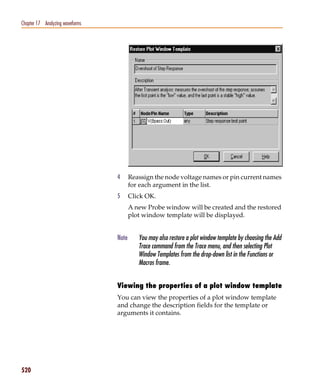
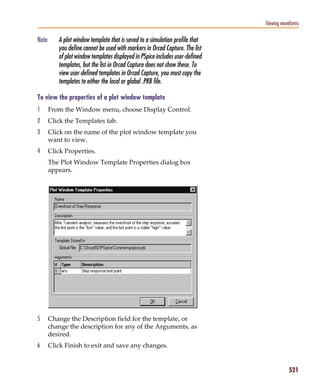
  • 271.
    Pspug.book Page 271Tuesday, May 16, 2000 1:17 PM Creating a digital model using the PINDLY and LOGICEXP primitives BOOLEAN The keyword BOOLEAN begins the boolean assignments which define temporary variables that can be used later in the PINDLY primitive. The form is: boolean variable = {boolean expression} The curly braces are required. In the 74160 model, the boolean expressions are actually reference functions. There are three reference functions available: CHANGED, CHANGED_LH, and CHANGED_HL. The format is: function name (node, delta time) For our example, we define the variable CLOCK as a logical TRUE if there has been a LO-to-HI transition of the CLK signal at simulation time. We define CNTENT as TRUE if there has been any transition of the ENT signal at the simulation time. Boolean operators take the following boolean values as operands: • reference functions • transition functions • previously assigned boolean variables • boolean constants TRUE and FALSE Transition functions have the general form of: TRN_pn For a complete list of reference functions and transition functions, see the Digital Devices chapter in the online PSpice Reference Guide. 271
  • 272.
    Pspug.book Page 272Tuesday, May 16, 2000 1:17 PM Chapter 7 Digital device modeling PINDLY PINDLY contains the actual delay and constraint expressions for each of the outputs. The CASE function defines a more complex, rule-based <delay expression> and works as a rule section mechanism for establishing path delays. Each boolean expression in the CASE function is evaluated in order until one is encountered that produces a TRUE result. Once a TRUE expression is found, the delay expression portion of the rule is associated with the output node being evaluated, and the remainder of the CASE function is ignored. If none of the expressions evaluate to TRUE, then the DEFAULT delay is used. Since it is possible for none of the expressions to yield a TRUE result, you must include a default delay in every CASE function. Also note that the expressions must be separated by a comma. In the PINDLY section of the PINDLY primitive in the model listing, the four output nodes (QA_O through QD_O) all use the same delay rules. The CASE function is evaluated independently for each of the outputs in turn. The first delay expression is: CLOCK & LOADBAR=='1 & TRN_LH, DELAY(-1,13NS,20NS) This means that if CLOCK is TRUE, and LOADBAR is equal to 1, and QA_O is transitioning from 0 to 1, then the values of -1, 13ns, and 20ns are used for the MINIMUM, TYPICAL, and MAXIMUM propagation delay for the CLK-to-QA data output of the chip. In this case, the manufacturer did not supply a minimum prop delay, so we used the value -1 to tell the simulator to derive a value from what was given. If this statement is TRUE, then the simulator assigns the values and move on to the CASE function for QB_O and eventually RCO_O. For instances where one or more propagation delay parameters are not supplied by the data sheet, the simulator derives a value from what is known and the values specified for the .OPTION DIGMNTYSCALE and DIGTYMXSCALE. 272
  • 273.
    Pspug.book Page 273Tuesday, May 16, 2000 1:17 PM Creating a digital model using the PINDLY and LOGICEXP primitives When the typical value for a delay parameter is known but the minimum is not, the simulator uses the formula: TPxxMN = DIGMNTYSCALE X TPxxTY where the value of DIGMNTYSCALE is between 0.1 and 1.0 with the default value being 0.4. If the typical is known and the maximum is not, then the simulator uses the formula: TPxxMX = DIGTYMXSCALE X TPxxTY where the value of DIGTYMXSCALE is greater than 1.0 with the default being 1.6. If the typical value is not known, and both the minimum and maximum are, then the typical value used by the simulator will be the average of the minimum and maximum propagation delays. If only one of min or max is known, then the typical delay is calculated using the appropriate formula as listed above. If all three are unknown, then they all default to a value of 0. Constraint checker (CONSTRAINT primitive) The CONSTRAINT primitive provides a general constraint checking mechanism to the digital device modeler. It performs setup and hold time checks, pulse width checks, frequency checks, and includes a general mechanism to allow user-defined conditions to be reported. See the Digital Devices chapter in the online PSpice Reference Guide for more information. 273
  • 274.
    Pspug.book Page 274Tuesday, May 16, 2000 1:17 PM Chapter 7 Digital device modeling Setup_Hold The expressions in the SETUP_HOLD specification may be listed in any order. CLOCK defines the node that is to be used as the reference for the setup/hold/release specification. The assertion edge must be LH or HL (for example, a transition from logic state 0 to 1 or from 1 to 0.) DATA specifies which node(s) is to have its setup/hold time measured. SETUPTIME defines the minimum time that all DATA nodes must be stable prior to the assertion edge of the clock. The time value must be a nonnegative constant or expression and is measured in seconds. If the device has different setup/hold times depending on whether the data is HI or LOW at the clock change, you can use either or both of the following forms: SETUPTIME_LO = <time value> SETUPTIME_HI = <time value> If either of the time values is 0, then no check is done for that case. HOLDTIME is used in the same way as SETUPTIME and also has the alternate _LH and _HL formats and 0 value condition. RELEASETIME causes the simulator to perform a special-purpose setup check. Release time (also referred to as recovery time in some data sheets) refers to the minimum time that a signal can go inactive before the active clock edge. Again, the _LH and _HL forms are available. The difference between RELEASETIME and SETUPTIME checking is that simultaneous CLOCK/ DATA transitions are never allowed (this assumes a nonzero hold time). RELEASETIME is usually not used in conjunction with SETUPTIME or HOLDTIME. 274
  • 275.
    Pspug.book Page 275Tuesday, May 16, 2000 1:17 PM Creating a digital model using the PINDLY and LOGICEXP primitives Width WIDTH does the minimum pulse-width checking. MIN_HI/MIN_LO is the minimum time that the node can remain HI/LOW. The value must be a nonnegative constant, or expression. A value of 0 means that any pulse width is allowed. At least one of MIN_HI or MIN_LO must be used within a WIDTH section. Freq FREQ checks the frequency. MINFREQ/MAXFREQ is the minimum/maximum frequency that is allowed on the node in question. The value must be a nonnegative floating point constant or expression measured in hertz. At least one of MINFREQ or MAXFREQ must be used within a FREQ section. AFFECTS clauses (not used in this example) can be included in constraints to describe how the simulator should associate the failure of a constraint check with the outputs (paths through the device) of the PINDLY. This information does not affect the logic state of the outputs but provides causality detail used by the error tracking mechanism in PSpice A/D waveform analysis. 74160 example In the 74160 example, we are checking that the maximum clock frequency (CLK) is not more than 25 MHz and the pulse width is 25 ns. We are also checking that the CLRBAR signal has a minimum LO pulse width of 20 ns, and that the 4 data inputs (A, B, C, D) have a setup/hold time of 20 ns in reference to the CLK signal. We are also checking that ENP and ENT have a setup/hold time of 20 ns with respect to the 0 to 1 transition of the CLK signal, but only when the conditions in the WHEN statement are met. All of the delay and constraint checking values were 275
  • 276.
    Pspug.book Page 276Tuesday, May 16, 2000 1:17 PM Chapter 7 Digital device modeling taken directly from the actual data sheet. This makes the delay modeling both easy and accurate. All of the above primitives and modeling methods, as well as a few special cases that are not covered here, can be found in the Digital Devices chapter of the online PSpice Reference Guide. * 74160 Synchronous 4-bit Decade Counters with asynchronous clear * Modeled using LOGICEXP, PINDLY, & CONSTRAINT devices .SUBCKT 74160 CLK_I ENP_I ENT_I CLRBAR_I LOADBAR_I A_I B_I C_I D_I + QA_O QB_O QC_O QD_O RCO_O + OPTIONAL: DPWR=$G_DPWR DGND=$G_DGND + PARAMS: MNTYMXDLY=0 IO_LEVEL=0 * U160LOG LOGICEXP(14,20) DPWR DGND + CLK_I ENP_I ENT_I CLRBAR_I LOADBAR_I A_I B_I C_I D_I + QDBAR QA QB QC QD + CLK ENP ENT CLRBAR LOADBAR A B C D + CLKBAR RCO JA JB JC JD KA KB KC KD EN + D0_GATE IO_STD IO_LEVEL={IO_LEVEL} + LOGIC: + CLK = { CLK_I } ;Buffering + ENP = { ENP_I } + ENT = { ENT_I } + CLRBAR = { CLRBAR_I } + LOADBAR = { LOADBAR_I } + A = { A_I } + B = { B_I } + C = { C_I } + D = { D_I } + CLKBAR = { ~CLK } ;Logic expressions + LOAD = { ~LOADBAR } + EN = { ENP & ENT } + I1A = { LOAD | EN } + I2A = { ~(LOAD & A) } + JA = { I1A & ~(LOAD & I2A) } + KA = { I1A & I2A } + I1B = { (QA & EN & QDBAR) | LOAD } + I2B = { ~(LOAD & B) } + JB = { I1B & ~(LOAD & I2B) } + KB = { I1B & I2B } + I1C = { (QA & EN & QB) | LOAD } + I2C = { ~(LOAD & C) } + JC = { I1C & ~(LOAD & I2C) } + KC = { I1C & I2C } + I1D = { ((QC & QB & QA & EN) | (EN & QA & QD)) | LOAD } + I2D = { ~(LOAD & D) } + JD = { I1D & ~(LOAD & I2D) } 276
  • 277.
    Pspug.book Page 277Tuesday, May 16, 2000 1:17 PM Creating a digital model using the PINDLY and LOGICEXP primitives + KD = { I1D & I2D } + RCO = { QD & QA & ENT } * UJKFF JKFF(4) DPWR DGND $D_HI CLRBAR CLKBAR JA JB JC JD KA KB KC KD + QA QB QC QD QABAR QBBAR QCBAR QDBAR D0_EFF IO_STD U160DLY PINDLY (5,0,10) DPWR DGND + RCO QA QB QC QD + CLK LOADBAR ENT CLRBAR ENP A B C D EN + RCO_O QA_O QB_O QC_O QD_O + IO_STD MNTYMXDLY={MNTYMXDLY} IO_LEVEL={IO_LEVEL} + BOOLEAN: + CLOCK = { CHANGED_LH(CLK,0) } + CNTENT = { CHANGED(ENT,0) } + PINDLY: + QA_O QB_O QC_O QD_O = { + CASE( + CLOCK & LOADBAR=='1 & TRN_LH, DELAY(-1,13NS,20NS), + CLOCK & LOADBAR=='1 & TRN_HL, DELAY(-1,15NS,23NS), + CLOCK & LOADBAR=='0 & TRN_LH, DELAY(-1,17NS,25NS), + CLOCK & LOADBAR=='0 & TRN_HL, DELAY(-1,19NS,29NS), + CHANGED_HL(CLRBAR,0), DELAY(-1,26NS,38NS), + DELAY(-1,26NS,38NS) + ) + } + RCO_O = { + CASE( + CNTENT, DELAY(-1,11NS,16NS), + CLOCK, DELAY(-1,23NS,35NS), + DELAY(-1,23NS,35NS) + ) + } + FREQ: + NODE = CLK + MAXFREQ = 25MEG + WIDTH: + NODE = CLK + MIN_LO = 25NS + MIN_HI = 25NS + WIDTH: + NODE = CLRBAR + MIN_LO = 20NS + SETUP_HOLD: + DATA(4) = A B C D + CLOCK LH = CLK + SETUPTIME = 20NS + WHEN = { (LOADBAR!='1 ^ CHANGED(LOADBAR,0)) & + CLRBAR!='0 } + SETUP_HOLD: + DATA(2) = ENP ENT + CLOCK LH = CLK + SETUPTIME = 20NS + WHEN = { CLRBAR!='0 & (LOADBAR!='0 ^ + CHANGED(LOADBAR,0)) + & CHANGED(EN,20NS) } 277
  • 278.
    Pspug.book Page 278Tuesday, May 16, 2000 1:17 PM Chapter 7 Digital device modeling + SETUP_HOLD: + DATA(1) = LOADBAR + CLOCK LH = CLK + SETUPTIME = 25NS + WHEN = { CLRBAR!='0 } + SETUP_HOLD: + DATA(1) = CLRBAR + CLOCK LH = CLK + RELEASETIME_LH = 20NS .ENDS 278
  • 279.
    Pspug.book Page 279Tuesday, May 16, 2000 1:17 PM Part three Setting up and running analyses Part Three describes how to set up and run analyses and provides setup information specific to each analysis type. • Chapter 8, Setting up analyses and starting simulation, explains the procedures general to all analysis types to set up and start the simulation. • Chapter 9, DC analyses, describes how to set up DC analyses, including DC sweep, bias point detail, small- signal DC transfer, and DC sensitivity. • Chapter 10, AC analyses, describes how to set up AC sweep and noise analyses. • Chapter 11, Transient analysis, describes how to set up transient analysis and optionally Fourier components. This chapter also explains how to use the Stimulus Editor to create time-based input. • Chapter 12, Parametric and temperature analysis, describes how to set up parametric and temperature analyses, and how to run post-simulation performance analysis in Probe on the results of these analyses.
  • 280.
    Pspug.book Page 280Tuesday, May 16, 2000 1:17 PM • Chapter 13, Monte Carlo and sensitivity/worst-case analyses, describes how to set up Monte Carlo and sensitivity/worst-case analyses for statistical interpretation of your circuit’s behavior. • Chapter 14, Digital simulation, describes how to set up a digital simulation analysis on either a digital-only or mixed-signal circuit. • Chapter 15, Mixed analog/digital simulation, explains how PSpice A/D processes the analog and digital interfaces in mixed-signal circuits. • Chapter 16, Digital worst-case timing analysis, describes how PSpice A/D performs digital worst-case timing analysis and the kinds of hazards that this analysis can help you detect.
  • 281.
    Pspug.book Page 281Tuesday, May 16, 2000 1:17 PM Setting up analyses and starting simulation 8 Chapter overview This chapter provides an overview of setting up analyses and starting simulation that applies to any analysis type. The other chapters in Part three, Setting up and running analyses provide specific analysis setup information for each analysis type. This chapter includes the following sections: • Analysis types on page 8-282 • Setting up analyses on page 8-284 • Starting a simulation on page 8-292 • Interacting with a simulation on page 307 • Using the Simulation Manager on page 315
  • 282.
    Pspug.book Page 282Tuesday, May 16, 2000 1:17 PM Chapter 8 Setting up analyses and starting simulation Analysis types PSpice supports analyses that can simulate analog-only, mixed-signal, and digital-only circuits. PSpice fully supports digital analysis by simulating the timing behavior of digital devices within a standard transient analysis, including worst-case (min/max) timing. For mixed analog/digital circuits, all of the above-mentioned analyses can be run. If the circuit is digital-only, only the transient analysis can be run. Table 23 provides a summary of the available PSpice analyses and the corresponding Analysis type options where the analysis parameters are specified. In Capture, switch to the PSpice view, then from the PSpice menu, choose New Simulation Profile . 282
  • 283.
    Pspug.book Page 283Tuesday, May 16, 2000 1:17 PM Analysis types Table 23 Classes of PSpice analyses Analysis Analysis type or Option Swept variable Standard analyses DC sweep DC Sweep source parameter temperature Bias point Bias Point Small-signal DC transfer Bias Point DC sensitivity Bias Point Frequency response AC Sweep/Noise frequency Noise (requires a frequency AC Sweep/Noise frequency response analysis) Transient response Time Domain time (Transient) Fourier (requires transient Time Domain time response analysis) (Transient) Simple multi-run analyses Parametric Parametric Sweep Temperature Temperature (Sweep) Statistical analyses Monte Carlo Monte Carlo/ Worst Case Sensitivity/worst-case Monte Carlo/ Worst Case The waveform analyzer calculates and displays the results See Part four, Viewing results, for of PSpice simulations for swept analyses. The waveform information about using waveform analysis analyzer also generates supplementary analysis in PSpice. information in the form of lists and tables, and saves this in the simulation output file. 283
  • 284.
    Pspug.book Page 284Tuesday, May 16, 2000 1:17 PM Chapter 8 Setting up analyses and starting simulation Setting up analyses To set up one or more analyses Specific information for setting up each 1 From the PSpice menu, choose New Simulation type of analysis is discussed in the following Profile. chapters. 2 Enter the name of the profile and click OK. 3 Click the Analysis tab if it is not already the active tab in the dialog box. See Output variables on 4 Enter the necessary parameter values and select the page 8-286 for a description of the appropriate check boxes to complete the analysis output variables that can be entered in the specifications. Simulation Settings dialog box displayed 5 Set up any other analyses you want to perform for the for an analysis type. circuit by selecting any of the remaining analysis types Specific information for setting up each and options, then complete their setup dialog boxes. type of analysis is discussed in the following chapters. 284
  • 285.
    Pspug.book Page 285Tuesday, May 16, 2000 1:17 PM Setting up analyses Execution order for standard analyses For normal simulations that are run from a simulation profile, or in batch mode, only the particular analysis type that is specified will be executed. During simulation of a circuit file, the analysis types are performed in the order shown in Table 24. Each type of analysis is conducted only once per run. Several of the analyses (small-signal transfer, DC sensitivity, and frequency response) depend upon the bias point calculation. Because so many analyses use the bias point, PSpice calculates this automatically. PSpice’s bias point calculation computes initial states of digital components as well as the analog components. T . able 24 Execution order for standard analyses 1. DC sweep 2. Bias point 3. Frequency response 4. Noise 5. DC sensitivity 6. Small-signal DC transfer 7. Transient response 8. Fourier components 285
  • 286.
    Pspug.book Page 286Tuesday, May 16, 2000 1:17 PM Chapter 8 Setting up analyses and starting simulation Output variables Certain analyses (such as noise, Monte Carlo, sensitivity/ worst-case, DC sensitivity, Fourier, and small-signal DC transfer function) require you to specify output variables for voltages and currents at specific points on the schematic. Depending upon the analysis type, you may need to specify the following: • Voltage on a net, a pin, or at a terminal of a semiconductor device • Current through a part or into a terminal of a semiconductor device • A device name If output variables or other information are required, select Output File Options in the Monte Carlo/Worst Case dialog box and enter the required parameters. Voltage Specify voltage in the following format: v[modifiers](<out id>[,<out id>]) (1) where <out id > is: <net id> or <pin id> (2) <net id> is a fully qualified net name (3) <pin id> is <fully qualified device name>:<pin name> (4) A fully qualified net name (as referred to in line 3 above) is formed by prefixing the visible net name (from a label applied to one of the segments of a wire or bus, or an offpage port connected to the net) with the full hierarchical path, separated by periods. At the top level of hierarchy, this is just the visible name. A fully qualified device name (from line 4 above) is distinguished by specifying the full hierarchical path followed by the device’s part reference, separated by period characters. For example, a resistor with part reference R34 inside part Y1 placed on a top-level 286
  • 287.
    Pspug.book Page 287Tuesday, May 16, 2000 1:17 PM Setting up analyses schematic page is referred to as Y1.R34 when used in an output variable. A <pin id> (from line 4) is uniquely distinguished by specifying the full part name (as described above) followed by a colon, and the pin name. For example, the pins on a capacitor with reference designator C31 placed on a top-level page and pin names 1 and 2 would be identified as C31:1 and C31:2, respectively. Current Specify current in the following format: i[modifiers](<out device>[:modifiers]) where <out device> is a fully qualified device name. Modifiers The basic syntax for output variables can be modified to indicate terminals of semiconductors and AC specifications. The modifiers come before <out id> or <out device>. Or, when specifying terminals (such as source or drain), the modifier is the pin name contained in <out id>, or is appended to <out device> separated by a colon. Modifiers can be specified as follows: • For voltage: v[AC suffix](<out id>[, out id]) v[terminal]*(<out device>) • For current: i[AC suffix](<out device>[:terminal]) i[terminal][AC suffix](<out device>]) where terminal specifies one or two terminals for devices with more than two terminals, such as D (drain), G (gate), S (source) 287
  • 288.
    Pspug.book Page 288Tuesday, May 16, 2000 1:17 PM Chapter 8 Setting up analyses and starting simulation AC suffix specifies the quantity to be reported for an AC analysis, such as M (magnitude), P (phase), G (group delay) out id specifies either the <net id> or <pin id> (<fully qualified device name>:<pin name>) out device specifies the <fully qualified device name> These building blocks can be used for specifying output variables as shown in Table 25 (which summarizes the accepted output variable formats) and Tables 26 through 29 (which list valid elements for two-terminal, three- or four-terminal devices, transmission line devices, and AC specifications). Table 25 PSpice output variable formats Format Meaning V[ac](< + out id >) voltage at out id V[ac](< +out id >,< - out id >) voltage across + and - out id’s V[ac](< 2-terminal device out id >) voltage at a 2-terminal device out id V[ac](< 3 or 4-terminal device out id >) or voltage at V<x>[ac](< 3 or 4-terminal out device >) non-grounded terminal x of a 3 or 4-terminal device V<x><y>[ac](< 3 or 4-terminal out device >) voltage across terminals x and y of a 3 or 4-terminal device V[ac](< transmission line out id >) or voltage at one end z of a V<z>[ac](< transmission line out device >) transmission line device I[ac](< 3 or 4-terminal out device >:<x>) or current through I<x>[ac](< 3 or 4-terminal out device >) non-grounded terminal x of a 3 or 4-terminal out device I[ac](< transmission line out device >:<z>) or current through one end I<z>[ac](< 3 or 4-terminal out device >) z of a transmission line out device < DC sweep variable > voltage or current source name 288
  • 289.
    Pspug.book Page 289Tuesday, May 16, 2000 1:17 PM Setting up analyses Table 26 Element definitions for 2-terminal devices <out id> or Output variable Device type <out device> examples device indicator capacitor C V(CAP:1) I(CAP) diode D V(D23:1) I(D23) voltage-controlled E V(E14:1) voltage source I(E14) current-controlled F V(F1:1) current source I(F1) voltage-controlled G V(G2:1) current source I(G2) current-controlled H V(HSOURCE:1) voltage source I(HSOURCE) independent current I V(IDRIV:+) source I(IDRIV) inductor L V(L1:1) I(L1) resistor R V(RC1:1) I(RC1) voltage-controlled S V(SWITCH:+) switch I(SWITCH) independent voltage V V(VSRC:+) source I(VSRC) current-controlled W V(W22:-) switch I(W22) 289
  • 290.
    Pspug.book Page 290Tuesday, May 16, 2000 1:17 PM Chapter 8 Setting up analyses and starting simulation Table 27 Element definitions for 3- or 4-terminal devices <out id> or <out device> Output variable Device type <pin id> device examples indicator GaAs MESFET B D (Drain terminal) V(B11:D) G (Gate terminal) ID(B11) S (Source terminal) Junction FET J D (Drain terminal) VG(JFET) G (Gate terminal) I(JFET:G) S (Source terminal) MOSFET M B (Bulk, substrate VDG(M1) terminal) ID(M1) D (Drain terminal) G (Gate terminal) S (Source terminal) bipolar Q B (Base terminal) V(Q1:B) transistor C (Collector terminal) I(Q1:C) E (Emitter terminal) S (Source terminal) IGBT Z C (Collector terminal) V(Z1:C) E (Emitter terminal) I(Z1:C) G (Gate terminal) Table 28 Element definitions for transmission line devices <out id> or Output variable Device type <out device> <z> examples device indicator transmission T A (Port A) V(T32:A+) line B (Port B) I(T32:B-) 290
  • 291.
    Pspug.book Page 291Tuesday, May 16, 2000 1:17 PM Setting up analyses Table 29 Element definitions for AC analysis specific elements <ac suffix> Output variable Meaning device symbol examples (none) magnitude (default) V(V1) I(V1) M magnitude VM(CAP1:1) IM(CAP1:1) DB magnitude in decibels VDB(R1) P phase IP(R1) R real part VR(R1) I imaginary part VI(R1) The INOISE, ONOISE, DB(INOISE), and DB(ONOISE) output variables are predefined for use with noise (AC sweep) analysis. 291
  • 292.
    Pspug.book Page 292Tuesday, May 16, 2000 1:17 PM Chapter 8 Setting up analyses and starting simulation Starting a simulation After you have used Capture to enter your circuit design and have set up the analyses to be performed, you can start a simulation by choosing Run from the PSpice menu. When you enter and set up your circuit this way, Capture automatically generates the simulation files and starts PSpice. There may be situations, however, when you want to run PSpice outside of Capture. You may want to simulate a circuit that was not created in Capture, for example, or you may want to run simulations of multiple circuits in batch mode. This section includes the following: • Creating a simulation netlist on page 8-292 • Starting a simulation from Capture on page 8-301 • Starting a simulation outside of Capture on page 8-302 • Setting up batch simulations on page 8-302 • The PSpice simulation window on page 8-303 Creating a simulation netlist A netlist is the connectivity description of a circuit, showing all of the components, their interconnections, and their values. When you create a simulation netlist from Orcad Capture, that netlist describes the current design. You have a choice between two types of netlist formats: • a flat netlist • a hierarchical netlist The flat netlist is generated for all levels of hierarchy, starting from the top, regardless of whether you are pushed into any level of the hierarchy. Flat netlists are most commonly used as input to PCB layout tools. The flat 292
  • 293.
    Pspug.book Page 293Tuesday, May 16, 2000 1:17 PM Starting a simulation simulation netlist format for PSpice contains device entries for all parts on a subcircuit (child) schematic multiple times, once for each instance of the hierarchical part or block used. The hierarchical netlist preserves the hierarchical information in any subcircuit (child) schematics. It contains a single .SUBCKT definition for each child schematic. The devices in the subcircuit are therefore netlisted only once. Each instance of the hierarchical part or block is then netlisted as an instance of that subcircuit (as an “X” device). The subcircuit name corresponds to the name of the subcircuit (child) schematic. Hierarchical netlists are especially useful to IC designers who want to perform Layout vs. Schematic (LVS) verification because they are more accurate descriptions of the true circuit. The hierarchical netlist format supports LVS tools such as Dracula. Using netlisting templates In Orcad Capture, the PSPICETEMPLATE property specifies how primitive parts are described in the simulation netlist. It defines the pin order and which other part property values to include in the netlist. Only parts with a PSPICETEMPLATE property are included in the simulation. In the process of creating the netlist, buses, connectors, and so on, are resolved. An alternate template option is provided which allows you to define which netlisting template property to use. This option applies to both flat and hierarchical netlists. With this option, you may specify a particular netlist template for generating netlists that can be used by other simulation tools, for example, or for creating alternate PSpice netlists that contain different part descriptions. To learn more about using alternate netlist templates, see Specifying alternate netlist templates on page 8-300. 293
  • 294.
    Pspug.book Page 294Tuesday, May 16, 2000 1:17 PM Chapter 8 Setting up analyses and starting simulation Passing parameters to subcircuits Hierarchical netlists have the advantage of allowing parameters to be passed from the top level schematic to any subcircuit schematics. To take advantage of this feature, you must use the new SUBPARAM part in the SPECIAL.OLB library. Note Hierarchical netlists do not support cross-probing from a subcircuit, nor do they support Probe markers in a subcircuit. With the SUBPARAM part, you can pass parameters from the top-level schematic to a subcircuit schematic. This allows you to explicitly define the properties and default values to be used during netlisting and simulation. To set up parameter passing to a subcircuit using SUBPARAM 1 Make the subcircuit your active schematic page in the Capture editor. 2 From the Place menu, choose the Part command. 3 Select the part SUBPARAM from the PSpice library SPECIAL.OLB and place it on the subcircuit. 4 With the SUBPARAM part still selected, from the Edit menu, choose Properties. The Property Editor spreadsheet appears. 5 In the spreadsheet, define the names and default values for the properties that can be changed on an instance-by-instance basis. 6 In the top-level schematic, use the Property Editor spreadsheet to edit the properties of the hierarchical part or block that references the subcircuit (child) schematic so they match the properties you defined in Step 5. Any part in the subcircuit (child) schematic can reference the properties in its PSPICETEMPLATE. The PSpice subcircuit mechanism supports parameterizing: • constants specified on device statements • model parameters 294
  • 295.
    Pspug.book Page 295Tuesday, May 16, 2000 1:17 PM Starting a simulation • expressions consisting of constants • parameters • functions Creating the netlist You can generate a simulation netlist in one of two ways: • from Capture’s Project Manager by using the Create Netlist command under the Tools menu. (If this is the first time you’re creating a hierarchical netlist for this project, you can only use this method.) - or - • directly from within Capture itself by using the Create Netlist command under the PSpice menu. During the netlist process, Capture creates several files with different extensions: the .NET file contains the netlist; the .CIR file contains simulation commands; and the .ALS file contains alias information. To create a flat netlist 1 In the Capture Project manager, select the design file (.DSN) you want to netlist. 2 From the Tools menu, choose Create Netlist to display the Create Netlist dialog box. 3 Select the PSpice tab. 4 Under the Options frame, leave all the checkboxes blank. 5 In the Netlist File text box, type a name for the output file, or click the Browse button to assign a filename. 6 If desired, click the View Output checkbox to display the netlist after it has been generated. 7 Click OK. 295
  • 296.
    Pspug.book Page 296Tuesday, May 16, 2000 1:17 PM Chapter 8 Setting up analyses and starting simulation To create a hierarchical netlist 1 In the Capture Project manager, select the design file (.DSN) you want to netlist. 2 From the Tools menu, choose Create Netlist to display the Create Netlist dialog box. 3 Select the PSpice tab. 4 Under the Options frame, click Create Hierarchical Format Netlist. 5 Click Settings to customize the format of the hierarchical netlist (see Customizing the hierarchical netlist on page 8-297). 6 Click Create Subcircuit Format Netlist to specify how subcircuits will be netlisted (see Creating subcircuit netlists on page 8-300). 7 In the Use Template list box, select the netlisting template(s) you wish to apply (see Specifying alternate netlist templates on page 8-300). 296
  • 297.
    Pspug.book Page 297Tuesday, May 16, 2000 1:17 PM Starting a simulation 8 In the Netlist File text box, type a name for the output file, or click the Browse button to assign a filename. 9 If desired, click the View Output checkbox to display the netlist after it has been generated. 10 Click OK. For more information on netlist formats, refer to Orcad Capture’s online help. Customizing the hierarchical netlist You can customize the hierarchical netlist by specifying various options using the Settings button in the Create Netlist dialog box. You can also customize the format of the subcircuit definition and reference text in the netlist. These settings, once defined, will apply to all subsequent PSpice netlists whether the netlist is invoked from the Tools menu in the Project Manager or directly from the schematic editor. Two groups of settings are saved: PSpice and LVS. Having two groups makes it easy to switch between netlisting for PSpice and netlisting for an LVS compatible format. You can specify which group of settings is active for the netlister by using the Products list box. Note The settings you define are project specific. If you want to save the settings globally, click the Save as Default Project Settings button. To customize the hierarchical netlist 1 In the PSpice tab of the Create Netlist dialog box, under the Options frame, click Create Hierarchical Format Netlist. 297
  • 298.
    Pspug.book Page 298Tuesday, May 16, 2000 1:17 PM Chapter 8 Setting up analyses and starting simulation 2 Click Settings, then enable or specify the following options, as desired: • Make .PARAM Commands Global: If this checkbox is enabled, any param parts in the design become global in scope. If it is disabled, the param parts are local to the subcircuit in which they occur. • Products: This list box specifies which group of settings is active for the netlister. Selecting a different group changes the Subcircuit Patterns frame to reflect the settings of the specified tool. • Global Net Prefix: This text box allows you to define the syntax of the global net of a subcircuit. • Reference frame • Subcircuit Call: This list box allows you to select the syntax of the subcircuit call using a modified TEMPLATE syntax. • ParamList Element Definition: This list box allows you to select the syntax of how 298
  • 299.
    Pspug.book Page 299Tuesday, May 16, 2000 1:17 PM Starting a simulation parameters are passed from a reference to a part definition. • Definition frame • Subcircuit Header: This list box allows you to select the syntax of the subcircuit header using a modified TEMPLATE syntax. If modified, you must make sure the definition header is consistent with the call. • ParamList Element Definition: This list box allows you to select the syntax of how parameters are passed from a reference to a part definition. • Param Usage Reference: This list box allows you to select the syntax used to enclose the parameters in references. • Subcircuit Ends: This list box allows you to select the syntax used for the termination of a subcircuit. • Save as Project Default Settings: This button saves the current settings in the CAPTURE.INI file, and thereby makes the current settings the default settings for any new Capture projects. 3 Click OK. For more detailed information about the syntax for these commands, and examples of how to use them, see the online PSpice Reference Guide. 299
  • 300.
    Pspug.book Page 300Tuesday, May 16, 2000 1:17 PM Chapter 8 Setting up analyses and starting simulation Creating subcircuit netlists You can specify how subcircuits in a hierarchical design are processed and defined in the simulation netlist. To create a subcircuit format netlist 1 In the Capture Project manager, select the design file (.DSN) you want to netlist. 2 From the Tools menu, choose Create Netlist to display the Create Netlist dialog box. 3 Select the PSpice tab. 4 Under the Options frame, click Create Subcircuit Format Netlist, then click one of the following options, as desired: • Descend: This generates a definition of a hierarchical design that includes the top level circuit as well as its subcircuits. (This option is only available if Create Hierarchical Format Netlist is enabled.) • Do Not Descend: This generates a definition of a hierarchical design that includes only the top level circuit, without any of its subcircuits. (This option is only available if Create Hierarchical Format Netlist is enabled.) • Descend and Fully Expand: This generates a definition of a flat design. (This option is only available if Create Hierarchical Format Netlist is not enabled.) Specifying alternate netlist templates To specify an alternate netlist template 1 In the Capture Project manager, select the design file (.DSN) you want to netlist. 2 From the Tools menu, choose Create Netlist to display the Create Netlist dialog box. 3 Select the PSpice tab. 300
  • 301.
    Pspug.book Page 301Tuesday, May 16, 2000 1:17 PM Starting a simulation 4 In the Use Template list box, select the name of the template you want to use. By default, the netlister will use the PSPICETEMPLATE. Alternate templates in the Use Template list box will be processed in the order in which they appear. The ordering of the templates is therefore important to the netlister and determines what the output will be. Use the control buttons located directly above the Use Template list box to configure the list of templates. You can: • add a new template by clicking the New icon or by double-clicking in the dashed box at the beginning of the list. • delete a template by selecting the name and then clicking the Delete icon. • edit a template name by selecting the name and then clicking the Edit icon. • change the order of the listing (move a template up or down in the listing) by selecting the name and clicking the Up or Down arrows. Note Templates are not specific to either a flat or hierarchical netlist. The same template may be used for both types. Starting a simulation from Capture After you have set up the analyses for the circuit, you can start a simulation from Capture in either of the following ways: • From the PSpice menu select Run. • Click the Simulate button on the PSpice toolbar. 301
  • 302.
    Pspug.book Page 302Tuesday, May 16, 2000 1:17 PM Chapter 8 Setting up analyses and starting simulation Starting a simulation outside of Capture To start PSpice outside of Capture 1 From the Start menu, point to the Orcad program group, then choose PSpice. 2 From the File menu, choose Open Simulation. 3 Do one of the following: • Double-click on the simulation profile filename (*.SIM) in the list box. • Enter the simulation profile filename (*.SIM) in the File name text box and click Open. 4 From the Simulation menu, choose Edit Settings to modify any of the analysis setup parameters. 5 From the Simulation menu, choose Run (or click the Run toolbar button) to begin the simulation. Setting up batch simulations Multiple simulations can be run in batch mode when starting PSpice directly with circuit file input. You can use batch mode, for example, to run a number of simulations overnight. There are two ways to do this, as described below. Multiple simulation setups within one circuit file Multiple circuit/simulation descriptions can be concatenated into a single circuit file and simulated all at once with PSpice. Each circuit/simulation description in the file must begin with a title line and end with a .END statement. The simulator reads all the circuits in the circuit file and then processes each one in sequence. The data file and simulation output file contain the outputs from each circuit in the same order as they appeared in the circuit 302
  • 303.
    Pspug.book Page 303Tuesday, May 16, 2000 1:17 PM Starting a simulation file. The effect is the same as if you had run each circuit separately and then concatenated all of the outputs. Running simulations with multiple circuit files You can direct PSpice to simulate multiple circuit files using either of the following methods. Method 1 1 From the Start menu, point to the Orcad program group, then choose PSpice. 2 Select Open Simulation from the File menu from the PSpice window. 3 Do one of the following: • Type each file name in the File Name text box separated by a space. • Use the combination keystrokes and mouse clicks in the list box as follows: C+click to select file names one at a time, and V+click to select groups of files. Method 2 1 From the Start menu, point to the Orcad program group, then choose PSpice. 2 Update the command line in the following way: • Include a list of circuit file names separated by spaces. Circuit file names can be fully qualified or can contain the wild card characters (* and ?). The PSpice simulation window The PSpice Simulation Window is an MDI (Multiple Document Interface) application. This implies that you can open and display multiple files at the same time in this 303
  • 304.
    Pspug.book Page 304Tuesday, May 16, 2000 1:17 PM Chapter 8 Setting up analyses and starting simulation window. For instance, you can have a waveform file (.DAT), a circuit file (.CIR), and a simulation output file (.OUT) open and displayed in different child windows within this one window. The PSpice Simulation Window consists of three sections: the main window section where the open files are displayed, the output window section where output information such as informational, warning, and error messages from the simulator are shown, and the simulation status window section where detailed status information about the simulation are shown. These three sections are shown in Figure 56. The windows in these sections may be resized, moved, and reordered as needed. The simulation window also includes a menu bar and toolbars for controlling the simulation and the waveform display. Title bar The title bar of the simulation window (the area at the top of the window) identifies the name of the currently open simulation (either simulation profile or circuit file) and the name of the currently active document displayed in the main window area. For example, the simulation window shown in Figure 56 indicates that simulation profile Example-TRAN is currently open and the active document displayed is Example-Example-TRAN.DAT. Menus and Toolbars The menus accessed from the menu bar include commands to set up and control the simulator, customize the window display characteristics, and configure the way the waveforms are displayed. The toolbar buttons duplicate many of the more frequently used commands. 304
  • 305.
    Pspug.book Page 305Tuesday, May 16, 2000 1:17 PM Starting a simulation Figure 56 PSpice simulation window Main window section The top central portion (by default) of the simulation window is the main window section where documents (such as waveforms, circuit description, output information etc.) are displayed within child windows. These windows are tabbed by default. The tabs at the bottom left show the names of the documents that each child window contains. Clicking on a tab brings that child window to the foreground. Figure 56 shows the tabbed document windows for Example-Example-TRAN.DAT and Example-Example-TRAN.OUT. You can configure the display of these windows to suit your preferences and to make the analysis of the circuit quick and readily understandable. These windows can also be resized, moved, and reordered to suit your needs. Output window section The lower left portion of the simulation window provides a listing of the output from the simulation. It shows informational, warning, and error messages from the simulation. You can resize and relocate this window to make it easier to read. 305
  • 306.
    Pspug.book Page 306Tuesday, May 16, 2000 1:17 PM Chapter 8 Setting up analyses and starting simulation Simulation status window section The lower right portion of the simulation window presents a set of tabbed windows that show detailed status about the simulation. There are three tabbed windows in this section: the Analysis window, the Watch Variable window, and the Devices window. The Analysis window provides a running log of values of simulation variables (parameters such as Temperature, Time Step, and Time). The Watch Variable window displays watch variables and their values. These are the variables setup to be monitored during simulation. The Devices window displays the devices that are being simulated. 306
  • 307.
    Pspug.book Page 307Tuesday, May 16, 2000 1:17 PM Interacting with a simulation Interacting with a simulation For this release, PSpice includes options for interacting with a simulation by changing certain runtime parameters in the course of the analysis. With the interactive simulation feature, you can do the following: • Extend a transient analysis after TSTOP has been reached in order to achieve the desired results. • Interrupt a bias or transient analysis, change certain runtime parameters, and then resume the simulation with the new settings. • Schedule changes to certain runtime parameters so that they are made automatically during a simulation. Note The ability to interact with a simulation only applies to bias point and transient analyses. You cannot interact with other analysis types. What the various versions of PSpice support The following table identifies what interactive functionality is available with each version of PSpice. PSpice version Interactive simulation functionality PSpice Lite • extend transient analysis PSpice A/D Basics PSpice • extend transient analysis PSpice A/D • interrupt a simulation, change parameters, and resume the simulation • schedule automatic changes to parameters during simulation 307
  • 308.
    Pspug.book Page 308Tuesday, May 16, 2000 1:17 PM Chapter 8 Setting up analyses and starting simulation Extending a transient analysis Often, a long transient analysis will run to the completion time (TSTOP) without achieving the desired simulation results (achieving a steady state, for instance). To achieve better results, the value for TSTOP would have to be increased and the entire simulation would have to be rerun from the beginning. This was time-consuming and inefficient for large simulations. With this release, a transient analysis will automatically pause rather than stop when it reaches the TSTOP value. Once paused, you can review the results and determine if the simulation should run longer. If desired, you can increase the value of TSTOP and resume the transient analysis from the point at which it paused, thus saving a good deal of processing time. Note For more details about using TSTOP, see the online PSpice Reference Guide. To help clarify under what conditions simulations will either be terminated or paused, the following table explains the different behaviors of PSpice for particular simulation scenarios: Simulation scenario Behavior of PSpice Running a single transient PSpice will pause after a successful simulation using a profile or a simulation, or if a convergence circuit file containing one circuit. error occurs, allowing you to change certain runtime parameters and resume the analysis. 308
  • 309.
    Pspug.book Page 309Tuesday, May 16, 2000 1:17 PM Interacting with a simulation Running a single AC/DC PSpice will stop (terminate) after a simulation using a profile or a successful simulation. circuit file containing one circuit. -or- PSpice will pause if a convergence error occurs, allowing you to change certain runtime parameters and resume the analysis. Running a single simulation with a PSpice will stop (terminate) after a profile or a circuit file containing successful simulation, or if a outer loops. convergence error occurs. Running a queued simulation. PSpice will stop (terminate) after a successful simulation, or if a convergence error occurs. Launching a new simulation when If the old simulation has anotheroneisalreadyactiveinPSpice. completed, PSpice will load the new simulation and run it. -or- If the old simulation is running or paused, PSpice will prompt you to choose whether to run the new simulation instead, place it in the queue or cancel it. To extend a transient analysis 1 After you pause a transient analysis, click in the RunFor text box on the PSpice toolbar. 309
  • 310.
    Pspug.book Page 310Tuesday, May 16, 2000 1:17 PM Chapter 8 Setting up analyses and starting simulation 2 Enter a new value for TSTOP. 3 Click on the Run toolbar button to resume the simulation. The simulation will resume from the point at which it last paused, and then run for the amount of time specified in the RunFor text box, at which point it will pause again. Note Each time you resume the simulation after changing TSTOP, the transient analysis will always pause when completed. In this way, you can continue extending the analysis indefinitely. If the simulation is paused before TSTOP is reached, and you enter a value in the RunFor text box and click the RunFor toolbar button, PSpice will run for the time specified and then pause. If you click the Run button and if the total time has not yet reached TSTOP, PSpice will run until TSTOP. If you pause the simulation while it is in the middle of a RunFor operation and then resume the simulation, PSpice will complete the RunFor operation. If you click the Run button while the simulation is paused in the middle of a RunFor operation, PSpice will run until TSTOP is reached. Interrupting a simulation With this release, you have the ability to interrupt (pause) a simulation, change certain runtime parameters, and then resume the simulation from the point at which it was paused using the new parameters. Note The new parameters are temporary values and are not saved in the simulation profile. However, they are logged in the output file so that you can refer to them later. 310
  • 311.
    Pspug.book Page 311Tuesday, May 16, 2000 1:17 PM Interacting with a simulation When a simulation has been paused, you can change the following runtime parameters in the Edit Runtime Settings dialog box: • RELTOL • ABSTOL • VNTOL • GMIN • TSTOP • TMAX • ITL1 • ITL2 • ITL4 Note For more details about using these runtime parameters, see the online PSpice Reference Guide. The Edit Runtime Settings dialog box will appear automatically whenever a simulation fails to converge. (In such cases, the simulation will be paused automatically.) It will also appear if you attach PSpice to a simulation that was paused in the background. (For more information about managing background simulations, see Using the Simulation Manager on page 315.) To interrupt a simulation and change parameters 1 In PSpice, from the Simulation menu, choose Edit Runtime Settings. The PSpice Runtime Settings dialog box appears. 311
  • 312.
    Pspug.book Page 312Tuesday, May 16, 2000 1:17 PM Chapter 8 Setting up analyses and starting simulation 2 If you want to use the original value for a particular parameter, click the Use Original Value check box for that parameter. The original parameter values are derived from the simulation profile. By default, the Use Original Value check boxes are checked (enabled). 3 If you want to change one or more parameters, enter new values for each of the runtime parameters you want to change in the text boxes under the column Change To. If a Change To text box is grayed out, uncheck the Use Original Value check box. 4 Click OK & Resume Simulation to resume the simulation with the new parameters. Note If you do not want to resume the simulation, but merely want to exit this dialog box and preserve the values you entered, click OK. If you run the simulation later, the new parameters will be applied. If you want to exit this dialog box without preserving the values, click Cancel. 312
  • 313.
    Pspug.book Page 313Tuesday, May 16, 2000 1:17 PM Interacting with a simulation Scheduling changes to runtime parameters In certain situations, you may want to predefine a set of values for a parameter and schedule these values to take effect at various time intervals during a long simulation. For instance, you may want to use a smaller time step value during periods where the input stimulus changes rapidly, but otherwise use a larger value. With this release, you have the ability to set up automatic changes to certain runtime parameters that will occur at scheduled times during a simulation. By scheduling the changes, you don't have to interrupt the simulation manually, and can even run it in a batch mode in the background. The following runtime parameters can be changed at scheduled times during a simulation. Note that these only apply to transient analysis; you cannot interact with other analysis types. • RELTOL • ABSTOL • VNTOL • GMIN • ITL4 Note For more details about using these runtime parameters, see the online PSpice Reference Guide. PSpice command syntax for scheduling parameter changes You can schedule parameter changes by entering them either in the Simulation Profile or in a text file using the new expression SCHEDULE, and then including that file in the simulation profile settings. The expression SCHEDULE is a piecewise constant function (from time x forward use y) and takes the form: 313
  • 314.
    Pspug.book Page 314Tuesday, May 16, 2000 1:17 PM Chapter 8 Setting up analyses and starting simulation SCHEDULE(x1,y1,x2,y2…xn,yn) where x is the time value, which must be x >= 0, and y is the value of the associated parameter. You must include an entry for time = 0. When used with the .OPTION command, the syntax is as follows: .OPTIONS <Parameter Name>= {SCHEDULE(<time-value>, <parameter value>, <time-value>, <parameter value>, …)} For example, .OPTIONS RELTOL={SCHEDULE( 0s,.001,2s,.005)} indicates that RELTOL should have a value of 0.001 from time 0 up to time 2s, and a value of 0.005 from time 2s and beyond (that is: RELTOL=.001 for t, where 0 <= t < 2s, and RELTOL=.005 for t, where t >= 2s). To schedule changes to runtime parameters 1 Open a standard text editor (such as Notepad) and create a text file with the command syntax shown above, using the appropriate values for the different parameters. 2 In Capture, open the design you want to simulate. 3 From the PSpice menu, choose Edit Simulation Profile. 4 Click on the Include Files tab. 5 Under the Filename text box, enter the name of the text file you created in Step 1, or click the Browse button to locate the file and enter the full path and filename. 6 Click the Add to Design button to include the file as part of the circuit. 7 Click OK. When you run the simulation, the scheduled parameter changes will be included as part of the circuit file and the simulation will run to completion automatically. 314
  • 315.
    Pspug.book Page 315Tuesday, May 16, 2000 1:17 PM Using the Simulation Manager Using the Simulation Manager Overview of the Simulation Manager For this release, PSpice includes a new Simulation Manager that provides enhanced control over how multiple simulations are processed. You can preempt the current simulation to run another one first. Or, you can use the Simulation Manager to monitor the progress of a set of batch simulations that were set up and launched earlier. Note None of the earlier functionality of batch processing has been lost. For more information, see Setting up batch simulations on page 302. The PSpice Simulation Manager provides a familiar, easy-to-use interface for controlling how multiple simulations are processed. The Simulation Manager allows you to do the following: • add or delete simulations • start, stop or pause simulations 315
  • 316.
    Pspug.book Page 316Tuesday, May 16, 2000 1:17 PM Chapter 8 Setting up analyses and starting simulation • rearrange the order of the simulations in the queue Note For simulations that are queued in • attach PSpice to a simulation to make it the active the Simulation Manager, the setting in the display Simulation Profile to start Probe • view the status and progress of simulations automatically is ignored. When a queued running in the background simulation runs to completion and finishes, it will not be loaded into Probe. You must You can accomplish most of these functions by selecting do this manually if you want to see the the desired simulation in the list, then clicking on the results of that simulation. appropriate toolbar button to execute the command. Accessing the Simulation Manager The Simulation Manager is invoked whenever you start a new simulation, either from PSpice or from a front-end design entry tool. Since it is active as long as a simulation is running in the background, you can also call up the Simulation Manager from the Windows system tray. You can also launch the Simulation Manager by itself from the Windows Start menu. You do not need to have PSpice running in order to work with the Simulation Manager. Understanding the information in the Simulation Manager Every job listed in the Simulation Manager will have a specific entry for Schedule, Status and Percent Complete. In addition, certain color-coded icons are shown to the left of each simulation file name to indicate their current state. A quick glance over the list of jobs will tell you immediately where any particular job is and how it will be processed. The following tables explain the meanings of the various categories and states. Icon Explanation The simulation is either in the queue and has not been run yet, or has been run to completion. The simulation is currently running. 316
  • 317.
    Pspug.book Page 317Tuesday, May 16, 2000 1:17 PM Using the Simulation Manager The simulation has been paused and is on hold, waiting to either be continued or stopped. The simulation has been stopped and is not completed. Schedule Explanation queued The simulation is in the queue. It will be run in the order in which it is listed in the queue. (This is the default setting.) running The simulation is currently running and ongoing status information is displayed. on hold The simulation has been paused. stopped The simulation has been run completely, or was stopped because of an error. Note You must manually restart a stopped simulation if you want it to run again at a later time. Status Explanation not run The simulation has not been started yet. (This is the default setting.) <status> Basic status information about the progress of the analysis will be displayed for a simulation that is currently running. paused The simulation has been paused either manually or automatically by the Simulation Manager. Note If you change the default option that automatically resumes paused simulations in the queue, then you must remember to manually resume a paused simulation if you want it to continue at a later time. 317
  • 318.
    Pspug.book Page 318Tuesday, May 16, 2000 1:17 PM Chapter 8 Setting up analyses and starting simulation complete The simulation has run to completion and –noerrors no errors were encountered. errors The simulation ran partially but stopped automatically because errors were encountered. Percent Explanation <%> The percentage of completion for a simulation. This number increases as a simulation progresses. 318
  • 319.
    Pspug.book Page 319Tuesday, May 16, 2000 1:17 PM Using the Simulation Manager What the various versions of PSpice support The following table identifies what functionality in the Simulation Manager is available with each version of PSpice. PSpice version Functionality of Simulation Manager PSpice Lite • Only one simulation may be running PSpice A/D Basics or paused at a time. • The queue is run sequentially. PSpice • One simulation may be running and PSpice A/D multiple simulations may be paused. • The queue is run sequentially. How the Simulation Manager handles errors during simulation Since each simulation that runs in the background runs independently, an error that occurs during one simulation will not prevent the remaining jobs in the queue from running subsequently, in order. The following common error conditions may arise, but these will not prevent the Simulation Manager from running the remaining simulations pending in the queue. Simulation crash: If a simulation crashes for whatever reason, the Simulation Manager will stop receiving progress updates. After a certain period, the Simulation Manager will stop that simulation and will automatically start the next job in the queue. Simulation pause: If a simulation pauses automatically Note You must manually restart a stopped and requires manual intervention to continue, the or paused simulation if you want it to run Simulation Manager will automatically start the next job again at a later time. You will not be able in the queue. to shut down the Simulation Manager until all stopped and paused simulations have Simulation stop: If a simulation stops automatically, the been deleted. Simulation Manager will automatically start the next job in the queue. 319
  • 320.
    Pspug.book Page 320Tuesday, May 16, 2000 1:17 PM Chapter 8 Setting up analyses and starting simulation Setting up multiple simulations With the Simulation Manager, you can set up any number of batch simulations to be run sequentially in the background while you do other work in PSpice. Each new simulation that you set up will be added to the bottom of the simulation queue and will be assigned the schedule category "queued". It will be run after all other queued jobs ahead of it have been run. Once a job has been added, you can change its position in the queue, start, stop or pause it, or make other modifications to its status. To add a simulation to the queue 1 From the File menu, choose Add Simulation or click the Add Simulation button on the toolbar. 2 Locate the file (.SIM, .CIR) you wish to add to the queue. Alternately, you can add a simulation to the queue by starting the PSpice simulation directly from within the front-end tool you are using, such as Orcad Capture. Note If one simulation is already running in the Simulation Manager and you start another one, you will be prompted to direct the Simulation Manager in how to proceed with the new simulation. For more information about the different ways to handle this situation, see Setting options in the Simulation Manager on page 322. Starting, stopping, and pausing simulations In the Simulation Manager, you can easily manage the various batch simulations in the queue. The most fundamental controls that are provided are the ability to start a simulation, stop it, or pause it temporarily. To start a simulation from the Simulation Manager 1 Select a simulation in the list. 320
  • 321.
    Pspug.book Page 321Tuesday, May 16, 2000 1:17 PM Using the Simulation Manager 2 From the Simulation menu, choose Run or click the Run Selected button on the toolbar. To stop a simulation from the Simulation Manager 1 Select the simulation that is currently running. 2 From the Simulation menu, choose Stop or click the Stop Selected button on the toolbar. To pause a simulation from the Simulation Manager 1 Select the simulation that is currently running. 2 From the Simulation menu, choose Pause or click the Pause Selected button on the toolbar. Attaching PSpice to a simulation A simulation that is running in the Simulation Manager will not be loaded into PSpice or displayed in Probe while it is running. This allows you to work on a different design in the PSpice application while a simulation is running in the Simulation Manager. Note If you start a new simulation from within PSpice while another is running in the queue in the Simulation Manager, the Simulation Manager must decide how to treat the new job. You will be prompted to choose whether you want the new job to preempt the current simulation and start running immediately. For more details, click Setting options in the Simulation Manager on page 322. If you want to display a different simulation in PSpice by choosing from the list of jobs in the Simulation Manager, you can attach PSpice to a particular job in the queue. To attach PSpice to a simulation 1 Select the simulation you want to attach PSpice to. 2 From the View menu, choose Simulation Results. 321
  • 322.
    Pspug.book Page 322Tuesday, May 16, 2000 1:17 PM Chapter 8 Setting up analyses and starting simulation The PSpice program will activate and the results of the simulation you selected will become the current display in Probe. If the simulation is currently running, you will be able to view the marching waveforms. Setting options in the Simulation Manager Each time you add a new simulation while another is running, the Simulation Manager must decide how to treat the new job. The default setting is to add the new simulation to the bottom of the queue and continue running whatever job is currently being simulated. You can change this default so that the Simulation Manager will start each new simulation immediately and either stop or pause whatever job is currently running. The options you can choose from are explained in the procedure below. You can also choose to have the Options dialog box display each time you add a new simulation, or not show this anymore. If you disable the prompting, you can always enable it again using the following procedure. In addition, you can define how paused simulations should be handled by the Simulation Manager. You can configure them to be resumed automatically after the previous simulation stops, or you can choose to leave them in a paused state until you manually resume them. To set the default options for the Simulation Manager 1 From the Tools menu, choose Options. The Options dialog box appears. 322
  • 323.
    Pspug.book Page 323Tuesday, May 16, 2000 1:17 PM Using the Simulation Manager 2 In the top frame dealing with simulations that are already running, click the appropriate radio button for the option you wish to set. Radio button Function Display the simulation The simulation that is currently running will in the queue. be displayed in PSpice. The new simulation will be added to the bottom of the queue and will be run after all other jobs in the queue have been run. (This is the default setting.) Pause the current The simulation that is currently running will simulation and run the be paused. The new simulation will be started new one. immediately. You must remember to resume the paused simulation later if you want it to continue. Stop the current The simulation that is currently running will simulation and run the be stopped. The new simulation will be started new one. immediately. You must remember to restart the stopped simulation later if you want it to run again. 3 If you want the Options dialog box to appear as a reminder each time you add a new simulation, be sure to check the Always Prompt box. (The default setting is to enable this feature.) 323
  • 324.
    Pspug.book Page 324Tuesday, May 16, 2000 1:17 PM Chapter 8 Setting up analyses and starting simulation 4 In the bottom frame dealing with paused simulations, click the appropriate radio button for the option you wish to set. Radio button Function Resume simulating. The first paused simulation in the list will automatically resume after the previous simulation has stopped. (This is the default setting.) Waitforuserintervention. The Simulation Manager will not resume any paused simulations automatically. You must intervene manually to resume them. Note If you enable this radio button, you must remember to intervene manually if you want paused simulations to resume later. 5 Click OK to save the settings. 324
  • 325.
    Pspug.book Page 325Tuesday, May 16, 2000 1:17 PM DC analyses 9 Chapter overview This chapter describes how to set up DC analyses and includes the following sections: • DC Sweep on page 9-326 • Bias point on page 9-334 • Small-signal DC transfer on page 9-336 • DC sensitivity on page 9-339
  • 326.
    Pspug.book Page 326Tuesday, May 16, 2000 1:17 PM Chapter 9 DC analyses DC Sweep Minimum requirements to run a DC sweep analysis Minimum circuit design requirements Table 30 DC sweep circuit design requirements Swept variable type Requirement voltage source voltage source with a DC specification (VDC, for example) temperature none current source current source with a DC specification (IDC, for example) model parameter PSpice A/D model (.MODEL) global parameter global parameter defined with a parameter block (.PARAM) 326
  • 327.
    Pspug.book Page 327Tuesday, May 16, 2000 1:17 PM DC Sweep Minimum program setup requirements 1 In Capture, select New Simulation Profile or Edit Simulation Settings from the PSpice menu. (If this is a new simulation, enter the name of the profile and click OK.) The Simulation Settings dialog box appears. 2 Under Analysis type, select DC Sweep. 3 For the Primary Sweep option, enter the necessary parameter values and select the appropriate check boxes to complete the analysis specifications. 4 Click OK to save the simulation profile. 5 Select Run under the PSpice menu to start the simulation. Note Do not specify a DC sweep and a parametric analysis for the same variable. 327
  • 328.
    Pspug.book Page 328Tuesday, May 16, 2000 1:17 PM Chapter 9 DC analyses Overview of DC sweep The DC sweep analysis causes a DC sweep to be performed on the circuit. DC sweep allows you to sweep a source (voltage or current), a global parameter, a model parameter, or the temperature through a range of values. The bias point of the circuit is calculated for each value of the sweep. This is useful for finding the transfer function of an amplifier, the high and low thresholds of a logic gate, and so on. For the DC sweep analysis specified in Figure 57, the voltage source V1 is swept from -0.125 volts to 0.125 volts by steps of 0.005. This means that the output has (0.125 + 0.125)/0.005 +1 = 51 steps or simulation points. A source with a DC specification (such as VDC or IDC) must be used if the swept variable is to be a voltage type or current source. To set the DC value, select Properties from the Edit menu, then click on the cell under the DC column and type in its value. The default DC value of V1 is overridden during the DC sweep analysis and is made to be the swept value. All of the other sources retain their values. After running the analysis, the simulation output file (EXAMPLE.OUT for the EXAMPLE.OPJ circuit in Figure 57) contains a table of voltages relating V1, node OUT1, and node OUT2. 328
  • 329.
    Pspug.book Page 329Tuesday, May 16, 2000 1:17 PM DC Sweep The example circuit EXAMPLE.OPJ is provided with the Orcad program installation. Figure 57 Example schematic EXAMPLE.OPJ. To calculate the DC response of an analog circuit, PSpice removes time from the circuit. This is done by treating all capacitors as open circuits, all inductors as shorts, and using only the DC values of voltage and current sources. A similar approach is used for digital devices: all propagation delays are set to zero, and all stimulus generators are set to their time-zero values. In order to solve the circuit equations, PSpice uses an iterative algorithm. For analog devices, the equations are continuous, and for digital devices, the equations are Boolean. If PSpice cannot get a self-consistent result after a certain number of iterations, the analog/digital devices are forced to the X value, and more iterations are done. Since X as input to a digital component gives X as output, the Boolean equations can always be solved this way. If a digital node cannot be driven by known values during the DC iterations (for instance, the output of a flip-flop with the clock line held low), then its DC state will be X. Depending on the circuit, some, none, or all of the digital nodes may have the state X when the bias point is calculated. 329
  • 330.
    Pspug.book Page 330Tuesday, May 16, 2000 1:17 PM Chapter 9 DC analyses Setting up a DC stimulus To run a DC sweep or small-signal DC transfer analysis, you need to place and connect one or more independent sources and then set the DC voltage or current level for each source. To set up a DC stimulus 1 Place and connect one of these symbols in your schematic: If you are planning to run an AC or For voltage input transient analysis in addition to a DC Use this... When you are running... analysis, see the following: • Using time-based stimulus VDC A DC Sweep and/or Bias Point (transfer function) analysis only. parts with AC and DC properties on page 3-117 for VSRC Multiple analysis types including DC other source symbols that you can use. Sweep and/or Bias Point (transfer function). • Using VSRC or ISRC parts on page 3-118 to find out how to specify the TRAN attribute for a For current input time-based input signal when using Use this... When you are running... VSRC or ISRC symbols. IDC A DC Sweep and/or Bias Point (transfer function) analysis only. ISRC Multiple analysis types including DC Sweep and/or Bias Point (transfer function). 2 Double-click the symbol instance to display the Parts spreadsheet appears. 3 Click in the cell under the DC column to edit its value. 4 Define the DC specification as follows: Set this attribute... To this value... DC DC_level where DC_level is in volts or amps (units are optional). 330
  • 331.
    Pspug.book Page 331Tuesday, May 16, 2000 1:17 PM DC Sweep 5 Click OK twice to exit the dialog boxes. Nested DC sweeps A second sweep variable can be selected after a primary sweep value has been specified in the DC Sweep dialog box. When you specify a secondary sweep variable, it forms the outer loop for the analysis. That is, for every increment of the second sweep variable, the first sweep variable is stepped through its entire range of values. To set up a nested sweep 1 Under Options, select the Secondary Sweep box for the DC Sweep Analysis type. 2 Enter the necessary parameter values and select the appropriate check boxes to complete the analysis specifications. 331
  • 332.
    Pspug.book Page 332Tuesday, May 16, 2000 1:17 PM Chapter 9 DC analyses Curve families for DC sweeps When a nested DC sweep is performed, the entire curve family is displayed. That is, the nested DC sweep is treated as a single data section (or you can think of it as a single PSpice run). For the circuit shown in Figure 58, you can set up a DC sweep analysis with an outer sweep of the voltage source VD and an inner sweep of the voltage source VG as listed in Table 1. Table 1 Curve family example setup Outer sweep Nested sweep Swept Var Type voltage source voltage source Figure 58 Curve family example Sweep Type linear linear schematic. Name VD VG Start Value 0 0 End Value 5 2 Increment 0.1 0.5 In Capture, from the PSpice menu, point to When the DC sweep analysis is run, add a current marker Markers, then choose Mark Current Into Pin at the drain pin of M1 and display the simulation results to add a current marker. in PSpice. The result will look like Figure 59. To add a load line for a resistor, add a trace that computes the load line from the sweep voltage. Assume that the X V_VD is the hierarchical name for VD axis variable is the sweep voltage V_VD, which runs from created by netlisting the schematic. 0 to 5 volts. The expression which will add a trace that is the load line for a 50 kohm resistor is: (5V-V_VD)/50K This can be useful for determining the bias point for each member of a curve family as shown in Figure 60. 332
  • 333.
    Pspug.book Page 333Tuesday, May 16, 2000 1:17 PM DC Sweep Figure 59 Device curve family. Figure 60 Operating point determination for each member of the curve family. 333
  • 334.
    Pspug.book Page 334Tuesday, May 16, 2000 1:17 PM Chapter 9 DC analyses Bias point Minimum requirements to run a bias point analysis Minimum circuit design requirements None. Minimum program setup requirements 1 Under Analysis type in the Simulation Settings dialog box, select Bias Point. 2 For the General Settings option, enter the necessary parameter values and select the appropriate check boxes to complete the analysis specifications. 3 Click OK to save the simulation profile. 4 In Capture, from the PSpice menu, select Run to start the simulation. Overview of bias point Also see Save and load bias point The bias point is calculated for any analysis whether or on page A-578. not the Bias Point analysis is enabled in the Simulation Settings dialog box. However, additional information is reported when the Bias Point analysis is enabled. When Bias Point analysis is not enabled, only analog node voltages and digital node states are reported to the output file. 334
  • 335.
    Pspug.book Page 335Tuesday, May 16, 2000 1:17 PM Bias point When the Bias Point analysis is enabled, the following information is reported to the output file: • a list of all analog node voltages • a list of all digital node states • the currents of all voltage sources and their total power • a list of the small-signal parameters for all devices If Bias Point is enabled, you can suppress the reporting of the bias point analog and digital node values, as follows: 1 Under the Options tab in the Simulation Settings dialog box, select Output file in the Category box. 2 Uncheck the box for Bias point node voltages (NOBIAS). 335
  • 336.
    Pspug.book Page 336Tuesday, May 16, 2000 1:17 PM Chapter 9 DC analyses Small-signal DC transfer Minimum requirements to run a small-signal DC transfer analysis Minimum circuit design requirements • The circuit should contain an input source, such as VSRC. Minimum program setup requirements 1 Under Analysis type in the Simulation Settings dialog box, select Bias Point. 2 Specify the name of the input source desired. See Output variables on page 8-286 for a description of output variable formats. 3 Click OK to save the simulation profile. 4 In Capture, from the PSpice menu, select Run to start the simulation. 336
  • 337.
    Pspug.book Page 337Tuesday, May 16, 2000 1:17 PM Small-signal DC transfer Overview of small-signal DC transfer The small-signal DC transfer analysis calculates the small-signal transfer function by transforming the circuit around the bias point and treating it as a linear circuit . The small-signal gain, input resistance, and output resistance are calculated and reported. The digital devices themselves are not included in the small-signal analysis. A gate, for example, does not have a frequency response. Instead, all the digital devices hold the states that were calculated when solving for the bias point. However, for N and O devices in the analog/digital interface subcircuits, the analog side has a well-defined linear equivalent. To calculate the small-signal gain, input resistance, and output resistance 1 In the Bias Point dialog box, select Calculate small-signal DC gain (.TF). 2 Specify the value for either an output voltage or the current through a voltage source in the To Output variable box. 337
  • 338.
    Pspug.book Page 338Tuesday, May 16, 2000 1:17 PM Chapter 9 DC analyses For example, entering V(a,b) as the output variable specifies that the output variable is the output voltage between two nets, a and b. Entering I(VDRIV) as the output variable specifies that the output variable is the current through a voltage source VDRIV. 3 Specify the input source name in the Calculate small-signal DC gain (.TF) portion of the Bias Point dialog box. The gain from the input source to the output variable is calculated along with the input and output resistances. For example, if you enter V(OUT2) as the output variable and V1 as the input source, the input resistance for V1 is calculated, the output resistance for V(OUT2) is calculated, and the gain from V1 to V(OUT2) is calculated. All calculations are reported to the simulation output file. 338
  • 339.
    Pspug.book Page 339Tuesday, May 16, 2000 1:17 PM DC sensitivity DC sensitivity Minimum requirements to run a DC sensitivity analysis Minimum circuit design requirements None. Minimum program setup requirements 1 In the Bias Point dialog box, select Perform Sensitivity analysis (.SENS). 2 Enter the required value(s) in the Output variable(s) box. 3 Click OK to save the simulation profile. (Be sure you give the new profile an appropriate name under the General tab prior to saving.) 4 In Capture, from the PSpice menu, select Run to start the simulation. 339
  • 340.
    Pspug.book Page 340Tuesday, May 16, 2000 1:17 PM Chapter 9 DC analyses Overview of DC sensitivity DC sensitivity analysis calculates and reports the sensitivity of one node voltage to each device parameter for the following device types: • resistors • independent voltage and current sources • voltage and current-controlled switches • diodes • bipolar transistors The sensitivity is calculated by linearizing all devices around the bias point. Purely digital devices hold the states calculated when solving for the bias point as discussed in Small-signal DC transfer on page 9-336. 340
  • 341.
    Pspug.book Page 341Tuesday, May 16, 2000 1:17 PM AC analyses 10 Chapter overview This chapter describes how to set up AC sweep and noise analyses. • AC sweep analysis on page 10-342 describes how to set up an analysis to calculate the frequency response of your circuit. This section also discusses how to define an AC stimulus and how PSpice treats nonlinear devices in an AC sweep. • Noise analysis on page 10-351 describes how to set up an analysis to calculate device noise contributions and total input and output noise.
  • 342.
    Pspug.book Page 342Tuesday, May 16, 2000 1:17 PM Chapter 10 AC analyses AC sweep analysis Setting up and running an AC sweep The following procedure describes the minimum setup requirements for running an AC sweep analysis. For more detail on any step, go to the pages referenced in the sidebars. To set up and run an AC sweep To find out how, see Setting up an AC 1 Place and connect a voltage or current source with an stimulus on page 10-343. AC input signal. 2 From the PSpice menu, select New Simulation Profile or Edit Simulation Settings. (If this is a new simulation, enter the name of the profile and click OK.) The Simulation Settings dialog box appears. 3 Choose AC Sweep/Noise in the Analysis type list box. To find out how, see Setting up an AC 4 Specify the required parameters for the AC sweep or analysis on page 10-345. noise analysis you want to run. 5 Click OK to save the simulation profile. 6 From the PSpice menu, select Run to start the simulation. What is AC sweep? AC sweep is a frequency response analysis. PSpice calculates the small-signal response of the circuit to a combination of inputs by transforming it around the bias point and treating it as a linear circuit. Here are a few things to note: To find out more, see How PSpice • Nonlinear devices, such as voltage- or treats nonlinear devices on current-controlled switches, are transformed to linear 10 349 342
  • 343.
    Pspug.book Page 343Tuesday, May 16, 2000 1:17 PM AC sweep analysis circuits about their bias point value before PSpice A/D runs the linear (small-signal) analysis. • Digital devices hold the states that PSpice calculated when solving for the bias point. • Because AC sweep analysis is a linear analysis, it only considers the gain and phase response of the circuit; it does not limit voltages or currents. The best way to use AC sweep analysis is to set the source magnitude to one. This way, the measured output equals the gain, relative to the input source, at that output. Setting up an AC stimulus To run an AC sweep analysis, you need to place and Note Unlike DC sweep, the AC connect one or more independent sources and then set the Sweep/Noise dialog box does not include AC magnitude and phase for each source. an input source option. Instead, each independent source in your circuit contains To set up an AC stimulus its own AC specification for magnitude and phase. 1 Place and connect one of these symbols in your schematic: For voltage input If you are planning to run a DC or transient analysis in addition to an AC analysis, see Use this... When you are running... If you want to specify multiple VAC An AC sweep analysis only. stimulus types on page 3-117 for additional information and source symbols VSRC Multiple analysis types including AC that you can use. sweep. For current input Use this... When you are running... IAC An AC sweep analysis only. ISRC Multiple analysis types including AC sweep. 343
  • 344.
    Pspug.book Page 344Tuesday, May 16, 2000 1:17 PM Chapter 10 AC analyses 2 Double-click the symbol instance to display the Parts spreadsheet. 3 Click in the cell under the appropriate property column to edit its value. Depending on the source symbol that you placed, define the AC specification as follows: For VAC or IAC Set this property... To this value... ACMAG AC magnitude in volts (for VAC) or amps (for IAC); units are optional. ACPHASE Optional AC phase in degrees. For VSRC or ISRC Set this property... To this value... If you are also planning to run a transient AC Magnitude_value [phase_value] analysis, see Using VSRC or ISRC where magnitude_value is in volts or parts on page 3-118 to find out how amps (units are optional) and the to specify the TRAN property. optional phase_value is in degrees. 344
  • 345.
    Pspug.book Page 345Tuesday, May 16, 2000 1:17 PM AC sweep analysis Setting up an AC analysis To set up the AC analysis 1 From the PSpice menu, choose New Simulation Profile or Edit Simulation Settings. (If this is a new simulation, enter the name of the profile and click OK.) The Simulation Settings dialog box appears. 2 Choose AC Sweep/Noise in the Analysis type list box. 3 Under Options, select General Settings if it is not already enabled. 4 Set the number of sweep points as follows: 345
  • 346.
    Pspug.book Page 346Tuesday, May 16, 2000 1:17 PM Chapter 10 AC analyses To sweep frequency... Do this... linearly Under AC Sweep Type, click Linear, and enter the total number of points in the sweep in the Total Points box. logarithmically by Under AC Sweep Type, click decades Logarithmic, select Decade (default), and enter the total number of points per decade in the Total Points box. logarithmically by Under AC Sweep Type, click octaves Logarithmic, select Octave, and enter the total number of points per octave in the Total Points box. If you also want to run a noise analysis, 5 In the Start Frequency and End Frequency text boxes, then before clicking OK, complete the Noise enter the starting and ending frequencies, Analysis frame in this dialog box as respectively, for the sweep. described in Setting up a noise 6 Click OK to save the simulation profile. analysis on page 10-353. 346
  • 347.
    Pspug.book Page 347Tuesday, May 16, 2000 1:17 PM AC sweep analysis AC sweep setup in example.opj If you look at the example circuit, EXAMPLE.OPJ, provided with your Orcad programs, you’ll find that its AC analysis is set up as shown in Figure 62. Note The source, V1, is a VSIN source that is normally used for setting up sine wave signals for a transient analysis. It also has an AC property so that you can use it for an AC analysis. To find out more about VSIN and other source symbols that you can use for AC analysis, see Using time-based stimulus parts with AC and DC properties on page 3-117. Figure 61 Circuit diagram for EXAMPLE.OPJ. Frequency is swept from 100 kHz to 10 GHz by decades, with 10 points per decade. The V1 independent voltage source is the only input to an amplifier, so it is the only AC stimulus to this circuit. Magnitude equals 1 V and relative phase is left at zero degrees (the default). All other voltage sources have zero AC value. 347
  • 348.
    Pspug.book Page 348Tuesday, May 16, 2000 1:17 PM Chapter 10 AC analyses Note The source, V1, is a VSIN source that is normally used for setting up sine wave signals for a transient analysis. It also has an AC property so that you can use it for an AC analysis. To find out more about VSIN and other source symbols that you can use for AC analysis, see Using time-based stimulus parts with AC and DC properties on page 3-117. Figure 62 AC analysis setup for EXAMPLE.OPJ. Frequency is swept from 100 kHz to 10 GHz by decades, with 10 points per decade. The V1 independent voltage source is the only input to an amplifier, so it is the only AC stimulus to this circuit. Magnitude equals 1 V and relative phase is left at zero degrees (the default). All other voltage sources have zero AC value. 348
  • 349.
    Pspug.book Page 349Tuesday, May 16, 2000 1:17 PM AC sweep analysis How PSpice treats nonlinear devices An AC Sweep analysis is a linear or small-signal analysis. This means that nonlinear devices must be linearized to run the analysis. What’s required to transform a device into a linear circuit In order to transform a device (such as a transistor amplifier) into a linear circuit, you must do the following: 1 Compute the DC bias point for the circuit. 2 Compute the complex impedance and/or transconductance values for each device at this bias point. 3 Perform the linear circuit analysis at the frequencies of Example: Replace a bipolar transistor in interest by using simplifying approximations. common-emitter mode with a constant transconductance (collector current proportional to base-emitter voltage) and a What PSpice does number of constant impedances. PSpice automates this process for you. PSpice computes the partial derivatives for nonlinear devices at the bias point and uses these to perform small-signal analysis. Example: nonlinear behavioral modeling block Suppose you have an analog behavioral modeling block that multiplies V(1) by V(2). Multiplication is a nonlinear operation. To run an AC sweep analysis on this block, the block needs to be replaced with its linear equivalent. To determine the linear equivalent block, PSpice needs a known bias point. 349
  • 350.
    Pspug.book Page 350Tuesday, May 16, 2000 1:17 PM Chapter 10 AC analyses Using a DC source Consider the circuit shown here. At the DC bias point, PSpice calculates the partial derivatives which determine the linear response of the multiplier as follows: ∂V ( Out ) ∂V ( Out ) V ( Out ) = V ( In1 ) ⋅ -------------------- + V ( In2 ) ⋅ -------------------- - - ∂V ( In1 ) ∂V ( In2 ) = V ( In1 ) ⋅ V ( In2 ) + V ( In2 ) ⋅ V ( In1 ) For this circuit, this equation reduces to: V ( Out ) = V ( In1 ) ⋅ 2 + V ( In2 ) ⋅ 0 This means that the multiplier acts as an amplifier of the AC input with a gain that is set by the DC input. Caution: multiplying AC sources Suppose that you replace the 2 volt DC source in this This is exactly how a double-balanced example with an AC source with amplitude 1 and no DC mixer behaves. In practice, this is a simple value (DC=0). When PSpice computes the bias point, there multiplier. are no DC sources in the circuit, so all nodes are at 0 volts Note A double-balanced mixer with inputs at the bias point. The linear equivalent of the multiplier at the same frequency would produce block is a block with gain 0, which means that there is no outputs at DC at twice the input frequency, output voltage at the fundamental frequency. but these terms cannot be seen with a linear, small-signal analysis. 350
  • 351.
    Pspug.book Page 351Tuesday, May 16, 2000 1:17 PM Noise analysis Noise analysis Setting up and running a noise analysis The following procedure describes the minimum setup requirements for running a noise analysis. For more detail on any step, go to the pages referenced in the sidebars. To set up and run an AC sweep 1 Place and connect a voltage or current source with an To find out how, see Setting up an AC AC input signal. stimulus on page 10-343. 2 Set up the AC sweep simulation specifications. To find out how, see Setting up an AC analysis on page 10-345. 3 Set up the noise simulation specifications and enable the analysis in the AC Sweep/Noise portion of the To find out how, see Setting up a noise Simulation Settings dialog box. analysis on page 10-353. 4 Click OK to save the simulation profile. 5 From the PSpice menu, choose Run to start the simulation. 351
  • 352.
    Pspug.book Page 352Tuesday, May 16, 2000 1:17 PM Chapter 10 AC analyses What is noise analysis? When running a noise analysis, PSpice calculates and reports the following for each frequency specified for the AC Sweep/Noise analysis: • Device noise, which is the noise contribution propagated to the specified output net from every Example: Diodes have separate noise resistor and semiconductor device in the circuit; for contributions from thermal, shot, and semiconductor devices, the device noise is also broken flicker noise. down into constituent noise contributions where applicable • Total output and equivalent input noise This value... Means this... Output noise RMS sum of all the device contributions propagated to a specified output net Input noise equivalent noise that would be needed at the input source to generate the calculated output noise in an ideal (noiseless) circuit How PSpice calculates total output and input noise To calculate total noise at an output net, PSpice computes the RMS sum of the noise propagated to the net by all noise-generating devices in the circuit. To calculate the equivalent input noise, PSpice then divides total output noise by the gain from the input source to the output net. This results in the amount of noise which, if injected at the input source into a noiseless circuit, would produce the total noise originally calculated for the output net. 352
  • 353.
    Pspug.book Page 353Tuesday, May 16, 2000 1:17 PM Noise analysis Setting up a noise analysis To set up the noise analysis 1 From the PSpice menu, choose New Simulation Profile or Edit Simulation Settings. (If this is a new simulation, enter the name of the profile and click OK.) The Simulation Settings dialog box appears. 2 Choose AC Sweep/Noise in the Analysis type list box. 3 Under Options, select General Settings if it is not already enabled. 4 Specify the AC sweep analysis parameters as described on page 10-345. 5 Enable the Noise Analysis check box. 353
  • 354.
    Pspug.book Page 354Tuesday, May 16, 2000 1:17 PM Chapter 10 AC analyses 6 Enter the noise analysis parameters as follows: In this text box... Type this... To find out more about valid syntax, see Output Voltage A voltage output variable of the Output variables on page 8-286. form V(node, [node]) where you want the total output noise calculated. I/V Source The name of an independent current or voltage source where you want the equivalent input noise calculated. Note If the source is in a lower level of a hierarchical schematic, separate the Example: U1.V2 names of the hierarchical devices with periods (.). Note In the Probe window, you can view Interval An integer n designating that at the device noise contributions at every every nth frequency, you want to see frequency specified in the AC sweep. The a table printed in the PSpice output Interval parameter has no effect on what file (.out) showing the individual PSpice writes to the Probe data file. contributions of all of the circuit’s noise generators to the total noise. 7 Click OK to save the simulation profile. 354
  • 355.
    Pspug.book Page 355Tuesday, May 16, 2000 1:17 PM Noise analysis Analyzing Noise in the Probe window You can use these output variable formats to view traces For a break down of noise output variables for device noise contributions and total input or output by supported device type, see Table 8 noise at every frequency in the analysis. on page 17-563. To view this... Use this output variable... Which is represented by this equation*... af Flicker noise for a device NFID(device_name) I NFIB(device_name) noise ∝ k f ⋅ ----- b f Shot noise for a device NSID(device_name) For diodes and BJTs: NSIB(device_name) noise ∝ 2qI NSIC(device_name) For GaAsFETs, JFETs, and MOSFETs: dI -- noise ∝ 4kT ⋅ ------ ⋅ 2 - dV 3 Thermal noise for the RB, RC, RD, NRB(device_name) 4kT RE, RG, or RS constituent of a NRC(device_name) noise ∝ --------- R device, respectively NRD(device_name) NRE(device_name) NRG(device_name) NRS(device_name) Thermal noise generated by NRLO(device_name) 4kT equivalent resistances in the output NRHI(device_name) noise ∝ --------- R of a digital device Total noise for a device NTOT(device_name) Sum of all contributors in device_name Total output noise for the circuit NTOT(ONOISE) å NTOT ( device ) device RMS-summed output noise for the V(ONOISE) RMS sum of all contributors circuit ( NTOT ( ONOISE ) ) Equivalent input noise for the V(INOISE) V ( ONOISE ) ------------------------------- - circuit gain * To find out more about the equations that describe noise behavior, refer to the appropriate device type in the Analog Devices chapter in the onlin PSpice Reference Guide. 355
  • 356.
    Pspug.book Page 356Tuesday, May 16, 2000 1:17 PM Chapter 10 AC analyses About noise units This type of noise output variable... Is reported in these units... Device contribution of the form 2 ( volts ) ⁄ ( Hz ) Nxxx Total input or output noise of the ( volts ) ⁄ ( Hz ) form V(ONOISE) or V(INOISE) Example You can run a noise analysis on the circuit shown in Figure 61 on page 10-347. To run a noise analysis on the example: In Capture, open the EXAMPLE.DSN circuit provided with your Orcad programs in the ORCADCAPTURESAMPLES subdirectory. 1 From the PSpice menu, choose New Simulation Profile or Edit Simulation Settings. (If this is a new simulation, enter the name of the profile and click OK.) The Simulation Settings dialog box appears. 2 Choose AC Sweep/Noise in the Analysis type list box. 3 Under Options, select General Settings if it is not already enabled. 4 Enable the Noise Analysis check box. 5 Enter the following parameters for the noise analysis: Output Voltage V(OUT2) I/V Source V1 For a description of the Interval parameter, Interval 30 see page 10-354. These settings mean that PSpice will calculate noise contributions and total output noise at net OUT2 and equivalent input noise from V1. 356
  • 357.
    Pspug.book Page 357Tuesday, May 16, 2000 1:17 PM Noise analysis Figure 63 shows Probe traces for Q1’s constituent noise sources as well as total noise for the circuit after simulating. Notice that the trace for RMSSUM (at the top of the plot), which is a macro for the trace expression To find out more about PSpice macros, refer to the online PSpice Help. SQRT(NTOT(Q1) + NTOT(Q2) + NTOT(Q3) + ... ), exactly matches the total output noise, V(ONOISE), calculated by PSpice A/D. Note The source, V1, is a VSIN source that is normally used for setting up sine wave signals for a transient analysis. It also has an AC property so that you can use it for an AC analysis. To find out more about VSIN and other source symbols that you can use for AC analysis, see Using time-based stimulus parts with AC and DC properties on page 3-117. Figure 63 Device and total noise traces for EXAMPLE.DSN. Frequency is swept from 100 kHz to 10 GHz by decades, with 10 points per decade. The V1 independent voltage source is the only input to an amplifier, so it is the only AC stimulus to this circuit. Magnitude equals 1 V and relative phase is left at zero degrees (the default). All other voltage sources have zero AC value. 357
  • 358.
    Pspug.book Page 358Tuesday, May 16, 2000 1:17 PM Chapter 10 AC analyses 358
  • 359.
    Pspug.book Page 359Tuesday, May 16, 2000 1:17 PM Transient analysis 11 Chapter overview This chapter describes how to set up a transient analysis and includes the following sections: • Overview of transient analysis on page 11-360 • Defining a time-based stimulus on page 11-362 • Transient (time) response on page 11-373 • Internal time steps in transient analyses on page 11-376 • Switching circuits in transient analyses on page 11-377 • Plotting hysteresis curves on page 11-377 • Fourier components on page 11-379
  • 360.
    Pspug.book Page 360Tuesday, May 16, 2000 1:17 PM Chapter 11 Transient analysis Overview of transient analysis Minimum requirements to run a transient analysis Minimum circuit design requirements Circuit should contain one of the following: • An independent source with a transient specification (see Table 32) • An initial condition on a reactive element • A controlled source that is a function of time Minimum program setup requirements See Setting up analyses on 1 From the PSpice menu, choose New Simulation page 8-284 for a description of the Profile or Edit Simulation Settings. (If this is a new Analysis Setup dialog box. simulation, enter the name of the profile and click OK.) 360
  • 361.
    Pspug.book Page 361Tuesday, May 16, 2000 1:17 PM Overview of transient analysis The Simulation Settings dialog box appears. 2 From the Analysis type list box, select Time Domain (Transient). 3 Specify the required parameters for the transient analysis you want to run. 4 Click OK to save the simulation profile. 5 From the PSpice menu, choose Run to start the simulation. 361
  • 362.
    Pspug.book Page 362Tuesday, May 16, 2000 1:17 PM Chapter 11 Transient analysis Defining a time-based stimulus Overview of stimulus generation Symbols that generate input signals for your circuit can be divided into two categories: • those whose transient behavior is characterized graphically using the Stimulus Editor • those whose transient behavior is characterized by manually defining their properties within Capture Note Stimulus Editor is not included with PSpice A/D Basics. Their symbols are summarized in Table 32. Table 32 Stimulus symbols for time-based input signals Specified by... Symbol name Description Using the VSTIM voltage source Stimulus Editor ISTIM current source DIGSTIM1 digital stimuli DIGSTIM2 DIGSTIM4 Note Digital stimuli are not supported DIGSTIM8 in PSpice. DIGSTIM16 DIGSTIM32 Defining symbol VSRC voltage sources attribute VEXP VPULSE VPWL VPWL_RE_FOREVER VPWL_F_RE_FOREVER VPWL_N_TIMES VPWL_F_N_TIMES VSFFM VSIN 362
  • 363.
    Pspug.book Page 363Tuesday, May 16, 2000 1:17 PM Defining a time-based stimulus Table 32 Stimulus symbols for time-based input signals Specified by... Symbol name Description ISRC current sources IEXP IPULSE IPWL IPWL_RE_FOREVER IPWL_F_RE_FOREVER IPWL_N_TIMES IPWL_F_N_TIMES ISFFM ISIN DIGCLOCK digital clock signal STIM1 digital stimuli STIM4 STIM8 STIM16 FILESTIM1 digital file stimuli FILESTIM2 Note Digital stimuli are not supported FILESTIM4 in PSpice. FILESTIM8 FILESTIM16 FILESTIM32 To use any of these source types, you must place the symbol in your schematic and then define its transient behavior. Each property-characterized stimulus has a distinct set of attributes depending upon the kind of transient behavior it represents. For VPWL_F_xxx, IPWL_F_xxx, and FSTIM, For information on digital stimuli a separate file contains the stimulus specification. characterized by property, see Chapter 14, Digital simulation. As an alternative, the Stimulus Editor utility automates the process of defining the transient behavior of stimulus devices. The Stimulus Editor allows you to create analog stimuli which generate sine wave, repeating pulse, exponential pulse, single-frequency FM, and piecewise linear waveforms. It also facilitates creating digital stimuli with complex timing relations. This applies to both stimulus symbols placed in your schematic as well as new ones that you might create. 363
  • 364.
    Pspug.book Page 364Tuesday, May 16, 2000 1:17 PM Chapter 11 Transient analysis The stimulus specification created using the Stimulus Editor is saved to a file, automatically configured into the schematic, and associated with the corresponding VSTIM, ISTIM, or DIGSTIM part instance or symbol definition. The Stimulus Editor utility The Stimulus Editor is a utility that allows you to quickly set up and verify the input waveforms for a transient analysis. You can create and edit voltage sources, current sources, and digital stimuli for your circuit. Menu prompts guide you to provide the necessary parameters, Orcad program versions without the such as the rise time, fall time, and period of an analog Stimulus Editor must use the repeating pulse, or the complex timing relations with characterized-by-property sources listed in repeating segments of a digital stimulus. Graphical Table 32 on page 11-362. feedback allows you to quickly verify the waveform. Stimulus files The Stimulus Editor produces a file containing the stimuli with their transient specification. These stimuli are defined as simulator device declarations using the V (voltage source), I (current source), and U STIM (digital stimulus generator) forms. Since the Stimulus Editor produces these statements automatically, you will never have to be concerned with their syntax. However, if you are interested in a detailed description of their syntax, see the descriptions of V and I devices in the Analog Devices chapter and stimulus generator in the Digital Devices chapter of the the online PSpice Reference Guide. 364
  • 365.
    Pspug.book Page 365Tuesday, May 16, 2000 1:17 PM The Stimulus Editor utility Configuring stimulus files The Include Files tab in the Simulation Settings dialog box allows you to view the list of stimulus files pertaining to your current schematic. You can also manually add, delete, or change the stimulus file configuration in this tab dialog box. The list box displays all of the currently configured stimulus files. One file is specified per line. Files can be configured as either global to the Capture environment or local to the current design. Global files are marked with an asterisk (*) after the file name. When starting the Stimulus Editor from Capture, stimulus files are automatically configured (added to the list) as local to the current design. Otherwise, new stimulus files can be added to the list by entering the file name in the Filename text box and then clicking the Add to design (local configuration) or Add as global (global configuration) button. Starting the Stimulus Editor The Stimulus Editor is fully integrated with Capture and can be run from either the schematic editor or symbol editor. You can start the Stimulus Editor by doing the following: 1 Select one or more stimulus instances in the schematic 2 From the Edit menu, choose PSpice Stimulus. When you first start the Stimulus Editor, you may need to adjust the scale settings to fit the trace you are going to add. You can use Axis Settings on the Plot menu or the corresponding toolbar button to change the displayed data, the extent of the scrolling region, and the minimum resolution for each of the axes. Displayed Data Range parameters determine what portion of the stimulus data set will be presented on the screen. Extent of Scrolling Region parameters set the absolute limits on the viewable range. Minimum Resolution parameters determine the 365
  • 366.
    Pspug.book Page 366Tuesday, May 16, 2000 1:17 PM Chapter 11 Transient analysis smallest usable increment (example: if it is set to 1 msec, then you cannot add a data point at 1.5 msec). See Chapter 14, Digital simulation, for detailed information Defining stimuli about creating digital stimuli. 1 Place stimulus part instances from the symbol set: VSTIM, ISTIM and DIGSTIMn (found in the SOURCESTM.OLB part library). 2 Click the source instance to select it. 3 From the Edit menu, choose PSpice Stimulus to start the Stimulus Editor. 4 Fill in the transient specification according to the dialogs and prompts. Piecewise linear and digital stimuli can be specified by direct manipulation of the input waveform display. 5 From the File menu, choose Save to save the edits. Example: piecewise linear stimulus 1 Open an existing schematic or start a new one. 2 From the Place menu, choose Part and browse the SOURCESTM.OLB part library file for VSTIM (and select it). 3 Place the part. It looks like a regular voltage source with an implementation property displayed. 4 Click the implementation label and type Vfirst. This names the stimulus that you are going to create. 5 If you are working in a new schematic, use Save from the File menu to save it. This is necessary since the schematic name is used to create the default stimulus file name. 6 Click the VSTIM part to select it. 7 From the Edit menu, choose PSpice Stimulus. This starts the Stimulus Editor and displays the New 366
  • 367.
    Pspug.book Page 367Tuesday, May 16, 2000 1:17 PM The Stimulus Editor utility Stimulus dialog box. You can see that the stimulus already has the name of Vfirst. 8 Select PWL in the dialog box and click OK. The cursor looks like a pencil. The message in the status bar at the bottom of the screen lets you know that you are in the process of adding new data points to the stimulus. The left end of the bottom status bar displays the current coordinates of the cursor. 9 Move the cursor to (200ns, 1) and click the left mouse button. This adds the point. Notice that there is automatically a point at (0,0). Ignore it for now and continue to add a couple more points to the right of the current one. 10 Click-right to stop adding points. 11 From the File menu, choose Save. If you make a mistake or want to make any changes, reshape the trace by dragging any of the handles to a new location. The dragged handle cannot pass any other defined data point. To delete a point, click its handle and press X. To add additional points, either choose Add Point from the Edit menu, press A+A, or click the Add Point toolbar button. At this point you can return to Capture, edit the current stimulus, or go on to create another. Example: sine wave sweep This example creates a 10 k sine wave with 1 Open an existing schematic or start a new one. the amplitude parameterized so that it can be swept during a simulation. 2 Place a VSTIM part on your schematic. 3 To name the stimulus, double-click the implementation property and type Vsin. 4 Click the VSTIM part to select it. 5 From the PSpice menu, choose Edit Stimulus to start the Stimulus Editor. 367
  • 368.
    Pspug.book Page 368Tuesday, May 16, 2000 1:17 PM Chapter 11 Transient analysis 6 Define the stimulus parameter for amplitude: a From the New Stimulus dialog box, choose Cancel. b From the Tools menu, choose Parameters. c Enter AMP=1 in the Definition text box, and click OK. d From the Stimulus menu, choose New or click the New Stimulus button in the toolbar. e Give the stimulus the name of Vsin. f Select SIN as the type of stimulus to be created, and click OK. 7 Define the other stimulus properties: a Enter 0 for Offset Value. b Enter {AMP} for Amplitude. The curly braces are required. They indicate that the expression needs to be evaluated at simulation time. c Enter 10k for Frequency and click OK. d From the File menu, choose Save. 8 Within Capture, place and define the PARAM symbol: a From the Place menu, choose Part. b Either browse SPECIAL.OLB for the PARAM part or type in the name. c Place the part on your schematic and double-click it. d Click New to add a new user property. e Set the value property name to AMP (no curly braces). f Set the value of the AMP property to 1. 9 Set up the parametric sweep and other analyses: a From the PSpice menu, choose Edit Simulation Profile, and click the Parametric Sweep button. b Select Global Parameter in the Swept Var. Type frame. 368
  • 369.
    Pspug.book Page 369Tuesday, May 16, 2000 1:17 PM The Stimulus Editor utility c Select Linear in the Sweep type frame. 10 Enter AMP in the Name text box. 11 Specify values for the Start Value, End Value, and Increment text boxes. You can now set up your usual Transient, AC, or DC analysis and run the simulation. Creating new stimulus symbols 1 Use the Capture part editor to edit or create a part with the following properties: Implementation Type PSpice Stimulus Implementation name of the stimulus model STIMTYPE type of stimulus; valid values are ANALOG or DIGITAL; if this property is nonexistent, the stimulus is assumed to be ANALOG 369
  • 370.
    Pspug.book Page 370Tuesday, May 16, 2000 1:17 PM Chapter 11 Transient analysis Editing a stimulus To edit an existing stimulus 1 Start the Stimulus Editor and select Get from the Stimulus menu. 2 Double-click the trace name (at the bottom of the X axis for analog and to the left of the Y axis for digital traces.) This opens the Stimulus Attributes dialog box where you can modify the attributes of the stimulus directly and immediately see the effect of the changes. PWL stimuli are a little different since they To edit a PWL stimulus are a series of time/value pairs. 1 Double click the trace name. This displays the handles for each defined data point. 2 Click any handle to select it. To reshape the trace, drag it to a new location. To delete the data point, press X. 3 To add additional data points, either select Add from the Edit menu or click the Add Point button. 4 Right-click to end adding new points. This provides a fast way to scale a PWL To select a time and value scale factor for PWL stimulus. stimuli 1 Select the PWL trace by clicking on its name. 2 Select Attributes from the Edit menu or click the corresponding toolbar button. 370
  • 371.
    Pspug.book Page 371Tuesday, May 16, 2000 1:17 PM The Stimulus Editor utility Deleting and removing traces To delete a trace from the displayed screen, select the trace name by clicking on its name, then press X. This will only erase the display of the trace, not delete it from your file. The trace is still available by selecting Get from the Stimulus menu. To remove a trace from a file, select Remove from the Stimulus menu. Note Once a trace is removed, it is no longer retrievable. Delete traces with caution. Manual stimulus configuration Stimuli can be characterized by manually starting the Stimulus Editor and saving their specifications to a file. These stimulus specifications can then be associated to stimulus instances in your schematic or to stimulus symbols in the symbol library. To manually configure a stimulus 1 Start the Stimulus Editor by double-clicking on the Stimulus Editor icon in the Orcad program group. 2 Open a stimulus file by selecting Open from the File menu. If the file is not found in your current library search path, you are prompted for a new file name. 3 Create one or more stimuli to be used in your schematic. For each stimulus: a Name it whatever you want. This name will be used to associate the stimulus specification to the stimulus instance in your schematic, or to the symbol in the symbol library. b Provide the transient specification. c From the File menu, choose Save. 371
  • 372.
    Pspug.book Page 372Tuesday, May 16, 2000 1:17 PM Chapter 11 Transient analysis 4 In the schematic page editor, configure the Stimulus Editor’s output file into your schematic: a From the Pspice menu, choose Edit Simulation Profile. a In the Simulation Settings dialog box, select the Include Files tab. b Enter the file name specified in step 2. c If the stimulus specifications are for local use in the current design, click the Add to design button. For global use by any design, use Add as global instead. d Click OK. 5 Modify either the stimulus instances in the schematic or symbols in the symbol library to reference the new stimulus specification. 6 Associate the transient stimulus specification to a stimulus instance: a Place a stimulus part in your schematic from the part set: VSTIM, ISTIM, and DIGSTIMn. b Click the VSTIM, ISTIM, or DIGSTIMn instance. c From the Edit menu, choose Properties. d Click the Implementation cell, type in the name of the stimulus, and click Apply. e Complete specification of any VSTIM or ISTIM instances by selecting Properties from the Edit menu and editing their DC and AC attributes. Click the DC cell and type its value. Click the AC cell, type its value, and then click Apply. f Close the property editor spreadsheet. 372
  • 373.
    Pspug.book Page 373Tuesday, May 16, 2000 1:17 PM Transient (time) response 7 To change stimulus references globally for a part: a Select the part you want to edit. a From the Edit menu, choose Part to start the part editor. b Create or change the part definition, making sure See Chapter 5, Creating parts for to define the following properties: models, for a description of how to create and edit parts. Implementation stimulus name as defined in the Stimulus Editor Transient (time) response The Transient response analysis causes the response of the circuit to be calculated from TIME = 0 to a specified time. A transient analysis specification is shown for the circuit EXAMPLE.OPJ in Figure 64. (EXAMPLE.OPJ is shown in Figure 65.) The analysis is to span the time interval from 0 to 1000 nanoseconds and values should be reported to the simulation output file every 20 nanoseconds. 373
  • 374.
    Pspug.book Page 374Tuesday, May 16, 2000 1:17 PM Chapter 11 Transient analysis Figure 64 Transient analysis setup for EXAMPLE.OPJ. During a transient analysis, any or all of the independent sources may have time-varying values. In EXAMPLE.OPJ, the only source which has a time-varying value is V1 (VSIN part) with attributes: VOFF = 0v VAMPL = 0.1v FREQ = 5Meg V1’s value varies as a 5 MHz sine wave with an offset voltage of 0 volts and a peak amplitude of 0.1 volts. In general, more than one source has time-varying values; for instance, two or more clocks in a digital circuit. 374
  • 375.
    Pspug.book Page 375Tuesday, May 16, 2000 1:17 PM Transient (time) response The example circuit EXAMPLE.OPJ is provided with the Orcad program installation. Figure 65 Example schematic EXAMPLE.OPJ. The transient analysis does its own calculation of a bias point to start with, using the same technique as described for DC sweep. This is necessary because the initial values of the sources can be different from their DC values. To report the small-signal parameters for the transient bias point, use the Transient command and enable Detailed Bias Point. Otherwise, if you simply want the result of the transient run itself, you should only enable the Transient command. In the simulation output file EXAMPLE.OUT, the bias-point report for the transient bias point is labeled INITIAL TRANSIENT SOLUTION. 375
  • 376.
    Pspug.book Page 376Tuesday, May 16, 2000 1:17 PM Chapter 11 Transient analysis Internal time steps in transient analyses During analog analysis, PSpice maintains an internal time step which is continuously adjusted to maintain accuracy while not performing unnecessary steps. During periods of inactivity, the internal time step is increased. During active regions, it is decreased. The maximum internal step size can be controlled by specifying it in the Maximum Time Step text box in the Transient dialog box. PSpice will never exceed either the step ceiling value or two percent of the total transient run time, whichever is less. The internal time steps used may not correspond to the time steps at which information has been requested to be reported. The values at the print time steps are obtained by second-order polynomial interpolation from values at the internal steps. See Chapter 14, Digital When simulating mixed analog/digital circuits, there are simulation, for more information on the actually two time steps: one analog and one digital. This is digital timing analysis of PSpice A/D. necessary for efficiency. Since the analog and digital circuitry usually have very different time constants, any attempt to lock them together would greatly slow down the simulation. The time step shown on the PSpice display during a transient analysis is that of the analog section. 376
  • 377.
    Pspug.book Page 377Tuesday, May 16, 2000 1:17 PM Switching circuits in transient analyses Switching circuits in transient analyses Running transient analysis on switching circuits can lead to long run times. PSpice must keep the internal time step short compared to the switching period, but the circuit’s response extends over many switching cycles. One method of avoiding this problem is to transform the This technique is described in: switching circuit into an equivalent circuit without V. Bello, “Computer Program Adds SPICE to switching. The equivalent circuit represents a sort of quasi Switching-Regulator Analysis,” Electronic steady-state of the actual circuit and can correctly model Design, March 5, 1981. the actual circuit’s response as long as the inputs do not change too fast. Plotting hysteresis curves Transient analysis can be used to look at a circuit’s hysteresis. Consider, for instance, the circuit shown in Figure 66 (netlist in Figure 67). Figure 66 ECL-compatible Schmitt trigger. 377
  • 378.
    Pspug.book Page 378Tuesday, May 16, 2000 1:17 PM Chapter 11 Transient analysis * Capture Netlist R_RIN 1 2 50 R_RC1 0 3 50 R_R1 3 5 185 R_R2 5 8 760 R_RC2 0 6 100 R_RE 4 8 260 R_RTH2 7 0 85 C_CLOAD 0 7 5PF V_VEE 8 0 dc -5 V_VIN 1 0 +PWL 0 -8 1MS -1.0V 2MS -1.8V R_RTH1 8 7 125 Q_Q1 3 2 4 QSTD Q_Q2 6 5 4 QSTD Q_Q3 0 6 7 QSTD Q_Q4 0 6 7 QSTD Figure 67 Netlist for Schmitt trigger circuit. The QSTD model is defined as: .MODEL QSTD NPN( is=1e-16 bf=50 br=0.1 rb=50 rc=10 tf=.12ns tr=5ns + cje=.4pF pe=.8 me=.4 cjc=.5pF pc=.8 mc=.333 ccs=1pF va=50) Instead of using the DC sweep to look at the hysteresis, use the transient analysis, (Print Step = .01ms and Final Time = 2ms) sweeping VIN from -1.8 volts to -1.0 volts and back down to -1.8 volts, very slowly. This has two advantages: • it avoids convergence problems • it covers both the upward and downward transitions in one analysis After the simulation, in the Probe window in PSpice, the X axis variable is initially set to be Time. By selecting X Axis Settings from the Plot menu and clicking on the Axis Variable button, you can set the X axis variable to be V(1). Then use Add on the Trace menu to display V(7), and change the X axis to a user defined data range from -1.8V to -1.0V (Axis Settings on the Plot menu). This plots the output of the Schmitt trigger against its input, which is the desired outcome. The result looks similar to Figure 68. 378
  • 379.
    Pspug.book Page 379Tuesday, May 16, 2000 1:17 PM Fourier components Figure 68 Hysteresis curve example: Schmitt trigger. Fourier components Note You must do a transient analysis Fourier analysis is enabled through the Output File in order to do a Fourier analysis. The Options dialog box under the Time Domain (Transient) sampling interval used during the Analysis type. Fourier analysis calculates the DC and Fourier transform is equal to the print Fourier components of the result of a transient analysis. step specified for the transient analysis. By default, the first through ninth components are computed; however, more can be specified. When selecting Fourier to run a harmonic decomposition analysis on a transient waveform, only a portion of the waveform is used. Using the Probe window in PSpice, a Fast Fourier Transform (FFT) of the complete waveform can be calculated and its spectrum displayed. In the example shown in Figure 64 on page 11-374, the voltage waveform at node OUT2 from the transient analysis is to be used and the fundamental frequency is to be one megahertz for the harmonic decomposition. The period of fundamental frequency is one microsecond (inverse of the fundamental frequency). Only the last one microsecond of the transient analysis is used, and that 379
  • 380.
    Pspug.book Page 380Tuesday, May 16, 2000 1:17 PM Chapter 11 Transient analysis portion is assumed to repeat indefinitely. Since V1’s sine wave does indeed repeat every one microsecond, this is sufficient. In general, however, you must make sure that the fundamental Fourier period fits the waveform in the transient analysis. 380
  • 381.
    Pspug.book Page 381Tuesday, May 16, 2000 1:17 PM Parametric and temperature analysis 12 Chapter overview This chapter describes how to set up parametric and temperature analyses. Parametric and temperature are both simple multi-run analysis types. This chapter includes the following sections: • Parametric analysis on page 12-382 • Temperature analysis on page 12-391
  • 382.
    Pspug.book Page 382Tuesday, May 16, 2000 1:17 PM Chapter 12 Parametric and temperature analysis Parametric analysis Minimum requirements to run a parametric analysis Minimum circuit design requirements • Set up the circuit according to the swept variable type as listed in Table 33. • Set up a DC sweep, AC sweep, or transient analysis. Table 33 Parametric analysis circuit design requirements Swept variable type Requirement voltage source voltage source with a DC specification (VDC, for example) temperature none current source current source with a DC specification (IDC, for example) model parameter PSpice A/D model global parameter global parameter defined with a parameter block (PARAM) Minimum program setup requirements See Setting up analyses on 1 In the Simulation Settings dialog box, from the page 8-284 for a description of the Analysis type list box, select Time Domain (Transient). Simulation Settings dialog box. 2 Under Options, select Parametric Sweep if it is not already enabled. 3 Specify the required parameters for the sweep. 382
  • 383.
    Pspug.book Page 383Tuesday, May 16, 2000 1:17 PM Parametric analysis 4 Click OK to save the simulation profile. 5 From the PSpice menu, choose Run to start the simulation. Note Do not specify a DC sweep and a parametric analysis for the same variable. Overview of parametric analysis Parametric analysis performs multiple iterations of a specified standard analysis while varying a global parameter, model parameter, component value, or operational temperature. The effect is the same as running the circuit several times, once for each value of the swept variable. See Parametric analysis on page 2-84 for a description of how to set up a parametric analysis. 383
  • 384.
    Pspug.book Page 384Tuesday, May 16, 2000 1:17 PM Chapter 12 Parametric and temperature analysis RLC filter example This example shows how to perform a parametric sweep and analyze the results with performance analysis. Use performance analysis to derive values from a series of simulator runs and plot these values versus a parameter that varies between the simulator runs. For this example, the derived values are the overshoot and the rise time versus the damping resistance of the filter. Entering the design The schematic representation for the RLC filter (RLCFILT.OPJ) is shown in Figure 69. Figure 69 Passive filter schematic. This series of PSpice runs varies the value of resistor R1 from 0.5 to 1.5 ohms in 0.1 ohm steps. Since the time-constant of the circuit is about one second, perform a transient analysis of approximately 20 seconds. Create the circuit in Orcad Capture by placing a piecewise linear independent current source (IPWL from SOURCE.OLB). Set the current source properties as follows: AC = 1a T1 = 0s I1 = 0a T2 = 10ms 384
  • 385.
    Pspug.book Page 385Tuesday, May 16, 2000 1:17 PM Parametric analysis I2 = 0a T3 = 10.1ms I3 = 1a Place an instance of a resistor and set its VALUE property to the expression, {R}. To define R as a global parameter, place a PARAM pseudocomponent and use the Property Editor to create a new property R and set its value to 0.5. Place an inductor and set its value to 1H, place a capacitor and set its value to 1, and place an analog ground symbol (0 from SOURCE.OLB). Wire the schematic symbols together as shown in Figure 69. Running the simulation Run PSpice A/D with the following analyses enabled: transient print step: 100ms final time: 20s parametric swept var. type: global parameter sweep type: linear name: R start value: 0.5 end value: 1.5 increment: 0.1 After setting up the analyses, start the simulation by choosing Run from the PSpice menu. Using performance analysis to plot overshoot and rise time After performing the simulation that creates the data file RLCFILT.DAT, you can calcualte the specified performance analysis goal functions. When the simulation is finished, a list appears containing To display the Add Traces dialog box, from all of the sections (runs) in the data file produced by the Trace menu, choose Add Trace or click PSpice. To use the data from every run, select All and click the Add Trace toolbar button. OK in the Available Selections dialog box. In the case of Figure 70, the trace I(L1) from the ninth section was added by specifying the following in the Add Traces dialog box: I(L1)@9 385
  • 386.
    Pspug.book Page 386Tuesday, May 16, 2000 1:17 PM Chapter 12 Parametric and temperature analysis Troubleshooting tip More than one PSpice run or data section is Figure 70 Current of L1 when R1 is 1.5 ohms. required for performance analysis. Because one data value is derived for each To run performance analysis waveform in a related set of waveforms, at least two data points are required to 1 From the Trace menu, choose Performance Analysis . produce a trace. 2 Click OK. Use Eval Goal Function (from the Trace PSpice resets the X-axis variable for the graph to be the menu) to evaluate a goal function on a parameter that changed between PSpice runs. In the single waveform and produce a single data example, this is the R parameter. point result. To see the rise time for the current through the inductor L1, click the Add Trace toolbar button and then enter: genrise( I(L1) ) The genrise and overshoot goal functions Figure 71, shows how the rise time decreases as the are contained in the file PSPICE.PRB in the damping resistance increases for the filter. Orcad directory. Another Y axis can be added to the plot for the overshoot of the current through L1 by selecting Add Y Axis from the Plot menu. The Y axis is immediately added. Now click the Add Trace toolbar button and enter: overshoot( I(L1) ) Figure 71 shows how the overshoot increases with increasing resistance. 386
  • 387.
    Pspug.book Page 387Tuesday, May 16, 2000 1:17 PM Parametric analysis Figure 71 Rise time and overshoot vs. damping resistance. 387
  • 388.
    Pspug.book Page 388Tuesday, May 16, 2000 1:17 PM Chapter 12 Parametric and temperature analysis Example: frequency response vs. arbitrary parameter This technique for measuring branch You can view a plot of the linear response of a circuit at a capacitances works well in both simple and specific frequency as one of the circuit parameters varies complex circuits. (such as the output of a band pass filter at its center frequency vs. an inductor value). In this example, the value of a nonlinear capacitance is measured using a 10 kHz AC signal and plotted versus its bias voltage. The capacitance is in parallel with a resistor, so a trace expression is used to calculate the capacitance from the complex admittance of the R-C pair. Setting up the circuit Enter the circuit in Capture as shown in Figure 72 To create the capacitor model in the schematic editor: 1 Place a CBREAK part. 2 Select it so that it is highlighted. 3 From the Edit menu, choose PSpice Model. Figure 72 RLC filter example circuit. 4 In the Model Text frame, enter the following: .model Cnln CAP(C=1 VC1=-0.01 VC2=0.05) 5 From the File menu, choose Save. Set up the circuit for a parametric AC analysis (sweep Vbias), and run PSpice. Include only the frequency of interest in the AC sweep. 388
  • 389.
    Pspug.book Page 389Tuesday, May 16, 2000 1:17 PM Parametric analysis To display the results Use PSpice to display the capacitance calculated at the frequency of interest versus the stepped parameter. 1 Simulate the circuit. 2 Load all AC analysis sections. 3 From the Trace menu, choose Add Trace or click the Add Trace toolbar button. 4 Add the following trace expression: IMG(-I(Vin)/V(1,0))/(2*3.1416*Frequency) Or add the expression: CvF(-I(Vin)/V(1,0)) Where CvF is a macro which measures the effective capacitance in a complex conductance. Macros are defined using the Macros command on the Trace menu. The CvF macro should be defined as: CvF(G)= IMG(G)/(2*3.1416*Frequency) Note -I(Vin)/V(1) is the complex admittance of the R-C branch; the minus sign is required for correct polarity. To use performance analysis to plot capacitance vs. bias voltage 1 From the Trace menu, choose Performance Analysis. 2 Click Wizard. 3 Click Next>. 4 Click YatX in the Choose a Goal Function list, and then click Next>. 5 In the Name of Trace text box, type the following: CvF(-I(Vin)/V(1)) 389
  • 390.
    Pspug.book Page 390Tuesday, May 16, 2000 1:17 PM Chapter 12 Parametric and temperature analysis 6 In the X value to get Y value at text box, type 10K. 7 Click Next>. The wizard displays the gain trace for the first run to text the goal function (YatX). 8 Click Finish. The resultant plot is shown in Figure 73. Figure 73 Plot of capacitance versus bias voltage. 390
  • 391.
    Pspug.book Page 391Tuesday, May 16, 2000 1:17 PM Temperature analysis Temperature analysis Minimum requirements to run a temperature analysis Minimum circuit design requirements None. Minimum program setup requirements 1 In the Simulation Settings dialog box, from the See Setting up analyses on Analysis type list box, select Time Domain (Transient). page 8-284 for a description of the Simulation Settings dialog box. 2 Under Options, select Temperature Sweep if it is not already enabled. 3 Specify the required parameters for the sweep. 4 Click OK to save the simulation profile. 5 From the PSpice menu, choose Run to start the simulation. 391
  • 392.
    Pspug.book Page 392Tuesday, May 16, 2000 1:17 PM Chapter 12 Parametric and temperature analysis Overview of temperature analysis Running multiple analyses for different For a temperature analysis, PSpice reruns standard temperatures can also be achieved using analyses set in the Simulation Settings dialog box at parametric analysis (see Parametric different temperatures. analysis on page 12-382). With You can specify zero or more temperatures. If no parametric analysis, the temperatures can temperature is specified, the circuit is run at 27°C. If more be specified either by list, or by range and than one temperature is listed, the simulation runs once increments within the range. for each temperature in the list. Setting the temperature to a value other than the default results in recalculating the values of temperature-dependent devices. In EXAMPLE.OPJ (see Figure 74), the temperature for all of the analyses is set to 35°C. The values for resistors RC1 and RC2 are recomputed based upon the CRES model which has parameters TC1 and TC2 reflecting linear and quadratic temperature dependencies. Likewise, the Q3 and Q4 device values are recomputed using the Q2N2222 model which also has temperature-dependent parameters. In the simulation output file, these recomputed device values are reported in the section labeled TEMPERATURE ADJUSTED VALUES. The example circuit EXAMPLE.OPJ is provided with the Orcad program installation. Figure 74 Example schematic EXAMPLE.OPJ. 392
  • 393.
    Pspug.book Page 393Tuesday, May 16, 2000 1:17 PM Monte Carlo and sensitivity/ worst-case analyses 13 Chapter overview This chapter describes how to set up Monte Carlo and sensitivity/worst-case analyses and includes the following sections: Note This entire chapter describes features • Statistical analyses on page 13-394 that are not included in PSpice A/D Basics. • Monte Carlo analysis on page 13-399 • Worst-case analysis on page 13-417
  • 394.
    Pspug.book Page 394Tuesday, May 16, 2000 1:17 PM Chapter 13 Monte Carlo and sensitivity/worst-case analyses Statistical analyses Monte Carlo and sensitivity/worst-case are statistical analyses. This section describes information common to both types of analyses. See Monte Carlo analysis on page 13-399 for information specific to Monte Carlo analyses, and see Worst-case analysis on page 13-417 for information specific to sensitivity/worst-case analyses. Overview of statistical analyses Generating statistical results The Monte Carlo and worst-case analyses vary the lot or As the number of Monte Carlo or worst-case device tolerances of devices between multiple runs of an runs increases, simulation takes longer and analysis (DC, AC, or transient). Before running the the data file gets larger. Large data files analysis, you must set up the model and/or lot tolerances may be slow to open and slow to draw of the model parameter to be investigated. traces. A Monte Carlo analysis performs a Monte Carlo One way to work around this is to set up an (statistical) analysis of the circuit. A worst-case analysis overnight batch job to run the simulation performs a sensitivity and worst-case analysis of the and execute commands. You can even set circuit. up the batch job to produce a series of plots Sensitivity/worst-case analyses are different from Monte on paper to be ready for you in the Carlo analyses in that they compute the parameters using morning. the sensitivity data rather than using random numbers. You can run either a Monte Carlo or a worst-case analysis, but you cannot run both at the same time. Multiple runs of the selected analysis are done while parameters are varied. You can select only one analysis type (AC, DC, or transient) per run. The selected analysis is repeated in subsequent passes of the analysis. 394
  • 395.
    Pspug.book Page 395Tuesday, May 16, 2000 1:17 PM Statistical analyses Output control for statistical analyses Monte Carlo and sensitivity/worst-case analyses generate the following types of reports: • Model parameter values used for each run (that is, the values with tolerances applied) • Waveforms from each run, as a function of specifying data collection, or by specifying output variables in the analysis set up • Summary of all the runs using a collating function Output is saved to the data file for use by the waveform For information about performance analyzer. For Monte Carlo analyses, you can use the analysis, see RLC filter example on performance analysis feature to produce histograms of page 12-384. derived data. For information about histograms, see Creating histograms on page 13-413. Model parameter values reports To produce a list of the model parameters actually used for each run, 1 In the Simulation Settings dialog box, click the Analysis tab. 2 From the Analysis type list, select an analysis type. 3 Under Options, select Monte Carlo/Worst Case. 4 Click the More Settings button. 5 Select List model parameter values. 6 Click OK to close the Simulation Settings dialog box. This list is written to the simulation output file at the beginning of the run and contains the parameters for each device, as opposed to the parameters for each .MODEL statement. This is because devices can have different parameter values when using a model statement containing a DEV tolerance. Note that for midsize and large circuits, the List option can produce a large output file. 395
  • 396.
    Pspug.book Page 396Tuesday, May 16, 2000 1:17 PM Chapter 13 Monte Carlo and sensitivity/worst-case analyses Waveform reports For Monte Carlo analyses, there are five variations of the output that you can specify in the Save data from text box on the Monte Carlo dialog box. Options: <none> No output is generated All Forces all output to be generated In excess of about 10 runs, the waveform (including nominal run) display can look more like a band than a First* Generates output only during the first set of individual waveforms. This can be n runs useful for seeing the typical spread for a particular output variable. As the number Every* Generates output for every nth run of runs increases, the spread more closely Runs(list)* Does specified analysis and generates approximates the actual worst-case limits outputs only for the listed runs (up to for the circuit. 25 values can be specified in the list) The * indicates that you can set the number of runs in the runs text box. Values for the output variables specified in the selected analyses are saved to the simulation output file and data file. Note Even a modest number of runs can produce large output files. 396
  • 397.
    Pspug.book Page 397Tuesday, May 16, 2000 1:17 PM Statistical analyses Collating functions You can further compress the results of Monte Carlo and worst-case analyses. If you use the collating function, a single number represents each run. (Click the Output File Options button and select a function from the Find list.) A table of deviations per run is reported in the simulation output file. Collating functions are listed in Table 34. Table 34 Collating functions used in statistical analyses Function Description YMAX Find the greatest difference in each waveform from the nominal MAX Find the maximum value of each waveform MIN Find the minimum value of each waveform RISE_EDGE Find the first occurrence of the waveform crossing above a specified threshold value FALL_EDGE Find the first occurrence of the waveform crossing below a specified threshold value 397
  • 398.
    Pspug.book Page 398Tuesday, May 16, 2000 1:17 PM Chapter 13 Monte Carlo and sensitivity/worst-case analyses Temperature considerations in statistical analyses The statistical analyses perform multiple runs, as does the temperature analysis. Conceptually, the Monte Carlo and worst-case loops are inside the temperature loop. However, since both temperature and tolerances affect the model parameters, Orcad recommends not using temperature analysis when using Monte Carlo or worst-case analysis. Also, you cannot sweep the temperature in a DC sweep analysis or put tolerances on temperature coefficients while performing one of these statistical analyses. In EXAMPLE.DSN, the temperature value is fixed at 35 ° C. The example schematic EXAMPLE.DSN is provided on the Orcad installation CD. Figure 75 Example schematic EXAMPLE.DSN. 398
  • 399.
    Pspug.book Page 399Tuesday, May 16, 2000 1:17 PM Monte Carlo analysis Monte Carlo analysis The Monte Carlo analysis calculates the circuit response to changes in part values by randomly varying all of the model parameters for which a tolerance is specified. This provides statistical data on the impact of a device parameter’s variance. With Monte Carlo analysis, model parameters are given Monte Carlo analysis is frequently used to tolerances, and multiple analyses (DC, AC, or transient) predict yields on production runs of a are run using these tolerances. circuit. For EXAMPLE.DSN in Figure 75 on page 13-398, you can analyze the effects of variances in the values of resistors RC1 and RC2 by assigning a model description to these resistors that includes a 5% device tolerance on the multiplier parameter R. Then you can perform a Monte Carlo analysis. First, the simulator performs a DC analysis with the nominal R multiplier value for RC1 and RC2. Then it performs a set number of additional runs with the R multiplier varied independently for RC1 and RC2 within a 5% tolerance. To modify example.dsn and set up simulation 1 Replace RC1 and RC2 with RBREAK parts, setting property values to match the resistors that are being replaced (VALUE=10k) and reference designators to match previous names. 2 Select PSpice Model from the Edit menu. Create the model CRES as follows: .MODEL CRES RES( R=1 DEV=5% TC1=0.02 TC1 is the linear temperature coefficient. + TC2=0.0045 ) TC2 is the quadratic temperature From the File menu, choose Save. By default, Capture coefficient. saves the definition to the model library EXAMPLE.LIB and automatically configures the file for local use with the current schematic. 3 In Capture, set up a new Monte Carlo analysis as shown in Figure 76. The analysis specification tells PSpice to do one nominal run and four Monte Carlo 399
  • 400.
    Pspug.book Page 400Tuesday, May 16, 2000 1:17 PM Chapter 13 Monte Carlo and sensitivity/worst-case analyses runs, saving the DC analysis output from those five runs. Figure 76 Monte Carlo analysis setup for EXAMPLE.DSN. PSpice starts by running all of the analyses enabled in the Simulation Settings dialog box with all parameters set to their nominal values. However, with Monte Carlo enabled, PSpice saves the DC sweep analysis results for later reference and comparison. After the nominal analyses are finished, PSpice A/D performs the additional specified analysis runs (in this PSpice offers a facility to generate example, DC sweep). histograms of data derived from Monte Subsequent runs use the same analysis specification as the Carlo waveform families through the nominal run with one major exception: instead of using performance analysis feature. the nominal parameter values, the tolerances are applied For information about performance to set new parameter values and thus, new part values. analysis, see RLC filter example on There is a trade-off in choosing the number of Monte page 12-384. Carlo runs. More runs provide better statistics, but they For information about histograms, see require more time. The amount of time scales directly with Creating histograms on the number of runs: 20 transient analyses take 20 times as page 13-413. long as one transient analysis. During Monte Carlo runs, the PSpice status display includes the current run number and the total number of runs left. 400
  • 401.
    Pspug.book Page 401Tuesday, May 16, 2000 1:17 PM Monte Carlo analysis Reading the summary report The summary report generated in this example (see Figure 77) specifies that the waveform generated from V(OUT1, OUT2) should be the subject of the collating function YMAX. In each of the last four runs, the new V(OUT1, OUT2) waveform is compared to the nominal V(OUT1, OUT2) waveform for the first run, calculating the maximum deviation in the Y direction (YMAX collating function). The deviations are printed in order of size along with their run number . Figure 77 Summary of Monte Carlo runs for EXAMPLE.OPJ. With the List option enabled, a report is also generated showing the parameter value used for each device in each run. In this case (see Figure 78), run three shows the highest deviation. 401
  • 402.
    Pspug.book Page 402Tuesday, May 16, 2000 1:17 PM Chapter 13 Monte Carlo and sensitivity/worst-case analyses Figure 78 Parameter values for Monte Carlo pass three. 402
  • 403.
    Pspug.book Page 403Tuesday, May 16, 2000 1:17 PM Monte Carlo analysis Example: Monte Carlo analysis of a pressure sensor This example shows how the performance of a pressure sensor circuit with a pressure-dependent resistor bridge is affected by manufacturing tolerances, using Monte Carlo analysis to explore these effects. Drawing the schematic To begin, construct the bridge as shown in Figure 79. Figure 79 Pressure sensor circuit. Here are a few things to know when placing and connecting the part: • To get the part you want to place, from the Place menu, choose Part. • To rotate a part before placing it, press R. • For V1 and Meter, place a generic voltage source using the VSRC part. When you place the source for the meter, change its name by double-clicking the part and typing Meter in the Reference cell in the Parts Spreadsheet. • For R1-R7, place a resistor using the R part. • Place the analog ground using the 0 ground symbol. 403
  • 404.
    Pspug.book Page 404Tuesday, May 16, 2000 1:17 PM Chapter 13 Monte Carlo and sensitivity/worst-case analyses S+W • To connect the parts, from the Place menu, choose Wire. • To move values or reference designators, click the value or reference designator to select it, then drag it to the new location. Defining part values Define the part values as shown in Figure 79. For the pressure sensor, you need to do the following: • Change the resistor values for R3, R5, R6, and R7 from their default value of 1 k. Note Because the Meter source is used to • Set the DC value for the V1 voltage source. measure current, it has no DC value and can be left unchanged. To change resistor values 1 Double-click the value for a resistor. 2 Type the new value. Depending on the resistor you are changing, set its value to one of the following (refer to Figure 79). If you are changing this resistor... Type this... Note The value for R3— R3 {1k*(1+P*Pcoeff/Pnom)} {1k*(1+P*Pcoeff/Pnom)}—is an R5 2k expression that represents linear dependence of resistance on pressure. To R6 470 complete the definition for R3, you will R7 25 create and define global parameters for Pcoeff, P, and Pnom later on in this 3 Repeat steps 1-2 for each resistor on your schematic example page. To set the DC value for the V1 source and make it visible 1 Double-click the V1 source part. 2 In the Parts Spreadsheet, click in the cell under the DC column. 3 Type 1.35v. 4 Click the Display button. 404
  • 405.
    Pspug.book Page 405Tuesday, May 16, 2000 1:17 PM Monte Carlo analysis 5 In the Display Format frame, choose the Value Only option to make the DC value (1.35v) visible on the schematic. 6 Click OK, then click Apply to apply the changes you have made to the part. 7 Close the Parts Spreadsheet. Setting up the parameters To complete the value specification for R3, define the global parameters Pcoeff, P, and Pnom. To define and initialize Pcoeff, P, and Pnom 1 Place a PARAM part on the schematic page. 2 Double-click the PARAM part to display the Parts Spreadsheet. 3 For each parameter, create a new property by clicking New and typing its name. Enter its corresponding value by clicking in the cell under the new property name and typing its value. Specify the parameter name and corresponding value as follows. Property Value Pcoeff -0.06 P 0 Pnom 1.0 4 Click Apply to save the changes you have made then close the Parts Spreadsheet. 405
  • 406.
    Pspug.book Page 406Tuesday, May 16, 2000 1:17 PM Chapter 13 Monte Carlo and sensitivity/worst-case analyses Using resistors with models When PSpice A/D runs a Monte Carlo To explore the effects of manufacturing tolerances on the analysis, it uses tolerance values to behavior of this circuit, you set device (DEV) and (LOT) determine how to vary model parameters tolerances on the model parameters for resistors R1, R2, during the simulation. R3, and R4 in a later step (see page 13-407). This means you need to use resistor parts that have model associations. Because R parts do not have associated models (and therefore no model parameters), change the resistor parts to Rbreak parts that do have models. To replace R1, R2, R3, and R4 with the RBREAK part 1 Click R1 to select it. 2 Hold down the C key and click R2, R3 and R4 to add them to the selection set. 3 Press D to delete the selection set. 4 From the Place menu, choose Part. 5 Type RBREAK in the Part text box. (If RBREAK is not available, click the Add Library button and select BREAKOUT.OLB to configure it for use in Capture.) 6 Click OK. 7 Manually place the RBREAK part in the circuit diagram where R1, R2, R3 and R4 were located. 8 Double-click on each RBREAK part and change the reference designators as desired. 406
  • 407.
    Pspug.book Page 407Tuesday, May 16, 2000 1:17 PM Monte Carlo analysis Saving the design Before editing the models for the Rbreak resistors, save the schematic. To save the design 1 From Capture’s File menu, choose Save. Defining tolerances for the resistor models This section shows how to assign device (DEV) and lot (LOT) tolerances to the model parameters for resistors R1, R2, R3, and R4 using the model editor. You can use the model editor to change the .MODEL or .SUBCKT syntax for a model To assign 2% device and 10% lot tolerances to the resistance definition. To find out more about the multiplier for R1 model editor, see Editing model text on page 4-151, or refer to the online 1 Select R1. PSpice Reference Guide. 2 From the Edit menu, choose PSpice Model. Capture searches the libraries for the Rbreak model definition and makes a copy to create an instance model. 3 To change the instance model name from Rbreak to Rmonte1, do the following: a In the Model Text frame, double-click Rbreak. b Type RMonte1. 4 To add a 2% device tolerance and a 10% lot tolerance to the resistance multiplier, do the following: a Add the following to the .MODEL statement (after R=1): DEV=2% LOT=10% The model editing window should look something like Figure 80. 5 From the File menu, choose Save. To find out more about adding model By default, Capture saves the RMonte1 .MODEL libraries to the configuration, see definition to the design_name.lib library, which is Configuring model libraries on page 4-161. 407
  • 408.
    Pspug.book Page 408Tuesday, May 16, 2000 1:17 PM Chapter 13 Monte Carlo and sensitivity/worst-case analyses Figure 80 Model definition for RMonte1. PSENSOR.LIB. Capture also automatically configures the library for local use. To have resistors R2 and R4 use the same tolerances as R1 1 In Capture’s schematic page editor, select R2 and R4. 2 From the Edit menu, select Properties. 3 In the R2 row, click in the cell under the Implementation column and type RMonte1. 4 In the R4 row, click in the cell under the Implementation column and type RMonte1. To assign 5% device tolerance to the resistance multiplier for R3 1 Select R3. 2 From the Edit menu, select PSpice Model. 3 In the Model Text frame, change the .MODEL statement to: .model RTherm RES R=1 DEV=5% 4 From the File menu, choose Save. Your schematic page should look like Figure 81. 408
  • 409.
    Pspug.book Page 409Tuesday, May 16, 2000 1:17 PM Monte Carlo analysis Setting up the analyses This section shows how to define and enable a DC analysis that sweeps the pressure value and a Monte Carlo analysis that runs the DC sweep with each change to the resistance multipliers. To set up the DC sweep 1 In the PSpice menu, choose New Simulation Profile or See Setting up analyses on Edit Simulation Settings. (If this is a new simulation, page 8-284 for a description of the enter the name of the profile and click OK.) Simulation Settings dialog box. The Simulation Settings dialog box appears. Figure 81 Pressure sensor circuit with RMonte1 and RTherm model definitions. 2 Select DC Sweep in the Analysis type list box. 3 In the Sweep Variable frame, select Global Parameter. 4 Enter the following values: In this text box... Type this... Parameter name P 409
  • 410.
    Pspug.book Page 410Tuesday, May 16, 2000 1:17 PM Chapter 13 Monte Carlo and sensitivity/worst-case analyses In this text box... Type this... Start value 0 End value 5.0 Increment 0.1 To set up the Monte Carlo analysis 1 Select the Monte Carlo/Worst Case option. 2 Check Monte Carlo if it is not already selected. 3 In the Number of runs text box, type 10. 4 In the Save data from list box, select All. 5 Type I(Meter) in the Output variable text box. 6 Click OK to save the simulation profile. Running the analysis and viewing the results To complete setup, simulate, and view results 1 From Capture’s PSpice menu, choose Run to start the simulation When the simulation is complete, PSpice automatically displays the selected waveform. Because PSpice ran a Monte Carlo analysis, it saved multiple runs or sections of data. These are listed in the Available Sections dialog box. 2 From PSpice’s Trace menu, choose Performance Analysis. 3 Click the Select sections button. 4 In the Available Sections dialog box, click the All button. 5 Click OK. 410
  • 411.
    Pspug.book Page 411Tuesday, May 16, 2000 1:17 PM Monte Carlo analysis 6 To display current through the Meter voltage source, do the following: a From Capture’s PSpice menu, point to markers and choose Current into Pin. b Place a current probe on the left-hand pin of the Meter source. 7 Switch to the Probe window to see the family of curves Another way to view the family of curves for I(Meter) as a function of P. without using schematic markers is as follows: Note For more on analyzing Monte Carlo results in PSpice, see the next section on Monte Carlo histograms. 1 From PSpice ’s Trace menu, choose Add Trace. 2 In the Simulation Output Variables list, double-click I(Meter). Monte Carlo Histograms You can display data derived from Monte Carlo Monte Carlo analysis is frequently used to waveform families as histograms. This is part of the predict yields on production runs of a performance analysis feature. circuit. In this example, you simulate a fourth-order Chebyshev active filter, running a series of 100 AC analyses while randomly varying resistor and capacitor values for each run. Then, having defined performance analysis goal For more information about performance functions for bandwidth and center frequency, you analysis, see RLC filter example on observe the statistical distribution of these quantities for page 12-384. the 100 runs. Chebyshev filter example The Chebyshev filter is designed to have a 10 kHz center frequency and a 1.5 kHz bandwidth. The schematic page for the filter is shown in Figure 82. The stimulus specifications for V1, V2, and V3 are: V1: DC=-15 V2: DC=+15 V3: AC=1 The parts are rounded to the nearest available 1% resistor and 5% capacitor value. In this example, note how the 411
  • 412.
    Pspug.book Page 412Tuesday, May 16, 2000 1:17 PM Chapter 13 Monte Carlo and sensitivity/worst-case analyses bandwidth and the center frequency vary when 1% resistors and 5% capacitors are used in the circuit. Figure 82 Chebyshev filter. Creating models for Monte Carlo analysis To vary the resistors and capacitors in the filter circuit, create models for these parts on which you can set device tolerances for Monte Carlo analysis. The BREAKOUT.OLB library contains generic devices for this purpose. The resistors and capacitors in this schematic are the Rbreak and Cbreak parts from BREAKOUT.OLB. Using the Model Editor, modify the models for these parts as follows: .model RMOD RES(R=1 DEV=1%) .model CMOD CAP(C=1 DEV=5%) Setting up the analysis To analyze the filter, set up both an AC analysis and a Monte Carlo analysis. The AC analysis sweeps 50 points per decade from 100 Hz to 1 MHz. The Monte Carlo analysis is set to take 100 runs. The analysis type is AC and the output variable is V(OUT). 412
  • 413.
    Pspug.book Page 413Tuesday, May 16, 2000 1:17 PM Monte Carlo analysis To set up the analysis 1 From PSpice’s Trace menu, choose Performance Analysis. 2 In the Save data from list box, choose All. 3 Click OK. Creating histograms Because the data file can become quite large when running a Monte Carlo analysis, to view just the output of the filter, you place a voltage probe at the output of the filter. To collect data for the marked node only 1 From the PSpice menu, choose New Simulation Profile or Edit Simulation Settings. (If this is a new simulation, enter the name of the profile and click OK.) The Simulation Settings dialog box appears. 2 On the Data Collection tab, choose the At Markers Only option for each type of marker (Voltages, Currents, Power, Digital, Noise). 3 Click OK. To run the simulation and load Probe with data 1 From Capture’s PSpice menu, choose Run to start the simulation. When the simulation is complete, PSpice automatically displays the selected waveform. Because PSpice ran a Monte Carlo analysis, it saved multiple runs or sections of data. These are listed in the Available Sections dialog box. 2 From PSpice’s Trace menu, choose Performance Analysis. 3 Click the Select sections button. 4 In the Available Sections dialog box, click All. 413
  • 414.
    Pspug.book Page 414Tuesday, May 16, 2000 1:17 PM Chapter 13 Monte Carlo and sensitivity/worst-case analyses 5 Click OK. To display a histogram for the 1 dB bandwidth 1 From PSpice’s Plot menu, choose Axis Settings. 2 Select the X Axis tab. For information about performance 3 In the Processing Options frame, select the analysis, see RLC filter example on Performance Analysis check box. page 12-384. 4 Click OK. The histogram display appears. The Y axis is the percent of samples. You can also display this histogram by 5 From the Trace menu, choose Add Trace. using the performance analysis wizard to 6 Choose Bandwidth. display Bandwidth (VDB(OUT) , 1). 7 Click Eval. 8 Enter V(OUT) in the Name of trace to search text box. 9 Enter 1 in the db level down for bandwidth calc text box. 10 Click OK, then click Close to view the histogram. To change the number of histogram divisions 1 From the Tools menu, choose Options. 2 In the Number of Histogram Divisions text box, replace 10 with 20. 3 Click OK. The histogram for 1 dB bandwidth is shown in Figure 83. 414
  • 415.
    Pspug.book Page 415Tuesday, May 16, 2000 1:17 PM Monte Carlo analysis If needed, you can turn off the statistical data display as follows: Figure 83 1 dB bandwidth histogram. 1 From the Tools menu, choose Options. The statistics for the histogram are shown along the 2 Clear the Display Statistics check box. bottom of the display. The statistics show the number of 3 Click Save, and then OK. Monte Carlo runs, the number of divisions or vertical bars that make up the histogram, mean, sigma, minimum, maximum, 10th percentile, median, and 90th percentile. Ten percent of the goal function values is less than or equal to the 10th percentile You can also show the distribution of the center frequency number, and 90% of the goal function of the filter. values is greater than or equal to that number. To display the center frequency If there is more than one goal function 1 From the Trace menu, choose Add Trace. value that satisfies this criteria, then the 2 Choose CenterFreq. 10th percentile is the midpoint of the interval between the goal function values 3 Click Eval. that satisfy the criteria. Similarly, the 4 Enter VDB(OUT) in the Name of trace to search text median and 90th percentile numbers box. represent goal function values such that 50% and 90% (respectively) of the goal 5 Enter 1 in the db level down for measurement text function values are less than or equal to box. those numbers. 6 Click OK, then click Close to view the histogram. Sigma is the standard deviation of the goal The new histogram replaces the previous histogram. To function values. display both histograms at once, choose Add Plot to Window on the Plot menu before choosing Add from the Trace menu. The histogram of the center frequency is as shown in Figure 84. 415
  • 416.
    Pspug.book Page 416Tuesday, May 16, 2000 1:17 PM Chapter 13 Monte Carlo and sensitivity/worst-case analyses Figure 84 Center frequency histogram. Copying histogram data You can use the copy function to transfer the raw histogram data points for a particular trace to the Windows clipboard. This allows you to save the data as a standard ASCII text file, or paste it directly into a report or other document for later reference. To copy histogram data to the clipboard 1 Select the trace symbol, or the trace name, in the histogram. 2 From the Edit menu, choose Copy (or press Ctrl +V). The histogram data points for the trace will be transfered to the Windows clipboard. To copy the histogram display to the clipboard 1 From the Edit menu, choose Copy to Clipboard. The histogram graph will be transfered to the Windows clipboard. 416
  • 417.
    Pspug.book Page 417Tuesday, May 16, 2000 1:17 PM Worst-case analysis Worst-case analysis This section discusses the analog worst-case analysis feature of PSpice. The information provided in this section explains how to use worst-case analysis properly and with realistic expectations. Overview of worst-case analysis Worst-case analysis is used to find the worst probable output of a circuit or system given the restricted variance of its parameters. For instance, if the values of R1, R2, and R3 can vary by +10%, then the worst-case analysis attempts to find the combination of possible resistor values which result in the worst simulated output. As with any other analysis, there are three important parts: inputs, procedure, and outputs. Inputs In addition to the circuit description, you need to provide two pieces of information: • the parameter tolerances • a definition of what worst means You can set tolerances on any number of the parameters that characterize a model. You can define models for nearly all primitive analog circuit parts, such as The criterion for determining the worst values for the resistors, capacitors, inductors, and relevant model parameters is defined in the .WC semiconductor devices. PSpice reads the statement as a function of any standard output variable in standard model parameter tolerance a specified range of the sweep. syntax specified in the .MODEL statement. For each model parameter, PSpice uses the nominal, minimum, and maximum probable values, and the DEV and/or LOT specifiers; the probability distribution type (such as UNIFORM or GAUSS) is ignored. 417
  • 418.
    Pspug.book Page 418Tuesday, May 16, 2000 1:17 PM Chapter 13 Monte Carlo and sensitivity/worst-case analyses In a given range, reduce the measurement to a single value by one of these five collating functions: MAX Maximum output variable value MIN Minimum output variable value YMAX Output variable value at the point where it differs the most with the nominal run You can use analog behavioral models to RISE_EDGE Sweep value where the output measure waveform characteristics other (value) variable value crosses above a given than those detected by the available threshold value collating functions, such as rise time or FALL_EDGE Sweep value where the output slope. You can also use analog behavioral (value) variable value crosses below a given models to incorporate several voltages and threshold value currents into one output variable to which a collating function may be applied. See You can define Worst as the highest (HI) or lowest (LO) Chapter 6, Analog behavioral possible collating function relative to the nominal run. modeling, for more information. Procedure This procedure saves time by performing To establish the initial value of the collating function, the minimum number of simulations worst-case analysis begins with a nominal run using all required to make an educated guess at the model parameters at their nominal values. parameter values that produce the worst Next, multiple sensitivity analyses determine the results. It also has some limitations, which individual effect of each model parameter on the collating are described in the following sections. function. This is accomplished by varying model parameters, one at a time, in consecutive simulations. The direction (better or worse) in which the collating function changes with a small increase in each model parameter is recorded. Finally, for the worst-case run, each parameter value is taken as far from its nominal as allowed by its tolerance, in the direction which should cause the collating function to be its worst (given by the HI or LO specification). Outputs A summary of the sensitivity analysis is printed in the PSpice output file (.OUT). This summary shows the percent change in the collating function corresponding to a small change in each model parameter. If a .PROBE 418
  • 419.
    Pspug.book Page 419Tuesday, May 16, 2000 1:17 PM Worst-case analysis statement is included in the circuit file, then the results of the nominal and worst-case runs are saved for viewing in the Probe window. Caution: An important condition for correct worst-case analysis Worst-case analysis is not an optimization process; it does not search for the set of parameter values that result in the worst result. It assumes that the worst case occurs when each parameter has been either pushed to one of its limits or left at its nominal value as indicated by the sensitivity analysis. It shows the true worst-case results when the collating function is monotonic within all tolerance combinations. Otherwise, there is no guarantee. Usually you cannot be certain whether this condition is true, but insight into the operation of the circuit may alert you to possible anomalies. 419
  • 420.
    Pspug.book Page 420Tuesday, May 16, 2000 1:17 PM Chapter 13 Monte Carlo and sensitivity/worst-case analyses Worst-case analysis example The schematic shown in Figure 85 is for an amplifier circuit that is a biased BJT. This circuit is used to demonstrate how a simple worst-case analysis works. It also shows how non-monotonic dependence of the output on a single parameter can adversely affect the worst-case analysis. Because an AC (small-signal) analysis is being performed, setting the input to unity means that the output, Vm([OUT]), is the magnitude of the gain of the amplifier. The only variable declared in this circuit is the resistance of Rb2. Because the value of Rb2 determines the bias on the BJT, it also affects the amplifier’s gain. Figure 85 Simple biased BJT amplifier. Figure 86 is the circuit file used to run one of the following: • a parametric analysis (.STEP, shown enabled in the circuit file) that sets the value of resistor Rb2 by stepping model parameter R through values spanning the specified DEV tolerance range, or • a worst-case analysis (shown disabled in the circuit file) that allows PSpice to determine the worst-case value for parameter R based upon a sensitivity analysis. 420
  • 421.
    Pspug.book Page 421Tuesday, May 16, 2000 1:17 PM Worst-case analysis Only one of these analyses can run in any given simulation. Note The AC and worst-case analysis specifications (.AC and .WC statements) are written so that the worst-case analysis tries to minimize Vm([OUT]) at 100 kHz. The netlist and circuit file in Figure 86 are set up to run either a parametric (.STEP) or worst-case (.WC) analysis of the specified AC analysis. These simulations demonstrate the conditions under which worst-case analysis works well and those that can produce misleading results when * Worst-case analysis comparing monotonic and non-monotonic * output with a variable parameter .lib ***** Input signal and blocking capacitor ***** Vin In 0 ac 1 Cin In B 1u ***** "Amplifier" ***** * gain increases with small increase in Rb2, but * device saturates if Rb2 is maximized. Vcc Vcc 0 10 Rc Vcc C 1k Q1 C B 0 Q2N2222 Rb1 Vcc B 10k Rb2 B 0 Rbmod 720 .model Rbmod res(R=1 dev 5%) ; WC analysis results ; are correct * .model Rbmod res(R=1.1 dev 5%) ; WC analysis misled ; by sensitivity ***** Load and blocking capacitor ***** CoutC Out 1u Rl Out 0 1k * Run with either the .STEP or the .WC, but not both. * This circuit file is currently set up to run the .STEP * (.WC is commented out) **** Parametric Sweep—providing plot of Vm([OUT]) vs. Rb2 **** .STEP Res Rbmod(R) 0.8 1.2 10m ***** Worst-case analysis ***** * run once for each of the .model definitions stated above) * WC AC Vm([Out]) min range 99k 101k list output all .AC Lin 3 90k 110k .probe .end Figure 86 Amplifier netlist and circuit file. 421
  • 422.
    Pspug.book Page 422Tuesday, May 16, 2000 1:17 PM Chapter 13 Monte Carlo and sensitivity/worst-case analyses output is not monotonic with a variable parameter (see Figure 88 and Figure 89) For demonstration, the parametric analysis is run first, generating the curve shown in Figure 88 and Figure 89. This curve, derived using the YatX goal function shown in Figure 87 illustrates the non-monotonic dependence of gain on Rb2. YatX(1, X_value)=y1{1|sfxv(X_value)!1;} Figure 87 YatX Goal Function. To do this yourself, place the goal function definition in a PROBE.GF file in the circuit directory. Then start PSpice, load all of the AC sweeps, set up the X axis for performance analysis, and add the following trace: Note The YatX goal function is used on the YatX(Vm([OUT]),100k) simulation results for the parametric sweep Next, the parametric analysis is commented out and the (.STEP) defined in Figure 86. The resulting worst-case analysis is enabled. Two runs are made using curves are shown in Figure 88 and the two versions of the Rbmod .MODEL statement shown Figure 89. in the circuit file. The model parameter, R, is a multiplier which is used to scale the nominal value of any resistor referencing the Rbmod model (Rb2 in this case). The first .MODEL statement leaves the nominal value of Rb2 at 720 ohms. The sensitivity analysis increments R by a small amount and checks its effect on Vm([OUT]). This slight increase in R causes an increase in the base bias voltage of the BJT, and increases the amplifier’s gain, Vm([OUT]). The worst-case analysis correctly sets R to its minimum value for the lowest possible Vm([OUT]) (see Figure 88). 422
  • 423.
    Pspug.book Page 423Tuesday, May 16, 2000 1:17 PM Worst-case analysis The second .MODEL statement scales the nominal value Consider a slightly different scenario: Rb2 of Rb2 by 1.1 to approximately 800 ohms. The gain still is set to 720 ohms so that maximizing it is increases with a small increase in R, but a larger increase not enough to saturate the BJT, but Rb1 is in R increases the base voltage so much that it drives the variable also. The true worst case occurs BJT into saturation and nearly eliminates the gain. The when Rb2 is maximized and Rb1 is worst-case analysis is fooled by the sensitivity analysis minimized. Checking their individual into assuming that Rb2 must be minimized to degrade the effects is not sufficient, even if the circuit gain, but maximizing Rb2 is much worse (see Figure 89). were simulated four times with each Note that even an optimizer, which checks the local resistor in turn set to its extreme values. gradients to determine how the parameters should be varied, is fooled by this circuit. Output is monotonic within the tolerance range. Sensitivity analysis correctly points to the minimum value. Figure 88 Correct worst-case results. Output is non-monotonic within the tolerance range, thus producing incorrect worst-case results. Figure 89 Incorrect worst-case results. 423
  • 424.
    Pspug.book Page 424Tuesday, May 16, 2000 1:17 PM Chapter 13 Monte Carlo and sensitivity/worst-case analyses Tips and other useful information VARY BOTH, VARY DEV, and VARY LOT When VARY BOTH is specified in the .WC statement and a model parameter is specified with both DEV and LOT tolerances defined, the worst-case analysis may produce unexpected results. The sensitivity of the collating function is only tested with respect to LOT variations of such a parameter. For example, during the sensitivity analysis, the parameter is varied once affecting all devices referring to it and its effect on the collating function is recorded. For the worst-case analysis, the parameter is changed for all Figure 90 Schematic using VARY BOTH. devices by LOT + DEV in the determined direction. See the example schematic in Figure 90 and circuit file in Figure 91. WCASE VARY BOTH Test Vin 1 0 10V Rs 1 2 1K Rwc1 2 3 Rmod 100 Rwc2 3 0 Rmod 100 .MODEL Rmod RES(R=1 LOT 10% DEV 5%) .DC Vin LIST 10 .WC DC V(3) MAX VARY BOTH LIST OUTPUT ALL .ENDS Figure 91 Circuit file using VARY BOTH. In this case, V(3) is maximized if: • Rwc1 and Rwc2 are both increased by 10% per the LOT tolerance specification, and • Rwc1 is decreased by 5% and Rwc2 is increased by 5% per the DEV tolerance specification. The purpose of the technique is to reduce The final values for Rwc1 and Rwc2 should be 105 and 115, the number of simulations. For a more respectively. However, because Rwc1 and Rwc2 are varied accurate worst-case analysis, you should together during the sensitivity analysis, it is assumed that first perform a worst-case analysis with both must be increased to their maximum for a maximum VARY LOT, manually adjust the nominal V(3). Therefore, both are increased by 15%. model parameter values according to the results, then perform another analysis with VARY DEV specified. 424
  • 425.
    Pspug.book Page 425Tuesday, May 16, 2000 1:17 PM Worst-case analysis Gaussian distributions Parameters using Gaussian distributions are changed by 3σ (three times sigma) for the worst-case analysis. YMAX collating function The purpose of the YMAX collating function is often This may result in maximizing or misunderstood. This function does not try to maximize minimizing the output variable value over the deviation of the output variable value from nominal. the entire range of the sweep. This collating Depending on whether HI or LO is specified, it tries to function is useful when you know the maximize or minimize the output variable value itself at direction in which the maximum deviation the point where maximum deviation occurred during occurs. sensitivity analysis. RELTOL During the sensitivity analysis, each parameter is varied (multiplied) by 1+RELTOL where RELTOL is specified in a .OPTIONS statement, or defaults to 0.001. Sensitivity analysis The sensitivity analysis results are printed in the output file (.OUT). For each varied parameter, the percent change in the collating function and the sweep variable value at which the collating function was measured are given. The parameters are listed in worst output order; for example, the collating function was its worst when the first parameter printed in the list was varied. When you use the YMAX collating function, the output file also lists mean deviation and sigma values. These are based on the changes in the output variable from nominal at every sweep point in every sensitivity run. Manual optimization You can use worst-case analysis to perform manual optimization with PSpice. The monotonicity condition is usually met if the parameters have a very limited range. 425
  • 426.
    Pspug.book Page 426Tuesday, May 16, 2000 1:17 PM Chapter 13 Monte Carlo and sensitivity/worst-case analyses Parametric sweeps (.STEP), like the one Performing worst-case analysis with tight tolerances on performed in the circuit file shown in the parameters produces sensitivity and worst-case Figure 86, can be used to augment this results (in the output file). You can use these to decide procedure. how the parameters should be varied to achieve the desired response. You can then make adjustments to the nominal values in the circuit file, and perform the worst-case analysis again for a new set of gradients. Monte Carlo analysis Monte Carlo (.MC) analysis may be helpful when worst-case analysis cannot be used. Monte Carlo analysis can often be used to verify or improve on worst-case analysis results. Monte Carlo analysis randomly selects possible parameter values, which can be thought of as randomly selecting points in the parameter space. The worst-case analysis assumes that the worst results occur somewhere on the surface of this space, where parameters (to which the output is sensitive) are at one of their extreme values. If this is not true, the Monte Carlo analysis may find a point at which the results are worse. To try this, replace .WC in the circuit file with .MC <#runs>, where <#runs> is To save disk space, do not specify any the number of simulations you want to perform. More OUTPUT options. runs provide higher confidence results. The Monte Carlo summary in the output file lists the runs in decreasing order of collating function value. Next, add the following option to the .MC statement, and simulate again. OUTPUT LIST RUNS <worst_run#> This performs only two simulations: the nominal and the worst Monte Carlo run. The parameter values used during the worst run are written to the output file, and the results of both simulations are saved. Using Monte Carlo analysis with YMAX is a good way to obtain a conservative guess at the maximum possible deviation from nominal, since worst-case analysis usually cannot provide this information. 426
  • 427.
    Pspug.book Page 427Tuesday, May 16, 2000 1:17 PM Digital simulation 14 Chapter overview This chapter describes how to set up a digital simulation analysis and includes the following sections: • What is digital simulation? on page 14-428 Note This entire chapter describes features • Steps for simulating digital circuits on page 14-428 that are not included in PSpice. • Concepts you need to understand on page 14-429 • Defining a digital stimulus on page 14-431 • Defining simulation time on page 14-443 • Adjusting simulation parameters on page 14-444 • Starting the simulation on page 14-446 • Analyzing results on page 14-447
  • 428.
    Pspug.book Page 428Tuesday, May 16, 2000 1:17 PM Chapter 14 Digital simulation What is digital simulation? Digital simulation is the analysis of logic and timing behavior of digital devices over time. PSpice A/D simulates this behavior during transient analysis. When computing the bias point, PSpice A/D considers the digital devices in addition to any analog devices in the circuit. See Tracking timing violations PSpice A/D performs detailed timing analysis subject to and hazards on page 14-452 for the constraints specified for the devices. For example, information about persistent hazards, and flip-flops perform setup checks on the incoming clock and for descriptions of the warning messages. data signals. PSpice A/D reports any timing violations or hazards as messages written to the simulation output file and the waveform data file. Steps for simulating digital circuits There are six steps in the development and simulation of digital circuits: For more information on drawing designs 1 Drawing the design. see your Orcad Capture User’s Guide. Steps 2 Defining the stimuli. 2 through 6 of this process are covered in this chapter. 3 Setting the simulation time. 4 Adjusting the simulation parameters. 5 Starting the simulation. 6 Analyzing the results. 428
  • 429.
    Pspug.book Page 429Tuesday, May 16, 2000 1:17 PM Concepts you need to understand Concepts you need to understand States When the circuit is in operation, digital nodes take on values or output states shown in Table 35. Each digital state has a strength component as well. Strengths are described in the next section. Table 35 Digital states This Means this... state... 0 Low, false, no, off 1 High, true, yes, on R Rising (changes from 0 to 1 sometime during the R interval) F Falling (changes from 1 to 0 sometime during the F interval) X Unknown: may be high, low, intermediate, or unstable Z High impedance: may be high, low, intermediate, or unstable Note States do not necessarily correspond to a specific, or even stable, voltage. A logical 1 level means only that the voltage is somewhere within the high range for the particular device family. The rising and falling levels only indicate that the voltage crosses the 0–1 threshold at some time during the R or F interval, not that the voltage change follows a particular slope. 429
  • 430.
    Pspug.book Page 430Tuesday, May 16, 2000 1:17 PM Chapter 14 Digital simulation Strengths For additional information on this topic see When a digital node is driven by more than one device, Defining Output Strengths on page PSpice A/D determines the correct level of the node. Each 7-257 of Chapter 7, Digital output has a strength value, and PSpice A/D compares the device modeling. strengths of the outputs driving the node. The strongest driver determines the resulting level of the node. If outputs of the same strength but different levels drive a node, the node’s level becomes X. PSpice A/D supports 64 strengths. The lowest (weakest) strength is called Z. The highest (strongest) strength is called the forcing strength. The Z strength (called high impedance) is typically output by disabled tristate gates or open-collector output devices. PSpice A/D reports any nodes of Z strength (at any level) as Z, and reports all other nodes by the designations shown in Digital states on page 14-429. 430
  • 431.
    Pspug.book Page 431Tuesday, May 16, 2000 1:17 PM Defining a digital stimulus Defining a digital stimulus A digital stimulus defines input to the digital portions of your circuit, playing a role similar to that played by the independent voltage and current sources for the analog portion of your circuit. The following table summarizes the digital stimuli provided in the part libraries. If you want to specify Then use this For this type of digital the input signal by... part... input... Using the DIGSTIMn signal or bus Stimulus Editor stimulus Defining part DIGCLOCK clock signal Note Stimulus Editor is not included properties with PSpice A/D Basics. STIM1 one-bit stimulus STIM4 four-bit stimulus STIM8 eight-bit stimulus STIM16 sixteen-bit stimulus FILESTIM1 one-bit file-based stimulus FILESTIM2 two-bit file-based stimulus FILESTIM4 four-bit file-based stimulus FILESTIM8 eight-bit file-based stimulus FILESTIM16 sixteen-bit file-based stimulus FILESTIM32 thirty-two-bit file-based stimulus 431
  • 432.
    Pspug.book Page 432Tuesday, May 16, 2000 1:17 PM Chapter 14 Digital simulation Using the DIGSTIMn part Use the DIGSTIMn stimulus parts to define a stimulus for a net or bus using the Stimulus Editor. To use the DIGSTIMn part 1 From Capture’s Place menu, choose Part. 2 Pla