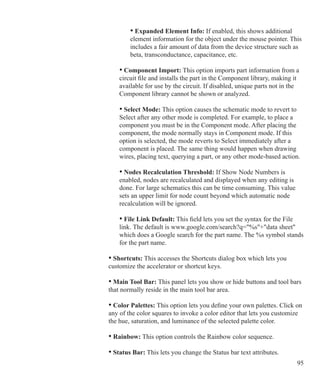
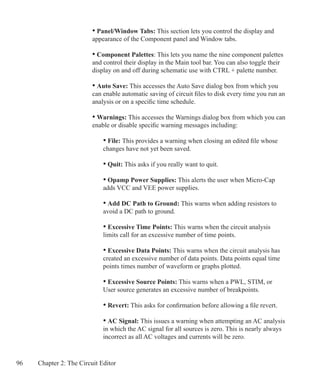
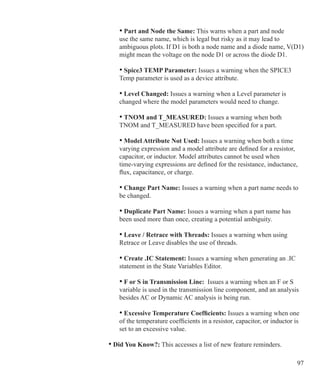
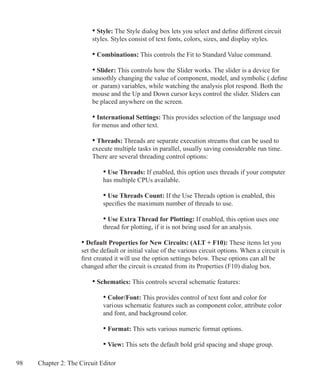
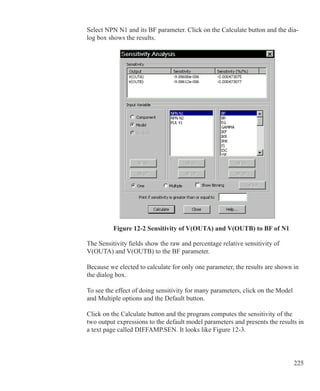
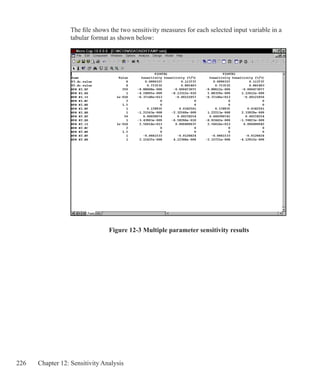
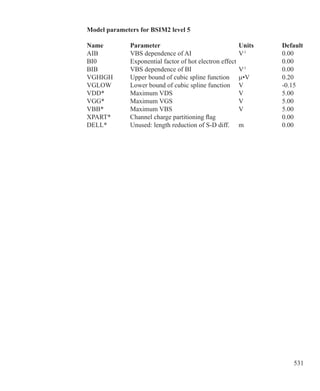
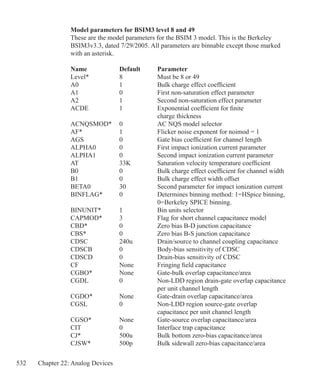
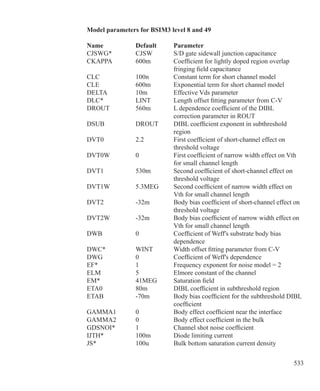
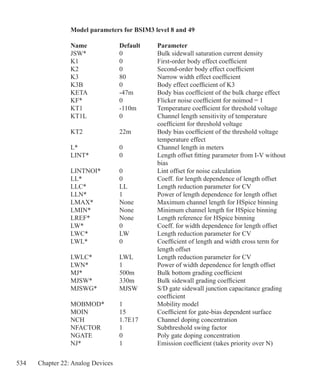
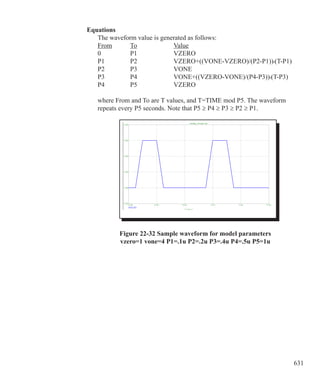
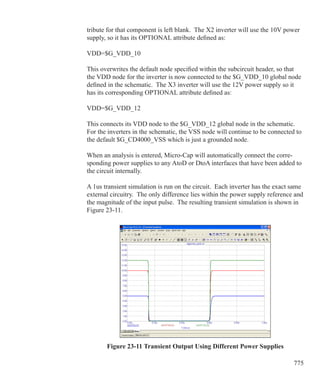
Micro-Cap 10
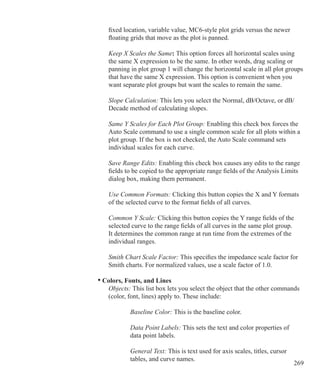
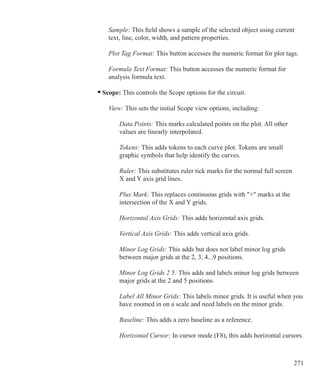
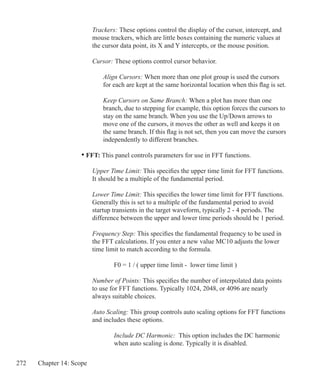
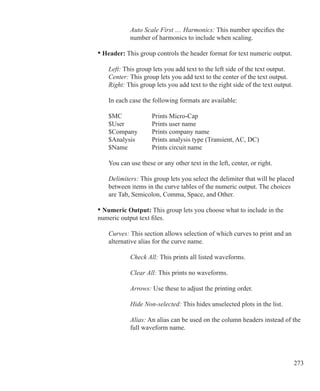
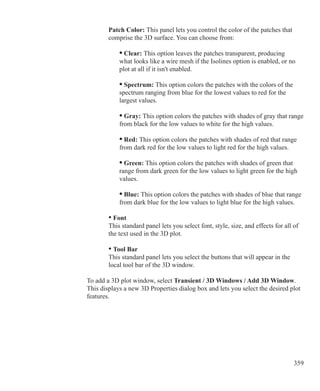
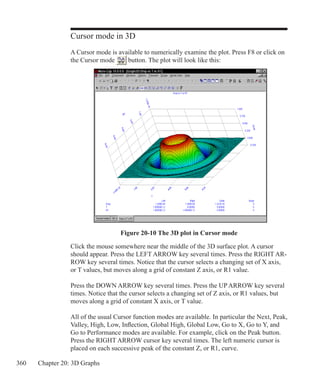
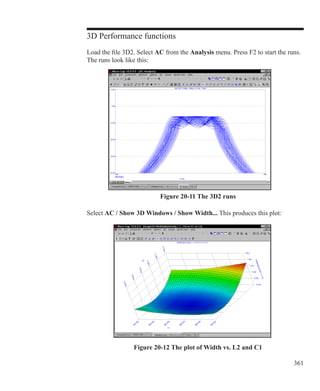
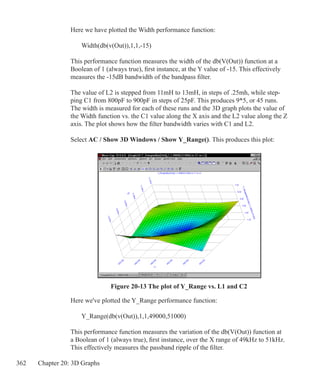
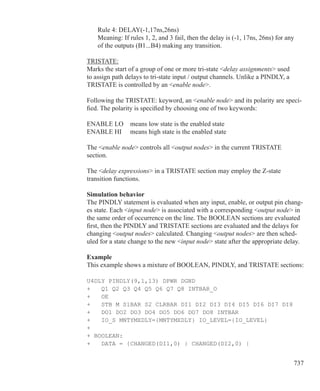
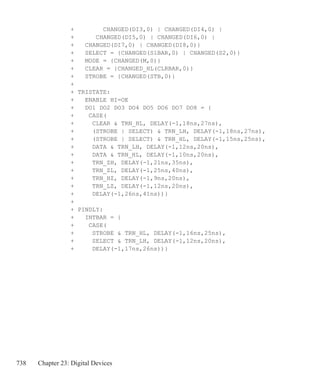
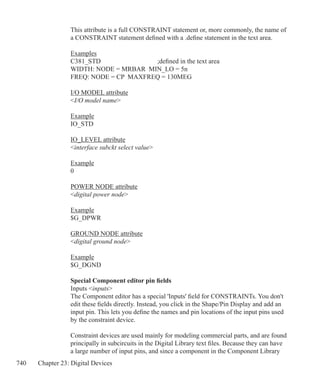
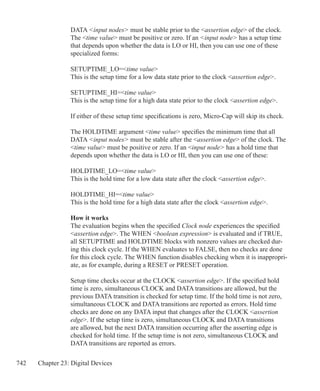
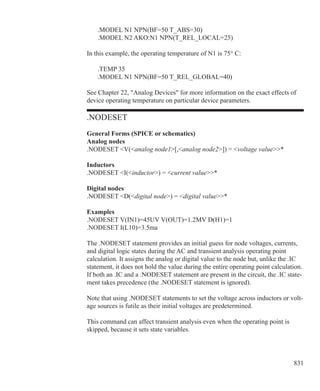
Electronic Circuit Analysis Program
Reference Manual
Copyright 1982-2010 by Spectrum Software
1021 South Wolfe Road
Sunnyvale, CA 94086
Phone: (408) 738-4387
FAX: (408) 738-4702
Internet:www.spectrum-soft.com
Support:support@spectrum-soft.com
Sales:sales@spectrum-soft.com
Tenth Edition
October 2010
Copyright
© Spectrum Software. 1982-2010. This manual and the software described in it
are copyrighted, with all rights reserved. No part of this publication, or the soft-
ware, may be reproduced, transmitted, transcribed, stored in a retrieval system, or
translated into any language in any form without the written permission of Spec-
trum Software.
Software license notice
Your license agreement with Spectrum Software, which is included with the
product, describes the uses of the software which are permitted and the uses
which are prohibited. Any unauthorized duplication of Micro-Cap 10, in whole or
in part, in print, or in any other retrieval or storage system is expressly forbidden.
Contents
Contents - Typographic conventions 15
Chapter 1 - Windows Basics 17
Introduction 18
Parts of a window 18
Basic mouse and keyboard techniques 21
Menus 22
Chapter 2 - The Circuit Editor 23
Circuit structure 25
Schematic objects 27
Schematic modes 28
Circuit editor 32
Selecting and deselecting objects 34
Creating a new circuit 36
Adding and editing components 37
The Attribute dialog box 39
Adding wires to a schematic 44
Using the Bus 46
Adding and editing grid text 48
Formula text 51
Adding and editing graphic objects 53
Adding and editing flags 54
Moving schematic objects 54
Rotating schematic objects 54
Stepping schematic objects 55
Mirroring schematic objects 56
Deleting schematic objects 57
The Undo and Redo commands 57
Enabling / disabling schematic objects 58
Node number assignment 59
The clipboard 60
Drag copying 61
The Info command 62
The Help command 62
The Digital Path commands 63
Navigating schematics 65
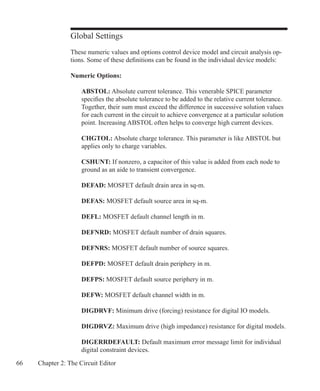
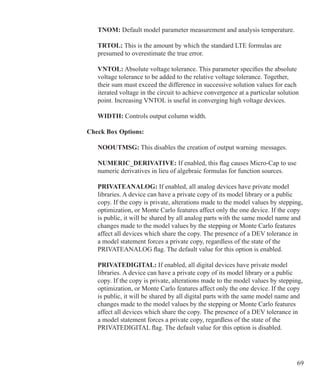
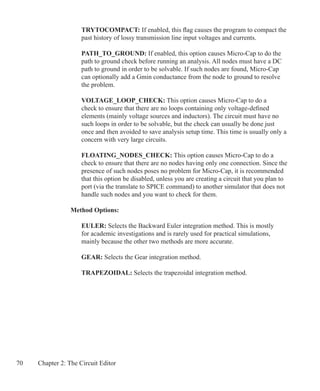
Global Settings 66
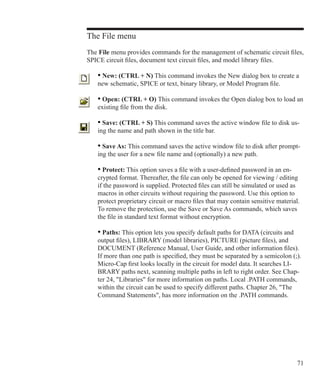
The File menu 71
The Edit menu 76
The Component menu 82
The Component panel 84
The Windows menu 85
The Options menu 87
The Analysis menu 107
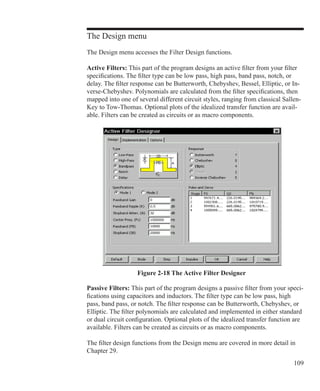
The Design menu 109
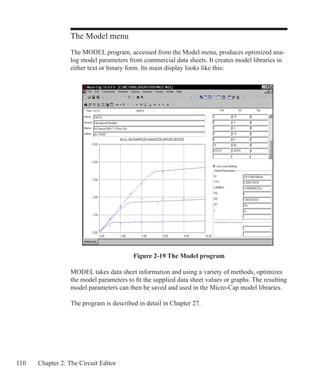
The Model menu 110
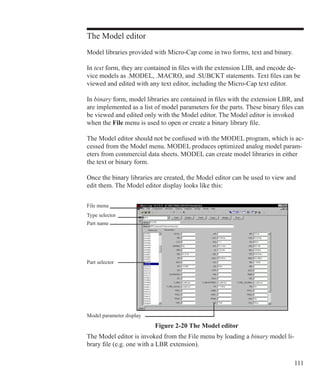
The Model editor 111
The Help system 113
Chapter 3 - The Shape Editor 116
The Shape editor layout 117
The Object editor 124
The Shape library 126
Chapter 4 - The Component Editor 128
The Component editor layout 129
Adding components to the library 135
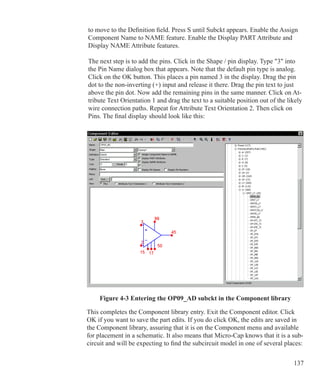
Adding subcircuits to the library 136
Using the Add Part wizard 139
Using the Import wizard 141
Adding SPICE Models from Manufacturers 143
Using Copy, Paste, and Replace 148
Making circuit files portable 149
Chapter 5 - The Package Editor 151
The Package editor layout 152
Adding basic packages to the library 155
Adding complex packages to the library 156
Chapter 6 - Transient Analysis 157
What happens in transient analysis 158
The Transient Analysis Limits dialog box 160
The Transient menu 166
Initialization 167
The State Variables editor 169
Using the P key 170
Numeric output 171
Operating Point Methods 173
Chapter 7 - AC Analysis 175
What happens in AC analysis 176
The AC Analysis Limits dialog box 178
The AC menu 184
Numeric output 185
Noise 187
AC analysis tips 188
Chapter 8 - DC Analysis 191
The DC Analysis Limits dialog box 192
The DC menu 198
Numeric output 199
Troubleshooting tips 200
Chapter 9 - Dynamic AC Analysis 201
What happens in Dynamic AC analysis 202
A sample of Dynamic AC analysis 205
Chapter 10 - Dynamic DC Analysis 209
What happens in Dynamic DC analysis 210
A sample of Dynamic DC analysis 213
Chapter 11 - Transfer Function Analysis 217
What happens in transfer function analysis 218
The Transfer Function Analysis Limits dialog box 219
A sample of transfer function analysis 220
Chapter 12 - Sensitivity Analysis 221
What happens in sensitivity analysis 222
The Sensitivity Analysis Limits dialog box 223
Chapter 13 - Distortion Analysis 227
Harmonic Distortion 228
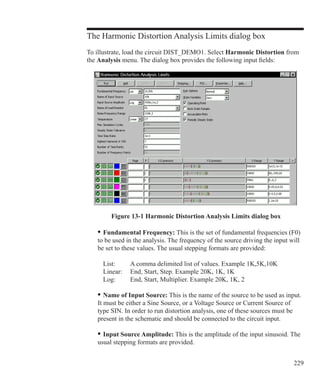
The Harmonic Distortion Analysis Limits dialog box 229
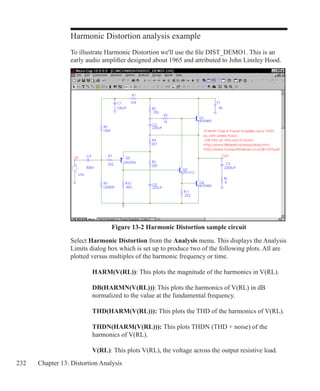
Harmonic Distortion analysis example 232
Harmonic Distortion Properties dialog box 234
Plotting other variables 237
Intermodulation Distortion 238
The Intermodulation Distortion Analysis Limits dialog box 239
Intermodulation Distortion analysis examples 242
Intermodulation Distortion Properties dialog box 245
Harmonic Calculation Notes 250
Intermodulation Calculation Notes 251
Chapter 14 - Scope 253
Analysis plot modes 254
Panning the plot 256
Scaling the plot 257
Tagging the plot 258
Adding graphics to the plot 260
Scope menu 261
The Plot Properties dialog box 266
Cursor mode positioning 280
Waveform Buffer 282
Chapter 15 - Probe 285
How Probe works 286
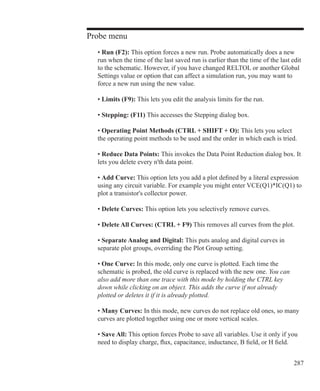
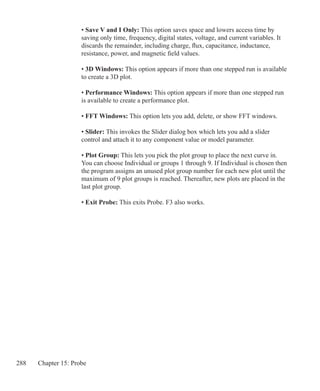
Probe menu 287
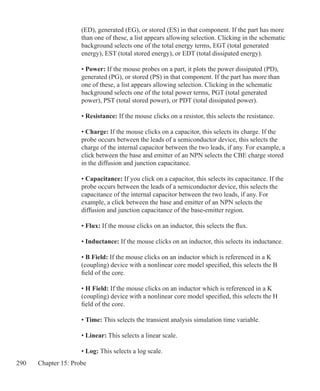
Transient analysis variables 289
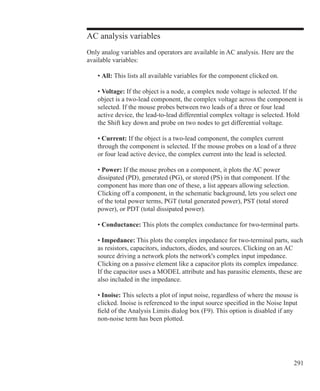
AC analysis variables 291
DC analysis variables 293
Probe analog variables 294
Probe regions 295
Probing a SPICE file 295
Editing the schematic in Probe 296
Probing macros and subcircuits 296
Chapter 16 - Stepping 297
How stepping works 298
What can be stepped? 298
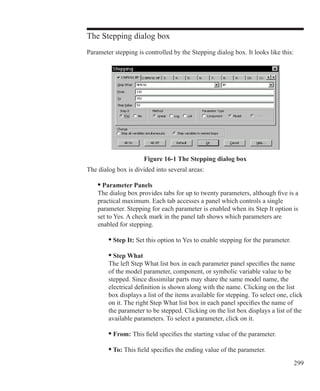
The Stepping dialog box 299
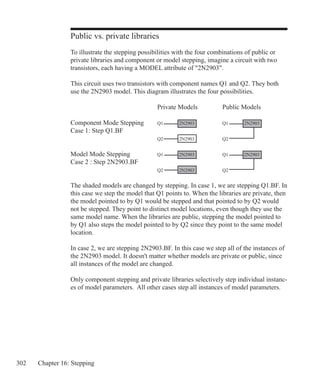
Public vs. private libraries 302
Stepping summary 303
Chapter 17 - Optimizer 305
How the optimizer works 306
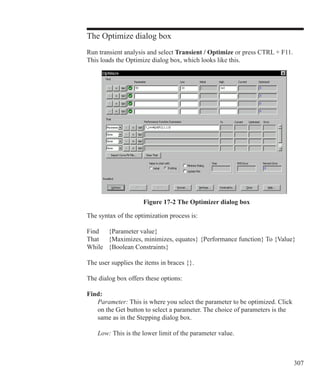
The Optimize dialog box 307
Optimizing low frequency gain 311
Optimizing matching networks 314
Curve fitting with the optimizer 317
Chapter 18 - Monte Carlo Analysis 321
How Monte Carlo works 322
Tolerancing symbolic parameters 326
Tolerances and public vs. private libraries 327
Distributions 328
Options 329
Performance functions 332
Chapter 19 - Performance Functions 333
What are performance functions? 334
Performance functions defined 335
The Performance Function dialog box 339
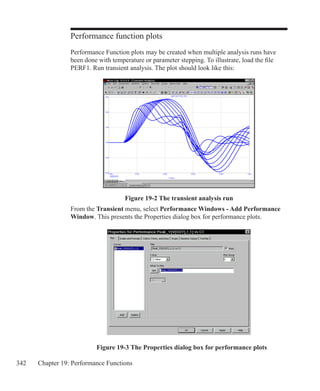
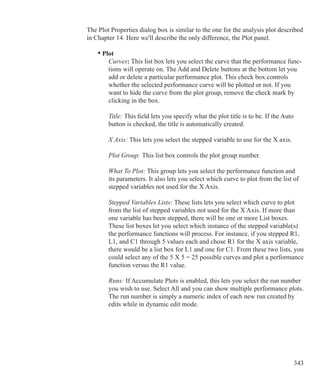
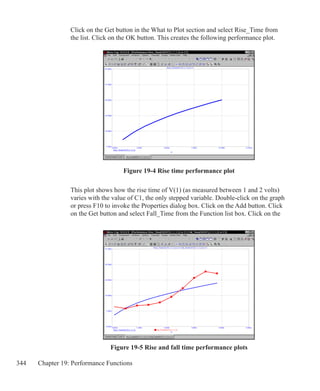
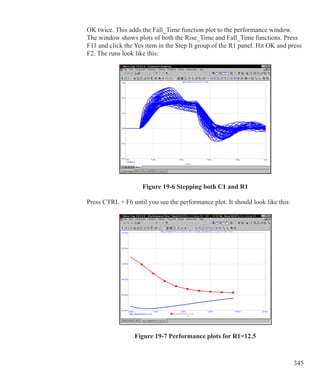
Performance function plots 342
Chapter 20 - 3D Graphs 349
How 3D plotting works 350
3D example 351
The Properties dialog box for 3D plots 354
Cursor mode in 3D 360
3D Performance functions 361
Changing the plot orientation 363
Scaling in 3D 364
Chapter 21 - Macros 365
ABS 367
AM 368
AMP 369
BALUN 370
CENTAP 371
CLIP 372
COMP 373
COMPARATOR 374
Constant Power 375
CPFSK 376
DC Motor 377
DELAY 378
DIAC 379
DIF 380
DIGPOT 381
DIV 382
F 383
FSK 384
FWeighting 385
GYRATOR 386
IDEAL_TRANS2 387
IDEAL_TRANS3 388
INT 389
INT_RESET 390
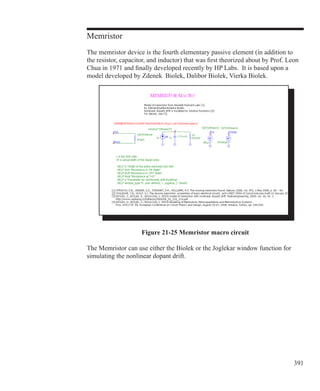
Memristor 391
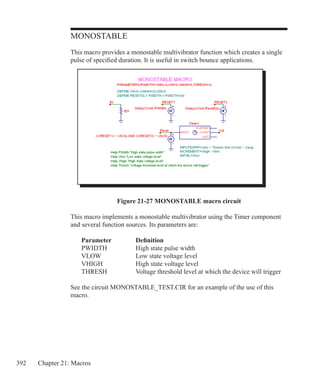
MONOSTABLE 392
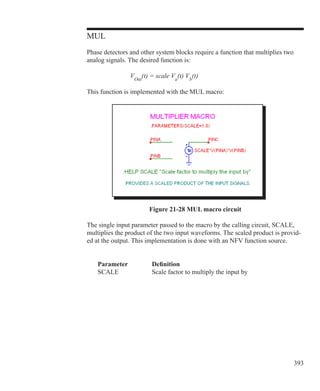
MUL 393
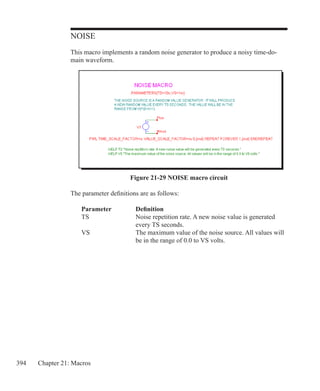
NOISE 394
Peak Detector 395
PHOTODIODE 396
PHOTODIODE_R 397
PID Controller 398
POT 399
PSK 400
PUT 401
PWM 402
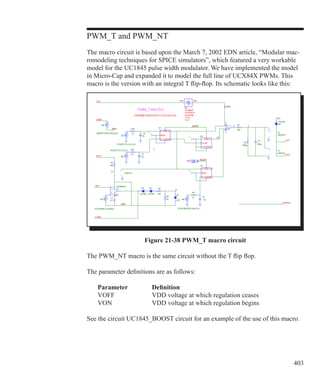
PWM_T and PWM_NT 403
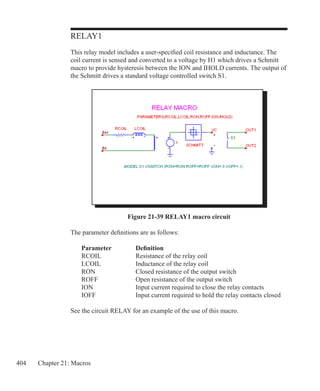
RELAY1 404
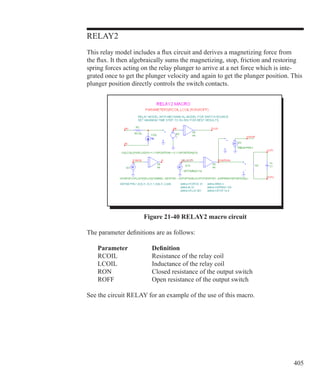
RELAY2 405
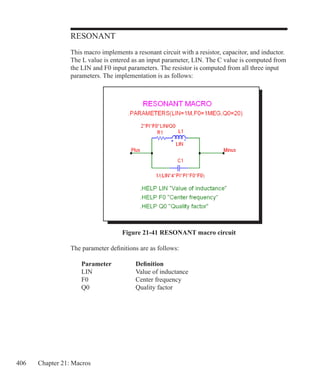
RESONANT 406
RTD 407
SCHMITT 408
SCR 409
SLIP 410
SNUBBER 411
SPARKGAP 412
SUB 413
SUM 414
SUM3 415
TRIAC 416
TRIGGER6 417
TRIODE 418
VCO 419
WIDEBAND 420
XTAL 421
555 422
Chapter 22 - Analog Devices 423
References 424
Animated analog bar 428
Animated analog LED 429
Animated DC motor 430
Animated DPST, SPDT, and SPST switches 431
Animated meter 432
Animated relay 434
Animated traffic light  436
Animated digital switch 437
Animated digital LED 438
Animated seven segment display 439
Battery 440
Bipolar transistor (Standard Gummel Poon Level=1) 441
Bipolar transistor (Philips Mextram Level = 2 or 21) 447
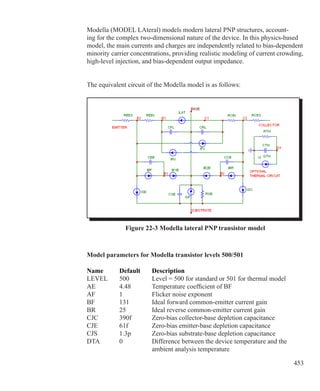
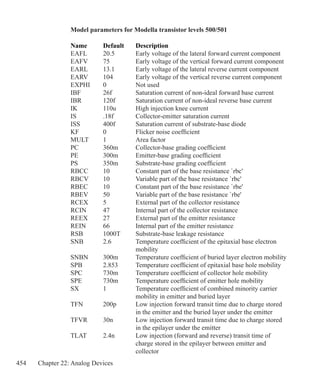
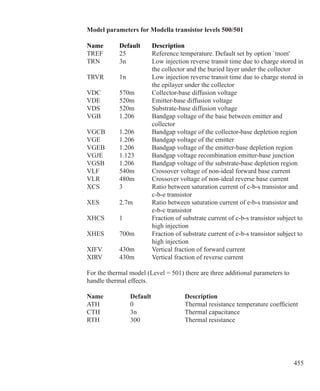
Bipolar transistor (Philips Modella Level = 500 or 501) 452
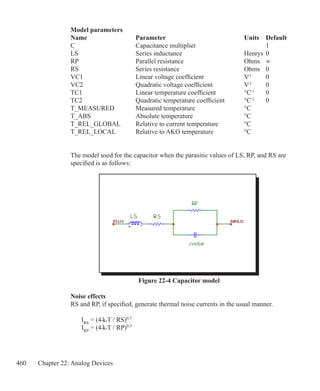
Capacitor 456
Dependent sources (linear) 461
Dependent sources (SPICE E, F, G, H devices) 462
Diode 467
Diode (Philips JUNCAP and JUNCAP2) 471
Function sources 477
GaAsFET 481
IBIS 486
IGBT 487
Independent sources (Voltage Source and Current Source) 492
Inductor 501
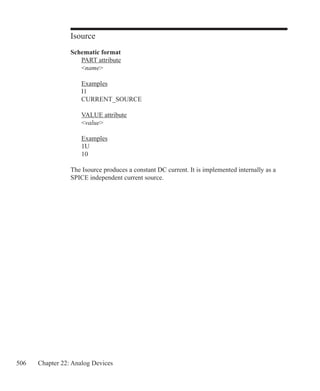
Isource 506
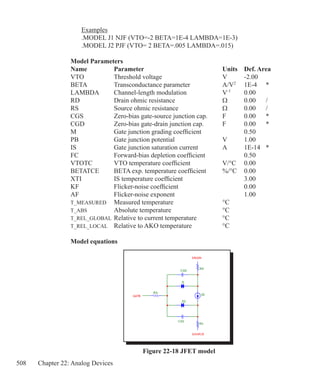
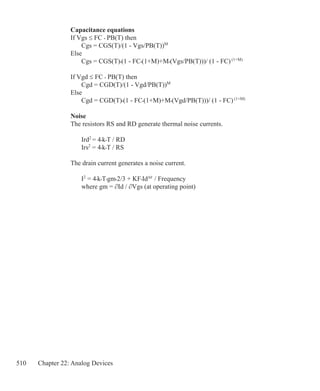
JFET 507
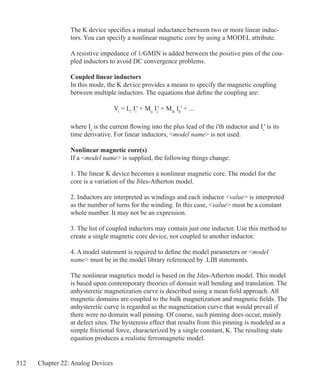
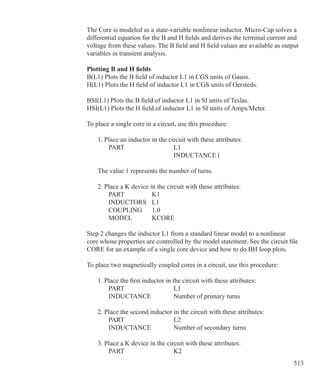
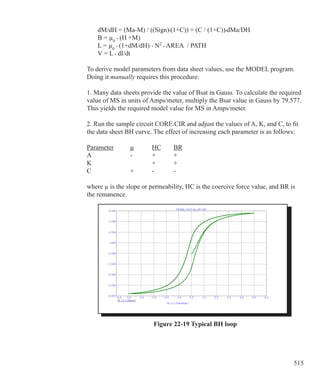
K (Mutual inductance / Nonlinear magnetics model) 511
Laplace sources 516
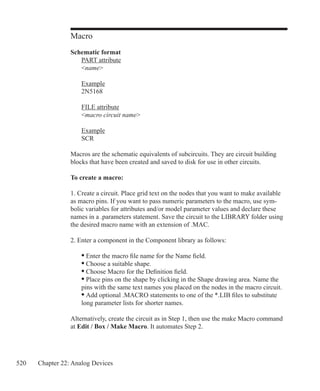
Macro 520
MOSFET 522
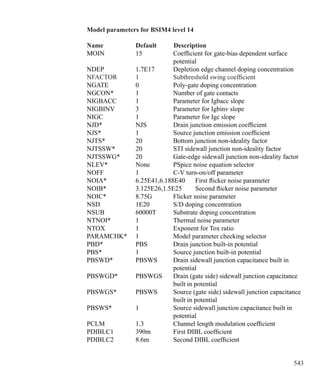
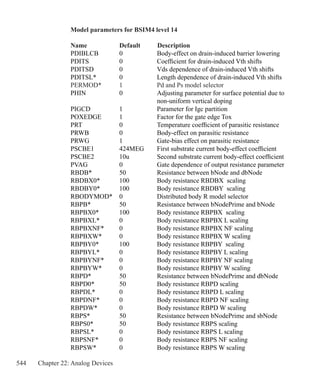
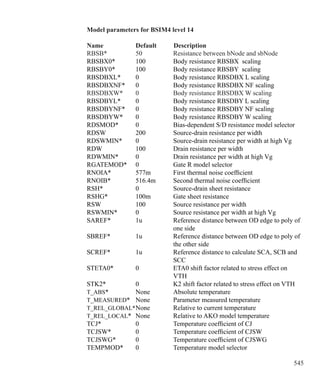
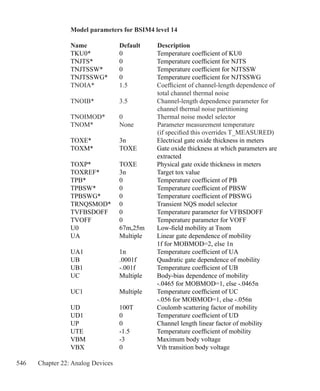
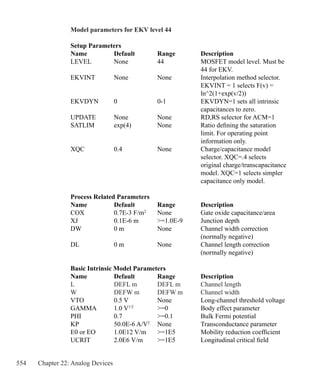
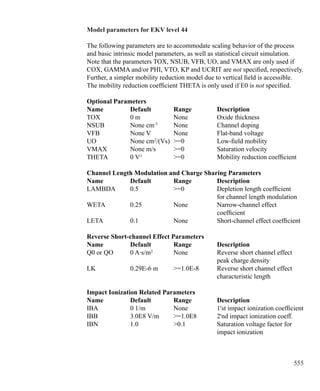
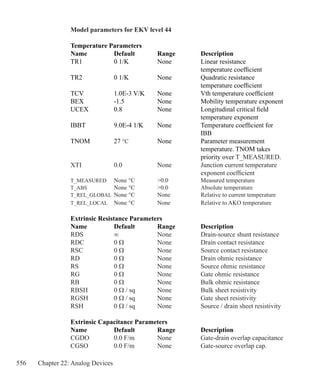
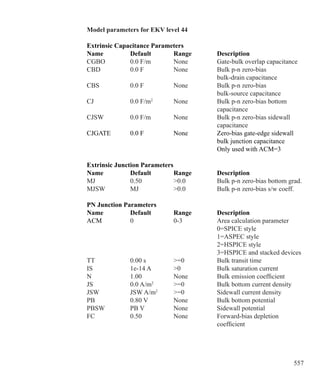
MOSFET (EKV) 551
10 
MOSFET Philips Model 11 568
MOSFET Philips Model 20 584
MOSFET Philips Model 31 591
MOSFET Philips Model 40 594
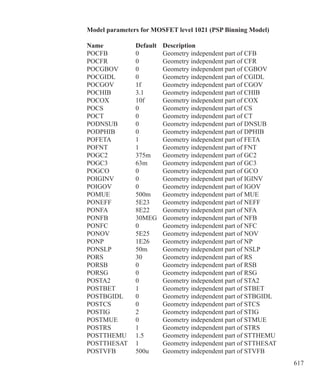
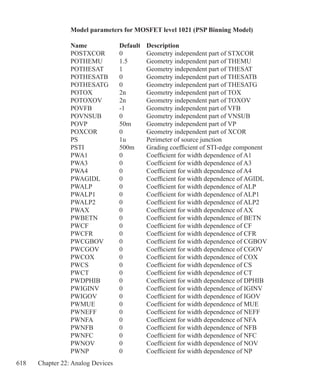
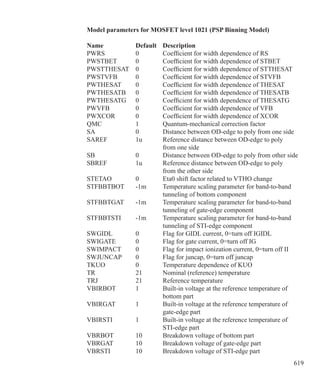
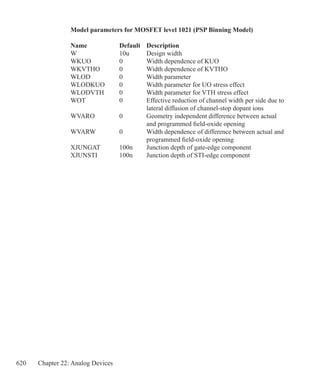
MOSFET PSP Model 597
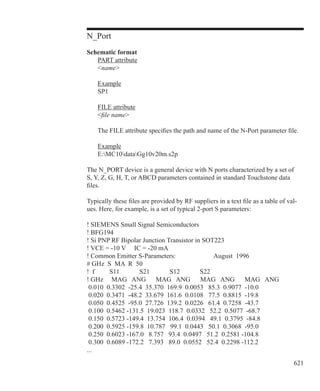
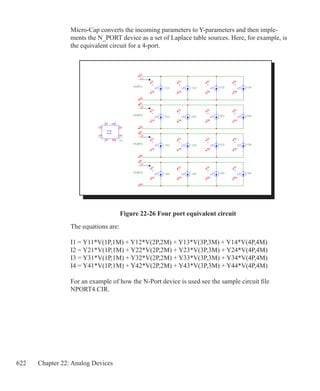
N_Port 621
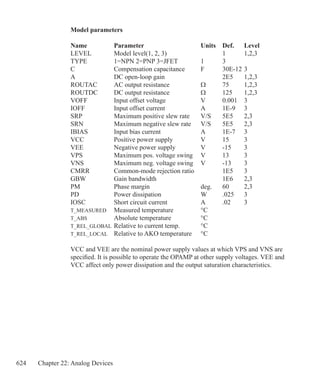
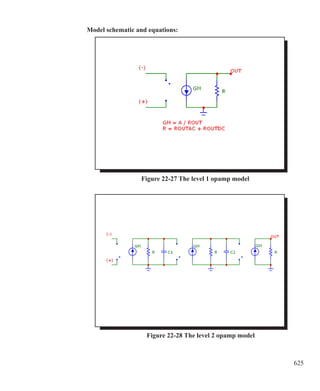
OPAMP 623
Pulse source 630
Resistor 632
S (Voltage-controlled switch) 636
Sample and hold source 639
Sine source 641
Subcircuit call 643
Switch 646
Timer 648
Transformer 651
Transmission line 652
User file source 655
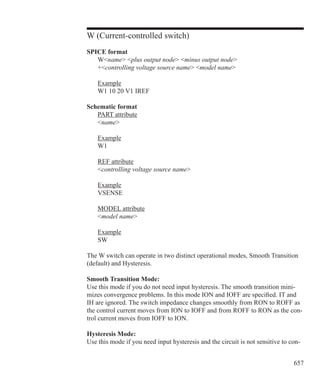
W (Current-controlled switch) 657
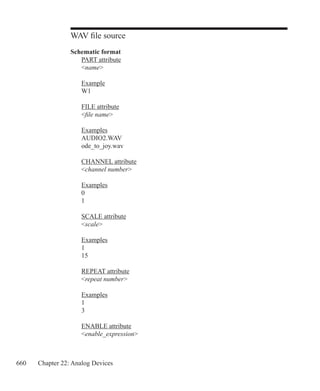
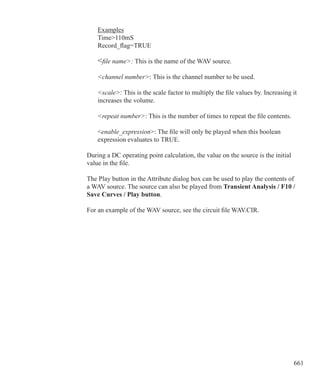
WAV file source 660
Z transform source 662
Chapter 23 - Digital Devices 663
The digital simulation engine 664
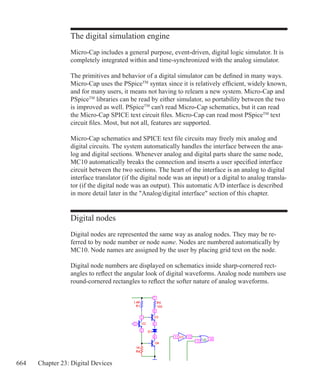
Digital nodes 664
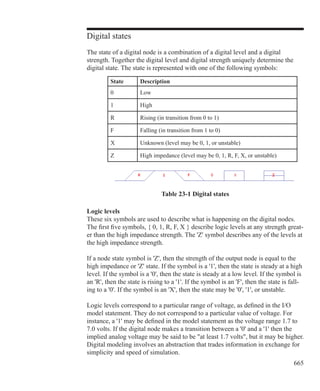
Digital states 665
Timing models 668
Unspecified propagation delays 669
Unspecified timing constraints 670
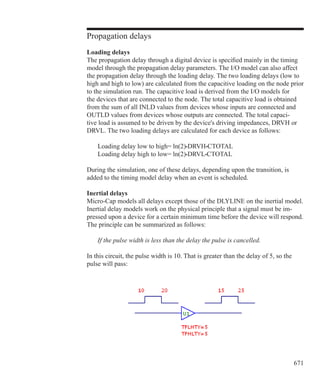
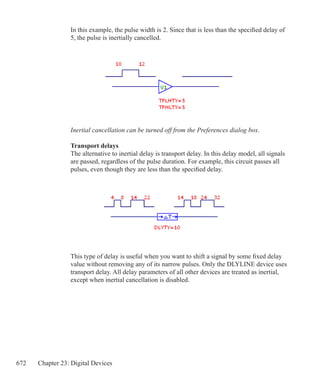
Propagation delays 671
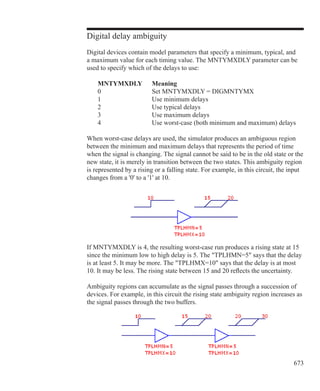
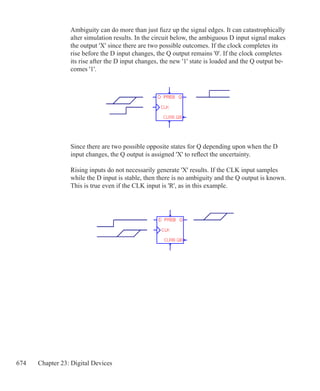
Digital delay ambiguity 673
Timing hazards 675
The analog/digital interface 677
General digital primitive format 681
Primitives 684
Gates 687
Standard gates 688
Tri-state gates 692
Flip-flops and latches 696
Edge-triggered flip-flops 697
Gated latch 702
11
Pullup and pulldown 707
Delay line 709
Programmable logic arrays 711
Multi-bit A/D converter 717
Multi-bit D/A converter 721
Behavioral primitives 724
Logic expression 725
Pin-to-pin delay 730
Constraint checker 739
Stimulus devices 747
Stimulus generator 747
Stimulus generator examples 751
The File Stimulus device 757
File Stimulus input file format 757
I/O model 763
Digital / analog interface devices 766
Digital input device (N device) 766
Digital output device (O device) 770
Changing the power supplies of a digital library part 773
Chapter 24 - Libraries 777
The Shape Library 778
The Package Library 778
The Component Library 779
The Model Library 781
How models are accessed 782
Chapter 25 - Expressions 783
What are expressions? 784
Numbers 785
Symbolic variables 786
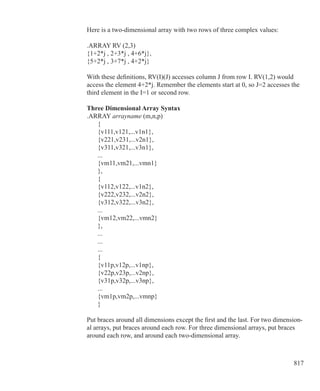
Array variables 787
Constants and analysis variables 789
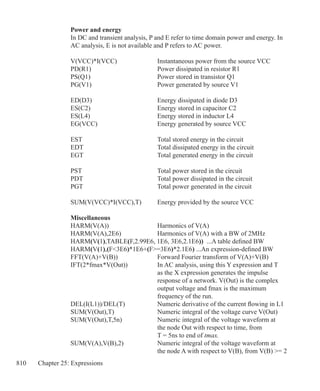
Power and Energy 790
Variables 791
Wildcard device and node names 792
Component variables 795
Subcircuit and macro variables 797
Model parameter variables 798
Branch selection operators 799
12 
Sample variables 800
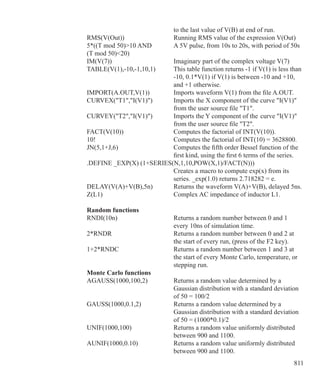
Mathematical operators and functions 801
Sample expressions 809
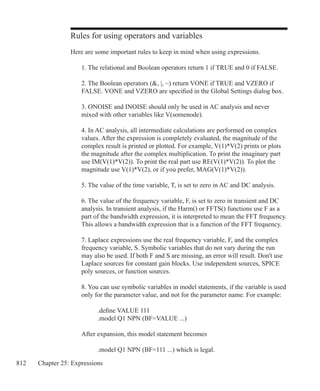
Rules for using operators and variables 812
Chapter 26 - Command Statements 814
.AC 815
.ARRAY 816
.DC 818
.DEFINE 819
.ELIF  821
.ELSE 821
.END 822
.ENDIF 822
.ENDS 822
.ENDSPICE 823
.FUNC 823
.HELP 824
.IC 824
.IF 825
.INCLUDE 826
.LIB 826
.MACRO 827
.MODEL 828
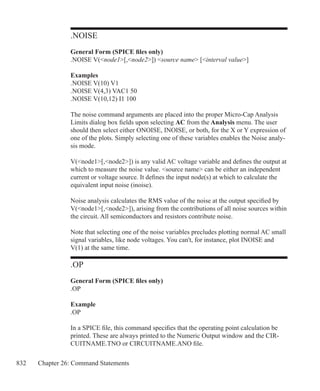
.NODESET  831
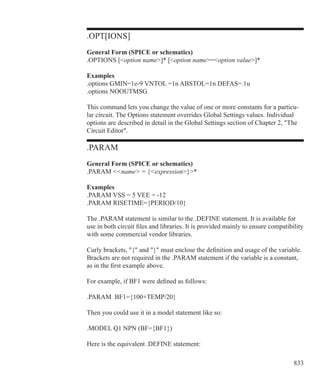
.NOISE 832
.OP 832
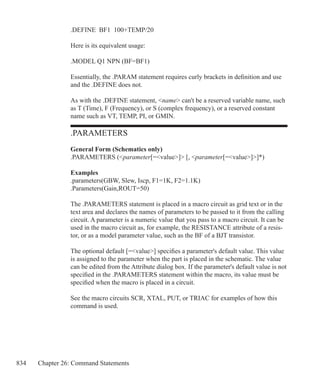
.OPT[IONS] 833
.PARAM 833
.PARAMETERS 834
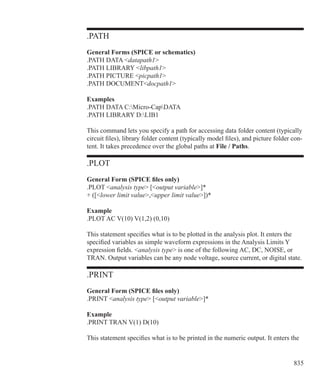
.PATH 835
.PLOT 835
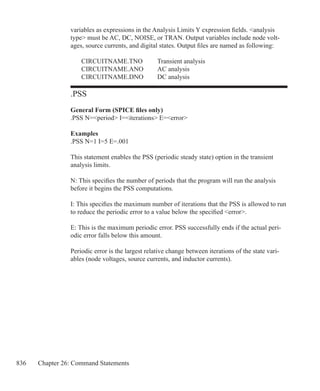
.PRINT 835
.PSS 836
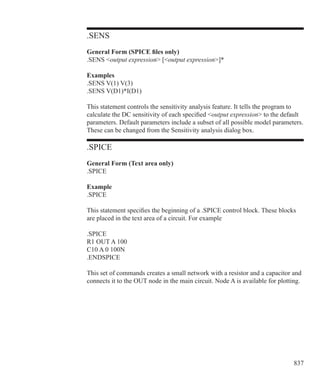
.SENS 837
.SPICE 837
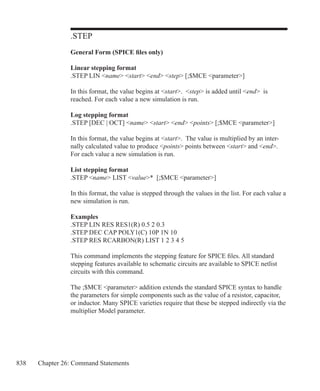
.STEP 838
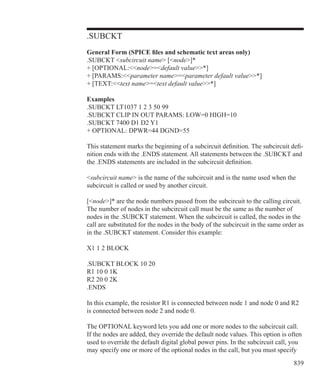
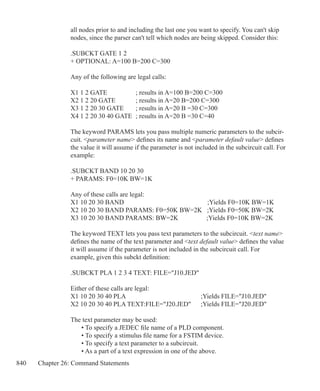
.SUBCKT  839
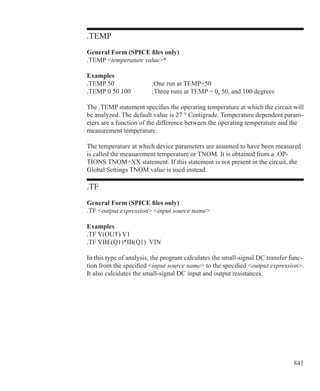
.TEMP  841
.TF 841
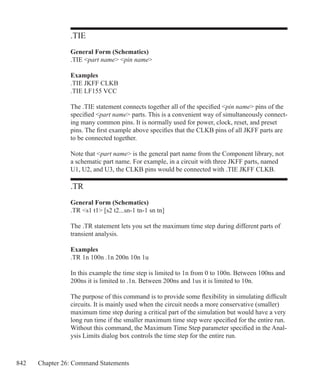
.TIE 842
13
.TR 842
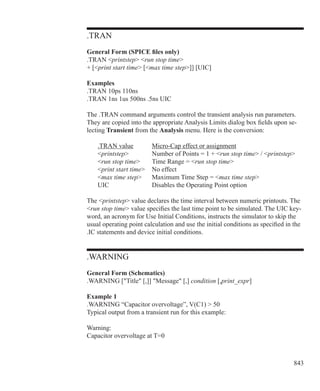
.TRAN  843
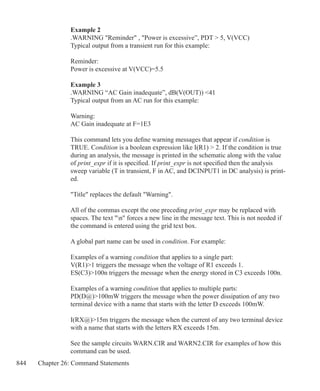
.WARNING 843
.WATCH 845
Chapter 27 - The Model Program 847
How to start Model 847
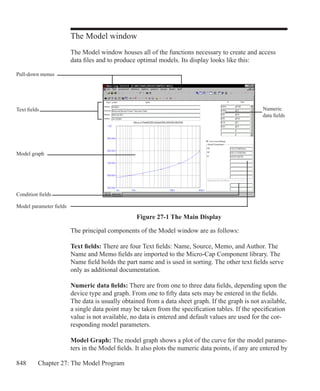
The Model window 848
The Model tool bar 850
The Model menu 852
A bipolar transistor example 858
Optimizing subcircuits in the Model program 864
Diode graphs 870
Bipolar transistor graphs 871
JFET graphs 873
MOSFET graphs 874
Opamp graphs 876
Core graph 877
User Graphs 878
Ferrite Bead graph 879
NTC Thermistor graph 880
Chapter 28 - The IBIS Translator 881
What is IBIS? 882
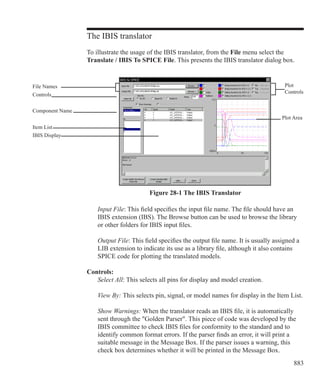
The IBIS translator 883
An example of IBIS file translation 886
Chapter 29 - Filter Design 891
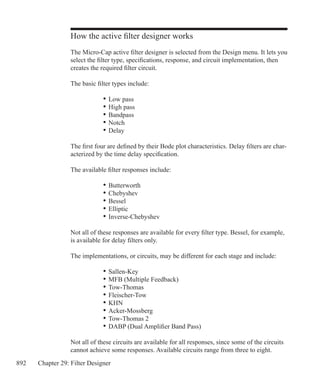
How the active filter designer works 892
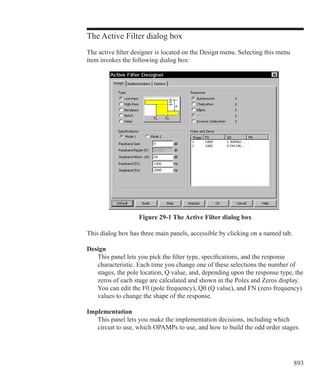
The Active Filter dialog box 893
Component lists 904
Filter support files 906
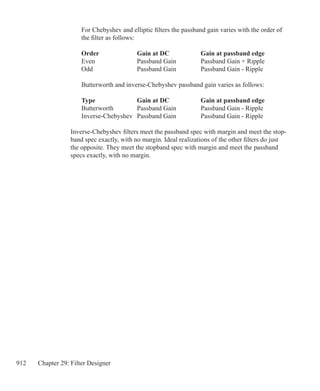
Filter specification: mode 1 907
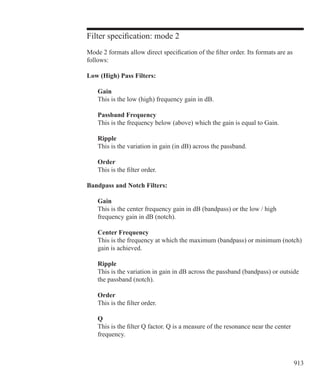
Filter specification: mode 2 913
How the passive filter designer works 915
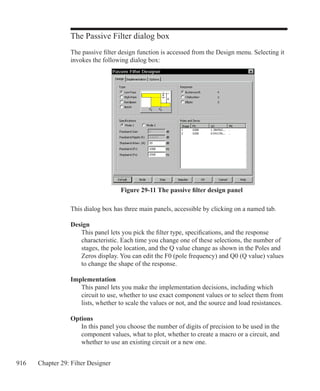
The Passive Filter dialog box 916
14 
Chapter 30 - Convergence 919
Convergence defined 920
What causes convergence problems 921
Convergence checklist  922
Chapter 31 - Fourier Analysis 927
How FFT functions work 928
Fast Fourier Transform functions 930
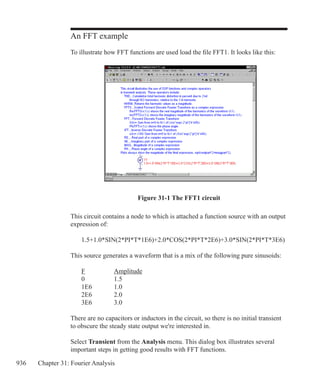
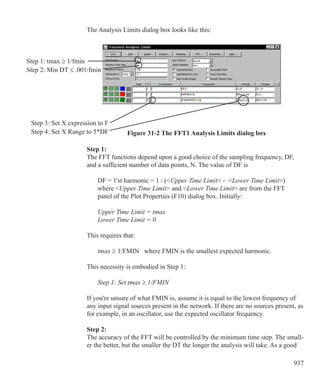
An FFT example 936
The FFT control panel 941
The FFT window 944
Chapter 32 - Periodic Steady State 947
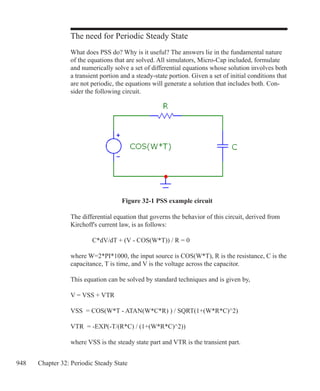
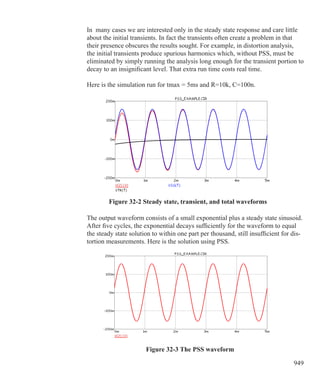
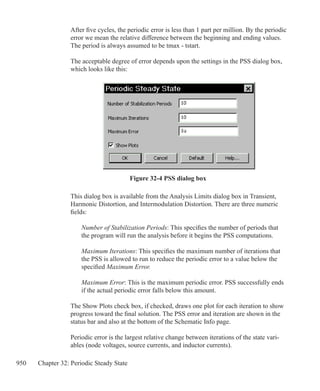
The need for Periodic Steady State 948
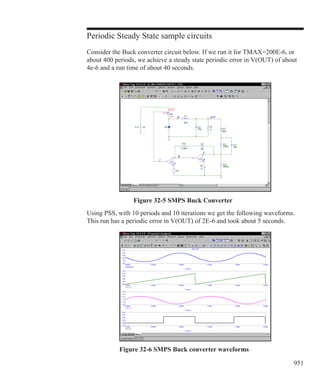
Periodic Steady State sample circuits 951
Periodic Steady State assumptions and limitations 955
Appendix A - Reference Manual Errata 957
Index 959
15
Typographic conventions
Certain typographic conventions are employed to simplify reading and using the
manuals. Here are the guidelines:
	
1. Named keys are denoted by the key name alone. For example:
	 Press HOME, then press ENTER.
2. Text that is to be typed by the user is denoted by the text enclosed in double
quotes. For example:
	 Type in the name TTLINV.
3. Combinations of two keys are shown with the key symbols separated by a plus
sign. For example:
	 ALT + R
4. Option selection is shown hierarchically. For example this phrase:
	 Options / Preferences / Options / General / Sound
	 means the Sound item from the General section of the Options group in the
	 Preferences dialog box, accessed from the Options menu.
5. Square brackets are used to designate optional entries. For example:
	 [Low]
6. The characters  and  bracket required entries. For example:
	 emitter_lead
7. User entries are shown in italics. For example:
	 emitter_lead
8. The OR symbol ( | ) designates mutually exclusive alternatives. For
example, PUL | EXP | SIN means PUL or EXP or SIN.
16
17
Windows Basics
What's in this chapter
This chapter introduces and reviews the basics of working with Windows. It
describes the common Windows structures including menus, dialog boxes, text
boxes, list boxes, drop-down list boxes, option buttons, and check boxes. It also
covers basic mouse and keyboard handling techniques and describes the differ-
ence between selecting and choosing.
Chapter 1
18 Chapter 1: Windows Basics
Introduction
Micro-Cap is a Windows program. To use the program, it is necessary to un-
derstand how Windows itself operates. Even though it is assumed that you are
familiar with the Windows system, this chapter provides a brief introduction and
review of the basic Windows features.
Parts of a window
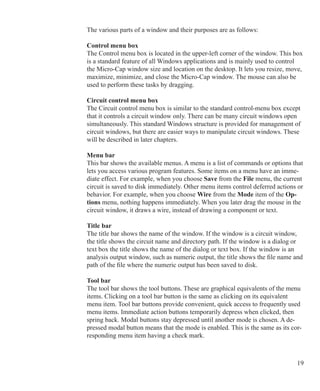
Most Micro-Cap operations are performed from within overlapping rectangular
regions called windows. In this section we describe the parts common to most of
these windows, and defer for later the more specialized Micro-Cap functions.
Circuit control menu box
Control menu box
Title bar
Close button
Maximize / Restore
button
Menu bar
Tool bar
Window corner
Horizontal scroll bar
Vertical
scroll bar
Windows border
Figure 1-1 The parts of a window
Minimize button
Component Panel
19
The various parts of a window and their purposes are as follows:
Control menu box
The Control menu box is located in the upper-left corner of the window. This box
is a standard feature of all Windows applications and is mainly used to control
the Micro-Cap window size and location on the desktop. It lets you resize, move,
maximize, minimize, and close the Micro-Cap window. The mouse can also be
used to perform these tasks by dragging.
Circuit control menu box
The Circuit control menu box is similar to the standard control-menu box except
that it controls a circuit window only. There can be many circuit windows open
simultaneously. This standard Windows structure is provided for management of
circuit windows, but there are easier ways to manipulate circuit windows. These
will be described in later chapters.
Menu bar
This bar shows the available menus. A menu is a list of commands or options that
lets you access various program features. Some items on a menu have an imme-
diate effect. For example, when you choose Save from the File menu, the current
circuit is saved to disk immediately. Other menu items control deferred actions or
behavior. For example, when you choose Wire from the Mode item of the Op-
tions menu, nothing happens immediately. When you later drag the mouse in the
circuit window, it draws a wire, instead of drawing a component or text.
Title bar
The title bar shows the name of the window. If the window is a circuit window,
the title shows the circuit name and directory path. If the window is a dialog or
text box the title shows the name of the dialog or text box. If the window is an
analysis output window, such as numeric output, the title shows the file name and
path of the file where the numeric output has been saved to disk.
Tool bar
The tool bar shows the tool buttons. These are graphical equivalents of the menu
items. Clicking on a tool bar button is the same as clicking on its equivalent
menu item. Tool bar buttons provide convenient, quick access to frequently used
menu items. Immediate action buttons temporarily depress when clicked, then
spring back. Modal buttons stay depressed until another mode is chosen. A de-
pressed modal button means that the mode is enabled. This is the same as its cor-
responding menu item having a check mark.
20 Chapter 1: Windows Basics
Close button
The Close button closes the window.
Maximize / Restore button
The Restore button restores the windows prior size or maximizes the windows
size.
Minimize button
The Minimize button reduces the window to an icon.
Scroll bars
The scroll bars are used to pan the window document. If the window is a circuit,
the scroll bars are one of several ways to view different parts of the circuit. If the
scroll bars are part of a list box, they let you browse the list.
Window border
The window border is a control object on the outside edge of the window. When
the mouse passes over the edge, the cursor changes to a vertical or horizontal
double arrow. A mouse drag then moves the underlying border, changing the win-
dow size and proportions.
Component panel
The optional Component Panel is used to select components for placement in the
schematic window. It can be placed in a variety of locations within the window.
Window corner
The window corner is a control object on the corner of the window. When the
mouse passes over the corner, the cursor changes to a diagonal double arrow. A
21
Basic mouse and keyboard techniques
This section explains the basic terms and techniques used to select and choose
items from windows, menus, list boxes, and dialog boxes. The definitions of the
more common terms are as follows:
	 This Term		 Means
	 Click		 To quickly press and release a mouse button.
	 Double-click	 To click a mouse button twice in rapid succession.
	 Drag		 To hold the mouse button while you move the mouse.
	 Point		 To move the mouse until the mouse pointer is at the
				 desired location on the screen.
Mouse button means the left mouse button, unless otherwise specified. The right
mouse button is reserved for specialized functions.
The terms choose and select have two distinct meanings. To select something
means to mark it, usually as a prelude to choosing it. To choose means to use the
mouse or keyboard to pick or activate the selected item, option, or action.
Selecting is done by clicking the item with the cursor or dragging the cursor over
a region containing the object. Selected text in a text field or in the text area ap-
pears in reversed video. Selected schematic objects, including text objects, are
shown in the user-specified select color. Selected items from a window or dialog
box may be shown as a highlight, or a dotted rectangle.
To choose a selected item in a dialog box, you click it with the mouse or press the
SPACEBAR key. Highlighted buttons are chosen by pressing ENTER.
Accelerator keys are provided for some of the more frequently used menu items.
Like tool bar buttons, they provide a quick and ready way to choose or activate
common menu items. The keys are shown on the menus, adjacent to the items
they activate. The keys can also be changed by the user.
Accelerator keys are well worth learning. For frequently used features, they can
save a lot of time. Appendix D has a list of the accelerator keys.
22 Chapter 1: Windows Basics
Menus
Menus provide the basic commands and options that let you use Micro-Cap fea-
tures.
To select a menu:
	 Mouse
	 Using the mouse pointer, point to the name of the menu on the menu bar, and
	 click the left mouse button. This opens the menu and displays its contents.
	 You can also drag the mouse from the menu name directly to the item name
	 and release the button to choose it.
	 Keyboard
	 If the menu name contains an underlined letter, press ALT + underlined
	 letter. Alternatively, use this method:
		 • Press ALT to select the menu bar.
		 • Press LEFT ARROW or RIGHT ARROW to select the desired menu.
		 • Press ENTER to open the selected menu.
	
To close a menu:
	 Click anywhere outside the menu or press the ESC key.
To choose an item from a menu:
	 Click the mouse on the item name or use UP ARROW or DOWN ARROW
	 keys to select the item, and then press ENTER to choose the item.
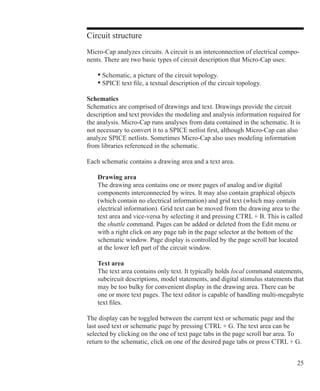
Menu conventions:
	 Convention		 Meaning
	 Dimmed or missing item	 The item is not available or inappropriate.
					 For example, the Copy command is dimmed
					 when nothing is selected.
	 Ellipsis (...	 )		 A dialog box appears revealing more choices to 		
					 be made before the command can be completed.
	 Check mark			 A check mark means the option is in effect.
	 A key combination		 The key combination is a shortcut for this item.
	 A triangle 			 This indicates that a cascading menu appears
					 listing additional choices.
23
Chapter 2 The Circuit Editor
What's in this chapter
This chapter describes the Circuit editor, the foundation of the Micro-Cap user
interface. It provides access to all of the basic program functions, including cir-
cuit construction, analyses, and the various editors.
Features new in MC10
	 • Grid text can now be edited directly by double-clicking the text while
	 holding down the Alt key.
	 • A Favorites tab was added to the Component Panel. It tracks component
	 usage and provides a list arranged with the most often used parts at the top.
	 • When you hold the mouse over a part after a run, this box now optionally
	 shows additional device information such as beta, capacitance, conductance,
	 and many more values from the internal device structure.
	 • The text find command was elaborated to show all instances of the text, as
	 it is being typed. The currently selected piece is highlighted with Previous
	 and Next buttons navigating the instances found.
	 • The font and numeric format of node voltages, pin currents, and power
	 values are now controlled from the circuit Properties page (F10), rather than
	 being global formats that apply to all circuits.
	 • The Find command now allows Find and Replace operations on any
	 attribute or grid text.
	 • The new Change / Attribute feature has been expanded to allow
	 simultaneous changes of color and / or font of the selected part attribute text.
	 • Non-default global settings are now shown with bold printing to emphasize
	 the change.
	 • A new Align command lets you align selected grid or attribute text.
24 Chapter 2: The Circuit Editor
	 • Users can now create and assign new bitmaps for favorite commands.
	 • A Show/Hide capability for the boolean enable text was added as well as 		
	 font/color control. On-schematic text editing was added for the enable text.
	 • The size of the Find Component dialog box is now adjustable to provide
	 more space for large lists of parts that match the specified text string.
	 • A command was added to close all open files.
	 • The File Save command now works while in an analysis.
	 • The Path to Ground, Voltage Loop, and Floating Nodes checks are now
	 optional.
	 • The character limit for the PWL table edit area was removed. A read from
	 file capability was added.
	 • A Windows dialog box was added to easily activate, close, or save open
	 windows.
	 • In the Bill of Materials report, parts can be grouped (as in earlier versions)
	 or ungrouped according to the status of the Group Parts check box.
	 • The program now automatically checks the web site to see if a newer
	 version is available.
	 • There is now an optional automatic cleanup upon exit from Micro-Cap.
25
Circuit structure
Micro-Cap analyzes circuits. A circuit is an interconnection of electrical compo-
nents. There are two basic types of circuit description that Micro-Cap uses:
	 • Schematic, a picture of the circuit topology.
	 • SPICE text file, a textual description of the circuit topology.
Schematics
Schematics are comprised of drawings and text. Drawings provide the circuit
description and text provides the modeling and analysis information required for
the analysis. Micro-Cap runs analyses from data contained in the schematic. It is
not necessary to convert it to a SPICE netlist first, although Micro-Cap can also
analyze SPICE netlists. Sometimes Micro-Cap also uses modeling information
from libraries referenced in the schematic.
Each schematic contains a drawing area and a text area.
	 Drawing area
	 The drawing area contains one or more pages of analog and/or digital
	 components interconnected by wires. It may also contain graphical objects 		
	 (which contain no electrical information) and grid text (which may contain 		
	 electrical information). Grid text can be moved from the drawing area to the 		
	 text area and vice-versa by selecting it and pressing CTRL + B. This is called 	
	 the shuttle command. Pages can be added or deleted from the Edit menu or
	 with a right click on any page tab in the page selector at the bottom of the
	 schematic window. Page display is controlled by the page scroll bar located 		
	 at the lower left part of the circuit window.
	 Text area
	 The text area contains only text. It typically holds local command statements,
	 subcircuit descriptions, model statements, and digital stimulus statements that
	 may be too bulky for convenient display in the drawing area. There can be
	 one or more text pages. The text editor is capable of handling multi-megabyte
	 text files.
The display can be toggled between the current text or schematic page and the
last used text or schematic page by pressing CTRL + G. The text area can be
selected by clicking on the one of text page tabs in the page scroll bar area. To
return to the schematic, click on one of the desired page tabs or press CTRL + G.
26 Chapter 2: The Circuit Editor
You can split the display to simultaneously show different parts of the drawing
and/or text areas by dragging the vertical or horizontal splitter bar towards the
middle of the window.
SPICE text files
SPICE text files are standard SPICE text descriptions of a circuit, a subcircuit, or
a model statement. Micro-Cap generally follows the original Berkeley SPICE2G
format, with many PSpiceTM
, SPICE3, and some HSPICETM
extensions. Text files
are entered and edited in a text document similar to what a text editor or a word
processor creates. When you create a new SPICE text file, Micro-Cap opens a
text document and lets you edit it as desired. Only when you start an analysis
does Micro-Cap error check it.
You can also translate schematics into SPICE text files of various flavors, in case
you want to check the accuracy of an external SPICE simulator against MC10.
MC10 will, of course, accept such files for analysis.
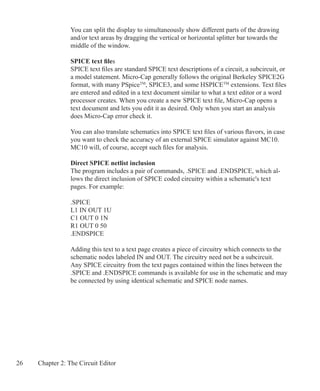
Direct SPICE netlist inclusion
The program includes a pair of commands, .SPICE and .ENDSPICE, which al-
lows the direct inclusion of SPICE coded circuitry within a schematic's text
pages. For example:
.SPICE
L1 IN OUT 1U
C1 OUT 0 1N
R1 OUT 0 50
.ENDSPICE
Adding this text to a text page creates a piece of circuitry which connects to the
schematic nodes labeled IN and OUT. The circuitry need not be a subcircuit.
Any SPICE circuitry from the text pages contained within the lines between the
.SPICE and .ENDSPICE commands is available for use in the schematic and may
be connected by using identical schematic and SPICE node names.
27
Schematic objects
A schematic object is anything that can be placed in a schematic. There are sev-
eral types of objects:
• Components: This includes all analog and digital sources, active and passive
parts, and connectors. In short, it includes any object chosen from the Component
menu.
• Wires: Wires are used to interconnect components. There are two varieties of
wires: orthogonal and diagonal. Orthogonal wires are restricted to the vertical or
horizontal direction. They may contain both a vertical and a horizontal segment.
Diagonal wires are drawn at any angle and only contain one segment.
• Text: Text, sometimes referred to as grid text because its origin is restricted to a
grid, is used for naming nodes, creating command statements, and general docu-
mentation.
• Graphics: Graphical objects include lines, rectangles, ellipses, diamonds, arcs,
pies, brackets, and pictures. They are used for aesthetic or documentation pur-
poses and have no effect on the electrical behavior of the circuit.
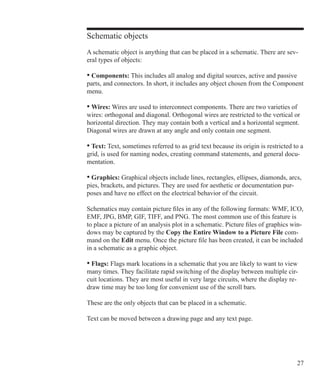
Schematics may contain picture files in any of the following formats: WMF, ICO,
EMF, JPG, BMP, GIF, TIFF, and PNG. The most common use of this feature is
to place a picture of an analysis plot in a schematic. Picture files of graphics win-
dows may be captured by the Copy the Entire Window to a Picture File com-
mand on the Edit menu. Once the picture file has been created, it can be included
in a schematic as a graphic object.
• Flags: Flags mark locations in a schematic that you are likely to want to view
many times. They facilitate rapid switching of the display between multiple cir-
cuit locations. They are most useful in very large circuits, where the display re-
draw time may be too long for convenient use of the scroll bars.
These are the only objects that can be placed in a schematic.
Text can be moved between a drawing page and any text page.
28 Chapter 2: The Circuit Editor
Schematic modes
The Schematic editor is a modal editor. That means the behavior of the mouse
when it is clicked or dragged in the schematic depends upon what mode it is in.
Schematic modes affect either the mouse behavior or the schematic display.
• Behavioral modes
	 • Circuit altering modes
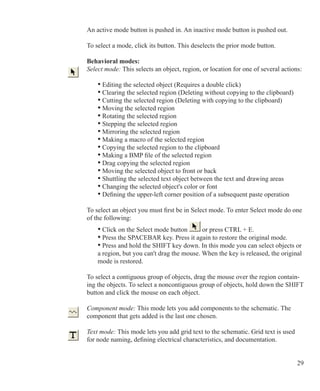
	 	 • Select mode
	 	 • Component mode
	 	 • Text mode
	 	 • Wire mode
	 	 • Bus mode
	 	 • Diagonal wire mode
		 • Graphics / Picture File mode
	 	 • Flag mode
	 	 • Region Enable mode
	 • Circuit querying modes
	 	 • Info mode
	 	 • File Link mode
	 	 • Help mode
	 	 • Point to end paths mode
		 • Point to point paths mode
• View modes
		 • Attribute Text
	 	 • Grid Text
		 • Node Numbers
		 • Node Voltages / States
		 • Current
		 • Power
		 • Condition
		 • Pin Connections
		 • Grid
		 • Cross-hair Cursor
		 • Border
		 • Title
The behavioral modes are mutually exclusive. At any given moment, only one
mode is active. You can tell which mode is active by looking at the mode buttons.
29
An active mode button is pushed in. An inactive mode button is pushed out.
To select a mode, click its button. This deselects the prior mode button.
Behavioral modes:
Select mode: This selects an object, region, or location for one of several actions:
	 • Editing the selected object (Requires a double click)
	 • Clearing the selected region (Deleting without copying to the clipboard)
	 • Cutting the selected region (Deleting with copying to the clipboard)
	 • Moving the selected region
	 • Rotating the selected region
	 • Stepping the selected region
	 • Mirroring the selected region
	 • Making a macro of the selected region
	 • Copying the selected region to the clipboard
	 • Making a BMP file of the selected region
	 • Drag copying the selected region
	 • Moving the selected object to front or back
	 • Shuttling the selected text object between the text and drawing areas
	 • Changing the selected object's color or font
	 • Defining the upper-left corner position of a subsequent paste operation
To select an object you must first be in Select mode. To enter Select mode do one
of the following:
	 • Click on the Select mode button or press CTRL + E.
	 • Press the SPACEBAR key. Press it again to restore the original mode.
	 • Press and hold the SHIFT key down. In this mode you can select objects or
	 a region, but you can't drag the mouse. When the key is released, the original
	 mode is restored.
To select a contiguous group of objects, drag the mouse over the region contain-
ing the objects. To select a noncontiguous group of objects, hold down the SHIFT
button and click the mouse on each object.
Component mode: This mode lets you add components to the schematic. The
component that gets added is the last one chosen.
Text mode: This mode lets you add grid text to the schematic. Grid text is used
for node naming, defining electrical characteristics, and documentation.
30 Chapter 2: The Circuit Editor
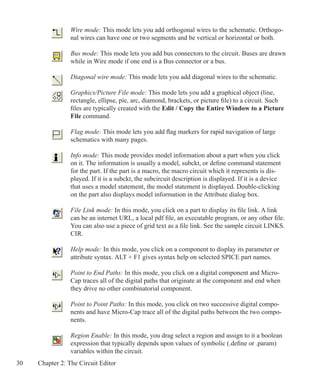
Wire mode: This mode lets you add orthogonal wires to the schematic. Orthogo-
nal wires can have one or two segments and be vertical or horizontal or both.
Bus mode: This mode lets you add bus connectors to the circuit. Buses are drawn
while in Wire mode if one end is a Bus connector or a bus.
Diagonal wire mode: This mode lets you add diagonal wires to the schematic.
Graphics/Picture File mode: This mode lets you add a graphical object (line,
rectangle, ellipse, pie, arc, diamond, brackets, or picture file) to a circuit. Such
files are typically created with the Edit / Copy the Entire Window to a Picture
File command.
Flag mode: This mode lets you add flag markers for rapid navigation of large
schematics with many pages.
Info mode: This mode provides model information about a part when you click
on it. The information is usually a model, subckt, or define command statement
for the part. If the part is a macro, the macro circuit which it represents is dis-
played. If it is a subckt, the subcircuit description is displayed. If it is a device
that uses a model statement, the model statement is displayed. Double-clicking
on the part also displays model information in the Attribute dialog box.
File Link mode: In this mode, you click on a part to display its file link. A link
can be an internet URL, a local pdf file, an executable program, or any other file.
You can also use a piece of grid text as a file link. See the sample circuit LINKS.
CIR.
Help mode: In this mode, you click on a component to display its parameter or
attribute syntax. ALT + F1 gives syntax help on selected SPICE part names.
Point to End Paths: In this mode, you click on a digital component and Micro-
Cap traces all of the digital paths that originate at the component and end when
they drive no other combinatorial component.
Point to Point Paths: In this mode, you click on two successive digital compo-
nents and have Micro-Cap trace all of the digital paths between the two compo-
nents.
Region Enable: In this mode, you drag select a region and assign to it a boolean
expression that typically depends upon values of symbolic (.define or .param)
variables within the circuit.
31
View modes:
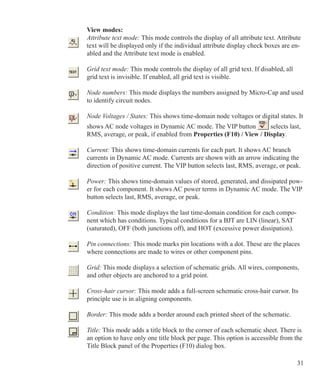
Attribute text mode: This mode controls the display of all attribute text. Attribute
text will be displayed only if the individual attribute display check boxes are en-
abled and the Attribute text mode is enabled.
Grid text mode: This mode controls the display of all grid text. If disabled, all
grid text is invisible. If enabled, all grid text is visible.
Node numbers: This mode displays the numbers assigned by Micro-Cap and used
to identify circuit nodes.
Node Voltages / States: This shows time-domain node voltages or digital states. It
shows AC node voltages in Dynamic AC mode. The VIP button selects last,
RMS, average, or peak, if enabled from Properties (F10) / View / Display.
 
Current: This shows time-domain currents for each part. It shows AC branch
currents in Dynamic AC mode. Currents are shown with an arrow indicating the
direction of positive current. The VIP button selects last, RMS, average, or peak.
Power: This shows time-domain values of stored, generated, and dissipated pow-
er for each component. It shows AC power terms in Dynamic AC mode. The VIP
button selects last, RMS, average, or peak.
Condition: This mode displays the last time-domain condition for each compo-
nent which has conditions. Typical conditions for a BJT are LIN (linear), SAT
(saturated), OFF (both junctions off), and HOT (excessive power dissipation).
Pin connections: This mode marks pin locations with a dot. These are the places
where connections are made to wires or other component pins.
Grid: This mode displays a selection of schematic grids. All wires, components,
and other objects are anchored to a grid point.
Cross-hair cursor: This mode adds a full-screen schematic cross-hair cursor. Its
principle use is in aligning components.
Border: This mode adds a border around each printed sheet of the schematic.
Title: This mode adds a title block to the corner of each schematic sheet. There is
an option to have only one title block per page. This option is accessible from the
Title Block panel of the Properties (F10) dialog box.
32 Chapter 2: The Circuit Editor
Circuit editor
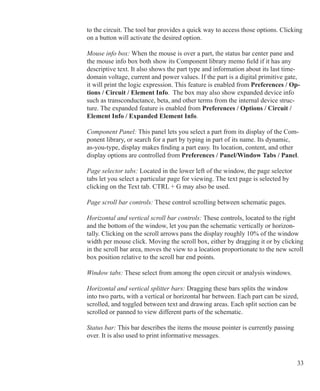
The Circuit editor creates and edits circuits. When the circuit is a schematic, it
becomes the Schematic editor and its display looks like the figure below:
The principal components of the editor are as follows:
Menus: Located beneath the title bar, menus select major functional groups.
Title bar: Located in the top center of the window, the title bar displays the name
of the window. The mouse can be used to move the window by dragging the title
bar.
Main tool bar: Shown below the title bar, the main tool bar contains buttons that
represent the most frequently used options, such as file operations and access to
the various editors. The tool bar provides a quick way to access those options.
Clicking on a button will activate the desired option.
Circuit tool bar: Shown below the main tool bar, the circuit tool bar contains but-
tons that represent the most frequently used menu options that apply specifically
Figure 2-1 The Schematic editor
Title barMenus
Page selector tabs
Status bar (showing component information)
Main tool bar
Page scroll bar control
Horizontal scroll bar control
Vertical scroll
bar control
Window tab
Horizontal splitter
Vertical splitter
Circuit tool bar
Mouse info box
Component panel
33
to the circuit. The tool bar provides a quick way to access those options. Clicking
on a button will activate the desired option.
Mouse info box: When the mouse is over a part, the status bar center pane and
the mouse info box both show its Component library memo field if it has any
descriptive text. It also shows the part type and information about its last time-
domain voltage, current and power values. If the part is a digital primitive gate,
it will print the logic expression. This feature is enabled from Preferences / Op-
tions / Circuit / Element Info. The box may also show expanded device info
such as transconductance, beta, and other terms from the internal device struc-
ture. The expanded feature is enabled from Preferences / Options / Circuit /
Element Info / Expanded Element Info.
Component Panel: This panel lets you select a part from its display of the Com-
ponent library, or search for a part by typing in part of its name. Its dynamic,
as-you-type, display makes finding a part easy. Its location, content, and other
display options are controlled from Preferences / Panel/Window Tabs / Panel.
Page selector tabs: Located in the lower left of the window, the page selector
tabs let you select a particular page for viewing. The text page is selected by
clicking on the Text tab. CTRL + G may also be used.
Page scroll bar controls: These control scrolling between schematic pages.
Horizontal and vertical scroll bar controls: These controls, located to the right
and the bottom of the window, let you pan the schematic vertically or horizon-
tally. Clicking on the scroll arrows pans the display roughly 10% of the window
width per mouse click. Moving the scroll box, either by dragging it or by clicking
in the scroll bar area, moves the view to a location proportionate to the new scroll
box position relative to the scroll bar end points.
Window tabs: These select from among the open circuit or analysis windows.
Horizontal and vertical splitter bars: Dragging these bars splits the window
into two parts, with a vertical or horizontal bar between. Each part can be sized,
scrolled, and toggled between text and drawing areas. Each split section can be
scrolled or panned to view different parts of the schematic.
Status bar: This bar describes the items the mouse pointer is currently passing
over. It is also used to print informative messages.
34 Chapter 2: The Circuit Editor
Selecting and deselecting objects
To manipulate an object after it has been placed in the schematic, it must first be
selected. Selection or de-selection requires the use of the mouse and follows the
general Windows rules.
First step: If not already in Select mode, click on the Select mode button in
the Tool bar or press CTRL + E. You can also toggle between Select mode and
the current mode using the SPACEBAR key.
Second step:
	 To select a single object:
	 Click on the object. The object is selected.
	 To select or deselect a single object:
	 Press SHIFT and click on the object. The object's selection state is toggled. If
	 the object was formerly selected, it becomes deselected. If it was formerly
	 deselected, it becomes selected.
	 To select multiple contiguous objects:
	 Drag the mouse creating a region box. This selects all objects that originate
	 within the box.
	 To select or deselect multiple contiguous objects:
	 Press SHIFT and drag the mouse creating a region box. This toggles the
	 selection state of all objects originating within the box.
	 To select or deselect multiple noncontiguous objects:
	 Press and hold SHIFT while clicking on each individual object or dragging
	 on each group whose selection status you want to change. This toggles the
	 selection state of the object or group.
When would you want to deselect specific objects? Sometimes it is necessary
to select most but not all of a large group of contiguous objects. It is easier and
faster to drag select the entire group and then deselect one or two of them than to
individually select each of the desired objects.
If you click on a component's attribute text, the text will be selected, not the com-
ponent. Be careful to click within the component where there is no attribute text.
Single-clicking on attribute text selects it and lets you move it. Double-clicking
35
on attribute text opens a local edit box at the text location and lets you edit it
there without using the Attribute dialog box.
To select all objects in the window, press CTRL + A. To deselect all objects, click
on any empty space in the window.
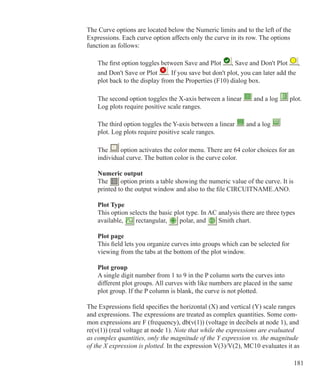
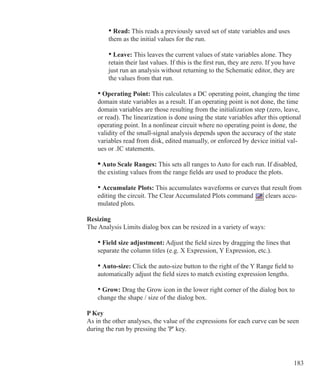
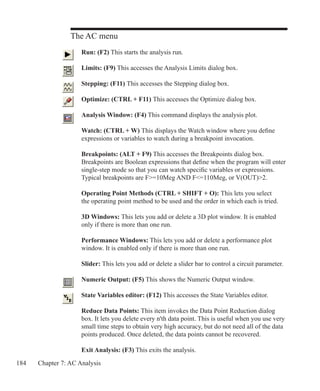
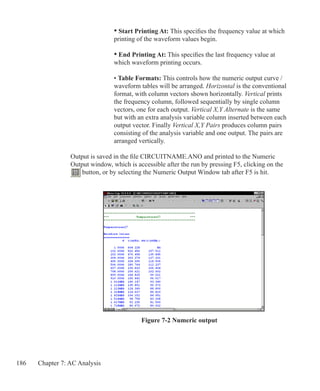
Rapid switching to/from Select mode:
In the course of building or editing a schematic, you will often need to switch
between modes, especially between Select mode and Component or Wire mode.
To make this process easier, several short term mode switchers are available:
	 	 • To temporarily suspend the current mode and enable Select mode,
		 press and hold the SHIFT key down. You can use this pseudo Select
		 mode for object selection only. You can't drag objects. When the SHIFT
		 key is released the former mode will be restored.
	 	 • To temporarily suspend the current mode and enable Select mode,
		 press and hold the CTRL key down. The mode will change to Select. 		
		 You can use the Select mode as needed. When the CTRL key is
		 released the former mode will be restored. Note that under this mode
		 you can't move objects with the mouse. CTRL + mouse drag is used to
		 drag copy an object.
	 	 • To suspend the current mode and switch to Select mode, press the
		 SPACEBAR key. It is not necessary to hold the key down. The mode
		 will change to Select. You can use the Select mode as needed, then press
		 the Spacebar when you're finished and the former mode will be restored.
		 Pressing the SPACEBAR key is the easiest method of alternating
		 between Select and other modes.
36 Chapter 2: The Circuit Editor
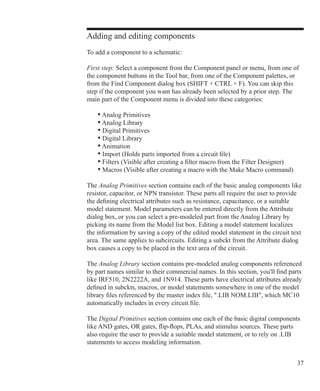
Creating a new circuit
To create a new circuit, select the New item from the File menu. This presents
the New dialog box which looks like this:
This dialog box lets you create one of seven types of files:
	 • Schematic(.cir)	 These are text files that describe schematics.
	 • Macro(.mac)	 These are text files that describe macro schematics.
	 • Text(.txt)	 These are general text files.
	 • SPICE(.ckt)	 These are text files used for SPICE circuit netlists.
	 • Text Library(.lib)	 These are text files containing subcircuit and model
		 statements for the Digital Library, Analog Library, and
		 Spectrum supplied model libraries.
	 • Binary Library(.lbr)	These are binary files that store the model parameters
		 for some of the Analog Library.
	 • Model File(.mdl)	 These are binary files that store the data sheet or
		 measured values from which the Model routines create
		 model parameters for use in the Analog Library.
To create a particular type of file, click on the item and then click on the OK but-
ton. This opens an empty window of the appropriate type and gives it a generic
file name.
Figure 2-2 The New dialog box
37
Adding and editing components
To add a component to a schematic:
First step: Select a component from the Component panel or menu, from one of
the component buttons in the Tool bar, from one of the Component palettes, or
from the Find Component dialog box (SHIFT + CTRL + F). You can skip this
step if the component you want has already been selected by a prior step. The
main part of the Component menu is divided into these categories:
	 • Analog Primitives
	 • Analog Library
	 • Digital Primitives
	 • Digital Library
	 • Animation
	 • Import (Holds parts imported from a circuit file)
	 • Filters (Visible after creating a filter macro from the Filter Designer)
	 • Macros (Visible after creating a macro with the Make Macro command)
The Analog Primitives section contains each of the basic analog components like
resistor, capacitor, or NPN transistor. These parts all require the user to provide
the defining electrical attributes such as resistance, capacitance, or a suitable
model statement. Model parameters can be entered directly from the Attribute
dialog box, or you can select a pre-modeled part from the Analog Library by
picking its name from the Model list box. Editing a model statement localizes
the information by saving a copy of the edited model statement in the circuit text
area. The same applies to subcircuits. Editing a subckt from the Attribute dialog
box causes a copy to be placed in the text area of the circuit.
The Analog Library section contains pre-modeled analog components referenced
by part names similar to their commercial names. In this section, you'll find parts
like IRF510, 2N2222A, and 1N914. These parts have electrical attributes already
defined in subckts, macros, or model statements somewhere in one of the model
library files referenced by the master index file, .LIB NOM.LIB, which MC10
automatically includes in every circuit file.
The Digital Primitives section contains one each of the basic digital components
like AND gates, OR gates, flip-flops, PLAs, and stimulus sources. These parts
also require the user to provide a suitable model statement, or to rely on .LIB
statements to access modeling information.
38 Chapter 2: The Circuit Editor
The Digital Library section contains commercial digital components with part
names similar to their corresponding commercial part names. In this section,
you'll find parts like 7400, 7475, and 74LS381. These parts also have electrical
attributes defined in the model library files referenced by the file, NOM.LIB.
The Animation section holds behavioral animation parts, including LEDs, seven
segment displays, relays, analog and digital current and voltage meters, DC mo-
tors, and analog and digital switches. The Import section holds parts imported
from circuits. The Filters section contains filter macros created by the filter de-
sign function, accessed from the Design menu. The Macros section holds macros
created with the Make Macros command.
Second step: Make sure Micro-Cap is in Component mode. Selecting a part from
the Component menu will automatically switch to Component mode. If Micro-
Cap is in the Component mode, its Tool bar button will be depressed. If you
are not sure, click on the button in the Tool bar, or press CTRL + D.
Third step: Click the mouse in the schematic and drag the component to the de-
sired location. Click the right mouse button until the part is oriented the way you
want. Release the left button when the part is where you want it.
Fourth step: Enter the appropriate attributes into the Attribute dialog box. If the
part is from the Filters, Analog Library, or Digital Library sections, this step is
unnecessary and the Attribute dialog box will not even appear. If the part is from
the Analog Primitives or the Digital Primitives sections, this step lets you enter
important information like the part name and value or model name.
To edit a component's attributes:
Click on the Select button in the Tool bar. Double-click on the part to invoke
the Attribute dialog box. Click on the attribute name that you want to edit, then
click in the Value field and type in any changes. You can also change the model
name by choosing a new model name from the Model list box.
Subcircuits and model parameters can be edited from within the dialog box. Any
edits localize the information by placing a copy of the model statement or subckt
within the models page of the circuit.
You can change an attribute's font by first selecting the attribute and then clicking
on the Font button and choosing a new font, style, size, or effect. You can also
change the display flag for attribute text and pin names. Choose OK to put your
changes into effect.
39
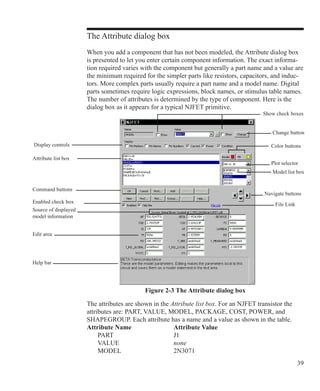
Figure 2-3 The Attribute dialog box
Model list box
Attribute list box
Help bar
Command buttons
The Attribute dialog box
When you add a component that has not been modeled, the Attribute dialog box
is presented to let you enter certain component information. The exact informa-
tion required varies with the component but generally a part name and a value are
the minimum required for the simpler parts like resistors, capacitors, and induc-
tors. More complex parts usually require a part name and a model name. Digital
parts sometimes require logic expressions, block names, or stimulus table names.
The number of attributes is determined by the type of component. Here is the
dialog box as it appears for a typical NJFET primitive.
The attributes are shown in the Attribute list box. For an NJFET transistor the
attributes are: PART, VALUE, MODEL, PACKAGE, COST, POWER, and
SHAPEGROUP. Each attribute has a name and a value as shown in the table.		
Attribute Name		 Attribute Value
	 PART			 J1
	 VALUE			 none
	 MODEL			 2N3071
Source of displayed
model information
Plot selector
Change button
Navigate buttons
Display controls
Enabled check box File Link
Edit area
Show check boxes
Color buttons
40 Chapter 2: The Circuit Editor
	 COST			 BLANK
	 POWER			 0.35
	 PACKAGE			 TO-18
	 SHAPEGROUP		 Default
The first attribute is the part name. The optional second attribute is a text string
describing the area, off flag, and initial conditions. MODEL specifies the model
name which in turn specifies a set of model parameters which may be located
locally within the circuit in the text, model, or drawing pages of the schematic, or
may be located globally in the libraries. PACKAGE specifies the physical pack-
age used by the part. Package information is used to create netlists for external
PCB (Printed Circuit Board) programs. SHAPEGROUP specifies the shape group
to which the shape belongs.
The COST and POWER attributes specify the unit cost and power budget for
the Bill of Materials (BOM) report. This is a type of netlist report that shows the
parts count, cost, and power budget of the circuit. POWER is also used for the
Conditions display. If the power dissipation exceeds this amount the part will be
shown as HOT.
To edit a particular attribute value, select it by clicking on the attribute name in
the Attribute list box. Next, click in the Value field and edit it as desired.
You can add other attributes. These have no effect on the electrical behavior of
the device. To add an attribute, click on the Add button. This adds a new attribute
and places the name 'USER' in the Name field. The Value field is left blank. You
can then edit the attribute Name and Value fields.
To delete an attribute, select it by clicking on its name in the Attribute list box.
Then click on the Delete button. Only user-added attributes may be deleted.
To change an attribute font, size, style, color, or effects, click on the Font button.
This displays the Font dialog box. The Font dialog box lets you edit text features.
Display Controls: This lets you show or hide these items:
Pin Markers: This controls the display of pin markers on the device, which
show where connections to the device are made
Pin Names: This controls the display of pin names. Sometimes this is helpful
for vendor-supplied subcircuit models where node numbers are used instead
of more meaningful names. Normally this option is turned off.
41
Pin Numbers: This controls the display of package pin numbers used in PCB
work. Normally this option is off.
Current: This controls the display of the last time domain or AC current val-
ue for the part, if the Current display button is enabled.
Power: This controls the display of the last time domain or AC power value
for the part, if the Power display button is enabled.
Condition: This controls the display of the last condition (ON, OFF, etc.) for
the part, if the Condition display button is enabled.
Attribute list box: This lists the attributes. Attributes can be edited by selecting
one and then editing its value in the VALUE edit box.
Command buttons: These provide the following functions:
OK: This accepts any edits that have been made and exits the dialog box.
Cancel: This cancels any edits that have been made and exits the dialog box.
Font: This lets you alter the font and style of the selected attribute.
Add: This adds a new attribute.
Delete: This deletes the selected attribute. Only user-added attributes may be
deleted.
Browse: This button allows file browsing when the part uses the FILE at-
tribute, as for example, with user and fstim sources, macros, subcircuits, and
PLAs. It is only enabled when the FILE attribute is selected.
New: If the MODEL attribute is currently selected, this creates a new model
name local to the circuit. You can also create a new model simply by typing
in a model name not already in the library.
Find: This invokes the Find dialog box which locates parameter names and/
or descriptions. Modern bipolar and MOSFET models have a great many
model parameters. The Find command helps you locate them for editing or
review.
42 Chapter 2: The Circuit Editor
Plot: This produces plots for each primitive part type. Plots are created on
from mini-simulations of test circuits. Some parts, like the Pulse source, have
a simple simulation and a single plot (two cycles of its waveform). Others,
like the NPN, have several plots that can be chosen from the plot selector.
Some parts, like macros and subckts, have no plots. Once the plot is shown,
it responds dynamically to parameter edits.
Syntax: This displays the syntax for the primitive from the help file.
Play: For WAV sources, this plays the WAV file.
IBIS: This button accesses the IBIS Translator when the part is an IBIS com-
ponent, allowing editing or selection of IBIS I/O models.
Help: This accesses the help topic for the Attribute dialog box.
Combinations: This finds the best series / parallel combination of standard
part values that approximates the RESISTANCE, CAPACITANCE, or IN-
DUCTANCE value. For example, a value of 1234567 ohms becomes
1.235MEG = 1.2MEG + (133K | 47.5K) (e=0.0035% n=3).
This means that the closest value is achieved by placing a 1.2MEG resistor in
series with a parallel combination of a 133K and a 47.5K resistor. The result-
ing value is 1.235MEG, which is within .0035% of the requested value. Pref-
erences are set at Options / Preferences / Combinations.
Single: This finds the closest single standard part value that approximates the
RESISTANCE, CAPACITANCE, or INDUCTANCE value. Preferences are
set at Options / Preferences / Combinations.
	
These last two options are similar to the Fit to Standard Values command.
Enabled check box: You can enable or disable a part with this check box, from
the Edit menu, or by using the Enable or Disable tool bar buttons. A dis-
abled part stays in the schematic but is not included in analyses, Bill of Materials
reports, or SPICE netlist translations. Any object, including parts, text, and wires,
can be enabled or disabled. To enable or disable a group of objects, drag select
them with the mouse, then click on the Enable or Disable tool bar button.
Help Bar check box: This adds a help bar with descriptions of the various parts of
the dialog box and model parameters.
43
Source of displayed model information: This shows the source of the displayed
model information. It is usually either the model or text area of the circuit if
localized, or a model folder and path if globally accessed. Editing model param-
eters always localizes them to a circuit model or text page.
Edit area: These fields lets you edit model parameters, subcircuits, digital stimu-
lus statements, or other model information.
Help bar: This area shows helpful information for the item under the mouse.
File link: Click on this link and the program executes the link. You can set the
link to a local file, like an Adobe PDF data sheet, or to a URL link to the vendor's
web site. The default URL link is http://www.google.com/search?q=%s+data
sheet which basically looks for a data sheet using the model name. The %s sub-
stitutes the model name.
Navigate buttons: These scroll through other parts in the circuit. Each click on
the left or right navigate button will display another part of the same type. Each
click on the up or down navigate button will display a different part type.
Model list box: This displays a list of available model names from the libraries.
You can scroll through the list and choose a model by clicking on it.
Plot Selector: A plot is created by clicking the Plot button. This field lets you
select from a list of characteristic plots for the device. Some devices have as
many as three plots, while some have none.
Color buttons: These let you change the part's border and fill colors. Border
controls the outline color. Fill controls the interior color. The interior can only
be filled if the shape already has a fill color. If the Fill button is disabled, it is
because the shape has no fill color specified. You can change this by specifying a
fill color for the shape using the Shape Editor.
Change button: This lets you copy the displayed attribute value to the attribute
fields of parts selected from a list. For example, you could use this command to
change all 2N2222 model attributes to 2N3903.
Show check boxes: Adjacent to the Name and Value fields, these boxes control
whether the selected attributes name and value are displayed on the schematic.
Normally the attribute name is not displayed and only some of the attribute val-
ues are. Typically, only the part attribute value (in this case 'J2') is displayed, al-
though occasionally the model attribute value (in this case '2N3071') is also.
44 Chapter 2: The Circuit Editor
Adding wires to a schematic
Wires are added to a schematic by dragging the mouse from one point to an-
other. If the mouse moves horizontally or vertically a straight wire is created. If it
moves diagonally a corner is created.
First step: Click on the Wire mode button in the Tool bar.
Second step: Point the mouse at the desired starting position and press and hold
the left mouse button down.
Third step: Drag the mouse to the desired end point of the wire and release the
left mouse button.
Several points are worth keeping in mind:
• The segment orientation of a two-segment wire can be changed by clicking
the right mouse button before the wire is completed (before the left mouse
button is released).
• Connections are indicated by a dot.
• If two wires are connected at their end points the wires fuse together and
become one wire. The connection dot then disappears.
• If either end point of a wire touches another wire, the wires are connected.
• Wires that cross at interior points do not connect. An end point of a wire
can connect only to another end point, a component lead, or an interior point
of another wire.
45
• A wire that crosses another wire's end point or a component's lead dot will
connect to the wire or component lead.
• If the Node Snap option is enabled, wires will snap to the nearest node
within a one grid distance. Although this is usually helpful with analog parts,
it is sometimes a problem with dense digital connections on a one grid pitch.
You may want to temporarily disable this option if you notice a wire end
point jumping to an undesired location. The Node Snap option is enabled or
disabled from Options / Preferences / Options / Circuit / Node Snap.
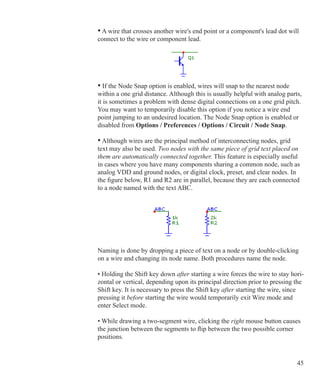
• Although wires are the principal method of interconnecting nodes, grid
text may also be used. Two nodes with the same piece of grid text placed on
them are automatically connected together. This feature is especially useful
in cases where you have many components sharing a common node, such as
analog VDD and ground nodes, or digital clock, preset, and clear nodes. In
the figure below, R1 and R2 are in parallel, because they are each connected
to a node named with the text ABC.
Naming is done by dropping a piece of text on a node or by double-clicking
on a wire and changing its node name. Both procedures name the node.
• Holding the Shift key down after starting a wire forces the wire to stay hori-
zontal or vertical, depending upon its principal direction prior to pressing the
Shift key. It is necessary to press the Shift key after starting the wire, since
pressing it before starting the wire would temporarily exit Wire mode and
enter Select mode.
• While drawing a two-segment wire, clicking the right mouse button causes
the junction between the segments to flip between the two possible corner
positions.
46 Chapter 2: The Circuit Editor
Using the Bus
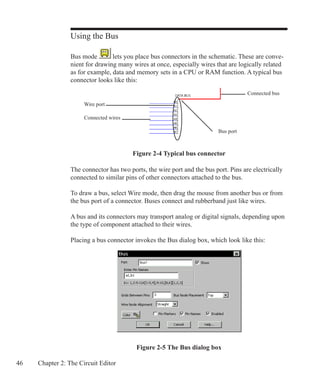
Bus mode lets you place bus connectors in the schematic. These are conve-
nient for drawing many wires at once, especially wires that are logically related
as for example, data and memory sets in a CPU or RAM function. A typical bus
connector looks like this:
Figure 2-5 The Bus dialog box
The connector has two ports, the wire port and the bus port. Pins are electrically
connected to similar pins of other connectors attached to the bus.
To draw a bus, select Wire mode, then drag the mouse from another bus or from
the bus port of a connector. Buses connect and rubberband just like wires.
A bus and its connectors may transport analog or digital signals, depending upon
the type of component attached to their wires.
Placing a bus connector invokes the Bus dialog box, which look like this:
Connected wires
Connected bus
Figure 2-4 Typical bus connector
Wire port
Bus port
47
The dialog box has these features:
	 Part: This field contains the bus connector name. A check box alongside lets
	 you show or hide the name.
	 Enter Pin Names: This field contains the pin names, implicitly defining the
	 number of separate wires / nodes for the bus connector. The names can be
	 listed separately or using the indicated forms. For example:
	 A,B,C,D	 A four pin bus with pins labeled A, B, C, and D
	 A[1:4]	 A four pin bus with pins labeled A1, A2, A3, and A4
	 C[1:4,8,9]	 A six pin bus with pins labeled C1, C2, C3, C4, C8, and C9
	 0:7		 An eight pin bus with pins labeled 0, 1, 2, 3, 4, 5, 6, and 7
	 [A,B][1,2]	 A four pin bus with pins labeled A1, A2, B1, and B2
	 Grids Between Pins: This specifies the number of grids between pins.
	 Bus Node Placement: This specifies where to place the bus connector
	 name. There are three options; top, middle, and bottom.
	 Wire Node Alignment: This specifies how the wires will emerge from the
	 connector. There are three options:
		 Straight:	 Wires emerge perpendicular to the connector.
		 Up:		 Wires slant in one direction.
		 Down:		 Wires slant in the opposite direction.
	 Color: This controls the connector color.
	 Pin Markers: This check box controls the display of pin markers.
	 Pin Names: This check box controls the display of pin names.
	 Enabled: This check box enables/disables the connector.
	 OK: This accepts the changes and exits the dialog box.
	 Cancel: This ignores the changes and exits the dialog box.
See ANIM3 for an example of how to use the bus in a circuit.
48 Chapter 2: The Circuit Editor
Adding and editing grid text
There are several kinds of text visible in a schematic. First, there is the attribute
text of individual components. This type of text is created and edited from within
the Attribute dialog box. The second kind of text is called grid text. Although grid
text can be used for any purpose, its most important use is for naming nodes.
To add grid text to a schematic:
First step: Click on the Text mode button in the Tool bar.
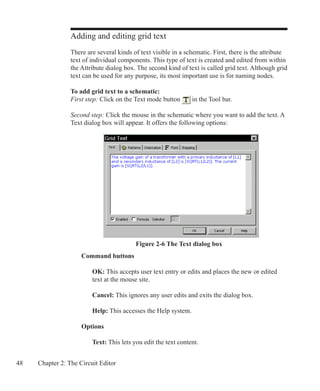
Second step: Click the mouse in the schematic where you want to add the text. A
Text dialog box will appear. It offers the following options:
	 Command buttons
		 OK: This accepts user text entry or edits and places the new or edited
		 text at the mouse site.
		 Cancel: This ignores any user edits and exits the dialog box.
		 Help: This accesses the Help system.
	 Options
		 Text: This lets you edit the text content.
Figure 2-6 The Text dialog box
49
		 Patterns: This lets you edit the text color, fill (background) color, and
		 the border width and color.
		 Orientation: This lets you edit the print order / orientation. There are
		 four choices. Normal specifies left to right order. Up specifies bottom to
		 top order. Down specifies top to bottom order. Upside Down specifies
		 right to left order and upside down orientation.
		 Font: This lets you edit the text font, size, style, and effects.
	 	 Stepping: These options are present only when adding text. They let you
		 add multiple rows and/or columns of incremented text.
			 Instances X: This sets the number of rows of text.
	 		 Pitch X: This specifies the spacing in number of grids between
			 rows of text.
			 Instances Y: This sets the number of columns of text.
	 		 Pitch Y: This specifies the spacing in number of grids between
			 columns of text.
			
		 Stepping is used to name wires or nodes with grid text. For example, if
		 you wanted sixteen names A0, ... A15 vertically arranged, you enter text
		 of A0, select Instances X = 1, Instances Y = 16, and Pitch Y = 2 		
		 (grids).
		 The stepping tab is present only when you place text. Later, when you
		 edit a piece of grid text, it is absent since it not needed for editing.
	 Check boxes:
		 Enabled: This lets you enable or disable the text. Enabling is important
		 for text used as a node name and for command text like .DEFINE or
		 .MODEL statements.
		 Formula: Checking this tells the program that the text contains a
		 formula and that the expressions it contains are to be calculated.
		 Delimiter: This tells the program what character(s) are to be used to
		 define or delimit the embedded expressions. Although any characters
		 may be used, brackets [], or braces{} are recommended.
50 Chapter 2: The Circuit Editor
To add or edit existing text, select the Text panel of the dialog box. Type in or
edit the text and press OK. To make a piece of text start on a new line place the
insertion point text cursor at the desired position and press ENTER.
Grid text can be moved between text and drawing areas by selecting the text,
then pressing CTRL + B. The display of the schematic window can be toggled
between the text and drawing areas by typing CTRL + G.
To edit grid text:
First step: Click on the Select mode button in the Tool bar.
Second step: Double-click the mouse on the text you want to edit. A dialog box
will appear showing the selected text. Edit the text as desired.
Grid text can also be edited directly on the schematic by holding the Alt key
down while double clicking the text.
51
Formula text
There are two varieties of schematic grid text that use formulas.
First Format
The first form is as follows:
	 =formula
Grid text of this form behaves like a small spreadsheet. The presence of the =
at the first character position tells Micro-Cap that the text is really a formula and
that it should calculate the value of the formula every time there is any change to
schematic text. For example, the following four pieces of text define three vari-
ables, L1, C1, and C2 and a piece of formula text:
.DEFINE C1 1N
.DEFINE C2 1N
.DEFINE L1 10U
=2*PI/SQRT(L1*C1*C2/(C1+C2))
Note that these are individual pieces of text, not a single block of text. The for-
mula text must be placed in the schematic, not the text area. The .define state-
ments may be placed in either the text area or in the schematic.
The formula is for the resonant frequency of a Colpitts oscillator. Any change to
any text updates the value and Micro-Cap prints the following:
2*PI/SQRT(L1*C1*C2/(C1+C2))=88.858E6
Formula text is designed to provide a convenient way to automatically compute
and display new design values from complicated formulas. For example, if you
change the value of C1 to 10nF, Micro-Cap prints a new resonant frequency as
follows:
2*PI/SQRT(L1*C1*C2/(C1+C2))=65.899E6
Formula text can not be used in other expressions. To do that the formula must be
defined with a symbolic variable name like this:
.DEFINE F0 2*PI/SQRT(L1*C1*C2/(C1+C2))
52 Chapter 2: The Circuit Editor
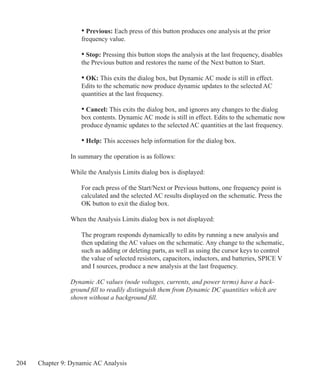
F0 could now be used in an expression or, in the AC Analysis Limits Frequency
Range, or in a device attribute.
Second Format
The second form is as follows:
text....[formula]...text
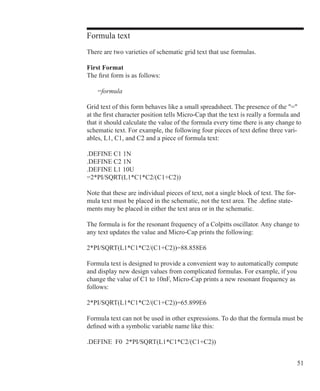
For example, if the following four pieces of grid text are entered,
.DEFINE L1 1U
.DEFINE L2 4U
.DEFINE N SQRT(L1/L2)
The voltage gain of a transformer with a primary inductance of [L1] and a
secondary inductance of [L2] is [SQRT(L1/L2)]. The voltage gain is [1/N].
The last piece of text will actually appear as follows:
The voltage gain of a transformer with a primary inductance of 1u
and a secondary inductance of 4u is 0.5. The voltage gain is 2.0.
In this example the delimiter characters are [ and ].
Formula text of this type is calculated only if the Text dialog box's Formula box
is checked.
For both formats of formula text, circuit variables such as V(Out) or I(R1) can
also be used in the equations. The results would not be calculated until an analy-
sis is run.
53
Adding and editing graphic objects
First step: Click on the Graphics mode button in the Tool bar. A menu ap-
pears, listing the available graphic objects. Choose one of the objects by clicking
on it. Drag the mouse in the schematic to create the object.
Graphic objects include the line, ellipse, rectangle, diamond, arc, pie, braces, and
picture. All have handles which can be dragged to alter the size and shape of the
object. Drag on a corner handle to change the size of the object. Drag on a non-
corner handle to change the width or length of the object's bounding box. This
lets you change the aspect ratio or relative shape of the object.
Double-clicking on a graphics object invokes a dialog box for editing the object.
If the object is a picture, a file dialog box will be presented. Select the name of
the picture file, border and fill options, and then click on the OK button.
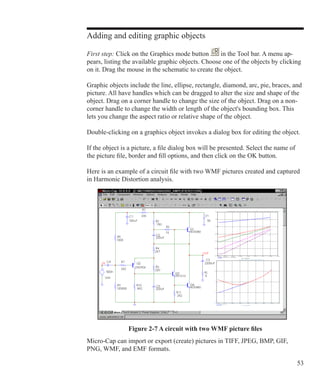
Here is an example of a circuit file with two WMF pictures created and captured
in Harmonic Distortion analysis.
Micro-Cap can import or export (create) pictures in TIFF, JPEG, BMP, GIF,
PNG, WMF, and EMF formats.
Figure 2-7 A circuit with two WMF picture files
54 Chapter 2: The Circuit Editor
Adding and editing flags
First step: Click on the Flag mode button in the Tool bar.
Second step: Click in the schematic at the position where you want to place the
flag. A text box is presented. Type in the name of the flag and click OK.
To edit a flag, double-click on it and edit the name in the text box as desired.
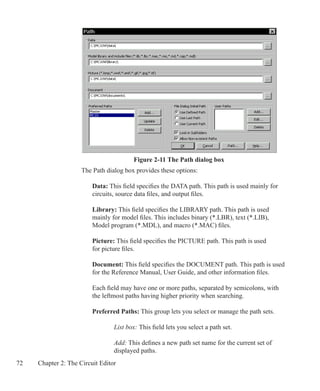
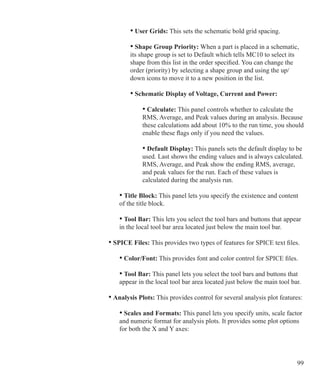
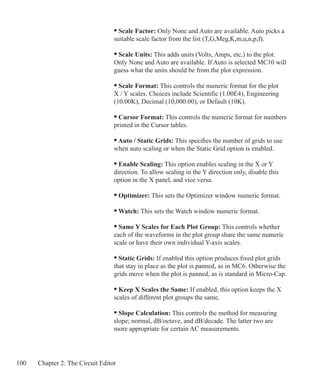
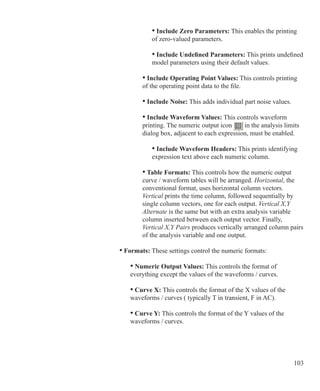
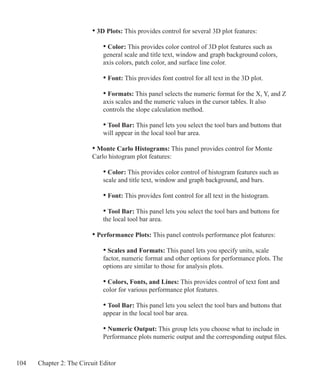
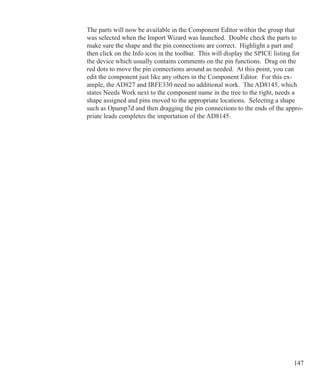
Moving schematic objects
First step: Click on the Select mode button in the Tool bar.
Second step: Select the object or group of objects.
Third step: Drag the selected object or group. Slide the mouse across the drawing
to the desired location and release the mouse button. Be sure to drag within the
body of the object, or within the selected region. If you don't, you will deselect
whatever had been selected. If this happens go to the second step and try again.
Rotating schematic objects
To rotate a single object, click on it and hold the left mouse button down, then
click on the right mouse button. Each click rotates the part 90 degrees. CTRL+R
also rotates a selected object.
To rotate a group of objects follow the following procedure:
First step: Click on the Select mode button in the Tool bar.
Second step: Select the object or group of objects.
Third step: Click on one of the three rotate buttons. The Flip X axis button
rotates about the horizontal axis in 180 degree increment. The Flip Y axis
button rotates about the vertical axis in 180 degree increments. The Rotate button
rotates about the Z axis (perpendicular to the schematic plane) in 90 degree
increments, producing four distinct orientations. CTRL+R also rotates about the
Z axis.
55
Stepping schematic objects
Stepping lets you define a rectangular region and then duplicate its contents a
specified number of times. It is called stepping after the photolithographic term
'step and repeat' used in the semiconductor industry. This feature is most useful
for creating highly repetitive circuit structures such as PLA, RAM, or ROM. The
stepping procedure is as follows:
First step: Click on the Select mode button in the Tool bar.
Second step: Drag the mouse to define a region containing the object or group of
objects that you want to step. This creates a box encompassing the desired area.
Normally, when you first create the box, you draw its boundaries just outside the
area of interest, because if you touch one of the objects, you end up dragging it
instead of creating the box. If you step with the box this way, you'll end up with
unconnected sections due to the space between the objects and the original box
boundaries. This is usually not what you want. The way around this is to use the
box handles. These handles are on all four corners and each side of the box. After
the initial box creation, the handles can be dragged to eliminate the spaces. This
lets the stepping process create contiguous, connected sections.
Third step: Click on the Stepping button, to invoke its dialog box.
Figure 2-8 The Step dialog box
This dialog box lets you make three choices; the direction in which to step the
box, the number of times to copy it, and whether or not you want to copy the
box's grid text. All attributes of components found in the box are copied, except
Part name, which is always incremented. Grid text, if copied, will be incremented
if the Text Increment option in the Preferences dialog box is enabled.
56 Chapter 2: The Circuit Editor
Mirroring schematic objects
Mirroring lets you define a rectangular region called a box and then copy a re-
flected image of the box contents. The mirroring procedure is as follows:
First step: Click on the Select mode button in the Tool bar.
Second step: Drag the mouse to define a region containing the object or group of
objects that you want to mirror. This creates a box encompassing the desired area.
Normally, when you first create the box, you draw its boundaries just outside the
area of interest, because if you touch one of the objects, you end up dragging it
instead of creating the box. If you mirror this way, you'll end up with unconnect-
ed sections due to the space between the objects and the original box boundaries.
This is usually not what you want. The way around this is to use the box handles.
These handles are on all four corners and each side of the box. After the initial
box creation, the handles can be dragged so that the box has no spaces in it. This
lets the mirroring process create a contiguous, connected copy.
Third step: Click on the Mirror button, . This invokes the Mirror dialog box.
Figure 2-9 The Mirror dialog box
This dialog box lets you choose a vertical or horizontal reflection and whether
or not you want to copy the box's grid text. A vertical reflection produces a copy
vertically below the original region. A horizontal reflection produces a copy hori-
zontally to the right of the original region. All attributes are copied except Part
name, which is incremented. Grid text, if copied, will be incremented if the Text
Increment option in the Preferences dialog box is enabled.
57
Deleting schematic objects
First step: Click on the Select mode button in the Tool bar.
Second step: Select the object (component, text, wire, flag, or graphic object)
to be deleted by clicking on it. To select multiple objects for deletion, hold the
SHIFT key down while you click on each object. You can also select one or more
objects by dragging the mouse to define a rectangular region (box). All objects
within the box will be selected when the mouse button is released.
Third step: Press the Delete key to delete the object(s). Deleting in this fashion
does not copy the deleted objects to the clipboard, so they will not be available
for pasting to a new location. If you want to delete the objects and have them
copied to the clipboard for a future paste operation, use the Cut command (CTRL
+ X).
The Delete key alone removes all selected wire segments entirely from one end-
point to another. CTRL + Delete cuts wire segments that cross the select region
box exactly at the box boundaries.
The Undo and Redo commands
The Undo command undoes the effect of an operation. It is activated by pressing
CTRL + Z, by clicking on the Undo button , or by selecting the Undo item
from the Edit menu. Undo is available for most edits to text fields, schematics,
shapes, and analysis plot objects. Changes available for undoing include editing,
deleting, moving, rotating, reflecting, and stepping. Text edits are not revers-
ible after the text cursor has been moved to another field. If a command is not
reversible, you can still reverse its effects by saving the file prior to using the
command, and then using the Revert option from the File menu to load the old
version of the file stored on disk.
There is also a Redo command. It is activated by pressing CTRL + Y, by clicking
on the Redo button , or by selecting the Redo item from the Edit menu. It is
the complement of Undo.
These commands are multistage. They can undo/redo many times and are only
limited by available memory.
58 Chapter 2: The Circuit Editor
Enabling / disabling schematic objects
Schematic objects, including parts, text, and wires, can be enabled or disabled.
Enabled objects are included in analyses, SPICE netlist translations, and Bill of
Materials reports. Disabled objects are not included. Enabled objects are colored
normally, while disabled objects are shown in gray. The disabled color is set from
Properties (F10) / Color/Font / Disabled. To enable or disable an individual
object, double click on it, and click the Enabled check box to the state you want.
Here is how you enable or disable schematic objects:
First step: Click on the Select mode button in the Tool bar.
Second step: Select the object or group of objects.
Third step: Click on the Enable or the Disable tool bar button, or if you
prefer, select the Enable or Disable item from the Edit menu. If the item is a
single object, you can also double click on it and in the dialog box that comes
up click the Enabled check box. A check means the object is enabled. No check
means it is disabled.
The Enable function is useful when you want to temporarily remove text, wires,
or circuitry to see the effect while retaining the disabled circuitry for future use.
You can also make the enablement of a region dependent upon expressions in-
volving symbolic variables (those created with a .DEFINE or a .PARAM state-
ment). This lets you switch blocks of circuitry back and forth by changing a
single parameter. Use the Region Enable mode, at Options / Mode / Region En-
able, or click on the Region Enable tool bar button to define a region and then
its enabling expression. To change the expression double-click on the expression
text within the Region Enable box.
59
Node number assignment
Micro-Cap automatically assigns numbers to the circuit nodes when an analysis
is requested, when the circuit is saved to disk, or when any change is made to
the circuit and the Options / View / Node Numbers option is active. Node
numbers are displayed on the schematic only when this option is enabled. When
you want to plot or print a node's voltage waveform you refer to the waveform as
V(node name), where the node name may be either the node number assigned by
the program or a text name assigned by you. For Micro-Cap to associate the node
names with the node, the lower left corner of the text outline box must be placed
directly on the node. Node Snap, if enabled, makes this easier by moving the text
to the nearest node within one grid. The Node Snap option is selected from the
Preferences dialog box (CTRL + SHIFT + P).
The system assigns and displays node numbers according to the following rules:
	 1. Ground is node number 0, but its node number is never displayed.
	 2. The other nodes are numbered from 1 to the highest node number.
	 3. When an analog node and a digital node touch, or are connected by a wire,
	 both nodes are assigned a unique number. The program automatically inserts
	 an interface circuit between the two nodes. The interface circuit generates an
	 interface node of the form num$ATOD or num$DTOA depending upon
	 whether the digital node is an input or an output, respectively. If the interface
	 node is accessible (can be referenced in a plot expression), it will be printed
	 on the schematic. In general, interface nodes between analog parts and digital
	 primitives are accessible unless they occur at a subcircuit interface.
	 4. Analog node numbers are displayed in a box with rounded corners while
	 digital node numbers are displayed in a box with square corners.
	 5. Nodes with the same grid text node name are connected together. That is,
	 if two separate nodes each have a piece of identical grid text placed on them,
	 they are considered to be connected and will share the same node name. This
	 provides a convenient way of connecting large numbers of common nodes,
	 without having to use wires to connect them.
60 Chapter 2: The Circuit Editor
The clipboard
The clipboard is a temporary storage area that is used to save schematic or text
fragments, as a prelude to pasting them to a new location. It is an invaluable tool
for editing schematics or text, and can save considerable time. The clipboard
commands are as follows:
Command	 Shortcut key	 Effect
Clear		 DELETE	 Deletes the selected object without copying 		
					 to the clipboard.
Cut			 CTRL + X	 Deletes the selected object and copies it to
					 the clipboard.
Copy		 CTRL + C	 Copies the selected object to the clipboard.
					
Paste		 CTRL + V	 Pastes the clipboard contents to the last 			
					 mouse click location.
To copy something to the clipboard, select the object or drag select a region.
Press CTRL + C or click on the Copy button. All selected objects will be copied
to the clipboard.
To paste the clipboard contents, first click at the desired location. Then press
CTRL + V or click on the Paste button. The entire contents of the clipboard will
be pasted into the schematic or text area at the site of the last mouse click.
Like most other operations, the clipboard actions can be undone by using the
Undo command. Simply choose Undo from the Edit menu, press CTRL + Z, or
click on the Undo button to undo the operation.
Micro-Cap maintains two separate clipboards: a text box clipboard and a sche-
matic clipboard. Text copied from a text box will not mix with text copied from
the schematic. Text from the text area of a schematic is regarded as schematic
material and is stored to or copied from the schematic clipboard. Thus, it is pos-
sible to copy text from the text area and paste the same text to the drawing area.
Of course, the shuttle command, CTRL + B does this directly. Schematic objects
saved to the clipboard are available only for use within Micro-Cap and cannot be
pasted to other applications. To export schematic pictures or plots, use the Copy
the Entire Window to a Picture File command on the Edit menu.
61
Drag copying
Copy and paste works well when you want to duplicate a part of a circuit, but
there is another, often easier, option called drag copying. It works as follows:
	 • Select a circuit object or region to be duplicated.
	 • Press and hold the CTRL key down.
	 • Drag on any item in the selected area.
This procedure copies the selected objects and drags the copy along with the
mouse, leaving the original objects undisturbed. As with other copying operations
like stepping, mirroring, and pasting, part names are always incremented, but grid
text is incremented only if the Text Increment option (Preferences) is enabled.
Drag copying can be used on any schematic object, whether it is a component,
wire, graphics object, flag, or piece of text.
Drag copying is especially convenient since it replaces the two step process of
cut and paste with a simple one step operation with immediately visible results. If
you don't like the result, press CTRL + Z to undo it and try again.
After the drag operation has begun, you can release the CTRL key and continue
dragging.
Drag copying is often a convenient method for adding new components. If you
want to add another 10K resistor, and a 10K already exists in the schematic, drag
copying is fast and easy. For example, the standard process consumes four steps:
	 1. Enter Component mode.
	 2. Select Resistor.
	 3. Click in the schematic.
	 4. Enter the resistor RESISTANCE and (sometimes) MODEL attributes.
The drag method uses one step:
	 1. CTRL + drag a 10K resistor to the new location.
Drag copying is especially useful when an entire region, like the differential stage
of an amplifier, can be copied. Even if some editing of the copied region's objects
is required, the entire process is usually simpler, faster, and less error prone.
62 Chapter 2: The Circuit Editor
The Info command
The Info command displays model information about a command statement or a
component. It works like this:
First step: Click on the Info mode button in the Tool bar.
Second step: Click on the command or component.
The Info function will provide some information for all components and some
command statements. It generally provides information that is not easily vis-
ible, such as a subckt listing or a model statement from an external file, a digital
source stimulus table, or a Laplace or Function source data table. For simpler
components without model statements, the Info function usually invokes the At-
tribute dialog box.
Text information found in the schematic is highlighted and shown as a part of the
schematic. Other information is displayed in the Model editor or the Text editor.
For the .INCLUDE and .LIB command statements, Info displays the contents of
the file referenced in the command statements.
If the information is found in the text area, the Info command switches to it and
displays the information. To return to the schematic page, press CTRL + G.
The Help command
In addition to the general Help command, there is a component specific Help
mode. Here is how it works:
First step: Click on the Help mode button in the Tool bar.
Second step: Click on the component for which you want help.
The Help function provides parameter and syntax information for every com-
ponent. This is the same information available from the Help system. It is just a
little easier to access in the context of working with the Circuit editor.
63
The Digital Path commands
One of the most important properties of digital circuits is path delay. Path delay is
how long a signal takes to propagate through each of the many possible paths in a
circuit. Micro-Cap provides several related commands for analyzing and display-
ing these paths. These commands do three things:
	 • Identify and list the gates involved in the paths.
	 • Show the delay of each path, calculated from the individual delays of the
	 gates in the path list.
	 • Graphically show selected paths on the schematic by highlighting the
	 gates in the selected path.
There are three digital path commands:
1. Point to End Paths: This shows all paths from the component at the point
of a mouse click to the end points. A path ends when a gate does not drive
another standard or tristate gate.
2. Point to Point Paths: This shows all paths from the point of the first mouse
click to the point of the second mouse click.
3. Show All Paths: This shows all paths in the circuit starting on STIM, FS-
TIM, or flip-flop outputs and ending when a gate in the path does not drive
another standard or tristate gate.
The procedure to use these commands is as follows:
First step: Select one of the three commands from the Options menu.
Second step: For the Point to End command, click on the body of a gate or stimu-
lus component. For the Point to Point command, click on the starting component
and on the ending component.
64 Chapter 2: The Circuit Editor
At this point, Micro-Cap shows a list of paths appropriate to the chosen com-
mand in the Digital Path dialog box. It typically looks like this:
Figure 2-10 The Digital Path dialog box
Scroll through the list and click on a path and Micro-Cap will redraw the sche-
matic and highlight the path. You can use the DOWN ARROW key to trace each
path in the list from top to bottom.
For each path, the path list shows the name of each gate in the path, and the total
delay through the path for the low to high and high to low signal transitions at the
path start. To calculate the LH delay, the program assumes a low to high transi-
tion at the path start. It then traverses the path, summing the delays using the
actual signal transitions at each gate, the gate's timing model, and the gate's MN-
TYMXDLY value. To calculate the HL transition, the program assumes a high to
low transition at the path start and performs a similar analysis.
A path ends when any gate in the path does not drive a standard gate or a tristate
gate. Path commands handle combinatorial gates only. Subcircuits are not ex-
panded.
65
Navigating schematics
Navigating means being able to quickly display the part of the schematic you are
interested in. There are several methods to accomplish this:
	 Schematic scrolling: Scroll the schematic using the vertical or horizontal
	 scroll bars. This is the conventional method. It is slow but sure.
	 Scaling: Use the Zoom-Out or Zoom-In buttons in the Tool bar
	 to resize the schematic and get your bearing.
	 Panning: Pan the schematic. Panning means to move the view to a different
	 part of the circuit. In keyboard panning you use CTRL + CURSOR KEY
	 to move the view in the direction of the cursor key arrow. In mouse panning
	 you click and hold the right mouse button, while dragging the mouse. The
	 effect is like sliding a piece of paper across a desktop.
	 Centering: Use the SHIFT + right click method to re-center the view. While
	 holding down the Shift button, click the right mouse button at the point you
	 want centered in the window. Clicking toggles the scale between 1:1 and 1:4
	 and centers the schematic at the mouse position.
	 Flagging: Place flags at locations you expect to revisit. Then select a flag
	 from the Select Flag dialog box which is accessed from the Tool bar or
	 from the Go To Flag item on the Edit menu.
	 Page scrolling: Use the Page tabs if the desired area is on another page.
	 You can also use CTRL + PGUP and CTRL + PGDN to navigate the pages.
Although users are encouraged to adopt the method that works best for them,
each method tends to work best in different circumstances. For small to medium
view changes, use panning. For large changes in medium size schematics, use
centering, or for very large changes in very large schematics, use flags.
66 Chapter 2: The Circuit Editor
Global Settings
These numeric values and options control device model and circuit analysis op-
tions. Some of these definitions can be found in the individual device models:
Numeric Options:
	 ABSTOL: Absolute current tolerance. This venerable SPICE parameter
	 specifies the absolute tolerance to be added to the relative current tolerance.
	 Together, their sum must exceed the difference in successive solution values
	 for each current in the circuit to achieve convergence at a particular solution
	 point. Increasing ABSTOL often helps to converge high current devices.
	 CHGTOL: Absolute charge tolerance. This parameter is like ABSTOL but
	 applies only to charge variables.
	 CSHUNT: If nonzero, a capacitor of this value is added from each node to
	 ground as an aide to transient convergence.
	 DEFAD: MOSFET default drain area in sq-m.
	 DEFAS: MOSFET default source area in sq-m.
	 DEFL: MOSFET default channel length in m.
	 DEFNRD: MOSFET default number of drain squares.
	 DEFNRS: MOSFET default number of source squares.
	 DEFPD: MOSFET default drain periphery in m.
	 DEFPS: MOSFET default source periphery in m.
	 DEFW: MOSFET default channel width in m.
	 DIGDRVF: Minimum drive (forcing) resistance for digital IO models.
	 DIGDRVZ: Maximum drive (high impedance) resistance for digital models.
	 DIGERRDEFAULT: Default maximum error message limit for individual
	 digital constraint devices.
67
	 DIGERRLIMIT: Default maximum error message limit for all digital
	 devices during each analysis run.
	 DIGFREQ: The minimum digital time step is 1 / DIGFREQ.
	 DIGINITSTATE: Initial state of flip-flops and latches: 0=clear, 1=set, 2=X.
	 DIGIOLVL: Default digital IO level, 1 to 4. Specifies one of four DtoA
	 and AtoD interface circuits.
	 DIGMNTYMX: Specifies the default digital delay: 1=Min, 2=Typical,
	 3=Max, 4=Min/Max.
	 DIGMNTYSCALE: Specifies scale factor used to calculate unspecified
	 minimum delays from specified typical delays.
	 DIGOVRDRV: Minimum ratio of drive resistances for one gate to overdrive
	 another driving the same node.
	 DIGTYMXSCALE: Specifies scale factor used to calculate unspecified
	 maximum delays from specified typical delays.
	 DIODE_MAX_IS: Clips the temperature adjusted diode parameter IS at the
	 specified value when the N parameter in the diode is below .1.
	 GMIN: Specifies the minimum branch conductance.
	 INTERPOLATION_ORDER: Specifies the interpolation order used in
	 FFTs in transient and Harmonic and Intermodulation distortion analysis.
	 ITL1: Operating point iteration limit before supply relaxation is attempted.
	 ITL2: DC transfer curve iteration limit for each point of the DC sweep.
	 ITL4: Transient analysis iteration limit for each time point.	
	 LONE: This is the value produced by a logical expression when the
	 expression is TRUE.
	 LTHRESH: This is the voltage that must be exceeded for a logical boolean
	 function to emit an LONE state. For example, the expression V(1)
68 Chapter 2: The Circuit Editor
	 V(2) will be TRUE and produce an analog value of LONE only if
	 V(1)=LTHRESH and V(2)=LTHRESH.
	 LZERO: This is the value produced by a logical expression when the
	 expression is FALSE.
	 PERFORM_M: This is the number of data points on each side of a data
	 point that must satisfy a performance function search criteria before the data
	 point is accepted. It is used to minimize the effect of noisy data.
	 PIVREL: Minimum relative value required of a pivot in the matrix solver.
	 PIVTOL: Minimum absolute value required of a pivot in the matrix solver.
	 RELTOL: This is the relative voltage and current tolerance. Successive
	 solution values for each iterated voltage or current variable in the circuit must
	 be less than the sum of the relative and absolute tolerances to achieve
	 convergence at a solution point. Increasing or decreasing RELTOL is
	 occasionally required to converge difficult circuits.
	 RMIN: This is the minimum absolute value of the resistance of a resistor or
	 an active device lead resistance, (e.g. BJT RB, RE, and RC).
	 RP_FOR_ISOURCE: If nonzero, a resistor of this value is added across all
	 current sources.
	 RSHUNT: If nonzero, a resistor of this value is added from each node to
	 ground as an aide to DC operating point and possibly transient convergence.
	 R_NODE_GND: This is the resistance added from node to ground when the
	 Add DC Path to Ground option (Options / Preferences) is enabled and a node
	 needs a path to ground. A value of 0 means no resistor is added.
	
	 SANDH_PRECISION: This is the precision used to determine when a
	 Sample and Hold has converged.
	
	 SD: This is the number of standard deviations in the tolerance band.
	 SEED: This is the seed number for the RND, RNDR, RNDC, and RNDI(t)
	 random functions. If SEED is 0 the random numbers are the same with
	 each usage of the function.
69
	 TNOM: Default model parameter measurement and analysis temperature.
	 TRTOL: This is the amount by which the standard LTE formulas are
	 presumed to overestimate the true error.
	 VNTOL: Absolute voltage tolerance. This parameter specifies the absolute
	 voltage tolerance to be added to the relative voltage tolerance. Together,
	 their sum must exceed the difference in successive solution values for each
	 iterated voltage in the circuit to achieve convergence at a particular solution
	 point. Increasing VNTOL is useful in converging high voltage devices.
	 WIDTH: Controls output column width.
Check Box Options:
	 NOOUTMSG: This disables the creation of output warning 	messages.
	 NUMERIC_DERIVATIVE: If enabled, this flag causes Micro-Cap to use
	 numeric derivatives in lieu of algebraic formulas for function sources.
	 PRIVATEANALOG: If enabled, all analog devices have private model
	 libraries. A device can have a private copy of its model library or a public
	 copy. If the copy is private, alterations made to the model values by stepping,
	 optimization, or Monte Carlo features affect only the one device. If the copy
	 is public, it will be shared by all analog parts with the same model name and
	 changes made to the model values by the stepping or Monte Carlo features
	 affect all devices which share the copy. The presence of a DEV tolerance in
	 a model statement forces a private copy, regardless of the state of the
	 PRIVATEANALOG flag. The default value for this option is enabled.
	 PRIVATEDIGITAL: If enabled, all digital devices have private model
	 libraries. A device can have a private copy of its model library or a public
	 copy. If the copy is private, alterations made to the model values by stepping,
	 optimization, or Monte Carlo features affect only the one device. If the copy
	 is public, it will be shared by all digital parts with the same model name and
	 changes made to the model values by the stepping or Monte Carlo features
	 affect all devices which share the copy. The presence of a DEV tolerance in
	 a model statement forces a private copy, regardless of the state of the
	 PRIVATEDIGITAL flag. The default value for this option is disabled.
70 Chapter 2: The Circuit Editor
	 TRYTOCOMPACT: If enabled, this flag causes the program to compact the
	 past history of lossy transmission line input voltages and currents.
	 PATH_TO_GROUND: If enabled, this option causes Micro-Cap to do the
	 path to ground check before running an analysis. All nodes must have a DC
	 path to ground in order to be solvable. If such nodes are found, Micro-Cap
	 can optionally add a Gmin conductance from the node to ground to resolve
	 the problem.
	 VOLTAGE_LOOP_CHECK: This option causes Micro-Cap to do a
	 check to ensure that there are no loops containing only voltage-defined
	 elements (mainly voltage sources and inductors). The circuit must have no
	 such loops in order to be solvable, but the check can usually be done just
	 once and then avoided to save analysis setup time. This time is usually only a
	 concern with very large circuits.
	 FLOATING_NODES_CHECK: This option causes Micro-Cap to do a
	 check to ensure that there are no nodes having only one connection. Since the
	 presence of such nodes poses no problem for Micro-Cap, it is recommended
	 that this option be disabled, unless you are creating a circuit that you plan to
	 port (via the translate to SPICE command) to another simulator that does not
	 handle such nodes and you want to check for them.
Method Options:
	 EULER: Selects the Backward Euler integration method. This is mostly
	 for academic investigations and is rarely used for practical simulations,
	 mainly because the other two methods are more accurate.
	 GEAR: Selects the Gear integration method.
	 TRAPEZOIDAL: Selects the trapezoidal integration method.
71
The File menu
The File menu provides commands for the management of schematic circuit files,
SPICE circuit files, document text circuit files, and model library files.
• New: (CTRL + N) This command invokes the New dialog box to create a
new schematic, SPICE or text, binary library, or Model Program file.
• Open: (CTRL + O) This command invokes the Open dialog box to load an
existing file from the disk.
• Save: (CTRL + S) This command saves the active window file to disk us-
ing the name and path shown in the title bar.
• Save As: This command saves the active window file to disk after prompt-
ing the user for a new file name and (optionally) a new path.
• Protect: This option saves a file with a user-defined password in an en-
crypted format. Thereafter, the file can only be opened for viewing / editing
if the password is supplied. Protected files can still be simulated or used as
macros in other circuits without requiring the password. Use this option to
protect proprietary circuit or macro files that may contain sensitive material.
To remove the protection, use the Save or Save As commands, which saves
the file in standard text format without encryption.
• Paths: This option lets you specify default paths for DATA (circuits and
output files), LIBRARY (model libraries), PICTURE (picture files), and
DOCUMENT (Reference Manual, User Guide, and other information files).
If more than one path is specified, they must be separated by a semicolon (;).
Micro-Cap first looks locally in the circuit for model data. It searches LI-
BRARY paths next, scanning multiple paths in left to right order. See Chap-
ter 24, Libraries for more information on paths. Local .PATH commands,
within the circuit can be used to specify different paths. Chapter 26, The
Command Statements, has more information on the .PATH commands.
72 Chapter 2: The Circuit Editor
	 The Path dialog box provides these options:
	
	 	 Data: This field specifies the DATA path. This path is used mainly for
		 circuits, source data files, and output files.
	 	 Library: This field specifies the LIBRARY path. This path is used
		 mainly for model files. This includes binary (*.LBR), text (*.LIB),
		 Model program (*.MDL), and macro (*.MAC) files.
	 	 Picture: This field specifies the PICTURE path. This path is used
		 for picture files.
	 	 Document: This field specifies the DOCUMENT path. This path is used
		 for the Reference Manual, User Guide, and other information files.
		 Each field may have one or more paths, separated by semicolons, with
		 the leftmost paths having higher priority when searching.
	 	 Preferred Paths: This group lets you select or manage the path sets.
			 List box: This field lets you select a path set.
			 Add: This defines a new path set name for the current set of
			 displayed paths.
Figure 2-11 The Path dialog box
73
			 Update: This updates the selected path set name with the
			 current set of displayed paths.
			 Delete: This deletes the selected path set name.
	 	 File Dialog Initial Path: This group lets you decide what folder the File
		 Open dialog box uses for its initial display.
			 Use Defined Path: This employs the path fields.
			 Use Last Path: This employs the last path used in a file open
			 operation.
			 Use Current Path: This employs the path of the displayed file.
	 	 Look in Subfolders: This option causes the program to search in any
		 subfolders within the specified paths.
	 	 Allow Non-existent Paths: This lets you specify paths which do not
		 exist at the time of creation, but may later. For example, USB or CD
		 drives.
	 	 User Paths: This lets you define path names variables and the associated
		 paths that can be used in any place where a file path is expected such as
		 the FILE attribute of a WAV source or in a .LIB statement. There are
		 three commands to manage the list:
			 Add: This lets you define new path names and associated paths.
			 Edit: This lets you edit selected user paths.
			 Delete: This lets you delete selected user paths.
	 	 OK: This accepts changes and exits the dialog box.
	 	 Cancel: This ignores changes and exits the dialog box.
	 	 .PATH: This adds new or replaces existing .PATH commands in the
		 top, or displayed circuit.
	 	 Help: This explains how to use the dialog box.
74 Chapter 2: The Circuit Editor
	 • Cleanup: This lets you remove clutter by deleting many working files
	 created by Micro-Cap but often of secondary importance. The most common
	 files that need frequent deleting are the numeric output files (*.TNO, *.ANO,
	 and *.DNO) and the probe data files (*.TSA, *.ASA, and *.DSA). Deleting 		
	 can be done either automatically or manually.
	 • Migrate: This lets you migrate selected files from an earlier version of
	 Micro-Cap. After you specify the location of an older MCAP.DAT file,
	 Micro-Cap reads it and makes a list of appropriate files that can be optionally
	 copied to suitable Micro-Cap locations.
	 • Translate:
		 • Binary Library to SPICE Text File: This command translates a
		 binary Micro-Cap library parameter file, FILE.LBR, into a text file,
		 FILE.LIB, containing model statements.
		 • SPICE Text File to Binary Library: This command translates a
		 SPICE text file, FILE.LIB, containing model statements, into a binary
		 Micro-Cap library parameter file, FILE.LBR.
	
	 	 • Schematic to SPICE Text File: This command creates a SPICE
		 netlist from the active schematic. Any or all analyses may be specified
		 and several types of SPICE formats may be specified.
	 	 • Schematic to Printed Circuit Board: These commands create
		 netlist files to be used as input to Protel, Accel, OrCad, or PADS.
	 	 • Schematic to Old Version: These commands translate the current
		 schematic file to older formats. For example, if you want to simulate a
		 circuit created with Micro-Cap using MC5, MC6, MC7, MC8, or MC9,
		 you would use this command. MC10 can read any of the older formats,
		 though saving a file in MC5 format, and then reading it back with MC10
		 will lose some of the MC10 specific options in the original file.
		 • Bill of Materials: This command creates a bill of materials for the
		 schematic listing part name, type, value, quantity, and other attributes.
		 It lets you format and arrange the order of the items that are to be printed.
		 • Model to SPICE File: This option converts MODEL program data
		 files into SPICE style model statements in a SPICE text file.
75
		 • IBIS to SPICE File: This accesses the IBIS dialog box. It creates
		 SPICE files from IBIS files, set up for a transient run in either Standard
		 Models or Golden Waveforms Check format.
		 • Touchstone Files: This option converts Touchstone file parameters
		 from S, Y, Z, G, H, T, or ABCD (Cascade) format to any other format
		 (S, Y, Z, G, H, T, or ABCD).
	 • Load MC File: This command loads a circuit numeric output file and
	 scans it for references to Monte Carlo performance function error reports. It
	 then creates the circuits which caused errors during the Monte Carlo run,
	 showing each circuit with parameter values which caused failure. Failure
	 means not meeting a performance function limit (like rise time or delay)
	 specified in the original Monte Carlo run.
	 • Revert:(CTRL+Alt+R) This command restores the file in the active
	 window to the one currently on disk.
	 • Close: (CTRL+F4) This command closes the active file. It will optionally
	 ask if you want to save any changes on disk. You can disable this query at
	 Options / Preferences / Warnings / File.
	 • Close All: This command closes all active files.
	 • Print Preview: This previews what the printed schematic, analysis plot, 3D
	 plot, performance plot, or Monte Carlo plot will look like with current print
	 options. It also lets you select, move, and resize the schematic and plot.
	 • Print: (CTRL+P) This command prints a copy of the document shown in
	 Print Preview in accordance with the instructions in Print Setup.
	 • Print Window: This command prints the contents of the active window.
	 • Print Setup: This option changes the printer settings and paper choices. Its
	 format will vary with different printers, but usually it lets you specify a
	 particular printer to use and the paper size, source, and orientation.
	 • Recent Files: This is a list of the most recently used files. You can reload
	 or display any one of them by clicking on its file name. The number of files
	 displayed is set from Preferences / Options / General / File List Size.
	 • Exit: (ALT+F4) This exits the program.
76 Chapter 2: The Circuit Editor
The Edit menu
This menu provides the following options. Equivalent tool bar buttons appear
next to the commands below.
	 • Undo: (CTRL + Z) Micro-Cap has a multistage undo. It can undo the last
	 N operations that change a circuit file. N is limited only by RAM memory
	 and is usually much greater than 100. Undo can also restore the last state of a
	 text field, if the text cursor is still in the field.
	 • Redo: (CTRL + Y) Redo operates in the opposite direction of Undo. It
	 restores the prior circuit state. Like Undo, it can redo the last N operations
	 that change a circuit file.
	 • Cut: (CTRL + X) This command deletes the selected objects and copies
	 them to the clipboard. Objects include text field text and schematic objects.
	 • Copy: (CTRL + C) This command copies selected objects to the
	 clipboard. Objects include text from text fields and schematic objects.
	 • Paste: (CTRL + V) This command copies the contents of the clipboard
	 starting at the current cursor position. If a group of characters in a text field
	 is currently selected at the time of the Paste operation, they are replaced with
	 the text in the clipboard. If the front window is a schematic, the paste is done
	 from the last point in the schematic where the mouse was clicked.
	 • Clear: (DELETE) This deletes the selected items without copying them to
	 the clipboard. This command deletes selected wires from their end points.
	 • Clear Cut Wire: (CTRL + DELETE) This command deletes selected
	 wires by cutting them exactly at the sides of the select box.
	 • Select All: (CTRL + A) This command selects all objects in the current
	 window or all text in the current text field or document.
	 • Copy to Clipboard: These options copy all, or the visible portion of, the
	 front window in several formats to the clipboard, which may then be pasted
	 to other programs. You can't paste a clipboard picture to Micro-Cap, but you
	 can import a picture file to Micro-Cap using the Picture item from Options /
	 Mode, or by clicking on the graphic icon. Select Picture, then drag or
	 click in the schematic and Micro-Cap prompts for the picture file name.
77
	 • Copy the Entire Window to a Picture File: This creates a picture file from
	 the front window which can be imported into Micro-Cap or other programs.
	 • Enable: This enables the selected circuit region.
	 • Disable: This disables the selected circuit region.
	 • Add Schematic Page: This adds a new schematic page to the circuit.
	 • Add Text Page: This adds a new text page to the circuit.
	 • Delete Page: This deletes one or more schematic or text pages.
	 • Add Macro Section: This adds a new macro section to the schematic.
	 • Localize Models: This localizes circuit model data by copying macros,
	 subckts, and model statements from the libraries to the circuit. It is a handy
	 way to embed model information in the file prior to sending the circuit to a
	 colleague who may not have your models. It can also serve as a refresh step,
	 restoring model information from the master libraries in case you have edited
	 the models and want to restore them.
	 • Box: These commands affect objects enclosed in the selected box region.
	 	 • Step Box: This steps all objects within the selected region vertically or
		 horizontally (or both) a specified number of times.
	 	 • Mirror Box: This creates a horizontal or vertical mirror image of the
		 objects enclosed in a selected region.
		 • Rotate: (CTRL + R) This performs a counterclockwise rotation of the
		 objects in a selected region.
	
		 • Flip X: This flips the objects in a selected region about the X-axis. The
		 X-axis is defined as the horizontal line that bisects the selected region.
	 	 • Flip Y: This command flips the objects in a selected region about a Y-
		 axis. The Y-axis is the vertical line that bisects the selected region.
	 	 • Make Macro: (CTRL + M) This makes a macro from the circuitry
		 inside of the current box region. It gathers it into a new circuit, labels the
78 Chapter 2: The Circuit Editor
		 pin names, saves the macro under a name you choose, records an entry
		 in the macro components library file, MACRO.CMP, and replaces the
		 circuitry within the box region with an adjustable symbol representing 		
		 the circuitry. After the macro command, the circuit will simulate just as
		 before, but the schematic will have less clutter.
	 • Change: These options let you change several attribute features:
		 • Properties: (F10) This accesses the Properties dialog box for the
		 current window. From here you can change the color of features such as
		 wire or component color. Changes affect all objects.
		 • Graphic Object Properties: This accesses the Properties dialog box
		 for the graphic objects line, ellipse, rectangle, diamond, arc, braces, and
		 pie. From here you can change the default properties like color, fill, and
		 pattern. The changes affect the next graphic object added. To change an
		 individual object's properties, double click on it and edit the property.
		 Attributes: This lets you change the display status of the five main
		 attributes of all components in the circuit, en masse.
		 Tolerances: This lets you change the tolerances of one or more parts.
		 Apply Display Properties: This command copies the display properties
		 of a selected part to all other parts with the same component name. It
		 could be used, for example, to make all resistors blue and use Arial 12
		 point font for the RESISTANCE attribute and Courier 14 point font for
		 the PART attribute. To apply it, edit a part to appear the way you like it,
		 then use this command to make all other similar parts appear the same.
		 Color: This lets you change the color of selected parts, text, and wires.
		 Font: This lets you change the font of selected grid text and parts.
		 Rename Components: This renames all parts using standard naming
		 conventions and reorders the parts to make the node numbers flow from
		 left to right and top to bottom. It updates the part names in analysis plot
		 expressions, so R(RX) changes to R(R5) if the part name is changed
		 from RX to R5. It does not update node numbers in analysis expressions,
		 however, so these must be changed manually.
79
		 Rename Defines: This command renames all .defined symbolic names
		 where conflicts exist between the symbol name and predefined names.
		 Reset Node Positions: The relative printing position of the node
		 number, node voltage, current, power, and condition can be changed by
		 dragging its text. This command restores their original default positions.
		 Fit to Standard Values: This lets you fit all of the resistors, capacitors,
		 and inductors in the circuit to a single standard value or to a series /
		 parallel combination of standard values. The dialog box looks like this:
Figure 2-12 The Fit to Standard Values dialog box
		 This dialog box provides several options:
	
		 	 Combinations: This finds the best series / parallel combination
			 of standard part values that approximates the resistance,
			 capacitance, and inductance values. For example, a capacitance
			 of 50.45pF becomes:
			 50.435p = (120p+87p) (e=-0.02973% n=2)
			 This means the closest value is achieved with a 120pF capacitor
			 in series with an 87pF capacitor. The resulting value is 50.435pF,
			 which is within 0.02973% of the original value. New values are
			 assigned to the RESISTANCE, CAPACITANCE, or
			 INDUCTANCE, and COMBINATION is set to the construction
			 formula. Its syntax is:
			 v1 + v2 means the series combination of v1 and v2
			 v1 | v2 means the parallel combination of v1 and v2
			 v1 + (v2 | v3) means the series combination of v1 and the
			 parallel combination of v2 and v3.
80 Chapter 2: The Circuit Editor
			 (v1 + v2 ) | (v3 + v4) means the series combination of v1 and v2
			 in parallel with the series combination of v3 and v4.
	
			 Single Part: This finds the closest single part value for
			 RESISTANCE, CAPACITANCE, or INDUCTANCE.
			 The Create Report option places a summary of the choices made
			 in a schematic page called Standard Values. The part files to use,
			 maximum error, and maximum series, parallel, and total parts to
			 use are set at Options / Preferences / Combinations.
	 • Align: These options let you align grid or part attribute text.
		 • Align Left: This aligns all pieces of text to the left side.
		 • Align Right: This aligns all pieces of text to the right side.
		 • Align Top: This aligns all pieces of text to the top side.
		 • Align Bottom: This aligns all pieces of text to the bottom side.
	 • Bring to Front: A click on a stack of overlapping objects selects the front
	 object in the stack. This command makes the selected object the front object.
	 • Send to Back: This command makes the selected object the back object.
	 • Next Object (CTRL + Tab): This selects the next object in a stack.
	 • Go To Flag: This dialog box lets you reposition the display on a flag.
	 Select a flag, click on the OK button and the program redraws the schematic,
	 with the selected flag at the center of the display.
	 • Find: (CTRL + F) This invokes the Find dialog box shown in Figure 2-13.
	 It is used to find and optionally replace circuit text, including part names,
	 node names, attribute text, component type, and grid text.
	 • Repeat Last Find: (F3) This command repeats the search and finds the
	 next object in the circuit that matches the search criteria.
	 • Replace: This option replaces text in a text document or in the text area of
	 a schematic. The replace function for schematic attributes is done from the
	 Attribute dialog box using the Change button.
81
Figure 2-13 The Find dialog box
	 • Find in Files: This command invokes the Find in Files dialog box, which is
	 used to search the disk for files. You can search for a specific piece of text
	 (e.g. integrated Z80 mind warp generator), shape names (e.g. NOR3, OP9),
	 definition names (e.g. NPN, Resistor), component names (e.g. 2N2222A,
	 1N914,) or any attribute value (e.g. 2.4K, TO5). The principal purpose of this
	 command is to find a circuit whose name has been forgotten, but some small
	 part of its content is still known (e.g. I remember I used a 2N4124 in it).
	 You can search any kind of text file in any folder. It need not be a circuit file.
Figure 2-14 The Find In Files dialog box
82 Chapter 2: The Circuit Editor
Figure 2-15 The Component menu
The Component menu
This hierarchical menu shows the contents of the Component library. The library
was created and can be edited by the Component editor, although most users will
not need to do much editing. One part of the menu looks like this:
The Component menu lets you select a component for placing in the schematic.
It is designed to provide easy access to any of the more than 24,000 parts in the
library. Access to more common generic parts is best done from a Component
palette or a Component button. The menu contains these sections:
Analog Primitives: This section has generic analog components for which the
user supplies the values or model statements that define their electrical behavior.
Analog Library: This section has models for commercial analog components.
The values or model statements that define their electrical behavior are provided
in the Model library.
Digital Primitives: This section has generic digital components for which the
user supplies the values or model statements that define their electrical behavior.
Digital Library: This section has models for commercial digital components.
The values or model statements that define their electrical behavior are provided
in the Model library.
83
Animation: This section contains objects which change their display or respond
to user clicks during a simulation. The objects include meters, seven-segment
displays, LEDs, and a variety of digital and analog switches. They work with the
Dynamic DC, Dynamic AC, and Animate modes.
Import: This section is a temporary holding bay for Component library data
from parts that have been imported from circuits. Once a part has been imported,
its name appears on the Component menu and is available for placement in other
circuits. Part names can be dragged from here into other sections of the library.
Filters: This section is present if filter macros have been created by the filter de-
sign feature, accessible from the Design menu.
Macros: This section is present if macros have been created by the Make Macro
command, accessible from Edit / Box / Make Macro.
Find Component: (CTRL + SHIFT + F) The Find Component command lets
you search the Component library for a part by its name, shape, definition, or
memo field. It looks like this:
Figure 2-16 The Find Component dialog box
To select a component for placement, use the cursor keys or click the mouse on
one of the parts on the Component menu items. When you select a component,
Micro-Cap automatically changes the tool mode to Component. To actually place
the component, click the left mouse button in the schematic, or click and drag the
component to where you want it to be placed. To rotate the component, click the
right button before the left button is released.
Last Used: This part of the menu shows recently selected parts.
84 Chapter 2: The Circuit Editor
The Component panel
There is an additional way to access components from the library, the Component
panel. It looks like this:
Figure 2-17 The Component panel
The Browse panel presents the Component library in the same hierarchical man-
ner that the Component editor does and shows the shape of the selected compo-
nent.
The Search panel searches the library for matching text strings, much like the
Find Component command (SHIFT + CTRL + F) does.
The Favorites panel provides a list of the most often used components.
The panel can be toggled from Preferences / Panel/Window Tabs / Show and
from Options / Panel. CTRL + ALT + X also toggles the panel display.
Double-clicking in the area above the panel tabs undocks the Component panel.
Another double-click in the same area restores it to the docked position.
85
The Windows menu
	 • Cascade: (SHIFT + F5) This cascades the open windows in an
	 overlapping manner.
	 • Tile Vertical: (SHIFT + F4) This vertically tiles the open windows.
	 • Tile Horizontal: This horizontally tiles the open windows.
	 • Overlap: This overlaps the circuit and analysis plot windows. If the Plot on
	 Top option is enabled, the circuit is maximized and a 1/4 size analysis plot is
	 placed on top, otherwise the analysis plot is maximized and a 1/4 size circuit
	 is placed on top. This option is available only during an analysis.
	 • Maximize: This maximizes a selected window or circuit window icon.
	 • Arrange Icons: This neatly arranges any minimized circuit window icons.
	 • Maximize Over Multiple Monitors: This maximizes the selected
	 window and spreads it out over two or more monitors. This is handy when
	 you have two monitors with the same resolution and the same pixel count.
	 The Tile Vertical or Tile Horizontal command then places the schematic on
	 one monitor and the analysis window on another.
	 • Zoom-In: (CTRL + numeric keypad + ) If the active circuit window is 		
	 a schematic, this command magnifies the schematic. This command affects
	 only the display, not the printed size. If the active circuit window is a text
	 window, this command draws the window using the next largest font size.
	 • Zoom-Out: (CTRL + numeric keypad - ) If the active circuit window
	 is a schematic, this command shrinks it. The command affects only the
	 display, not the printed size. If the active circuit window is a text window,
	 this command redraws the window using the next smallest font size.
	 • Toggle Drawing/Text: (CTRL + G) Every schematic has a drawing
	 area and a text area. The drawing area contains the schematic. The text
	 area is where local model, subckt, stimulus, and source table statements are
	 stored. This toggles the display between the drawing and text areas.
	 • Split Horizontal: This horizontally splits the front schematic window into
	 two panes for simultaneous viewing of different parts of the schematic.
86 Chapter 2: The Circuit Editor
	 • Split Vertical: This vertically splits the front schematic window into two
	 panes for simultaneous viewing of different parts of the schematic.
	 • Space Splitters Evenly: This arranges any active splits evenly.
	 • Remove Splitters: This removes any split panes in the window.
	 • Component Editor: This accesses the Component editor.
	 • Shape Editor: This accesses the Shape editor.
	 • Package Editor: This accesses the Package editor, which manages the
	 information needed to generate netlists to popular PCB programs.
	 • Calculator: This invokes the Calculator window. It lets you type in
	 expressions and it calculates the result. You can use circuit variables if you
	 are in an analysis mode. It can even do symbolic derivatives. Here are some
	 sample expressions:
	 (1+2*j)*(1+2*j)....complex product returns -3 + 4*j
	
	 VBE(Q1)*IB(Q1) + VCE(Q1)*IC(Q1)....power in a BJT
	 SERIES(N,0,25,1/FACT(N))...Evaluates the first 26 terms of 1/FACT(N).
	 The derivative of X^X returns X*X^(X-1)+X^X*LN(X).
	 • Check Model Library Parameters: This checks the model parameters
	 of parts in the Model library against the limits set in the Model Parameter
	 Limits Editor. The check is only done for parts that are implemented from
	 basic model primitives such as NPNs, NMOS, JFETs, diodes, etc. Subckt and
	 macro-based parts are not checked.
	 • Files in Memory: This group lists the open files in memory. If multiple
	 circuits have been loaded, you can select one for display from this list.
87
The Options menu
	 • Main Tool Bar: (CTRL + 0) This toggles the main tool bar on and off.
	 • Default Main Tool Bar: This option restores the default main tool bar.
	 • Status Bar: This option toggles the Status bar on and off.
	 • Panel (CTRL + ALT + X): This option toggles the Component panel.
	 • Show Error Window: This displays the Error Window.
	 • Window Tabs: This option toggles the window tabs on and off.
	 • Mode: This option accesses the Mode sub-menu. It contains these items:
• Select: (CTRL + E) This mode selects objects for editing. To change
attributes like part name or model name, to edit grid text, or to select a
schematic region for moving or deleting you must be in the Select mode.
You invoke this mode by clicking on the Select button, pressing the
SPACEBAR, by typing CTRL + E, or by selecting this menu item.
• Component: (CTRL + D) This mode lets you add a component to the
schematic. Invoke this mode by clicking on the Component button, typ-
ing CTRL + D, or selecting this menu item.
• Text: (CTRL + T) This mode lets you add grid text to the schematic.
Grid text can be used for node names and model statements (which can
also be placed in the text area).
• Wire: (CTRL + W) This mode adds orthogonal wires. Wires are used
to connect components together.
• WireD: This mode is used to draw diagonal wires in the schematic.
• Bus: This mode is used to add Bus connectors to the schematic.
• Line, Rectangle, Diamond, Ellipse, Arc, Pie: These modes let you
draw graphic objects on the schematic or plot. You can select a mode
from here, or click on the Graphics button in the Tool bar, then select the
desired object from the menu that pops up.
88 Chapter 2: The Circuit Editor
• Polygon: This command lets you place a polygon in an analysis plot.
The polygon is intended for use in defining valid specification ranges.
After rough drawing a polygon object, double-clicking on it lets you type
in more exact values. The key words MIN and MAX place a polygon
vertex coordinate flush with the plot sides.
• Left Brace: This mode is used to place a variable size left brace graph-
ical object in the schematic.
• Right Brace: This mode is used to place a variable size right brace
graphical object in the schematic.
• Brace Pair: This mode is used to place a variable size graphical object
consisting of a pair of left and right braces in the schematic.
• Flag: This mode is used to place flags on the schematic. Flags are used
to mark locations for quick navigation. Normally, you invoke this mode
by clicking on the Flag button, but you may also use this menu item.
• Picture: This mode lets you place picture files in the schematic.
	
• Scale: (F7) This command puts the analysis plot in Scale mode.
• Cursor: (F8) This command puts the analysis plot in Cursor mode.
• Point Tag: This mode lets you place a point tag on a plot. A point tag
labels the X and Y values of a single data point on a waveform.
• Horizontal Tag: This mode lets you place a horizontal tag between
two data points. This tag measures and labels the horizontal difference
between two data points on one or two waveforms, yielding pulse width
or time delay if the X expression is Time.
• Vertical Tag: This mode lets you place a vertical tag between two data
points. This tag measures and labels the vertical difference between two
data points on one or two waveforms.
• Performance Tag: This mode lets you place a performance function
tag on an analysis plot. The tag calculates the function each time the
analysis is run and then labels the tag with the function value.
89
• Help: (CTRL + H) This command invokes the component help mode.
This mode lets you click the mouse on a schematic component to see its
parameter and model syntax.
• Info: (CTRL + I) This invokes the Info mode. In this mode, clicking
on a component shows its model parameters, model statement, subcircuit
description, or command statement, depending upon the component.
• File Link: This invokes Link mode, in which clicking on grid text or a
part shows its link, which is usually an internet URL, local file address,
or a local executable program.
• Region Enable: This mode lets you drag select a region and assign to
it a boolean expression that typically depends upon values of symbolic
(.define or .param) variables within the circuit.
• Point to End Paths: This command invokes the Point to End Paths
mode. In this mode, clicking on a digital component displays all paths
from the component clicked to all possible end points. End points include
flip-flops and gates which drive no other gates.
• Point to Point Paths: This command invokes the Point to Point Paths
mode. In this mode, clicking on a digital component displays all paths
from the first component clicked to the second component clicked.
• Probe: (SPACEBAR) Since you can edit schematics while probing,
this sets the mouse behavior to probing as opposed to editing.
		 • Rubberbanding (SHIFT + CTRL + R): If enabled, this option causes
		 drag operations to extend the circuit wires to maintain node connections.
		 When disabled, drag operations sever selected wires at their endpoints
		 and drag them without changing their shape or length.
	 • View: These options determine what will be drawn on the schematic.
		 • Attribute Text: If checked, this shows component attribute text.
	 	 • Grid Text: This option shows grid text. Grid text is any text created
		 with the Text tool.
		 • Node Numbers: This option shows the node numbers assigned by the
		 program to each node. Analog nodes have rounded rectangles and digital
90 Chapter 2: The Circuit Editor
		 nodes have normal angular rectangles. Grid text placed on a node may
		 serve as an alias for the node number.
		 • Node Voltages / States: This displays node voltages and digital states.
		 In Dynamic AC, AC voltages are shown. Otherwise, time-domain values
		 are shown. Depending on the last analysis, these could be a DC operating
		 point, transient analysis ending values, or DC Sweep ending values.
		 • Current: This option displays the last AC, DC, or transient analysis
		 time-domain currents. During Dynamic AC, AC currents are shown.
		 • Power: This option displays the last AC, DC, or transient analysis
		 time-domain power. During Dynamic AC, AC power is shown.
		 • Condition: This option displays the last AC, DC, or transient analysis
		 time-domain conditions. Conditions define the operating state for devices
		 such as OFF, LIN, SAT, and HOT for BJTs.
		 • Pin Connections: This option displays a dot at the location of each
		 pin. This helps you see and check the connection points between parts.
		 • No Grid: This option displays no schematic grid.
		 • Grid: This option displays a standard grid without bold grid points.
		
		 • Grid Bold 5: This option displays a standard schematic grid with every
		 5'th grid point in bold.
		 • Grid Bold 6: This option displays a standard schematic grid with every
		 6'th grid point in bold. 6 is the standard grid spacing of simple parts.
		 • Bold Grids User (N): This puts a bold grid every N'th grid point. The
		 distance between bold grids is selectable from the Properties dialog box.
		 The next four choices can also be selected from the VIP button , if
		 they are enabled from Properties (F10) / View / Calculate.
		 • Last Value: This displays the last current, voltage, or power.
		 • RMS Value: This displays the RMS current, voltage, or power.
		 • Average Value: This displays the average current, voltage, or power.
91
		 • Peak Value: This displays the peak current, voltage, or power.
		 • Cross-hair Cursor: This option adds a cross-hair cursor.
		 • Border: This option adds a border to the schematic.
		 • Title: This option adds a title block to the schematic.
	 • Show All Paths: This command shows all digital paths and their delays.
	 Selected paths are highlighted on the schematic. It is an immediate command
	 as opposed to the Point to End Paths and Point to Point Paths modes, which
	 require mouse clicks to specify path endpoints before a path list appears.
	 • Preferences: (CTRL + SHIFT +P) This accesses the Preferences
	 dialog box, where many user preferences are selected. These include:
		 • Options-General:
			 • Time Stamp: This adds a time stamp to numeric output files.
			 • Date Stamp: This adds a date stamp to numeric output files.
			 • File List Size: This value sets the number of file names to include
			 in the Recent Files section of the File menu.
			 • Help File on Top: This option keeps the Help file on top of any
			 open window.
			 • Print Background: If enabled, this option adds the user-selected
			 background color to the printouts. It is usually disabled, since most
			 background colors do not print well.
			 • Warning Time: This sets the duration of warning messages.
	 		 • Add Parentheses to Define:. This brackets the right side of
			 .define statements with a pair of parentheses to avoid expansion
			 problems. For example, with the added parentheses, .DEFINE A
			 1+V(1) is interpreted as (1+V(1)). Without the added parentheses an
			 expression like 1/A becomes 1/1+V(1) = 1+V(1), which is probably
			 not what was intended. With the added parentheses 1/A becomes
			 1/(1+V(1)) as most likely was intended.
92 Chapter 2: The Circuit Editor
			 • Component Menu Shape Display: This option shows the shape
			 as different components are selected from the Component menu.
			 • Component List Size: This value sets the number of part names
			 to include in the Recent Parts section of the Component menu.
			 • Show Full Paths: This option shows the full file and path in the
			 window title bar and in File / Last Files. If you use long path names,
			 disabling this option may unclutter the menu and title bars, though it
			 may be hard to distinguish files of the same name in different folders.
			 • Use Bitmaps in Menus: This option enables or disables the use
			 of bitmap icons on the menus.
	
			 • Sort Model Parameters: This option alphanumerically sorts
			 model parameters in the Attribute dialog box, the numeric output,
			 and the Model Parameters Limits editor.
			 • Bold Group Names: This option bolds the group names in the
			 Component menu and panel hierarchical display.
			 • User Name: This lets you edit the user name.
			 • Company Name: This lets you edit the company name.
	 		 • Sound...: These three options control the use of sound for errors,
			 illegal operations, and to indicate the end of a simulation run.
		 • Options-Analysis:
			 • Select Mode: This causes the mode to revert to Select after any
			 other mode is completed. This flag applies only when in an analysis.
			 • Add DC Path to Ground: This option automatically adds a
			 R_NODE_GND resistor from node to ground where there is no
			 resistive path from the node to ground.
			 • Inertial Cancellation: If enabled, this option causes the logic
			 simulator to employ inertial cancellation, which cancels logic pulses
			 whose durations are shorter than the device delay. If this option is
			 disabled, the simulator does not cancel short pulses.
93
			 • Select Curve Color: This option colors the selected curve branch
			 in the Select Color Primary. It is nearly always on.
			 • Smart Entry: This option suggests entries for the stepping fields
			 based upon the parameter's nominal value.
			 • Plot on Top: This option places the analysis plot on top of the
			 schematic if they are overlaid, otherwise the schematic floats above.
			 • Analysis Progress Bar: If enabled, this option displays a progress
			 bar during a simulation run in the Status Bar area, if the Status Bar
			 feature is enabled on the Options menu.
			 • Macro Drill Down: Prior to MC9, probing a macro produced a list
			 of macro nodes and parts, which could be selected for display. This
			 option enables direct probing of macro schematics.
			 • Convergence Assist: This enables Convergence Assist which
			 optimizes Global Settings parameters to help a circuit converge. It
			 may modify RELTOL, ABSTOL, VNTOL, ITL4, ITL2, GMIN,
			 METHOD, and others to achieve convergence. If it succeeds, it adds
			 an .OPTIONS statement to the circuit with the modified parameters.
			 • Dynamic Auto Run: Micro-Cap has a mode called Dynamic
			 Analysis. In this mode, you simultaneously see and edit the
			 schematic and view the analysis plot. The plot is dynamically
			 updated 	after every edit is made to the schematic if this option is
			 enabled. If it is disabled, the analysis and plot are updated only when
			 you expressly ask for it by clicking the Run button or pressing F2.
			 • Derivative Threshold: Function sources using expressions need
			 partial derivatives. The expressions for these derivatives are created 		
			 automatically. Complex expressions can lead to even more complex
			 derivatives, which can bog down the analysis. If the symbol length of
			 the derivative expression exceeds this threshold, then a numeric
			 derivative is used instead.
			 • Data Point Buffer: This sets the size of the data point buffer. An
			 analysis plot line is drawn only when the number of undrawn data
			 points equals this value. Since it is much faster to plot a line with 10
			 points if they are closely spaced, making this a large value usually
			 speeds up analyses that are plot-time limited.
94 Chapter 2: The Circuit Editor
		 • Options-Circuit:
			 • Text Increment: This controls grid text incrementing during a
			 paste, step, drag copy, or mirror operation. Incrementing means that
			 the ending numerals in the text are increased by one. If no numerals
			 are present, a '1' is added to the text.
			 • Component Cursor: If enabled, this option replaces the mouse
			 arrow pointer with the shape of the currently selected component
			 when Component mode is active.
			 • Copy / Paste Model Information: This option copies and pastes
			 any associated .model or .define text statements along with the part.
			 This is handy when pasting localized models between circuits.
			 • Node Snap: This flag compels components, wires, and text to
			 originate on a node if a node's pin connection dot is within one grid 		
			 of the object being placed or moved.
			 • Rubberbanding: This enables / disables rubberbanding.
			 • Block Select Display Mode: This option enables the block select
			 mode, which shows the background of selected objects in the Block
			 Select color. This makes selected objects easier to spot, especially
			 when there is only one object. If disabled, the selected object is
			 drawn in the standard foreground Select color.
			 • Auto Show Model: This mode causes model statements added to
			 the schematic text area to automatically split the circuit window and
			 show the newly added model statement.
			 • Node Highlight: This option automatically highlights the entire
			 node as the mouse cursor passes near the node.
			 • Automatically Add Opamp Power Supplies: This automatically
			 adds and connects the VCC and VEE power supplies for level 3
			 OPAMP primitives. It places the batteries on a schematic page
			 called Power Supplies. Note that it will not work for vendor supplied
			 opamp subckt models.	
			 • Element Info: If enabled, this shows element information for the
			 object under the mouse pointer.
95
				 • Expanded Element Info: If enabled, this shows additional
				 element information for the object under the mouse pointer. This
				 includes a fair amount of data from the device structure such as
				 beta, transconductance, capacitance, etc.
			 • Component Import: This option imports part information from a
			 circuit file and installs the part in the Component library, making it
			 available for use by the circuit. If disabled, unique parts not in the
			 Component library cannot be shown or analyzed.
	 		 • Select Mode: This option causes the schematic mode to revert to
			 Select after any other mode is completed. For example, to place a
			 component you must be in the Component mode. After placing the
			 component, the mode normally stays in Component mode. If this
			 option is selected, the mode reverts to Select immediately after a
			 component is placed. The same thing would happen when drawing
			 wires, placing text, querying a part, or any other mode-based action.
			 • Nodes Recalculation Threshold: If Show Node Numbers is
			 enabled, nodes are recalculated and displayed when any editing is
			 done. For large schematics this can be time consuming. This value
			 sets an upper limit for node count beyond which automatic node
			 recalculation will be ignored.
			 • File Link Default: This field lets you set the syntax for the File
			 link. The default is www.google.com/search?q=%s+data sheet
			 which does a Google search for the part name. The %s symbol stands
			 for the part name.
	 	 • Shortcuts: This accesses the Shortcuts dialog box which lets you
		 customize the accelerator or shortcut keys.
	 	 • Main Tool Bar: This panel lets you show or hide buttons and tool bars
		 that normally reside in the main tool bar area.
	 	 • Color Palettes: This option lets you define your own palettes. Click on
		 any of the color squares to invoke a color editor that lets you customize
		 the hue, saturation, and luminance of the selected palette color.
	 	 • Rainbow: This option controls the Rainbow color sequence.
	 	 • Status Bar: This lets you change the Status bar text attributes.
96 Chapter 2: The Circuit Editor
	 	 • Panel/Window Tabs: This section lets you control the display and
		 appearance of the Component panel and Window tabs.	
	 	 • Component Palettes: This lets you name the nine component palettes
		 and control their display in the Main tool bar. You can also toggle their
		 display on and off during schematic use with CTRL + palette number.
		 • Auto Save: This accesses the Auto Save dialog box from which you 		
		 can enable automatic saving of circuit files to disk every time you run an
		 analysis or on a specific time schedule.
		 • Warnings: This accesses the Warnings dialog box from which you can
		 enable or disable specific warning messages including:
		 	 • File: This provides a warning when closing an edited file whose
			 changes have not yet been saved.
	
			 • Quit: This asks if you really want to quit.
			 • Opamp Power Supplies: This alerts the user when Micro-Cap
			 adds VCC and VEE power supplies.
			 • Add DC Path to Ground: This warns when adding resistors to
			 avoid a DC path to ground.
			 • Excessive Time Points: This warns when the circuit analysis
			 limits call for an excessive number of time points.
			 • Excessive Data Points: This warns when the circuit analysis has
			 created an excessive number of data points. Data points equal time
			 points times number of waveform or graphs plotted.
			 • Excessive Source Points: This warns when a PWL, STIM, or
			 User source generates an excessive number of breakpoints.
			 • Revert: This asks for confirmation before allowing a file revert.
			 • AC Signal: This issues a warning when attempting an AC analysis
			 in which the AC signal for all sources is zero. This is nearly always
			 incorrect as all AC voltages and currents will be zero.
97
			 • Part and Node the Same: This warns when a part and node
			 use the same name, which is legal but risky as it may lead to
			 ambiguous plots. If D1 is both a node name and a diode name, V(D1)
			 might mean the voltage on the node D1 or across the diode D1.
			 • Spice3 TEMP Parameter: Issues a warning when the SPICE3
			 Temp parameter is used as a device attribute.
			 • Level Changed: Issues a warning when a Level parameter is
			 changed where the model parameters would need to change.
			 • TNOM and T_MEASURED: Issues a warning when both
			 TNOM and T_MEASURED have been specified for a part.
			 • Model Attribute Not Used: Issues a warning when both a time
			 varying expression and a model attribute are defined for a resistor,
			 capacitor, or inductor. Model attributes cannot be used when
			 time-varying expressions are defined for the resistance, inductance,
			 flux, capacitance, or charge.
			 • Change Part Name: Issues a warning when a part name needs to
			 be changed.
			 • Duplicate Part Name: Issues a warning when a part name has
			 been used more than once, creating a potential ambiguity.
			 • Leave / Retrace with Threads: Issues a warning when using
			 Retrace or Leave disables the use of threads.
			 • Create .IC Statement: Issues a warning when generating an .IC
			 statement in the State Variables Editor.
			 • F or S in Transmission Line: Issues a warning when an F or S
			 variable is used in the transmission line component, and an analysis
			 besides AC or Dynamic AC analysis is being run.
			 • Excessive Temperature Coefficients: Issues a warning when one
			 of the temperature coefficients in a resistor, capacitor, or inductor is
			 set to an excessive value.
		 • Did You Know?: This accesses a list of new feature reminders.
98 Chapter 2: The Circuit Editor
		 • Style: The Style dialog box lets you select and define different circuit
		 styles. Styles consist of text fonts, colors, sizes, and display styles.
	 	 • Combinations: This controls the Fit to Standard Value command.
		 • Slider: This controls how the Slider works. The slider is a device for
		 smoothly changing the value of component, model, and symbolic (.define
		 or .param) variables, while watching the analysis plot respond. Both the
		 mouse and the Up and Down cursor keys control the slider. Sliders can
		 be placed anywhere on the screen.
	 	 • International Settings: This provides selection of the language used
		 for menus and other text.
	 	 • Threads: Threads are separate execution streams that can be used to
		 execute multiple tasks in parallel, usually saving considerable run time. 		
		 There are several threading control options:
		 	 • Use Threads: If enabled, this option uses threads if your computer
			 has multiple CPUs available.
		 	 • Use Threads Count: If the Use Threads option is enabled, this
			 specifies the maximum number of threads to use.
		 	 • Use Extra Thread for Plotting: If enabled, this option uses one
			 thread for plotting, if it is not being used for an analysis.
	 • Default Properties for New Circuits: (ALT + F10): These items let you
	 set the default or initial value of the various circuit options. When a circuit is
	 first created it will use the option settings below. These options can all be
	 changed after the circuit is created from its Properties (F10) dialog box.
	
		 • Schematics: This controls several schematic features:
	 		 • Color/Font: This provides control of text font and color for
			 vari	ous schematic features such as component color, attribute color 		
			 and font, and background color.
	 		 • Format: This sets various numeric format options.
	 		 • View: This sets the default bold grid spacing and shape group.
99
	 			 • User Grids: This sets the schematic bold grid spacing.
	 			 • Shape Group Priority: When a part is placed in a schematic,
				 its shape group is set to Default which tells MC10 to select its
				 shape from this list in the order specified. You can change the
				 order (priority) by selecting a shape group and using the up/		
				 down icons to move it to a new position in the list.
				 • Schematic Display of Voltage, Current and Power:
					 • Calculate: This panel controls whether to calculate the
					 RMS, Average, and Peak values during an analysis. Because
					 these calculations add about 10% to the run time, you should
					 enable these flags only if you need the values.
					 • Default Display: This panels sets the default display to be
					 used. Last shows the ending values and is always calculated.
					 RMS, Average, and Peak show the ending RMS, average,
					 and peak values for the run. Each of these values is
					 calculated during the analysis run.
	 		 • Title Block: This panel lets you specify the existence and content
			 of the title block.
	 		 • Tool Bar: This lets you select the tool bars and buttons that appear
			 in the local tool bar area located just below the main tool bar.
	 	 • SPICE Files: This provides two types of features for SPICE text files.
	 		 • Color/Font: This provides font and color control for SPICE files.
	 		 • Tool Bar: This panel lets you select the tool bars and buttons that
			 appear in the local tool bar area located just below the main tool bar.
	 	 • Analysis Plots: This provides control for several analysis plot features:
			 • Scales and Formats: This panel lets you specify units, scale factor
			 and numeric format for analysis plots. It provides some plot options
			 for both the X and Y axes:
100 Chapter 2: The Circuit Editor
			 	 • Scale Factor: Only None and Auto are available. Auto picks a
				 suitable scale factor from the list (T,G,Meg,K,m,u,n,p,f).
			 	 • Scale Units: This adds units (Volts, Amps, etc,) to the plot.
				 Only None and Auto are available. If Auto is selected MC10 will
				 guess what the units should be from the plot expression.
			 	 • Scale Format: This controls the numeric format for the plot
				 X / Y scales. Choices include Scientific (1.00E4), Engineering
				 (10.00K), Decimal (10,000.00), or Default (10K).
			 	 • Cursor Format: This controls the numeric format for numbers
				 printed in the Cursor tables.
			 	 • Auto / Static Grids: This specifies the number of grids to use
				 when auto scaling or when the Static Grid option is enabled.
			 	 • Enable Scaling: This option enables scaling in the X or Y
				 direction. To allow scaling in the Y direction only, disable this
				 option in the X panel, and vice versa.
				 • Optimizer: This sets the Optimizer window numeric format.
				 • Watch: This sets the Watch window numeric format.
			 	 • Same Y Scales for Each Plot Group: This controls whether
				 each of the waveforms in the plot group share the same numeric
				 scale or have their own individual Y-axis scales.
			 	 • Static Grids: If enabled this option produces fixed plot grids
				 that stay in place as the plot is panned, as in MC6. Otherwise the
				 grids move when the plot is panned, as is standard in Micro-Cap.
			 	 • Keep X Scales the Same: If enabled, this option keeps the X
				 scales of different plot groups the same.
			 	 • Slope Calculation: This controls the method for measuring
				 slope; normal, dB/octave, and dB/decade. The latter two are
				 more appropriate for certain AC measurements.
101
			 	 • Save Range Edits: This flag copies Range changes to the
				 Analysis Limits dialog box Range fields.
			 • Colors, Fonts, and Lines: This provides control of text font and
			 color for many plot features such as scale and title text, window and
			 graph background colors, and curve color, thickness, and pattern.
			 • Scope: This sets initial Scope options:
			 	 • View: This sets the initial Scope view options, including:
			 		 • Data Points: This marks calculated points on the plot. All
					 other values are linearly interpolated.
					 • Tokens: This adds tokens to each curve plot. Tokens are
					 small graphic symbols that help identify the curves.
		 			 • Ruler: This substitutes ruler tick marks for the normal full
					 screen X and Y axis grid lines.
			 		 • Plus Mark: This replaces continuous grids with +
					 marks at the intersection of the X and Y grids.
			 		 • Horizontal Axis Grids: This adds horizontal axis grids.
		 			 • Vertical Axis Grids: This adds vertical axis grids.
		 			 • Minor Log Grids: This adds but does not label minor log 		
					 grids between major grids at the 2, 3, 4...9 positions.
			 		 • Minor Log Grids 2 5: This adds and labels minor log 		
					 grids between major grids at the 2 and 5 positions.
			 		 • Baseline: This adds a zero baseline as a reference.
		 			 • Horizontal Cursor: In cursor mode (F8), this adds a
					 horizontal cursor which intersects the two vertical numeric
					 cursors at their respective data point locations.
102 Chapter 2: The Circuit Editor
	 			 • Tracker: These options control the display of the cursor,
				 intercept, and mouse trackers, which are little boxes containing
				 the numeric values at the cursor data point, its X and Y
				 intercepts, or at the current mouse position.
	 			 • Cursor: These options control the intial cursor behavior flags.
			 		 • Align Cursors: This flag forces the cursors in different
					 plot groups to be aligned at all times.
			 		 • Keep Cursors on Same Branch: This flag forces the
					 cursors to stay on the same curve branch
			 • Tool Bar: This panel lets you select the tool bars and buttons that
			 appear in the local tool bar area located just below the main tool bar.
			 • FFT: This panel lets you select the default parameters for FFT
			 functions used in analysis plots, including number of points to use in
			 the FFT routine, and autoscaling options.
			 • Numeric Output: This group lets you choose what to include
			 in the Numeric Output displays and the corresponding output text 		
			 files (*.TNO, *.ANO, and *.DNO).
	
			 • Show: This allows selection of the material to include in the
			 numeric output file.
				 • Include Numeric Output: This enables creation of the
				 numeric output file. The other options control content of the file.
					 • Include Main Header: This prints the main header.
					 • Include Analysis Limits: This adds the analysis limits.
					 • Include Branch Headers: This adds branch headers that
					 identify the item being stepped or the Monte Carlo case
					 number.
					 • Include Model Parameters: This prints the model
					 parameters.
103
						 • Include Zero Parameters: This enables the printing
						 of zero-valued parameters.
						 • Include Undefined Parameters: This prints undefined	
						 model parameters using their default values.
					 • Include Operating Point Values: This controls printing
					 of the operating point data to the file.
					 • Include Noise: This adds individual part noise values.
					 • Include Waveform Values: This controls waveform
					 printing. The numeric output icon in the analysis limits
					 dialog box, adjacent to each expression, must be enabled.
						 • Include Waveform Headers: This prints identifying
						 expression text above each numeric column.
					 • Table Formats: This controls how the numeric output
					 curve / waveform tables will be arranged. Horizontal, the
					 conventional format, uses horizontal column vectors.
					 Vertical prints the time column, followed sequentially by
					 single column vectors, one for each output. Vertical X,Y
					 Alternate is the same but with an extra analysis variable
					 column inserted between each output vector. Finally,
					 Vertical X,Y Pairs produces vertically arranged column pairs
					 of the analysis variable and one output.
			 • Formats: These settings control the numeric formats:
				 • Numeric Output Values: This controls the format of
				 everything except the values of the waveforms / curves.
				 • Curve X: This controls the format of the X values of the
				 waveforms / curves ( typically T in transient, F in AC).
				 • Curve Y: This controls the format of the Y values of the
				 waveforms / curves.
104 Chapter 2: The Circuit Editor
		 • 3D Plots: This provides control for several 3D plot features:
	 		 • Color: This provides color control of 3D plot features such as
			 general scale and title text, window and graph background colors,
			 axis colors, patch color, and surface line color.
	 		 • Font: This provides font control for all text in the 3D plot.
	 		 • Formats: This panel selects the numeric format for the X, Y, and Z
			 axis scales and the numeric values in the cursor tables. It also
			 controls the slope calculation method.
			 • Tool Bar: This panel lets you select the tool bars and buttons that
			 will appear in the local tool bar area.
		 • Monte Carlo Histograms: This panel provides control for Monte
		 Carlo histogram plot features:
	 		 • Color: This provides color control of histogram features such as
			 scale and title text, window and graph background, and bars.
	 		 • Font: This provides font control for all text in the histogram.
			 • Tool Bar: This panel lets you select the tool bars and buttons for
			 the local tool bar area.
	 	 • Performance Plots: This panel controls performance plot features:
	 		 • Scales and Formats: This panel lets you specify units, scale
			 factor, numeric format and other options for performance plots. The
			 options are similar to those for analysis plots.
	 		 • Colors, Fonts, and Lines: This provides control of text font and
			 color for various performance plot features.
			 • Tool Bar: This panel lets you select the tool bars and buttons that
			 appear in the local tool bar area.
			 • Numeric Output: This group lets you choose what to include in
			 Performance plots numeric output and the corresponding output files.
105
	 	 • FFT: This panel controls the FFT window features:
	 		 • Scales and Formats: This panel lets you specify units, scale
			 factor, numeric format and other options for FFT plots. The options
			 are very similar to those provided for analysis plots.
			 • Colors, Fonts, and Lines: This provides control of text font
			 and color for various plot features such as general scale and title
			 text, window and graph background colors, and individual curve
			 color, thickness, and pattern.
			 • Tool Bar: This panel lets you select the tool bars and buttons that
			 appear in the local tool bar area located just below the main tool bar.
			 • FFT: This panel lets you select the default parameters for FFT
			 operations used in the FFT window, including the number of points 		
			 to use in the FFT routine, and auto scaling options. These parameters
			 are distinct from similar parameters specified for FFT operations
			 used in the analysis plots. They are usually the same but need not be.
			 • Numeric Output: This group lets you choose what to include in
			 the FFT numeric output and the corresponding output files.
	
	 	 • Model: This panel controls the Model Program features:
	 		 • Color/Font: This provides control of text font and color for
			 various plot features for the Model program displays.
	 		 • Formats: This lets you specify the X and Y plot scale formats.
			 • Tool Bar: This panel lets you select the tool bars and buttons that
			 appear in the tool bar area of the Model Program display.
	 	 • Globals: This panel controls the properties of new graphical objects
		 and the type of format type assumed when reading in SPICE files.
		 	 • Graphical Object: This panel controls the properties of graphical
			 objects such as border, fill, font, and line pattern.
			 • Spice Type: This panel lets you set the type of SPICE format to
			 be assumed by new circuit files when they read SPICE material.
106 Chapter 2: The Circuit Editor
	 • Global Settings: (CTRL + SHIFT + G) This shows the Global Settings
	 dialog box where many simulation control choices are made. These settings
	 are discussed in greater detail in the Global Settings section of this chapter.
	
	 • User Definitions: This option loads the file MCAP.INC. This file, located
	 on the directory with MC10.EXE, stores global definitions for use in all
	 circuits. The contents of the file are automatically included in all circuit files.
	 • Model Parameter Limits Editor: This editor lets you set the minimum
	 and maximum values that the model parameters can have. It also shows the
	 default values, but does not allow you to edit them. A warning message is
	 generated and placed in the numeric output file for parameters that do not fall
	 within the limit values. To run a comprehensive check of all models, use 		
	 Windows / Check Model Library Parameters.
	
	 • Component Palettes: Palettes provide a quick alternative to the
	 Component menu when choosing components for placement. Membership in
	 a palette is specified from the Component editor. Palettes can be tailored to
	 suit personal preferences. Palette display can be toggled by pressing CTRL +
	 palette number. For example, CTRL + 1 toggles the display of palette 1.
107
The Analysis menu
The Analysis menu is used to select the type of analysis to run on the circuit in
the active window. It provides these options:
	 • Transient: (ALT + 1) This option selects transient analysis. This lets you
	 plot time-domain waveforms similar to what you'd see on an oscilloscope.
	 • AC: (ALT + 2) This option selects AC analysis. This lets you plot
	 frequency-domain curves similar to what you'd see on a spectrum analyzer.
	 • DC: (ALT + 3) This option selects DC sweep analysis. This lets you plot
	 DC transfer curves similar to what you'd see on a curve tracer.
	 • Dynamic DC: (ALT + 4) This option selects an analysis mode in which
	 MC10 automatically responds to user edits by finding and displaying the DC
	 solution to the current schematic. You can change battery voltages and
	 resistor values with slider controls or with the cursor keys. You can also
	 make any edit such as adding or removing components, editing parameter
	 values, etc. MC10 responds by calculating the DC solution and will display
	 voltages and states if is enabled, currents if is enabled, power
	 dissipation if is enabled, and device conditions if is enabled.
	 • Dynamic AC: (ALT + 5) In Dynamic AC, MC10 runs AC analysis and
	 displays AC voltages, currents and power terms directly on the schematic
	 while stepping through a list of frequency values. The program displays AC
	 voltages if is enabled, AC currents if is enabled, and AC power
	 terms if is enabled.
	 • Sensitivity: (ALT + 6) This option selects an analysis mode in which the
	 program calculates the DC sensitivity of one or more output expressions to
	 one or more input parameter values. The input parameters available for
	 measurement include all those available for component stepping, which is
	 practically all model parameters, all value parameters, and all symbolic
	 parameters. Thus you can create a lot of data with this analysis. A suitably
	 smaller set of parameters is specified in the default set, or you can select
	 only one parameter at a time.
108 Chapter 2: The Circuit Editor
	 • Transfer Function: (ALT + 7) This option selects an analysis mode in
	 which the program calculates the small signal DC transfer function. This is a
	 measure of the incremental change in a user-specified output expression,
	 divided by a very small change in a user-specified input source value. The
	 program also calculates the input and output DC resistances.
	 • Harmonic Distortion: (ALT + 8) This option selects Harmonic Distortion
	 analysis. It runs an instance of transient analysis and then analyzes the
	 distortion products in the output signal by using FFT routines. You can step
	 input level and/or frequency and create plots of THD, THDN (with noise),
	 SINAD, SNR, and any harmonic vs VIN, VOUT, PIN, or POUT. Plots can be
	 done as voltage or power ratios in dB, %, or simple numeric format. PSS
	 methods can be used to achieve rapid convergence of the output waveforms
	 to minimize FFT errors, producing accurate distortion analysis.
	 • Intermodulation Distortion: (ALT + 9) This selects Intermodulation
	 Distortion analysis. Intermodulation distortion analysis lets you step input
	 level and/or frequency and create plots of IM2, IM3, or H1 (1'st harmonic)
	 vs F, VIN, VOUT, PIN, or POUT. Plots can be done as voltage or power
	 ratios in dB, %, or simple numeric format. PSS methods are also available as
	 in the case of harmonic distortion. You can use SMPTE, CCIF, or DIN
	 standards for input voltage and frequency, or enter your own.
	 • Probe Transient: (CTRL + ALT + 1) This selects transient analysis
	 Probe mode. In Probe mode, the transient analysis is run and the results are
	 stored on disk. When you probe or click part of the schematic, the waveform
	 for the node you clicked on comes up. You can plot all of the variable types,
	 from analog node voltages to digital states. You can even plot expressions
	 involving circuit variables.
	 • Probe AC: (CTRL + ALT + 2) This option selects AC Probe mode.
	 • Probe DC: (CTRL + ALT + 3) This option selects DC Probe mode.
109
The Design menu
The Design menu accesses the Filter Design functions.
Active Filters: This part of the program designs an active filter from your filter
specifications. The filter type can be low pass, high pass, band pass, notch, or
delay. The filter response can be Butterworth, Chebyshev, Bessel, Elliptic, or In-
verse-Chebyshev. Polynomials are calculated from the filter specifications, then
mapped into one of several different circuit styles, ranging from classical Sallen-
Key to Tow-Thomas. Optional plots of the idealized transfer function are avail-
able. Filters can be created as circuits or as macro components.
Passive Filters: This part of the program designs a passive filter from your speci-
fications using capacitors and inductors. The filter type can be low pass, high
pass, band pass, or notch. The filter response can be Butterworth, Chebyshev, or
Elliptic. The filter polynomials are calculated and implemented in either standard
or dual circuit configuration. Optional plots of the idealized transfer function are
available. Filters can be created as circuits or as macro components.
The filter design functions from the Design menu are covered in more detail in
Chapter 29.
	 Figure 2-18 The Active Filter Designer
110 Chapter 2: The Circuit Editor
The Model menu
The MODEL program, accessed from the Model menu, produces optimized ana-
log model parameters from commercial data sheets. It creates model libraries in
either text or binary form. Its main display looks like this:
MODEL takes data sheet information and using a variety of methods, optimizes
the model parameters to fit the supplied data sheet values or graphs. The resulting
model parameters can then be saved and used in the Micro-Cap model libraries.
The program is described in detail in Chapter 27.
Figure 2-19 The Model program
111
The Model editor
Model libraries provided with Micro-Cap come in two forms, text and binary.
In text form, they are contained in files with the extension LIB, and encode de-
vice models as .MODEL, .MACRO, and .SUBCKT statements. Text files can be
viewed and edited with any text editor, including the Micro-Cap text editor.
In binary form, model libraries are contained in files with the extension LBR, and
are implemented as a list of model parameters for the parts. These binary files can
be viewed and edited only with the Model editor. The Model editor is invoked
when the File menu is used to open or create a binary library file.
The Model editor should not be confused with the MODEL program, which is ac-
cessed from the Model menu. MODEL produces optimized analog model param-
eters from commercial data sheets. MODEL can create model libraries in either
the text or binary form.
Once the binary libraries are created, the Model editor can be used to view and
edit them. The Model editor display looks like this:
Part selector
File menu
Type selector
Part name
Model parameter display
Figure 2-20 The Model editor
The Model editor is invoked from the File menu by loading a binary model li-
brary file (e.g. one with a LBR extension).
112 Chapter 2: The Circuit Editor
The various parts of the editor function as follows:
	 • Name: This field is where the part name is entered. If the part has been
	 imported from the MODEL program, this field is a copy of its Name field.
	 • Memo: This is a simple text field that may be used for any descriptive
	 purpose. If the part has been imported from the MODEL program, this field
	 is a copy of its Memo field.
	 • Type selector: This is used to select which device type to display. Each
	 library may contain a mixture of different device types. Selecting NPN for
	 example, displays all of the NPN bipolar transistors in the file.
	 • Part selector: This selects a part by name for display and possible editing.
	 It provides a window to review the specific model values for the displayed
	 part. As in other windows, the Maximize button may be used to enlarge the
	 window to see more of the model values.
	 • Add: This adds a new part of the current device type to the current library.
	 • Delete: This deletes the displayed part.
	 • Pack: This removes all duplicated and untitled parts and reorders the parts
	 alphanumerically.
	 • Copy: This command copies a part from the displayed library to a target
	 library. If the target library already has a part with the same name, the name
	 of the newly created copy is set to oldname_copy. The target library may
	 be the current library.
	 • Merge: This command merges a library from disk with the library
	 currently in memory. The merged library is displayed but is not automatically
	 saved to disk.
	 • Find: This command lets you specify a parameter name, then scrolls the
	 parameter list of the currently displayed part to show the parameter value.
	 Note that the Find function is available to locate parts by name in the current
	 library file or in one of the library files on disk. Simply click on the Find
	 button in the Tool bar.
113
The Help system
The Help system provides information on the product in several ways:
• Contents (F1): This section provides help organized by topics.
• Search for Help On...: The search feature lets you access information by
selecting a topic from an alphabetized list.
• Product Support: This option provides technical support contact numbers.
• User's Guide: This accesses the User's Guide.
• Reference Manual: This accesses the Reference Manual.
• Tip of the Day...: This option provides short tips on product features that
are displayed each time Micro-Cap is started.
• New MC10 Features...: This shows a summary of the new MC10 features.
• Statistics (ALT + Z): This displays a list of statistics showing the key ID,
Micro-Cap version number and executable date. In an analysis it also shows
the setup and run time, the number of analog and digital nodes, the number
of data points calculated during the run, a list of the actual parts in the circuit
after macro and subcircuit expansion, and a list of the number of iterations
and solutions for the run.
• Check For Updates: This shows the latest version of Micro-Cap available
from the Spectrum web site and assists in downloading it.
• Spectrum Web Site: This brings up the Spectrum Software web site.
• Online Registration: This brings up the Micro-Cap registration form.
• Key ID: This displays the security key ID which you sometimes need when
upgrading the program or accessing technical support.
• Sample Circuits: This shows a list of the sample circuits and the features
they illustrate.
114 Chapter 2: The Circuit Editor
• Demos: These live demos show how to use the principal features. They
describe the basics of creating schematics and running analyses. Other topics
include: adding new parts to the library, using Probe, IBIS files, parameter
stepping, Fourier analysis, analog behavioral modeling, filter design, anima-
tion, distortion, optimization, Monte Carlo analysis, performance plots, and
more.
The manuals are in PDF format. You must have Adobe Acrobat to read them.
Here are some hints on using them:
		 • CTRL + 0: Fits the page within the window. This is probably the best
		 size for browsing.
		 • Page Up: Takes you to the next lower page number.
		 • Page Down: Takes you to the next higher page number.
		 • Home: Takes you to the first page. The Contents section begins on page
		 3. Contents entries are hypertext links. Clicking on any entry takes you to
		 the referenced page.
		 • End: Takes you to the last page of the index. Index entries are hypertext
		 links. Clicking on any entry takes you to the referenced page.
		 • ALT + LEFT ARROW: Takes you back one step to the prior page. This
		 is handy when using the hypertext links. Use the keyboard arrow, not the
		 numeric keypad arrow. The right keyboard arrow takes you forward one
		 step.
		 • CTRL + F: The Find command lets you search for any text.
	 • About Micro-Cap: This option shows the software version number.
115
116 Chapter 3: The Shape Editor
Chapter 3 The Shape Editor
What's in this chapter
This chapter describes the Shape editor. This editor is used to build new shapes or
change existing shapes. Shapes are used to represent components in a schematic.
Each shape is composed of objects such as lines, circles, and rectangles.
Upon exiting and saving changes, the shapes are available for use by the Compo-
nent editor. That editor maintains the Component library, from which components
are selected for use in schematics.
A large library of shapes is supplied with Micro-Cap, so most users will not need
to use the Shape editor. For those who want to customize their shapes or add new
ones, this chapter is for you.
Features new in MC10
	 • A Duplicate button was added.
	 • A Save tool bar command was added.
	 • A Revert tool bar command was added.
	 • An Add Group tool bar command was added.
	 • An Add Shape tool bar command was added.
	 • Line and Fill tool bar commands were added to allow specifying the
	 shape outline and its internal fill colors.
	 • A Find tool bar command was added to locate shapes.
	 • A Move Parts tool bar command was added to allow convenient inter-group
	 and inter-file movement of shapes.
	 • A Sort tool bar command was added to reorder shapes alphanumerically.
117
The Shape editor layout
The Shape editor is selected from the Windows menu. Its display looks like this.
Tool bar
Shape
display
Figure 3-1 The Shape editor
Shape list box:
	 This list box displays all of the shapes in the selected shape file.
Command buttons:
	 Add: This command adds a new shape to the library.
	 Delete: This command deletes the currently selected shape.
	 Revert: This command restores the selected shape to its original version
	 when the shape was first displayed. This only affects the displayed shape.
	 Edits on other shapes during the current invocation of the Shape editor
	 remain in effect. Selecting a new shape disables the Revert feature for the
	 old shape. All edits on all shapes are temporary, however, and may be
	 discarded when you exit the editor or close the file.
Shape list box
Command buttons
Path / file name
Shape name
118 Chapter 3: The Shape Editor
	 Editor: This invokes the Object editor, which lets you edit the numeric
	 parameters of the fundamental objects comprising the selected shape. This 		
	 provides finer control over object size and shape than can be obtained with 		
	 the normal mouse editing. Some features, such as the digital block pin
	 symbols, are only changeable from the Object editor.
	 Duplicate: This creates a new shape by copying the currently selected shape.
	 Close: This closes the Shape editor and, if any changes have been made,
	 asks if you want to retain them.
	 Help: This accesses the Help system.
Tool bar:
The Tool bar provides the buttons to select tools for creating, editing, and
viewing the selected shape. The tools and their properties are as follows:
New: (CTRL + N) This command creates a new shape library file. Any
shapes added to it are available for use in the Component library.
Open: (CTRL + O) This command loads an existing shape library file. Its
shapes are then available for use in the Component library.
Save: This command saves the current shape library file under its existing
name.
Save As: This command saves the current shape library file under a new name
specified by the user.
Revert: This command reloads the current shape library file from the disk. It
is a convenient way to restore the file and ignore any changes.
Translate: This command trabslates the current shape library file to an older
version of the file ( e.g. MC9, MC8, etc.)
Remove: This command removes the currently loaded shape library file. Its
shapes are no longer available for use in the Component library.
Add Shape: This adds a new shape with a user-specified name to the
currently selected shape group and shape file.
119
Add Group: This adds a new shape group with a user-specified name to the
currently selected shape file.
Undo: (CTRL + Z ) Operations that change a shape can be reversed with the
Undo command. Multiple Undo commands are allowed.
Redo: (CTRL + Y ) The Redo command cancels one Undo command.
Multiple Redo commands are allowed.
Cut: (CTRL + X) This command deletes the selected objects and copies them
to the clipboard.
Copy: (CTRL + C) This command copies selected objects to the clipboard
from where they may be pasted to the Shape display.
Paste: (CTRL + V) This command copies the contents of the clipboard start-
ing at the last mouse position.
Clear: (DELETE) This command deletes the selected items without copying
them to the clipboard.
Select All: (CTRL + A) This command selects all items in the shape for a
subsequent move, rotation, or deletion.
Select: Click this button to activate the Select mode. You must be in Select
mode to edit or select a portion of shape for editing.
	
Pan: Click this button to activate the Pan mode. Panning is used to move the
display view to see different parts of a large shape. As usual, you can also
use the keyboard or the mouse. Mouse panning involves dragging the right
mouse button and can be done in any mode. Alternatively, you can select this
mode and drag with the left mouse button.
Rectangle: Click this button to create a rectangle in the shape by dragging the
mouse in the Shape display. To change the shape of the rectangle, drag one of
the eight handles (small black rectangles).
Diamond: Click this button to add a diamond in the shape by dragging the
mouse. To change the shape of the diamond, drag one of the eight handles.
120 Chapter 3: The Shape Editor
Ellipse: Click this button to add an ellipse to the shape by dragging the
mouse in the Shape display. To change the shape of the ellipse, drag one of
the eight handles. To create a circle, press the SHIFT key while dragging the
mouse.
Arc: Click this button to add an arc to the shape by dragging the mouse in the
Shape display. To change the shape of the arc, drag one of the eight handles.
Block: Click this button to create a digital block in the shape by dragging the
mouse in the Shape display. To change the shape and number of leads, drag
one of the eight handles. To edit the leads to reflect their function, select the
block and then invoke the Object editor by clicking on its command button.
Line: Click this button to create a line in the shape by dragging the mouse in
the Shape display. To change the direction or length of the line, drag on one
of the two handles after entering Select mode.
Closed Polygon: Click this button to add a closed polygon. Click the mouse
in the Shape display, once for each vertex. There is no limit on the number of
vertices. Double-click on the last vertex or click the right mouse button. This
finishes the polygon by adding a final edge between the first and last vertices.
To change the overall dimensions of the polygon, drag one of the handles.
Use the Object editor to edit the individual vertex coordinates.
	
Open Polygon: Click this button to create an open polygon. Click the mouse
in the Shape display, once for each vertex. There is no limit on the number
of vertices. Double-click on the last vertex or click the right mouse button to
end the polygon. To change the overall dimensions of the polygon, drag one
of the eight handles. Use the Object editor to edit the individual vertex coor-
dinates.
Included Shape: Click this button to include an existing shape in the current
shape by clicking the mouse in the Shape display where you want the shape
placed. This invokes a list of existing shapes. Choose the shape you want to
include from this list. Once the shape is included, it can be dragged about.
	
Text: Click this button to add text to the shape by clicking the mouse in the
Shape display where you want the text placed. This invokes a text dialog box.
Type the text and click OK. To edit text, double-click on it in Select mode.
Seven Segment LED: Click this button to create seven segment LED shapes
for use in animated components.
121
Digital LED diode: Click this button to create a digital LED diode shape for
use in animated components.
Digital Switch: Click this button to create a digital switch shape for use in
animated components.
SPST Switch: Click this button to create an analog SPST switch for use in
animated components.
SPDT Switch: Click this button to create an analog SPDT switch for use in
animated components.
DPST Switch: Click this button to create an analog DPST switch for use in
animated components.
Stoplight: Click this button to create a three-color stoplight shape for use in
animated components.
Meter: Click this button to create an analog / digital voltage / current meter
for use in animated components.
Analog Bar: Click this button to create an analog bar shape for use in ani-
mated components.
Relay: Click this button to create a moving relay shape for use in animated
components.
Analog Colored LED: Click this button to create a colored analog LED diode
shape for use in animated components.
Analog Colored LED: Click this button to create a colored analog LED with
a circular shape for use in animated components.
Motor: Click this button to create a DC motor shape with a rotating shaft for
use in animated components.
Current: Click this button to add a direction indicator for positive current. It
is used only when the schematic Currents mode is enabled.
.
Line: Click this button to select the outline color of a shape. You can also
select the default or no color options.
122 Chapter 3: The Shape Editor
Fill: Click this button to select the fill color of a shape. You can also select
the default or no fill options.
Grid: Click this button to show the grid. The grid is a two-dimensional array
of locations where shape objects must originate and terminate if their nodes
are accessible in a schematic.
	
Grid Snap: Click this button to force the coordinates of all shape objects to
occur at a grid point. This ensures that the coordinate points will be usable as
connecting points (pins) in a schematic.
	
Find: Click this button to locate shapes by name. As you type the shape
name, it fills the list box with all shapes that match the name.
Zoom-Out: Click this button to decrease the displayed image size. This does
not affect the size of the image in the schematic.
Zoom-In: Click this button to increase the displayed image size. This does
not affect the size of the image in the schematic.
To Front: Click this button to send the selected object in an overlapping stack
of objects to the front.
To Back: Click this button to send the selected object in an overlapping stack
of objects to the back.
Next Object: Click this button to select a different object in a stack of over-
lapping objects. Click the button until the one you want is selected.
Font: Click this button to change the text attributes of any selected text. This
also changes the default text attributes that will be used the next time text is
added to the shape.
Flip X: This command rotates the selected region about the X axis in 180
degree increments, essentially flipping the object or group about the X axis.
Flip Y: This command rotates the selected region about the Y axis in 180 de-
gree increments, essentially flipping the object or group about the Y axis.
Rotate: This command rotates the selected region about the Z axis (the Z axis
is perpendicular to the schematic plane) in 90 degree increments, producing
four distinct orientations.
123
Mirror: This command creates a mirror image copy of the selected region. It
invokes the Mirror dialog box which lets you choose a vertical or horizontal
reflection and whether you want to copy the text in the region. A vertical
reflection produces a copy vertically below the original region. A horizontal
reflection produces a copy horizontally to the right of the original region.
Move Parts: This lets you move shapes from any shape group or file to
another shape group or file.
Sort: This command lets you sort shape names within a group or whole file
alphanumerically or alphanumerically plus. You can sort shape names or
group names, within a group or within a group and its children groups.
Help: This accesses the Help material for the Shape Editor.
Shape display:
	 This shows the selected shape. You can change the image size, and pan or
	 scroll the window to see larger shapes.
124 Chapter 3: The Shape Editor
The Object editor
Most objects can be created and edited by simple mouse operations. For the
closed and open polygons and the block, it is necessary to use the Object editor
to edit the object's characteristics. For other objects, it is sometimes convenient to
use the editor to tweak the numeric values that control the size and shape of the
object, after the object has been roughly drawn with the mouse.
The Object editor is invoked by clicking the Editor button or by double-clicking
on the object that you want to edit. The editor looks like this:
Shape
Objects
Object list box
Pin selector
Object
parameters
The major parts of the Object editor are:
Shape Objects:
	 This lets you select new objects to add to the existing list. Click on an object
	 to add it to the object list.
Object list box:
	 This shows the objects that the shape is composed of.
Figure 3-2 The Object editor
125
Pin selector:
	 When the selected object is a block, this shows the pin symbols. These
	 symbols are intended to iconically convey the existence and function of the
	 pin. They do not, of course, affect the actual behavior of the pins that they
	 represent. There are five basic pin symbols:
	 Open: No pin at this location.
	 Clock: A clock pin.
	 Inversion: A logical inversion.
	 Inverted Clock: An inverted clock pin.
	 Normal: No indication of the pin function.
Object parameters:
	 These fields hold the numeric values that characterize the object. Rectangles,
	 diamonds, ellipses, arcs, lines, and text use two sets of coordinates to define
	 the coordinates of two opposite corners of the objects's bounding box. The
	 bounding box is the rectangle that contains the object. Polygon parameters
	 are a set of N coordinates of the form X,Y. The Included Shape parameters
	 are the coordinates of the position where the included shape is placed.
	 Coordinates are numerically equal to the number of grids from the upper left
	 origin at the highest scale.
126 Chapter 3: The Shape Editor
The Shape library
The Shape library contains the graphical shapes used in schematics to represent
components. Each shape is comprised of various graphical primitives. Shapes
are created, edited, and maintained by the Shape editor. The name of the file that
holds the standard Shape library is called STANDARD.SHP. Upon installation,
this file is placed in the same directory as the MC10.EXE, but can be relocated
from within the Shape editor. If located on a read only directory, all edit com-
mands are locked out. This is the way to provide secure LAN access to the shape
library.
It is possible to have more than one shape file in the shape library. Multiple files
can be maintained, and viewed with the Shape editor.
Shape information is saved in the circuit file since Micro-Cap 7. When a circuit
is loaded and is found to contain components whose shape names are not in the
current Shape library, the program imports them and places them in a file called
IMPORT.SHP. These shapes then become part of the Shape library and are avail-
able for general use.
The check box at Preferences / Options / Circuit / Component Import can be
used to disable this feature. If not checked, shape or component information from
a circuit file is not imported.
127
128 Chapter 4: The Component Editor
Chapter 4 The Component Editor
What's in this chapter
The Component editor manages the Component library. This library provides the
circuit components used in Micro-Cap circuits. It stores the name of each com-
ponent, the shape it uses, the electrical definition, component text placement, and
pin information. All components, from resistors to macros and SPICE subcircuits
are linked to Micro-Cap using the Component editor.
This chapter is organized as follows:
	 • The Component editor layout
	 • Adding components to the library
	 • Adding subcircuits to the library
	 • Using the Add Part wizard
	 • Using the Import wizard
	 • Making circuit files portable
Features new in MC10
	 • A Preview screen was added to the Import and Add Part wizards to show
	 how the part will appear using the chosen shape.
	 • A Save command was added to save the open library file.
	 • A Revert command was added to restore the disk version of the open
	 library file.
129
The Component editor layout
The Component editor is accessed from the Windows menu. It looks like this:
Data fields
Tool bar buttons
Shape / pin display
Component
selector
Figure 4-1 The Component editor
Tool bar buttons:
	 New: (CTRL + N) This command creates a new Component library file with
	 a single group. Its components are then available for use in schematics and
	 shown in the Component menu.
	 Open: (CTRL + O) This command loads an existing library file. Its
	 components are then available for use in schematics and are shown in the
	 Component menu.
	 Save: (CTRL + S) This command saves the open library file including any
	 changes made since it was opened.
	 Revert: (CTRL +ALT + R) This command loads the disk version of the
	 library ignoring any changes made since it was opened.
130 Chapter 4: The Component Editor
	 Merge: This command lets you merge another Component library file with
	 the current MC10 Component library. It provides a dialog box to let you
	 locate the external library file that you want to merge into the current library.
	 Only unique parts from the external library file are included. Those with
	 duplicate names are not merged. If an incoming part uses a shape whose
	 name isn't in the current MC10 Shape library, the shape is copied from
	 the external shape library to the current Micro-Cap Shape library. A '$' is
	 added to the shape name.
	 Remove File: This lets you remove a file from the Component library list.
	 The Import Wizard button imports .MODEL and .SUBCKT-based parts
	 from a text file. It copies the model file to the library folder, adds the file
	 name to the master index file, NOM.LIB, and makes the required entries into
	 the Component library. It finds all of the model statements and subcircuits in
	 the file and enters each as a new part using the .MODEL or .SUBCKT
	 name. Part names already in the library are ignored. New parts are added 		
	 using as a guide a part selected by the user from a list of parts whose pin
	 names match. New parts whose pins do not match existing parts are added
	 with generic shapes and their memo fields are annotated to indicate that more
	 work is needed to complete them. Usually this involves picking a suitable
	 shape and placing the appropriate pins on the shape. The Import wizard is
	 optimized for automating the mass import of vendor-modeled parts.
	 The Translate button converts and saves the Component library file into
	 earlier Micro-Cap formats.
	
	 The Parts List button creates a text file containing the part names from the
	 currently selected group or from the entire library.
	 The Add Part Wizard button integrates all of the actions necessary to add a
	 single part to the MC10 libraries. Like the Import wizard, it copies the model
	 file to the library folder, adds the file name to the master index file, nom.lib,
	 and makes the required entries in the Component library.
	 Add Part: This adds a new component if the name selected in the
	 Component selector window is any group or component name except the
	 highest level, the library file name.
	 Add Group: This adds a new group name if the item selected in the selector
	 window is any group name. If the current selection is a component name, this
	 option is disabled, since you can't add a group to a component.
131
	 Cost and Power: This option lets you set the COST and POWER attributes
	 for all parts of a particular definition. For example, you can set the COST
	 attribute of all components in the library that are defined as NPN or
	 RESISTOR. This only affects the initial attribute of the part when it is placed
	 in a schematic.
	 Copy: This command copies the current component to the clipboard where it
	 can be used in a paste operation.
	 Paste: This command pastes the clipboard component with a generic name to
	 the slot before the currently selected component in the Component Selector.
	 Replace: This command replaces the current component description with the
	 one in the clipboard except for the part name which remains the same.
	 Delete: This deletes the selected file, group, or component. Files are removed
	 from the list of files that comprise the Component library, but are not deleted
	 from the disk.
	 The Move Parts button accesses a dialog box which facilitates moving
	 multiple parts from one part of the library to another.
	 The Undo button undoes prior edits. It is a multistage undo for edits to the
	 data fields. It does not undo part additions/deletions.
	 The Redo button restores prior edits. It is a multistage redo for edits to the
	 data fields. It does not redo part additions/deletions.
	 The Find button finds parts whose name, shape, definition, or memo fields
	 match a specified text string.
	 Zoom-In: This command increases the displayed shape size. It doesn't affect
	 the shape size as seen in the schematic.
	 Zoom-Out: This command decreases the displayed shape size. It doesn't
	 affect the shape size as seen in the schematic.
	 The Info command loads and displays relevant model information for the 		
	 part, usually a subckt listing or a model statement.
	 The Sort command lets you sort the parts and/or groups alphabetically.
132 Chapter 4: The Component Editor
	 Clear Palettes: This command clears the user-defined content of the
	 component palettes.
	 Help: This command accesses the help files for the Component editor.
Data fields:
	 Name: This is the component name as it appears in the Component menu.
	 Shape: This is the shape group and name. The Group Name list on the left
	 shows the available group names. The Shape Name list on the right shows
	 the available shape names. You can edit the group / name associations from
	 the Edit List item at the top of the Group Name list.
	 Definition: This is the electrical definition of the component. It implicitly
	 defines the mathematical model to be used. It does not specify the numeric
	 parameters. These come from a model library or a model statement name
	 in the Attribute dialog box when the component is added to a circuit.
	 Type: This optional field appears when the Definition is set to Subckt. It has
	 five possible values.
		 Standard			 For non-IBIS subcircuits
		 IBIS Input			 For IBIS input buffers
		 IBIS Input with Supplies	 For IBIS input buffers with power pins
		 IBIS Output			 For IBIS output buffers
		 IBIS Output with Supplies	 For IBIS output buffers with power pins
	 Cost: This optional field is used in the Bill of Materials report where it is
	 listed individually and included in the circuit totals.
	 Power: This optional field is used in the Bill of Materials report where it is
	 listed individually and included in the circuit totals.
	 Palette: This list box lets you assign the currently displayed part to one of
	 the component palettes.
	 Memo: This field may be used for any desired documentation purpose. It is
	 mainly used to describe the function of the component.
	 Link Field: This field provides space for a link to an internet URL, or a local
	 document or executable file. To use the link, double-click on the part in the
133
	 schematic to invoke the Attribute dialog box, then click on the File Link. You
	 can also single-click on the part while in Link mode to invoke the link.
	 View: This controls what the Shape display shows:
		 Pins: This shows the pin names.
		 Attribute Text Orientation 1. There are eight basic combinations of
		 rotation and reflection but only two text orientations are needed.
		 Orientation 1 is used for rotations that are equivalent to 0 degrees. As
		 with other cases, this controls only the initial placement of attribute text.
		 Attribute Text Orientation 2. Orientation 2 is used for rotations that
		 are equivalent to 90 degrees.
Options:
	 Assign Component Name to MODEL (or NAME , or File, or others): This
	 assigns the component name to the MODEL or NAME attribute when the
	 part is placed in a schematic. This bypasses the Attribute dialog box, and
	 simplifies the process of adding components. This option is enabled on all
	 Analog and Digital Library parts and is disabled on all Analog and Digital
	 Primitive parts.
	 Display PART Attribute, Display VALUE Attribute, and Display MODEL
	 Attribute: These options set the display flag for the attributes. They control
	 the initial display only, when the part is first placed. Afterwards, display is
	 controlled by toggling the appropriate display flag in the Attribute dialog box.
	 Display Macro Parameter Names and Values: This option sets the Show
	 flag for the Value and Name text for each macro parameter. A macro with
	 this option set will show the name and value of all parameters when placed
	 in a schematic. The Show flags can, of course, be individually toggled on or
	 off after placement.
	 Display Pin Names and Display Pin Numbers: These options set the initial
	 display flag for showing pin names and package pin numbers. These flags
	 can be individually changed on the part when it is placed in a schematic. Pin
	 names are normally shown for complex LSI parts, but not shown for simpler
	 components, such as diodes and transistors, since their shapes adequately
	 identify the pin names. It is easy to identify the base lead of an NPN, but not
	 so easy to identify pin names on a complex linear part. Pin number display is
	 mostly used to facilitate PCB work.
134 Chapter 4: The Component Editor
Shape / pin display:
This display shows the shape and its pins. Placing named pins on the shape
associates specific shape locations with electrically, subcircuit, or macro de-
fined pin names. When you add a basic component, like an NPN transistor,
pin names automatically appear and need only be dragged to suitable loca-
tions on the shape. Pins and their names may be independently located on the
shape by dragging the pin dot or the pin name.
Since macros and subcircuits have no intrinsic pin names, the user must spec-
ify the pin names and their position on the shape. This is done by clicking in
the Shape / pin display, typing the pin name into the Pin Name dialog box,
specifying whether it is an analog or a digital pin, and then dragging the pin
to the proper position on the shape.
Editing an existing pin name involves double-clicking on the pin name or pin
dot to invoke the Pin Name dialog box.
Hidden pins are assigned to a fixed named node in the schematic and are
never displayed. This type of pin is occasionally used to simplify the process
of wiring up power pins.
Additional pin fields:
	 Some digital parts have a variable number of pins and thus require an
	 additional Pin field to specify the number of input, output, or enable pins. For
	 example, a nor gate may have an unlimited number of inputs. An Input field
	 then specifies the number of inputs.
Component Selector:
The selector is a hierarchical list box that lets you select a component for
viewing or editing. To open or close a group, double-click on it, or click once
on its + or - box. To select a component, click on it.
The display order used in the Component editor is also used in the Compo-
nent menu to select parts for placement in the schematic.
Total Components:
	 This shows the number of components in all files currently open in the
	 Component library.
135
Adding components to the library
As originally supplied, the Component library contains all of the usual compo-
nents that you ordinarily need. The main use of the Component editor is to define
new macro and subckt components, although you might find it desirable to add
your own common components. You may, for instance, wish to create several
types of grounds, or several types of resistors to reflect different physical con-
struction, or to explicitly denote the plus and minus leads. Users may also need to
add a part whose model has been supplied by a vendor in the subckt format.
We will first describe the detailed procedure. Later we'll describe a wizard that
simplifies adding parts by automating and hiding some of the steps.
To add a component to the library you first choose its group by clicking on the
group name in the component selector. Next, you click on the Add Part button
and specify the following:
	 • The name of the component.
	 • The name of the shape it uses.
	 • The electrical definition.
	 • An optional memo description.
	 • The initial text coordinates of the attributes (by dragging text into place).
	
	 • The pin name locations (by dragging pin name origin markers into place).
	 • The display options.
If the component is a macro, subcircuit, logic expression, pindly, or constraint,
then named pins must be explicitly added. Normally, logic expressions, pindlys,
and constraints are used only in subcircuits as building blocks for the Digital li-
brary, so the Component library has only token components of this type. It is not
expected, for example, that a user will want to add a logic expression to a sche-
matic, but it is possible.
This covers only the Component library setup. Other steps are required to make
the part available for use in a simulation. These can be done manually or can be
handled automatically with the Add Part wizard, described later.
136 Chapter 4: The Component Editor
Adding subcircuits to the library
Many vendor-supplied models are already included in the library. This section
shows you how to add new ones. We'll add a hypothetical OPAMP called the
OP09_AD. This part is similar to the OP08 component supplied by Analog De-
vices. The subcircuit, as typically supplied by a vendor, is shown below.
Figure 4-2 The OP09_AD subcircuit model
Note that the subcircuit employs seven pins, arranged as follows:
	 Pin name	 Function
	 3		 Non-inverting input
	 2		 Inverting input
	 99		 Positive supply
	 50		 Negative supply
	 45		 Output
	 15		 Comp1
	 17		 Comp2
The first decision is where in the menu hierarchy to place the new component.
Click on the Analog Library + symbol in the Component selector. Select Analog
Library / Opamp / Precision/Rail-to-Rail / O / OP07_LT. Finally, click on the
Add Part button. Type OP09_AD in the Name field. Press the Tab key to
move to the Shape Group field. Press Tab again to accept the Main group and to
move to the Shape Name field. Press O until Opamp7 is shown. Press the Tab key
137
to move to the Definition field. Press S until Subckt appears. Enable the Assign
Component Name to NAME feature. Enable the Display PART Attribute and
Display NAME Attribute features.
The next step is to add the pins. Click in the Shape / pin display. Type 3 into
the Pin Name dialog box that appears. Note that the default pin type is analog.
Click on the OK button. This places a pin named 3 in the display. Drag the pin
dot to the non-inverting (+) input and release it there. Drag the pin text to just
above the pin dot. Now add the remaining pins in the same manner. Click on At-
tribute Text Orientation 1 and drag the text to a suitable position out of the likely
wire connection paths. Repeat for Attribute Text Orientation 2. Then click on
Pins. The final display should look like this:
Figure 4-3 Entering the OP09_AD subckt in the Component library
This completes the Component library entry. Exit the Component editor. Click
OK if you want to save the part edits. If you do click OK, the edits are saved in
the Component library, assuring that it is on the Component menu and available
for placement in a schematic. It also means that Micro-Cap knows that it is a sub-
circuit and will be expecting to find the subcircuit model in one of several places:
138 Chapter 4: The Component Editor
	 1. In a text or model page of the schematic.
	 2. In the optional file listed in the FILE attribute.
	 3. In a file referenced in a user .LIB statement.
	 4. In a file referenced in the default .LIB NOM.LIB statement.
.LIB statements are the preferred way of handling vendor-supplied subcircuit
models. In this case you would presumably have received a file from the vendor.
Lets call it AD.LIB. The file would contain the subcircuit model for the new
OP09_AD device and possibly many more besides. The name of the new file
must be added to the .LIB statements you plan to use in the schematic. If you
do not add .LIB statements to your schematics but rely on the default NOM.LIB
statement, then the new file name must be added to the NOM.LIB file so that
Micro-Cap can access it. The NOM.LIB file is a standard text file, so you can add
a new entry using any text editor, including the Micro-Cap text editor.
To complete this example, load the NOM.LIB file from the library directory. Add
the following text to the NOM.LIB file.
	 .LIB AD.LIB
	 (if AD.LIB is in the current library directory)
	 .LIB C:MYPATHAD.LIB
	 (if AD.LIB is at C:MYPATH)
On the next access of the NOM.LIB file, Micro-Cap will discover that it has been
modified and will regenerate a new index to all of the subckt, model, and macro
statements in the file. This can take several seconds. After the index is gener-
ated, finding a particular model, subckt, or macro statement is quite fast. Indices
are regenerated only when the NOM.LIB file or one of the files referenced in the
NOM.LIB file changes.
Note that the component name as entered in the Component library must match
the subckt name exactly.
No extra or missing characters are allowed. Many vendors supply standard com-
ponents using the same name, so Micro-Cap libraries must distinguish them. That
is why a two letter name like '_AD' is appended to the name as supplied by the
vendor. For example, the LM118 supplied by Linear Technology is LM118_LT.
The National Semiconductor version is LM118_NS. If you add duplicate mod-
els, you should rename them also. Don't forget to change the name used in the
.SUBCKT statement in the vendor supplied file to match the new name.
139
Using the Add Part wizard
The lengthy procedure just described shows how to add a subckt part from
scratch. The Add Part wizard can often simplify this task. It combines all of the
steps required to enter a new part and is particularly nice for subckt parts where
it can often guess the correct pin placement and shape based upon similar parts
already in the library.
We'll illustrate the procedure with the sample file, AD.LIB supplied with Micro-
Cap, and located in the library folder. Pretend that you have just downloaded it
from a vendor. In the file is a subckt description for the OP09_AD opamp. Here
is how you add it to the library using the Add Part wizard.
1) Select Component Editor from the Windows menu.
2) Select the group where you want the part name to appear in the Component
menu. In this case, select Analog Library / Opamp / Precision/Rail-to-Rail / O /
OP07_LT. If you have already entered this part manually from the last section,
delete it now by selecting it and pressing the Delete button.
3) Click on the Add Part wizard button.
4) The first prompt is for the electrical definition. Select Subckt. Click Next.
5) The prompt asks for the name of the file containing the subckt. Type AD.LIB
(the file is already in the library folder so no path is needed). Click Next.
6) The next dialog box lists all of the candidate parts found in the AD.LIB file.
Select OP09_AD. Click Next.
7) The next prompt is the tricky one. The wizard scans the Component library
and compiles a list of all subcircuit parts that have pin names matching the
OP09_AD. Actually it presents only a representative list, as there may be many
matching parts. Accept the recommended choice since this is a typical seven-pin
opamp model. Click Next.
8) The next prompt asks for an optional memo field. Click Next.
9) The next prompt asks for an optional palette assignment. Click Next.
140 Chapter 4: The Component Editor
10) The next panel lets you set the initial display of the various part attributes.
Click Next.
11) The next panel lets you make the assignment of the component name to the
NAME attribute. This assignment avoids the need to invoke the Attribute dialog
box when one of these parts is added to a schematic. Click to enable the option.
Click Next.
12) The final panel advises you to examine the entry to be sure all elements have
been selected properly, particularly the choice of shape and where the pin names
have been placed on the shape. Click Finish.
The new part should look like the last example as shown in Figure 4-3.
141
Using the Import wizard
MC10 also includes an Import wizard for importing large numbers of similar
.MODEL and .SUBCKT-based parts.
We'll illustrate the procedure with the sample file, AD.LIB supplied with MC10,
and located in the library folder. We'll pretend that you have just downloaded it
from a vendor. In the file are multiple subcircuits. Here is how you add them to
the library using the Import wizard.
1) Select Component Editor from the Windows menu.
2) Select the group where you want the part names to appear in the Component
menu. For this illustration simply select Analog Library.
3) Click on the Import wizard button.
4) The first prompt is for the file name. Type in ad.lib. In this example, you
don't need to specify a path since the file is already in the MC10 library folder. If
it were not, you would specify or browse to the location of the file. Click Next.
5) The next prompt is for an optional suffix. Click Next.
6) The program scans the ad.lib file looking for subcircuits and models. When it
finds one, it scans the library for parts with the same pin names. There are several
possible outcomes from this search:
Exact Match: If the search finds one or more exact pin matches and all matching
parts use the same shape it simply enters the part using the shape and pin loca-
tions from the matching parts.
Near Miss: If the search finds one or more exact pin matches and the matching
parts use different shapes, it presents a list and asks you to select a part. If you are
unsure about which part to use, scan the subcircuit listing in the Info dialog box,
especially the comments near the .MODEL or .SUBCKT line. These often reveal
enough about the part to pick a suitable shape. You may want to create a special
shape for the part.
No Match: If the search finds no matches, it enters the part using a generic shape
and pin placements and annotates the memo field to indicate additional work is
needed.
142 Chapter 4: The Component Editor
In this example, the search turned up one near miss part, the IRF5101A, an
N-channel MOSFET. Scroll down the list and select the NMOS_subckt part,
which uses the DNMOS shape. Click OK.
The search results are shown in the dialog box. Several parts with exact matches
were found and these parts were entered without assistance. No matches were
found for the ODDBALL part so it was entered generically. The IRF5101A was
entered using the NMOS_SUBCKT as a template.
At this point you can click the Finish button or the Cancel button. Pressing the
Cancel button ignores the imported parts. Pressing the Finish button adds them,
but does not yet write the changes to disk. When you exit the Component editor,
you can elect to save the changes by writing them to disk.
Click on the IRF5101A. The display should end up like this:
Figure 4-5 Using the Import wizard
143
Adding SPICE Models from Manufacturers
The websites of manufacturers are often great resources for additional SPICE
models that can be used in Micro-Cap. For importing models into Micro-Cap,
the Component Editor provides two wizards, the Import Wizard and the Add Part
Wizard, or the user may also add the model manually. The Import Wizard pro-
vides the simplest route to importing models and will be the method desribed in
this section. In this example, three models were downloaded from the internet
and placed in a text file called Vendor.lib. Typically, a model file downloaded
from the internet can be used directly with the Import Wizard. The Vendor.lib file
was created to demonstrate the three possible outcomes that can occur when us-
ing the Import Wizard. The three models in the Vendor.lib file are:
AD827 (Analog Devices) - High speed, low power opamp
AD8145 (Analog Devices) - High speed, differential receiver
IRFE330 (International Rectifier) - 400V N-Channel MOSFET
The recommended location to place the downloaded file is the LIBRARY folder
under the main Micro-Cap folder. The recommended extension of the file is
.LIB. Neither of these are requirements though. Once the file is on the hard
drive, the first step in importing the models is to access the Component Editor
under the Windows menu. The Component Editor manages all of the circuit
components used in the schematics.
In the Component Editor, select the group that you want to import these parts
into. The component tree on the right hand side of the Component Editor sets
the structure of the Component menu in the schematic editor. Double click on a
group name to open or close the group. The Add Group icon can also be used to
add a new group to the tree. Highlight the group name that the parts should be
in. Then invoke the Import Wizard by clicking on the following icon in the Com-
ponent Editor toolbar:
The first page in the Import Wizard is the File page which is shown in Figure 4-6.
This page specifies the library file that contains the models to be imported. The
Browse button lets you browse through the hard drive to locate the library. In ad-
dition, an option called Copy the above file to the library directory is available.
When enabled, this option will copy the library file into the specified path. This
option is useful in relocating the library file to the defined library path if it was
downloaded into a different folder. Once the library file has been selected, click
Next.
144 Chapter 4: The Component Editor
Figure 4-6 File Page of the Import Wizard
The next page in the Import Wizard is the Suffix page as shown in Figure 4-7.
This page specifies an optional suffix that can be added to all of the subcircuit
names within the library file. To add a suffix, enter a string in the Suffix to Ap-
pend to SUBCKT names field and then click the Append button. This will re-
write all of the subcircuit names in the library file to include this suffix. Note that
upon clicking Append, the library file is modified and saved to the hard drive. If
the wizard operation is later cancelled, the library file will still contain the modi-
fied subcircuit names. An appended suffix can be useful when trying to import a
model that has the same name as one that already exists in the component library.
The Import Wizard only imports models that have a name that does not exist in
the component library and adding a suffix will let the wizard import the model.
In most cases, no suffix is needed and this page can be ignored as it will be in this
example. Click Next.
After the Suffix page, the wizard starts the process of importing all unique mod-
els from the library file. Micro-Cap will compare the part(s) in the library to the
existing parts in the Component Editor. For subcircuits, it compares both the
amount of pins defined within the model along with the names of those pins to all
existing subcircuit entries. There are three possibilities that can occur with each
model in the library file. If it finds a single match, it will automatically add the
part using the template of that match. If it finds no matches, it will place the part
in the library with a generic template along with a designation that the part needs
more work. If it finds multiple matches, a list of all of the available matches is
then shown, and the template that is most applicable to the specified model can
145
Figure 4-7 Suffix Page of the Import Wizard
then be selected by the user. In addition to the list of matching templates, a sec-
ond dialog box will also be invoked that displays the netlist of the model being
imported. This netlist can often be useful in deciding which of the listed tem-
plates provides the best match. In this example, multiple matches are found for
the IRFE330 device. The following two dialog boxes are then displayed.
Figure 4-8 Choose a Template and Subcircuit Listing dialog boxes
146 Chapter 4: The Component Editor
Since the IRFE330 is an N-Channel MOSFET, the template based on the
NMOS_subckt component which uses a DNMOS shape is selected. Clicking
OK imports the IRFE330 using the same shapes and pin configuration as the
NMOS_subckt component in the component library. Clicking Cancel will skip
this component in the import process.
Once all of the models in the library file have been processed, the Import Status
page will be displayed which shows the results of the Import Wizard operation. It
looks like this:
Figure 4-9 Import Status Page of the Import Wizard
The top section of the status listing describes the results for each model in the li-
brary file. For the AD827 model, a single match was found and the part has been
imported using a template defined by the AD8024 component. For the AD8145
model, no match was found and the part was imported using a generic template.
Note that this part has been flagged with a Needs Work label. For the IRFE330
model, the part has been imported using a template defined by the NMOS_subckt
component which was selected in a prior step.
The bottom section of the status listing describes the total results for the library
file. In this case, three subcircuit models were found in the file, and all three
were imported. Click Finish to complete the import process.
147
The parts will now be available in the Component Editor within the group that
was selected when the Import Wizard was launched. Double check the parts to
make sure the shape and the pin connections are correct. Highlight a part and
then click on the Info icon in the toolbar. This will display the SPICE listing for
the device which usually contains comments on the pin functions. Drag on the
red dots to move the pin connections around as needed. At this point, you can
edit the component just like any others in the Component Editor. For this ex-
ample, the AD827 and IRFE330 need no additional work. The AD8145, which
states Needs Work next to the component name in the tree to the right, needs a
shape assigned and pins moved to the appropriate locations. Selecting a shape
such as Opamp7d and then dragging the pin connections to the ends of the appro-
priate leads completes the importation of the AD8145.
148 Chapter 4: The Component Editor
Using Copy, Paste, and Replace
The clipboard can also be used for rapid entry of similar parts. To illustrate, as-
sume we want to enter a number of 7 pin opamp parts from Analog Devices that
use the same pins as the OP08_AD part listed previously in this chapter.
1) Select Component Editor from the Windows menu.
2) Select the part that is to serve as a template. For this illustration simply select
Analog Library / Opamp / Precision/Rail-to-Rail / O / OP07_LT / OP08_AD.
3) Click on the Copy button. The program copies the OP08_AD to the clip-
board.
4) Click on the Paste button. Micro-Cap pastes the clipboard part (the OP08_
AD) to a new position, and names it OP08_AD_1. Change its name to OP09_AD
or any other unused name. Each new part added requires only a single click and a
few keystrokes for the name.
The Paste operation adds a new part using all of the properties of the clipboard
part except the name which is generic and must be changed by the user.
The Replace operation is similar, but it does not add a part. It merely replaces the
properties of the selected part with those from the clipboard part, except for the
name, which remains the same. The purpose of this command is to replace many
nearly identical parts with a new template where the pin placements or attribute
text placement is to be made uniform.
149
Making circuit files portable
Micro-Cap 5 and 6 could not load a circuit file if it contained a part that was not
already in the component library. If you wanted to share a circuit with a friend,
you had to send your component and sometimes your shape library along with
the circuit. That is no longer necessary.
To improve file portability, circuit files now contain copies of their shape and
component library data. Your friend's Micro-Cap can now read your circuit file
without needing your shape and component libraries because the circuit file itself
has that information.
When Micro-Cap loads a circuit file containing a part that is not in the Compo-
nent library (i.e. not listed in any of the currently open component library files), it
reads the shape and component data from the circuit file, automatically creates an
entry for the part, and places it in the auxiliary component library file, IMPORT.
CMP. This makes the part instantly usable. Note that the circuit file must have
been saved in MC7 or later format for this feature to be available.
You can drag or move the part into any group of any component library file. Until
deleted, the part is available for use in any circuit.
The check box at Preferences / Options / Circuit / Component Import can be
used to disable this feature. If not checked, shape or component information from
a circuit file is not imported.
If your friend also wants to run a simulation, they will need model information as
well. The Localize Models button adds or updates model statements, subckts
and macros, and copies them into the circuit file so that the circuit file alone is all
that is needed to run an analysis.
150 Chapter 4: The Component Editor
151
Chapter 5 The Package Editor
What's in this chapter
The Package editor manages the Package library. This library provides the pack-
age information for the components in the Micro-Cap Component library and
enables the program to create netlist files for use by external PCB programs. It
stores the name of each package and the pin information for each package. All
package information is linked to the components using the Package editor.
This chapter is organized as follows:
	 • The Package editor layout
	 • Adding basic packages to the library
	 • Adding complex packages to the library
Features new in MC10
	 • A Save File As command was added.
	 • When adding a package, the checkbox is initially enabled if this is the first 		
	 instance of the component being entered.
	 • The Duplicate command now supports entry of multiple components if they
	 all share the same package.
152 Chapter 5: The Package Editor
Data fields
Command buttons
Pin fields
Package
selector
Figure 5-1 The Package editor
The Package editor layout
The Package editor is accessed from the Windows menu. It looks like this:
Command buttons:
Add: This command adds an entry to the Package library. A Find dialog box
appears requesting the name of the component whose package and pin infor-
mation is to be defined. This command should be chosen when the package
contains only one instance of the specified component.
Add Complex: This command adds an entry to the Package library. A Find
dialog box appears requesting the name of the component whose package
and pin information is to be defined. This command should be chosen when
the package contains multiple instances of the specified component.
Duplicate: This command duplicates the currently selected entry, except for
the component name, which is chosen from a Find dialog box. The purpose
of the command is to speed data entry when the new part is very similar to an
existing part, except for the component name.
Delete: This command deletes the highlighted package.
File command
buttons
153
Find: This command finds a specified library entry. A Find dialog box ap-
pears requesting the text of the entry. The text would typically be the part
name followed by the package type, although the search routine works with
fragments by returning multiple items. For example, performing a find on
740 will return all entries that start with 740.
Close: This command closes the Package editor and optionally saves any
changes to the package file.
Help: This command accesses the Package editor Help system.
Info: This command displays model information for the selected part.
File command buttons:
	 New: (CTRL + N) This command creates a new package library file. Any
	 packages added to it are available for use in the Package library.
	 Open: (CTRL + O) This command loads an existing package library file. Its
	 packages are then available for use in the Package library.
Merge: This command merges a package library file (*.PKG) with the cur-
rent package library file. It provides a dialog box to let you locate the exter-
nal library file that you want to merge with the current library. Only unique
packages from the external library file are included. Packages with duplicate
names are not merged.
	
	 Save File: This command saves the current package library file under its
	 current name.
	 Save File As: This command saves the current package library file under a
	 new name specified by the user.
	 Remove: This command removes the currently loaded package library file. Its
	 packages are no longer available for use in the Package library.
Data fields:
Package: This is the package as it will appear in the Attribute dialog box of
the specified component for the PACKAGE attribute.
Component: This is the component that the package is being defined for.
This field is fixed except when the package is first entered from an Add, Add
Complex, or Duplicate command.
154 Chapter 5: The Package Editor
Pin Cnt: This controls the pin count for the entry.
Accel: This field overwrites the Package field when the schematic is trans-
lated to an Accel netlist.
OrCad: This field overwrites the Package field when the schematic is trans-
lated to an OrCad netlist.
Protel: This field overwrites the Package field when the schematic is trans-
lated to a Protel netlist.
PADS: This field overwrites the Package field when the schematic is trans-
lated to a PADS netlist.
Pin fields:
These fields define the configuration of the pins in the PCB netlist. For a ba-
sic package, there are two fields: Pin Name and PCB. The Pin Name fields
contain the names of the pins as they appear in Micro-Cap for the specified
component. These are the pin names as they appear in the Component edi-
tor. If the Pin Name is set to NC#, (no connection) the corresponding PCB
field is ignored. The PCB fields contain the names of the pins that will be
used in the output PCB netlist. Normally, these are the pin numbers from
the component's data sheet that correspond to the pins specified in the Pin
Name fields. For a complex package, a third field, called Gate, will be pres-
ent. Since a complex package contains multiple instances of the component,
the Gate fields must specify which instance the pin is being defined for. A '*'
in the Gate field indicates that all instances of the component in the package
share this pin.
Package selector:
The selector is a list box that lets you select a package for viewing or editing.
The packages are sorted in groups according to their first character. The tabs
at the top of the selector control the group that is shown in the list box.
Where more than one package is available for a part, a default package can
be specified by clicking on the adjacent check box. When the part is placed in
a schematic, the default package is specified for the PACKAGE attribute.
Expanding the Package editor window size:
To expand the Package editor window size, move the mouse to one of the win-
dow edges and when the two-headed arrow icon comes up drag the window edge
with the left mouse button.
155
Adding basic packages to the library
The Package library contains package information for most of the components
that come with Micro-Cap. The main use of the Package editor is to define new
packages. Figure 5-2 displays the package information for the 74164 component
which uses a basic package. The data sheet for this component can be found in
TI's TTL Logic data book.
Figure 5-2 The Package editor settings for the 74164
Adding a basic package uses the following procedure:
• Click on the Add command button.
• In the Find Component dialog box, specify the component name such as
74164.
• Define the package type in the Package field such as DIP14.
• Define the number of pins in the Pin Cnt field such as 14.
• Define the Pin Name fields with their corresponding PCB fields. Click on
the drop-down list of a Pin Name field to view the available pin names. For
example, in TI's data sheet for the 74164, pin 1 on the package is specified as
the A pin. In the Package editor, the Pin Name field should be set to A, and its
corresponding PCB field should be set to 1.
156 Chapter 5: The Package Editor
Adding complex packages to the library
Figure 5-3 displays the package information for the 7400 component which uses
a complex package. The data sheet for this component can be found in TI's TTL
Logic data book.
Figure 5-3 The Package editor settings for the 7400
Adding a complex package uses the following procedure:
• Click on the Add Complex command button.
• In the Find Component dialog box, specify the component name such as
7400.
• Define the package type in the Package field such as DIP14.
• Define the number of pins in the Pin Cnt field such as 14.
• Define the Pin Name fields with their corresponding Gate and PCB fields.
Click on the drop-down list of a Pin Name field to view the available pin
names. For example, in TI's data sheet for the 7400, pin 4 on the package
is specified as the 2A pin which is the 1A pin for the second instance of the
7400 component in the package. In the Package editor, the Pin Name field
should be set to 1A, the Gate field to B to denote the second instance of the
component, and the PCB field to 4.
157
Chapter 6 Transient Analysis
What's in this chapter
Transient analysis requires the repeated iterative solution of a set of nonlinear
time domain equations. The equations are derived from the time-domain models
for each of the components in the circuit. The device models are covered in a
later chapter.
The principal topics described in this chapter include:
	 •	What happens in transient analysis
	 •	Transient Analysis Limits dialog box
	 •	Transient menu
	 •	Initialization
	 •	Using the P key
	 •	Numeric output
Features new in MC10
	 • Threading is now available for systems with more than one CPU. It can be
	 used in any analysis mode that involves multiple runs, such as harmonic and
	 intermodulation distortion, stepping, and Monte Carlo analysis.
	 • The new Periodic Steady State option provides transient-free waveforms.
	 • Save, Plot, Don't Plot buttons provide plotting flexibility.
	 • The State Variables Editor now has numeric format control.
	 • Branch values may now be used in plot expressions. V(1)@1-V(1)@2 plots
	 the difference of V(1) between the two branches.
	 • Cursor values may now be used in formula text expressions. For example,
	 the formula text [1/(cursorrx-cursorlx)] plots frequency of the expression if
	 the X variable is T.
	 • Time-domain Power: When RMS on-schematic display is requested,
	 transient analysis power is now calculated as P = RMS(V) * RMS(I).
	 • Time Data Retention: The transient Time Range format of tmax, [tmin] has
	 been changed to tmax, [tstart]. The analysis always starts at T = 0 but data
	 points prior to tstart are now discarded after plotting.
158 Chapter 6: Transient Analysis
What happens in transient analysis
Transient analysis predicts the time-domain behavior of a circuit. It tries to pre-
dict what would happen if you built the circuit in the lab, hooked up power sup-
plies and signal sources and looked at the curves with a scope or a logic analyzer.
The program begins by constructing a set of nonlinear, time-varying, differential
equations to represent the circuit. The remaining process is comprised of three
steps:
		 • Initialization of state variables
		 • DC operating point (optional)
		 • Main transient analysis
Initialization of state variables:
The initialization process is explained in more detail later in this chapter. State
variables include node voltages, inductor currents, and digital node states.
Optional DC operating point:
The purpose of the operating point is to establish, by iterative calculation, a stable
set of state variable values that represent the steady state condition the circuit
is assumed to have for the Time = 0 starting point of the transient analysis. The
operating point is calculated by treating capacitors as open circuits and induc-
tors as shorts. Using a DC nonlinear model for the other devices in the circuit,
the program linearizes the model abt the last set of state variable values. Linear-
izing means replacing the nonlinear model with simple numeric constants that
express a linear relationship between the terminal voltages and currents of the
device. These numeric constants are usually obtained by differentiating the state
variables with respect to their controlling variables. The linear model is assumed
to hold over the interval of one iteration. The program then solves for the incre-
mental voltages and currents. It adds these increments to the prior state values,
and checks to see if they have stabilized, or converged. When all state variables
have converged, the operating point is complete and the program starts the main
transient analysis.
Main transient analysis:
The main transient analysis begins with the state variables computed during the
operating point, or the initialized values if the operating point was skipped. Us-
ing a standard nonlinear time-domain model for each device in the circuit, the
program linearizes the models about the last set of state variable values. It then
solves a set of linear equations for incremental voltages and currents. It adds
159
these linear increments to the prior state variable values and checks to see if they
have stabilized. When all of the state variables have stabilized, convergence at
this data point is achieved and the data point is evaluated to see if the local trun-
cation error (LTE) is acceptable. If so, the time point is accepted and added to the
plot, time is incremented, and the next data point is attempted. If the LTE is not
acceptable, the data point is discarded, the time step is reduced, and a new data
point is attempted. This process continues until the time variable equals the speci-
fied tmax.
To summarize, the basic conceptual sequence for Transient analysis is as follows:
	 1. Initialize state variables.
	 2. Optionally calculate the DC operating point.
	 3. Set Tlast = T = 0 and DT = minimum time step.
	 4. Solve for all state variables.
	 5. If variables have converged go to step 6, else go to step 4.
	 6. If LTE of state variables is acceptable go to step 8.
	 7. Discard time point: DT = DT/2, set T = Tlast , and go to step 4.
	 8. Plot or print requested variables. Set Tlast = T.
	 9. If Time equals tmax, quit.
	 10. Time = Time + time step.
	 11. Go to step 4.
160 Chapter 6: Transient Analysis
The Transient Analysis Limits dialog box
Load the MIXED4 circuit file and select Transient from the Analysis menu.
Micro-Cap extracts the necessary circuit information directly from the schematic.
More information is needed before the analysis can begin, and that information is
supplied by the Analysis Limits dialog box.
Figure 6-1 The Analysis Limits dialog box
OptionsNumeric limits
Curve options
Expression fields
Command buttons
Variables list
(Right click
in expression
field)
The Analysis Limits dialog box is divided into five areas: the Command buttons,
Numeric limits, Curve options, Expression fields, and Options.
Command buttons
The Command buttons are located just above the Numeric limits field.
Run: This command starts the analysis run. Clicking the Tool bar Run button
or pressing F2 will also start the run.
Add: This adds another Curve options field and Expression field line after
the line containing the text cursor. The scroll bar to the right of the Expres-
sion fields scrolls through the curves when there are more than can be dis-
played. 
Delete: This deletes the waveform row where the text cursor is.
Auto-size
Waveform
row
Plot group
Plot page
161
Expand: This expands the text field where the cursor is into a large dialo box
for editing or viewing. To use the feature, click the mouse in the desired field,
and then click the Expand button. Use the Zoom buttons to adjust text size.
Stepping: This invokes the Stepping dialog box. Stepping is reviewed in a
separate chapter.
	 PSS: This invokes the Periodic Steady State dialog box where you control 		
	 PSS parameters. See Chapter 32, Periodic Steady State for more details.
Properties: This command invokes the Properties dialog box which lets you
control the analysis plot window and the way curves are displayed.
Help: This command invokes the Help screen which provides information by
index and topic.
Numeric limits
The Numeric limits field provides control over the analysis time range, time step,
number of printed points, and the temperature(s) to be used.
	 • Time Range: This field determines the start and stop time for the analysis.
	 The format of the field is:
		 tmax [,tstart]
	 The run starts with time equal to zero and ends when time equals tmax.
	 Data capture begins for both printing and plotting at tstart.
	 • Maximum Time Step: This field defines the maximum time step that the
	 program is allowed to use. The default value, (tmax )/50, is used when the
	 entry is 0 or blank.
	 • Number of Points: The contents of this field determine the number of
	 printed values in the numeric output. The default value is 51. Note that this
	 number is usually set to an odd value to produce an even print interval. The
	 print interval is the time separation between successive printouts. The print
	 interval used is (tmax - tstart)/([number of points] - 1).
	 • Temperature: This field specifies the global temperature(s) of the run(s)
	 in degrees Celsius. This temperature is used for each device unless individual
	 device temperatures are specified. If the Temperature list box shows Linear
	 or Log the format is:
162 Chapter 6: Transient Analysis
		 high [ , low [ , step ] ]
	 The default value of low is high, and the default value of step is
	 high - low (linear mode) or high/low (log mode). Temperature values 		
	 start at low and are either incremented (linear mode) or multiplied (log
	 mode) by step until high is reached.
	 If the Temperature list box shows List the format is:
		 t1 [ , t2 [ , t3 ] [ ,...]]
	 where t1, t2,.. are individual values of temperature.
	
	 One analysis is done at each specified temperature, producing one curve
	 branch for each run.
Retrace Runs
This field specifies the number of retrace runs.
Curve options
The Curve options field is located below the Numeric limits field and to the left
of the Expressions field. Each curve option affects only the curve in its row.
	 The first option toggles between Save and Plot , Save and Don't Plot ,
	 and Don't Save or Plot . If you save but don't plot, you can later add the
	 plot back to the display from the Properties (F10) dialog box.
	 The second option toggles the X-axis between a linear and a log plot.
	 Log plots require positive scale ranges.
	 The third option toggles the Y-axis between a linear and a log
	 plot. Log plots require positive scale ranges.
	 Color
	 The option activates the color menu. There are 64 color choices for an
	 individual curve. The button color is the curve color.
	 Numeric Output
	 The option prints a table showing the numeric value of the curve. The
	 number of values printed is set by the Number of Points value. The table is
163
	 printed to the Output window and saved in the file CIRCUITNAME.TNO.
	 Plot page
	 This field lets you organize waveforms into groups which can be selected 		
	 for viewing from the tabs at the bottom of the plot window.
	 Plot group
	 A number from 1 to 9 in the (P) column selects the plot group the curve will
	 be plotted in. All curves with like numbers are placed in the same plot group.
	 If the P column is blank, the curve is not plotted.
Expression fields
The X Expression and Y Expression fields specify the horizontal (X) and vertical
(Y) expressions. Micro-Cap can evaluate and plot a wide variety of expressions
for either scale. Usually these are single variables like T (time), V(10) (voltage at
node 10), or D(OUT) (digital state of node OUT), but the expressions can be
more elaborate like V(2,3)*I(V1)*sin(2*PI*1E6*T).
Variables list
Clicking the right mouse button in the Y expression field invokes the Variables
list which lets you select variables, constants, functions, operators, and curves, or
expand the field to allow editing long expressions. Clicking the right mouse but-
ton in the other fields invokes a simpler menu showing suitable choices.
The X Range and Y Range fields specify the numeric scales to be used when
plotting the X and Y expressions.
The format is:	
	 high [,low] [,grid spacing] [,bold grid spacing]
low defaults to zero. [,grid spacing] sets the spacing between grids. [,bold
grid spacing] sets the spacing between bold grids. Placing AUTO in the X
or Y range calculates the range automatically. The Auto Scale Ranges option
calculates scales for all ranges during the simulation run and updates the X and
Y Range fields. The Auto Scale (F6) command immediately scales all curves,
without changing the range values, letting you restore them with CTRL + HOME
if desired. Note that grid spacing and bold grid spacing are used only on
linear scales. Logarithmic scales use a natural grid spacing of 1/10 the major grid
values and bold is not used. Auto Scale uses the number of grids specified in the
Properties dialog box (F10) / Scales and Formats / Auto/Static Grids field.
164 Chapter 6: Transient Analysis
Options
	 • Run Options
		 • Normal: This runs the simulation without saving it.
		 • Save: This runs the simulation and saves it to disk, using the same
		 format as in Probe. The file name is NAME.TSA.
		 • Retrieve: This loads a previously saved simulation and plots and prints
		 it as if it were a new run. The file name is NAME.TSA.
	 • State Variables
		 These options determine the state variables at the start of the next run.
		 • Zero: This sets the state variable initial values (node voltages, inductor
		 currents, digital states) to zero or X.
		 • Read: This reads a previously saved set of state variables and uses
		 them as the initial values for the run.
		 • Leave: This leaves the current values of state variables alone. They
		 retain their last values. If this is the first run, they are zero. If you have
		 just run an analysis without returning to the Schematic editor, they are
		 the values at the end of the run. If the run was an operating point only
		 run, the values are the DC operating point.
		 • Retrace: This runs the analysis N times, where N is the number in the
		 Retrace Runs field. For the first run, normal initialization is done and, if
		 requested, the operating point is calculated. Initial conditions are retained
		 for subsequent runs, whether invoked manually with F2 or automatically
		 by using a number greater than 1 in the Retrace Runs field.
	 • Operating Point: This calculates a DC operating point. It uses the initial
	 state variables as a starting point and calculates a new set that represents the
	 DC steady state response of the circuit to the T=0 values of all sources.
	 • Operating Point Only: This calculates a DC operating point only. No
	 transient run is made. The state variables are left with their final operating
	 point values.
165
	 • Auto Scale Ranges: This sets the X and Y range to AUTO for each new
	 analysis run. If it is not enabled, the existing scale values from the X and Y
	 Range fields are used.
	 The Run, State Variables, and Analysis options affect the simulation results. 		
	 To see the effect of changes of these options you must do a run by clicking
	 on the Run command button or pressing F2.
	 • Accumulate Plots: This accumulates waveforms or curves that result from
	 editing the circuit. The Clear Accumulated Plots command clears any
	 accumulated plots.
	 • Fixed Time Step: This option forces the program to use a fixed time step
	 equal to the specified Maximum Time Step. This feature is made available
	 for theoretical study and is not often used. The native variable time step
	 based upon local truncation error theory is far more efficient.
	 • Periodic Steady State: This option uses a shooting method to eliminate
	 transients and produce steady state waveforms. Transient-free waveforms are
	 essential for accurate results in harmonic and intermodulation distortion,
	 switch-mode, and RF circuits. If the option is enabled, the program runs a
	 series of full transient analyses, with each iteration ideally producing a more
	 stable waveform. You can watch the progress on the screen as each plotted
	 waveform is shown and on the status bar where the periodicity error is shown
	 for each iteration. The bottom of the Schematic Info page also recaps the PSS
	 iteration and error history. To study PSS in more detail see the Chapter 32,
	 Periodic Steady State.
Resizing
The Analysis Limits dialog box can be resized in a variety of ways:
	 • Field size adjustment: Adjust the field sizes by dragging the lines that
	 separate the column titles (e.g. X Expression, Y Expression, etc.).
	 • Auto-size: Click the auto-size button to the right of the Y Range field to
	 automatically adjust the field sizes to match existing expression lengths.
166 Chapter 6: Transient Analysis
The Transient menu
	 Run: (F2) This starts the analysis run.
	 Limits: (F9) This accesses the Analysis Limits dialog box.
	 Stepping: (F11) This accesses the Stepping dialog box.
	 Optimize: (CTRL + F11) This accesses the Optimize dialog box.
	 Analysis Window: (F4) This command displays the analysis plot.
	 Watch: (CTRL + W) This displays the Watch window where you define
	 expressions or variables to watch during a breakpoint invocation.
	 Breakpoints: (ALT + F9) This accesses the Breakpoints dialog box.
	 Breakpoints are Boolean expressions that define when the program will enter
	 single-step mode so that you can watch specific variables or expressions.
	 Operating Point Methods (CTRL + SHIFT + O): This lets you select
	 the operating point method to be used and the order in which each is tried.
	 3D Windows: This lets you add or delete a 3D plot window. It is enabled
	 only if there is more than one run.
	 Performance Windows: This lets you add or delete a performance plot
	 window. It is enabled only if there is more than one run.
	 FFT Windows: This adds or deletes FFT windows. It opens the FFT
	 dialog box, where you can select waveforms and specify FFT parameters.
	 Slider: This lets you add or delete a slider bar to control a circuit parameter.
	 Numeric Output: (F5) This shows the Numeric Output window.
	 State Variables editor: (F12) This accesses the State Variables editor.
	 Reduce Data Points: This invokes the Data Point Reduction dialog box. It
	 lets you delete every n'th data point.
	 Exit Analysis: (F3) This exits the analysis.
167
Initialization
State variables define the state or condition of the mathematical system that
represents the circuit at any instant. These variables must be initialized to some
value prior to starting the analysis run. Here is how Micro-Cap does the initial-
ization:
	 Setup initialization:
	 When you first select a transient, AC, or DC analysis, all state variables are
	 set to zero and all digital levels to X. This is called the setup initialization.
	 Run initialization:
	 Each new run evokes the run initialization based upon the State Variables
	 option from the Analysis Limits dialog box. This includes every run, whether
	 initiated by pressing F2, clicking on the Run button, stepping parameters,
	 using Monte Carlo, or stepping temperature. There are several choices:
Zero: The analog state variables, node voltages, and inductor currents are
set to 0. Digital levels are set to X, or in the case of flip-flop Q and QB
outputs, set to 0, 1, or X depending upon the value of DIGINITSTATE.
This value is defined in the Global Settings dialog box. This is the only
option in DC analysis.
Read: MC10 reads the variables from the file CIRCUITNAME.TOP.
The file itself is created by the State Variables editor Write command.
		 Leave: MC10 does nothing to the initial state variables. It simply leaves
		 them alone. There are three possibilities:
			 First run: If the variables have not been edited with the State
			 Variables editor, they still retain the setup initialization values.
			 Later run: If the variables have not been edited with the State
			 Variables editor, they retain the ending values from the last run.
			 Edited: If the variables have been edited with the State
			 Variables editor, they are the values shown in the editor.
		 Retrace: MC10 does nothing to the initial state variables. It simply
		 leaves them alone.
168 Chapter 6: Transient Analysis
	 Device initialization: Device initialization is the third step. It is always done
	 for the first run and for subsequent runs if Retrace is disabled.
After the State Variables option has been processed, .IC statements are
processed. Device IC statements, such as those for inductor current and
capacitor voltage, override .IC statements if they are in conflict.
Note that .IC statements specify values that persist throughout the initial
bias point calculation.
They are more resilient than simple initial values which can (and usually
do) change after the first iteration of the bias point. This may be good or
bad depending upon what you are trying to achieve.
Using these initial values, an optional operating point calculation may be
done and the state variables may change. If no operating point is done,
the state variables are left unchanged from the initialization procedure. If
an operating point only is done, the ending state variable values are equal
to the operating point values.
The transient analysis begins after the setup, run, and device initializations are
complete.
At first glance, you might think Retrace mode could be used to do eye diagrams,
but there is a much easier way. Simply use an X expression like this;
	 T MOD Period
instead of the usual T. Period is the expected period of the waveform so a typical
X expression might be like this;
	 T MOD 2n
See the circuit EYE_DIAGRAM.CIR for an example of how to do this.
169
The State Variables editor
The State Variables editor is for reviewing or editing state variables. It looks like
this:
Figure 6-2 The State Variables editor
The editor displays node voltages, inductor currents, and digital node levels. The
scroll bars may be used to review values not visible on the display. Any value
may be edited.
The command buttons function as follows:
	 • Close: This exits the dialog box.
	 • Clear: This immediately sets all analog values to zero. Digital node levels
	 are set to 'X'.
	 • Format: This lets you set the numeric format to be used in the Write, Print,
	 and .IC commands.
	 • Read: This immediately reads a new set of values from a disk file, after
	 prompting for a file name.
	 • Write: This immediately writes the displayed values to a disk file using a
	 user-supplied file name. This file is created for use when the Analysis Limits
	 State Variables Read option is selected. The Read option uses the values
	 stored in this file at the Run initialization stage.
	 • Print: This copies the values to a text file called CIRCUITNAME.SVV.
170 Chapter 6: Transient Analysis
	 • .IC: This command translates the existing state variables into .IC
	 statements and saves them in the circuit's text area. The following
	 translations are made:	
		 State variable		 IC statement	
		 Node voltage		 .IC V(Node name) = Node voltage
		 Inductor current		 .IC I(Inductor name) = Inductor current			
		 Digital node state	 .IC D(Digital node name) = Digital node state
	 The purpose of this command is to provide a handy way to create .IC
	 statements, which some users prefer as a means of initializing state variables.
	 It is important to note that the clear and read commands, and all manual
	 edits result in immediate changes, as opposed to the delayed changes
	 made by the Analysis Limits options. The Zero, Read, and Leave options
	 from the Analysis Limits dialog box affect the values at the start of the
	 simulation (Run initialization).
	 • Help: This accesses help topics for the State Variables editor.
Using the P key
During a simulation run, the value of the expressions for each curve can be seen
by pressing the 'P' key. This key toggles the printing of the numeric values on
the analysis plot adjacent to the expressions. This is a convenient way to check
the course of a new, lengthy simulation when the initial plot scales are unknown.
This feature may significantly slow the simulation, so only use it to peek at the
numeric results, then toggle it off with the 'P' key.
171
Numeric output
Numeric output may be obtained for each curve by enabling the numeric output
button in the curve row. Content is also controlled from the Numeric Output
panel of the Properties dialog box (F10).
	 • Curves: This lets you select which curves to print, their numeric format,
	 and an alternative alias for the curve name.
	 • Show: This section allows selection of the other material to include in the
	 numeric output file.
		 • Include Numeric Output: This enables creation of the numeric output
		 file. The other options control content of the file.
			 • Include Main Header: This prints the main header.
			 • Include Analysis Limits: This adds the analysis limits.
			 • Include Branch Headers: This adds branch headers that identify
			 the item(s) being stepped or the Monte Carlo case number.
			 • Include Model Parameters: This prints model parameters.
				 • Include Zero Parameters: This enables the printing of zero-
				 valued parameters.
				 • Include Undefined Parameters: This prints undefined model
				 parameters using their default values.
			 • Include Operating Point Values: This controls the printing of the
			 operating point data to the file.
			 • Include Noise: This controls the printing of the individual device
			 noise contributions to the file. This is enabled only for AC analysis.
			 • Include Waveform Values: This controls the printing of all
			 waveform values to the file. The numeric output icon , adjacent to
			 each waveform expression in the analysis limits, must also be
			 enabled for printing to occur.
172 Chapter 6: Transient Analysis
				 • Include Waveform Headers: This prints identifying
				 expression text above each numeric column.
				 • Begin Printing At: This specifies the time value at which
				 printing of the waveform values begin.
				 • End Printing At: This specifies the last time value at which
				 waveform printing occurs.
• Table Formats: This controls how the numeric output curve /
waveform tables will be arranged. Horizontal is the conventional
format, with column vectors shown horizontally. Vertical prints
the time column, followed sequentially by single column vec-
tors, one for each output. Vertical X,Y Alternate is the same but
with an extra analysis variable column inserted between each
output vector. Finally Vertical X,Y Pairs produces column pairs
consisting of the analysis variable and one output. The pairs are
arranged vertically.
Output is saved in the file CIRCUITNAME.TNO and printed to the Numeric
Output window, which is accessible after the run by pressing F5, clicking on the
button, or by selecting the Numeric Output Window tab after F5 is hit.
Figure 6-3 Numeric output
173
Operating Point Methods
The operating point calculation methods and the order in which they are tried is
user controllable from the Operating Point Methods dialog box, available from
many analysis menus. It looks like this:
Figure 6-4 Operating Point Methods
There are five basic methods:
	 • Standard Newton-Raphson: This is the simplest, and still the most often
	 successful method for solving for the operating point.
	 • Source Stepping: This is the first of the continuation methods that all
	 attempt to set a control parameter to a value to solve an easier problem, and 		
	 then gradually move the targeted parameter towards its final 100% value. In
	 this case the parameter is a scale factor which multiplies all DC voltage
	 sources. It starts with a small value and, when convergence is achieved,
	 increases the factor until convergence is achieved with the factor at 100%.
	 • Diagonal Gmin Stepping: This method adds a small conductance to the
	 diagonal of the solution matrix and when convergence is achieved decreases
	 it until convergence is achieved with the conductance set to zero.
	 • Junction Gmin Stepping: Gmin is a conductance which is normally added
	 across the junctions of many devices. This method sets Gmin to a large value.
	 If convergence is achieved, it decreases the Gmin value until convergence is
	 achieved with Gmin set to the Global Settings value.
174 Chapter 6: Transient Analysis
	 • Pseudo Transient: In this method, time-varying sources are set to their
	 T=0 value, and a fixed capacitor is added from each node to ground. A
	 transient analysis is then run until the circuit stabilizes. The stable set of
	 voltages then becomes the operating point. This method works slowly but
	 very well for most circuits. It does not usually work on unstable or oscillatory
	 circuits.
The dialog box lets you select which methods will be used and the order in which
they are used. The top method is used first, and so on to the end of the list. The
dialog box also provides a means to test for the best methods and adjusts the or-
der accordingly. It provides these options:
Up Triangle: This moves the selected method up in the list.
Down Triangle: This moves the selected method down in the list.
Left Triangle: This moves the selected method from the Using list and parks it in
the Available list, deactivating it.
Right Triangle: This moves the selected method from the Available list to the
Using list, activating it.
Test for Best: This tests all five methods and arranges their execution order from
fastest to slowest. If a method fails to converge, it is so indicated and placed at
the end of the list.
Default: This resets the method order to the default settings. These are the set-
tings that produce the shortest overall time on a large number of test circuits.
OK: This accepts any changes you have made and exits the dialog box.
Cancel: This ignores any changes you've made and exits the dialog box.
Help: This accesses the Help information for the dialog box.
175
Chapter 7 AC Analysis
What's in this chapter
This chapter describes the AC analysis routines. AC analysis is a linear, small
signal analysis. Before the main AC analysis is run, linearized small signal mod-
els are created for nonlinear components based upon the operating point bias.
Features new in MC10
	 • Threading is now available for systems with more than one CPU. It can be
	 used in any analysis mode that involves multiple runs, such as stepping and
	 Monte Carlo analysis.
	 • Save, Plot, Don't Plot buttons provide plotting flexibility.
	 • The State Variables Editor now has numeric format control.
	 • Branch values may now be used in plot expressions. V(1)@1-V(1)@2 plots
	 the difference of V(1) between the two branches.
	 • Cursor values may now be used in plot expressions. For example, the
	 formula text [1/(cursorrx-cursorlx)] plots frequency of the expression if the
	 X variable is T.
	 • Cursor values may now be used in formula text expressions.
	 • AC power is now calculated as P = V * Conjugate(I).
176 Chapter 7: AC Analysis
What happens in AC analysis
AC analysis is a type of small-signal or linear analysis. This means that all circuit
variables are assumed to be linearly related. Double one voltage, and you double
any related quantities. When you plot or print V(1) you are seeing the small-sig-
nal linear voltage between node 1 and the AC ground node.
Using a small-signal model of each device in the circuit, Micro-Cap constructs
a set of linear network equations and solves for every voltage and current in the
circuit over the specified frequency range. The program obtains the small-signal
models by linearizing the devices about the state variable values. These are usu-
ally the result of an operating point calculation, but may also result from a read,
from edits in the State Variables editor, or may simply be left over from the last
run, depending upon the selected State Variables option.
Linearizing means replacing a device's nonlinear model with a simple constant
that expresses a linear relationship between the terminal voltages and currents of
the device. The linear model is assumed to hold for small signal changes about
the point at which the linearization takes place, which is usually the DC operating
point. Digital parts are treated as open circuits during the linearization process.
For linear resistors, capacitors, and inductors, the linearized AC value is the same
as the constant time-domain value. For nonlinear passive components whose
value changes with bias, the linearized AC value is the time-domain resistance,
capacitance, or inductance computed at the operating point. This means that in
a resistor with a value expression like 1+2*V(10), the V(10) refers to the time-
domain V(10), not the AC small signal V(10). If the operating point calculation
produces a DC value of 2.0 volts for V(10), then the value of this resistor during
AC analysis will be 1+2*2 = 5 Ohms. Normally, during the small-signal AC anal-
ysis, the resistance, capacitance, or inductance does not change. If, however, the
component's FREQ attribute is specified, then the value of the FREQ expression
is the AC resistance, capacitance, or inductance, and is allowed to be a function
of frequency. See Chapter 22 for the specifics on the use of the FREQ attribute
with resistors, capacitors, inductors, and NFV and NFI function sources.
For nonlinear components like diodes, JFETs, MOSFETs, and bipolar transis-
tors, the conductances, capacitances, and controlled sources that comprise the AC
model are obtained by partial derivatives evaluated at the operating point value.
These values are also constant during AC small-signal analysis.
The only devices whose transfer function or impedance can change during AC
small-signal analysis are the Z transform, Laplace function and table sources, and
177
when their FREQ attribute is specified, resistors, capacitors, inductors, and NFV
and NFI function sources. Z transform and Laplace sources use the complex fre-
quency variable S ( j*2*PI*frequency) in their transfer function, so their transfer
function must change with frequency during the run.
For curve sources, the small signal model is simply an AC voltage or current
source. The AC value of the source is determined from the parameter line for
SPICE components and from the attribute value for schematic components.
	 SPICE Voltage Source or Current Source:
	 The AC magnitude value is specified as a part of the device parameter. For
	 example, a source with the value attribute DC 5.5 AC 2.0 has an AC
	 magnitude of 2.0 volts.
	 Pulse Source and Sine Source:
	 These sources have their AC magnitude fixed at 1.0 volt.
	 User Source: These sources provide a signal comprised of the real and
	 imaginary parts specified in their files.
	 Function Source: These sources create an AC signal only if a FREQ
	 expression is specified.
Because AC analysis is linear, it doesn't matter whether the AC amplitude of a
single input source is 1 volt or 500 volts. If you are interested in relative gain
from one part of the circuit to another, then plot V(OUT)/V(IN). This ratio will
be the same regardless of the value of V(IN). If V(IN) is 1, then it is not neces-
sary to plot ratios, since V(OUT)/V(IN) = V(OUT)/1 = V(OUT). If there is more
than one input source with a nonzero AC value, then you can't meaningfully look
at gains from one of the source nodes to another node.
The basic sequence for AC analysis is this:
	 1. Optionally calculate the DC operating point.
	 2. Compose the linear equivalent AC model for every device.
	 3. Construct a set of linearized circuit equations.
	 4. Set frequency to fmin.
	 5. Solve for all voltages and currents in the linearized model.
	 6. Plot or print requested variables.
	 7. Increment frequency.
	 8. If frequency exceeds fmax, quit, else go to step 5.
178 Chapter 7: AC Analysis
The AC Analysis Limits dialog box
The Analysis Limits dialog box is divided into five principal areas: the Command
buttons, Numeric limits, Curve options, Expressions, and Options.
Figure 7-1 The Analysis Limits dialog box
The command buttons are located just above the Numeric limits.
Run: This command starts the analysis run. Clicking the Tool bar Run
button or pressing F2 will also start the run.
Add: This command adds another Curve options field and Expression field
line after the line containing the cursor. The scroll bar to the right of the Ex-
pression field scrolls the curve rows when needed.
Delete: This command deletes the Curve option field and Expression field
line where the text cursor is.
Expand: This command expands the working area for the text field where
the text cursor currently is. A dialog box is provided for editing or viewing.
To use the feature, click in an expression field, then click the Expand button.
Stepping: This command calls up the Stepping dialog box. Stepping is re-
viewed in a separate chapter.
Properties: This command invokes the Properties dialog box which lets you
control the analysis plot window and the way curves are displayed.
Command buttons
Numeric limits Options
Curve options
Expressions
Auto-size
Grow
179
Help: This command calls up the Help system which provides information
by index and topic.
	
The definition of each item in the Numeric limits field is as follows:
	
	 • Frequency Range:
	 The contents of this field depend upon the type of frequency stepping
	 selected from the adjacent list box. There are four stepping choices:
	 	 • Auto: This method uses the first plot of the first group as a pilot plot.
		 If, from one frequency point to another, the plot has a vertical change of
		 greater than Maximum change % of full scale, the frequency step is
		 reduced, otherwise it is increased. Maximum change % is the value from
		 the fourth numeric field of the AC Analysis Limits dialog box.
	 	 • Linear: This method produces a frequency step such that, with a linear
		 horizontal scale, the data points are equidistant horizontally. The Number
		 of Points field sets the total number of data points employed.
	 	 • Log: This method produces a frequency step such that with a log
		 horizontal scale, the data points are equidistant horizontally. The Number
		 of Points field sets the total number of data points employed.
	 	 • List: This method uses a comma-delimited list of frequency points
		 from the Frequency Range, as in 1E8, 1E7, 5E6.
	 The Frequency Range field specifies the frequency range for the analysis.
	
	 For the List Option:
	 The syntax is Frequency1 [, Frequency2] ... [, FrequencyN].
	 For Auto, Linear, and Log Options:
	 The syntax is Highest Frequency [, Lowest Frequency]. If
	 Lowest Frequency is unspecified, the program calculates a single data
	 point at Highest Frequency.
	 • Number of Points: This determines the number of data points printed in
	 the Numeric Output window. It also determines the number of data points
	 actually calculated if Linear or Log stepping is used. If the Auto Step method
	 is selected, the number of points actually calculated is controlled by the
	 Maximum change % value. If Auto is selected, interpolation is used to
180 Chapter 7: AC Analysis
	 produce the specified number of points. The default value is 51. This number
	 is usually set to an odd value to produce an even print interval.
	 For the Linear method, the frequency step and the print interval are:
	 (Highest Frequency - Lowest Frequency)/(Number of points - 1)
	 For the Log method, the frequency step is:
	 (Highest Frequency / Lowest Frequency)1/(Number of points - 1)
	 • Temperature: This field specifies the global temperature(s) of the run(s)
	 in degrees Celsius. This temperature is used for each device unless individual
	 device temperatures are specified. If the Temperature list box shows Linear
	 or Log the format is:
		 high [ , low [ , step ] ]
	 The default value of low is high, and the default value of step is
	 high - low (linear mode) or high/low (log mode). Temperature values 		
	 start at low and are either incremented (linear mode) or multiplied (log
	 mode) by step until high is reached.
	 If the Temperature list box shows List the format is:
		 t1 [ , t2 [ , t3 ] [ ,...]]
	 where t1, t2,.. are individual values of temperature.
	
	 One analysis is done at each specified temperature, producing one curve
	 branch for each run.
	 • Maximum Change %: This value controls the frequency step used when
	 Auto is selected for the Frequency Step method.
	 • Noise Input: This is the name of the input source to be used for noise
	 calculations. If the INOISE and ONOISE variables are not used in the
	 expression fields, this field is ignored.
	 • Noise Output: This field holds the name(s) or number(s) of the output
	 node(s) to be used for noise calculations. If the INOISE and ONOISE
	 variables are not used in the expression fields, this field is ignored.
181
The Curve options are located below the Numeric limits and to the left of the
Expressions. Each curve option affects only the curve in its row. The options
function as follows:
	 The first option toggles between Save and Plot , Save and Don't Plot ,
	 and Don't Save or Plot . If you save but don't plot, you can later add the
	 plot back to the display from the Properties (F10) dialog box.
	 The second option toggles the X-axis between a linear and a log plot.
	 Log plots require positive scale ranges.
	 The third option toggles the Y-axis between a linear and a log
	 plot. Log plots require positive scale ranges.
	 The option activates the color menu. There are 64 color choices for an
	 individual curve. The button color is the curve color.
	 Numeric output
	 The option prints a table showing the numeric value of the curve. It is
	 printed to the output window and also to the file CIRCUITNAME.ANO.
	 Plot Type
	 This option selects the basic plot type. In AC analysis there are three types
	 available, rectangular, polar, and Smith chart.
	 Plot page
	 This field lets you organize curves into groups which can be selected for
	 viewing from the tabs at the bottom of the plot window.
	 Plot group
	 A single digit number from 1 to 9 in the P column sorts the curves into
	 different plot groups. All curves with like numbers are placed in the same 		
	 plot group. If the P column is blank, the curve is not plotted.
	
The Expressions field specifies the horizontal (X) and vertical (Y) scale ranges
and expressions. The expressions are treated as complex quantities. Some com-
mon expressions are F (frequency), db(v(1)) (voltage in decibels at node 1), and
re(v(1)) (real voltage at node 1). Note that while the expressions are evaluated
as complex quantities, only the magnitude of the Y expression vs. the magnitude
of the X expression is plotted. In the expression V(3)/V(2), MC10 evaluates it as
182 Chapter 7: AC Analysis
a complex quantity, then plots the magnitude of the final result. It is not possible
to plot a complex quantity directly versus frequency. You can plot the imaginary
part of an expression versus its real part (Nyquist plot), or you can plot the real,
magnitude, or imaginary parts versus frequency (Bode plot).
The scale ranges specify the scales to use when plotting the X and Y expressions.
The range format is:
	 high [,low] [,grid spacing] [,bold grid spacing]
low defaults to zero. [,grid spacing] sets the spacing between grids. [,bold
grid spacing] sets the spacing between bold grids. Placing AUTO in the X or
Y scale range calculates its range automatically. The Auto Scale Ranges option
calculates scales for all ranges during the simulation run and updates the X and
Y Range fields. The Auto Scale (F6) command immediately scales all curves,
without changing the range values, letting you restore them with CTRL + HOME
if desired. Note that grid spacing and bold grid spacing are used only on
linear scales. Logarithmic scales use a natural grid spacing of 1/10 the major grid
values and bold is not used. Auto Scale uses the number of grids specified in the
Properties dialog box (F10) / Scales and Formats / Auto/Static Grids field.
Clicking the right mouse button in the Y expression field invokes the Variables
list. It lets you select variables, constants, functions, and operators, or expand the
field to allow editing long expressions. Clicking the right mouse button in the
other fields invokes a simpler menu showing suitable choices.
The Options group includes:
	 • Run Options
		 • Normal: This runs the simulation without saving it to disk.
		 • Save: This runs the simulation and saves it to disk.
		 • Retrieve: This loads a previously saved simulation and plots and
		 prints it as if it were a new run.
	 • State Variables: These options determine what happens to the time
	 domain state variables (DC voltages, currents, and digital states) prior to
	 the optional operating point.
		 • Zero: This sets the state variable initial values (node voltages, inductor
		 currents, digital states) to zero or X.
183
		 • Read: This reads a previously saved set of state variables and uses
		 them as the initial values for the run.
		 • Leave: This leaves the current values of state variables alone. They
		 retain their last values. If this is the first run, they are zero. If you have
		 just run an analysis without returning to the Schematic editor, they are
		 the values from that run.
• Operating Point: This calculates a DC operating point, changing the time
domain state variables as a result. If an operating point is not done, the time
domain variables are those resulting from the initialization step (zero, leave,
or read). The linearization is done using the state variables after this optional
operating point. In a nonlinear circuit where no operating point is done, the
validity of the small-signal analysis depends upon the accuracy of the state
variables read from disk, edited manually, or enforced by device initial val-
ues or .IC statements.
• Auto Scale Ranges: This sets all ranges to Auto for each run. If disabled,
the existing values from the range fields are used to produce the plots.
• Accumulate Plots: This accumulates waveforms or curves that result from
editing the circuit. The Clear Accumulated Plots command clears accu-
mulated plots.
Resizing
The Analysis Limits dialog box can be resized in a variety of ways:
	 • Field size adjustment: Adjust the field sizes by dragging the lines that
	 separate the column titles (e.g. X Expression, Y Expression, etc.).
	 • Auto-size: Click the auto-size button to the right of the Y Range field to
	 automatically adjust the field sizes to match existing expression lengths.
	 • Grow: Drag the Grow icon in the lower right corner of the dialog box to
	 change the shape / size of the dialog box.
P Key
As in the other analyses, the value of the expressions for each curve can be seen
during the run by pressing the 'P' key.
184 Chapter 7: AC Analysis
The AC menu
	 Run: (F2) This starts the analysis run.
	 Limits: (F9) This accesses the Analysis Limits dialog box.
	 Stepping: (F11) This accesses the Stepping dialog box.
	 Optimize: (CTRL + F11) This accesses the Optimize dialog box.
	 Analysis Window: (F4) This command displays the analysis plot.
	 Watch: (CTRL + W) This displays the Watch window where you define
	 expressions or variables to watch during a breakpoint invocation.
	 Breakpoints: (ALT + F9) This accesses the Breakpoints dialog box.
	 Breakpoints are Boolean expressions that define when the program will enter
	 single-step mode so that you can watch specific variables or expressions.
	 Typical breakpoints are F=10Meg AND F=110Meg, or V(OUT)2.
	
	 Operating Point Methods (CTRL + SHIFT + O): This lets you select
	 the operating point method to be used and the order in which each is tried.
	 3D Windows: This lets you add or delete a 3D plot window. It is enabled
	 only if there is more than one run.
	 Performance Windows: This lets you add or delete a performance plot
	 window. It is enabled only if there is more than one run.
	 Slider: This lets you add or delete a slider bar to control a circuit parameter.
	 Numeric Output: (F5) This shows the Numeric Output window.
	 State Variables editor: (F12) This accesses the State Variables editor.
	 Reduce Data Points: This item invokes the Data Point Reduction dialog
	 box. It lets you delete every n'th data point. This is useful when you use very
	 small time steps to obtain very high accuracy, but do not need all of the data
	 points produced. Once deleted, the data points cannot be recovered.
	 Exit Analysis: (F3) This exits the analysis.
185
Numeric output
Numeric output may be obtained for each curve by enabling the output button
in the curve row. Content is also controlled from the Numeric Output panel
of the Properties dialog box (F10).
	 • Curves: This lets you select which curves to print, their numeric format,
	 and an alternative alias for the curve name.
	 • Show: This section allows selection of the other material to include in the
	 numeric output file.
		 • Include Numeric Output: This enables creation of the numeric output
		 file. The other options control content of the file.
			 • Include Main Header: This prints the main header.
			 • Include Analysis Limits: This adds the analysis limits.
			 • Include Branch Headers: This adds branch headers that identify
			 the item(s) being stepped or the Monte Carlo case number.
			 • Include Model Parameters: This prints model parameters.
				 • Include Zero Parameters: This enables the printing of zero-
				 valued parameters.
				 • Include Undefined Parameters: This prints undefined model
				 parameters using their default values.
			 • Include Operating Point Values: This controls the printing of the
			 operating point data to the file.
			 • Include Waveform Values: This controls the printing of all curve
			 values to the file. The numeric output icon , adjacent to each
			 expression in the analysis limits, must also be enabled for printing to
			 occur.
				 • Include Waveform Headers: This prints identifying
				 expression text above each numeric column.
186 Chapter 7: AC Analysis
Figure 7-2 Numeric output
				 • Start Printing At: This specifies the frequency value at which
				 printing of the waveform values begin.
				 • End Printing At: This specifies the last frequency value at
				 which waveform printing occurs.
• Table Formats: This controls how the numeric output curve /
waveform tables will be arranged. Horizontal is the conventional
format, with column vectors shown horizontally. Vertical prints
the frequency column, followed sequentially by single column
vectors, one for each output. Vertical X,Y Alternate is the same
but with an extra analysis variable column inserted between each
output vector. Finally Vertical X,Y Pairs produces column pairs
consisting of the analysis variable and one output. The pairs are
arranged vertically.
Output is saved in the file CIRCUITNAME.ANO and printed to the Numeric
Output window, which is accessible after the run by pressing F5, clicking on the
button, or by selecting the Numeric Output Window tab after F5 is hit.
187
Noise
Micro-Cap models three types of noise:
	 • Thermal noise
	 • Shot noise
	 • Flicker noise
Thermal noise, produced by the random thermal motion of electrons, is always
associated with resistance. Discrete resistors and the parasitic resistance of active
devices contribute thermal noise.
Shot noise is caused by a random variation in current, usually due to recombina-
tion and injection. Normally, shot noise is associated with the dependent current
sources used in the active device models. All semiconductor devices generate
shot noise.
Flicker noise originates from a variety of sources. In BJTs, the source is normally
contamination traps and other crystal defects that randomly release their captured
carriers.
Noise analysis measures the contribution from all of these noise sources as seen
at the input and output. Output noise is calculated across the output node(s)
specified in the Noise Output field. To plot or print it, specify 'ONOISE' as the
Y expression. Similarly, input noise is calculated across the same output nodes,
but is divided by the gain from the input node to the output node. To plot or print
input noise, specify INOISE as the Y expression.
Because the network equations are structured differently for noise, it is not pos-
sible to simultaneously plot noise variables and other types of variables such as
voltage and current. If you attempt to plot both noise and other variables, the pro-
gram will issue an error message.
Because noise is an essentially random process, there is no phase information.
Noise is defined as an RMS quantity so the phase (PH) and group delay (GD)
operators should not be used.
Noise is measured in units of Volts / Hz1/2
.
188 Chapter 7: AC Analysis
AC analysis tips
Here are some useful things to remember for AC analysis:
The magnitude of the expression is plotted:
If you ask for a plot of V(OUT), you might wonder what gets plotted if
V(OUT) has both an imaginary and a real part. If no operator is used, Micro-
Cap plots the magnitude, which is defined as follows:
Condition				 What is Printed or Plotted
1) IM(V(OUT)) is zero		 RE(V(OUT))
2) IM(V(OUT)) is not zero		 MAG(V(OUT))
If the expression is real (i.e. its imaginary part is zero) you get the real part.
If the expression is complex (i.e. its imaginary part is nonzero) you get the
magnitude of the real part and imaginary parts.
Condition 1 lets you see polarities as the real part can be negative. Condition
2 necessarily masks negative real parts as it requires squaring the real part.
Plotting complex power:
Power expressions in AC plot complex AC power. For example
AC power dissipated in R1		 PD(R1)
AC power stored in C1		 PS(C1)
AC power stored in diode D1	 PS(D1)
AC power dissipated in diode D1	 PD(D1)
AC power generated in source V1 	 PG(V1)
Total power generated		 PGT
Total power stored			 PST
Total power dissipated		 PDT
Unexpected output when bypassing the operating point:
If your circuit is producing strange results and you are not doing an operating
point, make sure that the initial conditions you've supplied are correct. You
must supply all node voltages, inductor currents, and digital states if you skip
the operating point in order to get meaningful results.
189
Zero output:
If your circuit is producing zero voltages and currents it is probably because
the sources are absent or have zero AC magnitudes. Only the PULSE and
SIN sources have a nonzero 1.0 default AC magnitude. The User source sup-
plies what its file specifies. Function sources generate an AC excitation equal
to the value of their FREQ expression, if any. The other sources either have
no AC magnitude at all or else have a 0.0 volt default AC magnitude.
Simultaneous Auto Frequency step and Auto Scale:
If you select both Auto frequency stepping and Auto Scale, the first plot will
probably be coarse. Auto frequency stepping uses the plot scale employed
during the run to make dynamic decisions about a suitable frequency step. If
Auto Scale is in effect, the plot scale employed during the run is preset to a
very coarse scale. The frequency steps are not referenced to the actual range
of the curve, since it is only known after the run. The solution is to make two
runs, and turn off the Auto Scale option after the first run. The second run
will have the benefit of knowing the true range of the curve and will produce
a smoother plot.
Flat curves:
If your circuit is a very narrow band reject filter and your gain plot is flat, it
is probably because the frequency step control is not sampling in the notch.
This can happen when the sweep starts at a frequency far to the left of the
notch. Since the plot is very flat, the frequency step is quickly increased to
the maximum. By the time the frequency nears the notch, the step exceeds
the notch width and the sweep jumps over the notch. This is like a car mov-
ing so fast that it doesn't notice a narrow pothole that would have been appar-
ent at a lower speed. The solution is to set the fmin much nearer the expected
notch, or use one of the fixed frequency step methods. If you use a fixed step,
make sure the frequency step is smaller than the notch. This can be accom-
plished by increasing the Number of Points value or decreasing the frequency
range and centering it near the expected notch frequency.
190 Chapter 7: AC Analysis
191
Chapter 8 DC Analysis
What's in this chapter
This chapter describes the features of DC analysis. DC is an acronym for direct
current, one of two competing power transmission strategies early in the develop-
ment of electrical engineering technology. For our purposes, DC means simply
that the sources are constant and do not vary with time.
During a DC analysis, capacitors are open-circuited, inductors are short-circuited,
and sources are set to their DC value for SPICE independent sources (Voltage
Source or Current Source) or time-zero values for all other sources. DC analysis
sweeps one or two input independent variables, such as current or voltage source
values, model parameters, resistor values, or temperature over a specified range.
At each step, a DC operating point calculation is done.
Transfer characteristics are a typical application for DC analysis.
Features new in MC10
	 • Threading is now available for systems with more than one CPU. It can be
	 used in any analysis mode that involves multiple runs, such as stepping and
	 Monte Carlo analysis.
	 • Save, Plot, Don't Plot buttons provide plotting flexibility.
	 • The State Variables Editor now has numeric format control.
	 • Branch values may now be used in plot expressions. V(1)@1-V(1)@2 plots
	 the difference of V(1) between the two branches.
	 • Cursor values may now be used in formula text expressions.
192 Chapter 8: DC Analysis
The DC Analysis Limits dialog box
The Analysis Limits dialog box is divided into five major areas: the Command
buttons, Numeric limits, Curve options, Expression fields, and Options.
Figure 8-1 The Analysis Limits dialog box
Options
Command buttons
Numeric limits
Curve options
Expressions
Command buttons provide these commands.
	 Run: This command starts the analysis run. Clicking the Tool bar Run
	 button or pressing F2 will also start the run.
	 Add: This command adds another Curve options field and Expressions field
	 line after the line containing the cursor. The scroll bar to the right of the
	 Expressions field scrolls through the curves when needed.
	 Delete: This command deletes the Curve option field and Expressions field
	 line where the text cursor is.
	 Expand: This command expands the working area for the text field where
	 the text cursor currently is. A dialog box is provided for editing or viewing. 		
	 To use the feature, click in an expression field, then click the Expand button.
	 Stepping: This command calls up the Stepping dialog box. Stepping is
	 reviewed in a separate chapter.
	 Properties: This command invokes the Properties dialog box which lets you
	 control the analysis plot window and the way curves are displayed.
Grow
Auto-size
193
	 Help: This command calls up the Help system.
	
The definition of each field in the Numeric limits are as follows:
	 • Variable 1: This row specifies the Method, Name, and Range fields for
	 variable 1. Its value is usually plotted along the X axis. Each value produces
	 a minimum of one data point per curve. There are four column fields for this
	 variable.
		 • Method: This field specifies one of four methods for stepping the 		
		 variable: Auto, Linear, Log, or List.
		
			 • Auto: In Auto mode the rate of step size is adjusted to keep the
			 point-to-point change less than Maximum Change % value.
			 • Linear: This mode uses the following syntax from the Range
			 column for this row:
	
	 		 end [,start [,step] ]
			 Start defaults to 0.0. Step defaults to (start - end)/50. Variable 1
			 starts at start. Subsequent values are computed by adding step until
			 end is reached.
			 • Log: Log mode uses the following syntax from the Range column
			 for this row:
	
	 		 end [,start [,step] ]
			 Start defaults to end/10. Step defaults to exp(ln(end/start)/10).
			 Variable 1 starts at start. Subsequent values are computed by
			 multiplying by step until end is reached.
			 • List: List mode uses the following syntax from the Range column
			 for this row:
	
	 		 v1 [,v2 [,v3] ...[,vn] ]
			 The variable is simply set to each of the values v1, v2, .. vn.
194 Chapter 8: DC Analysis
			 • Name: This field specifies the name of variable 1. The variable
			 itself may be a source value, temperature, a model parameter, or a
			 symbolic parameter (one created with a .DEFINE statement). Model
			 parameter stepping requires both a model name and a model
			 parameter name.
		 • Range: This field specifies the numeric range for the variable. The
		 range syntax depends upon the Method field described above.
	 • Variable 2: This row specifies the Method, Name, and Range fields for
	 variable 2. The syntax is the same as for variable 1, except that the stepping
	 options include None and exclude Auto. Step defaults to (end - start)/10.
	 Each value of variable 2 produces a separate branch of the curve.
	 • Temperature: This controls the temperature of the run. The fields are:
		 • Method: This list box specifies one of the methods for stepping the 		
		 temperature: If the list box shows Linear or Log the format is:
			 high [ , low [ , step ] ]
		 The default value of low is high, and the default value of step is
		 high - low (linear mode) or high/low (log mode). Temperature 		
		 values start at low and are either incremented (linear mode) or
		 multiplied (log mode) by step until high is reached.
		 If the list box shows List the format is:
			 t1 [ , t2 [ , t3 ] [ ,...]]
		 where t1, t2,.. are individual values of temperature.
	
		 One analysis is done at each specified temperature, producing one curve
		 branch for each run. When temperature is selected as one of the
		 stepped variables (variable 1 or variable 2) this field is not available.
		 • Range: This field specifies the range for the temperature variable. The
		 range syntax depends upon the Method field described above.
	 • Number of Points: This is the number of data points to be interpolated and
	 printed if numeric output is requested. This number defaults to 51 and is
195
	 often set to an odd value to produce an even print interval. Its value is:
		 (final1 - initial1 ) /(Number of points - 1)
	
	 Number of points values are printed for each value of the Variable 2
	 source.
	 • Maximum Change %: This value is only used if Auto is selected as the
	 step method for Variable 1.
The Curve options are located below the Numeric limits and to the left of the Ex-
pressions. Curve options affect the curve in the same row. The definition of each
option is as follows:
	 The first option toggles between Save and Plot , Save and Don't Plot ,
	 and Don't Save or Plot . If you save but don't plot, you can later add the
	 plot back to the display from the Properties (F10) dialog box.
	 The second option toggles the X-axis between a linear and a log plot.
	 Log plots require positive scale ranges.
	 The third option toggles the Y-axis between a linear and a log
	 plot. Log plots require positive scale ranges.
	 The option activates the color menu. There are 64 color choices for an
	 individual curve. The button color is the curve color.
	 Numeric output
	 The option prints a table showing the numeric value of the curve. The
	 table is printed to the Numeric Otput window and saved in the file 			
	 CIRCUITNAME.DNO.
	 Plot page
	 This field lets you organize curves into groups which can be selected for
	 viewing from the tabs at the bottom of the plot window.
	 Plot group
	 A single digit number from 1 to 9 in the P column sorts the curves into
	 different plot groups. All curves with like numbers are placed in the same 		
	 plot group. If the P column is blank, the curve is not plotted.
196 Chapter 8: DC Analysis
The Expressions field is used to specify the horizontal (X) and vertical (Y) scale
ranges and expressions. Some common expressions used are VCE(Q1) (collector
to emitter voltage of transistor Q1) or IB(Q1) (base current of transistor Q1).
The X Range and Y Range fields specify the scales to be used when plotting the
X and Y expressions. The range format is:
	 high [,low] [,grid spacing] [,bold grid spacing]
low defaults to zero. [,grid spacing] sets the spacing between grids. [,bold
grid spacing] sets the spacing between bold grids. Placing AUTO in the scale
range calculates that individual range automatically. The Auto Scale Ranges op-
tion calculates scales for all ranges during the simulation run and updates the X
and Y Range fields.
The Auto Scale (F6) command immediately scales all curves, without chang-
ing the range values, letting you restore them with CTRL + HOME if desired.
Note that grid spacing and bold grid spacing are used only on linear scales.
Logarithmic scales use a natural grid spacing of 1/10 the major grid values and
bold is not used. Auto Scale uses the number of grids specified in the Properties
dialog box (F10) / Scales and Formats / Auto/Static Grids field.
Clicking the right mouse button in the Y expression field invokes the Variables
list which lets you select variables, constants, functions, and operators, or expand
the field to allow editing long expressions. Clicking the right mouse button in the
other fields invokes a simpler menu showing suitable choices.
The Options area is below the Numeric limits. The Auto Scale Ranges option has
a check box.
The options available from here are:
	 • Run Options
		 • Normal: This runs the simulation without saving it to disk.
		 • Save: This runs the simulation and saves it to disk.
		 • Retrieve: This loads a previously saved simulation and plots and
		 prints it as if it were a new run.
	 • Auto Scale Ranges: This sets the X and Y range to auto every time a
	 simulation is run. If disabled, the values from the range fields will be 	used.
197
	 • Accumulate Plots: This accumulates waveforms or curves that result
	 from editing the circuit. The Clear Accumulated Plots command clears
	 accumulated plots.
Resizing
The Analysis Limits dialog box can be resized in a variety of ways:
	 • Field size adjustment: Adjust the field sizes by dragging the lines that
	 separate the column titles (e.g. X Expression, Y Expression, etc.).
	 • Auto-size: Click the auto-size button to the right of the Y Range field to
	 automatically adjust the field sizes to match existing expression lengths.
	 • Grow: Drag the Grow icon in the lower right corner of the dialog box to
	 change the shape / size of the dialog box.
P Key
As in the other analyses, the value of the expressions for each curve can be seen
during the run by pressing the 'P' key. This key toggles the printing of the nu-
meric values on the analysis plot adjacent to the expressions. This is a convenient
way to check the course of a new, lengthy simulation.
198 Chapter 8: DC Analysis
The DC menu
	 Run: (F2) This starts the analysis run.
	 Limits: (F9) This accesses the Analysis Limits dialog box.
	 Stepping: (F11) This accesses the Stepping dialog box.
	 Optimize: (CTRL + F11) This accesses the Optimize dialog box.
	 Analysis Window: (F4) This command displays the analysis plot.
	 Watch: (CTRL + W) This displays the Watch window where you define
	 expressions or variables to watch during a breakpoint invocation.
	 Breakpoints: (ALT + F9) This accesses the Breakpoints dialog box.
	 Breakpoints are Boolean expressions that define when the program will enter
	 single-step mode so that you can watch specific variables or expressions.
	 Typical breakpoints are V(A)=1 AND V(A)=1.5 and V(OUT)5.5.
	 Operating Point Methods (CTRL + SHIFT + O): This lets you select
	 the operating point method to be used and the order in which each is tried.
	 3D Windows: This lets you add or delete a 3D plot window. It is enabled
	 only if there is more than one run.
	 Performance Windows: This lets you add or delete a performance plot
	 window. It is enabled only if there is more than one run.
	 Slider: This lets you add or delete a slider bar to control a circuit parameter.
	 Numeric Output: (F5) This shows the Numeric Output window.
	 State Variables editor: (F12) This accesses the State Variables editor.
	 Reduce Data Points: This item invokes the Data Point Reduction dialog
	 box. It lets you delete every n'th data point. This is useful when you use very
	 small time steps to obtain very high accuracy, but do not need all of the data
	 points produced. Once deleted, the data points cannot be recovered.
	 Exit Analysis: (F3) This exits the analysis.
199
Numeric output
Numeric output may be obtained for each curve by enabling the numeric output
button in the curve row. Content is also controlled from the Numeric Output
panel of the Properties dialog box (F10).
	 • Curves: This lets you select which curves to print, their numeric format,
	 and an alternative alias for the curve name.
	 • Show: This section allows selection of the other material to include in the
	 numeric output file.
		 • Include Numeric Output: This enables creation of the numeric output
		 file. The other options control content of the file.
			 • Include Main Header: This prints the main header.
			 • Include Analysis Limits: This adds the analysis limits.
			 • Include Branch Headers: This adds branch headers that identify
			 the item(s) being stepped or the Monte Carlo case number.
			 • Include Model Parameters: This prints model parameters.
				 • Include Zero Parameters: This enables the printing of zero-
				 valued parameters.
				 • Include Undefined Parameters: This prints undefined model
				 parameters using their default values.
			 • Include Waveform Values: This controls the printing of all curve
			 values to the file. The numeric output icon , adjacent to each
			 expression in the analysis limits, must also be enabled for printing to
			 occur.
				 • Include Waveform Headers: This prints identifying
				 expression text above each numeric column.
				 • Begin Printing At: This specifies the DCINPUT1 value at
				 which printing of the waveform values begin.
200 Chapter 8: DC Analysis
Troubleshooting tips
Here are some useful things to remember for DC analysis:
	 IV curves:
	 To generate IV curves for a device, place a voltage source across the output
	 leads and sweep its voltage using the Variable 1 source. Place a voltage or
	 current source at the base or gate and step its voltage or current with the
	 Variable 2 source. Look at the IVBJT sample circuit for an example of how
	 to do this.
	 No convergence during a sweep:
	 DC analysis is the most difficult of all the analysis modes, because it does not
	 benefit from the converging effects of capacitors and inductors, as transient
	 analysis does. If convergence fails, especially during a sweep, try changing
	 the starting and/or step value to avoid the problem area.
				 • End Printing At: This specifies the last DCINPUT1 value at
				 which waveform printing occurs.
• Table Formats: This controls how the numeric output curve
tables will be arranged. Horizontal is the conventional format,
with column vectors shown horizontally. Vertical prints the X
Expression column, followed sequentially by column vectors,
one for each output. Vertical X,Y Alternate is the same but with
an extra analysis variable column inserted between each output
vector. Finally Vertical X,Y Pairs produces column pairs con-
sisting of the analysis variable and one output. The pairs are ar-
ranged vertically.
Output is saved in the file CIRCUITNAME.ANO and printed to the Numeric
Output window, which is accessible after the run by pressing F5, clicking on the
button, or by selecting the Numeric Output Window tab after F5 is hit.
201
Chapter 9 Dynamic AC Analysis
What's in this chapter
This chapter describes the features of Dynamic AC analysis. This analysis mode
displays AC voltage, current, and power terms, directly in the schematic as fre-
quency is stepped. It can also display AC values responding dynamically to sche-
matic edits.
Features new in MC10
	 • AC power is now calculated as P = V * Conjugate(I).
202 Chapter 9: Dynamic AC Analysis
What happens in Dynamic AC analysis
In Dynamic AC, the program runs AC analysis for a list of frequency values and
then displays AC voltages, currents, and power terms on the schematic.
When the Dynamic AC mode is invoked, the Analysis Limits dialog box is pre-
sented to let you set up or change the analysis conditions. It looks like this:
Figure 9-1 The Dynamic AC Analysis Limits display
The Analysis Limits dialog box contains these items:
	 • Display buttons: There are several buttons for controlling the display.
	 Each can be individually enabled, from within the dialog box or, after it is
	 closed, from the tool bar.
	 Grid Text	 AC pin currents
	 Attribute text	 AC power terms
	 Node numbers	 Pin connections
	 Node AC voltage
	 • Frequency List: This is the list of the frequency values to simulate.
	 Dynamic AC uses a fixed list of discrete frequencies, rather than a linear or
	 log frequency range.
203
	 • Temperature List: This is the list of temperatures at which the analysis is
	 to be run.
	 • Slider Percentage Step Size: This is the percent change that occurs for
	 each key press that increases (Up Arrow) or decreases (Down Arrow) the
	 value of a selected component or model parameter value.
	 • Complex Value Display: First Value: Complex AC values are generally
	 shown with two numbers. This lets you select what to display in the first
	 number position:
		 • Magnitude: This shows the magnitude of the real and imaginary parts.
		 • Magnitude in dB: This shows the magnitude of the real and imaginary
		 parts in decibels.
		 • Real Part: This shows the real part.
		 • None: This shows nothing in the first position.
	 • Complex Value Display: Second Value: This lets you select what to
	 display in the second number position:
		 • Phase in Degrees: This shows the phase in degrees.
		 • Phase in Radians: This shows the phase in radians.
		 • Imaginary Part: This shows the imaginary part.
		 • None: This shows nothing in the second position.
	 • Place Text: This check box enables the placement of grid text in the
	 schematic showing the Dynamic AC parameters, including frequency,
	 temperature, and the complex number format used.
The Analysis Limits dialog box also has these buttons:
	 • Start: This starts the analysis. Each press of the button produces one
	 analysis at each of the frequency values. When the end of the list is
	 reached, it starts over at the first frequency in the list. After the first value the
	 button name changes to Next.
204 Chapter 9: Dynamic AC Analysis
	 • Previous: Each press of this button produces one analysis at the prior
	 frequency value.
	 • Stop: Pressing this button stops the analysis at the last frequency, disables
	 the Previous button and restores the name of the Next button to Start.
	 • OK: This exits the dialog box, but Dynamic AC mode is still in effect.
	 Edits to the schematic now produce dynamic updates to the selected AC 		
	 quantities at the last frequency.
	 • Cancel: This exits the dialog box, and ignores any changes to the dialog
	 box contents. Dynamic AC mode is still in effect. Edits to the schematic now
	 produce dynamic updates to the selected AC quantities at the last frequency.
	 • Help: This accesses help information for the dialog box.
In summary the operation is as follows:
While the Analysis Limits dialog box is displayed:
	 For each press of the Start/Next or Previous buttons, one frequency point is
	 calculated and the selected AC results displayed on the schematic. Press the
	 OK button to exit the dialog box.
When the Analysis Limits dialog box is not displayed:
	 The program responds dynamically to edits by running a new analysis and
	 then updating the AC values on the schematic. Any change to the schematic,
	 such as adding or deleting parts, as well as using the cursor keys to control
	 the value of selected resistors, capacitors, inductors, and batteries, SPICE V
	 and I sources, produce a new analysis at the last frequency.
Dynamic AC values (node voltages, currents, and power terms) have a back-
ground fill to readily distinguish them from Dynamic DC quantities which are
shown without a background fill.
205
A sample of Dynamic AC analysis
To illustrate Dynamic AC analysis, load the circuit file DYAC1. Select Dynamic
AC from the Analysis menu. Click on the OK button. The display should look
like this:
Figure 9-2 AC voltages in real, imag
Micro-Cap finds the AC voltages at the first frequency (.001Hz) in the list and
displays them in the default real, imaginary format. Press F9 and select Magni-
tude in the First Value group. Click on OK. The display now looks like this:
Figure 9-3 AC voltages in mag, phase (degrees)
206 Chapter 9: Dynamic AC Analysis
Press F9 again and click the Start and Next buttons. MC10 sets the frequency to
the second item in the list (1Hz) and presents the AC voltages.
Figure 9-4 Cycling through the frequency list
After the first click, the Start button becomes the Next button and each click on it
produces a new set of AC values at the next frequency in the list. You can use the
Previous button to redo the analysis at the prior frequency value. After the last
item in the list, the analysis starts over at the first value.
As in Dynamic DC, you can edit the schematic by removing or deleting parts, or
by editing component parameter values and immediately see the effect on the AC
voltages, currents, and power terms. Resistor, capacitor, and inductor values, and
battery voltages are adjustable using the cursor keys and sliders.
To illustrate, close the Dynamic AC dialog box. Then press CTRL + ALT + R to
restore the DYAC1 circuit. Click in the Voltages button to enable the display
of AC voltages (if not already enabled). Select the battery V1. Press the down
arrow cursor key once. The battery voltage will decline by 10% to 13.5V DC and
the AC voltages will change because the transistor biases will have changed. The
display should look like Figure 9-5.
207
Figure 9-5 AC voltages at V1 = 13.5V DC
Disable the voltage button, and enable the current button. This produces
a display like this:
Figure 9-6 AC currents at V1 = 13.5V DC
The AC currents are displayed in the real, imaginary format. Exit Dynamic AC
with SHIFT + F3 key.
Dynamic AC is similar to Dynamic DC, except that it shows AC quantities and
works in the frequency domain.
208 Chapter 9: Dynamic AC Analysis
209
Chapter 10 Dynamic DC Analysis
What's in this chapter
This chapter describes the features of Dynamic DC analysis. This analysis mode
is designed to dynamically display the DC voltage, current, power, and device
conditions, as the circuit responds to user changes.
210 Chapter 10: Dynamic DC Analysis
What happens in Dynamic DC analysis
Dynamic DC is an interactive process in which the user modifies the circuit and
the program calculates the DC response immediately and displays one or more
measures of the DC state. The process looks like this:
	 •	User modifies the circuit
	 •	Micro-Cap finds the DC solution
	 •	The schematic display is updated
The schematic has four optional display buttons for displaying the circuit's time
domain quantities. Each can be individually enabled.
Voltages/states
Device pin currents
Device power
Device condition (ON, OFF, SAT, LIN, etc.)
When the Dynamic DC mode is invoked, the Voltages/states button is enabled, so
that, at a minimum, the schematic shows these values. To display current, power,
or condition you must click these buttons separately.
You can make any kind of change to the schematic and the program will respond
by calculating the new DC state. You can rewire, add or delete components,
change parameter values or make any edit you wish and the display will show the
updated values.
The battery, voltage source, current source, and resistor values can be adjusted in
one of two ways:
•Select a device and drag the slider which appears next to it. The presence
of the slider can be enabled or disabled from the Slider section of the Prefer-
ences dialog box (SHIFT + CTRL + P). By default it is off.
•Select a device (click on it) and you can use the UP ARROW and DOWN
ARROW keys to increase or decrease the source value. One or more parts 	
may be selected for simultaneous manipulation in this way. Each key press
211
changes the value by a fixed percentage value of the high (3 times the origi-
nal value) and low (-1 times the original value). The percentage value is set
in the Analysis Limits dialog box.
Note that the display buttons show the indicated quantities for all analysis modes,
not just Dynamic DC. After a transient analysis, the buttons display the ending
conditions of the transient analysis, which typically is not the DC operating point
but the last transient analysis time point. It would be the result of the transient
analysis operating point if the Operating Point Only option has been selected.
After an AC analysis, the buttons show the results of the last DC operating point
performed during the analysis, if one was performed.
After a DC analysis, the buttons show the results of the last DC sweep point. 
Note that if you drag a component away from a circuit and drop it in an empty
space, Micro-Cap will normally object during the analysis setup since this creates
one or more nodes with no DC path to ground. Since this is likely to temporarily
occur during Dynamic DC, Micro-Cap enables the Add DC Path to Ground op-
tion during Dynamic DC.
After the Dynamic DC mode is exited, the option's original status is restored.
When Dynamic DC mode is invoked, its Analysis Limits dialog box is presented
to let you set up or change the analysis conditions. It looks like this:
Figure 10-1 Dynamic DC Analysis Limits dialog box
212 Chapter 10: Dynamic DC Analysis
The Analysis Limits dialog box contains these items:
	 • Display buttons: There are several buttons for controlling the display.
	 Each can be individually enabled, from within the dialog box or, after it is
	 closed, from the tool bar.
	 Grid Text
	 Attribute text
	 Node numbers
	 DC node voltages / states
	 DC pin currents
	 DC power terms
	 Conditions
	 Pin connections
	
	 • Temperature: This is the temperature at which the analysis is to be run.
	 • Slider Percentage Step Size: This is the percent change that occurs for
	 each key press that increases (Up Arrow) or decreases (Down Arrow) the
	 selected component, model parameter, or symbolic parameter value.
	 • Place Text: This check box enables the placement of grid text in the
	 schematic showing the Dynamic DC parameters.
The Analysis Limits dialog box also has these buttons:
• OK: This exits the dialog box, but Dynamic DC mode is still in effect. Ed-
its to the schematic now produce dynamic updates to the selected DC quanti-
ties.
• Cancel: This exits the dialog box, and ignores any changes to the dialog
box contents. Dynamic DC mode is still in effect. Edits to the schematic now
produce dynamic updates to the selected DC quantities.
• Help: This accesses help information for the dialog box.
Dynamic DC values are always shown with a clear fill to readily distinguish them
from Dynamic AC quantities which are shown with a shaded fill.
213
A sample of Dynamic DC analysis
Load the file TTLINV. Select Dynamic DC from the Analysis menu. Close the
Analysis Limits dialog box. The circuit should look like this:
Figure 10-2 Display of initial node voltages
Micro-Cap solved for the DC voltages in the circuit and displayed the voltages
and digital states on the screen. Select the battery by clicking on it, and press
the DOWN ARROW key. Each time you press the key, the battery voltage goes
down by 10 percent so that after the fourth key press, the circuit looks like this:
Figure 10-3 Display of voltages at the switching point
214 Chapter 10: Dynamic DC Analysis
The battery voltage has declined to 3 volts and the output of the analog stage has
fallen to about 1.8 volts. The digital states have all changed to X. The dynamic
control can be used to adjust DC voltages precisely to show the switching point
of the circuit.
Now disable the voltage button, and enable the button. This produces a
display like this:
Figure 10-4 Display of device currents
The display now shows each of the device pin currents. Redundant currents have
been removed for clarity.
The display shows voltages, currents, and power values using a numeric format
specified in Properties / Format / Schematic Voltages/Current/Power. You can
change this format to display more digits if you like. More digits produce more
numbers on the screen and often less clarity, so there is a trade-off.
You can also display power terms. Depending upon the device, there may be
generated power, dissipated power, or stored power. In general, active devices
have both stored and dissipated power terms. In a DC operating point calculation,
however, the stored power term will be zero. Sources generally have only gener-
ated power terms.
215
To see what the power displays look like, disable the button, and enable the
button. This produces a display like this:
Figure 10-5 Display of device power terms
Finally, to see what the condition display looks like, disable the button, and
enable the button. This produces a display like this:
Figure 10-6 Display of device conditions
216 Chapter 10: Dynamic DC Analysis
217
Chapter 11 Transfer Function Analysis
What's in this chapter
This chapter describes the features of Transfer Function analysis. This analysis
mode is designed to calculate the DC transfer function from a specified input
source to a specified output expression.
218 Chapter 11: Transfer Function Analysis
What happens in transfer function analysis
Transfer function analysis calculates the small-signal DC transfer function from a
specified input source to a specified output expression. Depending upon the input
source and the output expression the transfer function calculated can be:
	 •	Voltage gain: Input voltage source and output expression = V(OUT)
	 •	Current gain: Input current source and output expression = I(RL)
	 •	Transconductance: Input voltage source and output expression = I(RL)
	 •	Transadmittance: Input current source and output expression = V(OUT)
This analysis mode also calculates the small-signal input and output impedances.
To measure the transfer function, the program makes a very small change in the
input source DC value and measures the resulting change in the specified output
expression value. The ratio of these two quantities produces the transfer function.
To measure the input impedance, the program makes a very small change in the
input source DC value and measures the resulting change in the input current or
voltage value. The ratio of these changes produces the input impedance.
To measure the output impedance, the program first adds a test voltage source
across the node set implicit in the output expression. For example, an output ex-
pression such as V(10,20) would result in a voltage source between the nodes
10 and 20. If the output expression has no implicit output node set specified, as
would be true with an expression like IB(Q1), the output impedance will not be
calculated and the result N/A (meaning not available) supplied for the answer. If
the output nodes fall across a battery, inductor, or other voltage-defined device,
the answer 0.0 will be returned, since the DC resistances of these are all zero.
Finally a small DC change is made in the output test source and the resulting
change in its current noted. The ratio of these two quantities produces the output
impedance result.
219
The Transfer Function Analysis Limits dialog box
To illustrate how this type of analysis works, load the file DIFFAMP. Select
Transfer Function from the Analysis menu. The dialog box looks like this:
Figure 11-1 The Transfer Function dialog box
The dialog box provides the following input fields:
• Output Expression: This is where you specify the desired output expres-
sion. It can be any legal expression involving any number of DC time-do-
main variables and functions. Usually it's a simple expression like V(A,B) or
I(R1).
• Input Source Name: This is the part name of the input source.
The results are placed in these fields:
	 •	Transfer Function: This is the field where the program places the result of
	 the transfer function calculation.
	 •	Input Impedance: This is the field where the program places the result of
	 the input impedance calculation.	
	 •	Output Impedance: This is the field where the program places the result of
	 the output impedance calculation.
There is also an option called Place Text. If this box is checked, then the nu-
meric results are placed into the schematic as grid text.
220 Chapter 11: Transfer Function Analysis
A sample of transfer function analysis
To illustrate, make sure the Place Text option is selected, then click on the Calcu-
late button. The display should look like this:
Figure 11-2 The analysis results
MC10 solved for the transfer function and impedances and printed the results in
the dialog box. If you run DC analysis and manually calculate the small-signal
DC transfer function, you will get the same result, though it will take longer to
set up. Click on the Close button. MC10 adds a piece of grid text describing the
results of the transfer function analysis to the schematic. Drag it anywhere.
Figure 11-3 The annotated schematic
221
Chapter 12 Sensitivity Analysis
What's in this chapter
This chapter describes the features of Sensitivity analysis. This analysis mode
calculates the DC sensitivity of one or more output expressions to one or more
circuit parameters.
Features new in MC10
	 • The old limit of 10 output expressions has been eliminated.
222 Chapter 12: Sensitivity Analysis
What happens in sensitivity analysis
Sensitivity analysis calculates the small-signal DC sensitivity of one or more out-
put expressions to one or more input variables. Sensitivity is defined as:
	 Change in an output expression / Small change in an input variable
The Small change part is important, as the intention is to approximate the value
of the derivative at the nominal operating point. Accordingly, a change of
1E-6*Value is used, or if Value is zero then a change of 1U is used.
Sensitivity analysis is like transfer function analysis, except that it calculates
the sensitivity of almost any DC expression to any variable that can be stepped.
Transfer function analysis, by contrast, only calculates the DC sensitivity of ex-
pressions to the value of input DC source values.
Sensitivity analysis can calculate a great many quantities depending upon the
choices made in the dialog box. You can choose one input parameter or you can
choose many. If you choose many, and opt for all parameters, the program may
grind away for a long time, so choose wisely. If you select the All On and Model
options, for example, each MOSFET level 1-3 model will require 51 operating
point calculations, and the MOSFET levels 5 and up will require many hundreds.
223
The Sensitivity Analysis Limits dialog box
To illustrate how this type of analysis works, load the circuit DIFFAMP. Select
Sensitivity from the Analysis menu. The dialog box looks like this:
Figure 12-1 The Sensitivity dialog box
The dialog box provides the following input fields:
	 •	Sensitivity group: This is where you specify the desired output expressions
	 and it is also where the sensitivity answer is returned. There are three fields:
• Output: This is where you specify one or more output expressions. Each
expression is placed on a new line. To edit an existing expression click on
it. To add a new output, click on a blank line and type in the new expres-
sion.
• Sensitivity: This is the absolute sensitivity expressed as a pure ratio.
224 Chapter 12: Sensitivity Analysis
• Sensitivity (%/%): This is sensitivity expressed as the percentage change
in the output expression divided by the percentage change in the input pa-
rameter.
Both measures of sensitivity are printed in this window if only one input
variable is selected. If more than one is selected, then the results are placed
in a text output file called CIRCUITNAME.SEN.
• Input Variable group: This group is used to specify the input parameter.
The fields are the same as in the Stepping dialog box, as the same parameters
are available in both cases. There are several buttons that select the input
parameter(s):
	
• Component: This specifies a single instance of a part's parameter.
• Model: This specifies a model parameter, affecting all parts that use the
model name.
• Symbolic: This specifies a symbolic parameter (one created with a .define
statement).
• One: This selects a single parameter for testing.
• Multiple: This selects multiple parameters for testing. Specifically, it
specifies all those parameters shown as selected in the Input Variable
group.
To specify which parameters to test when doing multiple input parameters,
you can use the buttons as follows:
• All On: This selects all parameters for all devices, creating lots of data.
• Default: This selects a special subset of parameters for all devices. The
set has been chosen to reflect common usage.
• All Off: This deselects all parameters for all devices.
You can manually select the parameters you want by using the CTRL +
click method to select a list of preferred parameters.
To start the sensitivity calculation use the Calculate button. The Close button
closes the dialog box without saving any changes.
225
Select NPN N1 and its BF parameter. Click on the Calculate button and the dia-
log box shows the results.
Figure 12-2 Sensitivity of V(OUTA) and V(OUTB) to BF of N1
The Sensitivity fields show the raw and percentage relative sensitivity of
V(OUTA) and V(OUTB) to the BF parameter.
Because we elected to calculate for only one parameter, the results are shown in
the dialog box.
To see the effect of doing sensitivity for many parameters, click on the Model
and Multiple options and the Default button.
Click on the Calculate button and the program computes the sensitivity of the
two output expressions to the default model parameters and presents the results in
a text page called DIFFAMP.SEN. It looks like Figure 12-3.
226 Chapter 12: Sensitivity Analysis
Figure 12-3 Multiple parameter sensitivity results
The file shows the two sensitivity measures for each selected input variable in a
tabular format as shown below:
227
Chapter 13 Distortion Analysis
What's in this chapter
This chapter describes the features of the two distortion analysis types. Harmonic
Distortion addresses distortion at frequencies that are an integer multiple of the
input frequency. Intermodulation Distortion addresses distortion at frequencies
that are not an integer multiple of either of the two input frequencies.
The original Distortion analysis, now called Harmonic Distortion analysis, has
been completely rewritten to provide for plots of THD, THDN, SINAD, SNR,
and HM (any harmonic) vs F, VIN, VOUT, PIN, and POUT.
Intermodulation Distortion is a new analysis mode. It provides plots of H1, (the
fundamental), IM2 (second-order intermodulation distortion), and IM3 (third-or-
der intermodulation distortion) vs VIN, VOUT, PIN, and POUT.
In both distortion analysis modes, you can plot in either voltage or power mode,
and show the results as a percentage, dB, or a pure number, supporting common
usage modes of both RF and audio applications.
Broadly, the topics described in this chapter include:
	 •	Harmonic Distortion analysis
	 •	Intermodulation Distortion analysis
Both analysis types are accessible from the Analysis menu.
 
228 Chapter 13: Distortion Analysis
Harmonic Distortion
Harmonic distortion is a type of transient analysis that applies a sinusoidal signal
to a named input source, applying specified frequencies and amplitudes, and then
measures the resulting distortion in the specified load resistor using the HARM
function.
If a pure, single frequency, sine wave signal is applied to the circuit input and if
the circuit is perfectly linear, the output will be a sinusoid at the same frequency.
The spectral content of the input and output will be the same except possibly in
amplitude and phase. There will be no distortion.
If the circuit isn't perfectly linear, some output signal level will be found at fre-
quencies other than the input frequency. In other words, distortion will occur. The
Harm function shows the signal level at each harmonic frequency (a frequency
which is an integer multiple of the input frequency). If there is significant signal
level at these frequencies we usually call it distortion and seek ways to minimize
it. However, in an RF circuit such as a mixer, detector, or frequency multiplier,
we actually want and expect a frequency-shifted signal.
Many of the things done in distortion analysis could also be done in transient
analysis, although the plots would have to be done outside of Micro-Cap using
data provided by the transient analysis. Harmonic Distortion automates the setup
and creates the appropriate plots to show distortion results easily.
For Harmonic Distortion, a Sin source or a Voltage Source or Current Source of
type SINE must be connected to the circuit input. Its frequency and amplitude will
be set by values from the Harmonic Distortion Analysis Limits dialog box.
Guidelines:
	 •	Distortion accuracy is sensitive to initial transients: If not using PSS,
	 use Max Simulation Cycles to insure that transients have settled. Start with 	
	 10 periods and then increase the number until the plots no longer change.
	 •	Distortion accuracy is sensitive to maximum time steps: Occasionally
	 you can use a maximum time step that is as large as .01/F0 but .001/F0 is
	 sometimes required to generate clean THD plots.
	 •	If you are only concerned with the largest THDs that occur at the highest
	 input signal levels, then you can use larger timesteps to accelerate the run.
	 Larger THD values have smaller relative errors.
229
The Harmonic Distortion Analysis Limits dialog box
To illustrate, load the circuit DIST_DEMO1. Select Harmonic Distortion from
the Analysis menu. The dialog box provides the following input fields:
	 •	Fundamental Frequency: This is the set of fundamental frequencies (F0)
	 to be used in the analysis. The frequency of the source driving the input will
	 be set to these values. The usual stepping formats are provided:
		 List: 	 A comma delimited list of values. Example 1K,5K,10K
		 Linear: 	 End, Start, Step. Example 20K, 1K, 1K
		 Log:	 End, Start, Multiplier. Example 20K, 1K, 2
	 •	Name of Input Source: This is the name of the source to be used as input.
	 It must be either a Sine Source, or a Voltage Source or Current Source of
	 type SIN. In order to run distortion analysis, one of these sources must be
	 present in the schematic and should be connected to the circuit input.
	 •	Input Source Amplitude: This is the amplitude of the input sinusoid. The
	 usual stepping formats are provided.
Figure 13-1 Harmonic Distortion Analysis Limits dialog box
230 Chapter 13: Distortion Analysis
	 •	Name of Load Resistor: This is the name of the load resistor to be used to
	 measure distortion (e.g. RL, RLOAD, R23).
• Noise Frequency Range: This is the frequency range over which the noise
will be measured. Noise is measured by running AC analysis and computing
SQRT(SD(ONOISE*ONOISE)) with the integration limits specified in this
field. The noise calculation is used only in THDN (THD+NOISE), SINAD
(1/THDN), and SNR.
• Temperature: This is the operating temperature for the simulation. It has
the usual stepping options.
These next two options are used only if the Periodic Steady State option is
disabled.
	 • Max Simulation Cycles: This is the number of fundamental frequency
	 periods that the simulation will run for. It should be long enough to get past
	 any initial transients. A suitable number for most circuits is 50-1000. Note
	 that even though MC10 might run the simulation for the specified number
	 of cycles, it only uses the last full cycle for FFT calculations. For example,
	 if you specified a fundamental frequency of 1kHz and 50 for this field,
	 MC10 would run the simulation for tmax = 50/F0 = 50/1K = 50mS. It
	 would then use that part of the waveform from the end of the 49'th cycle
	 (49mS) to the end of the 50'th cycle (50mS) for the FFT calculations. This
	 truncated waveform can be seen in the plots and is labeled V(RL), if RL is
	 the name of the resistive load.
	 • Steady State Tolerance: Use this value to specify the THD relative
	 change tolerance, below which the program will exit prior to completing
	 the Max Simulation Cycles. Set it to zero if you want the program to
	 complete all of the Max Simulation Cycles.
• Time Step Ratio: Use this value to control the maximum time step to be
used in the analysis. This value is typically set to 1E-3. It sets the maximum
time step to (Time Step Ratio)/F0. It is usually between 1E-2 and 1E-3.
• Highest Harmonic in THD: Use this value to specify the largest harmonic
to be used in the calculation on THD. It rarely needs to be set larger than 7.
• Number of Time Points: This is the number of data points in the numeric
231
output for the transient run. The numeric output for each of the Harmonic
plots is controlled by their Properties window (F10) settings. The number of
points is set by the number of frequencies times the number of amplitudes.
• Number of Frequency Points: This is the number of data points in the AC
Analysis run used for noise calculations. It is also used for numeric output for
frequency-based curves such as HARM(V(RL)).
The Run, Add, Delete, Expand, Stepping, PSS, Properties, and Help buttons
behave in the same way as in a transient run, as do the Run, State Variables, Op-
erating Point, Auto Scale Ranges, Periodic Steady State, and Accumulate Plots
options.
The plot expressions required for the distortion plots are automatically supplied.
You can add additional plots by enabling the disabled plots (by supplying a plot
number) or by using the Add button to plot new expressions.
MC10 provides two methods for determining the steady state waveforms from
which the FFT extracts distortion numbers.
	 • Run a lot of cycles until the initial transients are gone. This is the option
	 used if PSS is not selected. It works robustly if the input signal amplitude is
	 low and the attendant distortion numbers are also low and also when the
	 circuit has an intrinsically fast settling time.
	 • Periodic Steady State. This option uses a shooting method to eliminate
	 transients and produce steady state waveforms. If the option is enabled, the
	 program runs a series of full transient analyses, with each iteration producing 	
	 a more stable waveform. You can watch the progress on the screen as each
	 plotted waveform is shown and on the status bar where the periodicity error
	 is shown for each iteration.
Periodic Steady State (PSS) option is usually the best choice, especially if you are
running analyses with a very low level of distortion. It will nearly always yield a
more accurate set of plots with a shorter run time.
232 Chapter 13: Distortion Analysis
Harmonic Distortion analysis example
To illustrate Harmonic Distortion we'll use the file DIST_DEMO1. This is an
early audio amplifier designed about 1965 and attributed to John Linsley Hood.
Figure 13-2 Harmonic Distortion sample circuit
Select Harmonic Distortion from the Analysis menu. This displays the Analysis
Limits dialog box which is set up to produce two of the following plots. All are
plotted versus multiples of the harmonic frequency or time.
		 HARM(V(RL)): This plots the magnitude of the harmonics in V(RL).
		 DB(HARMN(V(RL))):	This plots the harmonics of V(RL) in dB
		 normalized to the value at the fundamental frequency.
		 THD(HARM(V(RL))): This plots the THD of the harmonics of V(RL).
		 THDN(HARM(V(RL))): This plots THDN (THD + noise) of the
		 harmonics of V(RL).
		 V(RL): This plots V(RL), the voltage across the output resistive load.
233
Any or all of these plots can be disabled by blanking the plot number. Press F2 to
start the analysis. The results look like this:
Figure 13-3 THD and THDN plots
This analysis presents a 1mV, 1kHz sine signal to the input signal source called
VIN, runs a PSS analysis with a 1ms period until it converges, then creates the
requested distortion values. It then steps the input level by a factor of 2.0 until it
reaches 400mV.
The whole process is repeated for the second frequency of 50kHz. If threading is
enabled, the points are taken two at a time (or more, depending upon the number
of available CPUs) to accelerate the overall run time.
The window shows the transient and HARM plots (on the right) and a distortion
plot (on the left ) of THD and THDN vs. POUT(RMS) with branches for 1kHz
and 50kHz. The distortion plot is derived from data taken from the HARM plots.
234 Chapter 13: Distortion Analysis
Harmonic Distortion Properties dialog box
Select one of the harmonic distortion plots and press F10 to see the Properties
dialog box. This dialog box provides the control for plotting many different vari-
ables in a variety of different modes. It provides the following panels:
	 • Plot
		 Curves: This lets you add, delete, or hide/show a plot before or after the
		 run. Click on Add to add a curve. Use the X-Axis and Y-Axis sections to
		 select variables and plotting options. A check mark enables the selected
		 plot. A blank hides it. Click the box to toggle the check mark on or off.
		 Title: This section lets you name the plot. If Auto is selected, the title is
		 generated automatically from the selected plot choices.
		 X Axis: This lets you select the variable for the X axis of the selected
		 plot. Here are the choices:
			 F			 The fundamental frequency
			 VIN		 The input voltage level
			 VOUT		 The output voltage level
			 PIN			 The input power level
			 POUT		 The output power level
			 The Show As provides these options
				 dB: This plots the selected variable in dB. If a voltage term is
				 selected, this plots 20*LOG10(value). If a power term is chosen,
				 this plots 10*LOG10(value).
				 dBm: This plots the selected variable in dBm. It is available only
				 when a power term is selected. It plots 10*LOG10(value/1E-3).
				 Number: This plots the value of the selected variable.
		 Form: This lets you choose between Peak and RMS. The choice affects
		 both the X and Y axis variables. RMS voltage values are related to peak
		 voltage values by RMS = Peak / sqrt(2). RMS power values are related to
		 peak power values by RMS = Peak / 2. Of the Y axis values, only the Hn
		 are affected by this choice. The others, being ratios, are unaffected.
235
		 Y Axis: This lets you select the variable for the Y axis of the selected plot.
			 Parameter: There are five choices:
			 THD		 Total harmonic distortion
			 THDN		 Total harmonic distortion + noise
			 SINAD		 1/ THDN
			 SNR		 Signal to noise ratio
			 Hn	
		 The value of the N'th harmonic
			 Type: This selects either a Voltage or Power representation.
				 Voltage: This plots the selected variable as a voltage ratio or in
				 the case of Hn
as a voltage value.
				 Power: This plots the selected variable as a power ratio or in the
				 case of Hn
as a power value.
			 Show As: This provides these options:
				 %: This plots the selected variable as a percentage of the value at
				 the first harmonic, H1.
				 dB: This plots the selected variable in dB. If voltage type is
				 selected, this plots 20*LOG10(value). If power type is chosen,
				 this plots 10*LOG10(value).
				 dBm: This plots the selected variable in dBm. It is available only
				 when a power term is selected. It plots 10*LOG10(value/1E-3).
				 Number: This plots the value of the selected variable.
		 Designator:
			 Simple. This choice labels the variables with simple designators such
			 as THD or SNR.
			 Literal. This labels the variables with more complex designators such
			 as THDV(%V/V). Because the variables can be measured in many
			 ways, this form identifies how the variable is computed.
236 Chapter 13: Distortion Analysis
		 Buffer: This accesses the Waveform Buffer. It lets you request a plot of a
		 previously saved distortion plot. Plots are saved by right-clicking on the
		 underlined waveform name in the plot, then selecting the Add to Buffer
		 option from the small pop-up menu.
		 What to Plot: If you step more than one variable (e.g. TEMPERATURE,
		 F0, VIN), this drop-down list lets you select the branches to plot.
		 In each section, the selection applies only to the selected curve . The All 		
		 option applies the selection to all curves.
		 Plot Group: You can separate plots into different groups by selecting plot
		 integers in this field.
		 Labels: A check mark in the Show field displays labels for the selected
		 plot. A blank hides the labels. Click the field to toggle the check mark on
		 or off. The Font option lets you change the label's font parameters.
	 • Scales and Format: This panel provides the usual numeric format control
	 for the plot.
	 • Colors, Fonts, and Lines: This panel provides the usual color, font, and
	 line control for the plot.
	 • Scope: This panel provides the usual optional plot items control.
	 • Header: This panel provides the usual numeric output header control.
	 • Numeric Output: This panel provides numeric output control for the
	 distortion plot. You can include any variable in the numeric output regardless
	 of whether it has been plotted or not. Simply put a check mark in the box
	 adjacent to the variable name. To create the output click on the Create button.
	 This creates the numeric output in a file called CIRCUITNAME.HDNO.
	 Note that the numeric output for a distortion plot is distinct from the numeric
	 output for the waveforms. You can generate both or neither.
	 • Tool Bar: This panel provides the usual tool bar control.
237
Plotting other variables
There are three distortion windows in the DIST_DEMO1 file. Click on the H1
vs. POUT tab, then click on its Maximize icon. This shows plots of the first three
harmonic powers vs the input power PIN. Both axes are plotted in dB.
Figure 13-4 Harmonic Power vs. PIN
Click on the SNR vs. POUT_RMS tab to see another plot.
Figure 13-5 SNR vs. POUT_RMS
238 Chapter 13: Distortion Analysis
Intermodulation Distortion
Intermodulation Distortion analysis is also a type of transient analysis. It applies
two sinusoidal signals to the named input source with user-specified non-har-
monic frequencies and amplitudes, and then measures the resulting distortion in
the specified load resistor using the HARM function.
For the FFT routines to function properly, the transient analysis must run for a
period of time equal to an integer multiple of the periods of all frequencies. De-
pending upon the two frequencies chosen, this requirement can and sometimes
does require a long run time. For example, for the two standard CCIF frequen-
cies F1 = 13kHz, and F2 = 14kHz, the requirement is minimally met with a run
time of 4mS as this provides 52 periods of F1 and 56 periods of F2. However, for
the two standard SMPTE frequencies F1 = 60Hz, and F2 = 7kHz, a run time of
200ms is required as this provides 1400 periods of F2 and 12 periods of F1.
Sometimes you can ease the problem by shifting one of the frequencies. In this
case using F1=70, and F2=7K requires only 100ms for 7 periods of 70Hz and
700 periods of 7kHz. The intermodulation distortion is unlikely to change much
when F1 changes from 60 to 70 but the run time is halved.
For mixers, the ratio of the two frequencies can approach unity. If this happens
the required number of cycles gets very large. For example, with F1=920MHz
and F2=921MHz, a tmax of 1uS is required to provide 920 cycles of F1 and 921
cycles of F2. That is manageable, but if F1 is changed to 920.99MHz, then a
tmax of 0.1mS is required, necessitating more than 1E8 timesteps. As a practical
limit, the ratio of F1 to F2 should be less than 0.999.
If PSS is selected the actual run time is the number of PSS iterations times the
minimum run time. This is nearly always the best choice. The only time PSS is
not used is when a circuit does not converge under PSS, which is rare.
If PSS isn't selected the actual run time is the product of the minimum run time
multiplied by the Max Simulation Cycles. Its purpose is to allow sufficient total
run time for the transients to settle. Because of the requirement of an integer mul-
tiple of each sinusoid's periods, the minimal run time is usually large, so the Max
Simulation Cycles value does not need to be as large as in Harmonic Distortion.
For Intermodulation Distortion, a Sin source or a Voltage Source or Current
Source of type SIN must be connected to the circuit input. Its two frequencies and
amplitude(s) will be set by values from the Analysis Limits dialog box.
239
The Intermodulation Distortion Analysis Limits dialog box
To illustrate how this type of analysis works, load the circuit DIST_DEMO1 and
select Intermodulation Distortion from the Analysis menu. The dialog box pro-
vides the following fields:
	 •	F1 Frequency: This is the value of the low frequency to be used.
	 •	F2 Frequency: This is the value of the high frequency to be used.
	 •	Name of LO Source: This is the name of the local oscillator source, if any.
	 It must be either a Sine Source, or a Voltage Source or Current Source of
	 type SIN. It's specified in RF circuits so that its frequency (FL) may be added
	 or subtracted from the H1, IM2, and IM3 frequencies. Addition or subtraction
	 is specified on the Intermodulation Properties (F10) window.
	 •	Name of Input Source: This is the name of the source to be used as input.
	 It must be either a Sine Source, or a Voltage Source or Current Source of
	 type SIN. In order to run distortion analysis, one of these sources must be
	 present in the schematic and should be connected to the circuit input.
Figure 13-6 Intermodulation Distortion Analysis Limits dialog box
240 Chapter 13: Distortion Analysis
	 •	F1/F2 Level Ratio: This is the ratio of the amplitude of the low frequency
	 sinusoid (F1) to the amplitude of the high frequency sinusoid (F2).
	 •	F2 Level: This is the amplitude of the high frequency sinusoid.
	 •	Name of Source Resistor: This is the name of the source resistor for the
	 input port. Its resistance is used in RF circuits to calculate the input power,
	 PIN = (V/2)*(V/2)/RSOURCE. If the None option is selected, then the usual
	 audio convention for input power is used instead, PIN = VIN*IIN.
	 •	Name of Load Resistor: This is the name of the load resistor to be used to
	 measure distortion (e.g. RL, RLOAD, R23). It is used to calculate the output
	 power, POUT = V*V/RLOAD.
• Noise Frequency Range: This is the frequency range over which the noise
will be measured. Noise is measured by running AC analysis and computing
SQRT(SD(ONOISE*ONOISE)) with the integration limits specified in this
field. Note the noise contribution is used only when the Include Noise option
from the distortion window Properties dialog box is checked.
• Temperature: This is the operating temperature for the simulation. It has
the usual stepping options.
• Max Simulation Cycles: This is the multiplier of the minimum run time
that determines how long the simulation will run for. It should be long
enough to get past any initial transients. A suitable number for most circuits
is 10-100. The minimum value is 4.
• Time Step Ratio: Use this value to control the maximum time step to be
used in the analysis. This value is typically set to 1e-3. It sets the maximum
time step to (Time Step Ratio)/F2.
• Standards: Use these buttons to select the specific values for amplitude
and frequency specified by the SMPTE, DIN, and CCIF standards.
• Number of Time Points: This is the number of data points in the numeric
output for the transient run. The numeric output for each of the Harmonic
plots is controlled by their Properties window (F10) settings. The number of
points is set by the number of frequencies times the number of amplitudes.
241
• Number of Frequency Points: This is the number of data points in the AC
Analysis run used for noise calculations. It is also used for numeric output for
frequency-based curves such as HARM(V(RL)).
The Run, Add, Delete, Expand, Stepping, PSS, Properties, and Help buttons
behave in the same way as in a transient run, as do the Run, State Variables, Op-
erating Point, Auto Scale Ranges, Periodic Steady State, and Accumulate Plots
options. It is important to note that if you use the Leave option, then threading
cannot be employed, so it is usually best to avoid its use. Threading can save a
considerable amount of total run time.
The plot expressions required to produce the data for the distortion plots are those
that are shown. You can add additional plots by enabling the disabled plots (by
supplying a plot number) or by using the Add button to plot new expressions.
242 Chapter 13: Distortion Analysis
Intermodulation Distortion analysis examples
To illustrate distortion analysis we'll again use the file DIST_DEMO1. Select
Intermodulation Distortion from the Analysis menu. This displays the analysis
limits dialog box. The analysis limits are set up to produce these plots.
		 HARM(V(RL))
		 This plots the magnitude of the harmonics present in the output
		 expression V(RL) versus harmonic frequency.
		 DB(HARMN(V(RL),F2)
		 This plots the normalized magnitude in DB of the harmonics in V(RL)
		 versus the difference in the F1 and F2 frequencies.
		 V(RL)
		 This shows a plot of V(RL), the voltage across the output resistive load.
Press F2 to start the analysis. The results look like this:
Here we apply a 50mV, 14kHz sinusoid and a 50mV 13kHz sinusoid to the input
signal source called VIN for 1ms. We then step the F1 and F2 levels by a factor
of 2 until each reaches 200mV. The distortion window shows a plot of H1, IM2,
and IM3 vs. PIN(dBW) for the single frquency set of F1 = 13K and F2 = 14KHz.
Both axes show the results in dB and power.
Figure 13-7 H1, IM2, and IM3 plots for DIST_DEMO1
243
To illustrate distortion analysis with RF circuits load the file MIXER1. This cir-
cuit uses the NE600p in a down converter configuration. We'll show how to plot
the H1, IM2, and IM3 curves and how to measure the 1dB compression point and
the IM2 and IM3 intercepts.
Select Intermodulation Distortion from the Analysis menu. This displays the
analysis limits dialog box. It looks like this:
Figure 13-8 The Distortion Analysis Limits dialog box for MIXER1
The main difference between this and the DIST_DEMO1 analysis limits is the
specification of the LO source and the source resistor. The source resistor is
needed to calculate RF input power and the LO source frequency (FL) is added
or subtracted from the other frequencies to find the H1, IM2, and IM3 frequency
slots. Whether we add or subtract is determined by the Add and Subtract radio
buttons in the Distortion Properties (F10) dialog box. The default for new circuits
is Subtract FL.
244 Chapter 13: Distortion Analysis
Press F2 to initiate the run. After a few minutes the display should look like this:
Figure 13-9 H1, IM2, and IM3 plots for MIXER1
The plot shows H1, the 1'st harmonic, IM2, the second order intermodulation dis-
tortion, and IM3, the 3'rd order intermodulation distortion, all versus PIN, the in-
put power. All quantities are in dBm. The input voltage is swept from 28.217mV
to 355.234mV producing PIN that varies from -24 dBm to -2 dBm. The program
scans the curves and locates the pair of datapoints where the IP2 slope is closest
to 2.0 and the IP3 slope is closest to 3.0. It then draws lines from these points
to where they intersect with H1 ( or where H1 would be if it didn't saturate), and
calculates the corresponding second order intercept, IP2, and the third order in-
tercept, IP3. IP2 is shown as IP2 = IIP2,OIP2. IP3 is shown as IP3 = IIP3,OIP3.
Each is marked with a circle icon.
The program also calculates P1dB, the 1dB compression point. This is the point
on the H1 curve where it falls 1dBm below the ideal H1 line with a slope of 1.0.
To calculate the intercept points accurately, you only need 2 points. The slope be-
tween these points should be close to 2.0 for IM2, and close to 3.0 for IM3. It is
not necessary to calculate as many points as we did in this example. However, to
accurately calculate the 1 dB compression point, P1dB, sufficient points must be
plotted to see the slope = 1 portion of the curve, (which occurs at lower power)
and also to see the compression point (which occurs at higher power).
245
Intermodulation Distortion Properties dialog box
This dialog box(F10) provides control for plotting many different variables in
many different modes. It provides the following panels:
	 • Plot
		 Curves: This section lets you add, delete, or hide/show a plot.
		 Title: This section lets you name the plot. If Auto is selected, the title is
		 generated automatically from the selected plot choices.
		 X Axis: This lets you select the variable for the X axis of the selected plot.
		 Here are the choices:
			 VIN		 The input voltage level
			 VOUT		 The output voltage level
			 PIN			 The input power level
			 POUT		 The output power level
			 The Show As provides these options
				 dB: This plots the selected variable in dB. If a voltage
				 term is selected, this plots 20*LOG10(value). If a power
				 term is chosen, this plots10*LOG10(value).
				 dBm: This plots the selected variable in dBm. It is
				 available only when a power term is selected. It plots
				 10*LOG10(value/1E-3).
				 Number: This plots the value of the selected variable.
		 Form: This lets you choose between Peak and RMS. This choice affects
		 both the X and Y axis variables. RMS voltage values are related to peak
		 voltage values by the relation RMS = Peak / sqrt(2). RMS power values
		 are related to peak power values by the relation RMS = Peak / 2. IM2 or
		 IM3 with a denominator of F2 will be unaffected by this choice. They are
		 ratios and the RMS factor, applied to both numerator and denominator,
		 cancels out leaving the ratio unchanged.
		 Y Axis: This lets you select the variable for the Y axis of the selected plot.
246 Chapter 13: Distortion Analysis
			 Numerator: There are three basic choices:
			 H1		 Output amplitude
			 IM2	 Second-order intermodulation distortion
			 IM3	 Third-order intermodulation distortion
			 Below each option is a list of the chosen frequency slots. IM2 and
			 IM3 are computed as ratios if the denominator is specified as F1 or
			 F2, otherwise they are the raw values from the Fourier coefficient
			 array. When IM2 is selected, this lets you specify the content of its
			 numerator. You can select any value at F2-F1 ±FL, or the value at
			 F1+F2±FL. If IM3 is selected, this lets you specify the content of its
			 numerator. You can pick any of the combinations 2F1 ± F2 ± FL or
			 2F2 ± F1 ± FL. FL is added or subtracted only when the LO source is
			 specified.
			 Add FL: If an LO source is specified the frequency slot choices have
			 terms that add FL. For example in the MIXER1 circuit, F1=920E6,
			 F1=921E6, and FL=1000E6. If the Add option is enabled, then H1
			 will be found in the F2 + FL = 1921E6 slot. Similarly, IM2 will be
			 found at F2 - F1 + FL = 1001E6. IM3 will be at 2F2 - F1 + FL =
			 2*921E6 - 920E6 + 1000E6 = 1922E6. This option is used for
			 up-converter mixers.
			 Subtract FL: If an LO source is specified the frequency slot choices
			 have terms that subtract FL. For example in the MIXER1 circuit,
			 F1=920E6, F1=921E6, and FL=1000E6. If this option is enabled,
			 then H1 will be found in the F2 - FL = 79E6 slot (the sign is changed
			 to plus). Similarly, IM2 will be found at F2 - F1- FL = 999E6. IM3
			 will be found at 2F2 - F1 - FL = 2*921E6 - 920E6 - 1000E6 = 78E6.
			 This option is used for down-converter mixers.
			 Include Noise: This adds noise to the IM2 and IM3 vlaues. The noise
			 value is computed in AC analysis.
			 Type: This selects either a Voltage or Power representation.
				 Voltage: This plots the selected variable as a voltage ratio or in
				 the case of H1 as a voltage value.
				 Power: This plots the selected variable as a power ratio or in the
				 case of H1 as a power value.
247
			 Show As: This provides these options:
				 %: This plots the selected variables in percentage. IM2 and IM3
				 are calculated as a percentage of H1. H1, if plotted, will always
				 come out 100 (%).
				 dB: This plots the selected variable in dB. If voltage type is
				 selected, this plots 20*LOG10(value). If power type is chosen,
				 this plots10*LOG10(value).
				 dBm: This plots the selected variable in dBm. It is available only
				 when a power term is selected. It plots 10*LOG10(value/1E-3).
				 Number: This plots the actual value of the variable.
			 Denominator: You can select the value at F2 ± FL or 1. The value at
			 F2 ± FL is used when you want to plot IM2 and IM3 as ratios to the
			 H1 signal. The value of 1 is used when you want to plot the actual
			 values of H1, IM2, and IM3.
		 Designator:
			 Simple: This choice labels the variables with simple designators such
			 as H1, IM2, and IM3.
			 Literal: This choice labels the variables with complex designators
			 such as IM3P(dBW). Because the variables can be measured in many
			 ways, this identifies how the variable is computed and presented.		
	
		 Buffer: This accesses the Waveform Buffer. It lets you request a saved
		 distortion plot. Plots are saved by right-clicking on the underlined
		 waveform name in the plot, then selecting Add to Buffer option from the
		 small pop-up menu.
		 Show IM2 Intercept: This calculates the point where the H1 curve would 		
		 cross the IM2 curve if each has its ideal slope of 1 and 2 respectively. If
		 no pair of data points have a slope in the range 0.9 to 1.1 for H1, or 1.8
		 to 2.2 for IP2, then the intercepts and line are not shown. To plot the IM2
		 curve correctly, its denominator must be 1, and Power and either dB or
		 dBM must be selected. The X axis variable should be PIN and dBm used.
248 Chapter 13: Distortion Analysis
		 Show IM3 Intercept: This calculates the point where the H1 curve would 		
		 cross the IM3 curve if each has its ideal slope of 1 and 3 respectively. If
		 no pair of data points have a slope in the range 0.9 to 1.1 for H1, or 2.8
		 to 3.2 for IP3, then the intercepts and line are not shown. To plot the IM3
		 curve correctly, its denominator must be 1, and Power and either dB or
		 dBM must be selected. The X axis variable should be PIN and dBm used.
		 Show 1 dB Compression Point: This finds the point of the H1 curve
		 where it drops 1dB below the ideal slope = 1 line. The point is marked as
		 as P1dB = PIN, H1. The X and Y quantities must both be power terms
		 and must both be dB or both be dBm.
		 What to Plot: If you step more than one variable (e.g. TEMPERATURE,
		 F2, VIN), this drop-down list lets you select the branches to plot.
		 In each section, the selection applies only to the selected curve. The All 		
		 button applies the selection to all curves.
		 Plot Group: You can separate plots into different groups by selecting plot
		 integers in this field.
		 Labels: A check mark in the Show field displays labels for the selected
		 plot when more than one value for F2 is requested. Click the field to
		 toggle the check mark on or off. The Font option lets you change the
		 label's font parameters.
	 • Scales and Formats: This panel provides numeric scale format control.
	 • Colors, Fonts, and Lines: This panel provides the usual color, font, and
	 line control for the plot.
	 • Scope: This panel provides the usual optional plot items control.
	 • Header: This panel provides the usual numeric output header control.
	 • Numeric Output: This panel provides numeric output control for the
	 distortion plot. You can include any variable in the numeric output regardless
	 of whether it has been plotted or not. Simply put a check mark in the box
	 adjacent to the variable name. To create the output click on the Create button.
	 This creates the numeric output in a file called CIRCUITNAME.IDNO.
	 Note that there are two kinds of numeric output. The conventional kind is for
249
	 the transient plots and is generating automatically. The distortion kind is
	 generated by selecting the distortion window, pressing F10, then selecting the
	 Numerical Output panel, then clicking on the Create button.
	 • Tool Bar: This panel provides the usual tool bar control.
Here are some hints to obtaining good intermodulation plots:
	 • Use PSS: PSS nearly always produces faster, more accurate plots.
	 • Keep the F1 to F2 ratio less than 0.99: The closer the ratio approaches
	 1.0, the longer the run will take. The difference in results from a ratio of 0.90
	 and 0.99 is usually insignificant but the run time can be up to 10 times faster.
	 • Fast IP2 and IP3 plots: Computing accurate intercepts requires only two
	 suitable values of the stepped input voltage. Experiment with an F2 level list
	 like 1m,10m, or 10m,50m to find the range where the slopes are nearly ideal.
	 The slopes of H1, IM2, and IM3 should be 1.0, 2.0, and 3.0 respectively. You
	 can see the slope values in the slope column of the cursor mode table. Cursor
	 mode is invoked by pressing F8. To see the slope values, position the left and
	 right cursors on adjacent data points. In the case of an F2 two value list, the
	 cursors are automatically positioned to measure the slopes. The optimal
	 starting point is typically 1m to 10m for an audio amplifier and 10m to 50m
	 for an RF mixer. Once determined for a given circuit the optimal start does
	 not shift appreciably with small circuit changes. If you are unsure, use a log
	 step of 100m,1m,1.2 then peruse the slopes in this range.
	 • Missing intercepts: If an intercept is requested and does not show, it's
	 because one of the slopes is not sufficiently close to ideal. For H1 the slope
	 must be between 0.9 and 1.1. For IM2 the slope must be between 1.8 and 2.2.
	 For IM3 the slope must be between 2.7 and 3.3.
250 Chapter 13: Distortion Analysis
Harmonic Calculation Notes
Here are the formulas used in Harmonic Distortion.
Symbol 	 Percent		 dB			 Number			
THD	 100*D/S1
		 A*LOG(D/S1
)		 D/S1
THDN	 100*(D+N)/S1
	 A*LOG((D+N)/S1
)	 (D+N)/S1
SINAD	 100*S1
/(D+N)	 A*LOG(S1
/(D+N))	 S1
/(D+N)
SNR	 100*S1
/N		 A*LOG(S1
/N)		 S1
/N
Hn
	 100*Sn
/S1
		 A*LOG(Sn
)		 Sn
Variable	 Voltage				 Power
A	 20					 10
Sn
	 Vn
					 Vn
2
/RL
D	 SQRT(V2
2
+V3
2
+...VM
2
)		 (V2
2
+V3
2
+...VM
2
)/RL
N	 SQRT(SUM(ONOISE2
))		 SUM(ONOISE2
)/RL
D+N	 SQRT(V2
2
+V3
2
+...VM
2
+N2
)	 (V2
2
+V3
2
+...VM
2
+N2
)/RL
VOUT	 SQRT(V1
2
+V2
2
+...VM
2
)						
POUT	 (V1
2
+V2
2
+...VM
2
)/RL
PIN	 VIN*IIN
Definitions:
A = dB scale factor
D = Distortion amplitude
Hn
= The n'th harmonic
IIN = Input current amplitude
M = Number of harmonics to use in THD and THDN
N = Noise amplitude
Sn
= Harmonic amplitude from the Fourier array.
SUM(ONOISE2
) = Integral of ONOISE2
over the Noise Frequency Range
VIN = Input voltage amplitude
V1
= Amplitude of 1'st harmonic (fundamental)
V2
= Amplitude of 2'nd harmonic
V3
= Amplitude of 3'rd harmonic
Vn
= Amplitude of n'th harmonic
251
Intermodulation Calculation Notes
Here are the formulas used in Intermodulation Distortion.
	 Percent 		 dB			 Number
H1
	 100			 A*LOG(S)		 S
IM2	 100*N2/D2		 A*LOG(N2/D2)	 N2/D2
IM3	 100*N3/D3		 A*LOG(N3/D3)	 N3/D3
	 Voltage	 	 Power
A	 20			 10
S	 V1
			 V1
2
/RL
PIN	 V(IN)*I(IN) if a LO source is not specified.
PIN	 (V(IN)/2)* (V(IN)/2)/RSOURCE if a LO source is specified.
	 Where IN is the specified input source name.
Definitions:
A = dB scale factor
S = Harmonic amplitude from the Fourier array.
V1 = Amplitude at the fundamental ( F2 ± FL)
When Voltage is selected:
N2 = RMS sum of the IM2 numerator terms
D2 = RMS sum of the IM2 denominator terms*
N3 = RMS sum of the IM3 numerator terms
D3 = RMS sum of the IM3 denominator terms*
When Power is selected:
N2 = RMS sum squared of the IM2 numerator terms
D2 = RMS sum squared of the IM2 denominator terms*
N3 = RMS sum squared of the IM3 numerator terms
D3 = RMS sum squared of the IM3 denominator terms*
* If 1 is selected as the Denominator term, D2=D3=1.0 for Voltage or
Power.
252 Chapter 13: Distortion Analysis
253
Chapter 14 Scope
What's in this chapter
Scope is a term for the set of tools for displaying, analyzing, and annotating the
analysis plot and its curves. Available in transient, AC, DC, and both Distortion
analyses, it lets you expand, contract, pan, manipulate curves, and display their
numeric values. Cursors are available with commands to locate local peaks, val-
leys, maxima, minima, slopes, inflection points, and specific values. Tags, text,
and graphics are available to annotate and document the plot.
Features new in MC10
	 • Waveforms can now be saved in WAV formats.
	 • The FFT panels now have a Frequency Step field that calculates the
	 fundamental frequency from the specified lower time limit or the lower time
	 limit from the specified frequency step.
	 • Numeric format can now be specified for plot tags, formula text, and
	 numeric output for each circuit file rather than globally for all circuit files.	
	 • Cursor alignment and branch behavior is now specifiable for each circuit
	 file rather than globally for all circuit files.
254 Chapter 14: Scope
Analysis plot modes
After an AC, DC, transient, or distortion analysis is complete, there are several
modes for reviewing, analyzing, and annotating the analysis plot.
• Select: (CTRL + E) In this mode, the left mouse button is used to select
text, tags, and graphic objects for moving and editing.
• Graphics: Clicking on this button lets you select a graphic object (line,
ellipse, rectangle, diamond, arc, pie, brace(s), or polygon for placement on
the plot. Once the object has been selected, you drag the mouse to create the
object.
• Scale: (F7) In this mode, you drag the left mouse button to define a plot
region box to magnify. When the mouse is released, the plot is redrawn to the
image scale of the region. You can also use CTRL + + and CTRL + - keys to
magnify and shrink the scale.
• Cursor: (F8) In this mode, the display shows the value of each curve at
each of two numeric cursors. The left mouse button controls the left cur-
sor and the right button controls the right cursor. The left cursor is initially
placed on the first data point. The right cursor is initially placed on the last
data point. The LEFT ARROW or RIGHT ARROW keys move the left cur-
sor (or right cursor if SHIFT is also pressed) to a point on the selected curve.
Depending on the cursor positioning mode, the point may be the next local
peak or valley, global high or low, inflection point, next simulated data point,
next interpolated data point, top, or bottom.
• Point Tag: In this mode, the left mouse button is used to tag a data point
with its numeric (X,Y) value. The tag will snap to the nearest data point.
• Horizontal Tag: In this mode, the left mouse button is used to drag be-
tween two data points to measure the horizontal delta. The tag will snap to
the nearest data points.
• Vertical Tag: In this mode, the left mouse button is used to drag between
two data points to measure the vertical delta. The tag will snap to the nearest
data points.
255
• Performance Tag: In this mode, the left mouse button is used to place a
performance tag which measures a performance parameter for any subse-
quent run. This includes stepped runs, Monte Carlo runs, or even simple
dynamic edits. In each case the tag measures the quantity and dynamically
adapts its display to show the new value.
• Text: (CTRL + T ) This mode lets you place text on an analysis plot. You
can place relative or absolute text. Relative text maintains its position relative
to the curve when the plot scale is changed. Absolute text maintains its posi-
tion relative to the plot frame. You can also control text border and fill colors,
orientation, font, style, size, and effects.
256 Chapter 14: Scope
Panning the plot
Panning means to change the plot view without changing the scale. It is usually
employed after zooming in. There are two ways to pan the plot:
	 Keyboard:
		 Use CTRL + LEFT ARROW to pan the plot to the left.
		 Use CTRL + RIGHT ARROW to pan the plot to the right.
		 Use CTRL + UP ARROW to pan the plot up.
		 Use CTRL + DOWN ARROW to pan the plot down.
	 Keyboard panning is available from any mode.
	 Mouse:
		 Cursor mode: Press and hold the CTRL key down. Place the mouse
		 in the plot window and drag the right mouse button in the desired
		 direction.
		 Other modes: Place the mouse in the plot window and drag the right
		 mouse button in the desired direction.
Panning moves only the curves in the selected plot group. Click in another plot
group, click on a plot expression in another plot group, or use the Tab key to se-
lect a different plot group.
257
Scaling the plot
Scaling shrinks or magnifies the analysis plot after the analysis is complete.
Magnifying enlarges a small region of the plot for inspection. Shrinking brings
the plot scale back to a smaller size for a more global view of the plot. The En-
able Scaling option in the X and Y sections of the Properties (F10) / Scales and
Formats panel allows scaling to occur in either or both the X and Y directions. It
controls each of the following scaling methods:
	 Auto Scale: (F6) This command immediately scales the selected plot group.
	 The selected group is the plot group containing the selected or underlined
	 curve.
	 Restore Limit Scales: (CTRL + Home) This command draws all plots
	 using the existing scale ranges from the Analysis Limits dialog box.
	 Zoom-Out: (CTRL + Numeric pad -) This command shrinks the image
	 size of the selected plot group. Zoom-Out does the same thing.
	 Zoom-In: (CTRL + Numeric pad +) This command enlarges the image
	 size of the selected plot group. Zoom-In does the same thing.
	 Mouse Scaling:
		 Scale mode: Place the mouse near one corner of the region to be
		 magnified and drag the left mouse button to the other corner.
		 Cursor mode: Press and hold the CTRL key. Place the mouse near one
		 corner of the region to be magnified and drag the left mouse button to the
		 other corner. This is the same as in Scale mode, but with the CTRL key
		 held down during the drag.
		 Mouse Scaling is available only in Scale and Cursor modes.
	 Properties dialog box: (F10) This dialog box controls the characteristics of
	 the front window. When the front window is an analysis plot, this dialog box
	 contains a Scales and Formats panel which lets you manually change the
	 scales of individual curves after the analysis run.
	 Undo: (CTRL + Z) This command restores the prior scale.
	 Redo: (CTRL + Y) This command undoes the last scale undo.
258 Chapter 14: Scope
Tagging the plot
Tagging is a way of both measuring and documenting a data point or difference
between two data points. Tagging can be done on a single curve, between two
points on a single curve, or between two points on two curves. There are four
tagging modes:
	 Point Tag mode: This mode lets you tag a data point on a curve. It shows
	 the X expression and Y expression values at the data point. This mode is very
	 useful for measuring or documenting the exact time of a digital event, or the
	 peak or valley of an analog curve.
	 Vertical Tag mode: This mode lets you drag a tag between two data points
	 on one or two curves. It shows the vertical difference between the Y values
	 at the two data points.
	 Horizontal Tag mode: This mode lets you drag a tag between two data
	 points on a single curve or two different curves. It shows the horizontal
	 difference between the X expression values at two data points. It is most
	 useful for measuring the time difference between two digital events such as
	 the width of a pulse or the time delay between two events.
	 Performance Tag: In this mode, the left mouse button places a tag which
	 measures a performance parameter for the current and subsequent plots.
	 This includes stepped runs, Monte Carlo runs, and dynamic edits. In each
	 case the tag measures the quantity dynamically and adapts its display to show
	 the new value. Performance tags may use any of the performance functions
	 (e.g. rise time, fall time, peak, period, frequency, width, high, low, etc).
There are also several immediate commands for tagging the data points at the
numeric cursors.
	 • Tag Left Cursor: (CTRL + L) This command attaches a tag to the left
	 cursor data point on the selected curve.
	 • Tag Right Cursor: (CTRL + R) This command attaches a tag to the right
	 cursor data point on the selected curve.
 
	 • Tag Horizontal: (SHIFT + CTRL + H) This command attaches a horizontal
	 tag from the left to the right cursor, showing the difference between the two
	 X expression values.
259
	 • Tag Vertical: (SHIFT + CTRL + V) This command attaches a vertical tag
	 from the left to the right cursor, showing the difference between the two Y
	 expression values.
The numeric format used by each new tag is set at Properties / Colors, Fonts,
and Lines / Plot Tags. You can change the format on an existing tag by double-
clicking on it. This brings up its dialog box. The Format button in this dialog box
lets you change the numeric format.
The numeric format for all instances of formula text is set at Properties / Colors,
Fonts, and Lines / Formula Text. All instances of formula text share this one
format setting.
260 Chapter 14: Scope
Adding graphics to the plot
You can add graphic symbols to the analysis plot when in the Graphics mode. To
invoke the Graphics mode, click on the graphics button, and select one of the
objects from the menu that pops up. To add one of the graphic objects, click and
drag in the plot area. The objects are:
	 Rectangle
	 Line
	 Ellipse
	 Diamond
	 Arc
	 Pie
	 {
	 }	
	 {}
	 Polygon
Each of these objects can be edited after creation by double-clicking on them.
This invokes a dialog box that lets you change their border and fill parameters.
The polygon object allows direct numerical editing of the polygon vertices. It is
intended as a design template, a region describing the area that a curve or curves
may occupy and still be within specification. The filter designer adds a polygon
to the AC plot to indicate the acceptable region for the Bode plot from the user's
filter specs. You can use the constants MIN and MAX to specify the plot mini-
mum and maximum coordinates easily.
To see an example of a design polygon, create a filter circuit using the active
or passive filter functions from the Design menu and run an AC analysis. Enter
Select mode and then double-click on the yellow polygon to see its properties,
including its border, fill, and vertex structure.
261
Scope menu
The Scope menu provides these options:
	 • Delete All Objects: This command removes all objects (shapes, tags, or
	 text) from the analysis plot. To delete an object, select it by clicking on it, 		
	 then press CTRL + X or the DELETE key. To delete all objects use CTRL + 		
	 A to select all objects, then press CTRL + X or the DELETE key.
	 • Auto Scale (F6): This command scales the plot group containing the
	 selected curve. The selected curve is the one whose Y expression is
	 underlined.
	 • Auto Scale Visible Region: This command scales the vertical or Y axis
	 of the curves by considering only Y values within the currently visible or
	 displayed X region. This command is handy when you have zoomed in on a
	 small part of a curve and want to auto scale only the vertical region while
	 maintaining the X axis scale.
	 • Restore Limit Scales (CTRL + HOME): This command restores the
	 range scales to the values in the Analysis Limits dialog box.
	 • Go Up a Level (ALT + Up): In Probe mode, this displays the next highest
	 level in a hierarchial schematic (one containing macros or subcircuits).
	 • View: The view options only affect the display of simulation results, so
	 you may change these after a run and the screen is redrawn accordingly.
	 These options may also be accessed through Tool bar icons shown below.
		 • Data Points: This marks the actual points calculated by the program
		 on the curve plot. All other values are linearly interpolated.
		 • Tokens: This adds tokens to each curve plot. Tokens are small graphic
		 symbols that help identify the curves.
		 • Ruler: This substitutes ruler tick marks for the normal full screen X
		 and Y axis grid lines.
		 • Plus Mark: This replaces continuous grids with + marks at the
		 intersection of the X and Y grids.
262 Chapter 14: Scope
		 • Horizontal Axis Grids: This adds grids to the horizontal axis.
		 • Vertical Axis Grids: This adds grids to the vertical axis.
		 • Minor Log Grids: This adds but does not label minor log grids
		 between major grids at the 2, 3, 4...9 positions.
		 • Minor Log Grids 2 5: This adds and labels minor log grids between
		 major grids at the 2 and 5 positions.
		 • Label All Minor Grids: This labels minor grids.
		 • Baseline: This adds a plot of the value 0.0 for use as a reference.
		 • Horizontal Cursor: In cursor mode (F8), this adds horizontal cursors
		 to complement the vertical cursors.
	 • Trackers: These options control the display of the cursor, intercept, and
	 mouse trackers, which are little boxes containing the numeric values at the
	 cursor data point, its X and Y intercepts, or at the current mouse position.
	 • Cursor Functions: These control the cursor positioning in Cursor mode.
	 Cursor positioning is described in more detail at the end of this chapter.
	 • Waveform Buffer: This buffer saves curves and waveforms for later use.
	 There are several items on this menu.
		 • Waveform Buffer: This accesses the Waveform Buffer dialog box. It
		 lets you manage the curve collection and select curves for display.
		 • Save a Waveform to the Buffer: This lets you add one of the plotted
		 curves to the Waveform Buffer.
		 • Retain: This also lets you add a plotted curve to the Waveform Buffer
		 but it adds a plot of the saved waveform to the Analysis Limits.
	 • Label Branches: This lets you select an automatic or user-specified X
	 location for labeling multiple branches of a curve. This option appears when
	 multiple branches are created by Monte Carlo, or parameter or temperature
	 stepping. To remove labels, select them with the mouse, or select all objects
	 with CTRL + A, then press the delete key.
263
	 • Label Data Points: This accesses a dialog box which lets you specify a
	 set of time, frequency, or input sweep data points, in transient, AC, or DC
	 analysis, respectively, which are to be labelled. This command is mostly used
	 to label frequency data points on polar and Smith charts. To remove labeled
	 points delete them from the dialog box.
	 • Envelope: This option draws a polygonal region enveloping all of the
	 branches of the selected curve. To use this option, select one of the curves,
	 then select this item from the menu. To delete the envelope, select it and
	 press the Delete key.
• Animate Options: This option displays the node voltages/states, and op-
tionally, device currents, power, and operating conditions (ON, OFF, etc.),
on the schematic as they change from one data point to the next. To use this
option, click on the button, select one of the wait modes, then click on
the Tile Horizontal button, or Tile Vertical button, then start the run.
If the schematic is visible, MC10 prints the node voltages on analog nodes
and the node states on digital nodes. To print device currents click on . To
print device power click on . To print the device conditions click . It
lets you see the evolution of states as the analysis proceeds. To restore a full
screen plot, click on the button.
	 • Thumbnail plot: This option draws a small guide plot which gives a
	 global view of where the current plot(s) are on the whole curve. You select
	 different views by dragging a box over the curve with the left mouse button.
	 Dragging the box with the right mouse button pans the main plot.
	 • Normalize at Cursor: (CTRL + N) This option normalizes the selected
	 (underlined) curve at the current active cursor position. The active cursor is
	 the last cursor moved, or if neither has been moved, then the left cursor.
	 Normalization divides each of the curve's Y values by the Y value of the
	 curve at the current cursor position, producing a normalized value of 1.0
	 there. If the Y expression contains the dB operator and the X expression is F
	 (Frequency), then the normalization subtracts the value of the Y expression at
	 the current data point from each of the curve's data points, producing a value
	 of 0.0 at the current cursor position.
	 • Normalize at Minimum: This option normalizes the selected (underlined)
	 curve at its minimum value.
264 Chapter 14: Scope
	 • Normalize at Maximum: This option normalizes the selected (under	
	 lined) curve at its maximum value.
	 • Go to X: (SHIFT + CTRL + X) This command lets you move the left or
	 right cursor to the next instance of a specific value of the X expression of
	 the selected curve. It then reports the Y expression value at that data point.
	 • Go to Y: (SHIFT + CTRL + Y) This command lets you move the left or
	 right cursor to the next instance of a specific value of the Y expression of
	 the selected curve. It then reports the X expression value at that data point.
	 • Go to Performance: This command calculates performance function
	 values on the Y expression of the selected curve. It also moves the cursors
	 to the measurement points. For example, you can measure pulse widths and
	 bandwidths, rise and fall times, delays, periods, and maxima and minima.
	 • Go to Branch: This command lets you select which branch of a curve to
	 place the left and right cursors on. The left cursor branch is colored in the
	 primary select color and the right cursor branch in the secondary select
	 color.
	 • Tag Left Cursor: (CTRL + L) This command attaches a tag to the left
	 cursor data point on the selected curve.
	 • Tag Right Cursor: (CTRL + R) This command attaches a tag to the
	 right cursor data point on the selected curve.
 
	 • Tag Horizontal: (SHIFT + CTRL + H) This command places a
	 horizontal tag between the left and the right cursor, showing the difference
	 between the two X expression values.
	 • Tag Vertical: (SHIFT + CTRL + V) This command places a vertical
	 tag between the left and the right cursor, showing the difference between
	 the two Y expression values.
	 • Align Cursors: This option, available only in Cursor mode, forces the
	 numeric cursors of different plot groups to stay on the same data point.
	 • Keep Cursors on Same Branch: When stepping produces multiple runs,
	 one line is plotted for each run for each plotted expression. These lines are
	 called branches of the curve or expression. This option forces the left and
	 right cursors to stay on the same branch of the selected curve when the UP
265
	 ARROW and DOWN ARROW cursor keys are used to move the numeric
	 cursors among the several branches. If this option is disabled the cursor keys
	 will move only the left or right numeric cursors, not both, allowing them to
	 occupy positions on different branches of the curve.
	 • Copy Cursor Values to Clipboard: This copies the cursor table values to
	 the clipboard, where they may be pasted to another program or to an MC10
	 text field.
	 • Same Y Scales for Each Plot Group: This option forces all curves in a
	 plot group to use the same Y scale. If the curves have different Y Range
	 values, one or more Y scales will be drawn, which may lead to crowding of
	 the plot with scales.
	 • Enable X Scaling: This option enables horizontal axis scaling for the
	 F6 (Auto Scaling), Zoom (+,-), and panning and drag scaling commands. If
	 this option is enabled and you press F6, the curves in the selected plot group
	 will be auto-scaled in the horizontal direction. Vertical axes are not affected
	 by this option. The Auto Scale option on the Analysis Limits dialog box
	 overrides this option and auto-scales both the X and Y axes.
	 • Enable Y Scaling: This option enables vertical axis scaling for the
	 F6 (Auto Scaling), Zoom (+,-), and panning and drag scaling commands. If
	 this option is enabled and you press F6, the curves in the selected plot group
	 will be auto-scaled in the vertical direction. Horizontal axes are not affected
	 by this option. The Auto Scale option on the Analysis Limits dialog box
	 overrides this option and auto-scales both the X and Y axes.
	 • Keep X Scales the Same: This option forces all horizontal scales using
	 the same X expression to be the same. In other words, drag scaling or
	 panning in plot group 1 will change the horizontal scale in all plot groups that
	 have the same X expression. This option is convenient when you want
	 separate plot groups but want the scales to remain the same.
	 • Clear Accumulated Plots: If the Accumulate Plots option is enabled,
	 MC10 accumulates plots resulting from schematic changes. The plot area can
	 become congested. This command clears the congestion by removing the
	 accumulated plots for the next run.
In all modes except Cursor, a drag of the right mouse button pans the plot. In
Cursor mode, CTRL + right mouse drag pans the plot.
266 Chapter 14: Scope
The Plot Properties dialog box
Curve display and format can be changed after the run with the Properties dialog
box. It looks like this:
The Plot Properties dialog box lets you control the analysis plot window. It can
be used for controlling curve display after or even before the plot. Before a plot
exists, you can access the dialog box by clicking on the Properties button in the
Analysis Limits dialog box. The dialog box provides the following choices:
	 • Plot
		 Curves: This lets you select the curve that Plot Group and Plot Type
		 fields apply to. The check box controls the plotting of the selected curve.
		 To hide the curve, remove the check mark by clicking in the box.
		 Title: This lets you specify what the plot title is to be. If the Auto button
		 is checked, the title is automatically created from the circuit name and
		 analysis run details.
		 Plot Group: This controls the plot group number.
		 Plot Type: This controls the plot type: rectangular, polar, or Smith chart.
		 The latter two are available only in AC analysis.
Figure 14-1 The Plot Properties dialog box
267
	 • Scales and Formats
		 Curves: This lets you select the curve that the other fields apply to.
		 X: This group includes:
			 Range Low: This is the low value of the X range used to plot the
			 selected curve.
			 Range High: This is the high value of the X range used to plot
			 the selected curve.
			 Grid Spacing: This is the distance between X grids.
			 Bold Grid Spacing: This is the distance between bold X grids.
			 Scale Factor: This lets you specify an optional X scale factor
			 from the list (None, Auto, T, G, Meg, K, m, u, n, p, f).
			 Scale Units: This lets you specify optional X axis units from the
			 list (None, Auto, Seconds, Volts, Amps, Ohms, ...). Auto can
			 select suitable units for simple expressions such as S for Time,
			 but complex expressions such as T+10 are ignored.
			 Scale Format: This lets you specify the numeric format used to
			 print the X axis scale.
			 Cursor Format: This lets you specify the numeric format used to
			 print the X value in the table below the plot in Cursor mode, in
			 the tracker boxes.
			 Auto Scale: This command scales the X Range and places the
			 numbers into the Range Low and Range High fields. The effect
			 on the plot can be seen by clicking the Apply button.
			 Log: If checked this makes the X scale log.
			 Auto/Static Grids: This is the number of X axis grids to use
			 when auto scaling or Static Grids are used.
			 Enable Scaling: When this item is checked, all immediate action
			 X axis scaling and panning commands (F6, CTRL + +, CTRL + 		
			 -, mouse drag) are enabled.

268 Chapter 14: Scope
		 Y: This group provides complementary commands for the Y axis group:
			 Range Low: This is the low value of the Y range used to plot the
			 selected curve.
			 Range High: This is the high value of the Y range used to plot
			 the selected curve.
			 Grid Spacing: This is the distance between Y grids.
			 Bold Grid Spacing: This is the distance between bold Y grids.
			 Scale Factor: This lets you specify an optional Y scale factor
			 from the list (None, Auto, T, G, Meg, K, m, u, n, p, f).
			 Scale Units: This lets you specify optional Y axis units from the
			 list (None, Auto, Seconds, Volts, Amps, Ohms, ...). Auto can
			 select suitable units for simple expressions such as V for V(A),
			 but complex expressions such as V(A)^2 are ignored.
			 Scale Format: This is the Y axis scale numeric format.
			 Cursor Format: This lets you specify the numeric format used to
			 print the Y value in the table below the plot in Cursor mode, and
			 in the tracker boxes.
			 Auto Scale: This command scales the Y Range and places the
			 numbers into the Range Low and Range High fields. The effect
			 on the plot can be seen by clicking the Apply button.
		 	 Log: If checked this makes the Y scale log.
			 Auto/Static Grids: This is the number of Y axis grids to use
			 when auto scaling or Static Grids are used.
			 Enable Scaling: When this item is checked, all immediate action
			 Y axis scaling and panning commands (F6, CTRL + +, CTRL + -
			 mouse drag) are enabled.

		 Static Grids: This option uses the number N specified in the Auto/Static
		 Grids field for the number of grids in the X and Y axes, keeping the grid
		 spacing at (Range High - Range Low ) / N. This option forces the use of
269
		 fixed location, variable value, MC6-style plot grids versus the newer
		 floating grids that move as the plot is panned.
	 	 Keep X Scales the Same: This option forces all horizontal scales using
		 the same X expression to be the same. In other words, drag scaling or
		 panning in plot group 1 will change the horizontal scale in all plot groups
		 that have the same X expression. This option is convenient when you
		 want separate plot groups but want the scales to remain the same.
		 Slope Calculation: This lets you select the Normal, dB/Octave, or dB/
		 Decade method of calculating slopes.
		 Same Y Scales for Each Plot Group: Enabling this check box forces the
		 Auto Scale command to use a single common scale for all plots within a
		 plot group. If the box is not checked, the Auto Scale command sets
		 individual scales for each curve.
		 Save Range Edits: Enabling this check box causes any edits to the range
		 fields to be copied to the appropriate range fields of the Analysis Limits
		 dialog box, making them permanent.
		 Use Common Formats: Clicking this button copies the X and Y formats
		 of the selected curve to the format fields of all curves.
		 Common Y Scale: Clicking this button copies the Y range fields of the
		 selected curve to the range fields of all curves in the same plot group.
		 It determines the common range at run time from the extremes of the
		 individual ranges.
		 Smith Chart Scale Factor: This specifies the impedance scale factor for
		 Smith charts. For normalized values, use a scale factor of 1.0.
	 • Colors, Fonts, and Lines
		 Objects: This list box lets you select the object that the other commands
		 (color, font, lines) apply to. These include:
		 	 Baseline Color: This is the baseline color.
		 	 Data Point Labels: This sets the text and color properties of
			 data point labels.
		 	 General Text: This is text used for axis scales, titles, cursor
			 tables, and curve names.
270 Chapter 14: Scope
		 	 Graph Background: This is the plot background.
		 	 Grid: This is the analysis plot grid.
	
		 	 Select: This is the color of a selected object.
		 	 Select Box: This is the color of the Select mode box.
		 	 Tracker: This sets the text and color properties of trackers.
		 	 Select Color Primary: This sets the color of the branch that the
			 Go To Branch Left button selects.
		 	 Select Color Secondary: This sets the color of the branch that
			 the Go To Branch Right button selects.
		 	 Plot All: This sets the curve and scale text color, and the curve
			 width, pattern, data point, and drawing style of all curves
			 simultaneously.
		 	 Curve Names: This sets the curve and scale text color, and the
			 curve width, pattern, data point, and drawing style of individual
			 curves.
	 	 Window Background: This is the window background color.
		 Curve Line: This group lets you change the color, width, pattern, point
		 and style of the plot lines. The Rainbow option assigns a spectrum of
		 colors to each branch of a stepped curve.
		 Curve Text: This group lets you change the color of the selected curve
		 name, shown just below the plots
		 Font: This field lets you change the font of the selected object.
		 Size: This field lets you change the text size of the selected object.
		 Effects: This field lets you change text effects of the selected object.
		 Text style: This field lets you set the text style of the selected item in the
		 Object list. Text styles consist of a font, size, color, style, and effect. Text
		 styles can be assigned to general text, trackers, and data point labels.
271
		 Sample: This field shows a sample of the selected object using current
		 text, line, color, width, and pattern properties.
		 Plot Tag Format: This button accesses the numeric format for plot tags.
		 Formula Text Format: This button accesses the numeric format for
		 analysis formula text.
	 • Scope: This controls the Scope options for the circuit.
	 	 View: This sets the initial Scope view options, including:
	 		 Data Points: This marks calculated points on the plot. All other
			 values are linearly interpolated.
			 Tokens: This adds tokens to each curve plot. Tokens are small
			 graphic symbols that help identify the curves.
		 	 Ruler: This substitutes ruler tick marks for the normal full screen
			 X and Y axis grid lines.
			 Plus Mark: This replaces continuous grids with + marks at the
			 intersection of the X and Y grids.
			 Horizontal Axis Grids: This adds horizontal axis grids.
		 	 Vertical Axis Grids: This adds vertical axis grids.
			 Minor Log Grids: This adds but does not label minor log grids
			 between major grids at the 2, 3, 4...9 positions.
			 Minor Log Grids 2 5: This adds and labels minor log grids between
			 major grids at the 2 and 5 positions.
			 Label All Minor Grids: This labels minor grids. It is useful when you
			 have zoomed in on a scale and need labels on the minor grids.
			 Baseline: This adds a zero baseline as a reference.
			 Horizontal Cursor: In cursor mode (F8), this adds horizontal cursors.
272 Chapter 14: Scope
		 Trackers: These options control the display of the cursor, intercept, and
		 mouse trackers, which are little boxes containing the numeric values at
		 the cursor data point, its X and Y intercepts, or the mouse position.
		 Cursor: These options control cursor behavior.
			 Align Cursors: When more than one plot group is used the cursors
			 for each are kept at the same horizontal location when this flag is set.
			 Keep Cursors on Same Branch: When a plot has more than one
			 branch, due to stepping for example, this option forces the cursors to
			 stay on the same branch. When you use the Up/Down arrows to
			 move one of the cursors, it moves the other as well and keeps it on
			 the same branch. If this flag is not set, then you can move the cursors
			 independently to different branches.
	 • FFT: This panel controls parameters for use in FFT functions.
		 Upper Time Limit: This specifies the upper time limit for FFT functions.
		 It should be a multiple of the fundamental period.
		 Lower Time Limit: This specifies the lower time limit for FFT functions.
		 Generally this is set to a multiple of the fundamental period to avoid
		 startup transients in the target waveform, typically 2 - 4 periods. The
		 difference between the upper and lower time periods should be 1 period.
		 Frequency Step: This specifies the fundamental frequency to be used in
		 the FFT calculations. If you enter a new value MC10 adjusts the lower
		 time limit to match according to the formula.
			 F0 = 1 / ( upper time limit - lower time limit )
		 Number of Points: This specifies the number of interpolated data points
		 to use for FFT functions. Typically 1024, 2048, or 4096 are nearly
		 always suitable choices.
		 Auto Scaling: This group controls auto scaling options for FFT functions
		 and includes these options.
			 Include DC Harmonic: This option includes the DC harmonic
			 when auto scaling is done. Typically it is disabled.
273
			 Auto Scale First .... Harmonics: This number specifies the
			 number of harmonics to include when scaling.
	 • Header: This group controls the header format for text numeric output.
		 Left: This group lets you add text to the left side of the text output.
		 Center: This group lets you add text to the center of the text output.
		 Right: This group lets you add text to the right side of the text output.
		 In each case the following formats are available:
		 $MC		 Prints Micro-Cap
		 $User		 Prints user name
		 $Company	 Prints company name
		 $Analysis	 Prints analysis type (Transient, AC, DC)
		 $Name		 Prints circuit name
		 You can use these or any other text in the left, center, or right.
		 Delimiters: This group lets you select the delimiter that will be placed
		 between items in the curve tables of the numeric output. The choices
		 are Tab, Semicolon, Comma, Space, and Other.
	 • Numeric Output: This group lets you choose what to include in the
	 numeric output text files.
		 Curves: This section allows selection of which curves to print and an
		 alternative alias for the curve name.
			 Check All: This prints all listed waveforms.
			 Clear All: This prints no waveforms.
			 Arrows: Use these to adjust the printing order.
			 Hide Non-selected: This hides unselected plots in the list.
			 Alias: An alias can be used on the column headers instead of the
			 full waveform name.
274 Chapter 14: Scope
			 X Format: This button controls the numeric format for the X
			 values of the selected waveform.
			 Y Format: This button controls the numeric format for the Y
			 values of the selected waveform.
			 Use Common Formats: This button sets the format for all curves
			 to that of the selected waveform.
			 Curve List Box: This allows selection of which curves to print.
		 Show: This section allows selection of the other material to include in the
		 numeric output file.
			 Include Numeric Output: This enables creation of the numeric output
			 file. Other options control content of the file.
			 Include Main Header: This prints the main header.
			 Include Analysis Limits: This adds the analysis limits.
			 Include Branch Headers: This adds headers that identify the item(s)
			 being stepped or the Monte Carlo case number.
			 Include Model Parameters: This prints model parameters.
				 Include Zero Parameters: This enables the printing of
				 zero-valued parameters.
				 Include Undefined Parameters: This prints undefined model
				 parameters using their default values.
			 Include Operating Point Values: This controls the printing of the
			 operating point data to the file.
			 Include Noise: This controls the printing of the individual noise
			 values in AC.
			 Include Waveform Values: This controls waveform printing. The
			 numeric output icon , next to each expression, must be enabled.
275
				 Include Waveform Headers: This prints identifying expression
				 text above each numeric column.
				 Begin Printing At: This specifies the time value at which printing
				 of the waveform values begin.
				 End Printing At: This specifies the last time value at which
				 waveform printing occurs.
			 Table Formats: This controls how the numeric output curve
			 waveform tables will be arranged. Horizontal is the conventional
			 format, with column vectors shown horizontally. Vertical prints the
			 time column, followed sequentially by single column vectors, one for
			 each output. Vertical X,Y Alternate is the same but with an extra
			 analysis variable column inserted between each output vector.
			 Finally Vertical X,Y Pairs produces vertically arranged column pairs
			 of the analysis variable and one output.
			 Horizontal: This option prints values in the usual tabular format:
			 Datapoint1 Expr11 Expr21 ... ExprM1
			 Datapoint2 Expr12 Expr22 ... ExprM2
	 		 ...
			 DatapointN Expr1N Expr2N ... ExprMN
			 Vertical: This option prints curve values as a succession of
			 single vertical columns like this:
			 Datapoint1
			 Datapoint2
	 		 ...
			 DatapointN
			 Expr11
			 Expr12
	 		 ...
			 Expr1N
			 Expr21
			 Expr22
	 		 ...
276 Chapter 14: Scope
			 Expr2N
			 ...
			 ...
			 ...
			 ExprM1
			 ExprM2
	 		 ...
			 ExprMN
			 Vertical X, Y Alternate: This option is the same as Vertical
			 except that the Datapoint column is repeated vertically between
			 each ExprIJ column.
			 Vertical X, Y Pairs: This option prints as follows:
			 Datapoint1 Expr11
			 Datapoint2 Expr12
	 		 ...
			 DatapointN Expr1N
			 Datapoint1 Expr21
			 Datapoint2 Expr22
	 		 ...
			 DatapointN Expr2N
			 Datapoint1 ExprM1
			 Datapoint2 ExprM2
	 		 ...
			 DatapointN ExprMN
		 Other Output Values: This button controls the numeric format for all
		 non-waveform values such as the operating point values.
	 • Save Curves: This group lets you save one or more curves for later
	 display or use in a User source. It provides these fields:
		 Curves: This lets you select the curves to save.
		 What to Save: If temperature or any other variable has been stepped, list
		 boxes will appear to select the branch to be saved.
	 	 Save Curve(s): This field is a copy of the selected curve name.
277
	 	 Auto Save: If this box is checked, MC10 will automatically save the
		 selected curves after each run.
	 	 USR, CSV: This sets the parameters for saving the curve in either format.
		 Select USR or CSV from the In File list box below.
	 		 As (New Name): This lets you specify the name to save the curve
			 under. It is the name you later use to select the curve for display
			 or use in a User Source.
	 		 Number of Points: This lets you specify the number of data
			 points to calculate by interpolation from the actual curve if the
			 Save Actual Data Points option is disabled.
	 		 Save Actual Data Points: If this option is disabled, the curve
			 saved to the file will be calculated by interpolation using Number
			 of Points equidistant data points from the actual curve. If this
			 option is enabled, the curve saved to the file will contain the
			 actual simulation data points, which generally will occur at
			 irregular time (or frequency) points.
	 		 Format: This sets the numeric format used in writing the file.
		
			 Delete: This command lets you delete the specified curve name
			 from the specified file name.
	 	 WAV: This sets the parameters for saving the curve in the WAV format.
		 Select WAV from the In File list box below.
	 		 Sample Rate: This sets the sample rate to use.
	 		 Number of Bits: This sets the number of bits to use.
	 		 Range: This sets the audio amplitude range to use.
	 		 Play: This plays the selected waveform using your speakers.
	 		 Stop: This stops the playing.
	 		 Auto Range: This automatically sets the range to use.
278 Chapter 14: Scope
	 	 In File: This lets you specify the file name to save the curve under.
	 	 Browse: This command lets you browse directories for the file name you
		 want to save the curve under or to delete the curve from. You can also
		 select the data format file type. USR is for User Sources. CSV (Comma
		 Delimited for Excel files). WAV is for playable audio files.
	 	 Save: This command saves the selected curve using the specified curve
		 name and file name. Note that when curves are saved to existing files,
		 they are added to the file. If the curve already exists in the file, it is
		 overwritten. All other curves in the file are unaffected.
	 • Tool Bar: This page lets you select the buttons that will appear in the local
	 tool bar area below the Main tool bar.
	 	 Tool Bar: This list box lets you select local tool bars.
	 	 Buttons: This box lets you select the local tool bar buttons.
	 	 Show Button: If checked, the button is shown in the analysis tool bar.
	 	 Left: This places the tool bar at the left part of the window.
		
		 Top: This places the tool bar at the top part of the window.
		 Right: This places the tool bar at the right part of the window.
	
		 Bottom: This places the tool bar at the bottom of the window.
	 	 All On: This command places all buttons in the tool bar.
	 	 All Off: This command places no buttons in the tool bar.
	 	 Default: This command places the default set of buttons in the tool bar.
	 OK: This button accepts all changes, exits the dialog box, and redraws the
	 analysis plot. Subsequent runs will use the changed properties, and they will
	 be retained in the circuit file, if it is later saved.
	 Cancel: This button rejects all changes, exits the dialog box, and redraws the
	 analysis plot using the original properties.
279
	 Apply: This button displays the analysis plot using the current settings in the
	 dialog box to show how the display would be affected by the changes. The
	 changes are still tentative, until the OK button is clicked.
	 Help: This button accesses the local help files.
Default Values
Many of the Properties panels have two buttons to allow selection and definition
of default values:
	 Default: This button copies the current set of default parameters/options
	 to the panel, overwriting any changes you have made.
	 Set Default: This button makes the current set of parameters/options the
	 standard defaults for the panel. This alters the standard defaults for this panel
	 only but it does so for all future uses of the Default button and for all newly
	 created circuits as well, so use it carefully.
	 To restore the original defaults go to:
	
	 Options menu / Default Properties for New Circuits
	 Select the appropriate property panel and click on the Default button. This
	 restores the default values on the F10 Properties panel to the original values.
280 Chapter 14: Scope
Cursor mode positioning
The cursor can be positioned in a variety of different and useful ways.
Mouse control
Drag with the left mouse button to control the left cursor, and the right button to
control the right cursor. The mouse places the cursor anywhere, even between
simulation data points.
Keyboard control
The LEFT ARROW and RIGHT ARROW cursor keys move the left cursor and
SHIFT + cursor keys move the right cursor. The keyboard moves the cursor to
one of the simulation data points, depending on the positioning mode.
The positioning mode, chosen with a Tool bar button, affects where the cursor is
placed the next time a cursor key is pressed. Cursor positioning picks locations
on the selected, or underlined, curve. Curves are selected with the Tab key, or by
clicking the Y expression with the mouse.
	 • Next Simulation Data Point: In this mode, pressing the cursor keys finds
	 the next actual data point in the direction of the cursor arrow from the run.
	 • Next Interpolated Data Point: In this mode, pressing the cursor keys
	 finds the next rounded interpolated data point in the direction of the cursor
	 arrow.
	 • Peak: In this mode, pressing the cursor keys finds the next local peak on
	 the selected curve.
	 • Valley: In this mode, pressing the cursor keys finds the next local valley on
	 the selected curve.
	 • High: Clicking this button finds the data point with the largest algebraic
	 value on the current branch of the selected curve.
	 • Low: Clicking this button finds the data point with the smallest algebraic
	 value on the current branch of the selected curve.
	 • Inflection: In this mode, pressing the cursor keys finds the next data point
	 with the largest magnitude of slope, or first derivative, on the selected curve.
281
	 • Top: Clicking this button finds the data point with the greatest Y value of
	 all branches of the selected curve at the current X cursor position.
	 • Bottom: Clicking this button finds the data point with the smallest Y value
	 of all branches of the selected curve at the current X cursor position.
	 • Global High: Clicking this button finds the data point with the largest
	 algebraic Y value of all data points on all branches of the selected curve.
	 • Global Low: Clicking this button finds the data point with the smallest
	 algebraic Y value of all data points on all branches of the selected curve.
When Cursor mode is selected, a few initialization events occur. The selected
curve is set to the first, or top curve. The Next Simulation Data Point mode is
enabled. Clicking on a mode button not only changes the mode, it also moves the
last cursor in the last direction. The last cursor is set to the left cursor and the last
direction is set to the right. The left cursor is placed at the left on the first data
point. The right cursor is placed at the right on the last data point.
282 Chapter 14: Scope
Waveform Buffer
The Waveform Buffer provides a storage facility for curves and waveforms from
AC, DC, Transient, Harmonic Distortion, or Intermodulation Distortion.
There are several ways to save curves. You can use Retain or Save a Waveform
to the Buffer from Scope / Waveform Buffer or from the Waveform Buffer
tool bar button . Save a Waveform to the Buffer saves a plotted curve to the
buffer. Retain saves the curve and adds a plot of the saved curve to the analysis
limits. Both commands are available from a right-click on the expression text in
the plot.
To see what is in the buffer, invoke the Waveform Buffer dialog box from the
Scope menu or with CTRL + SHIFT +B. It typically looks like this:
Figure 14-2 The Waveform Buffer dialog box
The list shows the waveform names, the circuit from which they came, and the
date and time when they were saved. A check box adjacent to the name protects
the curve from deletion under Auto Save mode. The plot on the right shows the
selected waveform. The buttons at the bottom function as follows:
	 • Plot Now: This adds the selected plot to the analysis limits and redraws the
	 analysis plot.
283
	 • Add to Limits: This adds the selected plot to the analysis limits but does
	 not redraw the plot.
	 • Close: This closes the dialog box.
	 • Delete: This deletes the selected waveforms. The Delete key also works.
	 • Delete All: This deletes all of the unchecked waveforms.
	 • Help: This accesses the Help page for the dialog box.
The Auto Save check box, if enabled, automatically saves all waveforms and
curves until the user-set memory limit is reached. Curves are then deleted as
needed starting with the oldest. If a curve is checked, it is protected from dele-
tion. The Allow field contains the user-set memory limit in Megabytes.
284 Chapter 14: Scope
285
Chapter 15 Probe
What's in this chapter
This chapter describes the use of Probe. Probe is a display tool for transient, AC,
and DC analysis. When one of the Probe options is selected and an analysis is
subsequently run, the simulation results are saved to disk. Probe then lets the user
review the results by probing the schematic with the mouse.
286 Chapter 15: Probe
How Probe works
Probe is another way to view simulation results. It lets you point to a location in
a schematic and see one or more curves associated with the node or component
at that point. It functions exactly like a normal simulation, but accesses all of the
variables for each solution point from a disk file. When you first invoke Probe,
the program determines if there is an up-to-date simulation file in the working
data directory. If not, it runs the analysis and creates the simulation file. When
you click on the schematic, Probe determines where the mouse pointer is, ex-
tracts from the file the appropriate variable for both the vertical and horizontal
axes, and plots the resulting curve.
The simulation or analysis run is conducted according to the values set in the
Analysis Limits dialog box. For example, in transient analysis, one of the impor-
tant values is Time Range, which determines how long the analysis will run. To
edit this or any other value, press F9 to access the dialog box. This will present an
abbreviated version of the standard dialog box. You can edit the fields as needed.
Press F2 to rerun the analysis, prior to probing.
Plots are constructed using the properties from Options / Default Properties
for New Circuits / Analysis Plots. Numeric scales and Cursor mode values are
formatted using the Scales and Formats settings. Plot text, line properties, and
colors are taken from the Colors, Fonts, and Lines settings. Tool bar choices are
taken from the Tool Bar settings.
You can temporarily change plot properties from the Properties dialog box (F10).
These changes are used during the current Probe session and are discarded after
exiting Probe. Subsequent invocations of Probe will start again with the settings
from Options / Default Properties for New Circuits / Analysis Plots.
287
Probe menu
	 • Run (F2): This option forces a new run. Probe automatically does a new
	 run when the time of the last saved run is earlier than the time of the last edit
	 to the schematic. However, if you have changed RELTOL or another Global
	 Settings value or option that can affect a simulation run, you may want to
	 force a new run using the new value.
	 • Limits (F9): This lets you edit the analysis limits for the run.
	 • Stepping: (F11) This accesses the Stepping dialog box.
	 • Operating Point Methods (CTRL + SHIFT + O): This lets you select
	 the operating point methods to be used and the order in which each is tried.
	 • Reduce Data Points: This invokes the Data Point Reduction dialog box. It
	 lets you delete every n'th data point.
	 • Add Curve: This option lets you add a plot defined by a literal expression
	 using any circuit variable. For example you might enter VCE(Q1)*IC(Q1) to
	 plot a transistor's collector power.
	 • Delete Curves: This option lets you selectively remove curves.
	 • Delete All Curves: (CTRL + F9) This removes all curves from the plot.
	 • Separate Analog and Digital: This puts analog and digital curves in
	 separate plot groups, overriding the Plot Group setting.
	 • One Curve: In this mode, only one curve is plotted. Each time the
	 schematic is probed, the old curve is replaced with the new one. You can
	 also add more than one trace with this mode by holding the CTRL key
	 down while clicking on an object. This adds the curve if not already
	 plotted or deletes it if it is already plotted.
	 • Many Curves: In this mode, new curves do not replace old ones, so many
	 curves are plotted together using one or more vertical scales.
	 • Save All: This option forces Probe to save all variables. Use it only if you
	 need to display charge, flux, capacitance, inductance, B field, or H field.
288 Chapter 15: Probe
	 • Save V and I Only: This option saves space and lowers access time by
	 saving only time, frequency, digital states, voltage, and current variables. It
	 discards the remainder, including charge, flux, capacitance, inductance,
	 resistance, power, and magnetic field values.
	 • 3D Windows: This option appears if more than one stepped run is available
	 to create a 3D plot.
	 • Performance Windows: This option appears if more than one stepped run
	 is available to create a performance plot.
	 • FFT Windows: This option lets you add, delete, or show FFT windows.
	 • Slider: This invokes the Slider dialog box which lets you add a slider
	 control and attach it to any component value or model parameter.
	 • Plot Group: This lets you pick the plot group to place the next curve in.
	 You can choose Individual or groups 1 through 9. If Individual is chosen then
	 the program assigns an unused plot group number for each new plot until the
	 maximum of 9 plot groups is reached. Thereafter, new plots are placed in the
	 last plot group.
	 • Exit Probe: This exits Probe. F3 also works.
289
Transient analysis variables
The Vertical menu selects the vertical variable and the Horizontal menu selects
the horizontal variable. When the user clicks the mouse in a schematic, Probe
determines whether the object at the mouse tip is a node or a component and
whether it is analog or digital.
If the object is a digital node, Probe plots the state curve of the node.
If Macro Drill Down is enabled and the object is a macro or subcircuit, Probe
shows the schematic or SPICE netlist and you probe it in the usual way.
If Macro Drill Down is disabled and the object is a macro or subcircuit, Probe
lists the internal variables which you can select by clicking on the variable name.
After clicking on the OK button, Probe plots the selected curve.
If the object is either an analog node or analog component (other than a macro
or a subcircuit), Probe extracts the vertical and horizontal variables specified by
these menus and uses them to plot the analog curve.
	 In Save All mode: You can cycle through the available measurement
	 modes (V, I, E, P, R, Q, C, X, L, B, H) with CTRL + SPACEBAR key.
	 In Save V and I Only mode: You can toggle between voltage and current
	 modes by pressing the  CTRL + SPACEBAR key.
	 • All: This lists all available variables for the component clicked on.
	 • Voltage: If the mouse probes on a node, a node voltage is selected. If the
	 mouse probes on the shape of a two-lead component, the voltage across the
	 component is selected. If the mouse probes between two leads of a three or
	 four lead active device, the lead-to-lead difference voltage is selected.
	 Click on two nodes while holding the SHIFT key down and you'll get the
	 differential voltage across the two nodes.
	 • Current: If the mouse probes on the shape of a two-lead component, the
	 current through the component is selected. If the mouse probes on a lead of a
	 three or four lead active device, the current into the lead is selected.
	 • Energy: If the mouse probes on a component, it plots the energy dissipated
290 Chapter 15: Probe
	 (ED), generated (EG), or stored (ES) in that component. If the part has more
	 than one of these, a list appears allowing selection. Clicking in the schematic
	 background selects one of the total energy terms, EGT (total generated
	 energy), EST (total stored energy), or EDT (total dissipated energy).
	 • Power: If the mouse probes on a part, it plots the power dissipated (PD),
	 generated (PG), or stored (PS) in that component. If the part has more than
	 one of these, a list appears allowing selection. Clicking in the schematic
	 background selects one of the total power terms, PGT (total generated 		
	 power), PST (total stored power), or PDT (total dissipated power).
	 • Resistance: If the mouse clicks on a resistor, this selects the resistance.
	 • Charge: If the mouse clicks on a capacitor, this selects its charge. If the
	 probe occurs between the leads of a semiconductor device, this selects the
	 charge of the internal capacitor between the two leads, if any. For example, a
	 click between the base and emitter of an NPN selects the CBE charge stored
	 in the diffusion and junction capacitance.
	 • Capacitance: If you click on a capacitor, this selects its capacitance. If the
	 probe occurs between the leads of a semiconductor device, this selects the
	 capacitance of the internal capacitor between the two leads, if any. For
	 example, a click between the base and emitter of an NPN selects the
	 diffusion and junction capacitance of the base-emitter region.
	 • Flux: If the mouse clicks on an inductor, this selects the flux.
	 • Inductance: If the mouse clicks on an inductor, this selects its inductance.
	 • B Field: If the mouse clicks on an inductor which is referenced in a K 		
	 (coupling) device with a nonlinear core model specified, this selects the B
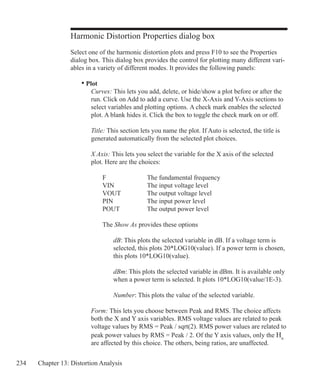
	 field of the core.
	 • H Field: If the mouse clicks on an inductor which is referenced in a K 		
	 (coupling) device with a nonlinear core model specified, this selects the H

	 field of the core.
	 • Time: This selects the transient analysis simulation time variable.
	 • Linear: This selects a linear scale.
	 • Log: This selects a log scale.
291
AC analysis variables
Only analog variables and operators are available in AC analysis. Here are the
available variables:
	 • All: This lists all available variables for the component clicked on.
	 • Voltage: If the object is a node, a complex node voltage is selected. If the
	 object is a two-lead component, the complex voltage across the component is
	 selected. If the mouse probes between two leads of a three or four lead
	 active device, the lead-to-lead differential complex voltage is selected. Hold
	 the Shift key down and probe on two nodes to get differential voltage.
	 • Current: If the object is a two-lead component, the complex current
	 through the component is selected. If the mouse probes on a lead of a three
	 or four lead active device, the complex current into the lead is selected.
	 • Power: If the mouse probes on a component, it plots the AC power
	 dissipated (PD), generated (PG), or stored (PS) in that component. If the
	 component has more than one of these, a list appears allowing selection.
	 Clicking off a component, in the schematic background, lets you select one
	 of the total power terms, PGT (total generated power), PST (total stored
	 power), or PDT (total dissipated power).
	 • Conductance: This plots the complex conductance for two-terminal parts.
	 • Impedance: This plots the complex impedance for two-terminal parts, such
	 as resistors, capacitors, inductors, diodes, and sources. Clicking on an AC
	 source driving a network plots the network's complex input impedance.
	 Clicking on a passive element like a capacitor plots its complex impedance.
	 If the capacitor uses a MODEL attribute and has parasitic elements, these are
	 also included in the impedance.
	 • Inoise: This selects a plot of input noise, regardless of where the mouse is
	 clicked. Inoise is referenced to the input source specified in the Noise Input
	 field of the Analysis Limits dialog box (F9). This option is disabled if any
	 non-noise term has been plotted.
292 Chapter 15: Probe
	 • Onoise: This selects a plot of output noise, regardless of where the mouse
	 is clicked. Onoise is referenced to the output node name specified in the
	 Noise Output field of the Analysis Limits dialog box (F9). This option is
	 disabled if any non-noise term has been plotted.
	 • Frequency: This selects the sweep frequency variable.
	 • Magnitude: This plots the magnitude of the probe variable.
	 • Magnitude(dB): This plots the decibel magnitude of the probe variable. It
	 is the default operator.
	 • Phase: This plots the phase of the probe variable.
	 • Group Delay: This plots the group delay of the probe variable.
	 • Real Part: This plots the real part of the probe variable.
	 • Imag Part: This plots the imaginary part of the probe variable.
	 • Linear: This selects a linear scale.
	 • Log: This selects a log scale.
Note that the noise variables and the other variables are mutually incompatible.
If INOISE or ONOISE has been plotted, then the other quantities like voltage
and current are not available to plot and vice versa. You can clear the plots with
CTRL+HOME.
293
DC analysis variables
Both analog and digital variables are available in DC analysis. They include:
	 • All: This lists all available variables for the component clicked on.
	 • Voltage: If the mouse probes on a digital node, the digital state of the node
	 is selected. If the mouse probes on an analog node, its node voltage is
	 selected. If the mouse probes on the shape of a two-lead component, the
	 voltage across the component is selected. If the mouse probes between two
	 leads of a three or four lead active device, the lead-to-lead differential voltage
	 is selected. Hold the Shift key down and probe on two nodes to get the
	 differential voltage.
	 • Current: If the mouse probes on a digital node, the digital state of the node
	 is selected. If the mouse probes on the shape of a two-lead component, the
	 current through the component is selected. If the mouse probes on a lead of a
	 three or four lead active device, the current into the lead is selected.
	 • Power: If the mouse probes on a component, it plots the power dissipated
	 (PD) or generated (PG) in that component. If the component has more than
	 one of these, a list appears allowing selection. Clicking off a component, in
	 the schematic background, lets you select one of the total power terms, PGT
	 (total generated power) or PDT (total dissipated power). Since PST (total
	 stored power) is zero in DC analysis, PGT will always equal PDT because of
	 the general relationship between power variables:
		 PGT = PST + PDT
	 • Linear: This selects a linear scale.
	 • Log: This selects a log scale.
The default horizontal variable is the value of the specified Variable 1 of the
DC Analysis Limits dialog box. For example, if the source is a voltage source,
the horizontal value is the voltage across the source, or if the source is a current
source, the horizontal value is the current through the source.
This default can be changed through the Plot item in the Properties dialog box.
The Properties dialog box is invoked by clicking in the Probe plot, then pressing
F10. A plot must be present before an X variable change can be made.
294 Chapter 15: Probe
Probe analog variables
The Horizontal and Vertical menus are used to select the curve variables and op-
erators which will be displayed by Probe. The curves displayed for each variable
or operator are dependent upon the component selected. The variables and opera-
tors are shown in the following tables.
Table 15-1 General syntax for Probe variables
Resistance is available only for resistors. Inductance, B field, and H field are
available only for inductors.
Component Variables
Component Voltage Current
Capacitance /
Inductance
Charge /
Flux
Energy / Power
Generated
Energy / Power
Stored
Energy / Power
Dissipated
Sources V I NA NA EG / PG NA NA
Resistor V I NA NA NA NA ED / PD
Capacitor V I C Q NA ES / PS NA
Inductor V I L X NA ES / PS NA
Diode V I C Q NA ES / PS ED / PD
Transmission
Line
VAP, VAM, VBP
VBM
IAP, IAM
IBP, IBM
NA NA NA NA NA
BJT
VB, VC, VE
VBE, VBC, VEB
VEC, VCB, VCE
IB, IE, IC CBE, CBC QBE, QBC NA ES / PS ED / PD
BJT4
VB, VC, VE, VS
VBE, VBC, VBS
VEB VEC, VES
VCB, VCE, VCS
VSB, VSE, VSC
IB, IE, IC
IS
CBE, CBC
CCS
QBE, QBC
QCS
NA ES / PS ED / PD
MOSFET: LEV
1-3
VG, VS, VD, VB
VGS, VGD, VGB
VDS, VDG, VDB
VSG, VSD, VSB
VBG, VBD, VBS
IG, IS, ID
IB
CGS, CGD
CGB, CBD
CBS
QGS, QGD
QGB, QBD
QBS
NA ES / PS ED / PD
MOSFET:LEV
4,5,8
49,14,44
VG, VS, VD, VB
VGS, VGD, VGB
VDS, VDG, VDB
VSG, VSD, VSB
VBG, VBD, VBS
IG, IS, ID
IB
NA NA NA NA NA
OPAMP
VP, VM, VOUT
VPM, VCC, VEE
NA NA NA NA NA NA
JFET
VG, VD, VS
VGS, VGD, VSG
VSD, VDG, VDS
IG, ID, IS CGS, CGD QGS, QGD NA ES / PS ED / PD
GaAsFET
VG, VD, VS
VGS, VGD, VSG
VSD, VDG, VDS
IG, ID, IS CGS, CGD QGS, QGD NA ES / PS ED / PD
Variables that are mere permutations of the leads are not shown. For example CGS and CSG produce the same plot.
295
Probing a SPICE file
You can also probe SPICE files. Clicking on two-terminal devices like sources,
resistors, and diodes plots the voltage across or current through the device, de-
pending upon whether the Vertical option is set to Voltage or Current. Clicking
on three-terminal devices, presents a dialog box where you can select the desired
voltage or current variable. Clicking on a node number plots the node voltage.
Probe regions
When probing for node voltages or digital states, you click the mouse on one of
the round dots shown on the node, or on any portion of any wire connecting to a
node. If there is more than one dot on a node, it doesn't matter which you pick.
Probe can plot many internal device variables. For example, the internal charge
and capacitance of a MOSFET (Level 1-3 only) can be accessed. The probe re-
gions for devices with three or more pins are more complicated than for nodes
and other devices. For example, the variable selected for a transistor is deter-
mined by the nearest device pin line segment. These line segments are illustrated
below for the case of a MOSFET. When the mouse is clicked near a device, the
distance from each line segment to the point where the mouse is clicked is deter-
mined. The closest line segment determines the two leads. The Vertical and Hori-
zontal menu choices determine the variable type.
Drain to Body
Source to Body
Drain to Gate
Gate to Source
Gate to Body
Drain to Source
Figure 15-1 MOSFET line segment diagram
296 Chapter 15: Probe
Editing the schematic in Probe
You can also edit the schematic while in Probe mode. To do this a new Probe
mode is available to distinguish mouse editing from mouse probing.
Select , Component , Text , Wire , and other modes are used for
editing. Probe mode is used to probe the schematic for waveforms or curves.
SPACEBAR rapidly toggles between the current Edit mode and Probe mode.
Probing macros and subcircuits
In earlier versions, a click on a macro or subcircuit symbol brought up a dialog
box from which you could select from a fairly complex list of variables. Now
a click on a macro or subcircuit symbol drills down one level and displays the
next level schematic (for a macro) or netlist (for a subcircuit). From here you can
probe in the usual way.
Clicking on a macro or subcircuit goes down one level. To go up a level (towards
the main schematic) click on the Up button or press ALT + Up Arrow. You
can also use the same command from Scope / Go Up a Level.
This feature can be enabled or disabled from Preferences / Options / Analysis /
Macro Drill Down.
297
Chapter 16 Stepping
What's in this chapter
Stepping is the process of varying a parameter value to see its effect on circuit
behavior. Transient, AC, DC, Distortion, Dynamic AC, and Dynamic DC analysis
all provide the capability of stepping parameter values.
This feature cannot be used simultaneously with Monte Carlo analysis. If both
are enabled, MC10 will enable the last one turned on by the user, and disable the
other.
Stepped waveforms are plotted on the same graph. To distinguish one from the
other, use Cursor mode and the UP CURSOR ARROW and DOWN CURSOR
ARROW keys to switch between branches. As the cursor keys change the se-
lected branch (step value) of the waveform, the window title changes showing the
value of the stepped parameter(s). You can also label the individual branches and
use the mouse or the Go to Branch feature to select individual branches.
Features new in MC10
	 	 • Active stepping is now denoted by the use of bold lettering on the
		 Stepping button in the Analysis Limits dialog box.
	 	 • Stepping takes advantage of multiple CPUs if threading is enabled. A
		 two CPU system will generally run 1.6 times faster than one CPU. A
		 system with four CPUs will generally run about 3.0 times faster.
298 Chapter 16: Stepping
How stepping works
Stepping systematically alters the value of one or more parameters of one or
more components and then runs the analysis, drawing multiple branches for each
curve. Earlier versions of the program placed restrictions on changing some vari-
ables, such as the model level and parasitic resistances. Most parameter types can
now be stepped, including attribute parameters like the resistance of a resistor,
model parameters like a transistor beta, and symbolic parameters created with
a .define or a .param command. If the parameter changes the equation matrix,
MC10 simply recreates the equations. For each parameter set, a run is made and
the specified waveforms plotted. With parameter stepping, performance plots
show performance function dependence on one parameter, while 3D plots can
show dependence on two parameters.
What can be stepped?
There are three basic types of variables that can be stepped:
	 Attribute parameters
	 Model parameters
	 Symbolic parameters (those created with a .DEFINE statement)
Some components such as the simple dependent sources, IOFI, IOFV, VOFI, and
VOFV, are characterized by a single attribute parameter called 'VALUE'. In this
type of component, this is the only parameter that can be stepped.
Some components have only model parameters, and these are the only param-
eters that can be stepped.
Some components have both attribute and model parameters and both types of
parameters can be stepped.
Symbolic parameters used in model statement parameters or attributes can be
stepped.
Using a symbolic variable, you can also step text using the list option. This is
handy for changing models, stimulus files, or other text-based parameters.
299
The Stepping dialog box
Parameter stepping is controlled by the Stepping dialog box. It looks like this:
Figure 16-1 The Stepping dialog box
The dialog box is divided into several areas:
	 • Parameter Panels
	 The dialog box provides tabs for up to twenty parameters, although five is a
	 practical maximum. Each tab accesses a panel which controls a single
	 parameter. Stepping for each parameter is enabled when its Step It option is
	 set to Yes. A check mark in the panel tab shows which parameters are
	 enabled for stepping.
	 	 • Step It: Set this option to Yes to enable stepping for the parameter.
		 • Step What
		 The left Step What list box in each parameter panel specifies the name
		 of the model parameter, component, or symbolic variable value to be
		 stepped. Since dissimilar parts may share the same model name, the
		 electrical definition is shown along with the name. Clicking on the list
		 box displays a list of the items available for stepping. To select one, click
		 on it. The right Step What list box in each panel specifies the name of
		 the parameter to be stepped. Clicking on the list box displays a list of the
		 available parameters. To select a parameter, click on it.
		 • From: This field specifies the starting value of the parameter.
		 • To: This field specifies the ending value of the parameter.
300 Chapter 16: Stepping
		 • Step Value: This field specifies the step value of the parameter.
		 • Method: The Method option in each panel controls how the Step
		 Value affects the parameter value.
		 	 • Linear: Linear stepping adds the Step Value.
			 • Log: Log stepping multiplies by the Step Value.
			 • List: List stepping lets you enter a comma-delimited set of
			 specific values in the List field.
		 • Parameter Type: This option in each panel specifies whether the
		 Step What field refers to a model, component, or symbolic name.
			 • Component: This is used for passive parameter values, as
			 for example, the resistance of a resistor.
			 • Model: This is used for model parameters, as for example,
			 the BF of a BJT, or a delay parameter for a digital device.
			 • Symbolic: Symbols are variables created with a .DEFINE or
			 a .PARAM statement. They can be used in component value
			 parameters or in model parameters. Stepping them is a powerful
			 way of controlling many parameter values. For example, you
			 can control the W and L of many MOSFET devices with this:
				 .DEFINE W1 2U
				 .DEFINE L1 0.3U
			 .MODEL NM1 NMOS (W=W1 L=L1...)
			 This lets you selectively step only the W and L of the devices
			 that use the symbols W1 and L1.
		 You can step either an individual instance or all instances of a model
		 parameter. In Component mode, stepping affects one parameter of one
		 device only if the PRIVATEANALOG and PRIVATEDIGITAL
		 options (Global Settings) are enabled. In Model mode, stepping affects
		 the parameter in all devices that use the model name regardless of the
		 state of the PRIVATEANALOG or PRIVATEDIGITAL flags.
301
	 • Change: The Change option only comes into play if you are stepping
	 multiple parameters. It controls whether the parameter changes are to be
	 nested or simultaneous.
		 • Step all variables simultaneously: In this type of change, all
		 parameters change value simultaneously, so you get a small set of
		 matched parameter values.
		 • Step variables in nested loops: In this type of change, each
		 parameter changes independently, so you get all combinations of the
		 specified values.
		 For example, suppose you step L1 through the values 1u and 2u and you
		 step C1 from 1n to 2n. Simultaneous stepping, will produce two runs,
		 and nested stepping will produce four runs as shown below.
	 	 Nested			 Simultaneous	 	
		 L1=1u C1=1n		 L1=1u C1=1n		
		 L1=1u C1=2n		 L1=2u C1=2n
		 L1=2u C1=1n
		 L1=2u C1=2n
		 Simultaneous stepping requires an equal number of steps for each
		 parameter. If the parameter panels specify different numbers of steps, an
		 error message will be issued. Use nested stepping when you want all
		 combinations of parameter variation. Use simultaneous stepping when
		 you want only specific combinations.
	 • All On: This button turns on the Step It flag for all active panels.
	 • All Off: This button turns off the Step It flag for all active panels.
	 • Default: This button creates a set of step values ranging from 1/2 to twice
	 the nominal parameter value.
	 • OK: This button accepts the changes made and exits the dialog box.
	 • Cancel: This button ignores any changes and exits the dialog box.
	 • Help: This button accesses the Help system.
302 Chapter 16: Stepping
Public vs. private libraries
To illustrate the stepping possibilities with the four combinations of public or
private libraries and component or model stepping, imagine a circuit with two
transistors, each having a MODEL attribute of 2N2903.
This circuit uses two transistors with component names Q1 and Q2. They both
use the 2N2903 model. This diagram illustrates the four possibilities.
					 Private Models		 Public Models
Component Mode Stepping	 Q1	 2N2903		 Q1	 2N2903
Case 1: Step Q1.BF
					 Q2	 2N2903		 Q2
Model Mode Stepping		 Q1	 2N2903		 Q1	 2N2903
Case 2 : Step 2N2903.BF
					 Q2	 2N2903		 Q2
The shaded models are changed by stepping. In case 1, we are stepping Q1.BF. In
this case we step the model that Q1 points to. When the libraries are private, then
the model pointed to by Q1 would be stepped and that pointed to by Q2 would
not be stepped. They point to distinct model locations, even though they use the
same model name. When the libraries are public, stepping the model pointed to
by Q1 also steps the model pointed to by Q2 since they point to the same model
location.
In case 2, we are stepping 2N2903.BF. In this case we step all of the instances of
the 2N2903 model. It doesn't matter whether models are private or public, since
all instances of the model are changed.
Only component stepping and private libraries selectively step individual instanc-
es of model parameters. All other cases step all instances of model parameters.
303
Stepping summary
The most important things to remember when using stepping include:
	 1. The parameters of these components may not be stepped:
		 • Transformer
		 • User sources
		 • Laplace sources
		 • Function sources
		 • SPICE dependent sources (E,F,G,H sources)
		 • Old switches (S and W switch parameters can be stepped)
	 The behavior of User, Laplace, Function, and SPICE sources are embodied in
	 algebraic formulas and numeric tables, and thus have no parameters to be
	 stepped. You can step symbolic parameters which are used in Laplace,
	 Function, and SPICE source expressions. For example, you could use
	 .DEFINE TAU 5
	 A Laplace function source whose LAPLACE attribute is:
	
	 1/(1+TAU*S)
	 could then be changed by stepping TAU.
	 Similarly in a Laplace table source like
	 .DEFINE RVAL 2.0
	 .DEFINE TAB (1k,0,RVAL)
	 you could change the behavior of the source by stepping RVAL.
	 The User source gets its data from an external data file and has no parameter
	 that can be stepped.
	 2. In Component mode, stepping affects one parameter of one device only if
	 the PRIVATEANALOG and PRIVATEDIGITAL options (Global Settings)
	 are enabled. In Model mode, stepping affects one parameter of all devices
	 that use that model name. Thus you are potentially affecting many devices.
304 Chapter 16: Stepping
	 This is true regardless of the state of the PRIVATEANALOG or
	 PRIVATEDIGITAL flags. In model stepping, AKO models track stepped
	 parameters in the parent model and all of the temperature model parameters
	 are available for stepping.
		
	 3. The MOSFET Level model parameter may be stepped, but an error will
	 occur if the model has been created with parameters for level 1, 2, or 3 and
	 the level changes to a BSIM model (Level 4, 5, 8, 14, 49), EKV model
	 level (Level 44), or Philips model level. BSIM, EKV and Philips parameter
	 names are significantly different from levels 1-3.
	 4. Linear stepping starts with the From value and adds the Step Value until
	 it reaches the To value. Log stepping starts with the From value and then
	 multiplies by the Step Value until it reaches the To value. A Step Value of 2
	 is often convenient and is called octave stepping. A Step Value of 10 is
	 sometimes referred to as decade stepping. List stepping simply uses the
	 values specified in the List field.
	 5. If multiple parameters are to be simultaneously stepped, they must each
	 specify the same number of steps. If there is a mismatch, an error message
	 is generated.
	 6. At least two parameters must be varied to create 3D plots where a
	 performance function is chosen for the Y axis.
	 7. Stepping a resistor, capacitor, or inductor that uses an expression for its
	 value, replaces the value calculated from the expression with the step value.
	 In other words, the step value takes precedence over the calculated value.
305
Chapter 17 Optimizer
What's in this chapter
The optimizer included with Micro-Cap uses multiple methods for optimization.
Features new in MC10
	 	 • Optimization has been improved by the addition of three new methods.
		 The complete list of methods now includes:
			 • Powell
			 • Hooke
			 • Levenberg-Marquardt
			 • Differential Evolution
	 	 • A new Import Curve File command allows importing data points for
		 curve fitting.
306 Chapter 17: Optimizer
How the optimizer works
The optimizer systematically changes user-specified parameters to maximize,
minimize, or equate a chosen performance function, while keeping the param-
eters within prescribed limits and conforming to any specified constraints.
It works in any analysis mode, letting you optimize distortion, transient, AC
small-signal or DC characteristics. Anything that can be measured in any analysis
mode by any performance function can be maximized, minimized, or equated.
Equating is the process of matching specified points on a curve. A typical appli-
cation would be trying to match points on a Bode plot gain curve.
To see how optimization works, load the circuit OPT1.CIR. It looks like this:
Figure 17-1 The OPT1 circuit
This circuit delivers power to a 6.0 ohm load from a 1.0 volt battery through a
732.13 ohm source resistance. We'll use the optimizer to find the value of R2 that
maximizes its power.
307
The Optimize dialog box
Run transient analysis and select Transient / Optimize or press CTRL + F11.
This loads the Optimize dialog box, which looks like this.
Figure 17-2 The Optimizer dialog box
The syntax of the optimization process is:
Find	 {Parameter value}
That	 {Maximizes, minimizes, equates} {Performance function} To {Value}
While	 {Boolean Constraints}
The user supplies the items in braces {}.
The dialog box offers these options:
Find:
	 Parameter: This is where you select the parameter to be optimized. Click
	 on the Get button to select a parameter. The choice of parameters is the
	 same as in the Stepping dialog box.
	 Low: This is the lower limit of the parameter value.
308 Chapter 17: Optimizer
	 High: This is the upper limit of the parameter value.
	 Current: The current value of the parameter is displayed here during the
	 optimization process.
	 Optimized: The most optimal value of the parameter found so far is displayed
	 here during the optimization process.
That:
	 Maximizes, Minimizes, Equates list box: This is where you select an
	 optimizing criteria. You can maximize or minimize the chosen performance
	 function. You can also match a curve by using the equate option together
	 with the Y-Level performance function.
	 -: This removes the optimizing criterion for the current row.
	 +: This adds a new optimizing criterion at the end of the list. You can have
	 multiple maximize or minimize criteria, or multiple equate criteria, but you
	 cannot mix maximize / minimize criteria with equate criteria. Each criterion
	 carries equal weight.
	 Get: This selects the performance function and its parameters.
	 To: The optimizer will try to match the selected performance function to this
	 value if equate is selected. If Y_Level is used, the optimizer tries to match
	 the Y expression value to the value in this field.
	 Current: The current value of the performance function is displayed here
	 during the optimization process.
	 Optimized: The most optimal value of the performance function found so far
	 is displayed here during the optimization process.
	 Error: This shows the error for the row criteria in Equate optimizations only.
	 Import Curve Fit File: This accesses a dialog box where you can select a
	 waveform by naming its expression and the file where it is stored. The file
	 format is the same as the numeric output format for waveforms and curves.
	 Clear That: This clears all That fields.
309
Value to Start With:
	 Initial: This sets the starting values of the parameters to be optimized with
	 the value shown in the Initial column, at the beginning of each optimization
	 method. The methods do not use the optimized value from the prior method.
	 Existing: This leaves the starting values of the parameters to be optimized
	 with their ending values from any prior optimization method. Each method
	 except the first, gains the advantage of using an already optimized value from
	 the prior method.
Minimize Dialog:
	 This option minimizes the dialog box so the optimized plot can be seen.
Update Plot:
	 This option updates the plot for each optimization value to show progress
	 towards the optimization goal.
Time:
	 This field shows the cumulative time spent optimizing.
RMS Error:
	 For equate optimizations, this shows the RMS error (square root of the sum
	 of the squares of the differences between the target and actual values).
Percent Error:
	 For equate optimizations, this shows the average percentage error.
Optimize:
	 Starts the optimizer.
Stop:
	 Stops the optimizer.
Apply:
	 Modifies the circuit by changing its parameters to the optimized values.
Format:
	 Lets you choose the numeric format of the displayed values.
Settings:
Powell: This lets you set the numeric parameters for the Powell method.
310 Chapter 17: Optimizer
Hooke: This lets you set the numeric parameters for the Hooke method.
Differential Evolution: This lets you set the numeric parameters for DE.
Initial Range Factor: This value is the factor to apply when setting the initial
high and low values. Low = value / factor. High = value * Factor.
Initialize Each Method: If this flag is enabled each optimization method is
initialized to the value in the Initial field prior to starting the method. Other-
wise, each may benefit from using the ending values of the prior method.
Methods:This section lets you select the optimization methods to be used.
Select one or more of the available methods. Click the right arrow and it adds
the method to the Using list. Using this control tool you can determine which
of the methods will be used and the order in which they will be used.
Constraints: This lets you add constraints to the optimization process. These are
entered as boolean expressions like PDT = 1.5.
Close: Quits the optimizer.
Help: This accesses local help information for the Optimizer dialog box.
The settings for the OPT1 circuit determine the value of the resistor R2 that max-
imizes the power dissipated in R2. It finds the value of R2 that maximizes:
	 Y_Level(PD(R2),1,1,0)
	 PD(R2) is the power dissipated in resistor R2.
	
	 Y_Level(PD(R2),1,1,0) is the Y expression value of the curve PD(R2) at the
	 X expression (T) value of 0, which is the DC operating point value.
Click on the Optimize button. After a few seconds the optimizer finishes and
presents the optimal value of R2 = 732.13 ohms.
We could have guessed this value from the simplicity of the circuit. Maximum
real power is delivered when the load impedance equals the conjugate of the
source impedance. In this case maximum power is delivered when R1 and R2 are
the same value, 732.13 ohms.
311
Optimizing low frequency gain
Load the circuit file OPT2. It looks like this:
Select AC analysis and press F2. Press F8. Note that the gain at F=10kHz is
about 55.6 dB. The standard run looks like this:
Figure 17-3 The OPT2 circuit
Figure 17-4 AC analysis before optimization
Initial gain at 10kHz
is about 55.6 dB.
312 Chapter 17: Optimizer
Figure 17-5 The Optimizer dialog box for OPT2
Select AC / Optimize or press CTRL + F11. This loads the Optimize dialog box
for AC analysis. It looks like this:
These settings for the OPT2 circuit determine the value of the model parameter
R in the resistor model RMOD that maximizes the 10kHz gain of the circuit.
RMOD is the model used by the two 5K load resistors R2 and R5. These settings
for the optimizer find the following:
	 The value of RES RMOD(R) that maximizes:
	
	 Y_Level(db(V(OUTA)),1,1,1e+004)
	 db(V(OUTA)) is the dB value of the output voltage of the diffamp circuit.
	
	 Y_Level(db(V(OUTA)),1,1,1e+004) is the value of the curve db(V(OUTA))
	 at the X expression (F) value of 1E4, which is the lowest frequency in the AC
	 analysis run.
Click on the Optimize button. After a few seconds the optimizer finds the optimal
value of R = 3.282. Since R multiplies the nominal resistance, this means that
the value of the load resistors R2 and R5 that maximizes db(V(OUTA)) is:
	 3.282*5k = 16.4K
313
We used Powell here. Most circuit optimization problems have simple local mini-
ma like this and are best served with this method.
Click on the Apply and Close buttons, then press F2. When the run is over, press
F8. The Apply button copies the optimized values to the circuit and F2 produces
a new run with the optimized R model parameter. F8 puts us in Cursor mode so
we can readily read the new values. The display should look like this:
Figure 17-6 AC analysis after optimization
The gain at F=1E4 is now about 65.8 dB.
Optimized 10kHz
gain is about 65.8
314 Chapter 17: Optimizer
Optimizing matching networks
Load the circuit file OPT3. It looks like this:
Select AC analysis and press F2. Note that the RL power, PD(RL) peaks at about
F=1.3GHz. The standard run looks like this:
Figure 17-7 The OPT3 circuit
Figure 17-8 AC analysis before optimization
RL power peaks at
about 1.34 GHz.
315
Figure 17-9 The Optimizer dialog box for OPT3
Select AC/ Optimize or press CTRL + F11. This loads the Optimize dialog box
for AC analysis. It looks like this:
These settings find the values of the C3 and C4 network-matching capacitors that
maximize the AC power, PD(RL), delivered to the load, RL at 4GHz. To summa-
rize, the optimizer finds the following:
	 The value of C3 and C4 that maximizes:
	
	 Y_Level(PD(RL),1,1,4e+009)
	 PD(RL) is the AC power delivered to the load RL.
	
	 Y_Level(PD(RL),1,1,4e+009) is the value of the curve PD(RL) at the X
	 expression (F) value of 4GHz, which is the frequency at which we want the
	 matching network to deliver peak power.
Click on the Optimize button. After a few seconds the optimizer finds the optimal
value of C3 = 3.3pF and C4 = 1.894pF. These values deliver about 5mW to the
load at 4GHz.
316 Chapter 17: Optimizer
Click on the Apply and Close buttons, then press F2. The Apply button copies the
optimized values of C3 and C4 to the circuit and F2 produces a new run with the
optimized values. The display should look like this:
Figure 17-10 AC analysis after optimization
RL power peaks at
5mW at about 4GHz.
Note that the Smith chart is plotting 2*VIN-1 which, for this circuit, is equivalent
to plotting the scattering parameter, S11. That S11 goes through the Smith chart
origin (1,0) at 4 GHz, confirms that the matching capacitor network has been
optimized to deliver maximum AC power to the load.
317
Curve fitting with the optimizer
Load the circuit file OPT4. It looks like this:
Select AC analysis and press F2. Press F8. The standard run looks like this, after
placing the cursors at 2MHz and 10MHz. Note the value of db(V(OUT)) is 1.397
at 2MHz and -9.583 at 10MHz.
Figure 17-11 The OPT4 circuit
Figure 17-12 AC analysis before optimization
318 Chapter 17: Optimizer
Figure 17-13 The Optimizer dialog box for OPT4
Select AC/ Optimize or press CTRL + F11. This loads the Optimize dialog box
for AC analysis. It looks like this:
These settings for the OPT4 circuit determine the value of R1, C1, and L1 that
equate the six values of DB(V(OUT)) to specified values at different frequencies.
To summarize, it finds the following:
	 The value of R1, C1, and L1 that:
	
	 Equates Y_Level(DB(V(OUT)),1,1,2e+006) to 2.188
	 Equates Y_Level(DB(V(OUT)),1,1,4e+006) to 10.449
	 Equates Y_Level(DB(V(OUT)),1,1,6e+006) to -1.696
	 Equates Y_Level(DB(V(OUT)),1,1,8e+006) to -9.103	
	 Equates Y_Level(DB(V(OUT)),1,1,10e+006) to -13.939	
	 Equates Y_Level(DB(V(OUT)),1,1,20e+006) to -27.134	
In short, we are trying to match six data points, at frequencies ranging from
2 MHz to 20MHz on the plot of db(v(out)).
In equate optimization, the optimizer actually minimizes the square root of the
sum of the squares of the differences between the target and actual values. The
RMS Error field always shows this root-mean-square error measure.
319
Click on the Optimize button. After a few seconds the optimizer finds the optimal
values; R1 = 80.394, C1=1.586n, and L1 = 945.775n.
Click on the Apply and Close buttons, then press F2. When the run is over, press
F8. The Apply button copies the optimized values to the circuit and F2 produces
a new run with the optimized values. The display should look like this, after plac-
ing the cursors on the 2MHz and 10MHz values.
Figure 17-14 The optimized plot
Checking two of the equate values, at 2MHz and 10MHz, we find they equal the
specified target values 2.188 and -13.939 respectively.
The optimizer was able to match these values exactly in this example. That is
because the target values were taken originally from a circuit that was identical
to the optimized circuit. We know that the target values are realizable because
they came from an actual circuit. In cases like this it is sometimes possible for
the optimizer to find scaled versions of the same circuit, since these have exactly
the same circuit response. A scaled circuit is derived from a circuit by multiply-
ing every resistance and inductance value by a scale factor and by dividing every
capacitor value by the same factor. There are an infinite number of such scaled
circuits. This is not usually a problem, only something to be aware of. You may
get many optimal solutions to this kind of problem.
320 Chapter 17: Optimizer
321
Chapter 18 Monte Carlo Analysis
What's in this chapter
After successfully simulating a circuit, a user may want to know how the circuit
performance is affected by parameter variation. Monte Carlo analysis provides a
means of answering that question.
During Monte Carlo analysis, multiple runs are performed. For each run, a new
circuit is generated from components whose numerical parameter values are
randomly selected. The selection process is based upon user-specified parameter
tolerances and distribution types. Micro-Cap extracts performance characteristics
from each run and displays the information graphically in the form of histograms
and numerically in the form of statistical parameters.
Features new in MC10
	 	 • Monte Carlo takes advantage of multiple CPUs if threading is enabled.
		 A two CPU system will generally run 1.5 times faster than one CPU. A
		 system with four CPUs will generally run about 3.0 times faster.
	 	 • The Agauss, Gauss, Unif, and AUnif operators were added.
		 • An Eliminate Outliers flag was added which removes any values
		 in Gaussian distributions outside of the tolerance band.
	 	 • X and Y scales for the histogram can now be set by the user.
	 	 • Number of Runs is now displayed on the histogram.
	 	 • Histogram bar top can now display either quantity or percentage.
322 Chapter 18: Monte Carlo Analysis
How Monte Carlo works
Monte Carlo works by analyzing many circuits. Each circuit is constructed of
components randomly selected from populations matching the user-specified
tolerances and distribution type. Tolerances are applied to parameters. Model
parameters can have DEV and LOT tolerances. Symbolic parameters, batteries,
and the parameters of the Voltage Source and the Current Source can be LOT
toleranced only. Tolerances are specified as an actual value or as a percentage of
the nominal parameter value.
Both absolute (LOT) and relative (DEV) tolerances can be specified. A LOT tol-
erance is applied absolutely to each device. A DEV tolerance is then applied to
the first through last device relative to the LOT toleranced value originally cho-
sen for the first device. In other words, the first device in the list receives a LOT
tolerance, if one was specified. All devices, including the first, then receive the
first device's value plus or minus the DEV tolerance. DEV tolerances provide a
means for having some devices track in their critical parameter values.
Both tolerances are specified by including the key words LOT or DEV after the
model parameter:
	 [LOT[td]=value[%]] [DEV[td]=value[%]]
For example, this model statement specifies a 10% absolute tolerance to the for-
ward beta of the transistor N1:
	 .MODEL N1 NPN (BF=300 LOT=10%)
In this example, for a worst case distribution, each transistor using the N1 model
statement has a forward beta of either 270 or 330. For a Gaussian distribution,
a random value would be selected from a distribution with a standard deviation
of 30/SD (SD is the number of standard deviations in the tolerance band). For a
uniform distribution, a random value would be selected from a distribution with a
half-width of 30.
This example specifies a 1% relative tolerance to the BF of the N1 model:
	 .MODEL N1 NPN (BF=300 DEV=1%)
The DEV value specifies the relative percentage variation of a parameter. A rela-
tive tolerance of 0% implies perfect tracking. A 1.0% DEV tolerance implies that
323
the BF of each N1 device is the same to within +- 1.0% for a worst case distribu-
tion. DEV tolerances require the use of private libraries, regardless of the state of
the PRIVATEANALOG or PRIVATEDIGITAL flags. These flags are set in Op-
tions / Global Settings.
This sample specifies a 10% absolute and 1% relative BF tolerance:
	 .MODEL N1 NPN (BF=300 LOT=10% DEV=1%)
In this example, assuming a worst case distribution, the first N1 model is random-
ly assigned one of the two values 270 or 330. These two values are calculated
from the mean value of 300 and 10% LOT tolerance as follows:
	 BF = 270 = 300 - .1•(300)
	 BF = 330 = 300 +.1•(300)
Suppose that the LOT toleranced BF value was randomly chosen to be 330. Then
all N1 transistors, including the first, are randomly given one of these values,
based upon the 1% DEV tolerance:
	 327 = 330 - .01•300
	 333 = 330 + .01•300
If the LOT toleranced BF value had been randomly chosen to be 270, then all
N1 transistors, including the first, would be randomly given one of these values,
based upon the 1% DEV tolerance:
	 267 = 270 - .01•300
	 273 = 270 + .01•300
Assuming a worst case distribution, all BF values in any particular run would be
chosen from the set {267, 273, 327, 333}.
Resistors, capacitors, and inductors must be toleranced through their multiplier
model parameter. This example provides a 10% LOT tolerance and a 1% DEV
tolerance for a resistor.
	 .MODEL RMOD RES (R=1 LOT=10% DEV=1%)
Any resistor that uses the RMOD model will be toleranced, since the toleranced
R value will multiply its resistor value.
324 Chapter 18: Monte Carlo Analysis
[td] specifies the tracking and distribution, using the following format:
			 [/lot#][/distribution name]
These specifications must follow the keywords DEV and LOT without spaces
and must be separated by /.
lot# specifies which of one hundred random number generators, numbered 0
through 99, are used to calculate parameter values. This lets you correlate param-
eters of an individual model statement (e.g. RE and RC of a particular NPN tran-
sistor model) as well as parameters between models (e.g. BF of NPNA and BF of
NPNB). The DEV random number generators are distinct from the LOT random
number generators. Tolerances without lot# get unique random numbers.
distribution name specifies the distribution. It can be any of the following:
	 Keyword			 Distribution
	 UNIFORM			 Equal probability distribution
	 GAUSS			 Normal or Gaussian distribution
	 WCASE			 Worst case distribution
If a distribution is not specified in [td], the distribution specified in the Monte
Carlo dialog box is used.
To illustrate the use of lot#, suppose we have the following circuit:
In this example, Q1's RE value will be uncorrelated with Q2's RE value. During
the Monte Carlo runs, each will receive random uncorrelated tolerances.
Figure 18-1 Uncorrelated RE values
325
Now consider this circuit:
Figure 18-2 Using lot# to correlate RE values
Here, the presence of LOT/1 in both RE tolerance specs forces the LOT tolerance
of the RE values to be the same. The values themselves won't be the same since
their nominal values (1.0 and 2.0) are different.
DEV can also use [td] specifications. Consider this circuit.
Here the LOT toleranced RE values will track perfectly, but when the DEV toler-
ance is added, the values will be different due to the use of different generators
for DEV.
Figure 18-3 Using lot# in DEV and LOT
326 Chapter 18: Monte Carlo Analysis
Tolerancing symbolic parameters
Symbolic parameters, those created with a .DEFINE statement, may also be tol-
eranced. The format is as follows:
.DEFINE [{lotspec}] varname expr
where the format of lotspec is similar to that for other parameters except there is
no DEV tolerance. With symbolic variables, there is only one instance so DEV
tolerancing cannot be used.
	 [LOT[td]=value[%]]
[td] specifies the tracking and distribution, using the usual format:
	 [/lot#][/distribution name]
For example,
.DEFINE {LOT/1/GAUSS=10%} RATE 100
This defines a variable called RATE that has a Gaussian distribution with a LOT
tolerance of 10% and its tolerances are based on random number generator 1.
Here is another example:
.DEFINE {LOT/3/UNIFORM=20%} VOLTAIRE 100
This defines a variable called VOLTAIRE with a nominal value of 100. It has a
uniform distribution with a LOT tolerance of 20%. Its LOT tolerance is based on
the random number generator 3.
AGAUSS, GAUSS, UNIF, and AUNIF functions can also be used to specify dis-
tributions. For example, if a resistor VALUE attribute is agauss(1k,100,2), this
specifies a 1k resistor with a tolerance of 100 at 2 standard deviations. The stan-
dard deviation is 50 = 100/2 in this case.
327
Tolerances and public vs. private libraries
In order to accomplish relative DEV tolerancing, it is necessary to have private
libraries. Consider this case:
	 .MODEL N1 NPN (BF=300 LOT=10% DEV=1%)
Because of the DEV tolerance, each instance of a BJT using the N1 model will
have a unique BF. This can only happen with private libraries. Thus, when a
model uses a DEV tolerance, the PRIVATEANALOG or PRIVATEDIGITAL
flags are enabled, forcing the use of a private library for all parts which use the
model. The flags are not affected for other models.
To summarize, for all parts which use the model statement:
	 If DEV is used, then all devices have their own private model parameter set,
	 regardless of the PRIVATEANALOG or PRIVATEDIGITAL flag settings,
	 and may have different parameter values if the tolerances are not zero.
	 If DEV is not used, and PRIVATEANALOG or PRIVATEDIGITAL are
	 disabled, then all devices that use the same model name will have the same
	 parameter values, since public libraries are being used.
	 If DEV is not used, and PRIVATEANALOG or PRIVATEDIGITAL are
	 enabled, then all devices that use the same model name may have different
	 parameter values, if the tolerances are not zero.
This table summarizes how the parameters of two parts using the same model
vary depending upon DEV use and the PRIVATE flags.
				 PRIVATE	 PUBLIC
DEV USED		 UNIQUE	 UNIQUE
DEV NOT USED	 UNIQUE	 SAME
This table summarizes how the parameters of two parts using the same model
vary depending upon LOT use and the PRIVATE flags.
				 PRIVATE	 PUBLIC
LOT USED		 UNIQUE	 SAME
LOT NOT USED	 SAME		 SAME
328 Chapter 18: Monte Carlo Analysis
Distributions
The actual values assigned to a toleranced parameter depend not only on the tol-
erance, but on the distribution as well.
A worst case distribution places all values at the extremes of the tolerance band.
There are only two values:
	 Min = Mean - Tolerance
	 Max = Mean + Tolerance
The mean value is the model parameter value.
A uniform distribution places values equally over the tolerance band. Values are
generated with equal probability over the range:
		 From Mean - Tolerance to Mean + Tolerance
A Gaussian distribution produces a smooth variation of parameters around the
mean value. Values closer to the mean are more likely than values further away.
The standard deviation is obtained from the tolerance by this formula:
	 Standard Deviation = Sigma = (Tolerance/100)•Mean/ SD
SD (from the Global Settings dialog box) is the number of standard deviations in
the tolerance band. The value chosen depends upon how much of a normal popu-
lation is to be included in the tolerance band. Here are some typical values:
	 Standard deviations		 Percent of population
	 1.0				 68.0
	 1.96			 95.0
	 2.0				 95.5
	 2.58			 99.0
	 3.0				 99.7
	 3.29			 99.9
If a supplier guarantees that 99.9% of all 10% resistors are within the 10% toler-
ance, you would use the value 3.29. Using a Gaussian distribution, a 1K 10% re-
sistor may have a value below 900 ohms or above 1100 ohms. The chance would
be less than 0.1% for an SD of 3.29, but it could happen. If the Eliminate Outliers
flag in the Monte Carlo options dialog is enabled any such values are eliminated.
329
Options
The Monte Carlo options dialog box provides these choices:
	 • Distribution to Use: This specifies the default distribution to use for all
	 LOT and DEV tolerances that do not specify a distribution with [td].
	 	 • Gaussian distributions are governed by the standard equation:
	
			 f(x) = e-.5•s•s
/σ(2•π).5
		 Where s = x-µ/σ and µ is the nominal parameter value, σ is the standard
		 deviation, and x is the independent variable.
		 • Uniform distributions have equal probability within the tolerance
		 limits. Each value from minimum to maximum is equally likely.
		 • Worst case distributions have a 50% probability of producing the
		 minimum and a 50% probability of producing the maximum.
	 • Status: Monte Carlo analysis is enabled by selecting the On option. To
	 disable it, click the Off option.
	 • Number of Runs: The number of runs determines the confidence in the
	 statistics produced. More runs produce a higher confidence that the mean and
	 standard deviation accurately reflect the true distribution. Generally, from 30
	 to 300 runs are needed for a high confidence. The maximum is 30000 runs.
	 • Show Zero Tolerance Curve: If this option is enabled, the first run
	 tolerances are set to zero to provide a kind of baseline or reference curve.
	 • Eliminate Outliers: If this option is enabled, any values outside of the
	 tolerance band are eliminated. This only applies to Gaussian distributions.
	 • Report When: This field specifies when to report a failure. The routine
	 generates a failure report in the numeric output file when the Boolean
	 expression in this field is true. The field must contain a performance
	 function specification. For example, this expression
	 rise_time(V(1),1,2,0.8,1.4)10ns
330 Chapter 18: Monte Carlo Analysis
	 would generate a report when the specified rise time of V(1) exceeded 10ns.
	 The report lists the toleranced values that produced the failure. These 		
	 reports are included in the numeric output file (NAME.TNO for transient,
	 NAME.ANO for AC, and NAME.DNO for DC) and can be viewed directly.
	 They are also used by the Load MC File item in the File menu to recreate
	 the circuits that created the performance failure.
	 • Seed: The random number seed directly controls the sequence of random
	 numbers generated by the program. By specifying a seed number you can
	 identify and recall in a later simulation the same random numbers used to
	 produce tolerance values and the corresponding histograms. If the seed is
	 =1 it returns a repeating sequence of random numbers. If the seed is blank
	 or 1 it returns a non-repeating sequence of random numbers.
	 • Get Last: This puts the last used seed in the Seed field.
	 • Tolerance (CTRL + SHIFT + T): This accesses the Tolerance dialog box.
	 Tolerances are usually defined when the model statement is created. Modern
	 MOSFET and BJT models, however, have so many parameters that it is
	 often difficult to enter all of these tolerances, even if they are known. This
	 dialog box, which is accessible from the Monte Carlo dialog box and also
	 from Edit / Change / Tolerances, lets you assign tolerances to many or all
	 parameters at once. You can apply LOT and DEV tolerances to any part that
	 has a model statement. You can also save Tolerance sets for later use on
	 other models of the same type. The dialog box has these fields:
		 • Types: This lists the part types found in the circuit. You can select one
		 or more types for tolerancing, although only one type is usually selected.
Figure 18-4 The Tolerance dialog box
331
		 • Models: This lists each model found for the selected part type(s). You 		
		 can select one or more models for tolerancing.
		
		 • Parameters: This lists the model parameters for each selected model.
		 • LOT: This controls the options for the LOT tolerance.
			 • Add/Change: This adds or changes the LOT tolerance of the
			 selected parameter(s) to the value in the Tolerance field, when the
			 Apply button is clicked.
			 • Leave: This option leaves the LOT tolerances unchanged.
			 • Remove: This option removes the LOT tolerance of the selected 		
			 parameter(s).
			 Lot#: This field lets you enter a lot # for the LOT tolerance.
			 Distribution: This lets you select the type of distribution.
			 Tolerance: This field lets you enter the tolerance. You can enter an
			 absolute tolerance or a percentage tolerance.
		 • DEV: This controls the options for the DEV tolerance. The options are
		 the same as for the Lot tolerance above.
		 • Tolerance Sets: This lets you assign a name to a tolerance set so it can
		 be used for other parts of the same model statement type. To name a set,
		 click on Save and enter a name, such as 60n_MOSFET or Caps_5%. To
		 apply a tolerance set to the selected parameters, select the set name from
		 the list and click on Tolerance Sets / Apply. To delete a tolerance set,
		 select the name of the set to be removed, then click on the Delete button.
		 Tolerances can not be applied to parameters that are not defined in the
		 model statements and have undefined defaults. For example, in a model
		 statement such as, .MODEL MM1 NMOS (Level=1).
		 In this example, you can't apply a tolerance to the GAMMA parameter
		 because it is not defined in the model statement and its default value is
		 undefined. You can apply a tolerance to GAMMA if its value is defined
		 in the model statement such as in this example,
			 .MODEL MM1 NMOS (Level=1 GAMMA=.65)
332 Chapter 18: Monte Carlo Analysis
Performance functions
Micro-Cap saves all X and Y expression values of each plotted expression at
each data point for each run, so you can create histograms using expressions
comprised of the functions after the runs are done. For example if you plotted the
curve V(OUT), you could do a histogram of the expression:
Rise_Time(V(OUT),1,1,1,2) + Fall_Time(V(OUT),1,1,1,2)
Performance function expressions reduce an entire curve to a single number that
captures an important behavioral characteristic for one particular run. Individual
numbers are then combined to form a population which is statistically analyzed
and its histogram is displayed. Ideally, the histograms and population statistics
will reveal expected variations in the performance function expression when the
circuit is manufactured.
The performance functions are described in greater detail in the Performance
Functions chapter.
333
Chapter 19 Performance Functions
What's in this chapter
Performance functions are mathematical procedures designed to extract circuit
performance measurements from curves generated during an analysis. This chap-
ter describes their capabilities. It includes:
		 • What are performance functions?
		 • Performance functions defined
		 • The Performance Function dialog box
Features new in MC10
	 	 • The Gain Margin function was added for AC analysis.
	 	 • Performance functions can now be used in analysis formula text.
334 Chapter 19: Performance Functions
What are performance functions?
Micro-Cap provides a group of functions for measuring performance-related
curve characteristics. These functions let you measure such things as rise time,
fall time, pulse width, frequency, period, and many others. These functions may
be used to analyze any curve generated during the course of an analysis. There
are several ways in which performance functions may be used:
	 • Immediate mode: In this mode, you click on the Go to Performance
	 button and select a function from the list. The function is then applied to the
	 curve specified in the Expression list box curve and the numeric result is
	 printed in the dialog box.
	
	 • Performance Tag: In this mode, the left mouse button is used to place a
	 performance tag which measures a performance parameter for the current
	 plot and the plots of any subsequent runs. This includes stepped runs, Monte
	 Carlo runs, or even simple dynamic edits. In each case the tag measures the
	 quantity dynamically and adapts its display to show the new value.
	 • Performance plots: In this mode, you do multiple runs by stepping numeric
	 parameters and then create a plot showing how the performance function
	 varies with the stepped variables. You can create two and three dimensional
	 performance plots.
	 • Monte Carlo plots: In this mode, you run multiple Monte Carlo runs and
	 then create a histogram showing how the performance function varies
	 statistically.
All performance functions share one trait. They extract a single number (the per-
formance function) from a group of numbers (the plot or curve). So performance
functions are a kind of data reduction. They reduce an array of points, e.g. the
plot of V(OUT) vs. Time, to a single number, e.g. RiseTime.
335
Performance functions defined
Micro-Cap provides a group of functions for measuring performance-related
curve characteristics. These functions include:
	 Average		 This finds the average value of the selected Y expression.
				 It is computed over the range from XMin to XMax.
	 Fall_Time		 This marks the N'th time the Y expression falls through
				 the specified Low and High values. It places cursors at
				 the two data points, and returns the difference between
				 the X values at these two points.
	 Frequency		 This is the numerical complement of the Period function.
				 It behaves like the Period function, but returns 1/Period.
				 The function places cursors at the two data points.
	 Gain_Margin	 This finds the gain margin of a plot. A dB(expr) plot and
				 a PHASE(expr) plot must be present. This function is
				 only available in AC analysis.
 	 High_X		 This finds the global maximum of the selected branch of
				 the selected Y expression, places either the left or the
				 right cursor at the data point, and returns its X value.
  	 High_Y		 This finds the global maximum of the selected branch of
				 the selected Y expression, places either the left or the
				 right cursor at the data point, and returns its Y value.
 	 Low_X		 This finds the global minimum of the selected branch of
				 the selected Y expression, places either the left or the
				 right cursor at the data point, and returns its X value.
 	 Low_Y		 This finds the global minimum of the selected branch of
				 the selected Y expression, places either the left or the
				 right cursor at the data point, and returns its Y value.
	 Peak_Valley	 This marks the N'th peak and N'th valley of the selected
				 Y expression. It places the cursors at the two data points,
				 and returns the difference between their Y values. It is
				 useful for measuring ripple, overshoot, and amplitude.
336 Chapter 19: Performance Functions
	 Peak_X		 This marks the N'th local peak of the selected Y
				 expression. A peak is any data point algebraically larger
				 than the neighboring data points on either side. It places
				 the left or right cursor at the data point and returns its X
				 expression value.
	 Peak_Y		 This is identical to the Peak_X function but returns the Y
				 expression value. This function is useful for measuring
				 overshoot in time-domain curves and the peak gain
				 ripple of filters in AC analysis.
	 Period		 The period function accurately measures the time period
				 of curves by measuring the X differences between
				 successive instances of the average Y value. It does this
				 by first finding the average of the Y expression over the
				 simulation interval where the Boolean expression is true.
				 Then it searches for the N'th and N+1'th rising instance
				 of the average value. The difference in the X expression
				 values produces the period value. Typically a Boolean
				 expression like T500ns is used to exclude the errors
				 introduced by the non-periodic initial transients. This
				 function is useful for measuring the period of oscillators
				 and voltage to frequency converters, where a curve's
				 period usually needs to be measured to high precision.
				 The function works best on curves that pass through
				 their average value once per fundamental period. It will
				 not work well on curves that contain significant
				 harmonics of the fundamental. The function places the
				 cursors at the two data points, and returns the difference
				 between their X expression values.
	 Phase_Margin	 This finds the phase margin of a plot. A dB(expr) plot
				 and a PHASE(expr) plot must be present. This function
				 is only available in AC analysis.
	
	 Rise_Time		 This marks the N'th time the Y expression rises through
				 the specified Low and High values. It places the cursors
				 at the two data points, and returns the difference between
				 the X expression values at these two points.
	 RMS		 This function finds the RMS value of the selected Y
				 expression over the specified X range.
337
	 Slope		 This places cursors at the two data points that straddle
				 the data point nearest the specified X value, and returns
				 the slope between the two cursors.
	 Valley_X		 This marks the N'th local valley of the selected Y
				 expression. A valley is any data point algebraically
				 smaller than the neighboring data points on either side. It
				 places the left or right cursor at the data point and returns
				 its X expression value.
	 Valley_Y		 This is similar to the Valley_X function but returns the Y
				 expression value. It is useful for measuring undershoot
				 in time-domain curves and the peak attenuation of filters
				 in AC analysis.
	 Width		 This measures the width of the Y expression curve by
				 finding the N'th and N+1'th instances of the specified
				 Level value. It then places cursors at the two data points,
				 and returns the difference of their X expression values.
	 X_Delta		 This finds the N'th instance of the specified Y expression
				 range, places cursors at the two data points, and returns
				 the difference between their X expression values.
	
	 X_Level		 This finds the N'th instance of the specified Y Level
				 value, places a left or right cursor there, and returns the
				 X expression value.
	 X_Range		 This finds the X range (max - min) for the N'th instance
				 of the specified Y range. First it finds the specified Y
				 Low and Y High expression values. It then searches all
				 data points between these two for the highest and lowest
				 X values, places cursors at these two data points, and
				 returns the difference between their X expression values.
				 It differs from the X_Delta function in that it returns the
				 difference in the maximum and minimum X values in
				 the specified Y range, rather than the difference in the X
				 values at the specified Y endpoints.
	 Y_Delta		 This finds the N'th instance of the specified X expression
				 range, places cursors at the two data points, and returns
				 the difference between their Y expression values.
338 Chapter 19: Performance Functions
	 Y_Level		 This finds the N'th instance of the specified X Level
				 value, places a left or right cursor there, and returns the
				 Y expression value.
	 Y_Range		 This finds the Y range (max - min) for the N'th instance
				 of the specified X range. First it finds the specified X
				 Low and X High expression values. It then searches all
				 data points between these two for the highest and lowest
				 Y values, places cursors at these two data points, and
				 returns the difference between the Y expression values at
				 these two points. It differs from the Y_Delta function in
				 that it returns the difference in the maximum and
				 minimum Y values in the specified X range, rather than
				 the difference in the Y values at the specified X
				 endpoints. This function is useful for measuring filter
				 ripple.
339
The Performance Function dialog box
These functions may be used on a single analysis plot, in Monte Carlo analysis,
optimization, and in 3D plotting. When a run is complete, click on the Go to Per-
formance Function button. The dialog box looks like this:
Figure 19-1 Performance Function dialog box
There are two panels: Performance and Cases. The Cases panel lets you select a
branch if more than one is available due to stepping. The Performance panel lets
you select a performance function to apply to the selected curve branch chosen
from the Cases panel.
The Performance panel provides the following fields:
Function: This selects one of the Performance functions.
Expression: This selects the expression for the function to work on. Only
expressions that were plotted during the run are available.
Boolean: This Boolean expression must be true for the performance functions to
consider a data point for inclusion in the search. Typically this function is used
to exclude some unwanted part of the curve from the function search. A typical
expression here 	would be T100ns. This would instruct the program to exclude
any data points for which T=100ns. A value of 1 selects all data points since it is
always true (e.g. =1.0).
340 Chapter 19: Performance Functions
N: This integer specifies which of the instances you want to find and measure.
For example, there might be many pulse widths to measure. Number one is the
first one on the left starting at the first time point. The value of N is incremented
each time you click on the Go To button, measuring each succeeding instance.
Low: This field specifies the low value to be used by the search routines. For
example, in the Rise_Time function, this specifies the low value at which the ris-
ing edge is measured.
High: This field specifies the high value to be used by the search routines. For
example, in the Rise_Time function, this specifies the high value at which the
rising edge is measured.
Level: This field specifies the level value to be used by the search routines. For
example, in the Width function, this specifies the expression value at which the
width is measured.
The buttons at the bottom provide these functions:
Go To (Left): This button is called Go To when the performance function natu-
rally positions both cursors (as the Rise_Time and Fall_Time functions do). It is
named Left when either the left or right cursor, but not both, would be positioned
by the function. When named Left, this button places the left numeric cursor at
the position dictated by the performance function.
Right: This button places the right numeric cursor at the position dictated by the
performance function. For example, the Peak function can position either the left
or right cursor.
Close: This button closes the dialog box.
Help: This button accesses local help information for the dialog box.
Default Parameters: This button calculates default parameters for functions
which have them. It guesses at a suitable value by calculating the average value
or the 20% and 80% points of a range.
Performance functions all share certain basic characteristics:
A performance function at its core is a search: The set of data points of the
target expression is searched for the criteria specified by the performance func-
tion and its parameters.
341
Performance functions find the N'th instance: Many performance functions
have a parameter N which specifies which instance of the function to return.
Some functions, like Gain Margin, Phase Margin, High, Low, RMS, and Average,
have, by definition, only one instance.
Each performance function request from the dialog box increments the N
parameter: Every time a performance function is called, N is incremented after
the function is called. The next call automatically finds the next instance, and
moves the cursor(s) to subsequent instances. For example, each call to the Peak
function locates a new peak to the right of the old peak. When the end of the
curve is reached, the function rolls over to the beginning of the curve. N is not, of
course, incremented when a performance function is used in optimization or 3D
plotting.
Only curves plotted during the run can be used: Performance functions oper-
ate on curve data sets after the run, so only curves saved (plotted) during the run
are available for analysis.
Boolean expression must be TRUE: Candidate data points are included only if
the Boolean expression is true for the data point. The Boolean expression is pro-
vided to let the user include only the desired parts of the curve in the performance
function search.
At least PERFORM_M neighboring points must qualify: If a data point is
selected, the neighboring data points must be consistent with the search criteria or
the point is rejected. For example, in the peak function, a data point is considered
a peak if at least PERFORM_M data points on each side have a lower Y expres-
sion value. PERFORM_M is a Global Settings value and defaults to 2. Use 3 or
even 4 if the curve is particularly choppy or has any trapezoidal ringing in it.
342 Chapter 19: Performance Functions
Performance function plots
Performance Function plots may be created when multiple analysis runs have
been done with temperature or parameter stepping. To illustrate, load the file
PERF1. Run transient analysis. The plot should look like this:
Figure 19-2 The transient analysis run
From the Transient menu, select Performance Windows - Add Performance
Window. This presents the Properties dialog box for performance plots.
Figure 19-3 The Properties dialog box for performance plots
343
The Plot Properties dialog box is similar to the one for the analysis plot described
in Chapter 14. Here we'll describe the only difference, the Plot panel.
	 • Plot
Curves: This list box lets you select the curve that the performance func-
tions will operate on. The Add and Delete buttons at the bottom let you
add or delete a particular performance plot. This check box controls
whether the selected performance curve will be plotted or not. If you
want to hide the curve from the plot group, remove the check mark by
clicking in the box.
Title: This field lets you specify what the plot title is to be. If the Auto
button is checked, the title is automatically created.
X Axis: This lets you select the stepped variable to use for the X axis.
Plot Group: This list box controls the plot group number.
What To Plot: This group lets you select the performance function and
its parameters. It also lets you select which curve to plot from the list of
stepped variables not used for the X Axis.
Stepped Variables Lists: These lists lets you select which curve to plot
from the list of stepped variables not used for the X Axis. If more than
one variable has been stepped, there will be one or more List boxes.
These list boxes let you select which instance of the stepped variable(s)
the performance functions will process. For instance, if you stepped R1,
L1, and C1 through 5 values each and chose R1 for the X axis variable,
there would be a list box for L1 and one for C1. From these two lists, you
could select any of the 5 X 5 = 25 possible curves and plot a performance
function versus the R1 value.
Runs: If Accumulate Plots is enabled, this lets you select the run number
you wish to use. Select All and you can show multiple performance plots.
The run number is simply a numeric index of each new run created by
edits while in dynamic edit mode.
344 Chapter 19: Performance Functions
Figure 19-5 Rise and fall time performance plots
Figure 19-4 Rise time performance plot
Click on the Get button in the What to Plot section and select Rise_Time from
the list. Click on the OK button. This creates the following performance plot.
This plot shows how the rise time of V(1) (as measured between 1 and 2 volts)
varies with the value of C1, the only stepped variable. Double-click on the graph
or press F10 to invoke the Properties dialog box. Click on the Add button. Click
on the Get button and select Fall_Time from the Function list box. Click on the
345
Figure 19-6 Stepping both C1 and R1
Figure 19-7 Performance plots for R1=12.5
OK twice. This adds the Fall_Time function plot to the performance window.
The window shows plots of both the Rise_Time and Fall_Time functions. Press
F11 and click the Yes item in the Step It group of the R1 panel. Hit OK and press
F2. The runs look like this:
Press CTRL + F6 until you see the performance plot. It should look like this:
346 Chapter 19: Performance Functions
Figure 19-8 The Fall_Time performance plot for R1=25
In the new runs, C1 varies from .1n to 4.6n and R1 varies from 12.5 to 50. The
plot shows the functions vs. the C1 variable only. What about R1? Since a 2D
plot can only show functions versus one variable, the plot itself is prepared for
a single value of the other stepped variable. In this case the plot is for R1=12.5
only. To see other values, press F10, and select a new value from the R1.Value
list box for each of the two plots. Here is the plot for R1=25.
When two or more variables are stepped, there is another way to view the results.
You can do a 3D performance plot. To illustrate, select Add 3D Window from
the 3D Windows item on the Transient menu. From the 3D Properties dialog
box select the Performance item from the Y Axis list, and select the Fall_Time
function from the Function list box. Click OK. The result looks like Figure 19-9.
This 3D plot shows the Fall_Time function plotted along the (vertical) Y axis vs.
C1 along the (horizontal) X axis and R1 along the (normal to paper) Z axis. It is
the same data but presented a different way. In fact if you examine the 3D plot,
you can see the 2D fall time plot within it.
347
Figure 19-9 The 3D Fall_Time performance plot
348 Chapter 19: Performance Functions
349
Chapter 20 3D Graphs
What's in this chapter
Micro-Cap provides 3D graphs for plotting and visualizing simulation results.
This chapter shows you how to use them.
The chapter is organized as follows:
		 • How 3D plotting works
	 	 • 3D example
	 	 • The 3D dialog box
		 • Cursor mode in 3D
		 • 3D performance functions
	 	 • Changing the plot orientation
	 	 • Scaling in 3D
350 Chapter 20: 3D Graphs
How 3D plotting works
In a 3D plot there are three variables. Each is associated with one of three mutu-
ally orthogonal axes, X, Y, and Z. The Z axis may be thought of as pointing out
from the paper toward the user. The X and Y axes are coplanar with the paper.
Y Axis
X Axis
Z Axis
The Y axis can plot one of two things:
	 • Any expression (curve) plotted during the run.
	 • Performance function expressions using curves plotted during the run.
Expressions can be plotted if either temperature stepping or parameter stepping
has been employed during the run.
Performance function expressions can be plotted if at least two variables have
been stepped. One of the two can be temperature.
The first stepped variable is plotted along the Z axis. For example, if you stepped
temperature and chose to plot V(1) on the Y axis, then T (Time) would normally
be plotted on the X axis, and the stepped variable, temperature, would normally
be plotted on the Z axis. If you stepped R(R1) and you chose to plot V(1) on the
Y axis, then T (Time) would normally be plotted on the X axis, and the stepped
variable, R(R1), would normally be plotted on the Z axis.
T or the second stepped variable is plotted along the X axis. For example, if you
stepped R(R1) and C(C1), then you could plot an expression like V(1) vs. T on
the X axis and either R(R1) or C(C1) on the Z axis, or a performance function
like Rise_time vs. R(R1) on the X axis and C(C1) on the Z axis.
			 z	
				 x
					 y
					 y = f(x,z)
351
3D example
To illustrate how 3D plotting works, load the file 3D1. It looks like this:
The circuit consists of a resistor, R1, and a symbolic variable, Drop, which is
dependent upon the resistance of R1 and T. Select Transient from the Analysis
menu. The analysis limits look like this:
Figure 20-1 The 3D circuit
Figure 20-2 The analysis limits of 3D1
According to these limits T will vary from 0 to 8 with maximum steps of .1. We
are plotting the value of the Drop variable. Since there are no capacitors or induc-
tors in this circuit, the actual time step size starts small and quickly ramps up to
the maximum of .1.
352 Chapter 20: 3D Graphs
The Stepping dialog box looks like this:
According to this dialog box, the value of R1 will be linearly stepped from 0 to 8
in steps of 0.1. Click OK. Press F2 to start the run. The results look like this:
Figure 20-3 R(R1) is stepped from 0 to 8
Figure 20-4 The 2D analysis plot of Drop
The plot shows the value of the variable Drop, with T varying from 0 to 8 and
R(R1) varying from 0 to 8. There are 81 runs (1+8.0/0.1).
353
Select the Show Drop vs. T vs. R1 item from the 3D Windows item from the
Transient menu. This plots the value of the symbolic variable, Drop, along the Y
axis, vs. T along the X axis, vs. R1 along the Z axis like this:
Figure 20-5 The 3D plot of Drop
In this case, we stepped only one variable R1. During the run, Micro-Cap calcu-
lated 81 values of R1, the Z axis variable, and a little more than 81 values of T,
the X axis variable, for each of the 81 values of R1. For each of these approxi-
mately 6600 values, it calculated the value of the Drop function.
When a 3D plot is requested, Micro-Cap interpolates the specified number of
data points from the simulation run at equally spaced values. It then produces a
3D plot where the intersection of the X and Z isolines mark the interpolated data
points. The patches between the grid lines are colored according to the value at
the adjacent isoline. The color used (color spectrum, gray, clear, etc.) is specified
in the 3D Plot Properties dialog box.
354 Chapter 20: 3D Graphs
The Properties dialog box for 3D plots
When you add or change a 3D graph you employ its properties dialog box. To see
what it looks like press F10. The Plot panel of the dialog box looks like this:
The dialog box controls all aspects of the 3D graph. The command buttons at the
bottom access the principal features of the graph:
	 OK: This accepts any changes made and exits the dialog box.
	 Cancel: This ignores any changes made and exits the dialog box.
	 Apply: This redraws the plot behind the dialog box using the current settings
	 so you can see what the settings look like before committing to them.
	 Help: This accesses the Help system.
There are six panels:
	 Plot: This button accesses the main plot features of the 3D graph. In
	 particular it includes these items:
Figure 20-6 The Plot panel of the 3D dialog box
355
	 	 Title: This is the title of the 3D plot. The initial title is always of a form
		 that reflects the names of the axis variables. Its format is Y axis variable 		
		 vs. X axis variable vs. Z axis variable. You can edit this field to change
		 the title text if Auto is disabled. However, if the Auto field is enabled, the
		 title will automatically revert to the axis name form as changes are made
		 to axis variable names.
		 X Axis: This lists the variables available for plotting along the X axis. If
		 Performance is selected from the Y Axis list below, the X axis list will
		 show all stepped variables except the one already selected for the Z axis.
		 Otherwise, this list will include only the unique X expressions from the
		 Analysis Limits dialog box. Typically these include T (Time), F
		 (Frequency), or the DC sweep variable.
	 	 Z Axis: This lists the variables available for plotting along the Z axis.
		 These include any stepped variable not already selected for the X axis.
		 The Flip option flips the Z-axis scale, plotting from High to Low, instead
		 of Low to High.
		 Y Axis: This field lists the options available for plotting along the Y axis. 	
		 It includes each of the plotted Y expressions and, if at least two items
		 have been stepped, it includes a Performance item. Selecting this item
		 enables the adjacent Get button which is then used to select a function to
		 plot. The choice of Y axis variable constrains the choice of variables for
		 the X and Z axes.
			 • If Performance is selected, the X Axis variable must be one
			 of the stepped variables.
			 • If one of the plotted Y expressions is selected, the X Axis variable
			 must be its associated X expression. For example, if one of the Y
			 expressions was V(1) and its X expression was T, then selecting
			 V(1) for the 3D Y axis forces the choice of T for the 3D X axis.
		 What to Plot:
		 These lists show excess stepped variables not already selected as axis
		 variables. If a variable is not being used as an axis variable, you can
		 select which of its stepped values you want to plot. Each value produces
		 a different 3D surface plot.
356 Chapter 20: 3D Graphs
	 	 Temperature:
		 If more than one temperature has been run, and temperature is not being
		 used as an axis variable, this field lets you select which run to plot.
		 Run: If Accumulate Plots is enabled, this lets you select the run number
		 you wish to use. The run number is simply a numeric index of each new
		 run created by edits while in dynamic edit mode.
	 Options: This button accesses items which control the existence, quantity, or
	 content of certain graph features. It looks like this:
Figure 20-7 The Options panel of the 3D dialog box
		 Options: These items control the existence of certain graph features:
		 	 Contour: This option plots a 2D contour of the Y axis variable.
		 	 Axes: If enabled, this option adds the three axes, X, Y, and Z. Note
			 that the axes are colinear with the grid, so to see the effect of this
			 feature, the Grid feature must be disabled.	
		 	 Isolines: This option draws isolines on the plot along which X and Z
			 are constant. The intersection of these lines comprise the boundaries
			 of the colored surface patches of the 3D plot.	
			 Grid: This option draws parallel grid lines in each coordinate plane
			 to delineate equal fractional parts of the scale.
357
	 		 Scales: This option draws numeric scales along each axis.
	 		 Background: This option paints the three coordinate planes clear
			 when disabled, regardless of their color settings.
		 	 Flash Cursor: This option flashes the two numeric cursors for
			 easier visibility.
Patches:
X: This controls the number of patches along the X axis. This num-
ber defaults to 40. It may be as high as you wish, but remember,
the number of total patches is equal to the product of the number of
X and Z patches. Picking 40 for each axis requires 40*40 = 1600
patches. Picking 1000 for each axis requires 1000*1000 = 1,000,000
patches. Each patch must be processed through a set of 3D trigono-
metric transforms. These take time to calculate and slow down the
drawing. Also, with more than 200 patches the surface is covered
with isolines spaced so close it's hard to see the surface, so limit this
value to 20 to 200.
Z: This controls the number of patches along the Z axis. The same
considerations as for the X axis apply here as well.
 		
	 Formats: This panel accesses the numeric format features of
	 the 3D graph. Its options are shown below:
Figure 20-8 The Format panel
358 Chapter 20: 3D Graphs
	 For each of the three axes, X, Y, and Z, you can control the Scale and Cursor
	 value numeric format.
		 Scale Format: This is the numeric format used to print the axis scale.
		 Cursor Format: This numeric format is used to print the curve's X, Y,
		 and Z values in the table below the plot in Cursor mode. Its format is the
		 same as the scale format described above.
			
		 • Slope Calculation: This lets you select among three forms of slope
		 calculation: Normal, dB/Octave, and dB/Decade.
		 • Formula Text: The Format button lets you set the numeric format of
		 formula text used in the 3D plot.
	 Color: This panel accesses the color features. It looks like this:
Figure 20-9 The Color panel of the 3D dialog box
		 This panel lets you control the color of the following features:
		 Objects: This group includes the color of the grid, text, isolines, X, Y,
		 and Z axis planes, and the window background. To change an object's
		 color, first select it, then select a new color from the palette.
359
	 	 Patch Color: This panel lets you control the color of the patches that
		 comprise the 3D surface. You can choose from:
	 		 • Clear: This option leaves the patches transparent, producing
			 what looks like a wire mesh if the Isolines option is enabled, or no
			 plot at all if it isn't enabled.
	 	
			 • Spectrum: This option colors the patches with the colors of the
			 spectrum ranging from blue for the lowest values to red for the
			 largest values.
			 • Gray: This option colors the patches with shades of gray that range
			 from black for the low values to white for the high values.
			 • Red: This option colors the patches with shades of red that range
			 from dark red for the low values to light red for the high values.
	 		 • Green: This option colors the patches with shades of green that
			 range from dark green for the low values to light green for the high
			 values.
			 • Blue: This option colors the patches with shades of blue that range
			 from dark blue for the low values to light blue for the high values.
	 	 • Font
		 This standard panel lets you select font, style, size, and effects for all of
		 the text used in the 3D plot.
	 	 • Tool Bar
		 This standard panel lets you select the buttons that will appear in the
		 local tool bar of the 3D window.
To add a 3D plot window, select Transient / 3D Windows / Add 3D Window.
This displays a new 3D Properties dialog box and lets you select the desired plot
features.
360 Chapter 20: 3D Graphs
Cursor mode in 3D
A Cursor mode is available to numerically examine the plot. Press F8 or click on
the Cursor mode button. The plot will look like this:
Click the mouse somewhere near the middle of the 3D surface plot. A cursor
should appear. Press the LEFT ARROW key several times. Press the RIGHT AR-
ROW key several times. Notice that the cursor selects a changing set of X axis,
or T values, but moves along a grid of constant Z axis, or R1 value.
Press the DOWN ARROW key several times. Press the UP ARROW key several
times. Notice that the cursor selects a changing set of Z axis, or R1 values, but
moves along a grid of constant X axis, or T value.
All of the usual Cursor function modes are available. In particular the Next, Peak,
Valley, High, Low, Inflection, Global High, Global Low, Go to X, Go to Y, and
Go to Performance modes are available. For example, click on the Peak button.
Press the RIGHT ARROW cursor key several times. The left numeric cursor is
placed on each successive peak of the constant Z, or R1, curve.
Figure 20-10 The 3D plot in Cursor mode
361
3D Performance functions
Load the file 3D2. Select AC from the Analysis menu. Press F2 to start the runs.
The runs look like this:
Figure 20-11 The 3D2 runs
Select AC / Show 3D Windows / Show Width... This produces this plot:
Figure 20-12 The plot of Width vs. L2 and C1
362 Chapter 20: 3D Graphs
Here we have plotted the Width performance function:
	 Width(db(v(Out)),1,1,-15)
This performance function measures the width of the db(V(Out)) function at a
Boolean of 1 (always true), first instance, at the Y value of -15. This effectively
measures the -15dB bandwidth of the bandpass filter.
The value of L2 is stepped from 11mH to 13mH, in steps of .25mh, while step-
ping C1 from 800pF to 900pF in steps of 25pF. This produces 9*5, or 45 runs.
The width is measured for each of these runs and the 3D graph plots the value of
the Width function vs. the C1 value along the X axis and the L2 value along the Z
axis. The plot shows how the filter bandwidth varies with C1 and L2.
Select AC / Show 3D Windows / Show Y_Range(). This produces this plot:
Here we've plotted the Y_Range performance function:
	 Y_Range(db(v(Out)),1,1,49000,51000)
This performance function measures the variation of the db(V(Out)) function at
a Boolean of 1 (always true), first instance, over the X range of 49kHz to 51kHz.
This effectively measures the passband ripple of the filter.
Figure 20-13 The plot of Y_Range vs. L1 and C2
363
Changing the plot orientation
The orientation of the 3D plot can be changed in several ways:
	 • By dragging the graph with the right mouse button.
	 • By using the keyboard
		 • Q: Rotates the plot clockwise about the X axis.
		 • A: Rotates the plot counter clockwise about the X axis.
		 • W: Rotates the plot clockwise about the Y axis.
		 • S: Rotates the plot counter clockwise about the Y axis.
		 • E: Rotates the plot clockwise about the Z axis.
		 • D: Rotates the plot counter clockwise about the Z axis.
		 • X: View from perpendicular to the X=0 plane.
		 • Y: View from perpendicular to the Y=0 plane.
		 • Z: View from perpendicular to the Z=0 plane.
		 • CTRL + HOME: Standard view orientation.
		 • C: Toggles between contour and 3D view.
364 Chapter 20: 3D Graphs
Scaling in 3D
The choice of scaling is determined entirely by the range of axis variables. There
is no user control of scaling.
365
Chapter 21 Macros
What's in this chapter
This chapter describes the 57 macro circuit files provided with the Micro-Cap
package. Most have numeric parameters that allow the macro function to be
adapted to particular circuit uses. Here is the complete list of the macro parts.
	 • Absolute value (full wave rectifier) function (ABS) 
	 • Amplitude modulator (AM)
	 • Amplifier (AMP)
	 • Balun (BALUN)
	 • Center-tapped transformer (CENTAP)
	 • Limiter circuit (CLIP)
	 • Fast comparator using TANH functions (COMP)
	 • Comparator (COMPARATOR)
	 • Constant power load (Constant Power)
	 • Continuous Phase Frequency Shift Keyer (CPFSK)
	 • DC Motor (DC Motor)
	 • Delay (DELAY)
	 • Diac (DIAC)
	 • Differentiator (DIF)
	 • Digital potentiometer (DIGPOT)
	 • Divider (DIV)
	 • Linear transfer function (F)
	 • Frequency-shift keyer (FSK)
	 • F weighting function (FWeighting)
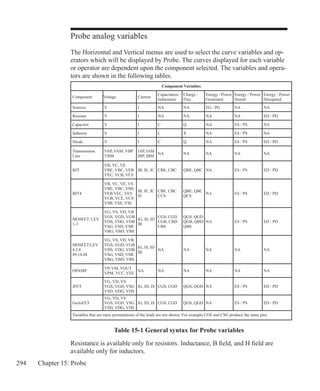
	 • Gyrator for impedance transformation (GYRATOR)
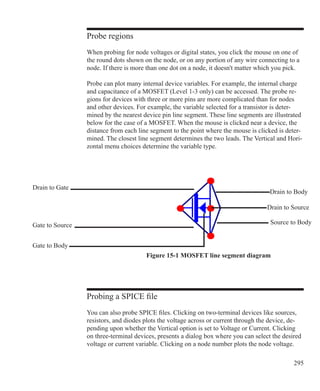
	 • Ideal 2-port transformer (IDEAL_TRANS2)
	 • Ideal 3-port transformer (IDEAL_TRANS3)
	 • Integrator (INT)
	 • Integrator with reset (INT_RESET)
	 • Memresistor using Biolek or Joglekar window (Memresistor)
	 • Monostable (MONOSTABLE)
	 • Two-input weighted multiplier (MUL)
	 • Time domain noise source (NOISE)
	 • Peak detector (Peak Detector)
	 • Photodiode (PHOTODIODE)
366 Chapter 21: Macros
	 • Photodiode_r (PHOTODIODE_R)
	 • Proportional integrator derivative controller (PID Controller)
	 • Potentiometer (POT)
	 • Phase-shift keyer (PSK)
	 • Programmable Unijunction Transistor (PUT)
	 • Pulse width modulator (PWM)
	 • Pulse width modulator with a T flip-flop(PWM_T)
	 • Pulse width modulator without a T flip-flop(PWM_NT)
	 • Simple relay model (RELAY1)
	 • State-variable relay model (RELAY2)
	 • Resonant circuit (RESONANT)
	 • Resistance temperature detector (RTD)
	 • Schmitt trigger circuit (SCHMITT)
	 • Silicon-controlled rectifier (SCR)
	 • Slip or hysteresis function (SLIP)
	 • Snubber (SNUBBER)
	 • Spark gap device (SPARKGAP)
	 • Two-input weighted subtracter (SUB)
	 • Two-input weighted summer (SUM)
	 • Three-input weighted summer (SUM3)
	 • Triac (TRIAC)
	 • Trigger (TRIGGER6)
	 • Triode vacuum tube model (TRIODE)
	 • Voltage-controlled oscillator (VCO)
	 • Wideband transformer (WIDEBAND)
	 • Crystal model (XTAL)
	 • 555 Timer (555)
367
ABS
Sometimes referred to as a full-wave rectifier, the ABS block provides the abso-
lute value of the input signal. Its definition is:
				 VOut
(t) = | VIn
(t) |
			
The function is implemented with the ABS macro:
Figure 21-1 ABS macro circuit
There are no input parameters. This implementation uses an NFV Function
source to provide the absolute value function. The macro block mainly serves to
provide a more suitable symbol than the general source symbol of the NFV Func-
tion source.
See the circuit SYSTEM2 for an example of the use of this macro.
368 Chapter 21: Macros
AM
This block provides an amplitude modulation function implemented as follows
Figure 21-2 AM macro circuit
The device consists of a single NFV source whose VALUE attribute is selected
by the TYPE parameter which can be one of two values, SM or CM. These two
symbolic variables SM and CM are defined as follows:
.define SM Offset*(1+ModIndex*V(In))*VPeak*Sin(2*PI*FS*t)
.define CM Offset*(1+ModIndex*V(In))*VPeak*Cos(2*PI*FS*t)
	 Parameter		 Definition
	 FS			 Frequency of the carrier signal
	 VPEAK		 Magnitude of the carrier signal
	 MODINDEX	 Modulation Index
	 OFFSET		 Offset added to the input signal
	 TYPE		 Modulation type. SM=Sine modulation.
				 CM=Cosine modulation
See the circuit AMTEST1.CIR for an example of how to use this macro.
369
AMP
This block provides a simple linear amplifier. Its definition is:
			 VOut
(t) = gain VIn
(t)
			
The function is implemented with the AMP macro:
Figure 21-3 AMP macro circuit
The single input parameter, GAIN, multiplies the input to produce an amplified
output. This implementation uses a simple linear dependent VOFV source. It
could have been done with a Function source or a Spice poly source. In general,
the simplest type of source that will perform the function is preferred.
370 Chapter 21: Macros
BALUN
The BALUN macro is a macro which converts balanced signals to unbalanced
signals or vice versa.
Figure 21-4 BALUN macro circuit
See the circuit BALUNMIXER for an example of the use of this macro.
371
CENTAP
The CENTAP macro is a center-tapped five terminal transformer with parameters
defining the primary and two secondary inductances.
This circuit is implemented with three linear inductors and one K (coupling)
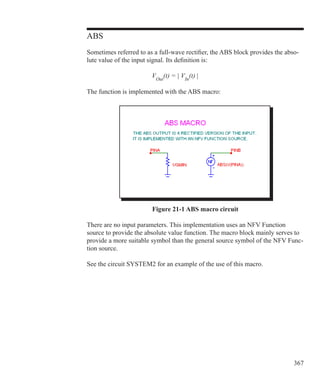
device.
Figure 21-5 CENTAP macro circuit
	 Parameter		 Definition
	 L1			 Primary inductance
	 L2			 Secondary inductance 1
	 L3			 Secondary inductance 2
See the circuit TRANS for an example of the use of this macro.
372 Chapter 21: Macros
CLIP
The clip macro can be used as a limiter, ideal OPAMP, or inverter. It provides an
output that is a scaled copy of the input, but limited to the specified maximum
and minimum levels.
This function is implemented with the CLIP macro:
Figure 21-6 CLIP macro circuit
A pair of input parameters, LOW and HIGH, define the lowest value and highest
value of the output. Between these limits, the output equals the input multiplied
by the GAIN parameter. The block is constructed of a NTVOFV Function table
source.
	 Parameter		 Definition
	 GAIN		 Linear gain between clip limits
	 LOW		 Lowest output value
	 HIGH		 Highest output value
See the circuit SYSTEM2 for an example of the use of this macro.
373
COMP
The COMP macro is a simple, fast, and convergence-friendly voltage comparator
implemented with a TANH function.
Figure 21-7 COMP macro circuit
A pair of input parameters, VOL and VOH, define the lowest value and highest
value of the output. Between these limits, the output equals the input multiplied
by the GAIN parameter. The block is constructed of a function source whose ex-
pression is DC+VA*TANH(GAIN*(V(INP,INM))), where
VA = (VOH-VOL)/2
DC = (VOH+VOL)/2
The use of the smooth TANH function with its continuous derivatives improves
convergence in critical circuits.
	 Parameter		 Definition
	 GAIN		 Linear gain between clip limits
	 VOL		 Lowest output value
	 VOH		 Highest output value
374 Chapter 21: Macros
COMPARATOR
This circuit is a macro model for a comparator with hysteresis and is similar in
construction to the Schmitt macro. The macro circuit looks like this:
Figure 21-8 COMPARATOR macro equivalent circuit
The parameter definitions are as follows:
	 Parameter		 Definition
	 VIH		 Lower limit of input state change voltage
	 VIL		 Upper limit of input state change voltage
	 VOH		 Lower limit of output voltage
	 VOL		 Upper limit of output voltage
	 ROUT		 Comparator output resistance
	 SIGN		 -1 for inverting version, 1 for non-inverting version
See the circuit COMPDEMO for an example of the use of this macro.
375
Constant Power
The Constant Power macro is an implementation of a constant power load.
Figure 21-9 Constant Power macro circuit
It is implemented with a function current source whose expression is,
		 1/(Rlow/V(G1) + V(G1)/Power)
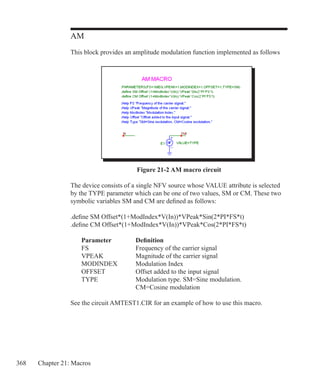
	 Parameter		 Definition
	 Rlow		 Minimum resistance of the load
	 Power		 The constant power in watts the load draws
376 Chapter 21: Macros
CPFSK
The CPFSK is an implementation of a Continuous Phase Frequency Shift Keyer.
Figure 21-10 CPFSK macro circuit
	 Parameter		 Definition
	 AC			 Amplitude of the output waveform
	 FC			 Base carrier frequency
	 DF			 Frequency deviation of the modulated signal
	 VTHRESH		 Threshold voltage to differentiate between a binary one
				 and a binary zero
	 TYPE		 Type = 1 means high frequency occurs at a logic 1.
				 Type = 2 means high frequency occurs at a logic 0.
See the circuit CPFSK for an example of the use of this macro.
377
DC Motor
This is an electrical as well as mechanical model of a DC motor.
Figure 21-11 DC Motor macro circuit
	 Parameter		 Definition
	 LA			 Electrical inductance of the motor
	 RA			 Electrical resistance of the motor
	 KE			 Back EMF electromotive force constant
	 KT			 Torque electromotive force constant
	 JM			 Moment of inertia of the motor
	 BM			 Viscous friction constant
	 TL			 Load torque
378 Chapter 21: Macros
DELAY
The delay macro provides a programmable time delay.
			 VOut
(t+delay) = VOut
(t)
This function is implemented with the DELAY macro:
Figure 21-12 DELAY macro circuit
The single input parameter, DELAY, provides the specified time delay through a
transmission line.
379
DIAC
The DIAC macro is based on an elaboration of the TRIAC macro and looks like
this:
Figure 21-13 DIAC macro circuit
A pair of input parameters, RS and VK define the series impedance and the volt-
age at which breakover occurs.
	 Parameter		 Definition
	 RS			 Series resistance
	 VK			 Breakover voltage
See the DIAC1 and DIAC2 circuits for an example of the use of this macro.
380 Chapter 21: Macros
DIF
The differentiator is the inverse of the integrator. It provides an output which is a
scaled version of the time derivative of the input signal:
			 VOut
(t) = scale d(VIn
(t))/dt
This function is implemented with the DIF macro:
Figure 21-14 DIF macro circuit
The single input parameter, SCALE, multiplies or scales the derivative. This
particular implementation has a buffered output, allowing it to drive very low
impedance networks.
381
DIGPOT
The digital potentiometer macro is loosely based on the MAX5450-5455 series of
devices from Maxim. These devices are digital potentiometers with an up/down
interface consisting of two fixed resistors with 256 digitally controlled wiper con-
tacts (taps). There are three digital inputs that determine the tap point that will be
accessible to the wiper. These digital inputs are INC, CS, and U/D.
The INC input is the wiper increment control input. A high to low transition on
this input increments or decrements the wiper position depending on the states
of CS and U/D. The CS input is the chip select input. When this input is low,
the wiper position may be changed through INC and U/D. The U/D input is the
up/down control input. When this input is high, a high-to-low transition on INC
increments the wiper position, and when the input is low, a high-to-low transi-
tion on INC decrements the wiper position. If the wiper is at either the high or
low end of the resistor array, any increment or decrement in the direction of the
endpoint will not change the wiper position, so in other words, there is no wrap
around effect.
Finally, upon power-up the initial setting for the wiper is at midscale (tap 127).
This function is implemented with the DIGPOT macro:
Figure 21-15 DIGPOT macro circuit
382 Chapter 21: Macros
DIV
Occasionally, system blocks require a function that divides two analog signals.
The desired function is:
			 VOut
(t) = scale Va
(t)/Vb
(t)
This function is implemented with the DIV macro:
Figure 21-16 DIV macro circuit
The single input parameter passed to the macro by the calling circuit, SCALE,
multiplies or scales the ratio of the two input waveforms at the output.
383
F
This system block merely provides a convenient shape to house a general linear
transfer function, F(S). It is implemented with a Laplace LFVOFV source.
			 F(s) = VOut
(s) /VIn
(s)
This function is implemented with the F macro:
Figure 21-17 F macro circuit
The input parameter is an expression representing the complex frequency transfer
function.
See the circuit SYSTEM2 for an example of the use of this macro.
384 Chapter 21: Macros
FSK
This block provides a frequency-shift keyer encoder.
Figure 21-18 FSK macro circuit
The input parameters are as follows:
	 Parameter		 Definition
	 WMAG		 Magnitude of the output waveform
	 NC0		 Number of cycles of the output waveform that will occur
				 in the duration of a single zero bit of the input waveform
	 NC1		 Number of cycles of the output waveform that will occur
				 in the duration of a single one bit of the input waveform
	 TB			 Duration of a single bit in seconds
See the circuit FSK2 for an example of the use of this macro.
385
FWeighting
This is a frequency weighting filter macro
Figure 21-19 FWeighting macro circuit
	 Parameter		 Definition
	 TYPE		 Selects the frequency weighting scale.
				 Must be A, B, C, or D.
A-Weighting
.define Ka 7.39705e9
.define A (Ka*s^4)/((s+129.4)^2 * (s+676.7) * (s+4636) * (s+76655)^2)
B-Weighting
.define Kb 5.99185e9
.define B (Kb*s^3)/((s+129.4)^2 * (s+995.9) * (s+76655)^2)
C-Weighting
.define Kc 5.91797e9
.define C (Kc*s^2)/((s+129.4)^2 * (s+76655)^2)
D-Weighting
.define Kd 91104.32
.define D (Kd*s*(s^2+6532*s+4.0975e7))/((s+1776.3) * (s+7288.5) *
(s^2+21514*s+3.8836e8))
386 Chapter 21: Macros
GYRATOR
The gyrator can be used to scale a resistive impedance. It can also transform an
inductive impedance to a capacitive impedance or a capacitive impedance to an
inductive impedance.
This function is implemented with two cross-referenced linear dependent VOFI
sources.
Figure 21-20 GYRATOR macro circuit
A single parameter, G, determines the impedance transformation as follows:
	 Req = 1/(R*G*G)
	 Leq = C/(G*G)
	 Ceq = L*G*G
See the circuit GYRTEST for an example of the use of this macro.
387
IDEAL_TRANS2
This is an ideal two port transformer. It provides a fixed voltage gain.
This function is implemented with two cross-referenced linear dependent sourc-
es. The gain is constant with frequency.
Figure 21-21 Ideal_Trans2 macro circuit
A single parameter, GAIN, determines the transformer voltage gain.
	 VOUT = VIN*GAIN
	 IOUT = IIN / GAIN
See the circuit IDEALTRANS for an example of the use of this macro.
388 Chapter 21: Macros
IDEAL_TRANS3
This is an ideal three port transformer. It provides a fixed voltage gain from the
input port voltage to each of the two output ports. The gains are constant with
frequency.
This function is implemented with four cross-referenced linear dependent sourc-
es.
Figure 21-22 Ideal_Trans3 macro circuit
Two parameters, GAIN12 and GAIN13, determine the transformer port voltage
gains.
	 VOUT2 = VIN*GAIN12
	 IOUT2 = IIN / GAIN12
	 VOUT3 = VIN*GAIN13
	 IOUT3 = IIN / GAIN13
See the circuit IDEALTRANS for an example of the use of this macro.
389
INT
One of the most useful functions for system modeling is the integrator. Ideally
this function provides an output which is the integral of the input signal:
			 VOut
(t) = vinit + scale
∫VIn
(t) dt
This function is implemented with the INT macro:
Figure 21-23 INT macro circuit
Two parameters are passed to the macro by the calling circuit: SCALE and VI-
NIT. SCALE multiplies the integral and VINIT provides its initial value. This
particular implementation has a buffered output, allowing it to drive very low
impedance networks. It also has a voltage limiting resistor. The resistor keeps the
output voltage finite when there is a DC voltage input. It should be large enough
to avoid placing any practical limit on the frequency response.
	 Parameter		 Definition
	 SCALE		 Scale factor to multiply the integral by
	 VINIT		 Initial value of the integral
See the circuit SYSTEM1 for an example of the use of this macro.
390 Chapter 21: Macros
INT_RESET
This macro is similar to the INT macro but includes a reset input. It is imple-
mented as follows:
Figure 21-24 INT_RESET macro circuit
The macro uses the same parameters as its parent, the INT macro.
	 Parameter		 Definition
	 SCALE		 Scale factor to multiply the integral by
	 VINIT		 Initial value of the integral
A 1 volt pulse on the Reset pin will reset the output voltage to zero. Reset is ac-
complished by the RON (1e-6) of the switch. The discharge time constant is
set by the 1e-6 resistance of the switch and the 10mF capacitor, requiring about
10*1e-6*1e-2 or 100nS for a complete discharge. Returning the Reset pin voltage
to 0 volts will then allow integration to restart.
391
Memristor
The memristor device is the fourth elementary passive element (in addition to
the resistor, capacitor, and inductor) that was first theorized about by Prof. Leon
Chua in 1971 and finally developed recently by HP Labs. It is based upon a
model developed by Zdenek Biolek, Dalibor Biolek, Vierka Biolek.
Figure 21-25 Memristor macro circuit
The Memristor can use either the Biolek or the Joglekar window function for
simulating the nonlinear dopant drift.
392 Chapter 21: Macros
MONOSTABLE
This macro provides a monostable multivibrator function which creates a single
pulse of specified duration. It is useful in switch bounce applications.
Figure 21-27 MONOSTABLE macro circuit
This macro implements a monostable multivibrator using the Timer component
and several function sources. Its parameters are:
	 Parameter		 Definition
	 PWIDTH		 High state pulse width
	 VLOW		 Low state voltage level
	 VHIGH		 High state voltage level
	 THRESH		 Voltage threshold level at which the device will trigger
See the circuit MONOSTABLE_TEST.CIR for an example of the use of this
macro.
393
MUL
Phase detectors and other system blocks require a function that multiplies two
analog signals. The desired function is:
			 VOut
(t) = scale Va
(t) Vb
(t)
This function is implemented with the MUL macro:
Figure 21-28 MUL macro circuit
The single input parameter passed to the macro by the calling circuit, SCALE,
multiplies the product of the two input waveforms. The scaled product is provid-
ed at the output. This implementation is done with an NFV function source.
	 Parameter		 Definition
	 SCALE		 Scale factor to multiply the input by
394 Chapter 21: Macros
NOISE
This macro implements a random noise generator to produce a noisy time-do-
main waveform.
			
Figure 21-29 NOISE macro circuit
The parameter definitions are as follows:
	 Parameter		 Definition
	 TS			 Noise repetition rate. A new noise value is generated
				 every TS seconds.
	 VS			 The maximum value of the noise source. All values will
				 be in the range of 0.0 to VS volts.
395
Peak Detector
This behavioral model of an ideal peak detector eliminates any droop error that
might occur with diode detector implementations.
Figure 21-30 Peak Detector macro circuit
The implementation is done with a Sample and Hold whose expression is:
	 .if type==2
	 .define TypeExp V(In)  V(Out)
	 .else
	 .define TypeExp V(In)  V(Out)
	 .endif
Depending upon the type parameter specified, the conditional code (in the text
page of the macro) implements a positive or negative detector.
	 Parameter		 Definition
	 TYPE		 Type = 1 for a positive peak detector
				 Type = 2 for a negative peak detector
396 Chapter 21: Macros
PHOTODIODE
The model consists of a diode paralleled by a voltage-controlled current source,
G1. The source creates the light current in the junction under control of the volt-
age at the IN pin. The voltage on this pin is an analog for the optical power in
watts incident on the detector.
Figure 21-31 PHOTODIODE macro circuit
	 Parameter		 Definition
	 RESPONSIVITY	 Sensitivity expressed in units of amps per watt. The
				 exact units do not matter so long as the control voltage
				 pin produces the expected current,
				 I = RESPONSIVITY*V(IN).
	 IDARK		 Current that flows across the junction when the diode is
				 reverse biased and there is no illumination. The diode IS
				 value parameter is set equal to IDARK.
	 RSERIES		 Value of a resistor in series with the diode
	 CJO		 Junction capacitance of the photo diode
	 BV			 Junction breakdown voltage
	 N			 Diode emission coefficient. It mainly affects the slope of
				 the dark current vs. temperature curve.
397
PHOTODIODE_R
This macro is similar to the PHOTODIODE macro except that RSHUNT is en-
tered instead of IDARK. Some manufacturers provide both values. If the photo
diode is to be operated in photoconductive mode, where the diode is reverse bi-
ased, then use the PHOTODIODE macro since accuracy of the IDARK value is
more important. If the photo diode is to be operated in photovoltaic mode, where
the diode operates near zero bias, then use this model since accuracy of the
RSHUNT value is more important.
Figure 21-32 PHOTODIODE_R macro circuit
	 Parameter		 Definition
	 RESPONSIVITY	 Sensitivity expressed in units of amps per watt. The
				 exact units do not matter so long as the control voltage
				 pin produces the expected current,
				 I = RESPONSIVITY*V(IN).
	 RSHUNT		 Incremental resistance of the diode near zero bias
	 RSERIES		 Value of a resistor in series with the diode
	 CJO		 Junction capacitance of the photo diode
	 BV			 Junction breakdown voltage
	 N			 Diode emission coefficient. It mainly affects the slope of
				 the dark current vs. temperature curve.
398 Chapter 21: Macros
PID Controller
The PID (Proportional-Integral-Derivative) controller is a common feedback
mechanism used within closed loop control systems. The controller automatically
adjusts a variable to keep a specified measurement at a set point. It can be found
in temperature, flow, and position control applications. The macro employs other
math function macros, SUB, AMP, INT, DIF, and SUM.
Figure 21-33 PID Controller macro circuit
	 Parameter		 Definition
	 KP			 Proportional scale value
	 KI			 Integral scale value
	 KF			 Derivative scale value
399
POT
This macro implements a potentiometer using several resistor value expressions.
The two parameters determine the initial pot setting. Percent is in % so 70%
would be given as 70 and not .70.
To sweep the pot wiper arm, step the Value field of the macro resistor R1 from
the Stepping dialog box. The stepped value will override the default percent pa-
rameter. See POTDEMO.CIR for an example.
			
Figure 21-34 POT macro circuit
The parameter definitions are as follows:
	 Parameter		 Definition
	 Potsize		 Maximum resistance value
	 Percent		 Percent of Potsize between PINA and PINB
See the circuit POTDEMO for an example of the use of this macro.
400 Chapter 21: Macros
PSK
This is a phase-shift keyer.
Figure 21-35 PSK macro circuit
The parameter definitions are as follows:
	 Parameter		 Definition
	 WMAG		 Magnitude of the output waveform
	 NC			 Number of cycles of the output waveform that will occur
				 in the duration of one bit of the input waveform
	 TB			 Duration of a single bit in seconds
See the circuit PSK2 for an example of the use of this macro.
401
PUT
This circuit is a macro model for a PUT, a Programmable Unijunction Transistor.
The macro equivalent circuit is as follows:
Figure 21-36 PUT macro circuit
The parameter definitions are as follows:
	 Parameter		 Definition
	 IH			 DC holding current
	 IGT		 Gate trigger current
	 TON		 Turn-on time
	 VTMIN		 Minimum anode to cathode on-state voltage
	 VDRM		 Maximum repetitive peak off-state voltage
	 DVDT		 Critical rate of rise of off-state voltage
	 TQ			 Turn-off time
	 K1			 Tweak factor for DVDT
	 K2			 Tweak factor for TQ
See the circuit THY1 for an example of the use of this macro.
402 Chapter 21: Macros
PWM
This macro models a pulse width modulator and is implemented with a ramp
voltage source and a function source with the expression:
		 Vo+Va*tanh(100k*(v(In,Ramp)))
Figure 21-37 PWM Controller macro circuit
The parameter definitions are as follows:
	 Parameter		 Definition
	 MODHIGH		 High voltage value of the modulating waveform
	 MODLOW		 Low voltage value of the modulating waveform
	 MODFREQ		 Frequency of the modulating waveform
	 MODTYPE		 1 = Trailing edge modulation
				 2 = Leading edge modulation
				 3 = Centered pulse modulation
	 PWMHIGH		 High voltage value of the PWM output
	 PWMLOW		 Low voltage value of the PWM output
403
PWM_T and PWM_NT
The macro circuit is based upon the March 7, 2002 EDN article, “Modular mac-
romodeling techniques for SPICE simulators”, which featured a very workable
model for the UC1845 pulse width modulator. We have implemented the model
in Micro-Cap and expanded it to model the full line of UCX84X PWMs. This
macro is the version with an integral T flip-flop. Its schematic looks like this:
Figure 21-38 PWM_T macro circuit
The PWM_NT macro is the same circuit without the T flip flop.
The parameter definitions are as follows:
	 Parameter		 Definition
	 VOFF		 VDD voltage at which regulation ceases
	 VON		 VDD voltage at which regulation begins
See the circuit UC1845_BOOST circuit for an example of the use of this macro.
404 Chapter 21: Macros
RELAY1
This relay model includes a user-specified coil resistance and inductance. The
coil current is sensed and converted to a voltage by H1 which drives a Schmitt
macro to provide hysteresis between the ION and IHOLD currents. The output of
the Schmitt drives a standard voltage controlled switch S1.
Figure 21-39 RELAY1 macro circuit
The parameter definitions are as follows:
	 Parameter		 Definition
	 RCOIL		 Resistance of the relay coil
	 LCOIL		 Inductance of the relay coil
	 RON		 Closed resistance of the output switch
	 ROFF		 Open resistance of the output switch
	 ION		 Input current required to close the relay contacts
	 IOFF		 Input current required to hold the relay contacts closed
See the circuit RELAY for an example of the use of this macro.
405
RELAY2
This relay model includes a flux circuit and derives a magnetizing force from
the flux. It then algebraically sums the magnetizing, stop, friction and restoring
spring forces acting on the relay plunger to arrive at a net force which is inte-
grated once to get the plunger velocity and again to get the plunger position. This
plunger position directly controls the switch contacts.
Figure 21-40 RELAY2 macro circuit
The parameter definitions are as follows:
	 Parameter		 Definition
	 RCOIL		 Resistance of the relay coil
	 LCOIL		 Inductance of the relay coil
	 RON		 Closed resistance of the output switch
	 ROFF		 Open resistance of the output switch
See the circuit RELAY for an example of the use of this macro.
406 Chapter 21: Macros
RESONANT
This macro implements a resonant circuit with a resistor, capacitor, and inductor.
The L value is entered as an input parameter, LIN. The C value is computed from
the LIN and F0 input parameters. The resistor is computed from all three input
parameters. The implementation is as follows:
			
Figure 21-41 RESONANT macro circuit
The parameter definitions are as follows:
	 Parameter		 Definition
	 LIN		 Value of inductance
	 F0			 Center frequency
	 Q0			 Quality factor
407
RTD
The RTD macro is a resistance temperature detector sensor commonly used for
temperature measurements. The response of the resistance versus temperature is
based upon the Callendar - Van Duesen equation which is as follows:
R(Temp) = Rnom * (1 + A * Temp + B * Temp^2 + C * Temp^3 * (100-Temp))
Figure 21-42 RTD macro circuit
The parameter definitions are as follows:
	 Parameter		 Definition
	 RNOM		 Nominal resistance value at 0C
	 A			 Linear temperature coefficient
	 B			 Quadratic temperature coefficient
	 C			 Quartic temperature coefficient
408 Chapter 21: Macros
SCHMITT
This circuit is a macro model for a Schmitt trigger, a circuit with a large number
of uses, including noise filtering, hysteresis, and level shifting. The circuit looks
like this:
Figure 21-43 SCHMITT macro circuit
The parameter definitions are as follows:
	 Parameter		 Definition
	 X1			 Lower limit of input state change voltage
	 X2			 Upper limit of input state change voltage
	 Y1			 Lower limit of output voltage
	 Y2			 Upper limit of output voltage
	 ROUT		 Output Resistance of circuit
	 SIGN		 -1 for inverting version, 1 for non-inverting version
See the circuit OSC1 for an example of the use of this macro.
409
SCR
This circuit is a macro model for a silicon controlled rectifier or SCR. The macro
equivalent circuit is as follows:
Figure 21-44 SCR macro circuit
The parameter definitions are as follows:
	 Parameter		 Definition
	 IH			 DC holding current
	 IGT		 Gate trigger current
	 TON		 Turn-on time
	 VTMIN		 Minimum anode to cathode on-state voltage
	 VDRM		 Maximum repetitive peak off-state voltage
	 DVDT		 Critical rate of rise of off-state voltage
	 TQ			 Turn-off time
	 K1			 Tweak factor for DVDT
	 K2			 Tweak factor for TQ
See the circuit THY1 for an example of the use of this macro.
410 Chapter 21: Macros
SLIP
The SLIP macro models hysteresis, or backlash. The output is zero within the slip
zone, -DX to +DX. Outside of the hysteresis zone, the output is proportional to
the input. The output is clipped to MAX.
This function is implemented with the SLIP macro:
Figure 21-45 SLIP macro circuit
A pair of input parameters, DX and MAX, define the slip zone and the maxi-
mum output level. The function is constructed with an NTVOFV Function table
source.
	 Parameter		 Definition
	 DX			 Slip value
	 MAX		 Maximum value
See the circuit SYSTEM2 for an example of the use of this macro.
411
SNUBBER
The SNUBBER macro models a snubber diode.
This function is implemented with the SNUBBER macro:
Figure 21-46 SNUBBER macro circuit
A pair of input parameters, CSNUB and RSNUB, specify the parallel RC net-
work that provides the energy absorbing parasitics.
	 Parameter		 Definition
	 CSNUB		 Parallel capacitance value
	 RSNUB		 Parallel resistance value
412 Chapter 21: Macros
SPARKGAP
This is a macro circuit model for a spark gap arrestor.
Figure 21-47 SPARKGAP macro circuit
	 Parameter		 Definition
	 VTHRES		 Voltage at which the spark-gap strikes
	 VARC		 Voltage across the spark-gap once struck
	 ISUS		 Sustaining current under which the arc is stopped
	 RNEG		 Negative resistance once struck
	 LPL		 Lead inductance
	 RPL		 Flux loss associated with LPL
	 CPAR		 Gap capacitance
	 CARC		 Arc capacitance
See the circuit SPARK for an example of the use of this macro.
413
SUB
A common requirement is to subtract two analog signals. The desired function is:
			 VOut
(t) = ka Va
(t) - kb Vb
(t)
This function is implemented with the SUB macro:
Figure 21-48 SUB macro circuit
The two input parameters, KA and KB, scale each input. The scaled input signals
are then subtracted to produce the output. This implementation is done with an
NFV function source.
	 Parameter		 Definition
	 KA			 Multiplier of input A
	 KB			 Multiplier of input B
See the circuit SYSTEM2 for an example of the use of this macro.
414 Chapter 21: Macros
SUM
Many system simulations call for a function to perform the analog addition of
two signals. The desired function is:
			
			 VOut
(t) = ka Va
(t) + kb Vb
(t)
This function is implemented with the SUM macro:
Figure 21-49 SUM macro circuit
The two input parameters, KA and KB, scale each input. The scaled input signals
are then added to produce the output.
	 Parameter		 Definition
	 KA			 Multiplier of input A
	 KB			 Multiplier of input B
See the circuit SYSTEM2 for an example of the use of this macro.
415
SUM3
A triple summer is sometimes convenient. The desired function is:
			 VOut
(t) = ka Va
(t) + kb Vb
(t)+ kc Vc
(t)
This function is implemented with the SUM3 macro:
Figure 21-50 SUM3 macro circuit
The three input parameters, KA, KB, and KC, multiply each input. The three
scaled input signals are then added to produce the output. This implementation is
done with an NFV function source.
	 Parameter		 Definition
	 KA			 Multiplier of input A
	 KB			 Multiplier of input B
	 KC			 Multiplier of input C
See the circuit SYSTEM1 for an example of the use of the SUM3 macro.
416 Chapter 21: Macros
TRIAC
This circuit is a macro model for a TRIAC. The macro circuit is as follows:
Figure 21-51 TRIAC macro circuit
The parameter definitions are as follows:
	 Parameter		 Definition
	 IH			 DC holding current
	 IGT		 Gate trigger current
	 TON		 Turn-on time
	 VTMIN		 Minimum anode to cathode on-state voltage
	 VDRM		 Maximum repetitive peak off-state voltage
	 DVDT		 Critical rate of rise of off-state voltage
	 TQ			 Turn-off time
	 K1			 Tweak factor for DVDT
	 K2			 Tweak factor for TQ
See the circuit THY1 for an example of the use of the TRIAC macro.
417
TRIGGER6
This circuit is a macro model for a thyristor gate trigger circuit. The macro equiv-
alent circuit is as follows:
Figure 21-52 TRIGGER6 macro circuit
There are no parameters for the macro.
See the circuit RECTIFIER_45.CIR for an example of the use of this macro.
418 Chapter 21: Macros
TRIODE
The TRIODE is a macro model of a vacuum triode device. Its equivalent circuit
is as shown below.
Figure 21-53 TRIODE macro circuit
The Triode macro is implemented with a 3/2 power function voltage-controlled
current source. The K, MU, CGP, CGC, and CPC values are passed as parameters
when the macro is used in a circuit.
	 Parameter		 Definition
	 K			 Tube constant k
	 MU			 Tube constant mu
	 CGP		 Grid to plate capacitance
	 CGC		 Grid to cathode capacitance
	 CPC		 Plate to cathode capacitance
See the circuit F4 for an example of the use of the TRIODE macro.
419
VCO
A voltage-controlled oscillator, or VCO, is an oscillator whose instantaneous fre-
quency is dependent upon a time-varying voltage. The VCO macro has a voltage
whose time dependence is given by:
			 VOut
(t) = vp cos (2�(f0
t + kf
∫Vin
(t) dt))
In this form, f0
is the center frequency and kf
is the frequency sensitivity in
Hz/volt. This form of linear VCO is easily implemented as a macro:
Figure 21-54 VCO macro circuit
The VCO uses a nonlinear function source, which uses the output of an integrator
stage to control the frequency. The input parameters specify the magnitude, cen-
ter frequency, and the frequency sensitivity.
	 Parameter		 Definition
	 VP			 Peak magnitude of the output signal
	 F0			 Center frequency
	 KF			 Frequency sensitivity in Hz/Volt
See the circuit F1 for an example of the use of this macro.
420 Chapter 21: Macros
WIDEBAND
This is a wideband model of a transformer.
Figure 21-55 WIDEBAND macro circuit
	 Parameter		 Definition
	 RS			 Primary series resistance
	 N			 Number of turns
	 FL			 Low frequency breakpoint
	 FH			 High frequency breakpoint
421
XTAL
XTAL is a macro model of a crystal. Its circuit is as shown below.
Figure 21-56 XTAL macro circuit
The XTAL macro is implemented with a standard tank circuit model for crystals.
	 Parameter		 Definition
	 F0			 Center frequency
	 R			 Resistance
	 Q			 Crystal quality factor
For examples of how to use the macro, see the circuit XTAL1, which shows a
crystal oscillator application.
422 Chapter 21: Macros
555
The 555 is a model of the ubiquitous 555 timer circuit. Its circuit is as follows:
Figure 21-57 555 macro circuit
The 555 uses several nonlinear function sources to monitor the THRES and
TRIG input voltage values. When they cross a certain threshold the sources
switch to a high or low level and charge capacitors which drive the R and S in-
puts of a RS flip-flop. The flip-flop drives the output and an NPN which provides
a discharge path. There are no input parameters.
For examples of how to use the macro, see the circuits 555MONO, which shows
a monostable application, and 555ASTAB, which demonstrates how to use the
555 in an astable application.
You can change the power supply by using a .PARAM statement as follows:
	 .PARAM V555_VDD=VDD value desired
	 .PARAM V555_VSS=VSS value desired
The statement may be placed in the text area, the grid text, the User Definitions,
or an appropriate text library file.
423
Chapter 22 Analog Devices
What's in this chapter
This chapter covers the parameter syntax, model statements, model parameters,
and model equations used by each of the Micro-Cap analog devices.
Model statements describe the model parameters for the more complex devices.
Model parameters are the numeric values to be used in the model equations.
They are obtained from model statements or binary model libraries (*.LBR).
Model equations use the numeric model parameter values in a set of mathemati-
cal equations that describe three aspects of a device's electrical behavior:
	 1. The static relationship between terminal currents and branch voltages.
	 2. Energy storage within the device.
	 3. Noise generation.
In the chapter that follows, each component is described in terms of:
	 1. SPICE parameters and / or schematic attribute formats.
	 2. Model statement format (if any).
	 3. Model parameters (if any).
	 4. The electrical model in terms of its schematic and model equations.
If the SPICE parameter format is not given, the component is available for use
only in schematic circuits and not in SPICE text file circuits.
Devices usually have PACKAGE, COST, SHAPEGROUP, and POWER attri-
butes. The PACKAGE attribute specifies the package to be used for PCB netlists.
SHAPEGROUP specifies the shape group to be searched first for the indicated
shape name. COST and POWER attributes specify the cost and power contribu-
tions for the Bill of Materials report.
New Models in MC10	
		 • A WAV source was added for audio applications.
		 • Quasi-sat code was added to the standard GP bipolar model.
		 • The IBIS model was expanded to handle the I/O open drain, I/O open
		 source, I/O open sink, open drain, open source, and open sink models.
424 Chapter 22: Analog Devices
References
This chapter provides a comprehensive guide to the device models used in Mi-
cro-Cap. It does not, however, teach the principles of analog or digital simulation,
or the operation of semiconductor devices. The following references provide a
good introduction to these and related topics:
Circuit design
1.	 Paul R. Gray, and Robert G. Meyer
	 Analysis and Design of Analog Integrated Circuits
	 John Wiley and Sons, 1977, 1984
2.	 David A. Hodges, and Horace G. Jackson.
	 Analysis and Design of Digital Integrated Circuits
	 McGraw-Hill, 1983
3.	 Richard S. Muller and Theodore I. Kamins
	 Device Electronics for Integrated Circuits
	 John Wiley and Sons, 1977, 1986
4.	 Adel Sedra, Kenneth Smith
	 Microelectronic Circuits
	 Oxford, 1998
5.	 John P. Uyemura
	 Introduction to VLSI Circuits and Systems
	 John Wiley  Sons Inc, 2002
6.	 Martin S. Roden and Gorden L. Carpenter
	 Electronic Design
	 Discovery Press, 2002
Analog simulation
7. A. Ruehli, Editor
	 Circuit Analysis, Simulation and Design
	 Advances in CAD for LSI, Part 3, Vol 1
	 North-Holland 1986
8. J. Vlach, K. Singhal
	 Computer Methods for Circuit Analysis and Design
	 Van Nostrand Reinhold 1994
425
9. Kenneth Kundert
	 Designers Guide to SPICE  Spectre
	 Kluwer Academic Publishers, 1995
10.	William J. McCalla
	 Fundamentals of Computer-Aided Circuit Simulation
	 Kluwer Academic Publishers, 1988
11.	 Andrei Vladimiresescu and Sally Liu
	 The Simulation of MOS Integrated circuits using SPICE2
	 University of California, Berkeley
	 Memorandum No. UCB / ERL M80/7
12.	Lawrence Nagel.
	 SPICE2: A Computer Program to Simulate Semiconductor Circuits
	 University of California, Berkeley,
	 Memorandum No. ERL - M520
13.	Andrei Vladimirescu
	 The SPICE Book
	 John Wiley  Sons, Inc., First Edition, 1994. ISBN# 0-471-60926-9
Device modeling
14.	H. Statz, P. Newman, I. W. Smith, R. A. Pucel, and H. A. Haus
	 GaAsFET Device and Circuit Simulation in SPICE
	 IEEE Transactions on Electron Devices, ED - 34, 160-169 (1987)
15.	Graeme R. Boyle, Barry M. Cohn, Donald O. Petersen, and James E.
	 Solomon
	 Macromodeling of Integrated Circuit Operational Amplifiers
	 IEEE Journal of Solid-State Circuits, Vol. SCV-9 No. 6 (1974)
16.	W.R Curtice
	 A MESFET model for use in the design of GaAs integrated circuits
	 IEEE Transactions on Microwave Theory and Techniques
	 MTT - 28,448-456 (1980)
17.	Ian Getreu
	 Modeling the Bipolar Transistor
	 Tektronix, 1979
426 Chapter 22: Analog Devices
18.	Liu, William
	 MOSFET Models for SPICE Simulation Simulation including
	 BSIM3v3 and BSIM4
	 Wiley-Interscience ISBN: 0-471-39697-4
19.	MOSPOWER Applications
	 copyright 1984, Signetics, Inc.
20.	Bing Jay Sheu
	 MOS Transistor Modeling and characterization for Circuit Simulation
	 University of California, Berkeley Memo No. UCB / ERL M85/85
21.	Yannis P. Tsividis
	 Operation and Modeling of the MOS Transistor
	 McGraw-Hill, 1987
22.	Paolo Antognetti, and Giuseppe Massobrio
	 Semiconductor Device Modeling with SPICE.
	 McGraw-Hill, 1988
23.	D. C. Jiles, and D. L. Atherton
	 Theory of Ferromagnetic Hysteresis
	 Journal of Magnetism and Magnetic Materials, 61, 48 (1986)
24.	Sally Liu
	 A Unified CAD Model for MOSFETs
	 University of California, Berkeley
	 Memorandum No. UCB / ERL M81/31
25.	Y. Cheng, M. Chan, K. Hui, M. Jeng, Z. Liu, J. Huang, K. Chen, J. Chen, R.
	 Tu, P. Ko, C. Hu
	 BSIM3v3.1 Manual
	 Department of Electrical Engineering and Computer Sciences
	 University of California, Berkeley
26.	Daniel Foty
	 MOSFET Modeling with SPICE Principles and Practice
	 Prentice Hall, First Edition, 1997. ISBN# 0-13-227935-5
427
Filters
27.	Lawrence P. Huelsman
	 Active and Passive Filter Design, An Introduction
	 McGraw-Hill, 1993
28.	Kendall L. Su
	 Analog Filters
	 Chapman  Hall, 1996
29.	Arthur B. Williams
	 Electronic Filter Design Handbook
	 McGraw-Hill, 1981
Switched-mode power supplies
30.	Christophe Basso
	 Switch-Mode Power Supplies, SPICE Simulations and Practical Designs
	 McGraw-Hill, 2008
31.	Steven M. Sandler
	 SMPS Simulation with SPICE 3
	 McGraw Hill, First Edition, 1997. ISBN# 0-07-913227-8
General SPICE modeling
32.	Ron Kielkowski
	 SPICE - Practical Device Modeling
	 McGraw Hill 1995. ISBN# 0-07-911524-1
33.	Ron Kielkowski
	 Inside SPICE - Overcoming the Obstacles of Circuit Simulation
	 McGraw Hill 1993. ISBN# 0-07-911525-X
34.	Connelly and Choi
	 Macromodeling with SPICE
	 Prentice Hall 1992. ISBN# 0-13-544941-3
RF circuits
35.	Vendelin, Pavio, and Rhoda
	 Microwave Circuit Design
	 Wiley-Interscience, 1990
428 Chapter 22: Analog Devices
Animated analog bar
Schematic format
	 PART attribute
	 name
	 Example
	 BAR1
	 LOW attribute
	 low_value
	 Example
	 1
	 HIGH attribute
	 high_value
	 Example
	 2
The animated analog bar produces a colored bar whose height tracks its input
voltage. When the voltage equals low_value the bar is at a minimum. When the
voltage equals high_value the bar is at a maximum.
429
Animated analog LED
Schematic format
	 PART attribute
	 name
	 Example
	 LED2
	 COLOR attribute
	 color name , on voltage , on current , [rs] , [cjo]
	 Example
	 Red,1.7,0.015,250m,30p
This device is a light emitting diode whose color appears when the diode voltage
equals or exceeds on voltage. It is modeled as a conventional diode with the
model parameters RS set to [rs] and CJO set to [cjo]. Other model parameters are
adjusted so that the diode voltage and current match the specified on voltage
and on current. [rs] defaults to .500. [cjo] defaults to 20pF.
The choice of color is controlled by the user-selected palette color associated
with color name. To change the color name or actual on-screen color, double
click on a LED, then click on the COLOR attribute, then on the LED Color but-
ton in the Attribute dialog box. This invokes the LED Color dialog box which lets
you edit the existing LED COLOR attributes or add additional ones. The follow-
ing are supplied with the original Micro-Cap library.
	 YELLOW, 2.0, 15m, 500m, 20pF
	 GREEN, 2.1, 15m, 500m, 20pF
	 BLUE, 3.4, 12m, 500m, 20pF
	 RED, 1.7, 15m, 500m, 20pF
430 Chapter 22: Analog Devices
Animated DC motor
Schematic format
	 PART attribute
	 name
	 Example
	 MOTOR1
	 RPSPV attribute
	 revs_per_sec_per_volt
	 Example
	 1
	 RMOTOR attribute
	 motor_resistance
	 Example
	 50
	 LMOTOR attribute
	 motor_inductance
	 Example
	 1
The animated DC motor rotates at an angular velocity controlled by the instanta-
neous input voltage. The rate of rotation is:
	 Revolutions per second = (input voltage ) * ( revs_per_sec_per_volt )
The motor is modeled electrically as a resistor of value motor_resistance in series
with an inductor of value motor_inductance.
The voltage on the Velocity pin is equal to the velocity in revolutions per second.
Warning: If the rotation rate is too high the display will appear to be still due to a
rapid rotation rate. A rate of 10 RPS is a good working maximum.
431
Animated DPST, SPDT, and SPST switches
Schematic format
	 PART attribute
	 name
	 SPDT switch
	 STATE attribute
	 UP | DOWN
	 SPST or DPST switch
	 STATE attribute
	 OPEN | CLOSED
	 RON attribute
	 ron
	 Example
	 .001
	 ROFF attribute
	 roff
	 Example
	 1E12
	 GROUP attribute
	 group_name | NOT group_name
	 Examples
	 Group1
	 NOT Group22
Double clicking in the switch area toggles the state of these switches between
open and closed (SPST and DPST), or between up and down (SPDT). The
switches are modeled with a simple resistor whose on and off values are set by
ron (default=.001) and roff (default=1E15). Double clicking just outside of the
switch area accesses the Attribute dialog box for the device. A click on a switch
with a GROUP attribute causes all others of the same attribute to behave the
same. If group_name is preceded with the reserved word NOT, the switch be-
haves oppositely to that of switches with group_name.
432 Chapter 22: Analog Devices
Animated meter
Schematic format
	 PART attribute
	 name
	 Example
	 METER1
	 LOW attribute
	 low
	 Example
	 -10
	 HIGH attribute
	 high
	 Example
	 10
	 SCALE attribute
	  T | G | MEG | K | m | u | n | p | f | none 
	 Example
	 m
	 AUTOSCALE attribute
	 ON | OFF
	 Example
	 OFF
	 ANALOG OR DIGITAL attribute
	 ANALOG | DIGITAL
	 Example
	 ANALOG
	 AMPS OR VOLTS attribute
	 AMPS | VOLTS
433
	 Example
	 VOLTS
	 INPUT_RESISTANCE attribute
	 rin
	 Example
	 1E9
The animated meter is a voltage or current meter whose display can be either
analog or digital.
Click on the Digital or Analog text on the meter shape to select either an analog
or digital display.
Click on the Amps or Volts text on the meter shape to select either an ammeter or
a voltmeter.
Click on the Autoscale text on the analog meter shape to toggle between automat-
ic scaling and manual scales. In manual scaling the lower limit is set by low and
the higher limit is set by high. The digital meter mode always uses autoscaling.
The SCALE attribute is effective only when AUTOSCALE is OFF and the ANA-
LOG meter option is selected. With an input voltage of 8000, a scale of k would
read 8 when the analog range is 10 (LOW=0 and HIGH=10).
When the meter is in voltmeter mode, rin is added across the input terminals. If
unspecified, the value of rin is 1/GMIN.
When the meter is in ammeter mode, the input resistance is .001 ohms.
434 Chapter 22: Analog Devices
Animated relay
Schematic format
	 PART attribute
	 name
	 Example
	 RELAY1
	 LIN attribute
	 input_inductance
	 Example
	 1E-4
	 RIN attribute
	 input_resistance
	 Example
	 100
	 ION attribute
	 input_on_current
	 Example
	 50m
	 IOFF attribute
	 input_off_current
	 Example
	 15m
	 RON attribute
	 on_resistance
	 Example
	 1
	 ROFF attribute
	 off_resistance
435
	 Example
	 1E9
	 BIDIRECTIONAL attribute
	  YES | NO 
	 Example
	 NO
The animated relay is an SPST relay that responds dynamically to changes in in-
put current. It behaves like a smooth transition, current-controlled W switch. The
relay input is modeled as an inductor of value input_inductance and a resistor of
value input_resistance.
Model Equations
If BIDIRECTIONAL attribute is set to NO
	 IC = Current flow into the Plus Input
else
	 IC = ABS(Current flow into the Plus Input )
LM	=	 Log-mean of resistor values = ln((RON•ROFF)1/2
)
LR	=	 Log-ratio of resistor values = ln(RON/ROFF)
IM	 =	 Mean of control currents = (ION+IOFF)/2
ID	 =	 Difference of control currents = ION-IOFF
RS	 =	 Switch output resistance
If ION  IOFF
	 If IC = ION
		 RS = RON
	 If IC = IOFF
		 RS = ROFF
	 If IOFF  IC  ION
		 RS = exp(LM + 3•LR•(IC-IM)/(2•ID) - 2•LR•(IC-IM)3
/ID3
)
If ION  IOFF
	 If IC = ION
		 RS = RON
	 If IC = IOFF
		 RS = ROFF
	 If IOFF  IC  ION
		 RS = exp(LM - 3•LR•(IC-IM)/(2•ID) + 2•LR•(IC-IM)3
/ID3
)
436 Chapter 22: Analog Devices
Animated traffic light
Schematic format
	 PART attribute
	 name
	 Example
	 LIGHT1
	 TURN-ON VOLTAGES attribute
	 on_voltage
	 Example
	 2
The animated traffic light is designed to simulate a typical traffic light. There are
three lights, red, yellow, and green. Each of the three lights is illuminated when
its input control pin voltage exceeds on_voltage.
437
Animated digital switch
Schematic format
PART attribute
name
Example
U1
I/O MODEL attribute
I/O model name
Example
IO_STD
IO_LEVEL attribute
interface subckt select value
Example
1
POWER NODE attribute
digital power node
Example
$G_DPWR
GROUND NODE attribute
digital ground node
Example
$G_DGND
STATE attribute
output_state
Example
1
The animated digital switch generates a 1 or 0 at its digital output. To change the
state, double-click on the switch body.
438 Chapter 22: Analog Devices
Animated digital LED
Schematic format
PART attribute
name
Example
U1
I/O MODEL attribute
I/O model name
Example
IO_STD
IO_LEVEL attribute
interface subckt select value
Example
1
POWER NODE attribute
digital power node
Example
$G_DPWR
GROUND NODE attribute
digital ground node
Example
$G_DGND
It is designed to represent the display of a light emitting diode. It has a single in-
put pin. Depending on the digital state or the analog voltage at the input pin, the
LED will be lit with a different color on the schematic. The colors the LED uses
are defined in the Color/Font page of the circuit's Properties dialog box. In this
page, there is a list of digital states that have a corresponding color.
439
Animated seven segment display
Schematic format
PART attribute
name
Example
U1
I/O MODEL attribute
I/O model name
Example
IO_STD
IO_LEVEL attribute
interface subckt select value
Example
1
POWER NODE attribute
digital power node
Example
$G_DPWR
GROUND NODE attribute
digital ground node
Example
$G_DGND
ON STATE attribute
HIGH | LOW
Example
HIGH
Each segment in the display is lit if its control pin is at the ON STATE, otherwise
it is unlit. ON STATE can be specified as either HIGH or LOW.
440 Chapter 22: Analog Devices
Battery
Schematic format
	 PART attribute
	 name
	 Example
	 V1
	 VALUE attribute
	 value
	 Examples
	 10
	 5.5V
The battery produces a constant DC voltage. It is implemented internally as the
simplest form of SPICE independent voltage source. Its main virtue lies in its
simplicity.
The battery provides a constant voltage value. If you need a voltage source that is
dependent on other circuit variables or time, use one of the dependent sources or
the function source (NFV).
A battery can be toleranced by adding the Lot statement to the VALUE attribute.
For example, if a 10V battery was to have a 20% tolerance, the VALUE attribute
would be defined as:
10 Lot=20%
441
Bipolar transistor (Standard Gummel Poon Level=1)
SPICE format
	 Syntax
	 Qname collector base emitter [substrate]
	 +model name [area] [OFF] [IC=vbe[,vce]]
	 Examples
	 Q1 5 7 9 2N3904 1 OFF IC=0.65,0.35
	 Q2 5 7 9 20 2N3904 2.0
	 Q3 C 20 OUT [SUBS] 2N3904
Schematic format
	 PART attribute
	 name
	 Examples
	 Q1
	 BB1
	 VALUE attribute
	 [area] [OFF] [IC=vbe[,vce]]
	 Example
	 1.5 OFF IC=0.65,0.35
	 MODEL attribute
	 model name
	 Example
	 2N2222A
The initialization, 'IC=vbe[,vce]', assigns initial voltages to the junctions in
transient analysis if no operating point is done (or if the UIC flag is set). Area
multiplies or divides parameters as shown in the model parameters table. The
OFF keyword forces the BJT off for the first iteration of the operating point.
Model statement forms
	 .MODEL model name NPN ([model parameters])
	 .MODEL model name PNP ([model parameters])
	 .MODEL model name LPNP ([model parameters])
442 Chapter 22: Analog Devices
	 Examples
	 .MODEL Q1 NPN (IS=1E-15 BF=55 TR=.5N)
	 .MODEL Q2 PNP (BF=245 VAF=50 IS=1E-16)
	 .MODEL Q3 LPNP (BF=5 IS=1E-17)
Name	 Parameter					 Unit/s	 Default Area
IS		 Saturation current				 A	 1E-16	 *
BF		 Ideal maximum forward beta				 100.0
NF		 Forward current emission coefficient	 		 1.00
VAF	 Forward Early voltage				 V	 ∞
IKF		 High-current roll-off corner			 A	 ∞	 *
ISE		 BE leakage saturation current			 A	 0.00	 *
NE		 BE leakage emission coefficient	 			 1.50
BR		 Ideal maximum reverse beta	 			 1.00
NR		 Reverse current emission coefficient	 		 1.00
VAR	 Reverse Early voltage				 V	 ∞
IKR	 BR high-current roll-off corner			 A	 ∞	 *
ISC		 BC leakage saturation current			 A	 0.00	 *
NC		 BC leakage emission coefficient				 2.00
NK		 High current rolloff coefficient				 0.50
ISS		 Substrate pn saturation current			 A	 0.00	 *
NS		 Substrate pn emission coefficient			 1.00
GAMMA	 Epitaxial region doping factor			 1e-11
QUASIMOD	 Quasi-saturation temperature flag		 0.00
RC		 Epitaxial region resistance			 Ω	 0.00
VO		 Carrier mobility knee voltage			 V	 10.00
RCO	 Epitaxial region resistance			 Ω	 0.00	 /
RE		 Emitter resistance				 Ω	 0.00	 /
RB		 Zero-bias base resistance			 Ω	 0.00	 /
IRB	 Current where RB falls by half 			 Α	 ∞	 *
RBM	 Minimum RB at high currents			 Ω	 RB	 /
TF		 Ideal forward transit time			 S	 0.00
TR		 Ideal reverse transit time			 S	 0.00
XCJC	 Fraction of BC dep. cap. to internal base			 1.00	
MJC	 BC junction grading coefficient 				 0.33
VJC	 BC junction built-in potential			 V	 0.75
CJC	 BC zero-bias depletion capacitance		 F	 0.00	 *
MJE	 BE junction grading coefficient	 			 0.33
VJE	 BE junction built-in potential			 V	 0.75
CJE	 BE zero-bias depletion capacitance		 F	 0.00	 *
MJS	 CS junction grading coefficient	 			 0.00
VJS	 CS junction built-in potential			 V	 0.75
CJS		 Junction zero-bias capacitance			 F	 0.00	 *
VTF	 Transit time dependence on VBC		 V	 ∞
443
Name	 Parameter					 Units	 Default Area
ITF		 Transit time dependence on IC			 A	 0.00	 *
XTF	 Transit time bias dependence coefficient			 0.00
PTF	 Excess phase						 0.00
XTB	 Temperature coefficient for betas 			 0.00
EG		 Energy gap					 eV	 1.11
XTI	 Saturation current temperature exponent			 3.00
KF		 Flicker-noise coefficient					 0.00
AF		 Flicker-noise exponent	 				 1.00
FC		 Forward-bias depletion coefficient			 0.50
T_MEASURED	 Measured temperature		 °C	
T_ABS			 Absolute temperature		 °C
T_REL_GLOBAL	 Relative to current temperature	 °C	
T_REL_LOCAL 	 Relative to AKO temperature	 °C
TRE1	 RE linear temperature coefficient		 °C-1
	 0.00
TRE2	 RE quadratic temperature coefficient		 °C-2
	 0.00
TRB1	 RB linear temperature coefficient		 °C-1
	 0.00
TRB2	 RB quadratic temperature coefficient		 °C-2
	 0.00
TRM1	 RBM linear temperature coefficient		 °C-1
	 0.00
TRM2	 RBM quadratic temperature coefficient		 °C-2
	 0.00
TRC1	 RC linear temperature coefficient		 °C-1
	 0.00
TRC2	 RC quadratic temperature coefficient		 °C-2
	 0.00
	
BJT model equations
Figure 22-1 Bipolar transistor model
444 Chapter 22: Analog Devices
Definitions
The model parameters IS, IKF, ISE, IKR, ISC, ISS, IRB, CJC, CJE, CJS, and ITF
are multiplied by [area] and the model parameters RC, RE, RB, and RBM are
divided by [area] prior to their use in the equations below.
T is the device operating temperature and Tnom is the temperature at which the
model parameters are measured. Both are expressed in degrees Kelvin. T is set
to the analysis temperature from the Analysis Limits dialog box. TNOM is de-
termined by the Global Settings TNOM value, which can be overridden with a
.OPTIONS statement. T and Tnom may both be customized for each model by
specifying the parameters T_MEASURED, T_ABS, T_REL_GLOBAL, and T_
REL_LOCAL. For more details on how device operating temperatures and Tnom
temperatures are calculated, see the .MODEL section of Chapter 26, Command
Statements.
The substrate node is optional and, if not specified, is connected to ground. If, in
a SPICE file, the substrate node is specified and is an alphanumeric name, it must
be enclosed in square brackets.
The model types NPN and PNP are used for vertical transistor structures and the
LPNP is used for lateral PNP structures. The isolation diode DJ and capacitance
CJ are connected from the substrate node to the internal collector node for NPN
and PNP model types, and from the substrate node to the internal base node for
the LPNP model type.
When adding new four terminal BJT components to the Component library, use
NPN4 or PNP4 for the Definition field. 
When a PNP4 component is placed in a schematic, the circuit is issued an LPNP
model statement. If you want a vertical PNP4, change the LPNP to PNP.
VT = k•T/q
VBE = Internal base to emitter voltage
VBC = Internal base to collector voltage
VCS = Internal collector to substrate voltage
In general, X(T) = Temperature adjusted value of parameter X
Temperature effects
EG(T) = EG - .000702•T2
/(T+1108)
IS(T) = IS•e((T/Tnom-1)•EG/(VT))
•(T/Tnom)(XTI)
ISE(T) = (ISE/(T/Tnom)XTB
)•e((T/Tnom-1)•EG/(NE•VT))
•(T/Tnom)(XTI/NE)
ISC(T) = (ISC/(T/Tnom)XTB
)•e((T/Tnom-1)•EG/(NC•VT))
•(T/Tnom)(XTI/NC)
445
BF(T) = BF•(T/Tnom)XTB
BR(T) = BR•(T/Tnom)XTB
VJE(T) = VJE•(T/Tnom)-3•VT•ln((T/Tnom))-EG(Tnom)•(T/Tnom)+EG(T)
VJC(T) = VJC•(T/Tnom)-3•VT•ln((T/Tnom))-EG(Tnom)•(T/Tnom)+EG(T)
VJS(T) = VJS•(T/Tnom)-3•VT•ln((T/Tnom))-EG(Tnom)•(T/Tnom)+EG(T)
CJE(T) = CJE•(1+MJE•(.0004•(T-Tnom) + (1 - VJE(T)/VJE)))
CJC(T) = CJC•(1+MJC•(.0004•(T-Tnom) + (1 -VJC(T)/VJC)))
CJS(T) = CJS•(1+MJS•(.0004•(T-Tnom) + (1 - VJS(T)/VJS)))
Current equations
Q1 = 1/ (1 - VBC/VAF - VBE/VAR)
Q2 = IS(T)•(e(VBE/(NF•VT))
-1)/IKF + IS(T)•(e(VBC/(NR•VT))
-1)/IKR
QB = Q1•(1+(1+4•Q2)NK
) / 2
Current source value
ICT = IS(T)•(e(VBE/(NF•VT))
-1)/QB - IS(T)•(e(VBC/(NR•VT))
-1)/QB
Base emitter diode current
IBE = ISE(T)•(e(VBE/(NE•VT))
-1)+IS(T)•(e(VBE/(NF•VT))
-1)/BF(T)
Base collector diode current
IBC = ISC(T)•(e(VBC/(NC•VT))
-1)+IS(T)•(e(VBC/(NR•VT))
-1)/QB/BR(T)
Base terminal current
IB = IBE + IBC
IB = IS(T)•(e(VBE/(NF•VT))
-1)/BF(T)+ISE(T)•(e(VBE/(NE•VT))
-1)+
	 IS(T)•(e(VBC/(NR•VT))
-1)/BR(T)+ISC(T)•(e(VBC/(NC•VT))
-1)
Collector terminal current
IC = IS(T)•(e(VBE/(NF•VT))
- e(VBC/(NR•VT))
)/QB
	 - IS(T)•(e(VBC/(NR•VT))
-1)/BR(T)- ISC(T)•(e(VBC/(NC•VT))
-1)
Emitter terminal current
IE = IS(T)•(e(VBE/(NF•VT))
-e(VBC/(NR•VT))
)/QB
	 +IS(T)•(e(VBE/(NF•VT))
-1)/BF(T)+ISE(T)•(e(VBE/(NE•VT))
-1)
Capacitance equations
Base emitter capacitance
GBE = base emitter conductance = ð(IBE) / ð(VBE)
446 Chapter 22: Analog Devices
If VBE ≤ FC•VJE(T)
	 CBE1 =CJE(T)•(1 - VBE/VJE(T))-MJE
Else
	 CBE1 = CJE(T)•(1 - FC)-(1+MJE)
• (1 - FC•(1+MJE)+MJE•VBE/VJE(T))
R = IS(T)•(e(VBE/(NF•VT))
-1)/(IS(T)•(e(VBE/(NF•VT))
-1)+ITF)
CBE2 = GBE•TF•(1+XTF•(3•R2
-2•R3
)•e(VBC/(1.44•VTF))
)
CBE = CBE1+CBE2
Base collector capacitances
GBC = base collector conductance = ð(IBC) / ð(VBC)
If VBC ≤ FC•VJC(T)
	 C = CJC(T)•(1 - VBC/VJC(T))-MJC
Else
	 C = CJC(T)•(1 - FC)-(1+MJC)
• (1 - FC•(1+MJC)+MJC•VBC/VJC(T))
CJX = C•(1- XCJC)
CBC = GBC•TR + XCJC•C
Collector substrate capacitance
If VCS ≤ 0
	 CJ = CJS(T)•(1 - VCS/VJS(T))-MJS
Else 
	 CJ = CJS(T)•(1 - FC)-(1+MJS)
• (1 - FC•(1+MJS)+MJS•VCS/VJS(T))
Noise
RE, RB, and RC generate thermal noise currents.
	 Ie2
= (4 • k • T) / RE
	 Ib2
= (4 • k • T) / RB
	 Ic2
= (4 • k • T) / RC
Both the collector and base currents generate frequency-dependent flicker and
shot noise currents.
	 Ic2
= 2 • q • Ic + KF • ICBAF
/ Frequency
	 Ib2
= 2 • q • Ib + KF • IBEAF
/ Frequency
where
	 KF is the flicker noise coefficient
	 AF is the flicker noise exponent
447
Bipolar transistor (Philips Mextram Level = 2 or 21)
SPICE format
	 Syntax
	 Qname collector base emitter [substrate] [thermal]
	 +model name
	 + MULT=no_parallel
	 Examples
	 Q1 1 2 3 MM1
	 Q2 1 2 3 4 MM2
	 Q3 1 2 3 4 5 MM3
	 Q4 1 2 3 4 5 MM3 MULT=20
Schematic format
	 PART attribute
	 name
	 Examples
	 Q1
	 BB1
	 VALUE attribute
	 MULT=no_parallel
	 Example
	 MULT=100
	 MODEL attribute
	 model name
	 Example
	 MLX
Model statement form
	 .MODEL model name NPN (LEVEL=2 [model parameters])
	 .MODEL model name NPN (LEVEL=21 [model parameters])
	 Example of standard model
	 .MODEL MODN NPN (LEVEL=2 ...)
448 Chapter 22: Analog Devices
	 Example of thermal model
	 .MODEL MODP PNP (LEVEL=21 ...)
Mextram is an advanced compact model for bipolar transistors suitable for
double-poly, SiGe processes, high-voltage power devices, and lateral NPN-tran-
sistors in LDMOS technology. It provides an accurate description of both the
forward and reverse modes of operation for digital and analog circuits. It realisti-
cally handles quasi-saturation, avalanche multiplication, epitaxial collector layer
resistance and charge storage, Early voltage bias dependence, inactive region
modelling, current crowding, and conductivity modulation of base resistance.
The equivalent circuit of the Mextram model is as follows:
Figure 22-2 Mextram bipolar transistor model
449
Model parameters for Mextram bipolar transistor level 2/21
Name 	 Default 	 Description 
LEVEL	 2	 Level = 2 for standard, or 21 for thermal model
AB	 1	 Temperature coefficient of the resistivity of the base
AC	 2	 Buried layer resistivity temperature coefficient
AE	 0	 Emitter resistivity temperature coefficient
AEPI	 2.5	 Epilayer resistivity temperature coefficient
AEX	 620m	 Extrinsic base resistivity temperature coefficient
AF	 2	 Exponent of the flicker-noise
AQBO	 300m	 Temperature coefficient of the zero-bias base charge
AS	 1.58	 For a closed buried layer: As=Ac. For an open buried
		 layer: As=Aepi
AXI	 300m	 Smoothness parameter for the onset of quasi-saturation
BF	 215	 Ideal forward current gain
BRI	 7	 Ideal reverse current gain
CBCO	 0	 Collector-base overlap capacitance
CBEO	 0	 Emitter-base overlap capacitance
CJC	 78f	 Zero-bias collector-base depletion capacitance
CJE	 73f	 Zero-bias emitter-base depletion capacitance
CJS	 315f	 Zero-bias collector-substrate depletion capacitance
DAIS	 0	 Parameter for fine tuning of temperature dependence of
		 collector-emitter saturation current
DEG	 0	 Bandgap difference over the base
DTA	 0	 Difference between the local ambient and global
		 ambient temperature
DVGBF	 50m	 Bandgap voltage difference of forward current gain
DVGBR	 45m	 Bandgap voltage difference of reverse current gain
DVGTE	 50m	 Bandgap voltage difference of emitter stored charge
EXAVL	 0	 Flag for extended modelling of avalanche currents
EXMOD	 1	 Flag for extended modelling of reverse current gain
EXPHI	 1	 Flag for the distributed high-frequency effects in
		 transient analysis
IBF	 2.7f	 Saturation current of the non-ideal forward base current
IBR	 1f	 Saturation current of the non-ideal reverse base current
IHC	 4m	 Critical current for velocity saturation in the epilayer
IK	 100m	 Collector-emitter high injection knee current
IKS	 250u	 Base-substrate high injection knee current
IS	 .022f	 Collector-emitter saturation current
ISS	 .048f	 Base-substrate saturation current
450 Chapter 22: Analog Devices
Model parameters for Mextram bipolar transistor level 2/21
Name 	 Default 	 Description 
KAVL	 0	 Switch for white noise contribution due to avalanche
KF	 20p	 Flicker-noise coefficient of the ideal base current
KFN	 20p	 Flicker-noise coefficient of the non-ideal base current
MC	 500m	 Coefficient for the current modulation of the collector
		 base depletion capacitance
MLF	 2	 Non-ideality factor of the non-ideal forward base current
MTAU	 1	 Non-ideality factor of the emitter stored charge
MULT	 1	 Number of devices in parallel
PC	 500m	 Collector-base grading coefficient
PE	 400m	 Emitter-base grading coefficient
PS	 340m	 Collector-substrate grading coefficient
RBC	 23	 Constant part of the base resistance
RBV	 18	 Zero-bias value of the variable part of base resistance
RCC	 12	 Constant part of collector resistance
RCV	 150	 Resistance of the un-modulated epilayer
RE	 5	 Emitter resistance
SCRCV	 1.25K	 Space charge resistance of the epilayer
SFH	 300m	 Current spreading factor of avalanche model
		 (when EXAVL=1)
TAUB	 4.2p	 Transit time of stored base charge
TAUE	 2p	 Minimum transit time of stored emitter charge
TAUR	 520p	 Transit time of reverse extrinsic base charge
TEPI	 41p	 Transit time of stored epilayer charge
TREF	 25	 Reference temperature
VAVL	 3	 Voltage determining curvature of avalanche current
VDC	 680m	 Collector-base diffusion voltage
VDE	 950m	 Emitter-base diffusion voltage
VDS	 620m	 Collector-substrate diffusion voltage
VEF	 44	 Forward Early voltage
VER	 2.5	 Reverse Early voltage
VGB	 1.17	 Bandgap voltage of the base
VGC	 1.18	 Bandgap voltage of the collector
VGJ	 1.15	 Bandgap voltage recombination emitter-base junction
VGS	 1.2	 Bandgap voltage of the substrate
VLR	 200m	 Crossover voltage of the non-ideal reverse base current
WAVL	 1.1u	 Epilayer thickness used in weak-avalanche model
451
Model parameters for Mextram bipolar transistor level 2/21
Name 	 Default 	 Description 
XCJC	 32m	 Fraction of the collector-base depletion capacitance
		 under the emitter
XCJE	 400m	 Fraction of the emitter-base depletion capacitance that
		 belongs to the sidewall
XEXT	 630m	 Part of Iex, Qtex, Qex and Isub that depends on Vbc1
		 instead of Vb1c1
XIBI	 0	 Part of ideal base current that belong to the sidewall
XP	 350m	 Constant part of Cjc
XREC	 0	 Pre-factor of the recombination part of Ib1
For the thermal model (Level = 21) there are three additional parameters to han-
dle thermal effects.
Name 	 Default 	 Description 
ATH	 0	 Thermal resistance temperature coefficient
CTH	 3n	 Thermal capacitance
RTH	 300	 Thermal resistance
452 Chapter 22: Analog Devices
Bipolar transistor (Philips Modella Level = 500 or 501)
SPICE format
	 Syntax
	 Qname collector base emitter [substrate] [thermal]
	 +model name
	 + MULT=no_parallel
	 Examples
	 Q1 1 2 3 MM1
	 Q2 1 2 3 4 MM2
	 Q3 1 2 3 4 5 MM3
	 Q4 1 2 3 4 5 MM3 MULT=20
Schematic format
	 PART attribute
	 name
	 Example
	 Q1
	 VALUE attribute
	 MULT=no_parallel
	 Example
	 MULT=100
	 MODEL attribute
	 model name
	 Example
	 LATPNP
Model statement forms
	 .MODEL model name LPNP (LEVEL=500 [model parameters])
	 .MODEL model name LPNP (LEVEL=501 [model parameters])
	 Example of standard model
	 .MODEL ML LPNP (LEVEL=500 ...)
	 Example of thermal model
	 .MODEL MLT LPNP (LEVEL=501 ...)
453
Modella (MODEL LAteral) models modern lateral PNP structures, account-
ing for the complex two-dimensional nature of the device. In this physics-based
model, the main currents and charges are independently related to bias-dependent
minority carrier concentrations, providing realistic modeling of current crowding,
high-level injection, and bias-dependent output impedance.
The equivalent circuit of the Modella model is as follows:
Figure 22-3 Modella lateral PNP transistor model
Model parameters for Modella transistor levels 500/501
Name 	 Default 	 Description 
LEVEL	 500	 Level = 500 for standard or 501 for thermal model
AE	 4.48	 Temperature coefficient of BF
AF	 1	 Flicker noise exponent
BF	 131	 Ideal forward common-emitter current gain
BR	 25	 Ideal reverse common-emitter current gain
CJC	 390f	 Zero-bias collector-base depletion capacitance
CJE	 61f	 Zero-bias emitter-base depletion capacitance
CJS	 1.3p	 Zero-bias substrate-base depletion capacitance
DTA	 0	 Difference between the device temperature and the
		 ambient analysis temperature
454 Chapter 22: Analog Devices
Model parameters for Modella transistor levels 500/501
Name 	 Default 	 Description 
EAFL	 20.5	 Early voltage of the lateral forward current component
EAFV	 75	 Early voltage of the vertical forward current component
EARL	 13.1	 Early voltage of the lateral reverse current component
EARV	 104	 Early voltage of the vertical reverse current component
EXPHI	 0	 Not used
IBF	 26f	 Saturation current of non-ideal forward base current
IBR	 120f	 Saturation current of non-ideal reverse base current
IK	 110u	 High injection knee current
IS	 .18f	 Collector-emitter saturation current
ISS	 400f	 Saturation current of substrate-base diode
KF	 0	 Flicker noise coefficient
MULT	 1	 Area factor
PC	 360m	 Collector-base grading coefficient
PE	 300m	 Emitter-base grading coefficient
PS	 350m	 Substrate-base grading coefficient
RBCC	 10	 Constant part of the base resistance `rbc'
RBCV	 10	 Variable part of the base resistance `rbc'
RBEC	 10	 Constant part of the base resistance `rbe'
RBEV	 50	 Variable part of the base resistance `rbe'
RCEX	 5	 External part of the collector resistance
RCIN	 47	 Internal part of the collector resistance
REEX	 27	 External part of the emitter resistance
REIN	 66	 Internal part of the emitter resistance
RSB	 1000T	 Substrate-base leakage resistance
SNB	 2.6	 Temperature coefficient of the epitaxial base electron
		 mobility
SNBN	 300m	 Temperature coefficient of buried layer electron mobility
SPB	 2.853	 Temperature coefficient of epitaxial base hole mobility
SPC	 730m	 Temperature coefficient of collector hole mobility
SPE	 730m	 Temperature coefficient of emitter hole mobility
SX	 1	 Temperature coefficient of combined minority carrier
		 mobility in emitter and buried layer
TFN	 200p	 Low injection forward transit time due to charge stored		
		 in the emitter and the buried layer under the emitter
TFVR	 30n	 Low injection forward transit time due to charge stored
		 in the epilayer under the emitter
TLAT	 2.4n	 Low injection (forward and reverse) transit time of
		 charge stored in the epilayer between emitter and
		 collector
455
Model parameters for Modella transistor levels 500/501
Name 	 Default 	 Description 
TREF	 25	 Reference temperature. Default set by option `tnom'
TRN	 3n	 Low injection reverse transit time due to charge stored in
		 the collector and the buried layer under the collector
TRVR	 1n	 Low injection reverse transit time due to charge stored in
		 the epilayer under the collector
VDC	 570m	 Collector-base diffusion voltage
VDE	 520m	 Emitter-base diffusion voltage
VDS	 520m	 Substrate-base diffusion voltage
VGB	 1.206	 Bandgap voltage of the base between emitter and
		 collector
VGCB	 1.206	 Bandgap voltage of the collector-base depletion region
VGE	 1.206	 Bandgap voltage of the emitter
VGEB	 1.206	 Bandgap voltage of the emitter-base depletion region
VGJE	 1.123	 Bandgap voltage recombination emitter-base junction
VGSB	 1.206	 Bandgap voltage of the substrate-base depletion region
VLF	 540m	 Crossover voltage of non-ideal forward base current
VLR	 480m	 Crossover voltage of non-ideal reverse base current
XCS	 3	 Ratio between saturation current of c-b-s transistor and
		 c-b-e transistor
XES	 2.7m	 Ratio between saturation current of e-b-s transistor and
		 e-b-c transistor
XHCS	 1	 Fraction of substrate current of c-b-s transistor subject to 	
		 high injection
XHES	 700m	 Fraction of substrate current of e-b-s transistor subject to
		 high injection
XIFV	 430m	 Vertical fraction of forward current
XIRV	 430m	 Vertical fraction of reverse current
For the thermal model (Level = 501) there are three additional parameters to
handle thermal effects.
Name 	 Default 	 Description 
ATH	 0	 Thermal resistance temperature coefficient
CTH	 3n	 Thermal capacitance
RTH	 300	 Thermal resistance
456 Chapter 22: Analog Devices
Capacitor
SPICE format
	 Syntax
	 Cname plus minus [model name]
	 + [capacitance] [IC=initial voltage]
	 Example
	 C2 7 8 110P IC=2
	
	 plus and minus are the positive and negative node numbers. The
	 polarity references are used to apply the initial condition.
Schematic format
	 PART attribute
	 name
	 Example
	 C5
	 CAPACITANCE attribute
	 [capacitance] [IC=initial voltage]
	
	 Examples
	 1U
	 110P IC=3
	 1N/(1+V(C1)^2)
	 CHARGE attribute
	 [charge]
	
	 Example
	 ATAN(V(C1))
	 FREQ attribute
	 [freq]
	 Example
	 1.2+10m*log(F)
457
	 MODEL attribute
	 [model_name]
	 Example
	 CMOD
CAPACITANCE attribute
	 [capacitance] may be a simple number or an expression involving time-
	 domain variables. It is evaluated in the time domain only. Consider the
	 following expression:
		 1N/SQRT(1+V(C1))
	 V(C1) refers to the value of the voltage across C1 during a transient analysis,
	 a DC operating point calculation prior to an AC analysis, or during a DC
	 analysis. It does not mean the AC small signal voltage across C1. If the DC
	 operating point value for V(C1) was 3, the capacitance would be evaluated
	 as 1N/SQRT(1+3)) =.5n. The constant value, .5n, would be used in AC
	 analysis.
CHARGE attribute
	 [charge], if used, must be an expression involving time-domain variables,
	 including the voltage across the capacitor and perhaps other symbolic
	 (.define or .param) variables.
Rules about using CHARGE and CAPACITANCE expressions
	 1) Either [capacitance] or [charge] must be given.
	 2) If both [capacitance] and [charge] are given, the user must ensure that
	 [capacitance] is the derivative of [charge] with respect to the capacitor
	 voltage. [capacitance] = d([charge])/dV
	 3) If [capacitance] is not given and [charge] is given, MC10 will create an
	 expression for capacitance by taking its derivative, C = dQ/dV.
	 4) If [capacitance] is given as an expression, C(V), and [charge] is not
	 given, MC10 creates an equivalent circuit consisting of a current source of
	 value C(V)*DDT(V). In this case, the charge variable for the capacitor will
	 always be zero. In all other cases the charge variable is available.
	 5) If [charge] is given, its expression must involve the voltage across the
	 capacitor. Even for a constant capacitance, Q(C) = C*V(C).
458 Chapter 22: Analog Devices
	 6) If [capacitance] or [charge] is given as a time-varying expression, the
	 MODEL attribute is ignored. Capacitance and charge values are determined
	 solely by the expressions and are unaffected by model parameters.
FREQ attribute
	 If fexpr is given, it replaces the capacitance value determined during the
	 operating point. fexpr may be a simple number or an expression involving
	 frequency domain variables. fexpr is evaluated during AC analysis as the
	 frequency changes. For example, suppose the fexpr attribute was this:
	 1n + 1E-9*V(1,2)*(1+10m*log(f))
	
	 In this expression F refers to the AC analysis frequency variable and V(1,2)
	 refers to the AC small signal voltage between nodes 1 and 2. Note that there
	 is no time-domain equivalent to fexpr. Even if fexpr is present,
	 [capacitance] and/or [charge] will be used in transient analysis.
MODEL attribute
	 If [model_name] is given then the model parameters specified in a library or
	 a model statement are employed. If either [capacitance] or [charge] are
	 given as time-varying expressions, then the MODEL attribute is ignored.
Initial conditions
IC=initial voltage assigns an initial voltage across the capacitor.
Stepping effects
The CAPACITANCE attribute and all of the model parameters may be stepped,
in which case, the stepped value replaces [capacitance], even if it is an expres-
sion. The stepped value may be further modified by the quadratic and tempera-
ture effects.
Quadratic effects
If [model_name] is used, [capacitance] is multiplied by a factor, QF, a quadratic
function of the time-domain voltage, V, across the capacitor.
		 QF = 1+ VC1•V + VC2•V2
This is intended to provide a subset of the old SPICE 2G POLY keyword, which
is no longer supported.
459
Temperature effects
If [model_name] is used, [capacitance] is multiplied by a temperature factor:
		 TF = 1+TC1•(T-Tnom)+TC2•(T-Tnom)2
TC1 is the linear temperature coefficient and is sometimes given in data sheets as
parts per million per degree C. To convert ppm specs to TC1 divide by 1E6. For
example, a spec of 1500 ppm/degree C would produce a TC1 value of 1.5E-3.
T is the device operating temperature and Tnom is the temperature at which the
nominal capacitance was measured. T is set to the analysis temperature from the
Analysis Limits dialog box. TNOM is determined by the Global Settings TNOM
value, which can be overridden with a .OPTIONS statement. T and Tnom may
be changed for each model by specifying values for T_MEASURED, T_ABS,
T_REL_GLOBAL, and T_REL_LOCAL. See the .MODEL section of Chapter
26, Command Statements, for more information on how device operating tem-
peratures and Tnom temperatures are calculated.
Monte Carlo effects
LOT and DEV Monte Carlo tolerances, available only when [model_name] is
used, are obtained from the model statement. They are expressed as either a per-
centage or as an absolute value and are available for all of the model parameters
except the T_ parameters. Both forms are converted to an equivalent tolerance
percentage and produce their effect by increasing or decreasing the Monte Carlo
factor, MF, which ultimately multiplies the value of the model parameter C.
	 MF = 1 ± tolerance percentage /100
If tolerance percentage is zero or Monte Carlo is not in use, then the MF factor is
set to 1.0 and has no effect on the final value.
The final capacitance used in the analysis, cvalue, is calculated as follows:
	 cvalue = [capacitance] * QF * TF * MF * C, where C is the model parameter
	 multiplier.
Model statement form
	 .MODEL model name CAP ([model parameters])
	 Examples
	 .MODEL CMOD CAP (C=2.0 LOT=10% VC1=2E-3 VC2=.0015)
	 .MODEL CEL CAP (C=1.0 LOT=5% DEV=.5% T_ABS=37)
460 Chapter 22: Analog Devices
Model parameters
Name			 Parameter				 Units	 Default
C				 Capacitance multiplier				 1
LS				 Series inductance			 Henrys	0
RP			 	 Parallel resistance			 Ohms	 ∞
RS				 Series resistance			 Ohms	 0
VC1			 Linear voltage coefficient		 V-1
	 0
VC2			 Quadratic voltage coefficient		 V-2
	 0
TC1			 Linear temperature coefficient		 °C-1
	 0
TC2			 Quadratic temperature coefficient	 °C-2
	 0
T_MEASURED	 Measured temperature			 °C	
T_ABS			 Absolute temperature			 °C
T_REL_GLOBAL	 Relative to current temperature		 °C	
T_REL_LOCAL	 Relative to AKO temperature		 °C	
The model used for the capacitor when the parasitic values of LS, RP, and RS are
specified is as follows:
Figure 22-4 Capacitor model
Noise effects
RS and RP, if specified, generate thermal noise currents in the usual manner.
	 IRS
= (4•k•T / RS)0.5
	 IRP
= (4•k•T / RP)0.5
461
Dependent sources (linear)
Schematic format
	 PART attribute
	 name
	 Example
	 DEP1
	 VALUE attribute
	 value
	 Example
	 10
These ideal, linear, two-port functions transform the input voltage or current to an
output voltage or current. Input voltage is the voltage between the plus and minus
input leads. Positive input current is defined as into the plus input lead.
Model equations
	 Part	 Equation
	 IOFI	 Iout(Iin) = value• Iin
	 IOFV	 Iout(Vin) = value• Vin
	 VOFV	 Vout(Vin) = value• Vin
	 VOFI	 Vout(Iin) = value• Iin
Figure 22-5 Dependent sources-linear
462 Chapter 22: Analog Devices
Dependent sources (SPICE E, F, G, H devices)
Standard SPICE formats:
	 Syntax of the voltage-controlled voltage source
	 Ename plusout minusout [POLY(k)] n1p n1m
	 + [n2p n2m...nkp nkm] p0 [p1...pk] [IC=c1[,c2[,c3...[,ck]]]]
	 Syntax of the current-controlled current source
	 Fname plusout minusout [POLY(k)] v1 [v2...vk]
	 + p0 [p1...pk] [IC=c1[,c2[,c3...[,ck]]]]
	 Syntax of the voltage-controlled current source
	 Gname plusout minusout [POLY(k)]
	 +n1p n1m [n2p n2m...nkp nkm] p0 [p1...pk]
	 [IC=c1[,c2[,c3...[,ck]]]]
	 Syntax of the current-controlled voltage source
	 Hname plusout minusout [POLY(k)] v1 [v2...vk]
	 + p0 [p1...pk] [IC=c1[,c2[,c3...[,ck]]]]
Standard PSpiceTM
supported formats:
	 Extended syntax of the voltage-controlled voltage source
	 [E | G]name plusout minusout VALUE = {expression}
	 [E | G]name plusout minusout TABLE{expression} =
	 + input value,output value*
	 [E | G]name plusout minusout LAPLACE {expression} =
	 + {Laplace transfer function}
	 [E | G]name plusout minusout FREQ
	 + {expression} = [KEYWORD]
	 +frequency value,magnitude value,phase value*
	 n1p is the first positive controlling node.
	 n1m is the first negative controlling node.
	 nkp is the k'th positive controlling node.
	 nkm is the k'th negative controlling node.
	 p0 is the first polynomial coefficient.
	 pk is the k'th polynomial coefficient.
	 v1 is the voltage source whose current is the first controlling variable.
463
	 vk is the voltage source whose current is the k'th controlling variable.
	 c1 is the 1'st initial condition.
	 ck is the k'th initial condition.
	 SPICE Examples
	 E2 7 4 POLY(2) 10 15 20 25 1.0 2.0 10.0 20.0
	 G2 7 4 POLY(3) 10 15 20 25 30 35 1.0 2.0 3.0 10.0 20.0 30.0
	 F2 7 4 POLY(2) V1 V2 1.0 2.0 10.0 20.0
	 H2 7 4 POLY(3) V1 V2 V3 1.0 2.0 3.0 10.0 20.0 30.0
	 E1 10 20 FREQ {V(1,2)} = (0,0,0) (1K,0,0) (10K,0.001,0)
	 G1 10 20 TABLE{V(5,6)*V(3)} = (0,0) (1,1) (2,3.5)
	 E2 10 20 LAPLACE {V(5,6)} = {1/(1+.001*S+1E-8*S*S)}
Schematic format
The schematic attributes are similar to the standard SPICE format without the
plusout and minusout node numbers. The TABLE, VALUE, LAPLACE,
and FREQ features are not supported in the schematic versions of the E, F, G,
and H devices. These features are supported in the Function and Laplace devices,
described later in this chapter.
	 PART attribute
	 name
	 Example
	 G1
	 VALUE attribute
	 [POLY(k)] n1p n1m [n2p n2m...nkp nkm] p0 [p1...pk]
	 + [IC=c1[,c2[,c3...[,ck]]]]
	
	 [POLY(k)] n1p n1m [n2p n2m...nkp nkm] p0 [p1...pk]
	 + [IC=c1[,c2[,c3...[,ck]]]]
	 [POLY(k)] v1 [v2...vk] p0 [p1...pk] [IC=c1[,c2[,c3...[,ck]]]]
	 [POLY(k)] v1 [v2...vk] p0 [p1...pk] [IC=c1[,c2[,c3...[,ck]]]]
Examples
	 POLY(2) 10 15 20 25 1.0 2.0 10.0 20.0
	 POLY(3) 10 15 20 25 30 35 1.0 2.0 3.0 10.0 20.0 30.0
	 POLY(2) V1 V2 1.0 2.0 10.0 20.0
	 POLY(3) V1 V2 V3 1.0 2.0 3.0 10.0 20.0 30.0
464 Chapter 22: Analog Devices
Model equations
Figure 22-6 Dependent sources-SPICE poly
When the POLY keyword is not used, the general equation for the dependent
source function is:
	 F = p0
+ p1
•V1
+ p2
•V1
2
+ p3
•V1
3
+... pk
•V1
k
	
	 F is the output value of the dependent voltage or current source.
	 V1
is the k independent variable value.
	 p0
, p1
, p2
...pk
are the k +1 polynomial coefficients.	
When the POLY keyword is used, the polynomial is computed as follows	
	
		
The values of the exponents E1
, E2
, E3
, ..., En
are chosen by a procedure which is
best understood by referring to Table 22-1.
For a description of how the LAPLACE and FREQ versions work, see the La-
place sources section of this chapter.
465
Table 22-1 Polynomial exponents
Number of input variables (Order)
1 2 3 4
Coefficient E1 E1 E2 E1 E2 E3 E1 E2 E3 E4
P0 0 0 0 0 0 0 0 0 0 0
P1 1 1 0 1 0 0 1 0 0 0
P2 2 0 1 0 1 0 0 1 0 0
P3 3 2 0 0 0 1 0 0 1 0
P4 4 1 1 2 0 0 0 0 0 1
P5 5 0 2 1 1 0 2 0 0 0
P6 6 3 0 1 0 1 1 1 0 0
P7 7 2 1 0 2 0 1 0 1 0
P8 8 1 2 0 1 1 1 0 0 1
P9 9 0 3 0 0 2 0 2 0 0
P10 10 4 0 3 0 0 0 1 1 0
P11 11 3 1 2 1 0 0 1 0 1
P12 12 2 2 2 0 1 0 0 2 0
P13 13 1 3 1 2 0 0 0 1 1
P14 14 0 4 1 1 1 0 0 0 2
P15 15 5 0 1 0 2 3 0 0 0
P16 16 4 1 0 3 0 2 1 0 0
P17 17 3 2 0 2 1 2 0 1 0
P18 18 2 3 0 1 2 2 0 0 1
P19 19 1 4 0 0 3 1 2 0 0
466 Chapter 22: Analog Devices
The lightly shaded parts of the table mark the coefficients used for summing the
input variables. The heavily shaded portions of the table mark the coefficients
used for forming a product of the input variables. Other combinations of polyno-
mial products are shown in the rest of the table.
For example, to create a voltage source whose value equals the sum of three input
voltages, use this:
E1 4 0 POLY(3) 1 0 2 0 3 0 0 1 1 1
This creates a voltage source whose output is a third-order polynomial function
of three sets of differential voltages.
	 Input variable 1 = V(1) - V(0)= V(1)= voltage on node 1
	 Input variable 2 = V(2) - V(0)= V(2)= voltage on node 2
	 Input variable 3 = V(3) - V(0)= V(3)= voltage on node 3
The exponents E1
=1, E2
=1, and E3
=1 are chosen from the p1
, p2
, and p3
rows, re-
spectively, of the 3'rd order column. The output of this source is:
V = p0
•V1
0
•V2
0
•V3
0
+ p1
•V1
1
•V2
0
•V3
0
+ p2
•V1
0
•V2
1
•V3
0
+ p3
•V1
0
•V2
0
•V3
1
V =	p0
+ p1
•V1
+p2
•V2
+p3
•V3
V = 0 + 1•V1
+1•V2
+1•V3
V = V1
+V2
+V3
To create a current source whose value equals the product of the current flowing
in two sources, use this:
F1 3 0 POLY(2) V1 V2 0 0 0 0 1
This creates a current source whose output is a second order polynomial function
of the current flowing in the sources V1 and V2.
	 Input variable 1 = I1= current flowing through V1
	 Input variable 2 = I2 = current flowing through V2
The exponents E1
=1 and E2
=1 are chosen from the p4
row and second order col-
umn. The output of this source is:
I = p0
•I1
0
•I2
0
+ p1
•I1
1
•I2
0
+ p2
•I1
0
•I2
1
+ p3
•I1
2
•I2
0
+ p4
•I1
1
•I2
1
I = 0•I1
0
•I2
0
+ 0•I1
1
•I2
0
+ 0•I1
0
•I2
1
+ 0•I1
2
•I2
0
+ 1•I1
1
•I2
1
I = I1
•I2
467
Diode
SPICE format
	 Syntax
	 Dname anode cathode model name [area] [OFF]
	 + [IC=vd]
	 Example
	 D1 7 8 1N914 1.0 OFF IC=.001
Schematic format
	 PART attribute
	 name
	 Example
	 D1
	 VALUE attribute
	 [area] [OFF] [IC=vd]
	 Example
	 10.0 OFF IC=0.65
	 MODEL attribute
	 model name
	 Example
	 1N914
Both formats
[area] multiplies or divides model parameters as shown in the model parameters
table. The presence of the OFF keyword forces the diode off during the first itera-
tion of the DC operating point. The initial condition, [IC=vd], assigns an initial
voltage to the junction in transient analysis if no operating point is done (or if the
UIC flag is set).
Model statement form
	 .MODEL model name D ([model parameters])
	 Example
	 .MODEL 1N4434 D (IS=1E-16 RS=0.55 TT=5N)
468 Chapter 22: Analog Devices
Diode model parameters
The diode model is the standard PSpiceTM
diode model with an additional linear
parallel resistance added to account for leakage effects.
Name		 Parameter				 Units	 Def Area
Level		 Model level (1=SPICE2G, 2=PSpice)		 1.0
IS			 Saturation current			 A	 1E-14	 *
N			 Emission coefficient	 			 1.00
ISR			 Recombination current param.		 A	 0.00	 *
NR			 Emission coefficient for ISR			 2.00
IKF			 High-injection knee current		 A	 ∞	 *
BV			 Reverse breakdown knee voltage	 V	 ∞
IBV		 Reverse breakdown knee current	 A	 1E-10	 *
NBV		 Reverse breakdown ideality			 1
IBVL		 Low-level reverse breakdown current	 A	 0	 *
NBVL		 Low-level reverse breakdown ideality		 1	
RS			 Parasitic series resistance		 Ω	 0	 /
TT			 Transit time				 S	 0.00
CJO		 Zero-bias junction cap.			 F	 0.00	 *
VJ			 Built-in potential			 V	 1.00
M			 Grading coefficient	 			 0.50
FC			 Forward-bias depletion coefficient 		 0.50
EG			 Energy gap				 eV	 1.11
XTI		 Temperature exponent for IS	 		 3.00
TIKF		 IKF temperature coefficient(linear)	 °C-1
	 0.00
TBV1		 BV temperature coefficient(linear)	 °C-1
	 0.00
TBV2		 BV temperature coefficient(quadratic)	 °C-2
	 0.00
TRS1		 RS temperature coefficient(linear)	 °C-1
	 0.00
TRS2		 RS temperature coefficient(quadratic)	 °C-2
	 0.00
KF			 Flicker noise coefficient	 			 0.00
AF			 Flicker noise exponent	 			 1.00
RL			 Leakage resistance			 Ω	 ∞
T_MEASURED 	 Measured temperature			 °C	
T_ABS	 	 Absolute temperature			 °C
T_REL_GLOBAL	Relative to current temperature		 °C	
T_REL_LOCAL	 Relative to AKO temperature		 °C
The parameters ISR, NR, IKF, NBV, IBVL, NBVL, TIKF, TBV1, TBV2, TRS1,
and TRS2 are used only if Level is set to 2. The RL parameter is used only if
Level is set to 1.
469
Model equations
Figure 22-7 Diode model
Notes and Definitions
The model parameters IS, ISR, IKF, IBV, IBVL, and CJO are multiplied by
[area] and the model parameter RS is divided by [area] prior to their use in the
diode model equations below.
T is the device operating temperature and Tnom is the temperature at which the
model parameters are measured. Both are expressed in degrees Kelvin. T is set
to the analysis temperature from the Analysis Limits dialog box. TNOM is de-
termined by the Global Settings TNOM value, which can be overridden with a
.OPTIONS statement. T and Tnom may both be customized for each model by
specifying the parameters T_MEASURED, T_ABS, T_REL_GLOBAL, and T_
REL_LOCAL. See the .MODEL section of Chapter 26, Command Statements,
for more information on how device operating temperatures and Tnom tempera-
tures are calculated.
Temperature Effects
VT = k • T / q = 1.38E-23 • T / 1.602E-19	
IS(T) = IS • e((T/Tnom - 1)•EG/(VT•N))
• (T/Tnom)(XTI/N)
ISR(T) = ISR • e((T/Tnom - 1)•EG/(VT•NR))
• (T/Tnom)(XTI/NR)
IKF(T) = IKF • (1+TIKF•(T - Tnom))
BV(T) = BV • (1+TBV1•(T-Tnom)+TBV2•(T-Tnom)2
)
RS(T) = RS • (1+TRS1•(T-Tnom)+TRS2•(T-Tnom)2
)
VJ(T) = VJ•(T/Tnom)- 3•VT•ln(T/Tnom)- EG(Tnom)•(T/Tnom)+EG(T)
EG(T) = 1.16-.000702•T2
/(T+1108)
EG(Tnom) = 1.17-.000702•Tnom2
/(Tnom+1108)
CJO(T) = CJO•(1+M•(.0004•(T-Tnom) + (1 - VJ(T)/VJ)))
470 Chapter 22: Analog Devices
Current source equations
I = Ifwd - Irev
Inrm = IS(T) • (e(V/(VT•N))
- 1)
If IKF  0
	 Kinj = (IKF /(IKF +Inrm))1/2
Else
	 Kinj = 1
Irec = ISR(T) • (e(V/(VT•NR))
- 1)
Kgen = ((1-V/VJ(T))2
+ 0.005)M/2
Irev = IBV • (e-(V+BV(T))/(VT•NBV)
- 1) + IBVL • (e-(V+BV(T))/(VT•NBVL)
- 1)
Ifwd = Kinj • Inrm + Kgen • Irec
Capacitance Equations
Transit Time capacitance
Gd = DC conductance of the diode
CT = TT•Gd
If V ≤ FC•VJ(T) then
	 CJ = CJO(T)•(1 - V/VJ(T))-M
Else
	 CJ = CJO(T)•(1 - FC)-(1+M)
•(1 - FC•(1+M)+M•(V/VJ(T)))
C = CT + CJ
Noise Equations
Flicker and shot noise is generated by the diode current, I. The resistors RS and
RL generate thermal noise. The noise currents are computed as follows:
	 IRS
= (4•k•T / RS)0.5
	 IRL
= (4•k•T / RL)0.5
	 II
= (2 • q • I + KF • IAF
/ Frequency)0.5
471
Diode (Philips JUNCAP and JUNCAP2)
SPICE format
	 Syntax
	 Dname anode cathode model name
	 + AB=diffusion_area
	 + LS=nongate_sw_length
	 + LG=gate_sw_length
	 + MULT=no_parallel
	 Examples
	 D1 7 8 MM1 LS=.2u LG=.3u AB=2.4p MULT=50
	 D2 7 8 MDX LS=11u LG=11u AB=121p MULT=2
Schematic format
	 PART attribute
	 name
	 Example
	 D1
	 VALUE attribute
	 AB=diffusion_area
	 LS=nongate_sw_length
	 LG=gate_sw_length
	 MULT=no_parallel
	 Example
	 LS=.46u LG=.12u AB=1.5p MULT=5
	 MODEL attribute
	 model name
	 Example
	 MM2
Model statement forms
	 .MODEL model name D (LEVEL=4 [model parameters])
	 .MODEL model name D (LEVEL=200 [model parameters])
472 Chapter 22: Analog Devices
	 Examples
	 .MODEL JUNCAP D (LEVEL=4 ...)
	 .MODEL JUNCAP2 D (LEVEL=200 ...)
diffusion_area is the diffusion area.
nongate_sw_length is the length of the sidewall of the diffusion area AB
which is under the gate.
gate_sw_length is the length of the sidewall of the diffusion area AB which is
under the gate.
no_parallel is the number of devices in parallel.
These device instance parameters can be specified as device attributes or as mod-
el parameters. Device attributes, if specified, supersede model parameters.
The JUNCAP models are intended to describe the behavior of the diodes that are
formed by the source, drain, or well-to-bulk junctions in MOS devices. The cur-
rent equations are formulated and AC effects are modeled via charge equations
using the quasi-static approximation. In order to include the effects of differences
in the sidewall, bottom, and gate edge-junction profiles, each is handled separate-
ly in the model. Both diffusion and generation currents are treated in the model,
each with its own temperature and voltage dependence.
The JUNCAP and JUNCAP2 models are provided for use with the Philips MOS-
FET models 11, 20, 31, and 40. A subcircuit is usually used to bundle one of
the diodeless Philips MOSFET models (11, 20, 31, 40) with one or more of the
JUNCAP models. The PSP MOSFET employs its own built-in JUNCAP2 model.
473
Model parameters for JUNCAP diode level 4
Name 	 Default 	 Description 
AB	 1p	 Diffusion area
CJBR	 1p	 Bottom junction capacitance at V=VR
CJGR	 1p	 Gate edge junction capacitance at V=VR
CJSR	 1p	 Sidewall junction capacitance at V=VR
DTA	 0	 Temperature offset of the junction with respect to TA
IMAX	 1K	 Explosion current
JSDBR	 1m	 Bottom saturation-current density due to diffusion from
		 the back contact
JSDGR	 1m	 Gate edge saturation-current density due to diffusion
		 from the back contact
JSDSR	 1m	 Sidewall saturation-current density due to diffusion from
		 the back contact
JSGBR	 1m	 Bottom saturation-current density due to electron-hole
		 generation at V=VR
JSGGR	 1m	 Gate edge saturation-current density due to diffusion
		 from the back contact
JSGSR	 1m	 Sidewall saturation-current density due to electron-hole
		 generation at V=VR
LG	 1u	 Length of the sidewall of the diffusion area AB which is
		 under the gate
LS	 1u	 Length of the sidewall of the diffusion area AB which is
		 not under the gate
MULT	 1	 Number of devices in parallel
NB	 1	 Emission coefficient of the bottom forward current
NG	 1	 Emission coefficient of the gate edge forward current
NS	 1	 Emission coefficient of the sidewall forward current
PB	 400m	 Bottom junction grading coefficient
PG	 400m	 Gate edge junction grading coefficient
PS	 400m	 Sidewall junction grading coefficient
TR	 25	 Temperature at which the parameters have been
		 determined
VB	 900m	 Reverse breakdown voltage
VDBR	 1	 Diffusion voltage of the bottom junction at T=TR
VDGR	 1	 Diffusion voltage of the gate edge junction at T=TR
VDSR	 1	 Diffusion voltage of the sidewall junction at T=TR
VR	 0	 Voltage at which the parameters have been determined
474 Chapter 22: Analog Devices
Model parameters for JUNCAP2 diode level 200
Name 	 Default 	 Description 
AB	 1p	 Junction area
CBBTBOT	 1p	 Band-to-band tunneling prefactor of bottom 		
		 component
CBBTGAT	 .001f	 Band-to-band tunneling prefactor of
		 gate-edge component
CBBTSTI	 .001f	 Band-to-band tunneling prefactor of STI-edge
		 component
CJORBOT	 1m	 Zero-bias capacitance per unit area of bottom
		 component
CJORGAT	 1n	 Zero-bias capacitance per unit length of
		 gate-edge component
CJORSTI	 1n	 Zero-bias capacitance per unit length of
		 STI-edge component
CSRHBOT	 100	 Shockley-Read-Hall prefactor of bottom 		
		 component
CSRHGAT	 100u	 Shockley-Read-Hall prefactor of gate-edge
		 component
CSRHSTI	 100u	 Shockley-Read-Hall prefactor of STI-edge
		 component
CTATBOT	 100	 Trap-assisted tunneling prefactor of bottom 		
		 component
CTATGAT	 100u	 Trap-assisted tunneling prefactor of gate-edge 		
		 component
CTATSTI	 100u	 Trap-assisted tunneling prefactor of STI-edge 		
		 component
DTA	 0	 Temperature offset with respect to ambient 		
		 temperature
FBBTRBOT	 1G	 Normalization field at the reference temperature 		
		 for band-to-band tunneling of bottom component
FBBTRGAT	 1G	 Normalization field at the reference temperature 		
		 for band-to-band tunneling of gate-edge 			
		 component
FBBTRSTI	 1G	 Normalization field at the reference temperature 		
		 for band-to-band tunneling of STI-edge 			
		 component
IDSATRBOT	 1p	 Saturation current density at the reference 		
		 temperature of bottom component
475
Model parameters for JUNCAP2 diode level 200
Name 	 Default 	 Description 
IDSATRGAT	 .001f	 Saturation current density at the reference 		
		 temperature of gate-edge component
IDSATRSTI	 .001f	 Saturation current density at the reference 		
		 temperature of STI-edge component
IMAX	 1K	 Maximum current up to which forward current 		
		 behaves exponentially
LG	 1u	 Gate-edge part of junction perimeter
LS	 1u	 STI-edge part of junction perimeter
MEFFTATBOT	 250m	 Effective mass (in units of m0) for trap-assisted
		 tunneling of bottom component
MEFFTATGAT	 250m	 Effective mass (in units of m0) for trap-assisted
		 tunneling of gate-edge component
MEFFTATSTI	 250m	 Effective mass (in units of m0) for trap-assisted 		
		 tunneling of STI-edge component
MULT	 1	 Number of devices in parallel
PBOT	 500m	 Grading coefficient of bottom component
PBRBOT	 4	 Breakdown onset tuning parameter of bottom 		
		 component
PBRGAT	 4	 Breakdown onset tuning parameter of gate-edge 		
		 component
PBRSTI	 4	 Breakdown onset tuning parameter of STI-edge 		
		 component
PGAT	 500m	 Grading coefficient of gate-edge component
PHIGBOT	 1.16	 Zero-temperature bandgap voltage of bottom 		
		 component
PHIGGAT	 1.16	 Zero-temperature bandgap voltage of gate-edge 		
		 component
PHIGSTI	 1.16	 Zero-temperature bandgap voltage of STI-edge 		
		 component
PSTI	 500m	 Grading coefficient of STI-edge component
STFBBTBOT	 -1m	 Temperature scaling parameter for band-to-band 		
		 tunneling of bottom component
STFBBTGAT	 -1m	 Temperature scaling parameter for band-to-band 		
		 tunneling of gate-edge component
STFBBTSTI	 -1m	 Temperature scaling parameter for band-to-band 		
		 tunneling of STI-edge component
TRJ	 21	 Reference temperature
476 Chapter 22: Analog Devices
Model parameters for JUNCAP2 diode level 200
Name 	 Default 	 Description 
TYPE	 1	 Type parameter, 1=n-type, -1=p-type
VBIRBOT	 1	 Built-in voltage at the reference temperature of 		
		 bottom component
VBIRGAT	 1	 Built-in voltage at the reference temperature of 		
		 gate-edge component
VBIRSTI	 1	 Built-in voltage at the reference temperature of 		
		 STI-edge component
VBRBOT	 10	 Breakdown voltage of bottom component
VBRGAT	 10	 Breakdown voltage of gate-edge component
VBRSTI	 10	 Breakdown voltage of STI-edge component
XJUNGAT	 100n	 Junction depth of gate-edge component
XJUNSTI	 100n	 Junction depth of STI-edge component
477
Function sources
Schematic format
	 PART attribute
	 name
	 Example
	 F1
	 VALUE attribute for formula (NFV and NFI) type
	 formula
	 Example of formula type
	 10*Sin(2*PI*1E6*T)*V(3)*I(L1)*EXP(-V(IN)/100NS)
	 FREQ attribute
	 [fexpr]
	 Example
	 1200*(1+sqrt(F/1e6))
	 DERIVATIVE attribute
	 [Algebraic | Numeric | Default]
	 Example
	 Algebraic
	 NOISE EXPRESSION attribute for NFI only
	 [noise_expr]
	 Example
	 1200*(1+sqrt(F/1e6))
	 TABLE attribute for table (NTIOFI, NTIOFV, NTVOFV, NTVOFI) types
	 (x1,y1) (x2,y2) ... ([(xk,yk)])
	 Curly braces {} are required for expressions and optional for variables.
	 Examples of table type
	 (-1m,25) (1m,25) (2m,30)
	 ({start - 1m}, {25*level} ) (end,level) ({end+3m}, level2)
478 Chapter 22: Analog Devices
Function sources provide the principle time domain analog behavioral modeling
capability. You can express a voltage or current source's time-domain dependence
on circuit variables as an algebraic formula or as a tabular function. The two ba-
sic types are distinguished by the way the value of the output current or voltage is
calculated.
Formula type
The Formula type, which is similar to the SPICE3 B device, uses an algebraic
formula, or expression, to compute the value of the output variable as a function
of any set of valid time-domain variables. There are two versions of this source:
	 NFI		 Function current source
	 NFV	 Function voltage source
Here is an example of an expression that models a vacuum triode:
	 K* pow((V(Plate)-V(Cathode)+Mu*(V(Grid)-V(Cathode))),1.5)
Table type
The Table type, which is similar to the SPICE3 A device, uses a table of ordered
data pairs which describe the output variable as a function solely of the input
variable. The table describes a time-domain transfer function.
The input variable for a Table source may be either:
	 Current flowing into the positive input lead.
	 Voltage between the positive input lead and the negative input lead.
There are four basic types of Table source:
	 Source type				 Input	 Output	 Definition
	 Current-controlled current source	 I	 I	 NTIOFI
	 Current-controlled voltage source	 I	 V	 NTVOFI
	 Voltage-controlled voltage source	 V	 V	 NTVOFV
	 Voltage-controlled current source	 V	 I	 NTIOFV
There are several rules for constructing the data pairs in the TABLE attribute.
	 1. The x,y values and the pairs may be separated by commas or spaces. The
	 x,y values may be replaced by expressions containing constants or symbolic
	 variables created with a .define statement.
479
	 Expressions are evaluated only once, in the setup phase of the analysis, so
	 they must not contain variables that vary during an analysis run, like V(1) or
	 T, or even simulation control variables like TSTART that are unknown when
	 the expressions are evaluated.
	 2. Data pairs must be arranged in input ascending order.
		 x1x2...xk
	 3. Expressions whose value stays constant within an analysis run may be
	 used within a table. These must be enclosed with curly braces {}. For
	 example;
		 0,1 1,2 2,{VAR1}
	 VAR1 is created with a .define or .param statement and may change 	
	 between runs.
Output is calculated from the input value as follows:
	 1. The output value is constant at y1 for input values below x1.
	 2. The output value is constant at yk for input values above xk.
	 3. Output values are interpolated for input values between table values.
For example:
	 (-.010,-10) (.010,10)
For an NTVOFV source, this describes an ideal amplifier having a gain of 1000
with the output clipped to +-10 volts. The output value when the input is greater
than .010 is limited to +10.0. Similarly, the output value when the input is less
than -.010 is limited to -10.0.
FREQ usage
If fexpr is present, it replaces the ordinary small-signal AC incremental value
determined during the operating point. fexpr may be a simple number or an
expression involving frequency domain variables. The expression is evaluated
during AC analysis as the frequency changes. For example, suppose the fexpr
attribute is this:
480 Chapter 22: Analog Devices
	 1+V(3)*(1+1e6/F)
In this expression, F refers to the AC analysis frequency variable and V(3) refers
to the AC small-signal voltage from node 3 to ground. There is no time-domain
equivalent to fexpr. Even if fexpr is present, only value will be used in
transient analysis.
NOISE_EXPRESSION usage
If noise_expr is present, it generates a noise current equal to the expression. For
example to simulate shot noise you might use an expression like this:
	 1E-16 * pow(6.5ma,1.1) / F
Note that the expression should contain only frequency (F) dependent variables.
The feature is available only in the NFI source.
DERIVATIVE attribute
Derivatives of the expressions are evaluated in several ways:
Algebraic:
Algebraic formulas are created for each derivative of each variable in the expres-
sion. This is generally the preferred way as it is usually more accurate. However,
complex expressions with many variables sometimes result in large unwieldy
derivative expressions which take much longer to evaluate than simple numerical
derivatives.
Numeric:
Derivatives are calculated numerically by simple perturbation. This method often
works the best when the formulas are complex but well behaved and have no
discontinuities.
Default:
In this case derivatives are evaluated according to the state of the Global Settings
NUMERIC_DERIVATIVE flag.
See the sample circuit T1 for an example of table sources, and the sample circuits
F1, F2, F3, and F4 for examples of formula sources.
481
GaAsFET
SPICE format
	 Syntax
	 Bname drain gate source model name
	 + [area] [OFF] [IC=vds[,vgs]]
	 Example
	 B1 5 7 9 2N3531 1 OFF IC=1.0,2.5
Schematic format
	 PART attribute
	 name
	 Example
	 B1
	 VALUE attribute
	 [area] [OFF] [IC=vds[,vgs]]
	 Example
	 1.5 OFF IC=0.05,1.00
	 MODEL attribute
	 model name
	 Example
	 GFX_01
The device is an n-channel device. There is no p-channel version. Level 1 speci-
fies the Curtice model, level 2 specifies the Raytheon or Statz model, and level
3 specifies the Triquint model. The [OFF] keyword forces the device off for the
first iteration of the operating point. The initial condition, [IC=vds[,vgs]], assigns
initial voltages to the drain-source and gate-source terms. Additional information
on the model can be found in references (14) and (15).
Model statement form
	 .MODEL model name GASFET ([model parameters])
	 Example
	 .MODEL B1 GASFET (VTO=-2 ALPHA=2 BETA=1E-4 LAMBDA=1E-3)
482 Chapter 22: Analog Devices
Model Parameters
Name		 Parameter			 Units	 Def.	 Level Area
LEVEL		 Model level (1, 2, or 3)			 1	 ALL
VTO		 Pinch-off voltage		 V	 -2.50	 ALL
ALPHA	 Saturation voltage parameter	 V-1
	 2.00	 ALL
BETA		 Transconductance coefficient	 A/V2
	 0.10	 ALL	 *
B			 Doping tail extender		 V-1
	 0.30	 2
LAMBDA	 Channel-length modulation	 V-1
	 0.00	 ALL
GAMMA	 Static feedback parameter		 0.00	 3
DELTA		 Output feedback parameter	 (A-V)-1
	0.00	 3
Q			 Power law parameter			 2.00	 3	
RG			 Gate ohmic resistance	 	 Ω	 0.00	 ALL	 /
RD			 Drain ohmic resistance	 	 Ω	 0.00	 ALL	 /
RS			 Source ohmic resistance		 Ω	 0.00	 ALL	 /
IS			 Gate pn saturation current	 A	 1E-14	 ALL
N			 Gate pn emission coefficient	 	 1.00	 ALL
M			 Gate pn grading coefficient	 	 0.50	 ALL
VBI		 Gate pn potential		 V	 1.00	 ALL
CGD		 Zero-bias gate-drain pn cap.	 F	 0.00	 ALL	 *
CGS		 Zero-bias gate-source pn cap.	 F	 0.00	 ALL	 *
CDS		 Fixed drain-source cap.		 F	 0.00	 ALL	 *
FC			 Forward-bias depletion coeff.	 	 0.50	 ALL
VDELTA	 Capacitance transition volt.	 V	 0.20	 2,3
VMAX		 Capacitance limiting voltage	 V	 0.50	 2,3
EG			 Bandgap voltage		 eV	 1.11	 ALL
XTI		 IS temperature coefficient		 0.00	 ALL
VTOTC	 VTO temperature coefficient	 V/°C	 0.00	 ALL
BETATCE	 BETA exp. temperature coeff.	 %/°C 	 0.00	 ALL
TRG1		 RG temperature coefficient	 °C-1
	 0.00	 ALL
TRD1		 RD temperature coefficient	 °C-1
	 0.00	 ALL
TRS1		 RS temperature coefficient	 °C-1
	 0.00	 ALL
KF			 Flicker-noise coefficient			 0.00	 ALL
AF			 Flicker-noise exponent	 		 1.00	 ALL
T_MEASURED	 Measured temperature		 °C		 ALL
T_ABS	 	 Absolute temperature		 °C		 ALL
T_REL_GLOBAL	Relative to current temp.	 °C		 ALL	
T_REL_LOCAL	 Relative to AKO temperature	 °C		 ALL
483
GaAsFET model equations
Figure 22-8 The GaAsFET model
Notes and Definitions
The model parameters BETA, CGS, CGD, and CDS are multiplied by [area] and
the model parameters RG, RD, and RS are divided by [area] prior to their use in
the equations below.
T is the device operating temperature and Tnom is the temperature at which the
model parameters are measured. Both are expressed in degrees Kelvin. T is set
to the analysis temperature from the Analysis Limits dialog box. TNOM is de-
termined by the Global Settings TNOM value, which can be overridden with a
.OPTIONS statement. T and Tnom may both be customized for each model by
specifying the parameters T_MEASURED, T_ABS, T_REL_GLOBAL, and T_
REL_LOCAL. See the .MODEL section of Chapter 26, Command Statements,
for more information on how device operating temperatures and Tnom tempera-
tures are calculated.
Vgs = Internal gate to source voltage
Vds = Internal drain to source voltage
Id = Drain current
VT= k • T / q = 1.38E-23 •T / 1.602E-19	
In general, X(T) = Temperature adjusted value of parameter X
484 Chapter 22: Analog Devices
Temperature Dependence
	 BETA(T) = BETA•1.01BETATCE•(T- Tnom)
	 EG(T) = 1.16-.000702•T2
/(T+1108)
	 EG(Tnom) = 1.17-.000702•Tnom2
/(Tnom+1108)	
	 VTO(T) = VTO + VTOTC•(T - Tnom)
	 IS(T) = IS(Tnom) • e((EG/(VT•N))(T/Tnom -1))
	 RG(T) = RG•(1 + TRG1•(T - Tnom))
	 RD(T) = RD•(1 + TRD1•(T - Tnom))
	 RS(T) = RS•(1 + TRS1•(T - Tnom))
	 VBI(T) = VBI•(T/Tnom)-3•VT•ln((T/Tnom))-EG(Tnom)•(T/Tnom)+EG(T)
	 CGS(T) = CGS•(1+M•(.0004•(T-Tnom) + (1 - VBI(T)/VBI)))
	 CGD(T) = CGD•(1+M•(.0004•(T-Tnom) + (1 - VBI(T)/VBI)))
Current equations level 1
	 Cutoff Region : Vgs ≤ VTO(T)
	 Id = 0
		
	 Linear and Saturation Region: Vgs  VTO(T)
	 Id=BETA(T)•(1+LAMBDA•Vds)•(Vgs- VTO(T))2
•tanh(ALPHA•Vds)
Current equations level 2
	 Cutoff Region : Vgs ≤ VTO(T)
	 Id = 0
		
	 Linear and Saturation Region : Vgs  VTO(T)
	 If 0 Vds 3/ALPHA
		 Kt = 1 - (1 - Vds•ALPHA/3)3
	 Else
		 Kt = 1
	 Id=BETA(T)•(1+LAMBDA•Vds)•(Vgs-VTO(T))2
•Kt/(1+B•(Vgs-VTO(T)))
Current equations level 3
	 Cutoff Region : Vgs ≤ VTO(T)
	 Id = 0
		
	 Linear and Saturation Region : Vgs  VTO(T)
	 If 0 Vds 3/ALPHA
		 Kt = 1 - (1 - Vds•ALPHA/3)3
	 Else
		 Kt = 1
485
	 Idso = BETA•(Vgs-(VTO-GAMMA•Vds)Q
•Kt
	 Id = Idso/(1+DELTA•Vds•Idso)
Capacitance equations level 1
	 If Vgs ≤ FC•VBI(T)
		 Cgs = CGS/(1 - Vgs/VBI(T))M
	 Else
		 Cgs = CGS•(1 - FC)-(1+M)
•(1 - FC•(1+M)+M•(Vgs/VBI(T)))
	 If Vds ≤ FC•VBI(T)
		 Cgd = CGD/(1 - Vgd/VBI(T))M
	 Else
		 Cgd = CGD•(1 - FC)-(1+M)
•(1 - FC•(1+M)+M•(Vgd/VBI(T)))
Capacitance equations level 2 and level 3
	 Ve = (Vgs +Vgd + ((Vgs - Vgd)2
+ ALPHA -2 )1/2
)/2
	 If (Ve +VTO(T) +((Ve - VTO(T))2
+DELTA2
)1/2
)/2  VMAX
		 Vn = (Ve +VTO(T) +((Ve - VTO(T))2
+DELTA2
)1/2
)/2
	 Else
		 Vn = VMAX
	 K1 = (1 + Ve - VTO(T))/((Ve - VTO(T))2
+DELTA2
)1/2
)/2
	 K2 = (1 + (Vgs - Vgd)/((Vgs - Vgd)2
+ALPHA-2
)1/2
)/2
	 K3 = (1 - (Vgs - Vgd)/((Vgs - Vgd)2
+ALPHA-2
)1/2
)/2
	 Cgs = CGS•K2•K1/(1 - Vn/VBI(T))1/2
+CGD•K3)
	 Cgd = CGS•K3•K1/(1 - Vn/VBI(T))1/2
+CGD•K2)
Noise
The parasitic lead resistances, RG, RD, and RS, generate thermal noise currents.
	 Ig2
= 4•k•T / RG
	 Id2
= 4•k•T / RD
	 Is2
= 4•k•T / RS
The drain current generates a noise current.
	 I2
= 4•k•T•gm•2/3 + KF•IdAF
/ Frequency
	 where gm = ∂Id / ∂Vgs (at operating point)
486 Chapter 22: Analog Devices
IBIS
Schematic format
	 These are the IBIS input and output models.
	 PART attribute
	 name
	 Example
	 X1
	 NAME attribute
	 subckt_name
	 Example
	 LVC_33_4_MIN
The IBIS primitive comes in four forms:
	 Type		 Purpose
	 IBIS_Input1	 Input only with internal power supplies
	 IBIS_Input3	 Input only with external power supplies
	 IBIS_Output3	 Input, enable, and output pins. Internal power supplies
	 IBIS_Output5	 Input, enable, and output pins. External power supplies
When you place the IBIS part on a schematic, Micro-Cap invokes the IBIS
Translator. It lets you select an input or output model from an IBIS source file.
Micro-Cap then creates an equivalent SPICE subcircuit model for the chosen part
and invokes the Attribute dialog box showing the subcircuit. Click the OK button
and the IBIS model is placed in the schematic.
All of this can be done manually by running the IBIS to SPICE Translator, plac-
ing the subckt generated by it in a circuit, and creating an IBIS component from
the Component editor. The IBIS component and the automatic routines that sup-
port it simply make it easier to create an IBIS part.
See the file IBIS3.CIR for an example of how the component is used.
487
IGBT
SPICE format
	 Syntax
	 Zname gate collector emitter model name
	 + [AREA=area]
	 + [WB=base_width]
	 + [AGD=agd]
	 + [KP=kp]
	 + [TAU=tau]
	 + [OFF]
	 + [IC=[vgs[,vae[,vds[,veb]]]]]
	 Example
	 Z1 1 2 0 IXGH10N170
	 + AREA=1E-4 WB=100U AGD=.1N KP=1E-5
	 + TAU=100N OFF IC=1,2,3,4
Schematic format
	 PART attribute
	 name
	 Example
	 Z1
	 VALUE attribute
	 [AREA=area] [WB=base_width] [AGD=agd] [KP=kp]
	 [TAU=tau] [OFF] [IC=[vgs[,vae[,vds[,veb]]]]]
	 Example
	 AREA=2E-7 WB=10u
	 MODEL attribute
	 model name
	 Example
	 IXGH10N170
This device model is based upon the implementation by Gregory Oziemkiewicz
of the IGBT model developed by Allen R. Hefner at the National Institute of
Standards and Technology. The parameter names, default values and units
488 Chapter 22: Analog Devices
are compatible with most SPICE versions of the same model.
The area, base_width, agd, kp, and tau attributes, if specified,
supercede model parameters of the same name.
The [OFF] keyword forces the device off for the first iteration of the operating
point. The initial condition, IC=[vgs[,vae[,vds[,veb]]]], assigns initial voltages to
the model nodes. Additional model information can be found in these references:
Implementation and Development of the NIST IGBT Model in a SPICE-based
Commercial Circuit Simulator, Gregory Todd Oziemkiewicz, Engineer’s Thesis,
University of Florida, December 1995.
Modelling Buffer Layer IGBT’s for Circuit Simulation, Allen R. Hefner Jr, IEEE
Transactions on Power Electronics, Vol. 10, No. 2, March 1995
An Experimentally Verified IGBT Model Implemented in the Saber Circuit
Simulator, Allen R. Hefner, Jr., Daniel M. Diebolt, IEE Transactions on Power
Electronics, Vol. 9, No. 5, September 1994
Model parameters for IGBT model
Name	 Default	 Parameter
AGD	 5u	 Gate-drain overlap area
AREA	 10u	 Device area
BVF	 1	 Avalanche uniformity factor
BVN	 4	 Avalanche multiplication exponent
CGS	 12.4n	 Gate-source capacitance per unit area
COXD	 35n	 Gate-drain oxide capacitance per unit area
JSNE	 650f	 Emitter saturation current density
KF	 1	 Triode region factor
KP	 380m	 MOS transconductance
MUN	 1.5K	 Electron mobility
MUP	 450	 Hole mobility
NB	 200T	 Base doping
T_ABS	 undefined	 Absolute temperature
T_MEASURED	 undefined	 Parameter measured temperature
T_REL_GLOBAL	 undefined	 Relative to current temperature
T_REL_LOCAL	 undefined	 Relative to AKO model temperature
TAU	 7.1u	 Ambipolar recombination lifetime
THETA	 20m	 Transverse field factor
489
VT	 4.7	 Threshold voltage
VTD	 1m	 Gate-drain overlap depletion threshold
WB	 90u	 Metallurgical base width
IGBT model
Figure 22-9 The IGBT model
Definitions
	 IMOS = MOSFET channel current (amps)
	 IC = IT = Collector or anode current (amps)
	 ICSS = Steady-state (bipolar) collector current (amps)
	 IBSS = Steady-state base current (amps)
490 Chapter 22: Analog Devices
	 IMULT = Avalanche multiplication current (amps)
	 b = Ambipolar mobility ratio
	 Dp = Hole diffusivity (cm2
/sec)
	 Qeb = Instantaneous excess carrier base charge (coulombs)
	 Qb = Background mobile carrier charge (coulombs)
	 NI = Intrinsic carrier concentration (cm-3
)
	 M = Avalanche multiplication factor
	 Igen = Bipolar collector-base thermally generated current (amps)
	 Esi = Dielectric permittivity of silicon
	 q = Electronic charge =1.6e-19 (coulombs)
	 wb = 100•WB (cm)
	 wbcj = sqrt(2•Esi•(0.6+vbc)/(q•NB)) (cm)
	 W = Quasi-neutral base width = wb - wbcj (cm)
	 Rb = Conductivity-modulated base resistance (ohms)
	 Vgst = Vgs - VT (volts)
DC current source equations
IMOS
	 Vgst0
		 IMOS = 0
	 Vds = Vgst/KF
		 IMOS = KF•KP•(Vgst•Vds - 0.5•KF•Vds2
)/(1+THETA•Vgst)
	 For Vds  Vgst/KF
		 IMOS = KP•Vgst2
/(2•(1+THETA•Vgst))
IC (or IT)
	 Vgst0
		 IC = IT = Vae/Rb
ICSS
	 Veb= 0
		 ICSS = 0
	 Veb  0
		 ICSS = IT/(1+b) + b•(4•Dp/W2
)*Qeb/(1+b)
491
IBSS
	 Veb= 0
		 IBSS = 0
	 Veb  0
		 IBSS = Qeb/TAU + (Qeb2
/QB)•(4•NB2
/Ni2
)•JSNE•AREA
IMULT
	 Imult = (M–1)•(IMOS + ICSS) + M•Igen
Charge / Capacitance equations
Gate-source
	 Cgs = CGS
	 Qgs = CGS•VGS
Drain-source
	 Wdsj = sqrt(2•Esi•(Vds+.6)/(q•NB))
	 Cds = (AREA-AGD)•Esi/ Wdsj
	 Qds = q•(AREA-AGD)•NB•Wdsj
Drain-gate
	 Vds = Vgs - VTD
	 Cdg = Cdgj•COXD/(Cdgj+COXD)
	 Wdgj =	sqrt(2•Esi•(Vdg+.6)/(q•NB))
	 Cdgj = AGD•Esi/Wdgj
	 Cx = COXD•Wdgj/(Esi•AGD)
	 Qdg = (q•NB•Esi•AGD2
/COXD)•Cx-log(1+Cx))-COXD•VTD
Ccer
	 Wbcj =	sqrt(2•Esi•(Vbc+.6)/(q•NB))
	 Cbcj = 	AREA•Esi/Wbcj
	 Ccer = Qeb•Cbcj/(3•QB)
Cmult
	 Cmult = (M-1)•Ccer
	 Qmult = (M-1)•Qcer
Emitter-base
	 Ceb = d(Qeb)/d(Veb)
	 Qmult = (M-1)•Qcer
492 Chapter 22: Analog Devices
Independent sources (Voltage Source and Current Source)
SPICE format
	 Syntax for the voltage source
	 Vname plus minus [[DC ] dcvalue]
	 + 	 [AC magval [phaseval]]
	 +	 [PULSE v1 v2 [td [tr [tf [pw [per]]]]]]
	 OR	[SIN vo va [f0 [td [df [ph]]]]]
	 OR	[EXP v1 v2 [td1 [tc1 [td2 [tc2 ]]]]]
	 OR	[PWL t1 v1 t2 v2 ...[tn , vn]]		
	 OR	[SFFM vo va f0 [mi [fm]]]
	 OR	[NOISE interval [amplitude [start [end [seed]]]]]	
	 OR	[GAUSSIAN amp tpeak width [period]]
	 Syntax for the current source
	 The current source syntax is the same as the voltage source except for the
	 use of I for the first character of the name.
	 Examples
	 V3 2 0 DC 0 AC 1 0 SIN 0 1 1MEG 100NS 1E6 0 ;voltage-sin
	 V5 3 0 DC 0 AC 1 0 EXP 0 1 100N 100N 500N 100N ;voltage-exp
	 I3 4 0 DC 0 AC 1 0 SFFM 0 1 1E6 .5 1E7 ;current-sffm
	 V1 5 0 DC 1 AC 1 0 NOISE 10N 1 100N 700N 1 ; voltage-noise
Schematic format
	 These are the Voltage Source and Current Source components from
	 Component / Analog Primitives / Waveform Sources.
	 PART attribute
	 name
	 Example
	 V1
	 VALUE attribute
	 value where value is identical to the SPICE format without the name and
	 the plus and minus node numbers.
	 Examples
	 DC 1 PULSE 0 1MA 12ns 8ns 110ns 240ns 500ns
	 DC 0 AC 1 0 SFFM 0 2 2E6 .5 1E7
493
Equations
	 The equations and sample waveforms that follow are for transient analysis
	 only. AC analysis uses AC magval (volts) and AC phaseval (degrees) to set
	 the amplitude and phase of the small signal stimulus. TSTEP is the print
	 interval. TSTOP is the run time. These values are obtained from the Analysis
	 Limits dialog box. For SPICE files, Micro-Cap obtains these values from the
	 .TRAN statement and copies them to the Analysis Limits dialog box.
EXP type
	 Name	 Description		 Units		 Default
	 v1		 Initial value		 V or A		 None
	 v2		 Peak value		 V or A		 None
	 td1		 Rise delay		 S		 0
	 tc1		 Rise time constant	 S		 TSTEP
	 td2		 Fall delay		 S	 	 td1+TSTEP
	 tc2		 Fall time constant	 S		 TSTEP
	 The waveform value generated by the EXP option is as follows:
	 Time interval		 Value
	 0 to td1		 	 v1
	 td1 to td2		 	 v1+(v2-v1)•(1-e-(TIME-td1)
/tc1)
	 td2 to TSTOP		 v1+(v2-v1)•((1-e-(TIME-td1)
/tc1)-(1-e-(TIME-td2)
/tc2))
Figure 22-10 Waveform for EXP 1 2 150n 50n 550n 100n
494 Chapter 22: Analog Devices
PULSE type
	 Name	 Description	 Units		 Default
	 v1		 Initial value	 V or A		 None
	 v2		 Pulse value	 V or A		 None
	 td		 Delay		 S		 0
	 tr		 Rise time	 S		 TSTEP
	 tf		 Fall time	 S		 TSTEP
	 pw		 Pulse width	 S		 TSTOP
	 per		 Period		 S		 TSTOP
	 The waveform value generated by the PULSE option is as follows:
	 From 		 To		 Value
	 0 	 	 	 td		 v1
	 td 		 	 td+tr		 v1+((v2-v1)/tr)•(T-td)
	 td+tr 	 	 td+tr+pw	 v2
	 td+tr+pw	 	 td+tr+pw+tf	 v2+((v1-v2)/tf)•(T-td-tr-pw)
	 td+tr+pw+tf	 per		 v1
	 where From and To are T values, and T=TIME mod per. The waveform
	 repeats every per seconds.
Figure 22-11 Waveform for PULSE .4 1.6 .1u .1u .2u .1u .5u
495
SFFM type
	 Name	 Description		 Units		 Default
	 vo		 Offset value		 V or A		 None
	 va		 Peak amplitude		 V or A		 None
	 f0		 Carrier frequency	 Hz		 1/TSTOP
	 mi		 Modulation index			 0
	 fm		 Modulation freq.	 Hz		 1/TSTOP
	 The waveform value generated by the SFFM option is as follows:
	 F = vo + va•sin(2•π•f0•T+mi•sin(2•π•fm•T))
	 where T = Transient analysis time
Figure 22-12 Waveform for SFFM 2 1 8Meg 4 1Meg
496 Chapter 22: Analog Devices
SIN type
	 Name	 Description		 Units		 Default
	 vo		 Offset value		 V or A		 None
	 va		 Peak amplitude		 V or A		 None
	 f0		 Frequency		 Hz		 1/TSTOP
	 td		 Delay			 s		 0
	 df	 	 Damping factor		 s-1
		 0
	 ph		 Phase			 degrees		 0
	 The waveform value generated by the SIN option is as follows:
	 From 	 To		 Value
	 0 		 td		 vo
	 td 		 TSTOP		 vo+va•sin(2•π•(f0•(T-td)+ph/360))•e-(T-td)•df
					 where T = Transient analysis time
Figure 22-13 Waveform for SIN 1 1 10Meg 100n 5E6
497
PWL type
	 General Form:
	 PWL
	 + [TRIGGER={trigger_expression}]
	 + [TIME_SCALE_FACTOR=ts_value]
	 + [VALUE_SCALE_FACTOR=vs_value]
	 +(data_pairs OR FILE=filename)
	 where the syntax of data_pairs is:
	 tin,in Data pairs must be separated by spaces or commas.
	
	 ts_value, if present, multiplies all tin values and vs_value, if present,
	 multiplies all in values.
	 Syntax for a single point on the waveform:
	 (tin,in)	
	
	 Syntax for m points on the waveform:
	 (tin1
,in1
) (tin2
,in2
) ... (tinm
,inm
)
	 Syntax to repeat (data_pairs)* n times:
	 REPEAT FOR n (data_pairs)* ENDREPEAT
	 Syntax to repeat (data_pairs)* forever:
	 REPEAT FOREVER (data_pairs)* ENDREPEAT
	 Syntax to repeat content of (filename)* n times:
	 REPEAT FOR n FILE=filename ENDREPEAT
	 Syntax to repeat content of (filename)* forever:
	 REPEAT FOREVER FILE=filename ENDREPEAT
	 The file filename must be a text file and its content must use the same
	 format as used above in data_pairs.
	 trigger_expression, if true, enables the waveform or disables it if false.
	 Each data pair specifies one point on the waveform curve. Intermediate
	 values are linearly interpolated from the table pairs. There is no specific limit
	 on the number of data pairs in the table. They may be added indefinitely until
	 system memory is exhausted.
498 Chapter 22: Analog Devices
	 Examples:
	 VALUE attribute for a single 5 volt or amp 5ns wide pulse:
	 PWL (0,0) (5n,0) (5n,5) (10n,5) (10n,0)
	 VALUE attribute for another single 5 volt or amp 5ns wide pulse:
	 PWL TIME_SCALE_FACTOR=1n (0,0) (5,0) (5,5) (10,5) (10,0)
	 VALUE attribute for a single 5000 volt or amp 5ns wide pulse:
	 PWL VALUE_SCALE_FACTOR=1E3 (0,0) (5n,0) (5n,5) (10n,5) (10n,0)
	 VALUE attribute for a 10ns square wave, repeated 20 times:
	 PWL REPEAT FOR 20 (0,0) (5n,0) (5n,5) (10n,5) (10n,0) ENDREPEAT
	 VALUE attribute for a 10ns square wave, repeated forever:
	 PWL REPEAT FOREVER (0,0) (5n,0) (5n,5) (10n,5) (10n,0) ENDREPEAT
	 VALUE attribute when the content, contained in a file, is repeated forever:
	 PWL REPEAT FOREVER FILE=my pwl file ENDREPEAT
	 The VALUE attribute for a triggered waveform:
	 TRIGGER={(V(A1)2) AND (V(A2)2)} 0,0 10n,3 20n,2 30n,1.5 40n,0
	 Here is an example of a PWL waveform:
Figure 22-14 Waveform for
PWL 0.05u,1 0.20u,1.5 0.20u,2 0.40u,1 0.51u,2 0.61u,1.5 0.80u,2
499
Noise Type
	 Name	 Description			 Units		 Default
	 interval	 Interval between values		 Secs		 0
	 amplitude	 Noise Amplitude		 V or A		 0
	 start_time	 Start of random interval		 Secs		 0
	 end	_time	 End of random interval		 Secs		 0		 	
	 seed	 Random number seed		 None		 0
	 The waveform starts at the dcvalue and stays there through start_time.
	 Interval seconds later a random value between + amplitude/2, and
	 - amplitude/2 is added to the baseline dcvalue. Interval seconds later another
	 random value is added to the dcvalue and the source is updated. This process
	 is repeated every interval seconds until end_time where the waveform value
	 returns to the dcvalue. The value at T = start_time and T = end_time is
	 dcvalue. The first random value occurs at T = start_time + interval. The last
	 random value occurs at T = end - interval.
	 If seed is =1 the values are random but are the same on every run.
	 Otherwise the values are both random and different on every run. The seed is
	 initialized at the beginning of every temperature, Monte Carlo, or stepping 		
	 run.
Figure 22-15 NOISE Waveform for
DC 1 AC 1 0 NOISE 2N 1 100N 700N 1
	 This source type is an extension to the standard SPICE Voltage Source and 		
	 Current Source.
500 Chapter 22: Analog Devices
Gaussian Type
	 Name		 Description		 Units		 Default
	 amp		 Amplitude		 V or A		 None	
	 tpeak	 	 Time to reach A		 Secs		 None
	 width		 Width at 50%		 Secs		 None
	 period		 Repetition period	 Secs		 0
	
	 The waveform, within each period is a Gaussian pulse calculated as follows,
	 where T is the elapsed time from the start of the simulation.
		 dcvalue + amp*exp(-pow(((T mod period) - tpeak)/(width/1.6652),2))
Figure 22-16 GAUSSIAN Waveform for
DC 0 AC 1 0 GAUSSIAN 1 500N 200N 1U
	 This source type is an extension to the standard SPICE voltage and current
	 sources.
501
Inductor
SPICE format
	 Syntax
	 Lname plus minus [model name]
	 + [inductance] [IC=initial current]
	
	 Examples
	 L1 2 3 1U
	 L2 7 8 110P IC=2
	
	 plus and minus are the positive and negative node numbers.
	 Positive current flows into the plus node and out of the minus node.	
Schematic format
	 PART attribute
	 name
	 Example
	 L1
	 INDUCTANCE attribute
	 [inductance] [IC=initial current]
	
	 Examples
	 1U
	 110U IC=3
	 1U/(1+I(L2)^2)
	 FLUX attribute
	 [flux]
	
	 Example
	 1u*ATAN(I(L2))
	 FREQ attribute
	 [fexpr]
	 Example
	 1.2mh+5m*(1+log(F))
502 Chapter 22: Analog Devices
	 MODEL attribute
	 [model name]
	 Examples
	 LMOD
INDUCTANCE attribute
	 [inductance] may be either a simple number or an expression involving
	 time-varying variables. Consider the following expression:
		 1u/(1+I(L2)^2)
	 I(L2) refers to the value of the L2 current, during a transient analysis, a DC
	 operating point calculation prior to an AC analysis, or during a DC analysis. 		
	 It does not mean the AC small signal L2 current. If the operating point value
	 for the L2 current was 2 amps, the inductance would be evaluated as
	 1u/(1+2^2) = 0.2u. The constant value, 0.2u, is then used in AC analysis.
FLUX attribute
	 [flux], if used, must be an expression involving time-domain variables,
	 including the current through the inductor and possibly other symbolic
	 (.define or .param) variables.
Rules about using FLUX and INDUCTANCE expressions
	 1) Either [inductance] or [flux] must be supplied.
	 2) If both [inductance] and [flux] are time-varying expressions, the user
	 must ensure that [inductance] is the derivative of [flux] with respect to the
	 inductor current.
		 [inductance] = d([flux])/dI
	 3) If [inductance] is not given and [flux] is a time-varying expression, MC10
	 will create an expression for inductance by taking the derivative, L = dX/dI.
	 4) If [inductance] is a time-varying expression, and [flux] is not given, MC10
	 will create an equivalent circuit for the inductor consisting of a voltage
	 source of value L(I)*DDT(I).
	 5) If [flux] is a time-varying expression, it must involve the current through
	 the inductor. Even for a constant inductor, X(L) = L*I(L).
503
	 6) If [inductance] or [flux] is given as a time-varying expression, the
	 MODEL attribute is ignored and the inductor cannot be referenced by a K
	 device (mutual inductance). The inductance and flux values are determined
	 solely by the expressions and are unaffected by model parameters.
	 Time-varying expression means any expression that uses a variable that can
	 vary during a simulation run, such as V(L1) or I(L2).
FREQ attribute
	 If fexpr is used, it replaces the value determined during the operating
	 point. fexpr may be a simple number or an expression involving frequency
	 domain variables. The expression is evaluated during AC analysis as the
	 frequency changes. For example, suppose the fexpr attribute is this:
	 10mh+I(L1)*(1+1E-9*f)/5m
	
	 In this expression, F refers to the AC analysis frequency variable and I(L1)
	 refers to the AC small signal current through inductor L1. Note that there
	 is no time-domain equivalent to fexpr. Even if fexpr is present,
	 [inductance] will be used in transient analysis.
Initial conditions
The initial condition assigns an initial current through the inductor in transient
analysis if no operating point is done (or if the UIC flag is set).
Stepping effects
Both the INDUCTANCE attribute and all of the model parameters may be
stepped. If the inductance is stepped, it replaces [inductance], even if it is an
expression. The stepped value may be further modified by the quadratic and tem-
perature effects.
Quadratic effects
If [model name] is used, [inductance] is multiplied by a factor, QF, which is a
quadratic function of the time-domain current, I, through the inductor.
		 QF = 1+ IL1•I + IL2•I2
This is intended to provide a subset of the old SPICE 2G POLY keyword, which
is no longer supported.
Temperature effects
The temperature factor is computed as follows:
504 Chapter 22: Analog Devices
If [model name] is used, [inductance] is multiplied by a temperature factor, TF.
		 TF = 1+TC1•(T-Tnom)+TC2•(T-Tnom)2
TC1 is the linear temperature coefficient and is sometimes given in data sheets as
parts per million per degree C. To convert ppm specs to TC1 divide by 1E6. For
example, a spec of 200 ppm/degree C would produce a TC1 value of 2E-4.
T is the device operating temperature and Tnom is the temperature at which the
nominal inductance was measured. T is set to the analysis temperature from the
Analysis Limits dialog box. TNOM is determined by the Global Settings TNOM
value, which can be overridden with a .OPTIONS statement. T and Tnom may
be changed for each model by specifying values for T_MEASURED, T_ABS,
T_REL_GLOBAL, and T_REL_LOCAL. See the .MODEL section of Chapter
26, Command Statements, for more information on how device operating tem-
peratures and Tnom temperatures are calculated.
Monte Carlo effects
LOT and DEV Monte Carlo tolerances, available only when [model name] is
used, are obtained from the model statement. They are expressed as either a per-
centage or as an absolute value and are available for all of the model parameters
except the T_parameters. Both forms are converted to an equivalent tolerance
percentage and produce their effect by increasing or decreasing the Monte Carlo
factor, MF, which ultimately multiplies the value of the model parameter L.
	 MF = 1 ± tolerance percentage /100
If tolerance percentage is zero or Monte Carlo is not in use, then the MF factor is
set to 1.0 and has no effect on the final value.
The final inductance, lvalue, is calculated as follows:
	 lvalue = [inductance] * QF * TF * MF* L, where L is the model parameter
	 multiplier.
Nonlinear inductor cores and mutual inductance
Use the coupling (K) device to specify a nonlinear magnetic material for the core
using the Jiles-Atherton model.
Model statement form
	 .MODEL model name IND ([model parameters])
505
	 Examples
	 .MODEL LMOD IND (L=2.0 LOT=10% RS=5m IL1=2E-3 IL2=.0015)
	 .MODEL L_W IND (L=1.0 LOT=5% DEV=.5% CP=1.8p T_ABS=37)
Model parameters
Name			 Parameter				 Units	 Default
L				 Inductance multiplier				 1
CP				 Parallel capacitance			 F	 0
RS				 Series resistance			 Ohms	 0
IL1				 Linear current coefficient		 A-1
	 0
IL2				 Quadratic current coefficient		 A-2
	 0
TC1			 Linear temperature coefficient		 °C-1
	 0
TC2			 Quadratic temperature coefficient	 °C-2
	 0
T_MEASURED		 Measured temperature			 °C	
T_ABS	 		 Absolute temperature			 °C
T_REL_GLOBAL	 	 Relative to current temperature		 °C	
T_REL_LOCAL		 Relative to AKO temperature		 °C	
The model used for the inductor when the parasitic values of CP and RS are
specified is as follows:
Figure 22-17 Inductor model
Noise effects
The parasitic resistance RS, if specified, generates a thermal noise current in the
usual manner, IRS
= (4•k•T / RS)0.5
506 Chapter 22: Analog Devices
Isource
Schematic format
	 PART attribute
	 name
	 Examples
	 I1
	 CURRENT_SOURCE
	 VALUE attribute
	 value
	
	 Examples
	 1U
	 10
The Isource produces a constant DC current. It is implemented internally as a
SPICE independent current source.
507
JFET
SPICE format
	 Syntax
	 Jname drain gate source model name
	 + [area] [OFF] [IC=vds[,vgs]]
	 Example
	 J1 5 7 9 2N3531 1 OFF IC=1.0,2.5
Schematic format
	 PART attribute
	 name
	 Example
	 J1
	 VALUE attribute
	 [area] [OFF] [IC=vds[,vgs]]
	 Example
	 1.5 OFF IC=0.05,1.00
	 MODEL attribute
	 model name
	 Example
	 JFET_MOD
The value of [area], whose default value is 1, multiplies or divides parameters as
shown in the table. The [OFF] keyword turns the JFET off for the first operating
point iteration. The initial condition, [IC= vds[,vgs]], assigns initial drain-
source and gate-source voltages. Negative VTO implies a depletion mode device
and positive VTO implies an enhancement mode device. This conforms to the
SPICE 2G.6 model. Additional information on the model can be found in refer-
ence (2).
Model statement forms
	 .MODEL model name NJF ([model parameters])
	 .MODEL model name PJF ([model parameters])
508 Chapter 22: Analog Devices
	 Examples
	 .MODEL J1 NJF (VTO=-2 BETA=1E-4 LAMBDA=1E-3)
	 .MODEL J2 PJF (VTO= 2 BETA=.005 LAMBDA=.015)
Model Parameters
Name		 Parameter				 Units	 Def. Area
VTO		 Threshold voltage			 V	 -2.00
BETA		 Transconductance parameter 		 A/V2
	 1E-4	 *
LAMBDA	 Channel-length modulation		 V-1
	 0.00
RD			 Drain ohmic resistance		 	 Ω	 0.00	 /
RS			 Source ohmic resistance		 	 Ω	 0.00	 /
CGS		 Zero-bias gate-source junction cap.	 F	 0.00	 *
CGD		 Zero-bias gate-drain junction cap.	 F	 0.00	 *
M			 Gate junction grading coefficient		 0.50
PB			 Gate junction potential			 V	 1.00
IS			 Gate junction saturation current		 A	 1E-14	 *
FC			 Forward-bias depletion coefficient	 	 0.50
VTOTC	 VTO temperature coefficient	 	 V/°C	 0.00
BETATCE	 BETA exp. temperature coefficient	 %/°C	 0.00		
XTI		 IS temperature coefficient	 		 3.00
KF			 Flicker-noise coefficient				 0.00
AF			 Flicker-noise exponent	 			 1.00
T_MEASURED	 Measured temperature			 °C	
T_ABS	 	 Absolute temperature			 °C
T_REL_GLOBAL	Relative to current temperature		 °C	
T_REL_LOCAL	 Relative to AKO temperature		 °C	
Model equations
Figure 22-18 JFET model
509
Notes and Definitions
Parameters BETA, CGS, CGD, and IS are multiplied by [area] and parameters
RD and RS are divided by [area] prior to their use in the equations below.
	 Vgs = Internal gate to source voltage
	 Vds = Internal drain to source voltage
	 Id = Drain current
Temperature Dependence
T is the device operating temperature and Tnom is the temperature at which the
model parameters are measured. Both are expressed in degrees Kelvin. T is set
to the analysis temperature from the Analysis Limits dialog box. TNOM is de-
termined by the Global Settings TNOM value, which can be overridden with a
.OPTIONS statement. Both T and Tnom may be customized for each model by
specifying the parameters T_MEASURED, T_ABS, T_REL_GLOBAL, and T_
REL_LOCAL. See the .MODEL section of Chapter 26, Command Statements,
for more information on how device operating temperatures and Tnom tempera-
tures are calculated.
VTO(T) = VTO + VTOTC•(T-Tnom)
BETA(T) = BETA•1.01BETACE•(T-Tnom)
IS(T) = IS•e1.11•(T/Tnom-1)/VT
•(T/Tnom)XTI
EG(T) = 1.16 - .000702•T2
/(T+1108)
PB(T) = PB•( T/Tnom)- 3•VT•ln((T/Tnom))-EG(Tnom)•(T/Tnom)+EG(T)
CGS(T) = CGS•(1+M•(.0004•(T-Tnom) + (1 - PB(T)/PB)))
CGD(T) = CGD•(1+M•(.0004•(T-Tnom) + (1 - PB(T)/PB)))
Current equations
Cutoff Region : Vgs ≤ VTO(T)
	 Id = 0		
Saturation Region : Vds  Vgs - VTO(T)
	 Id=BETA(T)•(Vgs - VTO(T))2
•(1+LAMBDA•Vds)
Linear Region : Vds  Vgs - VTO(T)
	 Id=BETA(T)•Vds•(2•(Vgs - VTO(T))- Vds)•(1+LAMBDA•Vds)
510 Chapter 22: Analog Devices
Capacitance equations
If Vgs ≤ FC • PB(T) then
	 Cgs = CGS(T)/(1 - Vgs/PB(T))M
Else
	 Cgs = CGS(T)•(1 - FC•(1+M)+M•(Vgs/PB(T)))/ (1 - FC)(1+M)
If Vgd ≤ FC • PB(T) then
	 Cgd = CGD(T)/(1 - Vgd/PB(T))M
Else
	 Cgd = CGD(T)•(1 - FC•(1+M)+M•(Vgd/PB(T)))/ (1 - FC)(1+M)
Noise
The resistors RS and RD generate thermal noise currents.
	 Ird2
= 4•k•T / RD
	 Irs2
= 4•k•T / RS
The drain current generates a noise current.
	 I2
= 4•k•T•gm•2/3 + KF•IdAF
/ Frequency
	 where gm = ∂Id / ∂Vgs (at operating point)
511
K (Mutual inductance / Nonlinear magnetics model)
SPICE formats
	 Kname Linductor name Linductor name*
	 + coupling value
	 Kname Linductor name* coupling value
	 + model name
	 Examples
	 K1 L1 L2 .98
	 K1 L1 L2 L3 L4 L5 L6 .98
Schematic format
	 PART attribute
	 name
	 Example
	 K1
	 INDUCTORS attribute
	 inductor name inductor name*
	 Example
	 L10 L20 L30
	 COUPLING attribute
	 coupling value
	 Example
	 0.95
	 MODEL attribute
	 [model name]
	 Example
	 K_3C8
If model name is used, there can be a single inductor name in the INDUC-
TORS attribute. If model name is not used, there must be at least two inductor
names in the INDUCTORS attribute.
512 Chapter 22: Analog Devices
The K device specifies a mutual inductance between two or more linear induc-
tors. You can specify a nonlinear magnetic core by using a MODEL attribute.
A resistive impedance of 1/GMIN is added between the positive pins of the cou-
pled inductors to avoid DC convergence problems.
Coupled linear inductors
In this mode, the K device provides a means to specify the magnetic coupling
between multiple inductors. The equations that define the coupling are:
	
			 Vi
= Li
Ii
' + Mij
Ij
' + Mik
Ik
' + ...
where Ii
is the current flowing into the plus lead of the i'th inductor and Ii
' is its
time derivative. For linear inductors, model name is not used.
Nonlinear magnetic core(s)
If a model name is supplied, the following things change:
1. The linear K device becomes a nonlinear magnetic core. The model for the
core is a variation of the Jiles-Atherton model.
2. Inductors are interpreted as windings and each inductor value is interpreted
as the number of turns for the winding. In this case, value must be a constant
whole number. It may not be an expression.
3. The list of coupled inductors may contain just one inductor. Use this method to
create a single magnetic core device, not coupled to another inductor.
4. A model statement is required to define the model parameters or model
name must be in the model library referenced by .LIB statements.
The nonlinear magnetics model is based on the Jiles-Atherton model. This model
is based upon contemporary theories of domain wall bending and translation. The
anhysteretic magnetization curve is described using a mean field approach. All
magnetic domains are coupled to the bulk magnetization and magnetic fields. The
anhysteretic curve is regarded as the magnetization curve that would prevail if
there were no domain wall pinning. Of course, such pinning does occur, mainly
at defect sites. The hysteresis effect that results from this pinning is modeled as a
simple frictional force, characterized by a single constant, K. The resulting state
equation produces a realistic ferromagnetic model.
513
The Core is modeled as a state-variable nonlinear inductor. Micro-Cap solves a
differential equation for the B and H fields and derives the terminal current and
voltage from these values. The B field and H field values are available as output
variables in transient analysis.
Plotting B and H fields
B(L1) Plots the B field of inductor L1 in CGS units of Gauss.
H(L1) Plots the H field of inductor L1 in CGS units of Oersteds.
BSI(L1) Plots the B field of inductor L1 in SI units of Teslas.
HSI(L1) Plots the H field of inductor L1 in SI units of Amps/Meter.
To place a single core in a circuit, use this procedure:
	 1. Place an inductor in the circuit with these attributes:
		 PART			 L1
					 INDUCTANCE	1
	 The value 1 represents the number of turns.
	 2. Place a K device in the circuit with these attributes:
		 PART		 K1
		 INDUCTORS	 L1
		 COUPLING	 1.0
		 MODEL	 KCORE
Step 2 changes the inductor L1 from a standard linear model to a nonlinear
core whose properties are controlled by the model statement. See the circuit file
CORE for an example of a single core device and how to do BH loop plots.
To place two magnetically coupled cores in a circuit, use this procedure:
	 1. Place the first inductor in the circuit with these attributes:
		 PART			 L1
		 INDUCTANCE		 Number of primary turns
	 2. Place the second inductor in the circuit with these attributes:
		 PART			 L2
		 INDUCTANCE		 Number of secondary turns
	 3. Place a K device in the circuit with these attributes:
		 PART			 K2
514 Chapter 22: Analog Devices
		 INDUCTORS	 L1 L2
		 COUPLING	 Coupling coefficient between L1 and L2 (0-1.0)
		 MODEL	 KCORE
This procedure creates two coupled cores whose magnetic properties are con-
trolled by the KCORE model statement. See the sample circuit file CORE3 for an
example of multiple, coupled core devices.
Model statement form
	 .MODEL model name CORE ([model parameters ])
	 Examples
	 .MODEL K1 CORE (Area=2.54 Path=.54 MS=2E5)
	 .MODEL K2 CORE (MS=2E5 LOT=25% GAP=.001)
Model parameters
Name	 Parameter			 Units	 Default
Area	 Mean magnetic cross-section	 cm2
	 1.00
Path	 Mean magnetic path length	 cm	 1.00
Gap	 Effective air gap length		 cm	 0.00
MS		 Saturation magnetization	 a/m	 4E5
A		 Shape parameter		 a/m	 25
C		 Domain wall flexing constant		 .001
K		 Domain wall bending constant		 25
Note that the model parameters are a mix of MKS or SI units (a/m) and CGS
units (cm and cm2
).
Model Equations
Definitions and Equations
	 All calculations are done in MKS (SI) units
	 µ0
= magnetic permeability of free space = 4*PI*1e-7 Webers/Amp-meter
	 N= number of turns
	 Ma = Anhysteretic magnetization
	 H = Magnetic field intensity inside core
	 B = Magnetic flux density inside core
	 M = Magnetization due to domain alignment
	 I = Core current
	 V = Core voltage
	 Ma = MS • H/( |H| +A)
	 Sign = K if dH/dt  0.0
	 Sign= - K if dH/dt = 0.0
515
	 dM/dH = (Ma-M) / ((Sign)•(1+C)) + (C / (1+C))•dMa/DH	
	 B = µ0
• (H +M)
	 L = µ0
• (1+dM/dH)	• N2
• AREA / PATH
	 V = L • dI/dt
To derive model parameters from data sheet values, use the MODEL program.
Doing it manually requires this procedure:
1. Many data sheets provide the value of Bsat in Gauss. To calculate the required
value of MS in units of Amps/meter, multiply the Bsat value in Gauss by 79.577.
This yields the required model value for MS in Amps/meter.
2. Run the sample circuit CORE.CIR and adjust the values of A, K, and C, to fit
the data sheet BH curve. The effect of increasing each parameter is as follows:
Parameter	 µ 	 HC	 BR
A			 -	 +	 +
K				 +	 +
C			 +	 -	 -
where µ is the slope or permeability, HC is the coercive force value, and BR is
the remanence.
Figure 22-19 Typical BH loop
516 Chapter 22: Analog Devices
Laplace sources
Schematic format
	 PART attribute
	 name
	 Examples
	 FIL1
	 LOW1
	 LAPLACE attribute of LFIOFI, LFIOFV, LFVOFV, LFVOFI
	 expression
	 Example
	 1/(1+.001*S+1E-8*S*S)
	 FREQ attribute of LTIOFI, LTIOFV, LTVOFV, LTVOFI
	 (f1,m1,p1) (f2,m2,p2)...(fn,mn,pn)
	 Example
	 (0.0,1.0,0.0) (1Meg,0.9,-10) (10Meg,0.2,-35)
	 KEYWORD attribute (for use with FREQ attribute)
	 [[DB | MAG] [DEG | RAD]] | [R_I]
	 Examples
	 DB RAD
	 MAG DEG
	 R_I
There is no SPICE version of this source. Use the Dependent source, E or G de-
vice.
The keywords DB, MAG, DEG, RAD, R_I are interpreted as follows:
	 DB: Magnitude value is expressed in decibels. (default)
	 MAG: Magnitude value is true magnitude.
	 DEG: Degrees value is expressed in degrees. (default)
	 RAD: Degrees value is expressed in radians.
	 R_I: The table contains real and imaginary parts.
517
Laplace sources are characterized by a linear transfer function. The two basic
types are distinguished by the way the transfer function is calculated. The For-
mula type uses an algebraic expression to describe the transfer function in terms
of the complex frequency variable, S. The Table type uses a table of ordered data
triplets which describe the transfer function. Each data triplet comprises the fre-
quency, magnitude, and phase of the transfer function.
In AC analysis, the value of the transfer function is computed from the algebraic
expression involving S, where S = 2•π•frequency•j, or obtained by interpolation
from the given table.
For DC analysis, the value of the transfer function is computed from the given
algebraic expression involving S, where S = 0, or obtained from the table, using
the lowest frequency data point supplied.
For transient analysis, it is necessary to first determine the impulse response of
the function. The impulse response is obtained by performing an inverse Fourier
transform on the transfer function. Then, during the transient run, the output of
the source is obtained from the convolution of the waveform at the source input
nodes and the impulse response waveform. This allows the source to accurately
respond to any input waveform, not just simple, predefined waveforms.
The accuracy of this procedure is limited by the number of time points in the
impulse response, or alternatively, by the bandwidth of the function. As a practi-
cal matter, no more than 8192 time points should be computed for the impulse
response, due to memory and time limitations. The actual number of time points,
N, is a logarithmic function of the value of RETOL.
		
				 N = 26-log10(RELTOL)
For example, for RELTOL= .001, 512 time points are computed.
As a general rule, Laplace sources will give the best transient analysis results on
narrow band functions. Wide band functions, such as the differentiator, f(s)=s,
and the integrator, f(s)=1/s, are best modeled by using discrete components. See
the sample circuits INT (integrator macro) and DIF(differentiator macro).
518 Chapter 22: Analog Devices
Formula types
The input and output variables and definition names for the Laplace formula
sources are as follows:
	 Source type				 Input	 Output	 Definition
	 Current-controlled current source	 I	 I	 LFIOFI
	 Current-controlled voltage source	 I	 V	 LFVOFI
	 Voltage-controlled voltage source	 V	 V	 LFVOFV
	 Voltage-controlled current source	 V	 I	 LFIOFV
Here are some examples:
	 1/(1+.001*S)			 a simple low pass filter.
	 1/(1+.001*s+1E-8*S*S)		 a second order filter.
	 exp(-pow((C*S*(R+S*L)),.5))	 equation of a simple lossy, transmission
						 line. R, L, and C are .define constants.
For illustration, see the circuits L1, L2, and L3.
Table types
In a Table type, the transfer function is defined with a table. The table contains
ordered triplets of numbers listing the frequency, magnitude or real value, and
phase or imaginary value of the transfer function. The general form of the table
entries is:
	 (F1,X1,Y1) (F2,X2,Y2) ... (FN,XN,YN)
	 Fi is the i’th frequency value in hertz.
	 Xi is the i’th magnitude value or the real value.
	 Yi is the i’th phase value or the imaginary value.
There are six rules for forming the table:
	 1. Values are separated by commas, triplets are enclosed in parentheses and
	 are separated by spaces.
	 2. Data triplets must be arranged in order of ascending frequency.
	
	 3. The function is constant at X1,Y1 for inputs below F1.
	 4. The function is constant at XN,YN for inputs above FN.
519
	 5. The function is logarithmically interpolated for frequency values between
	 the table values.
	
	 6. The table should contain one data point at DC or zero frequency.
The table may be entered directly as the parameter string or indirectly using the
.define statement. For illustration, see the circuit P1.
The input variable and output variables and definition names are as follows:
	 Source type				 Input	 Output	 Definition
	 Current-controlled current source	 I	 I	 LTIOFI
	 Current-controlled voltage source	 I	 V	 LTVOFI
	 Voltage-controlled voltage source	 V	 V	 LTVOFV
	 Voltage-controlled current source	 V	 I	 LTIOFV
520 Chapter 22: Analog Devices
Macro
Schematic format
	 PART attribute
	 name
	 Example
	 2N5168
	 FILE attribute
	 macro circuit name
	 Example
	 SCR
Macros are the schematic equivalents of subcircuits. They are circuit building
blocks that have been created and saved to disk for use in other circuits.
To create a macro:
1. Create a circuit. Place grid text on the nodes that you want to make available
as macro pins. If you want to pass numeric parameters to the macro, use sym-
bolic variables for attributes and/or model parameter values and declare these
names in a .parameters statement. Save the circuit to the LIBRARY folder using
the desired macro name with an extension of .MAC.
2. Enter a component in the Component library as follows:
	 • Enter the macro file name for the Name field.
	 • Choose a suitable shape.
	 • Choose Macro for the Definition field.
	 • Place pins on the shape by clicking in the Shape drawing area. Name the
	 pins with the same text names you placed on the nodes in the macro circuit.
	 • Add optional .MACRO statements to one of the *.LIB files to substitute
	 long parameter lists for shorter names.
Alternatively, create the circuit as in Step 1, then use the make Macro command
at Edit / Box / Make Macro. It automates Step 2.
521
To use a macro:
	 Select the macro from the Component library. Place it in the circuit that will
	 use it and edit its parameters, if it has any. You can also use an alias which,
	 using a .macro statement, substitutes a short name like 2N5168 for the macro
	 FILE name and a corresponding set of parameters.
The format of the macro command is:
	 .MACRO alias macro circuit name(parameter list)
This statement lets you store the parameters that turn a general macro for, say an
SCR, into a specific model for a specific part like the 2N5168 SCR, and to access
the part with a simple meaningful name, like 2N5168. For more information on
the .MACRO statement see Chapter 26, Command Statements.
When a macro is placed in a circuit, the program reads the macro circuit file,
determines if it has parameters from the .PARAMETERS statement in the macro
circuit file and shows these parameters and their default values in the Attribute
dialog box. Edit the parameter values from their default values to those you want.
522 Chapter 22: Analog Devices
MOSFET
SPICE format
	 Syntax
	 Mname drain gate source bulk model name
	 + [M=mval]
	 + [L=length] [W=width] [AD=drainarea] [AS=sourcearea]
	 + [PD=drainperiphery] [PS=sourceperiphery]
	 + [NRD=drainsquares] [NRS=sourcesquares]
	 + [NRG=gatesquares] [NRB=bulksquares]
	 + [OFF][IC=vds[,vgs[,vbs]]]
	 Example
	 M1 5 7 9 0 IRF350 L=1.5E-6 W=0.25 OFF IC=25.0,8.0
Schematic format
	 PART attribute
	 name
	 Example
	 M1
	 VALUE attribute
	 [M=mval]
	 + [L=length] [W=width] [AD=drainarea] [AS=sourcearea]
	 + [PD=drainperiphery] [PS=sourceperiphery]
	 + [NRD=drainsquares] [NRS=sourcesquares]
	 + [NRG=gatesquares] [NRB=bulksquares]
	 + [OFF][IC=vds[,vgs[,vbs]]]
	 Examples
	 M=20 NRD=10 NRS=25 NRG=5
	 L=.35u IC=.1, 2.00
	 L=.4u W=2u OFF IC=0.05,1.00
	 MODEL attribute
	 model name
	 Examples
	 IRF350
	 MM150
523
Supported Models
Level		 Model Name
1			 Schichman-Hodges
2			 MOS2 Grove-Frohman model (SPICE 3F5)
3			 MOS3 empirical model (SPICE 3F5)
4			 BSIM1 Original BSIM model (Berkeley Short Channel IGFET)
5			 BSIM2 Second generation BSIM model
8, 49 or 53	 BSIM3 Third generation BSIM3v3.3 (7/29/2005)
14 or 54	 BSIM4 Fourth generation BSIM4.5.0 (7/29/2005)
44			 EKV 2.6 Charge based-short channel model developed by the
			 Swiss Institute of Technology. See the MOSFET(EKV) section
			 following this MOSFET section
Various		 Philips MOSFET models. See the Philips MOSFET section
			 following the EKV section.
width and length are the drawn device dimensions, before side diffusion, in
meters. They can be specified as device attributes, model parameters, or by us-
ing the global default values, DEFW and DEFL. For Levels 1-3, and BSIM 1-3,
DEFNRD and DEFNRS define default drain and source squares, and DEFPD and
DEFPS default drain and source periphery. Device attributes supersede model
parameters, which supersede the global values from the Global Settings dialog
box or a local .OPTIONS statement.
The initialization [IC=vds[,vgs[,vbs]]] assigns initial voltages to the drain-
source, gate-source, and body-source terms in transient analysis if no operating
point is done (or if the UIC flag is set). The [OFF] keyword forces the device off
during the first iteration of the DC operating point.
sourceperiphery and drainperiphery are the diffusion peripheries (m).
sourcearea and drainarea are the diffusion areas (sq. m). Source and drain
junction capacitances may be specified directly by the model parameters CBS
and CBD. If absent, they are calculated from area and periphery terms.
The parasitic resistances may be specified directly with the model parameters
RS, RD, RG, and RB. If unspecified, they are calculated from the product of
the sheet resistivity, RSH, and the number of squares terms, drainsquares,
sourcesquares, gatesquares, and bulksquares. If these terms are absent,
or zero, and the model parameters RS, RD, RG, and RB are absent or zero,
then the parasitic resistances are not included in the model. drainsquares and
sourcesquares default to 0. The other parameter line values also default to
zero.
524 Chapter 22: Analog Devices
mval is a multiplier (default = 1) that provides a way to simulate the effect of
paralleling many devices. It multiplies the effective width, overlap, and junction
capacitances, and the junction currents. It multiplies the drain and source areas,
the device width, and the two peripheries, and divides the four resistances RS,
RD, RG, and RB.
Model statement forms
	 .MODEL model name NMOS ([model parameters])
	 .MODEL model name PMOS ([model parameters])
	 Examples
	 .MODEL M1 NMOS (W=0.2 L=0.8U KP=1E-6 GAMMA=.65)
	 .MODEL M2 PMOS (W=0.1 L=0.9U KP=1.2E-6 LAMBDA=1E-3)
Common model parameters
These model parameters are common to levels 1, 2, 3, 4, 5, and 8: Levels 1-5
share common default values. Level 8 defaults are shown in the last column.
Name		 Parameter			 Units	 Default Values For
								 Lev 1-5		 Lev 8
LEVEL		 Model level				 1-5		 8
L			 Channel length			 m	 DEFL		 DEFL
W			 Channel width			 m	 DEFW		 DEFW
RDS		 Drain-source shunt resistance	 Ω	 ∞		 ∞
RD			 Drain ohmic resistance	 	 Ω	 0.00		 0.00
RS			 Source ohmic resistance		 Ω	 0.00		 0.00
RG			 Gate ohmic resistance	 	 Ω	 0.00		 0.00
RB			 Bulk ohmic resistance	 	 Ω	 0.00		 0.00
RSH		 Source and drain sheet res.	 Ω/sq	 0.00		 0.00
CGDO		 Gate-drain overlap cap.		 F/m	 0.00		 0.00
CGSO		 Gate-source overlap cap.	 F/m	 0.00		 0.00
CGBO		 Gate-bulk overlap cap.		 F/m	 0.00		 0.00
CBD		 Bulk p-n zero-bias B-D cap.	 F	 0.00		 0.00
CBS		 Bulk p-n zero-bias B-S cap.	 F	 0.00		 0.00
CJ			 Bulk p-n zero-bias bot. cap.	 F/m2
	 0.00		 5E-4
CJSW		 Bulk p-n zero-bias s/w cap.	 F/m	 0.00		 5E-10
MJ			 Bulk p-n zero-bias bottom grad.		 0.50		 0.50
MJSW		 Bulk p-n zero-bias s/w coeff.		 0.33		 0.33
TT			 Bulk p-n transit time 		 S	 0.00		 0.00
IS			 Bulk p-n saturation current	 A	 1E-14		 1E-14
N			 Bulk p-n emission coefficient		 1.00		 1.00
JS			 Bulk p-n bot. current density	 A/m2
	 0.00		 1E-4
525
Name		 Parameter			 Units	 Default Values For
								 Lev 1-5		 Lev 8
JSW or JSSW	 Bulk p-n bot. current density	 A/m	 0.00		 0.0
PB			 Bulk p-n bottom potential	 V	 0.80		 1.00
PBSW		 Bulk p-n sidewall potential	 V	 PB		 1.00
KF			 Flicker-noise coefficient			 0.00		 0.00
AF			 Flicker-noise exponent	 		 1.00		 1.00
FC			 Forward-bias depletion coeff.		 0.50		 0.50
GDSNOI	 Channel shot noise coefficient		 1.0		 1.0
NLEV		 Noise equation selector			 2.0		 None
T_MEASURED	 Measured temperature		 °C		
T_ABS	 	 Absolute temperature		 °C		
T_REL_GLOBAL	Relative to current temp.	 °C		
T_REL_LOCAL	 Relative to AKO temperature	 °C	
	
In addition to the 33 common parameters, the following table lists the additional
parameters used in the level 1, 2, and 3 models.
Name		 Parameter			 Units		 Default	Level
LD			 Lateral diffusion length		 m		 0.00	 1,2,3
WD		 Lateral diffusion width		 m		 0.00	 1,2,3
KP			 Process transconductance	 A/V2
		 2E-5	 1,2,3
VTO		 Zero-bias threshold voltage	 V		 0.00	 1,2,3
GAMMA	 Body-effect coefficient		 V0.5
		 0.00	 1,2,3
PHI			 Surface inversion potential	 V		 0.60	 1,2,3
LAMBDA	 Channel-length modulation	 V-1
		 0.00	 1,2
TOX		 Gate oxide thickness		 m		 1E-7	 1,2,3
UO			 Surface mobility		 cm2
/V/s		 600	 2,3
NEFF		 Total channel charge coeff.			 1.0	 2
NSUB		 Substrate doping density	 cm-3
		 None	 2,3
NSS		 Surface state density		 cm-2
		 None	 2,3
NFS		 Fast surface-state density	 cm-2		
None	 2,3
XJ			 Metallurgical junction depth	 m		 0.00	 2,3
VMAX		 Max drift velocity of carriers	 m/s		 0.00	 2,3
DELTA		 Width effect on VTO	 			 0.00	 2,3
THETA		 Mobility modulation		 V-1
		 0.00	 3
ETA		 Static feedback on VTO	 			 0.00	 3
KAPPA		 Saturation field factor				 0.20	 3
TPG		 Type of gate material				 1.00	 2,3
UCRIT		 Mobility degrad. critical field	 V/cm		 1E4	 2
UEXP		 Mobility degradation exponent			 0.00	 2
UTRA		 Mobility degrad. tr. field coeff.	 m/s		 0.00	 2
526 Chapter 22: Analog Devices
Model equations for levels 1, 2, and 3
Figure 22-20 Levels 1, 2, 3 MOSFET model
Definitions
Vgs = Internal gate to source voltage
Vds = Internal drain to source voltage
Id = Drain current
VT = k•T/q
Temperature effects
T is the device operating temperature and Tnom is the temperature at which the
model parameters are measured. Both are expressed in degrees Kelvin. T is set
to the analysis temperature from the Analysis Limits dialog box. TNOM is deter-
mined by the Global Settings TNOM value, which can be overridden with a .OP-
TIONS statement. T and Tnom may be customized for each model by specifying
the parameters T_MEASURED, T_ABS, T_REL_GLOBAL, and T_REL_LOCAL.
For details on how device temperatures and Tnom temperatures are calculated,
see the .MODEL section of chapter 26 Command Statements.
EG(T) = 1.16 - .000702•T•T/(T+1108)
IS(T) = IS•e(EG(Tnom)•T/Tnom-EG(T))/VT
JS(T) = JS•e(EG(Tnom)•T/Tnom-EG(T))/VT
JSSW(T) = JSSW•e(EG(Tnom)•T/Tnom-EG(T))/VT
KP(T) = KP•(T/Tnom)-1.5
UO(T) = UO•(T/Tnom)-1.5
PB(T) = PB•(T/Tnom)- 3•VT•ln((T/Tnom))-EG(Tnom)•(T/Tnom)+EG(T)
PBSW(T) = PBSW•(T/Tnom)- 3•VT•ln((T/Tnom))-EG(Tnom)•(T/Tnom)+EG(T)
PHI(T) = PHI•(T/Tnom)- 3•VT•ln((T/Tnom))-EG(Tnom)•(T/Tnom)+EG(T)
527
CBD(T) = CBD•(1+MJ•(.0004•(T-Tnom) + (1 - PB(T)/PB)))
CBS(T) = CBS•(1+MJ•(.0004•(T-Tnom) + (1 - PB(T)/PB)))
CJ(T) = CJ•(1+MJ•(.0004•(T-Tnom) + (1 - PB(T)/PB)))
CJSW(T) = CJSW•(1+MJ•(.0004•(T-Tnom) + (1 - PB(T)/PB))
The parasitic lead resistances have no temperature dependence.
Current equations
Only the Level 1 N-channel drain equations are shown here. The Level 2 and
Level 3 current equations are too complex for presentation in this manual. Inter-
ested users should consult reference (22) for more information.
	 K = KP • W/ (L - 2 • LD)
	 VTH = VTO + GAMMA • ((PHI - VBS)1/2
- √(PHI))
Cutoff region: For Vgs  VTH
	 Id = 0.0
Linear region: For Vgs  VTH and Vds  (Vgs - VTH)
	 Id = K•(Vgs - VTH - 0.5•Vds)•Vds•(1+LAMBDA•Vds)
Saturation region: For Vgs  VTH and Vds  (Vgs - VTH)
	 Id = 0.5•K•(Vgs - VTH)2
•(1 + LAMBDA•Vds)
Capacitance equations
Meyer model for gate capacitance
Levels 1-3 use the capacitance model proposed by Meyer. The charges are mod-
eled by three nonlinear capacitances, Cgb, Cgd, and Cgs.
Cox = COX • W • Leff
Accumulation region (Vgs  Von - PHI)
For Vgs  Von - PHI,
Cgb = Cox + CGBO • Leff
Cgs = CGSO • W
Cgd = CGDO • W
528 Chapter 22: Analog Devices
Depletion region (Von - PHI  Vgs  Von)
Cgb = Cox • (Von - Vgs)/PHI + CGBO • Leff
Cgs = 2/3 • Cox • ((Von - Vgs)/PHI + 1) + CGSO • W
Cgd = CGDO • W
Saturation region (Von  Vgs  Von + Vds)
Cgb = CGBO • Leff
Cgs = 2/3 • Cox + CGSO • W
Cgd = CGDO • W
Linear region:
For Vgs  Von + Vds,
Cgb = CGBO • Leff
Cgs = Cox • (1 - ((Vgs - Vds - Von)/(2•(Vgs - Von) - Vds))2)
+ CGSO • W
Cgd = Cox • (1 - ((Vgs - Von)/(2•(Vgs - Von) - Vds))2
) + CGDO • W
Junction capacitance
If CBS=0 and CBD=0 then
	 Cbs = CJ(T)•AS•f1(VBS) + CJSW(T)•PS•f2(VBS) + TT•GBS
	 Cbd = CJ(T)•AD•f1(VBD) + CJSW(T)•PD•f2(VBD) + TT•GBD
else
	 Cbs = CBS(T)•f1(VBS) + CJSW(T)•PS•f2(VBS) + TT•GBS
	 Cbd = CBD(T)•f1(VBD) + CJSW(T)•PD•f2(VBD) + TT•GBD
GBS= DC bulk-source conductance = d(IBS)/d(VBS)
GBD= DC bulk-drain conductance = d(IBD)/d(VBD)
If VBS ≤ FC • PB(T) then
	 f1(VBS) = 1/(1 - VBS/PB(T))MJ
Else
	 f1(VBS) = (1 - FC•(1+MJ)+MJ•(VBS/PB(T)))/ (1 - FC) (1+MJ)
If VBS ≤ FC • PBSW(T) then
	 f2(VBS) = 1/ (1 - VBS/PBSW(T))MJSW
Else
	 f2(VBS) = (1 - FC•(1+MJSW)+MJSW•(VBS/PBSW(T)))/ (1 - FC) (1+MJSW)
If VBD ≤ FC • PB(T) then
	 f1(VBD) = 1/(1 - VBD/PB(T))MJ
Else
	 f1(VBD) = (1 - FC•(1+MJ)+MJ•(VBS/PB(T)))/ (1 - FC)(1+MJ)
529
If VBD ≤ FC • PBSW(T) then
	 f2(VBD) = 1/ (1 - VBD/PBSW(T))MJSW
Else
	 f2(VBD) = (1 - FC•(1+MJSW)+MJSW•(VBD/PBSW(T)))/ (1 - FC)(1+-MJSW)
Model parameters for BSIM1 level 4
These are the model parameters for the BSIM1 model, level 4. There are no de-
fault values. All parameter values must be specified. All parameters are binnable
except those marked with an asterisk.
Name		 Parameter				 Units
DL*		 Channel length reduction	 	 µ	
DW*		 Channel width reduction	 	 µ	
TOX* 	 Gate oxide thickness			 µ	
VDD* 	 Supply voltage for MUS			
XPART* 	 Channel charge partitioning flag		
DELL*	 	 Unused: Length reduction of S-D diff.	
VFB 	 Flat band voltage			 V	
PHI 	 Strong inversion surface potential	 V	
K1	 	 Bulk effect coefficient 1			 √V	
K2 	 	 Bulk effect coefficient 2 				
ETA		 VDS dependence of threshold voltage	 	
X2E		 VBS dependence of ETA	 	 V-1
	
X3E		 VDS dependence of ETA	 	 V-1
	
MUZ*		 Mobility at vds=0,vgs=vth 		 cm2
/Vs
X2MZ 	 VBS dependence of MUZ	 		
MUS	 	 Mobility at vds=vdd,vgs=vth		
X2MS	 	 VBS dependence of MUS		
X3MS	 	 VDS dependence of MUS		
U0	 		 VGS dependence of mobility		
X2U0	 	 VBS dependence of U0			
U1	 		 VDS dependence of mobility		
X2U1		 VBS dependence of U1			
X3U1	 	 VDS dependence of U1			
N0	 		 Subthreshold slope			
NB			 VBS dependence of subthreshold slope	
ND			 VDS dependence of subthreshold slope
530 Chapter 22: Analog Devices
Model parameters for BSIM2 level 5
These are the model parameters for the BSIM 2 model, level 5. All parameters
are binnable except those marked with an asterisk.
Name		 Parameter				 Units		 Default	
DL*		 Channel length reduction	 	 µ		 0.00
DW*		 Channel width reduction	 	 µ	 	 0.00
TOX* 	 Gate oxide thickness			 µ	 	 0.00
VFB		 Flat band voltage 	 V	 	 -1.00
PHI			 Strong inversion surface potential 	 V		 0.75 
K1			 Bulk effect coefficient 1 	 √V	
	 0.80
K2 		 Bulk effect coefficient 2 				 0.00
ETA0		 VDS dependence of threshold voltage 		 0.00
ETAB 	 VBS dependence of ETA0 		 V-1
		 0.00
MU0*	 	 Mobility at vds=0,vgs=vth 	 m2
/V•s		 400
MU0B	 	 VBS dependence of MU0		 m2
/V2
•s		 0.00
MUS0	 	 Mobility at vds=vdd,vgs=vth		 m2
/V•s		 500
MUSB	 	 VBS dependence of MUS 	 m2
/V2
•s		 0.00
MU20	 	 VDS dependence of MU in tanh term	 m2
/V2
•s		 1.5
MU2B	 	 VBS dependence of MU2	 	 m2
/V3
•s		 0.00
MU2G	 	 VGS dependence of MU2 		 m2
/V3
•s		 0.00
MU30	 	 VDS dependence of MU in linear term	 m2
/V2
•s		 10.0
MU3B	 	 VBS dependence of MU3	 	 m2
/V3
•s		 0.00
MU3G	 	 VGS dependence of MU3 		 m2
/V3
•s		 0.00
MU40	 	 VDS dependence of MU in quad. term	 m2
/V4
•s		 0.00
MU4B	 	 VBS dependence of MU4		 m2
/V5
•s		 0.00
MU4G	 	 VGS dependence of MU4		 m2
/V5
•s		 0.00
UA0		 Linear VGS dependence of mobility 	 m2
/V2
•s		 0.20
UAB		 VBS dependence of UA 		 m2
/V3
•s		 0.00
UB0		 Quadratic VGS dependence of mobility	 m2
/V3
•s		 0.00
UBB		 VBS dependence of UB			 m2
/V4
•s		 0.00
U10		 VDS dependence of mobility		 m2
/V2
•s		 0.10
U1B 	 VBS dependence of U1		 	 m2
/V3
•s		 0.00
U1D 	 VDS dependence of U1 	 m2
/V3
•s		 0.00
N0			 Subthreshold slope at vds=0,vbs=0	 		 1.40
NB			 VBS dependence of N			 √V		 0.50
ND	 	 VDS dependence of N			 V-1
		 0.00
VOF0		 Threshold voltage offset at vds=0,vbs=0	V		 1.80
VOFB		 VBS dependence of VOF	 			 0.00
VOFD	 	 VDS dependence of VOF		 		 0.00
AI0	 	 Pre-factor of hot electron effect		 		 0.00
531
Model parameters for BSIM2 level 5
Name		 Parameter				 Units		 Default
AIB 	 VBS dependence of AI 			 V-1
		 0.00
BI0	 	 Exponential factor of hot electron effect			 0.00
BIB 	 VBS dependence of BI			 V-1		
0.00
VGHIGH 	 Upper bound of cubic spline function 	 µ•V		 0.20
VGLOW 	 Lower bound of cubic spline function	 V		 -0.15
VDD* 	 Maximum VDS				 V		 5.00
VGG* 	 Maximum VGS				 V		 5.00
VBB* 	 Maximum VBS				 V		 5.00
XPART* 	 Channel charge partitioning flag		 		 0.00
DELL*	 	 Unused: length reduction of S-D diff.	 m 		 0.00
532 Chapter 22: Analog Devices
Model parameters for BSIM3 level 8 and 49
These are the model parameters for the BSIM 3 model. This is the Berkeley
BSIM3v3.3, dated 7/29/2005. All parameters are binnable except those marked
with an asterisk.
Name	 Default	 Parameter
Level*	 8	 Must be 8 or 49
A0	 1	 Bulk charge effect coefficient
A1	 0	 First non-saturation effect parameter
A2	 1	 Second non-saturation effect parameter
ACDE	 1	 Exponential coefficient for finite
		 charge thickness
ACNQSMOD*	 0	 AC NQS model selector
AF*	 1	 Flicker noise exponent for noimod = 1
AGS	 0	 Gate bias coefficient for channel length
ALPHA0	 0	 First impact ionization current parameter
ALPHA1	 0	 Second impact ionization current parameter
AT	 33K	 Saturation velocity temperature coefficient
B0	 0	 Bulk charge effect coefficient for channel width
B1	 0	 Bulk charge effect width offset
BETA0	 30	 Second parameter for impact ionization current
BINFLAG*	 0	 Determines binning method: 1=HSpice binning, 		
		 0=Berkeley SPICE binning.
BINUNIT*	 1	 Bin units selector
CAPMOD*	 3	 Flag for short channel capacitance model
CBD*	 0	 Zero bias B-D junction capacitance
CBS*	 0	 Zero bias B-S junction capacitance
CDSC	 240u	 Drain/source to channel coupling capacitance
CDSCB	 0	 Body-bias sensitivity of CDSC
CDSCD	 0	 Drain-bias sensitivity of CDSC
CF	 None	 Fringing field capacitance
CGBO*	 None	 Gate-bulk overlap capacitance/area
CGDL	 0	 Non-LDD region drain-gate overlap capacitance
		 per unit channel length
CGDO*	 None	 Gate-drain overlap capacitance/area
CGSL	 0	 Non-LDD region source-gate overlap
		 capacitance per unit channel length
CGSO*	 None	 Gate-source overlap capacitance/area
CIT	 0	 Interface trap capacitance
CJ*	 500u	 Bulk bottom zero-bias capacitance/area
CJSW*	 500p	 Bulk sidewall zero-bias capacitance/area
533
Model parameters for BSIM3 level 8 and 49
Name	 Default	 Parameter
CJSWG*	 CJSW	 S/D gate sidewall junction capacitance
CKAPPA	 600m	 Coefficient for lightly doped region overlap
		 fringing field capacitance
CLC	 100n	 Constant term for short channel model
CLE	 600m	 Exponential term for short channel model
DELTA	 10m	 Effective Vds parameter
DLC*	 LINT	 Length offset fitting parameter from C-V
DROUT	 560m	 L dependence coefficient of the DIBL
		 correction parameter in ROUT
DSUB	 DROUT	 DIBL coefficient exponent in subthreshold
		 region
DVT0	 2.2	 First coefficient of short-channel effect on
		 threshold voltage
DVT0W	 0	 First coefficient of narrow width effect on Vth
		 for small channel length
DVT1	 530m	 Second coefficient of short-channel effect on
		 threshold voltage
DVT1W	 5.3MEG	 Second coefficient of narrow width effect on
		 Vth for small channel length
DVT2	 -32m	 Body bias coefficient of short-channel effect on
		 threshold voltage
DVT2W	 -32m	 Body bias coefficient of narrow width effect on
		 Vth for small channel length
DWB	 0	 Coefficient of Weff's substrate body bias
		 dependence
DWC*	 WINT	 Width offset fitting parameter from C-V
DWG	 0	 Coefficient of Weff's dependence
EF*	 1	 Frequency exponent for noise model = 2
ELM	 5	 Elmore constant of the channel
EM*	 41MEG	 Saturation field
ETA0	 80m	 DIBL coefficient in subthreshold region
ETAB	 -70m	 Body bias coefficient for the subthreshold DIBL
		 coefficient
GAMMA1	 0	 Body effect coefficient near the interface
GAMMA2	 0	 Body effect coefficient in the bulk
GDSNOI*	 1	 Channel shot noise coefficient
IJTH*	 100m	 Diode limiting current
JS*	 100u	 Bulk bottom saturation current density
534 Chapter 22: Analog Devices
Model parameters for BSIM3 level 8 and 49
Name	 Default	 Parameter
JSW*	 0	 Bulk sidewall saturation current density
K1	 0	 First-order body effect coefficient
K2	 0	 Second-order body effect coefficient
K3	 80	 Narrow width effect coefficient
K3B	 0	 Body effect coefficient of K3
KETA	 -47m	 Body bias coefficient of the bulk charge effect
KF*	 0	 Flicker noise coefficient for noimod = 1
KT1	 -110m	 Temperature coefficient for threshold voltage
KT1L	 0	 Channel length sensitivity of temperature
		 coefficient for threshold voltage
KT2	 22m	 Body bias coefficient of the threshold voltage
		 temperature effect
L*	 0	 Channel length in meters
LINT*	 0	 Length offset fitting parameter from I-V without
		 bias
LINTNOI*	 0	 Lint offset for noise calculation
LL*	 0	 Coeff. for length dependence of length offset
LLC*	 LL	 Length reduction parameter for CV
LLN*	 1	 Power of length dependence for length offset
LMAX*	 None	 Maximum channel length for HSpice binning
LMIN*	 None	 Minimum channel length for HSpice binning
LREF*	 None	 Length reference for HSpice binning
LW*	 0	 Coeff. for width dependence for length offset
LWC*	 LW	 Length reduction parameter for CV
LWL*	 0	 Coefficient of length and width cross term for
		 length offset
LWLC*	 LWL	 Length reduction parameter for CV
LWN*	 1	 Power of width dependence for length offset
MJ*	 500m	 Bulk bottom grading coefficient
MJSW*	 330m	 Bulk sidewall grading coefficient
MJSWG*	 MJSW	 S/D gate sidewall junction capacitance grading
		 coefficient
MOBMOD*	 1	 Mobility model
MOIN	 15	 Coefficient for gate-bias dependent surface
NCH	 1.7E17	 Channel doping concentration
NFACTOR	 1	 Subthreshold swing factor
NGATE	 0	 Poly gate doping concentration
NJ*	 1	 Emission coefficient (takes priority over N)
535
Model parameters for BSIM3 level 8 and 49
Name	 Default	 Parameter
NLEV*	 2	 PSpice noise model selector
NLX	 174n	 Lateral non-uniform doping coefficient
NOFF	 1	 C-V turn-on/off parameter
NOIA*	 1E20,9.9E18	 Noise parameter A
NOIB*	 50K,2.4K	 Noise parameter B
NOIC*	 -1.4p,1.4p	 Noise parameter C
NOIMOD*	 1	 Flag for noise model
NQSMOD*	 0	 Flag for NQS model
NSUB	 60000T	 Substrate doping concentration
PARAMCHK*	 0	 Controls whether checking is on or off
PB*	 1	 Bulk bottom potential
PBSW*	 1	 Bulk sidewall potential
PBSWG*	 PBSW	 S/D gate sidewall junction built-in potential
PCLM	 1.3	 Channel length modulation parameter
PDIBLC1	 390m	 First Rout DIBL correction parameter
PDIBLC2	 8.6m	 Second Rout DIBL correction parameter
PDIBLCB	 0	 Body coefficient of DIBL parameters
PRT	 0	 Temperature coefficient for RDSW
PRWB	 0	 Body effect coefficient of RDSW
PRWG	 0	 Gate bias effect coefficient of RDSW
PSCBE1	 424MEG	 First substrate current body effect parameter
PSCBE2	 10u	 Second substrate current body effect parameter
PVAG	 0	 Gate dependence of Early voltage
RB*	 0	 Bulk resistance
RD*	 0	 Drain resistance
RDS*	 0	 Drain-source shunt resistance
RDSW	 0	 Parasitic resistance per unit width
RG*	 0	 Gate resistance
RS*	 0	 Source resistance
RSH*	 0	 Drain-source diffusion sheet resistance
T_ABS*	 None	 Absolute temperature
T_MEASURED*	 None	 Parameter measurement temperature
T_REL_GLOBAL*	None	 Relative to current temperature
T_REL_LOCAL*	 None	 Relative to AKO model temperature
TCJ*	 0	 Temperature coefficient of CJ
TCJSW*	 0	 Temperature coefficient of CJSW
TCJSWG*	 0	 Temperature coefficient of CJSWG
536 Chapter 22: Analog Devices
Model parameters for BSIM3 level 8 and 49
Name	 Default	 Parameter
TNOM*	 None	 Parameter measurement temperature
		 (if specified this overrides T_MEASURED)
TOX*	 15n	 Gate oxide thickness in meters
TOXM*	 TOX	 Gate oxide thickness used in extraction
TPB*	 0	 Temperature coefficient of PB
TPBSW*	 0	 Temperature coefficient of PBSW
TPBSWG*	 0	 Temperature coefficient of PBSWG
TT*	 0	 Bulk pn transit time
U0	 67m,25m	 Mobility at Temp = TNOM
UA	 2.25n	 First-order mobility degradation coefficient
UA1	 4.31n	 Temperature coefficient for UA
UB	 .000587f	 Second-order mobility degradation coefficient
UB1	 -.00761f	 Temperature coefficient for UB
UC	 None	 Body effect mobility degradation coefficient
		 If mobmod=3, default = -.0465 else -4.65e-11
UC1	 None	 Temperature coefficient for UC
		 If mobmod=3, default = -.0560 else -5.60E-11
UTE	 -1.5	 Mobility temperature exponent
VBM	 -3	 Maximum applied body bias in Vth calculation
VBX	 0	 Vbs at which the depletion width equals XT
VERSION*	 3.3	 Model version number, must be 3.3
VFB	 0	 Flatband voltage for DC I-V calculation
VFBCV	 -1	 Flat-band voltage parameter for CAPMOD=0
VOFF	 -80m	 Offset voltage in the subthreshold region for
		 large W and L
VOFFCV	 0	 Coefficient for gate-bias dependent surface
VSAT	 80K	 Saturation velocity at Temp = TNOM
VTH0	 700m,-700m	 Threshold voltage at vbs=0 for large channel
		 length
VTH0M*	 0	 VT short-distance matching parameter
W*	 0	 Channel width in meters
W0	 2.5u	 Narrow width effect parameter
WINT*	 0	 Width offset fitting parameter from I-V without
		 bias
WL*	 0	 Coeff. for length dependence of width offset
WLC*	 WL	 Width reduction parameter for CV
WLN*	 1	 Power of length dependence of width offset
WMAX*	 None	 Maximum channel width for HSpice binning
537
Model parameters for BSIM3 level 8 and 49
Name	 Default	 Parameter
WMIN*	 None	 Minimum channel width for HSpice binning
WR	 1	 Width offset from Weff for Rds calculation
WREF*	 None	 Width reference for HSpice binning
WW*	 0	 Coefficient for width dependence of width offset
WWC*	 WW	 Width reduction parameter for CV
WWL*	 0	 Coefficient of length and width cross term for
		 width offset
WWLC*	 WWL	 Width reduction parameter for CV
WWN*	 1	 Power of width dependence of width offset
XJ	 150n	 Junction depth
XPART*	 0	 Channel charge partitioning flag
		 (Neg = none, 0=40/60, 0.5=50/50 1.0=100/0)
XT	 155n	 Doping depth
XTI*	 3	 Junction current temperature exponent
		 coefficient
538 Chapter 22: Analog Devices
Model parameters for BSIM4 level 14
These are the model parameters for the BSIM4.5.0 model dated July 29, 2005.
All parameters are binnable except those marked with an asterisk. Default entries
specify NMOS, PMOS default values where they differ.
Name	 Default		Description
LEVEL*	 14	 Model level. Must be 14.
A0	 1	 Non-uniform depletion width effect coefficient
A1	 0	 First non-saturation effect parameter
A2	 1	 Second non-saturation effect parameter
ACDE	 1	 Exponential coefficient for finite charge thickness
ACNQSMOD*	 0	 AC NQS model selector
AF*	 1	 Flicker noise exponent
AGIDL	 0	 Pre-exponential constant for GIDL
AGS	 0	 Gate bias coefficient of Abulk.
AIGBACC	 13.6m	 Igb accumulation parameter
AIGBINV	 11.1m	 Igb inversion parameter
AIGC	 13.6m,9.8m	 Parameter for Igcs,Igcd
AIGSD	 13.6m,9.8m	 Parameter for Igs,Igd
ALPHA0	 0	 First parameter of impact ionization current
ALPHA1	 0	 Isub parameter for length scaling
AT	 33K	 Temperature coefficient of vsat
B0	 0	 First Abulk narrow width parameter
B1	 0	 Second Abulk narrow width parameter
BETA0	 0	 Substrate current model parameter
BGIDL	 2.3G	 Exponential constant for GIDL
BIGBACC	 1.71m	 Parameter for Igb
BIGBINV	 949u	 Parameter for Igb
BIGC	 1.71m,759u	 Parameter for Igc
BIGSD	 1.71m,759u	 Parameter for Igs,d
BINFLAG*	 0	 Binning method: 1=HSpice, 0=Berkeley
BINUNIT*	 1	 Bin unit selector. 0=meters 1=microns
BVD*	 BVS	 Drain diode breakdown voltage
BVS*	 10	 Source diode breakdown voltage
CAPMOD*	 2	 Capacitance model selector
CDSC	 240u	 Drain/source and channel coupling capacitance
CDSCB	 0	 Body-bias dependence of cdsc
CDSCD	 0	 Drain-bias dependence of cdsc
CF	 Computed	 Fringe capacitance parameter
CGBO*	 0	 Gate-bulk overlap capacitance per length
539
Model parameters for BSIM4 level 14
Name	 Default		Description
CGDL	 0	 New C-V model parameter
CGDO*	 0	 Gate-drain overlap capacitance per width
CGIDL	 500m	 Parameter for body-bias dependence of GIDL
CGSL	 0	 New C-V model parameter
CGSO*	 0	 Gate-source overlap capacitance per width
CIGBACC	 75m	 Parameter for Igb in accumulation
CIGBINV	 6m	 Parameter for Igb in inversion
CIGC	 75m,30m	 Parameter for Igc
CIGSD	 75m,30m	 Parameter for Igs,d
CIT	 0	 Interface state capacitance
CJD*	 CJS	 Drain bottom junction capacitance per unit area
CJS*	 500u	 Source bottom junction capacitance per unit area
CJSWD*	 None	 Drain sidewall junction capacitance per unit
		 periphery
CJSWGD*	 None	 Drain (gate side) sidewall junction capacitance
		 per unit width
CJSWGS*	 None	 Source (gate side) sidewall junction capacitance
		 per unit width
CJSWS*	 500p	 Source sidewall junction capacitance per unit
		 periphery
CKAPPAD	 CKAPPAS	 D/G overlap C-V parameter
CKAPPAS	 600m	 S/G overlap C-V parameter
CLC	 100n	 Vdsat parameter for C-V model
CLE	 600m	 Vdsat parameter for C-V model
DELTA	 10m	 Effective Vds parameter
DIOMOD*	 1	 Diode IV model selector
DLC*	 Computed	 Delta L for C-V model
DLCIG*	 LINT	 Delta L for Ig model
DMCG*	 0	 Distance of mid-contact to gate edge
DMCGT*	 0	 Distance of mid-contact to gate edge in test
			structures
DMCI*	 DMCG	 Distance of mid-contact to isolation
DMDG*	 0	 Distance of mid-contact to gate edge
DROUT	 560m	 DIBL coefficient of output resistance
DSUB	 DROUT	 DIBL coefficient in the subthreshold region
DTOX*	 0	 Defined as (toxe - toxp)
DVT0	 2.2	 Short channel effect coeff. 0
DVT0W	 0	 Narrow Width coeff. 0
540 Chapter 22: Analog Devices
Model parameters for BSIM4 level 14
Name	 Default		Description
DVT1	 530m	 Short channel effect coeff. 1
DVT1W	 5.3MEG	 Narrow width effect coeff. 1
DVT2	 -32m	 Short channel effect coeff. 2
DVT2W	 -32m	 Narrow width effect coeff. 2
DVTP0	 0	 First parameter for Vth shift due to pocket
DVTP1	 0	 Second parameter for Vth shift due to pocket
DWB	 0	 Width reduction parameter
DWC*	 WINT	 Delta W for C-V model
DWG	 0	 Width reduction parameter
DWJ*	 DWC	 Delta W for S/D junctions
EF*	 1	 Flicker noise frequency exponent
EGIDL	 800m	 Fitting parameter for band bending
EIGBINV	 1.1	 Parameter for the Si bandgap for Igbinv
EM*	 41MEG	 Flicker noise parameter
EPSROX*	 3.9	 Dielectric constant of the gate oxide relative to
		 vacuum
ETA0	 80m	 First subthreshold region DIBL coefficient
ETAB	 -70m	 Second subthreshold region DIBL coefficient
EU	 1.67,1	 Mobility exponent
FNOIMOD*	 1	 Flicker noise model selector
FPROUT*	 0	 Rout degradation coefficient for pocket devices
GAMMA1	 0	 First Vth body coefficient
GAMMA2	 0	 Second Vth body coefficient
GBMIN*	 1p	 Minimum body conductance
GDSNOI*	 1	 Channel shot noise coefficient
GEOMOD*	 0	 Geometry dependent parasitics model selector
IGBMOD*	 0	 Gate-to-body Ig model selector
IGCMOD*	 0	 Gate-to-channel Ig model selector
IJTHDFWD*	 IJTHSFWD	 Forward drain diode forward limiting current
IJTHDREV*	 IJTHSREV	 Reverse drain diode forward limiting current
IJTHSFWD*	 100m	 Forward source diode forward limiting current
IJTHSREV*	 100m	 Reverse source diode forward limiting current
JSD*	 JSS	 Bottom drain junction reverse saturation current
		 density
JSS*	 100u	 Bottom source junction reverse saturation
		 current density
JSWD*	 JSWS	 Isolation edge sidewall drain junction reverse
		 saturation current density
541
Model parameters for BSIM4 level 14
Name	 Default		Description
JSWGD*	 JSWGS	 Gate edge drain junction reverse saturation
		 current density
JSWGS*	 0	 Gate edge source junction reverse saturation
		 current density
JSWS*	 0	 Isolation edge sidewall source junction reverse
		 saturation current density
JTSD*	 JTSS	 Drain bottom trap-assisted saturation current
		 density
JTSS*	 0	 Source bottom trap-assisted saturation current
		 density
JTSSWD*	 JTSSWS	 Drain STI sidewall trap-assisted saturation
		 current density
JTSSWGD*	 JTSSWGS	 Drain gate-edge sidewall trap-assisted saturation
		 current density
JTSSWGS*	 0	 Source gate-edge sidewall trap-assisted
		 saturation current density
JTSSWS*	 0	 Source STI sidewall trap-assisted saturation
		 current density
K1	 0	 Bulk effect coefficient 1
K2	 0	 Bulk effect coefficient 2
K2WE	 0	 K2 shift factor for well proximity effect
K3	 80	 Narrow width effect coefficient
K3B	 0	 Body effect coefficient of k3
KETA	 -47m	 Body-bias coefficient of non-uniform depletion
		 width effect
KF*	 0	 Flicker noise coefficient
KT1	 -110m	 Temperature coefficient of Vth
KT1L	 0	 Length dependence of KT1	
KT2	 22m	 Body bias coefficient of KT1
KU0	 0	 Mobility degradation/enhancement coefficient
		 for LOD
KU0WE	 0	 Mobility degradation factor for well proximity
		 effect
KVSAT*	 0	 Saturation velocity degradation/enhancement
		 parameter for LOD
KVTH0	 0	 Threshold degradation/enhancement parameter
		 for LOD
542 Chapter 22: Analog Devices
Model parameters for BSIM4 level 14
Name	 Default		Description
KVTH0WE	 0	 Threshold shift factor for well proximity effect
LAMBDA	 0	 Velocity overshoot parameter
LC*	 5n	 Back scattering parameter
LINT*	 0	 Channel length offset parameter
LINTNOI*	 0	 Lint offset for noise calculation
LL*	 0	 Coeff. of length dependence of length offset
LLC*	 LL	 Length reduction parameter for CV
LLN*	 1	 Power of length dependence of length offset
LLODKU0*	 0	 Length parameter for u0 LOD effect
LLODVTH*	 0	 Length parameter for VTH LOD effect
LMAX*	 1	 Maximum length for the model
LMIN*	 0	 Minimum length for the model
LODETA0*	 1	 ETA0 shift modification factor for stress effect
LODK2*	 1	 K2 shift modification factor for stress effect
LP	 10n	 Channel length exponential factor of mobility
LPE0	 174n	 Equivalent length of pocket region at zero bias
LPEB	 0	 Equivalent length of pocket region accounting
		 for body bias
LREF*	 None	 Length reference for HSpice binning
LW*	 0	 Coeff. of width dependence of length offset
LWC*	 LW	 Coefficient of width dependence for CV channel
			length offset
LWL*	 0	 Coeff. of L*W product term for length offset
LWLC*	 LWL	 Length reduction parameter for CV
LWN*	 1	 Power of length dependence for length offset
MINV	 0	 Vgsteff fitting parameter for moderate inversion
MJD*	 MJS	 Drain bottom junction capacitance grading coeff.
MJS*	 500m	 Source bottom junction capacitance grading
		 coefficient
MJSWD*	 MJSWS	 Drain sidewall junction capacitance grading
		 coefficient
MJSWGD*	 MJSWGS	 Drain (gate side) sidewall junction capacitance
		 grading coefficient
MJSWGS*	 MJSWS	 Source (gate side) sidewall junction capacitance
		 grading coefficient
MJSWS*	 330m	 Source sidewall junction capacitance grading
		 coefficient
MOBMOD*	 0	 Mobility model selector
543
Model parameters for BSIM4 level 14
Name	 Default		Description
MOIN	 15	 Coefficient for gate-bias dependent surface
		 potential
NDEP	 1.7E17	 Depletion edge channel doping concentration
NFACTOR	 1	 Subthreshold swing coefficient
NGATE	 0	 Poly-gate doping concentration
NGCON*	 1	 Number of gate contacts
NIGBACC	 1	 Parameter for Igbacc slope
NIGBINV	 3	 Parameter for Igbinv slope
NIGC	 1	 Parameter for Igc slope
NJD*	 NJS	 Drain junction emission coefficient
NJS*	 1	 Source junction emission coefficient
NJTS*	 20	 Bottom junction non-ideality factor
NJTSSW*	 20	 STI sidewall junction non-ideality factor
NJTSSWG*	 20	 Gate-edge sidewall junction non-ideality factor
NLEV*	 None	 PSpice noise equation selector
NOFF	 1	 C-V turn-on/off parameter
NOIA*	 6.25E41,6.188E40	 First flicker noise parameter
NOIB*	 3.125E26,1.5E25	 Second flicker noise parameter
NOIC*	 8.75G	 Flicker noise parameter
NSD	 1E20	 S/D doping concentration
NSUB	 60000T	 Substrate doping concentration
NTNOI*	 1	 Thermal noise parameter
NTOX	 1	 Exponent for Tox ratio
PARAMCHK*	 1	 Model parameter checking selector
PBD*	 PBS	 Drain junction built-in potential
PBS*	 1	 Source junction built-in potential
PBSWD*	 PBSWS	 Drain sidewall junction capacitance built in
		 potential
PBSWGD*	 PBSWGS	 Drain (gate side) sidewall junction capacitance
		 built in potential
PBSWGS*	 PBSWS	 Source (gate side) sidewall junction capacitance
		 built in potential
PBSWS*	 1	 Source sidewall junction capacitance built in
		 potential
PCLM	 1.3	 Channel length modulation coefficient
PDIBLC1	 390m	 First DIBL coefficient
PDIBLC2	 8.6m	 Second DIBL coefficient
544 Chapter 22: Analog Devices
Model parameters for BSIM4 level 14
Name	 Default		Description
PDIBLCB	 0	 Body-effect on drain-induced barrier lowering
PDITS	 0	 Coefficient for drain-induced Vth shifts
PDITSD	 0	 Vds dependence of drain-induced Vth shifts
PDITSL*	 0	 Length dependence of drain-induced Vth shifts
PERMOD*	 1	 Pd and Ps model selector
PHIN	 0	 Adjusting parameter for surface potential due to
		 non-uniform vertical doping
PIGCD	 1	 Parameter for Igc partition
POXEDGE	 1	 Factor for the gate edge Tox
PRT	 0	 Temperature coefficient of parasitic resistance
PRWB	 0	 Body-effect on parasitic resistance
PRWG	 1	 Gate-bias effect on parasitic resistance
PSCBE1	 424MEG	 First substrate current body-effect coefficient
PSCBE2	 10u	 Second substrate current body-effect coefficient
PVAG	 0	 Gate dependence of output resistance parameter
RBDB*	 50	 Resistance between bNode and dbNode
RBDBX0*	 100	 Body resistance RBDBX scaling
RBDBY0*	 100	 Body resistance RBDBY scaling
RBODYMOD*	 0	 Distributed body R model selector
RBPB*	 50	 Resistance between bNodePrime and bNode
RBPBX0*	 100	 Body resistance RBPBX scaling
RBPBXL*	 0	 Body resistance RBPBX L scaling
RBPBXNF*	 0	 Body resistance RBPBX NF scaling
RBPBXW*	 0	 Body resistance RBPBX W scaling
RBPBY0*	 100	 Body resistance RBPBY scaling
RBPBYL*	 0	 Body resistance RBPBY L scaling
RBPBYNF*	 0	 Body resistance RBPBY NF scaling
RBPBYW*	 0	 Body resistance RBPBY W scaling
RBPD*	 50	 Resistance between bNodePrime and dbNode
RBPD0*	 50	 Body resistance RBPD scaling
RBPDL*	 0	 Body resistance RBPD L scaling
RBPDNF*	 0	 Body resistance RBPD NF scaling
RBPDW*	 0	 Body resistance RBPD W scaling
RBPS*	 50	 Resistance between bNodePrime and sbNode
RBPS0*	 50	 Body resistance RBPS scaling
RBPSL*	 0	 Body resistance RBPS L scaling
RBPSNF*	 0	 Body resistance RBPS NF scaling
RBPSW*	 0	 Body resistance RBPS W scaling
545
Model parameters for BSIM4 level 14
Name	 Default		Description
RBSB*	 50	 Resistance between bNode and sbNode
RBSBX0*	 100	 Body resistance RBSBX scaling
RBSBY0*	 100	 Body resistance RBSBY scaling
RBSDBXL*	 0	 Body resistance RBSDBX L scaling
RBSDBXNF*	 0	 Body resistance RBSDBX NF scaling
RBSDBXW*	 0	 Body resistance RBSDBX W scaling
RBSDBYL*	 0	 Body resistance RBSDBY L scaling
RBSDBYNF*	 0	 Body resistance RBSDBY NF scaling
RBSDBYW*	 0	 Body resistance RBSDBY W scaling
RDSMOD*	 0	 Bias-dependent S/D resistance model selector
RDSW	 200	 Source-drain resistance per width
RDSWMIN*	 0	 Source-drain resistance per width at high Vg
RDW	 100	 Drain resistance per width
RDWMIN*	 0	 Drain resistance per width at high Vg
RGATEMOD*	 0	 Gate R model selector
RNOIA*	 577m	 First thermal noise coefficient
RNOIB*	 516.4m	 Second thermal noise coefficient
RSH*	 0	 Source-drain sheet resistance
RSHG*	 100m	 Gate sheet resistance
RSW	 100	 Source resistance per width
RSWMIN*	 0	 Source resistance per width at high Vg
SAREF*	 1u	 Reference distance between OD edge to poly of
		 one side
SBREF*	 1u	 Reference distance between OD edge to poly of
		 the other side
SCREF*	 1u	 Reference distance to calculate SCA, SCB and
		 SCC
STETA0*	 0	 ETA0 shift factor related to stress effect on
		 VTH
STK2*	 0	 K2 shift factor related to stress effect on VTH
T_ABS*	 None	 Absolute temperature
T_MEASURED*	 None	 Parameter measured temperature
T_REL_GLOBAL*	None	 Relative to current temperature
T_REL_LOCAL*	 None	 Relative to AKO model temperature
TCJ*	 0	 Temperature coefficient of CJ
TCJSW*	 0	 Temperature coefficient of CJSW
TCJSWG*	 0	 Temperature coefficient of CJSWG
TEMPMOD*	 0	 Temperature model selector
546 Chapter 22: Analog Devices
Model parameters for BSIM4 level 14
Name	 Default		Description
TKU0*	 0	 Temperature coefficient of KU0
TNJTS*	 0	 Temperature coefficient for NJTS
TNJTSSW*	 0	 Temperature coefficient for NJTSSW
TNJTSSWG*	 0	 Temperature coefficient for NJTSSWG
TNOIA*	 1.5	 Coefficient of channel-length dependence of
			total channel thermal noise
TNOIB*	 3.5	 Channel-length dependence parameter for
			channel thermal noise partitioning
TNOIMOD*	 0	 Thermal noise model selector
TNOM*	 None	 Parameter measurement temperature
		 (if specified this overrides T_MEASURED)
TOXE*	 3n	 Electrical gate oxide thickness in meters
TOXM*	 TOXE	 Gate oxide thickness at which parameters are
		 extracted
TOXP*	 TOXE	 Physical gate oxide thickness in meters
TOXREF*	 3n	 Target tox value
TPB*	 0	 Temperature coefficient of PB
TPBSW*	 0	 Temperature coefficient of PBSW
TPBSWG*	 0	 Temperature coefficient of PBSWG
TRNQSMOD*	 0	 Transient NQS model selector
TVFBSDOFF	 0	 Temperature parameter for VFBSDOFF
TVOFF	 0	 Temperature parameter for VOFF
U0	 67m,25m	 Low-field mobility at Tnom
UA	 Multiple	 Linear gate dependence of mobility
		 1f for MOBMOD=2, else 1n
UA1	 1n	 Temperature coefficient of UA
UB	 .0001f	 Quadratic gate dependence of mobility
UB1	 -.001f	 Temperature coefficient of UB
UC	 Multiple	 Body-bias dependence of mobility
		 -.0465 for MOBMOD=1, else -.0465n
UC1	 Multiple	 Temperature coefficient of UC
		 -.056 for MOBMOD=1, else -.056n
UD	 100T	 Coulomb scattering factor of mobility
UD1	 0	 Temperature coefficient of UD
UP	 0	 Channel length linear factor of mobility
UTE	 -1.5	 Temperature coefficient of mobility
VBM	 -3	 Maximum body voltage
VBX	 0	 Vth transition body voltage
547
Model parameters for BSIM4 level 14
Name	 Default		Description
VERSION*	 4.5.0	 Model version parameter
VFB	 0	 Flat band voltage
VFBCV	 -1	 Flat band voltage parameter for capmod=0 only
VFBSDOFF	 0	 S/D flatband voltage offset
VOFF	 -80m	 Threshold voltage offset
VOFFCV	 0	 C-V lateral-shift parameter
VOFFL*	 0	 Length dependence parameter for Vth offset
VSAT	 80K	 Saturation velocity at tnom
VTH0	 700m,-700m	 Threshold voltage
VTH0M*	 0	 VT short-distance matching parameter
VTL	 200K	 Thermal velocity
VTSD*	 VTSS	 Drain bottom trap-assisted voltage dependent
		 parameter
VTSS*	 10	 Source bottom trap-assisted voltage dependent
		 parameter
VTSSWD*	 VTSSWS	 Drain STI sidewall trap-assisted voltage
		 dependent parameter
VTSSWGD*	 VTSSWGS	 Drain gate-edge sidewall trap-assisted voltage
		 dependent parameter
VTSSWGS*	 10	 Source gate-edge sidewall trap-assisted voltage
		 dependent parameter
VTSSWS*	 10	 Source STI sidewall trap-assisted voltage
		 dependent parameter
W0	 2.5u	 Narrow width effect parameter
WEB*	 0	 Coefficient for SCB
WEC*	 0	 Coefficient for SCC
WINT*	 0	 Channel width offset parameter
WL*	 0	 Coeff. of length dependence for width offset
WLC*	 WL	 Width reduction parameter for CV
WLN*	 1	 Width reduction parameter
WLOD*	 0	 Width parameter for stress effect
WLODKU0*	 0	 Width parameter for U0 LOD effect
WLODVTH*	 0	 Width parameter for VTH LOD effect
WMAX*	 1.0	 Maximum width for the model
WMIN*	 0.0	 Minimum width for the model
WPEMOD*	 0	 Flag for WPE model (WPEMOD=1 to activate
		 this model)
WR	 1	 Width dependence of RDS
548 Chapter 22: Analog Devices
Model parameters for BSIM4 level 14
Name	 Default		Description
WREF*	 None	 Width reference for HSpice binning
WW*	 0	 Width reduction parameter
WWC*	 WW	 Coefficient of width dependence CV channel 		
		 width offset
WWL*	 0	 Coefficient of length and width product term
			dependence for width offset
WWLC*	 WWL	 Coefficient of length and width product
		 dependence for CV channel width
WWN*	 1	 Power of width dependence of width offset
XGL*	 0	 Variation in Ldrawn
XGW*	 0	 Distance from gate contact center to device
		 edge
XJ	 150n	 Junction depth in meters
XJBVD*	 XJBVS	 Fitting parameter for drain diode breakdown
		 current
XJBVS*	 1	 Fitting parameter for source diode breakdown
		 current
XL*	 0	 L offset for channel length due to mask/etch
		 effect
XN	 3	 Back scattering parameter
XPART*	 0	 Channel charge partitioning
XRCRG1	 12	 First fitting parameter for ias-dependent Rg
XRCRG2	 1	 Second fitting parameter for bias-dependent Rg
XT	 155n	 Doping depth
XTID*	 XTIS	 Drain junction current temperature exponent
XTIS*	 3	 Source junction current temperature exponent
XTSD*	 XTSS	 Power dependence of JTSD on temperature
XTSS*	 20m	 Power dependence of JTSS on temperature
XTSSWD*	 XTSSWS	 Power dependence of JTSSWD on temperature
XTSSWGD*	 XTSSWGS	 Power dependence of JTSSWGD on
			temperature
XTSSWGS*	 20m	 Power dependence of JTSSWGS on
		 temperature
XTSSWS*	 20m	 Power dependence of JTSSWS on temperature
XW*	 0	 W offset for channel width due to mask/etch
		 effect
549
Binning
Binning is the process of adjusting model parameters for different values of
drawn channel length (L) and width (W). It is available in all BSIM versions. All
model parameters are binnable except those marked with an asterisk.
Binning in BSIM1 and BSIM2 uses the Berkeley method and uses the length and
width terms only.
Binning for both BSIM3 (Level = 8 or Level = 49) and BSIM4 (Level = 14) uses
length, width, and product terms. There are two ways to bin in these models:
Original Berkeley method
This method is used if the parameter BINFLAG is = 0.9 or, if either the WREF
or LREF parameters are absent.
A binnable parameter X, with a nominal value of X0 is calculated for a given L
and W as follows:
Leff = L - 2*DL
Weff = W - 2*DW
X = X0 + XL/Leff + XW/Weff + XP/Leff/Weff
XL = Parameter X's length dependence
XW = Parameter X's width dependence
XP = Parameter X's product (length*width) dependence
HSPICE method
This method uses the model parameters LMIN, LMAX, WMIN, WMAX, LREF,
and WREF to provide multiple cell binning. LMIN, LMAX, WMIN, WMAX
define the cell boundary. LREF and WREF are offset values used to interpolate a
value within the cell boundaries. The model parameters are assumed to apply for
the case Leff = Lref and Weff = Wref.
When this method is used Micro-Cap expects to find multiple model statements
(or parameter sets) of the form:
.MODEL NC.1 NMOS (WMIN=1U WMAX=5U LMIN=.1U LMAX=.3U...)
.MODEL NC.2 NMOS (WMIN=5U WMAX=20U LMIN=.1U LMAX=.3U...)
.MODEL NC.3 NMOS (WMIN=1U WMAX=5U LMIN=.3U LMAX=1U...)
.MODEL NC.4 NMOS (WMIN=5U WMAX=20U LMIN=.3U LMAX=1U...)
550 Chapter 22: Analog Devices
Here NC is the basic model name and NC.1, NC.2, ... are the model parameters
for the W values between WMIN to WMAX and L values between LMIN to
LMAX.
Micro-Cap selects the model statement or parameter set for which the following
statements are both true:
	 WMIN = W AND W = WMAX
	 LMIN = L AND L = LMAX
If it can't find a model statement (or parameter set) for which these conditions are
true, an error message is generated.
Once the model statement (or parameter set) is selected the binnable parameters
are calculated as follows:
Leff = L - 2*DL
Weff = W - 2*DW
X = X0 + Xl*(1/Leff - 1/LREF) + Xw*(1/Weff - 1/WREF)
	 + Xp / (1/Leff -1/LREF) / (1/Weff - 1/WREF)
where	 Xl = Parameter X's length dependence
	 Xw = Parameter X's width dependence
	 Xp = Parameter X's product (length*width) dependence
Note that the starting values of L and W are those specified on the device line for
a SPICE netlist device or in a VALUE attribute for a schematic device. Micro-
Cap allows L and W to be specified in the model statement also, but binning
always uses the L and W specified at the device level.
The units for the geometry parameters can be selected to be in microns by
setting the model parameter BINUNIT = 1. For other choices of BINUNIT, the
dimensions are in meters.
Short-distance matching for BSIM3 and BSIM4
BSIM3 and BSIM4 use the parameter VTH0M to account for short-distance
VTH matching. The device threshold is adjusted as follows:
VTH = VTH + VTH0M / SQRT(Weff*Leff)
551
MOSFET (EKV)
SPICE format
The EKV device format is similar to other MOSFETs but has a few more device
parameters that are not found in the other models.
SPICE format
	 Syntax
	 Mname drain gate source bulk model name
	 + [L=length] [W=width] [AD=drainarea] [AS=sourcearea]
	 + [PD=drainperiphery] [PS=sourceperiphery]
	 + [NRD=drainsquares] [NRS=sourcesquares]
	 + [NRG=gatesquares] [NRB=bulksquares]
	 + [NP|M=no_parallel] [NS|N=no_series]
	 + [SCALE=scale] [GEO=geometry_model]
	 + [TEMP=temperature]
	 + [OFF][IC=vds[,vgs[,vbs]]]
	
	 Examples of device instance
	 M1 5 7 9 0 IRF350 L=1.5E-6 W=0.25 NP=10 OFF IC=25.0,8.0
	 MS 1 2 3 4 NSC SCALE=.8 GEO=2 NRD=1 NRS=2 AS=1E-11 AD=1E-11
Schematic format
	 PART attribute
	 name
	 Example of PART attribute
	 M1
	 VALUE attribute
	 [L=length] [W=width] [AD=drainarea] [AS=sourcearea]
	 + [PD=drainperiphery] [PS=sourceperiphery]
	 + [NRD=drainsquares] [NRS=sourcesquares]
	 + [NRG=gatesquares] [NRB=bulksquares]
	 + [NP|M=no_parallel] [NS|N=no_series]
	 + [SCALE=scale] [GEO=geometry_model]
	 + [TEMP=temperature]
	 + [OFF][IC=vds[,vgs[,vbs]]]
552 Chapter 22: Analog Devices
	 Examples of VALUE attribute
	 M=20 NRD=10 NRS=25 NRG=5
	 L=.35u IC=.1, 2.00
	 L=.4u W=2u OFF IC=0.05,1.00
	 MODEL attribute
	 model name
	 Examples of MODEL attribute
	 IRF350
width and length are the drawn device dimensions, before side diffusion, in
meters. They can be specified as device attributes, model parameters, or by using
the global default values, DEFW and DEFL. Device attributes supersede model
parameters, which supersede the global DEFW and DEFL values from the Global
Settings dialog box or a local .OPTIONS statement.
The initialization [IC=vds[,vgs[,vbs]]] assigns initial voltages to the drain-
source, gate-source, and body-source terms in transient analysis if no operating
point is done (or if the UIC flag is set). The [OFF] keyword forces the device off
during the first iteration of the DC operating point.
sourceperiphery and drainperiphery are the diffusion peripheries (m).
sourcearea and drainarea are the diffusion areas (sq. m). Source and drain
junction capacitances may be specified directly by the model parameters CBS
and CBD. If absent, they are calculated from area and periphery terms.
The diffusion resistances may be specified directly with the model parameters
RS, RD, RG, and RB. If unspecified, they are calculated from the product of
the sheet resistivity, RSH, and the number of squares terms, drainsquares,
sourcesquares, gatesquares, and bulksquares. If these terms are absent,
or zero, and the model parameters RS, RD, RG, and RB are absent or zero, then
the parasitic resistances are not included in the model. The procedure used to
calculate the resistive values is dependent upon the ACM model parameter and is
described in the section EKV diode parameter calculation methods.
drainsquares and sourcesquares default to 1.0. The other parameter line
values default to zero.
no_parallel is the number of devices in parallel. no_series is the number of
devices in series.
553
no_parallel multiplies the drain and source areas, the device width, the drain
and source peripheries, and divides the lead resistances RS, RD, RG, and RB.
no_series divides the device length.
scale is a scaling parameter that multiplies or divides device parameters to ac-
count for device geometric scaling.
geometry_model is the geometry model selector. It is used only when the
ACM (Area Calculation Method) model parameter is set to 3.
temperature is an optional device operating temperature. If specified, it takes
precedence over the operating temperature computed from the model parameters,
T_MEASURED, T_ABS, T_REL_GLOBAL, and T_REL_LOCAL. For more
details on how device operating temperatures and Tnom temperatures are calcu-
lated from model parameters, see the .MODEL section of Chapter 26, Command
Statements.
554 Chapter 22: Analog Devices
Model parameters for EKV level 44
Setup Parameters
Name 		 Default 	 Range 		 Description 
LEVEL		 None		 44		 MOSFET model level. Must be 		
						 44 for EKV.
EKVINT	 None		 None		 Interpolation method selector.
						 EKVINT = 1 selects F(v) =
						 ln^2(1+exp(v/2))
EKVDYN	 0		 0-1		 EKVDYN=1 sets all intrinsic
						 capacitances to zero.
UPDATE	 None		 None		 RD,RS selector for ACM=1
SATLIM 	 exp(4)		 None		 Ratio defining the saturation
						 limit. For operating point
						 information only.
XQC		 0.4 		 None 		 Charge/capacitance model
						 selector. XQC=.4 selects
						 original charge/transcapacitance
						 model. XQC=1 selects simpler
						 capacitance only model.
Process Related Parameters
Name 		 Default 	 Range 		 Description
COX 		 0.7E-3 F/m2
	 None		 Gate oxide capacitance/area 	
XJ 		 0.1E-6 m	 =1.0E-9 	 Junction depth
DW 		 0 m		 None		 Channel width correction
						 (normally negative)
DL 		 0 m		 None		 Channel length correction
						 (normally negative)
Basic Intrinsic Model Parameters
Name 		 Default 	 Range 		 Description
L			 DEFL m	 DEFL m 	 Channel length
W			 DEFW m	 DEFW m	 Channel width
VTO 		 0.5 V 		 None		 Long-channel threshold voltage
GAMMA 	 1.0 V1/2
		 =0 		 Body effect parameter
PHI 		 0.7 		 =0.1 		 Bulk Fermi potential
KP 		 50.0E-6 A/V2	
None 		 Transconductance parameter
E0 or EO 	 1.0E12 V/m 	 =1E5 		 Mobility reduction coefficient
UCRIT 		 2.0E6 V/m	 =1E5 		 Longitudinal critical field
555
Model parameters for EKV level 44
The following parameters are to accommodate scaling behavior of the process
and basic intrinsic model parameters, as well as statistical circuit simulation.
Note that the parameters TOX, NSUB, VFB, UO, and VMAX are only used if
COX, GAMMA and/or PHI, VTO, KP and UCRIT are not specified, respectively.
Further, a simpler mobility reduction model due to vertical field is accessible.
The mobility reduction coefficient THETA is only used if E0 is not specified.
Optional Parameters
Name 		 Default 	 Range 		 Description
TOX 		 0 m		 None		 Oxide thickness
NSUB		 None cm-3	
None		 Channel doping
VFB 		 None V		 None		 Flat-band voltage
UO		 None cm2
/(Vs)	 =0		 Low-field mobility
VMAX 	 None m/s	 =0		 Saturation velocity
THETA 	 0 V-1
		 =0		 Mobility reduction coefficient
Channel Length Modulation and Charge Sharing Parameters
Name 		 Default 	 Range 		 Description
LAMBDA 	 0.5 		 =0 		 Depletion length coefficient
						 for channel length modulation
WETA 		 0.25 		 None		 Narrow-channel effect
						 coefficient
LETA 		 0.1 		 None		 Short-channel effect coefficient
Reverse Short-channel Effect Parameters
Name 		 Default 	 Range 		 Description
Q0 or QO 	 0 A·s/m2
	 None		 Reverse short channel effect
						 peak charge density
LK 		 0.29E-6 m	 =1.0E-8 	 Reverse short channel effect
						 characteristic length
Impact Ionization Related Parameters
Name 		 Default 	 Range 		 Description
IBA 		 0 1/m		 None		 1'st impact ionization coefficient
IBB 		 3.0E8 V/m	 =1.0E8 	 2'nd impact ionization coeff.
IBN 		 1.0 		 0.1 		 Saturation voltage factor for
						 impact ionization
556 Chapter 22: Analog Devices
Model parameters for EKV level 44
Temperature Parameters
Name 		 Default 	 Range 		 Description
TR1 		 0 1/K 		 None		 Linear resistance
						 temperature coefficient
TR2 		 0 1/K 		 None		 Quadratic resistance
						 temperature coefficient
TCV 		 1.0E-3 V/K 	 None		 Vth temperature coefficient
BEX		 -1.5 		 None		 Mobility temperature exponent
UCEX 		 0.8 		 None		 Longitudinal critical field 		
						 temperature exponent
IBBT 		 9.0E-4 1/K 	 None 		 Temperature coefficient for		
						 IBB
TNOM 		 27 °C		 None		 Parameter measurement 		
						 temperature. TNOM takes 		
						 priority over T_MEASURED.
XTI		 0.0		 None		 Junction current temperature
							 exponent coefficient
T_MEASURED	 None °C		 0.0		 Measured temperature
T_ABS	 	 None °C		 0.0		 Absolute temperature
T_REL_GLOBAL	 None °C		 None		 Relative to current temperature
T_REL_LOCAL	 None °C		 None 		 Relative to AKO temperature
Extrinsic Resistance Parameters
Name 		 Default 	 Range 		 Description
RDS		 ∞	 	 None		 Drain-source shunt resistance
RDC		 0 Ω	 	 None		 Drain contact resistance
RSC		 0 Ω	 	 None		 Source contact resistance
RD			 0 Ω	 	 None		 Drain ohmic resistance	
RS			 0 Ω	 	 None		 Source ohmic resistance	
RG			 0 Ω	 	 None		 Gate ohmic resistance	
RB			 0 Ω	 	 None		 Bulk ohmic resistance	
RBSH		 0 Ω / sq		 None		 Bulk sheet resistivity
RGSH		 0 Ω / sq		 None		 Gate sheet resistivity
RSH		 0 Ω / sq		 None		 Source / drain sheet resistivity
Extrinsic Capacitance Parameters
Name 		 Default 	 Range 		 Description
CGDO		 0.0 F/m		 None		 Gate-drain overlap capacitance
CGSO		 0.0 F/m		 None		 Gate-source overlap cap.
557
Model parameters for EKV level 44
Extrinsic Capacitance Parameters
Name 		 Default 	 Range 		 Description
CGBO		 0.0 F/m		 None		 Gate-bulk overlap capacitance
CBD		 0.0 F		 None		 Bulk p-n zero-bias
							 bulk-drain capacitance
CBS		 0.0 F		 None		 Bulk p-n zero-bias
							 bulk-source capacitance
CJ			 0.0 F/m2	
None		 Bulk p-n zero-bias bottom
							 capacitance
CJSW		 0.0 F/m		 None		 Bulk p-n zero-bias sidewall
							 capacitance
CJGATE 	 0.0 F		 None		 Zero-bias gate-edge sidewall
						 bulk junction capacitance 		
						 Only used with ACM=3
Extrinsic Junction Parameters
Name 		 Default 	 Range 		 Description
MJ			 0.50		 0.0		 Bulk p-n zero-bias bottom grad.	
MJSW		 MJ		 0.0		 Bulk p-n zero-bias s/w coeff.
	
PN Junction Parameters
Name 		 Default 	 Range 		 Description
ACM		 0		 0-3		 Area calculation parameter
						 0=SPICE style
						 1=ASPEC style
						 2=HSPICE style
						 3=HSPICE and stacked devices
TT		 0.00 s		 =0		 Bulk transit time
IS			 1e-14 A		 0		 Bulk saturation current
N			 1.00		 None		 Bulk emission coefficient
JS			 0.0 A/m2
	 =0		 Bulk bottom current density
JSW		 JSW A/m2	
=0		 Sidewall current density	
PB			 0.80 V		 None		 Bulk bottom potential
PBSW		 PB V		 None		 Sidewall potential	
FC			 0.50		 None		 Forward-bias depletion
							 coefficient
558 Chapter 22: Analog Devices
Model parameters for EKV level 44
Matching Parameters
Name 		 Default 	 Range 		 Description
AVTO 		 0 V·m		 None 		 Area related threshold voltage
							 mismatch parameter
AKP 		 0 m		 None		 Area related gain mismatch
							 parameter
AGAMMA 	 0.0 V1/2
·m 	 None 		 Area related body effect
							 mismatch parameter
Noise Parameters
Name 		 Default 	 Range 		 Description
KF 		 0		 None		 Flicker noise coefficient
AF 		 1		 None		 Flicker noise exponent
GDSNOI	 1.0		 None		 Channel shot noise coefficient
NLEV		 2.0		 None 		 Noise equation selector
Geometry Parameters
Name 		 Default 	 Range 		 Description
SCALM	 1.0		 0		 Model parameter scale factor	
HDIF 		 0 m		 None		 Length of heavily doped
						 diffusion, from contact to lightly
						 doped region (ACM=2, 3 only)
						 HDIF scaled=HDIF×SCALM
LD		 None m		 None		 Lateral diffusion into channel 		
						 from source and drain diffusion.
						 If LD and XJ are unspecified, 		
						 LD default=0.0. When LD is
						 unspecified, but XJ is specified,
						 LD is calculated from XJ. LD
						 default=0.75 × XJ.
LDIF 		 0 m 		 None 		 Length of lightly doped
						 diffusion adjacent to gate
						 (ACM=1, 2)
						 LDIFscaled = LDIF × SCALM
WMLT		 1		 None		 Width diffusion layer shrink
						 reduction factor
XJ 		 0 m		 None		 Metallurgical junction depth
						 XJscaled = XJ × SCALM
559
EKV diode parameter calculation methods
The EKV model employs an ACM (Area Calculation Method) parameter to select
different methods of calculating the drain and source diode parameters. The
method is similar to that employed by HSPICE.
ACM=0 specifies the original SPICE method.
ACM=1 specifies the original ASPEC method.
ACM=2 specifies an improved HSPICE method, which is based on a model
similar to the ASPEC method.
ACM=3 specifies a further HSPICE refinement that deals with capacitances
of shared sources and drains and gate edge source/drain-to-bulk periphery
capacitance and facilitates the modeling of stacked devices.
If the ACM model parameter is not set, the method defaults to the ACM=0 SPICE
model.
ACM=0 and ACM=1 models do not use HDIF. ACM=0 does not use LDIF.
The geometric element parameters AD, AS, PD, and PS are not used for the
ACM=1 model.
560 Chapter 22: Analog Devices
ACM=0 SPICE style diodes
Effective Areas and Peripheries
ADeff = M · AD · WMLT2
· SCALE2
ASeff = M · AS · WMLT2
· SCALE2
PDeff = M · PD · WMLT · SCALE
PSeff = M · PS · WMLT · SCALE
Source Diode Saturation Current
val = JSscaled · ASeff + JSWscaled · PSeff
If val  0 then,
isbs = val
Otherwise,
isbs = M · IS
Drain Diode Saturation Current
val = JSscaled · ADeff + JSWscaled · PDeff
If val  0 then,
isbd = val
Else
isbd = M · IS
Source Resistance
val = NRS·RSH
If val  0 then,
RSeff = (val + RSC) / M
Else
RSeff = (RS + RSC) / M
Drain Resistance
val = NRD·RSH
If val  0 then,
RDeff = (val + RDC) / M
Else
RDeff = (RD + RDC) / M
561
ACM=1 ASPEC style diodes
When ACM=1 the ASPEC method is used. The parameters AD, PD, AS, and PS
are not used. The units JS and CJ differ from the (ACM=0) SPICE case.
Effective Areas and Peripheries
Weff = Weff · M · (Wscaled · WMLT + XWscaled)
ADeff = ASeff = Weff · WMLT2
PDeff = PSeff = Weff
Source Diode Saturation Current
val = JSscaled · ASeff + JSWscaled · PSeff
If val  0 then,
isbs = val
Otherwise,
isbs = M · IS
Drain Diode Saturation Current
val = JSscaled · ADeff + JSWscaled · PDeff
If val  0 then,
isbd = val
Else
isbd = M · IS
Source Resistance
If UPDATE=0
RSeff = RS · (LDscaled + LDIFscaled) / Weff + (NRS · RSH + RSC) / M
Else if UPDATE = 1 and LDIF=0 then
RSeff = (RS + NRS · RSH + RSC) / M
Else
RSeff = 0
Drain Resistance
If UPDATE=0
RSeff = RD · (LDscaled + LDIFscaled) / Weff + (NRD · RSH + RDC) / M
Else if UPDATE = 1 and LDIF=0 then
RDeff = (RD + NRD · RSH + RDC) / M
Else
RDeff = 0
562 Chapter 22: Analog Devices
ACM=2 HSPICETM
style diodes
This method uses a fold-back calculation similar to the ASPEC method, retaining
full model-parameter compatibility with the SPICE procedure. It also supports
both lightly and heavily doped diffusions (by setting the LD, LDIF, and HDIF
parameters). The units of JS, JSW, CJ, and CJSW used in SPICE are preserved,
permitting full compatibility. ACM=2 automatically generates more reasonable
diode parameter values than those for ACM=1. The ACM=2 geometry can be
generated one of two ways:
	 Device parameters: AD, AS, PD, and PS can be used for parasitic
	 generation when specified for the device. Default option values for
	 these parameters are not applicable.
	 If the diode is to be suppressed, set IS=0, AD=0, and AS=0.
The source diode can be suppressed if AS=0 is set in the element and IS=0 is set
in the model, a useful setting for shared contacts.
Effective Areas and Peripheries
If AD is not specified then
ADeff = 2 · HDIFeff · Weff
Else
ADeff = M · AD · WMLT2
· SCALE2
If AS is not specified then
ASeff = 2 · HDIFeff · Weff
Else
ASeff = M · AS · WMLT2
· SCALE2
If PD is not specified then,
PDeff = 4 · HDIFeff + 2 · Weff
Else
PDeff = M · PD · WMLT · SCALE
If PS is not specified then,
PSeff = 4 · HDIFeff + 2 · Weff
Else
PSeff = M · PS · WMLT · SCALE
563
ACM=2 HSPICETM
style diodes
Where the terms are defined as follows:
Weff = M · (Wscaled · WMLT + XWscaled)
HDIFscaled = HDIF · WMLT · SCALM
HDIFeff = HDIFscaled
Source Diode Saturation Current
val = JSscaled · ASeff + JSWscaled · PSeff
If val  0 then,
isbs = val
Otherwise,
isbs = M · IS
Drain Diode Saturation Current
val = JSscaled · ADeff + JSWscaled · PDeff
If val  0 then,
isbd = val
Else
isbd = M · IS
Source Resistance
If NRS is specified
RSeff = RS · (LDscaled + LDIFscaled) / Weff + (NRS · RSH + RSC) / M
Else
RSeff = RSC / M + (HDIFeff · RSH + (LDscaled · LDIFscaled) · RS) / Weff
Drain Resistance
If NRD is specified
RDeff = RD · (LDscaled + LDIFscaled) / Weff + (NRD · RSH + RDC) / M
Else
RDeff = RDC / M + (HDIFeff · RSH + (LDscaled · LDIFscaled)· RD) / Weff
564 Chapter 22: Analog Devices
ACM=3 Improved HSPICETM
style diodes
The ACM=3 method is designed to model stacked devices properly. The
CJGATE model parameter separately models drain and source periphery
capacitances along the gate edge, so PD and PS calculations do not include the
gate periphery length. CJGATE defaults to CJSW, which, in turn, defaults to 0.
The AD, AS, PD, PS calculations depend on the layout of the device, which is
determined by the value of device parameter GEO (specified in the Attribute
dialog box or in a SPICE file, on an element line). It can have the following
values:
	 GEO=0 (Default) Neither drain nor source is shared with another device.
	 GEO=1 Drain is shared with another device.
	 GEO=2 Source is shared with another device.
	 GEO=3 Both drain and source are shared with another device.
Effective Areas and Peripheries
If AD is not specified then
For GEO = 0 or 2: ADeff = 2 · HDIFeff · Weff
For GEO = 1 or 3: ADeff = HDIFeff · Weff
Else
ADeff = M · AD · WMLT2
· SCALE2
If AS is not specified then
For GEO = 0 or 1: ASeff = 2 · HDIFeff · Weff
For GEO = 2 or 3: ASeff = HDIFeff · Weff
Else
ASeff = M · AS · WMLT2
· SCALE2
If PD is not specified, then,
For GEO = 0 or 2: PDeff = 4 · HDIFeff + Weff
For GEO = 1 or 3: PDeff = 2 · HDIFeff
Else
PDeff = M · PD · WMLT · SCALE
If PS is not specified, then,
For GEO = 0 or 1: PSeff = 4 · HDIFeff + Weff
For GEO = 2 or 3: PSeff = 2 · HDIFeff
Else
PSeff = M · PS · WMLT · SCALE
565
Weff and HDIFeff are calculated as follows:
Weff = M · (Wscaled · WMLT + XWscaled)
HDIFscaled = HDIF· SCALM
HDIFeff = HDIFscaled · WMLT
Effective Saturation Current Calculations
(Same as ACM=2)
Source Diode Saturation Current
val = JSscaled · ASeff + JSWscaled · PSeff
If val  0 then,
isbs = val
Otherwise,
isbs = M · IS
Drain Diode Saturation Current
val = JSscaled · ADeff + JSWscaled · PDeff
If val  0 then,
isbd = val
Else
isbd = M · IS
Effective Drain and Source Resistances
(Same as ACM=2)
Source Resistance
If NRS is specified
RSeff = RS · (LDscaled + LDIFscaled) / Weff + (NRS · RSH + RSC) / M
Else
RSeff = RSC / M + (HDIFeff · RSH + (LDscaled · LDIFscaled) · RS) / Weff
Drain Resistance
If NRD is specified
RDeff = RD · (LDscaled + LDIFscaled) / Weff + (NRD · RSH + RDC) / M
Else
RDeff = RDC / M + (HDIFeff · RSH + (LDscaled · LDIFscaled)· RD) / Weff
566 Chapter 22: Analog Devices
Noise models
The MOSFET noise model described below is used for Level 1, 2, 3, 4, 5 and
EKV models.
It is also used for BSIM3 (Level 8) and BSIM4 (Level 14) when NLEV is
defined. If NLEV is undefined, the native Berkeley BSIM3 and BSIM4 noise
models are used.
Pin resistance thermal noise terms
	 I2
rg
= 4•k•T / RG
	 I2
rd
= 4•k•T / RD
	 I2
rs
= 4•k•T / RS
	 I2
rb
= 4•k•T / RB
Channel and shot flicker noise terms
Ichannel2
= Ishot2
+ Iflicker2
Intrinsic flicker noise:
	 If NLEV = 0	 Iflicker2
= KF•IdrainAF
/ ( COX • Leff2
• f )
	 If NLEV = 1	 Iflicker2
= KF•IdrainAF
/ ( COX • Weff • Leff • f )
	 If NLEV = 2 or 3	 Iflicker2
= KF•GmAF
/ ( COX • Weff • Leff • fAF
)
Intrinsic shot noise:
If NLEV  3 then
	 Ishot2
= (8/3)•k•T•gm
If NLEV = 3 then
	 Ishot2
= (8/3)•k•T•gm•GDSNOI•beta•(Vgs-Vth)•(1+a+a2
)/(1+a)			
where a = 1 - Vds/Vdsat if Vds = Vdsat (linear region) and a = 0 elsewhere.
567
Short-distance matching for EKV
The EKV model provides the short-distance matching parameters AVTO for
threshold voltage, AGAMMA for gamma, and AKP for KP. The parameters are
calculated as follows:
VTH = VTH + AVTO / SQRT(Weff*Leff)
GAMMA = GAMMA + AGAMMA / SQRT(Weff*Leff)
KP = KP + AKP / SQRT(Weff*Leff)
568 Chapter 22: Analog Devices
MOSFET Philips Model 11
The Philips Model 11 is a compact MOSFET model, intended for digital, analog,
and RF circuit simulation in modern CMOS technologies. Its surface potential
formulation assures continuity of derivatives across operating boundaries. The
instance format is similar to other MOSFET devices but with fewer parameters.
Note that the model includes no source or drain diodes. When needed, these are
added using the JUNCAP diode model, usually as a part of a subcircuit which
includes the MOSFET.
SPICE format
	 Syntax for Geometrical and Binning models
	 Mname drain gate source bulk model name
	 + [L=length] [W=width] [M=no_parallel]
	 Syntax for Electrical model
	 Mname drain gate source bulk model name
	 + [M=no_parallel]
	
	 Example of device instance for Geometrical and Binning models
	 MS 1 2 3 4 NSC L=.25u W=1.2u M=20
Schematic format
	 PART attribute
	 name
	 Examples of PART attribute
	 M1
	 Syntax for Geometrical and Binning model VALUE attribute
	 [L=length] [W=width] [M=no_parallel]
	 Examples of VALUE attribute for Geometrical and Binning models
	 M=20 L=.4u W=2u
	 Syntax for Electrical model VALUE attribute
	 [M=no_parallel]
	 MODEL attribute
	 model name
569
	 Examples of MODEL attribute
	 IRF350
width and length are the drawn device dimensions, before side diffusion, in
meters. They can be specified as device attributes or as model parameters. Device
attributes, if specified, supersede model parameters. If neither model nor device
attributes are specified, they assume the default values of W=10u, L=2u.
no_parallel is the number of devices in parallel. If specified, it overrides the
MULT model parameter, which multiplies the current-dependent and oxide ca-
pacitance model parameters.
The equivalent circuit of the Philips Model 11 is as follows:
Figure 22-21 Electrical model of Philips Model 11
570 Chapter 22: Analog Devices
Model Parameters
There are actually fourteen versions of Model 11 available for use within Micro-
Cap. The first release (1100) had only two types, electrical and geometrical. Each
of the last two versions that Philips has released (1101 and 1102) came in two va-
rieties (thermal and standard) of three variations (electrical, geometric, and bin-
ning). Although for legacy purposes each is available for use in Micro-Cap, only
the latest model, 1102.3, dated March 2006, will be documented in this manual.
		 First Release 1100
Micro-Cap	 Philips		 Description
11001		 1100 		 Electrical
11002		 1100 		 Geometrical
		 Second Release 1101
Micro-Cap 	 Philips		 Description
11011		 1101 		 Electrical
11012		 1101 		 Geometrical
11013		 1101 		 Binning
11014		 1101 		 Electrical Thermal
11015		 1101 		 Geometrical Thermal
11016		 1101 		 Binning Thermal
		 Third Release 1102
Micro-Cap 	 Philips		 Description
11021		 1102 		 Electrical
11022		 1102 		 Geometrical
11023		 1102 		 Binning
11024		 1102 		 Electrical Thermal
11025		 1102 		 Geometrical Thermal
11026		 1102 		 Binning Thermal
In the parameter tables that follow, the level parameter is shown first and the
remainder of the model parameters are listed in alphabetical order. Where the
NMOS and PMOS default parameters differ, they are shown as NMOS,PMOS.
Parameters marked with an asterisk are new to the Philips 1102 models and are
not available in earlier versions. Default entries specify NMOS, PMOS default
values where they differ.
571
Model parameters for level 11021/11024 (Philips 1102.3 Electrical)
Name 	 Default 	 Description 
LEVEL	 11021 or 11024	 Model level. Use 11021 for standard model.
		 Use 11024 for thermal model.
A1	 6.0221,6.8583	 Factor of the weak-avalanche current
A2	 38.017,57.324	 Exponent of the weak-avalanche current
A3	 0.6407,0.4254	 Factor of the drain-source voltage above 		
		 which weak-avalanche occurs
AGIDL	 0	 Gain factor for gate-induced leakage current
ALP	 25m	 Factor of channel length modulation
BACC	 48	 Probability factor for intrinsic gate
		 tunnelling current in accumulation
BET	 1.9215m,381.4u	 Gain factor
BGIDL	 41	 Probability factor for gate-induced drain 		
		 leakage current at reference temperature
BINV	 48,87.5	 Probability factor for intrinsic gate
		 tunnelling current in inversion
CGDO	 6.392f,6.358f	 Oxide capacitance for the gate-drain overlap
CGIDL	 0	 Factor for the lateral field dependence of the
		 gate-induced leakage current
CGSO	 6.392f,6.358f	 Oxide capacitance for gate-source overlap
*CS	 0	 Coefficient of Coulomb scattering
COX	 29.8f,27.17f	 Oxide capacitance for the intrinsic channel
DTA	 0	 Temperature offset of the device
ETABET	 1.3,0.5	 Exponent of the temperature dependence of 		
		 the gain factor
*ETACS 	 0	 Temperature dependence exponent of CS
ETAMOB	 1.4,3	 Effective field parameter for dependence on 		
		 depletion charge
ETAPH	 1.35,3.75	 THEPH temperature dependence exponent 	
ETAR	 950m,400m	 THER temperature dependence exponent
ETASAT	 1.04,860m	 THESAT temperature dependence exponent
ETASR	 650m,500m	 THESR temperature dependence exponent
GATENOISE	 0	 Induced gate thermal noise flag (1 = include)
IGACC	 0	 Gain factor for intrinsic gate tunnelling
		 current in accumulation
IGINV	 0	 Gain factor for intrinsic gate tunnelling
		 current in inversion
IGOV	 0	 Gain factor for Source/Drain overlap
		 tunnelling current
KO	 500m	 Body-effect factor
572 Chapter 22: Analog Devices
Model parameters for level 11021/11024 (Philips 1102.3 Electrical)
Name 	 Default 	 Description 
KOV	 2.5	 Body-effect factor for the Source/Drain
		 overlap extensions
KPINV	 0	 Inverse of body-effect factor of poly-silicon
		 gate	
MEXP	 5	 Smoothing factor
MO	 0	 Parameter for short-channel subthreshold
		 slope
MULT	 1	 Number of devices in parallel
NFA	 8.32E22,1.9E22	 First coefficient of the flicker noise
NFB	 25.14E6,5.04E6	 Second coefficient of the flicker noise
NFC	 0,362.7p	 Third coefficient of the flicker noise
NT	 .00001624f	 Thermal noise coefficient
NU	 2	 Exponent of field dependence of mobility
		 model
NUEXP	 5.25,3.23	 Exponent of the temperature dependence of
		 parameter NU
PHIB	 950m	 Surface potential at the onset of strong
		 inversion
SDIBL	 853u,35.51u	 Drain-induced barrier lowering parameter
SSF	 12m,10m	 Static-feedback parameter
STA1	 0	 A1 temperature coefficient
STBGIDL	 -363.8u	 BGIDL temperature coefficient
STETAMOB	 0	 ETAMOB temperature coefficient
STPHIB	 -850u	 PHIB temperature coefficient
STVFB	 500u	 VFB temperature coefficient
THEPH	 12.9m,1m	 Mobility degradation parameter due to
		 phonon scattering
THER	 81.2m,79m	 Coefficient of series resistance
THER1	 0	 Numerator of gate voltage dependent part of
		 series resistance
THER2	 1	 Denominator of gate voltage dependent part
		 of series resistance
THESAT	 251.3m,172.8m	 Velocity saturation parameter due to optical/
		 acoustic phonon scattering
THESR	 356.2m,730m	 Mobility degradation parameter due to
		 surface roughness scattering
THETH	 10u,0	 Coefficient of self-heating
573
Model parameters for level 11021/11024 (Philips 1102.3 Electrical)
Name 	 Default 	 Description 
TOX	 3.2n	 Thickness of gate oxide layer
TR	 21	 Reference temperature
VFB	 -1.05	 Flat-band voltage at reference temperature
VFBOV	 0	 Flat-band voltage for the Source/Drain
		 overlap extensions
VP	 50m	 Characteristic voltage of channel-length
		 modulation
For the thermal model (Level = 11024) there are three additional parameters to
handle thermal effects.
Name 	 Default 	 Description 
ATH	 0	 Thermal resistance temperature coefficient
CTH	 3n	 Thermal capacitance
RTH	 300	 Thermal resistance
574 Chapter 22: Analog Devices
Model parameters for level 11022/11025 (Philips 1102.3 Geometrical)
Name 	 Default 	 Description 
LEVEL	 11022 or 11025	 Model level. Use 11022 for standard model.
		 Use 11025 for thermal model.
A1R	 6	 Weak-avalanche current factor
A2R	 38	 Weak-avalanche current exponent
A3R	 1	 Factor of the drain-source voltage above
		 which weak-avalanche occurs
AGIDLR	 0	 Gain factor for gate-induced leakage current
ALPEXP	 1	 Exponent of the length dependence of ALP
ALPR	 10m	 Factor of the channel length modulation
BACC	 48	 Probability factor for intrinsic gate
		 tunnelling current in accumulation
BETSQ	 370.9u,115u	 Gain factor for an infinite square transistor
BGIDL	 41	 Probability factor for gate-induced drain
		 leakage current at reference temperature
BINV	 48,87.5	 Probability factor for intrinsic gate
		 tunnelling current in inversion
CGIDL	 0	 Factor for the lateral field dependence of the
		 gate-induced leakage current
CSEXP	 1	 Exponent of the length dependence of CS
COL	 .32f	 Gate overlap capacitance for a channel
		 width of 1 um
*CSR	 0	 Factor of the Coulomb scattering
DTA	 0	 Temperature offset of the device
ETABETR	 1.3,500m	 Gain factor temperature dependence
		 exponent
*ETACS 	 0	 Temperature dependence exponent of CS
ETAMOBR	 1.4,3	 Effective field parameter for dependence on
		 depletion/inversion charge
ETAPH	 1.35,3.75	 THEPH temperature dependence exponent
ETAR	 950m,400m	 THER temperature dependence exponent
ETASAT	 1.04,860m	 THESAT temperature dependence exponent
ETASR	 650m,500m	 THESR temperature dependence exponent
FBET1	 0	 Relative mobility decrease due to first lateral
		 profile
FBET2	 0	 Relative mobility decrease due to second
		 lateral profile
GATENOISE	 0	 Induced gate thermal noise flag (1=include)
IGACCR	 0	 Gain factor for intrinsic gate tunnelling
		 current in accumulation
575
Model parameters for level 11022/11025 (Philips 1102.3 Geometrical)
Name 	 Default 	 Description 
IGINVR	 0	 Gain factor for intrinsic gate tunnelling 		
		 current in inversion
IGOVR	 0	 Gain factor for Source/Drain overlap gate
		 tunnelling current
KOR	 500m	 Body effect coefficient for reference device
KOV	 2.5	 Body-effect factor for the Source/Drain
		 overlap extensions
KPINV	 0	 Inverse body-effect factor for the poly gate
L	 2u	 Drawn channel length in the layout
LAP	 40n	 Effective channel length reduction per side
LMIN	 150n	 Minimum effective channel length in
		 technology, used for calculation of
		 smoothing factor m
LP1	 800n	 Characteristic length of 1'st lateral profile
LP2	 800n	 Characteristic length of 2'nd lateral profile
LVAR	 0	 Difference between the actual and the
		 programmed poly-silicon gate length
MOEXP	 1.34	 Exponent of the length dependence of MO
MOO	 0	 Short-channel subthreshold slope parameter
MOR	 0	 Short-channel subthreshold slope per unit
		 length parameter
MULT	 1	 Number of devices in parallel
NFAR	 1.573E23,3.825E24	First coefficient of the flicker noise for a
		 channel area of 1 um^2
NFBR	 4.752G,1.015G	 Second coefficient of the flicker noise for a
		 channel area of 1 um^2
NFCR	 0,73n	 Third coefficient of the flicker noise for a
		 channel area of 1 um^2
NT	 .00001624f	 Thermal noise coefficient
NU	 2	 Mobility field dependence exponent
NUEXP	 5.25,3.23	 NU temperature dependence exponent
PHIBR	 950m	 Surface potential at strong inversion
SDIBLEXP	 1.35	 SDIBL length dependence exponent
SDIBLO	 100u	 Drain-induced barrier lowering parameter
SL2KO	 0	 Second coefficient of the length dependence 		
		 of KO
SL2PHIB	 0	 Second coefficient of the length dependence 		
		 of PHIB
SLA1	 0	 A1 length dependence coefficient
576 Chapter 22: Analog Devices
Model parameters for level 11022/11025 (Philips 1102.3 Geometrical)
Name 	 Default 	 Description 
SLA2	 0	 A2 length dependence coefficient
SLA3	 0	 A3 length dependence coefficient
SLALP	 1	 ALP length dependence coefficient
*SLCS	 0	 Coefficient of the length dependence of CS
SLETABET	 0	 ETABETR length dependence coefficient
SLKO	 0	 KO length dependence coefficient
SLPHIB	 0	 PHIB length dependence coefficient
SLSSF	 1	 SSF length dependence coefficient
SLTHESAT	 1	 THESAT length dependence coefficient
SSFR	 6.25m	 Static feedback parameter
STA1	 0	 A1 temperature coefficient
STBGIDL	 -363.8u	 BGIDL temperature coefficient
STETAMOB	 0	 ETAMOB temperature coefficient
STPHIB	 -850u	 PHIB temperature coefficient
STVFB	 500u	 VFB temperature coefficient
SWA1	 0	 A1 width dependence coefficient
SWA2	 0	 A2 width dependence coefficient
SWA3	 0	 A3 width dependence coefficient
SWALP	 0	 ALP width dependence coefficient
*SWCS	 0	 Coefficient of the width dependence of CS
SWETAMOB	 0	 ETAMOB width dependence coefficient
SWKO	 0	 KO width dependence coefficient
SWPHIB	 0	 PHIB width dependence coefficient
SWSSF	 0	 SSF width dependence coefficient
SWTHEPH	 0	 THEPH width dependence coefficient
SWTHER	 0	 THER width dependence coefficient
SWTHESAT	 0	 THESAT width dependence coefficient
SWTHESR	 0	 THESR width dependence coefficient
SWTHETH	 0	 THETH width dependence coefficient
THEPHR	 12.9m,1m	 Coefficient of the mobility reduction due to
		 phonon scattering
THER1	 0	 Numerator of gate voltage dependent part of
		 series resistance
THER2	 1	 Denominator of gate voltage dependent part 		
		 of series resistance
THERR	 155m,80m	 Coefficient of the series resistance
THESATEXP	 1	 Exponent of length dependence of THESAT
THESATR	 500m,200m	 Velocity saturation parameter due to
		 optical/acoustic phonon scattering
577
Model parameters for level 11022/11025 (Philips 1102.3 Geometrical)
Name 	 Default 	 Description 
THESRR	 400m,730m	 Coefficient of the mobility reduction due to
		 surface roughness scattering
THETHEXP	 1	 THETH length dependence exponent
THETHR	 1m,500u	 Coefficient of self-heating
TOX	 3.2n	 Thickness of gate oxide layer
TR	 21	 Reference temperature
VFB	 -1.05	 Flat-band voltage at reference temperature
VFBOV	 0	 Flat-band voltage for the Source/Drain
		 overlap extensions
VP	 50m	 Characteristic voltage of channel-length
		 modulation
W	 10u	 Drawn channel width in the layout
WOT	 0	 Effective channel width reduction per side
WVAR	 0	 Difference between the actual and the
		 programmed field-oxide opening
For the thermal model (Level = 11025) there are three additional parameters to
handle thermal effects.
Name 	 Default 	 Description 
ATH	 0	 Thermal resistance temperature coefficient
CTH	 3n	 Thermal capacitance
RTH	 300	 Thermal resistance
578 Chapter 22: Analog Devices
Model parameters for level 11023/11026 (Philips 1102.3 Binning)
Name 	 Default 	 Description 
LEVEL	 11023 or 11026	 Model level. Use 11023 for standard model.
		 Use 11026 for thermal model.
DTA	 0	 Temperature offset of the device
GATENOISE	 0	 Induced gate thermal noise flag
KOV	 2.5	 Body-effect factor for the Source/Drain
		 overlap extensions
KPINV	 0	 Inverse of body-effect factor of the
		 poly-silicon gate
L	 2u	 Drawn channel length in the layout
LAP	 40n	 Effective channel length reduction per side
LVAR	 0	 Difference between the actual and the
		 programmed poly-silicon gate length
MULT	 1	 Number of devices in parallel
NT	 .00001624f	 Thermal noise coefficient
NU	 2	 Mobility model field dependence exponent
Coefficients of length dependence
Name 	 Default 	 Parameter affected
PLA1	 0	 A1
PLA2	 0	 A2
PLA3	 0	 A3
PLAGIDL	 0	 AGIDL
PLALP	 0	 ALP
PLBACC	 0	 BACC
PLBET	 0	 BET
PLBGIDL	 0	 BGIDL
PLBINV	 0	 BINV
PLCGDO	 0	 CGDO
PLCGIDL	 0	 CGIDL
PLCGSO	 0	 CGSO
PLCOX	 0	 COX
PLCS	 0	 CS
PLETAMOB	 0	 ETAMOB
PLIGACC	 0	 IGACC
PLIGINV	 0	 IGINV
PLIGOV	 0	 IGOV
PLKO	 0	 KO
PLMEXP	 0	 MEXP
PLMO	 0	 MO
579
Model parameters for level 11023/11026 (Philips 1102.3 Binning)
Coefficients of length dependence
Name 	 Default 	 Parameter affected 
PLNFA	 0	 NFA
PLNFB	 0	 NFB
PLNFC	 0	 NFC
PLPHIB	 0	 PHIB
PLSDIBL	 0	 SDIBL
PLSSF	 0	 SSF
PLTA1	 0	 STA1
PLTBGIDL	 0	 STBGIDL
PLTETABET	 0	 ETABET
*PLTETACS 	 0	 ETACS
PLTETAMOB	 0	 STETAMOB
PLTETAPH	 0	 ETAPH
PLTETAR	 0	 ETAR
PLTETASAT	 0	 ETASAT
PLTETASR	 0	 ETASR
PLTHEPH	 0	 THEPH
PLTHER	 0	 THER
PLTHESAT	 0	 THESAT
PLTHESR	 0	 THESR
PLTHETH	 0	 THETH
PLTNUEXP	 0	 NUEXP
PLTPHIB	 0	 STPHIB
PLTVFB	 0	 STVFB
Coefficients of length*width product dependence
Name 	 Default 	 Parameter affected 
PLWA1	 0	 A1
PLWA2	 0	 A2
PLWA3	 0	 A3
PLWAGIDL	 0	 AGIDL
PLWALP	 0	 ALP
PLWBACC	 0	 BACC
PLWBET	 0	 BET
PLWBGIDL	 0	 BGIDL
PLWBINV	 0	 BINV
PLWCGDO	 0	 CGDO
PLWCGIDL	 0	 CGIDL
PLWCGSO	 0	 CGSO
580 Chapter 22: Analog Devices
Model parameters for level 11023/11026 (Philips 1102.3 Binning)
Coefficients of length*width product dependence
Name 	 Default 	 Parameter affected 
PLWCOX	 0	 COX
*PLWCS 	 0	 CS
PLWETAMOB	 0	 ETAMOB
PLWIGACC	 0	 IGACC
PLWIGINV	 0	 IGINV
PLWIGOV	 0	 IGOV
PLWKO	 0	 KO
PLWMEXP	 0	 MEXP
PLWMO	 0	 MO
PLWNFA	 0	 NFA
PLWNFB	 0	 NFB
PLWNFC	 0	 NFC
PLWPHIB	 0	 PHIB
PLWSDIBL	 0	 SDIBL
PLWSSF	 0	 SSF
PLWTA1	 0	 STA1
PLWTBGIDL	 0	 STBGIDL
PLWTETABET	 0	 ETABET
*PLWTETACS	 0	 ETACS
PLWTETAMOB	 0	 STETAMOB
PLWTETAPH	 0	 ETAPH
PLWTETAR	 0	 ETAR
PLWTETASAT	 0	 ETASAT
PLWTETASR	 0	 ETASR
PLWTHEPH	 0	 THEPH
PLWTHER	 0	 THER
PLWTHESAT	 0	 THESAT
PLWTHESR	 0	 THESR
PLWTHETH	 0	 THETH
PLWTNUEXP	 0	 NUEXP
PLWTPHIB	 0	 STPHIB
PLWTVFB	 0	 STVFB
Geometry independent values
Name 	 Default 	 Value
POA1	 6.022,6.858	 A1
POA2	 38.02,57.32	 A2
POA3	 640.7m,425.4m	 A3
581
Model parameters for level 11023/11026 (Philips 1102.3 Binning)
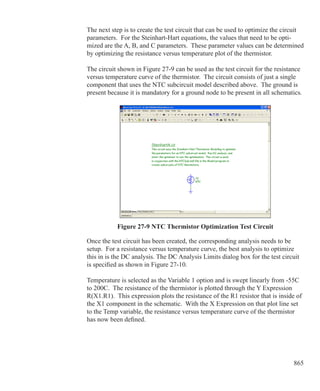
Geometry independent values
Name 	 Default 	 Value
POAGIDL	 0	 AGIDL
POALP	 25m	 ALP
POBACC	 48	 BACC
POBET	 1.922m,381.4u	 BET
POBGIDL	 41	 BGIDL
POBINV	 48,87.5	 BINV
POCGDO	 6.392f,6.358f	 CGDO
POCGIDL	 0	 CGIDL
POCGSO	 6.392f,6.358f	 CGSO
POCOX	 29.8f,27.17f	 COX
*POCS	 0	 CS
POETAMOB	 1.4,3	 ETAMOB
POIGACC	 0	 IGACC
POIGINV	 0	 IGINV
POIGOV	 0	 IGOV
POKO	 500m	 KO
POMEXP	 200m	 MEXP
POMO	 0	 MO
PONFA	 8.323E22,1.9E22	NFA
PONFB	 25.14E6,5.043E6	NFB
PONFC	 0,362.7p	 NFC
POPHIB	 950m	 PHIB
POSDIBL	 853u,35.51u	 SDIBL
POSSF	 12m,10m	 SSF
POTA1	 0	 STA1
POTBGIDL	 -363.8u	 STBGIDL
POTETABET	 1.3,500m	 ETABET
*POTETACS	 0	 ETACS
POTETAMOB	 0	 STETAMOB
POTETAPH	 1.35,3.75	 ETAPH
POTETAR	 950m,400m	 ETAR
POTETASAT	 1.04,860m	 ETASAT
POTETASR	 650m,500m	 ETASR
POTHEPH	 12.9m,1m	 THEPH
POTHER	 81.2m,79m	 THER
POTHESAT	 251.3m,172.8m	 THESAT
POTHESR	 356.2m,730m	 THESR
POTHETH	 10u,0	 THETH
582 Chapter 22: Analog Devices
Model parameters for level 11023/11026 (Philips 1102.3 Binning)
Geometry independent values
Name 	 Default 	 Value
POTNUEXP	 5.25,3.23	 NUEXP
POTPHIB	 -850u	 STPHIB
POTVFB	 500u	 STVFB
Coefficients of width dependence
Name 	 Default 	 Parameter affected
PWA1	 0	 A1
PWA2	 0	 A2
PWA3	 0	 A3
PWAGIDL	 0	 AGIDL
PWALP	 0	 ALP
PWBACC	 0	 BACC
PWBET	 0	 BET
PWBGIDL	 0	 BGIDL
PWBINV	 0	 BINV
PWCGDO	 0	 CGDO
PWCGIDL	 0	 CGIDL
PWCGSO	 0	 CGSO
PWCOX	 0	 COX
*PWCS	 0	 CS
PWETAMOB	 0	 ETAMOB
PWIGACC	 0	 IGACC
PWIGINV	 0	 IGINV
PWIGOV	 0	 IGOV
PWKO	 0	 KO
PWMEXP	 0	 MEXP
PWMO	 0	 MO
PWNFA	 0	 NFA
PWNFB	 0	 NFB
PWNFC	 0	 NFC
PWPHIB	 0	 PHIB
PWSDIBL	 0	 SDIBL
PWSSF	 0	 SSF
PWTA1	 0	 STA1
PWTBGIDL	 0	 STBGIDL
PWTETABET	 0	 ETABET
*PWTETACS	 0	 ETACS
PWTETAMOB	 0	 STETAMOB
583
Model parameters for level 11023/11026 (Philips 1102.3 Binning)

Coefficients of width dependence
Name 	 Default 	 Parameter affected
PWTETAPH	 0	 ETAPH
PWTETAR	 0	 ETAR
PWTETASAT	 0	 ETASAT
PWTETASR	 0	 ETASR
PWTHEPH	 0	 THEPH
PWTHER	 0	 THER
PWTHESAT	 0	 THESAT
PWTHESR	 0	 THESR
PWTHETH	 0	 THETH
PWTNUEXP	 0	 NUEXP
PWTPHIB	 0	 STPHIB
PWTVFB	 0	 STVFB
Remaining parameters
Name 	 Default 	 Description 
THER1	 0	 Numerator of gate voltage dependent part of 	
		 series resistance
THER2	 1	 Denominator of gate voltage dependent part
		 of series resistance
TOX	 3.2n	 Thickness of gate oxide layer
TR	 21	 Reference temperature
VFB	 -1.05	 Flat-band voltage at reference temperature
VFBOV	 0	 Flat-band voltage for the Source/Drain
		 overlap extensions
VP	 50m	 Characteristic voltage of channel-length
		 modulation
W	 10u	 Drawn channel width in the layout
WOT	 0	 Effective channel width reduction per side
WVAR	 0	 Difference between the actual and the
		 programmed field-oxide opening
For the thermal model (Level = 11026) there are three additional parameters to
handle thermal effects.
Name 	 Default 	 Description 
ATH	 0	 Thermal resistance temperature coefficient
CTH	 3n	 Thermal capacitance
RTH	 300	 Thermal resistance
584 Chapter 22: Analog Devices
MOSFET Philips Model 20
The Philips Model 20 is an asymmetrical, surface-potential-based LDMOS
model, that describes the transition from weak to strong inversion in the channel
region, as well as from accumulation to depletion in the drift region. It provides a
good physical description of effects important for LDMOS devices, such as weak
and strong inversion in the channel region, accumulation and depletion in the
drift region, mobility reduction in both the channel and the drift region, velocity
saturation in the channel region, conductance effects of the channel region (chan-
nel length modulation, DIBL and static feedback), and weak avalanche currents
in the channel region.
Note that the model includes no source or drain diodes. When needed, these are
added using the JUNCAP diode model, usually as a part of a subcircuit which
includes the MOSFET.
SPICE format
	 Syntax for Electrical model
	 Mname drain gate source bulk model name
	 + [M=no_parallel]
	 Syntax for Geometrical model
	 Mname drain gate source bulk model name
	 + [W=channel_width] [WD=drift_width] [M=no_parallel]
	
	 Example of device instance for Geometrical model
	 MS 1 2 3 4 NSC W=20u WD=25u M=200
Schematic format
	 PART attribute
	 name
	 Examples of PART attribute
	 M1
	 Syntax for Geometrical VALUE attribute
	 [W=channel_width] [WD=drift_width] [M=no_parallel]
	 Examples of VALUE attribute for Geometrical model
	 W=30u WD=15u M=5
585
	 Syntax for Electrical model VALUE attribute
	 [M=no_parallel]
	 MODEL attribute
	 model name
	 Examples of MODEL attribute
	 MODS12
In the Geometrical model, channel_width and drift_width are the drawn
widths of the channel and drift region, before side diffusion, in meters. They can
be specified as device attributes or as model parameters. Device attributes, if
specified, supersede model parameters. If neither model nor device attributes are
specified, they assume the default values of W=20u, WD=20u.
no_parallel is the number of devices in parallel. If specified, it overrides the
MULT model parameter, which multiplies the current-dependent and oxide ca-
pacitance model parameters.
There are two versions of Model 20 available for use within Micro-Cap, the
Electrical and the Geometric. The latest model, dated March 2006, will be docu-
mented here.
Micro-Cap Level	 Philips Level		 Description
20011 			 20.01			 MOS20 Electrical
20012			 20.01			 MOS20 Geometrical
20014		 	 20.01			 MOS20 Electrical Thermal
20015		 	 20.01			 MOS20 Geometrical Thermal
20021 			 20.02			 MOS20 Electrical
20022			 20.02			 MOS20 Geometrical
In the table below, the model parameters are listed in alphabetical order.
Parameters marked with an asterisk are new to the Philips 20.02 models and are
not available in the Philips 20.01 models.
586 Chapter 22: Analog Devices
Parameters MOSFET level 20011/20021/20014/ (Philips 20 Electrical)
Name 		 Default 	 Description 
A1	 15	 Factor of weak avalanche current, at TREF
A2	 73	 Exponent of weak avalanche current
A3	 800m	 Factor of the drain-source voltage above which
		 weak avalanche occurs
ALP	 2m	 Factor for channel length modulation
BET	 1.4m	 Gain factor of channel region at TREF
BETACC	 1.4m	 Gain factor of drift region for accumulation in 		
		 the channel region, at TREF
CGDO	 0	 Gate-to-drain overlap capacitance
CGSO	 0	 Gate-to-source overlap capacitance
COX	 15f	 Oxide capacitance for intrinsic channel region
COXD	 15f	 Oxide capacitance for intrinsic drift region
DTA	 0	 Temperature offset to ambient temperature
ETABET	 1.6	 Temperature scaling exponent for BET
ETABETACC	 1.5	 Temperature scaling exponent for BETACC
ETARD	 1.5	 Temperature scaling exponent for RD
ETATHE3	 1	 Temperature scaling exponent for THE3
*ETATHE3D	 1	 Temperature scaling exponent for THE3D
KO	 1.6	 Body factor of the channel region
KOD	 1	 Body factor of the drift region
LAMD	 200m	 Ratio of the depletion layer thickness to the
		 effective thickness of the drift region at VSB= 0
MEXP	 2	 Smoothing factor from linear to saturation
*MEXPD	 2	 Smoothing factor from linear to quasi-saturation
MO	 0	 Parameter for short-channel sub-threshold slope
MSDIBL	 3	 Exponent for the drain-induced barrier lowering
		 dependence on the backgate bias
MULT	 1	 Number of devices in parallel
NFA	 7E23	 First coefficient of flicker noise
NFB	 10E6	 Second coefficient of flicker noise
NFC	 0	 Third coefficient of flicker noise
NT	 .00001645f	 Coefficient of thermal noise, at TREF
PHIB	 860m	 Surface potential at the onset of strong inversion
		 in the channel region, at TREF
PHIBD	 780m	 Surface potential at the onset of strong inversion
		 in the drift region, at TREF
587
Parameters MOSFET level 20011/20021/20014/ (Philips 20 Electrical)
Name 		 Default 	 Description 
RD	 200		On-resistance of the drift region, at TREF
SDIBL	 1m		Factor for drain-induced barrier lowering
SSF		 1p		 Factor for static feedback
STA1		 0		 Temperature scaling coefficient for A1
STPHIB	 -1.2m		Temperature scaling coefficient for PHIB
STPHIBD	 -1.2m		Temperature scaling coefficient for PHIBD
STVFB	 0		Temperature scaling coefficient for VFB
STVFBD	 0		Temperature scaling coefficient for the flatband
			voltage of the drift region
THE1	 90m		Mobility reduction coefficient in the channel
			region due to vertical electrical field caused by
			strong inversion
THE1ACC	 20m		Mobility reduction coefficient in the drift region
			due to the vertical electrical field caused by
			accumulation
THE2	 30m	 Mobility reduction coefficient for VSB  0 in the
		 channel region due to the vertical electrical field
		 caused by depletion
THE3	 400m	 Mobility reduction coefficient in the channel
		 region due to the horizontal electrical field
		 caused by velocity saturation
*THE3D	 0	 Mobility reduction coefficient in the drift
		 region due to the horizontal electrical field
		 caused by velocity saturation
TOX	 38n	 Thickness of the oxide above the channel region
TREF	 25	 Reference temperature
VFB	 -1	 Flatband voltage of the channel region, at TREF
VFBD	 -100m	 Flatband voltage of the drift region, at TREF
VP	 50m	 Characteristic voltage of channel length
		 modulation
For the electrical thermal model (Level = 20014) only there are three additional
parameters to handle thermal effects.
Name 	 Default 	 Description 
ATH	 0	 Thermal resistance temperature coefficient
CTH	 3n	 Thermal capacitance
RTH	 300	 Thermal resistance
588 Chapter 22: Analog Devices
Parameters MOSFET level 20012/20022/20015 (Philips 20 Geometrical)
Name 		 Default 	 Description 
A1R		 15		 Factor of weak avalanche current of an infinitely
				 wide transistor, at TREF
A2	 73	 Exponent of weak avalanche current
A3	 800m	 Factor of the drain-source voltage above which
		 weak avalanche occurs
ALP	 2m	 Factor for channel length modulation
BETACCW	 70u	 Gain factor of 1 um wide drift region at TREF
BETW	 70u	 Gain factor of 1 um wide channel at TREF
CGDOW	 0	 Gate-to-drain overlap capacitance for a drift
		 region of 1 um width
CGSOW	 0	 Gate-to-source overlap capacitance for a
		 channel region of 1 um width
COXDW	 .75f	 Oxide capacitance for an intrinsic drift region of
		 1um width
COXW	 .75f	 Oxide capacitance for an intrinsic channel region
		 of 1um width
DTA	 0	 Temperature offset to the ambient temperature
ETABET	 1.6	 Temperature scaling exponent for BET
ETABETACC	 1.5	 Temperature scaling exponent for BETACC
ETARD	 1.5	 Temperature scaling exponent for RD
ETATHE3	 1	 Temperature scaling exponent for THE3
*ETATHE3D	 1	 Temperature scaling exponent for THE3D
KODR	 1	 Drift region body factor with W = infinite
KOR	 1.6	 Channel region body factor with W = infinite
LAMD	 200m	 Quotient of the depletion layer thickness to the
		 effective thickness of the drift region at VSB = 0
MEXP	 2	 Smoothing factor from linear to saturation
*MEXPD	 2	 Smoothing factor from linear to quasi-saturation
MO	 0	 Parameter for short-channel sub-threshold slope
MSDIBL	 3	 Exponent for the drain-induced barrier lowering
		 dependence on the backgate bias
MULT	 1	 Number of devices in parallel
NFAW	 1.4E25	 First coefficient of flicker noise for a channel
		 region of 1 um width
NFBW	 200MEG	 Second coefficient of flicker noise for a channel 		
		 region of 1 um width
589
Parameters MOSFET level 20012/20022/20015 (Philips 20 Geometrical)
Name 		 Default 	 Description 
NFCW	 0	 Third coefficient of flicker noise for a channel 		
			region of 1 um width
NT	 .00001645f	 Coefficient of thermal noise, at TREF
PHIB	 860m	 Surface potential at the onset of strong inversion
		 in the channel region, at TREF
PHIBD	 780m	 Surface potential at the onset of strong inversion
		 in the drift region, at TREF
RDW	 4K	 On-resistance of a 1u wide drift region at TREF
SDIBL	 1m	 Factor for drain-induced barrier lowering
SSF	 1p	 Factor for static feedback
STA1	 0	 Temperature scaling coefficient for A1
STPHIB	 -1.2m	 Temperature scaling coefficient for PHIB
STPHIBD	 -1.2m	 Temperature scaling coefficient for PHIBD
STVFB	 0	 Temperature scaling coefficient for VFB
STVFBD	 0	 Temperature scaling coefficient for the flatband
		 voltage of the drift region
SWA1	 0	 Width scaling coefficient for A1
SWKO	 0	 Width scaling coefficient for KO
SWKOD	 0	 Width scaling coefficient for the body factor of
		 the drift region
SWTHE1	 0	 Width scaling coefficient for THE1
SWTHE2	 0	 Width scaling coefficient for THE2
SWTHE3	 0	 Width scaling coefficient for THE3
SWTHE3D	 0	 Width scaling coefficient for THE3D
THE1ACC	 20m	 Mobility reduction coefficient in drift region due
		 to vertical electrical field from accumulation
THE1R	 90m	 Mobility reduction coefficient of infinitely wide
		 transistor, due to vertical strong-inversion field
		 in a channel region
THE2R	 30m	 Mobility reduction coefficient for VSB  0 of an
		 infinitely wide transistor, due to vertical
		 depletion field in channel region
*THE3DR	 400m	 Mobility reduction coefficient in the drift region
			due to the horizontal electrical field caused by
		 velocity saturation
THE3R	 400m	 Mobility reduction coefficient in channel region
		 of an infinitely wide transistor due to velocity
		 saturation
590 Chapter 22: Analog Devices
Figure 22-22 Philips Model 20 equivalent circuit
Parameters MOSFET level 20012/20022/20015 (Philips 20 Geometrical)
Name 		 Default 	 Description 
TOX	 38n	 Thickness of the oxide above the channel region
TREF	 25	 Reference temperature
VFB	 -1	 Flatband voltage of the channel region, at TREF
VFBD	 -100m	 Flatband voltage of the drift region, at TREF
VP	 50m	 Characteristic voltage of channel length
		 modulation
W	 20u	 Drawn width of the channel region
WD	 20u	 Drawn width of the drift region
WDVAR	 0	 Width offset of the drift region
WVAR	 0	 Width offset of the channel region
For the geometrical thermal model (Level = 20015) only there are three addition-
al parameters to handle thermal effects.
Name 	 Default 	 Description 
ATH	 0	 Thermal resistance temperature coefficient
CTH	 3n	 Thermal capacitance
RTH	 300	 Thermal resistance
The equivalent circuit of the Philips Model 20 is as follows:
591
MOSFET Philips Model 31
The Philips Model 31 is a physics based device model suitable for high voltage
applications. The model describes the electrical behavior of a junction isolated
accumulation / depletion MOSFET. The model is used as the drain extension of
high voltage MOS devices, like the Lateral Double-diffused (LDMOS), Vertical
Double-diffused (VDMOS), and Extended MOS transistors.
Note that the model includes no source or drain diodes. When needed, these are
added using the JUNCAP diode model, usually as a part of a subcircuit which
includes the MOSFET.
SPICE format
	 Syntax
	 Mname drain gate source bulk model name
	 + [M=no_parallel]
	
	 Example of device instance
	 MS 1 2 3 4 NSC M=200
Schematic format
	 PART attribute
	 name
	 Examples of PART attribute
	 M1
	 VALUE attribute
	 [M=no_parallel]
	 Examples of VALUE attribute
	 M=5
	 MODEL attribute
	 model name
	 Examples of MODEL attribute
	 LM1
592 Chapter 22: Analog Devices
no_parallel is the number of devices in parallel. If specified, it overrides the
MULT model parameter, which multiplies the current-dependent and oxide ca-
pacitance model parameters.
There are two versions of Model 31 available for use within Micro-Cap, one that
includes self-heating (thermal) effects and one that does not. The latest model,
dated March 2006, will be documented here.
Micro-Cap Level	 Philips Level		 Description
31001			 3100.3			 Model 31
31004			 3100.3 			 Model 31 Thermal
The equivalent circuit of the Philips Model 31 is as follows:
Figure 22-23 Philips Model 31 equivalent circuit
593
Model parameters for MOSFET level 31001/31004 (Philips Model 31)
In the table below, the model parameters are listed in alphabetical order.
Name 	 Default 	 Description 
LEVEL	 31001	 Standard model =31001, Thermal model = 31004
	 or 31004
ACH	 1	 Channel resistivity temperature coefficient
ACHMOD	 0	 Extended temperature scaling flag (0 = Off)
ACHRON	 0	 Temperature coefficient of ohmic resistance at
		 zero bias
ACHRSAT	 0	 Temperature coefficient of space charge
		 resistance at zero bias
ACHVSAT	 0	 Temperature coefficient of critical drain-source
		 voltage for hot carriers
CGATE	 1p	 Gate capacitance at zero bias
CSUB	 500f	 Substrate capacitance at zero bias
DCH	 1E22	 Doping level channel
DSUB	 1E21	 Doping level substrate
DTA	 0	 Temperature offset of the device
MULT	 1	 Number of devices in parallel
PSAT	 1	 Velocity saturation coefficient
RON	 10	 Ohmic resistance at zero bias
RSAT	 100	 Space charge resistance at zero bias
TAUSC	 1p	 Space charge transit time of the channel
TOX	 100n	 Gate oxide thickness
TREF	 25	 Reference temperature
VGAP	 1.206	 Bandgap voltage channel
VP	 10	 Pinch off voltage at zero gate and substrate voltages
VSAT	 1	 Critical drain-source voltage for hot carriers
VSUB	 600m	 Substrate diffusion voltage
For the thermal model (Level = 31004) there are three additional parameters to
handle thermal effects.
Name 	 Default 	 Description 
ATH	 0	 Thermal resistance temperature coefficient
CTH	 3n	 Thermal capacitance
RTH	 300	 Thermal resistance
594 Chapter 22: Analog Devices
MOSFET Philips Model 40
The Philips Model 40 is a physics based model for high voltage applications.
The model describes the electrical behavior of an accumulation / depletion type
MOSFET in Silicon-on-Insulator (SOI) processes. The model is used as a drain
extension of high-voltage MOS devices, like the Lateral Double-diffused MOS
(LDMOS), the Vertical Double-diffused MOS (VDMOS), and the Extended
MOS transistors.
Note that the model includes no source or drain diodes. When needed, these are
added using the JUNCAP diode model, usually as a part of a subcircuit which
includes the MOSFET.
SPICE format
	 Syntax
	 Mname drain gate source bulk model name
	 + [M=no_parallel]
	
	 Example of device instance
	 MS 1 2 3 4 NSO M=100
Schematic format
	 PART attribute
	 name
	 Example of PART attribute
	 MS1
	 VALUE attribute
	 [M=no_parallel]
	 Example of VALUE attribute
	 M=10
	 MODEL attribute
	 model name
	 Example of MODEL attribute
	 LM1
595
no_parallel is the number of devices in parallel. If specified, it overrides the
MULT model parameter, which multiplies the current-dependent and oxide ca-
pacitance model parameters.
There are two versions of Model 40 available for use within Micro-Cap, one that
includes self-heating (thermal) effects and one that does not. The latest model,
dated March 2006, is documented here.
Micro-Cap Level	 Philips Level		 Description
40001				 40.2		 Model 40
40004				 40.2 		 Model 40 Thermal
The equivalent circuit of the Philips Model 40 is as follows:
Figure 22-24 Philips Model 40 equivalent circuit
596 Chapter 22: Analog Devices
Model parameters for MOSFET level 40001/40004 (Philips Model 40)
In the table below, the model parameters are listed in alphabetical order.
Name 	 Default 	 Description 
ACH	 0	 Temperature coefficient resistivity of the channel
ACHMOD	 0	 Parameter to switch to extended temperature scaling
ACHRON	 0	 Temperature coefficient of ohmic resistance at
		 zero bias
ACHRSAT	 0	 Temperature coefficient of space charge resistance
		 at zero bias
ACHVSAT	 0	 Temperature coefficient of critical drain-source
		 voltage for hot carriers
CBOX	 0	 Wafer capacitance
CGATE	 0	 Gate capacitance at zero bias
DCH	 1E21	 Doping level channel
DTA	 0	 Temperature offset of the device
MULT	 1	 Number of devices in parallel
PSAT	 1	 Velocity saturation coefficient
RON	 1	 Ohmic resistance at zero bias
RSAT	 1	 Space charge resistance at zero bias
TAUSC	 0	 Space charge transit time of the channel
TBOX	 -1	 Box thickness
TOX	 -1	 Gate oxide thickness
TREF	 25	 Reference temperature
VP	 -1	 Pinch off voltage at zero gate and substrate voltages
VSAT	 10	 Critical drain-source voltage for hot carriers
For the thermal model (Level = 40004) there are three additional parameters to
handle thermal effects.
Name 	 Default 	 Description 
ATH	 0	 Thermal resistance temperature coefficient
CTH	 3n	 Thermal capacitance
RTH	 300	 Thermal resistance
597
MOSFET PSP Model
The PSP model is a relatively new compact MOSFET model, jointly developed
by Philips Research and Penn State University. It is a surface-potential based
MOS model, describing the key physical effects necessary to model modern
deep-submicron bulk CMOS technologies. These effects include mobility
reduction, velocity saturation, DIBL, gate current, lateral doping gradient effects,
and STI stress. The source/drain junction model, called the JUNCAP2 model, is
an integrated part of the PSP model.
SPICE format
	 Syntax of electrical model
	 Mname drain gate source bulk model name
	 + [ABSOURCE=bottom_area_source]
	 + [ABDRAIN=bottom_area_drain]
	 + [LSSOURCE=sti_edge_source] [LSDRAIN=sti_edge_drain]
	 + [LGSOURCE=gate_edge_source] [LGDRAIN=gate_edge_drain]
	 + [AD=drainarea] [AS=sourcearea]
	 + [PD=drainperiphery] [PS=sourceperiphery]
	 + [MULT=no_parallel]
	 + [JW=jw]
	
	 Syntax of geometrical and binning models
	 Mname drain gate source bulk model name
	 + [L=length] [W=width]
	 + [SA=source_od-poly_distance] [SB=drain_od-poly_distance]
	 + [ABSOURCE=bottom_area_source]
	 + [ABDRAIN=bottom_area_drain]
	 + [LSSOURCE=sti_edge_source] [LSDRAIN=sti_edge_drain]
	 + [LGSOURCE=gate_edge_source] [LGDRAIN=gate_edge_drain]
	 + [AD=drainarea] [AS=sourcearea]
	 + [PD=drainperiphery] [PS=sourceperiphery]
	 + [MULT=no_parallel]
	 Example of electrical model instance
	 MS 1 2 3 4 NSO ABSOURCE=2.5p ABDRAIN=3p
	 Example of geometrical or binning model instance
	 MS 1 2 3 4 NSO W=.2u L=.09u SA=.12u SB=.12u
598 Chapter 22: Analog Devices
Schematic format
	 PART attribute
	 name
	 Examples of PART attribute	
	 MP1, MX2
	 Syntax for electrical model VALUE attribute
	 [ABSOURCE=bottom_area_source]
	 [ABDRAIN=bottom_area_drain]
	 [LSSOURCE=sti_edge_source] [LSDRAIN=sti_edge_drain]
	 [LGSOURCE=gate_edge_source] [LGDRAIN=gate_edge_drain]
	 [AD=drainarea] [AS=sourcearea]
	 [PD=drainperiphery] [PS=sourceperiphery]
	 [MULT=no_parallel]
	 [JW=jw]
	 Syntax for geometrical and binning model VALUE attribute
	 [L=l] [W=w]
	 [SA=source_od-poly_distance] [SB=drain_od-poly_distance]
	 [ABSOURCE=bottom_area_source]
	 [ABDRAIN=bottom_area_drain]
	 [LSSOURCE=sti_edge_source] [LSDRAIN=sti_edge_drain]
	 [LGSOURCE=gate_edge_source] [LGDRAIN=gate_edge_drain]
	 [AD=drainarea] [AS=sourcearea]
	 [PD=drainperiphery] [PS=sourceperiphery]
	 [MULT=no_parallel]
	 Example of VALUE attribute for electrical model
	 ABSOURCE=5p ABDRAIN=18p LSSOURCE=.2u
	 Example of VALUE attribute for geometrical or binning model
	 MULT=10 W=.5u L=.1u SA=.2u SB=.25u
	 MODEL attribute
	 model name
	 Example of MODEL attribute
	 P102_N
w and l are the drawn device dimensions, before side diffusion, in meters.
599
source_od-poly_distance is the distance between OD-edge and poly at the
source side.
drain_od-poly_distance is the distance between OD-edge and poly at the
drain side.
bottom_area_source is the source junction bottom area.
bottom_area_drain is the drain junction bottom area.
sti_edge_source is the STI-edge part of source junction perimeter.
sti_edge_drain is the STI-edge part of drain junction perimeter.
gate_edge_source is the gate-edge part of source junction perimeter.
gate_edge_drain is the gate-edge part of drain junction perimeter.
sourcearea and drainarea are the diffusion areas (sq. m).
sourceperiphery and drainperiphery are the diffusion peripheries (m).
no_parallel is the number of devices in parallel. If specified, it overrides the
MULT model parameter, which multiplies the current-dependent and oxide ca-
pacitance model parameters.
jw is the gate-edge length of source/drain junction. If specified, it overrides the
JW model parameter.
These device instance parameters can be specified as device attributes or as mod-
el parameters. Device attributes, if specified, supersede model parameters.
There are three versions of PSP model available, an electrical model, a geometri-
cal model, and a binning model. Each is based on the Philips model 102, dated
July 2006. There is no thermal version of this model.
Micro-Cap Level	 Philips Level		 Description
102				 102.0			 PSP electrical
1020			 102.0 			 PSP geometrical
1021			 102.0 			 PSP binning
600 Chapter 22: Analog Devices
The equivalent circuit of the PSP model is as follows:
Figure 22-25 PSP model equivalent circuit
In the table below, the Level parameter is shown first and the remainder of the
model parameters are listed in alphabetical order.
Model parameters for MOSFET level 102 (PSP Electrical Model)
Name 	 Default 	 Description 
LEVEL	 102	 Model level =102
A1			 1		 Impact-ionization pre-factor
A2			 10		 Impact-ionization exponent at TR
A3			 1		 Saturation voltage dependence of impact
					 ionization
A4			 0		 Back-bias dependence of impact-ionization
ABDRAIN	 1p		 Bottom area of drain junction
ABSOURCE	 1p		 Bottom area of source junction
AD			 1p		 Bottom area of drain junction
AGIDL		 0		 GIDL pre-factor
601
Model parameters for MOSFET level 102 (PSP Electrical Model)
Name 	 Default 	 Description 
ALP	 10m	 CLM pre-factor
ALP1		 0		 CLM enhancement factor above threshold
ALP2		 0		 CLM enhancement factor below threshold
AS			 1p		 Bottom area of source junction
AX			 3		 Linear/saturation transition factor
BETN		 70m		 Channel aspect ratio times zero-field mobility
BGIDL		 41		 GIDL probability factor at TR
CBBTBOT	 1p		 Band-to-band tunneling prefactor of bottom part
CBBTGAT	 .001f		 Band-to-band tunneling prefactor of gate-edge
					 component
CBBTSTI	 .001f		 Band-to-band tunneling prefactor of STI-edge
					 component
CF			 0		 DIBL-parameter
CFB		 0		 Back bias dependence of CF
CFR		 0		 Outer fringe capacitance
CGBOV	 0		 Oxide capacitance for gate-bulk overlap
CGIDL		 0		 Back-bias dependence of GIDL
CGOV		 1f		 Oxide capacitance for gate-drain/source overlap
CHIB		 3.1		 Tunneling barrier height
CJORBOT	 1m		 Zero-bias capacitance per unit-of-area of bottom
					 component
CJORGAT	 1n		 Zero-bias capacitance per unit-of-length of gate-
					 edge component
CJORSTI	 1n		 Zero-bias capacitance per unit-of-length of STI-
					 edge component
COX		 10f		 Oxide capacitance for intrinsic channel
CS			 0		 Coulomb scattering parameter at TR
CSRHBOT	 100		 Shockley-Read-Hall prefactor of bottom part
GAT		 100u		 Shockley-Read-Hall prefactor of gate-edge part
CSRHSTI	 100u		 Shockley-Read-Hall prefactor of STI-edge part
CT			 0		 Interface states factor
CTATBOT	 100		 Trap-assisted tunneling prefactor of bottom part
CTATGAT	 100u		 Trap-assisted tunneling prefactor of gate edge 		
					 part
CTATSTI	 100u		 Trap-assisted tunneling prefactor of STI-edge 		
					 part
DNSUB	 0		 Effective doping bias-dependence parameter
DPHIB		 0		 Offset parameter for PHIB
DTA		 0		 Temperature offset w.r.t. ambient temperature
602 Chapter 22: Analog Devices
Model parameters for MOSFET level 102 (PSP Electrical Model)
Name 	 Default 	 Description 
FBBTRBOT	 1G	 Normalization field at the reference temperature
		 for band-to-band tunneling of bottom part
FBBTRGAT	 1G		 Normalization field at the reference temperature
					 for band-to-band tunneling of gate-edge part
FBBTRSTI	 1G		 Normalization field at the reference temperature
					 for band-to-band tunneling of STI-edge part
FETA		 1		 Effective field parameter
FNT		 1		 Thermal noise coefficient
GC2	 375m	 Gate current slope factor
GC3		 63m		 Gate current curvature factor
GCO		 0		 Gate tunneling energy adjustment
IDSATRBOT	 1p		 Saturation current density at the reference
					 temperature of bottom part
IDSATRGAT	 .001f		 Saturation current density at the reference
					 temperature of gate-edge part
IDSATRSTI	 .001f		 Saturation current density at the reference
					 temperature of STI-edge part
IGINV		 0		 Gate channel current pre-factor
IGOV		 0		 Gate overlap current pre-factor
IMAX		 1K		 Maximum current up to which forward current
					 behaves exponentially
JW			 1u		 Gate-edge length of source/drain junction
LGDRAIN	 1u		 Gate-edge length of drain junction
LGSOURCE	 1u		 Gate-edge length of source junction
LSDRAIN	 1u		 STI-edge length of drain junction
LSSOURCE	 1u		 STI-edge length of source junction
MEFFTATBOT	 250m		 Effective mass (in units of m0) for trap-assisted
					 tunneling of bottom part
MEFFTATGAT	 250m		 Effective mass (in units of m0) for trap-assisted
					 tunneling of gate-edge part
MEFFTATSTI	 250m		 Effective mass (in units of m0) for trap-assisted
					 tunneling of STI-edge part
MUE		 500m		 Mobility reduction coefficient at TR
MULT		 1		 Number of devices in parallel
NEFF		 5E23		 Effective substrate doping
NFA		 8E22		 First coefficient of flicker noise
NFB		 30MEG		 Second coefficient of flicker noise
NFC		 0		 Third coefficient of flicker noise
603
Model parameters for MOSFET level 102 (PSP Electrical Model)
Name 	 Default 	 Description 
NOV	 5E25	 Effective doping of overlap region
NP			 1E26		 Gate poly-silicon doping
NSLP		 50m		 Effective doping bias-dependence parameter
PBOT		 500m		 Grading coefficient of bottom component
PBRBOT	 4		 Breakdown onset tuning parameter of bottom 		
					 part
PBRGAT	 4		 Breakdown onset tuning parameter of gate-edge
					 part
PBRSTI	 4	 Breakdown onset tuning parameter of STI-edge
		 part
PD			 1u		 Perimeter of drain junction
PGAT		 500m		 Grading coefficient of gate-edge part
PHIGBOT	 1.16		 Zero-temperature bandgap voltage of bottom
					 part
PHIGGAT	 1.16		 Zero-temperature bandgap voltage of gate-edge
					 part
PHIGSTI	 1.16		 Zero-temperature bandgap voltage of STI-edge
					 part
PS			 1u		 Perimeter of source junction
PSTI		 500m		 Grading coefficient of STI-edge component
QMC		 1		 Quantum-mechanical correction factor
RS			 30		 Series resistance at TR
RSB		 0		 Back-bias dependence of series resistance
RSG		 0		 Gate-bias dependence of series resistance
STA2		 0		 Temperature dependence of A2
STBET		 1		 Temperature dependence of BETN
STBGIDL	 0		 Temperature dependence of BGIDL
STCS		 0		 Temperature dependence of CS
STFBBTBOT	 -1m		 Temperature scaling parameter for band-to-band
					 tunneling of bottom component
STFBBTGAT	 -1m		 Temperature scaling parameter for band-to-band
					 tunneling of gate-edge component
STFBBTSTI	 -1m		 Temperature scaling parameter for band-to-band
					 tunneling of STI-edge component
STIG		 2		 Temperature dependence of IGINV and IGOV
STMUE	 0		 Temperature dependence of MUE
STRS		 1		 Temperature dependence of RS
STTHEMU	 1.5		 Temperature dependence of THEMU
STTHESAT	 1		 Temperature dependence of THESAT
604 Chapter 22: Analog Devices
Model parameters for MOSFET level 102 (PSP Electrical Model)
Name 	 Default 	 Description 
STVFB	 500u	 Temperature dependence of VFB
STXCOR	 0		 Temperature dependence of XCOR
SWGIDL	 0		 Flag for GIDL current, 0=turn off IGIDL
SWIGATE	 0		 Flag for gate current, 0=turn off IG
SWIMPACT	 0		 Flag for impact ionization current, 0=turn off II
SWJUNCAP	 0		 Flag for juncap, 0=turn off juncap
THEMU	 1.5		 Mobility reduction exponent at TR
THESAT	 1	 Velocity saturation parameter at TR
THESATB	 0		 Back-bias dependence of velocity saturation
THESATG	 0		 Gate-bias dependence of velocity saturation
TOX		 2n		 Gate oxide thickness
TOXOV	 2n		 Overlap oxide thickness
TR			 21		 Nominal (reference) temperature
TRJ		 21		 Reference temperature
VBIRBOT	 1		 Built-in voltage at the reference temperature of
					 bottom part
VBIRGAT	 1		 Built-in voltage at the reference temperature of
					 gate-edge part
VBIRSTI	 1		 Built-in voltage at the reference temperature of
					 STI-edge part
VBRBOT	 10		 Breakdown voltage of bottom part
VBRGAT	 10		 Breakdown voltage of gate-edge part
VBRSTI	 10		 Breakdown voltage of STI-edge part
605
Model parameters for MOSFET level 1020 (PSP Geometrical Model)
Name 	 Default 	 Description
LEVEL	 1020	 Model level 1020 for geometrical model
A1L	 0	 Length dependence of A1
A1O	 1	 Geometry independent impact-ionization pre-factor
A1W	 0	 Width dependence of A1
A2O	 10	 Impact-ionization exponent at TR
A3L	 0	 Length dependence of A3
A3O	 1	 Geometry independent saturation-voltage
		 dependence of II
A3W	 0	 Width dependence of A3
A4L	 0	 Length dependence of A4
A4O	 0	 Geometry independent back-bias dependence of II
A4W	 0	 Width dependence of A4
ABDRAIN	 1p	 Bottom area of drain junction
ABSOURCE	 1p	 Bottom area of source junction
AD	 1p	 Bottom area of drain junction
AGIDLW	 0	 Width dependence of GIDL pre-factor
ALP1L1	 0	 Length dependence of CLM enhancement factor 		
		 above threshold
ALP1L2	 0	 Second order length dependence of ALP1
ALP1LEXP	 500m	 Exponent for length dependence of ALP1
ALP1W	 0	 Width dependence of ALP1
ALP2L1	 0	 Length dependence of CLM enhancement factor 		
		 below threshold
ALP2L2	 0	 Second order length dependence of ALP2
ALP2LEXP	 500m	 Exponent for length dependence of ALP2
ALP2W	 0	 Width dependence of ALP2
ALPL	 500u	 Length dependence of ALP
ALPLEXP	 1	 Exponent for length dependence of ALP
ALPW	 0	 Width dependence of ALP
AS	 1p	 Bottom area of source junction
AXL	 400m	 Length dependence of AX
AXO	 18	 Geometry independent linear/saturation transition
		 factor
BETW1	 0	 First higher-order width scaling coefficient of BETN
BETW2	 0	 Second higher-order width scaling coefficient of
		 BETN
BGIDLO	 41	 GIDL probability factor at TR
CBBTBOT	 1p	 Band-to-band tunneling prefactor of bottom part
CBBTGAT	 .001f	 Band-to-band tunneling prefactor of gate-edge part
606 Chapter 22: Analog Devices
Model parameters for MOSFET level 1020 (PSP Geometrical Model)
Name 	 Default 	 Description
CBBTSTI	 .001f	 Band-to-band tunneling prefactor of STI-edge part
CFBO	 0	 Back-bias dependence of CF
CFL	 0	 Length dependence of DIBL-parameter
CFLEXP	 2	 Exponent for length dependence of CF
CFRW	 0	 Outer fringe capacitance for 1 um wide channel
CFW	 0	 Width dependence of CF
CGBOVL	 0	 Gate-bulk overlap oxide capacitance per sq. micron
CGIDLO	 0	 Back-bias dependence of GIDL
CHIBO	 3.1	 Tunneling barrier height
CJORBOT	 1m	 Zero-bias capacitance per unit area of bottom part
CJORGAT	 1n	 Zero-bias capacitance per unit length of
		 gate-edge part
CJORSTI	 1n	 Zero-bias capacitance per unit length of
		 STI-edge part
CSL	 0	 Length dependence of CS
CSLEXP	 0	 Exponent for length dependence of CS
CSLW	 0	 Area dependence of CS
CSO	 0	 Geometry independent coulomb scattering parameter
		 at TR
CSRHBOT	 100	 Shockley-Read-Hall prefactor of bottom component
CSRHGAT	 100u	 Shockley-Read-Hall prefactor of gate-edge part
CSRHSTI	 100u	 Shockley-Read-Hall prefactor of STI-edge part
CSW	 0	 Width dependence of CS
CTATBOT	 100	 Trap-assisted tunneling prefactor of bottom part
CTATGAT	 100u	 Trap-assisted tunneling prefactor of gate-edge part
CTATSTI	 100u	 Trap-assisted tunneling prefactor of STI-edge part
CTL	 0	 Length dependence of interface states factor
CTLEXP	 1	 Exponent for length dependence of interface
		 states factor
CTLW	 0	 Area dependence of interface states factor
CTO	 0	 Geometry-independent interface states factor
CTW	 0	 Width dependence of interface states factor
DLQ	 0	 Effective channel length reduction for CV
DNSUBO	 0	 Effective doping bias-dependence parameter
DPHIBL	 0	 Length dependence offset of PHIB
DPHIBLEXP	 1	 Exponent for length dependence of offset of PHIB
DPHIBLW	 0	 Area dependence of offset of PHIB
DPHIBO	 0	 Geometry independent offset of PHIB
DPHIBW	 0	 Width dependence of offset of PHIB
607
Model parameters for MOSFET level 1020 (PSP Geometrical Model)
Name 	 Default 	 Description
DTA	 0	 Temperature offset w.r.t. ambient circuit
		 temperature
DWQ	 0	 Effective channel width reduction for CV
FBBTRBOT	 1G	 Normalization field at the reference temperature for
		 band-to-band tunneling of bottom part
FBBTRGAT	 1G	 Normalization field at the reference temperature for
		 band-to-band tunneling of gate-edge part
FBBTRSTI	 1G	 Normalization field at the reference temperature for
		 band-to-band tunneling of STI-edge part
FBET1	 0	 Relative mobility decrease due to first lateral profile
FBET1W	 0	 Width dependence of relative mobility decrease due
		 to first lateral profile
FBET2	 0	 Relative mobility decrease due to second lateral
		 profile
FETAO	 1	 Effective field parameter
FNTO	 1	 Thermal noise coefficient
FOL1	 0	 First length dependence coefficient for short channel
		 body effect
FOL2	 0	 Second length dependence coefficient for short
		 channel body effect
GC2O	 375m	 Gate current slope factor
GC3O	 63m	 Gate current curvature factor
GCOO	 0	 Gate tunneling energy adjustment
IDSATRBOT	 1p	 Saturation current density at the reference
		 temperature of bottom part
IDSATRGAT	 .001f	 Saturation current density at the reference
		 temperature of gate-edge part
IDSATRSTI	 .001f	 Saturation current density at the reference
		 temperature of STI-edge part
IGINVLW	 0	 Gate channel current pre-factor for 1 um^2
		 channel area
IGOVW	 0	 Gate overlap current pre-factor for 1 um wide
		 channel
IMAX	 1K	 Maximum current up to which forward current
		 behaves exponentially
KUO	 0	 Mobility degradation/enhancement coefficient
KVSAT	 0	 Saturation velocity degradation/enhancement 	
		 coefficient
KVTHO	 0	 Threshold shift parameter
608 Chapter 22: Analog Devices
Model parameters for MOSFET level 1020 (PSP Geometrical Model)
Name 	 Default 	 Description
L	 10u	 Design length
LAP	 0	 Effective channel length reduction per side
LGDRAIN	 1u	 Gate-edge length of drain junction
LGSOURCE	 1u	 Gate-edge length of source junction
LKUO	 0	 Length dependence of KUO
LKVTHO	 0	 Length dependence of KVTHO
LLODKUO	 0	 Length parameter for UO stress effect
LLODVTH	 0	 Length parameter for VTH stress effect
LODETAO	 1	 Eta0 shift modification factor for stress effect
LOV	 0	 Overlap length for gate/drain and gate/source
		 overlap capacitance
LP1	 10n	 Mobility-related characteristic length of first
		 lateral profile
LP1W	 0	 Width dependence of mobility-related characteristic
		 length of first lateral profile
LP2	 10n	 Mobility-related characteristic length of second
		 lateral profile
LPCK	 10n	 Char. length of lateral doping profile
LPCKW	 0	 Width dependence of char. length of lateral doping
		 profile
LSDRAIN	 1u	 STI-edge length of drain junction
LSSOURCE	 1u	 STI-edge length of source junction
LVARL	 0	 Length dependence of LVAR
LVARO	 0	 Geom. independent difference between actual and
		 programmed gate length
LVARW	 0	 Width dependence of LVAR
MEFFTATBOT	 250m	 Effective mass (in units of m0) for trap-assisted
		 tunneling of bottom component
MEFFTATGAT	 250m	 Effective mass (in units of m0) for trap-assisted
		 tunneling of gate-edge component
MEFFTATSTI	 250m	 Effective mass (in units of m0) for trap-assisted
		 tunneling of STI-edge component
MUEO	 500m	 Geometry independent mobility reduction coefficient
		 at TR
MUEW	 0	 Width dependence of mobility reduction coefficient
		 at TR
MULT	 1	 Number of devices in parallel
NFALW	 8E22	 First coefficient of flicker noise for 1 um^2 channel
		 area
609
Model parameters for MOSFET level 1020 (PSP Geometrical Model)
Name 	 Default 	 Description
NFBLW	 30MEG	 Second coefficient of flicker noise for 1 um^2
		 channel area
NFCLW	 0	 Third coefficient of flicker noise for 1 um^2
		 channel area
NOVO	 5E25	 Effective doping of overlap region
NPCK	 1E24	 Pocket doping level
NPCKW	 0	 Width dependence of pocket doping NPCK due to
		 segregation
NPL	 0	 Length dependence of gate poly-silicon doping
NPO	 1E26	 Geometry-independent gate poly-silicon doping
NSLPO	 50m	 Effective doping bias-dependence parameter
NSUBO	 3E23	 Geometry independent substrate doping
NSUBW	 0	 Width dependence of background doping NSUBO
		 due to segregation
PBOT	 500m	 Grading coefficient of bottom component
PBRBOT	 4	 Breakdown onset tuning parameter of bottom part
PBRGAT	 4	 Breakdown onset tuning parameter of gate-edge part
PBRSTI	 4	 Breakdown onset tuning parameter of STI-edge part
PD	 1u	 Perimeter of drain junction
PGAT	 500m	 Grading coefficient of gate-edge part
PHIGBOT	 1.16	 Zero-temperature bandgap voltage of bottom part
PHIGGAT	 1.16	 Zero-temperature bandgap voltage of gate-edge part
PHIGSTI	 1.16	 Zero-temperature bandgap voltage of STI-edge part
PKUO	 0	 Cross-term dependence of KUO
PKVTHO	 0	 Cross-term dependence of KVTHO
PS	 1u	 Perimeter of source junction
PSTI	 500m	 Grading coefficient of STI-edge part
QMC	 1	 Quantum-mechanical correction factor
RSBO	 0	 Back-bias dependence of series resistance
RSGO	 0	 Gate-bias dependence of series resistance
RSW1	 2.5K	 Source/drain series resistance for 1 um wide channel
		 at TR
RSW2	 0	 Higher-order width scaling of RS
SA	 0	 Distance between OD-edge to poly from one side
SAREF	 1u	 Reference distance between OD-edge to poly from
		 one side
SB	 0	 Distance between OD-edge to poly from other side
SBREF	 1u	 Reference distance between OD-edge to poly from
		 other side
610 Chapter 22: Analog Devices
Model parameters for MOSFET level 1020 (PSP Geometrical Model)
Name 	 Default 	 Description
STA2O	 0	 Temperature dependence of A2
STBETL	 0	 Length dependence of temperature dependence of
		 BETN
STBETLW	 0	 Area dependence of temperature dependence of
		 BETN
STBETO	 1	 Geometry independent temperature dependence of
		 BETN
STBETW	 0	 Width dependence of temperature dependence of
		 BETN
STBGIDLO	 0	 Temperature dependence of BGIDL
STCSO	 0	 Temperature dependence of CS
STETAO	 0	 Eta0 shift factor related to VTHO change
STFBBTBOT	 -1m	 Temperature scaling parameter for band-to-band
		 tunneling of bottom component
STFBBTGAT	 -1m	 Temperature scaling parameter for band-to-band 		
		 tunneling of gate-edge component
STFBBTSTI	 -1m	 Temperature scaling parameter for band-to-band
		 tunneling of STI-edge component
STIGO	 2	 Temperature dependence of IGINV and IGOV
STMUEO	 0	 Temperature dependence of MUE
STRSO	 1	 Temperature dependence of RS
STTHEMUO	 1.5	 Temperature dependence of THEMU
STTHESATL	 0	 Length dependence of temperature dependence of
		 THESAT
STTHESATLW	 0	 Area dependence of temperature dependence of
		 THESAT
STTHESATO	 1	 Geometry independent temperature dependence of
		 THESAT
STTHESATW	 0	 Width dependence of temperature dependence of
		 THESAT
STVFBL	 0	 Length dependence of temperature dependence of
		 VFB
STVFBLW	 0	 Area dependence of temperature dependence of
		 VFB
STVFBO	 500u	 Geometry-independent temperature dependence of
		 VFB
STVFBW	 0	 Width dependence of temperature dependence of
		 VFB
STXCORO	 0	 Temperature dependence of XCOR
611
Model parameters for MOSFET level 1020 (PSP Geometrical Model)
Name 	 Default 	 Description
SWGIDL	 0	 Flag for GIDL current, 0=turn off IGIDL
SWIGATE	 0	 Flag for gate current, 0=turn off IG
SWIMPACT	 0	 Flag for impact ionization current, 0=turn off II
SWJUNCAP	 0	 Flag for juncap, 0=turn off juncap
THEMUO	 1.5	 Mobility reduction exponent at TR
THESATBO	 0	 Back-bias dependence of velocity saturation
THESATGO	 0	 Gate-bias dependence of velocity saturation
THESATL	 50m	 Length dependence of THESAT
THESATLEXP	 1	 Exponent for length dependence of THESAT
THESATLW	 0	 Area dependence of velocity saturation parameter
THESATO	 0	 Geometry independent velocity saturation parameter
		 at TR
THESATW	 0	 Width dependence of velocity saturation parameter
TKUO	 0	 Temperature dependence of KUO
TOXO	 2n	 Gate oxide thickness
TOXOVO	 2n	 Overlap oxide thickness
TR	 21	 Nominal (reference) temperature
TRJ	 21	 Reference temperature
UO	 50m	 Zero-field mobility at TR
VBIRBOT	 1	 Built-in voltage at the reference temperature of
		 bottom part
VBIRGAT	 1	 Built-in voltage at the reference temperature of
		 gate-edge part
VBIRSTI	 1	 Built-in voltage at the reference temperature of
		 STI-edge part
VBRBOT	 10	 Breakdown voltage of bottom part
VBRGAT	 10	 Breakdown voltage of gate-edge part
VBRSTI	 10	 Breakdown voltage of STI-edge part
VFBL	 0	 Length dependence of flat-band voltage
VFBLW	 0	 Area dependence of flat-band voltage
VFBO	 -1	 Geometry-independent flat-band voltage at TR
VFBW	 0	 Width dependence of flat-band voltage
VNSUBO	 0	 Effective doping bias-dependence parameter
VPO	 50m	 CLM logarithmic dependence parameter
W	 10u	 Design width
WBET	 1n	 Characteristic width for width scaling of BETN
WKUO	 0	 Width dependence of KUO
WKVTHO	 0	 Width dependence of KVTHO
WLOD	 0	 Width parameter
612 Chapter 22: Analog Devices
Model parameters for MOSFET level 1020 (PSP Geometrical Model)
Name 	 Default 	 Description
WLODKUO	 0	 Width parameter for UO stress effect
WLODVTH	 0	 Width parameter for VTH stress effect
WOT	 0	 Effective channel width reduction per side
WSEG	 10n	 Char. length of segregation of background doping
		 NSUBO
WSEGP	 10n	 Char. length of segregation of pocket doping NPCK
WVARL	 0	 Length dependence of WVAR
WVARO	 0	 Geom. independent difference between actual and
		 Programmed field-oxide opening
WVARW	 0	 Width dependence of WVAR
XCORL	 0	 Length dependence of non-universality parameter
XCORLW	 0	 Area dependence of non-universality parameter
XCORO	 0	 Geometry independent non-universality parameter
XCORW	 0	 Width dependence of non-universality parameter
XJUNGAT	 100n	 Junction depth of gate-edge component
XJUNSTI	 100n	 Junction depth of STI-edge component
613
Model parameters for MOSFET level 1021 (PSP Binning Model)
Name 	 Default 	 Description
LEVEL	 1021	 Model level 1021 for binning model
ABDRAIN	 1p	 Bottom area of drain junction
ABSOURCE	 1p	 Bottom area of source junction
AD	 1p	 Bottom area of drain junction
AS	 1p	 Bottom area of source junction
CBBTBOT	 1p	 Band-to-band tunneling prefactor of bottom part
CBBTGAT	 .001f	 Band-to-band tunneling prefactor of gate-edge part
CBBTSTI	 .001f	 Band-to-band tunneling prefactor of STI-edge part
CJORBOT	 1m	 Zero-bias capacitance per unit area of bottom part
CJORGAT	 1n	 Zero-bias capacitance per unit length of
		 gate-edge part
CJORSTI	 1n	 Zero-bias capacitance per unit-of-length of
		 STI-edge part
CSRHBOT	 100	 Shockley-Read-Hall prefactor of bottom part
CSRHGAT	 100u	 Shockley-Read-Hall prefactor of gate-edge part
CSRHSTI	 100u	 Shockley-Read-Hall prefactor of STI-edge part
CTATBOT	 100	 Trap-assisted tunneling prefactor of bottom part
CTATGAT	 100u	 Trap-assisted tunneling prefactor of gate-edge part
CTATSTI	 100u	 Trap-assisted tunneling prefactor of STI-edge part
DLQ	 0	 Effective channel length reduction for CV
DTA	 0	 Temperature offset w.r.t. ambient temperature
DWQ	 0	 Effective channel width reduction for CV
FBBTRBOT	 1G	 Normalization field at the reference temperature for
		 band-to-band tunneling of bottom part
FBBTRGAT	 1G	 Normalization field at the reference temperature for
		 band-to-band tunneling of gate-edge part
FBBTRSTI	 1G	 Normalization field at the reference temperature for
		 band-to-band tunneling of STI-edge part
IDSATRBOT	 1p	 Saturation current density at the reference
		 temperature of bottom part
IDSATRGAT	 .001f	 Saturation current density at the reference
		 temperature of gate-edge part
IDSATRSTI	 .001f	 Saturation current density at the reference
		 temperature of STI-edge part
IMAX	 1K	 Maximum current up to which forward current
		 behaves exponentially
KUO	 0	 Mobility degradation/enhancement coefficient
KVSAT	 0	 Saturation velocity degradation/enhancement
		 coefficient
614 Chapter 22: Analog Devices
Model parameters for MOSFET level 1021 (PSP Binning Model)
Name 	 Default 	 Description
KVTHO	 0	 Threshold shift parameter
L	 10u	 Design length
LAP	 0	 Effective channel length reduction per side due to
		 lateral diffusion of source/drain dopant ions
LGDRAIN	 1u	 Gate-edge length of drain junction
LGSOURCE	 1u	 Gate-edge length of source junction
LKUO	 0	 Length dependence of KUO
LKVTHO	 0	 Length dependence of KVTHO
LLODKUO	 0	 Length parameter for UO stress effect
LLODVTH	 0	 Length parameter for VTH stress effect
LODETAO	 1	 Eta0 shift modification factor for stress effect
LSDRAIN	 1u	 STI-edge length of drain junction
LSSOURCE	 1u	 STI-edge length of source junction
LVARL	 0	 Length dependence of difference between actual
		 and programmed poly-silicon gate length
LVARO	 0	 Geometry independent difference between actual
		 and programmed poly-silicon gate length
MEFFTATBOT	 250m	 Effective mass (in units of m0) for trap-assisted
		 tunneling of bottom component
MEFFTATGAT	 250m	 Effective mass (in units of m0) for trap-assisted
		 tunneling of gate-edge component
MEFFTATSTI	 250m	 Effective mass (in units of m0) for trap-assisted
		 tunneling of STI-edge component
MULT	 1	 Number of devices in parallel
PBOT	 500m	 Grading coefficient of bottom component
PBRBOT	 4	 Breakdown onset tuning parameter of bottom part
PBRGAT	 4	 Breakdown onset tuning parameter of gate-edge part
PBRSTI	 4	 Breakdown onset tuning parameter of STI-edge part
PD	 1u	 Perimeter of drain junction
PGAT	 500m	 Grading coefficient of gate-edge component
PHIGBOT	 1.16	 Zero-temperature bandgap voltage of bottom part
PHIGGAT	 1.16	 Zero-temperature bandgap voltage of gate-edge part
PHIGSTI	 1.16	 Zero-temperature bandgap voltage of STI-edge part
PKUO	 0	 Cross-term dependence of KUO
PKVTHO	 0	 Cross-term dependence of KVTHO
PLA1	 0	 Coefficient for the length dependence of A1
PLA3	 0	 Coefficient for the length dependence of A3
PLA4	 0	 Coefficient for the length dependence of A4
PLAGIDL	 0	 Coefficient for the length dependence of AGIDL
615
Model parameters for MOSFET level 1021 (PSP Binning Model)
Name 	 Default 	 Description
PLALP	 0	 Coefficient for length dependence of ALP
PLALP1	 0	 Coefficient for length dependence of ALP1
PLALP2	 0	 Coefficient for length dependence of ALP2
PLAX	 0	 Coefficient for length dependence of AX
PLBETN	 0	 Coefficient for length dependence of BETN
PLCF	 0	 Coefficient for length dependence of CF
PLCFR	 0	 Coefficient for length dependence of CFR
PLCGBOV	 0	 Coefficient for length dependence of CGBOV
PLCGOV	 0	 Coefficient for length dependence of CGOV
PLCOX	 0	 Coefficient for length dependence of COX
PLCS	 0	 Coefficient for length dependence of CS
PLCT	 0	 Coefficient for length dependence of CT
PLDPHIB	 0	 Coefficient for length dependence of DPHIB
PLIGINV	 0	 Coefficient for length dependence of IGINV
PLIGOV	 0	 Coefficient for length dependence of IGOV
PLMUE	 0	 Coefficient for length dependence of MUE
PLNEFF	 0	 Coefficient for length dependence of NEFF
PLNFA	 0	 Coefficient for length dependence of NFA
PLNFB	 0	 Coefficient for length dependence of NFB
PLNFC	 0	 Coefficient for length dependence of NFC
PLNOV	 0	 Coefficient for length dependence of NOV
PLNP	 0	 Coefficient for length dependence of NP
PLRS	 0	 Coefficient for length dependence of RS
PLSTBET	 0	 Coefficient for length dependence of STBET
PLSTSAT	 0	 Coefficient for length dependence of STSAT
PLSTVFB	 0	 Coefficient for length dependence of STVFB
PLSAT	 0	 Coefficient for length dependence of SAT
PLSATB	 0	 Coefficient for length dependence of SATB
PLSATG	 0	 Coefficient for length dependence of SATG
PLVFB	 0	 Coefficient for length dependence of VFB
PLWA1	 0	 Coefficient for L*W dependence of A1
PLWA3	 0	 Coefficient for L*W dependence of A3
PLWA4	 0	 Coefficient for L*W dependence of A4
PLWAGIDL	 0	 Coefficient for L*W dependence of AGIDL
PLWALP	 0	 Coefficient for L*W dependence of ALP
PLWALP1	 0	 Coefficient for L*W dependence of ALP1
PLWALP2	 0	 Coefficient for L*W dependence of ALP2
PLWAX	 0	 Coefficient for L*W dependence of AX
PLWBETN	 0	 Coefficient for L*W dependence of BETN
616 Chapter 22: Analog Devices
Model parameters for MOSFET level 1021 (PSP Binning Model)
Name 	 Default 	 Description
PLWCF	 0	 Coefficient for L*W dependence of CF
PLWCFR	 0	 Coefficient for L*W dependence of CFR
PLWCGBOV	 0	 Coefficient for L*W dependence of CGBOV
PLWCGOV	 0	 Coefficient for L*W dependence of CGOV
PLWCOX	 0	 Coefficient for L*W dependence of COX
PLWCS	 0	 Coefficient for L*W dependence of CS
PLWCT	 0	 Coefficient for L*W dependence of CT
PLWDPHIB	 0	 Coefficient for L*W dependence of DPHIB
PLWIGINV	 0	 Coefficient for L*W dependence of IGINV
PLWIGOV	 0	 Coefficient for L*W dependence of IGOV
PLWMUE	 0	 Coefficient for L*W dependence of MUE
PLWNEFF	 0	 Coefficient for L*W dependence of NEFF
PLWNFA	 0	 Coefficient for L*W dependence of NFA
PLWNFB	 0	 Coefficient for L*W dependence of NFB
PLWNFC	 0	 Coefficient for L*W dependence of NFC
PLWNOV	 0	 Coefficient for L*W dependence of NOV
PLWNP	 0	 Coefficient for L*W dependence of NP
PLWRS	 0	 Coefficient for L*W dependence of RS
PLWSTBET	 0	 Coefficient for L*W dependence of STBET
PLWSTSAT	 0	 Coefficient for L*W dependence of STTHESAT
PLWSTVFB	 0	 Coefficient for L*W dependence of STVFB
PLWTHESAT	 0	 Coefficient for L*W dependence of THESAT
PLWTHESATB	 0	 Coefficient for L*W dependence of THESATB
PLWTHESATG	 0	 Coefficient for L*W dependence of THESATG
PLWVFB	 0	 Coefficient for L*W dependence of VFB
PLWXCOR	 0	 Coefficient for L*W dependence of XCOR
PLXCOR	 0	 Coefficient for length dependence of XCOR
POA1	 1	 Geometry independent part of A1
POA2	 10	 Geometry independent part of A2
POA3	 1	 Geometry independent part of A3
POA4	 0	 Geometry independent part of A4
POAGIDL	 0	 Geometry independent part of AGIDL
POALP	 10m	 Geometry independent part of ALP
POALP1	 0	 Geometry independent part of ALP1
POALP2	 0	 Geometry independent part of ALP2
POAX	 3	 Geometry independent part of AX
POBETN	 70m	 Geometry independent part of BETN
POBGIDL	 41	 Geometry independent part of BGIDL
POCF	 0	 Geometry independent part of CF
617
Model parameters for MOSFET level 1021 (PSP Binning Model)
Name 	 Default 	 Description
POCFB	 0	 Geometry independent part of CFB
POCFR	 0	 Geometry independent part of CFR
POCGBOV	 0	 Geometry independent part of CGBOV
POCGIDL	 0	 Geometry independent part of CGIDL
POCGOV	 1f	 Geometry independent part of CGOV
POCHIB	 3.1	 Geometry independent part of CHIB
POCOX	 10f	 Geometry independent part of COX
POCS	 0	 Geometry independent part of CS
POCT	 0	 Geometry independent part of CT
PODNSUB	 0	 Geometry independent part of DNSUB
PODPHIB	 0	 Geometry independent part of DPHIB
POFETA	 1	 Geometry independent part of FETA
POFNT	 1	 Geometry independent part of FNT
POGC2	 375m	 Geometry independent part of GC2
POGC3	 63m	 Geometry independent part of GC3
POGCO	 0	 Geometry independent part of GCO
POIGINV	 0	 Geometry independent part of IGINV
POIGOV	 0	 Geometry independent part of IGOV
POMUE	 500m	 Geometry independent part of MUE
PONEFF	 5E23	 Geometry independent part of NEFF
PONFA	 8E22	 Geometry independent part of NFA
PONFB	 30MEG	 Geometry independent part of NFB
PONFC	 0	 Geometry independent part of NFC
PONOV	 5E25	 Geometry independent part of NOV
PONP	 1E26	 Geometry independent part of NP
PONSLP	 50m	 Geometry independent part of NSLP
PORS	 30	 Geometry independent part of RS
PORSB	 0	 Geometry independent part of RSB
PORSG	 0	 Geometry independent part of RSG
POSTA2	 0	 Geometry independent part of STA2
POSTBET	 1	 Geometry independent part of STBET
POSTBGIDL	 0	 Geometry independent part of STBGIDL
POSTCS	 0	 Geometry independent part of STCS
POSTIG	 2	 Geometry independent part of STIG
POSTMUE	 0	 Geometry independent part of STMUE
POSTRS	 1	 Geometry independent part of STRS
POSTTHEMU	 1.5	 Geometry independent part of STTHEMU
POSTTHESAT	 1	 Geometry independent part of STTHESAT
POSTVFB	 500u	 Geometry independent part of STVFB
618 Chapter 22: Analog Devices
Model parameters for MOSFET level 1021 (PSP Binning Model)
Name 	 Default 	 Description
POSTXCOR	 0	 Geometry independent part of STXCOR
POTHEMU	 1.5	 Geometry independent part of THEMU
POTHESAT	 1	 Geometry independent part of THESAT
POTHESATB	 0	 Geometry independent part of THESATB
POTHESATG	 0	 Geometry independent part of THESATG
POTOX	 2n	 Geometry independent part of TOX
POTOXOV	 2n	 Geometry independent part of TOXOV
POVFB	 -1	 Geometry independent part of VFB
POVNSUB	 0	 Geometry independent part of VNSUB
POVP	 50m	 Geometry independent part of VP
POXCOR	 0	 Geometry independent part of XCOR
PS	 1u	 Perimeter of source junction
PSTI	 500m	 Grading coefficient of STI-edge component
PWA1	 0	 Coefficient for width dependence of A1
PWA3	 0	 Coefficient for width dependence of A3
PWA4	 0	 Coefficient for width dependence of A4
PWAGIDL	 0	 Coefficient for width dependence of AGIDL
PWALP	 0	 Coefficient for width dependence of ALP
PWALP1	 0	 Coefficient for width dependence of ALP1
PWALP2	 0	 Coefficient for width dependence of ALP2
PWAX	 0	 Coefficient for width dependence of AX
PWBETN	 0	 Coefficient for width dependence of BETN
PWCF	 0	 Coefficient for width dependence of CF
PWCFR	 0	 Coefficient for width dependence of CFR
PWCGBOV	 0	 Coefficient for width dependence of CGBOV
PWCGOV	 0	 Coefficient for width dependence of CGOV
PWCOX	 0	 Coefficient for width dependence of COX
PWCS	 0	 Coefficient for width dependence of CS
PWCT	 0	 Coefficient for width dependence of CT
PWDPHIB	 0	 Coefficient for width dependence of DPHIB
PWIGINV	 0	 Coefficient for width dependence of IGINV
PWIGOV	 0	 Coefficient for width dependence of IGOV
PWMUE	 0	 Coefficient for width dependence of MUE
PWNEFF	 0	 Coefficient for width dependence of NEFF
PWNFA	 0	 Coefficient for width dependence of NFA
PWNFB	 0	 Coefficient for width dependence of NFB
PWNFC	 0	 Coefficient for width dependence of NFC
PWNOV	 0	 Coefficient for width dependence of NOV
PWNP	 0	 Coefficient for width dependence of NP
619
Model parameters for MOSFET level 1021 (PSP Binning Model)
Name 	 Default 	 Description
PWRS	 0	 Coefficient for width dependence of RS
PWSTBET	 0	 Coefficient for width dependence of STBET
PWSTTHESAT	 0	 Coefficient for width dependence of STTHESAT
PWSTVFB	 0	 Coefficient for width dependence of STVFB
PWTHESAT	 0	 Coefficient for width dependence of THESAT
PWTHESATB	 0	 Coefficient for width dependence of THESATB
PWTHESATG	 0	 Coefficient for width dependence of THESATG
PWVFB	 0	 Coefficient for width dependence of VFB
PWXCOR	 0	 Coefficient for width dependence of XCOR
QMC	 1	 Quantum-mechanical correction factor
SA	 0	 Distance between OD-edge to poly from one side
SAREF	 1u	 Reference distance between OD-edge to poly
		 from one side
SB	 0	 Distance between OD-edge to poly from other side
SBREF	 1u	 Reference distance between OD-edge to poly
		 from the other side
STETAO	 0	 Eta0 shift factor related to VTHO change
STFBBTBOT	 -1m	 Temperature scaling parameter for band-to-band
		 tunneling of bottom component
STFBBTGAT	 -1m	 Temperature scaling parameter for band-to-band
		 tunneling of gate-edge component
STFBBTSTI	 -1m	 Temperature scaling parameter for band-to-band
		 tunneling of STI-edge component
SWGIDL	 0	 Flag for GIDL current, 0=turn off IGIDL
SWIGATE	 0	 Flag for gate current, 0=turn off IG
SWIMPACT	 0	 Flag for impact ionization current, 0=turn off II
SWJUNCAP	 0	 Flag for juncap, 0=turn off juncap
TKUO	 0	 Temperature dependence of KUO
TR	 21	 Nominal (reference) temperature
TRJ	 21	 Reference temperature
VBIRBOT	 1	 Built-in voltage at the reference temperature of
		 bottom part
VBIRGAT	 1	 Built-in voltage at the reference temperature of
		 gate-edge part
VBIRSTI	 1	 Built-in voltage at the reference temperature of
		 STI-edge part
VBRBOT	 10	 Breakdown voltage of bottom part
VBRGAT	 10	 Breakdown voltage of gate-edge part
VBRSTI	 10	 Breakdown voltage of STI-edge part
620 Chapter 22: Analog Devices
Model parameters for MOSFET level 1021 (PSP Binning Model)
Name 	 Default 	 Description
W	 10u	 Design width
WKUO	 0	 Width dependence of KUO
WKVTHO	 0	 Width dependence of KVTHO
WLOD	 0	 Width parameter
WLODKUO	 0	 Width parameter for UO stress effect
WLODVTH	 0	 Width parameter for VTH stress effect
WOT	 0	 Effective reduction of channel width per side due to
		 lateral diffusion of channel-stop dopant ions
WVARO	 0	 Geometry independent difference between actual
		 and programmed field-oxide opening
WVARW	 0	 Width dependence of difference between actual and
		 programmed field-oxide opening
XJUNGAT	 100n	 Junction depth of gate-edge component
XJUNSTI	 100n	 Junction depth of STI-edge component
621
N_Port
Schematic format
	 PART attribute
	 name
	 Example
	 SP1
	 FILE attribute
	 file name
	 The FILE attribute specifies the path and name of the N-Port parameter file.
	 Example
	 E:MC10dataGg10v20m.s2p
The N_PORT device is a general device with N ports characterized by a set of
S, Y, Z, G, H, T, or ABCD parameters contained in standard Touchstone data
files.
Typically these files are provided by RF suppliers in a text file as a table of val-
ues. Here, for example, is a set of typical 2-port S parameters:
! SIEMENS Small Signal Semiconductors
! BFG194
! Si PNP RF Bipolar Junction Transistor in SOT223
! VCE = -10 V IC = -20 mA
! Common Emitter S-Parameters: August 1996
# GHz S MA R 50
! f S11 S21 S12 S22
! GHz MAG ANG MAG ANG MAG ANG MAG ANG
0.010 0.3302 -25.4 35.370 169.9 0.0053 85.3 0.9077 -10.0
0.020 0.3471 -48.2 33.679 161.6 0.0108 77.5 0.8815 -19.8
0.050 0.4525 -95.0 27.726 139.2 0.0226 61.4 0.7258 -43.7
0.100 0.5462 -131.5 19.023 118.7 0.0332 52.2 0.5077 -68.7
0.150 0.5723 -149.4 13.754 106.4 0.0394 49.1 0.3795 -84.8
0.200 0.5925 -159.8 10.787 99.1 0.0443 50.1 0.3068 -95.0
0.250 0.6023 -167.0 8.757 93.4 0.0497 51.2 0.2581 -104.8
0.300 0.6089 -172.2 7.393 89.0 0.0552 52.4 0.2298 -112.2
...
622 Chapter 22: Analog Devices
Micro-Cap converts the incoming parameters to Y-parameters and then imple-
ments the N_PORT device as a set of Laplace table sources. Here, for example, is
the equivalent circuit for a 4-port.
Figure 22-26 Four port equivalent circuit
The equations are:
I1 = Y11*V(1P,1M) + Y12*V(2P,2M) + Y13*V(3P,3M) + Y14*V(4P,4M)
I2 = Y21*V(1P,1M) + Y22*V(2P,2M) + Y23*V(3P,3M) + Y24*V(4P,4M)
I3 = Y31*V(1P,1M) + Y32*V(2P,2M) + Y33*V(3P,3M) + Y34*V(4P,4M)
I4 = Y41*V(1P,1M) + Y42*V(2P,2M) + Y43*V(3P,3M) + Y44*V(4P,4M)
For an example of how the N-Port device is used see the sample circuit file
NPORT4.CIR.
623
OPAMP
Schematic format
	 PART attribute
	 name
	 Example
	 OP1
	 MODEL attribute
	 model name
	 Example
	 LF351
There are three model levels for the OPAMP. Each succeeding level provides
increasingly more realistic models at the expense of increasingly more complex
equivalent circuits.
Level 1 is a simple voltage-controlled current source with a finite output resis-
tance and open loop gain.
Level 2 is a three stage, two pole model with slew rate limiting, finite gain, and
output resistance.
Level 3 is an enhanced Boyle model, similar to those implemented in other
SPICE programs as subcircuits. It is not, however, a macro or a subcircuit, but
a fully internal device model. It models positive and negative slew rates, finite
gain, AC and DC output resistance, input offset voltage and current, phase mar-
gin, common mode rejection, unity gain bandwidth, three types of differential
input, and realistic output voltage and current limiting.
Model statement forms
	 .MODEL model name OPA ([model parameters])
	 Examples
	 .MODEL LM709 OPA (A=45K VOFF=.001 SRP=250K GBW=1E6)
	 .MODEL LF155 OPA (LEVEL=2 TYPE=1 A=50K SRP=330K)
624 Chapter 22: Analog Devices
Model parameters
Name		 Parameter			 Units	 Def.	 Level
LEVEL		 Model level(1, 2, 3)			 1	 1,2,3
TYPE		 1=NPN 2=PNP 3=JFET		 1	 3
C			 Compensation capacitance	 F	 30E-12	3		
A			 DC open-loop gain			 2E5	 1,2,3
ROUTAC	 AC output resistance	 	 Ω	 75	 1,2,3
ROUTDC	 DC output resistance	 	 Ω	 125	 1,2,3
VOFF		 Input offset voltage		 V	 0.001	 3
IOFF		 Input offset current		 A	 1E-9	 3
SRP		 Maximum positive slew rate	 V/S	 5E5	 2,3
SRN		 Maximum negative slew rate	 V/S	 5E5	 2,3
IBIAS		 Input bias current		 A	 1E-7	 3
VCC		 Positive power supply		 V	 15	 3
VEE		 Negative power supply		 V	 -15	 3
VPS		 Maximum pos. voltage swing	 V	 13	 3
VNS		 Maximum neg. voltage swing	 V	 -13	 3
CMRR		 Common-mode rejection ratio		 1E5	 3
GBW		 Gain bandwidth				 1E6	 2,3
PM			 Phase margin			 deg.	 60	 2,3
PD			 Power dissipation		 W	 .025	 3
IOSC		 Short circuit current		 A	 .02	 3
T_MEASURED	 Measured temperature		 °C	
T_ABS		 Absolute temperature		 °C
T_REL_GLOBAL	Relative to current temp.	 °C	
T_REL_LOCAL	 Relative to AKO temperature	 °C
VCC and VEE are the nominal power supply values at which VPS and VNS are
specified. It is possible to operate the OPAMP at other supply voltages. VEE and
VCC affect only power dissipation and the output saturation characteristics.
625
Model schematic and equations:
Figure 22-27 The level 1 opamp model
	 Figure 22-28 The level 2 opamp model
626 Chapter 22: Analog Devices
	 Figure 22-29 The level 3 opamp model with NPN inputs
	 Figure 22-30 The level 3 opamp model with PNP inputs
627
	 Figure 22-31 The level 3 opamp model with JFET inputs
Definitions
	 T			 Junction temperature in degrees Kelvin
	 VT 			 k•T/q
	 BETA1		 Forward beta of Q1
	 BETA2		 Forward beta of Q2 
	 BJT1IS		 Saturation current (IS) of Q1
	 BJT2IS		 Saturation current (IS) of Q2
	 V(A1)		 Voltage at node A1
	 V(A2)		 Voltage at node A2
	 V(CM)		 Voltage at node CM
	 I(VS1)		 Current through source VS1
	 I(VS2)		 Current through source VS2
	 I(VC)		 Current through source VC
	 I(VE)		 Current through source VE
	 I(VLP)		 Current through source VLP
	 I(VLN)		 Current through source VLN
	 V(VCC)	 Voltage across source VCC
	 V(VEE)	 Voltage across source VEE
	 I(GA)		 Current of source GA
	 I(GCM)	 Current of source GCM
	 I(F1)		 Current of source F1
	 V(E1)		 Voltage of source E1
	 V(H1)		 Voltage of source H1
628 Chapter 22: Analog Devices
Temperature effects
Temperature affects diodes, BJTs, and JFETs in the usual way as described in the
model sections for these devices. Default temperature parameters are used.
Level 1 equations
	 R = ROUTAC+ROUTDC
	 GM = A/R
Level 2 equations
	 R = ROUTAC+ROUTDC
	 GM = A1/3
/ R
	 F1 = GBW / A 			 (First pole)
	 F2 = GBW / tan(90 - PM)		 (Second pole)
	 C1 = 1/(2•π•F1•R)
	 C2 = 1/(2•π•F2•R)
Level 3 equations
	 C3 = C
	 C1 = 0.5*C* tan(90 - PM)
	 RC1 = 1/(2•π•GBW•C3)
	 RC2 = RC1	
	 R2 = 1E5
	 GA = 1/RC1
	 NPN and PNP input stages
		 VAF = 200
		 NPN input
			 IC1 = SRP•C3/2
			 CE = 2•IC1/SRN-C3
		 PNP input
			 IC1 = SRN•C3/2
			 CE = 2•IC1/SRP-C3
		 BETA1 = IC1/(IBIAS+IOFF/2)
		 BETA2 = IC1/(IBIAS-IOFF/2)
		 IEE = (((BETA1+1)/BETA1)+((BETA2+1)/BETA2))•IC1
		 RE1 = ((BETA1+BETA2)/(BETA1+BETA2+2))•(RC1-VT/IC1)
		 RE2 = RE1
		 RP = (|VCC|+|VEE|)2
/(PD-|VCC|•2•IC1-|VEE|•IEE)
		 RE = VAF/IEE
		 BJT1IS = 1E-16
		 BJT2IS = BJT1IS•(1+VOFF/VT)
629
	 JFET input stage
		 IEE = C3•SRN
		 CE = IEE•SRP-C3
		 RE = VAF/IEE
		 RE1 = 1
		 RE2 = 1
		 BETA1 = 0.5•GA2
/IEE
		 BETA2 = BETA1
		 RP = (|VCC|+|VEE|)2
/PD
	 ALL STAGES
	 RO2 = ROUTDC - ROUTAC
	 GCM = 1/(CMRR•RC1)
	 GB = RC1•A/RO2
	 VLP = IOSC•1000
	 VLN = VLP
	 VC = VCC - VPS
	 VE = -VEE + VNS
Controlled source equations
	 I(GA) 	 = GA•(V(A1)-V(A2))
	 I(GCM)= GCM•V(CM)
	 I(F1) 	 = GB•I(VS1)-GB•I(VC)+GB•I(VE)+GB•I(VLP)-GB•I(VLN)
	 V(E1) 	 = (V(VCC)+V(VEE))/2
	 V(H1) 	 = 1000•(I(VS2))
	 V(VS1) = 0.0	 (Only used to measure current)
	 V(VS2) = 0.0	 (Only used to measure current)
Level 2 and 3 models use Gain Bandwidth (GBW) as an input parameter. The
models produce an OPAMP which, in open-loop configuration, produces the
specified phase margin (PM) and a gain of -3.01 dB at F = GBW. The intersection
of the gain curve asymptote (a straight line tangent to the mid-band gain curve)
and the line F = GBW occurs at 0.0 dB.
Note PM = Phase Margin = Phase Angle + 180. To plot the phase margin of
V(OUT), the Y expression would be PH(V(OUT)) + 180.
630 Chapter 22: Analog Devices
Pulse source
Schematic format
	 PART attribute
	 name
	 Example
	 P1
	 MODEL attribute
	 model name
	 Example
	 RAMP
The PULSE source is similar to the SPICE PULSE independent voltage source,
except that it uses a model statement and its timing values are defined with re-
spect to T=0.
Model statement forms
	 .MODEL model name PUL ([model parameters])
	 Example
	 .MODEL STEP PUL (VZERO=.5 VONE=4.5 P1=10n P2=20n P3=100n
	 + P4=110n P5=500n)
Model parameters
Name		 Parameter			 Units	 Default
VZERO	 Zero level			 V	 0.0
VONE		 One level			 V	 5.0
P1			 Time delay to leading edge	 S	 1.0E-7
P2			 Time delay to one-level		 S	 1.1E-7
P3			 Time delay to trailing edge	 S	 5.0E-7
P4			 Time delay to zero level		 S	 5.1E-7
P5			 Repetition period		 S	 1.0E-6
631
Equations
	 The waveform value is generated as follows:
	 From 	 To		 Value
	 0 		 P1		 VZERO
	 P1		 P2		 VZERO+((VONE-VZERO)/(P2-P1))•(T-P1)
	 P2		 P3		 VONE
	 P3		 P4		 VONE+((VZERO-VONE)/(P4-P3))•(T-P3)
	 P4		 P5 		 VZERO
	 where From and To are T values, and T=TIME mod P5. The waveform
	 repeats every P5 seconds. Note that P5 ≥ P4 ≥ P3 ≥ P2 ≥ P1.
Figure 22-32 Sample waveform for model parameters
vzero=1 vone=4 P1=.1u P2=.2u P3=.4u P4=.5u P5=1u
632 Chapter 22: Analog Devices
Resistor
SPICE format
	 Syntax
	 Rname plus minus [model_name]
	 +resistance [TC=tc1[,tc2]]
	 Example
	 R1 2 3 50
	
	 plus and minus are the positive and negative node numbers. The
	 polarity references are used only for plotting or printing the voltage across,
	 V(RX), and the current through, I(RX), the resistor.
Schematic format
	 PART attribute
	 name
	 Examples
	 R5
	 CARBON5
	 RESISTANCE attribute
	 resistance [TC=tc1[,tc2]]
	
	 Examples
	 50
	 10K
	 50K*(1+V(6)/100)
	 FREQ attribute
	 fexpr
	 Examples
	 2K+10*(1+F/1e9)
	 MODEL attribute
	 [model_name]
	 Example
	 RMOD
633
RESISTANCE attribute
	 resistance may be a constant or an expression involving time-domain
	 variables. The expression is evaluated in the time domain only. Consider the
	 expression:
		 100+V(10)*2
	 V(10) refers to the value of the voltage on node 10 during a transient
	 analysis, a DC operating point calculation prior to an AC analysis, or during
	 a DC analysis. It does not mean the AC small signal voltage on node 10. If
	 the DC operating point value for node 10 was 2, the resistance would be
	 evaluated as 100 + 2*2 = 104. The constant value, 104, is used in AC
	 analysis.
FREQ attribute
	 If fexpr is used, it replaces the value determined during the operating
	 point. fexpr may be a simple number or an expression involving frequency
	 domain variables. The expression is evaluated during AC analysis as the
	 frequency changes. For example, suppose the fexpr attribute is this:
	 V(4,5)*(1+F/1e7)
	
	 In this expression, F refers to the AC analysis frequency variable and V(4,5)
	 refers to the AC small signal voltage between nodes 4 and 5. Note that there
	 is no time-domain equivalent to fexpr. Even if fexpr is present,
	 resistance will be used in transient analysis.
Stepping effects
The RESISTANCE attribute and all of the model parameters may be stepped. If
it is stepped, it replaces resistance, even if resistance is an expression. The
stepped value may be further modified by the temperature effect.
Temperature effects
There are two different temperature factors, a quadratic factor and an exponential
factor. The quadratic factor is characterized by the model parameters TC1 and
TC2, or tc1 and tc2 from the parameter line. The exponential factor is char-
acterized by the model parameter TCE.
If [TC=tc1[,tc2]] is specified on the parameter line, resistance is multi-
plied by a temperature factor, TF.
		 TF = 1+tc1•(T-Tnom)+tc2•(T-Tnom)2
634 Chapter 22: Analog Devices
If [model_name] is used and TCE is not specified, resistance is multiplied by a
temperature factor, TF.
		 TF = 1+TC1•(T-Tnom)+TC2•(T-Tnom)2
TC1 is the linear temperature coefficient and is sometimes given in data sheets as
parts per million per degree C. To convert ppm specs to TC1 divide by 1E6. For
example, a spec of 3000 ppm/degree C would produce a TC1 value of 3E-3.
If [model_name] is used and TCE is specified, value is multiplied by a tem-
perature factor, TF.
		 TF = 1.01TCE•(T-Tnom)
If both [model_name] and [TC=tc1[,tc2]] are specified, [TC=tc1[,tc2]]
takes precedence.
T is the device operating temperature and Tnom is the temperature at which the
nominal resistance was measured. T is set to the analysis temperature from the
Analysis Limits dialog box. TNOM is determined by the Global Settings TNOM
value, which can be overridden with a .OPTIONS statement. T and Tnom may be
changed for each model by specifying values for T_MEASURED, T_ABS, T_REL_
GLOBAL, and T_REL_LOCAL. See the .MODEL command for more on how de-
vice operating temperatures and Tnom temperatures are calculated.
Monte Carlo effects
LOT and DEV Monte Carlo tolerances, available only when [model_name] is
used, are obtained from the model statement. They are expressed as either a per-
centage or as an absolute value and are available for all of the model parameters
except the T_parameters. Both forms are converted to an equivalent tolerance
percentage and produce their effect by increasing or decreasing the Monte Carlo
factor, MF, which ultimately multiplies the value of the model parameter R.
	 MF = 1 ± tolerance percentage /100
If tolerance percentage is zero or Monte Carlo is not in use, then the MF factor is
set to 1.0 and has no effect on the final value.
The final resistance, rvalue, is calculated as follows:
	 rvalue = value * TF * MF * R, where R is the model parameter multiplier.
635
Model statement form
	 .MODEL model_name RES ([model parameters])
	 Example
	 .MODEL RM RES (R=2.0 LOT=10% LS=2.3n TC1=.015)
Model parameters
Name			 Parameter				 Units	 Default
R				 Resistance multiplier				 1.0
LS				 Series inductance			 H	 0.0
CP				 Parallel capacitance			 F	 0.0
TC1			 Linear temperature coefficient		 °C-1
	 0.0
TC2			 Quadratic temperature coefficient	 °C-2
	 0.0
TCE			 Exponential temperature coefficient	 %/°C	 0.0
NM				 Noise multiplier					 1.0
T_MEASURED	 Measured temperature			 °C	
T_ABS			 Absolute temperature			 °C
T_REL_GLOBAL	 Relative to current temperature		 °C	
T_REL_LOCAL	 Relative to AKO temperature		 °C	
Figure 22-33 Resistor model
Noise effects
Resistor noise is modeled with a thermal noise current:
	 I = NM * sqrt(4*K*T/rvalue )
NM multiplies the resistor noise current. A value of zero eliminates the noise
contribution from all resistors that use the model.
636 Chapter 22: Analog Devices
S (Voltage-controlled switch)
SPICE format
	 Sname plus output node minus output node
	 +plus controlling node minus controlling node
	 +model name
	 Example
	 S1 10 20 30 40 RELAMOD
Schematic format
	 PART attribute
	 name
	 Example
	 S1
	 MODEL attribute
	 model name
	 Example
	 RELAY
The switch can operate in two distinct operational modes, Smooth Transition and
Hysteresis.
Smooth Transition Mode:
Use this mode if you do not need input hysteresis. The smooth transition mini-
mizes convergence problems. In this mode VON and VOFF are specified. VT and
VH are ignored. The switch impedance changes smoothly from RON to ROFF
as the control voltage moves from VON to VOFF and from ROFF to RON as the
control voltage moves from VOFF to VON.
Hysteresis Mode:
Use this mode if you need input hysteresis and the circuit is not sensitive to con-
vergence problems. In the Hysteresis mode, VT and VH are specified. VON and
VOFF are ignored. The switch impedance changes abruptly from ROFF to RON
as the control voltage moves higher than VT+VH and from RON to ROFF as the
control voltage moves lower than VT-VH.
637
This switch is controlled by the voltage across the two input nodes and the switch
impedance is impressed across the output nodes.
RON and ROFF must be greater than zero and less than 1/Gmin.
Do not make the transition region, VON-VOFF, too small as this will cause an
excessive number of time points required to cross the region. The smallest al-
lowed values for VON-VOFF is (RELTOL•(max(VON,VOFF))+VNTOL).
Model statement forms
	 .MODEL model name VSWITCH ([model parameters])
	 Example
	 .MODEL S1 VSWITCH (RON=1 ROFF=1K VON=1 VOFF=1.5)
	 .MODEL S2 VSWITCH (RON=1 ROFF=1K VT=3 VH=1)
Model parameters
Name		 Parameter			 Units	 Default
RON		 On resistance			 Ohms	 1	
ROFF		 Off resistance			 Ohms	 1E6
VON		 Control voltage for On state	 V	 1	
VOFF		 Control voltage for Off state	 V	 0
VT			 Threshold voltage		 V	 None	
VH			 Hysteresis voltage		 V	 None
Model Equations
VC	=	 Voltage across the control nodes
LM	=	 Log-mean of resistor values = ln((RON•ROFF)1/2
)
LR	=	 Log-ratio of resistor values = ln(RON/ROFF)
VM=	 Mean of control voltages = (VON+VOFF)/2
VD	=	 Difference of control voltages = VON-VOFF
k	 =	 Boltzmann's constant
T	 =	 Analysis temperature
RS	 =	 Switch output resistance
638 Chapter 22: Analog Devices
Smooth Transition Mode: (Used if VON and VOFF are defined)
If VON  VOFF
	 If VC = VON
		 RS = RON
	 If VC = VOFF
		 RS = ROFF
	 If VOFF  VC  VON
		 RS = exp(LM + 3•LR•(VC-VM)/(2•VD) - 2•LR•(VC-VM)3
/VD3
)
If VON  VOFF
	 If VC = VON
		 RS = RON
	 If VC = VOFF
		 RS = ROFF
	 If VOFF  VC  VON
		 RS = exp(LM - 3•LR•(VC-VM)/(2•VD) + 2•LR•(VC-VM)3
/VD3
)
Hysteresis Mode: (Used if VON and VOFF are not defined)
If VC = VT + VH
	 RS = RON
If VC = VT - VH	
	 RS = ROFF
Else
	 RS remains unchanged
Noise effects
Noise is modeled as a resistor equal to the resistance found during the DC operat-
ing point. The thermal noise current is calculated as follows:
	 I = sqrt(4•k•T/RS)
639
Sample and hold source
SPICE format
	 There is no equivalent Sample and Hold device in SPICE or PSpice.
Schematic format
	 PART attribute
	 name
	 Examples
	 S1
	 S10
	 SA
	 INPUT EXPR attribute
	 input expression
	 Examples
	 V(1,2)
	 V(10,20)*I(R1)
	 V(INPUT)
	 SAMPLE EXPR attribute
	 sampling expression
	 Examples
	 V(1,2)1.2
	 V(5)1.1 AND V(4) 1.2
	 I(RL)1e-3
	 PERIOD attribute
	 sampling period
	 Examples
	 100ns
	 tmax/100
	 1U
	
	 PRECISION attribute
	 precision
640 Chapter 22: Analog Devices
	 Examples
	 1e-3
	 1U
	
This device is an ideal sample and hold. It samples input expression when
sampling expression is true or every sample period seconds. The behavioral
modes are distinguished as follows:
If sampling expression is specified:
input expression is sampled whenever sampling expression is = 1.0. sam-
pling expression is normally a Boolean expression. The output voltage of the
source is set to the sampled value and remains constant until the next sample.
If sampling expression is unspecified and sampling period is specified:
The source samples and stores the numeric value of input expression once ev-
ery sampling period seconds, starting at 0. The output voltage of the source is
set to the sampled value and remains constant until the next sample.
Neither sampling expression nor sampling period is specified:
This will generate an error message. Either sampling expression or sampling
period must be specified.
Both sampling expression and sampling period are specified:
input expression is sampled whenever sampling expression is = 1.0.
This is the same as the first case. The sampling period is ignored.
precision determines the degree of tracking. The smaller the number the closer
the device tracks the sampled expression. Small values of precision produce
smaller time steps and more accurate tracking.
Note that while input expression is usually a node voltage, the expression
can involve circuit variables, as in the second example. sampling period may
include a non-time varying expression, as in the second example, where the
tmax of the analysis run is used to calculate the sampling period.
See the sample file SH2.CIR for an example of how to use the sample and hold
641
Sine source
Schematic format
	 PART attribute
	 name
	 Examples
	 S1
	 MODEL attribute
	 model name
	 Example
	 Line60
The Sine source is similar to the SPICE SIN independent voltage source. Unlike
the SPICE source, it uses a model statement.
Model statement form
	 .MODEL model name SIN ([model parameters])
	 Example
	 .MODEL V1 SIN (F=1Meg A=0.6 DC=1.5)
Model parameters
Name		Parameter				 Units		 Default
F	 Frequency		 Hz		 1E6	
A		Amplitude				 V		 1.0
DC		DC level				 V		 0.0
PH		Phase shift				 Radians		 0.0
RS		Source resistance			 Ω		 0.001
RP		Repetition period of exponential		 S		 0.00
TAU		Exponential time constant		 S		 0.00
Model Equations
If TAU = 0 then
	 V = A•sin (2•π•F•TIME + PH) + DC
Else
	 V = A•e(-T/TAU)
•sin (2•π•F•TIME + PH) + DC
where T = TIME mod RP.
642 Chapter 22: Analog Devices
Figure 22-34 Sample waveform for model parameters
F=2Meg A=1 DC=1 RP=2U TAU=.4U
643
Subcircuit call
SPICE format
	 Xname [node]* subcircuit name
	 + [PARAMS: parameter name=parameter value*]
	 + [TEXT: text name=text value*]
	 Examples
	 X1 10 20 AMP
	 XDIFF 100 200 DIFF PARAMS: GAIN=10
Schematic format
	 PART attribute
	 name
	 Example
	 X1
	 NAME attribute
	 subcircuit name
	
	 Example
	 FILTER
	 FILE attribute
	 [file name]
	
	 Example
	 MYFILE.MOD
	 PARAMS attribute
	 [parameter name=parameter value*]
	
	 Example
	 CENTER=10kHz BW=1kHz
	 OPTIONAL attribute
	 [pin_name=node_name*]
	
	 Example
	 DPWR=$G_DPWR_VCC
644 Chapter 22: Analog Devices
	 TEXT: attribute
	 [text name=text value*]
	
	 Example
	 JEDEC=FILENAME
[node]* are the numbers or names of the nodes specified in the .SUBCKT state-
ment. The number of nodes in the subcircuit call must be the same as the number
of nodes in the .SUBCKT statement. When the subcircuit is called, the nodes in
the call are substituted for the nodes in the body of the subcircuit in the same or-
der as they are listed in the .SUBCKT statement.
Any nodes defined in the .SUBCKT statement with the OPTIONAL keyword
may optionally follow the [node]* values. A subset of the optional nodes may be
listed, and will be assigned to the internal subckt nodes in the order specified by
the OPTIONAL statement. If you skip nodes, they must be skipped from the end
of the list. This statement is used in the Digital Library to specify optional power
nodes. Optional nodes can also be specified through the OPTIONAL attribute.
The SPICE subcircuit name or schematic NAME attribute defines the subcir-
cuit name. It must be the same as the name in the defining .SUBCKT statement.
The schematic FILE attribute defines the name of the file in which the .SUBCKT
statement can be found. Micro-Cap looks for the .SUBCKT statement in the fol-
lowing places in the order indicated.
	 • If the circuit is a schematic:
		 • In the Text area.
		 • In the file named in the FILE attribute.
		 • In one or more files named in a '.LIB' statement.
		 • In one or more files named in the default '.LIB NOM.LIB' statement.
	 • If the circuit is a SPICE text file:
		 • In the circuit description text.
		 • In one or more files named in a '.LIB' statement.
		 • In one or more files named in the default '.LIB NOM.LIB' statement.
Subcircuits are used extensively in the Component library. They are accessed via
the default .LIB statement. The SPICE keyword or schematic PARAMS attribute
let you pass multiple numeric parameters to the subcircuit. parameter name is
its name and parameter value defines the value it will assume if the parameter
is not included in the subcircuit call. For example:
645
.SUBCKT CLIP 1 2
+ PARAMS: LOW=0 HIGH=10
Any of these calls are legal:
X1 10 20 CLIP 					 ;RESULTS IN LOW=0, HIGH=10
X2 10 20 CLIP PARAMS: LOW=1 HIGH=2	 ;RESULTS IN LOW=1, HIGH=2
X3 10 20 CLIP PARAMS: HIGH=4		 ;RESULTS IN LOW=0, HIGH=4
The SPICE keyword or schematic TEXT: attribute lets you pass text parameters
to the subcircuit. text name is the name of the text parameter and text value
defines the value it will assume if the parameter is not included in the subcircuit
call. For example:
.SUBCKT STIMULUS 1 2 3 4
+ TEXT: FILE=T1.STM
Either of these calls are legal:
X1 10 20 30 40 STIMULUS 			 ;RESULTS IN FILE=T1.STM
X2 10 20 30 40 STIMULUS TEXT:FILE=P.STM	 ;RESULTS IN FILE=P.STM
Using the subckt component in a Micro-Cap schematic circuit file is easy. First,
you must enter the subcircuit into the Component library using the Component
editor. This requires entering:
	 • Subckt Name: Use any unique name. To avoid confusion, it should be the
	 same as the name used in the SUBCKT control statement, although this is not
	 strictly necessary.
	 • Shape Name: Use any suitable shape.
	 • Definition: Use SUBCKT.
Once these items have been entered, the pin assignments must be defined. These
define where the node numbers called out in the SUBCKT control statement go
on the shape. Pins are assigned by clicking in the Shape drawing area and naming
the pin with the subckt node number. The pin is then dragged to the desired posi-
tion on the shape.The subckt is then placed in the schematic in the usual way.
To see how subckts are called, see the sample circuit files SUBCKT1 and PLA2.
646 Chapter 22: Analog Devices
Switch
Schematic format
	 PART attribute
	 name
	 Example
	 S1
	 VALUE attribute
	 [V | T | I],n1,n2 [,ron[,roff]]
	 Examples
	 V,1,2
	 I,2ma,3ma
	 T,1ms,2ms,50,5Meg
This is the oldest of three types of switches. The newer S and W switches exhibit
a slower, but smoother transition between the off and on states.
There are three types of dependent switches; current-controlled, voltage-con-
trolled, and time-controlled.
The switch is a four-terminal device. A current sensing inductor must be con-
nected across the two input nodes when the current-controlled switch option is
used. Voltage-controlled switches are controlled by the voltage across the two
input nodes. Time dependent switches use the transient analysis time variable to
control the opening and closing of the switch.
The two controlling nodes for a time-controlled switch are not used and may be
shorted to ground or to the two output nodes to reduce the node count by two.
In transient analysis, care must be taken in choosing the time step of the simula-
tion. If the time step is too large, the switch might never turn on. There must be at
least one time point within the specified window for the switch to close or open.
The switch parameter syntax provides for a normally-on or a normally-off switch.
A normally-on switch is one that is on outside the specified window and off in-
side the window. A normally-off switch is one that is off outside the window and
on inside the window.
647
The optional ron impedance defaults to 1E-3 ohm. The optional roff de-
faults to 1E9 ohms. When specifying roff, be careful that off switch resistances
are not so low that they load your circuit, nor so high that they generate excessive
voltage by blocking the current from an inductor or a current source.
Rules of operation
If n1  n2 then
	 Switch is closed (ON) when
		 n1 ≤ X ≤ n2
	 Switch is open (OFF) when
		 X  n1 or X  n2
If n1  n2 then
	 Switch is open (OFF) when
		 n1 ≥ X ≥ n2
	 Switch is closed (ON) when
		 X  n1 or X  n2
If the first character in the switch parameter is V:
	 The switch is a voltage-controlled switch.
	 X = voltage across the input nodes.
	 n1 and n2 are voltage values.
If the first character in the switch parameter is I:
	 The switch is a current-controlled switch.
	 X = current through the inductor placed across the input nodes.
	 n1 and n2 are current values.
If the first character in the switch parameter is T:
	 The switch is a time-controlled switch.
	 X = TIME.
	 n1 and n2 are values of the TIME variable.
If the switch is closed, the switch has a resistance of ron. If the switch is open,
the switch has a resistance of roff.
648 Chapter 22: Analog Devices
Timer
SPICE format
	 There is no equivalent timer device in SPICE or PSpice.
Schematic format
	 PART attribute
	 name
	 Examples
	 T1
	 S2
	 INPUTEXPR attribute
	 input expression
	 Examples
	 V(1,2)=1.3
	 I(R1)=1ma AND 	 I(R1)=5ma
	 T110ns AND V(3)5
	 ELAPSED_SCALE attribute
	 elapsed scale
	 Examples
	 1E6
	 1
	 INCREMENT attribute
	 increment
	 Examples
	 -1
	 1
	 INITIAL attribute
	 initial value
	 Examples
	 0
	 16384
649
	 MIN attribute
	 min
	 Example2
	 0
	 -100
	 MAX attribute
	 max
	 Examples
	 16384
	 10
This device provides the following outputs:
	 • Count: The number of events since the beginning of the simulation run or
	 the end of the last reset pulse.
	 • Elapsed Time: The elapsed time since an event occurred.
	 • Last Time: The last time an event occurred.
An event occurs whenever input expression evaluates to = 1.0.
input expression is typically a boolean expression defining the event condition
such as V(IN)=3.4.
Count is initially set to initial value when the simulation starts and whenever
the voltage on the RESET pin exceeds 1.0.
Each time an event occurs, count is increased by increment. Count can be no
smaller than min and no larger than max.
Pins: There are three pins, ELAPSED, COUNT, LAST. The pins are all outputs
and are connected to voltage sources whose value reflects the elapsed time, count
value, and last event time.
The value on the ELAPSED pin is:
	 (Elapsed simulation time since last event occurred) · elapsed scale
650 Chapter 22: Analog Devices
The value on the COUNT pin is:
initial value + (Number of events since T=0 or last reset) · increment
The value on the LAST pin is the last simulation time (in secs) at which an event
occurred.
Note the Reset pin resets only the COUNT value. It has no effect on the
ELAPSED or LAST values.
See the sample file TIMER.CIR for an example of how to use the timer.
651
Transformer
Schematic format
	 PART attribute
	 name
	 Example
	 T1
	 VALUE attribute
	 primary inductance,secondary inductance,coupling coefficient
	 Example
	 .01,.0001,.98
The transformer component consists of two inductors with a mutual inductance
between them. It is entirely equivalent to two discrete inductors and a linear K
device defining a mutual inductance between them.
The coefficient of coupling is related to the mutual inductance by the following
equation.
		 k = M / (LP*LS)0.5
	
	 M is the mutual inductance.
	 k is the coefficient of coupling and -1 = k = 1.
	 LP is the primary inductance.
	 LS is the secondary inductance.
A resistive impedance of 1/GMIN is added between the positive input pin and the
positive output pin to avoid DC convergence problems.
A negative coupling coefficient is the equivalent of flipping the polarity of one
side of the transformer.
652 Chapter 22: Analog Devices
Transmission line
SPICE format
	 Ideal Line
	 Tname A port + node A port - node
	 +B port + node B port - node	
	 +[model name]
	 + [Z0=value [TD=value] | [F=value [NL=value]]]
	 Example
	 T1 10 20 30 40 Z0=50 TD=3.5ns
	 T1 10 20 30 40 Z0=150 F=125Meg NL=0.5
	 T1 20 30 40 50 TLMODEL
	 Lossy Line
	 Tname A port + node A port - node
	 +B port + node B port - node	
	 +[model name [physical length]]
	 +[ LEN=len value R=rvalue L=lvalue G=gvalue
	 + C=cvalue]
	 Examples
	 T1 20 30 40 50 LEN=1 R=.5 L=.8U C=56PF
	 T3 1 2 3 4 TMODEL 12.0
Schematic format
	 PART attribute
	 name
	 Example
	 T1
	 VALUE attribute for ideal line
	 Z0=value [TD=value] | [F=value [NL=value]]
	 Example for ideal line
	 Z0=50 TD=3.5ns
	 VALUE attribute for lossy line
	 physical length LEN=len value R=rvalue L=lvalue 	
	 G=gvalue C=cvalue
653
	 Examples for lossy line
	 LEN=1 R=.5 L=.8U C=56PF
	 R=.5 L=.8U C=56PF
	 MODEL attribute
	 model name
	 Example
	 RELAY
Model statement form
	 .MODEL model name TRN ([model parameters])
	 Examples
	 .MODEL TIDEAL TRN(Z0=50 TD=10ns)
	 .MODEL TLOSS TRN(C=23pF L=13nH R=.35 LEN=10)
Model parameters for ideal line
Name	 Parameter			 Units		 Default
Z0		 Characteristic impedance	 Ohms		 None
TD		 Transmission delay		 S		 None
F		 Frequency for NL		 Hz		 None
NL		 Relative wavelength				 0.25	
Model parameters for lossy line
Name	 Parameter			 Units		 Default
R		 Resistance per unit length	 Ohms / unit	 None	
L		 Inductance per unit length	 Henries / unit	 None
G		 Conductance per unit length	 Mhos / unit	 None
C		 Capacitance per unit length	 Farads / unit	 None
LEN	 Physical length			 Same as RLGC	None
LEN, R, L, G, and C must use a common unit of length. For example, if C is
measured in units of farads/cm, then R must be in ohms/cm, L must be in henrys/
cm, G must be in mhos/cm, and LEN must be in centimeters.
R, L, C, and G are usually fixed values, but may also be expressions using the
frequency F, or complex frequency S (2*PI*F*j), in AC analysis only. In any
other analysis, expressions are evaluated with F = 0.
Model Equations
The ideal and lossy lines are represented by the model shown in Figure 22-35.
654 Chapter 22: Analog Devices
The principal difference between the two models is in the implementation of
the delay. In the ideal model, the delay is implemented as a linked-list of data
pairs (time,value) and breakpoints. The lossy line uses the SPICE3 convolution
Figure 22-35 Transmission line model
method to represent the line, producing an accurate representation of a lossy
line. The method employed is to convolve the input waveform with the impulse
response of the lossy line to produce the output waveform. The impulse response
is obtained from a presolved analytical formula. Convolution assures that any
waveform can be handled, not just steps and linear ramps.
Note that only the RLC, RC, RG, and LC lines are supported. Nonzero values for
R, L, C, and G specifying other line types will generate an error.
For both types of transmission lines, both VALUE and MODEL parameter de-
scriptions may be given. VALUE parameters replace MODEL parameters and the
final result is checked for adherence to the VALUE attribute syntax rules.
Note that either 'Z0' (Z -zero) or 'ZO' (Z-Oh) may be used in either the VALUE or
MODEL parameters.
If the length modifier, physical length, is given, it overrides the model param-
eter LEN, if model name is used.
For examples of lossless transmission line circuits see the TL1, TL2, and TL3 cir-
cuits. For lossy transmission lines see the LTRA3 and SkinEffect1 circuits. The
latter uses a frequency dependent expression for R to model skin effect.
655
User file source
Schematic format
	 PART attribute
	 name
	 Example
	 U1
	 FILE attribute
	 file name
	 Example
	 AMP.USR
	 EXPRESSION attribute
	 [expression]
	 Example
	 V(OUT) vs T
	 REPEAT attribute
	 [number]
	 Example
	 5
	 ENABLE_EXPR attribute
	 [enable_expression]
	 Examples
	 V(OUT)3.2
	 Time110ns
This is a voltage source whose curve comes from a text file. The curve is repeated
[number] times in transient analysis and once in AC and DC analysis.
The files contain a header and N sequential lines, each with a variable number of
data values:
656 Chapter 22: Analog Devices
	 Transient analysis:
	 Two data values per line: Time, Y 		 X set to Time
	 Three data values per line: Time, X, Y
	 AC:
	 Three data values per line: Frequency, Real(Y), Imag(Y) X set to Frequency
	 Five data values per line: Frequency, Real(X), Imag(X), Real(Y), Imag(Y)
	 DC: Three data values per line:
	 DCINPUT1, X, Y
	 where X is the X expression value, Y is the Y expression value, and
	 DCINPUT1 is the value of variable1.
User files may be created externally, or by saving one or more curves or wave-
forms after an analysis run. To save a particular waveform, press F10 to invoke
the Plot Properties dialog box after the analysis is over and select the waveform
to be saved from the Save Curves section of the dialog box.
When you place a user source in a schematic, Micro-Cap reads the current data
directory to find any files with the extension *.USR. It then reads the files them-
selves to see what waveforms are available for use. It presents the files and wave-
forms as items in drop-down lists in the FILE and EXPRESSION fields so you
can easily select the file name and waveform expression.
Curves saved in user files can be displayed in an analysis by selecting them from
the Curves section of the Variables list. To invoke this list, click the right mouse
button in the Y Expression field. The X and Y parts of a waveform are stored as
CurveX and CurveY, to let you select the X and Y parts independently.
If [enable_expression] is given, it gates the source. If it is not given, the source
is always enabled. When [enable_expression] is true the waveform starts. If [en-
able_expression] becomes false, the source stays at its current output level.
See USER for an example of a simple source, USER2 for an example of two
sources, and USER3 for an example of a triggered source. Click on Info , then
on the source to examine the data file used by the source.
657
W (Current-controlled switch)
SPICE format
	 Wname plus output node minus output node
	 +controlling voltage source name model name
	 Example
	 W1 10 20 V1 IREF
Schematic format
	 PART attribute
	 name
	 Example
	 W1
	 REF attribute
	 controlling voltage source name
	 Example
	 VSENSE
	 MODEL attribute
	 model name
	 Example
	 SW
The W switch can operate in two distinct operational modes, Smooth Transition
(default) and Hysteresis.
Smooth Transition Mode:
Use this mode if you do not need input hysteresis. The smooth transition mini-
mizes convergence problems. In this mode ION and IOFF are specified. IT and
IH are ignored. The switch impedance changes smoothly from RON to ROFF as
the control current moves from ION to IOFF and from ROFF to RON as the con-
trol current moves from IOFF to ION.
Hysteresis Mode:
Use this mode if you need input hysteresis and the circuit is not sensitive to con-
658 Chapter 22: Analog Devices
vergence problems. In the Hysteresis mode, IT and IH are specified. ION and
IOFF are ignored. The switch impedance changes abruptly from ROFF to RON
as the control current moves past IT+IH and from RON to ROFF as the control
current moves past IT-IH.
This switch is controlled by the current through the source defined by control-
ling voltage source name.
RON and ROFF must be greater than zero and less than 1/Gmin.
Model statement form
	 .MODEL model name ISWITCH ([model parameters])
	 Examples
	 .MODEL W1 ISWITCH (RON=1 ROFF=1K ION=1 IOFF=1.5)
	 .MODEL W2 ISWITCH (RON=1 ROFF=1K IT=1 IH=1.5)
Model parameters
Name	 Parameter			 Units	 Default
RON	 On resistance			 Ohms	 1	
ROFF	 Off resistance			 Ohms	 1E6
ION	 Control current for On state	 A	 .001	
IOFF	 Control current for Off state	 A	 0
IT		 Threshold current 		 A	 None
IH		 Hysteresis current 		 A	 None
Model Equations
IC	 =	 Controlling current
LM	=	 Log-mean of resistor values = ln((RON•ROFF)1/2
)
LR	=	 Log-ratio of resistor values = ln(RON/ROFF)
IM	 =	 Mean of control currents = (ION+IOFF)/2
ID	 =	 Difference of control currents = ION-IOFF
k	 =	 Boltzmann's constant
T	 =	 Analysis temperature
RS	 =	 Switch output resistance
659
Smooth Transition Mode: (Used if ION and IOFF are defined)
If ION  IOFF
	 If IC = ION
		 RS = RON
	 If IC = IOFF
		 RS = ROFF
	 If IOFF  IC  ION
		 RS = exp(LM + 3•LR•(IC-IM)/(2•ID) - 2•LR•(IC-IM)3
/ID3
)
If ION  IOFF
	 If IC = ION
		 RS = RON
	 If IC = IOFF
		 RS = ROFF
	 If IOFF  IC  ION
		 RS = exp(LM - 3•LR•(IC-IM)/(2•ID) + 2•LR•(IC-IM)3
/ID3
)
Hysteresis Mode:(Used if ION and IOFF are not defined)
If IC = IT + IH
	 RS = RON
If IC = IT - IH	
	 RS = ROFF
Else
	 RS remains unchanged
Noise effects
Noise is modeled as a resistor equal to the resistance found during the DC operat-
ing point. The thermal noise current is calculated as follows:
	 I = sqrt(4•k•T/RS)
660 Chapter 22: Analog Devices
WAV file source
Schematic format
	 PART attribute
	 name
	 Example
	 W1
	 FILE attribute
	 file name
	 Examples
	 AUDIO2.WAV
	 ode_to_joy.wav
	 CHANNEL attribute
	 channel number
	 Examples
	 0
	 1
	 SCALE attribute
	 scale
	 Examples
	 1
	 15
	 REPEAT attribute
	 repeat number
	 Examples
	 1
	 3
	 ENABLE attribute
	 enable_expression
661
	 Examples
	 Time110mS
	 Record_flag=TRUE
	 file name: This is the name of the WAV source.
	 channel number: This is the channel number to be used.
	 scale: This is the scale factor to multiply the file values by. Increasing it
	 increases the volume.
	 repeat number: This is the number of times to repeat the file contents.
	 enable_expression: The file will only be played when this boolean
	 expression evaluates to TRUE.
During a DC operating point calculation, the value on the source is the initial
value in the file.
The Play button in the Attribute dialog box can be used to play the contents of
a WAV source. The source can also be played from Transient Analysis / F10 /
Save Curves / Play button.
For an example of the WAV source, see the circuit file WAV.CIR.
662 Chapter 22: Analog Devices
Z transform source
Schematic format
	 PART attribute
	 name
	 Example
	 E1
	 ZEXP attribute
	 transform expression
	 Example
	 (.10*(Z+1)*(POW(Z,2)-.70*Z+1))/((Z-.56)*(POW(Z,2)-1.16*Z+.765))
	 CLOCK FREQUENCY attribute
	 clock frequency
	 Example
	 24khz
The Z transform source is a voltage source whose waveform is expressed as a
complex Z variable expression. It behaves like a Laplace source with Z replaced
by EXP(S/clock frequency), where S = J * 2 * PI * F, and F = frequency.
See the sample file FiltersZDOMAIN.CIR for an example of how to use the
source.
663
Chapter 23 Digital Devices
What's in this chapter
This chapter describes the Micro-Cap digital simulator. It begins with a general
description of the digital simulation engine, delay models, digital states and
strengths and then describes each of the digital primitives. The primitives are the
basic building blocks used to model standard commercial parts. They are used
extensively as modeling elements in the Digital Library. They may also be used
as primitives in schematics or SPICE circuits.
This chapter discusses:
	 The digital simulation engine
	 Digital nodes
	 Digital states
	 Digital strengths
	 Timing models
	 Propagation delay
	 Digital primitives
	 The Analog/digital interface
	 Digital stimulus devices
	 Digital input D/A interface device
	 Digital output A/D interface device
	 Standard gates
	 Tri-state gates
	 Flip-flops and latches
	 Delay lines
	 Pullup and pulldown devices
	 Programmable logic arrays
	 Multi-bit A/D and D/A converters
	 Digital behavioral functions
		 Logic expressions
		 Pin delays
		 Constraint checkers
	 Stimulus generators
664 Chapter 23: Digital Devices
The digital simulation engine
Micro-Cap includes a general purpose, event-driven, digital logic simulator. It is
completely integrated within and time-synchronized with the analog simulator.
The primitives and behavior of a digital simulator can be defined in many ways.
Micro-Cap uses the PSpiceTM
syntax since it is relatively efficient, widely known,
and for many users, it means not having to relearn a new system. Micro-Cap and
PSpiceTM
libraries can be read by either simulator, so portability between the two
is improved as well. PSpiceTM
can't read Micro-Cap schematics, but it can read
the Micro-Cap SPICE text circuit files. Micro-Cap can read most PSpiceTM
text
circuit files. Most, but not all, features are supported.
Micro-Cap schematics and SPICE text file circuits may freely mix analog and
digital circuits. The system automatically handles the interface between the ana-
log and digital sections. Whenever analog and digital parts share the same node,
MC10 automatically breaks the connection and inserts a user specified interface
circuit between the two sections. The heart of the interface is an analog to digital
interface translator (if the digital node was an input) or a digital to analog transla-
tor (if the digital node was an output). This automatic A/D interface is described
in more detail later in the Analog/digital interface section of this chapter.
Digital nodes
Digital nodes are represented the same way as analog nodes. They may be re-
ferred to by node number or node name. Nodes are numbered automatically by
MC10. Node names are assigned by the user by placing grid text on the node.
Digital node numbers are displayed on schematics inside sharp-cornered rect-
angles to reflect the angular look of digital waveforms. Analog node numbers use
round-cornered rectangles to reflect the softer nature of analog waveforms.
665
Digital states
The state of a digital node is a combination of a digital level and a digital
strength. Together the digital level and digital strength uniquely determine the
digital state. The state is represented with one of the following symbols:
Logic levels
These six symbols are used to describe what is happening on the digital nodes.
The first five symbols, { 0, 1, R, F, X } describe logic levels at any strength great-
er than the high impedance strength. The 'Z' symbol describes any of the levels at
the high impedance strength.
If a node state symbol is 'Z', then the strength of the output node is equal to the
high impedance or 'Z' state. If the symbol is a '1', then the state is steady at a high
level. If the symbol is a '0', then the state is steady at a low level. If the symbol is
an 'R', then the state is rising to a '1'. If the symbol is an 'F', then the state is fall-
ing to a '0'. If the symbol is an 'X', then the state may be '0', '1', or unstable.
Logic levels correspond to a particular range of voltage, as defined in the I/O
model statement. They do not correspond to a particular value of voltage. For
instance, a '1' may be defined in the model statement as the voltage range 1.7 to
7.0 volts. If the digital node makes a transition between a '0' and a '1' then the
implied analog voltage may be said to be at least 1.7 volts, but it may be higher.
Digital modeling involves an abstraction that trades information in exchange for
simplicity and speed of simulation.
State Description
0 Low
1 High
R Rising (in transition from 0 to 1)
F Falling (in transition from 1 to 0)
X Unknown (level may be 0, 1, or unstable)
Z High impedance (level may be 0, 1, R, F, X, or unstable)
Table 23-1 Digital states
666 Chapter 23: Digital Devices
Logic strengths
When two or more digital outputs are connected together at a common node, the
simulator determines the state of the common node as follows:
	 • If the levels from all outputs are the same, then:
		 The new level is the common level and the strength is equal to the
		 strength of the strongest node.
	 • If the levels from all outputs are not the same, then:
		 If the strength of the strongest output exceeds the strength of the next
		 strongest output by at least DIGOVRDRV, then the level and strength of
		 the strongest output are assigned to the common node.
		 Otherwise, the common node level is set to 'X' and the strength is set to
		 the strength of the strongest output.
The weakest strength is called the high impedance or 'Z' strength. It is defined by
the value of DIGDRVZ. Any output, tri-state or otherwise, will be set to the 'Z'
state if its impedance is equal to or greater than DIGDRVZ.
The strongest strength, defined by DIGDRVF, is called the forcing impedance.
The strengths of a device's outputs are defined by the device's output impedance.
The impedance is either DRVH or DRVL depending upon whether the output is
high or low. DRVH and DRVL are obtained from the I/O model statement for the
device. DRVH and DRVL are constrained to be in the following range:
	 DIGDRVF ≤ Impedance ≤ DIGDRVZ
This range defines a logarithmic scale. The scale includes 64 strengths that run
from an impedance of DIGDRVZ and a strength of 0 to an impedance of DIG-
DRVF and a strength of 63. Before the simulation run starts, the DRVH and
DRVL impedances of each output are assigned a strength from 0 to 63, based
upon where their impedance falls on the scale from DIGDRVF to DIGDRVZ.
The strengths are calculated as follows:
	 LZ = ln(DIGDRVZ)
	 LF = ln(DIGDRVF)
	 DRVH_STRENGTH = 63•(ln(DRVH) - LZ ) / (LF - LZ )
	 DRVL_STRENGTH = 63•(ln(DRVL) - LZ ) / (LF - LZ )
667
During the simulation run, each output is assigned the DRVH or the DRVL
strength based upon its current state.
DIGOVRDRV, DIGDRVF, and DIGDRVZ are specified in the Global Settings
dialog box and can be changed for a particular circuit with the .OPTIONS com-
mand.
Tri-state outputs
A common situation where multiple strengths help in modeling is the tri-state
bus. In this situation many tri-state devices are connected to a common node.
Each has an enable pin. If the enable pin is disabled, the output impedance is
DIGDRVZ and the strength is 0. Typically, all outputs but one will be disabled
and their strengths will be 0. One output will be enabled and its strength will be
greater than 0 and hence the output state will be determined by the one enabled
output. It is important to remember that the DRVH or DRVL of the enabled out-
put must still exceed the DIGDRVZ by DIGOVRDRV to control the node state.
Open-collector outputs
Another situation where multiple strengths help is in the modeling of open col-
lector outputs. In this situation, many devices are connected to a common node.
Each might typically have impedances of DRVL=100 and DRVH = 20K. A single
PULLUP device is connected to the common node. It provides a weak '1' of typi-
cally 1K. If any output is a '0', then its strength is sufficient to overcome the weak
PULLUP '1' strength (1K) and the even weaker 'Z' strength (20K) of the other
output devices. The output becomes a '0'. If all outputs are at a '1' at Z strength
(20K), then the PULLUP provides a '1' at higher than Z strength and the output
goes to a '1'.
668 Chapter 23: Digital Devices
Timing models
All digital primitives except PULLUP, PULLDN, CONSTRAINT, and PINDLY,
employ a timing model statement whose parameters specify the various timing
characteristics unique to the part. The general types of parameters include propa-
gation delay, pulse width, setup time, hold time, and switching time. The param-
eter names are constructed from a standard set of abbreviations:
	 TP		 Propagation delay
	 TW		 Pulse width
	 TSU	 Setup time
	 THD	 Hold time
	 TSW	 Switching time
	 MN		 Minimum
	 TY		 Typical
	 MX		 Maximum
	 LH		 Low to high transition
	 HL		 High to low transition
	 ZL		 Z to low transition
	 ZH		 Z to high transition
	 LZ		 Low to Z transition
	 HZ		 High to Z transition
Here are some examples:
	 TPLHMN: Minimum propagation delay for a low to high transition for
	 standard and tri-state gates.
	 TWPCLTY: Typical JKFF prebar or clearbar width at the low state. Here
	 the P of the prebar pin name and the C of the clearbar pin name are
	 integrated into the parameter name.
	 THDCLKMN: Minimum hold time for J and K or D inputs after the active
	 CLK transition.
This is an example of a timing model statement for a standard gate:
	 .MODEL DL_01 UGATE (TPLHMN=8NS TPLHTY=11NS
	 + TPLHMX=13NS TPHLMN=6NS TPHLTY=9NS TPHLMX=12NS)
Unless otherwise noted, all timing parameters have a default value of zero.
669
Unspecified propagation delays
The timing model syntax provides minimum, typical, and maximum values for
each propagation delay parameter. The names of these parameters always begin
with 'TP'. Data books often specify only one or two of these parameters. Since
the logic simulator can't just assume a default value of zero for unspecified pa-
rameters, it calculates them according to the following rules:
	 If the typical value is specified:
		 If the minimum value is unspecified:
			 TPXXMN = DIGMNTYSCALE • TPXXTY
		 If the maximum value is unspecified:
			 TPXXMX = DIGTYMXSCALE • TPXXTY
	 If the typical value is not specified:
		 If the minimum and maximum values are both specified:
			 TPXXTY = (TPXXMN + TPXXMX) / 2
		 If only the minimum value is specified:
			 TPXXTY = TPXXMN / DIGMNTYSCALE
		 If only the maximum value is specified:
			 TPXXTY = TPXXMX / DIGTYMXSCALE
	 If none of the values are specified, then obviously:
		 TPXXMN = TPXXTY = TPXXMX = 0
Default values of the parameters DIGMNTYSCALE and DIGTYMXSCALE are
specified from the Global Settings dialog box. The default value is used unless it
is changed in a particular circuit with the .OPTIONS command. For example:
	 .OPTIONS DIGMNTYSCALE=.35
Placing this command in a circuit changes its DIGMNTYSCALE value only.
Note that these rules apply only to propagation delay parameters.
670 Chapter 23: Digital Devices
Unspecified timing constraints
Timing constraints include pulse widths and setup and hold times. Typical and
maximum values for these timing constraints are frequently missing from data
books. Unlike propagation parameters, these missing values cannot be obtained
by a simple scaling procedure. Instead, the simulator calculates the missing val-
ues according to the following procedure:
	 If the minimum value is not specified:
		 minimum = 0
	 If the maximum value is not specified:
		 If the typical value is specified:
			 maximum = typical
		 If the minimum value is specified:
			 maximum = minimum
	 If the typical value is not specified:
		 typical = (maximum + minimum)/2
Note that a parameter is unspecified if it is missing from the model statement. For
example, a model statement with unspecified parameters looks like this:
	 .MODEL TOR UGATE ( )
Another approach is to include the unspecified parameters and set them equal to
the special value, -1, as a way of signalling to the generation routines that they
are to be considered unspecified. This form of model statement looks like this:
	 .MODEL TOR UGATE ( TPLHMN=-1 TPLHTY=-1 TPLHMX=-1
	 + TPHLMN=-1 TPHLTY=-1 TPHLMX=-1 )
Any parameter set equal to -1 is treated as unspecified and thus calculated from
the other parameters according to the above rules. Having the names of unspeci-
fied parameters readily available is a convenient memory aid in case they need to
be modified.
671
Propagation delays
Loading delays
The propagation delay through a digital device is specified mainly in the timing
model through the propagation delay parameters. The I/O model can also affect
the propagation delay through the loading delay. The two loading delays (low to
high and high to low) are calculated from the capacitive loading on the node prior
to the simulation run. The capacitive load is derived from the I/O models for
the devices that are connected to the node. The total capacitive load is obtained
from the sum of all INLD values from devices whose inputs are connected and
OUTLD values from devices whose outputs are connected. The total capaci-
tive load is assumed to be driven by the device's driving impedances, DRVH or
DRVL. The two loading delays are calculated for each device as follows:
	 Loading delay low to high= ln(2)•DRVH•CTOTAL
	 Loading delay high to low= ln(2)•DRVL•CTOTAL
During the simulation, one of these delays, depending upon the transition, is
added to the timing model delay when an event is scheduled.
Inertial delays
Micro-Cap models all delays except those of the DLYLINE on the inertial model.
Inertial delay models work on the physical principle that a signal must be im-
pressed upon a device for a certain minimum time before the device will respond.
The principle can be summarized as follows:
	 If the pulse width is less than the delay the pulse is cancelled.
In this circuit, the pulse width is 10. That is greater than the delay of 5, so the
pulse will pass:
672 Chapter 23: Digital Devices
In this example, the pulse width is 2. Since that is less than the specified delay of
5, the pulse is inertially cancelled.
Inertial cancellation can be turned off from the Preferences dialog box.
Transport delays
The alternative to inertial delay is transport delay. In this delay model, all signals
are passed, regardless of the pulse duration. For example, this circuit passes all
pulses, even though they are less than the specified delay.
This type of delay is useful when you want to shift a signal by some fixed delay
value without removing any of its narrow pulses. Only the DLYLINE device uses
transport delay. All delay parameters of all other devices are treated as inertial,
except when inertial cancellation is disabled.
673
Digital delay ambiguity
Digital devices contain model parameters that specify a minimum, typical, and
a maximum value for each timing value. The MNTYMXDLY parameter can be
used to specify which of the delays to use:
	 MNTYMXDLY 	 Meaning
	 0			 Set MNTYMXDLY = DIGMNTYMX
	 1			 Use minimum delays
	 2			 Use typical delays
	 3			 Use maximum delays
	 4			 Use worst-case (both minimum and maximum) delays
When worst-case delays are used, the simulator produces an ambiguous region
between the minimum and maximum delays that represents the period of time
when the signal is changing. The signal cannot be said to be in the old state or the
new state, it is merely in transition between the two states. This ambiguity region
is represented by a rising or a falling state. For example, in this circuit, the input
changes from a '0' to a '1' at 10.
If MNTYMXDLY is 4, the resulting worst-case run produces a rising state at 15
since the minimum low to high delay is 5. The TPLHMN=5 says that the delay
is at least 5. It may be more. The TPLHMX=10 says that the delay is at most
10. It may be less. The rising state between 15 and 20 reflects the uncertainty.
Ambiguity regions can accumulate as the signal passes through a succession of
devices. For example, in this circuit the rising state ambiguity region increases as
the signal passes through the two buffers.
674 Chapter 23: Digital Devices
Ambiguity can do more than just fuzz up the signal edges. It can catastrophically
alter simulation results. In the circuit below, the ambiguous D input signal makes
the output 'X' since there are two possible outcomes. If the clock completes its
rise before the D input changes, the Q output remains '0'. If the clock completes
its rise after the D input changes, the new '1' state is loaded and the Q output be-
comes '1'.
Since there are two possible opposite states for Q depending upon when the D
input changes, the Q output is assigned 'X' to reflect the uncertainty.
Rising inputs do not necessarily generate 'X' results. If the CLK input samples
while the D input is stable, then there is no ambiguity and the Q output is known.
This is true even if the CLK input is 'R', as in this example.
675
Timing hazards
If the exact arrival times of the inputs to a digital device are unknown, the output
may glitch or be set to 'X'. This condition is referred to as a timing hazard.
There are several types of hazards, including:
	 • Convergence hazards
	 • Cumulative ambiguity hazards
	 • Critical hazards
Convergence hazards
A convergence hazard occurs when two signals converge to the inputs of a gate
and there is overlapping uncertainty in their arrival times, as in this example.
This hazard could be represented as a 0-X-0 transition or as a 0-R-0 transition.
We represented it as a 0-R-0 transition to match the usual representation of the
hazard. It should be interpreted as a possible short pulse, extending no longer
than the overlap of the uncertainty portions of the two input signals.
Cumulative ambiguity hazards
Digital worst-case timing is activated when a gate's MNTYMXDLY value is set
to 4. In this case the simulator adds an 'R' state between the specified minimum
delay and maximum delay at each 0-1 and 0-R transition and an 'F' state between
the specified minimum delay and maximum delay at each 1-0 and 1-F transition.
As a signal passes through a gate with worst-case timing specified, the uncertain-
ties of its transitions increase, as in this example:
676 Chapter 23: Digital Devices
As the signal passes through additional stages, the uncertainties can accumulate
to the point where parts of the signal are ambiguous, as in this example:
At 7, the simulator attempts to schedule the 'F' state at 8 (7+1). But the '1' state is
already scheduled to occur on the output at 8 (6+2). Since this is ambiguous, the
simulator signals a hazard with an 'X' at 8.
Cumulative ambiguity is a particular problem with circuits that feed an inverted
gate output back to its input to create an oscillator. In such cases, the MNTYMX-
DLY parameter of the oscillator gate should be set to something other than 4
(worst-case), to stop the signal destruction.
Critical hazards
Convergence and ambiguity hazards indicate potential problems. They may or
may not cause a problem in the circuit. If the hazard causes a flip-flop or other
storage device to store incorrect data, then they become critical hazards, since
they will almost certainly cause a failure in the circuit.
677
The analog/digital interface
When a digital node and an analog node are connected together in a circuit, the
program breaks the connection and inserts between the two parts an interface
circuit specified by the I/O model. This interface circuit contains analog devices
like resistors, capacitors, diodes, and transistors. It also contains either an analog
to digital or digital to analog interface device. These devices provide the funda-
mental translation between the analog and digital circuits.
In addition, the simulator generates an analog power supply circuit to drive the
interface circuits, as specified in the I/O model. The I/O model statement param-
eter, IO_LEVEL, selects one of four possible interface circuits to use. It is also
possible to change the digital power supply used in the interface circuit by modi-
fying the power supply subcircuit.
The simulator also creates additional nodes at the interface between analog and
digital circuits. The creation and naming of these nodes is important to under-
stand if you want to plot or print their values.
Nodes
There are only two types of nodes, analog and digital. When an analog node is
connected to a digital node, what happens? Micro-Cap breaks the connection and
adds an interface circuit between the two parts. The interface circuit is selected
from the I/O model based upon the value of the IO_LEVEL attribute. The selec-
tion is based upon the following:
If an analog node is connected to a digital output, then a DtoA subcircuit is used.
If an analog node is connected to a digital input, then an AtoD subcircuit is used.
If an analog node is connected to both a digital input and a digital output then a
Level Subcircuits Behavior
1 AtoD1/DtoA1 AtoD creates R, F, and X levels
2 AtoD2/DtoA2 AtoD doesn't create R, F, and X levels
3 AtoD3/DtoA3 Same as Level 1
4 AtoD4/DtoA4 Same as Level 2
Table 23-2 Digital interface subcircuits
678 Chapter 23: Digital Devices
DtoA interface circuit is used. These cases are shown below.
When the digital node is an input node, a new digital node, 2$ATOD, is created
and assigned to the digital input, and the ATOD interface circuit, specified by the
I/O model statement IO_LEVEL parameter, is inserted between the new digital
input node and the analog node.
When the digital node is an output node, a new digital node, 2$DTOA, is created
and assigned to the digital output, and the DTOA interface circuit, specified by
the I/O model statement IO_LEVEL parameter, is inserted between the new digi-
tal output node and the analog node.
When an analog node is connected to a digital node with both input and output
pins connected to it, a new digital node, 2$DTOA, is created and assigned to the
digital node. An interface circuit is inserted between the new digital node and the
analog node.
679
Tri-state interface caveat
When you have a digital node with input and output pins connected to it as in
the last example, and the digital output comes from a tristate or open collector
device, placing an analog resistor at the node will result in Z states entering the
digital input. This happens because the output of the resistor does not drive the
digital input, so no pullup or pulldown action can occur. To avoid this problem
always follow the golden tri-state rule.
Use a digital pullup or pulldown device at tri-state nodes. Do not use an analog
resistor. If you must use an analog resistor, separate the digital output from the
digital input by a small value resistor.
The situation is summarized in the figure below:
680 Chapter 23: Digital Devices
Interface circuits
The I/O model parameter IO_LEVEL specifies which of the four possible inter-
face circuits to use according to the table. If IO_LEVEL is 0, then the interface
circuit will be selected by the value of the Global Settings parameter DIGIOLVL.
Level 1 Interface circuits
The level 1 interface circuits generate the intermediate logic levels (R, F, X) be-
tween the voltage ranges VILMAX and VIHMIN. A voltage that ramps smoothly
from below VILMAX to above VIHMIN and back again, will generate the
sequence 0, R, 1, F, 0. An X is generated if the voltage starts in the VILMAX
- VIHMIN region, or the voltage reverses in the VILMAX - VIHMIN region and
crosses a previously crossed threshold. The level 1 interface circuits are more ac-
curate than level 2 circuits.
Level 2 Interface circuits
The level 2 interface circuits generate only the logic levels (0, 1). An exact
switching voltage is assumed. These interface circuits are less accurate but gener-
ate no uncertain states (R, F, X) that could potentially cause simulation problems.
Level 3 and Level 4 Interface circuits. These are equivalent to Level 1 and
Level 2, respectively, and are not currently used in the standard digital library.
Power supply circuits
When an analog node and a digital node are connected together, and an ATOD or
DTOA interface is required, the circuit needs a power supply. The power supply
is created automatically using the parameter DIGPOWER from the I/O model
statement for a particular digital family, such as 7400 TTL. This parameter speci-
fies the name of the power supply subcircuit to use. The main power supply
subcircuit is called DIGIFPWR. This subcircuit provides the voltage sources
and power pins needed by the interface circuits. You can, of course, change the
power supply circuit by specifying another subcircuit name, or by altering the
DIGIFPWR subcircuit itself. We recommend leaving the original DIGIF-
PWR subcircuit intact, and cloning new versions, with related names such as
DIGIFPW1. This lets you easily revert to the old version by simply changing
the DIGPOWER=DIGIFPWR part of the I/O model statement. The
I/O model statements are located in the DIGIO.LIB model library file.
The DIGIO.LIB model library file
This file contains the I/O model statements, ATOD and DTOA interface circuits,
ATOD (O device) and DTOA (N device) model statements, and power supply
circuits for the entire Digital Library.
681
General digital primitive format
The digital device format is similar to the general SPICE component format.
Both analog and digital primitives require node numbers, optional parameters,
and model statements. Analog devices use at most a single model statement. Dig-
ital devices require a timing model statement and an I/O model statement.
Timing model statements define propagation delays and timing constraints. I/O
model statements define the impedances, equivalent circuits, and switching times
of the analog/digital interface model. The I/O model is mainly used when a digi-
tal node is connected to an analog node, but it also defines the impedances used
to resolve states when device outputs of differing strengths are wired together.
Timing model statements embody data unique to each device, so most devices
have unique timing model statements. The same is not true of I/O models since
the interface is generally standardized for all devices within a particular digital
family. For example, all 74LS devices use the same interface specification.
General format
Uname primitive type [(parameter value*)]
+digital power node digital ground node node*
+timing model name I/O model name
+[MNTYMXDLY=delay select value]
+[IO_LEVEL=interface subcircuit select value]
Examples
U1 JKFF(1) $G_DPWR $G_DGND PR CLB CKB J K Q QB D0_74 IO_STD
U1 NOR(3) $G_DPWR $G_DGND 10 20 30 40 D0_74 IO_STD
Definition
Uname
This is the part name.
primitive type
The primitive type specifies which of the primitive digital types, such as
NAND, NOR, JKFF, or PLA, the part is.
[(parameter value*)]
Depending upon the primitive type, these are zero or more parameters repre-
senting the number of input and/or output nodes.
682 Chapter 23: Digital Devices
digital power node digital ground node
These nodes provide power to the A/D interface circuits employed when an ana-
log node is connected to a digital node. Usually the global pins $G_DPWR and
$G_DGND are used. Refer to the section, The analog/digital interface for more
information.
node*
Depending upon the primitive type, these are the node names of the actual input
and/or output node numbers.
timing model name
This name refers to a timing model statement, which specifies propagation and
constraint timing values. Each model has minimum, typical, and maximum val-
ues for each timing parameter. The MNTYMXDLY device parameter selects one
of the values or it lets DIGMNTYMX select one globally.
I/O model name
This name refers to an I/O model statement which specifies impedance and inter-
face circuit information for modeling the analog/digital interface.
[MNTYMXDLY=delay select value]
This value selects the minimum, typical, or maximum value for each timing pa-
rameter as follows:
	 0=Current value of DIGMNTYMX
	 1=Minimum
	 2=Typical
	 3=Maximum
	 4=Worst case. Use both minimum and maximum delays.
[IO_LEVEL=interface subcircuit select value]
This selects one of four interface circuits named in the I/O model. These interface
circuits are used at the digital/analog interface. Refer to the I/O model topic at the
end of this chapter for more information.
Timing model form
.MODEL model name model type (model parameters*)
Each primitive type has a unique model type and model parameters.
I/O model form
.MODEL model name UIO (model parameters*)
There is one I/O model structure that is used by all primitives.
683
	 SUBCIRCUIT
	 .SUBCKT 7410 1A 1B 1C 1Y
	 ...
	 U1 NAND(3) DPWR DGND		 TIMING MODEL
	 + 1A 1B 1C 1Y				 .MODEL DLY_10 UGATE(
	 + DLY_10				 + TPLHMN=11NS...
	 +IO_STD				 + TPHLMX=15NS)
				 I/O MODEL
				 .MODEL IO_STD UIO(...
				 +AtoD1=AtoD_STD ...
				 +DtoA1=DtoA_STD...
				 +DIGPOWER=DIGIFPWR)
	 ATOD INTERFACE CIRCUIT		 DTOA INTERFACE CIRCUIT
	 .SUBCKT AtoD_STD...			 .SUBCKT DtoA_STD...
	 ...					 ...
	 O1 IN DGND DO74 ...			 N1 IN DGND DPWR DN74...
	 ...					 ...
	 DIGITAL OUTPUT (O DEVICE)		 DIGITAL INPUT (N DEVICE)
	 .MODEL STATEMENT			 .MODEL STATEMENT
	 .MODEL DO74 DOUTPUT(		 .MODEL DN74 DINPUT(
	 +S0NAME = X S0VLO =0.8...		 +S0NAME = 0 S0TSW=3.3NS
		
	
Parts from the Digital Primitives section need the I/O and Timing
model information to be specified when the part is placed in the
schematic. Digital Library section parts are modeled as subcircuits
and have the requisite I/O and Timing model information pre-
defined in a subckt located in a DIGXXXX.LIB text file library.
The models are linked to their I/O and timing models as follows:
7410 schematic part
The 7410 SUBCKT and
TIMING models are in the
DIG000.LIB referenced by
the implicit .LIB NOM.LIB
statement.
The I/O model statement, the
ATOD and DTOA interface
circuits, and the O and N
model statements are found
in the DIGIO.LIB referenced
by the implicit .LIB NOM.LIB
statement.
Figure 23-1 Digital Model References
684 Chapter 23: Digital Devices
Primitives
Digital primitives are as follows:
	
Table 23-3A Digital primitives
Primitive Class Type Description
Standard Gates BUF Buffer
INV Inverter
AND AND gate
NAND NAND gate
OR OR gate
NOR NOR gate
XOR Exclusive OR
NXOR Exclusive NOR
BUFA Buffer array
INVA Inverter array
ANDA AND gate array
NANDA NAND gate array
ORA OR gate array
NORA NOR gate array
XORA Exclusive OR gate array
NXORA Exclusive NOR gate array
AO AND-OR compound gate
OA OR-AND compound gate
AOI AND-NOR compound gate
OAI OR-NAND compound gate
685
Table 23-3B Digital primitives (continued)
Primitive Class Type Description
Tri-state Gates BUF3 Buffer
INV3 Inverter
AND3 AND gate
NAND3 NAND gate
OR3 OR gate
NOR3 NOR gate
XOR3 Exclusive OR
NXOR3 Exclusive NOR
BUF3A Buffer array
INV3A Inverter array
AND3A AND gate array
NAND3A NAND gate array
OR3A OR gate array
NOR3A NOR gate array
XOR3A Exclusive OR array
NXOR3A Exclusive NOR array
Flip-flops / Latches JKFF JK negative-edge triggered
DFF D positive-edge triggered
SRFF SR gated latch
DLTCH D gated latch
686 Chapter 23: Digital Devices
Table 23-3C Digital primitives (continued)
Primitive Class Type Description
Pullups / Pulldowns PULLUP Pullup resistor array
PULLDN Pulldown resistor array
Delay Lines DLYLINE Non-inertial delay line
Programmable Logic Arrays PLAND AND array
PLOR OR array
PLXOR Exclusive OR array
PLNXOR Exclusive NOR array
PLNAND NAND array
PLNOR NOR array
PLANDC AND array plus complement
PLORC OR array plus complement
PLXORC XOR array plus complement
PLNANDC NAND array plus complement
PLNORC NOR array plus complement
PLNXORC NXOR array plus complement
Multi-bit Converters ADC Multi-bit ATOD converter
DAC Multi-bit DTOA converter
Behavioral Models LOGICEXP Logic expression
PINDLY Pin-to-pin delay
CONSTRAINT Constraint checker
687
Gates
Two types of gates are provided:
	 Standard gates: Their outputs are always enabled. The output impedance is:
	 Output State 	 Impedance
	 0			 DRVL (from I/O model)
	 1			 DRVH (from I/O model)
	 Tri-state gates: Their outputs are enabled by an enable pin. The output
	 impedance depends upon the enable state:
	 Enable state		 Output State	 Impedance
	 1			 0		 DRVL (from I/O model)
	 1			 1		 DRVH (from I/O model)
	 0			 Z		 DIGDRVZ
	 DIGDRVZ is the impedance which corresponds to the Z state. It is specified
	 in the Global Settings dialog box or by a .OPTIONS statement. DRVH and
	 DRVL come from the I/O model.
Gates come in two forms, simple and arrays. Simple gates have one or more in-
puts, but only one output. Arrays contain one or more simple gates, with one out-
put per simple gate. Note that arrays of gates are available for use only in SPICE
text circuits or SPICE text subckt libraries. Schematic gates are always simple.
The usual Boolean rules apply to these gates. If an input state is X, the output is
calculated for an input of 1 and an input of 0. If the output state differs for these
two calculations, then the output is X. This avoids propagating pessimistic X
states. This definition of the X state results in the following identities:
	 0 AND X = 0		 0 NOR X = X
	 1 AND X = X		 1 NOR X = 0
	 0 NAND X = 1		 1 XOR X = X
	 1 NAND X = X		 0 XOR X = X	
	 0 OR X = X
	 1 OR X = 1
688 Chapter 23: Digital Devices
Standard gates
SPICE format
Uname gate type[(parameters)*]
+digital power node digital ground node
+input node* output node*
+timing model name I/O model name
+[MNTYMXDLY=delay select value]
+[IO_LEVEL=interface subckt select value]
Examples:
A 5 input NOR gate:
U1 NOR(5) $G_DPWR $G_DGND IN1 IN2 IN3 IN4 IN5 OUT
D0_GATE IO_STD MNTYMXDLY=0 IO_LEVEL=2
A 3 gate NAND array with 2 inputs per gate:
U17 NANDA(2,3) $G_DPWR $G_DGND 1A 1B 2A 2B 3A 3B O1 O2 O3
DLY1 IO_ACT
An AND-OR compound gate having 2 input gates with 3 inputs per gate:
UCMPD AO(3,2) $G_DPWR $G_DGND i1a i1b i1c i2a i2b i2c out
dlymod io_hc_oc MNTYMXDLY=3
Schematic format
PART attribute
name
Example
U1
TIMING MODEL attribute
timing model name
Example
74LS
I/O MODEL attribute
I/O model name
Example
IO_STD
689
MNTYMXDLY attribute
delay select value
Example
2
IO_LEVEL attribute
interface subckt select value
Example
1
POWER NODE attribute
digital power node
Example
$G_DPWR
GROUND NODE attribute
digital ground node
Example
$G_DGND
Model statement form
.MODEL timing model name UGATE ([model parameters])
Example
.MODEL TOR UGATE ( TPLHMN=3ns TPLHTY=5ns TPLHMX=7ns
+ TPHLMN=4ns TPHLTY=6ns TPHLMX=7ns )
The standard gate types and their parameters are shown in Table 23-4. The table
uses the standard syntax:
	 in		 one input node
	 in*		 one or more input nodes
	 out		 one output node
	 out*	 one or more output nodes
The phrase # of inputs means the number of inputs per gate. The phrase
# of gates means the number of gates in the array.
690 Chapter 23: Digital Devices
Table 23-4 Standard gate types
Type Parameters Nodes Description
BUF in, out Buffer
INV in, out Inverter
AND no. of inputs in*, out AND gate
NAND no. of inputs in*, out NAND gate
OR no. of inputs in*, out OR gate
NOR no. of inputs in*, out NOR gate
XOR in1, in2, out Exclusive OR gate
NXOR in1, in2, out Exclusive NOR gate
BUFA no. of gates in*, out* Buffer array
INVA no. of gates in*, out* Inverter array
ANDA no. of inputs, no. of gates in*, out* AND array
NANDA no. of inputs, no. of gates in*, out* NAND array
ORA no. of inputs, no. of gates in*, out* OR array
NORA no. of inputs, no. of gates in*, out* NOR array
XORA no. of gates in*, out* Exclusive OR array
NXORA no. of gates in*, out* Exclusive NOR array
AO no. of inputs, no. of gates in*, out AND-OR compound gate
OA no. of inputs, no. of gates in*, out OR-AND compound gate
AOI no. of inputs, no. of gates in*, out AND-NOR compound gate
OAI no. of inputs, no. of gates in*, out OR-NAND compound gate
691
Input nodes are listed before output nodes. In a gate array, the node order is: the
input nodes for the first gate, the input nodes for the second gate,..., the input
nodes for the final gate, the output node for the first gate, the output node for the
second gate,..., the output node for the final gate. The number of output nodes is
equal to the number of gates.
A compound gate contains two levels of logic. The phrase no. of inputs is the
number of inputs per first-level gate, and no. of gates is the number of first-
level gates. All of the first-level gate outputs are connected to one second-level
gate, so the device only has one output. The node order is: the input nodes for the
first first-level gate,..., the input nodes for the final first-level gate, and the output
node. For an OA gate, the first-level gates are no. of inputs input OR gates, and
they all feed into one AND gate, which produces the output.
Table 23-5 Standard gate timing model parameters
Special Component editor fields
Inputs number of inputs
The Component editor has a special 'Inputs' field for standard gates. It lets you
specify the number of gate inputs. When you enter a value, the system places an
output pin and the specified number of inputs pins on the display and you must
drag them into place on the shape.
Parameter Description Units
TPLHMN Delay: min low to high sec
TPLHTY Delay: typ low to high sec
TPLHMX Delay: max low to high sec
TPHLMN Delay: min high to low sec
TPHLTY Delay: typ high to low sec
TPHLMX Delay: max high to low sec
692 Chapter 23: Digital Devices
Tri-state gates
SPICE format
Uname tri-state gate type[(parameters*)]
+digital power node digital ground node
+input node* enable node output node*
+timing model name I/O model name
+[MNTYMXDLY=delay select value]
+[IO_LEVEL=interface subckt select value]
Examples:
A 3 input tri-state NOR gate:
U20 NOR3(3) $G_DPWR $G_DGND IN1 IN2 IN3 ENABLE OUT
D0_GATE IO_STD MNTYMXDLY=0 IO_LEVEL=2
A 3 gate tri-state AND array with 2 inputs per gate:
UBX AND3A(2,3) $G_DPWR $G_DGND 1A 1B 2A 2B 3A 3B EN O1 O2 O3
DLY1 IO_ACT
Schematic format
PART attribute
name
Example
U1
TIMING MODEL attribute
timing model name
Example
74ALS
I/O MODEL attribute
I/O model name
Example
IO_STD
693
MNTYMXDLY attribute
delay select value
Example
1
IO_LEVEL attribute
interface subckt select value
Example
1
POWER NODE attribute
digital power node
Example
$G_DPWR
GROUND NODE attribute
digital ground node
Example
$G_DGND
Model statement form
.MODEL timing model name UTGATE ([model parameters])
Example
.MODEL TRIG UTGATE ( TPLHMN=2ns TPLHTY=3ns TPLHMX=5ns
+ TPZLMN=4ns TPZLTY=6ns TPZLMX=8ns )
The tri-state gate types and their parameters are shown in Table 23-6. The table
uses the standard syntax:
	 en		 one enable node
	 in		 one input node
	 in*		 one or more input nodes
	 out		 one output node
	 out*	 one or more output nodes
694 Chapter 23: Digital Devices
The phrase no. of inputs is the number of inputs per gate, and the phrase no.
of gates is the number of gates in an array. Input nodes come first, then the en-
able node, and then the output nodes. In a gate array, the node order is: input
nodes for the first gate, input nodes for the second gate,..., input nodes for the
final gate, enable node, output node for the first gate, output node for the second
gate,..., output node for the final gate. The number of output nodes is equal to the
number of gates. All gates in an array of tri-state gates share a common enable
input.
Table 23-6 Tri-state gate types
Type Parameters Nodes Description
BUF3 in, en, out Buffer
INV3 in, en, out Inverter
AND3 no. of inputs in*, en, out AND gate
NAND3 no. of inputs in*, en, out NAND gate
OR3 no. of inputs in*, en, out OR gate
NOR3 no. of inputs in*, en, out NOR gate
XOR3 in1, in2, en, out Exclusive OR gate
NXOR3 in1, in2, en, out Exclusive NOR gate
BUF3A no. of gates in*, en, out* Buffer array
INV3A no. of gates in*, en, out* Inverter array
AND3A no. of inputs, no. of gates in*, en, out* AND array
NAND3A no. of inputs, no. of gates in*, en, out* NAND array
OR3A no. of inputs, no. of gates in*, en, out* OR array
NOR3A no. of inputs, no. of gates in*, en, out* NOR array
XOR3A no. of gates in*, en, out* Exclusive OR array
NXOR3A no. of gates in*, en, out* Exclusive NOR array
695
Table 23-7 Tri-state gate timing model parameters
Special Component editor fields
Inputs number of inputs
The 'Inputs' field specifies the number of inputs for the gate. When you enter this
value, Micro-Cap places an enable pin, an output pin, and the specified number
of inputs pins on the display and you must drag them into place on the shape.
Parameter Description Units
TPLHMN Delay: min low to high sec
TPLHTY Delay: typ low to high sec
TPLHMX Delay: max low to high sec
TPHLMN Delay: min high to low sec
TPHLTY Delay: typ high to low sec
TPHLMX Delay: max high to low sec
TPLZMN Delay: min low to Z sec
TPLZTY Delay: typ low to Z sec
TPLZMX Delay: max low to Z sec
TPHZMN Delay: min high to Z sec
TPHZTY Delay: typ high to Z sec
TPHZMX Delay: max high to Z sec
TPZLMN Delay: min Z to low sec
TPZLTY Delay: typ Z to low sec
TPZLMX Delay: max Z to low sec
TPZHMN Delay: min Z to high sec
TPZHTY Delay: typ Z to high sec
TPZHMX Delay: max Z to high sec
696 Chapter 23: Digital Devices
Flip-flops and latches
Both edge-triggered and level gated flip-flops are provided. Edge-triggered flip-
flops include the JK flip-flop, JKFF, and the D-type flip-flop, DFF. Both change
their state a specified delay time after the active edge of the clock. The active
edge of the JKFF is the negative or falling edge. The active edge of the DFF
is the positive or rising edge. The gated devices include the set-reset flip-flop,
SRFF, and the D-latch, DLTCH. The outputs of these devices follow the input
while the gate node is high. The input state sampled during the high state of the
gate node is latched and stable during the low state of the gate node. The device
is defined as an array of flip-flops, so one or more flip-flops may be instantiated
with a single device. The presetbar, clearbar, and clock or gate nodes are common
to all flip-flops in the array.
Initialization
Flip-flop devices may be initialized to a particular state by using DIGINIT-
STATE. The flip-flop true outputs are set according to this table:
	 DIGINITSTATE		 Flip-flop Q output
	 0				 0
	 1				 1
	 All other values		 X
DIGINITSTATE is set in the Global Settings dialog box. It can also be changed
for a particular circuit with the .OPTIONS command.
X-levels
X states are not propagated to the output if the logic precludes that from happen-
ing. For example, if clearbar = X, and Q = 0, the Q stays at 0, since both clearbar
possibilities (clearbar = 0 and clearbar = 1) both produce Q=0. Similarly, if clear-
bar = X, and Q = 1, Q goes to X since the two clearbar possibilities (clearbar = 0
and clearbar = 1) each produce different Q outputs (Q=0 and Q=1).
Timing violations
Timing constraints, specified in Table 23-8 and 23-11, are checked only if the
value is not zero. If a constraint is violated, the simulator places a warning mes-
sage in the Numeric Output window (CIRCUITNAME.TNO).
Arrays of flip-flops
Note that arrays of flip-flops or latches are available only for SPICE text circuits
or SPICE text subckt libraries. Schematic flip-flops or latches are always singles.
697
Edge-triggered flip-flops
Two types of edge-triggered flip-flops are provided, the JKFF and the DFF. Both
of these devices change after the active edge of the clock. The active edge of the
JKFF is the negative or falling edge. The active edge of the DFF is the positive or
rising edge.
SPICE format
Uname JKFF(no. of flip-flops)
+digital power node digital ground node
+presetbar node clearbar node clockbar node
+first j node...last j node
+first k node...last k node
+first q node...last q node
+first qbar node...last qbar node
+timing model name I/O model name
+[MNTYMXDLY=delay select value]
+[IO_LEVEL=interface subckt select value]
Uname DFF(no. of flip-flops)
+digital power node digital ground node
+presetbar node clearbar node clock node
+first d node...last d node
+first q node...last q node
+first qbar node...last qbar node
+timing model name I/O model name
+[MNTYMXDLY=delay select value]
+[IO_LEVEL=interface subckt select value]
Examples
U1 JKFF(2) $G_DPWR $G_DGND
+ PREBAR CLRBAR CLKBAR
+J1 J2 K1 K2 Q1 Q2 Q1BAR Q2BAR
+D0_EFF IO_STD IO_LEVEL=1
U4 DFF(1) $G_DPWR $G_DGND
+PREB CLRB CLK
+DIN Q QBAR DLY_DFF IO_ACT
698 Chapter 23: Digital Devices
Schematic format
PART attribute
name
Example
U10
TIMING MODEL attribute
timing model name
Example
74XX
I/O MODEL attribute
I/O model name
Example
IO_STD
MNTYMXDLY attribute
delay select value
Example
1
IO_LEVEL attribute
interface subckt select value
Example
0
POWER NODE attribute
digital power node
Example
$G_DPWR
GROUND NODE attribute
digital ground node
Example
$G_DGND
699
Table 23-8a Edge-triggered flip-flop timing model parameters
Model statement form
.MODEL timing model name UEFF ([model parameters])
Example
.MODEL JKDLY UEFF (tppcqlhty=10ns tppcqlhmx=25ns tpclkqlhty=12ns
+twpclty=15ns tsudclkty=4ns)
Parameter Description Units
TPPCQLHMN Delay: min preb/clrb to q/qb low to high sec
TPPCQLHTY Delay: typ preb/clrb to q/qb low to high sec
TPPCQLHMX Delay: max preb/clrb to q/qb low to high sec
TPPCQHLMN Delay: min preb/clrb to q/qb high to low sec
TPPCQHLTY Delay: typ preb/clrb to q/qb high to low sec
TPPCQHLMX Delay: max preb/clrb to q/qb high to low sec
TWPCLMN Width: min preb/clrb low sec
TWPCLTY Width: typ preb/clrb low sec
TWPCLMX Width: max preb/clrb low sec
TPCLKQLHMN Delay: min clk/clkb edge to q/qb low to high sec
TPCLKQLHTY Delay: typ clk/clkb edge to q/qb low to high sec
TPCLKQLHMX Delay: max clk/clkb edge to q/qb low to high sec
700 Chapter 23: Digital Devices
Table 23-8b Edge-triggered flip-flop timing model parameters
The parameter no. of flip-flops specifies the number of flip-flops and is avail-
able only for SPICE circuits or libraries. Schematic flip-flop components are
available only as singles. The three nodes, presetbar node, clearbar node,
and clock node are common to all flip-flops in the array.
Parameter Description Units
TWCLKLMN Width: min clk/clkb low sec
TWCLKLTY Width: typ clk/clkb low sec
TWCLKLMX Width: max clk/clkb low sec
TWCLKHMN Width: min clk/clkb high sec
TWCLKHTY Width: typ clk/clkb high sec
TWCLKHMX Width: max clk/clkb high sec
TSUDCLKMN Setup: min j/k/d to clk/clkb edge sec
TSUDCLKTY Setup: typ j/k/d to clk/clkb edge sec
TSUDCLKMX Setup: max j/k/d to clk/clkb edge sec
TSUPCCLKHMN Setup: min preb/clrb hi to clk/clkb edge sec
TSUPCCLKHTY Setup: typ preb/clrb hi to clk/clkb edge sec
TSUPCCLKHMX Setup: max preb/clrb hi to clk/clkb edge sec
THDCLKMN Hold: min j/k/d after clk/clkb edge sec
THDCLKTY Hold: typ j/k/d after clk/clkb edge sec
THDCLKMX Hold: max j/k/d after clk/clkb edge sec
701
Table 23-9 JKFF flip-flop truth table
Table 23-10 DFF flip-flop truth table
J K CLK PREB CLRB Q QB
X X X 1 0 0 1
X X X 0 1 1 0
X X X 0 0 Unstable Unstable
X X 0 1 1 Q' QB'
X X 1 1 1 Q' QB'
0 0 F 1 1 Q' QB'
0 1 F 1 1 0 1
1 0 F 1 1 1 0
1 1 F 1 1 QB' Q'
D CLK PREB CLRB Q QB
X X 1 0 0 1
X X 0 1 1 0
X X 0 0 Unstable Unstable
X 0 1 1 Q' QB'
X 1 1 1 Q' QB'
0 R 1 1 0 1
1 ­R 1 1 1 0
702 Chapter 23: Digital Devices
Gated latch
Two types of gated latches are provided, the SRFF and the DLTCH. Both devices
change during the high level of the gate.
SPICE format
Uname SRFF(no. of latches)
+digital power node digital ground node
+presetbar node clearbar node gate node
+first s node...last s node
+first r node...last r node
+first q node...last q node
+first qbar node...last qbar node
+timing model name I/O model name
+[MNTYMXDLY=delay select value]
+[IO_LEVEL=interface subckt select value]
Uname DLTCH(no. of latches)
+digital power node digital ground node
+presetbar node clearbar node gate node
+first d node...last d node
+first q node...last q node
+first qbar node...last qbar node
+timing model name I/O model name
+[MNTYMXDLY=delay select value]
+[IO_LEVEL=interface subckt select value]
Examples
U1 SRFF(2) $G_DPWR $G_DGND
+ PREBAR CLRBAR CLK
+S1 S2 R1 R2 Q1 Q2 Q1BAR Q2BAR
+D0_SRFF IO_STD IO_LEVEL=1
U4 DLTCH(1) $G_DPWR $G_DGND
+PREB CLRB GATE
+D1 Q QBAR D_DLTCH IO_ALS
703
Schematic format
PART attribute
name
Example
U10
TIMING MODEL attribute
timing model name
Example
D74
I/O MODEL attribute
I/O model name
Example
IO_LS
MNTYMXDLY attribute
delay select value
Example
1
IO_LEVEL attribute
interface subckt select value
Example
0
POWER NODE attribute
digital power node
Example
$G_DPWR
GROUND NODE attribute
digital ground node
Example
$G_DGND
704 Chapter 23: Digital Devices
Table 23-11A Gated latch timing model parameters
Model statement form
.MODEL timing model name UGFF ([model parameters])
Example
.MODEL SR1 UGFF (tppcqlhty=10ns tppcqlhmx=25ns tpgqlhty=12ns
+twpclty=15ns tsudgty=4ns)
Parameter Description Units
TPPCQLHMN Delay: min preb/clrb to q/qb low to high sec
TPPCQLHTY Delay: typ preb/clrb to q/qb low to high sec
TPPCQLHMX Delay: max preb/clrb to q/qb low to high sec
TPPCQHLMN Delay: min preb/clrb to q/qb high to low sec
TPPCQHLTY Delay: typ preb/clrb to q/qb high to low sec
TPPCQHLMX Delay: max preb/clrb to q/qb high to low sec
TWPCLMN Width: min preb/clrb low sec
TWPCLTY Width: typ preb/clrb low sec
TWPCLMX Width: max preb/clrb low sec
TPGQLHMN Delay: min gate to q/qb low to high sec
TPGQLHTY Delay: typ gate to q/qb low to high sec
TPGQLHMX Delay: max gate to q/qb low to high sec
TPGQHLMN Delay: min gate to q/qb high to low sec
TPGQHLTY Delay: typ gate to q/qb high to low sec
TPGQHLMX Delay: max gate to q/qb high to low sec
705
The parameter no. of latches specifies the number of latches in the array and is
available only for SPICE text circuits or text subckt libraries. Schematic latches
are available only as singles. The three nodes, presetbar node, clearbar
node, and gate node are common to all latches in the array.
Table 23-11B Gated latch timing model parameters (continued)
Parameter Description Units
TPDQLHMN Delay: min s/r/d to q/qb low to high sec
TPDQLHTY Delay: typ s/r/d to q/qb low to high sec
TPDQLHMX Delay: max s/r/d to q/qb low to high sec
TPDQHLMN Delay: min s/r/d to q/qb high to low sec
TPDQHLTY Delay: typ s/r/d to q/qb high to low sec
TPDQHLMX Delay: max s/r/d to q/qb high to low sec
TWGHMN Width: min gate high sec
TWGHTY Width: typ gate high sec
TWGHMX Width: max gate high sec
TSUDGMN Setup: min s/r/d to gate edge sec
TSUDGTY Setup: typ s/r/d to gate edge sec
TSUDGMX Setup: max s/r/d to gate edge sec
TSUPCGHMN Setup: min preb/clrb high to gate edge sec
TSUPCGHTY Setup: typ preb/clrb high to gate edge sec
TSUPCGHMX Setup: max preb/clrb high to gate edge sec
THDGMN Hold: min s/r/d after gate edge sec
THDGTY Hold: typ s/r/d after gate edge sec
THDGMX Hold: max s/r/d after gate edge sec
706 Chapter 23: Digital Devices
Table 23-12 SRFF latch truth table
Table 23-13 DLTCH latch truth table
S R GATE PREB CLRB Q QB
X X X 1 0 0 1
X X X 0 1 1 0
X X X 0 0 Unstable Unstable
X X 0 1 1 Q' QB'
0 0 1 1 1 Q' QB'
0 1 1 1 1 0 1
1 0 1 1 1 1 0
1 1 1 1 1 Unstable Unstable
D GATE PREB CLRB Q QB
X X 1 0 0 1
X X 0 1 1 0
X X 0 0 Unstable Unstable
X 0 1 1 Q' QB'
0 1 1 1 0 1
1 1 1 1 1 0
707
Pullup and pulldown
These devices provide a constant output level at a user-specified strength. The
outputs are as follows:
	 Device	 Level	 Strength
	 Pullup	 1	 DRVH (from the I/O model)
	 Pulldn	 0	 DRVL (from the I/O model)
These devices provide a strong '1' to pull up or a strong '0' to pull down a group
of open-collector devices whose outputs are wired together.
SPICE format
Uname resistor type(number of resistors)
+digital power node digital ground node
+output node*
+I/O model name
+[IO_LEVEL=interface subckt select value]
resistor type is one of the following:
	 PULLUP	 array of digital pullup resistors
	 PULLDN	 array of digital pulldown resistors
number of resistors specifies the number of resistors in the array.
Note that these devices are digital devices, not analog devices. Their sole pur-
pose is to provide a strong constant level to a set of open-collector digital devices
whose outputs are wired together. Open-collector devices are simply digital de-
vices with a very large value of DRVH in their I/O model.
PULLUP and PULLDN devices do not use timing models since there is no delay
associated with them. They do, however, need I/O models, since they are digital
devices.
Example
U1 PULLUP(8)
+$G_DPWR $G_DGND
+A1 A2 A3 A4 A5 A6 A7 A8
+ IO_STD
708 Chapter 23: Digital Devices
Schematic format
PART attribute
name
Example
U1
I/O MODEL attribute
I/O model name
Example
IO_ALS
IO_LEVEL attribute
interface subckt select value
Example
1
POWER NODE attribute
digital power node
Example
$G_DPWR
GROUND NODE attribute
digital ground node
Example
$G_DGND
709
Delay line
This device provides a constant delay according to the timing model parameters.
Unlike the other digital devices, there is no inertial cancellation of narrow pulse
widths through delay lines.
SPICE format
Uname DLYLINE
+digital power node digital ground node
+input node output node
+timing model name I/O model name
+[MNTYMXDLY=delay select value]
+[IO_LEVEL=interface subckt select value]
Example
U1 DLYLINE
+$G_DPWR $G_DGND
+IN OUT
+ DMOD IO1
Schematic format
PART attribute
name
Example
U1
TIMING MODEL attribute
timing model name
Example
DELAY1
I/O MODEL attribute
I/O model name
Example
IO_STD
MNTYMXDLY attribute
delay select value
710 Chapter 23: Digital Devices
Example
2
IO_LEVEL attribute
interface subckt select value
Example
1
POWER NODE attribute
digital power node
Example
$G_DPWR
GROUND NODE attribute
digital ground node
Example
$G_DGND
Table 23-14 Delay line timing model parameters
Parameter Description Units
DLYMN Delay: min sec
DLYTY Delay: typical sec
DLYMX Delay: max sec
711
Programmable logic arrays
The programmable logic array is designed to allow modeling of a wide variety
of programmable logic devices. The device is constructed of a user-specified
number of inputs, visualized as columns, and a user-specified number of outputs,
which form the rows. Each output (row) is a gate, whose inputs are selected from
the inputs (columns). The device is programmed by choosing the inputs to be
a part of the gate. The type of gate is determined by the PLA type. A PLNAND
provides NAND gates, a PLOR provides OR gates, and so on. The PLA device
provides a programmable core for modeling commercial PLA parts.
There are two ways to program the PLA. The normal way is to provide the data
in a JEDEC format file. These files are normally created as the primary output of
a PLA design program. The second method is to include the data directly in the
SPICE command line or, for schematics, in the DATA attribute.
SPICE format
Uname pld type(no. of inputs,no. of outputs)
+digital power node digital ground node
+input node* output node*
+timing model name I/O model name
+[FILE=file name constant | |file name expression|]
+[DATA=data constant | radix flag$program data$]
+[MNTYMXDLY=delay select value]
+[IO_LEVEL=interface subckt select value]
Schematic format
PART attribute
name
Example
U10
TIMING MODEL attribute
timing model name
Example
PL_04
I/O MODEL attribute
I/O model name
712 Chapter 23: Digital Devices
Example
IO_ACT
FILE attribute
file name constant | |file name expression|
Examples
JED_FILE	 ;a file name constant enclosed in .
|FILEVAR|	 ;a file name expression enclosed in ||.
DATA attribute
data constant | radix flag$program data$
Examples
data_table	 ; data_table is defined elsewhere with a .define statement.
b$010101	 ; multiline program data
+101011
+011001$
MNTYMXDLY attribute
delay select value
Example
1
IO_LEVEL attribute
interface subckt select value
Example
0
POWER NODE attribute
digital power node
Example
$G_DPWR
GROUND NODE attribute
digital ground node
Example
$G_DGND
713
Special Component editor fields
Inputs number of inputs
Outputs number of outputs
The Component editor has two special fields for PLA devices, 'Inputs' and
'Outputs'. When you enter these values, Micro-Cap places the specified input and
output pins on the display and you must drag them into place on the shape.
Definitions
pld type selects the type of gate and is chosen from the following list:
Table 23-15 PLA Types
FILE = file name constant | |file name expression| 
This attribute denotes the name of a JEDEC format file in one of two formats:
	 File name constant enclosed in double quotes ()
	 File name expression enclosed in double bars (||)
Type Description
PLAND AND array
PLOR OR array
PLNAND NAND array
PLNOR NOR array
PLXOR Exclusive OR array
PLNXOR Exclusive NOR array
PLANDC AND array with true and complement inputs
PLORC OR array with true and complement inputs
PLNANDC NAND array with true and complement inputs
PLNORC NOR array with true and complement inputs
PLXORC Exclusive OR array with true and complement inputs
PLNXORC Exclusive NOR array with true and complement inputs
714 Chapter 23: Digital Devices
SPICE text files and libraries can use either |file name expression| or file name
constant. |file name expression| is limited to a single text name from a sub-
circuit TEXT: statement. This is the way a commercial PLD part modeled with a
PLA device in a subcircuit is passed a JEDEC file name. For example:
.SUBCKT PLD24 I1 I2 O1 O2 O3 O4
+ TEXT: JFILE=JD.STM
...
U1 PLOR(2,4)
+ $G_DPWR $G_DGND
+ I1 I2
+ O1 O2 O3 O4
+ PLAMODEL
+ IO_STD_PLD
+ FILE=|JFILE|
Here, the PLA will use the file name assigned to JFILE. JFILE can be assigned
a name when the subckt is used in a schematic or a SPICE file by supplying a
TEXT attribute. If not assigned a value, it will use the default value JD.STM.
Schematic PLAs that use the FILE attribute must use the file name constant op-
tion as there is no way to define a |file name expression| in a schematic.
If the FILE attribute is used, the DATA attribute is ignored. The mapping of the
data in the JEDEC file is controlled by timing model parameters.
The data constant lets you create the data table in the text area or as grid text in
the schematic where there is more space. It is created with a .define statement in
the schematic or in the text area. The contents of the define statement are sub-
stituted for the data constant when an analysis is run. For example, consider this
define statement:
	 .DEFINE TAB1 B$01 01 10 11 01 11 01 10 01$
If a PLA uses a data constant of TAB1, the text B$01 01 10 11 01 11 01 10 01$
will be substituted for TAB1 when an analysis is run. 'Defines' may be used to
move long definitions from any attribute VALUE field (except PART) to the text
area, or just to create convenient compact constants.
radix flag$
This is a one character flag that defines the type of data in the DATA attribute. It
is one of the following:
715
	 B	 Binary data
	 O	 Octal data (most significant bit = lowest address)
	 X	 Hex data (most significant bit = lowest address)
program data$
This text string contains data values that program the PLA. If the data value for
a particular input column variable is a '0', the input column is not connected to
the gate. If the data value is a '1', the input column is connected to the gate. The
phrase connected means that a new input to the gate is created and the input
(column) line is connected to the new gate input. The data values start at the zero
address. For example:
U1 PLOR(3,4)		 ;3-INPUT,4-OUTPUT OR TYPE PLA
+ $G_DPWR $G_DGND		 ;POWER PINS
+ I1 I2 I3			 ;THREE INPUT PIN NAMES
+ O1 O2 O3 O4		 ;FOUR OUTPUT PIN NAMES
+ PLAMODEL			 ;PLA TIMING MODEL NAME
+ IO_STD_PLD		 ;PLA I/O MODEL NAME
+ DATA=B$			 ;PLA DATA PROGRAM
+ 1 1 1			 ;O1 = I1 | I2 | I3
+ 0 1 0			 ;O2 = I2
+ 1 0 1			 ;O3 = I1 | I3
+ 0 0 1$			 ;O4 = I3
...
True only(PLAND, PLOR, PLNAND, PLNOR, PLXOR, PLNXOR)
The zero address specifies the first input to the first output gate. The next input
specifies the second input to the first output gate, and so on until all possible in-
put connections have been specified. The process repeats for all possible input
connections to the second gate until the last gate has been programmed.
True and complement(PLANDC, PLORC, PLNANDC, PLNORC, PLXORC,
PLNXORC)
True and complement programming is like true only programming, except that
the complement is interleaved and placed after the true. The zero address pro-
grams the first true input to the first output gate. The next input programs the
connection of the first complement input to the first gate. The next input pro-
grams the connection of the second true input to the first output gate. The next
input programs the connection of the second complement input to the first gate,
and so on until all possible true and complement input connections have been
programmed. The process is repeated for all possible true and complement input
connections to the second gate until the final gate has been programmed.
716 Chapter 23: Digital Devices
The data values must be delimited by dollar signs ($). They may be separated by
spaces or placed on continuation lines.
Model statement form
.MODEL timing model name UPLD ([model parameters])
Example
.MODEL PLD1 UPLD (TPLHMN=10ns TPLHTY=25ns TPLHMX=35ns)
Table 23-16 PLA timing model parameters
Parameter Description Default
TPLHMN Delay: min low to high 0
TPLHTY Delay: typ low to high 0
TPLHMX Delay: max low to high 0
TPHLMN Delay: min high to low 0
TPHLTY Delay: typ high to low 0
TPHLMX Delay: max high to low 0
OFFSET
JEDEC file mapping: Address of first input and first
gate program
0
COMPOFFSET
JEDEC file mapping: Address of complement of first
input and first gate program
1
INSCALE
JEDEC file mapping: Amount the JEDEC file address
changes for each new input pin
true only:1
true  comp:2
OUTSCALE
JEDEC file mapping: Amount the JEDEC file address
changes for each new output pin (gate)
true only:no. of
inputs
true  comp:2*no.
of inputs
717
Multi-bit A/D converter
SPICE format
Uname ADC(bits)
+digital power node digital ground node
+in node ref node gnd node convert node
+status node over-range node
+output msb node output lsb node
+timing model name I/O model name
+[MNTYMXDLY=delay select value]
+[IO_LEVEL=interface subckt select value]
Example
U10 ADC(8) $G_DPWR $G_DGND
+analog_in reference 0 convert status over B7 B6 B5 B4 B3 B2 B1 B0
+IO_STD_OC_ST
Schematic format
PART attribute
name
Example
U10
TIMING MODEL attribute
timing model name
Example
AF_04
I/O MODEL attribute
I/O model name
Example
IO_AC
MNTYMXDLY attribute
delay select value
Example
1
718 Chapter 23: Digital Devices
IO_LEVEL attribute
interface subckt select value
Example
0
POWER NODE attribute
digital power node
Example
$G_DPWR
GROUND NODE attribute
digital ground node
Example
$G_DGND
Special Component editor fields
Bits bits
The Component editor has a special 'Bits' field for ADC devices. It lets you spec-
ify the number of output bits for the ADC. When you enter the number of bits,
the system places the following pins on the display and you must drag them into
place on the shape.
	 In
	 Convert
	 Ref
	 Gnd
	 Status
	 Over-range
	 Out0
	 Out1
	 .
	 .
	 .
	 OutN-1
	 If N bits are specified there will be N output pins Out0...OutN-1.
719
The ADC device converts the analog voltage difference between the in node
pin and the gnd node pin to an equivalent digital representation. The digital
output is the binary equivalent of:
			 V(in node, gnd node)2bits
			 ___________________
			 V(ref node, gnd node)
If the analog input value, V(in node, gnd node), is less than zero, then all data
bits are set to '0', and over-range is set to '1'. If this value exceeds V(ref node, gnd
node) then all data bits are set to '1', and the over-range pin is again set to '1'.
The sampling of the input voltage occurs on the rising edge of the CONVERT
signal. Only one conversion is performed per rising edge.
The data output pins go to the 'X' state and the STATUS pin goes to the '1' state
TPCS seconds after the rising edge of the CONVERT signal. TPSD seconds later,
the data output pins change to valid data. TPDS seconds later, the STATUS pin
goes to the '0' state. This timing is summarized in the diagram below:
Figure 23-2 ADC timing diagram
720 Chapter 23: Digital Devices
Model statement form
.MODEL timing model name UADC ([model parameters])
Example
.MODEL A1 UADC (TPCSMN=5ns TPCSTY=15ns TPCSMX=25ns)
Table 23-17 ADC timing model parameters
Parameter Description Units
TPCSMN Delay: min rising edge of Convert to rising edge of Status sec
TPCSTY Delay: typ rising edge of Convert to rising edge of Status sec
TPCSMX Delay: max rising edge of Convert to rising edge of Status sec
TPSDMN Delay: min rising edge of Status to valid data outputs sec
TPSDTY Delay: typ rising edge of Status to valid data outputs sec
TPSDMX Delay: max rising edge of Status to valid data outputs sec
TPDSMN Delay: min data outputs valid to falling edge of Status sec
TPDSTY Delay: typ data outputs valid to falling edge of Status sec
TPDSMX Delay: max data outputs valid to falling edge of Status sec
See the sample circuit AD16 for an example of the use of this type of device.
721
Multi-bit D/A converter
SPICE format
Uname DAC(no. of bits)
+digital power node digital ground node
+out node ref node gnd node
+input msb node input lsb node
+timing model name I/O model name
+[MNTYMXDLY=delay select value]
+[IO_LEVEL=interface subckt select value]
Example
U10 DAC(8) $G_DPWR $G_DGND
+analog_out reference 0 B7 B6 B5 B4 B3 B2 B1 B0
+ D0_EFF IO_STD_ST
Schematic format
PART attribute
name
Example
U10
TIMING MODEL attribute
timing model name
Example
DACTM
I/O MODEL attribute
I/O model name
Example
IO_HCT
MNTYMXDLY attribute
delay select value
Example
1
722 Chapter 23: Digital Devices
IO_LEVEL attribute
interface subckt select value
Example
0
POWER NODE attribute
digital power node
Example
$G_DPWR
GROUND NODE attribute
digital ground node
Example
$G_DGND
Special Component editor fields
Bits bits
The Component editor has a special Bits field for DAC devices. It lets you speci-
fy the number of input bits. When you enter the number of bits, the system places
the following pins on the display and you must drag them into place on the shape.
	 Out
	 Ref
	 Gnd
	 In0
	 In1
	 .
	 .
	 .
	 Inbits-1
	
The DAC device converts the decimal value of the binary inputs to an analog
voltage and impresses that voltage between the out node and the gnd node.
The analog output for n input bits, bn-1,...b1, b0 is:
		 V(out) = V(ref,gnd) (bn-1
n-1
+...+b1
1
+b0
0
) 2-n
723
Binary inputs in the 'X' state translate to analog voltages halfway between the
analog voltage for the '0' state and the '1' state.
Following a change on one or more of the binary inputs, the analog output
changes linearly from the old state to the new state over the specified TSW time
as shown in the timing diagram below.
Figure 23-3 DAC timing diagram
See the sample circuit AD16 for an example of the use of this type of device.
Model statement form
	 .MODEL timing model name UDAC ([model parameters])
	 Example
	 .MODEL DAC1 UDAC (TSWMN=5ns TSWTY=15ns TSWMX=25ns)
Parameter Description Units
TSWMN Switching time: min data change to stable analog out sec
TSWTY Switching time: typ data change to stable analog out sec
TSWMX Switching time: max data change to stable analog out sec
Table 23-18 DAC timing model parameters
724 Chapter 23: Digital Devices
Behavioral primitives
Behavioral primitives are devices for simplifying the modeling of complex digi-
tal parts. They come in three varieties:
	 Logic expressions
	 These devices let you describe digital behavior with Boolean logic
	 expressions.
	 Pin-to-pin delays
	 These delays let you describe rules governing the propagation delays
	 between pins. The rules are logic expressions based upon the behavior of
	 input pins.
	 Constraints
	 These devices let you check for timing constraints and issue warning
	 messages when the constraints are violated. Timing constraints include pulse
	 width, pulse frequency, setup time, hold time, and a general user-defined
	 type.
These devices are used extensively in the Digital library to model commercial
logic family parts, so it is not necessary to master their use in order to benefit
from them. It is possible to use the digital logic family parts without ever learning
about the behavioral primitives. However, if you want to model a part that is not
in the library, you will find these primitives to be of great value and well worth
the time spent learning them.
725
Logic expression
The logic expression primitive provides a means for describing complex digital
behavior. It lets you define the behavior of outputs with standard Boolean alge-
bra, using as variables, input states, temporary states, and output states.
SPICE format
Uname LOGICEXP(no. of inputs,no. of outputs)
+digital power node digital ground node
+first input node...last input node
+first output node...last output node
+timing model name
+I/O model name
+[MNTYMXDLY=delay select value]
+[IO_LEVEL=interface subckt select value]
+ LOGIC:logic assignments*
Schematic format
Logic expressions are usually found in the text file libraries. They are not often
used directly as schematic components, although they can be. For this reason,
only a few sample logic expression components are included in the Component
library.
PART attribute
name
Example
U10
TIMING MODEL attribute
timing model name
Example
DLOGIC
I/O MODEL attribute
I/O model name
Example
IO_STD
726 Chapter 23: Digital Devices
LOGIC attribute
LOGIC:{logic expression}
This attribute is a full LOGIC statement or, more commonly, the name of a
LOGIC statement defined with a .define statement in the text area. Note that the
'LOGIC:' keyword must precede the {logic expression}.
Examples
LOFEXP1		 ; must be defined by a .define in the text area
LOGIC: C= {A | B  C } ; note the mandatory use of the 'LOGIC:' keyword
MNTYMXDLY attribute
delay select value
Example
1
IO_LEVEL attribute
interface subckt select value
Example
0
POWER NODE attribute
digital power node
Example
$G_DPWR
GROUND NODE attribute
digital ground node
Example
$G_DGND
727
Special Component editor fields
Pins input pins, output pins
The Component editor has a special 'Pins' field for these devices. You don't edit
the fields directly. Instead, you click in the Shape/Pin Display and add an input or
an output pin. This is how you define the names and the locations of the pins used
by the logic expression device.
Note that these devices are used mainly for modeling commercial parts, and are
found principally in subcircuits in the Digital library text files. Because they can
have a variable number of inputs and outputs, there are an infinite number of pin
combinations, and since a component in the Component library requires the spec-
ification of pin placements, placing all possible logic expression primitives in the
library is clearly impossible. Accordingly, only a few such devices are found in
the library, and these are mainly for illustration. These devices are really targeted
for use in the subcircuits of the Digital Library section. While you can use them
directly in schematics, their real power derives from their use in commercial part
models, which can be readily placed and used in schematics.
Format definitions
LOGIC:
Marks the start of a group of one or more logic assignments. A
logic assignment is one of the following forms:
temporary value = {logic expression}
output node name = {logic expression}
temporary value
Any use of a name which is not in the list of the pin names for the device, auto-
matically creates a temporary value which may be used in other logic assign-
ments. The use of temporary values substantially simplifies and improves the
readability of logic expressions, thus reducing errors.
output node name
This is one of the output node names. Assignment to an output node name
causes the result of the logic expression evaluation to be scheduled after the
appropriate delay from the timing model, to the output node.
logic expression
This is a C-like, infix-notation expression which generates one of the five valid
digital logic levels { 0, 1, R, F, X }. The expression must be enclosed in curly
braces {...}. The logic expression may use the continuation character (+) to
span more than one line.
728 Chapter 23: Digital Devices
Logic expression operators and their precedence are as follows:
Operator Definition Precedence
~ Unary negation 1
 AND 2
^ Exclusive OR 3
| OR 4
Operands are one of the following:
	 input nodes
	 Previously assigned temporary values
	 Previously assigned output nodes
	 Constants: '0, '1, 'R, 'F, and 'X. Note that the mandatory single quote (') is a
	 part of the constant name.
Parentheses may be freely used to group expressions.
Timing model format
The timing model is identical to the standard gate primitive UGATE format:
.MODEL timing model name UGATE ([model parameters])
Simulation behavior
The LOGIC statement is evaluated when any input or output pin changes state.
Each logic assignment is evaluated in the order listed within the LOGIC
statement. Expressions have no delay. Any output node name that changes is
scheduled with the appropriate delay from the timing model. Note that usually
the timing model delays are set to zero. Instead, delay is modeled by having the
outputs drive the inputs of a pin-to-pin delay device. These devices provide logi-
cal control of delay based upon inputs that make implementing data sheet delays
easy. Internal feedback is forbidden. This means a logic assignment should
only use previously assigned temporary values or output nodes.
Table 23-19 Logic expression operators
729
Here is an example of a logic expression used in the Digital Library to model the
7483A full adder.
* -----7483A ------
* 4-Bit Binary Full Adders With Fast Carry
*The TTL Logic Data Book, 1988, TI Pages 2-257 - 2-261
U1LOG LOGICEXP(9,5) DPWR DGND
+ C0 A1 A2 A3 A4 B1 B2 B3 B4
+ S1_O S2_O S3_O S4_O C4_O
+ D0_GATE IO_STD MNTYMXDLY={MNTYMXDLY}IO_LEVEL={IO_LEVEL}
+
+ LOGIC:
+ c0bar = {~C0}
+ nor1 = {~(A1 | B1)}
+ nand1 = {~(A1  B1)}
+ nor2 = {~(A2 | B2)}
+ nand2 = {~(A2  B2)}
+ nor3 = {~(A3 | B3)}
+ nand3 = {~(A3  B3)}
+ nor4 = {~(A4 | B4)}
+ nand4 = {~(A4  B4)}
+ C4_O = {~(nor4 | (nor3  nand4) | (nor2  nand4  nand3)
+	 | (nor1  nand4  nand3  nand2) |
+ (nand4  nand3  nand2  nand1  c0bar))}
+ S4_O = {(nand4  (~nor4)) ^ (~(nor3 | (nor2  nand3)
+ | (nor1  nand3  nand2) |
+ (nand3  nand2  nand1  c0bar)))}
+ S3_O = {(nand3  (~nor3)) ^ (~(nor2 | (nor1  	
+	 nand2) | (nand2  nand1  c0bar)))}
+ S2_O = {(nand2  (~nor2)) ^ (~(nor1 | (nand1 
+	 c0bar)))}
+ S1_O = {(nand1  (~nor1)) ^ C0}
This shows just the logic expression portion of the 7483A model. Complete mod-
els for commercial digital devices like the 7483A may include logic expressions,
pin-to-pin delays, constraint devices, and other logic primitives like gates and
flip-flops. These are all housed in a subcircuit using the commercial part name,
like 7483A.
730 Chapter 23: Digital Devices
Pin-to-pin delay
The PINDLY primitive provides a way of modeling complex conditional pin
delays. Conceptually, it can be pictured as a set of channels, where the delay
through each is controlled by a set of user-defined rules. Rules assign a delay to a
particular channel based upon activity at the pins. A typical rule might say:
	 OUT1 = {CHANGED(REF1,0)  TRN_LH, DELAY(10NS,15NS,18NS)}
This means, If the REF1 pin changed in the last 0 seconds, and the channel node
OUT1 is making a low to high transition, then the delay for the OUT1 channel is
min=10ns, typ=15ns, max=18ns.
PINDLY primitives are typically used within a subckt between the logic expres-
sion outputs and the subckt outputs. That is, the inputs to a PINDLY are usually
the outputs of a logic expression. The outputs of a PINDLY are usually the out-
puts of the subcircuit which embodies the full digital model of the part.
A PINDLY may use multiple conditional rules to determine the delay on each
channel. Reference and enable pin states may be used in the rule logic.
SPICE format
Uname PINDLY(no. of paths,no. of enables,no. of refs)
+digital power node digital ground node
+first input node...last input node
+first enable node...last enable node
+first reference node...last reference node
+first output node...last output node
+I/O model name
+[MNTYMXDLY=delay select value]
+[IO_LEVEL=interface subckt select value]
+[BOOLEAN:boolean assignments*]
+[PINDLY:delay assignments*]
+[TRISTATE: ENABLE LO | HI enable node delay assignments*]
+[SETUP_HOLD:setup_hold specifications]
+[WIDTH:width specifications]
+[FREQ:freq specifications]
+[GENERAL:general specifications]
731
Schematic format
PINDLYs are most commonly found in the text file libraries. They are not often
used directly as schematic components, although they can be. For this reason,
only a few token PINDLY components are found in the Component library.
PART attribute
name
Example
P20
PINDELAY attribute
[BOOLEAN:boolean assignments*]
+[PINDLY:delay assignments*]
+[TRISTATE: ENABLE LO | HI enable node delay assignments*]
This attribute is a full PINDELAY statement or, more commonly, the name of a
PINDELAY statement defined with a .define statement in the text area or in a file
referenced by a .lib statement in the schematic.
Examples
CARRY_DELAYS	 ; defined with a .define statement in the text area
PINDLY: OUT1= {(DELAY (10NS,20NS,30NS))}
PINDLY: BIT2= {CASE (CHANGED(REF1,O),DELAY (10NS,20NS,30NS))}
BOOLEAN:
+READY={CHANGED_LH(GATE,0)}
+LOW={CHANGED_LH(SEC,0)}
+PINDLY: BIT2 = { CASE (READY  LOW),
+ DELAY (10NS,20NS,30NS)) }
I/O MODEL attribute
I/O model name
Example
IO_STD
MNTYMXDLY attribute
delay select value
732 Chapter 23: Digital Devices
Example
1
IO_LEVEL attribute
interface subckt select value
Example
0
POWER NODE attribute
digital power node
Example
$G_DPWR
GROUND NODE attribute
digital ground node
Example
$G_DGND
Special Component editor pin fields
Pins paths, enable pins, reference pins
The Component editor has a special Pins field for PINDLY devices. You don't
edit these fields directly. Instead, you click in the Shape/Pin Display and add a
path, enable pin, or a reference pin. Paths have two pins, with an arrow between
them. The arrow is drawn from the path input to the path output. This defines the
names and locations of the pins that the PINDLY device uses.
PINDLY devices are used mainly for modeling commercial parts, and are found
principally in subcircuits in the Digital Library text files. Because they can have
an infinite number of pin combinations, and since a component in the Component
library requires the specification of pin placements, placing all possible PINDLY
devices in the library is clearly impossible. Only a few such devices are found in
the library, and these are mainly for illustration. These devices are really targeted
for use in text file subcircuits. While you can use them directly in schematics,
their real power derives from their use in commercial part models.
733
Format definitions
BOOLEAN:
Marks the start of a group of one or more boolean assignments used as tem-
porary variables in subsequent delay assignments. A boolean assignment is
one of the following forms:
boolean variable = {boolean expression}
boolean variable = any valid variable name
boolean expression
This is a C-like, infix-notation expression which generates one of the two boolean
states, TRUE or FALSE. The expression must be enclosed in curly braces {...}.
The boolean expression may use the continuation character (+) to span more
than one line. Boolean expression operators and their precedence are as follows:
Operator Definition Precedence
~ Unary negation 1
== Equality 2
!= Inequality 3
 AND 4
^ Exclusive OR 5
| OR 6
Format definitions
BOOLEAN:
Marks the start of a group of one or more boolean assignments used as tem-
porary variables in subsequent delay assignments. A boolean assignment is
one of the following
Operands are one of the following:
	 Previously assigned boolean variables
	 Reference functions
	 Transition functions
Table 23-20 Boolean expression operators
734 Chapter 23: Digital Devices
	 boolean constants (TRUE or FALSE)
	 Logic levels ,('0, '1, 'R, 'F, 'X) may be used as operands for the '==' and 		
	 '!=' operators only. This lets the boolean logic examine input states as in,
	 START={COUNT=='R  RESET=='0}. Note that the mandatory single
	 quote (') is a part of the constant name.
Reference functions
Reference functions provide the means to detect logic level transitions on refer-
ence nodes and input nodes. They return boolean values and may be used
within any boolean expressions. The functions are:
	 CHANGED(node,reference time)
	 CHANGED_LH(node,reference time)
	 CHANGED_HL(node,reference time)
	
The CHANGED function returns TRUE if node has made a transition in the
last reference time seconds, relative to the current time.
The CHANGED_LH function returns TRUE if node has made a low to high
transition in the last reference time seconds, relative to the current time.
The CHANGED_HL function returns TRUE if node has made a high to low
transition in the last reference time seconds, relative to the current time.
Reference functions consider only the last or current transition. They do not con-
sider all transitions within the last reference time seconds.
reference time may be zero, in which case only current transitions at the
evaluation time are considered.
Transition functions
These functions let you detect changes on the output nodes for which the
delay expression is being evaluated. They return boolean values. They take no
arguments, and refer implicitly to the changes on the output nodes at the cur-
rent time. The functions are of the format:
	 TRN_pc...where p refers to the prior state and c refers to the current state.
State values are chosen from the set {L, H, Z, $}. The '$' state refers to the 'don't
care' state. Thus TRN_L$ returns TRUE for a transition from the low state to any
other state. Note that the states p and c must be different. There is no TRN_HH
function, for instance. The complete list of functions is:
735
	 TRN_HL		 TRN_HZ		 TRN_H$
	 TRN_LH		 TRN_LZ		 TRN_L$
	 TRN_ZL		 TRN_ZH		 TRN_Z$
	 TRN_$H		 TRN_$L		 TRN_$Z
Transition functions using the Z state should be used only within TRISTATE
sections. Open collector transitions should be modeled with the TRN_LH and
TRN_HL functions.
PINDLY:
Marks the start of a group of one or more delay assignments used to assign
path delays to the PINDLY input / output channels. A delay assignment is of
the following form:
output node* = { delay expression }
output node
One or more of the PINDLY output node names mentioned in the list, first
digital output node...last digital output node. Several outputs may share the
same rules by including them on the left side separated by spaces or commas.
delay expression
An expression which returns a set of three delay values (min,typ,max) for use on
the specified output delay channel. There are two forms:
DELAY(min,typ,max)
This form simply specifies the delays directly. For example:
...
+PINDLY: OUT1 , OUT2 = { DELAY(10ns, -1, 20ns) }
...
Note the use of -1 causes the system to calculate the value using the unspecified
propagation delay rules.
The second form uses a more complex CASE statement. Its form is:
CASE(boolean expression_1,delay expression_1,	 ;rule 1
boolean expression_2,delay expression_2,		 ;rule 2
...
boolean expression_n,delay expression_n,		 ;rule n
default delay expression )
736 Chapter 23: Digital Devices
The CASE statement is comprised of a set of one or more rules. Each rule has a
boolean expression and a delay expression and is evaluated in the order
listed in the CASE statement. The first boolean expression that returns TRUE
causes the delay expression to be assigned to the output nodes.
If no delay expression returns TRUE, the default delay expression is as-
signed to the output nodes. Since this situation can easily occur, the default
delay expression is mandatory.
	
Example
+ BOOLEAN:
+ DATA = { CHANGED(DI1,0) | CHANGED(DI2,0) | 	
+		 CHANGED(DI3,0) | CHANGED(DI4,0)}
+ SELECT = {CHANGED(S1BAR,0) | CHANGED(S2,0)}
+ CLEAR = {CHANGED_HL(CLRBAR,0)}
+ STROBE = {CHANGED_HL(STB,0)}
+ PINDLY:
+ B1 B2 B3 B4 = {
+ CASE(
+ DATA  STROBE  TRN_HL, DELAY(-1,16ns,25ns),
+ CLEAR, DELAY(-1,14ns,22ns),
+ SELECT  TRN_LH, DELAY(-1,12ns,20ns),
+ DELAY(-1,17ns,26ns))}
This example describes the delays on the four outputs B1...B4. They share four
delay rules.
	 Rule 1: DATA  STROBE  TRN_HL, DELAY(-1,16ns,25ns)
	 Meaning: If DATA is TRUE (if any of the inputs DI1...DI4 have changed )
	 and STROBE is TRUE (STB made a high to low transition), then the delay is
	 (-1, 16ns, 25ns) for any output (B1...B4) making a high to low transition.
	 Rule 2: CLEAR, DELAY(-1,14ns,22ns)
	 Meaning: If CLEAR is TRUE (if CLRBAR has made a high to low
	 transition), then the delay is (-1, 14ns, 25ns) for any of the outputs (B1...B4)
	 making any transition.
	 Rule 3: SELECT  TRN_LH, DELAY(-1,12ns,20ns)
	 Meaning: If SELECT is TRUE (if either S1BAR or S2 has changed ), then
	 the delay is (-1, 12ns, 20ns) for any output (B1...B4) making a low to high
	 transition.
737
	 Rule 4: DELAY(-1,17ns,26ns)
	 Meaning: If rules 1, 2, and 3 fail, then the delay is (-1, 17ns, 26ns) for any
	 of the outputs (B1...B4) making any transition.
TRISTATE:
Marks the start of a group of one or more tri-state delay assignments used
to assign path delays to tri-state input / output channels. Unlike a PINDLY, a
TRISTATE is controlled by an enable node.
Following the TRISTATE: keyword, an enable node and its polarity are speci-
fied. The polarity is specified by choosing one of two keywords:
ENABLE LO	 means low state is the enabled state
ENABLE HI	 means high state is the enabled state
The enable node controls all output nodes in the current TRISTATE
section.
The delay expressions in a TRISTATE section may employ the Z-state
transition functions.
Simulation behavior
The PINDLY statement is evaluated when any input, enable, or output pin chang-
es state. Each input node is associated with a corresponding output node in
the same order of occurrence on the line. The BOOLEAN sections are evaluated
first, then the PINDLY and TRISTATE sections are evaluated and the delays for
changing output nodes calculated. Changing output nodes are then sched-
uled for a state change to the new input node state after the appropriate delay.
Example
This example shows a mixture of BOOLEAN, PINDLY, and TRISTATE sections:
U4DLY PINDLY(9,1,13) DPWR DGND
+ Q1 Q2 Q3 Q4 Q5 Q6 Q7 Q8 INTBAR_O
+ OE
+ STB M S1BAR S2 CLRBAR DI1 DI2 DI3 DI4 DI5 DI6 DI7 DI8
+ DO1 DO2 DO3 DO4 DO5 DO6 DO7 DO8 INTBAR
+ IO_S MNTYMXDLY={MNTYMXDLY} IO_LEVEL={IO_LEVEL}
+
+ BOOLEAN:
+ DATA = {CHANGED(DI1,0) | CHANGED(DI2,0) |
738 Chapter 23: Digital Devices
+		 CHANGED(DI3,0) | CHANGED(DI4,0) |
+ CHANGED(DI5,0) | CHANGED(DI6,0) |
+	 CHANGED(DI7,0) | CHANGED(DI8,0)}
+ SELECT = {CHANGED(S1BAR,0) | CHANGED(S2,0)}
+ MODE = {CHANGED(M,0)}
+ CLEAR = {CHANGED_HL(CLRBAR,0)}
+ STROBE = {CHANGED(STB,0)}
+
+ TRISTATE:
+ ENABLE HI=OE
+ DO1 DO2 DO3 DO4 DO5 DO6 DO7 DO8 = {
+ CASE(
+ CLEAR  TRN_HL, DELAY(-1,18ns,27ns),
+ (STROBE | SELECT)  TRN_LH, DELAY(-1,18ns,27ns),
+ (STROBE | SELECT)  TRN_HL, DELAY(-1,15ns,25ns),
+ DATA  TRN_LH, DELAY(-1,12ns,20ns),
+ DATA  TRN_HL, DELAY(-1,10ns,20ns),
+ TRN_ZH, DELAY(-1,21ns,35ns),
+ TRN_ZL, DELAY(-1,25ns,40ns),
+ TRN_HZ, DELAY(-1,9ns,20ns),
+ TRN_LZ, DELAY(-1,12ns,20ns),
+ DELAY(-1,26ns,41ns))}
+
+ PINDLY:
+ INTBAR = {
+ CASE(
+ STROBE  TRN_HL, DELAY(-1,16ns,25ns),
+ SELECT  TRN_LH, DELAY(-1,12ns,20ns),
+ DELAY(-1,17ns,26ns))}
739
Constraint checker
The CONSTRAINT primitive provides a way of checking complex conditional
timing parameters. It lets you check setup and hold time, pulse width and fre-
quency, and includes a general user-defined check to model unique requirements.
Constraints usually accept as inputs the part or subcircuit inputs and typically
work in concert with logic expressions, pin-to-pin delays, and other digital primi-
tives. Constraints are passive warning devices. They create timing violation mes-
sages and place them in the Numeric Output window. They normally do not af-
fect simulation results. The I/O model attribute is required only to handle the case
of an accidental connection of a Constraint digital node to an analog node.
SPICE format
Uname CONSTRAINT(no. of inputs)
+digital power node digital ground node
+first digital input node...last digital input node
+I/O model name
+[IO_LEVEL=interface subckt select value]
+[BOOLEAN:boolean assignments]
+[SETUP_HOLD:setup_hold specifications]
+[WIDTH:width specifications]
+[FREQ:freq specifications]
+[GENERAL:general specifications]
Schematic format
Constraints are usually found in the text file libraries. They aren't often used di-
rectly as schematic components, although they can be. For this reason, only a few
sample constraint components are to be found in the Component library.
PART attribute
name
Example
C20
CONSTRAINT attribute
[BOOLEAN:boolean assignments]
+[SETUP_HOLD:setup_hold specifications]
+[WIDTH:width specifications]
+[FREQ:freq specifications]
+[GENERAL:general specifications]
740 Chapter 23: Digital Devices
This attribute is a full CONSTRAINT statement or, more commonly, the name of
a CONSTRAINT statement defined with a .define statement in the text area.
Examples
C381_STD			 ;defined in the text area
WIDTH: NODE = MRBAR MIN_LO = 5n
FREQ: NODE = CP MAXFREQ = 130MEG
I/O MODEL attribute
I/O model name
Example
IO_STD
IO_LEVEL attribute
interface subckt select value
Example
0
POWER NODE attribute
digital power node
Example
$G_DPWR
GROUND NODE attribute
digital ground node
Example
$G_DGND
Special Component editor pin fields
Inputs inputs
The Component editor has a special 'Inputs' field for CONSTRAINTs. You don't
edit these fields directly. Instead, you click in the Shape/Pin Display and add an
input pin. This lets you define the names and pin locations of the input pins used
by the constraint device.
Constraint devices are used mainly for modeling commercial parts, and are found
principally in subcircuits in the Digital Library text files. Because they can have
a large number of input pins, and since a component in the Component Library
741
requires the input pin placements, including all possible constraint devices in the
library is not feasible. Only a few such devices are to be found in the library, and
they are mainly for illustration. These devices are really targeted for use in text
file subcircuits. While you can use them directly in schematics, their real power
issues from their use in the models of commercial digital parts.
Format definitions
BOOLEAN:
Marks the start of a group of one or more boolean assignments used as tempo-
rary variables in subsequent specifications. A boolean assignment is of the
following form:
boolean variable = {boolean expression}
boolean expression
This is the same as in the PINDLY, with the singular exception that the transition
functions (TRN_pc) are not available.
SETUP_HOLD:
Marks the start of a setup_hold specification. The format is as follows:
+SETUP_HOLD:
+CLOCK assertion edge = input node
+DATA(no. of data inputs) = first input node...last input node
+[SETUPTIME=time value]
+[HOLDTIME=time value]
+[WHEN=boolean expression]
+[MESSAGE=extra message text]
+[ERRORLIMIT=limit value]
The CLOCK argument input node defines the input node that serves as a
reference for the setup/hold specification. The CLOCK assertion edge is one
of the following:
	 LH This specifies that the clock low to high edge is the assertion edge.
	 HL This specifies that the clock high to low edge is the assertion edge.
The DATA arguments first input node...last input node specify one or more
input nodes whose setup or hold time is to be measured. There must be at least
one input node. The arguments must be separated by a space or a comma.
The SETUPTIME argument time value specifies the minimum time that all
742 Chapter 23: Digital Devices
DATA input nodes must be stable prior to the assertion edge of the clock.
The time value must be positive or zero. If an input node has a setup time
that depends upon whether the data is LO or HI, then you can use one of these
specialized forms:
SETUPTIME_LO=time value
This is the setup time for a low data state prior to the clock assertion edge.
SETUPTIME_HI=time value
This is the setup time for a high data state prior to the clock assertion edge.
If either of these setup time specifications is zero, Micro-Cap will skip its check.
The HOLDTIME argument time value specifies the minimum time that all
DATA input nodes must be stable after the assertion edge of the clock. The
time value must be positive or zero. If an input node has a hold time that
depends upon whether the data is LO or HI, then you can use one of these:
HOLDTIME_LO=time value
This is the hold time for a low data state after the clock assertion edge.
HOLDTIME_HI=time value
This is the hold time for a high data state after the clock assertion edge.
How it works
The evaluation begins when the specified Clock node experiences the specified
assertion edge. The WHEN boolean expression is evaluated and if TRUE,
all SETUPTIME and HOLDTIME blocks with nonzero values are checked dur-
ing this clock cycle. If the WHEN evaluates to FALSE, then no checks are done
for this clock cycle. The WHEN function disables checking when it is inappropri-
ate, as for example, during a RESET or PRESET operation.
	
Setup time checks occur at the CLOCK assertion edge. If the specified hold
time is zero, simultaneous CLOCK and DATA transitions are allowed, but the
previous DATA transition is checked for setup time. If the hold time is not zero,
simultaneous CLOCK and DATA transitions are reported as errors. Hold time
checks are done on any DATA input that changes after the CLOCK assertion
edge. If the setup time is zero, simultaneous CLOCK and DATA transitions
are allowed, but the next DATA transition occurring after the asserting edge is
checked for hold time. If the setup time is not zero, simultaneous CLOCK and
DATA transitions are reported as errors.
743
If either the CLOCK node or the DATA node are unknown, the check is skipped
to avoid the profusion of errors that usually result. If a clock is X when DATA
changes or vice-versa, the error has probably already been flagged elsewhere.
The constraint is checked only if boolean expression is true. If the number of
constraint warning messages exceeds limit value, no further messages are is-
sued. extra message text if any, is added to the standard error message.
WIDTH:
Marks the start of a group of one or more width specifications which have the
following format:
+WIDTH:
+NODE=input node
+[MIN_LO=time value]
+[MIN_HI=time value]
+[WHEN=boolean expression]
+[MESSAGE=extra message text]
+[ERRORLIMIT=limit value]
The NODE argument, input node, defines the node whose input is to be
checked for width.
The MIN_LO argument, time value, defines the minimum time that input
node can be at the 0 level. If time value is specified as zero, the width check
is not performed.
The MIN_HI argument, time value, defines the minimum time that input
node can be at the 1 level. If time value is specified as zero, the width check
is not performed.
At least one of the two forms, MIN_LO or MIN_HI must be present inside every
WIDTH specification.
The constraint is checked only if boolean expression is true. If the number of
constraint warning messages exceeds limit value, no further messages are is-
sued. extra message text if any, is added to the standard error message.
FREQ:
Marks the start of a group of one or more freq specifications which have the
following format:
744 Chapter 23: Digital Devices
+FREQ:
+NODE = input node
+[MINFREQ=freq value]
+[MAXFREQ=freq value]
+[WHEN=boolean expression]
+[MESSAGE=extra message text]
+[ERRORLIMIT=limit value]
The NODE argument, input node, defines the node whose input is to be
checked for frequency.
The MINFREQ argument, freq value, defines the minimum permissible fre-
quency on input node.
The MAXFREQ argument, freq value, defines the maximum permissible fre-
quency on input node.
Either MINFREQ or MAXFREQ must be present in every FREQ specification.
How it works
FREQ checks compare the frequency on input node with freq value. If the
frequency is greater than MAXFREQ or less than MINFREQ, the appropriate
error message is issued.
WIDTH checks compare the low and high pulse widths on input node with
time value. If the high pulse width is less than MIN_HI or the low pulse width
is less than MIN_LO, the appropriate error message is issued.
WIDTH and FREQ checks are identical if the pulse duty cycle is exactly 50%.
Otherwise, the WIDTH check is somewhat more flexible, as it allows for the pos-
sibility of asymmetric duty cycles.
The constraint is checked only if boolean expression is true. If the number of
constraint warning messages exceeds limit value, no further messages are is-
sued. extra message text if any, is added to the standard error message.
GENERAL:
Marks the start of a group of one or more general specifications which have
the following format:
745
+GENERAL:
+WHEN=boolean expression
+MESSAGE=message text
+ERRORLIMIT=limit value
How it works
When any of the CONSTRAINT inputs change, the boolean expression is
evaluated. If the result is TRUE, then an error message containing the simulation
time and the message text is generated.
Constraint points to remember:
	 • Constraints may be one or many.
	 • Constraints may occur in any order.
	 • Constraints may be duplicated. That is, you can use more than one
	 WIDTH or SETUP_HOLD specification.
	 • Constraints may include extra message text that is appended to the
	 standard internally generated message text.
	 • Each constraint specification has its own ERRORLIMIT. The default
	 value is copied from the Global Settings value of DIGERRDEFAULT.
	 DIGERRDEFAULT, like all Global Settings values, may be overridden by
	 using the .OPTIONS command. That is, placing the text,
	 .OPTIONS DIGERRDEFAULT=12
	 in your circuit changes the DIGERRDEFAULT value for the circuit.
	 When more than ERRORLIMIT violations of the particular constraint
	 check have occurred, no further messages are issued. Other constraints
	 continue to issue messages.
	 • DIGERRLIMIT, from the Global Settings, is used to limit the total
	 number of error messages from all sources.
746 Chapter 23: Digital Devices
Example
Here is an example of the CONSTRAINT used in a decade counter. Note the use
of multiple WIDTH and SETUP_HOLD specifications.
Ucnstr CONSTRAINT(9) DPWR DGND
+ MRBAR PEBAR CP CEP CET D0 D1 D2 D3
+ IO_STD
+
+	 FREQ:
+ 	 NODE = CP
+		 MAXFREQ = 130MEG
+	 WIDTH:
+		 NODE = CP
+		 MIN_HI = 4ns
+	 WIDTH:
+ 		 NODE = MRBAR
+		 MIN_LO = 5n
+	 SETUP_HOLD:
+		 CLOCK LH = CP
+		 DATA(4) = D0 D1 D2 D3
+		 SETUPTIME = 5n
+ 	 WHEN = { (MRBAR != '0) }
+	 SETUP_HOLD:
+	 CLOCK LH = CP
+	 DATA(2) = CET CEP
+	 SETUPTIME_LO = 6n
+	 SETUPTIME_HI = 11n
+	 WHEN = { (MRBAR != '0) }
+	 SETUP_HOLD:
+	 CLOCK LH = CP
+	 DATA(1) = PEBAR
+	 SETUPTIME_HI = 11ns
+	 SETUPTIME_LO = 7ns
+	 SETUP_HOLD:
+	 CLOCK LH = CP
+	 DATA(1) = MRBAR
+	 SETUPTIME = 5ns
747
Stimulus devices
Digital networks usually require stimulus devices for testing and simulation.
These devices create a temporal sequence of digital states to stimulate the circuit.
They are the digital equivalent of the analog sources, SIN, PULSE, USER, Volt-
age Source, and Current Source.
There are two types of sources. The stimulus generator (STIM), and the file stim-
ulus (FSTIM). The STIM device uses a language of basic commands to create
virtually any waveform. The FSTIM device reads its waveforms from an external
file.
There is no timing model, since timing information is an inherent property of the
stimulus devices.
Stimulus generator
The stimulus generator primitive provides a flexible language of commands for
creating highly complex digital waveforms. Its format is as follows:
SPICE format
Uname STIM(width,format array)
+digital power node digital ground node node*
+I/O model name] [IO_LEVEL=interface subckt select value]
+[TIMESTEP=stepsize] commands*
Schematic format
PART attribute
name
Example
C20
FORMAT attribute
format array
Example
1111		 ; four binary values
748 Chapter 23: Digital Devices
COMMAND attribute
command_name
Example
BINARY16
I/O MODEL attribute
I/O model name
Example
IO_STD
TIMESTEP attribute
[stepsize]
Example
10ns
IO_LEVEL attribute
interface subckt select value
Example
0
POWER NODE attribute
digital power node
Example
$G_DPWR
GROUND NODE attribute
digital ground node
Example
$G_DGND
Definitions
width
In a SPICE file, this is the number of signals or output nodes. For a schematic
part, width is set when the part is entered in the Component library, so simply
picking a STIM device from the library menu supplies this information.
749
format array
command statements use value statements to describe the output states.
format array is an array of characters that defines the data format to be used
by value. It is a sequence of characters which specify the number of outputs
(signals) that the corresponding character in value represents. Each character
of value is assumed to be a number in base 2m
, where m is the correspond-
ing character in format array. Each value has the same number of charac-
ters as format array. That is, if format array is '1111', then every value
used in a command statement must have four characters also. The total number
of characters in format array must equal width, and each character is cho-
sen to reflect the data type ( 1= Binary, 3 = Octal, 4 = Hex).
node*
For SPICE components, this defines the output node names. For a schematic
component, the nodes are acquired automatically and need no specification.
stepsize
The TIMESTEP argument stepsize defines the number of seconds per clock
cycle. Transition times may be specified in clocks using the 'c' character. Actual
time is the number of clocks times stepsize. The default value is zero.
command_name
This is a symbolic name for the digital pattern command. It is usually defined in
the text area of the circuit (or a library file) in the following form:
.DEFINE command_name command*
where command* is a set of stimulus commands and is defined as follows:
command*
time value
LABEL=label name
time GOTO label name n TIMES
time GOTO label name UNTIL GT value
time GOTO label name UNTIL GE value
time GOTO label name UNTIL LT value
time GOTO label name UNTIL LE value
time INCR BY value
time DECR BY value
REPEAT FOREVER
REPEAT n TIMES
ENDREPEAT
750 Chapter 23: Digital Devices
time
This specifies the time that the new value occurs, or that the INCR, DECR, or
GOTO command is executed. value can be specified in two units (clocks and
seconds) and in two forms (absolute and relative). To express the time in
clocks, add the suffix 'C' to the number, as in '5C'. To express the time in sec-
onds, use the suffix 'S' or none at all.
Relative time is measured from the last time. Absolute time is measured from the
start of the simulation. To use relative time, prefix the plus '+' character to time
as in '+10ns, or '+23C'.
value
This defines the new value for each output node as interpreted by format ar-
ray. value is chosen from the binary set { 0, 1, R, F, X, Z, ? }, the octal set
{0-7}, or the hex set {0-F}. The '?' character specifies a single random state of 1
or 0. RND specifies an array of random states, one for each output node.
label name
This identifies locations for GOTO statements. GOTO label name causes a
jump to the statement following the 'LABEL=label name' statement.
n
This is the number of times to repeat a GOTO loop. A value of -1 creates a loop
that repeats forever.
Notes
• Absolute times within loops are converted to relative times based upon the last
used time and the last used increment size.
• GOTO labels must have been previously defined in a LABEL statement. No
forward references are allowed.
• Absolute time values must be in ascending order, except that the time after a
GOTO may be the same as the GOTO.
• When a GOTO command directs execution to the first statement following its
specified label, the program ignores the time value of this first statement.
• UNTIL GT value means the loop executes until the node(s) value is greater
than value. Similarly, GE means greater than or equal to, LT means less than,
and LE means less than or equal to.
751
Stimulus generator examples
The examples that follow show how to code various waveforms. Examples 1, 2,
and 3 use a STIM1 (one output). Example 4 uses a STIM2 (two output). Example
5 uses a STIM8 (eight output) device.
For schematics:
For the FORMAT and COMMAND attributes, enter the following:
	 Example	 FORMAT	 COMMAND
	 1		 1		 IN1
	 2		 1		 IN2
	 3		 1		 IN3
	 4		 11		 IN4
	 5		 44		 IN5
In the text area of the schematic, in the grid text, or in the MCAP.INC, define the
commands IN1, IN2, IN3, IN4, and IN5 as follows:
.DEFINE IN1
+0NS 1
+10NS 0
+20NS 1
.DEFINE IN2
+ +0NS 1
+ +10NS 0
+ +10NS 1
.DEFINE IN3
+ 0NS 0
+LABEL=BEGIN
+ +5NS 1
+ +5NS 0
+ +5NS GOTO BEGIN -1 TIMES
752 Chapter 23: Digital Devices
.DEFINE IN4
+LABEL=BEGIN
+ +0NS 00
+ +5NS 01
+ +5NS 10
+ +5NS 11
+ +5NS GOTO BEGIN -1 TIMES
.DEFINE IN5
+LABEL=BEGIN
+ +0NS INCR BY 01
+ +10NS GOTO BEGIN UNTIL GE 06
+ +10NS F0
+ +10NS F1
The digital outputs generated by these patterns are included with the SPICE ex-
amples shown in the following pages.
You can also see the patterns by running the circuit file STIMSAMP.CIR, which
contains STIM sources with all of these patterns. Additional examples of stimu-
lus commands can be found in the sample circuit STIM_DEMO.CIR.
For SPICE text files:
The following examples illustrate how to create the same patterns in SPICE files.
753
Figure 23-4 Stimulus waveform for examples 1 and 2
Example 1
The first example is a single output device exhibiting a single zero pulse starting
at 10ns and lasting to 20ns. There are no loops.
U1 STIM(1,1) $G_DPWR $G_DGND
+ 1			 ;Output node number
+ IO_STD
+ 0NS 1
+ 10NS 0
+ 20NS 1
Example 2
The next example produces the same output as the first example, but uses relative
times instead of absolute times.
U1 STIM(1,1) $G_DPWR $G_DGND
+ 1			 ;Output node number
+ IO_STD
+ + 0NS 1
+ + 10NS 0
+ + 10NS 1
The first transition occurs at 0ns, the next at 0ns+10ns=10ns, and the last occurs
at 0ns+10ns+10ns = 20ns, the same as in the first example.
754 Chapter 23: Digital Devices
Figure 23-5 Stimulus waveform for example 3
Example 3
This shows how to create a single output alternating 0 - 1 sequence.
U1 STIM(1,1) $G_DPWR $G_DGND
+ 1			 ;Output node number
+ IO_STD
+ 0NS 0
+ LABEL=begin
+ + 5NS 1
+ + 5NS 0
+ + 5NS GOTO begin -1 TIMES
Execution begins at T=0ns with the output set to '0'. At T=5ns (0ns+5ns), the
output is set to '1'. At T=10ns (5ns+5ns), the output is set to '0'. At T=15ns
(10ns+5ns), the GOTO is executed and control passes to the '+5ns 1' statement
following the 'LABEL=begin' statement. The time instruction (+5ns) is ignored
and the output is set to '1'. The time value of the first statement executed as
a result of a GOTO is always ignored. The same waveform can be achieved by
replacing the portion + LABEL=begin...+ 5NS GOTO begin -1 TIMES with:
+ REPEAT FOREVER
+ + 5NS 1
+ + 5NS 0
+ ENDREPEAT
755
Figure 23-6 Stimulus waveform for example 4
Example 4
This example shows how to create a two-output alternating 0 - 1 sequence.
U1 STIM(2,11) $G_DPWR $G_DGND
+ 1	2		 ;Output node numbers
+ IO_STD
+ LABEL=begin
+ + 0NS 00
+ + 5NS 01
+ + 5NS 10
+ + 5NS 11
+ + 5NS GOTO begin -1 TIMES
Notice that the STIM(2,11) statement specifies two outputs with a binary format.
Execution begins at the '+ 0NS 00' statement, where the outputs are set to '00'.
The next command, '+ 5NS 01', occurs at T=5ns (0ns+5ns), where the outputs are
set to '01'. The next command, '+ 5NS 10', occurs at T=10ns (5ns+5ns), where
the outputs are set to '10'. The next command, '+ 5NS 11', occurs at T=15ns
(10ns+5ns), where the outputs are set to '11'. The next command, '+ 5NS GOTO
begin -1 TIMES', occurs at T=20ns (15ns+5ns). It causes a jump to the statement
'+ 0NS 00' (the one following the 'LABEL=begin command'). From here the loop
simply repeats until the end of the simulation run.
756 Chapter 23: Digital Devices
Figure 23-7 Stimulus waveform for example 5
Example 5
This next example shows how to use the INCR and UNTIL commands.
U1 STIM(8,44) $G_DPWR $G_DGND
+ 1 2 3 4 5 6 7 8
+ IO_STD
+ LABEL=begin
+ + 0NS INCR BY 01			 ;Increment by hex 01
+ + 10NS GOTO begin UNTIL GE 06	 ;Count until 06 hex
+ + 10NS F0				 ;After 10NS goto F0 hex
+ + 10NS F1				 ;After 10NS goto F1 hex
This STIM generates eight outputs. The sequence begins with the eight outputs
set to 00 hex during the operating point. At 0ns, the outputs are incremented by
01 from 00 to 01. At 10ns, the GOTO-UNTIL is checked and found to be true.
Control is passed to the INCR statement following the LABEL=begin, where the
outputs are incremented to 02. At T = 50ns, the outputs have reached 05 and the
GOTO-UNTIL test sends execution back to the INCR command. This command
at T=50ns, increments the outputs to 06. At T = 60ns, the outputs are at 06 and
the GOTO-UNTIL test fails. Execution drops to the '+10NS F0' command and
T=70ns. The outputs go to F0 and then execution drops to the '+10NS F1' com-
mand and T=80ns. The outputs go to F1 and the STIM program terminates, leav-
ing the outputs at F1 for the remainder of the run.
757
The File Stimulus device
The File Stimulus device lets you import digital waveforms from a text file. This
device lets you import digital waveforms from other simulators or from the Mi-
cro-Cap output file (with some editing).
File Stimulus input file format
The File Stimulus device expects to read a file in the following format:
Header
One or more blank lines
Transition tables
Header
This consists of the following:
[TIMESCALE=time scale value]
[first signal name...last signal name]
OCT(signal name bit 3...signal name of lsb)...
HEX(signal name bit 4...signal name of lsb)...
Header contains the optional [TIMESCALE=value] line and a single line
list of signal names. The signal names may be separated by spaces, commas, or
tabs. The line may not be continued with the continuation character '+'. The line
may contain up to 256 signals. The signal names will be associated with signal
values from the Transition tables, in the same order.
The optional OCT(sig3, sig2, sig1) radix function lets you declare seg-
ments of the transition table as octal numbers. It decodes each octal digit from the
table into three binary values and assigns these values to the three signal names.
The function must have exactly three signal names as arguments and it consumes
one octal digit from each row in the transition table.
The optional HEX(sig4, sig3, sig2, sig1) radix function lets you de-
clare segments of the transition table as hex numbers. It decodes each hex digit
into four binary values and assigns the values to the four signal names. The func-
tion must have exactly four signal names as arguments and it consumes one hex
digit from each row in the transition table.
758 Chapter 23: Digital Devices
Signal names not using the HEX or OCT function are assumed to be in binary
format. Each signal name in binary format consumes exactly one binary digit
from the transition table.
The total number of physical outputs is:
	 Outputs = binary names + 3•octal names + 4•hex names
The total number of digits in the state portion of the transition table will be:
	 Digits = binary names + OCT statements + HEX statements
Transition tables
The transition table format is as follows:
time state value*
Transition tables start on the first non-blank line following the Header. Each
line must contain a transition time, time, followed by a space or tab, followed
by one or more state values.
time
	 time is always expressed as an integer. It may be absolute or, if preceded
	 by a '+', relative to the previous time. The time value is multiplied by the
	 time scale value to get the actual transition time.
value
	 Each digit of value provides one state for each binary signal name, three
	 states for each OCT set of three signal names, or four states for each HEX
	 group of four signal names. Each digit is stripped from the table and assigned
	 to the signal names in the same left-to-right order. The list of valid digits are:
Binary Octal Hex
Logic state 0,1 0-7 0-F
Unknown X X X
High impedance Z Z Z
Rising R R None
Falling F F None
Table 23-21 File Stimulus device digit codes
759
Transition Table example
TIMESCALE=1NS
A B C D HEX(A4,A3,A2,A1) OCT(D3,D2,D1)
0	 0000F3	 ; transition time =0
1	 000104	 ; transition time =1NS
+2	 001015	 ; transition time =3NS (1NS+2NS)
5	 001126	 ; transition time =5NS
SPICE format
Uname FSTIM(no. of outputs)
+digital power node digital ground node
+node*
+I/O model name
+ FILE=stimulus file name
+[IO_LEVEL=interface subckt select value]
+[SIGNAMES=signal names from stimulus file]
Schematic format
PART attribute
name
Example
FS1
I/O MODEL attribute
I/O model name
Example
IO_STD
FILE attribute
file_name
Example
MYFILE.STM
REPEAT attribute
count
Example
1
760 Chapter 23: Digital Devices
IO_LEVEL attribute
interface subckt select value
Example
0
SIGNAMES attribute
signal names from stimulus file
Example
CLEAR PRESET Q QB
POWER NODE attribute
digital power node
Example
$G_DPWR
GROUND NODE attribute
digital ground node
Example
$G_DGND
Definitions
no. of outputs
In a SPICE file, this specifies the number of signals or output nodes. For sche-
matic components, this value is defined when the component is first entered into
the Component library. Simply picking an FSTIM device from the Component
library menu supplies this information.
digital power node digital ground node
These nodes are used by the I/O circuits.
node*
For SPICE circuit components, this list defines the output nodes. For a schematic
circuit component, this data is automatically acquired from the output node num-
bers or node names. Node names are defined by the user by placing grid text on
the output nodes. The number of names in this list must equal no. of outputs.
I/O model name
This name references an I/O model statement which specifies the electrical inter-
761
face to be used when an analog node and digital node connect. It also specifies
the DRVH and DRVL impedances that determine signal strengths when an output
is wired to another digital output.
file_name
This is the stimulus file name specified as a text string enclosed in double quotes.
The quotes aren't needed in a schematic use of this device.
count
This is the number of times the waveform will occur on the output. A value of 1
will create one occurrence of the waveform.
interface subcircuit select value
This selects one of four interface circuits named in the I/O model. These
circuits are used at the digital/analog interface.
signal names from stimulus file
This selects one or more of the signal names from the stimulus file Header
for use by one of the output nodes,node*. The signal from the stimulus file is
assigned to drive the node positionally associated with it. If no signal names
are specified, then the program will expect to find signal names in the stimulus
file that match the output node names ,node*. This command must be the last
command in a SPICE file component specification.
Example1
U1 FSTIM(3) $G_DPWR $G_DGND
+ A B C
+IO_FS
+FILE=PATTERN.STM
In Example 1, there is no SIGNAMES command, so the stimulus file PATTERN.
STM must contain the signal names A, B, and C in the Header. The signals
for A, B, and C would be assigned to the FSTIM outputs A, B, and C.
Example 2
U2 FSTIM(3) $G_DPWR $G_DGND
+ A B C
+IO_FS
+FILE=PATTERN.STM
762 Chapter 23: Digital Devices
+ SIGNAMES=X Y Z
In Example 2, there is a SIGNAMES command, so the stimulus file PATTERN.
STM must contain the signal names X, Y, and Z in the Header. The signals
for X, Y, and Z would be assigned to the FSTIM outputs A, B, and C.
Example 3
U3 FSTIM(4) $G_DPWR $G_DGND
+ TOM RAY CAR TALK
+ IO_FS
+ FILE=PATTERN.STM
+ SIGNAMES=CLIK CLAK
The stimulus file PATTERN.STM must contain the signal names CLIK, CLAK,
CAR, and TALK. The signals for CLIK and CLAK would be assigned to the
FSTIM outputs TOM and RAY respectively. The signals for CAR and TALK
would be assigned to the FSTIM outputs CAR and TALK respectively.
The sample circuit FSTIM8 illustrates the use of the file stimulus device.
763
I/O model
I/O models provide the information necessary to determine the output strength
when devices are wire-ored together, and to create the interface circuits when the
digital part is connected to an analog part.
I/O models capture the electrical information common to the IC technology and
circuit techniques used to design and build them. Thus, a typical digital family
will have only four or five I/O models. The only difference in the I/O models
within a digital family is to account for the different circuits employed at the
input or output, as, for example, in open-collector outputs and Schmitt-trigger
inputs.
I/O model format
.MODEL I/O model name UIO ([model parameters])
Parameter Description Units Default
INLD Input load capacitance farad 0
OUTLD Output load capacitance farad 0
DRVH Output high level resistance ohm 50
DRVL Output low level resistance ohm 50
DRVZ Output Z state resistance ohm 250K
INR Input leakage resistance ohm 30K
TSTOREMN Min storage time for charge storage node sec 1E-3
AtoD1 AtoD interface circuit for level 1 AtoDDefault
DtoA1 DtoA interface circuit for level 1 DtoADefault
AtoD2 AtoD interface circuit for level 2 AtoDDefault
DtoA2 DtoA interface circuit for level 2 DtoADefault
Table 23-22 I/O model parameters
764 Chapter 23: Digital Devices
INLD and OUTLD are used to compute the optional loading delay. This value
increases the propagation delay through the device to account for excessive ca-
pacitive loading on the node caused by high fan-out. Fan-out is the number of
gate inputs connected to a device's output.
DRVH and DRVL are the high state and low state impedances used to determine
output strength. Strength is used to resolve the output state when a digital output
is connected to other digital outputs.
DRVZ, INR, and TSTOREMN are used to determine which nodes are to be treat-
ed as charge storage nets. Charge storage nets are not available in the
current version.
AtoD1 through AtoD4 and DtoA1 through DtoA4 supply the names of the inter-
face circuits. INLD and the AtoD names do not apply to stimulus sources since
they do not have inputs. Refer to the Analog/digital interface section for more
information.
Table 23-22 I/O model parameters (continued)
Parameter Description Units Default
AtoD3 AtoD interface circuit for level 3 AtoDDefault
DtoA3 DtoA interface circuit for level 3 DtoADefault
AtoD4 AtoD interface circuit for level 4 AtoDDefault
DtoA4 DtoA interface circuit for level 4 DtoADefault
TSWLH1 Low to high switching time for DtoA1 sec 0
TSWLH2 Low to high switching time for DtoA2 sec 0
TSWLH3 Low to high switching time for DtoA3 sec 0
TSWLH4 Low to high switching time for DtoA4 sec 0
TSWHL1 High to low switching time for DtoA1 sec 0
TSWHL2 High to low switching time for DtoA2 sec 0
TSWHL3 High to low switching time for DtoA3 sec 0
TSWHL4 High to low switching time for DtoA4 sec 0
TPWRT Pulse width rejection threshold sec prop delay
DIGPOWER Power supply subcircuit name DIGIFPWR
765
The switching times TSWLH1... TSWLH4 and TSWHL1...TSWHL4 are sub-
tracted from the digital device's propagation delay on outputs which are con-
nected to analog devices. The purpose is to compensate for the time it takes the
DtoA interface circuit to switch. By compensating in this way, the analog signal
at the other side of the DtoA interface should reach the switching level just when
the digital device does at the stated delay. The values for these switching delays
are determined by attaching a nominal load to a digital output, and measuring the
switching time. If the switching time is greater than the stated delay, a delay of
zero is used. These parameters are used only when analog nodes are connected to
digital outputs.
The DIGPOWER parameter specifies the name of the power supply subcircuit
to be used when an AtoD or DtoA interface is required. The default value is DI-
GIFPWR. This power supply subcircuit can be found in the DIGIO.LIB. It is the
standard circuit for TTL circuits.
Note that the TPWRT parameter is not included in the current version. It is ac-
cepted as a parameter, but not processed.
766 Chapter 23: Digital Devices
Digital / analog interface devices
When a digital node and an analog node are connected together in a circuit, the
system breaks the connections and inserts between the two parts the interface
circuit specified in the I/O model. These interface circuits contain analog devices
like resistors, capacitors, diodes, and transistors. They also contain either an ana-
log to digital or digital to analog interface device. These devices provide the fun-
damental translation between the analog and digital circuits.
Digital input device (N device)
When a digital output node is connected to an analog node, the interface circuit
requires an N device. Its function is to translate digital levels to analog voltages
and impedances to drive the analog node.
SPICE format
Nname interface node low level node high level node
+model name
+ DGTLNET=digital node name
+I/O model name
+[IS=initial state]
Schematic format
PART attribute
name
Example
FS1
MODEL attribute
model name
Example
D0_AD
I/O MODEL attribute
I/O model name
Example
IO_STD
767
IS attribute
initial state
Example
1
Model form
.MODEL model name DINPUT ([model parameters])
Parameter Description Units Default
CLO Capacitance to low level node farad 0
CHI Capacitance to high level node farad 0
S0NAME State '0' character abbreviation
S0TSW State '0' switching time sec
S0RLO State '0' resistance to low level node ohm
S0RHI State '0' resistance to high level node ohm
S1NAME State '1' character abbreviation
S1TSW State '1' switching time sec
S1RLO State '1' resistance to low level node ohm
S1RHI State '1' resistance to high level node ohm
.
.
.
.
.
.
S19NAME State '19' character abbreviation
S19TSW State '19' switching time sec
S19RLO State '19' resistance to low level node ohm
S19RHI State '19' resistance to high level node ohm
Table 23-23 The N device model parameters
768 Chapter 23: Digital Devices
When a digital device output is connected to an analog node, Micro-Cap auto-
matically breaks the connection and inserts the DtoA circuit specified in the I/O
model. That circuit always employs an N device, whose function is to translate
the digital states to impedance changes on the analog side. The process is de-
scribed in more detail in the The analog / digital interface section in this chap-
ter.
Figure 23-8 N device equivalent circuit
The equivalent circuit of the N device is as follows:
The N device contains two resistors and two optional capacitors. The resistor val-
ues change in response to changes in the digital input. In a SPICE file, the digital
input node is specified by digital node name. In a schematic, the digital input
node is simply the node associated with the 'Digital' pin of the N device. When
this digital input node changes from a '0' to a '1', the value of RHI changes lin-
early versus time from the '0' state high resistance to the '1' state high resistance.
Similarly, the value of RLO changes linearly versus time from the '0' state low
resistance to the '1' state low resistance.
The transition from the old resistance to the new resistance is accomplished in
a linear fashion over the switching time specified in the DINPUT model for the
new state. The output voltage changes from the old level to the new level dur-
ing the switching time. The output curve looks somewhat like an exponential
due to the simultaneous change of the two resistor values. The transition values
of resistance for each state are obtained from the DINPUT model. Normally the
769
high level node and low level node are connected to the voltage sources that
correspond to the highest and lowest logic levels. The connection is usually made
within the particular DtoA interface circuit called for in the I/O model.
Digital inputs may be any of the following states {0, 1, R, F, X, Z}. The N device
will generate an error message if any state other than these are presented.
The initial condition of the digital input to the N device is determined during the
initial operating point calculation. To override this value, you can use the IS com-
mand:
	 IS=initial state
The digital input is set to initial state at T = 0 and remains there until one of
the devices driving the node changes the node's state.
770 Chapter 23: Digital Devices
Digital output device (O device)
When a digital input node is connected to an analog node, the A/D interface cir-
cuit requires an O device. Its function is to translate analog voltages into digital
levels on the digital node.
SPICE format
Oname interface node reference node
+model name
+ DGTLNET=digital node name
+I/O model name
Schematic format
PART attribute
name
Example
FS1
MODEL attribute
model name
Example
D_AD
I/O MODEL attribute
I/O model name
Example
IO_STD
When a digital device input is connected to an analog node, the system auto-
matically breaks the connection and inserts the AtoD circuit specified in the I/O
model. That circuit always employs an O device. The function of the O device is
to translate the analog voltages on the analog side to digital states on the digital
side. The exact process is described in more detail in the The analog/digital In-
terface section of this chapter.
Model form
.MODEL model name DOUTPUT ([model parameters])
771
Figure 23-9 O device equivalent circuit
Parameter Description Units Default
RLOAD Output Resistance ohm 1/Gmin
CLOAD Capacitance to high level node farad 0
SONAME State '0' character abbreviation
S0VLO State '0' low level voltage volt
S0VHI State '0' high level voltage volt
S1NAME State '1' character abbreviation
S1VLO State '1' low level voltage volt
S1VHI State '1' high level voltage volt
.
.
.
.
.
.
S19NAME State '19' character abbreviation
S19VLO State '19' low level voltage volt
S19VHI State '19' high level voltage volt
SXNAME State to use when the voltage is outside all
state ranges
Table 23-24 The O device model parameters
The equivalent circuit of the O device is as follows:
772 Chapter 23: Digital Devices
The O device contains a resistor, RLOAD, in parallel with a capacitor, CLOAD.
They are connected between the analog interface node and the reference
node, which is usually analog ground. The analog voltage across the parallel
combination is monitored by the O device. The digital output of the O device is
the state whose 'State N low level voltage' and 'State N high level voltage' bracket
the actual voltage across the parallel RC network. To determine which bracket
contains the voltage level, a progressive search is employed. The search starts at
the current state bracket. If the voltage is outside the state range, it tries the next
highest bracket. If the search fails at state 19, it checks state 0. If this fails, it tries
the next highest state. If the entire model is unsuccessfully searched, the system
uses the SXNAME if it has been defined. Otherwise it uses the state with the
nearest voltage match.
This searching algorithm allows for the easy creation of hysteresis loops. Con-
sider the following model statement:
	 S0NAME='0' S0VLO=-1.5 S0VHI=1.7
	 S1NAME='1' S1VLO=0.9 S1VHI=7.0
Suppose the voltage starts at 0.0. The digital level is '0'. As the voltage rises it
must exceed the 'S0VHI=1.7' value to exit the '0' state. When it does, it drops into
the '1' state. When the voltage starts to decline, it must drop below the 'S1VLO =
0.9' level to drop into the '0' state. This provides a hysteresis value of S0VHI -
S1VLO = 1.7 - 0.9 = 0.8 volts. Similar hysteresis values can be designed into the
other states.
The state characters used in the model statement must be chosen from the follow-
ing set,
	 0, 1, R, F, X, Z
The 'Z' state is usually not used since it conveys no level information and is really
just a statement about the impedance level. Other characters will generate error
messages and stop the simulation.
773
Changing the power supplies of a digital library part
All of the components within the Digital Library have a default power supply
defined for them. These default power supplies are defined within the I/O model
that is assigned to each component. The I/O models for all of the digital parts
that come with Micro-Cap can be found in the Digio.lib library file in the Library
folder. For some digital families, the I/O model has been created to only handle
a single power supply value such as 5V for the standard TTL devices. In other
families, the I/O model can handle a range of power supply values. For example,
the I/O model for the CD4000 series can handle power supplies ranging from
3V to 15V. The default power supply for the CD4000 series is 5V. One method
for changing the default power supply that is assigned to a part from the digital
library can be accomplished using a combination of global nodes and the OP-
TIONAL attribute.
The example in this section will use the CD4000 series of devices to demonstrate
how to modify the power supply for a single device in the schematic. However,
the CD4000 series also has a unique method of setting the default power supply
for all of the CD4000 devices that are in the schematic. To change the power
supply for all of these devices in the circuit, all one has to do is add the following
statement either on a schematic page or in a text page.
.param CD4000_VDD=10V
All of the CD4000 components in this circuit would then use a single 10V sup-
ply. However, if the schematic contains CD4000 components that operate at dif-
ferent power supplies, then a different technique must be used to define the power
supply for a single component. A simple example of such a circuit is shown in
Figure 23-10.
The circuit consist of three CD4049B inverters. Each inverter will operate on
a different power supply. One will use the default 5V supply, and the other two
will use a 10V and a 12V supply.
The first step is to create the power supplies on the schematic. In this case, the
V2 battery has been defined to model the 10V supply, and the V3 battery has
been defined to model the 12V supply. Text has been added to the output of
these batteries in order to name the node. The 10V supply node has been named
$G_VDD_10, and the 12V supply node has been named $G_VDD_12. Note that
both of these node names begin with $G_. The use of the $G_ prefix declares
that these nodes are global nodes. Global nodes are nodes whose names are
774 Chapter 23: Digital Devices
Figure 23-10 CD4000 Devices Using Different Power Supplies
globally available to all parts of the circuit, including the top level circuit and all
macros and subckts used by it. A global node name must be used for the power
supply node as that can connect the supply node to the underlying subcircuits that
make up the corresponding I/O model for the digital device.
The next step is to look at the subcircuit header for the digital device model. The
header can be viewed by double clicking on the device in the schematic to invoke
the Attribute dialog box. In the text area at the bottom of the dialog box, the sub-
circuit model will be shown. Below is the subcircuit header for the CD4049B
device.
.SUBCKT CD4049B INA OUTA
+ Optional: VDD=$G_CD4000_VDD VSS=$G_CD4000_VSS
+ params: MNTYMXDLY=0 IO_LEVEL=0
Within the header, there is an Optional keyword that declares optional nodes that
may be connected externally to the subcircuit. For the digital library parts, the
positive and negative power supply nodes are always declared within this Option-
al keyword. For the CD4049B model, the VDD and VSS nodes are the optional
nodes and by default, they are connected to the global nodes $G_CD4000_VDD
and $G_CD4000_VSS that are defined within the I/O model for this device.
The easiest method to connect optional nodes in a subcircuit to a supply in the
schematic is to use the OPTIONAL attribute available in the Attribute dialog box.
Since the X1 inverter is using the default 5V power supply, the OPTIONAL at-
775
tribute for that component is left blank. The X2 inverter will use the 10V power
supply, so it has its OPTIONAL attribute defined as:
VDD=$G_VDD_10
This overwrites the default node specified within the subcircuit header, so that
the VDD node for the inverter is now connected to the $G_VDD_10 global node
defined in the schematic. The X3 inverter will use the 12V power supply so it
has its corresponding OPTIONAL attribute defined as:
VDD=$G_VDD_12
This connects its VDD node to the $G_VDD_12 global node in the schematic.
For the inverters in the schematic, the VSS node will continue to be connected to
the default $G_CD4000_VSS which is just a grounded node.
When an analysis is entered, Micro-Cap will automatically connect the corre-
sponding power supplies to any AtoD or DtoA interfaces that have been added to
the circuit internally.
A 1us transient simulation is run on the circuit. Each inverter has the exact same
external circuitry. The only difference lies within the power supply reference and
the magnitude of the input pulse. The resulting transient simulation is shown in
Figure 23-11.
Figure 23-11 Transient Output Using Different Power Supplies
776 Chapter 23: Digital Devices
The plot shows the output at each of the inverters. When the output of the invert-
er is at a one state, the analog voltage is dependent on the power supply assigned
to the device. As expected, these inverters produce analog output voltages that
correspond with the power supply voltage that they are using.
For the CD4000 devices, the .Param statement can also be used in conjunction
with the OPTIONAL attributes. For example, in a schematic, if a couple of
CD4000 devices were to operate at 10V, but the rest of the CD4000 devices were
operating at 12V, simply place the following .param statement in the schematic:
.param CD4000_VDD=12V
Then add a 10V power supply to the schematic that uses a global node name, and
define the OPTIONAL attributes for those devices that are to operate at 10V. The
.Param statement overwrites the default setting for all of the CD4000 devices,
but then the OPTIONAL attribute overwrites the .Param setting for those specific
instances.
777
Chapter 24 Libraries
What's in this chapter
This chapter describes the various libraries found in Micro-Cap. It explains how
they are created, edited, and used.
This chapter describes:
	 • The Shape Library
	 • The Package Library
	 • The Component Library
	 • The Model Library
778 Chapter 24: Libraries
The Package Library
The Package Library contains the pin and package information needed to create
netlist files for interfacing with external PCB packages. For each component that
is included in a PCB netlist file, there must be an entry in the Package Library.
These entries are created, edited, and maintained by the Package Editor. The
name of the file that holds the original Package Library supplied with Micro-Cap
is called STANDARD.PKG.
If the file is located on a read only directory, and if the user does not have write
privileges, all edit commands are locked out. This provides secure LAN access to
the library to all users, but assures that only individuals with write privileges can
alter the file.
The Shape Library
The Shape Library contains the graphical shapes used in schematics to represent
components. Each shape is comprised of one or more graphical primitives and
possibly other shapes. Shapes are created, edited, and maintained by the Shape
Editor. The name of the file that holds the original standard Shape Library is
called STANDARD.SHP. During the Micro-Cap installation this file is placed in
the same directory as the Micro-Cap.EXE, but can be relocated from within the
Shape Editor. If the file is located on a read only directory, and if the user does
not have write privileges, all edit commands are locked out. This provides secure
LAN access to the library to all users, but assures that only individuals with write
privileges can alter the file.
It is possible to have more than one shape library. Multiple libraries can be main-
tained and viewed with the Shape Editor. It is recommended that the original
shape library, STANDARD.SHP, be left unmodified in its original state. New
shapes can be added to a user-created auxiliary library. This way, when the pro-
gram is reinstalled or updated, the STANDARD.SHP library file can be safely
copied over and any updates made available to the user.
779
The Component Library
The Component Library provides the circuit parts used in Micro-Cap schematics.
They store the following information about the parts:
	 • Name of each component (e.g. 2N2222A)
	 • Its shape group (e.g. Main, Euro, Polarity)
	 • Its shape name (e.g. NPN)
	 • Electrical definition (e.g. NPN)
	 • Component attribute text placement (e.g. where to print the part name)
	 • Pin names and text placement (e.g. where to print the collector, base, and
	 emitter pin names)
	 • Cost attribute (e.g. 0.15)
	 • Power attribute (e.g. 500mW)
	 • Palette field (e.g. my_comps)
	 • Memo field (e.g. NPN General Purpose Transistor 30V .8A)
	 • Link field (e.g. http://www.linear.com/products/LT3481)
The entries provide schematic information and do not directly provide electrical
modeling information. Macros and subcircuits indirectly provide such informa-
tion, since the part name refers to the macro file name or the subcircuit name,
indirectly dictating electrical behavior.
The Link field is intended to provide a convenient location to place a reference
for the part, perhaps a data sheet or application note. The default link is setup to
do a Google search for the part name +  data sheet. For example, the 2N2608
JFET would have a search string of:
2N2608+data sheet
All components, from resistors to macros and SPICE subcircuits are selected
from a component library. There can be more than one such file. All component
library files use the extension CMP.
The original component library file supplied with Micro-Cap is STANDARD.
CMP. During the original Micro-Cap installation, this file is placed in the same
directory as the Micro-Cap.EXE, but can be relocated from within the Compo-
nent Editor. If the file is located on a read only directory, and if the user does not
have write privileges, all edit commands are locked out. This provides secure
LAN access to the library to all users, but assures that only individuals with write
privileges can alter the file.
780 Chapter 24: Libraries
The library is organized hierarchically into these groups:
	 Analog Primitives
	 Analog Library
	 Digital Primitives
	 Digital Library
	 Animation
	 Import (Present when at least one component has been imported)
	 Filters (Present when at least one filter macro has been created by the user)
	 Macros (Present when at least one macro circuit has been created by the
	 Edit / Box / Make Macro command)
	 Subcircuits (Present when at least one circuit has been translated to a subckt
	 by the File / Translate / Make Subckt command)
Components in the Analog and Digital Primitives section require a model name,
or for simple components, like resistors, a value. These are the roll your own
parts.
Components in the Analog and Digital Library sections do not require a model
name. The user need only select the desired part name. With these parts, the mod-
el or subcircuit name is equated automatically to the part name. Selecting a part
name also selects the model, subcircuit, or macro name used to access the electri-
cal modeling information.
Model statements and subcircuits for the parts in the Analog Library and Digital
Library are already available in the Model library and are accessed with the de-
fault '.LIB NOM.LIB' statement implicit in every circuit.
It is possible to use or have more than one component library. Multiple libraries
can be maintained, merged, and viewed with the Component Editor, but it is rec-
ommended that the original library, STANDARD.CMP, should be left unmodified
in its original state.
Use the Add Part wizard to add new parts to the Component Library. See Chapter
4, The Component Editor.
781
The Model Library
This library provides the detailed electrical modeling information required for
any type of analysis or simulation. The Micro-Cap model library is contained in
the set of files listed in the index file, NOM.LIB, found in the LIBRARY path or
folder. If you examine the files listed in NOM.LIB, you will find that the models
are provided in four formats:
	 Model parameters lists: These are lists of part names, types, and model
	 parameters. The lists are stored in binary files using the extension LBR.
	 These files can be viewed and edited only with the Model Editor. The Model
	 Editor is invoked by loading any file with the LBR extension. Some of
	 the Analog Library is stored in this form. Most vendor supplied models are
	 subcircuits contained in text files using the extension LIB.
	 Model statements: These are conventional SPICE .MODEL statements.
	 They hold the part names, types, and model parameters. They are stored in
	 text files using the LIB extension.
	 Subcircuits: These are conventional SPICE subcircuits that describe the
	 equivalent circuit for the part. The subcircuits are stored in text files using
	 the LIB extension. All of the Digital Library is implemented with subcircuits.
	 Macros: These are conventional MC10 macros that describe the equivalent
	 circuit for the part. The general macros are stored in schematic files using the
	 CIR or MAC extension. The specific macro call that implements a particular
	 part model is stored as a macro call in a text file using the LIB extension.
	 Some parts of the Analog Library are implemented in this form.
Of these basic forms, the most common are the model statements and subcircuits.
Micro-Cap creates an index file for each model library file to rapidly access the
models within. These index files are normally written at the same location as the
model file itself. If the model library file is located in a read-only location (such
as a public LAN folder), the index is written to a private folder within the Micro-
Cap folder.
782 Chapter 24: Libraries
How models are accessed
When you select an analysis, Micro-Cap accesses electrical modeling infor-
mation for any parts in the circuit that require models. How does it do this? It
searches for the modeling information (model parameter lists, model statements,
subcircuits, or macro statements) in the following order:
Local Search within the circuit:
	 • If the circuit is a schematic:
		 • In the grid text or text area
		 • In the file named in the File attribute (if the device has one).
		 • In one or more files named in a .LIB filename statement.
		 • In one or more files named in the default .LIB NOM.LIB statement.
	 • If the circuit is a SPICE text file:
		 • In the circuit description text.
		 • In one or more files named in a .LIB filename statement.
		 • In one or more files named in the default .LIB NOM.LIB statement.
Global Search using library paths:
The search is conducted in this order:
1) Any path from a .PATH LIBRARY command within the circuit.
2) Any path from File menu / Paths / Model Library and Include Files.
If more than one path is specified, it searches them in left to right order. For ex-
ample, consider this path:
C:Micro-CapLIBRARY ; D:OTHER ; E:ELSEWHERE
In this example, the search starts in C:Micro-CapLIBRARY, then proceeds to
D:OTHER. Finally E:ELSEWHERE is searched.
 
783
Chapter 25 Expressions
What's in this chapter
Expressions are used in certain component parameters and in plotting and print-
ing simulation results. A clear understanding of expressions is essential to get the
most from Micro-Cap. This chapter covers these topics:
		 • What are expressions?
		 • Numbers
		 • Constants
		 • Variables
		 • Component variables
		 • Subcircuit and Macro Variables
		 • Model variables
		 • Sample variables
		 • Mathematical operators and functions
		 • Sample expressions
		 • Rules for using operators and variables
Features new in MC10
		 • AGAUSS, GAUSS, UNIF, and AUNIF functions: These functions
		 specify Monte Carlo distributions and were added to provide support for
		 HSPICE users.
		 • Int Operator: The INT operator was added. INT(2.7) = 2.
		 • Nint Operator: The NINT operator was added. NINT(2.7) = 3.
		 • Harm Function: The HARMN function was added. Its output is the
		 same as the HARM function, but normalized to the 1'st harmonic's value.
784 Chapter 25: Expressions
What are expressions?
Expressions are text strings entered by the user that contain numbers, constants,
variables, and mathematical operators. All curves to be printed or plotted are de-
fined in the Analysis Limits dialog box with expressions. The numeric behavior
of resistors, capacitors, inductors, Laplace sources, and Function sources is de-
fined through the use of expressions.
Case is ignored in expressions, so RLOAD is the same variable as Rload. The
expression value is updated whenever any of the constituent variables change.
Here are some typical expressions:
10.0
V(10)
V(OUT)*I(L1)
VCE(Q1)*IC(Q1)
785
*
To conserve space, the X and
Y scales on Micro-Cap graphs
use the small letter 'm' to refer
to milli and the large letter 'M'
to refer to Mega.
Numbers
Numbers are expressed in one of several formats:
	 • Real numbers:
		 1.0, 6.7
	 • Floating point numbers: These use standard scientific notation.
		 1.87E-12, 23E3
	 • Standard engineering notation:
		 2.7K, 12pF, 10.5ma, 1MEGHz
	 • International engineering notation:
		 0R1 = 0.1
		 2K3 = 2300
		 3m3 = 3.3E-3
		 34u56H = 34.56E-6
		 42n56 = 42.56E-9
		 Engineering notations use standard abbreviations. The letters for units
		 are optional (F, a, Hz). No blank space is allowed between the number
		 and letter(s).
		 Abbreviation	 Name	 Value
		 F		 Femto	 1E-15
		 P		 Pico	 1E-12
		 N		 Nano	 1E-9
		 U		 Micro	 1E-6
		 M*
		 Milli	 1E-3
		 K		 Kilo	 1E3
		 MEG*
		 Mega	 1E6
		 G		 Giga	 1E9
		 T		 Tera	 1E12
786 Chapter 25: Expressions
Symbolic variables
You can define a local variable with a command statement like this
.DEFINE GAMMA .15
or a global variable with a statement like this
.PARAM CNODE=.08pF
Local variables are known only at the circuit level where they are defined. Global
variables are known to all macros/subckts at or below the level at which they are
created. These commands are placed as grid text in the schematic or as normal
text in one of the text pages.
Symbolic variables can be used for parameter values in model statements. In
most places where a number is expected, they can substitute for the number. This
makes it easy to parameterize component values for easy changes. Symbolic
variables can also be assigned to a slider, allowing the slider to tune their value.
Symbolic variables created with a .param can be stepped and optimized. Sym-
bolic variables created with a .define can be stepped, toleranced, and optimized.
787
Array variables
Array variables are like symbolic variables except that their values, which may
be real or complex, are accessed by indices which select an element of the array.
One Dimensional Array Syntax
.ARRAY arrayname V1[,V2 [,V3...[,Vn]]...] where the V values can be real or
complex. Note that there must be at least one element (V1) in the array.
You can define a one-dimensional array of real values like this:
.ARRAY  RV 50,100,150
To access the values you use an index variable that typically is created like this:
.DEFINE IND 1
The index name may be any non-reserved name. You can access the array con-
tents like this:
RV(IND)
For example, you could set the RESISTANCE attribute of a resistor to RV(IND)
and then the resistor value takes on the RV array element that IND is set to. If
IND is set with the .define statement to 1, then the resistor value would be 100.
If IND is stepped through the values 0, 1, and 2, then the resistor value would be
50, 100, and 150 respectively.
Note that a one-dimensional array of size N+1 has values located at 0, 1, 2, ...N.
Two Dimensional Array Syntax
.ARRAY arrayname (m,n)
	 {v11,v12,...v1n},
	 {v21,v22,...v2n},
	 {v31,v32,...v3n},
	 ...
	 {vm1,vm2,...vmn}
788 Chapter 25: Expressions
Here is a two-dimensional array with two rows of three complex values:
.ARRAY RV (2,3)
{1+2*j , 2+3*j , 4+6*j},
{5+2*j , 3+7*j , 4+2*j}
With these definitions, RV(I)(J) accesses column J from row I. RV(1,2) would
access the element 4+2*j. Remember the elements start at 0, so J=2 accesses the
third element in the I=1 or second row.
Three Dimensional Array Syntax
.ARRAY arrayname (m,n,p)
	 {
	 {v111,v121,...v1n1},
	 {v221,v231,...v2n1},
	 {v311,v321,...v3n1},
	 ...
	 {vm11,vm21,...vmn1}
	 },
	 {
	 {v112,v122,...v1n2},
	 {v222,v232,...v2n2},
	 {v312,v322,...v3n2},
	 ...
	 {vm12,vm22,...vmn2}
	 },
	 ...
	 ...
	 ...
	 {
	 {v11p,v12p,...v1np},
	 {v22p,v23p,...v2np},
	 {v31p,v32p,...v3np},
	 ...
	 {vm1p,vm2p,...vmnp}
	 }
Put braces around all dimensions except the first and the last. For two dimension-
al arrays, put braces around each row. For three dimensional arrays, put braces
around each row, and around each two-dimensional array.
789
Constants and analysis variables
	 Symbol		 Value
	 T			 Time in seconds
	 F			 Frequency in Hz
	 E			 EXP(1) = 2.718281828459045
	 PI			 3.141592653589793
	 S			 Complex frequency = 2*PI*J*F
	 J			 Imaginary unit value used in complex numbers. For
				 example 1+J, or 10+23*J
	 TEMP		 Analysis temperature and default device temperature
				 in degrees Celsius
	 VT			 1.3806226e-23*(273.15 + TEMP)/1.6021918e-19
				 = 2.586419e-2 at TEMP=27 °C
	 CASE		 Monte Carlo case number
	 GMIN		 Minimum conductance across junctions
	 TSTART		 Starting transient analysis data collection
	 TMAX		 Ending transient analysis time
	 DT			 Transient analysis time step
	 DCINPUT1		 Value of sweep variable 1 in DC analysis
	 DCMIN		 Starting value of sweep variable 1 in DC analysis
	 DCMAX		 Ending value of sweep variable 1 in DC analysis
	 FMIN		 Starting AC analysis frequency
	 FMAX		 Ending AC analysis frequency
	 INOISE		 Input noise in AC analysis
	 ONOISE		 Output noise in AC analysis
	 ANALYSIS		 = _TRANSIENT in transient analysis
				 = _AC in AC analysis
				 = _DC in DC analysis
				 = _DYNAMICAC in Dynamic AC analysis
				 = _DYNAMICDC in Dynamic DC analysis
				 = _TF in Transfer Function analysis
				 = _SENS in Sensitivity analysis
				 = _HM_DISTORTION in Harmonic Distortion
				 = _IM_DISTORTION in Intermodulation Distortion
				 For example, the expression ANALYSIS=_AC would be
				 TRUE (1.0) in AC analysis and FALSE (0.0) elsewhere.
	 Global Settings	 Any numeric value from the Global Settings dialog box,
	 Variables		 such as	GMIN, ABSTOL, RELTOL.
790 Chapter 25: Expressions
Power and Energy
Power and energy variables are available for individual parts and for the circuit
as a whole.
Power is tabulated into three groups, power generated by sources, power stored
in parts that have a capacitor or an inductor, and power dissipated in any resistive
element. This formulation ensures that for the circuit as a whole:
	 Power Generated = Power Stored + Power Dissipated
	 Energy Generated = Energy Stored + Energy Dissipated
Power terms are available in AC, DC, and transient analysis.
Energy terms are only available in transient analysis. They are computed by inte-
grating the power terms over the simulation time interval.
For the entire circuit
	 PGT	 Total power generated by sources in the circuit
	 PST	 Total power stored in inductance and capacitance
	 PDT	 Total power dissipated in the circuit
	 EGT	 Total energy generated by sources in the circuit
	 EST	 Total energy stored in inductance and capacitance
	 EDT	 Total energy dissipated in the circuit
For individual parts
	 PG(Vn)	 Power generated by source Vn
	 PS(Qn)	 Power stored in device Qn
	 PD(Dn)	 Power dissipated in device Dn
	 EG(Vn)	 Energy generated by source Vn
	 ES(Qn)	 Energy stored in device Qn
	 ED(Dn)	 Energy dissipated in device Dn
791
Variables
In the variable definitions that follow, the symbols A and B represent node names.
A node name is one of the following:
	 1. A node number assigned by the program.
	 2. A text node name (a piece of grid text placed on the node).
Text node names consist of a number, letter, special character (+,-,*,/,$,%), or an
underscore followed by at most 50 alphanumeric characters.
Node names may consist of numbers only, but this is not recommended due to
the likely confusion between node numbers assigned by the program and integer
node names assigned by the user. In case of conflict, Micro-Cap gives priority to
the node number. So if you place the text 1 on node number 2 and try to plot
V(1) you'll get the voltage on node number 1, not the voltage on the node labeled
1.
Spaces are not allowed in text node names.
A1, Out, _721, +, -, and Reset are valid node names. B4 is invalid because it
uses the non-alphanumeric character . T1 is valid but T 1 is not because node
names cannot contain spaces.
Global nodes are nodes whose names are globally available to all parts of the cir-
cuit, including the top level circuit and all macros and subckts used by it. Global
nodes are always prefaced by $G_. For example if a circuit uses a subckt that
has a node named $G_ABC, then you can plot its voltage with V($G_ABC). As
another example, if a digital part that uses the $G_DPWR is present in the circuit,
plotting V($G_DPWR) plots the default TTL power supply node voltage wave-
form (a flat line at 5.0 volts).
Global variables are created with the .PARAM command and are available at any
macro or subcircuit level. Local variables are created with the .DEFINE com-
mand and are available only at the circuit level where they are created.
792 Chapter 25: Expressions
Wildcard device and node names
A wildcard syntax is available for use in the Y Expression field of the Analysis
Limits dialog boxes. This syntax allows the user to compactly specify the plotting
of many similar expressions. The brackets [] and the letter @ are used as wild
cards. [] means to expand the contents between the brackets. @ refers to devices
while @@ refers to nodes:
Node examples:
D([@@]) means plot all digital node states: D(all_digital_nodes) and all analog
node voltages: V(all_analog_nodes).
V([@@]) means plot all analog node voltages: V(all_analog_nodes) and all digi-
tal node states: D(all_digital_nodes).
V([A@@]) means plot all node voltages that begin with A.
Device examples:
V([@]) means plot all device voltages: V(all_device_names).
V([R@]) means plot all device voltages: V(R1), V(R2),...V(Rall).
V([C1,C2,C3]) means plot the voltages: V(C1), V(C2), and V(C3).
V(L[1:3]) means plot the device voltages V(L1), V(L2), and V(L3).
V[C,B]([@]) means plot the voltages: VC(Q1), VC(Q2), ...VB(Q1), VB(Q2)...
I([L@]) means plot all device currents of the form: I(L1), I(LAB),...I(Lall).
I([@]) means plot all device currents.
[V,C,I,Q,X] ([C@,L@]) means plot all voltages (V), capacitances (C), currents
(I), charges (Q), or fluxes (X) whose device names begin with C or L. If a circuit
has two capacitors named C1 and C22 and one inductor named L3, it would plot
V(C1), V(C22), C(C1), C(C22), I(C1), I(C22), Q(C1), Q(C22), V(L3), I(L3), and
X(L3). Nonexistent terms, such as X(C1), X(C22) (capacitors usually have no
flux), C(L3) (inductors usually have no capacitance), and Q(L3) (inductors usual-
ly have no charge) are ignored. Note, that resistors, capacitors, and inductors will
have resistance, charge, and flux if they employ a model with those parasitics.
793
The general list of variables is as follows:
	 D(A)	 Digital state of node A or voltage at node A
	 V(A)	 Voltage at node A or digital state of node A
	 V(A,B)	 Voltage at node A minus voltage at node B
	 V(D1)	 Voltage across the device D1
	 I(D1)	 Current through the device D1
	 I(A,B)	 Current through the device using nodes A and B
	 IR(Q1)	 Current into the R lead of the device Q1
	 VRS(Q1)	 Voltage across the leads R and S of the device Q1
	 CRS(Q1)	 Capacitance between leads R and S of the device Q1
	 QRS(Q1)	 Capacitor charge between leads R and S of device Q1
	 R(R1)	 Resistance of the resistor R1
	 C(X1)	 Capacitance (in farads) of the capacitor or diode X1
	 Q(X1)	 Charge (in coulombs) stored in the capacitor or diode X1
	 L(L1)	 Inductance (in henrys) of the inductor L1
	 X(L1)		 Flux (in webers) in the inductor L1
	 B(L1)		 B field (in gauss) of the core material of inductor L1
	 BSI(L1)	 B field (in teslas) of the core material of inductor L1
	 H(L1)		 H field (in oersteds) of the core material of inductor L1
	 HSI(L1)	 H field (in amps/meter) of the core material of inductor L1
	 T			 Time
	 F			 Frequency
	 S			 Complex frequency = 2*π*F*j
	 ONOISE	 Noise voltage at the output node
	 INOISE	 Noise voltage referred to the input = ONOISE / gain
	 EG(V1)	 Energy generated by source V1
	 ES(Q1)	 Energy stored in device Q1
	 ED(D1)	 Energy dissipated in device D1
	 PG(V1)	 Power generated by source V1
	 PS(Q1)	 Power stored in device Q1
	 PD(D1)	 Power dissipated in device D1
794 Chapter 25: Expressions
In the table above, D represents any two-terminal device or controlled source. Q
represents all active devices and transmission lines. The lead name abbreviations,
R and S, are chosen from the following table.
	 Device	 Abbreviations	 Lead name
	 MOSFET	 D,G,S,B	 Drain, Gate, Source, Bulk
	 JFET	 D,G,S		 Drain, Gate, Source
	 GaAsFET	 D,G,S		 Drain, Gate, Source
	 BJT	 B,E,C,S		 Base, Emitter, Collector, Substrate
The power terms, PG(), PD(), and PS() refer to time-domain values except in AC
and Dynamic AC analysis, where they refer to the corresponding AC values.
795
Table 25-1 Syntax for common variables
Component variables
The variables available for each component are shown in the following tables.
Component Variables
Component Voltage
Cur-
rent
Capaci-
tance In-
ductance
Charge
Flux
Power/Energy
Generated
Power/Energy
Stored
Power/Energy
Dissipated
Source V I PG / EG
S and W switches V I PD / ED
Resistor V I PD / ED
Capacitor V I C Q PS / ES
Inductor V I L X PS / ES
Diode V I C Q PS / ES PD / ED
Transmission Line
VAP, VAM, VBP
VBM
IAP
IAM
IBP
IBM
BJT
VB, VC, VE, VBE,
VBC, VEB
VEC, VCB, VCE
IB, IE
IC CBE, CBC
QBE
QBC PS / ES PD / ED
BJT4
VB, VC, VE, VS,
VBE, VBC, VBS
VEB VEC, VES
VCB, VCE, VCS
VSB, VSE, VSC
IB, IE
IC, IS
CBE, CBC
CCS
QBE
QBC
QCS
PS / ES PD / ED
MOSFET:
LEVELS 1-3
VG, VS, VD, VB,
VGS, VGD, VGB
VDS, VDG, VDB
VSG, VSD, VSB
VBG, VBD, VBS
IG, IS
ID, IB
CGS, CGD
CGB, CBD
CBS
QGS
QGD
QGB
QBD
QBS
PS / ES PD / ED
MOSFET:
LEVELS 4,5,8,14,44
VG, VS, VD, VB,
VGS, VGD, VGB
VDS, VDG, VDB
VSG, VSD, VSB
VBG, VBD, VBS
IG, IS
ID IB
OPAMP
VP, VM, VOUT,
VPM, VCC, VEE
JFET
VG, VD, VS,
VGS, VGD, VSG
VSD, VDG, VDS
IG, ID
IS CGS, CGD
QGS
QGD PS / ES PD / ED
GaAsFET
VG, VD, VS,
VGS, VGD, VSG
VSD, VDG, VDS
IG, ID
IS
CGS, CGD QGS
QGD
PS / ES PD / ED
Variables that are mere permutations of the leads are not shown. For example CGS and CSG produce the same plot as do QGS and QSG.
796 Chapter 25: Expressions
Component Variables
Component Resistance Flux Inductance B field H field
S and W switches R
Resistor R
Inductor X L B, BSI H, HSI
The complete variable name includes the appropriate device name. For example, the
B field of a device L1 is referenced as B(L1).
Table 25-2 Syntax for resistance, flux, inductance, and B / H field variables
797
Subcircuit and macro variables
To reference a node name or a part name of an object within a macro or subcir-
cuit, use the following dot notation:
	 Subcircuit part name + . + node name or part name
For example, to reference node 10 in subcircuit X41, use the expression:
	 X41.10
To reference the node voltage on that node you would use:
	 V(X41.10)
To reference the current in the diode DSTUB in subcircuit CHOPPER4, you
would use the expression:
	 I(CHOPPER4.DSTUB)
To reference the charge in the base-emitter junction of an NPN N3 in subcircuit
AMP1, you would use the expression:
	 QBE(AMP1.N3)
If the node or part is nested inside more than one macro or subcircuit, simply
concatenate the macro or subcircuit names. For example:
	 V(X1.X2.X3.10)
This specifies the voltage on node 10 in macro X3, in macro X2, in macro X1.
To see more examples, load the circuit SUBCKT1, run transient analysis, and
click the right mouse button in the Y Expression field. This pops up a variable
menu which shows all of the circuit variables available in the entire circuit. It
nicely demonstrates many examples of subcircuit variables.
798 Chapter 25: Expressions
Model parameter variables
You can print or plot a part's model parameter by using the following syntax:
	 PART_NAME.MODEL_PARAMETER_NAME
Here are some examples:
	 Q1.BF		 Forward beta of BJT Q1
	 M1.GAMMA	 GAMMA parameter of MOSFET M1
	 J1.VTO		 VTO of JFET J1
Since model parameters do not vary during an analysis, plots of these variables
will produce straight lines. Why bother plotting them? If you are stepping a pa-
rameter, or running a Monte Carlo analysis, and you want to check the value of
a parameter of a particular part for a particular run, plotting its model parameter
value is a quick way to be sure it is being stepped through the values you want.
799
Branch selection operators
Branch selection operators select branches from the waveform sets created by
stepping component parameters or temperature, by a Monte Carlo analysis, or
by the Accumulate Plots option. There are two operators that perform the branch
selection: @ and @@. They select a single branch from a set of waveforms.
For example, V(Out)@3 plots the third branch of the analysis run. Typically, the
operators are used with waveform arithmetic such as:
V(OutA)@1 - V(OutB)@2
The resulting plot will show the result of subtracting the second branch of the
V(OutB) waveform from the first branch of the V(OutA) waveform.
The operators differ in how they select curve or waveform branches.
Last Run Operator: @
This operator selects from the set of branches from the latest run. The expression
I(L1)@3 shows the I(L1) waveform for the third branch of the latest run no mat-
ter how many plots may have been accumulated.
Accumulated Runs Operator: @@
This operator selects from the set of all plots, both stepped and accumulated, that
result when the Accumulate Plots option is enabled. Here is an example:
V(In)@@4
This plots the fourth branch of the accumulated V(In) plots. If Accumulate Plots
was enabled and you stepped a variable 3 times, the first run would produce 3
branches and V(In)@@4 would produce a plot whose value was everywhere zero
because the 4'th branch does not yet exist. Then let's say you alter the temperature
manually and press F2 again to produce a second run. The second run would add
an additional 3 branches bringing the total to 6 branches. The above expression
would then show the first branch from the second run because it is the 4'th branch
of the accumulated set.
800 Chapter 25: Expressions
Sample variables
Here are some sample variables.
	 T				 Time in seconds
	 F				 Frequency in Hz
	 D(A)			 Digital state of node A or voltage at node A
	 HEX(A1,A2,A3,A4)	 Hex value of the nodes A1, A2, A3, and A4
	 BIN(A1,A2,A3,A4)		 Binary value of the nodes A1, A2, A3, and A4
	 OCT(A1,A2,A3)		 Octal value of the nodes A1, A2, and A3
	 DEC(A1,A2,A3,A4)	 Decimal value of the nodes A1, A2, A3, and A4
	 V(16,4)			 Voltage at node 16 minus the voltage at node 4
	 V(A,B)			 Voltage at node A minus the voltage at node B
	 I(R1)			 Current flowing through the resistor R1
	 I(2,3)			 Current flowing through the resistor, capacitor,
					 source, or inductor between nodes 2 and 3
	 B(L1)			 B field (Gauss) in the inductor L1
	 H(L1)			 H field (Oersteds) in the inductor L1
	 X(L2)			 Flux in the inductor L2
	 IB(Q1)			 Base current into the device Q1
	 VBE(Q1)			 Base-emitter voltage for the device Q1
	 IG(M1)			 Gate current into the device M1
	 VGS(M1)			 Gate-source voltage for the device M1
	 QBE(Q1)			 Charge stored in Q1's base-emitter capacitance
	 VAP(T1)			 Voltage at the positive pin of the input port of 		
					 transmission line T1
	 ID(J1)			 Drain current into the device J1
	 I(D1)			 Current into the diode D1
	 L(L1)			 Inductance of the inductor L1
	 C(C2)			 Capacitance of the capacitor C2
	 R(R7)			 Resistance of the resistor R7
	 I(R1)			 Current through the resistor R1
	 I(Lap1)			 Current through the Laplace source Lap1
	 I(V1)			 Current through the waveform source V1
	 V(F1)			 Voltage across the Function source F1
	 V(X1.MID)			 Voltage on node MID in subcircuit X1
	 IB(G3.Q1)			 Base current of Q1 NPN in macro circuit G3
	 V(G1.G2.N)		 Voltage on node N in macro G2, in macro G1
	 ES(C1)			 Power stored in capacitor C1
	 PS(D1)			 Power stored in diode D1
	 PG(V1)			 Power generated by source V1
	 PD(Q1)			 Power dissipated in transistor Q1
801
Mathematical operators and functions
In the definitions, the following symbol conventions are used:
	 Symbol	 Represents
	 n, m	 Integers
	 dt		 The DSP timestep.
	 x, y, u	 Real expression. For example 26.5, T in transient, V(10) in DC.
	 z		 Complex quantity. z= x + i • y. For example, V(1) in AC.
	 S		 Spectrum generated by one of the signal processing operators.
	 D1, D2	 Digital node states. For example D(1), D(QB).
Arithmetic	
	 +			 Addition
	 -			 Subtraction
	 *			 Multiplication
	 /			 Division
	 MOD		 Modulus (remainder after integer division)
	 DIV		 Integer division
Digital
	 A is the MSB. D is the LSB. These operators are designed for use in plotting
	 and printing logic expression waveforms.
	 D(A)		 Digital state on node A
	 HEX(A,B,C,D)	 Hex value of the digital states of nodes A, B, C, D
	 BIN(A,B,C,D)	 Binary value of the digital states of nodes A, B, C, D
	 DEC(A,B,C,D)	 Decimal value of the digital states of nodes A, B, C, D
	 OCT(A,B,C)	 Octal value of the digital states of nodes A, B, C, D
	 +			 Sum of two binary, octal, hex, decimal values
	 -			 Difference of two binary, octal, hex, decimal values		
	 MOD		 Modulus operator (integer division remainder) of two 		
				 binary, octal, hex, decimal values
	 DIV		 Integer division of binary, octal, hex, or decimal values
	 			 Bitwise AND of two digital node states
	 |			 Bitwise OR of two digital node states
	 ^			 Bitwise XOR of two digital node states
	 ~			 Bitwise NOT of a digital node state
802 Chapter 25: Expressions
Transcendental (x and y are real, z is complex, z = x + i • y )
	 SIN(z)		 Sine function
	 COS(z)		 Cosine function
	 TAN(z)		 Tangent function
	 COT(z)		 Cotangent function
	 SEC(z)		 Secant function
	 CSC(z)		 Cosecant function
	 ASIN(z)		 Inverse sine function
	 ACOS(z)		 Inverse cosine function
	 ATAN(z)		 Inverse tangent function
	 ATN(z)		 Inverse tangent function
	 ARCTAN(z) 	 Inverse tangent function = ATN(z)
	 ATAN2(y,x)	 Inverse tangent function = ATN(y/x)
	 ACOT(z)		 Inverse cotangent function
	 ASEC(z)		 Inverse secant function
	 ACSC(z)		 Inverse cosecant function
	 SINH(z)		 Hyperbolic sine
	 COSH(z)		 Hyperbolic cosine
	 TANH(z)		 Hyperbolic tangent
	 COTH(z)		 Hyperbolic cotangent
	 SECH(z)		 Hyperbolic secant
	 CSCH(z)		 Hyperbolic cosecant
	 ASINH(z)		 Inverse hyperbolic sine
	 ACOSH(z)		 Inverse hyperbolic cosine
	 ATANH(z)		 Inverse hyperbolic tangent
	 ACOTH(z)		 Inverse hyperbolic cotangent
	 ASECH(z)		 Inverse hyperbolic secant
	 ACSCH(z)		 Inverse hyperbolic cosecant
	 LN(z)		 Natural log: log e
(|x + i • y|) + i• tan-1
(y / x)
	 LOG(z)		 Common log: log 10
(|x + i • y|) + i• tan-1
(y / x) / log e
(10)
	 LOG10(z)		 Common log: log 10
(|x + i • y|) + i• tan-1
(y / x) / log e
(10)
	 EXP(z)		 Exponential: ex
• (cos(y)+i• sin(y))
	 EXPL(x,max)	 Exponential: if xmax exp(x) else exp(max)*(x+1-max )
	 EXPLP(x,max)	 Derivative of EXPL(x,max) w.r.t. x
	 POW(z,x)		 Complex exponentiation function= zx
= ex ln(z)
				 For example, POW(-1+j,2) = -2j, POW(2,2) = 4
	 ^ or **		 Same as POW(z,x). z^x = z**x = POW(z,x)
				 For example, (-1+j,2)**2 = -2j, j^2 = -1
803
	 PWR(y,x)		 Real power function = yx
				 For example PWR(-2,3) = -8, PWR(-2,2) = 4
	 PWRS(y,x)		 Real signed power function:
				 if y0 PWRS(y,x) = -|y|x 
				 if y0 PWRS(y,x) = |y|x 
				 For example PWRS(-2,2) = -4, PWRS(2,2) = 4
	 DB(z)		 20 * LOG(|z|)
	 dBm(z)		 10 * LOG(|z|/1e-3). Use only when z is a power term.
	 RE(z)		 Real part of z
	 IM(z)		 Imaginary part of z. IMAG() and IMG() also work.
	 MAG(z)		 Magnitude of z. M() also works.
	 PH(z)		 Phase of z in degrees. PHASE() and P() also work.
	 GD(z)		 Group delay=-∂(Phase(z in radians))/∂(radian frequency)
 SPICE3 Boolean operators
	  | ~		 In these operators A = LONE if V(A)=VTHRESH
				 Else A = LZERO. The parameters VTHRESH, LONE
				 and LZERO are set in the Global Settings dialog box.
	 			 Analog AND
	 |			 Analog OR
	 ~			 Analog NOT
Standard Boolean and inequality operators
				 A boolean expression is TRUE (1.0) if not zero, else it is
				 FALSE (0.0). For example, if V(1)=.00001, then V(1) as
				 a Boolean expression evaluates to TRUE or 1.0.
	 AND		 And operator
	 NAND		 Nand operator
	 OR			 Or operator	
	 NOR		 Nor operator
	 XOR		 Exclusive-Or operator
	 NOT		 Negation operator
	 			 Less than operator
	 			 Greater than operator
	 =			 Less than or equal operator
	 =			 Greater than or equal operator
	 !=			 Not equal to operator
	 			 Not equal to operator
	 ==			 Equal to operator
804 Chapter 25: Expressions
Limiting and conditional operators
	 MIN(z1,z2)		 Minimum of real and imaginary parts of z1 and z2
	 MAX(z1,z2)	 Maximum of real and imaginary parts of z1 and z2
	 LIMIT(z,z1,z2)	 Returns z, with its real part limited to the range of
				 RE(z1) to RE(z2) and the imaginary part limited to the
				 range IM(z1) to IM(z2)
	 IF(b,z1,z2)		 If b is true, the function returns z1, else it returns z2.
Signal Processing / FFT Functions
	 HARM(u[,bw])	 Harmonics of waveform u. bw = optional bandwidth
	 HARMN(u[,f0])	 HARM divided by the value at the first harmonic or f0.
	 THD(S[,F])		 Total harmonic distortion of spectrum S as a percent of
				 the value at the reference frequency F. If F is missing, it
				 is set to the first harmonic (1/tmax in transient analysis).
	 IHD(S[,F])		 Individual harmonic distortion of S as a percent of the
				 value at F. It is similar to THD but not cumulative.
	 FFT(u)		 Standard forward Fourier transform of waveform u
	 FFTS(u[,bw])	 Forward Fourier transform of waveform u, scaled so that
				 RE(FFTS(u)) produces the Fourier series cosine
				 coefficients and IM(FFTS(u)) produces the Fourier
				 series sine coefficients. BW = optional bandwidth.
	 FS(u[,n1[,n2]])	 Partial Fourier series representation of waveform u,
				 compiled from the terms n1 through n2. N1 defaults to 0
				 and n2 defaults to the FFT Number of Points / 2.
	 RES(u[,n1[,n2]])	 The residue function shows the waveform u minus the
				 Fourier terms n1 through n2. N1 defaults to 0. N2
				 defaults to 1, so that RES(u) is RES(u,0,1) and thus
				 essentially shows the distortion components due to the
				 2'nd and higher harmonics.
	 IFT(S)		 Standard inverse Fourier transform of spectrum S
	 IFTS(S)		 Scaled inverse Fourier transform of spectrum S. Scaling
				 is such that IFTS(FFTS(u)) = u.
	 CONJ(S)		 Conjugate of spectrum S
	 CS(u,v)		 Cross spectrum = CONJ(FFT(v))*FFT(u)*dt*dt
	 AS(u)		 Auto spectrum of waveform u = CS(u,u)
	 CC(u,v)		 Cross correlation of u and v = IFT(CS(u,v))/dt
	 AC(u)		 Auto correlation of waveform u is = IFT(AS(u))/dt
	 COH(u,v)		 Coherence of u and v =CC(u,v)/sqr(AC(u(0))*AC(v(0)))
	 REAL(S)		 Real part of spectrum S produced by FFT
	 IMAG(S)		 Imaginary part of spectrum S produced by FFT
	 MAG(S)		 Magnitude of spectrum S produced by FFT
	 PHASE(S)		 Phase of spectrum S produced by FFT
805
Numeric integration and differentiation:
	 With respect to any variable
	 DER(u,x)		 Calculates the analytical derivative of u W.R.T x. U 		
				 must be an explicit expression like SIN(2*PI*1E6*T).
	 SUM(y,x[,start])	 Running integral of y with respect to x, with optional
				 start parameter. Integral begins at x=start. Start is only
				 used when x is the analysis variable and defaults to its
				 minimum (0, fmin, or dcmin).
	 With respect to the analysis variable (T, F, or DCINPUT1)
	 SD(y[,start])	 Running integral of y with respect to T in transient, F in
				 AC, or DCINPUT1 in DC, with an optional start
				 parameter. Integral begins at start. Start defaults to
				 0, fmin, dcmin, according to the analysis type
	 DD(y)		 Numerical derivative of y with respect to T in transient,
				 F in AC, or DCINPUT1 in DC
	 RMS(y[,start])	 Running root-mean-square of y with respect to F in AC,
				 T in transient, or DCINPUT1 in DC, with an optional
				 start parameter. Integral begins at start which defaults to
				 0, fmin, or dcmin, according to the analysis type.
	 AVG(y[,start])	 Running average of y with respect to T in transient, F in
				 AC, or DCINPUT1 in DC. The optional start parameter
				 defaults to 0, fmin, dcmin.
	 With respect to T (Time) only
	 SDT(y[,start])	 Running integral of y with respect to T (Time). Integral
				 begins at start. Start defaults to 0.
	 DDT(y)		 Numerical derivative of y with respect to T (Time)
	 DEL(y)		 Change in y from the prior data point to the current
				 point. A numerical derivative is formed by the ratio of
				 two operators. For example, DEL(y)/DEL(t)
				 approximates the numerical time derivative of y.
	 LAST(y,n)		 The n'th prior value of y. N=1 returns the value of y at
				 the last timestep. N=2 returns the value of y at the
				 timestep before last and so on.
Special functions
	 ABS(z)		 Absolute value function = (|z|2
)0.5
	 BUFFER(W) 	 Imports the W waveform from the Waveform Buffer.
806 Chapter 25: Expressions
	 CURVEY(F,W) Imports the Y component of curve W from the User
				 source F. F must be saved in standard format using the
				 Save Curves section of the Plot Properties dialog box.
				 See User source in Chapter 22 for the file format.
	 CURVEX(F,W) Imports the X component of curve W from file F.
	 DELAY(x,d)	 Returns expression x delayed by d seconds.
	 DIFA(u,v[,d])	 DIFA reports differences between two analog curves. It
				 compares the u expression with the v expression at every
				 analysis point, and returns 1 if the absolute value of the
				 result is more than d. Otherwise, it returns 0. U and v
				 may be imported curves. See the IMPORT function. D
				 is optional and defaults to 0.
	 DIFD(u,v[,d])	 DIFD reports differences between two digital curves. It 		
				 compares the u level with the v level at every analysis
				 point, and returns 1 if they differ for a time exceeding d.
				 Otherwise, it returns 0. U and v may be imported curves.
				 D is optional and defaults to 0.
	 FACT(u)		 Factorial of the integer value of u.
	 U!			 Factorial of the integer value of u. When using the !
				 notation, u must be a symbolic variable or a constant.
	 G(X1)		 Complex conductance of two-terminal device X1. X1 		
				 must be a resistor, capacitor, inductor, or diode.
	 IMPORT(f,y)	 Imports curve y from the file f. The file must be a SPICE
				 or MC10 output text file with a table of values that
				 includes the value F(frequency), T(Time), V(source
				 voltage), or I(current source), and the value of the
				 expression y. Y must be typed exactly as shown in the
				 file and must contain an even number of parentheses.
	 INT(x)		 Truncated integer function. INT(2.7) = 2
	 NINT(x)		 Round-up integer function. INT(2.7) = 3
	 IMPULSE(y)	 Impulse function of amplitude y and area of 1.0.
	 JN(n,z[,m])		 N'th order Bessel function of the first kind of the
				 complex expression z, compiled from the series using m
				 terms. M defaults to 10.
	 J0(z)		 Zero'th order Bessel function of the first kind of the
				 complex expression z. Same as JN(0,z,10)
	 J1(z)		 First order Bessel function of the first kind of the
				 complex expression z. Same as JN(1,z,10)
	 LAST(z,n)		 Curve z delayed by n time points. LAST(z,1)i
= zi-1
	 MAXR(x)		 Returns the largest value of x encountered at any time
				 during a transient or DC sweep analysis run.
807
	 MINR(x)		 Returns the smallest value of x encountered at any time
				 during a transient or DC sweep analysis run.
	 NORM(z,x0)	 Curve z normalized at the value of z when the X
				 expression is equal to x0. DB operators normalized to 0.
	 NORMMAX(z)	 Curve z normalized at the maximum value of z
	 NORMMIN(z)	 Curve z normalized at the minimum value of z
	 PN(n,x)		 N'th order Legendre polynomial function of x.
	 PROD(n,n1,n2,z)	 Calculates the product of the series of the complex
				 expression z = z(n), for n = n1 to n = n2. For example,
				 PROD(n,1,3,j+n) = (j+1)*(j+2)*(j+3) = 0 +10j
	 SERIES(n,n1,n2,z)	 Calculates the summation of the series of the complex
				 expression z = z(n), for n = n1 to n = n2. For example,
				 SERIES(n,1,3,n+j) = (j+1) + (j+2) + (j+3) = 6 + 3j
	 SGN(y)		 +1 (if y0), 0 (if y=0), -1 (if y0)
	 SQRT(z)		 Complex square root = z0.5
	 STP(x)		 Step function of amplitude 1.0 starting at T = x.
	 TABLE(x,x1
,y1
..xn
,yn
)	
				 This function performs a table lookup. It returns a value
				 for y associated with the value of x, interpolated from
				 the table. X values less than x1
generate an answer of y1
.
				 X values greater than xn
generate an answer of yn
.
	 W(z)		 Lambert W function for complex z.
	 YN(n,z[,m])	 N'th order Bessel function of the second kind of the
				 complex expression z, compiled from the series
				 using m terms. M defaults to 10.
	 Y0(z)		 Zero'th order Bessel function of the second kind of the
				 complex expression z. Same as YN(0,z,10)
	 Y1(z)		 First order Bessel function of the second kind of the
				 complex expression z. Same as YN(1,z,10)
	 Z(X1)		 Complex impedance of two-terminal device X1. X1
				 must be a resistor, capacitor, inductor, or diode.
808 Chapter 25: Expressions
Random functions				
	 The functions below return a random number between 0 and 1, using the seed
	 value from Global Settings / Seed. If the seed is =1 the functions return a
	 repeating sequence of random numbers all between 0 and 1. If the seed is
	 blank or 1, they return a non-repeating sequence of random numbers. The
	 seed is initialized at the beginning of each manually started run (press of F2),
	 not every temperature, Monte Carlo, or stepping run.
	 Function	 Returns a new random value at:
	 RND	 Every timepoint
	 RNDR	 The start of each run (F2) command
	 RNDC	 The start of each new Monte Carlo, temperature, or stepping run
	 RNDI(t)	 Every t seconds of simulation time
Monte Carlo functions			
AGAUSS(val,abs,s)		 Returns a random value determined by a
					 Gaussian distribution with a mean value of val
					 and a standard deviation of abs/s.
GAUSS(val,rel,s)		 Returns a random value determined by a
					 Gaussian distribution with a mean value of val
					 and a standard deviation of val*rel/s.
UNIF(var,rel)			 Returns a random value uniformly distributed
					 between val - val*rel and val + val*rel.
AUNIF(var,abs)		 Returns a random value uniformly distributed
					 between val - abs and val + abs.
809
Sample expressions
Digital
D(10)				 Digital state or analog voltage of node 10
V(20)				 Digital state or analog voltage of node 20
D(1)  D(2)			 AND of the digital state or analog voltage of
					 node 1 with the digital state or analog voltage of
					 node 2. Nodes must both be analog or digital.
V(1) | V(2)			 OR of the digital state or analog voltage of node
					 1 with the digital state or analog voltage of node
					 2. Nodes must both be analog or digital.
Hex(A,B,C,D)+Hex(R,S,T,U)	 Hex sum of two hex values. The first term is
					 the hex value of the states on nodes A, B, C, D.
					 The second term is the hex value of the states
					 on nodes R, S, T, U. The result is the hex sum
					 of these two hex values.
Laplace source transfer functions
1.0/(1.0+.001*s+1e-12*s*s)	 Transfer function of a second order filter
exp(-(s*C*(R+s*L))^0.5)	 Transfer function equation for a lossy
					 transmission line (R, L, and C are the per unit
					 length values)
Function sources
exp(-T/.5)*sin(2*PI*10*T)	 An exponentially damped 10 Hz sine wave
-k*(v(p)-v(c)+mu*(v(g)-v(c)))**1.5			
					 The current equation for a vacuum triode. The
					 terms p, g, and c are the plate, grid, and cathode
					 names. v(p), v(g), and v(c) are the voltage at
					 the plate, grid, and cathode respectively.
Capacitance
2pF/((1-v(p,n)/.7)^.5)		 Typical junction capacitance expression
5.0pF*(1+2e-6*T)		 A time-dependent capacitor
Resistance
5*(1+2*(TEMP - 273)^2)	 A temperature-dependent resistance
Inductance
(1u/(1+I(L1)^2))		 A nonlinear inductance
2.6uH*(1+(t-1e-7)**2.0)	 A time-dependent inductance
810 Chapter 25: Expressions
Power and energy
In DC and transient analysis, P and E refer to time domain power and energy. In
AC analysis, E is not available and P refers to AC power.
V(VCC)*I(VCC)		 Instantaneous power from the source VCC
PD(R1)				 Power dissipated in resistor R1
PS(Q1)				 Power stored in transistor Q1
PG(V1)				 Power generated by source V1
ED(D3)				 Energy dissipated in diode D3
ES(C2)				 Energy stored in capacitor C2
ES(L4)				 Energy stored in inductor L4
EG(VCC)			 Energy generated by source VCC
EST				 Total stored energy in the circuit
EDT				 Total dissipated energy in the circuit
EGT				 Total generated energy in the circuit
PST				 Total power stored in the circuit
PDT				 Total power dissipated in the circuit
PGT				 Total power generated in the circuit
SUM(V(VCC)*I(VCC),T)	 Energy provided by the source VCC
Miscellaneous
HARM(V(A))			 Harmonics of V(A)
HARM(V(A),2E6)		 Harmonics of V(A) with a BW of 2MHz
HARM(V(1),TABLE(F,2.99E6, 1E6, 3E6,2.1E6)) ...A table defined BW
HARM(V(1),(F3E6)*1E6+(F=3E6)*2.1E6) ...An expression-defined BW
FFT(V(A)+V(B))		 Forward Fourier transform of V(A)+V(B)
IFT(2*fmax*V(Out))		 In AC analysis, using this Y expression and T
					 as the X expression generates the impulse
					 response of a network. V(Out) is the complex 		
					 output voltage and fmax is the maximum
					 frequency of the run.
DEL(I(L1))/DEL(T)		 Numeric derivative of the current flowing in L1
SUM(V(Out),T)		 Numeric integral of the voltage curve V(Out)
SUM(V(Out),T,5n)		 Numeric integral of the voltage waveform at
					 the node Out with respect to time, from
					 T = 5ns to end of tmax.
SUM(V(A),V(B),2)		 Numeric integral of the voltage waveform at
					 the node A with respect to V(B), from V(B) = 2
811
					 to the last value of V(B) at end of run.
RMS(V(Out))			 Running RMS value of the expression V(Out)
5*((T mod 50)10 AND 	 A 5V pulse, from 10s to 20s, with period of 50s
(T mod 50)20)	
IM(V(7))			 Imaginary part of the complex voltage V(7)
TABLE(V(1),-10,-1,10,1)	 This table function returns -1 if V(1) is less than
					 -10, 0.1*V(1) if V(1) is between -10 and +10,
					 and +1 otherwise.
IMPORT(A.OUT,V(1))		 Imports waveform V(1) from the file A.OUT.
CURVEX(T1,I(V1))	 Imports the X component of the curve I(V1) 		
					 from the user source file T1.
CURVEY(T2,I(V1))	 Imports the Y component of the 	curve I(V1)
					 from the user source file T2.
FACT(V(10))			 Computes the factorial of INT(V(10)).
10!					 Computes the factorial of INT(10) = 3628800.
JN(5,1+J,6)			 Computes the fifth order Bessel function of the
					 first kind, using the first 6 terms of the series.
.DEFINE _EXP(X) (1+SERIES(N,1,10,POW(X,1)/FACT(N)))
					 Creates a macro to compute exp(x) from its
					 series. _exp(1.0) returns 2.718282 = e.
DELAY(V(A)+V(B),5n)	 Returns the waveform V(A)+V(B), delayed 5ns.
Z(L1)				 Complex AC impedance of inductor L1.
Random functions			
RNDI(10n)			 Returns a random number between 0 and 1
					 every 10ns of simulation time. 
2*RNDR			 Returns a random number between 0 and 2 at
					 the start of every run, (press of the F2 key).
1+2*RNDC			 Returns a random number between 1 and 3 at
					 the start of every Monte Carlo, temperature, or
					 stepping run.
Monte Carlo functions			
AGAUSS(1000,100,2)		 Returns a random value determined by a
					 Gaussian distribution with a standard deviation
					 of 50 = 100/2
GAUSS(1000,0.1,2)		 Returns a random value determined by a
					 Gaussian distribution with a standard deviation
					 of 50 = (1000*0.1)/2
UNIF(1000,100)		 Returns a random value uniformly distributed
					 between 900 and 1100.
AUNIF(1000,0.10)		 Returns a random value uniformly distributed
					 between 900 and 1100.
812 Chapter 25: Expressions
Rules for using operators and variables
Here are some important rules to keep in mind when using expressions.
	 1. The relational and Boolean operators return 1 if TRUE and 0 if FALSE.
	 2. The Boolean operators (, |, ~) return VONE if TRUE and VZERO if
	 FALSE. VONE and VZERO are specified in the Global Settings dialog box.
	 3. ONOISE and INOISE should only be used in AC analysis and never
	 mixed with other variables like V(somenode).
	 4. In AC analysis, all intermediate calculations are performed on complex
	 values. After the expression is completely evaluated, the magnitude of the
	 complex result is printed or plotted. For example, V(1)*V(2) prints or plots
	 the magnitude after the complex multiplication. To print the imaginary part
	 use IM(V(1)*V(2)). To print the real part use RE(V(1)*V(2)). To plot the
	 magnitude use V(1)*V(2), or if you prefer, MAG(V(1)*V(2)).
	 5. The value of the time variable, T, is set to zero in AC and DC analysis.
	 6. The value of the frequency variable, F, is set to zero in transient and DC
	 analysis. In transient analysis, if the Harm() or FFTS() functions use F as a
	 part of the bandwidth expression, it is interpreted to mean the FFT frequency.
	 This allows a bandwidth expression that is a function of the FFT frequency.
	 7. Laplace expressions use the real frequency variable, F, and the complex
	 frequency variable, S. Symbolic variables that do not vary during the run
	 may also be used. If both F and S are missing, an error will result. Don't use
	 Laplace sources for constant gain blocks. Use independent sources, SPICE
	 poly sources, or function sources.
	 8. You can use symbolic variables in model statements, if the variable is used
	 only for the parameter value, and not for the parameter name. For example:
		 .define VALUE 111		
		 .model Q1 NPN (BF=VALUE ...)
	 After expansion, this model statement becomes
		 .model Q1 NPN (BF=111 ...) which is legal.
813
814 Chapter 26: Command Statements
Chapter 26 Command Statements
What's in this chapter
Command statements are text strings which begin with a period. They are created
by placing grid text in a schematic page or in the text area, or ordinary text in a
SPICE circuit.
When placing command statements into a schematic page, only a single com-
mand statement can be placed in at a time.
815
.AC
General Form (SPICE files only)
.AC [[DEC] | [OCT] | [LIN]] data points fmin fmax
Examples
.AC DEC 30 20 20K
.AC LIN 10 100 200
The .AC command arguments are mapped into the appropriate Micro-Cap Analy-
sis Limits dialog box fields upon selecting AC from the Analysis menu. DEC
(decade), OCT (octal), and LIN (linear) specify the type of fixed frequency step
to be used during the AC analysis. DEC and OCT select the Log Frequency Step
option and LIN selects the Linear Frequency Step option on the AC Analysis
Limits dialog box.
data points specifies the number of data points per decade for the decade op-
tion or the total number of data points for the linear option. It is mapped into
the Number of Points field. fmin specifies the first frequency of the run and
fmax specifies the last. These are mapped into the Frequency Range field.
A waveform source need not be present in the circuit, but if there is no source, all
output will be zero. For waveform sources, the small signal model is simply an
AC voltage or current source. The AC value of the source is determined from the
parameter line for SPICE components and from the attribute value for schematic
components.
	 SPICE V or I sources:
	 The AC magnitude value is specified as a part of the device parameter. For
	 example, a source with the value attribute DC 5.5 AC 2.0 has an AC
	 magnitude of 2.0 volts.
	 Pulse and sine sources:
	 These sources have their AC magnitude fixed at 1.0 volt.
	 User sources: User sources provide a signal comprised of the real and
	 imaginary parts specified in their files.
	 Function sources: These sources create an AC signal only if a FREQ
	 expression is specified.
816 Chapter 26: Command Statements
.ARRAY
One Dimensional Array Syntax
.ARRAY arrayname V1[,V2 [,V3...[,Vn]]] V values are real or complex.
Examples
.ARRAY RESISTANCE 3.3K,4.5K,5.0K
.ARRAY WIDTHS .07u,1u,1.2u,1.5u,2u
The .ARRAY command declares an array of values that can be used by device
attribute fields and model parameters. Array elements are accessed from zero as
NAME(0), NAME(1) and so on either with a fixed integer or an integer variable.
For example, consider these statements:
.ARRAY CAP 1p,10p,15p,24p,36p
.DEFINE INDEX 0
With these declarations, you can use CAP(INDEX) as the CAPACITANCE at-
tribute of one or more capacitors and then step the INDEX variable to assign the
values 1p, 10p, 15p, 24p, 36p successively to the capacitors.
Here is another example:
.MODEL N1 NPN ( BF=BETA1(INDEX) CJE=1.8P CJC=0.8P TF=.5N )
.MODEL N2 NPN ( BF=BETA2(INDEX) CJC=1P CJE=2P TF=1N TR=1N )
.DEFINE INDEX 0
.ARRAY BETA1 100,200,300
.ARRAY BETA2 60,70,90
With these declarations, you can step INDEX, simultaneously accessing both
beta arrays, assigning unique pairs of values for use in the two model statements.
Two Dimensional Array Syntax
.ARRAY arrayname (m,n)
	 {v11,v12,...v1n},
	 {v21,v22,...v2n},
	 {v31,v32,...v3n},
	 ...
	 {vm1,vm2,...vmn}
817
Here is a two-dimensional array with two rows of three complex values:
.ARRAY RV (2,3)
{1+2*j , 2+3*j , 4+6*j},
{5+2*j , 3+7*j , 4+2*j}
With these definitions, RV(I)(J) accesses column J from row I. RV(1,2) would
access the element 4+2*j. Remember the elements start at 0, so J=2 accesses the
third element in the I=1 or second row.
Three Dimensional Array Syntax
.ARRAY arrayname (m,n,p)
	 {
	 {v111,v121,...v1n1},
	 {v221,v231,...v2n1},
	 {v311,v321,...v3n1},
	 ...
	 {vm11,vm21,...vmn1}
	 },
	 {
	 {v112,v122,...v1n2},
	 {v222,v232,...v2n2},
	 {v312,v322,...v3n2},
	 ...
	 {vm12,vm22,...vmn2}
	 },
	 ...
	 ...
	 ...
	 {
	 {v11p,v12p,...v1np},
	 {v22p,v23p,...v2np},
	 {v31p,v32p,...v3np},
	 ...
	 {vm1p,vm2p,...vmnp}
	 }
Put braces around all dimensions except the first and the last. For two dimension-
al arrays, put braces around each row. For three dimensional arrays, put braces
around each row, and around each two-dimensional array.
818 Chapter 26: Command Statements
.DC
General Form (SPICE files only)
Linear sweep type
.DC [LIN] v1 start1 end1 increment1
+ [v2 start2 end2 increment2]
 
Log sweep type
.DC OCT | DEC
+ v1 start1 end1 points1 per octave or decade
+ [v2 start2 end2 points2 per octave or decade]
List sweep type
.DC v1 LIST value* [v2 LIST value*]
v1 and v2 must be one of the following:
1. The name of an independent source in the circuit. e.g. VCC
2. A model parameter name in the form:
	 model type model name(parameter name) e.g. NPN QF(BF)
3. Operating temperature in the form: TEMP
4. A symbolic parameter in the form:
	 PARAM symbolic parameter name e.g. PARAM temp1
Sweep specifications can be different for v1 and v2. That is, you can use
linear sweeping for one variable and log for the other.
Examples
.DC VIN1 -.001 .001 1U
.DC VCC 0 5 0.1 IB 0 0.005 0.0005
.DC DEC RES RMOD(R) 1m 100 5
.DC PARAM FILTER_Q 10 20 1
.DC VCC LIST 4.0 4.5 5.0 5.5 6.5 VEE LIST 24 25 26
819
.DEFINE
General Form (SPICE or schematics)
.DEFINE [{LOT[td]=n[%]}] text1 text2
where td is [ [/lot#][/GAUSS|UNIFORM|WCASE]]
Examples
.Define V1 (2*t*sin(2*pi*T))
.DEFINE RVAL 128.5K
.DEFINE {LOT=10%} LVAL 1200MH
.DEFINE {LOT/1/GAUSS=10%} CVAL 1200NF
This form of the statement is used to create and define the value of a symbolic
variable. It substitutes text2 for text1 everywhere except for text from the
PART attribute Value field and model parameter name text. While you can't use
this statement to change the name of a part or a model parameter name, you can
use it to change the name of the model itself.
General Form (Schematics only)
.DEFINE name(p1[,p2][...,pn]) f(p1[,p2][...,pn])
where f() is some expression involving the parameters p1[,p2][.. .,pn]
This form of the statement works exactly like C language macros, substituting in
at run time the values of p1[,p2][...,pn]. It is also similar to the SPICE
.FUNC statement. When placing define statements into a schematic page, only a
single define statement can be placed in at a time.
Examples: String replacement
A good example of string replacement occurs in digital STIM devices. These de-
vices require a COMMAND attribute string to describe their behavior. A typical
command might be:
	 .define SQUAREWAVE
	 + 0NS 0
	 + LABEL=START
	 + +10NS 1
	 + +10NS 0
	 + +10NS GOTO START 10 TIMES
820 Chapter 26: Command Statements
In the STIM COMMAND attribute we enter SQUAREWAVE . Later when an
analysis is run, Micro-Cap substitutes the lengthy text.	
.DEFINE statements are frequently used for the STIM COMMAND attribute,
PLA DATA attribute, Nonlinear Table Source TABLE attribute, and Laplace
Table Source FREQ attribute.
Examples: Symbolic variables
The following lets you globally assign or even step the W and L of all MOSFETs
that use the MX model statement.
	 .DEFINE W1 2U
	 .DEFINE L1 .3U	
	 .MODEL MX NMOS (W=W1 L=L1....)
Examples: User functions
.DEFINE IMPEDANCE(X) V(X)/I(X)
.DEFINE CONDUCTANCE(X) I(X)/V(X)
These examples define a macro to calculate the impedance and conductance of
device X. IMPEDANCE(C12) in AC analysis would plot the complex impedance
of the capacitor C12.
The function below lets you calculate collector power in a transistor.
.DEFINE PC(Q) VCE(Q)*IC(Q)
With this definition, PC(Q10) would plot the collector power in transistor Q10.
The HOT function below flags excessive instantaneous transistor collector power
by returning a 1.
.DEFINE HOT(Q,MAX) IF((VCE(Q)*IC(Q)MAX),1,0)
With this definition, HOT(QX3,100MW) would plot a 1 if QX3's instantaneous
transistor collector power exceeded 100 mW.
Define statements within a circuit are local to that one circuit. However, the de-
fine statements in the MCAP.INC file are globally available to all circuits. This
file is accessed from the User Definitions item on the Options menu. It can be
edited by the user.
821
.ELIF
General Form (SPICE files and schematic text areas only)
.ELIF expression
Example
.ELIF test1
This statement adds a conditional block to a .IF statement block. These blocks are
placed in the text area of a circuit. Together the .IF, .ELIF, .ELSE, and .ENDIF
encapsulate a control block. For example:
.IF USING_WORST_CASE1
.MODEL B1 NPN (BF=110...)
.ELIF USING_WORST_CASE2
.MODEL B1 NPN (BF=150...)
.ENDIF
Note that expression must only use variables that are constant during an analysis,
such as symbolic variables created by the .DEFINE and .PARAM commands.
Such variables can, of course, change between analysis runs as, for example,
when the variables are stepped. .ELIF may not be used in a .LIB file.
.ELSE
General Form (SPICE files and schematic text areas only)
.ELSE
Example
.ELSE
This statement adds a conditional block to a .IF statement. Together the .IF,
.ELIF, .ELSE, and .ENDIF encapsulate a control block. For example:
.IF BP11
.DEFINE F0 1.0Meghz
.ELSE
.DEFINE F0 2.0Meghz
.ENDIF
822 Chapter 26: Command Statements
.END
General Form (SPICE files only)
.END
Examples
.END
This statement specifies the end of a SPICE netlist. These blocks are placed in the
text area of a circuit. All circuit descriptions and commands must come before
the .END statement.
.ENDIF
General Form (SPICE files and schematic text areas only)
.ENDIF
Example
.ENDIF
This statement terminates a .IF statement block. Together the .IF and .ENDIF
encapsulate a control block. For example:
.IF BEST_CASE
.DEFINE C1 1.2pF
.ENDIF
.ENDS
General Form (SPICE files and schematic text areas only)
.ENDS [subcircuit name]
Examples
.ENDS
.ENDS FILTER
This statement terminates a subcircuit description. The optional subcircuit name
label is used only for clarification.
823
.ENDSPICE
General Form (Text area only)
.ENDSPICE
Examples
.ENDSPICE
This statement specifies the end of a .SPICE control block. These blocks are
placed in the text area of a circuit. For example
.SPICE
.MODEL DD D ()
D1 OUT A DD
C10 A 0 100N
.ENDSPICE
This set of commands creates a small network with a diode and a capacitor and
connects it to the OUT node in the main circuit. Node A is available for plotting.
.FUNC
General Form (SPICE or schematics)
.FUNC name(p1[,p2][...,pn]) f(p1[,p2][...,pn])
This command is similar to the macro form of the .DEFINE command and is
included as a separate command because it is sometimes used in commercial
models. The function name must not be the same as any of the predefined func-
tions such as sin, cos, exp, etc.
Examples
.FUNC MAX3(A,B,C) MAX(MAX(A,B),C)
.FUNC QUAD(A,B,C,X) A*X^2+B*X+C
.FUNC DIVIDER(A,B,C) V(B,C)/V(A,C)
824 Chapter 26: Command Statements
.HELP
General Form (Schematics only)
.HELP parameter name help text
This command places parameter help text in a macro schematic. The help text is
displayed in the Status bar of the Attribute dialog box when a macro is placed or
edited and the cursor is over the parameter name.
parameter name should be one of the macro parameters listed in the
.PARAMETERS statement.
Here are several examples:
.HELP VP Peak magnitude of the output signal
.HELP KF Frequency sensitivity in Hz/Volt
.IC
General Forms (SPICE or schematics)
Analog nodes
.IC V(analog node1[,analog node2]) = voltage value*
Inductors
.IC I(inductor) = current value*
Digital nodes
.IC D(digital node) = digital value*
Examples
.IC V(VOUT)=2.0
.IC I(L1)=6.0 V(3)=2
.IC D(1440)=0
.IC D(DIN)=X D(12)=1
The .IC statement assigns initial voltages, inductor currents, and digital logic
states during the AC and transient analysis operating point calculation, and dur-
ing the first data point in DC analysis. It assigns the analog or digital value to the
node or branch and holds the value during the entire operating point calculation.
825
After the operating point calculation, the node is released. If a .NODESET and an
.IC statement are both present in the circuit, the .IC statement takes precedence.
That is, the .NODESET statement is ignored.
Note, using .IC statements to set the voltage across inductors or voltage sources
is futile. During the operating point calculation inductor, voltages are set to zero,
and voltage sources assume their TIME=0 value.
The IC statement works as follows in AC and transient analysis:
	 1. If transient analysis is run and the Operating Point option is enabled or if
	 AC analysis is being run, a DC operating point is calculated. The values
	 specified in the .IC statement are fixed during the operating point calculation.
	 2. If transient analysis is run and the Operating Point option is disabled:
	 A DC operating point is not calculated. The initial condition appearing in the
	 .IC statement and device initializations are assigned, and the first time point
	 of transient analysis begins using these initial values.
.IF
General Form (SPICE files and schematic text areas only)
.IF expression
Example
.IF Temp  55.0
This statement creates the conditional .IF block. Together the .IF , .ELIF, .ELSE,
and .ENDIF encapsulate a control block. For example:
.IF BANDPASS_FILTER1
.DEFINE FCTR 41.563Meg
.ELSE
.DEFINE FCTR 42.563Meg
.ENDIF
Note that expression must only use variables that are constant during an analysis,
such as symbolic variables created by the .DEFINE and .PARAM commands.
Such variables can, of course, change between analysis runs as, for example,
when the variables are stepped. .IF may not be used in a .LIB file.
826 Chapter 26: Command Statements
.INCLUDE
General Form (SPICE or schematics)
.INC[LUDE] Filename
Examples
.INCLUDE C:Micro-CapDATAEX1DEF.TXT	
.INC C:Micro-CapDATAMYSMALL.LIB
This statement includes text from an external text file in a schematic or SPICE
file prior to an analysis. This is useful if you have an external library of model
statements in text file format. Use the Text tool in the Schematic Editor to add the
statement to a schematic. Filename may include a path. The quotation marks
are optional.
This command includes
Rm10 2
Rm10 2
Rm10 2
Rm10 2
Rm10 2
Rm10 2
Rm10 2
Rm10 2
Rm10 2
Rm10 2
Rm10 2
Rm10 2
Rm10 2
Rm10 2
Rm10 2
Rm10 2
Rm10 2
Rm10 2
Rm10 2
Rm10 2
Rm10 2
Rm10 2
Rm10 2
Rm10 2
Rm10 2
Rm10 2
Rm10 2
Rm10 2
Rm10 2
Rm10 2
Rm10 2
Rm10 2
Rm10 2
Rm10 2
Rm10 2
Rm10 2
Rm10 2
Rm10 2
Rm10 2
Rm10 2
Rm10 2
Rm10 2
Rm10 2
Rm10 2
Rm10 2
Rm10 2
Rm10 2
Rm10 2
Rm10 2
Rm10 2
Rm10 2
Rm10 2
Rm10 2
Rm10 2
Rm10 2
Rm10 2
Rm10 2
Rm10 2
Rm10 2
Rm10 2
Rm10 2
Rm10 2
Rm10 2
Rm10 2
Rm10 2
Rm10 2
Rm10 2
Rm10 2
Rm10 2
Rm10 2
Rm10 2
Rm10 2
Rm10 2
Rm10 2
Rm10 2
Rm10 2
Rm10 2
Rm10 2
Rm10 2
Rm10 2
Rm10 2
Rm10 2
Rm10 2
Rm10 2
Rm10 2
Rm10 2
Rm10 2
Rm10 2
Rm10 2
Rm10 2
Rm10 2
Rm10 2
Rm10 2
Rm10 2
Rm10 2
Rm10 2
Rm10 2
Rm10 2
Rm10 2
Rm10 2
Rm10 2
Rm10 2
Rm10 2
Rm10 2
Rm10 2
Rm10 2
Rm10 2
Rm10 2
Rm10 2
Rm10 2
Rm10 2
Rm10 2
Rm10 2
Rm10 2
Rm10 2
Rm10 2
Rm10 2
Rm10 2
Rm10 2
Rm10 2
Rm10 2
Rm10 2
Rm10 2
Rm10 2
Rm10 2
Rm10 2
Rm10 2
Rm10 2
Rm10 2
Rm10 2
Rm10 2
Rm10 2
Rm10 2
Rm10 2
Rm10 2
Rm10 2
Rm10 2
Rm10 2
Rm10 2
Rm10 2
Rm10 2
Rm10 2
Rm10 2
Rm10 2
Rm10 2
Rm10 2
Rm10 2
Rm10 2
Rm10 2
Rm10 2

Rm10 2

  • 1.
    Micro-Cap 10 Electronic CircuitAnalysis Program Reference Manual Copyright 1982-2010 by Spectrum Software 1021 South Wolfe Road Sunnyvale, CA 94086 Phone: (408) 738-4387 FAX: (408) 738-4702 Internet:www.spectrum-soft.com Support:support@spectrum-soft.com Sales:sales@spectrum-soft.com
  • 2.
    Tenth Edition October 2010 Copyright ©Spectrum Software. 1982-2010. This manual and the software described in it are copyrighted, with all rights reserved. No part of this publication, or the soft- ware, may be reproduced, transmitted, transcribed, stored in a retrieval system, or translated into any language in any form without the written permission of Spec- trum Software. Software license notice Your license agreement with Spectrum Software, which is included with the product, describes the uses of the software which are permitted and the uses which are prohibited. Any unauthorized duplication of Micro-Cap 10, in whole or in part, in print, or in any other retrieval or storage system is expressly forbidden.
  • 3.
    Contents Contents - Typographicconventions 15 Chapter 1 - Windows Basics 17 Introduction 18 Parts of a window 18 Basic mouse and keyboard techniques 21 Menus 22 Chapter 2 - The Circuit Editor 23 Circuit structure 25 Schematic objects 27 Schematic modes 28 Circuit editor 32 Selecting and deselecting objects 34 Creating a new circuit 36 Adding and editing components 37 The Attribute dialog box 39 Adding wires to a schematic 44 Using the Bus 46 Adding and editing grid text 48 Formula text 51 Adding and editing graphic objects 53 Adding and editing flags 54 Moving schematic objects 54 Rotating schematic objects 54 Stepping schematic objects 55 Mirroring schematic objects 56 Deleting schematic objects 57 The Undo and Redo commands 57 Enabling / disabling schematic objects 58 Node number assignment 59 The clipboard 60 Drag copying 61 The Info command 62 The Help command 62 The Digital Path commands 63 Navigating schematics 65 Global Settings 66 The File menu 71 The Edit menu 76
  • 4.
    The Component menu82 The Component panel 84 The Windows menu 85 The Options menu 87 The Analysis menu 107 The Design menu 109 The Model menu 110 The Model editor 111 The Help system 113 Chapter 3 - The Shape Editor 116 The Shape editor layout 117 The Object editor 124 The Shape library 126 Chapter 4 - The Component Editor 128 The Component editor layout 129 Adding components to the library 135 Adding subcircuits to the library 136 Using the Add Part wizard 139 Using the Import wizard 141 Adding SPICE Models from Manufacturers 143 Using Copy, Paste, and Replace 148 Making circuit files portable 149 Chapter 5 - The Package Editor 151 The Package editor layout 152 Adding basic packages to the library 155 Adding complex packages to the library 156 Chapter 6 - Transient Analysis 157 What happens in transient analysis 158 The Transient Analysis Limits dialog box 160 The Transient menu 166 Initialization 167 The State Variables editor 169 Using the P key 170 Numeric output 171 Operating Point Methods 173
  • 5.
    Chapter 7 -AC Analysis 175 What happens in AC analysis 176 The AC Analysis Limits dialog box 178 The AC menu 184 Numeric output 185 Noise 187 AC analysis tips 188 Chapter 8 - DC Analysis 191 The DC Analysis Limits dialog box 192 The DC menu 198 Numeric output 199 Troubleshooting tips 200 Chapter 9 - Dynamic AC Analysis 201 What happens in Dynamic AC analysis 202 A sample of Dynamic AC analysis 205 Chapter 10 - Dynamic DC Analysis 209 What happens in Dynamic DC analysis 210 A sample of Dynamic DC analysis 213 Chapter 11 - Transfer Function Analysis 217 What happens in transfer function analysis 218 The Transfer Function Analysis Limits dialog box 219 A sample of transfer function analysis 220 Chapter 12 - Sensitivity Analysis 221 What happens in sensitivity analysis 222 The Sensitivity Analysis Limits dialog box 223 Chapter 13 - Distortion Analysis 227 Harmonic Distortion 228 The Harmonic Distortion Analysis Limits dialog box 229 Harmonic Distortion analysis example 232 Harmonic Distortion Properties dialog box 234 Plotting other variables 237
  • 6.
    Intermodulation Distortion 238 TheIntermodulation Distortion Analysis Limits dialog box 239 Intermodulation Distortion analysis examples 242 Intermodulation Distortion Properties dialog box 245 Harmonic Calculation Notes 250 Intermodulation Calculation Notes 251 Chapter 14 - Scope 253 Analysis plot modes 254 Panning the plot 256 Scaling the plot 257 Tagging the plot 258 Adding graphics to the plot 260 Scope menu 261 The Plot Properties dialog box 266 Cursor mode positioning 280 Waveform Buffer 282 Chapter 15 - Probe 285 How Probe works 286 Probe menu 287 Transient analysis variables 289 AC analysis variables 291 DC analysis variables 293 Probe analog variables 294 Probe regions 295 Probing a SPICE file 295 Editing the schematic in Probe 296 Probing macros and subcircuits 296 Chapter 16 - Stepping 297 How stepping works 298 What can be stepped? 298 The Stepping dialog box 299 Public vs. private libraries 302 Stepping summary 303
  • 7.
    Chapter 17 -Optimizer 305 How the optimizer works 306 The Optimize dialog box 307 Optimizing low frequency gain 311 Optimizing matching networks 314 Curve fitting with the optimizer 317 Chapter 18 - Monte Carlo Analysis 321 How Monte Carlo works 322 Tolerancing symbolic parameters 326 Tolerances and public vs. private libraries 327 Distributions 328 Options 329 Performance functions 332 Chapter 19 - Performance Functions 333 What are performance functions? 334 Performance functions defined 335 The Performance Function dialog box 339 Performance function plots 342 Chapter 20 - 3D Graphs 349 How 3D plotting works 350 3D example 351 The Properties dialog box for 3D plots 354 Cursor mode in 3D 360 3D Performance functions 361 Changing the plot orientation 363 Scaling in 3D 364 Chapter 21 - Macros 365 ABS 367 AM 368 AMP 369 BALUN 370 CENTAP 371 CLIP 372 COMP 373 COMPARATOR 374 Constant Power 375
  • 8.
    CPFSK 376 DC Motor377 DELAY 378 DIAC 379 DIF 380 DIGPOT 381 DIV 382 F 383 FSK 384 FWeighting 385 GYRATOR 386 IDEAL_TRANS2 387 IDEAL_TRANS3 388 INT 389 INT_RESET 390 Memristor 391 MONOSTABLE 392 MUL 393 NOISE 394 Peak Detector 395 PHOTODIODE 396 PHOTODIODE_R 397 PID Controller 398 POT 399 PSK 400 PUT 401 PWM 402 PWM_T and PWM_NT 403 RELAY1 404 RELAY2 405 RESONANT 406 RTD 407 SCHMITT 408 SCR 409 SLIP 410 SNUBBER 411 SPARKGAP 412 SUB 413 SUM 414 SUM3 415 TRIAC 416
  • 9.
    TRIGGER6 417 TRIODE 418 VCO419 WIDEBAND 420 XTAL 421 555 422 Chapter 22 - Analog Devices 423 References 424 Animated analog bar 428 Animated analog LED 429 Animated DC motor 430 Animated DPST, SPDT, and SPST switches 431 Animated meter 432 Animated relay 434 Animated traffic light 436 Animated digital switch 437 Animated digital LED 438 Animated seven segment display 439 Battery 440 Bipolar transistor (Standard Gummel Poon Level=1) 441 Bipolar transistor (Philips Mextram Level = 2 or 21) 447 Bipolar transistor (Philips Modella Level = 500 or 501) 452 Capacitor 456 Dependent sources (linear) 461 Dependent sources (SPICE E, F, G, H devices) 462 Diode 467 Diode (Philips JUNCAP and JUNCAP2) 471 Function sources 477 GaAsFET 481 IBIS 486 IGBT 487 Independent sources (Voltage Source and Current Source) 492 Inductor 501 Isource 506 JFET 507 K (Mutual inductance / Nonlinear magnetics model) 511 Laplace sources 516 Macro 520 MOSFET 522 MOSFET (EKV) 551
  • 10.
    10 MOSFET PhilipsModel 11 568 MOSFET Philips Model 20 584 MOSFET Philips Model 31 591 MOSFET Philips Model 40 594 MOSFET PSP Model 597 N_Port 621 OPAMP 623 Pulse source 630 Resistor 632 S (Voltage-controlled switch) 636 Sample and hold source 639 Sine source 641 Subcircuit call 643 Switch 646 Timer 648 Transformer 651 Transmission line 652 User file source 655 W (Current-controlled switch) 657 WAV file source 660 Z transform source 662 Chapter 23 - Digital Devices 663 The digital simulation engine 664 Digital nodes 664 Digital states 665 Timing models 668 Unspecified propagation delays 669 Unspecified timing constraints 670 Propagation delays 671 Digital delay ambiguity 673 Timing hazards 675 The analog/digital interface 677 General digital primitive format 681 Primitives 684 Gates 687 Standard gates 688 Tri-state gates 692 Flip-flops and latches 696 Edge-triggered flip-flops 697 Gated latch 702
  • 11.
    11 Pullup and pulldown707 Delay line 709 Programmable logic arrays 711 Multi-bit A/D converter 717 Multi-bit D/A converter 721 Behavioral primitives 724 Logic expression 725 Pin-to-pin delay 730 Constraint checker 739 Stimulus devices 747 Stimulus generator 747 Stimulus generator examples 751 The File Stimulus device 757 File Stimulus input file format 757 I/O model 763 Digital / analog interface devices 766 Digital input device (N device) 766 Digital output device (O device) 770 Changing the power supplies of a digital library part 773 Chapter 24 - Libraries 777 The Shape Library 778 The Package Library 778 The Component Library 779 The Model Library 781 How models are accessed 782 Chapter 25 - Expressions 783 What are expressions? 784 Numbers 785 Symbolic variables 786 Array variables 787 Constants and analysis variables 789 Power and Energy 790 Variables 791 Wildcard device and node names 792 Component variables 795 Subcircuit and macro variables 797 Model parameter variables 798 Branch selection operators 799
  • 12.
    12 Sample variables800 Mathematical operators and functions 801 Sample expressions 809 Rules for using operators and variables 812 Chapter 26 - Command Statements 814 .AC 815 .ARRAY 816 .DC 818 .DEFINE 819 .ELIF 821 .ELSE 821 .END 822 .ENDIF 822 .ENDS 822 .ENDSPICE 823 .FUNC 823 .HELP 824 .IC 824 .IF 825 .INCLUDE 826 .LIB 826 .MACRO 827 .MODEL 828 .NODESET 831 .NOISE 832 .OP 832 .OPT[IONS] 833 .PARAM 833 .PARAMETERS 834 .PATH 835 .PLOT 835 .PRINT 835 .PSS 836 .SENS 837 .SPICE 837 .STEP 838 .SUBCKT 839 .TEMP 841 .TF 841 .TIE 842
  • 13.
    13 .TR 842 .TRAN 843 .WARNING 843 .WATCH 845 Chapter 27 - The Model Program 847 How to start Model 847 The Model window 848 The Model tool bar 850 The Model menu 852 A bipolar transistor example 858 Optimizing subcircuits in the Model program 864 Diode graphs 870 Bipolar transistor graphs 871 JFET graphs 873 MOSFET graphs 874 Opamp graphs 876 Core graph 877 User Graphs 878 Ferrite Bead graph 879 NTC Thermistor graph 880 Chapter 28 - The IBIS Translator 881 What is IBIS? 882 The IBIS translator 883 An example of IBIS file translation 886 Chapter 29 - Filter Design 891 How the active filter designer works 892 The Active Filter dialog box 893 Component lists 904 Filter support files 906 Filter specification: mode 1 907 Filter specification: mode 2 913 How the passive filter designer works 915 The Passive Filter dialog box 916
  • 14.
    14 Chapter 30- Convergence 919 Convergence defined 920 What causes convergence problems 921 Convergence checklist 922 Chapter 31 - Fourier Analysis 927 How FFT functions work 928 Fast Fourier Transform functions 930 An FFT example 936 The FFT control panel 941 The FFT window 944 Chapter 32 - Periodic Steady State 947 The need for Periodic Steady State 948 Periodic Steady State sample circuits 951 Periodic Steady State assumptions and limitations 955 Appendix A - Reference Manual Errata 957 Index 959
  • 15.
    15 Typographic conventions Certain typographicconventions are employed to simplify reading and using the manuals. Here are the guidelines: 1. Named keys are denoted by the key name alone. For example: Press HOME, then press ENTER. 2. Text that is to be typed by the user is denoted by the text enclosed in double quotes. For example: Type in the name TTLINV. 3. Combinations of two keys are shown with the key symbols separated by a plus sign. For example: ALT + R 4. Option selection is shown hierarchically. For example this phrase: Options / Preferences / Options / General / Sound means the Sound item from the General section of the Options group in the Preferences dialog box, accessed from the Options menu. 5. Square brackets are used to designate optional entries. For example: [Low] 6. The characters and bracket required entries. For example: emitter_lead 7. User entries are shown in italics. For example: emitter_lead 8. The OR symbol ( | ) designates mutually exclusive alternatives. For example, PUL | EXP | SIN means PUL or EXP or SIN.
  • 16.
  • 17.
    17 Windows Basics What's inthis chapter This chapter introduces and reviews the basics of working with Windows. It describes the common Windows structures including menus, dialog boxes, text boxes, list boxes, drop-down list boxes, option buttons, and check boxes. It also covers basic mouse and keyboard handling techniques and describes the differ- ence between selecting and choosing. Chapter 1
  • 18.
    18 Chapter 1:Windows Basics Introduction Micro-Cap is a Windows program. To use the program, it is necessary to un- derstand how Windows itself operates. Even though it is assumed that you are familiar with the Windows system, this chapter provides a brief introduction and review of the basic Windows features. Parts of a window Most Micro-Cap operations are performed from within overlapping rectangular regions called windows. In this section we describe the parts common to most of these windows, and defer for later the more specialized Micro-Cap functions. Circuit control menu box Control menu box Title bar Close button Maximize / Restore button Menu bar Tool bar Window corner Horizontal scroll bar Vertical scroll bar Windows border Figure 1-1 The parts of a window Minimize button Component Panel
  • 19.
    19 The various partsof a window and their purposes are as follows: Control menu box The Control menu box is located in the upper-left corner of the window. This box is a standard feature of all Windows applications and is mainly used to control the Micro-Cap window size and location on the desktop. It lets you resize, move, maximize, minimize, and close the Micro-Cap window. The mouse can also be used to perform these tasks by dragging. Circuit control menu box The Circuit control menu box is similar to the standard control-menu box except that it controls a circuit window only. There can be many circuit windows open simultaneously. This standard Windows structure is provided for management of circuit windows, but there are easier ways to manipulate circuit windows. These will be described in later chapters. Menu bar This bar shows the available menus. A menu is a list of commands or options that lets you access various program features. Some items on a menu have an imme- diate effect. For example, when you choose Save from the File menu, the current circuit is saved to disk immediately. Other menu items control deferred actions or behavior. For example, when you choose Wire from the Mode item of the Op- tions menu, nothing happens immediately. When you later drag the mouse in the circuit window, it draws a wire, instead of drawing a component or text. Title bar The title bar shows the name of the window. If the window is a circuit window, the title shows the circuit name and directory path. If the window is a dialog or text box the title shows the name of the dialog or text box. If the window is an analysis output window, such as numeric output, the title shows the file name and path of the file where the numeric output has been saved to disk. Tool bar The tool bar shows the tool buttons. These are graphical equivalents of the menu items. Clicking on a tool bar button is the same as clicking on its equivalent menu item. Tool bar buttons provide convenient, quick access to frequently used menu items. Immediate action buttons temporarily depress when clicked, then spring back. Modal buttons stay depressed until another mode is chosen. A de- pressed modal button means that the mode is enabled. This is the same as its cor- responding menu item having a check mark.
  • 20.
    20 Chapter 1:Windows Basics Close button The Close button closes the window. Maximize / Restore button The Restore button restores the windows prior size or maximizes the windows size. Minimize button The Minimize button reduces the window to an icon. Scroll bars The scroll bars are used to pan the window document. If the window is a circuit, the scroll bars are one of several ways to view different parts of the circuit. If the scroll bars are part of a list box, they let you browse the list. Window border The window border is a control object on the outside edge of the window. When the mouse passes over the edge, the cursor changes to a vertical or horizontal double arrow. A mouse drag then moves the underlying border, changing the win- dow size and proportions. Component panel The optional Component Panel is used to select components for placement in the schematic window. It can be placed in a variety of locations within the window. Window corner The window corner is a control object on the corner of the window. When the mouse passes over the corner, the cursor changes to a diagonal double arrow. A
  • 21.
    21 Basic mouse andkeyboard techniques This section explains the basic terms and techniques used to select and choose items from windows, menus, list boxes, and dialog boxes. The definitions of the more common terms are as follows: This Term Means Click To quickly press and release a mouse button. Double-click To click a mouse button twice in rapid succession. Drag To hold the mouse button while you move the mouse. Point To move the mouse until the mouse pointer is at the desired location on the screen. Mouse button means the left mouse button, unless otherwise specified. The right mouse button is reserved for specialized functions. The terms choose and select have two distinct meanings. To select something means to mark it, usually as a prelude to choosing it. To choose means to use the mouse or keyboard to pick or activate the selected item, option, or action. Selecting is done by clicking the item with the cursor or dragging the cursor over a region containing the object. Selected text in a text field or in the text area ap- pears in reversed video. Selected schematic objects, including text objects, are shown in the user-specified select color. Selected items from a window or dialog box may be shown as a highlight, or a dotted rectangle. To choose a selected item in a dialog box, you click it with the mouse or press the SPACEBAR key. Highlighted buttons are chosen by pressing ENTER. Accelerator keys are provided for some of the more frequently used menu items. Like tool bar buttons, they provide a quick and ready way to choose or activate common menu items. The keys are shown on the menus, adjacent to the items they activate. The keys can also be changed by the user. Accelerator keys are well worth learning. For frequently used features, they can save a lot of time. Appendix D has a list of the accelerator keys.
  • 22.
    22 Chapter 1:Windows Basics Menus Menus provide the basic commands and options that let you use Micro-Cap fea- tures. To select a menu: Mouse Using the mouse pointer, point to the name of the menu on the menu bar, and click the left mouse button. This opens the menu and displays its contents. You can also drag the mouse from the menu name directly to the item name and release the button to choose it. Keyboard If the menu name contains an underlined letter, press ALT + underlined letter. Alternatively, use this method: • Press ALT to select the menu bar. • Press LEFT ARROW or RIGHT ARROW to select the desired menu. • Press ENTER to open the selected menu. To close a menu: Click anywhere outside the menu or press the ESC key. To choose an item from a menu: Click the mouse on the item name or use UP ARROW or DOWN ARROW keys to select the item, and then press ENTER to choose the item. Menu conventions: Convention Meaning Dimmed or missing item The item is not available or inappropriate. For example, the Copy command is dimmed when nothing is selected. Ellipsis (... ) A dialog box appears revealing more choices to be made before the command can be completed. Check mark A check mark means the option is in effect. A key combination The key combination is a shortcut for this item. A triangle This indicates that a cascading menu appears listing additional choices.
  • 23.
    23 Chapter 2 TheCircuit Editor What's in this chapter This chapter describes the Circuit editor, the foundation of the Micro-Cap user interface. It provides access to all of the basic program functions, including cir- cuit construction, analyses, and the various editors. Features new in MC10 • Grid text can now be edited directly by double-clicking the text while holding down the Alt key. • A Favorites tab was added to the Component Panel. It tracks component usage and provides a list arranged with the most often used parts at the top. • When you hold the mouse over a part after a run, this box now optionally shows additional device information such as beta, capacitance, conductance, and many more values from the internal device structure. • The text find command was elaborated to show all instances of the text, as it is being typed. The currently selected piece is highlighted with Previous and Next buttons navigating the instances found. • The font and numeric format of node voltages, pin currents, and power values are now controlled from the circuit Properties page (F10), rather than being global formats that apply to all circuits. • The Find command now allows Find and Replace operations on any attribute or grid text. • The new Change / Attribute feature has been expanded to allow simultaneous changes of color and / or font of the selected part attribute text. • Non-default global settings are now shown with bold printing to emphasize the change. • A new Align command lets you align selected grid or attribute text.
  • 24.
    24 Chapter 2:The Circuit Editor • Users can now create and assign new bitmaps for favorite commands. • A Show/Hide capability for the boolean enable text was added as well as font/color control. On-schematic text editing was added for the enable text. • The size of the Find Component dialog box is now adjustable to provide more space for large lists of parts that match the specified text string. • A command was added to close all open files. • The File Save command now works while in an analysis. • The Path to Ground, Voltage Loop, and Floating Nodes checks are now optional. • The character limit for the PWL table edit area was removed. A read from file capability was added. • A Windows dialog box was added to easily activate, close, or save open windows. • In the Bill of Materials report, parts can be grouped (as in earlier versions) or ungrouped according to the status of the Group Parts check box. • The program now automatically checks the web site to see if a newer version is available. • There is now an optional automatic cleanup upon exit from Micro-Cap.
  • 25.
    25 Circuit structure Micro-Cap analyzescircuits. A circuit is an interconnection of electrical compo- nents. There are two basic types of circuit description that Micro-Cap uses: • Schematic, a picture of the circuit topology. • SPICE text file, a textual description of the circuit topology. Schematics Schematics are comprised of drawings and text. Drawings provide the circuit description and text provides the modeling and analysis information required for the analysis. Micro-Cap runs analyses from data contained in the schematic. It is not necessary to convert it to a SPICE netlist first, although Micro-Cap can also analyze SPICE netlists. Sometimes Micro-Cap also uses modeling information from libraries referenced in the schematic. Each schematic contains a drawing area and a text area. Drawing area The drawing area contains one or more pages of analog and/or digital components interconnected by wires. It may also contain graphical objects (which contain no electrical information) and grid text (which may contain electrical information). Grid text can be moved from the drawing area to the text area and vice-versa by selecting it and pressing CTRL + B. This is called the shuttle command. Pages can be added or deleted from the Edit menu or with a right click on any page tab in the page selector at the bottom of the schematic window. Page display is controlled by the page scroll bar located at the lower left part of the circuit window. Text area The text area contains only text. It typically holds local command statements, subcircuit descriptions, model statements, and digital stimulus statements that may be too bulky for convenient display in the drawing area. There can be one or more text pages. The text editor is capable of handling multi-megabyte text files. The display can be toggled between the current text or schematic page and the last used text or schematic page by pressing CTRL + G. The text area can be selected by clicking on the one of text page tabs in the page scroll bar area. To return to the schematic, click on one of the desired page tabs or press CTRL + G.
  • 26.
    26 Chapter 2:The Circuit Editor You can split the display to simultaneously show different parts of the drawing and/or text areas by dragging the vertical or horizontal splitter bar towards the middle of the window. SPICE text files SPICE text files are standard SPICE text descriptions of a circuit, a subcircuit, or a model statement. Micro-Cap generally follows the original Berkeley SPICE2G format, with many PSpiceTM , SPICE3, and some HSPICETM extensions. Text files are entered and edited in a text document similar to what a text editor or a word processor creates. When you create a new SPICE text file, Micro-Cap opens a text document and lets you edit it as desired. Only when you start an analysis does Micro-Cap error check it. You can also translate schematics into SPICE text files of various flavors, in case you want to check the accuracy of an external SPICE simulator against MC10. MC10 will, of course, accept such files for analysis. Direct SPICE netlist inclusion The program includes a pair of commands, .SPICE and .ENDSPICE, which al- lows the direct inclusion of SPICE coded circuitry within a schematic's text pages. For example: .SPICE L1 IN OUT 1U C1 OUT 0 1N R1 OUT 0 50 .ENDSPICE Adding this text to a text page creates a piece of circuitry which connects to the schematic nodes labeled IN and OUT. The circuitry need not be a subcircuit. Any SPICE circuitry from the text pages contained within the lines between the .SPICE and .ENDSPICE commands is available for use in the schematic and may be connected by using identical schematic and SPICE node names.
  • 27.
    27 Schematic objects A schematicobject is anything that can be placed in a schematic. There are sev- eral types of objects: • Components: This includes all analog and digital sources, active and passive parts, and connectors. In short, it includes any object chosen from the Component menu. • Wires: Wires are used to interconnect components. There are two varieties of wires: orthogonal and diagonal. Orthogonal wires are restricted to the vertical or horizontal direction. They may contain both a vertical and a horizontal segment. Diagonal wires are drawn at any angle and only contain one segment. • Text: Text, sometimes referred to as grid text because its origin is restricted to a grid, is used for naming nodes, creating command statements, and general docu- mentation. • Graphics: Graphical objects include lines, rectangles, ellipses, diamonds, arcs, pies, brackets, and pictures. They are used for aesthetic or documentation pur- poses and have no effect on the electrical behavior of the circuit. Schematics may contain picture files in any of the following formats: WMF, ICO, EMF, JPG, BMP, GIF, TIFF, and PNG. The most common use of this feature is to place a picture of an analysis plot in a schematic. Picture files of graphics win- dows may be captured by the Copy the Entire Window to a Picture File com- mand on the Edit menu. Once the picture file has been created, it can be included in a schematic as a graphic object. • Flags: Flags mark locations in a schematic that you are likely to want to view many times. They facilitate rapid switching of the display between multiple cir- cuit locations. They are most useful in very large circuits, where the display re- draw time may be too long for convenient use of the scroll bars. These are the only objects that can be placed in a schematic. Text can be moved between a drawing page and any text page.
  • 28.
    28 Chapter 2:The Circuit Editor Schematic modes The Schematic editor is a modal editor. That means the behavior of the mouse when it is clicked or dragged in the schematic depends upon what mode it is in. Schematic modes affect either the mouse behavior or the schematic display. • Behavioral modes • Circuit altering modes • Select mode • Component mode • Text mode • Wire mode • Bus mode • Diagonal wire mode • Graphics / Picture File mode • Flag mode • Region Enable mode • Circuit querying modes • Info mode • File Link mode • Help mode • Point to end paths mode • Point to point paths mode • View modes • Attribute Text • Grid Text • Node Numbers • Node Voltages / States • Current • Power • Condition • Pin Connections • Grid • Cross-hair Cursor • Border • Title The behavioral modes are mutually exclusive. At any given moment, only one mode is active. You can tell which mode is active by looking at the mode buttons.
  • 29.
    29 An active modebutton is pushed in. An inactive mode button is pushed out. To select a mode, click its button. This deselects the prior mode button. Behavioral modes: Select mode: This selects an object, region, or location for one of several actions: • Editing the selected object (Requires a double click) • Clearing the selected region (Deleting without copying to the clipboard) • Cutting the selected region (Deleting with copying to the clipboard) • Moving the selected region • Rotating the selected region • Stepping the selected region • Mirroring the selected region • Making a macro of the selected region • Copying the selected region to the clipboard • Making a BMP file of the selected region • Drag copying the selected region • Moving the selected object to front or back • Shuttling the selected text object between the text and drawing areas • Changing the selected object's color or font • Defining the upper-left corner position of a subsequent paste operation To select an object you must first be in Select mode. To enter Select mode do one of the following: • Click on the Select mode button or press CTRL + E. • Press the SPACEBAR key. Press it again to restore the original mode. • Press and hold the SHIFT key down. In this mode you can select objects or a region, but you can't drag the mouse. When the key is released, the original mode is restored. To select a contiguous group of objects, drag the mouse over the region contain- ing the objects. To select a noncontiguous group of objects, hold down the SHIFT button and click the mouse on each object. Component mode: This mode lets you add components to the schematic. The component that gets added is the last one chosen. Text mode: This mode lets you add grid text to the schematic. Grid text is used for node naming, defining electrical characteristics, and documentation.
  • 30.
    30 Chapter 2:The Circuit Editor Wire mode: This mode lets you add orthogonal wires to the schematic. Orthogo- nal wires can have one or two segments and be vertical or horizontal or both. Bus mode: This mode lets you add bus connectors to the circuit. Buses are drawn while in Wire mode if one end is a Bus connector or a bus. Diagonal wire mode: This mode lets you add diagonal wires to the schematic. Graphics/Picture File mode: This mode lets you add a graphical object (line, rectangle, ellipse, pie, arc, diamond, brackets, or picture file) to a circuit. Such files are typically created with the Edit / Copy the Entire Window to a Picture File command. Flag mode: This mode lets you add flag markers for rapid navigation of large schematics with many pages. Info mode: This mode provides model information about a part when you click on it. The information is usually a model, subckt, or define command statement for the part. If the part is a macro, the macro circuit which it represents is dis- played. If it is a subckt, the subcircuit description is displayed. If it is a device that uses a model statement, the model statement is displayed. Double-clicking on the part also displays model information in the Attribute dialog box. File Link mode: In this mode, you click on a part to display its file link. A link can be an internet URL, a local pdf file, an executable program, or any other file. You can also use a piece of grid text as a file link. See the sample circuit LINKS. CIR. Help mode: In this mode, you click on a component to display its parameter or attribute syntax. ALT + F1 gives syntax help on selected SPICE part names. Point to End Paths: In this mode, you click on a digital component and Micro- Cap traces all of the digital paths that originate at the component and end when they drive no other combinatorial component. Point to Point Paths: In this mode, you click on two successive digital compo- nents and have Micro-Cap trace all of the digital paths between the two compo- nents. Region Enable: In this mode, you drag select a region and assign to it a boolean expression that typically depends upon values of symbolic (.define or .param) variables within the circuit.
  • 31.
    31 View modes: Attribute textmode: This mode controls the display of all attribute text. Attribute text will be displayed only if the individual attribute display check boxes are en- abled and the Attribute text mode is enabled. Grid text mode: This mode controls the display of all grid text. If disabled, all grid text is invisible. If enabled, all grid text is visible. Node numbers: This mode displays the numbers assigned by Micro-Cap and used to identify circuit nodes. Node Voltages / States: This shows time-domain node voltages or digital states. It shows AC node voltages in Dynamic AC mode. The VIP button selects last, RMS, average, or peak, if enabled from Properties (F10) / View / Display.   Current: This shows time-domain currents for each part. It shows AC branch currents in Dynamic AC mode. Currents are shown with an arrow indicating the direction of positive current. The VIP button selects last, RMS, average, or peak. Power: This shows time-domain values of stored, generated, and dissipated pow- er for each component. It shows AC power terms in Dynamic AC mode. The VIP button selects last, RMS, average, or peak. Condition: This mode displays the last time-domain condition for each compo- nent which has conditions. Typical conditions for a BJT are LIN (linear), SAT (saturated), OFF (both junctions off), and HOT (excessive power dissipation). Pin connections: This mode marks pin locations with a dot. These are the places where connections are made to wires or other component pins. Grid: This mode displays a selection of schematic grids. All wires, components, and other objects are anchored to a grid point. Cross-hair cursor: This mode adds a full-screen schematic cross-hair cursor. Its principle use is in aligning components. Border: This mode adds a border around each printed sheet of the schematic. Title: This mode adds a title block to the corner of each schematic sheet. There is an option to have only one title block per page. This option is accessible from the Title Block panel of the Properties (F10) dialog box.
  • 32.
    32 Chapter 2:The Circuit Editor Circuit editor The Circuit editor creates and edits circuits. When the circuit is a schematic, it becomes the Schematic editor and its display looks like the figure below: The principal components of the editor are as follows: Menus: Located beneath the title bar, menus select major functional groups. Title bar: Located in the top center of the window, the title bar displays the name of the window. The mouse can be used to move the window by dragging the title bar. Main tool bar: Shown below the title bar, the main tool bar contains buttons that represent the most frequently used options, such as file operations and access to the various editors. The tool bar provides a quick way to access those options. Clicking on a button will activate the desired option. Circuit tool bar: Shown below the main tool bar, the circuit tool bar contains but- tons that represent the most frequently used menu options that apply specifically Figure 2-1 The Schematic editor Title barMenus Page selector tabs Status bar (showing component information) Main tool bar Page scroll bar control Horizontal scroll bar control Vertical scroll bar control Window tab Horizontal splitter Vertical splitter Circuit tool bar Mouse info box Component panel
  • 33.
    33 to the circuit.The tool bar provides a quick way to access those options. Clicking on a button will activate the desired option. Mouse info box: When the mouse is over a part, the status bar center pane and the mouse info box both show its Component library memo field if it has any descriptive text. It also shows the part type and information about its last time- domain voltage, current and power values. If the part is a digital primitive gate, it will print the logic expression. This feature is enabled from Preferences / Op- tions / Circuit / Element Info. The box may also show expanded device info such as transconductance, beta, and other terms from the internal device struc- ture. The expanded feature is enabled from Preferences / Options / Circuit / Element Info / Expanded Element Info. Component Panel: This panel lets you select a part from its display of the Com- ponent library, or search for a part by typing in part of its name. Its dynamic, as-you-type, display makes finding a part easy. Its location, content, and other display options are controlled from Preferences / Panel/Window Tabs / Panel. Page selector tabs: Located in the lower left of the window, the page selector tabs let you select a particular page for viewing. The text page is selected by clicking on the Text tab. CTRL + G may also be used. Page scroll bar controls: These control scrolling between schematic pages. Horizontal and vertical scroll bar controls: These controls, located to the right and the bottom of the window, let you pan the schematic vertically or horizon- tally. Clicking on the scroll arrows pans the display roughly 10% of the window width per mouse click. Moving the scroll box, either by dragging it or by clicking in the scroll bar area, moves the view to a location proportionate to the new scroll box position relative to the scroll bar end points. Window tabs: These select from among the open circuit or analysis windows. Horizontal and vertical splitter bars: Dragging these bars splits the window into two parts, with a vertical or horizontal bar between. Each part can be sized, scrolled, and toggled between text and drawing areas. Each split section can be scrolled or panned to view different parts of the schematic. Status bar: This bar describes the items the mouse pointer is currently passing over. It is also used to print informative messages.
  • 34.
    34 Chapter 2:The Circuit Editor Selecting and deselecting objects To manipulate an object after it has been placed in the schematic, it must first be selected. Selection or de-selection requires the use of the mouse and follows the general Windows rules. First step: If not already in Select mode, click on the Select mode button in the Tool bar or press CTRL + E. You can also toggle between Select mode and the current mode using the SPACEBAR key. Second step: To select a single object: Click on the object. The object is selected. To select or deselect a single object: Press SHIFT and click on the object. The object's selection state is toggled. If the object was formerly selected, it becomes deselected. If it was formerly deselected, it becomes selected. To select multiple contiguous objects: Drag the mouse creating a region box. This selects all objects that originate within the box. To select or deselect multiple contiguous objects: Press SHIFT and drag the mouse creating a region box. This toggles the selection state of all objects originating within the box. To select or deselect multiple noncontiguous objects: Press and hold SHIFT while clicking on each individual object or dragging on each group whose selection status you want to change. This toggles the selection state of the object or group. When would you want to deselect specific objects? Sometimes it is necessary to select most but not all of a large group of contiguous objects. It is easier and faster to drag select the entire group and then deselect one or two of them than to individually select each of the desired objects. If you click on a component's attribute text, the text will be selected, not the com- ponent. Be careful to click within the component where there is no attribute text. Single-clicking on attribute text selects it and lets you move it. Double-clicking
  • 35.
    35 on attribute textopens a local edit box at the text location and lets you edit it there without using the Attribute dialog box. To select all objects in the window, press CTRL + A. To deselect all objects, click on any empty space in the window. Rapid switching to/from Select mode: In the course of building or editing a schematic, you will often need to switch between modes, especially between Select mode and Component or Wire mode. To make this process easier, several short term mode switchers are available: • To temporarily suspend the current mode and enable Select mode, press and hold the SHIFT key down. You can use this pseudo Select mode for object selection only. You can't drag objects. When the SHIFT key is released the former mode will be restored. • To temporarily suspend the current mode and enable Select mode, press and hold the CTRL key down. The mode will change to Select. You can use the Select mode as needed. When the CTRL key is released the former mode will be restored. Note that under this mode you can't move objects with the mouse. CTRL + mouse drag is used to drag copy an object. • To suspend the current mode and switch to Select mode, press the SPACEBAR key. It is not necessary to hold the key down. The mode will change to Select. You can use the Select mode as needed, then press the Spacebar when you're finished and the former mode will be restored. Pressing the SPACEBAR key is the easiest method of alternating between Select and other modes.
  • 36.
    36 Chapter 2:The Circuit Editor Creating a new circuit To create a new circuit, select the New item from the File menu. This presents the New dialog box which looks like this: This dialog box lets you create one of seven types of files: • Schematic(.cir) These are text files that describe schematics. • Macro(.mac) These are text files that describe macro schematics. • Text(.txt) These are general text files. • SPICE(.ckt) These are text files used for SPICE circuit netlists. • Text Library(.lib) These are text files containing subcircuit and model statements for the Digital Library, Analog Library, and Spectrum supplied model libraries. • Binary Library(.lbr) These are binary files that store the model parameters for some of the Analog Library. • Model File(.mdl) These are binary files that store the data sheet or measured values from which the Model routines create model parameters for use in the Analog Library. To create a particular type of file, click on the item and then click on the OK but- ton. This opens an empty window of the appropriate type and gives it a generic file name. Figure 2-2 The New dialog box
  • 37.
    37 Adding and editingcomponents To add a component to a schematic: First step: Select a component from the Component panel or menu, from one of the component buttons in the Tool bar, from one of the Component palettes, or from the Find Component dialog box (SHIFT + CTRL + F). You can skip this step if the component you want has already been selected by a prior step. The main part of the Component menu is divided into these categories: • Analog Primitives • Analog Library • Digital Primitives • Digital Library • Animation • Import (Holds parts imported from a circuit file) • Filters (Visible after creating a filter macro from the Filter Designer) • Macros (Visible after creating a macro with the Make Macro command) The Analog Primitives section contains each of the basic analog components like resistor, capacitor, or NPN transistor. These parts all require the user to provide the defining electrical attributes such as resistance, capacitance, or a suitable model statement. Model parameters can be entered directly from the Attribute dialog box, or you can select a pre-modeled part from the Analog Library by picking its name from the Model list box. Editing a model statement localizes the information by saving a copy of the edited model statement in the circuit text area. The same applies to subcircuits. Editing a subckt from the Attribute dialog box causes a copy to be placed in the text area of the circuit. The Analog Library section contains pre-modeled analog components referenced by part names similar to their commercial names. In this section, you'll find parts like IRF510, 2N2222A, and 1N914. These parts have electrical attributes already defined in subckts, macros, or model statements somewhere in one of the model library files referenced by the master index file, .LIB NOM.LIB, which MC10 automatically includes in every circuit file. The Digital Primitives section contains one each of the basic digital components like AND gates, OR gates, flip-flops, PLAs, and stimulus sources. These parts also require the user to provide a suitable model statement, or to rely on .LIB statements to access modeling information.
  • 38.
    38 Chapter 2:The Circuit Editor The Digital Library section contains commercial digital components with part names similar to their corresponding commercial part names. In this section, you'll find parts like 7400, 7475, and 74LS381. These parts also have electrical attributes defined in the model library files referenced by the file, NOM.LIB. The Animation section holds behavioral animation parts, including LEDs, seven segment displays, relays, analog and digital current and voltage meters, DC mo- tors, and analog and digital switches. The Import section holds parts imported from circuits. The Filters section contains filter macros created by the filter de- sign function, accessed from the Design menu. The Macros section holds macros created with the Make Macros command. Second step: Make sure Micro-Cap is in Component mode. Selecting a part from the Component menu will automatically switch to Component mode. If Micro- Cap is in the Component mode, its Tool bar button will be depressed. If you are not sure, click on the button in the Tool bar, or press CTRL + D. Third step: Click the mouse in the schematic and drag the component to the de- sired location. Click the right mouse button until the part is oriented the way you want. Release the left button when the part is where you want it. Fourth step: Enter the appropriate attributes into the Attribute dialog box. If the part is from the Filters, Analog Library, or Digital Library sections, this step is unnecessary and the Attribute dialog box will not even appear. If the part is from the Analog Primitives or the Digital Primitives sections, this step lets you enter important information like the part name and value or model name. To edit a component's attributes: Click on the Select button in the Tool bar. Double-click on the part to invoke the Attribute dialog box. Click on the attribute name that you want to edit, then click in the Value field and type in any changes. You can also change the model name by choosing a new model name from the Model list box. Subcircuits and model parameters can be edited from within the dialog box. Any edits localize the information by placing a copy of the model statement or subckt within the models page of the circuit. You can change an attribute's font by first selecting the attribute and then clicking on the Font button and choosing a new font, style, size, or effect. You can also change the display flag for attribute text and pin names. Choose OK to put your changes into effect.
  • 39.
    39 Figure 2-3 TheAttribute dialog box Model list box Attribute list box Help bar Command buttons The Attribute dialog box When you add a component that has not been modeled, the Attribute dialog box is presented to let you enter certain component information. The exact informa- tion required varies with the component but generally a part name and a value are the minimum required for the simpler parts like resistors, capacitors, and induc- tors. More complex parts usually require a part name and a model name. Digital parts sometimes require logic expressions, block names, or stimulus table names. The number of attributes is determined by the type of component. Here is the dialog box as it appears for a typical NJFET primitive. The attributes are shown in the Attribute list box. For an NJFET transistor the attributes are: PART, VALUE, MODEL, PACKAGE, COST, POWER, and SHAPEGROUP. Each attribute has a name and a value as shown in the table. Attribute Name Attribute Value PART J1 VALUE none MODEL 2N3071 Source of displayed model information Plot selector Change button Navigate buttons Display controls Enabled check box File Link Edit area Show check boxes Color buttons
  • 40.
    40 Chapter 2:The Circuit Editor COST BLANK POWER 0.35 PACKAGE TO-18 SHAPEGROUP Default The first attribute is the part name. The optional second attribute is a text string describing the area, off flag, and initial conditions. MODEL specifies the model name which in turn specifies a set of model parameters which may be located locally within the circuit in the text, model, or drawing pages of the schematic, or may be located globally in the libraries. PACKAGE specifies the physical pack- age used by the part. Package information is used to create netlists for external PCB (Printed Circuit Board) programs. SHAPEGROUP specifies the shape group to which the shape belongs. The COST and POWER attributes specify the unit cost and power budget for the Bill of Materials (BOM) report. This is a type of netlist report that shows the parts count, cost, and power budget of the circuit. POWER is also used for the Conditions display. If the power dissipation exceeds this amount the part will be shown as HOT. To edit a particular attribute value, select it by clicking on the attribute name in the Attribute list box. Next, click in the Value field and edit it as desired. You can add other attributes. These have no effect on the electrical behavior of the device. To add an attribute, click on the Add button. This adds a new attribute and places the name 'USER' in the Name field. The Value field is left blank. You can then edit the attribute Name and Value fields. To delete an attribute, select it by clicking on its name in the Attribute list box. Then click on the Delete button. Only user-added attributes may be deleted. To change an attribute font, size, style, color, or effects, click on the Font button. This displays the Font dialog box. The Font dialog box lets you edit text features. Display Controls: This lets you show or hide these items: Pin Markers: This controls the display of pin markers on the device, which show where connections to the device are made Pin Names: This controls the display of pin names. Sometimes this is helpful for vendor-supplied subcircuit models where node numbers are used instead of more meaningful names. Normally this option is turned off.
  • 41.
    41 Pin Numbers: Thiscontrols the display of package pin numbers used in PCB work. Normally this option is off. Current: This controls the display of the last time domain or AC current val- ue for the part, if the Current display button is enabled. Power: This controls the display of the last time domain or AC power value for the part, if the Power display button is enabled. Condition: This controls the display of the last condition (ON, OFF, etc.) for the part, if the Condition display button is enabled. Attribute list box: This lists the attributes. Attributes can be edited by selecting one and then editing its value in the VALUE edit box. Command buttons: These provide the following functions: OK: This accepts any edits that have been made and exits the dialog box. Cancel: This cancels any edits that have been made and exits the dialog box. Font: This lets you alter the font and style of the selected attribute. Add: This adds a new attribute. Delete: This deletes the selected attribute. Only user-added attributes may be deleted. Browse: This button allows file browsing when the part uses the FILE at- tribute, as for example, with user and fstim sources, macros, subcircuits, and PLAs. It is only enabled when the FILE attribute is selected. New: If the MODEL attribute is currently selected, this creates a new model name local to the circuit. You can also create a new model simply by typing in a model name not already in the library. Find: This invokes the Find dialog box which locates parameter names and/ or descriptions. Modern bipolar and MOSFET models have a great many model parameters. The Find command helps you locate them for editing or review.
  • 42.
    42 Chapter 2:The Circuit Editor Plot: This produces plots for each primitive part type. Plots are created on from mini-simulations of test circuits. Some parts, like the Pulse source, have a simple simulation and a single plot (two cycles of its waveform). Others, like the NPN, have several plots that can be chosen from the plot selector. Some parts, like macros and subckts, have no plots. Once the plot is shown, it responds dynamically to parameter edits. Syntax: This displays the syntax for the primitive from the help file. Play: For WAV sources, this plays the WAV file. IBIS: This button accesses the IBIS Translator when the part is an IBIS com- ponent, allowing editing or selection of IBIS I/O models. Help: This accesses the help topic for the Attribute dialog box. Combinations: This finds the best series / parallel combination of standard part values that approximates the RESISTANCE, CAPACITANCE, or IN- DUCTANCE value. For example, a value of 1234567 ohms becomes 1.235MEG = 1.2MEG + (133K | 47.5K) (e=0.0035% n=3). This means that the closest value is achieved by placing a 1.2MEG resistor in series with a parallel combination of a 133K and a 47.5K resistor. The result- ing value is 1.235MEG, which is within .0035% of the requested value. Pref- erences are set at Options / Preferences / Combinations. Single: This finds the closest single standard part value that approximates the RESISTANCE, CAPACITANCE, or INDUCTANCE value. Preferences are set at Options / Preferences / Combinations. These last two options are similar to the Fit to Standard Values command. Enabled check box: You can enable or disable a part with this check box, from the Edit menu, or by using the Enable or Disable tool bar buttons. A dis- abled part stays in the schematic but is not included in analyses, Bill of Materials reports, or SPICE netlist translations. Any object, including parts, text, and wires, can be enabled or disabled. To enable or disable a group of objects, drag select them with the mouse, then click on the Enable or Disable tool bar button. Help Bar check box: This adds a help bar with descriptions of the various parts of the dialog box and model parameters.
  • 43.
    43 Source of displayedmodel information: This shows the source of the displayed model information. It is usually either the model or text area of the circuit if localized, or a model folder and path if globally accessed. Editing model param- eters always localizes them to a circuit model or text page. Edit area: These fields lets you edit model parameters, subcircuits, digital stimu- lus statements, or other model information. Help bar: This area shows helpful information for the item under the mouse. File link: Click on this link and the program executes the link. You can set the link to a local file, like an Adobe PDF data sheet, or to a URL link to the vendor's web site. The default URL link is http://www.google.com/search?q=%s+data sheet which basically looks for a data sheet using the model name. The %s sub- stitutes the model name. Navigate buttons: These scroll through other parts in the circuit. Each click on the left or right navigate button will display another part of the same type. Each click on the up or down navigate button will display a different part type. Model list box: This displays a list of available model names from the libraries. You can scroll through the list and choose a model by clicking on it. Plot Selector: A plot is created by clicking the Plot button. This field lets you select from a list of characteristic plots for the device. Some devices have as many as three plots, while some have none. Color buttons: These let you change the part's border and fill colors. Border controls the outline color. Fill controls the interior color. The interior can only be filled if the shape already has a fill color. If the Fill button is disabled, it is because the shape has no fill color specified. You can change this by specifying a fill color for the shape using the Shape Editor. Change button: This lets you copy the displayed attribute value to the attribute fields of parts selected from a list. For example, you could use this command to change all 2N2222 model attributes to 2N3903. Show check boxes: Adjacent to the Name and Value fields, these boxes control whether the selected attributes name and value are displayed on the schematic. Normally the attribute name is not displayed and only some of the attribute val- ues are. Typically, only the part attribute value (in this case 'J2') is displayed, al- though occasionally the model attribute value (in this case '2N3071') is also.
  • 44.
    44 Chapter 2:The Circuit Editor Adding wires to a schematic Wires are added to a schematic by dragging the mouse from one point to an- other. If the mouse moves horizontally or vertically a straight wire is created. If it moves diagonally a corner is created. First step: Click on the Wire mode button in the Tool bar. Second step: Point the mouse at the desired starting position and press and hold the left mouse button down. Third step: Drag the mouse to the desired end point of the wire and release the left mouse button. Several points are worth keeping in mind: • The segment orientation of a two-segment wire can be changed by clicking the right mouse button before the wire is completed (before the left mouse button is released). • Connections are indicated by a dot. • If two wires are connected at their end points the wires fuse together and become one wire. The connection dot then disappears. • If either end point of a wire touches another wire, the wires are connected. • Wires that cross at interior points do not connect. An end point of a wire can connect only to another end point, a component lead, or an interior point of another wire.
  • 45.
    45 • A wirethat crosses another wire's end point or a component's lead dot will connect to the wire or component lead. • If the Node Snap option is enabled, wires will snap to the nearest node within a one grid distance. Although this is usually helpful with analog parts, it is sometimes a problem with dense digital connections on a one grid pitch. You may want to temporarily disable this option if you notice a wire end point jumping to an undesired location. The Node Snap option is enabled or disabled from Options / Preferences / Options / Circuit / Node Snap. • Although wires are the principal method of interconnecting nodes, grid text may also be used. Two nodes with the same piece of grid text placed on them are automatically connected together. This feature is especially useful in cases where you have many components sharing a common node, such as analog VDD and ground nodes, or digital clock, preset, and clear nodes. In the figure below, R1 and R2 are in parallel, because they are each connected to a node named with the text ABC. Naming is done by dropping a piece of text on a node or by double-clicking on a wire and changing its node name. Both procedures name the node. • Holding the Shift key down after starting a wire forces the wire to stay hori- zontal or vertical, depending upon its principal direction prior to pressing the Shift key. It is necessary to press the Shift key after starting the wire, since pressing it before starting the wire would temporarily exit Wire mode and enter Select mode. • While drawing a two-segment wire, clicking the right mouse button causes the junction between the segments to flip between the two possible corner positions.
  • 46.
    46 Chapter 2:The Circuit Editor Using the Bus Bus mode lets you place bus connectors in the schematic. These are conve- nient for drawing many wires at once, especially wires that are logically related as for example, data and memory sets in a CPU or RAM function. A typical bus connector looks like this: Figure 2-5 The Bus dialog box The connector has two ports, the wire port and the bus port. Pins are electrically connected to similar pins of other connectors attached to the bus. To draw a bus, select Wire mode, then drag the mouse from another bus or from the bus port of a connector. Buses connect and rubberband just like wires. A bus and its connectors may transport analog or digital signals, depending upon the type of component attached to their wires. Placing a bus connector invokes the Bus dialog box, which look like this: Connected wires Connected bus Figure 2-4 Typical bus connector Wire port Bus port
  • 47.
    47 The dialog boxhas these features: Part: This field contains the bus connector name. A check box alongside lets you show or hide the name. Enter Pin Names: This field contains the pin names, implicitly defining the number of separate wires / nodes for the bus connector. The names can be listed separately or using the indicated forms. For example: A,B,C,D A four pin bus with pins labeled A, B, C, and D A[1:4] A four pin bus with pins labeled A1, A2, A3, and A4 C[1:4,8,9] A six pin bus with pins labeled C1, C2, C3, C4, C8, and C9 0:7 An eight pin bus with pins labeled 0, 1, 2, 3, 4, 5, 6, and 7 [A,B][1,2] A four pin bus with pins labeled A1, A2, B1, and B2 Grids Between Pins: This specifies the number of grids between pins. Bus Node Placement: This specifies where to place the bus connector name. There are three options; top, middle, and bottom. Wire Node Alignment: This specifies how the wires will emerge from the connector. There are three options: Straight: Wires emerge perpendicular to the connector. Up: Wires slant in one direction. Down: Wires slant in the opposite direction. Color: This controls the connector color. Pin Markers: This check box controls the display of pin markers. Pin Names: This check box controls the display of pin names. Enabled: This check box enables/disables the connector. OK: This accepts the changes and exits the dialog box. Cancel: This ignores the changes and exits the dialog box. See ANIM3 for an example of how to use the bus in a circuit.
  • 48.
    48 Chapter 2:The Circuit Editor Adding and editing grid text There are several kinds of text visible in a schematic. First, there is the attribute text of individual components. This type of text is created and edited from within the Attribute dialog box. The second kind of text is called grid text. Although grid text can be used for any purpose, its most important use is for naming nodes. To add grid text to a schematic: First step: Click on the Text mode button in the Tool bar. Second step: Click the mouse in the schematic where you want to add the text. A Text dialog box will appear. It offers the following options: Command buttons OK: This accepts user text entry or edits and places the new or edited text at the mouse site. Cancel: This ignores any user edits and exits the dialog box. Help: This accesses the Help system. Options Text: This lets you edit the text content. Figure 2-6 The Text dialog box
  • 49.
    49 Patterns: Thislets you edit the text color, fill (background) color, and the border width and color. Orientation: This lets you edit the print order / orientation. There are four choices. Normal specifies left to right order. Up specifies bottom to top order. Down specifies top to bottom order. Upside Down specifies right to left order and upside down orientation. Font: This lets you edit the text font, size, style, and effects. Stepping: These options are present only when adding text. They let you add multiple rows and/or columns of incremented text. Instances X: This sets the number of rows of text. Pitch X: This specifies the spacing in number of grids between rows of text. Instances Y: This sets the number of columns of text. Pitch Y: This specifies the spacing in number of grids between columns of text. Stepping is used to name wires or nodes with grid text. For example, if you wanted sixteen names A0, ... A15 vertically arranged, you enter text of A0, select Instances X = 1, Instances Y = 16, and Pitch Y = 2 (grids). The stepping tab is present only when you place text. Later, when you edit a piece of grid text, it is absent since it not needed for editing. Check boxes: Enabled: This lets you enable or disable the text. Enabling is important for text used as a node name and for command text like .DEFINE or .MODEL statements. Formula: Checking this tells the program that the text contains a formula and that the expressions it contains are to be calculated. Delimiter: This tells the program what character(s) are to be used to define or delimit the embedded expressions. Although any characters may be used, brackets [], or braces{} are recommended.
  • 50.
    50 Chapter 2:The Circuit Editor To add or edit existing text, select the Text panel of the dialog box. Type in or edit the text and press OK. To make a piece of text start on a new line place the insertion point text cursor at the desired position and press ENTER. Grid text can be moved between text and drawing areas by selecting the text, then pressing CTRL + B. The display of the schematic window can be toggled between the text and drawing areas by typing CTRL + G. To edit grid text: First step: Click on the Select mode button in the Tool bar. Second step: Double-click the mouse on the text you want to edit. A dialog box will appear showing the selected text. Edit the text as desired. Grid text can also be edited directly on the schematic by holding the Alt key down while double clicking the text.
  • 51.
    51 Formula text There aretwo varieties of schematic grid text that use formulas. First Format The first form is as follows: =formula Grid text of this form behaves like a small spreadsheet. The presence of the = at the first character position tells Micro-Cap that the text is really a formula and that it should calculate the value of the formula every time there is any change to schematic text. For example, the following four pieces of text define three vari- ables, L1, C1, and C2 and a piece of formula text: .DEFINE C1 1N .DEFINE C2 1N .DEFINE L1 10U =2*PI/SQRT(L1*C1*C2/(C1+C2)) Note that these are individual pieces of text, not a single block of text. The for- mula text must be placed in the schematic, not the text area. The .define state- ments may be placed in either the text area or in the schematic. The formula is for the resonant frequency of a Colpitts oscillator. Any change to any text updates the value and Micro-Cap prints the following: 2*PI/SQRT(L1*C1*C2/(C1+C2))=88.858E6 Formula text is designed to provide a convenient way to automatically compute and display new design values from complicated formulas. For example, if you change the value of C1 to 10nF, Micro-Cap prints a new resonant frequency as follows: 2*PI/SQRT(L1*C1*C2/(C1+C2))=65.899E6 Formula text can not be used in other expressions. To do that the formula must be defined with a symbolic variable name like this: .DEFINE F0 2*PI/SQRT(L1*C1*C2/(C1+C2))
  • 52.
    52 Chapter 2:The Circuit Editor F0 could now be used in an expression or, in the AC Analysis Limits Frequency Range, or in a device attribute. Second Format The second form is as follows: text....[formula]...text For example, if the following four pieces of grid text are entered, .DEFINE L1 1U .DEFINE L2 4U .DEFINE N SQRT(L1/L2) The voltage gain of a transformer with a primary inductance of [L1] and a secondary inductance of [L2] is [SQRT(L1/L2)]. The voltage gain is [1/N]. The last piece of text will actually appear as follows: The voltage gain of a transformer with a primary inductance of 1u and a secondary inductance of 4u is 0.5. The voltage gain is 2.0. In this example the delimiter characters are [ and ]. Formula text of this type is calculated only if the Text dialog box's Formula box is checked. For both formats of formula text, circuit variables such as V(Out) or I(R1) can also be used in the equations. The results would not be calculated until an analy- sis is run.
  • 53.
    53 Adding and editinggraphic objects First step: Click on the Graphics mode button in the Tool bar. A menu ap- pears, listing the available graphic objects. Choose one of the objects by clicking on it. Drag the mouse in the schematic to create the object. Graphic objects include the line, ellipse, rectangle, diamond, arc, pie, braces, and picture. All have handles which can be dragged to alter the size and shape of the object. Drag on a corner handle to change the size of the object. Drag on a non- corner handle to change the width or length of the object's bounding box. This lets you change the aspect ratio or relative shape of the object. Double-clicking on a graphics object invokes a dialog box for editing the object. If the object is a picture, a file dialog box will be presented. Select the name of the picture file, border and fill options, and then click on the OK button. Here is an example of a circuit file with two WMF pictures created and captured in Harmonic Distortion analysis. Micro-Cap can import or export (create) pictures in TIFF, JPEG, BMP, GIF, PNG, WMF, and EMF formats. Figure 2-7 A circuit with two WMF picture files
  • 54.
    54 Chapter 2:The Circuit Editor Adding and editing flags First step: Click on the Flag mode button in the Tool bar. Second step: Click in the schematic at the position where you want to place the flag. A text box is presented. Type in the name of the flag and click OK. To edit a flag, double-click on it and edit the name in the text box as desired. Moving schematic objects First step: Click on the Select mode button in the Tool bar. Second step: Select the object or group of objects. Third step: Drag the selected object or group. Slide the mouse across the drawing to the desired location and release the mouse button. Be sure to drag within the body of the object, or within the selected region. If you don't, you will deselect whatever had been selected. If this happens go to the second step and try again. Rotating schematic objects To rotate a single object, click on it and hold the left mouse button down, then click on the right mouse button. Each click rotates the part 90 degrees. CTRL+R also rotates a selected object. To rotate a group of objects follow the following procedure: First step: Click on the Select mode button in the Tool bar. Second step: Select the object or group of objects. Third step: Click on one of the three rotate buttons. The Flip X axis button rotates about the horizontal axis in 180 degree increment. The Flip Y axis button rotates about the vertical axis in 180 degree increments. The Rotate button rotates about the Z axis (perpendicular to the schematic plane) in 90 degree increments, producing four distinct orientations. CTRL+R also rotates about the Z axis.
  • 55.
    55 Stepping schematic objects Steppinglets you define a rectangular region and then duplicate its contents a specified number of times. It is called stepping after the photolithographic term 'step and repeat' used in the semiconductor industry. This feature is most useful for creating highly repetitive circuit structures such as PLA, RAM, or ROM. The stepping procedure is as follows: First step: Click on the Select mode button in the Tool bar. Second step: Drag the mouse to define a region containing the object or group of objects that you want to step. This creates a box encompassing the desired area. Normally, when you first create the box, you draw its boundaries just outside the area of interest, because if you touch one of the objects, you end up dragging it instead of creating the box. If you step with the box this way, you'll end up with unconnected sections due to the space between the objects and the original box boundaries. This is usually not what you want. The way around this is to use the box handles. These handles are on all four corners and each side of the box. After the initial box creation, the handles can be dragged to eliminate the spaces. This lets the stepping process create contiguous, connected sections. Third step: Click on the Stepping button, to invoke its dialog box. Figure 2-8 The Step dialog box This dialog box lets you make three choices; the direction in which to step the box, the number of times to copy it, and whether or not you want to copy the box's grid text. All attributes of components found in the box are copied, except Part name, which is always incremented. Grid text, if copied, will be incremented if the Text Increment option in the Preferences dialog box is enabled.
  • 56.
    56 Chapter 2:The Circuit Editor Mirroring schematic objects Mirroring lets you define a rectangular region called a box and then copy a re- flected image of the box contents. The mirroring procedure is as follows: First step: Click on the Select mode button in the Tool bar. Second step: Drag the mouse to define a region containing the object or group of objects that you want to mirror. This creates a box encompassing the desired area. Normally, when you first create the box, you draw its boundaries just outside the area of interest, because if you touch one of the objects, you end up dragging it instead of creating the box. If you mirror this way, you'll end up with unconnect- ed sections due to the space between the objects and the original box boundaries. This is usually not what you want. The way around this is to use the box handles. These handles are on all four corners and each side of the box. After the initial box creation, the handles can be dragged so that the box has no spaces in it. This lets the mirroring process create a contiguous, connected copy. Third step: Click on the Mirror button, . This invokes the Mirror dialog box. Figure 2-9 The Mirror dialog box This dialog box lets you choose a vertical or horizontal reflection and whether or not you want to copy the box's grid text. A vertical reflection produces a copy vertically below the original region. A horizontal reflection produces a copy hori- zontally to the right of the original region. All attributes are copied except Part name, which is incremented. Grid text, if copied, will be incremented if the Text Increment option in the Preferences dialog box is enabled.
  • 57.
    57 Deleting schematic objects Firststep: Click on the Select mode button in the Tool bar. Second step: Select the object (component, text, wire, flag, or graphic object) to be deleted by clicking on it. To select multiple objects for deletion, hold the SHIFT key down while you click on each object. You can also select one or more objects by dragging the mouse to define a rectangular region (box). All objects within the box will be selected when the mouse button is released. Third step: Press the Delete key to delete the object(s). Deleting in this fashion does not copy the deleted objects to the clipboard, so they will not be available for pasting to a new location. If you want to delete the objects and have them copied to the clipboard for a future paste operation, use the Cut command (CTRL + X). The Delete key alone removes all selected wire segments entirely from one end- point to another. CTRL + Delete cuts wire segments that cross the select region box exactly at the box boundaries. The Undo and Redo commands The Undo command undoes the effect of an operation. It is activated by pressing CTRL + Z, by clicking on the Undo button , or by selecting the Undo item from the Edit menu. Undo is available for most edits to text fields, schematics, shapes, and analysis plot objects. Changes available for undoing include editing, deleting, moving, rotating, reflecting, and stepping. Text edits are not revers- ible after the text cursor has been moved to another field. If a command is not reversible, you can still reverse its effects by saving the file prior to using the command, and then using the Revert option from the File menu to load the old version of the file stored on disk. There is also a Redo command. It is activated by pressing CTRL + Y, by clicking on the Redo button , or by selecting the Redo item from the Edit menu. It is the complement of Undo. These commands are multistage. They can undo/redo many times and are only limited by available memory.
  • 58.
    58 Chapter 2:The Circuit Editor Enabling / disabling schematic objects Schematic objects, including parts, text, and wires, can be enabled or disabled. Enabled objects are included in analyses, SPICE netlist translations, and Bill of Materials reports. Disabled objects are not included. Enabled objects are colored normally, while disabled objects are shown in gray. The disabled color is set from Properties (F10) / Color/Font / Disabled. To enable or disable an individual object, double click on it, and click the Enabled check box to the state you want. Here is how you enable or disable schematic objects: First step: Click on the Select mode button in the Tool bar. Second step: Select the object or group of objects. Third step: Click on the Enable or the Disable tool bar button, or if you prefer, select the Enable or Disable item from the Edit menu. If the item is a single object, you can also double click on it and in the dialog box that comes up click the Enabled check box. A check means the object is enabled. No check means it is disabled. The Enable function is useful when you want to temporarily remove text, wires, or circuitry to see the effect while retaining the disabled circuitry for future use. You can also make the enablement of a region dependent upon expressions in- volving symbolic variables (those created with a .DEFINE or a .PARAM state- ment). This lets you switch blocks of circuitry back and forth by changing a single parameter. Use the Region Enable mode, at Options / Mode / Region En- able, or click on the Region Enable tool bar button to define a region and then its enabling expression. To change the expression double-click on the expression text within the Region Enable box.
  • 59.
    59 Node number assignment Micro-Capautomatically assigns numbers to the circuit nodes when an analysis is requested, when the circuit is saved to disk, or when any change is made to the circuit and the Options / View / Node Numbers option is active. Node numbers are displayed on the schematic only when this option is enabled. When you want to plot or print a node's voltage waveform you refer to the waveform as V(node name), where the node name may be either the node number assigned by the program or a text name assigned by you. For Micro-Cap to associate the node names with the node, the lower left corner of the text outline box must be placed directly on the node. Node Snap, if enabled, makes this easier by moving the text to the nearest node within one grid. The Node Snap option is selected from the Preferences dialog box (CTRL + SHIFT + P). The system assigns and displays node numbers according to the following rules: 1. Ground is node number 0, but its node number is never displayed. 2. The other nodes are numbered from 1 to the highest node number. 3. When an analog node and a digital node touch, or are connected by a wire, both nodes are assigned a unique number. The program automatically inserts an interface circuit between the two nodes. The interface circuit generates an interface node of the form num$ATOD or num$DTOA depending upon whether the digital node is an input or an output, respectively. If the interface node is accessible (can be referenced in a plot expression), it will be printed on the schematic. In general, interface nodes between analog parts and digital primitives are accessible unless they occur at a subcircuit interface. 4. Analog node numbers are displayed in a box with rounded corners while digital node numbers are displayed in a box with square corners. 5. Nodes with the same grid text node name are connected together. That is, if two separate nodes each have a piece of identical grid text placed on them, they are considered to be connected and will share the same node name. This provides a convenient way of connecting large numbers of common nodes, without having to use wires to connect them.
  • 60.
    60 Chapter 2:The Circuit Editor The clipboard The clipboard is a temporary storage area that is used to save schematic or text fragments, as a prelude to pasting them to a new location. It is an invaluable tool for editing schematics or text, and can save considerable time. The clipboard commands are as follows: Command Shortcut key Effect Clear DELETE Deletes the selected object without copying to the clipboard. Cut CTRL + X Deletes the selected object and copies it to the clipboard. Copy CTRL + C Copies the selected object to the clipboard. Paste CTRL + V Pastes the clipboard contents to the last mouse click location. To copy something to the clipboard, select the object or drag select a region. Press CTRL + C or click on the Copy button. All selected objects will be copied to the clipboard. To paste the clipboard contents, first click at the desired location. Then press CTRL + V or click on the Paste button. The entire contents of the clipboard will be pasted into the schematic or text area at the site of the last mouse click. Like most other operations, the clipboard actions can be undone by using the Undo command. Simply choose Undo from the Edit menu, press CTRL + Z, or click on the Undo button to undo the operation. Micro-Cap maintains two separate clipboards: a text box clipboard and a sche- matic clipboard. Text copied from a text box will not mix with text copied from the schematic. Text from the text area of a schematic is regarded as schematic material and is stored to or copied from the schematic clipboard. Thus, it is pos- sible to copy text from the text area and paste the same text to the drawing area. Of course, the shuttle command, CTRL + B does this directly. Schematic objects saved to the clipboard are available only for use within Micro-Cap and cannot be pasted to other applications. To export schematic pictures or plots, use the Copy the Entire Window to a Picture File command on the Edit menu.
  • 61.
    61 Drag copying Copy andpaste works well when you want to duplicate a part of a circuit, but there is another, often easier, option called drag copying. It works as follows: • Select a circuit object or region to be duplicated. • Press and hold the CTRL key down. • Drag on any item in the selected area. This procedure copies the selected objects and drags the copy along with the mouse, leaving the original objects undisturbed. As with other copying operations like stepping, mirroring, and pasting, part names are always incremented, but grid text is incremented only if the Text Increment option (Preferences) is enabled. Drag copying can be used on any schematic object, whether it is a component, wire, graphics object, flag, or piece of text. Drag copying is especially convenient since it replaces the two step process of cut and paste with a simple one step operation with immediately visible results. If you don't like the result, press CTRL + Z to undo it and try again. After the drag operation has begun, you can release the CTRL key and continue dragging. Drag copying is often a convenient method for adding new components. If you want to add another 10K resistor, and a 10K already exists in the schematic, drag copying is fast and easy. For example, the standard process consumes four steps: 1. Enter Component mode. 2. Select Resistor. 3. Click in the schematic. 4. Enter the resistor RESISTANCE and (sometimes) MODEL attributes. The drag method uses one step: 1. CTRL + drag a 10K resistor to the new location. Drag copying is especially useful when an entire region, like the differential stage of an amplifier, can be copied. Even if some editing of the copied region's objects is required, the entire process is usually simpler, faster, and less error prone.
  • 62.
    62 Chapter 2:The Circuit Editor The Info command The Info command displays model information about a command statement or a component. It works like this: First step: Click on the Info mode button in the Tool bar. Second step: Click on the command or component. The Info function will provide some information for all components and some command statements. It generally provides information that is not easily vis- ible, such as a subckt listing or a model statement from an external file, a digital source stimulus table, or a Laplace or Function source data table. For simpler components without model statements, the Info function usually invokes the At- tribute dialog box. Text information found in the schematic is highlighted and shown as a part of the schematic. Other information is displayed in the Model editor or the Text editor. For the .INCLUDE and .LIB command statements, Info displays the contents of the file referenced in the command statements. If the information is found in the text area, the Info command switches to it and displays the information. To return to the schematic page, press CTRL + G. The Help command In addition to the general Help command, there is a component specific Help mode. Here is how it works: First step: Click on the Help mode button in the Tool bar. Second step: Click on the component for which you want help. The Help function provides parameter and syntax information for every com- ponent. This is the same information available from the Help system. It is just a little easier to access in the context of working with the Circuit editor.
  • 63.
    63 The Digital Pathcommands One of the most important properties of digital circuits is path delay. Path delay is how long a signal takes to propagate through each of the many possible paths in a circuit. Micro-Cap provides several related commands for analyzing and display- ing these paths. These commands do three things: • Identify and list the gates involved in the paths. • Show the delay of each path, calculated from the individual delays of the gates in the path list. • Graphically show selected paths on the schematic by highlighting the gates in the selected path. There are three digital path commands: 1. Point to End Paths: This shows all paths from the component at the point of a mouse click to the end points. A path ends when a gate does not drive another standard or tristate gate. 2. Point to Point Paths: This shows all paths from the point of the first mouse click to the point of the second mouse click. 3. Show All Paths: This shows all paths in the circuit starting on STIM, FS- TIM, or flip-flop outputs and ending when a gate in the path does not drive another standard or tristate gate. The procedure to use these commands is as follows: First step: Select one of the three commands from the Options menu. Second step: For the Point to End command, click on the body of a gate or stimu- lus component. For the Point to Point command, click on the starting component and on the ending component.
  • 64.
    64 Chapter 2:The Circuit Editor At this point, Micro-Cap shows a list of paths appropriate to the chosen com- mand in the Digital Path dialog box. It typically looks like this: Figure 2-10 The Digital Path dialog box Scroll through the list and click on a path and Micro-Cap will redraw the sche- matic and highlight the path. You can use the DOWN ARROW key to trace each path in the list from top to bottom. For each path, the path list shows the name of each gate in the path, and the total delay through the path for the low to high and high to low signal transitions at the path start. To calculate the LH delay, the program assumes a low to high transi- tion at the path start. It then traverses the path, summing the delays using the actual signal transitions at each gate, the gate's timing model, and the gate's MN- TYMXDLY value. To calculate the HL transition, the program assumes a high to low transition at the path start and performs a similar analysis. A path ends when any gate in the path does not drive a standard gate or a tristate gate. Path commands handle combinatorial gates only. Subcircuits are not ex- panded.
  • 65.
    65 Navigating schematics Navigating meansbeing able to quickly display the part of the schematic you are interested in. There are several methods to accomplish this: Schematic scrolling: Scroll the schematic using the vertical or horizontal scroll bars. This is the conventional method. It is slow but sure. Scaling: Use the Zoom-Out or Zoom-In buttons in the Tool bar to resize the schematic and get your bearing. Panning: Pan the schematic. Panning means to move the view to a different part of the circuit. In keyboard panning you use CTRL + CURSOR KEY to move the view in the direction of the cursor key arrow. In mouse panning you click and hold the right mouse button, while dragging the mouse. The effect is like sliding a piece of paper across a desktop. Centering: Use the SHIFT + right click method to re-center the view. While holding down the Shift button, click the right mouse button at the point you want centered in the window. Clicking toggles the scale between 1:1 and 1:4 and centers the schematic at the mouse position. Flagging: Place flags at locations you expect to revisit. Then select a flag from the Select Flag dialog box which is accessed from the Tool bar or from the Go To Flag item on the Edit menu. Page scrolling: Use the Page tabs if the desired area is on another page. You can also use CTRL + PGUP and CTRL + PGDN to navigate the pages. Although users are encouraged to adopt the method that works best for them, each method tends to work best in different circumstances. For small to medium view changes, use panning. For large changes in medium size schematics, use centering, or for very large changes in very large schematics, use flags.
  • 66.
    66 Chapter 2:The Circuit Editor Global Settings These numeric values and options control device model and circuit analysis op- tions. Some of these definitions can be found in the individual device models: Numeric Options: ABSTOL: Absolute current tolerance. This venerable SPICE parameter specifies the absolute tolerance to be added to the relative current tolerance. Together, their sum must exceed the difference in successive solution values for each current in the circuit to achieve convergence at a particular solution point. Increasing ABSTOL often helps to converge high current devices. CHGTOL: Absolute charge tolerance. This parameter is like ABSTOL but applies only to charge variables. CSHUNT: If nonzero, a capacitor of this value is added from each node to ground as an aide to transient convergence. DEFAD: MOSFET default drain area in sq-m. DEFAS: MOSFET default source area in sq-m. DEFL: MOSFET default channel length in m. DEFNRD: MOSFET default number of drain squares. DEFNRS: MOSFET default number of source squares. DEFPD: MOSFET default drain periphery in m. DEFPS: MOSFET default source periphery in m. DEFW: MOSFET default channel width in m. DIGDRVF: Minimum drive (forcing) resistance for digital IO models. DIGDRVZ: Maximum drive (high impedance) resistance for digital models. DIGERRDEFAULT: Default maximum error message limit for individual digital constraint devices.
  • 67.
    67 DIGERRLIMIT: Defaultmaximum error message limit for all digital devices during each analysis run. DIGFREQ: The minimum digital time step is 1 / DIGFREQ. DIGINITSTATE: Initial state of flip-flops and latches: 0=clear, 1=set, 2=X. DIGIOLVL: Default digital IO level, 1 to 4. Specifies one of four DtoA and AtoD interface circuits. DIGMNTYMX: Specifies the default digital delay: 1=Min, 2=Typical, 3=Max, 4=Min/Max. DIGMNTYSCALE: Specifies scale factor used to calculate unspecified minimum delays from specified typical delays. DIGOVRDRV: Minimum ratio of drive resistances for one gate to overdrive another driving the same node. DIGTYMXSCALE: Specifies scale factor used to calculate unspecified maximum delays from specified typical delays. DIODE_MAX_IS: Clips the temperature adjusted diode parameter IS at the specified value when the N parameter in the diode is below .1. GMIN: Specifies the minimum branch conductance. INTERPOLATION_ORDER: Specifies the interpolation order used in FFTs in transient and Harmonic and Intermodulation distortion analysis. ITL1: Operating point iteration limit before supply relaxation is attempted. ITL2: DC transfer curve iteration limit for each point of the DC sweep. ITL4: Transient analysis iteration limit for each time point. LONE: This is the value produced by a logical expression when the expression is TRUE. LTHRESH: This is the voltage that must be exceeded for a logical boolean function to emit an LONE state. For example, the expression V(1)
  • 68.
    68 Chapter 2:The Circuit Editor V(2) will be TRUE and produce an analog value of LONE only if V(1)=LTHRESH and V(2)=LTHRESH. LZERO: This is the value produced by a logical expression when the expression is FALSE. PERFORM_M: This is the number of data points on each side of a data point that must satisfy a performance function search criteria before the data point is accepted. It is used to minimize the effect of noisy data. PIVREL: Minimum relative value required of a pivot in the matrix solver. PIVTOL: Minimum absolute value required of a pivot in the matrix solver. RELTOL: This is the relative voltage and current tolerance. Successive solution values for each iterated voltage or current variable in the circuit must be less than the sum of the relative and absolute tolerances to achieve convergence at a solution point. Increasing or decreasing RELTOL is occasionally required to converge difficult circuits. RMIN: This is the minimum absolute value of the resistance of a resistor or an active device lead resistance, (e.g. BJT RB, RE, and RC). RP_FOR_ISOURCE: If nonzero, a resistor of this value is added across all current sources. RSHUNT: If nonzero, a resistor of this value is added from each node to ground as an aide to DC operating point and possibly transient convergence. R_NODE_GND: This is the resistance added from node to ground when the Add DC Path to Ground option (Options / Preferences) is enabled and a node needs a path to ground. A value of 0 means no resistor is added. SANDH_PRECISION: This is the precision used to determine when a Sample and Hold has converged. SD: This is the number of standard deviations in the tolerance band. SEED: This is the seed number for the RND, RNDR, RNDC, and RNDI(t) random functions. If SEED is 0 the random numbers are the same with each usage of the function.
  • 69.
    69 TNOM: Defaultmodel parameter measurement and analysis temperature. TRTOL: This is the amount by which the standard LTE formulas are presumed to overestimate the true error. VNTOL: Absolute voltage tolerance. This parameter specifies the absolute voltage tolerance to be added to the relative voltage tolerance. Together, their sum must exceed the difference in successive solution values for each iterated voltage in the circuit to achieve convergence at a particular solution point. Increasing VNTOL is useful in converging high voltage devices. WIDTH: Controls output column width. Check Box Options: NOOUTMSG: This disables the creation of output warning messages. NUMERIC_DERIVATIVE: If enabled, this flag causes Micro-Cap to use numeric derivatives in lieu of algebraic formulas for function sources. PRIVATEANALOG: If enabled, all analog devices have private model libraries. A device can have a private copy of its model library or a public copy. If the copy is private, alterations made to the model values by stepping, optimization, or Monte Carlo features affect only the one device. If the copy is public, it will be shared by all analog parts with the same model name and changes made to the model values by the stepping or Monte Carlo features affect all devices which share the copy. The presence of a DEV tolerance in a model statement forces a private copy, regardless of the state of the PRIVATEANALOG flag. The default value for this option is enabled. PRIVATEDIGITAL: If enabled, all digital devices have private model libraries. A device can have a private copy of its model library or a public copy. If the copy is private, alterations made to the model values by stepping, optimization, or Monte Carlo features affect only the one device. If the copy is public, it will be shared by all digital parts with the same model name and changes made to the model values by the stepping or Monte Carlo features affect all devices which share the copy. The presence of a DEV tolerance in a model statement forces a private copy, regardless of the state of the PRIVATEDIGITAL flag. The default value for this option is disabled.
  • 70.
    70 Chapter 2:The Circuit Editor TRYTOCOMPACT: If enabled, this flag causes the program to compact the past history of lossy transmission line input voltages and currents. PATH_TO_GROUND: If enabled, this option causes Micro-Cap to do the path to ground check before running an analysis. All nodes must have a DC path to ground in order to be solvable. If such nodes are found, Micro-Cap can optionally add a Gmin conductance from the node to ground to resolve the problem. VOLTAGE_LOOP_CHECK: This option causes Micro-Cap to do a check to ensure that there are no loops containing only voltage-defined elements (mainly voltage sources and inductors). The circuit must have no such loops in order to be solvable, but the check can usually be done just once and then avoided to save analysis setup time. This time is usually only a concern with very large circuits. FLOATING_NODES_CHECK: This option causes Micro-Cap to do a check to ensure that there are no nodes having only one connection. Since the presence of such nodes poses no problem for Micro-Cap, it is recommended that this option be disabled, unless you are creating a circuit that you plan to port (via the translate to SPICE command) to another simulator that does not handle such nodes and you want to check for them. Method Options: EULER: Selects the Backward Euler integration method. This is mostly for academic investigations and is rarely used for practical simulations, mainly because the other two methods are more accurate. GEAR: Selects the Gear integration method. TRAPEZOIDAL: Selects the trapezoidal integration method.
  • 71.
    71 The File menu TheFile menu provides commands for the management of schematic circuit files, SPICE circuit files, document text circuit files, and model library files. • New: (CTRL + N) This command invokes the New dialog box to create a new schematic, SPICE or text, binary library, or Model Program file. • Open: (CTRL + O) This command invokes the Open dialog box to load an existing file from the disk. • Save: (CTRL + S) This command saves the active window file to disk us- ing the name and path shown in the title bar. • Save As: This command saves the active window file to disk after prompt- ing the user for a new file name and (optionally) a new path. • Protect: This option saves a file with a user-defined password in an en- crypted format. Thereafter, the file can only be opened for viewing / editing if the password is supplied. Protected files can still be simulated or used as macros in other circuits without requiring the password. Use this option to protect proprietary circuit or macro files that may contain sensitive material. To remove the protection, use the Save or Save As commands, which saves the file in standard text format without encryption. • Paths: This option lets you specify default paths for DATA (circuits and output files), LIBRARY (model libraries), PICTURE (picture files), and DOCUMENT (Reference Manual, User Guide, and other information files). If more than one path is specified, they must be separated by a semicolon (;). Micro-Cap first looks locally in the circuit for model data. It searches LI- BRARY paths next, scanning multiple paths in left to right order. See Chap- ter 24, Libraries for more information on paths. Local .PATH commands, within the circuit can be used to specify different paths. Chapter 26, The Command Statements, has more information on the .PATH commands.
  • 72.
    72 Chapter 2:The Circuit Editor The Path dialog box provides these options: Data: This field specifies the DATA path. This path is used mainly for circuits, source data files, and output files. Library: This field specifies the LIBRARY path. This path is used mainly for model files. This includes binary (*.LBR), text (*.LIB), Model program (*.MDL), and macro (*.MAC) files. Picture: This field specifies the PICTURE path. This path is used for picture files. Document: This field specifies the DOCUMENT path. This path is used for the Reference Manual, User Guide, and other information files. Each field may have one or more paths, separated by semicolons, with the leftmost paths having higher priority when searching. Preferred Paths: This group lets you select or manage the path sets. List box: This field lets you select a path set. Add: This defines a new path set name for the current set of displayed paths. Figure 2-11 The Path dialog box
  • 73.
    73 Update: Thisupdates the selected path set name with the current set of displayed paths. Delete: This deletes the selected path set name. File Dialog Initial Path: This group lets you decide what folder the File Open dialog box uses for its initial display. Use Defined Path: This employs the path fields. Use Last Path: This employs the last path used in a file open operation. Use Current Path: This employs the path of the displayed file. Look in Subfolders: This option causes the program to search in any subfolders within the specified paths. Allow Non-existent Paths: This lets you specify paths which do not exist at the time of creation, but may later. For example, USB or CD drives. User Paths: This lets you define path names variables and the associated paths that can be used in any place where a file path is expected such as the FILE attribute of a WAV source or in a .LIB statement. There are three commands to manage the list: Add: This lets you define new path names and associated paths. Edit: This lets you edit selected user paths. Delete: This lets you delete selected user paths. OK: This accepts changes and exits the dialog box. Cancel: This ignores changes and exits the dialog box. .PATH: This adds new or replaces existing .PATH commands in the top, or displayed circuit. Help: This explains how to use the dialog box.
  • 74.
    74 Chapter 2:The Circuit Editor • Cleanup: This lets you remove clutter by deleting many working files created by Micro-Cap but often of secondary importance. The most common files that need frequent deleting are the numeric output files (*.TNO, *.ANO, and *.DNO) and the probe data files (*.TSA, *.ASA, and *.DSA). Deleting can be done either automatically or manually. • Migrate: This lets you migrate selected files from an earlier version of Micro-Cap. After you specify the location of an older MCAP.DAT file, Micro-Cap reads it and makes a list of appropriate files that can be optionally copied to suitable Micro-Cap locations. • Translate: • Binary Library to SPICE Text File: This command translates a binary Micro-Cap library parameter file, FILE.LBR, into a text file, FILE.LIB, containing model statements. • SPICE Text File to Binary Library: This command translates a SPICE text file, FILE.LIB, containing model statements, into a binary Micro-Cap library parameter file, FILE.LBR. • Schematic to SPICE Text File: This command creates a SPICE netlist from the active schematic. Any or all analyses may be specified and several types of SPICE formats may be specified. • Schematic to Printed Circuit Board: These commands create netlist files to be used as input to Protel, Accel, OrCad, or PADS. • Schematic to Old Version: These commands translate the current schematic file to older formats. For example, if you want to simulate a circuit created with Micro-Cap using MC5, MC6, MC7, MC8, or MC9, you would use this command. MC10 can read any of the older formats, though saving a file in MC5 format, and then reading it back with MC10 will lose some of the MC10 specific options in the original file. • Bill of Materials: This command creates a bill of materials for the schematic listing part name, type, value, quantity, and other attributes. It lets you format and arrange the order of the items that are to be printed. • Model to SPICE File: This option converts MODEL program data files into SPICE style model statements in a SPICE text file.
  • 75.
    75 • IBISto SPICE File: This accesses the IBIS dialog box. It creates SPICE files from IBIS files, set up for a transient run in either Standard Models or Golden Waveforms Check format. • Touchstone Files: This option converts Touchstone file parameters from S, Y, Z, G, H, T, or ABCD (Cascade) format to any other format (S, Y, Z, G, H, T, or ABCD). • Load MC File: This command loads a circuit numeric output file and scans it for references to Monte Carlo performance function error reports. It then creates the circuits which caused errors during the Monte Carlo run, showing each circuit with parameter values which caused failure. Failure means not meeting a performance function limit (like rise time or delay) specified in the original Monte Carlo run. • Revert:(CTRL+Alt+R) This command restores the file in the active window to the one currently on disk. • Close: (CTRL+F4) This command closes the active file. It will optionally ask if you want to save any changes on disk. You can disable this query at Options / Preferences / Warnings / File. • Close All: This command closes all active files. • Print Preview: This previews what the printed schematic, analysis plot, 3D plot, performance plot, or Monte Carlo plot will look like with current print options. It also lets you select, move, and resize the schematic and plot. • Print: (CTRL+P) This command prints a copy of the document shown in Print Preview in accordance with the instructions in Print Setup. • Print Window: This command prints the contents of the active window. • Print Setup: This option changes the printer settings and paper choices. Its format will vary with different printers, but usually it lets you specify a particular printer to use and the paper size, source, and orientation. • Recent Files: This is a list of the most recently used files. You can reload or display any one of them by clicking on its file name. The number of files displayed is set from Preferences / Options / General / File List Size. • Exit: (ALT+F4) This exits the program.
  • 76.
    76 Chapter 2:The Circuit Editor The Edit menu This menu provides the following options. Equivalent tool bar buttons appear next to the commands below. • Undo: (CTRL + Z) Micro-Cap has a multistage undo. It can undo the last N operations that change a circuit file. N is limited only by RAM memory and is usually much greater than 100. Undo can also restore the last state of a text field, if the text cursor is still in the field. • Redo: (CTRL + Y) Redo operates in the opposite direction of Undo. It restores the prior circuit state. Like Undo, it can redo the last N operations that change a circuit file. • Cut: (CTRL + X) This command deletes the selected objects and copies them to the clipboard. Objects include text field text and schematic objects. • Copy: (CTRL + C) This command copies selected objects to the clipboard. Objects include text from text fields and schematic objects. • Paste: (CTRL + V) This command copies the contents of the clipboard starting at the current cursor position. If a group of characters in a text field is currently selected at the time of the Paste operation, they are replaced with the text in the clipboard. If the front window is a schematic, the paste is done from the last point in the schematic where the mouse was clicked. • Clear: (DELETE) This deletes the selected items without copying them to the clipboard. This command deletes selected wires from their end points. • Clear Cut Wire: (CTRL + DELETE) This command deletes selected wires by cutting them exactly at the sides of the select box. • Select All: (CTRL + A) This command selects all objects in the current window or all text in the current text field or document. • Copy to Clipboard: These options copy all, or the visible portion of, the front window in several formats to the clipboard, which may then be pasted to other programs. You can't paste a clipboard picture to Micro-Cap, but you can import a picture file to Micro-Cap using the Picture item from Options / Mode, or by clicking on the graphic icon. Select Picture, then drag or click in the schematic and Micro-Cap prompts for the picture file name.
  • 77.
    77 • Copythe Entire Window to a Picture File: This creates a picture file from the front window which can be imported into Micro-Cap or other programs. • Enable: This enables the selected circuit region. • Disable: This disables the selected circuit region. • Add Schematic Page: This adds a new schematic page to the circuit. • Add Text Page: This adds a new text page to the circuit. • Delete Page: This deletes one or more schematic or text pages. • Add Macro Section: This adds a new macro section to the schematic. • Localize Models: This localizes circuit model data by copying macros, subckts, and model statements from the libraries to the circuit. It is a handy way to embed model information in the file prior to sending the circuit to a colleague who may not have your models. It can also serve as a refresh step, restoring model information from the master libraries in case you have edited the models and want to restore them. • Box: These commands affect objects enclosed in the selected box region. • Step Box: This steps all objects within the selected region vertically or horizontally (or both) a specified number of times. • Mirror Box: This creates a horizontal or vertical mirror image of the objects enclosed in a selected region. • Rotate: (CTRL + R) This performs a counterclockwise rotation of the objects in a selected region. • Flip X: This flips the objects in a selected region about the X-axis. The X-axis is defined as the horizontal line that bisects the selected region. • Flip Y: This command flips the objects in a selected region about a Y- axis. The Y-axis is the vertical line that bisects the selected region. • Make Macro: (CTRL + M) This makes a macro from the circuitry inside of the current box region. It gathers it into a new circuit, labels the
  • 78.
    78 Chapter 2:The Circuit Editor pin names, saves the macro under a name you choose, records an entry in the macro components library file, MACRO.CMP, and replaces the circuitry within the box region with an adjustable symbol representing the circuitry. After the macro command, the circuit will simulate just as before, but the schematic will have less clutter. • Change: These options let you change several attribute features: • Properties: (F10) This accesses the Properties dialog box for the current window. From here you can change the color of features such as wire or component color. Changes affect all objects. • Graphic Object Properties: This accesses the Properties dialog box for the graphic objects line, ellipse, rectangle, diamond, arc, braces, and pie. From here you can change the default properties like color, fill, and pattern. The changes affect the next graphic object added. To change an individual object's properties, double click on it and edit the property. Attributes: This lets you change the display status of the five main attributes of all components in the circuit, en masse. Tolerances: This lets you change the tolerances of one or more parts. Apply Display Properties: This command copies the display properties of a selected part to all other parts with the same component name. It could be used, for example, to make all resistors blue and use Arial 12 point font for the RESISTANCE attribute and Courier 14 point font for the PART attribute. To apply it, edit a part to appear the way you like it, then use this command to make all other similar parts appear the same. Color: This lets you change the color of selected parts, text, and wires. Font: This lets you change the font of selected grid text and parts. Rename Components: This renames all parts using standard naming conventions and reorders the parts to make the node numbers flow from left to right and top to bottom. It updates the part names in analysis plot expressions, so R(RX) changes to R(R5) if the part name is changed from RX to R5. It does not update node numbers in analysis expressions, however, so these must be changed manually.
  • 79.
    79 Rename Defines:This command renames all .defined symbolic names where conflicts exist between the symbol name and predefined names. Reset Node Positions: The relative printing position of the node number, node voltage, current, power, and condition can be changed by dragging its text. This command restores their original default positions. Fit to Standard Values: This lets you fit all of the resistors, capacitors, and inductors in the circuit to a single standard value or to a series / parallel combination of standard values. The dialog box looks like this: Figure 2-12 The Fit to Standard Values dialog box This dialog box provides several options: Combinations: This finds the best series / parallel combination of standard part values that approximates the resistance, capacitance, and inductance values. For example, a capacitance of 50.45pF becomes: 50.435p = (120p+87p) (e=-0.02973% n=2) This means the closest value is achieved with a 120pF capacitor in series with an 87pF capacitor. The resulting value is 50.435pF, which is within 0.02973% of the original value. New values are assigned to the RESISTANCE, CAPACITANCE, or INDUCTANCE, and COMBINATION is set to the construction formula. Its syntax is: v1 + v2 means the series combination of v1 and v2 v1 | v2 means the parallel combination of v1 and v2 v1 + (v2 | v3) means the series combination of v1 and the parallel combination of v2 and v3.
  • 80.
    80 Chapter 2:The Circuit Editor (v1 + v2 ) | (v3 + v4) means the series combination of v1 and v2 in parallel with the series combination of v3 and v4. Single Part: This finds the closest single part value for RESISTANCE, CAPACITANCE, or INDUCTANCE. The Create Report option places a summary of the choices made in a schematic page called Standard Values. The part files to use, maximum error, and maximum series, parallel, and total parts to use are set at Options / Preferences / Combinations. • Align: These options let you align grid or part attribute text. • Align Left: This aligns all pieces of text to the left side. • Align Right: This aligns all pieces of text to the right side. • Align Top: This aligns all pieces of text to the top side. • Align Bottom: This aligns all pieces of text to the bottom side. • Bring to Front: A click on a stack of overlapping objects selects the front object in the stack. This command makes the selected object the front object. • Send to Back: This command makes the selected object the back object. • Next Object (CTRL + Tab): This selects the next object in a stack. • Go To Flag: This dialog box lets you reposition the display on a flag. Select a flag, click on the OK button and the program redraws the schematic, with the selected flag at the center of the display. • Find: (CTRL + F) This invokes the Find dialog box shown in Figure 2-13. It is used to find and optionally replace circuit text, including part names, node names, attribute text, component type, and grid text. • Repeat Last Find: (F3) This command repeats the search and finds the next object in the circuit that matches the search criteria. • Replace: This option replaces text in a text document or in the text area of a schematic. The replace function for schematic attributes is done from the Attribute dialog box using the Change button.
  • 81.
    81 Figure 2-13 TheFind dialog box • Find in Files: This command invokes the Find in Files dialog box, which is used to search the disk for files. You can search for a specific piece of text (e.g. integrated Z80 mind warp generator), shape names (e.g. NOR3, OP9), definition names (e.g. NPN, Resistor), component names (e.g. 2N2222A, 1N914,) or any attribute value (e.g. 2.4K, TO5). The principal purpose of this command is to find a circuit whose name has been forgotten, but some small part of its content is still known (e.g. I remember I used a 2N4124 in it). You can search any kind of text file in any folder. It need not be a circuit file. Figure 2-14 The Find In Files dialog box
  • 82.
    82 Chapter 2:The Circuit Editor Figure 2-15 The Component menu The Component menu This hierarchical menu shows the contents of the Component library. The library was created and can be edited by the Component editor, although most users will not need to do much editing. One part of the menu looks like this: The Component menu lets you select a component for placing in the schematic. It is designed to provide easy access to any of the more than 24,000 parts in the library. Access to more common generic parts is best done from a Component palette or a Component button. The menu contains these sections: Analog Primitives: This section has generic analog components for which the user supplies the values or model statements that define their electrical behavior. Analog Library: This section has models for commercial analog components. The values or model statements that define their electrical behavior are provided in the Model library. Digital Primitives: This section has generic digital components for which the user supplies the values or model statements that define their electrical behavior. Digital Library: This section has models for commercial digital components. The values or model statements that define their electrical behavior are provided in the Model library.
  • 83.
    83 Animation: This sectioncontains objects which change their display or respond to user clicks during a simulation. The objects include meters, seven-segment displays, LEDs, and a variety of digital and analog switches. They work with the Dynamic DC, Dynamic AC, and Animate modes. Import: This section is a temporary holding bay for Component library data from parts that have been imported from circuits. Once a part has been imported, its name appears on the Component menu and is available for placement in other circuits. Part names can be dragged from here into other sections of the library. Filters: This section is present if filter macros have been created by the filter de- sign feature, accessible from the Design menu. Macros: This section is present if macros have been created by the Make Macro command, accessible from Edit / Box / Make Macro. Find Component: (CTRL + SHIFT + F) The Find Component command lets you search the Component library for a part by its name, shape, definition, or memo field. It looks like this: Figure 2-16 The Find Component dialog box To select a component for placement, use the cursor keys or click the mouse on one of the parts on the Component menu items. When you select a component, Micro-Cap automatically changes the tool mode to Component. To actually place the component, click the left mouse button in the schematic, or click and drag the component to where you want it to be placed. To rotate the component, click the right button before the left button is released. Last Used: This part of the menu shows recently selected parts.
  • 84.
    84 Chapter 2:The Circuit Editor The Component panel There is an additional way to access components from the library, the Component panel. It looks like this: Figure 2-17 The Component panel The Browse panel presents the Component library in the same hierarchical man- ner that the Component editor does and shows the shape of the selected compo- nent. The Search panel searches the library for matching text strings, much like the Find Component command (SHIFT + CTRL + F) does. The Favorites panel provides a list of the most often used components. The panel can be toggled from Preferences / Panel/Window Tabs / Show and from Options / Panel. CTRL + ALT + X also toggles the panel display. Double-clicking in the area above the panel tabs undocks the Component panel. Another double-click in the same area restores it to the docked position.
  • 85.
    85 The Windows menu • Cascade: (SHIFT + F5) This cascades the open windows in an overlapping manner. • Tile Vertical: (SHIFT + F4) This vertically tiles the open windows. • Tile Horizontal: This horizontally tiles the open windows. • Overlap: This overlaps the circuit and analysis plot windows. If the Plot on Top option is enabled, the circuit is maximized and a 1/4 size analysis plot is placed on top, otherwise the analysis plot is maximized and a 1/4 size circuit is placed on top. This option is available only during an analysis. • Maximize: This maximizes a selected window or circuit window icon. • Arrange Icons: This neatly arranges any minimized circuit window icons. • Maximize Over Multiple Monitors: This maximizes the selected window and spreads it out over two or more monitors. This is handy when you have two monitors with the same resolution and the same pixel count. The Tile Vertical or Tile Horizontal command then places the schematic on one monitor and the analysis window on another. • Zoom-In: (CTRL + numeric keypad + ) If the active circuit window is a schematic, this command magnifies the schematic. This command affects only the display, not the printed size. If the active circuit window is a text window, this command draws the window using the next largest font size. • Zoom-Out: (CTRL + numeric keypad - ) If the active circuit window is a schematic, this command shrinks it. The command affects only the display, not the printed size. If the active circuit window is a text window, this command redraws the window using the next smallest font size. • Toggle Drawing/Text: (CTRL + G) Every schematic has a drawing area and a text area. The drawing area contains the schematic. The text area is where local model, subckt, stimulus, and source table statements are stored. This toggles the display between the drawing and text areas. • Split Horizontal: This horizontally splits the front schematic window into two panes for simultaneous viewing of different parts of the schematic.
  • 86.
    86 Chapter 2:The Circuit Editor • Split Vertical: This vertically splits the front schematic window into two panes for simultaneous viewing of different parts of the schematic. • Space Splitters Evenly: This arranges any active splits evenly. • Remove Splitters: This removes any split panes in the window. • Component Editor: This accesses the Component editor. • Shape Editor: This accesses the Shape editor. • Package Editor: This accesses the Package editor, which manages the information needed to generate netlists to popular PCB programs. • Calculator: This invokes the Calculator window. It lets you type in expressions and it calculates the result. You can use circuit variables if you are in an analysis mode. It can even do symbolic derivatives. Here are some sample expressions: (1+2*j)*(1+2*j)....complex product returns -3 + 4*j VBE(Q1)*IB(Q1) + VCE(Q1)*IC(Q1)....power in a BJT SERIES(N,0,25,1/FACT(N))...Evaluates the first 26 terms of 1/FACT(N). The derivative of X^X returns X*X^(X-1)+X^X*LN(X). • Check Model Library Parameters: This checks the model parameters of parts in the Model library against the limits set in the Model Parameter Limits Editor. The check is only done for parts that are implemented from basic model primitives such as NPNs, NMOS, JFETs, diodes, etc. Subckt and macro-based parts are not checked. • Files in Memory: This group lists the open files in memory. If multiple circuits have been loaded, you can select one for display from this list.
  • 87.
    87 The Options menu • Main Tool Bar: (CTRL + 0) This toggles the main tool bar on and off. • Default Main Tool Bar: This option restores the default main tool bar. • Status Bar: This option toggles the Status bar on and off. • Panel (CTRL + ALT + X): This option toggles the Component panel. • Show Error Window: This displays the Error Window. • Window Tabs: This option toggles the window tabs on and off. • Mode: This option accesses the Mode sub-menu. It contains these items: • Select: (CTRL + E) This mode selects objects for editing. To change attributes like part name or model name, to edit grid text, or to select a schematic region for moving or deleting you must be in the Select mode. You invoke this mode by clicking on the Select button, pressing the SPACEBAR, by typing CTRL + E, or by selecting this menu item. • Component: (CTRL + D) This mode lets you add a component to the schematic. Invoke this mode by clicking on the Component button, typ- ing CTRL + D, or selecting this menu item. • Text: (CTRL + T) This mode lets you add grid text to the schematic. Grid text can be used for node names and model statements (which can also be placed in the text area). • Wire: (CTRL + W) This mode adds orthogonal wires. Wires are used to connect components together. • WireD: This mode is used to draw diagonal wires in the schematic. • Bus: This mode is used to add Bus connectors to the schematic. • Line, Rectangle, Diamond, Ellipse, Arc, Pie: These modes let you draw graphic objects on the schematic or plot. You can select a mode from here, or click on the Graphics button in the Tool bar, then select the desired object from the menu that pops up.
  • 88.
    88 Chapter 2:The Circuit Editor • Polygon: This command lets you place a polygon in an analysis plot. The polygon is intended for use in defining valid specification ranges. After rough drawing a polygon object, double-clicking on it lets you type in more exact values. The key words MIN and MAX place a polygon vertex coordinate flush with the plot sides. • Left Brace: This mode is used to place a variable size left brace graph- ical object in the schematic. • Right Brace: This mode is used to place a variable size right brace graphical object in the schematic. • Brace Pair: This mode is used to place a variable size graphical object consisting of a pair of left and right braces in the schematic. • Flag: This mode is used to place flags on the schematic. Flags are used to mark locations for quick navigation. Normally, you invoke this mode by clicking on the Flag button, but you may also use this menu item. • Picture: This mode lets you place picture files in the schematic. • Scale: (F7) This command puts the analysis plot in Scale mode. • Cursor: (F8) This command puts the analysis plot in Cursor mode. • Point Tag: This mode lets you place a point tag on a plot. A point tag labels the X and Y values of a single data point on a waveform. • Horizontal Tag: This mode lets you place a horizontal tag between two data points. This tag measures and labels the horizontal difference between two data points on one or two waveforms, yielding pulse width or time delay if the X expression is Time. • Vertical Tag: This mode lets you place a vertical tag between two data points. This tag measures and labels the vertical difference between two data points on one or two waveforms. • Performance Tag: This mode lets you place a performance function tag on an analysis plot. The tag calculates the function each time the analysis is run and then labels the tag with the function value.
  • 89.
    89 • Help: (CTRL+ H) This command invokes the component help mode. This mode lets you click the mouse on a schematic component to see its parameter and model syntax. • Info: (CTRL + I) This invokes the Info mode. In this mode, clicking on a component shows its model parameters, model statement, subcircuit description, or command statement, depending upon the component. • File Link: This invokes Link mode, in which clicking on grid text or a part shows its link, which is usually an internet URL, local file address, or a local executable program. • Region Enable: This mode lets you drag select a region and assign to it a boolean expression that typically depends upon values of symbolic (.define or .param) variables within the circuit. • Point to End Paths: This command invokes the Point to End Paths mode. In this mode, clicking on a digital component displays all paths from the component clicked to all possible end points. End points include flip-flops and gates which drive no other gates. • Point to Point Paths: This command invokes the Point to Point Paths mode. In this mode, clicking on a digital component displays all paths from the first component clicked to the second component clicked. • Probe: (SPACEBAR) Since you can edit schematics while probing, this sets the mouse behavior to probing as opposed to editing. • Rubberbanding (SHIFT + CTRL + R): If enabled, this option causes drag operations to extend the circuit wires to maintain node connections. When disabled, drag operations sever selected wires at their endpoints and drag them without changing their shape or length. • View: These options determine what will be drawn on the schematic. • Attribute Text: If checked, this shows component attribute text. • Grid Text: This option shows grid text. Grid text is any text created with the Text tool. • Node Numbers: This option shows the node numbers assigned by the program to each node. Analog nodes have rounded rectangles and digital
  • 90.
    90 Chapter 2:The Circuit Editor nodes have normal angular rectangles. Grid text placed on a node may serve as an alias for the node number. • Node Voltages / States: This displays node voltages and digital states. In Dynamic AC, AC voltages are shown. Otherwise, time-domain values are shown. Depending on the last analysis, these could be a DC operating point, transient analysis ending values, or DC Sweep ending values. • Current: This option displays the last AC, DC, or transient analysis time-domain currents. During Dynamic AC, AC currents are shown. • Power: This option displays the last AC, DC, or transient analysis time-domain power. During Dynamic AC, AC power is shown. • Condition: This option displays the last AC, DC, or transient analysis time-domain conditions. Conditions define the operating state for devices such as OFF, LIN, SAT, and HOT for BJTs. • Pin Connections: This option displays a dot at the location of each pin. This helps you see and check the connection points between parts. • No Grid: This option displays no schematic grid. • Grid: This option displays a standard grid without bold grid points. • Grid Bold 5: This option displays a standard schematic grid with every 5'th grid point in bold. • Grid Bold 6: This option displays a standard schematic grid with every 6'th grid point in bold. 6 is the standard grid spacing of simple parts. • Bold Grids User (N): This puts a bold grid every N'th grid point. The distance between bold grids is selectable from the Properties dialog box. The next four choices can also be selected from the VIP button , if they are enabled from Properties (F10) / View / Calculate. • Last Value: This displays the last current, voltage, or power. • RMS Value: This displays the RMS current, voltage, or power. • Average Value: This displays the average current, voltage, or power.
  • 91.
    91 • PeakValue: This displays the peak current, voltage, or power. • Cross-hair Cursor: This option adds a cross-hair cursor. • Border: This option adds a border to the schematic. • Title: This option adds a title block to the schematic. • Show All Paths: This command shows all digital paths and their delays. Selected paths are highlighted on the schematic. It is an immediate command as opposed to the Point to End Paths and Point to Point Paths modes, which require mouse clicks to specify path endpoints before a path list appears. • Preferences: (CTRL + SHIFT +P) This accesses the Preferences dialog box, where many user preferences are selected. These include: • Options-General: • Time Stamp: This adds a time stamp to numeric output files. • Date Stamp: This adds a date stamp to numeric output files. • File List Size: This value sets the number of file names to include in the Recent Files section of the File menu. • Help File on Top: This option keeps the Help file on top of any open window. • Print Background: If enabled, this option adds the user-selected background color to the printouts. It is usually disabled, since most background colors do not print well. • Warning Time: This sets the duration of warning messages. • Add Parentheses to Define:. This brackets the right side of .define statements with a pair of parentheses to avoid expansion problems. For example, with the added parentheses, .DEFINE A 1+V(1) is interpreted as (1+V(1)). Without the added parentheses an expression like 1/A becomes 1/1+V(1) = 1+V(1), which is probably not what was intended. With the added parentheses 1/A becomes 1/(1+V(1)) as most likely was intended.
  • 92.
    92 Chapter 2:The Circuit Editor • Component Menu Shape Display: This option shows the shape as different components are selected from the Component menu. • Component List Size: This value sets the number of part names to include in the Recent Parts section of the Component menu. • Show Full Paths: This option shows the full file and path in the window title bar and in File / Last Files. If you use long path names, disabling this option may unclutter the menu and title bars, though it may be hard to distinguish files of the same name in different folders. • Use Bitmaps in Menus: This option enables or disables the use of bitmap icons on the menus. • Sort Model Parameters: This option alphanumerically sorts model parameters in the Attribute dialog box, the numeric output, and the Model Parameters Limits editor. • Bold Group Names: This option bolds the group names in the Component menu and panel hierarchical display. • User Name: This lets you edit the user name. • Company Name: This lets you edit the company name. • Sound...: These three options control the use of sound for errors, illegal operations, and to indicate the end of a simulation run. • Options-Analysis: • Select Mode: This causes the mode to revert to Select after any other mode is completed. This flag applies only when in an analysis. • Add DC Path to Ground: This option automatically adds a R_NODE_GND resistor from node to ground where there is no resistive path from the node to ground. • Inertial Cancellation: If enabled, this option causes the logic simulator to employ inertial cancellation, which cancels logic pulses whose durations are shorter than the device delay. If this option is disabled, the simulator does not cancel short pulses.
  • 93.
    93 • SelectCurve Color: This option colors the selected curve branch in the Select Color Primary. It is nearly always on. • Smart Entry: This option suggests entries for the stepping fields based upon the parameter's nominal value. • Plot on Top: This option places the analysis plot on top of the schematic if they are overlaid, otherwise the schematic floats above. • Analysis Progress Bar: If enabled, this option displays a progress bar during a simulation run in the Status Bar area, if the Status Bar feature is enabled on the Options menu. • Macro Drill Down: Prior to MC9, probing a macro produced a list of macro nodes and parts, which could be selected for display. This option enables direct probing of macro schematics. • Convergence Assist: This enables Convergence Assist which optimizes Global Settings parameters to help a circuit converge. It may modify RELTOL, ABSTOL, VNTOL, ITL4, ITL2, GMIN, METHOD, and others to achieve convergence. If it succeeds, it adds an .OPTIONS statement to the circuit with the modified parameters. • Dynamic Auto Run: Micro-Cap has a mode called Dynamic Analysis. In this mode, you simultaneously see and edit the schematic and view the analysis plot. The plot is dynamically updated after every edit is made to the schematic if this option is enabled. If it is disabled, the analysis and plot are updated only when you expressly ask for it by clicking the Run button or pressing F2. • Derivative Threshold: Function sources using expressions need partial derivatives. The expressions for these derivatives are created automatically. Complex expressions can lead to even more complex derivatives, which can bog down the analysis. If the symbol length of the derivative expression exceeds this threshold, then a numeric derivative is used instead. • Data Point Buffer: This sets the size of the data point buffer. An analysis plot line is drawn only when the number of undrawn data points equals this value. Since it is much faster to plot a line with 10 points if they are closely spaced, making this a large value usually speeds up analyses that are plot-time limited.
  • 94.
    94 Chapter 2:The Circuit Editor • Options-Circuit: • Text Increment: This controls grid text incrementing during a paste, step, drag copy, or mirror operation. Incrementing means that the ending numerals in the text are increased by one. If no numerals are present, a '1' is added to the text. • Component Cursor: If enabled, this option replaces the mouse arrow pointer with the shape of the currently selected component when Component mode is active. • Copy / Paste Model Information: This option copies and pastes any associated .model or .define text statements along with the part. This is handy when pasting localized models between circuits. • Node Snap: This flag compels components, wires, and text to originate on a node if a node's pin connection dot is within one grid of the object being placed or moved. • Rubberbanding: This enables / disables rubberbanding. • Block Select Display Mode: This option enables the block select mode, which shows the background of selected objects in the Block Select color. This makes selected objects easier to spot, especially when there is only one object. If disabled, the selected object is drawn in the standard foreground Select color. • Auto Show Model: This mode causes model statements added to the schematic text area to automatically split the circuit window and show the newly added model statement. • Node Highlight: This option automatically highlights the entire node as the mouse cursor passes near the node. • Automatically Add Opamp Power Supplies: This automatically adds and connects the VCC and VEE power supplies for level 3 OPAMP primitives. It places the batteries on a schematic page called Power Supplies. Note that it will not work for vendor supplied opamp subckt models. • Element Info: If enabled, this shows element information for the object under the mouse pointer.
  • 95.
    95 • ExpandedElement Info: If enabled, this shows additional element information for the object under the mouse pointer. This includes a fair amount of data from the device structure such as beta, transconductance, capacitance, etc. • Component Import: This option imports part information from a circuit file and installs the part in the Component library, making it available for use by the circuit. If disabled, unique parts not in the Component library cannot be shown or analyzed. • Select Mode: This option causes the schematic mode to revert to Select after any other mode is completed. For example, to place a component you must be in the Component mode. After placing the component, the mode normally stays in Component mode. If this option is selected, the mode reverts to Select immediately after a component is placed. The same thing would happen when drawing wires, placing text, querying a part, or any other mode-based action. • Nodes Recalculation Threshold: If Show Node Numbers is enabled, nodes are recalculated and displayed when any editing is done. For large schematics this can be time consuming. This value sets an upper limit for node count beyond which automatic node recalculation will be ignored. • File Link Default: This field lets you set the syntax for the File link. The default is www.google.com/search?q=%s+data sheet which does a Google search for the part name. The %s symbol stands for the part name. • Shortcuts: This accesses the Shortcuts dialog box which lets you customize the accelerator or shortcut keys. • Main Tool Bar: This panel lets you show or hide buttons and tool bars that normally reside in the main tool bar area. • Color Palettes: This option lets you define your own palettes. Click on any of the color squares to invoke a color editor that lets you customize the hue, saturation, and luminance of the selected palette color. • Rainbow: This option controls the Rainbow color sequence. • Status Bar: This lets you change the Status bar text attributes.
  • 96.
    96 Chapter 2:The Circuit Editor • Panel/Window Tabs: This section lets you control the display and appearance of the Component panel and Window tabs. • Component Palettes: This lets you name the nine component palettes and control their display in the Main tool bar. You can also toggle their display on and off during schematic use with CTRL + palette number. • Auto Save: This accesses the Auto Save dialog box from which you can enable automatic saving of circuit files to disk every time you run an analysis or on a specific time schedule. • Warnings: This accesses the Warnings dialog box from which you can enable or disable specific warning messages including: • File: This provides a warning when closing an edited file whose changes have not yet been saved. • Quit: This asks if you really want to quit. • Opamp Power Supplies: This alerts the user when Micro-Cap adds VCC and VEE power supplies. • Add DC Path to Ground: This warns when adding resistors to avoid a DC path to ground. • Excessive Time Points: This warns when the circuit analysis limits call for an excessive number of time points. • Excessive Data Points: This warns when the circuit analysis has created an excessive number of data points. Data points equal time points times number of waveform or graphs plotted. • Excessive Source Points: This warns when a PWL, STIM, or User source generates an excessive number of breakpoints. • Revert: This asks for confirmation before allowing a file revert. • AC Signal: This issues a warning when attempting an AC analysis in which the AC signal for all sources is zero. This is nearly always incorrect as all AC voltages and currents will be zero.
  • 97.
    97 • Partand Node the Same: This warns when a part and node use the same name, which is legal but risky as it may lead to ambiguous plots. If D1 is both a node name and a diode name, V(D1) might mean the voltage on the node D1 or across the diode D1. • Spice3 TEMP Parameter: Issues a warning when the SPICE3 Temp parameter is used as a device attribute. • Level Changed: Issues a warning when a Level parameter is changed where the model parameters would need to change. • TNOM and T_MEASURED: Issues a warning when both TNOM and T_MEASURED have been specified for a part. • Model Attribute Not Used: Issues a warning when both a time varying expression and a model attribute are defined for a resistor, capacitor, or inductor. Model attributes cannot be used when time-varying expressions are defined for the resistance, inductance, flux, capacitance, or charge. • Change Part Name: Issues a warning when a part name needs to be changed. • Duplicate Part Name: Issues a warning when a part name has been used more than once, creating a potential ambiguity. • Leave / Retrace with Threads: Issues a warning when using Retrace or Leave disables the use of threads. • Create .IC Statement: Issues a warning when generating an .IC statement in the State Variables Editor. • F or S in Transmission Line: Issues a warning when an F or S variable is used in the transmission line component, and an analysis besides AC or Dynamic AC analysis is being run. • Excessive Temperature Coefficients: Issues a warning when one of the temperature coefficients in a resistor, capacitor, or inductor is set to an excessive value. • Did You Know?: This accesses a list of new feature reminders.
  • 98.
    98 Chapter 2:The Circuit Editor • Style: The Style dialog box lets you select and define different circuit styles. Styles consist of text fonts, colors, sizes, and display styles. • Combinations: This controls the Fit to Standard Value command. • Slider: This controls how the Slider works. The slider is a device for smoothly changing the value of component, model, and symbolic (.define or .param) variables, while watching the analysis plot respond. Both the mouse and the Up and Down cursor keys control the slider. Sliders can be placed anywhere on the screen. • International Settings: This provides selection of the language used for menus and other text. • Threads: Threads are separate execution streams that can be used to execute multiple tasks in parallel, usually saving considerable run time. There are several threading control options: • Use Threads: If enabled, this option uses threads if your computer has multiple CPUs available. • Use Threads Count: If the Use Threads option is enabled, this specifies the maximum number of threads to use. • Use Extra Thread for Plotting: If enabled, this option uses one thread for plotting, if it is not being used for an analysis. • Default Properties for New Circuits: (ALT + F10): These items let you set the default or initial value of the various circuit options. When a circuit is first created it will use the option settings below. These options can all be changed after the circuit is created from its Properties (F10) dialog box. • Schematics: This controls several schematic features: • Color/Font: This provides control of text font and color for vari ous schematic features such as component color, attribute color and font, and background color. • Format: This sets various numeric format options. • View: This sets the default bold grid spacing and shape group.
  • 99.
    99 •User Grids: This sets the schematic bold grid spacing. • Shape Group Priority: When a part is placed in a schematic, its shape group is set to Default which tells MC10 to select its shape from this list in the order specified. You can change the order (priority) by selecting a shape group and using the up/ down icons to move it to a new position in the list. • Schematic Display of Voltage, Current and Power: • Calculate: This panel controls whether to calculate the RMS, Average, and Peak values during an analysis. Because these calculations add about 10% to the run time, you should enable these flags only if you need the values. • Default Display: This panels sets the default display to be used. Last shows the ending values and is always calculated. RMS, Average, and Peak show the ending RMS, average, and peak values for the run. Each of these values is calculated during the analysis run. • Title Block: This panel lets you specify the existence and content of the title block. • Tool Bar: This lets you select the tool bars and buttons that appear in the local tool bar area located just below the main tool bar. • SPICE Files: This provides two types of features for SPICE text files. • Color/Font: This provides font and color control for SPICE files. • Tool Bar: This panel lets you select the tool bars and buttons that appear in the local tool bar area located just below the main tool bar. • Analysis Plots: This provides control for several analysis plot features: • Scales and Formats: This panel lets you specify units, scale factor and numeric format for analysis plots. It provides some plot options for both the X and Y axes:
  • 100.
    100 Chapter 2:The Circuit Editor • Scale Factor: Only None and Auto are available. Auto picks a suitable scale factor from the list (T,G,Meg,K,m,u,n,p,f). • Scale Units: This adds units (Volts, Amps, etc,) to the plot. Only None and Auto are available. If Auto is selected MC10 will guess what the units should be from the plot expression. • Scale Format: This controls the numeric format for the plot X / Y scales. Choices include Scientific (1.00E4), Engineering (10.00K), Decimal (10,000.00), or Default (10K). • Cursor Format: This controls the numeric format for numbers printed in the Cursor tables. • Auto / Static Grids: This specifies the number of grids to use when auto scaling or when the Static Grid option is enabled. • Enable Scaling: This option enables scaling in the X or Y direction. To allow scaling in the Y direction only, disable this option in the X panel, and vice versa. • Optimizer: This sets the Optimizer window numeric format. • Watch: This sets the Watch window numeric format. • Same Y Scales for Each Plot Group: This controls whether each of the waveforms in the plot group share the same numeric scale or have their own individual Y-axis scales. • Static Grids: If enabled this option produces fixed plot grids that stay in place as the plot is panned, as in MC6. Otherwise the grids move when the plot is panned, as is standard in Micro-Cap. • Keep X Scales the Same: If enabled, this option keeps the X scales of different plot groups the same. • Slope Calculation: This controls the method for measuring slope; normal, dB/octave, and dB/decade. The latter two are more appropriate for certain AC measurements.
  • 101.
    101 •Save Range Edits: This flag copies Range changes to the Analysis Limits dialog box Range fields. • Colors, Fonts, and Lines: This provides control of text font and color for many plot features such as scale and title text, window and graph background colors, and curve color, thickness, and pattern. • Scope: This sets initial Scope options: • View: This sets the initial Scope view options, including: • Data Points: This marks calculated points on the plot. All other values are linearly interpolated. • Tokens: This adds tokens to each curve plot. Tokens are small graphic symbols that help identify the curves. • Ruler: This substitutes ruler tick marks for the normal full screen X and Y axis grid lines. • Plus Mark: This replaces continuous grids with + marks at the intersection of the X and Y grids. • Horizontal Axis Grids: This adds horizontal axis grids. • Vertical Axis Grids: This adds vertical axis grids. • Minor Log Grids: This adds but does not label minor log grids between major grids at the 2, 3, 4...9 positions. • Minor Log Grids 2 5: This adds and labels minor log grids between major grids at the 2 and 5 positions. • Baseline: This adds a zero baseline as a reference. • Horizontal Cursor: In cursor mode (F8), this adds a horizontal cursor which intersects the two vertical numeric cursors at their respective data point locations.
  • 102.
    102 Chapter 2:The Circuit Editor • Tracker: These options control the display of the cursor, intercept, and mouse trackers, which are little boxes containing the numeric values at the cursor data point, its X and Y intercepts, or at the current mouse position. • Cursor: These options control the intial cursor behavior flags. • Align Cursors: This flag forces the cursors in different plot groups to be aligned at all times. • Keep Cursors on Same Branch: This flag forces the cursors to stay on the same curve branch • Tool Bar: This panel lets you select the tool bars and buttons that appear in the local tool bar area located just below the main tool bar. • FFT: This panel lets you select the default parameters for FFT functions used in analysis plots, including number of points to use in the FFT routine, and autoscaling options. • Numeric Output: This group lets you choose what to include in the Numeric Output displays and the corresponding output text files (*.TNO, *.ANO, and *.DNO). • Show: This allows selection of the material to include in the numeric output file. • Include Numeric Output: This enables creation of the numeric output file. The other options control content of the file. • Include Main Header: This prints the main header. • Include Analysis Limits: This adds the analysis limits. • Include Branch Headers: This adds branch headers that identify the item being stepped or the Monte Carlo case number. • Include Model Parameters: This prints the model parameters.
  • 103.
    103 • IncludeZero Parameters: This enables the printing of zero-valued parameters. • Include Undefined Parameters: This prints undefined model parameters using their default values. • Include Operating Point Values: This controls printing of the operating point data to the file. • Include Noise: This adds individual part noise values. • Include Waveform Values: This controls waveform printing. The numeric output icon in the analysis limits dialog box, adjacent to each expression, must be enabled. • Include Waveform Headers: This prints identifying expression text above each numeric column. • Table Formats: This controls how the numeric output curve / waveform tables will be arranged. Horizontal, the conventional format, uses horizontal column vectors. Vertical prints the time column, followed sequentially by single column vectors, one for each output. Vertical X,Y Alternate is the same but with an extra analysis variable column inserted between each output vector. Finally, Vertical X,Y Pairs produces vertically arranged column pairs of the analysis variable and one output. • Formats: These settings control the numeric formats: • Numeric Output Values: This controls the format of everything except the values of the waveforms / curves. • Curve X: This controls the format of the X values of the waveforms / curves ( typically T in transient, F in AC). • Curve Y: This controls the format of the Y values of the waveforms / curves.
  • 104.
    104 Chapter 2:The Circuit Editor • 3D Plots: This provides control for several 3D plot features: • Color: This provides color control of 3D plot features such as general scale and title text, window and graph background colors, axis colors, patch color, and surface line color. • Font: This provides font control for all text in the 3D plot. • Formats: This panel selects the numeric format for the X, Y, and Z axis scales and the numeric values in the cursor tables. It also controls the slope calculation method. • Tool Bar: This panel lets you select the tool bars and buttons that will appear in the local tool bar area. • Monte Carlo Histograms: This panel provides control for Monte Carlo histogram plot features: • Color: This provides color control of histogram features such as scale and title text, window and graph background, and bars. • Font: This provides font control for all text in the histogram. • Tool Bar: This panel lets you select the tool bars and buttons for the local tool bar area. • Performance Plots: This panel controls performance plot features: • Scales and Formats: This panel lets you specify units, scale factor, numeric format and other options for performance plots. The options are similar to those for analysis plots. • Colors, Fonts, and Lines: This provides control of text font and color for various performance plot features. • Tool Bar: This panel lets you select the tool bars and buttons that appear in the local tool bar area. • Numeric Output: This group lets you choose what to include in Performance plots numeric output and the corresponding output files.
  • 105.
    105 •FFT: This panel controls the FFT window features: • Scales and Formats: This panel lets you specify units, scale factor, numeric format and other options for FFT plots. The options are very similar to those provided for analysis plots. • Colors, Fonts, and Lines: This provides control of text font and color for various plot features such as general scale and title text, window and graph background colors, and individual curve color, thickness, and pattern. • Tool Bar: This panel lets you select the tool bars and buttons that appear in the local tool bar area located just below the main tool bar. • FFT: This panel lets you select the default parameters for FFT operations used in the FFT window, including the number of points to use in the FFT routine, and auto scaling options. These parameters are distinct from similar parameters specified for FFT operations used in the analysis plots. They are usually the same but need not be. • Numeric Output: This group lets you choose what to include in the FFT numeric output and the corresponding output files. • Model: This panel controls the Model Program features: • Color/Font: This provides control of text font and color for various plot features for the Model program displays. • Formats: This lets you specify the X and Y plot scale formats. • Tool Bar: This panel lets you select the tool bars and buttons that appear in the tool bar area of the Model Program display. • Globals: This panel controls the properties of new graphical objects and the type of format type assumed when reading in SPICE files. • Graphical Object: This panel controls the properties of graphical objects such as border, fill, font, and line pattern. • Spice Type: This panel lets you set the type of SPICE format to be assumed by new circuit files when they read SPICE material.
  • 106.
    106 Chapter 2:The Circuit Editor • Global Settings: (CTRL + SHIFT + G) This shows the Global Settings dialog box where many simulation control choices are made. These settings are discussed in greater detail in the Global Settings section of this chapter. • User Definitions: This option loads the file MCAP.INC. This file, located on the directory with MC10.EXE, stores global definitions for use in all circuits. The contents of the file are automatically included in all circuit files. • Model Parameter Limits Editor: This editor lets you set the minimum and maximum values that the model parameters can have. It also shows the default values, but does not allow you to edit them. A warning message is generated and placed in the numeric output file for parameters that do not fall within the limit values. To run a comprehensive check of all models, use Windows / Check Model Library Parameters. • Component Palettes: Palettes provide a quick alternative to the Component menu when choosing components for placement. Membership in a palette is specified from the Component editor. Palettes can be tailored to suit personal preferences. Palette display can be toggled by pressing CTRL + palette number. For example, CTRL + 1 toggles the display of palette 1.
  • 107.
    107 The Analysis menu TheAnalysis menu is used to select the type of analysis to run on the circuit in the active window. It provides these options: • Transient: (ALT + 1) This option selects transient analysis. This lets you plot time-domain waveforms similar to what you'd see on an oscilloscope. • AC: (ALT + 2) This option selects AC analysis. This lets you plot frequency-domain curves similar to what you'd see on a spectrum analyzer. • DC: (ALT + 3) This option selects DC sweep analysis. This lets you plot DC transfer curves similar to what you'd see on a curve tracer. • Dynamic DC: (ALT + 4) This option selects an analysis mode in which MC10 automatically responds to user edits by finding and displaying the DC solution to the current schematic. You can change battery voltages and resistor values with slider controls or with the cursor keys. You can also make any edit such as adding or removing components, editing parameter values, etc. MC10 responds by calculating the DC solution and will display voltages and states if is enabled, currents if is enabled, power dissipation if is enabled, and device conditions if is enabled. • Dynamic AC: (ALT + 5) In Dynamic AC, MC10 runs AC analysis and displays AC voltages, currents and power terms directly on the schematic while stepping through a list of frequency values. The program displays AC voltages if is enabled, AC currents if is enabled, and AC power terms if is enabled. • Sensitivity: (ALT + 6) This option selects an analysis mode in which the program calculates the DC sensitivity of one or more output expressions to one or more input parameter values. The input parameters available for measurement include all those available for component stepping, which is practically all model parameters, all value parameters, and all symbolic parameters. Thus you can create a lot of data with this analysis. A suitably smaller set of parameters is specified in the default set, or you can select only one parameter at a time.
  • 108.
    108 Chapter 2:The Circuit Editor • Transfer Function: (ALT + 7) This option selects an analysis mode in which the program calculates the small signal DC transfer function. This is a measure of the incremental change in a user-specified output expression, divided by a very small change in a user-specified input source value. The program also calculates the input and output DC resistances. • Harmonic Distortion: (ALT + 8) This option selects Harmonic Distortion analysis. It runs an instance of transient analysis and then analyzes the distortion products in the output signal by using FFT routines. You can step input level and/or frequency and create plots of THD, THDN (with noise), SINAD, SNR, and any harmonic vs VIN, VOUT, PIN, or POUT. Plots can be done as voltage or power ratios in dB, %, or simple numeric format. PSS methods can be used to achieve rapid convergence of the output waveforms to minimize FFT errors, producing accurate distortion analysis. • Intermodulation Distortion: (ALT + 9) This selects Intermodulation Distortion analysis. Intermodulation distortion analysis lets you step input level and/or frequency and create plots of IM2, IM3, or H1 (1'st harmonic) vs F, VIN, VOUT, PIN, or POUT. Plots can be done as voltage or power ratios in dB, %, or simple numeric format. PSS methods are also available as in the case of harmonic distortion. You can use SMPTE, CCIF, or DIN standards for input voltage and frequency, or enter your own. • Probe Transient: (CTRL + ALT + 1) This selects transient analysis Probe mode. In Probe mode, the transient analysis is run and the results are stored on disk. When you probe or click part of the schematic, the waveform for the node you clicked on comes up. You can plot all of the variable types, from analog node voltages to digital states. You can even plot expressions involving circuit variables. • Probe AC: (CTRL + ALT + 2) This option selects AC Probe mode. • Probe DC: (CTRL + ALT + 3) This option selects DC Probe mode.
  • 109.
    109 The Design menu TheDesign menu accesses the Filter Design functions. Active Filters: This part of the program designs an active filter from your filter specifications. The filter type can be low pass, high pass, band pass, notch, or delay. The filter response can be Butterworth, Chebyshev, Bessel, Elliptic, or In- verse-Chebyshev. Polynomials are calculated from the filter specifications, then mapped into one of several different circuit styles, ranging from classical Sallen- Key to Tow-Thomas. Optional plots of the idealized transfer function are avail- able. Filters can be created as circuits or as macro components. Passive Filters: This part of the program designs a passive filter from your speci- fications using capacitors and inductors. The filter type can be low pass, high pass, band pass, or notch. The filter response can be Butterworth, Chebyshev, or Elliptic. The filter polynomials are calculated and implemented in either standard or dual circuit configuration. Optional plots of the idealized transfer function are available. Filters can be created as circuits or as macro components. The filter design functions from the Design menu are covered in more detail in Chapter 29. Figure 2-18 The Active Filter Designer
  • 110.
    110 Chapter 2:The Circuit Editor The Model menu The MODEL program, accessed from the Model menu, produces optimized ana- log model parameters from commercial data sheets. It creates model libraries in either text or binary form. Its main display looks like this: MODEL takes data sheet information and using a variety of methods, optimizes the model parameters to fit the supplied data sheet values or graphs. The resulting model parameters can then be saved and used in the Micro-Cap model libraries. The program is described in detail in Chapter 27. Figure 2-19 The Model program
  • 111.
    111 The Model editor Modellibraries provided with Micro-Cap come in two forms, text and binary. In text form, they are contained in files with the extension LIB, and encode de- vice models as .MODEL, .MACRO, and .SUBCKT statements. Text files can be viewed and edited with any text editor, including the Micro-Cap text editor. In binary form, model libraries are contained in files with the extension LBR, and are implemented as a list of model parameters for the parts. These binary files can be viewed and edited only with the Model editor. The Model editor is invoked when the File menu is used to open or create a binary library file. The Model editor should not be confused with the MODEL program, which is ac- cessed from the Model menu. MODEL produces optimized analog model param- eters from commercial data sheets. MODEL can create model libraries in either the text or binary form. Once the binary libraries are created, the Model editor can be used to view and edit them. The Model editor display looks like this: Part selector File menu Type selector Part name Model parameter display Figure 2-20 The Model editor The Model editor is invoked from the File menu by loading a binary model li- brary file (e.g. one with a LBR extension).
  • 112.
    112 Chapter 2:The Circuit Editor The various parts of the editor function as follows: • Name: This field is where the part name is entered. If the part has been imported from the MODEL program, this field is a copy of its Name field. • Memo: This is a simple text field that may be used for any descriptive purpose. If the part has been imported from the MODEL program, this field is a copy of its Memo field. • Type selector: This is used to select which device type to display. Each library may contain a mixture of different device types. Selecting NPN for example, displays all of the NPN bipolar transistors in the file. • Part selector: This selects a part by name for display and possible editing. It provides a window to review the specific model values for the displayed part. As in other windows, the Maximize button may be used to enlarge the window to see more of the model values. • Add: This adds a new part of the current device type to the current library. • Delete: This deletes the displayed part. • Pack: This removes all duplicated and untitled parts and reorders the parts alphanumerically. • Copy: This command copies a part from the displayed library to a target library. If the target library already has a part with the same name, the name of the newly created copy is set to oldname_copy. The target library may be the current library. • Merge: This command merges a library from disk with the library currently in memory. The merged library is displayed but is not automatically saved to disk. • Find: This command lets you specify a parameter name, then scrolls the parameter list of the currently displayed part to show the parameter value. Note that the Find function is available to locate parts by name in the current library file or in one of the library files on disk. Simply click on the Find button in the Tool bar.
  • 113.
    113 The Help system TheHelp system provides information on the product in several ways: • Contents (F1): This section provides help organized by topics. • Search for Help On...: The search feature lets you access information by selecting a topic from an alphabetized list. • Product Support: This option provides technical support contact numbers. • User's Guide: This accesses the User's Guide. • Reference Manual: This accesses the Reference Manual. • Tip of the Day...: This option provides short tips on product features that are displayed each time Micro-Cap is started. • New MC10 Features...: This shows a summary of the new MC10 features. • Statistics (ALT + Z): This displays a list of statistics showing the key ID, Micro-Cap version number and executable date. In an analysis it also shows the setup and run time, the number of analog and digital nodes, the number of data points calculated during the run, a list of the actual parts in the circuit after macro and subcircuit expansion, and a list of the number of iterations and solutions for the run. • Check For Updates: This shows the latest version of Micro-Cap available from the Spectrum web site and assists in downloading it. • Spectrum Web Site: This brings up the Spectrum Software web site. • Online Registration: This brings up the Micro-Cap registration form. • Key ID: This displays the security key ID which you sometimes need when upgrading the program or accessing technical support. • Sample Circuits: This shows a list of the sample circuits and the features they illustrate.
  • 114.
    114 Chapter 2:The Circuit Editor • Demos: These live demos show how to use the principal features. They describe the basics of creating schematics and running analyses. Other topics include: adding new parts to the library, using Probe, IBIS files, parameter stepping, Fourier analysis, analog behavioral modeling, filter design, anima- tion, distortion, optimization, Monte Carlo analysis, performance plots, and more. The manuals are in PDF format. You must have Adobe Acrobat to read them. Here are some hints on using them: • CTRL + 0: Fits the page within the window. This is probably the best size for browsing. • Page Up: Takes you to the next lower page number. • Page Down: Takes you to the next higher page number. • Home: Takes you to the first page. The Contents section begins on page 3. Contents entries are hypertext links. Clicking on any entry takes you to the referenced page. • End: Takes you to the last page of the index. Index entries are hypertext links. Clicking on any entry takes you to the referenced page. • ALT + LEFT ARROW: Takes you back one step to the prior page. This is handy when using the hypertext links. Use the keyboard arrow, not the numeric keypad arrow. The right keyboard arrow takes you forward one step. • CTRL + F: The Find command lets you search for any text. • About Micro-Cap: This option shows the software version number.
  • 115.
  • 116.
    116 Chapter 3:The Shape Editor Chapter 3 The Shape Editor What's in this chapter This chapter describes the Shape editor. This editor is used to build new shapes or change existing shapes. Shapes are used to represent components in a schematic. Each shape is composed of objects such as lines, circles, and rectangles. Upon exiting and saving changes, the shapes are available for use by the Compo- nent editor. That editor maintains the Component library, from which components are selected for use in schematics. A large library of shapes is supplied with Micro-Cap, so most users will not need to use the Shape editor. For those who want to customize their shapes or add new ones, this chapter is for you. Features new in MC10 • A Duplicate button was added. • A Save tool bar command was added. • A Revert tool bar command was added. • An Add Group tool bar command was added. • An Add Shape tool bar command was added. • Line and Fill tool bar commands were added to allow specifying the shape outline and its internal fill colors. • A Find tool bar command was added to locate shapes. • A Move Parts tool bar command was added to allow convenient inter-group and inter-file movement of shapes. • A Sort tool bar command was added to reorder shapes alphanumerically.
  • 117.
    117 The Shape editorlayout The Shape editor is selected from the Windows menu. Its display looks like this. Tool bar Shape display Figure 3-1 The Shape editor Shape list box: This list box displays all of the shapes in the selected shape file. Command buttons: Add: This command adds a new shape to the library. Delete: This command deletes the currently selected shape. Revert: This command restores the selected shape to its original version when the shape was first displayed. This only affects the displayed shape. Edits on other shapes during the current invocation of the Shape editor remain in effect. Selecting a new shape disables the Revert feature for the old shape. All edits on all shapes are temporary, however, and may be discarded when you exit the editor or close the file. Shape list box Command buttons Path / file name Shape name
  • 118.
    118 Chapter 3:The Shape Editor Editor: This invokes the Object editor, which lets you edit the numeric parameters of the fundamental objects comprising the selected shape. This provides finer control over object size and shape than can be obtained with the normal mouse editing. Some features, such as the digital block pin symbols, are only changeable from the Object editor. Duplicate: This creates a new shape by copying the currently selected shape. Close: This closes the Shape editor and, if any changes have been made, asks if you want to retain them. Help: This accesses the Help system. Tool bar: The Tool bar provides the buttons to select tools for creating, editing, and viewing the selected shape. The tools and their properties are as follows: New: (CTRL + N) This command creates a new shape library file. Any shapes added to it are available for use in the Component library. Open: (CTRL + O) This command loads an existing shape library file. Its shapes are then available for use in the Component library. Save: This command saves the current shape library file under its existing name. Save As: This command saves the current shape library file under a new name specified by the user. Revert: This command reloads the current shape library file from the disk. It is a convenient way to restore the file and ignore any changes. Translate: This command trabslates the current shape library file to an older version of the file ( e.g. MC9, MC8, etc.) Remove: This command removes the currently loaded shape library file. Its shapes are no longer available for use in the Component library. Add Shape: This adds a new shape with a user-specified name to the currently selected shape group and shape file.
  • 119.
    119 Add Group: Thisadds a new shape group with a user-specified name to the currently selected shape file. Undo: (CTRL + Z ) Operations that change a shape can be reversed with the Undo command. Multiple Undo commands are allowed. Redo: (CTRL + Y ) The Redo command cancels one Undo command. Multiple Redo commands are allowed. Cut: (CTRL + X) This command deletes the selected objects and copies them to the clipboard. Copy: (CTRL + C) This command copies selected objects to the clipboard from where they may be pasted to the Shape display. Paste: (CTRL + V) This command copies the contents of the clipboard start- ing at the last mouse position. Clear: (DELETE) This command deletes the selected items without copying them to the clipboard. Select All: (CTRL + A) This command selects all items in the shape for a subsequent move, rotation, or deletion. Select: Click this button to activate the Select mode. You must be in Select mode to edit or select a portion of shape for editing. Pan: Click this button to activate the Pan mode. Panning is used to move the display view to see different parts of a large shape. As usual, you can also use the keyboard or the mouse. Mouse panning involves dragging the right mouse button and can be done in any mode. Alternatively, you can select this mode and drag with the left mouse button. Rectangle: Click this button to create a rectangle in the shape by dragging the mouse in the Shape display. To change the shape of the rectangle, drag one of the eight handles (small black rectangles). Diamond: Click this button to add a diamond in the shape by dragging the mouse. To change the shape of the diamond, drag one of the eight handles.
  • 120.
    120 Chapter 3:The Shape Editor Ellipse: Click this button to add an ellipse to the shape by dragging the mouse in the Shape display. To change the shape of the ellipse, drag one of the eight handles. To create a circle, press the SHIFT key while dragging the mouse. Arc: Click this button to add an arc to the shape by dragging the mouse in the Shape display. To change the shape of the arc, drag one of the eight handles. Block: Click this button to create a digital block in the shape by dragging the mouse in the Shape display. To change the shape and number of leads, drag one of the eight handles. To edit the leads to reflect their function, select the block and then invoke the Object editor by clicking on its command button. Line: Click this button to create a line in the shape by dragging the mouse in the Shape display. To change the direction or length of the line, drag on one of the two handles after entering Select mode. Closed Polygon: Click this button to add a closed polygon. Click the mouse in the Shape display, once for each vertex. There is no limit on the number of vertices. Double-click on the last vertex or click the right mouse button. This finishes the polygon by adding a final edge between the first and last vertices. To change the overall dimensions of the polygon, drag one of the handles. Use the Object editor to edit the individual vertex coordinates. Open Polygon: Click this button to create an open polygon. Click the mouse in the Shape display, once for each vertex. There is no limit on the number of vertices. Double-click on the last vertex or click the right mouse button to end the polygon. To change the overall dimensions of the polygon, drag one of the eight handles. Use the Object editor to edit the individual vertex coor- dinates. Included Shape: Click this button to include an existing shape in the current shape by clicking the mouse in the Shape display where you want the shape placed. This invokes a list of existing shapes. Choose the shape you want to include from this list. Once the shape is included, it can be dragged about. Text: Click this button to add text to the shape by clicking the mouse in the Shape display where you want the text placed. This invokes a text dialog box. Type the text and click OK. To edit text, double-click on it in Select mode. Seven Segment LED: Click this button to create seven segment LED shapes for use in animated components.
  • 121.
    121 Digital LED diode:Click this button to create a digital LED diode shape for use in animated components. Digital Switch: Click this button to create a digital switch shape for use in animated components. SPST Switch: Click this button to create an analog SPST switch for use in animated components. SPDT Switch: Click this button to create an analog SPDT switch for use in animated components. DPST Switch: Click this button to create an analog DPST switch for use in animated components. Stoplight: Click this button to create a three-color stoplight shape for use in animated components. Meter: Click this button to create an analog / digital voltage / current meter for use in animated components. Analog Bar: Click this button to create an analog bar shape for use in ani- mated components. Relay: Click this button to create a moving relay shape for use in animated components. Analog Colored LED: Click this button to create a colored analog LED diode shape for use in animated components. Analog Colored LED: Click this button to create a colored analog LED with a circular shape for use in animated components. Motor: Click this button to create a DC motor shape with a rotating shaft for use in animated components. Current: Click this button to add a direction indicator for positive current. It is used only when the schematic Currents mode is enabled. . Line: Click this button to select the outline color of a shape. You can also select the default or no color options.
  • 122.
    122 Chapter 3:The Shape Editor Fill: Click this button to select the fill color of a shape. You can also select the default or no fill options. Grid: Click this button to show the grid. The grid is a two-dimensional array of locations where shape objects must originate and terminate if their nodes are accessible in a schematic. Grid Snap: Click this button to force the coordinates of all shape objects to occur at a grid point. This ensures that the coordinate points will be usable as connecting points (pins) in a schematic. Find: Click this button to locate shapes by name. As you type the shape name, it fills the list box with all shapes that match the name. Zoom-Out: Click this button to decrease the displayed image size. This does not affect the size of the image in the schematic. Zoom-In: Click this button to increase the displayed image size. This does not affect the size of the image in the schematic. To Front: Click this button to send the selected object in an overlapping stack of objects to the front. To Back: Click this button to send the selected object in an overlapping stack of objects to the back. Next Object: Click this button to select a different object in a stack of over- lapping objects. Click the button until the one you want is selected. Font: Click this button to change the text attributes of any selected text. This also changes the default text attributes that will be used the next time text is added to the shape. Flip X: This command rotates the selected region about the X axis in 180 degree increments, essentially flipping the object or group about the X axis. Flip Y: This command rotates the selected region about the Y axis in 180 de- gree increments, essentially flipping the object or group about the Y axis. Rotate: This command rotates the selected region about the Z axis (the Z axis is perpendicular to the schematic plane) in 90 degree increments, producing four distinct orientations.
  • 123.
    123 Mirror: This commandcreates a mirror image copy of the selected region. It invokes the Mirror dialog box which lets you choose a vertical or horizontal reflection and whether you want to copy the text in the region. A vertical reflection produces a copy vertically below the original region. A horizontal reflection produces a copy horizontally to the right of the original region. Move Parts: This lets you move shapes from any shape group or file to another shape group or file. Sort: This command lets you sort shape names within a group or whole file alphanumerically or alphanumerically plus. You can sort shape names or group names, within a group or within a group and its children groups. Help: This accesses the Help material for the Shape Editor. Shape display: This shows the selected shape. You can change the image size, and pan or scroll the window to see larger shapes.
  • 124.
    124 Chapter 3:The Shape Editor The Object editor Most objects can be created and edited by simple mouse operations. For the closed and open polygons and the block, it is necessary to use the Object editor to edit the object's characteristics. For other objects, it is sometimes convenient to use the editor to tweak the numeric values that control the size and shape of the object, after the object has been roughly drawn with the mouse. The Object editor is invoked by clicking the Editor button or by double-clicking on the object that you want to edit. The editor looks like this: Shape Objects Object list box Pin selector Object parameters The major parts of the Object editor are: Shape Objects: This lets you select new objects to add to the existing list. Click on an object to add it to the object list. Object list box: This shows the objects that the shape is composed of. Figure 3-2 The Object editor
  • 125.
    125 Pin selector: Whenthe selected object is a block, this shows the pin symbols. These symbols are intended to iconically convey the existence and function of the pin. They do not, of course, affect the actual behavior of the pins that they represent. There are five basic pin symbols: Open: No pin at this location. Clock: A clock pin. Inversion: A logical inversion. Inverted Clock: An inverted clock pin. Normal: No indication of the pin function. Object parameters: These fields hold the numeric values that characterize the object. Rectangles, diamonds, ellipses, arcs, lines, and text use two sets of coordinates to define the coordinates of two opposite corners of the objects's bounding box. The bounding box is the rectangle that contains the object. Polygon parameters are a set of N coordinates of the form X,Y. The Included Shape parameters are the coordinates of the position where the included shape is placed. Coordinates are numerically equal to the number of grids from the upper left origin at the highest scale.
  • 126.
    126 Chapter 3:The Shape Editor The Shape library The Shape library contains the graphical shapes used in schematics to represent components. Each shape is comprised of various graphical primitives. Shapes are created, edited, and maintained by the Shape editor. The name of the file that holds the standard Shape library is called STANDARD.SHP. Upon installation, this file is placed in the same directory as the MC10.EXE, but can be relocated from within the Shape editor. If located on a read only directory, all edit com- mands are locked out. This is the way to provide secure LAN access to the shape library. It is possible to have more than one shape file in the shape library. Multiple files can be maintained, and viewed with the Shape editor. Shape information is saved in the circuit file since Micro-Cap 7. When a circuit is loaded and is found to contain components whose shape names are not in the current Shape library, the program imports them and places them in a file called IMPORT.SHP. These shapes then become part of the Shape library and are avail- able for general use. The check box at Preferences / Options / Circuit / Component Import can be used to disable this feature. If not checked, shape or component information from a circuit file is not imported.
  • 127.
  • 128.
    128 Chapter 4:The Component Editor Chapter 4 The Component Editor What's in this chapter The Component editor manages the Component library. This library provides the circuit components used in Micro-Cap circuits. It stores the name of each com- ponent, the shape it uses, the electrical definition, component text placement, and pin information. All components, from resistors to macros and SPICE subcircuits are linked to Micro-Cap using the Component editor. This chapter is organized as follows: • The Component editor layout • Adding components to the library • Adding subcircuits to the library • Using the Add Part wizard • Using the Import wizard • Making circuit files portable Features new in MC10 • A Preview screen was added to the Import and Add Part wizards to show how the part will appear using the chosen shape. • A Save command was added to save the open library file. • A Revert command was added to restore the disk version of the open library file.
  • 129.
    129 The Component editorlayout The Component editor is accessed from the Windows menu. It looks like this: Data fields Tool bar buttons Shape / pin display Component selector Figure 4-1 The Component editor Tool bar buttons: New: (CTRL + N) This command creates a new Component library file with a single group. Its components are then available for use in schematics and shown in the Component menu. Open: (CTRL + O) This command loads an existing library file. Its components are then available for use in schematics and are shown in the Component menu. Save: (CTRL + S) This command saves the open library file including any changes made since it was opened. Revert: (CTRL +ALT + R) This command loads the disk version of the library ignoring any changes made since it was opened.
  • 130.
    130 Chapter 4:The Component Editor Merge: This command lets you merge another Component library file with the current MC10 Component library. It provides a dialog box to let you locate the external library file that you want to merge into the current library. Only unique parts from the external library file are included. Those with duplicate names are not merged. If an incoming part uses a shape whose name isn't in the current MC10 Shape library, the shape is copied from the external shape library to the current Micro-Cap Shape library. A '$' is added to the shape name. Remove File: This lets you remove a file from the Component library list. The Import Wizard button imports .MODEL and .SUBCKT-based parts from a text file. It copies the model file to the library folder, adds the file name to the master index file, NOM.LIB, and makes the required entries into the Component library. It finds all of the model statements and subcircuits in the file and enters each as a new part using the .MODEL or .SUBCKT name. Part names already in the library are ignored. New parts are added using as a guide a part selected by the user from a list of parts whose pin names match. New parts whose pins do not match existing parts are added with generic shapes and their memo fields are annotated to indicate that more work is needed to complete them. Usually this involves picking a suitable shape and placing the appropriate pins on the shape. The Import wizard is optimized for automating the mass import of vendor-modeled parts. The Translate button converts and saves the Component library file into earlier Micro-Cap formats. The Parts List button creates a text file containing the part names from the currently selected group or from the entire library. The Add Part Wizard button integrates all of the actions necessary to add a single part to the MC10 libraries. Like the Import wizard, it copies the model file to the library folder, adds the file name to the master index file, nom.lib, and makes the required entries in the Component library. Add Part: This adds a new component if the name selected in the Component selector window is any group or component name except the highest level, the library file name. Add Group: This adds a new group name if the item selected in the selector window is any group name. If the current selection is a component name, this option is disabled, since you can't add a group to a component.
  • 131.
    131 Cost andPower: This option lets you set the COST and POWER attributes for all parts of a particular definition. For example, you can set the COST attribute of all components in the library that are defined as NPN or RESISTOR. This only affects the initial attribute of the part when it is placed in a schematic. Copy: This command copies the current component to the clipboard where it can be used in a paste operation. Paste: This command pastes the clipboard component with a generic name to the slot before the currently selected component in the Component Selector. Replace: This command replaces the current component description with the one in the clipboard except for the part name which remains the same. Delete: This deletes the selected file, group, or component. Files are removed from the list of files that comprise the Component library, but are not deleted from the disk. The Move Parts button accesses a dialog box which facilitates moving multiple parts from one part of the library to another. The Undo button undoes prior edits. It is a multistage undo for edits to the data fields. It does not undo part additions/deletions. The Redo button restores prior edits. It is a multistage redo for edits to the data fields. It does not redo part additions/deletions. The Find button finds parts whose name, shape, definition, or memo fields match a specified text string. Zoom-In: This command increases the displayed shape size. It doesn't affect the shape size as seen in the schematic. Zoom-Out: This command decreases the displayed shape size. It doesn't affect the shape size as seen in the schematic. The Info command loads and displays relevant model information for the part, usually a subckt listing or a model statement. The Sort command lets you sort the parts and/or groups alphabetically.
  • 132.
    132 Chapter 4:The Component Editor Clear Palettes: This command clears the user-defined content of the component palettes. Help: This command accesses the help files for the Component editor. Data fields: Name: This is the component name as it appears in the Component menu. Shape: This is the shape group and name. The Group Name list on the left shows the available group names. The Shape Name list on the right shows the available shape names. You can edit the group / name associations from the Edit List item at the top of the Group Name list. Definition: This is the electrical definition of the component. It implicitly defines the mathematical model to be used. It does not specify the numeric parameters. These come from a model library or a model statement name in the Attribute dialog box when the component is added to a circuit. Type: This optional field appears when the Definition is set to Subckt. It has five possible values. Standard For non-IBIS subcircuits IBIS Input For IBIS input buffers IBIS Input with Supplies For IBIS input buffers with power pins IBIS Output For IBIS output buffers IBIS Output with Supplies For IBIS output buffers with power pins Cost: This optional field is used in the Bill of Materials report where it is listed individually and included in the circuit totals. Power: This optional field is used in the Bill of Materials report where it is listed individually and included in the circuit totals. Palette: This list box lets you assign the currently displayed part to one of the component palettes. Memo: This field may be used for any desired documentation purpose. It is mainly used to describe the function of the component. Link Field: This field provides space for a link to an internet URL, or a local document or executable file. To use the link, double-click on the part in the
  • 133.
    133 schematic toinvoke the Attribute dialog box, then click on the File Link. You can also single-click on the part while in Link mode to invoke the link. View: This controls what the Shape display shows: Pins: This shows the pin names. Attribute Text Orientation 1. There are eight basic combinations of rotation and reflection but only two text orientations are needed. Orientation 1 is used for rotations that are equivalent to 0 degrees. As with other cases, this controls only the initial placement of attribute text. Attribute Text Orientation 2. Orientation 2 is used for rotations that are equivalent to 90 degrees. Options: Assign Component Name to MODEL (or NAME , or File, or others): This assigns the component name to the MODEL or NAME attribute when the part is placed in a schematic. This bypasses the Attribute dialog box, and simplifies the process of adding components. This option is enabled on all Analog and Digital Library parts and is disabled on all Analog and Digital Primitive parts. Display PART Attribute, Display VALUE Attribute, and Display MODEL Attribute: These options set the display flag for the attributes. They control the initial display only, when the part is first placed. Afterwards, display is controlled by toggling the appropriate display flag in the Attribute dialog box. Display Macro Parameter Names and Values: This option sets the Show flag for the Value and Name text for each macro parameter. A macro with this option set will show the name and value of all parameters when placed in a schematic. The Show flags can, of course, be individually toggled on or off after placement. Display Pin Names and Display Pin Numbers: These options set the initial display flag for showing pin names and package pin numbers. These flags can be individually changed on the part when it is placed in a schematic. Pin names are normally shown for complex LSI parts, but not shown for simpler components, such as diodes and transistors, since their shapes adequately identify the pin names. It is easy to identify the base lead of an NPN, but not so easy to identify pin names on a complex linear part. Pin number display is mostly used to facilitate PCB work.
  • 134.
    134 Chapter 4:The Component Editor Shape / pin display: This display shows the shape and its pins. Placing named pins on the shape associates specific shape locations with electrically, subcircuit, or macro de- fined pin names. When you add a basic component, like an NPN transistor, pin names automatically appear and need only be dragged to suitable loca- tions on the shape. Pins and their names may be independently located on the shape by dragging the pin dot or the pin name. Since macros and subcircuits have no intrinsic pin names, the user must spec- ify the pin names and their position on the shape. This is done by clicking in the Shape / pin display, typing the pin name into the Pin Name dialog box, specifying whether it is an analog or a digital pin, and then dragging the pin to the proper position on the shape. Editing an existing pin name involves double-clicking on the pin name or pin dot to invoke the Pin Name dialog box. Hidden pins are assigned to a fixed named node in the schematic and are never displayed. This type of pin is occasionally used to simplify the process of wiring up power pins. Additional pin fields: Some digital parts have a variable number of pins and thus require an additional Pin field to specify the number of input, output, or enable pins. For example, a nor gate may have an unlimited number of inputs. An Input field then specifies the number of inputs. Component Selector: The selector is a hierarchical list box that lets you select a component for viewing or editing. To open or close a group, double-click on it, or click once on its + or - box. To select a component, click on it. The display order used in the Component editor is also used in the Compo- nent menu to select parts for placement in the schematic. Total Components: This shows the number of components in all files currently open in the Component library.
  • 135.
    135 Adding components tothe library As originally supplied, the Component library contains all of the usual compo- nents that you ordinarily need. The main use of the Component editor is to define new macro and subckt components, although you might find it desirable to add your own common components. You may, for instance, wish to create several types of grounds, or several types of resistors to reflect different physical con- struction, or to explicitly denote the plus and minus leads. Users may also need to add a part whose model has been supplied by a vendor in the subckt format. We will first describe the detailed procedure. Later we'll describe a wizard that simplifies adding parts by automating and hiding some of the steps. To add a component to the library you first choose its group by clicking on the group name in the component selector. Next, you click on the Add Part button and specify the following: • The name of the component. • The name of the shape it uses. • The electrical definition. • An optional memo description. • The initial text coordinates of the attributes (by dragging text into place). • The pin name locations (by dragging pin name origin markers into place). • The display options. If the component is a macro, subcircuit, logic expression, pindly, or constraint, then named pins must be explicitly added. Normally, logic expressions, pindlys, and constraints are used only in subcircuits as building blocks for the Digital li- brary, so the Component library has only token components of this type. It is not expected, for example, that a user will want to add a logic expression to a sche- matic, but it is possible. This covers only the Component library setup. Other steps are required to make the part available for use in a simulation. These can be done manually or can be handled automatically with the Add Part wizard, described later.
  • 136.
    136 Chapter 4:The Component Editor Adding subcircuits to the library Many vendor-supplied models are already included in the library. This section shows you how to add new ones. We'll add a hypothetical OPAMP called the OP09_AD. This part is similar to the OP08 component supplied by Analog De- vices. The subcircuit, as typically supplied by a vendor, is shown below. Figure 4-2 The OP09_AD subcircuit model Note that the subcircuit employs seven pins, arranged as follows: Pin name Function 3 Non-inverting input 2 Inverting input 99 Positive supply 50 Negative supply 45 Output 15 Comp1 17 Comp2 The first decision is where in the menu hierarchy to place the new component. Click on the Analog Library + symbol in the Component selector. Select Analog Library / Opamp / Precision/Rail-to-Rail / O / OP07_LT. Finally, click on the Add Part button. Type OP09_AD in the Name field. Press the Tab key to move to the Shape Group field. Press Tab again to accept the Main group and to move to the Shape Name field. Press O until Opamp7 is shown. Press the Tab key
  • 137.
    137 to move tothe Definition field. Press S until Subckt appears. Enable the Assign Component Name to NAME feature. Enable the Display PART Attribute and Display NAME Attribute features. The next step is to add the pins. Click in the Shape / pin display. Type 3 into the Pin Name dialog box that appears. Note that the default pin type is analog. Click on the OK button. This places a pin named 3 in the display. Drag the pin dot to the non-inverting (+) input and release it there. Drag the pin text to just above the pin dot. Now add the remaining pins in the same manner. Click on At- tribute Text Orientation 1 and drag the text to a suitable position out of the likely wire connection paths. Repeat for Attribute Text Orientation 2. Then click on Pins. The final display should look like this: Figure 4-3 Entering the OP09_AD subckt in the Component library This completes the Component library entry. Exit the Component editor. Click OK if you want to save the part edits. If you do click OK, the edits are saved in the Component library, assuring that it is on the Component menu and available for placement in a schematic. It also means that Micro-Cap knows that it is a sub- circuit and will be expecting to find the subcircuit model in one of several places:
  • 138.
    138 Chapter 4:The Component Editor 1. In a text or model page of the schematic. 2. In the optional file listed in the FILE attribute. 3. In a file referenced in a user .LIB statement. 4. In a file referenced in the default .LIB NOM.LIB statement. .LIB statements are the preferred way of handling vendor-supplied subcircuit models. In this case you would presumably have received a file from the vendor. Lets call it AD.LIB. The file would contain the subcircuit model for the new OP09_AD device and possibly many more besides. The name of the new file must be added to the .LIB statements you plan to use in the schematic. If you do not add .LIB statements to your schematics but rely on the default NOM.LIB statement, then the new file name must be added to the NOM.LIB file so that Micro-Cap can access it. The NOM.LIB file is a standard text file, so you can add a new entry using any text editor, including the Micro-Cap text editor. To complete this example, load the NOM.LIB file from the library directory. Add the following text to the NOM.LIB file. .LIB AD.LIB (if AD.LIB is in the current library directory) .LIB C:MYPATHAD.LIB (if AD.LIB is at C:MYPATH) On the next access of the NOM.LIB file, Micro-Cap will discover that it has been modified and will regenerate a new index to all of the subckt, model, and macro statements in the file. This can take several seconds. After the index is gener- ated, finding a particular model, subckt, or macro statement is quite fast. Indices are regenerated only when the NOM.LIB file or one of the files referenced in the NOM.LIB file changes. Note that the component name as entered in the Component library must match the subckt name exactly. No extra or missing characters are allowed. Many vendors supply standard com- ponents using the same name, so Micro-Cap libraries must distinguish them. That is why a two letter name like '_AD' is appended to the name as supplied by the vendor. For example, the LM118 supplied by Linear Technology is LM118_LT. The National Semiconductor version is LM118_NS. If you add duplicate mod- els, you should rename them also. Don't forget to change the name used in the .SUBCKT statement in the vendor supplied file to match the new name.
  • 139.
    139 Using the AddPart wizard The lengthy procedure just described shows how to add a subckt part from scratch. The Add Part wizard can often simplify this task. It combines all of the steps required to enter a new part and is particularly nice for subckt parts where it can often guess the correct pin placement and shape based upon similar parts already in the library. We'll illustrate the procedure with the sample file, AD.LIB supplied with Micro- Cap, and located in the library folder. Pretend that you have just downloaded it from a vendor. In the file is a subckt description for the OP09_AD opamp. Here is how you add it to the library using the Add Part wizard. 1) Select Component Editor from the Windows menu. 2) Select the group where you want the part name to appear in the Component menu. In this case, select Analog Library / Opamp / Precision/Rail-to-Rail / O / OP07_LT. If you have already entered this part manually from the last section, delete it now by selecting it and pressing the Delete button. 3) Click on the Add Part wizard button. 4) The first prompt is for the electrical definition. Select Subckt. Click Next. 5) The prompt asks for the name of the file containing the subckt. Type AD.LIB (the file is already in the library folder so no path is needed). Click Next. 6) The next dialog box lists all of the candidate parts found in the AD.LIB file. Select OP09_AD. Click Next. 7) The next prompt is the tricky one. The wizard scans the Component library and compiles a list of all subcircuit parts that have pin names matching the OP09_AD. Actually it presents only a representative list, as there may be many matching parts. Accept the recommended choice since this is a typical seven-pin opamp model. Click Next. 8) The next prompt asks for an optional memo field. Click Next. 9) The next prompt asks for an optional palette assignment. Click Next.
  • 140.
    140 Chapter 4:The Component Editor 10) The next panel lets you set the initial display of the various part attributes. Click Next. 11) The next panel lets you make the assignment of the component name to the NAME attribute. This assignment avoids the need to invoke the Attribute dialog box when one of these parts is added to a schematic. Click to enable the option. Click Next. 12) The final panel advises you to examine the entry to be sure all elements have been selected properly, particularly the choice of shape and where the pin names have been placed on the shape. Click Finish. The new part should look like the last example as shown in Figure 4-3.
  • 141.
    141 Using the Importwizard MC10 also includes an Import wizard for importing large numbers of similar .MODEL and .SUBCKT-based parts. We'll illustrate the procedure with the sample file, AD.LIB supplied with MC10, and located in the library folder. We'll pretend that you have just downloaded it from a vendor. In the file are multiple subcircuits. Here is how you add them to the library using the Import wizard. 1) Select Component Editor from the Windows menu. 2) Select the group where you want the part names to appear in the Component menu. For this illustration simply select Analog Library. 3) Click on the Import wizard button. 4) The first prompt is for the file name. Type in ad.lib. In this example, you don't need to specify a path since the file is already in the MC10 library folder. If it were not, you would specify or browse to the location of the file. Click Next. 5) The next prompt is for an optional suffix. Click Next. 6) The program scans the ad.lib file looking for subcircuits and models. When it finds one, it scans the library for parts with the same pin names. There are several possible outcomes from this search: Exact Match: If the search finds one or more exact pin matches and all matching parts use the same shape it simply enters the part using the shape and pin loca- tions from the matching parts. Near Miss: If the search finds one or more exact pin matches and the matching parts use different shapes, it presents a list and asks you to select a part. If you are unsure about which part to use, scan the subcircuit listing in the Info dialog box, especially the comments near the .MODEL or .SUBCKT line. These often reveal enough about the part to pick a suitable shape. You may want to create a special shape for the part. No Match: If the search finds no matches, it enters the part using a generic shape and pin placements and annotates the memo field to indicate additional work is needed.
  • 142.
    142 Chapter 4:The Component Editor In this example, the search turned up one near miss part, the IRF5101A, an N-channel MOSFET. Scroll down the list and select the NMOS_subckt part, which uses the DNMOS shape. Click OK. The search results are shown in the dialog box. Several parts with exact matches were found and these parts were entered without assistance. No matches were found for the ODDBALL part so it was entered generically. The IRF5101A was entered using the NMOS_SUBCKT as a template. At this point you can click the Finish button or the Cancel button. Pressing the Cancel button ignores the imported parts. Pressing the Finish button adds them, but does not yet write the changes to disk. When you exit the Component editor, you can elect to save the changes by writing them to disk. Click on the IRF5101A. The display should end up like this: Figure 4-5 Using the Import wizard
  • 143.
    143 Adding SPICE Modelsfrom Manufacturers The websites of manufacturers are often great resources for additional SPICE models that can be used in Micro-Cap. For importing models into Micro-Cap, the Component Editor provides two wizards, the Import Wizard and the Add Part Wizard, or the user may also add the model manually. The Import Wizard pro- vides the simplest route to importing models and will be the method desribed in this section. In this example, three models were downloaded from the internet and placed in a text file called Vendor.lib. Typically, a model file downloaded from the internet can be used directly with the Import Wizard. The Vendor.lib file was created to demonstrate the three possible outcomes that can occur when us- ing the Import Wizard. The three models in the Vendor.lib file are: AD827 (Analog Devices) - High speed, low power opamp AD8145 (Analog Devices) - High speed, differential receiver IRFE330 (International Rectifier) - 400V N-Channel MOSFET The recommended location to place the downloaded file is the LIBRARY folder under the main Micro-Cap folder. The recommended extension of the file is .LIB. Neither of these are requirements though. Once the file is on the hard drive, the first step in importing the models is to access the Component Editor under the Windows menu. The Component Editor manages all of the circuit components used in the schematics. In the Component Editor, select the group that you want to import these parts into. The component tree on the right hand side of the Component Editor sets the structure of the Component menu in the schematic editor. Double click on a group name to open or close the group. The Add Group icon can also be used to add a new group to the tree. Highlight the group name that the parts should be in. Then invoke the Import Wizard by clicking on the following icon in the Com- ponent Editor toolbar: The first page in the Import Wizard is the File page which is shown in Figure 4-6. This page specifies the library file that contains the models to be imported. The Browse button lets you browse through the hard drive to locate the library. In ad- dition, an option called Copy the above file to the library directory is available. When enabled, this option will copy the library file into the specified path. This option is useful in relocating the library file to the defined library path if it was downloaded into a different folder. Once the library file has been selected, click Next.
  • 144.
    144 Chapter 4:The Component Editor Figure 4-6 File Page of the Import Wizard The next page in the Import Wizard is the Suffix page as shown in Figure 4-7. This page specifies an optional suffix that can be added to all of the subcircuit names within the library file. To add a suffix, enter a string in the Suffix to Ap- pend to SUBCKT names field and then click the Append button. This will re- write all of the subcircuit names in the library file to include this suffix. Note that upon clicking Append, the library file is modified and saved to the hard drive. If the wizard operation is later cancelled, the library file will still contain the modi- fied subcircuit names. An appended suffix can be useful when trying to import a model that has the same name as one that already exists in the component library. The Import Wizard only imports models that have a name that does not exist in the component library and adding a suffix will let the wizard import the model. In most cases, no suffix is needed and this page can be ignored as it will be in this example. Click Next. After the Suffix page, the wizard starts the process of importing all unique mod- els from the library file. Micro-Cap will compare the part(s) in the library to the existing parts in the Component Editor. For subcircuits, it compares both the amount of pins defined within the model along with the names of those pins to all existing subcircuit entries. There are three possibilities that can occur with each model in the library file. If it finds a single match, it will automatically add the part using the template of that match. If it finds no matches, it will place the part in the library with a generic template along with a designation that the part needs more work. If it finds multiple matches, a list of all of the available matches is then shown, and the template that is most applicable to the specified model can
  • 145.
    145 Figure 4-7 SuffixPage of the Import Wizard then be selected by the user. In addition to the list of matching templates, a sec- ond dialog box will also be invoked that displays the netlist of the model being imported. This netlist can often be useful in deciding which of the listed tem- plates provides the best match. In this example, multiple matches are found for the IRFE330 device. The following two dialog boxes are then displayed. Figure 4-8 Choose a Template and Subcircuit Listing dialog boxes
  • 146.
    146 Chapter 4:The Component Editor Since the IRFE330 is an N-Channel MOSFET, the template based on the NMOS_subckt component which uses a DNMOS shape is selected. Clicking OK imports the IRFE330 using the same shapes and pin configuration as the NMOS_subckt component in the component library. Clicking Cancel will skip this component in the import process. Once all of the models in the library file have been processed, the Import Status page will be displayed which shows the results of the Import Wizard operation. It looks like this: Figure 4-9 Import Status Page of the Import Wizard The top section of the status listing describes the results for each model in the li- brary file. For the AD827 model, a single match was found and the part has been imported using a template defined by the AD8024 component. For the AD8145 model, no match was found and the part was imported using a generic template. Note that this part has been flagged with a Needs Work label. For the IRFE330 model, the part has been imported using a template defined by the NMOS_subckt component which was selected in a prior step. The bottom section of the status listing describes the total results for the library file. In this case, three subcircuit models were found in the file, and all three were imported. Click Finish to complete the import process.
  • 147.
    147 The parts willnow be available in the Component Editor within the group that was selected when the Import Wizard was launched. Double check the parts to make sure the shape and the pin connections are correct. Highlight a part and then click on the Info icon in the toolbar. This will display the SPICE listing for the device which usually contains comments on the pin functions. Drag on the red dots to move the pin connections around as needed. At this point, you can edit the component just like any others in the Component Editor. For this ex- ample, the AD827 and IRFE330 need no additional work. The AD8145, which states Needs Work next to the component name in the tree to the right, needs a shape assigned and pins moved to the appropriate locations. Selecting a shape such as Opamp7d and then dragging the pin connections to the ends of the appro- priate leads completes the importation of the AD8145.
  • 148.
    148 Chapter 4:The Component Editor Using Copy, Paste, and Replace The clipboard can also be used for rapid entry of similar parts. To illustrate, as- sume we want to enter a number of 7 pin opamp parts from Analog Devices that use the same pins as the OP08_AD part listed previously in this chapter. 1) Select Component Editor from the Windows menu. 2) Select the part that is to serve as a template. For this illustration simply select Analog Library / Opamp / Precision/Rail-to-Rail / O / OP07_LT / OP08_AD. 3) Click on the Copy button. The program copies the OP08_AD to the clip- board. 4) Click on the Paste button. Micro-Cap pastes the clipboard part (the OP08_ AD) to a new position, and names it OP08_AD_1. Change its name to OP09_AD or any other unused name. Each new part added requires only a single click and a few keystrokes for the name. The Paste operation adds a new part using all of the properties of the clipboard part except the name which is generic and must be changed by the user. The Replace operation is similar, but it does not add a part. It merely replaces the properties of the selected part with those from the clipboard part, except for the name, which remains the same. The purpose of this command is to replace many nearly identical parts with a new template where the pin placements or attribute text placement is to be made uniform.
  • 149.
    149 Making circuit filesportable Micro-Cap 5 and 6 could not load a circuit file if it contained a part that was not already in the component library. If you wanted to share a circuit with a friend, you had to send your component and sometimes your shape library along with the circuit. That is no longer necessary. To improve file portability, circuit files now contain copies of their shape and component library data. Your friend's Micro-Cap can now read your circuit file without needing your shape and component libraries because the circuit file itself has that information. When Micro-Cap loads a circuit file containing a part that is not in the Compo- nent library (i.e. not listed in any of the currently open component library files), it reads the shape and component data from the circuit file, automatically creates an entry for the part, and places it in the auxiliary component library file, IMPORT. CMP. This makes the part instantly usable. Note that the circuit file must have been saved in MC7 or later format for this feature to be available. You can drag or move the part into any group of any component library file. Until deleted, the part is available for use in any circuit. The check box at Preferences / Options / Circuit / Component Import can be used to disable this feature. If not checked, shape or component information from a circuit file is not imported. If your friend also wants to run a simulation, they will need model information as well. The Localize Models button adds or updates model statements, subckts and macros, and copies them into the circuit file so that the circuit file alone is all that is needed to run an analysis.
  • 150.
    150 Chapter 4:The Component Editor
  • 151.
    151 Chapter 5 ThePackage Editor What's in this chapter The Package editor manages the Package library. This library provides the pack- age information for the components in the Micro-Cap Component library and enables the program to create netlist files for use by external PCB programs. It stores the name of each package and the pin information for each package. All package information is linked to the components using the Package editor. This chapter is organized as follows: • The Package editor layout • Adding basic packages to the library • Adding complex packages to the library Features new in MC10 • A Save File As command was added. • When adding a package, the checkbox is initially enabled if this is the first instance of the component being entered. • The Duplicate command now supports entry of multiple components if they all share the same package.
  • 152.
    152 Chapter 5:The Package Editor Data fields Command buttons Pin fields Package selector Figure 5-1 The Package editor The Package editor layout The Package editor is accessed from the Windows menu. It looks like this: Command buttons: Add: This command adds an entry to the Package library. A Find dialog box appears requesting the name of the component whose package and pin infor- mation is to be defined. This command should be chosen when the package contains only one instance of the specified component. Add Complex: This command adds an entry to the Package library. A Find dialog box appears requesting the name of the component whose package and pin information is to be defined. This command should be chosen when the package contains multiple instances of the specified component. Duplicate: This command duplicates the currently selected entry, except for the component name, which is chosen from a Find dialog box. The purpose of the command is to speed data entry when the new part is very similar to an existing part, except for the component name. Delete: This command deletes the highlighted package. File command buttons
  • 153.
    153 Find: This commandfinds a specified library entry. A Find dialog box ap- pears requesting the text of the entry. The text would typically be the part name followed by the package type, although the search routine works with fragments by returning multiple items. For example, performing a find on 740 will return all entries that start with 740. Close: This command closes the Package editor and optionally saves any changes to the package file. Help: This command accesses the Package editor Help system. Info: This command displays model information for the selected part. File command buttons: New: (CTRL + N) This command creates a new package library file. Any packages added to it are available for use in the Package library. Open: (CTRL + O) This command loads an existing package library file. Its packages are then available for use in the Package library. Merge: This command merges a package library file (*.PKG) with the cur- rent package library file. It provides a dialog box to let you locate the exter- nal library file that you want to merge with the current library. Only unique packages from the external library file are included. Packages with duplicate names are not merged. Save File: This command saves the current package library file under its current name. Save File As: This command saves the current package library file under a new name specified by the user. Remove: This command removes the currently loaded package library file. Its packages are no longer available for use in the Package library. Data fields: Package: This is the package as it will appear in the Attribute dialog box of the specified component for the PACKAGE attribute. Component: This is the component that the package is being defined for. This field is fixed except when the package is first entered from an Add, Add Complex, or Duplicate command.
  • 154.
    154 Chapter 5:The Package Editor Pin Cnt: This controls the pin count for the entry. Accel: This field overwrites the Package field when the schematic is trans- lated to an Accel netlist. OrCad: This field overwrites the Package field when the schematic is trans- lated to an OrCad netlist. Protel: This field overwrites the Package field when the schematic is trans- lated to a Protel netlist. PADS: This field overwrites the Package field when the schematic is trans- lated to a PADS netlist. Pin fields: These fields define the configuration of the pins in the PCB netlist. For a ba- sic package, there are two fields: Pin Name and PCB. The Pin Name fields contain the names of the pins as they appear in Micro-Cap for the specified component. These are the pin names as they appear in the Component edi- tor. If the Pin Name is set to NC#, (no connection) the corresponding PCB field is ignored. The PCB fields contain the names of the pins that will be used in the output PCB netlist. Normally, these are the pin numbers from the component's data sheet that correspond to the pins specified in the Pin Name fields. For a complex package, a third field, called Gate, will be pres- ent. Since a complex package contains multiple instances of the component, the Gate fields must specify which instance the pin is being defined for. A '*' in the Gate field indicates that all instances of the component in the package share this pin. Package selector: The selector is a list box that lets you select a package for viewing or editing. The packages are sorted in groups according to their first character. The tabs at the top of the selector control the group that is shown in the list box. Where more than one package is available for a part, a default package can be specified by clicking on the adjacent check box. When the part is placed in a schematic, the default package is specified for the PACKAGE attribute. Expanding the Package editor window size: To expand the Package editor window size, move the mouse to one of the win- dow edges and when the two-headed arrow icon comes up drag the window edge with the left mouse button.
  • 155.
    155 Adding basic packagesto the library The Package library contains package information for most of the components that come with Micro-Cap. The main use of the Package editor is to define new packages. Figure 5-2 displays the package information for the 74164 component which uses a basic package. The data sheet for this component can be found in TI's TTL Logic data book. Figure 5-2 The Package editor settings for the 74164 Adding a basic package uses the following procedure: • Click on the Add command button. • In the Find Component dialog box, specify the component name such as 74164. • Define the package type in the Package field such as DIP14. • Define the number of pins in the Pin Cnt field such as 14. • Define the Pin Name fields with their corresponding PCB fields. Click on the drop-down list of a Pin Name field to view the available pin names. For example, in TI's data sheet for the 74164, pin 1 on the package is specified as the A pin. In the Package editor, the Pin Name field should be set to A, and its corresponding PCB field should be set to 1.
  • 156.
    156 Chapter 5:The Package Editor Adding complex packages to the library Figure 5-3 displays the package information for the 7400 component which uses a complex package. The data sheet for this component can be found in TI's TTL Logic data book. Figure 5-3 The Package editor settings for the 7400 Adding a complex package uses the following procedure: • Click on the Add Complex command button. • In the Find Component dialog box, specify the component name such as 7400. • Define the package type in the Package field such as DIP14. • Define the number of pins in the Pin Cnt field such as 14. • Define the Pin Name fields with their corresponding Gate and PCB fields. Click on the drop-down list of a Pin Name field to view the available pin names. For example, in TI's data sheet for the 7400, pin 4 on the package is specified as the 2A pin which is the 1A pin for the second instance of the 7400 component in the package. In the Package editor, the Pin Name field should be set to 1A, the Gate field to B to denote the second instance of the component, and the PCB field to 4.
  • 157.
    157 Chapter 6 TransientAnalysis What's in this chapter Transient analysis requires the repeated iterative solution of a set of nonlinear time domain equations. The equations are derived from the time-domain models for each of the components in the circuit. The device models are covered in a later chapter. The principal topics described in this chapter include: • What happens in transient analysis • Transient Analysis Limits dialog box • Transient menu • Initialization • Using the P key • Numeric output Features new in MC10 • Threading is now available for systems with more than one CPU. It can be used in any analysis mode that involves multiple runs, such as harmonic and intermodulation distortion, stepping, and Monte Carlo analysis. • The new Periodic Steady State option provides transient-free waveforms. • Save, Plot, Don't Plot buttons provide plotting flexibility. • The State Variables Editor now has numeric format control. • Branch values may now be used in plot expressions. V(1)@1-V(1)@2 plots the difference of V(1) between the two branches. • Cursor values may now be used in formula text expressions. For example, the formula text [1/(cursorrx-cursorlx)] plots frequency of the expression if the X variable is T. • Time-domain Power: When RMS on-schematic display is requested, transient analysis power is now calculated as P = RMS(V) * RMS(I). • Time Data Retention: The transient Time Range format of tmax, [tmin] has been changed to tmax, [tstart]. The analysis always starts at T = 0 but data points prior to tstart are now discarded after plotting.
  • 158.
    158 Chapter 6:Transient Analysis What happens in transient analysis Transient analysis predicts the time-domain behavior of a circuit. It tries to pre- dict what would happen if you built the circuit in the lab, hooked up power sup- plies and signal sources and looked at the curves with a scope or a logic analyzer. The program begins by constructing a set of nonlinear, time-varying, differential equations to represent the circuit. The remaining process is comprised of three steps: • Initialization of state variables • DC operating point (optional) • Main transient analysis Initialization of state variables: The initialization process is explained in more detail later in this chapter. State variables include node voltages, inductor currents, and digital node states. Optional DC operating point: The purpose of the operating point is to establish, by iterative calculation, a stable set of state variable values that represent the steady state condition the circuit is assumed to have for the Time = 0 starting point of the transient analysis. The operating point is calculated by treating capacitors as open circuits and induc- tors as shorts. Using a DC nonlinear model for the other devices in the circuit, the program linearizes the model abt the last set of state variable values. Linear- izing means replacing the nonlinear model with simple numeric constants that express a linear relationship between the terminal voltages and currents of the device. These numeric constants are usually obtained by differentiating the state variables with respect to their controlling variables. The linear model is assumed to hold over the interval of one iteration. The program then solves for the incre- mental voltages and currents. It adds these increments to the prior state values, and checks to see if they have stabilized, or converged. When all state variables have converged, the operating point is complete and the program starts the main transient analysis. Main transient analysis: The main transient analysis begins with the state variables computed during the operating point, or the initialized values if the operating point was skipped. Us- ing a standard nonlinear time-domain model for each device in the circuit, the program linearizes the models about the last set of state variable values. It then solves a set of linear equations for incremental voltages and currents. It adds
  • 159.
    159 these linear incrementsto the prior state variable values and checks to see if they have stabilized. When all of the state variables have stabilized, convergence at this data point is achieved and the data point is evaluated to see if the local trun- cation error (LTE) is acceptable. If so, the time point is accepted and added to the plot, time is incremented, and the next data point is attempted. If the LTE is not acceptable, the data point is discarded, the time step is reduced, and a new data point is attempted. This process continues until the time variable equals the speci- fied tmax. To summarize, the basic conceptual sequence for Transient analysis is as follows: 1. Initialize state variables. 2. Optionally calculate the DC operating point. 3. Set Tlast = T = 0 and DT = minimum time step. 4. Solve for all state variables. 5. If variables have converged go to step 6, else go to step 4. 6. If LTE of state variables is acceptable go to step 8. 7. Discard time point: DT = DT/2, set T = Tlast , and go to step 4. 8. Plot or print requested variables. Set Tlast = T. 9. If Time equals tmax, quit. 10. Time = Time + time step. 11. Go to step 4.
  • 160.
    160 Chapter 6:Transient Analysis The Transient Analysis Limits dialog box Load the MIXED4 circuit file and select Transient from the Analysis menu. Micro-Cap extracts the necessary circuit information directly from the schematic. More information is needed before the analysis can begin, and that information is supplied by the Analysis Limits dialog box. Figure 6-1 The Analysis Limits dialog box OptionsNumeric limits Curve options Expression fields Command buttons Variables list (Right click in expression field) The Analysis Limits dialog box is divided into five areas: the Command buttons, Numeric limits, Curve options, Expression fields, and Options. Command buttons The Command buttons are located just above the Numeric limits field. Run: This command starts the analysis run. Clicking the Tool bar Run button or pressing F2 will also start the run. Add: This adds another Curve options field and Expression field line after the line containing the text cursor. The scroll bar to the right of the Expres- sion fields scrolls through the curves when there are more than can be dis- played.  Delete: This deletes the waveform row where the text cursor is. Auto-size Waveform row Plot group Plot page
  • 161.
    161 Expand: This expandsthe text field where the cursor is into a large dialo box for editing or viewing. To use the feature, click the mouse in the desired field, and then click the Expand button. Use the Zoom buttons to adjust text size. Stepping: This invokes the Stepping dialog box. Stepping is reviewed in a separate chapter. PSS: This invokes the Periodic Steady State dialog box where you control PSS parameters. See Chapter 32, Periodic Steady State for more details. Properties: This command invokes the Properties dialog box which lets you control the analysis plot window and the way curves are displayed. Help: This command invokes the Help screen which provides information by index and topic. Numeric limits The Numeric limits field provides control over the analysis time range, time step, number of printed points, and the temperature(s) to be used. • Time Range: This field determines the start and stop time for the analysis. The format of the field is: tmax [,tstart] The run starts with time equal to zero and ends when time equals tmax. Data capture begins for both printing and plotting at tstart. • Maximum Time Step: This field defines the maximum time step that the program is allowed to use. The default value, (tmax )/50, is used when the entry is 0 or blank. • Number of Points: The contents of this field determine the number of printed values in the numeric output. The default value is 51. Note that this number is usually set to an odd value to produce an even print interval. The print interval is the time separation between successive printouts. The print interval used is (tmax - tstart)/([number of points] - 1). • Temperature: This field specifies the global temperature(s) of the run(s) in degrees Celsius. This temperature is used for each device unless individual device temperatures are specified. If the Temperature list box shows Linear or Log the format is:
  • 162.
    162 Chapter 6:Transient Analysis high [ , low [ , step ] ] The default value of low is high, and the default value of step is high - low (linear mode) or high/low (log mode). Temperature values start at low and are either incremented (linear mode) or multiplied (log mode) by step until high is reached. If the Temperature list box shows List the format is: t1 [ , t2 [ , t3 ] [ ,...]] where t1, t2,.. are individual values of temperature. One analysis is done at each specified temperature, producing one curve branch for each run. Retrace Runs This field specifies the number of retrace runs. Curve options The Curve options field is located below the Numeric limits field and to the left of the Expressions field. Each curve option affects only the curve in its row. The first option toggles between Save and Plot , Save and Don't Plot , and Don't Save or Plot . If you save but don't plot, you can later add the plot back to the display from the Properties (F10) dialog box. The second option toggles the X-axis between a linear and a log plot. Log plots require positive scale ranges. The third option toggles the Y-axis between a linear and a log plot. Log plots require positive scale ranges. Color The option activates the color menu. There are 64 color choices for an individual curve. The button color is the curve color. Numeric Output The option prints a table showing the numeric value of the curve. The number of values printed is set by the Number of Points value. The table is
  • 163.
    163 printed tothe Output window and saved in the file CIRCUITNAME.TNO. Plot page This field lets you organize waveforms into groups which can be selected for viewing from the tabs at the bottom of the plot window. Plot group A number from 1 to 9 in the (P) column selects the plot group the curve will be plotted in. All curves with like numbers are placed in the same plot group. If the P column is blank, the curve is not plotted. Expression fields The X Expression and Y Expression fields specify the horizontal (X) and vertical (Y) expressions. Micro-Cap can evaluate and plot a wide variety of expressions for either scale. Usually these are single variables like T (time), V(10) (voltage at node 10), or D(OUT) (digital state of node OUT), but the expressions can be more elaborate like V(2,3)*I(V1)*sin(2*PI*1E6*T). Variables list Clicking the right mouse button in the Y expression field invokes the Variables list which lets you select variables, constants, functions, operators, and curves, or expand the field to allow editing long expressions. Clicking the right mouse but- ton in the other fields invokes a simpler menu showing suitable choices. The X Range and Y Range fields specify the numeric scales to be used when plotting the X and Y expressions. The format is: high [,low] [,grid spacing] [,bold grid spacing] low defaults to zero. [,grid spacing] sets the spacing between grids. [,bold grid spacing] sets the spacing between bold grids. Placing AUTO in the X or Y range calculates the range automatically. The Auto Scale Ranges option calculates scales for all ranges during the simulation run and updates the X and Y Range fields. The Auto Scale (F6) command immediately scales all curves, without changing the range values, letting you restore them with CTRL + HOME if desired. Note that grid spacing and bold grid spacing are used only on linear scales. Logarithmic scales use a natural grid spacing of 1/10 the major grid values and bold is not used. Auto Scale uses the number of grids specified in the Properties dialog box (F10) / Scales and Formats / Auto/Static Grids field.
  • 164.
    164 Chapter 6:Transient Analysis Options • Run Options • Normal: This runs the simulation without saving it. • Save: This runs the simulation and saves it to disk, using the same format as in Probe. The file name is NAME.TSA. • Retrieve: This loads a previously saved simulation and plots and prints it as if it were a new run. The file name is NAME.TSA. • State Variables These options determine the state variables at the start of the next run. • Zero: This sets the state variable initial values (node voltages, inductor currents, digital states) to zero or X. • Read: This reads a previously saved set of state variables and uses them as the initial values for the run. • Leave: This leaves the current values of state variables alone. They retain their last values. If this is the first run, they are zero. If you have just run an analysis without returning to the Schematic editor, they are the values at the end of the run. If the run was an operating point only run, the values are the DC operating point. • Retrace: This runs the analysis N times, where N is the number in the Retrace Runs field. For the first run, normal initialization is done and, if requested, the operating point is calculated. Initial conditions are retained for subsequent runs, whether invoked manually with F2 or automatically by using a number greater than 1 in the Retrace Runs field. • Operating Point: This calculates a DC operating point. It uses the initial state variables as a starting point and calculates a new set that represents the DC steady state response of the circuit to the T=0 values of all sources. • Operating Point Only: This calculates a DC operating point only. No transient run is made. The state variables are left with their final operating point values.
  • 165.
    165 • AutoScale Ranges: This sets the X and Y range to AUTO for each new analysis run. If it is not enabled, the existing scale values from the X and Y Range fields are used. The Run, State Variables, and Analysis options affect the simulation results. To see the effect of changes of these options you must do a run by clicking on the Run command button or pressing F2. • Accumulate Plots: This accumulates waveforms or curves that result from editing the circuit. The Clear Accumulated Plots command clears any accumulated plots. • Fixed Time Step: This option forces the program to use a fixed time step equal to the specified Maximum Time Step. This feature is made available for theoretical study and is not often used. The native variable time step based upon local truncation error theory is far more efficient. • Periodic Steady State: This option uses a shooting method to eliminate transients and produce steady state waveforms. Transient-free waveforms are essential for accurate results in harmonic and intermodulation distortion, switch-mode, and RF circuits. If the option is enabled, the program runs a series of full transient analyses, with each iteration ideally producing a more stable waveform. You can watch the progress on the screen as each plotted waveform is shown and on the status bar where the periodicity error is shown for each iteration. The bottom of the Schematic Info page also recaps the PSS iteration and error history. To study PSS in more detail see the Chapter 32, Periodic Steady State. Resizing The Analysis Limits dialog box can be resized in a variety of ways: • Field size adjustment: Adjust the field sizes by dragging the lines that separate the column titles (e.g. X Expression, Y Expression, etc.). • Auto-size: Click the auto-size button to the right of the Y Range field to automatically adjust the field sizes to match existing expression lengths.
  • 166.
    166 Chapter 6:Transient Analysis The Transient menu Run: (F2) This starts the analysis run. Limits: (F9) This accesses the Analysis Limits dialog box. Stepping: (F11) This accesses the Stepping dialog box. Optimize: (CTRL + F11) This accesses the Optimize dialog box. Analysis Window: (F4) This command displays the analysis plot. Watch: (CTRL + W) This displays the Watch window where you define expressions or variables to watch during a breakpoint invocation. Breakpoints: (ALT + F9) This accesses the Breakpoints dialog box. Breakpoints are Boolean expressions that define when the program will enter single-step mode so that you can watch specific variables or expressions. Operating Point Methods (CTRL + SHIFT + O): This lets you select the operating point method to be used and the order in which each is tried. 3D Windows: This lets you add or delete a 3D plot window. It is enabled only if there is more than one run. Performance Windows: This lets you add or delete a performance plot window. It is enabled only if there is more than one run. FFT Windows: This adds or deletes FFT windows. It opens the FFT dialog box, where you can select waveforms and specify FFT parameters. Slider: This lets you add or delete a slider bar to control a circuit parameter. Numeric Output: (F5) This shows the Numeric Output window. State Variables editor: (F12) This accesses the State Variables editor. Reduce Data Points: This invokes the Data Point Reduction dialog box. It lets you delete every n'th data point. Exit Analysis: (F3) This exits the analysis.
  • 167.
    167 Initialization State variables definethe state or condition of the mathematical system that represents the circuit at any instant. These variables must be initialized to some value prior to starting the analysis run. Here is how Micro-Cap does the initial- ization: Setup initialization: When you first select a transient, AC, or DC analysis, all state variables are set to zero and all digital levels to X. This is called the setup initialization. Run initialization: Each new run evokes the run initialization based upon the State Variables option from the Analysis Limits dialog box. This includes every run, whether initiated by pressing F2, clicking on the Run button, stepping parameters, using Monte Carlo, or stepping temperature. There are several choices: Zero: The analog state variables, node voltages, and inductor currents are set to 0. Digital levels are set to X, or in the case of flip-flop Q and QB outputs, set to 0, 1, or X depending upon the value of DIGINITSTATE. This value is defined in the Global Settings dialog box. This is the only option in DC analysis. Read: MC10 reads the variables from the file CIRCUITNAME.TOP. The file itself is created by the State Variables editor Write command. Leave: MC10 does nothing to the initial state variables. It simply leaves them alone. There are three possibilities: First run: If the variables have not been edited with the State Variables editor, they still retain the setup initialization values. Later run: If the variables have not been edited with the State Variables editor, they retain the ending values from the last run. Edited: If the variables have been edited with the State Variables editor, they are the values shown in the editor. Retrace: MC10 does nothing to the initial state variables. It simply leaves them alone.
  • 168.
    168 Chapter 6:Transient Analysis Device initialization: Device initialization is the third step. It is always done for the first run and for subsequent runs if Retrace is disabled. After the State Variables option has been processed, .IC statements are processed. Device IC statements, such as those for inductor current and capacitor voltage, override .IC statements if they are in conflict. Note that .IC statements specify values that persist throughout the initial bias point calculation. They are more resilient than simple initial values which can (and usually do) change after the first iteration of the bias point. This may be good or bad depending upon what you are trying to achieve. Using these initial values, an optional operating point calculation may be done and the state variables may change. If no operating point is done, the state variables are left unchanged from the initialization procedure. If an operating point only is done, the ending state variable values are equal to the operating point values. The transient analysis begins after the setup, run, and device initializations are complete. At first glance, you might think Retrace mode could be used to do eye diagrams, but there is a much easier way. Simply use an X expression like this; T MOD Period instead of the usual T. Period is the expected period of the waveform so a typical X expression might be like this; T MOD 2n See the circuit EYE_DIAGRAM.CIR for an example of how to do this.
  • 169.
    169 The State Variableseditor The State Variables editor is for reviewing or editing state variables. It looks like this: Figure 6-2 The State Variables editor The editor displays node voltages, inductor currents, and digital node levels. The scroll bars may be used to review values not visible on the display. Any value may be edited. The command buttons function as follows: • Close: This exits the dialog box. • Clear: This immediately sets all analog values to zero. Digital node levels are set to 'X'. • Format: This lets you set the numeric format to be used in the Write, Print, and .IC commands. • Read: This immediately reads a new set of values from a disk file, after prompting for a file name. • Write: This immediately writes the displayed values to a disk file using a user-supplied file name. This file is created for use when the Analysis Limits State Variables Read option is selected. The Read option uses the values stored in this file at the Run initialization stage. • Print: This copies the values to a text file called CIRCUITNAME.SVV.
  • 170.
    170 Chapter 6:Transient Analysis • .IC: This command translates the existing state variables into .IC statements and saves them in the circuit's text area. The following translations are made: State variable IC statement Node voltage .IC V(Node name) = Node voltage Inductor current .IC I(Inductor name) = Inductor current Digital node state .IC D(Digital node name) = Digital node state The purpose of this command is to provide a handy way to create .IC statements, which some users prefer as a means of initializing state variables. It is important to note that the clear and read commands, and all manual edits result in immediate changes, as opposed to the delayed changes made by the Analysis Limits options. The Zero, Read, and Leave options from the Analysis Limits dialog box affect the values at the start of the simulation (Run initialization). • Help: This accesses help topics for the State Variables editor. Using the P key During a simulation run, the value of the expressions for each curve can be seen by pressing the 'P' key. This key toggles the printing of the numeric values on the analysis plot adjacent to the expressions. This is a convenient way to check the course of a new, lengthy simulation when the initial plot scales are unknown. This feature may significantly slow the simulation, so only use it to peek at the numeric results, then toggle it off with the 'P' key.
  • 171.
    171 Numeric output Numeric outputmay be obtained for each curve by enabling the numeric output button in the curve row. Content is also controlled from the Numeric Output panel of the Properties dialog box (F10). • Curves: This lets you select which curves to print, their numeric format, and an alternative alias for the curve name. • Show: This section allows selection of the other material to include in the numeric output file. • Include Numeric Output: This enables creation of the numeric output file. The other options control content of the file. • Include Main Header: This prints the main header. • Include Analysis Limits: This adds the analysis limits. • Include Branch Headers: This adds branch headers that identify the item(s) being stepped or the Monte Carlo case number. • Include Model Parameters: This prints model parameters. • Include Zero Parameters: This enables the printing of zero- valued parameters. • Include Undefined Parameters: This prints undefined model parameters using their default values. • Include Operating Point Values: This controls the printing of the operating point data to the file. • Include Noise: This controls the printing of the individual device noise contributions to the file. This is enabled only for AC analysis. • Include Waveform Values: This controls the printing of all waveform values to the file. The numeric output icon , adjacent to each waveform expression in the analysis limits, must also be enabled for printing to occur.
  • 172.
    172 Chapter 6:Transient Analysis • Include Waveform Headers: This prints identifying expression text above each numeric column. • Begin Printing At: This specifies the time value at which printing of the waveform values begin. • End Printing At: This specifies the last time value at which waveform printing occurs. • Table Formats: This controls how the numeric output curve / waveform tables will be arranged. Horizontal is the conventional format, with column vectors shown horizontally. Vertical prints the time column, followed sequentially by single column vec- tors, one for each output. Vertical X,Y Alternate is the same but with an extra analysis variable column inserted between each output vector. Finally Vertical X,Y Pairs produces column pairs consisting of the analysis variable and one output. The pairs are arranged vertically. Output is saved in the file CIRCUITNAME.TNO and printed to the Numeric Output window, which is accessible after the run by pressing F5, clicking on the button, or by selecting the Numeric Output Window tab after F5 is hit. Figure 6-3 Numeric output
  • 173.
    173 Operating Point Methods Theoperating point calculation methods and the order in which they are tried is user controllable from the Operating Point Methods dialog box, available from many analysis menus. It looks like this: Figure 6-4 Operating Point Methods There are five basic methods: • Standard Newton-Raphson: This is the simplest, and still the most often successful method for solving for the operating point. • Source Stepping: This is the first of the continuation methods that all attempt to set a control parameter to a value to solve an easier problem, and then gradually move the targeted parameter towards its final 100% value. In this case the parameter is a scale factor which multiplies all DC voltage sources. It starts with a small value and, when convergence is achieved, increases the factor until convergence is achieved with the factor at 100%. • Diagonal Gmin Stepping: This method adds a small conductance to the diagonal of the solution matrix and when convergence is achieved decreases it until convergence is achieved with the conductance set to zero. • Junction Gmin Stepping: Gmin is a conductance which is normally added across the junctions of many devices. This method sets Gmin to a large value. If convergence is achieved, it decreases the Gmin value until convergence is achieved with Gmin set to the Global Settings value.
  • 174.
    174 Chapter 6:Transient Analysis • Pseudo Transient: In this method, time-varying sources are set to their T=0 value, and a fixed capacitor is added from each node to ground. A transient analysis is then run until the circuit stabilizes. The stable set of voltages then becomes the operating point. This method works slowly but very well for most circuits. It does not usually work on unstable or oscillatory circuits. The dialog box lets you select which methods will be used and the order in which they are used. The top method is used first, and so on to the end of the list. The dialog box also provides a means to test for the best methods and adjusts the or- der accordingly. It provides these options: Up Triangle: This moves the selected method up in the list. Down Triangle: This moves the selected method down in the list. Left Triangle: This moves the selected method from the Using list and parks it in the Available list, deactivating it. Right Triangle: This moves the selected method from the Available list to the Using list, activating it. Test for Best: This tests all five methods and arranges their execution order from fastest to slowest. If a method fails to converge, it is so indicated and placed at the end of the list. Default: This resets the method order to the default settings. These are the set- tings that produce the shortest overall time on a large number of test circuits. OK: This accepts any changes you have made and exits the dialog box. Cancel: This ignores any changes you've made and exits the dialog box. Help: This accesses the Help information for the dialog box.
  • 175.
    175 Chapter 7 ACAnalysis What's in this chapter This chapter describes the AC analysis routines. AC analysis is a linear, small signal analysis. Before the main AC analysis is run, linearized small signal mod- els are created for nonlinear components based upon the operating point bias. Features new in MC10 • Threading is now available for systems with more than one CPU. It can be used in any analysis mode that involves multiple runs, such as stepping and Monte Carlo analysis. • Save, Plot, Don't Plot buttons provide plotting flexibility. • The State Variables Editor now has numeric format control. • Branch values may now be used in plot expressions. V(1)@1-V(1)@2 plots the difference of V(1) between the two branches. • Cursor values may now be used in plot expressions. For example, the formula text [1/(cursorrx-cursorlx)] plots frequency of the expression if the X variable is T. • Cursor values may now be used in formula text expressions. • AC power is now calculated as P = V * Conjugate(I).
  • 176.
    176 Chapter 7:AC Analysis What happens in AC analysis AC analysis is a type of small-signal or linear analysis. This means that all circuit variables are assumed to be linearly related. Double one voltage, and you double any related quantities. When you plot or print V(1) you are seeing the small-sig- nal linear voltage between node 1 and the AC ground node. Using a small-signal model of each device in the circuit, Micro-Cap constructs a set of linear network equations and solves for every voltage and current in the circuit over the specified frequency range. The program obtains the small-signal models by linearizing the devices about the state variable values. These are usu- ally the result of an operating point calculation, but may also result from a read, from edits in the State Variables editor, or may simply be left over from the last run, depending upon the selected State Variables option. Linearizing means replacing a device's nonlinear model with a simple constant that expresses a linear relationship between the terminal voltages and currents of the device. The linear model is assumed to hold for small signal changes about the point at which the linearization takes place, which is usually the DC operating point. Digital parts are treated as open circuits during the linearization process. For linear resistors, capacitors, and inductors, the linearized AC value is the same as the constant time-domain value. For nonlinear passive components whose value changes with bias, the linearized AC value is the time-domain resistance, capacitance, or inductance computed at the operating point. This means that in a resistor with a value expression like 1+2*V(10), the V(10) refers to the time- domain V(10), not the AC small signal V(10). If the operating point calculation produces a DC value of 2.0 volts for V(10), then the value of this resistor during AC analysis will be 1+2*2 = 5 Ohms. Normally, during the small-signal AC anal- ysis, the resistance, capacitance, or inductance does not change. If, however, the component's FREQ attribute is specified, then the value of the FREQ expression is the AC resistance, capacitance, or inductance, and is allowed to be a function of frequency. See Chapter 22 for the specifics on the use of the FREQ attribute with resistors, capacitors, inductors, and NFV and NFI function sources. For nonlinear components like diodes, JFETs, MOSFETs, and bipolar transis- tors, the conductances, capacitances, and controlled sources that comprise the AC model are obtained by partial derivatives evaluated at the operating point value. These values are also constant during AC small-signal analysis. The only devices whose transfer function or impedance can change during AC small-signal analysis are the Z transform, Laplace function and table sources, and
  • 177.
    177 when their FREQattribute is specified, resistors, capacitors, inductors, and NFV and NFI function sources. Z transform and Laplace sources use the complex fre- quency variable S ( j*2*PI*frequency) in their transfer function, so their transfer function must change with frequency during the run. For curve sources, the small signal model is simply an AC voltage or current source. The AC value of the source is determined from the parameter line for SPICE components and from the attribute value for schematic components. SPICE Voltage Source or Current Source: The AC magnitude value is specified as a part of the device parameter. For example, a source with the value attribute DC 5.5 AC 2.0 has an AC magnitude of 2.0 volts. Pulse Source and Sine Source: These sources have their AC magnitude fixed at 1.0 volt. User Source: These sources provide a signal comprised of the real and imaginary parts specified in their files. Function Source: These sources create an AC signal only if a FREQ expression is specified. Because AC analysis is linear, it doesn't matter whether the AC amplitude of a single input source is 1 volt or 500 volts. If you are interested in relative gain from one part of the circuit to another, then plot V(OUT)/V(IN). This ratio will be the same regardless of the value of V(IN). If V(IN) is 1, then it is not neces- sary to plot ratios, since V(OUT)/V(IN) = V(OUT)/1 = V(OUT). If there is more than one input source with a nonzero AC value, then you can't meaningfully look at gains from one of the source nodes to another node. The basic sequence for AC analysis is this: 1. Optionally calculate the DC operating point. 2. Compose the linear equivalent AC model for every device. 3. Construct a set of linearized circuit equations. 4. Set frequency to fmin. 5. Solve for all voltages and currents in the linearized model. 6. Plot or print requested variables. 7. Increment frequency. 8. If frequency exceeds fmax, quit, else go to step 5.
  • 178.
    178 Chapter 7:AC Analysis The AC Analysis Limits dialog box The Analysis Limits dialog box is divided into five principal areas: the Command buttons, Numeric limits, Curve options, Expressions, and Options. Figure 7-1 The Analysis Limits dialog box The command buttons are located just above the Numeric limits. Run: This command starts the analysis run. Clicking the Tool bar Run button or pressing F2 will also start the run. Add: This command adds another Curve options field and Expression field line after the line containing the cursor. The scroll bar to the right of the Ex- pression field scrolls the curve rows when needed. Delete: This command deletes the Curve option field and Expression field line where the text cursor is. Expand: This command expands the working area for the text field where the text cursor currently is. A dialog box is provided for editing or viewing. To use the feature, click in an expression field, then click the Expand button. Stepping: This command calls up the Stepping dialog box. Stepping is re- viewed in a separate chapter. Properties: This command invokes the Properties dialog box which lets you control the analysis plot window and the way curves are displayed. Command buttons Numeric limits Options Curve options Expressions Auto-size Grow
  • 179.
    179 Help: This commandcalls up the Help system which provides information by index and topic. The definition of each item in the Numeric limits field is as follows: • Frequency Range: The contents of this field depend upon the type of frequency stepping selected from the adjacent list box. There are four stepping choices: • Auto: This method uses the first plot of the first group as a pilot plot. If, from one frequency point to another, the plot has a vertical change of greater than Maximum change % of full scale, the frequency step is reduced, otherwise it is increased. Maximum change % is the value from the fourth numeric field of the AC Analysis Limits dialog box. • Linear: This method produces a frequency step such that, with a linear horizontal scale, the data points are equidistant horizontally. The Number of Points field sets the total number of data points employed. • Log: This method produces a frequency step such that with a log horizontal scale, the data points are equidistant horizontally. The Number of Points field sets the total number of data points employed. • List: This method uses a comma-delimited list of frequency points from the Frequency Range, as in 1E8, 1E7, 5E6. The Frequency Range field specifies the frequency range for the analysis. For the List Option: The syntax is Frequency1 [, Frequency2] ... [, FrequencyN]. For Auto, Linear, and Log Options: The syntax is Highest Frequency [, Lowest Frequency]. If Lowest Frequency is unspecified, the program calculates a single data point at Highest Frequency. • Number of Points: This determines the number of data points printed in the Numeric Output window. It also determines the number of data points actually calculated if Linear or Log stepping is used. If the Auto Step method is selected, the number of points actually calculated is controlled by the Maximum change % value. If Auto is selected, interpolation is used to
  • 180.
    180 Chapter 7:AC Analysis produce the specified number of points. The default value is 51. This number is usually set to an odd value to produce an even print interval. For the Linear method, the frequency step and the print interval are: (Highest Frequency - Lowest Frequency)/(Number of points - 1) For the Log method, the frequency step is: (Highest Frequency / Lowest Frequency)1/(Number of points - 1) • Temperature: This field specifies the global temperature(s) of the run(s) in degrees Celsius. This temperature is used for each device unless individual device temperatures are specified. If the Temperature list box shows Linear or Log the format is: high [ , low [ , step ] ] The default value of low is high, and the default value of step is high - low (linear mode) or high/low (log mode). Temperature values start at low and are either incremented (linear mode) or multiplied (log mode) by step until high is reached. If the Temperature list box shows List the format is: t1 [ , t2 [ , t3 ] [ ,...]] where t1, t2,.. are individual values of temperature. One analysis is done at each specified temperature, producing one curve branch for each run. • Maximum Change %: This value controls the frequency step used when Auto is selected for the Frequency Step method. • Noise Input: This is the name of the input source to be used for noise calculations. If the INOISE and ONOISE variables are not used in the expression fields, this field is ignored. • Noise Output: This field holds the name(s) or number(s) of the output node(s) to be used for noise calculations. If the INOISE and ONOISE variables are not used in the expression fields, this field is ignored.
  • 181.
    181 The Curve optionsare located below the Numeric limits and to the left of the Expressions. Each curve option affects only the curve in its row. The options function as follows: The first option toggles between Save and Plot , Save and Don't Plot , and Don't Save or Plot . If you save but don't plot, you can later add the plot back to the display from the Properties (F10) dialog box. The second option toggles the X-axis between a linear and a log plot. Log plots require positive scale ranges. The third option toggles the Y-axis between a linear and a log plot. Log plots require positive scale ranges. The option activates the color menu. There are 64 color choices for an individual curve. The button color is the curve color. Numeric output The option prints a table showing the numeric value of the curve. It is printed to the output window and also to the file CIRCUITNAME.ANO. Plot Type This option selects the basic plot type. In AC analysis there are three types available, rectangular, polar, and Smith chart. Plot page This field lets you organize curves into groups which can be selected for viewing from the tabs at the bottom of the plot window. Plot group A single digit number from 1 to 9 in the P column sorts the curves into different plot groups. All curves with like numbers are placed in the same plot group. If the P column is blank, the curve is not plotted. The Expressions field specifies the horizontal (X) and vertical (Y) scale ranges and expressions. The expressions are treated as complex quantities. Some com- mon expressions are F (frequency), db(v(1)) (voltage in decibels at node 1), and re(v(1)) (real voltage at node 1). Note that while the expressions are evaluated as complex quantities, only the magnitude of the Y expression vs. the magnitude of the X expression is plotted. In the expression V(3)/V(2), MC10 evaluates it as
  • 182.
    182 Chapter 7:AC Analysis a complex quantity, then plots the magnitude of the final result. It is not possible to plot a complex quantity directly versus frequency. You can plot the imaginary part of an expression versus its real part (Nyquist plot), or you can plot the real, magnitude, or imaginary parts versus frequency (Bode plot). The scale ranges specify the scales to use when plotting the X and Y expressions. The range format is: high [,low] [,grid spacing] [,bold grid spacing] low defaults to zero. [,grid spacing] sets the spacing between grids. [,bold grid spacing] sets the spacing between bold grids. Placing AUTO in the X or Y scale range calculates its range automatically. The Auto Scale Ranges option calculates scales for all ranges during the simulation run and updates the X and Y Range fields. The Auto Scale (F6) command immediately scales all curves, without changing the range values, letting you restore them with CTRL + HOME if desired. Note that grid spacing and bold grid spacing are used only on linear scales. Logarithmic scales use a natural grid spacing of 1/10 the major grid values and bold is not used. Auto Scale uses the number of grids specified in the Properties dialog box (F10) / Scales and Formats / Auto/Static Grids field. Clicking the right mouse button in the Y expression field invokes the Variables list. It lets you select variables, constants, functions, and operators, or expand the field to allow editing long expressions. Clicking the right mouse button in the other fields invokes a simpler menu showing suitable choices. The Options group includes: • Run Options • Normal: This runs the simulation without saving it to disk. • Save: This runs the simulation and saves it to disk. • Retrieve: This loads a previously saved simulation and plots and prints it as if it were a new run. • State Variables: These options determine what happens to the time domain state variables (DC voltages, currents, and digital states) prior to the optional operating point. • Zero: This sets the state variable initial values (node voltages, inductor currents, digital states) to zero or X.
  • 183.
    183 • Read:This reads a previously saved set of state variables and uses them as the initial values for the run. • Leave: This leaves the current values of state variables alone. They retain their last values. If this is the first run, they are zero. If you have just run an analysis without returning to the Schematic editor, they are the values from that run. • Operating Point: This calculates a DC operating point, changing the time domain state variables as a result. If an operating point is not done, the time domain variables are those resulting from the initialization step (zero, leave, or read). The linearization is done using the state variables after this optional operating point. In a nonlinear circuit where no operating point is done, the validity of the small-signal analysis depends upon the accuracy of the state variables read from disk, edited manually, or enforced by device initial val- ues or .IC statements. • Auto Scale Ranges: This sets all ranges to Auto for each run. If disabled, the existing values from the range fields are used to produce the plots. • Accumulate Plots: This accumulates waveforms or curves that result from editing the circuit. The Clear Accumulated Plots command clears accu- mulated plots. Resizing The Analysis Limits dialog box can be resized in a variety of ways: • Field size adjustment: Adjust the field sizes by dragging the lines that separate the column titles (e.g. X Expression, Y Expression, etc.). • Auto-size: Click the auto-size button to the right of the Y Range field to automatically adjust the field sizes to match existing expression lengths. • Grow: Drag the Grow icon in the lower right corner of the dialog box to change the shape / size of the dialog box. P Key As in the other analyses, the value of the expressions for each curve can be seen during the run by pressing the 'P' key.
  • 184.
    184 Chapter 7:AC Analysis The AC menu Run: (F2) This starts the analysis run. Limits: (F9) This accesses the Analysis Limits dialog box. Stepping: (F11) This accesses the Stepping dialog box. Optimize: (CTRL + F11) This accesses the Optimize dialog box. Analysis Window: (F4) This command displays the analysis plot. Watch: (CTRL + W) This displays the Watch window where you define expressions or variables to watch during a breakpoint invocation. Breakpoints: (ALT + F9) This accesses the Breakpoints dialog box. Breakpoints are Boolean expressions that define when the program will enter single-step mode so that you can watch specific variables or expressions. Typical breakpoints are F=10Meg AND F=110Meg, or V(OUT)2. Operating Point Methods (CTRL + SHIFT + O): This lets you select the operating point method to be used and the order in which each is tried. 3D Windows: This lets you add or delete a 3D plot window. It is enabled only if there is more than one run. Performance Windows: This lets you add or delete a performance plot window. It is enabled only if there is more than one run. Slider: This lets you add or delete a slider bar to control a circuit parameter. Numeric Output: (F5) This shows the Numeric Output window. State Variables editor: (F12) This accesses the State Variables editor. Reduce Data Points: This item invokes the Data Point Reduction dialog box. It lets you delete every n'th data point. This is useful when you use very small time steps to obtain very high accuracy, but do not need all of the data points produced. Once deleted, the data points cannot be recovered. Exit Analysis: (F3) This exits the analysis.
  • 185.
    185 Numeric output Numeric outputmay be obtained for each curve by enabling the output button in the curve row. Content is also controlled from the Numeric Output panel of the Properties dialog box (F10). • Curves: This lets you select which curves to print, their numeric format, and an alternative alias for the curve name. • Show: This section allows selection of the other material to include in the numeric output file. • Include Numeric Output: This enables creation of the numeric output file. The other options control content of the file. • Include Main Header: This prints the main header. • Include Analysis Limits: This adds the analysis limits. • Include Branch Headers: This adds branch headers that identify the item(s) being stepped or the Monte Carlo case number. • Include Model Parameters: This prints model parameters. • Include Zero Parameters: This enables the printing of zero- valued parameters. • Include Undefined Parameters: This prints undefined model parameters using their default values. • Include Operating Point Values: This controls the printing of the operating point data to the file. • Include Waveform Values: This controls the printing of all curve values to the file. The numeric output icon , adjacent to each expression in the analysis limits, must also be enabled for printing to occur. • Include Waveform Headers: This prints identifying expression text above each numeric column.
  • 186.
    186 Chapter 7:AC Analysis Figure 7-2 Numeric output • Start Printing At: This specifies the frequency value at which printing of the waveform values begin. • End Printing At: This specifies the last frequency value at which waveform printing occurs. • Table Formats: This controls how the numeric output curve / waveform tables will be arranged. Horizontal is the conventional format, with column vectors shown horizontally. Vertical prints the frequency column, followed sequentially by single column vectors, one for each output. Vertical X,Y Alternate is the same but with an extra analysis variable column inserted between each output vector. Finally Vertical X,Y Pairs produces column pairs consisting of the analysis variable and one output. The pairs are arranged vertically. Output is saved in the file CIRCUITNAME.ANO and printed to the Numeric Output window, which is accessible after the run by pressing F5, clicking on the button, or by selecting the Numeric Output Window tab after F5 is hit.
  • 187.
    187 Noise Micro-Cap models threetypes of noise: • Thermal noise • Shot noise • Flicker noise Thermal noise, produced by the random thermal motion of electrons, is always associated with resistance. Discrete resistors and the parasitic resistance of active devices contribute thermal noise. Shot noise is caused by a random variation in current, usually due to recombina- tion and injection. Normally, shot noise is associated with the dependent current sources used in the active device models. All semiconductor devices generate shot noise. Flicker noise originates from a variety of sources. In BJTs, the source is normally contamination traps and other crystal defects that randomly release their captured carriers. Noise analysis measures the contribution from all of these noise sources as seen at the input and output. Output noise is calculated across the output node(s) specified in the Noise Output field. To plot or print it, specify 'ONOISE' as the Y expression. Similarly, input noise is calculated across the same output nodes, but is divided by the gain from the input node to the output node. To plot or print input noise, specify INOISE as the Y expression. Because the network equations are structured differently for noise, it is not pos- sible to simultaneously plot noise variables and other types of variables such as voltage and current. If you attempt to plot both noise and other variables, the pro- gram will issue an error message. Because noise is an essentially random process, there is no phase information. Noise is defined as an RMS quantity so the phase (PH) and group delay (GD) operators should not be used. Noise is measured in units of Volts / Hz1/2 .
  • 188.
    188 Chapter 7:AC Analysis AC analysis tips Here are some useful things to remember for AC analysis: The magnitude of the expression is plotted: If you ask for a plot of V(OUT), you might wonder what gets plotted if V(OUT) has both an imaginary and a real part. If no operator is used, Micro- Cap plots the magnitude, which is defined as follows: Condition What is Printed or Plotted 1) IM(V(OUT)) is zero RE(V(OUT)) 2) IM(V(OUT)) is not zero MAG(V(OUT)) If the expression is real (i.e. its imaginary part is zero) you get the real part. If the expression is complex (i.e. its imaginary part is nonzero) you get the magnitude of the real part and imaginary parts. Condition 1 lets you see polarities as the real part can be negative. Condition 2 necessarily masks negative real parts as it requires squaring the real part. Plotting complex power: Power expressions in AC plot complex AC power. For example AC power dissipated in R1 PD(R1) AC power stored in C1 PS(C1) AC power stored in diode D1 PS(D1) AC power dissipated in diode D1 PD(D1) AC power generated in source V1 PG(V1) Total power generated PGT Total power stored PST Total power dissipated PDT Unexpected output when bypassing the operating point: If your circuit is producing strange results and you are not doing an operating point, make sure that the initial conditions you've supplied are correct. You must supply all node voltages, inductor currents, and digital states if you skip the operating point in order to get meaningful results.
  • 189.
    189 Zero output: If yourcircuit is producing zero voltages and currents it is probably because the sources are absent or have zero AC magnitudes. Only the PULSE and SIN sources have a nonzero 1.0 default AC magnitude. The User source sup- plies what its file specifies. Function sources generate an AC excitation equal to the value of their FREQ expression, if any. The other sources either have no AC magnitude at all or else have a 0.0 volt default AC magnitude. Simultaneous Auto Frequency step and Auto Scale: If you select both Auto frequency stepping and Auto Scale, the first plot will probably be coarse. Auto frequency stepping uses the plot scale employed during the run to make dynamic decisions about a suitable frequency step. If Auto Scale is in effect, the plot scale employed during the run is preset to a very coarse scale. The frequency steps are not referenced to the actual range of the curve, since it is only known after the run. The solution is to make two runs, and turn off the Auto Scale option after the first run. The second run will have the benefit of knowing the true range of the curve and will produce a smoother plot. Flat curves: If your circuit is a very narrow band reject filter and your gain plot is flat, it is probably because the frequency step control is not sampling in the notch. This can happen when the sweep starts at a frequency far to the left of the notch. Since the plot is very flat, the frequency step is quickly increased to the maximum. By the time the frequency nears the notch, the step exceeds the notch width and the sweep jumps over the notch. This is like a car mov- ing so fast that it doesn't notice a narrow pothole that would have been appar- ent at a lower speed. The solution is to set the fmin much nearer the expected notch, or use one of the fixed frequency step methods. If you use a fixed step, make sure the frequency step is smaller than the notch. This can be accom- plished by increasing the Number of Points value or decreasing the frequency range and centering it near the expected notch frequency.
  • 190.
    190 Chapter 7:AC Analysis
  • 191.
    191 Chapter 8 DCAnalysis What's in this chapter This chapter describes the features of DC analysis. DC is an acronym for direct current, one of two competing power transmission strategies early in the develop- ment of electrical engineering technology. For our purposes, DC means simply that the sources are constant and do not vary with time. During a DC analysis, capacitors are open-circuited, inductors are short-circuited, and sources are set to their DC value for SPICE independent sources (Voltage Source or Current Source) or time-zero values for all other sources. DC analysis sweeps one or two input independent variables, such as current or voltage source values, model parameters, resistor values, or temperature over a specified range. At each step, a DC operating point calculation is done. Transfer characteristics are a typical application for DC analysis. Features new in MC10 • Threading is now available for systems with more than one CPU. It can be used in any analysis mode that involves multiple runs, such as stepping and Monte Carlo analysis. • Save, Plot, Don't Plot buttons provide plotting flexibility. • The State Variables Editor now has numeric format control. • Branch values may now be used in plot expressions. V(1)@1-V(1)@2 plots the difference of V(1) between the two branches. • Cursor values may now be used in formula text expressions.
  • 192.
    192 Chapter 8:DC Analysis The DC Analysis Limits dialog box The Analysis Limits dialog box is divided into five major areas: the Command buttons, Numeric limits, Curve options, Expression fields, and Options. Figure 8-1 The Analysis Limits dialog box Options Command buttons Numeric limits Curve options Expressions Command buttons provide these commands. Run: This command starts the analysis run. Clicking the Tool bar Run button or pressing F2 will also start the run. Add: This command adds another Curve options field and Expressions field line after the line containing the cursor. The scroll bar to the right of the Expressions field scrolls through the curves when needed. Delete: This command deletes the Curve option field and Expressions field line where the text cursor is. Expand: This command expands the working area for the text field where the text cursor currently is. A dialog box is provided for editing or viewing. To use the feature, click in an expression field, then click the Expand button. Stepping: This command calls up the Stepping dialog box. Stepping is reviewed in a separate chapter. Properties: This command invokes the Properties dialog box which lets you control the analysis plot window and the way curves are displayed. Grow Auto-size
  • 193.
    193 Help: Thiscommand calls up the Help system. The definition of each field in the Numeric limits are as follows: • Variable 1: This row specifies the Method, Name, and Range fields for variable 1. Its value is usually plotted along the X axis. Each value produces a minimum of one data point per curve. There are four column fields for this variable. • Method: This field specifies one of four methods for stepping the variable: Auto, Linear, Log, or List. • Auto: In Auto mode the rate of step size is adjusted to keep the point-to-point change less than Maximum Change % value. • Linear: This mode uses the following syntax from the Range column for this row: end [,start [,step] ] Start defaults to 0.0. Step defaults to (start - end)/50. Variable 1 starts at start. Subsequent values are computed by adding step until end is reached. • Log: Log mode uses the following syntax from the Range column for this row: end [,start [,step] ] Start defaults to end/10. Step defaults to exp(ln(end/start)/10). Variable 1 starts at start. Subsequent values are computed by multiplying by step until end is reached. • List: List mode uses the following syntax from the Range column for this row: v1 [,v2 [,v3] ...[,vn] ] The variable is simply set to each of the values v1, v2, .. vn.
  • 194.
    194 Chapter 8:DC Analysis • Name: This field specifies the name of variable 1. The variable itself may be a source value, temperature, a model parameter, or a symbolic parameter (one created with a .DEFINE statement). Model parameter stepping requires both a model name and a model parameter name. • Range: This field specifies the numeric range for the variable. The range syntax depends upon the Method field described above. • Variable 2: This row specifies the Method, Name, and Range fields for variable 2. The syntax is the same as for variable 1, except that the stepping options include None and exclude Auto. Step defaults to (end - start)/10. Each value of variable 2 produces a separate branch of the curve. • Temperature: This controls the temperature of the run. The fields are: • Method: This list box specifies one of the methods for stepping the temperature: If the list box shows Linear or Log the format is: high [ , low [ , step ] ] The default value of low is high, and the default value of step is high - low (linear mode) or high/low (log mode). Temperature values start at low and are either incremented (linear mode) or multiplied (log mode) by step until high is reached. If the list box shows List the format is: t1 [ , t2 [ , t3 ] [ ,...]] where t1, t2,.. are individual values of temperature. One analysis is done at each specified temperature, producing one curve branch for each run. When temperature is selected as one of the stepped variables (variable 1 or variable 2) this field is not available. • Range: This field specifies the range for the temperature variable. The range syntax depends upon the Method field described above. • Number of Points: This is the number of data points to be interpolated and printed if numeric output is requested. This number defaults to 51 and is
  • 195.
    195 often setto an odd value to produce an even print interval. Its value is: (final1 - initial1 ) /(Number of points - 1) Number of points values are printed for each value of the Variable 2 source. • Maximum Change %: This value is only used if Auto is selected as the step method for Variable 1. The Curve options are located below the Numeric limits and to the left of the Ex- pressions. Curve options affect the curve in the same row. The definition of each option is as follows: The first option toggles between Save and Plot , Save and Don't Plot , and Don't Save or Plot . If you save but don't plot, you can later add the plot back to the display from the Properties (F10) dialog box. The second option toggles the X-axis between a linear and a log plot. Log plots require positive scale ranges. The third option toggles the Y-axis between a linear and a log plot. Log plots require positive scale ranges. The option activates the color menu. There are 64 color choices for an individual curve. The button color is the curve color. Numeric output The option prints a table showing the numeric value of the curve. The table is printed to the Numeric Otput window and saved in the file CIRCUITNAME.DNO. Plot page This field lets you organize curves into groups which can be selected for viewing from the tabs at the bottom of the plot window. Plot group A single digit number from 1 to 9 in the P column sorts the curves into different plot groups. All curves with like numbers are placed in the same plot group. If the P column is blank, the curve is not plotted.
  • 196.
    196 Chapter 8:DC Analysis The Expressions field is used to specify the horizontal (X) and vertical (Y) scale ranges and expressions. Some common expressions used are VCE(Q1) (collector to emitter voltage of transistor Q1) or IB(Q1) (base current of transistor Q1). The X Range and Y Range fields specify the scales to be used when plotting the X and Y expressions. The range format is: high [,low] [,grid spacing] [,bold grid spacing] low defaults to zero. [,grid spacing] sets the spacing between grids. [,bold grid spacing] sets the spacing between bold grids. Placing AUTO in the scale range calculates that individual range automatically. The Auto Scale Ranges op- tion calculates scales for all ranges during the simulation run and updates the X and Y Range fields. The Auto Scale (F6) command immediately scales all curves, without chang- ing the range values, letting you restore them with CTRL + HOME if desired. Note that grid spacing and bold grid spacing are used only on linear scales. Logarithmic scales use a natural grid spacing of 1/10 the major grid values and bold is not used. Auto Scale uses the number of grids specified in the Properties dialog box (F10) / Scales and Formats / Auto/Static Grids field. Clicking the right mouse button in the Y expression field invokes the Variables list which lets you select variables, constants, functions, and operators, or expand the field to allow editing long expressions. Clicking the right mouse button in the other fields invokes a simpler menu showing suitable choices. The Options area is below the Numeric limits. The Auto Scale Ranges option has a check box. The options available from here are: • Run Options • Normal: This runs the simulation without saving it to disk. • Save: This runs the simulation and saves it to disk. • Retrieve: This loads a previously saved simulation and plots and prints it as if it were a new run. • Auto Scale Ranges: This sets the X and Y range to auto every time a simulation is run. If disabled, the values from the range fields will be used.
  • 197.
    197 • AccumulatePlots: This accumulates waveforms or curves that result from editing the circuit. The Clear Accumulated Plots command clears accumulated plots. Resizing The Analysis Limits dialog box can be resized in a variety of ways: • Field size adjustment: Adjust the field sizes by dragging the lines that separate the column titles (e.g. X Expression, Y Expression, etc.). • Auto-size: Click the auto-size button to the right of the Y Range field to automatically adjust the field sizes to match existing expression lengths. • Grow: Drag the Grow icon in the lower right corner of the dialog box to change the shape / size of the dialog box. P Key As in the other analyses, the value of the expressions for each curve can be seen during the run by pressing the 'P' key. This key toggles the printing of the nu- meric values on the analysis plot adjacent to the expressions. This is a convenient way to check the course of a new, lengthy simulation.
  • 198.
    198 Chapter 8:DC Analysis The DC menu Run: (F2) This starts the analysis run. Limits: (F9) This accesses the Analysis Limits dialog box. Stepping: (F11) This accesses the Stepping dialog box. Optimize: (CTRL + F11) This accesses the Optimize dialog box. Analysis Window: (F4) This command displays the analysis plot. Watch: (CTRL + W) This displays the Watch window where you define expressions or variables to watch during a breakpoint invocation. Breakpoints: (ALT + F9) This accesses the Breakpoints dialog box. Breakpoints are Boolean expressions that define when the program will enter single-step mode so that you can watch specific variables or expressions. Typical breakpoints are V(A)=1 AND V(A)=1.5 and V(OUT)5.5. Operating Point Methods (CTRL + SHIFT + O): This lets you select the operating point method to be used and the order in which each is tried. 3D Windows: This lets you add or delete a 3D plot window. It is enabled only if there is more than one run. Performance Windows: This lets you add or delete a performance plot window. It is enabled only if there is more than one run. Slider: This lets you add or delete a slider bar to control a circuit parameter. Numeric Output: (F5) This shows the Numeric Output window. State Variables editor: (F12) This accesses the State Variables editor. Reduce Data Points: This item invokes the Data Point Reduction dialog box. It lets you delete every n'th data point. This is useful when you use very small time steps to obtain very high accuracy, but do not need all of the data points produced. Once deleted, the data points cannot be recovered. Exit Analysis: (F3) This exits the analysis.
  • 199.
    199 Numeric output Numeric outputmay be obtained for each curve by enabling the numeric output button in the curve row. Content is also controlled from the Numeric Output panel of the Properties dialog box (F10). • Curves: This lets you select which curves to print, their numeric format, and an alternative alias for the curve name. • Show: This section allows selection of the other material to include in the numeric output file. • Include Numeric Output: This enables creation of the numeric output file. The other options control content of the file. • Include Main Header: This prints the main header. • Include Analysis Limits: This adds the analysis limits. • Include Branch Headers: This adds branch headers that identify the item(s) being stepped or the Monte Carlo case number. • Include Model Parameters: This prints model parameters. • Include Zero Parameters: This enables the printing of zero- valued parameters. • Include Undefined Parameters: This prints undefined model parameters using their default values. • Include Waveform Values: This controls the printing of all curve values to the file. The numeric output icon , adjacent to each expression in the analysis limits, must also be enabled for printing to occur. • Include Waveform Headers: This prints identifying expression text above each numeric column. • Begin Printing At: This specifies the DCINPUT1 value at which printing of the waveform values begin.
  • 200.
    200 Chapter 8:DC Analysis Troubleshooting tips Here are some useful things to remember for DC analysis: IV curves: To generate IV curves for a device, place a voltage source across the output leads and sweep its voltage using the Variable 1 source. Place a voltage or current source at the base or gate and step its voltage or current with the Variable 2 source. Look at the IVBJT sample circuit for an example of how to do this. No convergence during a sweep: DC analysis is the most difficult of all the analysis modes, because it does not benefit from the converging effects of capacitors and inductors, as transient analysis does. If convergence fails, especially during a sweep, try changing the starting and/or step value to avoid the problem area. • End Printing At: This specifies the last DCINPUT1 value at which waveform printing occurs. • Table Formats: This controls how the numeric output curve tables will be arranged. Horizontal is the conventional format, with column vectors shown horizontally. Vertical prints the X Expression column, followed sequentially by column vectors, one for each output. Vertical X,Y Alternate is the same but with an extra analysis variable column inserted between each output vector. Finally Vertical X,Y Pairs produces column pairs con- sisting of the analysis variable and one output. The pairs are ar- ranged vertically. Output is saved in the file CIRCUITNAME.ANO and printed to the Numeric Output window, which is accessible after the run by pressing F5, clicking on the button, or by selecting the Numeric Output Window tab after F5 is hit.
  • 201.
    201 Chapter 9 DynamicAC Analysis What's in this chapter This chapter describes the features of Dynamic AC analysis. This analysis mode displays AC voltage, current, and power terms, directly in the schematic as fre- quency is stepped. It can also display AC values responding dynamically to sche- matic edits. Features new in MC10 • AC power is now calculated as P = V * Conjugate(I).
  • 202.
    202 Chapter 9:Dynamic AC Analysis What happens in Dynamic AC analysis In Dynamic AC, the program runs AC analysis for a list of frequency values and then displays AC voltages, currents, and power terms on the schematic. When the Dynamic AC mode is invoked, the Analysis Limits dialog box is pre- sented to let you set up or change the analysis conditions. It looks like this: Figure 9-1 The Dynamic AC Analysis Limits display The Analysis Limits dialog box contains these items: • Display buttons: There are several buttons for controlling the display. Each can be individually enabled, from within the dialog box or, after it is closed, from the tool bar. Grid Text AC pin currents Attribute text AC power terms Node numbers Pin connections Node AC voltage • Frequency List: This is the list of the frequency values to simulate. Dynamic AC uses a fixed list of discrete frequencies, rather than a linear or log frequency range.
  • 203.
    203 • TemperatureList: This is the list of temperatures at which the analysis is to be run. • Slider Percentage Step Size: This is the percent change that occurs for each key press that increases (Up Arrow) or decreases (Down Arrow) the value of a selected component or model parameter value. • Complex Value Display: First Value: Complex AC values are generally shown with two numbers. This lets you select what to display in the first number position: • Magnitude: This shows the magnitude of the real and imaginary parts. • Magnitude in dB: This shows the magnitude of the real and imaginary parts in decibels. • Real Part: This shows the real part. • None: This shows nothing in the first position. • Complex Value Display: Second Value: This lets you select what to display in the second number position: • Phase in Degrees: This shows the phase in degrees. • Phase in Radians: This shows the phase in radians. • Imaginary Part: This shows the imaginary part. • None: This shows nothing in the second position. • Place Text: This check box enables the placement of grid text in the schematic showing the Dynamic AC parameters, including frequency, temperature, and the complex number format used. The Analysis Limits dialog box also has these buttons: • Start: This starts the analysis. Each press of the button produces one analysis at each of the frequency values. When the end of the list is reached, it starts over at the first frequency in the list. After the first value the button name changes to Next.
  • 204.
    204 Chapter 9:Dynamic AC Analysis • Previous: Each press of this button produces one analysis at the prior frequency value. • Stop: Pressing this button stops the analysis at the last frequency, disables the Previous button and restores the name of the Next button to Start. • OK: This exits the dialog box, but Dynamic AC mode is still in effect. Edits to the schematic now produce dynamic updates to the selected AC quantities at the last frequency. • Cancel: This exits the dialog box, and ignores any changes to the dialog box contents. Dynamic AC mode is still in effect. Edits to the schematic now produce dynamic updates to the selected AC quantities at the last frequency. • Help: This accesses help information for the dialog box. In summary the operation is as follows: While the Analysis Limits dialog box is displayed: For each press of the Start/Next or Previous buttons, one frequency point is calculated and the selected AC results displayed on the schematic. Press the OK button to exit the dialog box. When the Analysis Limits dialog box is not displayed: The program responds dynamically to edits by running a new analysis and then updating the AC values on the schematic. Any change to the schematic, such as adding or deleting parts, as well as using the cursor keys to control the value of selected resistors, capacitors, inductors, and batteries, SPICE V and I sources, produce a new analysis at the last frequency. Dynamic AC values (node voltages, currents, and power terms) have a back- ground fill to readily distinguish them from Dynamic DC quantities which are shown without a background fill.
  • 205.
    205 A sample ofDynamic AC analysis To illustrate Dynamic AC analysis, load the circuit file DYAC1. Select Dynamic AC from the Analysis menu. Click on the OK button. The display should look like this: Figure 9-2 AC voltages in real, imag Micro-Cap finds the AC voltages at the first frequency (.001Hz) in the list and displays them in the default real, imaginary format. Press F9 and select Magni- tude in the First Value group. Click on OK. The display now looks like this: Figure 9-3 AC voltages in mag, phase (degrees)
  • 206.
    206 Chapter 9:Dynamic AC Analysis Press F9 again and click the Start and Next buttons. MC10 sets the frequency to the second item in the list (1Hz) and presents the AC voltages. Figure 9-4 Cycling through the frequency list After the first click, the Start button becomes the Next button and each click on it produces a new set of AC values at the next frequency in the list. You can use the Previous button to redo the analysis at the prior frequency value. After the last item in the list, the analysis starts over at the first value. As in Dynamic DC, you can edit the schematic by removing or deleting parts, or by editing component parameter values and immediately see the effect on the AC voltages, currents, and power terms. Resistor, capacitor, and inductor values, and battery voltages are adjustable using the cursor keys and sliders. To illustrate, close the Dynamic AC dialog box. Then press CTRL + ALT + R to restore the DYAC1 circuit. Click in the Voltages button to enable the display of AC voltages (if not already enabled). Select the battery V1. Press the down arrow cursor key once. The battery voltage will decline by 10% to 13.5V DC and the AC voltages will change because the transistor biases will have changed. The display should look like Figure 9-5.
  • 207.
    207 Figure 9-5 ACvoltages at V1 = 13.5V DC Disable the voltage button, and enable the current button. This produces a display like this: Figure 9-6 AC currents at V1 = 13.5V DC The AC currents are displayed in the real, imaginary format. Exit Dynamic AC with SHIFT + F3 key. Dynamic AC is similar to Dynamic DC, except that it shows AC quantities and works in the frequency domain.
  • 208.
    208 Chapter 9:Dynamic AC Analysis
  • 209.
    209 Chapter 10 DynamicDC Analysis What's in this chapter This chapter describes the features of Dynamic DC analysis. This analysis mode is designed to dynamically display the DC voltage, current, power, and device conditions, as the circuit responds to user changes.
  • 210.
    210 Chapter 10:Dynamic DC Analysis What happens in Dynamic DC analysis Dynamic DC is an interactive process in which the user modifies the circuit and the program calculates the DC response immediately and displays one or more measures of the DC state. The process looks like this: • User modifies the circuit • Micro-Cap finds the DC solution • The schematic display is updated The schematic has four optional display buttons for displaying the circuit's time domain quantities. Each can be individually enabled. Voltages/states Device pin currents Device power Device condition (ON, OFF, SAT, LIN, etc.) When the Dynamic DC mode is invoked, the Voltages/states button is enabled, so that, at a minimum, the schematic shows these values. To display current, power, or condition you must click these buttons separately. You can make any kind of change to the schematic and the program will respond by calculating the new DC state. You can rewire, add or delete components, change parameter values or make any edit you wish and the display will show the updated values. The battery, voltage source, current source, and resistor values can be adjusted in one of two ways: •Select a device and drag the slider which appears next to it. The presence of the slider can be enabled or disabled from the Slider section of the Prefer- ences dialog box (SHIFT + CTRL + P). By default it is off. •Select a device (click on it) and you can use the UP ARROW and DOWN ARROW keys to increase or decrease the source value. One or more parts may be selected for simultaneous manipulation in this way. Each key press
  • 211.
    211 changes the valueby a fixed percentage value of the high (3 times the origi- nal value) and low (-1 times the original value). The percentage value is set in the Analysis Limits dialog box. Note that the display buttons show the indicated quantities for all analysis modes, not just Dynamic DC. After a transient analysis, the buttons display the ending conditions of the transient analysis, which typically is not the DC operating point but the last transient analysis time point. It would be the result of the transient analysis operating point if the Operating Point Only option has been selected. After an AC analysis, the buttons show the results of the last DC operating point performed during the analysis, if one was performed. After a DC analysis, the buttons show the results of the last DC sweep point.  Note that if you drag a component away from a circuit and drop it in an empty space, Micro-Cap will normally object during the analysis setup since this creates one or more nodes with no DC path to ground. Since this is likely to temporarily occur during Dynamic DC, Micro-Cap enables the Add DC Path to Ground op- tion during Dynamic DC. After the Dynamic DC mode is exited, the option's original status is restored. When Dynamic DC mode is invoked, its Analysis Limits dialog box is presented to let you set up or change the analysis conditions. It looks like this: Figure 10-1 Dynamic DC Analysis Limits dialog box
  • 212.
    212 Chapter 10:Dynamic DC Analysis The Analysis Limits dialog box contains these items: • Display buttons: There are several buttons for controlling the display. Each can be individually enabled, from within the dialog box or, after it is closed, from the tool bar. Grid Text Attribute text Node numbers DC node voltages / states DC pin currents DC power terms Conditions Pin connections • Temperature: This is the temperature at which the analysis is to be run. • Slider Percentage Step Size: This is the percent change that occurs for each key press that increases (Up Arrow) or decreases (Down Arrow) the selected component, model parameter, or symbolic parameter value. • Place Text: This check box enables the placement of grid text in the schematic showing the Dynamic DC parameters. The Analysis Limits dialog box also has these buttons: • OK: This exits the dialog box, but Dynamic DC mode is still in effect. Ed- its to the schematic now produce dynamic updates to the selected DC quanti- ties. • Cancel: This exits the dialog box, and ignores any changes to the dialog box contents. Dynamic DC mode is still in effect. Edits to the schematic now produce dynamic updates to the selected DC quantities. • Help: This accesses help information for the dialog box. Dynamic DC values are always shown with a clear fill to readily distinguish them from Dynamic AC quantities which are shown with a shaded fill.
  • 213.
    213 A sample ofDynamic DC analysis Load the file TTLINV. Select Dynamic DC from the Analysis menu. Close the Analysis Limits dialog box. The circuit should look like this: Figure 10-2 Display of initial node voltages Micro-Cap solved for the DC voltages in the circuit and displayed the voltages and digital states on the screen. Select the battery by clicking on it, and press the DOWN ARROW key. Each time you press the key, the battery voltage goes down by 10 percent so that after the fourth key press, the circuit looks like this: Figure 10-3 Display of voltages at the switching point
  • 214.
    214 Chapter 10:Dynamic DC Analysis The battery voltage has declined to 3 volts and the output of the analog stage has fallen to about 1.8 volts. The digital states have all changed to X. The dynamic control can be used to adjust DC voltages precisely to show the switching point of the circuit. Now disable the voltage button, and enable the button. This produces a display like this: Figure 10-4 Display of device currents The display now shows each of the device pin currents. Redundant currents have been removed for clarity. The display shows voltages, currents, and power values using a numeric format specified in Properties / Format / Schematic Voltages/Current/Power. You can change this format to display more digits if you like. More digits produce more numbers on the screen and often less clarity, so there is a trade-off. You can also display power terms. Depending upon the device, there may be generated power, dissipated power, or stored power. In general, active devices have both stored and dissipated power terms. In a DC operating point calculation, however, the stored power term will be zero. Sources generally have only gener- ated power terms.
  • 215.
    215 To see whatthe power displays look like, disable the button, and enable the button. This produces a display like this: Figure 10-5 Display of device power terms Finally, to see what the condition display looks like, disable the button, and enable the button. This produces a display like this: Figure 10-6 Display of device conditions
  • 216.
    216 Chapter 10:Dynamic DC Analysis
  • 217.
    217 Chapter 11 TransferFunction Analysis What's in this chapter This chapter describes the features of Transfer Function analysis. This analysis mode is designed to calculate the DC transfer function from a specified input source to a specified output expression.
  • 218.
    218 Chapter 11:Transfer Function Analysis What happens in transfer function analysis Transfer function analysis calculates the small-signal DC transfer function from a specified input source to a specified output expression. Depending upon the input source and the output expression the transfer function calculated can be: • Voltage gain: Input voltage source and output expression = V(OUT) • Current gain: Input current source and output expression = I(RL) • Transconductance: Input voltage source and output expression = I(RL) • Transadmittance: Input current source and output expression = V(OUT) This analysis mode also calculates the small-signal input and output impedances. To measure the transfer function, the program makes a very small change in the input source DC value and measures the resulting change in the specified output expression value. The ratio of these two quantities produces the transfer function. To measure the input impedance, the program makes a very small change in the input source DC value and measures the resulting change in the input current or voltage value. The ratio of these changes produces the input impedance. To measure the output impedance, the program first adds a test voltage source across the node set implicit in the output expression. For example, an output ex- pression such as V(10,20) would result in a voltage source between the nodes 10 and 20. If the output expression has no implicit output node set specified, as would be true with an expression like IB(Q1), the output impedance will not be calculated and the result N/A (meaning not available) supplied for the answer. If the output nodes fall across a battery, inductor, or other voltage-defined device, the answer 0.0 will be returned, since the DC resistances of these are all zero. Finally a small DC change is made in the output test source and the resulting change in its current noted. The ratio of these two quantities produces the output impedance result.
  • 219.
    219 The Transfer FunctionAnalysis Limits dialog box To illustrate how this type of analysis works, load the file DIFFAMP. Select Transfer Function from the Analysis menu. The dialog box looks like this: Figure 11-1 The Transfer Function dialog box The dialog box provides the following input fields: • Output Expression: This is where you specify the desired output expres- sion. It can be any legal expression involving any number of DC time-do- main variables and functions. Usually it's a simple expression like V(A,B) or I(R1). • Input Source Name: This is the part name of the input source. The results are placed in these fields: • Transfer Function: This is the field where the program places the result of the transfer function calculation. • Input Impedance: This is the field where the program places the result of the input impedance calculation. • Output Impedance: This is the field where the program places the result of the output impedance calculation. There is also an option called Place Text. If this box is checked, then the nu- meric results are placed into the schematic as grid text.
  • 220.
    220 Chapter 11:Transfer Function Analysis A sample of transfer function analysis To illustrate, make sure the Place Text option is selected, then click on the Calcu- late button. The display should look like this: Figure 11-2 The analysis results MC10 solved for the transfer function and impedances and printed the results in the dialog box. If you run DC analysis and manually calculate the small-signal DC transfer function, you will get the same result, though it will take longer to set up. Click on the Close button. MC10 adds a piece of grid text describing the results of the transfer function analysis to the schematic. Drag it anywhere. Figure 11-3 The annotated schematic
  • 221.
    221 Chapter 12 SensitivityAnalysis What's in this chapter This chapter describes the features of Sensitivity analysis. This analysis mode calculates the DC sensitivity of one or more output expressions to one or more circuit parameters. Features new in MC10 • The old limit of 10 output expressions has been eliminated.
  • 222.
    222 Chapter 12:Sensitivity Analysis What happens in sensitivity analysis Sensitivity analysis calculates the small-signal DC sensitivity of one or more out- put expressions to one or more input variables. Sensitivity is defined as: Change in an output expression / Small change in an input variable The Small change part is important, as the intention is to approximate the value of the derivative at the nominal operating point. Accordingly, a change of 1E-6*Value is used, or if Value is zero then a change of 1U is used. Sensitivity analysis is like transfer function analysis, except that it calculates the sensitivity of almost any DC expression to any variable that can be stepped. Transfer function analysis, by contrast, only calculates the DC sensitivity of ex- pressions to the value of input DC source values. Sensitivity analysis can calculate a great many quantities depending upon the choices made in the dialog box. You can choose one input parameter or you can choose many. If you choose many, and opt for all parameters, the program may grind away for a long time, so choose wisely. If you select the All On and Model options, for example, each MOSFET level 1-3 model will require 51 operating point calculations, and the MOSFET levels 5 and up will require many hundreds.
  • 223.
    223 The Sensitivity AnalysisLimits dialog box To illustrate how this type of analysis works, load the circuit DIFFAMP. Select Sensitivity from the Analysis menu. The dialog box looks like this: Figure 12-1 The Sensitivity dialog box The dialog box provides the following input fields: • Sensitivity group: This is where you specify the desired output expressions and it is also where the sensitivity answer is returned. There are three fields: • Output: This is where you specify one or more output expressions. Each expression is placed on a new line. To edit an existing expression click on it. To add a new output, click on a blank line and type in the new expres- sion. • Sensitivity: This is the absolute sensitivity expressed as a pure ratio.
  • 224.
    224 Chapter 12:Sensitivity Analysis • Sensitivity (%/%): This is sensitivity expressed as the percentage change in the output expression divided by the percentage change in the input pa- rameter. Both measures of sensitivity are printed in this window if only one input variable is selected. If more than one is selected, then the results are placed in a text output file called CIRCUITNAME.SEN. • Input Variable group: This group is used to specify the input parameter. The fields are the same as in the Stepping dialog box, as the same parameters are available in both cases. There are several buttons that select the input parameter(s): • Component: This specifies a single instance of a part's parameter. • Model: This specifies a model parameter, affecting all parts that use the model name. • Symbolic: This specifies a symbolic parameter (one created with a .define statement). • One: This selects a single parameter for testing. • Multiple: This selects multiple parameters for testing. Specifically, it specifies all those parameters shown as selected in the Input Variable group. To specify which parameters to test when doing multiple input parameters, you can use the buttons as follows: • All On: This selects all parameters for all devices, creating lots of data. • Default: This selects a special subset of parameters for all devices. The set has been chosen to reflect common usage. • All Off: This deselects all parameters for all devices. You can manually select the parameters you want by using the CTRL + click method to select a list of preferred parameters. To start the sensitivity calculation use the Calculate button. The Close button closes the dialog box without saving any changes.
  • 225.
    225 Select NPN N1and its BF parameter. Click on the Calculate button and the dia- log box shows the results. Figure 12-2 Sensitivity of V(OUTA) and V(OUTB) to BF of N1 The Sensitivity fields show the raw and percentage relative sensitivity of V(OUTA) and V(OUTB) to the BF parameter. Because we elected to calculate for only one parameter, the results are shown in the dialog box. To see the effect of doing sensitivity for many parameters, click on the Model and Multiple options and the Default button. Click on the Calculate button and the program computes the sensitivity of the two output expressions to the default model parameters and presents the results in a text page called DIFFAMP.SEN. It looks like Figure 12-3.
  • 226.
    226 Chapter 12:Sensitivity Analysis Figure 12-3 Multiple parameter sensitivity results The file shows the two sensitivity measures for each selected input variable in a tabular format as shown below:
  • 227.
    227 Chapter 13 DistortionAnalysis What's in this chapter This chapter describes the features of the two distortion analysis types. Harmonic Distortion addresses distortion at frequencies that are an integer multiple of the input frequency. Intermodulation Distortion addresses distortion at frequencies that are not an integer multiple of either of the two input frequencies. The original Distortion analysis, now called Harmonic Distortion analysis, has been completely rewritten to provide for plots of THD, THDN, SINAD, SNR, and HM (any harmonic) vs F, VIN, VOUT, PIN, and POUT. Intermodulation Distortion is a new analysis mode. It provides plots of H1, (the fundamental), IM2 (second-order intermodulation distortion), and IM3 (third-or- der intermodulation distortion) vs VIN, VOUT, PIN, and POUT. In both distortion analysis modes, you can plot in either voltage or power mode, and show the results as a percentage, dB, or a pure number, supporting common usage modes of both RF and audio applications. Broadly, the topics described in this chapter include: • Harmonic Distortion analysis • Intermodulation Distortion analysis Both analysis types are accessible from the Analysis menu.  
  • 228.
    228 Chapter 13:Distortion Analysis Harmonic Distortion Harmonic distortion is a type of transient analysis that applies a sinusoidal signal to a named input source, applying specified frequencies and amplitudes, and then measures the resulting distortion in the specified load resistor using the HARM function. If a pure, single frequency, sine wave signal is applied to the circuit input and if the circuit is perfectly linear, the output will be a sinusoid at the same frequency. The spectral content of the input and output will be the same except possibly in amplitude and phase. There will be no distortion. If the circuit isn't perfectly linear, some output signal level will be found at fre- quencies other than the input frequency. In other words, distortion will occur. The Harm function shows the signal level at each harmonic frequency (a frequency which is an integer multiple of the input frequency). If there is significant signal level at these frequencies we usually call it distortion and seek ways to minimize it. However, in an RF circuit such as a mixer, detector, or frequency multiplier, we actually want and expect a frequency-shifted signal. Many of the things done in distortion analysis could also be done in transient analysis, although the plots would have to be done outside of Micro-Cap using data provided by the transient analysis. Harmonic Distortion automates the setup and creates the appropriate plots to show distortion results easily. For Harmonic Distortion, a Sin source or a Voltage Source or Current Source of type SINE must be connected to the circuit input. Its frequency and amplitude will be set by values from the Harmonic Distortion Analysis Limits dialog box. Guidelines: • Distortion accuracy is sensitive to initial transients: If not using PSS, use Max Simulation Cycles to insure that transients have settled. Start with 10 periods and then increase the number until the plots no longer change. • Distortion accuracy is sensitive to maximum time steps: Occasionally you can use a maximum time step that is as large as .01/F0 but .001/F0 is sometimes required to generate clean THD plots. • If you are only concerned with the largest THDs that occur at the highest input signal levels, then you can use larger timesteps to accelerate the run. Larger THD values have smaller relative errors.
  • 229.
    229 The Harmonic DistortionAnalysis Limits dialog box To illustrate, load the circuit DIST_DEMO1. Select Harmonic Distortion from the Analysis menu. The dialog box provides the following input fields: • Fundamental Frequency: This is the set of fundamental frequencies (F0) to be used in the analysis. The frequency of the source driving the input will be set to these values. The usual stepping formats are provided: List: A comma delimited list of values. Example 1K,5K,10K Linear: End, Start, Step. Example 20K, 1K, 1K Log: End, Start, Multiplier. Example 20K, 1K, 2 • Name of Input Source: This is the name of the source to be used as input. It must be either a Sine Source, or a Voltage Source or Current Source of type SIN. In order to run distortion analysis, one of these sources must be present in the schematic and should be connected to the circuit input. • Input Source Amplitude: This is the amplitude of the input sinusoid. The usual stepping formats are provided. Figure 13-1 Harmonic Distortion Analysis Limits dialog box
  • 230.
    230 Chapter 13:Distortion Analysis • Name of Load Resistor: This is the name of the load resistor to be used to measure distortion (e.g. RL, RLOAD, R23). • Noise Frequency Range: This is the frequency range over which the noise will be measured. Noise is measured by running AC analysis and computing SQRT(SD(ONOISE*ONOISE)) with the integration limits specified in this field. The noise calculation is used only in THDN (THD+NOISE), SINAD (1/THDN), and SNR. • Temperature: This is the operating temperature for the simulation. It has the usual stepping options. These next two options are used only if the Periodic Steady State option is disabled. • Max Simulation Cycles: This is the number of fundamental frequency periods that the simulation will run for. It should be long enough to get past any initial transients. A suitable number for most circuits is 50-1000. Note that even though MC10 might run the simulation for the specified number of cycles, it only uses the last full cycle for FFT calculations. For example, if you specified a fundamental frequency of 1kHz and 50 for this field, MC10 would run the simulation for tmax = 50/F0 = 50/1K = 50mS. It would then use that part of the waveform from the end of the 49'th cycle (49mS) to the end of the 50'th cycle (50mS) for the FFT calculations. This truncated waveform can be seen in the plots and is labeled V(RL), if RL is the name of the resistive load. • Steady State Tolerance: Use this value to specify the THD relative change tolerance, below which the program will exit prior to completing the Max Simulation Cycles. Set it to zero if you want the program to complete all of the Max Simulation Cycles. • Time Step Ratio: Use this value to control the maximum time step to be used in the analysis. This value is typically set to 1E-3. It sets the maximum time step to (Time Step Ratio)/F0. It is usually between 1E-2 and 1E-3. • Highest Harmonic in THD: Use this value to specify the largest harmonic to be used in the calculation on THD. It rarely needs to be set larger than 7. • Number of Time Points: This is the number of data points in the numeric
  • 231.
    231 output for thetransient run. The numeric output for each of the Harmonic plots is controlled by their Properties window (F10) settings. The number of points is set by the number of frequencies times the number of amplitudes. • Number of Frequency Points: This is the number of data points in the AC Analysis run used for noise calculations. It is also used for numeric output for frequency-based curves such as HARM(V(RL)). The Run, Add, Delete, Expand, Stepping, PSS, Properties, and Help buttons behave in the same way as in a transient run, as do the Run, State Variables, Op- erating Point, Auto Scale Ranges, Periodic Steady State, and Accumulate Plots options. The plot expressions required for the distortion plots are automatically supplied. You can add additional plots by enabling the disabled plots (by supplying a plot number) or by using the Add button to plot new expressions. MC10 provides two methods for determining the steady state waveforms from which the FFT extracts distortion numbers. • Run a lot of cycles until the initial transients are gone. This is the option used if PSS is not selected. It works robustly if the input signal amplitude is low and the attendant distortion numbers are also low and also when the circuit has an intrinsically fast settling time. • Periodic Steady State. This option uses a shooting method to eliminate transients and produce steady state waveforms. If the option is enabled, the program runs a series of full transient analyses, with each iteration producing a more stable waveform. You can watch the progress on the screen as each plotted waveform is shown and on the status bar where the periodicity error is shown for each iteration. Periodic Steady State (PSS) option is usually the best choice, especially if you are running analyses with a very low level of distortion. It will nearly always yield a more accurate set of plots with a shorter run time.
  • 232.
    232 Chapter 13:Distortion Analysis Harmonic Distortion analysis example To illustrate Harmonic Distortion we'll use the file DIST_DEMO1. This is an early audio amplifier designed about 1965 and attributed to John Linsley Hood. Figure 13-2 Harmonic Distortion sample circuit Select Harmonic Distortion from the Analysis menu. This displays the Analysis Limits dialog box which is set up to produce two of the following plots. All are plotted versus multiples of the harmonic frequency or time. HARM(V(RL)): This plots the magnitude of the harmonics in V(RL). DB(HARMN(V(RL))): This plots the harmonics of V(RL) in dB normalized to the value at the fundamental frequency. THD(HARM(V(RL))): This plots the THD of the harmonics of V(RL). THDN(HARM(V(RL))): This plots THDN (THD + noise) of the harmonics of V(RL). V(RL): This plots V(RL), the voltage across the output resistive load.
  • 233.
    233 Any or allof these plots can be disabled by blanking the plot number. Press F2 to start the analysis. The results look like this: Figure 13-3 THD and THDN plots This analysis presents a 1mV, 1kHz sine signal to the input signal source called VIN, runs a PSS analysis with a 1ms period until it converges, then creates the requested distortion values. It then steps the input level by a factor of 2.0 until it reaches 400mV. The whole process is repeated for the second frequency of 50kHz. If threading is enabled, the points are taken two at a time (or more, depending upon the number of available CPUs) to accelerate the overall run time. The window shows the transient and HARM plots (on the right) and a distortion plot (on the left ) of THD and THDN vs. POUT(RMS) with branches for 1kHz and 50kHz. The distortion plot is derived from data taken from the HARM plots.
  • 234.
    234 Chapter 13:Distortion Analysis Harmonic Distortion Properties dialog box Select one of the harmonic distortion plots and press F10 to see the Properties dialog box. This dialog box provides the control for plotting many different vari- ables in a variety of different modes. It provides the following panels: • Plot Curves: This lets you add, delete, or hide/show a plot before or after the run. Click on Add to add a curve. Use the X-Axis and Y-Axis sections to select variables and plotting options. A check mark enables the selected plot. A blank hides it. Click the box to toggle the check mark on or off. Title: This section lets you name the plot. If Auto is selected, the title is generated automatically from the selected plot choices. X Axis: This lets you select the variable for the X axis of the selected plot. Here are the choices: F The fundamental frequency VIN The input voltage level VOUT The output voltage level PIN The input power level POUT The output power level The Show As provides these options dB: This plots the selected variable in dB. If a voltage term is selected, this plots 20*LOG10(value). If a power term is chosen, this plots 10*LOG10(value). dBm: This plots the selected variable in dBm. It is available only when a power term is selected. It plots 10*LOG10(value/1E-3). Number: This plots the value of the selected variable. Form: This lets you choose between Peak and RMS. The choice affects both the X and Y axis variables. RMS voltage values are related to peak voltage values by RMS = Peak / sqrt(2). RMS power values are related to peak power values by RMS = Peak / 2. Of the Y axis values, only the Hn are affected by this choice. The others, being ratios, are unaffected.
  • 235.
    235 Y Axis:This lets you select the variable for the Y axis of the selected plot. Parameter: There are five choices: THD Total harmonic distortion THDN Total harmonic distortion + noise SINAD 1/ THDN SNR Signal to noise ratio Hn The value of the N'th harmonic Type: This selects either a Voltage or Power representation. Voltage: This plots the selected variable as a voltage ratio or in the case of Hn as a voltage value. Power: This plots the selected variable as a power ratio or in the case of Hn as a power value. Show As: This provides these options: %: This plots the selected variable as a percentage of the value at the first harmonic, H1. dB: This plots the selected variable in dB. If voltage type is selected, this plots 20*LOG10(value). If power type is chosen, this plots 10*LOG10(value). dBm: This plots the selected variable in dBm. It is available only when a power term is selected. It plots 10*LOG10(value/1E-3). Number: This plots the value of the selected variable. Designator: Simple. This choice labels the variables with simple designators such as THD or SNR. Literal. This labels the variables with more complex designators such as THDV(%V/V). Because the variables can be measured in many ways, this form identifies how the variable is computed.
  • 236.
    236 Chapter 13:Distortion Analysis Buffer: This accesses the Waveform Buffer. It lets you request a plot of a previously saved distortion plot. Plots are saved by right-clicking on the underlined waveform name in the plot, then selecting the Add to Buffer option from the small pop-up menu. What to Plot: If you step more than one variable (e.g. TEMPERATURE, F0, VIN), this drop-down list lets you select the branches to plot. In each section, the selection applies only to the selected curve . The All option applies the selection to all curves. Plot Group: You can separate plots into different groups by selecting plot integers in this field. Labels: A check mark in the Show field displays labels for the selected plot. A blank hides the labels. Click the field to toggle the check mark on or off. The Font option lets you change the label's font parameters. • Scales and Format: This panel provides the usual numeric format control for the plot. • Colors, Fonts, and Lines: This panel provides the usual color, font, and line control for the plot. • Scope: This panel provides the usual optional plot items control. • Header: This panel provides the usual numeric output header control. • Numeric Output: This panel provides numeric output control for the distortion plot. You can include any variable in the numeric output regardless of whether it has been plotted or not. Simply put a check mark in the box adjacent to the variable name. To create the output click on the Create button. This creates the numeric output in a file called CIRCUITNAME.HDNO. Note that the numeric output for a distortion plot is distinct from the numeric output for the waveforms. You can generate both or neither. • Tool Bar: This panel provides the usual tool bar control.
  • 237.
    237 Plotting other variables Thereare three distortion windows in the DIST_DEMO1 file. Click on the H1 vs. POUT tab, then click on its Maximize icon. This shows plots of the first three harmonic powers vs the input power PIN. Both axes are plotted in dB. Figure 13-4 Harmonic Power vs. PIN Click on the SNR vs. POUT_RMS tab to see another plot. Figure 13-5 SNR vs. POUT_RMS
  • 238.
    238 Chapter 13:Distortion Analysis Intermodulation Distortion Intermodulation Distortion analysis is also a type of transient analysis. It applies two sinusoidal signals to the named input source with user-specified non-har- monic frequencies and amplitudes, and then measures the resulting distortion in the specified load resistor using the HARM function. For the FFT routines to function properly, the transient analysis must run for a period of time equal to an integer multiple of the periods of all frequencies. De- pending upon the two frequencies chosen, this requirement can and sometimes does require a long run time. For example, for the two standard CCIF frequen- cies F1 = 13kHz, and F2 = 14kHz, the requirement is minimally met with a run time of 4mS as this provides 52 periods of F1 and 56 periods of F2. However, for the two standard SMPTE frequencies F1 = 60Hz, and F2 = 7kHz, a run time of 200ms is required as this provides 1400 periods of F2 and 12 periods of F1. Sometimes you can ease the problem by shifting one of the frequencies. In this case using F1=70, and F2=7K requires only 100ms for 7 periods of 70Hz and 700 periods of 7kHz. The intermodulation distortion is unlikely to change much when F1 changes from 60 to 70 but the run time is halved. For mixers, the ratio of the two frequencies can approach unity. If this happens the required number of cycles gets very large. For example, with F1=920MHz and F2=921MHz, a tmax of 1uS is required to provide 920 cycles of F1 and 921 cycles of F2. That is manageable, but if F1 is changed to 920.99MHz, then a tmax of 0.1mS is required, necessitating more than 1E8 timesteps. As a practical limit, the ratio of F1 to F2 should be less than 0.999. If PSS is selected the actual run time is the number of PSS iterations times the minimum run time. This is nearly always the best choice. The only time PSS is not used is when a circuit does not converge under PSS, which is rare. If PSS isn't selected the actual run time is the product of the minimum run time multiplied by the Max Simulation Cycles. Its purpose is to allow sufficient total run time for the transients to settle. Because of the requirement of an integer mul- tiple of each sinusoid's periods, the minimal run time is usually large, so the Max Simulation Cycles value does not need to be as large as in Harmonic Distortion. For Intermodulation Distortion, a Sin source or a Voltage Source or Current Source of type SIN must be connected to the circuit input. Its two frequencies and amplitude(s) will be set by values from the Analysis Limits dialog box.
  • 239.
    239 The Intermodulation DistortionAnalysis Limits dialog box To illustrate how this type of analysis works, load the circuit DIST_DEMO1 and select Intermodulation Distortion from the Analysis menu. The dialog box pro- vides the following fields: • F1 Frequency: This is the value of the low frequency to be used. • F2 Frequency: This is the value of the high frequency to be used. • Name of LO Source: This is the name of the local oscillator source, if any. It must be either a Sine Source, or a Voltage Source or Current Source of type SIN. It's specified in RF circuits so that its frequency (FL) may be added or subtracted from the H1, IM2, and IM3 frequencies. Addition or subtraction is specified on the Intermodulation Properties (F10) window. • Name of Input Source: This is the name of the source to be used as input. It must be either a Sine Source, or a Voltage Source or Current Source of type SIN. In order to run distortion analysis, one of these sources must be present in the schematic and should be connected to the circuit input. Figure 13-6 Intermodulation Distortion Analysis Limits dialog box
  • 240.
    240 Chapter 13:Distortion Analysis • F1/F2 Level Ratio: This is the ratio of the amplitude of the low frequency sinusoid (F1) to the amplitude of the high frequency sinusoid (F2). • F2 Level: This is the amplitude of the high frequency sinusoid. • Name of Source Resistor: This is the name of the source resistor for the input port. Its resistance is used in RF circuits to calculate the input power, PIN = (V/2)*(V/2)/RSOURCE. If the None option is selected, then the usual audio convention for input power is used instead, PIN = VIN*IIN. • Name of Load Resistor: This is the name of the load resistor to be used to measure distortion (e.g. RL, RLOAD, R23). It is used to calculate the output power, POUT = V*V/RLOAD. • Noise Frequency Range: This is the frequency range over which the noise will be measured. Noise is measured by running AC analysis and computing SQRT(SD(ONOISE*ONOISE)) with the integration limits specified in this field. Note the noise contribution is used only when the Include Noise option from the distortion window Properties dialog box is checked. • Temperature: This is the operating temperature for the simulation. It has the usual stepping options. • Max Simulation Cycles: This is the multiplier of the minimum run time that determines how long the simulation will run for. It should be long enough to get past any initial transients. A suitable number for most circuits is 10-100. The minimum value is 4. • Time Step Ratio: Use this value to control the maximum time step to be used in the analysis. This value is typically set to 1e-3. It sets the maximum time step to (Time Step Ratio)/F2. • Standards: Use these buttons to select the specific values for amplitude and frequency specified by the SMPTE, DIN, and CCIF standards. • Number of Time Points: This is the number of data points in the numeric output for the transient run. The numeric output for each of the Harmonic plots is controlled by their Properties window (F10) settings. The number of points is set by the number of frequencies times the number of amplitudes.
  • 241.
    241 • Number ofFrequency Points: This is the number of data points in the AC Analysis run used for noise calculations. It is also used for numeric output for frequency-based curves such as HARM(V(RL)). The Run, Add, Delete, Expand, Stepping, PSS, Properties, and Help buttons behave in the same way as in a transient run, as do the Run, State Variables, Op- erating Point, Auto Scale Ranges, Periodic Steady State, and Accumulate Plots options. It is important to note that if you use the Leave option, then threading cannot be employed, so it is usually best to avoid its use. Threading can save a considerable amount of total run time. The plot expressions required to produce the data for the distortion plots are those that are shown. You can add additional plots by enabling the disabled plots (by supplying a plot number) or by using the Add button to plot new expressions.
  • 242.
    242 Chapter 13:Distortion Analysis Intermodulation Distortion analysis examples To illustrate distortion analysis we'll again use the file DIST_DEMO1. Select Intermodulation Distortion from the Analysis menu. This displays the analysis limits dialog box. The analysis limits are set up to produce these plots. HARM(V(RL)) This plots the magnitude of the harmonics present in the output expression V(RL) versus harmonic frequency. DB(HARMN(V(RL),F2) This plots the normalized magnitude in DB of the harmonics in V(RL) versus the difference in the F1 and F2 frequencies. V(RL) This shows a plot of V(RL), the voltage across the output resistive load. Press F2 to start the analysis. The results look like this: Here we apply a 50mV, 14kHz sinusoid and a 50mV 13kHz sinusoid to the input signal source called VIN for 1ms. We then step the F1 and F2 levels by a factor of 2 until each reaches 200mV. The distortion window shows a plot of H1, IM2, and IM3 vs. PIN(dBW) for the single frquency set of F1 = 13K and F2 = 14KHz. Both axes show the results in dB and power. Figure 13-7 H1, IM2, and IM3 plots for DIST_DEMO1
  • 243.
    243 To illustrate distortionanalysis with RF circuits load the file MIXER1. This cir- cuit uses the NE600p in a down converter configuration. We'll show how to plot the H1, IM2, and IM3 curves and how to measure the 1dB compression point and the IM2 and IM3 intercepts. Select Intermodulation Distortion from the Analysis menu. This displays the analysis limits dialog box. It looks like this: Figure 13-8 The Distortion Analysis Limits dialog box for MIXER1 The main difference between this and the DIST_DEMO1 analysis limits is the specification of the LO source and the source resistor. The source resistor is needed to calculate RF input power and the LO source frequency (FL) is added or subtracted from the other frequencies to find the H1, IM2, and IM3 frequency slots. Whether we add or subtract is determined by the Add and Subtract radio buttons in the Distortion Properties (F10) dialog box. The default for new circuits is Subtract FL.
  • 244.
    244 Chapter 13:Distortion Analysis Press F2 to initiate the run. After a few minutes the display should look like this: Figure 13-9 H1, IM2, and IM3 plots for MIXER1 The plot shows H1, the 1'st harmonic, IM2, the second order intermodulation dis- tortion, and IM3, the 3'rd order intermodulation distortion, all versus PIN, the in- put power. All quantities are in dBm. The input voltage is swept from 28.217mV to 355.234mV producing PIN that varies from -24 dBm to -2 dBm. The program scans the curves and locates the pair of datapoints where the IP2 slope is closest to 2.0 and the IP3 slope is closest to 3.0. It then draws lines from these points to where they intersect with H1 ( or where H1 would be if it didn't saturate), and calculates the corresponding second order intercept, IP2, and the third order in- tercept, IP3. IP2 is shown as IP2 = IIP2,OIP2. IP3 is shown as IP3 = IIP3,OIP3. Each is marked with a circle icon. The program also calculates P1dB, the 1dB compression point. This is the point on the H1 curve where it falls 1dBm below the ideal H1 line with a slope of 1.0. To calculate the intercept points accurately, you only need 2 points. The slope be- tween these points should be close to 2.0 for IM2, and close to 3.0 for IM3. It is not necessary to calculate as many points as we did in this example. However, to accurately calculate the 1 dB compression point, P1dB, sufficient points must be plotted to see the slope = 1 portion of the curve, (which occurs at lower power) and also to see the compression point (which occurs at higher power).
  • 245.
    245 Intermodulation Distortion Propertiesdialog box This dialog box(F10) provides control for plotting many different variables in many different modes. It provides the following panels: • Plot Curves: This section lets you add, delete, or hide/show a plot. Title: This section lets you name the plot. If Auto is selected, the title is generated automatically from the selected plot choices. X Axis: This lets you select the variable for the X axis of the selected plot. Here are the choices: VIN The input voltage level VOUT The output voltage level PIN The input power level POUT The output power level The Show As provides these options dB: This plots the selected variable in dB. If a voltage term is selected, this plots 20*LOG10(value). If a power term is chosen, this plots10*LOG10(value). dBm: This plots the selected variable in dBm. It is available only when a power term is selected. It plots 10*LOG10(value/1E-3). Number: This plots the value of the selected variable. Form: This lets you choose between Peak and RMS. This choice affects both the X and Y axis variables. RMS voltage values are related to peak voltage values by the relation RMS = Peak / sqrt(2). RMS power values are related to peak power values by the relation RMS = Peak / 2. IM2 or IM3 with a denominator of F2 will be unaffected by this choice. They are ratios and the RMS factor, applied to both numerator and denominator, cancels out leaving the ratio unchanged. Y Axis: This lets you select the variable for the Y axis of the selected plot.
  • 246.
    246 Chapter 13:Distortion Analysis Numerator: There are three basic choices: H1 Output amplitude IM2 Second-order intermodulation distortion IM3 Third-order intermodulation distortion Below each option is a list of the chosen frequency slots. IM2 and IM3 are computed as ratios if the denominator is specified as F1 or F2, otherwise they are the raw values from the Fourier coefficient array. When IM2 is selected, this lets you specify the content of its numerator. You can select any value at F2-F1 ±FL, or the value at F1+F2±FL. If IM3 is selected, this lets you specify the content of its numerator. You can pick any of the combinations 2F1 ± F2 ± FL or 2F2 ± F1 ± FL. FL is added or subtracted only when the LO source is specified. Add FL: If an LO source is specified the frequency slot choices have terms that add FL. For example in the MIXER1 circuit, F1=920E6, F1=921E6, and FL=1000E6. If the Add option is enabled, then H1 will be found in the F2 + FL = 1921E6 slot. Similarly, IM2 will be found at F2 - F1 + FL = 1001E6. IM3 will be at 2F2 - F1 + FL = 2*921E6 - 920E6 + 1000E6 = 1922E6. This option is used for up-converter mixers. Subtract FL: If an LO source is specified the frequency slot choices have terms that subtract FL. For example in the MIXER1 circuit, F1=920E6, F1=921E6, and FL=1000E6. If this option is enabled, then H1 will be found in the F2 - FL = 79E6 slot (the sign is changed to plus). Similarly, IM2 will be found at F2 - F1- FL = 999E6. IM3 will be found at 2F2 - F1 - FL = 2*921E6 - 920E6 - 1000E6 = 78E6. This option is used for down-converter mixers. Include Noise: This adds noise to the IM2 and IM3 vlaues. The noise value is computed in AC analysis. Type: This selects either a Voltage or Power representation. Voltage: This plots the selected variable as a voltage ratio or in the case of H1 as a voltage value. Power: This plots the selected variable as a power ratio or in the case of H1 as a power value.
  • 247.
    247 Show As:This provides these options: %: This plots the selected variables in percentage. IM2 and IM3 are calculated as a percentage of H1. H1, if plotted, will always come out 100 (%). dB: This plots the selected variable in dB. If voltage type is selected, this plots 20*LOG10(value). If power type is chosen, this plots10*LOG10(value). dBm: This plots the selected variable in dBm. It is available only when a power term is selected. It plots 10*LOG10(value/1E-3). Number: This plots the actual value of the variable. Denominator: You can select the value at F2 ± FL or 1. The value at F2 ± FL is used when you want to plot IM2 and IM3 as ratios to the H1 signal. The value of 1 is used when you want to plot the actual values of H1, IM2, and IM3. Designator: Simple: This choice labels the variables with simple designators such as H1, IM2, and IM3. Literal: This choice labels the variables with complex designators such as IM3P(dBW). Because the variables can be measured in many ways, this identifies how the variable is computed and presented. Buffer: This accesses the Waveform Buffer. It lets you request a saved distortion plot. Plots are saved by right-clicking on the underlined waveform name in the plot, then selecting Add to Buffer option from the small pop-up menu. Show IM2 Intercept: This calculates the point where the H1 curve would cross the IM2 curve if each has its ideal slope of 1 and 2 respectively. If no pair of data points have a slope in the range 0.9 to 1.1 for H1, or 1.8 to 2.2 for IP2, then the intercepts and line are not shown. To plot the IM2 curve correctly, its denominator must be 1, and Power and either dB or dBM must be selected. The X axis variable should be PIN and dBm used.
  • 248.
    248 Chapter 13:Distortion Analysis Show IM3 Intercept: This calculates the point where the H1 curve would cross the IM3 curve if each has its ideal slope of 1 and 3 respectively. If no pair of data points have a slope in the range 0.9 to 1.1 for H1, or 2.8 to 3.2 for IP3, then the intercepts and line are not shown. To plot the IM3 curve correctly, its denominator must be 1, and Power and either dB or dBM must be selected. The X axis variable should be PIN and dBm used. Show 1 dB Compression Point: This finds the point of the H1 curve where it drops 1dB below the ideal slope = 1 line. The point is marked as as P1dB = PIN, H1. The X and Y quantities must both be power terms and must both be dB or both be dBm. What to Plot: If you step more than one variable (e.g. TEMPERATURE, F2, VIN), this drop-down list lets you select the branches to plot. In each section, the selection applies only to the selected curve. The All button applies the selection to all curves. Plot Group: You can separate plots into different groups by selecting plot integers in this field. Labels: A check mark in the Show field displays labels for the selected plot when more than one value for F2 is requested. Click the field to toggle the check mark on or off. The Font option lets you change the label's font parameters. • Scales and Formats: This panel provides numeric scale format control. • Colors, Fonts, and Lines: This panel provides the usual color, font, and line control for the plot. • Scope: This panel provides the usual optional plot items control. • Header: This panel provides the usual numeric output header control. • Numeric Output: This panel provides numeric output control for the distortion plot. You can include any variable in the numeric output regardless of whether it has been plotted or not. Simply put a check mark in the box adjacent to the variable name. To create the output click on the Create button. This creates the numeric output in a file called CIRCUITNAME.IDNO. Note that there are two kinds of numeric output. The conventional kind is for
  • 249.
    249 the transientplots and is generating automatically. The distortion kind is generated by selecting the distortion window, pressing F10, then selecting the Numerical Output panel, then clicking on the Create button. • Tool Bar: This panel provides the usual tool bar control. Here are some hints to obtaining good intermodulation plots: • Use PSS: PSS nearly always produces faster, more accurate plots. • Keep the F1 to F2 ratio less than 0.99: The closer the ratio approaches 1.0, the longer the run will take. The difference in results from a ratio of 0.90 and 0.99 is usually insignificant but the run time can be up to 10 times faster. • Fast IP2 and IP3 plots: Computing accurate intercepts requires only two suitable values of the stepped input voltage. Experiment with an F2 level list like 1m,10m, or 10m,50m to find the range where the slopes are nearly ideal. The slopes of H1, IM2, and IM3 should be 1.0, 2.0, and 3.0 respectively. You can see the slope values in the slope column of the cursor mode table. Cursor mode is invoked by pressing F8. To see the slope values, position the left and right cursors on adjacent data points. In the case of an F2 two value list, the cursors are automatically positioned to measure the slopes. The optimal starting point is typically 1m to 10m for an audio amplifier and 10m to 50m for an RF mixer. Once determined for a given circuit the optimal start does not shift appreciably with small circuit changes. If you are unsure, use a log step of 100m,1m,1.2 then peruse the slopes in this range. • Missing intercepts: If an intercept is requested and does not show, it's because one of the slopes is not sufficiently close to ideal. For H1 the slope must be between 0.9 and 1.1. For IM2 the slope must be between 1.8 and 2.2. For IM3 the slope must be between 2.7 and 3.3.
  • 250.
    250 Chapter 13:Distortion Analysis Harmonic Calculation Notes Here are the formulas used in Harmonic Distortion. Symbol Percent dB Number THD 100*D/S1 A*LOG(D/S1 ) D/S1 THDN 100*(D+N)/S1 A*LOG((D+N)/S1 ) (D+N)/S1 SINAD 100*S1 /(D+N) A*LOG(S1 /(D+N)) S1 /(D+N) SNR 100*S1 /N A*LOG(S1 /N) S1 /N Hn 100*Sn /S1 A*LOG(Sn ) Sn Variable Voltage Power A 20 10 Sn Vn Vn 2 /RL D SQRT(V2 2 +V3 2 +...VM 2 ) (V2 2 +V3 2 +...VM 2 )/RL N SQRT(SUM(ONOISE2 )) SUM(ONOISE2 )/RL D+N SQRT(V2 2 +V3 2 +...VM 2 +N2 ) (V2 2 +V3 2 +...VM 2 +N2 )/RL VOUT SQRT(V1 2 +V2 2 +...VM 2 ) POUT (V1 2 +V2 2 +...VM 2 )/RL PIN VIN*IIN Definitions: A = dB scale factor D = Distortion amplitude Hn = The n'th harmonic IIN = Input current amplitude M = Number of harmonics to use in THD and THDN N = Noise amplitude Sn = Harmonic amplitude from the Fourier array. SUM(ONOISE2 ) = Integral of ONOISE2 over the Noise Frequency Range VIN = Input voltage amplitude V1 = Amplitude of 1'st harmonic (fundamental) V2 = Amplitude of 2'nd harmonic V3 = Amplitude of 3'rd harmonic Vn = Amplitude of n'th harmonic
  • 251.
    251 Intermodulation Calculation Notes Hereare the formulas used in Intermodulation Distortion. Percent dB Number H1 100 A*LOG(S) S IM2 100*N2/D2 A*LOG(N2/D2) N2/D2 IM3 100*N3/D3 A*LOG(N3/D3) N3/D3 Voltage Power A 20 10 S V1 V1 2 /RL PIN V(IN)*I(IN) if a LO source is not specified. PIN (V(IN)/2)* (V(IN)/2)/RSOURCE if a LO source is specified. Where IN is the specified input source name. Definitions: A = dB scale factor S = Harmonic amplitude from the Fourier array. V1 = Amplitude at the fundamental ( F2 ± FL) When Voltage is selected: N2 = RMS sum of the IM2 numerator terms D2 = RMS sum of the IM2 denominator terms* N3 = RMS sum of the IM3 numerator terms D3 = RMS sum of the IM3 denominator terms* When Power is selected: N2 = RMS sum squared of the IM2 numerator terms D2 = RMS sum squared of the IM2 denominator terms* N3 = RMS sum squared of the IM3 numerator terms D3 = RMS sum squared of the IM3 denominator terms* * If 1 is selected as the Denominator term, D2=D3=1.0 for Voltage or Power.
  • 252.
    252 Chapter 13:Distortion Analysis
  • 253.
    253 Chapter 14 Scope What'sin this chapter Scope is a term for the set of tools for displaying, analyzing, and annotating the analysis plot and its curves. Available in transient, AC, DC, and both Distortion analyses, it lets you expand, contract, pan, manipulate curves, and display their numeric values. Cursors are available with commands to locate local peaks, val- leys, maxima, minima, slopes, inflection points, and specific values. Tags, text, and graphics are available to annotate and document the plot. Features new in MC10 • Waveforms can now be saved in WAV formats. • The FFT panels now have a Frequency Step field that calculates the fundamental frequency from the specified lower time limit or the lower time limit from the specified frequency step. • Numeric format can now be specified for plot tags, formula text, and numeric output for each circuit file rather than globally for all circuit files. • Cursor alignment and branch behavior is now specifiable for each circuit file rather than globally for all circuit files.
  • 254.
    254 Chapter 14:Scope Analysis plot modes After an AC, DC, transient, or distortion analysis is complete, there are several modes for reviewing, analyzing, and annotating the analysis plot. • Select: (CTRL + E) In this mode, the left mouse button is used to select text, tags, and graphic objects for moving and editing. • Graphics: Clicking on this button lets you select a graphic object (line, ellipse, rectangle, diamond, arc, pie, brace(s), or polygon for placement on the plot. Once the object has been selected, you drag the mouse to create the object. • Scale: (F7) In this mode, you drag the left mouse button to define a plot region box to magnify. When the mouse is released, the plot is redrawn to the image scale of the region. You can also use CTRL + + and CTRL + - keys to magnify and shrink the scale. • Cursor: (F8) In this mode, the display shows the value of each curve at each of two numeric cursors. The left mouse button controls the left cur- sor and the right button controls the right cursor. The left cursor is initially placed on the first data point. The right cursor is initially placed on the last data point. The LEFT ARROW or RIGHT ARROW keys move the left cur- sor (or right cursor if SHIFT is also pressed) to a point on the selected curve. Depending on the cursor positioning mode, the point may be the next local peak or valley, global high or low, inflection point, next simulated data point, next interpolated data point, top, or bottom. • Point Tag: In this mode, the left mouse button is used to tag a data point with its numeric (X,Y) value. The tag will snap to the nearest data point. • Horizontal Tag: In this mode, the left mouse button is used to drag be- tween two data points to measure the horizontal delta. The tag will snap to the nearest data points. • Vertical Tag: In this mode, the left mouse button is used to drag between two data points to measure the vertical delta. The tag will snap to the nearest data points.
  • 255.
    255 • Performance Tag:In this mode, the left mouse button is used to place a performance tag which measures a performance parameter for any subse- quent run. This includes stepped runs, Monte Carlo runs, or even simple dynamic edits. In each case the tag measures the quantity and dynamically adapts its display to show the new value. • Text: (CTRL + T ) This mode lets you place text on an analysis plot. You can place relative or absolute text. Relative text maintains its position relative to the curve when the plot scale is changed. Absolute text maintains its posi- tion relative to the plot frame. You can also control text border and fill colors, orientation, font, style, size, and effects.
  • 256.
    256 Chapter 14:Scope Panning the plot Panning means to change the plot view without changing the scale. It is usually employed after zooming in. There are two ways to pan the plot: Keyboard: Use CTRL + LEFT ARROW to pan the plot to the left. Use CTRL + RIGHT ARROW to pan the plot to the right. Use CTRL + UP ARROW to pan the plot up. Use CTRL + DOWN ARROW to pan the plot down. Keyboard panning is available from any mode. Mouse: Cursor mode: Press and hold the CTRL key down. Place the mouse in the plot window and drag the right mouse button in the desired direction. Other modes: Place the mouse in the plot window and drag the right mouse button in the desired direction. Panning moves only the curves in the selected plot group. Click in another plot group, click on a plot expression in another plot group, or use the Tab key to se- lect a different plot group.
  • 257.
    257 Scaling the plot Scalingshrinks or magnifies the analysis plot after the analysis is complete. Magnifying enlarges a small region of the plot for inspection. Shrinking brings the plot scale back to a smaller size for a more global view of the plot. The En- able Scaling option in the X and Y sections of the Properties (F10) / Scales and Formats panel allows scaling to occur in either or both the X and Y directions. It controls each of the following scaling methods: Auto Scale: (F6) This command immediately scales the selected plot group. The selected group is the plot group containing the selected or underlined curve. Restore Limit Scales: (CTRL + Home) This command draws all plots using the existing scale ranges from the Analysis Limits dialog box. Zoom-Out: (CTRL + Numeric pad -) This command shrinks the image size of the selected plot group. Zoom-Out does the same thing. Zoom-In: (CTRL + Numeric pad +) This command enlarges the image size of the selected plot group. Zoom-In does the same thing. Mouse Scaling: Scale mode: Place the mouse near one corner of the region to be magnified and drag the left mouse button to the other corner. Cursor mode: Press and hold the CTRL key. Place the mouse near one corner of the region to be magnified and drag the left mouse button to the other corner. This is the same as in Scale mode, but with the CTRL key held down during the drag. Mouse Scaling is available only in Scale and Cursor modes. Properties dialog box: (F10) This dialog box controls the characteristics of the front window. When the front window is an analysis plot, this dialog box contains a Scales and Formats panel which lets you manually change the scales of individual curves after the analysis run. Undo: (CTRL + Z) This command restores the prior scale. Redo: (CTRL + Y) This command undoes the last scale undo.
  • 258.
    258 Chapter 14:Scope Tagging the plot Tagging is a way of both measuring and documenting a data point or difference between two data points. Tagging can be done on a single curve, between two points on a single curve, or between two points on two curves. There are four tagging modes: Point Tag mode: This mode lets you tag a data point on a curve. It shows the X expression and Y expression values at the data point. This mode is very useful for measuring or documenting the exact time of a digital event, or the peak or valley of an analog curve. Vertical Tag mode: This mode lets you drag a tag between two data points on one or two curves. It shows the vertical difference between the Y values at the two data points. Horizontal Tag mode: This mode lets you drag a tag between two data points on a single curve or two different curves. It shows the horizontal difference between the X expression values at two data points. It is most useful for measuring the time difference between two digital events such as the width of a pulse or the time delay between two events. Performance Tag: In this mode, the left mouse button places a tag which measures a performance parameter for the current and subsequent plots. This includes stepped runs, Monte Carlo runs, and dynamic edits. In each case the tag measures the quantity dynamically and adapts its display to show the new value. Performance tags may use any of the performance functions (e.g. rise time, fall time, peak, period, frequency, width, high, low, etc). There are also several immediate commands for tagging the data points at the numeric cursors. • Tag Left Cursor: (CTRL + L) This command attaches a tag to the left cursor data point on the selected curve. • Tag Right Cursor: (CTRL + R) This command attaches a tag to the right cursor data point on the selected curve.   • Tag Horizontal: (SHIFT + CTRL + H) This command attaches a horizontal tag from the left to the right cursor, showing the difference between the two X expression values.
  • 259.
    259 • TagVertical: (SHIFT + CTRL + V) This command attaches a vertical tag from the left to the right cursor, showing the difference between the two Y expression values. The numeric format used by each new tag is set at Properties / Colors, Fonts, and Lines / Plot Tags. You can change the format on an existing tag by double- clicking on it. This brings up its dialog box. The Format button in this dialog box lets you change the numeric format. The numeric format for all instances of formula text is set at Properties / Colors, Fonts, and Lines / Formula Text. All instances of formula text share this one format setting.
  • 260.
    260 Chapter 14:Scope Adding graphics to the plot You can add graphic symbols to the analysis plot when in the Graphics mode. To invoke the Graphics mode, click on the graphics button, and select one of the objects from the menu that pops up. To add one of the graphic objects, click and drag in the plot area. The objects are: Rectangle Line Ellipse Diamond Arc Pie { } {} Polygon Each of these objects can be edited after creation by double-clicking on them. This invokes a dialog box that lets you change their border and fill parameters. The polygon object allows direct numerical editing of the polygon vertices. It is intended as a design template, a region describing the area that a curve or curves may occupy and still be within specification. The filter designer adds a polygon to the AC plot to indicate the acceptable region for the Bode plot from the user's filter specs. You can use the constants MIN and MAX to specify the plot mini- mum and maximum coordinates easily. To see an example of a design polygon, create a filter circuit using the active or passive filter functions from the Design menu and run an AC analysis. Enter Select mode and then double-click on the yellow polygon to see its properties, including its border, fill, and vertex structure.
  • 261.
    261 Scope menu The Scopemenu provides these options: • Delete All Objects: This command removes all objects (shapes, tags, or text) from the analysis plot. To delete an object, select it by clicking on it, then press CTRL + X or the DELETE key. To delete all objects use CTRL + A to select all objects, then press CTRL + X or the DELETE key. • Auto Scale (F6): This command scales the plot group containing the selected curve. The selected curve is the one whose Y expression is underlined. • Auto Scale Visible Region: This command scales the vertical or Y axis of the curves by considering only Y values within the currently visible or displayed X region. This command is handy when you have zoomed in on a small part of a curve and want to auto scale only the vertical region while maintaining the X axis scale. • Restore Limit Scales (CTRL + HOME): This command restores the range scales to the values in the Analysis Limits dialog box. • Go Up a Level (ALT + Up): In Probe mode, this displays the next highest level in a hierarchial schematic (one containing macros or subcircuits). • View: The view options only affect the display of simulation results, so you may change these after a run and the screen is redrawn accordingly. These options may also be accessed through Tool bar icons shown below. • Data Points: This marks the actual points calculated by the program on the curve plot. All other values are linearly interpolated. • Tokens: This adds tokens to each curve plot. Tokens are small graphic symbols that help identify the curves. • Ruler: This substitutes ruler tick marks for the normal full screen X and Y axis grid lines. • Plus Mark: This replaces continuous grids with + marks at the intersection of the X and Y grids.
  • 262.
    262 Chapter 14:Scope • Horizontal Axis Grids: This adds grids to the horizontal axis. • Vertical Axis Grids: This adds grids to the vertical axis. • Minor Log Grids: This adds but does not label minor log grids between major grids at the 2, 3, 4...9 positions. • Minor Log Grids 2 5: This adds and labels minor log grids between major grids at the 2 and 5 positions. • Label All Minor Grids: This labels minor grids. • Baseline: This adds a plot of the value 0.0 for use as a reference. • Horizontal Cursor: In cursor mode (F8), this adds horizontal cursors to complement the vertical cursors. • Trackers: These options control the display of the cursor, intercept, and mouse trackers, which are little boxes containing the numeric values at the cursor data point, its X and Y intercepts, or at the current mouse position. • Cursor Functions: These control the cursor positioning in Cursor mode. Cursor positioning is described in more detail at the end of this chapter. • Waveform Buffer: This buffer saves curves and waveforms for later use. There are several items on this menu. • Waveform Buffer: This accesses the Waveform Buffer dialog box. It lets you manage the curve collection and select curves for display. • Save a Waveform to the Buffer: This lets you add one of the plotted curves to the Waveform Buffer. • Retain: This also lets you add a plotted curve to the Waveform Buffer but it adds a plot of the saved waveform to the Analysis Limits. • Label Branches: This lets you select an automatic or user-specified X location for labeling multiple branches of a curve. This option appears when multiple branches are created by Monte Carlo, or parameter or temperature stepping. To remove labels, select them with the mouse, or select all objects with CTRL + A, then press the delete key.
  • 263.
    263 • LabelData Points: This accesses a dialog box which lets you specify a set of time, frequency, or input sweep data points, in transient, AC, or DC analysis, respectively, which are to be labelled. This command is mostly used to label frequency data points on polar and Smith charts. To remove labeled points delete them from the dialog box. • Envelope: This option draws a polygonal region enveloping all of the branches of the selected curve. To use this option, select one of the curves, then select this item from the menu. To delete the envelope, select it and press the Delete key. • Animate Options: This option displays the node voltages/states, and op- tionally, device currents, power, and operating conditions (ON, OFF, etc.), on the schematic as they change from one data point to the next. To use this option, click on the button, select one of the wait modes, then click on the Tile Horizontal button, or Tile Vertical button, then start the run. If the schematic is visible, MC10 prints the node voltages on analog nodes and the node states on digital nodes. To print device currents click on . To print device power click on . To print the device conditions click . It lets you see the evolution of states as the analysis proceeds. To restore a full screen plot, click on the button. • Thumbnail plot: This option draws a small guide plot which gives a global view of where the current plot(s) are on the whole curve. You select different views by dragging a box over the curve with the left mouse button. Dragging the box with the right mouse button pans the main plot. • Normalize at Cursor: (CTRL + N) This option normalizes the selected (underlined) curve at the current active cursor position. The active cursor is the last cursor moved, or if neither has been moved, then the left cursor. Normalization divides each of the curve's Y values by the Y value of the curve at the current cursor position, producing a normalized value of 1.0 there. If the Y expression contains the dB operator and the X expression is F (Frequency), then the normalization subtracts the value of the Y expression at the current data point from each of the curve's data points, producing a value of 0.0 at the current cursor position. • Normalize at Minimum: This option normalizes the selected (underlined) curve at its minimum value.
  • 264.
    264 Chapter 14:Scope • Normalize at Maximum: This option normalizes the selected (under lined) curve at its maximum value. • Go to X: (SHIFT + CTRL + X) This command lets you move the left or right cursor to the next instance of a specific value of the X expression of the selected curve. It then reports the Y expression value at that data point. • Go to Y: (SHIFT + CTRL + Y) This command lets you move the left or right cursor to the next instance of a specific value of the Y expression of the selected curve. It then reports the X expression value at that data point. • Go to Performance: This command calculates performance function values on the Y expression of the selected curve. It also moves the cursors to the measurement points. For example, you can measure pulse widths and bandwidths, rise and fall times, delays, periods, and maxima and minima. • Go to Branch: This command lets you select which branch of a curve to place the left and right cursors on. The left cursor branch is colored in the primary select color and the right cursor branch in the secondary select color. • Tag Left Cursor: (CTRL + L) This command attaches a tag to the left cursor data point on the selected curve. • Tag Right Cursor: (CTRL + R) This command attaches a tag to the right cursor data point on the selected curve.   • Tag Horizontal: (SHIFT + CTRL + H) This command places a horizontal tag between the left and the right cursor, showing the difference between the two X expression values. • Tag Vertical: (SHIFT + CTRL + V) This command places a vertical tag between the left and the right cursor, showing the difference between the two Y expression values. • Align Cursors: This option, available only in Cursor mode, forces the numeric cursors of different plot groups to stay on the same data point. • Keep Cursors on Same Branch: When stepping produces multiple runs, one line is plotted for each run for each plotted expression. These lines are called branches of the curve or expression. This option forces the left and right cursors to stay on the same branch of the selected curve when the UP
  • 265.
    265 ARROW andDOWN ARROW cursor keys are used to move the numeric cursors among the several branches. If this option is disabled the cursor keys will move only the left or right numeric cursors, not both, allowing them to occupy positions on different branches of the curve. • Copy Cursor Values to Clipboard: This copies the cursor table values to the clipboard, where they may be pasted to another program or to an MC10 text field. • Same Y Scales for Each Plot Group: This option forces all curves in a plot group to use the same Y scale. If the curves have different Y Range values, one or more Y scales will be drawn, which may lead to crowding of the plot with scales. • Enable X Scaling: This option enables horizontal axis scaling for the F6 (Auto Scaling), Zoom (+,-), and panning and drag scaling commands. If this option is enabled and you press F6, the curves in the selected plot group will be auto-scaled in the horizontal direction. Vertical axes are not affected by this option. The Auto Scale option on the Analysis Limits dialog box overrides this option and auto-scales both the X and Y axes. • Enable Y Scaling: This option enables vertical axis scaling for the F6 (Auto Scaling), Zoom (+,-), and panning and drag scaling commands. If this option is enabled and you press F6, the curves in the selected plot group will be auto-scaled in the vertical direction. Horizontal axes are not affected by this option. The Auto Scale option on the Analysis Limits dialog box overrides this option and auto-scales both the X and Y axes. • Keep X Scales the Same: This option forces all horizontal scales using the same X expression to be the same. In other words, drag scaling or panning in plot group 1 will change the horizontal scale in all plot groups that have the same X expression. This option is convenient when you want separate plot groups but want the scales to remain the same. • Clear Accumulated Plots: If the Accumulate Plots option is enabled, MC10 accumulates plots resulting from schematic changes. The plot area can become congested. This command clears the congestion by removing the accumulated plots for the next run. In all modes except Cursor, a drag of the right mouse button pans the plot. In Cursor mode, CTRL + right mouse drag pans the plot.
  • 266.
    266 Chapter 14:Scope The Plot Properties dialog box Curve display and format can be changed after the run with the Properties dialog box. It looks like this: The Plot Properties dialog box lets you control the analysis plot window. It can be used for controlling curve display after or even before the plot. Before a plot exists, you can access the dialog box by clicking on the Properties button in the Analysis Limits dialog box. The dialog box provides the following choices: • Plot Curves: This lets you select the curve that Plot Group and Plot Type fields apply to. The check box controls the plotting of the selected curve. To hide the curve, remove the check mark by clicking in the box. Title: This lets you specify what the plot title is to be. If the Auto button is checked, the title is automatically created from the circuit name and analysis run details. Plot Group: This controls the plot group number. Plot Type: This controls the plot type: rectangular, polar, or Smith chart. The latter two are available only in AC analysis. Figure 14-1 The Plot Properties dialog box
  • 267.
    267 • Scalesand Formats Curves: This lets you select the curve that the other fields apply to. X: This group includes: Range Low: This is the low value of the X range used to plot the selected curve. Range High: This is the high value of the X range used to plot the selected curve. Grid Spacing: This is the distance between X grids. Bold Grid Spacing: This is the distance between bold X grids. Scale Factor: This lets you specify an optional X scale factor from the list (None, Auto, T, G, Meg, K, m, u, n, p, f). Scale Units: This lets you specify optional X axis units from the list (None, Auto, Seconds, Volts, Amps, Ohms, ...). Auto can select suitable units for simple expressions such as S for Time, but complex expressions such as T+10 are ignored. Scale Format: This lets you specify the numeric format used to print the X axis scale. Cursor Format: This lets you specify the numeric format used to print the X value in the table below the plot in Cursor mode, in the tracker boxes. Auto Scale: This command scales the X Range and places the numbers into the Range Low and Range High fields. The effect on the plot can be seen by clicking the Apply button. Log: If checked this makes the X scale log. Auto/Static Grids: This is the number of X axis grids to use when auto scaling or Static Grids are used. Enable Scaling: When this item is checked, all immediate action X axis scaling and panning commands (F6, CTRL + +, CTRL + -, mouse drag) are enabled.
  • 268.
    268 Chapter 14:Scope Y: This group provides complementary commands for the Y axis group: Range Low: This is the low value of the Y range used to plot the selected curve. Range High: This is the high value of the Y range used to plot the selected curve. Grid Spacing: This is the distance between Y grids. Bold Grid Spacing: This is the distance between bold Y grids. Scale Factor: This lets you specify an optional Y scale factor from the list (None, Auto, T, G, Meg, K, m, u, n, p, f). Scale Units: This lets you specify optional Y axis units from the list (None, Auto, Seconds, Volts, Amps, Ohms, ...). Auto can select suitable units for simple expressions such as V for V(A), but complex expressions such as V(A)^2 are ignored. Scale Format: This is the Y axis scale numeric format. Cursor Format: This lets you specify the numeric format used to print the Y value in the table below the plot in Cursor mode, and in the tracker boxes. Auto Scale: This command scales the Y Range and places the numbers into the Range Low and Range High fields. The effect on the plot can be seen by clicking the Apply button. Log: If checked this makes the Y scale log. Auto/Static Grids: This is the number of Y axis grids to use when auto scaling or Static Grids are used. Enable Scaling: When this item is checked, all immediate action Y axis scaling and panning commands (F6, CTRL + +, CTRL + - mouse drag) are enabled. Static Grids: This option uses the number N specified in the Auto/Static Grids field for the number of grids in the X and Y axes, keeping the grid spacing at (Range High - Range Low ) / N. This option forces the use of
  • 269.
    269 fixed location,variable value, MC6-style plot grids versus the newer floating grids that move as the plot is panned. Keep X Scales the Same: This option forces all horizontal scales using the same X expression to be the same. In other words, drag scaling or panning in plot group 1 will change the horizontal scale in all plot groups that have the same X expression. This option is convenient when you want separate plot groups but want the scales to remain the same. Slope Calculation: This lets you select the Normal, dB/Octave, or dB/ Decade method of calculating slopes. Same Y Scales for Each Plot Group: Enabling this check box forces the Auto Scale command to use a single common scale for all plots within a plot group. If the box is not checked, the Auto Scale command sets individual scales for each curve. Save Range Edits: Enabling this check box causes any edits to the range fields to be copied to the appropriate range fields of the Analysis Limits dialog box, making them permanent. Use Common Formats: Clicking this button copies the X and Y formats of the selected curve to the format fields of all curves. Common Y Scale: Clicking this button copies the Y range fields of the selected curve to the range fields of all curves in the same plot group. It determines the common range at run time from the extremes of the individual ranges. Smith Chart Scale Factor: This specifies the impedance scale factor for Smith charts. For normalized values, use a scale factor of 1.0. • Colors, Fonts, and Lines Objects: This list box lets you select the object that the other commands (color, font, lines) apply to. These include: Baseline Color: This is the baseline color. Data Point Labels: This sets the text and color properties of data point labels. General Text: This is text used for axis scales, titles, cursor tables, and curve names.
  • 270.
    270 Chapter 14:Scope Graph Background: This is the plot background. Grid: This is the analysis plot grid. Select: This is the color of a selected object. Select Box: This is the color of the Select mode box. Tracker: This sets the text and color properties of trackers. Select Color Primary: This sets the color of the branch that the Go To Branch Left button selects. Select Color Secondary: This sets the color of the branch that the Go To Branch Right button selects. Plot All: This sets the curve and scale text color, and the curve width, pattern, data point, and drawing style of all curves simultaneously. Curve Names: This sets the curve and scale text color, and the curve width, pattern, data point, and drawing style of individual curves. Window Background: This is the window background color. Curve Line: This group lets you change the color, width, pattern, point and style of the plot lines. The Rainbow option assigns a spectrum of colors to each branch of a stepped curve. Curve Text: This group lets you change the color of the selected curve name, shown just below the plots Font: This field lets you change the font of the selected object. Size: This field lets you change the text size of the selected object. Effects: This field lets you change text effects of the selected object. Text style: This field lets you set the text style of the selected item in the Object list. Text styles consist of a font, size, color, style, and effect. Text styles can be assigned to general text, trackers, and data point labels.
  • 271.
    271 Sample: Thisfield shows a sample of the selected object using current text, line, color, width, and pattern properties. Plot Tag Format: This button accesses the numeric format for plot tags. Formula Text Format: This button accesses the numeric format for analysis formula text. • Scope: This controls the Scope options for the circuit. View: This sets the initial Scope view options, including: Data Points: This marks calculated points on the plot. All other values are linearly interpolated. Tokens: This adds tokens to each curve plot. Tokens are small graphic symbols that help identify the curves. Ruler: This substitutes ruler tick marks for the normal full screen X and Y axis grid lines. Plus Mark: This replaces continuous grids with + marks at the intersection of the X and Y grids. Horizontal Axis Grids: This adds horizontal axis grids. Vertical Axis Grids: This adds vertical axis grids. Minor Log Grids: This adds but does not label minor log grids between major grids at the 2, 3, 4...9 positions. Minor Log Grids 2 5: This adds and labels minor log grids between major grids at the 2 and 5 positions. Label All Minor Grids: This labels minor grids. It is useful when you have zoomed in on a scale and need labels on the minor grids. Baseline: This adds a zero baseline as a reference. Horizontal Cursor: In cursor mode (F8), this adds horizontal cursors.
  • 272.
    272 Chapter 14:Scope Trackers: These options control the display of the cursor, intercept, and mouse trackers, which are little boxes containing the numeric values at the cursor data point, its X and Y intercepts, or the mouse position. Cursor: These options control cursor behavior. Align Cursors: When more than one plot group is used the cursors for each are kept at the same horizontal location when this flag is set. Keep Cursors on Same Branch: When a plot has more than one branch, due to stepping for example, this option forces the cursors to stay on the same branch. When you use the Up/Down arrows to move one of the cursors, it moves the other as well and keeps it on the same branch. If this flag is not set, then you can move the cursors independently to different branches. • FFT: This panel controls parameters for use in FFT functions. Upper Time Limit: This specifies the upper time limit for FFT functions. It should be a multiple of the fundamental period. Lower Time Limit: This specifies the lower time limit for FFT functions. Generally this is set to a multiple of the fundamental period to avoid startup transients in the target waveform, typically 2 - 4 periods. The difference between the upper and lower time periods should be 1 period. Frequency Step: This specifies the fundamental frequency to be used in the FFT calculations. If you enter a new value MC10 adjusts the lower time limit to match according to the formula. F0 = 1 / ( upper time limit - lower time limit ) Number of Points: This specifies the number of interpolated data points to use for FFT functions. Typically 1024, 2048, or 4096 are nearly always suitable choices. Auto Scaling: This group controls auto scaling options for FFT functions and includes these options. Include DC Harmonic: This option includes the DC harmonic when auto scaling is done. Typically it is disabled.
  • 273.
    273 Auto ScaleFirst .... Harmonics: This number specifies the number of harmonics to include when scaling. • Header: This group controls the header format for text numeric output. Left: This group lets you add text to the left side of the text output. Center: This group lets you add text to the center of the text output. Right: This group lets you add text to the right side of the text output. In each case the following formats are available: $MC Prints Micro-Cap $User Prints user name $Company Prints company name $Analysis Prints analysis type (Transient, AC, DC) $Name Prints circuit name You can use these or any other text in the left, center, or right. Delimiters: This group lets you select the delimiter that will be placed between items in the curve tables of the numeric output. The choices are Tab, Semicolon, Comma, Space, and Other. • Numeric Output: This group lets you choose what to include in the numeric output text files. Curves: This section allows selection of which curves to print and an alternative alias for the curve name. Check All: This prints all listed waveforms. Clear All: This prints no waveforms. Arrows: Use these to adjust the printing order. Hide Non-selected: This hides unselected plots in the list. Alias: An alias can be used on the column headers instead of the full waveform name.
  • 274.
    274 Chapter 14:Scope X Format: This button controls the numeric format for the X values of the selected waveform. Y Format: This button controls the numeric format for the Y values of the selected waveform. Use Common Formats: This button sets the format for all curves to that of the selected waveform. Curve List Box: This allows selection of which curves to print. Show: This section allows selection of the other material to include in the numeric output file. Include Numeric Output: This enables creation of the numeric output file. Other options control content of the file. Include Main Header: This prints the main header. Include Analysis Limits: This adds the analysis limits. Include Branch Headers: This adds headers that identify the item(s) being stepped or the Monte Carlo case number. Include Model Parameters: This prints model parameters. Include Zero Parameters: This enables the printing of zero-valued parameters. Include Undefined Parameters: This prints undefined model parameters using their default values. Include Operating Point Values: This controls the printing of the operating point data to the file. Include Noise: This controls the printing of the individual noise values in AC. Include Waveform Values: This controls waveform printing. The numeric output icon , next to each expression, must be enabled.
  • 275.
    275 Include WaveformHeaders: This prints identifying expression text above each numeric column. Begin Printing At: This specifies the time value at which printing of the waveform values begin. End Printing At: This specifies the last time value at which waveform printing occurs. Table Formats: This controls how the numeric output curve waveform tables will be arranged. Horizontal is the conventional format, with column vectors shown horizontally. Vertical prints the time column, followed sequentially by single column vectors, one for each output. Vertical X,Y Alternate is the same but with an extra analysis variable column inserted between each output vector. Finally Vertical X,Y Pairs produces vertically arranged column pairs of the analysis variable and one output. Horizontal: This option prints values in the usual tabular format: Datapoint1 Expr11 Expr21 ... ExprM1 Datapoint2 Expr12 Expr22 ... ExprM2 ... DatapointN Expr1N Expr2N ... ExprMN Vertical: This option prints curve values as a succession of single vertical columns like this: Datapoint1 Datapoint2 ... DatapointN Expr11 Expr12 ... Expr1N Expr21 Expr22 ...
  • 276.
    276 Chapter 14:Scope Expr2N ... ... ... ExprM1 ExprM2 ... ExprMN Vertical X, Y Alternate: This option is the same as Vertical except that the Datapoint column is repeated vertically between each ExprIJ column. Vertical X, Y Pairs: This option prints as follows: Datapoint1 Expr11 Datapoint2 Expr12 ... DatapointN Expr1N Datapoint1 Expr21 Datapoint2 Expr22 ... DatapointN Expr2N Datapoint1 ExprM1 Datapoint2 ExprM2 ... DatapointN ExprMN Other Output Values: This button controls the numeric format for all non-waveform values such as the operating point values. • Save Curves: This group lets you save one or more curves for later display or use in a User source. It provides these fields: Curves: This lets you select the curves to save. What to Save: If temperature or any other variable has been stepped, list boxes will appear to select the branch to be saved. Save Curve(s): This field is a copy of the selected curve name.
  • 277.
    277 AutoSave: If this box is checked, MC10 will automatically save the selected curves after each run. USR, CSV: This sets the parameters for saving the curve in either format. Select USR or CSV from the In File list box below. As (New Name): This lets you specify the name to save the curve under. It is the name you later use to select the curve for display or use in a User Source. Number of Points: This lets you specify the number of data points to calculate by interpolation from the actual curve if the Save Actual Data Points option is disabled. Save Actual Data Points: If this option is disabled, the curve saved to the file will be calculated by interpolation using Number of Points equidistant data points from the actual curve. If this option is enabled, the curve saved to the file will contain the actual simulation data points, which generally will occur at irregular time (or frequency) points. Format: This sets the numeric format used in writing the file. Delete: This command lets you delete the specified curve name from the specified file name. WAV: This sets the parameters for saving the curve in the WAV format. Select WAV from the In File list box below. Sample Rate: This sets the sample rate to use. Number of Bits: This sets the number of bits to use. Range: This sets the audio amplitude range to use. Play: This plays the selected waveform using your speakers. Stop: This stops the playing. Auto Range: This automatically sets the range to use.
  • 278.
    278 Chapter 14:Scope In File: This lets you specify the file name to save the curve under. Browse: This command lets you browse directories for the file name you want to save the curve under or to delete the curve from. You can also select the data format file type. USR is for User Sources. CSV (Comma Delimited for Excel files). WAV is for playable audio files. Save: This command saves the selected curve using the specified curve name and file name. Note that when curves are saved to existing files, they are added to the file. If the curve already exists in the file, it is overwritten. All other curves in the file are unaffected. • Tool Bar: This page lets you select the buttons that will appear in the local tool bar area below the Main tool bar. Tool Bar: This list box lets you select local tool bars. Buttons: This box lets you select the local tool bar buttons. Show Button: If checked, the button is shown in the analysis tool bar. Left: This places the tool bar at the left part of the window. Top: This places the tool bar at the top part of the window. Right: This places the tool bar at the right part of the window. Bottom: This places the tool bar at the bottom of the window. All On: This command places all buttons in the tool bar. All Off: This command places no buttons in the tool bar. Default: This command places the default set of buttons in the tool bar. OK: This button accepts all changes, exits the dialog box, and redraws the analysis plot. Subsequent runs will use the changed properties, and they will be retained in the circuit file, if it is later saved. Cancel: This button rejects all changes, exits the dialog box, and redraws the analysis plot using the original properties.
  • 279.
    279 Apply: Thisbutton displays the analysis plot using the current settings in the dialog box to show how the display would be affected by the changes. The changes are still tentative, until the OK button is clicked. Help: This button accesses the local help files. Default Values Many of the Properties panels have two buttons to allow selection and definition of default values: Default: This button copies the current set of default parameters/options to the panel, overwriting any changes you have made. Set Default: This button makes the current set of parameters/options the standard defaults for the panel. This alters the standard defaults for this panel only but it does so for all future uses of the Default button and for all newly created circuits as well, so use it carefully. To restore the original defaults go to: Options menu / Default Properties for New Circuits Select the appropriate property panel and click on the Default button. This restores the default values on the F10 Properties panel to the original values.
  • 280.
    280 Chapter 14:Scope Cursor mode positioning The cursor can be positioned in a variety of different and useful ways. Mouse control Drag with the left mouse button to control the left cursor, and the right button to control the right cursor. The mouse places the cursor anywhere, even between simulation data points. Keyboard control The LEFT ARROW and RIGHT ARROW cursor keys move the left cursor and SHIFT + cursor keys move the right cursor. The keyboard moves the cursor to one of the simulation data points, depending on the positioning mode. The positioning mode, chosen with a Tool bar button, affects where the cursor is placed the next time a cursor key is pressed. Cursor positioning picks locations on the selected, or underlined, curve. Curves are selected with the Tab key, or by clicking the Y expression with the mouse. • Next Simulation Data Point: In this mode, pressing the cursor keys finds the next actual data point in the direction of the cursor arrow from the run. • Next Interpolated Data Point: In this mode, pressing the cursor keys finds the next rounded interpolated data point in the direction of the cursor arrow. • Peak: In this mode, pressing the cursor keys finds the next local peak on the selected curve. • Valley: In this mode, pressing the cursor keys finds the next local valley on the selected curve. • High: Clicking this button finds the data point with the largest algebraic value on the current branch of the selected curve. • Low: Clicking this button finds the data point with the smallest algebraic value on the current branch of the selected curve. • Inflection: In this mode, pressing the cursor keys finds the next data point with the largest magnitude of slope, or first derivative, on the selected curve.
  • 281.
    281 • Top:Clicking this button finds the data point with the greatest Y value of all branches of the selected curve at the current X cursor position. • Bottom: Clicking this button finds the data point with the smallest Y value of all branches of the selected curve at the current X cursor position. • Global High: Clicking this button finds the data point with the largest algebraic Y value of all data points on all branches of the selected curve. • Global Low: Clicking this button finds the data point with the smallest algebraic Y value of all data points on all branches of the selected curve. When Cursor mode is selected, a few initialization events occur. The selected curve is set to the first, or top curve. The Next Simulation Data Point mode is enabled. Clicking on a mode button not only changes the mode, it also moves the last cursor in the last direction. The last cursor is set to the left cursor and the last direction is set to the right. The left cursor is placed at the left on the first data point. The right cursor is placed at the right on the last data point.
  • 282.
    282 Chapter 14:Scope Waveform Buffer The Waveform Buffer provides a storage facility for curves and waveforms from AC, DC, Transient, Harmonic Distortion, or Intermodulation Distortion. There are several ways to save curves. You can use Retain or Save a Waveform to the Buffer from Scope / Waveform Buffer or from the Waveform Buffer tool bar button . Save a Waveform to the Buffer saves a plotted curve to the buffer. Retain saves the curve and adds a plot of the saved curve to the analysis limits. Both commands are available from a right-click on the expression text in the plot. To see what is in the buffer, invoke the Waveform Buffer dialog box from the Scope menu or with CTRL + SHIFT +B. It typically looks like this: Figure 14-2 The Waveform Buffer dialog box The list shows the waveform names, the circuit from which they came, and the date and time when they were saved. A check box adjacent to the name protects the curve from deletion under Auto Save mode. The plot on the right shows the selected waveform. The buttons at the bottom function as follows: • Plot Now: This adds the selected plot to the analysis limits and redraws the analysis plot.
  • 283.
    283 • Addto Limits: This adds the selected plot to the analysis limits but does not redraw the plot. • Close: This closes the dialog box. • Delete: This deletes the selected waveforms. The Delete key also works. • Delete All: This deletes all of the unchecked waveforms. • Help: This accesses the Help page for the dialog box. The Auto Save check box, if enabled, automatically saves all waveforms and curves until the user-set memory limit is reached. Curves are then deleted as needed starting with the oldest. If a curve is checked, it is protected from dele- tion. The Allow field contains the user-set memory limit in Megabytes.
  • 284.
  • 285.
    285 Chapter 15 Probe What'sin this chapter This chapter describes the use of Probe. Probe is a display tool for transient, AC, and DC analysis. When one of the Probe options is selected and an analysis is subsequently run, the simulation results are saved to disk. Probe then lets the user review the results by probing the schematic with the mouse.
  • 286.
    286 Chapter 15:Probe How Probe works Probe is another way to view simulation results. It lets you point to a location in a schematic and see one or more curves associated with the node or component at that point. It functions exactly like a normal simulation, but accesses all of the variables for each solution point from a disk file. When you first invoke Probe, the program determines if there is an up-to-date simulation file in the working data directory. If not, it runs the analysis and creates the simulation file. When you click on the schematic, Probe determines where the mouse pointer is, ex- tracts from the file the appropriate variable for both the vertical and horizontal axes, and plots the resulting curve. The simulation or analysis run is conducted according to the values set in the Analysis Limits dialog box. For example, in transient analysis, one of the impor- tant values is Time Range, which determines how long the analysis will run. To edit this or any other value, press F9 to access the dialog box. This will present an abbreviated version of the standard dialog box. You can edit the fields as needed. Press F2 to rerun the analysis, prior to probing. Plots are constructed using the properties from Options / Default Properties for New Circuits / Analysis Plots. Numeric scales and Cursor mode values are formatted using the Scales and Formats settings. Plot text, line properties, and colors are taken from the Colors, Fonts, and Lines settings. Tool bar choices are taken from the Tool Bar settings. You can temporarily change plot properties from the Properties dialog box (F10). These changes are used during the current Probe session and are discarded after exiting Probe. Subsequent invocations of Probe will start again with the settings from Options / Default Properties for New Circuits / Analysis Plots.
  • 287.
    287 Probe menu •Run (F2): This option forces a new run. Probe automatically does a new run when the time of the last saved run is earlier than the time of the last edit to the schematic. However, if you have changed RELTOL or another Global Settings value or option that can affect a simulation run, you may want to force a new run using the new value. • Limits (F9): This lets you edit the analysis limits for the run. • Stepping: (F11) This accesses the Stepping dialog box. • Operating Point Methods (CTRL + SHIFT + O): This lets you select the operating point methods to be used and the order in which each is tried. • Reduce Data Points: This invokes the Data Point Reduction dialog box. It lets you delete every n'th data point. • Add Curve: This option lets you add a plot defined by a literal expression using any circuit variable. For example you might enter VCE(Q1)*IC(Q1) to plot a transistor's collector power. • Delete Curves: This option lets you selectively remove curves. • Delete All Curves: (CTRL + F9) This removes all curves from the plot. • Separate Analog and Digital: This puts analog and digital curves in separate plot groups, overriding the Plot Group setting. • One Curve: In this mode, only one curve is plotted. Each time the schematic is probed, the old curve is replaced with the new one. You can also add more than one trace with this mode by holding the CTRL key down while clicking on an object. This adds the curve if not already plotted or deletes it if it is already plotted. • Many Curves: In this mode, new curves do not replace old ones, so many curves are plotted together using one or more vertical scales. • Save All: This option forces Probe to save all variables. Use it only if you need to display charge, flux, capacitance, inductance, B field, or H field.
  • 288.
    288 Chapter 15:Probe • Save V and I Only: This option saves space and lowers access time by saving only time, frequency, digital states, voltage, and current variables. It discards the remainder, including charge, flux, capacitance, inductance, resistance, power, and magnetic field values. • 3D Windows: This option appears if more than one stepped run is available to create a 3D plot. • Performance Windows: This option appears if more than one stepped run is available to create a performance plot. • FFT Windows: This option lets you add, delete, or show FFT windows. • Slider: This invokes the Slider dialog box which lets you add a slider control and attach it to any component value or model parameter. • Plot Group: This lets you pick the plot group to place the next curve in. You can choose Individual or groups 1 through 9. If Individual is chosen then the program assigns an unused plot group number for each new plot until the maximum of 9 plot groups is reached. Thereafter, new plots are placed in the last plot group. • Exit Probe: This exits Probe. F3 also works.
  • 289.
    289 Transient analysis variables TheVertical menu selects the vertical variable and the Horizontal menu selects the horizontal variable. When the user clicks the mouse in a schematic, Probe determines whether the object at the mouse tip is a node or a component and whether it is analog or digital. If the object is a digital node, Probe plots the state curve of the node. If Macro Drill Down is enabled and the object is a macro or subcircuit, Probe shows the schematic or SPICE netlist and you probe it in the usual way. If Macro Drill Down is disabled and the object is a macro or subcircuit, Probe lists the internal variables which you can select by clicking on the variable name. After clicking on the OK button, Probe plots the selected curve. If the object is either an analog node or analog component (other than a macro or a subcircuit), Probe extracts the vertical and horizontal variables specified by these menus and uses them to plot the analog curve. In Save All mode: You can cycle through the available measurement modes (V, I, E, P, R, Q, C, X, L, B, H) with CTRL + SPACEBAR key. In Save V and I Only mode: You can toggle between voltage and current modes by pressing the  CTRL + SPACEBAR key. • All: This lists all available variables for the component clicked on. • Voltage: If the mouse probes on a node, a node voltage is selected. If the mouse probes on the shape of a two-lead component, the voltage across the component is selected. If the mouse probes between two leads of a three or four lead active device, the lead-to-lead difference voltage is selected. Click on two nodes while holding the SHIFT key down and you'll get the differential voltage across the two nodes. • Current: If the mouse probes on the shape of a two-lead component, the current through the component is selected. If the mouse probes on a lead of a three or four lead active device, the current into the lead is selected. • Energy: If the mouse probes on a component, it plots the energy dissipated
  • 290.
    290 Chapter 15:Probe (ED), generated (EG), or stored (ES) in that component. If the part has more than one of these, a list appears allowing selection. Clicking in the schematic background selects one of the total energy terms, EGT (total generated energy), EST (total stored energy), or EDT (total dissipated energy). • Power: If the mouse probes on a part, it plots the power dissipated (PD), generated (PG), or stored (PS) in that component. If the part has more than one of these, a list appears allowing selection. Clicking in the schematic background selects one of the total power terms, PGT (total generated power), PST (total stored power), or PDT (total dissipated power). • Resistance: If the mouse clicks on a resistor, this selects the resistance. • Charge: If the mouse clicks on a capacitor, this selects its charge. If the probe occurs between the leads of a semiconductor device, this selects the charge of the internal capacitor between the two leads, if any. For example, a click between the base and emitter of an NPN selects the CBE charge stored in the diffusion and junction capacitance. • Capacitance: If you click on a capacitor, this selects its capacitance. If the probe occurs between the leads of a semiconductor device, this selects the capacitance of the internal capacitor between the two leads, if any. For example, a click between the base and emitter of an NPN selects the diffusion and junction capacitance of the base-emitter region. • Flux: If the mouse clicks on an inductor, this selects the flux. • Inductance: If the mouse clicks on an inductor, this selects its inductance. • B Field: If the mouse clicks on an inductor which is referenced in a K (coupling) device with a nonlinear core model specified, this selects the B field of the core. • H Field: If the mouse clicks on an inductor which is referenced in a K (coupling) device with a nonlinear core model specified, this selects the H field of the core. • Time: This selects the transient analysis simulation time variable. • Linear: This selects a linear scale. • Log: This selects a log scale.
  • 291.
    291 AC analysis variables Onlyanalog variables and operators are available in AC analysis. Here are the available variables: • All: This lists all available variables for the component clicked on. • Voltage: If the object is a node, a complex node voltage is selected. If the object is a two-lead component, the complex voltage across the component is selected. If the mouse probes between two leads of a three or four lead active device, the lead-to-lead differential complex voltage is selected. Hold the Shift key down and probe on two nodes to get differential voltage. • Current: If the object is a two-lead component, the complex current through the component is selected. If the mouse probes on a lead of a three or four lead active device, the complex current into the lead is selected. • Power: If the mouse probes on a component, it plots the AC power dissipated (PD), generated (PG), or stored (PS) in that component. If the component has more than one of these, a list appears allowing selection. Clicking off a component, in the schematic background, lets you select one of the total power terms, PGT (total generated power), PST (total stored power), or PDT (total dissipated power). • Conductance: This plots the complex conductance for two-terminal parts. • Impedance: This plots the complex impedance for two-terminal parts, such as resistors, capacitors, inductors, diodes, and sources. Clicking on an AC source driving a network plots the network's complex input impedance. Clicking on a passive element like a capacitor plots its complex impedance. If the capacitor uses a MODEL attribute and has parasitic elements, these are also included in the impedance. • Inoise: This selects a plot of input noise, regardless of where the mouse is clicked. Inoise is referenced to the input source specified in the Noise Input field of the Analysis Limits dialog box (F9). This option is disabled if any non-noise term has been plotted.
  • 292.
    292 Chapter 15:Probe • Onoise: This selects a plot of output noise, regardless of where the mouse is clicked. Onoise is referenced to the output node name specified in the Noise Output field of the Analysis Limits dialog box (F9). This option is disabled if any non-noise term has been plotted. • Frequency: This selects the sweep frequency variable. • Magnitude: This plots the magnitude of the probe variable. • Magnitude(dB): This plots the decibel magnitude of the probe variable. It is the default operator. • Phase: This plots the phase of the probe variable. • Group Delay: This plots the group delay of the probe variable. • Real Part: This plots the real part of the probe variable. • Imag Part: This plots the imaginary part of the probe variable. • Linear: This selects a linear scale. • Log: This selects a log scale. Note that the noise variables and the other variables are mutually incompatible. If INOISE or ONOISE has been plotted, then the other quantities like voltage and current are not available to plot and vice versa. You can clear the plots with CTRL+HOME.
  • 293.
    293 DC analysis variables Bothanalog and digital variables are available in DC analysis. They include: • All: This lists all available variables for the component clicked on. • Voltage: If the mouse probes on a digital node, the digital state of the node is selected. If the mouse probes on an analog node, its node voltage is selected. If the mouse probes on the shape of a two-lead component, the voltage across the component is selected. If the mouse probes between two leads of a three or four lead active device, the lead-to-lead differential voltage is selected. Hold the Shift key down and probe on two nodes to get the differential voltage. • Current: If the mouse probes on a digital node, the digital state of the node is selected. If the mouse probes on the shape of a two-lead component, the current through the component is selected. If the mouse probes on a lead of a three or four lead active device, the current into the lead is selected. • Power: If the mouse probes on a component, it plots the power dissipated (PD) or generated (PG) in that component. If the component has more than one of these, a list appears allowing selection. Clicking off a component, in the schematic background, lets you select one of the total power terms, PGT (total generated power) or PDT (total dissipated power). Since PST (total stored power) is zero in DC analysis, PGT will always equal PDT because of the general relationship between power variables: PGT = PST + PDT • Linear: This selects a linear scale. • Log: This selects a log scale. The default horizontal variable is the value of the specified Variable 1 of the DC Analysis Limits dialog box. For example, if the source is a voltage source, the horizontal value is the voltage across the source, or if the source is a current source, the horizontal value is the current through the source. This default can be changed through the Plot item in the Properties dialog box. The Properties dialog box is invoked by clicking in the Probe plot, then pressing F10. A plot must be present before an X variable change can be made.
  • 294.
    294 Chapter 15:Probe Probe analog variables The Horizontal and Vertical menus are used to select the curve variables and op- erators which will be displayed by Probe. The curves displayed for each variable or operator are dependent upon the component selected. The variables and opera- tors are shown in the following tables. Table 15-1 General syntax for Probe variables Resistance is available only for resistors. Inductance, B field, and H field are available only for inductors. Component Variables Component Voltage Current Capacitance / Inductance Charge / Flux Energy / Power Generated Energy / Power Stored Energy / Power Dissipated Sources V I NA NA EG / PG NA NA Resistor V I NA NA NA NA ED / PD Capacitor V I C Q NA ES / PS NA Inductor V I L X NA ES / PS NA Diode V I C Q NA ES / PS ED / PD Transmission Line VAP, VAM, VBP VBM IAP, IAM IBP, IBM NA NA NA NA NA BJT VB, VC, VE VBE, VBC, VEB VEC, VCB, VCE IB, IE, IC CBE, CBC QBE, QBC NA ES / PS ED / PD BJT4 VB, VC, VE, VS VBE, VBC, VBS VEB VEC, VES VCB, VCE, VCS VSB, VSE, VSC IB, IE, IC IS CBE, CBC CCS QBE, QBC QCS NA ES / PS ED / PD MOSFET: LEV 1-3 VG, VS, VD, VB VGS, VGD, VGB VDS, VDG, VDB VSG, VSD, VSB VBG, VBD, VBS IG, IS, ID IB CGS, CGD CGB, CBD CBS QGS, QGD QGB, QBD QBS NA ES / PS ED / PD MOSFET:LEV 4,5,8 49,14,44 VG, VS, VD, VB VGS, VGD, VGB VDS, VDG, VDB VSG, VSD, VSB VBG, VBD, VBS IG, IS, ID IB NA NA NA NA NA OPAMP VP, VM, VOUT VPM, VCC, VEE NA NA NA NA NA NA JFET VG, VD, VS VGS, VGD, VSG VSD, VDG, VDS IG, ID, IS CGS, CGD QGS, QGD NA ES / PS ED / PD GaAsFET VG, VD, VS VGS, VGD, VSG VSD, VDG, VDS IG, ID, IS CGS, CGD QGS, QGD NA ES / PS ED / PD Variables that are mere permutations of the leads are not shown. For example CGS and CSG produce the same plot.
  • 295.
    295 Probing a SPICEfile You can also probe SPICE files. Clicking on two-terminal devices like sources, resistors, and diodes plots the voltage across or current through the device, de- pending upon whether the Vertical option is set to Voltage or Current. Clicking on three-terminal devices, presents a dialog box where you can select the desired voltage or current variable. Clicking on a node number plots the node voltage. Probe regions When probing for node voltages or digital states, you click the mouse on one of the round dots shown on the node, or on any portion of any wire connecting to a node. If there is more than one dot on a node, it doesn't matter which you pick. Probe can plot many internal device variables. For example, the internal charge and capacitance of a MOSFET (Level 1-3 only) can be accessed. The probe re- gions for devices with three or more pins are more complicated than for nodes and other devices. For example, the variable selected for a transistor is deter- mined by the nearest device pin line segment. These line segments are illustrated below for the case of a MOSFET. When the mouse is clicked near a device, the distance from each line segment to the point where the mouse is clicked is deter- mined. The closest line segment determines the two leads. The Vertical and Hori- zontal menu choices determine the variable type. Drain to Body Source to Body Drain to Gate Gate to Source Gate to Body Drain to Source Figure 15-1 MOSFET line segment diagram
  • 296.
    296 Chapter 15:Probe Editing the schematic in Probe You can also edit the schematic while in Probe mode. To do this a new Probe mode is available to distinguish mouse editing from mouse probing. Select , Component , Text , Wire , and other modes are used for editing. Probe mode is used to probe the schematic for waveforms or curves. SPACEBAR rapidly toggles between the current Edit mode and Probe mode. Probing macros and subcircuits In earlier versions, a click on a macro or subcircuit symbol brought up a dialog box from which you could select from a fairly complex list of variables. Now a click on a macro or subcircuit symbol drills down one level and displays the next level schematic (for a macro) or netlist (for a subcircuit). From here you can probe in the usual way. Clicking on a macro or subcircuit goes down one level. To go up a level (towards the main schematic) click on the Up button or press ALT + Up Arrow. You can also use the same command from Scope / Go Up a Level. This feature can be enabled or disabled from Preferences / Options / Analysis / Macro Drill Down.
  • 297.
    297 Chapter 16 Stepping What'sin this chapter Stepping is the process of varying a parameter value to see its effect on circuit behavior. Transient, AC, DC, Distortion, Dynamic AC, and Dynamic DC analysis all provide the capability of stepping parameter values. This feature cannot be used simultaneously with Monte Carlo analysis. If both are enabled, MC10 will enable the last one turned on by the user, and disable the other. Stepped waveforms are plotted on the same graph. To distinguish one from the other, use Cursor mode and the UP CURSOR ARROW and DOWN CURSOR ARROW keys to switch between branches. As the cursor keys change the se- lected branch (step value) of the waveform, the window title changes showing the value of the stepped parameter(s). You can also label the individual branches and use the mouse or the Go to Branch feature to select individual branches. Features new in MC10 • Active stepping is now denoted by the use of bold lettering on the Stepping button in the Analysis Limits dialog box. • Stepping takes advantage of multiple CPUs if threading is enabled. A two CPU system will generally run 1.6 times faster than one CPU. A system with four CPUs will generally run about 3.0 times faster.
  • 298.
    298 Chapter 16:Stepping How stepping works Stepping systematically alters the value of one or more parameters of one or more components and then runs the analysis, drawing multiple branches for each curve. Earlier versions of the program placed restrictions on changing some vari- ables, such as the model level and parasitic resistances. Most parameter types can now be stepped, including attribute parameters like the resistance of a resistor, model parameters like a transistor beta, and symbolic parameters created with a .define or a .param command. If the parameter changes the equation matrix, MC10 simply recreates the equations. For each parameter set, a run is made and the specified waveforms plotted. With parameter stepping, performance plots show performance function dependence on one parameter, while 3D plots can show dependence on two parameters. What can be stepped? There are three basic types of variables that can be stepped: Attribute parameters Model parameters Symbolic parameters (those created with a .DEFINE statement) Some components such as the simple dependent sources, IOFI, IOFV, VOFI, and VOFV, are characterized by a single attribute parameter called 'VALUE'. In this type of component, this is the only parameter that can be stepped. Some components have only model parameters, and these are the only param- eters that can be stepped. Some components have both attribute and model parameters and both types of parameters can be stepped. Symbolic parameters used in model statement parameters or attributes can be stepped. Using a symbolic variable, you can also step text using the list option. This is handy for changing models, stimulus files, or other text-based parameters.
  • 299.
    299 The Stepping dialogbox Parameter stepping is controlled by the Stepping dialog box. It looks like this: Figure 16-1 The Stepping dialog box The dialog box is divided into several areas: • Parameter Panels The dialog box provides tabs for up to twenty parameters, although five is a practical maximum. Each tab accesses a panel which controls a single parameter. Stepping for each parameter is enabled when its Step It option is set to Yes. A check mark in the panel tab shows which parameters are enabled for stepping. • Step It: Set this option to Yes to enable stepping for the parameter. • Step What The left Step What list box in each parameter panel specifies the name of the model parameter, component, or symbolic variable value to be stepped. Since dissimilar parts may share the same model name, the electrical definition is shown along with the name. Clicking on the list box displays a list of the items available for stepping. To select one, click on it. The right Step What list box in each panel specifies the name of the parameter to be stepped. Clicking on the list box displays a list of the available parameters. To select a parameter, click on it. • From: This field specifies the starting value of the parameter. • To: This field specifies the ending value of the parameter.
  • 300.
    300 Chapter 16:Stepping • Step Value: This field specifies the step value of the parameter. • Method: The Method option in each panel controls how the Step Value affects the parameter value. • Linear: Linear stepping adds the Step Value. • Log: Log stepping multiplies by the Step Value. • List: List stepping lets you enter a comma-delimited set of specific values in the List field. • Parameter Type: This option in each panel specifies whether the Step What field refers to a model, component, or symbolic name. • Component: This is used for passive parameter values, as for example, the resistance of a resistor. • Model: This is used for model parameters, as for example, the BF of a BJT, or a delay parameter for a digital device. • Symbolic: Symbols are variables created with a .DEFINE or a .PARAM statement. They can be used in component value parameters or in model parameters. Stepping them is a powerful way of controlling many parameter values. For example, you can control the W and L of many MOSFET devices with this: .DEFINE W1 2U .DEFINE L1 0.3U .MODEL NM1 NMOS (W=W1 L=L1...) This lets you selectively step only the W and L of the devices that use the symbols W1 and L1. You can step either an individual instance or all instances of a model parameter. In Component mode, stepping affects one parameter of one device only if the PRIVATEANALOG and PRIVATEDIGITAL options (Global Settings) are enabled. In Model mode, stepping affects the parameter in all devices that use the model name regardless of the state of the PRIVATEANALOG or PRIVATEDIGITAL flags.
  • 301.
    301 • Change:The Change option only comes into play if you are stepping multiple parameters. It controls whether the parameter changes are to be nested or simultaneous. • Step all variables simultaneously: In this type of change, all parameters change value simultaneously, so you get a small set of matched parameter values. • Step variables in nested loops: In this type of change, each parameter changes independently, so you get all combinations of the specified values. For example, suppose you step L1 through the values 1u and 2u and you step C1 from 1n to 2n. Simultaneous stepping, will produce two runs, and nested stepping will produce four runs as shown below. Nested Simultaneous L1=1u C1=1n L1=1u C1=1n L1=1u C1=2n L1=2u C1=2n L1=2u C1=1n L1=2u C1=2n Simultaneous stepping requires an equal number of steps for each parameter. If the parameter panels specify different numbers of steps, an error message will be issued. Use nested stepping when you want all combinations of parameter variation. Use simultaneous stepping when you want only specific combinations. • All On: This button turns on the Step It flag for all active panels. • All Off: This button turns off the Step It flag for all active panels. • Default: This button creates a set of step values ranging from 1/2 to twice the nominal parameter value. • OK: This button accepts the changes made and exits the dialog box. • Cancel: This button ignores any changes and exits the dialog box. • Help: This button accesses the Help system.
  • 302.
    302 Chapter 16:Stepping Public vs. private libraries To illustrate the stepping possibilities with the four combinations of public or private libraries and component or model stepping, imagine a circuit with two transistors, each having a MODEL attribute of 2N2903. This circuit uses two transistors with component names Q1 and Q2. They both use the 2N2903 model. This diagram illustrates the four possibilities. Private Models Public Models Component Mode Stepping Q1 2N2903 Q1 2N2903 Case 1: Step Q1.BF Q2 2N2903 Q2 Model Mode Stepping Q1 2N2903 Q1 2N2903 Case 2 : Step 2N2903.BF Q2 2N2903 Q2 The shaded models are changed by stepping. In case 1, we are stepping Q1.BF. In this case we step the model that Q1 points to. When the libraries are private, then the model pointed to by Q1 would be stepped and that pointed to by Q2 would not be stepped. They point to distinct model locations, even though they use the same model name. When the libraries are public, stepping the model pointed to by Q1 also steps the model pointed to by Q2 since they point to the same model location. In case 2, we are stepping 2N2903.BF. In this case we step all of the instances of the 2N2903 model. It doesn't matter whether models are private or public, since all instances of the model are changed. Only component stepping and private libraries selectively step individual instanc- es of model parameters. All other cases step all instances of model parameters.
  • 303.
    303 Stepping summary The mostimportant things to remember when using stepping include: 1. The parameters of these components may not be stepped: • Transformer • User sources • Laplace sources • Function sources • SPICE dependent sources (E,F,G,H sources) • Old switches (S and W switch parameters can be stepped) The behavior of User, Laplace, Function, and SPICE sources are embodied in algebraic formulas and numeric tables, and thus have no parameters to be stepped. You can step symbolic parameters which are used in Laplace, Function, and SPICE source expressions. For example, you could use .DEFINE TAU 5 A Laplace function source whose LAPLACE attribute is: 1/(1+TAU*S) could then be changed by stepping TAU. Similarly in a Laplace table source like .DEFINE RVAL 2.0 .DEFINE TAB (1k,0,RVAL) you could change the behavior of the source by stepping RVAL. The User source gets its data from an external data file and has no parameter that can be stepped. 2. In Component mode, stepping affects one parameter of one device only if the PRIVATEANALOG and PRIVATEDIGITAL options (Global Settings) are enabled. In Model mode, stepping affects one parameter of all devices that use that model name. Thus you are potentially affecting many devices.
  • 304.
    304 Chapter 16:Stepping This is true regardless of the state of the PRIVATEANALOG or PRIVATEDIGITAL flags. In model stepping, AKO models track stepped parameters in the parent model and all of the temperature model parameters are available for stepping. 3. The MOSFET Level model parameter may be stepped, but an error will occur if the model has been created with parameters for level 1, 2, or 3 and the level changes to a BSIM model (Level 4, 5, 8, 14, 49), EKV model level (Level 44), or Philips model level. BSIM, EKV and Philips parameter names are significantly different from levels 1-3. 4. Linear stepping starts with the From value and adds the Step Value until it reaches the To value. Log stepping starts with the From value and then multiplies by the Step Value until it reaches the To value. A Step Value of 2 is often convenient and is called octave stepping. A Step Value of 10 is sometimes referred to as decade stepping. List stepping simply uses the values specified in the List field. 5. If multiple parameters are to be simultaneously stepped, they must each specify the same number of steps. If there is a mismatch, an error message is generated. 6. At least two parameters must be varied to create 3D plots where a performance function is chosen for the Y axis. 7. Stepping a resistor, capacitor, or inductor that uses an expression for its value, replaces the value calculated from the expression with the step value. In other words, the step value takes precedence over the calculated value.
  • 305.
    305 Chapter 17 Optimizer What'sin this chapter The optimizer included with Micro-Cap uses multiple methods for optimization. Features new in MC10 • Optimization has been improved by the addition of three new methods. The complete list of methods now includes: • Powell • Hooke • Levenberg-Marquardt • Differential Evolution • A new Import Curve File command allows importing data points for curve fitting.
  • 306.
    306 Chapter 17:Optimizer How the optimizer works The optimizer systematically changes user-specified parameters to maximize, minimize, or equate a chosen performance function, while keeping the param- eters within prescribed limits and conforming to any specified constraints. It works in any analysis mode, letting you optimize distortion, transient, AC small-signal or DC characteristics. Anything that can be measured in any analysis mode by any performance function can be maximized, minimized, or equated. Equating is the process of matching specified points on a curve. A typical appli- cation would be trying to match points on a Bode plot gain curve. To see how optimization works, load the circuit OPT1.CIR. It looks like this: Figure 17-1 The OPT1 circuit This circuit delivers power to a 6.0 ohm load from a 1.0 volt battery through a 732.13 ohm source resistance. We'll use the optimizer to find the value of R2 that maximizes its power.
  • 307.
    307 The Optimize dialogbox Run transient analysis and select Transient / Optimize or press CTRL + F11. This loads the Optimize dialog box, which looks like this. Figure 17-2 The Optimizer dialog box The syntax of the optimization process is: Find {Parameter value} That {Maximizes, minimizes, equates} {Performance function} To {Value} While {Boolean Constraints} The user supplies the items in braces {}. The dialog box offers these options: Find: Parameter: This is where you select the parameter to be optimized. Click on the Get button to select a parameter. The choice of parameters is the same as in the Stepping dialog box. Low: This is the lower limit of the parameter value.
  • 308.
    308 Chapter 17:Optimizer High: This is the upper limit of the parameter value. Current: The current value of the parameter is displayed here during the optimization process. Optimized: The most optimal value of the parameter found so far is displayed here during the optimization process. That: Maximizes, Minimizes, Equates list box: This is where you select an optimizing criteria. You can maximize or minimize the chosen performance function. You can also match a curve by using the equate option together with the Y-Level performance function. -: This removes the optimizing criterion for the current row. +: This adds a new optimizing criterion at the end of the list. You can have multiple maximize or minimize criteria, or multiple equate criteria, but you cannot mix maximize / minimize criteria with equate criteria. Each criterion carries equal weight. Get: This selects the performance function and its parameters. To: The optimizer will try to match the selected performance function to this value if equate is selected. If Y_Level is used, the optimizer tries to match the Y expression value to the value in this field. Current: The current value of the performance function is displayed here during the optimization process. Optimized: The most optimal value of the performance function found so far is displayed here during the optimization process. Error: This shows the error for the row criteria in Equate optimizations only. Import Curve Fit File: This accesses a dialog box where you can select a waveform by naming its expression and the file where it is stored. The file format is the same as the numeric output format for waveforms and curves. Clear That: This clears all That fields.
  • 309.
    309 Value to StartWith: Initial: This sets the starting values of the parameters to be optimized with the value shown in the Initial column, at the beginning of each optimization method. The methods do not use the optimized value from the prior method. Existing: This leaves the starting values of the parameters to be optimized with their ending values from any prior optimization method. Each method except the first, gains the advantage of using an already optimized value from the prior method. Minimize Dialog: This option minimizes the dialog box so the optimized plot can be seen. Update Plot: This option updates the plot for each optimization value to show progress towards the optimization goal. Time: This field shows the cumulative time spent optimizing. RMS Error: For equate optimizations, this shows the RMS error (square root of the sum of the squares of the differences between the target and actual values). Percent Error: For equate optimizations, this shows the average percentage error. Optimize: Starts the optimizer. Stop: Stops the optimizer. Apply: Modifies the circuit by changing its parameters to the optimized values. Format: Lets you choose the numeric format of the displayed values. Settings: Powell: This lets you set the numeric parameters for the Powell method.
  • 310.
    310 Chapter 17:Optimizer Hooke: This lets you set the numeric parameters for the Hooke method. Differential Evolution: This lets you set the numeric parameters for DE. Initial Range Factor: This value is the factor to apply when setting the initial high and low values. Low = value / factor. High = value * Factor. Initialize Each Method: If this flag is enabled each optimization method is initialized to the value in the Initial field prior to starting the method. Other- wise, each may benefit from using the ending values of the prior method. Methods:This section lets you select the optimization methods to be used. Select one or more of the available methods. Click the right arrow and it adds the method to the Using list. Using this control tool you can determine which of the methods will be used and the order in which they will be used. Constraints: This lets you add constraints to the optimization process. These are entered as boolean expressions like PDT = 1.5. Close: Quits the optimizer. Help: This accesses local help information for the Optimizer dialog box. The settings for the OPT1 circuit determine the value of the resistor R2 that max- imizes the power dissipated in R2. It finds the value of R2 that maximizes: Y_Level(PD(R2),1,1,0) PD(R2) is the power dissipated in resistor R2. Y_Level(PD(R2),1,1,0) is the Y expression value of the curve PD(R2) at the X expression (T) value of 0, which is the DC operating point value. Click on the Optimize button. After a few seconds the optimizer finishes and presents the optimal value of R2 = 732.13 ohms. We could have guessed this value from the simplicity of the circuit. Maximum real power is delivered when the load impedance equals the conjugate of the source impedance. In this case maximum power is delivered when R1 and R2 are the same value, 732.13 ohms.
  • 311.
    311 Optimizing low frequencygain Load the circuit file OPT2. It looks like this: Select AC analysis and press F2. Press F8. Note that the gain at F=10kHz is about 55.6 dB. The standard run looks like this: Figure 17-3 The OPT2 circuit Figure 17-4 AC analysis before optimization Initial gain at 10kHz is about 55.6 dB.
  • 312.
    312 Chapter 17:Optimizer Figure 17-5 The Optimizer dialog box for OPT2 Select AC / Optimize or press CTRL + F11. This loads the Optimize dialog box for AC analysis. It looks like this: These settings for the OPT2 circuit determine the value of the model parameter R in the resistor model RMOD that maximizes the 10kHz gain of the circuit. RMOD is the model used by the two 5K load resistors R2 and R5. These settings for the optimizer find the following: The value of RES RMOD(R) that maximizes: Y_Level(db(V(OUTA)),1,1,1e+004) db(V(OUTA)) is the dB value of the output voltage of the diffamp circuit. Y_Level(db(V(OUTA)),1,1,1e+004) is the value of the curve db(V(OUTA)) at the X expression (F) value of 1E4, which is the lowest frequency in the AC analysis run. Click on the Optimize button. After a few seconds the optimizer finds the optimal value of R = 3.282. Since R multiplies the nominal resistance, this means that the value of the load resistors R2 and R5 that maximizes db(V(OUTA)) is: 3.282*5k = 16.4K
  • 313.
    313 We used Powellhere. Most circuit optimization problems have simple local mini- ma like this and are best served with this method. Click on the Apply and Close buttons, then press F2. When the run is over, press F8. The Apply button copies the optimized values to the circuit and F2 produces a new run with the optimized R model parameter. F8 puts us in Cursor mode so we can readily read the new values. The display should look like this: Figure 17-6 AC analysis after optimization The gain at F=1E4 is now about 65.8 dB. Optimized 10kHz gain is about 65.8
  • 314.
    314 Chapter 17:Optimizer Optimizing matching networks Load the circuit file OPT3. It looks like this: Select AC analysis and press F2. Note that the RL power, PD(RL) peaks at about F=1.3GHz. The standard run looks like this: Figure 17-7 The OPT3 circuit Figure 17-8 AC analysis before optimization RL power peaks at about 1.34 GHz.
  • 315.
    315 Figure 17-9 TheOptimizer dialog box for OPT3 Select AC/ Optimize or press CTRL + F11. This loads the Optimize dialog box for AC analysis. It looks like this: These settings find the values of the C3 and C4 network-matching capacitors that maximize the AC power, PD(RL), delivered to the load, RL at 4GHz. To summa- rize, the optimizer finds the following: The value of C3 and C4 that maximizes: Y_Level(PD(RL),1,1,4e+009) PD(RL) is the AC power delivered to the load RL. Y_Level(PD(RL),1,1,4e+009) is the value of the curve PD(RL) at the X expression (F) value of 4GHz, which is the frequency at which we want the matching network to deliver peak power. Click on the Optimize button. After a few seconds the optimizer finds the optimal value of C3 = 3.3pF and C4 = 1.894pF. These values deliver about 5mW to the load at 4GHz.
  • 316.
    316 Chapter 17:Optimizer Click on the Apply and Close buttons, then press F2. The Apply button copies the optimized values of C3 and C4 to the circuit and F2 produces a new run with the optimized values. The display should look like this: Figure 17-10 AC analysis after optimization RL power peaks at 5mW at about 4GHz. Note that the Smith chart is plotting 2*VIN-1 which, for this circuit, is equivalent to plotting the scattering parameter, S11. That S11 goes through the Smith chart origin (1,0) at 4 GHz, confirms that the matching capacitor network has been optimized to deliver maximum AC power to the load.
  • 317.
    317 Curve fitting withthe optimizer Load the circuit file OPT4. It looks like this: Select AC analysis and press F2. Press F8. The standard run looks like this, after placing the cursors at 2MHz and 10MHz. Note the value of db(V(OUT)) is 1.397 at 2MHz and -9.583 at 10MHz. Figure 17-11 The OPT4 circuit Figure 17-12 AC analysis before optimization
  • 318.
    318 Chapter 17:Optimizer Figure 17-13 The Optimizer dialog box for OPT4 Select AC/ Optimize or press CTRL + F11. This loads the Optimize dialog box for AC analysis. It looks like this: These settings for the OPT4 circuit determine the value of R1, C1, and L1 that equate the six values of DB(V(OUT)) to specified values at different frequencies. To summarize, it finds the following: The value of R1, C1, and L1 that: Equates Y_Level(DB(V(OUT)),1,1,2e+006) to 2.188 Equates Y_Level(DB(V(OUT)),1,1,4e+006) to 10.449 Equates Y_Level(DB(V(OUT)),1,1,6e+006) to -1.696 Equates Y_Level(DB(V(OUT)),1,1,8e+006) to -9.103 Equates Y_Level(DB(V(OUT)),1,1,10e+006) to -13.939 Equates Y_Level(DB(V(OUT)),1,1,20e+006) to -27.134 In short, we are trying to match six data points, at frequencies ranging from 2 MHz to 20MHz on the plot of db(v(out)). In equate optimization, the optimizer actually minimizes the square root of the sum of the squares of the differences between the target and actual values. The RMS Error field always shows this root-mean-square error measure.
  • 319.
    319 Click on theOptimize button. After a few seconds the optimizer finds the optimal values; R1 = 80.394, C1=1.586n, and L1 = 945.775n. Click on the Apply and Close buttons, then press F2. When the run is over, press F8. The Apply button copies the optimized values to the circuit and F2 produces a new run with the optimized values. The display should look like this, after plac- ing the cursors on the 2MHz and 10MHz values. Figure 17-14 The optimized plot Checking two of the equate values, at 2MHz and 10MHz, we find they equal the specified target values 2.188 and -13.939 respectively. The optimizer was able to match these values exactly in this example. That is because the target values were taken originally from a circuit that was identical to the optimized circuit. We know that the target values are realizable because they came from an actual circuit. In cases like this it is sometimes possible for the optimizer to find scaled versions of the same circuit, since these have exactly the same circuit response. A scaled circuit is derived from a circuit by multiply- ing every resistance and inductance value by a scale factor and by dividing every capacitor value by the same factor. There are an infinite number of such scaled circuits. This is not usually a problem, only something to be aware of. You may get many optimal solutions to this kind of problem.
  • 320.
    320 Chapter 17:Optimizer
  • 321.
    321 Chapter 18 MonteCarlo Analysis What's in this chapter After successfully simulating a circuit, a user may want to know how the circuit performance is affected by parameter variation. Monte Carlo analysis provides a means of answering that question. During Monte Carlo analysis, multiple runs are performed. For each run, a new circuit is generated from components whose numerical parameter values are randomly selected. The selection process is based upon user-specified parameter tolerances and distribution types. Micro-Cap extracts performance characteristics from each run and displays the information graphically in the form of histograms and numerically in the form of statistical parameters. Features new in MC10 • Monte Carlo takes advantage of multiple CPUs if threading is enabled. A two CPU system will generally run 1.5 times faster than one CPU. A system with four CPUs will generally run about 3.0 times faster. • The Agauss, Gauss, Unif, and AUnif operators were added. • An Eliminate Outliers flag was added which removes any values in Gaussian distributions outside of the tolerance band. • X and Y scales for the histogram can now be set by the user. • Number of Runs is now displayed on the histogram. • Histogram bar top can now display either quantity or percentage.
  • 322.
    322 Chapter 18:Monte Carlo Analysis How Monte Carlo works Monte Carlo works by analyzing many circuits. Each circuit is constructed of components randomly selected from populations matching the user-specified tolerances and distribution type. Tolerances are applied to parameters. Model parameters can have DEV and LOT tolerances. Symbolic parameters, batteries, and the parameters of the Voltage Source and the Current Source can be LOT toleranced only. Tolerances are specified as an actual value or as a percentage of the nominal parameter value. Both absolute (LOT) and relative (DEV) tolerances can be specified. A LOT tol- erance is applied absolutely to each device. A DEV tolerance is then applied to the first through last device relative to the LOT toleranced value originally cho- sen for the first device. In other words, the first device in the list receives a LOT tolerance, if one was specified. All devices, including the first, then receive the first device's value plus or minus the DEV tolerance. DEV tolerances provide a means for having some devices track in their critical parameter values. Both tolerances are specified by including the key words LOT or DEV after the model parameter: [LOT[td]=value[%]] [DEV[td]=value[%]] For example, this model statement specifies a 10% absolute tolerance to the for- ward beta of the transistor N1: .MODEL N1 NPN (BF=300 LOT=10%) In this example, for a worst case distribution, each transistor using the N1 model statement has a forward beta of either 270 or 330. For a Gaussian distribution, a random value would be selected from a distribution with a standard deviation of 30/SD (SD is the number of standard deviations in the tolerance band). For a uniform distribution, a random value would be selected from a distribution with a half-width of 30. This example specifies a 1% relative tolerance to the BF of the N1 model: .MODEL N1 NPN (BF=300 DEV=1%) The DEV value specifies the relative percentage variation of a parameter. A rela- tive tolerance of 0% implies perfect tracking. A 1.0% DEV tolerance implies that
  • 323.
    323 the BF ofeach N1 device is the same to within +- 1.0% for a worst case distribu- tion. DEV tolerances require the use of private libraries, regardless of the state of the PRIVATEANALOG or PRIVATEDIGITAL flags. These flags are set in Op- tions / Global Settings. This sample specifies a 10% absolute and 1% relative BF tolerance: .MODEL N1 NPN (BF=300 LOT=10% DEV=1%) In this example, assuming a worst case distribution, the first N1 model is random- ly assigned one of the two values 270 or 330. These two values are calculated from the mean value of 300 and 10% LOT tolerance as follows: BF = 270 = 300 - .1•(300) BF = 330 = 300 +.1•(300) Suppose that the LOT toleranced BF value was randomly chosen to be 330. Then all N1 transistors, including the first, are randomly given one of these values, based upon the 1% DEV tolerance: 327 = 330 - .01•300 333 = 330 + .01•300 If the LOT toleranced BF value had been randomly chosen to be 270, then all N1 transistors, including the first, would be randomly given one of these values, based upon the 1% DEV tolerance: 267 = 270 - .01•300 273 = 270 + .01•300 Assuming a worst case distribution, all BF values in any particular run would be chosen from the set {267, 273, 327, 333}. Resistors, capacitors, and inductors must be toleranced through their multiplier model parameter. This example provides a 10% LOT tolerance and a 1% DEV tolerance for a resistor. .MODEL RMOD RES (R=1 LOT=10% DEV=1%) Any resistor that uses the RMOD model will be toleranced, since the toleranced R value will multiply its resistor value.
  • 324.
    324 Chapter 18:Monte Carlo Analysis [td] specifies the tracking and distribution, using the following format: [/lot#][/distribution name] These specifications must follow the keywords DEV and LOT without spaces and must be separated by /. lot# specifies which of one hundred random number generators, numbered 0 through 99, are used to calculate parameter values. This lets you correlate param- eters of an individual model statement (e.g. RE and RC of a particular NPN tran- sistor model) as well as parameters between models (e.g. BF of NPNA and BF of NPNB). The DEV random number generators are distinct from the LOT random number generators. Tolerances without lot# get unique random numbers. distribution name specifies the distribution. It can be any of the following: Keyword Distribution UNIFORM Equal probability distribution GAUSS Normal or Gaussian distribution WCASE Worst case distribution If a distribution is not specified in [td], the distribution specified in the Monte Carlo dialog box is used. To illustrate the use of lot#, suppose we have the following circuit: In this example, Q1's RE value will be uncorrelated with Q2's RE value. During the Monte Carlo runs, each will receive random uncorrelated tolerances. Figure 18-1 Uncorrelated RE values
  • 325.
    325 Now consider thiscircuit: Figure 18-2 Using lot# to correlate RE values Here, the presence of LOT/1 in both RE tolerance specs forces the LOT tolerance of the RE values to be the same. The values themselves won't be the same since their nominal values (1.0 and 2.0) are different. DEV can also use [td] specifications. Consider this circuit. Here the LOT toleranced RE values will track perfectly, but when the DEV toler- ance is added, the values will be different due to the use of different generators for DEV. Figure 18-3 Using lot# in DEV and LOT
  • 326.
    326 Chapter 18:Monte Carlo Analysis Tolerancing symbolic parameters Symbolic parameters, those created with a .DEFINE statement, may also be tol- eranced. The format is as follows: .DEFINE [{lotspec}] varname expr where the format of lotspec is similar to that for other parameters except there is no DEV tolerance. With symbolic variables, there is only one instance so DEV tolerancing cannot be used. [LOT[td]=value[%]] [td] specifies the tracking and distribution, using the usual format: [/lot#][/distribution name] For example, .DEFINE {LOT/1/GAUSS=10%} RATE 100 This defines a variable called RATE that has a Gaussian distribution with a LOT tolerance of 10% and its tolerances are based on random number generator 1. Here is another example: .DEFINE {LOT/3/UNIFORM=20%} VOLTAIRE 100 This defines a variable called VOLTAIRE with a nominal value of 100. It has a uniform distribution with a LOT tolerance of 20%. Its LOT tolerance is based on the random number generator 3. AGAUSS, GAUSS, UNIF, and AUNIF functions can also be used to specify dis- tributions. For example, if a resistor VALUE attribute is agauss(1k,100,2), this specifies a 1k resistor with a tolerance of 100 at 2 standard deviations. The stan- dard deviation is 50 = 100/2 in this case.
  • 327.
    327 Tolerances and publicvs. private libraries In order to accomplish relative DEV tolerancing, it is necessary to have private libraries. Consider this case: .MODEL N1 NPN (BF=300 LOT=10% DEV=1%) Because of the DEV tolerance, each instance of a BJT using the N1 model will have a unique BF. This can only happen with private libraries. Thus, when a model uses a DEV tolerance, the PRIVATEANALOG or PRIVATEDIGITAL flags are enabled, forcing the use of a private library for all parts which use the model. The flags are not affected for other models. To summarize, for all parts which use the model statement: If DEV is used, then all devices have their own private model parameter set, regardless of the PRIVATEANALOG or PRIVATEDIGITAL flag settings, and may have different parameter values if the tolerances are not zero. If DEV is not used, and PRIVATEANALOG or PRIVATEDIGITAL are disabled, then all devices that use the same model name will have the same parameter values, since public libraries are being used. If DEV is not used, and PRIVATEANALOG or PRIVATEDIGITAL are enabled, then all devices that use the same model name may have different parameter values, if the tolerances are not zero. This table summarizes how the parameters of two parts using the same model vary depending upon DEV use and the PRIVATE flags. PRIVATE PUBLIC DEV USED UNIQUE UNIQUE DEV NOT USED UNIQUE SAME This table summarizes how the parameters of two parts using the same model vary depending upon LOT use and the PRIVATE flags. PRIVATE PUBLIC LOT USED UNIQUE SAME LOT NOT USED SAME SAME
  • 328.
    328 Chapter 18:Monte Carlo Analysis Distributions The actual values assigned to a toleranced parameter depend not only on the tol- erance, but on the distribution as well. A worst case distribution places all values at the extremes of the tolerance band. There are only two values: Min = Mean - Tolerance Max = Mean + Tolerance The mean value is the model parameter value. A uniform distribution places values equally over the tolerance band. Values are generated with equal probability over the range: From Mean - Tolerance to Mean + Tolerance A Gaussian distribution produces a smooth variation of parameters around the mean value. Values closer to the mean are more likely than values further away. The standard deviation is obtained from the tolerance by this formula: Standard Deviation = Sigma = (Tolerance/100)•Mean/ SD SD (from the Global Settings dialog box) is the number of standard deviations in the tolerance band. The value chosen depends upon how much of a normal popu- lation is to be included in the tolerance band. Here are some typical values: Standard deviations Percent of population 1.0 68.0 1.96 95.0 2.0 95.5 2.58 99.0 3.0 99.7 3.29 99.9 If a supplier guarantees that 99.9% of all 10% resistors are within the 10% toler- ance, you would use the value 3.29. Using a Gaussian distribution, a 1K 10% re- sistor may have a value below 900 ohms or above 1100 ohms. The chance would be less than 0.1% for an SD of 3.29, but it could happen. If the Eliminate Outliers flag in the Monte Carlo options dialog is enabled any such values are eliminated.
  • 329.
    329 Options The Monte Carlooptions dialog box provides these choices: • Distribution to Use: This specifies the default distribution to use for all LOT and DEV tolerances that do not specify a distribution with [td]. • Gaussian distributions are governed by the standard equation: f(x) = e-.5•s•s /σ(2•π).5 Where s = x-µ/σ and µ is the nominal parameter value, σ is the standard deviation, and x is the independent variable. • Uniform distributions have equal probability within the tolerance limits. Each value from minimum to maximum is equally likely. • Worst case distributions have a 50% probability of producing the minimum and a 50% probability of producing the maximum. • Status: Monte Carlo analysis is enabled by selecting the On option. To disable it, click the Off option. • Number of Runs: The number of runs determines the confidence in the statistics produced. More runs produce a higher confidence that the mean and standard deviation accurately reflect the true distribution. Generally, from 30 to 300 runs are needed for a high confidence. The maximum is 30000 runs. • Show Zero Tolerance Curve: If this option is enabled, the first run tolerances are set to zero to provide a kind of baseline or reference curve. • Eliminate Outliers: If this option is enabled, any values outside of the tolerance band are eliminated. This only applies to Gaussian distributions. • Report When: This field specifies when to report a failure. The routine generates a failure report in the numeric output file when the Boolean expression in this field is true. The field must contain a performance function specification. For example, this expression rise_time(V(1),1,2,0.8,1.4)10ns
  • 330.
    330 Chapter 18:Monte Carlo Analysis would generate a report when the specified rise time of V(1) exceeded 10ns. The report lists the toleranced values that produced the failure. These reports are included in the numeric output file (NAME.TNO for transient, NAME.ANO for AC, and NAME.DNO for DC) and can be viewed directly. They are also used by the Load MC File item in the File menu to recreate the circuits that created the performance failure. • Seed: The random number seed directly controls the sequence of random numbers generated by the program. By specifying a seed number you can identify and recall in a later simulation the same random numbers used to produce tolerance values and the corresponding histograms. If the seed is =1 it returns a repeating sequence of random numbers. If the seed is blank or 1 it returns a non-repeating sequence of random numbers. • Get Last: This puts the last used seed in the Seed field. • Tolerance (CTRL + SHIFT + T): This accesses the Tolerance dialog box. Tolerances are usually defined when the model statement is created. Modern MOSFET and BJT models, however, have so many parameters that it is often difficult to enter all of these tolerances, even if they are known. This dialog box, which is accessible from the Monte Carlo dialog box and also from Edit / Change / Tolerances, lets you assign tolerances to many or all parameters at once. You can apply LOT and DEV tolerances to any part that has a model statement. You can also save Tolerance sets for later use on other models of the same type. The dialog box has these fields: • Types: This lists the part types found in the circuit. You can select one or more types for tolerancing, although only one type is usually selected. Figure 18-4 The Tolerance dialog box
  • 331.
    331 • Models:This lists each model found for the selected part type(s). You can select one or more models for tolerancing. • Parameters: This lists the model parameters for each selected model. • LOT: This controls the options for the LOT tolerance. • Add/Change: This adds or changes the LOT tolerance of the selected parameter(s) to the value in the Tolerance field, when the Apply button is clicked. • Leave: This option leaves the LOT tolerances unchanged. • Remove: This option removes the LOT tolerance of the selected parameter(s). Lot#: This field lets you enter a lot # for the LOT tolerance. Distribution: This lets you select the type of distribution. Tolerance: This field lets you enter the tolerance. You can enter an absolute tolerance or a percentage tolerance. • DEV: This controls the options for the DEV tolerance. The options are the same as for the Lot tolerance above. • Tolerance Sets: This lets you assign a name to a tolerance set so it can be used for other parts of the same model statement type. To name a set, click on Save and enter a name, such as 60n_MOSFET or Caps_5%. To apply a tolerance set to the selected parameters, select the set name from the list and click on Tolerance Sets / Apply. To delete a tolerance set, select the name of the set to be removed, then click on the Delete button. Tolerances can not be applied to parameters that are not defined in the model statements and have undefined defaults. For example, in a model statement such as, .MODEL MM1 NMOS (Level=1). In this example, you can't apply a tolerance to the GAMMA parameter because it is not defined in the model statement and its default value is undefined. You can apply a tolerance to GAMMA if its value is defined in the model statement such as in this example, .MODEL MM1 NMOS (Level=1 GAMMA=.65)
  • 332.
    332 Chapter 18:Monte Carlo Analysis Performance functions Micro-Cap saves all X and Y expression values of each plotted expression at each data point for each run, so you can create histograms using expressions comprised of the functions after the runs are done. For example if you plotted the curve V(OUT), you could do a histogram of the expression: Rise_Time(V(OUT),1,1,1,2) + Fall_Time(V(OUT),1,1,1,2) Performance function expressions reduce an entire curve to a single number that captures an important behavioral characteristic for one particular run. Individual numbers are then combined to form a population which is statistically analyzed and its histogram is displayed. Ideally, the histograms and population statistics will reveal expected variations in the performance function expression when the circuit is manufactured. The performance functions are described in greater detail in the Performance Functions chapter.
  • 333.
    333 Chapter 19 PerformanceFunctions What's in this chapter Performance functions are mathematical procedures designed to extract circuit performance measurements from curves generated during an analysis. This chap- ter describes their capabilities. It includes: • What are performance functions? • Performance functions defined • The Performance Function dialog box Features new in MC10 • The Gain Margin function was added for AC analysis. • Performance functions can now be used in analysis formula text.
  • 334.
    334 Chapter 19:Performance Functions What are performance functions? Micro-Cap provides a group of functions for measuring performance-related curve characteristics. These functions let you measure such things as rise time, fall time, pulse width, frequency, period, and many others. These functions may be used to analyze any curve generated during the course of an analysis. There are several ways in which performance functions may be used: • Immediate mode: In this mode, you click on the Go to Performance button and select a function from the list. The function is then applied to the curve specified in the Expression list box curve and the numeric result is printed in the dialog box. • Performance Tag: In this mode, the left mouse button is used to place a performance tag which measures a performance parameter for the current plot and the plots of any subsequent runs. This includes stepped runs, Monte Carlo runs, or even simple dynamic edits. In each case the tag measures the quantity dynamically and adapts its display to show the new value. • Performance plots: In this mode, you do multiple runs by stepping numeric parameters and then create a plot showing how the performance function varies with the stepped variables. You can create two and three dimensional performance plots. • Monte Carlo plots: In this mode, you run multiple Monte Carlo runs and then create a histogram showing how the performance function varies statistically. All performance functions share one trait. They extract a single number (the per- formance function) from a group of numbers (the plot or curve). So performance functions are a kind of data reduction. They reduce an array of points, e.g. the plot of V(OUT) vs. Time, to a single number, e.g. RiseTime.
  • 335.
    335 Performance functions defined Micro-Capprovides a group of functions for measuring performance-related curve characteristics. These functions include: Average This finds the average value of the selected Y expression. It is computed over the range from XMin to XMax. Fall_Time This marks the N'th time the Y expression falls through the specified Low and High values. It places cursors at the two data points, and returns the difference between the X values at these two points. Frequency This is the numerical complement of the Period function. It behaves like the Period function, but returns 1/Period. The function places cursors at the two data points. Gain_Margin This finds the gain margin of a plot. A dB(expr) plot and a PHASE(expr) plot must be present. This function is only available in AC analysis.   High_X This finds the global maximum of the selected branch of the selected Y expression, places either the left or the right cursor at the data point, and returns its X value.    High_Y This finds the global maximum of the selected branch of the selected Y expression, places either the left or the right cursor at the data point, and returns its Y value.   Low_X This finds the global minimum of the selected branch of the selected Y expression, places either the left or the right cursor at the data point, and returns its X value.   Low_Y This finds the global minimum of the selected branch of the selected Y expression, places either the left or the right cursor at the data point, and returns its Y value. Peak_Valley This marks the N'th peak and N'th valley of the selected Y expression. It places the cursors at the two data points, and returns the difference between their Y values. It is useful for measuring ripple, overshoot, and amplitude.
  • 336.
    336 Chapter 19:Performance Functions Peak_X This marks the N'th local peak of the selected Y expression. A peak is any data point algebraically larger than the neighboring data points on either side. It places the left or right cursor at the data point and returns its X expression value. Peak_Y This is identical to the Peak_X function but returns the Y expression value. This function is useful for measuring overshoot in time-domain curves and the peak gain ripple of filters in AC analysis. Period The period function accurately measures the time period of curves by measuring the X differences between successive instances of the average Y value. It does this by first finding the average of the Y expression over the simulation interval where the Boolean expression is true. Then it searches for the N'th and N+1'th rising instance of the average value. The difference in the X expression values produces the period value. Typically a Boolean expression like T500ns is used to exclude the errors introduced by the non-periodic initial transients. This function is useful for measuring the period of oscillators and voltage to frequency converters, where a curve's period usually needs to be measured to high precision. The function works best on curves that pass through their average value once per fundamental period. It will not work well on curves that contain significant harmonics of the fundamental. The function places the cursors at the two data points, and returns the difference between their X expression values. Phase_Margin This finds the phase margin of a plot. A dB(expr) plot and a PHASE(expr) plot must be present. This function is only available in AC analysis. Rise_Time This marks the N'th time the Y expression rises through the specified Low and High values. It places the cursors at the two data points, and returns the difference between the X expression values at these two points. RMS This function finds the RMS value of the selected Y expression over the specified X range.
  • 337.
    337 Slope Thisplaces cursors at the two data points that straddle the data point nearest the specified X value, and returns the slope between the two cursors. Valley_X This marks the N'th local valley of the selected Y expression. A valley is any data point algebraically smaller than the neighboring data points on either side. It places the left or right cursor at the data point and returns its X expression value. Valley_Y This is similar to the Valley_X function but returns the Y expression value. It is useful for measuring undershoot in time-domain curves and the peak attenuation of filters in AC analysis. Width This measures the width of the Y expression curve by finding the N'th and N+1'th instances of the specified Level value. It then places cursors at the two data points, and returns the difference of their X expression values. X_Delta This finds the N'th instance of the specified Y expression range, places cursors at the two data points, and returns the difference between their X expression values. X_Level This finds the N'th instance of the specified Y Level value, places a left or right cursor there, and returns the X expression value. X_Range This finds the X range (max - min) for the N'th instance of the specified Y range. First it finds the specified Y Low and Y High expression values. It then searches all data points between these two for the highest and lowest X values, places cursors at these two data points, and returns the difference between their X expression values. It differs from the X_Delta function in that it returns the difference in the maximum and minimum X values in the specified Y range, rather than the difference in the X values at the specified Y endpoints. Y_Delta This finds the N'th instance of the specified X expression range, places cursors at the two data points, and returns the difference between their Y expression values.
  • 338.
    338 Chapter 19:Performance Functions Y_Level This finds the N'th instance of the specified X Level value, places a left or right cursor there, and returns the Y expression value. Y_Range This finds the Y range (max - min) for the N'th instance of the specified X range. First it finds the specified X Low and X High expression values. It then searches all data points between these two for the highest and lowest Y values, places cursors at these two data points, and returns the difference between the Y expression values at these two points. It differs from the Y_Delta function in that it returns the difference in the maximum and minimum Y values in the specified X range, rather than the difference in the Y values at the specified X endpoints. This function is useful for measuring filter ripple.
  • 339.
    339 The Performance Functiondialog box These functions may be used on a single analysis plot, in Monte Carlo analysis, optimization, and in 3D plotting. When a run is complete, click on the Go to Per- formance Function button. The dialog box looks like this: Figure 19-1 Performance Function dialog box There are two panels: Performance and Cases. The Cases panel lets you select a branch if more than one is available due to stepping. The Performance panel lets you select a performance function to apply to the selected curve branch chosen from the Cases panel. The Performance panel provides the following fields: Function: This selects one of the Performance functions. Expression: This selects the expression for the function to work on. Only expressions that were plotted during the run are available. Boolean: This Boolean expression must be true for the performance functions to consider a data point for inclusion in the search. Typically this function is used to exclude some unwanted part of the curve from the function search. A typical expression here would be T100ns. This would instruct the program to exclude any data points for which T=100ns. A value of 1 selects all data points since it is always true (e.g. =1.0).
  • 340.
    340 Chapter 19:Performance Functions N: This integer specifies which of the instances you want to find and measure. For example, there might be many pulse widths to measure. Number one is the first one on the left starting at the first time point. The value of N is incremented each time you click on the Go To button, measuring each succeeding instance. Low: This field specifies the low value to be used by the search routines. For example, in the Rise_Time function, this specifies the low value at which the ris- ing edge is measured. High: This field specifies the high value to be used by the search routines. For example, in the Rise_Time function, this specifies the high value at which the rising edge is measured. Level: This field specifies the level value to be used by the search routines. For example, in the Width function, this specifies the expression value at which the width is measured. The buttons at the bottom provide these functions: Go To (Left): This button is called Go To when the performance function natu- rally positions both cursors (as the Rise_Time and Fall_Time functions do). It is named Left when either the left or right cursor, but not both, would be positioned by the function. When named Left, this button places the left numeric cursor at the position dictated by the performance function. Right: This button places the right numeric cursor at the position dictated by the performance function. For example, the Peak function can position either the left or right cursor. Close: This button closes the dialog box. Help: This button accesses local help information for the dialog box. Default Parameters: This button calculates default parameters for functions which have them. It guesses at a suitable value by calculating the average value or the 20% and 80% points of a range. Performance functions all share certain basic characteristics: A performance function at its core is a search: The set of data points of the target expression is searched for the criteria specified by the performance func- tion and its parameters.
  • 341.
    341 Performance functions findthe N'th instance: Many performance functions have a parameter N which specifies which instance of the function to return. Some functions, like Gain Margin, Phase Margin, High, Low, RMS, and Average, have, by definition, only one instance. Each performance function request from the dialog box increments the N parameter: Every time a performance function is called, N is incremented after the function is called. The next call automatically finds the next instance, and moves the cursor(s) to subsequent instances. For example, each call to the Peak function locates a new peak to the right of the old peak. When the end of the curve is reached, the function rolls over to the beginning of the curve. N is not, of course, incremented when a performance function is used in optimization or 3D plotting. Only curves plotted during the run can be used: Performance functions oper- ate on curve data sets after the run, so only curves saved (plotted) during the run are available for analysis. Boolean expression must be TRUE: Candidate data points are included only if the Boolean expression is true for the data point. The Boolean expression is pro- vided to let the user include only the desired parts of the curve in the performance function search. At least PERFORM_M neighboring points must qualify: If a data point is selected, the neighboring data points must be consistent with the search criteria or the point is rejected. For example, in the peak function, a data point is considered a peak if at least PERFORM_M data points on each side have a lower Y expres- sion value. PERFORM_M is a Global Settings value and defaults to 2. Use 3 or even 4 if the curve is particularly choppy or has any trapezoidal ringing in it.
  • 342.
    342 Chapter 19:Performance Functions Performance function plots Performance Function plots may be created when multiple analysis runs have been done with temperature or parameter stepping. To illustrate, load the file PERF1. Run transient analysis. The plot should look like this: Figure 19-2 The transient analysis run From the Transient menu, select Performance Windows - Add Performance Window. This presents the Properties dialog box for performance plots. Figure 19-3 The Properties dialog box for performance plots
  • 343.
    343 The Plot Propertiesdialog box is similar to the one for the analysis plot described in Chapter 14. Here we'll describe the only difference, the Plot panel. • Plot Curves: This list box lets you select the curve that the performance func- tions will operate on. The Add and Delete buttons at the bottom let you add or delete a particular performance plot. This check box controls whether the selected performance curve will be plotted or not. If you want to hide the curve from the plot group, remove the check mark by clicking in the box. Title: This field lets you specify what the plot title is to be. If the Auto button is checked, the title is automatically created. X Axis: This lets you select the stepped variable to use for the X axis. Plot Group: This list box controls the plot group number. What To Plot: This group lets you select the performance function and its parameters. It also lets you select which curve to plot from the list of stepped variables not used for the X Axis. Stepped Variables Lists: These lists lets you select which curve to plot from the list of stepped variables not used for the X Axis. If more than one variable has been stepped, there will be one or more List boxes. These list boxes let you select which instance of the stepped variable(s) the performance functions will process. For instance, if you stepped R1, L1, and C1 through 5 values each and chose R1 for the X axis variable, there would be a list box for L1 and one for C1. From these two lists, you could select any of the 5 X 5 = 25 possible curves and plot a performance function versus the R1 value. Runs: If Accumulate Plots is enabled, this lets you select the run number you wish to use. Select All and you can show multiple performance plots. The run number is simply a numeric index of each new run created by edits while in dynamic edit mode.
  • 344.
    344 Chapter 19:Performance Functions Figure 19-5 Rise and fall time performance plots Figure 19-4 Rise time performance plot Click on the Get button in the What to Plot section and select Rise_Time from the list. Click on the OK button. This creates the following performance plot. This plot shows how the rise time of V(1) (as measured between 1 and 2 volts) varies with the value of C1, the only stepped variable. Double-click on the graph or press F10 to invoke the Properties dialog box. Click on the Add button. Click on the Get button and select Fall_Time from the Function list box. Click on the
  • 345.
    345 Figure 19-6 Steppingboth C1 and R1 Figure 19-7 Performance plots for R1=12.5 OK twice. This adds the Fall_Time function plot to the performance window. The window shows plots of both the Rise_Time and Fall_Time functions. Press F11 and click the Yes item in the Step It group of the R1 panel. Hit OK and press F2. The runs look like this: Press CTRL + F6 until you see the performance plot. It should look like this:
  • 346.
    346 Chapter 19:Performance Functions Figure 19-8 The Fall_Time performance plot for R1=25 In the new runs, C1 varies from .1n to 4.6n and R1 varies from 12.5 to 50. The plot shows the functions vs. the C1 variable only. What about R1? Since a 2D plot can only show functions versus one variable, the plot itself is prepared for a single value of the other stepped variable. In this case the plot is for R1=12.5 only. To see other values, press F10, and select a new value from the R1.Value list box for each of the two plots. Here is the plot for R1=25. When two or more variables are stepped, there is another way to view the results. You can do a 3D performance plot. To illustrate, select Add 3D Window from the 3D Windows item on the Transient menu. From the 3D Properties dialog box select the Performance item from the Y Axis list, and select the Fall_Time function from the Function list box. Click OK. The result looks like Figure 19-9. This 3D plot shows the Fall_Time function plotted along the (vertical) Y axis vs. C1 along the (horizontal) X axis and R1 along the (normal to paper) Z axis. It is the same data but presented a different way. In fact if you examine the 3D plot, you can see the 2D fall time plot within it.
  • 347.
    347 Figure 19-9 The3D Fall_Time performance plot
  • 348.
    348 Chapter 19:Performance Functions
  • 349.
    349 Chapter 20 3DGraphs What's in this chapter Micro-Cap provides 3D graphs for plotting and visualizing simulation results. This chapter shows you how to use them. The chapter is organized as follows: • How 3D plotting works • 3D example • The 3D dialog box • Cursor mode in 3D • 3D performance functions • Changing the plot orientation • Scaling in 3D
  • 350.
    350 Chapter 20:3D Graphs How 3D plotting works In a 3D plot there are three variables. Each is associated with one of three mutu- ally orthogonal axes, X, Y, and Z. The Z axis may be thought of as pointing out from the paper toward the user. The X and Y axes are coplanar with the paper. Y Axis X Axis Z Axis The Y axis can plot one of two things: • Any expression (curve) plotted during the run. • Performance function expressions using curves plotted during the run. Expressions can be plotted if either temperature stepping or parameter stepping has been employed during the run. Performance function expressions can be plotted if at least two variables have been stepped. One of the two can be temperature. The first stepped variable is plotted along the Z axis. For example, if you stepped temperature and chose to plot V(1) on the Y axis, then T (Time) would normally be plotted on the X axis, and the stepped variable, temperature, would normally be plotted on the Z axis. If you stepped R(R1) and you chose to plot V(1) on the Y axis, then T (Time) would normally be plotted on the X axis, and the stepped variable, R(R1), would normally be plotted on the Z axis. T or the second stepped variable is plotted along the X axis. For example, if you stepped R(R1) and C(C1), then you could plot an expression like V(1) vs. T on the X axis and either R(R1) or C(C1) on the Z axis, or a performance function like Rise_time vs. R(R1) on the X axis and C(C1) on the Z axis. z x y y = f(x,z)
  • 351.
    351 3D example To illustratehow 3D plotting works, load the file 3D1. It looks like this: The circuit consists of a resistor, R1, and a symbolic variable, Drop, which is dependent upon the resistance of R1 and T. Select Transient from the Analysis menu. The analysis limits look like this: Figure 20-1 The 3D circuit Figure 20-2 The analysis limits of 3D1 According to these limits T will vary from 0 to 8 with maximum steps of .1. We are plotting the value of the Drop variable. Since there are no capacitors or induc- tors in this circuit, the actual time step size starts small and quickly ramps up to the maximum of .1.
  • 352.
    352 Chapter 20:3D Graphs The Stepping dialog box looks like this: According to this dialog box, the value of R1 will be linearly stepped from 0 to 8 in steps of 0.1. Click OK. Press F2 to start the run. The results look like this: Figure 20-3 R(R1) is stepped from 0 to 8 Figure 20-4 The 2D analysis plot of Drop The plot shows the value of the variable Drop, with T varying from 0 to 8 and R(R1) varying from 0 to 8. There are 81 runs (1+8.0/0.1).
  • 353.
    353 Select the ShowDrop vs. T vs. R1 item from the 3D Windows item from the Transient menu. This plots the value of the symbolic variable, Drop, along the Y axis, vs. T along the X axis, vs. R1 along the Z axis like this: Figure 20-5 The 3D plot of Drop In this case, we stepped only one variable R1. During the run, Micro-Cap calcu- lated 81 values of R1, the Z axis variable, and a little more than 81 values of T, the X axis variable, for each of the 81 values of R1. For each of these approxi- mately 6600 values, it calculated the value of the Drop function. When a 3D plot is requested, Micro-Cap interpolates the specified number of data points from the simulation run at equally spaced values. It then produces a 3D plot where the intersection of the X and Z isolines mark the interpolated data points. The patches between the grid lines are colored according to the value at the adjacent isoline. The color used (color spectrum, gray, clear, etc.) is specified in the 3D Plot Properties dialog box.
  • 354.
    354 Chapter 20:3D Graphs The Properties dialog box for 3D plots When you add or change a 3D graph you employ its properties dialog box. To see what it looks like press F10. The Plot panel of the dialog box looks like this: The dialog box controls all aspects of the 3D graph. The command buttons at the bottom access the principal features of the graph: OK: This accepts any changes made and exits the dialog box. Cancel: This ignores any changes made and exits the dialog box. Apply: This redraws the plot behind the dialog box using the current settings so you can see what the settings look like before committing to them. Help: This accesses the Help system. There are six panels: Plot: This button accesses the main plot features of the 3D graph. In particular it includes these items: Figure 20-6 The Plot panel of the 3D dialog box
  • 355.
    355 Title:This is the title of the 3D plot. The initial title is always of a form that reflects the names of the axis variables. Its format is Y axis variable vs. X axis variable vs. Z axis variable. You can edit this field to change the title text if Auto is disabled. However, if the Auto field is enabled, the title will automatically revert to the axis name form as changes are made to axis variable names. X Axis: This lists the variables available for plotting along the X axis. If Performance is selected from the Y Axis list below, the X axis list will show all stepped variables except the one already selected for the Z axis. Otherwise, this list will include only the unique X expressions from the Analysis Limits dialog box. Typically these include T (Time), F (Frequency), or the DC sweep variable. Z Axis: This lists the variables available for plotting along the Z axis. These include any stepped variable not already selected for the X axis. The Flip option flips the Z-axis scale, plotting from High to Low, instead of Low to High. Y Axis: This field lists the options available for plotting along the Y axis. It includes each of the plotted Y expressions and, if at least two items have been stepped, it includes a Performance item. Selecting this item enables the adjacent Get button which is then used to select a function to plot. The choice of Y axis variable constrains the choice of variables for the X and Z axes. • If Performance is selected, the X Axis variable must be one of the stepped variables. • If one of the plotted Y expressions is selected, the X Axis variable must be its associated X expression. For example, if one of the Y expressions was V(1) and its X expression was T, then selecting V(1) for the 3D Y axis forces the choice of T for the 3D X axis. What to Plot: These lists show excess stepped variables not already selected as axis variables. If a variable is not being used as an axis variable, you can select which of its stepped values you want to plot. Each value produces a different 3D surface plot.
  • 356.
    356 Chapter 20:3D Graphs Temperature: If more than one temperature has been run, and temperature is not being used as an axis variable, this field lets you select which run to plot. Run: If Accumulate Plots is enabled, this lets you select the run number you wish to use. The run number is simply a numeric index of each new run created by edits while in dynamic edit mode. Options: This button accesses items which control the existence, quantity, or content of certain graph features. It looks like this: Figure 20-7 The Options panel of the 3D dialog box Options: These items control the existence of certain graph features: Contour: This option plots a 2D contour of the Y axis variable. Axes: If enabled, this option adds the three axes, X, Y, and Z. Note that the axes are colinear with the grid, so to see the effect of this feature, the Grid feature must be disabled. Isolines: This option draws isolines on the plot along which X and Z are constant. The intersection of these lines comprise the boundaries of the colored surface patches of the 3D plot. Grid: This option draws parallel grid lines in each coordinate plane to delineate equal fractional parts of the scale.
  • 357.
    357 Scales:This option draws numeric scales along each axis. Background: This option paints the three coordinate planes clear when disabled, regardless of their color settings. Flash Cursor: This option flashes the two numeric cursors for easier visibility. Patches: X: This controls the number of patches along the X axis. This num- ber defaults to 40. It may be as high as you wish, but remember, the number of total patches is equal to the product of the number of X and Z patches. Picking 40 for each axis requires 40*40 = 1600 patches. Picking 1000 for each axis requires 1000*1000 = 1,000,000 patches. Each patch must be processed through a set of 3D trigono- metric transforms. These take time to calculate and slow down the drawing. Also, with more than 200 patches the surface is covered with isolines spaced so close it's hard to see the surface, so limit this value to 20 to 200. Z: This controls the number of patches along the Z axis. The same considerations as for the X axis apply here as well.   Formats: This panel accesses the numeric format features of the 3D graph. Its options are shown below: Figure 20-8 The Format panel
  • 358.
    358 Chapter 20:3D Graphs For each of the three axes, X, Y, and Z, you can control the Scale and Cursor value numeric format. Scale Format: This is the numeric format used to print the axis scale. Cursor Format: This numeric format is used to print the curve's X, Y, and Z values in the table below the plot in Cursor mode. Its format is the same as the scale format described above. • Slope Calculation: This lets you select among three forms of slope calculation: Normal, dB/Octave, and dB/Decade. • Formula Text: The Format button lets you set the numeric format of formula text used in the 3D plot. Color: This panel accesses the color features. It looks like this: Figure 20-9 The Color panel of the 3D dialog box This panel lets you control the color of the following features: Objects: This group includes the color of the grid, text, isolines, X, Y, and Z axis planes, and the window background. To change an object's color, first select it, then select a new color from the palette.
  • 359.
    359 PatchColor: This panel lets you control the color of the patches that comprise the 3D surface. You can choose from: • Clear: This option leaves the patches transparent, producing what looks like a wire mesh if the Isolines option is enabled, or no plot at all if it isn't enabled. • Spectrum: This option colors the patches with the colors of the spectrum ranging from blue for the lowest values to red for the largest values. • Gray: This option colors the patches with shades of gray that range from black for the low values to white for the high values. • Red: This option colors the patches with shades of red that range from dark red for the low values to light red for the high values. • Green: This option colors the patches with shades of green that range from dark green for the low values to light green for the high values. • Blue: This option colors the patches with shades of blue that range from dark blue for the low values to light blue for the high values. • Font This standard panel lets you select font, style, size, and effects for all of the text used in the 3D plot. • Tool Bar This standard panel lets you select the buttons that will appear in the local tool bar of the 3D window. To add a 3D plot window, select Transient / 3D Windows / Add 3D Window. This displays a new 3D Properties dialog box and lets you select the desired plot features.
  • 360.
    360 Chapter 20:3D Graphs Cursor mode in 3D A Cursor mode is available to numerically examine the plot. Press F8 or click on the Cursor mode button. The plot will look like this: Click the mouse somewhere near the middle of the 3D surface plot. A cursor should appear. Press the LEFT ARROW key several times. Press the RIGHT AR- ROW key several times. Notice that the cursor selects a changing set of X axis, or T values, but moves along a grid of constant Z axis, or R1 value. Press the DOWN ARROW key several times. Press the UP ARROW key several times. Notice that the cursor selects a changing set of Z axis, or R1 values, but moves along a grid of constant X axis, or T value. All of the usual Cursor function modes are available. In particular the Next, Peak, Valley, High, Low, Inflection, Global High, Global Low, Go to X, Go to Y, and Go to Performance modes are available. For example, click on the Peak button. Press the RIGHT ARROW cursor key several times. The left numeric cursor is placed on each successive peak of the constant Z, or R1, curve. Figure 20-10 The 3D plot in Cursor mode
  • 361.
    361 3D Performance functions Loadthe file 3D2. Select AC from the Analysis menu. Press F2 to start the runs. The runs look like this: Figure 20-11 The 3D2 runs Select AC / Show 3D Windows / Show Width... This produces this plot: Figure 20-12 The plot of Width vs. L2 and C1
  • 362.
    362 Chapter 20:3D Graphs Here we have plotted the Width performance function: Width(db(v(Out)),1,1,-15) This performance function measures the width of the db(V(Out)) function at a Boolean of 1 (always true), first instance, at the Y value of -15. This effectively measures the -15dB bandwidth of the bandpass filter. The value of L2 is stepped from 11mH to 13mH, in steps of .25mh, while step- ping C1 from 800pF to 900pF in steps of 25pF. This produces 9*5, or 45 runs. The width is measured for each of these runs and the 3D graph plots the value of the Width function vs. the C1 value along the X axis and the L2 value along the Z axis. The plot shows how the filter bandwidth varies with C1 and L2. Select AC / Show 3D Windows / Show Y_Range(). This produces this plot: Here we've plotted the Y_Range performance function: Y_Range(db(v(Out)),1,1,49000,51000) This performance function measures the variation of the db(V(Out)) function at a Boolean of 1 (always true), first instance, over the X range of 49kHz to 51kHz. This effectively measures the passband ripple of the filter. Figure 20-13 The plot of Y_Range vs. L1 and C2
  • 363.
    363 Changing the plotorientation The orientation of the 3D plot can be changed in several ways: • By dragging the graph with the right mouse button. • By using the keyboard • Q: Rotates the plot clockwise about the X axis. • A: Rotates the plot counter clockwise about the X axis. • W: Rotates the plot clockwise about the Y axis. • S: Rotates the plot counter clockwise about the Y axis. • E: Rotates the plot clockwise about the Z axis. • D: Rotates the plot counter clockwise about the Z axis. • X: View from perpendicular to the X=0 plane. • Y: View from perpendicular to the Y=0 plane. • Z: View from perpendicular to the Z=0 plane. • CTRL + HOME: Standard view orientation. • C: Toggles between contour and 3D view.
  • 364.
    364 Chapter 20:3D Graphs Scaling in 3D The choice of scaling is determined entirely by the range of axis variables. There is no user control of scaling.
  • 365.
    365 Chapter 21 Macros What'sin this chapter This chapter describes the 57 macro circuit files provided with the Micro-Cap package. Most have numeric parameters that allow the macro function to be adapted to particular circuit uses. Here is the complete list of the macro parts. • Absolute value (full wave rectifier) function (ABS)  • Amplitude modulator (AM) • Amplifier (AMP) • Balun (BALUN) • Center-tapped transformer (CENTAP) • Limiter circuit (CLIP) • Fast comparator using TANH functions (COMP) • Comparator (COMPARATOR) • Constant power load (Constant Power) • Continuous Phase Frequency Shift Keyer (CPFSK) • DC Motor (DC Motor) • Delay (DELAY) • Diac (DIAC) • Differentiator (DIF) • Digital potentiometer (DIGPOT) • Divider (DIV) • Linear transfer function (F) • Frequency-shift keyer (FSK) • F weighting function (FWeighting) • Gyrator for impedance transformation (GYRATOR) • Ideal 2-port transformer (IDEAL_TRANS2) • Ideal 3-port transformer (IDEAL_TRANS3) • Integrator (INT) • Integrator with reset (INT_RESET) • Memresistor using Biolek or Joglekar window (Memresistor) • Monostable (MONOSTABLE) • Two-input weighted multiplier (MUL) • Time domain noise source (NOISE) • Peak detector (Peak Detector) • Photodiode (PHOTODIODE)
  • 366.
    366 Chapter 21:Macros • Photodiode_r (PHOTODIODE_R) • Proportional integrator derivative controller (PID Controller) • Potentiometer (POT) • Phase-shift keyer (PSK) • Programmable Unijunction Transistor (PUT) • Pulse width modulator (PWM) • Pulse width modulator with a T flip-flop(PWM_T) • Pulse width modulator without a T flip-flop(PWM_NT) • Simple relay model (RELAY1) • State-variable relay model (RELAY2) • Resonant circuit (RESONANT) • Resistance temperature detector (RTD) • Schmitt trigger circuit (SCHMITT) • Silicon-controlled rectifier (SCR) • Slip or hysteresis function (SLIP) • Snubber (SNUBBER) • Spark gap device (SPARKGAP) • Two-input weighted subtracter (SUB) • Two-input weighted summer (SUM) • Three-input weighted summer (SUM3) • Triac (TRIAC) • Trigger (TRIGGER6) • Triode vacuum tube model (TRIODE) • Voltage-controlled oscillator (VCO) • Wideband transformer (WIDEBAND) • Crystal model (XTAL) • 555 Timer (555)
  • 367.
    367 ABS Sometimes referred toas a full-wave rectifier, the ABS block provides the abso- lute value of the input signal. Its definition is: VOut (t) = | VIn (t) | The function is implemented with the ABS macro: Figure 21-1 ABS macro circuit There are no input parameters. This implementation uses an NFV Function source to provide the absolute value function. The macro block mainly serves to provide a more suitable symbol than the general source symbol of the NFV Func- tion source. See the circuit SYSTEM2 for an example of the use of this macro.
  • 368.
    368 Chapter 21:Macros AM This block provides an amplitude modulation function implemented as follows Figure 21-2 AM macro circuit The device consists of a single NFV source whose VALUE attribute is selected by the TYPE parameter which can be one of two values, SM or CM. These two symbolic variables SM and CM are defined as follows: .define SM Offset*(1+ModIndex*V(In))*VPeak*Sin(2*PI*FS*t) .define CM Offset*(1+ModIndex*V(In))*VPeak*Cos(2*PI*FS*t) Parameter Definition FS Frequency of the carrier signal VPEAK Magnitude of the carrier signal MODINDEX Modulation Index OFFSET Offset added to the input signal TYPE Modulation type. SM=Sine modulation. CM=Cosine modulation See the circuit AMTEST1.CIR for an example of how to use this macro.
  • 369.
    369 AMP This block providesa simple linear amplifier. Its definition is: VOut (t) = gain VIn (t) The function is implemented with the AMP macro: Figure 21-3 AMP macro circuit The single input parameter, GAIN, multiplies the input to produce an amplified output. This implementation uses a simple linear dependent VOFV source. It could have been done with a Function source or a Spice poly source. In general, the simplest type of source that will perform the function is preferred.
  • 370.
    370 Chapter 21:Macros BALUN The BALUN macro is a macro which converts balanced signals to unbalanced signals or vice versa. Figure 21-4 BALUN macro circuit See the circuit BALUNMIXER for an example of the use of this macro.
  • 371.
    371 CENTAP The CENTAP macrois a center-tapped five terminal transformer with parameters defining the primary and two secondary inductances. This circuit is implemented with three linear inductors and one K (coupling) device. Figure 21-5 CENTAP macro circuit Parameter Definition L1 Primary inductance L2 Secondary inductance 1 L3 Secondary inductance 2 See the circuit TRANS for an example of the use of this macro.
  • 372.
    372 Chapter 21:Macros CLIP The clip macro can be used as a limiter, ideal OPAMP, or inverter. It provides an output that is a scaled copy of the input, but limited to the specified maximum and minimum levels. This function is implemented with the CLIP macro: Figure 21-6 CLIP macro circuit A pair of input parameters, LOW and HIGH, define the lowest value and highest value of the output. Between these limits, the output equals the input multiplied by the GAIN parameter. The block is constructed of a NTVOFV Function table source. Parameter Definition GAIN Linear gain between clip limits LOW Lowest output value HIGH Highest output value See the circuit SYSTEM2 for an example of the use of this macro.
  • 373.
    373 COMP The COMP macrois a simple, fast, and convergence-friendly voltage comparator implemented with a TANH function. Figure 21-7 COMP macro circuit A pair of input parameters, VOL and VOH, define the lowest value and highest value of the output. Between these limits, the output equals the input multiplied by the GAIN parameter. The block is constructed of a function source whose ex- pression is DC+VA*TANH(GAIN*(V(INP,INM))), where VA = (VOH-VOL)/2 DC = (VOH+VOL)/2 The use of the smooth TANH function with its continuous derivatives improves convergence in critical circuits. Parameter Definition GAIN Linear gain between clip limits VOL Lowest output value VOH Highest output value
  • 374.
    374 Chapter 21:Macros COMPARATOR This circuit is a macro model for a comparator with hysteresis and is similar in construction to the Schmitt macro. The macro circuit looks like this: Figure 21-8 COMPARATOR macro equivalent circuit The parameter definitions are as follows: Parameter Definition VIH Lower limit of input state change voltage VIL Upper limit of input state change voltage VOH Lower limit of output voltage VOL Upper limit of output voltage ROUT Comparator output resistance SIGN -1 for inverting version, 1 for non-inverting version See the circuit COMPDEMO for an example of the use of this macro.
  • 375.
    375 Constant Power The ConstantPower macro is an implementation of a constant power load. Figure 21-9 Constant Power macro circuit It is implemented with a function current source whose expression is, 1/(Rlow/V(G1) + V(G1)/Power) Parameter Definition Rlow Minimum resistance of the load Power The constant power in watts the load draws
  • 376.
    376 Chapter 21:Macros CPFSK The CPFSK is an implementation of a Continuous Phase Frequency Shift Keyer. Figure 21-10 CPFSK macro circuit Parameter Definition AC Amplitude of the output waveform FC Base carrier frequency DF Frequency deviation of the modulated signal VTHRESH Threshold voltage to differentiate between a binary one and a binary zero TYPE Type = 1 means high frequency occurs at a logic 1. Type = 2 means high frequency occurs at a logic 0. See the circuit CPFSK for an example of the use of this macro.
  • 377.
    377 DC Motor This isan electrical as well as mechanical model of a DC motor. Figure 21-11 DC Motor macro circuit Parameter Definition LA Electrical inductance of the motor RA Electrical resistance of the motor KE Back EMF electromotive force constant KT Torque electromotive force constant JM Moment of inertia of the motor BM Viscous friction constant TL Load torque
  • 378.
    378 Chapter 21:Macros DELAY The delay macro provides a programmable time delay. VOut (t+delay) = VOut (t) This function is implemented with the DELAY macro: Figure 21-12 DELAY macro circuit The single input parameter, DELAY, provides the specified time delay through a transmission line.
  • 379.
    379 DIAC The DIAC macrois based on an elaboration of the TRIAC macro and looks like this: Figure 21-13 DIAC macro circuit A pair of input parameters, RS and VK define the series impedance and the volt- age at which breakover occurs. Parameter Definition RS Series resistance VK Breakover voltage See the DIAC1 and DIAC2 circuits for an example of the use of this macro.
  • 380.
    380 Chapter 21:Macros DIF The differentiator is the inverse of the integrator. It provides an output which is a scaled version of the time derivative of the input signal: VOut (t) = scale d(VIn (t))/dt This function is implemented with the DIF macro: Figure 21-14 DIF macro circuit The single input parameter, SCALE, multiplies or scales the derivative. This particular implementation has a buffered output, allowing it to drive very low impedance networks.
  • 381.
    381 DIGPOT The digital potentiometermacro is loosely based on the MAX5450-5455 series of devices from Maxim. These devices are digital potentiometers with an up/down interface consisting of two fixed resistors with 256 digitally controlled wiper con- tacts (taps). There are three digital inputs that determine the tap point that will be accessible to the wiper. These digital inputs are INC, CS, and U/D. The INC input is the wiper increment control input. A high to low transition on this input increments or decrements the wiper position depending on the states of CS and U/D. The CS input is the chip select input. When this input is low, the wiper position may be changed through INC and U/D. The U/D input is the up/down control input. When this input is high, a high-to-low transition on INC increments the wiper position, and when the input is low, a high-to-low transi- tion on INC decrements the wiper position. If the wiper is at either the high or low end of the resistor array, any increment or decrement in the direction of the endpoint will not change the wiper position, so in other words, there is no wrap around effect. Finally, upon power-up the initial setting for the wiper is at midscale (tap 127). This function is implemented with the DIGPOT macro: Figure 21-15 DIGPOT macro circuit
  • 382.
    382 Chapter 21:Macros DIV Occasionally, system blocks require a function that divides two analog signals. The desired function is: VOut (t) = scale Va (t)/Vb (t) This function is implemented with the DIV macro: Figure 21-16 DIV macro circuit The single input parameter passed to the macro by the calling circuit, SCALE, multiplies or scales the ratio of the two input waveforms at the output.
  • 383.
    383 F This system blockmerely provides a convenient shape to house a general linear transfer function, F(S). It is implemented with a Laplace LFVOFV source. F(s) = VOut (s) /VIn (s) This function is implemented with the F macro: Figure 21-17 F macro circuit The input parameter is an expression representing the complex frequency transfer function. See the circuit SYSTEM2 for an example of the use of this macro.
  • 384.
    384 Chapter 21:Macros FSK This block provides a frequency-shift keyer encoder. Figure 21-18 FSK macro circuit The input parameters are as follows: Parameter Definition WMAG Magnitude of the output waveform NC0 Number of cycles of the output waveform that will occur in the duration of a single zero bit of the input waveform NC1 Number of cycles of the output waveform that will occur in the duration of a single one bit of the input waveform TB Duration of a single bit in seconds See the circuit FSK2 for an example of the use of this macro.
  • 385.
    385 FWeighting This is afrequency weighting filter macro Figure 21-19 FWeighting macro circuit Parameter Definition TYPE Selects the frequency weighting scale. Must be A, B, C, or D. A-Weighting .define Ka 7.39705e9 .define A (Ka*s^4)/((s+129.4)^2 * (s+676.7) * (s+4636) * (s+76655)^2) B-Weighting .define Kb 5.99185e9 .define B (Kb*s^3)/((s+129.4)^2 * (s+995.9) * (s+76655)^2) C-Weighting .define Kc 5.91797e9 .define C (Kc*s^2)/((s+129.4)^2 * (s+76655)^2) D-Weighting .define Kd 91104.32 .define D (Kd*s*(s^2+6532*s+4.0975e7))/((s+1776.3) * (s+7288.5) * (s^2+21514*s+3.8836e8))
  • 386.
    386 Chapter 21:Macros GYRATOR The gyrator can be used to scale a resistive impedance. It can also transform an inductive impedance to a capacitive impedance or a capacitive impedance to an inductive impedance. This function is implemented with two cross-referenced linear dependent VOFI sources. Figure 21-20 GYRATOR macro circuit A single parameter, G, determines the impedance transformation as follows: Req = 1/(R*G*G) Leq = C/(G*G) Ceq = L*G*G See the circuit GYRTEST for an example of the use of this macro.
  • 387.
    387 IDEAL_TRANS2 This is anideal two port transformer. It provides a fixed voltage gain. This function is implemented with two cross-referenced linear dependent sourc- es. The gain is constant with frequency. Figure 21-21 Ideal_Trans2 macro circuit A single parameter, GAIN, determines the transformer voltage gain. VOUT = VIN*GAIN IOUT = IIN / GAIN See the circuit IDEALTRANS for an example of the use of this macro.
  • 388.
    388 Chapter 21:Macros IDEAL_TRANS3 This is an ideal three port transformer. It provides a fixed voltage gain from the input port voltage to each of the two output ports. The gains are constant with frequency. This function is implemented with four cross-referenced linear dependent sourc- es. Figure 21-22 Ideal_Trans3 macro circuit Two parameters, GAIN12 and GAIN13, determine the transformer port voltage gains. VOUT2 = VIN*GAIN12 IOUT2 = IIN / GAIN12 VOUT3 = VIN*GAIN13 IOUT3 = IIN / GAIN13 See the circuit IDEALTRANS for an example of the use of this macro.
  • 389.
    389 INT One of themost useful functions for system modeling is the integrator. Ideally this function provides an output which is the integral of the input signal: VOut (t) = vinit + scale ∫VIn (t) dt This function is implemented with the INT macro: Figure 21-23 INT macro circuit Two parameters are passed to the macro by the calling circuit: SCALE and VI- NIT. SCALE multiplies the integral and VINIT provides its initial value. This particular implementation has a buffered output, allowing it to drive very low impedance networks. It also has a voltage limiting resistor. The resistor keeps the output voltage finite when there is a DC voltage input. It should be large enough to avoid placing any practical limit on the frequency response. Parameter Definition SCALE Scale factor to multiply the integral by VINIT Initial value of the integral See the circuit SYSTEM1 for an example of the use of this macro.
  • 390.
    390 Chapter 21:Macros INT_RESET This macro is similar to the INT macro but includes a reset input. It is imple- mented as follows: Figure 21-24 INT_RESET macro circuit The macro uses the same parameters as its parent, the INT macro. Parameter Definition SCALE Scale factor to multiply the integral by VINIT Initial value of the integral A 1 volt pulse on the Reset pin will reset the output voltage to zero. Reset is ac- complished by the RON (1e-6) of the switch. The discharge time constant is set by the 1e-6 resistance of the switch and the 10mF capacitor, requiring about 10*1e-6*1e-2 or 100nS for a complete discharge. Returning the Reset pin voltage to 0 volts will then allow integration to restart.
  • 391.
    391 Memristor The memristor deviceis the fourth elementary passive element (in addition to the resistor, capacitor, and inductor) that was first theorized about by Prof. Leon Chua in 1971 and finally developed recently by HP Labs. It is based upon a model developed by Zdenek Biolek, Dalibor Biolek, Vierka Biolek. Figure 21-25 Memristor macro circuit The Memristor can use either the Biolek or the Joglekar window function for simulating the nonlinear dopant drift.
  • 392.
    392 Chapter 21:Macros MONOSTABLE This macro provides a monostable multivibrator function which creates a single pulse of specified duration. It is useful in switch bounce applications. Figure 21-27 MONOSTABLE macro circuit This macro implements a monostable multivibrator using the Timer component and several function sources. Its parameters are: Parameter Definition PWIDTH High state pulse width VLOW Low state voltage level VHIGH High state voltage level THRESH Voltage threshold level at which the device will trigger See the circuit MONOSTABLE_TEST.CIR for an example of the use of this macro.
  • 393.
    393 MUL Phase detectors andother system blocks require a function that multiplies two analog signals. The desired function is: VOut (t) = scale Va (t) Vb (t) This function is implemented with the MUL macro: Figure 21-28 MUL macro circuit The single input parameter passed to the macro by the calling circuit, SCALE, multiplies the product of the two input waveforms. The scaled product is provid- ed at the output. This implementation is done with an NFV function source. Parameter Definition SCALE Scale factor to multiply the input by
  • 394.
    394 Chapter 21:Macros NOISE This macro implements a random noise generator to produce a noisy time-do- main waveform. Figure 21-29 NOISE macro circuit The parameter definitions are as follows: Parameter Definition TS Noise repetition rate. A new noise value is generated every TS seconds. VS The maximum value of the noise source. All values will be in the range of 0.0 to VS volts.
  • 395.
    395 Peak Detector This behavioralmodel of an ideal peak detector eliminates any droop error that might occur with diode detector implementations. Figure 21-30 Peak Detector macro circuit The implementation is done with a Sample and Hold whose expression is: .if type==2 .define TypeExp V(In) V(Out) .else .define TypeExp V(In) V(Out) .endif Depending upon the type parameter specified, the conditional code (in the text page of the macro) implements a positive or negative detector. Parameter Definition TYPE Type = 1 for a positive peak detector Type = 2 for a negative peak detector
  • 396.
    396 Chapter 21:Macros PHOTODIODE The model consists of a diode paralleled by a voltage-controlled current source, G1. The source creates the light current in the junction under control of the volt- age at the IN pin. The voltage on this pin is an analog for the optical power in watts incident on the detector. Figure 21-31 PHOTODIODE macro circuit Parameter Definition RESPONSIVITY Sensitivity expressed in units of amps per watt. The exact units do not matter so long as the control voltage pin produces the expected current, I = RESPONSIVITY*V(IN). IDARK Current that flows across the junction when the diode is reverse biased and there is no illumination. The diode IS value parameter is set equal to IDARK. RSERIES Value of a resistor in series with the diode CJO Junction capacitance of the photo diode BV Junction breakdown voltage N Diode emission coefficient. It mainly affects the slope of the dark current vs. temperature curve.
  • 397.
    397 PHOTODIODE_R This macro issimilar to the PHOTODIODE macro except that RSHUNT is en- tered instead of IDARK. Some manufacturers provide both values. If the photo diode is to be operated in photoconductive mode, where the diode is reverse bi- ased, then use the PHOTODIODE macro since accuracy of the IDARK value is more important. If the photo diode is to be operated in photovoltaic mode, where the diode operates near zero bias, then use this model since accuracy of the RSHUNT value is more important. Figure 21-32 PHOTODIODE_R macro circuit Parameter Definition RESPONSIVITY Sensitivity expressed in units of amps per watt. The exact units do not matter so long as the control voltage pin produces the expected current, I = RESPONSIVITY*V(IN). RSHUNT Incremental resistance of the diode near zero bias RSERIES Value of a resistor in series with the diode CJO Junction capacitance of the photo diode BV Junction breakdown voltage N Diode emission coefficient. It mainly affects the slope of the dark current vs. temperature curve.
  • 398.
    398 Chapter 21:Macros PID Controller The PID (Proportional-Integral-Derivative) controller is a common feedback mechanism used within closed loop control systems. The controller automatically adjusts a variable to keep a specified measurement at a set point. It can be found in temperature, flow, and position control applications. The macro employs other math function macros, SUB, AMP, INT, DIF, and SUM. Figure 21-33 PID Controller macro circuit Parameter Definition KP Proportional scale value KI Integral scale value KF Derivative scale value
  • 399.
    399 POT This macro implementsa potentiometer using several resistor value expressions. The two parameters determine the initial pot setting. Percent is in % so 70% would be given as 70 and not .70. To sweep the pot wiper arm, step the Value field of the macro resistor R1 from the Stepping dialog box. The stepped value will override the default percent pa- rameter. See POTDEMO.CIR for an example. Figure 21-34 POT macro circuit The parameter definitions are as follows: Parameter Definition Potsize Maximum resistance value Percent Percent of Potsize between PINA and PINB See the circuit POTDEMO for an example of the use of this macro.
  • 400.
    400 Chapter 21:Macros PSK This is a phase-shift keyer. Figure 21-35 PSK macro circuit The parameter definitions are as follows: Parameter Definition WMAG Magnitude of the output waveform NC Number of cycles of the output waveform that will occur in the duration of one bit of the input waveform TB Duration of a single bit in seconds See the circuit PSK2 for an example of the use of this macro.
  • 401.
    401 PUT This circuit isa macro model for a PUT, a Programmable Unijunction Transistor. The macro equivalent circuit is as follows: Figure 21-36 PUT macro circuit The parameter definitions are as follows: Parameter Definition IH DC holding current IGT Gate trigger current TON Turn-on time VTMIN Minimum anode to cathode on-state voltage VDRM Maximum repetitive peak off-state voltage DVDT Critical rate of rise of off-state voltage TQ Turn-off time K1 Tweak factor for DVDT K2 Tweak factor for TQ See the circuit THY1 for an example of the use of this macro.
  • 402.
    402 Chapter 21:Macros PWM This macro models a pulse width modulator and is implemented with a ramp voltage source and a function source with the expression: Vo+Va*tanh(100k*(v(In,Ramp))) Figure 21-37 PWM Controller macro circuit The parameter definitions are as follows: Parameter Definition MODHIGH High voltage value of the modulating waveform MODLOW Low voltage value of the modulating waveform MODFREQ Frequency of the modulating waveform MODTYPE 1 = Trailing edge modulation 2 = Leading edge modulation 3 = Centered pulse modulation PWMHIGH High voltage value of the PWM output PWMLOW Low voltage value of the PWM output
  • 403.
    403 PWM_T and PWM_NT Themacro circuit is based upon the March 7, 2002 EDN article, “Modular mac- romodeling techniques for SPICE simulators”, which featured a very workable model for the UC1845 pulse width modulator. We have implemented the model in Micro-Cap and expanded it to model the full line of UCX84X PWMs. This macro is the version with an integral T flip-flop. Its schematic looks like this: Figure 21-38 PWM_T macro circuit The PWM_NT macro is the same circuit without the T flip flop. The parameter definitions are as follows: Parameter Definition VOFF VDD voltage at which regulation ceases VON VDD voltage at which regulation begins See the circuit UC1845_BOOST circuit for an example of the use of this macro.
  • 404.
    404 Chapter 21:Macros RELAY1 This relay model includes a user-specified coil resistance and inductance. The coil current is sensed and converted to a voltage by H1 which drives a Schmitt macro to provide hysteresis between the ION and IHOLD currents. The output of the Schmitt drives a standard voltage controlled switch S1. Figure 21-39 RELAY1 macro circuit The parameter definitions are as follows: Parameter Definition RCOIL Resistance of the relay coil LCOIL Inductance of the relay coil RON Closed resistance of the output switch ROFF Open resistance of the output switch ION Input current required to close the relay contacts IOFF Input current required to hold the relay contacts closed See the circuit RELAY for an example of the use of this macro.
  • 405.
    405 RELAY2 This relay modelincludes a flux circuit and derives a magnetizing force from the flux. It then algebraically sums the magnetizing, stop, friction and restoring spring forces acting on the relay plunger to arrive at a net force which is inte- grated once to get the plunger velocity and again to get the plunger position. This plunger position directly controls the switch contacts. Figure 21-40 RELAY2 macro circuit The parameter definitions are as follows: Parameter Definition RCOIL Resistance of the relay coil LCOIL Inductance of the relay coil RON Closed resistance of the output switch ROFF Open resistance of the output switch See the circuit RELAY for an example of the use of this macro.
  • 406.
    406 Chapter 21:Macros RESONANT This macro implements a resonant circuit with a resistor, capacitor, and inductor. The L value is entered as an input parameter, LIN. The C value is computed from the LIN and F0 input parameters. The resistor is computed from all three input parameters. The implementation is as follows: Figure 21-41 RESONANT macro circuit The parameter definitions are as follows: Parameter Definition LIN Value of inductance F0 Center frequency Q0 Quality factor
  • 407.
    407 RTD The RTD macrois a resistance temperature detector sensor commonly used for temperature measurements. The response of the resistance versus temperature is based upon the Callendar - Van Duesen equation which is as follows: R(Temp) = Rnom * (1 + A * Temp + B * Temp^2 + C * Temp^3 * (100-Temp)) Figure 21-42 RTD macro circuit The parameter definitions are as follows: Parameter Definition RNOM Nominal resistance value at 0C A Linear temperature coefficient B Quadratic temperature coefficient C Quartic temperature coefficient
  • 408.
    408 Chapter 21:Macros SCHMITT This circuit is a macro model for a Schmitt trigger, a circuit with a large number of uses, including noise filtering, hysteresis, and level shifting. The circuit looks like this: Figure 21-43 SCHMITT macro circuit The parameter definitions are as follows: Parameter Definition X1 Lower limit of input state change voltage X2 Upper limit of input state change voltage Y1 Lower limit of output voltage Y2 Upper limit of output voltage ROUT Output Resistance of circuit SIGN -1 for inverting version, 1 for non-inverting version See the circuit OSC1 for an example of the use of this macro.
  • 409.
    409 SCR This circuit isa macro model for a silicon controlled rectifier or SCR. The macro equivalent circuit is as follows: Figure 21-44 SCR macro circuit The parameter definitions are as follows: Parameter Definition IH DC holding current IGT Gate trigger current TON Turn-on time VTMIN Minimum anode to cathode on-state voltage VDRM Maximum repetitive peak off-state voltage DVDT Critical rate of rise of off-state voltage TQ Turn-off time K1 Tweak factor for DVDT K2 Tweak factor for TQ See the circuit THY1 for an example of the use of this macro.
  • 410.
    410 Chapter 21:Macros SLIP The SLIP macro models hysteresis, or backlash. The output is zero within the slip zone, -DX to +DX. Outside of the hysteresis zone, the output is proportional to the input. The output is clipped to MAX. This function is implemented with the SLIP macro: Figure 21-45 SLIP macro circuit A pair of input parameters, DX and MAX, define the slip zone and the maxi- mum output level. The function is constructed with an NTVOFV Function table source. Parameter Definition DX Slip value MAX Maximum value See the circuit SYSTEM2 for an example of the use of this macro.
  • 411.
    411 SNUBBER The SNUBBER macromodels a snubber diode. This function is implemented with the SNUBBER macro: Figure 21-46 SNUBBER macro circuit A pair of input parameters, CSNUB and RSNUB, specify the parallel RC net- work that provides the energy absorbing parasitics. Parameter Definition CSNUB Parallel capacitance value RSNUB Parallel resistance value
  • 412.
    412 Chapter 21:Macros SPARKGAP This is a macro circuit model for a spark gap arrestor. Figure 21-47 SPARKGAP macro circuit Parameter Definition VTHRES Voltage at which the spark-gap strikes VARC Voltage across the spark-gap once struck ISUS Sustaining current under which the arc is stopped RNEG Negative resistance once struck LPL Lead inductance RPL Flux loss associated with LPL CPAR Gap capacitance CARC Arc capacitance See the circuit SPARK for an example of the use of this macro.
  • 413.
    413 SUB A common requirementis to subtract two analog signals. The desired function is: VOut (t) = ka Va (t) - kb Vb (t) This function is implemented with the SUB macro: Figure 21-48 SUB macro circuit The two input parameters, KA and KB, scale each input. The scaled input signals are then subtracted to produce the output. This implementation is done with an NFV function source. Parameter Definition KA Multiplier of input A KB Multiplier of input B See the circuit SYSTEM2 for an example of the use of this macro.
  • 414.
    414 Chapter 21:Macros SUM Many system simulations call for a function to perform the analog addition of two signals. The desired function is: VOut (t) = ka Va (t) + kb Vb (t) This function is implemented with the SUM macro: Figure 21-49 SUM macro circuit The two input parameters, KA and KB, scale each input. The scaled input signals are then added to produce the output. Parameter Definition KA Multiplier of input A KB Multiplier of input B See the circuit SYSTEM2 for an example of the use of this macro.
  • 415.
    415 SUM3 A triple summeris sometimes convenient. The desired function is: VOut (t) = ka Va (t) + kb Vb (t)+ kc Vc (t) This function is implemented with the SUM3 macro: Figure 21-50 SUM3 macro circuit The three input parameters, KA, KB, and KC, multiply each input. The three scaled input signals are then added to produce the output. This implementation is done with an NFV function source. Parameter Definition KA Multiplier of input A KB Multiplier of input B KC Multiplier of input C See the circuit SYSTEM1 for an example of the use of the SUM3 macro.
  • 416.
    416 Chapter 21:Macros TRIAC This circuit is a macro model for a TRIAC. The macro circuit is as follows: Figure 21-51 TRIAC macro circuit The parameter definitions are as follows: Parameter Definition IH DC holding current IGT Gate trigger current TON Turn-on time VTMIN Minimum anode to cathode on-state voltage VDRM Maximum repetitive peak off-state voltage DVDT Critical rate of rise of off-state voltage TQ Turn-off time K1 Tweak factor for DVDT K2 Tweak factor for TQ See the circuit THY1 for an example of the use of the TRIAC macro.
  • 417.
    417 TRIGGER6 This circuit isa macro model for a thyristor gate trigger circuit. The macro equiv- alent circuit is as follows: Figure 21-52 TRIGGER6 macro circuit There are no parameters for the macro. See the circuit RECTIFIER_45.CIR for an example of the use of this macro.
  • 418.
    418 Chapter 21:Macros TRIODE The TRIODE is a macro model of a vacuum triode device. Its equivalent circuit is as shown below. Figure 21-53 TRIODE macro circuit The Triode macro is implemented with a 3/2 power function voltage-controlled current source. The K, MU, CGP, CGC, and CPC values are passed as parameters when the macro is used in a circuit. Parameter Definition K Tube constant k MU Tube constant mu CGP Grid to plate capacitance CGC Grid to cathode capacitance CPC Plate to cathode capacitance See the circuit F4 for an example of the use of the TRIODE macro.
  • 419.
    419 VCO A voltage-controlled oscillator,or VCO, is an oscillator whose instantaneous fre- quency is dependent upon a time-varying voltage. The VCO macro has a voltage whose time dependence is given by: VOut (t) = vp cos (2�(f0 t + kf ∫Vin (t) dt)) In this form, f0 is the center frequency and kf is the frequency sensitivity in Hz/volt. This form of linear VCO is easily implemented as a macro: Figure 21-54 VCO macro circuit The VCO uses a nonlinear function source, which uses the output of an integrator stage to control the frequency. The input parameters specify the magnitude, cen- ter frequency, and the frequency sensitivity. Parameter Definition VP Peak magnitude of the output signal F0 Center frequency KF Frequency sensitivity in Hz/Volt See the circuit F1 for an example of the use of this macro.
  • 420.
    420 Chapter 21:Macros WIDEBAND This is a wideband model of a transformer. Figure 21-55 WIDEBAND macro circuit Parameter Definition RS Primary series resistance N Number of turns FL Low frequency breakpoint FH High frequency breakpoint
  • 421.
    421 XTAL XTAL is amacro model of a crystal. Its circuit is as shown below. Figure 21-56 XTAL macro circuit The XTAL macro is implemented with a standard tank circuit model for crystals. Parameter Definition F0 Center frequency R Resistance Q Crystal quality factor For examples of how to use the macro, see the circuit XTAL1, which shows a crystal oscillator application.
  • 422.
    422 Chapter 21:Macros 555 The 555 is a model of the ubiquitous 555 timer circuit. Its circuit is as follows: Figure 21-57 555 macro circuit The 555 uses several nonlinear function sources to monitor the THRES and TRIG input voltage values. When they cross a certain threshold the sources switch to a high or low level and charge capacitors which drive the R and S in- puts of a RS flip-flop. The flip-flop drives the output and an NPN which provides a discharge path. There are no input parameters. For examples of how to use the macro, see the circuits 555MONO, which shows a monostable application, and 555ASTAB, which demonstrates how to use the 555 in an astable application. You can change the power supply by using a .PARAM statement as follows: .PARAM V555_VDD=VDD value desired .PARAM V555_VSS=VSS value desired The statement may be placed in the text area, the grid text, the User Definitions, or an appropriate text library file.
  • 423.
    423 Chapter 22 AnalogDevices What's in this chapter This chapter covers the parameter syntax, model statements, model parameters, and model equations used by each of the Micro-Cap analog devices. Model statements describe the model parameters for the more complex devices. Model parameters are the numeric values to be used in the model equations. They are obtained from model statements or binary model libraries (*.LBR). Model equations use the numeric model parameter values in a set of mathemati- cal equations that describe three aspects of a device's electrical behavior: 1. The static relationship between terminal currents and branch voltages. 2. Energy storage within the device. 3. Noise generation. In the chapter that follows, each component is described in terms of: 1. SPICE parameters and / or schematic attribute formats. 2. Model statement format (if any). 3. Model parameters (if any). 4. The electrical model in terms of its schematic and model equations. If the SPICE parameter format is not given, the component is available for use only in schematic circuits and not in SPICE text file circuits. Devices usually have PACKAGE, COST, SHAPEGROUP, and POWER attri- butes. The PACKAGE attribute specifies the package to be used for PCB netlists. SHAPEGROUP specifies the shape group to be searched first for the indicated shape name. COST and POWER attributes specify the cost and power contribu- tions for the Bill of Materials report. New Models in MC10 • A WAV source was added for audio applications. • Quasi-sat code was added to the standard GP bipolar model. • The IBIS model was expanded to handle the I/O open drain, I/O open source, I/O open sink, open drain, open source, and open sink models.
  • 424.
    424 Chapter 22:Analog Devices References This chapter provides a comprehensive guide to the device models used in Mi- cro-Cap. It does not, however, teach the principles of analog or digital simulation, or the operation of semiconductor devices. The following references provide a good introduction to these and related topics: Circuit design 1. Paul R. Gray, and Robert G. Meyer Analysis and Design of Analog Integrated Circuits John Wiley and Sons, 1977, 1984 2. David A. Hodges, and Horace G. Jackson. Analysis and Design of Digital Integrated Circuits McGraw-Hill, 1983 3. Richard S. Muller and Theodore I. Kamins Device Electronics for Integrated Circuits John Wiley and Sons, 1977, 1986 4. Adel Sedra, Kenneth Smith Microelectronic Circuits Oxford, 1998 5. John P. Uyemura Introduction to VLSI Circuits and Systems John Wiley Sons Inc, 2002 6. Martin S. Roden and Gorden L. Carpenter Electronic Design Discovery Press, 2002 Analog simulation 7. A. Ruehli, Editor Circuit Analysis, Simulation and Design Advances in CAD for LSI, Part 3, Vol 1 North-Holland 1986 8. J. Vlach, K. Singhal Computer Methods for Circuit Analysis and Design Van Nostrand Reinhold 1994
  • 425.
    425 9. Kenneth Kundert Designers Guide to SPICE Spectre Kluwer Academic Publishers, 1995 10. William J. McCalla Fundamentals of Computer-Aided Circuit Simulation Kluwer Academic Publishers, 1988 11. Andrei Vladimiresescu and Sally Liu The Simulation of MOS Integrated circuits using SPICE2 University of California, Berkeley Memorandum No. UCB / ERL M80/7 12. Lawrence Nagel. SPICE2: A Computer Program to Simulate Semiconductor Circuits University of California, Berkeley, Memorandum No. ERL - M520 13. Andrei Vladimirescu The SPICE Book John Wiley Sons, Inc., First Edition, 1994. ISBN# 0-471-60926-9 Device modeling 14. H. Statz, P. Newman, I. W. Smith, R. A. Pucel, and H. A. Haus GaAsFET Device and Circuit Simulation in SPICE IEEE Transactions on Electron Devices, ED - 34, 160-169 (1987) 15. Graeme R. Boyle, Barry M. Cohn, Donald O. Petersen, and James E. Solomon Macromodeling of Integrated Circuit Operational Amplifiers IEEE Journal of Solid-State Circuits, Vol. SCV-9 No. 6 (1974) 16. W.R Curtice A MESFET model for use in the design of GaAs integrated circuits IEEE Transactions on Microwave Theory and Techniques MTT - 28,448-456 (1980) 17. Ian Getreu Modeling the Bipolar Transistor Tektronix, 1979
  • 426.
    426 Chapter 22:Analog Devices 18. Liu, William MOSFET Models for SPICE Simulation Simulation including BSIM3v3 and BSIM4 Wiley-Interscience ISBN: 0-471-39697-4 19. MOSPOWER Applications copyright 1984, Signetics, Inc. 20. Bing Jay Sheu MOS Transistor Modeling and characterization for Circuit Simulation University of California, Berkeley Memo No. UCB / ERL M85/85 21. Yannis P. Tsividis Operation and Modeling of the MOS Transistor McGraw-Hill, 1987 22. Paolo Antognetti, and Giuseppe Massobrio Semiconductor Device Modeling with SPICE. McGraw-Hill, 1988 23. D. C. Jiles, and D. L. Atherton Theory of Ferromagnetic Hysteresis Journal of Magnetism and Magnetic Materials, 61, 48 (1986) 24. Sally Liu A Unified CAD Model for MOSFETs University of California, Berkeley Memorandum No. UCB / ERL M81/31 25. Y. Cheng, M. Chan, K. Hui, M. Jeng, Z. Liu, J. Huang, K. Chen, J. Chen, R. Tu, P. Ko, C. Hu BSIM3v3.1 Manual Department of Electrical Engineering and Computer Sciences University of California, Berkeley 26. Daniel Foty MOSFET Modeling with SPICE Principles and Practice Prentice Hall, First Edition, 1997. ISBN# 0-13-227935-5
  • 427.
    427 Filters 27. Lawrence P. Huelsman Active and Passive Filter Design, An Introduction McGraw-Hill, 1993 28. Kendall L. Su Analog Filters Chapman Hall, 1996 29. Arthur B. Williams Electronic Filter Design Handbook McGraw-Hill, 1981 Switched-mode power supplies 30. Christophe Basso Switch-Mode Power Supplies, SPICE Simulations and Practical Designs McGraw-Hill, 2008 31. Steven M. Sandler SMPS Simulation with SPICE 3 McGraw Hill, First Edition, 1997. ISBN# 0-07-913227-8 General SPICE modeling 32. Ron Kielkowski SPICE - Practical Device Modeling McGraw Hill 1995. ISBN# 0-07-911524-1 33. Ron Kielkowski Inside SPICE - Overcoming the Obstacles of Circuit Simulation McGraw Hill 1993. ISBN# 0-07-911525-X 34. Connelly and Choi Macromodeling with SPICE Prentice Hall 1992. ISBN# 0-13-544941-3 RF circuits 35. Vendelin, Pavio, and Rhoda Microwave Circuit Design Wiley-Interscience, 1990
  • 428.
    428 Chapter 22:Analog Devices Animated analog bar Schematic format PART attribute name Example BAR1 LOW attribute low_value Example 1 HIGH attribute high_value Example 2 The animated analog bar produces a colored bar whose height tracks its input voltage. When the voltage equals low_value the bar is at a minimum. When the voltage equals high_value the bar is at a maximum.
  • 429.
    429 Animated analog LED Schematicformat PART attribute name Example LED2 COLOR attribute color name , on voltage , on current , [rs] , [cjo] Example Red,1.7,0.015,250m,30p This device is a light emitting diode whose color appears when the diode voltage equals or exceeds on voltage. It is modeled as a conventional diode with the model parameters RS set to [rs] and CJO set to [cjo]. Other model parameters are adjusted so that the diode voltage and current match the specified on voltage and on current. [rs] defaults to .500. [cjo] defaults to 20pF. The choice of color is controlled by the user-selected palette color associated with color name. To change the color name or actual on-screen color, double click on a LED, then click on the COLOR attribute, then on the LED Color but- ton in the Attribute dialog box. This invokes the LED Color dialog box which lets you edit the existing LED COLOR attributes or add additional ones. The follow- ing are supplied with the original Micro-Cap library. YELLOW, 2.0, 15m, 500m, 20pF GREEN, 2.1, 15m, 500m, 20pF BLUE, 3.4, 12m, 500m, 20pF RED, 1.7, 15m, 500m, 20pF
  • 430.
    430 Chapter 22:Analog Devices Animated DC motor Schematic format PART attribute name Example MOTOR1 RPSPV attribute revs_per_sec_per_volt Example 1 RMOTOR attribute motor_resistance Example 50 LMOTOR attribute motor_inductance Example 1 The animated DC motor rotates at an angular velocity controlled by the instanta- neous input voltage. The rate of rotation is: Revolutions per second = (input voltage ) * ( revs_per_sec_per_volt ) The motor is modeled electrically as a resistor of value motor_resistance in series with an inductor of value motor_inductance. The voltage on the Velocity pin is equal to the velocity in revolutions per second. Warning: If the rotation rate is too high the display will appear to be still due to a rapid rotation rate. A rate of 10 RPS is a good working maximum.
  • 431.
    431 Animated DPST, SPDT,and SPST switches Schematic format PART attribute name SPDT switch STATE attribute UP | DOWN SPST or DPST switch STATE attribute OPEN | CLOSED RON attribute ron Example .001 ROFF attribute roff Example 1E12 GROUP attribute group_name | NOT group_name Examples Group1 NOT Group22 Double clicking in the switch area toggles the state of these switches between open and closed (SPST and DPST), or between up and down (SPDT). The switches are modeled with a simple resistor whose on and off values are set by ron (default=.001) and roff (default=1E15). Double clicking just outside of the switch area accesses the Attribute dialog box for the device. A click on a switch with a GROUP attribute causes all others of the same attribute to behave the same. If group_name is preceded with the reserved word NOT, the switch be- haves oppositely to that of switches with group_name.
  • 432.
    432 Chapter 22:Analog Devices Animated meter Schematic format PART attribute name Example METER1 LOW attribute low Example -10 HIGH attribute high Example 10 SCALE attribute T | G | MEG | K | m | u | n | p | f | none Example m AUTOSCALE attribute ON | OFF Example OFF ANALOG OR DIGITAL attribute ANALOG | DIGITAL Example ANALOG AMPS OR VOLTS attribute AMPS | VOLTS
  • 433.
    433 Example VOLTS INPUT_RESISTANCE attribute rin Example 1E9 The animated meter is a voltage or current meter whose display can be either analog or digital. Click on the Digital or Analog text on the meter shape to select either an analog or digital display. Click on the Amps or Volts text on the meter shape to select either an ammeter or a voltmeter. Click on the Autoscale text on the analog meter shape to toggle between automat- ic scaling and manual scales. In manual scaling the lower limit is set by low and the higher limit is set by high. The digital meter mode always uses autoscaling. The SCALE attribute is effective only when AUTOSCALE is OFF and the ANA- LOG meter option is selected. With an input voltage of 8000, a scale of k would read 8 when the analog range is 10 (LOW=0 and HIGH=10). When the meter is in voltmeter mode, rin is added across the input terminals. If unspecified, the value of rin is 1/GMIN. When the meter is in ammeter mode, the input resistance is .001 ohms.
  • 434.
    434 Chapter 22:Analog Devices Animated relay Schematic format PART attribute name Example RELAY1 LIN attribute input_inductance Example 1E-4 RIN attribute input_resistance Example 100 ION attribute input_on_current Example 50m IOFF attribute input_off_current Example 15m RON attribute on_resistance Example 1 ROFF attribute off_resistance
  • 435.
    435 Example 1E9 BIDIRECTIONAL attribute YES | NO Example NO The animated relay is an SPST relay that responds dynamically to changes in in- put current. It behaves like a smooth transition, current-controlled W switch. The relay input is modeled as an inductor of value input_inductance and a resistor of value input_resistance. Model Equations If BIDIRECTIONAL attribute is set to NO IC = Current flow into the Plus Input else IC = ABS(Current flow into the Plus Input ) LM = Log-mean of resistor values = ln((RON•ROFF)1/2 ) LR = Log-ratio of resistor values = ln(RON/ROFF) IM = Mean of control currents = (ION+IOFF)/2 ID = Difference of control currents = ION-IOFF RS = Switch output resistance If ION IOFF If IC = ION RS = RON If IC = IOFF RS = ROFF If IOFF IC ION RS = exp(LM + 3•LR•(IC-IM)/(2•ID) - 2•LR•(IC-IM)3 /ID3 ) If ION IOFF If IC = ION RS = RON If IC = IOFF RS = ROFF If IOFF IC ION RS = exp(LM - 3•LR•(IC-IM)/(2•ID) + 2•LR•(IC-IM)3 /ID3 )
  • 436.
    436 Chapter 22:Analog Devices Animated traffic light Schematic format PART attribute name Example LIGHT1 TURN-ON VOLTAGES attribute on_voltage Example 2 The animated traffic light is designed to simulate a typical traffic light. There are three lights, red, yellow, and green. Each of the three lights is illuminated when its input control pin voltage exceeds on_voltage.
  • 437.
    437 Animated digital switch Schematicformat PART attribute name Example U1 I/O MODEL attribute I/O model name Example IO_STD IO_LEVEL attribute interface subckt select value Example 1 POWER NODE attribute digital power node Example $G_DPWR GROUND NODE attribute digital ground node Example $G_DGND STATE attribute output_state Example 1 The animated digital switch generates a 1 or 0 at its digital output. To change the state, double-click on the switch body.
  • 438.
    438 Chapter 22:Analog Devices Animated digital LED Schematic format PART attribute name Example U1 I/O MODEL attribute I/O model name Example IO_STD IO_LEVEL attribute interface subckt select value Example 1 POWER NODE attribute digital power node Example $G_DPWR GROUND NODE attribute digital ground node Example $G_DGND It is designed to represent the display of a light emitting diode. It has a single in- put pin. Depending on the digital state or the analog voltage at the input pin, the LED will be lit with a different color on the schematic. The colors the LED uses are defined in the Color/Font page of the circuit's Properties dialog box. In this page, there is a list of digital states that have a corresponding color.
  • 439.
    439 Animated seven segmentdisplay Schematic format PART attribute name Example U1 I/O MODEL attribute I/O model name Example IO_STD IO_LEVEL attribute interface subckt select value Example 1 POWER NODE attribute digital power node Example $G_DPWR GROUND NODE attribute digital ground node Example $G_DGND ON STATE attribute HIGH | LOW Example HIGH Each segment in the display is lit if its control pin is at the ON STATE, otherwise it is unlit. ON STATE can be specified as either HIGH or LOW.
  • 440.
    440 Chapter 22:Analog Devices Battery Schematic format PART attribute name Example V1 VALUE attribute value Examples 10 5.5V The battery produces a constant DC voltage. It is implemented internally as the simplest form of SPICE independent voltage source. Its main virtue lies in its simplicity. The battery provides a constant voltage value. If you need a voltage source that is dependent on other circuit variables or time, use one of the dependent sources or the function source (NFV). A battery can be toleranced by adding the Lot statement to the VALUE attribute. For example, if a 10V battery was to have a 20% tolerance, the VALUE attribute would be defined as: 10 Lot=20%
  • 441.
    441 Bipolar transistor (StandardGummel Poon Level=1) SPICE format Syntax Qname collector base emitter [substrate] +model name [area] [OFF] [IC=vbe[,vce]] Examples Q1 5 7 9 2N3904 1 OFF IC=0.65,0.35 Q2 5 7 9 20 2N3904 2.0 Q3 C 20 OUT [SUBS] 2N3904 Schematic format PART attribute name Examples Q1 BB1 VALUE attribute [area] [OFF] [IC=vbe[,vce]] Example 1.5 OFF IC=0.65,0.35 MODEL attribute model name Example 2N2222A The initialization, 'IC=vbe[,vce]', assigns initial voltages to the junctions in transient analysis if no operating point is done (or if the UIC flag is set). Area multiplies or divides parameters as shown in the model parameters table. The OFF keyword forces the BJT off for the first iteration of the operating point. Model statement forms .MODEL model name NPN ([model parameters]) .MODEL model name PNP ([model parameters]) .MODEL model name LPNP ([model parameters])
  • 442.
    442 Chapter 22:Analog Devices Examples .MODEL Q1 NPN (IS=1E-15 BF=55 TR=.5N) .MODEL Q2 PNP (BF=245 VAF=50 IS=1E-16) .MODEL Q3 LPNP (BF=5 IS=1E-17) Name Parameter Unit/s Default Area IS Saturation current A 1E-16 * BF Ideal maximum forward beta 100.0 NF Forward current emission coefficient 1.00 VAF Forward Early voltage V ∞ IKF High-current roll-off corner A ∞ * ISE BE leakage saturation current A 0.00 * NE BE leakage emission coefficient 1.50 BR Ideal maximum reverse beta 1.00 NR Reverse current emission coefficient 1.00 VAR Reverse Early voltage V ∞ IKR BR high-current roll-off corner A ∞ * ISC BC leakage saturation current A 0.00 * NC BC leakage emission coefficient 2.00 NK High current rolloff coefficient 0.50 ISS Substrate pn saturation current A 0.00 * NS Substrate pn emission coefficient 1.00 GAMMA Epitaxial region doping factor 1e-11 QUASIMOD Quasi-saturation temperature flag 0.00 RC Epitaxial region resistance Ω 0.00 VO Carrier mobility knee voltage V 10.00 RCO Epitaxial region resistance Ω 0.00 / RE Emitter resistance Ω 0.00 / RB Zero-bias base resistance Ω 0.00 / IRB Current where RB falls by half Α ∞ * RBM Minimum RB at high currents Ω RB / TF Ideal forward transit time S 0.00 TR Ideal reverse transit time S 0.00 XCJC Fraction of BC dep. cap. to internal base 1.00 MJC BC junction grading coefficient 0.33 VJC BC junction built-in potential V 0.75 CJC BC zero-bias depletion capacitance F 0.00 * MJE BE junction grading coefficient 0.33 VJE BE junction built-in potential V 0.75 CJE BE zero-bias depletion capacitance F 0.00 * MJS CS junction grading coefficient 0.00 VJS CS junction built-in potential V 0.75 CJS Junction zero-bias capacitance F 0.00 * VTF Transit time dependence on VBC V ∞
  • 443.
    443 Name Parameter Units Default Area ITF Transit time dependence on IC A 0.00 * XTF Transit time bias dependence coefficient 0.00 PTF Excess phase 0.00 XTB Temperature coefficient for betas 0.00 EG Energy gap eV 1.11 XTI Saturation current temperature exponent 3.00 KF Flicker-noise coefficient 0.00 AF Flicker-noise exponent 1.00 FC Forward-bias depletion coefficient 0.50 T_MEASURED Measured temperature °C T_ABS Absolute temperature °C T_REL_GLOBAL Relative to current temperature °C T_REL_LOCAL Relative to AKO temperature °C TRE1 RE linear temperature coefficient °C-1 0.00 TRE2 RE quadratic temperature coefficient °C-2 0.00 TRB1 RB linear temperature coefficient °C-1 0.00 TRB2 RB quadratic temperature coefficient °C-2 0.00 TRM1 RBM linear temperature coefficient °C-1 0.00 TRM2 RBM quadratic temperature coefficient °C-2 0.00 TRC1 RC linear temperature coefficient °C-1 0.00 TRC2 RC quadratic temperature coefficient °C-2 0.00 BJT model equations Figure 22-1 Bipolar transistor model
  • 444.
    444 Chapter 22:Analog Devices Definitions The model parameters IS, IKF, ISE, IKR, ISC, ISS, IRB, CJC, CJE, CJS, and ITF are multiplied by [area] and the model parameters RC, RE, RB, and RBM are divided by [area] prior to their use in the equations below. T is the device operating temperature and Tnom is the temperature at which the model parameters are measured. Both are expressed in degrees Kelvin. T is set to the analysis temperature from the Analysis Limits dialog box. TNOM is de- termined by the Global Settings TNOM value, which can be overridden with a .OPTIONS statement. T and Tnom may both be customized for each model by specifying the parameters T_MEASURED, T_ABS, T_REL_GLOBAL, and T_ REL_LOCAL. For more details on how device operating temperatures and Tnom temperatures are calculated, see the .MODEL section of Chapter 26, Command Statements. The substrate node is optional and, if not specified, is connected to ground. If, in a SPICE file, the substrate node is specified and is an alphanumeric name, it must be enclosed in square brackets. The model types NPN and PNP are used for vertical transistor structures and the LPNP is used for lateral PNP structures. The isolation diode DJ and capacitance CJ are connected from the substrate node to the internal collector node for NPN and PNP model types, and from the substrate node to the internal base node for the LPNP model type. When adding new four terminal BJT components to the Component library, use NPN4 or PNP4 for the Definition field.  When a PNP4 component is placed in a schematic, the circuit is issued an LPNP model statement. If you want a vertical PNP4, change the LPNP to PNP. VT = k•T/q VBE = Internal base to emitter voltage VBC = Internal base to collector voltage VCS = Internal collector to substrate voltage In general, X(T) = Temperature adjusted value of parameter X Temperature effects EG(T) = EG - .000702•T2 /(T+1108) IS(T) = IS•e((T/Tnom-1)•EG/(VT)) •(T/Tnom)(XTI) ISE(T) = (ISE/(T/Tnom)XTB )•e((T/Tnom-1)•EG/(NE•VT)) •(T/Tnom)(XTI/NE) ISC(T) = (ISC/(T/Tnom)XTB )•e((T/Tnom-1)•EG/(NC•VT)) •(T/Tnom)(XTI/NC)
  • 445.
    445 BF(T) = BF•(T/Tnom)XTB BR(T)= BR•(T/Tnom)XTB VJE(T) = VJE•(T/Tnom)-3•VT•ln((T/Tnom))-EG(Tnom)•(T/Tnom)+EG(T) VJC(T) = VJC•(T/Tnom)-3•VT•ln((T/Tnom))-EG(Tnom)•(T/Tnom)+EG(T) VJS(T) = VJS•(T/Tnom)-3•VT•ln((T/Tnom))-EG(Tnom)•(T/Tnom)+EG(T) CJE(T) = CJE•(1+MJE•(.0004•(T-Tnom) + (1 - VJE(T)/VJE))) CJC(T) = CJC•(1+MJC•(.0004•(T-Tnom) + (1 -VJC(T)/VJC))) CJS(T) = CJS•(1+MJS•(.0004•(T-Tnom) + (1 - VJS(T)/VJS))) Current equations Q1 = 1/ (1 - VBC/VAF - VBE/VAR) Q2 = IS(T)•(e(VBE/(NF•VT)) -1)/IKF + IS(T)•(e(VBC/(NR•VT)) -1)/IKR QB = Q1•(1+(1+4•Q2)NK ) / 2 Current source value ICT = IS(T)•(e(VBE/(NF•VT)) -1)/QB - IS(T)•(e(VBC/(NR•VT)) -1)/QB Base emitter diode current IBE = ISE(T)•(e(VBE/(NE•VT)) -1)+IS(T)•(e(VBE/(NF•VT)) -1)/BF(T) Base collector diode current IBC = ISC(T)•(e(VBC/(NC•VT)) -1)+IS(T)•(e(VBC/(NR•VT)) -1)/QB/BR(T) Base terminal current IB = IBE + IBC IB = IS(T)•(e(VBE/(NF•VT)) -1)/BF(T)+ISE(T)•(e(VBE/(NE•VT)) -1)+ IS(T)•(e(VBC/(NR•VT)) -1)/BR(T)+ISC(T)•(e(VBC/(NC•VT)) -1) Collector terminal current IC = IS(T)•(e(VBE/(NF•VT)) - e(VBC/(NR•VT)) )/QB - IS(T)•(e(VBC/(NR•VT)) -1)/BR(T)- ISC(T)•(e(VBC/(NC•VT)) -1) Emitter terminal current IE = IS(T)•(e(VBE/(NF•VT)) -e(VBC/(NR•VT)) )/QB +IS(T)•(e(VBE/(NF•VT)) -1)/BF(T)+ISE(T)•(e(VBE/(NE•VT)) -1) Capacitance equations Base emitter capacitance GBE = base emitter conductance = ð(IBE) / ð(VBE)
  • 446.
    446 Chapter 22:Analog Devices If VBE ≤ FC•VJE(T) CBE1 =CJE(T)•(1 - VBE/VJE(T))-MJE Else CBE1 = CJE(T)•(1 - FC)-(1+MJE) • (1 - FC•(1+MJE)+MJE•VBE/VJE(T)) R = IS(T)•(e(VBE/(NF•VT)) -1)/(IS(T)•(e(VBE/(NF•VT)) -1)+ITF) CBE2 = GBE•TF•(1+XTF•(3•R2 -2•R3 )•e(VBC/(1.44•VTF)) ) CBE = CBE1+CBE2 Base collector capacitances GBC = base collector conductance = ð(IBC) / ð(VBC) If VBC ≤ FC•VJC(T) C = CJC(T)•(1 - VBC/VJC(T))-MJC Else C = CJC(T)•(1 - FC)-(1+MJC) • (1 - FC•(1+MJC)+MJC•VBC/VJC(T)) CJX = C•(1- XCJC) CBC = GBC•TR + XCJC•C Collector substrate capacitance If VCS ≤ 0 CJ = CJS(T)•(1 - VCS/VJS(T))-MJS Else  CJ = CJS(T)•(1 - FC)-(1+MJS) • (1 - FC•(1+MJS)+MJS•VCS/VJS(T)) Noise RE, RB, and RC generate thermal noise currents. Ie2 = (4 • k • T) / RE Ib2 = (4 • k • T) / RB Ic2 = (4 • k • T) / RC Both the collector and base currents generate frequency-dependent flicker and shot noise currents. Ic2 = 2 • q • Ic + KF • ICBAF / Frequency Ib2 = 2 • q • Ib + KF • IBEAF / Frequency where KF is the flicker noise coefficient AF is the flicker noise exponent
  • 447.
    447 Bipolar transistor (PhilipsMextram Level = 2 or 21) SPICE format Syntax Qname collector base emitter [substrate] [thermal] +model name + MULT=no_parallel Examples Q1 1 2 3 MM1 Q2 1 2 3 4 MM2 Q3 1 2 3 4 5 MM3 Q4 1 2 3 4 5 MM3 MULT=20 Schematic format PART attribute name Examples Q1 BB1 VALUE attribute MULT=no_parallel Example MULT=100 MODEL attribute model name Example MLX Model statement form .MODEL model name NPN (LEVEL=2 [model parameters]) .MODEL model name NPN (LEVEL=21 [model parameters]) Example of standard model .MODEL MODN NPN (LEVEL=2 ...)
  • 448.
    448 Chapter 22:Analog Devices Example of thermal model .MODEL MODP PNP (LEVEL=21 ...) Mextram is an advanced compact model for bipolar transistors suitable for double-poly, SiGe processes, high-voltage power devices, and lateral NPN-tran- sistors in LDMOS technology. It provides an accurate description of both the forward and reverse modes of operation for digital and analog circuits. It realisti- cally handles quasi-saturation, avalanche multiplication, epitaxial collector layer resistance and charge storage, Early voltage bias dependence, inactive region modelling, current crowding, and conductivity modulation of base resistance. The equivalent circuit of the Mextram model is as follows: Figure 22-2 Mextram bipolar transistor model
  • 449.
    449 Model parameters forMextram bipolar transistor level 2/21 Name Default Description  LEVEL 2 Level = 2 for standard, or 21 for thermal model AB 1 Temperature coefficient of the resistivity of the base AC 2 Buried layer resistivity temperature coefficient AE 0 Emitter resistivity temperature coefficient AEPI 2.5 Epilayer resistivity temperature coefficient AEX 620m Extrinsic base resistivity temperature coefficient AF 2 Exponent of the flicker-noise AQBO 300m Temperature coefficient of the zero-bias base charge AS 1.58 For a closed buried layer: As=Ac. For an open buried layer: As=Aepi AXI 300m Smoothness parameter for the onset of quasi-saturation BF 215 Ideal forward current gain BRI 7 Ideal reverse current gain CBCO 0 Collector-base overlap capacitance CBEO 0 Emitter-base overlap capacitance CJC 78f Zero-bias collector-base depletion capacitance CJE 73f Zero-bias emitter-base depletion capacitance CJS 315f Zero-bias collector-substrate depletion capacitance DAIS 0 Parameter for fine tuning of temperature dependence of collector-emitter saturation current DEG 0 Bandgap difference over the base DTA 0 Difference between the local ambient and global ambient temperature DVGBF 50m Bandgap voltage difference of forward current gain DVGBR 45m Bandgap voltage difference of reverse current gain DVGTE 50m Bandgap voltage difference of emitter stored charge EXAVL 0 Flag for extended modelling of avalanche currents EXMOD 1 Flag for extended modelling of reverse current gain EXPHI 1 Flag for the distributed high-frequency effects in transient analysis IBF 2.7f Saturation current of the non-ideal forward base current IBR 1f Saturation current of the non-ideal reverse base current IHC 4m Critical current for velocity saturation in the epilayer IK 100m Collector-emitter high injection knee current IKS 250u Base-substrate high injection knee current IS .022f Collector-emitter saturation current ISS .048f Base-substrate saturation current
  • 450.
    450 Chapter 22:Analog Devices Model parameters for Mextram bipolar transistor level 2/21 Name Default Description  KAVL 0 Switch for white noise contribution due to avalanche KF 20p Flicker-noise coefficient of the ideal base current KFN 20p Flicker-noise coefficient of the non-ideal base current MC 500m Coefficient for the current modulation of the collector base depletion capacitance MLF 2 Non-ideality factor of the non-ideal forward base current MTAU 1 Non-ideality factor of the emitter stored charge MULT 1 Number of devices in parallel PC 500m Collector-base grading coefficient PE 400m Emitter-base grading coefficient PS 340m Collector-substrate grading coefficient RBC 23 Constant part of the base resistance RBV 18 Zero-bias value of the variable part of base resistance RCC 12 Constant part of collector resistance RCV 150 Resistance of the un-modulated epilayer RE 5 Emitter resistance SCRCV 1.25K Space charge resistance of the epilayer SFH 300m Current spreading factor of avalanche model (when EXAVL=1) TAUB 4.2p Transit time of stored base charge TAUE 2p Minimum transit time of stored emitter charge TAUR 520p Transit time of reverse extrinsic base charge TEPI 41p Transit time of stored epilayer charge TREF 25 Reference temperature VAVL 3 Voltage determining curvature of avalanche current VDC 680m Collector-base diffusion voltage VDE 950m Emitter-base diffusion voltage VDS 620m Collector-substrate diffusion voltage VEF 44 Forward Early voltage VER 2.5 Reverse Early voltage VGB 1.17 Bandgap voltage of the base VGC 1.18 Bandgap voltage of the collector VGJ 1.15 Bandgap voltage recombination emitter-base junction VGS 1.2 Bandgap voltage of the substrate VLR 200m Crossover voltage of the non-ideal reverse base current WAVL 1.1u Epilayer thickness used in weak-avalanche model
  • 451.
    451 Model parameters forMextram bipolar transistor level 2/21 Name Default Description  XCJC 32m Fraction of the collector-base depletion capacitance under the emitter XCJE 400m Fraction of the emitter-base depletion capacitance that belongs to the sidewall XEXT 630m Part of Iex, Qtex, Qex and Isub that depends on Vbc1 instead of Vb1c1 XIBI 0 Part of ideal base current that belong to the sidewall XP 350m Constant part of Cjc XREC 0 Pre-factor of the recombination part of Ib1 For the thermal model (Level = 21) there are three additional parameters to han- dle thermal effects. Name Default Description  ATH 0 Thermal resistance temperature coefficient CTH 3n Thermal capacitance RTH 300 Thermal resistance
  • 452.
    452 Chapter 22:Analog Devices Bipolar transistor (Philips Modella Level = 500 or 501) SPICE format Syntax Qname collector base emitter [substrate] [thermal] +model name + MULT=no_parallel Examples Q1 1 2 3 MM1 Q2 1 2 3 4 MM2 Q3 1 2 3 4 5 MM3 Q4 1 2 3 4 5 MM3 MULT=20 Schematic format PART attribute name Example Q1 VALUE attribute MULT=no_parallel Example MULT=100 MODEL attribute model name Example LATPNP Model statement forms .MODEL model name LPNP (LEVEL=500 [model parameters]) .MODEL model name LPNP (LEVEL=501 [model parameters]) Example of standard model .MODEL ML LPNP (LEVEL=500 ...) Example of thermal model .MODEL MLT LPNP (LEVEL=501 ...)
  • 453.
    453 Modella (MODEL LAteral)models modern lateral PNP structures, account- ing for the complex two-dimensional nature of the device. In this physics-based model, the main currents and charges are independently related to bias-dependent minority carrier concentrations, providing realistic modeling of current crowding, high-level injection, and bias-dependent output impedance. The equivalent circuit of the Modella model is as follows: Figure 22-3 Modella lateral PNP transistor model Model parameters for Modella transistor levels 500/501 Name Default Description  LEVEL 500 Level = 500 for standard or 501 for thermal model AE 4.48 Temperature coefficient of BF AF 1 Flicker noise exponent BF 131 Ideal forward common-emitter current gain BR 25 Ideal reverse common-emitter current gain CJC 390f Zero-bias collector-base depletion capacitance CJE 61f Zero-bias emitter-base depletion capacitance CJS 1.3p Zero-bias substrate-base depletion capacitance DTA 0 Difference between the device temperature and the ambient analysis temperature
  • 454.
    454 Chapter 22:Analog Devices Model parameters for Modella transistor levels 500/501 Name Default Description  EAFL 20.5 Early voltage of the lateral forward current component EAFV 75 Early voltage of the vertical forward current component EARL 13.1 Early voltage of the lateral reverse current component EARV 104 Early voltage of the vertical reverse current component EXPHI 0 Not used IBF 26f Saturation current of non-ideal forward base current IBR 120f Saturation current of non-ideal reverse base current IK 110u High injection knee current IS .18f Collector-emitter saturation current ISS 400f Saturation current of substrate-base diode KF 0 Flicker noise coefficient MULT 1 Area factor PC 360m Collector-base grading coefficient PE 300m Emitter-base grading coefficient PS 350m Substrate-base grading coefficient RBCC 10 Constant part of the base resistance `rbc' RBCV 10 Variable part of the base resistance `rbc' RBEC 10 Constant part of the base resistance `rbe' RBEV 50 Variable part of the base resistance `rbe' RCEX 5 External part of the collector resistance RCIN 47 Internal part of the collector resistance REEX 27 External part of the emitter resistance REIN 66 Internal part of the emitter resistance RSB 1000T Substrate-base leakage resistance SNB 2.6 Temperature coefficient of the epitaxial base electron mobility SNBN 300m Temperature coefficient of buried layer electron mobility SPB 2.853 Temperature coefficient of epitaxial base hole mobility SPC 730m Temperature coefficient of collector hole mobility SPE 730m Temperature coefficient of emitter hole mobility SX 1 Temperature coefficient of combined minority carrier mobility in emitter and buried layer TFN 200p Low injection forward transit time due to charge stored in the emitter and the buried layer under the emitter TFVR 30n Low injection forward transit time due to charge stored in the epilayer under the emitter TLAT 2.4n Low injection (forward and reverse) transit time of charge stored in the epilayer between emitter and collector
  • 455.
    455 Model parameters forModella transistor levels 500/501 Name Default Description  TREF 25 Reference temperature. Default set by option `tnom' TRN 3n Low injection reverse transit time due to charge stored in the collector and the buried layer under the collector TRVR 1n Low injection reverse transit time due to charge stored in the epilayer under the collector VDC 570m Collector-base diffusion voltage VDE 520m Emitter-base diffusion voltage VDS 520m Substrate-base diffusion voltage VGB 1.206 Bandgap voltage of the base between emitter and collector VGCB 1.206 Bandgap voltage of the collector-base depletion region VGE 1.206 Bandgap voltage of the emitter VGEB 1.206 Bandgap voltage of the emitter-base depletion region VGJE 1.123 Bandgap voltage recombination emitter-base junction VGSB 1.206 Bandgap voltage of the substrate-base depletion region VLF 540m Crossover voltage of non-ideal forward base current VLR 480m Crossover voltage of non-ideal reverse base current XCS 3 Ratio between saturation current of c-b-s transistor and c-b-e transistor XES 2.7m Ratio between saturation current of e-b-s transistor and e-b-c transistor XHCS 1 Fraction of substrate current of c-b-s transistor subject to high injection XHES 700m Fraction of substrate current of e-b-s transistor subject to high injection XIFV 430m Vertical fraction of forward current XIRV 430m Vertical fraction of reverse current For the thermal model (Level = 501) there are three additional parameters to handle thermal effects. Name Default Description  ATH 0 Thermal resistance temperature coefficient CTH 3n Thermal capacitance RTH 300 Thermal resistance
  • 456.
    456 Chapter 22:Analog Devices Capacitor SPICE format Syntax Cname plus minus [model name] + [capacitance] [IC=initial voltage] Example C2 7 8 110P IC=2 plus and minus are the positive and negative node numbers. The polarity references are used to apply the initial condition. Schematic format PART attribute name Example C5 CAPACITANCE attribute [capacitance] [IC=initial voltage] Examples 1U 110P IC=3 1N/(1+V(C1)^2) CHARGE attribute [charge] Example ATAN(V(C1)) FREQ attribute [freq] Example 1.2+10m*log(F)
  • 457.
    457 MODEL attribute [model_name] Example CMOD CAPACITANCE attribute [capacitance] may be a simple number or an expression involving time- domain variables. It is evaluated in the time domain only. Consider the following expression: 1N/SQRT(1+V(C1)) V(C1) refers to the value of the voltage across C1 during a transient analysis, a DC operating point calculation prior to an AC analysis, or during a DC analysis. It does not mean the AC small signal voltage across C1. If the DC operating point value for V(C1) was 3, the capacitance would be evaluated as 1N/SQRT(1+3)) =.5n. The constant value, .5n, would be used in AC analysis. CHARGE attribute [charge], if used, must be an expression involving time-domain variables, including the voltage across the capacitor and perhaps other symbolic (.define or .param) variables. Rules about using CHARGE and CAPACITANCE expressions 1) Either [capacitance] or [charge] must be given. 2) If both [capacitance] and [charge] are given, the user must ensure that [capacitance] is the derivative of [charge] with respect to the capacitor voltage. [capacitance] = d([charge])/dV 3) If [capacitance] is not given and [charge] is given, MC10 will create an expression for capacitance by taking its derivative, C = dQ/dV. 4) If [capacitance] is given as an expression, C(V), and [charge] is not given, MC10 creates an equivalent circuit consisting of a current source of value C(V)*DDT(V). In this case, the charge variable for the capacitor will always be zero. In all other cases the charge variable is available. 5) If [charge] is given, its expression must involve the voltage across the capacitor. Even for a constant capacitance, Q(C) = C*V(C).
  • 458.
    458 Chapter 22:Analog Devices 6) If [capacitance] or [charge] is given as a time-varying expression, the MODEL attribute is ignored. Capacitance and charge values are determined solely by the expressions and are unaffected by model parameters. FREQ attribute If fexpr is given, it replaces the capacitance value determined during the operating point. fexpr may be a simple number or an expression involving frequency domain variables. fexpr is evaluated during AC analysis as the frequency changes. For example, suppose the fexpr attribute was this: 1n + 1E-9*V(1,2)*(1+10m*log(f)) In this expression F refers to the AC analysis frequency variable and V(1,2) refers to the AC small signal voltage between nodes 1 and 2. Note that there is no time-domain equivalent to fexpr. Even if fexpr is present, [capacitance] and/or [charge] will be used in transient analysis. MODEL attribute If [model_name] is given then the model parameters specified in a library or a model statement are employed. If either [capacitance] or [charge] are given as time-varying expressions, then the MODEL attribute is ignored. Initial conditions IC=initial voltage assigns an initial voltage across the capacitor. Stepping effects The CAPACITANCE attribute and all of the model parameters may be stepped, in which case, the stepped value replaces [capacitance], even if it is an expres- sion. The stepped value may be further modified by the quadratic and tempera- ture effects. Quadratic effects If [model_name] is used, [capacitance] is multiplied by a factor, QF, a quadratic function of the time-domain voltage, V, across the capacitor. QF = 1+ VC1•V + VC2•V2 This is intended to provide a subset of the old SPICE 2G POLY keyword, which is no longer supported.
  • 459.
    459 Temperature effects If [model_name]is used, [capacitance] is multiplied by a temperature factor: TF = 1+TC1•(T-Tnom)+TC2•(T-Tnom)2 TC1 is the linear temperature coefficient and is sometimes given in data sheets as parts per million per degree C. To convert ppm specs to TC1 divide by 1E6. For example, a spec of 1500 ppm/degree C would produce a TC1 value of 1.5E-3. T is the device operating temperature and Tnom is the temperature at which the nominal capacitance was measured. T is set to the analysis temperature from the Analysis Limits dialog box. TNOM is determined by the Global Settings TNOM value, which can be overridden with a .OPTIONS statement. T and Tnom may be changed for each model by specifying values for T_MEASURED, T_ABS, T_REL_GLOBAL, and T_REL_LOCAL. See the .MODEL section of Chapter 26, Command Statements, for more information on how device operating tem- peratures and Tnom temperatures are calculated. Monte Carlo effects LOT and DEV Monte Carlo tolerances, available only when [model_name] is used, are obtained from the model statement. They are expressed as either a per- centage or as an absolute value and are available for all of the model parameters except the T_ parameters. Both forms are converted to an equivalent tolerance percentage and produce their effect by increasing or decreasing the Monte Carlo factor, MF, which ultimately multiplies the value of the model parameter C. MF = 1 ± tolerance percentage /100 If tolerance percentage is zero or Monte Carlo is not in use, then the MF factor is set to 1.0 and has no effect on the final value. The final capacitance used in the analysis, cvalue, is calculated as follows: cvalue = [capacitance] * QF * TF * MF * C, where C is the model parameter multiplier. Model statement form .MODEL model name CAP ([model parameters]) Examples .MODEL CMOD CAP (C=2.0 LOT=10% VC1=2E-3 VC2=.0015) .MODEL CEL CAP (C=1.0 LOT=5% DEV=.5% T_ABS=37)
  • 460.
    460 Chapter 22:Analog Devices Model parameters Name Parameter Units Default C Capacitance multiplier 1 LS Series inductance Henrys 0 RP Parallel resistance Ohms ∞ RS Series resistance Ohms 0 VC1 Linear voltage coefficient V-1 0 VC2 Quadratic voltage coefficient V-2 0 TC1 Linear temperature coefficient °C-1 0 TC2 Quadratic temperature coefficient °C-2 0 T_MEASURED Measured temperature °C T_ABS Absolute temperature °C T_REL_GLOBAL Relative to current temperature °C T_REL_LOCAL Relative to AKO temperature °C The model used for the capacitor when the parasitic values of LS, RP, and RS are specified is as follows: Figure 22-4 Capacitor model Noise effects RS and RP, if specified, generate thermal noise currents in the usual manner. IRS = (4•k•T / RS)0.5 IRP = (4•k•T / RP)0.5
  • 461.
    461 Dependent sources (linear) Schematicformat PART attribute name Example DEP1 VALUE attribute value Example 10 These ideal, linear, two-port functions transform the input voltage or current to an output voltage or current. Input voltage is the voltage between the plus and minus input leads. Positive input current is defined as into the plus input lead. Model equations Part Equation IOFI Iout(Iin) = value• Iin IOFV Iout(Vin) = value• Vin VOFV Vout(Vin) = value• Vin VOFI Vout(Iin) = value• Iin Figure 22-5 Dependent sources-linear
  • 462.
    462 Chapter 22:Analog Devices Dependent sources (SPICE E, F, G, H devices) Standard SPICE formats: Syntax of the voltage-controlled voltage source Ename plusout minusout [POLY(k)] n1p n1m + [n2p n2m...nkp nkm] p0 [p1...pk] [IC=c1[,c2[,c3...[,ck]]]] Syntax of the current-controlled current source Fname plusout minusout [POLY(k)] v1 [v2...vk] + p0 [p1...pk] [IC=c1[,c2[,c3...[,ck]]]] Syntax of the voltage-controlled current source Gname plusout minusout [POLY(k)] +n1p n1m [n2p n2m...nkp nkm] p0 [p1...pk] [IC=c1[,c2[,c3...[,ck]]]] Syntax of the current-controlled voltage source Hname plusout minusout [POLY(k)] v1 [v2...vk] + p0 [p1...pk] [IC=c1[,c2[,c3...[,ck]]]] Standard PSpiceTM supported formats: Extended syntax of the voltage-controlled voltage source [E | G]name plusout minusout VALUE = {expression} [E | G]name plusout minusout TABLE{expression} = + input value,output value* [E | G]name plusout minusout LAPLACE {expression} = + {Laplace transfer function} [E | G]name plusout minusout FREQ + {expression} = [KEYWORD] +frequency value,magnitude value,phase value* n1p is the first positive controlling node. n1m is the first negative controlling node. nkp is the k'th positive controlling node. nkm is the k'th negative controlling node. p0 is the first polynomial coefficient. pk is the k'th polynomial coefficient. v1 is the voltage source whose current is the first controlling variable.
  • 463.
    463 vk isthe voltage source whose current is the k'th controlling variable. c1 is the 1'st initial condition. ck is the k'th initial condition. SPICE Examples E2 7 4 POLY(2) 10 15 20 25 1.0 2.0 10.0 20.0 G2 7 4 POLY(3) 10 15 20 25 30 35 1.0 2.0 3.0 10.0 20.0 30.0 F2 7 4 POLY(2) V1 V2 1.0 2.0 10.0 20.0 H2 7 4 POLY(3) V1 V2 V3 1.0 2.0 3.0 10.0 20.0 30.0 E1 10 20 FREQ {V(1,2)} = (0,0,0) (1K,0,0) (10K,0.001,0) G1 10 20 TABLE{V(5,6)*V(3)} = (0,0) (1,1) (2,3.5) E2 10 20 LAPLACE {V(5,6)} = {1/(1+.001*S+1E-8*S*S)} Schematic format The schematic attributes are similar to the standard SPICE format without the plusout and minusout node numbers. The TABLE, VALUE, LAPLACE, and FREQ features are not supported in the schematic versions of the E, F, G, and H devices. These features are supported in the Function and Laplace devices, described later in this chapter. PART attribute name Example G1 VALUE attribute [POLY(k)] n1p n1m [n2p n2m...nkp nkm] p0 [p1...pk] + [IC=c1[,c2[,c3...[,ck]]]] [POLY(k)] n1p n1m [n2p n2m...nkp nkm] p0 [p1...pk] + [IC=c1[,c2[,c3...[,ck]]]] [POLY(k)] v1 [v2...vk] p0 [p1...pk] [IC=c1[,c2[,c3...[,ck]]]] [POLY(k)] v1 [v2...vk] p0 [p1...pk] [IC=c1[,c2[,c3...[,ck]]]] Examples POLY(2) 10 15 20 25 1.0 2.0 10.0 20.0 POLY(3) 10 15 20 25 30 35 1.0 2.0 3.0 10.0 20.0 30.0 POLY(2) V1 V2 1.0 2.0 10.0 20.0 POLY(3) V1 V2 V3 1.0 2.0 3.0 10.0 20.0 30.0
  • 464.
    464 Chapter 22:Analog Devices Model equations Figure 22-6 Dependent sources-SPICE poly When the POLY keyword is not used, the general equation for the dependent source function is: F = p0 + p1 •V1 + p2 •V1 2 + p3 •V1 3 +... pk •V1 k F is the output value of the dependent voltage or current source. V1 is the k independent variable value. p0 , p1 , p2 ...pk are the k +1 polynomial coefficients. When the POLY keyword is used, the polynomial is computed as follows The values of the exponents E1 , E2 , E3 , ..., En are chosen by a procedure which is best understood by referring to Table 22-1. For a description of how the LAPLACE and FREQ versions work, see the La- place sources section of this chapter.
  • 465.
    465 Table 22-1 Polynomialexponents Number of input variables (Order) 1 2 3 4 Coefficient E1 E1 E2 E1 E2 E3 E1 E2 E3 E4 P0 0 0 0 0 0 0 0 0 0 0 P1 1 1 0 1 0 0 1 0 0 0 P2 2 0 1 0 1 0 0 1 0 0 P3 3 2 0 0 0 1 0 0 1 0 P4 4 1 1 2 0 0 0 0 0 1 P5 5 0 2 1 1 0 2 0 0 0 P6 6 3 0 1 0 1 1 1 0 0 P7 7 2 1 0 2 0 1 0 1 0 P8 8 1 2 0 1 1 1 0 0 1 P9 9 0 3 0 0 2 0 2 0 0 P10 10 4 0 3 0 0 0 1 1 0 P11 11 3 1 2 1 0 0 1 0 1 P12 12 2 2 2 0 1 0 0 2 0 P13 13 1 3 1 2 0 0 0 1 1 P14 14 0 4 1 1 1 0 0 0 2 P15 15 5 0 1 0 2 3 0 0 0 P16 16 4 1 0 3 0 2 1 0 0 P17 17 3 2 0 2 1 2 0 1 0 P18 18 2 3 0 1 2 2 0 0 1 P19 19 1 4 0 0 3 1 2 0 0
  • 466.
    466 Chapter 22:Analog Devices The lightly shaded parts of the table mark the coefficients used for summing the input variables. The heavily shaded portions of the table mark the coefficients used for forming a product of the input variables. Other combinations of polyno- mial products are shown in the rest of the table. For example, to create a voltage source whose value equals the sum of three input voltages, use this: E1 4 0 POLY(3) 1 0 2 0 3 0 0 1 1 1 This creates a voltage source whose output is a third-order polynomial function of three sets of differential voltages. Input variable 1 = V(1) - V(0)= V(1)= voltage on node 1 Input variable 2 = V(2) - V(0)= V(2)= voltage on node 2 Input variable 3 = V(3) - V(0)= V(3)= voltage on node 3 The exponents E1 =1, E2 =1, and E3 =1 are chosen from the p1 , p2 , and p3 rows, re- spectively, of the 3'rd order column. The output of this source is: V = p0 •V1 0 •V2 0 •V3 0 + p1 •V1 1 •V2 0 •V3 0 + p2 •V1 0 •V2 1 •V3 0 + p3 •V1 0 •V2 0 •V3 1 V = p0 + p1 •V1 +p2 •V2 +p3 •V3 V = 0 + 1•V1 +1•V2 +1•V3 V = V1 +V2 +V3 To create a current source whose value equals the product of the current flowing in two sources, use this: F1 3 0 POLY(2) V1 V2 0 0 0 0 1 This creates a current source whose output is a second order polynomial function of the current flowing in the sources V1 and V2. Input variable 1 = I1= current flowing through V1 Input variable 2 = I2 = current flowing through V2 The exponents E1 =1 and E2 =1 are chosen from the p4 row and second order col- umn. The output of this source is: I = p0 •I1 0 •I2 0 + p1 •I1 1 •I2 0 + p2 •I1 0 •I2 1 + p3 •I1 2 •I2 0 + p4 •I1 1 •I2 1 I = 0•I1 0 •I2 0 + 0•I1 1 •I2 0 + 0•I1 0 •I2 1 + 0•I1 2 •I2 0 + 1•I1 1 •I2 1 I = I1 •I2
  • 467.
    467 Diode SPICE format Syntax Dname anode cathode model name [area] [OFF] + [IC=vd] Example D1 7 8 1N914 1.0 OFF IC=.001 Schematic format PART attribute name Example D1 VALUE attribute [area] [OFF] [IC=vd] Example 10.0 OFF IC=0.65 MODEL attribute model name Example 1N914 Both formats [area] multiplies or divides model parameters as shown in the model parameters table. The presence of the OFF keyword forces the diode off during the first itera- tion of the DC operating point. The initial condition, [IC=vd], assigns an initial voltage to the junction in transient analysis if no operating point is done (or if the UIC flag is set). Model statement form .MODEL model name D ([model parameters]) Example .MODEL 1N4434 D (IS=1E-16 RS=0.55 TT=5N)
  • 468.
    468 Chapter 22:Analog Devices Diode model parameters The diode model is the standard PSpiceTM diode model with an additional linear parallel resistance added to account for leakage effects. Name Parameter Units Def Area Level Model level (1=SPICE2G, 2=PSpice) 1.0 IS Saturation current A 1E-14 * N Emission coefficient 1.00 ISR Recombination current param. A 0.00 * NR Emission coefficient for ISR 2.00 IKF High-injection knee current A ∞ * BV Reverse breakdown knee voltage V ∞ IBV Reverse breakdown knee current A 1E-10 * NBV Reverse breakdown ideality 1 IBVL Low-level reverse breakdown current A 0 * NBVL Low-level reverse breakdown ideality 1 RS Parasitic series resistance Ω 0 / TT Transit time S 0.00 CJO Zero-bias junction cap. F 0.00 * VJ Built-in potential V 1.00 M Grading coefficient 0.50 FC Forward-bias depletion coefficient 0.50 EG Energy gap eV 1.11 XTI Temperature exponent for IS 3.00 TIKF IKF temperature coefficient(linear) °C-1 0.00 TBV1 BV temperature coefficient(linear) °C-1 0.00 TBV2 BV temperature coefficient(quadratic) °C-2 0.00 TRS1 RS temperature coefficient(linear) °C-1 0.00 TRS2 RS temperature coefficient(quadratic) °C-2 0.00 KF Flicker noise coefficient 0.00 AF Flicker noise exponent 1.00 RL Leakage resistance Ω ∞ T_MEASURED Measured temperature °C T_ABS Absolute temperature °C T_REL_GLOBAL Relative to current temperature °C T_REL_LOCAL Relative to AKO temperature °C The parameters ISR, NR, IKF, NBV, IBVL, NBVL, TIKF, TBV1, TBV2, TRS1, and TRS2 are used only if Level is set to 2. The RL parameter is used only if Level is set to 1.
  • 469.
    469 Model equations Figure 22-7Diode model Notes and Definitions The model parameters IS, ISR, IKF, IBV, IBVL, and CJO are multiplied by [area] and the model parameter RS is divided by [area] prior to their use in the diode model equations below. T is the device operating temperature and Tnom is the temperature at which the model parameters are measured. Both are expressed in degrees Kelvin. T is set to the analysis temperature from the Analysis Limits dialog box. TNOM is de- termined by the Global Settings TNOM value, which can be overridden with a .OPTIONS statement. T and Tnom may both be customized for each model by specifying the parameters T_MEASURED, T_ABS, T_REL_GLOBAL, and T_ REL_LOCAL. See the .MODEL section of Chapter 26, Command Statements, for more information on how device operating temperatures and Tnom tempera- tures are calculated. Temperature Effects VT = k • T / q = 1.38E-23 • T / 1.602E-19 IS(T) = IS • e((T/Tnom - 1)•EG/(VT•N)) • (T/Tnom)(XTI/N) ISR(T) = ISR • e((T/Tnom - 1)•EG/(VT•NR)) • (T/Tnom)(XTI/NR) IKF(T) = IKF • (1+TIKF•(T - Tnom)) BV(T) = BV • (1+TBV1•(T-Tnom)+TBV2•(T-Tnom)2 ) RS(T) = RS • (1+TRS1•(T-Tnom)+TRS2•(T-Tnom)2 ) VJ(T) = VJ•(T/Tnom)- 3•VT•ln(T/Tnom)- EG(Tnom)•(T/Tnom)+EG(T) EG(T) = 1.16-.000702•T2 /(T+1108) EG(Tnom) = 1.17-.000702•Tnom2 /(Tnom+1108) CJO(T) = CJO•(1+M•(.0004•(T-Tnom) + (1 - VJ(T)/VJ)))
  • 470.
    470 Chapter 22:Analog Devices Current source equations I = Ifwd - Irev Inrm = IS(T) • (e(V/(VT•N)) - 1) If IKF 0 Kinj = (IKF /(IKF +Inrm))1/2 Else Kinj = 1 Irec = ISR(T) • (e(V/(VT•NR)) - 1) Kgen = ((1-V/VJ(T))2 + 0.005)M/2 Irev = IBV • (e-(V+BV(T))/(VT•NBV) - 1) + IBVL • (e-(V+BV(T))/(VT•NBVL) - 1) Ifwd = Kinj • Inrm + Kgen • Irec Capacitance Equations Transit Time capacitance Gd = DC conductance of the diode CT = TT•Gd If V ≤ FC•VJ(T) then CJ = CJO(T)•(1 - V/VJ(T))-M Else CJ = CJO(T)•(1 - FC)-(1+M) •(1 - FC•(1+M)+M•(V/VJ(T))) C = CT + CJ Noise Equations Flicker and shot noise is generated by the diode current, I. The resistors RS and RL generate thermal noise. The noise currents are computed as follows: IRS = (4•k•T / RS)0.5 IRL = (4•k•T / RL)0.5 II = (2 • q • I + KF • IAF / Frequency)0.5
  • 471.
    471 Diode (Philips JUNCAPand JUNCAP2) SPICE format Syntax Dname anode cathode model name + AB=diffusion_area + LS=nongate_sw_length + LG=gate_sw_length + MULT=no_parallel Examples D1 7 8 MM1 LS=.2u LG=.3u AB=2.4p MULT=50 D2 7 8 MDX LS=11u LG=11u AB=121p MULT=2 Schematic format PART attribute name Example D1 VALUE attribute AB=diffusion_area LS=nongate_sw_length LG=gate_sw_length MULT=no_parallel Example LS=.46u LG=.12u AB=1.5p MULT=5 MODEL attribute model name Example MM2 Model statement forms .MODEL model name D (LEVEL=4 [model parameters]) .MODEL model name D (LEVEL=200 [model parameters])
  • 472.
    472 Chapter 22:Analog Devices Examples .MODEL JUNCAP D (LEVEL=4 ...) .MODEL JUNCAP2 D (LEVEL=200 ...) diffusion_area is the diffusion area. nongate_sw_length is the length of the sidewall of the diffusion area AB which is under the gate. gate_sw_length is the length of the sidewall of the diffusion area AB which is under the gate. no_parallel is the number of devices in parallel. These device instance parameters can be specified as device attributes or as mod- el parameters. Device attributes, if specified, supersede model parameters. The JUNCAP models are intended to describe the behavior of the diodes that are formed by the source, drain, or well-to-bulk junctions in MOS devices. The cur- rent equations are formulated and AC effects are modeled via charge equations using the quasi-static approximation. In order to include the effects of differences in the sidewall, bottom, and gate edge-junction profiles, each is handled separate- ly in the model. Both diffusion and generation currents are treated in the model, each with its own temperature and voltage dependence. The JUNCAP and JUNCAP2 models are provided for use with the Philips MOS- FET models 11, 20, 31, and 40. A subcircuit is usually used to bundle one of the diodeless Philips MOSFET models (11, 20, 31, 40) with one or more of the JUNCAP models. The PSP MOSFET employs its own built-in JUNCAP2 model.
  • 473.
    473 Model parameters forJUNCAP diode level 4 Name Default Description  AB 1p Diffusion area CJBR 1p Bottom junction capacitance at V=VR CJGR 1p Gate edge junction capacitance at V=VR CJSR 1p Sidewall junction capacitance at V=VR DTA 0 Temperature offset of the junction with respect to TA IMAX 1K Explosion current JSDBR 1m Bottom saturation-current density due to diffusion from the back contact JSDGR 1m Gate edge saturation-current density due to diffusion from the back contact JSDSR 1m Sidewall saturation-current density due to diffusion from the back contact JSGBR 1m Bottom saturation-current density due to electron-hole generation at V=VR JSGGR 1m Gate edge saturation-current density due to diffusion from the back contact JSGSR 1m Sidewall saturation-current density due to electron-hole generation at V=VR LG 1u Length of the sidewall of the diffusion area AB which is under the gate LS 1u Length of the sidewall of the diffusion area AB which is not under the gate MULT 1 Number of devices in parallel NB 1 Emission coefficient of the bottom forward current NG 1 Emission coefficient of the gate edge forward current NS 1 Emission coefficient of the sidewall forward current PB 400m Bottom junction grading coefficient PG 400m Gate edge junction grading coefficient PS 400m Sidewall junction grading coefficient TR 25 Temperature at which the parameters have been determined VB 900m Reverse breakdown voltage VDBR 1 Diffusion voltage of the bottom junction at T=TR VDGR 1 Diffusion voltage of the gate edge junction at T=TR VDSR 1 Diffusion voltage of the sidewall junction at T=TR VR 0 Voltage at which the parameters have been determined
  • 474.
    474 Chapter 22:Analog Devices Model parameters for JUNCAP2 diode level 200 Name Default Description  AB 1p Junction area CBBTBOT 1p Band-to-band tunneling prefactor of bottom component CBBTGAT .001f Band-to-band tunneling prefactor of gate-edge component CBBTSTI .001f Band-to-band tunneling prefactor of STI-edge component CJORBOT 1m Zero-bias capacitance per unit area of bottom component CJORGAT 1n Zero-bias capacitance per unit length of gate-edge component CJORSTI 1n Zero-bias capacitance per unit length of STI-edge component CSRHBOT 100 Shockley-Read-Hall prefactor of bottom component CSRHGAT 100u Shockley-Read-Hall prefactor of gate-edge component CSRHSTI 100u Shockley-Read-Hall prefactor of STI-edge component CTATBOT 100 Trap-assisted tunneling prefactor of bottom component CTATGAT 100u Trap-assisted tunneling prefactor of gate-edge component CTATSTI 100u Trap-assisted tunneling prefactor of STI-edge component DTA 0 Temperature offset with respect to ambient temperature FBBTRBOT 1G Normalization field at the reference temperature for band-to-band tunneling of bottom component FBBTRGAT 1G Normalization field at the reference temperature for band-to-band tunneling of gate-edge component FBBTRSTI 1G Normalization field at the reference temperature for band-to-band tunneling of STI-edge component IDSATRBOT 1p Saturation current density at the reference temperature of bottom component
  • 475.
    475 Model parameters forJUNCAP2 diode level 200 Name Default Description  IDSATRGAT .001f Saturation current density at the reference temperature of gate-edge component IDSATRSTI .001f Saturation current density at the reference temperature of STI-edge component IMAX 1K Maximum current up to which forward current behaves exponentially LG 1u Gate-edge part of junction perimeter LS 1u STI-edge part of junction perimeter MEFFTATBOT 250m Effective mass (in units of m0) for trap-assisted tunneling of bottom component MEFFTATGAT 250m Effective mass (in units of m0) for trap-assisted tunneling of gate-edge component MEFFTATSTI 250m Effective mass (in units of m0) for trap-assisted tunneling of STI-edge component MULT 1 Number of devices in parallel PBOT 500m Grading coefficient of bottom component PBRBOT 4 Breakdown onset tuning parameter of bottom component PBRGAT 4 Breakdown onset tuning parameter of gate-edge component PBRSTI 4 Breakdown onset tuning parameter of STI-edge component PGAT 500m Grading coefficient of gate-edge component PHIGBOT 1.16 Zero-temperature bandgap voltage of bottom component PHIGGAT 1.16 Zero-temperature bandgap voltage of gate-edge component PHIGSTI 1.16 Zero-temperature bandgap voltage of STI-edge component PSTI 500m Grading coefficient of STI-edge component STFBBTBOT -1m Temperature scaling parameter for band-to-band tunneling of bottom component STFBBTGAT -1m Temperature scaling parameter for band-to-band tunneling of gate-edge component STFBBTSTI -1m Temperature scaling parameter for band-to-band tunneling of STI-edge component TRJ 21 Reference temperature
  • 476.
    476 Chapter 22:Analog Devices Model parameters for JUNCAP2 diode level 200 Name Default Description  TYPE 1 Type parameter, 1=n-type, -1=p-type VBIRBOT 1 Built-in voltage at the reference temperature of bottom component VBIRGAT 1 Built-in voltage at the reference temperature of gate-edge component VBIRSTI 1 Built-in voltage at the reference temperature of STI-edge component VBRBOT 10 Breakdown voltage of bottom component VBRGAT 10 Breakdown voltage of gate-edge component VBRSTI 10 Breakdown voltage of STI-edge component XJUNGAT 100n Junction depth of gate-edge component XJUNSTI 100n Junction depth of STI-edge component
  • 477.
    477 Function sources Schematic format PART attribute name Example F1 VALUE attribute for formula (NFV and NFI) type formula Example of formula type 10*Sin(2*PI*1E6*T)*V(3)*I(L1)*EXP(-V(IN)/100NS) FREQ attribute [fexpr] Example 1200*(1+sqrt(F/1e6)) DERIVATIVE attribute [Algebraic | Numeric | Default] Example Algebraic NOISE EXPRESSION attribute for NFI only [noise_expr] Example 1200*(1+sqrt(F/1e6)) TABLE attribute for table (NTIOFI, NTIOFV, NTVOFV, NTVOFI) types (x1,y1) (x2,y2) ... ([(xk,yk)]) Curly braces {} are required for expressions and optional for variables. Examples of table type (-1m,25) (1m,25) (2m,30) ({start - 1m}, {25*level} ) (end,level) ({end+3m}, level2)
  • 478.
    478 Chapter 22:Analog Devices Function sources provide the principle time domain analog behavioral modeling capability. You can express a voltage or current source's time-domain dependence on circuit variables as an algebraic formula or as a tabular function. The two ba- sic types are distinguished by the way the value of the output current or voltage is calculated. Formula type The Formula type, which is similar to the SPICE3 B device, uses an algebraic formula, or expression, to compute the value of the output variable as a function of any set of valid time-domain variables. There are two versions of this source: NFI Function current source NFV Function voltage source Here is an example of an expression that models a vacuum triode: K* pow((V(Plate)-V(Cathode)+Mu*(V(Grid)-V(Cathode))),1.5) Table type The Table type, which is similar to the SPICE3 A device, uses a table of ordered data pairs which describe the output variable as a function solely of the input variable. The table describes a time-domain transfer function. The input variable for a Table source may be either: Current flowing into the positive input lead. Voltage between the positive input lead and the negative input lead. There are four basic types of Table source: Source type Input Output Definition Current-controlled current source I I NTIOFI Current-controlled voltage source I V NTVOFI Voltage-controlled voltage source V V NTVOFV Voltage-controlled current source V I NTIOFV There are several rules for constructing the data pairs in the TABLE attribute. 1. The x,y values and the pairs may be separated by commas or spaces. The x,y values may be replaced by expressions containing constants or symbolic variables created with a .define statement.
  • 479.
    479 Expressions areevaluated only once, in the setup phase of the analysis, so they must not contain variables that vary during an analysis run, like V(1) or T, or even simulation control variables like TSTART that are unknown when the expressions are evaluated. 2. Data pairs must be arranged in input ascending order. x1x2...xk 3. Expressions whose value stays constant within an analysis run may be used within a table. These must be enclosed with curly braces {}. For example; 0,1 1,2 2,{VAR1} VAR1 is created with a .define or .param statement and may change between runs. Output is calculated from the input value as follows: 1. The output value is constant at y1 for input values below x1. 2. The output value is constant at yk for input values above xk. 3. Output values are interpolated for input values between table values. For example: (-.010,-10) (.010,10) For an NTVOFV source, this describes an ideal amplifier having a gain of 1000 with the output clipped to +-10 volts. The output value when the input is greater than .010 is limited to +10.0. Similarly, the output value when the input is less than -.010 is limited to -10.0. FREQ usage If fexpr is present, it replaces the ordinary small-signal AC incremental value determined during the operating point. fexpr may be a simple number or an expression involving frequency domain variables. The expression is evaluated during AC analysis as the frequency changes. For example, suppose the fexpr attribute is this:
  • 480.
    480 Chapter 22:Analog Devices 1+V(3)*(1+1e6/F) In this expression, F refers to the AC analysis frequency variable and V(3) refers to the AC small-signal voltage from node 3 to ground. There is no time-domain equivalent to fexpr. Even if fexpr is present, only value will be used in transient analysis. NOISE_EXPRESSION usage If noise_expr is present, it generates a noise current equal to the expression. For example to simulate shot noise you might use an expression like this: 1E-16 * pow(6.5ma,1.1) / F Note that the expression should contain only frequency (F) dependent variables. The feature is available only in the NFI source. DERIVATIVE attribute Derivatives of the expressions are evaluated in several ways: Algebraic: Algebraic formulas are created for each derivative of each variable in the expres- sion. This is generally the preferred way as it is usually more accurate. However, complex expressions with many variables sometimes result in large unwieldy derivative expressions which take much longer to evaluate than simple numerical derivatives. Numeric: Derivatives are calculated numerically by simple perturbation. This method often works the best when the formulas are complex but well behaved and have no discontinuities. Default: In this case derivatives are evaluated according to the state of the Global Settings NUMERIC_DERIVATIVE flag. See the sample circuit T1 for an example of table sources, and the sample circuits F1, F2, F3, and F4 for examples of formula sources.
  • 481.
    481 GaAsFET SPICE format Syntax Bname drain gate source model name + [area] [OFF] [IC=vds[,vgs]] Example B1 5 7 9 2N3531 1 OFF IC=1.0,2.5 Schematic format PART attribute name Example B1 VALUE attribute [area] [OFF] [IC=vds[,vgs]] Example 1.5 OFF IC=0.05,1.00 MODEL attribute model name Example GFX_01 The device is an n-channel device. There is no p-channel version. Level 1 speci- fies the Curtice model, level 2 specifies the Raytheon or Statz model, and level 3 specifies the Triquint model. The [OFF] keyword forces the device off for the first iteration of the operating point. The initial condition, [IC=vds[,vgs]], assigns initial voltages to the drain-source and gate-source terms. Additional information on the model can be found in references (14) and (15). Model statement form .MODEL model name GASFET ([model parameters]) Example .MODEL B1 GASFET (VTO=-2 ALPHA=2 BETA=1E-4 LAMBDA=1E-3)
  • 482.
    482 Chapter 22:Analog Devices Model Parameters Name Parameter Units Def. Level Area LEVEL Model level (1, 2, or 3) 1 ALL VTO Pinch-off voltage V -2.50 ALL ALPHA Saturation voltage parameter V-1 2.00 ALL BETA Transconductance coefficient A/V2 0.10 ALL * B Doping tail extender V-1 0.30 2 LAMBDA Channel-length modulation V-1 0.00 ALL GAMMA Static feedback parameter 0.00 3 DELTA Output feedback parameter (A-V)-1 0.00 3 Q Power law parameter 2.00 3 RG Gate ohmic resistance Ω 0.00 ALL / RD Drain ohmic resistance Ω 0.00 ALL / RS Source ohmic resistance Ω 0.00 ALL / IS Gate pn saturation current A 1E-14 ALL N Gate pn emission coefficient 1.00 ALL M Gate pn grading coefficient 0.50 ALL VBI Gate pn potential V 1.00 ALL CGD Zero-bias gate-drain pn cap. F 0.00 ALL * CGS Zero-bias gate-source pn cap. F 0.00 ALL * CDS Fixed drain-source cap. F 0.00 ALL * FC Forward-bias depletion coeff. 0.50 ALL VDELTA Capacitance transition volt. V 0.20 2,3 VMAX Capacitance limiting voltage V 0.50 2,3 EG Bandgap voltage eV 1.11 ALL XTI IS temperature coefficient 0.00 ALL VTOTC VTO temperature coefficient V/°C 0.00 ALL BETATCE BETA exp. temperature coeff. %/°C 0.00 ALL TRG1 RG temperature coefficient °C-1 0.00 ALL TRD1 RD temperature coefficient °C-1 0.00 ALL TRS1 RS temperature coefficient °C-1 0.00 ALL KF Flicker-noise coefficient 0.00 ALL AF Flicker-noise exponent 1.00 ALL T_MEASURED Measured temperature °C ALL T_ABS Absolute temperature °C ALL T_REL_GLOBAL Relative to current temp. °C ALL T_REL_LOCAL Relative to AKO temperature °C ALL
  • 483.
    483 GaAsFET model equations Figure22-8 The GaAsFET model Notes and Definitions The model parameters BETA, CGS, CGD, and CDS are multiplied by [area] and the model parameters RG, RD, and RS are divided by [area] prior to their use in the equations below. T is the device operating temperature and Tnom is the temperature at which the model parameters are measured. Both are expressed in degrees Kelvin. T is set to the analysis temperature from the Analysis Limits dialog box. TNOM is de- termined by the Global Settings TNOM value, which can be overridden with a .OPTIONS statement. T and Tnom may both be customized for each model by specifying the parameters T_MEASURED, T_ABS, T_REL_GLOBAL, and T_ REL_LOCAL. See the .MODEL section of Chapter 26, Command Statements, for more information on how device operating temperatures and Tnom tempera- tures are calculated. Vgs = Internal gate to source voltage Vds = Internal drain to source voltage Id = Drain current VT= k • T / q = 1.38E-23 •T / 1.602E-19 In general, X(T) = Temperature adjusted value of parameter X
  • 484.
    484 Chapter 22:Analog Devices Temperature Dependence BETA(T) = BETA•1.01BETATCE•(T- Tnom) EG(T) = 1.16-.000702•T2 /(T+1108) EG(Tnom) = 1.17-.000702•Tnom2 /(Tnom+1108) VTO(T) = VTO + VTOTC•(T - Tnom) IS(T) = IS(Tnom) • e((EG/(VT•N))(T/Tnom -1)) RG(T) = RG•(1 + TRG1•(T - Tnom)) RD(T) = RD•(1 + TRD1•(T - Tnom)) RS(T) = RS•(1 + TRS1•(T - Tnom)) VBI(T) = VBI•(T/Tnom)-3•VT•ln((T/Tnom))-EG(Tnom)•(T/Tnom)+EG(T) CGS(T) = CGS•(1+M•(.0004•(T-Tnom) + (1 - VBI(T)/VBI))) CGD(T) = CGD•(1+M•(.0004•(T-Tnom) + (1 - VBI(T)/VBI))) Current equations level 1 Cutoff Region : Vgs ≤ VTO(T) Id = 0 Linear and Saturation Region: Vgs VTO(T) Id=BETA(T)•(1+LAMBDA•Vds)•(Vgs- VTO(T))2 •tanh(ALPHA•Vds) Current equations level 2 Cutoff Region : Vgs ≤ VTO(T) Id = 0 Linear and Saturation Region : Vgs VTO(T) If 0 Vds 3/ALPHA Kt = 1 - (1 - Vds•ALPHA/3)3 Else Kt = 1 Id=BETA(T)•(1+LAMBDA•Vds)•(Vgs-VTO(T))2 •Kt/(1+B•(Vgs-VTO(T))) Current equations level 3 Cutoff Region : Vgs ≤ VTO(T) Id = 0 Linear and Saturation Region : Vgs VTO(T) If 0 Vds 3/ALPHA Kt = 1 - (1 - Vds•ALPHA/3)3 Else Kt = 1
  • 485.
    485 Idso =BETA•(Vgs-(VTO-GAMMA•Vds)Q •Kt Id = Idso/(1+DELTA•Vds•Idso) Capacitance equations level 1 If Vgs ≤ FC•VBI(T) Cgs = CGS/(1 - Vgs/VBI(T))M Else Cgs = CGS•(1 - FC)-(1+M) •(1 - FC•(1+M)+M•(Vgs/VBI(T))) If Vds ≤ FC•VBI(T) Cgd = CGD/(1 - Vgd/VBI(T))M Else Cgd = CGD•(1 - FC)-(1+M) •(1 - FC•(1+M)+M•(Vgd/VBI(T))) Capacitance equations level 2 and level 3 Ve = (Vgs +Vgd + ((Vgs - Vgd)2 + ALPHA -2 )1/2 )/2 If (Ve +VTO(T) +((Ve - VTO(T))2 +DELTA2 )1/2 )/2 VMAX Vn = (Ve +VTO(T) +((Ve - VTO(T))2 +DELTA2 )1/2 )/2 Else Vn = VMAX K1 = (1 + Ve - VTO(T))/((Ve - VTO(T))2 +DELTA2 )1/2 )/2 K2 = (1 + (Vgs - Vgd)/((Vgs - Vgd)2 +ALPHA-2 )1/2 )/2 K3 = (1 - (Vgs - Vgd)/((Vgs - Vgd)2 +ALPHA-2 )1/2 )/2 Cgs = CGS•K2•K1/(1 - Vn/VBI(T))1/2 +CGD•K3) Cgd = CGS•K3•K1/(1 - Vn/VBI(T))1/2 +CGD•K2) Noise The parasitic lead resistances, RG, RD, and RS, generate thermal noise currents. Ig2 = 4•k•T / RG Id2 = 4•k•T / RD Is2 = 4•k•T / RS The drain current generates a noise current. I2 = 4•k•T•gm•2/3 + KF•IdAF / Frequency where gm = ∂Id / ∂Vgs (at operating point)
  • 486.
    486 Chapter 22:Analog Devices IBIS Schematic format These are the IBIS input and output models. PART attribute name Example X1 NAME attribute subckt_name Example LVC_33_4_MIN The IBIS primitive comes in four forms: Type Purpose IBIS_Input1 Input only with internal power supplies IBIS_Input3 Input only with external power supplies IBIS_Output3 Input, enable, and output pins. Internal power supplies IBIS_Output5 Input, enable, and output pins. External power supplies When you place the IBIS part on a schematic, Micro-Cap invokes the IBIS Translator. It lets you select an input or output model from an IBIS source file. Micro-Cap then creates an equivalent SPICE subcircuit model for the chosen part and invokes the Attribute dialog box showing the subcircuit. Click the OK button and the IBIS model is placed in the schematic. All of this can be done manually by running the IBIS to SPICE Translator, plac- ing the subckt generated by it in a circuit, and creating an IBIS component from the Component editor. The IBIS component and the automatic routines that sup- port it simply make it easier to create an IBIS part. See the file IBIS3.CIR for an example of how the component is used.
  • 487.
    487 IGBT SPICE format Syntax Zname gate collector emitter model name + [AREA=area] + [WB=base_width] + [AGD=agd] + [KP=kp] + [TAU=tau] + [OFF] + [IC=[vgs[,vae[,vds[,veb]]]]] Example Z1 1 2 0 IXGH10N170 + AREA=1E-4 WB=100U AGD=.1N KP=1E-5 + TAU=100N OFF IC=1,2,3,4 Schematic format PART attribute name Example Z1 VALUE attribute [AREA=area] [WB=base_width] [AGD=agd] [KP=kp] [TAU=tau] [OFF] [IC=[vgs[,vae[,vds[,veb]]]]] Example AREA=2E-7 WB=10u MODEL attribute model name Example IXGH10N170 This device model is based upon the implementation by Gregory Oziemkiewicz of the IGBT model developed by Allen R. Hefner at the National Institute of Standards and Technology. The parameter names, default values and units
  • 488.
    488 Chapter 22:Analog Devices are compatible with most SPICE versions of the same model. The area, base_width, agd, kp, and tau attributes, if specified, supercede model parameters of the same name. The [OFF] keyword forces the device off for the first iteration of the operating point. The initial condition, IC=[vgs[,vae[,vds[,veb]]]], assigns initial voltages to the model nodes. Additional model information can be found in these references: Implementation and Development of the NIST IGBT Model in a SPICE-based Commercial Circuit Simulator, Gregory Todd Oziemkiewicz, Engineer’s Thesis, University of Florida, December 1995. Modelling Buffer Layer IGBT’s for Circuit Simulation, Allen R. Hefner Jr, IEEE Transactions on Power Electronics, Vol. 10, No. 2, March 1995 An Experimentally Verified IGBT Model Implemented in the Saber Circuit Simulator, Allen R. Hefner, Jr., Daniel M. Diebolt, IEE Transactions on Power Electronics, Vol. 9, No. 5, September 1994 Model parameters for IGBT model Name Default Parameter AGD 5u Gate-drain overlap area AREA 10u Device area BVF 1 Avalanche uniformity factor BVN 4 Avalanche multiplication exponent CGS 12.4n Gate-source capacitance per unit area COXD 35n Gate-drain oxide capacitance per unit area JSNE 650f Emitter saturation current density KF 1 Triode region factor KP 380m MOS transconductance MUN 1.5K Electron mobility MUP 450 Hole mobility NB 200T Base doping T_ABS undefined Absolute temperature T_MEASURED undefined Parameter measured temperature T_REL_GLOBAL undefined Relative to current temperature T_REL_LOCAL undefined Relative to AKO model temperature TAU 7.1u Ambipolar recombination lifetime THETA 20m Transverse field factor
  • 489.
    489 VT 4.7 Thresholdvoltage VTD 1m Gate-drain overlap depletion threshold WB 90u Metallurgical base width IGBT model Figure 22-9 The IGBT model Definitions IMOS = MOSFET channel current (amps) IC = IT = Collector or anode current (amps) ICSS = Steady-state (bipolar) collector current (amps) IBSS = Steady-state base current (amps)
  • 490.
    490 Chapter 22:Analog Devices IMULT = Avalanche multiplication current (amps) b = Ambipolar mobility ratio Dp = Hole diffusivity (cm2 /sec) Qeb = Instantaneous excess carrier base charge (coulombs) Qb = Background mobile carrier charge (coulombs) NI = Intrinsic carrier concentration (cm-3 ) M = Avalanche multiplication factor Igen = Bipolar collector-base thermally generated current (amps) Esi = Dielectric permittivity of silicon q = Electronic charge =1.6e-19 (coulombs) wb = 100•WB (cm) wbcj = sqrt(2•Esi•(0.6+vbc)/(q•NB)) (cm) W = Quasi-neutral base width = wb - wbcj (cm) Rb = Conductivity-modulated base resistance (ohms) Vgst = Vgs - VT (volts) DC current source equations IMOS Vgst0 IMOS = 0 Vds = Vgst/KF IMOS = KF•KP•(Vgst•Vds - 0.5•KF•Vds2 )/(1+THETA•Vgst) For Vds Vgst/KF IMOS = KP•Vgst2 /(2•(1+THETA•Vgst)) IC (or IT) Vgst0 IC = IT = Vae/Rb ICSS Veb= 0 ICSS = 0 Veb 0 ICSS = IT/(1+b) + b•(4•Dp/W2 )*Qeb/(1+b)
  • 491.
    491 IBSS Veb= 0 IBSS = 0 Veb 0 IBSS = Qeb/TAU + (Qeb2 /QB)•(4•NB2 /Ni2 )•JSNE•AREA IMULT Imult = (M–1)•(IMOS + ICSS) + M•Igen Charge / Capacitance equations Gate-source Cgs = CGS Qgs = CGS•VGS Drain-source Wdsj = sqrt(2•Esi•(Vds+.6)/(q•NB)) Cds = (AREA-AGD)•Esi/ Wdsj Qds = q•(AREA-AGD)•NB•Wdsj Drain-gate Vds = Vgs - VTD Cdg = Cdgj•COXD/(Cdgj+COXD) Wdgj = sqrt(2•Esi•(Vdg+.6)/(q•NB)) Cdgj = AGD•Esi/Wdgj Cx = COXD•Wdgj/(Esi•AGD) Qdg = (q•NB•Esi•AGD2 /COXD)•Cx-log(1+Cx))-COXD•VTD Ccer Wbcj = sqrt(2•Esi•(Vbc+.6)/(q•NB)) Cbcj = AREA•Esi/Wbcj Ccer = Qeb•Cbcj/(3•QB) Cmult Cmult = (M-1)•Ccer Qmult = (M-1)•Qcer Emitter-base Ceb = d(Qeb)/d(Veb) Qmult = (M-1)•Qcer
  • 492.
    492 Chapter 22:Analog Devices Independent sources (Voltage Source and Current Source) SPICE format Syntax for the voltage source Vname plus minus [[DC ] dcvalue] + [AC magval [phaseval]] + [PULSE v1 v2 [td [tr [tf [pw [per]]]]]] OR [SIN vo va [f0 [td [df [ph]]]]] OR [EXP v1 v2 [td1 [tc1 [td2 [tc2 ]]]]] OR [PWL t1 v1 t2 v2 ...[tn , vn]] OR [SFFM vo va f0 [mi [fm]]] OR [NOISE interval [amplitude [start [end [seed]]]]] OR [GAUSSIAN amp tpeak width [period]] Syntax for the current source The current source syntax is the same as the voltage source except for the use of I for the first character of the name. Examples V3 2 0 DC 0 AC 1 0 SIN 0 1 1MEG 100NS 1E6 0 ;voltage-sin V5 3 0 DC 0 AC 1 0 EXP 0 1 100N 100N 500N 100N ;voltage-exp I3 4 0 DC 0 AC 1 0 SFFM 0 1 1E6 .5 1E7 ;current-sffm V1 5 0 DC 1 AC 1 0 NOISE 10N 1 100N 700N 1 ; voltage-noise Schematic format These are the Voltage Source and Current Source components from Component / Analog Primitives / Waveform Sources. PART attribute name Example V1 VALUE attribute value where value is identical to the SPICE format without the name and the plus and minus node numbers. Examples DC 1 PULSE 0 1MA 12ns 8ns 110ns 240ns 500ns DC 0 AC 1 0 SFFM 0 2 2E6 .5 1E7
  • 493.
    493 Equations The equationsand sample waveforms that follow are for transient analysis only. AC analysis uses AC magval (volts) and AC phaseval (degrees) to set the amplitude and phase of the small signal stimulus. TSTEP is the print interval. TSTOP is the run time. These values are obtained from the Analysis Limits dialog box. For SPICE files, Micro-Cap obtains these values from the .TRAN statement and copies them to the Analysis Limits dialog box. EXP type Name Description Units Default v1 Initial value V or A None v2 Peak value V or A None td1 Rise delay S 0 tc1 Rise time constant S TSTEP td2 Fall delay S td1+TSTEP tc2 Fall time constant S TSTEP The waveform value generated by the EXP option is as follows: Time interval Value 0 to td1 v1 td1 to td2 v1+(v2-v1)•(1-e-(TIME-td1) /tc1) td2 to TSTOP v1+(v2-v1)•((1-e-(TIME-td1) /tc1)-(1-e-(TIME-td2) /tc2)) Figure 22-10 Waveform for EXP 1 2 150n 50n 550n 100n
  • 494.
    494 Chapter 22:Analog Devices PULSE type Name Description Units Default v1 Initial value V or A None v2 Pulse value V or A None td Delay S 0 tr Rise time S TSTEP tf Fall time S TSTEP pw Pulse width S TSTOP per Period S TSTOP The waveform value generated by the PULSE option is as follows: From To Value 0 td v1 td td+tr v1+((v2-v1)/tr)•(T-td) td+tr td+tr+pw v2 td+tr+pw td+tr+pw+tf v2+((v1-v2)/tf)•(T-td-tr-pw) td+tr+pw+tf per v1 where From and To are T values, and T=TIME mod per. The waveform repeats every per seconds. Figure 22-11 Waveform for PULSE .4 1.6 .1u .1u .2u .1u .5u
  • 495.
    495 SFFM type Name Description Units Default vo Offset value V or A None va Peak amplitude V or A None f0 Carrier frequency Hz 1/TSTOP mi Modulation index 0 fm Modulation freq. Hz 1/TSTOP The waveform value generated by the SFFM option is as follows: F = vo + va•sin(2•π•f0•T+mi•sin(2•π•fm•T)) where T = Transient analysis time Figure 22-12 Waveform for SFFM 2 1 8Meg 4 1Meg
  • 496.
    496 Chapter 22:Analog Devices SIN type Name Description Units Default vo Offset value V or A None va Peak amplitude V or A None f0 Frequency Hz 1/TSTOP td Delay s 0 df Damping factor s-1 0 ph Phase degrees 0 The waveform value generated by the SIN option is as follows: From To Value 0 td vo td TSTOP vo+va•sin(2•π•(f0•(T-td)+ph/360))•e-(T-td)•df where T = Transient analysis time Figure 22-13 Waveform for SIN 1 1 10Meg 100n 5E6
  • 497.
    497 PWL type GeneralForm: PWL + [TRIGGER={trigger_expression}] + [TIME_SCALE_FACTOR=ts_value] + [VALUE_SCALE_FACTOR=vs_value] +(data_pairs OR FILE=filename) where the syntax of data_pairs is: tin,in Data pairs must be separated by spaces or commas. ts_value, if present, multiplies all tin values and vs_value, if present, multiplies all in values. Syntax for a single point on the waveform: (tin,in) Syntax for m points on the waveform: (tin1 ,in1 ) (tin2 ,in2 ) ... (tinm ,inm ) Syntax to repeat (data_pairs)* n times: REPEAT FOR n (data_pairs)* ENDREPEAT Syntax to repeat (data_pairs)* forever: REPEAT FOREVER (data_pairs)* ENDREPEAT Syntax to repeat content of (filename)* n times: REPEAT FOR n FILE=filename ENDREPEAT Syntax to repeat content of (filename)* forever: REPEAT FOREVER FILE=filename ENDREPEAT The file filename must be a text file and its content must use the same format as used above in data_pairs. trigger_expression, if true, enables the waveform or disables it if false. Each data pair specifies one point on the waveform curve. Intermediate values are linearly interpolated from the table pairs. There is no specific limit on the number of data pairs in the table. They may be added indefinitely until system memory is exhausted.
  • 498.
    498 Chapter 22:Analog Devices Examples: VALUE attribute for a single 5 volt or amp 5ns wide pulse: PWL (0,0) (5n,0) (5n,5) (10n,5) (10n,0) VALUE attribute for another single 5 volt or amp 5ns wide pulse: PWL TIME_SCALE_FACTOR=1n (0,0) (5,0) (5,5) (10,5) (10,0) VALUE attribute for a single 5000 volt or amp 5ns wide pulse: PWL VALUE_SCALE_FACTOR=1E3 (0,0) (5n,0) (5n,5) (10n,5) (10n,0) VALUE attribute for a 10ns square wave, repeated 20 times: PWL REPEAT FOR 20 (0,0) (5n,0) (5n,5) (10n,5) (10n,0) ENDREPEAT VALUE attribute for a 10ns square wave, repeated forever: PWL REPEAT FOREVER (0,0) (5n,0) (5n,5) (10n,5) (10n,0) ENDREPEAT VALUE attribute when the content, contained in a file, is repeated forever: PWL REPEAT FOREVER FILE=my pwl file ENDREPEAT The VALUE attribute for a triggered waveform: TRIGGER={(V(A1)2) AND (V(A2)2)} 0,0 10n,3 20n,2 30n,1.5 40n,0 Here is an example of a PWL waveform: Figure 22-14 Waveform for PWL 0.05u,1 0.20u,1.5 0.20u,2 0.40u,1 0.51u,2 0.61u,1.5 0.80u,2
  • 499.
    499 Noise Type Name Description Units Default interval Interval between values Secs 0 amplitude Noise Amplitude V or A 0 start_time Start of random interval Secs 0 end _time End of random interval Secs 0 seed Random number seed None 0 The waveform starts at the dcvalue and stays there through start_time. Interval seconds later a random value between + amplitude/2, and - amplitude/2 is added to the baseline dcvalue. Interval seconds later another random value is added to the dcvalue and the source is updated. This process is repeated every interval seconds until end_time where the waveform value returns to the dcvalue. The value at T = start_time and T = end_time is dcvalue. The first random value occurs at T = start_time + interval. The last random value occurs at T = end - interval. If seed is =1 the values are random but are the same on every run. Otherwise the values are both random and different on every run. The seed is initialized at the beginning of every temperature, Monte Carlo, or stepping run. Figure 22-15 NOISE Waveform for DC 1 AC 1 0 NOISE 2N 1 100N 700N 1 This source type is an extension to the standard SPICE Voltage Source and Current Source.
  • 500.
    500 Chapter 22:Analog Devices Gaussian Type Name Description Units Default amp Amplitude V or A None tpeak Time to reach A Secs None width Width at 50% Secs None period Repetition period Secs 0 The waveform, within each period is a Gaussian pulse calculated as follows, where T is the elapsed time from the start of the simulation. dcvalue + amp*exp(-pow(((T mod period) - tpeak)/(width/1.6652),2)) Figure 22-16 GAUSSIAN Waveform for DC 0 AC 1 0 GAUSSIAN 1 500N 200N 1U This source type is an extension to the standard SPICE voltage and current sources.
  • 501.
    501 Inductor SPICE format Syntax Lname plus minus [model name] + [inductance] [IC=initial current] Examples L1 2 3 1U L2 7 8 110P IC=2 plus and minus are the positive and negative node numbers. Positive current flows into the plus node and out of the minus node. Schematic format PART attribute name Example L1 INDUCTANCE attribute [inductance] [IC=initial current] Examples 1U 110U IC=3 1U/(1+I(L2)^2) FLUX attribute [flux] Example 1u*ATAN(I(L2)) FREQ attribute [fexpr] Example 1.2mh+5m*(1+log(F))
  • 502.
    502 Chapter 22:Analog Devices MODEL attribute [model name] Examples LMOD INDUCTANCE attribute [inductance] may be either a simple number or an expression involving time-varying variables. Consider the following expression: 1u/(1+I(L2)^2) I(L2) refers to the value of the L2 current, during a transient analysis, a DC operating point calculation prior to an AC analysis, or during a DC analysis. It does not mean the AC small signal L2 current. If the operating point value for the L2 current was 2 amps, the inductance would be evaluated as 1u/(1+2^2) = 0.2u. The constant value, 0.2u, is then used in AC analysis. FLUX attribute [flux], if used, must be an expression involving time-domain variables, including the current through the inductor and possibly other symbolic (.define or .param) variables. Rules about using FLUX and INDUCTANCE expressions 1) Either [inductance] or [flux] must be supplied. 2) If both [inductance] and [flux] are time-varying expressions, the user must ensure that [inductance] is the derivative of [flux] with respect to the inductor current. [inductance] = d([flux])/dI 3) If [inductance] is not given and [flux] is a time-varying expression, MC10 will create an expression for inductance by taking the derivative, L = dX/dI. 4) If [inductance] is a time-varying expression, and [flux] is not given, MC10 will create an equivalent circuit for the inductor consisting of a voltage source of value L(I)*DDT(I). 5) If [flux] is a time-varying expression, it must involve the current through the inductor. Even for a constant inductor, X(L) = L*I(L).
  • 503.
    503 6) If[inductance] or [flux] is given as a time-varying expression, the MODEL attribute is ignored and the inductor cannot be referenced by a K device (mutual inductance). The inductance and flux values are determined solely by the expressions and are unaffected by model parameters. Time-varying expression means any expression that uses a variable that can vary during a simulation run, such as V(L1) or I(L2). FREQ attribute If fexpr is used, it replaces the value determined during the operating point. fexpr may be a simple number or an expression involving frequency domain variables. The expression is evaluated during AC analysis as the frequency changes. For example, suppose the fexpr attribute is this: 10mh+I(L1)*(1+1E-9*f)/5m In this expression, F refers to the AC analysis frequency variable and I(L1) refers to the AC small signal current through inductor L1. Note that there is no time-domain equivalent to fexpr. Even if fexpr is present, [inductance] will be used in transient analysis. Initial conditions The initial condition assigns an initial current through the inductor in transient analysis if no operating point is done (or if the UIC flag is set). Stepping effects Both the INDUCTANCE attribute and all of the model parameters may be stepped. If the inductance is stepped, it replaces [inductance], even if it is an expression. The stepped value may be further modified by the quadratic and tem- perature effects. Quadratic effects If [model name] is used, [inductance] is multiplied by a factor, QF, which is a quadratic function of the time-domain current, I, through the inductor. QF = 1+ IL1•I + IL2•I2 This is intended to provide a subset of the old SPICE 2G POLY keyword, which is no longer supported. Temperature effects The temperature factor is computed as follows:
  • 504.
    504 Chapter 22:Analog Devices If [model name] is used, [inductance] is multiplied by a temperature factor, TF. TF = 1+TC1•(T-Tnom)+TC2•(T-Tnom)2 TC1 is the linear temperature coefficient and is sometimes given in data sheets as parts per million per degree C. To convert ppm specs to TC1 divide by 1E6. For example, a spec of 200 ppm/degree C would produce a TC1 value of 2E-4. T is the device operating temperature and Tnom is the temperature at which the nominal inductance was measured. T is set to the analysis temperature from the Analysis Limits dialog box. TNOM is determined by the Global Settings TNOM value, which can be overridden with a .OPTIONS statement. T and Tnom may be changed for each model by specifying values for T_MEASURED, T_ABS, T_REL_GLOBAL, and T_REL_LOCAL. See the .MODEL section of Chapter 26, Command Statements, for more information on how device operating tem- peratures and Tnom temperatures are calculated. Monte Carlo effects LOT and DEV Monte Carlo tolerances, available only when [model name] is used, are obtained from the model statement. They are expressed as either a per- centage or as an absolute value and are available for all of the model parameters except the T_parameters. Both forms are converted to an equivalent tolerance percentage and produce their effect by increasing or decreasing the Monte Carlo factor, MF, which ultimately multiplies the value of the model parameter L. MF = 1 ± tolerance percentage /100 If tolerance percentage is zero or Monte Carlo is not in use, then the MF factor is set to 1.0 and has no effect on the final value. The final inductance, lvalue, is calculated as follows: lvalue = [inductance] * QF * TF * MF* L, where L is the model parameter multiplier. Nonlinear inductor cores and mutual inductance Use the coupling (K) device to specify a nonlinear magnetic material for the core using the Jiles-Atherton model. Model statement form .MODEL model name IND ([model parameters])
  • 505.
    505 Examples .MODELLMOD IND (L=2.0 LOT=10% RS=5m IL1=2E-3 IL2=.0015) .MODEL L_W IND (L=1.0 LOT=5% DEV=.5% CP=1.8p T_ABS=37) Model parameters Name Parameter Units Default L Inductance multiplier 1 CP Parallel capacitance F 0 RS Series resistance Ohms 0 IL1 Linear current coefficient A-1 0 IL2 Quadratic current coefficient A-2 0 TC1 Linear temperature coefficient °C-1 0 TC2 Quadratic temperature coefficient °C-2 0 T_MEASURED Measured temperature °C T_ABS Absolute temperature °C T_REL_GLOBAL Relative to current temperature °C T_REL_LOCAL Relative to AKO temperature °C The model used for the inductor when the parasitic values of CP and RS are specified is as follows: Figure 22-17 Inductor model Noise effects The parasitic resistance RS, if specified, generates a thermal noise current in the usual manner, IRS = (4•k•T / RS)0.5
  • 506.
    506 Chapter 22:Analog Devices Isource Schematic format PART attribute name Examples I1 CURRENT_SOURCE VALUE attribute value Examples 1U 10 The Isource produces a constant DC current. It is implemented internally as a SPICE independent current source.
  • 507.
    507 JFET SPICE format Syntax Jname drain gate source model name + [area] [OFF] [IC=vds[,vgs]] Example J1 5 7 9 2N3531 1 OFF IC=1.0,2.5 Schematic format PART attribute name Example J1 VALUE attribute [area] [OFF] [IC=vds[,vgs]] Example 1.5 OFF IC=0.05,1.00 MODEL attribute model name Example JFET_MOD The value of [area], whose default value is 1, multiplies or divides parameters as shown in the table. The [OFF] keyword turns the JFET off for the first operating point iteration. The initial condition, [IC= vds[,vgs]], assigns initial drain- source and gate-source voltages. Negative VTO implies a depletion mode device and positive VTO implies an enhancement mode device. This conforms to the SPICE 2G.6 model. Additional information on the model can be found in refer- ence (2). Model statement forms .MODEL model name NJF ([model parameters]) .MODEL model name PJF ([model parameters])
  • 508.
    508 Chapter 22:Analog Devices Examples .MODEL J1 NJF (VTO=-2 BETA=1E-4 LAMBDA=1E-3) .MODEL J2 PJF (VTO= 2 BETA=.005 LAMBDA=.015) Model Parameters Name Parameter Units Def. Area VTO Threshold voltage V -2.00 BETA Transconductance parameter A/V2 1E-4 * LAMBDA Channel-length modulation V-1 0.00 RD Drain ohmic resistance Ω 0.00 / RS Source ohmic resistance Ω 0.00 / CGS Zero-bias gate-source junction cap. F 0.00 * CGD Zero-bias gate-drain junction cap. F 0.00 * M Gate junction grading coefficient 0.50 PB Gate junction potential V 1.00 IS Gate junction saturation current A 1E-14 * FC Forward-bias depletion coefficient 0.50 VTOTC VTO temperature coefficient V/°C 0.00 BETATCE BETA exp. temperature coefficient %/°C 0.00 XTI IS temperature coefficient 3.00 KF Flicker-noise coefficient 0.00 AF Flicker-noise exponent 1.00 T_MEASURED Measured temperature °C T_ABS Absolute temperature °C T_REL_GLOBAL Relative to current temperature °C T_REL_LOCAL Relative to AKO temperature °C Model equations Figure 22-18 JFET model
  • 509.
    509 Notes and Definitions ParametersBETA, CGS, CGD, and IS are multiplied by [area] and parameters RD and RS are divided by [area] prior to their use in the equations below. Vgs = Internal gate to source voltage Vds = Internal drain to source voltage Id = Drain current Temperature Dependence T is the device operating temperature and Tnom is the temperature at which the model parameters are measured. Both are expressed in degrees Kelvin. T is set to the analysis temperature from the Analysis Limits dialog box. TNOM is de- termined by the Global Settings TNOM value, which can be overridden with a .OPTIONS statement. Both T and Tnom may be customized for each model by specifying the parameters T_MEASURED, T_ABS, T_REL_GLOBAL, and T_ REL_LOCAL. See the .MODEL section of Chapter 26, Command Statements, for more information on how device operating temperatures and Tnom tempera- tures are calculated. VTO(T) = VTO + VTOTC•(T-Tnom) BETA(T) = BETA•1.01BETACE•(T-Tnom) IS(T) = IS•e1.11•(T/Tnom-1)/VT •(T/Tnom)XTI EG(T) = 1.16 - .000702•T2 /(T+1108) PB(T) = PB•( T/Tnom)- 3•VT•ln((T/Tnom))-EG(Tnom)•(T/Tnom)+EG(T) CGS(T) = CGS•(1+M•(.0004•(T-Tnom) + (1 - PB(T)/PB))) CGD(T) = CGD•(1+M•(.0004•(T-Tnom) + (1 - PB(T)/PB))) Current equations Cutoff Region : Vgs ≤ VTO(T) Id = 0 Saturation Region : Vds Vgs - VTO(T) Id=BETA(T)•(Vgs - VTO(T))2 •(1+LAMBDA•Vds) Linear Region : Vds Vgs - VTO(T) Id=BETA(T)•Vds•(2•(Vgs - VTO(T))- Vds)•(1+LAMBDA•Vds)
  • 510.
    510 Chapter 22:Analog Devices Capacitance equations If Vgs ≤ FC • PB(T) then Cgs = CGS(T)/(1 - Vgs/PB(T))M Else Cgs = CGS(T)•(1 - FC•(1+M)+M•(Vgs/PB(T)))/ (1 - FC)(1+M) If Vgd ≤ FC • PB(T) then Cgd = CGD(T)/(1 - Vgd/PB(T))M Else Cgd = CGD(T)•(1 - FC•(1+M)+M•(Vgd/PB(T)))/ (1 - FC)(1+M) Noise The resistors RS and RD generate thermal noise currents. Ird2 = 4•k•T / RD Irs2 = 4•k•T / RS The drain current generates a noise current. I2 = 4•k•T•gm•2/3 + KF•IdAF / Frequency where gm = ∂Id / ∂Vgs (at operating point)
  • 511.
    511 K (Mutual inductance/ Nonlinear magnetics model) SPICE formats Kname Linductor name Linductor name* + coupling value Kname Linductor name* coupling value + model name Examples K1 L1 L2 .98 K1 L1 L2 L3 L4 L5 L6 .98 Schematic format PART attribute name Example K1 INDUCTORS attribute inductor name inductor name* Example L10 L20 L30 COUPLING attribute coupling value Example 0.95 MODEL attribute [model name] Example K_3C8 If model name is used, there can be a single inductor name in the INDUC- TORS attribute. If model name is not used, there must be at least two inductor names in the INDUCTORS attribute.
  • 512.
    512 Chapter 22:Analog Devices The K device specifies a mutual inductance between two or more linear induc- tors. You can specify a nonlinear magnetic core by using a MODEL attribute. A resistive impedance of 1/GMIN is added between the positive pins of the cou- pled inductors to avoid DC convergence problems. Coupled linear inductors In this mode, the K device provides a means to specify the magnetic coupling between multiple inductors. The equations that define the coupling are: Vi = Li Ii ' + Mij Ij ' + Mik Ik ' + ... where Ii is the current flowing into the plus lead of the i'th inductor and Ii ' is its time derivative. For linear inductors, model name is not used. Nonlinear magnetic core(s) If a model name is supplied, the following things change: 1. The linear K device becomes a nonlinear magnetic core. The model for the core is a variation of the Jiles-Atherton model. 2. Inductors are interpreted as windings and each inductor value is interpreted as the number of turns for the winding. In this case, value must be a constant whole number. It may not be an expression. 3. The list of coupled inductors may contain just one inductor. Use this method to create a single magnetic core device, not coupled to another inductor. 4. A model statement is required to define the model parameters or model name must be in the model library referenced by .LIB statements. The nonlinear magnetics model is based on the Jiles-Atherton model. This model is based upon contemporary theories of domain wall bending and translation. The anhysteretic magnetization curve is described using a mean field approach. All magnetic domains are coupled to the bulk magnetization and magnetic fields. The anhysteretic curve is regarded as the magnetization curve that would prevail if there were no domain wall pinning. Of course, such pinning does occur, mainly at defect sites. The hysteresis effect that results from this pinning is modeled as a simple frictional force, characterized by a single constant, K. The resulting state equation produces a realistic ferromagnetic model.
  • 513.
    513 The Core ismodeled as a state-variable nonlinear inductor. Micro-Cap solves a differential equation for the B and H fields and derives the terminal current and voltage from these values. The B field and H field values are available as output variables in transient analysis. Plotting B and H fields B(L1) Plots the B field of inductor L1 in CGS units of Gauss. H(L1) Plots the H field of inductor L1 in CGS units of Oersteds. BSI(L1) Plots the B field of inductor L1 in SI units of Teslas. HSI(L1) Plots the H field of inductor L1 in SI units of Amps/Meter. To place a single core in a circuit, use this procedure: 1. Place an inductor in the circuit with these attributes: PART L1 INDUCTANCE 1 The value 1 represents the number of turns. 2. Place a K device in the circuit with these attributes: PART K1 INDUCTORS L1 COUPLING 1.0 MODEL KCORE Step 2 changes the inductor L1 from a standard linear model to a nonlinear core whose properties are controlled by the model statement. See the circuit file CORE for an example of a single core device and how to do BH loop plots. To place two magnetically coupled cores in a circuit, use this procedure: 1. Place the first inductor in the circuit with these attributes: PART L1 INDUCTANCE Number of primary turns 2. Place the second inductor in the circuit with these attributes: PART L2 INDUCTANCE Number of secondary turns 3. Place a K device in the circuit with these attributes: PART K2
  • 514.
    514 Chapter 22:Analog Devices INDUCTORS L1 L2 COUPLING Coupling coefficient between L1 and L2 (0-1.0) MODEL KCORE This procedure creates two coupled cores whose magnetic properties are con- trolled by the KCORE model statement. See the sample circuit file CORE3 for an example of multiple, coupled core devices. Model statement form .MODEL model name CORE ([model parameters ]) Examples .MODEL K1 CORE (Area=2.54 Path=.54 MS=2E5) .MODEL K2 CORE (MS=2E5 LOT=25% GAP=.001) Model parameters Name Parameter Units Default Area Mean magnetic cross-section cm2 1.00 Path Mean magnetic path length cm 1.00 Gap Effective air gap length cm 0.00 MS Saturation magnetization a/m 4E5 A Shape parameter a/m 25 C Domain wall flexing constant .001 K Domain wall bending constant 25 Note that the model parameters are a mix of MKS or SI units (a/m) and CGS units (cm and cm2 ). Model Equations Definitions and Equations All calculations are done in MKS (SI) units µ0 = magnetic permeability of free space = 4*PI*1e-7 Webers/Amp-meter N= number of turns Ma = Anhysteretic magnetization H = Magnetic field intensity inside core B = Magnetic flux density inside core M = Magnetization due to domain alignment I = Core current V = Core voltage Ma = MS • H/( |H| +A) Sign = K if dH/dt 0.0 Sign= - K if dH/dt = 0.0
  • 515.
    515 dM/dH =(Ma-M) / ((Sign)•(1+C)) + (C / (1+C))•dMa/DH B = µ0 • (H +M) L = µ0 • (1+dM/dH) • N2 • AREA / PATH V = L • dI/dt To derive model parameters from data sheet values, use the MODEL program. Doing it manually requires this procedure: 1. Many data sheets provide the value of Bsat in Gauss. To calculate the required value of MS in units of Amps/meter, multiply the Bsat value in Gauss by 79.577. This yields the required model value for MS in Amps/meter. 2. Run the sample circuit CORE.CIR and adjust the values of A, K, and C, to fit the data sheet BH curve. The effect of increasing each parameter is as follows: Parameter µ HC BR A - + + K + + C + - - where µ is the slope or permeability, HC is the coercive force value, and BR is the remanence. Figure 22-19 Typical BH loop
  • 516.
    516 Chapter 22:Analog Devices Laplace sources Schematic format PART attribute name Examples FIL1 LOW1 LAPLACE attribute of LFIOFI, LFIOFV, LFVOFV, LFVOFI expression Example 1/(1+.001*S+1E-8*S*S) FREQ attribute of LTIOFI, LTIOFV, LTVOFV, LTVOFI (f1,m1,p1) (f2,m2,p2)...(fn,mn,pn) Example (0.0,1.0,0.0) (1Meg,0.9,-10) (10Meg,0.2,-35) KEYWORD attribute (for use with FREQ attribute) [[DB | MAG] [DEG | RAD]] | [R_I] Examples DB RAD MAG DEG R_I There is no SPICE version of this source. Use the Dependent source, E or G de- vice. The keywords DB, MAG, DEG, RAD, R_I are interpreted as follows: DB: Magnitude value is expressed in decibels. (default) MAG: Magnitude value is true magnitude. DEG: Degrees value is expressed in degrees. (default) RAD: Degrees value is expressed in radians. R_I: The table contains real and imaginary parts.
  • 517.
    517 Laplace sources arecharacterized by a linear transfer function. The two basic types are distinguished by the way the transfer function is calculated. The For- mula type uses an algebraic expression to describe the transfer function in terms of the complex frequency variable, S. The Table type uses a table of ordered data triplets which describe the transfer function. Each data triplet comprises the fre- quency, magnitude, and phase of the transfer function. In AC analysis, the value of the transfer function is computed from the algebraic expression involving S, where S = 2•π•frequency•j, or obtained by interpolation from the given table. For DC analysis, the value of the transfer function is computed from the given algebraic expression involving S, where S = 0, or obtained from the table, using the lowest frequency data point supplied. For transient analysis, it is necessary to first determine the impulse response of the function. The impulse response is obtained by performing an inverse Fourier transform on the transfer function. Then, during the transient run, the output of the source is obtained from the convolution of the waveform at the source input nodes and the impulse response waveform. This allows the source to accurately respond to any input waveform, not just simple, predefined waveforms. The accuracy of this procedure is limited by the number of time points in the impulse response, or alternatively, by the bandwidth of the function. As a practi- cal matter, no more than 8192 time points should be computed for the impulse response, due to memory and time limitations. The actual number of time points, N, is a logarithmic function of the value of RETOL. N = 26-log10(RELTOL) For example, for RELTOL= .001, 512 time points are computed. As a general rule, Laplace sources will give the best transient analysis results on narrow band functions. Wide band functions, such as the differentiator, f(s)=s, and the integrator, f(s)=1/s, are best modeled by using discrete components. See the sample circuits INT (integrator macro) and DIF(differentiator macro).
  • 518.
    518 Chapter 22:Analog Devices Formula types The input and output variables and definition names for the Laplace formula sources are as follows: Source type Input Output Definition Current-controlled current source I I LFIOFI Current-controlled voltage source I V LFVOFI Voltage-controlled voltage source V V LFVOFV Voltage-controlled current source V I LFIOFV Here are some examples: 1/(1+.001*S) a simple low pass filter. 1/(1+.001*s+1E-8*S*S) a second order filter. exp(-pow((C*S*(R+S*L)),.5)) equation of a simple lossy, transmission line. R, L, and C are .define constants. For illustration, see the circuits L1, L2, and L3. Table types In a Table type, the transfer function is defined with a table. The table contains ordered triplets of numbers listing the frequency, magnitude or real value, and phase or imaginary value of the transfer function. The general form of the table entries is: (F1,X1,Y1) (F2,X2,Y2) ... (FN,XN,YN) Fi is the i’th frequency value in hertz. Xi is the i’th magnitude value or the real value. Yi is the i’th phase value or the imaginary value. There are six rules for forming the table: 1. Values are separated by commas, triplets are enclosed in parentheses and are separated by spaces. 2. Data triplets must be arranged in order of ascending frequency. 3. The function is constant at X1,Y1 for inputs below F1. 4. The function is constant at XN,YN for inputs above FN.
  • 519.
    519 5. Thefunction is logarithmically interpolated for frequency values between the table values. 6. The table should contain one data point at DC or zero frequency. The table may be entered directly as the parameter string or indirectly using the .define statement. For illustration, see the circuit P1. The input variable and output variables and definition names are as follows: Source type Input Output Definition Current-controlled current source I I LTIOFI Current-controlled voltage source I V LTVOFI Voltage-controlled voltage source V V LTVOFV Voltage-controlled current source V I LTIOFV
  • 520.
    520 Chapter 22:Analog Devices Macro Schematic format PART attribute name Example 2N5168 FILE attribute macro circuit name Example SCR Macros are the schematic equivalents of subcircuits. They are circuit building blocks that have been created and saved to disk for use in other circuits. To create a macro: 1. Create a circuit. Place grid text on the nodes that you want to make available as macro pins. If you want to pass numeric parameters to the macro, use sym- bolic variables for attributes and/or model parameter values and declare these names in a .parameters statement. Save the circuit to the LIBRARY folder using the desired macro name with an extension of .MAC. 2. Enter a component in the Component library as follows: • Enter the macro file name for the Name field. • Choose a suitable shape. • Choose Macro for the Definition field. • Place pins on the shape by clicking in the Shape drawing area. Name the pins with the same text names you placed on the nodes in the macro circuit. • Add optional .MACRO statements to one of the *.LIB files to substitute long parameter lists for shorter names. Alternatively, create the circuit as in Step 1, then use the make Macro command at Edit / Box / Make Macro. It automates Step 2.
  • 521.
    521 To use amacro: Select the macro from the Component library. Place it in the circuit that will use it and edit its parameters, if it has any. You can also use an alias which, using a .macro statement, substitutes a short name like 2N5168 for the macro FILE name and a corresponding set of parameters. The format of the macro command is: .MACRO alias macro circuit name(parameter list) This statement lets you store the parameters that turn a general macro for, say an SCR, into a specific model for a specific part like the 2N5168 SCR, and to access the part with a simple meaningful name, like 2N5168. For more information on the .MACRO statement see Chapter 26, Command Statements. When a macro is placed in a circuit, the program reads the macro circuit file, determines if it has parameters from the .PARAMETERS statement in the macro circuit file and shows these parameters and their default values in the Attribute dialog box. Edit the parameter values from their default values to those you want.
  • 522.
    522 Chapter 22:Analog Devices MOSFET SPICE format Syntax Mname drain gate source bulk model name + [M=mval] + [L=length] [W=width] [AD=drainarea] [AS=sourcearea] + [PD=drainperiphery] [PS=sourceperiphery] + [NRD=drainsquares] [NRS=sourcesquares] + [NRG=gatesquares] [NRB=bulksquares] + [OFF][IC=vds[,vgs[,vbs]]] Example M1 5 7 9 0 IRF350 L=1.5E-6 W=0.25 OFF IC=25.0,8.0 Schematic format PART attribute name Example M1 VALUE attribute [M=mval] + [L=length] [W=width] [AD=drainarea] [AS=sourcearea] + [PD=drainperiphery] [PS=sourceperiphery] + [NRD=drainsquares] [NRS=sourcesquares] + [NRG=gatesquares] [NRB=bulksquares] + [OFF][IC=vds[,vgs[,vbs]]] Examples M=20 NRD=10 NRS=25 NRG=5 L=.35u IC=.1, 2.00 L=.4u W=2u OFF IC=0.05,1.00 MODEL attribute model name Examples IRF350 MM150
  • 523.
    523 Supported Models Level ModelName 1 Schichman-Hodges 2 MOS2 Grove-Frohman model (SPICE 3F5) 3 MOS3 empirical model (SPICE 3F5) 4 BSIM1 Original BSIM model (Berkeley Short Channel IGFET) 5 BSIM2 Second generation BSIM model 8, 49 or 53 BSIM3 Third generation BSIM3v3.3 (7/29/2005) 14 or 54 BSIM4 Fourth generation BSIM4.5.0 (7/29/2005) 44 EKV 2.6 Charge based-short channel model developed by the Swiss Institute of Technology. See the MOSFET(EKV) section following this MOSFET section Various Philips MOSFET models. See the Philips MOSFET section following the EKV section. width and length are the drawn device dimensions, before side diffusion, in meters. They can be specified as device attributes, model parameters, or by us- ing the global default values, DEFW and DEFL. For Levels 1-3, and BSIM 1-3, DEFNRD and DEFNRS define default drain and source squares, and DEFPD and DEFPS default drain and source periphery. Device attributes supersede model parameters, which supersede the global values from the Global Settings dialog box or a local .OPTIONS statement. The initialization [IC=vds[,vgs[,vbs]]] assigns initial voltages to the drain- source, gate-source, and body-source terms in transient analysis if no operating point is done (or if the UIC flag is set). The [OFF] keyword forces the device off during the first iteration of the DC operating point. sourceperiphery and drainperiphery are the diffusion peripheries (m). sourcearea and drainarea are the diffusion areas (sq. m). Source and drain junction capacitances may be specified directly by the model parameters CBS and CBD. If absent, they are calculated from area and periphery terms. The parasitic resistances may be specified directly with the model parameters RS, RD, RG, and RB. If unspecified, they are calculated from the product of the sheet resistivity, RSH, and the number of squares terms, drainsquares, sourcesquares, gatesquares, and bulksquares. If these terms are absent, or zero, and the model parameters RS, RD, RG, and RB are absent or zero, then the parasitic resistances are not included in the model. drainsquares and sourcesquares default to 0. The other parameter line values also default to zero.
  • 524.
    524 Chapter 22:Analog Devices mval is a multiplier (default = 1) that provides a way to simulate the effect of paralleling many devices. It multiplies the effective width, overlap, and junction capacitances, and the junction currents. It multiplies the drain and source areas, the device width, and the two peripheries, and divides the four resistances RS, RD, RG, and RB. Model statement forms .MODEL model name NMOS ([model parameters]) .MODEL model name PMOS ([model parameters]) Examples .MODEL M1 NMOS (W=0.2 L=0.8U KP=1E-6 GAMMA=.65) .MODEL M2 PMOS (W=0.1 L=0.9U KP=1.2E-6 LAMBDA=1E-3) Common model parameters These model parameters are common to levels 1, 2, 3, 4, 5, and 8: Levels 1-5 share common default values. Level 8 defaults are shown in the last column. Name Parameter Units Default Values For Lev 1-5 Lev 8 LEVEL Model level 1-5 8 L Channel length m DEFL DEFL W Channel width m DEFW DEFW RDS Drain-source shunt resistance Ω ∞ ∞ RD Drain ohmic resistance Ω 0.00 0.00 RS Source ohmic resistance Ω 0.00 0.00 RG Gate ohmic resistance Ω 0.00 0.00 RB Bulk ohmic resistance Ω 0.00 0.00 RSH Source and drain sheet res. Ω/sq 0.00 0.00 CGDO Gate-drain overlap cap. F/m 0.00 0.00 CGSO Gate-source overlap cap. F/m 0.00 0.00 CGBO Gate-bulk overlap cap. F/m 0.00 0.00 CBD Bulk p-n zero-bias B-D cap. F 0.00 0.00 CBS Bulk p-n zero-bias B-S cap. F 0.00 0.00 CJ Bulk p-n zero-bias bot. cap. F/m2 0.00 5E-4 CJSW Bulk p-n zero-bias s/w cap. F/m 0.00 5E-10 MJ Bulk p-n zero-bias bottom grad. 0.50 0.50 MJSW Bulk p-n zero-bias s/w coeff. 0.33 0.33 TT Bulk p-n transit time S 0.00 0.00 IS Bulk p-n saturation current A 1E-14 1E-14 N Bulk p-n emission coefficient 1.00 1.00 JS Bulk p-n bot. current density A/m2 0.00 1E-4
  • 525.
    525 Name Parameter Units Default Values For Lev 1-5 Lev 8 JSW or JSSW Bulk p-n bot. current density A/m 0.00 0.0 PB Bulk p-n bottom potential V 0.80 1.00 PBSW Bulk p-n sidewall potential V PB 1.00 KF Flicker-noise coefficient 0.00 0.00 AF Flicker-noise exponent 1.00 1.00 FC Forward-bias depletion coeff. 0.50 0.50 GDSNOI Channel shot noise coefficient 1.0 1.0 NLEV Noise equation selector 2.0 None T_MEASURED Measured temperature °C T_ABS Absolute temperature °C T_REL_GLOBAL Relative to current temp. °C T_REL_LOCAL Relative to AKO temperature °C In addition to the 33 common parameters, the following table lists the additional parameters used in the level 1, 2, and 3 models. Name Parameter Units Default Level LD Lateral diffusion length m 0.00 1,2,3 WD Lateral diffusion width m 0.00 1,2,3 KP Process transconductance A/V2 2E-5 1,2,3 VTO Zero-bias threshold voltage V 0.00 1,2,3 GAMMA Body-effect coefficient V0.5 0.00 1,2,3 PHI Surface inversion potential V 0.60 1,2,3 LAMBDA Channel-length modulation V-1 0.00 1,2 TOX Gate oxide thickness m 1E-7 1,2,3 UO Surface mobility cm2 /V/s 600 2,3 NEFF Total channel charge coeff. 1.0 2 NSUB Substrate doping density cm-3 None 2,3 NSS Surface state density cm-2 None 2,3 NFS Fast surface-state density cm-2 None 2,3 XJ Metallurgical junction depth m 0.00 2,3 VMAX Max drift velocity of carriers m/s 0.00 2,3 DELTA Width effect on VTO 0.00 2,3 THETA Mobility modulation V-1 0.00 3 ETA Static feedback on VTO 0.00 3 KAPPA Saturation field factor 0.20 3 TPG Type of gate material 1.00 2,3 UCRIT Mobility degrad. critical field V/cm 1E4 2 UEXP Mobility degradation exponent 0.00 2 UTRA Mobility degrad. tr. field coeff. m/s 0.00 2
  • 526.
    526 Chapter 22:Analog Devices Model equations for levels 1, 2, and 3 Figure 22-20 Levels 1, 2, 3 MOSFET model Definitions Vgs = Internal gate to source voltage Vds = Internal drain to source voltage Id = Drain current VT = k•T/q Temperature effects T is the device operating temperature and Tnom is the temperature at which the model parameters are measured. Both are expressed in degrees Kelvin. T is set to the analysis temperature from the Analysis Limits dialog box. TNOM is deter- mined by the Global Settings TNOM value, which can be overridden with a .OP- TIONS statement. T and Tnom may be customized for each model by specifying the parameters T_MEASURED, T_ABS, T_REL_GLOBAL, and T_REL_LOCAL. For details on how device temperatures and Tnom temperatures are calculated, see the .MODEL section of chapter 26 Command Statements. EG(T) = 1.16 - .000702•T•T/(T+1108) IS(T) = IS•e(EG(Tnom)•T/Tnom-EG(T))/VT JS(T) = JS•e(EG(Tnom)•T/Tnom-EG(T))/VT JSSW(T) = JSSW•e(EG(Tnom)•T/Tnom-EG(T))/VT KP(T) = KP•(T/Tnom)-1.5 UO(T) = UO•(T/Tnom)-1.5 PB(T) = PB•(T/Tnom)- 3•VT•ln((T/Tnom))-EG(Tnom)•(T/Tnom)+EG(T) PBSW(T) = PBSW•(T/Tnom)- 3•VT•ln((T/Tnom))-EG(Tnom)•(T/Tnom)+EG(T) PHI(T) = PHI•(T/Tnom)- 3•VT•ln((T/Tnom))-EG(Tnom)•(T/Tnom)+EG(T)
  • 527.
    527 CBD(T) = CBD•(1+MJ•(.0004•(T-Tnom)+ (1 - PB(T)/PB))) CBS(T) = CBS•(1+MJ•(.0004•(T-Tnom) + (1 - PB(T)/PB))) CJ(T) = CJ•(1+MJ•(.0004•(T-Tnom) + (1 - PB(T)/PB))) CJSW(T) = CJSW•(1+MJ•(.0004•(T-Tnom) + (1 - PB(T)/PB)) The parasitic lead resistances have no temperature dependence. Current equations Only the Level 1 N-channel drain equations are shown here. The Level 2 and Level 3 current equations are too complex for presentation in this manual. Inter- ested users should consult reference (22) for more information. K = KP • W/ (L - 2 • LD) VTH = VTO + GAMMA • ((PHI - VBS)1/2 - √(PHI)) Cutoff region: For Vgs VTH Id = 0.0 Linear region: For Vgs VTH and Vds (Vgs - VTH) Id = K•(Vgs - VTH - 0.5•Vds)•Vds•(1+LAMBDA•Vds) Saturation region: For Vgs VTH and Vds (Vgs - VTH) Id = 0.5•K•(Vgs - VTH)2 •(1 + LAMBDA•Vds) Capacitance equations Meyer model for gate capacitance Levels 1-3 use the capacitance model proposed by Meyer. The charges are mod- eled by three nonlinear capacitances, Cgb, Cgd, and Cgs. Cox = COX • W • Leff Accumulation region (Vgs Von - PHI) For Vgs Von - PHI, Cgb = Cox + CGBO • Leff Cgs = CGSO • W Cgd = CGDO • W
  • 528.
    528 Chapter 22:Analog Devices Depletion region (Von - PHI Vgs Von) Cgb = Cox • (Von - Vgs)/PHI + CGBO • Leff Cgs = 2/3 • Cox • ((Von - Vgs)/PHI + 1) + CGSO • W Cgd = CGDO • W Saturation region (Von Vgs Von + Vds) Cgb = CGBO • Leff Cgs = 2/3 • Cox + CGSO • W Cgd = CGDO • W Linear region: For Vgs Von + Vds, Cgb = CGBO • Leff Cgs = Cox • (1 - ((Vgs - Vds - Von)/(2•(Vgs - Von) - Vds))2) + CGSO • W Cgd = Cox • (1 - ((Vgs - Von)/(2•(Vgs - Von) - Vds))2 ) + CGDO • W Junction capacitance If CBS=0 and CBD=0 then Cbs = CJ(T)•AS•f1(VBS) + CJSW(T)•PS•f2(VBS) + TT•GBS Cbd = CJ(T)•AD•f1(VBD) + CJSW(T)•PD•f2(VBD) + TT•GBD else Cbs = CBS(T)•f1(VBS) + CJSW(T)•PS•f2(VBS) + TT•GBS Cbd = CBD(T)•f1(VBD) + CJSW(T)•PD•f2(VBD) + TT•GBD GBS= DC bulk-source conductance = d(IBS)/d(VBS) GBD= DC bulk-drain conductance = d(IBD)/d(VBD) If VBS ≤ FC • PB(T) then f1(VBS) = 1/(1 - VBS/PB(T))MJ Else f1(VBS) = (1 - FC•(1+MJ)+MJ•(VBS/PB(T)))/ (1 - FC) (1+MJ) If VBS ≤ FC • PBSW(T) then f2(VBS) = 1/ (1 - VBS/PBSW(T))MJSW Else f2(VBS) = (1 - FC•(1+MJSW)+MJSW•(VBS/PBSW(T)))/ (1 - FC) (1+MJSW) If VBD ≤ FC • PB(T) then f1(VBD) = 1/(1 - VBD/PB(T))MJ Else f1(VBD) = (1 - FC•(1+MJ)+MJ•(VBS/PB(T)))/ (1 - FC)(1+MJ)
  • 529.
    529 If VBD ≤FC • PBSW(T) then f2(VBD) = 1/ (1 - VBD/PBSW(T))MJSW Else f2(VBD) = (1 - FC•(1+MJSW)+MJSW•(VBD/PBSW(T)))/ (1 - FC)(1+-MJSW) Model parameters for BSIM1 level 4 These are the model parameters for the BSIM1 model, level 4. There are no de- fault values. All parameter values must be specified. All parameters are binnable except those marked with an asterisk. Name Parameter Units DL* Channel length reduction µ DW* Channel width reduction µ TOX* Gate oxide thickness µ VDD* Supply voltage for MUS XPART* Channel charge partitioning flag DELL* Unused: Length reduction of S-D diff. VFB Flat band voltage V PHI Strong inversion surface potential V K1 Bulk effect coefficient 1 √V K2 Bulk effect coefficient 2 ETA VDS dependence of threshold voltage X2E VBS dependence of ETA V-1 X3E VDS dependence of ETA V-1 MUZ* Mobility at vds=0,vgs=vth cm2 /Vs X2MZ VBS dependence of MUZ MUS Mobility at vds=vdd,vgs=vth X2MS VBS dependence of MUS X3MS VDS dependence of MUS U0 VGS dependence of mobility X2U0 VBS dependence of U0 U1 VDS dependence of mobility X2U1 VBS dependence of U1 X3U1 VDS dependence of U1 N0 Subthreshold slope NB VBS dependence of subthreshold slope ND VDS dependence of subthreshold slope
  • 530.
    530 Chapter 22:Analog Devices Model parameters for BSIM2 level 5 These are the model parameters for the BSIM 2 model, level 5. All parameters are binnable except those marked with an asterisk. Name Parameter Units Default DL* Channel length reduction µ 0.00 DW* Channel width reduction µ 0.00 TOX* Gate oxide thickness µ 0.00 VFB Flat band voltage V -1.00 PHI Strong inversion surface potential V 0.75  K1 Bulk effect coefficient 1 √V 0.80 K2 Bulk effect coefficient 2 0.00 ETA0 VDS dependence of threshold voltage 0.00 ETAB VBS dependence of ETA0 V-1 0.00 MU0* Mobility at vds=0,vgs=vth m2 /V•s 400 MU0B VBS dependence of MU0 m2 /V2 •s 0.00 MUS0 Mobility at vds=vdd,vgs=vth m2 /V•s 500 MUSB VBS dependence of MUS m2 /V2 •s 0.00 MU20 VDS dependence of MU in tanh term m2 /V2 •s 1.5 MU2B VBS dependence of MU2 m2 /V3 •s 0.00 MU2G VGS dependence of MU2 m2 /V3 •s 0.00 MU30 VDS dependence of MU in linear term m2 /V2 •s 10.0 MU3B VBS dependence of MU3 m2 /V3 •s 0.00 MU3G VGS dependence of MU3 m2 /V3 •s 0.00 MU40 VDS dependence of MU in quad. term m2 /V4 •s 0.00 MU4B VBS dependence of MU4 m2 /V5 •s 0.00 MU4G VGS dependence of MU4 m2 /V5 •s 0.00 UA0 Linear VGS dependence of mobility m2 /V2 •s 0.20 UAB VBS dependence of UA m2 /V3 •s 0.00 UB0 Quadratic VGS dependence of mobility m2 /V3 •s 0.00 UBB VBS dependence of UB m2 /V4 •s 0.00 U10 VDS dependence of mobility m2 /V2 •s 0.10 U1B VBS dependence of U1 m2 /V3 •s 0.00 U1D VDS dependence of U1 m2 /V3 •s 0.00 N0 Subthreshold slope at vds=0,vbs=0 1.40 NB VBS dependence of N √V 0.50 ND VDS dependence of N V-1 0.00 VOF0 Threshold voltage offset at vds=0,vbs=0 V 1.80 VOFB VBS dependence of VOF 0.00 VOFD VDS dependence of VOF 0.00 AI0 Pre-factor of hot electron effect 0.00
  • 531.
    531 Model parameters forBSIM2 level 5 Name Parameter Units Default AIB VBS dependence of AI V-1 0.00 BI0 Exponential factor of hot electron effect 0.00 BIB VBS dependence of BI V-1 0.00 VGHIGH Upper bound of cubic spline function µ•V 0.20 VGLOW Lower bound of cubic spline function V -0.15 VDD* Maximum VDS V 5.00 VGG* Maximum VGS V 5.00 VBB* Maximum VBS V 5.00 XPART* Channel charge partitioning flag 0.00 DELL* Unused: length reduction of S-D diff. m  0.00
  • 532.
    532 Chapter 22:Analog Devices Model parameters for BSIM3 level 8 and 49 These are the model parameters for the BSIM 3 model. This is the Berkeley BSIM3v3.3, dated 7/29/2005. All parameters are binnable except those marked with an asterisk. Name Default Parameter Level* 8 Must be 8 or 49 A0 1 Bulk charge effect coefficient A1 0 First non-saturation effect parameter A2 1 Second non-saturation effect parameter ACDE 1 Exponential coefficient for finite charge thickness ACNQSMOD* 0 AC NQS model selector AF* 1 Flicker noise exponent for noimod = 1 AGS 0 Gate bias coefficient for channel length ALPHA0 0 First impact ionization current parameter ALPHA1 0 Second impact ionization current parameter AT 33K Saturation velocity temperature coefficient B0 0 Bulk charge effect coefficient for channel width B1 0 Bulk charge effect width offset BETA0 30 Second parameter for impact ionization current BINFLAG* 0 Determines binning method: 1=HSpice binning, 0=Berkeley SPICE binning. BINUNIT* 1 Bin units selector CAPMOD* 3 Flag for short channel capacitance model CBD* 0 Zero bias B-D junction capacitance CBS* 0 Zero bias B-S junction capacitance CDSC 240u Drain/source to channel coupling capacitance CDSCB 0 Body-bias sensitivity of CDSC CDSCD 0 Drain-bias sensitivity of CDSC CF None Fringing field capacitance CGBO* None Gate-bulk overlap capacitance/area CGDL 0 Non-LDD region drain-gate overlap capacitance per unit channel length CGDO* None Gate-drain overlap capacitance/area CGSL 0 Non-LDD region source-gate overlap capacitance per unit channel length CGSO* None Gate-source overlap capacitance/area CIT 0 Interface trap capacitance CJ* 500u Bulk bottom zero-bias capacitance/area CJSW* 500p Bulk sidewall zero-bias capacitance/area
  • 533.
    533 Model parameters forBSIM3 level 8 and 49 Name Default Parameter CJSWG* CJSW S/D gate sidewall junction capacitance CKAPPA 600m Coefficient for lightly doped region overlap fringing field capacitance CLC 100n Constant term for short channel model CLE 600m Exponential term for short channel model DELTA 10m Effective Vds parameter DLC* LINT Length offset fitting parameter from C-V DROUT 560m L dependence coefficient of the DIBL correction parameter in ROUT DSUB DROUT DIBL coefficient exponent in subthreshold region DVT0 2.2 First coefficient of short-channel effect on threshold voltage DVT0W 0 First coefficient of narrow width effect on Vth for small channel length DVT1 530m Second coefficient of short-channel effect on threshold voltage DVT1W 5.3MEG Second coefficient of narrow width effect on Vth for small channel length DVT2 -32m Body bias coefficient of short-channel effect on threshold voltage DVT2W -32m Body bias coefficient of narrow width effect on Vth for small channel length DWB 0 Coefficient of Weff's substrate body bias dependence DWC* WINT Width offset fitting parameter from C-V DWG 0 Coefficient of Weff's dependence EF* 1 Frequency exponent for noise model = 2 ELM 5 Elmore constant of the channel EM* 41MEG Saturation field ETA0 80m DIBL coefficient in subthreshold region ETAB -70m Body bias coefficient for the subthreshold DIBL coefficient GAMMA1 0 Body effect coefficient near the interface GAMMA2 0 Body effect coefficient in the bulk GDSNOI* 1 Channel shot noise coefficient IJTH* 100m Diode limiting current JS* 100u Bulk bottom saturation current density
  • 534.
    534 Chapter 22:Analog Devices Model parameters for BSIM3 level 8 and 49 Name Default Parameter JSW* 0 Bulk sidewall saturation current density K1 0 First-order body effect coefficient K2 0 Second-order body effect coefficient K3 80 Narrow width effect coefficient K3B 0 Body effect coefficient of K3 KETA -47m Body bias coefficient of the bulk charge effect KF* 0 Flicker noise coefficient for noimod = 1 KT1 -110m Temperature coefficient for threshold voltage KT1L 0 Channel length sensitivity of temperature coefficient for threshold voltage KT2 22m Body bias coefficient of the threshold voltage temperature effect L* 0 Channel length in meters LINT* 0 Length offset fitting parameter from I-V without bias LINTNOI* 0 Lint offset for noise calculation LL* 0 Coeff. for length dependence of length offset LLC* LL Length reduction parameter for CV LLN* 1 Power of length dependence for length offset LMAX* None Maximum channel length for HSpice binning LMIN* None Minimum channel length for HSpice binning LREF* None Length reference for HSpice binning LW* 0 Coeff. for width dependence for length offset LWC* LW Length reduction parameter for CV LWL* 0 Coefficient of length and width cross term for length offset LWLC* LWL Length reduction parameter for CV LWN* 1 Power of width dependence for length offset MJ* 500m Bulk bottom grading coefficient MJSW* 330m Bulk sidewall grading coefficient MJSWG* MJSW S/D gate sidewall junction capacitance grading coefficient MOBMOD* 1 Mobility model MOIN 15 Coefficient for gate-bias dependent surface NCH 1.7E17 Channel doping concentration NFACTOR 1 Subthreshold swing factor NGATE 0 Poly gate doping concentration NJ* 1 Emission coefficient (takes priority over N)
  • 535.
    535 Model parameters forBSIM3 level 8 and 49 Name Default Parameter NLEV* 2 PSpice noise model selector NLX 174n Lateral non-uniform doping coefficient NOFF 1 C-V turn-on/off parameter NOIA* 1E20,9.9E18 Noise parameter A NOIB* 50K,2.4K Noise parameter B NOIC* -1.4p,1.4p Noise parameter C NOIMOD* 1 Flag for noise model NQSMOD* 0 Flag for NQS model NSUB 60000T Substrate doping concentration PARAMCHK* 0 Controls whether checking is on or off PB* 1 Bulk bottom potential PBSW* 1 Bulk sidewall potential PBSWG* PBSW S/D gate sidewall junction built-in potential PCLM 1.3 Channel length modulation parameter PDIBLC1 390m First Rout DIBL correction parameter PDIBLC2 8.6m Second Rout DIBL correction parameter PDIBLCB 0 Body coefficient of DIBL parameters PRT 0 Temperature coefficient for RDSW PRWB 0 Body effect coefficient of RDSW PRWG 0 Gate bias effect coefficient of RDSW PSCBE1 424MEG First substrate current body effect parameter PSCBE2 10u Second substrate current body effect parameter PVAG 0 Gate dependence of Early voltage RB* 0 Bulk resistance RD* 0 Drain resistance RDS* 0 Drain-source shunt resistance RDSW 0 Parasitic resistance per unit width RG* 0 Gate resistance RS* 0 Source resistance RSH* 0 Drain-source diffusion sheet resistance T_ABS* None Absolute temperature T_MEASURED* None Parameter measurement temperature T_REL_GLOBAL* None Relative to current temperature T_REL_LOCAL* None Relative to AKO model temperature TCJ* 0 Temperature coefficient of CJ TCJSW* 0 Temperature coefficient of CJSW TCJSWG* 0 Temperature coefficient of CJSWG
  • 536.
    536 Chapter 22:Analog Devices Model parameters for BSIM3 level 8 and 49 Name Default Parameter TNOM* None Parameter measurement temperature (if specified this overrides T_MEASURED) TOX* 15n Gate oxide thickness in meters TOXM* TOX Gate oxide thickness used in extraction TPB* 0 Temperature coefficient of PB TPBSW* 0 Temperature coefficient of PBSW TPBSWG* 0 Temperature coefficient of PBSWG TT* 0 Bulk pn transit time U0 67m,25m Mobility at Temp = TNOM UA 2.25n First-order mobility degradation coefficient UA1 4.31n Temperature coefficient for UA UB .000587f Second-order mobility degradation coefficient UB1 -.00761f Temperature coefficient for UB UC None Body effect mobility degradation coefficient If mobmod=3, default = -.0465 else -4.65e-11 UC1 None Temperature coefficient for UC If mobmod=3, default = -.0560 else -5.60E-11 UTE -1.5 Mobility temperature exponent VBM -3 Maximum applied body bias in Vth calculation VBX 0 Vbs at which the depletion width equals XT VERSION* 3.3 Model version number, must be 3.3 VFB 0 Flatband voltage for DC I-V calculation VFBCV -1 Flat-band voltage parameter for CAPMOD=0 VOFF -80m Offset voltage in the subthreshold region for large W and L VOFFCV 0 Coefficient for gate-bias dependent surface VSAT 80K Saturation velocity at Temp = TNOM VTH0 700m,-700m Threshold voltage at vbs=0 for large channel length VTH0M* 0 VT short-distance matching parameter W* 0 Channel width in meters W0 2.5u Narrow width effect parameter WINT* 0 Width offset fitting parameter from I-V without bias WL* 0 Coeff. for length dependence of width offset WLC* WL Width reduction parameter for CV WLN* 1 Power of length dependence of width offset WMAX* None Maximum channel width for HSpice binning
  • 537.
    537 Model parameters forBSIM3 level 8 and 49 Name Default Parameter WMIN* None Minimum channel width for HSpice binning WR 1 Width offset from Weff for Rds calculation WREF* None Width reference for HSpice binning WW* 0 Coefficient for width dependence of width offset WWC* WW Width reduction parameter for CV WWL* 0 Coefficient of length and width cross term for width offset WWLC* WWL Width reduction parameter for CV WWN* 1 Power of width dependence of width offset XJ 150n Junction depth XPART* 0 Channel charge partitioning flag (Neg = none, 0=40/60, 0.5=50/50 1.0=100/0) XT 155n Doping depth XTI* 3 Junction current temperature exponent coefficient
  • 538.
    538 Chapter 22:Analog Devices Model parameters for BSIM4 level 14 These are the model parameters for the BSIM4.5.0 model dated July 29, 2005. All parameters are binnable except those marked with an asterisk. Default entries specify NMOS, PMOS default values where they differ. Name Default Description LEVEL* 14 Model level. Must be 14. A0 1 Non-uniform depletion width effect coefficient A1 0 First non-saturation effect parameter A2 1 Second non-saturation effect parameter ACDE 1 Exponential coefficient for finite charge thickness ACNQSMOD* 0 AC NQS model selector AF* 1 Flicker noise exponent AGIDL 0 Pre-exponential constant for GIDL AGS 0 Gate bias coefficient of Abulk. AIGBACC 13.6m Igb accumulation parameter AIGBINV 11.1m Igb inversion parameter AIGC 13.6m,9.8m Parameter for Igcs,Igcd AIGSD 13.6m,9.8m Parameter for Igs,Igd ALPHA0 0 First parameter of impact ionization current ALPHA1 0 Isub parameter for length scaling AT 33K Temperature coefficient of vsat B0 0 First Abulk narrow width parameter B1 0 Second Abulk narrow width parameter BETA0 0 Substrate current model parameter BGIDL 2.3G Exponential constant for GIDL BIGBACC 1.71m Parameter for Igb BIGBINV 949u Parameter for Igb BIGC 1.71m,759u Parameter for Igc BIGSD 1.71m,759u Parameter for Igs,d BINFLAG* 0 Binning method: 1=HSpice, 0=Berkeley BINUNIT* 1 Bin unit selector. 0=meters 1=microns BVD* BVS Drain diode breakdown voltage BVS* 10 Source diode breakdown voltage CAPMOD* 2 Capacitance model selector CDSC 240u Drain/source and channel coupling capacitance CDSCB 0 Body-bias dependence of cdsc CDSCD 0 Drain-bias dependence of cdsc CF Computed Fringe capacitance parameter CGBO* 0 Gate-bulk overlap capacitance per length
  • 539.
    539 Model parameters forBSIM4 level 14 Name Default Description CGDL 0 New C-V model parameter CGDO* 0 Gate-drain overlap capacitance per width CGIDL 500m Parameter for body-bias dependence of GIDL CGSL 0 New C-V model parameter CGSO* 0 Gate-source overlap capacitance per width CIGBACC 75m Parameter for Igb in accumulation CIGBINV 6m Parameter for Igb in inversion CIGC 75m,30m Parameter for Igc CIGSD 75m,30m Parameter for Igs,d CIT 0 Interface state capacitance CJD* CJS Drain bottom junction capacitance per unit area CJS* 500u Source bottom junction capacitance per unit area CJSWD* None Drain sidewall junction capacitance per unit periphery CJSWGD* None Drain (gate side) sidewall junction capacitance per unit width CJSWGS* None Source (gate side) sidewall junction capacitance per unit width CJSWS* 500p Source sidewall junction capacitance per unit periphery CKAPPAD CKAPPAS D/G overlap C-V parameter CKAPPAS 600m S/G overlap C-V parameter CLC 100n Vdsat parameter for C-V model CLE 600m Vdsat parameter for C-V model DELTA 10m Effective Vds parameter DIOMOD* 1 Diode IV model selector DLC* Computed Delta L for C-V model DLCIG* LINT Delta L for Ig model DMCG* 0 Distance of mid-contact to gate edge DMCGT* 0 Distance of mid-contact to gate edge in test structures DMCI* DMCG Distance of mid-contact to isolation DMDG* 0 Distance of mid-contact to gate edge DROUT 560m DIBL coefficient of output resistance DSUB DROUT DIBL coefficient in the subthreshold region DTOX* 0 Defined as (toxe - toxp) DVT0 2.2 Short channel effect coeff. 0 DVT0W 0 Narrow Width coeff. 0
  • 540.
    540 Chapter 22:Analog Devices Model parameters for BSIM4 level 14 Name Default Description DVT1 530m Short channel effect coeff. 1 DVT1W 5.3MEG Narrow width effect coeff. 1 DVT2 -32m Short channel effect coeff. 2 DVT2W -32m Narrow width effect coeff. 2 DVTP0 0 First parameter for Vth shift due to pocket DVTP1 0 Second parameter for Vth shift due to pocket DWB 0 Width reduction parameter DWC* WINT Delta W for C-V model DWG 0 Width reduction parameter DWJ* DWC Delta W for S/D junctions EF* 1 Flicker noise frequency exponent EGIDL 800m Fitting parameter for band bending EIGBINV 1.1 Parameter for the Si bandgap for Igbinv EM* 41MEG Flicker noise parameter EPSROX* 3.9 Dielectric constant of the gate oxide relative to vacuum ETA0 80m First subthreshold region DIBL coefficient ETAB -70m Second subthreshold region DIBL coefficient EU 1.67,1 Mobility exponent FNOIMOD* 1 Flicker noise model selector FPROUT* 0 Rout degradation coefficient for pocket devices GAMMA1 0 First Vth body coefficient GAMMA2 0 Second Vth body coefficient GBMIN* 1p Minimum body conductance GDSNOI* 1 Channel shot noise coefficient GEOMOD* 0 Geometry dependent parasitics model selector IGBMOD* 0 Gate-to-body Ig model selector IGCMOD* 0 Gate-to-channel Ig model selector IJTHDFWD* IJTHSFWD Forward drain diode forward limiting current IJTHDREV* IJTHSREV Reverse drain diode forward limiting current IJTHSFWD* 100m Forward source diode forward limiting current IJTHSREV* 100m Reverse source diode forward limiting current JSD* JSS Bottom drain junction reverse saturation current density JSS* 100u Bottom source junction reverse saturation current density JSWD* JSWS Isolation edge sidewall drain junction reverse saturation current density
  • 541.
    541 Model parameters forBSIM4 level 14 Name Default Description JSWGD* JSWGS Gate edge drain junction reverse saturation current density JSWGS* 0 Gate edge source junction reverse saturation current density JSWS* 0 Isolation edge sidewall source junction reverse saturation current density JTSD* JTSS Drain bottom trap-assisted saturation current density JTSS* 0 Source bottom trap-assisted saturation current density JTSSWD* JTSSWS Drain STI sidewall trap-assisted saturation current density JTSSWGD* JTSSWGS Drain gate-edge sidewall trap-assisted saturation current density JTSSWGS* 0 Source gate-edge sidewall trap-assisted saturation current density JTSSWS* 0 Source STI sidewall trap-assisted saturation current density K1 0 Bulk effect coefficient 1 K2 0 Bulk effect coefficient 2 K2WE 0 K2 shift factor for well proximity effect K3 80 Narrow width effect coefficient K3B 0 Body effect coefficient of k3 KETA -47m Body-bias coefficient of non-uniform depletion width effect KF* 0 Flicker noise coefficient KT1 -110m Temperature coefficient of Vth KT1L 0 Length dependence of KT1 KT2 22m Body bias coefficient of KT1 KU0 0 Mobility degradation/enhancement coefficient for LOD KU0WE 0 Mobility degradation factor for well proximity effect KVSAT* 0 Saturation velocity degradation/enhancement parameter for LOD KVTH0 0 Threshold degradation/enhancement parameter for LOD
  • 542.
    542 Chapter 22:Analog Devices Model parameters for BSIM4 level 14 Name Default Description KVTH0WE 0 Threshold shift factor for well proximity effect LAMBDA 0 Velocity overshoot parameter LC* 5n Back scattering parameter LINT* 0 Channel length offset parameter LINTNOI* 0 Lint offset for noise calculation LL* 0 Coeff. of length dependence of length offset LLC* LL Length reduction parameter for CV LLN* 1 Power of length dependence of length offset LLODKU0* 0 Length parameter for u0 LOD effect LLODVTH* 0 Length parameter for VTH LOD effect LMAX* 1 Maximum length for the model LMIN* 0 Minimum length for the model LODETA0* 1 ETA0 shift modification factor for stress effect LODK2* 1 K2 shift modification factor for stress effect LP 10n Channel length exponential factor of mobility LPE0 174n Equivalent length of pocket region at zero bias LPEB 0 Equivalent length of pocket region accounting for body bias LREF* None Length reference for HSpice binning LW* 0 Coeff. of width dependence of length offset LWC* LW Coefficient of width dependence for CV channel length offset LWL* 0 Coeff. of L*W product term for length offset LWLC* LWL Length reduction parameter for CV LWN* 1 Power of length dependence for length offset MINV 0 Vgsteff fitting parameter for moderate inversion MJD* MJS Drain bottom junction capacitance grading coeff. MJS* 500m Source bottom junction capacitance grading coefficient MJSWD* MJSWS Drain sidewall junction capacitance grading coefficient MJSWGD* MJSWGS Drain (gate side) sidewall junction capacitance grading coefficient MJSWGS* MJSWS Source (gate side) sidewall junction capacitance grading coefficient MJSWS* 330m Source sidewall junction capacitance grading coefficient MOBMOD* 0 Mobility model selector
  • 543.
    543 Model parameters forBSIM4 level 14 Name Default Description MOIN 15 Coefficient for gate-bias dependent surface potential NDEP 1.7E17 Depletion edge channel doping concentration NFACTOR 1 Subthreshold swing coefficient NGATE 0 Poly-gate doping concentration NGCON* 1 Number of gate contacts NIGBACC 1 Parameter for Igbacc slope NIGBINV 3 Parameter for Igbinv slope NIGC 1 Parameter for Igc slope NJD* NJS Drain junction emission coefficient NJS* 1 Source junction emission coefficient NJTS* 20 Bottom junction non-ideality factor NJTSSW* 20 STI sidewall junction non-ideality factor NJTSSWG* 20 Gate-edge sidewall junction non-ideality factor NLEV* None PSpice noise equation selector NOFF 1 C-V turn-on/off parameter NOIA* 6.25E41,6.188E40 First flicker noise parameter NOIB* 3.125E26,1.5E25 Second flicker noise parameter NOIC* 8.75G Flicker noise parameter NSD 1E20 S/D doping concentration NSUB 60000T Substrate doping concentration NTNOI* 1 Thermal noise parameter NTOX 1 Exponent for Tox ratio PARAMCHK* 1 Model parameter checking selector PBD* PBS Drain junction built-in potential PBS* 1 Source junction built-in potential PBSWD* PBSWS Drain sidewall junction capacitance built in potential PBSWGD* PBSWGS Drain (gate side) sidewall junction capacitance built in potential PBSWGS* PBSWS Source (gate side) sidewall junction capacitance built in potential PBSWS* 1 Source sidewall junction capacitance built in potential PCLM 1.3 Channel length modulation coefficient PDIBLC1 390m First DIBL coefficient PDIBLC2 8.6m Second DIBL coefficient
  • 544.
    544 Chapter 22:Analog Devices Model parameters for BSIM4 level 14 Name Default Description PDIBLCB 0 Body-effect on drain-induced barrier lowering PDITS 0 Coefficient for drain-induced Vth shifts PDITSD 0 Vds dependence of drain-induced Vth shifts PDITSL* 0 Length dependence of drain-induced Vth shifts PERMOD* 1 Pd and Ps model selector PHIN 0 Adjusting parameter for surface potential due to non-uniform vertical doping PIGCD 1 Parameter for Igc partition POXEDGE 1 Factor for the gate edge Tox PRT 0 Temperature coefficient of parasitic resistance PRWB 0 Body-effect on parasitic resistance PRWG 1 Gate-bias effect on parasitic resistance PSCBE1 424MEG First substrate current body-effect coefficient PSCBE2 10u Second substrate current body-effect coefficient PVAG 0 Gate dependence of output resistance parameter RBDB* 50 Resistance between bNode and dbNode RBDBX0* 100 Body resistance RBDBX scaling RBDBY0* 100 Body resistance RBDBY scaling RBODYMOD* 0 Distributed body R model selector RBPB* 50 Resistance between bNodePrime and bNode RBPBX0* 100 Body resistance RBPBX scaling RBPBXL* 0 Body resistance RBPBX L scaling RBPBXNF* 0 Body resistance RBPBX NF scaling RBPBXW* 0 Body resistance RBPBX W scaling RBPBY0* 100 Body resistance RBPBY scaling RBPBYL* 0 Body resistance RBPBY L scaling RBPBYNF* 0 Body resistance RBPBY NF scaling RBPBYW* 0 Body resistance RBPBY W scaling RBPD* 50 Resistance between bNodePrime and dbNode RBPD0* 50 Body resistance RBPD scaling RBPDL* 0 Body resistance RBPD L scaling RBPDNF* 0 Body resistance RBPD NF scaling RBPDW* 0 Body resistance RBPD W scaling RBPS* 50 Resistance between bNodePrime and sbNode RBPS0* 50 Body resistance RBPS scaling RBPSL* 0 Body resistance RBPS L scaling RBPSNF* 0 Body resistance RBPS NF scaling RBPSW* 0 Body resistance RBPS W scaling
  • 545.
    545 Model parameters forBSIM4 level 14 Name Default Description RBSB* 50 Resistance between bNode and sbNode RBSBX0* 100 Body resistance RBSBX scaling RBSBY0* 100 Body resistance RBSBY scaling RBSDBXL* 0 Body resistance RBSDBX L scaling RBSDBXNF* 0 Body resistance RBSDBX NF scaling RBSDBXW* 0 Body resistance RBSDBX W scaling RBSDBYL* 0 Body resistance RBSDBY L scaling RBSDBYNF* 0 Body resistance RBSDBY NF scaling RBSDBYW* 0 Body resistance RBSDBY W scaling RDSMOD* 0 Bias-dependent S/D resistance model selector RDSW 200 Source-drain resistance per width RDSWMIN* 0 Source-drain resistance per width at high Vg RDW 100 Drain resistance per width RDWMIN* 0 Drain resistance per width at high Vg RGATEMOD* 0 Gate R model selector RNOIA* 577m First thermal noise coefficient RNOIB* 516.4m Second thermal noise coefficient RSH* 0 Source-drain sheet resistance RSHG* 100m Gate sheet resistance RSW 100 Source resistance per width RSWMIN* 0 Source resistance per width at high Vg SAREF* 1u Reference distance between OD edge to poly of one side SBREF* 1u Reference distance between OD edge to poly of the other side SCREF* 1u Reference distance to calculate SCA, SCB and SCC STETA0* 0 ETA0 shift factor related to stress effect on VTH STK2* 0 K2 shift factor related to stress effect on VTH T_ABS* None Absolute temperature T_MEASURED* None Parameter measured temperature T_REL_GLOBAL* None Relative to current temperature T_REL_LOCAL* None Relative to AKO model temperature TCJ* 0 Temperature coefficient of CJ TCJSW* 0 Temperature coefficient of CJSW TCJSWG* 0 Temperature coefficient of CJSWG TEMPMOD* 0 Temperature model selector
  • 546.
    546 Chapter 22:Analog Devices Model parameters for BSIM4 level 14 Name Default Description TKU0* 0 Temperature coefficient of KU0 TNJTS* 0 Temperature coefficient for NJTS TNJTSSW* 0 Temperature coefficient for NJTSSW TNJTSSWG* 0 Temperature coefficient for NJTSSWG TNOIA* 1.5 Coefficient of channel-length dependence of total channel thermal noise TNOIB* 3.5 Channel-length dependence parameter for channel thermal noise partitioning TNOIMOD* 0 Thermal noise model selector TNOM* None Parameter measurement temperature (if specified this overrides T_MEASURED) TOXE* 3n Electrical gate oxide thickness in meters TOXM* TOXE Gate oxide thickness at which parameters are extracted TOXP* TOXE Physical gate oxide thickness in meters TOXREF* 3n Target tox value TPB* 0 Temperature coefficient of PB TPBSW* 0 Temperature coefficient of PBSW TPBSWG* 0 Temperature coefficient of PBSWG TRNQSMOD* 0 Transient NQS model selector TVFBSDOFF 0 Temperature parameter for VFBSDOFF TVOFF 0 Temperature parameter for VOFF U0 67m,25m Low-field mobility at Tnom UA Multiple Linear gate dependence of mobility 1f for MOBMOD=2, else 1n UA1 1n Temperature coefficient of UA UB .0001f Quadratic gate dependence of mobility UB1 -.001f Temperature coefficient of UB UC Multiple Body-bias dependence of mobility -.0465 for MOBMOD=1, else -.0465n UC1 Multiple Temperature coefficient of UC -.056 for MOBMOD=1, else -.056n UD 100T Coulomb scattering factor of mobility UD1 0 Temperature coefficient of UD UP 0 Channel length linear factor of mobility UTE -1.5 Temperature coefficient of mobility VBM -3 Maximum body voltage VBX 0 Vth transition body voltage
  • 547.
    547 Model parameters forBSIM4 level 14 Name Default Description VERSION* 4.5.0 Model version parameter VFB 0 Flat band voltage VFBCV -1 Flat band voltage parameter for capmod=0 only VFBSDOFF 0 S/D flatband voltage offset VOFF -80m Threshold voltage offset VOFFCV 0 C-V lateral-shift parameter VOFFL* 0 Length dependence parameter for Vth offset VSAT 80K Saturation velocity at tnom VTH0 700m,-700m Threshold voltage VTH0M* 0 VT short-distance matching parameter VTL 200K Thermal velocity VTSD* VTSS Drain bottom trap-assisted voltage dependent parameter VTSS* 10 Source bottom trap-assisted voltage dependent parameter VTSSWD* VTSSWS Drain STI sidewall trap-assisted voltage dependent parameter VTSSWGD* VTSSWGS Drain gate-edge sidewall trap-assisted voltage dependent parameter VTSSWGS* 10 Source gate-edge sidewall trap-assisted voltage dependent parameter VTSSWS* 10 Source STI sidewall trap-assisted voltage dependent parameter W0 2.5u Narrow width effect parameter WEB* 0 Coefficient for SCB WEC* 0 Coefficient for SCC WINT* 0 Channel width offset parameter WL* 0 Coeff. of length dependence for width offset WLC* WL Width reduction parameter for CV WLN* 1 Width reduction parameter WLOD* 0 Width parameter for stress effect WLODKU0* 0 Width parameter for U0 LOD effect WLODVTH* 0 Width parameter for VTH LOD effect WMAX* 1.0 Maximum width for the model WMIN* 0.0 Minimum width for the model WPEMOD* 0 Flag for WPE model (WPEMOD=1 to activate this model) WR 1 Width dependence of RDS
  • 548.
    548 Chapter 22:Analog Devices Model parameters for BSIM4 level 14 Name Default Description WREF* None Width reference for HSpice binning WW* 0 Width reduction parameter WWC* WW Coefficient of width dependence CV channel width offset WWL* 0 Coefficient of length and width product term dependence for width offset WWLC* WWL Coefficient of length and width product dependence for CV channel width WWN* 1 Power of width dependence of width offset XGL* 0 Variation in Ldrawn XGW* 0 Distance from gate contact center to device edge XJ 150n Junction depth in meters XJBVD* XJBVS Fitting parameter for drain diode breakdown current XJBVS* 1 Fitting parameter for source diode breakdown current XL* 0 L offset for channel length due to mask/etch effect XN 3 Back scattering parameter XPART* 0 Channel charge partitioning XRCRG1 12 First fitting parameter for ias-dependent Rg XRCRG2 1 Second fitting parameter for bias-dependent Rg XT 155n Doping depth XTID* XTIS Drain junction current temperature exponent XTIS* 3 Source junction current temperature exponent XTSD* XTSS Power dependence of JTSD on temperature XTSS* 20m Power dependence of JTSS on temperature XTSSWD* XTSSWS Power dependence of JTSSWD on temperature XTSSWGD* XTSSWGS Power dependence of JTSSWGD on temperature XTSSWGS* 20m Power dependence of JTSSWGS on temperature XTSSWS* 20m Power dependence of JTSSWS on temperature XW* 0 W offset for channel width due to mask/etch effect
  • 549.
    549 Binning Binning is theprocess of adjusting model parameters for different values of drawn channel length (L) and width (W). It is available in all BSIM versions. All model parameters are binnable except those marked with an asterisk. Binning in BSIM1 and BSIM2 uses the Berkeley method and uses the length and width terms only. Binning for both BSIM3 (Level = 8 or Level = 49) and BSIM4 (Level = 14) uses length, width, and product terms. There are two ways to bin in these models: Original Berkeley method This method is used if the parameter BINFLAG is = 0.9 or, if either the WREF or LREF parameters are absent. A binnable parameter X, with a nominal value of X0 is calculated for a given L and W as follows: Leff = L - 2*DL Weff = W - 2*DW X = X0 + XL/Leff + XW/Weff + XP/Leff/Weff XL = Parameter X's length dependence XW = Parameter X's width dependence XP = Parameter X's product (length*width) dependence HSPICE method This method uses the model parameters LMIN, LMAX, WMIN, WMAX, LREF, and WREF to provide multiple cell binning. LMIN, LMAX, WMIN, WMAX define the cell boundary. LREF and WREF are offset values used to interpolate a value within the cell boundaries. The model parameters are assumed to apply for the case Leff = Lref and Weff = Wref. When this method is used Micro-Cap expects to find multiple model statements (or parameter sets) of the form: .MODEL NC.1 NMOS (WMIN=1U WMAX=5U LMIN=.1U LMAX=.3U...) .MODEL NC.2 NMOS (WMIN=5U WMAX=20U LMIN=.1U LMAX=.3U...) .MODEL NC.3 NMOS (WMIN=1U WMAX=5U LMIN=.3U LMAX=1U...) .MODEL NC.4 NMOS (WMIN=5U WMAX=20U LMIN=.3U LMAX=1U...)
  • 550.
    550 Chapter 22:Analog Devices Here NC is the basic model name and NC.1, NC.2, ... are the model parameters for the W values between WMIN to WMAX and L values between LMIN to LMAX. Micro-Cap selects the model statement or parameter set for which the following statements are both true: WMIN = W AND W = WMAX LMIN = L AND L = LMAX If it can't find a model statement (or parameter set) for which these conditions are true, an error message is generated. Once the model statement (or parameter set) is selected the binnable parameters are calculated as follows: Leff = L - 2*DL Weff = W - 2*DW X = X0 + Xl*(1/Leff - 1/LREF) + Xw*(1/Weff - 1/WREF) + Xp / (1/Leff -1/LREF) / (1/Weff - 1/WREF) where Xl = Parameter X's length dependence Xw = Parameter X's width dependence Xp = Parameter X's product (length*width) dependence Note that the starting values of L and W are those specified on the device line for a SPICE netlist device or in a VALUE attribute for a schematic device. Micro- Cap allows L and W to be specified in the model statement also, but binning always uses the L and W specified at the device level. The units for the geometry parameters can be selected to be in microns by setting the model parameter BINUNIT = 1. For other choices of BINUNIT, the dimensions are in meters. Short-distance matching for BSIM3 and BSIM4 BSIM3 and BSIM4 use the parameter VTH0M to account for short-distance VTH matching. The device threshold is adjusted as follows: VTH = VTH + VTH0M / SQRT(Weff*Leff)
  • 551.
    551 MOSFET (EKV) SPICE format TheEKV device format is similar to other MOSFETs but has a few more device parameters that are not found in the other models. SPICE format Syntax Mname drain gate source bulk model name + [L=length] [W=width] [AD=drainarea] [AS=sourcearea] + [PD=drainperiphery] [PS=sourceperiphery] + [NRD=drainsquares] [NRS=sourcesquares] + [NRG=gatesquares] [NRB=bulksquares] + [NP|M=no_parallel] [NS|N=no_series] + [SCALE=scale] [GEO=geometry_model] + [TEMP=temperature] + [OFF][IC=vds[,vgs[,vbs]]] Examples of device instance M1 5 7 9 0 IRF350 L=1.5E-6 W=0.25 NP=10 OFF IC=25.0,8.0 MS 1 2 3 4 NSC SCALE=.8 GEO=2 NRD=1 NRS=2 AS=1E-11 AD=1E-11 Schematic format PART attribute name Example of PART attribute M1 VALUE attribute [L=length] [W=width] [AD=drainarea] [AS=sourcearea] + [PD=drainperiphery] [PS=sourceperiphery] + [NRD=drainsquares] [NRS=sourcesquares] + [NRG=gatesquares] [NRB=bulksquares] + [NP|M=no_parallel] [NS|N=no_series] + [SCALE=scale] [GEO=geometry_model] + [TEMP=temperature] + [OFF][IC=vds[,vgs[,vbs]]]
  • 552.
    552 Chapter 22:Analog Devices Examples of VALUE attribute M=20 NRD=10 NRS=25 NRG=5 L=.35u IC=.1, 2.00 L=.4u W=2u OFF IC=0.05,1.00 MODEL attribute model name Examples of MODEL attribute IRF350 width and length are the drawn device dimensions, before side diffusion, in meters. They can be specified as device attributes, model parameters, or by using the global default values, DEFW and DEFL. Device attributes supersede model parameters, which supersede the global DEFW and DEFL values from the Global Settings dialog box or a local .OPTIONS statement. The initialization [IC=vds[,vgs[,vbs]]] assigns initial voltages to the drain- source, gate-source, and body-source terms in transient analysis if no operating point is done (or if the UIC flag is set). The [OFF] keyword forces the device off during the first iteration of the DC operating point. sourceperiphery and drainperiphery are the diffusion peripheries (m). sourcearea and drainarea are the diffusion areas (sq. m). Source and drain junction capacitances may be specified directly by the model parameters CBS and CBD. If absent, they are calculated from area and periphery terms. The diffusion resistances may be specified directly with the model parameters RS, RD, RG, and RB. If unspecified, they are calculated from the product of the sheet resistivity, RSH, and the number of squares terms, drainsquares, sourcesquares, gatesquares, and bulksquares. If these terms are absent, or zero, and the model parameters RS, RD, RG, and RB are absent or zero, then the parasitic resistances are not included in the model. The procedure used to calculate the resistive values is dependent upon the ACM model parameter and is described in the section EKV diode parameter calculation methods. drainsquares and sourcesquares default to 1.0. The other parameter line values default to zero. no_parallel is the number of devices in parallel. no_series is the number of devices in series.
  • 553.
    553 no_parallel multiplies thedrain and source areas, the device width, the drain and source peripheries, and divides the lead resistances RS, RD, RG, and RB. no_series divides the device length. scale is a scaling parameter that multiplies or divides device parameters to ac- count for device geometric scaling. geometry_model is the geometry model selector. It is used only when the ACM (Area Calculation Method) model parameter is set to 3. temperature is an optional device operating temperature. If specified, it takes precedence over the operating temperature computed from the model parameters, T_MEASURED, T_ABS, T_REL_GLOBAL, and T_REL_LOCAL. For more details on how device operating temperatures and Tnom temperatures are calcu- lated from model parameters, see the .MODEL section of Chapter 26, Command Statements.
  • 554.
    554 Chapter 22:Analog Devices Model parameters for EKV level 44 Setup Parameters Name Default Range Description  LEVEL None 44 MOSFET model level. Must be 44 for EKV. EKVINT None None Interpolation method selector. EKVINT = 1 selects F(v) = ln^2(1+exp(v/2)) EKVDYN 0 0-1 EKVDYN=1 sets all intrinsic capacitances to zero. UPDATE None None RD,RS selector for ACM=1 SATLIM exp(4) None Ratio defining the saturation limit. For operating point information only. XQC 0.4 None Charge/capacitance model selector. XQC=.4 selects original charge/transcapacitance model. XQC=1 selects simpler capacitance only model. Process Related Parameters Name Default Range Description COX 0.7E-3 F/m2 None Gate oxide capacitance/area XJ 0.1E-6 m =1.0E-9 Junction depth DW 0 m None Channel width correction (normally negative) DL 0 m None Channel length correction (normally negative) Basic Intrinsic Model Parameters Name Default Range Description L DEFL m DEFL m Channel length W DEFW m DEFW m Channel width VTO 0.5 V None Long-channel threshold voltage GAMMA 1.0 V1/2 =0 Body effect parameter PHI 0.7 =0.1 Bulk Fermi potential KP 50.0E-6 A/V2 None Transconductance parameter E0 or EO 1.0E12 V/m =1E5 Mobility reduction coefficient UCRIT 2.0E6 V/m =1E5 Longitudinal critical field
  • 555.
    555 Model parameters forEKV level 44 The following parameters are to accommodate scaling behavior of the process and basic intrinsic model parameters, as well as statistical circuit simulation. Note that the parameters TOX, NSUB, VFB, UO, and VMAX are only used if COX, GAMMA and/or PHI, VTO, KP and UCRIT are not specified, respectively. Further, a simpler mobility reduction model due to vertical field is accessible. The mobility reduction coefficient THETA is only used if E0 is not specified. Optional Parameters Name Default Range Description TOX 0 m None Oxide thickness NSUB None cm-3 None Channel doping VFB None V None Flat-band voltage UO None cm2 /(Vs) =0 Low-field mobility VMAX None m/s =0 Saturation velocity THETA 0 V-1 =0 Mobility reduction coefficient Channel Length Modulation and Charge Sharing Parameters Name Default Range Description LAMBDA 0.5 =0 Depletion length coefficient for channel length modulation WETA 0.25 None Narrow-channel effect coefficient LETA 0.1 None Short-channel effect coefficient Reverse Short-channel Effect Parameters Name Default Range Description Q0 or QO 0 A·s/m2 None Reverse short channel effect peak charge density LK 0.29E-6 m =1.0E-8 Reverse short channel effect characteristic length Impact Ionization Related Parameters Name Default Range Description IBA 0 1/m None 1'st impact ionization coefficient IBB 3.0E8 V/m =1.0E8 2'nd impact ionization coeff. IBN 1.0 0.1 Saturation voltage factor for impact ionization
  • 556.
    556 Chapter 22:Analog Devices Model parameters for EKV level 44 Temperature Parameters Name Default Range Description TR1 0 1/K None Linear resistance temperature coefficient TR2 0 1/K None Quadratic resistance temperature coefficient TCV 1.0E-3 V/K None Vth temperature coefficient BEX -1.5 None Mobility temperature exponent UCEX 0.8 None Longitudinal critical field temperature exponent IBBT 9.0E-4 1/K None Temperature coefficient for IBB TNOM 27 °C None Parameter measurement temperature. TNOM takes priority over T_MEASURED. XTI 0.0 None Junction current temperature exponent coefficient T_MEASURED None °C 0.0 Measured temperature T_ABS None °C 0.0 Absolute temperature T_REL_GLOBAL None °C None Relative to current temperature T_REL_LOCAL None °C None Relative to AKO temperature Extrinsic Resistance Parameters Name Default Range Description RDS ∞ None Drain-source shunt resistance RDC 0 Ω None Drain contact resistance RSC 0 Ω None Source contact resistance RD 0 Ω None Drain ohmic resistance RS 0 Ω None Source ohmic resistance RG 0 Ω None Gate ohmic resistance RB 0 Ω None Bulk ohmic resistance RBSH 0 Ω / sq None Bulk sheet resistivity RGSH 0 Ω / sq None Gate sheet resistivity RSH 0 Ω / sq None Source / drain sheet resistivity Extrinsic Capacitance Parameters Name Default Range Description CGDO 0.0 F/m None Gate-drain overlap capacitance CGSO 0.0 F/m None Gate-source overlap cap.
  • 557.
    557 Model parameters forEKV level 44 Extrinsic Capacitance Parameters Name Default Range Description CGBO 0.0 F/m None Gate-bulk overlap capacitance CBD 0.0 F None Bulk p-n zero-bias bulk-drain capacitance CBS 0.0 F None Bulk p-n zero-bias bulk-source capacitance CJ 0.0 F/m2 None Bulk p-n zero-bias bottom capacitance CJSW 0.0 F/m None Bulk p-n zero-bias sidewall capacitance CJGATE 0.0 F None Zero-bias gate-edge sidewall bulk junction capacitance Only used with ACM=3 Extrinsic Junction Parameters Name Default Range Description MJ 0.50 0.0 Bulk p-n zero-bias bottom grad. MJSW MJ 0.0 Bulk p-n zero-bias s/w coeff. PN Junction Parameters Name Default Range Description ACM 0 0-3 Area calculation parameter 0=SPICE style 1=ASPEC style 2=HSPICE style 3=HSPICE and stacked devices TT 0.00 s =0 Bulk transit time IS 1e-14 A 0 Bulk saturation current N 1.00 None Bulk emission coefficient JS 0.0 A/m2 =0 Bulk bottom current density JSW JSW A/m2 =0 Sidewall current density PB 0.80 V None Bulk bottom potential PBSW PB V None Sidewall potential FC 0.50 None Forward-bias depletion coefficient
  • 558.
    558 Chapter 22:Analog Devices Model parameters for EKV level 44 Matching Parameters Name Default Range Description AVTO 0 V·m None Area related threshold voltage mismatch parameter AKP 0 m None Area related gain mismatch parameter AGAMMA 0.0 V1/2 ·m None Area related body effect mismatch parameter Noise Parameters Name Default Range Description KF 0 None Flicker noise coefficient AF 1 None Flicker noise exponent GDSNOI 1.0 None Channel shot noise coefficient NLEV 2.0 None Noise equation selector Geometry Parameters Name Default Range Description SCALM 1.0 0 Model parameter scale factor HDIF 0 m None Length of heavily doped diffusion, from contact to lightly doped region (ACM=2, 3 only) HDIF scaled=HDIF×SCALM LD None m None Lateral diffusion into channel from source and drain diffusion. If LD and XJ are unspecified, LD default=0.0. When LD is unspecified, but XJ is specified, LD is calculated from XJ. LD default=0.75 × XJ. LDIF 0 m None Length of lightly doped diffusion adjacent to gate (ACM=1, 2) LDIFscaled = LDIF × SCALM WMLT 1 None Width diffusion layer shrink reduction factor XJ 0 m None Metallurgical junction depth XJscaled = XJ × SCALM
  • 559.
    559 EKV diode parametercalculation methods The EKV model employs an ACM (Area Calculation Method) parameter to select different methods of calculating the drain and source diode parameters. The method is similar to that employed by HSPICE. ACM=0 specifies the original SPICE method. ACM=1 specifies the original ASPEC method. ACM=2 specifies an improved HSPICE method, which is based on a model similar to the ASPEC method. ACM=3 specifies a further HSPICE refinement that deals with capacitances of shared sources and drains and gate edge source/drain-to-bulk periphery capacitance and facilitates the modeling of stacked devices. If the ACM model parameter is not set, the method defaults to the ACM=0 SPICE model. ACM=0 and ACM=1 models do not use HDIF. ACM=0 does not use LDIF. The geometric element parameters AD, AS, PD, and PS are not used for the ACM=1 model.
  • 560.
    560 Chapter 22:Analog Devices ACM=0 SPICE style diodes Effective Areas and Peripheries ADeff = M · AD · WMLT2 · SCALE2 ASeff = M · AS · WMLT2 · SCALE2 PDeff = M · PD · WMLT · SCALE PSeff = M · PS · WMLT · SCALE Source Diode Saturation Current val = JSscaled · ASeff + JSWscaled · PSeff If val 0 then, isbs = val Otherwise, isbs = M · IS Drain Diode Saturation Current val = JSscaled · ADeff + JSWscaled · PDeff If val 0 then, isbd = val Else isbd = M · IS Source Resistance val = NRS·RSH If val 0 then, RSeff = (val + RSC) / M Else RSeff = (RS + RSC) / M Drain Resistance val = NRD·RSH If val 0 then, RDeff = (val + RDC) / M Else RDeff = (RD + RDC) / M
  • 561.
    561 ACM=1 ASPEC stylediodes When ACM=1 the ASPEC method is used. The parameters AD, PD, AS, and PS are not used. The units JS and CJ differ from the (ACM=0) SPICE case. Effective Areas and Peripheries Weff = Weff · M · (Wscaled · WMLT + XWscaled) ADeff = ASeff = Weff · WMLT2 PDeff = PSeff = Weff Source Diode Saturation Current val = JSscaled · ASeff + JSWscaled · PSeff If val 0 then, isbs = val Otherwise, isbs = M · IS Drain Diode Saturation Current val = JSscaled · ADeff + JSWscaled · PDeff If val 0 then, isbd = val Else isbd = M · IS Source Resistance If UPDATE=0 RSeff = RS · (LDscaled + LDIFscaled) / Weff + (NRS · RSH + RSC) / M Else if UPDATE = 1 and LDIF=0 then RSeff = (RS + NRS · RSH + RSC) / M Else RSeff = 0 Drain Resistance If UPDATE=0 RSeff = RD · (LDscaled + LDIFscaled) / Weff + (NRD · RSH + RDC) / M Else if UPDATE = 1 and LDIF=0 then RDeff = (RD + NRD · RSH + RDC) / M Else RDeff = 0
  • 562.
    562 Chapter 22:Analog Devices ACM=2 HSPICETM style diodes This method uses a fold-back calculation similar to the ASPEC method, retaining full model-parameter compatibility with the SPICE procedure. It also supports both lightly and heavily doped diffusions (by setting the LD, LDIF, and HDIF parameters). The units of JS, JSW, CJ, and CJSW used in SPICE are preserved, permitting full compatibility. ACM=2 automatically generates more reasonable diode parameter values than those for ACM=1. The ACM=2 geometry can be generated one of two ways: Device parameters: AD, AS, PD, and PS can be used for parasitic generation when specified for the device. Default option values for these parameters are not applicable. If the diode is to be suppressed, set IS=0, AD=0, and AS=0. The source diode can be suppressed if AS=0 is set in the element and IS=0 is set in the model, a useful setting for shared contacts. Effective Areas and Peripheries If AD is not specified then ADeff = 2 · HDIFeff · Weff Else ADeff = M · AD · WMLT2 · SCALE2 If AS is not specified then ASeff = 2 · HDIFeff · Weff Else ASeff = M · AS · WMLT2 · SCALE2 If PD is not specified then, PDeff = 4 · HDIFeff + 2 · Weff Else PDeff = M · PD · WMLT · SCALE If PS is not specified then, PSeff = 4 · HDIFeff + 2 · Weff Else PSeff = M · PS · WMLT · SCALE
  • 563.
    563 ACM=2 HSPICETM style diodes Wherethe terms are defined as follows: Weff = M · (Wscaled · WMLT + XWscaled) HDIFscaled = HDIF · WMLT · SCALM HDIFeff = HDIFscaled Source Diode Saturation Current val = JSscaled · ASeff + JSWscaled · PSeff If val 0 then, isbs = val Otherwise, isbs = M · IS Drain Diode Saturation Current val = JSscaled · ADeff + JSWscaled · PDeff If val 0 then, isbd = val Else isbd = M · IS Source Resistance If NRS is specified RSeff = RS · (LDscaled + LDIFscaled) / Weff + (NRS · RSH + RSC) / M Else RSeff = RSC / M + (HDIFeff · RSH + (LDscaled · LDIFscaled) · RS) / Weff Drain Resistance If NRD is specified RDeff = RD · (LDscaled + LDIFscaled) / Weff + (NRD · RSH + RDC) / M Else RDeff = RDC / M + (HDIFeff · RSH + (LDscaled · LDIFscaled)· RD) / Weff
  • 564.
    564 Chapter 22:Analog Devices ACM=3 Improved HSPICETM style diodes The ACM=3 method is designed to model stacked devices properly. The CJGATE model parameter separately models drain and source periphery capacitances along the gate edge, so PD and PS calculations do not include the gate periphery length. CJGATE defaults to CJSW, which, in turn, defaults to 0. The AD, AS, PD, PS calculations depend on the layout of the device, which is determined by the value of device parameter GEO (specified in the Attribute dialog box or in a SPICE file, on an element line). It can have the following values: GEO=0 (Default) Neither drain nor source is shared with another device. GEO=1 Drain is shared with another device. GEO=2 Source is shared with another device. GEO=3 Both drain and source are shared with another device. Effective Areas and Peripheries If AD is not specified then For GEO = 0 or 2: ADeff = 2 · HDIFeff · Weff For GEO = 1 or 3: ADeff = HDIFeff · Weff Else ADeff = M · AD · WMLT2 · SCALE2 If AS is not specified then For GEO = 0 or 1: ASeff = 2 · HDIFeff · Weff For GEO = 2 or 3: ASeff = HDIFeff · Weff Else ASeff = M · AS · WMLT2 · SCALE2 If PD is not specified, then, For GEO = 0 or 2: PDeff = 4 · HDIFeff + Weff For GEO = 1 or 3: PDeff = 2 · HDIFeff Else PDeff = M · PD · WMLT · SCALE If PS is not specified, then, For GEO = 0 or 1: PSeff = 4 · HDIFeff + Weff For GEO = 2 or 3: PSeff = 2 · HDIFeff Else PSeff = M · PS · WMLT · SCALE
  • 565.
    565 Weff and HDIFeffare calculated as follows: Weff = M · (Wscaled · WMLT + XWscaled) HDIFscaled = HDIF· SCALM HDIFeff = HDIFscaled · WMLT Effective Saturation Current Calculations (Same as ACM=2) Source Diode Saturation Current val = JSscaled · ASeff + JSWscaled · PSeff If val 0 then, isbs = val Otherwise, isbs = M · IS Drain Diode Saturation Current val = JSscaled · ADeff + JSWscaled · PDeff If val 0 then, isbd = val Else isbd = M · IS Effective Drain and Source Resistances (Same as ACM=2) Source Resistance If NRS is specified RSeff = RS · (LDscaled + LDIFscaled) / Weff + (NRS · RSH + RSC) / M Else RSeff = RSC / M + (HDIFeff · RSH + (LDscaled · LDIFscaled) · RS) / Weff Drain Resistance If NRD is specified RDeff = RD · (LDscaled + LDIFscaled) / Weff + (NRD · RSH + RDC) / M Else RDeff = RDC / M + (HDIFeff · RSH + (LDscaled · LDIFscaled)· RD) / Weff
  • 566.
    566 Chapter 22:Analog Devices Noise models The MOSFET noise model described below is used for Level 1, 2, 3, 4, 5 and EKV models. It is also used for BSIM3 (Level 8) and BSIM4 (Level 14) when NLEV is defined. If NLEV is undefined, the native Berkeley BSIM3 and BSIM4 noise models are used. Pin resistance thermal noise terms I2 rg = 4•k•T / RG I2 rd = 4•k•T / RD I2 rs = 4•k•T / RS I2 rb = 4•k•T / RB Channel and shot flicker noise terms Ichannel2 = Ishot2 + Iflicker2 Intrinsic flicker noise: If NLEV = 0 Iflicker2 = KF•IdrainAF / ( COX • Leff2 • f ) If NLEV = 1 Iflicker2 = KF•IdrainAF / ( COX • Weff • Leff • f ) If NLEV = 2 or 3 Iflicker2 = KF•GmAF / ( COX • Weff • Leff • fAF ) Intrinsic shot noise: If NLEV 3 then Ishot2 = (8/3)•k•T•gm If NLEV = 3 then Ishot2 = (8/3)•k•T•gm•GDSNOI•beta•(Vgs-Vth)•(1+a+a2 )/(1+a) where a = 1 - Vds/Vdsat if Vds = Vdsat (linear region) and a = 0 elsewhere.
  • 567.
    567 Short-distance matching forEKV The EKV model provides the short-distance matching parameters AVTO for threshold voltage, AGAMMA for gamma, and AKP for KP. The parameters are calculated as follows: VTH = VTH + AVTO / SQRT(Weff*Leff) GAMMA = GAMMA + AGAMMA / SQRT(Weff*Leff) KP = KP + AKP / SQRT(Weff*Leff)
  • 568.
    568 Chapter 22:Analog Devices MOSFET Philips Model 11 The Philips Model 11 is a compact MOSFET model, intended for digital, analog, and RF circuit simulation in modern CMOS technologies. Its surface potential formulation assures continuity of derivatives across operating boundaries. The instance format is similar to other MOSFET devices but with fewer parameters. Note that the model includes no source or drain diodes. When needed, these are added using the JUNCAP diode model, usually as a part of a subcircuit which includes the MOSFET. SPICE format Syntax for Geometrical and Binning models Mname drain gate source bulk model name + [L=length] [W=width] [M=no_parallel] Syntax for Electrical model Mname drain gate source bulk model name + [M=no_parallel] Example of device instance for Geometrical and Binning models MS 1 2 3 4 NSC L=.25u W=1.2u M=20 Schematic format PART attribute name Examples of PART attribute M1 Syntax for Geometrical and Binning model VALUE attribute [L=length] [W=width] [M=no_parallel] Examples of VALUE attribute for Geometrical and Binning models M=20 L=.4u W=2u Syntax for Electrical model VALUE attribute [M=no_parallel] MODEL attribute model name
  • 569.
    569 Examples ofMODEL attribute IRF350 width and length are the drawn device dimensions, before side diffusion, in meters. They can be specified as device attributes or as model parameters. Device attributes, if specified, supersede model parameters. If neither model nor device attributes are specified, they assume the default values of W=10u, L=2u. no_parallel is the number of devices in parallel. If specified, it overrides the MULT model parameter, which multiplies the current-dependent and oxide ca- pacitance model parameters. The equivalent circuit of the Philips Model 11 is as follows: Figure 22-21 Electrical model of Philips Model 11
  • 570.
    570 Chapter 22:Analog Devices Model Parameters There are actually fourteen versions of Model 11 available for use within Micro- Cap. The first release (1100) had only two types, electrical and geometrical. Each of the last two versions that Philips has released (1101 and 1102) came in two va- rieties (thermal and standard) of three variations (electrical, geometric, and bin- ning). Although for legacy purposes each is available for use in Micro-Cap, only the latest model, 1102.3, dated March 2006, will be documented in this manual. First Release 1100 Micro-Cap Philips Description 11001 1100 Electrical 11002 1100 Geometrical Second Release 1101 Micro-Cap Philips Description 11011 1101 Electrical 11012 1101 Geometrical 11013 1101 Binning 11014 1101 Electrical Thermal 11015 1101 Geometrical Thermal 11016 1101 Binning Thermal Third Release 1102 Micro-Cap Philips Description 11021 1102 Electrical 11022 1102 Geometrical 11023 1102 Binning 11024 1102 Electrical Thermal 11025 1102 Geometrical Thermal 11026 1102 Binning Thermal In the parameter tables that follow, the level parameter is shown first and the remainder of the model parameters are listed in alphabetical order. Where the NMOS and PMOS default parameters differ, they are shown as NMOS,PMOS. Parameters marked with an asterisk are new to the Philips 1102 models and are not available in earlier versions. Default entries specify NMOS, PMOS default values where they differ.
  • 571.
    571 Model parameters forlevel 11021/11024 (Philips 1102.3 Electrical) Name Default Description  LEVEL 11021 or 11024 Model level. Use 11021 for standard model. Use 11024 for thermal model. A1 6.0221,6.8583 Factor of the weak-avalanche current A2 38.017,57.324 Exponent of the weak-avalanche current A3 0.6407,0.4254 Factor of the drain-source voltage above which weak-avalanche occurs AGIDL 0 Gain factor for gate-induced leakage current ALP 25m Factor of channel length modulation BACC 48 Probability factor for intrinsic gate tunnelling current in accumulation BET 1.9215m,381.4u Gain factor BGIDL 41 Probability factor for gate-induced drain leakage current at reference temperature BINV 48,87.5 Probability factor for intrinsic gate tunnelling current in inversion CGDO 6.392f,6.358f Oxide capacitance for the gate-drain overlap CGIDL 0 Factor for the lateral field dependence of the gate-induced leakage current CGSO 6.392f,6.358f Oxide capacitance for gate-source overlap *CS 0 Coefficient of Coulomb scattering COX 29.8f,27.17f Oxide capacitance for the intrinsic channel DTA 0 Temperature offset of the device ETABET 1.3,0.5 Exponent of the temperature dependence of the gain factor *ETACS 0 Temperature dependence exponent of CS ETAMOB 1.4,3 Effective field parameter for dependence on depletion charge ETAPH 1.35,3.75 THEPH temperature dependence exponent ETAR 950m,400m THER temperature dependence exponent ETASAT 1.04,860m THESAT temperature dependence exponent ETASR 650m,500m THESR temperature dependence exponent GATENOISE 0 Induced gate thermal noise flag (1 = include) IGACC 0 Gain factor for intrinsic gate tunnelling current in accumulation IGINV 0 Gain factor for intrinsic gate tunnelling current in inversion IGOV 0 Gain factor for Source/Drain overlap tunnelling current KO 500m Body-effect factor
  • 572.
    572 Chapter 22:Analog Devices Model parameters for level 11021/11024 (Philips 1102.3 Electrical) Name Default Description  KOV 2.5 Body-effect factor for the Source/Drain overlap extensions KPINV 0 Inverse of body-effect factor of poly-silicon gate MEXP 5 Smoothing factor MO 0 Parameter for short-channel subthreshold slope MULT 1 Number of devices in parallel NFA 8.32E22,1.9E22 First coefficient of the flicker noise NFB 25.14E6,5.04E6 Second coefficient of the flicker noise NFC 0,362.7p Third coefficient of the flicker noise NT .00001624f Thermal noise coefficient NU 2 Exponent of field dependence of mobility model NUEXP 5.25,3.23 Exponent of the temperature dependence of parameter NU PHIB 950m Surface potential at the onset of strong inversion SDIBL 853u,35.51u Drain-induced barrier lowering parameter SSF 12m,10m Static-feedback parameter STA1 0 A1 temperature coefficient STBGIDL -363.8u BGIDL temperature coefficient STETAMOB 0 ETAMOB temperature coefficient STPHIB -850u PHIB temperature coefficient STVFB 500u VFB temperature coefficient THEPH 12.9m,1m Mobility degradation parameter due to phonon scattering THER 81.2m,79m Coefficient of series resistance THER1 0 Numerator of gate voltage dependent part of series resistance THER2 1 Denominator of gate voltage dependent part of series resistance THESAT 251.3m,172.8m Velocity saturation parameter due to optical/ acoustic phonon scattering THESR 356.2m,730m Mobility degradation parameter due to surface roughness scattering THETH 10u,0 Coefficient of self-heating
  • 573.
    573 Model parameters forlevel 11021/11024 (Philips 1102.3 Electrical) Name Default Description  TOX 3.2n Thickness of gate oxide layer TR 21 Reference temperature VFB -1.05 Flat-band voltage at reference temperature VFBOV 0 Flat-band voltage for the Source/Drain overlap extensions VP 50m Characteristic voltage of channel-length modulation For the thermal model (Level = 11024) there are three additional parameters to handle thermal effects. Name Default Description  ATH 0 Thermal resistance temperature coefficient CTH 3n Thermal capacitance RTH 300 Thermal resistance
  • 574.
    574 Chapter 22:Analog Devices Model parameters for level 11022/11025 (Philips 1102.3 Geometrical) Name Default Description  LEVEL 11022 or 11025 Model level. Use 11022 for standard model. Use 11025 for thermal model. A1R 6 Weak-avalanche current factor A2R 38 Weak-avalanche current exponent A3R 1 Factor of the drain-source voltage above which weak-avalanche occurs AGIDLR 0 Gain factor for gate-induced leakage current ALPEXP 1 Exponent of the length dependence of ALP ALPR 10m Factor of the channel length modulation BACC 48 Probability factor for intrinsic gate tunnelling current in accumulation BETSQ 370.9u,115u Gain factor for an infinite square transistor BGIDL 41 Probability factor for gate-induced drain leakage current at reference temperature BINV 48,87.5 Probability factor for intrinsic gate tunnelling current in inversion CGIDL 0 Factor for the lateral field dependence of the gate-induced leakage current CSEXP 1 Exponent of the length dependence of CS COL .32f Gate overlap capacitance for a channel width of 1 um *CSR 0 Factor of the Coulomb scattering DTA 0 Temperature offset of the device ETABETR 1.3,500m Gain factor temperature dependence exponent *ETACS 0 Temperature dependence exponent of CS ETAMOBR 1.4,3 Effective field parameter for dependence on depletion/inversion charge ETAPH 1.35,3.75 THEPH temperature dependence exponent ETAR 950m,400m THER temperature dependence exponent ETASAT 1.04,860m THESAT temperature dependence exponent ETASR 650m,500m THESR temperature dependence exponent FBET1 0 Relative mobility decrease due to first lateral profile FBET2 0 Relative mobility decrease due to second lateral profile GATENOISE 0 Induced gate thermal noise flag (1=include) IGACCR 0 Gain factor for intrinsic gate tunnelling current in accumulation
  • 575.
    575 Model parameters forlevel 11022/11025 (Philips 1102.3 Geometrical) Name Default Description  IGINVR 0 Gain factor for intrinsic gate tunnelling current in inversion IGOVR 0 Gain factor for Source/Drain overlap gate tunnelling current KOR 500m Body effect coefficient for reference device KOV 2.5 Body-effect factor for the Source/Drain overlap extensions KPINV 0 Inverse body-effect factor for the poly gate L 2u Drawn channel length in the layout LAP 40n Effective channel length reduction per side LMIN 150n Minimum effective channel length in technology, used for calculation of smoothing factor m LP1 800n Characteristic length of 1'st lateral profile LP2 800n Characteristic length of 2'nd lateral profile LVAR 0 Difference between the actual and the programmed poly-silicon gate length MOEXP 1.34 Exponent of the length dependence of MO MOO 0 Short-channel subthreshold slope parameter MOR 0 Short-channel subthreshold slope per unit length parameter MULT 1 Number of devices in parallel NFAR 1.573E23,3.825E24 First coefficient of the flicker noise for a channel area of 1 um^2 NFBR 4.752G,1.015G Second coefficient of the flicker noise for a channel area of 1 um^2 NFCR 0,73n Third coefficient of the flicker noise for a channel area of 1 um^2 NT .00001624f Thermal noise coefficient NU 2 Mobility field dependence exponent NUEXP 5.25,3.23 NU temperature dependence exponent PHIBR 950m Surface potential at strong inversion SDIBLEXP 1.35 SDIBL length dependence exponent SDIBLO 100u Drain-induced barrier lowering parameter SL2KO 0 Second coefficient of the length dependence of KO SL2PHIB 0 Second coefficient of the length dependence of PHIB SLA1 0 A1 length dependence coefficient
  • 576.
    576 Chapter 22:Analog Devices Model parameters for level 11022/11025 (Philips 1102.3 Geometrical) Name Default Description  SLA2 0 A2 length dependence coefficient SLA3 0 A3 length dependence coefficient SLALP 1 ALP length dependence coefficient *SLCS 0 Coefficient of the length dependence of CS SLETABET 0 ETABETR length dependence coefficient SLKO 0 KO length dependence coefficient SLPHIB 0 PHIB length dependence coefficient SLSSF 1 SSF length dependence coefficient SLTHESAT 1 THESAT length dependence coefficient SSFR 6.25m Static feedback parameter STA1 0 A1 temperature coefficient STBGIDL -363.8u BGIDL temperature coefficient STETAMOB 0 ETAMOB temperature coefficient STPHIB -850u PHIB temperature coefficient STVFB 500u VFB temperature coefficient SWA1 0 A1 width dependence coefficient SWA2 0 A2 width dependence coefficient SWA3 0 A3 width dependence coefficient SWALP 0 ALP width dependence coefficient *SWCS 0 Coefficient of the width dependence of CS SWETAMOB 0 ETAMOB width dependence coefficient SWKO 0 KO width dependence coefficient SWPHIB 0 PHIB width dependence coefficient SWSSF 0 SSF width dependence coefficient SWTHEPH 0 THEPH width dependence coefficient SWTHER 0 THER width dependence coefficient SWTHESAT 0 THESAT width dependence coefficient SWTHESR 0 THESR width dependence coefficient SWTHETH 0 THETH width dependence coefficient THEPHR 12.9m,1m Coefficient of the mobility reduction due to phonon scattering THER1 0 Numerator of gate voltage dependent part of series resistance THER2 1 Denominator of gate voltage dependent part of series resistance THERR 155m,80m Coefficient of the series resistance THESATEXP 1 Exponent of length dependence of THESAT THESATR 500m,200m Velocity saturation parameter due to optical/acoustic phonon scattering
  • 577.
    577 Model parameters forlevel 11022/11025 (Philips 1102.3 Geometrical) Name Default Description  THESRR 400m,730m Coefficient of the mobility reduction due to surface roughness scattering THETHEXP 1 THETH length dependence exponent THETHR 1m,500u Coefficient of self-heating TOX 3.2n Thickness of gate oxide layer TR 21 Reference temperature VFB -1.05 Flat-band voltage at reference temperature VFBOV 0 Flat-band voltage for the Source/Drain overlap extensions VP 50m Characteristic voltage of channel-length modulation W 10u Drawn channel width in the layout WOT 0 Effective channel width reduction per side WVAR 0 Difference between the actual and the programmed field-oxide opening For the thermal model (Level = 11025) there are three additional parameters to handle thermal effects. Name Default Description  ATH 0 Thermal resistance temperature coefficient CTH 3n Thermal capacitance RTH 300 Thermal resistance
  • 578.
    578 Chapter 22:Analog Devices Model parameters for level 11023/11026 (Philips 1102.3 Binning) Name Default Description  LEVEL 11023 or 11026 Model level. Use 11023 for standard model. Use 11026 for thermal model. DTA 0 Temperature offset of the device GATENOISE 0 Induced gate thermal noise flag KOV 2.5 Body-effect factor for the Source/Drain overlap extensions KPINV 0 Inverse of body-effect factor of the poly-silicon gate L 2u Drawn channel length in the layout LAP 40n Effective channel length reduction per side LVAR 0 Difference between the actual and the programmed poly-silicon gate length MULT 1 Number of devices in parallel NT .00001624f Thermal noise coefficient NU 2 Mobility model field dependence exponent Coefficients of length dependence Name Default Parameter affected PLA1 0 A1 PLA2 0 A2 PLA3 0 A3 PLAGIDL 0 AGIDL PLALP 0 ALP PLBACC 0 BACC PLBET 0 BET PLBGIDL 0 BGIDL PLBINV 0 BINV PLCGDO 0 CGDO PLCGIDL 0 CGIDL PLCGSO 0 CGSO PLCOX 0 COX PLCS 0 CS PLETAMOB 0 ETAMOB PLIGACC 0 IGACC PLIGINV 0 IGINV PLIGOV 0 IGOV PLKO 0 KO PLMEXP 0 MEXP PLMO 0 MO
  • 579.
    579 Model parameters forlevel 11023/11026 (Philips 1102.3 Binning) Coefficients of length dependence Name Default Parameter affected  PLNFA 0 NFA PLNFB 0 NFB PLNFC 0 NFC PLPHIB 0 PHIB PLSDIBL 0 SDIBL PLSSF 0 SSF PLTA1 0 STA1 PLTBGIDL 0 STBGIDL PLTETABET 0 ETABET *PLTETACS  0 ETACS PLTETAMOB 0 STETAMOB PLTETAPH 0 ETAPH PLTETAR 0 ETAR PLTETASAT 0 ETASAT PLTETASR 0 ETASR PLTHEPH 0 THEPH PLTHER 0 THER PLTHESAT 0 THESAT PLTHESR 0 THESR PLTHETH 0 THETH PLTNUEXP 0 NUEXP PLTPHIB 0 STPHIB PLTVFB 0 STVFB Coefficients of length*width product dependence Name Default Parameter affected  PLWA1 0 A1 PLWA2 0 A2 PLWA3 0 A3 PLWAGIDL 0 AGIDL PLWALP 0 ALP PLWBACC 0 BACC PLWBET 0 BET PLWBGIDL 0 BGIDL PLWBINV 0 BINV PLWCGDO 0 CGDO PLWCGIDL 0 CGIDL PLWCGSO 0 CGSO
  • 580.
    580 Chapter 22:Analog Devices Model parameters for level 11023/11026 (Philips 1102.3 Binning) Coefficients of length*width product dependence Name Default Parameter affected  PLWCOX 0 COX *PLWCS 0 CS PLWETAMOB 0 ETAMOB PLWIGACC 0 IGACC PLWIGINV 0 IGINV PLWIGOV 0 IGOV PLWKO 0 KO PLWMEXP 0 MEXP PLWMO 0 MO PLWNFA 0 NFA PLWNFB 0 NFB PLWNFC 0 NFC PLWPHIB 0 PHIB PLWSDIBL 0 SDIBL PLWSSF 0 SSF PLWTA1 0 STA1 PLWTBGIDL 0 STBGIDL PLWTETABET 0 ETABET *PLWTETACS 0 ETACS PLWTETAMOB 0 STETAMOB PLWTETAPH 0 ETAPH PLWTETAR 0 ETAR PLWTETASAT 0 ETASAT PLWTETASR 0 ETASR PLWTHEPH 0 THEPH PLWTHER 0 THER PLWTHESAT 0 THESAT PLWTHESR 0 THESR PLWTHETH 0 THETH PLWTNUEXP 0 NUEXP PLWTPHIB 0 STPHIB PLWTVFB 0 STVFB Geometry independent values Name Default Value POA1 6.022,6.858 A1 POA2 38.02,57.32 A2 POA3 640.7m,425.4m A3
  • 581.
    581 Model parameters forlevel 11023/11026 (Philips 1102.3 Binning) Geometry independent values Name Default Value POAGIDL 0 AGIDL POALP 25m ALP POBACC 48 BACC POBET 1.922m,381.4u BET POBGIDL 41 BGIDL POBINV 48,87.5 BINV POCGDO 6.392f,6.358f CGDO POCGIDL 0 CGIDL POCGSO 6.392f,6.358f CGSO POCOX 29.8f,27.17f COX *POCS 0 CS POETAMOB 1.4,3 ETAMOB POIGACC 0 IGACC POIGINV 0 IGINV POIGOV 0 IGOV POKO 500m KO POMEXP 200m MEXP POMO 0 MO PONFA 8.323E22,1.9E22 NFA PONFB 25.14E6,5.043E6 NFB PONFC 0,362.7p NFC POPHIB 950m PHIB POSDIBL 853u,35.51u SDIBL POSSF 12m,10m SSF POTA1 0 STA1 POTBGIDL -363.8u STBGIDL POTETABET 1.3,500m ETABET *POTETACS 0 ETACS POTETAMOB 0 STETAMOB POTETAPH 1.35,3.75 ETAPH POTETAR 950m,400m ETAR POTETASAT 1.04,860m ETASAT POTETASR 650m,500m ETASR POTHEPH 12.9m,1m THEPH POTHER 81.2m,79m THER POTHESAT 251.3m,172.8m THESAT POTHESR 356.2m,730m THESR POTHETH 10u,0 THETH
  • 582.
    582 Chapter 22:Analog Devices Model parameters for level 11023/11026 (Philips 1102.3 Binning) Geometry independent values Name Default Value POTNUEXP 5.25,3.23 NUEXP POTPHIB -850u STPHIB POTVFB 500u STVFB Coefficients of width dependence Name Default Parameter affected PWA1 0 A1 PWA2 0 A2 PWA3 0 A3 PWAGIDL 0 AGIDL PWALP 0 ALP PWBACC 0 BACC PWBET 0 BET PWBGIDL 0 BGIDL PWBINV 0 BINV PWCGDO 0 CGDO PWCGIDL 0 CGIDL PWCGSO 0 CGSO PWCOX 0 COX *PWCS 0 CS PWETAMOB 0 ETAMOB PWIGACC 0 IGACC PWIGINV 0 IGINV PWIGOV 0 IGOV PWKO 0 KO PWMEXP 0 MEXP PWMO 0 MO PWNFA 0 NFA PWNFB 0 NFB PWNFC 0 NFC PWPHIB 0 PHIB PWSDIBL 0 SDIBL PWSSF 0 SSF PWTA1 0 STA1 PWTBGIDL 0 STBGIDL PWTETABET 0 ETABET *PWTETACS 0 ETACS PWTETAMOB 0 STETAMOB
  • 583.
    583 Model parameters forlevel 11023/11026 (Philips 1102.3 Binning) Coefficients of width dependence Name Default Parameter affected PWTETAPH 0 ETAPH PWTETAR 0 ETAR PWTETASAT 0 ETASAT PWTETASR 0 ETASR PWTHEPH 0 THEPH PWTHER 0 THER PWTHESAT 0 THESAT PWTHESR 0 THESR PWTHETH 0 THETH PWTNUEXP 0 NUEXP PWTPHIB 0 STPHIB PWTVFB 0 STVFB Remaining parameters Name Default Description  THER1 0 Numerator of gate voltage dependent part of series resistance THER2 1 Denominator of gate voltage dependent part of series resistance TOX 3.2n Thickness of gate oxide layer TR 21 Reference temperature VFB -1.05 Flat-band voltage at reference temperature VFBOV 0 Flat-band voltage for the Source/Drain overlap extensions VP 50m Characteristic voltage of channel-length modulation W 10u Drawn channel width in the layout WOT 0 Effective channel width reduction per side WVAR 0 Difference between the actual and the programmed field-oxide opening For the thermal model (Level = 11026) there are three additional parameters to handle thermal effects. Name Default Description  ATH 0 Thermal resistance temperature coefficient CTH 3n Thermal capacitance RTH 300 Thermal resistance
  • 584.
    584 Chapter 22:Analog Devices MOSFET Philips Model 20 The Philips Model 20 is an asymmetrical, surface-potential-based LDMOS model, that describes the transition from weak to strong inversion in the channel region, as well as from accumulation to depletion in the drift region. It provides a good physical description of effects important for LDMOS devices, such as weak and strong inversion in the channel region, accumulation and depletion in the drift region, mobility reduction in both the channel and the drift region, velocity saturation in the channel region, conductance effects of the channel region (chan- nel length modulation, DIBL and static feedback), and weak avalanche currents in the channel region. Note that the model includes no source or drain diodes. When needed, these are added using the JUNCAP diode model, usually as a part of a subcircuit which includes the MOSFET. SPICE format Syntax for Electrical model Mname drain gate source bulk model name + [M=no_parallel] Syntax for Geometrical model Mname drain gate source bulk model name + [W=channel_width] [WD=drift_width] [M=no_parallel] Example of device instance for Geometrical model MS 1 2 3 4 NSC W=20u WD=25u M=200 Schematic format PART attribute name Examples of PART attribute M1 Syntax for Geometrical VALUE attribute [W=channel_width] [WD=drift_width] [M=no_parallel] Examples of VALUE attribute for Geometrical model W=30u WD=15u M=5
  • 585.
    585 Syntax forElectrical model VALUE attribute [M=no_parallel] MODEL attribute model name Examples of MODEL attribute MODS12 In the Geometrical model, channel_width and drift_width are the drawn widths of the channel and drift region, before side diffusion, in meters. They can be specified as device attributes or as model parameters. Device attributes, if specified, supersede model parameters. If neither model nor device attributes are specified, they assume the default values of W=20u, WD=20u. no_parallel is the number of devices in parallel. If specified, it overrides the MULT model parameter, which multiplies the current-dependent and oxide ca- pacitance model parameters. There are two versions of Model 20 available for use within Micro-Cap, the Electrical and the Geometric. The latest model, dated March 2006, will be docu- mented here. Micro-Cap Level Philips Level Description 20011 20.01 MOS20 Electrical 20012 20.01 MOS20 Geometrical 20014 20.01 MOS20 Electrical Thermal 20015 20.01 MOS20 Geometrical Thermal 20021 20.02 MOS20 Electrical 20022 20.02 MOS20 Geometrical In the table below, the model parameters are listed in alphabetical order. Parameters marked with an asterisk are new to the Philips 20.02 models and are not available in the Philips 20.01 models.
  • 586.
    586 Chapter 22:Analog Devices Parameters MOSFET level 20011/20021/20014/ (Philips 20 Electrical) Name Default Description  A1 15 Factor of weak avalanche current, at TREF A2 73 Exponent of weak avalanche current A3 800m Factor of the drain-source voltage above which weak avalanche occurs ALP 2m Factor for channel length modulation BET 1.4m Gain factor of channel region at TREF BETACC 1.4m Gain factor of drift region for accumulation in the channel region, at TREF CGDO 0 Gate-to-drain overlap capacitance CGSO 0 Gate-to-source overlap capacitance COX 15f Oxide capacitance for intrinsic channel region COXD 15f Oxide capacitance for intrinsic drift region DTA 0 Temperature offset to ambient temperature ETABET 1.6 Temperature scaling exponent for BET ETABETACC 1.5 Temperature scaling exponent for BETACC ETARD 1.5 Temperature scaling exponent for RD ETATHE3 1 Temperature scaling exponent for THE3 *ETATHE3D 1 Temperature scaling exponent for THE3D KO 1.6 Body factor of the channel region KOD 1 Body factor of the drift region LAMD 200m Ratio of the depletion layer thickness to the effective thickness of the drift region at VSB= 0 MEXP 2 Smoothing factor from linear to saturation *MEXPD 2 Smoothing factor from linear to quasi-saturation MO 0 Parameter for short-channel sub-threshold slope MSDIBL 3 Exponent for the drain-induced barrier lowering dependence on the backgate bias MULT 1 Number of devices in parallel NFA 7E23 First coefficient of flicker noise NFB 10E6 Second coefficient of flicker noise NFC 0 Third coefficient of flicker noise NT .00001645f Coefficient of thermal noise, at TREF PHIB 860m Surface potential at the onset of strong inversion in the channel region, at TREF PHIBD 780m Surface potential at the onset of strong inversion in the drift region, at TREF
  • 587.
    587 Parameters MOSFET level20011/20021/20014/ (Philips 20 Electrical) Name Default Description  RD 200 On-resistance of the drift region, at TREF SDIBL 1m Factor for drain-induced barrier lowering SSF 1p Factor for static feedback STA1 0 Temperature scaling coefficient for A1 STPHIB -1.2m Temperature scaling coefficient for PHIB STPHIBD -1.2m Temperature scaling coefficient for PHIBD STVFB 0 Temperature scaling coefficient for VFB STVFBD 0 Temperature scaling coefficient for the flatband voltage of the drift region THE1 90m Mobility reduction coefficient in the channel region due to vertical electrical field caused by strong inversion THE1ACC 20m Mobility reduction coefficient in the drift region due to the vertical electrical field caused by accumulation THE2 30m Mobility reduction coefficient for VSB 0 in the channel region due to the vertical electrical field caused by depletion THE3 400m Mobility reduction coefficient in the channel region due to the horizontal electrical field caused by velocity saturation *THE3D 0 Mobility reduction coefficient in the drift region due to the horizontal electrical field caused by velocity saturation TOX 38n Thickness of the oxide above the channel region TREF 25 Reference temperature VFB -1 Flatband voltage of the channel region, at TREF VFBD -100m Flatband voltage of the drift region, at TREF VP 50m Characteristic voltage of channel length modulation For the electrical thermal model (Level = 20014) only there are three additional parameters to handle thermal effects. Name Default Description  ATH 0 Thermal resistance temperature coefficient CTH 3n Thermal capacitance RTH 300 Thermal resistance
  • 588.
    588 Chapter 22:Analog Devices Parameters MOSFET level 20012/20022/20015 (Philips 20 Geometrical) Name Default Description  A1R 15 Factor of weak avalanche current of an infinitely wide transistor, at TREF A2 73 Exponent of weak avalanche current A3 800m Factor of the drain-source voltage above which weak avalanche occurs ALP 2m Factor for channel length modulation BETACCW 70u Gain factor of 1 um wide drift region at TREF BETW 70u Gain factor of 1 um wide channel at TREF CGDOW 0 Gate-to-drain overlap capacitance for a drift region of 1 um width CGSOW 0 Gate-to-source overlap capacitance for a channel region of 1 um width COXDW .75f Oxide capacitance for an intrinsic drift region of 1um width COXW .75f Oxide capacitance for an intrinsic channel region of 1um width DTA 0 Temperature offset to the ambient temperature ETABET 1.6 Temperature scaling exponent for BET ETABETACC 1.5 Temperature scaling exponent for BETACC ETARD 1.5 Temperature scaling exponent for RD ETATHE3 1 Temperature scaling exponent for THE3 *ETATHE3D 1 Temperature scaling exponent for THE3D KODR 1 Drift region body factor with W = infinite KOR 1.6 Channel region body factor with W = infinite LAMD 200m Quotient of the depletion layer thickness to the effective thickness of the drift region at VSB = 0 MEXP 2 Smoothing factor from linear to saturation *MEXPD 2 Smoothing factor from linear to quasi-saturation MO 0 Parameter for short-channel sub-threshold slope MSDIBL 3 Exponent for the drain-induced barrier lowering dependence on the backgate bias MULT 1 Number of devices in parallel NFAW 1.4E25 First coefficient of flicker noise for a channel region of 1 um width NFBW 200MEG Second coefficient of flicker noise for a channel region of 1 um width
  • 589.
    589 Parameters MOSFET level20012/20022/20015 (Philips 20 Geometrical) Name Default Description  NFCW 0 Third coefficient of flicker noise for a channel region of 1 um width NT .00001645f Coefficient of thermal noise, at TREF PHIB 860m Surface potential at the onset of strong inversion in the channel region, at TREF PHIBD 780m Surface potential at the onset of strong inversion in the drift region, at TREF RDW 4K On-resistance of a 1u wide drift region at TREF SDIBL 1m Factor for drain-induced barrier lowering SSF 1p Factor for static feedback STA1 0 Temperature scaling coefficient for A1 STPHIB -1.2m Temperature scaling coefficient for PHIB STPHIBD -1.2m Temperature scaling coefficient for PHIBD STVFB 0 Temperature scaling coefficient for VFB STVFBD 0 Temperature scaling coefficient for the flatband voltage of the drift region SWA1 0 Width scaling coefficient for A1 SWKO 0 Width scaling coefficient for KO SWKOD 0 Width scaling coefficient for the body factor of the drift region SWTHE1 0 Width scaling coefficient for THE1 SWTHE2 0 Width scaling coefficient for THE2 SWTHE3 0 Width scaling coefficient for THE3 SWTHE3D 0 Width scaling coefficient for THE3D THE1ACC 20m Mobility reduction coefficient in drift region due to vertical electrical field from accumulation THE1R 90m Mobility reduction coefficient of infinitely wide transistor, due to vertical strong-inversion field in a channel region THE2R 30m Mobility reduction coefficient for VSB 0 of an infinitely wide transistor, due to vertical depletion field in channel region *THE3DR 400m Mobility reduction coefficient in the drift region due to the horizontal electrical field caused by velocity saturation THE3R 400m Mobility reduction coefficient in channel region of an infinitely wide transistor due to velocity saturation
  • 590.
    590 Chapter 22:Analog Devices Figure 22-22 Philips Model 20 equivalent circuit Parameters MOSFET level 20012/20022/20015 (Philips 20 Geometrical) Name Default Description  TOX 38n Thickness of the oxide above the channel region TREF 25 Reference temperature VFB -1 Flatband voltage of the channel region, at TREF VFBD -100m Flatband voltage of the drift region, at TREF VP 50m Characteristic voltage of channel length modulation W 20u Drawn width of the channel region WD 20u Drawn width of the drift region WDVAR 0 Width offset of the drift region WVAR 0 Width offset of the channel region For the geometrical thermal model (Level = 20015) only there are three addition- al parameters to handle thermal effects. Name Default Description  ATH 0 Thermal resistance temperature coefficient CTH 3n Thermal capacitance RTH 300 Thermal resistance The equivalent circuit of the Philips Model 20 is as follows:
  • 591.
    591 MOSFET Philips Model31 The Philips Model 31 is a physics based device model suitable for high voltage applications. The model describes the electrical behavior of a junction isolated accumulation / depletion MOSFET. The model is used as the drain extension of high voltage MOS devices, like the Lateral Double-diffused (LDMOS), Vertical Double-diffused (VDMOS), and Extended MOS transistors. Note that the model includes no source or drain diodes. When needed, these are added using the JUNCAP diode model, usually as a part of a subcircuit which includes the MOSFET. SPICE format Syntax Mname drain gate source bulk model name + [M=no_parallel] Example of device instance MS 1 2 3 4 NSC M=200 Schematic format PART attribute name Examples of PART attribute M1 VALUE attribute [M=no_parallel] Examples of VALUE attribute M=5 MODEL attribute model name Examples of MODEL attribute LM1
  • 592.
    592 Chapter 22:Analog Devices no_parallel is the number of devices in parallel. If specified, it overrides the MULT model parameter, which multiplies the current-dependent and oxide ca- pacitance model parameters. There are two versions of Model 31 available for use within Micro-Cap, one that includes self-heating (thermal) effects and one that does not. The latest model, dated March 2006, will be documented here. Micro-Cap Level Philips Level Description 31001 3100.3 Model 31 31004 3100.3 Model 31 Thermal The equivalent circuit of the Philips Model 31 is as follows: Figure 22-23 Philips Model 31 equivalent circuit
  • 593.
    593 Model parameters forMOSFET level 31001/31004 (Philips Model 31) In the table below, the model parameters are listed in alphabetical order. Name Default Description  LEVEL 31001 Standard model =31001, Thermal model = 31004 or 31004 ACH 1 Channel resistivity temperature coefficient ACHMOD 0 Extended temperature scaling flag (0 = Off) ACHRON 0 Temperature coefficient of ohmic resistance at zero bias ACHRSAT 0 Temperature coefficient of space charge resistance at zero bias ACHVSAT 0 Temperature coefficient of critical drain-source voltage for hot carriers CGATE 1p Gate capacitance at zero bias CSUB 500f Substrate capacitance at zero bias DCH 1E22 Doping level channel DSUB 1E21 Doping level substrate DTA 0 Temperature offset of the device MULT 1 Number of devices in parallel PSAT 1 Velocity saturation coefficient RON 10 Ohmic resistance at zero bias RSAT 100 Space charge resistance at zero bias TAUSC 1p Space charge transit time of the channel TOX 100n Gate oxide thickness TREF 25 Reference temperature VGAP 1.206 Bandgap voltage channel VP 10 Pinch off voltage at zero gate and substrate voltages VSAT 1 Critical drain-source voltage for hot carriers VSUB 600m Substrate diffusion voltage For the thermal model (Level = 31004) there are three additional parameters to handle thermal effects. Name Default Description  ATH 0 Thermal resistance temperature coefficient CTH 3n Thermal capacitance RTH 300 Thermal resistance
  • 594.
    594 Chapter 22:Analog Devices MOSFET Philips Model 40 The Philips Model 40 is a physics based model for high voltage applications. The model describes the electrical behavior of an accumulation / depletion type MOSFET in Silicon-on-Insulator (SOI) processes. The model is used as a drain extension of high-voltage MOS devices, like the Lateral Double-diffused MOS (LDMOS), the Vertical Double-diffused MOS (VDMOS), and the Extended MOS transistors. Note that the model includes no source or drain diodes. When needed, these are added using the JUNCAP diode model, usually as a part of a subcircuit which includes the MOSFET. SPICE format Syntax Mname drain gate source bulk model name + [M=no_parallel] Example of device instance MS 1 2 3 4 NSO M=100 Schematic format PART attribute name Example of PART attribute MS1 VALUE attribute [M=no_parallel] Example of VALUE attribute M=10 MODEL attribute model name Example of MODEL attribute LM1
  • 595.
    595 no_parallel is thenumber of devices in parallel. If specified, it overrides the MULT model parameter, which multiplies the current-dependent and oxide ca- pacitance model parameters. There are two versions of Model 40 available for use within Micro-Cap, one that includes self-heating (thermal) effects and one that does not. The latest model, dated March 2006, is documented here. Micro-Cap Level Philips Level Description 40001 40.2 Model 40 40004 40.2 Model 40 Thermal The equivalent circuit of the Philips Model 40 is as follows: Figure 22-24 Philips Model 40 equivalent circuit
  • 596.
    596 Chapter 22:Analog Devices Model parameters for MOSFET level 40001/40004 (Philips Model 40) In the table below, the model parameters are listed in alphabetical order. Name Default Description  ACH 0 Temperature coefficient resistivity of the channel ACHMOD 0 Parameter to switch to extended temperature scaling ACHRON 0 Temperature coefficient of ohmic resistance at zero bias ACHRSAT 0 Temperature coefficient of space charge resistance at zero bias ACHVSAT 0 Temperature coefficient of critical drain-source voltage for hot carriers CBOX 0 Wafer capacitance CGATE 0 Gate capacitance at zero bias DCH 1E21 Doping level channel DTA 0 Temperature offset of the device MULT 1 Number of devices in parallel PSAT 1 Velocity saturation coefficient RON 1 Ohmic resistance at zero bias RSAT 1 Space charge resistance at zero bias TAUSC 0 Space charge transit time of the channel TBOX -1 Box thickness TOX -1 Gate oxide thickness TREF 25 Reference temperature VP -1 Pinch off voltage at zero gate and substrate voltages VSAT 10 Critical drain-source voltage for hot carriers For the thermal model (Level = 40004) there are three additional parameters to handle thermal effects. Name Default Description  ATH 0 Thermal resistance temperature coefficient CTH 3n Thermal capacitance RTH 300 Thermal resistance
  • 597.
    597 MOSFET PSP Model ThePSP model is a relatively new compact MOSFET model, jointly developed by Philips Research and Penn State University. It is a surface-potential based MOS model, describing the key physical effects necessary to model modern deep-submicron bulk CMOS technologies. These effects include mobility reduction, velocity saturation, DIBL, gate current, lateral doping gradient effects, and STI stress. The source/drain junction model, called the JUNCAP2 model, is an integrated part of the PSP model. SPICE format Syntax of electrical model Mname drain gate source bulk model name + [ABSOURCE=bottom_area_source] + [ABDRAIN=bottom_area_drain] + [LSSOURCE=sti_edge_source] [LSDRAIN=sti_edge_drain] + [LGSOURCE=gate_edge_source] [LGDRAIN=gate_edge_drain] + [AD=drainarea] [AS=sourcearea] + [PD=drainperiphery] [PS=sourceperiphery] + [MULT=no_parallel] + [JW=jw] Syntax of geometrical and binning models Mname drain gate source bulk model name + [L=length] [W=width] + [SA=source_od-poly_distance] [SB=drain_od-poly_distance] + [ABSOURCE=bottom_area_source] + [ABDRAIN=bottom_area_drain] + [LSSOURCE=sti_edge_source] [LSDRAIN=sti_edge_drain] + [LGSOURCE=gate_edge_source] [LGDRAIN=gate_edge_drain] + [AD=drainarea] [AS=sourcearea] + [PD=drainperiphery] [PS=sourceperiphery] + [MULT=no_parallel] Example of electrical model instance MS 1 2 3 4 NSO ABSOURCE=2.5p ABDRAIN=3p Example of geometrical or binning model instance MS 1 2 3 4 NSO W=.2u L=.09u SA=.12u SB=.12u
  • 598.
    598 Chapter 22:Analog Devices Schematic format PART attribute name Examples of PART attribute MP1, MX2 Syntax for electrical model VALUE attribute [ABSOURCE=bottom_area_source] [ABDRAIN=bottom_area_drain] [LSSOURCE=sti_edge_source] [LSDRAIN=sti_edge_drain] [LGSOURCE=gate_edge_source] [LGDRAIN=gate_edge_drain] [AD=drainarea] [AS=sourcearea] [PD=drainperiphery] [PS=sourceperiphery] [MULT=no_parallel] [JW=jw] Syntax for geometrical and binning model VALUE attribute [L=l] [W=w] [SA=source_od-poly_distance] [SB=drain_od-poly_distance] [ABSOURCE=bottom_area_source] [ABDRAIN=bottom_area_drain] [LSSOURCE=sti_edge_source] [LSDRAIN=sti_edge_drain] [LGSOURCE=gate_edge_source] [LGDRAIN=gate_edge_drain] [AD=drainarea] [AS=sourcearea] [PD=drainperiphery] [PS=sourceperiphery] [MULT=no_parallel] Example of VALUE attribute for electrical model ABSOURCE=5p ABDRAIN=18p LSSOURCE=.2u Example of VALUE attribute for geometrical or binning model MULT=10 W=.5u L=.1u SA=.2u SB=.25u MODEL attribute model name Example of MODEL attribute P102_N w and l are the drawn device dimensions, before side diffusion, in meters.
  • 599.
    599 source_od-poly_distance is thedistance between OD-edge and poly at the source side. drain_od-poly_distance is the distance between OD-edge and poly at the drain side. bottom_area_source is the source junction bottom area. bottom_area_drain is the drain junction bottom area. sti_edge_source is the STI-edge part of source junction perimeter. sti_edge_drain is the STI-edge part of drain junction perimeter. gate_edge_source is the gate-edge part of source junction perimeter. gate_edge_drain is the gate-edge part of drain junction perimeter. sourcearea and drainarea are the diffusion areas (sq. m). sourceperiphery and drainperiphery are the diffusion peripheries (m). no_parallel is the number of devices in parallel. If specified, it overrides the MULT model parameter, which multiplies the current-dependent and oxide ca- pacitance model parameters. jw is the gate-edge length of source/drain junction. If specified, it overrides the JW model parameter. These device instance parameters can be specified as device attributes or as mod- el parameters. Device attributes, if specified, supersede model parameters. There are three versions of PSP model available, an electrical model, a geometri- cal model, and a binning model. Each is based on the Philips model 102, dated July 2006. There is no thermal version of this model. Micro-Cap Level Philips Level Description 102 102.0 PSP electrical 1020 102.0 PSP geometrical 1021 102.0 PSP binning
  • 600.
    600 Chapter 22:Analog Devices The equivalent circuit of the PSP model is as follows: Figure 22-25 PSP model equivalent circuit In the table below, the Level parameter is shown first and the remainder of the model parameters are listed in alphabetical order. Model parameters for MOSFET level 102 (PSP Electrical Model) Name Default Description  LEVEL 102 Model level =102 A1 1 Impact-ionization pre-factor A2 10 Impact-ionization exponent at TR A3 1 Saturation voltage dependence of impact ionization A4 0 Back-bias dependence of impact-ionization ABDRAIN 1p Bottom area of drain junction ABSOURCE 1p Bottom area of source junction AD 1p Bottom area of drain junction AGIDL 0 GIDL pre-factor
  • 601.
    601 Model parameters forMOSFET level 102 (PSP Electrical Model) Name Default Description  ALP 10m CLM pre-factor ALP1 0 CLM enhancement factor above threshold ALP2 0 CLM enhancement factor below threshold AS 1p Bottom area of source junction AX 3 Linear/saturation transition factor BETN 70m Channel aspect ratio times zero-field mobility BGIDL 41 GIDL probability factor at TR CBBTBOT 1p Band-to-band tunneling prefactor of bottom part CBBTGAT .001f Band-to-band tunneling prefactor of gate-edge component CBBTSTI .001f Band-to-band tunneling prefactor of STI-edge component CF 0 DIBL-parameter CFB 0 Back bias dependence of CF CFR 0 Outer fringe capacitance CGBOV 0 Oxide capacitance for gate-bulk overlap CGIDL 0 Back-bias dependence of GIDL CGOV 1f Oxide capacitance for gate-drain/source overlap CHIB 3.1 Tunneling barrier height CJORBOT 1m Zero-bias capacitance per unit-of-area of bottom component CJORGAT 1n Zero-bias capacitance per unit-of-length of gate- edge component CJORSTI 1n Zero-bias capacitance per unit-of-length of STI- edge component COX 10f Oxide capacitance for intrinsic channel CS 0 Coulomb scattering parameter at TR CSRHBOT 100 Shockley-Read-Hall prefactor of bottom part GAT 100u Shockley-Read-Hall prefactor of gate-edge part CSRHSTI 100u Shockley-Read-Hall prefactor of STI-edge part CT 0 Interface states factor CTATBOT 100 Trap-assisted tunneling prefactor of bottom part CTATGAT 100u Trap-assisted tunneling prefactor of gate edge part CTATSTI 100u Trap-assisted tunneling prefactor of STI-edge part DNSUB 0 Effective doping bias-dependence parameter DPHIB 0 Offset parameter for PHIB DTA 0 Temperature offset w.r.t. ambient temperature
  • 602.
    602 Chapter 22:Analog Devices Model parameters for MOSFET level 102 (PSP Electrical Model) Name Default Description  FBBTRBOT 1G Normalization field at the reference temperature for band-to-band tunneling of bottom part FBBTRGAT 1G Normalization field at the reference temperature for band-to-band tunneling of gate-edge part FBBTRSTI 1G Normalization field at the reference temperature for band-to-band tunneling of STI-edge part FETA 1 Effective field parameter FNT 1 Thermal noise coefficient GC2 375m Gate current slope factor GC3 63m Gate current curvature factor GCO 0 Gate tunneling energy adjustment IDSATRBOT 1p Saturation current density at the reference temperature of bottom part IDSATRGAT .001f Saturation current density at the reference temperature of gate-edge part IDSATRSTI .001f Saturation current density at the reference temperature of STI-edge part IGINV 0 Gate channel current pre-factor IGOV 0 Gate overlap current pre-factor IMAX 1K Maximum current up to which forward current behaves exponentially JW 1u Gate-edge length of source/drain junction LGDRAIN 1u Gate-edge length of drain junction LGSOURCE 1u Gate-edge length of source junction LSDRAIN 1u STI-edge length of drain junction LSSOURCE 1u STI-edge length of source junction MEFFTATBOT 250m Effective mass (in units of m0) for trap-assisted tunneling of bottom part MEFFTATGAT 250m Effective mass (in units of m0) for trap-assisted tunneling of gate-edge part MEFFTATSTI 250m Effective mass (in units of m0) for trap-assisted tunneling of STI-edge part MUE 500m Mobility reduction coefficient at TR MULT 1 Number of devices in parallel NEFF 5E23 Effective substrate doping NFA 8E22 First coefficient of flicker noise NFB 30MEG Second coefficient of flicker noise NFC 0 Third coefficient of flicker noise
  • 603.
    603 Model parameters forMOSFET level 102 (PSP Electrical Model) Name Default Description  NOV 5E25 Effective doping of overlap region NP 1E26 Gate poly-silicon doping NSLP 50m Effective doping bias-dependence parameter PBOT 500m Grading coefficient of bottom component PBRBOT 4 Breakdown onset tuning parameter of bottom part PBRGAT 4 Breakdown onset tuning parameter of gate-edge part PBRSTI 4 Breakdown onset tuning parameter of STI-edge part PD 1u Perimeter of drain junction PGAT 500m Grading coefficient of gate-edge part PHIGBOT 1.16 Zero-temperature bandgap voltage of bottom part PHIGGAT 1.16 Zero-temperature bandgap voltage of gate-edge part PHIGSTI 1.16 Zero-temperature bandgap voltage of STI-edge part PS 1u Perimeter of source junction PSTI 500m Grading coefficient of STI-edge component QMC 1 Quantum-mechanical correction factor RS 30 Series resistance at TR RSB 0 Back-bias dependence of series resistance RSG 0 Gate-bias dependence of series resistance STA2 0 Temperature dependence of A2 STBET 1 Temperature dependence of BETN STBGIDL 0 Temperature dependence of BGIDL STCS 0 Temperature dependence of CS STFBBTBOT -1m Temperature scaling parameter for band-to-band tunneling of bottom component STFBBTGAT -1m Temperature scaling parameter for band-to-band tunneling of gate-edge component STFBBTSTI -1m Temperature scaling parameter for band-to-band tunneling of STI-edge component STIG 2 Temperature dependence of IGINV and IGOV STMUE 0 Temperature dependence of MUE STRS 1 Temperature dependence of RS STTHEMU 1.5 Temperature dependence of THEMU STTHESAT 1 Temperature dependence of THESAT
  • 604.
    604 Chapter 22:Analog Devices Model parameters for MOSFET level 102 (PSP Electrical Model) Name Default Description  STVFB 500u Temperature dependence of VFB STXCOR 0 Temperature dependence of XCOR SWGIDL 0 Flag for GIDL current, 0=turn off IGIDL SWIGATE 0 Flag for gate current, 0=turn off IG SWIMPACT 0 Flag for impact ionization current, 0=turn off II SWJUNCAP 0 Flag for juncap, 0=turn off juncap THEMU 1.5 Mobility reduction exponent at TR THESAT 1 Velocity saturation parameter at TR THESATB 0 Back-bias dependence of velocity saturation THESATG 0 Gate-bias dependence of velocity saturation TOX 2n Gate oxide thickness TOXOV 2n Overlap oxide thickness TR 21 Nominal (reference) temperature TRJ 21 Reference temperature VBIRBOT 1 Built-in voltage at the reference temperature of bottom part VBIRGAT 1 Built-in voltage at the reference temperature of gate-edge part VBIRSTI 1 Built-in voltage at the reference temperature of STI-edge part VBRBOT 10 Breakdown voltage of bottom part VBRGAT 10 Breakdown voltage of gate-edge part VBRSTI 10 Breakdown voltage of STI-edge part
  • 605.
    605 Model parameters forMOSFET level 1020 (PSP Geometrical Model) Name Default Description LEVEL 1020 Model level 1020 for geometrical model A1L 0 Length dependence of A1 A1O 1 Geometry independent impact-ionization pre-factor A1W 0 Width dependence of A1 A2O 10 Impact-ionization exponent at TR A3L 0 Length dependence of A3 A3O 1 Geometry independent saturation-voltage dependence of II A3W 0 Width dependence of A3 A4L 0 Length dependence of A4 A4O 0 Geometry independent back-bias dependence of II A4W 0 Width dependence of A4 ABDRAIN 1p Bottom area of drain junction ABSOURCE 1p Bottom area of source junction AD 1p Bottom area of drain junction AGIDLW 0 Width dependence of GIDL pre-factor ALP1L1 0 Length dependence of CLM enhancement factor above threshold ALP1L2 0 Second order length dependence of ALP1 ALP1LEXP 500m Exponent for length dependence of ALP1 ALP1W 0 Width dependence of ALP1 ALP2L1 0 Length dependence of CLM enhancement factor below threshold ALP2L2 0 Second order length dependence of ALP2 ALP2LEXP 500m Exponent for length dependence of ALP2 ALP2W 0 Width dependence of ALP2 ALPL 500u Length dependence of ALP ALPLEXP 1 Exponent for length dependence of ALP ALPW 0 Width dependence of ALP AS 1p Bottom area of source junction AXL 400m Length dependence of AX AXO 18 Geometry independent linear/saturation transition factor BETW1 0 First higher-order width scaling coefficient of BETN BETW2 0 Second higher-order width scaling coefficient of BETN BGIDLO 41 GIDL probability factor at TR CBBTBOT 1p Band-to-band tunneling prefactor of bottom part CBBTGAT .001f Band-to-band tunneling prefactor of gate-edge part
  • 606.
    606 Chapter 22:Analog Devices Model parameters for MOSFET level 1020 (PSP Geometrical Model) Name Default Description CBBTSTI .001f Band-to-band tunneling prefactor of STI-edge part CFBO 0 Back-bias dependence of CF CFL 0 Length dependence of DIBL-parameter CFLEXP 2 Exponent for length dependence of CF CFRW 0 Outer fringe capacitance for 1 um wide channel CFW 0 Width dependence of CF CGBOVL 0 Gate-bulk overlap oxide capacitance per sq. micron CGIDLO 0 Back-bias dependence of GIDL CHIBO 3.1 Tunneling barrier height CJORBOT 1m Zero-bias capacitance per unit area of bottom part CJORGAT 1n Zero-bias capacitance per unit length of gate-edge part CJORSTI 1n Zero-bias capacitance per unit length of STI-edge part CSL 0 Length dependence of CS CSLEXP 0 Exponent for length dependence of CS CSLW 0 Area dependence of CS CSO 0 Geometry independent coulomb scattering parameter at TR CSRHBOT 100 Shockley-Read-Hall prefactor of bottom component CSRHGAT 100u Shockley-Read-Hall prefactor of gate-edge part CSRHSTI 100u Shockley-Read-Hall prefactor of STI-edge part CSW 0 Width dependence of CS CTATBOT 100 Trap-assisted tunneling prefactor of bottom part CTATGAT 100u Trap-assisted tunneling prefactor of gate-edge part CTATSTI 100u Trap-assisted tunneling prefactor of STI-edge part CTL 0 Length dependence of interface states factor CTLEXP 1 Exponent for length dependence of interface states factor CTLW 0 Area dependence of interface states factor CTO 0 Geometry-independent interface states factor CTW 0 Width dependence of interface states factor DLQ 0 Effective channel length reduction for CV DNSUBO 0 Effective doping bias-dependence parameter DPHIBL 0 Length dependence offset of PHIB DPHIBLEXP 1 Exponent for length dependence of offset of PHIB DPHIBLW 0 Area dependence of offset of PHIB DPHIBO 0 Geometry independent offset of PHIB DPHIBW 0 Width dependence of offset of PHIB
  • 607.
    607 Model parameters forMOSFET level 1020 (PSP Geometrical Model) Name Default Description DTA 0 Temperature offset w.r.t. ambient circuit temperature DWQ 0 Effective channel width reduction for CV FBBTRBOT 1G Normalization field at the reference temperature for band-to-band tunneling of bottom part FBBTRGAT 1G Normalization field at the reference temperature for band-to-band tunneling of gate-edge part FBBTRSTI 1G Normalization field at the reference temperature for band-to-band tunneling of STI-edge part FBET1 0 Relative mobility decrease due to first lateral profile FBET1W 0 Width dependence of relative mobility decrease due to first lateral profile FBET2 0 Relative mobility decrease due to second lateral profile FETAO 1 Effective field parameter FNTO 1 Thermal noise coefficient FOL1 0 First length dependence coefficient for short channel body effect FOL2 0 Second length dependence coefficient for short channel body effect GC2O 375m Gate current slope factor GC3O 63m Gate current curvature factor GCOO 0 Gate tunneling energy adjustment IDSATRBOT 1p Saturation current density at the reference temperature of bottom part IDSATRGAT .001f Saturation current density at the reference temperature of gate-edge part IDSATRSTI .001f Saturation current density at the reference temperature of STI-edge part IGINVLW 0 Gate channel current pre-factor for 1 um^2 channel area IGOVW 0 Gate overlap current pre-factor for 1 um wide channel IMAX 1K Maximum current up to which forward current behaves exponentially KUO 0 Mobility degradation/enhancement coefficient KVSAT 0 Saturation velocity degradation/enhancement coefficient KVTHO 0 Threshold shift parameter
  • 608.
    608 Chapter 22:Analog Devices Model parameters for MOSFET level 1020 (PSP Geometrical Model) Name Default Description L 10u Design length LAP 0 Effective channel length reduction per side LGDRAIN 1u Gate-edge length of drain junction LGSOURCE 1u Gate-edge length of source junction LKUO 0 Length dependence of KUO LKVTHO 0 Length dependence of KVTHO LLODKUO 0 Length parameter for UO stress effect LLODVTH 0 Length parameter for VTH stress effect LODETAO 1 Eta0 shift modification factor for stress effect LOV 0 Overlap length for gate/drain and gate/source overlap capacitance LP1 10n Mobility-related characteristic length of first lateral profile LP1W 0 Width dependence of mobility-related characteristic length of first lateral profile LP2 10n Mobility-related characteristic length of second lateral profile LPCK 10n Char. length of lateral doping profile LPCKW 0 Width dependence of char. length of lateral doping profile LSDRAIN 1u STI-edge length of drain junction LSSOURCE 1u STI-edge length of source junction LVARL 0 Length dependence of LVAR LVARO 0 Geom. independent difference between actual and programmed gate length LVARW 0 Width dependence of LVAR MEFFTATBOT 250m Effective mass (in units of m0) for trap-assisted tunneling of bottom component MEFFTATGAT 250m Effective mass (in units of m0) for trap-assisted tunneling of gate-edge component MEFFTATSTI 250m Effective mass (in units of m0) for trap-assisted tunneling of STI-edge component MUEO 500m Geometry independent mobility reduction coefficient at TR MUEW 0 Width dependence of mobility reduction coefficient at TR MULT 1 Number of devices in parallel NFALW 8E22 First coefficient of flicker noise for 1 um^2 channel area
  • 609.
    609 Model parameters forMOSFET level 1020 (PSP Geometrical Model) Name Default Description NFBLW 30MEG Second coefficient of flicker noise for 1 um^2 channel area NFCLW 0 Third coefficient of flicker noise for 1 um^2 channel area NOVO 5E25 Effective doping of overlap region NPCK 1E24 Pocket doping level NPCKW 0 Width dependence of pocket doping NPCK due to segregation NPL 0 Length dependence of gate poly-silicon doping NPO 1E26 Geometry-independent gate poly-silicon doping NSLPO 50m Effective doping bias-dependence parameter NSUBO 3E23 Geometry independent substrate doping NSUBW 0 Width dependence of background doping NSUBO due to segregation PBOT 500m Grading coefficient of bottom component PBRBOT 4 Breakdown onset tuning parameter of bottom part PBRGAT 4 Breakdown onset tuning parameter of gate-edge part PBRSTI 4 Breakdown onset tuning parameter of STI-edge part PD 1u Perimeter of drain junction PGAT 500m Grading coefficient of gate-edge part PHIGBOT 1.16 Zero-temperature bandgap voltage of bottom part PHIGGAT 1.16 Zero-temperature bandgap voltage of gate-edge part PHIGSTI 1.16 Zero-temperature bandgap voltage of STI-edge part PKUO 0 Cross-term dependence of KUO PKVTHO 0 Cross-term dependence of KVTHO PS 1u Perimeter of source junction PSTI 500m Grading coefficient of STI-edge part QMC 1 Quantum-mechanical correction factor RSBO 0 Back-bias dependence of series resistance RSGO 0 Gate-bias dependence of series resistance RSW1 2.5K Source/drain series resistance for 1 um wide channel at TR RSW2 0 Higher-order width scaling of RS SA 0 Distance between OD-edge to poly from one side SAREF 1u Reference distance between OD-edge to poly from one side SB 0 Distance between OD-edge to poly from other side SBREF 1u Reference distance between OD-edge to poly from other side
  • 610.
    610 Chapter 22:Analog Devices Model parameters for MOSFET level 1020 (PSP Geometrical Model) Name Default Description STA2O 0 Temperature dependence of A2 STBETL 0 Length dependence of temperature dependence of BETN STBETLW 0 Area dependence of temperature dependence of BETN STBETO 1 Geometry independent temperature dependence of BETN STBETW 0 Width dependence of temperature dependence of BETN STBGIDLO 0 Temperature dependence of BGIDL STCSO 0 Temperature dependence of CS STETAO 0 Eta0 shift factor related to VTHO change STFBBTBOT -1m Temperature scaling parameter for band-to-band tunneling of bottom component STFBBTGAT -1m Temperature scaling parameter for band-to-band tunneling of gate-edge component STFBBTSTI -1m Temperature scaling parameter for band-to-band tunneling of STI-edge component STIGO 2 Temperature dependence of IGINV and IGOV STMUEO 0 Temperature dependence of MUE STRSO 1 Temperature dependence of RS STTHEMUO 1.5 Temperature dependence of THEMU STTHESATL 0 Length dependence of temperature dependence of THESAT STTHESATLW 0 Area dependence of temperature dependence of THESAT STTHESATO 1 Geometry independent temperature dependence of THESAT STTHESATW 0 Width dependence of temperature dependence of THESAT STVFBL 0 Length dependence of temperature dependence of VFB STVFBLW 0 Area dependence of temperature dependence of VFB STVFBO 500u Geometry-independent temperature dependence of VFB STVFBW 0 Width dependence of temperature dependence of VFB STXCORO 0 Temperature dependence of XCOR
  • 611.
    611 Model parameters forMOSFET level 1020 (PSP Geometrical Model) Name Default Description SWGIDL 0 Flag for GIDL current, 0=turn off IGIDL SWIGATE 0 Flag for gate current, 0=turn off IG SWIMPACT 0 Flag for impact ionization current, 0=turn off II SWJUNCAP 0 Flag for juncap, 0=turn off juncap THEMUO 1.5 Mobility reduction exponent at TR THESATBO 0 Back-bias dependence of velocity saturation THESATGO 0 Gate-bias dependence of velocity saturation THESATL 50m Length dependence of THESAT THESATLEXP 1 Exponent for length dependence of THESAT THESATLW 0 Area dependence of velocity saturation parameter THESATO 0 Geometry independent velocity saturation parameter at TR THESATW 0 Width dependence of velocity saturation parameter TKUO 0 Temperature dependence of KUO TOXO 2n Gate oxide thickness TOXOVO 2n Overlap oxide thickness TR 21 Nominal (reference) temperature TRJ 21 Reference temperature UO 50m Zero-field mobility at TR VBIRBOT 1 Built-in voltage at the reference temperature of bottom part VBIRGAT 1 Built-in voltage at the reference temperature of gate-edge part VBIRSTI 1 Built-in voltage at the reference temperature of STI-edge part VBRBOT 10 Breakdown voltage of bottom part VBRGAT 10 Breakdown voltage of gate-edge part VBRSTI 10 Breakdown voltage of STI-edge part VFBL 0 Length dependence of flat-band voltage VFBLW 0 Area dependence of flat-band voltage VFBO -1 Geometry-independent flat-band voltage at TR VFBW 0 Width dependence of flat-band voltage VNSUBO 0 Effective doping bias-dependence parameter VPO 50m CLM logarithmic dependence parameter W 10u Design width WBET 1n Characteristic width for width scaling of BETN WKUO 0 Width dependence of KUO WKVTHO 0 Width dependence of KVTHO WLOD 0 Width parameter
  • 612.
    612 Chapter 22:Analog Devices Model parameters for MOSFET level 1020 (PSP Geometrical Model) Name Default Description WLODKUO 0 Width parameter for UO stress effect WLODVTH 0 Width parameter for VTH stress effect WOT 0 Effective channel width reduction per side WSEG 10n Char. length of segregation of background doping NSUBO WSEGP 10n Char. length of segregation of pocket doping NPCK WVARL 0 Length dependence of WVAR WVARO 0 Geom. independent difference between actual and Programmed field-oxide opening WVARW 0 Width dependence of WVAR XCORL 0 Length dependence of non-universality parameter XCORLW 0 Area dependence of non-universality parameter XCORO 0 Geometry independent non-universality parameter XCORW 0 Width dependence of non-universality parameter XJUNGAT 100n Junction depth of gate-edge component XJUNSTI 100n Junction depth of STI-edge component
  • 613.
    613 Model parameters forMOSFET level 1021 (PSP Binning Model) Name Default Description LEVEL 1021 Model level 1021 for binning model ABDRAIN 1p Bottom area of drain junction ABSOURCE 1p Bottom area of source junction AD 1p Bottom area of drain junction AS 1p Bottom area of source junction CBBTBOT 1p Band-to-band tunneling prefactor of bottom part CBBTGAT .001f Band-to-band tunneling prefactor of gate-edge part CBBTSTI .001f Band-to-band tunneling prefactor of STI-edge part CJORBOT 1m Zero-bias capacitance per unit area of bottom part CJORGAT 1n Zero-bias capacitance per unit length of gate-edge part CJORSTI 1n Zero-bias capacitance per unit-of-length of STI-edge part CSRHBOT 100 Shockley-Read-Hall prefactor of bottom part CSRHGAT 100u Shockley-Read-Hall prefactor of gate-edge part CSRHSTI 100u Shockley-Read-Hall prefactor of STI-edge part CTATBOT 100 Trap-assisted tunneling prefactor of bottom part CTATGAT 100u Trap-assisted tunneling prefactor of gate-edge part CTATSTI 100u Trap-assisted tunneling prefactor of STI-edge part DLQ 0 Effective channel length reduction for CV DTA 0 Temperature offset w.r.t. ambient temperature DWQ 0 Effective channel width reduction for CV FBBTRBOT 1G Normalization field at the reference temperature for band-to-band tunneling of bottom part FBBTRGAT 1G Normalization field at the reference temperature for band-to-band tunneling of gate-edge part FBBTRSTI 1G Normalization field at the reference temperature for band-to-band tunneling of STI-edge part IDSATRBOT 1p Saturation current density at the reference temperature of bottom part IDSATRGAT .001f Saturation current density at the reference temperature of gate-edge part IDSATRSTI .001f Saturation current density at the reference temperature of STI-edge part IMAX 1K Maximum current up to which forward current behaves exponentially KUO 0 Mobility degradation/enhancement coefficient KVSAT 0 Saturation velocity degradation/enhancement coefficient
  • 614.
    614 Chapter 22:Analog Devices Model parameters for MOSFET level 1021 (PSP Binning Model) Name Default Description KVTHO 0 Threshold shift parameter L 10u Design length LAP 0 Effective channel length reduction per side due to lateral diffusion of source/drain dopant ions LGDRAIN 1u Gate-edge length of drain junction LGSOURCE 1u Gate-edge length of source junction LKUO 0 Length dependence of KUO LKVTHO 0 Length dependence of KVTHO LLODKUO 0 Length parameter for UO stress effect LLODVTH 0 Length parameter for VTH stress effect LODETAO 1 Eta0 shift modification factor for stress effect LSDRAIN 1u STI-edge length of drain junction LSSOURCE 1u STI-edge length of source junction LVARL 0 Length dependence of difference between actual and programmed poly-silicon gate length LVARO 0 Geometry independent difference between actual and programmed poly-silicon gate length MEFFTATBOT 250m Effective mass (in units of m0) for trap-assisted tunneling of bottom component MEFFTATGAT 250m Effective mass (in units of m0) for trap-assisted tunneling of gate-edge component MEFFTATSTI 250m Effective mass (in units of m0) for trap-assisted tunneling of STI-edge component MULT 1 Number of devices in parallel PBOT 500m Grading coefficient of bottom component PBRBOT 4 Breakdown onset tuning parameter of bottom part PBRGAT 4 Breakdown onset tuning parameter of gate-edge part PBRSTI 4 Breakdown onset tuning parameter of STI-edge part PD 1u Perimeter of drain junction PGAT 500m Grading coefficient of gate-edge component PHIGBOT 1.16 Zero-temperature bandgap voltage of bottom part PHIGGAT 1.16 Zero-temperature bandgap voltage of gate-edge part PHIGSTI 1.16 Zero-temperature bandgap voltage of STI-edge part PKUO 0 Cross-term dependence of KUO PKVTHO 0 Cross-term dependence of KVTHO PLA1 0 Coefficient for the length dependence of A1 PLA3 0 Coefficient for the length dependence of A3 PLA4 0 Coefficient for the length dependence of A4 PLAGIDL 0 Coefficient for the length dependence of AGIDL
  • 615.
    615 Model parameters forMOSFET level 1021 (PSP Binning Model) Name Default Description PLALP 0 Coefficient for length dependence of ALP PLALP1 0 Coefficient for length dependence of ALP1 PLALP2 0 Coefficient for length dependence of ALP2 PLAX 0 Coefficient for length dependence of AX PLBETN 0 Coefficient for length dependence of BETN PLCF 0 Coefficient for length dependence of CF PLCFR 0 Coefficient for length dependence of CFR PLCGBOV 0 Coefficient for length dependence of CGBOV PLCGOV 0 Coefficient for length dependence of CGOV PLCOX 0 Coefficient for length dependence of COX PLCS 0 Coefficient for length dependence of CS PLCT 0 Coefficient for length dependence of CT PLDPHIB 0 Coefficient for length dependence of DPHIB PLIGINV 0 Coefficient for length dependence of IGINV PLIGOV 0 Coefficient for length dependence of IGOV PLMUE 0 Coefficient for length dependence of MUE PLNEFF 0 Coefficient for length dependence of NEFF PLNFA 0 Coefficient for length dependence of NFA PLNFB 0 Coefficient for length dependence of NFB PLNFC 0 Coefficient for length dependence of NFC PLNOV 0 Coefficient for length dependence of NOV PLNP 0 Coefficient for length dependence of NP PLRS 0 Coefficient for length dependence of RS PLSTBET 0 Coefficient for length dependence of STBET PLSTSAT 0 Coefficient for length dependence of STSAT PLSTVFB 0 Coefficient for length dependence of STVFB PLSAT 0 Coefficient for length dependence of SAT PLSATB 0 Coefficient for length dependence of SATB PLSATG 0 Coefficient for length dependence of SATG PLVFB 0 Coefficient for length dependence of VFB PLWA1 0 Coefficient for L*W dependence of A1 PLWA3 0 Coefficient for L*W dependence of A3 PLWA4 0 Coefficient for L*W dependence of A4 PLWAGIDL 0 Coefficient for L*W dependence of AGIDL PLWALP 0 Coefficient for L*W dependence of ALP PLWALP1 0 Coefficient for L*W dependence of ALP1 PLWALP2 0 Coefficient for L*W dependence of ALP2 PLWAX 0 Coefficient for L*W dependence of AX PLWBETN 0 Coefficient for L*W dependence of BETN
  • 616.
    616 Chapter 22:Analog Devices Model parameters for MOSFET level 1021 (PSP Binning Model) Name Default Description PLWCF 0 Coefficient for L*W dependence of CF PLWCFR 0 Coefficient for L*W dependence of CFR PLWCGBOV 0 Coefficient for L*W dependence of CGBOV PLWCGOV 0 Coefficient for L*W dependence of CGOV PLWCOX 0 Coefficient for L*W dependence of COX PLWCS 0 Coefficient for L*W dependence of CS PLWCT 0 Coefficient for L*W dependence of CT PLWDPHIB 0 Coefficient for L*W dependence of DPHIB PLWIGINV 0 Coefficient for L*W dependence of IGINV PLWIGOV 0 Coefficient for L*W dependence of IGOV PLWMUE 0 Coefficient for L*W dependence of MUE PLWNEFF 0 Coefficient for L*W dependence of NEFF PLWNFA 0 Coefficient for L*W dependence of NFA PLWNFB 0 Coefficient for L*W dependence of NFB PLWNFC 0 Coefficient for L*W dependence of NFC PLWNOV 0 Coefficient for L*W dependence of NOV PLWNP 0 Coefficient for L*W dependence of NP PLWRS 0 Coefficient for L*W dependence of RS PLWSTBET 0 Coefficient for L*W dependence of STBET PLWSTSAT 0 Coefficient for L*W dependence of STTHESAT PLWSTVFB 0 Coefficient for L*W dependence of STVFB PLWTHESAT 0 Coefficient for L*W dependence of THESAT PLWTHESATB 0 Coefficient for L*W dependence of THESATB PLWTHESATG 0 Coefficient for L*W dependence of THESATG PLWVFB 0 Coefficient for L*W dependence of VFB PLWXCOR 0 Coefficient for L*W dependence of XCOR PLXCOR 0 Coefficient for length dependence of XCOR POA1 1 Geometry independent part of A1 POA2 10 Geometry independent part of A2 POA3 1 Geometry independent part of A3 POA4 0 Geometry independent part of A4 POAGIDL 0 Geometry independent part of AGIDL POALP 10m Geometry independent part of ALP POALP1 0 Geometry independent part of ALP1 POALP2 0 Geometry independent part of ALP2 POAX 3 Geometry independent part of AX POBETN 70m Geometry independent part of BETN POBGIDL 41 Geometry independent part of BGIDL POCF 0 Geometry independent part of CF
  • 617.
    617 Model parameters forMOSFET level 1021 (PSP Binning Model) Name Default Description POCFB 0 Geometry independent part of CFB POCFR 0 Geometry independent part of CFR POCGBOV 0 Geometry independent part of CGBOV POCGIDL 0 Geometry independent part of CGIDL POCGOV 1f Geometry independent part of CGOV POCHIB 3.1 Geometry independent part of CHIB POCOX 10f Geometry independent part of COX POCS 0 Geometry independent part of CS POCT 0 Geometry independent part of CT PODNSUB 0 Geometry independent part of DNSUB PODPHIB 0 Geometry independent part of DPHIB POFETA 1 Geometry independent part of FETA POFNT 1 Geometry independent part of FNT POGC2 375m Geometry independent part of GC2 POGC3 63m Geometry independent part of GC3 POGCO 0 Geometry independent part of GCO POIGINV 0 Geometry independent part of IGINV POIGOV 0 Geometry independent part of IGOV POMUE 500m Geometry independent part of MUE PONEFF 5E23 Geometry independent part of NEFF PONFA 8E22 Geometry independent part of NFA PONFB 30MEG Geometry independent part of NFB PONFC 0 Geometry independent part of NFC PONOV 5E25 Geometry independent part of NOV PONP 1E26 Geometry independent part of NP PONSLP 50m Geometry independent part of NSLP PORS 30 Geometry independent part of RS PORSB 0 Geometry independent part of RSB PORSG 0 Geometry independent part of RSG POSTA2 0 Geometry independent part of STA2 POSTBET 1 Geometry independent part of STBET POSTBGIDL 0 Geometry independent part of STBGIDL POSTCS 0 Geometry independent part of STCS POSTIG 2 Geometry independent part of STIG POSTMUE 0 Geometry independent part of STMUE POSTRS 1 Geometry independent part of STRS POSTTHEMU 1.5 Geometry independent part of STTHEMU POSTTHESAT 1 Geometry independent part of STTHESAT POSTVFB 500u Geometry independent part of STVFB
  • 618.
    618 Chapter 22:Analog Devices Model parameters for MOSFET level 1021 (PSP Binning Model) Name Default Description POSTXCOR 0 Geometry independent part of STXCOR POTHEMU 1.5 Geometry independent part of THEMU POTHESAT 1 Geometry independent part of THESAT POTHESATB 0 Geometry independent part of THESATB POTHESATG 0 Geometry independent part of THESATG POTOX 2n Geometry independent part of TOX POTOXOV 2n Geometry independent part of TOXOV POVFB -1 Geometry independent part of VFB POVNSUB 0 Geometry independent part of VNSUB POVP 50m Geometry independent part of VP POXCOR 0 Geometry independent part of XCOR PS 1u Perimeter of source junction PSTI 500m Grading coefficient of STI-edge component PWA1 0 Coefficient for width dependence of A1 PWA3 0 Coefficient for width dependence of A3 PWA4 0 Coefficient for width dependence of A4 PWAGIDL 0 Coefficient for width dependence of AGIDL PWALP 0 Coefficient for width dependence of ALP PWALP1 0 Coefficient for width dependence of ALP1 PWALP2 0 Coefficient for width dependence of ALP2 PWAX 0 Coefficient for width dependence of AX PWBETN 0 Coefficient for width dependence of BETN PWCF 0 Coefficient for width dependence of CF PWCFR 0 Coefficient for width dependence of CFR PWCGBOV 0 Coefficient for width dependence of CGBOV PWCGOV 0 Coefficient for width dependence of CGOV PWCOX 0 Coefficient for width dependence of COX PWCS 0 Coefficient for width dependence of CS PWCT 0 Coefficient for width dependence of CT PWDPHIB 0 Coefficient for width dependence of DPHIB PWIGINV 0 Coefficient for width dependence of IGINV PWIGOV 0 Coefficient for width dependence of IGOV PWMUE 0 Coefficient for width dependence of MUE PWNEFF 0 Coefficient for width dependence of NEFF PWNFA 0 Coefficient for width dependence of NFA PWNFB 0 Coefficient for width dependence of NFB PWNFC 0 Coefficient for width dependence of NFC PWNOV 0 Coefficient for width dependence of NOV PWNP 0 Coefficient for width dependence of NP
  • 619.
    619 Model parameters forMOSFET level 1021 (PSP Binning Model) Name Default Description PWRS 0 Coefficient for width dependence of RS PWSTBET 0 Coefficient for width dependence of STBET PWSTTHESAT 0 Coefficient for width dependence of STTHESAT PWSTVFB 0 Coefficient for width dependence of STVFB PWTHESAT 0 Coefficient for width dependence of THESAT PWTHESATB 0 Coefficient for width dependence of THESATB PWTHESATG 0 Coefficient for width dependence of THESATG PWVFB 0 Coefficient for width dependence of VFB PWXCOR 0 Coefficient for width dependence of XCOR QMC 1 Quantum-mechanical correction factor SA 0 Distance between OD-edge to poly from one side SAREF 1u Reference distance between OD-edge to poly from one side SB 0 Distance between OD-edge to poly from other side SBREF 1u Reference distance between OD-edge to poly from the other side STETAO 0 Eta0 shift factor related to VTHO change STFBBTBOT -1m Temperature scaling parameter for band-to-band tunneling of bottom component STFBBTGAT -1m Temperature scaling parameter for band-to-band tunneling of gate-edge component STFBBTSTI -1m Temperature scaling parameter for band-to-band tunneling of STI-edge component SWGIDL 0 Flag for GIDL current, 0=turn off IGIDL SWIGATE 0 Flag for gate current, 0=turn off IG SWIMPACT 0 Flag for impact ionization current, 0=turn off II SWJUNCAP 0 Flag for juncap, 0=turn off juncap TKUO 0 Temperature dependence of KUO TR 21 Nominal (reference) temperature TRJ 21 Reference temperature VBIRBOT 1 Built-in voltage at the reference temperature of bottom part VBIRGAT 1 Built-in voltage at the reference temperature of gate-edge part VBIRSTI 1 Built-in voltage at the reference temperature of STI-edge part VBRBOT 10 Breakdown voltage of bottom part VBRGAT 10 Breakdown voltage of gate-edge part VBRSTI 10 Breakdown voltage of STI-edge part
  • 620.
    620 Chapter 22:Analog Devices Model parameters for MOSFET level 1021 (PSP Binning Model) Name Default Description W 10u Design width WKUO 0 Width dependence of KUO WKVTHO 0 Width dependence of KVTHO WLOD 0 Width parameter WLODKUO 0 Width parameter for UO stress effect WLODVTH 0 Width parameter for VTH stress effect WOT 0 Effective reduction of channel width per side due to lateral diffusion of channel-stop dopant ions WVARO 0 Geometry independent difference between actual and programmed field-oxide opening WVARW 0 Width dependence of difference between actual and programmed field-oxide opening XJUNGAT 100n Junction depth of gate-edge component XJUNSTI 100n Junction depth of STI-edge component
  • 621.
    621 N_Port Schematic format PARTattribute name Example SP1 FILE attribute file name The FILE attribute specifies the path and name of the N-Port parameter file. Example E:MC10dataGg10v20m.s2p The N_PORT device is a general device with N ports characterized by a set of S, Y, Z, G, H, T, or ABCD parameters contained in standard Touchstone data files. Typically these files are provided by RF suppliers in a text file as a table of val- ues. Here, for example, is a set of typical 2-port S parameters: ! SIEMENS Small Signal Semiconductors ! BFG194 ! Si PNP RF Bipolar Junction Transistor in SOT223 ! VCE = -10 V IC = -20 mA ! Common Emitter S-Parameters: August 1996 # GHz S MA R 50 ! f S11 S21 S12 S22 ! GHz MAG ANG MAG ANG MAG ANG MAG ANG 0.010 0.3302 -25.4 35.370 169.9 0.0053 85.3 0.9077 -10.0 0.020 0.3471 -48.2 33.679 161.6 0.0108 77.5 0.8815 -19.8 0.050 0.4525 -95.0 27.726 139.2 0.0226 61.4 0.7258 -43.7 0.100 0.5462 -131.5 19.023 118.7 0.0332 52.2 0.5077 -68.7 0.150 0.5723 -149.4 13.754 106.4 0.0394 49.1 0.3795 -84.8 0.200 0.5925 -159.8 10.787 99.1 0.0443 50.1 0.3068 -95.0 0.250 0.6023 -167.0 8.757 93.4 0.0497 51.2 0.2581 -104.8 0.300 0.6089 -172.2 7.393 89.0 0.0552 52.4 0.2298 -112.2 ...
  • 622.
    622 Chapter 22:Analog Devices Micro-Cap converts the incoming parameters to Y-parameters and then imple- ments the N_PORT device as a set of Laplace table sources. Here, for example, is the equivalent circuit for a 4-port. Figure 22-26 Four port equivalent circuit The equations are: I1 = Y11*V(1P,1M) + Y12*V(2P,2M) + Y13*V(3P,3M) + Y14*V(4P,4M) I2 = Y21*V(1P,1M) + Y22*V(2P,2M) + Y23*V(3P,3M) + Y24*V(4P,4M) I3 = Y31*V(1P,1M) + Y32*V(2P,2M) + Y33*V(3P,3M) + Y34*V(4P,4M) I4 = Y41*V(1P,1M) + Y42*V(2P,2M) + Y43*V(3P,3M) + Y44*V(4P,4M) For an example of how the N-Port device is used see the sample circuit file NPORT4.CIR.
  • 623.
    623 OPAMP Schematic format PARTattribute name Example OP1 MODEL attribute model name Example LF351 There are three model levels for the OPAMP. Each succeeding level provides increasingly more realistic models at the expense of increasingly more complex equivalent circuits. Level 1 is a simple voltage-controlled current source with a finite output resis- tance and open loop gain. Level 2 is a three stage, two pole model with slew rate limiting, finite gain, and output resistance. Level 3 is an enhanced Boyle model, similar to those implemented in other SPICE programs as subcircuits. It is not, however, a macro or a subcircuit, but a fully internal device model. It models positive and negative slew rates, finite gain, AC and DC output resistance, input offset voltage and current, phase mar- gin, common mode rejection, unity gain bandwidth, three types of differential input, and realistic output voltage and current limiting. Model statement forms .MODEL model name OPA ([model parameters]) Examples .MODEL LM709 OPA (A=45K VOFF=.001 SRP=250K GBW=1E6) .MODEL LF155 OPA (LEVEL=2 TYPE=1 A=50K SRP=330K)
  • 624.
    624 Chapter 22:Analog Devices Model parameters Name Parameter Units Def. Level LEVEL Model level(1, 2, 3) 1 1,2,3 TYPE 1=NPN 2=PNP 3=JFET 1 3 C Compensation capacitance F 30E-12 3 A DC open-loop gain 2E5 1,2,3 ROUTAC AC output resistance Ω 75 1,2,3 ROUTDC DC output resistance Ω 125 1,2,3 VOFF Input offset voltage V 0.001 3 IOFF Input offset current A 1E-9 3 SRP Maximum positive slew rate V/S 5E5 2,3 SRN Maximum negative slew rate V/S 5E5 2,3 IBIAS Input bias current A 1E-7 3 VCC Positive power supply V 15 3 VEE Negative power supply V -15 3 VPS Maximum pos. voltage swing V 13 3 VNS Maximum neg. voltage swing V -13 3 CMRR Common-mode rejection ratio 1E5 3 GBW Gain bandwidth 1E6 2,3 PM Phase margin deg. 60 2,3 PD Power dissipation W .025 3 IOSC Short circuit current A .02 3 T_MEASURED Measured temperature °C T_ABS Absolute temperature °C T_REL_GLOBAL Relative to current temp. °C T_REL_LOCAL Relative to AKO temperature °C VCC and VEE are the nominal power supply values at which VPS and VNS are specified. It is possible to operate the OPAMP at other supply voltages. VEE and VCC affect only power dissipation and the output saturation characteristics.
  • 625.
    625 Model schematic andequations: Figure 22-27 The level 1 opamp model Figure 22-28 The level 2 opamp model
  • 626.
    626 Chapter 22:Analog Devices Figure 22-29 The level 3 opamp model with NPN inputs Figure 22-30 The level 3 opamp model with PNP inputs
  • 627.
    627 Figure 22-31The level 3 opamp model with JFET inputs Definitions T Junction temperature in degrees Kelvin VT k•T/q BETA1 Forward beta of Q1 BETA2 Forward beta of Q2  BJT1IS Saturation current (IS) of Q1 BJT2IS Saturation current (IS) of Q2 V(A1) Voltage at node A1 V(A2) Voltage at node A2 V(CM) Voltage at node CM I(VS1) Current through source VS1 I(VS2) Current through source VS2 I(VC) Current through source VC I(VE) Current through source VE I(VLP) Current through source VLP I(VLN) Current through source VLN V(VCC) Voltage across source VCC V(VEE) Voltage across source VEE I(GA) Current of source GA I(GCM) Current of source GCM I(F1) Current of source F1 V(E1) Voltage of source E1 V(H1) Voltage of source H1
  • 628.
    628 Chapter 22:Analog Devices Temperature effects Temperature affects diodes, BJTs, and JFETs in the usual way as described in the model sections for these devices. Default temperature parameters are used. Level 1 equations R = ROUTAC+ROUTDC GM = A/R Level 2 equations R = ROUTAC+ROUTDC GM = A1/3 / R F1 = GBW / A (First pole) F2 = GBW / tan(90 - PM) (Second pole) C1 = 1/(2•π•F1•R) C2 = 1/(2•π•F2•R) Level 3 equations C3 = C C1 = 0.5*C* tan(90 - PM) RC1 = 1/(2•π•GBW•C3) RC2 = RC1 R2 = 1E5 GA = 1/RC1 NPN and PNP input stages VAF = 200 NPN input IC1 = SRP•C3/2 CE = 2•IC1/SRN-C3 PNP input IC1 = SRN•C3/2 CE = 2•IC1/SRP-C3 BETA1 = IC1/(IBIAS+IOFF/2) BETA2 = IC1/(IBIAS-IOFF/2) IEE = (((BETA1+1)/BETA1)+((BETA2+1)/BETA2))•IC1 RE1 = ((BETA1+BETA2)/(BETA1+BETA2+2))•(RC1-VT/IC1) RE2 = RE1 RP = (|VCC|+|VEE|)2 /(PD-|VCC|•2•IC1-|VEE|•IEE) RE = VAF/IEE BJT1IS = 1E-16 BJT2IS = BJT1IS•(1+VOFF/VT)
  • 629.
    629 JFET inputstage IEE = C3•SRN CE = IEE•SRP-C3 RE = VAF/IEE RE1 = 1 RE2 = 1 BETA1 = 0.5•GA2 /IEE BETA2 = BETA1 RP = (|VCC|+|VEE|)2 /PD ALL STAGES RO2 = ROUTDC - ROUTAC GCM = 1/(CMRR•RC1) GB = RC1•A/RO2 VLP = IOSC•1000 VLN = VLP VC = VCC - VPS VE = -VEE + VNS Controlled source equations I(GA) = GA•(V(A1)-V(A2)) I(GCM)= GCM•V(CM) I(F1) = GB•I(VS1)-GB•I(VC)+GB•I(VE)+GB•I(VLP)-GB•I(VLN) V(E1) = (V(VCC)+V(VEE))/2 V(H1) = 1000•(I(VS2)) V(VS1) = 0.0 (Only used to measure current) V(VS2) = 0.0 (Only used to measure current) Level 2 and 3 models use Gain Bandwidth (GBW) as an input parameter. The models produce an OPAMP which, in open-loop configuration, produces the specified phase margin (PM) and a gain of -3.01 dB at F = GBW. The intersection of the gain curve asymptote (a straight line tangent to the mid-band gain curve) and the line F = GBW occurs at 0.0 dB. Note PM = Phase Margin = Phase Angle + 180. To plot the phase margin of V(OUT), the Y expression would be PH(V(OUT)) + 180.
  • 630.
    630 Chapter 22:Analog Devices Pulse source Schematic format PART attribute name Example P1 MODEL attribute model name Example RAMP The PULSE source is similar to the SPICE PULSE independent voltage source, except that it uses a model statement and its timing values are defined with re- spect to T=0. Model statement forms .MODEL model name PUL ([model parameters]) Example .MODEL STEP PUL (VZERO=.5 VONE=4.5 P1=10n P2=20n P3=100n + P4=110n P5=500n) Model parameters Name Parameter Units Default VZERO Zero level V 0.0 VONE One level V 5.0 P1 Time delay to leading edge S 1.0E-7 P2 Time delay to one-level S 1.1E-7 P3 Time delay to trailing edge S 5.0E-7 P4 Time delay to zero level S 5.1E-7 P5 Repetition period S 1.0E-6
  • 631.
    631 Equations The waveformvalue is generated as follows: From To Value 0 P1 VZERO P1 P2 VZERO+((VONE-VZERO)/(P2-P1))•(T-P1) P2 P3 VONE P3 P4 VONE+((VZERO-VONE)/(P4-P3))•(T-P3) P4 P5 VZERO where From and To are T values, and T=TIME mod P5. The waveform repeats every P5 seconds. Note that P5 ≥ P4 ≥ P3 ≥ P2 ≥ P1. Figure 22-32 Sample waveform for model parameters vzero=1 vone=4 P1=.1u P2=.2u P3=.4u P4=.5u P5=1u
  • 632.
    632 Chapter 22:Analog Devices Resistor SPICE format Syntax Rname plus minus [model_name] +resistance [TC=tc1[,tc2]] Example R1 2 3 50 plus and minus are the positive and negative node numbers. The polarity references are used only for plotting or printing the voltage across, V(RX), and the current through, I(RX), the resistor. Schematic format PART attribute name Examples R5 CARBON5 RESISTANCE attribute resistance [TC=tc1[,tc2]] Examples 50 10K 50K*(1+V(6)/100) FREQ attribute fexpr Examples 2K+10*(1+F/1e9) MODEL attribute [model_name] Example RMOD
  • 633.
    633 RESISTANCE attribute resistancemay be a constant or an expression involving time-domain variables. The expression is evaluated in the time domain only. Consider the expression: 100+V(10)*2 V(10) refers to the value of the voltage on node 10 during a transient analysis, a DC operating point calculation prior to an AC analysis, or during a DC analysis. It does not mean the AC small signal voltage on node 10. If the DC operating point value for node 10 was 2, the resistance would be evaluated as 100 + 2*2 = 104. The constant value, 104, is used in AC analysis. FREQ attribute If fexpr is used, it replaces the value determined during the operating point. fexpr may be a simple number or an expression involving frequency domain variables. The expression is evaluated during AC analysis as the frequency changes. For example, suppose the fexpr attribute is this: V(4,5)*(1+F/1e7) In this expression, F refers to the AC analysis frequency variable and V(4,5) refers to the AC small signal voltage between nodes 4 and 5. Note that there is no time-domain equivalent to fexpr. Even if fexpr is present, resistance will be used in transient analysis. Stepping effects The RESISTANCE attribute and all of the model parameters may be stepped. If it is stepped, it replaces resistance, even if resistance is an expression. The stepped value may be further modified by the temperature effect. Temperature effects There are two different temperature factors, a quadratic factor and an exponential factor. The quadratic factor is characterized by the model parameters TC1 and TC2, or tc1 and tc2 from the parameter line. The exponential factor is char- acterized by the model parameter TCE. If [TC=tc1[,tc2]] is specified on the parameter line, resistance is multi- plied by a temperature factor, TF. TF = 1+tc1•(T-Tnom)+tc2•(T-Tnom)2
  • 634.
    634 Chapter 22:Analog Devices If [model_name] is used and TCE is not specified, resistance is multiplied by a temperature factor, TF. TF = 1+TC1•(T-Tnom)+TC2•(T-Tnom)2 TC1 is the linear temperature coefficient and is sometimes given in data sheets as parts per million per degree C. To convert ppm specs to TC1 divide by 1E6. For example, a spec of 3000 ppm/degree C would produce a TC1 value of 3E-3. If [model_name] is used and TCE is specified, value is multiplied by a tem- perature factor, TF. TF = 1.01TCE•(T-Tnom) If both [model_name] and [TC=tc1[,tc2]] are specified, [TC=tc1[,tc2]] takes precedence. T is the device operating temperature and Tnom is the temperature at which the nominal resistance was measured. T is set to the analysis temperature from the Analysis Limits dialog box. TNOM is determined by the Global Settings TNOM value, which can be overridden with a .OPTIONS statement. T and Tnom may be changed for each model by specifying values for T_MEASURED, T_ABS, T_REL_ GLOBAL, and T_REL_LOCAL. See the .MODEL command for more on how de- vice operating temperatures and Tnom temperatures are calculated. Monte Carlo effects LOT and DEV Monte Carlo tolerances, available only when [model_name] is used, are obtained from the model statement. They are expressed as either a per- centage or as an absolute value and are available for all of the model parameters except the T_parameters. Both forms are converted to an equivalent tolerance percentage and produce their effect by increasing or decreasing the Monte Carlo factor, MF, which ultimately multiplies the value of the model parameter R. MF = 1 ± tolerance percentage /100 If tolerance percentage is zero or Monte Carlo is not in use, then the MF factor is set to 1.0 and has no effect on the final value. The final resistance, rvalue, is calculated as follows: rvalue = value * TF * MF * R, where R is the model parameter multiplier.
  • 635.
    635 Model statement form .MODEL model_name RES ([model parameters]) Example .MODEL RM RES (R=2.0 LOT=10% LS=2.3n TC1=.015) Model parameters Name Parameter Units Default R Resistance multiplier 1.0 LS Series inductance H 0.0 CP Parallel capacitance F 0.0 TC1 Linear temperature coefficient °C-1 0.0 TC2 Quadratic temperature coefficient °C-2 0.0 TCE Exponential temperature coefficient %/°C 0.0 NM Noise multiplier 1.0 T_MEASURED Measured temperature °C T_ABS Absolute temperature °C T_REL_GLOBAL Relative to current temperature °C T_REL_LOCAL Relative to AKO temperature °C Figure 22-33 Resistor model Noise effects Resistor noise is modeled with a thermal noise current: I = NM * sqrt(4*K*T/rvalue ) NM multiplies the resistor noise current. A value of zero eliminates the noise contribution from all resistors that use the model.
  • 636.
    636 Chapter 22:Analog Devices S (Voltage-controlled switch) SPICE format Sname plus output node minus output node +plus controlling node minus controlling node +model name Example S1 10 20 30 40 RELAMOD Schematic format PART attribute name Example S1 MODEL attribute model name Example RELAY The switch can operate in two distinct operational modes, Smooth Transition and Hysteresis. Smooth Transition Mode: Use this mode if you do not need input hysteresis. The smooth transition mini- mizes convergence problems. In this mode VON and VOFF are specified. VT and VH are ignored. The switch impedance changes smoothly from RON to ROFF as the control voltage moves from VON to VOFF and from ROFF to RON as the control voltage moves from VOFF to VON. Hysteresis Mode: Use this mode if you need input hysteresis and the circuit is not sensitive to con- vergence problems. In the Hysteresis mode, VT and VH are specified. VON and VOFF are ignored. The switch impedance changes abruptly from ROFF to RON as the control voltage moves higher than VT+VH and from RON to ROFF as the control voltage moves lower than VT-VH.
  • 637.
    637 This switch iscontrolled by the voltage across the two input nodes and the switch impedance is impressed across the output nodes. RON and ROFF must be greater than zero and less than 1/Gmin. Do not make the transition region, VON-VOFF, too small as this will cause an excessive number of time points required to cross the region. The smallest al- lowed values for VON-VOFF is (RELTOL•(max(VON,VOFF))+VNTOL). Model statement forms .MODEL model name VSWITCH ([model parameters]) Example .MODEL S1 VSWITCH (RON=1 ROFF=1K VON=1 VOFF=1.5) .MODEL S2 VSWITCH (RON=1 ROFF=1K VT=3 VH=1) Model parameters Name Parameter Units Default RON On resistance Ohms 1 ROFF Off resistance Ohms 1E6 VON Control voltage for On state V 1 VOFF Control voltage for Off state V 0 VT Threshold voltage V None VH Hysteresis voltage V None Model Equations VC = Voltage across the control nodes LM = Log-mean of resistor values = ln((RON•ROFF)1/2 ) LR = Log-ratio of resistor values = ln(RON/ROFF) VM= Mean of control voltages = (VON+VOFF)/2 VD = Difference of control voltages = VON-VOFF k = Boltzmann's constant T = Analysis temperature RS = Switch output resistance
  • 638.
    638 Chapter 22:Analog Devices Smooth Transition Mode: (Used if VON and VOFF are defined) If VON VOFF If VC = VON RS = RON If VC = VOFF RS = ROFF If VOFF VC VON RS = exp(LM + 3•LR•(VC-VM)/(2•VD) - 2•LR•(VC-VM)3 /VD3 ) If VON VOFF If VC = VON RS = RON If VC = VOFF RS = ROFF If VOFF VC VON RS = exp(LM - 3•LR•(VC-VM)/(2•VD) + 2•LR•(VC-VM)3 /VD3 ) Hysteresis Mode: (Used if VON and VOFF are not defined) If VC = VT + VH RS = RON If VC = VT - VH RS = ROFF Else RS remains unchanged Noise effects Noise is modeled as a resistor equal to the resistance found during the DC operat- ing point. The thermal noise current is calculated as follows: I = sqrt(4•k•T/RS)
  • 639.
    639 Sample and holdsource SPICE format There is no equivalent Sample and Hold device in SPICE or PSpice. Schematic format PART attribute name Examples S1 S10 SA INPUT EXPR attribute input expression Examples V(1,2) V(10,20)*I(R1) V(INPUT) SAMPLE EXPR attribute sampling expression Examples V(1,2)1.2 V(5)1.1 AND V(4) 1.2 I(RL)1e-3 PERIOD attribute sampling period Examples 100ns tmax/100 1U PRECISION attribute precision
  • 640.
    640 Chapter 22:Analog Devices Examples 1e-3 1U This device is an ideal sample and hold. It samples input expression when sampling expression is true or every sample period seconds. The behavioral modes are distinguished as follows: If sampling expression is specified: input expression is sampled whenever sampling expression is = 1.0. sam- pling expression is normally a Boolean expression. The output voltage of the source is set to the sampled value and remains constant until the next sample. If sampling expression is unspecified and sampling period is specified: The source samples and stores the numeric value of input expression once ev- ery sampling period seconds, starting at 0. The output voltage of the source is set to the sampled value and remains constant until the next sample. Neither sampling expression nor sampling period is specified: This will generate an error message. Either sampling expression or sampling period must be specified. Both sampling expression and sampling period are specified: input expression is sampled whenever sampling expression is = 1.0. This is the same as the first case. The sampling period is ignored. precision determines the degree of tracking. The smaller the number the closer the device tracks the sampled expression. Small values of precision produce smaller time steps and more accurate tracking. Note that while input expression is usually a node voltage, the expression can involve circuit variables, as in the second example. sampling period may include a non-time varying expression, as in the second example, where the tmax of the analysis run is used to calculate the sampling period. See the sample file SH2.CIR for an example of how to use the sample and hold
  • 641.
    641 Sine source Schematic format PART attribute name Examples S1 MODEL attribute model name Example Line60 The Sine source is similar to the SPICE SIN independent voltage source. Unlike the SPICE source, it uses a model statement. Model statement form .MODEL model name SIN ([model parameters]) Example .MODEL V1 SIN (F=1Meg A=0.6 DC=1.5) Model parameters Name Parameter Units Default F Frequency Hz 1E6 A Amplitude V 1.0 DC DC level V 0.0 PH Phase shift Radians 0.0 RS Source resistance Ω 0.001 RP Repetition period of exponential S 0.00 TAU Exponential time constant S 0.00 Model Equations If TAU = 0 then V = A•sin (2•π•F•TIME + PH) + DC Else V = A•e(-T/TAU) •sin (2•π•F•TIME + PH) + DC where T = TIME mod RP.
  • 642.
    642 Chapter 22:Analog Devices Figure 22-34 Sample waveform for model parameters F=2Meg A=1 DC=1 RP=2U TAU=.4U
  • 643.
    643 Subcircuit call SPICE format Xname [node]* subcircuit name + [PARAMS: parameter name=parameter value*] + [TEXT: text name=text value*] Examples X1 10 20 AMP XDIFF 100 200 DIFF PARAMS: GAIN=10 Schematic format PART attribute name Example X1 NAME attribute subcircuit name Example FILTER FILE attribute [file name] Example MYFILE.MOD PARAMS attribute [parameter name=parameter value*] Example CENTER=10kHz BW=1kHz OPTIONAL attribute [pin_name=node_name*] Example DPWR=$G_DPWR_VCC
  • 644.
    644 Chapter 22:Analog Devices TEXT: attribute [text name=text value*] Example JEDEC=FILENAME [node]* are the numbers or names of the nodes specified in the .SUBCKT state- ment. The number of nodes in the subcircuit call must be the same as the number of nodes in the .SUBCKT statement. When the subcircuit is called, the nodes in the call are substituted for the nodes in the body of the subcircuit in the same or- der as they are listed in the .SUBCKT statement. Any nodes defined in the .SUBCKT statement with the OPTIONAL keyword may optionally follow the [node]* values. A subset of the optional nodes may be listed, and will be assigned to the internal subckt nodes in the order specified by the OPTIONAL statement. If you skip nodes, they must be skipped from the end of the list. This statement is used in the Digital Library to specify optional power nodes. Optional nodes can also be specified through the OPTIONAL attribute. The SPICE subcircuit name or schematic NAME attribute defines the subcir- cuit name. It must be the same as the name in the defining .SUBCKT statement. The schematic FILE attribute defines the name of the file in which the .SUBCKT statement can be found. Micro-Cap looks for the .SUBCKT statement in the fol- lowing places in the order indicated. • If the circuit is a schematic: • In the Text area. • In the file named in the FILE attribute. • In one or more files named in a '.LIB' statement. • In one or more files named in the default '.LIB NOM.LIB' statement. • If the circuit is a SPICE text file: • In the circuit description text. • In one or more files named in a '.LIB' statement. • In one or more files named in the default '.LIB NOM.LIB' statement. Subcircuits are used extensively in the Component library. They are accessed via the default .LIB statement. The SPICE keyword or schematic PARAMS attribute let you pass multiple numeric parameters to the subcircuit. parameter name is its name and parameter value defines the value it will assume if the parameter is not included in the subcircuit call. For example:
  • 645.
    645 .SUBCKT CLIP 12 + PARAMS: LOW=0 HIGH=10 Any of these calls are legal: X1 10 20 CLIP ;RESULTS IN LOW=0, HIGH=10 X2 10 20 CLIP PARAMS: LOW=1 HIGH=2 ;RESULTS IN LOW=1, HIGH=2 X3 10 20 CLIP PARAMS: HIGH=4 ;RESULTS IN LOW=0, HIGH=4 The SPICE keyword or schematic TEXT: attribute lets you pass text parameters to the subcircuit. text name is the name of the text parameter and text value defines the value it will assume if the parameter is not included in the subcircuit call. For example: .SUBCKT STIMULUS 1 2 3 4 + TEXT: FILE=T1.STM Either of these calls are legal: X1 10 20 30 40 STIMULUS ;RESULTS IN FILE=T1.STM X2 10 20 30 40 STIMULUS TEXT:FILE=P.STM ;RESULTS IN FILE=P.STM Using the subckt component in a Micro-Cap schematic circuit file is easy. First, you must enter the subcircuit into the Component library using the Component editor. This requires entering: • Subckt Name: Use any unique name. To avoid confusion, it should be the same as the name used in the SUBCKT control statement, although this is not strictly necessary. • Shape Name: Use any suitable shape. • Definition: Use SUBCKT. Once these items have been entered, the pin assignments must be defined. These define where the node numbers called out in the SUBCKT control statement go on the shape. Pins are assigned by clicking in the Shape drawing area and naming the pin with the subckt node number. The pin is then dragged to the desired posi- tion on the shape.The subckt is then placed in the schematic in the usual way. To see how subckts are called, see the sample circuit files SUBCKT1 and PLA2.
  • 646.
    646 Chapter 22:Analog Devices Switch Schematic format PART attribute name Example S1 VALUE attribute [V | T | I],n1,n2 [,ron[,roff]] Examples V,1,2 I,2ma,3ma T,1ms,2ms,50,5Meg This is the oldest of three types of switches. The newer S and W switches exhibit a slower, but smoother transition between the off and on states. There are three types of dependent switches; current-controlled, voltage-con- trolled, and time-controlled. The switch is a four-terminal device. A current sensing inductor must be con- nected across the two input nodes when the current-controlled switch option is used. Voltage-controlled switches are controlled by the voltage across the two input nodes. Time dependent switches use the transient analysis time variable to control the opening and closing of the switch. The two controlling nodes for a time-controlled switch are not used and may be shorted to ground or to the two output nodes to reduce the node count by two. In transient analysis, care must be taken in choosing the time step of the simula- tion. If the time step is too large, the switch might never turn on. There must be at least one time point within the specified window for the switch to close or open. The switch parameter syntax provides for a normally-on or a normally-off switch. A normally-on switch is one that is on outside the specified window and off in- side the window. A normally-off switch is one that is off outside the window and on inside the window.
  • 647.
    647 The optional ronimpedance defaults to 1E-3 ohm. The optional roff de- faults to 1E9 ohms. When specifying roff, be careful that off switch resistances are not so low that they load your circuit, nor so high that they generate excessive voltage by blocking the current from an inductor or a current source. Rules of operation If n1 n2 then Switch is closed (ON) when n1 ≤ X ≤ n2 Switch is open (OFF) when X n1 or X n2 If n1 n2 then Switch is open (OFF) when n1 ≥ X ≥ n2 Switch is closed (ON) when X n1 or X n2 If the first character in the switch parameter is V: The switch is a voltage-controlled switch. X = voltage across the input nodes. n1 and n2 are voltage values. If the first character in the switch parameter is I: The switch is a current-controlled switch. X = current through the inductor placed across the input nodes. n1 and n2 are current values. If the first character in the switch parameter is T: The switch is a time-controlled switch. X = TIME. n1 and n2 are values of the TIME variable. If the switch is closed, the switch has a resistance of ron. If the switch is open, the switch has a resistance of roff.
  • 648.
    648 Chapter 22:Analog Devices Timer SPICE format There is no equivalent timer device in SPICE or PSpice. Schematic format PART attribute name Examples T1 S2 INPUTEXPR attribute input expression Examples V(1,2)=1.3 I(R1)=1ma AND I(R1)=5ma T110ns AND V(3)5 ELAPSED_SCALE attribute elapsed scale Examples 1E6 1 INCREMENT attribute increment Examples -1 1 INITIAL attribute initial value Examples 0 16384
  • 649.
    649 MIN attribute min Example2 0 -100 MAX attribute max Examples 16384 10 This device provides the following outputs: • Count: The number of events since the beginning of the simulation run or the end of the last reset pulse. • Elapsed Time: The elapsed time since an event occurred. • Last Time: The last time an event occurred. An event occurs whenever input expression evaluates to = 1.0. input expression is typically a boolean expression defining the event condition such as V(IN)=3.4. Count is initially set to initial value when the simulation starts and whenever the voltage on the RESET pin exceeds 1.0. Each time an event occurs, count is increased by increment. Count can be no smaller than min and no larger than max. Pins: There are three pins, ELAPSED, COUNT, LAST. The pins are all outputs and are connected to voltage sources whose value reflects the elapsed time, count value, and last event time. The value on the ELAPSED pin is: (Elapsed simulation time since last event occurred) · elapsed scale
  • 650.
    650 Chapter 22:Analog Devices The value on the COUNT pin is: initial value + (Number of events since T=0 or last reset) · increment The value on the LAST pin is the last simulation time (in secs) at which an event occurred. Note the Reset pin resets only the COUNT value. It has no effect on the ELAPSED or LAST values. See the sample file TIMER.CIR for an example of how to use the timer.
  • 651.
    651 Transformer Schematic format PARTattribute name Example T1 VALUE attribute primary inductance,secondary inductance,coupling coefficient Example .01,.0001,.98 The transformer component consists of two inductors with a mutual inductance between them. It is entirely equivalent to two discrete inductors and a linear K device defining a mutual inductance between them. The coefficient of coupling is related to the mutual inductance by the following equation. k = M / (LP*LS)0.5 M is the mutual inductance. k is the coefficient of coupling and -1 = k = 1. LP is the primary inductance. LS is the secondary inductance. A resistive impedance of 1/GMIN is added between the positive input pin and the positive output pin to avoid DC convergence problems. A negative coupling coefficient is the equivalent of flipping the polarity of one side of the transformer.
  • 652.
    652 Chapter 22:Analog Devices Transmission line SPICE format Ideal Line Tname A port + node A port - node +B port + node B port - node +[model name] + [Z0=value [TD=value] | [F=value [NL=value]]] Example T1 10 20 30 40 Z0=50 TD=3.5ns T1 10 20 30 40 Z0=150 F=125Meg NL=0.5 T1 20 30 40 50 TLMODEL Lossy Line Tname A port + node A port - node +B port + node B port - node +[model name [physical length]] +[ LEN=len value R=rvalue L=lvalue G=gvalue + C=cvalue] Examples T1 20 30 40 50 LEN=1 R=.5 L=.8U C=56PF T3 1 2 3 4 TMODEL 12.0 Schematic format PART attribute name Example T1 VALUE attribute for ideal line Z0=value [TD=value] | [F=value [NL=value]] Example for ideal line Z0=50 TD=3.5ns VALUE attribute for lossy line physical length LEN=len value R=rvalue L=lvalue G=gvalue C=cvalue
  • 653.
    653 Examples forlossy line LEN=1 R=.5 L=.8U C=56PF R=.5 L=.8U C=56PF MODEL attribute model name Example RELAY Model statement form .MODEL model name TRN ([model parameters]) Examples .MODEL TIDEAL TRN(Z0=50 TD=10ns) .MODEL TLOSS TRN(C=23pF L=13nH R=.35 LEN=10) Model parameters for ideal line Name Parameter Units Default Z0 Characteristic impedance Ohms None TD Transmission delay S None F Frequency for NL Hz None NL Relative wavelength 0.25 Model parameters for lossy line Name Parameter Units Default R Resistance per unit length Ohms / unit None L Inductance per unit length Henries / unit None G Conductance per unit length Mhos / unit None C Capacitance per unit length Farads / unit None LEN Physical length Same as RLGC None LEN, R, L, G, and C must use a common unit of length. For example, if C is measured in units of farads/cm, then R must be in ohms/cm, L must be in henrys/ cm, G must be in mhos/cm, and LEN must be in centimeters. R, L, C, and G are usually fixed values, but may also be expressions using the frequency F, or complex frequency S (2*PI*F*j), in AC analysis only. In any other analysis, expressions are evaluated with F = 0. Model Equations The ideal and lossy lines are represented by the model shown in Figure 22-35.
  • 654.
    654 Chapter 22:Analog Devices The principal difference between the two models is in the implementation of the delay. In the ideal model, the delay is implemented as a linked-list of data pairs (time,value) and breakpoints. The lossy line uses the SPICE3 convolution Figure 22-35 Transmission line model method to represent the line, producing an accurate representation of a lossy line. The method employed is to convolve the input waveform with the impulse response of the lossy line to produce the output waveform. The impulse response is obtained from a presolved analytical formula. Convolution assures that any waveform can be handled, not just steps and linear ramps. Note that only the RLC, RC, RG, and LC lines are supported. Nonzero values for R, L, C, and G specifying other line types will generate an error. For both types of transmission lines, both VALUE and MODEL parameter de- scriptions may be given. VALUE parameters replace MODEL parameters and the final result is checked for adherence to the VALUE attribute syntax rules. Note that either 'Z0' (Z -zero) or 'ZO' (Z-Oh) may be used in either the VALUE or MODEL parameters. If the length modifier, physical length, is given, it overrides the model param- eter LEN, if model name is used. For examples of lossless transmission line circuits see the TL1, TL2, and TL3 cir- cuits. For lossy transmission lines see the LTRA3 and SkinEffect1 circuits. The latter uses a frequency dependent expression for R to model skin effect.
  • 655.
    655 User file source Schematicformat PART attribute name Example U1 FILE attribute file name Example AMP.USR EXPRESSION attribute [expression] Example V(OUT) vs T REPEAT attribute [number] Example 5 ENABLE_EXPR attribute [enable_expression] Examples V(OUT)3.2 Time110ns This is a voltage source whose curve comes from a text file. The curve is repeated [number] times in transient analysis and once in AC and DC analysis. The files contain a header and N sequential lines, each with a variable number of data values:
  • 656.
    656 Chapter 22:Analog Devices Transient analysis: Two data values per line: Time, Y X set to Time Three data values per line: Time, X, Y AC: Three data values per line: Frequency, Real(Y), Imag(Y) X set to Frequency Five data values per line: Frequency, Real(X), Imag(X), Real(Y), Imag(Y) DC: Three data values per line: DCINPUT1, X, Y where X is the X expression value, Y is the Y expression value, and DCINPUT1 is the value of variable1. User files may be created externally, or by saving one or more curves or wave- forms after an analysis run. To save a particular waveform, press F10 to invoke the Plot Properties dialog box after the analysis is over and select the waveform to be saved from the Save Curves section of the dialog box. When you place a user source in a schematic, Micro-Cap reads the current data directory to find any files with the extension *.USR. It then reads the files them- selves to see what waveforms are available for use. It presents the files and wave- forms as items in drop-down lists in the FILE and EXPRESSION fields so you can easily select the file name and waveform expression. Curves saved in user files can be displayed in an analysis by selecting them from the Curves section of the Variables list. To invoke this list, click the right mouse button in the Y Expression field. The X and Y parts of a waveform are stored as CurveX and CurveY, to let you select the X and Y parts independently. If [enable_expression] is given, it gates the source. If it is not given, the source is always enabled. When [enable_expression] is true the waveform starts. If [en- able_expression] becomes false, the source stays at its current output level. See USER for an example of a simple source, USER2 for an example of two sources, and USER3 for an example of a triggered source. Click on Info , then on the source to examine the data file used by the source.
  • 657.
    657 W (Current-controlled switch) SPICEformat Wname plus output node minus output node +controlling voltage source name model name Example W1 10 20 V1 IREF Schematic format PART attribute name Example W1 REF attribute controlling voltage source name Example VSENSE MODEL attribute model name Example SW The W switch can operate in two distinct operational modes, Smooth Transition (default) and Hysteresis. Smooth Transition Mode: Use this mode if you do not need input hysteresis. The smooth transition mini- mizes convergence problems. In this mode ION and IOFF are specified. IT and IH are ignored. The switch impedance changes smoothly from RON to ROFF as the control current moves from ION to IOFF and from ROFF to RON as the con- trol current moves from IOFF to ION. Hysteresis Mode: Use this mode if you need input hysteresis and the circuit is not sensitive to con-
  • 658.
    658 Chapter 22:Analog Devices vergence problems. In the Hysteresis mode, IT and IH are specified. ION and IOFF are ignored. The switch impedance changes abruptly from ROFF to RON as the control current moves past IT+IH and from RON to ROFF as the control current moves past IT-IH. This switch is controlled by the current through the source defined by control- ling voltage source name. RON and ROFF must be greater than zero and less than 1/Gmin. Model statement form .MODEL model name ISWITCH ([model parameters]) Examples .MODEL W1 ISWITCH (RON=1 ROFF=1K ION=1 IOFF=1.5) .MODEL W2 ISWITCH (RON=1 ROFF=1K IT=1 IH=1.5) Model parameters Name Parameter Units Default RON On resistance Ohms 1 ROFF Off resistance Ohms 1E6 ION Control current for On state A .001 IOFF Control current for Off state A 0 IT Threshold current A None IH Hysteresis current A None Model Equations IC = Controlling current LM = Log-mean of resistor values = ln((RON•ROFF)1/2 ) LR = Log-ratio of resistor values = ln(RON/ROFF) IM = Mean of control currents = (ION+IOFF)/2 ID = Difference of control currents = ION-IOFF k = Boltzmann's constant T = Analysis temperature RS = Switch output resistance
  • 659.
    659 Smooth Transition Mode:(Used if ION and IOFF are defined) If ION IOFF If IC = ION RS = RON If IC = IOFF RS = ROFF If IOFF IC ION RS = exp(LM + 3•LR•(IC-IM)/(2•ID) - 2•LR•(IC-IM)3 /ID3 ) If ION IOFF If IC = ION RS = RON If IC = IOFF RS = ROFF If IOFF IC ION RS = exp(LM - 3•LR•(IC-IM)/(2•ID) + 2•LR•(IC-IM)3 /ID3 ) Hysteresis Mode:(Used if ION and IOFF are not defined) If IC = IT + IH RS = RON If IC = IT - IH RS = ROFF Else RS remains unchanged Noise effects Noise is modeled as a resistor equal to the resistance found during the DC operat- ing point. The thermal noise current is calculated as follows: I = sqrt(4•k•T/RS)
  • 660.
    660 Chapter 22:Analog Devices WAV file source Schematic format PART attribute name Example W1 FILE attribute file name Examples AUDIO2.WAV ode_to_joy.wav CHANNEL attribute channel number Examples 0 1 SCALE attribute scale Examples 1 15 REPEAT attribute repeat number Examples 1 3 ENABLE attribute enable_expression
  • 661.
    661 Examples Time110mS Record_flag=TRUE file name: This is the name of the WAV source. channel number: This is the channel number to be used. scale: This is the scale factor to multiply the file values by. Increasing it increases the volume. repeat number: This is the number of times to repeat the file contents. enable_expression: The file will only be played when this boolean expression evaluates to TRUE. During a DC operating point calculation, the value on the source is the initial value in the file. The Play button in the Attribute dialog box can be used to play the contents of a WAV source. The source can also be played from Transient Analysis / F10 / Save Curves / Play button. For an example of the WAV source, see the circuit file WAV.CIR.
  • 662.
    662 Chapter 22:Analog Devices Z transform source Schematic format PART attribute name Example E1 ZEXP attribute transform expression Example (.10*(Z+1)*(POW(Z,2)-.70*Z+1))/((Z-.56)*(POW(Z,2)-1.16*Z+.765)) CLOCK FREQUENCY attribute clock frequency Example 24khz The Z transform source is a voltage source whose waveform is expressed as a complex Z variable expression. It behaves like a Laplace source with Z replaced by EXP(S/clock frequency), where S = J * 2 * PI * F, and F = frequency. See the sample file FiltersZDOMAIN.CIR for an example of how to use the source.
  • 663.
    663 Chapter 23 DigitalDevices What's in this chapter This chapter describes the Micro-Cap digital simulator. It begins with a general description of the digital simulation engine, delay models, digital states and strengths and then describes each of the digital primitives. The primitives are the basic building blocks used to model standard commercial parts. They are used extensively as modeling elements in the Digital Library. They may also be used as primitives in schematics or SPICE circuits. This chapter discusses: The digital simulation engine Digital nodes Digital states Digital strengths Timing models Propagation delay Digital primitives The Analog/digital interface Digital stimulus devices Digital input D/A interface device Digital output A/D interface device Standard gates Tri-state gates Flip-flops and latches Delay lines Pullup and pulldown devices Programmable logic arrays Multi-bit A/D and D/A converters Digital behavioral functions Logic expressions Pin delays Constraint checkers Stimulus generators
  • 664.
    664 Chapter 23:Digital Devices The digital simulation engine Micro-Cap includes a general purpose, event-driven, digital logic simulator. It is completely integrated within and time-synchronized with the analog simulator. The primitives and behavior of a digital simulator can be defined in many ways. Micro-Cap uses the PSpiceTM syntax since it is relatively efficient, widely known, and for many users, it means not having to relearn a new system. Micro-Cap and PSpiceTM libraries can be read by either simulator, so portability between the two is improved as well. PSpiceTM can't read Micro-Cap schematics, but it can read the Micro-Cap SPICE text circuit files. Micro-Cap can read most PSpiceTM text circuit files. Most, but not all, features are supported. Micro-Cap schematics and SPICE text file circuits may freely mix analog and digital circuits. The system automatically handles the interface between the ana- log and digital sections. Whenever analog and digital parts share the same node, MC10 automatically breaks the connection and inserts a user specified interface circuit between the two sections. The heart of the interface is an analog to digital interface translator (if the digital node was an input) or a digital to analog transla- tor (if the digital node was an output). This automatic A/D interface is described in more detail later in the Analog/digital interface section of this chapter. Digital nodes Digital nodes are represented the same way as analog nodes. They may be re- ferred to by node number or node name. Nodes are numbered automatically by MC10. Node names are assigned by the user by placing grid text on the node. Digital node numbers are displayed on schematics inside sharp-cornered rect- angles to reflect the angular look of digital waveforms. Analog node numbers use round-cornered rectangles to reflect the softer nature of analog waveforms.
  • 665.
    665 Digital states The stateof a digital node is a combination of a digital level and a digital strength. Together the digital level and digital strength uniquely determine the digital state. The state is represented with one of the following symbols: Logic levels These six symbols are used to describe what is happening on the digital nodes. The first five symbols, { 0, 1, R, F, X } describe logic levels at any strength great- er than the high impedance strength. The 'Z' symbol describes any of the levels at the high impedance strength. If a node state symbol is 'Z', then the strength of the output node is equal to the high impedance or 'Z' state. If the symbol is a '1', then the state is steady at a high level. If the symbol is a '0', then the state is steady at a low level. If the symbol is an 'R', then the state is rising to a '1'. If the symbol is an 'F', then the state is fall- ing to a '0'. If the symbol is an 'X', then the state may be '0', '1', or unstable. Logic levels correspond to a particular range of voltage, as defined in the I/O model statement. They do not correspond to a particular value of voltage. For instance, a '1' may be defined in the model statement as the voltage range 1.7 to 7.0 volts. If the digital node makes a transition between a '0' and a '1' then the implied analog voltage may be said to be at least 1.7 volts, but it may be higher. Digital modeling involves an abstraction that trades information in exchange for simplicity and speed of simulation. State Description 0 Low 1 High R Rising (in transition from 0 to 1) F Falling (in transition from 1 to 0) X Unknown (level may be 0, 1, or unstable) Z High impedance (level may be 0, 1, R, F, X, or unstable) Table 23-1 Digital states
  • 666.
    666 Chapter 23:Digital Devices Logic strengths When two or more digital outputs are connected together at a common node, the simulator determines the state of the common node as follows: • If the levels from all outputs are the same, then: The new level is the common level and the strength is equal to the strength of the strongest node. • If the levels from all outputs are not the same, then: If the strength of the strongest output exceeds the strength of the next strongest output by at least DIGOVRDRV, then the level and strength of the strongest output are assigned to the common node. Otherwise, the common node level is set to 'X' and the strength is set to the strength of the strongest output. The weakest strength is called the high impedance or 'Z' strength. It is defined by the value of DIGDRVZ. Any output, tri-state or otherwise, will be set to the 'Z' state if its impedance is equal to or greater than DIGDRVZ. The strongest strength, defined by DIGDRVF, is called the forcing impedance. The strengths of a device's outputs are defined by the device's output impedance. The impedance is either DRVH or DRVL depending upon whether the output is high or low. DRVH and DRVL are obtained from the I/O model statement for the device. DRVH and DRVL are constrained to be in the following range: DIGDRVF ≤ Impedance ≤ DIGDRVZ This range defines a logarithmic scale. The scale includes 64 strengths that run from an impedance of DIGDRVZ and a strength of 0 to an impedance of DIG- DRVF and a strength of 63. Before the simulation run starts, the DRVH and DRVL impedances of each output are assigned a strength from 0 to 63, based upon where their impedance falls on the scale from DIGDRVF to DIGDRVZ. The strengths are calculated as follows: LZ = ln(DIGDRVZ) LF = ln(DIGDRVF) DRVH_STRENGTH = 63•(ln(DRVH) - LZ ) / (LF - LZ ) DRVL_STRENGTH = 63•(ln(DRVL) - LZ ) / (LF - LZ )
  • 667.
    667 During the simulationrun, each output is assigned the DRVH or the DRVL strength based upon its current state. DIGOVRDRV, DIGDRVF, and DIGDRVZ are specified in the Global Settings dialog box and can be changed for a particular circuit with the .OPTIONS com- mand. Tri-state outputs A common situation where multiple strengths help in modeling is the tri-state bus. In this situation many tri-state devices are connected to a common node. Each has an enable pin. If the enable pin is disabled, the output impedance is DIGDRVZ and the strength is 0. Typically, all outputs but one will be disabled and their strengths will be 0. One output will be enabled and its strength will be greater than 0 and hence the output state will be determined by the one enabled output. It is important to remember that the DRVH or DRVL of the enabled out- put must still exceed the DIGDRVZ by DIGOVRDRV to control the node state. Open-collector outputs Another situation where multiple strengths help is in the modeling of open col- lector outputs. In this situation, many devices are connected to a common node. Each might typically have impedances of DRVL=100 and DRVH = 20K. A single PULLUP device is connected to the common node. It provides a weak '1' of typi- cally 1K. If any output is a '0', then its strength is sufficient to overcome the weak PULLUP '1' strength (1K) and the even weaker 'Z' strength (20K) of the other output devices. The output becomes a '0'. If all outputs are at a '1' at Z strength (20K), then the PULLUP provides a '1' at higher than Z strength and the output goes to a '1'.
  • 668.
    668 Chapter 23:Digital Devices Timing models All digital primitives except PULLUP, PULLDN, CONSTRAINT, and PINDLY, employ a timing model statement whose parameters specify the various timing characteristics unique to the part. The general types of parameters include propa- gation delay, pulse width, setup time, hold time, and switching time. The param- eter names are constructed from a standard set of abbreviations: TP Propagation delay TW Pulse width TSU Setup time THD Hold time TSW Switching time MN Minimum TY Typical MX Maximum LH Low to high transition HL High to low transition ZL Z to low transition ZH Z to high transition LZ Low to Z transition HZ High to Z transition Here are some examples: TPLHMN: Minimum propagation delay for a low to high transition for standard and tri-state gates. TWPCLTY: Typical JKFF prebar or clearbar width at the low state. Here the P of the prebar pin name and the C of the clearbar pin name are integrated into the parameter name. THDCLKMN: Minimum hold time for J and K or D inputs after the active CLK transition. This is an example of a timing model statement for a standard gate: .MODEL DL_01 UGATE (TPLHMN=8NS TPLHTY=11NS + TPLHMX=13NS TPHLMN=6NS TPHLTY=9NS TPHLMX=12NS) Unless otherwise noted, all timing parameters have a default value of zero.
  • 669.
    669 Unspecified propagation delays Thetiming model syntax provides minimum, typical, and maximum values for each propagation delay parameter. The names of these parameters always begin with 'TP'. Data books often specify only one or two of these parameters. Since the logic simulator can't just assume a default value of zero for unspecified pa- rameters, it calculates them according to the following rules: If the typical value is specified: If the minimum value is unspecified: TPXXMN = DIGMNTYSCALE • TPXXTY If the maximum value is unspecified: TPXXMX = DIGTYMXSCALE • TPXXTY If the typical value is not specified: If the minimum and maximum values are both specified: TPXXTY = (TPXXMN + TPXXMX) / 2 If only the minimum value is specified: TPXXTY = TPXXMN / DIGMNTYSCALE If only the maximum value is specified: TPXXTY = TPXXMX / DIGTYMXSCALE If none of the values are specified, then obviously: TPXXMN = TPXXTY = TPXXMX = 0 Default values of the parameters DIGMNTYSCALE and DIGTYMXSCALE are specified from the Global Settings dialog box. The default value is used unless it is changed in a particular circuit with the .OPTIONS command. For example: .OPTIONS DIGMNTYSCALE=.35 Placing this command in a circuit changes its DIGMNTYSCALE value only. Note that these rules apply only to propagation delay parameters.
  • 670.
    670 Chapter 23:Digital Devices Unspecified timing constraints Timing constraints include pulse widths and setup and hold times. Typical and maximum values for these timing constraints are frequently missing from data books. Unlike propagation parameters, these missing values cannot be obtained by a simple scaling procedure. Instead, the simulator calculates the missing val- ues according to the following procedure: If the minimum value is not specified: minimum = 0 If the maximum value is not specified: If the typical value is specified: maximum = typical If the minimum value is specified: maximum = minimum If the typical value is not specified: typical = (maximum + minimum)/2 Note that a parameter is unspecified if it is missing from the model statement. For example, a model statement with unspecified parameters looks like this: .MODEL TOR UGATE ( ) Another approach is to include the unspecified parameters and set them equal to the special value, -1, as a way of signalling to the generation routines that they are to be considered unspecified. This form of model statement looks like this: .MODEL TOR UGATE ( TPLHMN=-1 TPLHTY=-1 TPLHMX=-1 + TPHLMN=-1 TPHLTY=-1 TPHLMX=-1 ) Any parameter set equal to -1 is treated as unspecified and thus calculated from the other parameters according to the above rules. Having the names of unspeci- fied parameters readily available is a convenient memory aid in case they need to be modified.
  • 671.
    671 Propagation delays Loading delays Thepropagation delay through a digital device is specified mainly in the timing model through the propagation delay parameters. The I/O model can also affect the propagation delay through the loading delay. The two loading delays (low to high and high to low) are calculated from the capacitive loading on the node prior to the simulation run. The capacitive load is derived from the I/O models for the devices that are connected to the node. The total capacitive load is obtained from the sum of all INLD values from devices whose inputs are connected and OUTLD values from devices whose outputs are connected. The total capaci- tive load is assumed to be driven by the device's driving impedances, DRVH or DRVL. The two loading delays are calculated for each device as follows: Loading delay low to high= ln(2)•DRVH•CTOTAL Loading delay high to low= ln(2)•DRVL•CTOTAL During the simulation, one of these delays, depending upon the transition, is added to the timing model delay when an event is scheduled. Inertial delays Micro-Cap models all delays except those of the DLYLINE on the inertial model. Inertial delay models work on the physical principle that a signal must be im- pressed upon a device for a certain minimum time before the device will respond. The principle can be summarized as follows: If the pulse width is less than the delay the pulse is cancelled. In this circuit, the pulse width is 10. That is greater than the delay of 5, so the pulse will pass:
  • 672.
    672 Chapter 23:Digital Devices In this example, the pulse width is 2. Since that is less than the specified delay of 5, the pulse is inertially cancelled. Inertial cancellation can be turned off from the Preferences dialog box. Transport delays The alternative to inertial delay is transport delay. In this delay model, all signals are passed, regardless of the pulse duration. For example, this circuit passes all pulses, even though they are less than the specified delay. This type of delay is useful when you want to shift a signal by some fixed delay value without removing any of its narrow pulses. Only the DLYLINE device uses transport delay. All delay parameters of all other devices are treated as inertial, except when inertial cancellation is disabled.
  • 673.
    673 Digital delay ambiguity Digitaldevices contain model parameters that specify a minimum, typical, and a maximum value for each timing value. The MNTYMXDLY parameter can be used to specify which of the delays to use: MNTYMXDLY Meaning 0 Set MNTYMXDLY = DIGMNTYMX 1 Use minimum delays 2 Use typical delays 3 Use maximum delays 4 Use worst-case (both minimum and maximum) delays When worst-case delays are used, the simulator produces an ambiguous region between the minimum and maximum delays that represents the period of time when the signal is changing. The signal cannot be said to be in the old state or the new state, it is merely in transition between the two states. This ambiguity region is represented by a rising or a falling state. For example, in this circuit, the input changes from a '0' to a '1' at 10. If MNTYMXDLY is 4, the resulting worst-case run produces a rising state at 15 since the minimum low to high delay is 5. The TPLHMN=5 says that the delay is at least 5. It may be more. The TPLHMX=10 says that the delay is at most 10. It may be less. The rising state between 15 and 20 reflects the uncertainty. Ambiguity regions can accumulate as the signal passes through a succession of devices. For example, in this circuit the rising state ambiguity region increases as the signal passes through the two buffers.
  • 674.
    674 Chapter 23:Digital Devices Ambiguity can do more than just fuzz up the signal edges. It can catastrophically alter simulation results. In the circuit below, the ambiguous D input signal makes the output 'X' since there are two possible outcomes. If the clock completes its rise before the D input changes, the Q output remains '0'. If the clock completes its rise after the D input changes, the new '1' state is loaded and the Q output be- comes '1'. Since there are two possible opposite states for Q depending upon when the D input changes, the Q output is assigned 'X' to reflect the uncertainty. Rising inputs do not necessarily generate 'X' results. If the CLK input samples while the D input is stable, then there is no ambiguity and the Q output is known. This is true even if the CLK input is 'R', as in this example.
  • 675.
    675 Timing hazards If theexact arrival times of the inputs to a digital device are unknown, the output may glitch or be set to 'X'. This condition is referred to as a timing hazard. There are several types of hazards, including: • Convergence hazards • Cumulative ambiguity hazards • Critical hazards Convergence hazards A convergence hazard occurs when two signals converge to the inputs of a gate and there is overlapping uncertainty in their arrival times, as in this example. This hazard could be represented as a 0-X-0 transition or as a 0-R-0 transition. We represented it as a 0-R-0 transition to match the usual representation of the hazard. It should be interpreted as a possible short pulse, extending no longer than the overlap of the uncertainty portions of the two input signals. Cumulative ambiguity hazards Digital worst-case timing is activated when a gate's MNTYMXDLY value is set to 4. In this case the simulator adds an 'R' state between the specified minimum delay and maximum delay at each 0-1 and 0-R transition and an 'F' state between the specified minimum delay and maximum delay at each 1-0 and 1-F transition. As a signal passes through a gate with worst-case timing specified, the uncertain- ties of its transitions increase, as in this example:
  • 676.
    676 Chapter 23:Digital Devices As the signal passes through additional stages, the uncertainties can accumulate to the point where parts of the signal are ambiguous, as in this example: At 7, the simulator attempts to schedule the 'F' state at 8 (7+1). But the '1' state is already scheduled to occur on the output at 8 (6+2). Since this is ambiguous, the simulator signals a hazard with an 'X' at 8. Cumulative ambiguity is a particular problem with circuits that feed an inverted gate output back to its input to create an oscillator. In such cases, the MNTYMX- DLY parameter of the oscillator gate should be set to something other than 4 (worst-case), to stop the signal destruction. Critical hazards Convergence and ambiguity hazards indicate potential problems. They may or may not cause a problem in the circuit. If the hazard causes a flip-flop or other storage device to store incorrect data, then they become critical hazards, since they will almost certainly cause a failure in the circuit.
  • 677.
    677 The analog/digital interface Whena digital node and an analog node are connected together in a circuit, the program breaks the connection and inserts between the two parts an interface circuit specified by the I/O model. This interface circuit contains analog devices like resistors, capacitors, diodes, and transistors. It also contains either an analog to digital or digital to analog interface device. These devices provide the funda- mental translation between the analog and digital circuits. In addition, the simulator generates an analog power supply circuit to drive the interface circuits, as specified in the I/O model. The I/O model statement param- eter, IO_LEVEL, selects one of four possible interface circuits to use. It is also possible to change the digital power supply used in the interface circuit by modi- fying the power supply subcircuit. The simulator also creates additional nodes at the interface between analog and digital circuits. The creation and naming of these nodes is important to under- stand if you want to plot or print their values. Nodes There are only two types of nodes, analog and digital. When an analog node is connected to a digital node, what happens? Micro-Cap breaks the connection and adds an interface circuit between the two parts. The interface circuit is selected from the I/O model based upon the value of the IO_LEVEL attribute. The selec- tion is based upon the following: If an analog node is connected to a digital output, then a DtoA subcircuit is used. If an analog node is connected to a digital input, then an AtoD subcircuit is used. If an analog node is connected to both a digital input and a digital output then a Level Subcircuits Behavior 1 AtoD1/DtoA1 AtoD creates R, F, and X levels 2 AtoD2/DtoA2 AtoD doesn't create R, F, and X levels 3 AtoD3/DtoA3 Same as Level 1 4 AtoD4/DtoA4 Same as Level 2 Table 23-2 Digital interface subcircuits
  • 678.
    678 Chapter 23:Digital Devices DtoA interface circuit is used. These cases are shown below. When the digital node is an input node, a new digital node, 2$ATOD, is created and assigned to the digital input, and the ATOD interface circuit, specified by the I/O model statement IO_LEVEL parameter, is inserted between the new digital input node and the analog node. When the digital node is an output node, a new digital node, 2$DTOA, is created and assigned to the digital output, and the DTOA interface circuit, specified by the I/O model statement IO_LEVEL parameter, is inserted between the new digi- tal output node and the analog node. When an analog node is connected to a digital node with both input and output pins connected to it, a new digital node, 2$DTOA, is created and assigned to the digital node. An interface circuit is inserted between the new digital node and the analog node.
  • 679.
    679 Tri-state interface caveat Whenyou have a digital node with input and output pins connected to it as in the last example, and the digital output comes from a tristate or open collector device, placing an analog resistor at the node will result in Z states entering the digital input. This happens because the output of the resistor does not drive the digital input, so no pullup or pulldown action can occur. To avoid this problem always follow the golden tri-state rule. Use a digital pullup or pulldown device at tri-state nodes. Do not use an analog resistor. If you must use an analog resistor, separate the digital output from the digital input by a small value resistor. The situation is summarized in the figure below:
  • 680.
    680 Chapter 23:Digital Devices Interface circuits The I/O model parameter IO_LEVEL specifies which of the four possible inter- face circuits to use according to the table. If IO_LEVEL is 0, then the interface circuit will be selected by the value of the Global Settings parameter DIGIOLVL. Level 1 Interface circuits The level 1 interface circuits generate the intermediate logic levels (R, F, X) be- tween the voltage ranges VILMAX and VIHMIN. A voltage that ramps smoothly from below VILMAX to above VIHMIN and back again, will generate the sequence 0, R, 1, F, 0. An X is generated if the voltage starts in the VILMAX - VIHMIN region, or the voltage reverses in the VILMAX - VIHMIN region and crosses a previously crossed threshold. The level 1 interface circuits are more ac- curate than level 2 circuits. Level 2 Interface circuits The level 2 interface circuits generate only the logic levels (0, 1). An exact switching voltage is assumed. These interface circuits are less accurate but gener- ate no uncertain states (R, F, X) that could potentially cause simulation problems. Level 3 and Level 4 Interface circuits. These are equivalent to Level 1 and Level 2, respectively, and are not currently used in the standard digital library. Power supply circuits When an analog node and a digital node are connected together, and an ATOD or DTOA interface is required, the circuit needs a power supply. The power supply is created automatically using the parameter DIGPOWER from the I/O model statement for a particular digital family, such as 7400 TTL. This parameter speci- fies the name of the power supply subcircuit to use. The main power supply subcircuit is called DIGIFPWR. This subcircuit provides the voltage sources and power pins needed by the interface circuits. You can, of course, change the power supply circuit by specifying another subcircuit name, or by altering the DIGIFPWR subcircuit itself. We recommend leaving the original DIGIF- PWR subcircuit intact, and cloning new versions, with related names such as DIGIFPW1. This lets you easily revert to the old version by simply changing the DIGPOWER=DIGIFPWR part of the I/O model statement. The I/O model statements are located in the DIGIO.LIB model library file. The DIGIO.LIB model library file This file contains the I/O model statements, ATOD and DTOA interface circuits, ATOD (O device) and DTOA (N device) model statements, and power supply circuits for the entire Digital Library.
  • 681.
    681 General digital primitiveformat The digital device format is similar to the general SPICE component format. Both analog and digital primitives require node numbers, optional parameters, and model statements. Analog devices use at most a single model statement. Dig- ital devices require a timing model statement and an I/O model statement. Timing model statements define propagation delays and timing constraints. I/O model statements define the impedances, equivalent circuits, and switching times of the analog/digital interface model. The I/O model is mainly used when a digi- tal node is connected to an analog node, but it also defines the impedances used to resolve states when device outputs of differing strengths are wired together. Timing model statements embody data unique to each device, so most devices have unique timing model statements. The same is not true of I/O models since the interface is generally standardized for all devices within a particular digital family. For example, all 74LS devices use the same interface specification. General format Uname primitive type [(parameter value*)] +digital power node digital ground node node* +timing model name I/O model name +[MNTYMXDLY=delay select value] +[IO_LEVEL=interface subcircuit select value] Examples U1 JKFF(1) $G_DPWR $G_DGND PR CLB CKB J K Q QB D0_74 IO_STD U1 NOR(3) $G_DPWR $G_DGND 10 20 30 40 D0_74 IO_STD Definition Uname This is the part name. primitive type The primitive type specifies which of the primitive digital types, such as NAND, NOR, JKFF, or PLA, the part is. [(parameter value*)] Depending upon the primitive type, these are zero or more parameters repre- senting the number of input and/or output nodes.
  • 682.
    682 Chapter 23:Digital Devices digital power node digital ground node These nodes provide power to the A/D interface circuits employed when an ana- log node is connected to a digital node. Usually the global pins $G_DPWR and $G_DGND are used. Refer to the section, The analog/digital interface for more information. node* Depending upon the primitive type, these are the node names of the actual input and/or output node numbers. timing model name This name refers to a timing model statement, which specifies propagation and constraint timing values. Each model has minimum, typical, and maximum val- ues for each timing parameter. The MNTYMXDLY device parameter selects one of the values or it lets DIGMNTYMX select one globally. I/O model name This name refers to an I/O model statement which specifies impedance and inter- face circuit information for modeling the analog/digital interface. [MNTYMXDLY=delay select value] This value selects the minimum, typical, or maximum value for each timing pa- rameter as follows: 0=Current value of DIGMNTYMX 1=Minimum 2=Typical 3=Maximum 4=Worst case. Use both minimum and maximum delays. [IO_LEVEL=interface subcircuit select value] This selects one of four interface circuits named in the I/O model. These interface circuits are used at the digital/analog interface. Refer to the I/O model topic at the end of this chapter for more information. Timing model form .MODEL model name model type (model parameters*) Each primitive type has a unique model type and model parameters. I/O model form .MODEL model name UIO (model parameters*) There is one I/O model structure that is used by all primitives.
  • 683.
    683 SUBCIRCUIT .SUBCKT7410 1A 1B 1C 1Y ... U1 NAND(3) DPWR DGND TIMING MODEL + 1A 1B 1C 1Y .MODEL DLY_10 UGATE( + DLY_10 + TPLHMN=11NS... +IO_STD + TPHLMX=15NS) I/O MODEL .MODEL IO_STD UIO(... +AtoD1=AtoD_STD ... +DtoA1=DtoA_STD... +DIGPOWER=DIGIFPWR) ATOD INTERFACE CIRCUIT DTOA INTERFACE CIRCUIT .SUBCKT AtoD_STD... .SUBCKT DtoA_STD... ... ... O1 IN DGND DO74 ... N1 IN DGND DPWR DN74... ... ... DIGITAL OUTPUT (O DEVICE) DIGITAL INPUT (N DEVICE) .MODEL STATEMENT .MODEL STATEMENT .MODEL DO74 DOUTPUT( .MODEL DN74 DINPUT( +S0NAME = X S0VLO =0.8... +S0NAME = 0 S0TSW=3.3NS Parts from the Digital Primitives section need the I/O and Timing model information to be specified when the part is placed in the schematic. Digital Library section parts are modeled as subcircuits and have the requisite I/O and Timing model information pre- defined in a subckt located in a DIGXXXX.LIB text file library. The models are linked to their I/O and timing models as follows: 7410 schematic part The 7410 SUBCKT and TIMING models are in the DIG000.LIB referenced by the implicit .LIB NOM.LIB statement. The I/O model statement, the ATOD and DTOA interface circuits, and the O and N model statements are found in the DIGIO.LIB referenced by the implicit .LIB NOM.LIB statement. Figure 23-1 Digital Model References
  • 684.
    684 Chapter 23:Digital Devices Primitives Digital primitives are as follows: Table 23-3A Digital primitives Primitive Class Type Description Standard Gates BUF Buffer INV Inverter AND AND gate NAND NAND gate OR OR gate NOR NOR gate XOR Exclusive OR NXOR Exclusive NOR BUFA Buffer array INVA Inverter array ANDA AND gate array NANDA NAND gate array ORA OR gate array NORA NOR gate array XORA Exclusive OR gate array NXORA Exclusive NOR gate array AO AND-OR compound gate OA OR-AND compound gate AOI AND-NOR compound gate OAI OR-NAND compound gate
  • 685.
    685 Table 23-3B Digitalprimitives (continued) Primitive Class Type Description Tri-state Gates BUF3 Buffer INV3 Inverter AND3 AND gate NAND3 NAND gate OR3 OR gate NOR3 NOR gate XOR3 Exclusive OR NXOR3 Exclusive NOR BUF3A Buffer array INV3A Inverter array AND3A AND gate array NAND3A NAND gate array OR3A OR gate array NOR3A NOR gate array XOR3A Exclusive OR array NXOR3A Exclusive NOR array Flip-flops / Latches JKFF JK negative-edge triggered DFF D positive-edge triggered SRFF SR gated latch DLTCH D gated latch
  • 686.
    686 Chapter 23:Digital Devices Table 23-3C Digital primitives (continued) Primitive Class Type Description Pullups / Pulldowns PULLUP Pullup resistor array PULLDN Pulldown resistor array Delay Lines DLYLINE Non-inertial delay line Programmable Logic Arrays PLAND AND array PLOR OR array PLXOR Exclusive OR array PLNXOR Exclusive NOR array PLNAND NAND array PLNOR NOR array PLANDC AND array plus complement PLORC OR array plus complement PLXORC XOR array plus complement PLNANDC NAND array plus complement PLNORC NOR array plus complement PLNXORC NXOR array plus complement Multi-bit Converters ADC Multi-bit ATOD converter DAC Multi-bit DTOA converter Behavioral Models LOGICEXP Logic expression PINDLY Pin-to-pin delay CONSTRAINT Constraint checker
  • 687.
    687 Gates Two types ofgates are provided: Standard gates: Their outputs are always enabled. The output impedance is: Output State Impedance 0 DRVL (from I/O model) 1 DRVH (from I/O model) Tri-state gates: Their outputs are enabled by an enable pin. The output impedance depends upon the enable state: Enable state Output State Impedance 1 0 DRVL (from I/O model) 1 1 DRVH (from I/O model) 0 Z DIGDRVZ DIGDRVZ is the impedance which corresponds to the Z state. It is specified in the Global Settings dialog box or by a .OPTIONS statement. DRVH and DRVL come from the I/O model. Gates come in two forms, simple and arrays. Simple gates have one or more in- puts, but only one output. Arrays contain one or more simple gates, with one out- put per simple gate. Note that arrays of gates are available for use only in SPICE text circuits or SPICE text subckt libraries. Schematic gates are always simple. The usual Boolean rules apply to these gates. If an input state is X, the output is calculated for an input of 1 and an input of 0. If the output state differs for these two calculations, then the output is X. This avoids propagating pessimistic X states. This definition of the X state results in the following identities: 0 AND X = 0 0 NOR X = X 1 AND X = X 1 NOR X = 0 0 NAND X = 1 1 XOR X = X 1 NAND X = X 0 XOR X = X 0 OR X = X 1 OR X = 1
  • 688.
    688 Chapter 23:Digital Devices Standard gates SPICE format Uname gate type[(parameters)*] +digital power node digital ground node +input node* output node* +timing model name I/O model name +[MNTYMXDLY=delay select value] +[IO_LEVEL=interface subckt select value] Examples: A 5 input NOR gate: U1 NOR(5) $G_DPWR $G_DGND IN1 IN2 IN3 IN4 IN5 OUT D0_GATE IO_STD MNTYMXDLY=0 IO_LEVEL=2 A 3 gate NAND array with 2 inputs per gate: U17 NANDA(2,3) $G_DPWR $G_DGND 1A 1B 2A 2B 3A 3B O1 O2 O3 DLY1 IO_ACT An AND-OR compound gate having 2 input gates with 3 inputs per gate: UCMPD AO(3,2) $G_DPWR $G_DGND i1a i1b i1c i2a i2b i2c out dlymod io_hc_oc MNTYMXDLY=3 Schematic format PART attribute name Example U1 TIMING MODEL attribute timing model name Example 74LS I/O MODEL attribute I/O model name Example IO_STD
  • 689.
    689 MNTYMXDLY attribute delay selectvalue Example 2 IO_LEVEL attribute interface subckt select value Example 1 POWER NODE attribute digital power node Example $G_DPWR GROUND NODE attribute digital ground node Example $G_DGND Model statement form .MODEL timing model name UGATE ([model parameters]) Example .MODEL TOR UGATE ( TPLHMN=3ns TPLHTY=5ns TPLHMX=7ns + TPHLMN=4ns TPHLTY=6ns TPHLMX=7ns ) The standard gate types and their parameters are shown in Table 23-4. The table uses the standard syntax: in one input node in* one or more input nodes out one output node out* one or more output nodes The phrase # of inputs means the number of inputs per gate. The phrase # of gates means the number of gates in the array.
  • 690.
    690 Chapter 23:Digital Devices Table 23-4 Standard gate types Type Parameters Nodes Description BUF in, out Buffer INV in, out Inverter AND no. of inputs in*, out AND gate NAND no. of inputs in*, out NAND gate OR no. of inputs in*, out OR gate NOR no. of inputs in*, out NOR gate XOR in1, in2, out Exclusive OR gate NXOR in1, in2, out Exclusive NOR gate BUFA no. of gates in*, out* Buffer array INVA no. of gates in*, out* Inverter array ANDA no. of inputs, no. of gates in*, out* AND array NANDA no. of inputs, no. of gates in*, out* NAND array ORA no. of inputs, no. of gates in*, out* OR array NORA no. of inputs, no. of gates in*, out* NOR array XORA no. of gates in*, out* Exclusive OR array NXORA no. of gates in*, out* Exclusive NOR array AO no. of inputs, no. of gates in*, out AND-OR compound gate OA no. of inputs, no. of gates in*, out OR-AND compound gate AOI no. of inputs, no. of gates in*, out AND-NOR compound gate OAI no. of inputs, no. of gates in*, out OR-NAND compound gate
  • 691.
    691 Input nodes arelisted before output nodes. In a gate array, the node order is: the input nodes for the first gate, the input nodes for the second gate,..., the input nodes for the final gate, the output node for the first gate, the output node for the second gate,..., the output node for the final gate. The number of output nodes is equal to the number of gates. A compound gate contains two levels of logic. The phrase no. of inputs is the number of inputs per first-level gate, and no. of gates is the number of first- level gates. All of the first-level gate outputs are connected to one second-level gate, so the device only has one output. The node order is: the input nodes for the first first-level gate,..., the input nodes for the final first-level gate, and the output node. For an OA gate, the first-level gates are no. of inputs input OR gates, and they all feed into one AND gate, which produces the output. Table 23-5 Standard gate timing model parameters Special Component editor fields Inputs number of inputs The Component editor has a special 'Inputs' field for standard gates. It lets you specify the number of gate inputs. When you enter a value, the system places an output pin and the specified number of inputs pins on the display and you must drag them into place on the shape. Parameter Description Units TPLHMN Delay: min low to high sec TPLHTY Delay: typ low to high sec TPLHMX Delay: max low to high sec TPHLMN Delay: min high to low sec TPHLTY Delay: typ high to low sec TPHLMX Delay: max high to low sec
  • 692.
    692 Chapter 23:Digital Devices Tri-state gates SPICE format Uname tri-state gate type[(parameters*)] +digital power node digital ground node +input node* enable node output node* +timing model name I/O model name +[MNTYMXDLY=delay select value] +[IO_LEVEL=interface subckt select value] Examples: A 3 input tri-state NOR gate: U20 NOR3(3) $G_DPWR $G_DGND IN1 IN2 IN3 ENABLE OUT D0_GATE IO_STD MNTYMXDLY=0 IO_LEVEL=2 A 3 gate tri-state AND array with 2 inputs per gate: UBX AND3A(2,3) $G_DPWR $G_DGND 1A 1B 2A 2B 3A 3B EN O1 O2 O3 DLY1 IO_ACT Schematic format PART attribute name Example U1 TIMING MODEL attribute timing model name Example 74ALS I/O MODEL attribute I/O model name Example IO_STD
  • 693.
    693 MNTYMXDLY attribute delay selectvalue Example 1 IO_LEVEL attribute interface subckt select value Example 1 POWER NODE attribute digital power node Example $G_DPWR GROUND NODE attribute digital ground node Example $G_DGND Model statement form .MODEL timing model name UTGATE ([model parameters]) Example .MODEL TRIG UTGATE ( TPLHMN=2ns TPLHTY=3ns TPLHMX=5ns + TPZLMN=4ns TPZLTY=6ns TPZLMX=8ns ) The tri-state gate types and their parameters are shown in Table 23-6. The table uses the standard syntax: en one enable node in one input node in* one or more input nodes out one output node out* one or more output nodes
  • 694.
    694 Chapter 23:Digital Devices The phrase no. of inputs is the number of inputs per gate, and the phrase no. of gates is the number of gates in an array. Input nodes come first, then the en- able node, and then the output nodes. In a gate array, the node order is: input nodes for the first gate, input nodes for the second gate,..., input nodes for the final gate, enable node, output node for the first gate, output node for the second gate,..., output node for the final gate. The number of output nodes is equal to the number of gates. All gates in an array of tri-state gates share a common enable input. Table 23-6 Tri-state gate types Type Parameters Nodes Description BUF3 in, en, out Buffer INV3 in, en, out Inverter AND3 no. of inputs in*, en, out AND gate NAND3 no. of inputs in*, en, out NAND gate OR3 no. of inputs in*, en, out OR gate NOR3 no. of inputs in*, en, out NOR gate XOR3 in1, in2, en, out Exclusive OR gate NXOR3 in1, in2, en, out Exclusive NOR gate BUF3A no. of gates in*, en, out* Buffer array INV3A no. of gates in*, en, out* Inverter array AND3A no. of inputs, no. of gates in*, en, out* AND array NAND3A no. of inputs, no. of gates in*, en, out* NAND array OR3A no. of inputs, no. of gates in*, en, out* OR array NOR3A no. of inputs, no. of gates in*, en, out* NOR array XOR3A no. of gates in*, en, out* Exclusive OR array NXOR3A no. of gates in*, en, out* Exclusive NOR array
  • 695.
    695 Table 23-7 Tri-stategate timing model parameters Special Component editor fields Inputs number of inputs The 'Inputs' field specifies the number of inputs for the gate. When you enter this value, Micro-Cap places an enable pin, an output pin, and the specified number of inputs pins on the display and you must drag them into place on the shape. Parameter Description Units TPLHMN Delay: min low to high sec TPLHTY Delay: typ low to high sec TPLHMX Delay: max low to high sec TPHLMN Delay: min high to low sec TPHLTY Delay: typ high to low sec TPHLMX Delay: max high to low sec TPLZMN Delay: min low to Z sec TPLZTY Delay: typ low to Z sec TPLZMX Delay: max low to Z sec TPHZMN Delay: min high to Z sec TPHZTY Delay: typ high to Z sec TPHZMX Delay: max high to Z sec TPZLMN Delay: min Z to low sec TPZLTY Delay: typ Z to low sec TPZLMX Delay: max Z to low sec TPZHMN Delay: min Z to high sec TPZHTY Delay: typ Z to high sec TPZHMX Delay: max Z to high sec
  • 696.
    696 Chapter 23:Digital Devices Flip-flops and latches Both edge-triggered and level gated flip-flops are provided. Edge-triggered flip- flops include the JK flip-flop, JKFF, and the D-type flip-flop, DFF. Both change their state a specified delay time after the active edge of the clock. The active edge of the JKFF is the negative or falling edge. The active edge of the DFF is the positive or rising edge. The gated devices include the set-reset flip-flop, SRFF, and the D-latch, DLTCH. The outputs of these devices follow the input while the gate node is high. The input state sampled during the high state of the gate node is latched and stable during the low state of the gate node. The device is defined as an array of flip-flops, so one or more flip-flops may be instantiated with a single device. The presetbar, clearbar, and clock or gate nodes are common to all flip-flops in the array. Initialization Flip-flop devices may be initialized to a particular state by using DIGINIT- STATE. The flip-flop true outputs are set according to this table: DIGINITSTATE Flip-flop Q output 0 0 1 1 All other values X DIGINITSTATE is set in the Global Settings dialog box. It can also be changed for a particular circuit with the .OPTIONS command. X-levels X states are not propagated to the output if the logic precludes that from happen- ing. For example, if clearbar = X, and Q = 0, the Q stays at 0, since both clearbar possibilities (clearbar = 0 and clearbar = 1) both produce Q=0. Similarly, if clear- bar = X, and Q = 1, Q goes to X since the two clearbar possibilities (clearbar = 0 and clearbar = 1) each produce different Q outputs (Q=0 and Q=1). Timing violations Timing constraints, specified in Table 23-8 and 23-11, are checked only if the value is not zero. If a constraint is violated, the simulator places a warning mes- sage in the Numeric Output window (CIRCUITNAME.TNO). Arrays of flip-flops Note that arrays of flip-flops or latches are available only for SPICE text circuits or SPICE text subckt libraries. Schematic flip-flops or latches are always singles.
  • 697.
    697 Edge-triggered flip-flops Two typesof edge-triggered flip-flops are provided, the JKFF and the DFF. Both of these devices change after the active edge of the clock. The active edge of the JKFF is the negative or falling edge. The active edge of the DFF is the positive or rising edge. SPICE format Uname JKFF(no. of flip-flops) +digital power node digital ground node +presetbar node clearbar node clockbar node +first j node...last j node +first k node...last k node +first q node...last q node +first qbar node...last qbar node +timing model name I/O model name +[MNTYMXDLY=delay select value] +[IO_LEVEL=interface subckt select value] Uname DFF(no. of flip-flops) +digital power node digital ground node +presetbar node clearbar node clock node +first d node...last d node +first q node...last q node +first qbar node...last qbar node +timing model name I/O model name +[MNTYMXDLY=delay select value] +[IO_LEVEL=interface subckt select value] Examples U1 JKFF(2) $G_DPWR $G_DGND + PREBAR CLRBAR CLKBAR +J1 J2 K1 K2 Q1 Q2 Q1BAR Q2BAR +D0_EFF IO_STD IO_LEVEL=1 U4 DFF(1) $G_DPWR $G_DGND +PREB CLRB CLK +DIN Q QBAR DLY_DFF IO_ACT
  • 698.
    698 Chapter 23:Digital Devices Schematic format PART attribute name Example U10 TIMING MODEL attribute timing model name Example 74XX I/O MODEL attribute I/O model name Example IO_STD MNTYMXDLY attribute delay select value Example 1 IO_LEVEL attribute interface subckt select value Example 0 POWER NODE attribute digital power node Example $G_DPWR GROUND NODE attribute digital ground node Example $G_DGND
  • 699.
    699 Table 23-8a Edge-triggeredflip-flop timing model parameters Model statement form .MODEL timing model name UEFF ([model parameters]) Example .MODEL JKDLY UEFF (tppcqlhty=10ns tppcqlhmx=25ns tpclkqlhty=12ns +twpclty=15ns tsudclkty=4ns) Parameter Description Units TPPCQLHMN Delay: min preb/clrb to q/qb low to high sec TPPCQLHTY Delay: typ preb/clrb to q/qb low to high sec TPPCQLHMX Delay: max preb/clrb to q/qb low to high sec TPPCQHLMN Delay: min preb/clrb to q/qb high to low sec TPPCQHLTY Delay: typ preb/clrb to q/qb high to low sec TPPCQHLMX Delay: max preb/clrb to q/qb high to low sec TWPCLMN Width: min preb/clrb low sec TWPCLTY Width: typ preb/clrb low sec TWPCLMX Width: max preb/clrb low sec TPCLKQLHMN Delay: min clk/clkb edge to q/qb low to high sec TPCLKQLHTY Delay: typ clk/clkb edge to q/qb low to high sec TPCLKQLHMX Delay: max clk/clkb edge to q/qb low to high sec
  • 700.
    700 Chapter 23:Digital Devices Table 23-8b Edge-triggered flip-flop timing model parameters The parameter no. of flip-flops specifies the number of flip-flops and is avail- able only for SPICE circuits or libraries. Schematic flip-flop components are available only as singles. The three nodes, presetbar node, clearbar node, and clock node are common to all flip-flops in the array. Parameter Description Units TWCLKLMN Width: min clk/clkb low sec TWCLKLTY Width: typ clk/clkb low sec TWCLKLMX Width: max clk/clkb low sec TWCLKHMN Width: min clk/clkb high sec TWCLKHTY Width: typ clk/clkb high sec TWCLKHMX Width: max clk/clkb high sec TSUDCLKMN Setup: min j/k/d to clk/clkb edge sec TSUDCLKTY Setup: typ j/k/d to clk/clkb edge sec TSUDCLKMX Setup: max j/k/d to clk/clkb edge sec TSUPCCLKHMN Setup: min preb/clrb hi to clk/clkb edge sec TSUPCCLKHTY Setup: typ preb/clrb hi to clk/clkb edge sec TSUPCCLKHMX Setup: max preb/clrb hi to clk/clkb edge sec THDCLKMN Hold: min j/k/d after clk/clkb edge sec THDCLKTY Hold: typ j/k/d after clk/clkb edge sec THDCLKMX Hold: max j/k/d after clk/clkb edge sec
  • 701.
    701 Table 23-9 JKFFflip-flop truth table Table 23-10 DFF flip-flop truth table J K CLK PREB CLRB Q QB X X X 1 0 0 1 X X X 0 1 1 0 X X X 0 0 Unstable Unstable X X 0 1 1 Q' QB' X X 1 1 1 Q' QB' 0 0 F 1 1 Q' QB' 0 1 F 1 1 0 1 1 0 F 1 1 1 0 1 1 F 1 1 QB' Q' D CLK PREB CLRB Q QB X X 1 0 0 1 X X 0 1 1 0 X X 0 0 Unstable Unstable X 0 1 1 Q' QB' X 1 1 1 Q' QB' 0 R 1 1 0 1 1 ­R 1 1 1 0
  • 702.
    702 Chapter 23:Digital Devices Gated latch Two types of gated latches are provided, the SRFF and the DLTCH. Both devices change during the high level of the gate. SPICE format Uname SRFF(no. of latches) +digital power node digital ground node +presetbar node clearbar node gate node +first s node...last s node +first r node...last r node +first q node...last q node +first qbar node...last qbar node +timing model name I/O model name +[MNTYMXDLY=delay select value] +[IO_LEVEL=interface subckt select value] Uname DLTCH(no. of latches) +digital power node digital ground node +presetbar node clearbar node gate node +first d node...last d node +first q node...last q node +first qbar node...last qbar node +timing model name I/O model name +[MNTYMXDLY=delay select value] +[IO_LEVEL=interface subckt select value] Examples U1 SRFF(2) $G_DPWR $G_DGND + PREBAR CLRBAR CLK +S1 S2 R1 R2 Q1 Q2 Q1BAR Q2BAR +D0_SRFF IO_STD IO_LEVEL=1 U4 DLTCH(1) $G_DPWR $G_DGND +PREB CLRB GATE +D1 Q QBAR D_DLTCH IO_ALS
  • 703.
    703 Schematic format PART attribute name Example U10 TIMINGMODEL attribute timing model name Example D74 I/O MODEL attribute I/O model name Example IO_LS MNTYMXDLY attribute delay select value Example 1 IO_LEVEL attribute interface subckt select value Example 0 POWER NODE attribute digital power node Example $G_DPWR GROUND NODE attribute digital ground node Example $G_DGND
  • 704.
    704 Chapter 23:Digital Devices Table 23-11A Gated latch timing model parameters Model statement form .MODEL timing model name UGFF ([model parameters]) Example .MODEL SR1 UGFF (tppcqlhty=10ns tppcqlhmx=25ns tpgqlhty=12ns +twpclty=15ns tsudgty=4ns) Parameter Description Units TPPCQLHMN Delay: min preb/clrb to q/qb low to high sec TPPCQLHTY Delay: typ preb/clrb to q/qb low to high sec TPPCQLHMX Delay: max preb/clrb to q/qb low to high sec TPPCQHLMN Delay: min preb/clrb to q/qb high to low sec TPPCQHLTY Delay: typ preb/clrb to q/qb high to low sec TPPCQHLMX Delay: max preb/clrb to q/qb high to low sec TWPCLMN Width: min preb/clrb low sec TWPCLTY Width: typ preb/clrb low sec TWPCLMX Width: max preb/clrb low sec TPGQLHMN Delay: min gate to q/qb low to high sec TPGQLHTY Delay: typ gate to q/qb low to high sec TPGQLHMX Delay: max gate to q/qb low to high sec TPGQHLMN Delay: min gate to q/qb high to low sec TPGQHLTY Delay: typ gate to q/qb high to low sec TPGQHLMX Delay: max gate to q/qb high to low sec
  • 705.
    705 The parameter no.of latches specifies the number of latches in the array and is available only for SPICE text circuits or text subckt libraries. Schematic latches are available only as singles. The three nodes, presetbar node, clearbar node, and gate node are common to all latches in the array. Table 23-11B Gated latch timing model parameters (continued) Parameter Description Units TPDQLHMN Delay: min s/r/d to q/qb low to high sec TPDQLHTY Delay: typ s/r/d to q/qb low to high sec TPDQLHMX Delay: max s/r/d to q/qb low to high sec TPDQHLMN Delay: min s/r/d to q/qb high to low sec TPDQHLTY Delay: typ s/r/d to q/qb high to low sec TPDQHLMX Delay: max s/r/d to q/qb high to low sec TWGHMN Width: min gate high sec TWGHTY Width: typ gate high sec TWGHMX Width: max gate high sec TSUDGMN Setup: min s/r/d to gate edge sec TSUDGTY Setup: typ s/r/d to gate edge sec TSUDGMX Setup: max s/r/d to gate edge sec TSUPCGHMN Setup: min preb/clrb high to gate edge sec TSUPCGHTY Setup: typ preb/clrb high to gate edge sec TSUPCGHMX Setup: max preb/clrb high to gate edge sec THDGMN Hold: min s/r/d after gate edge sec THDGTY Hold: typ s/r/d after gate edge sec THDGMX Hold: max s/r/d after gate edge sec
  • 706.
    706 Chapter 23:Digital Devices Table 23-12 SRFF latch truth table Table 23-13 DLTCH latch truth table S R GATE PREB CLRB Q QB X X X 1 0 0 1 X X X 0 1 1 0 X X X 0 0 Unstable Unstable X X 0 1 1 Q' QB' 0 0 1 1 1 Q' QB' 0 1 1 1 1 0 1 1 0 1 1 1 1 0 1 1 1 1 1 Unstable Unstable D GATE PREB CLRB Q QB X X 1 0 0 1 X X 0 1 1 0 X X 0 0 Unstable Unstable X 0 1 1 Q' QB' 0 1 1 1 0 1 1 1 1 1 1 0
  • 707.
    707 Pullup and pulldown Thesedevices provide a constant output level at a user-specified strength. The outputs are as follows: Device Level Strength Pullup 1 DRVH (from the I/O model) Pulldn 0 DRVL (from the I/O model) These devices provide a strong '1' to pull up or a strong '0' to pull down a group of open-collector devices whose outputs are wired together. SPICE format Uname resistor type(number of resistors) +digital power node digital ground node +output node* +I/O model name +[IO_LEVEL=interface subckt select value] resistor type is one of the following: PULLUP array of digital pullup resistors PULLDN array of digital pulldown resistors number of resistors specifies the number of resistors in the array. Note that these devices are digital devices, not analog devices. Their sole pur- pose is to provide a strong constant level to a set of open-collector digital devices whose outputs are wired together. Open-collector devices are simply digital de- vices with a very large value of DRVH in their I/O model. PULLUP and PULLDN devices do not use timing models since there is no delay associated with them. They do, however, need I/O models, since they are digital devices. Example U1 PULLUP(8) +$G_DPWR $G_DGND +A1 A2 A3 A4 A5 A6 A7 A8 + IO_STD
  • 708.
    708 Chapter 23:Digital Devices Schematic format PART attribute name Example U1 I/O MODEL attribute I/O model name Example IO_ALS IO_LEVEL attribute interface subckt select value Example 1 POWER NODE attribute digital power node Example $G_DPWR GROUND NODE attribute digital ground node Example $G_DGND
  • 709.
    709 Delay line This deviceprovides a constant delay according to the timing model parameters. Unlike the other digital devices, there is no inertial cancellation of narrow pulse widths through delay lines. SPICE format Uname DLYLINE +digital power node digital ground node +input node output node +timing model name I/O model name +[MNTYMXDLY=delay select value] +[IO_LEVEL=interface subckt select value] Example U1 DLYLINE +$G_DPWR $G_DGND +IN OUT + DMOD IO1 Schematic format PART attribute name Example U1 TIMING MODEL attribute timing model name Example DELAY1 I/O MODEL attribute I/O model name Example IO_STD MNTYMXDLY attribute delay select value
  • 710.
    710 Chapter 23:Digital Devices Example 2 IO_LEVEL attribute interface subckt select value Example 1 POWER NODE attribute digital power node Example $G_DPWR GROUND NODE attribute digital ground node Example $G_DGND Table 23-14 Delay line timing model parameters Parameter Description Units DLYMN Delay: min sec DLYTY Delay: typical sec DLYMX Delay: max sec
  • 711.
    711 Programmable logic arrays Theprogrammable logic array is designed to allow modeling of a wide variety of programmable logic devices. The device is constructed of a user-specified number of inputs, visualized as columns, and a user-specified number of outputs, which form the rows. Each output (row) is a gate, whose inputs are selected from the inputs (columns). The device is programmed by choosing the inputs to be a part of the gate. The type of gate is determined by the PLA type. A PLNAND provides NAND gates, a PLOR provides OR gates, and so on. The PLA device provides a programmable core for modeling commercial PLA parts. There are two ways to program the PLA. The normal way is to provide the data in a JEDEC format file. These files are normally created as the primary output of a PLA design program. The second method is to include the data directly in the SPICE command line or, for schematics, in the DATA attribute. SPICE format Uname pld type(no. of inputs,no. of outputs) +digital power node digital ground node +input node* output node* +timing model name I/O model name +[FILE=file name constant | |file name expression|] +[DATA=data constant | radix flag$program data$] +[MNTYMXDLY=delay select value] +[IO_LEVEL=interface subckt select value] Schematic format PART attribute name Example U10 TIMING MODEL attribute timing model name Example PL_04 I/O MODEL attribute I/O model name
  • 712.
    712 Chapter 23:Digital Devices Example IO_ACT FILE attribute file name constant | |file name expression| Examples JED_FILE ;a file name constant enclosed in . |FILEVAR| ;a file name expression enclosed in ||. DATA attribute data constant | radix flag$program data$ Examples data_table ; data_table is defined elsewhere with a .define statement. b$010101 ; multiline program data +101011 +011001$ MNTYMXDLY attribute delay select value Example 1 IO_LEVEL attribute interface subckt select value Example 0 POWER NODE attribute digital power node Example $G_DPWR GROUND NODE attribute digital ground node Example $G_DGND
  • 713.
    713 Special Component editorfields Inputs number of inputs Outputs number of outputs The Component editor has two special fields for PLA devices, 'Inputs' and 'Outputs'. When you enter these values, Micro-Cap places the specified input and output pins on the display and you must drag them into place on the shape. Definitions pld type selects the type of gate and is chosen from the following list: Table 23-15 PLA Types FILE = file name constant | |file name expression| This attribute denotes the name of a JEDEC format file in one of two formats: File name constant enclosed in double quotes () File name expression enclosed in double bars (||) Type Description PLAND AND array PLOR OR array PLNAND NAND array PLNOR NOR array PLXOR Exclusive OR array PLNXOR Exclusive NOR array PLANDC AND array with true and complement inputs PLORC OR array with true and complement inputs PLNANDC NAND array with true and complement inputs PLNORC NOR array with true and complement inputs PLXORC Exclusive OR array with true and complement inputs PLNXORC Exclusive NOR array with true and complement inputs
  • 714.
    714 Chapter 23:Digital Devices SPICE text files and libraries can use either |file name expression| or file name constant. |file name expression| is limited to a single text name from a sub- circuit TEXT: statement. This is the way a commercial PLD part modeled with a PLA device in a subcircuit is passed a JEDEC file name. For example: .SUBCKT PLD24 I1 I2 O1 O2 O3 O4 + TEXT: JFILE=JD.STM ... U1 PLOR(2,4) + $G_DPWR $G_DGND + I1 I2 + O1 O2 O3 O4 + PLAMODEL + IO_STD_PLD + FILE=|JFILE| Here, the PLA will use the file name assigned to JFILE. JFILE can be assigned a name when the subckt is used in a schematic or a SPICE file by supplying a TEXT attribute. If not assigned a value, it will use the default value JD.STM. Schematic PLAs that use the FILE attribute must use the file name constant op- tion as there is no way to define a |file name expression| in a schematic. If the FILE attribute is used, the DATA attribute is ignored. The mapping of the data in the JEDEC file is controlled by timing model parameters. The data constant lets you create the data table in the text area or as grid text in the schematic where there is more space. It is created with a .define statement in the schematic or in the text area. The contents of the define statement are sub- stituted for the data constant when an analysis is run. For example, consider this define statement: .DEFINE TAB1 B$01 01 10 11 01 11 01 10 01$ If a PLA uses a data constant of TAB1, the text B$01 01 10 11 01 11 01 10 01$ will be substituted for TAB1 when an analysis is run. 'Defines' may be used to move long definitions from any attribute VALUE field (except PART) to the text area, or just to create convenient compact constants. radix flag$ This is a one character flag that defines the type of data in the DATA attribute. It is one of the following:
  • 715.
    715 B Binarydata O Octal data (most significant bit = lowest address) X Hex data (most significant bit = lowest address) program data$ This text string contains data values that program the PLA. If the data value for a particular input column variable is a '0', the input column is not connected to the gate. If the data value is a '1', the input column is connected to the gate. The phrase connected means that a new input to the gate is created and the input (column) line is connected to the new gate input. The data values start at the zero address. For example: U1 PLOR(3,4) ;3-INPUT,4-OUTPUT OR TYPE PLA + $G_DPWR $G_DGND ;POWER PINS + I1 I2 I3 ;THREE INPUT PIN NAMES + O1 O2 O3 O4 ;FOUR OUTPUT PIN NAMES + PLAMODEL ;PLA TIMING MODEL NAME + IO_STD_PLD ;PLA I/O MODEL NAME + DATA=B$ ;PLA DATA PROGRAM + 1 1 1 ;O1 = I1 | I2 | I3 + 0 1 0 ;O2 = I2 + 1 0 1 ;O3 = I1 | I3 + 0 0 1$ ;O4 = I3 ... True only(PLAND, PLOR, PLNAND, PLNOR, PLXOR, PLNXOR) The zero address specifies the first input to the first output gate. The next input specifies the second input to the first output gate, and so on until all possible in- put connections have been specified. The process repeats for all possible input connections to the second gate until the last gate has been programmed. True and complement(PLANDC, PLORC, PLNANDC, PLNORC, PLXORC, PLNXORC) True and complement programming is like true only programming, except that the complement is interleaved and placed after the true. The zero address pro- grams the first true input to the first output gate. The next input programs the connection of the first complement input to the first gate. The next input pro- grams the connection of the second true input to the first output gate. The next input programs the connection of the second complement input to the first gate, and so on until all possible true and complement input connections have been programmed. The process is repeated for all possible true and complement input connections to the second gate until the final gate has been programmed.
  • 716.
    716 Chapter 23:Digital Devices The data values must be delimited by dollar signs ($). They may be separated by spaces or placed on continuation lines. Model statement form .MODEL timing model name UPLD ([model parameters]) Example .MODEL PLD1 UPLD (TPLHMN=10ns TPLHTY=25ns TPLHMX=35ns) Table 23-16 PLA timing model parameters Parameter Description Default TPLHMN Delay: min low to high 0 TPLHTY Delay: typ low to high 0 TPLHMX Delay: max low to high 0 TPHLMN Delay: min high to low 0 TPHLTY Delay: typ high to low 0 TPHLMX Delay: max high to low 0 OFFSET JEDEC file mapping: Address of first input and first gate program 0 COMPOFFSET JEDEC file mapping: Address of complement of first input and first gate program 1 INSCALE JEDEC file mapping: Amount the JEDEC file address changes for each new input pin true only:1 true comp:2 OUTSCALE JEDEC file mapping: Amount the JEDEC file address changes for each new output pin (gate) true only:no. of inputs true comp:2*no. of inputs
  • 717.
    717 Multi-bit A/D converter SPICEformat Uname ADC(bits) +digital power node digital ground node +in node ref node gnd node convert node +status node over-range node +output msb node output lsb node +timing model name I/O model name +[MNTYMXDLY=delay select value] +[IO_LEVEL=interface subckt select value] Example U10 ADC(8) $G_DPWR $G_DGND +analog_in reference 0 convert status over B7 B6 B5 B4 B3 B2 B1 B0 +IO_STD_OC_ST Schematic format PART attribute name Example U10 TIMING MODEL attribute timing model name Example AF_04 I/O MODEL attribute I/O model name Example IO_AC MNTYMXDLY attribute delay select value Example 1
  • 718.
    718 Chapter 23:Digital Devices IO_LEVEL attribute interface subckt select value Example 0 POWER NODE attribute digital power node Example $G_DPWR GROUND NODE attribute digital ground node Example $G_DGND Special Component editor fields Bits bits The Component editor has a special 'Bits' field for ADC devices. It lets you spec- ify the number of output bits for the ADC. When you enter the number of bits, the system places the following pins on the display and you must drag them into place on the shape. In Convert Ref Gnd Status Over-range Out0 Out1 . . . OutN-1 If N bits are specified there will be N output pins Out0...OutN-1.
  • 719.
    719 The ADC deviceconverts the analog voltage difference between the in node pin and the gnd node pin to an equivalent digital representation. The digital output is the binary equivalent of: V(in node, gnd node)2bits ___________________ V(ref node, gnd node) If the analog input value, V(in node, gnd node), is less than zero, then all data bits are set to '0', and over-range is set to '1'. If this value exceeds V(ref node, gnd node) then all data bits are set to '1', and the over-range pin is again set to '1'. The sampling of the input voltage occurs on the rising edge of the CONVERT signal. Only one conversion is performed per rising edge. The data output pins go to the 'X' state and the STATUS pin goes to the '1' state TPCS seconds after the rising edge of the CONVERT signal. TPSD seconds later, the data output pins change to valid data. TPDS seconds later, the STATUS pin goes to the '0' state. This timing is summarized in the diagram below: Figure 23-2 ADC timing diagram
  • 720.
    720 Chapter 23:Digital Devices Model statement form .MODEL timing model name UADC ([model parameters]) Example .MODEL A1 UADC (TPCSMN=5ns TPCSTY=15ns TPCSMX=25ns) Table 23-17 ADC timing model parameters Parameter Description Units TPCSMN Delay: min rising edge of Convert to rising edge of Status sec TPCSTY Delay: typ rising edge of Convert to rising edge of Status sec TPCSMX Delay: max rising edge of Convert to rising edge of Status sec TPSDMN Delay: min rising edge of Status to valid data outputs sec TPSDTY Delay: typ rising edge of Status to valid data outputs sec TPSDMX Delay: max rising edge of Status to valid data outputs sec TPDSMN Delay: min data outputs valid to falling edge of Status sec TPDSTY Delay: typ data outputs valid to falling edge of Status sec TPDSMX Delay: max data outputs valid to falling edge of Status sec See the sample circuit AD16 for an example of the use of this type of device.
  • 721.
    721 Multi-bit D/A converter SPICEformat Uname DAC(no. of bits) +digital power node digital ground node +out node ref node gnd node +input msb node input lsb node +timing model name I/O model name +[MNTYMXDLY=delay select value] +[IO_LEVEL=interface subckt select value] Example U10 DAC(8) $G_DPWR $G_DGND +analog_out reference 0 B7 B6 B5 B4 B3 B2 B1 B0 + D0_EFF IO_STD_ST Schematic format PART attribute name Example U10 TIMING MODEL attribute timing model name Example DACTM I/O MODEL attribute I/O model name Example IO_HCT MNTYMXDLY attribute delay select value Example 1
  • 722.
    722 Chapter 23:Digital Devices IO_LEVEL attribute interface subckt select value Example 0 POWER NODE attribute digital power node Example $G_DPWR GROUND NODE attribute digital ground node Example $G_DGND Special Component editor fields Bits bits The Component editor has a special Bits field for DAC devices. It lets you speci- fy the number of input bits. When you enter the number of bits, the system places the following pins on the display and you must drag them into place on the shape. Out Ref Gnd In0 In1 . . . Inbits-1 The DAC device converts the decimal value of the binary inputs to an analog voltage and impresses that voltage between the out node and the gnd node. The analog output for n input bits, bn-1,...b1, b0 is: V(out) = V(ref,gnd) (bn-1 n-1 +...+b1 1 +b0 0 ) 2-n
  • 723.
    723 Binary inputs inthe 'X' state translate to analog voltages halfway between the analog voltage for the '0' state and the '1' state. Following a change on one or more of the binary inputs, the analog output changes linearly from the old state to the new state over the specified TSW time as shown in the timing diagram below. Figure 23-3 DAC timing diagram See the sample circuit AD16 for an example of the use of this type of device. Model statement form .MODEL timing model name UDAC ([model parameters]) Example .MODEL DAC1 UDAC (TSWMN=5ns TSWTY=15ns TSWMX=25ns) Parameter Description Units TSWMN Switching time: min data change to stable analog out sec TSWTY Switching time: typ data change to stable analog out sec TSWMX Switching time: max data change to stable analog out sec Table 23-18 DAC timing model parameters
  • 724.
    724 Chapter 23:Digital Devices Behavioral primitives Behavioral primitives are devices for simplifying the modeling of complex digi- tal parts. They come in three varieties: Logic expressions These devices let you describe digital behavior with Boolean logic expressions. Pin-to-pin delays These delays let you describe rules governing the propagation delays between pins. The rules are logic expressions based upon the behavior of input pins. Constraints These devices let you check for timing constraints and issue warning messages when the constraints are violated. Timing constraints include pulse width, pulse frequency, setup time, hold time, and a general user-defined type. These devices are used extensively in the Digital library to model commercial logic family parts, so it is not necessary to master their use in order to benefit from them. It is possible to use the digital logic family parts without ever learning about the behavioral primitives. However, if you want to model a part that is not in the library, you will find these primitives to be of great value and well worth the time spent learning them.
  • 725.
    725 Logic expression The logicexpression primitive provides a means for describing complex digital behavior. It lets you define the behavior of outputs with standard Boolean alge- bra, using as variables, input states, temporary states, and output states. SPICE format Uname LOGICEXP(no. of inputs,no. of outputs) +digital power node digital ground node +first input node...last input node +first output node...last output node +timing model name +I/O model name +[MNTYMXDLY=delay select value] +[IO_LEVEL=interface subckt select value] + LOGIC:logic assignments* Schematic format Logic expressions are usually found in the text file libraries. They are not often used directly as schematic components, although they can be. For this reason, only a few sample logic expression components are included in the Component library. PART attribute name Example U10 TIMING MODEL attribute timing model name Example DLOGIC I/O MODEL attribute I/O model name Example IO_STD
  • 726.
    726 Chapter 23:Digital Devices LOGIC attribute LOGIC:{logic expression} This attribute is a full LOGIC statement or, more commonly, the name of a LOGIC statement defined with a .define statement in the text area. Note that the 'LOGIC:' keyword must precede the {logic expression}. Examples LOFEXP1 ; must be defined by a .define in the text area LOGIC: C= {A | B C } ; note the mandatory use of the 'LOGIC:' keyword MNTYMXDLY attribute delay select value Example 1 IO_LEVEL attribute interface subckt select value Example 0 POWER NODE attribute digital power node Example $G_DPWR GROUND NODE attribute digital ground node Example $G_DGND
  • 727.
    727 Special Component editorfields Pins input pins, output pins The Component editor has a special 'Pins' field for these devices. You don't edit the fields directly. Instead, you click in the Shape/Pin Display and add an input or an output pin. This is how you define the names and the locations of the pins used by the logic expression device. Note that these devices are used mainly for modeling commercial parts, and are found principally in subcircuits in the Digital library text files. Because they can have a variable number of inputs and outputs, there are an infinite number of pin combinations, and since a component in the Component library requires the spec- ification of pin placements, placing all possible logic expression primitives in the library is clearly impossible. Accordingly, only a few such devices are found in the library, and these are mainly for illustration. These devices are really targeted for use in the subcircuits of the Digital Library section. While you can use them directly in schematics, their real power derives from their use in commercial part models, which can be readily placed and used in schematics. Format definitions LOGIC: Marks the start of a group of one or more logic assignments. A logic assignment is one of the following forms: temporary value = {logic expression} output node name = {logic expression} temporary value Any use of a name which is not in the list of the pin names for the device, auto- matically creates a temporary value which may be used in other logic assign- ments. The use of temporary values substantially simplifies and improves the readability of logic expressions, thus reducing errors. output node name This is one of the output node names. Assignment to an output node name causes the result of the logic expression evaluation to be scheduled after the appropriate delay from the timing model, to the output node. logic expression This is a C-like, infix-notation expression which generates one of the five valid digital logic levels { 0, 1, R, F, X }. The expression must be enclosed in curly braces {...}. The logic expression may use the continuation character (+) to span more than one line.
  • 728.
    728 Chapter 23:Digital Devices Logic expression operators and their precedence are as follows: Operator Definition Precedence ~ Unary negation 1 AND 2 ^ Exclusive OR 3 | OR 4 Operands are one of the following: input nodes Previously assigned temporary values Previously assigned output nodes Constants: '0, '1, 'R, 'F, and 'X. Note that the mandatory single quote (') is a part of the constant name. Parentheses may be freely used to group expressions. Timing model format The timing model is identical to the standard gate primitive UGATE format: .MODEL timing model name UGATE ([model parameters]) Simulation behavior The LOGIC statement is evaluated when any input or output pin changes state. Each logic assignment is evaluated in the order listed within the LOGIC statement. Expressions have no delay. Any output node name that changes is scheduled with the appropriate delay from the timing model. Note that usually the timing model delays are set to zero. Instead, delay is modeled by having the outputs drive the inputs of a pin-to-pin delay device. These devices provide logi- cal control of delay based upon inputs that make implementing data sheet delays easy. Internal feedback is forbidden. This means a logic assignment should only use previously assigned temporary values or output nodes. Table 23-19 Logic expression operators
  • 729.
    729 Here is anexample of a logic expression used in the Digital Library to model the 7483A full adder. * -----7483A ------ * 4-Bit Binary Full Adders With Fast Carry *The TTL Logic Data Book, 1988, TI Pages 2-257 - 2-261 U1LOG LOGICEXP(9,5) DPWR DGND + C0 A1 A2 A3 A4 B1 B2 B3 B4 + S1_O S2_O S3_O S4_O C4_O + D0_GATE IO_STD MNTYMXDLY={MNTYMXDLY}IO_LEVEL={IO_LEVEL} + + LOGIC: + c0bar = {~C0} + nor1 = {~(A1 | B1)} + nand1 = {~(A1 B1)} + nor2 = {~(A2 | B2)} + nand2 = {~(A2 B2)} + nor3 = {~(A3 | B3)} + nand3 = {~(A3 B3)} + nor4 = {~(A4 | B4)} + nand4 = {~(A4 B4)} + C4_O = {~(nor4 | (nor3 nand4) | (nor2 nand4 nand3) + | (nor1 nand4 nand3 nand2) | + (nand4 nand3 nand2 nand1 c0bar))} + S4_O = {(nand4 (~nor4)) ^ (~(nor3 | (nor2 nand3) + | (nor1 nand3 nand2) | + (nand3 nand2 nand1 c0bar)))} + S3_O = {(nand3 (~nor3)) ^ (~(nor2 | (nor1 + nand2) | (nand2 nand1 c0bar)))} + S2_O = {(nand2 (~nor2)) ^ (~(nor1 | (nand1 + c0bar)))} + S1_O = {(nand1 (~nor1)) ^ C0} This shows just the logic expression portion of the 7483A model. Complete mod- els for commercial digital devices like the 7483A may include logic expressions, pin-to-pin delays, constraint devices, and other logic primitives like gates and flip-flops. These are all housed in a subcircuit using the commercial part name, like 7483A.
  • 730.
    730 Chapter 23:Digital Devices Pin-to-pin delay The PINDLY primitive provides a way of modeling complex conditional pin delays. Conceptually, it can be pictured as a set of channels, where the delay through each is controlled by a set of user-defined rules. Rules assign a delay to a particular channel based upon activity at the pins. A typical rule might say: OUT1 = {CHANGED(REF1,0) TRN_LH, DELAY(10NS,15NS,18NS)} This means, If the REF1 pin changed in the last 0 seconds, and the channel node OUT1 is making a low to high transition, then the delay for the OUT1 channel is min=10ns, typ=15ns, max=18ns. PINDLY primitives are typically used within a subckt between the logic expres- sion outputs and the subckt outputs. That is, the inputs to a PINDLY are usually the outputs of a logic expression. The outputs of a PINDLY are usually the out- puts of the subcircuit which embodies the full digital model of the part. A PINDLY may use multiple conditional rules to determine the delay on each channel. Reference and enable pin states may be used in the rule logic. SPICE format Uname PINDLY(no. of paths,no. of enables,no. of refs) +digital power node digital ground node +first input node...last input node +first enable node...last enable node +first reference node...last reference node +first output node...last output node +I/O model name +[MNTYMXDLY=delay select value] +[IO_LEVEL=interface subckt select value] +[BOOLEAN:boolean assignments*] +[PINDLY:delay assignments*] +[TRISTATE: ENABLE LO | HI enable node delay assignments*] +[SETUP_HOLD:setup_hold specifications] +[WIDTH:width specifications] +[FREQ:freq specifications] +[GENERAL:general specifications]
  • 731.
    731 Schematic format PINDLYs aremost commonly found in the text file libraries. They are not often used directly as schematic components, although they can be. For this reason, only a few token PINDLY components are found in the Component library. PART attribute name Example P20 PINDELAY attribute [BOOLEAN:boolean assignments*] +[PINDLY:delay assignments*] +[TRISTATE: ENABLE LO | HI enable node delay assignments*] This attribute is a full PINDELAY statement or, more commonly, the name of a PINDELAY statement defined with a .define statement in the text area or in a file referenced by a .lib statement in the schematic. Examples CARRY_DELAYS ; defined with a .define statement in the text area PINDLY: OUT1= {(DELAY (10NS,20NS,30NS))} PINDLY: BIT2= {CASE (CHANGED(REF1,O),DELAY (10NS,20NS,30NS))} BOOLEAN: +READY={CHANGED_LH(GATE,0)} +LOW={CHANGED_LH(SEC,0)} +PINDLY: BIT2 = { CASE (READY LOW), + DELAY (10NS,20NS,30NS)) } I/O MODEL attribute I/O model name Example IO_STD MNTYMXDLY attribute delay select value
  • 732.
    732 Chapter 23:Digital Devices Example 1 IO_LEVEL attribute interface subckt select value Example 0 POWER NODE attribute digital power node Example $G_DPWR GROUND NODE attribute digital ground node Example $G_DGND Special Component editor pin fields Pins paths, enable pins, reference pins The Component editor has a special Pins field for PINDLY devices. You don't edit these fields directly. Instead, you click in the Shape/Pin Display and add a path, enable pin, or a reference pin. Paths have two pins, with an arrow between them. The arrow is drawn from the path input to the path output. This defines the names and locations of the pins that the PINDLY device uses. PINDLY devices are used mainly for modeling commercial parts, and are found principally in subcircuits in the Digital Library text files. Because they can have an infinite number of pin combinations, and since a component in the Component library requires the specification of pin placements, placing all possible PINDLY devices in the library is clearly impossible. Only a few such devices are found in the library, and these are mainly for illustration. These devices are really targeted for use in text file subcircuits. While you can use them directly in schematics, their real power derives from their use in commercial part models.
  • 733.
    733 Format definitions BOOLEAN: Marks thestart of a group of one or more boolean assignments used as tem- porary variables in subsequent delay assignments. A boolean assignment is one of the following forms: boolean variable = {boolean expression} boolean variable = any valid variable name boolean expression This is a C-like, infix-notation expression which generates one of the two boolean states, TRUE or FALSE. The expression must be enclosed in curly braces {...}. The boolean expression may use the continuation character (+) to span more than one line. Boolean expression operators and their precedence are as follows: Operator Definition Precedence ~ Unary negation 1 == Equality 2 != Inequality 3 AND 4 ^ Exclusive OR 5 | OR 6 Format definitions BOOLEAN: Marks the start of a group of one or more boolean assignments used as tem- porary variables in subsequent delay assignments. A boolean assignment is one of the following Operands are one of the following: Previously assigned boolean variables Reference functions Transition functions Table 23-20 Boolean expression operators
  • 734.
    734 Chapter 23:Digital Devices boolean constants (TRUE or FALSE) Logic levels ,('0, '1, 'R, 'F, 'X) may be used as operands for the '==' and '!=' operators only. This lets the boolean logic examine input states as in, START={COUNT=='R RESET=='0}. Note that the mandatory single quote (') is a part of the constant name. Reference functions Reference functions provide the means to detect logic level transitions on refer- ence nodes and input nodes. They return boolean values and may be used within any boolean expressions. The functions are: CHANGED(node,reference time) CHANGED_LH(node,reference time) CHANGED_HL(node,reference time) The CHANGED function returns TRUE if node has made a transition in the last reference time seconds, relative to the current time. The CHANGED_LH function returns TRUE if node has made a low to high transition in the last reference time seconds, relative to the current time. The CHANGED_HL function returns TRUE if node has made a high to low transition in the last reference time seconds, relative to the current time. Reference functions consider only the last or current transition. They do not con- sider all transitions within the last reference time seconds. reference time may be zero, in which case only current transitions at the evaluation time are considered. Transition functions These functions let you detect changes on the output nodes for which the delay expression is being evaluated. They return boolean values. They take no arguments, and refer implicitly to the changes on the output nodes at the cur- rent time. The functions are of the format: TRN_pc...where p refers to the prior state and c refers to the current state. State values are chosen from the set {L, H, Z, $}. The '$' state refers to the 'don't care' state. Thus TRN_L$ returns TRUE for a transition from the low state to any other state. Note that the states p and c must be different. There is no TRN_HH function, for instance. The complete list of functions is:
  • 735.
    735 TRN_HL TRN_HZ TRN_H$ TRN_LH TRN_LZ TRN_L$ TRN_ZL TRN_ZH TRN_Z$ TRN_$H TRN_$L TRN_$Z Transition functions using the Z state should be used only within TRISTATE sections. Open collector transitions should be modeled with the TRN_LH and TRN_HL functions. PINDLY: Marks the start of a group of one or more delay assignments used to assign path delays to the PINDLY input / output channels. A delay assignment is of the following form: output node* = { delay expression } output node One or more of the PINDLY output node names mentioned in the list, first digital output node...last digital output node. Several outputs may share the same rules by including them on the left side separated by spaces or commas. delay expression An expression which returns a set of three delay values (min,typ,max) for use on the specified output delay channel. There are two forms: DELAY(min,typ,max) This form simply specifies the delays directly. For example: ... +PINDLY: OUT1 , OUT2 = { DELAY(10ns, -1, 20ns) } ... Note the use of -1 causes the system to calculate the value using the unspecified propagation delay rules. The second form uses a more complex CASE statement. Its form is: CASE(boolean expression_1,delay expression_1, ;rule 1 boolean expression_2,delay expression_2, ;rule 2 ... boolean expression_n,delay expression_n, ;rule n default delay expression )
  • 736.
    736 Chapter 23:Digital Devices The CASE statement is comprised of a set of one or more rules. Each rule has a boolean expression and a delay expression and is evaluated in the order listed in the CASE statement. The first boolean expression that returns TRUE causes the delay expression to be assigned to the output nodes. If no delay expression returns TRUE, the default delay expression is as- signed to the output nodes. Since this situation can easily occur, the default delay expression is mandatory. Example + BOOLEAN: + DATA = { CHANGED(DI1,0) | CHANGED(DI2,0) | + CHANGED(DI3,0) | CHANGED(DI4,0)} + SELECT = {CHANGED(S1BAR,0) | CHANGED(S2,0)} + CLEAR = {CHANGED_HL(CLRBAR,0)} + STROBE = {CHANGED_HL(STB,0)} + PINDLY: + B1 B2 B3 B4 = { + CASE( + DATA STROBE TRN_HL, DELAY(-1,16ns,25ns), + CLEAR, DELAY(-1,14ns,22ns), + SELECT TRN_LH, DELAY(-1,12ns,20ns), + DELAY(-1,17ns,26ns))} This example describes the delays on the four outputs B1...B4. They share four delay rules. Rule 1: DATA STROBE TRN_HL, DELAY(-1,16ns,25ns) Meaning: If DATA is TRUE (if any of the inputs DI1...DI4 have changed ) and STROBE is TRUE (STB made a high to low transition), then the delay is (-1, 16ns, 25ns) for any output (B1...B4) making a high to low transition. Rule 2: CLEAR, DELAY(-1,14ns,22ns) Meaning: If CLEAR is TRUE (if CLRBAR has made a high to low transition), then the delay is (-1, 14ns, 25ns) for any of the outputs (B1...B4) making any transition. Rule 3: SELECT TRN_LH, DELAY(-1,12ns,20ns) Meaning: If SELECT is TRUE (if either S1BAR or S2 has changed ), then the delay is (-1, 12ns, 20ns) for any output (B1...B4) making a low to high transition.
  • 737.
    737 Rule 4:DELAY(-1,17ns,26ns) Meaning: If rules 1, 2, and 3 fail, then the delay is (-1, 17ns, 26ns) for any of the outputs (B1...B4) making any transition. TRISTATE: Marks the start of a group of one or more tri-state delay assignments used to assign path delays to tri-state input / output channels. Unlike a PINDLY, a TRISTATE is controlled by an enable node. Following the TRISTATE: keyword, an enable node and its polarity are speci- fied. The polarity is specified by choosing one of two keywords: ENABLE LO means low state is the enabled state ENABLE HI means high state is the enabled state The enable node controls all output nodes in the current TRISTATE section. The delay expressions in a TRISTATE section may employ the Z-state transition functions. Simulation behavior The PINDLY statement is evaluated when any input, enable, or output pin chang- es state. Each input node is associated with a corresponding output node in the same order of occurrence on the line. The BOOLEAN sections are evaluated first, then the PINDLY and TRISTATE sections are evaluated and the delays for changing output nodes calculated. Changing output nodes are then sched- uled for a state change to the new input node state after the appropriate delay. Example This example shows a mixture of BOOLEAN, PINDLY, and TRISTATE sections: U4DLY PINDLY(9,1,13) DPWR DGND + Q1 Q2 Q3 Q4 Q5 Q6 Q7 Q8 INTBAR_O + OE + STB M S1BAR S2 CLRBAR DI1 DI2 DI3 DI4 DI5 DI6 DI7 DI8 + DO1 DO2 DO3 DO4 DO5 DO6 DO7 DO8 INTBAR + IO_S MNTYMXDLY={MNTYMXDLY} IO_LEVEL={IO_LEVEL} + + BOOLEAN: + DATA = {CHANGED(DI1,0) | CHANGED(DI2,0) |
  • 738.
    738 Chapter 23:Digital Devices + CHANGED(DI3,0) | CHANGED(DI4,0) | + CHANGED(DI5,0) | CHANGED(DI6,0) | + CHANGED(DI7,0) | CHANGED(DI8,0)} + SELECT = {CHANGED(S1BAR,0) | CHANGED(S2,0)} + MODE = {CHANGED(M,0)} + CLEAR = {CHANGED_HL(CLRBAR,0)} + STROBE = {CHANGED(STB,0)} + + TRISTATE: + ENABLE HI=OE + DO1 DO2 DO3 DO4 DO5 DO6 DO7 DO8 = { + CASE( + CLEAR TRN_HL, DELAY(-1,18ns,27ns), + (STROBE | SELECT) TRN_LH, DELAY(-1,18ns,27ns), + (STROBE | SELECT) TRN_HL, DELAY(-1,15ns,25ns), + DATA TRN_LH, DELAY(-1,12ns,20ns), + DATA TRN_HL, DELAY(-1,10ns,20ns), + TRN_ZH, DELAY(-1,21ns,35ns), + TRN_ZL, DELAY(-1,25ns,40ns), + TRN_HZ, DELAY(-1,9ns,20ns), + TRN_LZ, DELAY(-1,12ns,20ns), + DELAY(-1,26ns,41ns))} + + PINDLY: + INTBAR = { + CASE( + STROBE TRN_HL, DELAY(-1,16ns,25ns), + SELECT TRN_LH, DELAY(-1,12ns,20ns), + DELAY(-1,17ns,26ns))}
  • 739.
    739 Constraint checker The CONSTRAINTprimitive provides a way of checking complex conditional timing parameters. It lets you check setup and hold time, pulse width and fre- quency, and includes a general user-defined check to model unique requirements. Constraints usually accept as inputs the part or subcircuit inputs and typically work in concert with logic expressions, pin-to-pin delays, and other digital primi- tives. Constraints are passive warning devices. They create timing violation mes- sages and place them in the Numeric Output window. They normally do not af- fect simulation results. The I/O model attribute is required only to handle the case of an accidental connection of a Constraint digital node to an analog node. SPICE format Uname CONSTRAINT(no. of inputs) +digital power node digital ground node +first digital input node...last digital input node +I/O model name +[IO_LEVEL=interface subckt select value] +[BOOLEAN:boolean assignments] +[SETUP_HOLD:setup_hold specifications] +[WIDTH:width specifications] +[FREQ:freq specifications] +[GENERAL:general specifications] Schematic format Constraints are usually found in the text file libraries. They aren't often used di- rectly as schematic components, although they can be. For this reason, only a few sample constraint components are to be found in the Component library. PART attribute name Example C20 CONSTRAINT attribute [BOOLEAN:boolean assignments] +[SETUP_HOLD:setup_hold specifications] +[WIDTH:width specifications] +[FREQ:freq specifications] +[GENERAL:general specifications]
  • 740.
    740 Chapter 23:Digital Devices This attribute is a full CONSTRAINT statement or, more commonly, the name of a CONSTRAINT statement defined with a .define statement in the text area. Examples C381_STD ;defined in the text area WIDTH: NODE = MRBAR MIN_LO = 5n FREQ: NODE = CP MAXFREQ = 130MEG I/O MODEL attribute I/O model name Example IO_STD IO_LEVEL attribute interface subckt select value Example 0 POWER NODE attribute digital power node Example $G_DPWR GROUND NODE attribute digital ground node Example $G_DGND Special Component editor pin fields Inputs inputs The Component editor has a special 'Inputs' field for CONSTRAINTs. You don't edit these fields directly. Instead, you click in the Shape/Pin Display and add an input pin. This lets you define the names and pin locations of the input pins used by the constraint device. Constraint devices are used mainly for modeling commercial parts, and are found principally in subcircuits in the Digital Library text files. Because they can have a large number of input pins, and since a component in the Component Library
  • 741.
    741 requires the inputpin placements, including all possible constraint devices in the library is not feasible. Only a few such devices are to be found in the library, and they are mainly for illustration. These devices are really targeted for use in text file subcircuits. While you can use them directly in schematics, their real power issues from their use in the models of commercial digital parts. Format definitions BOOLEAN: Marks the start of a group of one or more boolean assignments used as tempo- rary variables in subsequent specifications. A boolean assignment is of the following form: boolean variable = {boolean expression} boolean expression This is the same as in the PINDLY, with the singular exception that the transition functions (TRN_pc) are not available. SETUP_HOLD: Marks the start of a setup_hold specification. The format is as follows: +SETUP_HOLD: +CLOCK assertion edge = input node +DATA(no. of data inputs) = first input node...last input node +[SETUPTIME=time value] +[HOLDTIME=time value] +[WHEN=boolean expression] +[MESSAGE=extra message text] +[ERRORLIMIT=limit value] The CLOCK argument input node defines the input node that serves as a reference for the setup/hold specification. The CLOCK assertion edge is one of the following: LH This specifies that the clock low to high edge is the assertion edge. HL This specifies that the clock high to low edge is the assertion edge. The DATA arguments first input node...last input node specify one or more input nodes whose setup or hold time is to be measured. There must be at least one input node. The arguments must be separated by a space or a comma. The SETUPTIME argument time value specifies the minimum time that all
  • 742.
    742 Chapter 23:Digital Devices DATA input nodes must be stable prior to the assertion edge of the clock. The time value must be positive or zero. If an input node has a setup time that depends upon whether the data is LO or HI, then you can use one of these specialized forms: SETUPTIME_LO=time value This is the setup time for a low data state prior to the clock assertion edge. SETUPTIME_HI=time value This is the setup time for a high data state prior to the clock assertion edge. If either of these setup time specifications is zero, Micro-Cap will skip its check. The HOLDTIME argument time value specifies the minimum time that all DATA input nodes must be stable after the assertion edge of the clock. The time value must be positive or zero. If an input node has a hold time that depends upon whether the data is LO or HI, then you can use one of these: HOLDTIME_LO=time value This is the hold time for a low data state after the clock assertion edge. HOLDTIME_HI=time value This is the hold time for a high data state after the clock assertion edge. How it works The evaluation begins when the specified Clock node experiences the specified assertion edge. The WHEN boolean expression is evaluated and if TRUE, all SETUPTIME and HOLDTIME blocks with nonzero values are checked dur- ing this clock cycle. If the WHEN evaluates to FALSE, then no checks are done for this clock cycle. The WHEN function disables checking when it is inappropri- ate, as for example, during a RESET or PRESET operation. Setup time checks occur at the CLOCK assertion edge. If the specified hold time is zero, simultaneous CLOCK and DATA transitions are allowed, but the previous DATA transition is checked for setup time. If the hold time is not zero, simultaneous CLOCK and DATA transitions are reported as errors. Hold time checks are done on any DATA input that changes after the CLOCK assertion edge. If the setup time is zero, simultaneous CLOCK and DATA transitions are allowed, but the next DATA transition occurring after the asserting edge is checked for hold time. If the setup time is not zero, simultaneous CLOCK and DATA transitions are reported as errors.
  • 743.
    743 If either theCLOCK node or the DATA node are unknown, the check is skipped to avoid the profusion of errors that usually result. If a clock is X when DATA changes or vice-versa, the error has probably already been flagged elsewhere. The constraint is checked only if boolean expression is true. If the number of constraint warning messages exceeds limit value, no further messages are is- sued. extra message text if any, is added to the standard error message. WIDTH: Marks the start of a group of one or more width specifications which have the following format: +WIDTH: +NODE=input node +[MIN_LO=time value] +[MIN_HI=time value] +[WHEN=boolean expression] +[MESSAGE=extra message text] +[ERRORLIMIT=limit value] The NODE argument, input node, defines the node whose input is to be checked for width. The MIN_LO argument, time value, defines the minimum time that input node can be at the 0 level. If time value is specified as zero, the width check is not performed. The MIN_HI argument, time value, defines the minimum time that input node can be at the 1 level. If time value is specified as zero, the width check is not performed. At least one of the two forms, MIN_LO or MIN_HI must be present inside every WIDTH specification. The constraint is checked only if boolean expression is true. If the number of constraint warning messages exceeds limit value, no further messages are is- sued. extra message text if any, is added to the standard error message. FREQ: Marks the start of a group of one or more freq specifications which have the following format:
  • 744.
    744 Chapter 23:Digital Devices +FREQ: +NODE = input node +[MINFREQ=freq value] +[MAXFREQ=freq value] +[WHEN=boolean expression] +[MESSAGE=extra message text] +[ERRORLIMIT=limit value] The NODE argument, input node, defines the node whose input is to be checked for frequency. The MINFREQ argument, freq value, defines the minimum permissible fre- quency on input node. The MAXFREQ argument, freq value, defines the maximum permissible fre- quency on input node. Either MINFREQ or MAXFREQ must be present in every FREQ specification. How it works FREQ checks compare the frequency on input node with freq value. If the frequency is greater than MAXFREQ or less than MINFREQ, the appropriate error message is issued. WIDTH checks compare the low and high pulse widths on input node with time value. If the high pulse width is less than MIN_HI or the low pulse width is less than MIN_LO, the appropriate error message is issued. WIDTH and FREQ checks are identical if the pulse duty cycle is exactly 50%. Otherwise, the WIDTH check is somewhat more flexible, as it allows for the pos- sibility of asymmetric duty cycles. The constraint is checked only if boolean expression is true. If the number of constraint warning messages exceeds limit value, no further messages are is- sued. extra message text if any, is added to the standard error message. GENERAL: Marks the start of a group of one or more general specifications which have the following format:
  • 745.
    745 +GENERAL: +WHEN=boolean expression +MESSAGE=message text +ERRORLIMIT=limitvalue How it works When any of the CONSTRAINT inputs change, the boolean expression is evaluated. If the result is TRUE, then an error message containing the simulation time and the message text is generated. Constraint points to remember: • Constraints may be one or many. • Constraints may occur in any order. • Constraints may be duplicated. That is, you can use more than one WIDTH or SETUP_HOLD specification. • Constraints may include extra message text that is appended to the standard internally generated message text. • Each constraint specification has its own ERRORLIMIT. The default value is copied from the Global Settings value of DIGERRDEFAULT. DIGERRDEFAULT, like all Global Settings values, may be overridden by using the .OPTIONS command. That is, placing the text, .OPTIONS DIGERRDEFAULT=12 in your circuit changes the DIGERRDEFAULT value for the circuit. When more than ERRORLIMIT violations of the particular constraint check have occurred, no further messages are issued. Other constraints continue to issue messages. • DIGERRLIMIT, from the Global Settings, is used to limit the total number of error messages from all sources.
  • 746.
    746 Chapter 23:Digital Devices Example Here is an example of the CONSTRAINT used in a decade counter. Note the use of multiple WIDTH and SETUP_HOLD specifications. Ucnstr CONSTRAINT(9) DPWR DGND + MRBAR PEBAR CP CEP CET D0 D1 D2 D3 + IO_STD + + FREQ: + NODE = CP + MAXFREQ = 130MEG + WIDTH: + NODE = CP + MIN_HI = 4ns + WIDTH: + NODE = MRBAR + MIN_LO = 5n + SETUP_HOLD: + CLOCK LH = CP + DATA(4) = D0 D1 D2 D3 + SETUPTIME = 5n + WHEN = { (MRBAR != '0) } + SETUP_HOLD: + CLOCK LH = CP + DATA(2) = CET CEP + SETUPTIME_LO = 6n + SETUPTIME_HI = 11n + WHEN = { (MRBAR != '0) } + SETUP_HOLD: + CLOCK LH = CP + DATA(1) = PEBAR + SETUPTIME_HI = 11ns + SETUPTIME_LO = 7ns + SETUP_HOLD: + CLOCK LH = CP + DATA(1) = MRBAR + SETUPTIME = 5ns
  • 747.
    747 Stimulus devices Digital networksusually require stimulus devices for testing and simulation. These devices create a temporal sequence of digital states to stimulate the circuit. They are the digital equivalent of the analog sources, SIN, PULSE, USER, Volt- age Source, and Current Source. There are two types of sources. The stimulus generator (STIM), and the file stim- ulus (FSTIM). The STIM device uses a language of basic commands to create virtually any waveform. The FSTIM device reads its waveforms from an external file. There is no timing model, since timing information is an inherent property of the stimulus devices. Stimulus generator The stimulus generator primitive provides a flexible language of commands for creating highly complex digital waveforms. Its format is as follows: SPICE format Uname STIM(width,format array) +digital power node digital ground node node* +I/O model name] [IO_LEVEL=interface subckt select value] +[TIMESTEP=stepsize] commands* Schematic format PART attribute name Example C20 FORMAT attribute format array Example 1111 ; four binary values
  • 748.
    748 Chapter 23:Digital Devices COMMAND attribute command_name Example BINARY16 I/O MODEL attribute I/O model name Example IO_STD TIMESTEP attribute [stepsize] Example 10ns IO_LEVEL attribute interface subckt select value Example 0 POWER NODE attribute digital power node Example $G_DPWR GROUND NODE attribute digital ground node Example $G_DGND Definitions width In a SPICE file, this is the number of signals or output nodes. For a schematic part, width is set when the part is entered in the Component library, so simply picking a STIM device from the library menu supplies this information.
  • 749.
    749 format array command statementsuse value statements to describe the output states. format array is an array of characters that defines the data format to be used by value. It is a sequence of characters which specify the number of outputs (signals) that the corresponding character in value represents. Each character of value is assumed to be a number in base 2m , where m is the correspond- ing character in format array. Each value has the same number of charac- ters as format array. That is, if format array is '1111', then every value used in a command statement must have four characters also. The total number of characters in format array must equal width, and each character is cho- sen to reflect the data type ( 1= Binary, 3 = Octal, 4 = Hex). node* For SPICE components, this defines the output node names. For a schematic component, the nodes are acquired automatically and need no specification. stepsize The TIMESTEP argument stepsize defines the number of seconds per clock cycle. Transition times may be specified in clocks using the 'c' character. Actual time is the number of clocks times stepsize. The default value is zero. command_name This is a symbolic name for the digital pattern command. It is usually defined in the text area of the circuit (or a library file) in the following form: .DEFINE command_name command* where command* is a set of stimulus commands and is defined as follows: command* time value LABEL=label name time GOTO label name n TIMES time GOTO label name UNTIL GT value time GOTO label name UNTIL GE value time GOTO label name UNTIL LT value time GOTO label name UNTIL LE value time INCR BY value time DECR BY value REPEAT FOREVER REPEAT n TIMES ENDREPEAT
  • 750.
    750 Chapter 23:Digital Devices time This specifies the time that the new value occurs, or that the INCR, DECR, or GOTO command is executed. value can be specified in two units (clocks and seconds) and in two forms (absolute and relative). To express the time in clocks, add the suffix 'C' to the number, as in '5C'. To express the time in sec- onds, use the suffix 'S' or none at all. Relative time is measured from the last time. Absolute time is measured from the start of the simulation. To use relative time, prefix the plus '+' character to time as in '+10ns, or '+23C'. value This defines the new value for each output node as interpreted by format ar- ray. value is chosen from the binary set { 0, 1, R, F, X, Z, ? }, the octal set {0-7}, or the hex set {0-F}. The '?' character specifies a single random state of 1 or 0. RND specifies an array of random states, one for each output node. label name This identifies locations for GOTO statements. GOTO label name causes a jump to the statement following the 'LABEL=label name' statement. n This is the number of times to repeat a GOTO loop. A value of -1 creates a loop that repeats forever. Notes • Absolute times within loops are converted to relative times based upon the last used time and the last used increment size. • GOTO labels must have been previously defined in a LABEL statement. No forward references are allowed. • Absolute time values must be in ascending order, except that the time after a GOTO may be the same as the GOTO. • When a GOTO command directs execution to the first statement following its specified label, the program ignores the time value of this first statement. • UNTIL GT value means the loop executes until the node(s) value is greater than value. Similarly, GE means greater than or equal to, LT means less than, and LE means less than or equal to.
  • 751.
    751 Stimulus generator examples Theexamples that follow show how to code various waveforms. Examples 1, 2, and 3 use a STIM1 (one output). Example 4 uses a STIM2 (two output). Example 5 uses a STIM8 (eight output) device. For schematics: For the FORMAT and COMMAND attributes, enter the following: Example FORMAT COMMAND 1 1 IN1 2 1 IN2 3 1 IN3 4 11 IN4 5 44 IN5 In the text area of the schematic, in the grid text, or in the MCAP.INC, define the commands IN1, IN2, IN3, IN4, and IN5 as follows: .DEFINE IN1 +0NS 1 +10NS 0 +20NS 1 .DEFINE IN2 + +0NS 1 + +10NS 0 + +10NS 1 .DEFINE IN3 + 0NS 0 +LABEL=BEGIN + +5NS 1 + +5NS 0 + +5NS GOTO BEGIN -1 TIMES
  • 752.
    752 Chapter 23:Digital Devices .DEFINE IN4 +LABEL=BEGIN + +0NS 00 + +5NS 01 + +5NS 10 + +5NS 11 + +5NS GOTO BEGIN -1 TIMES .DEFINE IN5 +LABEL=BEGIN + +0NS INCR BY 01 + +10NS GOTO BEGIN UNTIL GE 06 + +10NS F0 + +10NS F1 The digital outputs generated by these patterns are included with the SPICE ex- amples shown in the following pages. You can also see the patterns by running the circuit file STIMSAMP.CIR, which contains STIM sources with all of these patterns. Additional examples of stimu- lus commands can be found in the sample circuit STIM_DEMO.CIR. For SPICE text files: The following examples illustrate how to create the same patterns in SPICE files.
  • 753.
    753 Figure 23-4 Stimuluswaveform for examples 1 and 2 Example 1 The first example is a single output device exhibiting a single zero pulse starting at 10ns and lasting to 20ns. There are no loops. U1 STIM(1,1) $G_DPWR $G_DGND + 1 ;Output node number + IO_STD + 0NS 1 + 10NS 0 + 20NS 1 Example 2 The next example produces the same output as the first example, but uses relative times instead of absolute times. U1 STIM(1,1) $G_DPWR $G_DGND + 1 ;Output node number + IO_STD + + 0NS 1 + + 10NS 0 + + 10NS 1 The first transition occurs at 0ns, the next at 0ns+10ns=10ns, and the last occurs at 0ns+10ns+10ns = 20ns, the same as in the first example.
  • 754.
    754 Chapter 23:Digital Devices Figure 23-5 Stimulus waveform for example 3 Example 3 This shows how to create a single output alternating 0 - 1 sequence. U1 STIM(1,1) $G_DPWR $G_DGND + 1 ;Output node number + IO_STD + 0NS 0 + LABEL=begin + + 5NS 1 + + 5NS 0 + + 5NS GOTO begin -1 TIMES Execution begins at T=0ns with the output set to '0'. At T=5ns (0ns+5ns), the output is set to '1'. At T=10ns (5ns+5ns), the output is set to '0'. At T=15ns (10ns+5ns), the GOTO is executed and control passes to the '+5ns 1' statement following the 'LABEL=begin' statement. The time instruction (+5ns) is ignored and the output is set to '1'. The time value of the first statement executed as a result of a GOTO is always ignored. The same waveform can be achieved by replacing the portion + LABEL=begin...+ 5NS GOTO begin -1 TIMES with: + REPEAT FOREVER + + 5NS 1 + + 5NS 0 + ENDREPEAT
  • 755.
    755 Figure 23-6 Stimuluswaveform for example 4 Example 4 This example shows how to create a two-output alternating 0 - 1 sequence. U1 STIM(2,11) $G_DPWR $G_DGND + 1 2 ;Output node numbers + IO_STD + LABEL=begin + + 0NS 00 + + 5NS 01 + + 5NS 10 + + 5NS 11 + + 5NS GOTO begin -1 TIMES Notice that the STIM(2,11) statement specifies two outputs with a binary format. Execution begins at the '+ 0NS 00' statement, where the outputs are set to '00'. The next command, '+ 5NS 01', occurs at T=5ns (0ns+5ns), where the outputs are set to '01'. The next command, '+ 5NS 10', occurs at T=10ns (5ns+5ns), where the outputs are set to '10'. The next command, '+ 5NS 11', occurs at T=15ns (10ns+5ns), where the outputs are set to '11'. The next command, '+ 5NS GOTO begin -1 TIMES', occurs at T=20ns (15ns+5ns). It causes a jump to the statement '+ 0NS 00' (the one following the 'LABEL=begin command'). From here the loop simply repeats until the end of the simulation run.
  • 756.
    756 Chapter 23:Digital Devices Figure 23-7 Stimulus waveform for example 5 Example 5 This next example shows how to use the INCR and UNTIL commands. U1 STIM(8,44) $G_DPWR $G_DGND + 1 2 3 4 5 6 7 8 + IO_STD + LABEL=begin + + 0NS INCR BY 01 ;Increment by hex 01 + + 10NS GOTO begin UNTIL GE 06 ;Count until 06 hex + + 10NS F0 ;After 10NS goto F0 hex + + 10NS F1 ;After 10NS goto F1 hex This STIM generates eight outputs. The sequence begins with the eight outputs set to 00 hex during the operating point. At 0ns, the outputs are incremented by 01 from 00 to 01. At 10ns, the GOTO-UNTIL is checked and found to be true. Control is passed to the INCR statement following the LABEL=begin, where the outputs are incremented to 02. At T = 50ns, the outputs have reached 05 and the GOTO-UNTIL test sends execution back to the INCR command. This command at T=50ns, increments the outputs to 06. At T = 60ns, the outputs are at 06 and the GOTO-UNTIL test fails. Execution drops to the '+10NS F0' command and T=70ns. The outputs go to F0 and then execution drops to the '+10NS F1' com- mand and T=80ns. The outputs go to F1 and the STIM program terminates, leav- ing the outputs at F1 for the remainder of the run.
  • 757.
    757 The File Stimulusdevice The File Stimulus device lets you import digital waveforms from a text file. This device lets you import digital waveforms from other simulators or from the Mi- cro-Cap output file (with some editing). File Stimulus input file format The File Stimulus device expects to read a file in the following format: Header One or more blank lines Transition tables Header This consists of the following: [TIMESCALE=time scale value] [first signal name...last signal name] OCT(signal name bit 3...signal name of lsb)... HEX(signal name bit 4...signal name of lsb)... Header contains the optional [TIMESCALE=value] line and a single line list of signal names. The signal names may be separated by spaces, commas, or tabs. The line may not be continued with the continuation character '+'. The line may contain up to 256 signals. The signal names will be associated with signal values from the Transition tables, in the same order. The optional OCT(sig3, sig2, sig1) radix function lets you declare seg- ments of the transition table as octal numbers. It decodes each octal digit from the table into three binary values and assigns these values to the three signal names. The function must have exactly three signal names as arguments and it consumes one octal digit from each row in the transition table. The optional HEX(sig4, sig3, sig2, sig1) radix function lets you de- clare segments of the transition table as hex numbers. It decodes each hex digit into four binary values and assigns the values to the four signal names. The func- tion must have exactly four signal names as arguments and it consumes one hex digit from each row in the transition table.
  • 758.
    758 Chapter 23:Digital Devices Signal names not using the HEX or OCT function are assumed to be in binary format. Each signal name in binary format consumes exactly one binary digit from the transition table. The total number of physical outputs is: Outputs = binary names + 3•octal names + 4•hex names The total number of digits in the state portion of the transition table will be: Digits = binary names + OCT statements + HEX statements Transition tables The transition table format is as follows: time state value* Transition tables start on the first non-blank line following the Header. Each line must contain a transition time, time, followed by a space or tab, followed by one or more state values. time time is always expressed as an integer. It may be absolute or, if preceded by a '+', relative to the previous time. The time value is multiplied by the time scale value to get the actual transition time. value Each digit of value provides one state for each binary signal name, three states for each OCT set of three signal names, or four states for each HEX group of four signal names. Each digit is stripped from the table and assigned to the signal names in the same left-to-right order. The list of valid digits are: Binary Octal Hex Logic state 0,1 0-7 0-F Unknown X X X High impedance Z Z Z Rising R R None Falling F F None Table 23-21 File Stimulus device digit codes
  • 759.
    759 Transition Table example TIMESCALE=1NS AB C D HEX(A4,A3,A2,A1) OCT(D3,D2,D1) 0 0000F3 ; transition time =0 1 000104 ; transition time =1NS +2 001015 ; transition time =3NS (1NS+2NS) 5 001126 ; transition time =5NS SPICE format Uname FSTIM(no. of outputs) +digital power node digital ground node +node* +I/O model name + FILE=stimulus file name +[IO_LEVEL=interface subckt select value] +[SIGNAMES=signal names from stimulus file] Schematic format PART attribute name Example FS1 I/O MODEL attribute I/O model name Example IO_STD FILE attribute file_name Example MYFILE.STM REPEAT attribute count Example 1
  • 760.
    760 Chapter 23:Digital Devices IO_LEVEL attribute interface subckt select value Example 0 SIGNAMES attribute signal names from stimulus file Example CLEAR PRESET Q QB POWER NODE attribute digital power node Example $G_DPWR GROUND NODE attribute digital ground node Example $G_DGND Definitions no. of outputs In a SPICE file, this specifies the number of signals or output nodes. For sche- matic components, this value is defined when the component is first entered into the Component library. Simply picking an FSTIM device from the Component library menu supplies this information. digital power node digital ground node These nodes are used by the I/O circuits. node* For SPICE circuit components, this list defines the output nodes. For a schematic circuit component, this data is automatically acquired from the output node num- bers or node names. Node names are defined by the user by placing grid text on the output nodes. The number of names in this list must equal no. of outputs. I/O model name This name references an I/O model statement which specifies the electrical inter-
  • 761.
    761 face to beused when an analog node and digital node connect. It also specifies the DRVH and DRVL impedances that determine signal strengths when an output is wired to another digital output. file_name This is the stimulus file name specified as a text string enclosed in double quotes. The quotes aren't needed in a schematic use of this device. count This is the number of times the waveform will occur on the output. A value of 1 will create one occurrence of the waveform. interface subcircuit select value This selects one of four interface circuits named in the I/O model. These circuits are used at the digital/analog interface. signal names from stimulus file This selects one or more of the signal names from the stimulus file Header for use by one of the output nodes,node*. The signal from the stimulus file is assigned to drive the node positionally associated with it. If no signal names are specified, then the program will expect to find signal names in the stimulus file that match the output node names ,node*. This command must be the last command in a SPICE file component specification. Example1 U1 FSTIM(3) $G_DPWR $G_DGND + A B C +IO_FS +FILE=PATTERN.STM In Example 1, there is no SIGNAMES command, so the stimulus file PATTERN. STM must contain the signal names A, B, and C in the Header. The signals for A, B, and C would be assigned to the FSTIM outputs A, B, and C. Example 2 U2 FSTIM(3) $G_DPWR $G_DGND + A B C +IO_FS +FILE=PATTERN.STM
  • 762.
    762 Chapter 23:Digital Devices + SIGNAMES=X Y Z In Example 2, there is a SIGNAMES command, so the stimulus file PATTERN. STM must contain the signal names X, Y, and Z in the Header. The signals for X, Y, and Z would be assigned to the FSTIM outputs A, B, and C. Example 3 U3 FSTIM(4) $G_DPWR $G_DGND + TOM RAY CAR TALK + IO_FS + FILE=PATTERN.STM + SIGNAMES=CLIK CLAK The stimulus file PATTERN.STM must contain the signal names CLIK, CLAK, CAR, and TALK. The signals for CLIK and CLAK would be assigned to the FSTIM outputs TOM and RAY respectively. The signals for CAR and TALK would be assigned to the FSTIM outputs CAR and TALK respectively. The sample circuit FSTIM8 illustrates the use of the file stimulus device.
  • 763.
    763 I/O model I/O modelsprovide the information necessary to determine the output strength when devices are wire-ored together, and to create the interface circuits when the digital part is connected to an analog part. I/O models capture the electrical information common to the IC technology and circuit techniques used to design and build them. Thus, a typical digital family will have only four or five I/O models. The only difference in the I/O models within a digital family is to account for the different circuits employed at the input or output, as, for example, in open-collector outputs and Schmitt-trigger inputs. I/O model format .MODEL I/O model name UIO ([model parameters]) Parameter Description Units Default INLD Input load capacitance farad 0 OUTLD Output load capacitance farad 0 DRVH Output high level resistance ohm 50 DRVL Output low level resistance ohm 50 DRVZ Output Z state resistance ohm 250K INR Input leakage resistance ohm 30K TSTOREMN Min storage time for charge storage node sec 1E-3 AtoD1 AtoD interface circuit for level 1 AtoDDefault DtoA1 DtoA interface circuit for level 1 DtoADefault AtoD2 AtoD interface circuit for level 2 AtoDDefault DtoA2 DtoA interface circuit for level 2 DtoADefault Table 23-22 I/O model parameters
  • 764.
    764 Chapter 23:Digital Devices INLD and OUTLD are used to compute the optional loading delay. This value increases the propagation delay through the device to account for excessive ca- pacitive loading on the node caused by high fan-out. Fan-out is the number of gate inputs connected to a device's output. DRVH and DRVL are the high state and low state impedances used to determine output strength. Strength is used to resolve the output state when a digital output is connected to other digital outputs. DRVZ, INR, and TSTOREMN are used to determine which nodes are to be treat- ed as charge storage nets. Charge storage nets are not available in the current version. AtoD1 through AtoD4 and DtoA1 through DtoA4 supply the names of the inter- face circuits. INLD and the AtoD names do not apply to stimulus sources since they do not have inputs. Refer to the Analog/digital interface section for more information. Table 23-22 I/O model parameters (continued) Parameter Description Units Default AtoD3 AtoD interface circuit for level 3 AtoDDefault DtoA3 DtoA interface circuit for level 3 DtoADefault AtoD4 AtoD interface circuit for level 4 AtoDDefault DtoA4 DtoA interface circuit for level 4 DtoADefault TSWLH1 Low to high switching time for DtoA1 sec 0 TSWLH2 Low to high switching time for DtoA2 sec 0 TSWLH3 Low to high switching time for DtoA3 sec 0 TSWLH4 Low to high switching time for DtoA4 sec 0 TSWHL1 High to low switching time for DtoA1 sec 0 TSWHL2 High to low switching time for DtoA2 sec 0 TSWHL3 High to low switching time for DtoA3 sec 0 TSWHL4 High to low switching time for DtoA4 sec 0 TPWRT Pulse width rejection threshold sec prop delay DIGPOWER Power supply subcircuit name DIGIFPWR
  • 765.
    765 The switching timesTSWLH1... TSWLH4 and TSWHL1...TSWHL4 are sub- tracted from the digital device's propagation delay on outputs which are con- nected to analog devices. The purpose is to compensate for the time it takes the DtoA interface circuit to switch. By compensating in this way, the analog signal at the other side of the DtoA interface should reach the switching level just when the digital device does at the stated delay. The values for these switching delays are determined by attaching a nominal load to a digital output, and measuring the switching time. If the switching time is greater than the stated delay, a delay of zero is used. These parameters are used only when analog nodes are connected to digital outputs. The DIGPOWER parameter specifies the name of the power supply subcircuit to be used when an AtoD or DtoA interface is required. The default value is DI- GIFPWR. This power supply subcircuit can be found in the DIGIO.LIB. It is the standard circuit for TTL circuits. Note that the TPWRT parameter is not included in the current version. It is ac- cepted as a parameter, but not processed.
  • 766.
    766 Chapter 23:Digital Devices Digital / analog interface devices When a digital node and an analog node are connected together in a circuit, the system breaks the connections and inserts between the two parts the interface circuit specified in the I/O model. These interface circuits contain analog devices like resistors, capacitors, diodes, and transistors. They also contain either an ana- log to digital or digital to analog interface device. These devices provide the fun- damental translation between the analog and digital circuits. Digital input device (N device) When a digital output node is connected to an analog node, the interface circuit requires an N device. Its function is to translate digital levels to analog voltages and impedances to drive the analog node. SPICE format Nname interface node low level node high level node +model name + DGTLNET=digital node name +I/O model name +[IS=initial state] Schematic format PART attribute name Example FS1 MODEL attribute model name Example D0_AD I/O MODEL attribute I/O model name Example IO_STD
  • 767.
    767 IS attribute initial state Example 1 Modelform .MODEL model name DINPUT ([model parameters]) Parameter Description Units Default CLO Capacitance to low level node farad 0 CHI Capacitance to high level node farad 0 S0NAME State '0' character abbreviation S0TSW State '0' switching time sec S0RLO State '0' resistance to low level node ohm S0RHI State '0' resistance to high level node ohm S1NAME State '1' character abbreviation S1TSW State '1' switching time sec S1RLO State '1' resistance to low level node ohm S1RHI State '1' resistance to high level node ohm . . . . . . S19NAME State '19' character abbreviation S19TSW State '19' switching time sec S19RLO State '19' resistance to low level node ohm S19RHI State '19' resistance to high level node ohm Table 23-23 The N device model parameters
  • 768.
    768 Chapter 23:Digital Devices When a digital device output is connected to an analog node, Micro-Cap auto- matically breaks the connection and inserts the DtoA circuit specified in the I/O model. That circuit always employs an N device, whose function is to translate the digital states to impedance changes on the analog side. The process is de- scribed in more detail in the The analog / digital interface section in this chap- ter. Figure 23-8 N device equivalent circuit The equivalent circuit of the N device is as follows: The N device contains two resistors and two optional capacitors. The resistor val- ues change in response to changes in the digital input. In a SPICE file, the digital input node is specified by digital node name. In a schematic, the digital input node is simply the node associated with the 'Digital' pin of the N device. When this digital input node changes from a '0' to a '1', the value of RHI changes lin- early versus time from the '0' state high resistance to the '1' state high resistance. Similarly, the value of RLO changes linearly versus time from the '0' state low resistance to the '1' state low resistance. The transition from the old resistance to the new resistance is accomplished in a linear fashion over the switching time specified in the DINPUT model for the new state. The output voltage changes from the old level to the new level dur- ing the switching time. The output curve looks somewhat like an exponential due to the simultaneous change of the two resistor values. The transition values of resistance for each state are obtained from the DINPUT model. Normally the
  • 769.
    769 high level nodeand low level node are connected to the voltage sources that correspond to the highest and lowest logic levels. The connection is usually made within the particular DtoA interface circuit called for in the I/O model. Digital inputs may be any of the following states {0, 1, R, F, X, Z}. The N device will generate an error message if any state other than these are presented. The initial condition of the digital input to the N device is determined during the initial operating point calculation. To override this value, you can use the IS com- mand: IS=initial state The digital input is set to initial state at T = 0 and remains there until one of the devices driving the node changes the node's state.
  • 770.
    770 Chapter 23:Digital Devices Digital output device (O device) When a digital input node is connected to an analog node, the A/D interface cir- cuit requires an O device. Its function is to translate analog voltages into digital levels on the digital node. SPICE format Oname interface node reference node +model name + DGTLNET=digital node name +I/O model name Schematic format PART attribute name Example FS1 MODEL attribute model name Example D_AD I/O MODEL attribute I/O model name Example IO_STD When a digital device input is connected to an analog node, the system auto- matically breaks the connection and inserts the AtoD circuit specified in the I/O model. That circuit always employs an O device. The function of the O device is to translate the analog voltages on the analog side to digital states on the digital side. The exact process is described in more detail in the The analog/digital In- terface section of this chapter. Model form .MODEL model name DOUTPUT ([model parameters])
  • 771.
    771 Figure 23-9 Odevice equivalent circuit Parameter Description Units Default RLOAD Output Resistance ohm 1/Gmin CLOAD Capacitance to high level node farad 0 SONAME State '0' character abbreviation S0VLO State '0' low level voltage volt S0VHI State '0' high level voltage volt S1NAME State '1' character abbreviation S1VLO State '1' low level voltage volt S1VHI State '1' high level voltage volt . . . . . . S19NAME State '19' character abbreviation S19VLO State '19' low level voltage volt S19VHI State '19' high level voltage volt SXNAME State to use when the voltage is outside all state ranges Table 23-24 The O device model parameters The equivalent circuit of the O device is as follows:
  • 772.
    772 Chapter 23:Digital Devices The O device contains a resistor, RLOAD, in parallel with a capacitor, CLOAD. They are connected between the analog interface node and the reference node, which is usually analog ground. The analog voltage across the parallel combination is monitored by the O device. The digital output of the O device is the state whose 'State N low level voltage' and 'State N high level voltage' bracket the actual voltage across the parallel RC network. To determine which bracket contains the voltage level, a progressive search is employed. The search starts at the current state bracket. If the voltage is outside the state range, it tries the next highest bracket. If the search fails at state 19, it checks state 0. If this fails, it tries the next highest state. If the entire model is unsuccessfully searched, the system uses the SXNAME if it has been defined. Otherwise it uses the state with the nearest voltage match. This searching algorithm allows for the easy creation of hysteresis loops. Con- sider the following model statement: S0NAME='0' S0VLO=-1.5 S0VHI=1.7 S1NAME='1' S1VLO=0.9 S1VHI=7.0 Suppose the voltage starts at 0.0. The digital level is '0'. As the voltage rises it must exceed the 'S0VHI=1.7' value to exit the '0' state. When it does, it drops into the '1' state. When the voltage starts to decline, it must drop below the 'S1VLO = 0.9' level to drop into the '0' state. This provides a hysteresis value of S0VHI - S1VLO = 1.7 - 0.9 = 0.8 volts. Similar hysteresis values can be designed into the other states. The state characters used in the model statement must be chosen from the follow- ing set, 0, 1, R, F, X, Z The 'Z' state is usually not used since it conveys no level information and is really just a statement about the impedance level. Other characters will generate error messages and stop the simulation.
  • 773.
    773 Changing the powersupplies of a digital library part All of the components within the Digital Library have a default power supply defined for them. These default power supplies are defined within the I/O model that is assigned to each component. The I/O models for all of the digital parts that come with Micro-Cap can be found in the Digio.lib library file in the Library folder. For some digital families, the I/O model has been created to only handle a single power supply value such as 5V for the standard TTL devices. In other families, the I/O model can handle a range of power supply values. For example, the I/O model for the CD4000 series can handle power supplies ranging from 3V to 15V. The default power supply for the CD4000 series is 5V. One method for changing the default power supply that is assigned to a part from the digital library can be accomplished using a combination of global nodes and the OP- TIONAL attribute. The example in this section will use the CD4000 series of devices to demonstrate how to modify the power supply for a single device in the schematic. However, the CD4000 series also has a unique method of setting the default power supply for all of the CD4000 devices that are in the schematic. To change the power supply for all of these devices in the circuit, all one has to do is add the following statement either on a schematic page or in a text page. .param CD4000_VDD=10V All of the CD4000 components in this circuit would then use a single 10V sup- ply. However, if the schematic contains CD4000 components that operate at dif- ferent power supplies, then a different technique must be used to define the power supply for a single component. A simple example of such a circuit is shown in Figure 23-10. The circuit consist of three CD4049B inverters. Each inverter will operate on a different power supply. One will use the default 5V supply, and the other two will use a 10V and a 12V supply. The first step is to create the power supplies on the schematic. In this case, the V2 battery has been defined to model the 10V supply, and the V3 battery has been defined to model the 12V supply. Text has been added to the output of these batteries in order to name the node. The 10V supply node has been named $G_VDD_10, and the 12V supply node has been named $G_VDD_12. Note that both of these node names begin with $G_. The use of the $G_ prefix declares that these nodes are global nodes. Global nodes are nodes whose names are
  • 774.
    774 Chapter 23:Digital Devices Figure 23-10 CD4000 Devices Using Different Power Supplies globally available to all parts of the circuit, including the top level circuit and all macros and subckts used by it. A global node name must be used for the power supply node as that can connect the supply node to the underlying subcircuits that make up the corresponding I/O model for the digital device. The next step is to look at the subcircuit header for the digital device model. The header can be viewed by double clicking on the device in the schematic to invoke the Attribute dialog box. In the text area at the bottom of the dialog box, the sub- circuit model will be shown. Below is the subcircuit header for the CD4049B device. .SUBCKT CD4049B INA OUTA + Optional: VDD=$G_CD4000_VDD VSS=$G_CD4000_VSS + params: MNTYMXDLY=0 IO_LEVEL=0 Within the header, there is an Optional keyword that declares optional nodes that may be connected externally to the subcircuit. For the digital library parts, the positive and negative power supply nodes are always declared within this Option- al keyword. For the CD4049B model, the VDD and VSS nodes are the optional nodes and by default, they are connected to the global nodes $G_CD4000_VDD and $G_CD4000_VSS that are defined within the I/O model for this device. The easiest method to connect optional nodes in a subcircuit to a supply in the schematic is to use the OPTIONAL attribute available in the Attribute dialog box. Since the X1 inverter is using the default 5V power supply, the OPTIONAL at-
  • 775.
    775 tribute for thatcomponent is left blank. The X2 inverter will use the 10V power supply, so it has its OPTIONAL attribute defined as: VDD=$G_VDD_10 This overwrites the default node specified within the subcircuit header, so that the VDD node for the inverter is now connected to the $G_VDD_10 global node defined in the schematic. The X3 inverter will use the 12V power supply so it has its corresponding OPTIONAL attribute defined as: VDD=$G_VDD_12 This connects its VDD node to the $G_VDD_12 global node in the schematic. For the inverters in the schematic, the VSS node will continue to be connected to the default $G_CD4000_VSS which is just a grounded node. When an analysis is entered, Micro-Cap will automatically connect the corre- sponding power supplies to any AtoD or DtoA interfaces that have been added to the circuit internally. A 1us transient simulation is run on the circuit. Each inverter has the exact same external circuitry. The only difference lies within the power supply reference and the magnitude of the input pulse. The resulting transient simulation is shown in Figure 23-11. Figure 23-11 Transient Output Using Different Power Supplies
  • 776.
    776 Chapter 23:Digital Devices The plot shows the output at each of the inverters. When the output of the invert- er is at a one state, the analog voltage is dependent on the power supply assigned to the device. As expected, these inverters produce analog output voltages that correspond with the power supply voltage that they are using. For the CD4000 devices, the .Param statement can also be used in conjunction with the OPTIONAL attributes. For example, in a schematic, if a couple of CD4000 devices were to operate at 10V, but the rest of the CD4000 devices were operating at 12V, simply place the following .param statement in the schematic: .param CD4000_VDD=12V Then add a 10V power supply to the schematic that uses a global node name, and define the OPTIONAL attributes for those devices that are to operate at 10V. The .Param statement overwrites the default setting for all of the CD4000 devices, but then the OPTIONAL attribute overwrites the .Param setting for those specific instances.
  • 777.
    777 Chapter 24 Libraries What'sin this chapter This chapter describes the various libraries found in Micro-Cap. It explains how they are created, edited, and used. This chapter describes: • The Shape Library • The Package Library • The Component Library • The Model Library
  • 778.
    778 Chapter 24:Libraries The Package Library The Package Library contains the pin and package information needed to create netlist files for interfacing with external PCB packages. For each component that is included in a PCB netlist file, there must be an entry in the Package Library. These entries are created, edited, and maintained by the Package Editor. The name of the file that holds the original Package Library supplied with Micro-Cap is called STANDARD.PKG. If the file is located on a read only directory, and if the user does not have write privileges, all edit commands are locked out. This provides secure LAN access to the library to all users, but assures that only individuals with write privileges can alter the file. The Shape Library The Shape Library contains the graphical shapes used in schematics to represent components. Each shape is comprised of one or more graphical primitives and possibly other shapes. Shapes are created, edited, and maintained by the Shape Editor. The name of the file that holds the original standard Shape Library is called STANDARD.SHP. During the Micro-Cap installation this file is placed in the same directory as the Micro-Cap.EXE, but can be relocated from within the Shape Editor. If the file is located on a read only directory, and if the user does not have write privileges, all edit commands are locked out. This provides secure LAN access to the library to all users, but assures that only individuals with write privileges can alter the file. It is possible to have more than one shape library. Multiple libraries can be main- tained and viewed with the Shape Editor. It is recommended that the original shape library, STANDARD.SHP, be left unmodified in its original state. New shapes can be added to a user-created auxiliary library. This way, when the pro- gram is reinstalled or updated, the STANDARD.SHP library file can be safely copied over and any updates made available to the user.
  • 779.
    779 The Component Library TheComponent Library provides the circuit parts used in Micro-Cap schematics. They store the following information about the parts: • Name of each component (e.g. 2N2222A) • Its shape group (e.g. Main, Euro, Polarity) • Its shape name (e.g. NPN) • Electrical definition (e.g. NPN) • Component attribute text placement (e.g. where to print the part name) • Pin names and text placement (e.g. where to print the collector, base, and emitter pin names) • Cost attribute (e.g. 0.15) • Power attribute (e.g. 500mW) • Palette field (e.g. my_comps) • Memo field (e.g. NPN General Purpose Transistor 30V .8A) • Link field (e.g. http://www.linear.com/products/LT3481) The entries provide schematic information and do not directly provide electrical modeling information. Macros and subcircuits indirectly provide such informa- tion, since the part name refers to the macro file name or the subcircuit name, indirectly dictating electrical behavior. The Link field is intended to provide a convenient location to place a reference for the part, perhaps a data sheet or application note. The default link is setup to do a Google search for the part name + data sheet. For example, the 2N2608 JFET would have a search string of: 2N2608+data sheet All components, from resistors to macros and SPICE subcircuits are selected from a component library. There can be more than one such file. All component library files use the extension CMP. The original component library file supplied with Micro-Cap is STANDARD. CMP. During the original Micro-Cap installation, this file is placed in the same directory as the Micro-Cap.EXE, but can be relocated from within the Compo- nent Editor. If the file is located on a read only directory, and if the user does not have write privileges, all edit commands are locked out. This provides secure LAN access to the library to all users, but assures that only individuals with write privileges can alter the file.
  • 780.
    780 Chapter 24:Libraries The library is organized hierarchically into these groups: Analog Primitives Analog Library Digital Primitives Digital Library Animation Import (Present when at least one component has been imported) Filters (Present when at least one filter macro has been created by the user) Macros (Present when at least one macro circuit has been created by the Edit / Box / Make Macro command) Subcircuits (Present when at least one circuit has been translated to a subckt by the File / Translate / Make Subckt command) Components in the Analog and Digital Primitives section require a model name, or for simple components, like resistors, a value. These are the roll your own parts. Components in the Analog and Digital Library sections do not require a model name. The user need only select the desired part name. With these parts, the mod- el or subcircuit name is equated automatically to the part name. Selecting a part name also selects the model, subcircuit, or macro name used to access the electri- cal modeling information. Model statements and subcircuits for the parts in the Analog Library and Digital Library are already available in the Model library and are accessed with the de- fault '.LIB NOM.LIB' statement implicit in every circuit. It is possible to use or have more than one component library. Multiple libraries can be maintained, merged, and viewed with the Component Editor, but it is rec- ommended that the original library, STANDARD.CMP, should be left unmodified in its original state. Use the Add Part wizard to add new parts to the Component Library. See Chapter 4, The Component Editor.
  • 781.
    781 The Model Library Thislibrary provides the detailed electrical modeling information required for any type of analysis or simulation. The Micro-Cap model library is contained in the set of files listed in the index file, NOM.LIB, found in the LIBRARY path or folder. If you examine the files listed in NOM.LIB, you will find that the models are provided in four formats: Model parameters lists: These are lists of part names, types, and model parameters. The lists are stored in binary files using the extension LBR. These files can be viewed and edited only with the Model Editor. The Model Editor is invoked by loading any file with the LBR extension. Some of the Analog Library is stored in this form. Most vendor supplied models are subcircuits contained in text files using the extension LIB. Model statements: These are conventional SPICE .MODEL statements. They hold the part names, types, and model parameters. They are stored in text files using the LIB extension. Subcircuits: These are conventional SPICE subcircuits that describe the equivalent circuit for the part. The subcircuits are stored in text files using the LIB extension. All of the Digital Library is implemented with subcircuits. Macros: These are conventional MC10 macros that describe the equivalent circuit for the part. The general macros are stored in schematic files using the CIR or MAC extension. The specific macro call that implements a particular part model is stored as a macro call in a text file using the LIB extension. Some parts of the Analog Library are implemented in this form. Of these basic forms, the most common are the model statements and subcircuits. Micro-Cap creates an index file for each model library file to rapidly access the models within. These index files are normally written at the same location as the model file itself. If the model library file is located in a read-only location (such as a public LAN folder), the index is written to a private folder within the Micro- Cap folder.
  • 782.
    782 Chapter 24:Libraries How models are accessed When you select an analysis, Micro-Cap accesses electrical modeling infor- mation for any parts in the circuit that require models. How does it do this? It searches for the modeling information (model parameter lists, model statements, subcircuits, or macro statements) in the following order: Local Search within the circuit: • If the circuit is a schematic: • In the grid text or text area • In the file named in the File attribute (if the device has one). • In one or more files named in a .LIB filename statement. • In one or more files named in the default .LIB NOM.LIB statement. • If the circuit is a SPICE text file: • In the circuit description text. • In one or more files named in a .LIB filename statement. • In one or more files named in the default .LIB NOM.LIB statement. Global Search using library paths: The search is conducted in this order: 1) Any path from a .PATH LIBRARY command within the circuit. 2) Any path from File menu / Paths / Model Library and Include Files. If more than one path is specified, it searches them in left to right order. For ex- ample, consider this path: C:Micro-CapLIBRARY ; D:OTHER ; E:ELSEWHERE In this example, the search starts in C:Micro-CapLIBRARY, then proceeds to D:OTHER. Finally E:ELSEWHERE is searched.  
  • 783.
    783 Chapter 25 Expressions What'sin this chapter Expressions are used in certain component parameters and in plotting and print- ing simulation results. A clear understanding of expressions is essential to get the most from Micro-Cap. This chapter covers these topics: • What are expressions? • Numbers • Constants • Variables • Component variables • Subcircuit and Macro Variables • Model variables • Sample variables • Mathematical operators and functions • Sample expressions • Rules for using operators and variables Features new in MC10 • AGAUSS, GAUSS, UNIF, and AUNIF functions: These functions specify Monte Carlo distributions and were added to provide support for HSPICE users. • Int Operator: The INT operator was added. INT(2.7) = 2. • Nint Operator: The NINT operator was added. NINT(2.7) = 3. • Harm Function: The HARMN function was added. Its output is the same as the HARM function, but normalized to the 1'st harmonic's value.
  • 784.
    784 Chapter 25:Expressions What are expressions? Expressions are text strings entered by the user that contain numbers, constants, variables, and mathematical operators. All curves to be printed or plotted are de- fined in the Analysis Limits dialog box with expressions. The numeric behavior of resistors, capacitors, inductors, Laplace sources, and Function sources is de- fined through the use of expressions. Case is ignored in expressions, so RLOAD is the same variable as Rload. The expression value is updated whenever any of the constituent variables change. Here are some typical expressions: 10.0 V(10) V(OUT)*I(L1) VCE(Q1)*IC(Q1)
  • 785.
    785 * To conserve space,the X and Y scales on Micro-Cap graphs use the small letter 'm' to refer to milli and the large letter 'M' to refer to Mega. Numbers Numbers are expressed in one of several formats: • Real numbers: 1.0, 6.7 • Floating point numbers: These use standard scientific notation. 1.87E-12, 23E3 • Standard engineering notation: 2.7K, 12pF, 10.5ma, 1MEGHz • International engineering notation: 0R1 = 0.1 2K3 = 2300 3m3 = 3.3E-3 34u56H = 34.56E-6 42n56 = 42.56E-9 Engineering notations use standard abbreviations. The letters for units are optional (F, a, Hz). No blank space is allowed between the number and letter(s). Abbreviation Name Value F Femto 1E-15 P Pico 1E-12 N Nano 1E-9 U Micro 1E-6 M* Milli 1E-3 K Kilo 1E3 MEG* Mega 1E6 G Giga 1E9 T Tera 1E12
  • 786.
    786 Chapter 25:Expressions Symbolic variables You can define a local variable with a command statement like this .DEFINE GAMMA .15 or a global variable with a statement like this .PARAM CNODE=.08pF Local variables are known only at the circuit level where they are defined. Global variables are known to all macros/subckts at or below the level at which they are created. These commands are placed as grid text in the schematic or as normal text in one of the text pages. Symbolic variables can be used for parameter values in model statements. In most places where a number is expected, they can substitute for the number. This makes it easy to parameterize component values for easy changes. Symbolic variables can also be assigned to a slider, allowing the slider to tune their value. Symbolic variables created with a .param can be stepped and optimized. Sym- bolic variables created with a .define can be stepped, toleranced, and optimized.
  • 787.
    787 Array variables Array variablesare like symbolic variables except that their values, which may be real or complex, are accessed by indices which select an element of the array. One Dimensional Array Syntax .ARRAY arrayname V1[,V2 [,V3...[,Vn]]...] where the V values can be real or complex. Note that there must be at least one element (V1) in the array. You can define a one-dimensional array of real values like this: .ARRAY  RV 50,100,150 To access the values you use an index variable that typically is created like this: .DEFINE IND 1 The index name may be any non-reserved name. You can access the array con- tents like this: RV(IND) For example, you could set the RESISTANCE attribute of a resistor to RV(IND) and then the resistor value takes on the RV array element that IND is set to. If IND is set with the .define statement to 1, then the resistor value would be 100. If IND is stepped through the values 0, 1, and 2, then the resistor value would be 50, 100, and 150 respectively. Note that a one-dimensional array of size N+1 has values located at 0, 1, 2, ...N. Two Dimensional Array Syntax .ARRAY arrayname (m,n) {v11,v12,...v1n}, {v21,v22,...v2n}, {v31,v32,...v3n}, ... {vm1,vm2,...vmn}
  • 788.
    788 Chapter 25:Expressions Here is a two-dimensional array with two rows of three complex values: .ARRAY RV (2,3) {1+2*j , 2+3*j , 4+6*j}, {5+2*j , 3+7*j , 4+2*j} With these definitions, RV(I)(J) accesses column J from row I. RV(1,2) would access the element 4+2*j. Remember the elements start at 0, so J=2 accesses the third element in the I=1 or second row. Three Dimensional Array Syntax .ARRAY arrayname (m,n,p) { {v111,v121,...v1n1}, {v221,v231,...v2n1}, {v311,v321,...v3n1}, ... {vm11,vm21,...vmn1} }, { {v112,v122,...v1n2}, {v222,v232,...v2n2}, {v312,v322,...v3n2}, ... {vm12,vm22,...vmn2} }, ... ... ... { {v11p,v12p,...v1np}, {v22p,v23p,...v2np}, {v31p,v32p,...v3np}, ... {vm1p,vm2p,...vmnp} } Put braces around all dimensions except the first and the last. For two dimension- al arrays, put braces around each row. For three dimensional arrays, put braces around each row, and around each two-dimensional array.
  • 789.
    789 Constants and analysisvariables Symbol Value T Time in seconds F Frequency in Hz E EXP(1) = 2.718281828459045 PI 3.141592653589793 S Complex frequency = 2*PI*J*F J Imaginary unit value used in complex numbers. For example 1+J, or 10+23*J TEMP Analysis temperature and default device temperature in degrees Celsius VT 1.3806226e-23*(273.15 + TEMP)/1.6021918e-19 = 2.586419e-2 at TEMP=27 °C CASE Monte Carlo case number GMIN Minimum conductance across junctions TSTART Starting transient analysis data collection TMAX Ending transient analysis time DT Transient analysis time step DCINPUT1 Value of sweep variable 1 in DC analysis DCMIN Starting value of sweep variable 1 in DC analysis DCMAX Ending value of sweep variable 1 in DC analysis FMIN Starting AC analysis frequency FMAX Ending AC analysis frequency INOISE Input noise in AC analysis ONOISE Output noise in AC analysis ANALYSIS = _TRANSIENT in transient analysis = _AC in AC analysis = _DC in DC analysis = _DYNAMICAC in Dynamic AC analysis = _DYNAMICDC in Dynamic DC analysis = _TF in Transfer Function analysis = _SENS in Sensitivity analysis = _HM_DISTORTION in Harmonic Distortion = _IM_DISTORTION in Intermodulation Distortion For example, the expression ANALYSIS=_AC would be TRUE (1.0) in AC analysis and FALSE (0.0) elsewhere. Global Settings Any numeric value from the Global Settings dialog box, Variables such as GMIN, ABSTOL, RELTOL.
  • 790.
    790 Chapter 25:Expressions Power and Energy Power and energy variables are available for individual parts and for the circuit as a whole. Power is tabulated into three groups, power generated by sources, power stored in parts that have a capacitor or an inductor, and power dissipated in any resistive element. This formulation ensures that for the circuit as a whole: Power Generated = Power Stored + Power Dissipated Energy Generated = Energy Stored + Energy Dissipated Power terms are available in AC, DC, and transient analysis. Energy terms are only available in transient analysis. They are computed by inte- grating the power terms over the simulation time interval. For the entire circuit PGT Total power generated by sources in the circuit PST Total power stored in inductance and capacitance PDT Total power dissipated in the circuit EGT Total energy generated by sources in the circuit EST Total energy stored in inductance and capacitance EDT Total energy dissipated in the circuit For individual parts PG(Vn) Power generated by source Vn PS(Qn) Power stored in device Qn PD(Dn) Power dissipated in device Dn EG(Vn) Energy generated by source Vn ES(Qn) Energy stored in device Qn ED(Dn) Energy dissipated in device Dn
  • 791.
    791 Variables In the variabledefinitions that follow, the symbols A and B represent node names. A node name is one of the following: 1. A node number assigned by the program. 2. A text node name (a piece of grid text placed on the node). Text node names consist of a number, letter, special character (+,-,*,/,$,%), or an underscore followed by at most 50 alphanumeric characters. Node names may consist of numbers only, but this is not recommended due to the likely confusion between node numbers assigned by the program and integer node names assigned by the user. In case of conflict, Micro-Cap gives priority to the node number. So if you place the text 1 on node number 2 and try to plot V(1) you'll get the voltage on node number 1, not the voltage on the node labeled 1. Spaces are not allowed in text node names. A1, Out, _721, +, -, and Reset are valid node names. B4 is invalid because it uses the non-alphanumeric character . T1 is valid but T 1 is not because node names cannot contain spaces. Global nodes are nodes whose names are globally available to all parts of the cir- cuit, including the top level circuit and all macros and subckts used by it. Global nodes are always prefaced by $G_. For example if a circuit uses a subckt that has a node named $G_ABC, then you can plot its voltage with V($G_ABC). As another example, if a digital part that uses the $G_DPWR is present in the circuit, plotting V($G_DPWR) plots the default TTL power supply node voltage wave- form (a flat line at 5.0 volts). Global variables are created with the .PARAM command and are available at any macro or subcircuit level. Local variables are created with the .DEFINE com- mand and are available only at the circuit level where they are created.
  • 792.
    792 Chapter 25:Expressions Wildcard device and node names A wildcard syntax is available for use in the Y Expression field of the Analysis Limits dialog boxes. This syntax allows the user to compactly specify the plotting of many similar expressions. The brackets [] and the letter @ are used as wild cards. [] means to expand the contents between the brackets. @ refers to devices while @@ refers to nodes: Node examples: D([@@]) means plot all digital node states: D(all_digital_nodes) and all analog node voltages: V(all_analog_nodes). V([@@]) means plot all analog node voltages: V(all_analog_nodes) and all digi- tal node states: D(all_digital_nodes). V([A@@]) means plot all node voltages that begin with A. Device examples: V([@]) means plot all device voltages: V(all_device_names). V([R@]) means plot all device voltages: V(R1), V(R2),...V(Rall). V([C1,C2,C3]) means plot the voltages: V(C1), V(C2), and V(C3). V(L[1:3]) means plot the device voltages V(L1), V(L2), and V(L3). V[C,B]([@]) means plot the voltages: VC(Q1), VC(Q2), ...VB(Q1), VB(Q2)... I([L@]) means plot all device currents of the form: I(L1), I(LAB),...I(Lall). I([@]) means plot all device currents. [V,C,I,Q,X] ([C@,L@]) means plot all voltages (V), capacitances (C), currents (I), charges (Q), or fluxes (X) whose device names begin with C or L. If a circuit has two capacitors named C1 and C22 and one inductor named L3, it would plot V(C1), V(C22), C(C1), C(C22), I(C1), I(C22), Q(C1), Q(C22), V(L3), I(L3), and X(L3). Nonexistent terms, such as X(C1), X(C22) (capacitors usually have no flux), C(L3) (inductors usually have no capacitance), and Q(L3) (inductors usual- ly have no charge) are ignored. Note, that resistors, capacitors, and inductors will have resistance, charge, and flux if they employ a model with those parasitics.
  • 793.
    793 The general listof variables is as follows: D(A) Digital state of node A or voltage at node A V(A) Voltage at node A or digital state of node A V(A,B) Voltage at node A minus voltage at node B V(D1) Voltage across the device D1 I(D1) Current through the device D1 I(A,B) Current through the device using nodes A and B IR(Q1) Current into the R lead of the device Q1 VRS(Q1) Voltage across the leads R and S of the device Q1 CRS(Q1) Capacitance between leads R and S of the device Q1 QRS(Q1) Capacitor charge between leads R and S of device Q1 R(R1) Resistance of the resistor R1 C(X1) Capacitance (in farads) of the capacitor or diode X1 Q(X1) Charge (in coulombs) stored in the capacitor or diode X1 L(L1) Inductance (in henrys) of the inductor L1 X(L1) Flux (in webers) in the inductor L1 B(L1) B field (in gauss) of the core material of inductor L1 BSI(L1) B field (in teslas) of the core material of inductor L1 H(L1) H field (in oersteds) of the core material of inductor L1 HSI(L1) H field (in amps/meter) of the core material of inductor L1 T Time F Frequency S Complex frequency = 2*π*F*j ONOISE Noise voltage at the output node INOISE Noise voltage referred to the input = ONOISE / gain EG(V1) Energy generated by source V1 ES(Q1) Energy stored in device Q1 ED(D1) Energy dissipated in device D1 PG(V1) Power generated by source V1 PS(Q1) Power stored in device Q1 PD(D1) Power dissipated in device D1
  • 794.
    794 Chapter 25:Expressions In the table above, D represents any two-terminal device or controlled source. Q represents all active devices and transmission lines. The lead name abbreviations, R and S, are chosen from the following table. Device Abbreviations Lead name MOSFET D,G,S,B Drain, Gate, Source, Bulk JFET D,G,S Drain, Gate, Source GaAsFET D,G,S Drain, Gate, Source BJT B,E,C,S Base, Emitter, Collector, Substrate The power terms, PG(), PD(), and PS() refer to time-domain values except in AC and Dynamic AC analysis, where they refer to the corresponding AC values.
  • 795.
    795 Table 25-1 Syntaxfor common variables Component variables The variables available for each component are shown in the following tables. Component Variables Component Voltage Cur- rent Capaci- tance In- ductance Charge Flux Power/Energy Generated Power/Energy Stored Power/Energy Dissipated Source V I PG / EG S and W switches V I PD / ED Resistor V I PD / ED Capacitor V I C Q PS / ES Inductor V I L X PS / ES Diode V I C Q PS / ES PD / ED Transmission Line VAP, VAM, VBP VBM IAP IAM IBP IBM BJT VB, VC, VE, VBE, VBC, VEB VEC, VCB, VCE IB, IE IC CBE, CBC QBE QBC PS / ES PD / ED BJT4 VB, VC, VE, VS, VBE, VBC, VBS VEB VEC, VES VCB, VCE, VCS VSB, VSE, VSC IB, IE IC, IS CBE, CBC CCS QBE QBC QCS PS / ES PD / ED MOSFET: LEVELS 1-3 VG, VS, VD, VB, VGS, VGD, VGB VDS, VDG, VDB VSG, VSD, VSB VBG, VBD, VBS IG, IS ID, IB CGS, CGD CGB, CBD CBS QGS QGD QGB QBD QBS PS / ES PD / ED MOSFET: LEVELS 4,5,8,14,44 VG, VS, VD, VB, VGS, VGD, VGB VDS, VDG, VDB VSG, VSD, VSB VBG, VBD, VBS IG, IS ID IB OPAMP VP, VM, VOUT, VPM, VCC, VEE JFET VG, VD, VS, VGS, VGD, VSG VSD, VDG, VDS IG, ID IS CGS, CGD QGS QGD PS / ES PD / ED GaAsFET VG, VD, VS, VGS, VGD, VSG VSD, VDG, VDS IG, ID IS CGS, CGD QGS QGD PS / ES PD / ED Variables that are mere permutations of the leads are not shown. For example CGS and CSG produce the same plot as do QGS and QSG.
  • 796.
    796 Chapter 25:Expressions Component Variables Component Resistance Flux Inductance B field H field S and W switches R Resistor R Inductor X L B, BSI H, HSI The complete variable name includes the appropriate device name. For example, the B field of a device L1 is referenced as B(L1). Table 25-2 Syntax for resistance, flux, inductance, and B / H field variables
  • 797.
    797 Subcircuit and macrovariables To reference a node name or a part name of an object within a macro or subcir- cuit, use the following dot notation: Subcircuit part name + . + node name or part name For example, to reference node 10 in subcircuit X41, use the expression: X41.10 To reference the node voltage on that node you would use: V(X41.10) To reference the current in the diode DSTUB in subcircuit CHOPPER4, you would use the expression: I(CHOPPER4.DSTUB) To reference the charge in the base-emitter junction of an NPN N3 in subcircuit AMP1, you would use the expression: QBE(AMP1.N3) If the node or part is nested inside more than one macro or subcircuit, simply concatenate the macro or subcircuit names. For example: V(X1.X2.X3.10) This specifies the voltage on node 10 in macro X3, in macro X2, in macro X1. To see more examples, load the circuit SUBCKT1, run transient analysis, and click the right mouse button in the Y Expression field. This pops up a variable menu which shows all of the circuit variables available in the entire circuit. It nicely demonstrates many examples of subcircuit variables.
  • 798.
    798 Chapter 25:Expressions Model parameter variables You can print or plot a part's model parameter by using the following syntax: PART_NAME.MODEL_PARAMETER_NAME Here are some examples: Q1.BF Forward beta of BJT Q1 M1.GAMMA GAMMA parameter of MOSFET M1 J1.VTO VTO of JFET J1 Since model parameters do not vary during an analysis, plots of these variables will produce straight lines. Why bother plotting them? If you are stepping a pa- rameter, or running a Monte Carlo analysis, and you want to check the value of a parameter of a particular part for a particular run, plotting its model parameter value is a quick way to be sure it is being stepped through the values you want.
  • 799.
    799 Branch selection operators Branchselection operators select branches from the waveform sets created by stepping component parameters or temperature, by a Monte Carlo analysis, or by the Accumulate Plots option. There are two operators that perform the branch selection: @ and @@. They select a single branch from a set of waveforms. For example, V(Out)@3 plots the third branch of the analysis run. Typically, the operators are used with waveform arithmetic such as: V(OutA)@1 - V(OutB)@2 The resulting plot will show the result of subtracting the second branch of the V(OutB) waveform from the first branch of the V(OutA) waveform. The operators differ in how they select curve or waveform branches. Last Run Operator: @ This operator selects from the set of branches from the latest run. The expression I(L1)@3 shows the I(L1) waveform for the third branch of the latest run no mat- ter how many plots may have been accumulated. Accumulated Runs Operator: @@ This operator selects from the set of all plots, both stepped and accumulated, that result when the Accumulate Plots option is enabled. Here is an example: V(In)@@4 This plots the fourth branch of the accumulated V(In) plots. If Accumulate Plots was enabled and you stepped a variable 3 times, the first run would produce 3 branches and V(In)@@4 would produce a plot whose value was everywhere zero because the 4'th branch does not yet exist. Then let's say you alter the temperature manually and press F2 again to produce a second run. The second run would add an additional 3 branches bringing the total to 6 branches. The above expression would then show the first branch from the second run because it is the 4'th branch of the accumulated set.
  • 800.
    800 Chapter 25:Expressions Sample variables Here are some sample variables. T Time in seconds F Frequency in Hz D(A) Digital state of node A or voltage at node A HEX(A1,A2,A3,A4) Hex value of the nodes A1, A2, A3, and A4 BIN(A1,A2,A3,A4) Binary value of the nodes A1, A2, A3, and A4 OCT(A1,A2,A3) Octal value of the nodes A1, A2, and A3 DEC(A1,A2,A3,A4) Decimal value of the nodes A1, A2, A3, and A4 V(16,4) Voltage at node 16 minus the voltage at node 4 V(A,B) Voltage at node A minus the voltage at node B I(R1) Current flowing through the resistor R1 I(2,3) Current flowing through the resistor, capacitor, source, or inductor between nodes 2 and 3 B(L1) B field (Gauss) in the inductor L1 H(L1) H field (Oersteds) in the inductor L1 X(L2) Flux in the inductor L2 IB(Q1) Base current into the device Q1 VBE(Q1) Base-emitter voltage for the device Q1 IG(M1) Gate current into the device M1 VGS(M1) Gate-source voltage for the device M1 QBE(Q1) Charge stored in Q1's base-emitter capacitance VAP(T1) Voltage at the positive pin of the input port of transmission line T1 ID(J1) Drain current into the device J1 I(D1) Current into the diode D1 L(L1) Inductance of the inductor L1 C(C2) Capacitance of the capacitor C2 R(R7) Resistance of the resistor R7 I(R1) Current through the resistor R1 I(Lap1) Current through the Laplace source Lap1 I(V1) Current through the waveform source V1 V(F1) Voltage across the Function source F1 V(X1.MID) Voltage on node MID in subcircuit X1 IB(G3.Q1) Base current of Q1 NPN in macro circuit G3 V(G1.G2.N) Voltage on node N in macro G2, in macro G1 ES(C1) Power stored in capacitor C1 PS(D1) Power stored in diode D1 PG(V1) Power generated by source V1 PD(Q1) Power dissipated in transistor Q1
  • 801.
    801 Mathematical operators andfunctions In the definitions, the following symbol conventions are used: Symbol Represents n, m Integers dt The DSP timestep. x, y, u Real expression. For example 26.5, T in transient, V(10) in DC. z Complex quantity. z= x + i • y. For example, V(1) in AC. S Spectrum generated by one of the signal processing operators. D1, D2 Digital node states. For example D(1), D(QB). Arithmetic + Addition - Subtraction * Multiplication / Division MOD Modulus (remainder after integer division) DIV Integer division Digital A is the MSB. D is the LSB. These operators are designed for use in plotting and printing logic expression waveforms. D(A) Digital state on node A HEX(A,B,C,D) Hex value of the digital states of nodes A, B, C, D BIN(A,B,C,D) Binary value of the digital states of nodes A, B, C, D DEC(A,B,C,D) Decimal value of the digital states of nodes A, B, C, D OCT(A,B,C) Octal value of the digital states of nodes A, B, C, D + Sum of two binary, octal, hex, decimal values - Difference of two binary, octal, hex, decimal values MOD Modulus operator (integer division remainder) of two binary, octal, hex, decimal values DIV Integer division of binary, octal, hex, or decimal values Bitwise AND of two digital node states | Bitwise OR of two digital node states ^ Bitwise XOR of two digital node states ~ Bitwise NOT of a digital node state
  • 802.
    802 Chapter 25:Expressions Transcendental (x and y are real, z is complex, z = x + i • y ) SIN(z) Sine function COS(z) Cosine function TAN(z) Tangent function COT(z) Cotangent function SEC(z) Secant function CSC(z) Cosecant function ASIN(z) Inverse sine function ACOS(z) Inverse cosine function ATAN(z) Inverse tangent function ATN(z) Inverse tangent function ARCTAN(z) Inverse tangent function = ATN(z) ATAN2(y,x) Inverse tangent function = ATN(y/x) ACOT(z) Inverse cotangent function ASEC(z) Inverse secant function ACSC(z) Inverse cosecant function SINH(z) Hyperbolic sine COSH(z) Hyperbolic cosine TANH(z) Hyperbolic tangent COTH(z) Hyperbolic cotangent SECH(z) Hyperbolic secant CSCH(z) Hyperbolic cosecant ASINH(z) Inverse hyperbolic sine ACOSH(z) Inverse hyperbolic cosine ATANH(z) Inverse hyperbolic tangent ACOTH(z) Inverse hyperbolic cotangent ASECH(z) Inverse hyperbolic secant ACSCH(z) Inverse hyperbolic cosecant LN(z) Natural log: log e (|x + i • y|) + i• tan-1 (y / x) LOG(z) Common log: log 10 (|x + i • y|) + i• tan-1 (y / x) / log e (10) LOG10(z) Common log: log 10 (|x + i • y|) + i• tan-1 (y / x) / log e (10) EXP(z) Exponential: ex • (cos(y)+i• sin(y)) EXPL(x,max) Exponential: if xmax exp(x) else exp(max)*(x+1-max ) EXPLP(x,max) Derivative of EXPL(x,max) w.r.t. x POW(z,x) Complex exponentiation function= zx = ex ln(z) For example, POW(-1+j,2) = -2j, POW(2,2) = 4 ^ or ** Same as POW(z,x). z^x = z**x = POW(z,x) For example, (-1+j,2)**2 = -2j, j^2 = -1
  • 803.
    803 PWR(y,x) Realpower function = yx For example PWR(-2,3) = -8, PWR(-2,2) = 4 PWRS(y,x) Real signed power function: if y0 PWRS(y,x) = -|y|x  if y0 PWRS(y,x) = |y|x  For example PWRS(-2,2) = -4, PWRS(2,2) = 4 DB(z) 20 * LOG(|z|) dBm(z) 10 * LOG(|z|/1e-3). Use only when z is a power term. RE(z) Real part of z IM(z) Imaginary part of z. IMAG() and IMG() also work. MAG(z) Magnitude of z. M() also works. PH(z) Phase of z in degrees. PHASE() and P() also work. GD(z) Group delay=-∂(Phase(z in radians))/∂(radian frequency)  SPICE3 Boolean operators | ~ In these operators A = LONE if V(A)=VTHRESH Else A = LZERO. The parameters VTHRESH, LONE and LZERO are set in the Global Settings dialog box. Analog AND | Analog OR ~ Analog NOT Standard Boolean and inequality operators A boolean expression is TRUE (1.0) if not zero, else it is FALSE (0.0). For example, if V(1)=.00001, then V(1) as a Boolean expression evaluates to TRUE or 1.0. AND And operator NAND Nand operator OR Or operator NOR Nor operator XOR Exclusive-Or operator NOT Negation operator Less than operator Greater than operator = Less than or equal operator = Greater than or equal operator != Not equal to operator Not equal to operator == Equal to operator
  • 804.
    804 Chapter 25:Expressions Limiting and conditional operators MIN(z1,z2) Minimum of real and imaginary parts of z1 and z2 MAX(z1,z2) Maximum of real and imaginary parts of z1 and z2 LIMIT(z,z1,z2) Returns z, with its real part limited to the range of RE(z1) to RE(z2) and the imaginary part limited to the range IM(z1) to IM(z2) IF(b,z1,z2) If b is true, the function returns z1, else it returns z2. Signal Processing / FFT Functions HARM(u[,bw]) Harmonics of waveform u. bw = optional bandwidth HARMN(u[,f0]) HARM divided by the value at the first harmonic or f0. THD(S[,F]) Total harmonic distortion of spectrum S as a percent of the value at the reference frequency F. If F is missing, it is set to the first harmonic (1/tmax in transient analysis). IHD(S[,F]) Individual harmonic distortion of S as a percent of the value at F. It is similar to THD but not cumulative. FFT(u) Standard forward Fourier transform of waveform u FFTS(u[,bw]) Forward Fourier transform of waveform u, scaled so that RE(FFTS(u)) produces the Fourier series cosine coefficients and IM(FFTS(u)) produces the Fourier series sine coefficients. BW = optional bandwidth. FS(u[,n1[,n2]]) Partial Fourier series representation of waveform u, compiled from the terms n1 through n2. N1 defaults to 0 and n2 defaults to the FFT Number of Points / 2. RES(u[,n1[,n2]]) The residue function shows the waveform u minus the Fourier terms n1 through n2. N1 defaults to 0. N2 defaults to 1, so that RES(u) is RES(u,0,1) and thus essentially shows the distortion components due to the 2'nd and higher harmonics. IFT(S) Standard inverse Fourier transform of spectrum S IFTS(S) Scaled inverse Fourier transform of spectrum S. Scaling is such that IFTS(FFTS(u)) = u. CONJ(S) Conjugate of spectrum S CS(u,v) Cross spectrum = CONJ(FFT(v))*FFT(u)*dt*dt AS(u) Auto spectrum of waveform u = CS(u,u) CC(u,v) Cross correlation of u and v = IFT(CS(u,v))/dt AC(u) Auto correlation of waveform u is = IFT(AS(u))/dt COH(u,v) Coherence of u and v =CC(u,v)/sqr(AC(u(0))*AC(v(0))) REAL(S) Real part of spectrum S produced by FFT IMAG(S) Imaginary part of spectrum S produced by FFT MAG(S) Magnitude of spectrum S produced by FFT PHASE(S) Phase of spectrum S produced by FFT
  • 805.
    805 Numeric integration anddifferentiation: With respect to any variable DER(u,x) Calculates the analytical derivative of u W.R.T x. U must be an explicit expression like SIN(2*PI*1E6*T). SUM(y,x[,start]) Running integral of y with respect to x, with optional start parameter. Integral begins at x=start. Start is only used when x is the analysis variable and defaults to its minimum (0, fmin, or dcmin). With respect to the analysis variable (T, F, or DCINPUT1) SD(y[,start]) Running integral of y with respect to T in transient, F in AC, or DCINPUT1 in DC, with an optional start parameter. Integral begins at start. Start defaults to 0, fmin, dcmin, according to the analysis type DD(y) Numerical derivative of y with respect to T in transient, F in AC, or DCINPUT1 in DC RMS(y[,start]) Running root-mean-square of y with respect to F in AC, T in transient, or DCINPUT1 in DC, with an optional start parameter. Integral begins at start which defaults to 0, fmin, or dcmin, according to the analysis type. AVG(y[,start]) Running average of y with respect to T in transient, F in AC, or DCINPUT1 in DC. The optional start parameter defaults to 0, fmin, dcmin. With respect to T (Time) only SDT(y[,start]) Running integral of y with respect to T (Time). Integral begins at start. Start defaults to 0. DDT(y) Numerical derivative of y with respect to T (Time) DEL(y) Change in y from the prior data point to the current point. A numerical derivative is formed by the ratio of two operators. For example, DEL(y)/DEL(t) approximates the numerical time derivative of y. LAST(y,n) The n'th prior value of y. N=1 returns the value of y at the last timestep. N=2 returns the value of y at the timestep before last and so on. Special functions ABS(z) Absolute value function = (|z|2 )0.5 BUFFER(W) Imports the W waveform from the Waveform Buffer.
  • 806.
    806 Chapter 25:Expressions CURVEY(F,W) Imports the Y component of curve W from the User source F. F must be saved in standard format using the Save Curves section of the Plot Properties dialog box. See User source in Chapter 22 for the file format. CURVEX(F,W) Imports the X component of curve W from file F. DELAY(x,d) Returns expression x delayed by d seconds. DIFA(u,v[,d]) DIFA reports differences between two analog curves. It compares the u expression with the v expression at every analysis point, and returns 1 if the absolute value of the result is more than d. Otherwise, it returns 0. U and v may be imported curves. See the IMPORT function. D is optional and defaults to 0. DIFD(u,v[,d]) DIFD reports differences between two digital curves. It compares the u level with the v level at every analysis point, and returns 1 if they differ for a time exceeding d. Otherwise, it returns 0. U and v may be imported curves. D is optional and defaults to 0. FACT(u) Factorial of the integer value of u. U! Factorial of the integer value of u. When using the ! notation, u must be a symbolic variable or a constant. G(X1) Complex conductance of two-terminal device X1. X1 must be a resistor, capacitor, inductor, or diode. IMPORT(f,y) Imports curve y from the file f. The file must be a SPICE or MC10 output text file with a table of values that includes the value F(frequency), T(Time), V(source voltage), or I(current source), and the value of the expression y. Y must be typed exactly as shown in the file and must contain an even number of parentheses. INT(x) Truncated integer function. INT(2.7) = 2 NINT(x) Round-up integer function. INT(2.7) = 3 IMPULSE(y) Impulse function of amplitude y and area of 1.0. JN(n,z[,m]) N'th order Bessel function of the first kind of the complex expression z, compiled from the series using m terms. M defaults to 10. J0(z) Zero'th order Bessel function of the first kind of the complex expression z. Same as JN(0,z,10) J1(z) First order Bessel function of the first kind of the complex expression z. Same as JN(1,z,10) LAST(z,n) Curve z delayed by n time points. LAST(z,1)i = zi-1 MAXR(x) Returns the largest value of x encountered at any time during a transient or DC sweep analysis run.
  • 807.
    807 MINR(x) Returnsthe smallest value of x encountered at any time during a transient or DC sweep analysis run. NORM(z,x0) Curve z normalized at the value of z when the X expression is equal to x0. DB operators normalized to 0. NORMMAX(z) Curve z normalized at the maximum value of z NORMMIN(z) Curve z normalized at the minimum value of z PN(n,x) N'th order Legendre polynomial function of x. PROD(n,n1,n2,z) Calculates the product of the series of the complex expression z = z(n), for n = n1 to n = n2. For example, PROD(n,1,3,j+n) = (j+1)*(j+2)*(j+3) = 0 +10j SERIES(n,n1,n2,z) Calculates the summation of the series of the complex expression z = z(n), for n = n1 to n = n2. For example, SERIES(n,1,3,n+j) = (j+1) + (j+2) + (j+3) = 6 + 3j SGN(y) +1 (if y0), 0 (if y=0), -1 (if y0) SQRT(z) Complex square root = z0.5 STP(x) Step function of amplitude 1.0 starting at T = x. TABLE(x,x1 ,y1 ..xn ,yn ) This function performs a table lookup. It returns a value for y associated with the value of x, interpolated from the table. X values less than x1 generate an answer of y1 . X values greater than xn generate an answer of yn . W(z) Lambert W function for complex z. YN(n,z[,m]) N'th order Bessel function of the second kind of the complex expression z, compiled from the series using m terms. M defaults to 10. Y0(z) Zero'th order Bessel function of the second kind of the complex expression z. Same as YN(0,z,10) Y1(z) First order Bessel function of the second kind of the complex expression z. Same as YN(1,z,10) Z(X1) Complex impedance of two-terminal device X1. X1 must be a resistor, capacitor, inductor, or diode.
  • 808.
    808 Chapter 25:Expressions Random functions The functions below return a random number between 0 and 1, using the seed value from Global Settings / Seed. If the seed is =1 the functions return a repeating sequence of random numbers all between 0 and 1. If the seed is blank or 1, they return a non-repeating sequence of random numbers. The seed is initialized at the beginning of each manually started run (press of F2), not every temperature, Monte Carlo, or stepping run. Function Returns a new random value at: RND Every timepoint RNDR The start of each run (F2) command RNDC The start of each new Monte Carlo, temperature, or stepping run RNDI(t) Every t seconds of simulation time Monte Carlo functions AGAUSS(val,abs,s) Returns a random value determined by a Gaussian distribution with a mean value of val and a standard deviation of abs/s. GAUSS(val,rel,s) Returns a random value determined by a Gaussian distribution with a mean value of val and a standard deviation of val*rel/s. UNIF(var,rel) Returns a random value uniformly distributed between val - val*rel and val + val*rel. AUNIF(var,abs) Returns a random value uniformly distributed between val - abs and val + abs.
  • 809.
    809 Sample expressions Digital D(10) Digitalstate or analog voltage of node 10 V(20) Digital state or analog voltage of node 20 D(1) D(2) AND of the digital state or analog voltage of node 1 with the digital state or analog voltage of node 2. Nodes must both be analog or digital. V(1) | V(2) OR of the digital state or analog voltage of node 1 with the digital state or analog voltage of node 2. Nodes must both be analog or digital. Hex(A,B,C,D)+Hex(R,S,T,U) Hex sum of two hex values. The first term is the hex value of the states on nodes A, B, C, D. The second term is the hex value of the states on nodes R, S, T, U. The result is the hex sum of these two hex values. Laplace source transfer functions 1.0/(1.0+.001*s+1e-12*s*s) Transfer function of a second order filter exp(-(s*C*(R+s*L))^0.5) Transfer function equation for a lossy transmission line (R, L, and C are the per unit length values) Function sources exp(-T/.5)*sin(2*PI*10*T) An exponentially damped 10 Hz sine wave -k*(v(p)-v(c)+mu*(v(g)-v(c)))**1.5 The current equation for a vacuum triode. The terms p, g, and c are the plate, grid, and cathode names. v(p), v(g), and v(c) are the voltage at the plate, grid, and cathode respectively. Capacitance 2pF/((1-v(p,n)/.7)^.5) Typical junction capacitance expression 5.0pF*(1+2e-6*T) A time-dependent capacitor Resistance 5*(1+2*(TEMP - 273)^2) A temperature-dependent resistance Inductance (1u/(1+I(L1)^2)) A nonlinear inductance 2.6uH*(1+(t-1e-7)**2.0) A time-dependent inductance
  • 810.
    810 Chapter 25:Expressions Power and energy In DC and transient analysis, P and E refer to time domain power and energy. In AC analysis, E is not available and P refers to AC power. V(VCC)*I(VCC) Instantaneous power from the source VCC PD(R1) Power dissipated in resistor R1 PS(Q1) Power stored in transistor Q1 PG(V1) Power generated by source V1 ED(D3) Energy dissipated in diode D3 ES(C2) Energy stored in capacitor C2 ES(L4) Energy stored in inductor L4 EG(VCC) Energy generated by source VCC EST Total stored energy in the circuit EDT Total dissipated energy in the circuit EGT Total generated energy in the circuit PST Total power stored in the circuit PDT Total power dissipated in the circuit PGT Total power generated in the circuit SUM(V(VCC)*I(VCC),T) Energy provided by the source VCC Miscellaneous HARM(V(A)) Harmonics of V(A) HARM(V(A),2E6) Harmonics of V(A) with a BW of 2MHz HARM(V(1),TABLE(F,2.99E6, 1E6, 3E6,2.1E6)) ...A table defined BW HARM(V(1),(F3E6)*1E6+(F=3E6)*2.1E6) ...An expression-defined BW FFT(V(A)+V(B)) Forward Fourier transform of V(A)+V(B) IFT(2*fmax*V(Out)) In AC analysis, using this Y expression and T as the X expression generates the impulse response of a network. V(Out) is the complex output voltage and fmax is the maximum frequency of the run. DEL(I(L1))/DEL(T) Numeric derivative of the current flowing in L1 SUM(V(Out),T) Numeric integral of the voltage curve V(Out) SUM(V(Out),T,5n) Numeric integral of the voltage waveform at the node Out with respect to time, from T = 5ns to end of tmax. SUM(V(A),V(B),2) Numeric integral of the voltage waveform at the node A with respect to V(B), from V(B) = 2
  • 811.
    811 to thelast value of V(B) at end of run. RMS(V(Out)) Running RMS value of the expression V(Out) 5*((T mod 50)10 AND A 5V pulse, from 10s to 20s, with period of 50s (T mod 50)20) IM(V(7)) Imaginary part of the complex voltage V(7) TABLE(V(1),-10,-1,10,1) This table function returns -1 if V(1) is less than -10, 0.1*V(1) if V(1) is between -10 and +10, and +1 otherwise. IMPORT(A.OUT,V(1)) Imports waveform V(1) from the file A.OUT. CURVEX(T1,I(V1)) Imports the X component of the curve I(V1) from the user source file T1. CURVEY(T2,I(V1)) Imports the Y component of the curve I(V1) from the user source file T2. FACT(V(10)) Computes the factorial of INT(V(10)). 10! Computes the factorial of INT(10) = 3628800. JN(5,1+J,6) Computes the fifth order Bessel function of the first kind, using the first 6 terms of the series. .DEFINE _EXP(X) (1+SERIES(N,1,10,POW(X,1)/FACT(N))) Creates a macro to compute exp(x) from its series. _exp(1.0) returns 2.718282 = e. DELAY(V(A)+V(B),5n) Returns the waveform V(A)+V(B), delayed 5ns. Z(L1) Complex AC impedance of inductor L1. Random functions RNDI(10n) Returns a random number between 0 and 1 every 10ns of simulation time.  2*RNDR Returns a random number between 0 and 2 at the start of every run, (press of the F2 key). 1+2*RNDC Returns a random number between 1 and 3 at the start of every Monte Carlo, temperature, or stepping run. Monte Carlo functions AGAUSS(1000,100,2) Returns a random value determined by a Gaussian distribution with a standard deviation of 50 = 100/2 GAUSS(1000,0.1,2) Returns a random value determined by a Gaussian distribution with a standard deviation of 50 = (1000*0.1)/2 UNIF(1000,100) Returns a random value uniformly distributed between 900 and 1100. AUNIF(1000,0.10) Returns a random value uniformly distributed between 900 and 1100.
  • 812.
    812 Chapter 25:Expressions Rules for using operators and variables Here are some important rules to keep in mind when using expressions. 1. The relational and Boolean operators return 1 if TRUE and 0 if FALSE. 2. The Boolean operators (, |, ~) return VONE if TRUE and VZERO if FALSE. VONE and VZERO are specified in the Global Settings dialog box. 3. ONOISE and INOISE should only be used in AC analysis and never mixed with other variables like V(somenode). 4. In AC analysis, all intermediate calculations are performed on complex values. After the expression is completely evaluated, the magnitude of the complex result is printed or plotted. For example, V(1)*V(2) prints or plots the magnitude after the complex multiplication. To print the imaginary part use IM(V(1)*V(2)). To print the real part use RE(V(1)*V(2)). To plot the magnitude use V(1)*V(2), or if you prefer, MAG(V(1)*V(2)). 5. The value of the time variable, T, is set to zero in AC and DC analysis. 6. The value of the frequency variable, F, is set to zero in transient and DC analysis. In transient analysis, if the Harm() or FFTS() functions use F as a part of the bandwidth expression, it is interpreted to mean the FFT frequency. This allows a bandwidth expression that is a function of the FFT frequency. 7. Laplace expressions use the real frequency variable, F, and the complex frequency variable, S. Symbolic variables that do not vary during the run may also be used. If both F and S are missing, an error will result. Don't use Laplace sources for constant gain blocks. Use independent sources, SPICE poly sources, or function sources. 8. You can use symbolic variables in model statements, if the variable is used only for the parameter value, and not for the parameter name. For example: .define VALUE 111 .model Q1 NPN (BF=VALUE ...) After expansion, this model statement becomes .model Q1 NPN (BF=111 ...) which is legal.
  • 813.
  • 814.
    814 Chapter 26:Command Statements Chapter 26 Command Statements What's in this chapter Command statements are text strings which begin with a period. They are created by placing grid text in a schematic page or in the text area, or ordinary text in a SPICE circuit. When placing command statements into a schematic page, only a single com- mand statement can be placed in at a time.
  • 815.
    815 .AC General Form (SPICEfiles only) .AC [[DEC] | [OCT] | [LIN]] data points fmin fmax Examples .AC DEC 30 20 20K .AC LIN 10 100 200 The .AC command arguments are mapped into the appropriate Micro-Cap Analy- sis Limits dialog box fields upon selecting AC from the Analysis menu. DEC (decade), OCT (octal), and LIN (linear) specify the type of fixed frequency step to be used during the AC analysis. DEC and OCT select the Log Frequency Step option and LIN selects the Linear Frequency Step option on the AC Analysis Limits dialog box. data points specifies the number of data points per decade for the decade op- tion or the total number of data points for the linear option. It is mapped into the Number of Points field. fmin specifies the first frequency of the run and fmax specifies the last. These are mapped into the Frequency Range field. A waveform source need not be present in the circuit, but if there is no source, all output will be zero. For waveform sources, the small signal model is simply an AC voltage or current source. The AC value of the source is determined from the parameter line for SPICE components and from the attribute value for schematic components. SPICE V or I sources: The AC magnitude value is specified as a part of the device parameter. For example, a source with the value attribute DC 5.5 AC 2.0 has an AC magnitude of 2.0 volts. Pulse and sine sources: These sources have their AC magnitude fixed at 1.0 volt. User sources: User sources provide a signal comprised of the real and imaginary parts specified in their files. Function sources: These sources create an AC signal only if a FREQ expression is specified.
  • 816.
    816 Chapter 26:Command Statements .ARRAY One Dimensional Array Syntax .ARRAY arrayname V1[,V2 [,V3...[,Vn]]] V values are real or complex. Examples .ARRAY RESISTANCE 3.3K,4.5K,5.0K .ARRAY WIDTHS .07u,1u,1.2u,1.5u,2u The .ARRAY command declares an array of values that can be used by device attribute fields and model parameters. Array elements are accessed from zero as NAME(0), NAME(1) and so on either with a fixed integer or an integer variable. For example, consider these statements: .ARRAY CAP 1p,10p,15p,24p,36p .DEFINE INDEX 0 With these declarations, you can use CAP(INDEX) as the CAPACITANCE at- tribute of one or more capacitors and then step the INDEX variable to assign the values 1p, 10p, 15p, 24p, 36p successively to the capacitors. Here is another example: .MODEL N1 NPN ( BF=BETA1(INDEX) CJE=1.8P CJC=0.8P TF=.5N ) .MODEL N2 NPN ( BF=BETA2(INDEX) CJC=1P CJE=2P TF=1N TR=1N ) .DEFINE INDEX 0 .ARRAY BETA1 100,200,300 .ARRAY BETA2 60,70,90 With these declarations, you can step INDEX, simultaneously accessing both beta arrays, assigning unique pairs of values for use in the two model statements. Two Dimensional Array Syntax .ARRAY arrayname (m,n) {v11,v12,...v1n}, {v21,v22,...v2n}, {v31,v32,...v3n}, ... {vm1,vm2,...vmn}
  • 817.
    817 Here is atwo-dimensional array with two rows of three complex values: .ARRAY RV (2,3) {1+2*j , 2+3*j , 4+6*j}, {5+2*j , 3+7*j , 4+2*j} With these definitions, RV(I)(J) accesses column J from row I. RV(1,2) would access the element 4+2*j. Remember the elements start at 0, so J=2 accesses the third element in the I=1 or second row. Three Dimensional Array Syntax .ARRAY arrayname (m,n,p) { {v111,v121,...v1n1}, {v221,v231,...v2n1}, {v311,v321,...v3n1}, ... {vm11,vm21,...vmn1} }, { {v112,v122,...v1n2}, {v222,v232,...v2n2}, {v312,v322,...v3n2}, ... {vm12,vm22,...vmn2} }, ... ... ... { {v11p,v12p,...v1np}, {v22p,v23p,...v2np}, {v31p,v32p,...v3np}, ... {vm1p,vm2p,...vmnp} } Put braces around all dimensions except the first and the last. For two dimension- al arrays, put braces around each row. For three dimensional arrays, put braces around each row, and around each two-dimensional array.
  • 818.
    818 Chapter 26:Command Statements .DC General Form (SPICE files only) Linear sweep type .DC [LIN] v1 start1 end1 increment1 + [v2 start2 end2 increment2]   Log sweep type .DC OCT | DEC + v1 start1 end1 points1 per octave or decade + [v2 start2 end2 points2 per octave or decade] List sweep type .DC v1 LIST value* [v2 LIST value*] v1 and v2 must be one of the following: 1. The name of an independent source in the circuit. e.g. VCC 2. A model parameter name in the form: model type model name(parameter name) e.g. NPN QF(BF) 3. Operating temperature in the form: TEMP 4. A symbolic parameter in the form: PARAM symbolic parameter name e.g. PARAM temp1 Sweep specifications can be different for v1 and v2. That is, you can use linear sweeping for one variable and log for the other. Examples .DC VIN1 -.001 .001 1U .DC VCC 0 5 0.1 IB 0 0.005 0.0005 .DC DEC RES RMOD(R) 1m 100 5 .DC PARAM FILTER_Q 10 20 1 .DC VCC LIST 4.0 4.5 5.0 5.5 6.5 VEE LIST 24 25 26
  • 819.
    819 .DEFINE General Form (SPICEor schematics) .DEFINE [{LOT[td]=n[%]}] text1 text2 where td is [ [/lot#][/GAUSS|UNIFORM|WCASE]] Examples .Define V1 (2*t*sin(2*pi*T)) .DEFINE RVAL 128.5K .DEFINE {LOT=10%} LVAL 1200MH .DEFINE {LOT/1/GAUSS=10%} CVAL 1200NF This form of the statement is used to create and define the value of a symbolic variable. It substitutes text2 for text1 everywhere except for text from the PART attribute Value field and model parameter name text. While you can't use this statement to change the name of a part or a model parameter name, you can use it to change the name of the model itself. General Form (Schematics only) .DEFINE name(p1[,p2][...,pn]) f(p1[,p2][...,pn]) where f() is some expression involving the parameters p1[,p2][.. .,pn] This form of the statement works exactly like C language macros, substituting in at run time the values of p1[,p2][...,pn]. It is also similar to the SPICE .FUNC statement. When placing define statements into a schematic page, only a single define statement can be placed in at a time. Examples: String replacement A good example of string replacement occurs in digital STIM devices. These de- vices require a COMMAND attribute string to describe their behavior. A typical command might be: .define SQUAREWAVE + 0NS 0 + LABEL=START + +10NS 1 + +10NS 0 + +10NS GOTO START 10 TIMES
  • 820.
    820 Chapter 26:Command Statements In the STIM COMMAND attribute we enter SQUAREWAVE . Later when an analysis is run, Micro-Cap substitutes the lengthy text. .DEFINE statements are frequently used for the STIM COMMAND attribute, PLA DATA attribute, Nonlinear Table Source TABLE attribute, and Laplace Table Source FREQ attribute. Examples: Symbolic variables The following lets you globally assign or even step the W and L of all MOSFETs that use the MX model statement. .DEFINE W1 2U .DEFINE L1 .3U .MODEL MX NMOS (W=W1 L=L1....) Examples: User functions .DEFINE IMPEDANCE(X) V(X)/I(X) .DEFINE CONDUCTANCE(X) I(X)/V(X) These examples define a macro to calculate the impedance and conductance of device X. IMPEDANCE(C12) in AC analysis would plot the complex impedance of the capacitor C12. The function below lets you calculate collector power in a transistor. .DEFINE PC(Q) VCE(Q)*IC(Q) With this definition, PC(Q10) would plot the collector power in transistor Q10. The HOT function below flags excessive instantaneous transistor collector power by returning a 1. .DEFINE HOT(Q,MAX) IF((VCE(Q)*IC(Q)MAX),1,0) With this definition, HOT(QX3,100MW) would plot a 1 if QX3's instantaneous transistor collector power exceeded 100 mW. Define statements within a circuit are local to that one circuit. However, the de- fine statements in the MCAP.INC file are globally available to all circuits. This file is accessed from the User Definitions item on the Options menu. It can be edited by the user.
  • 821.
    821 .ELIF General Form (SPICEfiles and schematic text areas only) .ELIF expression Example .ELIF test1 This statement adds a conditional block to a .IF statement block. These blocks are placed in the text area of a circuit. Together the .IF, .ELIF, .ELSE, and .ENDIF encapsulate a control block. For example: .IF USING_WORST_CASE1 .MODEL B1 NPN (BF=110...) .ELIF USING_WORST_CASE2 .MODEL B1 NPN (BF=150...) .ENDIF Note that expression must only use variables that are constant during an analysis, such as symbolic variables created by the .DEFINE and .PARAM commands. Such variables can, of course, change between analysis runs as, for example, when the variables are stepped. .ELIF may not be used in a .LIB file. .ELSE General Form (SPICE files and schematic text areas only) .ELSE Example .ELSE This statement adds a conditional block to a .IF statement. Together the .IF, .ELIF, .ELSE, and .ENDIF encapsulate a control block. For example: .IF BP11 .DEFINE F0 1.0Meghz .ELSE .DEFINE F0 2.0Meghz .ENDIF
  • 822.
    822 Chapter 26:Command Statements .END General Form (SPICE files only) .END Examples .END This statement specifies the end of a SPICE netlist. These blocks are placed in the text area of a circuit. All circuit descriptions and commands must come before the .END statement. .ENDIF General Form (SPICE files and schematic text areas only) .ENDIF Example .ENDIF This statement terminates a .IF statement block. Together the .IF and .ENDIF encapsulate a control block. For example: .IF BEST_CASE .DEFINE C1 1.2pF .ENDIF .ENDS General Form (SPICE files and schematic text areas only) .ENDS [subcircuit name] Examples .ENDS .ENDS FILTER This statement terminates a subcircuit description. The optional subcircuit name label is used only for clarification.
  • 823.
    823 .ENDSPICE General Form (Textarea only) .ENDSPICE Examples .ENDSPICE This statement specifies the end of a .SPICE control block. These blocks are placed in the text area of a circuit. For example .SPICE .MODEL DD D () D1 OUT A DD C10 A 0 100N .ENDSPICE This set of commands creates a small network with a diode and a capacitor and connects it to the OUT node in the main circuit. Node A is available for plotting. .FUNC General Form (SPICE or schematics) .FUNC name(p1[,p2][...,pn]) f(p1[,p2][...,pn]) This command is similar to the macro form of the .DEFINE command and is included as a separate command because it is sometimes used in commercial models. The function name must not be the same as any of the predefined func- tions such as sin, cos, exp, etc. Examples .FUNC MAX3(A,B,C) MAX(MAX(A,B),C) .FUNC QUAD(A,B,C,X) A*X^2+B*X+C .FUNC DIVIDER(A,B,C) V(B,C)/V(A,C)
  • 824.
    824 Chapter 26:Command Statements .HELP General Form (Schematics only) .HELP parameter name help text This command places parameter help text in a macro schematic. The help text is displayed in the Status bar of the Attribute dialog box when a macro is placed or edited and the cursor is over the parameter name. parameter name should be one of the macro parameters listed in the .PARAMETERS statement. Here are several examples: .HELP VP Peak magnitude of the output signal .HELP KF Frequency sensitivity in Hz/Volt .IC General Forms (SPICE or schematics) Analog nodes .IC V(analog node1[,analog node2]) = voltage value* Inductors .IC I(inductor) = current value* Digital nodes .IC D(digital node) = digital value* Examples .IC V(VOUT)=2.0 .IC I(L1)=6.0 V(3)=2 .IC D(1440)=0 .IC D(DIN)=X D(12)=1 The .IC statement assigns initial voltages, inductor currents, and digital logic states during the AC and transient analysis operating point calculation, and dur- ing the first data point in DC analysis. It assigns the analog or digital value to the node or branch and holds the value during the entire operating point calculation.
  • 825.
    825 After the operatingpoint calculation, the node is released. If a .NODESET and an .IC statement are both present in the circuit, the .IC statement takes precedence. That is, the .NODESET statement is ignored. Note, using .IC statements to set the voltage across inductors or voltage sources is futile. During the operating point calculation inductor, voltages are set to zero, and voltage sources assume their TIME=0 value. The IC statement works as follows in AC and transient analysis: 1. If transient analysis is run and the Operating Point option is enabled or if AC analysis is being run, a DC operating point is calculated. The values specified in the .IC statement are fixed during the operating point calculation. 2. If transient analysis is run and the Operating Point option is disabled: A DC operating point is not calculated. The initial condition appearing in the .IC statement and device initializations are assigned, and the first time point of transient analysis begins using these initial values. .IF General Form (SPICE files and schematic text areas only) .IF expression Example .IF Temp 55.0 This statement creates the conditional .IF block. Together the .IF , .ELIF, .ELSE, and .ENDIF encapsulate a control block. For example: .IF BANDPASS_FILTER1 .DEFINE FCTR 41.563Meg .ELSE .DEFINE FCTR 42.563Meg .ENDIF Note that expression must only use variables that are constant during an analysis, such as symbolic variables created by the .DEFINE and .PARAM commands. Such variables can, of course, change between analysis runs as, for example, when the variables are stepped. .IF may not be used in a .LIB file.
  • 826.
    826 Chapter 26:Command Statements .INCLUDE General Form (SPICE or schematics) .INC[LUDE] Filename Examples .INCLUDE C:Micro-CapDATAEX1DEF.TXT .INC C:Micro-CapDATAMYSMALL.LIB This statement includes text from an external text file in a schematic or SPICE file prior to an analysis. This is useful if you have an external library of model statements in text file format. Use the Text tool in the Schematic Editor to add the statement to a schematic. Filename may include a path. The quotation marks are optional. This command includes