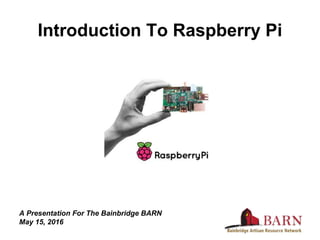
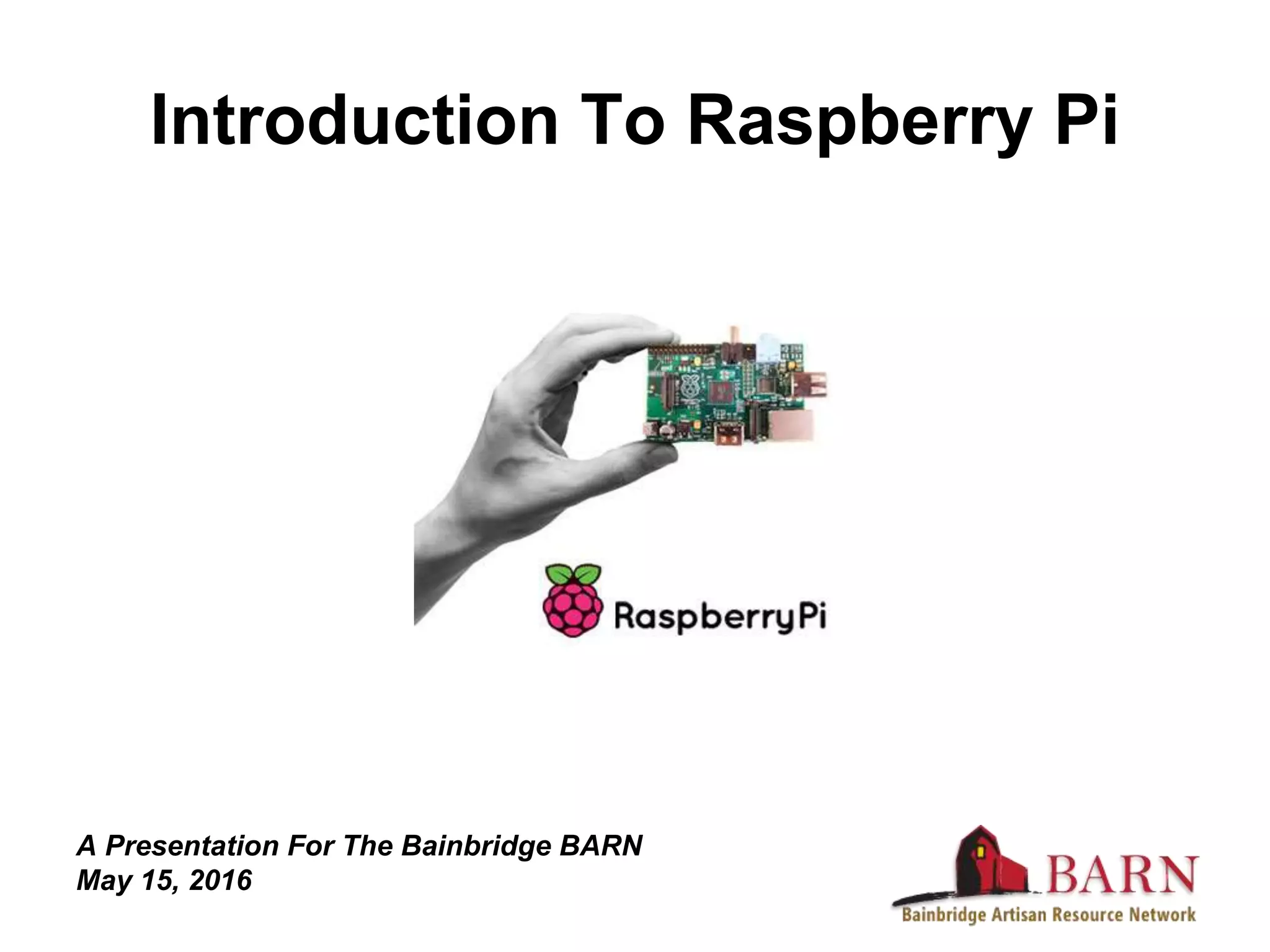
Introduction To Raspberry Pi
A Presentation For The Bainbridge BARN
May 15, 2016
About Me
Tech enthusiast; hardware and software
hacker; particular interest in machine learning
Pros:
This presentation is free of charge!
Cons:
No training in computer science, embedded
systems design, electrical engineering,
software development
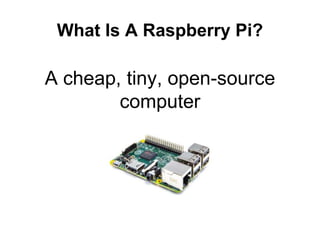
What Is A Raspberry Pi?
A cheap, tiny, open-source
computer
What Is A Raspberry Pi?
Most of us think of
computers as this:
Or this:
What Is A Raspberry Pi?
But computers can be much
more!
...wait...I mean less!
What Is A Raspberry Pi?
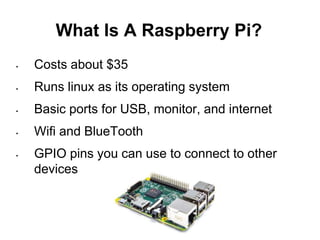
• Costs about $35
• Runs linux as its operating system
• Basic ports for USB, monitor, and internet
• Wifi and BlueTooth
• GPIO pins you can use to connect to other
devices
Why Are People So Excited About
The Raspberry Pi?
• Cheap and Simple – Enables you to easily add a
brain to your project
• Powerful – You can run surprisingly demanding
applications on a Pi
• Open Source – Get all source code, schematics, and
data sheets for free
• Learning Tool – Learn hardware, linux, and
programming all at once
What Can You Make With A Pi?
FishPi: An Autonomous Boat
What Can You Make With A Pi?
Pandora's Box: An Internet
Radio Player
What Can You Make With A Pi?
RasPiLapse: A Time-Lapse
Photo Dolly
What Can You Make With A Pi?
WeatherPi: A Solar-Powered
Weather Station
What Can You Make With A Pi?
Dumb Wired Printer → Wifi
Printer
What Can You Make With A Pi?
Smart Garage Door Manager
What Can You Make With A Pi?
A Minecraft Server
What Can You Make With A Pi?
A Weather Balloon
What Can You Make With A Pi?
An Automated Pet Feeder
Communicating With Your Pi
Two basic methods:
• Directly plug in a keyboard and monitor
• Good for initial setup, but inconvenient
• Over the network via ssh
• Much better, but...
• You need to know how to use ssh
Communicating With Your Pi
Don't fear the command line!
• Fast
• Powerful
• Robust (minimal system
resources or bandwidth)
• Impress your geek friends
Connecting Your Pi To The
Outside World
Connecting Your Pi To The
Outside World
• The simplest way is
using wifi, BlueTooth or
USB – your Pi already
has these built in
• But for devices that
can't communicate this
way, use the GPIO
(General Purpose Input
and Output) pins
Connecting Your Pi To The
Outside World
Connect a LED light...
<yawn>...
Connecting Your Pi To The
Outside World
Connect a button...
Connecting Your Pi To The
Outside World
Switch other hardware on or off...
Connecting Your Pi To The
Outside World
Control motors, servos, and steppers...
Connecting Your Pi To The
Outside World
Yeah, that’s right – now we’re talking
robotics!!!
* Important Disclaimer: Raspberry Pis were probably not used to make these robots...
Connecting Your Pi To The
Outside World
Best of all, control other hardware through the I2C or
SPI interfaces
Connecting Your Pi To The
Outside World
• Thermometers
• Pressure sensors
• Ultrasonic sensors
• Accelerometers
• RFID Readers
• Gyroscopes
• Photocells
• Magnetometers
• Altimeters
• Etc, etc...
Stuff you can control via I2C and SPI:
I Have My Pi Working...Now
What?
• The hardest part: learning linux
• But once you know the basics, you'll discover
how insanely powerful it is
• Start here and here!
• You can always get help from your friends at
the BARN
I Have My Pi Working...Now
What?
• To make your Pi do useful stuff, you'll probably
want to know some programming
• Python is an excellent place to start, since it is
widely used, easy to learn, and powerful
• Start here!
I Have My Pi Working...Now
What?
• If you want to use the GPIO pins, you'll need to
know a little about hardware
• Start here!
I Have My Pi Working...Now
What?
• Finally, for some neat tutorials on how to use
your Raspberry Pi
• Get these here!
OK Let's Get It Working!
1. Boot your Pi and get logged in
a. Plug in your keyboard, mouse, and monitor - we’ll use the GUI for now...
b. Your default credentials are username: pi password: raspberry
c. Open the terminal and enter `passwd` to change the password!!
1. Connect to the internet
a. Connect to the BARN wifi.
b. In the terminal enter `ping google.com` to configm we’re on the net
c. Hit CTRL-C when confirmed
1. Update your entire system
a. In the shell, execute `sudo aptitude update` to get the list of the latest software
b. `sudo aptitude full-upgrade` to actually perform the update
1. Americanize your Pi
a. Run `sudo raspi-config`
b. In Internationalization Options, change Locale to en_US.UTF-8,, Keyboard-Layout,
Timezone, and Wi-Fi country to the US
1. Set up SSH so you can log in without hooking up a keyboard and monitor
a. Get your IP address with `hostname -I` and make a note of this
b. From another computer, try to log in to your pi with `ssh pi@<your-pi’s-IP-address>`
1. When ready, shutdown your pi with `sudo shutdown -h now`
1. [Note to self - fill in Step 7 when time permits.]
1. Massive profit!!!!

Introduction to Raspberry Pi

  • 1.
    Introduction To RaspberryPi A Presentation For The Bainbridge BARN May 15, 2016
  • 2.
    About Me Tech enthusiast;hardware and software hacker; particular interest in machine learning Pros: This presentation is free of charge! Cons: No training in computer science, embedded systems design, electrical engineering, software development
  • 3.
    What Is ARaspberry Pi? A cheap, tiny, open-source computer
  • 4.
    What Is ARaspberry Pi? Most of us think of computers as this: Or this:
  • 5.
    What Is ARaspberry Pi? But computers can be much more! ...wait...I mean less!
  • 6.
    What Is ARaspberry Pi?
  • 7.
    What Is ARaspberry Pi? • Costs about $35 • Runs linux as its operating system • Basic ports for USB, monitor, and internet • Wifi and BlueTooth • GPIO pins you can use to connect to other devices
  • 8.
    Why Are PeopleSo Excited About The Raspberry Pi? • Cheap and Simple – Enables you to easily add a brain to your project • Powerful – You can run surprisingly demanding applications on a Pi • Open Source – Get all source code, schematics, and data sheets for free • Learning Tool – Learn hardware, linux, and programming all at once
  • 9.
    What Can YouMake With A Pi? FishPi: An Autonomous Boat
  • 10.
    What Can YouMake With A Pi? Pandora's Box: An Internet Radio Player
  • 11.
    What Can YouMake With A Pi? RasPiLapse: A Time-Lapse Photo Dolly
  • 12.
    What Can YouMake With A Pi? WeatherPi: A Solar-Powered Weather Station
  • 13.
    What Can YouMake With A Pi? Dumb Wired Printer → Wifi Printer
  • 14.
    What Can YouMake With A Pi? Smart Garage Door Manager
  • 15.
    What Can YouMake With A Pi? A Minecraft Server
  • 16.
    What Can YouMake With A Pi? A Weather Balloon
  • 17.
    What Can YouMake With A Pi? An Automated Pet Feeder
  • 18.
  • 19.
    Communicating With YourPi Two basic methods: • Directly plug in a keyboard and monitor • Good for initial setup, but inconvenient • Over the network via ssh • Much better, but... • You need to know how to use ssh
  • 20.
    Communicating With YourPi Don't fear the command line! • Fast • Powerful • Robust (minimal system resources or bandwidth) • Impress your geek friends
  • 21.
    Connecting Your PiTo The Outside World
  • 22.
    Connecting Your PiTo The Outside World • The simplest way is using wifi, BlueTooth or USB – your Pi already has these built in • But for devices that can't communicate this way, use the GPIO (General Purpose Input and Output) pins
  • 23.
    Connecting Your PiTo The Outside World Connect a LED light... <yawn>...
  • 24.
    Connecting Your PiTo The Outside World Connect a button...
  • 25.
    Connecting Your PiTo The Outside World Switch other hardware on or off...
  • 26.
    Connecting Your PiTo The Outside World Control motors, servos, and steppers...
  • 27.
    Connecting Your PiTo The Outside World Yeah, that’s right – now we’re talking robotics!!! * Important Disclaimer: Raspberry Pis were probably not used to make these robots...
  • 28.
    Connecting Your PiTo The Outside World Best of all, control other hardware through the I2C or SPI interfaces
  • 29.
    Connecting Your PiTo The Outside World • Thermometers • Pressure sensors • Ultrasonic sensors • Accelerometers • RFID Readers • Gyroscopes • Photocells • Magnetometers • Altimeters • Etc, etc... Stuff you can control via I2C and SPI:
  • 30.
    I Have MyPi Working...Now What? • The hardest part: learning linux • But once you know the basics, you'll discover how insanely powerful it is • Start here and here! • You can always get help from your friends at the BARN
  • 31.
    I Have MyPi Working...Now What? • To make your Pi do useful stuff, you'll probably want to know some programming • Python is an excellent place to start, since it is widely used, easy to learn, and powerful • Start here!
  • 32.
    I Have MyPi Working...Now What? • If you want to use the GPIO pins, you'll need to know a little about hardware • Start here!
  • 33.
    I Have MyPi Working...Now What? • Finally, for some neat tutorials on how to use your Raspberry Pi • Get these here!
  • 34.
    OK Let's GetIt Working! 1. Boot your Pi and get logged in a. Plug in your keyboard, mouse, and monitor - we’ll use the GUI for now... b. Your default credentials are username: pi password: raspberry c. Open the terminal and enter `passwd` to change the password!! 1. Connect to the internet a. Connect to the BARN wifi. b. In the terminal enter `ping google.com` to configm we’re on the net c. Hit CTRL-C when confirmed 1. Update your entire system a. In the shell, execute `sudo aptitude update` to get the list of the latest software b. `sudo aptitude full-upgrade` to actually perform the update 1. Americanize your Pi a. Run `sudo raspi-config` b. In Internationalization Options, change Locale to en_US.UTF-8,, Keyboard-Layout, Timezone, and Wi-Fi country to the US 1. Set up SSH so you can log in without hooking up a keyboard and monitor a. Get your IP address with `hostname -I` and make a note of this b. From another computer, try to log in to your pi with `ssh pi@<your-pi’s-IP-address>` 1. When ready, shutdown your pi with `sudo shutdown -h now` 1. [Note to self - fill in Step 7 when time permits.] 1. Massive profit!!!!