Scug.bk : SchTitle.fmk Page 1 Monday, June 16, 1997 10:10 AM


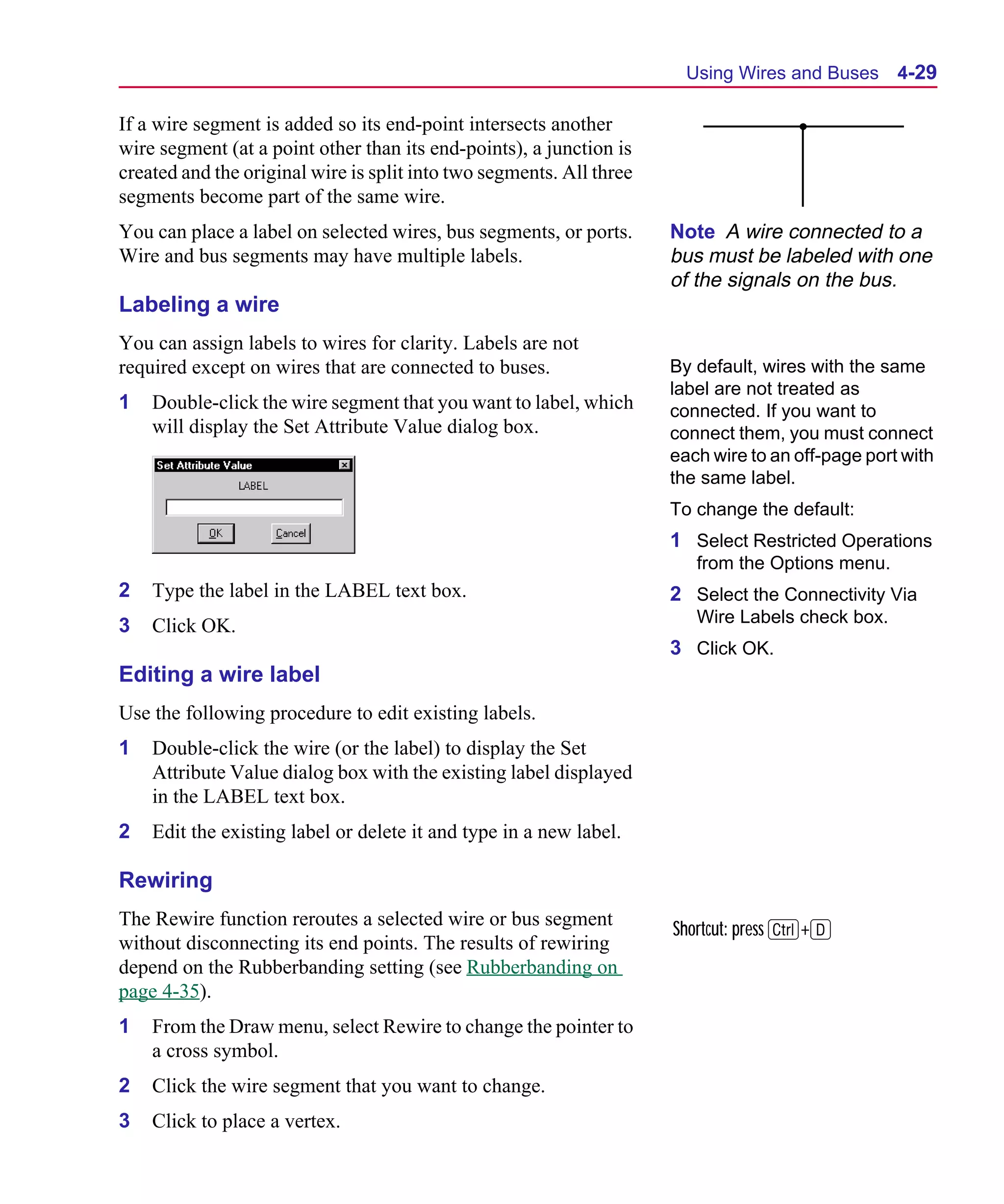
                                       MicroSim Schematics
                                           Schematic Capture Software


                                                          User’s Guide


  MicroSim Corporation
  20 Fairbanks
  Irvine, California 92618
  (714) 770-3022
Scug.bk : SchTitle.fmk Page 2 Monday, June 16, 1997 10:10 AM


     Version 8.0, June, 1997.

     Copyright 1997, MicroSim Corporation. All rights reserved.
     Printed in the United States of America.

     TradeMarks
     Referenced herein are the trademarks used by MicroSim Corporation to identify its products. MicroSim
     Corporation is the exclusive owners of “MicroSim,” “PSpice,” “PLogic,” “PLSyn.”

     Additional marks of MicroSim include: “StmEd,” “Stimulus Editor,” “Probe,” “Parts,” “Monte Carlo,” “Analog
     Behavioral Modeling,” “Device Equations,” “Digital Simulation,” “Digital Files,” “Filter Designer,” “Schematics,”
     “PLogic,” ”PCBoards,” “PSpice Optimizer,” and “PLSyn” and variations theron (collectively the “Trademarks”)
     are used in connection with computer programs. MicroSim owns various trademark registrations for these marks in
     the United States and other countries.

     SPECCTRA is a registered trademark of Cooper & Chyan Technology, Inc.

     Microsoft, MS-DOS, Windows, Windows NT and the Windows logo are either registered trademarks or trademarks
     of Microsoft Corporation.

     Adobe, the Adobe logo, Acrobat, the Acrobat logo, Exchange and PostScript are trademarks of Adobe Systems
     Incorporated or its subsidiaries and may be registered in certain jurisdictions.

     EENET is a trademark of Eckert Enterprises.

     All other company/product names are trademarks/registered trademarks of their respective holders.

     Copyright Notice
     Except as permitted under the United States Copyright Act of 1976, no part of this publication may be reproduced
     or distributed in any form or by any means, or stored in a data base or retrieval system, without the prior written
     permission of MicroSim Corporation.

     As described in the license agreement, you are permitted to run one copy of the MicroSim software on one
     computer at a time. Unauthorized duplication of the software or documentation is prohibited by law. Corporate
     Program Licensing and multiple copy discounts are available.

     Technical Support
     Internet            Tech.Support@microsim.com

     Phone               (714) 837-0790
     FAX                 (714) 455-0554
     WWW                 http://www.microsim.com

     Customer Service
     Internet            Sales@MicroSim.com
     Phone               (714) 770-3022
Scug.bk : SCUG.TOC Page iii Monday, June 16, 1997 10:10 AM


      Contents


                   Before You Begin
                   Welcome to MicroSim . . . . . .     .   .   .   .   .   .   .   .   .   .   .   .   .   .   .   .   .   .   .   .   .   .   .   .   .   .i
                   MicroSim Schematics Overview        .   .   .   .   .   .   .   .   .   .   .   .   .   .   .   .   .   .   .   .   .   .   .   .   .     ii
                   How to Use this Guide . . . . . .   .   .   .   .   .   .   .   .   .   .   .   .   .   .   .   .   .   .   .   .   .   .   .   .   .    iv
                       Typographical Conventions .     .   .   .   .   .   .   .   .   .   .   .   .   .   .   .   .   .   .   .   .   .   .   .   .   .    iv
                   Related Documentation . . . . .     .   .   .   .   .   .   .   .   .   .   .   .   .   .   .   .   .   .   .   .   .   .   .   .   .     v
                       Online Help . . . . . . . . .   .   .   .   .   .   .   .   .   .   .   .   .   .   .   .   .   .   .   .   .   .   .   .   .   .    vi
                   What’s New for Release 8 . . . .    .   .   .   .   .   .   .   .   .   .   .   .   .   .   .   .   .   .   .   .   .   .   .   .   .   vii

      Chapter 1 Getting Started
                   Overview . . . . . . . . . . . . . . . . . . . . . . . .                        .   .   .   .   .   .   .   .   .   .   .   .   . 1-1
                   Using Schematics . . . . . . . . . . . . . . . . . . .                          .   .   .   .   .   .   .   .   .   .   .   .   . 1-2
                   Example—Drawing a Schematic . . . . . . . . . . .                               .   .   .   .   .   .   .   .   .   .   .   .   . 1-4
                       Starting a New Design . . . . . . . . . . . . . .                           .   .   .   .   .   .   .   .   .   .   .   .   . 1-6
                       Command Line Options . . . . . . . . . . . . . .                            .   .   .   .   .   .   .   .   .   .   .   .   . 1-6
                       Checking Symbol Libraries Configuration . . . .                             .   .   .   .   .   .   .   .   .   .   .   .   . 1-7
                       Selecting and Placing Parts . . . . . . . . . . . .                         .   .   .   .   .   .   .   .   .   .   .   .   . 1-8
                       Drawing and Labeling Wires . . . . . . . . . . .                            .   .   .   .   .   .   .   .   .   .   .   .   . 1-11
                       Drawing and Labeling Buses . . . . . . . . . . .                            .   .   .   .   .   .   .   .   .   .   .   .   . 1-12
                       Changing Reference Designators and Part Values                              .   .   .   .   .   .   .   .   .   .   .   .   . 1-14
                       Moving Parts, Wires, and Text . . . . . . . . . .                           .   .   .   .   .   .   .   .   .   .   .   .   . 1-15
                       Placing Ports . . . . . . . . . . . . . . . . . . . .                       .   .   .   .   .   .   .   .   .   .   .   .   . 1-16
                       Placing Power and Ground Symbols . . . . . . .                              .   .   .   .   .   .   .   .   .   .   .   .   . 1-17
                       Saving Your Work . . . . . . . . . . . . . . . .                            .   .   .   .   .   .   .   .   .   .   .   .   . 1-18

      Chapter 2 Using Design Manager
                   Overview . . . . . . . . . . . . . . . .        .   .   .   .   .   .   .   .   .   .   .   .   .   .   .   .   .   .   .   .   .       2-1
                   Understanding Design Manager . . . .            .   .   .   .   .   .   .   .   .   .   .   .   .   .   .   .   .   .   .   .   .       2-2
                   Managing Your Files in the Workspace            .   .   .   .   .   .   .   .   .   .   .   .   .   .   .   .   .   .   .   .   .       2-4
                   Design Manager Functions . . . . . .            .   .   .   .   .   .   .   .   .   .   .   .   .   .   .   .   .   .   .   .   .       2-5
                   Starting the Design Manager . . . . .           .   .   .   .   .   .   .   .   .   .   .   .   .   .   .   .   .   .   .   .   .       2-7
Scug.bk : SCUG.TOC Page iv Monday, June 16, 1997 10:10 AM


  iv Contents

                Hints and Tips . . . . . . . . . . . . . . . . . . . . . . . . . . . . . . . . . . 2-7
                Design Manager Help . . . . . . . . . . . . . . . . . . . . . . . . . . . . . . 2-7

  Chapter 3 Using the Schematic Editor
                Overview . . . . . . . . . . . . . . . .    .   .   .   .   .   .   .   .   .   .   .   .   .   .   .   .   .   .   .   .   .    3-1
                Components of a Design . . . . . . . .      .   .   .   .   .   .   .   .   .   .   .   .   .   .   .   .   .   .   .   .   .    3-3
                   Parts . . . . . . . . . . . . . . . .    .   .   .   .   .   .   .   .   .   .   .   .   .   .   .   .   .   .   .   .   .    3-3
                   Symbols . . . . . . . . . . . . . .      .   .   .   .   .   .   .   .   .   .   .   .   .   .   .   .   .   .   .   .   .    3-4
                   Ports . . . . . . . . . . . . . . . .    .   .   .   .   .   .   .   .   .   .   .   .   .   .   .   .   .   .   .   .   .    3-4
                   Attributes . . . . . . . . . . . . . .   .   .   .   .   .   .   .   .   .   .   .   .   .   .   .   .   .   .   .   .   .    3-4
                   Annotations . . . . . . . . . . . .      .   .   .   .   .   .   .   .   .   .   .   .   .   .   .   .   .   .   .   .   .    3-4
                   Connections . . . . . . . . . . . .      .   .   .   .   .   .   .   .   .   .   .   .   .   .   .   .   .   .   .   .   .    3-5
                Main Window . . . . . . . . . . . . .       .   .   .   .   .   .   .   .   .   .   .   .   .   .   .   .   .   .   .   .   .    3-6
                   Menus . . . . . . . . . . . . . . .      .   .   .   .   .   .   .   .   .   .   .   .   .   .   .   .   .   .   .   .   .    3-6
                   Toolbars . . . . . . . . . . . . . .     .   .   .   .   .   .   .   .   .   .   .   .   .   .   .   .   .   .   .   .   .    3-7
                       Standard Schematics . . . . . .      .   .   .   .   .   .   .   .   .   .   .   .   .   .   .   .   .   .   .   .   .    3-7
                       Drawing . . . . . . . . . . . .      .   .   .   .   .   .   .   .   .   .   .   .   .   .   .   .   .   .   .   .   .    3-9
                       Simulation . . . . . . . . . . .     .   .   .   .   .   .   .   .   .   .   .   .   .   .   .   .   .   .   .   .       3-10
                       Annotation Graphics . . . . . .      .   .   .   .   .   .   .   .   .   .   .   .   .   .   .   .   .   .   .   .       3-12
                   Status Bar . . . . . . . . . . . . .     .   .   .   .   .   .   .   .   .   .   .   .   .   .   .   .   .   .   .   .       3-13
                   Refreshing the Screen . . . . . . .      .   .   .   .   .   .   .   .   .   .   .   .   .   .   .   .   .   .   .   .       3-13
                   Keyboard . . . . . . . . . . . . . .     .   .   .   .   .   .   .   .   .   .   .   .   .   .   .   .   .   .   .   .       3-14
                Configuring Schematics . . . . . . . .      .   .   .   .   .   .   .   .   .   .   .   .   .   .   .   .   .   .   .   .       3-15
                   Configuring Symbol Libraries . . .       .   .   .   .   .   .   .   .   .   .   .   .   .   .   .   .   .   .   .   .       3-16
                       Types of Libraries . . . . . . .     .   .   .   .   .   .   .   .   .   .   .   .   .   .   .   .   .   .   .   .       3-17
                       Default Library Directory . . .      .   .   .   .   .   .   .   .   .   .   .   .   .   .   .   .   .   .   .   .       3-17
                       User-Defined Symbol Libraries        .   .   .   .   .   .   .   .   .   .   .   .   .   .   .   .   .   .   .   .       3-18
                       Removing Library Names . . .         .   .   .   .   .   .   .   .   .   .   .   .   .   .   .   .   .   .   .   .       3-20
                       Correcting Library Names . . .       .   .   .   .   .   .   .   .   .   .   .   .   .   .   .   .   .   .   .   .       3-20
                       Changing the Search Order . .        .   .   .   .   .   .   .   .   .   .   .   .   .   .   .   .   .   .   .   .       3-21
                       Changing the Search Path . . .       .   .   .   .   .   .   .   .   .   .   .   .   .   .   .   .   .   .   .   .       3-22
                   Changing Page Size . . . . . . . .       .   .   .   .   .   .   .   .   .   .   .   .   .   .   .   .   .   .   .   .       3-23
                   Changing Page Settings . . . . . .       .   .   .   .   .   .   .   .   .   .   .   .   .   .   .   .   .   .   .   .       3-24
                       Border Style . . . . . . . . . .     .   .   .   .   .   .   .   .   .   .   .   .   .   .   .   .   .   .   .   .       3-24
                       Drawing Area . . . . . . . . .       .   .   .   .   .   .   .   .   .   .   .   .   .   .   .   .   .   .   .   .       3-28
                       Pin-to-Pin Spacing . . . . . . .     .   .   .   .   .   .   .   .   .   .   .   .   .   .   .   .   .   .   .   .       3-29
                   Changing Grid and Gravity . . . .        .   .   .   .   .   .   .   .   .   .   .   .   .   .   .   .   .   .   .   .       3-29
                       Grid On . . . . . . . . . . . .      .   .   .   .   .   .   .   .   .   .   .   .   .   .   .   .   .   .   .   .       3-29
                       Stay-on-Grid . . . . . . . . . .     .   .   .   .   .   .   .   .   .   .   .   .   .   .   .   .   .   .   .   .       3-30
                       Snap-to-Grid . . . . . . . . . .     .   .   .   .   .   .   .   .   .   .   .   .   .   .   .   .   .   .   .   .       3-30
                       Snap-to-Pin . . . . . . . . . .      .   .   .   .   .   .   .   .   .   .   .   .   .   .   .   .   .   .   .   .       3-31
Scug.bk : SCUG.TOC Page v Monday, June 16, 1997 10:10 AM


                                                                                                                               Contents         v

                            Grid Spacing . . . . . . . . . . .     .   .   .   .   .   .   .   .   .   .   .   .   .   .   .    .   .   .   . 3-31
                            Gravity . . . . . . . . . . . . . .    .   .   .   .   .   .   .   .   .   .   .   .   .   .   .    .   .   .   . 3-31
                            Text Grid . . . . . . . . . . . . .    .   .   .   .   .   .   .   .   .   .   .   .   .   .   .    .   .   .   . 3-32
                       Setting the Autosave Interval . . . . .     .   .   .   .   .   .   .   .   .   .   .   .   .   .   .    .   .   .   . 3-32
                   Controlling the Display in Schematics . .       .   .   .   .   .   .   .   .   .   .   .   .   .   .   .    .   .   .   . 3-34
                       Changing Fonts . . . . . . . . . . . .      .   .   .   .   .   .   .   .   .   .   .   .   .   .   .    .   .   .   . 3-36
                       Configuring Colors . . . . . . . . . .      .   .   .   .   .   .   .   .   .   .   .   .   .   .   .    .   .   .   . 3-37
                       Changing Application Settings . . . .       .   .   .   .   .   .   .   .   .   .   .   .   .   .   .    .   .   .   . 3-38
                       Changing the Get Recent Part List Size      .   .   .   .   .   .   .   .   .   .   .   .   .   .   .    .   .   .   . 3-41
                   Zooming and Panning in Schematics . . .         .   .   .   .   .   .   .   .   .   .   .   .   .   .   .    .   .   .   . 3-42
                       Zooming . . . . . . . . . . . . . . . .     .   .   .   .   .   .   .   .   .   .   .   .   .   .   .    .   .   .   . 3-42
                       Setting Zoom Parameters . . . . . . .       .   .   .   .   .   .   .   .   .   .   .   .   .   .   .    .   .   .   . 3-43
                       Fitting to a Page . . . . . . . . . . . .   .   .   .   .   .   .   .   .   .   .   .   .   .   .   .    .   .   .   . 3-44
                       Panning . . . . . . . . . . . . . . . .     .   .   .   .   .   .   .   .   .   .   .   .   .   .   .    .   .   .   . 3-44
                            Automatic Panning . . . . . . . .      .   .   .   .   .   .   .   .   .   .   .   .   .   .   .    .   .   .   . 3-45
                   Using the Message Viewer . . . . . . . .        .   .   .   .   .   .   .   .   .   .   .   .   .   .   .    .   .   .   . 3-47
                       Online Help . . . . . . . . . . . . . .     .   .   .   .   .   .   .   .   .   .   .   .   .   .   .    .   .   .   . 3-48
                       Locating the Source of a Message . .        .   .   .   .   .   .   .   .   .   .   .   .   .   .   .    .   .   .   . 3-48
                       Indicated Severity . . . . . . . . . . .    .   .   .   .   .   .   .   .   .   .   .   .   .   .   .    .   .   .   . 3-48
                       Additional Information . . . . . . . .      .   .   .   .   .   .   .   .   .   .   .   .   .   .   .    .   .   .   . 3-49
                       Closing the Message Viewer . . . . .        .   .   .   .   .   .   .   .   .   .   .   .   .   .   .    .   .   .   . 3-49

      Chapter 4 Creating and Editing Designs
                   Overview . . . . . . . . . . . . . . . . . . . .        .   .   .   .   .   .   .   .   .   .   .   .   .    .   .   .   . 4-1
                   Starting the Schematic Editor . . . . . . . . .         .   .   .   .   .   .   .   .   .   .   .   .   .    .   .   .   . 4-3
                       Opening a File . . . . . . . . . . . . . . .        .   .   .   .   .   .   .   .   .   .   .   .   .    .   .   .   . 4-3
                   Finding Parts . . . . . . . . . . . . . . . . . .       .   .   .   .   .   .   .   .   .   .   .   .   .    .   .   .   . 4-4
                       Getting Parts by Name . . . . . . . . . .           .   .   .   .   .   .   .   .   .   .   .   .   .    .   .   .   . 4-5
                       Searching for Parts in the Libraries . . . .        .   .   .   .   .   .   .   .   .   .   .   .   .    .   .   .   . 4-6
                   Placing and Editing Parts . . . . . . . . . . .         .   .   .   .   .   .   .   .   .   .   .   .   .    .   .   .   . 4-9
                       Rotating and Flipping Parts . . . . . . . .         .   .   .   .   .   .   .   .   .   .   .   .   .    .   .   .   . 4-10
                           Rotating Parts . . . . . . . . . . . . .        .   .   .   .   .   .   .   .   .   .   .   .   .    .   .   .   . 4-10
                           Flipping Parts . . . . . . . . . . . . .        .   .   .   .   .   .   .   .   .   .   .   .   .    .   .   .   . 4-11
                       Editing Part Attributes . . . . . . . . . . .       .   .   .   .   .   .   .   .   .   .   .   .   .    .   .   .   . 4-12
                           Editing Attributes . . . . . . . . . . .        .   .   .   .   .   .   .   .   .   .   .   .   .    .   .   .   . 4-12
                           Adding Attributes . . . . . . . . . . .         .   .   .   .   .   .   .   .   .   .   .   .   .    .   .   .   . 4-14
                           Deleting Attributes . . . . . . . . . .         .   .   .   .   .   .   .   .   .   .   .   .   .    .   .   .   . 4-14
                           Changing the Display of Attributes . .          .   .   .   .   .   .   .   .   .   .   .   .   .    .   .   .   . 4-14
                       Global Editing of Attributes . . . . . . . .        .   .   .   .   .   .   .   .   .   .   .   .   .    .   .   .   . 4-17
                       Editing the Default Attributes of a Symbol          .   .   .   .   .   .   .   .   .   .   .   .   .    .   .   .   . 4-18
                       Repeating Part Placements . . . . . . . .           .   .   .   .   .   .   .   .   .   .   .   .   .    .   .   .   . 4-19
Scug.bk : SCUG.TOC Page vi Monday, June 16, 1997 10:10 AM


  vi Contents

                    Automatically Assigning Reference Designators         .   .   .   .   .   .   .   .   .   .   .   .   .   4-21
                    Example—Using Auto-Repeat and Auto Naming             .   .   .   .   .   .   .   .   .   .   .   .   .   4-22
                    Replacing Parts . . . . . . . . . . . . . . . . .     .   .   .   .   .   .   .   .   .   .   .   .   .   4-24
                Placing Power and Ground Symbols . . . . . . . . .        .   .   .   .   .   .   .   .   .   .   .   .   .   4-26
                    Placing Power and Ground Symbols . . . . . .          .   .   .   .   .   .   .   .   .   .   .   .   .   4-26
                    Creating Custom Power and Ground Symbols .            .   .   .   .   .   .   .   .   .   .   .   .   .   4-27
                Using Wires and Buses . . . . . . . . . . . . . . . .     .   .   .   .   .   .   .   .   .   .   .   .   .   4-28
                    Drawing and Labeling Wires . . . . . . . . . .        .   .   .   .   .   .   .   .   .   .   .   .   .   4-28
                    Drawing and Labeling Buses . . . . . . . . . .        .   .   .   .   .   .   .   .   .   .   .   .   .   4-30
                    Automatically Labeling Wires and Buses . . . .        .   .   .   .   .   .   .   .   .   .   .   .   .   4-32
                    Specifying Drawing Options . . . . . . . . . . .      .   .   .   .   .   .   .   .   .   .   .   .   .   4-33
                        Orthogonality . . . . . . . . . . . . . . . .     .   .   .   .   .   .   .   .   .   .   .   .   .   4-33
                        Snap-to-Grid . . . . . . . . . . . . . . . . .    .   .   .   .   .   .   .   .   .   .   .   .   .   4-34
                        Snap-to-Pin . . . . . . . . . . . . . . . . .     .   .   .   .   .   .   .   .   .   .   .   .   .   4-34
                        Gravity . . . . . . . . . . . . . . . . . . . .   .   .   .   .   .   .   .   .   .   .   .   .   .   4-34
                        Grid Spacing . . . . . . . . . . . . . . . . .    .   .   .   .   .   .   .   .   .   .   .   .   .   4-35
                        Rubberbanding . . . . . . . . . . . . . . .       .   .   .   .   .   .   .   .   .   .   .   .   .   4-35
                Using Ports . . . . . . . . . . . . . . . . . . . . . .   .   .   .   .   .   .   .   .   .   .   .   .   .   4-38
                        Off-Page Ports . . . . . . . . . . . . . . . .    .   .   .   .   .   .   .   .   .   .   .   .   .   4-38
                        Global Ports . . . . . . . . . . . . . . . . .    .   .   .   .   .   .   .   .   .   .   .   .   .   4-38
                Selecting and Moving Objects and Attributes . . . .       .   .   .   .   .   .   .   .   .   .   .   .   .   4-40
                    Selecting . . . . . . . . . . . . . . . . . . . . .   .   .   .   .   .   .   .   .   .   .   .   .   .   4-40
                    Moving . . . . . . . . . . . . . . . . . . . . . .    .   .   .   .   .   .   .   .   .   .   .   .   .   4-41
                    Searching for and Selecting Parts . . . . . . . .     .   .   .   .   .   .   .   .   .   .   .   .   .   4-41
                    Cutting, Copying, and Pasting . . . . . . . . . .     .   .   .   .   .   .   .   .   .   .   .   .   .   4-43
                        Cutting . . . . . . . . . . . . . . . . . . . .   .   .   .   .   .   .   .   .   .   .   .   .   .   4-43
                        Copying . . . . . . . . . . . . . . . . . . .     .   .   .   .   .   .   .   .   .   .   .   .   .   4-43
                        Pasting . . . . . . . . . . . . . . . . . . . .   .   .   .   .   .   .   .   .   .   .   .   .   .   4-43
                        Deleting . . . . . . . . . . . . . . . . . . .    .   .   .   .   .   .   .   .   .   .   .   .   .   4-44
                        Undo/Redo . . . . . . . . . . . . . . . . . .     .   .   .   .   .   .   .   .   .   .   .   .   .   4-44
                        Copying to the Clipboard . . . . . . . . . .      .   .   .   .   .   .   .   .   .   .   .   .   .   4-45
                Creating and Editing Title Blocks . . . . . . . . . .     .   .   .   .   .   .   .   .   .   .   .   .   .   4-46
                    Editing Page Title . . . . . . . . . . . . . . . .    .   .   .   .   .   .   .   .   .   .   .   .   .   4-46
                    Entering Information into the Title Block . . . .     .   .   .   .   .   .   .   .   .   .   .   .   .   4-47
                    Creating a Custom Title Block . . . . . . . . . .     .   .   .   .   .   .   .   .   .   .   .   .   .   4-48
                        Using a Custom Title Block Symbol . . . .         .   .   .   .   .   .   .   .   .   .   .   .   .   4-49
                Adding Non-Electrical Information . . . . . . . . .       .   .   .   .   .   .   .   .   .   .   .   .   .   4-50
                    Text . . . . . . . . . . . . . . . . . . . . . . .    .   .   .   .   .   .   .   .   .   .   .   .   .   4-50
                        Multiple Line Text Editing . . . . . . . . .      .   .   .   .   .   .   .   .   .   .   .   .   .   4-50
                        Single Line Text Editing . . . . . . . . . .      .   .   .   .   .   .   .   .   .   .   .   .   .   4-51
                        Changing the Properties of the Text . . . . .     .   .   .   .   .   .   .   .   .   .   .   .   .   4-52
                    Graphics . . . . . . . . . . . . . . . . . . . . .    .   .   .   .   .   .   .   .   .   .   .   .   .   4-54
Scug.bk : SCUG.TOC Page vii Monday, June 16, 1997 10:10 AM


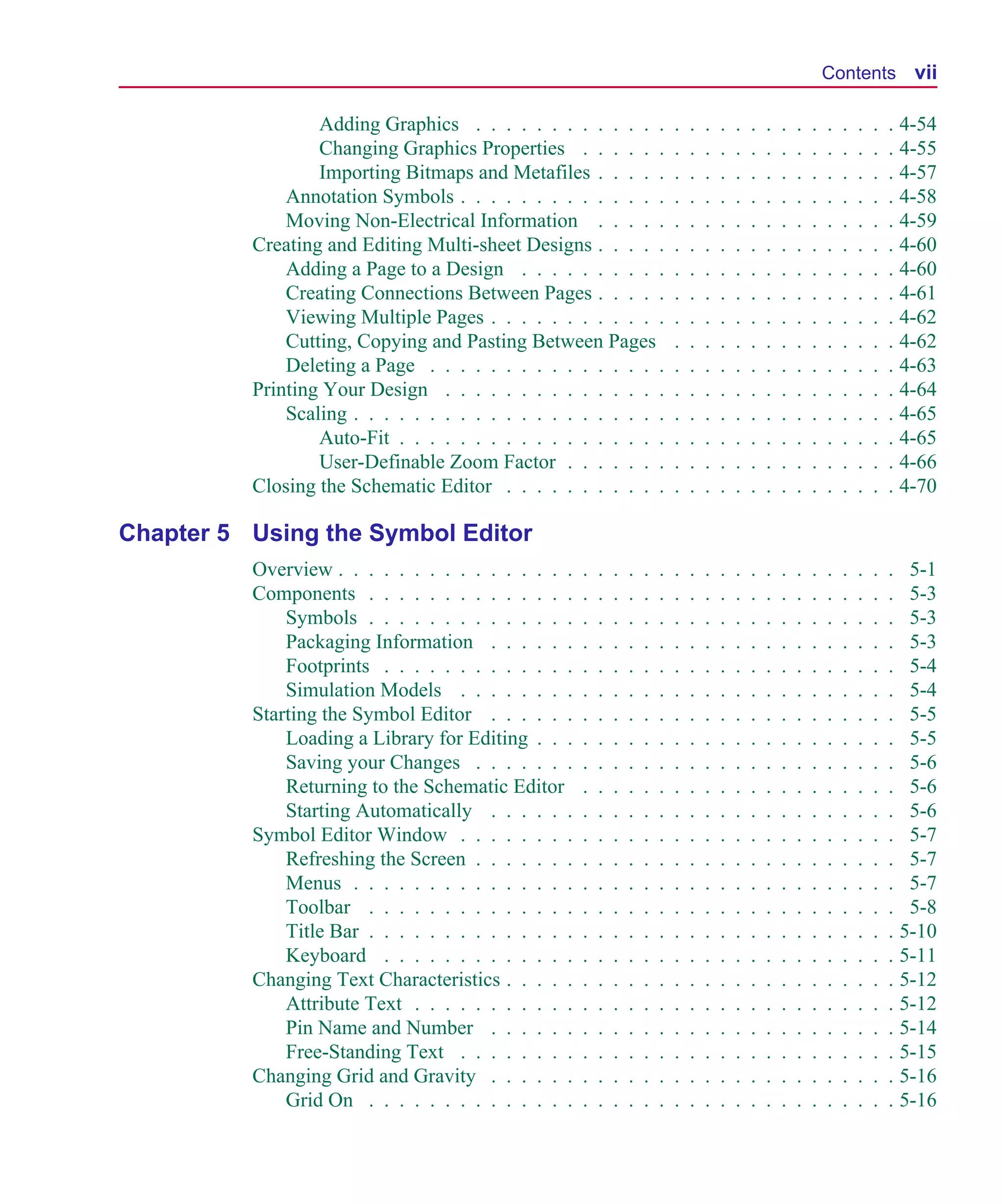
                                                                                                                               Contents vii

                           Adding Graphics . . . . . . . . . . . . .                   .   .   .   .   .   .   .   .   .   .   .   .   .   .   . 4-54
                           Changing Graphics Properties . . . . . .                    .   .   .   .   .   .   .   .   .   .   .   .   .   .   . 4-55
                           Importing Bitmaps and Metafiles . . . . .                   .   .   .   .   .   .   .   .   .   .   .   .   .   .   . 4-57
                       Annotation Symbols . . . . . . . . . . . . . .                  .   .   .   .   .   .   .   .   .   .   .   .   .   .   . 4-58
                       Moving Non-Electrical Information . . . . .                     .   .   .   .   .   .   .   .   .   .   .   .   .   .   . 4-59
                   Creating and Editing Multi-sheet Designs . . . . .                  .   .   .   .   .   .   .   .   .   .   .   .   .   .   . 4-60
                       Adding a Page to a Design . . . . . . . . . .                   .   .   .   .   .   .   .   .   .   .   .   .   .   .   . 4-60
                       Creating Connections Between Pages . . . . .                    .   .   .   .   .   .   .   .   .   .   .   .   .   .   . 4-61
                       Viewing Multiple Pages . . . . . . . . . . . .                  .   .   .   .   .   .   .   .   .   .   .   .   .   .   . 4-62
                       Cutting, Copying and Pasting Between Pages                      .   .   .   .   .   .   .   .   .   .   .   .   .   .   . 4-62
                       Deleting a Page . . . . . . . . . . . . . . . .                 .   .   .   .   .   .   .   .   .   .   .   .   .   .   . 4-63
                   Printing Your Design . . . . . . . . . . . . . . .                  .   .   .   .   .   .   .   .   .   .   .   .   .   .   . 4-64
                       Scaling . . . . . . . . . . . . . . . . . . . . .               .   .   .   .   .   .   .   .   .   .   .   .   .   .   . 4-65
                           Auto-Fit . . . . . . . . . . . . . . . . . .                .   .   .   .   .   .   .   .   .   .   .   .   .   .   . 4-65
                           User-Definable Zoom Factor . . . . . . .                    .   .   .   .   .   .   .   .   .   .   .   .   .   .   . 4-66
                   Closing the Schematic Editor . . . . . . . . . . .                  .   .   .   .   .   .   .   .   .   .   .   .   .   .   . 4-70

      Chapter 5 Using the Symbol Editor
                   Overview . . . . . . . . . . . . . . . .    .   .   .   .   .   .   .   .   .   .   .   .   .   .   .   .   .   .   .   .   . 5-1
                   Components . . . . . . . . . . . . . .      .   .   .   .   .   .   .   .   .   .   .   .   .   .   .   .   .   .   .   .   . 5-3
                       Symbols . . . . . . . . . . . . . .     .   .   .   .   .   .   .   .   .   .   .   .   .   .   .   .   .   .   .   .   . 5-3
                       Packaging Information . . . . . .       .   .   .   .   .   .   .   .   .   .   .   .   .   .   .   .   .   .   .   .   . 5-3
                       Footprints . . . . . . . . . . . . .    .   .   .   .   .   .   .   .   .   .   .   .   .   .   .   .   .   .   .   .   . 5-4
                       Simulation Models . . . . . . . .       .   .   .   .   .   .   .   .   .   .   .   .   .   .   .   .   .   .   .   .   . 5-4
                   Starting the Symbol Editor . . . . . .      .   .   .   .   .   .   .   .   .   .   .   .   .   .   .   .   .   .   .   .   . 5-5
                       Loading a Library for Editing . . .     .   .   .   .   .   .   .   .   .   .   .   .   .   .   .   .   .   .   .   .   . 5-5
                       Saving your Changes . . . . . . .       .   .   .   .   .   .   .   .   .   .   .   .   .   .   .   .   .   .   .   .   . 5-6
                       Returning to the Schematic Editor       .   .   .   .   .   .   .   .   .   .   .   .   .   .   .   .   .   .   .   .   . 5-6
                       Starting Automatically . . . . . .      .   .   .   .   .   .   .   .   .   .   .   .   .   .   .   .   .   .   .   .   . 5-6
                   Symbol Editor Window . . . . . . . .        .   .   .   .   .   .   .   .   .   .   .   .   .   .   .   .   .   .   .   .   . 5-7
                       Refreshing the Screen . . . . . . .     .   .   .   .   .   .   .   .   .   .   .   .   .   .   .   .   .   .   .   .   . 5-7
                       Menus . . . . . . . . . . . . . . .     .   .   .   .   .   .   .   .   .   .   .   .   .   .   .   .   .   .   .   .   . 5-7
                       Toolbar . . . . . . . . . . . . . .     .   .   .   .   .   .   .   .   .   .   .   .   .   .   .   .   .   .   .   .   . 5-8
                       Title Bar . . . . . . . . . . . . . .   .   .   .   .   .   .   .   .   .   .   .   .   .   .   .   .   .   .   .   .   . 5-10
                       Keyboard . . . . . . . . . . . . .      .   .   .   .   .   .   .   .   .   .   .   .   .   .   .   .   .   .   .   .   . 5-11
                   Changing Text Characteristics . . . . .     .   .   .   .   .   .   .   .   .   .   .   .   .   .   .   .   .   .   .   .   . 5-12
                       Attribute Text . . . . . . . . . . .    .   .   .   .   .   .   .   .   .   .   .   .   .   .   .   .   .   .   .   .   . 5-12
                       Pin Name and Number . . . . . .         .   .   .   .   .   .   .   .   .   .   .   .   .   .   .   .   .   .   .   .   . 5-14
                       Free-Standing Text . . . . . . . .      .   .   .   .   .   .   .   .   .   .   .   .   .   .   .   .   .   .   .   .   . 5-15
                   Changing Grid and Gravity . . . . . .       .   .   .   .   .   .   .   .   .   .   .   .   .   .   .   .   .   .   .   .   . 5-16
                       Grid On . . . . . . . . . . . . . .     .   .   .   .   .   .   .   .   .   .   .   .   .   .   .   .   .   .   .   .   . 5-16
Scug.bk : SCUG.TOC Page viii Monday, June 16, 1997 10:10 AM


  viii Contents

                      Stay-on-Grid . . .    .   .   .   .   .   .   .   .   .   .   .   .   .   .   .   .   .   .   .   .   .   .   .   .   .   .   .   .   .       5-16
                      Snap-to-Grid . . .    .   .   .   .   .   .   .   .   .   .   .   .   .   .   .   .   .   .   .   .   .   .   .   .   .   .   .   .   .       5-17
                      Grid Spacing . . .    .   .   .   .   .   .   .   .   .   .   .   .   .   .   .   .   .   .   .   .   .   .   .   .   .   .   .   .   .       5-17
                      Gravity . . . . . .   .   .   .   .   .   .   .   .   .   .   .   .   .   .   .   .   .   .   .   .   .   .   .   .   .   .   .   .   .       5-17
                      Text Grid . . . . .   .   .   .   .   .   .   .   .   .   .   .   .   .   .   .   .   .   .   .   .   .   .   .   .   .   .   .   .   .       5-19
                  Zooming and Panning       .   .   .   .   .   .   .   .   .   .   .   .   .   .   .   .   .   .   .   .   .   .   .   .   .   .   .   .   .       5-20
                  Printing Symbols . . .    .   .   .   .   .   .   .   .   .   .   .   .   .   .   .   .   .   .   .   .   .   .   .   .   .   .   .   .   .       5-21

  Chapter 6 Creating and Editing Symbols
                  Overview . . . . . . . . . . . . . . . . . . . . . . .                                    .   .   .   .   .   .   .   .   .   .   .   .   .   .    6-1
                  Creating New Symbols . . . . . . . . . . . . . . . .                                      .   .   .   .   .   .   .   .   .   .   .   .   .   .    6-3
                      Using the Symbol Wizard . . . . . . . . . . . .                                       .   .   .   .   .   .   .   .   .   .   .   .   .   .    6-3
                      Creating a Symbol by Copying Another Symbol                                           .   .   .   .   .   .   .   .   .   .   .   .   .   .    6-5
                      Making a Copy of a Symbol . . . . . . . . . . .                                       .   .   .   .   .   .   .   .   .   .   .   .   .   .    6-5
                      Importing a symbol definition . . . . . . . . . .                                     .   .   .   .   .   .   .   .   .   .   .   .   .   .    6-6
                      Using AKO Symbols . . . . . . . . . . . . . .                                         .   .   .   .   .   .   .   .   .   .   .   .   .   .    6-7
                  Drawing Symbol Graphics . . . . . . . . . . . . . .                                       .   .   .   .   .   .   .   .   .   .   .   .   .       6-10
                      Elements of a Symbol . . . . . . . . . . . . . .                                      .   .   .   .   .   .   .   .   .   .   .   .   .       6-10
                           Arc . . . . . . . . . . . . . . . . . . . . . .                                  .   .   .   .   .   .   .   .   .   .   .   .   .       6-10
                           Box . . . . . . . . . . . . . . . . . . . . .                                    .   .   .   .   .   .   .   .   .   .   .   .   .       6-11
                           Circle . . . . . . . . . . . . . . . . . . . .                                   .   .   .   .   .   .   .   .   .   .   .   .   .       6-11
                           Polyline . . . . . . . . . . . . . . . . . . .                                   .   .   .   .   .   .   .   .   .   .   .   .   .       6-11
                           Pins . . . . . . . . . . . . . . . . . . . . .                                   .   .   .   .   .   .   .   .   .   .   .   .   .       6-12
                           Text . . . . . . . . . . . . . . . . . . . . .                                   .   .   .   .   .   .   .   .   .   .   .   .   .       6-12
                           Picture . . . . . . . . . . . . . . . . . . . .                                  .   .   .   .   .   .   .   .   .   .   .   .   .       6-13
                      Selecting . . . . . . . . . . . . . . . . . . . . .                                   .   .   .   .   .   .   .   .   .   .   .   .   .       6-14
                      Filling Shapes . . . . . . . . . . . . . . . . . .                                    .   .   .   .   .   .   .   .   .   .   .   .   .       6-15
                      Ordering Drawing Objects . . . . . . . . . . . .                                      .   .   .   .   .   .   .   .   .   .   .   .   .       6-16
                      Rotating and Flipping Elements . . . . . . . . .                                      .   .   .   .   .   .   .   .   .   .   .   .   .       6-17
                           Rotating Elements . . . . . . . . . . . . . .                                    .   .   .   .   .   .   .   .   .   .   .   .   .       6-17
                           Flipping Elements . . . . . . . . . . . . . .                                    .   .   .   .   .   .   .   .   .   .   .   .   .       6-17
                      Moving . . . . . . . . . . . . . . . . . . . . . .                                    .   .   .   .   .   .   .   .   .   .   .   .   .       6-19
                      Resizing . . . . . . . . . . . . . . . . . . . . .                                    .   .   .   .   .   .   .   .   .   .   .   .   .       6-19
                  Editing Existing Symbols . . . . . . . . . . . . . .                                      .   .   .   .   .   .   .   .   .   .   .   .   .       6-20
                      Accessing Symbols . . . . . . . . . . . . . . .                                       .   .   .   .   .   .   .   .   .   .   .   .   .       6-20
                      Cutting, Copying, and Pasting . . . . . . . . . .                                     .   .   .   .   .   .   .   .   .   .   .   .   .       6-21
                           Cutting . . . . . . . . . . . . . . . . . . . .                                  .   .   .   .   .   .   .   .   .   .   .   .   .       6-21
                           Copying . . . . . . . . . . . . . . . . . . .                                    .   .   .   .   .   .   .   .   .   .   .   .   .       6-21
                           Pasting . . . . . . . . . . . . . . . . . . . .                                  .   .   .   .   .   .   .   .   .   .   .   .   .       6-22
                           Deleting . . . . . . . . . . . . . . . . . . .                                   .   .   .   .   .   .   .   .   .   .   .   .   .       6-22
                  Defining and Editing Pin Types . . . . . . . . . . .                                      .   .   .   .   .   .   .   .   .   .   .   .   .       6-23
Scug.bk : SCUG.TOC Page ix Monday, June 16, 1997 10:10 AM


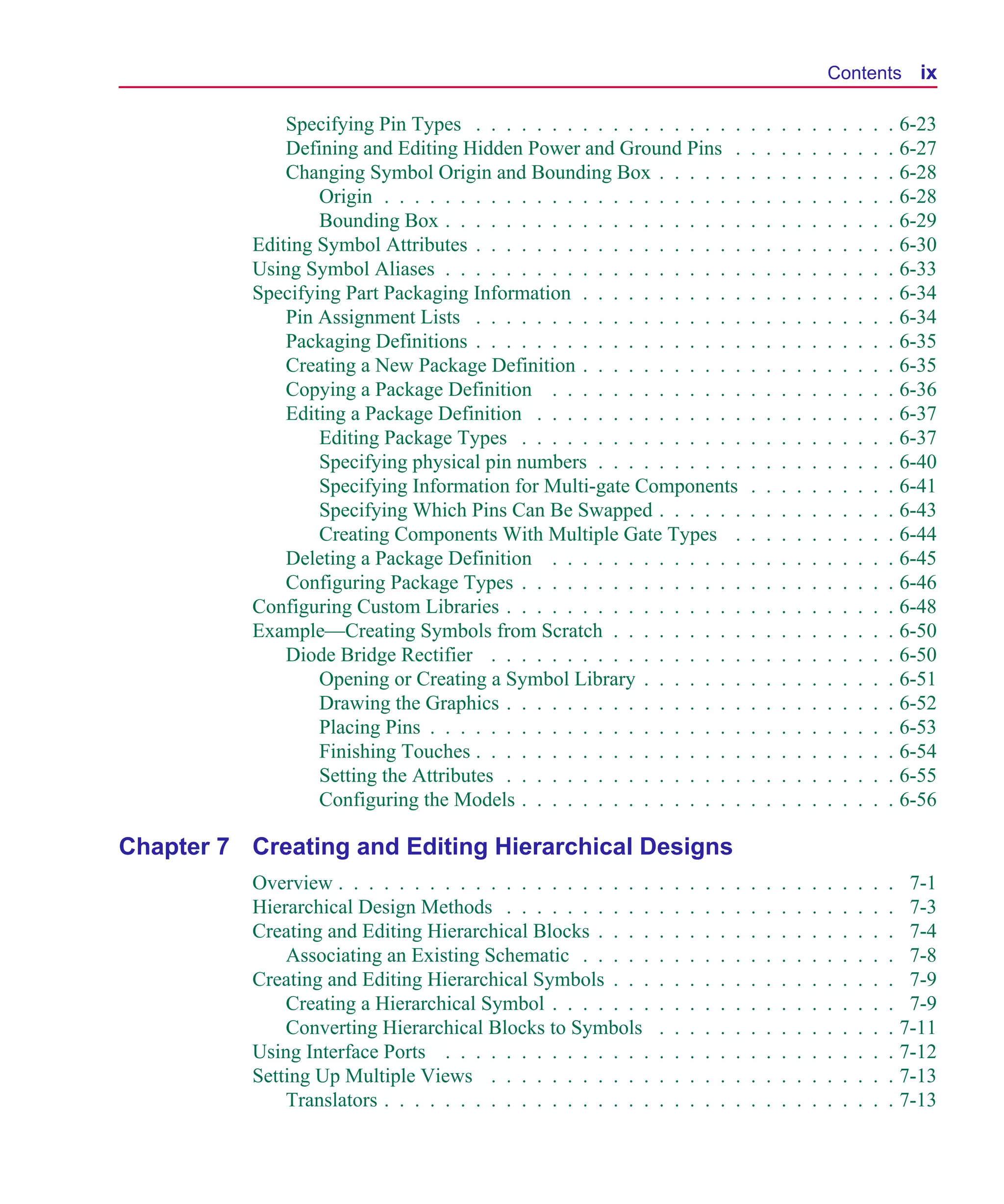
                                                                                                                     Contents ix

                       Specifying Pin Types . . . . . . . . . . . . . . . . . .                  .   .   .   .   .   .   .   .   .   . 6-23
                       Defining and Editing Hidden Power and Ground Pins .                       .   .   .   .   .   .   .   .   .   . 6-27
                       Changing Symbol Origin and Bounding Box . . . . . .                       .   .   .   .   .   .   .   .   .   . 6-28
                           Origin . . . . . . . . . . . . . . . . . . . . . . . .                .   .   .   .   .   .   .   .   .   . 6-28
                           Bounding Box . . . . . . . . . . . . . . . . . . . .                  .   .   .   .   .   .   .   .   .   . 6-29
                   Editing Symbol Attributes . . . . . . . . . . . . . . . . . .                 .   .   .   .   .   .   .   .   .   . 6-30
                   Using Symbol Aliases . . . . . . . . . . . . . . . . . . . .                  .   .   .   .   .   .   .   .   .   . 6-33
                   Specifying Part Packaging Information . . . . . . . . . . .                   .   .   .   .   .   .   .   .   .   . 6-34
                       Pin Assignment Lists . . . . . . . . . . . . . . . . . .                  .   .   .   .   .   .   .   .   .   . 6-34
                       Packaging Definitions . . . . . . . . . . . . . . . . . .                 .   .   .   .   .   .   .   .   .   . 6-35
                       Creating a New Package Definition . . . . . . . . . . .                   .   .   .   .   .   .   .   .   .   . 6-35
                       Copying a Package Definition . . . . . . . . . . . . .                    .   .   .   .   .   .   .   .   .   . 6-36
                       Editing a Package Definition . . . . . . . . . . . . . .                  .   .   .   .   .   .   .   .   .   . 6-37
                           Editing Package Types . . . . . . . . . . . . . . .                   .   .   .   .   .   .   .   .   .   . 6-37
                           Specifying physical pin numbers . . . . . . . . . .                   .   .   .   .   .   .   .   .   .   . 6-40
                           Specifying Information for Multi-gate Components                      .   .   .   .   .   .   .   .   .   . 6-41
                           Specifying Which Pins Can Be Swapped . . . . . .                      .   .   .   .   .   .   .   .   .   . 6-43
                           Creating Components With Multiple Gate Types .                        .   .   .   .   .   .   .   .   .   . 6-44
                       Deleting a Package Definition . . . . . . . . . . . . .                   .   .   .   .   .   .   .   .   .   . 6-45
                       Configuring Package Types . . . . . . . . . . . . . . .                   .   .   .   .   .   .   .   .   .   . 6-46
                   Configuring Custom Libraries . . . . . . . . . . . . . . . .                  .   .   .   .   .   .   .   .   .   . 6-48
                   Example—Creating Symbols from Scratch . . . . . . . . .                       .   .   .   .   .   .   .   .   .   . 6-50
                       Diode Bridge Rectifier . . . . . . . . . . . . . . . . .                  .   .   .   .   .   .   .   .   .   . 6-50
                           Opening or Creating a Symbol Library . . . . . . .                    .   .   .   .   .   .   .   .   .   . 6-51
                           Drawing the Graphics . . . . . . . . . . . . . . . .                  .   .   .   .   .   .   .   .   .   . 6-52
                           Placing Pins . . . . . . . . . . . . . . . . . . . . .                .   .   .   .   .   .   .   .   .   . 6-53
                           Finishing Touches . . . . . . . . . . . . . . . . . .                 .   .   .   .   .   .   .   .   .   . 6-54
                           Setting the Attributes . . . . . . . . . . . . . . . .                .   .   .   .   .   .   .   .   .   . 6-55
                           Configuring the Models . . . . . . . . . . . . . . .                  .   .   .   .   .   .   .   .   .   . 6-56

      Chapter 7 Creating and Editing Hierarchical Designs
                   Overview . . . . . . . . . . . . . . . . . . . . .    .   .   .   .   .   .   .   .   .   .   .   .   .   .   .   . 7-1
                   Hierarchical Design Methods . . . . . . . . . .       .   .   .   .   .   .   .   .   .   .   .   .   .   .   .   . 7-3
                   Creating and Editing Hierarchical Blocks . . . .      .   .   .   .   .   .   .   .   .   .   .   .   .   .   .   . 7-4
                       Associating an Existing Schematic . . . . .       .   .   .   .   .   .   .   .   .   .   .   .   .   .   .   . 7-8
                   Creating and Editing Hierarchical Symbols . . .       .   .   .   .   .   .   .   .   .   .   .   .   .   .   .   . 7-9
                       Creating a Hierarchical Symbol . . . . . . .      .   .   .   .   .   .   .   .   .   .   .   .   .   .   .   . 7-9
                       Converting Hierarchical Blocks to Symbols         .   .   .   .   .   .   .   .   .   .   .   .   .   .   .   . 7-11
                   Using Interface Ports . . . . . . . . . . . . . .     .   .   .   .   .   .   .   .   .   .   .   .   .   .   .   . 7-12
                   Setting Up Multiple Views . . . . . . . . . . .       .   .   .   .   .   .   .   .   .   .   .   .   .   .   .   . 7-13
                       Translators . . . . . . . . . . . . . . . . . .   .   .   .   .   .   .   .   .   .   .   .   .   .   .   .   . 7-13
Scug.bk : SCUG.TOC Page x Monday, June 16, 1997 10:10 AM


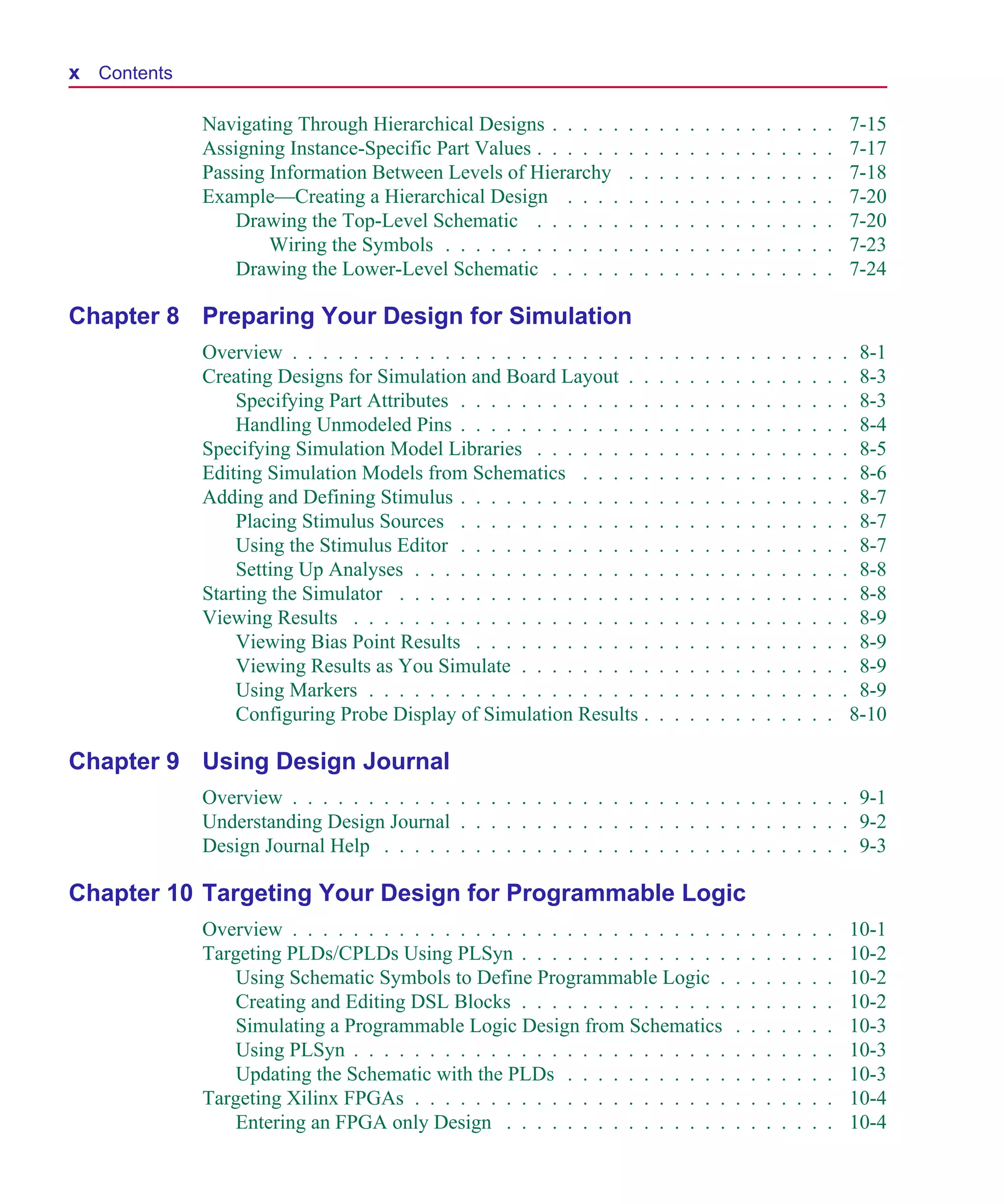
  x Contents

               Navigating Through Hierarchical Designs . . . . .     .   .   .   .   .   .   .   .   .   .   .   .   .   .       7-15
               Assigning Instance-Specific Part Values . . . . . .   .   .   .   .   .   .   .   .   .   .   .   .   .   .       7-17
               Passing Information Between Levels of Hierarchy       .   .   .   .   .   .   .   .   .   .   .   .   .   .       7-18
               Example—Creating a Hierarchical Design . . . .        .   .   .   .   .   .   .   .   .   .   .   .   .   .       7-20
                   Drawing the Top-Level Schematic . . . . . .       .   .   .   .   .   .   .   .   .   .   .   .   .   .       7-20
                       Wiring the Symbols . . . . . . . . . . . .    .   .   .   .   .   .   .   .   .   .   .   .   .   .       7-23
                   Drawing the Lower-Level Schematic . . . . .       .   .   .   .   .   .   .   .   .   .   .   .   .   .       7-24

  Chapter 8 Preparing Your Design for Simulation
               Overview . . . . . . . . . . . . . . . . . . . . . . . .      .   .   .   .   .   .   .   .   .   .   .   .   .    8-1
               Creating Designs for Simulation and Board Layout . .          .   .   .   .   .   .   .   .   .   .   .   .   .    8-3
                   Specifying Part Attributes . . . . . . . . . . . . .      .   .   .   .   .   .   .   .   .   .   .   .   .    8-3
                   Handling Unmodeled Pins . . . . . . . . . . . . .         .   .   .   .   .   .   .   .   .   .   .   .   .    8-4
               Specifying Simulation Model Libraries . . . . . . . .         .   .   .   .   .   .   .   .   .   .   .   .   .    8-5
               Editing Simulation Models from Schematics . . . . .           .   .   .   .   .   .   .   .   .   .   .   .   .    8-6
               Adding and Defining Stimulus . . . . . . . . . . . . .        .   .   .   .   .   .   .   .   .   .   .   .   .    8-7
                   Placing Stimulus Sources . . . . . . . . . . . . .        .   .   .   .   .   .   .   .   .   .   .   .   .    8-7
                   Using the Stimulus Editor . . . . . . . . . . . . .       .   .   .   .   .   .   .   .   .   .   .   .   .    8-7
                   Setting Up Analyses . . . . . . . . . . . . . . . .       .   .   .   .   .   .   .   .   .   .   .   .   .    8-8
               Starting the Simulator . . . . . . . . . . . . . . . . .      .   .   .   .   .   .   .   .   .   .   .   .   .    8-8
               Viewing Results . . . . . . . . . . . . . . . . . . . .       .   .   .   .   .   .   .   .   .   .   .   .   .    8-9
                   Viewing Bias Point Results . . . . . . . . . . . .        .   .   .   .   .   .   .   .   .   .   .   .   .    8-9
                   Viewing Results as You Simulate . . . . . . . . .         .   .   .   .   .   .   .   .   .   .   .   .   .    8-9
                   Using Markers . . . . . . . . . . . . . . . . . . .       .   .   .   .   .   .   .   .   .   .   .   .   .    8-9
                   Configuring Probe Display of Simulation Results .         .   .   .   .   .   .   .   .   .   .   .   .       8-10

  Chapter 9 Using Design Journal
               Overview . . . . . . . . . . . . . . . . . . . . . . . . . . . . . . . . . . . . . 9-1
               Understanding Design Journal . . . . . . . . . . . . . . . . . . . . . . . . . . 9-2
               Design Journal Help . . . . . . . . . . . . . . . . . . . . . . . . . . . . . . . 9-3

  Chapter 10 Targeting Your Design for Programmable Logic
               Overview . . . . . . . . . . . . . . . . . . . . . . . . . . . . .                .   .   .   .   .   .   .       10-1
               Targeting PLDs/CPLDs Using PLSyn . . . . . . . . . . . . . .                      .   .   .   .   .   .   .       10-2
                   Using Schematic Symbols to Define Programmable Logic .                        .   .   .   .   .   .   .       10-2
                   Creating and Editing DSL Blocks . . . . . . . . . . . . . .                   .   .   .   .   .   .   .       10-2
                   Simulating a Programmable Logic Design from Schematics                        .   .   .   .   .   .   .       10-3
                   Using PLSyn . . . . . . . . . . . . . . . . . . . . . . . . .                 .   .   .   .   .   .   .       10-3
                   Updating the Schematic with the PLDs . . . . . . . . . . .                    .   .   .   .   .   .   .       10-3
               Targeting Xilinx FPGAs . . . . . . . . . . . . . . . . . . . . .                  .   .   .   .   .   .   .       10-4
                   Entering an FPGA only Design . . . . . . . . . . . . . . .                    .   .   .   .   .   .   .       10-4
Scug.bk : SCUG.TOC Page xi Monday, June 16, 1997 10:10 AM


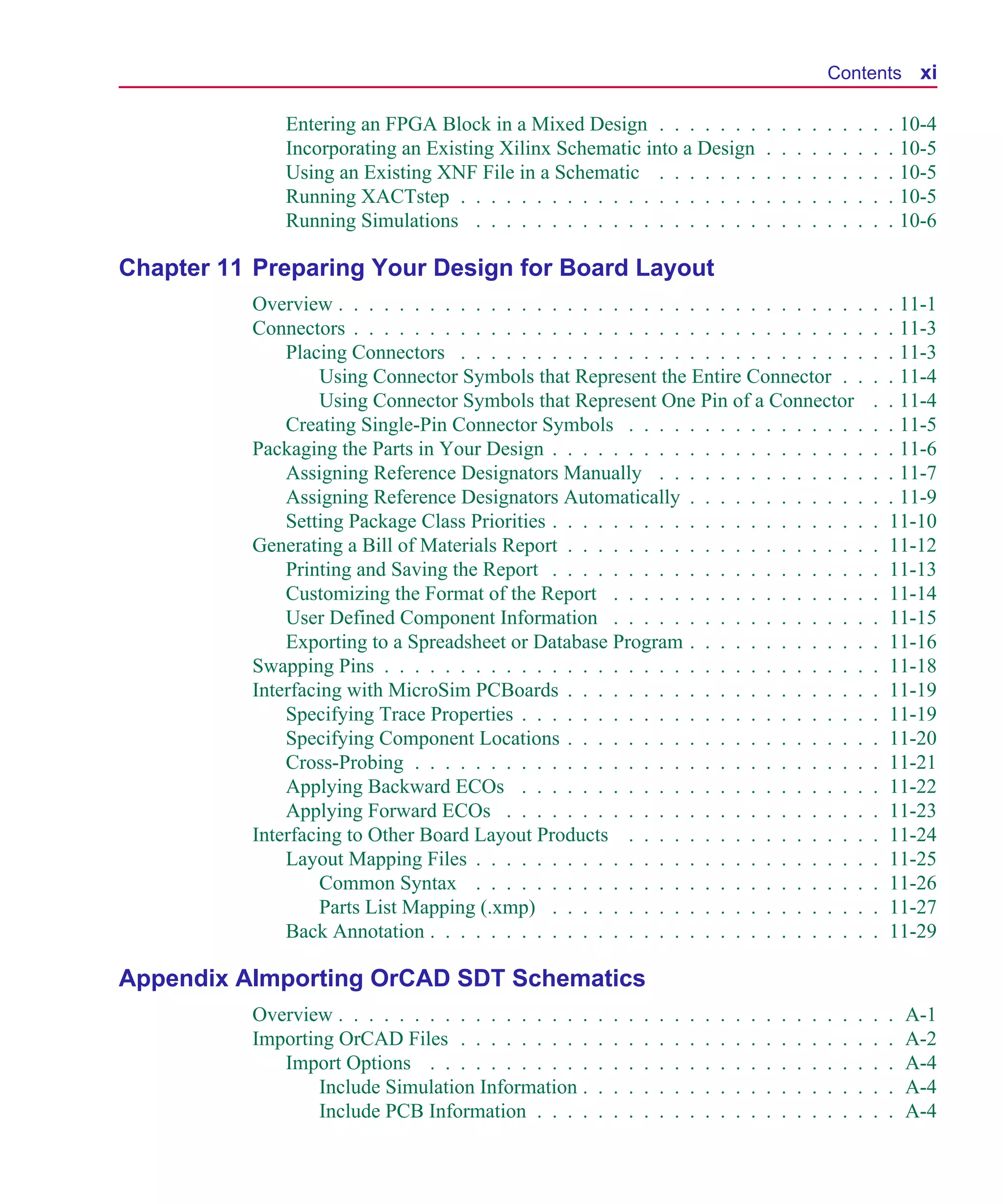
                                                                                                                            Contents xi

                       Entering an FPGA Block in a Mixed Design . . . . . . .                               .   .   .   .   .   .   .   .   . 10-4
                       Incorporating an Existing Xilinx Schematic into a Design                             .   .   .   .   .   .   .   .   . 10-5
                       Using an Existing XNF File in a Schematic . . . . . . .                              .   .   .   .   .   .   .   .   . 10-5
                       Running XACTstep . . . . . . . . . . . . . . . . . . . .                             .   .   .   .   .   .   .   .   . 10-5
                       Running Simulations . . . . . . . . . . . . . . . . . . .                            .   .   .   .   .   .   .   .   . 10-6

      Chapter 11 Preparing Your Design for Board Layout
                   Overview . . . . . . . . . . . . . . . . . . . . . . . . . . . . . . . . . . .                                       .   . 11-1
                   Connectors . . . . . . . . . . . . . . . . . . . . . . . . . . . . . . . . . .                                       .   . 11-3
                       Placing Connectors . . . . . . . . . . . . . . . . . . . . . . . . . . .                                         .   . 11-3
                            Using Connector Symbols that Represent the Entire Connector . .                                             .   . 11-4
                            Using Connector Symbols that Represent One Pin of a Connector                                               .   . 11-4
                       Creating Single-Pin Connector Symbols . . . . . . . . . . . . . . . .                                            .   . 11-5
                   Packaging the Parts in Your Design . . . . . . . . . . . . . . . . . . . . .                                         .   . 11-6
                       Assigning Reference Designators Manually . . . . . . . . . . . . . .                                             .   . 11-7
                       Assigning Reference Designators Automatically . . . . . . . . . . . .                                            .   . 11-9
                       Setting Package Class Priorities . . . . . . . . . . . . . . . . . . . . .                                       .   11-10
                   Generating a Bill of Materials Report . . . . . . . . . . . . . . . . . . . .                                        .   11-12
                       Printing and Saving the Report . . . . . . . . . . . . . . . . . . . . .                                         .   11-13
                       Customizing the Format of the Report . . . . . . . . . . . . . . . . .                                           .   11-14
                       User Defined Component Information . . . . . . . . . . . . . . . . .                                             .   11-15
                       Exporting to a Spreadsheet or Database Program . . . . . . . . . . . .                                           .   11-16
                   Swapping Pins . . . . . . . . . . . . . . . . . . . . . . . . . . . . . . . .                                        .   11-18
                   Interfacing with MicroSim PCBoards . . . . . . . . . . . . . . . . . . . .                                           .   11-19
                       Specifying Trace Properties . . . . . . . . . . . . . . . . . . . . . . .                                        .   11-19
                       Specifying Component Locations . . . . . . . . . . . . . . . . . . . .                                           .   11-20
                       Cross-Probing . . . . . . . . . . . . . . . . . . . . . . . . . . . . . .                                        .   11-21
                       Applying Backward ECOs . . . . . . . . . . . . . . . . . . . . . . .                                             .   11-22
                       Applying Forward ECOs . . . . . . . . . . . . . . . . . . . . . . . .                                            .   11-23
                   Interfacing to Other Board Layout Products . . . . . . . . . . . . . . . .                                           .   11-24
                       Layout Mapping Files . . . . . . . . . . . . . . . . . . . . . . . . . .                                         .   11-25
                            Common Syntax . . . . . . . . . . . . . . . . . . . . . . . . . .                                           .   11-26
                            Parts List Mapping (.xmp) . . . . . . . . . . . . . . . . . . . . .                                         .   11-27
                       Back Annotation . . . . . . . . . . . . . . . . . . . . . . . . . . . . .                                        .   11-29

      Appendix AImporting OrCAD SDT Schematics
                   Overview . . . . . . . . . . . . . . . . .   .   .   .   .   .   .   .   .   .   .   .   .   .   .   .   .   .   .   .   .   A-1
                   Importing OrCAD Files . . . . . . . . .      .   .   .   .   .   .   .   .   .   .   .   .   .   .   .   .   .   .   .   .   A-2
                      Import Options . . . . . . . . . . .      .   .   .   .   .   .   .   .   .   .   .   .   .   .   .   .   .   .   .   .   A-4
                           Include Simulation Information .     .   .   .   .   .   .   .   .   .   .   .   .   .   .   .   .   .   .   .   .   A-4
                           Include PCB Information . . . .      .   .   .   .   .   .   .   .   .   .   .   .   .   .   .   .   .   .   .   .   A-4
Scug.bk : SCUG.TOC Page xii Monday, June 16, 1997 10:10 AM


  xii Contents

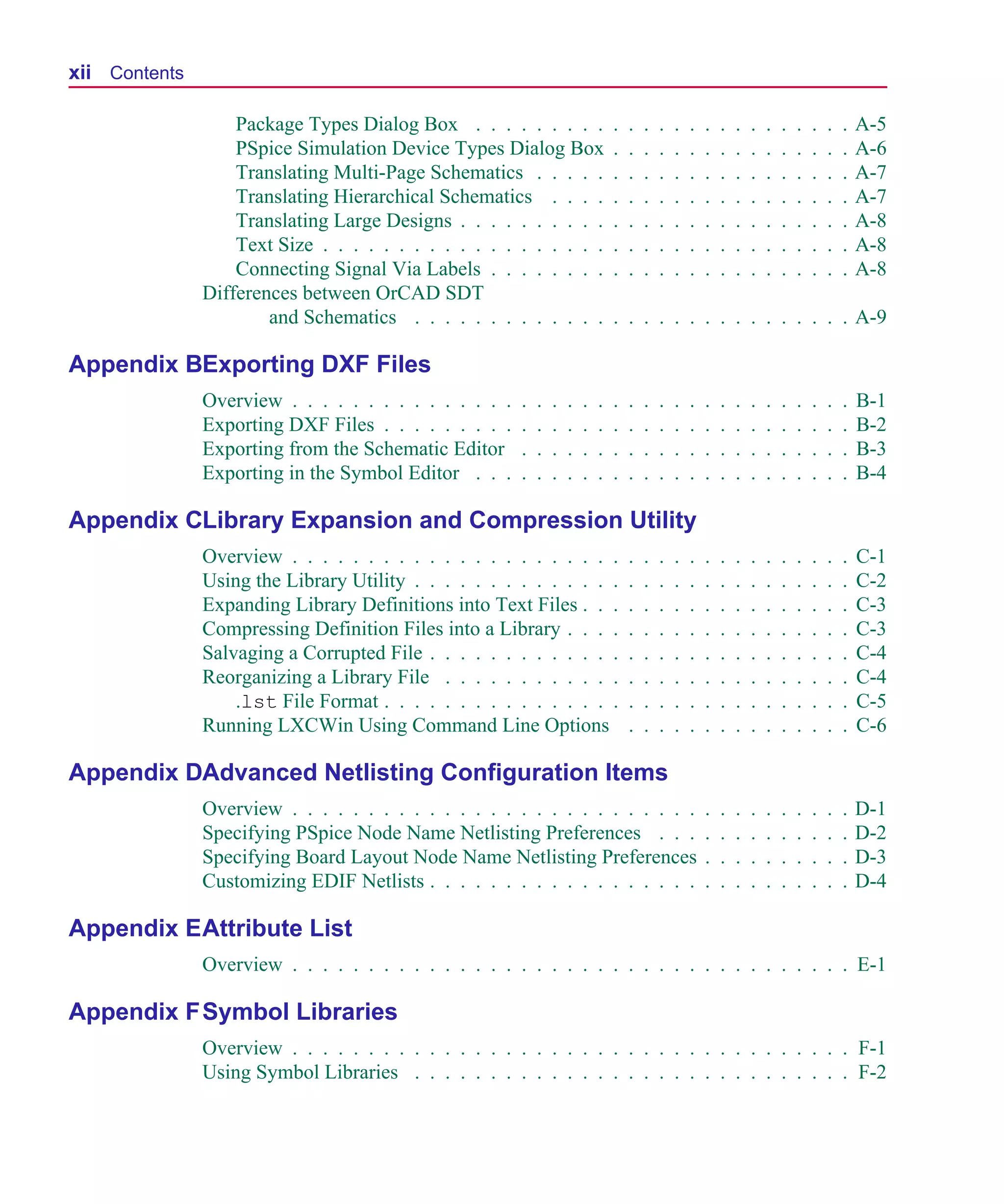
                     Package Types Dialog Box . . . . . . . . .                   .   .   .   .   .   .   .   .   .   .   .   .   .   .   .   .   A-5
                     PSpice Simulation Device Types Dialog Box                    .   .   .   .   .   .   .   .   .   .   .   .   .   .   .   .   A-6
                     Translating Multi-Page Schematics . . . . .                  .   .   .   .   .   .   .   .   .   .   .   .   .   .   .   .   A-7
                     Translating Hierarchical Schematics . . . .                  .   .   .   .   .   .   .   .   .   .   .   .   .   .   .   .   A-7
                     Translating Large Designs . . . . . . . . . .                .   .   .   .   .   .   .   .   .   .   .   .   .   .   .   .   A-8
                     Text Size . . . . . . . . . . . . . . . . . . .              .   .   .   .   .   .   .   .   .   .   .   .   .   .   .   .   A-8
                     Connecting Signal Via Labels . . . . . . . .                 .   .   .   .   .   .   .   .   .   .   .   .   .   .   .   .   A-8
                 Differences between OrCAD SDT
                         and Schematics . . . . . . . . . . . . .                 . . . . . . . . . . . . . . . . A-9

  Appendix BExporting DXF Files
                 Overview . . . . . . . . . . . . . . .   .   .   .   .   .   .   .   .   .   .   .   .   .   .   .   .   .   .   .   .   .   .   B-1
                 Exporting DXF Files . . . . . . . . .    .   .   .   .   .   .   .   .   .   .   .   .   .   .   .   .   .   .   .   .   .   .   B-2
                 Exporting from the Schematic Editor      .   .   .   .   .   .   .   .   .   .   .   .   .   .   .   .   .   .   .   .   .   .   B-3
                 Exporting in the Symbol Editor . . .     .   .   .   .   .   .   .   .   .   .   .   .   .   .   .   .   .   .   .   .   .   .   B-4

  Appendix CLibrary Expansion and Compression Utility
                 Overview . . . . . . . . . . . . . . . . . . . . . .                 .   .   .   .   .   .   .   .   .   .   .   .   .   .   .   C-1
                 Using the Library Utility . . . . . . . . . . . . . .                .   .   .   .   .   .   .   .   .   .   .   .   .   .   .   C-2
                 Expanding Library Definitions into Text Files . . .                  .   .   .   .   .   .   .   .   .   .   .   .   .   .   .   C-3
                 Compressing Definition Files into a Library . . . .                  .   .   .   .   .   .   .   .   .   .   .   .   .   .   .   C-3
                 Salvaging a Corrupted File . . . . . . . . . . . . .                 .   .   .   .   .   .   .   .   .   .   .   .   .   .   .   C-4
                 Reorganizing a Library File . . . . . . . . . . . .                  .   .   .   .   .   .   .   .   .   .   .   .   .   .   .   C-4
                     .lst File Format . . . . . . . . . . . . . . . .                 .   .   .   .   .   .   .   .   .   .   .   .   .   .   .   C-5
                 Running LXCWin Using Command Line Options                            .   .   .   .   .   .   .   .   .   .   .   .   .   .   .   C-6

  Appendix DAdvanced Netlisting Configuration Items
                 Overview . . . . . . . . . . . . . . . . . . . . . . . . . . .                           .   .   .   .   .   .   .   .   .   .   D-1
                 Specifying PSpice Node Name Netlisting Preferences . . .                                 .   .   .   .   .   .   .   .   .   .   D-2
                 Specifying Board Layout Node Name Netlisting Preferences                                 .   .   .   .   .   .   .   .   .   .   D-3
                 Customizing EDIF Netlists . . . . . . . . . . . . . . . . . .                            .   .   .   .   .   .   .   .   .   .   D-4

  Appendix E Attribute List
                 Overview . . . . . . . . . . . . . . . . . . . . . . . . . . . . . . . . . . . . . E-1

  Appendix F Symbol Libraries
                 Overview . . . . . . . . . . . . . . . . . . . . . . . . . . . . . . . . . . . . . F-1
                 Using Symbol Libraries . . . . . . . . . . . . . . . . . . . . . . . . . . . . . F-2
Scug.bk : SCUG.TOC Page xiii Monday, June 16, 1997 10:10 AM


                                                              Contents xiii

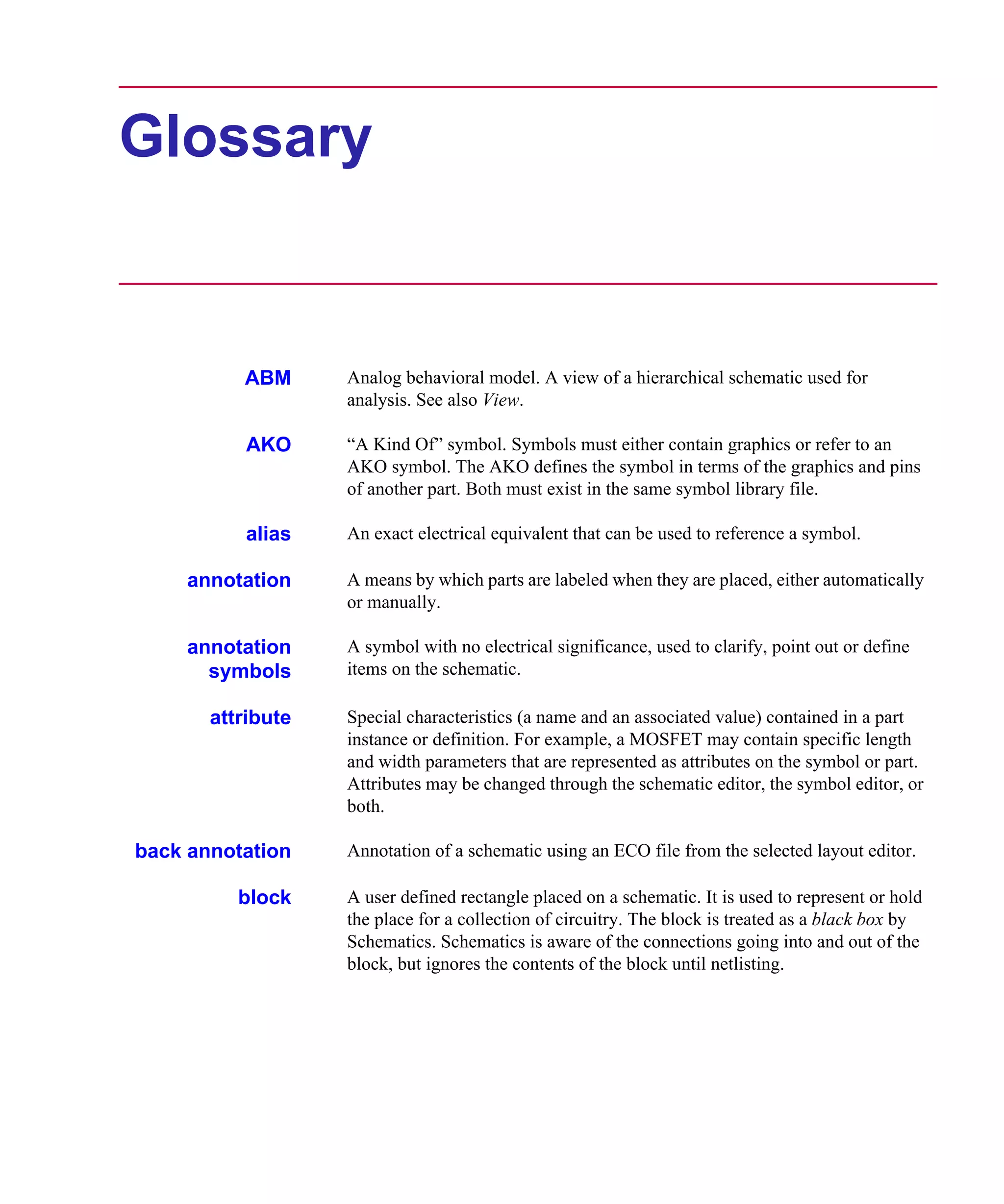
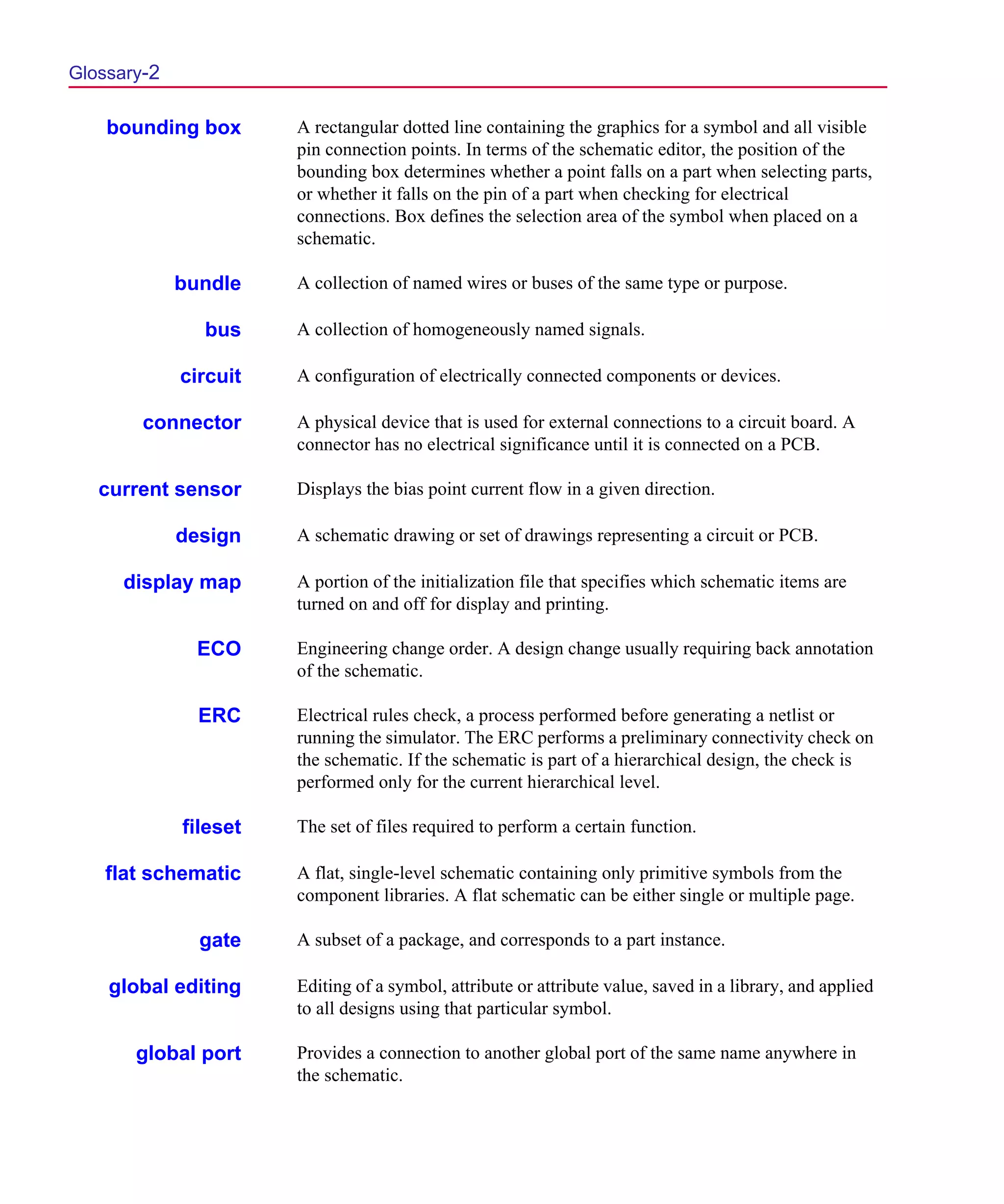
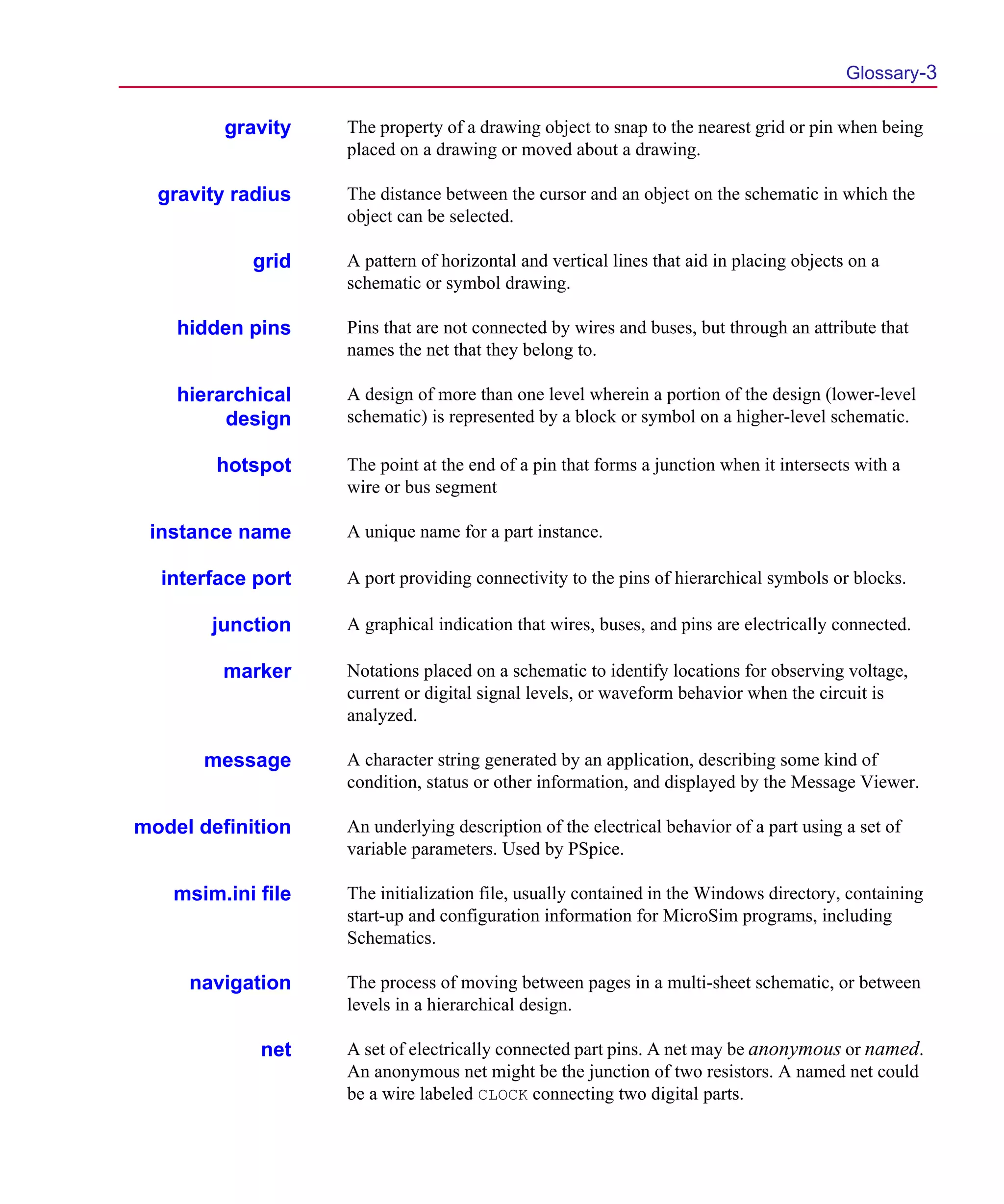
                   Glossary
                   Index
Scug.bk : SCUG.LOF Page xv Monday, June 16, 1997 10:10 AM


      Figures


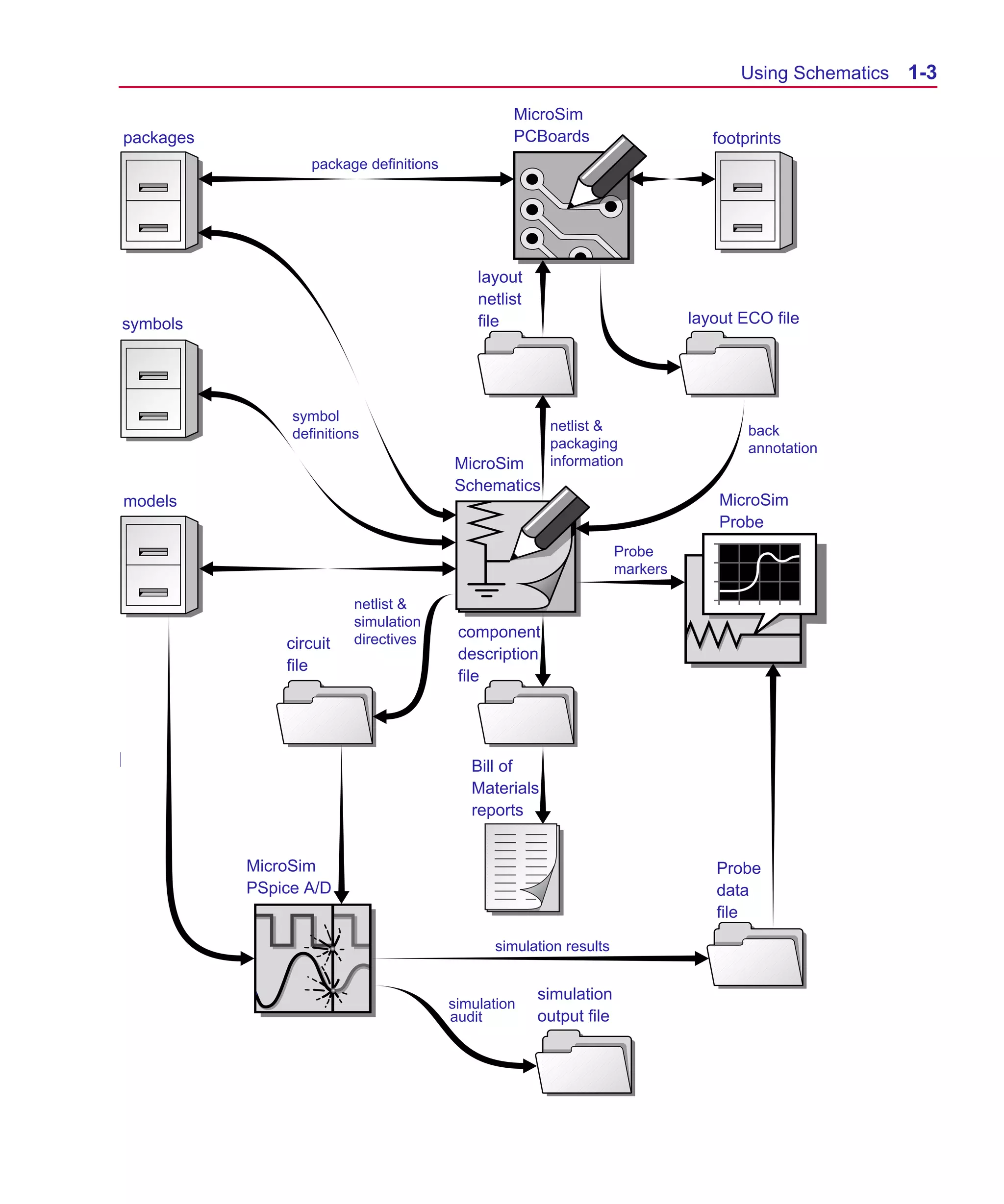
      Figure 1-1    Interaction of MicroSim Software Programs and Files . . . . . . .         .   .   .   .   .   . 1-3
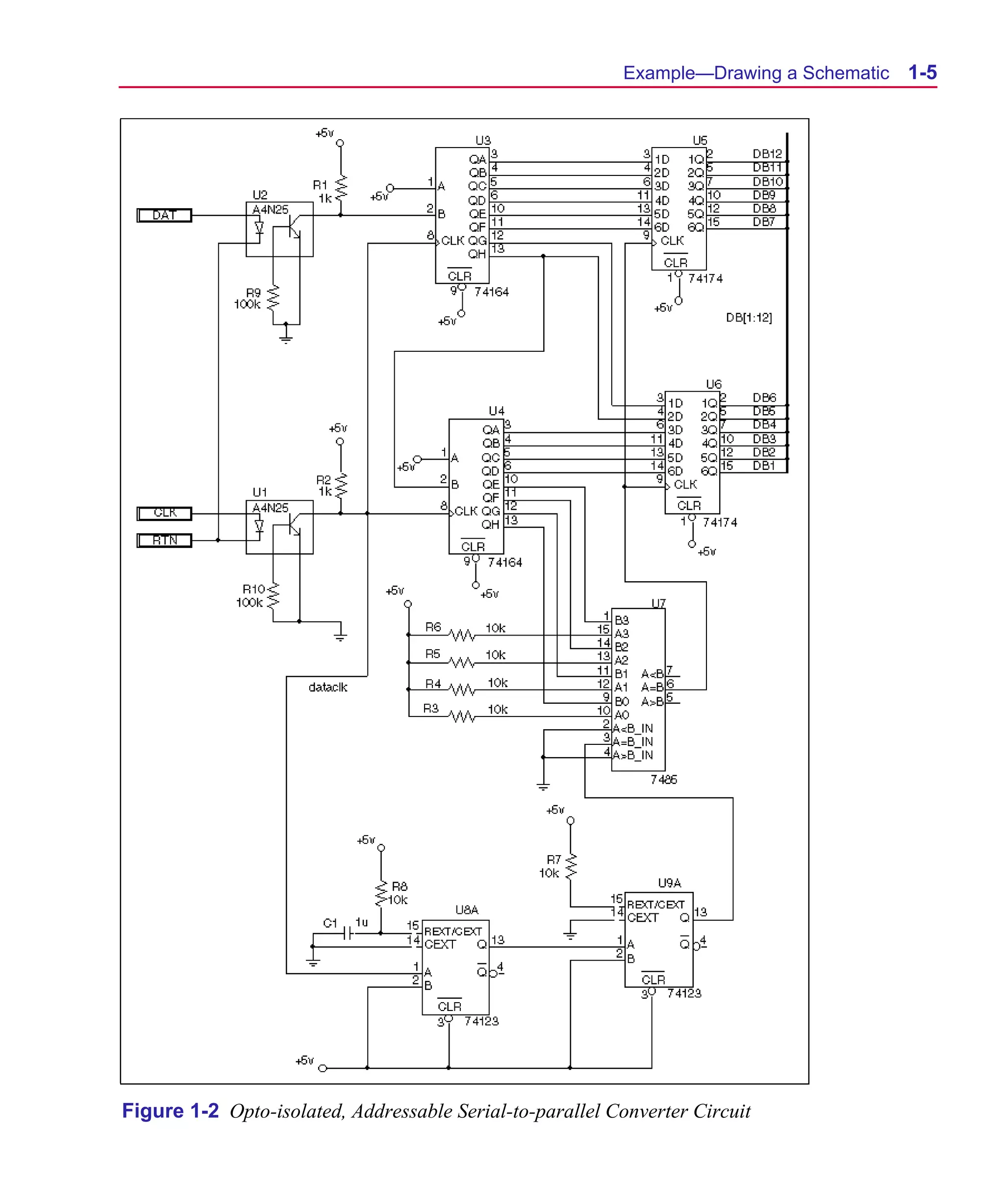
      Figure 1-2    Opto-isolated, Addressable Serial-to-parallel Converter Circuit . .       .   .   .   .   .   . 1-5
      Figure 3-1    Border Styles . . . . . . . . . . . . . . . . . . . . . . . . . . . .     .   .   .   .   .   . 3-24
      Figure 4-1    Placing Resistors with Various Vertical and Horizontal Offsets . .        .   .   .   .   .   . 4-20
      Figure 4-2    Auto Naming for Bus Labels . . . . . . . . . . . . . . . . . . . .        .   .   .   .   .   . 4-22
      Figure 4-3    Orthogonal Wire Drawing . . . . . . . . . . . . . . . . . . . . . .       .   .   .   .   .   . 4-33
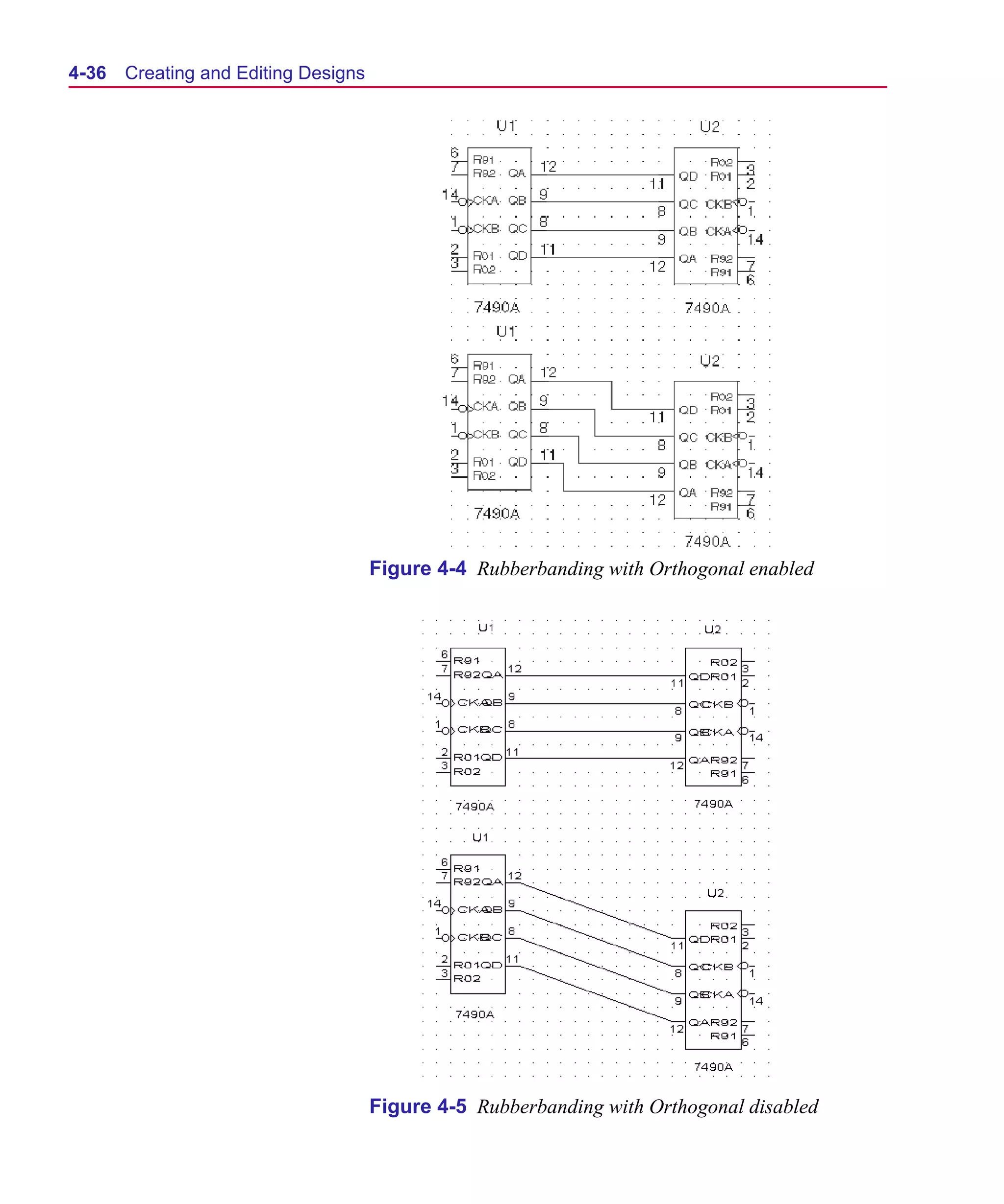
      Figure 4-4    Rubberbanding with Orthogonal enabled . . . . . . . . . . . . . .         .   .   .   .   .   . 4-36
      Figure 4-5    Rubberbanding with Orthogonal disabled . . . . . . . . . . . . . .        .   .   .   .   .   . 4-36
      Figure 4-6    Rubberbanded path showing a potential connection . . . . . . . .          .   .   .   .   .   . 4-37
      Figure 4-7    Off-page Port . . . . . . . . . . . . . . . . . . . . . . . . . . . .     .   .   .   .   .   . 4-38
      Figure 4-8    Global Ports . . . . . . . . . . . . . . . . . . . . . . . . . . . . .    .   .   .   .   .   . 4-38
      Figure 4-9    Selection rectangle . . . . . . . . . . . . . . . . . . . . . . . . . .   .   .   .   .   .   . 4-40
      Figure 4-10   Printing with Auto-Fit Enabled . . . . . . . . . . . . . . . . . . .      .   .   .   .   .   . 4-66
      Figure 4-11   Zoom Factor Set to 100% with Printer Configured in Portrait Mode          .   .   .   .   .   . 4-66
      Figure 4-12   Zoom Factor Set to 200% with Printer Configured in Portrait Mode          .   .   .   .   .   . 4-67
      Figure 4-13   User-definable Zoom Enabled in Portrait Mode . . . . . . . . . .          .   .   .   .   .   . 4-68
      Figure 4-14   User-definable Zoom Enabled in Landscape Mode . . . . . . . . .           .   .   .   .   .   . 4-69
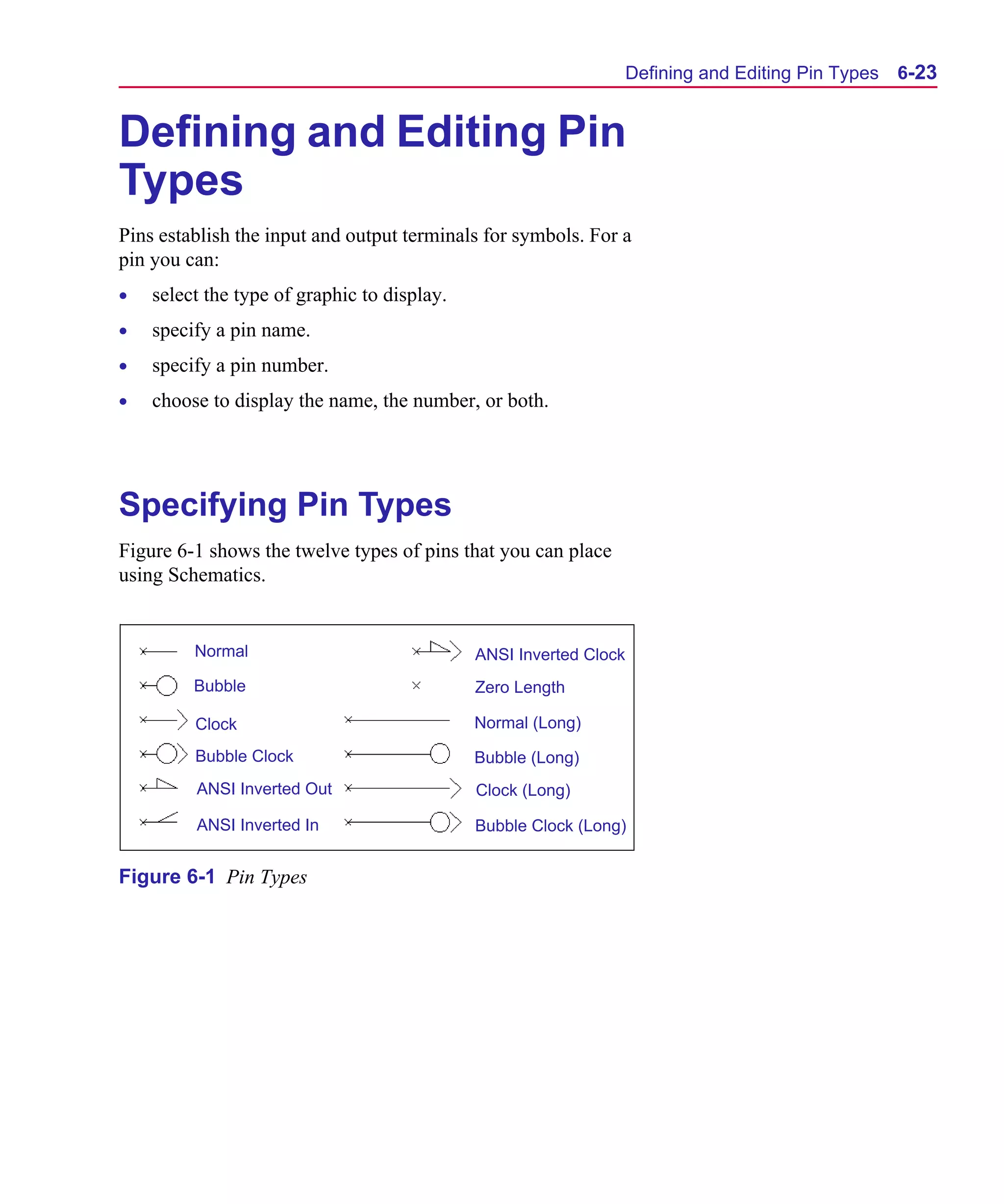
      Figure 6-1    Pin Types . . . . . . . . . . . . . . . . . . . . . . . . . . . . . .     .   .   .   .   .   . 6-23
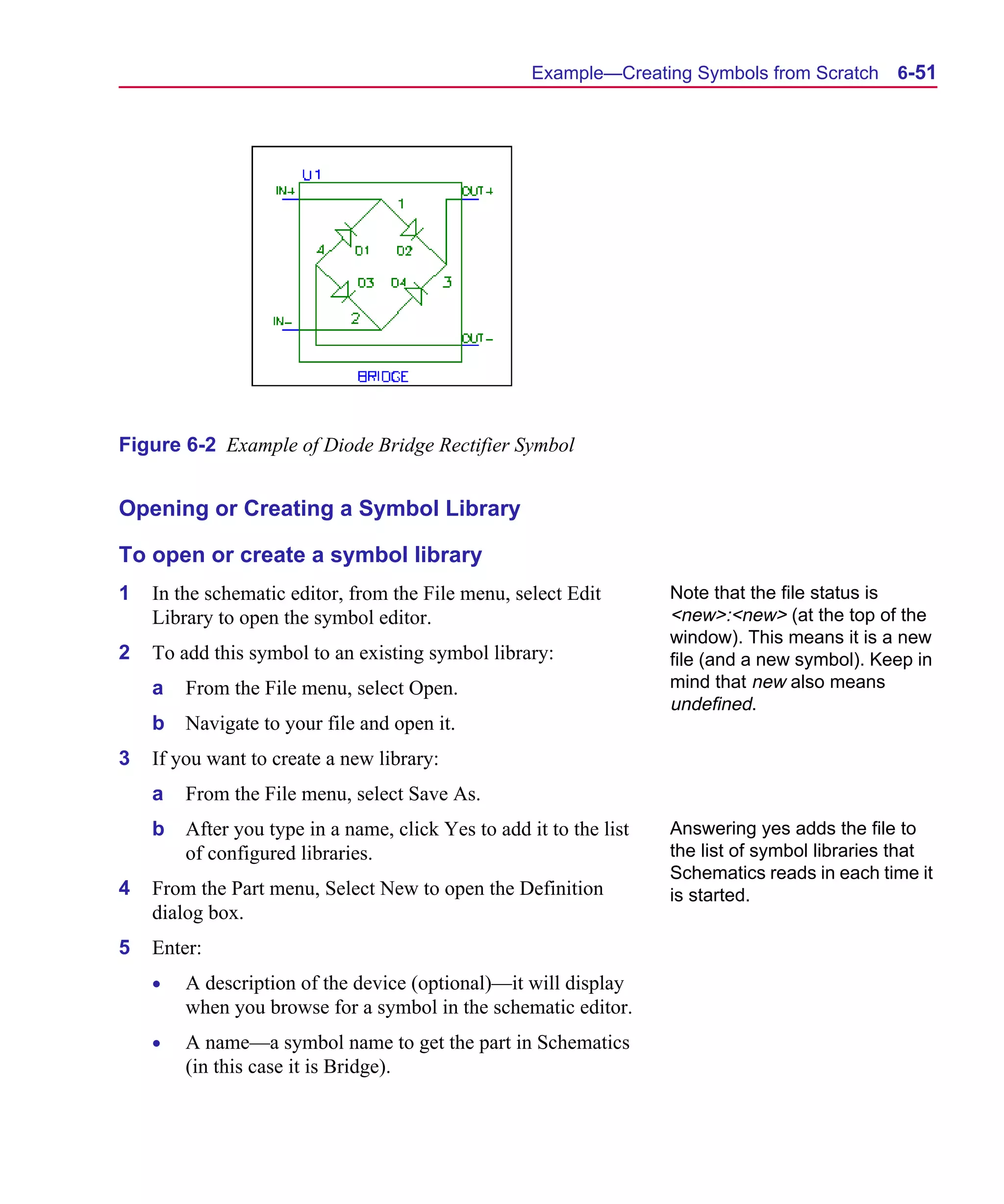
      Figure 6-2    Example of Diode Bridge Rectifier Symbol . . . . . . . . . . . . .        .   .   .   .   .   . 6-51
      Figure 7-1    Top-level Schematic Drawing for CMOS Inverter . . . . . . . . .           .   .   .   .   .   . 7-20
      Figure 7-2    Schematic of CMOS Inverter . . . . . . . . . . . . . . . . . . . .        .   .   .   .   .   . 7-24
      Figure 9-1    A Working Schematic and Two Checkpoint Schematics . . . . . .             .   .   .   .   .   . 9-3
      Figure 11-1   Entire Connector Symbol . . . . . . . . . . . . . . . . . . . . . .       .   .   .   .   .   . 11-4
      Figure 11-2   Single Pin Symbol . . . . . . . . . . . . . . . . . . . . . . . . . .     .   .   .   .   .   . 11-4
      Figure 11-3   Bill of Materials Report . . . . . . . . . . . . . . . . . . . . . . .    .   .   .   .   .   11-12
Scug.bk : SCUG.LOT Page xvii Monday, June 16, 1997 10:10 AM


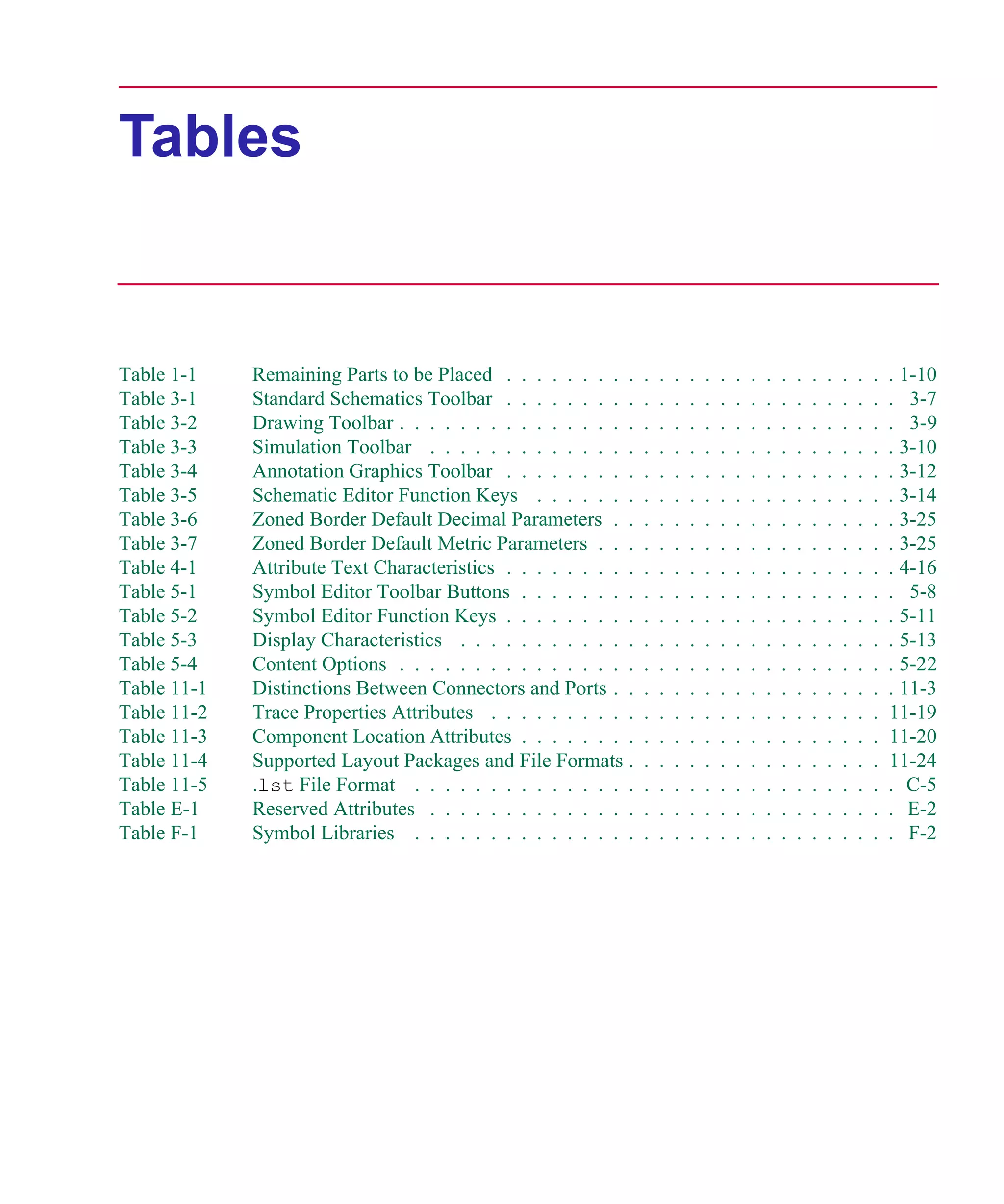
      Tables


      Table 1-1    Remaining Parts to be Placed . . . . . . . . .     .   .   .   .   .   .   .   .   .   .   .   .   .   .   .   .   . 1-10
      Table 3-1    Standard Schematics Toolbar . . . . . . . . .      .   .   .   .   .   .   .   .   .   .   .   .   .   .   .   .   . 3-7
      Table 3-2    Drawing Toolbar . . . . . . . . . . . . . . . .    .   .   .   .   .   .   .   .   .   .   .   .   .   .   .   .   . 3-9
      Table 3-3    Simulation Toolbar . . . . . . . . . . . . . .     .   .   .   .   .   .   .   .   .   .   .   .   .   .   .   .   . 3-10
      Table 3-4    Annotation Graphics Toolbar . . . . . . . . .      .   .   .   .   .   .   .   .   .   .   .   .   .   .   .   .   . 3-12
      Table 3-5    Schematic Editor Function Keys . . . . . . .       .   .   .   .   .   .   .   .   .   .   .   .   .   .   .   .   . 3-14
      Table 3-6    Zoned Border Default Decimal Parameters . .        .   .   .   .   .   .   .   .   .   .   .   .   .   .   .   .   . 3-25
      Table 3-7    Zoned Border Default Metric Parameters . . .       .   .   .   .   .   .   .   .   .   .   .   .   .   .   .   .   . 3-25
      Table 4-1    Attribute Text Characteristics . . . . . . . . .   .   .   .   .   .   .   .   .   .   .   .   .   .   .   .   .   . 4-16
      Table 5-1    Symbol Editor Toolbar Buttons . . . . . . . .      .   .   .   .   .   .   .   .   .   .   .   .   .   .   .   .   . 5-8
      Table 5-2    Symbol Editor Function Keys . . . . . . . . .      .   .   .   .   .   .   .   .   .   .   .   .   .   .   .   .   . 5-11
      Table 5-3    Display Characteristics . . . . . . . . . . . .    .   .   .   .   .   .   .   .   .   .   .   .   .   .   .   .   . 5-13
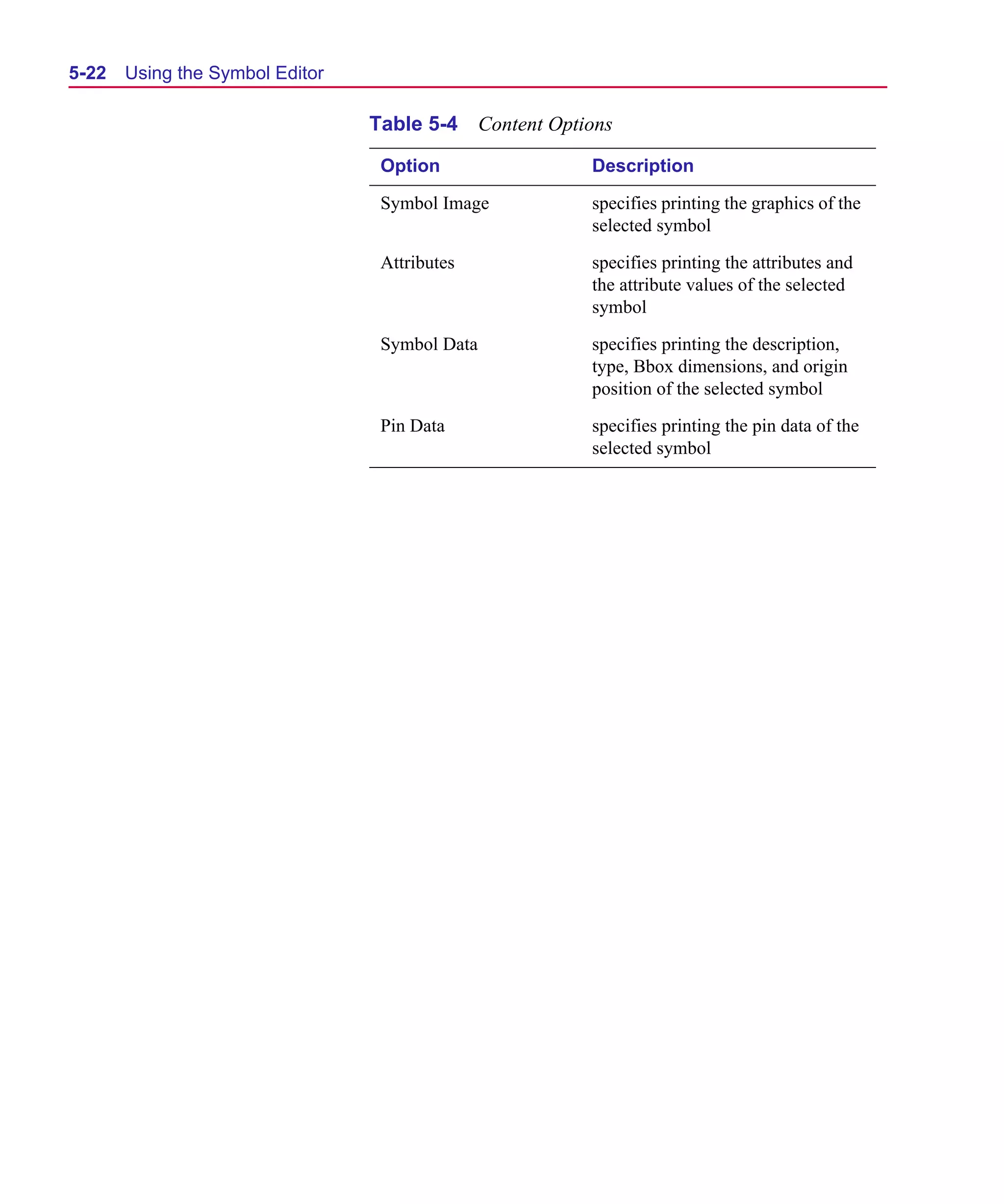
      Table 5-4    Content Options . . . . . . . . . . . . . . . .    .   .   .   .   .   .   .   .   .   .   .   .   .   .   .   .   . 5-22
      Table 11-1   Distinctions Between Connectors and Ports . .      .   .   .   .   .   .   .   .   .   .   .   .   .   .   .   .   . 11-3
      Table 11-2   Trace Properties Attributes . . . . . . . . . .    .   .   .   .   .   .   .   .   .   .   .   .   .   .   .   .   11-19
      Table 11-3   Component Location Attributes . . . . . . . .      .   .   .   .   .   .   .   .   .   .   .   .   .   .   .   .   11-20
      Table 11-4   Supported Layout Packages and File Formats .       .   .   .   .   .   .   .   .   .   .   .   .   .   .   .   .   11-24
      Table 11-5   .lst File Format . . . . . . . . . . . . . . .     .   .   .   .   .   .   .   .   .   .   .   .   .   .   .   .   . C-5
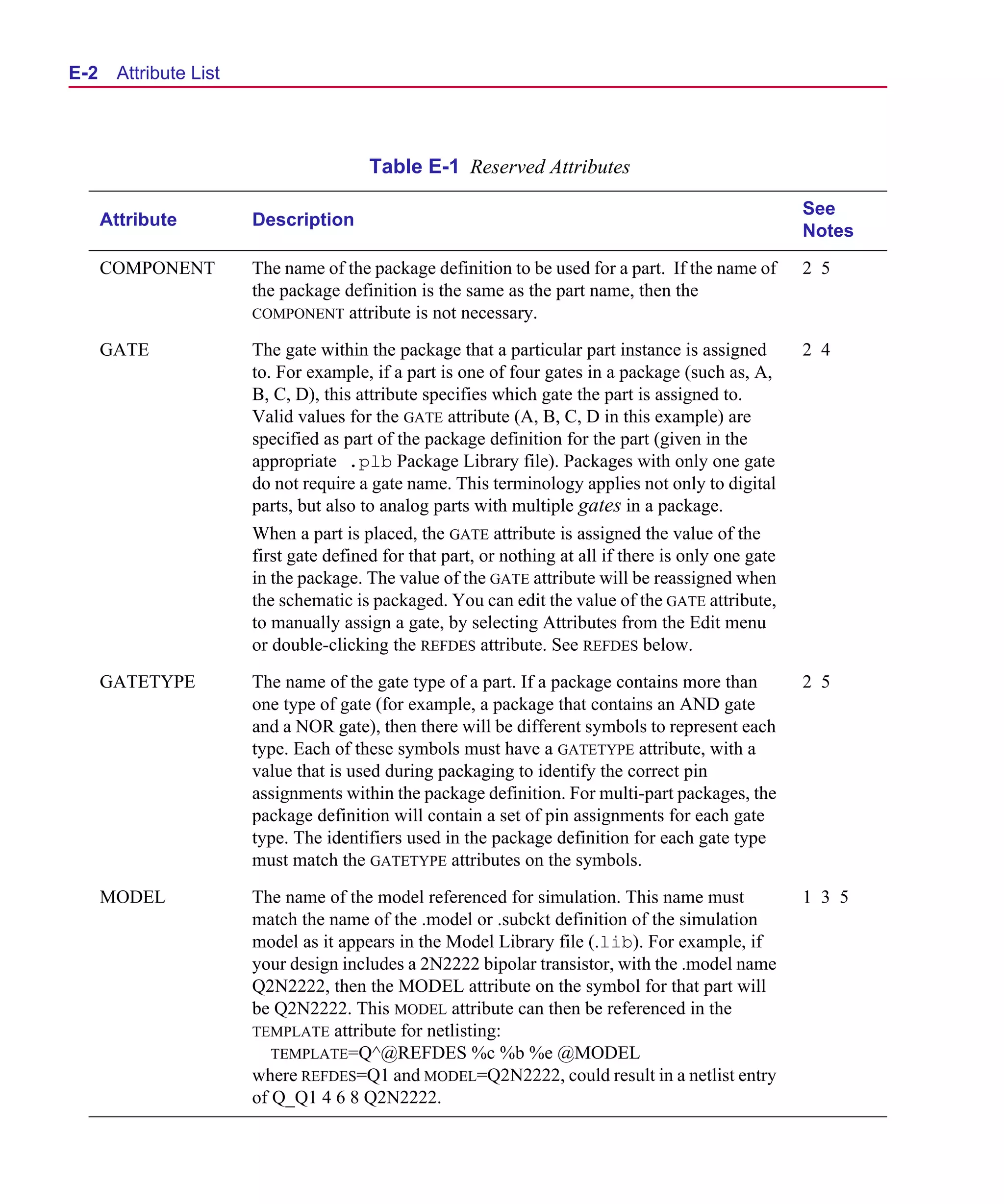
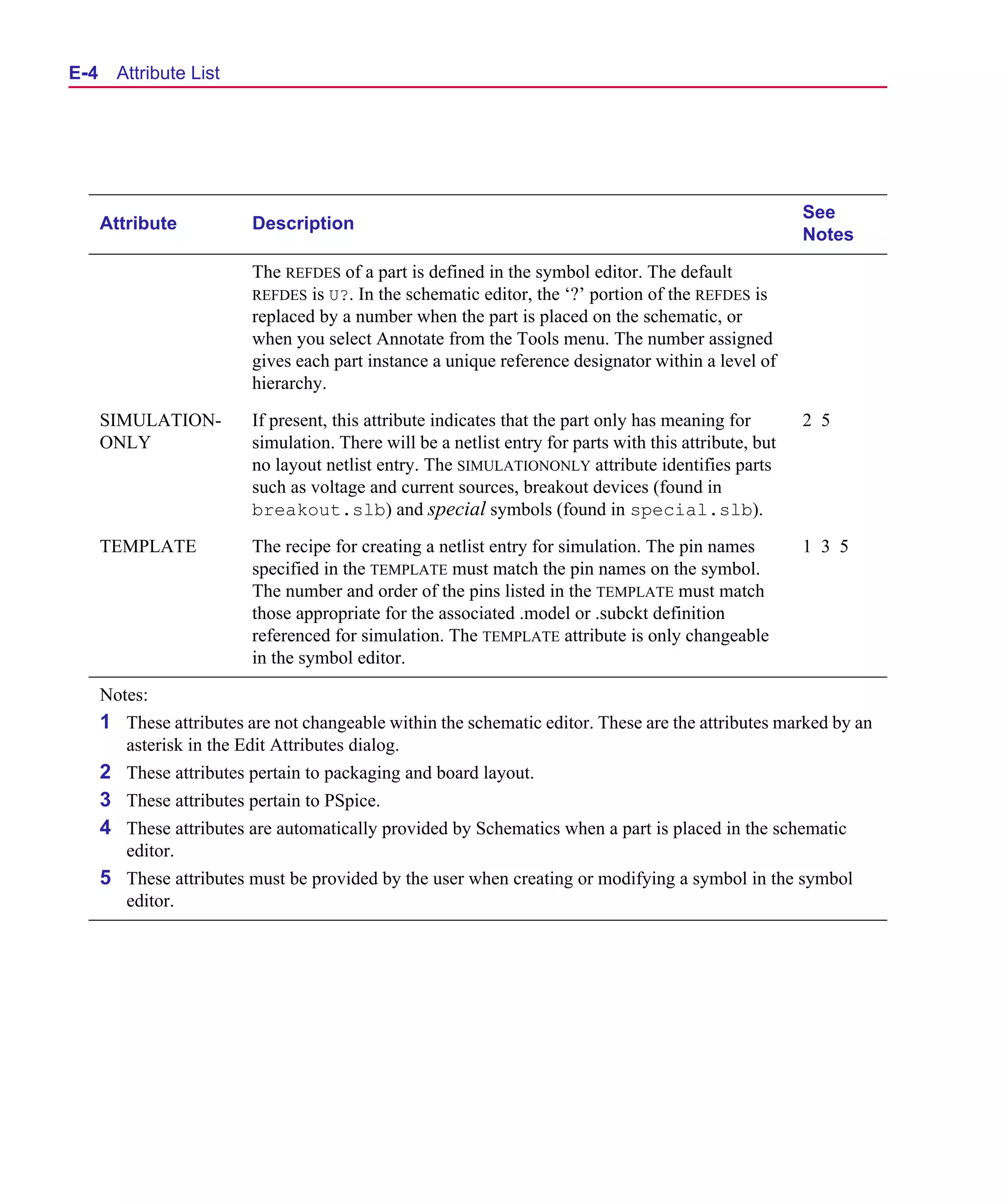
      Table E-1    Reserved Attributes . . . . . . . . . . . . . .    .   .   .   .   .   .   .   .   .   .   .   .   .   .   .   .   . E-2
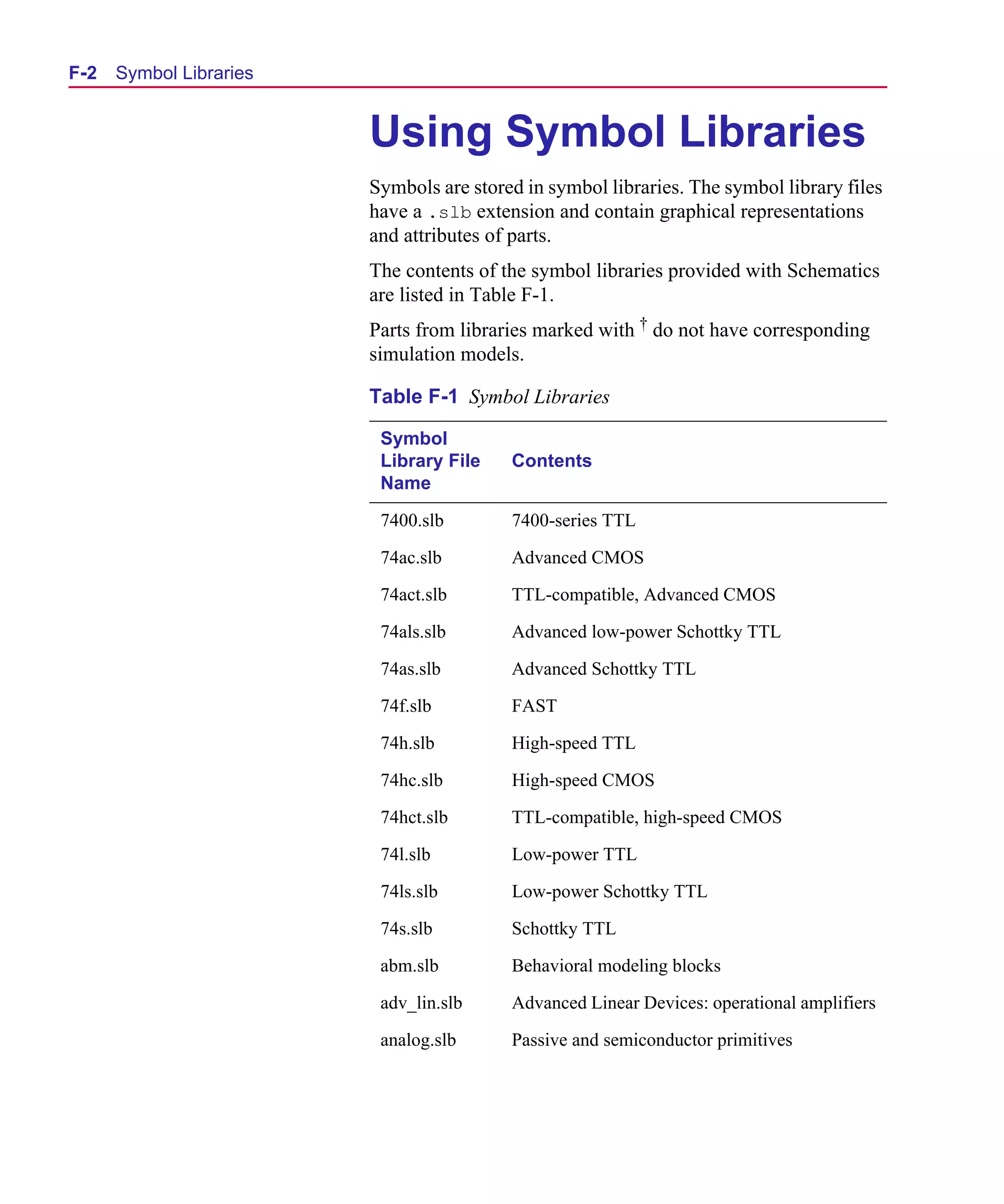
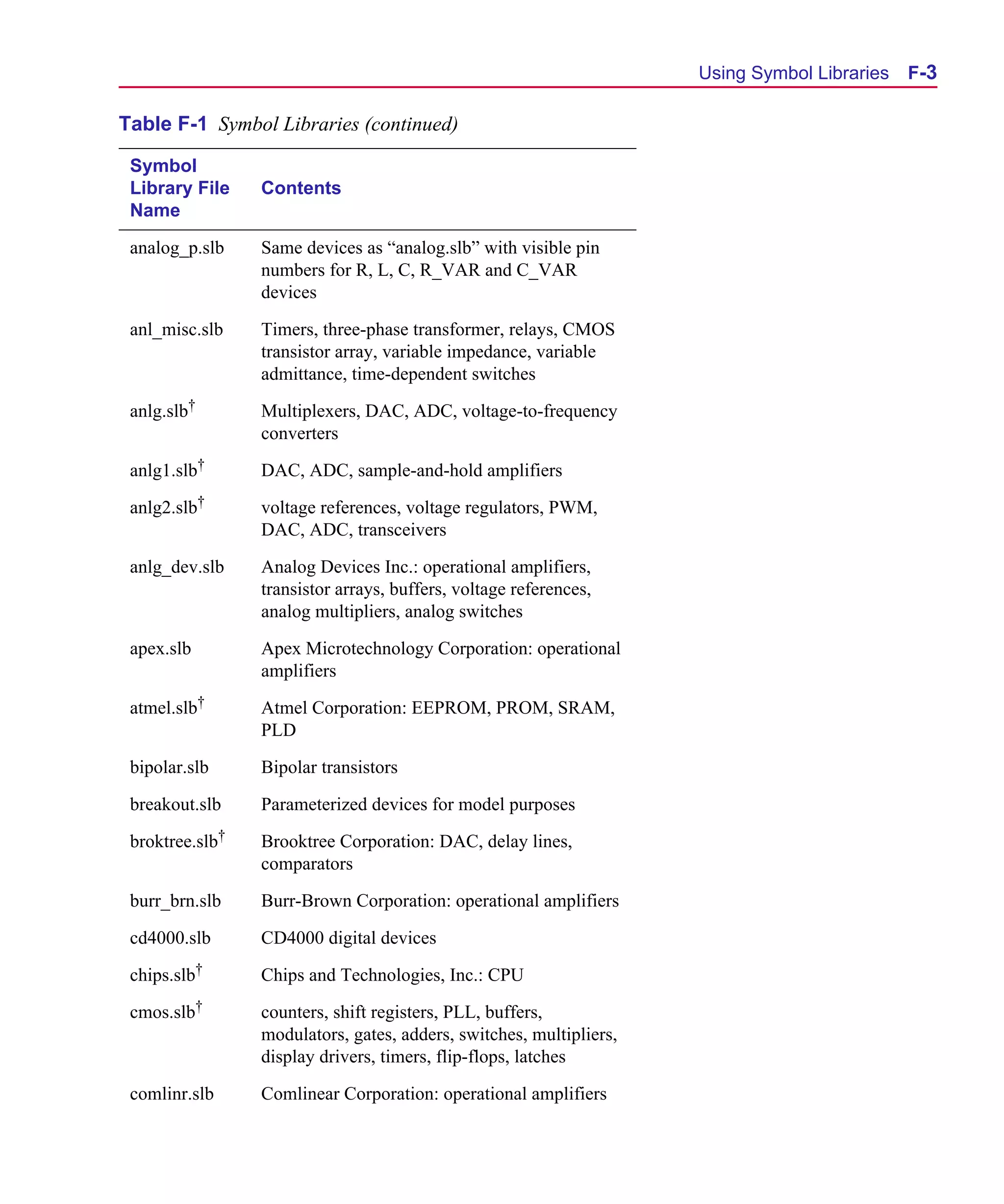
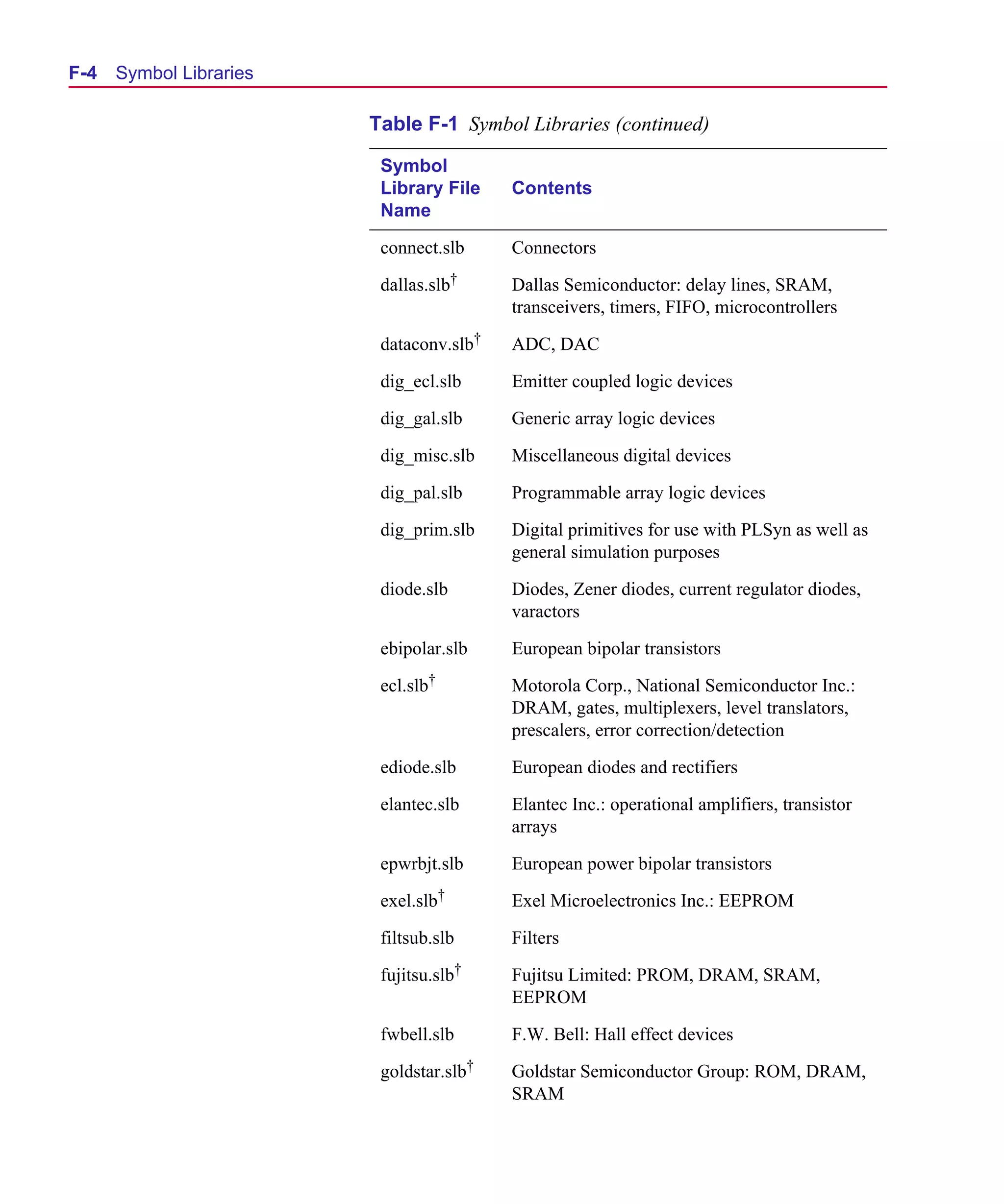
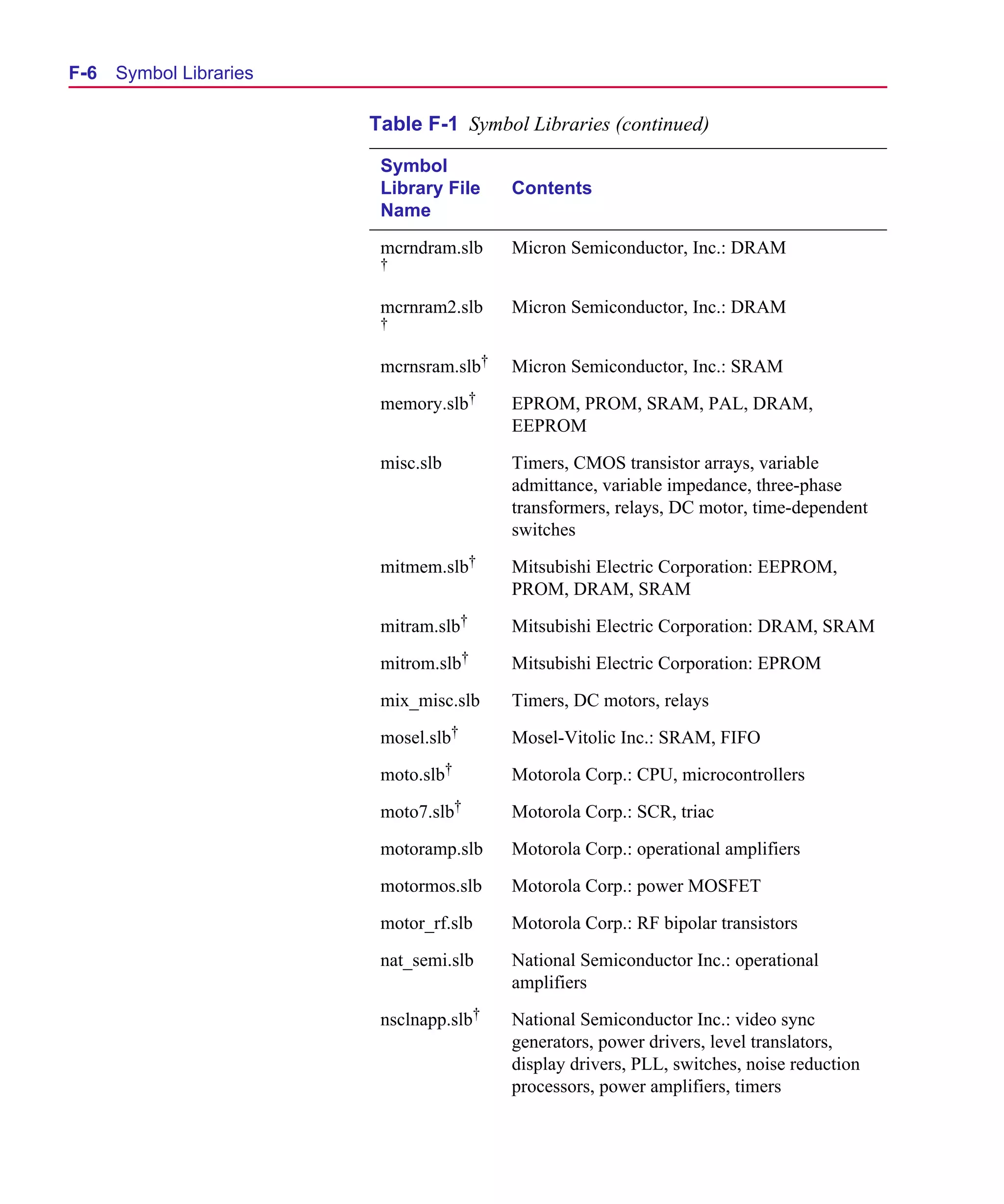
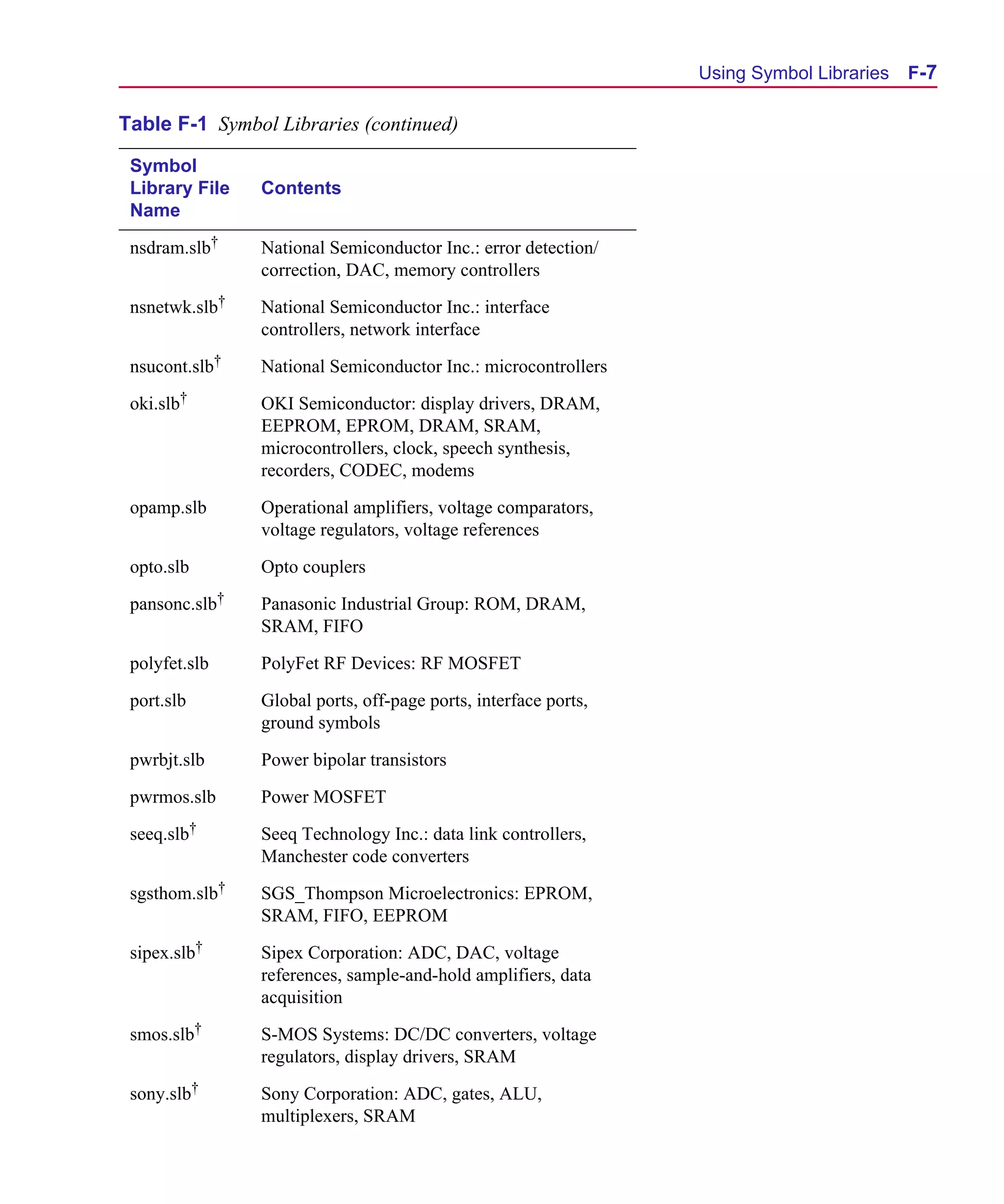
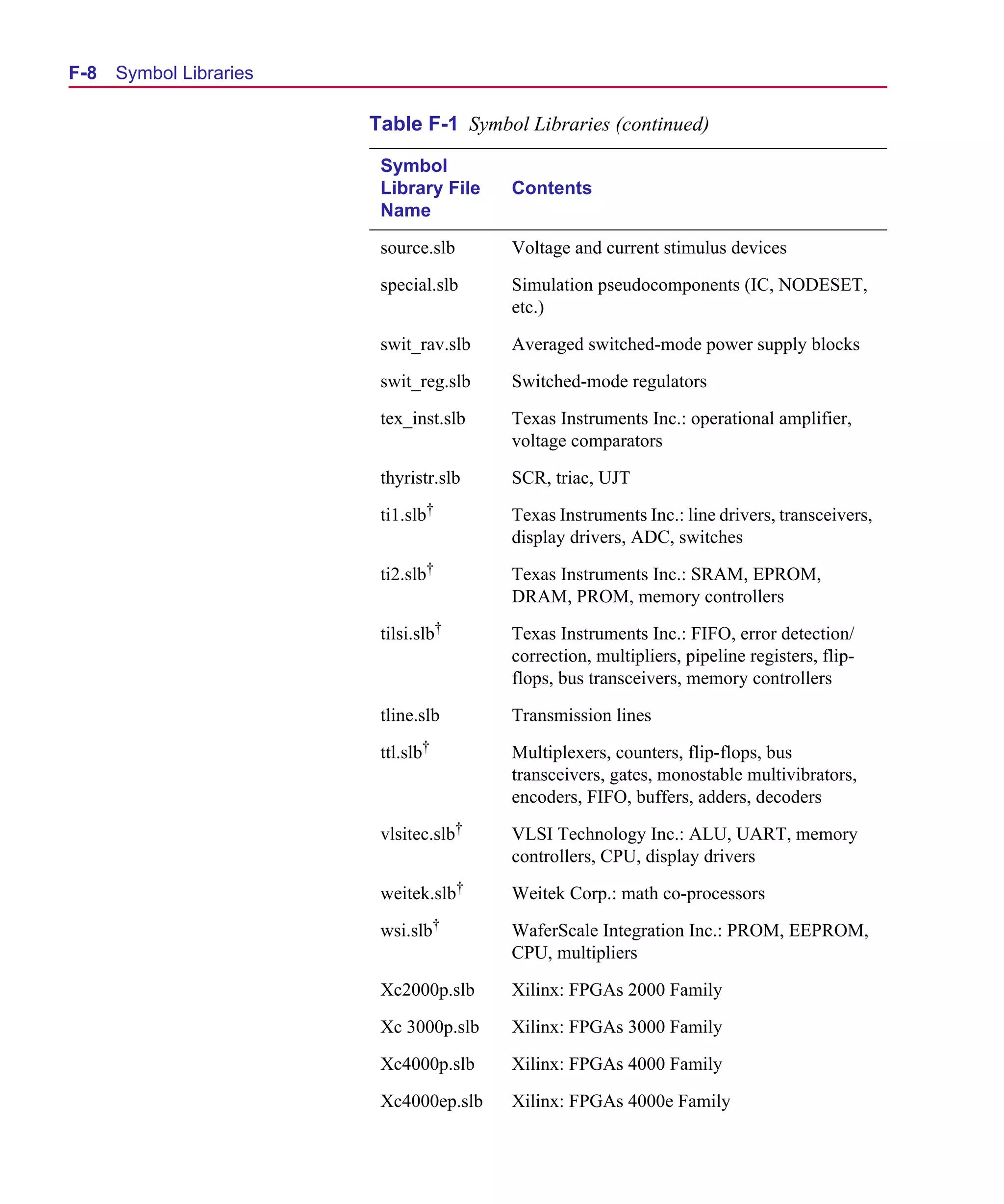
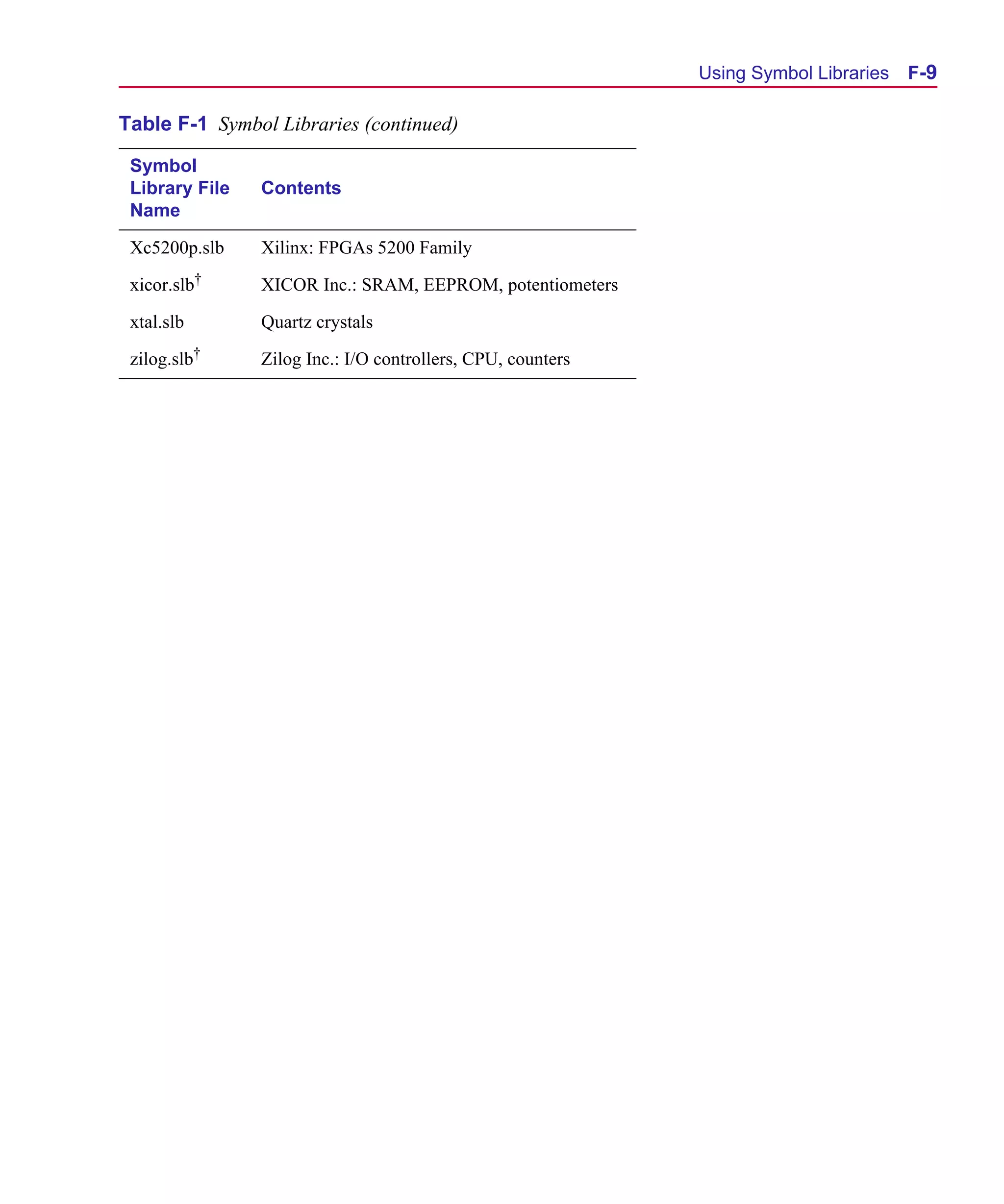
      Table F-1    Symbol Libraries . . . . . . . . . . . . . . .     .   .   .   .   .   .   .   .   .   .   .   .   .   .   .   .   . F-2
Scug.bk : 00CHAP.FMK Page i Monday, June 16, 1997 10:10 AM


      Before You Begin


      Welcome to MicroSim
      Welcome to the MicroSim family of products. Whichever
      programs you have purchased, we are confident that you will
      find they meet your circuit design needs. They provide an easy-
      to-use, integrated environment for creating, simulating, and
      analyzing your circuit designs from start to finish.
Scug.bk : 00CHAP.FMK Page ii Monday, June 16, 1997 10:10 AM


  ii   Before You Begin


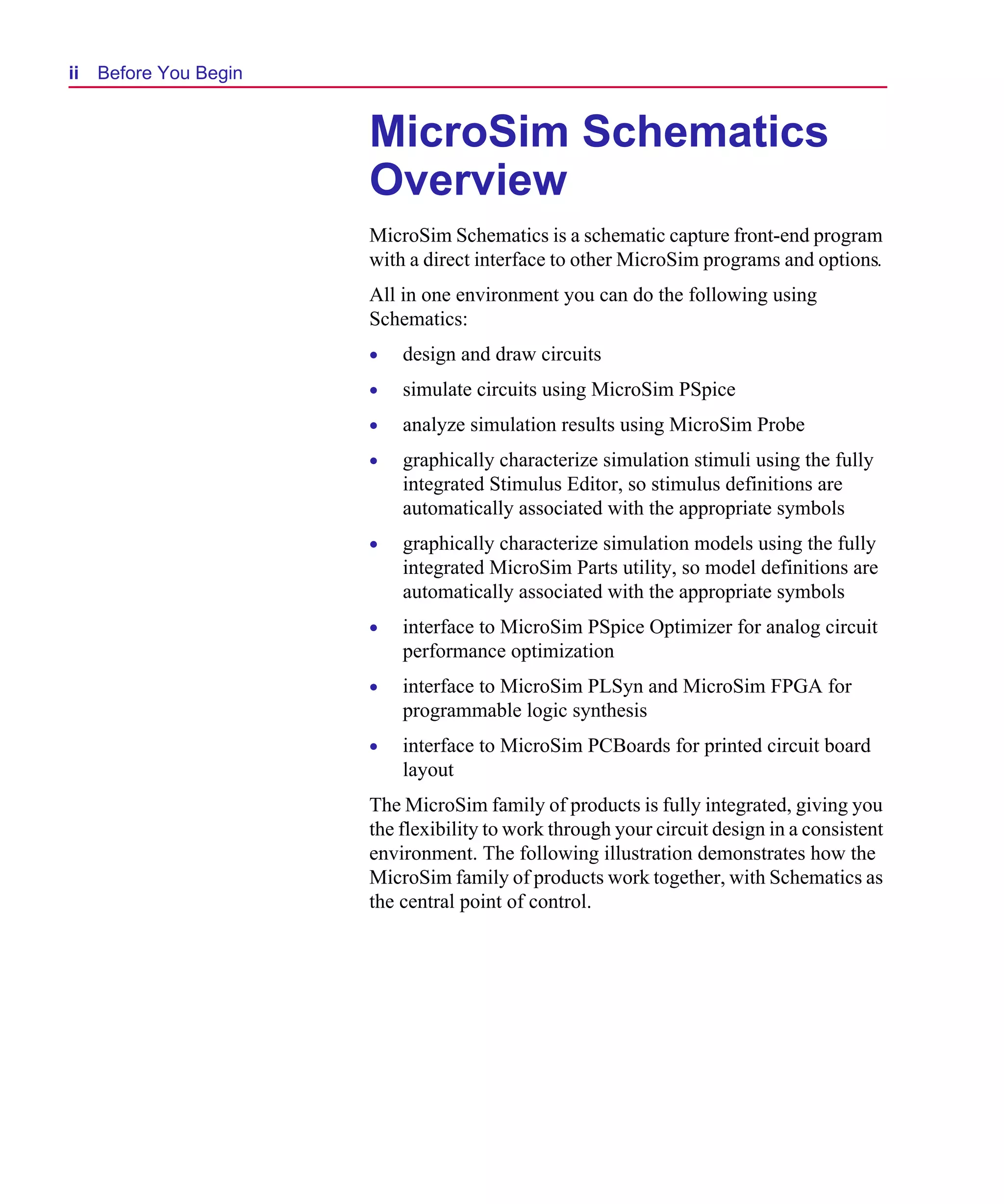
                              MicroSim Schematics
                              Overview
                              MicroSim Schematics is a schematic capture front-end program
                              with a direct interface to other MicroSim programs and options.
                              All in one environment you can do the following using
                              Schematics:
                              •   design and draw circuits
                              •   simulate circuits using MicroSim PSpice
                              •   analyze simulation results using MicroSim Probe
                              •   graphically characterize simulation stimuli using the fully
                                  integrated Stimulus Editor, so stimulus definitions are
                                  automatically associated with the appropriate symbols
                              •   graphically characterize simulation models using the fully
                                  integrated MicroSim Parts utility, so model definitions are
                                  automatically associated with the appropriate symbols
                              •   interface to MicroSim PSpice Optimizer for analog circuit
                                  performance optimization
                              •   interface to MicroSim PLSyn and MicroSim FPGA for
                                  programmable logic synthesis
                              •   interface to MicroSim PCBoards for printed circuit board
                                  layout
                              The MicroSim family of products is fully integrated, giving you
                              the flexibility to work through your circuit design in a consistent
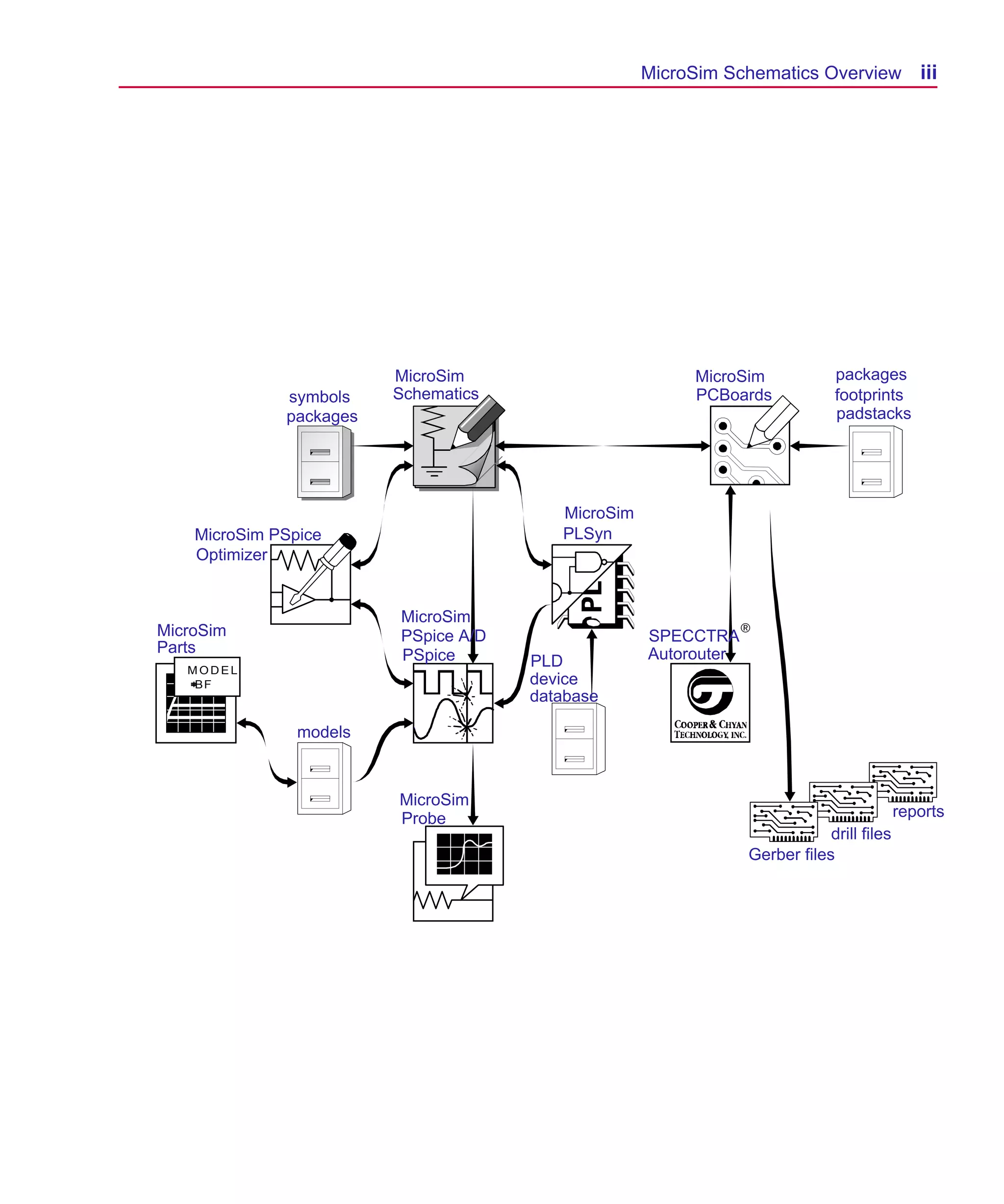
                              environment. The following illustration demonstrates how the
                              MicroSim family of products work together, with Schematics as
                              the central point of control.
Scug.bk : 00CHAP.FMK Page iii Monday, June 16, 1997 10:10 AM


                                                              MicroSim Schematics Overview            iii


                                   MicroSim                        MicroSim           packages
                        symbols    Schematics                      PCBoards           footprints
                        packages                                                      padstacks


                                                   MicroSim
              MicroSim PSpice                      PLSyn
              Optimizer


                                   MicroSim
          MicroSim                 PSpice A/D                 SPECCTRA®
          Parts                    PSpice                     Autorouter
             MODEL
                                                PLD
             =
             + F
              B                                 device
                                                database

                          models


                                   MicroSim
                                   Probe                                                           reports
                                                                                     drill files
                                                                         Gerber files
Scug.bk : 00CHAP.FMK Page iv Monday, June 16, 1997 10:10 AM


  iv   Before You Begin


                                     How to Use this Guide
                                     This guide is designed so you can quickly find the information
                                     you need to use Schematics.
  For UNIX users:                    This guide assumes that you are familiar with Microsoft
  All screen captures in this        Windows (NT or 95), including how to use icons, menus, and
  manual are of Windows dialog       dialog boxes. It also assumes you have a basic understanding
  boxes and windows. Most            about how Windows manages applications and files to perform
  options in these dialog boxes      routine tasks, such as starting programs and opening and saving
  and windows are available in       your work. If you are new to Windows, please review your
  your operating environment.        Microsoft Windows User’s Guide.
  When certain options are not
  available to you, or you must do
  something differently than what
  is primarily outlined,
  information specific to your       Typographical Conventions
  platform is provided.
                                     Before using Schematics, it is important to understand the terms
                                     and typographical conventions used in this documentation.
                                     This guide generally follows the conventions used in the
                                     Microsoft Windows User’s Guide. Procedures for performing an
                                     operation are generally numbered with the following
                                     typographical conventions.

                                      Notation       Examples              Description
                                      C+r            Press C+r             A specific key or key stroke
                                                                           on the keyboard.

                                      monospace      Type VAC... or        Commands/text entered from
                                      font           analog.slb            the keyboard, or file names.
Scug.bk : 00CHAP.FMK Page v Monday, June 16, 1997 10:10 AM


                                                                                        Related Documentation            v


      Related Documentation
      Documentation for MicroSim products is available in both hard
      copy and online. To access an online manual instantly, you can
      select it from the Help menu in its respective program (for
      example, access the Schematics User’s Guide from the Help
      menu in Schematics).
      Note    The documentation you receive depends on the
              software configuration you have purchased.
      The following table provides a brief description of those
      manuals available in both hard copy and online.

       This manual...                     Provides information about how to use...
       MicroSim Schematics                MicroSim Schematics, which is a schematic capture front-end program
       User’s Guide                       with a direct interface to other MicroSim programs and options.

       MicroSim PCBoards                  MicroSim PCBoards, which is a PCB layout editor that lets you specify
       User’s Guide                       printed circuit board structure, as well as the components, metal, and
                                          graphics required for fabrication.

       MicroSim PSpice A/D & Basics+      PSpice A/D, Probe, the Stimulus Editor, and the Parts utility, which are
       User’s Guide                       circuit analysis programs that let you create, simulate, and test analog and
                                          digital circuit designs. It provides examples on how to specify simulation
                                          parameters, analyze simulation results, edit input signals, and create
                                          models.

       MicroSim PSpice & Basics           MicroSim PSpice & MicroSim PSpice Basics, which are circuit analysis
       User’s Guide                       programs that let you create, simulate, and test
                                          analog-only circuit designs.

       MicroSim PSpice Optimizer          MicroSim PSpice Optimizer, which is an analog performance
       User’s Guide                       optimization program that lets you fine tune your analog circuit designs.

       MicroSim PLSyn                     MicroSim PLSyn, which is a programmable logic synthesis program that
       User’s Guide                       lets you synthesize PLDs and CPLDs from a schematic or hardware
                                          description language.

       MicroSim FPGA                      MicroSim FPGA—the interface between MicroSim Schematics and
       User’s Guide                       XACTstep—with MicroSim PSpice A/D to enter designs that include
                                          Xilinx field programmable gate array devices.

       MicroSim Filter Designer           MicroSim Filter Designer, which is a filter synthesis program that lets you
       User’s Guide                       design electronic frequency selective filters.
Scug.bk : 00CHAP.FMK Page vi Monday, June 16, 1997 10:10 AM


  vi   Before You Begin

                                     The following table provides a brief description of those
                                     manuals available online only.

   This online manual...          Provides this...
   MicroSim PSpice A/D            Reference material for PSpice A/D. Also included: detailed descriptions of the
   Online Reference Manual        simulation controls and analysis specifications, start-up option definitions, and
                                  a list of device types in the analog and digital model libraries. User interface
                                  commands are provided to instruct you on each of the screen commands.

   MicroSim Application Notes     A variety of articles that show you how a particular task can be accomplished
   Online Manual                  using MicroSim‘s products, and examples that demonstrate a new or different
                                  approach to solving an engineering problem.

   Online Library List            A complete list of the analog and digital parts in the model and symbol
                                  libraries.

   MicroSim PCBoards Online       Reference information for MicroSim PCBoards, such as: file name extensions,
   Reference Manual               padstack naming conventions and standards, footprint naming conventions, the
                                  netlist file format, the layout file format, and library expansion and
                                  compression utilities.

   MicroSim PCBoards Autorouter   Information on the integrated interface to Cooper & Chyan Technology’s
   Online User’s Guide            (CCT) SPECCTRA autorouter in MicroSim PCBoards.


                                     Online Help
                                     Selecting Search for Help On from the Help menu brings up an
                                     extensive online Help system.
                                     The online Help includes:
                                     •    step-by-step instructions on how to use Schematics features
                                     •    reference information about Schematics
                                     •    technical support information
                                     If you are not familiar with the Windows (NT or 95) Help
                                     System, select How to Use Help from the Help menu.
Scug.bk : 00CHAP.FMK Page vii Monday, June 16, 1997 10:10 AM


                                                                             What’s New for Release 8   vii


      What’s New for Release
      8
      Design Journal is a very powerful analysis and tracking
      tool. When creating a schematic design, you can make a
      checkpoint of the schematic, which is a copy of the schematic
      you are working on, in its current stage of development. All files
      (even non-EDA files) associated with your design can be
      automatically saved. You can then explore alternative solutions
      and mark other checkpoints. Probe displays simulation results of
      all the checkpoints in colors to match the same simulation file
      (including multi-run simulations) so you can compare results.
      Return to the checkpoint that displayed the best results and
      continue on with your design, marking and comparing other
      checkpoints to improve your design.


      Design Manager           allows you to browse, manage, archive,
      and restore your design files. It organizes all files (such as
      symbols, sub-schematics, and also any non-EDA documents)
      associated with your design as a single, self-contained entity.
      Design Manager gathers this information, arranges and displays
      it in categories that show the relationships of the files to one
      another. Checkpoints in Design Journal with attached notes or
      even a Microsoft Word file can be archived as components of a
      single design within Design Manager.


      Orthogonal Rubberbanding makes it easier to
      rearrange your schematic for new parts and to clean up the
      schematic when necessary. You can move one or more selected
      objects to a new location while maintaining connectivity.


      Annotation Graphics            provides the ability to add non-
      electrical information, such as polylines, circles, arcs, and multi-
      line text. Bitmap and metafile images can be placed on the
      schematic or within symbols.
Scug.bk : 01GETSTD.FMK Page 1 Monday, June 16, 1997 10:10 AM


      Getting Started


                                                                           1

      Overview
      This chapter describes Schematics: what it is, what it can do, and
      how you can use it.
      This chapter has the following sections:
      Using Schematics on page 1-2 provides a broad overview and
      describes various functions.
      Example—Drawing a Schematic on page 1-4 provides a step-
      by-step example of creating a schematic.
Scug.bk : 01GETSTD.FMK Page 2 Monday, June 16, 1997 10:10 AM


  1-2   Getting Started


                              Using Schematics
                              Schematics is a schematic capture front-end program that
                              provides a convenient system for:
                              •   creating and managing circuit drawings.
                              •   setting up and running simulations.
                              •   evaluating simulation results using MicroSim Probe.
                              •   creating netlists (for MicroSim PCBoards and other external
                                  PCB layout packages).
                             An important prerequisite to building a schematic is availability
                             of proper symbols for assembly. Schematics has extensive
                             symbol libraries and a fully integrated symbol editor for creating
                             your own symbols or modifying existing symbols.
                             The main functions of Schematics are:
                              •   creating and editing designs
                              •   creating and editing symbols
                              •   creating and editing hierarchical designs
                              •   preparing a design for simulation
                              •   preparing a design for board layout
                             These primary functions are described in the following chapters.
Scug.bk : 01GETSTD.FMK Page 3 Monday, June 16, 1997 10:10 AM


                                                                                                Using Schematics   1-3
                                                            MicroSim
       packages                                             PCBoards                        footprints
                             package definitions


                                                       layout
                                                       netlist
       symbols                                         file                              layout ECO file


                         symbol
                                                                  netlist &                      back
                         definitions
                                                                  packaging                      annotation
                                                   MicroSim       information
                                                   Schematics
       models                                                                                MicroSim
                                                                                             Probe
                                                                               Probe
                                                                               markers

                                   netlist &
                                   simulation
                                   directives       component
                         circuit
                                                    description
                         file
                                                    file


      Figure 1-1 Interaction of MicroSim Softwareof
                                              Bill Programs and Files
                                                      Materials
                                                      reports


                    MicroSim                                                                Probe
                    PSpice A/D                                                              data
                                                                                            file

                                                         simulation results


                                                                 simulation
                                                   simulation
                                                   audit         output file
Scug.bk : 01GETSTD.FMK Page 4 Monday, June 16, 1997 10:10 AM


  1-4 Getting Started


  Example—Drawing a Schematic
  The following example demonstrates the basic drawing features for drawing a schematic. It shows
  you how to:
  •   start the schematic editor and begin a new design.
  •   find out which libraries are configured for Schematics.
  •   place parts on a schematic.
  •   connect the part using wires and buses.
  •   label wires and buses.
  •   change reference designators and part values.
  •   move parts, wires and text.
  •   use ports on a schematic.
  •   place power and ground symbols on a schematic.
  •   save your design.
  Follow this example to create the circuit shown in Figure 1-2.
Scug.bk : 01GETSTD.FMK Page 5 Monday, June 16, 1997 10:10 AM


                                                                  Example—Drawing a Schematic   1-5


       Figure 1-2 Opto-isolated, Addressable Serial-to-parallel Converter Circuit
Scug.bk : 01GETSTD.FMK Page 6 Monday, June 16, 1997 10:10 AM


  1-6   Getting Started


                                     Starting a New Design
                                     Start the schematic editor by double-clicking on the Schematics
                                     icon in the MicroSim program group. An empty schematic page
                                     displays.
                                     If you already have Schematics running with another schematic
                                     displayed, click the New File icon to start a new schematic.


  For Unix Users:                    Command Line Options
  Do one of the following:
                                     Schematics supports a number of command line options that
  • In the File Manager, double-     enable you to customize the start-up mode. You can add one or
    click a schematic (.sch) file.   more of these options to the Command Line text box of the
  • In the shelltool, type           Program Item Properties dialog box (File/Properties from within
     psched <options>                the Program Manager) for the Windows Schematics program
  where <options> are any of the     icon.
  options described in the           The command line options are:
  Command Line Options section
  on this page.                          Option           Description
                                         -i               activates Schematics using a specific file
                                         <filename.ini>   (specified by <filename.ini>) for
                                                          configuration settings, rather than the default:
                                                          msim.ini
                                         -sym             activates Schematics with a new Symbol Editor
                                                          document window
                                         <filename>       activates Schematics and loads the schematic
                                                          file specified by <filename.sch>
Scug.bk : 01GETSTD.FMK Page 7 Monday, June 16, 1997 10:10 AM


                                                                     Example—Drawing a Schematic    1-7


      Checking Symbol Libraries
      Configuration
      When you installed Schematics, you selected a set of libraries to
      be installed. These are global libraries, which means the
      symbols contained in them are available to be used in any new
      or existing schematic.
      Check to see that you have the correct symbol libraries
      configured for this example:
      1   From the Options menu, select Editor Configuration.
      2   Check that the following libraries are included in the          Note If you are using the
          Libraries list box:                                             evaluation version of
                                                                          Schematics, you will be using
          7400 [.slb,.plb]
                                                                          “eval.slb”.
          analog [.slb,.plb]
          opto [.slb,.plb]
          port [.slb]
          1_SHOT [.slb]
Scug.bk : 01GETSTD.FMK Page 8 Monday, June 16, 1997 10:10 AM


  1-8   Getting Started


                                       Selecting and Placing Parts
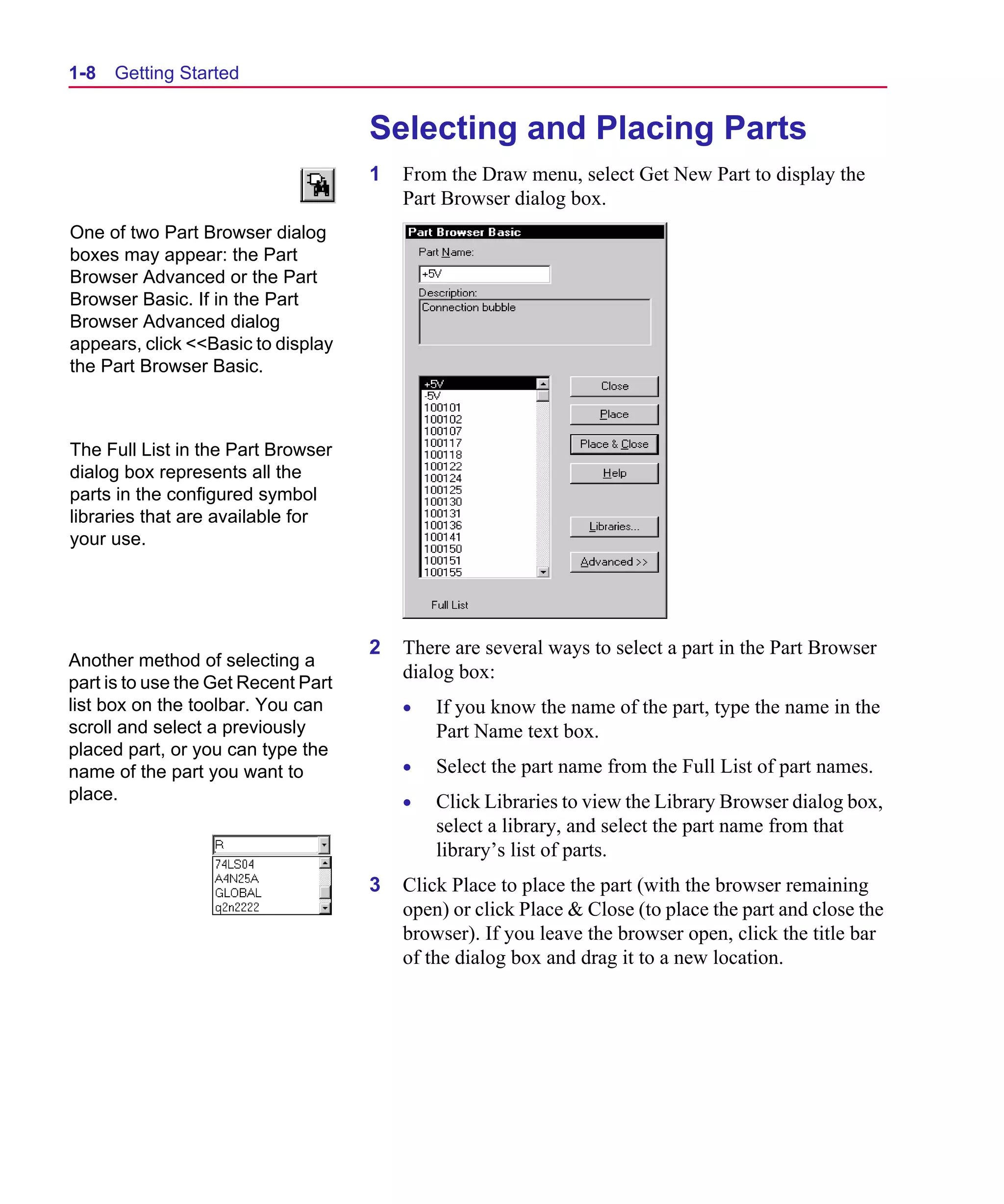
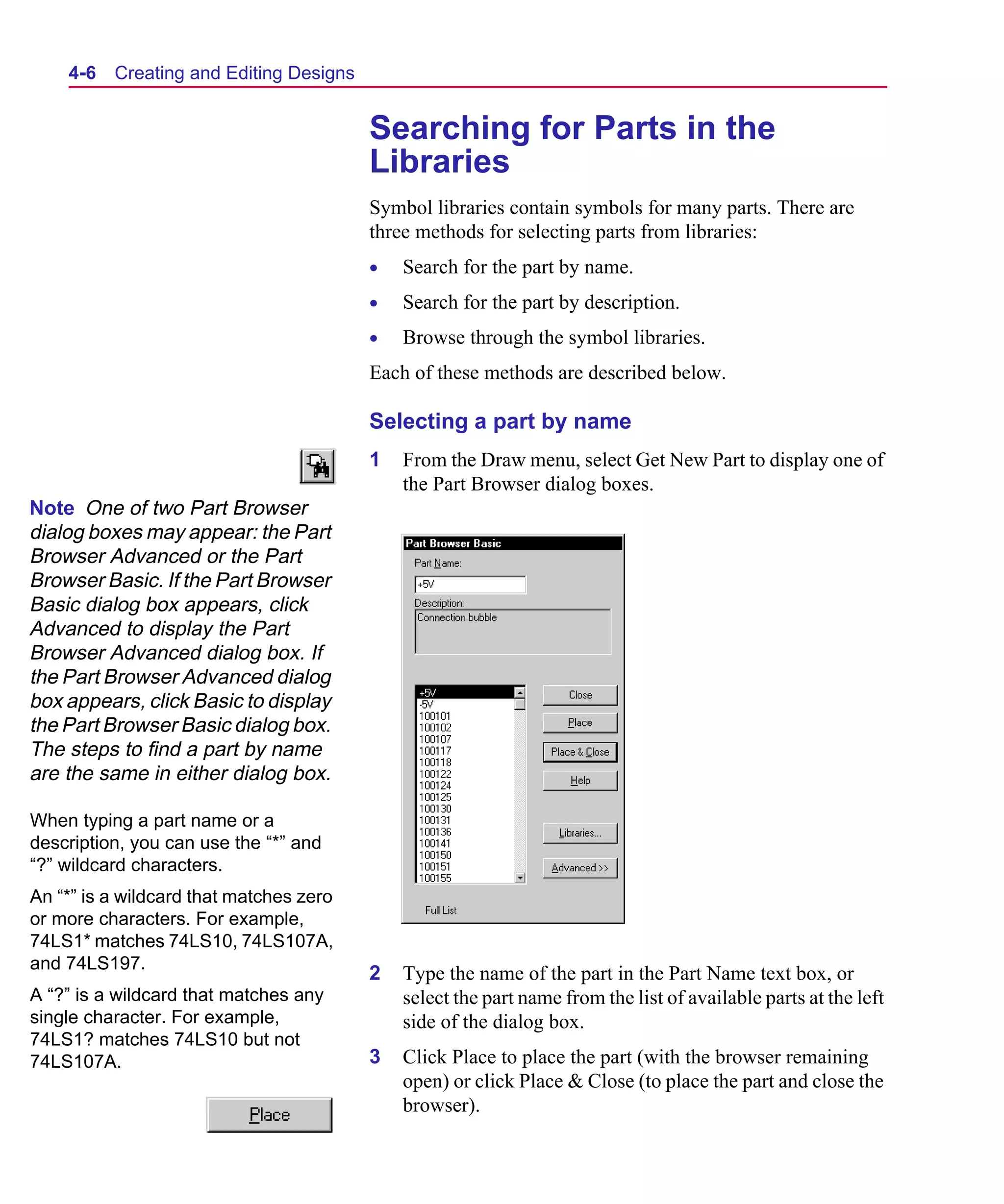
                                       1   From the Draw menu, select Get New Part to display the
                                           Part Browser dialog box.
  One of two Part Browser dialog
  boxes may appear: the Part
  Browser Advanced or the Part
  Browser Basic. If in the Part
  Browser Advanced dialog
  appears, click <<Basic to display
  the Part Browser Basic.


  The Full List in the Part Browser
  dialog box represents all the
  parts in the configured symbol
  libraries that are available for
  your use.


                                       2   There are several ways to select a part in the Part Browser
  Another method of selecting a
                                           dialog box:
  part is to use the Get Recent Part
  list box on the toolbar. You can         •   If you know the name of the part, type the name in the
  scroll and select a previously               Part Name text box.
  placed part, or you can type the
  name of the part you want to             •   Select the part name from the Full List of part names.
  place.                                   •   Click Libraries to view the Library Browser dialog box,
                                               select a library, and select the part name from that
                                               library’s list of parts.
                                       3   Click Place to place the part (with the browser remaining
                                           open) or click Place & Close (to place the part and close the
                                           browser). If you leave the browser open, click the title bar
                                           of the dialog box and drag it to a new location.
Scug.bk : 01GETSTD.FMK Page 9 Monday, June 16, 1997 10:10 AM


                                                                        Example—Drawing a Schematic        1-9

      Placing resistors R1 and R2
      1   From the Draw menu, select Get New Part to display the
          Part Browser dialog box (shown on 1-8).
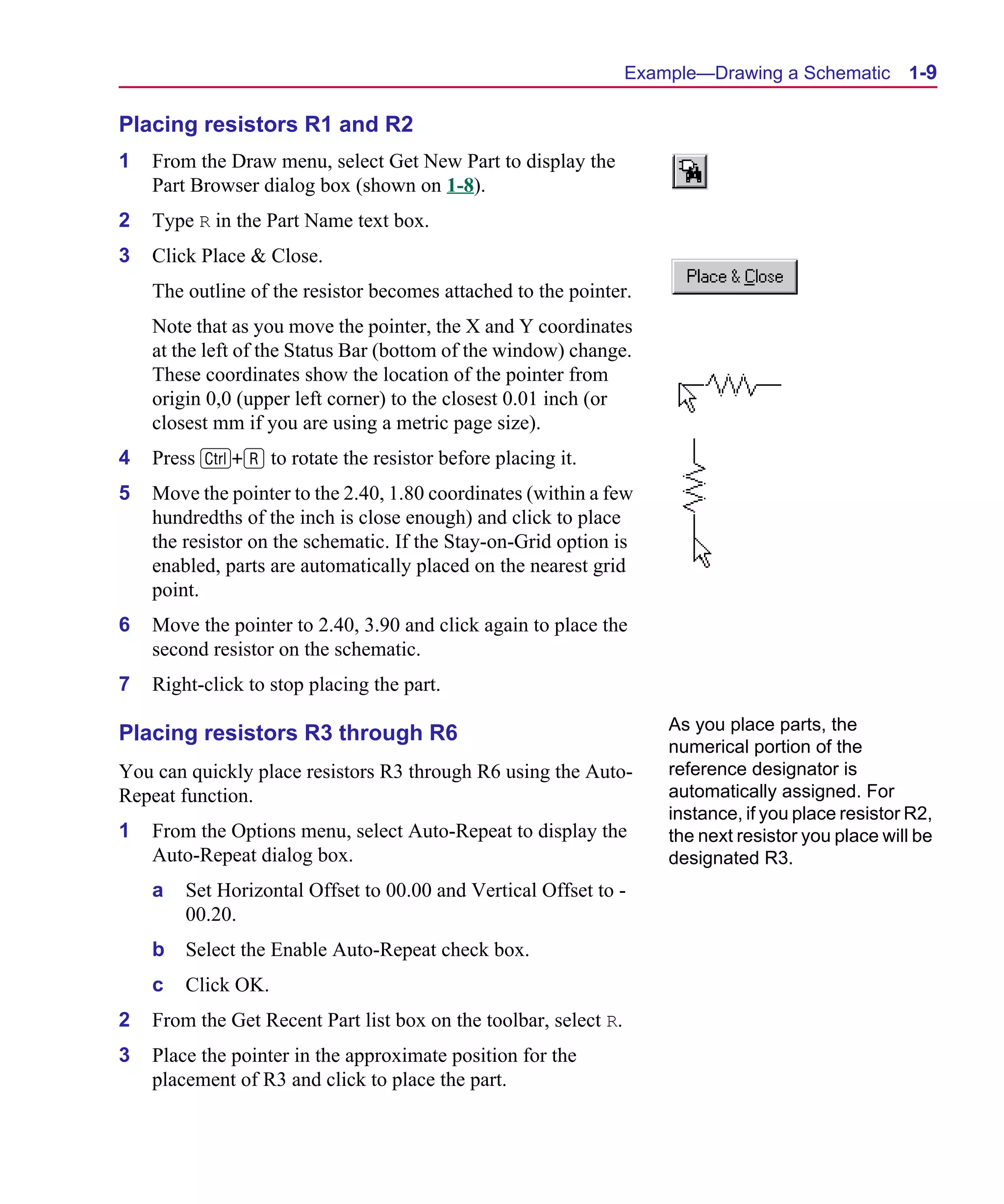
      2   Type R in the Part Name text box.
      3   Click Place & Close.
          The outline of the resistor becomes attached to the pointer.
          Note that as you move the pointer, the X and Y coordinates
          at the left of the Status Bar (bottom of the window) change.
          These coordinates show the location of the pointer from
          origin 0,0 (upper left corner) to the closest 0.01 inch (or
          closest mm if you are using a metric page size).
      4   Press C+R to rotate the resistor before placing it.
      5   Move the pointer to the 2.40, 1.80 coordinates (within a few
          hundredths of the inch is close enough) and click to place
          the resistor on the schematic. If the Stay-on-Grid option is
          enabled, parts are automatically placed on the nearest grid
          point.
      6   Move the pointer to 2.40, 3.90 and click again to place the
          second resistor on the schematic.
      7   Right-click to stop placing the part.
                                                                            As you place parts, the
      Placing resistors R3 through R6
                                                                            numerical portion of the
      You can quickly place resistors R3 through R6 using the Auto-         reference designator is
      Repeat function.                                                      automatically assigned. For
                                                                            instance, if you place resistor R2,
      1   From the Options menu, select Auto-Repeat to display the          the next resistor you place will be
          Auto-Repeat dialog box.                                           designated R3.
          a   Set Horizontal Offset to 00.00 and Vertical Offset to -
              00.20.
          b   Select the Enable Auto-Repeat check box.
          c   Click OK.
      2   From the Get Recent Part list box on the toolbar, select R.
      3   Place the pointer in the approximate position for the
          placement of R3 and click to place the part.
Scug.bk : 01GETSTD.FMK Page 10 Monday, June 16, 1997 10:10 AM


  1-10   Getting Started

                                     4   Press M three times to place three more resistors above
                                         the first.

                                     Placing resistors R7 through R10
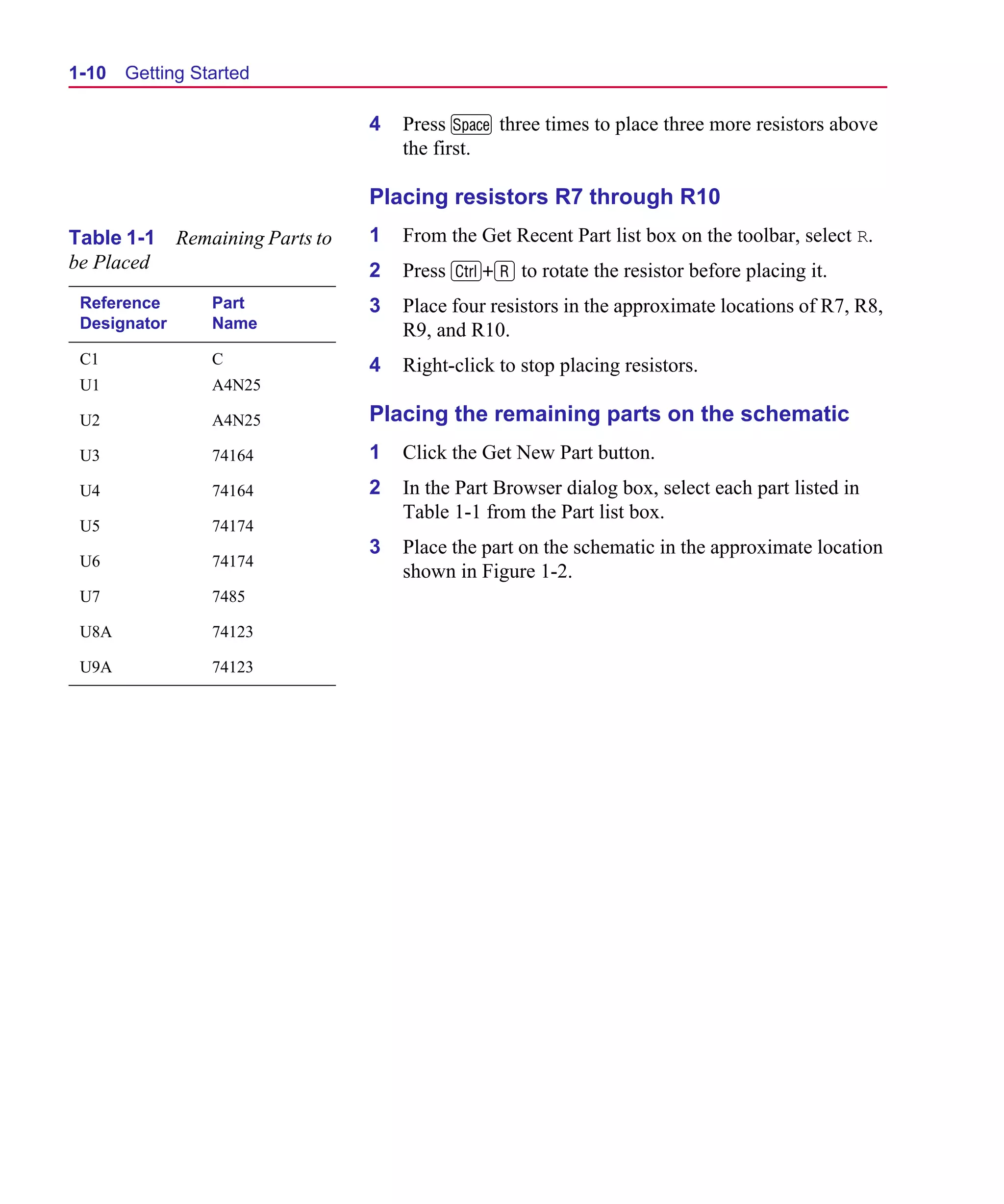
  Table 1-1     Remaining Parts to   1   From the Get Recent Part list box on the toolbar, select R.
  be Placed                          2   Press C+R to rotate the resistor before placing it.
   Reference        Part             3   Place four resistors in the approximate locations of R7, R8,
   Designator       Name                 R9, and R10.
   C1               C                4   Right-click to stop placing resistors.
   U1               A4N25

   U2               A4N25            Placing the remaining parts on the schematic
   U3               74164            1   Click the Get New Part button.
   U4               74164            2   In the Part Browser dialog box, select each part listed in
                                         Table 1-1 from the Part list box.
   U5               74174
                                     3   Place the part on the schematic in the approximate location
   U6               74174
                                         shown in Figure 1-2.
   U7               7485

   U8A              74123

   U9A              74123
Scug.bk : 01GETSTD.FMK Page 11 Monday, June 16, 1997 10:10 AM


                                                                      Example—Drawing a Schematic   1-11


      Drawing and Labeling Wires
      Draw the wire labeled dataclk to connect pin 8 (CLK) on U3
      and pin 1 (A) on U8A.

      Drawing the dataclk wire
      1   Click the Draw Wire button.
          The pencil pointer indicates that you are ready to draw a
          wire.
      2   Click pin 8 of U3 to begin the wire.
      3   Following the illustration in Figure 1-2, click where you
          want each vertex of the wire. Each click ends a wire segment
          and starts a new one.
      4   Click pin 1 of U8A
          Notice that the wire is now ended where you clicked to place
          a pin. The pointer remains in the shape of a pencil and you
          are ready to start another wire.
      5   Wire the rest of the schematic to the bus, except for the
          wires of the right sides of U5 and U6.
      6   Right-click to stop drawing wires.

      Labeling the dataclk wire
      Label the wire connecting the CLK pin of U3 to the A pin of
      U8A.
      1   Double-click any segment of the wire to display the Set
          Attribute Value dialog box.
      2   Type dataclk in the LABEL text box.
      3   Click OK.
Scug.bk : 01GETSTD.FMK Page 12 Monday, June 16, 1997 10:10 AM


  1-12   Getting Started

  Buses must be labeled.
  Examples of legal bus names
                                     Drawing and Labeling Buses
  are:                               Draw the bus labeled DB[1-12].
  DB[0-12]
  DB[0:12]                           Drawing the bus
  DB[0..12]
  DB0, DB1, CLK                      1   Click the Draw Bus button.
                                         The pointer is now shaped like a pencil (as it was when you
                                         were drawing wires).
                                     2   Click where you want to start the bus.
                                     3   Click the pointer where you want to end the bus.
                                     4   Right-click to stop drawing buses.

                                     Labeling the bus
                                     1   Double-click any segment of the bus to display the Set
                                         Attribute Value dialog box.
                                     2   Type DB[1-12] in the LABEL text box.
                                     3   Click OK.

                                     Connecting wires to the bus
  You can use the Auto-Repeat
  function to place the wires that   1   From the Options menu, select Auto-Repeat to display the
  connect the pins to the bus            Auto-Repeat dialog box.
  because the wires will be the          a   Set the Vertical Offset to 00.10.
  same length and fixed distances.
                                         b   Ensure that Enable Auto-Repeat is enabled.
                                         c   Click OK.
                                     2   Click the Draw Wire button and draw a wire from pin 2 of
                                         U5 to the bus.
                                     3   Press M five times to place five more wires.
                                     4   Click the Draw Wire button and draw a wire from pin 2 of
                                         U6 to the bus.
                                     5   Press M five times to place five more wires.
Scug.bk : 01GETSTD.FMK Page 13 Monday, June 16, 1997 10:10 AM


                                                                    Example—Drawing a Schematic    1-13

      Labeling the wires connected to the bus                             Note Each wire connecting
                                                                          to a bus must be labeled with
      You can use Auto-Naming to label a uniform collection of
                                                                          the name of one of the signals
      wires.
                                                                          on the bus.
      1   From the Options menu, select Auto-Naming to display the
          Auto Naming dialog box.
          a   In the Wire/Port Labels frame, select the Enable Auto-
              Increment check box.
          b   In the Label Template text box, type DB1, which is the
              label for the first wire in the series.
              Wires will be labeled incrementally from DB1 and up.
          c   Click OK.
      2   Select the first (lower-most) wire to be labeled.
      3   Press C+E to label the wire.
      4   Repeat steps 2 and 3 for each wire segment, in the order they
          are to be labeled (from bottom to top).
Scug.bk : 01GETSTD.FMK Page 14 Monday, June 16, 1997 10:10 AM


  1-14   Getting Started


                                       Changing Reference
                                       Designators and Part Values
                                       Change part values and reference designators by double-
                                       clicking them and typing a new value in the dialog box.

                                       Changing U8A to U9B
  When you place a part on the         1   Double-click U8A to display the Edit Reference Designator
  schematic, the part is                   dialog box.
  automatically assigned a
  reference designator and a gate      2   Type U9 in the Package Reference Designator text box.
  (if it is a multi-part component).   3   Type B in the Gate text box.
  For instance, when you placed
  the 74123 part, it was assigned      4   Click OK.
  something like U8A (that is,
  reference designator U8 and          Changing R9 from 1 kohm to 100 kohm
  gate A).
  If you placed any of the             1   Double-click 1k (next to resistor R9) to display the Set
  components in an order other             Attribute Value dialog box.
  than the sequential order shown      2   Change 1k to 100k.
  in Figure 1-2, use this feature
  now to change the reference          3   Click OK.
  designators to match the
                                       Now, change the value of R10 to 100k and the values of R3
  schematic in Figure 1-2.
                                       through R8 to 10k.
Scug.bk : 01GETSTD.FMK Page 15 Monday, June 16, 1997 10:10 AM


                                                                     Example—Drawing a Schematic         1-15


      Moving Parts, Wires, and Text
      Move parts, wires, buses, and text by clicking to select them, and
      dragging them to a new location. To maintain connectivity when
                                                                            For information on how to enable
      moving parts, wires, or buses, enable the rubberbanding option.
                                                                            the rubberbanding option, see
                                                                            Rubberbanding on page 4-35.
      Moving resistor R1 up one grid
      1   Click the resistor to select it.                                  The color of the selected resistor
                                                                            is the color specified for the
      2   Drag the resistor up one grid.                                    Selection display layer in the
      3   Place the resistor at the new location.                           Display Preferences dialog box
                                                                            (see Configuring Colors on
      Part values, reference designators, and other text can be moved       page 3-37).
      in the same way.

      Moving the value of R10
      1   Click the 100k value of the resistor.
          The box outline around the value indicates that it is selected.
          The box outline around the resistor shows that the resistor is
          the owner of the selected value.
      2   Drag the value of the resistor to a new location.
          The box representing the 100k value follows as you move
          the pointer.
Scug.bk : 01GETSTD.FMK Page 16 Monday, June 16, 1997 10:10 AM


  1-16   Getting Started


                             Placing Ports
                             Ports in Schematics identify signals that are inputs or outputs to
                             a schematic. Place ports in the same way that you place other
                             parts.

                             Placing the port
                             1   From the Draw menu, select Get New Part to display the
                                 Part Browser dialog box (shown on 1-8).
                             2   Click Libraries to display the Library Browser dialog box.


                             3   In the Library list box, select port.slb.
                             4   In the Part list box, select GLOBAL (which is the name of a
                                 global port symbol).
                             5   Click OK.
                             6   In the Part Browser dialog box, click Place & Close.
                             7   Move the pointer to the location for the DAT port and click
                                 to place the part.
                             8   Right-click to stop placing ports.
Scug.bk : 01GETSTD.FMK Page 17 Monday, June 16, 1997 10:10 AM


                                                                     Example—Drawing a Schematic   1-17

      Labeling the port
      1   Double-click the port symbol to display the Set Attribute
          Value dialog box.
      2   Type DAT in the LABEL text box.
      3   Click OK.
      Now place two more ports and label them CLK and RTN as
      shown in Figure 1-2.


      Placing Power and Ground
      Symbols
      Power and ground symbols are types of global port symbols in
      Schematics. The label on the port defines the name of the power
      supply.

      Placing +5-volt power supplies
      1   Type +5V in the Get Recent Part list box on the toolbar.
      2   Press R to select the part.
      3   Move the pointer to the location of the +5V symbol and
          click to place the symbol.
      4   Move the pointer and click to place the other nine +5V
          symbols.
      5   Right-click to stop placing parts.
      All signals tied to power supplies of the same name are
      connected.
Scug.bk : 01GETSTD.FMK Page 18 Monday, June 16, 1997 10:10 AM


  1-18   Getting Started

                             Placing ground symbols
                             1   In the Get Recent Part list box on the toolbar, type EGND.
                             2   Press R to select the part.
                             3   Move the pointer to the location of the ground symbol and
                                 click to place the symbol.
                             4   Move the pointer and click to place the other four ground
                                 symbols.
                             5   Right-click to stop placing parts.


                             Saving Your Work
                             Click the File Save button, or select Save (or Save As) from the
                             File menu to save the schematic.
                             If this is a new design, you are prompted to enter a file name
                             where the new schematic will be saved.
Scug.bk : 02DESMGR.FMK Page 1 Monday, June 16, 1997 10:10 AM


      Using Design Manager


                                                                       2

      Overview
      This chapter provides introductory information about the
      Design Manager.
      This chapter has the following sections:
      Understanding Design Manager on page 2-2 describes the
      purpose and uses for Design Manager.
      Managing Your Files in the Workspace on page 2-4 explains
      what a workspace is and how to manage your files within it.
      Design Manager Functions on page 2-5 describes Design
      Manager functions and activities.
      Starting the Design Manager on page 2-7 describes how to start
      the Design Manager.
      Design Manager Help on page 2-7 describes where to find
      Design Manager Help.
Scug.bk : 02DESMGR.FMK Page 2 Monday, June 16, 1997 10:10 AM


  2-2   Using Design Manager


                               Understanding Design
                               Manager
                               Design Manager allows you to browse, manage, archive, and
                               restore your design files.
                               When you open a design file, Design Manager searches the
                               Windows Explorer for the following information:
                               •   the name of the top-level folder where the file is stored
                               •   the names of all files within the top-level folder and its sub-
                                   folders
                               •   the names of files in folders outside the top-level folder that
                                   are linked to files within the top-level folder
                               Design Manager gathers this information, arranges and displays
                               it in categories that show the relationships of the files to one
                               another. For instance, all Schematics .sch files are listed in the
                               Design Entry Files category, while all simulation .dat and
                               .out files are listed in the Simulation Results category.
                               Hierarchical schematics are shown as child schematics to the
                               parents.
Scug.bk : 02DESMGR.FMK Page 3 Monday, June 16, 1997 10:10 AM


                                                     Understanding Design Manager   2-3
Scug.bk : 02DESMGR.FMK Page 4 Monday, June 16, 1997 10:10 AM


  2-4   Using Design Manager


                                      Managing Your Files in
                                      the Workspace
  Multiple workspaces, in their own   Design Manager views a file’s top-level folder (as seen in
  windows, can be open                Windows Explorer) as a workspace and assigns it the name of
  simultaneously for browsing and     the top-level folder.
  file management activities.
                                      Although workspaces are actual folders, categories are not.
                                      Categories only display files found after Design Manager
                                      searches the top-level folder and its sub-folders, making it easy
                                      for you to identify and manage them. Dependent files (such as
                                      hierarchical sub-schematic and symbol library files) that are
                                      stored outside the workspace, show a reference to their location.
                                      You can copy and move all files, or a selected sub-set, from one
                                      workspace to another workspace. This principle applies to
                                      deleting files as well. Because categories are for display
                                      purposes only, you cannot move or copy files from one category
                                      type to another category type.
  Because categories are for          Design Manager also provides cut, copy, paste, and delete
  display purposes only, you          operations at an individual file level, that work similar to the
  cannot move or copy files from      same functions in Windows Explorer.
  one category type to another
  category type.                      When files are copied, moved, or saved to a workspace, Design
                                      Manager automatically arranges their display into the
                                      appropriate file-type categories. Windows Explorer (when
                                      opened or refreshed) reflects the action taken in the workspace.
                                      Note    To get the optimal use of Design Manager, it is
                                              recommended that only files related to one design
                                              be stored in one top-level folder, and therefore in
                                              one workspace. Also, because Design Manager
                                              can perform operations on a design file and all of
                                              its dependent files simultaneously, perform file
                                              management functions within Design Manger,
                                              rather than Windows Explorer.
Scug.bk : 02DESMGR.FMK Page 5 Monday, June 16, 1997 10:10 AM


                                                                            Design Manager Functions   2-5


      Design Manager
      Functions
      The following describes Design Manager functions and
      activities:

      General characteristics
      •   automatic activation upon opening any MicroSim program
      •   availability for use without other MicroSim programs
          running
      •   automatic categorization of design-related files, sorted into
          file-type categories, within a workspace
      •   ability to have multiple workspaces, in their own windows,
          open simultaneously
      •   two methods (view by Category and view by Name) with
          which you can view and manage all files within a selected
          workspace, as well as external references to files outside the
          selected workspace

      File management
      •   copy, move, and delete all files (or optionally a selected sub-
          set), from one workspace to another
      •   optionally cut, delete, copy, and archive all dependent files
      •   cut, delete, copy, and paste files as similarly done in
          Windows Explorer
      •   drag-and-drop functionality
      •   acceptance of files from Windows Explorer, through
          commands or drag-and-drop
      •   ability to create top-level folders in Windows Explorer from
          Design Manager
Scug.bk : 02DESMGR.FMK Page 6 Monday, June 16, 1997 10:10 AM


  2-6   Using Design Manager

                               Archive and restore
                               •   archive and restore to save a design and all of its references,
                                   package files for shipment to another location, save disk
                                   space, and localize externally referenced and shared files
                                   into a selected workspace
Scug.bk : 02DESMGR.FMK Page 7 Monday, June 16, 1997 10:10 AM


                                                                         Starting the Design Manager   2-7


      Starting the Design
      Manager
      The Design Manager is automatically opened and minimized
      when you open any MicroSim program. Activate it by clicking
      the MicroSim Design Manager icon on the task bar.
      You can also open Design Manager to view and manage files
      when other MicroSim programs are not open.

      Opening the Design Manager outside of MicroSim
      programs
      1   On the task bar, click the Start button.
      2   Point to Programs.
      3   Point to the MicroSim folder.
      4   Click MicroSim Design Manager.
      Design Manager opens with the Category view in effect.


      Hints and Tips
      •   To get optimal use of Design Manager, place only files
          related to one design in one workspace.
      •   It is beneficial to perform file management functions within
          Design Manger, rather than Windows Explorer. Design
          Manager can perform operations on a design file and all of
          its dependent files simultaneously.


      Design Manager Help
      Refer to Schematics Help and Design Manager Help for
      procedures on how to use Design Manager.
Scug.bk : 03USESCD.FMK Page 1 Monday, June 16, 1997 10:10 AM


      Using the Schematic Editor


                                                                        3

      Overview
      This chapter provides background information about the
      schematic editor. For specific step-by-step instructions for
      creating a design, see Chapter 4,Creating and Editing Designs.
      This chapter has the following sections:
      Components of a Design on page 3-3 introduces and explains
      the components of a design.
      Main Window on page 3-6 describes the user interface to the
      schematic editor. This section describes the uses of menus, the
      toolbar and toolbar buttons, the status line and the keyboard.
      Configuring Schematics on page 3-15 provides information on
      configuring the schematic editor to suit your requirements.
      Controlling the Display in Schematics on page 3-34 describes
      how to control the display and printing of layers of your
      schematic, in addition to specifying colors and sizes.
Scug.bk : 03USESCD.FMK Page 2 Monday, June 16, 1997 10:10 AM


  3-2   Using the Schematic Editor

                                     Zooming and Panning in Schematics on page 3-42 tells how to
                                     zoom in and out of the drawing, refresh the screen display, pan
                                     to various sections of the drawing and fit the drawing to the
                                     page.
                                     Using the Message Viewer on page 3-47 describes the Message
                                     Viewer that displays system messages and explains the various
                                     displays and controls.
Scug.bk : 03USESCD.FMK Page 3 Monday, June 16, 1997 10:10 AM


                                                                         Components of a Design         3-3


      Components of a Design
      A schematic consists of:
      •   symbols
      •   attributes
      •   wires
      •   buses
      •   text items
      Schematics can have either a flat or hierarchical structure,
      depending on the way you decide to implement your design.

                                                                        Schematics uses two basic types
                                                                        of parts: primitive and
                                                                        hierarchical.
      Parts                                                             Primitive parts are at the lowest
                                                                        level and explicitly contain all of
      Parts are electrical devices that make up a circuit, such as:
                                                                        the information required by the
      •   resistors                                                     netlister. Most symbols in the
                                                                        symbol libraries are primitive
      •   operational amplifiers                                        parts.
      •   diodes
                                                                        Hierarchical parts have the same
      •   voltage sources                                               appearance as primitive parts.
      •   digital gates                                                 The difference is that
                                                                        hierarchical parts represent one
      The graphical representation of a part is a symbol. Symbols are   or more levels of schematics and
      stored in symbol libraries.                                       primitive parts do not.

                                                                        A hierarchical part is modified by
                                                                        pushing into it from within the
                                                                        schematic editor or symbol editor
                                                                        and editing the associated
                                                                        schematic.

                                                                        A primitive part is modified by
                                                                        editing its graphics, pins, and
                                                                        attributes.
Scug.bk : 03USESCD.FMK Page 4 Monday, June 16, 1997 10:10 AM


  3-4   Using the Schematic Editor


                                       Symbols
                                       Symbols are the graphical representation of parts, ports, and
                                       other schematic elements. They are grouped by functionality
                                       into symbol libraries. Each symbol contains a specific set of
                                       attributes that define the symbol. You can edit these attributes as
                                       well as create new attributes. Symbols can share similar
                                       attributes and graphics. Hierarchical symbols represent
                                       schematics and are the mechanism that you use to create
                                       hierarchical designs.


                                       Ports
  Ports are not physical               Ports are symbols that form connecting points leading into or out
  connectors. If you want a specific   of the schematic page. Ports provide connectivity between
  pin (such as a DB25 pin) you         schematic pages and between levels of hierarchy. They play an
  must use a symbol for such a         important role in determining names of electrical nets.
  connector from the “connect.slb”
  symbol library.


                                       Attributes
  Two attributes of a resistor are     Parts, ports, wires (nets), buses, and most other symbols have
  PKGTYPE (package type) and           associated attributes. An attribute consists of a name and an
  VALUE.                               associated value. Attributes are used for Bill of Materials
                                       reports, and simulation and layout netlists.
  Attribute
                    Value
  Name
  PKGTYPE      =    RC05
  VALUE        =    1K
                                       Annotations
                                       Text, graphics, and annotation symbols are used to show non-
                                       electrical information on the schematic, such as comments and
                                       tables. Annotation symbols primarily consist of text and
                                       graphics. Title blocks and page borders are considered
                                       annotations. For more information on adding annotations to
                                       your schematic, see Adding Non-Electrical Information on
                                       page 4-50.
Scug.bk : 03USESCD.FMK Page 5 Monday, June 16, 1997 10:10 AM


                                                                        Components of a Design   3-5


      Connections
      Parts and ports contain one or more pins where connections are
      made. Electrical connections are formed by wire and bus
      segments joining pins and other wire and bus segments.
      Connections are also formed by attaching pins directly to pins.
      Schematics represents each such electrical connection by a
      junction. Junctions are made visible when three or more
      connected items converge at the junction. Junctions are created
      and removed automatically.
      Some parts have hidden pins. Hidden pins are most often used
      for power and ground connections to digital parts. Hidden pins
      are not connected by wires and buses, but rather through an
      attribute that names the net, which they belong (the
      IPIN(<pinname>)=<netname> attribute) to.
Scug.bk : 03USESCD.FMK Page 6 Monday, June 16, 1997 10:10 AM


  3-6   Using the Schematic Editor


                                     Main Window
                                     When you start Schematics, a schematic editor window opens
                                     and displays a single schematic page. You have the option of
                                     opening additional schematic editor windows. Use these
                                     windows to:
                                     •   display different schematics.
                                     •   display different portions of a single schematic page.
                                     •   display different pages of the same schematic.
                                     •   display different levels of hierarchy from the same
                                         schematic.
                                     •   display a separate symbol editor window.


                                     Menus
  Note Drop-down menu items          The display and operation of the menus and submenus in
  sometimes appear dimmed.           Schematics follows a standard Windows layout and operation.
  In some cases, you must
  select an object first or
  perform some other operation
  before you can choose
  unavailable items.
Scug.bk : 03USESCD.FMK Page 7 Monday, June 16, 1997 10:10 AM


                                                                                       Main Window 3-7


      Toolbars
      Toolbar buttons provide shortcuts for performing common
      actions. All toolbars are dockable, so they may be moved to any   To “dock” toolbars:
      location on the schematic.                                        1 Click anywhere on the toolbar
                                                                           (except on the buttons).
      Standard Schematics                                               2 Drag it to the desired location
                                                                           in the schematic window or
      The Standard Schematics toolbar provides shortcuts to standard       on your desktop.
      Windows commands.
                                                                        The next time you open
                                                                        Schematics, the toolbars will be
                                                                        where you last placed them.


      Table 3-1    Standard Schematics Toolbar

       Button     Name            Function                       Page

                  New File        opens a new schematic file     4-3

                  Open File       opens an existing              4-3
                                  schematic file
                                                                        To display toolbars:
                  Save File       saves a schematic file         4-70
                                                                        1 From the View menu, select
                                                                           Toolbars.
                  Print           prints the active schematic    4-64
                                                                        2 Select or clear the check box
                  (immediate)
                                                                           for each toolbar to enable or
                  Cut             deletes a selected object      4-43      disable its display.
                                  and copies it to the                  3 Click Close and the selected
                                  clipboard                                toolbars will display.
                  Copy            copies a selected object to    4-43
                                  the clipboard

                  Paste           pastes the most recently cut   4-43
                                  or copied object from the
                                  clipboard

                  Undo            undoes the previous action     4-44
Scug.bk : 03USESCD.FMK Page 8 Monday, June 16, 1997 10:10 AM


  3-8   Using the Schematic Editor

                                     Table 3-1 Standard Schematics Toolbar

                                      Button    Name          Function                    Page

                                                Redo          redoes what was just        4-44
                                                              undone

                                                Redraw        refreshes the active        3-15
                                                              schematic page screen
                                                              display

                                                Zoom In       views a smaller area of     3-42
                                                              schematic

                                                Zoom Out      views a larger area of      3-42
                                                              schematic

                                                Zoom Area     views a selected area of    3-42
                                                              schematic

                                                Zoom to Fit   fits the view to show all   3-44
                                                Page          items on the page
Scug.bk : 03USESCD.FMK Page 9 Monday, June 16, 1997 10:10 AM


                                                                                     Main Window 3-9

      Drawing
      The Drawing toolbar provides shortcuts for drawing and editing
      items on your schematic.


      Table 3-2    Drawing Toolbar

       Button     Name              Function                      Page

                  Draw Wire         enables drawing of wires      4-28
                                    on the schematic

                  Draw Bus          enables the drawing of        4-31
                                    buses on the schematic

                  Draw Block        enables the placing of        7-4
                                    blocks on the schematic

                  Get New Part      displays Part Browser         4-6
                                    dialog box for selecting
                                    parts for placement

                  Get Recent Part   drop-down list box to         4-9    Note You can also type the
                                    select and place a recent            name of the part directly into
                                    part without having to               the text box.
                                    open the part browser

                  Edit Attributes   edits the attributes of       4-17
                                    selected objects

                  Edit Symbol       opens the symbol editor for   5-5
                                    the selected symbol
Scug.bk : 03USESCD.FMK Page 10 Monday, June 16, 1997 10:10 AM


  3-10   Using the Schematic Editor

                                      Simulation
                                      The Simulation toolbar provides shortcuts for setting up
                                      analyses, running a simulation, and viewing results.
                                      Refer to the Viewing Results on the Schematic chapter of your
                                      PSpice user’s guide for further information on simulation in
                                      Schematics.


                                      Table 3-3 Simulation Toolbar

                                       Button    Name               Function                      Page

                                                 Analysis Setup     sets up simulation analyses   8-8
                                                                    for the active schematic

                                                 Simulation         starts a simulation of the    8-8
                                                                    current schematic

                                                 Marker Color       drop-down list box to         *
                                                                    change marker colors on
                                                                    an instance basis

                                                 Voltage/Level      enables placing of voltage/   *

                                                 Marker             level markers on the
                                                                    schematic

                                                 Current Marker     enables placing of current    *
                                                                    markers on the schematic

                                                 Enable Bias        toggles the display of bias   *
                                                 Voltage Display    voltage

                                                 Show/Hide          toggles the display of        *
                                                 Voltage on         voltages for selected wires
                                                 Selected Net(s)

                                                 Enable Bias        toggles the display of bias   *
                                                 Current Display    current

                                                 Show/Hide          toggles the display of        *
                                                 Currents on        currents for selected
                                                 Selected Part(s)   device pins
Scug.bk : 03USESCD.FMK Page 11 Monday, June 16, 1997 10:10 AM


                                                                                   Main Window 3-11


         *. Refer to the Viewing Results on the Schematic chapter in your PSpice
         user’s guide for information about how to use these toolbar buttons.
Scug.bk : 03USESCD.FMK Page 12 Monday, June 16, 1997 10:10 AM


  3-12   Using the Schematic Editor

                                      Annotation Graphics
                                      The Annotation Graphics toolbar provides shortcuts for drawing
                                      or inserting non-electrical information onto your schematic.


                                      Table 3-4 Annotation Graphics Toolbar

                                       Button    Name             Function                        Page

                                                 Draw Arc         draws an arc shape on the       6-10
                                                                  page

                                                 Draw Box         draws a box on the page         6-11


                                                 Draw Circle      draws a circle on the page      6-11


                                                 Draw Polyline    draws a polyline on the         6-11
                                                                  page

                                                 Draw Text        places of a single line of      4-53,
                                                                  text on the page                6-12


                                                 Draw Text        places multiple lines of text   4-50
                                                 Box              on the schematic

                                                 Insert Picture   places a bitmap (.bmp,          4-57
                                                                  .dib) or Windows metafile
                                                                  (.wmf) on the page
Scug.bk : 03USESCD.FMK Page 13 Monday, June 16, 1997 10:10 AM


                                                                           Main Window 3-13


      Status Bar
      The status bar is located at the bottom of the schematic editor
      window and provides the following:
      •   X and Y coordinates of the pointer.
          Use the Display Options selection under the Options menu
          to toggle display of X and Y coordinates.
      •   A message area that provides:
          •   a brief description of the function that will be performed
              if you click the toolbar button at the present pointer
              location.
          •   a brief description of the function to be performed.
              The description will display by selecting the menu item
              at the present pointer location.
          •   prompts and warning messages that only appear when it
              is necessary for you to take a specific action.
              If anything must be done by the user or if there is a
              warning, the prompt will display in the status bar.
      •   the name of the function to be performed when you use the
          Repeat command (the name of the function will display
          when you use the Repeat function).
      Use the Status Bar selection from the View menu to enable or
      disable the status bar.


      Refreshing the Screen
      To refresh the screen, click the Redraw button on the toolbar.
Scug.bk : 03USESCD.FMK Page 14 Monday, June 16, 1997 10:10 AM


  3-14   Using the Schematic Editor


                                      Keyboard
                                      Table 3-5 lists the function keys in the schematic editor that
                                      permit you to enable or disable specific commands.

                                      Table 3-5 Schematic Editor Function Keys

                                       Key         Action                       Menu       Selection

                                       1           Online Help                  Help       Help

                                       2           Move to lower level in the   Navigate   Push
                                                   schematic hierarchy

                                       3           Move up one level            Navigate   Pop
                                                   in the schematic hierarchy
  Function keys 4 through 9            4           Text stay-on-grid            Options    Display
  are toggle keys. Pressing the key                                                        Options
  enables the feature, and
  pressing S plus the key              5           Orthogonal                   Options    Display
  disables the feature.                                                                    Options

                                       6           Stay-on-grid                 Options    Display
                                                                                           Options

                                       7           Auto-increment               Options    Auto-
                                                                                           Naming

                                       8           Auto-repeat                  Options    Auto-
                                                                                           Repeat

                                       9           Rubberbanding                Options    Display
                                                                                           Options

                                       0           View errors, warnings,       File       View
                                                   and messages                            Messages

                                       !           Start the simulator          Analysis   Simulate

                                       @           Start MicroSim Probe         Analysis   Run Probe
Scug.bk : 03USESCD.FMK Page 15 Monday, June 16, 1997 10:10 AM


                                                                           Configuring Schematics 3-15


      Configuring Schematics
      The following list summarizes the different types of options you
      can configure in Schematics. Customizing configurable options
      allows you to use Schematics in the way that best suits your
      needs and requirements.

      Library settings
      •   changes the set of configured symbol libraries

      Page settings
      •   sets the page size for your schematic
      •   specifies other page settings such as paper size, pin spacing,
          and borders

      Display options and preferences
      •   changes the grid and gravity settings of the schematic editor
      •   sets the time interval between automatic saves of your
          schematics
      •   changes the font used for displaying and printing text on
          your schematics
      •   determines which elements of a schematic are to be
          displayed and printed
      •   changes the colors used for drawing and displaying objects

      Application settings
      •   specifies the number of items in the Get Recent Part list box
          on the toolbar
      •   changes where to find the .exe files for MicroSim programs
          that interface with Schematics and which initialization file
          to use other than the installed default initialization file
          (msim.ini)
      •   specifies the use of a different text editor
Scug.bk : 03USESCD.FMK Page 16 Monday, June 16, 1997 10:10 AM


  3-16   Using the Schematic Editor


                                        Configuring Symbol Libraries
                                        There are two major elements that work together in Schematics
                                        that let you place symbols into your design:
                                        •   symbol libraries
                                        •   library search list
                                        Symbol libraries are located in library directories. The library
                                        search list is in the Part Browser and the Editor Configuration
                                        dialog box under the Options menu.
  A library name must be in the         It is important to remember that libraries and the search list have
  library search list to be available   two distinct functions. You can create a symbol library, but if the
  for placing its symbols.              library name is not in the library search list, it is not available to
                                        the design for placing symbols. Conversely, you can
                                        inadvertently create an error condition by having a library name
                                        in the search list, for a library that doesn’t exist.
                                        Configuring a symbol library is adding a library name to the
                                        library search list.
                                        Note     When adding a symbol library to the library search
                                                 list, placement in the list is important. If more than
                                                 one library contains the same symbol name,
                                                 Schematics uses only the first one it encounters.
                                        You must ensure the library actually exists in the location
                                        specified during the configuration procedure.
Scug.bk : 03USESCD.FMK Page 17 Monday, June 16, 1997 10:10 AM


                                                                                   Configuring Schematics 3-17

      Types of Libraries
      Schematics recognizes two types of libraries:
          This library...       Is available...
          global                to all schematic designs. They are listed in
                                the msim.ini file and are automatically
                                loaded into the library search list for every
                                design.
                                Global libraries appear in the library search
                                list with an asterisk (*) preceding the library
                                name.
          local                 to designs within which they are saved.
                                Schematics always places local library
                                names at the top of the library search list.
                                Local libraries are always searched first.


      Default Library Directory                                                   Note To maintain the
      Schematics includes a default library directory where all the               integrity of your default
      symbol libraries (.slb) you selected during installation reside. It         symbols, we recommend
      is not required to configure these libraries. They are already              making a copy of the default
      configured in the search list as global libraries.                          symbol libraries. If you use
                                                                                  the symbol editor to make
      However, if you prefer, you can:                                            changes to a default symbol,
      •   change the order in which libraries appear in the search list,          it will overwrite the default
          thereby changing the order in which they are searched                   symbol if you save using the
                                                                                  default file name. Also, if you
      •   remove library names from the search list (without deleting             import symbol files into the
          the libraries)                                                          default library and an
      •   add new libraries                                                       imported file has the same
                                                                                  name as the default file, the
      •   delete libraries                                                        imported file will overwrite the
      •   reconfigure libraries from global to local                              default file.
Scug.bk : 03USESCD.FMK Page 18 Monday, June 16, 1997 10:10 AM


  3-18   Using the Schematic Editor

                                      User-Defined Symbol Libraries
                                      You can create global and local symbol libraries, and add them
                                      to the default directory or to another directory of your choice.
                                      Once created, you can perform all the same actions as listed in
                                      Default Library Directory on page 3-17.
                                      Note    When adding a symbol library to the library search
                                              list, placement in the list is important. If more than
                                              one library contains the same symbol name,
                                              Schematics uses only the first one it encounters.
                                      If you add local library names to the library search list,
                                      Schematics places them before global library names, because
                                      they are searched first. You can control their placement within a
                                      group of local library names, but you cannot integrate them into
                                      the global names.

                                      Adding a library
                Options Menu          1   From the Options menu, select Editor Configuration to
                                          display the Editor Configuration dialog box.


                                      2   Click Library Settings to display the Library Settings dialog
                                          box.
Scug.bk : 03USESCD.FMK Page 19 Monday, June 16, 1997 10:10 AM


                                                                                Configuring Schematics 3-19


      3   In the list of libraries, select the location for the new library.
          A new global library will be added directly above the library
          you select. A new local library will be placed above the first
          global library name in the list.
      4   If the library you are adding is a symbol library, select the
          Symbol check box. If the library you are adding has an
          associated package library, select the Package check box.
      5   In the Library Name text box, type the name of the library.
          Do not type a file name extension if the library you are using       If the library you are using is
          is listed in the dialog box; the file name extension is              stored elsewhere, the full path
          appended automatically.                                              must be entered.

      6   Click Add* for a global library, or click Add Local for a
          local library.
          If you are adding a global library, Schematics writes the
          library name to the msim.ini file so it is available to all
          schematic designs.
      7   Click OK to exit the Library Settings dialog box.
      8   In the Editor Configuration dialog box, click OK.
Scug.bk : 03USESCD.FMK Page 20 Monday, June 16, 1997 10:10 AM


  3-20   Using the Schematic Editor

                                      Removing Library Names
  When removing a library name, it    If you no longer need a library name in the list of configured
  is only removed from the            libraries, you can remove it from the list of configured libraries.
  configured libraries list. The
  library is not deleted.
                                      Removing a library name
              Options Menu            1   From the Options menu, select Editor Configuration to
                                          display the Editor Configuration dialog box (shown on
                                          3-18).
                                      2   Click Library Settings to display the Library Settings dialog
                                          box (shown on 3-19).
                                      3   In the list of libraries, select the library name that you want
                                          to remove.
                                          The selected library name is displayed in the Library Name
                                          text box.
                                      4   Click Delete.
                                      5   Click OK to exit the Library Settings dialog box.
                                      6   In the Editor Configuration dialog box, click OK.


                                      Correcting Library Names
                                      If you type a library name incorrectly, you can change the name
                                      as it appears in the list of configured libraries.

                                      Correcting a library name
                                      1   From the Options menu, select Editor Configuration to
                                          display the Editor Configuration dialog box (shown on
                                          3-18).
                                      2   Click Library Settings to display the Library Settings dialog
                                          box (shown on 3-19).
                                      3   In the list of libraries, select the library that you want to
                                          change.
                                          The name of the selected library displays in the Library
                                          Name text box.
                                      4   In the Library Name text box, type a new name for the
                                          library.
Scug.bk : 03USESCD.FMK Page 21 Monday, June 16, 1997 10:10 AM


                                                                             Configuring Schematics 3-21

          Do not type a file name extension; the file name extension
          is appended automatically.
      5   Click Change.
      6   Click OK to exit the Library Setting dialog box.
      7   In the Editor Configuration dialog box, click OK.


      Changing the Search Order
      The way that Schematics searches libraries for a symbol follows
      the order in which the libraries are configured in the list. You
      can change the position of a library in the list.

                                                                            Options Menu
      Changing the position of the library in the list
      1   From the Options menu, click Editor Configuration to
          display the Editor Configuration dialog box (shown on
          3-18).
      2   Click Library Settings to display the Library Settings dialog
          box (shown on 3-19).
      3   In the list of libraries, select the library name that you want
          to move.
          The name of the selected library displays in the Library
          Name text box.
      4   Click Delete.
      5   In the list of libraries, select the name above which the
          repositioned name will be inserted.
      6   In the Library Name text box, type the name of the library
          you want to reposition.
          Do not type a file name extension; the file name extension
          is appended automatically.
      7   If the library is a symbol library, select the Symbol check
          box. If the library has an associated package library, select
          the Package check box.
      8   Click Add* for a global library or click Add Local for a local
          library.
Scug.bk : 03USESCD.FMK Page 22 Monday, June 16, 1997 10:10 AM


  3-22   Using the Schematic Editor

                                          The repositioned library name is inserted above the selected
                                          name.
                                      9   Click OK to exit the Library Setting dialog box.
                                      10 In the Editor Configuration dialog box, click OK.


                                      Changing the Search Path
  Note Local libraries are first      Schematics looks for a library according to the path(s) specified
  looked for in the directory         by the Library Path in the Editor Configuration dialog box.
  where the schematic resides.
                                      Changing the library search path
                                      1   From the Options menu, select Editor Configuration to
                                          display the Editor Configuration dialog box.


                                      2   Type a new path or add to the existing path in the Library
                                          Path text box.
                                          Specify multiple directories by separating them with a
                                          semicolon:
                                          c:msimlib
                                          c:msimlib;c:projectlib
                                      3   Click OK.
Scug.bk : 03USESCD.FMK Page 23 Monday, June 16, 1997 10:10 AM


                                                                              Configuring Schematics 3-23


      Changing Page Size
      Schematics supports standard page sizes A through E and A0
      through A4. It also allows you to specify a user defined page
      size.

      Changing the page size
      1   From the Options menu, click Page Size to display the Page         Options Menu
          Size dialog box.


      2   Click the appropriate button to select a pre-defined page
          size, or indicate a User Defined Size by typing the page
          dimensions in the Horiz: and Vert: text boxes.
      3   Click OK to change the page size of the currently active
          page and to establish the default page size for all later pages.
Scug.bk : 03USESCD.FMK Page 24 Monday, June 16, 1997 10:10 AM


  3-24   Using the Schematic Editor


                                      Changing Page Settings
  Note If you are using zoned         For all page sizes, you can change the border style, the drawing
  borders, make sure the              area, and the pin-to-pin spacing.
  Display check box for the
  Page Boundary layer in the
  Display Preferences dialog          Border Style
  box is enabled (see                 Schematics provides two border styles: zoned and outline.
  Controlling the Display in          Figure 3-1 illustrates the two styles.
  Schematics on page 3-34).
                                          Zone
                                      designator


                                      Drawing                                                Margin
                                        area                     zoned


  Note Drawing areas for the
  zoned and outline border
  types are the same size, as
  shown in Figure 3-1.                Drawing
                                        area
                                                                outline


                                      Figure 3-1 Border Styles
                                      You can configure a zoned border for all decimal and metric
                                      page sizes, including custom sizes (see Changing the border
                                      style on page 3-26.)
                                      The following table lists the default decimal page sizes and their
                                      configurations.
Scug.bk : 03USESCD.FMK Page 25 Monday, June 16, 1997 10:10 AM


                                                                            Configuring Schematics 3-25

      Table 3-6           Zoned Border Default Decimal Parameters

       Type       Dimension*        Vertical             Horizontal

                                    Zones       Margin   Zones     Margin

       A          8.5 x 11          2           .25      2         .38

       B          11 x 17           2           .62      4         .38

       C          17 x 22           4           .5       4         .75

       D          22 x 34           4           1.0      8         .5

       E          34 x 44           8           .5       8         1.0
           *. in inches

      The following table lists the default metric page sizes and their
      configurations.
      Table 3-7           Zoned Border Default Metric Parameters

       Type       Dimension*         Vertical            Horizontal

                                     Zones      Margin   Zones     Margin

       A4         210 x 297          2          6.35     2         9.65

       A3         297 x 420          2          15.75    4         9.65

       A2         420 x 594          4          12.7     4         19.5

       A1         594 x 841          4          25.4     8         12.7

       A0         841 x 1189         8          12.7     8         25.4
           *. in millimeters

      Note      If your design doesn’t require a zoned border,
                Outline Border will display the page with fewer
                details.
Scug.bk : 03USESCD.FMK Page 26 Monday, June 16, 1997 10:10 AM


  3-26   Using the Schematic Editor

                                      Changing the border style
                                      You can specify which border style to use through the Editor
                                      Configuration dialog box. The current drawing and all
                                      subsequent new drawings use the style you select.
               Options Menu           1   From the Options menu, select Editor Configuration to
                                          display the Editor Configuration dialog box.


                                      2   Click Page Settings to display the Page Settings dialog box.


                                      3   Select the page size for which you want to set the border
                                          style.
                                          You can select either style for each page size.
Scug.bk : 03USESCD.FMK Page 27 Monday, June 16, 1997 10:10 AM


                                                                            Configuring Schematics 3-27

      4   Select the Outline or Zoned border style.                        To round the corners on the
                                                                           outside border line, select the
                                                                           Rounded Corners check box.
       For style...     Do this...

       Outline          1   In the Borders frame, click the Outline
                            button.
                        2   Click OK to accept the Outline border
                            and exit the Page Settings dialog box.
       Zoned            1   In the Borders frame, click the Zoned
                            button.
                        2   Type the number of zones for each
                            axis.
                        3   Type the margin sizes for each axis.
                        4   Select letters or numbers for zone
                            designators in each plane.
                        5   Select Ascending or Descending (in
                            reference to the upper-left corner of the
                            page), in each plane.
                        6   Click OK to accept the Zoned border
                            and exit the Page Settings dialog box.

      Note       Line widths for the page boundary are specified in
                 the Display Preferences dialog box. See Setting the
                 default graphics properties through Display Preferences
                 on page 4-56 for more information.
Scug.bk : 03USESCD.FMK Page 28 Monday, June 16, 1997 10:10 AM


  3-28   Using the Schematic Editor

                                      Drawing Area

                                      Changing the drawing area size
                                      1   From the Options menu, select Editor Configuration to
                                          display the Editor Configuration dialog box (shown on
                                          3-26).
                                      2   Click Page Settings to display the Page Settings dialog box.


  Note Drawing areas for              3   In the Width and Height text boxes, type the drawing area
  zoned and outline border                dimensions for the page size.
  types are the same size, (see
                                      4   Click OK to exit the Page Settings dialog box.
  Figure 3-1 on page 3-24).
                                      5   In the Editor Configuration dialog box, click OK.
Scug.bk : 03USESCD.FMK Page 29 Monday, June 16, 1997 10:10 AM


                                                                        Configuring Schematics 3-29

      Pin-to-Pin Spacing
      You can scale symbols so they will appear larger or smaller on
      the schematic. You do this by changing the pin-to-pin spacing
      for a given page size.

      Changing the pin-to-pin spacing
      1   From the Options menu, select Editor Configuration to
          display the Editor Configuration dialog box (shown on
          3-26).
      2   Click Page Settings to display the Page Settings dialog box
          (shown on 3-28).
      3   In the Pin-to-Pin Spacing text box, type a new value.
      4   Click OK.


      Changing Grid and Gravity
      The grid and gravity functions of Schematics ease your drawing
      tasks and can help make your schematic more precise.


      Grid On
      When Grid On is enabled, the grid is displayed in the drawing
      area of the schematic editor window.

      Enabling or disabling the grid display
      1   From the Options menu, select Display Options.
      2   Select or clear the Grid On check box to enable or disable
          the grid display.
      3   Click OK.
Scug.bk : 03USESCD.FMK Page 30 Monday, June 16, 1997 10:10 AM


  3-30   Using the Schematic Editor

                                      Stay-on-Grid
                                      Stay-on-grid controls the method of object placement. When
                                      Stay-on-Grid is enabled, the objects are forced onto grid when
                                      placed. We recommend that you enable this so that electrical
                                      connections are made correctly.

                                      Enabling or disabling stay-on-grid
                                      1   From the Options menu, select Display Options.
                                      2   Select or clear the Stay-on-Grid check box to enable or
                                          disable Stay-on-Grid.
                                      3   Click OK.


                                      Snap-to-Grid
                                      Snap-to-grid controls the movement of the object while being
                                      moved for placement when Stay-on-Grid is enabled. If Snap-to-
                                      Grid and Stay-on-Grid are both enabled, movement during
                                      object placement is in increments equal to the current grid
                                      spacing. If Snap-to-Grid is not selected, the object moves
                                      smoothly.

                                      Enabling or disabling snap-to-grid
  Note The Stay-on-Grid               1   From the Options menu, select Display Options.
  command must be enabled
                                      2   Select or clear the Snap-to-Grid check box to enable or
  for the Snap-to-Grid
                                          disable snap-to-grid.
  command to be effective.
                                      3   Click OK.
Scug.bk : 03USESCD.FMK Page 31 Monday, June 16, 1997 10:10 AM


                                                                            Configuring Schematics 3-31

      Snap-to-Pin
      Snap-to-pin, when enabled, causes the endpoint of a wire or bus
      segment to snap to the nearest pin if one is found inside the
      radius defined by the Gravity setting.

      Enabling or disabling snap-to-pin
      1   From the Options menu, select Display Options.
      2   Select or clear the Snap-to-Pin check box to enable or
          disable snap-to-pin.
      3   Click OK.


      Grid Spacing
      Grid Spacing defines the horizontal and vertical grid spacing on
      your drawing area. The default spacing is 10 units. This
      corresponds to (and displays as) 0.10 inches for US-standard
      page sizes, and 2.5 millimeters for metric page sizes. The
      minimum grid spacing allowed is 0.01 inch, or .25 millimeters.

      Specifying grid spacing
      1   From the Options menu, select Display Options.
      2   In the Grid Spacing frame, type the grid spacing value.
      3   Click OK.


      Gravity
      The gravity setting specifies how close an object must be to a pin
      to snap to it. Gravity is only functional when snap-to-pin is
      enabled.

      Specifying gravity
      1   From the Options menu, select Display Options.
      2   In the Snap-to-Pin frame, type the snap-to-pin gravity value.    Gravity is only functional when
                                                                           snap-to-pin is enabled.
      3   Click OK.
Scug.bk : 03USESCD.FMK Page 32 Monday, June 16, 1997 10:10 AM


  3-32   Using the Schematic Editor

                                      Text Grid
                                      Text Grid allows you to set the grid spacing for text separately
                                      from the drawing grid spacing. The text grid is usually set to
                                      some smaller percentage of the drawing grid. This allows you to
                                      align text between drawing grid points.

                                      Enabling text grid and specifying text grid size
                                      1   From the Options menu, select Display Options.
                                      2   In the Text Grid frame, select the Stay-on-Grid check box to
                                          enable the text grid.
                                      3   In the Grid Size text box, type the text grid spacing value.
                                      4   Click OK.


                                      Setting the Autosave Interval
                                      The autosave interval specifies the time interval, in minutes,
                                      which Schematics automatically saves any modified schematics
                                      or libraries.

                                      Setting the Autosave interval
                                      1   From the Options menu, select Editor Configuration to
                                          display the Editor Configuration dialog box.
                                      2   In the Autosave interval box, type the number of minutes for
                                          the autosave interval.
                                      3   Click OK.
Scug.bk : 03USESCD.FMK Page 33 Monday, June 16, 1997 10:10 AM


                                                                           Configuring Schematics 3-33

      When Autosave is enabled, Schematics creates a temporary file
      with the same name as the active working file, and a file name
      extension ending in ‘v’ (for example, “.scv,” “.slv,” “.plv”). If
      you have a power outage or system failure, you can retrieve your
      work from these files.
      The temporary files are deleted each time a schematic or library
      is successfully closed or saved. When you open a file,
      Schematics compares the saved file to the autosave file, if one is
      present. If the autosave file is more recent than the requested
      file, Schematics provides a warning and allows you to restore
      the file as the active schematic or library.
      While an autosave is in progress, a message appears in the status
      line and the hourglass symbol displays in place of the pointer.
      Wait until the autosave is finished before continuing.

      Disabling Autosave
      1   From the Options menu, select Editor Configuration to
          display the Editor Configuration dialog box (shown on
          3-22).
      2   In the Autosave interval text box, type 0 (zero).
      3   Click OK.
Scug.bk : 03USESCD.FMK Page 34 Monday, June 16, 1997 10:10 AM


  3-34   Using the Schematic Editor


                                      Controlling the Display
                                      in Schematics
                                      Schematics allows you to define what elements of a design you
                                      want to display and print. This means you can set different
                                      display properties for each element of your schematic. In the
                                      Display Preferences dialog box, the default colors, styles, fonts,
                                      and sizes of each display layer are established.
                                      You can either display or not display (and print or not print) the
                                      following:
                                       Annotation Graphics     Attribute Text        Buses

                                       Hidden Pins             Junctions             Labels

                                       Markers and             Page Boundary         Part Names
                                       Viewpoints

                                       Pin Names               Pin Numbers           Ports

                                       Reference Designators   Simulation Currents   Simulation
                                                                                     Voltages

                                       Stimulus                Symbol Text           Symbols

                                       Text                    Text Box              Title and Border

                                       User-specified text     Wires
Scug.bk : 03USESCD.FMK Page 35 Monday, June 16, 1997 10:10 AM


                                                               Controlling the Display in Schematics   3-35

      Displaying or printing default properties
      1   From the Options menu, select Display Preferences to
          display the Display Preferences dialog box.                      Options Menu


      2   From the Display Layers list, select the appropriate display    To select more than one layer
          layer (or layers).                                              consecutively:

      3   Click the General tab.                                          1 Hold down S.
                                                                          2 Click the first desired layer in
      4   Select or clear the Display check box to enable or disable
                                                                             the list and the last.
          display of the selected layers.
                                                                          Every layer in between will be
      5   Select or clear the Print check box to enable or disable        selected.
          printing of the selected layers.
      6   Click Apply to apply the changes and keep the dialog box        To select more than one layer
          displayed for further changes, or click OK to apply the         non-consecutively:
          changes and close the dialog box.
                                                                          1 Hold down C.
                                                                          2 Click each desired layer.
Scug.bk : 03USESCD.FMK Page 36 Monday, June 16, 1997 10:10 AM


  3-36   Using the Schematic Editor


                                      Changing Fonts
  If you are rotating text objects,   To change the default fonts Schematics uses to display and print
  use TrueType fonts to prevent       text, use the Display Preferences dialog box.
  the display from becoming
  distorted.                          Selecting a font
                                      1   From the Options menu, select Display Preferences to
                  Options Menu            display the Display Preferences dialog box.


                                      2   Select one or more layers from the Display Layers list.
                                      3   Click the Text tab.
                                      4   Click Browse to display the Font dialog box.
Scug.bk : 03USESCD.FMK Page 37 Monday, June 16, 1997 10:10 AM


                                                                Controlling the Display in Schematics   3-37

      5   Select a font and size from their corresponding list boxes
          and click OK.
          A sample of the selected font is shown in the Sample box.
      6   Enter a size in either inches or millimeters, or accept the
          system default for the selected font.
      7   Select a color from the Color list box.
      8   Click Apply to apply the changes and keep the dialog box
          displayed for further changes, or click OK to apply the
          changes and close the dialog box.


      Configuring Colors
      The colors for all layers in Schematics are configured in the
      Display Preferences dialog box. The colors you specify become
      the defaults, however, they may be changed as often as
      necessary.

      Configuring Colors in your Schematic
      1   From the Options menu, select Display Preferences to
          display the Display Preferences dialog box (shown on page
          3-36).
      2   Select one or more layers from the Display Layers list.
      3   Click the tab that applies to the layers you have selected.
          For example, if you want to change a text color, select the
          layer, click the Text tab, and select the appropriate display
          settings.
      4   Select a color from the Color drop-down list.
      5   Click Apply to apply the changes and keep the dialog box
          open for further changes, or click OK to apply the changes
          and close the dialog box.
Scug.bk : 03USESCD.FMK Page 38 Monday, June 16, 1997 10:10 AM


  3-38   Using the Schematic Editor


                                      Changing Application Settings
                                      You have the option to change the location of the .exe files of
                                      the MicroSim programs that Schematics interfaces with. You
                                      can also configure a different text editor (besides MicroSim’s
                                      Textedit) and specify an initialization file other than the
                                      installed default initialization file.

                                      Changing where to find MicroSim programs
                                      1   From the Options menu, select Editor Configuration to
                                          display the Editor Configuration dialog box.


                                      2   Click App Settings to display the App Settings dialog box.
Scug.bk : 03USESCD.FMK Page 39 Monday, June 16, 1997 10:10 AM


                                                              Controlling the Display in Schematics   3-39


          The Simulate Command frame shows the path that                 Note The Simulate
          Schematics uses to run PSpice A/D.                             Command frame will show
                                                                         either PSpice or PSpiceAD,
      3   To change the path name, type a new path name in the
                                                                         depending on the package
          Command text box.
                                                                         that you have purchased. If
      4   Similarly, to change any of the other command lines, click     you are using a network
          to select the command in the Other Commands list box and       licensed version that has both
          type a new path name in the Command text box.                  PSpice and PSpice A/D
      5   Click OK to exit the App Settings dialog box.                  available, you can choose
                                                                         which simulator you want to
      6   In the Editor Configuration dialog box, click OK.              use.

      Changing the configuration file
      A configuration file other than the default msim.ini file can      To change the configuration file
      be used for any of the MicroSim programs that Schematics           for Schematics:
      interfaces with.                                                   1 In the Windows Program
      1   From the Options menu, select Editor Configuration to             Manager, select the
                                                                            Schematics icon.
          display the Editor Configuration dialog box (shown on
          3-39).                                                         2 Select Properties from the
                                                                            File menu.
      2   Click App Settings to display the App Settings dialog box
          (shown on 3-39).                                               3 Append -i<configuration file
                                                                            name> to the Command Line.
      3   In the Configuration File frame, select Other.                 4 Click OK.
Scug.bk : 03USESCD.FMK Page 40 Monday, June 16, 1997 10:10 AM


  3-40   Using the Schematic Editor


                                      4   Type the file name of the configuration file in the text box.
                                      5   Click OK to exit the App Setting dialog box.
                                      6   In the Editor Configuration dialog box, click OK.

                                      Specifying a different text editor
                                      Editing text in Schematics is done through MicroSim’s Textedit
                                      program. You have the option to specify a different text editor.
                                      1   From the Options menu, select Editor Configuration to
                                          display the Editor Configuration dialog box (shown on
                                          3-39).
                                      2   Click App Settings to display the App Settings dialog box
                                          (shown on 3-39).
                                      3   In the Other Commands box, select Text Editor.
                                      4   Type a new path name in the Command text box to specify
                                          the path and name of the text editor you want to use.
                                      5   Click OK to exit the App Settings dialog box.
                                      6   In the Editor Configuration dialog box, click OK.
Scug.bk : 03USESCD.FMK Page 41 Monday, June 16, 1997 10:10 AM


                                                                 Controlling the Display in Schematics   3-41


      Changing the Get Recent Part
      List Size
      The Get Recent Part list box on the toolbar contains a scroll-
      down list of recently placed parts. The default length of this list
      is ten items.
      To change the length of the list, use a text editor to edit the
      MRPLISTSIZE item in the [SCHEMATICS] section of the
      msim.ini file.
          MRPLISTSIZE=<length of list>
Scug.bk : 03USESCD.FMK Page 42 Monday, June 16, 1997 10:10 AM


  3-42   Using the Schematic Editor


                                      Zooming and Panning in
                                      Schematics

                                      Zooming
                                      When working on a design, you can zoom in (enlarge the view)
                                      or zoom out (reduce the view) to view a larger or smaller portion
                                      of the schematic window. Zooming in reduces the area viewed
                                      and enlarges the objects viewed. Zooming out increases the area
                                      viewed and reduces the size of the objects viewed.

                                      Zooming in
                                      1   From the View menu, select In.
                                      2   Move the pointer to the desired center of the zoom action
                                          and click.

                                      Zooming in about the center of the window
                                      1   Click the Zoom In button.
                   or press C+I           The amount of magnification is determined by the Zoom
                                          Scale Factor (see Setting Zoom Parameters on page 3-43).

                                      Zooming in on a selected area of the page
                                      1   Click the Zoom Area button, or select Area from the View
                   or press C+A           menu.
                                      2   Drag a selection rectangle to select the desired display area.

                                      Zooming out
                                      1   From the View menu, select Out.
                   or press C+O
                                      2   Move the pointer to the desired center of the zoom action
                                          and click.

                                      Zooming out about the center of the window
                   or press C+O       1   Click the Zoom Out button.
Scug.bk : 03USESCD.FMK Page 43 Monday, June 16, 1997 10:10 AM


                                                               Zooming and Panning in Schematics   3-43

          The amount of reduction is determined by the Zoom Scale
          Factor (see Setting Zoom Parameters on page 3-43).

      Zooming out to view the full schematic page
      1   From the View menu, select Entire Page.
                                                                         or press C+N


      Setting Zoom Parameters
      Setting scale factor and fit
      The Zoom parameters tailor how the work space will be
      magnified or reduced when you make selections from the View
      menu, or click any of the zoom buttons.
      1   From the Options menu, select Pan & Zoom to display the        Options Menu
          Pan & Zoom dialog box.


      2   In the Scale Factor text box, type a value.
          This value defines the factor by which the screen is
          magnified or reduced when you select Zoom In or Zoom
          Out. A Scale Factor of 2 will double (or halve) the size of
          objects viewed.
      3   In the Fit text box, type a value.
          This value defines the percentage of the work space to be
          filled with the complete schematic when you select View
Scug.bk : 03USESCD.FMK Page 44 Monday, June 16, 1997 10:10 AM


  3-44   Using the Schematic Editor

                                          Fit. Type a decimal value between 50 and 100. A typical
                                          value is 90.
                                      4   Click OK.


                                      Fitting to a Page
                                      All of the parts, wires and text within the active window
                                      (excluding the title block) are displayed by fitting the view to the
                                      page.

                                      Fitting the view to the page
                                      1   Click the Zoom to Fit Page button, or select Fit from the
                   or press C+N           View menu.


                                      Panning
                                      Panning allows you to select a new window centering point. The
                                      current zoom scale remains the same. When you select the new
                                      center point, the schematic is panned until the selected point is
                                      in the center of the window.

                                      Panning to a new center
                View Menu
                                      1   From the View menu, select Pan—New Center.
                                      2   Move the pointer to the desired window center and click.
Scug.bk : 03USESCD.FMK Page 45 Monday, June 16, 1997 10:10 AM


                                                                Zooming and Panning in Schematics    3-45

      Automatic Panning
      If Auto Pan is enabled, the pointer turns to a solid black arrow
      when you move it to the edge of the window. If you leave the
      arrow at the edge of the window for a few moments, the view
      pans in the direction of the arrow. You can pan up, down, left,
      and right using this method.

      Enabling Automatic Panning
      1   From the Options menu, select Pan & Zoom to display the         Options Menu
          Pan & Zoom dialog box.


      2   In the Auto Pan frame, select the Enable check box.             When panning, click the right
                                                                          mouse button to pan
      3   Click OK.                                                       immediately, rather than waiting
                                                                          for the pan time to elapse.
      Setting hot zone size
      The Hot Zone Size determines the width of the zone where the
      pointer has to rest to trigger the Auto Pan function.
      1   From the Options menu, click Pan & Zoom to display the
          Pan & Zoom dialog box.
      2   In the Hot Zone Size text box, type a value.
          Values must be in the range from 1 to 10. If the value is set
          to 1 (default value), the hot zone is 1% of the dimensions of
          the screen.
      3   Click OK.
Scug.bk : 03USESCD.FMK Page 46 Monday, June 16, 1997 10:10 AM


  3-46   Using the Schematic Editor

                                      Setting Auto Pan sensitivity
                                      The Auto Pan sensitivity setting determines how long the
                                      pointer must remain on the window border before the panning
                                      takes place.
                                      1   From the Options menu, click Pan & Zoom to display the
                                          Pan & Zoom dialog box (shown on page 3-45).
                                      2   In the Auto Pan frame, type a value in the Sensitivity text
                                          box.
                                          The value in the text box is the time delay in milliseconds.
                                          The default is 1000 milliseconds.
                                      3   Click OK.

                                      Setting Pan Coarse Delta and Fine Delta
                                      The Pan parameters determine the degree of movement of the
                                      work space when you use the scroll bars.
                                      1   From the Options menu, click Pan & Zoom to display the
                                          Pan & Zoom dialog box (shown on page 3-45).
                                      2   In the Coarse Delta text box, type a value.
                                          The value in the text box is the degree of movement of the
                                          design when you click in a scroll bar on either side of the
                                          slider. The value must be between 1 and 50 and represents a
                                          percentage of the visible work space.
                                      3   In the Fine Delta text box, type a value.
                                          Fine Delta defines the percentage of movement of the
                                          design when you pan by clicking on one of the scroll bar
                                          arrows. The value must be between 1 and 5 and represents a
                                          percentage of the visible work space.
                                      4   Click OK.
Scug.bk : 03USESCD.FMK Page 47 Monday, June 16, 1997 10:10 AM


                                                                        Using the Message Viewer 3-47


      Using the Message
      Viewer
      The Message Viewer displays text describing a condition, status
      or other information concerning the operation of MicroSim
      programs.


      The Message Viewer appears when any condition generates a          The Message Viewer uses all
      message that requires you to be informed. For example,             standard Windows controls for
      warnings and error messages that occur during netlisting will      scrolling, sizing, and selecting.
      appear in the Message Viewer.
      If you have more than one design open and close one of the open
      designs, the messages pertaining to the design you close no
      longer display. When you close the last design, the Message
      Viewer closes. Also, the message viewer closes when all
      MicroSim programs are closed or when you explicitly close it.
Scug.bk : 03USESCD.FMK Page 48 Monday, June 16, 1997 10:10 AM


  3-48   Using the Schematic Editor


                                      Online Help
  Another way to view online Help     The Message Viewer has an online Help feature that allows you
  is:                                 to view a help message directly relating to the currently selected
  1 Right-click in the message        message.
     area to display a menu.          To view a context-sensitive Help message:
                                      1   In the message viewer window, select the message.
                                      2   Press 1.
  2 Click Help On to view a
     context-sensitive Help
     message.

                                      Locating the Source of a
                                      Message
  Another way to locate the           Many messages displayed in the Message Viewer contain a
  message source:                     hypertext link that points to the source of the message. This
  1 Right-click the message line      allows you to go to the location in the design that caused the
     to display a menu.               message to be generated.
                                      To locate the source of a message, double-click the message in
                                      the Message Viewer window.

  2 Click Find In Design.


                                      Indicated Severity
                                      Each message is preceded by a       marker. The color of the
                                      marker indicates the severity of the message.

                                       Color        Indication

                                       Blue          Informational message. No user action is required.

                                       Yellow       Warning message. May require some user action.

                                       Red          Error message. Must be corrected before continuing.

                                       Black        Fatal error message. Indicates a non-recoverable
                                                    error condition.
Scug.bk : 03USESCD.FMK Page 49 Monday, June 16, 1997 10:10 AM


                                                                            Using the Message Viewer 3-49


      Additional Information
      Some messages contain additional text. That is, the message
      contains several lines of information while only one line
      displays. Lines containing additional information are indicated
      by a plus sign in the severity marker preceding the message text.
      When the Message Viewer contains any messages with
      additional information, the More Info button on the tool bar is
      active.
      1   Click either the plus sign in the line of text or the More Info
          button to display the Additional Info dialog box.


                                                                             Another way to view additional
                                                                             information:
                                                                             1 Right-click the message line
                                                                                to display a menu.


                                                                             2 Click Additional Info to
                                                                                display the Additional Info
                                                                                dialog box.
      2   Click OK to dismiss the dialog box.


                                                                              File Menu

      Closing the Message Viewer
      To close the Message Viewer, do one of the following:
      •   From the File menu, select Exit.
      •   In the upper right corner of the window, click the Close
          button.
Scug.bk : 04DESGNS.FMK Page 1 Monday, June 16, 1997 10:10 AM


      Creating and Editing Designs


                                                                            4

      Overview
      This chapter contains the step-by-step procedures for creating,
      editing, and printing a schematic, which includes:
      Starting the Schematic Editor on page 4-3 describes how to start
      the schematic editor and how to open a new or existing file.
      Finding Parts on page 4-4 describes how to find parts by name
      or description, and by searching the symbol libraries.
      Placing and Editing Parts on page 4-9 describes the detailed
      steps for placing parts, changing the orientation of parts prior to
      placing them, editing part attributes, placing multiple instances
      of a part, and automatically assigning reference designators.
      Placing Power and Ground Symbols on page 4-26 describes
      how to place and edit power and ground symbols.
      Using Wires and Buses on page 4-28 describes drawing and
      labeling wires and buses, in addition to describing the drawing
      options that affect the placement of wires and buses.
Scug.bk : 04DESGNS.FMK Page 2 Monday, June 16, 1997 10:10 AM


  4-2   Creating and Editing Designs

                                       Using Ports on page 4-38 describes the use of off-page and
                                       global ports.
                                       Selecting and Moving Objects and Attributes on page 4-40
                                       describes how to select and move parts, wires, and attributes.
                                       Creating and Editing Title Blocks on page 4-46 describes how
                                       to create and edit the title block on your schematic.
                                       Adding Non-Electrical Information on page 4-50 describes how
                                       to create and edit annotation items (non-electrical information).
                                       Creating and Editing Multi-sheet Designs on page 4-60
                                       describes how to create and edit multi-sheet designs.
                                       Printing Your Design on page 4-64 describes how to print your
                                       design.
                                       Closing the Schematic Editor on page 4-70 describes how to
                                       save a schematic and how to close the schematic editor.
Scug.bk : 04DESGNS.FMK Page 3 Monday, June 16, 1997 10:10 AM


                                                                         Starting the Schematic Editor   4-3


      Starting the Schematic
      Editor
      Start the schematic editor by double-clicking on the Schematics
      icon in the MicroSim program group. An empty schematic page
      appears.
      If you already have Schematics running with another schematic
      open, click the New File button to start a new schematic.


      Opening a File
      To open a new file, click the New File button. An empty
      schematic page appears.
      To open an existing file and display the schematic for editing,
      click the Open File button. Previously opened schematics
      remain open until closed.
      To close files or to close the schematic editor, see Closing the
      Schematic Editor on page 4-70.
Scug.bk : 04DESGNS.FMK Page 4 Monday, June 16, 1997 10:10 AM


  4-4   Creating and Editing Designs


                                       Finding Parts
  Simulation Checklist                 Parts represent electrical devices such as resistors, operational
                                       amplifiers, diodes, voltage sources, and digital gates that
  When you are drawing a design
                                       comprise the circuit diagram.
  for simulation, keep the following
  in mind:                             The graphical representation of a part is a symbol stored in a
  • The symbols that you place         symbol library.
    must have corresponding            For those parts with a simulation model available, the model
    simulation models associated       definition is stored in a model library.
    with them.
  • The design will need sources
                                       For parts applicable to PCB layout, the package definition is
    of stimulus.                       stored in the package library.
  • For any part that has an           You can use symbols supplied with Schematics, or you can
    associated simulation model,       create your own symbols and store them in user-defined symbol
    unmodeled pins are indicated       libraries. You can select a symbol from a library by name or by
    by a broken pin.                   browsing the list of available parts.
                                       The available parts are only those contained in configured
                                       libraries. If you have a library of parts and they are not available,
                                       you need to add the library to the list of configured libraries.
                                       Refer to Configuring Symbol Libraries on page 3-16.
Scug.bk : 04DESGNS.FMK Page 5 Monday, June 16, 1997 10:10 AM


                                                                            Finding Parts   4-5


      Getting Parts by Name
      The Get Recent Part list box on the toolbar provides a list of the
      most recently used parts. You can also type a name in the Get
      Recent Part list box to select a part.

      Selecting a part by name
      1   In the Get Recent Part list box, type the name of the part you
          want to place.
      2   Press R.
      3   Move the outline of the selected symbol to any location on
          the schematic and click to place the part.
      4   Right-click to stop placing parts.

      Placing a previously selected part
      After you select a part for placement, the part name is listed in
      the Get Recent Part list on the toolbar and can easily be recalled.
      1   Click the Get Recent Part list arrow.
          A scrollable list appears containing the names of the last ten
          parts that have been placed.
      2   Click the name of the part you want to place.
      3   Move the outline of the selected symbol to any location on
          the schematic and click to place the part.
      4   Right-click to stop placing parts.
Scug.bk : 04DESGNS.FMK Page 6 Monday, June 16, 1997 10:10 AM


    4-6   Creating and Editing Designs


                                         Searching for Parts in the
                                         Libraries
                                         Symbol libraries contain symbols for many parts. There are
                                         three methods for selecting parts from libraries:
                                         •   Search for the part by name.
                                         •   Search for the part by description.
                                         •   Browse through the symbol libraries.
                                         Each of these methods are described below.

                                         Selecting a part by name
                                         1   From the Draw menu, select Get New Part to display one of
                                             the Part Browser dialog boxes.
Note One of two Part Browser
dialog boxes may appear: the Part
Browser Advanced or the Part
Browser Basic. If the Part Browser
Basic dialog box appears, click
Advanced to display the Part
Browser Advanced dialog box. If
the Part Browser Advanced dialog
box appears, click Basic to display
the Part Browser Basic dialog box.
The steps to find a part by name
are the same in either dialog box.

When typing a part name or a
description, you can use the “*” and
“?” wildcard characters.
An “*” is a wildcard that matches zero
or more characters. For example,
74LS1* matches 74LS10, 74LS107A,
and 74LS197.
                                         2   Type the name of the part in the Part Name text box, or
A “?” is a wildcard that matches any         select the part name from the list of available parts at the left
single character. For example,               side of the dialog box.
74LS1? matches 74LS10 but not
74LS107A.                                3   Click Place to place the part (with the browser remaining
                                             open) or click Place & Close (to place the part and close the
                                             browser).
Scug.bk : 04DESGNS.FMK Page 7 Monday, June 16, 1997 10:10 AM


                                                                                       Finding Parts   4-7

      4   Move the outline of the selected symbol to any location on
          the schematic and click to place the part.
      5   Right-click to stop placing parts.

      Selecting a part by description
      1   Click the Get New Part button to display the Part Browser
          dialog box (see 4-6).
      Note    You may display one of two Part Browser dialog
              boxes: the Part Browser Advanced or the Part
              Browser Basic. If the Part Browser Basic dialog
              box appears, click Advanced to display the Part
              Browser Advanced dialog box. You can only use                When typing a description, you
              the Part Browser Advanced dialog box to search              can use the “*” and “?” wildcard
              for a part by description.                                  characters.
      2   In the Description Search text box, type a description of the
          part.
      3   Click the arrow and select one of the options in the list:
          •   Create New Part List—creates a new (sub)list of parts in
              the parts list.
          •   Add to Part List—adds to the set of parts.
          •   Search within Part List—restricts the search to the
              (partial) list of parts.
      4   Click Search.
          The number of items found in the search is shown beneath
          the parts list.
          The search function searches all configured symbol libraries
          for parts whose descriptions match the description entered.
          When the search is complete, all parts with matching
          descriptions are shown in the partial list at the left of the
          dialog box.
      5   Select the part from the parts list.
          Preview a part symbol by clicking the part name in the parts
          list.
Scug.bk : 04DESGNS.FMK Page 8 Monday, June 16, 1997 10:10 AM


  4-8   Creating and Editing Designs

                                       6   Click Place to place the part (with the browser remaining
                                           open), or click Place & Close (to place the part and close the
                                           browser).
                                       7   Move the outline of the selected symbol to any location on
                                           the schematic and click to place the part.
                                       8   Right-click to stop placing parts.

                                       Browsing symbol libraries to select a part
                                       1   Click the Get New Part button to display the Part Browser
                                           dialog box (see 4-6).
                                       Note    One of two Part Browser dialog boxes may appear:
                                               the Part Browser Advanced and the Part Browser
                                               Basic. If the Part Browser Basic dialog box
                                               appears, click Advanced to display the Part
                                               Browser Advanced dialog box. If the Part Browser
                                               Advanced dialog box appears, click Basic to
                                               display the Part Browser Basic dialog box. The
                                               steps in finding a part by browsing symbol libraries
                                               are the same with either dialog box.
                                       2   Click Libraries to display the Library Browser dialog box
                                           (see 3-19).
                                           Use the Library Browser dialog box to select a library and
                                           view a list of parts contained in each library.
                                           When you select a part, the part name appears in the Part
                                           Name text box in the Part Browser dialog box and the part
                                           is selected for placing.
                                       3   Click OK.
                                       4   Click Place to place the part (with the browser remaining
                                           open) or click Place & Close (to place the part and close the
                                           browser).
  Note Appendix F, Symbol              5   Move the outline of the selected symbol to any location on
  Libraries, contains a list of            the schematic and click to place the part.
  symbol libraries supplied with
                                       6   Right-click to stop placing parts.
  Schematics and device types.
Scug.bk : 04DESGNS.FMK Page 9 Monday, June 16, 1997 10:10 AM


                                                                            Placing and Editing Parts   4-9


      Placing and Editing
      Parts
      After you have selected a part, you can place one or more
      instances of the part on the schematic. When the part is selected,
      an outline of the selected part appears attached to the pointer.

      Placing a symbol on the schematic
      1   Click the Get New Part button to select the part from a
          symbol library.
      2   Move the symbol outline to the location you want to place        If you type C in the Part Name
                                                                           text box to select a capacitor,
          the symbol and click.
                                                                           you will see an outline of the
          Place as many instances of the symbol as you want by             capacitor symbol attached to the
          moving to another location and clicking again. Each time         pointer (as shown below).
          you point and click, another instance of the part is placed on
          the page.

      Stopping placement                                                   See also Repeating Part
                                                                           Placements on page 4-19 and
      To stop placing a symbol, do one of the following:                   Global Editing of Attributes on
      •   Double-click to place the last instance of the symbol.           page 4-17.

      •   Right-click to stop placing the symbol without placing an
          additional symbol.
      The outline changes back to a pointer.
Scug.bk : 04DESGNS.FMK Page 10 Monday, June 16, 1997 10:10 AM


  4-10   Creating and Editing Designs


                                        Rotating and Flipping Parts
                                        In Schematics, you can rotate and flip (mirror) parts or entire
                                        areas of a schematic. A rotated part is rotated 90° counter-
                                        clockwise. A flipped part is mirrored about the Y axis.
                                        Rotating and flipping can occur during one of the following:
                                        •   while dragging (before placement)
                                        •   after placement

           Rotating a Part
                                        Rotating Parts
                  R1                    Rotating a part before placing it
                                        1   Select a part to be placed.
                                        2   Press C+R to rotate it while still in the drag mode.
                 1K
                                            The image rotates 90° counter-clockwise. Each time you
                 Default
                                            press C+R, the image will rotate 90° counter-clockwise.

                                        Rotating an already placed part
            R1         1K               1   Select the part.
                                        2   Press C+R to rotate it 90° counter-clockwise.
             Rotated once
                                        Rotating an area of the schematic
                                        1   Drag the pointer to select and outline the area to be rotated.
                                        2   Press C+R to rotate the area.
                                            The selected area rotates 90° counter-clockwise about the
                                            center point of the selected area.
Scug.bk : 04DESGNS.FMK Page 11 Monday, June 16, 1997 10:10 AM


                                                                         Placing and Editing Parts   4-11

      Flipping Parts
                                                                                  Flipping a Part
      Flipping a part before placing it
                                                                                     M1
      1   Select the part to be placed.
      2   Press C+F to flip it.
          The symbol outline is a mirror image of the original image.            VN0120N2
          Each time you press C+F, the image will flip about the                       Default
          vertical axis.
                                                                                             M1
      Flipping an already placed part
      1   Select the part.
      2   Press C+F to flip it.                                                           VN0120N2
                                                                                    Flipped once
      Flipping an area of the schematic
      1   Drag the mouse to select and outline the area to be flipped.
      2   Press C+F to flip the area about its vertical axis.
Scug.bk : 04DESGNS.FMK Page 12 Monday, June 16, 1997 10:10 AM


  4-12   Creating and Editing Designs


                                        Editing Part Attributes
                                        Parts, ports, wires (nets), buses and most other symbols have
                                        associated attributes. An attribute consists of a name and an
                                        associated value. (See Attributes on page 3-4.)
                                        You can create new attributes or edit existing attributes of a part
                                        on the schematic. These functions are performed in the Attribute
                                        Editing dialog box.


                                        Editing Attributes

                                        Editing an attribute
                                        1   Double-click the part to display the Attribute Editing dialog
  Note You can quickly change               box.
  the value of a displayed
  attribute, such as a resistor
  value, by double-clicking it.


  Note If you double-click              2   In the list of attributes and values, select the attribute to be
  when selecting the attribute,             edited.
  the pointer is placed on the
                                            The attribute name appears in the Name text box and the
  current value in the Value text
                                            current value in the Value text box.
  box.
                                        3   Edit the value in the Value text box.
                                        4   Click Save Attr.
                                        5   Click OK.
                                        An attribute with an asterisk (*) next to it indicates that the
                                        attribute cannot be changed or deleted in the schematic editor
                                        because the attribute was made an intrinsic property when the
                                        symbol was created. These attributes can only be modified in the
                                        symbol editor.
Scug.bk : 04DESGNS.FMK Page 13 Monday, June 16, 1997 10:10 AM


                                                                          Placing and Editing Parts   4-13

      The letter a indicates that the attribute has been annotated as a
      result of back annotation or has been assigned by the packager.
      Any changes you make to the part attributes are made to the
      individual part instance you selected. The original part
      contained in the symbol library remains unchanged.
      Attribute names can contain any alphanumeric characters (A–Z,
      0–9) and the underscore character. Attributes cannot be self-
      referencing.
      The two check boxes at the bottom of the Edit Attribute dialog
      box enable you to control whether or not non-changeable or
      system defined attributes are included in the display.
      System defined attributes have reserved attribute names.
      Schematics uses these attributes for specific purposes, primarily
      during netlisting and packaging. See Appendix E, Attribute List
      for a complete list and explanations of attributes. System
      defined attributes are as follows:

       BIASVALUE                 PAGESIZE
       COMPONENT                 PAGETITLE
       COLOR                     PART
       ERC                       PKGREF
       FAMILY                    PKGTYPE
       FLOAT                     PLMODEL
       GATE                      PROBEVAR
       GATETYPE                  REFDES
       IMPL                      SIMULATIONONLY
       LABEL                     SOURCE
       MARKERTYPE                STIMTYPE
       MODEL                     STIMULUS
       NODE                      SWAP
       PAGECOUNT                 TAG
       PAGENO                    TEMPLATE
Scug.bk : 04DESGNS.FMK Page 14 Monday, June 16, 1997 10:10 AM


  4-14   Creating and Editing Designs

                                        Adding Attributes

                                        Adding a new attribute
                                        1   Double-click the part to display the Attribute Editing dialog
                                            box (see 4-12).
                                        2   Double-click in the Name text box and type the new
                                            attribute name.
                                        3   Press F and type the new attribute value in the Value text
                                            box.
                                        4   Click Save Attr.
                                        5   Click OK.
                                            The new attribute and its value apply only to the part
                                            instance you are editing on the current schematic. The
                                            attribute and value are saved only with the schematic; they
                                            are not saved in the symbol library.


                                        Deleting Attributes

                                        Deleting an attribute
                                        1   Double-click the part to display the Attribute Editing dialog
                                            box (see 4-12).
  Note You cannot delete non-           2   Select the attribute to delete.
  changeable or system-
                                        3   Click Delete.
  defined attributes.
                                        4   Click OK.


                                        Changing the Display of Attributes
                                        You can change how specific attributes appear on the schematic.
  Note You cannot change the
  display of non-changeable             Displaying attributes
  attributes.                           1   Double-click the part to display the Attribute Editing dialog
                                            box (see 4-12).
                                        2   Select the attribute whose display you want to enable (or
                                            disable).
Scug.bk : 04DESGNS.FMK Page 15 Monday, June 16, 1997 10:10 AM


                                                                          Placing and Editing Parts    4-15

      3   Click Change Display to display the Change Attribute
          dialog box.


      4   Select one of the option buttons in the What to Display         Your choices are:
          frame.                                                          • Display the value of the
          With many attributes such as the package reference and            attribute only.
          reference designator, only the value displays. With others,     • Display the name of the
          such as package type, neither the name nor the value              attribute only.
          displays.                                                       • Display both the name and
      5   Click OK to close the Change Attribute dialog box.                the value of the attribute.
                                                                          • Display both the name and
      6   In the Attribute Editing dialog box, click OK.
                                                                            value of the attribute only if
                                                                            the attribute is defined.
      Changing other display characteristics of the
                                                                          • Display neither the name nor
      attributes of a part instance
                                                                            the attribute.
      1   Double-click the part to display the Attribute Editing dialog
          box (see 4-12).
      2   Select the attribute whose display characteristics you want
          to change.
      3   Click Change Display to display the Change Attribute
          dialog box.
          The name of the attribute and the current attribute value are
          displayed.
Scug.bk : 04DESGNS.FMK Page 16 Monday, June 16, 1997 10:10 AM


  4-16   Creating and Editing Designs

                                        4   Select or type a value for any of the Display Characteristics.
                                            You can change any of the characteristics as described in
                                            Table 4-1.
                                        5   Click OK to close the Change Attribute dialog box.
                                        6   Click OK to close the Attribute Editing dialog box.
                                        This procedure only changes the display characteristics for the
                                        attributes of the one instance of this part on the current
                                        schematic. To change display characteristics for the attributes of
                                        a part for every instance placed on every schematic, you have to
                                        change the global characteristics of the symbol. See Editing the
                                        Default Attributes of a Symbol on page 4-18.
                                        Table 4-1 Attribute Text Characteristics

                                         Characteristic        Explanation

                                         Orient:               Enables you to position the text
                                                               horizontally, vertically, upside down, or
                                                               down in relation to the defining point of the
                                                               text string.

                                         Layer:                Specifies a text display level as defined by
                                                               the Set Display Level function under the
                                                               Options menu. Defaults to Attribute Text
                                                               Layer. You can specify a user-defined
                                                               layer.

                                         Size:                 Determines the size of the text of a
                                                               displayed text item. The size is expressed as
                                                               a percentage of the default size (the default
                                                               size is the font size for the selected layer).

                                         Hjust:                Sets the horizontal justification for the
                                                               placement of text items (left, center, or
                                                               right).

                                         Vjust:                Sets the vertical justification for placing
                                                               text items (top, normal, or bottom).
Scug.bk : 04DESGNS.FMK Page 17 Monday, June 16, 1997 10:10 AM


                                                                          Placing and Editing Parts   4-17


      Global Editing of Attributes
      Schematics allows you to change an attribute on multiple parts
      at the same time.

      Assigning the same attribute value to multiple
      parts
      1   Select more than one part, or select an area of the drawing
          enclosing the parts.
      2   Select the Edit Attributes button.
          A confirmation dialog box appears asking if you want to
          globally edit attributes of all selected items.


      3   Click Yes to display the Global Edit Attributes dialog box.


      4   In the Attribute Name text box, type the name of the            Note Click Browse to view a
          attribute.                                                      list of attributes for the
                                                                          selected items. If the value of
      5   In the Value text box, type a value for the attribute.
                                                                          an attribute is the same for all
      6   Click OK.                                                       selected items, the value
          The named attribute is changed to the specified value for all   appears. Otherwise, no value
          selected parts having that attribute.                           appears.
Scug.bk : 04DESGNS.FMK Page 18 Monday, June 16, 1997 10:10 AM


  4-18   Creating and Editing Designs


                                        Editing the Default Attributes of
                                        a Symbol
                                        When placing parts, you might want to change the value of an
                                        attribute for all parts of a certain type, such as a resistor. For
                                        example, you might want to change the default value for all
                                        resistors being placed from a value of 1 Kohm to 10 Kohm.

                                        Changing the default value of a resistor
                                        1   Select a resistor symbol on the schematic.
                                        2   Click the Edit Symbol button to display the resistor symbol
                                            in the symbol editor window.
                                            Note the name of the symbol library analog.slb in the
                                            title bar of the symbol editor window.
                                        3   Click the New File button to display a new (blank) symbol
                                            editor window.
                                        4   Select Copy from the Part menu to display the Copy Part
             Part Menu                      dialog box.


                                        5   Click Select Lib to display the Open dialog box.
                                        6   Select Analog.slb from the scroll list.
                                        7   Click Open.
  Save any custom symbol                8   Double-click R in the Part list.
  changes that you make in your
  own custom library.                   9   From the File menu, select Close.
  If you save symbol changes                The prompt “Save changes to part R?” will appear.
  within the MicroSim libraries,
  your changes will be overwritten      10 Click Yes.
  when you install a new version of         You are prompted for a library file name.
  the software.
Scug.bk : 04DESGNS.FMK Page 19 Monday, June 16, 1997 10:10 AM


                                                                             Placing and Editing Parts   4-19

      11 Type a name in the File Name text box.
      12 Click Save.
          You are prompted to add the library to the list of configured
          libraries.
      13 Click Yes.


      Repeating Part Placements
      If you are placing parts in line with each other and evenly
      spaced, use the Auto-Repeat function.

      Automatically repeating part placements
      Before selecting the part for placement, enable the Auto-Repeat
      function and set the offset spacing.
      1   From the Options menu, select Auto-Repeat to display the
          Auto-Repeat dialog box.
      2   Select the Enable Auto-Repeat check box.
      3   Specify a horizontal and vertical offset for the part
          placements.                                                        By default, the Enable Auto-
                                                                             Repeat check box is disabled,
          Figure 4-1 illustrates parts that are placed at various vertical   the Horizontal Offset spacing is
          and horizontal offsets.                                            set to 00.00, and the Vertical
                                                                             Offset is set to 00.10.
Scug.bk : 04DESGNS.FMK Page 20 Monday, June 16, 1997 10:10 AM


  4-20   Creating and Editing Designs


                                             Horiz. Offset 00.00            Horiz. Offset 00.00
                                             Vertical Offset 00.30          Vertical Offset 00.50


                                            Horiz. Offset 00.30
                                            Vertical Offset 00.00


                                        Horiz. Offset 00.50
                                        Vertical Offset 00.100

                                            Figure 4-1 Placing Resistors with Various Vertical and
                                            Horizontal Offsets

                                        4    Select the part from the symbol library.
                                        5    Place the first instance of the part.
  Note Use 8 and S8                     6    Press M once to place each subsequent instance of the
  to enable and disable Auto-                same part.
  Repeat, respectively. If you
  do not need to change the             Manually repeating part placements
  offsets, this is a convenient
  way to quickly place arrays of        1    If Auto-Repeat is not enabled, press M to repeat the last
  parts and wires.                           action.
                                             If the last action was placing a part, pressing M changes
                                             the pointer to the symbol outline of the last part placed.
                                        2    Move the symbol outline to any location on the schematic
                                             and click to place the part.
                                        3    To stop placing the part, do one of the following:
                                             •    Double-click to place the last instance of the part.
Scug.bk : 04DESGNS.FMK Page 21 Monday, June 16, 1997 10:10 AM


                                                                          Placing and Editing Parts   4-21

          •   Right-click to stop placing the part without placing an
              additional part.
      The outline changes back to a pointer.


      Automatically Assigning
      Reference Designators
      The Auto Naming function is useful for assigning reference
      designators to parts as they are placed. The default starting
      reference designator number is 1. When placing resistors, the
      first one placed is R1, the second R2, and so on. You can set the
      starting reference designator to any number, depending on the
      way you package or organize your design.

      Enabling Auto Naming of reference designators
      1   From the Options menu, select Auto Naming to display the
          Auto Naming dialog box.
      2   Select the Enable Auto Naming check box.
      3   Type a starting designator number if you want the
          numbering to start at a number other than one.
      4   Click OK.
Scug.bk : 04DESGNS.FMK Page 22 Monday, June 16, 1997 10:10 AM


  4-22   Creating and Editing Designs


                                        Example—Using Auto-Repeat
                                        and Auto Naming
                                        Use the following procedure to create part of the drawing shown
                                        in Figure 4-2 using the Auto-Repeat and Auto Naming
                                        functions.


                                        Figure 4-2 Auto Naming for Bus Labels


                                        Placing the bus and part
                                        1   Click the Draw Bus button.
                                        2   Move the pencil-shaped pointer to the location of one end of
                                            the first bus segment. Click to start drawing the bus.
                                        3   Click at each vertex of the bus. Double-click at the end of
                                            the bus.
                                        4   Type 74273 in the Get Recent Part list box on the toolbar.
                                        5   Press R.
                                        6   Move the outline pointer to the location of U1 and double-
                                            click to place a single instance of the 74273 part.
Scug.bk : 04DESGNS.FMK Page 23 Monday, June 16, 1997 10:10 AM


                                                                          Placing and Editing Parts   4-23

      Drawing the first wire segment connecting the
      part to the bus
      1   Click the Draw Wire button.
      2   Move the pencil-shaped pointer to a point on the bus where
          wire segment A[0] attaches to the bus. Click to start drawing
          the wire.
      3   Move to pin D1 on U1 and double-click.

      Using Auto-Repeat to create the remaining wire
      segments
      1   Enable Auto-Repeat (see Automatically repeating part
          placements on page 4-19).
      2   Set the horizontal offset to 00.00 and the vertical offset to
          00.10.
      3   Press M seven times to draw seven additional wire
          segments.

      Using Auto Naming to quickly label the wire
      segments
      1   From the Options menu, select Auto Naming to display the
          Auto Naming dialog box.
      2   In the Wire/Port Labels frame, select the Enable Auto-
          Increment check box.
      3   Type A[0] in the Label Template text box.
      4   Click OK.
      5   Select the first wire to be labeled.
      6   From the Edit menu, select Label to label the wire.             Shortcut: press C+E
      7   To label each of the remaining wire segments:
          a   Select the wire.
          b   Press M.
Scug.bk : 04DESGNS.FMK Page 24 Monday, June 16, 1997 10:10 AM


  4-24   Creating and Editing Designs


                                        Replacing Parts
                                        A single part on a schematic may be replaced easily. In addition,
                                        all parts of a given type on a page, or all pages of a multi-page
                                        design may be replaced. Instead of having to delete one part,
                                        find another in a library, and place the new part, you can replace
                                        the old with the new in one operation.

                                        Replacing a single part
                                        1   Select the part to be replaced.
                                        2   From the Edit menu, select Replace to display the Replace
                                            Part dialog box.
                                            Note that Target Part is unavailable because you have
                                            already selected a part and don’t need to specify one in the
                                            dialog box.
                                        3   In the Replacement text box, type the name of the
                                            replacement part.
                                        4   If you want the attribute values of the part being replaced
                                            applied to the replacement parts, select the Keep Attribute
                                            Values check box.
                                        5   Click OK.
                                            The selected part is replaced.

                                        Replacing multiple parts in a selected set
                                        1   Select the group of parts to be replaced. (See Selecting more
                                            than one object on page 4-40.)
                                        2   From the Edit menu, select Replace to display the Replace
                                            Part dialog box.
                                        3   In the Replacement text box, type the name of the
                                            replacement parts.
                                        4   If you want the attribute values of the parts being replaced
                                            applied to the replacement parts, select the Keep Attribute
                                            Values check box.
                                        5   Click OK.
                                            All of the selected parts are replaced.
Scug.bk : 04DESGNS.FMK Page 25 Monday, June 16, 1997 10:10 AM


                                                                            Placing and Editing Parts   4-25

      Replacing all parts of the same name
      1   From the Edit menu, select Replace to display the Replace
          Part dialog box.
      2   In the Target Part text box, type the name of the parts to be
          replaced.
      3   In the Replacement text box, type the name of the
          replacement parts.
      4   If you want the attribute values of the parts being replaced
          applied to the replacement parts, select the Keep Attribute
          Values check box.
      5   Click the Current Page Only option button to replace all
          target parts on the current schematic page or click the All
          Pages option button to replace all target parts on all pages of
          a multi-page design.
      6   Click OK.
          All of the named target parts are replaced.
Scug.bk : 04DESGNS.FMK Page 26 Monday, June 16, 1997 10:10 AM


  4-26   Creating and Editing Designs


                                        Placing Power and
                                        Ground Symbols
  Placing and editing power and         In Schematics, power and ground symbols are a type of global
  ground symbols is the same as         port symbol. The label on the port defines the name of the power
  placing and editing other part        supply.
  symbols with the following
  considerations:
  • Power and ground symbols
    are contained in the “port.slb”
    symbol library.                     Placing Power and Ground
  • You can use the symbol              Symbols
    editor to create your own
    custom power and ground             Placing a symbol on the schematic
    symbols.
                                        1   From the Draw menu, select the Get New Part button (see
                                            Finding Parts on page 4-4) to select a port symbol from the
                                            part browser.
  The power and ground symbols          2   Move the outline pointer to where you want the part located
  contained in “port.slb” library and       and click.
  available for placing on a
  schematic are:                            To place several instances, point and click at each additional
      AGND                                  location.
      EGND
      +5V                               Stopping part placement
      -5V
      BUBBLE                            To stop placing the symbol, do one of the following:
      GND_ANALOG                        •   Double-click to place the last instance of the symbol.
      GND_EARTH
                                        •   Right-click to stop placing the symbol without placing an
                                            additional symbol.
                                        The outline changes back to a pointer.
Scug.bk : 04DESGNS.FMK Page 27 Monday, June 16, 1997 10:10 AM


                                                            Placing Power and Ground Symbols 4-27


      Creating Custom Power and
      Ground Symbols
      Because power and ground symbols are just like any other
      symbols, you can use the symbol editor to create your own
      custom power and ground symbols.
      See Drawing Symbol Graphics on page 6-10.
Scug.bk : 04DESGNS.FMK Page 28 Monday, June 16, 1997 10:10 AM


  4-28    Creating and Editing Designs


                                         Using Wires and Buses
                                         Parts and ports contain one or more pins to which connections
                                         can be made. Electrical connections are formed by joining pins
                                         of parts and ports with wires and buses.
                                         A junction dot appears where three items are joined.


                                         Drawing and Labeling Wires
                                         Drawing a wire
                                         1   Click the Draw Wire button to change the pointer to a pencil
                                             shape.
                                         2   Click to start the wire.
                                         3   Click at each vertex of the wire.
                                         4   Click a pin, another wire or a bus to end the wire (or double-
                                             click to end at any point).
                                             If you end the wire on a pin, another wire, or a bus and do
                                             not double-click, draw-wire mode remains active, which
                                             allows you to start and draw additional wires.
                                         5   To stop drawing the wire, do one of the following:
                                             •   Double-click to place the last segment of the wire.
                                             •   Right-click to stop drawing the wire without drawing an
                                                 additional segment.

         Adding a wire segment               The outline changes back to a pointer.

  existing                               If a wire segment meets the end of another wire segment, they
     wire                                become part of the same wire, without a junction being created.
                                         This principle also applies to bus segments.
  additional      =          one wire
      wire
                         (no junction)
Scug.bk : 04DESGNS.FMK Page 29 Monday, June 16, 1997 10:10 AM


                                                                              Using Wires and Buses      4-29

      If a wire segment is added so its end-point intersects another
      wire segment (at a point other than its end-points), a junction is
      created and the original wire is split into two segments. All three
      segments become part of the same wire.
      You can place a label on selected wires, bus segments, or ports.      Note A wire connected to a
      Wire and bus segments may have multiple labels.                       bus must be labeled with one
                                                                            of the signals on the bus.
      Labeling a wire
      You can assign labels to wires for clarity. Labels are not
      required except on wires that are connected to buses.                 By default, wires with the same
                                                                            label are not treated as
      1   Double-click the wire segment that you want to label, which       connected. If you want to
          will display the Set Attribute Value dialog box.                  connect them, you must connect
                                                                            each wire to an off-page port with
                                                                            the same label.
                                                                            To change the default:
                                                                            1 Select Restricted Operations
                                                                               from the Options menu.
      2   Type the label in the LABEL text box.                             2 Select the Connectivity Via
      3   Click OK.                                                            Wire Labels check box.
                                                                            3 Click OK.
      Editing a wire label
      Use the following procedure to edit existing labels.
      1   Double-click the wire (or the label) to display the Set
          Attribute Value dialog box with the existing label displayed
          in the LABEL text box.
      2   Edit the existing label or delete it and type in a new label.

      Rewiring
      The Rewire function reroutes a selected wire or bus segment
                                                                            Shortcut: press C+D
      without disconnecting its end points. The results of rewiring
      depend on the Rubberbanding setting (see Rubberbanding on
      page 4-35).
      1   From the Draw menu, select Rewire to change the pointer to
          a cross symbol.
      2   Click the wire segment that you want to change.
      3   Click to place a vertex.
Scug.bk : 04DESGNS.FMK Page 30 Monday, June 16, 1997 10:10 AM


  4-30   Creating and Editing Designs

                                        4   Double-click to place the last vertex and stop rewiring.


                                        Drawing and Labeling Buses
  Note Buses must be labeled.           The connectivity of buses and bus segments in Schematics is
                                        controlled by labeling. The rules of connectivity are:
                                        •   A bus label specifies the signals it carries and the order of
                                            the signals.
                                        •   A bus can connect to another bus only if one is a subset of
                                            the other (such as A[0-31] and A[16-31]).
                                        •   A bus electrically connects to a pin of a part or port if the pin
                                            name indicates the same number of signals. Connection is in
                                            the order specified; for example, a bus labeled A[31-0]
                                            connected to a port labeled Addr[32-63] will electrically
                                            connect A[31] with Addr[32], A[30], with Addr[33], and so
                                            on.
                                        •   For a wire to be connected to a bus, the wire must be labeled
                                            with one of the signals on the bus.
                                        •   Valid syntax for labeling a bus is:
                                                CLK[0-15]
                                                CLK[0:15]
                                                CLK[0..15]
                                                CLK[0-3, 12-15]
                                                CLK1, CLK2, data1, data2, input,...
                                            In the latter form, each and every signal in the bus must be
                                            included in the series. The signals are separated by commas.
Scug.bk : 04DESGNS.FMK Page 31 Monday, June 16, 1997 10:10 AM


                                                                          Using Wires and Buses   4-31

      Drawing a bus
      1   Click the Draw Bus button to change the pointer to a pencil
          shape.
      2   Click to start the bus.
      3   Click at each vertex of the bus.
      4   Right-click to end the bus and change the pencil back to a
          pointer.

      Labeling a bus
      1   Double-click the bus segment to display the Set Attribute
          Value dialog box (see 4-29).
      2   Type the label in the LABEL text box.
      3   Click OK.

      Editing a bus label
      1   Double-click the bus (or the label) to display the Set
          Attribute Value dialog box (see 4-29) and the existing label
          in the LABEL text box.
      2   Edit the existing label or delete it and type in a new label.

      Connecting wires to buses
      1   Draw a wire so that it ends on the bus.
      2   Label the wire with one of the signals on the bus. For
          example, you can label the wire DB[12] or DB12 if the bus
          is labeled DB[0:16].

      Splitting buses
      Connecting a bus segment to the middle of another bus segment
      creates a junction. The bus segments become part of the same
      bus unless labeled differently. This allows sub-buses to be taken
      off a main bus, for example A[0-7] from A[0-31].
      1   Draw a bus segment and end it on the main bus.
      2   Label the bus segment with a subset of the signals on the
          main bus.
Scug.bk : 04DESGNS.FMK Page 32 Monday, June 16, 1997 10:10 AM


  4-32   Creating and Editing Designs

                                            For example, you can label the bus segment DB[0:8] if the
                                            main bus is labeled DB[0:16].


                                        Automatically Labeling Wires
                                        and Buses
                                        Use the Auto Naming function to set up the labeling of wires and
                                        ports. The syntax specified in the Label Template text box
                                        allows you to name a uniform collection of wires.

                                        Naming a collection of wires connected to a bus
                                        1   From the Options menu, select Auto Naming to display the
                                            Auto Naming dialog box.
                                        2   In the Wire/Port Labels frame, select the Enable Auto-
                                            Increment check box.
                                        3   In the Label Template text box, type the label for the first
                                            wire in the series, for example, CLK[0]. Wires will be
                                            labeled incrementally in the order selected, as CLK[0],
                                            CLK[1], CLK[2], and so on.
                                        4   Click OK.
                                        5   Select the first wire to be labeled.
              Shortcut: press C+E       6   From the Edit menu, select Label to label the wire.
                                        7   To label each of the remaining wires in the series:
                                            a   Select the wire.
                                            b   Press M.
Scug.bk : 04DESGNS.FMK Page 33 Monday, June 16, 1997 10:10 AM


                                                                        Using Wires and Buses   4-33


      Specifying Drawing Options
      Several options aid in drawing wires and buses and in placing
      parts.
      •   The Orthogonal option constrains wires and buses to
          vertical and horizontal lines.
      •   The Snap-to-Grid option keeps parts, wires, and buses
          aligned to grid lines.
      •   The Snap-to-Pin option constrains wire and bus placements
          to the nearest pin.
      •   The Rubberband option maintains connectivity between
          parts when they are moved.


      Orthogonality
      Orthogonal allows wires and buses to be drawn only as
      horizontal and vertical lines.
      Figure 4-3 illustrates two resistors connected by a wire drawn
      with Orthogonal enabled. The wire was drawn by clicking at the
      bottom of R1 and moving directly to R2 and clicking again. The
      wire was drawn by vertical and horizontal lines even though the
      movement of the pointer was diagonal.


      Figure 4-3 Orthogonal Wire Drawing
Scug.bk : 04DESGNS.FMK Page 34 Monday, June 16, 1997 10:10 AM


  4-34   Creating and Editing Designs

                                        Enabling orthogonal drawing
                                        1   From the Options menu, select Display Options.
                                        2   In the Options frame, select or clear the Orthogonal check
                                            box to enable or disable orthogonality.
                                        3   Click OK.


                                        Snap-to-Grid
  Stay-on-Grid must be enabled          Snap-to-grid controls the movement of the object while being
  for Snap-to-Grid to be effective.     moved for placement when Stay-on-Grid is enabled. If Snap-to-
                                        Grid and Stay-on-Grid are both enabled, movement during
                                        object placement is in increments equal to the current grid
                                        spacing. If Snap-to-Grid is not selected, the object moves
                                        smoothly.

                                        Enabling snap-to-grid
                                        1   From the Options menu, select Display Options.
                                        2   In the Options frame, select or clear the Snap-to-Grid check
                                            box to enable or disable snap-to-grid.
                                        3   Click OK.


                                        Snap-to-Pin
                                        Snap-to-pin, when enabled, causes the end-point of a wire or bus
                                        segment to snap to the nearest pin if one is found inside the
                                        radius defined by the Gravity setting.

                                        Enabling snap-to-pin
                                        1   From the Options menu, select Display Options.
                                        2   In the Options frame, select or clear the Snap-to-Pin check
                                            box to enable (or disable) snap-to-pin.
                                        3   Click OK.


                                        Gravity
                                        Gravity specifies how close an object must be to a pin to snap to
                                        it. Gravity is only functional when snap-to-pin is enabled.
Scug.bk : 04DESGNS.FMK Page 35 Monday, June 16, 1997 10:10 AM


                                                                           Using Wires and Buses     4-35

      Specifying gravity
      1   From the Options menu, select Display Options (shown on
          page 4-34).
      2   In the Snap-to-Pin frame, in the Gravity box, type the snap-   Gravity is only functional when
          to-pin gravity value.                                          snap-to-pin is enabled.

      3   Click OK.


      Grid Spacing
      Grid Spacing defines the horizontal and vertical grid spacing on
      your drawing area. The default spacing is 10 units. This
      corresponds to 0.10 inches for US-standard page sizes, and 2.5
      millimeters for metric page sizes. The minimum grid spacing
      allowed is 0.01 inch, or .25 millimeters.

      Specifying grid spacing
      1   From the Options menu, select Display Options.
      2   In the Grid Spacing frame, type the grid spacing value
          (shown on page 4-34).
      3   Click OK.


      Rubberbanding
      Rubberbanding makes it easier to rearrange your schematic for
      new parts and clean up the schematic when necessary. You can
      move one or more selected objects to a new location while
      maintaining connectivity.
      Results vary according to whether Orthogonal is enabled or
      disabled. Figure 4-4 illustrates a rubberbanding move with
      Orthogonal enabled, while Figure 4-5 shows the same move
      with Orthogonal disabled.
Scug.bk : 04DESGNS.FMK Page 36 Monday, June 16, 1997 10:10 AM


  4-36   Creating and Editing Designs


                                        Figure 4-4 Rubberbanding with Orthogonal enabled


                                        Figure 4-5 Rubberbanding with Orthogonal disabled
Scug.bk : 04DESGNS.FMK Page 37 Monday, June 16, 1997 10:10 AM


                                                                            Using Wires and Buses   4-37

      While you are moving an object (whether orthogonal is enabled
      or disabled), an X appears where a new connection will be made
      if the object is placed, and the pointer changes to a caution sign
      (see Figure 4-6 below). If you continue to move the object
      (away from the connection), the X disappears and the pointer
      returns to normal.
      New connections are formed when:
      •   a pin, wire, or bus is placed on another pin, wire, or bus
      •   the path of a wire or bus crosses over a pin, wire segment
          endpoint, or bus segment endpoint
      Figure 4-6 shows a path with a potential new connection.


      Figure 4-6 Rubberbanded path showing a potential
      connection

      Enabling Rubberbanding
      1   From the Options menu, select Display Options.
      2   In the Display Options dialog box (see 4-34):
          a   Select the Rubberband check box.                             Shortcut: press 9
          b   Select the Orthogonal check box, if you want                 Shortcut: press 5
              rubberbanding to be orthogonal.
      3   Click OK.
Scug.bk : 04DESGNS.FMK Page 38 Monday, June 16, 1997 10:10 AM


  4-38   Creating and Editing Designs


                                         Using Ports
                                         Signals can be connected without using wires or buses by
                                         connecting them to global or off-page ports and labeling the
                                         ports with the same name.


  A third type of port, interface port   Off-Page Ports
  provides connections between
  the pins of a hierarchical block or
                                         Off-page ports connect to other off-page ports with the same
  symbol and the underlying              name on the same page or on other pages within the same
  schematic. Refer to Chapter            schematic. If you are working on a schematic and you need to
  7,Creating and Editing                 connect signals between pages, use off-page ports.
  Hierarchical Designs, the
  section on Using Interface Ports
  on page 7-12.                                               OFFPAGE

                                         Figure 4-7 Off-page Port


                                         Global Ports
                                         Global ports connect to other global ports of the same name
                                         anywhere in the schematic hierarchy.
                                         The symbol library port.slb contains several port symbols.
                                         You can also create your own port symbols using the symbol
                                         editor.


                                                              GLOBAL

                                                              BUBBLE


                                                              EXTERNAL_IN

                                                              EXTERNAL_OUT

                                                              EXTERNAL_BI


                                         Figure 4-8 Global Ports
Scug.bk : 04DESGNS.FMK Page 39 Monday, June 16, 1997 10:10 AM


                                                                                      Using Ports   4-39

      Placing a global port
      1   Click the Get New Part button to display a Part Browser
          dialog box, (see 4-6).
      2   Click Libraries to display the Library Browser dialog box
          (see 3-19).                                                    Note A quick way to place
      3   In the Library list, select port.slb.                          the global port is to type
                                                                         “global” in the Get Recent
      4   In the Part list, double-click GLOBAL.                         Part list box on the toolbar.
      5   Click Place to place the global port, or click Place & Close
          to close the dialog box and place the global port.

      Labeling a global port
      1   Double-click the port to display the Set Attribute Value
          dialog box (see 4-29).
      2   Type the label in the LABEL text box.
      3   Click OK.
Scug.bk : 04DESGNS.FMK Page 40 Monday, June 16, 1997 10:10 AM


  4-40   Creating and Editing Designs


                                        Selecting and Moving
                                        Objects and Attributes
                                        Before performing any operation on a schematic object, you
                                        have to select the object. You can make multiple selections or
                                        select whole areas of the schematic.
                                        After you select an object, you can move, copy, delete, edit, cut,
                                        and paste that object.


                                        Selecting
                                        Selecting an object (a part, wire, or bus on the
                                        schematic)
                                        1   Point to the object with the pointer and click to select it.
                                        The object color change (the default is red) indicates it is
                                        selected.
                                        After the object is selected, you are ready to perform an action.
                                        Selecting a new object causes the selection of any previously
                                        selected objects to be cancelled.

                                        Selecting more than one object
                                        1   Hold down S while selecting multiple objects
                                            individually.
                                        The objects change color to indicate they are selected.

                                        Selecting all objects within a given area of your
                                        schematic
                                        1   Draw a selection rectangle around the group of objects you
                                            want to select.

  selection rectangle                   Only objects entirely contained within the box are selected.

  Figure 4-9 Selection rectangle        Selecting an object attribute
                                        1   Point to the attribute and click.
Scug.bk : 04DESGNS.FMK Page 41 Monday, June 16, 1997 10:10 AM


                                                        Selecting and Moving Objects and Attributes   4-41

      A rectangle is drawn around the attribute; a selection rectangle
      also appears around the object that the attribute belongs to.

      De-selecting selected objects
      1   Click to select an object other than the selected object, or
          click in a blank area of the schematic.


      Moving
      Moving an object
      1   Select an object (or group of objects).
      2   Click the pointer on the object, or in the area designated by
          the selection rectangle.
      3   Drag the selection to the desired location.
      4   Release the mouse button to place the object.


      Searching for and Selecting
      Parts
      In a large design, you may have to find an object to select it. To
      save you time, Schematics allows you to search for objects and
      specify search criteria. It then selects objects located in the
      search.
      Use the Find command from the Edit menu to search for an
      object. You can search for parts, wires and buses that contain
      attributes.
Scug.bk : 04DESGNS.FMK Page 42 Monday, June 16, 1997 10:10 AM


  4-42   Creating and Editing Designs

                                        Finding a part
                                        1   From the Edit menu, select Find to display the Find dialog
                                            box.


  When typing an attribute name         2   Specify the search criteria:
  and value, you can specify an
  exact value or use wildcards.             a   Type an attribute name in the Name text box.
  An asterisk (*) is a wildcard that        b   Type the attribute value in the Value text box.
  matches zero or more                      c   Click Add Criterion to add the search criteria to the
  characters. For example, R*
                                                Additional Criteria text box.
  matches R, R1 and R12.
  A question mark (?) is a wildcard         d   Repeat steps a through c as many times as necessary to
  that matches any single                       add more search criteria.
  character. For example, R?            3   Click the Current Page Only button to search only on the
  matches R1 but not R or R12.              current page, or click the All Pages button to search all
                                            pages in a multi-page design.
                                        4   Click the Select All button to have all items meeting the
                                            search criteria selected, or click the Select Next button to
                                            have only the next item meeting the search criteria selected.
                                        5   Click OK to begin the search.
                                            The status line indicates the number of items found and
                                            selected.
Scug.bk : 04DESGNS.FMK Page 43 Monday, June 16, 1997 10:10 AM


                                                        Selecting and Moving Objects and Attributes   4-43


      Cutting, Copying, and Pasting
      Schematics provides several editing features that allow you to
      cut, copy, paste, copy to clipboard, delete, and undelete selected
      objects. All of these functions are available under the Edit menu.
      Most can be accessed from the keyboard.
      The cut, copy, copy to clipboard, and delete functions only
      apply when an object is selected. To learn how to select single
      and multiple objects as well as objects within a given area, see
      Selecting on page 4-40.


      Cutting
      Cut deletes the selected object (or group of objects) from the
      schematic and copies it to the clipboard for use with the Paste
      function. The clipboard retains only the object last cut.

      Cutting a selected object
      1   Select an object to cut.                                         Shortcut: press C+X
      2   From the Edit menu, select Cut.


      Copying
      The Copy function makes a copy of the selected object for
      pasting. The selected object remains on the schematic and a
      copy is placed to the clipboard.

      Copying a selected object
      1   Select the object to copy.
      2   From the Edit menu, select Copy.                                 Shortcut: press C+C

      Pasting
      Paste places one or more copies of the last object stored in the
      buffer (from a Cut or Copy operation) onto the schematic.
Scug.bk : 04DESGNS.FMK Page 44 Monday, June 16, 1997 10:10 AM


  4-44   Creating and Editing Designs

                                        Pasting an object
               Shortcut: press C+V      1   From the Edit menu, select Paste to change the pointer to the
                                            shape of the object last cut or copied.
                                        2   Click to place the object at the current pointer location.
  With Auto-Repeat enabled (see
                                            Continue moving the pointer to various locations and
  Repeating Part Placements on
                                            clicking to place additional copies of the object. Right-click
  page 4-19), press M to place
  repeated copies of items from             to stop pasting.
  the buffer.
                                        Deleting
                                        Delete removes an object. A deleted object cannot be copied or
                                        pasted.

                                        Deleting a selected object
                                        1   Select an object to delete.
                                        2   Press D.
                                        The object is placed in the recycle bin and can only be recovered
                                        with the undo function (see Undo/Redo on page 4-44).


                                        Undo/Redo
                                        Undo reverses changes made such as placing parts, changing
                                        attributes, moving objects, or drawing wires and buses. Redo
                                        will re-do what was just undone. There is no limit to how many
                                        steps can be undone or redone. However, Undo/Redo
                                        information is only stored for changes to the schematic since the
                                        last time the file was saved.

                                        To undo/redo what was just done

    Shortcut: press C+Z for Undo and    1   From the Edit menu, select Undo or Redo.
                     C+Y for Redo       Note    Undo/Redo does not apply to operations that do
                                                not change the page content. For example,
                                                panning and zooming, editing a library or a symbol,
                                                creating a netlist, or adding, creating, or copying a
                                                page.
Scug.bk : 04DESGNS.FMK Page 45 Monday, June 16, 1997 10:10 AM


                                                        Selecting and Moving Objects and Attributes   4-45

      Copying to the Clipboard
      The Copy to Clipboard function copies objects within a
      selection rectangle to the Microsoft Windows Clipboard for use
      in other Windows programs. Electrical or connectivity
      information is not copied to the clipboard. This function is
      useful if you want to make a copy of your schematic to include
      in another type of file, such as a word processor file.
      If the grid is enabled, the grid dots are copied to the clipboard
      along with the schematic. If you don’t want the grid dots copied,
      disable the grid before copying. See Grid On on page 3-29.

      Copying an area of the schematic to the Windows
      Clipboard
      1   Using a selection rectangle, select the area to be copied.
      2   From the Edit Menu, select Copy to Clipboard.                   Edit Menu
          The area is copied to the Windows Clipboard. The copied
          area remains unchanged on the schematic.

      Importing a schematic into Microsoft Word
      Before selecting the area to be copied, disable the grid. If the
      grid is enabled, the grid dots will be copied into the Microsoft
      Word document.
      1   From the Options menu, select Display Options.
      2   In the Display Options dialog box (see 4-34), clear the Grid
          On check box to disable the grid.
      3   Copy an area of the schematic to the clipboard, as explained
          in Copying an area of the schematic to the Windows
          Clipboard on page 4-45.
      4   In Microsoft Word, insert a frame where you want the
          schematic to be placed.
      5   Press C+V to paste the contents of the clipboard.
Scug.bk : 04DESGNS.FMK Page 46 Monday, June 16, 1997 10:10 AM


  4-46   Creating and Editing Designs


                                        Creating and Editing
                                        Title Blocks
                                        Each new schematic is created with a title block in the lower-
                                        right corner of the page. The title block is treated as an
                                        annotation symbol and each text field is an attribute. As such,
                                        you can edit the attributes of the title block much the same as
                                        you would the attributes of other objects. You can type
                                        information into the title block in the default format, or you can
                                        create a custom title block.


                                        Editing Page Title
              Navigate Menu             The page title, when specified, appears in the title block.

                                        Changing the page title
                                        1   From the Navigate menu, select Edit Page Info to display
                                            the Page Info dialog box.
                                        2   Type a page title in the Page Title text box.
                                            The Simulation Only check box, when enabled, (displays a
                                            check mark), indicates the entire page is to be ignored for
                                            purposes other than simulation (for instance, it will be
                                            ignored for PCB layout).
                                        3   Click OK.
Scug.bk : 04DESGNS.FMK Page 47 Monday, June 16, 1997 10:10 AM


                                                                          Creating and Editing Title Blocks     4-47


      Entering Information into the
      Title Block
      Entering information into the existing title block can be done in
      one of two ways: (1) by editing the attributes of the title block,
      in which case you can type information into any, or all fields of
      the title block, or (2) by editing an individual attribute of the title
      block.


      Entering information into multiple attributes of
      the title block
      1   Select the title block, then select Attributes from the Edit           You can also double-click the
          menu to display the Attribute Editing dialog box.                      title block to display the Attribute
                                                                                 Editing dialog box.


      2   In the attribute list, double-click the attribute.
      3   Type the information in the Value text box.
      4   Click Save Attr.
      5   Select another attribute or click OK.
Scug.bk : 04DESGNS.FMK Page 48 Monday, June 16, 1997 10:10 AM


  4-48   Creating and Editing Designs

                                        Editing one attribute of the title block
                                        1   Double-click the attribute of the title block to display the Set
                                            Attribute Value dialog box.


                                        2   Type or correct the information in the text box.
                                        3   Click OK.


                                        Creating a Custom Title Block
                                        Because the title block is treated as a symbol, you can use the
                                        symbol editor to create your own custom title block or edit the
                                        existing title block to suit your requirements. See Chapter
                                        6,Creating and Editing Symbols.
                                        Instead of creating a title block each time you start a new
                                        schematic, you can copy the TITLEBLK symbol from the
                                        “special.slb” symbol library to your own custom symbol library
                                        and modify it to suit your needs. You must configure your
                                        custom symbol library into the library search list for your
                                        custom title block symbol to be available for use.
Scug.bk : 04DESGNS.FMK Page 49 Monday, June 16, 1997 10:10 AM


                                                                     Creating and Editing Title Blocks   4-49

      Using a Custom Title Block Symbol
      After you have created a custom title block, you have to specify
      that block in order to use it in the current schematic.

      Specifying a new title block symbol
      1   From the Options menu, select Editor Configuration to
          display the Editor Configuration dialog box (see 3-18).
      2   In the Title Block Symbol text box, type the name of the title
          block symbol.
      3   Click OK.
Scug.bk : 04DESGNS.FMK Page 50 Monday, June 16, 1997 10:10 AM


  4-50   Creating and Editing Designs


                                         Adding Non-Electrical
                                         Information
                                         Non-electrical information such as comments, tables, and
                                         graphics can be added to the schematic.
                                         There are three types of non-electrical information:
                                         •   text—multiple lines or a single line, such as comments or
                                             instructions
                                         •   graphics—lines, circles, and arcs
                                         •   annotation symbols


                                         Text
                                         Multiple Line Text Editing
                                         With the multiple line text option, you can enter text at any
                                         location on the schematic by creating an editable, resizable text
                                         box. This is the best way to add more than one line of text to a
                                         schematic. The text properties can be changed to specify the
                                         font, color, point size, and frame of the text box.

                                         Drawing the text box
                                         1   From the Edit menu, select Draw Text Box to change the
                                             pointer to a pencil shape
                                         2   Click the pointer at a location on the schematic and do the
                                             following:
                                             a   Move the pointer down and to the right.
                                             b   Click to set the lower-right corner of the text box.
  The text will wrap as it is entered,   3   Type the text.
  however, you must resize the
  text box to view text that flows
  beyond its bottom boundary.
Scug.bk : 04DESGNS.FMK Page 51 Monday, June 16, 1997 10:10 AM


                                                                     Adding Non-Electrical Information 4-51

      Resizing the text box
      1   Select the text box to display its handles.                       To rotate the box, select it and
                                                                            press C+R. (See Rotating
      2   Click one of the handles and drag to resize the text box.         Parts on page 4-10.)

      Editing Text
      1   Click inside the text box to modify or add text.                  Note The text will
                                                                            automatically wrap within the
                                                                            box as it is entered.
      Single Line Text Editing
      With the single line text option, you can continuously type text
      on one line. This is a quick way to enter text onto a schematic,
      and is especially useful if the amount of text is minimal. In the
      schematic editor, once the text has been placed, it may be edited
      and the text box may be resized.

      Adding a single line of text
      1   From the Draw menu, select Text to display the Add Text
          dialog box.


      2   Type the text in the text box.
      3   Click OK.
          An outline box follows the pointer that indicates the outline
          of the text string.
      4   Move the outline to the desired location and click to place
          the text.
          The outline box remains on the screen. You can click to
          place the same text string in several locations.
      5   To stop placing the text string, do one of the following:
          •   Double-click to place the last instance of the text.
      •   Right-click to stop placing the text string without placing an
          additional one.
          The outline changes back to a pointer.
Scug.bk : 04DESGNS.FMK Page 52 Monday, June 16, 1997 10:10 AM


  4-52   Creating and Editing Designs

                                        Resizing the text box
  To rotate the box, select it and      1   Select the text to display the text box handles.
  press C+R. (See Rotating
  Parts on page 4-10.)                  2   Click one of the handles and drag to resize the box to the
                                            size needed.

                                        Editing text
  Note The text will                    1   Click inside the box to edit or enter more text.
  automatically wrap within the
  box as it is entered.
                                        Changing the Properties of the Text
                                        There are two ways to change text properties in Schematics:
                                        •   changing properties on an instance basis through the Text
                                            Properties dialog box
                                        •   setting the defaults for all annotation text in the Display
                                            Preferences dialog box (see Controlling the Display in
                                            Schematics on page 3-34 for further explanation)

                                        Changing the text properties on an instance basis
                                        through Text Properties
                                        1   Select the text or text box whose properties you want to
                                            change.
  You can also double-click the         2   From the Edit menu, select Text Properties to display the
  frame of the text box to display          Text Properties dialog box.
  the Text Properties dialog box.
Scug.bk : 04DESGNS.FMK Page 53 Monday, June 16, 1997 10:10 AM


                                                                     Adding Non-Electrical Information 4-53

      3   Select the appropriate properties for the text selected.
      Note    In addition to changing the text properties, you can
              change the properties of the text box itself in the           If you decide you don’t want to
              Frame area.                                                   apply the changes you have
                                                                            made, click the Restore Defaults
      4   Click OK.                                                         button to restore the settings
                                                                            selected in the Display
      Setting the default text properties through                           Preferences dialog box. The
      Display Preferences                                                   Restore Defaults button works at
                                                                            any time before closing the
      1   From the Options menu, select Display Preferences to              dialog box or after re-entering it.
          display the Display Preferences dialog box.


      2   Select one or more text layers from the Display Layers list
          (see 3-35 for how to select more than one layer).
Scug.bk : 04DESGNS.FMK Page 54 Monday, June 16, 1997 10:10 AM


  4-54   Creating and Editing Designs

                                        3   Click the Text tab.


                                        4   Select the appropriate properties.
  Note Changes made in the
  Display Preferences dialog            5   Click Apply to apply the changes immediately and keep the
  box become the default                    dialog box open for further changes, or click OK to apply
  settings for all schematics,              the changes and close the dialog box.
  but may be changed at any
  time.

                                        Graphics
                                        Adding Graphics
                                        Graphics can be added directly onto your schematic.

                                        Adding annotation graphics
                                        1   From the Draw menu, select arc, box, circle, or polyline.
                                            See Editing Existing Symbols on page 6-20 for a description
                                            of the available graphics and how to create them.
  The Annotation Graphics toolbar
  is available for placing graphics
  on your schematic.
Scug.bk : 04DESGNS.FMK Page 55 Monday, June 16, 1997 10:10 AM


                                                                    Adding Non-Electrical Information 4-55

      Resizing annotation graphics
      1   Select the object to display its handles.
      2   Click one of the handles and drag to resize the object.


      Changing Graphics Properties
      There are two ways to change the graphics properties in
      Schematics:
      •   changing properties can be changed on an instance basis
                                                                           An arrow will display when you
          through the Graphics Properties dialog box
                                                                           drag the pointer over a handle to
      •   setting the defaults for all annotation graphics properties in   indicate that it may be resized.
          the Display Preferences dialog box (see Controlling the
          Display in Schematics on page 3-34 for further explanation)

      Changing the graphics properties on an instance
      basis through Graphics Properties
      1   Select one or more objects whose properties you want to
          change.
      2   From the Edit menu, select Graphics Properties to display        You can also double-click the
          the Graphics Properties dialog box.                              object or group of objects to
                                                                           display the Graphics Properties
                                                                           dialog box.


                                                                           If you decide you don’t want to
      3   Select the appropriate properties for the objects selected.      apply the changes you have
      4   Click OK.                                                        made, click the Restore Defaults
                                                                           button to restore the settings
                                                                           selected in the Display
                                                                           Preferences dialog box. The
                                                                           Restore Defaults button works at
                                                                           any time before closing the
                                                                           dialog box or after re-entering it.
Scug.bk : 04DESGNS.FMK Page 56 Monday, June 16, 1997 10:10 AM


  4-56   Creating and Editing Designs

                                        Setting the default graphics properties through
                                        Display Preferences
                                        1   From the Options menu, select Display Preferences to
                                            display the Display Preferences dialog box (shown on 4-53).
                                        2   From the Display Layers list, select the Annotation
                                            Graphics layer.
                                        3   Click the Graphics tab.


                                        4   Select the appropriate properties.
  Note Changes made in the              5   Click Apply to apply the change immediately and keep the
  Display Preferences dialog                dialog box open for further changes, or click OK to apply
  box become the default                    the changes and close the dialog box.
  settings for all schematics,
  but may be changed at any
  time.
Scug.bk : 04DESGNS.FMK Page 57 Monday, June 16, 1997 10:10 AM


                                                                    Adding Non-Electrical Information 4-57

      Importing Bitmaps and Metafiles
      You can import bitmap (.bmp, .dib), Windows metafiles (.wmf),
      or enhanced metafiles (.emf) onto the schematic.

      Importing a graphic
      1   From the Draw menu, select Insert Picture to display the
          Open dialog box.


                                                                           Note All imported graphics
      2   Select the file type: Bitmaps or Metafiles.                      are imported by reference. If
      3   Select a file from the window or type the path of the file       you move files that have been
          location in the File Name text box.                              imported by reference,
                                                                           Schematics will not be able to
          For example:                                                     locate the files to display
              c:graphicsmsim.bmp                                         them.

              where c: is your local drive
      4   Click Open and a rectangle the size of the graphic will
          appear attached to the pointer.
      5   Click to place it.                                               Note If you need to move the
                                                                           graphic to another location on
      Resizing an imported graphic                                         the schematic, select it and
                                                                           move it as you would any
      1   Select the graphic to display its corner handles.                other object.
      2   Drag one of the handles to resize the graphic to the
          appropriate size.
          The graphic will size proportionally.
Scug.bk : 04DESGNS.FMK Page 58 Monday, June 16, 1997 10:10 AM


  4-58   Creating and Editing Designs


                                        Annotation Symbols
                                        Creating annotation symbols and adding them to a custom
                                        library allows you to easily use them in other designs.

                                        Creating annotation symbols
                                        1   From the Edit menu, select Symbol to start the symbol
                                            editor.
                                        2   From the File menu, select Open.
                                            Select the existing library where the annotation symbol will
                                            be saved.
                                        3   From the Part menu, select New to display the Definition
                                            dialog box.


                                            a   Type a name for the symbol in the Part Name text box.
                                            b   From the Type list, select Annotation.
                                            c   Click OK.
                                        4   Use the symbol editor to add graphics to the symbol. (See
                                            Drawing Symbol Graphics on page 6-10.)
                                        Note    Because annotation symbols are non-electrical, do
                                                not use pins.
                                        5   From the Part menu, select Attributes to display the
                                            Attributes dialog box.
Scug.bk : 04DESGNS.FMK Page 59 Monday, June 16, 1997 10:10 AM


                                                                   Adding Non-Electrical Information 4-59


          a   Add any attributes to contain custom information for
              later use.
          b   Click OK.
      6   From the File menu, select Save.


      Moving Non-Electrical
      Information
      Moving text, graphics, and annotation symbols
      1   Select the object.
      2   Place the pointer on the edge of the object and the
          annotation movement cursor becomes attached to the
          pointer.
      3   Drag and place the object at the desired location on the page.
Scug.bk : 04DESGNS.FMK Page 60 Monday, June 16, 1997 10:10 AM


  4-60   Creating and Editing Designs


                                        Creating and Editing
                                        Multi-sheet Designs
                                        A schematic can contain one or more pages. As a schematic
                                        grows beyond a single page, ports are used to establish
                                        connectivity. Off-page ports provide connectivity between
                                        pages of the same schematic. Global ports provide connectivity
                                        across schematic pages to other global ports of the same name,
                                        anywhere in the schematic hierarchy. Off-page and global ports
                                        are named the same as the nets that they are connected to.
                                        The Navigate menu allows you to move between pages in multi-
                                        sheet designs and provides the means to create new pages, copy
                                        pages from other schematics, delete pages, and give each page a
                                        title.


                                        Adding a Page to a Design
                                        There are two ways to add additional pages to your schematic:
                                        (1) creating a new page, or (2) copying a page from the current
                                        schematic or another schematic.
              Navigate Menu
                                        Creating a new page
                                        1   From the Navigate menu, select Create Page to display the
                                            Create Page dialog box.
                                        2   Type a title for the new page in the Page Title text box.
                                        3   You can accept the next sequential number as the page
                                            number for the new page or type in a different number.
                                        4   Click OK to add the new page.
Scug.bk : 04DESGNS.FMK Page 61 Monday, June 16, 1997 10:10 AM


                                                            Creating and Editing Multi-sheet Designs   4-61

      Copying a page
      1   From the Navigate menu, select Copy Page to display the          Navigate Menu
          Copy Page dialog box.


      2   Select the schematic file from the Directory list.
      3   Select a page number, if the page to be copied is part of a
          multi-page schematic.
      4   Click OK to add the page to the current schematic after the
          current page and renumber all further pages.


      Creating Connections Between
      Pages
      Use off-page ports to create connections between pages. Off-
      page ports can either be labeled or unlabeled. If an off-page port
      is unlabeled, it must be connected to a labeled wire or bus.

      Connecting a signal between pages
      1   Place an off-page port (OFFPAGE) on one schematic page.
      2   Connect a labeled wire or a bus signal to the off-page port.
      3   Repeat steps 1 and 2, using the same signal name, on the
          other schematic pages.
Scug.bk : 04DESGNS.FMK Page 62 Monday, June 16, 1997 10:10 AM


  4-62   Creating and Editing Designs


                                        Viewing Multiple Pages
                                        To view pages in a multi-page design, use the Previous Page,
                                        Next Page, and Select Page selections under the Navigate menu.

                                        Viewing the previous page
                                        1   From the Navigate menu, select Previous Page.

                                        Viewing the next page
                                        1   From the Navigate menu, select Next Page.

                                        Viewing a particular page
                                        1   From the Navigate menu, select the Select Page option.
                                        2   Double-click the desired page number and title.
                                        3   Click OK.

                                        Viewing multiple pages at the same time
                                        1   From the Windows menu, select New.
                                        2   From the Navigate menu, select Previous Page, Next Page,
                                            or Select Page.


                                        Cutting, Copying and Pasting
                                        Between Pages
                                        Cutting and pasting or copying from one page to another in a
                                        multi-page design is done in almost the same manner as on a
                                        single sheet design. See Cutting, Copying, and Pasting on
                                        page 4-43.
                                        1   Cut or copy the object.
                                        2   Navigate to the page where the object is to be placed (see
                                            Viewing Multiple Pages on page 4-62).
                                        3   Paste the object.
Scug.bk : 04DESGNS.FMK Page 63 Monday, June 16, 1997 10:10 AM


                                                        Creating and Editing Multi-sheet Designs   4-63


      Deleting a Page
      To delete a page from a multi-page design, use Delete Page
      under the Navigate menu.

      Deleting a page
      1   Navigate to the page you want to delete.
      2   From the Navigate menu, select Delete Page to display a
          Delete Page confirmation dialog box.
      3   Click OK to delete the page.
Scug.bk : 04DESGNS.FMK Page 64 Monday, June 16, 1997 10:10 AM


  4-64   Creating and Editing Designs


                                        Printing Your Design
                                        Printing options allow you to print one or more pages, or a
                                        selected area of a schematic.

                                        Printing the current page of the current
                                        schematic
                                        1   Click the Print button.
                                        The page is immediately sent to the current (default) printer.

                                        Printing a selected area of the current page
                                        1   Select an area of the schematic. (See Selecting on
                                            page 4-40.)
                                        2   Click the Print button.
                                            The selected area is immediately sent to the current (default)
                                            printer.

                                        Printing selectively
                                        1   From the File menu, select Print to display the Print dialog
                File Menu
                                            box.


                                        2   Select the appropriate pages from the Pages list, or click
                                            Select All to print all of the pages of the current schematic.
Scug.bk : 04DESGNS.FMK Page 65 Monday, June 16, 1997 10:10 AM


                                                                           Printing Your Design   4-65

      3   Select one of the scaling options. See Scaling on page 4-65.
      4   Select an Orientation of either Landscape or Portrait.
          Most schematics are in landscape format. Landscape is the
          schematic editor default format.
      5   Click OK.


      Scaling
      Scaling options allow you to control the size of the printout.


      Auto-Fit
      Auto-fit scales the size of the page to print one schematic page
      per sheet of printer paper. For example, if the schematic page
      (set through the Page Size selection in the Options menu) is B-
      size and your printer paper is A-size, Auto-fit automatically sets
      a zoom factor of 50% so that the B-size drawing fits on the A-
      size paper as Example 1 of Figure 4-10 shows. If the orientation
      is set to Portrait, as in Example 2, the zoom factor would be
      automatically set to a smaller percentage to fit the entire
      schematic on the page.
Scug.bk : 04DESGNS.FMK Page 66 Monday, June 16, 1997 10:10 AM


  4-66   Creating and Editing Designs


                                                                  In Landscape

                                                             A-size                    A-size

                                                                                                       EXAMPLE 1

                                                      B-size                            A-size


                                                   Schematic Page                    Printed Paper


                                                                      In Portrait


                                                      B-size                         A-size            EXAMPLE 2


                                                  Schematic Page                    Printed Paper

                                        Figure 4-10 Printing with Auto-Fit Enabled


                                        User-Definable Zoom Factor
                                        User-definable zoom factor allows you to set a custom zoom
                                        factor. For example, with the zoom factor set at 100%, a B-size
                                        schematic will print on two A-size sheets of paper when the
                                        printer is configured in portrait mode, as shown in Figure 4-11.


                                                    B-size                                    A-size      A-size


                                                 Schematic Page                                  Printed Paper

                                        Figure 4-11 Zoom Factor Set to 100% with Printer
                                        Configured in Portrait Mode
Scug.bk : 04DESGNS.FMK Page 67 Monday, June 16, 1997 10:10 AM


                                                                           Printing Your Design   4-67

      With the zoom factor set to 200%, a B-size drawing will print on
      eight sheets of paper as shown in Figure 4-12. Doubling the
      zoom factor quadruples the number of printer pages needed to
      print a schematic.


                                       A-size   A-size   A-size A-size

                   B-size

                                       A-size   A-size A-size    A-size


               Schematic Page                    Printed Paper

          Figure 4-12 Zoom Factor Set to 200% with Printer
          Configured in Portrait Mode

      With user-definable zoom enabled, the printer configured in
      portrait mode and a 100% zoom factor, as shown in Figure 4-13:
      •     An A-size schematic will print on two sheets of A-size
            paper.
      •     A B-size schematic will print on two sheets of A-size paper.
Scug.bk : 04DESGNS.FMK Page 68 Monday, June 16, 1997 10:10 AM


  4-68   Creating and Editing Designs


                                                        A-size


                                                     11 x 8 1/2
                                                                         8 1/2 x 11 8 1/2 x 11
                                                     Schematic Page           Printed Paper


                                                        B-size


                                                       17 x 11              8 1/2 x 11 8 1/2 x 11
                                                     Schematic Page             Printed Paper

                                        Figure 4-13 User-definable Zoom Enabled in Portrait Mode

                                        In landscape mode, using a 100% zoom factor, as shown in
                                        Figure 4-14:
                                        •   An A-size schematic will print on one sheet of A-size paper.
                                        •   A B-size drawing will print on four sheets of A-size paper.
Scug.bk : 04DESGNS.FMK Page 69 Monday, June 16, 1997 10:10 AM


                                                                Printing Your Design   4-69


                    A-size                      A-size

                  11x 8 1/2                 11x 8 1/2
                Schematic Page             Printed Paper

                                   11 x 8 1/2     11 x 8 1/2


                  B-size


                 17 x 11

                                   11 x 8 1/2    11 x 8 1/2
               Schematic Page            Printed Paper


      Figure 4-14 User-definable Zoom Enabled in Landscape
      Mode
Scug.bk : 04DESGNS.FMK Page 70 Monday, June 16, 1997 10:10 AM


  4-70   Creating and Editing Designs


                                        Closing the Schematic
                                        Editor
            File Menu
                                        You can close the schematic editor, thereby closing all open
                                        schematics. You can also close an open schematic without
                                        exiting the schematic editor.

                                        Closing the schematic editor
                                        To exit the schematic editor and close all currently open
                                        schematics, do one of the following:
                                        •   From the File menu, select Exit.
                                        •   In the upper-right corner of the schematic editor window,
                                            click the Close button.
                                            You will be prompted to save any unsaved open schematics.

                                        Closing a schematic
                                        To close a schematic without closing the schematic editor:
                                        •   Select Close from the File menu.
                                        •   In the upper-right corner of the design window, click the
             File Menu                      Close button.
                                        If the current schematic has not been saved, you will be
                                        prompted to save it.
Scug.bk : 05SYMBED.FMK Page 1 Monday, June 16, 1997 10:10 AM


      Using the Symbol Editor


                                                                           5

      Overview
      The symbol editor enables you to do the following tasks:
      •   create and edit symbols for use in the schematic editor
      •   edit existing libraries
      •   create new libraries
      This chapter provides background information about the symbol
      editor, which includes:
      Starting the Symbol Editor on page 5-5 describes procedures for
      starting and closing the symbol editor.
      Symbol Editor Window on page 5-7 describes the use of menus,
      the Toolbar and toolbar buttons, the status line and the keyboard.
Scug.bk : 05SYMBED.FMK Page 2 Monday, June 16, 1997 10:10 AM


  5-2   Using the Symbol Editor

                                  Changing Text Characteristics on page 5-12 describes
                                  procedures for changing the text characteristics of attribute text,
                                  pin name and number display, and free-standing text.
                                  Changing Grid and Gravity on page 5-16 describes enabling and
                                  disabling grid, setting grid spacing, setting gravity and using
                                  text grid.
                                  Zooming and Panning on page 5-20 references the zoom and
                                  pan features of the symbol editor.
                                  Printing Symbols on page 5-21 describes how to print the
                                  symbols created with the symbol editor.
Scug.bk : 05SYMBED.FMK Page 3 Monday, June 16, 1997 10:10 AM


                                                                        Components   5-3


      Components
      A component or device has several aspects associated with it:
      •   symbol—the graphical representation used in drawing
          schematics
      •   packaging information—defines the names of the package
          types (footprints) in which the component is available, the
          pin number assignments for those package types, and the
          number of gates (for multi-gate components)
      •   footprint—used for board layout
      •   simulation model—if the component can be simulated with
          PSpice A/D


      Symbols
      Symbols are created and modified with the symbol editor, and
      are stored in symbol libraries (.slb). Symbols consist of
      graphics, pins (for electrical symbols), and attributes.


      Packaging Information
      Packaging information for a component is closely related to the
      symbol but is kept separately in a package definition. Package
      definitions are stored in package libraries (.plb). The
      association of the symbol and the packaging definition is by
      name. Generally, you will create a symbol with a given name
      and a package definition with the same name. If you use the
      Symbol Creation Wizard in Schematics to create symbols, it will
      automatically create a package definition for you.
Scug.bk : 05SYMBED.FMK Page 4 Monday, June 16, 1997 10:10 AM


  5-4   Using the Symbol Editor

                                  Package definitions are created and modified with the
                                  Schematics symbol editor. They are also used, and can be
                                  created and modified, in the MicroSim PCBoards PCB layout
                                  editor.


                                  Footprints
                                  The footprint for a component is the definition of its mechanical
                                  outline, pad pattern, identifiers, and physical extent (boundary).
                                  The package definition for a symbol defines the names of the
                                  footprints (package types) in which it is available. For each
                                  footprint, the package definition defines the physical pin
                                  number assignments for the pins. When a symbol is placed on a
                                  schematic, the PKGTYPE attribute defines the name of the
                                  footprint to be used in the layout.
                                  Footprints themselves are created and maintained with the
                                  MicroSim PCBoards PCB layout editor. Refer to the Creating
                                  Footprints using the Footprint Editor chapter in the MicroSim
                                  PCBoards User’s Guide.


                                  Simulation Models
                                  If a component can be simulated, it will have an associated
                                  simulation model. The MODEL attribute on a symbol defines
                                  the name of the simulation model. Simulation models are stored
                                  in model libraries (.lib). You can create new simulation models
                                  with Parts or with a text editor. Refer to the Creating Models
                                  chapter in your PSpice user’s guide.
Scug.bk : 05SYMBED.FMK Page 5 Monday, June 16, 1997 10:10 AM


                                                                           Starting the Symbol Editor    5-5


      Starting the Symbol
      Editor
      Starting the symbol editor
      In the schematic editor, click the Edit Symbol button to create a
      new symbol editor document window if one does not already
      exist.
      If you already have a symbol editor window open, you will be
      prompted to save any unsaved changes to the active symbol.
      You can only have one symbol editor window open at a time.
      When you save the symbol library, any open schematics are
      updated with the changes made in the symbol editor.

                                                                           A quick way to edit a symbol for
                                                                           a part used on a schematic:
                                                                           1 Click the part on the
      Loading a Library for Editing                                           schematic to select it.
      To edit or create symbols or package definitions in an existing      2 Click the Edit Symbol button
      library, you must first load the library for editing. You can also      on the toolbar.
      create a new library to contain the symbols or package               The symbol editor is started, the
      definitions that you create.                                         library containing the symbol is
                                                                           loaded, and the symbol is
      Opening an existing library                                          displayed for editing.

      1   Click the Open File button on the toolbar.
      2   Type the name of the library in the Open dialog box.
      3   Click OK.

      Creating a new library
      1   Click the New File button on the toolbar.
      2   You are prompted to name the library when you save the
          first symbol.
      Any symbol or package definition you create will be saved in the
      new library.
Scug.bk : 05SYMBED.FMK Page 6 Monday, June 16, 1997 10:10 AM


  5-6   Using the Symbol Editor


                                  Saving your Changes
                                  To save newly created symbols or changes to existing symbols:
                                  1   Click the File Save button on the toolbar.
                                  If the library is not configured for use in the schematic editor,
                                  you will be asked if you want to configure the library. Answer
                                  YES to make the symbols in the library available for use in
                                  Schematics.
                                  If the library is already configured, any schematics using
                                  symbols you have changed will be updated to use the new
                                  symbol.


                                  Returning to the Schematic
                                  Editor
                                  To return to the schematic editor and keep the symbol editor
                  Window Menu     window open for additional symbol editing, do one of the
                                  following:
                                  •   minimize the symbol editor window
                                  •   click in the schematic editor window
                                  •   select the schematic editor window from the Window menu
                                  When you are finished with the symbol editor, close the symbol
                                  editor window by clicking the Close button in the upper-right
                                  corner, or select Close from the File menu.


              File Menu
                                  Starting Automatically
                                  If you are going to use the symbol editor more than the
                                  schematic editor, you can have the symbol editor start
                                  automatically when you start Schematics. Add the -sym option
                                  to the Command Line in the Windows Program Item Properties
                                  dialog box for the Schematics icon. For example:
                                      C:MSIMpsched.exe -sym
Scug.bk : 05SYMBED.FMK Page 7 Monday, June 16, 1997 10:10 AM


                                                                       Symbol Editor Window   5-7


      Symbol Editor Window
      When you start the symbol editor, the symbol editor window
      displays.


      Note    You can only open one symbol editor window at a
              time and you can only edit one symbol at a time.


      Refreshing the Screen
      To clean up and refresh the screen, click the Redraw button on
      the toolbar.


      Menus
      There are a series of menus from which you can select the
      function you want to perform.
      The display and operation of the menus and submenus follow
      the standard Windows layout and operation.
Scug.bk : 05SYMBED.FMK Page 8 Monday, June 16, 1997 10:10 AM


  5-8   Using the Symbol Editor

                                  Schematics provides different menus for the schematic editor
                                  and for the symbol editor. The menus change as you change
                                  active windows.


                                  Toolbar
                                  Toolbar buttons provide shortcuts for performing common
                                  actions.
                                  To enable or disable the Toolbar display:
               View Menu          1   From the View menu, select Toolbar.
                                      A check mark next to the Toolbar menu item indicates that
                                      the toolbar is displayed.

                                  Table 5-1 Symbol Editor Toolbar Buttons

                                   Buttons    Name          Function                        Page

                                              New File      creates a new symbol file       5-5


                                              Open File     opens an existing symbol file   5-5
                                              Save File     saves the active symbol file    5-6
                                              Zoom In       views smaller area of the       3-42
                                                            symbol

                                              Zoom Out      views a larger area of the      3-42
                                                            symbol

                                              Zoom Area     views a selected area of the    3-44
                                                            symbol

                                              Zoom to Fit   fits the symbol view to the     3-44
                                              Symbol        page

                                              Draw Arc      draws an arc shape on the       6-10
                                                            symbol

                                              Draw Box      draws a box on the symbol       6-11

                                              Draw Circle   draws a circle on the symbol    6-11
Scug.bk : 05SYMBED.FMK Page 9 Monday, June 16, 1997 10:10 AM


                                                                        Symbol Editor Window   5-9

      Table 5-1   Symbol Editor Toolbar Buttons

       Buttons    Name         Function                          Page

                  Draw         draws a polyline or line on       6-11
                  Polyline     the symbol


                  Place Pins   places pins on the symbol         6-12

                  Draw Text    places a text string on the       6-12
                               symbol

                  Insert       imports a bitmap (.bmp,           4-57
                  Picture      .dib) or Windows metafiles
                               (.wmf, .emf)

                  Edit         edit the attributes of a symbol   6-44
                  Attributes

                  Get New      gets a symbol from a symbol       6-20
                  Part         library for editing

                  New          starts the Symbol Wizard          6-3
                  Symbol

                  Redraw       refreshes the symbol editor       5-7
                               screen display
Scug.bk : 05SYMBED.FMK Page 10 Monday, June 16, 1997 10:10 AM


  5-10   Using the Symbol Editor


                                   Title Bar
                                   The symbol editor window title bar displays the name of the
                                   symbol library and the symbol currently being edited. For
                                   example:
                                       [C:MSIMLIBPORT.SLB:GLOBAL]
                                   When you open a symbol editor window and have not specified
                                   a symbol for editing, the title bar displays:
                                       <new>:<new>
                                   This indicates you are editing a new symbol in a new library.
Scug.bk : 05SYMBED.FMK Page 11 Monday, June 16, 1997 10:10 AM


                                                                       Symbol Editor Window       5-11


      Keyboard
      Table 5-2 lists the function keys you can use instead of menu
      selections to enable or disable certain functions. For those
      functions that toggle, pressing the function key enables the
      feature, and pressing S plus the function key disables the
      feature.

      Table 5-2     Symbol Editor Function Keys

       Key        Action              Menu        Selection           Function keys 2, 4, 5, 6,
                                                                      and 8 are toggle keys.
       1          Help                Help                            Pressing the key enables the
       2          grid on             Options     Display Options     feature, and pressing S
                                                                      plus the key disables the feature.
       4          text stay-on-grid   Options     Display Options

       5          auto-scroll         Options     Pan & Zoom

       6          stay-on-grid        Options     Display Options

       8          auto-repeat         Options     Auto-Repeat

       0          current errors      File        Current Errors
Scug.bk : 05SYMBED.FMK Page 12 Monday, June 16, 1997 10:10 AM


  5-12   Using the Symbol Editor


                                   Changing Text
                                   Characteristics
                                   For any text placed on your symbol, such as free standing text,
                                   pin names, attribute names, and values, there are options to set
                                   the desired text size, orientation, horizontal justification, and
                                   vertical justification.


                                   Attribute Text
                                   You can change the text characteristics of any attributes of the
                                   symbol. The text characteristic changes you make are only
                                   applied to the attribute that you are currently editing.

                                   Changing attribute text characteristics
                                   1   Double-click the text to display the Change Attribute dialog
                                       box.
                                       Change any of the characteristics of the text in the Display
                                       Characteristics frame of the dialog box, as shown in
                                       Table 5-3.
Scug.bk : 05SYMBED.FMK Page 13 Monday, June 16, 1997 10:10 AM


                                                                           Changing Text Characteristics   5-13

      2   Click OK.
      Table 5-3   Display Characteristics

       Characteristic     Explanation

       Orient:            Enables you to position the text
                          horizontally, vertically, upside down, or
                          down in relation to the defining point of the
                          text string.

       Layer:             Specifies a text display level as defined by
                          the Set Display Level function under the
                          Options menu. Defaults to Attribute Text
                          Layer. You can specify a user defined layer.

       Size:              Determines the size of the text of a
                          displayed text item. The size is expressed as
                          a percentage of the default size (the default
                          size is the font size for the selected layer).

       Hjust:             Sets the horizontal justification for the
                          placement of text items (left, center, or
                          right).

       Vjust:             Sets the vertical justification for placing
                          text items (top, normal, or bottom).
Scug.bk : 05SYMBED.FMK Page 14 Monday, June 16, 1997 10:10 AM


  5-14   Using the Symbol Editor


                                   Pin Name and Number
                                   Changing pin name text characteristics
                                   1   Double-click the pin name or pin number to display the
                                       Change Pin dialog box.


                                   2   Change any of the text characteristics as shown in
                                       Table 5-3.
                                   3   Click OK.

                                   Changing pin number text characteristics
                                   1   Double-click the pin name or pin number to display the
                                       Change Pin dialog box.
                                   2   Click Edit Attributes to display the Attributes dialog box.
Scug.bk : 05SYMBED.FMK Page 15 Monday, June 16, 1997 10:10 AM


                                                                         Changing Text Characteristics   5-15

      3   Click to select an item in the list.
          Change any of the characteristics of the text in the Display
          Characteristics frame of the dialog box, as shown in
          Table 5-3.
      4   Click OK.
      5   In the Change Pin dialog box, click OK.


      Free-Standing Text
      You can change the text characteristics of any of the free-
      standing text that you have placed on the symbol. The changes
      you make are only applied to the text item you are currently
      editing.

      Changing free-standing text characteristics
      1   Double-click the text to display the Change Text dialog box.


          Change the orientation, justification or size, as shown in
          Table 5-3 on 5-13.
      2   Click OK.
Scug.bk : 05SYMBED.FMK Page 16 Monday, June 16, 1997 10:10 AM


  5-16   Using the Symbol Editor


                                   Changing Grid and
                                   Gravity
                                   The grid and gravity functions of Schematics eases your
                                   drawing tasks and can help make your schematic more precise.


                                   Grid On
                                   When Grid On is enabled, the grid is displayed in the drawing
                                   area of the schematic editor window.

                                   Enabling or disabling the grid display
                                   1   Select Display Options from the Options menu to display
                                       the Display Options dialog box.
                                   2   Select or clear the Grid On check box to enable or disable
                                       the grid display.
                                       A check mark in the check box indicates that the grid is
                                       enabled.
                                   3   Click OK.


                                   Stay-on-Grid
                                   Stay-on-grid controls the method of object placement. When
                                   Stay-on-Grid is enabled, the objects are forced onto grid when
                                   placed. We recommend that you enable this so that electrical
                                   connections are made correctly.

                                   Enabling or disabling stay-on-grid
                                   1   Select Display Options from the Options menu.
                                   2   Select or clear the Stay-on-Grid check box to enable or
                                       disable Stay-on-Grid.
                                   3   Click OK.
Scug.bk : 05SYMBED.FMK Page 17 Monday, June 16, 1997 10:10 AM


                                                                            Changing Grid and Gravity   5-17


      Snap-to-Grid
      Snap-to-grid controls the movement of the object while being           The Stay-on-Grid command
      moved for placement. If Snap-to-Grid and Stay-on-Grid are              must be enabled for the Snap-to-
      both enabled, movement during object placement is in                   Grid command to be effective.
      increments equal to the current grid spacing. If Snap-to-Grid or
      Stay-on-Grid is not selected, the object moves smoothly.

      Enabling or disabling snap-to-grid
      1   From the Options menu, select Display Options.
      2   Select or clear the Snap-to-Grid check box to enable or
          disable snap-to-grid.
      3   Click OK.


      Grid Spacing
      Grid Spacing defines the horizontal and vertical grid spacing on
      your drawing area. The default spacing is 10 units. This
      corresponds to (and displays as) 0.10 inches for US-standard
      page sizes, and 2.5 millimeters for metric page sizes. The
      minimum grid spacing allowed is 0.01 inch, or .25 millimeters.

      Specifying grid spacing
      1   From the Options menu, select Display Options.
      2   In the Grid Spacing text box, type the grid spacing value.
      3   Click OK.


      Gravity
      The gravity setting determines how close the pointer must be to
      an object for the object to be selected when you click the pointer.
      The default is .03 inches (or .75mm).
Scug.bk : 05SYMBED.FMK Page 18 Monday, June 16, 1997 10:10 AM


  5-18   Using the Symbol Editor

                                    Specifying gravity
                                    1   From the Options menu, select Display Options.
  Gravity is only functional when   2   In the Gravity text box, type the snap-to-pin gravity value.
  snap-to-pin is enabled.
                                    3   Click OK.
Scug.bk : 05SYMBED.FMK Page 19 Monday, June 16, 1997 10:10 AM


                                                                           Changing Grid and Gravity   5-19


      Text Grid
      Text Grid allows you to set the grid spacing for text separately
      from the normal grid spacing. The text grid is usually set to some
      smaller percentage of the regular drawing grid. This allows you
      to align text along smaller increments of the regular grid.

      Enabling text grid and specifying text grid size
      1   From the Options menu, select Display Options.
      2   Select the Text Stay-on-Grid check box to enable the text
          grid.
          A check mark in the check box indicates that the text grid is
          ON.
      3   Type the text grid spacing value in the Spacing text box.
      4   Click OK.
Scug.bk : 05SYMBED.FMK Page 20 Monday, June 16, 1997 10:10 AM


  5-20   Using the Symbol Editor


                                   Zooming and Panning
                                   The zoom and pan features in the symbol editor are the same as
                                   they are in the schematic editor. Refer to Zooming and Panning
                                   in Schematics on page 3-42.
Scug.bk : 05SYMBED.FMK Page 21 Monday, June 16, 1997 10:10 AM


                                                                                Printing Symbols   5-21


      Printing Symbols
      Printing a symbol
      1   From the File menu, select Print to display the Print dialog   File Menu
          box.


      2   To select the part or parts to be printed, do the following:
          a   Select the Current Symbol Only check box to print the
              symbol being edited.
          b   Select one or more parts from the Parts list.
          c   Click Select All Parts to print all parts in the open
              library.
      3   In the Content Options frame, select the check box to enable
          printing. The Content Options are described in Table 5-4.
      4   Select one of the Scaling options.
          •   Auto-fit expands the symbol to full page size.
          •   User-definable enables you to specify the zoom factor
              for the size of the symbol.
      5   Select an Orientation: Landscape or Portrait.
      6   Click OK.
Scug.bk : 05SYMBED.FMK Page 22 Monday, June 16, 1997 10:10 AM


  5-22   Using the Symbol Editor

                                   Table 5-4 Content Options

                                    Option               Description

                                    Symbol Image         specifies printing the graphics of the
                                                         selected symbol

                                    Attributes           specifies printing the attributes and
                                                         the attribute values of the selected
                                                         symbol

                                    Symbol Data          specifies printing the description,
                                                         type, Bbox dimensions, and origin
                                                         position of the selected symbol

                                    Pin Data             specifies printing the pin data of the
                                                         selected symbol
Scug.bk : 06SYMBLS.FMK Page 1 Monday, June 16, 1997 10:10 AM


      Creating and Editing
      Symbols


                                                                        6

      Overview
      This chapter describes how to use the symbol editor to copy,
      create and edit symbols, which includes:
      Creating New Symbols on page 6-3 describes the four essential
      methods of creating a new symbol.
      Drawing Symbol Graphics on page 6-10 describes the
      assortment of drawing tools provided for creating and editing a
      symbol.
      Editing Existing Symbols on page 6-20 describes the editing
      features for defining and editing pins, and for defining and
      editing packaging definitions.
      Editing Symbol Attributes on page 6-30 describes how to add
      and edit the properties of a symbol.
      Using Symbol Aliases on page 6-33 describes how to give a
      symbol an alternate name.
      Specifying Part Packaging Information on page 6-34 describes
      procedures for defining packaging information.
Scug.bk : 06SYMBLS.FMK Page 2 Monday, June 16, 1997 10:10 AM


  6-2   Creating and Editing Symbols

                                       Configuring Custom Libraries on page 6-48 describes the
                                       procedure for making a custom library available in Schematics.
Scug.bk : 06SYMBLS.FMK Page 3 Monday, June 16, 1997 10:10 AM


                                                                           Creating New Symbols      6-3


      Creating New Symbols
      Following are the four methods for creating a new symbol:
      1   Using the Symbol Wizard.
          •   Use the wizard to create symbols from scratch. The
              wizard guides you through the steps for creating a
              symbol and also creates packaging information for the
              symbol.
          •   Use the wizard to create symbols automatically for
              existing models.
      2   Making a copy of an existing symbol under another name
          and modifying the copy.
      3   Importing a symbol definition exported by another
          Schematics user.
      4   Creating an A Kind Of (AKO) symbol, which is a reference
          of any existing symbol.


      Using the Symbol Wizard
      The Symbol Wizard helps you to create new symbols.                If you are creating a symbol for
                                                                        an existing simulation model,
      Following are some of the features and benefits of using the      refer to the Creating Symbols for
      Symbol Wizard:                                                    Models chapter in your PSpice
      •   eases the creation of symbols by guiding you through each     user’s guide.
          step of the process
      •   provides simple point-and-click dialog boxes
      •   provides feedback as you make decisions
      •   avoids using complicated mouse or keyboard interactions
      •   enables you to navigate through the symbol creation process
          by backing up to repeat a step and moving forward
      When you start the Symbol Wizard you are taken through a
      progression of screens, which provide you with information, ask
      you questions, and present you with choices, based on your
      selection in the first screen (shown below).
Scug.bk : 06SYMBLS.FMK Page 4 Monday, June 16, 1997 10:10 AM


  6-4   Creating and Editing Symbols

                                       Starting the Symbol Wizard
                                       1   From the Part menu, select Symbol Wizard.
                                       2   Follow the instructions that appear on the screen.

  Note Symbol names cannot
  contain spaces.
Scug.bk : 06SYMBLS.FMK Page 5 Monday, June 16, 1997 10:10 AM


                                                                              Creating New Symbols       6-5


      Creating a Symbol by Copying
      Another Symbol
      An easy way to create a symbol is to make a copy of a similar
      symbol and modify the copy.


      Making a Copy of a Symbol
      Copying a symbol from another library
      1   From the Part menu, select Copy to display the Copy Part         Part Menu
          dialog box.


      2   Click Select Lib in the Open dialog box, and select a library.
          Schematics lists all of the library parts in the Parts box.
      3   Type the name of the part to be copied in the Existing Part
          Name text box, or select it from the Part list.
      4   Type a new name for the part in the New Part Name text
          box.
      5   Click OK.
      You can now edit the symbol. Saving the symbol places it in the
      current library.

      Creating a new symbol in a different library
      1   From the Part menu, select Save to Library.                      If there is packaging information
                                                                           associated with the symbol, use
      2   Type the name of the library (.slb) where the symbol is to be
                                                                           the Copy selection from the
          saved.
                                                                           Packaging menu to similarly
                                                                           copy the package definition.
Scug.bk : 06SYMBLS.FMK Page 6 Monday, June 16, 1997 10:10 AM


  6-6   Creating and Editing Symbols


                                       Importing a symbol definition
                                       Import enables you to import a symbol that has been previously
                                       exported (see Exporting a symbol on page 6-6) and incorporate
                                       it into a symbol library file.

                                       Importing a symbol
             Part Menu                 1   From the Part menu, select Import to display the Import
                                           dialog box.


                                       2   In the File Name text box, type the name of the file to be
                                           imported, or select the file name from the file selection list.
                                       3   In the Part Name text box, type the name to be given to the
                                           imported symbol.
                                       4   Click OK.

                                       Exporting a symbol
                                       Export allows you to write a symbol definition from the open
                                       symbol library to a text file, enabling you to transfer symbols
                                       from one library to another, or from one platform to another,
                                       without having to transfer the entire symbol library.
                                       1   From the Part menu, select Export to display the Export
                                           Parts dialog box.
Scug.bk : 06SYMBLS.FMK Page 7 Monday, June 16, 1997 10:10 AM


                                                                           Creating New Symbols   6-7


      2   In the Part Name text box, enter the name of the symbol to
          be exported, or select it from the list.
      3   In the File Name text box, enter the name of the file to which
          the part definition is to be written.
      4   Click OK.


      Using AKO Symbols
      Some of the MicroSim symbol libraries are made up of a few
      base symbols and several AKO (A Kind Of) symbols. In the
      bipolar.slb symbol library, for example, the qnpn and qpnp
      symbols are base symbols. All other symbols reference one of
      these two base symbols.
      A base symbol must be contained in the same library as the
      AKO symbols that reference it. Base symbols do not, however,
      have to be displayed in the Part Browser.
      If you copy an AKO symbol from another library (see Creating
      a Symbol by Copying Another Symbol on page 6-5), you must
      also copy its base symbol.

      Creating a base symbol in a custom symbol
      library
      1   From the Part menu in the symbol editor, select New.
Scug.bk : 06SYMBLS.FMK Page 8 Monday, June 16, 1997 10:10 AM


  6-8   Creating and Editing Symbols


                                       2   Enter a name for the part in the Part Name text box
                                           (TestCase, for example).
                                       3   Enter a description of the part in the Description text box.
                                       4   Leave the AKO Name text box blank, and select Do not
                                           display in the Part Browser check box.
                                       5   Click OK.

                                       Saving the symbol to a library
                                       1   From the File menu, select Save.
                                       2   In the File Name text box, type the name of the library.
                                       3   Click OK.
                                       4   In the Configure dialog box, answer Yes to “Add to list of
                                           Schematics configured libraries?”
                                       Now you can draw a symbol using the procedures given in
                                       Drawing Symbol Graphics on page 6-10 and Defining and
                                       Editing Pin Types on page 6-23.
                                       You have defined this to be a base symbol by leaving the AKO
                                       Name text box blank and selecting the Do not display in the Part
                                       Browser check box.
                                       After you have created the base symbol, you can create other
                                       symbols that reference the base symbol (that is, AKO symbols).
Scug.bk : 06SYMBLS.FMK Page 9 Monday, June 16, 1997 10:10 AM


                                                                         Creating New Symbols   6-9

      Creating an AKO symbol
      1   From the Part menu in the symbol editor, select New.
      2   In the Part Name text box, type a name for the part.
      3   In the Description text box, type a description of the part.
      4   In the AKO Name text box, type the name of the base
          symbol (or example, AKO Test).
      5   Click OK.
      The symbol graphics of the base symbol display in the symbol
      editor window.
      Select Save from the File menu to save the custom symbol
      library.
Scug.bk : 06SYMBLS.FMK Page 10 Monday, June 16, 1997 10:10 AM


  6-10   Creating and Editing Symbols


                                        Drawing Symbol
                                        Graphics
                                        There are several graphics tools available for drawing symbols.
                                        With these tools you can draw circles, lines, arcs, and boxes.
                                        You can also place pins and text on your symbol. The default
                                        properties of the individual display layers, such as colors, line
                                        width, and style are set in the Display Preferences dialog box.
                                        See Controlling the Display in Schematics on page 3-34 or
                                        Adding Non-Electrical Information on page 4-50 for
                                        information on how to change display properties.


                                        Elements of a Symbol
                                        A symbol consists of various elements, such as arcs, boxes,
                                        lines, circles, polylines, text, and pins placed in specific
                                        locations.


                                        Arc

                                        Drawing an arc
                                        1   Click the Draw Arc button to change the pointer to a pencil
                                            shape.
                                        2   Click to establish an end-point for the arc.
                                        3   Click again to establish the other end-point for the arc.
                                            A straight dotted line connects the two end-points.
                                        4   Move the pointer out from the last end point, and the dotted
                                            line becomes an arc. When the arc reaches the desired shape,
                                            click to fix the arc at that location.
Scug.bk : 06SYMBLS.FMK Page 11 Monday, June 16, 1997 10:10 AM


                                                                          Drawing Symbol Graphics 6-11

      Box

      Drawing a box
      1   Click the Draw Box button to change the pointer to a pencil
          shape.
      2   Click at the location for the upper-left corner of the box.
      3   Move the pointer down and to the right.
          A dotted box outline follows the pointer.
      4   Click to set the lower-right corner of the box.


      Circle

      Drawing a circle
      1   Click the Draw Circle button to change the pointer to a
          pencil shape.
      2   Click the location of the center of the circle.
      3   Move outward from the center of the circle.
          A dotted circle outline follows the pointer.
      4   Click when the diameter reaches the size you want.


      Polyline
      A polyline is one object, regardless of the number of vertices it
      contains. It can be manipulated using editing functions such as
      move, cut, copy, and delete. A polyline may also be resized by
      clicking on any of its handles and stretching it to a new size.

      Drawing a polyline
      1   Click the Draw Polyline button to change the pointer to a
          pencil shape.
      2   Click to establish the beginning point of the polyline.
          As you move the pointer, a dotted line outlines the shape.
      3   Click to place as many vertices as needed.
Scug.bk : 06SYMBLS.FMK Page 12 Monday, June 16, 1997 10:10 AM


  6-12   Creating and Editing Symbols

                                        4   Double-click to establish the end point of the polyline, or
  When the pointer is over a                right-click at any point to stop drawing.
  handle, it will change shape to
  indicate the object may be            Adding arrowheads to polylines
  resized (see 6-19).
                                        1   Select one or more polylines.
                                        2   From the Edit menu, select Graphics Properties.
  If you decide you don’t want to
  apply the changes you have            3   Select the appropriate arrowhead properties.
  made, click the Restore Defaults
  button to restore the settings
                                        4   Click OK.
  selected in the Display
  Preferences dialog box. The
                                        Pins
  Restore Defaults button works at
  any time before closing the
  dialog box or after re-entering it.
                                        Adding pins to a symbol
                                        1   Click the Place Pins button to change the pointer to a pin
                                            outline.
                                        2   Move the pin outline to the desired location and click to
                                            place the pin.
                                            A small ‘x’ appears on one end marking the connectivity
                                            point of the pin.
                                        3   Click at each location to place additional pins.
                                        4   Do one of the following:
  Note When placing pins, the               •   Double-click to place the last pin.
  pin type defaults to the type
                                            •   Right-click to stop placing pins without placing an
  that was last placed, or to the
  type last specified.                          additional pin.

  The procedures for defining and
  editing pins begin on 6-23.           Text

                                        Adding text
                                        1   Click the Draw Text button to display the Add Text dialog
                                            box.
Scug.bk : 06SYMBLS.FMK Page 13 Monday, June 16, 1997 10:10 AM


                                                                          Drawing Symbol Graphics 6-13

      2   Type the text in the text box.
      3   Click OK.
          An outline box follows the pointer that indicates the outline
          of the text string.
      4   Move the outline to the desired location and click to place
          the text.
          The outline box remains on the screen. You can click to
          place the same text string in several locations.
      5   To stop placing the text string, do one of the following:
          •   Double-click to place the last instance of the text.
          •   Right-click to stop placing the text string without
              placing an additional one.

      Editing a text string or changing text
      characteristics
      1   Double-click the text string to display the Change Text
          dialog box.
      2   Make the desired changes to the text and its characteristics.
          Instructions for setting text characteristics are included in
          the previous chapter. See Changing Text Characteristics on
          page 5-12.
      3   Click OK.


      Picture
      You can import bitmap (.bmp, .dib), Windows metafiles (.wmf),
      or enhanced metafiles (.emf) into a symbol while working in the
      symbol editor.

      Importing a graphic
      1   From the Graphics menu, select Insert Picture to display the
          Open dialog box.
      See Importing Bitmaps and Metafiles on page 4-57 for further
      instruction regarding importing bitmaps and metafiles.
Scug.bk : 06SYMBLS.FMK Page 14 Monday, June 16, 1997 10:10 AM


  6-14   Creating and Editing Symbols


                                        Selecting
                                        Selecting an element of a drawing
                                        1   Click to select the element.
                                            The object color (the default is set in the Display
                                            Preferences dialog box) indicates it is selected.
                                        2   Move or edit the object as necessary.
                                            Selecting a new object causes any previously selected items
                                            to be unselected.

                                        Selecting more than one element
  selection rectangle                   1   Hold down S while selecting the elements.
                                            The selected elements change color.

                                        Selecting all elements within a given area of the
                                        drawing
                                        1   Select the area by dragging the pointer across the desired
                                            area.
                                            A selection rectangle appears to indicate the selection
                                            boundary. Only items entirely contained within the
                                            boundary are selected.
Scug.bk : 06SYMBLS.FMK Page 15 Monday, June 16, 1997 10:10 AM


                                                                          Drawing Symbol Graphics 6-15


      Filling Shapes
      Shapes that have been drawn using either the schematic editor
      or the symbol editor may be filled with color. In the symbol
      editor you can fill circles, rectangles, and polylines. Use the
      Graphics Properties dialog box to change properties on an
      instance basis, but use the Display Preferences dialog box to set
      the defaults of those properties (see Changing Graphics
      Properties on page 4-55).

      Filling a shape after it has been drawn
      1   Select one or more shapes to fill.
      2   From the Edit menu, select Graphics Properties.                 You can also double-click
                                                                          shapes to display the Graphics
                                                                          Properties dialog box.


      3   Select a color, width, and line style for the frame of the      Note Polylines do not have to
          graphic.                                                        be closed to be filled.
      4   Select a color to fill the shape with.
      5   Click OK.                                                       If you decide you don’t want to
                                                                          apply the changes you have
                                                                          made, click the Restore Defaults
                                                                          button to restore the settings
                                                                          selected in the Display
                                                                          Preferences dialog box. The
                                                                          Restore Defaults button works at
                                                                          any time before closing the
                                                                          dialog box or after re-entering it.
Scug.bk : 06SYMBLS.FMK Page 16 Monday, June 16, 1997 10:10 AM


  6-16   Creating and Editing Symbols


                                        Ordering Drawing Objects
                                        When you draw or paste an object in the symbol editor,
                                        Schematics places it in front of all other objects on the page or
                                        in a graphics frame. If the object is filled, it can obscure other
                                        objects. You can control how objects overlap by putting them in
                                        front or in back of other objects.

                                        Moving objects in back of other objects
                                        1   Select the object you want to place behind another object.
                                        2   From the Edit menu, select Send to Back, which will place
                                            the object behind the other object.

                                        Moving objects in front of other objects
                                        1   Select the object you want to place in front of another object.
  Example: Object number one
  was in front of two and three, but    2   From the Edit menu, select Bring to Front, which will place
  the Send to Back operation                the object in front of the other object.
  moved it behind objects two and
  three.
Scug.bk : 06SYMBLS.FMK Page 17 Monday, June 16, 1997 10:10 AM


                                                                           Drawing Symbol Graphics 6-17


      Rotating and Flipping Elements
      In the symbol editor, you can rotate and flip (mirror) elements
      currently being drawn, elements already drawn, and entire areas
      of a drawing. A rotated element is rotated 90° counter-
      clockwise. A flipped element is mirrored about the Y-axis.
      Rotating and flipping must occur during one of the following:
      •   while dragging (before placement)
      •   after placement


      Rotating Elements
                                                                              Rotating a Drawing Element
      Rotating an element before placing it
      1   Select an element to be placed.
      2   Press C+R to rotate it while still in the drag mode.
                                                                                       Default
          The image rotates 90° counter-clockwise. Each time you
          press C+R, the image will rotate 90° counter-clockwise.

      Rotating an already placed element
      1   Select the element.
      2   Press C+R to rotate it 90° counter-clockwise.                               Rotated once

      Rotating an area of the drawing
      1   Drag the pointer to select and outline the area to be rotated.
                                                                              Flipping a Drawing Element
      2   Press C+R to rotate the area.
          The selected area rotates 90° counter-clockwise about the
          center point of the selected area.

                                                                                        Default
      Flipping Elements

      Flipping an element before placing it on the
      drawing
      1   Press C+F to flip the element, while still in the drag
                                                                                      Flipped once
          mode.
Scug.bk : 06SYMBLS.FMK Page 18 Monday, June 16, 1997 10:10 AM


  6-18   Creating and Editing Symbols

                                        Flipping an already placed element
                                        1   Select the element.
                                        2   Press C+F to flip it.

                                        Flipping an area of the drawing
                                        1   Drag the mouse to select and outline the area to be flipped.
                                        2   Press C+F to flip the area about its vertical axis.
Scug.bk : 06SYMBLS.FMK Page 19 Monday, June 16, 1997 10:10 AM


                                                                           Drawing Symbol Graphics 6-19


      Moving
      Moving an object
      1   Select an object (or group of objects).
      2   Place the pointer on the edge of the object or selected area
          and the annotation movement cursor becomes attached to
          the pointer.
      3   Drag and place the object at the desired location on the page.


      Resizing
      Objects that have already been drawn can be resized by using the
      appropriate handles.

      Resizing an object
      1   Select the object that you want to resize.
      2   Click one of the handles and drag to resize the object.


                                                                           An arrow will display when you
                                                                           drag the pointer over a handle to
                                                                           indicate that it may be resized.
Scug.bk : 06SYMBLS.FMK Page 20 Monday, June 16, 1997 10:10 AM


  6-20   Creating and Editing Symbols


                                        Editing Existing
                                        Symbols
                                        To edit an existing symbol, you must first load the library that
                                        the symbol is stored in. After the symbol is loaded, it can be
                                        edited by using all of the common editing functions that are
                                        available. To edit packaging information for a symbol, see
                                        Editing a Package Definition on page 6-37.


                                        Accessing Symbols
                                        Loading a symbol library
                                        1   Click the File Open button on the toolbar.
                                        2   Type a library name in the Open dialog box.
                                        3   Click OK.

                                        Selecting a part for editing
                                        1   From the Part menu, select Get to display the Get dialog
                                            box.


                                        2   Select a part from the list.
                                        3   Click Edit.
Scug.bk : 06SYMBLS.FMK Page 21 Monday, June 16, 1997 10:10 AM


                                                                           Editing Existing Symbols   6-21


      Cutting, Copying, and Pasting
      The symbol editor has editing functions to cut, copy, paste,
      repeat, delete, and undelete selected objects. These functions are
      available under the Edit menu, or can be accessed with keyboard
      shortcuts.
      The cut, copy, and delete functions apply only to selected
      objects. See Selecting on page 6-14 to learn how to select single
      and multiple objects as well as objects within a given area.


      Cutting
      Cut deletes the selected object (or group of objects) from the
      drawing and copies it to a buffer for use with the Paste function.
      Only the last objects cut are retained.

      Cutting a selected object
      1   Select the object to cut.                                        Shortcut: press C+X
      2   From the Edit menu, select Cut.


      Copying
      Copy makes a copy of the selected object for pasting. The
      selected object remains on the schematic and a copy is placed in
      the buffer.

      Copying a selected object
      1   Select the object to copy.
      2   From the Edit menu, select Copy.                                 Shortcut: press C+C
Scug.bk : 06SYMBLS.FMK Page 22 Monday, June 16, 1997 10:10 AM


  6-22   Creating and Editing Symbols

                                        Pasting
                                        Paste places one or more copies of the last object stored in the
                                        buffer (from a cut or copy operation) onto the drawing.

                                        Pasting an object

              Shortcut: press C+V       1   From the Edit menu, select Paste to change the pointer to the
                                            shape of the object that was last cut or copied.
                                        2   Click to place the object on the schematic.
                                        Continue moving the pointer to various locations and clicking to
                                        place additional copies of the object.
                                        3   To stop pasting the object, do one of the following:
                                        •   Double-click to paste the last instance of the object.
                                        •   Right-click to stop pasting without pasting another object.
                                        With Auto-Repeat enabled, use M to place repeated copies of
                                        items from the buffer without using the Paste function.


                                        Deleting
                                        Delete removes an object (or set of objects). A deleted object
                                        cannot be copied or pasted.

                                        Deleting a selected object
                                        1   Select the object to delete.
                                        2   Press D.
Scug.bk : 06SYMBLS.FMK Page 23 Monday, June 16, 1997 10:10 AM


                                                                         Defining and Editing Pin Types   6-23


      Defining and Editing Pin
      Types
      Pins establish the input and output terminals for symbols. For a
      pin you can:
      •   select the type of graphic to display.
      •   specify a pin name.
      •   specify a pin number.
      •   choose to display the name, the number, or both.


      Specifying Pin Types
      Figure 6-1 shows the twelve types of pins that you can place
      using Schematics.


               Normal                              ANSI Inverted Clock
               Bubble                              Zero Length

               Clock                               Normal (Long)

               Bubble Clock                        Bubble (Long)
               ANSI Inverted Out                   Clock (Long)

               ANSI Inverted In                    Bubble Clock (Long)


      Figure 6-1 Pin Types
Scug.bk : 06SYMBLS.FMK Page 24 Monday, June 16, 1997 10:10 AM


  6-24   Creating and Editing Symbols

                                        Selecting a default pin type
                                        Note    To specify the default pin type, do not select a
                                                specific pin when performing the following
                                                procedure. If a pin is selected, the pin type will only
                                                apply to that pin.
                                        1   From the Edit menu, select Pin Type to display the Pin Type
                                            dialog box. (You can also double-click the pin to display the
                                            Change Pin dialog box.)
                                        2   Click the appropriate option to select the pin type.
  Shortcut: press C+T
                                        3   Click OK.

                                        Changing the type of a placed pin
                                        1   Select the pin and from the Edit menu, select Change.


  The Float= and Modeled Pin
  boxes in the Change Pin dialog
  are only relevant for symbols that
  are going to be simulated with
  PSpice. For additional
  information, refer to your PSpice
  user’s guide.
                                        2   In the Type list box, select a pin type.
                                        3   Click OK.
                                            The change is only in effect for the selected pin.
Scug.bk : 06SYMBLS.FMK Page 25 Monday, June 16, 1997 10:10 AM


                                                                     Defining and Editing Pin Types      6-25

      Changing the pin name
                                                                          To create pin names with
      As you placed pins, default names were assigned.
                                                                          overbars, use the ‘’ character,
      To change the name of a pin, do the following:                      for example, CLK
      1   Double-click the pin or pin name.                               Use the Pin List selection from
                                                                          the Part menu to view and edit
      2   In the Change Pin dialog box, type the pin name in the Pin      the list of all pins for the symbol.
          Name text box.
      3   Click OK.
      Note    Pin names MUST be unique.

      Changing the pin number
      As you placed pins, default pin numbers were assigned.
      To change the pin number for a pin, do the following:
      1   Double-click the pin or pin number of the displayed pin to
          display the Change Pin dialog box.
      2   In the Pin text box, type the pin number.
      3   Click OK.

      Displaying the pin name
      By default, pins you place on symbols will have their pin names
      displayed.
      To disable pin names, do the following:
      1   Double-click the pin or pin name to display the Change Pin
          dialog box.
      2   Select the Display Name check box to disable the name
          display.
      3   Click OK.

      Displaying the pin number
      By default, pins you place on symbols will have their pin
      numbers displayed.
      To disable pin numbers, do the following:
      1   Double-click the pin or pin number to display the Change
          Pin dialog box.
Scug.bk : 06SYMBLS.FMK Page 26 Monday, June 16, 1997 10:10 AM


  6-26   Creating and Editing Symbols

                                        2   Click the Edit Attributes button to display the Edit
                                            Attributes dialog box.
                                        3   Select the PIN= entry in the list.
                                        4   In the What to Display frame, select None to disable the pin
                                            number display.
                                        5   Click Save Attr.
                                        6   Click OK.
                                        7   In the Change Pin dialog box, click OK
Scug.bk : 06SYMBLS.FMK Page 27 Monday, June 16, 1997 10:10 AM


                                                                        Defining and Editing Pin Types    6-27


      Defining and Editing Hidden
      Power and Ground Pins
      With the symbol editor, you can set a pin to be invisible. If you      If you set the visibility off, you
      set the visibility off, you must supply the name of a connecting       must supply the name of a
      net (typically a global net like $G_DPWR or $G_DGND) for the           connecting net (typically a global
      pin in the Net text box. The net is recorded as a symbol attribute     net like $G_DPWR or
      (not a pin attribute). The IPIN(<pinname>)=<net name> attribute        $G_DGND) for the pin in the Net
                                                                             text box.
      conveys the net name.
      If $G_<net names> are used for simulation reasons (this is the
      case in MicroSim supplied libraries), they can be mapped to a
      more conventional menu for printed circuit board purposes
      through the .xnt files. For a specific printed circuit board layout
      editor, there is a <toolname>.xnt file that will convert a
      schematic net name into a different one.
      Note    It is possible to map two distinct schematic net
              names into the same PCB net name, shorting the
              two together.

      Defining a hidden pin
                                                                             You can also select the pin and
      1   Double-click the pin to display the Change Pin dialog box.         select Change from the Edit
                                                                             menu.
      2   Select the Hidden check box.
      3   In the Net text box, type the name of the net to which the         When you place the part on a
          hidden pin is to be connected.                                     schematic, you can change the
                                                                             power or ground net to which the
      4   Click OK.                                                          part is connected, by changing
                                                                             the value of the attribute.
Scug.bk : 06SYMBLS.FMK Page 28 Monday, June 16, 1997 10:10 AM


  6-28   Creating and Editing Symbols


                                        Changing Symbol Origin and
                                        Bounding Box
                                        The origin is designated for placing a part, and is the point the
                                        part is rotated around. By default, the origin is at (0,0). It is
                                        maintained as a point of reference on the schematic.
                                        The bounding box defines the selection area of the symbol when
                                        placed on a schematic. After drawing a symbol, all of the
                                        elements of the symbol must be enclosed in the bounding box.


                                        Origin
                                        By default, part symbols in the symbol libraries have the origin
                                        on the point of connection, on the upper-left pin. You can move
                                        the origin to any point on the symbol.
                                        Note     When creating a symbol from scratch, the origin is
                                                 placed in the upper-left corner of the bounding box.
                                                 You can move it to a location of your choice after
                                                 creating the symbol.
                                        If you change the origin of a symbol in the symbol editor (thus
                                        changing the location of the symbol graphics relative to that
                                        point), the symbol graphics relocate accordingly in the
                                        schematic editor whenever you edit previously created
                                        schematics.

                                        Editing a part origin
                Graphics Menu           1   From the Graphics menu, select Origin to change the pointer
                                            to a pencil shape.
                                        2   Move the pointer to the point on the object where you want
                                            to place the origin and double-click to fix the origin at that
                                            point.
Scug.bk : 06SYMBLS.FMK Page 29 Monday, June 16, 1997 10:10 AM


                                                                      Defining and Editing Pin Types   6-29

      Bounding Box
      The bounding box is the rectangular dotted line surrounding the
      symbol. When you click a part from within the schematic editor,
      the area in which you can click and have that part be selected, is
      defined by the bounding box of the symbol.                           • All pins must be contained
                                                                             within the bounding box for
      Resizing the bounding box                                              proper connections to be
                                                                             made in the schematic editor.
      1   From the Graphics menu, select Bbox to change the pointer        • Hidden pins, like those found
          to a pencil shape.                                                 on digital parts, do not have
      2   Click to begin sizing the bounding box.                            to be, and in most cases are
                                                                             not, contained within the
      3   Move the pointer down and to the right. A dotted box outline       bounding box.
          follows the pointer.
                                                                           • Attributes do not need to be
      4   Click at the location of the lower-right corner of the             contained within the
          bounding box.                                                      bounding box.
Scug.bk : 06SYMBLS.FMK Page 30 Monday, June 16, 1997 10:10 AM


  6-30   Creating and Editing Symbols


                                        Editing Symbol
                                        Attributes
                                        You can add attributes (properties) to a symbol. When you add
                                        an attribute, you specify a name and a default value. This value
                                        can be changed when the symbol is used on a schematic. You
                                        can specify whether or not to display the attribute.
                                        There are two attributes that are automatically added to symbols
                                        that are created.
                                        •   The REFDES attribute, whose default value is U?, specifies
                                            the reference designator pattern to use in the schematic
                                            editor.
                                        •   The PART attribute displays the symbol’s name.
                                        Note    When the symbol is placed on the schematic,
                                                Schematics automatically fills in the value of the
                                                PART attribute to be the name you used to place
                                                the symbol. For example, if the symbol has several
                                                aliases, it fills in the alias that you used. Therefore,
                                                you can assign a value in the symbol editor and
                                                use it to place the text on the symbol, but when the
                                                symbol is used, the value will be reassigned.

                                        Adding an attribute
                                        1   From the Part menu, select Attributes to display the
                                            Attributes dialog box.
Scug.bk : 06SYMBLS.FMK Page 31 Monday, June 16, 1997 10:10 AM


                                                                         Editing Symbol Attributes   6-31


      2   In the Name text box, type the name of the attribute.
      3   Optionally, type in the default value in the Value text box.
      4   By default, the attribute Value only displays on the symbol.
          To disable any display, select None in the What to Display
          frame.
      5   By default, the attribute value can be changed in the
          schematic editor on an instance-by-instance basis. To
          prevent changes to the attribute value, clear the Changeable
          In Schematic check box to disable this function.
      6   By default, attributes that are displayed do not have their
          text rotated if the symbol is rotated on the schematic (to
          make it more readable). To have it rotate with the symbol,
          select the Keep relative rotation check box.
      7   Click Save Attr.
      8   Click OK.
Scug.bk : 06SYMBLS.FMK Page 32 Monday, June 16, 1997 10:10 AM


  6-32   Creating and Editing Symbols

                                        Editing a displayed attribute
                                        1   Double-click the displayed attribute.
                                        To edit an undisplayed attribute, or to make multiple changes,
                                        click the Edit Attributes button on the toolbar.
Scug.bk : 06SYMBLS.FMK Page 33 Monday, June 16, 1997 10:10 AM


                                                                              Using Symbol Aliases 6-33


      Using Symbol Aliases
      A symbol has a name. It can also have one or more aliases
      associated with it. Aliases are alternative names that the device
      represented by the part are known by. For example, you can
      have a symbol named 74AC269, which has as one of its aliases
      HD74AC269P.
      When defining an alias, keep in mind that the aliased device will
      share the same graphics, pins and attributes as the primary
      symbol. When you place it on the schematic, however, it is
      treated as a separate part type. The name displayed on the
      schematic is that of the alias. Each alias requires its own
      packaging information.

      Adding an alias for a symbol
      1   From the Part menu, select Definition to display the            The PART attribute you define
          Definition dialog box.                                          on a symbol will have its value
                                                                          filled in when you place it on the
                                                                          schematic. The name that you
                                                                          call it up with will get filled in as
                                                                          the PART attribute’s value.


      2   Type the name of the alias in the Alias list text box.
      3   Click Add.
      4   Click OK.
Scug.bk : 06SYMBLS.FMK Page 34 Monday, June 16, 1997 10:10 AM


  6-34   Creating and Editing Symbols


                                        Specifying Part
                                        Packaging Information
                                        If you are going to use a symbol for PCB layout, you will need
                                        to specify package or device information.
                                        Package information consists of:
                                        •   the number of gates per package
                                        •   a list of package types (footprints) where the device is
                                            available
                                        •   one or more pin assignment lists
                                        •   functionally equivalent pins that can be swapped in layout
                                        Package information is used by Schematics to package together
                                        gates and to generate layout netlists. It is also used by MicroSim
                                        PCBoards.


                                        Pin Assignment Lists
                                        A pin assignment list is a list of physical pin number
                                        assignments for each package type in which a device is
                                        available. Because a device may be available in several package
                                        types (DIP14, LCC20, and so on), and each may have different
                                        pin number assignments, a single package definition can contain
                                        more than one pin assignment list. Each pin assignment list is
                                        associated with a list of package types (footprints) that the pin
                                        number assignments are valid for.
Scug.bk : 06SYMBLS.FMK Page 35 Monday, June 16, 1997 10:10 AM


                                                              Specifying Part Packaging Information   6-35


      Packaging Definitions
      Packaging information is kept in a package definition, separate
      from the symbol definition. Both are maintained using the
      symbol editor. By default, the name of the package definition for
      a symbol corresponds to the symbol name. This can be
      overridden by explicitly adding a COMPONENT attribute to the
      symbol. Such an attribute is generally used for devices that have
      non-standard part names such as BJTs, those with names that
      begin with a ‘Q,’ or for those with more than one type of gate.
      Package definitions are stored in package libraries. These
      libraries typically have the same name as the corresponding
      symbol libraries, but a different extension (“.plb”). Package
      libraries are similar to symbol libraries in that they must be
      configured into the schematic editor’s list of libraries.
      With the Packaging menu in the symbol editor, you can create
      and edit package definitions.


                                                                          Note If you created a symbol
      Creating a New Package                                              with the Symbol Wizard, it will
      Definition                                                          include creating a package
                                                                          definition.
      You can quickly create a package definition for an existing
      symbol.

      Creating a package definition for an existing
      symbol
      1   Load the symbol in the symbol editor.
      2   From the Packaging menu, select Edit.                           Shortcut: press C+E
      3   Click OK to start the Package Wizard.
      4   Follow the instructions on the screen.

      Creating a package definition from scratch
      1   From the Packaging menu, select New to start the Package
          Wizard.
      2   Follow the instructions on the screen.
Scug.bk : 06SYMBLS.FMK Page 36 Monday, June 16, 1997 10:10 AM


  6-36   Creating and Editing Symbols


                                        Copying a Package Definition
                                        With the Copy function in the Packaging menu, you can create
                                        a new package definition from an existing one. It is the same as
                                        the Copy function under the Parts menu, the definition may be
                                        copied from the active library or a different library. See
                                        “Making a Copy of a Symbol” on page 5.

                                        Copying a package definition
           Packaging Menu               1   From the Packaging menu, select Copy to display the Copy
                                            Package Definition dialog box.


                                        2   Type the name of the package to be copied in the Existing
                                            Pkg Name text box. To select a package definition from
                                            another library, click Select Lib and select a library from the
                                            File Open dialog box.
                                        3   Type a new name for the package in the New Pkg Name text
                                            box.
                                        4   Click OK.
Scug.bk : 06SYMBLS.FMK Page 37 Monday, June 16, 1997 10:10 AM


                                                             Specifying Part Packaging Information   6-37


      Editing a Package Definition
      You can edit a package definition for the active symbol or for
      any package definition in the open package library.

      Editing the package definition for the active
      symbol
      1   From the Package menu, select Edit to display the Package
          definition dialog box.
          The options within the dialog box are discussed in the
          following sections.
      2   When you are finished with the dialog box, click OK.

      Editing a package definition in the open package
      library
                                                                         Packaging Menu
      1   From the Packaging menu, select Get to display the Get
          Package Definition dialog box.
      2   Type the name of the package in the Pkg Name text box or
          click a name from the list.
      3   Click Edit to display the Package Definition dialog box with
          the values for the requested package listed.
          The options within the dialog box are discussed in the
          following sections.
      4   When you are finished with the Package Definition dialog
          box, click OK.


      Editing Package Types
      When you are editing a package definition, you can specify the
      package types in which a component is available. The package
      type name defines the footprint name to be used in layout.
Scug.bk : 06SYMBLS.FMK Page 38 Monday, June 16, 1997 10:10 AM


  6-38   Creating and Editing Symbols

                                        Adding a package type for a component
                                        To add a new package type to the list of available package types
                                        for the component:

              Shortcut: press C+E       1   From the Packaging menu, select Edit to display the
                                            Package Definition dialog box with the values for the
                                            symbols listed.


                                        2   Click Edit Package Types to display the Edit Package Types
                                            dialog box.


  Note The Configured
  Package Types List is a list of       3   In the Package Types per Pin Assignment text box, type the
  commonly used package                     name of the package (for example, DIP14) or select a type
  types; it is not an exhaustive            from the Configured Package Types scroll list.
  list.                                 4   Click Add.
                                        5   Click OK.
Scug.bk : 06SYMBLS.FMK Page 39 Monday, June 16, 1997 10:10 AM


                                                            Specifying Part Packaging Information   6-39

      6   In the Package Definition dialog box, click OK.               If there are multiple package
                                                                        types with the same pin-outs,
                                                                        you can type them all on the
                                                                        same line, separating them with
                                                                        commas (for example, DIP14,
                                                                        SO14). Otherwise, repeat steps
                                                                        3 and 4 for each package type.
Scug.bk : 06SYMBLS.FMK Page 40 Monday, June 16, 1997 10:10 AM


  6-40   Creating and Editing Symbols

                                        Specifying physical pin numbers
                                        For each package type (or group of package types that share the
                                        same pin-out) the physical pin numbers for each pin must be
                                        defined. The Pin Assignments frame in the Package Definition
                                        dialog box shows the pin numbers assigned for each logical pin
                                        on the symbol (for the active package type).
                                        Note    The pin name must match that used in the symbol.
                                                If the pin name does not match that used on the
                                                symbol, or you need to make a change, perform
                                                the following procedure.

                                        Editing pin numbers
                                        1   From the Packaging menu, select Edit to display the
                                            Package Definition dialog box (shown on 6-38).
                                        2   In the Package Types list, select the package type to be
                                            edited.
                                        3   Click Edit Pins to display the Pin Assignments dialog box.


                                        4   In the list in the lower left of the dialog box, click the pin
                                            you want to edit.
                                            The pin name and pin number appear in the boxes directly
                                            above the list.
  Note Pin numbers can be               5   Make your changes in the Pin Name and Pin No. text boxes.
  alphanumeric.
                                        6   Click Save Assignment.
                                            Any changes you make to a pin assignment are not in effect
                                            until you select Save Assignment. If you make a change to
Scug.bk : 06SYMBLS.FMK Page 41 Monday, June 16, 1997 10:10 AM


                                                             Specifying Part Packaging Information   6-41

          a pin and then select another pin from the list without
          saving, the changes are not implemented.
      7   When you are finished editing pins, click OK.
      8   In the Package Definition dialog box, click OK.


      Specifying Information for Multi-gate
      Components

      Defining the number of gates and their gate
      names
      1   From the Packaging menu, select Edit to display the
          Package Definition dialog box (see 6-38).
      2   Click Edit Gate Types to display the Edit Gate Types dialog
          box.


          Parts that have the same gates have only one type of gate
          (gate 1 by default). By defining the names of each gate, you
          also define the number of gates.
      3   Select the entry in the list labeled 1.
      4   In the Gates text box, type the names of the gates separated
          by commas (for example, A,B,C,D).
      5   Click Change.
      6   Click OK.
      7   In the Package Definition dialog box, click OK.
Scug.bk : 06SYMBLS.FMK Page 42 Monday, June 16, 1997 10:10 AM


  6-42   Creating and Editing Symbols

  After you have defined the            Defining pin number assignments
  names of the gates, you must
  define pin numbers for each pin       1   From the Packaging menu, select Edit to display the
  in each gate.                             Package Definition dialog box (see 6-38).
                                        2   Click Edit Pins to display the Pin Assignments dialog box
                                            (see 6-40).
                                        3   In the Pin No. text box, type a pin number for each pin for
                                            each gate defined in the previous procedure.
                                        4   Click Save Assignment.
                                        5   Click OK.
                                        6   In the Package Definition dialog box, click OK.

  On the symbol for the gate            Defining shared power and ground pins
  defined above, if there are any
  shared power pins, ground pins        1   From the Packaging menu, select Edit to display the
  or both, you have to define them          Package Definition dialog box (see 6-38).
  as hidden pins.
                                        2   Click Edit Shared Pins to display the Shared Pin
                                            Assignments dialog box.


                                        3   Type the name of the pin (as defined on the symbol) in the
                                            Pin Name text box.
                                        4   Type the physical pin number in the Pin No. text box.
                                        5   Click Add.
                                        6   Click Save Assignment.
                                        7   Click OK.
                                        8   In the Package Definition dialog box, click OK.
Scug.bk : 06SYMBLS.FMK Page 43 Monday, June 16, 1997 10:10 AM


                                                             Specifying Part Packaging Information   6-43

      Specifying Which Pins Can Be Swapped
      Pins within a gate that are logically equivalent to one another
      can be swapped. Pin swapping is usually done during layout to
      minimize the complexities of circuit routing.

      Enabling pin swapping
      1   From the Packaging menu, select Edit to display the
          Package Definition dialog box (see 6-38).
      2   Click Edit Pin Swaps to display the Pin Swaps dialog box.


      3   In the Pin Names list, select two or more pins that you want
          to swap.
      4   Click Assign.
          The pin numbers appear in the Pin Swaps list separated by
          commas.
      5   Repeat steps 3 and 4 for any other pin number combinations
          that you want to swap.
      6   Click OK.
      7   In the Package Definition dialog box, click OK.
Scug.bk : 06SYMBLS.FMK Page 44 Monday, June 16, 1997 10:10 AM


  6-44   Creating and Editing Symbols

                                        Creating Components With Multiple Gate Types
                                        Some components consist of two or more different types of
                                        gates (for example, ECL devices). Each type of gate will have a
                                        different logical symbol with a unique name, but reference the
                                        same package definition. For these types of components, you
                                        have to perform several additional steps in defining the package.

                                        Associating more than one symbol with a
                                        component
                                        For each symbol:
                                        1   From the Part menu, select Attributes to display the
                                            Attributes dialog box.


                                        2   Type a new attribute name COMPONENT in the Name text
                                            box.
                                        3   Type a value in the Value text box that explicitly specifies
                                            the package definition name.
                                            Example: For a 10102 package, you could have two
                                            symbols: 10102NOR and 10102ORNOR. Both symbols
                                            could have the attribute COMPONENT = 10102.
                                        4   Click Save Attr.
                                        5   Type a new attribute name GATETYPE in the Name text box.
Scug.bk : 06SYMBLS.FMK Page 45 Monday, June 16, 1997 10:10 AM


                                                               Specifying Part Packaging Information   6-45

      6   Type a value in the Value text box corresponding to one of
          the gate types specified in the package definition.
          Example:
          For the 10102NOR symbol, GATETYPE = 1 (gates A,B,C);
          for the 10102ORNOR symbol, GATETYPE = 2 (gate D).
      7   Click Save Attr.
      8   Click OK to exit the dialog box.
      9   In the procedure for specifying information for multi-gate
          components (see Specifying Information for Multi-gate
          Components on page 6-41), define the different gate types
          comprising the package.
          Example: Type 1 is the NOR gate and type 2 is the ORNOR
          gate.
      10 For each gate type, define the gates and the pin assignments
         for each gate (see Specifying Information for Multi-gate
         Components on page 6-41).
          The pin assignments define the pin numbers for each gate
          that correspond to each pin name.


      Deleting a Package Definition
      Use the Remove function to delete one or more package
      definitions from the library.                                        Packaging Menu

      Deleting a package definition
      1   From the Packaging menu, select Remove to display the
          Remove Package Definition dialog box.
      2   Type the name of the package to be deleted, or click to select
          a package from the list.
      3   Click Delete to delete the selected item.
      4   Click Close.
Scug.bk : 06SYMBLS.FMK Page 46 Monday, June 16, 1997 10:10 AM


  6-46   Creating and Editing Symbols


                                        Configuring Package Types
                                        When you create package definitions and specify package types
                                        for a device, you can pick from a list of commonly used package
                                        type names or enter one of your own. To add to the list of
                                        commonly used package type names that are presented, use the
                                        Configure Package Types selection from the Packaging menu.
                                        Also use this selection to configure package types into the
                                        package classes that are used when you package a design.
                                        When you package a design, you can assign priorities to use
                                        when deciding which package type to assign to devices that are
                                        available in more than one type. For example, all DIP package
                                        types (DIP8, DIP14, and so on) are assigned to the DIP class.
                                        You can indicate that you want to use DIP package types
                                        whenever possible. Or you might change the priorities to assign
                                        SMT package types if possible.

                                        Adding a package type
                                        1   From the Packaging menu, select Configure Package Types
                                            to display the Configure Package Types dialog box.


                                        2   In the Package Types text box, type in the new package type
                                            name.
                                        3   In the Class list, select one of the existing classes for the new
                                            package type. If you need to create a class, do the following:
                                            a   Click Edit Classes.
                                            b   Type in the name of the new class in the Package Class
                                                text box.
                                            c   Click Add.
Scug.bk : 06SYMBLS.FMK Page 47 Monday, June 16, 1997 10:10 AM


                                               Specifying Part Packaging Information   6-47

          d   Click OK.
      4   Click Add.
      5   Click OK.
Scug.bk : 06SYMBLS.FMK Page 48 Monday, June 16, 1997 10:10 AM


  6-48   Creating and Editing Symbols


                                        Configuring Custom
                                        Libraries
                                        When you create a library, whether it is a library of symbols or
                                        a library of packaging information, the symbols and packaging
                                        information are not available for use in the schematic editor until
                                        the library is configured. Configuration consists of adding the
                                        library file to the list of configured files.

                                        Making a symbol library available in Schematics
                                        1   From the schematic editor, select Editor Configuration from
                                            the Options menu to display the Editor Configuration dialog
                                            box (see 3-18).
                                        2   Click Library Settings to display the Library Settings dialog
                                            box.


                                        3   Type the name of the new symbol library in the Library
  Note When you save                        Name text box (without the .slb extension).
  changes to a library, you will        4   Select the Symbol check box to indicate that the new library
  be asked if you want to add               is a symbol library. Symbol libraries are searched in the
  the library to the list of                order in which they are listed in the Library Settings dialog
  configured libraries. Answer              box.
  yes if you want to make the
                                        5   To add a symbol library at a specific point in the list:
  library available to all
  schematics.                               a   Click the library name above where you want to include
                                                the one you are adding to the list.
Scug.bk : 06SYMBLS.FMK Page 49 Monday, June 16, 1997 10:10 AM


                                                                            Configuring Custom Libraries   6-49

          b   Type the name of the one you are adding in the Library
              Name text box. Be sure the appropriate check boxes are
              selected to indicate whether you are configuring just the
              symbol library, or the symbol and package library.
      6   Click Add.
      7   Click OK.
      Note    You may need to modify the Library Path (in the
              upper-right corner of the Editor Configuration
              dialog box) to include any directory paths that
              contain library files you added in the previous
              dialog.
      When exiting the Editor Configuration dialog box, Schematics
      reloads all of the symbol libraries in the list, making the symbols
      contained in them immediately usable in the schematic editor.
Scug.bk : 06SYMBLS.FMK Page 50 Monday, June 16, 1997 10:10 AM


  6-50   Creating and Editing Symbols


                                        Example—Creating
                                        Symbols from Scratch
                                        You can create custom symbols from scratch in Schematics.
                                        Creating custom symbols includes:
                                        •   drawing the graphics
                                        •   adding pins
                                        •   changing the grid size
                                        •   defining attributes
                                        •   configuring the new symbol library
                                        To quickly create common symbols, use the Symbol Creation
                                        Wizard (see Using the Symbol Wizard on page 6-3), or for
                                        examples of creating common symbols by copying existing ones
                                        (see Creating a Symbol by Copying Another Symbol on
                                        page 6-5), or using AKOs (see Using AKO Symbols on
                                        page 6-7).
  When creating a symbol, it is not     The following example demonstrates how to create a symbol for
  necessary to have already             a diode bridge rectifier.
  defined a subcircuit or model.
  The issue of having a model or
  subcircuit definition will only
  become important when you are
  ready to simulate the design.         Diode Bridge Rectifier
                                        For this example, assume there is a subcircuit definition named
                                        BRIDGE stored in a library file called mylib.lib on your local
                                        drive. The subcircuit definition would look like the following:
                                            .SUBCKT BRIDGE 1 2 3 4
                                            D1 4 1 D1N914
                                            D2 1 3 D1N914
                                            D3 4 2 D1N914
                                            D4 2 3 D1N914
                                            .ENDS
                                        The symbol to be created will look very similar to Figure 6-2.
Scug.bk : 06SYMBLS.FMK Page 51 Monday, June 16, 1997 10:10 AM


                                                          Example—Creating Symbols from Scratch       6-51


      Figure 6-2 Example of Diode Bridge Rectifier Symbol


      Opening or Creating a Symbol Library

      To open or create a symbol library
      1   In the schematic editor, from the File menu, select Edit        Note that the file status is
          Library to open the symbol editor.                              <new>:<new> (at the top of the
                                                                          window). This means it is a new
      2   To add this symbol to an existing symbol library:               file (and a new symbol). Keep in
          a   From the File menu, select Open.                            mind that new also means
                                                                          undefined.
          b   Navigate to your file and open it.
      3   If you want to create a new library:
          a   From the File menu, select Save As.
          b   After you type in a name, click Yes to add it to the list   Answering yes adds the file to
              of configured libraries.                                    the list of symbol libraries that
                                                                          Schematics reads in each time it
      4   From the Part menu, Select New to open the Definition           is started.
          dialog box.
      5   Enter:
          •   A description of the device (optional)—it will display
              when you browse for a symbol in the schematic editor.
          •   A name—a symbol name to get the part in Schematics
              (in this case it is Bridge).
Scug.bk : 06SYMBLS.FMK Page 52 Monday, June 16, 1997 10:10 AM


  6-52   Creating and Editing Symbols

                                            •   The type of the part—the part type is most commonly
                                                “component,” as it is in this example.
  This example does not use                 •   An AKO or alias—use AKO if you want it to inherit the
  AKOs or aliases.                              graphics and attributes from another symbol. Use Alias
                                                to assign additional names that this symbol can be used
                                                for.


                                        Drawing the Graphics
                                        After the symbol has a definition, the next step is to draw the
                                        graphics. For this example, it is possible to copy the graphics
                                        from the regular diode symbol, however, that particular graphic
                                        is oriented vertically and horizontally, while this example calls
                                        for one that is at a 45-degree angle.

                                        To draw the graphics
  This produces a finer drawing         1   From the Options menu, select Display Options and set the
  grid, approximately .02 inches            Grid Spacing to 00.02.
  between grid dots.
                                            a   If not already enabled, select Stay-on-Grid.
                                            b   If not already enabled, select Snap-to-Grid.
                                                Enabling these features will assist in lining up the
                                                segments of the symbol.
                                            c   Click OK.
                                        2   From the Graphics menu, select Draw Polyline to change
                                            the cursor to a pencil.
   It does not matter where you         3   Draw the diode that is located in the upper right part of the
  begin drawing because it can be
                                            symbol:
  moved later.
                                            a   Click once to start drawing.
                                            b   Make a horizontal line 6 grid dots long. (Do not count
                                                the starting grid dot.)
                                            c   Click once to anchor the end, move the cursor up 6 grid
                                                dots, and click to anchor the line midpoint.
                                            d   Continue drawing and close the triangle by double-
                                                clicking at the starting point.
                                            e   Draw a line at a 45-degree angle across the right angle
                                                of the symbol already created to denote the cathode.
Scug.bk : 06SYMBLS.FMK Page 53 Monday, June 16, 1997 10:10 AM


                                                         Example—Creating Symbols from Scratch      6-53

      4   Place three copies of this diode:
          a   Drag the mouse to select the area that includes the
              graphics.
              Release the mouse to turn the lines red. If they do not
              turn red, reselect the area, or S+ click the
              unselected items to add them to the selected group.
          b   From the Edit menu, select Copy.
          c   From the Edit menu, select Paste.
          d   Place one copy nearby; another copy will remain
              attached to the cursor.
          e   Before placing the next two copies, rotate the graphics    You can rotate graphics by
              by pressing C+ R.                                          selecting Rotate from the Edit
                                                                         menu. The cursor can still be
              There are now four diode symbols: two pointing to the      used to select menu commands,
              upper right and two pointing to the lower right.           even when in the process of
      5   From the Options menu, select Display Options and reset        placing a graphic.
          the grid to 00.10.
          Verify that Stay-on-Grid and Snap-to-Grid are still enabled.
      6   From the Graphics menu, select Draw Box to start the box
          drawing mode:
          a   Click once (approximately) one grid square southeast of
              the small origin box.
          b   Drag to the lower-right corner position.
          c   When you have the lower-right corner in position, click    If you make a mistake, S+
              to anchor it in place.                                     click, and hold the right mouse
                                                                         button, to select and drag the
      7   Select the diode symbols and move them to their                box corner to a new location.
          approximate locations inside of the box.


      Placing Pins

      To place pins
      1   From the Graphics menu, select Place Pins.
      2   To place the pins:
          a   Place the IN+ and IN- pins as shown in Figure 6-2.
Scug.bk : 06SYMBLS.FMK Page 54 Monday, June 16, 1997 10:10 AM


  6-54   Creating and Editing Symbols

                                            b   Press C+ R to rotate the pin that is attached to the
                                                cursor.
                                            c   Place the OUT+ and OUT- pins as shown in Figure 6-2.
  You can also click the pin to         3   Double-click the default name (pin1 through pin 4) of each
  change the name.                          pin to change their names to the following:
                                                IN+
  To disable or modify the way the              IN-
  pin numbers are displayed:
                                                OUT+
  1 Double-click the pin.
                                                OUT-
  2 In the Change Pin box, click
     Edit Attributes.                   4   Single-click the names or numbers to move them to their
                                            appropriate position.
  3 In the Attributes box, select
     pin=<number>.                          Keep in mind that the ‘X’ on the pin is the point where the
  4 Under What to Display, click            wires will connect, and Schematics will expect to find the
     the option you want.                   connection points on the 00.10 grid
  5 Click Save Attr.
  6 Click OK.                           Finishing Touches
  This example has pin numbers          1   From the Options menu, select Display Options and set the
  set to display ‘None’.                    grid size to 00.01.
                                        2   From the Graphics menu, select Draw Polyline to draw the
                                            connecting lines between the diodes in the bridge and also
                                            to the tail end of the pins.
                                            If necessary, select Display Options from the Options menu
                                            to turn off Stay-on-Grid. This will enable you to move
                                            graphics without being restricted to the grid.
                                        Note    Do not move the pins. If they are not on 10-unit
                                                boundaries, you will not be able to connect to them
                                                when in Schematics.
                                        3   From the Graphics menu, select Draw Text to place the
                                            labels D1 through D4 on the diode symbols.
                                        4   To change the size of the text, double-click the text and
                                            adjust the size.
                                            The number is a percentage relative to the usual size.
Scug.bk : 06SYMBLS.FMK Page 55 Monday, June 16, 1997 10:10 AM


                                                             Example—Creating Symbols from Scratch           6-55

      5   From the Graphics menu, select Box and click once to attach
          the bounding box to the cursor.
          a   Move the cursor to the lower right so that the bounding
              box encloses the entire symbol.
          b   Click again to freeze the box; all pin connection points        If you click anywhere within the
              must lay on, or inside of, the boundary box. The                area of the boundary box in
              boundary box defines the area of the symbol in                  Schematics, the symbol will be
              Schematics.                                                     selected.

      6   From the Graphics menu, select Origin and click to attach           The origin is the point the symbol
          the origin to the cursor.                                           will rotate around when in
                                                                              Schematics. Usually it is on the
          a   Move it into position.                                          hot spot of the top left pin, but it
          b   Click again to drop it.                                         is not required.


      Setting the Attributes
      The last step in creating a symbol is to set up the attributes so the
      symbol can be used for simulation.
      1   From the Part menu, select Attributes to display the
          following attributes in the Attributes dialog box:
              REFDES
              PART
              MODEL
              TEMPLATE
          a   Click REDES and set its value to:                               You can also set it to: BRIDGE?
                       U?
              This is the reference designator that appears in your
              schematic and in the netlist.
          b   Click Save Attr.
      2   Click PART.
          a   Set its value to the name that you used in the original
              definition box.
          b   Click Save Attr.
Scug.bk : 06SYMBLS.FMK Page 56 Monday, June 16, 1997 10:10 AM


  6-56   Creating and Editing Symbols

  MODEL and TEMPLATE are                3   Click MODEL.
  only required if you are going to
                                            a   Set its value to the same value as in your model or
  simulate.
                                                subcircuit definition.
                                            b   Click Save Attr.
                                        4   Click TEMPLATE.
                                            The TEMPLATE attribute is the template for generating the
                                            netlist entry for this device. The TEMPLATE for this
                                            example looks like the following:
                                                X^@REFDES       %IN+      %IN-      %OUT+       %OUT-
                                                @MODEL


  Notice that the names used            Parameter               Description
  match the pin NAME as defined
                                        X                       references a subcircuit definition
  on the pins in the symbol; the
  ORDER of the pins in the              ^@REFDES                appends the hierarchical path (if there is one)
  TEMPLATE are listed in the                                    and the reference designator to the ‘X’ in the
  same ORDER as those in the                                    netlist
  subcircuit.                           %                       indicates that the item following will be a pin
  Looking at the symbol on page                                 name
  one, note that IN+ is the same as     @MODEL                  indicates the value of the MODEL attribute will
  node 1 in the subcircuit                                      be placed here
  definition.
                                        5   Click Save Attr.
                                        6   Click OK.
                                        7   Make any last changes and select Save from the File menu.
                                            You can now call up the diode bridge symbol for use in a
                                            design.


                                        Configuring the Models
                                        The diode bridge symbol is now ready for use in Schematics, but
                                        the model library must also be configured if the design is going
                                        to be simulated.
                                        1   From the Analysis menu, select Library and Include Files.
                                        2   If the required library is not already in the Library section,
                                            click Browse.
Scug.bk : 06SYMBLS.FMK Page 57 Monday, June 16, 1997 10:10 AM


                                                           Example—Creating Symbols from Scratch   6-57

      3   Locate the library and click Open to put the library with its
          path in the File Name field.
      4   Select either Add Library* or Add Library.
          The ‘*’ causes the file to be added as a global library. A
          global library will be available to every schematic until it is
          removed from the list. Local libraries are available only to
          the active design, but can be added to another, or made
          global if needed in the future.
Scug.bk : 07HIERCH.FMK Page 1 Monday, June 16, 1997 10:10 AM


      Creating and Editing
      Hierarchical Designs


                                                                          7

      Overview
      This chapter explains the procedures for creating and editing a
      hierarchical design. Many of the procedures used for creating
      and editing a hierarchical design are the same as those for
      creating and editing a design as explained in Chapter
      4,Creating and Editing Designs.
      This chapter has the following sections that explain the
      procedures that are unique to hierarchical designs:
      Creating and Editing Hierarchical Blocks on page 7-4 describes
      how to create and edit hierarchical blocks placed on a schematic.
      Creating and Editing Hierarchical Symbols on page 7-9
      describes how to use the symbol editor to create hierarchical
      symbols.
      Using Interface Ports on page 7-12 describes how to specify
      connections to lower-level schematics.
      Setting Up Multiple Views on page 7-13 describes how to set up
      and use alternate representations for a hierarchical block or
      symbol.
Scug.bk : 07HIERCH.FMK Page 2 Monday, June 16, 1997 10:10 AM


  7-2   Creating and Editing Hierarchical Designs

                                      Navigating Through Hierarchical Designs on page 7-15
                                      describes how to move between pages in a hierarchical design.
                                      Assigning Instance-Specific Part Values on page 7-17 describes
                                      how to assign instance-specific parts values.
                                      Passing Information Between Levels of Hierarchy on page 7-18
                                      describes how to define the parameters of hierarchical blocks
                                      and symbols without concern for how deeply their contents are
                                      nested.
                                      Example—Creating a Hierarchical Design on page 7-20
                                      provides the step-by-step procedures for creating the top-level
                                      schematic with the block symbol representing the lower-level
                                      schematic and creating the lower-level schematic.
Scug.bk : 07HIERCH.FMK Page 3 Monday, June 16, 1997 10:10 AM


                                                                           Hierarchical Design Methods    7-3


      Hierarchical Design
      Methods
      You can create a hierarchical drawing in either of two ways:          Hierarchical design is a useful
                                                                            way to structure large projects,
      •   Create a block and later assign a schematic to the block (top-    especially those starting from a
          down method).                                                     block diagram and those with
      •   Create a schematic and turn it into a symbol to be used in a      multiple occurrences of common
          higher level design (bottom-up method).                           circuitry. Use the method of
                                                                            design that best fits your design
                                                                            needs for each circuit you create.
      Top-down method
      By creating one or more blocks and wiring them together, you
      can establish a functional block diagram. The block diagram can
      be used as a top-level sketch for your design.
      After you have mapped out the block circuitry, you can push
      into each block and start drawing a new schematic, or assign an
      existing schematic to the block.
      You can also set the view that each schematic will represent
      (such as a PCB or a transistor).

      Bottom-up method
      If you already have a schematic that you would like to use in
      larger designs, you can create a hierarchical symbol to represent
      the schematic. The hierarchical symbol can then be electrically
      connected in another design.
Scug.bk : 07HIERCH.FMK Page 4 Monday, June 16, 1997 10:10 AM


  7-4   Creating and Editing Hierarchical Designs


                                      Creating and Editing
                                      Hierarchical Blocks
                                      A hierarchical block represents a collection of circuitry in the
                                      form of one or more lower-level schematics. The block displays
                                      on a schematic as a rectangle with a variable number of input
                                      and output ports.
                                      You can place one or more instances of a hierarchical block on
                                      a schematic. After you place a block, you can stretch it, reshape
                                      it and move it. You can create a schematic to be represented by
                                      the block or associate an existing schematic with the block.
                                      Wires and buses that end at any of the edges of the block
                                      automatically connect to the block. Pins are created where these
                                      connections occur. A default pin name appears within the block;
                                      this pin name can be changed.

                                      Creating a hierarchical block
                                      1   Click the Draw Block button to change the pointer to a
                                          rectangle representing the block.
                                      2   Move the block to the desired location and click to place it.
                                      3   Right-click to stop placing blocks.
                                      The block is assigned a reference designator of HBn (where n is
                                      a sequential number beginning with 1). You can change the
                                      reference designator of the block.
Scug.bk : 07HIERCH.FMK Page 5 Monday, June 16, 1997 10:10 AM


                                                            Creating and Editing Hierarchical Blocks   7-5

      Changing the reference designator of the
      hierarchical block
      1   Double-click the HBn reference designator to display the
          Edit Reference Designator dialog box.


      2   Type the reference designator in the Package Reference         The block, as placed, is a
          Designator text box.                                           standard size, orientation and
                                                                         shape. You can stretch and
      3   Click OK to close the dialog box.                              reshape the block.

      Resizing a hierarchical block
      1   Select the block to display its handles.                       To rotate the block, select it and
                                                                         press C+R. (See Rotating
      2   Click one of the handles and drag to resize the block.         Parts on page 4-10.)

      Creating a schematic for a hierarchical block
      1   Select the block.


                                                                         Shortcut: press 2

      2   From the Navigate menu, select Push.
                                                                         You can also double-click the
          If the block is new, the Setup Block dialog box appears.       block to achieve the same
                                                                         results as steps 1 and 2.
Scug.bk : 07HIERCH.FMK Page 6 Monday, June 16, 1997 10:10 AM


  7-6   Creating and Editing Hierarchical Designs


  The Implementation frame in this
  dialog will only display if you are   3   Type the new schematic name.
  using Design Lab.
                                        4   Click OK.
  Note Interface input and              A new schematic displays and contains interface input and
  output ports are created              output ports corresponding to the pins connected to the block.
  automatically only the first          The input ports correspond to the pins connected to the left side
  time you push into the block.         of the block. The output ports correspond to the pins connected
  Thereafter, you must                  to the right side of the block.
  manually add any additional
  interface input and output
  ports.


                                        You can move the interface port symbols in the same way that
                                        you move other symbols.
                                        You can also associate an existing schematic with a hierarchical
                                        block. See Associating an Existing Schematic on page 7-8.
Scug.bk : 07HIERCH.FMK Page 7 Monday, June 16, 1997 10:10 AM


                                                            Creating and Editing Hierarchical Blocks   7-7

      Editing a pin name on a hierarchical block
      1   Select the pin on the hierarchical block.
      2   Click the Edit Attributes button to display the Change Pin
          dialog box.


      3   Type the desired pin name in the Pin Name text box.            Double-click the pin to achieve
                                                                         the same results as steps 1 and
      4   Click OK.                                                      2.

      Deleting a pin on a hierarchical block
      1   Select the pin.
      2   Press D.
Scug.bk : 07HIERCH.FMK Page 8 Monday, June 16, 1997 10:10 AM


  7-8   Creating and Editing Hierarchical Designs


                                      Associating an Existing
                                      Schematic
                                      Instead of pushing into the block to create a schematic (see 7-5),
                                      you can associate an existing schematic with a hierarchical
                                      block.

                                      Associating an existing schematic with a
                                      hierarchical block
                                      1   Select the Draw block button.
                                      2   Place the block and be sure it stays selected.
  You can also double-click the       3   From the Navigate menu, select Push to display the Set Up
  block to display the Set Up Block       Block dialog box.
  dialog box.


                                      4   In the Filename text box, enter the name of the existing
                                          schematic to be associated with this block.
                                      5   Click OK.
                                      When you associate an existing schematic with a new block,
                                      pins will be automatically created on the block for each interface
                                      port on the sub-schematic.
Scug.bk : 07HIERCH.FMK Page 9 Monday, June 16, 1997 10:10 AM


                                                             Creating and Editing Hierarchical Symbols     7-9


      Creating and Editing
      Hierarchical Symbols
      Schematics uses two basic types of symbols: primitive and
      hierarchical.


      Primitive symbols are low level symbols that explicitly                Most of the symbols provided in
      contain all of the information required by the netlister. They can     the Schematics symbol libraries
      be modified by editing their graphics, pins, and attribute lists in    are primitive. Note that a symbol,
      the symbol editor.                                                     for example, a flip-flop, may be
                                                                             primitive for a PCB netlister, but
                                                                             hierarchical for PSpice.
      Hierarchical symbols have the same appearance as
      primitive symbols in Schematics. They contain one or more              There is no built-in limit to the
      levels of schematics inside them while primitive symbols do not.       number of levels of nesting
      They can also be modified by pushing into them from within the         allowed in a symbol. Nesting of
      schematic editor or symbol editor and editing the associated           hierarchical symbols or blocks
      schematics.                                                            within other hierarchical symbols
                                                                             or blocks is possible.


      Creating a Hierarchical Symbol
      The Symbolize function automatically creates a symbol to
      represent a schematic. The symbol editor is then used to modify
      any portion of the resulting symbol (graphics, pins, and
      attributes).
      When preparing a schematic for symbolization, follow these
      guidelines:
      •   Place input and output interface ports (IF_IN, IF_OUT) at
          the inputs and outputs of the schematic. Interface ports are
          mapped to I/O pins placed on the left (input) and right
          (output) of the new symbol.
      •   Place global ports (GLOBAL or BUBBLE) to bring out
          global nets or connections as hidden pins. Global ports are
          mapped to hidden pins placed on the top and bottom of the
          new symbol. An IPIN(xxx) attribute, with a value that is
          the name of the net that it is connected to, is created for each
Scug.bk : 07HIERCH.FMK Page 10 Monday, June 16, 1997 10:10 AM


  7-10   Creating and Editing Hierarchical Designs

                                          hidden pin. Hidden pins are especially useful for global
                                          power and ground on digital parts ($G_DPWR,
                                          $G_DGND).

                 File Menu            Symbolizing a schematic
                                      1   Open the schematic.
                                      2   From the File menu, select Symbolize to display the Save
                                          As dialog box.
                                      3   Type the name of the symbol.
                                      4   Click OK.
                                          A file selection dialog box prompts for a symbol library to
                                          save the symbol in.
                                      5   Select a library.
 Note Avoid modifying the
 symbol libraries that were           6   Click OK.
 shipped with your software.          When you symbolize a schematic, the resulting symbol is
 Create a new symbol library          hierarchical (that is, it will have a schematic associated with it,
 for the custom symbols you           so you can push into the symbol and view that schematic).
 create.
                                      After you have symbolized your schematic, you need to make
                                      the symbols in your new symbol library available to Schematics.
Scug.bk : 07HIERCH.FMK Page 11 Monday, June 16, 1997 10:10 AM


                                                        Creating and Editing Hierarchical Symbols   7-11


      Converting Hierarchical Blocks
      to Symbols
      When you finish editing a hierarchical block, you have the
      option of turning the block into a symbol. By making the block
      a symbol, you make it available for use in other schematics.

      Converting a block to a symbol
      1   Select the block.                                             Edit Menu

      2   From the Edit menu, select Convert Block to display the
          Save As dialog box.
      3   Type a name for the symbol.
      4   Click OK to display the Open dialog box.
      5   Select a library.
      6   Click OK.
      Schematics creates a rectangular symbol to represent the block.
      One pin is placed on the new symbol for each wire or bus that
      was connected to the block. The width of the block shrinks one
      unit on each side to accommodate symbol pins without requiring    Note Converting a block to a
      rewiring.                                                         symbol is a one-way process.
                                                                        After you convert a block into
                                                                        a symbol, you cannot change
                                                                        that symbol back into a block.
Scug.bk : 07HIERCH.FMK Page 12 Monday, June 16, 1997 10:10 AM


  7-12   Creating and Editing Hierarchical Designs


                                      Using Interface Ports
                                      When you use a block or symbol to represent an underlying
                                      schematic, connections to the underlying schematic are made by
                                      means of the pins on the block or symbol. The pins on the block
                                      or symbol must correspond to interface ports placed on the
                                      underlying schematic, that is, for each pin there must be a
                                      corresponding interface port with the same name as the pin.
                                      If a bus is connected to the block or symbol, the pin name must
                                      indicate the number of signals, such as, CLK[0:3]. The interface
                                      port would have the same name, such as, CLK[0:3].
                                      If you make changes to the pins on a block or symbol, you must
                                      make the corresponding changes on any underlying schematics
                                      it represents.

                                       If you...               You Must...

                                       add a pin               add an interface port with the same name
                                                               as the pin.

                                       delete a pin            delete the corresponding interface port.

                                       change the name of a    change the label of the corresponding
                                       pin                     interface port.


                                      There are three interface port symbols available in “port.slb”:

                                                              IF_IN


                                                              IF_OUT


                                                              INTERFACE


                                      You can use the symbol editor to create custom interface ports.
Scug.bk : 07HIERCH.FMK Page 13 Monday, June 16, 1997 10:10 AM


                                                                          Setting Up Multiple Views   7-13


      Setting Up Multiple
      Views
      A view is an underlying representation of a hierarchical block or
      symbol. A block can have more than one underlying
      representation by having multiple views.
      For example, you can define a part that has a transistor-level
      schematic as one view and a behavioral model schematic as
      another view.
      Note    There are no restrictions on how many views a part
              can have, or on what the views are.
      Hierarchical symbols have one or more views. Every                  If you are also using PLSyn for
      hierarchical block or symbol always has a default view that is      programmable logic synthesis,
      initialized as the first schematic assigned to it. You can change   you may also configure a view to
      the default view. You can create and associate additional views     be the name of a DSL file. Refer
      at any time. You can modify, delete or rename views. Each view      to the MicroSim PLSyn User’s
                                                                          Guide for more information.
      is associated with a schematic, and multiple views can point to
      the same schematic.


      Translators
      To take different views of a design, configure a translator to
      look for separate view attributes. A translator produces an
      alternate representation for a schematic. For example, the
      Schematics netlister is a translator that operates on a schematic
      to produce a PSpice netlist. A translator typically looks at
      information carried by the symbols on a schematic and may or
      may not also use the implicit connectivity.
Scug.bk : 07HIERCH.FMK Page 14 Monday, June 16, 1997 10:10 AM


  7-14   Creating and Editing Hierarchical Designs

                                      Setting up an associated view for the Translator
                                      1   From the Options menu, select Translators to display the
                 Options Menu
                                          Translators dialog box.


                                      2   Select a Translator from the list or type a name in the
                                          Translator text box.
                                      3   Type the name of the view in the View text box.
                                      4   Click Apply.
                                      5   Click OK.
Scug.bk : 07HIERCH.FMK Page 15 Monday, June 16, 1997 10:10 AM


                                                           Navigating Through Hierarchical Designs    7-15


      Navigating Through
      Hierarchical Designs
      The Navigate menu has functions that enable you to move
      between pages, create new pages, delete pages, and copy pages.
      You can move within a hierarchical design using functions from
      the Navigate menu. You can push into a block from the
      schematic, move up and down in hierarchical levels and identify
      the hierarchical path of a selected symbol.

      Moving down in a hierarchy
      1   Select the hierarchical block or symbol.
                                                                          Shortcut: press 2
      2   From the Navigate menu, select Push.
          a   If the selected item is represented by only one lower-      Double-clicking the hierarchical
              level schematic, the schematic will display for editing.    block or symbol gives the same
          b   If the selected item represents more than one schematic     results as steps 1 and 2.
              (that is, has multiple views), you can select the view to
              be edited in a dialog box that will appear.

      Moving up in a hierarchy
                                                                           Shortcut: press 3
      1   From the Navigate menu, select Pop.
                                                                          Navigate Menu
      If you have made any changes to the present level in the
      hierarchy, you are prompted to save the modifications or to
      move up to the next higher level without saving changes.

      Moving to the top in a hierarchy
      1   From the Navigate menu, select Top.
      The top-level schematic appears in the active window.
Scug.bk : 07HIERCH.FMK Page 16 Monday, June 16, 1997 10:10 AM


  7-16   Creating and Editing Hierarchical Designs

                                      Finding where active schematic fits in a hierarchy
              Navigate Menu           1   From the Navigate menu, select Where to display the Where
                                          dialog box.


                                          The dialog box shows where the open schematic fits in the
                                          hierarchy of the open design.
                                      2   Click OK.
Scug.bk : 07HIERCH.FMK Page 17 Monday, June 16, 1997 10:10 AM


                                                             Assigning Instance-Specific Part Values   7-17


      Assigning Instance-
      Specific Part Values
      The Edit Schematic Instance function enables you to view and
      edit the instance specific attributes associated with the instance
      of the block or hierarchical symbol that you pushed into. You
      can only add, change, or delete attributes when this function is
      activated. Any changes only apply to this instance of the
      hierarchical block or symbol.

      Editing an instance of the schematic
                                                                           Shortcut: press 2
      1   From the Navigate menu, select Push to push into the
          hierarchical block or symbol.
      2   From the Navigate menu, select Edit Schematic Instance.          Navigate Menu
          A check mark appears next to the menu item to show that it
          has been selected.
      Note    Any changes you make effect only this instance of
              the schematic. To make changes to the schematic
              itself, use the Edit Schematic Definition function.

      Editing the schematic definition
                                                                           Shortcut: press 2
      1   From the Navigate menu, select Push to push into the
          hierarchical block or symbol.
      2   From the Navigate menu, select Edit Schematic Definition.
          A check mark appears next to the menu item to show that it
          has been selected.
          You can now edit the schematic. Any changes that you
          make effect all instances of hierarchical blocks and symbols
          that reference this schematic.
      Note    Edit Schematic Instance and Edit Schematic
              Definition are mutually exclusive functions.
Scug.bk : 07HIERCH.FMK Page 18 Monday, June 16, 1997 10:10 AM


  7-18   Creating and Editing Hierarchical Designs


                                      Passing Information
                                      Between Levels of
                                      Hierarchy
                                      With Schematics, you can create a lower-level schematic such
                                      that different instances of it will have different component
                                      values. For instance, a lower-level schematic contains a certain
                                      resistor. The hierarchical block or symbol representing the
                                      lower-level schematic defines the value of the resistor. The
                                      following procedure shows how you can place one instance of a
                                      block and define the resistor value to be 10K and another
                                      instance and have the resistor value be 20k.
                                      1   In the lower-level schematic, double-click the resistor value
                                          to display the Set Attribute Value dialog box (refer to 4-29).
                                      2   In the Value text box enter {@RESISTORVALUE}.
                                      3   Click OK.
              Shortcut: Press C+S     4   Save the lower-level schematic.
                                      5   Place a block representing the lower-level schematic on the
                                          top-level (or higher-level) schematic (see Creating and
                                          Editing Hierarchical Blocks on page 7-4).
                                      6   Select the block.
                                      7   From the Edit menu, select Attributes to display the
                                          Attribute Editing dialog box (refer to 4-12).
                                      8   Add an attribute called RESISTORVALUE with a value of
                                          10k.
                                      9   Click OK.
                                      10 Place another block representing that same lower-level
                                         schematic on the top-level schematic.
                                      When you netlist the top-level schematic, the two instances of
                                      the lower-level schematic will have different resistor
                                      values.This is due to the way that attributes are evaluated in
                                      Schematics.
                                      •   Schematics first searches for an attribute at the present level
                                          of the hierarchy. If the attribute is not found at that level,
Scug.bk : 07HIERCH.FMK Page 19 Monday, June 16, 1997 10:10 AM


                                                    Passing Information Between Levels of Hierarchy   7-19

          Schematics then searches the parent level. It continues up
          the hierarchy until it either finds a definition or until it
          reaches the top of the hierarchy.
      •   When Schematics finds an attribute, it evaluates the
          attribute at the level where it is found. If the attribute value
          refers to other attributes, those other attributes must exist at
          the present level or higher in the hierarchy.
      For example, hierarchical symbol A defines two attributes: X=@Y
      and Y=10. Symbol A contains an instance of a symbol B; B
      contains an expression referring to the attribute X ({@X}) and
      defines the value of attribute Y to be 20 (Y=20).
      The evaluation of the expression {@X} is:
          •   X is searched for on the present level.
          •   There is no X attribute at this level, so the parent
              environment (symbol A) is searched.
          •   An attribute named X is found at this level—this
              attribute is evaluated in the environment supplied by A.
          •   The first stage of this evaluation delivers the result @Y—
              this is then processed to yield the result 10.
          •   The final result is to make the result of the expression in
              B be {10} ({@X}={10}).
          •   The definition for Y in the environment supplied by
              symbol B is not used when evaluating X in A’s
              environment.
Scug.bk : 07HIERCH.FMK Page 20 Monday, June 16, 1997 10:10 AM


  7-20   Creating and Editing Hierarchical Designs


                                      Example—Creating a
                                      Hierarchical Design
                                      This example shows you how to create schematics from the top
                                      level down. The design consists of a simple schematic with a
                                      block representing a CMOS inverter and a lower-level
                                      schematic for the inverter.
                                      Follow this example to create the top-level circuit shown in
                                      Figure 7-1 and the inverter schematic shown in Figure 7-2.


                                      Figure 7-1 Top-level Schematic Drawing for CMOS Inverter


                                      Drawing the Top-Level
                                      Schematic
                                      To create the top-level schematic, start by placing a VSRC
                                      power supply connected as an input to a block representing a
                                      CMOS inverter. Draw the block, place a resistor and two ground
                                      symbols, and connect the components.
Scug.bk : 07HIERCH.FMK Page 21 Monday, June 16, 1997 10:10 AM


                                                         Example—Creating a Hierarchical Design   7-21

      Placing the voltage source
      1   Click the Get New Part button to display the Part Browser
          dialog box.
                                                                        Note One of two Part
                                                                        Browser dialog boxes may
                                                                        appear: the Part Browser
                                                                        Advanced and the Part
                                                                        Browser Basic. The advanced
                                                                        browser contains many
                                                                        features that you don’t need
                                                                        to use for this example. If the
                                                                        Part Browser Advanced
                                                                        dialog box appears, click
                                                                        <<Basic to display the Part
                                                                        Browser Basic dialog box.


      2   Enter VSRC in the Part field.
      3   Click Place & Close.
      4   Move the part symbol to the desired location and click to
          place the symbol.
      5   Right-click to stop placing parts.

      Creating the block representing the CMOS
      inverter
      1   Click the Draw Block button to change the pointer to a
          rectangle.
          The rectangle represents the block to be drawn.
      2   Press C+R to rotate the rectangle.
      3   Move the pointer to the desired location and click to place
          the block symbol.
      4   Right-click to stop placing blocks.
Scug.bk : 07HIERCH.FMK Page 22 Monday, June 16, 1997 10:10 AM


  7-22   Creating and Editing Hierarchical Designs

                                      5   Double-click the HB1 reference designator to display the
                                          Edit Reference Designator dialog box.


                                      6   Enter CMOSINV in the text box. This changes the value of the
                                          REFDES attribute from HB1 to CMOSINV.
                                      7   Click OK.

                                      Drawing the output load resistor
                                      1   Click the Get New Part button to display the Part Browser
                                          dialog box (see 7-21).
                                      2   Type R in the Part field.
                                      3   Click Place & Close.
                                      4   Press C+R to rotate the resistor symbol.
                                      5   Move the resistor symbol to the desired location. Click to
                                          place the symbol.
                                      6   Right-click to stop placing parts.

                                      Placing the analog ground symbols
                                      1   Click the Get New Part button to display the Part Browser
                                          dialog box (see 7-21).
                                      2   Type AGND in the Part field.
                                      3   Click Place & Close.
                                          You can place the two grounds so that they connect to the
                                          power source and the load resistor. This negates having to
                                          draw wires between the symbols.
Scug.bk : 07HIERCH.FMK Page 23 Monday, June 16, 1997 10:10 AM


                                                            Example—Creating a Hierarchical Design   7-23

      4   Move the ground symbol to the desired locations. Click to
          place each symbol.
      5   Right-click to stop placing parts.


      Wiring the Symbols
      Now that you have placed all of the symbols, wire the symbols
      to look like the schematic shown in Figure 7-1.
      1   Click the Draw Wire button to change the pointer to a
          pencil.
      2   Click the top of V1. Click at the location of the wire vertex
          (where it turns from the vertical to the horizontal). Click the
          left side of the CMOS block. The wire is complete when it
          shows connection on both ends.
      3   Repeat step 2 to connect a wire from the right side of the
          CMOS block to the top of the load resistor.
      4   Right-click to stop wire drawing.

      Changing the names of the pins on the block
      1   Double-click the pin labeled P1 to display the Change Pin
          dialog box.


      2   Type IN in the Pin Name text box.
      3   Click OK.
      4   Double-click the pin labeled P2 to display the Change Pin
          dialog box.
Scug.bk : 07HIERCH.FMK Page 24 Monday, June 16, 1997 10:10 AM


  7-24   Creating and Editing Hierarchical Designs

                                      5   Type OUT in the Pin Name text box.
                                      6   Click OK.

                                      Saving your work as a top-level schematic
                                      1   Click the Save File button.
                                      2   Type tlcmos as the name of the file (the .sch extension is
                                          assigned by default).
                                      3   Click OK.


                                      Drawing the Lower-Level
                                      Schematic
                                      The top-level design is complete. Now you can create the inner
                                      schematic of the CMOS inverter. To do so, select the block and
                                      use the Push selection from the Navigate menu to push to a
                                      lower level. Because you haven’t defined the lower-level yet,
                                      you are presented with a Setup Block dialog box to name the
                                      new schematic.


                                      Figure 7-2 Schematic of CMOS Inverter
Scug.bk : 07HIERCH.FMK Page 25 Monday, June 16, 1997 10:10 AM


                                                           Example—Creating a Hierarchical Design      7-25

      Selecting the block and naming the new
      schematic
      1   Click the CMOSINV block to select it.
      2   From the Navigate menu, select Push.                             Shortcut: press 2
          Because the block is new, the Setup Block dialog box
          appears.
                                                                           Double-clicking the block gives
                                                                           the same results as steps 1 and
                                                                           2.


      3   Enter the new schematic name, cmos.                              You are presented with a new
                                                                           schematic containing one
      4   Click OK.                                                        interface input port and one
      5   Move the interface port symbols in the same way you move         interface output port. (They
          other symbols:                                                   represent the block you drew on
                                                                           the top-level schematic.) If you
          a   Click to select it.                                          had connected more pins to the
                                                                           block, more interface ports would
          b   Drag it to the desired location.
                                                                           appear after pushing into the
          c   Release to complete the move.                                lower-level schematic.
      Now draw the schematic for the CMOSINV block as shown in
      Figure 7-2.

      Drawing the two MOSFET devices
      1   Click the Get New Part button to display the Part Browser
          dialog box (see 7-21).
      2   Enter M2N6804 in the Part text box.
      3   Click Place & Close.
      4   Press C+R, C+R and C+F to rotate the symbol
          twice and flip it once so that the source and bulk pins appear
          at the top. (To verify M1, see Figure 7-2 on page 7-24.)
      5   Move the part symbol to the desired location of M1 and
          click to place the part.
Scug.bk : 07HIERCH.FMK Page 26 Monday, June 16, 1997 10:10 AM


  7-26   Creating and Editing Hierarchical Designs

                                      6   Right-click to stop placing parts.
                                      7   Click the Get New Part button to display the Part Browser
                                          dialog box (see 7-21).
                                      8   Enter M2N6802 in the Part text box.
                                      9   Click Place & Close.
                                      10 Move the part symbol to the desired location of M2 and
                                         click to place the part.
                                      11 Right-click to stop placing parts.
                                      If you want to clean-up your schematic, click each of the
                                      MOSFET device names (M2N6804 and M2N6802) and move
                                      them slightly so that the label does not overlap on one of the
                                      pins.

                                      Drawing the voltage source and specifying the
                                      DC voltage attribute
                                      1   Click the Get New Part button to display the Part Browser
                                          dialog box (see 7-21).
                                      2   Enter VSRC in the Part text box.
                                      3   Click Place & Close.
                                      4   Move the symbol to the desired location and click to place it.
                                      5   Right-click to stop placing parts.

                                      Drawing the two analog ground symbols
                                      1   Click the Get New Part button to display the Part Browser
                                          dialog box (see 7-21).
                                      2   Enter AGND in the Part text box.
                                      3   Click OK.
                                      4   Move the symbol to the desired location and click to place
                                          it. Repeat for the second ground symbol.
                                      5   Right-click to stop placing parts.

                                      Drawing the wires
                                      Click the Draw Wire button and draw wires to connect parts and
                                      symbols as shown in Figure 7-2.
Scug.bk : 07HIERCH.FMK Page 27 Monday, June 16, 1997 10:10 AM


                                                         Example—Creating a Hierarchical Design   7-27

      Saving the file
      Click the Save File button to save the schematic. You are not
      prompted for a file name because the schematic was named
      when you pushed into it from the top-level schematic.
Scug.bk : 08PRPSIM.FMK Page 1 Monday, June 16, 1997 10:10 AM


      Preparing Your Design for
      Simulation


                                                                         8

      Overview
      This chapter provides guidelines for preparing your schematic
      for simulation and references further information contained in
      your PSpice user’s guide.
      A design that is targeted for simulation will have:
      •   parts that there are simulation models available and
          configured for (Refer to Linking a Symbol to a Model or
          Subcircuit Definition in your PSpice user’s guide.)
      •   sources of stimulus to the circuit (Refer to Minimum circuit
          design requirements tables in the list of tables in your
          PSpice user’s guide.)
      In this chapter you will find the following sections:
      Creating Designs for Simulation and Board Layout on page 8-3.
      Specifying Simulation Model Libraries on page 8-5.
      Editing Simulation Models from Schematics on page 8-6.
      Editing Simulation Models from Schematics on page 8-6.
Scug.bk : 08PRPSIM.FMK Page 2 Monday, June 16, 1997 10:10 AM


  8-2   Preparing Your Design for Simulation

                                     Adding and Defining Stimulus on page 8-7.
                                     Starting the Simulator on page 8-8.
                                     Viewing Results on page 8-9.
Scug.bk : 08PRPSIM.FMK Page 3 Monday, June 16, 1997 10:10 AM


                                                   Creating Designs for Simulation and Board Layout   8-3


      Creating Designs for
      Simulation and Board
      Layout
      When creating designs for both simulation and printed circuit
      board layout, some of the parts you use will be for simulation
      only (for example, simulation stimulus parts like voltage
      sources), and some of the parts you use will have simulation
      models that only model some of the pins of the real device.
      Those parts that are to be used for simulation, but not for board
      layout, will have a SIMULATIONONLY attribute. To see an
      example of this, double-click a VDC voltage source to bring up
      the Attribute Editing dialog box.
      You can add this (or any) attributes to your own custom
      symbols.


      Specifying Part Attributes
      1   In the symbol editor, select Attributes from the Part menu to
          display the Attribute Editing dialog box.
      2   Double-click the Name text box and type
          SIMULATIONONLY.
      3   Click Save Attr.
      4   Click OK.
      For more information on defining attributes on part symbols,
      Refer to Defining Part Symbol Attributes in the Creating
      Symbols chapter of your PSpice user’s guide.
Scug.bk : 08PRPSIM.FMK Page 4 Monday, June 16, 1997 10:10 AM


  8-4   Preparing Your Design for Simulation


                                     Handling Unmodeled Pins
                                     Parts that have some pins that are not modeled, will appear
                                     broken when placed on the schematic. To see an example of this,
                                     place an instance of the PM-741 part from the “opamp.slb”
                                     symbol library. The OS1 and OS2 pins are not modeled, so only
                                     the +, -, V+, V-, and OUT pins are netlisted for simulation.
                                     For the simulator, these pins appear as a large resistor connected
                                     to the ground.
                                     Double-click the part to display the Attribute Editing dialog box.
                                     Note that the TEMPLATE attribute for the part only calls out the
                                     +, -, V+, V-, and OUT pins. The OS1 and OS2 pins are not called
                                     out in the TEMPLATE because those two pins are not modeled
                                     in the simulation model for the PM-741 part. You can view the
                                     simulation model definition for the PM-741 part from
                                     Schematics.

                                     Viewing a simulation model for a part
                                     1   Click the part to select it.
                                     2   From the Edit menu, select Model.
                                     3   Click Edit Instance Model (Text) to display the Schematics
                                         Model Editor and view an instance of the simulation model
                                         definition.
                                     4   Click Cancel to exit the Model Editor without saving.
Scug.bk : 08PRPSIM.FMK Page 5 Monday, June 16, 1997 10:10 AM


                                                                 Specifying Simulation Model Libraries   8-5


      Specifying Simulation
      Model Libraries
      Refer to the Creating Models chapter of your PSpice user’s
      guide for information about creating and configuring simulation
      model libraries. Each part that you intend to simulate must have
      a simulation model defined.

      Checking if a part has a simulation model defined
      Double-click the part on the schematic to display the Attribute
      Editing dialog box. If a simulation model is available for a part,
      the part will have:
      •   a TEMPLATE attribute specifying the PSpice simulation
          netlisting syntax for the part
      •   a MODEL attribute specifying the name of the model or
          subcircuit
      The simulation model specified by the MODEL attribute must be
      contained in a model library that is configured.

      Checking if a simulation model library is
      configured
      Select Library and Include Files from the Analysis menu to
      bring up the Library and Include Files dialog box.
      The set of simulation model libraries configured are listed in the
      Library Files area.
      For information on configuring simulation model libraries, refer
      to Configuring the Library section in the Creating Models
      chapter in your PSpice user’s guide.
Scug.bk : 08PRPSIM.FMK Page 6 Monday, June 16, 1997 10:10 AM


  8-6   Preparing Your Design for Simulation


                                     Editing Simulation
                                     Models from
                                     Schematics
                                     You can define and edit simulation models directly from
                                     Schematics.
                                     Models can be defined using the Parts utility or the text editor
                                     (sometimes called the Model Editor).
                                     The Parts utility is useful for characterizing specific models
                                     from data sheet curves. The text editor is useful if model
                                     parameters are already defined (for example, models from a
                                     vendor) or if the model is not supported by the Parts utility.
                                     Refer to the Using the Parts Utility and Using the Model Editor
                                     (Text Editor) sections of the Creating Models chapter in your
                                     PSpice user’s guide.
Scug.bk : 08PRPSIM.FMK Page 7 Monday, June 16, 1997 10:10 AM


                                                                           Adding and Defining Stimulus   8-7


      Adding and Defining
      Stimulus
      The Stimulus Editor is a utility that enables you to set up and
      verify the input waveforms for a transient analysis. You can
      create and edit voltage sources, current sources, and digital
      stimuli for your circuit. Menu prompts guide you to provide the
      necessary parameters, such as the rise time, fall time, and period
      of an analog repeating pulse, or the complex timing relations
      with repeating segments of a digital stimulus. Graphical
      feedback enables you to verify the waveform.


      Placing Stimulus Sources
      Stimulus sources come from the source.slb symbol library
      and are one of:
      •   VSTIM—voltage stimulus source for transient analysis
      •   ISTIM - current stimulus source for transient analysis
      •   DIGSTIM - digital stimulus source
      You can place any of these sources by typing the name of the
      source in the Get Recent Part list box on the toolbar. The AC and
      DC sources are VAC and VDC, and can be placed similarly.
      1   Double-click in the Get Recent Part list box and type the
          name of the source.
      2   Press R and click to place the source.
      3   Right-click to stop placing sources.


      Using the Stimulus Editor
      For information on using the Stimulus Editor, refer to Stimulus
      Editor Utility in the Transient Analysis chapter in your PSpice        View the Stimulus Editor Help for
      user’s guide.                                                          more information.
Scug.bk : 08PRPSIM.FMK Page 8 Monday, June 16, 1997 10:10 AM


  8-8   Preparing Your Design for Simulation


                                     Setting Up Analyses
                                     Refer to your PSpice user’s guide for information about setting
                                     up and running the many different analysis types supported by
                                     PSpice A/D.


                                     Starting the Simulator
                                     You can start the simulator directly from Schematics by clicking
                                     on the Simulate button on the toolbar, or selecting Simulate
                                     from the Analysis menu.
                                     For more information, refer to the Starting Simulation section of
                                     the Setting Up Analyses and Starting Simulation chapter in your
                                     PSpice user’s guide.
Scug.bk : 08PRPSIM.FMK Page 9 Monday, June 16, 1997 10:10 AM


                                                                                     Viewing Results   8-9


      Viewing Results
      You can use Probe to view and perform waveform analysis of
      the simulation results. For more information, refer to the            View Probe Help for more
      Waveform Analysis chapter of your PSpice user’s guide.                information.


      Viewing Bias Point Results
      After simulating, you can display bias point information on your
      schematic so that you can quickly zero in on problem areas of
      your design. PSpice A/D calculates and saves the bias point           View Schematics Help for more
      voltages and currents. By default, Schematics reads all of this       information.
      information and displays voltages for every net in your
      schematic; currents on pins are not visible, but are available. For
      more information, refer to the Viewing Results on the Schematic
      chapter in your PSpice user’s guide.


      Viewing Results as You Simulate
      You can configure Probe to run automatically when the
      simulation has finished, or to monitor waveforms as the
      simulation progresses.
      These procedures are outlined in the What You Need to Know to
      Run Probe section of the Waveform Analysis chapter in your
      PSpice user’s guide.


      Using Markers
      You can place markers on your schematic to indicate the points
      that in Probe where you want to see waveforms displayed.
      For more information on markers, refer to the Schematic
      Markers section of the Waveform Analysis chapter in your
      PSpice user’s guide.
Scug.bk : 08PRPSIM.FMK Page 10 Monday, June 16, 1997 10:10 AM


  8-10   Preparing Your Design for Simulation


                                     Configuring Probe Display of
                                     Simulation Results
                                     To configure what Probe displays when it is started, select Probe
                                     Setup from the Analysis menu. You are given the following
                                     choices:
                                     •   Restore Last Probe Session—This restores the display
                                         characteristics from the last session of Probe.
                                     •   Show All Markers—This displays the waveforms at the
                                         points on the schematic that have been marked by markers.
                                     •   Show Selected Markers—This displays the waveforms only
                                         for those points on the schematic where the markers have
                                         been selected.
                                     •   None—This displays a blank Probe window, ready for you
                                         to select the traces that you want to add.
Scug.bk : 09DJRNL.FMK Page 1 Monday, June 16, 1997 10:10 AM


      Using Design Journal


                                                                       9

      Overview
      This chapter provides introductory information about the
      Design Journal.
      In this chapter you will find the following sections:
      Understanding Design Journal on page 9-2 describes the
      purpose and different uses of Design Journal.
      Design Journal Help on page 9-3 describes where to find Design
      Journal Help.
Scug.bk : 09DJRNL.FMK Page 2 Monday, June 16, 1997 10:10 AM


  9-2   Using Design Journal


                                      Understanding Design
                                      Journal
                                      Design Journal is a very powerful analysis and tracking tool.
                                      With it you can:
                                      •   document stages of development
                                      •   perform what-if analysis on your current schematic, while
                                          preserving the integrity of the original
                                      •   compare the results of one or more what-if scenarios to the
                                          original schematic output, by simulating in PSpice A/D and
                                          viewing the results in Probe
                                      •   create a record of modifications (that you may or may not
                                          have implemented)
                                      •   capture the thought process of a design
                                      •   easily revert back to an earlier design stage
  A checkpoint schematic is a copy    These functions are available to you as you create checkpoint
  of the schematic you are working    schematics (a copy of the current state of the schematic you are
  on, in its current stage of         working on). Each checkpoint schematic is stored in a separate
  development.                        subdirectory, within the directory of the working schematic.
                                      Checkpoint schematics are named Checkpoint.xxx, where
                                      xxx is a sequential number starting with 001.
  If the first checkpoint schematic   Figure 9-1 depicts a working schematic and two checkpoint
  isn’t changed, it preserves the     schematics. The first checkpoint schematic is a copy of the
  state of the working schematic at   working schematic. The second checkpoint schematic
  the point the first checkpoint      represents a progressive stage of development.
  schematic was created.
Scug.bk : 09DJRNL.FMK Page 3 Monday, June 16, 1997 10:10 AM


                                                                              Design Journal Help   9-3


          working schematic   1st checkpoint     2nd checkpoint
                (MySchem)          schematic          schematic
                              (Checkpoint.001)     (Checkpoint.002)


      Figure 9-1 A Working Schematic and Two Checkpoint
      Schematics
      When documenting development stages and performing what-if
      analysis, you can:
      •   perform all MicroSim Schematics, PSpice, and Probe
          operations on a checkpoint schematic
      •   create up to 999 checkpoint schematics
      •   restore a checkpoint schematic to a working schematic         Restoring a checkpoint
          status                                                        schematic removes its
                                                                        checkpoint status and makes it a
                                                                        normal .sch type schematic.


      Design Journal Help
      For a detailed explanation of how to use Design Journal and how
      it interacts with Probe, see Schematics Help.
Scug.bk : 10PRGMLG.FMK Page 1 Monday, June 16, 1997 10:10 AM


      Targeting Your Design for
      Programmable Logic


                                                                  10

      Overview
      This chapter provides an overview on using Schematics for
      designing circuits that contain programmable logic.
      This chapter contains the following sections:
      Targeting PLDs/CPLDs Using PLSyn on page 10-2.
      Targeting Xilinx FPGAs on page 10-4.
Scug.bk : 10PRGMLG.FMK Page 2 Monday, June 16, 1997 10:10 AM


  10-2   Targeting Your Design for Programmable Logic


                                    Targeting PLDs/CPLDs
                                    Using PLSyn
                                    Schematics running with PLSyn provides an integrated
                                    environment that enables you to design Programmable Logic
                                    Devices (PLDs).
                                    All or any part of a schematic can be programmed into PLD
                                    parts. You can define programmable logic using logic symbols,
                                    such as gates and flip-flops, DSL (Design Synthesis Language)
                                    blocks, or both. Programmable logic symbols and DSL blocks
                                    can be placed anywhere on your schematic—on any page, and
                                    at any level of hierarchy.


                                    Using Schematic Symbols to
                                    Define Programmable Logic
                                    Programmable logic is defined on a schematic by placing
                                    generic logic symbols, such as NAND4 or JKFF, or specific
                                    74xx series symbols, such as 74LS04 or 74HC107, and setting
  IMPL is short for                 the value of their IMPL attributes to PLSyn. The “dig_prim.slb”
  “implementation”.                 symbol library contains over 100 ready-to-use programmable
                                    logic symbols. Refer to the Programmable Logic Symbols
                                    section of the MicroSim PLSyn User’s Guide for more detail.


                                    Creating and Editing DSL Blocks
                                    Design Synthesis Language (DSL) blocks are hierarchical
                                    blocks that have a language-based definition instead of a
                                    symbolic definition. When you place a block, instead of
                                    associating it with another schematic, you associate a .dsl file
                                    containing the procedural definition for the block.
                                    Refer to the DSL Blocks and Creating a DSL Block sections of
                                    the MicroSim PLSyn User’s Guide.
Scug.bk : 10PRGMLG.FMK Page 3 Monday, June 16, 1997 10:10 AM


                                                               Targeting PLDs/CPLDs Using PLSyn   10-3


      Simulating a Programmable
      Logic Design from Schematics
      After you have entered a design that includes programmable
      logic, you may simulate it at any time, both before and after you
      have chosen a physical implementation. You can specify the
      simulation parameters by selecting Setup from the Analysis
      menu.
      For additional details, refer to the Setting up and Starting
      Simulations section of the MicroSim PLSyn User’s Guide.


      Using PLSyn
      After you have described your design in Schematics, use PLSyn
      to create the physical implementation of your programmable
      logic.
      To start PLSyn from Schematics, select Run PLSyn from the
      Tools menu.
      Note    This command only appears if you have PLSyn
              installed.
      Refer to the Physical Implementation chapter in the MicroSim
      PLSyn User’s Guide.


      Updating the Schematic with the
      PLDs
      After you have created a physical implementation from the
      programmable logic symbols and DSL blocks on the schematic,
      the PLDs can be back annotated from PLSyn to the schematic.
      Then you can generate a netlist for PCB layout.
      Refer to the Updating the Schematic chapter in the MicroSim
      PLSyn User’s Guide.
Scug.bk : 10PRGMLG.FMK Page 4 Monday, June 16, 1997 10:10 AM


  10-4   Targeting Your Design for Programmable Logic


                                    Targeting Xilinx FPGAs
                                    MicroSim FPGA (Field Programmable Gate Array) is also
                                    available for use with MicroSim Schematics and MicroSim
                                    PSpice A/D, which enables you to enter designs for FPGA
                                    digital devices.
                                    The design you enter with Schematics can be a mixed design
                                    that incorporates an FPGA device with other components
                                    entered with Schematics, or it can be an FPGA-only device.
                                    For more information on how to set up Schematics using FPGA
                                    devices, refer to the MicroSim FPGA User’s Guide.


                                    Entering an FPGA only Design
                                    An FPGA-only design is a design that represents only the FPGA
                                    circuitry. The interface ports at the top-level define the inputs
                                    and outputs of the FPGA. To define an FPGA-only design,
                                    select FPGA Settings from the Tools menu.
                                    Refer to the MicroSim FPGA User’s Guide.


                                    Entering an FPGA Block in a
                                    Mixed Design
                                    A mixed design is a design that can consist of one or more FPGA
                                    blocks, plus additional circuitry. Each FPGA is represented by a
                                    schematic block, and any additional circuitry is connected to
                                    pins of the block.
                                    The inputs and outputs of the block represent the inputs and
                                    outputs of the FPGA. The schematic represented by the block
                                    must be designated as representing an FPGA. It can contain only
                                    Xilinx Universal Library symbols or other hierarchical blocks
                                    that use Xilinx symbols.
Scug.bk : 10PRGMLG.FMK Page 5 Monday, June 16, 1997 10:10 AM


                                                                           Targeting Xilinx FPGAs     10-5

      When you push into a block for the first time, you designate that   Refer to the MicroSim FPGA
      the schematic it represents is for the implementation of an         User’s Guide.
      FPGA.


      Incorporating an Existing Xilinx
      Schematic into a Design
      There are two ways to incorporate an existing Xilinx schematic
      into another design. You can set up the schematic in a block, or
      you can convert the schematic into a symbol and then place the
      symbol.
      Refer to the MicroSim FPGA User’s Guide.


      Using an Existing XNF File in a
      Schematic
      You can create a block in your schematic that references an XNF     Schematics supports XNF
      file. This is useful if you need to simulate your design with       versions 5.0 through 6.1.
      Xilinx FPGAs that were designed or synthesized by other tools.
      When you create an XNF block, Schematics automatically adds
      pins to the block corresponding to the I/O pads in the XNF file.
      When you simulate the design, a simulation model for the FPGA
      will be created automatically.
      Note    The simulation model will contain timing
              information if the block’s XNF file contained timing
              information.
      Refer to the MicroSim FPGA User’s Guide.


      Running XACTstep
      After you have entered the circuit design for an FPGA, you can
      start XACTstep from Schematics by selecting Run XACTstep
      from the Tools menu.
Scug.bk : 10PRGMLG.FMK Page 6 Monday, June 16, 1997 10:10 AM


  10-6   Targeting Your Design for Programmable Logic

                                    XACTstep uses XNF netlist files for a schematic. When you
                                    select Run XAct for the first time, the XNF files are created for
                                    the schematic.
                                    Note    This command only appears if you have
                                            DesignLab installed.
                                    Refer to the MicroSim FPGA User’s Guide.


                                    Running Simulations
                                    To simulate FPGA designs you must set up your design. Select
                                    FPGA Settings from the Tools menu. You have the option of
                                    doing either a functional or a timing simulation.
                                    Note    This command only appears if you have
                                            DesignLab installed.
Scug.bk : 11LAYOUT.FMK Page 1 Monday, June 16, 1997 10:10 AM


      Preparing Your Design for
      Board Layout


                                                                          11

      Overview
      This chapter describes how to prepare your design for use with
      a board layout program and has the following sections:
      Connectors on page 11-3 describes placing connectors to
      provide the interface between the PCB and the rest of the
      system. This section also describes how to create connector
      symbols.
      Packaging the Parts in Your Design on page 11-6 describes the
      process of collecting individual gates into physical packages and
      reassigning reference designators and gate names to reflect how
      they are packaged.
      Generating a Bill of Materials Report on page 11-12 describes
      how to generate a report listing the quantities of each component
      type used in the design, along with corresponding reference
      designators.
      Swapping Pins on page 11-18 describes how to swap pins on a
      given gate.
Scug.bk : 11LAYOUT.FMK Page 2 Monday, June 16, 1997 10:10 AM


  11-2   Preparing Your Design for Board Layout

                                     Interfacing with MicroSim PCBoards on page 11-19 describes
                                     the procedures for using Schematics with MicroSim PCBoards.
                                     Interfacing to Other Board Layout Products on page 11-24
                                     describes the procedures for using Schematics with the board
                                     layout products from other vendors.
Scug.bk : 11LAYOUT.FMK Page 3 Monday, June 16, 1997 10:10 AM


                                                                                             Connectors     11-3


      Connectors
      Connectors provide the interface between a PCB and the rest of           During simulation, connectors
      a system.                                                                are largely ignored except that
                                                                               you can attach a marker to a
      The distinction between connectors and ports on a schematic is           connector pin to view waveforms
      important and is shown in Table 11-1. Off-page ports are not             in Probe. You can also connect
      physical connectors, so you cannot use an off-page port as a             stimuli to connector pins to
      connector or a connector as an off-page port. You may use them           simulate the external interface to
      together if you want to have both connectivity and a physical            the circuit.
      part by attaching an off-page port to the pin of the connector.

      Table 11-1         Distinctions Between Connectors and Ports

          Connectors                      Ports

          define physical connection      define logical connection points
          points on the PCB               on the schematic

          are not included in layout      are included in layout netlists
          netlists

          cannot be used to create        are used to create connectivity on
          connectivity on the schematic   the schematic

          are not logical devices         are not physical connectors


      Placing Connectors
      Connectors are added by placing connector symbols on the
      schematic. You can use the connector symbols shipped with
      Schematics (found in the connect.slb symbol library) or you
      can create your own using the symbol editor. (See Chapter
      5,Using the Symbol Editor.)
      There are two styles of connector symbols:
      •      those representing the entire connector
      •      those representing a single pin of a connector
Scug.bk : 11LAYOUT.FMK Page 4 Monday, June 16, 1997 10:10 AM


  11-4   Preparing Your Design for Board Layout

                                     Using Connector Symbols that Represent the
                                     Entire Connector
                                     These symbols will have as many pins as the physical connector
                                     they represent. You can wire signals directly to the pins or
                                     connect labeled off-page (or global) ports to each pin. The label
                                     indicates the signal name that will be connected to the pin. Any
                                     off-page ports in the design with that same signal name will be
                                     connected to that connector pin.
                                     Two connector symbols that represent an entire connector are
                                     DB25F-B and EDGE4OM-B.


                                     Using Connector Symbols that Represent One
                                     Pin of a Connector
                                     In cases where a connector has a large number of pins, you may
                                     want to use a symbol that represents a single pin of the connector
                                     so you can attach connector pins to nets spread over multiple
                                     pages.
                                     When an instance of such a connector symbol is placed on the
                                     schematic, it is assigned an arbitrary reference designator and
                                     gate. The reference designator indicates which physical
                                     connector instance the connector pin is part of (P1, for example),
                                     and the gate indicates which physical pin (such as, 1 or 2).
  Figure 11-1 Entire Connector       Therefore, the entire connector is considered a multi-gate
  Symbol                             package with each gate having a single pin. All connector pin
                                     instances with the same reference designator are a part of the
                                     same physical connector.
                                     Usually, you would assign the reference designator and gate
                                     manually. Otherwise, you could automatically package the pins,
                                     however, this will result in an arbitrary grouping of signals
                                     which is not usually desired. To change the reference
                                     designator, double-click the reference designator on the
                                     schematic. To change the pin number (gate), double-click the
                                     pin number.
                                     Two connector symbols that represent single pins of a connector
                                     are DB25 and EDGE40.


  Figure 11-2 Single Pin Symbol
Scug.bk : 11LAYOUT.FMK Page 5 Monday, June 16, 1997 10:10 AM


                                                                           Connectors   11-5


      Creating Single-Pin Connector
      Symbols
      When creating a connector pin symbol, you must correctly
      define the connector package for the layout netlist to be correct.
      For example, in creating a 62-pin edge connector, instead of
      creating a single symbol for a 62-pin edge connector with all 62
      pins, you can create a symbol of a single connector pin and
      attach to it PKGREF and GATE attributes (created and assigned
      when the symbol is placed). You would then assign the attribute
      values for each instance of the pin to make the correct pin
      assignment to the connector. Each pin in the connector is the
      equivalent of a single gate in a multi-gate package. Therefore,
      by assigning to each connector pin instance a specific
      combination of PKGREF and GATE attribute values, you can
      define the wiring of the connector in the layout.
Scug.bk : 11LAYOUT.FMK Page 6 Monday, June 16, 1997 10:10 AM


  11-6   Preparing Your Design for Board Layout


                                     Packaging the Parts in
                                     Your Design
                                     Symbols used in Schematics represent either an individual gate
                                     of a packaged device, or a complete device. When a symbol
                                     representing a single gate is placed on a schematic, it is assigned
                                     a unique reference designator (if Auto-Naming is enabled), and
                                     by default, is made the first gate in the package. Packaging is the
                                     process of collecting these individual gates into physical
                                     packages and reassigning reference designators and gate names
                                     to reflect how they are packaged.
                                     The packager uses the package definitions for devices that are in
                                     the package libraries. Package definitions contain information
                                     such as the number of gates, gate names, and pin number
                                     assignments. Package definitions are created and maintained
                                     using the symbol editor. See Specifying Part Packaging
                                     Information on page 6-34 for more information.
                                     The packager assigns reference designators, gates, and package
                                     type attributes to parts on the schematic.
                                     •   The PKGREF attribute is the reference designator for the
                                         package.
                                     •   The GATE attribute contains the gate identifier, if any.
                                     •   The PKGTYPE attribute contains the name of the physical
                                         package (footprint) to be used (such as, DIP14, LCC20).
                                     •   The REFDES attribute is the reference designator normally
                                         displayed on the schematic. It is a combination of the
                                         PKGREF and GATE attributes.
                                         •   For example, if PKGREF=U31 and GATE=a, the PKGREF
                                             will be U31a.
                                         •   The REFDES attribute cannot be edited directly.
                                         •   To change the REFDES, change either the PKGREF or the
                                             GATE attribute. The REFDES attribute will be
                                             automatically updated to reflect the change.
                                     Pin numbers for devices with package definitions are
                                     determined from the package definition rather than from the
                                     symbol.
Scug.bk : 11LAYOUT.FMK Page 7 Monday, June 16, 1997 10:10 AM


                                                                Packaging the Parts in Your Design   11-7

      •   Pin numbers are dependent on the gate (for multi-gate parts)
          and package type (for devices with alternative pin
          assignments based on package type).

          Until both GATE and PKGTYPE attributes are assigned
          values, no pin numbers are shown.
      •   For single gate packages with no gate name (for example,
          blank instead of A) no GATE attribute value is required.
      •   The pin number visibility and location information from the
          symbol is used to determine if and where the pin numbers
          from the package definition are to be shown on the
          schematic.
      •   If a device has no package definition, then the pin number
          information is determined by the symbol definition.


      Assigning Reference
      Designators Manually
      Assigning reference designator
      1   Double-click the displayed reference designator to display
          the Edit Reference Designator dialog box.


      2   Type a new value in the Package Reference Designator text
          box.
      3   Click OK.
Scug.bk : 11LAYOUT.FMK Page 8 Monday, June 16, 1997 10:10 AM


  11-8   Preparing Your Design for Board Layout

                                     If you have other parts that you want to automatically package
                                     together, use the All Except User-Assigned option when you
                                     package the design.

                                     Automatically packaging at a later time
          Tools Menu                 1   From the Tools menu, select Package to display the Package
                                         dialog box.


                                     2   In the Set Values for area, click the All Except User-
                                         Assigned option button.

                                         Any manually assigned reference designator values and
                                         gates will be kept.
                                     3   Click OK.
Scug.bk : 11LAYOUT.FMK Page 9 Monday, June 16, 1997 10:10 AM


                                                                 Packaging the Parts in Your Design   11-9


      Assigning Reference
      Designators Automatically
      Use the Package selection from the Tools menu to package
      individual parts into physical packages.

      Packaging and assigning reference designators
      1   From the Tools menu, select Package to display the Package       Tools Menu
          dialog box (shown on 11-8).
      2   In the Function area, click the Package and Assign
          Reference Designators Only button.
      3   In the Set Values for area, click one of the three option
          buttons to specify which parts will have either reference
          designator or package information, or both assigned.
          a   Choose All Except User-Assigned to restrict the              Note When you add parts to
              function to those attributes that you have not manually      a design that has already
              assigned.                                                    been sent to layout, be sure to
                                                                           select the Only Unpackaged
          b   Choose Only Unpackaged to restrict the function to
                                                                           option in the Package dialog
              values for reference designator, gate, and package type
                                                                           box. This will create the
              attributes that have not been assigned.
                                                                           fewest changes to the netlist.
          c   Choose All to give the function unrestricted access to all
              parts, overriding user-assigned attribute values.
          If you want to change the package class priorities, see the
          procedure in the following section.
      4   If you want to specify the number of the first reference
          designator to be assigned other than the default value of 1,
          type a value in the Starting Designator text box.
      5   If you want to specify the amount to add to the starting
          designator between pages of the schematic, type a value in
          the Page Increment text box.
      6   If you want to specify the amount to add to the starting
          designator between levels of hierarchy, type a value in the
          Level Increment text box.
      7   Click OK.
Scug.bk : 11LAYOUT.FMK Page 10 Monday, June 16, 1997 10:10 AM


  11-10   Preparing Your Design for Board Layout


                                    Setting Package Class Priorities
                                    Priorities can be set (for the packager) to use in determining
                                    which package type to assign when a part is available in more
                                    than one type. For example, you could specify that a DIP
                                    package type be used. If the part is not available in DIP, then it
                                    could assign SMT, and so forth.
  For details on adding package     This is done by grouping commonly used package types into
  types and classes, see            classes. For example, all sizes of DIP packages (such as, DIP8
  Configuring Package Types on      and DIP16) belong to the DIP class.
  page 6-46.
                                    For each device to be assigned a package type, the packager will
                                    go through the package classes in the order listed, and assign the
                                    first package type defined for that device which belongs to that
                                    class. However, if only one package type is defined for the
                                    package, it will be used, whether it is in the list or not.

                                    Setting up priorities
          Tools Menu
                                    1   From the Tools menu, select Package to display the Package
                                        dialog box (shown on 11-8).
                                    2   Click Setup Priorities to display the Setup Package Class
                                        Priorities dialog box.


                                    3   If you want to add a package class to the Class Priorities list,
                                        select a class from the Package Classes list and click Add.
                                        The package class is added to the end of the Class Priorities
                                        list.
                                    4   If you want to delete a class priority, select a class from the
                                        Class Priorities list, then click Delete.
Scug.bk : 11LAYOUT.FMK Page 11 Monday, June 16, 1997 10:10 AM


                                                                     Packaging the Parts in Your Design   11-11

      5   If you want to insert a class into the Class Priorities list, first
          select a class from the Package Classes list, then select an
          item in the Class Priorities list and click Insert.
          The package class is added to the list before the item
          selected in the Class Priorities list.
      6   Click OK.
      7   In the Package dialog box, click OK.
Scug.bk : 11LAYOUT.FMK Page 12 Monday, June 16, 1997 10:10 AM


  11-12    Preparing Your Design for Board Layout


                                           Generating a Bill of
                                           Materials Report
                                           A Bill of Materials report lists the quantities of each component
                                           type used in the design along with corresponding reference
  If you select a part in the Part         designators. You can also include information such as values for
  Browser and the name you                 part instance attributes (VALUE and TOLERANCE) and user defined
  select is an alias (electrically         attributes contained in a component description file.
  equivalent) of the basic symbol
  name, the part you get will have         Figure 11-3 is an example of a Bill of Materials report generated
  the basic symbol name. It will not       for the PCBEX schematic shipped with your MicroSim
  have the name you type,                  programs. The only optional attribute chosen for display is the
  therefore, it will effect your Bill of   part instance VALUE attribute.
  Materials.


                                           Figure 11-3 Bill of Materials Report
Scug.bk : 11LAYOUT.FMK Page 13 Monday, June 16, 1997 10:10 AM


                                                              Generating a Bill of Materials Report   11-13

      Generating a Bill of Materials report
                                                                          File Menu
      1   Select Reports from the File menu to display the Reports
          dialog box.


      2   Click Display.
          The Bill of Materials dialog box appears and you can print,
          display, or save the report.

      Closing the Reports dialog box
      1   Click Close.


      Printing and Saving the Report
      Printing a Bill of Materials report
      1   If not already in the Reports dialog box, select Reports from
          the File menu.
      2   In the Reports dialog box, click Print.

      Writing the Bill of Materials report to a file
      1   If not already in the Reports dialog box, select Reports from
          the File menu.
      2   In the Reports dialog box, click Save As to display a
          standard Save dialog box.
Scug.bk : 11LAYOUT.FMK Page 14 Monday, June 16, 1997 10:10 AM


  11-14   Preparing Your Design for Board Layout


                                    Customizing the Format of the
                                    Report
                                    1   Click Setup to display the Report Setup dialog box.


                                    2   In the Format text box, type the attributes to be displayed in
                                        the report according to the following syntax:
                                            [descriptive text]@<attribute name>
                                        where the ‘@’ sign indicates value substitution for the
                                        named attribute. Specify multiple attributes by using the
                                        preceding syntax in a comma-separated list. For example,
                                        you could specify that the part instance VALUE attribute, and
                                        your own user defined attributes, COST and ADDR, be
                                        reported by typing the following into the Format text box:
                                        value = @VALUE, cost = @COST, address =
                                        @ADDR
                                    3   In the Component Description File text box, enter the name
                                        of the component description file (.cdf) to be used.
                                    4   Choose a Print Output format.
                                        Choose Text to format the Bill of Materials report in ASCII
                                        format with one entry per component type.
                                    5   Click OK.
Scug.bk : 11LAYOUT.FMK Page 15 Monday, June 16, 1997 10:10 AM


                                                               Generating a Bill of Materials Report   11-15


      User Defined Component
      Information
      You can display user-specific component information (such as,
      costs and in-house part numbers) in the Bill of Materials report.
      The Bill of Materials report will take a component description
      file as input.
      The component description file (.cdf extension) is a user-
      created and maintained text file that contains component
      information such as cost, supplier name and in-house order
      numbers. To facilitate extraction of this information from an
      external component database, each file entry must be in comma-
      separated format, without spaces, as follows:
          <component name>,<footprint name>, <manufacturing
          ID>,<attribute name>,<attribute value>
      When you specify more than one user-defined property for a
      given component type, you must give each entry identical
      <component name>, <footprint name> and <manufacturing ID>            Commas must not be used
      values. For example, two entries for the LM124 component             between attributes.
      might appear as:
                                                                           Each set of component attributes
          LM124,DIP14,LM124J-ND,COST,$4.05                                 must have a unique
          LM124,DIP14,LM124J-ND,SUPPLIER,National                          manufacturing ID.
      Each Schematics software installation is shipped with a              To display the attribute, it must
      user.cdf file that you can edit to create a custom component         be listed in the Reports Setup
      description file.                                                    under the File menu.

      Resistors and capacitors as a special case
      When creating user defined attributes in the component
      description file, resistors and capacitors are a special case.
      Because different-valued resistors and capacitors (and other
      components with a value attribute) do not have unique
      manufacturing IDs, a VALUE entry must immediately precede
      the corresponding set of entries containing user-defined
      properties for a given device.
Scug.bk : 11LAYOUT.FMK Page 16 Monday, June 16, 1997 10:10 AM


  11-16   Preparing Your Design for Board Layout

                                    The COST entries for 10K and 1K resistors would appear in the
                                    component description file as follows:
                                    R,RC05,R1,VALUE,10K
                                    R,RC05,R1,COST,.05
                                    R,RC05,R2,VALUE,1K
                                    R,RC05,R2,COST,.03

                                    Specifying user-defined component attribute
                                    descriptions
                                    1   From the File menu, select Reports to display the Reports
                                        dialog box (shown on 11-13).
                                    2   Click Setup to display the Report Setup dialog box (shown
                                        on 11-14).
                                    3   In the Component Description File text box, enter the name
                                        of the user defined file that you want to use.
                                    4   Click OK.
                                    5   In the Reports dialog box, click OK.


                                    Exporting to a Spreadsheet or
                                    Database Program
                                    The report can be created in a database format so you can use the
                                    report in a spreadsheet program.

                                    Specifying the format of the Bill of Materials
                                    report
                                    1   From the File menu, select Reports to display the Reports
                                        dialog box (shown on 11-13).
                                    2   Click Setup to display the Report Setup dialog box (shown
                                        on 11-14).
                                    3   In the Print Output Format area, click Database.
                                        Select Database to format the Bill of Materials report with
                                        one attribute name or value pair per entry. This results in
Scug.bk : 11LAYOUT.FMK Page 17 Monday, June 16, 1997 10:10 AM


                                                               Generating a Bill of Materials Report   11-17

          multiple entries for component types with multiple
          attributes.
      4   Click OK.
      5   In the Reports dialog box, click OK.
Scug.bk : 11LAYOUT.FMK Page 18 Monday, June 16, 1997 10:10 AM


  11-18   Preparing Your Design for Board Layout


                                    Swapping Pins
                                    To swap pins on a given gate, add a SWAP attribute with the
                                    value of the pin names of the two pins to be swapped. For
                                    example:
                                        SWAP=A B
                                    will swap pin A with pin B.
               Edit Menu
                                    Swapping pins
                                    1   From the Edit menu, select Attributes to display the
                                        Attribute Editing dialog box.


                                    2   In the Name text box, type SWAP.
  Note A and B must be pin
  names, not pin numbers.           3   In the Value text box, type A B.
                                    4   Click Save Attr.
                                    5   Click OK.
Scug.bk : 11LAYOUT.FMK Page 19 Monday, June 16, 1997 10:10 AM


                                                                   Interfacing with MicroSim PCBoards     11-19


      Interfacing with
      MicroSim PCBoards
      MicroSim PCBoards is a PCB layout editor that enables you to             Creating a Layout Netlist for
      interactively specify printed circuit board structure as well as the     MicroSim PCBoards Checklist:
      components, metal, and graphics required for fabrication.                1 Check that PCBoards is the
      Designs created in Schematics can be easily transferred to                  configured layout editor using
      PCBoards for layout. Placement and trace properties are                     the Configure Layout Editor
      specified on the schematic for use by PCBoards. Schematic and               selection from the Tools
      board layout changes are automatically tracked; forward and                 menu.
      backward annotation capabilities help to maintain consistency            2 From the Tools menu, select
      between the schematic and the layout.                                       Package to package the
                                                                                  schematic and assign distinct
                                                                                  reference designators.
                                                                               3 Define any special trace
      Specifying Trace Properties                                                 width, trace clearance for
                                                                                  nets, or placement attributes
      You can specify trace widths, clearances, and padstacks to be               for parts.
      used for vias for routing. You do this by adding the attributes          4 Generate a Bill of Materials
      shown in Table 11-2 to wires on the schematic.                              report and check that the
                                                                                  package types are correct for
                                                                                  the parts.
      Table 11-2     Trace Properties Attributes
                                                                               5 Create a layout netlist using
       Attribute                      Description                                 the Create Layout Netlist
       NET_TRACE_WIDTH                Width (in mils or mm) of trace              selection from the Tools
                                      segments in this net. If units are not      menu.
                                      specified, the value is interpreted as   6 From the Tools menu, select
                                      inches.                                     Run PCBoards to start
       NET_CLEARANCE                  Edge-to-edge space (in mils or mm)          MicroSim PCBoards.
                                      between the trace segments and           Note The Run PCBoards
                                      other layout objects. If units are not   menu item only appears on
                                      specified, the value in interpreted      the Tools menu if you have
                                      as inches.                               MicroSim PCBoards as the
       NET_PADSTACK                   Name of the padstack definition to       configured layout editor.
                                      be used for vias when routing
                                      traces.

      To specify one or more of the preceding trace properties for a
      net:
      1   Select any segment of a wire that is part of the net.
Scug.bk : 11LAYOUT.FMK Page 20 Monday, June 16, 1997 10:10 AM


  11-20   Preparing Your Design for Board Layout

                                    2   Click the Edit Attributes button to display the Attribute
                                        Editing dialog box.
                                    3   Type one of the attribute names listed in Table 11-2 in the
                                        Name text box.
                                    4   In the value text box, type the width, clearance, or padstack
                                        value.
                                    5   Click Save Attr.
                                    6   Click OK.


                                    Specifying Component
                                    Locations
                                    You can specify the position and orientation to use in the layout
                                    for parts on the schematic. Do this by adding one or more of the
                                    attributes shown in Table 11-3 to the parts.

                                    Table 11-3 Component Location Attributes

                                      Attribute             Description

                                      COMP_LAYER            Name of the PCBoards layer representing
                                                            the surface that the component is to be
                                                            positioned on. By default, Solder is the
                                                            bottom surface and Component is the top
                                                            surface.

                                      COMP_X                X-axis coordinate position (in mils or
                                                            mm) of the part (at its origin) in the board
                                                            layout. If units are specified, the value is
                                                            interpreted as inches.
Scug.bk : 11LAYOUT.FMK Page 21 Monday, June 16, 1997 10:10 AM


                                                                   Interfacing with MicroSim PCBoards   11-21

      Table 11-3      Component Location Attributes

       Attribute              Description

       COMP_Y                 Y-axis coordinate position (in mils or
                              mm) of the part (at its origin) in the board
                              layout. If units are specified, the value is
                              interpreted as inches.

       COMP_ANGLE             Orientation of the part specified as an
                              angle in degrees.

       COMP_FIXED             If YES, it designates the part is
                              immovable; COMP_X and COMP_Y
                              must be specified. This attribute defaults
                              to NO.

      To specify one of the properties shown in Table 11-3 for a part
      on the schematic:
      1   Double-click the part to display the Edit Attributes dialog
          box.
      2   In the Name text box, type the property name, such as,
          COMP_X.
      3   In the Value text box, type the property value.
      4   Click Save Attr.
      5   Click OK.


      Cross-Probing
      You can select a part or wire in Schematics and highlight the           You can also cross-probe the
      corresponding component or trace in the PCBoards layout.                schematic from MicroSim
                                                                              PCBoards. Refer to the Cross-
      Highlighting the component in the layout for a                          Probing section of the Arranging
                                                                              Components chapter in your
      part on the schematic                                                   MicroSim PCBoards User’s
      1   From the Tools menu, select Cross-Probe Layout in                   Guide.
          Schematics.
      2   Click the part with the component you wish to see in the
          layout.
Scug.bk : 11LAYOUT.FMK Page 22 Monday, June 16, 1997 10:10 AM


  11-22   Preparing Your Design for Board Layout

                                    Highlighting the trace in the layout for a net on the
                                    schematic
                                    1   From the Tools menu, select Cross-Probe Layout in
                                        Schematics.
                                    2   Select any segment of any wire that is part of the net.

                                    Highlighting multiple components or traces at
                                    once
                                    1   Select the parts or wires in the schematic.
                                    2   From the Tools menu, select Cross-Probe Layout.


                                    Applying Backward ECOs
                                    Each time a change is made to the layout, such as placement of
                                    a new component, deletion of an existing component, change to
                                    a reference designator, addition of a net, or addition and deletion
                                    of pins from nets, MicroSim PCBoards notes the change. When
                                    you save the layout, MicroSim PCBoards writes all changes to
                                    a backward ECO file (.bco). The next time you load the design
                                    into Schematics, the backward ECO file is checked and the
                                    backward ECO process begins.
                                    Changes can be applied selectively to the schematic. Some
                                    changes are handled automatically by Schematics (gate swaps,
                                    pin swaps, reference designator changes); others must be
                                    manually applied (deletion or addition of components, deleting
                                    or adding pins to a net, addition or deletion of nets). An audit
                                    trail of ECO decisions—if changes are pending, ignored, or
                                    require manual insertion—is maintained in the backward ECO
                                    log file (.blg).
                                    Refer to the Applying Backward ECOs section of the MicroSim
                                    PCBoards User’s Guide for more details.
Scug.bk : 11LAYOUT.FMK Page 23 Monday, June 16, 1997 10:10 AM


                                                         Interfacing with MicroSim PCBoards   11-23


      Applying Forward ECOs
      Changes made to the schematic can be communicated to
      MicroSim PCBoards and automatically applied to the layout.
      Refer to the Applying Forward ECOs section in the MicroSim
      PCBoards User’s Guide for details.
Scug.bk : 11LAYOUT.FMK Page 24 Monday, June 16, 1997 10:10 AM


  11-24   Preparing Your Design for Board Layout


                                    Interfacing to Other
                                    Board Layout Products
                                    Schematics creates layout netlists in the formats shown in
                                    Table 11-4.


                                    Table 11-4 Supported Layout Packages and File Formats

                                      Package            Layout Netlist        ECO File

                                      PCBoards           .nlf                  .bco

                                      PADS               .pad                  .eco

                                      P-CAD              .alt                  (none)
                                      Protel             .pro                  .eco

                                      Tango              .tan                  .eco

                                      CADSTAR            .cdn                  .rin

                                      SCICARDS           .upl                  .sif

                                      EDIF 2 0 0         .edf                  (none)

                                    Selecting a layout format
                                    1    From the Tools menu, select Configure Layout Editor to
                                         display the Configure Tools dialog box.


                                    2    From the Layout Netlist list, Select a format.
                                         The layout netlist will be created with the name
                                         <schematic>.<netlist file name extension>.
Scug.bk : 11LAYOUT.FMK Page 25 Monday, June 16, 1997 10:10 AM


                                                        Interfacing to Other Board Layout Products   11-25

      3   Click OK.

      Creating a Layout Netlist
      1   From the Tools menu, select Create Layout Netlist.


      Layout Mapping Files
      When creating layout netlists, Schematics uses mapping files.
      These files let you customize the handling by the layout netlister
      of part, net, and package type names. Mapping files are text files
      that you can edit with any text editor. Schematics is shipped with
      mapping files containing defaults and sample entries.
      Mapping files exist for each of the supported layout formats.
      •   <layout format>.xmp
              Contains rules for creating entries in the parts list
              section of the netlist. If the part names used in
              Schematics are different than the names used in the
              layout package, you can specify the substitution to be
              done.
      •   <layout format>.xnt
              Contains name mappings for nets. For example, in
              Schematics the default power net on some digital parts
              is named $G_DPWR, while in most layout systems it is
              +12V.
      •   <layout format>.xpk
              Contains name mappings for package types. For
              example, in Schematics a package type is called TO33,
              and in the layout editor it is TO-33.
Scug.bk : 11LAYOUT.FMK Page 26 Monday, June 16, 1997 10:10 AM


  11-26   Preparing Your Design for Board Layout

                                    Common Syntax
                                    Each file (.xmp, .xnt and .xpk) consists of a number of lines.
                                    Empty lines and those starting with the ‘#’ character are ignored.
                                    Otherwise, a line consists of one or more comma-separated
                                    identifiers followed by either an AKO specification or a
                                    replacement string.
                                    An AKO (A Kind Of) specifier consists of the keyword AKO,
                                    followed by an identifier. Schematics looks up AKO definitions
                                    until it finds a definition that is not an AKO, then uses this new
                                    definition (circular AKO chains are not allowed).
                                    The replacement string is processed further by Schematics and
                                    then becomes an entry for the part in the Partlist section of the
                                    layout netlist.
                                    Examples:
                                            DIODE                             DIODE,@PART
                                            2N2220,2N2221,2N2222              TRNPN
                                            1N914,1N915                       AKO DIODE
                                    The first example is a replacement string rule. This says that the
                                    string DIODE is to be replaced by the string DIODE,@PART. The
                                    second example shows how more than one identifier can
                                    reference the same replacement string. The third example shows
                                    an AKO specification. In this case, the string 1N914 references
                                    the DIODE rule. This is a replacement (that is, not another AKO),
                                    so the net result is that Schematics will replace 1N914 by
                                    DIODE,@PART.
                                    A target identifier may end with the ‘*’ character to indicate a
                                    match with a pattern containing the same leading characters up
                                    to the ‘*.’ For example, LCC* matches LCC20, LCC28, etc.
                                    Rules are tested in the order found in the file. A default rule
                                    specified anywhere in the file will be used when no matching
                                    pattern is found. Rules can be empty (that is, a line may consist
                                    of a pattern or patterns, only).
Scug.bk : 11LAYOUT.FMK Page 27 Monday, June 16, 1997 10:10 AM


                                                          Interfacing to Other Board Layout Products   11-27

      Parts List Mapping (.xmp)
      After Schematics has found a matching rule in the map file for
      the COMPONENT or PART attribute of a part, it further processes the
      replacement string. This processing is similar to the processing
      of the TEMPLATE attribute of a part when a simulation netlist is
      created. Identifiers in the string prefixed by one of the characters
      ‘@,’ ‘?,’ ‘~,’ ‘#,’ and ‘`’ are treated as part attribute names. A
      simple example would be a string such as @PART—this is
      replaced by the value of the PART attribute. An error occurs if the
      PART attribute is not defined.

      When the ‘ `’ (backquote) character precedes a ‘@,’ ‘?,’ ‘~,’ or
      ‘#’ character, it acts as a modifier. It causes the mapped value of
      an attribute (looked up in the .xpk file) to be used instead of the
      attribute value itself. For example,
              `@PKG
      would be replaced by the value of the PKG attribute, mapped by
      any matching rule in the .xpk file.

      Examples
      1   Capacitors
      We need to be able to provide for a generic capacitor (where the
      designer has not provided any information beyond the
      capacitor’s value and possibly a tolerance), and also for a more
      specialized capacitor (where the designer supplies the exact
      package type as well as the component value and tolerance).
      To support the simple case, a rule of the following form will be
      required in the .xpk file:
          CAP          CAP,@value?tolerance|,@tolerance|
          C            AKO        CAP
      These rules will match a part with a COMPONENT or PART
      attribute with a value of CAP or C. They will produce entries in
      the Part list like:
Scug.bk : 11LAYOUT.FMK Page 28 Monday, June 16, 1997 10:10 AM


  11-28   Preparing Your Design for Board Layout

                                        C101          CAP,10uF
                                        or
                                        C102          CAP,10uF,20%
                                    depending on whether or not a TOLERANCE attribute has been
                                    specified. The VALUE attribute must be defined; Schematics will
                                    issue a message if a capacitor has no assigned value.
                                    To support the case where the designer wishes to specify a
                                    particular capacitor type (for example, CAPCR085G from the
                                    PADS library), the designer places an instance of a capacitor
                                    and then sets the COMPONENT attribute to CAPCR085G.
                                    The following rule in the .xpk file will support this:
                                        CAP* ?component|@component||@part|,
                                        @value?tolerance|,@tolerance|
                                    This tells Schematics to use the value of the COMPONENT
                                    attribute if that is set, or else to use the value of the PART
                                    attribute. This is followed by the value (required) and tolerance
                                    (optional).
                                    Note     The general form of the rule will work for all similar
                                             types of capacitors such as CAPCR203G, etc.
                                    2   TTL Devices
                                    In this case, a rule is needed that passes the COMPONENT or PART
                                    attribute (such as, 74LS04) through to the Part list, appending a
                                    package specifier for chip carrier devices. This .xmp rule will
                                    work:
                                        74* ?component|@component||@part|&`pkg_type
                                    This outputs the value of COMPONENT or PART, then tests the
                                    PKGTYPE attribute to see if it is defined. If so, its value is applied
                                    to the set of rules defined in the .xpk file. The translated value
                                    is then output.
                                    Consider handling package types such as DIP14 and DIP16,
                                    LCC20, and LCC28. DIP packages and the Partlist item must
                                    have no suffix (in other words, a DIP version of a 74LS04 is just
                                    a 74LS04). The chip carrier packages must have the suffix -CC.
Scug.bk : 11LAYOUT.FMK Page 29 Monday, June 16, 1997 10:10 AM


                                                        Interfacing to Other Board Layout Products   11-29

      The following rules in the .xpk file will implement this:
          DIP*
          CC*         -CC
      Note that the DIP* rule is empty; it matches package classes
      such as DIP14, but there is no resulting replacement string.
      The LCC* rule matches all strings that start with LCC, so it will
      match package classes such as LCC20 and LCC28. It appends
      the string -CC to the COMPONENT (or PART) name.


      Back Annotation
      During the course of layout generation, a design can undergo
      changes that make the design information in the PCB layout
      database inconsistent with that in the schematic database. When
      this occurs, the schematic must be back annotated with the
      design changes made during layout to resynchronize the
      schematic and layout data.
      Design changes are usually documented as Engineering Change
      Orders (ECOs). Design changes from the layout to the
      schematic are called Backward ECOs because the direction of
      the change is opposite to the regular flow of design data.
      Schematics supports the following types of backward ECOs:
      •   changing the reference designator of a part
      •   swapping two gates
      •   swapping two pins
      If any of the other ECO operations are present, Schematics logs     You can automatically apply
      the warning and displays them as “Unsupported function”             backward ECOs from ECO files
      messages. You need to manually make the changes for any of          generated by:
      the unsupported functions listed in the back annotation log.           PADS
      Back annotation messages are logged in the same manner as              CADSTAR
                                                                             Tango
      other Schematics errors and warnings.
                                                                             Protel
                                                                             SCICARDS
Scug.bk : 11LAYOUT.FMK Page 30 Monday, June 16, 1997 10:10 AM


  11-30   Preparing Your Design for Board Layout

                                    Using back annotation
          Tools Menu                1   From the Tools menu, select Back Annotate to display the
                                        Back Annotate dialog box.


                                    2   Type the name of the ECO file generated by the layout
                                        package in the ECO File Name text box.
                                    3   Select an ECO file format from the ECO File Format list.
                                    4   Click OK.
                                        In step 2, if you don’t know the file name, click Browse and
                                        select a file using the standard open file dialog box.
Scug.bk : A-ORCAD.FMK Page 1 Monday, June 16, 1997 10:10 AM


      Importing OrCAD SDT
      Schematics


                                                                  A

      Overview
      This appendix provides information regarding importing
      OrCAD SDT files.
      In this chapter you will find the following sections:
      Importing OrCAD Files on page A-2.
      Differences between OrCAD SDT and Schematics on page A-9.
Scug.bk : A-ORCAD.FMK Page 2 Monday, June 16, 1997 10:10 AM


  A- 2   Importing OrCAD SDT Schematics


                                   Importing OrCAD Files
                                   A schematic created with OrCAD SDT can be loaded into
                                   Schematics for editing. The schematic and any symbols it uses
                                   are translated from the OrCAD SDT format into the Schematics
                                   format. This is a one-way process. You can also translate
                                   individual OrCAD SDT libraries with this command.
                                   When translating OrCAD SDT schematics, Schematics uses the
                                   OrCAD SDT configuration file, sdt.cfg, to determine which
                                   OrCAD SDT symbol libraries to use to find symbols. Symbols
                                   referenced by the schematic are translated and put in a
                                   Schematics local symbol library. The sdt.cfg file must be
                                   either in the same directory as the OrCAD SDT schematic, or in
                                   the TEMPLATE subdirectory under the directory pointed to by
                                   the environment variable ORCADPROJ.

                                   Importing an OrCAD file
                                   1   From the File menu, select Import to display the Input
                 File Menu
                                       OrCAD File dialog box.


                                   2   Type the name of the file to be imported in the Input File
                                       text box, or click the Browse button in the Input File area to
                                       select a file.
                                   3   Type the name of the directory where the translated
                                       schematic is to be saved in the Destination Directory text
                                       box, or click the Browse button to select a file.
                                       The translated schematic file is given the same name as the
                                       original OrCAD SDT schematic file (.sch extension). A
                                       translated symbol library is given the same file name, but
                                       with a .scb extension instead of .sch.
Scug.bk : A-ORCAD.FMK Page 3 Monday, June 16, 1997 10:10 AM


                                                                         Importing OrCAD Files A-3

      4   Select the check box for the options you want to select. The
          two options are explained on the following pages.
      5   Click Translate.
Scug.bk : A-ORCAD.FMK Page 4 Monday, June 16, 1997 10:10 AM


  A- 4   Importing OrCAD SDT Schematics


                                   Import Options
                                   Include Simulation Information
                                   Select the Include Simulation Information option to add
                                   simulation attributes to symbols in the library. This option also
                                   converts part field data (part properties) on the OrCAD SDT
                                   schematic into information that can be used by the Schematics
                                   simulation netlister.
                                   The default mapping between OrCAD SDT part field data and
                                   Schematics attributes is contained in the files devmap.ini and
                                   orc_map.txt. This information is based on the standard
                                   OrCAD SDT libraries. You can change or add additional parts
                                   to these files with any text editor.
                                   Enable this option if you plan to simulate your designs using
                                   PSpice or PLogic. If enabled, the PSpice Simulation Device
                                   Types Dialog will be displayed (see page A-6).


                                   Include PCB Information
                                   Select this option to create package libraries in addition to
                                   symbol libraries during translation.
                                   Enable this option if you plan to netlist the schematic for layout.
                                   When you enable this option, the Package Types dialog box
                                   appears.
Scug.bk : A-ORCAD.FMK Page 5 Monday, June 16, 1997 10:10 AM


                                                                           Importing OrCAD Files A-5


      Package Types Dialog Box
      When you enable the Include PCB Information option in the
      Import OrCAD File dialog box, the Package Types dialog box
      appears.


      To assign package types (footprints) and create packaging
      information for the parts on your schematic, Schematics uses the
      file orc_map.txt to search for default package types. A list is
      created of all parts with no found entries. The Package Types
      dialog box enables you to assign package types for these parts.
      The default is to make the package type (footprint) name the
      same as the part name.

      Other options in the Package Types dialog box
      •   The Package Type section lists the package types to be
          assigned to the corresponding parts. The initial default is to
          assign a footprint with the same name as the part.
      •   The Parts section lists the parts with no default package
          information available.
      •   Package Types defines the name of the package type to
          assign to the selected parts. You can enter a name or select
          one from the list.
      •   Set Package Type assigns the package type to the selected
          parts in the Package Types text box.
Scug.bk : A-ORCAD.FMK Page 6 Monday, June 16, 1997 10:10 AM


  A- 6   Importing OrCAD SDT Schematics


                                   PSpice Simulation Device Types
                                   Dialog Box


                                   To convert OrCAD SDT part field data needed for simulation,
                                   Schematics must know the PSpice device type for each part
                                   placed on the schematic. An initial guess is made during
                                   translation, based on the first letter of the reference designator.
                                   The PSpice Simulation Device Types dialog box displays the
                                   list of parts and the translator’s initial assignment of device type.
                                   Use this dialog to review the list and make any necessary
                                   corrections.
                                   Part field data conversion is determined by the devmap.ini
                                   mapping file. For each PSpice device type, the map file lists the
                                   OrCAD SDT part field corresponding to the simulation device
                                   parameters for that device type. Devmap.ini is a text file that
                                   you may need to modify depending on how you used OrCAD
                                   SDT part fields.
Scug.bk : A-ORCAD.FMK Page 7 Monday, June 16, 1997 10:10 AM


                                                                          Importing OrCAD Files A-7

      Other options in the PSpice simulation device
      types dialog box
      •   Part/RefDes lists each part’s symbol name and reference
          designator on the schematic.
      •   Device lists the PSpice device types to be assigned to the
          corresponding parts.
      •   Available Device lists all of the available PSpice simulation
          device types.
      •   Set Device Type assigns the device type in the Available
          Device text box to the selected parts.


      Translating Multi-Page
      Schematics
      To translate a multi-page schematic, translate the root page (the
      page containing the |LINK text that lists the files of the other
      pages). All pages referenced by the |LINK text are translated.
      Schematics keeps all pages of a multi-page schematic in a single
      file; therefore, there will only be one resulting schematic file—
      the root—which contains all the pages.


      Translating Hierarchical
      Schematics
      To translate a hierarchical schematic, translate the topmost
      sheet. Any lower-level schematic referenced by sheet symbols
      will also be translated.
Scug.bk : A-ORCAD.FMK Page 8 Monday, June 16, 1997 10:10 AM


  A- 8   Importing OrCAD SDT Schematics


                                   Translating Large Designs
                                   Large designs may take a very long time to translate. To
                                   facilitate the translating of large designs, a standalone version of
                                   the translator, orctrans.exe, is provided.


                                   Text Size
                                   Text sizes on translated schematics or symbols are based on an
                                   8-point font size. See Changing Page Size on page 3-23 for
                                   information on how to change fonts in Schematics.


                                   Connecting Signal Via Labels
                                   In OrCAD, if two wires have the same label, the netlister will
                                   connect them. In Schematics, by default, this is not the case and
                                   you must connect each wire to a port. Use the following
                                   procedure to change the default behavior to emulate OrCAD.

                                   Enabling connectivity via labels
                                   1   From the Options menu, select Restricted Operations to
                                       display the Restricted Operations dialog box.


                                   2   Select the Connectivity Via Wire Labels check box.
                                   3   Click OK.
Scug.bk : A-ORCAD.FMK Page 9 Monday, June 16, 1997 10:10 AM


                                                   Differences between OrCAD SDT and Schematics   A-9


      Differences between
      OrCAD SDT
      and Schematics
      Although Schematics makes every attempt to translate the
      schematic completely, there may be discrepancies in the
      resulting schematic depending on how certain features of
      OrCAD SDT were used. Go through any errors and warnings
      that occur during the translation, in addition to reviewing the
      resulting schematic.
      Here are the differences to be considered when translating your
      OrCAD SDT schematic:

      Ports
      •   Schematics has fixed size ports; that is, they do not resize
          based on the label. When an OrCAD SDT schematic is
          translated, port symbols are created for each port size.
      •   In OrCAD SDT, you can have ports with multiple
          connections. This is translated as two ports overlaid with
          pins facing opposite directions.

      Wires and buses
      •   In Schematics, wires connect directly to buses without using
          special symbols such as bus entries. Buses must be labeled
          with the set of signals they represent. Wires connected to
          buses must be labeled with the signal name within the bus
          that they correspond to.
          Therefore, during translation:
              OrCAD SDT Bus Entry objects are converted into
              regular wires or buses.
              Prior to translation, when drawing bus rippers, you
              must use the OrCAD SDT Bus Entry object. If you draw
              a typical wire at an angle to look like the regular bus
              ripper or entry object, the wire will not be connected to
              the bus.
Scug.bk : A-ORCAD.FMK Page 10 Monday, June 16, 1997 10:10 AM


  A-10   Importing OrCAD SDT Schematics

                                  •   Wires that cross pins exactly at the pin hotspot are translated
                                      as connected.
                                  •   Unlabeled wires connected to buses are translated as
                                      unconnected wires, that is, they are not connected to the bus.
                                  •   Wires and buses in Schematics can only have a single label.
                                      Any connections, bus mapping or splitting that use the
                                      OrCAD multiple label feature will not translate correctly. In
                                      Schematics, you will need to manually reconnect these
                                      wires and buses.
                                      In Schematics, you can split a bus directly by labeling the
                                      subbus with a subset of the signals on the main bus. For
                                      example, if the main bus is data[0..15], you can connect a
                                      bus to it and label it data[0..7] and connect this directly to a
                                      port or pin with a name of the same width, such as,
                                      inputData[0..7]. (See Splitting buses on page 4-31.)
                                  •   By default, Schematics does not consider wires with the
                                      same label to be connected unless they are drawn as
                                      connected. You must connect them to offpage ports or
                                      enable the Connectivity Via Labels option.
                                      To change the default, see Enabling connectivity via labels
                                      on page A-8.

                                  Simulation
                                  •   Simulation attributes that are added to symbols are based on
                                      information from the OrCAD SDT standard libraries.
                                      Therefore, pin name references in these attributes can be
                                      incorrect if a part (such as user-drawn) is being used that has
                                      the same name as another part (from the standard libraries,
                                      for example) on the schematic.
Scug.bk : A-ORCAD.FMK Page 11 Monday, June 16, 1997 10:10 AM


                                                   Differences between OrCAD SDT and Schematics   A-11

      Unsupported by Schematics
      •   The OrCAD SDT feature—pins with a pin number of zero
          are not drawn.
          Therefore, some symbols are drawn with unexpected pins or
          with missing pins. Only the first representation of the
          symbol (GATE A) is translated.
      •   Text with a vertical orientation is translated into rotated text.
      •   Dashed annotation lines are not included in the translated
          schematic.
      •   De-Morgan equivalents (convert symbols).
          You get the non-converted version on your schematic.
      •   Fill patterns used in parts are not translated.
          Stimulus, Trace, and Layout symbols on the OrCAD SDT
          schematic are not translated.
Scug.bk : B-DXF.FMK Page 1 Monday, June 16, 1997 10:10 AM


      Exporting DXF Files


                                                                   B

      Overview
      This appendix provides information regarding exporting DXF
      files.
      In this chapter you will find the following sections:
      Exporting DXF Files on page B-2.
      Exporting from the Schematic Editor on page B-3.
      Exporting in the Symbol Editor on page B-4.
Scug.bk : B-DXF.FMK Page 2 Monday, June 16, 1997 10:10 AM


  B- 2   Exporting DXF Files


                               Exporting DXF Files
                               The Export function generates Drawing Interchange Format
                               (DXF) files. These files are also known as AutoCAD Format 2-
                               D files. You can export the entire schematic drawing, a page, a
                               portion of a page, or symbol graphics to a DXF file.
Scug.bk : B-DXF.FMK Page 3 Monday, June 16, 1997 10:10 AM


                                                                  Exporting from the Schematic Editor   B-3


      Exporting from the
      Schematic Editor
      1   From the File menu, select Export to display the Export
                                                                           File Menu
          dialog box.


      2   Select one of the following options:
      •   Click Select All to export all pages of the schematic file.      To select more than one page,
      •   Select one of the entries in the Pages dialog box to export a    hold down S while
          specific set of pages.                                           selecting other pages.

      •   Select the Selected Area Only check box to export the
          currently highlighted selection in the schematic editing area.   Note The Selected Area
      3   Click OK to display the Export File Specification dialog         Only option is only enabled if
          box.                                                             an area is selected in the
                                                                           drawing area before the
                                                                           Export menu command is
                                                                           chosen.


      4   Specify the export file name and format, and click OK to
          begin exporting.
Scug.bk : B-DXF.FMK Page 4 Monday, June 16, 1997 10:10 AM


  B- 4   Exporting DXF Files


                                     Exporting in the Symbol
                                     Editor
                                     1   From the File menu, select Export to display the Export
                  File Menu              dialog box.


                                     2   Select one of the following options:
                                     •   Click Select All to export all symbols in the current symbol
                                         library.
   To select more than one symbol,
   hold down S while                 •   Select any of the entries in the Symbols dialog box to export
   selecting other pages.                a specific set of symbols.
   Note The Current Symbol           •   Select the Selected Area Only check box to export the
   Only option is only enabled if        currently highlighted selection in the symbol editing area.
   a specific symbol was             3   Click OK to display the Export File Specification dialog box
   selected in the drawing area          (shown on page B-3).
   before the Export menu item
   was chosen.                       4   Enter the export file name and format, and click OK to begin
                                         exporting.
Scug.bk : C-EXPAN.FMK Page 1 Monday, June 16, 1997 10:10 AM


      Library Expansion and
      Compression Utility


                                                                   C

      Overview
      This Appendix explains the Library and Expansion
      Compression Utility that can be used with the Schematics
      libraries.
      In this chapter you will find the following sections:
      Using the Library Utility on page C-2.
      Expanding Library Definitions into Text Files on page C-3.
      Compressing Definition Files into a Library on page C-3.
      Salvaging a Corrupted File on page C-4.
      Reorganizing a Library File on page C-4.
Scug.bk : C-EXPAN.FMK Page 2 Monday, June 16, 1997 10:10 AM


  C- 2   Library Expansion and Compression Utility


                                      Using the Library Utility
                                      MicroSim Schematics and MicroSim PCBoards include a
                                      library utility (LXCWin) that works with the symbol, package,
                                      and footprint libraries.
                                      You can use LXCWin to:
                                      •   expand a library into definitions and create a list of those
                                          definitions (.lst file)
                                      •   compress definitions listed in the .lst file into a library
                                      •   salvage corrupted library files
                                      •   reorganize library files

                                      To activate LXCWin
                                      1   From the Windows Start menu, point to Programs, point to
                                          the MicroSim program entry, and select LXCWin.
Scug.bk : C-EXPAN.FMK Page 3 Monday, June 16, 1997 10:10 AM


                                                        Expanding Library Definitions into Text Files   C-3


      Expanding Library
      Definitions into Text
      Files
      When you use LXCWin to expand a library, it reads the
      selected library line by line, and writes each definition of
      a symbol (.sym), package (.pkg), or footprint (.fpd) in
      plain ASCII format, to a text file. It also creates a .lst file,
      detailing the file name and the corresponding definition
      name.

      To expand a library into individual definition files:
      1   From the Action frame, select Expand.
      2   Click the Process File button.
      3   Select a library.


      Compressing Definition
      Files into a Library
      When you use LXCWin to compress definitions it reads               The individual definition files are
      the .lst file (a file of the same name as the library you          automatically removed.
      selected), and packs each listed file into a selected library,
      in the order read. Thus, symbol, package, and footprint
      libraries can be built from files generated by another
      process.

      To compress individual definition files into a
      library:
      1   In the Action frame, select Compress.
      2   Click the Process File button.
      3   Specify a library.
Scug.bk : C-EXPAN.FMK Page 4 Monday, June 16, 1997 10:10 AM


  C- 4   Library Expansion and Compression Utility


                                      Salvaging a Corrupted
                                      File
                                      To salvage a corrupted file or one that has
                                      carriage returns and line feeds
                                      1   In the Action frame, select Fix Index.
                                      2   Click the Process File button.
                                      3   Select a library.


                                      Reorganizing a Library
                                      File
                                      To reorganize a library file
                                      1   Expand the library.
                                      2   Edit the .lst file with a text editor to add, delete, or
                                          rearrange files.
                                      3   Compress the library.
Scug.bk : C-EXPAN.FMK Page 5 Monday, June 16, 1997 10:10 AM


                                                         Reorganizing a Library File   C-5


      .lst File Format
      Table 11-5   .lst File Format

       File Name      Definition Name

       xxxx.sym       xxxx

      Example:
      7400.sym 7400
Scug.bk : C-EXPAN.FMK Page 6 Monday, June 16, 1997 10:10 AM


  C- 6   Library Expansion and Compression Utility


                                      Running LXCWin Using
                                      Command Line Options
                                      You can also run LXCWin using command line options.
                                      The options are:
                                          -f             Fix Index (default)
                                          -x             Expand
                                          -c             Compress
                                          -n             Do not delete definition files
                                          <libnames>     One or more library names; the names may
                                                         include wildcards (*. ?)

                                      Example:
                                      LXCWin *.flb
Scug.bk : D-ADNET.FMK Page 1 Monday, June 16, 1997 10:10 AM


      Advanced Netlisting
      Configuration Items


                                                                    D

      Overview
      This appendix contains information regarding advanced
      netlisting configuration.
      In this chapter you will find the following sections:
      Specifying PSpice Node Name Netlisting Preferences on
      page D-2.
      Specifying Board Layout Node Name Netlisting Preferences on
      page D-3.
      Customizing EDIF Netlists on page D-4.
Scug.bk : D-ADNET.FMK Page 2 Monday, June 16, 1997 10:10 AM


  D- 2   Advanced Netlisting Configuration Items


                                      Specifying PSpice Node
                                      Name Netlisting
                                      Preferences
                                      By default, the PSpice netlister assigns names such as $N_001
                                      to nodes that are not explicitly labeled.
                                      You can change the format that the netlister uses to create these
                                      names by using a text editor and editing the msim.ini file in the
                                      Windows directory. Add a line to the [SCHEMATICS] section
                                      in the form:
                                          nltemplate=<prefix>%[minimum width]ld
                                      The default value is:
                                          nltemplate=$N_%04ld
                                      The term ld must be in lowercase.
                                      If [minimum width] begins with a zero, leading 0’s are added if
                                      the number of characters in the node number is less than the
                                      minimum width. For example, N%ld would create node
                                      numbers N1, N2, N3 instead of $N_001, $N_002, $N_003.
Scug.bk : D-ADNET.FMK Page 3 Monday, June 16, 1997 10:10 AM


                                         Specifying Board Layout Node Name Netlisting Preferences   D-3


      Specifying Board
      Layout Node Name
      Netlisting Preferences
      To change any of these settings, use a text editor and edit the
      msim.ini file in the Windows directory.
      PCBHIERPATHSEP is the separator character to use when
      creating hierarchal net names in layout netlisting.
      The PCBTEMPLATE item specifies the form that the layout
      netlister uses for creating node names.
      The default value is:
          PCBTEMPLATE=NN_%04LD
Scug.bk : D-ADNET.FMK Page 4 Monday, June 16, 1997 10:10 AM


  D- 4   Advanced Netlisting Configuration Items


                                      Customizing EDIF
                                      Netlists
                                      You can change the amount each level in the netlist is indented
                                      by changing the EDIFINDENT item in the [SCHEMATICS]
                                      section of the msim.ini initialization file. Use a text editor to
                                      edit the msim.ini file in the Windows directory.
                                      EDIFINDENT specifies the character to use to indent each level
                                      in an EDIF netlist.
                                      The default is:
                                          EDIFINDENT=”” ““
Scug.bk : E-ATLST.FMK Page 1 Monday, June 16, 1997 10:10 AM


      Attribute List


                                                                          E

      Overview
      This appendix is a list of attribute names used by Schematics and
      descriptions of each of those attributes. When you use the
      symbol editor to create a new symbol, the PART, MODEL, REFDES,
      and TEMPLATE attributes are provided as a default set. You can
      provide any other attributes as needed.
Scug.bk : E-ATLST.FMK Page 2 Monday, June 16, 1997 10:10 AM


  E- 2    Attribute List


                                            Table E-1 Reserved Attributes

                                                                                                           See
         Attribute         Description
                                                                                                           Notes

         COMPONENT         The name of the package definition to be used for a part. If the name of        2 5
                           the package definition is the same as the part name, then the
                           COMPONENT attribute is not necessary.

         GATE              The gate within the package that a particular part instance is assigned         2 4
                           to. For example, if a part is one of four gates in a package (such as, A,
                           B, C, D), this attribute specifies which gate the part is assigned to.
                           Valid values for the GATE attribute (A, B, C, D in this example) are
                           specified as part of the package definition for the part (given in the
                           appropriate .plb Package Library file). Packages with only one gate
                           do not require a gate name. This terminology applies not only to digital
                           parts, but also to analog parts with multiple gates in a package.
                           When a part is placed, the GATE attribute is assigned the value of the
                           first gate defined for that part, or nothing at all if there is only one gate
                           in the package. The value of the GATE attribute will be reassigned when
                           the schematic is packaged. You can edit the value of the GATE attribute,
                           to manually assign a gate, by selecting Attributes from the Edit menu
                           or double-clicking the REFDES attribute. See REFDES below.

         GATETYPE          The name of the gate type of a part. If a package contains more than            2 5
                           one type of gate (for example, a package that contains an AND gate
                           and a NOR gate), then there will be different symbols to represent each
                           type. Each of these symbols must have a GATETYPE attribute, with a
                           value that is used during packaging to identify the correct pin
                           assignments within the package definition. For multi-part packages, the
                           package definition will contain a set of pin assignments for each gate
                           type. The identifiers used in the package definition for each gate type
                           must match the GATETYPE attributes on the symbols.

         MODEL             The name of the model referenced for simulation. This name must                 1 3 5
                           match the name of the .model or .subckt definition of the simulation
                           model as it appears in the Model Library file (.lib). For example, if
                           your design includes a 2N2222 bipolar transistor, with the .model name
                           Q2N2222, then the MODEL attribute on the symbol for that part will
                           be Q2N2222. This MODEL attribute can then be referenced in the
                           TEMPLATE attribute for netlisting:
                              TEMPLATE=Q^@REFDES %c %b %e @MODEL
                           where REFDES=Q1 and MODEL=Q2N2222, could result in a netlist entry
                           of Q_Q1 4 6 8 Q2N2222.
Scug.bk : E-ATLST.FMK Page 3 Monday, June 16, 1997 10:10 AM


                                                                                                  Overview    E-3


                                                                                                    See
       Attribute      Description
                                                                                                    Notes

                      In the schematic editor Edit Attributes dialog, the MODEL attribute is
                      marked with an asterisk. This means that the attribute is not changeable
                      using this dialog. You must select Model from the Edit menu and use
                      the Edit Model dialog box to either change the model reference or to
                      create an instance model. To edit the underlying model definition of a
                      part, select Model from the Edit menu in the symbol editor, not in the
                      schematic editor.

       PART           The name of the part that was retrieved from the Symbol Library and           1 2 5
                      placed. When you use Get New Part, to select and place a part, the
                      PART attribute reflects the name of the part that you selected. The value
                      of this attribute will not change, for instance, when you change the
                      MODEL attribute. You can always see what part you placed by referring
                      to the value of this attribute, which is usually displayed on the
                      schematic for all devices (for breakout devices, the MODEL attribute is
                      the one visible on the schematic). The PART attribute is only
                      changeable in the symbol editor.

       PKGREF         The Package Reference Designator. If there are four gates in a package        2 4
                      (such as, A, B, C, and D), then the PKGREF for all four parts would be
                      the same (such as, U1) and the GATE attribute distinguishes them (such
                      as, U1A, U1B, U1C, U1D). The PKGREF is the first component of the
                      REFDES attribute. See REFDES below.

       PKGTYPE        The physical carrier type to be used for the part. (Examples: DIP14,          2 4
                      LCC20, DIP8). If the package definition for the part has only one
                      available package type defined, then the PKGTYPE attribute will be
                      assigned this value. You can manually assign the package type by
                      editing or creating this attribute, or you may have the PKGTYPE attribute
                      assigned during packaging.

       REFDES         The Reference Designator of a part. The value of the REFDES attribute         1 2 3 4
                      is a combination of the Package Reference Designator (PKGREF) and              5
                      the gate (GATE) attributes. For example, if your PKGREF is U1 and your
                      GATE is A, then your REFDES will be U1A (and will appear as such on
                      your schematic).The REFDES cannot be edited directly in the schematic
                      editor. You must edit the PKGREF or the GATE, or both attributes instead.
                      When you double-click the REFDES of a part within the schematic
                      editor, the dialog that appears has two edit controls: one for the
                      Package Reference Designator and one for the Gate.
Scug.bk : E-ATLST.FMK Page 4 Monday, June 16, 1997 10:10 AM


  E- 4     Attribute List


                                                                                                            See
         Attribute           Description
                                                                                                            Notes

                             The REFDES of a part is defined in the symbol editor. The default
                             REFDES is U?. In the schematic editor, the ‘?’ portion of the REFDES is
                             replaced by a number when the part is placed on the schematic, or
                             when you select Annotate from the Tools menu. The number assigned
                             gives each part instance a unique reference designator within a level of
                             hierarchy.

         SIMULATION-         If present, this attribute indicates that the part only has meaning for        2 5
         ONLY                simulation. There will be a netlist entry for parts with this attribute, but
                             no layout netlist entry. The SIMULATIONONLY attribute identifies parts
                             such as voltage and current sources, breakout devices (found in
                             breakout.slb) and special symbols (found in special.slb).

         TEMPLATE            The recipe for creating a netlist entry for simulation. The pin names          1 3 5
                             specified in the TEMPLATE must match the pin names on the symbol.
                             The number and order of the pins listed in the TEMPLATE must match
                             those appropriate for the associated .model or .subckt definition
                             referenced for simulation. The TEMPLATE attribute is only changeable
                             in the symbol editor.

         Notes:
         1 These attributes are not changeable within the schematic editor. These are the attributes marked by an
            asterisk in the Edit Attributes dialog.
         2 These attributes pertain to packaging and board layout.
         3 These attributes pertain to PSpice.
         4 These attributes are automatically provided by Schematics when a part is placed in the schematic
            editor.
         5 These attributes must be provided by the user when creating or modifying a symbol in the symbol
            editor.
Scug.bk : F-SYMLB.FMK Page 1 Monday, June 16, 1997 10:10 AM


      Symbol Libraries


                                                                         F

      Overview
      This appendix contains the contents of the symbol libraries that
      are provided with Schematics.
Scug.bk : F-SYMLB.FMK Page 2 Monday, June 16, 1997 10:10 AM


  F-2   Symbol Libraries


                              Using Symbol Libraries
                              Symbols are stored in symbol libraries. The symbol library files
                              have a .slb extension and contain graphical representations
                              and attributes of parts.
                              The contents of the symbol libraries provided with Schematics
                              are listed in Table F-1.
                              Parts from libraries marked with † do not have corresponding
                              simulation models.

                              Table F-1 Symbol Libraries

                               Symbol
                               Library File    Contents
                               Name

                               7400.slb        7400-series TTL

                               74ac.slb        Advanced CMOS

                               74act.slb       TTL-compatible, Advanced CMOS

                               74als.slb       Advanced low-power Schottky TTL

                               74as.slb        Advanced Schottky TTL

                               74f.slb         FAST

                               74h.slb         High-speed TTL

                               74hc.slb        High-speed CMOS

                               74hct.slb       TTL-compatible, high-speed CMOS

                               74l.slb         Low-power TTL

                               74ls.slb        Low-power Schottky TTL

                               74s.slb         Schottky TTL

                               abm.slb         Behavioral modeling blocks

                               adv_lin.slb     Advanced Linear Devices: operational amplifiers

                               analog.slb      Passive and semiconductor primitives
Scug.bk : F-SYMLB.FMK Page 3 Monday, June 16, 1997 10:10 AM


                                                                           Using Symbol Libraries   F-3

      Table F-1 Symbol Libraries (continued)

       Symbol
       Library File    Contents
       Name

       analog_p.slb    Same devices as “analog.slb” with visible pin
                       numbers for R, L, C, R_VAR and C_VAR
                       devices

       anl_misc.slb    Timers, three-phase transformer, relays, CMOS
                       transistor array, variable impedance, variable
                       admittance, time-dependent switches

       anlg.slb†       Multiplexers, DAC, ADC, voltage-to-frequency
                       converters

       anlg1.slb†      DAC, ADC, sample-and-hold amplifiers

       anlg2.slb†      voltage references, voltage regulators, PWM,
                       DAC, ADC, transceivers

       anlg_dev.slb    Analog Devices Inc.: operational amplifiers,
                       transistor arrays, buffers, voltage references,
                       analog multipliers, analog switches

       apex.slb        Apex Microtechnology Corporation: operational
                       amplifiers

       atmel.slb†      Atmel Corporation: EEPROM, PROM, SRAM,
                       PLD

       bipolar.slb     Bipolar transistors

       breakout.slb    Parameterized devices for model purposes

       broktree.slb†   Brooktree Corporation: DAC, delay lines,
                       comparators

       burr_brn.slb    Burr-Brown Corporation: operational amplifiers

       cd4000.slb      CD4000 digital devices

       chips.slb†      Chips and Technologies, Inc.: CPU

       cmos.slb†       counters, shift registers, PLL, buffers,
                       modulators, gates, adders, switches, multipliers,
                       display drivers, timers, flip-flops, latches

       comlinr.slb     Comlinear Corporation: operational amplifiers
Scug.bk : F-SYMLB.FMK Page 4 Monday, June 16, 1997 10:10 AM


  F-4   Symbol Libraries

                              Table F-1 Symbol Libraries (continued)

                               Symbol
                               Library File    Contents
                               Name

                               connect.slb     Connectors

                               dallas.slb†     Dallas Semiconductor: delay lines, SRAM,
                                               transceivers, timers, FIFO, microcontrollers

                               dataconv.slb†   ADC, DAC

                               dig_ecl.slb     Emitter coupled logic devices

                               dig_gal.slb     Generic array logic devices

                               dig_misc.slb    Miscellaneous digital devices

                               dig_pal.slb     Programmable array logic devices

                               dig_prim.slb    Digital primitives for use with PLSyn as well as
                                               general simulation purposes

                               diode.slb       Diodes, Zener diodes, current regulator diodes,
                                               varactors

                               ebipolar.slb    European bipolar transistors

                               ecl.slb†        Motorola Corp., National Semiconductor Inc.:
                                               DRAM, gates, multiplexers, level translators,
                                               prescalers, error correction/detection

                               ediode.slb      European diodes and rectifiers

                               elantec.slb     Elantec Inc.: operational amplifiers, transistor
                                               arrays

                               epwrbjt.slb     European power bipolar transistors

                               exel.slb†       Exel Microelectronics Inc.: EEPROM

                               filtsub.slb     Filters

                               fujitsu.slb†    Fujitsu Limited: PROM, DRAM, SRAM,
                                               EEPROM

                               fwbell.slb      F.W. Bell: Hall effect devices

                               goldstar.slb†   Goldstar Semiconductor Group: ROM, DRAM,
                                               SRAM
Scug.bk : F-SYMLB.FMK Page 5 Monday, June 16, 1997 10:10 AM


                                                                            Using Symbol Libraries   F-5

      Table F-1 Symbol Libraries (continued)

       Symbol
       Library File    Contents
       Name

       har_dig.slb     Harris Semiconductor Corp.: PROM,
                       microprocessors, VART, interface, transceivers,
                       controllers, SRAM

       harris.slb      Harris Semiconductor Corp.: operational
                       amplifiers, MCT, bridge drivers, transistor
                       arrays, power MOSFET

       hughes.slb†     Hughes Microelectronic Center: display drivers,
                       CPU, SRAM

       hyundai.slb†    Hyundai Electronic Inc. Ltd.: PLD, DRAM,
                       SRAM

       intel.slb†      Intel Corp.: EPROM, CPU, math co-processors,
                       microcontrollers, SRAM, network processors

       jbipolar.slb    Japanese bipolar transistors

       jdiode.slb      Japanese diodes, rectifiers, Zener diodes,
                       varactors, Schottky diodes

       jfet.slb        Junction field-effect transistors

       jjfet.slb       Japanese junction field-effect transistors

       jopamp.slb      Japanese operational amplifiers

       jpwrbjt.slb     Japanese power bipolar transistors

       jpwrmos.slb     Japanese power MOSFETs

       lin_tech.slb    Linear Technology Corporation: operational
                       amplifiers

       magnetic.slb    Magnetic cores, inductor coupling devices

       marker.slb      Probe markers (this file is automatically accessed
                       by Schematics and should not be included in the
                       list of configured library files)

       mcpwrsys.slb†   Micro Power Systems: ADC, DAC, data
                       acquisition, voltage references
Scug.bk : F-SYMLB.FMK Page 6 Monday, June 16, 1997 10:10 AM


  F-6   Symbol Libraries

                              Table F-1 Symbol Libraries (continued)

                               Symbol
                               Library File    Contents
                               Name

                               mcrndram.slb    Micron Semiconductor, Inc.: DRAM
                               †

                               mcrnram2.slb    Micron Semiconductor, Inc.: DRAM
                               †

                               mcrnsram.slb†   Micron Semiconductor, Inc.: SRAM

                               memory.slb†     EPROM, PROM, SRAM, PAL, DRAM,
                                               EEPROM

                               misc.slb        Timers, CMOS transistor arrays, variable
                                               admittance, variable impedance, three-phase
                                               transformers, relays, DC motor, time-dependent
                                               switches

                               mitmem.slb†     Mitsubishi Electric Corporation: EEPROM,
                                               PROM, DRAM, SRAM

                               mitram.slb†     Mitsubishi Electric Corporation: DRAM, SRAM

                               mitrom.slb†     Mitsubishi Electric Corporation: EPROM

                               mix_misc.slb    Timers, DC motors, relays

                               mosel.slb†      Mosel-Vitolic Inc.: SRAM, FIFO

                               moto.slb†       Motorola Corp.: CPU, microcontrollers

                               moto7.slb†      Motorola Corp.: SCR, triac

                               motoramp.slb    Motorola Corp.: operational amplifiers

                               motormos.slb    Motorola Corp.: power MOSFET

                               motor_rf.slb    Motorola Corp.: RF bipolar transistors

                               nat_semi.slb    National Semiconductor Inc.: operational
                                               amplifiers

                               nsclnapp.slb†   National Semiconductor Inc.: video sync
                                               generators, power drivers, level translators,
                                               display drivers, PLL, switches, noise reduction
                                               processors, power amplifiers, timers
Scug.bk : F-SYMLB.FMK Page 7 Monday, June 16, 1997 10:10 AM


                                                                       Using Symbol Libraries   F-7

      Table F-1 Symbol Libraries (continued)

       Symbol
       Library File   Contents
       Name

       nsdram.slb†    National Semiconductor Inc.: error detection/
                      correction, DAC, memory controllers

       nsnetwk.slb†   National Semiconductor Inc.: interface
                      controllers, network interface

       nsucont.slb†   National Semiconductor Inc.: microcontrollers

       oki.slb†       OKI Semiconductor: display drivers, DRAM,
                      EEPROM, EPROM, DRAM, SRAM,
                      microcontrollers, clock, speech synthesis,
                      recorders, CODEC, modems

       opamp.slb      Operational amplifiers, voltage comparators,
                      voltage regulators, voltage references

       opto.slb       Opto couplers

       pansonc.slb†   Panasonic Industrial Group: ROM, DRAM,
                      SRAM, FIFO

       polyfet.slb    PolyFet RF Devices: RF MOSFET

       port.slb       Global ports, off-page ports, interface ports,
                      ground symbols

       pwrbjt.slb     Power bipolar transistors

       pwrmos.slb     Power MOSFET

       seeq.slb†      Seeq Technology Inc.: data link controllers,
                      Manchester code converters

       sgsthom.slb†   SGS_Thompson Microelectronics: EPROM,
                      SRAM, FIFO, EEPROM

       sipex.slb†     Sipex Corporation: ADC, DAC, voltage
                      references, sample-and-hold amplifiers, data
                      acquisition

       smos.slb†      S-MOS Systems: DC/DC converters, voltage
                      regulators, display drivers, SRAM

       sony.slb†      Sony Corporation: ADC, gates, ALU,
                      multiplexers, SRAM
Scug.bk : F-SYMLB.FMK Page 8 Monday, June 16, 1997 10:10 AM


  F-8   Symbol Libraries

                              Table F-1 Symbol Libraries (continued)

                               Symbol
                               Library File   Contents
                               Name

                               source.slb     Voltage and current stimulus devices

                               special.slb    Simulation pseudocomponents (IC, NODESET,
                                              etc.)

                               swit_rav.slb   Averaged switched-mode power supply blocks

                               swit_reg.slb   Switched-mode regulators

                               tex_inst.slb   Texas Instruments Inc.: operational amplifier,
                                              voltage comparators

                               thyristr.slb   SCR, triac, UJT

                               ti1.slb†       Texas Instruments Inc.: line drivers, transceivers,
                                              display drivers, ADC, switches

                               ti2.slb†       Texas Instruments Inc.: SRAM, EPROM,
                                              DRAM, PROM, memory controllers

                               tilsi.slb†     Texas Instruments Inc.: FIFO, error detection/
                                              correction, multipliers, pipeline registers, flip-
                                              flops, bus transceivers, memory controllers

                               tline.slb      Transmission lines

                               ttl.slb†       Multiplexers, counters, flip-flops, bus
                                              transceivers, gates, monostable multivibrators,
                                              encoders, FIFO, buffers, adders, decoders

                               vlsitec.slb†   VLSI Technology Inc.: ALU, UART, memory
                                              controllers, CPU, display drivers

                               weitek.slb†    Weitek Corp.: math co-processors

                               wsi.slb†       WaferScale Integration Inc.: PROM, EEPROM,
                                              CPU, multipliers

                               Xc2000p.slb    Xilinx: FPGAs 2000 Family

                               Xc 3000p.slb   Xilinx: FPGAs 3000 Family

                               Xc4000p.slb    Xilinx: FPGAs 4000 Family

                               Xc4000ep.slb   Xilinx: FPGAs 4000e Family
Scug.bk : F-SYMLB.FMK Page 9 Monday, June 16, 1997 10:10 AM


                                                                   Using Symbol Libraries   F-9

      Table F-1 Symbol Libraries (continued)

       Symbol
       Library File   Contents
       Name

       Xc5200p.slb    Xilinx: FPGAs 5200 Family

       xicor.slb†     XICOR Inc.: SRAM, EEPROM, potentiometers

       xtal.slb       Quartz crystals

       zilog.slb†     Zilog Inc.: I/O controllers, CPU, counters
Scug.bk : GLOSSARY.FMK Page 1 Monday, June 16, 1997 10:10 AM


      Glossary


                  ABM      Analog behavioral model. A view of a hierarchical schematic used for
                           analysis. See also View.

                   AKO     “A Kind Of” symbol. Symbols must either contain graphics or refer to an
                           AKO symbol. The AKO defines the symbol in terms of the graphics and pins
                           of another part. Both must exist in the same symbol library file.

                  alias    An exact electrical equivalent that can be used to reference a symbol.

             annotation    A means by which parts are labeled when they are placed, either automatically
                           or manually.

             annotation    A symbol with no electrical significance, used to clarify, point out or define
               symbols     items on the schematic.

               attribute   Special characteristics (a name and an associated value) contained in a part
                           instance or definition. For example, a MOSFET may contain specific length
                           and width parameters that are represented as attributes on the symbol or part.
                           Attributes may be changed through the schematic editor, the symbol editor, or
                           both.

        back annotation    Annotation of a schematic using an ECO file from the selected layout editor.

                  block    A user defined rectangle placed on a schematic. It is used to represent or hold
                           the place for a collection of circuitry. The block is treated as a black box by
                           Schematics. Schematics is aware of the connections going into and out of the
                           block, but ignores the contents of the block until netlisting.
Scug.bk : GLOSSARY.FMK Page 2 Monday, June 16, 1997 10:10 AM


  Glossary-2

      bounding box       A rectangular dotted line containing the graphics for a symbol and all visible
                         pin connection points. In terms of the schematic editor, the position of the
                         bounding box determines whether a point falls on a part when selecting parts,
                         or whether it falls on the pin of a part when checking for electrical
                         connections. Box defines the selection area of the symbol when placed on a
                         schematic.

               bundle    A collection of named wires or buses of the same type or purpose.

                 bus     A collection of homogeneously named signals.

               circuit   A configuration of electrically connected components or devices.

          connector      A physical device that is used for external connections to a circuit board. A
                         connector has no electrical significance until it is connected on a PCB.

     current sensor      Displays the bias point current flow in a given direction.

               design    A schematic drawing or set of drawings representing a circuit or PCB.

       display map       A portion of the initialization file that specifies which schematic items are
                         turned on and off for display and printing.

                 ECO     Engineering change order. A design change usually requiring back annotation
                         of the schematic.

                 ERC     Electrical rules check, a process performed before generating a netlist or
                         running the simulator. The ERC performs a preliminary connectivity check on
                         the schematic. If the schematic is part of a hierarchical design, the check is
                         performed only for the current hierarchical level.

               fileset   The set of files required to perform a certain function.

      flat schematic     A flat, single-level schematic containing only primitive symbols from the
                         component libraries. A flat schematic can be either single or multiple page.

                 gate    A subset of a package, and corresponds to a part instance.

      global editing     Editing of a symbol, attribute or attribute value, saved in a library, and applied
                         to all designs using that particular symbol.

         global port     Provides a connection to another global port of the same name anywhere in
                         the schematic.
Scug.bk : GLOSSARY.FMK Page 3 Monday, June 16, 1997 10:10 AM


                                                                                                  Glossary-3

                 gravity    The property of a drawing object to snap to the nearest grid or pin when being
                            placed on a drawing or moved about a drawing.

          gravity radius    The distance between the cursor and an object on the schematic in which the
                            object can be selected.

                    grid    A pattern of horizontal and vertical lines that aid in placing objects on a
                            schematic or symbol drawing.

            hidden pins     Pins that are not connected by wires and buses, but through an attribute that
                            names the net that they belong to.

            hierarchical    A design of more than one level wherein a portion of the design (lower-level
                 design     schematic) is represented by a block or symbol on a higher-level schematic.

                hotspot     The point at the end of a pin that forms a junction when it intersects with a
                            wire or bus segment

         instance name      A unique name for a part instance.

          interface port    A port providing connectivity to the pins of hierarchical symbols or blocks.

                junction    A graphical indication that wires, buses, and pins are electrically connected.

                 marker     Notations placed on a schematic to identify locations for observing voltage,
                            current or digital signal levels, or waveform behavior when the circuit is
                            analyzed.

               message      A character string generated by an application, describing some kind of
                            condition, status or other information, and displayed by the Message Viewer.

        model definition    An underlying description of the electrical behavior of a part using a set of
                            variable parameters. Used by PSpice.

            msim.ini file   The initialization file, usually contained in the Windows directory, containing
                            start-up and configuration information for MicroSim programs, including
                            Schematics.

             navigation     The process of moving between pages in a multi-sheet schematic, or between
                            levels in a hierarchical design.

                     net    A set of electrically connected part pins. A net may be anonymous or named.
                            An anonymous net might be the junction of two resistors. A named net could
                            be a wire labeled CLOCK connecting two digital parts.
Scug.bk : GLOSSARY.FMK Page 4 Monday, June 16, 1997 10:10 AM


  Glossary-4

                netlist   A list providing the circuit definition and connectivity information in
                          simulation netlist format.

               nodeset    A symbol containing one or two pins, permitting you to initialize a node
                          voltage for simulation.

       off-page port      A port connecting pages of a schematic. Off-page ports may or may not
                          contain a LABEL attribute.

                origin    The point on a symbol designated for placing a part. When a symbol is rotated
                          on the schematic, it is rotated about this point.

           package        A physical device consisting of one or more gates.

    package library       The use of a mathematical model to represent the physical operation of a
         definition       circuit design.

      package type        An attribute specifying the type of physical package that the actual circuit
                          board will use. For example, DIP14, chip carrier, surface mount.

      package type        An attribute specifying grouping of similar package types. For example, DIP
             class        would be the class for all sizes of dip package types (DIP14, for example).

                 page     One sheet of a multiple-sheet schematic. A page may contain both parts
                          (represented by symbols), port instances, connectors, and annotation symbols.
                          A page may or may not have a title. Each schematic page represents a single
                          page of a circuit design.

                  part    An electrical component that is represented by a schematic symbol. A part
                          refers to the logical rather than the physical component.

    part description      Describes the symbol in terms of its symbol type, such as 2-input NAND.

       part instance      Refers to an occurrence of a symbol in a schematic.

        part outline      Consists of the symbol for a part (graphics and pins), minus any text.

                   pin    Contained in parts, ports and off-page connectors. Parts can contain multiple
                          pins. Each part contains specific pin names associated with the part. Pins may
                          connect to a wire, a bus or another pin.

      pin definition      Provides the pin number, the location of each pin relative to the symbol origin
                          and the electrical attributes of the pin.
Scug.bk : GLOSSARY.FMK Page 5 Monday, June 16, 1997 10:10 AM


                                                                                                 Glossary-5

              pin name     A name that uniquely identifies the pin on a part.

            pin number     The physical device pin number.

             pin-to-pin    Determines the size of the symbols as they appear on the printed page. The
               spacing     distance between pins is set during the initial installation, but may be changed.

                   port    Provides connectivity across schematic pages. A port provides the anchor for a
                           single pin. Ports are chosen from library files, placed, moved, and deleted in
                           the same way as are parts. Ports may have multiple connections. Ports consist
                           of three types: global, interface, and off-page (defined in this Appendix).

       primitive symbol    A symbol that is an individual component for a specific netlister. That is, it is
                           completely specified electrically for the purpose it is required to perform.

             reference     An attribute used as a unique name on a given schematic level. For example, a
            designator     resistor with the reference designator “R5,” would indicate that it is the 5th
                           instance of the resistor (R) on a particular schematic. For package parts, it
                           consists of concatenation of the package’s reference designator followed by
                           the gate name assigned to the part. The reference designator is used as a base
                           for the simulation netlist. Reference designators can be either automatically or
                           manually assigned. Reference designators represent a unique name used to
                           reference a physical device. Parts with the same reference designator are
                           packaged into the same physical device.

             schematic     A drawing consisting of the following components: one or more pages, a set of
                           symbols representing local part definitions, or parts in a library file and text.

         selection area    When drawing or editing a schematic or symbol, the area identified and
                           enclosed by a region-of-interest (ROI) box for the purpose of performing some
                           operation on the objects within the area.

               setpoint    A special symbol used to specify initial node voltages during simulation.

             simulation    The use of a mathematical model to represent the physical operation of a
                           circuit design.

              stimulus     Symbols placed on a schematic to identify digital and analog voltage and
                           signal sources used during simulation.

                symbol     Consists of the graphical representation of a logical or physical electronic part
                           on the schematic. A symbol may have one or more associated attributes.
Scug.bk : GLOSSARY.FMK Page 6 Monday, June 16, 1997 10:10 AM


  Glossary-6

            symbol     Consists of the data from which the netlist is generated. A symbol or part
          definition   definition consists of the following: the part name and any aliases, its
                       attributes, primitive definition (also called the circuit definition), and pin
                       definitions.

          symbolize    Creating a symbol to represent a schematic.

          translator   (1) Another name for a netlister
                       (2)The process of reading a schematic created by another design program and
                       converting it to a Schematics file.

               view    A mechanism for allowing hierarchical symbols to have more than one
                       underlying representation, for example, defining a flip-flop to have a transistor
                       view or a gate view.

          viewpoint    A special symbol used to display bias point voltages and currents during
                       simulation.

            voltage    Displays the bias point voltage at a pin. Any pin on part or a port may have a
          viewpoint    viewpoint attached.

               wire    A graphical indication of a connection between pins, buses and other wires.
Scug.bk : SCUG.IX Page 1 Monday, June 16, 1997 10:10 AM


      Index


                                                             definition of, Glossary-1
      A                                                      specifier, 11-26
      a kind of, See AKO                                     symbols, 6-7
      ABM, Glossary-1                                alias
      accessing symbols, 6-20                             definition of, Glossary-1
      Add Text dialog box, 4-51                           using, 6-33
      adding                                         analog behavioral model, See ABM
           annotation graphics, 4-54                 Analysis Setup button, 3-10
           annotation text, 4-50                     annotation
           attributes, 4-14                               back, 4-13, 11-29, Glossary-1
           library, 3-18                                  definition of, Glossary-1
           multiple line text, 4-50                       page border, 3-4
           non-electrical information, 4-50               symbols, 3-4, 4-58
           package type, 6-46                             title block, 3-4
           package type for a component, 6-38        annotation graphics
           page to design, 4-60                           adding, 4-54
           pins to a symbol, 6-12                         importing, 4-57, 6-13
           stimulus, 8-7                                  resizing, 4-55
           symbol alias, 6-33                        Annotation Graphics toolbar, 3-12
           text to schematic, 4-51                   annotation symbols
           text to symbol, 6-12                           creating, 4-58
           wire segment, 4-28                             definition of, Glossary-1
      Additional Info dialog box, 3-49                    non-electrical information, 4-58
      advanced netlisting configuration items, D-1   annotation text
      AKO                                                 adding, 4-50
           creating, 6-9                             App Settings dialog box, 3-38, 3-40
Scug.bk : SCUG.IX Page 2 Monday, June 16, 1997 10:10 AM


  Index-2

  arc, drawing, 6-10
  archive, 2-6
                                                      B
  assigning                                           Back Annotate dialog box, 11-30
        annotation, 4-13                              back annotation, 4-13, 11-29
        attribute names, E-1                                definition of, Glossary-1
        attribute value, 4-17                         base symbol, 6-7
        instance-specific part values, 7-17           Bbox, 6-29
        package types, A-5                            behavioral model, 7-13
        pin numbers, 6-42                             bill-of-materials report
        pins, 6-34, 6-40                                    customizing, 11-14
        reference designator, 1-14, 4-21, 7-4, 11-7         exporting, 11-16
  attribute                                                 generating, 11-12
        definition of, Glossary-1                           printing, 11-13
        deleting, 4-14                                bitmaps
        editing, 4-12                                       importing, 4-57, 6-13
        enabling display, 4-15                        block
        global editing, 4-17                                definition of, Glossary-1
        intrinsic property, 4-12                            drawing, 3-9
        list, E-1                                           See also hierarchical block
        non-changeable, 4-13                          Block View dialog box, 7-8
        selecting, 4-40                               board layout, preparing design for, 11-1
        simulation, 8-3                               border style
        SWAP, 11-18                                         changing, 3-26
        system defined, 4-13                                outline, 3-27
        text, 5-12                                          setting, 3-24
        value, 3-4, 4-12                                    zoned, 3-27
        view, 7-13                                    bounding box, 6-29
  Attribute Editing dialog box, 4-12                        definition of, Glossary-2
  attribute text                                      box, drawing, 6-11
        changing, 5-12                                browse
  attribute values                                          attributes, 4-17
        multiple parts, 4-17                          browser
  attributes                                                library, 1-8, 1-16, 4-8
        adding, 4-14                                        part, 1-8, 1-16, 4-6
        changing display, 4-14                        browsing
        display choices, 4-15                               symbol libraries, 4-8
        part instance display characteristics, 4-15   bundle
  Attributes dialog box, 5-14, 6-44                         definition of, Glossary-2
  auto-fit, 4-65, 5-21                                bus
  automatic panning, 3-45                                   definition of, Glossary-2
  automatically                                             drawing, 1-12, 3-9, 4-30, 4-31
        assigning reference designators, 11-9               labeling, 1-12, 4-30, 4-31, 4-32
        labeling buses, 4-32                                orthogonal, 4-33
        labeling wires, 4-32                                placing, 4-22
  auto-naming, 1-13, 4-21, 4-22, 4-32                       selecting, 4-40
  Auto-Naming dialog box, 1-13, 4-21                        splitting, 4-31
  auto-repeat, 1-9, 4-19, 4-22, 4-44, 6-22            bus label
  Auto-Repeat dialog box, 4-19                              editing, 4-31
  autosave interval, 3-32                             buttons
                                                            Draw Wire, 7-23
Scug.bk : SCUG.IX Page 3 Monday, June 16, 1997 10:10 AM


                                                                                                     Index-3

                                                                symbol editor, 5-6
      C                                                    color
      CADSTAR layout format, 11-24                              configuration, 3-37
      Change Attribute dialog box, 4-15, 5-12              component locations, 11-20
      Change Pin dialog box, 5-14, 6-24, 7-7, 7-23         components
      Change Text dialog box, 5-15, 6-13                        aspects of, 5-3
      changing                                                  description file, 11-15
            a placed pin type, 6-24                             multi-gate, 6-41
            application settings, 3-38                          multiple gate types, 6-44
            attribute text, 5-12                                of design, 3-3
            attribute value, 4-17                               with more than one symbol, 6-44
            border style, 3-26                             Configure Tools dialog box, 11-24
            bounding box size, 6-29                        configured package types list, 6-38
            custom libraries, 4-18                         configuring
            default value, 4-18                                 application settings, 3-38
            display characteristics of attributes, 4-15         autosave interval, 3-32
            drawing area, 3-28                                  colors, 3-37
            free-standing text, 5-15                            custom libraries, 6-48
            graphics properties, 4-55, 4-56                     display, 3-34
            gravity, 3-29                                       fonts, 3-36
            grid, 3-29                                          library, 3-16
            hierarchical block reference designator, 7-5        MicroSim Schematics, 3-15
            library search order, 3-21                          msim.ini file, 3-39
            page title, 4-46                                    netlist, D-1
            part values, 1-14                                   package types, 6-46
            pin name text, 5-14                                 page settings, 3-24
            pin names on blocks, 7-23                           select recent part list size, 3-41
            pin number text, 5-14                               simulation library, 8-5
            pin numbers, 6-25                                   symbol libraries, 1-7, 3-16
            reference designators, 1-14                    Configuring Package Types
            search path, 3-22                                   dialog box, 6-46
            text characteristics, 5-12                     connecting
            text properties, 4-52, 4-53                         inter-page signals, 4-61
            value of attribute, 4-12                            schematic pages, 3-4
      changing properties                                       signals via labels, A-8
            on instance basis, 4-52, 4-55                       wire to a bus, 4-29
      checking                                                  wires to bus, 1-12, 4-31
            library configuration, 1-7                     connections, 3-5, 4-30
            part has simulation model defined, 8-5         connectivity
      checklist, simulation, 4-4                                implicit, 7-13
      circle, drawing, 6-11                                     in multi-sheet designs, 4-60
      circuit                                                   OrCAD schematics, A-8
            definition of, Glossary-2                           orthogonal, 4-33
      clipboard                                                 rubberbanding, 4-35
            copying to, 4-45                                    rules, 4-30
            pasting from, 4-45                             connector
      closing                                                   definition of, Glossary-2
            Message Viewer, 3-49                                placing, 11-3
            schematic editor, 4-70                              symbol, 11-5
            single schematic, 4-70                         controlling display, 3-34
Scug.bk : SCUG.IX Page 4 Monday, June 16, 1997 10:10 AM


  Index-4

  conventions                                       configuring, 6-48
       mouse, iv                               customizing bill-of-materials report, 11-14
       typographical, iv                       cutting
  Copy Package Definition dialog box, 6-36          between pages, 4-62
  Copy Page dialog box, 4-61                        selected object, 4-43, 6-21
  Copy Part dialog box, 4-18, 6-5
  copying
       between pages, 4-62                     D
       package definition, 6-36
                                               default
       page, 4-61
                                                    package types, A-5
       part, 4-18
                                                    pin type, 6-12
       selected object, 6-21
                                                    pin types, 6-23
       symbol, 6-5
                                                    symbol attribute, 4-18
       to clipboard, 4-45
                                                    view, 7-13
  Create Page dialog box, 4-60
                                               defining
  creating
                                                    connector package, 11-5
       AKO symbol, 6-9
                                                    gate names, 6-41
       annotation items, 4-50
                                                    hidden power and ground pins, 6-27
       annotation symbols, 4-58
                                                    number of gates, 6-41
       base symbol, 6-7
                                                    pin number assignments, 6-42
       connections between pages, 4-61
                                                    pin types, 6-23
       connector symbols, 11-5
                                                    shared power and ground pins, 6-42
       custom title block, 4-48
                                                    stimulus, 8-7
       design, 1-2
                                               definition
       design for board layout, 8-3
                                                    AKO, 11-26
       design for simulation, 8-3
                                                    model, 4-4
       DSL blocks, 10-2
                                                    package, 4-4, 11-6
       ground symbol, 4-27
                                               Definition dialog box, 6-33
       hierarchical block, 7-4
                                               Delete Page dialog box, 4-63
       hierarchical design, 1-2, 7-20
                                               deleting
       hierarchical symbols, 7-9
                                                    attributes, 4-14
       interface ports, 7-6
                                                    package definition, 6-45
       multiple-gate components, 6-44
                                                    page, 4-63
       multi-sheet designs, 4-60
                                                    pin on hierarchical block, 7-7
       new attribute, 4-12
                                                    selected object, 4-44, 6-22
       new page, 4-60
                                               de-selecting
       new symbols, 6-3
                                                    selected objects, 4-41
       package definition, 6-35, A-5
                                               design
       power symbol, 4-27
                                                    components of, 3-3
       schematic for hierarchical block, 7-5
                                                    creating, 1-2
       symbol, 1-2
                                                    definition of, Glossary-2
       symbol by copying, 6-5
                                                    editing, 1-2
       title block, 4-46
                                                    hierarchical, 7-3, Glossary-3
  cross probing, 11-21
                                                    methods, 7-3
  Current Marker button, 3-10
                                                    multi-sheet, 4-60
  current sensor
                                                    packaging parts in, 11-6
       definition of, Glossary-2
                                                    printing, 4-64
  current stimulus source, 8-7
                                                    starting new, 1-6
  custom libraries
                                               Design Manager, 2-1
       changing, 4-18
Scug.bk : SCUG.IX Page 5 Monday, June 16, 1997 10:10 AM


                                                                                                       Index-5

      design synthesis language block, See DSL block           Pin Assignments, 6-40
      dialog boxes                                             Pin Swaps, 6-43
           Add Text, 4-51                                      Pin Type, 6-24
           Additional Info, 3-49                               Place Text, 6-12
           App Settings, 3-38, 3-40                            Print, 4-64, 5-21
           Attribute Editing, 4-12                             Remove Package Definition, 6-45
           Attributes, 5-14, 6-44                              Replace Part, 4-24
           Auto-Naming, 1-13, 4-21                             Report Setup, 11-14
           Auto-Repeat, 4-19                                   Reports, 11-13
           Back Annotate, 11-30                                Schematics Export, B-3
           Block View, 7-8                                     Select Page, 4-62
           Change Attribute, 4-15, 5-12                        Set Attribute Value, 1-11, 4-29, 7-18
           Change Pin, 5-14, 6-24, 7-7, 7-23                   Set Up Block, 7-24
           Change Text, 5-15, 6-13                             Set Up Block dialog box, 7-5
           Configure Tools, 11-24                              Setup Package Class Priorities, 11-10
           Configuring Package Types, 6-46                     Shared Pin Assignments, 6-42
           Copy Package Definition, 6-36                       Symbol Wizard, 6-4
           Copy Page, 4-61                                     Symbols Export, B-4
           Copy Part, 4-18, 6-5                                Toolbars, 3-7
           Create Page, 4-60                                   Translators, 7-14
           Definition, 6-33                                    Where, 7-16
           Delete Page, 4-63                              digital stimulus source, 8-7
           Display Options, 3-30, 3-31, 4-34, 5-8, 5-16   disabling
           Display Preferences, 3-36                           auto-repeat, 4-20
           Edit Attributes, 4-59, 11-18                        grid display, 5-16
           Edit Gate Types, 6-41                               snap-to-pin, 3-31, 4-34, 5-17
           Edit Package Definition, 6-35                       stay-on-grid, 3-30, 5-16
           Edit Package Types, 6-38                            toolbar display, 3-7, 5-8
           Edit Reference, 7-22                           display map
           Edit Reference Designator, 1-14, 7-5, 11-7          definition of, Glossary-2
           Editor Configuration, 3-18, 6-48               display options
           Export file specification, B-3                      gravity, 4-35
           Export Parts, 6-6                                   grid on, 3-29, 5-16
           Find, 4-42                                          grid spacing, 4-35
           Font, 3-36                                          rubberbanding, 4-35
           Get Package Definition, 6-37                        text grid, 5-19
           Global Edit Attributes, 4-17                   Display Options dialog box, 3-30, 3-31, 4-34, 5-8, 5-
           Graphics Properties, 6-15                               16
           Import, 6-6                                    display preferences, 3-34, 3-36, 3-37
           Import OrCAD File, A-2, B-3                          changing graphics properties, 4-56
           Library Browser, 1-8, 4-8, 4-39                      changing text properties, 4-53
           Library Settings, 3-18, 6-48                   Display Preferences dialog box, 3-36
           Package, 11-8                                  displaying
           Package Definition, 6-35                             pin names, 6-25
           Package Types, A-5                                   pin numbers, 6-25
           Page Info, 4-46                                      toolbars, 3-7
           Page Settings, 3-28                            distinction between connectors and ports, 11-3
           Page Size, 3-23                                dockable toolbars, 3-7
           Pan & Zoom, 3-43, 3-45                         Draw Arc button, 3-12, 5-8, 6-10
           Part Browser, 1-8, 1-9, 1-16, 4-6, 7-21        Draw Block button, 3-9, 7-4
Scug.bk : SCUG.IX Page 6 Monday, June 16, 1997 10:10 AM


  Index-6

  Draw Box button, 3-12, 5-8, 6-11                    Edit Reference Designator dialog box, 1-14, 7-5, 11-7
  Draw Bus button, 1-12, 3-9, 4-22                    Edit Reference dialog box, 7-22
  Draw Circle button, 3-12, 5-8, 6-11                 Edit Symbol button, 3-9, 4-18, 5-5
  Draw Polyline button, 3-12, 5-9, 6-11               editing
  Draw Text Box button, 3-12                               annotation items, 4-50
  Draw Text button, 3-12, 4-51, 5-9, 6-12                  annotation text, 4-52
  Draw Wire                                                attribute, 4-12, 4-17
      button, 3-9                                          bounding box, 6-29
  Draw Wire button, 1-11, 4-23, 7-23                       bus label, 4-31
  Drawing                                                  design, 1-2
      toolbar, 3-9                                         DSL blocks, 10-2
  drawing                                                  existing symbols, 6-20
      additional pages, 4-60                               global, 4-17
      arc, 6-10                                            hidden power and ground pins, 6-27
      area, 3-28                                           hierarchical block, 7-4
      block, 3-9                                           hierarchical design, 1-2
      box, 6-11                                            hierarchical symbols, 7-9
      bus, 1-12, 3-9, 4-30, 4-31                           instance of schematic, 7-17
      circle, 6-11                                         multi-sheet designs, 4-60
      connections, 4-31                                    open package library, 6-37
      custom power and ground symbols, 4-27                package definition, 6-37
      line, 6-11                                           package definition, active symbol, 6-37
      lower-level schematic, 7-24                          package types, 6-37
      options, 4-33                                        page title, 4-46
      orthogonal wires and buses, 4-33                     part attributes, 4-12
      symbol graphics, 6-10                                part origin, 6-28
      text, 3-12, 4-51, 6-12                               parts, 4-9
      text box, 3-12, 4-50                                 pin name on hierarchical block, 7-7
      top-level schematic, 7-20                            pin numbers, 6-40
      wire, 1-11, 3-9, 4-28                                pin types, 6-23
  DSL blocks                                               schematic definition, 7-17
      creating and editing, 10-2                           selecting part, 6-20
  DXF files                                                simulation models, 8-6
      exporting, B-1                                       single line text, 4-53
                                                           symbol, 1-2
                                                           symbol default attribute, 4-18
  E                                                        text within text box, 4-51
                                                           title block, 4-46
  ECO, 11-29
                                                      editor configuration, 6-48
        applying backward, 11-22
                                                      Editor Configuration dialog box, 3-18, 6-48
        applying forward, 11-23
                                                      electrical rules check, See ERC
        definition of, Glossary-2
                                                           definition of
        file formats, 11-24
                                                      elements of a symbol, 6-10
  EDIF 2 0 0, 11-24
                                                      Enable Bias Current Display button, 3-10
  edit attributes, 5-14
                                                      Enable Bias Voltage Display button, 3-10
  Edit Attributes button, 3-9, 4-17, 5-9, 6-44, 7-7
                                                      enabling
  Edit Attributes dialog box, 4-59, 11-18
                                                           automatic panning, 3-45
  Edit Gate Types dialog box, 6-41
                                                           auto-repeat, 4-19
  Edit Package Definition dialog box, 6-35
                                                           grid display, 3-29, 5-16
  Edit Package Types dialog box, 6-38
                                                           orthogonal drawing, 4-34
Scug.bk : SCUG.IX Page 7 Monday, June 16, 1997 10:10 AM


                                                                                                        Index-7

           pin swapping, 6-43                                changing, 3-36
           rubberbanding, 4-37                          footprints
           snap-to-grid, 5-17                                for a component, 5-4
           snap-to-pin, 3-31, 4-34, 5-17                footprints, See package types
           stay-on-grid, 3-30, 5-16                     FPGA
           text grid, 3-32, 5-19                             creating a block in a mixed design, 10-4
           toolbar display, 3-7, 5-8                         entering an FPGA-only design, 10-4
      ERC, Glossary-2                                        running simulations, 10-6
      examples                                               running XACTstep, 10-5
           creating hierarchical design, 7-20                targeting Xilinx, 10-4
           drawing a schematic, 1-4                     function keys, 3-14, 5-11
           using auto-naming, 4-22
           using auto-repeat, 4-22
      existing file                                     G
           opening, 4-3
                                                        gate
      existing schematic
                                                             definition of, Glossary-2
           associating with a hierarchical block, 7-8
                                                        Get New Part button, 4-6, 5-9
      Export file specification dialog box, B-3
                                                        Get Package Definition dialog box, 6-37
      Export Parts dialog box, 6-6
                                                        Get Recent Part list, 4-5
      exporting
                                                        Global Edit Attributes dialog box, 4-17
           bill-of-materials report, 11-16
                                                        global editing
           DXF Files, B-1
                                                             definition of, Glossary-2
           from the schematics editor, B-3
                                                        global editing of attributes, 4-17
           in the Symbol Editor, B-4
                                                        global library, 1-7
           symbol, 6-6
                                                        global port, 4-39
                                                             definition of, Glossary-2
                                                             labeling, 4-39
      F                                                      placing, 4-38, 7-9
      file                                                   symbol, 4-26, 4-38
            management, 2-1                                  using, 4-38
            opening, 3-7                                graphical representation, 4-4
            saving, 3-7                                 graphics properties
      fileset                                                changing, 4-55, 4-56
            definition of, Glossary-2                        filling shapes, 6-15
      filling shapes, 6-15                              Graphics Properties dialog box, 6-15
      Find dialog box, 4-42                             gravity
      finding                                                definition of, Glossary-3
            most recently placed part, 4-5                   settings, 3-29
            part, 4-4, 4-42                                  specifying, 3-31, 4-35, 5-17
      fitting view to page, 3-44                             with snap-to-pin enabled, 4-35
      flat schematic                                    gravity radius
            definition of, Glossary-2                        definition of, Glossary-3
      flipping                                          grid
            area of drawing, 6-18                            definition of, Glossary-3
            area of schematic, 4-11                          display options, 3-29
            elements of a symbol, 6-17                       enabling or disabling display, 5-16
            part, 4-10                                       settings, 3-29
      Font dialog box, 3-36                                  spacing, 3-31, 4-35, 5-17
      fonts                                                  stay on, 3-30, 5-16
Scug.bk : SCUG.IX Page 8 Monday, June 16, 1997 10:10 AM


  Index-8

  grid on                                         Insert Picture button, 3-12, 4-57, 6-13
       display options, 5-16                      instance name
                                                        definition of, Glossary-3
                                                  interface
  H                                                     input ports, 7-6
                                                        output ports, 7-6
  hidden pins, 3-5
                                                        port, 7-12
       definition of, Glossary-3
                                                  interface port
       editing, 6-27
                                                        definition of, Glossary-3
  hierarchical block
                                                  interface ports, 4-38
       converting to symbol, 7-11
                                                        symbols, 7-6
       creating, 7-4
                                                  interfacing
       creating a schematic for, 7-5
                                                        to MicroSim PCBoards, 11-19
       editing, 7-4
                                                        to other board layout products, 11-24
       pin names, 7-7
       reference designator, 7-4
       resizing, 7-5
       selecting, 7-15                            J
  hierarchical design                             joining pins and wires, 3-5
       creating, 1-2, 7-20                        junction, 3-5
       definition of, Glossary-3                       definition of, Glossary-3
       editing, 1-2
       methods, 7-3
       navigating through, 7-15                   K
       passing information between levels, 7-18
                                                  keyboard, 3-14, 5-11
  hierarchical parts, 3-3
  hierarchical symbol, 7-9
       selecting, 7-15
  horizontal offset, 4-20                         L
  hotspot                                         label template, 4-32
       definition of, Glossary-3                  labeling
  HP users, iv                                          bus, 1-12, 4-30, 4-31, 4-32
                                                        global port, 4-39
                                                        ports, 1-17
  I                                                     wire, 1-11, 1-13, 4-29, 4-32
                                                  layout netlist
  Import dialog box, 6-6
                                                        creating, 11-25
  Import OrCAD File dialog box, A-2, B-3
                                                        file formats, 11-24
  importing
                                                        mapping files, 11-25
       annotation graphics, 4-57
                                                  libraries
       bitmaps, 4-57
                                                        searching for parts, 4-6
       graphics, 6-13
                                                  library
       in the schematic editor, 4-57
                                                        browser, 4-8
       in the symbol editor, 6-13
                                                        configuring, 3-16
       into Microsoft Word, 4-45
                                                        custom, 4-18
       metafiles, 4-57
                                                        list of, F-1
       OrCAD SDT file, A-2
                                                        model, 4-4
       OrCAD SDT schematic, A-2
                                                        name, 6-49
       symbol, 6-6
                                                        package, 4-4
  indicated severity of message, 3-48
                                                        path, 6-49
  insert picture, 6-13
Scug.bk : SCUG.IX Page 9 Monday, June 16, 1997 10:10 AM


                                                                                                  Index-9

            removing, 3-20                                  non-electrical information, 4-59
            simulation model, 8-5                           object on schematic, 4-41
            symbol, 3-16, 4-4, 6-5, F-1                     parts, 1-15
      Library Browser dialog box, 1-8, 4-8, 4-39            symbol element, 6-19
      library expansion and compression utility, C-1        text, 1-15
      Library Settings dialog box, 3-18, 6-48               to top of hierarchy, 7-15
      line, drawing, 6-11                                   up in hierarchy, 7-15
      loading                                               wires, 1-15
            symbol libraries, 6-20                     msim.ini file
      locating                                              configuring, 3-39
            new library, 3-19                               definition of, Glossary-3
            pointer on schematic, 1-9, 3-13            multiple elements
            source of message, 3-48                         selecting in symbol editor, 6-14
                                                       multiple line text
                                                            adding, 4-50
      M                                                multiple pages
                                                            viewing, 4-62
      main functions of MicroSim Schematics, 1-2
                                                       multi-sheet designs
      main window, 3-6
                                                            connectivity, 4-60
      managing files, 2-1
      mapping files, 11-25
      marker
           attaching, 11-3                             N
           definition of, Glossary-3                   navigating
           using, 8-9                                        moving down in hierarchy, 7-15
      Marker Color button, 3-10                              moving up in hierarchy, 7-15
      menus, 3-6, 5-7                                        through hierarchical designs, 7-15
      message                                                to top of hierarchy, 7-15
           definition of, Glossary-3                   navigation, Glossary-3
      Message Viewer, 3-48                             nesting
           additional information, 3-49                      hierarchical symbols, 7-9
           closing, 3-49                               net
           severity indicator, 3-48                          definition of, Glossary-3
           using, 3-47                                 netlist
      metafiles                                              definition of, Glossary-4
           importing, 4-57, 6-13                             simulation, 8-8
      mirroring, See flipping                          netlisting
      model                                                  configuration items, D-1
           behavioral, 7-13                                  EDIF, D-4
           definition, 4-4                                   levels of schematics, 7-18
           library, 4-4                                      preferences, D-3
           name, E-2                                   new attributes
           simulation, 8-4, F-2                              creating, 4-12
      model definition                                 new features of release, vii
           definition of, Glossary-3                   new file
      More Info button, 3-49                                 opening, 4-3
      mouse conventions, iv                            New File button, 3-7, 4-3, 5-8
      moving                                           New Symbol button, 5-9, 6-4
           down in hierarchy, 7-15                     node names
           interface port symbols, 7-6                       netlisting preferences, D-3
Scug.bk : SCUG.IX Page 10 Monday, June 16, 1997 10:10 AM


  Index-10

  nodeset
      definition of, Glossary-4
                                                       P
  non-electrical information                           package
      adding, 4-50                                          definition of, Glossary-4
      annotation symbols, 4-58                              information, 6-34
                                                            library, 4-4
                                                       package class priorities, 11-10
  O                                                    package definition
                                                            active symbol, 6-37
  off-page port                                             contents, 11-6
       definition of, Glossary-4                            copying, 6-36
       symbol, 4-38                                         creating, 6-35, A-5
       using, 4-38                                          creating new, 6-35
  offset                                                    deleting, 6-45
       horizontal, 4-20                                     editing, 6-35
       vertical, 4-20                                       how used, 11-6
  online Help, 3-48                                         name, E-2
  Open File button, 3-7, 4-3, 5-8                           open package library, 6-37
  opening                                                   where stored, 4-4
       existing file, 4-3                              Package Definition dialog box, 6-35
       file, 3-7                                       Package dialog box, 11-8
       new file, 4-3                                   package library
  options                                                   definition of, Glossary-4
       auto-fit, 4-65                                  package type class
       auto-naming, 1-13, 4-32                              definition of, Glossary-4
       auto-repeat, 1-9, 4-19                          package types
       configuration, 3-15                                  adding, 6-46
       drawing, 4-33                                        assigning, A-5
       editor configuration, 1-7                            configuring, 6-46
       grid spacing, 5-17                                   definition of, Glossary-4
       OrCAD importing, A-4                                 editing, 6-37
       orthogonality, 4-33                                  list of, 6-34
       printing, 4-64                                       multiple, 6-39
       scaling, 4-65                                        per pin assignment, 6-38
       specifying gravity, 5-17                             symbol, 5-4
       text grid, 5-19                                 Package Types dialog box, A-5
  OrCAD                                                packager, 11-6
       differences between OrCAD SDT and Schematics,   packaging, 6-35
               A-9                                          automatically, 11-8
       import options, A-4                                  information, 5-3
       importing, A-2                                       parts in design, 11-6
  origin, 6-28                                              reference designators, 11-9
       definition of, Glossary-4                       PADS layout, 11-24
  orthogonal                                           page
       connectivity, 4-33                                   border, 3-4
       drawing wires and buses, 4-33                        changing settings, 3-24
       enabling, 4-34                                       changing size, 3-23
       with rubberbanding enabled, 4-36                     connecting, 4-61
  Outline border style, 3-27                                copying, 4-61
                                                            creating new, 4-60
Scug.bk : SCUG.IX Page 11 Monday, June 16, 1997 10:10 AM


                                                                                                   Index-11

            definition of, Glossary-4                         pasting
            deleting, 4-63                                         between pages, 4-62
            title, 4-46                                            selected object, 4-43, 6-22
            title changing, 4-46                              P-CAD layout, 11-24
            viewing, 4-62                                     PCBoards layout, 11-24
            viewing multiple, 4-62                            pin
      Page Info dialog box, 4-46                                   adding to a symbol, 6-12
      Page Settings dialog box, 3-28                               assignments, 6-38
      Page Size dialog box, 3-23                                   broken, 8-4
      Pan & Zoom dialog box, 3-43, 3-45                            definition of, Glossary-4
      panning                                                      hidden, 3-5, Glossary-3
            automatic, 3-45                                        name, 5-14, 6-40
            new center, 3-44                                       number, 5-14
      part                                                         shared power and ground, 6-42
            auto-repeat, 4-19                                      snap to, 3-31, 4-34, 5-17
            copying, 4-18                                          swapping, 6-43, 11-18
            definition of, Glossary-4                              text characteristics, 5-14
            finding, 4-4, 4-42                                     unmodeled, 4-4, 8-4
            flipping, 4-10                                    pin assignment list, 6-34
            graphical representation, 3-3                     Pin Assignments dialog box, 6-40
            hierarchical, 3-3                                 pin definition
            instance, 4-14                                         definition of, Glossary-4
            moving, 1-15, 4-41                                pin names
            packaging, 6-34                                        changing on the block, 7-23
            placing, 4-9, 4-22                                     definition of, Glossary-5
            primitive, 3-3                                         displaying, 6-25
            replacing, 4-24                                   pin numbers
            rotating, 4-10                                         assigning, 6-42
            searching, 4-41                                        changing, 6-25
            selecting, 4-5, 4-40, 4-41                             definition of, Glossary-5
      part attributes                                              determining, 11-6
            specifying, 8-3                                        displaying, 6-25
      part browser, 4-6                                            editing, 6-40
            advanced, 4-6                                          specifying physical, 6-40
            basic, 4-6                                        pin on hierarchical block
      Part Browser dialog box, 1-8, 1-9, 1-16, 4-6, 7-21           deleting, 7-7
      part description                                        Pin Swaps dialog box, 6-43
            definition of, Glossary-4                         Pin Type dialog box, 6-24
      part instance                                           pin types
            changing display of attributes, 4-15                   available, 6-23
            definition of, Glossary-4                              changing, 6-24
      part origin                                                  defining, 6-23
            editing, 6-28                                          selecting a default, 6-24
      part outline                                            pin-to-pin spacing, 3-29
            definition of, Glossary-4                              definition of, Glossary-5
      part value, changing, 1-14                              Place Pins button, 5-9, 6-12
      parts                                                   Place Text dialog box, 6-12
            placing and editing, 4-9                          placing
            stopping placement, 4-9                                bus and part, 4-22
      passing information between levels of hierarchy, 7-18        connectors, 11-3
Scug.bk : SCUG.IX Page 12 Monday, June 16, 1997 10:10 AM


  Index-12

       global ports, 4-39, 7-9                        changing, 4-52
       interface ports, 7-9                      Protel layout format, 11-24
       parts, 1-8, 4-9                           pushing, 7-15
       ports, 1-16                                    into block, 7-3
       power and ground symbols, 1-17, 4-26
       previously selected part, 4-5
       repeating, 4-19                           R
       resistors, 1-9
                                                 Redraw button, 3-8, 3-13, 5-7, 5-9
       stimulus sources, 8-7
                                                 reference designator
       symbol, 4-9
                                                       assigning, 4-21, 11-7
       voltage source, 7-21
                                                       auto-naming, 4-21
  PLD(s)
                                                       changing, 1-14, 7-5
       updating the schematic, 10-3
                                                       definition of, Glossary-5
  PLD(s)/CPLD(s)
                                                       value, E-3
       targeting using PLSyn, 10-2
                                                 refreshing the screen, 3-13
  PLSyn
                                                 Remove Package Definition dialog box, 6-45
       targeting PLD(s)/CPLD(s), 10-2
                                                 removing
  pointer behavior, 4-55
                                                       configured library, 3-20
  popping, 7-15
                                                       package definition, 6-45
  port
                                                 repeating part placement, 4-19
       definition of, Glossary-5
                                                 Replace Part dialog box, 4-24
       global, 4-38, Glossary-2
                                                 replacing
       interface, 7-6, 7-12, Glossary-3
                                                       multiple parts, 4-25
       labeling, 1-17
                                                       parts, 4-24
       off-page, 4-38, 4-61, Glossary-4
                                                       same name parts, 4-25
       placing, 1-16
                                                       single part, 4-24
       where used, 3-4
                                                 Report Setup dialog box, 11-14
  Ports and connectors
                                                 Reports dialog box, 11-13
       distinctions between, 11-3
                                                 resistor
  power and ground symbols, 1-17, 4-26
                                                       changing default value, 4-18
  power symbols, custom, 4-27
                                                 resizing
  prerequisite to drawing schematic, 1-2
                                                       annotation graphics, 4-55
  primitive parts, 3-3
                                                       bitmap, 4-57
  primitive symbol, 7-9
                                                       bounding box, 6-29
       definition of, Glossary-5
                                                       hierarchical block, 7-5
  Print button, 3-7, 4-64
                                                       imported graphic, 4-57
  Print dialog box, 4-64, 5-21
                                                       text box, 4-51, 4-52
  printing
                                                       Windows metafile, 4-57
       bill-of-materials report, 11-13
                                                 returning
       design, 4-64
                                                       to schematic editor, 5-6
       options, 4-64
                                                 rewiring, 4-29
       schematic, 4-64
                                                 rotating
       selected area, 4-64
                                                       area of drawing, 6-17
       symbol, 5-21
                                                       area of schematic, 4-10
  programmable logic
                                                       elements of a symbol, 6-17
       simulating design from Schematics, 10-3
                                                       part, 1-9, 4-10
       symbols, 10-3
                                                 rubberbanding
       targeting parts for, 10-2
                                                       connectivity, 4-35
  programmable logic devices, See PLD
                                                       enabling, 4-37
  properties
Scug.bk : SCUG.IX Page 13 Monday, June 16, 1997 10:10 AM


                                                                                                        Index-13

           orthogonal                                              element of drawing, 6-14
                 disabled with rubberbanding enabled, 4-36         fonts, 3-36
           with orthogonal enabled, 4-36                           library, 4-8
      rules of connectivity, 4-30                                  multiple elements, 6-14
      running simulations                                          multiple objects, 4-40
           for FPGA in Xilinx, 10-6                                objects on schematic, 4-40
                                                                   part by description, 4-7
                                                                   part by name, 4-5
      S                                                            part for editing, 6-20
                                                                   part from symbol library, 4-8
      Save File button, 3-7, 5-8, 7-24
                                                                   parts, 1-8
      saving
                                                             selection area
           bill-of-materials report, 11-13
                                                                   definition of, Glossary-5
           file, 3-7, 7-24, 7-27
                                                             selection rectangle, 4-40
           schematic, 1-18
                                                             Set Attribute Level dialog box, 7-18
           symbol, 6-8
                                                             Set Attribute Value dialog box, 1-11, 4-29
           to a library, 6-8
                                                             Set Up Block dialog box, 7-5, 7-24
      scale factor setting, 3-43
                                                             setpoint
      scaling, 4-65
                                                                   definition of, Glossary-5
      schematic
                                                             setting
           associating with hierarchical block, 7-8
                                                                   autosave interval, 3-32
           definition of, Glossary-5
                                                                   border style, 3-24
           editing definition, 7-17
                                                                   default properties, 3-34
           editing instance of, 7-17
                                                                   outline border, 3-24
           locating in hierarchy, 7-16
                                                                   package class priorities, 11-10
           symbolizing, 7-10
                                                                   scale factor, 3-43
           translating, 7-13
                                                                   zoned border, 3-24
      schematic editor
                                                                   zoom parameters, 3-43
           closing, 4-70
                                                             Setup Package Class Priorities dialog box, 11-10
           exporting, B-3
                                                             shapes, filling, 6-15
           importing graphics, 4-57
                                                             Shared Pin Assignments dialog box, 6-42
           returning, 5-6
                                                             shortcuts
           simulating a Programmable Logic Design, 10-3
                                                                   function keys, 3-14, 5-11
           using, 3-1
                                                                   toolbar buttons, 3-7
      Schematics Export dialog box, B-3
                                                             Show/Hide Currents on Selected Part(s) button, 3-10
      SCICARDS layout format, 11-24
                                                             Show/Hide Voltage on Selected Net(s) button, 3-10
      search criteria, 4-42
                                                             Simulation
      searching
                                                                   toolbar, 3-10
           for parts, 4-6, 4-41
                                                             simulation
           for schematic in hierarchy, 7-16
                                                                   attaching markers, 11-3
      Select Page dialog box, 4-62
                                                                   attribute, 8-3
      Select Part button, 3-9, 7-21
                                                                   checklist, 4-4
      select recent part list size, 3-41
                                                                   definition of, Glossary-5
      selecting
                                                                   include information, A-4
           area of schematic, 4-40
                                                                   models, 4-4, 5-4, 8-4, F-2
           area of symbol drawing, 6-14
                                                                   of programmable logic design, 10-3
           area of view, 3-42
                                                                   parts designated for, E-4
           attribute of object, 4-40
                                                             Simulation button, 3-10
           auto-repeat, 4-19
                                                             simulation library
           default pin types, 6-24
                                                                   configuring, 8-5
Scug.bk : SCUG.IX Page 14 Monday, June 16, 1997 10:10 AM


  Index-14

  simulation model                                   copying, 6-5
        defined, 8-5                                 creating, 1-2, 6-3
        editing, 8-6                                 default attribute, 4-18
        library, 8-5                                 definition of, Glossary-5, Glossary-6
  single line text                                   editing, 1-2, 4-18, 6-20
        editing, 4-53                                elements of, 6-10
  snap-to-grid                                       exporting, 6-6
        enabling or disabling, 5-17                  global port, 4-26
  snap-to-pin, 3-31, 4-34, 5-17                      hierarchical, 7-9
  source                                             library, 3-16, 4-4, 6-5, F-1
        current stimulus, 8-7                        placing, 4-9
        digital stimulus, 8-7                        port, 3-4
        voltage stimulus, 8-7                        primitive, 7-9
  spacing, pin-to-pin, 3-29                          printing, 5-21
  specifying                                         stopping placement, 4-9
        multi-gate component information, 6-41       wiring, 7-23
        par packaging information, 6-34          symbol aliases, 6-33
        part attributes, 8-3                     symbol attribute
        physical pin numbers, 6-40                   COMPONENT, E-2
        pin types, 6-23                              GATE, E-2
        text grid size, 5-19                         GATETYPE, E-2
  splitting                                          MODEL, E-2
        bus, 4-31                                    PART, E-3
  Standard Schematics                                PKGREF, E-3
        toolbar, 3-7                                 PKGTYPE, E-3
  starting                                           REFDES, E-3
        new design, 1-6                              SIMULATION- ONLY, E-4
        schematic editor, 4-3                        TEMPLATE, E-4
        simulator, 8-8                           symbol editor
        symbol editor, 4-58, 5-5                     automatically starting, 5-6
        symbol editor automatically, 5-6             closing, 5-6
  starting Schematics                                creating annotation symbols, 4-58
        Motif, 1-6                                   exporting, B-4
  status bar, 3-13                                   importing graphics, 6-13
  stay-on-grid, 3-30, 5-16                           part attributes, 8-3
        with snap-to-grid enabled, 4-34, 5-17        rotating and flipping, 6-17
  stimulus                                           selecting an area, 6-14
        adding, 8-7                                  shape filling, 6-15
        defining, 8-7                                starting, 5-5
        definition of, Glossary-5                    window, 5-7
        editor, 8-7                              symbol graphics
        source, 4-4                                  drawing, 6-10
  swapping pins, 11-18                           symbol libraries, 6-48
  symbol                                             browsing, 4-8
        accessing, 6-20                              loading, 6-20
        annotation, 3-4                              making available in Schematics, 6-48
        as element of a component, 5-3               table of, F-2
        base, 6-7                                    See also library
        connector, 11-5                          Symbol Wizard, 6-3
        converting from block, 7-11              Symbol Wizard dialog box, 6-4
Scug.bk : SCUG.IX Page 15 Monday, June 16, 1997 10:10 AM


                                                                                                Index-15

      symbolize, 7-9                                      Draw Text Box, 3-12
           definition of, Glossary-6                      Draw Wire, 1-11, 3-9, 4-23
      symbolizing a schematic, 7-10                       Edit Attributes, 3-9, 4-17, 5-9, 6-44, 7-7
      symbols                                             Edit Symbol, 3-9, 4-18, 5-5
           annotation, 4-58                               Enable Bias Current Display, 3-10
      Symbols Export dialog box, B-4                      Enable Bias Voltage Display, 3-10
      syntax                                              Get New Part, 4-6, 5-9
           bus labeling, 4-30                             Insert Picture, 3-12, 4-57, 6-13
                                                          Marker Color, 3-10
                                                          More Info, 3-49
      T                                                   New File, 3-7, 4-3, 5-8
                                                          New Symbol, 5-9, 6-4
      TangoPro layout format, 11-24
                                                          Open File, 3-7, 4-3, 5-8
      targeting parts for programmable logic, 10-2
                                                          Place Pins, 5-9, 6-12
      text
                                                          Print, 3-7, 4-64
            adding to a symbol, 6-12
                                                          Redraw, 3-8, 3-13, 5-7, 5-9
            attribute, 5-12
                                                          Save File, 3-7, 5-8, 7-24
            characteristics, 5-12
                                                          Select Part, 1-8, 3-9, 7-21
            drawing, 3-12
                                                          Show/Hide Currents on Selected Part(s), 3-10
            free-standing, 5-15
                                                          Show/Hide Voltage on Selected Net(s), 3-10
            grid, 3-32, 5-19
                                                          Simulation, 3-10
            moving, 1-15
                                                          Voltage/Level Marker, 3-10
      text box
                                                          Zoom Area, 3-8, 3-42, 5-8
            drawing, 4-50
                                                          Zoom In, 3-8, 3-42, 5-8
            editing text within, 4-51
                                                          Zoom Out, 3-8, 3-42, 5-8
            resizing, 4-51
                                                          Zoom to Fit Page, 3-8, 3-44, 5-8
      text grid
                                                     toolbars, 5-8
            enabling, 5-19
                                                          Annotation Graphics, 3-12
      text properties
                                                          display of, 3-7
            changing, 4-52
                                                          Drawing, 3-9
            changing in display preferences, 4-53
                                                          how to dock, 3-7
            changing on instance basis, 4-52
                                                          Simulation, 3-10
      text wrap, 4-51, 4-52
                                                          Standard Schematics, 3-7
      title bar, 5-10
                                                     trace properties, 11-19
      title block
                                                     translating
            changing attributes, 4-47
                                                          hierarchical schematics, A-7
            creating, 4-46
                                                          large designs, A-8
            creating a custom, 4-48
                                                          multi-page schematics, A-7
            editing, 4-46
                                                          OrCAD SDT to MicroSim Schematics, A-2
            use, 3-4
                                                          schematic, 7-13
      toolbar buttons
                                                          setting up associated view, 7-14
            Analysis Setup, 3-10
                                                     translator, 7-13
            Current Marker, 3-10
                                                          definition of, Glossary-6
            Draw Arc, 3-12, 5-8, 6-10
                                                     Translators dialog box, 7-14
            Draw Block, 3-9, 7-4
                                                     tutorial, See examples
            Draw Box, 3-12, 5-8, 6-11
                                                     typographical conventions, iv
            Draw Bus, 1-12, 3-9, 4-22
            Draw Circle, 3-12, 5-8, 6-11
            Draw Polyline, 3-12, 5-9, 6-11
            Draw Text, 3-12, 4-51, 5-9, 6-12
Scug.bk : SCUG.IX Page 16 Monday, June 16, 1997 10:10 AM


  Index-16

                                                   definition of, Glossary-6
  U                                           voltage stimulus source, 8-7
  Undo/Redo, 4-44                             voltage viewpoint
  UNIX users, iv                                   definition of, Glossary-6
  unmodeled pins, 4-4, 8-4                    Voltage/Level Marker button, 3-10
  updating
        the schematic with the PLD(s), 10-3
  user definable
        zoom factor, 4-66
                                              W
  user defined component information, 11-15   Where dialog box, 7-16
  using                                       where to find programs, 3-38
        AKO symbols, 6-7                      wildcard characters, 4-6, 4-7, 4-42
        auto-naming, 4-22                     window
        auto-repeat, 4-22                          main, 3-6
        back annotation, 11-30                     symbol editor, 5-5, 5-7
        Design Manager, 2-1                   wire
        global ports, 4-38                         definition of, Glossary-6
        interface ports, 7-12                      drawing, 1-11, 3-9, 4-28
        marker, 8-9                                labeling, 1-11, 1-13, 4-29, 4-32
        Message Viewer, 3-47                       moving, 1-15
        MicroSim PLSyn, 10-3                       orthogonal, 4-33
        schematic editor, 3-1                      rewiring segment, 4-29
        stimulus editor, 8-7                       selecting, 4-40
        symbol in schematic, 6-27             wire segment
        this guide, iv                             adding, 4-28
  utilities                                   wiring
        library compression, C-1                   symbols, 7-23
        library expansion, C-1                wizard
                                                   symbol creation, 6-3
                                              workspaces, 2-1
  V
  value
       instance-specific part, 7-17
                                              X
       of attribute, 3-4                      XACTstep
  vertical offset, 4-20                            running in FPGA, 10-5
  view                                        Xilinx
       associated, 7-14                            targeting Xilinx FPGAs, 10-4
       behavioral model, 7-13
       definition of, Glossary-6
       setting up, 7-14                       Z
       setting up multiple, 7-13              zoned border style, 3-27
  viewing                                     Zoom Area button, 3-8, 3-42, 5-8
       multiple pages, 4-62                   zoom factor, 4-66
       page, 3-44                             Zoom In button, 3-8, 3-42, 5-8
       particular page, 4-62                  Zoom Out button, 3-8, 3-42, 5-8
       selected area, 3-42                    zoom parameters
       simulation model, 8-4                      setting, 3-43
       simulation results, 8-9                Zoom to Fit Page button, 3-8, 3-44, 5-8
  viewpoint

Pspice userguide ingles

  • 1.
    Scug.bk : SchTitle.fmkPage 1 Monday, June 16, 1997 10:10 AM MicroSim Schematics Schematic Capture Software User’s Guide MicroSim Corporation 20 Fairbanks Irvine, California 92618 (714) 770-3022
  • 2.
    Scug.bk : SchTitle.fmkPage 2 Monday, June 16, 1997 10:10 AM Version 8.0, June, 1997. Copyright 1997, MicroSim Corporation. All rights reserved. Printed in the United States of America. TradeMarks Referenced herein are the trademarks used by MicroSim Corporation to identify its products. MicroSim Corporation is the exclusive owners of “MicroSim,” “PSpice,” “PLogic,” “PLSyn.” Additional marks of MicroSim include: “StmEd,” “Stimulus Editor,” “Probe,” “Parts,” “Monte Carlo,” “Analog Behavioral Modeling,” “Device Equations,” “Digital Simulation,” “Digital Files,” “Filter Designer,” “Schematics,” “PLogic,” ”PCBoards,” “PSpice Optimizer,” and “PLSyn” and variations theron (collectively the “Trademarks”) are used in connection with computer programs. MicroSim owns various trademark registrations for these marks in the United States and other countries. SPECCTRA is a registered trademark of Cooper & Chyan Technology, Inc. Microsoft, MS-DOS, Windows, Windows NT and the Windows logo are either registered trademarks or trademarks of Microsoft Corporation. Adobe, the Adobe logo, Acrobat, the Acrobat logo, Exchange and PostScript are trademarks of Adobe Systems Incorporated or its subsidiaries and may be registered in certain jurisdictions. EENET is a trademark of Eckert Enterprises. All other company/product names are trademarks/registered trademarks of their respective holders. Copyright Notice Except as permitted under the United States Copyright Act of 1976, no part of this publication may be reproduced or distributed in any form or by any means, or stored in a data base or retrieval system, without the prior written permission of MicroSim Corporation. As described in the license agreement, you are permitted to run one copy of the MicroSim software on one computer at a time. Unauthorized duplication of the software or documentation is prohibited by law. Corporate Program Licensing and multiple copy discounts are available. Technical Support Internet Tech.Support@microsim.com Phone (714) 837-0790 FAX (714) 455-0554 WWW http://www.microsim.com Customer Service Internet Sales@MicroSim.com Phone (714) 770-3022
  • 3.
    Scug.bk : SCUG.TOCPage iii Monday, June 16, 1997 10:10 AM Contents Before You Begin Welcome to MicroSim . . . . . . . . . . . . . . . . . . . . . . . . . . . . . . . .i MicroSim Schematics Overview . . . . . . . . . . . . . . . . . . . . . . . . . ii How to Use this Guide . . . . . . . . . . . . . . . . . . . . . . . . . . . . . . . iv Typographical Conventions . . . . . . . . . . . . . . . . . . . . . . . . . . iv Related Documentation . . . . . . . . . . . . . . . . . . . . . . . . . . . . . . v Online Help . . . . . . . . . . . . . . . . . . . . . . . . . . . . . . . . . . vi What’s New for Release 8 . . . . . . . . . . . . . . . . . . . . . . . . . . . . . vii Chapter 1 Getting Started Overview . . . . . . . . . . . . . . . . . . . . . . . . . . . . . . . . . . . . . 1-1 Using Schematics . . . . . . . . . . . . . . . . . . . . . . . . . . . . . . . . 1-2 Example—Drawing a Schematic . . . . . . . . . . . . . . . . . . . . . . . . 1-4 Starting a New Design . . . . . . . . . . . . . . . . . . . . . . . . . . . 1-6 Command Line Options . . . . . . . . . . . . . . . . . . . . . . . . . . . 1-6 Checking Symbol Libraries Configuration . . . . . . . . . . . . . . . . . 1-7 Selecting and Placing Parts . . . . . . . . . . . . . . . . . . . . . . . . . 1-8 Drawing and Labeling Wires . . . . . . . . . . . . . . . . . . . . . . . . 1-11 Drawing and Labeling Buses . . . . . . . . . . . . . . . . . . . . . . . . 1-12 Changing Reference Designators and Part Values . . . . . . . . . . . . . 1-14 Moving Parts, Wires, and Text . . . . . . . . . . . . . . . . . . . . . . . 1-15 Placing Ports . . . . . . . . . . . . . . . . . . . . . . . . . . . . . . . . . 1-16 Placing Power and Ground Symbols . . . . . . . . . . . . . . . . . . . . 1-17 Saving Your Work . . . . . . . . . . . . . . . . . . . . . . . . . . . . . 1-18 Chapter 2 Using Design Manager Overview . . . . . . . . . . . . . . . . . . . . . . . . . . . . . . . . . . . . . 2-1 Understanding Design Manager . . . . . . . . . . . . . . . . . . . . . . . . . 2-2 Managing Your Files in the Workspace . . . . . . . . . . . . . . . . . . . . . 2-4 Design Manager Functions . . . . . . . . . . . . . . . . . . . . . . . . . . . 2-5 Starting the Design Manager . . . . . . . . . . . . . . . . . . . . . . . . . . 2-7
  • 4.
    Scug.bk : SCUG.TOCPage iv Monday, June 16, 1997 10:10 AM iv Contents Hints and Tips . . . . . . . . . . . . . . . . . . . . . . . . . . . . . . . . . . 2-7 Design Manager Help . . . . . . . . . . . . . . . . . . . . . . . . . . . . . . 2-7 Chapter 3 Using the Schematic Editor Overview . . . . . . . . . . . . . . . . . . . . . . . . . . . . . . . . . . . . . 3-1 Components of a Design . . . . . . . . . . . . . . . . . . . . . . . . . . . . . 3-3 Parts . . . . . . . . . . . . . . . . . . . . . . . . . . . . . . . . . . . . . 3-3 Symbols . . . . . . . . . . . . . . . . . . . . . . . . . . . . . . . . . . . 3-4 Ports . . . . . . . . . . . . . . . . . . . . . . . . . . . . . . . . . . . . . 3-4 Attributes . . . . . . . . . . . . . . . . . . . . . . . . . . . . . . . . . . . 3-4 Annotations . . . . . . . . . . . . . . . . . . . . . . . . . . . . . . . . . 3-4 Connections . . . . . . . . . . . . . . . . . . . . . . . . . . . . . . . . . 3-5 Main Window . . . . . . . . . . . . . . . . . . . . . . . . . . . . . . . . . . 3-6 Menus . . . . . . . . . . . . . . . . . . . . . . . . . . . . . . . . . . . . 3-6 Toolbars . . . . . . . . . . . . . . . . . . . . . . . . . . . . . . . . . . . 3-7 Standard Schematics . . . . . . . . . . . . . . . . . . . . . . . . . . . 3-7 Drawing . . . . . . . . . . . . . . . . . . . . . . . . . . . . . . . . . 3-9 Simulation . . . . . . . . . . . . . . . . . . . . . . . . . . . . . . . 3-10 Annotation Graphics . . . . . . . . . . . . . . . . . . . . . . . . . . 3-12 Status Bar . . . . . . . . . . . . . . . . . . . . . . . . . . . . . . . . . 3-13 Refreshing the Screen . . . . . . . . . . . . . . . . . . . . . . . . . . . 3-13 Keyboard . . . . . . . . . . . . . . . . . . . . . . . . . . . . . . . . . . 3-14 Configuring Schematics . . . . . . . . . . . . . . . . . . . . . . . . . . . . 3-15 Configuring Symbol Libraries . . . . . . . . . . . . . . . . . . . . . . . 3-16 Types of Libraries . . . . . . . . . . . . . . . . . . . . . . . . . . . 3-17 Default Library Directory . . . . . . . . . . . . . . . . . . . . . . . 3-17 User-Defined Symbol Libraries . . . . . . . . . . . . . . . . . . . . 3-18 Removing Library Names . . . . . . . . . . . . . . . . . . . . . . . 3-20 Correcting Library Names . . . . . . . . . . . . . . . . . . . . . . . 3-20 Changing the Search Order . . . . . . . . . . . . . . . . . . . . . . 3-21 Changing the Search Path . . . . . . . . . . . . . . . . . . . . . . . 3-22 Changing Page Size . . . . . . . . . . . . . . . . . . . . . . . . . . . . 3-23 Changing Page Settings . . . . . . . . . . . . . . . . . . . . . . . . . . 3-24 Border Style . . . . . . . . . . . . . . . . . . . . . . . . . . . . . . 3-24 Drawing Area . . . . . . . . . . . . . . . . . . . . . . . . . . . . . 3-28 Pin-to-Pin Spacing . . . . . . . . . . . . . . . . . . . . . . . . . . . 3-29 Changing Grid and Gravity . . . . . . . . . . . . . . . . . . . . . . . . 3-29 Grid On . . . . . . . . . . . . . . . . . . . . . . . . . . . . . . . . 3-29 Stay-on-Grid . . . . . . . . . . . . . . . . . . . . . . . . . . . . . . 3-30 Snap-to-Grid . . . . . . . . . . . . . . . . . . . . . . . . . . . . . . 3-30 Snap-to-Pin . . . . . . . . . . . . . . . . . . . . . . . . . . . . . . 3-31
  • 5.
    Scug.bk : SCUG.TOCPage v Monday, June 16, 1997 10:10 AM Contents v Grid Spacing . . . . . . . . . . . . . . . . . . . . . . . . . . . . . . 3-31 Gravity . . . . . . . . . . . . . . . . . . . . . . . . . . . . . . . . . 3-31 Text Grid . . . . . . . . . . . . . . . . . . . . . . . . . . . . . . . . 3-32 Setting the Autosave Interval . . . . . . . . . . . . . . . . . . . . . . . . 3-32 Controlling the Display in Schematics . . . . . . . . . . . . . . . . . . . . . 3-34 Changing Fonts . . . . . . . . . . . . . . . . . . . . . . . . . . . . . . . 3-36 Configuring Colors . . . . . . . . . . . . . . . . . . . . . . . . . . . . . 3-37 Changing Application Settings . . . . . . . . . . . . . . . . . . . . . . . 3-38 Changing the Get Recent Part List Size . . . . . . . . . . . . . . . . . . . 3-41 Zooming and Panning in Schematics . . . . . . . . . . . . . . . . . . . . . . 3-42 Zooming . . . . . . . . . . . . . . . . . . . . . . . . . . . . . . . . . . . 3-42 Setting Zoom Parameters . . . . . . . . . . . . . . . . . . . . . . . . . . 3-43 Fitting to a Page . . . . . . . . . . . . . . . . . . . . . . . . . . . . . . . 3-44 Panning . . . . . . . . . . . . . . . . . . . . . . . . . . . . . . . . . . . 3-44 Automatic Panning . . . . . . . . . . . . . . . . . . . . . . . . . . . 3-45 Using the Message Viewer . . . . . . . . . . . . . . . . . . . . . . . . . . . 3-47 Online Help . . . . . . . . . . . . . . . . . . . . . . . . . . . . . . . . . 3-48 Locating the Source of a Message . . . . . . . . . . . . . . . . . . . . . 3-48 Indicated Severity . . . . . . . . . . . . . . . . . . . . . . . . . . . . . . 3-48 Additional Information . . . . . . . . . . . . . . . . . . . . . . . . . . . 3-49 Closing the Message Viewer . . . . . . . . . . . . . . . . . . . . . . . . 3-49 Chapter 4 Creating and Editing Designs Overview . . . . . . . . . . . . . . . . . . . . . . . . . . . . . . . . . . . . . 4-1 Starting the Schematic Editor . . . . . . . . . . . . . . . . . . . . . . . . . . 4-3 Opening a File . . . . . . . . . . . . . . . . . . . . . . . . . . . . . . . . 4-3 Finding Parts . . . . . . . . . . . . . . . . . . . . . . . . . . . . . . . . . . . 4-4 Getting Parts by Name . . . . . . . . . . . . . . . . . . . . . . . . . . . 4-5 Searching for Parts in the Libraries . . . . . . . . . . . . . . . . . . . . . 4-6 Placing and Editing Parts . . . . . . . . . . . . . . . . . . . . . . . . . . . . 4-9 Rotating and Flipping Parts . . . . . . . . . . . . . . . . . . . . . . . . . 4-10 Rotating Parts . . . . . . . . . . . . . . . . . . . . . . . . . . . . . . 4-10 Flipping Parts . . . . . . . . . . . . . . . . . . . . . . . . . . . . . . 4-11 Editing Part Attributes . . . . . . . . . . . . . . . . . . . . . . . . . . . . 4-12 Editing Attributes . . . . . . . . . . . . . . . . . . . . . . . . . . . . 4-12 Adding Attributes . . . . . . . . . . . . . . . . . . . . . . . . . . . . 4-14 Deleting Attributes . . . . . . . . . . . . . . . . . . . . . . . . . . . 4-14 Changing the Display of Attributes . . . . . . . . . . . . . . . . . . . 4-14 Global Editing of Attributes . . . . . . . . . . . . . . . . . . . . . . . . . 4-17 Editing the Default Attributes of a Symbol . . . . . . . . . . . . . . . . . 4-18 Repeating Part Placements . . . . . . . . . . . . . . . . . . . . . . . . . 4-19
  • 6.
    Scug.bk : SCUG.TOCPage vi Monday, June 16, 1997 10:10 AM vi Contents Automatically Assigning Reference Designators . . . . . . . . . . . . . 4-21 Example—Using Auto-Repeat and Auto Naming . . . . . . . . . . . . . 4-22 Replacing Parts . . . . . . . . . . . . . . . . . . . . . . . . . . . . . . 4-24 Placing Power and Ground Symbols . . . . . . . . . . . . . . . . . . . . . . 4-26 Placing Power and Ground Symbols . . . . . . . . . . . . . . . . . . . 4-26 Creating Custom Power and Ground Symbols . . . . . . . . . . . . . . 4-27 Using Wires and Buses . . . . . . . . . . . . . . . . . . . . . . . . . . . . . 4-28 Drawing and Labeling Wires . . . . . . . . . . . . . . . . . . . . . . . 4-28 Drawing and Labeling Buses . . . . . . . . . . . . . . . . . . . . . . . 4-30 Automatically Labeling Wires and Buses . . . . . . . . . . . . . . . . . 4-32 Specifying Drawing Options . . . . . . . . . . . . . . . . . . . . . . . . 4-33 Orthogonality . . . . . . . . . . . . . . . . . . . . . . . . . . . . . 4-33 Snap-to-Grid . . . . . . . . . . . . . . . . . . . . . . . . . . . . . . 4-34 Snap-to-Pin . . . . . . . . . . . . . . . . . . . . . . . . . . . . . . 4-34 Gravity . . . . . . . . . . . . . . . . . . . . . . . . . . . . . . . . . 4-34 Grid Spacing . . . . . . . . . . . . . . . . . . . . . . . . . . . . . . 4-35 Rubberbanding . . . . . . . . . . . . . . . . . . . . . . . . . . . . 4-35 Using Ports . . . . . . . . . . . . . . . . . . . . . . . . . . . . . . . . . . . 4-38 Off-Page Ports . . . . . . . . . . . . . . . . . . . . . . . . . . . . . 4-38 Global Ports . . . . . . . . . . . . . . . . . . . . . . . . . . . . . . 4-38 Selecting and Moving Objects and Attributes . . . . . . . . . . . . . . . . . 4-40 Selecting . . . . . . . . . . . . . . . . . . . . . . . . . . . . . . . . . . 4-40 Moving . . . . . . . . . . . . . . . . . . . . . . . . . . . . . . . . . . . 4-41 Searching for and Selecting Parts . . . . . . . . . . . . . . . . . . . . . 4-41 Cutting, Copying, and Pasting . . . . . . . . . . . . . . . . . . . . . . . 4-43 Cutting . . . . . . . . . . . . . . . . . . . . . . . . . . . . . . . . . 4-43 Copying . . . . . . . . . . . . . . . . . . . . . . . . . . . . . . . . 4-43 Pasting . . . . . . . . . . . . . . . . . . . . . . . . . . . . . . . . . 4-43 Deleting . . . . . . . . . . . . . . . . . . . . . . . . . . . . . . . . 4-44 Undo/Redo . . . . . . . . . . . . . . . . . . . . . . . . . . . . . . . 4-44 Copying to the Clipboard . . . . . . . . . . . . . . . . . . . . . . . 4-45 Creating and Editing Title Blocks . . . . . . . . . . . . . . . . . . . . . . . 4-46 Editing Page Title . . . . . . . . . . . . . . . . . . . . . . . . . . . . . 4-46 Entering Information into the Title Block . . . . . . . . . . . . . . . . . 4-47 Creating a Custom Title Block . . . . . . . . . . . . . . . . . . . . . . . 4-48 Using a Custom Title Block Symbol . . . . . . . . . . . . . . . . . 4-49 Adding Non-Electrical Information . . . . . . . . . . . . . . . . . . . . . . 4-50 Text . . . . . . . . . . . . . . . . . . . . . . . . . . . . . . . . . . . . 4-50 Multiple Line Text Editing . . . . . . . . . . . . . . . . . . . . . . 4-50 Single Line Text Editing . . . . . . . . . . . . . . . . . . . . . . . 4-51 Changing the Properties of the Text . . . . . . . . . . . . . . . . . . 4-52 Graphics . . . . . . . . . . . . . . . . . . . . . . . . . . . . . . . . . . 4-54
  • 7.
    Scug.bk : SCUG.TOCPage vii Monday, June 16, 1997 10:10 AM Contents vii Adding Graphics . . . . . . . . . . . . . . . . . . . . . . . . . . . . 4-54 Changing Graphics Properties . . . . . . . . . . . . . . . . . . . . . 4-55 Importing Bitmaps and Metafiles . . . . . . . . . . . . . . . . . . . . 4-57 Annotation Symbols . . . . . . . . . . . . . . . . . . . . . . . . . . . . . 4-58 Moving Non-Electrical Information . . . . . . . . . . . . . . . . . . . . 4-59 Creating and Editing Multi-sheet Designs . . . . . . . . . . . . . . . . . . . . 4-60 Adding a Page to a Design . . . . . . . . . . . . . . . . . . . . . . . . . 4-60 Creating Connections Between Pages . . . . . . . . . . . . . . . . . . . . 4-61 Viewing Multiple Pages . . . . . . . . . . . . . . . . . . . . . . . . . . . 4-62 Cutting, Copying and Pasting Between Pages . . . . . . . . . . . . . . . 4-62 Deleting a Page . . . . . . . . . . . . . . . . . . . . . . . . . . . . . . . 4-63 Printing Your Design . . . . . . . . . . . . . . . . . . . . . . . . . . . . . . 4-64 Scaling . . . . . . . . . . . . . . . . . . . . . . . . . . . . . . . . . . . . 4-65 Auto-Fit . . . . . . . . . . . . . . . . . . . . . . . . . . . . . . . . . 4-65 User-Definable Zoom Factor . . . . . . . . . . . . . . . . . . . . . . 4-66 Closing the Schematic Editor . . . . . . . . . . . . . . . . . . . . . . . . . . 4-70 Chapter 5 Using the Symbol Editor Overview . . . . . . . . . . . . . . . . . . . . . . . . . . . . . . . . . . . . . 5-1 Components . . . . . . . . . . . . . . . . . . . . . . . . . . . . . . . . . . . 5-3 Symbols . . . . . . . . . . . . . . . . . . . . . . . . . . . . . . . . . . . 5-3 Packaging Information . . . . . . . . . . . . . . . . . . . . . . . . . . . 5-3 Footprints . . . . . . . . . . . . . . . . . . . . . . . . . . . . . . . . . . 5-4 Simulation Models . . . . . . . . . . . . . . . . . . . . . . . . . . . . . 5-4 Starting the Symbol Editor . . . . . . . . . . . . . . . . . . . . . . . . . . . 5-5 Loading a Library for Editing . . . . . . . . . . . . . . . . . . . . . . . . 5-5 Saving your Changes . . . . . . . . . . . . . . . . . . . . . . . . . . . . 5-6 Returning to the Schematic Editor . . . . . . . . . . . . . . . . . . . . . 5-6 Starting Automatically . . . . . . . . . . . . . . . . . . . . . . . . . . . 5-6 Symbol Editor Window . . . . . . . . . . . . . . . . . . . . . . . . . . . . . 5-7 Refreshing the Screen . . . . . . . . . . . . . . . . . . . . . . . . . . . . 5-7 Menus . . . . . . . . . . . . . . . . . . . . . . . . . . . . . . . . . . . . 5-7 Toolbar . . . . . . . . . . . . . . . . . . . . . . . . . . . . . . . . . . . 5-8 Title Bar . . . . . . . . . . . . . . . . . . . . . . . . . . . . . . . . . . . 5-10 Keyboard . . . . . . . . . . . . . . . . . . . . . . . . . . . . . . . . . . 5-11 Changing Text Characteristics . . . . . . . . . . . . . . . . . . . . . . . . . . 5-12 Attribute Text . . . . . . . . . . . . . . . . . . . . . . . . . . . . . . . . 5-12 Pin Name and Number . . . . . . . . . . . . . . . . . . . . . . . . . . . 5-14 Free-Standing Text . . . . . . . . . . . . . . . . . . . . . . . . . . . . . 5-15 Changing Grid and Gravity . . . . . . . . . . . . . . . . . . . . . . . . . . . 5-16 Grid On . . . . . . . . . . . . . . . . . . . . . . . . . . . . . . . . . . . 5-16
  • 8.
    Scug.bk : SCUG.TOCPage viii Monday, June 16, 1997 10:10 AM viii Contents Stay-on-Grid . . . . . . . . . . . . . . . . . . . . . . . . . . . . . . . . 5-16 Snap-to-Grid . . . . . . . . . . . . . . . . . . . . . . . . . . . . . . . . 5-17 Grid Spacing . . . . . . . . . . . . . . . . . . . . . . . . . . . . . . . . 5-17 Gravity . . . . . . . . . . . . . . . . . . . . . . . . . . . . . . . . . . . 5-17 Text Grid . . . . . . . . . . . . . . . . . . . . . . . . . . . . . . . . . . 5-19 Zooming and Panning . . . . . . . . . . . . . . . . . . . . . . . . . . . . . 5-20 Printing Symbols . . . . . . . . . . . . . . . . . . . . . . . . . . . . . . . . 5-21 Chapter 6 Creating and Editing Symbols Overview . . . . . . . . . . . . . . . . . . . . . . . . . . . . . . . . . . . . . 6-1 Creating New Symbols . . . . . . . . . . . . . . . . . . . . . . . . . . . . . . 6-3 Using the Symbol Wizard . . . . . . . . . . . . . . . . . . . . . . . . . . 6-3 Creating a Symbol by Copying Another Symbol . . . . . . . . . . . . . . 6-5 Making a Copy of a Symbol . . . . . . . . . . . . . . . . . . . . . . . . . 6-5 Importing a symbol definition . . . . . . . . . . . . . . . . . . . . . . . . 6-6 Using AKO Symbols . . . . . . . . . . . . . . . . . . . . . . . . . . . . 6-7 Drawing Symbol Graphics . . . . . . . . . . . . . . . . . . . . . . . . . . . 6-10 Elements of a Symbol . . . . . . . . . . . . . . . . . . . . . . . . . . . 6-10 Arc . . . . . . . . . . . . . . . . . . . . . . . . . . . . . . . . . . . 6-10 Box . . . . . . . . . . . . . . . . . . . . . . . . . . . . . . . . . . 6-11 Circle . . . . . . . . . . . . . . . . . . . . . . . . . . . . . . . . . 6-11 Polyline . . . . . . . . . . . . . . . . . . . . . . . . . . . . . . . . 6-11 Pins . . . . . . . . . . . . . . . . . . . . . . . . . . . . . . . . . . 6-12 Text . . . . . . . . . . . . . . . . . . . . . . . . . . . . . . . . . . 6-12 Picture . . . . . . . . . . . . . . . . . . . . . . . . . . . . . . . . . 6-13 Selecting . . . . . . . . . . . . . . . . . . . . . . . . . . . . . . . . . . 6-14 Filling Shapes . . . . . . . . . . . . . . . . . . . . . . . . . . . . . . . 6-15 Ordering Drawing Objects . . . . . . . . . . . . . . . . . . . . . . . . . 6-16 Rotating and Flipping Elements . . . . . . . . . . . . . . . . . . . . . . 6-17 Rotating Elements . . . . . . . . . . . . . . . . . . . . . . . . . . . 6-17 Flipping Elements . . . . . . . . . . . . . . . . . . . . . . . . . . . 6-17 Moving . . . . . . . . . . . . . . . . . . . . . . . . . . . . . . . . . . . 6-19 Resizing . . . . . . . . . . . . . . . . . . . . . . . . . . . . . . . . . . 6-19 Editing Existing Symbols . . . . . . . . . . . . . . . . . . . . . . . . . . . 6-20 Accessing Symbols . . . . . . . . . . . . . . . . . . . . . . . . . . . . 6-20 Cutting, Copying, and Pasting . . . . . . . . . . . . . . . . . . . . . . . 6-21 Cutting . . . . . . . . . . . . . . . . . . . . . . . . . . . . . . . . . 6-21 Copying . . . . . . . . . . . . . . . . . . . . . . . . . . . . . . . . 6-21 Pasting . . . . . . . . . . . . . . . . . . . . . . . . . . . . . . . . . 6-22 Deleting . . . . . . . . . . . . . . . . . . . . . . . . . . . . . . . . 6-22 Defining and Editing Pin Types . . . . . . . . . . . . . . . . . . . . . . . . 6-23
  • 9.
    Scug.bk : SCUG.TOCPage ix Monday, June 16, 1997 10:10 AM Contents ix Specifying Pin Types . . . . . . . . . . . . . . . . . . . . . . . . . . . . 6-23 Defining and Editing Hidden Power and Ground Pins . . . . . . . . . . . 6-27 Changing Symbol Origin and Bounding Box . . . . . . . . . . . . . . . . 6-28 Origin . . . . . . . . . . . . . . . . . . . . . . . . . . . . . . . . . . 6-28 Bounding Box . . . . . . . . . . . . . . . . . . . . . . . . . . . . . . 6-29 Editing Symbol Attributes . . . . . . . . . . . . . . . . . . . . . . . . . . . . 6-30 Using Symbol Aliases . . . . . . . . . . . . . . . . . . . . . . . . . . . . . . 6-33 Specifying Part Packaging Information . . . . . . . . . . . . . . . . . . . . . 6-34 Pin Assignment Lists . . . . . . . . . . . . . . . . . . . . . . . . . . . . 6-34 Packaging Definitions . . . . . . . . . . . . . . . . . . . . . . . . . . . . 6-35 Creating a New Package Definition . . . . . . . . . . . . . . . . . . . . . 6-35 Copying a Package Definition . . . . . . . . . . . . . . . . . . . . . . . 6-36 Editing a Package Definition . . . . . . . . . . . . . . . . . . . . . . . . 6-37 Editing Package Types . . . . . . . . . . . . . . . . . . . . . . . . . 6-37 Specifying physical pin numbers . . . . . . . . . . . . . . . . . . . . 6-40 Specifying Information for Multi-gate Components . . . . . . . . . . 6-41 Specifying Which Pins Can Be Swapped . . . . . . . . . . . . . . . . 6-43 Creating Components With Multiple Gate Types . . . . . . . . . . . 6-44 Deleting a Package Definition . . . . . . . . . . . . . . . . . . . . . . . 6-45 Configuring Package Types . . . . . . . . . . . . . . . . . . . . . . . . . 6-46 Configuring Custom Libraries . . . . . . . . . . . . . . . . . . . . . . . . . . 6-48 Example—Creating Symbols from Scratch . . . . . . . . . . . . . . . . . . . 6-50 Diode Bridge Rectifier . . . . . . . . . . . . . . . . . . . . . . . . . . . 6-50 Opening or Creating a Symbol Library . . . . . . . . . . . . . . . . . 6-51 Drawing the Graphics . . . . . . . . . . . . . . . . . . . . . . . . . . 6-52 Placing Pins . . . . . . . . . . . . . . . . . . . . . . . . . . . . . . . 6-53 Finishing Touches . . . . . . . . . . . . . . . . . . . . . . . . . . . . 6-54 Setting the Attributes . . . . . . . . . . . . . . . . . . . . . . . . . . 6-55 Configuring the Models . . . . . . . . . . . . . . . . . . . . . . . . . 6-56 Chapter 7 Creating and Editing Hierarchical Designs Overview . . . . . . . . . . . . . . . . . . . . . . . . . . . . . . . . . . . . . 7-1 Hierarchical Design Methods . . . . . . . . . . . . . . . . . . . . . . . . . . 7-3 Creating and Editing Hierarchical Blocks . . . . . . . . . . . . . . . . . . . . 7-4 Associating an Existing Schematic . . . . . . . . . . . . . . . . . . . . . 7-8 Creating and Editing Hierarchical Symbols . . . . . . . . . . . . . . . . . . . 7-9 Creating a Hierarchical Symbol . . . . . . . . . . . . . . . . . . . . . . . 7-9 Converting Hierarchical Blocks to Symbols . . . . . . . . . . . . . . . . 7-11 Using Interface Ports . . . . . . . . . . . . . . . . . . . . . . . . . . . . . . 7-12 Setting Up Multiple Views . . . . . . . . . . . . . . . . . . . . . . . . . . . 7-13 Translators . . . . . . . . . . . . . . . . . . . . . . . . . . . . . . . . . . 7-13
  • 10.
    Scug.bk : SCUG.TOCPage x Monday, June 16, 1997 10:10 AM x Contents Navigating Through Hierarchical Designs . . . . . . . . . . . . . . . . . . . 7-15 Assigning Instance-Specific Part Values . . . . . . . . . . . . . . . . . . . . 7-17 Passing Information Between Levels of Hierarchy . . . . . . . . . . . . . . 7-18 Example—Creating a Hierarchical Design . . . . . . . . . . . . . . . . . . 7-20 Drawing the Top-Level Schematic . . . . . . . . . . . . . . . . . . . . 7-20 Wiring the Symbols . . . . . . . . . . . . . . . . . . . . . . . . . . 7-23 Drawing the Lower-Level Schematic . . . . . . . . . . . . . . . . . . . 7-24 Chapter 8 Preparing Your Design for Simulation Overview . . . . . . . . . . . . . . . . . . . . . . . . . . . . . . . . . . . . . 8-1 Creating Designs for Simulation and Board Layout . . . . . . . . . . . . . . . 8-3 Specifying Part Attributes . . . . . . . . . . . . . . . . . . . . . . . . . . 8-3 Handling Unmodeled Pins . . . . . . . . . . . . . . . . . . . . . . . . . . 8-4 Specifying Simulation Model Libraries . . . . . . . . . . . . . . . . . . . . . 8-5 Editing Simulation Models from Schematics . . . . . . . . . . . . . . . . . . 8-6 Adding and Defining Stimulus . . . . . . . . . . . . . . . . . . . . . . . . . . 8-7 Placing Stimulus Sources . . . . . . . . . . . . . . . . . . . . . . . . . . 8-7 Using the Stimulus Editor . . . . . . . . . . . . . . . . . . . . . . . . . . 8-7 Setting Up Analyses . . . . . . . . . . . . . . . . . . . . . . . . . . . . . 8-8 Starting the Simulator . . . . . . . . . . . . . . . . . . . . . . . . . . . . . . 8-8 Viewing Results . . . . . . . . . . . . . . . . . . . . . . . . . . . . . . . . . 8-9 Viewing Bias Point Results . . . . . . . . . . . . . . . . . . . . . . . . . 8-9 Viewing Results as You Simulate . . . . . . . . . . . . . . . . . . . . . . 8-9 Using Markers . . . . . . . . . . . . . . . . . . . . . . . . . . . . . . . . 8-9 Configuring Probe Display of Simulation Results . . . . . . . . . . . . . 8-10 Chapter 9 Using Design Journal Overview . . . . . . . . . . . . . . . . . . . . . . . . . . . . . . . . . . . . . 9-1 Understanding Design Journal . . . . . . . . . . . . . . . . . . . . . . . . . . 9-2 Design Journal Help . . . . . . . . . . . . . . . . . . . . . . . . . . . . . . . 9-3 Chapter 10 Targeting Your Design for Programmable Logic Overview . . . . . . . . . . . . . . . . . . . . . . . . . . . . . . . . . . . . 10-1 Targeting PLDs/CPLDs Using PLSyn . . . . . . . . . . . . . . . . . . . . . 10-2 Using Schematic Symbols to Define Programmable Logic . . . . . . . . 10-2 Creating and Editing DSL Blocks . . . . . . . . . . . . . . . . . . . . . 10-2 Simulating a Programmable Logic Design from Schematics . . . . . . . 10-3 Using PLSyn . . . . . . . . . . . . . . . . . . . . . . . . . . . . . . . . 10-3 Updating the Schematic with the PLDs . . . . . . . . . . . . . . . . . . 10-3 Targeting Xilinx FPGAs . . . . . . . . . . . . . . . . . . . . . . . . . . . . 10-4 Entering an FPGA only Design . . . . . . . . . . . . . . . . . . . . . . 10-4
  • 11.
    Scug.bk : SCUG.TOCPage xi Monday, June 16, 1997 10:10 AM Contents xi Entering an FPGA Block in a Mixed Design . . . . . . . . . . . . . . . . 10-4 Incorporating an Existing Xilinx Schematic into a Design . . . . . . . . . 10-5 Using an Existing XNF File in a Schematic . . . . . . . . . . . . . . . . 10-5 Running XACTstep . . . . . . . . . . . . . . . . . . . . . . . . . . . . . 10-5 Running Simulations . . . . . . . . . . . . . . . . . . . . . . . . . . . . 10-6 Chapter 11 Preparing Your Design for Board Layout Overview . . . . . . . . . . . . . . . . . . . . . . . . . . . . . . . . . . . . . 11-1 Connectors . . . . . . . . . . . . . . . . . . . . . . . . . . . . . . . . . . . . 11-3 Placing Connectors . . . . . . . . . . . . . . . . . . . . . . . . . . . . . 11-3 Using Connector Symbols that Represent the Entire Connector . . . . 11-4 Using Connector Symbols that Represent One Pin of a Connector . . 11-4 Creating Single-Pin Connector Symbols . . . . . . . . . . . . . . . . . . 11-5 Packaging the Parts in Your Design . . . . . . . . . . . . . . . . . . . . . . . 11-6 Assigning Reference Designators Manually . . . . . . . . . . . . . . . . 11-7 Assigning Reference Designators Automatically . . . . . . . . . . . . . . 11-9 Setting Package Class Priorities . . . . . . . . . . . . . . . . . . . . . . 11-10 Generating a Bill of Materials Report . . . . . . . . . . . . . . . . . . . . . 11-12 Printing and Saving the Report . . . . . . . . . . . . . . . . . . . . . . 11-13 Customizing the Format of the Report . . . . . . . . . . . . . . . . . . 11-14 User Defined Component Information . . . . . . . . . . . . . . . . . . 11-15 Exporting to a Spreadsheet or Database Program . . . . . . . . . . . . . 11-16 Swapping Pins . . . . . . . . . . . . . . . . . . . . . . . . . . . . . . . . . 11-18 Interfacing with MicroSim PCBoards . . . . . . . . . . . . . . . . . . . . . 11-19 Specifying Trace Properties . . . . . . . . . . . . . . . . . . . . . . . . 11-19 Specifying Component Locations . . . . . . . . . . . . . . . . . . . . . 11-20 Cross-Probing . . . . . . . . . . . . . . . . . . . . . . . . . . . . . . . 11-21 Applying Backward ECOs . . . . . . . . . . . . . . . . . . . . . . . . 11-22 Applying Forward ECOs . . . . . . . . . . . . . . . . . . . . . . . . . 11-23 Interfacing to Other Board Layout Products . . . . . . . . . . . . . . . . . 11-24 Layout Mapping Files . . . . . . . . . . . . . . . . . . . . . . . . . . . 11-25 Common Syntax . . . . . . . . . . . . . . . . . . . . . . . . . . . 11-26 Parts List Mapping (.xmp) . . . . . . . . . . . . . . . . . . . . . . 11-27 Back Annotation . . . . . . . . . . . . . . . . . . . . . . . . . . . . . . 11-29 Appendix AImporting OrCAD SDT Schematics Overview . . . . . . . . . . . . . . . . . . . . . . . . . . . . . . . . . . . . . A-1 Importing OrCAD Files . . . . . . . . . . . . . . . . . . . . . . . . . . . . . A-2 Import Options . . . . . . . . . . . . . . . . . . . . . . . . . . . . . . . A-4 Include Simulation Information . . . . . . . . . . . . . . . . . . . . . A-4 Include PCB Information . . . . . . . . . . . . . . . . . . . . . . . . A-4
  • 12.
    Scug.bk : SCUG.TOCPage xii Monday, June 16, 1997 10:10 AM xii Contents Package Types Dialog Box . . . . . . . . . . . . . . . . . . . . . . . . . A-5 PSpice Simulation Device Types Dialog Box . . . . . . . . . . . . . . . . A-6 Translating Multi-Page Schematics . . . . . . . . . . . . . . . . . . . . . A-7 Translating Hierarchical Schematics . . . . . . . . . . . . . . . . . . . . A-7 Translating Large Designs . . . . . . . . . . . . . . . . . . . . . . . . . . A-8 Text Size . . . . . . . . . . . . . . . . . . . . . . . . . . . . . . . . . . . A-8 Connecting Signal Via Labels . . . . . . . . . . . . . . . . . . . . . . . . A-8 Differences between OrCAD SDT and Schematics . . . . . . . . . . . . . . . . . . . . . . . . . . . . . A-9 Appendix BExporting DXF Files Overview . . . . . . . . . . . . . . . . . . . . . . . . . . . . . . . . . . . . . B-1 Exporting DXF Files . . . . . . . . . . . . . . . . . . . . . . . . . . . . . . . B-2 Exporting from the Schematic Editor . . . . . . . . . . . . . . . . . . . . . . B-3 Exporting in the Symbol Editor . . . . . . . . . . . . . . . . . . . . . . . . . B-4 Appendix CLibrary Expansion and Compression Utility Overview . . . . . . . . . . . . . . . . . . . . . . . . . . . . . . . . . . . . . C-1 Using the Library Utility . . . . . . . . . . . . . . . . . . . . . . . . . . . . . C-2 Expanding Library Definitions into Text Files . . . . . . . . . . . . . . . . . . C-3 Compressing Definition Files into a Library . . . . . . . . . . . . . . . . . . . C-3 Salvaging a Corrupted File . . . . . . . . . . . . . . . . . . . . . . . . . . . . C-4 Reorganizing a Library File . . . . . . . . . . . . . . . . . . . . . . . . . . . C-4 .lst File Format . . . . . . . . . . . . . . . . . . . . . . . . . . . . . . . C-5 Running LXCWin Using Command Line Options . . . . . . . . . . . . . . . C-6 Appendix DAdvanced Netlisting Configuration Items Overview . . . . . . . . . . . . . . . . . . . . . . . . . . . . . . . . . . . . . D-1 Specifying PSpice Node Name Netlisting Preferences . . . . . . . . . . . . . D-2 Specifying Board Layout Node Name Netlisting Preferences . . . . . . . . . . D-3 Customizing EDIF Netlists . . . . . . . . . . . . . . . . . . . . . . . . . . . . D-4 Appendix E Attribute List Overview . . . . . . . . . . . . . . . . . . . . . . . . . . . . . . . . . . . . . E-1 Appendix F Symbol Libraries Overview . . . . . . . . . . . . . . . . . . . . . . . . . . . . . . . . . . . . . F-1 Using Symbol Libraries . . . . . . . . . . . . . . . . . . . . . . . . . . . . . F-2
  • 13.
    Scug.bk : SCUG.TOCPage xiii Monday, June 16, 1997 10:10 AM Contents xiii Glossary Index
  • 14.
    Scug.bk : SCUG.LOFPage xv Monday, June 16, 1997 10:10 AM Figures Figure 1-1 Interaction of MicroSim Software Programs and Files . . . . . . . . . . . . . 1-3 Figure 1-2 Opto-isolated, Addressable Serial-to-parallel Converter Circuit . . . . . . . . 1-5 Figure 3-1 Border Styles . . . . . . . . . . . . . . . . . . . . . . . . . . . . . . . . . . 3-24 Figure 4-1 Placing Resistors with Various Vertical and Horizontal Offsets . . . . . . . . 4-20 Figure 4-2 Auto Naming for Bus Labels . . . . . . . . . . . . . . . . . . . . . . . . . . 4-22 Figure 4-3 Orthogonal Wire Drawing . . . . . . . . . . . . . . . . . . . . . . . . . . . . 4-33 Figure 4-4 Rubberbanding with Orthogonal enabled . . . . . . . . . . . . . . . . . . . . 4-36 Figure 4-5 Rubberbanding with Orthogonal disabled . . . . . . . . . . . . . . . . . . . . 4-36 Figure 4-6 Rubberbanded path showing a potential connection . . . . . . . . . . . . . . 4-37 Figure 4-7 Off-page Port . . . . . . . . . . . . . . . . . . . . . . . . . . . . . . . . . . 4-38 Figure 4-8 Global Ports . . . . . . . . . . . . . . . . . . . . . . . . . . . . . . . . . . . 4-38 Figure 4-9 Selection rectangle . . . . . . . . . . . . . . . . . . . . . . . . . . . . . . . . 4-40 Figure 4-10 Printing with Auto-Fit Enabled . . . . . . . . . . . . . . . . . . . . . . . . . 4-66 Figure 4-11 Zoom Factor Set to 100% with Printer Configured in Portrait Mode . . . . . . 4-66 Figure 4-12 Zoom Factor Set to 200% with Printer Configured in Portrait Mode . . . . . . 4-67 Figure 4-13 User-definable Zoom Enabled in Portrait Mode . . . . . . . . . . . . . . . . 4-68 Figure 4-14 User-definable Zoom Enabled in Landscape Mode . . . . . . . . . . . . . . . 4-69 Figure 6-1 Pin Types . . . . . . . . . . . . . . . . . . . . . . . . . . . . . . . . . . . . 6-23 Figure 6-2 Example of Diode Bridge Rectifier Symbol . . . . . . . . . . . . . . . . . . . 6-51 Figure 7-1 Top-level Schematic Drawing for CMOS Inverter . . . . . . . . . . . . . . . 7-20 Figure 7-2 Schematic of CMOS Inverter . . . . . . . . . . . . . . . . . . . . . . . . . . 7-24 Figure 9-1 A Working Schematic and Two Checkpoint Schematics . . . . . . . . . . . . 9-3 Figure 11-1 Entire Connector Symbol . . . . . . . . . . . . . . . . . . . . . . . . . . . . 11-4 Figure 11-2 Single Pin Symbol . . . . . . . . . . . . . . . . . . . . . . . . . . . . . . . . 11-4 Figure 11-3 Bill of Materials Report . . . . . . . . . . . . . . . . . . . . . . . . . . . . 11-12
  • 15.
    Scug.bk : SCUG.LOTPage xvii Monday, June 16, 1997 10:10 AM Tables Table 1-1 Remaining Parts to be Placed . . . . . . . . . . . . . . . . . . . . . . . . . . 1-10 Table 3-1 Standard Schematics Toolbar . . . . . . . . . . . . . . . . . . . . . . . . . . 3-7 Table 3-2 Drawing Toolbar . . . . . . . . . . . . . . . . . . . . . . . . . . . . . . . . . 3-9 Table 3-3 Simulation Toolbar . . . . . . . . . . . . . . . . . . . . . . . . . . . . . . . 3-10 Table 3-4 Annotation Graphics Toolbar . . . . . . . . . . . . . . . . . . . . . . . . . . 3-12 Table 3-5 Schematic Editor Function Keys . . . . . . . . . . . . . . . . . . . . . . . . 3-14 Table 3-6 Zoned Border Default Decimal Parameters . . . . . . . . . . . . . . . . . . . 3-25 Table 3-7 Zoned Border Default Metric Parameters . . . . . . . . . . . . . . . . . . . . 3-25 Table 4-1 Attribute Text Characteristics . . . . . . . . . . . . . . . . . . . . . . . . . . 4-16 Table 5-1 Symbol Editor Toolbar Buttons . . . . . . . . . . . . . . . . . . . . . . . . . 5-8 Table 5-2 Symbol Editor Function Keys . . . . . . . . . . . . . . . . . . . . . . . . . . 5-11 Table 5-3 Display Characteristics . . . . . . . . . . . . . . . . . . . . . . . . . . . . . 5-13 Table 5-4 Content Options . . . . . . . . . . . . . . . . . . . . . . . . . . . . . . . . . 5-22 Table 11-1 Distinctions Between Connectors and Ports . . . . . . . . . . . . . . . . . . . 11-3 Table 11-2 Trace Properties Attributes . . . . . . . . . . . . . . . . . . . . . . . . . . 11-19 Table 11-3 Component Location Attributes . . . . . . . . . . . . . . . . . . . . . . . . 11-20 Table 11-4 Supported Layout Packages and File Formats . . . . . . . . . . . . . . . . . 11-24 Table 11-5 .lst File Format . . . . . . . . . . . . . . . . . . . . . . . . . . . . . . . . C-5 Table E-1 Reserved Attributes . . . . . . . . . . . . . . . . . . . . . . . . . . . . . . . E-2 Table F-1 Symbol Libraries . . . . . . . . . . . . . . . . . . . . . . . . . . . . . . . . F-2
  • 16.
    Scug.bk : 00CHAP.FMKPage i Monday, June 16, 1997 10:10 AM Before You Begin Welcome to MicroSim Welcome to the MicroSim family of products. Whichever programs you have purchased, we are confident that you will find they meet your circuit design needs. They provide an easy- to-use, integrated environment for creating, simulating, and analyzing your circuit designs from start to finish.
  • 17.
    Scug.bk : 00CHAP.FMKPage ii Monday, June 16, 1997 10:10 AM ii Before You Begin MicroSim Schematics Overview MicroSim Schematics is a schematic capture front-end program with a direct interface to other MicroSim programs and options. All in one environment you can do the following using Schematics: • design and draw circuits • simulate circuits using MicroSim PSpice • analyze simulation results using MicroSim Probe • graphically characterize simulation stimuli using the fully integrated Stimulus Editor, so stimulus definitions are automatically associated with the appropriate symbols • graphically characterize simulation models using the fully integrated MicroSim Parts utility, so model definitions are automatically associated with the appropriate symbols • interface to MicroSim PSpice Optimizer for analog circuit performance optimization • interface to MicroSim PLSyn and MicroSim FPGA for programmable logic synthesis • interface to MicroSim PCBoards for printed circuit board layout The MicroSim family of products is fully integrated, giving you the flexibility to work through your circuit design in a consistent environment. The following illustration demonstrates how the MicroSim family of products work together, with Schematics as the central point of control.
  • 18.
    Scug.bk : 00CHAP.FMKPage iii Monday, June 16, 1997 10:10 AM MicroSim Schematics Overview iii MicroSim MicroSim packages symbols Schematics PCBoards footprints packages padstacks MicroSim MicroSim PSpice PLSyn Optimizer MicroSim MicroSim PSpice A/D SPECCTRA® Parts PSpice Autorouter MODEL PLD = + F B device database models MicroSim Probe reports drill files Gerber files
  • 19.
    Scug.bk : 00CHAP.FMKPage iv Monday, June 16, 1997 10:10 AM iv Before You Begin How to Use this Guide This guide is designed so you can quickly find the information you need to use Schematics. For UNIX users: This guide assumes that you are familiar with Microsoft All screen captures in this Windows (NT or 95), including how to use icons, menus, and manual are of Windows dialog dialog boxes. It also assumes you have a basic understanding boxes and windows. Most about how Windows manages applications and files to perform options in these dialog boxes routine tasks, such as starting programs and opening and saving and windows are available in your work. If you are new to Windows, please review your your operating environment. Microsoft Windows User’s Guide. When certain options are not available to you, or you must do something differently than what is primarily outlined, information specific to your Typographical Conventions platform is provided. Before using Schematics, it is important to understand the terms and typographical conventions used in this documentation. This guide generally follows the conventions used in the Microsoft Windows User’s Guide. Procedures for performing an operation are generally numbered with the following typographical conventions. Notation Examples Description C+r Press C+r A specific key or key stroke on the keyboard. monospace Type VAC... or Commands/text entered from font analog.slb the keyboard, or file names.
  • 20.
    Scug.bk : 00CHAP.FMKPage v Monday, June 16, 1997 10:10 AM Related Documentation v Related Documentation Documentation for MicroSim products is available in both hard copy and online. To access an online manual instantly, you can select it from the Help menu in its respective program (for example, access the Schematics User’s Guide from the Help menu in Schematics). Note The documentation you receive depends on the software configuration you have purchased. The following table provides a brief description of those manuals available in both hard copy and online. This manual... Provides information about how to use... MicroSim Schematics MicroSim Schematics, which is a schematic capture front-end program User’s Guide with a direct interface to other MicroSim programs and options. MicroSim PCBoards MicroSim PCBoards, which is a PCB layout editor that lets you specify User’s Guide printed circuit board structure, as well as the components, metal, and graphics required for fabrication. MicroSim PSpice A/D & Basics+ PSpice A/D, Probe, the Stimulus Editor, and the Parts utility, which are User’s Guide circuit analysis programs that let you create, simulate, and test analog and digital circuit designs. It provides examples on how to specify simulation parameters, analyze simulation results, edit input signals, and create models. MicroSim PSpice & Basics MicroSim PSpice & MicroSim PSpice Basics, which are circuit analysis User’s Guide programs that let you create, simulate, and test analog-only circuit designs. MicroSim PSpice Optimizer MicroSim PSpice Optimizer, which is an analog performance User’s Guide optimization program that lets you fine tune your analog circuit designs. MicroSim PLSyn MicroSim PLSyn, which is a programmable logic synthesis program that User’s Guide lets you synthesize PLDs and CPLDs from a schematic or hardware description language. MicroSim FPGA MicroSim FPGA—the interface between MicroSim Schematics and User’s Guide XACTstep—with MicroSim PSpice A/D to enter designs that include Xilinx field programmable gate array devices. MicroSim Filter Designer MicroSim Filter Designer, which is a filter synthesis program that lets you User’s Guide design electronic frequency selective filters.
  • 21.
    Scug.bk : 00CHAP.FMKPage vi Monday, June 16, 1997 10:10 AM vi Before You Begin The following table provides a brief description of those manuals available online only. This online manual... Provides this... MicroSim PSpice A/D Reference material for PSpice A/D. Also included: detailed descriptions of the Online Reference Manual simulation controls and analysis specifications, start-up option definitions, and a list of device types in the analog and digital model libraries. User interface commands are provided to instruct you on each of the screen commands. MicroSim Application Notes A variety of articles that show you how a particular task can be accomplished Online Manual using MicroSim‘s products, and examples that demonstrate a new or different approach to solving an engineering problem. Online Library List A complete list of the analog and digital parts in the model and symbol libraries. MicroSim PCBoards Online Reference information for MicroSim PCBoards, such as: file name extensions, Reference Manual padstack naming conventions and standards, footprint naming conventions, the netlist file format, the layout file format, and library expansion and compression utilities. MicroSim PCBoards Autorouter Information on the integrated interface to Cooper & Chyan Technology’s Online User’s Guide (CCT) SPECCTRA autorouter in MicroSim PCBoards. Online Help Selecting Search for Help On from the Help menu brings up an extensive online Help system. The online Help includes: • step-by-step instructions on how to use Schematics features • reference information about Schematics • technical support information If you are not familiar with the Windows (NT or 95) Help System, select How to Use Help from the Help menu.
  • 22.
    Scug.bk : 00CHAP.FMKPage vii Monday, June 16, 1997 10:10 AM What’s New for Release 8 vii What’s New for Release 8 Design Journal is a very powerful analysis and tracking tool. When creating a schematic design, you can make a checkpoint of the schematic, which is a copy of the schematic you are working on, in its current stage of development. All files (even non-EDA files) associated with your design can be automatically saved. You can then explore alternative solutions and mark other checkpoints. Probe displays simulation results of all the checkpoints in colors to match the same simulation file (including multi-run simulations) so you can compare results. Return to the checkpoint that displayed the best results and continue on with your design, marking and comparing other checkpoints to improve your design. Design Manager allows you to browse, manage, archive, and restore your design files. It organizes all files (such as symbols, sub-schematics, and also any non-EDA documents) associated with your design as a single, self-contained entity. Design Manager gathers this information, arranges and displays it in categories that show the relationships of the files to one another. Checkpoints in Design Journal with attached notes or even a Microsoft Word file can be archived as components of a single design within Design Manager. Orthogonal Rubberbanding makes it easier to rearrange your schematic for new parts and to clean up the schematic when necessary. You can move one or more selected objects to a new location while maintaining connectivity. Annotation Graphics provides the ability to add non- electrical information, such as polylines, circles, arcs, and multi- line text. Bitmap and metafile images can be placed on the schematic or within symbols.
  • 23.
    Scug.bk : 01GETSTD.FMKPage 1 Monday, June 16, 1997 10:10 AM Getting Started 1 Overview This chapter describes Schematics: what it is, what it can do, and how you can use it. This chapter has the following sections: Using Schematics on page 1-2 provides a broad overview and describes various functions. Example—Drawing a Schematic on page 1-4 provides a step- by-step example of creating a schematic.
  • 24.
    Scug.bk : 01GETSTD.FMKPage 2 Monday, June 16, 1997 10:10 AM 1-2 Getting Started Using Schematics Schematics is a schematic capture front-end program that provides a convenient system for: • creating and managing circuit drawings. • setting up and running simulations. • evaluating simulation results using MicroSim Probe. • creating netlists (for MicroSim PCBoards and other external PCB layout packages). An important prerequisite to building a schematic is availability of proper symbols for assembly. Schematics has extensive symbol libraries and a fully integrated symbol editor for creating your own symbols or modifying existing symbols. The main functions of Schematics are: • creating and editing designs • creating and editing symbols • creating and editing hierarchical designs • preparing a design for simulation • preparing a design for board layout These primary functions are described in the following chapters.
  • 25.
    Scug.bk : 01GETSTD.FMKPage 3 Monday, June 16, 1997 10:10 AM Using Schematics 1-3 MicroSim packages PCBoards footprints package definitions layout netlist symbols file layout ECO file symbol netlist & back definitions packaging annotation MicroSim information Schematics models MicroSim Probe Probe markers netlist & simulation directives component circuit description file file Figure 1-1 Interaction of MicroSim Softwareof Bill Programs and Files Materials reports MicroSim Probe PSpice A/D data file simulation results simulation simulation audit output file
  • 26.
    Scug.bk : 01GETSTD.FMKPage 4 Monday, June 16, 1997 10:10 AM 1-4 Getting Started Example—Drawing a Schematic The following example demonstrates the basic drawing features for drawing a schematic. It shows you how to: • start the schematic editor and begin a new design. • find out which libraries are configured for Schematics. • place parts on a schematic. • connect the part using wires and buses. • label wires and buses. • change reference designators and part values. • move parts, wires and text. • use ports on a schematic. • place power and ground symbols on a schematic. • save your design. Follow this example to create the circuit shown in Figure 1-2.
  • 27.
    Scug.bk : 01GETSTD.FMKPage 5 Monday, June 16, 1997 10:10 AM Example—Drawing a Schematic 1-5 Figure 1-2 Opto-isolated, Addressable Serial-to-parallel Converter Circuit
  • 28.
    Scug.bk : 01GETSTD.FMKPage 6 Monday, June 16, 1997 10:10 AM 1-6 Getting Started Starting a New Design Start the schematic editor by double-clicking on the Schematics icon in the MicroSim program group. An empty schematic page displays. If you already have Schematics running with another schematic displayed, click the New File icon to start a new schematic. For Unix Users: Command Line Options Do one of the following: Schematics supports a number of command line options that • In the File Manager, double- enable you to customize the start-up mode. You can add one or click a schematic (.sch) file. more of these options to the Command Line text box of the • In the shelltool, type Program Item Properties dialog box (File/Properties from within psched <options> the Program Manager) for the Windows Schematics program where <options> are any of the icon. options described in the The command line options are: Command Line Options section on this page. Option Description -i activates Schematics using a specific file <filename.ini> (specified by <filename.ini>) for configuration settings, rather than the default: msim.ini -sym activates Schematics with a new Symbol Editor document window <filename> activates Schematics and loads the schematic file specified by <filename.sch>
  • 29.
    Scug.bk : 01GETSTD.FMKPage 7 Monday, June 16, 1997 10:10 AM Example—Drawing a Schematic 1-7 Checking Symbol Libraries Configuration When you installed Schematics, you selected a set of libraries to be installed. These are global libraries, which means the symbols contained in them are available to be used in any new or existing schematic. Check to see that you have the correct symbol libraries configured for this example: 1 From the Options menu, select Editor Configuration. 2 Check that the following libraries are included in the Note If you are using the Libraries list box: evaluation version of Schematics, you will be using 7400 [.slb,.plb] “eval.slb”. analog [.slb,.plb] opto [.slb,.plb] port [.slb] 1_SHOT [.slb]
  • 30.
    Scug.bk : 01GETSTD.FMKPage 8 Monday, June 16, 1997 10:10 AM 1-8 Getting Started Selecting and Placing Parts 1 From the Draw menu, select Get New Part to display the Part Browser dialog box. One of two Part Browser dialog boxes may appear: the Part Browser Advanced or the Part Browser Basic. If in the Part Browser Advanced dialog appears, click <<Basic to display the Part Browser Basic. The Full List in the Part Browser dialog box represents all the parts in the configured symbol libraries that are available for your use. 2 There are several ways to select a part in the Part Browser Another method of selecting a dialog box: part is to use the Get Recent Part list box on the toolbar. You can • If you know the name of the part, type the name in the scroll and select a previously Part Name text box. placed part, or you can type the name of the part you want to • Select the part name from the Full List of part names. place. • Click Libraries to view the Library Browser dialog box, select a library, and select the part name from that library’s list of parts. 3 Click Place to place the part (with the browser remaining open) or click Place & Close (to place the part and close the browser). If you leave the browser open, click the title bar of the dialog box and drag it to a new location.
  • 31.
    Scug.bk : 01GETSTD.FMKPage 9 Monday, June 16, 1997 10:10 AM Example—Drawing a Schematic 1-9 Placing resistors R1 and R2 1 From the Draw menu, select Get New Part to display the Part Browser dialog box (shown on 1-8). 2 Type R in the Part Name text box. 3 Click Place & Close. The outline of the resistor becomes attached to the pointer. Note that as you move the pointer, the X and Y coordinates at the left of the Status Bar (bottom of the window) change. These coordinates show the location of the pointer from origin 0,0 (upper left corner) to the closest 0.01 inch (or closest mm if you are using a metric page size). 4 Press C+R to rotate the resistor before placing it. 5 Move the pointer to the 2.40, 1.80 coordinates (within a few hundredths of the inch is close enough) and click to place the resistor on the schematic. If the Stay-on-Grid option is enabled, parts are automatically placed on the nearest grid point. 6 Move the pointer to 2.40, 3.90 and click again to place the second resistor on the schematic. 7 Right-click to stop placing the part. As you place parts, the Placing resistors R3 through R6 numerical portion of the You can quickly place resistors R3 through R6 using the Auto- reference designator is Repeat function. automatically assigned. For instance, if you place resistor R2, 1 From the Options menu, select Auto-Repeat to display the the next resistor you place will be Auto-Repeat dialog box. designated R3. a Set Horizontal Offset to 00.00 and Vertical Offset to - 00.20. b Select the Enable Auto-Repeat check box. c Click OK. 2 From the Get Recent Part list box on the toolbar, select R. 3 Place the pointer in the approximate position for the placement of R3 and click to place the part.
  • 32.
    Scug.bk : 01GETSTD.FMKPage 10 Monday, June 16, 1997 10:10 AM 1-10 Getting Started 4 Press M three times to place three more resistors above the first. Placing resistors R7 through R10 Table 1-1 Remaining Parts to 1 From the Get Recent Part list box on the toolbar, select R. be Placed 2 Press C+R to rotate the resistor before placing it. Reference Part 3 Place four resistors in the approximate locations of R7, R8, Designator Name R9, and R10. C1 C 4 Right-click to stop placing resistors. U1 A4N25 U2 A4N25 Placing the remaining parts on the schematic U3 74164 1 Click the Get New Part button. U4 74164 2 In the Part Browser dialog box, select each part listed in Table 1-1 from the Part list box. U5 74174 3 Place the part on the schematic in the approximate location U6 74174 shown in Figure 1-2. U7 7485 U8A 74123 U9A 74123
  • 33.
    Scug.bk : 01GETSTD.FMKPage 11 Monday, June 16, 1997 10:10 AM Example—Drawing a Schematic 1-11 Drawing and Labeling Wires Draw the wire labeled dataclk to connect pin 8 (CLK) on U3 and pin 1 (A) on U8A. Drawing the dataclk wire 1 Click the Draw Wire button. The pencil pointer indicates that you are ready to draw a wire. 2 Click pin 8 of U3 to begin the wire. 3 Following the illustration in Figure 1-2, click where you want each vertex of the wire. Each click ends a wire segment and starts a new one. 4 Click pin 1 of U8A Notice that the wire is now ended where you clicked to place a pin. The pointer remains in the shape of a pencil and you are ready to start another wire. 5 Wire the rest of the schematic to the bus, except for the wires of the right sides of U5 and U6. 6 Right-click to stop drawing wires. Labeling the dataclk wire Label the wire connecting the CLK pin of U3 to the A pin of U8A. 1 Double-click any segment of the wire to display the Set Attribute Value dialog box. 2 Type dataclk in the LABEL text box. 3 Click OK.
  • 34.
    Scug.bk : 01GETSTD.FMKPage 12 Monday, June 16, 1997 10:10 AM 1-12 Getting Started Buses must be labeled. Examples of legal bus names Drawing and Labeling Buses are: Draw the bus labeled DB[1-12]. DB[0-12] DB[0:12] Drawing the bus DB[0..12] DB0, DB1, CLK 1 Click the Draw Bus button. The pointer is now shaped like a pencil (as it was when you were drawing wires). 2 Click where you want to start the bus. 3 Click the pointer where you want to end the bus. 4 Right-click to stop drawing buses. Labeling the bus 1 Double-click any segment of the bus to display the Set Attribute Value dialog box. 2 Type DB[1-12] in the LABEL text box. 3 Click OK. Connecting wires to the bus You can use the Auto-Repeat function to place the wires that 1 From the Options menu, select Auto-Repeat to display the connect the pins to the bus Auto-Repeat dialog box. because the wires will be the a Set the Vertical Offset to 00.10. same length and fixed distances. b Ensure that Enable Auto-Repeat is enabled. c Click OK. 2 Click the Draw Wire button and draw a wire from pin 2 of U5 to the bus. 3 Press M five times to place five more wires. 4 Click the Draw Wire button and draw a wire from pin 2 of U6 to the bus. 5 Press M five times to place five more wires.
  • 35.
    Scug.bk : 01GETSTD.FMKPage 13 Monday, June 16, 1997 10:10 AM Example—Drawing a Schematic 1-13 Labeling the wires connected to the bus Note Each wire connecting to a bus must be labeled with You can use Auto-Naming to label a uniform collection of the name of one of the signals wires. on the bus. 1 From the Options menu, select Auto-Naming to display the Auto Naming dialog box. a In the Wire/Port Labels frame, select the Enable Auto- Increment check box. b In the Label Template text box, type DB1, which is the label for the first wire in the series. Wires will be labeled incrementally from DB1 and up. c Click OK. 2 Select the first (lower-most) wire to be labeled. 3 Press C+E to label the wire. 4 Repeat steps 2 and 3 for each wire segment, in the order they are to be labeled (from bottom to top).
  • 36.
    Scug.bk : 01GETSTD.FMKPage 14 Monday, June 16, 1997 10:10 AM 1-14 Getting Started Changing Reference Designators and Part Values Change part values and reference designators by double- clicking them and typing a new value in the dialog box. Changing U8A to U9B When you place a part on the 1 Double-click U8A to display the Edit Reference Designator schematic, the part is dialog box. automatically assigned a reference designator and a gate 2 Type U9 in the Package Reference Designator text box. (if it is a multi-part component). 3 Type B in the Gate text box. For instance, when you placed the 74123 part, it was assigned 4 Click OK. something like U8A (that is, reference designator U8 and Changing R9 from 1 kohm to 100 kohm gate A). If you placed any of the 1 Double-click 1k (next to resistor R9) to display the Set components in an order other Attribute Value dialog box. than the sequential order shown 2 Change 1k to 100k. in Figure 1-2, use this feature now to change the reference 3 Click OK. designators to match the Now, change the value of R10 to 100k and the values of R3 schematic in Figure 1-2. through R8 to 10k.
  • 37.
    Scug.bk : 01GETSTD.FMKPage 15 Monday, June 16, 1997 10:10 AM Example—Drawing a Schematic 1-15 Moving Parts, Wires, and Text Move parts, wires, buses, and text by clicking to select them, and dragging them to a new location. To maintain connectivity when For information on how to enable moving parts, wires, or buses, enable the rubberbanding option. the rubberbanding option, see Rubberbanding on page 4-35. Moving resistor R1 up one grid 1 Click the resistor to select it. The color of the selected resistor is the color specified for the 2 Drag the resistor up one grid. Selection display layer in the 3 Place the resistor at the new location. Display Preferences dialog box (see Configuring Colors on Part values, reference designators, and other text can be moved page 3-37). in the same way. Moving the value of R10 1 Click the 100k value of the resistor. The box outline around the value indicates that it is selected. The box outline around the resistor shows that the resistor is the owner of the selected value. 2 Drag the value of the resistor to a new location. The box representing the 100k value follows as you move the pointer.
  • 38.
    Scug.bk : 01GETSTD.FMKPage 16 Monday, June 16, 1997 10:10 AM 1-16 Getting Started Placing Ports Ports in Schematics identify signals that are inputs or outputs to a schematic. Place ports in the same way that you place other parts. Placing the port 1 From the Draw menu, select Get New Part to display the Part Browser dialog box (shown on 1-8). 2 Click Libraries to display the Library Browser dialog box. 3 In the Library list box, select port.slb. 4 In the Part list box, select GLOBAL (which is the name of a global port symbol). 5 Click OK. 6 In the Part Browser dialog box, click Place & Close. 7 Move the pointer to the location for the DAT port and click to place the part. 8 Right-click to stop placing ports.
  • 39.
    Scug.bk : 01GETSTD.FMKPage 17 Monday, June 16, 1997 10:10 AM Example—Drawing a Schematic 1-17 Labeling the port 1 Double-click the port symbol to display the Set Attribute Value dialog box. 2 Type DAT in the LABEL text box. 3 Click OK. Now place two more ports and label them CLK and RTN as shown in Figure 1-2. Placing Power and Ground Symbols Power and ground symbols are types of global port symbols in Schematics. The label on the port defines the name of the power supply. Placing +5-volt power supplies 1 Type +5V in the Get Recent Part list box on the toolbar. 2 Press R to select the part. 3 Move the pointer to the location of the +5V symbol and click to place the symbol. 4 Move the pointer and click to place the other nine +5V symbols. 5 Right-click to stop placing parts. All signals tied to power supplies of the same name are connected.
  • 40.
    Scug.bk : 01GETSTD.FMKPage 18 Monday, June 16, 1997 10:10 AM 1-18 Getting Started Placing ground symbols 1 In the Get Recent Part list box on the toolbar, type EGND. 2 Press R to select the part. 3 Move the pointer to the location of the ground symbol and click to place the symbol. 4 Move the pointer and click to place the other four ground symbols. 5 Right-click to stop placing parts. Saving Your Work Click the File Save button, or select Save (or Save As) from the File menu to save the schematic. If this is a new design, you are prompted to enter a file name where the new schematic will be saved.
  • 41.
    Scug.bk : 02DESMGR.FMKPage 1 Monday, June 16, 1997 10:10 AM Using Design Manager 2 Overview This chapter provides introductory information about the Design Manager. This chapter has the following sections: Understanding Design Manager on page 2-2 describes the purpose and uses for Design Manager. Managing Your Files in the Workspace on page 2-4 explains what a workspace is and how to manage your files within it. Design Manager Functions on page 2-5 describes Design Manager functions and activities. Starting the Design Manager on page 2-7 describes how to start the Design Manager. Design Manager Help on page 2-7 describes where to find Design Manager Help.
  • 42.
    Scug.bk : 02DESMGR.FMKPage 2 Monday, June 16, 1997 10:10 AM 2-2 Using Design Manager Understanding Design Manager Design Manager allows you to browse, manage, archive, and restore your design files. When you open a design file, Design Manager searches the Windows Explorer for the following information: • the name of the top-level folder where the file is stored • the names of all files within the top-level folder and its sub- folders • the names of files in folders outside the top-level folder that are linked to files within the top-level folder Design Manager gathers this information, arranges and displays it in categories that show the relationships of the files to one another. For instance, all Schematics .sch files are listed in the Design Entry Files category, while all simulation .dat and .out files are listed in the Simulation Results category. Hierarchical schematics are shown as child schematics to the parents.
  • 43.
    Scug.bk : 02DESMGR.FMKPage 3 Monday, June 16, 1997 10:10 AM Understanding Design Manager 2-3
  • 44.
    Scug.bk : 02DESMGR.FMKPage 4 Monday, June 16, 1997 10:10 AM 2-4 Using Design Manager Managing Your Files in the Workspace Multiple workspaces, in their own Design Manager views a file’s top-level folder (as seen in windows, can be open Windows Explorer) as a workspace and assigns it the name of simultaneously for browsing and the top-level folder. file management activities. Although workspaces are actual folders, categories are not. Categories only display files found after Design Manager searches the top-level folder and its sub-folders, making it easy for you to identify and manage them. Dependent files (such as hierarchical sub-schematic and symbol library files) that are stored outside the workspace, show a reference to their location. You can copy and move all files, or a selected sub-set, from one workspace to another workspace. This principle applies to deleting files as well. Because categories are for display purposes only, you cannot move or copy files from one category type to another category type. Because categories are for Design Manager also provides cut, copy, paste, and delete display purposes only, you operations at an individual file level, that work similar to the cannot move or copy files from same functions in Windows Explorer. one category type to another category type. When files are copied, moved, or saved to a workspace, Design Manager automatically arranges their display into the appropriate file-type categories. Windows Explorer (when opened or refreshed) reflects the action taken in the workspace. Note To get the optimal use of Design Manager, it is recommended that only files related to one design be stored in one top-level folder, and therefore in one workspace. Also, because Design Manager can perform operations on a design file and all of its dependent files simultaneously, perform file management functions within Design Manger, rather than Windows Explorer.
  • 45.
    Scug.bk : 02DESMGR.FMKPage 5 Monday, June 16, 1997 10:10 AM Design Manager Functions 2-5 Design Manager Functions The following describes Design Manager functions and activities: General characteristics • automatic activation upon opening any MicroSim program • availability for use without other MicroSim programs running • automatic categorization of design-related files, sorted into file-type categories, within a workspace • ability to have multiple workspaces, in their own windows, open simultaneously • two methods (view by Category and view by Name) with which you can view and manage all files within a selected workspace, as well as external references to files outside the selected workspace File management • copy, move, and delete all files (or optionally a selected sub- set), from one workspace to another • optionally cut, delete, copy, and archive all dependent files • cut, delete, copy, and paste files as similarly done in Windows Explorer • drag-and-drop functionality • acceptance of files from Windows Explorer, through commands or drag-and-drop • ability to create top-level folders in Windows Explorer from Design Manager
  • 46.
    Scug.bk : 02DESMGR.FMKPage 6 Monday, June 16, 1997 10:10 AM 2-6 Using Design Manager Archive and restore • archive and restore to save a design and all of its references, package files for shipment to another location, save disk space, and localize externally referenced and shared files into a selected workspace
  • 47.
    Scug.bk : 02DESMGR.FMKPage 7 Monday, June 16, 1997 10:10 AM Starting the Design Manager 2-7 Starting the Design Manager The Design Manager is automatically opened and minimized when you open any MicroSim program. Activate it by clicking the MicroSim Design Manager icon on the task bar. You can also open Design Manager to view and manage files when other MicroSim programs are not open. Opening the Design Manager outside of MicroSim programs 1 On the task bar, click the Start button. 2 Point to Programs. 3 Point to the MicroSim folder. 4 Click MicroSim Design Manager. Design Manager opens with the Category view in effect. Hints and Tips • To get optimal use of Design Manager, place only files related to one design in one workspace. • It is beneficial to perform file management functions within Design Manger, rather than Windows Explorer. Design Manager can perform operations on a design file and all of its dependent files simultaneously. Design Manager Help Refer to Schematics Help and Design Manager Help for procedures on how to use Design Manager.
  • 48.
    Scug.bk : 03USESCD.FMKPage 1 Monday, June 16, 1997 10:10 AM Using the Schematic Editor 3 Overview This chapter provides background information about the schematic editor. For specific step-by-step instructions for creating a design, see Chapter 4,Creating and Editing Designs. This chapter has the following sections: Components of a Design on page 3-3 introduces and explains the components of a design. Main Window on page 3-6 describes the user interface to the schematic editor. This section describes the uses of menus, the toolbar and toolbar buttons, the status line and the keyboard. Configuring Schematics on page 3-15 provides information on configuring the schematic editor to suit your requirements. Controlling the Display in Schematics on page 3-34 describes how to control the display and printing of layers of your schematic, in addition to specifying colors and sizes.
  • 49.
    Scug.bk : 03USESCD.FMKPage 2 Monday, June 16, 1997 10:10 AM 3-2 Using the Schematic Editor Zooming and Panning in Schematics on page 3-42 tells how to zoom in and out of the drawing, refresh the screen display, pan to various sections of the drawing and fit the drawing to the page. Using the Message Viewer on page 3-47 describes the Message Viewer that displays system messages and explains the various displays and controls.
  • 50.
    Scug.bk : 03USESCD.FMKPage 3 Monday, June 16, 1997 10:10 AM Components of a Design 3-3 Components of a Design A schematic consists of: • symbols • attributes • wires • buses • text items Schematics can have either a flat or hierarchical structure, depending on the way you decide to implement your design. Schematics uses two basic types of parts: primitive and hierarchical. Parts Primitive parts are at the lowest level and explicitly contain all of Parts are electrical devices that make up a circuit, such as: the information required by the • resistors netlister. Most symbols in the symbol libraries are primitive • operational amplifiers parts. • diodes Hierarchical parts have the same • voltage sources appearance as primitive parts. • digital gates The difference is that hierarchical parts represent one The graphical representation of a part is a symbol. Symbols are or more levels of schematics and stored in symbol libraries. primitive parts do not. A hierarchical part is modified by pushing into it from within the schematic editor or symbol editor and editing the associated schematic. A primitive part is modified by editing its graphics, pins, and attributes.
  • 51.
    Scug.bk : 03USESCD.FMKPage 4 Monday, June 16, 1997 10:10 AM 3-4 Using the Schematic Editor Symbols Symbols are the graphical representation of parts, ports, and other schematic elements. They are grouped by functionality into symbol libraries. Each symbol contains a specific set of attributes that define the symbol. You can edit these attributes as well as create new attributes. Symbols can share similar attributes and graphics. Hierarchical symbols represent schematics and are the mechanism that you use to create hierarchical designs. Ports Ports are not physical Ports are symbols that form connecting points leading into or out connectors. If you want a specific of the schematic page. Ports provide connectivity between pin (such as a DB25 pin) you schematic pages and between levels of hierarchy. They play an must use a symbol for such a important role in determining names of electrical nets. connector from the “connect.slb” symbol library. Attributes Two attributes of a resistor are Parts, ports, wires (nets), buses, and most other symbols have PKGTYPE (package type) and associated attributes. An attribute consists of a name and an VALUE. associated value. Attributes are used for Bill of Materials reports, and simulation and layout netlists. Attribute Value Name PKGTYPE = RC05 VALUE = 1K Annotations Text, graphics, and annotation symbols are used to show non- electrical information on the schematic, such as comments and tables. Annotation symbols primarily consist of text and graphics. Title blocks and page borders are considered annotations. For more information on adding annotations to your schematic, see Adding Non-Electrical Information on page 4-50.
  • 52.
    Scug.bk : 03USESCD.FMKPage 5 Monday, June 16, 1997 10:10 AM Components of a Design 3-5 Connections Parts and ports contain one or more pins where connections are made. Electrical connections are formed by wire and bus segments joining pins and other wire and bus segments. Connections are also formed by attaching pins directly to pins. Schematics represents each such electrical connection by a junction. Junctions are made visible when three or more connected items converge at the junction. Junctions are created and removed automatically. Some parts have hidden pins. Hidden pins are most often used for power and ground connections to digital parts. Hidden pins are not connected by wires and buses, but rather through an attribute that names the net, which they belong (the IPIN(<pinname>)=<netname> attribute) to.
  • 53.
    Scug.bk : 03USESCD.FMKPage 6 Monday, June 16, 1997 10:10 AM 3-6 Using the Schematic Editor Main Window When you start Schematics, a schematic editor window opens and displays a single schematic page. You have the option of opening additional schematic editor windows. Use these windows to: • display different schematics. • display different portions of a single schematic page. • display different pages of the same schematic. • display different levels of hierarchy from the same schematic. • display a separate symbol editor window. Menus Note Drop-down menu items The display and operation of the menus and submenus in sometimes appear dimmed. Schematics follows a standard Windows layout and operation. In some cases, you must select an object first or perform some other operation before you can choose unavailable items.
  • 54.
    Scug.bk : 03USESCD.FMKPage 7 Monday, June 16, 1997 10:10 AM Main Window 3-7 Toolbars Toolbar buttons provide shortcuts for performing common actions. All toolbars are dockable, so they may be moved to any To “dock” toolbars: location on the schematic. 1 Click anywhere on the toolbar (except on the buttons). Standard Schematics 2 Drag it to the desired location in the schematic window or The Standard Schematics toolbar provides shortcuts to standard on your desktop. Windows commands. The next time you open Schematics, the toolbars will be where you last placed them. Table 3-1 Standard Schematics Toolbar Button Name Function Page New File opens a new schematic file 4-3 Open File opens an existing 4-3 schematic file To display toolbars: Save File saves a schematic file 4-70 1 From the View menu, select Toolbars. Print prints the active schematic 4-64 2 Select or clear the check box (immediate) for each toolbar to enable or Cut deletes a selected object 4-43 disable its display. and copies it to the 3 Click Close and the selected clipboard toolbars will display. Copy copies a selected object to 4-43 the clipboard Paste pastes the most recently cut 4-43 or copied object from the clipboard Undo undoes the previous action 4-44
  • 55.
    Scug.bk : 03USESCD.FMKPage 8 Monday, June 16, 1997 10:10 AM 3-8 Using the Schematic Editor Table 3-1 Standard Schematics Toolbar Button Name Function Page Redo redoes what was just 4-44 undone Redraw refreshes the active 3-15 schematic page screen display Zoom In views a smaller area of 3-42 schematic Zoom Out views a larger area of 3-42 schematic Zoom Area views a selected area of 3-42 schematic Zoom to Fit fits the view to show all 3-44 Page items on the page
  • 56.
    Scug.bk : 03USESCD.FMKPage 9 Monday, June 16, 1997 10:10 AM Main Window 3-9 Drawing The Drawing toolbar provides shortcuts for drawing and editing items on your schematic. Table 3-2 Drawing Toolbar Button Name Function Page Draw Wire enables drawing of wires 4-28 on the schematic Draw Bus enables the drawing of 4-31 buses on the schematic Draw Block enables the placing of 7-4 blocks on the schematic Get New Part displays Part Browser 4-6 dialog box for selecting parts for placement Get Recent Part drop-down list box to 4-9 Note You can also type the select and place a recent name of the part directly into part without having to the text box. open the part browser Edit Attributes edits the attributes of 4-17 selected objects Edit Symbol opens the symbol editor for 5-5 the selected symbol
  • 57.
    Scug.bk : 03USESCD.FMKPage 10 Monday, June 16, 1997 10:10 AM 3-10 Using the Schematic Editor Simulation The Simulation toolbar provides shortcuts for setting up analyses, running a simulation, and viewing results. Refer to the Viewing Results on the Schematic chapter of your PSpice user’s guide for further information on simulation in Schematics. Table 3-3 Simulation Toolbar Button Name Function Page Analysis Setup sets up simulation analyses 8-8 for the active schematic Simulation starts a simulation of the 8-8 current schematic Marker Color drop-down list box to * change marker colors on an instance basis Voltage/Level enables placing of voltage/ * Marker level markers on the schematic Current Marker enables placing of current * markers on the schematic Enable Bias toggles the display of bias * Voltage Display voltage Show/Hide toggles the display of * Voltage on voltages for selected wires Selected Net(s) Enable Bias toggles the display of bias * Current Display current Show/Hide toggles the display of * Currents on currents for selected Selected Part(s) device pins
  • 58.
    Scug.bk : 03USESCD.FMKPage 11 Monday, June 16, 1997 10:10 AM Main Window 3-11 *. Refer to the Viewing Results on the Schematic chapter in your PSpice user’s guide for information about how to use these toolbar buttons.
  • 59.
    Scug.bk : 03USESCD.FMKPage 12 Monday, June 16, 1997 10:10 AM 3-12 Using the Schematic Editor Annotation Graphics The Annotation Graphics toolbar provides shortcuts for drawing or inserting non-electrical information onto your schematic. Table 3-4 Annotation Graphics Toolbar Button Name Function Page Draw Arc draws an arc shape on the 6-10 page Draw Box draws a box on the page 6-11 Draw Circle draws a circle on the page 6-11 Draw Polyline draws a polyline on the 6-11 page Draw Text places of a single line of 4-53, text on the page 6-12 Draw Text places multiple lines of text 4-50 Box on the schematic Insert Picture places a bitmap (.bmp, 4-57 .dib) or Windows metafile (.wmf) on the page
  • 60.
    Scug.bk : 03USESCD.FMKPage 13 Monday, June 16, 1997 10:10 AM Main Window 3-13 Status Bar The status bar is located at the bottom of the schematic editor window and provides the following: • X and Y coordinates of the pointer. Use the Display Options selection under the Options menu to toggle display of X and Y coordinates. • A message area that provides: • a brief description of the function that will be performed if you click the toolbar button at the present pointer location. • a brief description of the function to be performed. The description will display by selecting the menu item at the present pointer location. • prompts and warning messages that only appear when it is necessary for you to take a specific action. If anything must be done by the user or if there is a warning, the prompt will display in the status bar. • the name of the function to be performed when you use the Repeat command (the name of the function will display when you use the Repeat function). Use the Status Bar selection from the View menu to enable or disable the status bar. Refreshing the Screen To refresh the screen, click the Redraw button on the toolbar.
  • 61.
    Scug.bk : 03USESCD.FMKPage 14 Monday, June 16, 1997 10:10 AM 3-14 Using the Schematic Editor Keyboard Table 3-5 lists the function keys in the schematic editor that permit you to enable or disable specific commands. Table 3-5 Schematic Editor Function Keys Key Action Menu Selection 1 Online Help Help Help 2 Move to lower level in the Navigate Push schematic hierarchy 3 Move up one level Navigate Pop in the schematic hierarchy Function keys 4 through 9 4 Text stay-on-grid Options Display are toggle keys. Pressing the key Options enables the feature, and pressing S plus the key 5 Orthogonal Options Display disables the feature. Options 6 Stay-on-grid Options Display Options 7 Auto-increment Options Auto- Naming 8 Auto-repeat Options Auto- Repeat 9 Rubberbanding Options Display Options 0 View errors, warnings, File View and messages Messages ! Start the simulator Analysis Simulate @ Start MicroSim Probe Analysis Run Probe
  • 62.
    Scug.bk : 03USESCD.FMKPage 15 Monday, June 16, 1997 10:10 AM Configuring Schematics 3-15 Configuring Schematics The following list summarizes the different types of options you can configure in Schematics. Customizing configurable options allows you to use Schematics in the way that best suits your needs and requirements. Library settings • changes the set of configured symbol libraries Page settings • sets the page size for your schematic • specifies other page settings such as paper size, pin spacing, and borders Display options and preferences • changes the grid and gravity settings of the schematic editor • sets the time interval between automatic saves of your schematics • changes the font used for displaying and printing text on your schematics • determines which elements of a schematic are to be displayed and printed • changes the colors used for drawing and displaying objects Application settings • specifies the number of items in the Get Recent Part list box on the toolbar • changes where to find the .exe files for MicroSim programs that interface with Schematics and which initialization file to use other than the installed default initialization file (msim.ini) • specifies the use of a different text editor
  • 63.
    Scug.bk : 03USESCD.FMKPage 16 Monday, June 16, 1997 10:10 AM 3-16 Using the Schematic Editor Configuring Symbol Libraries There are two major elements that work together in Schematics that let you place symbols into your design: • symbol libraries • library search list Symbol libraries are located in library directories. The library search list is in the Part Browser and the Editor Configuration dialog box under the Options menu. A library name must be in the It is important to remember that libraries and the search list have library search list to be available two distinct functions. You can create a symbol library, but if the for placing its symbols. library name is not in the library search list, it is not available to the design for placing symbols. Conversely, you can inadvertently create an error condition by having a library name in the search list, for a library that doesn’t exist. Configuring a symbol library is adding a library name to the library search list. Note When adding a symbol library to the library search list, placement in the list is important. If more than one library contains the same symbol name, Schematics uses only the first one it encounters. You must ensure the library actually exists in the location specified during the configuration procedure.
  • 64.
    Scug.bk : 03USESCD.FMKPage 17 Monday, June 16, 1997 10:10 AM Configuring Schematics 3-17 Types of Libraries Schematics recognizes two types of libraries: This library... Is available... global to all schematic designs. They are listed in the msim.ini file and are automatically loaded into the library search list for every design. Global libraries appear in the library search list with an asterisk (*) preceding the library name. local to designs within which they are saved. Schematics always places local library names at the top of the library search list. Local libraries are always searched first. Default Library Directory Note To maintain the Schematics includes a default library directory where all the integrity of your default symbol libraries (.slb) you selected during installation reside. It symbols, we recommend is not required to configure these libraries. They are already making a copy of the default configured in the search list as global libraries. symbol libraries. If you use the symbol editor to make However, if you prefer, you can: changes to a default symbol, • change the order in which libraries appear in the search list, it will overwrite the default thereby changing the order in which they are searched symbol if you save using the default file name. Also, if you • remove library names from the search list (without deleting import symbol files into the the libraries) default library and an • add new libraries imported file has the same name as the default file, the • delete libraries imported file will overwrite the • reconfigure libraries from global to local default file.

  • 65.
    Scug.bk : 03USESCD.FMKPage 18 Monday, June 16, 1997 10:10 AM 3-18 Using the Schematic Editor User-Defined Symbol Libraries You can create global and local symbol libraries, and add them to the default directory or to another directory of your choice. Once created, you can perform all the same actions as listed in Default Library Directory on page 3-17. Note When adding a symbol library to the library search list, placement in the list is important. If more than one library contains the same symbol name, Schematics uses only the first one it encounters. If you add local library names to the library search list, Schematics places them before global library names, because they are searched first. You can control their placement within a group of local library names, but you cannot integrate them into the global names. Adding a library Options Menu 1 From the Options menu, select Editor Configuration to display the Editor Configuration dialog box. 2 Click Library Settings to display the Library Settings dialog box.
  • 66.
    Scug.bk : 03USESCD.FMKPage 19 Monday, June 16, 1997 10:10 AM Configuring Schematics 3-19 3 In the list of libraries, select the location for the new library. A new global library will be added directly above the library you select. A new local library will be placed above the first global library name in the list. 4 If the library you are adding is a symbol library, select the Symbol check box. If the library you are adding has an associated package library, select the Package check box. 5 In the Library Name text box, type the name of the library. Do not type a file name extension if the library you are using If the library you are using is is listed in the dialog box; the file name extension is stored elsewhere, the full path appended automatically. must be entered. 6 Click Add* for a global library, or click Add Local for a local library. If you are adding a global library, Schematics writes the library name to the msim.ini file so it is available to all schematic designs. 7 Click OK to exit the Library Settings dialog box. 8 In the Editor Configuration dialog box, click OK.
  • 67.
    Scug.bk : 03USESCD.FMKPage 20 Monday, June 16, 1997 10:10 AM 3-20 Using the Schematic Editor Removing Library Names When removing a library name, it If you no longer need a library name in the list of configured is only removed from the libraries, you can remove it from the list of configured libraries. configured libraries list. The library is not deleted. Removing a library name Options Menu 1 From the Options menu, select Editor Configuration to display the Editor Configuration dialog box (shown on 3-18). 2 Click Library Settings to display the Library Settings dialog box (shown on 3-19). 3 In the list of libraries, select the library name that you want to remove. The selected library name is displayed in the Library Name text box. 4 Click Delete. 5 Click OK to exit the Library Settings dialog box. 6 In the Editor Configuration dialog box, click OK. Correcting Library Names If you type a library name incorrectly, you can change the name as it appears in the list of configured libraries. Correcting a library name 1 From the Options menu, select Editor Configuration to display the Editor Configuration dialog box (shown on 3-18). 2 Click Library Settings to display the Library Settings dialog box (shown on 3-19). 3 In the list of libraries, select the library that you want to change. The name of the selected library displays in the Library Name text box. 4 In the Library Name text box, type a new name for the library.
  • 68.
    Scug.bk : 03USESCD.FMKPage 21 Monday, June 16, 1997 10:10 AM Configuring Schematics 3-21 Do not type a file name extension; the file name extension is appended automatically. 5 Click Change. 6 Click OK to exit the Library Setting dialog box. 7 In the Editor Configuration dialog box, click OK. Changing the Search Order The way that Schematics searches libraries for a symbol follows the order in which the libraries are configured in the list. You can change the position of a library in the list. Options Menu Changing the position of the library in the list 1 From the Options menu, click Editor Configuration to display the Editor Configuration dialog box (shown on 3-18). 2 Click Library Settings to display the Library Settings dialog box (shown on 3-19). 3 In the list of libraries, select the library name that you want to move. The name of the selected library displays in the Library Name text box. 4 Click Delete. 5 In the list of libraries, select the name above which the repositioned name will be inserted. 6 In the Library Name text box, type the name of the library you want to reposition. Do not type a file name extension; the file name extension is appended automatically. 7 If the library is a symbol library, select the Symbol check box. If the library has an associated package library, select the Package check box. 8 Click Add* for a global library or click Add Local for a local library.
  • 69.
    Scug.bk : 03USESCD.FMKPage 22 Monday, June 16, 1997 10:10 AM 3-22 Using the Schematic Editor The repositioned library name is inserted above the selected name. 9 Click OK to exit the Library Setting dialog box. 10 In the Editor Configuration dialog box, click OK. Changing the Search Path Note Local libraries are first Schematics looks for a library according to the path(s) specified looked for in the directory by the Library Path in the Editor Configuration dialog box. where the schematic resides. Changing the library search path 1 From the Options menu, select Editor Configuration to display the Editor Configuration dialog box. 2 Type a new path or add to the existing path in the Library Path text box. Specify multiple directories by separating them with a semicolon: c:msimlib c:msimlib;c:projectlib 3 Click OK.
  • 70.
    Scug.bk : 03USESCD.FMKPage 23 Monday, June 16, 1997 10:10 AM Configuring Schematics 3-23 Changing Page Size Schematics supports standard page sizes A through E and A0 through A4. It also allows you to specify a user defined page size. Changing the page size 1 From the Options menu, click Page Size to display the Page Options Menu Size dialog box. 2 Click the appropriate button to select a pre-defined page size, or indicate a User Defined Size by typing the page dimensions in the Horiz: and Vert: text boxes. 3 Click OK to change the page size of the currently active page and to establish the default page size for all later pages.
  • 71.
    Scug.bk : 03USESCD.FMKPage 24 Monday, June 16, 1997 10:10 AM 3-24 Using the Schematic Editor Changing Page Settings Note If you are using zoned For all page sizes, you can change the border style, the drawing borders, make sure the area, and the pin-to-pin spacing. Display check box for the Page Boundary layer in the Display Preferences dialog Border Style box is enabled (see Schematics provides two border styles: zoned and outline. Controlling the Display in Figure 3-1 illustrates the two styles. Schematics on page 3-34). Zone designator Drawing Margin area zoned Note Drawing areas for the zoned and outline border types are the same size, as shown in Figure 3-1. Drawing area outline Figure 3-1 Border Styles You can configure a zoned border for all decimal and metric page sizes, including custom sizes (see Changing the border style on page 3-26.) The following table lists the default decimal page sizes and their configurations.
  • 72.
    Scug.bk : 03USESCD.FMKPage 25 Monday, June 16, 1997 10:10 AM Configuring Schematics 3-25 Table 3-6 Zoned Border Default Decimal Parameters Type Dimension* Vertical Horizontal Zones Margin Zones Margin A 8.5 x 11 2 .25 2 .38 B 11 x 17 2 .62 4 .38 C 17 x 22 4 .5 4 .75 D 22 x 34 4 1.0 8 .5 E 34 x 44 8 .5 8 1.0 *. in inches The following table lists the default metric page sizes and their configurations. Table 3-7 Zoned Border Default Metric Parameters Type Dimension* Vertical Horizontal Zones Margin Zones Margin A4 210 x 297 2 6.35 2 9.65 A3 297 x 420 2 15.75 4 9.65 A2 420 x 594 4 12.7 4 19.5 A1 594 x 841 4 25.4 8 12.7 A0 841 x 1189 8 12.7 8 25.4 *. in millimeters Note If your design doesn’t require a zoned border, Outline Border will display the page with fewer details.
  • 73.
    Scug.bk : 03USESCD.FMKPage 26 Monday, June 16, 1997 10:10 AM 3-26 Using the Schematic Editor Changing the border style You can specify which border style to use through the Editor Configuration dialog box. The current drawing and all subsequent new drawings use the style you select. Options Menu 1 From the Options menu, select Editor Configuration to display the Editor Configuration dialog box. 2 Click Page Settings to display the Page Settings dialog box. 3 Select the page size for which you want to set the border style. You can select either style for each page size.
  • 74.
    Scug.bk : 03USESCD.FMKPage 27 Monday, June 16, 1997 10:10 AM Configuring Schematics 3-27 4 Select the Outline or Zoned border style. To round the corners on the outside border line, select the Rounded Corners check box. For style... Do this... Outline 1 In the Borders frame, click the Outline button. 2 Click OK to accept the Outline border and exit the Page Settings dialog box. Zoned 1 In the Borders frame, click the Zoned button. 2 Type the number of zones for each axis. 3 Type the margin sizes for each axis. 4 Select letters or numbers for zone designators in each plane. 5 Select Ascending or Descending (in reference to the upper-left corner of the page), in each plane. 6 Click OK to accept the Zoned border and exit the Page Settings dialog box. Note Line widths for the page boundary are specified in the Display Preferences dialog box. See Setting the default graphics properties through Display Preferences on page 4-56 for more information.
  • 75.
    Scug.bk : 03USESCD.FMKPage 28 Monday, June 16, 1997 10:10 AM 3-28 Using the Schematic Editor Drawing Area Changing the drawing area size 1 From the Options menu, select Editor Configuration to display the Editor Configuration dialog box (shown on 3-26). 2 Click Page Settings to display the Page Settings dialog box. Note Drawing areas for 3 In the Width and Height text boxes, type the drawing area zoned and outline border dimensions for the page size. types are the same size, (see 4 Click OK to exit the Page Settings dialog box. Figure 3-1 on page 3-24). 5 In the Editor Configuration dialog box, click OK.
  • 76.
    Scug.bk : 03USESCD.FMKPage 29 Monday, June 16, 1997 10:10 AM Configuring Schematics 3-29 Pin-to-Pin Spacing You can scale symbols so they will appear larger or smaller on the schematic. You do this by changing the pin-to-pin spacing for a given page size. Changing the pin-to-pin spacing 1 From the Options menu, select Editor Configuration to display the Editor Configuration dialog box (shown on 3-26). 2 Click Page Settings to display the Page Settings dialog box (shown on 3-28). 3 In the Pin-to-Pin Spacing text box, type a new value. 4 Click OK. Changing Grid and Gravity The grid and gravity functions of Schematics ease your drawing tasks and can help make your schematic more precise. Grid On When Grid On is enabled, the grid is displayed in the drawing area of the schematic editor window. Enabling or disabling the grid display 1 From the Options menu, select Display Options. 2 Select or clear the Grid On check box to enable or disable the grid display. 3 Click OK.
  • 77.
    Scug.bk : 03USESCD.FMKPage 30 Monday, June 16, 1997 10:10 AM 3-30 Using the Schematic Editor Stay-on-Grid Stay-on-grid controls the method of object placement. When Stay-on-Grid is enabled, the objects are forced onto grid when placed. We recommend that you enable this so that electrical connections are made correctly. Enabling or disabling stay-on-grid 1 From the Options menu, select Display Options. 2 Select or clear the Stay-on-Grid check box to enable or disable Stay-on-Grid. 3 Click OK. Snap-to-Grid Snap-to-grid controls the movement of the object while being moved for placement when Stay-on-Grid is enabled. If Snap-to- Grid and Stay-on-Grid are both enabled, movement during object placement is in increments equal to the current grid spacing. If Snap-to-Grid is not selected, the object moves smoothly. Enabling or disabling snap-to-grid Note The Stay-on-Grid 1 From the Options menu, select Display Options. command must be enabled 2 Select or clear the Snap-to-Grid check box to enable or for the Snap-to-Grid disable snap-to-grid. command to be effective. 3 Click OK.
  • 78.
    Scug.bk : 03USESCD.FMKPage 31 Monday, June 16, 1997 10:10 AM Configuring Schematics 3-31 Snap-to-Pin Snap-to-pin, when enabled, causes the endpoint of a wire or bus segment to snap to the nearest pin if one is found inside the radius defined by the Gravity setting. Enabling or disabling snap-to-pin 1 From the Options menu, select Display Options. 2 Select or clear the Snap-to-Pin check box to enable or disable snap-to-pin. 3 Click OK. Grid Spacing Grid Spacing defines the horizontal and vertical grid spacing on your drawing area. The default spacing is 10 units. This corresponds to (and displays as) 0.10 inches for US-standard page sizes, and 2.5 millimeters for metric page sizes. The minimum grid spacing allowed is 0.01 inch, or .25 millimeters. Specifying grid spacing 1 From the Options menu, select Display Options. 2 In the Grid Spacing frame, type the grid spacing value. 3 Click OK. Gravity The gravity setting specifies how close an object must be to a pin to snap to it. Gravity is only functional when snap-to-pin is enabled. Specifying gravity 1 From the Options menu, select Display Options. 2 In the Snap-to-Pin frame, type the snap-to-pin gravity value. Gravity is only functional when snap-to-pin is enabled. 3 Click OK.
  • 79.
    Scug.bk : 03USESCD.FMKPage 32 Monday, June 16, 1997 10:10 AM 3-32 Using the Schematic Editor Text Grid Text Grid allows you to set the grid spacing for text separately from the drawing grid spacing. The text grid is usually set to some smaller percentage of the drawing grid. This allows you to align text between drawing grid points. Enabling text grid and specifying text grid size 1 From the Options menu, select Display Options. 2 In the Text Grid frame, select the Stay-on-Grid check box to enable the text grid. 3 In the Grid Size text box, type the text grid spacing value. 4 Click OK. Setting the Autosave Interval The autosave interval specifies the time interval, in minutes, which Schematics automatically saves any modified schematics or libraries. Setting the Autosave interval 1 From the Options menu, select Editor Configuration to display the Editor Configuration dialog box. 2 In the Autosave interval box, type the number of minutes for the autosave interval. 3 Click OK.
  • 80.
    Scug.bk : 03USESCD.FMKPage 33 Monday, June 16, 1997 10:10 AM Configuring Schematics 3-33 When Autosave is enabled, Schematics creates a temporary file with the same name as the active working file, and a file name extension ending in ‘v’ (for example, “.scv,” “.slv,” “.plv”). If you have a power outage or system failure, you can retrieve your work from these files. The temporary files are deleted each time a schematic or library is successfully closed or saved. When you open a file, Schematics compares the saved file to the autosave file, if one is present. If the autosave file is more recent than the requested file, Schematics provides a warning and allows you to restore the file as the active schematic or library. While an autosave is in progress, a message appears in the status line and the hourglass symbol displays in place of the pointer. Wait until the autosave is finished before continuing. Disabling Autosave 1 From the Options menu, select Editor Configuration to display the Editor Configuration dialog box (shown on 3-22). 2 In the Autosave interval text box, type 0 (zero). 3 Click OK.
  • 81.
    Scug.bk : 03USESCD.FMKPage 34 Monday, June 16, 1997 10:10 AM 3-34 Using the Schematic Editor Controlling the Display in Schematics Schematics allows you to define what elements of a design you want to display and print. This means you can set different display properties for each element of your schematic. In the Display Preferences dialog box, the default colors, styles, fonts, and sizes of each display layer are established. You can either display or not display (and print or not print) the following: Annotation Graphics Attribute Text Buses Hidden Pins Junctions Labels Markers and Page Boundary Part Names Viewpoints Pin Names Pin Numbers Ports Reference Designators Simulation Currents Simulation Voltages Stimulus Symbol Text Symbols Text Text Box Title and Border User-specified text Wires
  • 82.
    Scug.bk : 03USESCD.FMKPage 35 Monday, June 16, 1997 10:10 AM Controlling the Display in Schematics 3-35 Displaying or printing default properties 1 From the Options menu, select Display Preferences to display the Display Preferences dialog box. Options Menu 2 From the Display Layers list, select the appropriate display To select more than one layer layer (or layers). consecutively: 3 Click the General tab. 1 Hold down S. 2 Click the first desired layer in 4 Select or clear the Display check box to enable or disable the list and the last. display of the selected layers. Every layer in between will be 5 Select or clear the Print check box to enable or disable selected. printing of the selected layers. 6 Click Apply to apply the changes and keep the dialog box To select more than one layer displayed for further changes, or click OK to apply the non-consecutively: changes and close the dialog box. 1 Hold down C. 2 Click each desired layer.
  • 83.
    Scug.bk : 03USESCD.FMKPage 36 Monday, June 16, 1997 10:10 AM 3-36 Using the Schematic Editor Changing Fonts If you are rotating text objects, To change the default fonts Schematics uses to display and print use TrueType fonts to prevent text, use the Display Preferences dialog box. the display from becoming distorted. Selecting a font 1 From the Options menu, select Display Preferences to Options Menu display the Display Preferences dialog box. 2 Select one or more layers from the Display Layers list. 3 Click the Text tab. 4 Click Browse to display the Font dialog box.
  • 84.
    Scug.bk : 03USESCD.FMKPage 37 Monday, June 16, 1997 10:10 AM Controlling the Display in Schematics 3-37 5 Select a font and size from their corresponding list boxes and click OK. A sample of the selected font is shown in the Sample box. 6 Enter a size in either inches or millimeters, or accept the system default for the selected font. 7 Select a color from the Color list box. 8 Click Apply to apply the changes and keep the dialog box displayed for further changes, or click OK to apply the changes and close the dialog box. Configuring Colors The colors for all layers in Schematics are configured in the Display Preferences dialog box. The colors you specify become the defaults, however, they may be changed as often as necessary. Configuring Colors in your Schematic 1 From the Options menu, select Display Preferences to display the Display Preferences dialog box (shown on page 3-36). 2 Select one or more layers from the Display Layers list. 3 Click the tab that applies to the layers you have selected. For example, if you want to change a text color, select the layer, click the Text tab, and select the appropriate display settings. 4 Select a color from the Color drop-down list. 5 Click Apply to apply the changes and keep the dialog box open for further changes, or click OK to apply the changes and close the dialog box.
  • 85.
    Scug.bk : 03USESCD.FMKPage 38 Monday, June 16, 1997 10:10 AM 3-38 Using the Schematic Editor Changing Application Settings You have the option to change the location of the .exe files of the MicroSim programs that Schematics interfaces with. You can also configure a different text editor (besides MicroSim’s Textedit) and specify an initialization file other than the installed default initialization file. Changing where to find MicroSim programs 1 From the Options menu, select Editor Configuration to display the Editor Configuration dialog box. 2 Click App Settings to display the App Settings dialog box.
  • 86.
    Scug.bk : 03USESCD.FMKPage 39 Monday, June 16, 1997 10:10 AM Controlling the Display in Schematics 3-39 The Simulate Command frame shows the path that Note The Simulate Schematics uses to run PSpice A/D. Command frame will show either PSpice or PSpiceAD, 3 To change the path name, type a new path name in the depending on the package Command text box. that you have purchased. If 4 Similarly, to change any of the other command lines, click you are using a network to select the command in the Other Commands list box and licensed version that has both type a new path name in the Command text box. PSpice and PSpice A/D 5 Click OK to exit the App Settings dialog box. available, you can choose which simulator you want to 6 In the Editor Configuration dialog box, click OK. use. Changing the configuration file A configuration file other than the default msim.ini file can To change the configuration file be used for any of the MicroSim programs that Schematics for Schematics: interfaces with. 1 In the Windows Program 1 From the Options menu, select Editor Configuration to Manager, select the Schematics icon. display the Editor Configuration dialog box (shown on 3-39). 2 Select Properties from the File menu. 2 Click App Settings to display the App Settings dialog box (shown on 3-39). 3 Append -i<configuration file name> to the Command Line. 3 In the Configuration File frame, select Other. 4 Click OK.
  • 87.
    Scug.bk : 03USESCD.FMKPage 40 Monday, June 16, 1997 10:10 AM 3-40 Using the Schematic Editor 4 Type the file name of the configuration file in the text box. 5 Click OK to exit the App Setting dialog box. 6 In the Editor Configuration dialog box, click OK. Specifying a different text editor Editing text in Schematics is done through MicroSim’s Textedit program. You have the option to specify a different text editor. 1 From the Options menu, select Editor Configuration to display the Editor Configuration dialog box (shown on 3-39). 2 Click App Settings to display the App Settings dialog box (shown on 3-39). 3 In the Other Commands box, select Text Editor. 4 Type a new path name in the Command text box to specify the path and name of the text editor you want to use. 5 Click OK to exit the App Settings dialog box. 6 In the Editor Configuration dialog box, click OK.
  • 88.
    Scug.bk : 03USESCD.FMKPage 41 Monday, June 16, 1997 10:10 AM Controlling the Display in Schematics 3-41 Changing the Get Recent Part List Size The Get Recent Part list box on the toolbar contains a scroll- down list of recently placed parts. The default length of this list is ten items. To change the length of the list, use a text editor to edit the MRPLISTSIZE item in the [SCHEMATICS] section of the msim.ini file. MRPLISTSIZE=<length of list>
  • 89.
    Scug.bk : 03USESCD.FMKPage 42 Monday, June 16, 1997 10:10 AM 3-42 Using the Schematic Editor Zooming and Panning in Schematics Zooming When working on a design, you can zoom in (enlarge the view) or zoom out (reduce the view) to view a larger or smaller portion of the schematic window. Zooming in reduces the area viewed and enlarges the objects viewed. Zooming out increases the area viewed and reduces the size of the objects viewed. Zooming in 1 From the View menu, select In. 2 Move the pointer to the desired center of the zoom action and click. Zooming in about the center of the window 1 Click the Zoom In button. or press C+I The amount of magnification is determined by the Zoom Scale Factor (see Setting Zoom Parameters on page 3-43). Zooming in on a selected area of the page 1 Click the Zoom Area button, or select Area from the View or press C+A menu. 2 Drag a selection rectangle to select the desired display area. Zooming out 1 From the View menu, select Out. or press C+O 2 Move the pointer to the desired center of the zoom action and click. Zooming out about the center of the window or press C+O 1 Click the Zoom Out button.
  • 90.
    Scug.bk : 03USESCD.FMKPage 43 Monday, June 16, 1997 10:10 AM Zooming and Panning in Schematics 3-43 The amount of reduction is determined by the Zoom Scale Factor (see Setting Zoom Parameters on page 3-43). Zooming out to view the full schematic page 1 From the View menu, select Entire Page. or press C+N Setting Zoom Parameters Setting scale factor and fit The Zoom parameters tailor how the work space will be magnified or reduced when you make selections from the View menu, or click any of the zoom buttons. 1 From the Options menu, select Pan & Zoom to display the Options Menu Pan & Zoom dialog box. 2 In the Scale Factor text box, type a value. This value defines the factor by which the screen is magnified or reduced when you select Zoom In or Zoom Out. A Scale Factor of 2 will double (or halve) the size of objects viewed. 3 In the Fit text box, type a value. This value defines the percentage of the work space to be filled with the complete schematic when you select View
  • 91.
    Scug.bk : 03USESCD.FMKPage 44 Monday, June 16, 1997 10:10 AM 3-44 Using the Schematic Editor Fit. Type a decimal value between 50 and 100. A typical value is 90. 4 Click OK. Fitting to a Page All of the parts, wires and text within the active window (excluding the title block) are displayed by fitting the view to the page. Fitting the view to the page 1 Click the Zoom to Fit Page button, or select Fit from the or press C+N View menu. Panning Panning allows you to select a new window centering point. The current zoom scale remains the same. When you select the new center point, the schematic is panned until the selected point is in the center of the window. Panning to a new center View Menu 1 From the View menu, select Pan—New Center. 2 Move the pointer to the desired window center and click.
  • 92.
    Scug.bk : 03USESCD.FMKPage 45 Monday, June 16, 1997 10:10 AM Zooming and Panning in Schematics 3-45 Automatic Panning If Auto Pan is enabled, the pointer turns to a solid black arrow when you move it to the edge of the window. If you leave the arrow at the edge of the window for a few moments, the view pans in the direction of the arrow. You can pan up, down, left, and right using this method. Enabling Automatic Panning 1 From the Options menu, select Pan & Zoom to display the Options Menu Pan & Zoom dialog box. 2 In the Auto Pan frame, select the Enable check box. When panning, click the right mouse button to pan 3 Click OK. immediately, rather than waiting for the pan time to elapse. Setting hot zone size The Hot Zone Size determines the width of the zone where the pointer has to rest to trigger the Auto Pan function. 1 From the Options menu, click Pan & Zoom to display the Pan & Zoom dialog box. 2 In the Hot Zone Size text box, type a value. Values must be in the range from 1 to 10. If the value is set to 1 (default value), the hot zone is 1% of the dimensions of the screen. 3 Click OK.
  • 93.
    Scug.bk : 03USESCD.FMKPage 46 Monday, June 16, 1997 10:10 AM 3-46 Using the Schematic Editor Setting Auto Pan sensitivity The Auto Pan sensitivity setting determines how long the pointer must remain on the window border before the panning takes place. 1 From the Options menu, click Pan & Zoom to display the Pan & Zoom dialog box (shown on page 3-45). 2 In the Auto Pan frame, type a value in the Sensitivity text box. The value in the text box is the time delay in milliseconds. The default is 1000 milliseconds. 3 Click OK. Setting Pan Coarse Delta and Fine Delta The Pan parameters determine the degree of movement of the work space when you use the scroll bars. 1 From the Options menu, click Pan & Zoom to display the Pan & Zoom dialog box (shown on page 3-45). 2 In the Coarse Delta text box, type a value. The value in the text box is the degree of movement of the design when you click in a scroll bar on either side of the slider. The value must be between 1 and 50 and represents a percentage of the visible work space. 3 In the Fine Delta text box, type a value. Fine Delta defines the percentage of movement of the design when you pan by clicking on one of the scroll bar arrows. The value must be between 1 and 5 and represents a percentage of the visible work space. 4 Click OK.
  • 94.
    Scug.bk : 03USESCD.FMKPage 47 Monday, June 16, 1997 10:10 AM Using the Message Viewer 3-47 Using the Message Viewer The Message Viewer displays text describing a condition, status or other information concerning the operation of MicroSim programs. The Message Viewer appears when any condition generates a The Message Viewer uses all message that requires you to be informed. For example, standard Windows controls for warnings and error messages that occur during netlisting will scrolling, sizing, and selecting. appear in the Message Viewer. If you have more than one design open and close one of the open designs, the messages pertaining to the design you close no longer display. When you close the last design, the Message Viewer closes. Also, the message viewer closes when all MicroSim programs are closed or when you explicitly close it.
  • 95.
    Scug.bk : 03USESCD.FMKPage 48 Monday, June 16, 1997 10:10 AM 3-48 Using the Schematic Editor Online Help Another way to view online Help The Message Viewer has an online Help feature that allows you is: to view a help message directly relating to the currently selected 1 Right-click in the message message. area to display a menu. To view a context-sensitive Help message: 1 In the message viewer window, select the message. 2 Press 1. 2 Click Help On to view a context-sensitive Help message. Locating the Source of a Message Another way to locate the Many messages displayed in the Message Viewer contain a message source: hypertext link that points to the source of the message. This 1 Right-click the message line allows you to go to the location in the design that caused the to display a menu. message to be generated. To locate the source of a message, double-click the message in the Message Viewer window. 2 Click Find In Design. Indicated Severity Each message is preceded by a marker. The color of the marker indicates the severity of the message. Color Indication Blue Informational message. No user action is required. Yellow Warning message. May require some user action. Red Error message. Must be corrected before continuing. Black Fatal error message. Indicates a non-recoverable error condition.
  • 96.
    Scug.bk : 03USESCD.FMKPage 49 Monday, June 16, 1997 10:10 AM Using the Message Viewer 3-49 Additional Information Some messages contain additional text. That is, the message contains several lines of information while only one line displays. Lines containing additional information are indicated by a plus sign in the severity marker preceding the message text. When the Message Viewer contains any messages with additional information, the More Info button on the tool bar is active. 1 Click either the plus sign in the line of text or the More Info button to display the Additional Info dialog box. Another way to view additional information: 1 Right-click the message line to display a menu. 2 Click Additional Info to display the Additional Info dialog box. 2 Click OK to dismiss the dialog box. File Menu Closing the Message Viewer To close the Message Viewer, do one of the following: • From the File menu, select Exit. • In the upper right corner of the window, click the Close button.
  • 97.
    Scug.bk : 04DESGNS.FMKPage 1 Monday, June 16, 1997 10:10 AM Creating and Editing Designs 4 Overview This chapter contains the step-by-step procedures for creating, editing, and printing a schematic, which includes: Starting the Schematic Editor on page 4-3 describes how to start the schematic editor and how to open a new or existing file. Finding Parts on page 4-4 describes how to find parts by name or description, and by searching the symbol libraries. Placing and Editing Parts on page 4-9 describes the detailed steps for placing parts, changing the orientation of parts prior to placing them, editing part attributes, placing multiple instances of a part, and automatically assigning reference designators. Placing Power and Ground Symbols on page 4-26 describes how to place and edit power and ground symbols. Using Wires and Buses on page 4-28 describes drawing and labeling wires and buses, in addition to describing the drawing options that affect the placement of wires and buses.
  • 98.
    Scug.bk : 04DESGNS.FMKPage 2 Monday, June 16, 1997 10:10 AM 4-2 Creating and Editing Designs Using Ports on page 4-38 describes the use of off-page and global ports. Selecting and Moving Objects and Attributes on page 4-40 describes how to select and move parts, wires, and attributes. Creating and Editing Title Blocks on page 4-46 describes how to create and edit the title block on your schematic. Adding Non-Electrical Information on page 4-50 describes how to create and edit annotation items (non-electrical information). Creating and Editing Multi-sheet Designs on page 4-60 describes how to create and edit multi-sheet designs. Printing Your Design on page 4-64 describes how to print your design. Closing the Schematic Editor on page 4-70 describes how to save a schematic and how to close the schematic editor.
  • 99.
    Scug.bk : 04DESGNS.FMKPage 3 Monday, June 16, 1997 10:10 AM Starting the Schematic Editor 4-3 Starting the Schematic Editor Start the schematic editor by double-clicking on the Schematics icon in the MicroSim program group. An empty schematic page appears. If you already have Schematics running with another schematic open, click the New File button to start a new schematic. Opening a File To open a new file, click the New File button. An empty schematic page appears. To open an existing file and display the schematic for editing, click the Open File button. Previously opened schematics remain open until closed. To close files or to close the schematic editor, see Closing the Schematic Editor on page 4-70.
  • 100.
    Scug.bk : 04DESGNS.FMKPage 4 Monday, June 16, 1997 10:10 AM 4-4 Creating and Editing Designs Finding Parts Simulation Checklist Parts represent electrical devices such as resistors, operational amplifiers, diodes, voltage sources, and digital gates that When you are drawing a design comprise the circuit diagram. for simulation, keep the following in mind: The graphical representation of a part is a symbol stored in a • The symbols that you place symbol library. must have corresponding For those parts with a simulation model available, the model simulation models associated definition is stored in a model library. with them. • The design will need sources For parts applicable to PCB layout, the package definition is of stimulus. stored in the package library. • For any part that has an You can use symbols supplied with Schematics, or you can associated simulation model, create your own symbols and store them in user-defined symbol unmodeled pins are indicated libraries. You can select a symbol from a library by name or by by a broken pin. browsing the list of available parts. The available parts are only those contained in configured libraries. If you have a library of parts and they are not available, you need to add the library to the list of configured libraries. Refer to Configuring Symbol Libraries on page 3-16.
  • 101.
    Scug.bk : 04DESGNS.FMKPage 5 Monday, June 16, 1997 10:10 AM Finding Parts 4-5 Getting Parts by Name The Get Recent Part list box on the toolbar provides a list of the most recently used parts. You can also type a name in the Get Recent Part list box to select a part. Selecting a part by name 1 In the Get Recent Part list box, type the name of the part you want to place. 2 Press R. 3 Move the outline of the selected symbol to any location on the schematic and click to place the part. 4 Right-click to stop placing parts. Placing a previously selected part After you select a part for placement, the part name is listed in the Get Recent Part list on the toolbar and can easily be recalled. 1 Click the Get Recent Part list arrow. A scrollable list appears containing the names of the last ten parts that have been placed. 2 Click the name of the part you want to place. 3 Move the outline of the selected symbol to any location on the schematic and click to place the part. 4 Right-click to stop placing parts.
  • 102.
    Scug.bk : 04DESGNS.FMKPage 6 Monday, June 16, 1997 10:10 AM 4-6 Creating and Editing Designs Searching for Parts in the Libraries Symbol libraries contain symbols for many parts. There are three methods for selecting parts from libraries: • Search for the part by name. • Search for the part by description. • Browse through the symbol libraries. Each of these methods are described below. Selecting a part by name 1 From the Draw menu, select Get New Part to display one of the Part Browser dialog boxes. Note One of two Part Browser dialog boxes may appear: the Part Browser Advanced or the Part Browser Basic. If the Part Browser Basic dialog box appears, click Advanced to display the Part Browser Advanced dialog box. If the Part Browser Advanced dialog box appears, click Basic to display the Part Browser Basic dialog box. The steps to find a part by name are the same in either dialog box. When typing a part name or a description, you can use the “*” and “?” wildcard characters. An “*” is a wildcard that matches zero or more characters. For example, 74LS1* matches 74LS10, 74LS107A, and 74LS197. 2 Type the name of the part in the Part Name text box, or A “?” is a wildcard that matches any select the part name from the list of available parts at the left single character. For example, side of the dialog box. 74LS1? matches 74LS10 but not 74LS107A. 3 Click Place to place the part (with the browser remaining open) or click Place & Close (to place the part and close the browser).
  • 103.
    Scug.bk : 04DESGNS.FMKPage 7 Monday, June 16, 1997 10:10 AM Finding Parts 4-7 4 Move the outline of the selected symbol to any location on the schematic and click to place the part. 5 Right-click to stop placing parts. Selecting a part by description 1 Click the Get New Part button to display the Part Browser dialog box (see 4-6). Note You may display one of two Part Browser dialog boxes: the Part Browser Advanced or the Part Browser Basic. If the Part Browser Basic dialog box appears, click Advanced to display the Part Browser Advanced dialog box. You can only use When typing a description, you the Part Browser Advanced dialog box to search can use the “*” and “?” wildcard for a part by description. characters. 2 In the Description Search text box, type a description of the part. 3 Click the arrow and select one of the options in the list: • Create New Part List—creates a new (sub)list of parts in the parts list. • Add to Part List—adds to the set of parts. • Search within Part List—restricts the search to the (partial) list of parts. 4 Click Search. The number of items found in the search is shown beneath the parts list. The search function searches all configured symbol libraries for parts whose descriptions match the description entered. When the search is complete, all parts with matching descriptions are shown in the partial list at the left of the dialog box. 5 Select the part from the parts list. Preview a part symbol by clicking the part name in the parts list.
  • 104.
    Scug.bk : 04DESGNS.FMKPage 8 Monday, June 16, 1997 10:10 AM 4-8 Creating and Editing Designs 6 Click Place to place the part (with the browser remaining open), or click Place & Close (to place the part and close the browser). 7 Move the outline of the selected symbol to any location on the schematic and click to place the part. 8 Right-click to stop placing parts. Browsing symbol libraries to select a part 1 Click the Get New Part button to display the Part Browser dialog box (see 4-6). Note One of two Part Browser dialog boxes may appear: the Part Browser Advanced and the Part Browser Basic. If the Part Browser Basic dialog box appears, click Advanced to display the Part Browser Advanced dialog box. If the Part Browser Advanced dialog box appears, click Basic to display the Part Browser Basic dialog box. The steps in finding a part by browsing symbol libraries are the same with either dialog box. 2 Click Libraries to display the Library Browser dialog box (see 3-19). Use the Library Browser dialog box to select a library and view a list of parts contained in each library. When you select a part, the part name appears in the Part Name text box in the Part Browser dialog box and the part is selected for placing. 3 Click OK. 4 Click Place to place the part (with the browser remaining open) or click Place & Close (to place the part and close the browser). Note Appendix F, Symbol 5 Move the outline of the selected symbol to any location on Libraries, contains a list of the schematic and click to place the part. symbol libraries supplied with 6 Right-click to stop placing parts. Schematics and device types.
  • 105.
    Scug.bk : 04DESGNS.FMKPage 9 Monday, June 16, 1997 10:10 AM Placing and Editing Parts 4-9 Placing and Editing Parts After you have selected a part, you can place one or more instances of the part on the schematic. When the part is selected, an outline of the selected part appears attached to the pointer. Placing a symbol on the schematic 1 Click the Get New Part button to select the part from a symbol library. 2 Move the symbol outline to the location you want to place If you type C in the Part Name text box to select a capacitor, the symbol and click. you will see an outline of the Place as many instances of the symbol as you want by capacitor symbol attached to the moving to another location and clicking again. Each time pointer (as shown below). you point and click, another instance of the part is placed on the page. Stopping placement See also Repeating Part Placements on page 4-19 and To stop placing a symbol, do one of the following: Global Editing of Attributes on • Double-click to place the last instance of the symbol. page 4-17. • Right-click to stop placing the symbol without placing an additional symbol. The outline changes back to a pointer.
  • 106.
    Scug.bk : 04DESGNS.FMKPage 10 Monday, June 16, 1997 10:10 AM 4-10 Creating and Editing Designs Rotating and Flipping Parts In Schematics, you can rotate and flip (mirror) parts or entire areas of a schematic. A rotated part is rotated 90° counter- clockwise. A flipped part is mirrored about the Y axis. Rotating and flipping can occur during one of the following: • while dragging (before placement) • after placement Rotating a Part Rotating Parts R1 Rotating a part before placing it 1 Select a part to be placed. 2 Press C+R to rotate it while still in the drag mode. 1K The image rotates 90° counter-clockwise. Each time you Default press C+R, the image will rotate 90° counter-clockwise. Rotating an already placed part R1 1K 1 Select the part. 2 Press C+R to rotate it 90° counter-clockwise. Rotated once Rotating an area of the schematic 1 Drag the pointer to select and outline the area to be rotated. 2 Press C+R to rotate the area. The selected area rotates 90° counter-clockwise about the center point of the selected area.
  • 107.
    Scug.bk : 04DESGNS.FMKPage 11 Monday, June 16, 1997 10:10 AM Placing and Editing Parts 4-11 Flipping Parts Flipping a Part Flipping a part before placing it M1 1 Select the part to be placed. 2 Press C+F to flip it. The symbol outline is a mirror image of the original image. VN0120N2 Each time you press C+F, the image will flip about the Default vertical axis. M1 Flipping an already placed part 1 Select the part. 2 Press C+F to flip it. VN0120N2 Flipped once Flipping an area of the schematic 1 Drag the mouse to select and outline the area to be flipped. 2 Press C+F to flip the area about its vertical axis.
  • 108.
    Scug.bk : 04DESGNS.FMKPage 12 Monday, June 16, 1997 10:10 AM 4-12 Creating and Editing Designs Editing Part Attributes Parts, ports, wires (nets), buses and most other symbols have associated attributes. An attribute consists of a name and an associated value. (See Attributes on page 3-4.) You can create new attributes or edit existing attributes of a part on the schematic. These functions are performed in the Attribute Editing dialog box. Editing Attributes Editing an attribute 1 Double-click the part to display the Attribute Editing dialog Note You can quickly change box. the value of a displayed attribute, such as a resistor value, by double-clicking it. Note If you double-click 2 In the list of attributes and values, select the attribute to be when selecting the attribute, edited. the pointer is placed on the The attribute name appears in the Name text box and the current value in the Value text current value in the Value text box. box. 3 Edit the value in the Value text box. 4 Click Save Attr. 5 Click OK. An attribute with an asterisk (*) next to it indicates that the attribute cannot be changed or deleted in the schematic editor because the attribute was made an intrinsic property when the symbol was created. These attributes can only be modified in the symbol editor.
  • 109.
    Scug.bk : 04DESGNS.FMKPage 13 Monday, June 16, 1997 10:10 AM Placing and Editing Parts 4-13 The letter a indicates that the attribute has been annotated as a result of back annotation or has been assigned by the packager. Any changes you make to the part attributes are made to the individual part instance you selected. The original part contained in the symbol library remains unchanged. Attribute names can contain any alphanumeric characters (A–Z, 0–9) and the underscore character. Attributes cannot be self- referencing. The two check boxes at the bottom of the Edit Attribute dialog box enable you to control whether or not non-changeable or system defined attributes are included in the display. System defined attributes have reserved attribute names. Schematics uses these attributes for specific purposes, primarily during netlisting and packaging. See Appendix E, Attribute List for a complete list and explanations of attributes. System defined attributes are as follows: BIASVALUE PAGESIZE COMPONENT PAGETITLE COLOR PART ERC PKGREF FAMILY PKGTYPE FLOAT PLMODEL GATE PROBEVAR GATETYPE REFDES IMPL SIMULATIONONLY LABEL SOURCE MARKERTYPE STIMTYPE MODEL STIMULUS NODE SWAP PAGECOUNT TAG PAGENO TEMPLATE
  • 110.
    Scug.bk : 04DESGNS.FMKPage 14 Monday, June 16, 1997 10:10 AM 4-14 Creating and Editing Designs Adding Attributes Adding a new attribute 1 Double-click the part to display the Attribute Editing dialog box (see 4-12). 2 Double-click in the Name text box and type the new attribute name. 3 Press F and type the new attribute value in the Value text box. 4 Click Save Attr. 5 Click OK. The new attribute and its value apply only to the part instance you are editing on the current schematic. The attribute and value are saved only with the schematic; they are not saved in the symbol library. Deleting Attributes Deleting an attribute 1 Double-click the part to display the Attribute Editing dialog box (see 4-12). Note You cannot delete non- 2 Select the attribute to delete. changeable or system- 3 Click Delete. defined attributes. 4 Click OK. Changing the Display of Attributes You can change how specific attributes appear on the schematic. Note You cannot change the display of non-changeable Displaying attributes attributes. 1 Double-click the part to display the Attribute Editing dialog box (see 4-12). 2 Select the attribute whose display you want to enable (or disable).
  • 111.
    Scug.bk : 04DESGNS.FMKPage 15 Monday, June 16, 1997 10:10 AM Placing and Editing Parts 4-15 3 Click Change Display to display the Change Attribute dialog box. 4 Select one of the option buttons in the What to Display Your choices are: frame. • Display the value of the With many attributes such as the package reference and attribute only. reference designator, only the value displays. With others, • Display the name of the such as package type, neither the name nor the value attribute only. displays. • Display both the name and 5 Click OK to close the Change Attribute dialog box. the value of the attribute. • Display both the name and 6 In the Attribute Editing dialog box, click OK. value of the attribute only if the attribute is defined. Changing other display characteristics of the • Display neither the name nor attributes of a part instance the attribute. 1 Double-click the part to display the Attribute Editing dialog box (see 4-12). 2 Select the attribute whose display characteristics you want to change. 3 Click Change Display to display the Change Attribute dialog box. The name of the attribute and the current attribute value are displayed.
  • 112.
    Scug.bk : 04DESGNS.FMKPage 16 Monday, June 16, 1997 10:10 AM 4-16 Creating and Editing Designs 4 Select or type a value for any of the Display Characteristics. You can change any of the characteristics as described in Table 4-1. 5 Click OK to close the Change Attribute dialog box. 6 Click OK to close the Attribute Editing dialog box. This procedure only changes the display characteristics for the attributes of the one instance of this part on the current schematic. To change display characteristics for the attributes of a part for every instance placed on every schematic, you have to change the global characteristics of the symbol. See Editing the Default Attributes of a Symbol on page 4-18. Table 4-1 Attribute Text Characteristics Characteristic Explanation Orient: Enables you to position the text horizontally, vertically, upside down, or down in relation to the defining point of the text string. Layer: Specifies a text display level as defined by the Set Display Level function under the Options menu. Defaults to Attribute Text Layer. You can specify a user-defined layer. Size: Determines the size of the text of a displayed text item. The size is expressed as a percentage of the default size (the default size is the font size for the selected layer). Hjust: Sets the horizontal justification for the placement of text items (left, center, or right). Vjust: Sets the vertical justification for placing text items (top, normal, or bottom).
  • 113.
    Scug.bk : 04DESGNS.FMKPage 17 Monday, June 16, 1997 10:10 AM Placing and Editing Parts 4-17 Global Editing of Attributes Schematics allows you to change an attribute on multiple parts at the same time. Assigning the same attribute value to multiple parts 1 Select more than one part, or select an area of the drawing enclosing the parts. 2 Select the Edit Attributes button. A confirmation dialog box appears asking if you want to globally edit attributes of all selected items. 3 Click Yes to display the Global Edit Attributes dialog box. 4 In the Attribute Name text box, type the name of the Note Click Browse to view a attribute. list of attributes for the selected items. If the value of 5 In the Value text box, type a value for the attribute. an attribute is the same for all 6 Click OK. selected items, the value The named attribute is changed to the specified value for all appears. Otherwise, no value selected parts having that attribute. appears.
  • 114.
    Scug.bk : 04DESGNS.FMKPage 18 Monday, June 16, 1997 10:10 AM 4-18 Creating and Editing Designs Editing the Default Attributes of a Symbol When placing parts, you might want to change the value of an attribute for all parts of a certain type, such as a resistor. For example, you might want to change the default value for all resistors being placed from a value of 1 Kohm to 10 Kohm. Changing the default value of a resistor 1 Select a resistor symbol on the schematic. 2 Click the Edit Symbol button to display the resistor symbol in the symbol editor window. Note the name of the symbol library analog.slb in the title bar of the symbol editor window. 3 Click the New File button to display a new (blank) symbol editor window. 4 Select Copy from the Part menu to display the Copy Part Part Menu dialog box. 5 Click Select Lib to display the Open dialog box. 6 Select Analog.slb from the scroll list. 7 Click Open. Save any custom symbol 8 Double-click R in the Part list. changes that you make in your own custom library. 9 From the File menu, select Close. If you save symbol changes The prompt “Save changes to part R?” will appear. within the MicroSim libraries, your changes will be overwritten 10 Click Yes. when you install a new version of You are prompted for a library file name. the software.
  • 115.
    Scug.bk : 04DESGNS.FMKPage 19 Monday, June 16, 1997 10:10 AM Placing and Editing Parts 4-19 11 Type a name in the File Name text box. 12 Click Save. You are prompted to add the library to the list of configured libraries. 13 Click Yes. Repeating Part Placements If you are placing parts in line with each other and evenly spaced, use the Auto-Repeat function. Automatically repeating part placements Before selecting the part for placement, enable the Auto-Repeat function and set the offset spacing. 1 From the Options menu, select Auto-Repeat to display the Auto-Repeat dialog box. 2 Select the Enable Auto-Repeat check box. 3 Specify a horizontal and vertical offset for the part placements. By default, the Enable Auto- Repeat check box is disabled, Figure 4-1 illustrates parts that are placed at various vertical the Horizontal Offset spacing is and horizontal offsets. set to 00.00, and the Vertical Offset is set to 00.10.
  • 116.
    Scug.bk : 04DESGNS.FMKPage 20 Monday, June 16, 1997 10:10 AM 4-20 Creating and Editing Designs Horiz. Offset 00.00 Horiz. Offset 00.00 Vertical Offset 00.30 Vertical Offset 00.50 Horiz. Offset 00.30 Vertical Offset 00.00 Horiz. Offset 00.50 Vertical Offset 00.100 Figure 4-1 Placing Resistors with Various Vertical and Horizontal Offsets 4 Select the part from the symbol library. 5 Place the first instance of the part. Note Use 8 and S8 6 Press M once to place each subsequent instance of the to enable and disable Auto- same part. Repeat, respectively. If you do not need to change the Manually repeating part placements offsets, this is a convenient way to quickly place arrays of 1 If Auto-Repeat is not enabled, press M to repeat the last parts and wires. action. If the last action was placing a part, pressing M changes the pointer to the symbol outline of the last part placed. 2 Move the symbol outline to any location on the schematic and click to place the part. 3 To stop placing the part, do one of the following: • Double-click to place the last instance of the part.
  • 117.
    Scug.bk : 04DESGNS.FMKPage 21 Monday, June 16, 1997 10:10 AM Placing and Editing Parts 4-21 • Right-click to stop placing the part without placing an additional part. The outline changes back to a pointer. Automatically Assigning Reference Designators The Auto Naming function is useful for assigning reference designators to parts as they are placed. The default starting reference designator number is 1. When placing resistors, the first one placed is R1, the second R2, and so on. You can set the starting reference designator to any number, depending on the way you package or organize your design. Enabling Auto Naming of reference designators 1 From the Options menu, select Auto Naming to display the Auto Naming dialog box. 2 Select the Enable Auto Naming check box. 3 Type a starting designator number if you want the numbering to start at a number other than one. 4 Click OK.
  • 118.
    Scug.bk : 04DESGNS.FMKPage 22 Monday, June 16, 1997 10:10 AM 4-22 Creating and Editing Designs Example—Using Auto-Repeat and Auto Naming Use the following procedure to create part of the drawing shown in Figure 4-2 using the Auto-Repeat and Auto Naming functions. Figure 4-2 Auto Naming for Bus Labels Placing the bus and part 1 Click the Draw Bus button. 2 Move the pencil-shaped pointer to the location of one end of the first bus segment. Click to start drawing the bus. 3 Click at each vertex of the bus. Double-click at the end of the bus. 4 Type 74273 in the Get Recent Part list box on the toolbar. 5 Press R. 6 Move the outline pointer to the location of U1 and double- click to place a single instance of the 74273 part.
  • 119.
    Scug.bk : 04DESGNS.FMKPage 23 Monday, June 16, 1997 10:10 AM Placing and Editing Parts 4-23 Drawing the first wire segment connecting the part to the bus 1 Click the Draw Wire button. 2 Move the pencil-shaped pointer to a point on the bus where wire segment A[0] attaches to the bus. Click to start drawing the wire. 3 Move to pin D1 on U1 and double-click. Using Auto-Repeat to create the remaining wire segments 1 Enable Auto-Repeat (see Automatically repeating part placements on page 4-19). 2 Set the horizontal offset to 00.00 and the vertical offset to 00.10. 3 Press M seven times to draw seven additional wire segments. Using Auto Naming to quickly label the wire segments 1 From the Options menu, select Auto Naming to display the Auto Naming dialog box. 2 In the Wire/Port Labels frame, select the Enable Auto- Increment check box. 3 Type A[0] in the Label Template text box. 4 Click OK. 5 Select the first wire to be labeled. 6 From the Edit menu, select Label to label the wire. Shortcut: press C+E 7 To label each of the remaining wire segments: a Select the wire. b Press M.
  • 120.
    Scug.bk : 04DESGNS.FMKPage 24 Monday, June 16, 1997 10:10 AM 4-24 Creating and Editing Designs Replacing Parts A single part on a schematic may be replaced easily. In addition, all parts of a given type on a page, or all pages of a multi-page design may be replaced. Instead of having to delete one part, find another in a library, and place the new part, you can replace the old with the new in one operation. Replacing a single part 1 Select the part to be replaced. 2 From the Edit menu, select Replace to display the Replace Part dialog box. Note that Target Part is unavailable because you have already selected a part and don’t need to specify one in the dialog box. 3 In the Replacement text box, type the name of the replacement part. 4 If you want the attribute values of the part being replaced applied to the replacement parts, select the Keep Attribute Values check box. 5 Click OK. The selected part is replaced. Replacing multiple parts in a selected set 1 Select the group of parts to be replaced. (See Selecting more than one object on page 4-40.) 2 From the Edit menu, select Replace to display the Replace Part dialog box. 3 In the Replacement text box, type the name of the replacement parts. 4 If you want the attribute values of the parts being replaced applied to the replacement parts, select the Keep Attribute Values check box. 5 Click OK. All of the selected parts are replaced.
  • 121.
    Scug.bk : 04DESGNS.FMKPage 25 Monday, June 16, 1997 10:10 AM Placing and Editing Parts 4-25 Replacing all parts of the same name 1 From the Edit menu, select Replace to display the Replace Part dialog box. 2 In the Target Part text box, type the name of the parts to be replaced. 3 In the Replacement text box, type the name of the replacement parts. 4 If you want the attribute values of the parts being replaced applied to the replacement parts, select the Keep Attribute Values check box. 5 Click the Current Page Only option button to replace all target parts on the current schematic page or click the All Pages option button to replace all target parts on all pages of a multi-page design. 6 Click OK. All of the named target parts are replaced.
  • 122.
    Scug.bk : 04DESGNS.FMKPage 26 Monday, June 16, 1997 10:10 AM 4-26 Creating and Editing Designs Placing Power and Ground Symbols Placing and editing power and In Schematics, power and ground symbols are a type of global ground symbols is the same as port symbol. The label on the port defines the name of the power placing and editing other part supply. symbols with the following considerations: • Power and ground symbols are contained in the “port.slb” symbol library. Placing Power and Ground • You can use the symbol Symbols editor to create your own custom power and ground Placing a symbol on the schematic symbols. 1 From the Draw menu, select the Get New Part button (see Finding Parts on page 4-4) to select a port symbol from the part browser. The power and ground symbols 2 Move the outline pointer to where you want the part located contained in “port.slb” library and and click. available for placing on a schematic are: To place several instances, point and click at each additional AGND location. EGND +5V Stopping part placement -5V BUBBLE To stop placing the symbol, do one of the following: GND_ANALOG • Double-click to place the last instance of the symbol. GND_EARTH • Right-click to stop placing the symbol without placing an additional symbol. The outline changes back to a pointer.
  • 123.
    Scug.bk : 04DESGNS.FMKPage 27 Monday, June 16, 1997 10:10 AM Placing Power and Ground Symbols 4-27 Creating Custom Power and Ground Symbols Because power and ground symbols are just like any other symbols, you can use the symbol editor to create your own custom power and ground symbols. See Drawing Symbol Graphics on page 6-10.
  • 124.
    Scug.bk : 04DESGNS.FMKPage 28 Monday, June 16, 1997 10:10 AM 4-28 Creating and Editing Designs Using Wires and Buses Parts and ports contain one or more pins to which connections can be made. Electrical connections are formed by joining pins of parts and ports with wires and buses. A junction dot appears where three items are joined. Drawing and Labeling Wires Drawing a wire 1 Click the Draw Wire button to change the pointer to a pencil shape. 2 Click to start the wire. 3 Click at each vertex of the wire. 4 Click a pin, another wire or a bus to end the wire (or double- click to end at any point). If you end the wire on a pin, another wire, or a bus and do not double-click, draw-wire mode remains active, which allows you to start and draw additional wires. 5 To stop drawing the wire, do one of the following: • Double-click to place the last segment of the wire. • Right-click to stop drawing the wire without drawing an additional segment. Adding a wire segment The outline changes back to a pointer. existing If a wire segment meets the end of another wire segment, they wire become part of the same wire, without a junction being created. This principle also applies to bus segments. additional = one wire wire (no junction)
  • 125.
    Scug.bk : 04DESGNS.FMKPage 29 Monday, June 16, 1997 10:10 AM Using Wires and Buses 4-29 If a wire segment is added so its end-point intersects another wire segment (at a point other than its end-points), a junction is created and the original wire is split into two segments. All three segments become part of the same wire. You can place a label on selected wires, bus segments, or ports. Note A wire connected to a Wire and bus segments may have multiple labels. bus must be labeled with one of the signals on the bus. Labeling a wire You can assign labels to wires for clarity. Labels are not required except on wires that are connected to buses. By default, wires with the same label are not treated as 1 Double-click the wire segment that you want to label, which connected. If you want to will display the Set Attribute Value dialog box. connect them, you must connect each wire to an off-page port with the same label. To change the default: 1 Select Restricted Operations from the Options menu. 2 Type the label in the LABEL text box. 2 Select the Connectivity Via 3 Click OK. Wire Labels check box. 3 Click OK. Editing a wire label Use the following procedure to edit existing labels. 1 Double-click the wire (or the label) to display the Set Attribute Value dialog box with the existing label displayed in the LABEL text box. 2 Edit the existing label or delete it and type in a new label. Rewiring The Rewire function reroutes a selected wire or bus segment Shortcut: press C+D without disconnecting its end points. The results of rewiring depend on the Rubberbanding setting (see Rubberbanding on page 4-35). 1 From the Draw menu, select Rewire to change the pointer to a cross symbol. 2 Click the wire segment that you want to change. 3 Click to place a vertex.
  • 126.
    Scug.bk : 04DESGNS.FMKPage 30 Monday, June 16, 1997 10:10 AM 4-30 Creating and Editing Designs 4 Double-click to place the last vertex and stop rewiring. Drawing and Labeling Buses Note Buses must be labeled. The connectivity of buses and bus segments in Schematics is controlled by labeling. The rules of connectivity are: • A bus label specifies the signals it carries and the order of the signals. • A bus can connect to another bus only if one is a subset of the other (such as A[0-31] and A[16-31]). • A bus electrically connects to a pin of a part or port if the pin name indicates the same number of signals. Connection is in the order specified; for example, a bus labeled A[31-0] connected to a port labeled Addr[32-63] will electrically connect A[31] with Addr[32], A[30], with Addr[33], and so on. • For a wire to be connected to a bus, the wire must be labeled with one of the signals on the bus. • Valid syntax for labeling a bus is: CLK[0-15] CLK[0:15] CLK[0..15] CLK[0-3, 12-15] CLK1, CLK2, data1, data2, input,... In the latter form, each and every signal in the bus must be included in the series. The signals are separated by commas.
  • 127.
    Scug.bk : 04DESGNS.FMKPage 31 Monday, June 16, 1997 10:10 AM Using Wires and Buses 4-31 Drawing a bus 1 Click the Draw Bus button to change the pointer to a pencil shape. 2 Click to start the bus. 3 Click at each vertex of the bus. 4 Right-click to end the bus and change the pencil back to a pointer. Labeling a bus 1 Double-click the bus segment to display the Set Attribute Value dialog box (see 4-29). 2 Type the label in the LABEL text box. 3 Click OK. Editing a bus label 1 Double-click the bus (or the label) to display the Set Attribute Value dialog box (see 4-29) and the existing label in the LABEL text box. 2 Edit the existing label or delete it and type in a new label. Connecting wires to buses 1 Draw a wire so that it ends on the bus. 2 Label the wire with one of the signals on the bus. For example, you can label the wire DB[12] or DB12 if the bus is labeled DB[0:16]. Splitting buses Connecting a bus segment to the middle of another bus segment creates a junction. The bus segments become part of the same bus unless labeled differently. This allows sub-buses to be taken off a main bus, for example A[0-7] from A[0-31]. 1 Draw a bus segment and end it on the main bus. 2 Label the bus segment with a subset of the signals on the main bus.
  • 128.
    Scug.bk : 04DESGNS.FMKPage 32 Monday, June 16, 1997 10:10 AM 4-32 Creating and Editing Designs For example, you can label the bus segment DB[0:8] if the main bus is labeled DB[0:16]. Automatically Labeling Wires and Buses Use the Auto Naming function to set up the labeling of wires and ports. The syntax specified in the Label Template text box allows you to name a uniform collection of wires. Naming a collection of wires connected to a bus 1 From the Options menu, select Auto Naming to display the Auto Naming dialog box. 2 In the Wire/Port Labels frame, select the Enable Auto- Increment check box. 3 In the Label Template text box, type the label for the first wire in the series, for example, CLK[0]. Wires will be labeled incrementally in the order selected, as CLK[0], CLK[1], CLK[2], and so on. 4 Click OK. 5 Select the first wire to be labeled. Shortcut: press C+E 6 From the Edit menu, select Label to label the wire. 7 To label each of the remaining wires in the series: a Select the wire. b Press M.
  • 129.
    Scug.bk : 04DESGNS.FMKPage 33 Monday, June 16, 1997 10:10 AM Using Wires and Buses 4-33 Specifying Drawing Options Several options aid in drawing wires and buses and in placing parts. • The Orthogonal option constrains wires and buses to vertical and horizontal lines. • The Snap-to-Grid option keeps parts, wires, and buses aligned to grid lines. • The Snap-to-Pin option constrains wire and bus placements to the nearest pin. • The Rubberband option maintains connectivity between parts when they are moved. Orthogonality Orthogonal allows wires and buses to be drawn only as horizontal and vertical lines. Figure 4-3 illustrates two resistors connected by a wire drawn with Orthogonal enabled. The wire was drawn by clicking at the bottom of R1 and moving directly to R2 and clicking again. The wire was drawn by vertical and horizontal lines even though the movement of the pointer was diagonal. Figure 4-3 Orthogonal Wire Drawing
  • 130.
    Scug.bk : 04DESGNS.FMKPage 34 Monday, June 16, 1997 10:10 AM 4-34 Creating and Editing Designs Enabling orthogonal drawing 1 From the Options menu, select Display Options. 2 In the Options frame, select or clear the Orthogonal check box to enable or disable orthogonality. 3 Click OK. Snap-to-Grid Stay-on-Grid must be enabled Snap-to-grid controls the movement of the object while being for Snap-to-Grid to be effective. moved for placement when Stay-on-Grid is enabled. If Snap-to- Grid and Stay-on-Grid are both enabled, movement during object placement is in increments equal to the current grid spacing. If Snap-to-Grid is not selected, the object moves smoothly. Enabling snap-to-grid 1 From the Options menu, select Display Options. 2 In the Options frame, select or clear the Snap-to-Grid check box to enable or disable snap-to-grid. 3 Click OK. Snap-to-Pin Snap-to-pin, when enabled, causes the end-point of a wire or bus segment to snap to the nearest pin if one is found inside the radius defined by the Gravity setting. Enabling snap-to-pin 1 From the Options menu, select Display Options. 2 In the Options frame, select or clear the Snap-to-Pin check box to enable (or disable) snap-to-pin. 3 Click OK. Gravity Gravity specifies how close an object must be to a pin to snap to it. Gravity is only functional when snap-to-pin is enabled.
  • 131.
    Scug.bk : 04DESGNS.FMKPage 35 Monday, June 16, 1997 10:10 AM Using Wires and Buses 4-35 Specifying gravity 1 From the Options menu, select Display Options (shown on page 4-34). 2 In the Snap-to-Pin frame, in the Gravity box, type the snap- Gravity is only functional when to-pin gravity value. snap-to-pin is enabled. 3 Click OK. Grid Spacing Grid Spacing defines the horizontal and vertical grid spacing on your drawing area. The default spacing is 10 units. This corresponds to 0.10 inches for US-standard page sizes, and 2.5 millimeters for metric page sizes. The minimum grid spacing allowed is 0.01 inch, or .25 millimeters. Specifying grid spacing 1 From the Options menu, select Display Options. 2 In the Grid Spacing frame, type the grid spacing value (shown on page 4-34). 3 Click OK. Rubberbanding Rubberbanding makes it easier to rearrange your schematic for new parts and clean up the schematic when necessary. You can move one or more selected objects to a new location while maintaining connectivity. Results vary according to whether Orthogonal is enabled or disabled. Figure 4-4 illustrates a rubberbanding move with Orthogonal enabled, while Figure 4-5 shows the same move with Orthogonal disabled.
  • 132.
    Scug.bk : 04DESGNS.FMKPage 36 Monday, June 16, 1997 10:10 AM 4-36 Creating and Editing Designs Figure 4-4 Rubberbanding with Orthogonal enabled Figure 4-5 Rubberbanding with Orthogonal disabled
  • 133.
    Scug.bk : 04DESGNS.FMKPage 37 Monday, June 16, 1997 10:10 AM Using Wires and Buses 4-37 While you are moving an object (whether orthogonal is enabled or disabled), an X appears where a new connection will be made if the object is placed, and the pointer changes to a caution sign (see Figure 4-6 below). If you continue to move the object (away from the connection), the X disappears and the pointer returns to normal. New connections are formed when: • a pin, wire, or bus is placed on another pin, wire, or bus • the path of a wire or bus crosses over a pin, wire segment endpoint, or bus segment endpoint Figure 4-6 shows a path with a potential new connection. Figure 4-6 Rubberbanded path showing a potential connection Enabling Rubberbanding 1 From the Options menu, select Display Options. 2 In the Display Options dialog box (see 4-34): a Select the Rubberband check box. Shortcut: press 9 b Select the Orthogonal check box, if you want Shortcut: press 5 rubberbanding to be orthogonal. 3 Click OK.
  • 134.
    Scug.bk : 04DESGNS.FMKPage 38 Monday, June 16, 1997 10:10 AM 4-38 Creating and Editing Designs Using Ports Signals can be connected without using wires or buses by connecting them to global or off-page ports and labeling the ports with the same name. A third type of port, interface port Off-Page Ports provides connections between the pins of a hierarchical block or Off-page ports connect to other off-page ports with the same symbol and the underlying name on the same page or on other pages within the same schematic. Refer to Chapter schematic. If you are working on a schematic and you need to 7,Creating and Editing connect signals between pages, use off-page ports. Hierarchical Designs, the section on Using Interface Ports on page 7-12. OFFPAGE Figure 4-7 Off-page Port Global Ports Global ports connect to other global ports of the same name anywhere in the schematic hierarchy. The symbol library port.slb contains several port symbols. You can also create your own port symbols using the symbol editor. GLOBAL BUBBLE EXTERNAL_IN EXTERNAL_OUT EXTERNAL_BI Figure 4-8 Global Ports
  • 135.
    Scug.bk : 04DESGNS.FMKPage 39 Monday, June 16, 1997 10:10 AM Using Ports 4-39 Placing a global port 1 Click the Get New Part button to display a Part Browser dialog box, (see 4-6). 2 Click Libraries to display the Library Browser dialog box (see 3-19). Note A quick way to place 3 In the Library list, select port.slb. the global port is to type “global” in the Get Recent 4 In the Part list, double-click GLOBAL. Part list box on the toolbar. 5 Click Place to place the global port, or click Place & Close to close the dialog box and place the global port. Labeling a global port 1 Double-click the port to display the Set Attribute Value dialog box (see 4-29). 2 Type the label in the LABEL text box. 3 Click OK.
  • 136.
    Scug.bk : 04DESGNS.FMKPage 40 Monday, June 16, 1997 10:10 AM 4-40 Creating and Editing Designs Selecting and Moving Objects and Attributes Before performing any operation on a schematic object, you have to select the object. You can make multiple selections or select whole areas of the schematic. After you select an object, you can move, copy, delete, edit, cut, and paste that object. Selecting Selecting an object (a part, wire, or bus on the schematic) 1 Point to the object with the pointer and click to select it. The object color change (the default is red) indicates it is selected. After the object is selected, you are ready to perform an action. Selecting a new object causes the selection of any previously selected objects to be cancelled. Selecting more than one object 1 Hold down S while selecting multiple objects individually. The objects change color to indicate they are selected. Selecting all objects within a given area of your schematic 1 Draw a selection rectangle around the group of objects you want to select. selection rectangle Only objects entirely contained within the box are selected. Figure 4-9 Selection rectangle Selecting an object attribute 1 Point to the attribute and click.
  • 137.
    Scug.bk : 04DESGNS.FMKPage 41 Monday, June 16, 1997 10:10 AM Selecting and Moving Objects and Attributes 4-41 A rectangle is drawn around the attribute; a selection rectangle also appears around the object that the attribute belongs to. De-selecting selected objects 1 Click to select an object other than the selected object, or click in a blank area of the schematic. Moving Moving an object 1 Select an object (or group of objects). 2 Click the pointer on the object, or in the area designated by the selection rectangle. 3 Drag the selection to the desired location. 4 Release the mouse button to place the object. Searching for and Selecting Parts In a large design, you may have to find an object to select it. To save you time, Schematics allows you to search for objects and specify search criteria. It then selects objects located in the search. Use the Find command from the Edit menu to search for an object. You can search for parts, wires and buses that contain attributes.
  • 138.
    Scug.bk : 04DESGNS.FMKPage 42 Monday, June 16, 1997 10:10 AM 4-42 Creating and Editing Designs Finding a part 1 From the Edit menu, select Find to display the Find dialog box. When typing an attribute name 2 Specify the search criteria: and value, you can specify an exact value or use wildcards. a Type an attribute name in the Name text box. An asterisk (*) is a wildcard that b Type the attribute value in the Value text box. matches zero or more c Click Add Criterion to add the search criteria to the characters. For example, R* Additional Criteria text box. matches R, R1 and R12. A question mark (?) is a wildcard d Repeat steps a through c as many times as necessary to that matches any single add more search criteria. character. For example, R? 3 Click the Current Page Only button to search only on the matches R1 but not R or R12. current page, or click the All Pages button to search all pages in a multi-page design. 4 Click the Select All button to have all items meeting the search criteria selected, or click the Select Next button to have only the next item meeting the search criteria selected. 5 Click OK to begin the search. The status line indicates the number of items found and selected.
  • 139.
    Scug.bk : 04DESGNS.FMKPage 43 Monday, June 16, 1997 10:10 AM Selecting and Moving Objects and Attributes 4-43 Cutting, Copying, and Pasting Schematics provides several editing features that allow you to cut, copy, paste, copy to clipboard, delete, and undelete selected objects. All of these functions are available under the Edit menu. Most can be accessed from the keyboard. The cut, copy, copy to clipboard, and delete functions only apply when an object is selected. To learn how to select single and multiple objects as well as objects within a given area, see Selecting on page 4-40. Cutting Cut deletes the selected object (or group of objects) from the schematic and copies it to the clipboard for use with the Paste function. The clipboard retains only the object last cut. Cutting a selected object 1 Select an object to cut. Shortcut: press C+X 2 From the Edit menu, select Cut. Copying The Copy function makes a copy of the selected object for pasting. The selected object remains on the schematic and a copy is placed to the clipboard. Copying a selected object 1 Select the object to copy. 2 From the Edit menu, select Copy. Shortcut: press C+C Pasting Paste places one or more copies of the last object stored in the buffer (from a Cut or Copy operation) onto the schematic.
  • 140.
    Scug.bk : 04DESGNS.FMKPage 44 Monday, June 16, 1997 10:10 AM 4-44 Creating and Editing Designs Pasting an object Shortcut: press C+V 1 From the Edit menu, select Paste to change the pointer to the shape of the object last cut or copied. 2 Click to place the object at the current pointer location. With Auto-Repeat enabled (see Continue moving the pointer to various locations and Repeating Part Placements on clicking to place additional copies of the object. Right-click page 4-19), press M to place repeated copies of items from to stop pasting. the buffer. Deleting Delete removes an object. A deleted object cannot be copied or pasted. Deleting a selected object 1 Select an object to delete. 2 Press D. The object is placed in the recycle bin and can only be recovered with the undo function (see Undo/Redo on page 4-44). Undo/Redo Undo reverses changes made such as placing parts, changing attributes, moving objects, or drawing wires and buses. Redo will re-do what was just undone. There is no limit to how many steps can be undone or redone. However, Undo/Redo information is only stored for changes to the schematic since the last time the file was saved. To undo/redo what was just done Shortcut: press C+Z for Undo and 1 From the Edit menu, select Undo or Redo. C+Y for Redo Note Undo/Redo does not apply to operations that do not change the page content. For example, panning and zooming, editing a library or a symbol, creating a netlist, or adding, creating, or copying a page.
  • 141.
    Scug.bk : 04DESGNS.FMKPage 45 Monday, June 16, 1997 10:10 AM Selecting and Moving Objects and Attributes 4-45 Copying to the Clipboard The Copy to Clipboard function copies objects within a selection rectangle to the Microsoft Windows Clipboard for use in other Windows programs. Electrical or connectivity information is not copied to the clipboard. This function is useful if you want to make a copy of your schematic to include in another type of file, such as a word processor file. If the grid is enabled, the grid dots are copied to the clipboard along with the schematic. If you don’t want the grid dots copied, disable the grid before copying. See Grid On on page 3-29. Copying an area of the schematic to the Windows Clipboard 1 Using a selection rectangle, select the area to be copied. 2 From the Edit Menu, select Copy to Clipboard. Edit Menu The area is copied to the Windows Clipboard. The copied area remains unchanged on the schematic. Importing a schematic into Microsoft Word Before selecting the area to be copied, disable the grid. If the grid is enabled, the grid dots will be copied into the Microsoft Word document. 1 From the Options menu, select Display Options. 2 In the Display Options dialog box (see 4-34), clear the Grid On check box to disable the grid. 3 Copy an area of the schematic to the clipboard, as explained in Copying an area of the schematic to the Windows Clipboard on page 4-45. 4 In Microsoft Word, insert a frame where you want the schematic to be placed. 5 Press C+V to paste the contents of the clipboard.
  • 142.
    Scug.bk : 04DESGNS.FMKPage 46 Monday, June 16, 1997 10:10 AM 4-46 Creating and Editing Designs Creating and Editing Title Blocks Each new schematic is created with a title block in the lower- right corner of the page. The title block is treated as an annotation symbol and each text field is an attribute. As such, you can edit the attributes of the title block much the same as you would the attributes of other objects. You can type information into the title block in the default format, or you can create a custom title block. Editing Page Title Navigate Menu The page title, when specified, appears in the title block. Changing the page title 1 From the Navigate menu, select Edit Page Info to display the Page Info dialog box. 2 Type a page title in the Page Title text box. The Simulation Only check box, when enabled, (displays a check mark), indicates the entire page is to be ignored for purposes other than simulation (for instance, it will be ignored for PCB layout). 3 Click OK.
  • 143.
    Scug.bk : 04DESGNS.FMKPage 47 Monday, June 16, 1997 10:10 AM Creating and Editing Title Blocks 4-47 Entering Information into the Title Block Entering information into the existing title block can be done in one of two ways: (1) by editing the attributes of the title block, in which case you can type information into any, or all fields of the title block, or (2) by editing an individual attribute of the title block. Entering information into multiple attributes of the title block 1 Select the title block, then select Attributes from the Edit You can also double-click the menu to display the Attribute Editing dialog box. title block to display the Attribute Editing dialog box. 2 In the attribute list, double-click the attribute. 3 Type the information in the Value text box. 4 Click Save Attr. 5 Select another attribute or click OK.
  • 144.
    Scug.bk : 04DESGNS.FMKPage 48 Monday, June 16, 1997 10:10 AM 4-48 Creating and Editing Designs Editing one attribute of the title block 1 Double-click the attribute of the title block to display the Set Attribute Value dialog box. 2 Type or correct the information in the text box. 3 Click OK. Creating a Custom Title Block Because the title block is treated as a symbol, you can use the symbol editor to create your own custom title block or edit the existing title block to suit your requirements. See Chapter 6,Creating and Editing Symbols. Instead of creating a title block each time you start a new schematic, you can copy the TITLEBLK symbol from the “special.slb” symbol library to your own custom symbol library and modify it to suit your needs. You must configure your custom symbol library into the library search list for your custom title block symbol to be available for use.
  • 145.
    Scug.bk : 04DESGNS.FMKPage 49 Monday, June 16, 1997 10:10 AM Creating and Editing Title Blocks 4-49 Using a Custom Title Block Symbol After you have created a custom title block, you have to specify that block in order to use it in the current schematic. Specifying a new title block symbol 1 From the Options menu, select Editor Configuration to display the Editor Configuration dialog box (see 3-18). 2 In the Title Block Symbol text box, type the name of the title block symbol. 3 Click OK.
  • 146.
    Scug.bk : 04DESGNS.FMKPage 50 Monday, June 16, 1997 10:10 AM 4-50 Creating and Editing Designs Adding Non-Electrical Information Non-electrical information such as comments, tables, and graphics can be added to the schematic. There are three types of non-electrical information: • text—multiple lines or a single line, such as comments or instructions • graphics—lines, circles, and arcs • annotation symbols Text Multiple Line Text Editing With the multiple line text option, you can enter text at any location on the schematic by creating an editable, resizable text box. This is the best way to add more than one line of text to a schematic. The text properties can be changed to specify the font, color, point size, and frame of the text box. Drawing the text box 1 From the Edit menu, select Draw Text Box to change the pointer to a pencil shape 2 Click the pointer at a location on the schematic and do the following: a Move the pointer down and to the right. b Click to set the lower-right corner of the text box. The text will wrap as it is entered, 3 Type the text. however, you must resize the text box to view text that flows beyond its bottom boundary.
  • 147.
    Scug.bk : 04DESGNS.FMKPage 51 Monday, June 16, 1997 10:10 AM Adding Non-Electrical Information 4-51 Resizing the text box 1 Select the text box to display its handles. To rotate the box, select it and press C+R. (See Rotating 2 Click one of the handles and drag to resize the text box. Parts on page 4-10.) Editing Text 1 Click inside the text box to modify or add text. Note The text will automatically wrap within the box as it is entered. Single Line Text Editing With the single line text option, you can continuously type text on one line. This is a quick way to enter text onto a schematic, and is especially useful if the amount of text is minimal. In the schematic editor, once the text has been placed, it may be edited and the text box may be resized. Adding a single line of text 1 From the Draw menu, select Text to display the Add Text dialog box. 2 Type the text in the text box. 3 Click OK. An outline box follows the pointer that indicates the outline of the text string. 4 Move the outline to the desired location and click to place the text. The outline box remains on the screen. You can click to place the same text string in several locations. 5 To stop placing the text string, do one of the following: • Double-click to place the last instance of the text. • Right-click to stop placing the text string without placing an additional one. The outline changes back to a pointer.
  • 148.
    Scug.bk : 04DESGNS.FMKPage 52 Monday, June 16, 1997 10:10 AM 4-52 Creating and Editing Designs Resizing the text box To rotate the box, select it and 1 Select the text to display the text box handles. press C+R. (See Rotating Parts on page 4-10.) 2 Click one of the handles and drag to resize the box to the size needed. Editing text Note The text will 1 Click inside the box to edit or enter more text. automatically wrap within the box as it is entered. Changing the Properties of the Text There are two ways to change text properties in Schematics: • changing properties on an instance basis through the Text Properties dialog box • setting the defaults for all annotation text in the Display Preferences dialog box (see Controlling the Display in Schematics on page 3-34 for further explanation) Changing the text properties on an instance basis through Text Properties 1 Select the text or text box whose properties you want to change. You can also double-click the 2 From the Edit menu, select Text Properties to display the frame of the text box to display Text Properties dialog box. the Text Properties dialog box.
  • 149.
    Scug.bk : 04DESGNS.FMKPage 53 Monday, June 16, 1997 10:10 AM Adding Non-Electrical Information 4-53 3 Select the appropriate properties for the text selected. Note In addition to changing the text properties, you can change the properties of the text box itself in the If you decide you don’t want to Frame area. apply the changes you have made, click the Restore Defaults 4 Click OK. button to restore the settings selected in the Display Setting the default text properties through Preferences dialog box. The Display Preferences Restore Defaults button works at any time before closing the 1 From the Options menu, select Display Preferences to dialog box or after re-entering it. display the Display Preferences dialog box. 2 Select one or more text layers from the Display Layers list (see 3-35 for how to select more than one layer).
  • 150.
    Scug.bk : 04DESGNS.FMKPage 54 Monday, June 16, 1997 10:10 AM 4-54 Creating and Editing Designs 3 Click the Text tab. 4 Select the appropriate properties. Note Changes made in the Display Preferences dialog 5 Click Apply to apply the changes immediately and keep the box become the default dialog box open for further changes, or click OK to apply settings for all schematics, the changes and close the dialog box. but may be changed at any time. Graphics Adding Graphics Graphics can be added directly onto your schematic. Adding annotation graphics 1 From the Draw menu, select arc, box, circle, or polyline. See Editing Existing Symbols on page 6-20 for a description of the available graphics and how to create them. The Annotation Graphics toolbar is available for placing graphics on your schematic.
  • 151.
    Scug.bk : 04DESGNS.FMKPage 55 Monday, June 16, 1997 10:10 AM Adding Non-Electrical Information 4-55 Resizing annotation graphics 1 Select the object to display its handles. 2 Click one of the handles and drag to resize the object. Changing Graphics Properties There are two ways to change the graphics properties in Schematics: • changing properties can be changed on an instance basis An arrow will display when you through the Graphics Properties dialog box drag the pointer over a handle to • setting the defaults for all annotation graphics properties in indicate that it may be resized. the Display Preferences dialog box (see Controlling the Display in Schematics on page 3-34 for further explanation) Changing the graphics properties on an instance basis through Graphics Properties 1 Select one or more objects whose properties you want to change. 2 From the Edit menu, select Graphics Properties to display You can also double-click the the Graphics Properties dialog box. object or group of objects to display the Graphics Properties dialog box. If you decide you don’t want to 3 Select the appropriate properties for the objects selected. apply the changes you have 4 Click OK. made, click the Restore Defaults button to restore the settings selected in the Display Preferences dialog box. The Restore Defaults button works at any time before closing the dialog box or after re-entering it.
  • 152.
    Scug.bk : 04DESGNS.FMKPage 56 Monday, June 16, 1997 10:10 AM 4-56 Creating and Editing Designs Setting the default graphics properties through Display Preferences 1 From the Options menu, select Display Preferences to display the Display Preferences dialog box (shown on 4-53). 2 From the Display Layers list, select the Annotation Graphics layer. 3 Click the Graphics tab. 4 Select the appropriate properties. Note Changes made in the 5 Click Apply to apply the change immediately and keep the Display Preferences dialog dialog box open for further changes, or click OK to apply box become the default the changes and close the dialog box. settings for all schematics, but may be changed at any time.
  • 153.
    Scug.bk : 04DESGNS.FMKPage 57 Monday, June 16, 1997 10:10 AM Adding Non-Electrical Information 4-57 Importing Bitmaps and Metafiles You can import bitmap (.bmp, .dib), Windows metafiles (.wmf), or enhanced metafiles (.emf) onto the schematic. Importing a graphic 1 From the Draw menu, select Insert Picture to display the Open dialog box. Note All imported graphics 2 Select the file type: Bitmaps or Metafiles. are imported by reference. If 3 Select a file from the window or type the path of the file you move files that have been location in the File Name text box. imported by reference, Schematics will not be able to For example: locate the files to display c:graphicsmsim.bmp them. where c: is your local drive 4 Click Open and a rectangle the size of the graphic will appear attached to the pointer. 5 Click to place it. Note If you need to move the graphic to another location on Resizing an imported graphic the schematic, select it and move it as you would any 1 Select the graphic to display its corner handles. other object. 2 Drag one of the handles to resize the graphic to the appropriate size. The graphic will size proportionally.
  • 154.
    Scug.bk : 04DESGNS.FMKPage 58 Monday, June 16, 1997 10:10 AM 4-58 Creating and Editing Designs Annotation Symbols Creating annotation symbols and adding them to a custom library allows you to easily use them in other designs. Creating annotation symbols 1 From the Edit menu, select Symbol to start the symbol editor. 2 From the File menu, select Open. Select the existing library where the annotation symbol will be saved. 3 From the Part menu, select New to display the Definition dialog box. a Type a name for the symbol in the Part Name text box. b From the Type list, select Annotation. c Click OK. 4 Use the symbol editor to add graphics to the symbol. (See Drawing Symbol Graphics on page 6-10.) Note Because annotation symbols are non-electrical, do not use pins. 5 From the Part menu, select Attributes to display the Attributes dialog box.
  • 155.
    Scug.bk : 04DESGNS.FMKPage 59 Monday, June 16, 1997 10:10 AM Adding Non-Electrical Information 4-59 a Add any attributes to contain custom information for later use. b Click OK. 6 From the File menu, select Save. Moving Non-Electrical Information Moving text, graphics, and annotation symbols 1 Select the object. 2 Place the pointer on the edge of the object and the annotation movement cursor becomes attached to the pointer. 3 Drag and place the object at the desired location on the page.
  • 156.
    Scug.bk : 04DESGNS.FMKPage 60 Monday, June 16, 1997 10:10 AM 4-60 Creating and Editing Designs Creating and Editing Multi-sheet Designs A schematic can contain one or more pages. As a schematic grows beyond a single page, ports are used to establish connectivity. Off-page ports provide connectivity between pages of the same schematic. Global ports provide connectivity across schematic pages to other global ports of the same name, anywhere in the schematic hierarchy. Off-page and global ports are named the same as the nets that they are connected to. The Navigate menu allows you to move between pages in multi- sheet designs and provides the means to create new pages, copy pages from other schematics, delete pages, and give each page a title. Adding a Page to a Design There are two ways to add additional pages to your schematic: (1) creating a new page, or (2) copying a page from the current schematic or another schematic. Navigate Menu Creating a new page 1 From the Navigate menu, select Create Page to display the Create Page dialog box. 2 Type a title for the new page in the Page Title text box. 3 You can accept the next sequential number as the page number for the new page or type in a different number. 4 Click OK to add the new page.
  • 157.
    Scug.bk : 04DESGNS.FMKPage 61 Monday, June 16, 1997 10:10 AM Creating and Editing Multi-sheet Designs 4-61 Copying a page 1 From the Navigate menu, select Copy Page to display the Navigate Menu Copy Page dialog box. 2 Select the schematic file from the Directory list. 3 Select a page number, if the page to be copied is part of a multi-page schematic. 4 Click OK to add the page to the current schematic after the current page and renumber all further pages. Creating Connections Between Pages Use off-page ports to create connections between pages. Off- page ports can either be labeled or unlabeled. If an off-page port is unlabeled, it must be connected to a labeled wire or bus. Connecting a signal between pages 1 Place an off-page port (OFFPAGE) on one schematic page. 2 Connect a labeled wire or a bus signal to the off-page port. 3 Repeat steps 1 and 2, using the same signal name, on the other schematic pages.
  • 158.
    Scug.bk : 04DESGNS.FMKPage 62 Monday, June 16, 1997 10:10 AM 4-62 Creating and Editing Designs Viewing Multiple Pages To view pages in a multi-page design, use the Previous Page, Next Page, and Select Page selections under the Navigate menu. Viewing the previous page 1 From the Navigate menu, select Previous Page. Viewing the next page 1 From the Navigate menu, select Next Page. Viewing a particular page 1 From the Navigate menu, select the Select Page option. 2 Double-click the desired page number and title. 3 Click OK. Viewing multiple pages at the same time 1 From the Windows menu, select New. 2 From the Navigate menu, select Previous Page, Next Page, or Select Page. Cutting, Copying and Pasting Between Pages Cutting and pasting or copying from one page to another in a multi-page design is done in almost the same manner as on a single sheet design. See Cutting, Copying, and Pasting on page 4-43. 1 Cut or copy the object. 2 Navigate to the page where the object is to be placed (see Viewing Multiple Pages on page 4-62). 3 Paste the object.
  • 159.
    Scug.bk : 04DESGNS.FMKPage 63 Monday, June 16, 1997 10:10 AM Creating and Editing Multi-sheet Designs 4-63 Deleting a Page To delete a page from a multi-page design, use Delete Page under the Navigate menu. Deleting a page 1 Navigate to the page you want to delete. 2 From the Navigate menu, select Delete Page to display a Delete Page confirmation dialog box. 3 Click OK to delete the page.
  • 160.
    Scug.bk : 04DESGNS.FMKPage 64 Monday, June 16, 1997 10:10 AM 4-64 Creating and Editing Designs Printing Your Design Printing options allow you to print one or more pages, or a selected area of a schematic. Printing the current page of the current schematic 1 Click the Print button. The page is immediately sent to the current (default) printer. Printing a selected area of the current page 1 Select an area of the schematic. (See Selecting on page 4-40.) 2 Click the Print button. The selected area is immediately sent to the current (default) printer. Printing selectively 1 From the File menu, select Print to display the Print dialog File Menu box. 2 Select the appropriate pages from the Pages list, or click Select All to print all of the pages of the current schematic.
  • 161.
    Scug.bk : 04DESGNS.FMKPage 65 Monday, June 16, 1997 10:10 AM Printing Your Design 4-65 3 Select one of the scaling options. See Scaling on page 4-65. 4 Select an Orientation of either Landscape or Portrait. Most schematics are in landscape format. Landscape is the schematic editor default format. 5 Click OK. Scaling Scaling options allow you to control the size of the printout. Auto-Fit Auto-fit scales the size of the page to print one schematic page per sheet of printer paper. For example, if the schematic page (set through the Page Size selection in the Options menu) is B- size and your printer paper is A-size, Auto-fit automatically sets a zoom factor of 50% so that the B-size drawing fits on the A- size paper as Example 1 of Figure 4-10 shows. If the orientation is set to Portrait, as in Example 2, the zoom factor would be automatically set to a smaller percentage to fit the entire schematic on the page.
  • 162.
    Scug.bk : 04DESGNS.FMKPage 66 Monday, June 16, 1997 10:10 AM 4-66 Creating and Editing Designs In Landscape A-size A-size EXAMPLE 1 B-size A-size Schematic Page Printed Paper In Portrait B-size A-size EXAMPLE 2 Schematic Page Printed Paper Figure 4-10 Printing with Auto-Fit Enabled User-Definable Zoom Factor User-definable zoom factor allows you to set a custom zoom factor. For example, with the zoom factor set at 100%, a B-size schematic will print on two A-size sheets of paper when the printer is configured in portrait mode, as shown in Figure 4-11. B-size A-size A-size Schematic Page Printed Paper Figure 4-11 Zoom Factor Set to 100% with Printer Configured in Portrait Mode
  • 163.
    Scug.bk : 04DESGNS.FMKPage 67 Monday, June 16, 1997 10:10 AM Printing Your Design 4-67 With the zoom factor set to 200%, a B-size drawing will print on eight sheets of paper as shown in Figure 4-12. Doubling the zoom factor quadruples the number of printer pages needed to print a schematic. A-size A-size A-size A-size B-size A-size A-size A-size A-size Schematic Page Printed Paper Figure 4-12 Zoom Factor Set to 200% with Printer Configured in Portrait Mode With user-definable zoom enabled, the printer configured in portrait mode and a 100% zoom factor, as shown in Figure 4-13: • An A-size schematic will print on two sheets of A-size paper. • A B-size schematic will print on two sheets of A-size paper.
  • 164.
    Scug.bk : 04DESGNS.FMKPage 68 Monday, June 16, 1997 10:10 AM 4-68 Creating and Editing Designs A-size 11 x 8 1/2 8 1/2 x 11 8 1/2 x 11 Schematic Page Printed Paper B-size 17 x 11 8 1/2 x 11 8 1/2 x 11 Schematic Page Printed Paper Figure 4-13 User-definable Zoom Enabled in Portrait Mode In landscape mode, using a 100% zoom factor, as shown in Figure 4-14: • An A-size schematic will print on one sheet of A-size paper. • A B-size drawing will print on four sheets of A-size paper.
  • 165.
    Scug.bk : 04DESGNS.FMKPage 69 Monday, June 16, 1997 10:10 AM Printing Your Design 4-69 A-size A-size 11x 8 1/2 11x 8 1/2 Schematic Page Printed Paper 11 x 8 1/2 11 x 8 1/2 B-size 17 x 11 11 x 8 1/2 11 x 8 1/2 Schematic Page Printed Paper Figure 4-14 User-definable Zoom Enabled in Landscape Mode
  • 166.
    Scug.bk : 04DESGNS.FMKPage 70 Monday, June 16, 1997 10:10 AM 4-70 Creating and Editing Designs Closing the Schematic Editor File Menu You can close the schematic editor, thereby closing all open schematics. You can also close an open schematic without exiting the schematic editor. Closing the schematic editor To exit the schematic editor and close all currently open schematics, do one of the following: • From the File menu, select Exit. • In the upper-right corner of the schematic editor window, click the Close button. You will be prompted to save any unsaved open schematics. Closing a schematic To close a schematic without closing the schematic editor: • Select Close from the File menu. • In the upper-right corner of the design window, click the File Menu Close button. If the current schematic has not been saved, you will be prompted to save it.
  • 167.
    Scug.bk : 05SYMBED.FMKPage 1 Monday, June 16, 1997 10:10 AM Using the Symbol Editor 5 Overview The symbol editor enables you to do the following tasks: • create and edit symbols for use in the schematic editor • edit existing libraries • create new libraries This chapter provides background information about the symbol editor, which includes: Starting the Symbol Editor on page 5-5 describes procedures for starting and closing the symbol editor. Symbol Editor Window on page 5-7 describes the use of menus, the Toolbar and toolbar buttons, the status line and the keyboard.
  • 168.
    Scug.bk : 05SYMBED.FMKPage 2 Monday, June 16, 1997 10:10 AM 5-2 Using the Symbol Editor Changing Text Characteristics on page 5-12 describes procedures for changing the text characteristics of attribute text, pin name and number display, and free-standing text. Changing Grid and Gravity on page 5-16 describes enabling and disabling grid, setting grid spacing, setting gravity and using text grid. Zooming and Panning on page 5-20 references the zoom and pan features of the symbol editor. Printing Symbols on page 5-21 describes how to print the symbols created with the symbol editor.
  • 169.
    Scug.bk : 05SYMBED.FMKPage 3 Monday, June 16, 1997 10:10 AM Components 5-3 Components A component or device has several aspects associated with it: • symbol—the graphical representation used in drawing schematics • packaging information—defines the names of the package types (footprints) in which the component is available, the pin number assignments for those package types, and the number of gates (for multi-gate components) • footprint—used for board layout • simulation model—if the component can be simulated with PSpice A/D Symbols Symbols are created and modified with the symbol editor, and are stored in symbol libraries (.slb). Symbols consist of graphics, pins (for electrical symbols), and attributes. Packaging Information Packaging information for a component is closely related to the symbol but is kept separately in a package definition. Package definitions are stored in package libraries (.plb). The association of the symbol and the packaging definition is by name. Generally, you will create a symbol with a given name and a package definition with the same name. If you use the Symbol Creation Wizard in Schematics to create symbols, it will automatically create a package definition for you.
  • 170.
    Scug.bk : 05SYMBED.FMKPage 4 Monday, June 16, 1997 10:10 AM 5-4 Using the Symbol Editor Package definitions are created and modified with the Schematics symbol editor. They are also used, and can be created and modified, in the MicroSim PCBoards PCB layout editor. Footprints The footprint for a component is the definition of its mechanical outline, pad pattern, identifiers, and physical extent (boundary). The package definition for a symbol defines the names of the footprints (package types) in which it is available. For each footprint, the package definition defines the physical pin number assignments for the pins. When a symbol is placed on a schematic, the PKGTYPE attribute defines the name of the footprint to be used in the layout. Footprints themselves are created and maintained with the MicroSim PCBoards PCB layout editor. Refer to the Creating Footprints using the Footprint Editor chapter in the MicroSim PCBoards User’s Guide. Simulation Models If a component can be simulated, it will have an associated simulation model. The MODEL attribute on a symbol defines the name of the simulation model. Simulation models are stored in model libraries (.lib). You can create new simulation models with Parts or with a text editor. Refer to the Creating Models chapter in your PSpice user’s guide.
  • 171.
    Scug.bk : 05SYMBED.FMKPage 5 Monday, June 16, 1997 10:10 AM Starting the Symbol Editor 5-5 Starting the Symbol Editor Starting the symbol editor In the schematic editor, click the Edit Symbol button to create a new symbol editor document window if one does not already exist. If you already have a symbol editor window open, you will be prompted to save any unsaved changes to the active symbol. You can only have one symbol editor window open at a time. When you save the symbol library, any open schematics are updated with the changes made in the symbol editor. A quick way to edit a symbol for a part used on a schematic: 1 Click the part on the Loading a Library for Editing schematic to select it. To edit or create symbols or package definitions in an existing 2 Click the Edit Symbol button library, you must first load the library for editing. You can also on the toolbar. create a new library to contain the symbols or package The symbol editor is started, the definitions that you create. library containing the symbol is loaded, and the symbol is Opening an existing library displayed for editing. 1 Click the Open File button on the toolbar. 2 Type the name of the library in the Open dialog box. 3 Click OK. Creating a new library 1 Click the New File button on the toolbar. 2 You are prompted to name the library when you save the first symbol. Any symbol or package definition you create will be saved in the new library.
  • 172.
    Scug.bk : 05SYMBED.FMKPage 6 Monday, June 16, 1997 10:10 AM 5-6 Using the Symbol Editor Saving your Changes To save newly created symbols or changes to existing symbols: 1 Click the File Save button on the toolbar. If the library is not configured for use in the schematic editor, you will be asked if you want to configure the library. Answer YES to make the symbols in the library available for use in Schematics. If the library is already configured, any schematics using symbols you have changed will be updated to use the new symbol. Returning to the Schematic Editor To return to the schematic editor and keep the symbol editor Window Menu window open for additional symbol editing, do one of the following: • minimize the symbol editor window • click in the schematic editor window • select the schematic editor window from the Window menu When you are finished with the symbol editor, close the symbol editor window by clicking the Close button in the upper-right corner, or select Close from the File menu. File Menu Starting Automatically If you are going to use the symbol editor more than the schematic editor, you can have the symbol editor start automatically when you start Schematics. Add the -sym option to the Command Line in the Windows Program Item Properties dialog box for the Schematics icon. For example: C:MSIMpsched.exe -sym
  • 173.
    Scug.bk : 05SYMBED.FMKPage 7 Monday, June 16, 1997 10:10 AM Symbol Editor Window 5-7 Symbol Editor Window When you start the symbol editor, the symbol editor window displays. Note You can only open one symbol editor window at a time and you can only edit one symbol at a time. Refreshing the Screen To clean up and refresh the screen, click the Redraw button on the toolbar. Menus There are a series of menus from which you can select the function you want to perform. The display and operation of the menus and submenus follow the standard Windows layout and operation.
  • 174.
    Scug.bk : 05SYMBED.FMKPage 8 Monday, June 16, 1997 10:10 AM 5-8 Using the Symbol Editor Schematics provides different menus for the schematic editor and for the symbol editor. The menus change as you change active windows. Toolbar Toolbar buttons provide shortcuts for performing common actions. To enable or disable the Toolbar display: View Menu 1 From the View menu, select Toolbar. A check mark next to the Toolbar menu item indicates that the toolbar is displayed. Table 5-1 Symbol Editor Toolbar Buttons Buttons Name Function Page New File creates a new symbol file 5-5 Open File opens an existing symbol file 5-5 Save File saves the active symbol file 5-6 Zoom In views smaller area of the 3-42 symbol Zoom Out views a larger area of the 3-42 symbol Zoom Area views a selected area of the 3-44 symbol Zoom to Fit fits the symbol view to the 3-44 Symbol page Draw Arc draws an arc shape on the 6-10 symbol Draw Box draws a box on the symbol 6-11 Draw Circle draws a circle on the symbol 6-11
  • 175.
    Scug.bk : 05SYMBED.FMKPage 9 Monday, June 16, 1997 10:10 AM Symbol Editor Window 5-9 Table 5-1 Symbol Editor Toolbar Buttons Buttons Name Function Page Draw draws a polyline or line on 6-11 Polyline the symbol Place Pins places pins on the symbol 6-12 Draw Text places a text string on the 6-12 symbol Insert imports a bitmap (.bmp, 4-57 Picture .dib) or Windows metafiles (.wmf, .emf) Edit edit the attributes of a symbol 6-44 Attributes Get New gets a symbol from a symbol 6-20 Part library for editing New starts the Symbol Wizard 6-3 Symbol Redraw refreshes the symbol editor 5-7 screen display
  • 176.
    Scug.bk : 05SYMBED.FMKPage 10 Monday, June 16, 1997 10:10 AM 5-10 Using the Symbol Editor Title Bar The symbol editor window title bar displays the name of the symbol library and the symbol currently being edited. For example: [C:MSIMLIBPORT.SLB:GLOBAL] When you open a symbol editor window and have not specified a symbol for editing, the title bar displays: <new>:<new> This indicates you are editing a new symbol in a new library.
  • 177.
    Scug.bk : 05SYMBED.FMKPage 11 Monday, June 16, 1997 10:10 AM Symbol Editor Window 5-11 Keyboard Table 5-2 lists the function keys you can use instead of menu selections to enable or disable certain functions. For those functions that toggle, pressing the function key enables the feature, and pressing S plus the function key disables the feature. Table 5-2 Symbol Editor Function Keys Key Action Menu Selection Function keys 2, 4, 5, 6, and 8 are toggle keys. 1 Help Help Pressing the key enables the 2 grid on Options Display Options feature, and pressing S plus the key disables the feature. 4 text stay-on-grid Options Display Options 5 auto-scroll Options Pan & Zoom 6 stay-on-grid Options Display Options 8 auto-repeat Options Auto-Repeat 0 current errors File Current Errors
  • 178.
    Scug.bk : 05SYMBED.FMKPage 12 Monday, June 16, 1997 10:10 AM 5-12 Using the Symbol Editor Changing Text Characteristics For any text placed on your symbol, such as free standing text, pin names, attribute names, and values, there are options to set the desired text size, orientation, horizontal justification, and vertical justification. Attribute Text You can change the text characteristics of any attributes of the symbol. The text characteristic changes you make are only applied to the attribute that you are currently editing. Changing attribute text characteristics 1 Double-click the text to display the Change Attribute dialog box. Change any of the characteristics of the text in the Display Characteristics frame of the dialog box, as shown in Table 5-3.
  • 179.
    Scug.bk : 05SYMBED.FMKPage 13 Monday, June 16, 1997 10:10 AM Changing Text Characteristics 5-13 2 Click OK. Table 5-3 Display Characteristics Characteristic Explanation Orient: Enables you to position the text horizontally, vertically, upside down, or down in relation to the defining point of the text string. Layer: Specifies a text display level as defined by the Set Display Level function under the Options menu. Defaults to Attribute Text Layer. You can specify a user defined layer. Size: Determines the size of the text of a displayed text item. The size is expressed as a percentage of the default size (the default size is the font size for the selected layer). Hjust: Sets the horizontal justification for the placement of text items (left, center, or right). Vjust: Sets the vertical justification for placing text items (top, normal, or bottom).
  • 180.
    Scug.bk : 05SYMBED.FMKPage 14 Monday, June 16, 1997 10:10 AM 5-14 Using the Symbol Editor Pin Name and Number Changing pin name text characteristics 1 Double-click the pin name or pin number to display the Change Pin dialog box. 2 Change any of the text characteristics as shown in Table 5-3. 3 Click OK. Changing pin number text characteristics 1 Double-click the pin name or pin number to display the Change Pin dialog box. 2 Click Edit Attributes to display the Attributes dialog box.
  • 181.
    Scug.bk : 05SYMBED.FMKPage 15 Monday, June 16, 1997 10:10 AM Changing Text Characteristics 5-15 3 Click to select an item in the list. Change any of the characteristics of the text in the Display Characteristics frame of the dialog box, as shown in Table 5-3. 4 Click OK. 5 In the Change Pin dialog box, click OK. Free-Standing Text You can change the text characteristics of any of the free- standing text that you have placed on the symbol. The changes you make are only applied to the text item you are currently editing. Changing free-standing text characteristics 1 Double-click the text to display the Change Text dialog box. Change the orientation, justification or size, as shown in Table 5-3 on 5-13. 2 Click OK.
  • 182.
    Scug.bk : 05SYMBED.FMKPage 16 Monday, June 16, 1997 10:10 AM 5-16 Using the Symbol Editor Changing Grid and Gravity The grid and gravity functions of Schematics eases your drawing tasks and can help make your schematic more precise. Grid On When Grid On is enabled, the grid is displayed in the drawing area of the schematic editor window. Enabling or disabling the grid display 1 Select Display Options from the Options menu to display the Display Options dialog box. 2 Select or clear the Grid On check box to enable or disable the grid display. A check mark in the check box indicates that the grid is enabled. 3 Click OK. Stay-on-Grid Stay-on-grid controls the method of object placement. When Stay-on-Grid is enabled, the objects are forced onto grid when placed. We recommend that you enable this so that electrical connections are made correctly. Enabling or disabling stay-on-grid 1 Select Display Options from the Options menu. 2 Select or clear the Stay-on-Grid check box to enable or disable Stay-on-Grid. 3 Click OK.
  • 183.
    Scug.bk : 05SYMBED.FMKPage 17 Monday, June 16, 1997 10:10 AM Changing Grid and Gravity 5-17 Snap-to-Grid Snap-to-grid controls the movement of the object while being The Stay-on-Grid command moved for placement. If Snap-to-Grid and Stay-on-Grid are must be enabled for the Snap-to- both enabled, movement during object placement is in Grid command to be effective. increments equal to the current grid spacing. If Snap-to-Grid or Stay-on-Grid is not selected, the object moves smoothly. Enabling or disabling snap-to-grid 1 From the Options menu, select Display Options. 2 Select or clear the Snap-to-Grid check box to enable or disable snap-to-grid. 3 Click OK. Grid Spacing Grid Spacing defines the horizontal and vertical grid spacing on your drawing area. The default spacing is 10 units. This corresponds to (and displays as) 0.10 inches for US-standard page sizes, and 2.5 millimeters for metric page sizes. The minimum grid spacing allowed is 0.01 inch, or .25 millimeters. Specifying grid spacing 1 From the Options menu, select Display Options. 2 In the Grid Spacing text box, type the grid spacing value. 3 Click OK. Gravity The gravity setting determines how close the pointer must be to an object for the object to be selected when you click the pointer. The default is .03 inches (or .75mm).
  • 184.
    Scug.bk : 05SYMBED.FMKPage 18 Monday, June 16, 1997 10:10 AM 5-18 Using the Symbol Editor Specifying gravity 1 From the Options menu, select Display Options. Gravity is only functional when 2 In the Gravity text box, type the snap-to-pin gravity value. snap-to-pin is enabled. 3 Click OK.
  • 185.
    Scug.bk : 05SYMBED.FMKPage 19 Monday, June 16, 1997 10:10 AM Changing Grid and Gravity 5-19 Text Grid Text Grid allows you to set the grid spacing for text separately from the normal grid spacing. The text grid is usually set to some smaller percentage of the regular drawing grid. This allows you to align text along smaller increments of the regular grid. Enabling text grid and specifying text grid size 1 From the Options menu, select Display Options. 2 Select the Text Stay-on-Grid check box to enable the text grid. A check mark in the check box indicates that the text grid is ON. 3 Type the text grid spacing value in the Spacing text box. 4 Click OK.
  • 186.
    Scug.bk : 05SYMBED.FMKPage 20 Monday, June 16, 1997 10:10 AM 5-20 Using the Symbol Editor Zooming and Panning The zoom and pan features in the symbol editor are the same as they are in the schematic editor. Refer to Zooming and Panning in Schematics on page 3-42.
  • 187.
    Scug.bk : 05SYMBED.FMKPage 21 Monday, June 16, 1997 10:10 AM Printing Symbols 5-21 Printing Symbols Printing a symbol 1 From the File menu, select Print to display the Print dialog File Menu box. 2 To select the part or parts to be printed, do the following: a Select the Current Symbol Only check box to print the symbol being edited. b Select one or more parts from the Parts list. c Click Select All Parts to print all parts in the open library. 3 In the Content Options frame, select the check box to enable printing. The Content Options are described in Table 5-4. 4 Select one of the Scaling options. • Auto-fit expands the symbol to full page size. • User-definable enables you to specify the zoom factor for the size of the symbol. 5 Select an Orientation: Landscape or Portrait. 6 Click OK.
  • 188.
    Scug.bk : 05SYMBED.FMKPage 22 Monday, June 16, 1997 10:10 AM 5-22 Using the Symbol Editor Table 5-4 Content Options Option Description Symbol Image specifies printing the graphics of the selected symbol Attributes specifies printing the attributes and the attribute values of the selected symbol Symbol Data specifies printing the description, type, Bbox dimensions, and origin position of the selected symbol Pin Data specifies printing the pin data of the selected symbol
  • 189.
    Scug.bk : 06SYMBLS.FMKPage 1 Monday, June 16, 1997 10:10 AM Creating and Editing Symbols 6 Overview This chapter describes how to use the symbol editor to copy, create and edit symbols, which includes: Creating New Symbols on page 6-3 describes the four essential methods of creating a new symbol. Drawing Symbol Graphics on page 6-10 describes the assortment of drawing tools provided for creating and editing a symbol. Editing Existing Symbols on page 6-20 describes the editing features for defining and editing pins, and for defining and editing packaging definitions. Editing Symbol Attributes on page 6-30 describes how to add and edit the properties of a symbol. Using Symbol Aliases on page 6-33 describes how to give a symbol an alternate name. Specifying Part Packaging Information on page 6-34 describes procedures for defining packaging information.
  • 190.
    Scug.bk : 06SYMBLS.FMKPage 2 Monday, June 16, 1997 10:10 AM 6-2 Creating and Editing Symbols Configuring Custom Libraries on page 6-48 describes the procedure for making a custom library available in Schematics.
  • 191.
    Scug.bk : 06SYMBLS.FMKPage 3 Monday, June 16, 1997 10:10 AM Creating New Symbols 6-3 Creating New Symbols Following are the four methods for creating a new symbol: 1 Using the Symbol Wizard. • Use the wizard to create symbols from scratch. The wizard guides you through the steps for creating a symbol and also creates packaging information for the symbol. • Use the wizard to create symbols automatically for existing models. 2 Making a copy of an existing symbol under another name and modifying the copy. 3 Importing a symbol definition exported by another Schematics user. 4 Creating an A Kind Of (AKO) symbol, which is a reference of any existing symbol. Using the Symbol Wizard The Symbol Wizard helps you to create new symbols. If you are creating a symbol for an existing simulation model, Following are some of the features and benefits of using the refer to the Creating Symbols for Symbol Wizard: Models chapter in your PSpice • eases the creation of symbols by guiding you through each user’s guide. step of the process • provides simple point-and-click dialog boxes • provides feedback as you make decisions • avoids using complicated mouse or keyboard interactions • enables you to navigate through the symbol creation process by backing up to repeat a step and moving forward When you start the Symbol Wizard you are taken through a progression of screens, which provide you with information, ask you questions, and present you with choices, based on your selection in the first screen (shown below).
  • 192.
    Scug.bk : 06SYMBLS.FMKPage 4 Monday, June 16, 1997 10:10 AM 6-4 Creating and Editing Symbols Starting the Symbol Wizard 1 From the Part menu, select Symbol Wizard. 2 Follow the instructions that appear on the screen. Note Symbol names cannot contain spaces.
  • 193.
    Scug.bk : 06SYMBLS.FMKPage 5 Monday, June 16, 1997 10:10 AM Creating New Symbols 6-5 Creating a Symbol by Copying Another Symbol An easy way to create a symbol is to make a copy of a similar symbol and modify the copy. Making a Copy of a Symbol Copying a symbol from another library 1 From the Part menu, select Copy to display the Copy Part Part Menu dialog box. 2 Click Select Lib in the Open dialog box, and select a library. Schematics lists all of the library parts in the Parts box. 3 Type the name of the part to be copied in the Existing Part Name text box, or select it from the Part list. 4 Type a new name for the part in the New Part Name text box. 5 Click OK. You can now edit the symbol. Saving the symbol places it in the current library. Creating a new symbol in a different library 1 From the Part menu, select Save to Library. If there is packaging information associated with the symbol, use 2 Type the name of the library (.slb) where the symbol is to be the Copy selection from the saved. Packaging menu to similarly copy the package definition.
  • 194.
    Scug.bk : 06SYMBLS.FMKPage 6 Monday, June 16, 1997 10:10 AM 6-6 Creating and Editing Symbols Importing a symbol definition Import enables you to import a symbol that has been previously exported (see Exporting a symbol on page 6-6) and incorporate it into a symbol library file. Importing a symbol Part Menu 1 From the Part menu, select Import to display the Import dialog box. 2 In the File Name text box, type the name of the file to be imported, or select the file name from the file selection list. 3 In the Part Name text box, type the name to be given to the imported symbol. 4 Click OK. Exporting a symbol Export allows you to write a symbol definition from the open symbol library to a text file, enabling you to transfer symbols from one library to another, or from one platform to another, without having to transfer the entire symbol library. 1 From the Part menu, select Export to display the Export Parts dialog box.
  • 195.
    Scug.bk : 06SYMBLS.FMKPage 7 Monday, June 16, 1997 10:10 AM Creating New Symbols 6-7 2 In the Part Name text box, enter the name of the symbol to be exported, or select it from the list. 3 In the File Name text box, enter the name of the file to which the part definition is to be written. 4 Click OK. Using AKO Symbols Some of the MicroSim symbol libraries are made up of a few base symbols and several AKO (A Kind Of) symbols. In the bipolar.slb symbol library, for example, the qnpn and qpnp symbols are base symbols. All other symbols reference one of these two base symbols. A base symbol must be contained in the same library as the AKO symbols that reference it. Base symbols do not, however, have to be displayed in the Part Browser. If you copy an AKO symbol from another library (see Creating a Symbol by Copying Another Symbol on page 6-5), you must also copy its base symbol. Creating a base symbol in a custom symbol library 1 From the Part menu in the symbol editor, select New.
  • 196.
    Scug.bk : 06SYMBLS.FMKPage 8 Monday, June 16, 1997 10:10 AM 6-8 Creating and Editing Symbols 2 Enter a name for the part in the Part Name text box (TestCase, for example). 3 Enter a description of the part in the Description text box. 4 Leave the AKO Name text box blank, and select Do not display in the Part Browser check box. 5 Click OK. Saving the symbol to a library 1 From the File menu, select Save. 2 In the File Name text box, type the name of the library. 3 Click OK. 4 In the Configure dialog box, answer Yes to “Add to list of Schematics configured libraries?” Now you can draw a symbol using the procedures given in Drawing Symbol Graphics on page 6-10 and Defining and Editing Pin Types on page 6-23. You have defined this to be a base symbol by leaving the AKO Name text box blank and selecting the Do not display in the Part Browser check box. After you have created the base symbol, you can create other symbols that reference the base symbol (that is, AKO symbols).
  • 197.
    Scug.bk : 06SYMBLS.FMKPage 9 Monday, June 16, 1997 10:10 AM Creating New Symbols 6-9 Creating an AKO symbol 1 From the Part menu in the symbol editor, select New. 2 In the Part Name text box, type a name for the part. 3 In the Description text box, type a description of the part. 4 In the AKO Name text box, type the name of the base symbol (or example, AKO Test). 5 Click OK. The symbol graphics of the base symbol display in the symbol editor window. Select Save from the File menu to save the custom symbol library.
  • 198.
    Scug.bk : 06SYMBLS.FMKPage 10 Monday, June 16, 1997 10:10 AM 6-10 Creating and Editing Symbols Drawing Symbol Graphics There are several graphics tools available for drawing symbols. With these tools you can draw circles, lines, arcs, and boxes. You can also place pins and text on your symbol. The default properties of the individual display layers, such as colors, line width, and style are set in the Display Preferences dialog box. See Controlling the Display in Schematics on page 3-34 or Adding Non-Electrical Information on page 4-50 for information on how to change display properties. Elements of a Symbol A symbol consists of various elements, such as arcs, boxes, lines, circles, polylines, text, and pins placed in specific locations. Arc Drawing an arc 1 Click the Draw Arc button to change the pointer to a pencil shape. 2 Click to establish an end-point for the arc. 3 Click again to establish the other end-point for the arc. A straight dotted line connects the two end-points. 4 Move the pointer out from the last end point, and the dotted line becomes an arc. When the arc reaches the desired shape, click to fix the arc at that location.
  • 199.
    Scug.bk : 06SYMBLS.FMKPage 11 Monday, June 16, 1997 10:10 AM Drawing Symbol Graphics 6-11 Box Drawing a box 1 Click the Draw Box button to change the pointer to a pencil shape. 2 Click at the location for the upper-left corner of the box. 3 Move the pointer down and to the right. A dotted box outline follows the pointer. 4 Click to set the lower-right corner of the box. Circle Drawing a circle 1 Click the Draw Circle button to change the pointer to a pencil shape. 2 Click the location of the center of the circle. 3 Move outward from the center of the circle. A dotted circle outline follows the pointer. 4 Click when the diameter reaches the size you want. Polyline A polyline is one object, regardless of the number of vertices it contains. It can be manipulated using editing functions such as move, cut, copy, and delete. A polyline may also be resized by clicking on any of its handles and stretching it to a new size. Drawing a polyline 1 Click the Draw Polyline button to change the pointer to a pencil shape. 2 Click to establish the beginning point of the polyline. As you move the pointer, a dotted line outlines the shape. 3 Click to place as many vertices as needed.
  • 200.
    Scug.bk : 06SYMBLS.FMKPage 12 Monday, June 16, 1997 10:10 AM 6-12 Creating and Editing Symbols 4 Double-click to establish the end point of the polyline, or When the pointer is over a right-click at any point to stop drawing. handle, it will change shape to indicate the object may be Adding arrowheads to polylines resized (see 6-19). 1 Select one or more polylines. 2 From the Edit menu, select Graphics Properties. If you decide you don’t want to apply the changes you have 3 Select the appropriate arrowhead properties. made, click the Restore Defaults button to restore the settings 4 Click OK. selected in the Display Preferences dialog box. The Pins Restore Defaults button works at any time before closing the dialog box or after re-entering it. Adding pins to a symbol 1 Click the Place Pins button to change the pointer to a pin outline. 2 Move the pin outline to the desired location and click to place the pin. A small ‘x’ appears on one end marking the connectivity point of the pin. 3 Click at each location to place additional pins. 4 Do one of the following: Note When placing pins, the • Double-click to place the last pin. pin type defaults to the type • Right-click to stop placing pins without placing an that was last placed, or to the type last specified. additional pin. The procedures for defining and editing pins begin on 6-23. Text Adding text 1 Click the Draw Text button to display the Add Text dialog box.
  • 201.
    Scug.bk : 06SYMBLS.FMKPage 13 Monday, June 16, 1997 10:10 AM Drawing Symbol Graphics 6-13 2 Type the text in the text box. 3 Click OK. An outline box follows the pointer that indicates the outline of the text string. 4 Move the outline to the desired location and click to place the text. The outline box remains on the screen. You can click to place the same text string in several locations. 5 To stop placing the text string, do one of the following: • Double-click to place the last instance of the text. • Right-click to stop placing the text string without placing an additional one. Editing a text string or changing text characteristics 1 Double-click the text string to display the Change Text dialog box. 2 Make the desired changes to the text and its characteristics. Instructions for setting text characteristics are included in the previous chapter. See Changing Text Characteristics on page 5-12. 3 Click OK. Picture You can import bitmap (.bmp, .dib), Windows metafiles (.wmf), or enhanced metafiles (.emf) into a symbol while working in the symbol editor. Importing a graphic 1 From the Graphics menu, select Insert Picture to display the Open dialog box. See Importing Bitmaps and Metafiles on page 4-57 for further instruction regarding importing bitmaps and metafiles.
  • 202.
    Scug.bk : 06SYMBLS.FMKPage 14 Monday, June 16, 1997 10:10 AM 6-14 Creating and Editing Symbols Selecting Selecting an element of a drawing 1 Click to select the element. The object color (the default is set in the Display Preferences dialog box) indicates it is selected. 2 Move or edit the object as necessary. Selecting a new object causes any previously selected items to be unselected. Selecting more than one element selection rectangle 1 Hold down S while selecting the elements. The selected elements change color. Selecting all elements within a given area of the drawing 1 Select the area by dragging the pointer across the desired area. A selection rectangle appears to indicate the selection boundary. Only items entirely contained within the boundary are selected.
  • 203.
    Scug.bk : 06SYMBLS.FMKPage 15 Monday, June 16, 1997 10:10 AM Drawing Symbol Graphics 6-15 Filling Shapes Shapes that have been drawn using either the schematic editor or the symbol editor may be filled with color. In the symbol editor you can fill circles, rectangles, and polylines. Use the Graphics Properties dialog box to change properties on an instance basis, but use the Display Preferences dialog box to set the defaults of those properties (see Changing Graphics Properties on page 4-55). Filling a shape after it has been drawn 1 Select one or more shapes to fill. 2 From the Edit menu, select Graphics Properties. You can also double-click shapes to display the Graphics Properties dialog box. 3 Select a color, width, and line style for the frame of the Note Polylines do not have to graphic. be closed to be filled. 4 Select a color to fill the shape with. 5 Click OK. If you decide you don’t want to apply the changes you have made, click the Restore Defaults button to restore the settings selected in the Display Preferences dialog box. The Restore Defaults button works at any time before closing the dialog box or after re-entering it.
  • 204.
    Scug.bk : 06SYMBLS.FMKPage 16 Monday, June 16, 1997 10:10 AM 6-16 Creating and Editing Symbols Ordering Drawing Objects When you draw or paste an object in the symbol editor, Schematics places it in front of all other objects on the page or in a graphics frame. If the object is filled, it can obscure other objects. You can control how objects overlap by putting them in front or in back of other objects. Moving objects in back of other objects 1 Select the object you want to place behind another object. 2 From the Edit menu, select Send to Back, which will place the object behind the other object. Moving objects in front of other objects 1 Select the object you want to place in front of another object. Example: Object number one was in front of two and three, but 2 From the Edit menu, select Bring to Front, which will place the Send to Back operation the object in front of the other object. moved it behind objects two and three.
  • 205.
    Scug.bk : 06SYMBLS.FMKPage 17 Monday, June 16, 1997 10:10 AM Drawing Symbol Graphics 6-17 Rotating and Flipping Elements In the symbol editor, you can rotate and flip (mirror) elements currently being drawn, elements already drawn, and entire areas of a drawing. A rotated element is rotated 90° counter- clockwise. A flipped element is mirrored about the Y-axis. Rotating and flipping must occur during one of the following: • while dragging (before placement) • after placement Rotating Elements Rotating a Drawing Element Rotating an element before placing it 1 Select an element to be placed. 2 Press C+R to rotate it while still in the drag mode. Default The image rotates 90° counter-clockwise. Each time you press C+R, the image will rotate 90° counter-clockwise. Rotating an already placed element 1 Select the element. 2 Press C+R to rotate it 90° counter-clockwise. Rotated once Rotating an area of the drawing 1 Drag the pointer to select and outline the area to be rotated. Flipping a Drawing Element 2 Press C+R to rotate the area. The selected area rotates 90° counter-clockwise about the center point of the selected area. Default Flipping Elements Flipping an element before placing it on the drawing 1 Press C+F to flip the element, while still in the drag Flipped once mode.
  • 206.
    Scug.bk : 06SYMBLS.FMKPage 18 Monday, June 16, 1997 10:10 AM 6-18 Creating and Editing Symbols Flipping an already placed element 1 Select the element. 2 Press C+F to flip it. Flipping an area of the drawing 1 Drag the mouse to select and outline the area to be flipped. 2 Press C+F to flip the area about its vertical axis.
  • 207.
    Scug.bk : 06SYMBLS.FMKPage 19 Monday, June 16, 1997 10:10 AM Drawing Symbol Graphics 6-19 Moving Moving an object 1 Select an object (or group of objects). 2 Place the pointer on the edge of the object or selected area and the annotation movement cursor becomes attached to the pointer. 3 Drag and place the object at the desired location on the page. Resizing Objects that have already been drawn can be resized by using the appropriate handles. Resizing an object 1 Select the object that you want to resize. 2 Click one of the handles and drag to resize the object. An arrow will display when you drag the pointer over a handle to indicate that it may be resized.
  • 208.
    Scug.bk : 06SYMBLS.FMKPage 20 Monday, June 16, 1997 10:10 AM 6-20 Creating and Editing Symbols Editing Existing Symbols To edit an existing symbol, you must first load the library that the symbol is stored in. After the symbol is loaded, it can be edited by using all of the common editing functions that are available. To edit packaging information for a symbol, see Editing a Package Definition on page 6-37. Accessing Symbols Loading a symbol library 1 Click the File Open button on the toolbar. 2 Type a library name in the Open dialog box. 3 Click OK. Selecting a part for editing 1 From the Part menu, select Get to display the Get dialog box. 2 Select a part from the list. 3 Click Edit.
  • 209.
    Scug.bk : 06SYMBLS.FMKPage 21 Monday, June 16, 1997 10:10 AM Editing Existing Symbols 6-21 Cutting, Copying, and Pasting The symbol editor has editing functions to cut, copy, paste, repeat, delete, and undelete selected objects. These functions are available under the Edit menu, or can be accessed with keyboard shortcuts. The cut, copy, and delete functions apply only to selected objects. See Selecting on page 6-14 to learn how to select single and multiple objects as well as objects within a given area. Cutting Cut deletes the selected object (or group of objects) from the drawing and copies it to a buffer for use with the Paste function. Only the last objects cut are retained. Cutting a selected object 1 Select the object to cut. Shortcut: press C+X 2 From the Edit menu, select Cut. Copying Copy makes a copy of the selected object for pasting. The selected object remains on the schematic and a copy is placed in the buffer. Copying a selected object 1 Select the object to copy. 2 From the Edit menu, select Copy. Shortcut: press C+C
  • 210.
    Scug.bk : 06SYMBLS.FMKPage 22 Monday, June 16, 1997 10:10 AM 6-22 Creating and Editing Symbols Pasting Paste places one or more copies of the last object stored in the buffer (from a cut or copy operation) onto the drawing. Pasting an object Shortcut: press C+V 1 From the Edit menu, select Paste to change the pointer to the shape of the object that was last cut or copied. 2 Click to place the object on the schematic. Continue moving the pointer to various locations and clicking to place additional copies of the object. 3 To stop pasting the object, do one of the following: • Double-click to paste the last instance of the object. • Right-click to stop pasting without pasting another object. With Auto-Repeat enabled, use M to place repeated copies of items from the buffer without using the Paste function. Deleting Delete removes an object (or set of objects). A deleted object cannot be copied or pasted. Deleting a selected object 1 Select the object to delete. 2 Press D.
  • 211.
    Scug.bk : 06SYMBLS.FMKPage 23 Monday, June 16, 1997 10:10 AM Defining and Editing Pin Types 6-23 Defining and Editing Pin Types Pins establish the input and output terminals for symbols. For a pin you can: • select the type of graphic to display. • specify a pin name. • specify a pin number. • choose to display the name, the number, or both. Specifying Pin Types Figure 6-1 shows the twelve types of pins that you can place using Schematics. Normal ANSI Inverted Clock Bubble Zero Length Clock Normal (Long) Bubble Clock Bubble (Long) ANSI Inverted Out Clock (Long) ANSI Inverted In Bubble Clock (Long) Figure 6-1 Pin Types
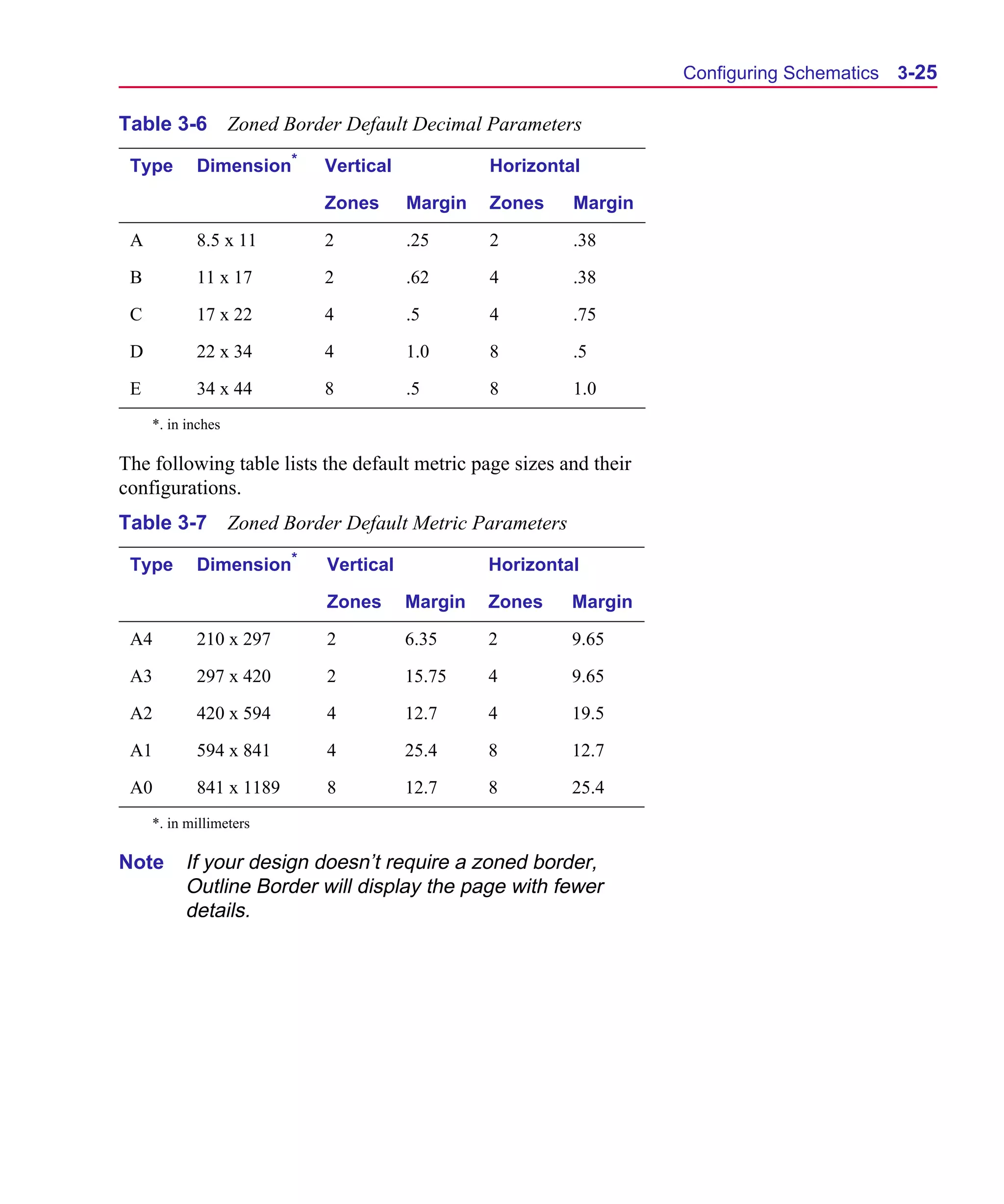
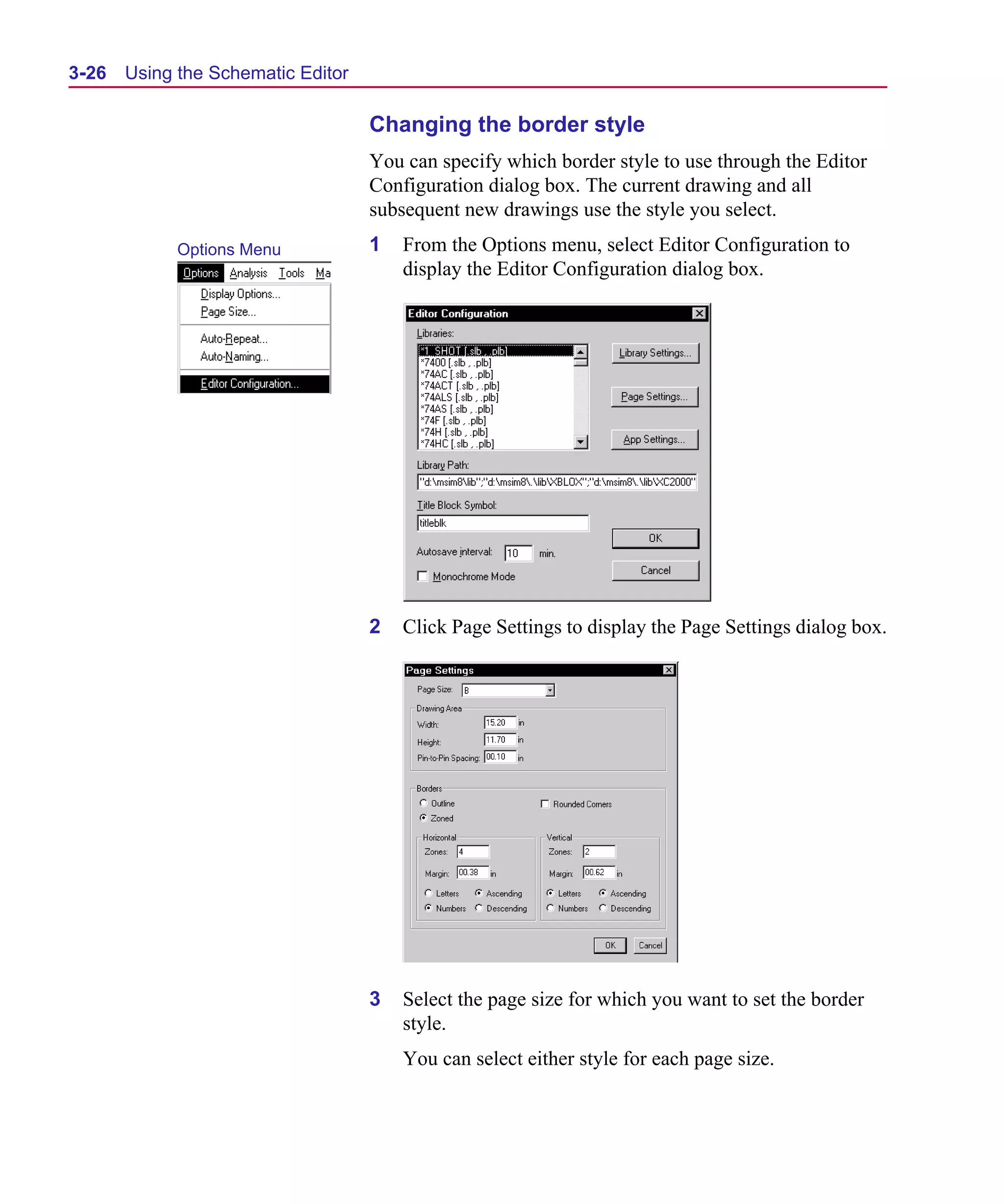
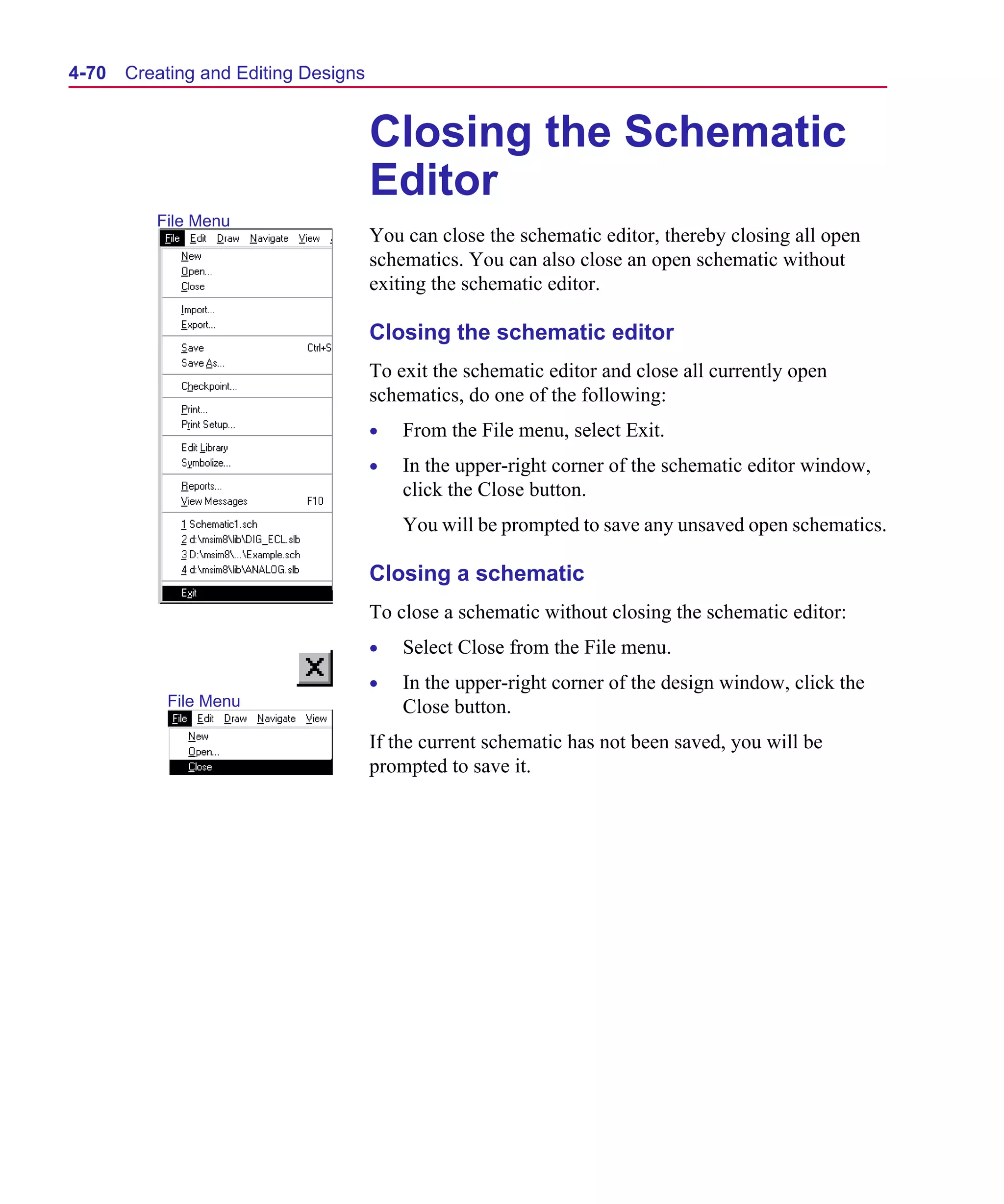
  • 212.
    Scug.bk : 06SYMBLS.FMKPage 24 Monday, June 16, 1997 10:10 AM 6-24 Creating and Editing Symbols Selecting a default pin type Note To specify the default pin type, do not select a specific pin when performing the following procedure. If a pin is selected, the pin type will only apply to that pin. 1 From the Edit menu, select Pin Type to display the Pin Type dialog box. (You can also double-click the pin to display the Change Pin dialog box.) 2 Click the appropriate option to select the pin type. Shortcut: press C+T 3 Click OK. Changing the type of a placed pin 1 Select the pin and from the Edit menu, select Change. The Float= and Modeled Pin boxes in the Change Pin dialog are only relevant for symbols that are going to be simulated with PSpice. For additional information, refer to your PSpice user’s guide. 2 In the Type list box, select a pin type. 3 Click OK. The change is only in effect for the selected pin.
  • 213.
    Scug.bk : 06SYMBLS.FMKPage 25 Monday, June 16, 1997 10:10 AM Defining and Editing Pin Types 6-25 Changing the pin name To create pin names with As you placed pins, default names were assigned. overbars, use the ‘’ character, To change the name of a pin, do the following: for example, CLK 1 Double-click the pin or pin name. Use the Pin List selection from the Part menu to view and edit 2 In the Change Pin dialog box, type the pin name in the Pin the list of all pins for the symbol. Name text box. 3 Click OK. Note Pin names MUST be unique. Changing the pin number As you placed pins, default pin numbers were assigned. To change the pin number for a pin, do the following: 1 Double-click the pin or pin number of the displayed pin to display the Change Pin dialog box. 2 In the Pin text box, type the pin number. 3 Click OK. Displaying the pin name By default, pins you place on symbols will have their pin names displayed. To disable pin names, do the following: 1 Double-click the pin or pin name to display the Change Pin dialog box. 2 Select the Display Name check box to disable the name display. 3 Click OK. Displaying the pin number By default, pins you place on symbols will have their pin numbers displayed. To disable pin numbers, do the following: 1 Double-click the pin or pin number to display the Change Pin dialog box.
  • 214.
    Scug.bk : 06SYMBLS.FMKPage 26 Monday, June 16, 1997 10:10 AM 6-26 Creating and Editing Symbols 2 Click the Edit Attributes button to display the Edit Attributes dialog box. 3 Select the PIN= entry in the list. 4 In the What to Display frame, select None to disable the pin number display. 5 Click Save Attr. 6 Click OK. 7 In the Change Pin dialog box, click OK
  • 215.
    Scug.bk : 06SYMBLS.FMKPage 27 Monday, June 16, 1997 10:10 AM Defining and Editing Pin Types 6-27 Defining and Editing Hidden Power and Ground Pins With the symbol editor, you can set a pin to be invisible. If you If you set the visibility off, you set the visibility off, you must supply the name of a connecting must supply the name of a net (typically a global net like $G_DPWR or $G_DGND) for the connecting net (typically a global pin in the Net text box. The net is recorded as a symbol attribute net like $G_DPWR or (not a pin attribute). The IPIN(<pinname>)=<net name> attribute $G_DGND) for the pin in the Net text box. conveys the net name. If $G_<net names> are used for simulation reasons (this is the case in MicroSim supplied libraries), they can be mapped to a more conventional menu for printed circuit board purposes through the .xnt files. For a specific printed circuit board layout editor, there is a <toolname>.xnt file that will convert a schematic net name into a different one. Note It is possible to map two distinct schematic net names into the same PCB net name, shorting the two together. Defining a hidden pin You can also select the pin and 1 Double-click the pin to display the Change Pin dialog box. select Change from the Edit menu. 2 Select the Hidden check box. 3 In the Net text box, type the name of the net to which the When you place the part on a hidden pin is to be connected. schematic, you can change the power or ground net to which the 4 Click OK. part is connected, by changing the value of the attribute.
  • 216.
    Scug.bk : 06SYMBLS.FMKPage 28 Monday, June 16, 1997 10:10 AM 6-28 Creating and Editing Symbols Changing Symbol Origin and Bounding Box The origin is designated for placing a part, and is the point the part is rotated around. By default, the origin is at (0,0). It is maintained as a point of reference on the schematic. The bounding box defines the selection area of the symbol when placed on a schematic. After drawing a symbol, all of the elements of the symbol must be enclosed in the bounding box. Origin By default, part symbols in the symbol libraries have the origin on the point of connection, on the upper-left pin. You can move the origin to any point on the symbol. Note When creating a symbol from scratch, the origin is placed in the upper-left corner of the bounding box. You can move it to a location of your choice after creating the symbol. If you change the origin of a symbol in the symbol editor (thus changing the location of the symbol graphics relative to that point), the symbol graphics relocate accordingly in the schematic editor whenever you edit previously created schematics. Editing a part origin Graphics Menu 1 From the Graphics menu, select Origin to change the pointer to a pencil shape. 2 Move the pointer to the point on the object where you want to place the origin and double-click to fix the origin at that point.
  • 217.
    Scug.bk : 06SYMBLS.FMKPage 29 Monday, June 16, 1997 10:10 AM Defining and Editing Pin Types 6-29 Bounding Box The bounding box is the rectangular dotted line surrounding the symbol. When you click a part from within the schematic editor, the area in which you can click and have that part be selected, is defined by the bounding box of the symbol. • All pins must be contained within the bounding box for Resizing the bounding box proper connections to be made in the schematic editor. 1 From the Graphics menu, select Bbox to change the pointer • Hidden pins, like those found to a pencil shape. on digital parts, do not have 2 Click to begin sizing the bounding box. to be, and in most cases are not, contained within the 3 Move the pointer down and to the right. A dotted box outline bounding box. follows the pointer. • Attributes do not need to be 4 Click at the location of the lower-right corner of the contained within the bounding box. bounding box.
  • 218.
    Scug.bk : 06SYMBLS.FMKPage 30 Monday, June 16, 1997 10:10 AM 6-30 Creating and Editing Symbols Editing Symbol Attributes You can add attributes (properties) to a symbol. When you add an attribute, you specify a name and a default value. This value can be changed when the symbol is used on a schematic. You can specify whether or not to display the attribute. There are two attributes that are automatically added to symbols that are created. • The REFDES attribute, whose default value is U?, specifies the reference designator pattern to use in the schematic editor. • The PART attribute displays the symbol’s name. Note When the symbol is placed on the schematic, Schematics automatically fills in the value of the PART attribute to be the name you used to place the symbol. For example, if the symbol has several aliases, it fills in the alias that you used. Therefore, you can assign a value in the symbol editor and use it to place the text on the symbol, but when the symbol is used, the value will be reassigned. Adding an attribute 1 From the Part menu, select Attributes to display the Attributes dialog box.
  • 219.
    Scug.bk : 06SYMBLS.FMKPage 31 Monday, June 16, 1997 10:10 AM Editing Symbol Attributes 6-31 2 In the Name text box, type the name of the attribute. 3 Optionally, type in the default value in the Value text box. 4 By default, the attribute Value only displays on the symbol. To disable any display, select None in the What to Display frame. 5 By default, the attribute value can be changed in the schematic editor on an instance-by-instance basis. To prevent changes to the attribute value, clear the Changeable In Schematic check box to disable this function. 6 By default, attributes that are displayed do not have their text rotated if the symbol is rotated on the schematic (to make it more readable). To have it rotate with the symbol, select the Keep relative rotation check box. 7 Click Save Attr. 8 Click OK.
  • 220.
    Scug.bk : 06SYMBLS.FMKPage 32 Monday, June 16, 1997 10:10 AM 6-32 Creating and Editing Symbols Editing a displayed attribute 1 Double-click the displayed attribute. To edit an undisplayed attribute, or to make multiple changes, click the Edit Attributes button on the toolbar.
  • 221.
    Scug.bk : 06SYMBLS.FMKPage 33 Monday, June 16, 1997 10:10 AM Using Symbol Aliases 6-33 Using Symbol Aliases A symbol has a name. It can also have one or more aliases associated with it. Aliases are alternative names that the device represented by the part are known by. For example, you can have a symbol named 74AC269, which has as one of its aliases HD74AC269P. When defining an alias, keep in mind that the aliased device will share the same graphics, pins and attributes as the primary symbol. When you place it on the schematic, however, it is treated as a separate part type. The name displayed on the schematic is that of the alias. Each alias requires its own packaging information. Adding an alias for a symbol 1 From the Part menu, select Definition to display the The PART attribute you define Definition dialog box. on a symbol will have its value filled in when you place it on the schematic. The name that you call it up with will get filled in as the PART attribute’s value. 2 Type the name of the alias in the Alias list text box. 3 Click Add. 4 Click OK.
  • 222.
    Scug.bk : 06SYMBLS.FMKPage 34 Monday, June 16, 1997 10:10 AM 6-34 Creating and Editing Symbols Specifying Part Packaging Information If you are going to use a symbol for PCB layout, you will need to specify package or device information. Package information consists of: • the number of gates per package • a list of package types (footprints) where the device is available • one or more pin assignment lists • functionally equivalent pins that can be swapped in layout Package information is used by Schematics to package together gates and to generate layout netlists. It is also used by MicroSim PCBoards. Pin Assignment Lists A pin assignment list is a list of physical pin number assignments for each package type in which a device is available. Because a device may be available in several package types (DIP14, LCC20, and so on), and each may have different pin number assignments, a single package definition can contain more than one pin assignment list. Each pin assignment list is associated with a list of package types (footprints) that the pin number assignments are valid for.
  • 223.
    Scug.bk : 06SYMBLS.FMKPage 35 Monday, June 16, 1997 10:10 AM Specifying Part Packaging Information 6-35 Packaging Definitions Packaging information is kept in a package definition, separate from the symbol definition. Both are maintained using the symbol editor. By default, the name of the package definition for a symbol corresponds to the symbol name. This can be overridden by explicitly adding a COMPONENT attribute to the symbol. Such an attribute is generally used for devices that have non-standard part names such as BJTs, those with names that begin with a ‘Q,’ or for those with more than one type of gate. Package definitions are stored in package libraries. These libraries typically have the same name as the corresponding symbol libraries, but a different extension (“.plb”). Package libraries are similar to symbol libraries in that they must be configured into the schematic editor’s list of libraries. With the Packaging menu in the symbol editor, you can create and edit package definitions. Note If you created a symbol Creating a New Package with the Symbol Wizard, it will Definition include creating a package definition. You can quickly create a package definition for an existing symbol. Creating a package definition for an existing symbol 1 Load the symbol in the symbol editor. 2 From the Packaging menu, select Edit. Shortcut: press C+E 3 Click OK to start the Package Wizard. 4 Follow the instructions on the screen. Creating a package definition from scratch 1 From the Packaging menu, select New to start the Package Wizard. 2 Follow the instructions on the screen.
  • 224.
    Scug.bk : 06SYMBLS.FMKPage 36 Monday, June 16, 1997 10:10 AM 6-36 Creating and Editing Symbols Copying a Package Definition With the Copy function in the Packaging menu, you can create a new package definition from an existing one. It is the same as the Copy function under the Parts menu, the definition may be copied from the active library or a different library. See “Making a Copy of a Symbol” on page 5. Copying a package definition Packaging Menu 1 From the Packaging menu, select Copy to display the Copy Package Definition dialog box. 2 Type the name of the package to be copied in the Existing Pkg Name text box. To select a package definition from another library, click Select Lib and select a library from the File Open dialog box. 3 Type a new name for the package in the New Pkg Name text box. 4 Click OK.
  • 225.
    Scug.bk : 06SYMBLS.FMKPage 37 Monday, June 16, 1997 10:10 AM Specifying Part Packaging Information 6-37 Editing a Package Definition You can edit a package definition for the active symbol or for any package definition in the open package library. Editing the package definition for the active symbol 1 From the Package menu, select Edit to display the Package definition dialog box. The options within the dialog box are discussed in the following sections. 2 When you are finished with the dialog box, click OK. Editing a package definition in the open package library Packaging Menu 1 From the Packaging menu, select Get to display the Get Package Definition dialog box. 2 Type the name of the package in the Pkg Name text box or click a name from the list. 3 Click Edit to display the Package Definition dialog box with the values for the requested package listed. The options within the dialog box are discussed in the following sections. 4 When you are finished with the Package Definition dialog box, click OK. Editing Package Types When you are editing a package definition, you can specify the package types in which a component is available. The package type name defines the footprint name to be used in layout.
  • 226.
    Scug.bk : 06SYMBLS.FMKPage 38 Monday, June 16, 1997 10:10 AM 6-38 Creating and Editing Symbols Adding a package type for a component To add a new package type to the list of available package types for the component: Shortcut: press C+E 1 From the Packaging menu, select Edit to display the Package Definition dialog box with the values for the symbols listed. 2 Click Edit Package Types to display the Edit Package Types dialog box. Note The Configured Package Types List is a list of 3 In the Package Types per Pin Assignment text box, type the commonly used package name of the package (for example, DIP14) or select a type types; it is not an exhaustive from the Configured Package Types scroll list. list. 4 Click Add. 5 Click OK.
  • 227.
    Scug.bk : 06SYMBLS.FMKPage 39 Monday, June 16, 1997 10:10 AM Specifying Part Packaging Information 6-39 6 In the Package Definition dialog box, click OK. If there are multiple package types with the same pin-outs, you can type them all on the same line, separating them with commas (for example, DIP14, SO14). Otherwise, repeat steps 3 and 4 for each package type.
  • 228.
    Scug.bk : 06SYMBLS.FMKPage 40 Monday, June 16, 1997 10:10 AM 6-40 Creating and Editing Symbols Specifying physical pin numbers For each package type (or group of package types that share the same pin-out) the physical pin numbers for each pin must be defined. The Pin Assignments frame in the Package Definition dialog box shows the pin numbers assigned for each logical pin on the symbol (for the active package type). Note The pin name must match that used in the symbol. If the pin name does not match that used on the symbol, or you need to make a change, perform the following procedure. Editing pin numbers 1 From the Packaging menu, select Edit to display the Package Definition dialog box (shown on 6-38). 2 In the Package Types list, select the package type to be edited. 3 Click Edit Pins to display the Pin Assignments dialog box. 4 In the list in the lower left of the dialog box, click the pin you want to edit. The pin name and pin number appear in the boxes directly above the list. Note Pin numbers can be 5 Make your changes in the Pin Name and Pin No. text boxes. alphanumeric. 6 Click Save Assignment. Any changes you make to a pin assignment are not in effect until you select Save Assignment. If you make a change to
  • 229.
    Scug.bk : 06SYMBLS.FMKPage 41 Monday, June 16, 1997 10:10 AM Specifying Part Packaging Information 6-41 a pin and then select another pin from the list without saving, the changes are not implemented. 7 When you are finished editing pins, click OK. 8 In the Package Definition dialog box, click OK. Specifying Information for Multi-gate Components Defining the number of gates and their gate names 1 From the Packaging menu, select Edit to display the Package Definition dialog box (see 6-38). 2 Click Edit Gate Types to display the Edit Gate Types dialog box. Parts that have the same gates have only one type of gate (gate 1 by default). By defining the names of each gate, you also define the number of gates. 3 Select the entry in the list labeled 1. 4 In the Gates text box, type the names of the gates separated by commas (for example, A,B,C,D). 5 Click Change. 6 Click OK. 7 In the Package Definition dialog box, click OK.
  • 230.
    Scug.bk : 06SYMBLS.FMKPage 42 Monday, June 16, 1997 10:10 AM 6-42 Creating and Editing Symbols After you have defined the Defining pin number assignments names of the gates, you must define pin numbers for each pin 1 From the Packaging menu, select Edit to display the in each gate. Package Definition dialog box (see 6-38). 2 Click Edit Pins to display the Pin Assignments dialog box (see 6-40). 3 In the Pin No. text box, type a pin number for each pin for each gate defined in the previous procedure. 4 Click Save Assignment. 5 Click OK. 6 In the Package Definition dialog box, click OK. On the symbol for the gate Defining shared power and ground pins defined above, if there are any shared power pins, ground pins 1 From the Packaging menu, select Edit to display the or both, you have to define them Package Definition dialog box (see 6-38). as hidden pins. 2 Click Edit Shared Pins to display the Shared Pin Assignments dialog box. 3 Type the name of the pin (as defined on the symbol) in the Pin Name text box. 4 Type the physical pin number in the Pin No. text box. 5 Click Add. 6 Click Save Assignment. 7 Click OK. 8 In the Package Definition dialog box, click OK.
  • 231.
    Scug.bk : 06SYMBLS.FMKPage 43 Monday, June 16, 1997 10:10 AM Specifying Part Packaging Information 6-43 Specifying Which Pins Can Be Swapped Pins within a gate that are logically equivalent to one another can be swapped. Pin swapping is usually done during layout to minimize the complexities of circuit routing. Enabling pin swapping 1 From the Packaging menu, select Edit to display the Package Definition dialog box (see 6-38). 2 Click Edit Pin Swaps to display the Pin Swaps dialog box. 3 In the Pin Names list, select two or more pins that you want to swap. 4 Click Assign. The pin numbers appear in the Pin Swaps list separated by commas. 5 Repeat steps 3 and 4 for any other pin number combinations that you want to swap. 6 Click OK. 7 In the Package Definition dialog box, click OK.
  • 232.
    Scug.bk : 06SYMBLS.FMKPage 44 Monday, June 16, 1997 10:10 AM 6-44 Creating and Editing Symbols Creating Components With Multiple Gate Types Some components consist of two or more different types of gates (for example, ECL devices). Each type of gate will have a different logical symbol with a unique name, but reference the same package definition. For these types of components, you have to perform several additional steps in defining the package. Associating more than one symbol with a component For each symbol: 1 From the Part menu, select Attributes to display the Attributes dialog box. 2 Type a new attribute name COMPONENT in the Name text box. 3 Type a value in the Value text box that explicitly specifies the package definition name. Example: For a 10102 package, you could have two symbols: 10102NOR and 10102ORNOR. Both symbols could have the attribute COMPONENT = 10102. 4 Click Save Attr. 5 Type a new attribute name GATETYPE in the Name text box.
  • 233.
    Scug.bk : 06SYMBLS.FMKPage 45 Monday, June 16, 1997 10:10 AM Specifying Part Packaging Information 6-45 6 Type a value in the Value text box corresponding to one of the gate types specified in the package definition. Example: For the 10102NOR symbol, GATETYPE = 1 (gates A,B,C); for the 10102ORNOR symbol, GATETYPE = 2 (gate D). 7 Click Save Attr. 8 Click OK to exit the dialog box. 9 In the procedure for specifying information for multi-gate components (see Specifying Information for Multi-gate Components on page 6-41), define the different gate types comprising the package. Example: Type 1 is the NOR gate and type 2 is the ORNOR gate. 10 For each gate type, define the gates and the pin assignments for each gate (see Specifying Information for Multi-gate Components on page 6-41). The pin assignments define the pin numbers for each gate that correspond to each pin name. Deleting a Package Definition Use the Remove function to delete one or more package definitions from the library. Packaging Menu Deleting a package definition 1 From the Packaging menu, select Remove to display the Remove Package Definition dialog box. 2 Type the name of the package to be deleted, or click to select a package from the list. 3 Click Delete to delete the selected item. 4 Click Close.
  • 234.
    Scug.bk : 06SYMBLS.FMKPage 46 Monday, June 16, 1997 10:10 AM 6-46 Creating and Editing Symbols Configuring Package Types When you create package definitions and specify package types for a device, you can pick from a list of commonly used package type names or enter one of your own. To add to the list of commonly used package type names that are presented, use the Configure Package Types selection from the Packaging menu. Also use this selection to configure package types into the package classes that are used when you package a design. When you package a design, you can assign priorities to use when deciding which package type to assign to devices that are available in more than one type. For example, all DIP package types (DIP8, DIP14, and so on) are assigned to the DIP class. You can indicate that you want to use DIP package types whenever possible. Or you might change the priorities to assign SMT package types if possible. Adding a package type 1 From the Packaging menu, select Configure Package Types to display the Configure Package Types dialog box. 2 In the Package Types text box, type in the new package type name. 3 In the Class list, select one of the existing classes for the new package type. If you need to create a class, do the following: a Click Edit Classes. b Type in the name of the new class in the Package Class text box. c Click Add.
  • 235.
    Scug.bk : 06SYMBLS.FMKPage 47 Monday, June 16, 1997 10:10 AM Specifying Part Packaging Information 6-47 d Click OK. 4 Click Add. 5 Click OK.
  • 236.
    Scug.bk : 06SYMBLS.FMKPage 48 Monday, June 16, 1997 10:10 AM 6-48 Creating and Editing Symbols Configuring Custom Libraries When you create a library, whether it is a library of symbols or a library of packaging information, the symbols and packaging information are not available for use in the schematic editor until the library is configured. Configuration consists of adding the library file to the list of configured files. Making a symbol library available in Schematics 1 From the schematic editor, select Editor Configuration from the Options menu to display the Editor Configuration dialog box (see 3-18). 2 Click Library Settings to display the Library Settings dialog box. 3 Type the name of the new symbol library in the Library Note When you save Name text box (without the .slb extension). changes to a library, you will 4 Select the Symbol check box to indicate that the new library be asked if you want to add is a symbol library. Symbol libraries are searched in the the library to the list of order in which they are listed in the Library Settings dialog configured libraries. Answer box. yes if you want to make the 5 To add a symbol library at a specific point in the list: library available to all schematics. a Click the library name above where you want to include the one you are adding to the list.
  • 237.
    Scug.bk : 06SYMBLS.FMKPage 49 Monday, June 16, 1997 10:10 AM Configuring Custom Libraries 6-49 b Type the name of the one you are adding in the Library Name text box. Be sure the appropriate check boxes are selected to indicate whether you are configuring just the symbol library, or the symbol and package library. 6 Click Add. 7 Click OK. Note You may need to modify the Library Path (in the upper-right corner of the Editor Configuration dialog box) to include any directory paths that contain library files you added in the previous dialog. When exiting the Editor Configuration dialog box, Schematics reloads all of the symbol libraries in the list, making the symbols contained in them immediately usable in the schematic editor.
  • 238.
    Scug.bk : 06SYMBLS.FMKPage 50 Monday, June 16, 1997 10:10 AM 6-50 Creating and Editing Symbols Example—Creating Symbols from Scratch You can create custom symbols from scratch in Schematics. Creating custom symbols includes: • drawing the graphics • adding pins • changing the grid size • defining attributes • configuring the new symbol library To quickly create common symbols, use the Symbol Creation Wizard (see Using the Symbol Wizard on page 6-3), or for examples of creating common symbols by copying existing ones (see Creating a Symbol by Copying Another Symbol on page 6-5), or using AKOs (see Using AKO Symbols on page 6-7). When creating a symbol, it is not The following example demonstrates how to create a symbol for necessary to have already a diode bridge rectifier. defined a subcircuit or model. The issue of having a model or subcircuit definition will only become important when you are ready to simulate the design. Diode Bridge Rectifier For this example, assume there is a subcircuit definition named BRIDGE stored in a library file called mylib.lib on your local drive. The subcircuit definition would look like the following: .SUBCKT BRIDGE 1 2 3 4 D1 4 1 D1N914 D2 1 3 D1N914 D3 4 2 D1N914 D4 2 3 D1N914 .ENDS The symbol to be created will look very similar to Figure 6-2.
  • 239.
    Scug.bk : 06SYMBLS.FMKPage 51 Monday, June 16, 1997 10:10 AM Example—Creating Symbols from Scratch 6-51 Figure 6-2 Example of Diode Bridge Rectifier Symbol Opening or Creating a Symbol Library To open or create a symbol library 1 In the schematic editor, from the File menu, select Edit Note that the file status is Library to open the symbol editor. <new>:<new> (at the top of the window). This means it is a new 2 To add this symbol to an existing symbol library: file (and a new symbol). Keep in a From the File menu, select Open. mind that new also means undefined. b Navigate to your file and open it. 3 If you want to create a new library: a From the File menu, select Save As. b After you type in a name, click Yes to add it to the list Answering yes adds the file to of configured libraries. the list of symbol libraries that Schematics reads in each time it 4 From the Part menu, Select New to open the Definition is started. dialog box. 5 Enter: • A description of the device (optional)—it will display when you browse for a symbol in the schematic editor. • A name—a symbol name to get the part in Schematics (in this case it is Bridge).
  • 240.
    Scug.bk : 06SYMBLS.FMKPage 52 Monday, June 16, 1997 10:10 AM 6-52 Creating and Editing Symbols • The type of the part—the part type is most commonly “component,” as it is in this example. This example does not use • An AKO or alias—use AKO if you want it to inherit the AKOs or aliases. graphics and attributes from another symbol. Use Alias to assign additional names that this symbol can be used for. Drawing the Graphics After the symbol has a definition, the next step is to draw the graphics. For this example, it is possible to copy the graphics from the regular diode symbol, however, that particular graphic is oriented vertically and horizontally, while this example calls for one that is at a 45-degree angle. To draw the graphics This produces a finer drawing 1 From the Options menu, select Display Options and set the grid, approximately .02 inches Grid Spacing to 00.02. between grid dots. a If not already enabled, select Stay-on-Grid. b If not already enabled, select Snap-to-Grid. Enabling these features will assist in lining up the segments of the symbol. c Click OK. 2 From the Graphics menu, select Draw Polyline to change the cursor to a pencil. It does not matter where you 3 Draw the diode that is located in the upper right part of the begin drawing because it can be symbol: moved later. a Click once to start drawing. b Make a horizontal line 6 grid dots long. (Do not count the starting grid dot.) c Click once to anchor the end, move the cursor up 6 grid dots, and click to anchor the line midpoint. d Continue drawing and close the triangle by double- clicking at the starting point. e Draw a line at a 45-degree angle across the right angle of the symbol already created to denote the cathode.
  • 241.
    Scug.bk : 06SYMBLS.FMKPage 53 Monday, June 16, 1997 10:10 AM Example—Creating Symbols from Scratch 6-53 4 Place three copies of this diode: a Drag the mouse to select the area that includes the graphics. Release the mouse to turn the lines red. If they do not turn red, reselect the area, or S+ click the unselected items to add them to the selected group. b From the Edit menu, select Copy. c From the Edit menu, select Paste. d Place one copy nearby; another copy will remain attached to the cursor. e Before placing the next two copies, rotate the graphics You can rotate graphics by by pressing C+ R. selecting Rotate from the Edit menu. The cursor can still be There are now four diode symbols: two pointing to the used to select menu commands, upper right and two pointing to the lower right. even when in the process of 5 From the Options menu, select Display Options and reset placing a graphic. the grid to 00.10. Verify that Stay-on-Grid and Snap-to-Grid are still enabled. 6 From the Graphics menu, select Draw Box to start the box drawing mode: a Click once (approximately) one grid square southeast of the small origin box. b Drag to the lower-right corner position. c When you have the lower-right corner in position, click If you make a mistake, S+ to anchor it in place. click, and hold the right mouse button, to select and drag the 7 Select the diode symbols and move them to their box corner to a new location. approximate locations inside of the box. Placing Pins To place pins 1 From the Graphics menu, select Place Pins. 2 To place the pins: a Place the IN+ and IN- pins as shown in Figure 6-2.
  • 242.
    Scug.bk : 06SYMBLS.FMKPage 54 Monday, June 16, 1997 10:10 AM 6-54 Creating and Editing Symbols b Press C+ R to rotate the pin that is attached to the cursor. c Place the OUT+ and OUT- pins as shown in Figure 6-2. You can also click the pin to 3 Double-click the default name (pin1 through pin 4) of each change the name. pin to change their names to the following: IN+ To disable or modify the way the IN- pin numbers are displayed: OUT+ 1 Double-click the pin. OUT- 2 In the Change Pin box, click Edit Attributes. 4 Single-click the names or numbers to move them to their appropriate position. 3 In the Attributes box, select pin=<number>. Keep in mind that the ‘X’ on the pin is the point where the 4 Under What to Display, click wires will connect, and Schematics will expect to find the the option you want. connection points on the 00.10 grid 5 Click Save Attr. 6 Click OK. Finishing Touches This example has pin numbers 1 From the Options menu, select Display Options and set the set to display ‘None’. grid size to 00.01. 2 From the Graphics menu, select Draw Polyline to draw the connecting lines between the diodes in the bridge and also to the tail end of the pins. If necessary, select Display Options from the Options menu to turn off Stay-on-Grid. This will enable you to move graphics without being restricted to the grid. Note Do not move the pins. If they are not on 10-unit boundaries, you will not be able to connect to them when in Schematics. 3 From the Graphics menu, select Draw Text to place the labels D1 through D4 on the diode symbols. 4 To change the size of the text, double-click the text and adjust the size. The number is a percentage relative to the usual size.
  • 243.
    Scug.bk : 06SYMBLS.FMKPage 55 Monday, June 16, 1997 10:10 AM Example—Creating Symbols from Scratch 6-55 5 From the Graphics menu, select Box and click once to attach the bounding box to the cursor. a Move the cursor to the lower right so that the bounding box encloses the entire symbol. b Click again to freeze the box; all pin connection points If you click anywhere within the must lay on, or inside of, the boundary box. The area of the boundary box in boundary box defines the area of the symbol in Schematics, the symbol will be Schematics. selected. 6 From the Graphics menu, select Origin and click to attach The origin is the point the symbol the origin to the cursor. will rotate around when in Schematics. Usually it is on the a Move it into position. hot spot of the top left pin, but it b Click again to drop it. is not required. Setting the Attributes The last step in creating a symbol is to set up the attributes so the symbol can be used for simulation. 1 From the Part menu, select Attributes to display the following attributes in the Attributes dialog box: REFDES PART MODEL TEMPLATE a Click REDES and set its value to: You can also set it to: BRIDGE? U? This is the reference designator that appears in your schematic and in the netlist. b Click Save Attr. 2 Click PART. a Set its value to the name that you used in the original definition box. b Click Save Attr.
  • 244.
    Scug.bk : 06SYMBLS.FMKPage 56 Monday, June 16, 1997 10:10 AM 6-56 Creating and Editing Symbols MODEL and TEMPLATE are 3 Click MODEL. only required if you are going to a Set its value to the same value as in your model or simulate. subcircuit definition. b Click Save Attr. 4 Click TEMPLATE. The TEMPLATE attribute is the template for generating the netlist entry for this device. The TEMPLATE for this example looks like the following: X^@REFDES %IN+ %IN- %OUT+ %OUT- @MODEL Notice that the names used Parameter Description match the pin NAME as defined X references a subcircuit definition on the pins in the symbol; the ORDER of the pins in the ^@REFDES appends the hierarchical path (if there is one) TEMPLATE are listed in the and the reference designator to the ‘X’ in the same ORDER as those in the netlist subcircuit. % indicates that the item following will be a pin Looking at the symbol on page name one, note that IN+ is the same as @MODEL indicates the value of the MODEL attribute will node 1 in the subcircuit be placed here definition. 5 Click Save Attr. 6 Click OK. 7 Make any last changes and select Save from the File menu. You can now call up the diode bridge symbol for use in a design. Configuring the Models The diode bridge symbol is now ready for use in Schematics, but the model library must also be configured if the design is going to be simulated. 1 From the Analysis menu, select Library and Include Files. 2 If the required library is not already in the Library section, click Browse.
  • 245.
    Scug.bk : 06SYMBLS.FMKPage 57 Monday, June 16, 1997 10:10 AM Example—Creating Symbols from Scratch 6-57 3 Locate the library and click Open to put the library with its path in the File Name field. 4 Select either Add Library* or Add Library. The ‘*’ causes the file to be added as a global library. A global library will be available to every schematic until it is removed from the list. Local libraries are available only to the active design, but can be added to another, or made global if needed in the future.
  • 246.
    Scug.bk : 07HIERCH.FMKPage 1 Monday, June 16, 1997 10:10 AM Creating and Editing Hierarchical Designs 7 Overview This chapter explains the procedures for creating and editing a hierarchical design. Many of the procedures used for creating and editing a hierarchical design are the same as those for creating and editing a design as explained in Chapter 4,Creating and Editing Designs. This chapter has the following sections that explain the procedures that are unique to hierarchical designs: Creating and Editing Hierarchical Blocks on page 7-4 describes how to create and edit hierarchical blocks placed on a schematic. Creating and Editing Hierarchical Symbols on page 7-9 describes how to use the symbol editor to create hierarchical symbols. Using Interface Ports on page 7-12 describes how to specify connections to lower-level schematics. Setting Up Multiple Views on page 7-13 describes how to set up and use alternate representations for a hierarchical block or symbol.
  • 247.
    Scug.bk : 07HIERCH.FMKPage 2 Monday, June 16, 1997 10:10 AM 7-2 Creating and Editing Hierarchical Designs Navigating Through Hierarchical Designs on page 7-15 describes how to move between pages in a hierarchical design. Assigning Instance-Specific Part Values on page 7-17 describes how to assign instance-specific parts values. Passing Information Between Levels of Hierarchy on page 7-18 describes how to define the parameters of hierarchical blocks and symbols without concern for how deeply their contents are nested. Example—Creating a Hierarchical Design on page 7-20 provides the step-by-step procedures for creating the top-level schematic with the block symbol representing the lower-level schematic and creating the lower-level schematic.
  • 248.
    Scug.bk : 07HIERCH.FMKPage 3 Monday, June 16, 1997 10:10 AM Hierarchical Design Methods 7-3 Hierarchical Design Methods You can create a hierarchical drawing in either of two ways: Hierarchical design is a useful way to structure large projects, • Create a block and later assign a schematic to the block (top- especially those starting from a down method). block diagram and those with • Create a schematic and turn it into a symbol to be used in a multiple occurrences of common higher level design (bottom-up method). circuitry. Use the method of design that best fits your design needs for each circuit you create. Top-down method By creating one or more blocks and wiring them together, you can establish a functional block diagram. The block diagram can be used as a top-level sketch for your design. After you have mapped out the block circuitry, you can push into each block and start drawing a new schematic, or assign an existing schematic to the block. You can also set the view that each schematic will represent (such as a PCB or a transistor). Bottom-up method If you already have a schematic that you would like to use in larger designs, you can create a hierarchical symbol to represent the schematic. The hierarchical symbol can then be electrically connected in another design.
  • 249.
    Scug.bk : 07HIERCH.FMKPage 4 Monday, June 16, 1997 10:10 AM 7-4 Creating and Editing Hierarchical Designs Creating and Editing Hierarchical Blocks A hierarchical block represents a collection of circuitry in the form of one or more lower-level schematics. The block displays on a schematic as a rectangle with a variable number of input and output ports. You can place one or more instances of a hierarchical block on a schematic. After you place a block, you can stretch it, reshape it and move it. You can create a schematic to be represented by the block or associate an existing schematic with the block. Wires and buses that end at any of the edges of the block automatically connect to the block. Pins are created where these connections occur. A default pin name appears within the block; this pin name can be changed. Creating a hierarchical block 1 Click the Draw Block button to change the pointer to a rectangle representing the block. 2 Move the block to the desired location and click to place it. 3 Right-click to stop placing blocks. The block is assigned a reference designator of HBn (where n is a sequential number beginning with 1). You can change the reference designator of the block.
  • 250.
    Scug.bk : 07HIERCH.FMKPage 5 Monday, June 16, 1997 10:10 AM Creating and Editing Hierarchical Blocks 7-5 Changing the reference designator of the hierarchical block 1 Double-click the HBn reference designator to display the Edit Reference Designator dialog box. 2 Type the reference designator in the Package Reference The block, as placed, is a Designator text box. standard size, orientation and shape. You can stretch and 3 Click OK to close the dialog box. reshape the block. Resizing a hierarchical block 1 Select the block to display its handles. To rotate the block, select it and press C+R. (See Rotating 2 Click one of the handles and drag to resize the block. Parts on page 4-10.) Creating a schematic for a hierarchical block 1 Select the block. Shortcut: press 2 2 From the Navigate menu, select Push. You can also double-click the If the block is new, the Setup Block dialog box appears. block to achieve the same results as steps 1 and 2.
  • 251.
    Scug.bk : 07HIERCH.FMKPage 6 Monday, June 16, 1997 10:10 AM 7-6 Creating and Editing Hierarchical Designs The Implementation frame in this dialog will only display if you are 3 Type the new schematic name. using Design Lab. 4 Click OK. Note Interface input and A new schematic displays and contains interface input and output ports are created output ports corresponding to the pins connected to the block. automatically only the first The input ports correspond to the pins connected to the left side time you push into the block. of the block. The output ports correspond to the pins connected Thereafter, you must to the right side of the block. manually add any additional interface input and output ports. You can move the interface port symbols in the same way that you move other symbols. You can also associate an existing schematic with a hierarchical block. See Associating an Existing Schematic on page 7-8.
  • 252.
    Scug.bk : 07HIERCH.FMKPage 7 Monday, June 16, 1997 10:10 AM Creating and Editing Hierarchical Blocks 7-7 Editing a pin name on a hierarchical block 1 Select the pin on the hierarchical block. 2 Click the Edit Attributes button to display the Change Pin dialog box. 3 Type the desired pin name in the Pin Name text box. Double-click the pin to achieve the same results as steps 1 and 4 Click OK. 2. Deleting a pin on a hierarchical block 1 Select the pin. 2 Press D.
  • 253.
    Scug.bk : 07HIERCH.FMKPage 8 Monday, June 16, 1997 10:10 AM 7-8 Creating and Editing Hierarchical Designs Associating an Existing Schematic Instead of pushing into the block to create a schematic (see 7-5), you can associate an existing schematic with a hierarchical block. Associating an existing schematic with a hierarchical block 1 Select the Draw block button. 2 Place the block and be sure it stays selected. You can also double-click the 3 From the Navigate menu, select Push to display the Set Up block to display the Set Up Block Block dialog box. dialog box. 4 In the Filename text box, enter the name of the existing schematic to be associated with this block. 5 Click OK. When you associate an existing schematic with a new block, pins will be automatically created on the block for each interface port on the sub-schematic.
  • 254.
    Scug.bk : 07HIERCH.FMKPage 9 Monday, June 16, 1997 10:10 AM Creating and Editing Hierarchical Symbols 7-9 Creating and Editing Hierarchical Symbols Schematics uses two basic types of symbols: primitive and hierarchical. Primitive symbols are low level symbols that explicitly Most of the symbols provided in contain all of the information required by the netlister. They can the Schematics symbol libraries be modified by editing their graphics, pins, and attribute lists in are primitive. Note that a symbol, the symbol editor. for example, a flip-flop, may be primitive for a PCB netlister, but hierarchical for PSpice. Hierarchical symbols have the same appearance as primitive symbols in Schematics. They contain one or more There is no built-in limit to the levels of schematics inside them while primitive symbols do not. number of levels of nesting They can also be modified by pushing into them from within the allowed in a symbol. Nesting of schematic editor or symbol editor and editing the associated hierarchical symbols or blocks schematics. within other hierarchical symbols or blocks is possible. Creating a Hierarchical Symbol The Symbolize function automatically creates a symbol to represent a schematic. The symbol editor is then used to modify any portion of the resulting symbol (graphics, pins, and attributes). When preparing a schematic for symbolization, follow these guidelines: • Place input and output interface ports (IF_IN, IF_OUT) at the inputs and outputs of the schematic. Interface ports are mapped to I/O pins placed on the left (input) and right (output) of the new symbol. • Place global ports (GLOBAL or BUBBLE) to bring out global nets or connections as hidden pins. Global ports are mapped to hidden pins placed on the top and bottom of the new symbol. An IPIN(xxx) attribute, with a value that is the name of the net that it is connected to, is created for each
  • 255.
    Scug.bk : 07HIERCH.FMKPage 10 Monday, June 16, 1997 10:10 AM 7-10 Creating and Editing Hierarchical Designs hidden pin. Hidden pins are especially useful for global power and ground on digital parts ($G_DPWR, $G_DGND). File Menu Symbolizing a schematic 1 Open the schematic. 2 From the File menu, select Symbolize to display the Save As dialog box. 3 Type the name of the symbol. 4 Click OK. A file selection dialog box prompts for a symbol library to save the symbol in. 5 Select a library. Note Avoid modifying the symbol libraries that were 6 Click OK. shipped with your software. When you symbolize a schematic, the resulting symbol is Create a new symbol library hierarchical (that is, it will have a schematic associated with it, for the custom symbols you so you can push into the symbol and view that schematic). create. After you have symbolized your schematic, you need to make the symbols in your new symbol library available to Schematics.
  • 256.
    Scug.bk : 07HIERCH.FMKPage 11 Monday, June 16, 1997 10:10 AM Creating and Editing Hierarchical Symbols 7-11 Converting Hierarchical Blocks to Symbols When you finish editing a hierarchical block, you have the option of turning the block into a symbol. By making the block a symbol, you make it available for use in other schematics. Converting a block to a symbol 1 Select the block. Edit Menu 2 From the Edit menu, select Convert Block to display the Save As dialog box. 3 Type a name for the symbol. 4 Click OK to display the Open dialog box. 5 Select a library. 6 Click OK. Schematics creates a rectangular symbol to represent the block. One pin is placed on the new symbol for each wire or bus that was connected to the block. The width of the block shrinks one unit on each side to accommodate symbol pins without requiring Note Converting a block to a rewiring. symbol is a one-way process. After you convert a block into a symbol, you cannot change that symbol back into a block.
  • 257.
    Scug.bk : 07HIERCH.FMKPage 12 Monday, June 16, 1997 10:10 AM 7-12 Creating and Editing Hierarchical Designs Using Interface Ports When you use a block or symbol to represent an underlying schematic, connections to the underlying schematic are made by means of the pins on the block or symbol. The pins on the block or symbol must correspond to interface ports placed on the underlying schematic, that is, for each pin there must be a corresponding interface port with the same name as the pin. If a bus is connected to the block or symbol, the pin name must indicate the number of signals, such as, CLK[0:3]. The interface port would have the same name, such as, CLK[0:3]. If you make changes to the pins on a block or symbol, you must make the corresponding changes on any underlying schematics it represents. If you... You Must... add a pin add an interface port with the same name as the pin. delete a pin delete the corresponding interface port. change the name of a change the label of the corresponding pin interface port. There are three interface port symbols available in “port.slb”: IF_IN IF_OUT INTERFACE You can use the symbol editor to create custom interface ports.
  • 258.
    Scug.bk : 07HIERCH.FMKPage 13 Monday, June 16, 1997 10:10 AM Setting Up Multiple Views 7-13 Setting Up Multiple Views A view is an underlying representation of a hierarchical block or symbol. A block can have more than one underlying representation by having multiple views. For example, you can define a part that has a transistor-level schematic as one view and a behavioral model schematic as another view. Note There are no restrictions on how many views a part can have, or on what the views are. Hierarchical symbols have one or more views. Every If you are also using PLSyn for hierarchical block or symbol always has a default view that is programmable logic synthesis, initialized as the first schematic assigned to it. You can change you may also configure a view to the default view. You can create and associate additional views be the name of a DSL file. Refer at any time. You can modify, delete or rename views. Each view to the MicroSim PLSyn User’s Guide for more information. is associated with a schematic, and multiple views can point to the same schematic. Translators To take different views of a design, configure a translator to look for separate view attributes. A translator produces an alternate representation for a schematic. For example, the Schematics netlister is a translator that operates on a schematic to produce a PSpice netlist. A translator typically looks at information carried by the symbols on a schematic and may or may not also use the implicit connectivity.
  • 259.
    Scug.bk : 07HIERCH.FMKPage 14 Monday, June 16, 1997 10:10 AM 7-14 Creating and Editing Hierarchical Designs Setting up an associated view for the Translator 1 From the Options menu, select Translators to display the Options Menu Translators dialog box. 2 Select a Translator from the list or type a name in the Translator text box. 3 Type the name of the view in the View text box. 4 Click Apply. 5 Click OK.
  • 260.
    Scug.bk : 07HIERCH.FMKPage 15 Monday, June 16, 1997 10:10 AM Navigating Through Hierarchical Designs 7-15 Navigating Through Hierarchical Designs The Navigate menu has functions that enable you to move between pages, create new pages, delete pages, and copy pages. You can move within a hierarchical design using functions from the Navigate menu. You can push into a block from the schematic, move up and down in hierarchical levels and identify the hierarchical path of a selected symbol. Moving down in a hierarchy 1 Select the hierarchical block or symbol. Shortcut: press 2 2 From the Navigate menu, select Push. a If the selected item is represented by only one lower- Double-clicking the hierarchical level schematic, the schematic will display for editing. block or symbol gives the same b If the selected item represents more than one schematic results as steps 1 and 2. (that is, has multiple views), you can select the view to be edited in a dialog box that will appear. Moving up in a hierarchy Shortcut: press 3 1 From the Navigate menu, select Pop. Navigate Menu If you have made any changes to the present level in the hierarchy, you are prompted to save the modifications or to move up to the next higher level without saving changes. Moving to the top in a hierarchy 1 From the Navigate menu, select Top. The top-level schematic appears in the active window.
  • 261.
    Scug.bk : 07HIERCH.FMKPage 16 Monday, June 16, 1997 10:10 AM 7-16 Creating and Editing Hierarchical Designs Finding where active schematic fits in a hierarchy Navigate Menu 1 From the Navigate menu, select Where to display the Where dialog box. The dialog box shows where the open schematic fits in the hierarchy of the open design. 2 Click OK.
  • 262.
    Scug.bk : 07HIERCH.FMKPage 17 Monday, June 16, 1997 10:10 AM Assigning Instance-Specific Part Values 7-17 Assigning Instance- Specific Part Values The Edit Schematic Instance function enables you to view and edit the instance specific attributes associated with the instance of the block or hierarchical symbol that you pushed into. You can only add, change, or delete attributes when this function is activated. Any changes only apply to this instance of the hierarchical block or symbol. Editing an instance of the schematic Shortcut: press 2 1 From the Navigate menu, select Push to push into the hierarchical block or symbol. 2 From the Navigate menu, select Edit Schematic Instance. Navigate Menu A check mark appears next to the menu item to show that it has been selected. Note Any changes you make effect only this instance of the schematic. To make changes to the schematic itself, use the Edit Schematic Definition function. Editing the schematic definition Shortcut: press 2 1 From the Navigate menu, select Push to push into the hierarchical block or symbol. 2 From the Navigate menu, select Edit Schematic Definition. A check mark appears next to the menu item to show that it has been selected. You can now edit the schematic. Any changes that you make effect all instances of hierarchical blocks and symbols that reference this schematic. Note Edit Schematic Instance and Edit Schematic Definition are mutually exclusive functions.
  • 263.
    Scug.bk : 07HIERCH.FMKPage 18 Monday, June 16, 1997 10:10 AM 7-18 Creating and Editing Hierarchical Designs Passing Information Between Levels of Hierarchy With Schematics, you can create a lower-level schematic such that different instances of it will have different component values. For instance, a lower-level schematic contains a certain resistor. The hierarchical block or symbol representing the lower-level schematic defines the value of the resistor. The following procedure shows how you can place one instance of a block and define the resistor value to be 10K and another instance and have the resistor value be 20k. 1 In the lower-level schematic, double-click the resistor value to display the Set Attribute Value dialog box (refer to 4-29). 2 In the Value text box enter {@RESISTORVALUE}. 3 Click OK. Shortcut: Press C+S 4 Save the lower-level schematic. 5 Place a block representing the lower-level schematic on the top-level (or higher-level) schematic (see Creating and Editing Hierarchical Blocks on page 7-4). 6 Select the block. 7 From the Edit menu, select Attributes to display the Attribute Editing dialog box (refer to 4-12). 8 Add an attribute called RESISTORVALUE with a value of 10k. 9 Click OK. 10 Place another block representing that same lower-level schematic on the top-level schematic. When you netlist the top-level schematic, the two instances of the lower-level schematic will have different resistor values.This is due to the way that attributes are evaluated in Schematics. • Schematics first searches for an attribute at the present level of the hierarchy. If the attribute is not found at that level,
  • 264.
    Scug.bk : 07HIERCH.FMKPage 19 Monday, June 16, 1997 10:10 AM Passing Information Between Levels of Hierarchy 7-19 Schematics then searches the parent level. It continues up the hierarchy until it either finds a definition or until it reaches the top of the hierarchy. • When Schematics finds an attribute, it evaluates the attribute at the level where it is found. If the attribute value refers to other attributes, those other attributes must exist at the present level or higher in the hierarchy. For example, hierarchical symbol A defines two attributes: X=@Y and Y=10. Symbol A contains an instance of a symbol B; B contains an expression referring to the attribute X ({@X}) and defines the value of attribute Y to be 20 (Y=20). The evaluation of the expression {@X} is: • X is searched for on the present level. • There is no X attribute at this level, so the parent environment (symbol A) is searched. • An attribute named X is found at this level—this attribute is evaluated in the environment supplied by A. • The first stage of this evaluation delivers the result @Y— this is then processed to yield the result 10. • The final result is to make the result of the expression in B be {10} ({@X}={10}). • The definition for Y in the environment supplied by symbol B is not used when evaluating X in A’s environment.
  • 265.
    Scug.bk : 07HIERCH.FMKPage 20 Monday, June 16, 1997 10:10 AM 7-20 Creating and Editing Hierarchical Designs Example—Creating a Hierarchical Design This example shows you how to create schematics from the top level down. The design consists of a simple schematic with a block representing a CMOS inverter and a lower-level schematic for the inverter. Follow this example to create the top-level circuit shown in Figure 7-1 and the inverter schematic shown in Figure 7-2. Figure 7-1 Top-level Schematic Drawing for CMOS Inverter Drawing the Top-Level Schematic To create the top-level schematic, start by placing a VSRC power supply connected as an input to a block representing a CMOS inverter. Draw the block, place a resistor and two ground symbols, and connect the components.
  • 266.
    Scug.bk : 07HIERCH.FMKPage 21 Monday, June 16, 1997 10:10 AM Example—Creating a Hierarchical Design 7-21 Placing the voltage source 1 Click the Get New Part button to display the Part Browser dialog box. Note One of two Part Browser dialog boxes may appear: the Part Browser Advanced and the Part Browser Basic. The advanced browser contains many features that you don’t need to use for this example. If the Part Browser Advanced dialog box appears, click <<Basic to display the Part Browser Basic dialog box. 2 Enter VSRC in the Part field. 3 Click Place & Close. 4 Move the part symbol to the desired location and click to place the symbol. 5 Right-click to stop placing parts. Creating the block representing the CMOS inverter 1 Click the Draw Block button to change the pointer to a rectangle. The rectangle represents the block to be drawn. 2 Press C+R to rotate the rectangle. 3 Move the pointer to the desired location and click to place the block symbol. 4 Right-click to stop placing blocks.
  • 267.
    Scug.bk : 07HIERCH.FMKPage 22 Monday, June 16, 1997 10:10 AM 7-22 Creating and Editing Hierarchical Designs 5 Double-click the HB1 reference designator to display the Edit Reference Designator dialog box. 6 Enter CMOSINV in the text box. This changes the value of the REFDES attribute from HB1 to CMOSINV. 7 Click OK. Drawing the output load resistor 1 Click the Get New Part button to display the Part Browser dialog box (see 7-21). 2 Type R in the Part field. 3 Click Place & Close. 4 Press C+R to rotate the resistor symbol. 5 Move the resistor symbol to the desired location. Click to place the symbol. 6 Right-click to stop placing parts. Placing the analog ground symbols 1 Click the Get New Part button to display the Part Browser dialog box (see 7-21). 2 Type AGND in the Part field. 3 Click Place & Close. You can place the two grounds so that they connect to the power source and the load resistor. This negates having to draw wires between the symbols.
  • 268.
    Scug.bk : 07HIERCH.FMKPage 23 Monday, June 16, 1997 10:10 AM Example—Creating a Hierarchical Design 7-23 4 Move the ground symbol to the desired locations. Click to place each symbol. 5 Right-click to stop placing parts. Wiring the Symbols Now that you have placed all of the symbols, wire the symbols to look like the schematic shown in Figure 7-1. 1 Click the Draw Wire button to change the pointer to a pencil. 2 Click the top of V1. Click at the location of the wire vertex (where it turns from the vertical to the horizontal). Click the left side of the CMOS block. The wire is complete when it shows connection on both ends. 3 Repeat step 2 to connect a wire from the right side of the CMOS block to the top of the load resistor. 4 Right-click to stop wire drawing. Changing the names of the pins on the block 1 Double-click the pin labeled P1 to display the Change Pin dialog box. 2 Type IN in the Pin Name text box. 3 Click OK. 4 Double-click the pin labeled P2 to display the Change Pin dialog box.
  • 269.
    Scug.bk : 07HIERCH.FMKPage 24 Monday, June 16, 1997 10:10 AM 7-24 Creating and Editing Hierarchical Designs 5 Type OUT in the Pin Name text box. 6 Click OK. Saving your work as a top-level schematic 1 Click the Save File button. 2 Type tlcmos as the name of the file (the .sch extension is assigned by default). 3 Click OK. Drawing the Lower-Level Schematic The top-level design is complete. Now you can create the inner schematic of the CMOS inverter. To do so, select the block and use the Push selection from the Navigate menu to push to a lower level. Because you haven’t defined the lower-level yet, you are presented with a Setup Block dialog box to name the new schematic. Figure 7-2 Schematic of CMOS Inverter
  • 270.
    Scug.bk : 07HIERCH.FMKPage 25 Monday, June 16, 1997 10:10 AM Example—Creating a Hierarchical Design 7-25 Selecting the block and naming the new schematic 1 Click the CMOSINV block to select it. 2 From the Navigate menu, select Push. Shortcut: press 2 Because the block is new, the Setup Block dialog box appears. Double-clicking the block gives the same results as steps 1 and 2. 3 Enter the new schematic name, cmos. You are presented with a new schematic containing one 4 Click OK. interface input port and one 5 Move the interface port symbols in the same way you move interface output port. (They other symbols: represent the block you drew on the top-level schematic.) If you a Click to select it. had connected more pins to the block, more interface ports would b Drag it to the desired location. appear after pushing into the c Release to complete the move. lower-level schematic. Now draw the schematic for the CMOSINV block as shown in Figure 7-2. Drawing the two MOSFET devices 1 Click the Get New Part button to display the Part Browser dialog box (see 7-21). 2 Enter M2N6804 in the Part text box. 3 Click Place & Close. 4 Press C+R, C+R and C+F to rotate the symbol twice and flip it once so that the source and bulk pins appear at the top. (To verify M1, see Figure 7-2 on page 7-24.) 5 Move the part symbol to the desired location of M1 and click to place the part.
  • 271.
    Scug.bk : 07HIERCH.FMKPage 26 Monday, June 16, 1997 10:10 AM 7-26 Creating and Editing Hierarchical Designs 6 Right-click to stop placing parts. 7 Click the Get New Part button to display the Part Browser dialog box (see 7-21). 8 Enter M2N6802 in the Part text box. 9 Click Place & Close. 10 Move the part symbol to the desired location of M2 and click to place the part. 11 Right-click to stop placing parts. If you want to clean-up your schematic, click each of the MOSFET device names (M2N6804 and M2N6802) and move them slightly so that the label does not overlap on one of the pins. Drawing the voltage source and specifying the DC voltage attribute 1 Click the Get New Part button to display the Part Browser dialog box (see 7-21). 2 Enter VSRC in the Part text box. 3 Click Place & Close. 4 Move the symbol to the desired location and click to place it. 5 Right-click to stop placing parts. Drawing the two analog ground symbols 1 Click the Get New Part button to display the Part Browser dialog box (see 7-21). 2 Enter AGND in the Part text box. 3 Click OK. 4 Move the symbol to the desired location and click to place it. Repeat for the second ground symbol. 5 Right-click to stop placing parts. Drawing the wires Click the Draw Wire button and draw wires to connect parts and symbols as shown in Figure 7-2.
  • 272.
    Scug.bk : 07HIERCH.FMKPage 27 Monday, June 16, 1997 10:10 AM Example—Creating a Hierarchical Design 7-27 Saving the file Click the Save File button to save the schematic. You are not prompted for a file name because the schematic was named when you pushed into it from the top-level schematic.
  • 273.
    Scug.bk : 08PRPSIM.FMKPage 1 Monday, June 16, 1997 10:10 AM Preparing Your Design for Simulation 8 Overview This chapter provides guidelines for preparing your schematic for simulation and references further information contained in your PSpice user’s guide. A design that is targeted for simulation will have: • parts that there are simulation models available and configured for (Refer to Linking a Symbol to a Model or Subcircuit Definition in your PSpice user’s guide.) • sources of stimulus to the circuit (Refer to Minimum circuit design requirements tables in the list of tables in your PSpice user’s guide.) In this chapter you will find the following sections: Creating Designs for Simulation and Board Layout on page 8-3. Specifying Simulation Model Libraries on page 8-5. Editing Simulation Models from Schematics on page 8-6. Editing Simulation Models from Schematics on page 8-6.
  • 274.
    Scug.bk : 08PRPSIM.FMKPage 2 Monday, June 16, 1997 10:10 AM 8-2 Preparing Your Design for Simulation Adding and Defining Stimulus on page 8-7. Starting the Simulator on page 8-8. Viewing Results on page 8-9.
  • 275.
    Scug.bk : 08PRPSIM.FMKPage 3 Monday, June 16, 1997 10:10 AM Creating Designs for Simulation and Board Layout 8-3 Creating Designs for Simulation and Board Layout When creating designs for both simulation and printed circuit board layout, some of the parts you use will be for simulation only (for example, simulation stimulus parts like voltage sources), and some of the parts you use will have simulation models that only model some of the pins of the real device. Those parts that are to be used for simulation, but not for board layout, will have a SIMULATIONONLY attribute. To see an example of this, double-click a VDC voltage source to bring up the Attribute Editing dialog box. You can add this (or any) attributes to your own custom symbols. Specifying Part Attributes 1 In the symbol editor, select Attributes from the Part menu to display the Attribute Editing dialog box. 2 Double-click the Name text box and type SIMULATIONONLY. 3 Click Save Attr. 4 Click OK. For more information on defining attributes on part symbols, Refer to Defining Part Symbol Attributes in the Creating Symbols chapter of your PSpice user’s guide.
  • 276.
    Scug.bk : 08PRPSIM.FMKPage 4 Monday, June 16, 1997 10:10 AM 8-4 Preparing Your Design for Simulation Handling Unmodeled Pins Parts that have some pins that are not modeled, will appear broken when placed on the schematic. To see an example of this, place an instance of the PM-741 part from the “opamp.slb” symbol library. The OS1 and OS2 pins are not modeled, so only the +, -, V+, V-, and OUT pins are netlisted for simulation. For the simulator, these pins appear as a large resistor connected to the ground. Double-click the part to display the Attribute Editing dialog box. Note that the TEMPLATE attribute for the part only calls out the +, -, V+, V-, and OUT pins. The OS1 and OS2 pins are not called out in the TEMPLATE because those two pins are not modeled in the simulation model for the PM-741 part. You can view the simulation model definition for the PM-741 part from Schematics. Viewing a simulation model for a part 1 Click the part to select it. 2 From the Edit menu, select Model. 3 Click Edit Instance Model (Text) to display the Schematics Model Editor and view an instance of the simulation model definition. 4 Click Cancel to exit the Model Editor without saving.
  • 277.
    Scug.bk : 08PRPSIM.FMKPage 5 Monday, June 16, 1997 10:10 AM Specifying Simulation Model Libraries 8-5 Specifying Simulation Model Libraries Refer to the Creating Models chapter of your PSpice user’s guide for information about creating and configuring simulation model libraries. Each part that you intend to simulate must have a simulation model defined. Checking if a part has a simulation model defined Double-click the part on the schematic to display the Attribute Editing dialog box. If a simulation model is available for a part, the part will have: • a TEMPLATE attribute specifying the PSpice simulation netlisting syntax for the part • a MODEL attribute specifying the name of the model or subcircuit The simulation model specified by the MODEL attribute must be contained in a model library that is configured. Checking if a simulation model library is configured Select Library and Include Files from the Analysis menu to bring up the Library and Include Files dialog box. The set of simulation model libraries configured are listed in the Library Files area. For information on configuring simulation model libraries, refer to Configuring the Library section in the Creating Models chapter in your PSpice user’s guide.
  • 278.
    Scug.bk : 08PRPSIM.FMKPage 6 Monday, June 16, 1997 10:10 AM 8-6 Preparing Your Design for Simulation Editing Simulation Models from Schematics You can define and edit simulation models directly from Schematics. Models can be defined using the Parts utility or the text editor (sometimes called the Model Editor). The Parts utility is useful for characterizing specific models from data sheet curves. The text editor is useful if model parameters are already defined (for example, models from a vendor) or if the model is not supported by the Parts utility. Refer to the Using the Parts Utility and Using the Model Editor (Text Editor) sections of the Creating Models chapter in your PSpice user’s guide.
  • 279.
    Scug.bk : 08PRPSIM.FMKPage 7 Monday, June 16, 1997 10:10 AM Adding and Defining Stimulus 8-7 Adding and Defining Stimulus The Stimulus Editor is a utility that enables you to set up and verify the input waveforms for a transient analysis. You can create and edit voltage sources, current sources, and digital stimuli for your circuit. Menu prompts guide you to provide the necessary parameters, such as the rise time, fall time, and period of an analog repeating pulse, or the complex timing relations with repeating segments of a digital stimulus. Graphical feedback enables you to verify the waveform. Placing Stimulus Sources Stimulus sources come from the source.slb symbol library and are one of: • VSTIM—voltage stimulus source for transient analysis • ISTIM - current stimulus source for transient analysis • DIGSTIM - digital stimulus source You can place any of these sources by typing the name of the source in the Get Recent Part list box on the toolbar. The AC and DC sources are VAC and VDC, and can be placed similarly. 1 Double-click in the Get Recent Part list box and type the name of the source. 2 Press R and click to place the source. 3 Right-click to stop placing sources. Using the Stimulus Editor For information on using the Stimulus Editor, refer to Stimulus Editor Utility in the Transient Analysis chapter in your PSpice View the Stimulus Editor Help for user’s guide. more information.
  • 280.
    Scug.bk : 08PRPSIM.FMKPage 8 Monday, June 16, 1997 10:10 AM 8-8 Preparing Your Design for Simulation Setting Up Analyses Refer to your PSpice user’s guide for information about setting up and running the many different analysis types supported by PSpice A/D. Starting the Simulator You can start the simulator directly from Schematics by clicking on the Simulate button on the toolbar, or selecting Simulate from the Analysis menu. For more information, refer to the Starting Simulation section of the Setting Up Analyses and Starting Simulation chapter in your PSpice user’s guide.
  • 281.
    Scug.bk : 08PRPSIM.FMKPage 9 Monday, June 16, 1997 10:10 AM Viewing Results 8-9 Viewing Results You can use Probe to view and perform waveform analysis of the simulation results. For more information, refer to the View Probe Help for more Waveform Analysis chapter of your PSpice user’s guide. information. Viewing Bias Point Results After simulating, you can display bias point information on your schematic so that you can quickly zero in on problem areas of your design. PSpice A/D calculates and saves the bias point View Schematics Help for more voltages and currents. By default, Schematics reads all of this information. information and displays voltages for every net in your schematic; currents on pins are not visible, but are available. For more information, refer to the Viewing Results on the Schematic chapter in your PSpice user’s guide. Viewing Results as You Simulate You can configure Probe to run automatically when the simulation has finished, or to monitor waveforms as the simulation progresses. These procedures are outlined in the What You Need to Know to Run Probe section of the Waveform Analysis chapter in your PSpice user’s guide. Using Markers You can place markers on your schematic to indicate the points that in Probe where you want to see waveforms displayed. For more information on markers, refer to the Schematic Markers section of the Waveform Analysis chapter in your PSpice user’s guide.
  • 282.
    Scug.bk : 08PRPSIM.FMKPage 10 Monday, June 16, 1997 10:10 AM 8-10 Preparing Your Design for Simulation Configuring Probe Display of Simulation Results To configure what Probe displays when it is started, select Probe Setup from the Analysis menu. You are given the following choices: • Restore Last Probe Session—This restores the display characteristics from the last session of Probe. • Show All Markers—This displays the waveforms at the points on the schematic that have been marked by markers. • Show Selected Markers—This displays the waveforms only for those points on the schematic where the markers have been selected. • None—This displays a blank Probe window, ready for you to select the traces that you want to add.
  • 283.
    Scug.bk : 09DJRNL.FMKPage 1 Monday, June 16, 1997 10:10 AM Using Design Journal 9 Overview This chapter provides introductory information about the Design Journal. In this chapter you will find the following sections: Understanding Design Journal on page 9-2 describes the purpose and different uses of Design Journal. Design Journal Help on page 9-3 describes where to find Design Journal Help.
  • 284.
    Scug.bk : 09DJRNL.FMKPage 2 Monday, June 16, 1997 10:10 AM 9-2 Using Design Journal Understanding Design Journal Design Journal is a very powerful analysis and tracking tool. With it you can: • document stages of development • perform what-if analysis on your current schematic, while preserving the integrity of the original • compare the results of one or more what-if scenarios to the original schematic output, by simulating in PSpice A/D and viewing the results in Probe • create a record of modifications (that you may or may not have implemented) • capture the thought process of a design • easily revert back to an earlier design stage A checkpoint schematic is a copy These functions are available to you as you create checkpoint of the schematic you are working schematics (a copy of the current state of the schematic you are on, in its current stage of working on). Each checkpoint schematic is stored in a separate development. subdirectory, within the directory of the working schematic. Checkpoint schematics are named Checkpoint.xxx, where xxx is a sequential number starting with 001. If the first checkpoint schematic Figure 9-1 depicts a working schematic and two checkpoint isn’t changed, it preserves the schematics. The first checkpoint schematic is a copy of the state of the working schematic at working schematic. The second checkpoint schematic the point the first checkpoint represents a progressive stage of development. schematic was created.
  • 285.
    Scug.bk : 09DJRNL.FMKPage 3 Monday, June 16, 1997 10:10 AM Design Journal Help 9-3 working schematic 1st checkpoint 2nd checkpoint (MySchem) schematic schematic (Checkpoint.001) (Checkpoint.002) Figure 9-1 A Working Schematic and Two Checkpoint Schematics When documenting development stages and performing what-if analysis, you can: • perform all MicroSim Schematics, PSpice, and Probe operations on a checkpoint schematic • create up to 999 checkpoint schematics • restore a checkpoint schematic to a working schematic Restoring a checkpoint status schematic removes its checkpoint status and makes it a normal .sch type schematic. Design Journal Help For a detailed explanation of how to use Design Journal and how it interacts with Probe, see Schematics Help.
  • 286.
    Scug.bk : 10PRGMLG.FMKPage 1 Monday, June 16, 1997 10:10 AM Targeting Your Design for Programmable Logic 10 Overview This chapter provides an overview on using Schematics for designing circuits that contain programmable logic. This chapter contains the following sections: Targeting PLDs/CPLDs Using PLSyn on page 10-2. Targeting Xilinx FPGAs on page 10-4.
  • 287.
    Scug.bk : 10PRGMLG.FMKPage 2 Monday, June 16, 1997 10:10 AM 10-2 Targeting Your Design for Programmable Logic Targeting PLDs/CPLDs Using PLSyn Schematics running with PLSyn provides an integrated environment that enables you to design Programmable Logic Devices (PLDs). All or any part of a schematic can be programmed into PLD parts. You can define programmable logic using logic symbols, such as gates and flip-flops, DSL (Design Synthesis Language) blocks, or both. Programmable logic symbols and DSL blocks can be placed anywhere on your schematic—on any page, and at any level of hierarchy. Using Schematic Symbols to Define Programmable Logic Programmable logic is defined on a schematic by placing generic logic symbols, such as NAND4 or JKFF, or specific 74xx series symbols, such as 74LS04 or 74HC107, and setting IMPL is short for the value of their IMPL attributes to PLSyn. The “dig_prim.slb” “implementation”. symbol library contains over 100 ready-to-use programmable logic symbols. Refer to the Programmable Logic Symbols section of the MicroSim PLSyn User’s Guide for more detail. Creating and Editing DSL Blocks Design Synthesis Language (DSL) blocks are hierarchical blocks that have a language-based definition instead of a symbolic definition. When you place a block, instead of associating it with another schematic, you associate a .dsl file containing the procedural definition for the block. Refer to the DSL Blocks and Creating a DSL Block sections of the MicroSim PLSyn User’s Guide.
  • 288.
    Scug.bk : 10PRGMLG.FMKPage 3 Monday, June 16, 1997 10:10 AM Targeting PLDs/CPLDs Using PLSyn 10-3 Simulating a Programmable Logic Design from Schematics After you have entered a design that includes programmable logic, you may simulate it at any time, both before and after you have chosen a physical implementation. You can specify the simulation parameters by selecting Setup from the Analysis menu. For additional details, refer to the Setting up and Starting Simulations section of the MicroSim PLSyn User’s Guide. Using PLSyn After you have described your design in Schematics, use PLSyn to create the physical implementation of your programmable logic. To start PLSyn from Schematics, select Run PLSyn from the Tools menu. Note This command only appears if you have PLSyn installed. Refer to the Physical Implementation chapter in the MicroSim PLSyn User’s Guide. Updating the Schematic with the PLDs After you have created a physical implementation from the programmable logic symbols and DSL blocks on the schematic, the PLDs can be back annotated from PLSyn to the schematic. Then you can generate a netlist for PCB layout. Refer to the Updating the Schematic chapter in the MicroSim PLSyn User’s Guide.
  • 289.
    Scug.bk : 10PRGMLG.FMKPage 4 Monday, June 16, 1997 10:10 AM 10-4 Targeting Your Design for Programmable Logic Targeting Xilinx FPGAs MicroSim FPGA (Field Programmable Gate Array) is also available for use with MicroSim Schematics and MicroSim PSpice A/D, which enables you to enter designs for FPGA digital devices. The design you enter with Schematics can be a mixed design that incorporates an FPGA device with other components entered with Schematics, or it can be an FPGA-only device. For more information on how to set up Schematics using FPGA devices, refer to the MicroSim FPGA User’s Guide. Entering an FPGA only Design An FPGA-only design is a design that represents only the FPGA circuitry. The interface ports at the top-level define the inputs and outputs of the FPGA. To define an FPGA-only design, select FPGA Settings from the Tools menu. Refer to the MicroSim FPGA User’s Guide. Entering an FPGA Block in a Mixed Design A mixed design is a design that can consist of one or more FPGA blocks, plus additional circuitry. Each FPGA is represented by a schematic block, and any additional circuitry is connected to pins of the block. The inputs and outputs of the block represent the inputs and outputs of the FPGA. The schematic represented by the block must be designated as representing an FPGA. It can contain only Xilinx Universal Library symbols or other hierarchical blocks that use Xilinx symbols.
  • 290.
    Scug.bk : 10PRGMLG.FMKPage 5 Monday, June 16, 1997 10:10 AM Targeting Xilinx FPGAs 10-5 When you push into a block for the first time, you designate that Refer to the MicroSim FPGA the schematic it represents is for the implementation of an User’s Guide. FPGA. Incorporating an Existing Xilinx Schematic into a Design There are two ways to incorporate an existing Xilinx schematic into another design. You can set up the schematic in a block, or you can convert the schematic into a symbol and then place the symbol. Refer to the MicroSim FPGA User’s Guide. Using an Existing XNF File in a Schematic You can create a block in your schematic that references an XNF Schematics supports XNF file. This is useful if you need to simulate your design with versions 5.0 through 6.1. Xilinx FPGAs that were designed or synthesized by other tools. When you create an XNF block, Schematics automatically adds pins to the block corresponding to the I/O pads in the XNF file. When you simulate the design, a simulation model for the FPGA will be created automatically. Note The simulation model will contain timing information if the block’s XNF file contained timing information. Refer to the MicroSim FPGA User’s Guide. Running XACTstep After you have entered the circuit design for an FPGA, you can start XACTstep from Schematics by selecting Run XACTstep from the Tools menu.
  • 291.
    Scug.bk : 10PRGMLG.FMKPage 6 Monday, June 16, 1997 10:10 AM 10-6 Targeting Your Design for Programmable Logic XACTstep uses XNF netlist files for a schematic. When you select Run XAct for the first time, the XNF files are created for the schematic. Note This command only appears if you have DesignLab installed. Refer to the MicroSim FPGA User’s Guide. Running Simulations To simulate FPGA designs you must set up your design. Select FPGA Settings from the Tools menu. You have the option of doing either a functional or a timing simulation. Note This command only appears if you have DesignLab installed.
  • 292.
    Scug.bk : 11LAYOUT.FMKPage 1 Monday, June 16, 1997 10:10 AM Preparing Your Design for Board Layout 11 Overview This chapter describes how to prepare your design for use with a board layout program and has the following sections: Connectors on page 11-3 describes placing connectors to provide the interface between the PCB and the rest of the system. This section also describes how to create connector symbols. Packaging the Parts in Your Design on page 11-6 describes the process of collecting individual gates into physical packages and reassigning reference designators and gate names to reflect how they are packaged. Generating a Bill of Materials Report on page 11-12 describes how to generate a report listing the quantities of each component type used in the design, along with corresponding reference designators. Swapping Pins on page 11-18 describes how to swap pins on a given gate.
  • 293.
    Scug.bk : 11LAYOUT.FMKPage 2 Monday, June 16, 1997 10:10 AM 11-2 Preparing Your Design for Board Layout Interfacing with MicroSim PCBoards on page 11-19 describes the procedures for using Schematics with MicroSim PCBoards. Interfacing to Other Board Layout Products on page 11-24 describes the procedures for using Schematics with the board layout products from other vendors.
  • 294.
    Scug.bk : 11LAYOUT.FMKPage 3 Monday, June 16, 1997 10:10 AM Connectors 11-3 Connectors Connectors provide the interface between a PCB and the rest of During simulation, connectors a system. are largely ignored except that you can attach a marker to a The distinction between connectors and ports on a schematic is connector pin to view waveforms important and is shown in Table 11-1. Off-page ports are not in Probe. You can also connect physical connectors, so you cannot use an off-page port as a stimuli to connector pins to connector or a connector as an off-page port. You may use them simulate the external interface to together if you want to have both connectivity and a physical the circuit. part by attaching an off-page port to the pin of the connector. Table 11-1 Distinctions Between Connectors and Ports Connectors Ports define physical connection define logical connection points points on the PCB on the schematic are not included in layout are included in layout netlists netlists cannot be used to create are used to create connectivity on connectivity on the schematic the schematic are not logical devices are not physical connectors Placing Connectors Connectors are added by placing connector symbols on the schematic. You can use the connector symbols shipped with Schematics (found in the connect.slb symbol library) or you can create your own using the symbol editor. (See Chapter 5,Using the Symbol Editor.) There are two styles of connector symbols: • those representing the entire connector • those representing a single pin of a connector
  • 295.
    Scug.bk : 11LAYOUT.FMKPage 4 Monday, June 16, 1997 10:10 AM 11-4 Preparing Your Design for Board Layout Using Connector Symbols that Represent the Entire Connector These symbols will have as many pins as the physical connector they represent. You can wire signals directly to the pins or connect labeled off-page (or global) ports to each pin. The label indicates the signal name that will be connected to the pin. Any off-page ports in the design with that same signal name will be connected to that connector pin. Two connector symbols that represent an entire connector are DB25F-B and EDGE4OM-B. Using Connector Symbols that Represent One Pin of a Connector In cases where a connector has a large number of pins, you may want to use a symbol that represents a single pin of the connector so you can attach connector pins to nets spread over multiple pages. When an instance of such a connector symbol is placed on the schematic, it is assigned an arbitrary reference designator and gate. The reference designator indicates which physical connector instance the connector pin is part of (P1, for example), and the gate indicates which physical pin (such as, 1 or 2). Figure 11-1 Entire Connector Therefore, the entire connector is considered a multi-gate Symbol package with each gate having a single pin. All connector pin instances with the same reference designator are a part of the same physical connector. Usually, you would assign the reference designator and gate manually. Otherwise, you could automatically package the pins, however, this will result in an arbitrary grouping of signals which is not usually desired. To change the reference designator, double-click the reference designator on the schematic. To change the pin number (gate), double-click the pin number. Two connector symbols that represent single pins of a connector are DB25 and EDGE40. Figure 11-2 Single Pin Symbol
  • 296.
    Scug.bk : 11LAYOUT.FMKPage 5 Monday, June 16, 1997 10:10 AM Connectors 11-5 Creating Single-Pin Connector Symbols When creating a connector pin symbol, you must correctly define the connector package for the layout netlist to be correct. For example, in creating a 62-pin edge connector, instead of creating a single symbol for a 62-pin edge connector with all 62 pins, you can create a symbol of a single connector pin and attach to it PKGREF and GATE attributes (created and assigned when the symbol is placed). You would then assign the attribute values for each instance of the pin to make the correct pin assignment to the connector. Each pin in the connector is the equivalent of a single gate in a multi-gate package. Therefore, by assigning to each connector pin instance a specific combination of PKGREF and GATE attribute values, you can define the wiring of the connector in the layout.
  • 297.
    Scug.bk : 11LAYOUT.FMKPage 6 Monday, June 16, 1997 10:10 AM 11-6 Preparing Your Design for Board Layout Packaging the Parts in Your Design Symbols used in Schematics represent either an individual gate of a packaged device, or a complete device. When a symbol representing a single gate is placed on a schematic, it is assigned a unique reference designator (if Auto-Naming is enabled), and by default, is made the first gate in the package. Packaging is the process of collecting these individual gates into physical packages and reassigning reference designators and gate names to reflect how they are packaged. The packager uses the package definitions for devices that are in the package libraries. Package definitions contain information such as the number of gates, gate names, and pin number assignments. Package definitions are created and maintained using the symbol editor. See Specifying Part Packaging Information on page 6-34 for more information. The packager assigns reference designators, gates, and package type attributes to parts on the schematic. • The PKGREF attribute is the reference designator for the package. • The GATE attribute contains the gate identifier, if any. • The PKGTYPE attribute contains the name of the physical package (footprint) to be used (such as, DIP14, LCC20). • The REFDES attribute is the reference designator normally displayed on the schematic. It is a combination of the PKGREF and GATE attributes. • For example, if PKGREF=U31 and GATE=a, the PKGREF will be U31a. • The REFDES attribute cannot be edited directly. • To change the REFDES, change either the PKGREF or the GATE attribute. The REFDES attribute will be automatically updated to reflect the change. Pin numbers for devices with package definitions are determined from the package definition rather than from the symbol.
  • 298.
    Scug.bk : 11LAYOUT.FMKPage 7 Monday, June 16, 1997 10:10 AM Packaging the Parts in Your Design 11-7 • Pin numbers are dependent on the gate (for multi-gate parts) and package type (for devices with alternative pin assignments based on package type). Until both GATE and PKGTYPE attributes are assigned values, no pin numbers are shown. • For single gate packages with no gate name (for example, blank instead of A) no GATE attribute value is required. • The pin number visibility and location information from the symbol is used to determine if and where the pin numbers from the package definition are to be shown on the schematic. • If a device has no package definition, then the pin number information is determined by the symbol definition. Assigning Reference Designators Manually Assigning reference designator 1 Double-click the displayed reference designator to display the Edit Reference Designator dialog box. 2 Type a new value in the Package Reference Designator text box. 3 Click OK.
  • 299.
    Scug.bk : 11LAYOUT.FMKPage 8 Monday, June 16, 1997 10:10 AM 11-8 Preparing Your Design for Board Layout If you have other parts that you want to automatically package together, use the All Except User-Assigned option when you package the design. Automatically packaging at a later time Tools Menu 1 From the Tools menu, select Package to display the Package dialog box. 2 In the Set Values for area, click the All Except User- Assigned option button. Any manually assigned reference designator values and gates will be kept. 3 Click OK.
  • 300.
    Scug.bk : 11LAYOUT.FMKPage 9 Monday, June 16, 1997 10:10 AM Packaging the Parts in Your Design 11-9 Assigning Reference Designators Automatically Use the Package selection from the Tools menu to package individual parts into physical packages. Packaging and assigning reference designators 1 From the Tools menu, select Package to display the Package Tools Menu dialog box (shown on 11-8). 2 In the Function area, click the Package and Assign Reference Designators Only button. 3 In the Set Values for area, click one of the three option buttons to specify which parts will have either reference designator or package information, or both assigned. a Choose All Except User-Assigned to restrict the Note When you add parts to function to those attributes that you have not manually a design that has already assigned. been sent to layout, be sure to select the Only Unpackaged b Choose Only Unpackaged to restrict the function to option in the Package dialog values for reference designator, gate, and package type box. This will create the attributes that have not been assigned. fewest changes to the netlist. c Choose All to give the function unrestricted access to all parts, overriding user-assigned attribute values. If you want to change the package class priorities, see the procedure in the following section. 4 If you want to specify the number of the first reference designator to be assigned other than the default value of 1, type a value in the Starting Designator text box. 5 If you want to specify the amount to add to the starting designator between pages of the schematic, type a value in the Page Increment text box. 6 If you want to specify the amount to add to the starting designator between levels of hierarchy, type a value in the Level Increment text box. 7 Click OK.
  • 301.
    Scug.bk : 11LAYOUT.FMKPage 10 Monday, June 16, 1997 10:10 AM 11-10 Preparing Your Design for Board Layout Setting Package Class Priorities Priorities can be set (for the packager) to use in determining which package type to assign when a part is available in more than one type. For example, you could specify that a DIP package type be used. If the part is not available in DIP, then it could assign SMT, and so forth. For details on adding package This is done by grouping commonly used package types into types and classes, see classes. For example, all sizes of DIP packages (such as, DIP8 Configuring Package Types on and DIP16) belong to the DIP class. page 6-46. For each device to be assigned a package type, the packager will go through the package classes in the order listed, and assign the first package type defined for that device which belongs to that class. However, if only one package type is defined for the package, it will be used, whether it is in the list or not. Setting up priorities Tools Menu 1 From the Tools menu, select Package to display the Package dialog box (shown on 11-8). 2 Click Setup Priorities to display the Setup Package Class Priorities dialog box. 3 If you want to add a package class to the Class Priorities list, select a class from the Package Classes list and click Add. The package class is added to the end of the Class Priorities list. 4 If you want to delete a class priority, select a class from the Class Priorities list, then click Delete.
  • 302.
    Scug.bk : 11LAYOUT.FMKPage 11 Monday, June 16, 1997 10:10 AM Packaging the Parts in Your Design 11-11 5 If you want to insert a class into the Class Priorities list, first select a class from the Package Classes list, then select an item in the Class Priorities list and click Insert. The package class is added to the list before the item selected in the Class Priorities list. 6 Click OK. 7 In the Package dialog box, click OK.
  • 303.
    Scug.bk : 11LAYOUT.FMKPage 12 Monday, June 16, 1997 10:10 AM 11-12 Preparing Your Design for Board Layout Generating a Bill of Materials Report A Bill of Materials report lists the quantities of each component type used in the design along with corresponding reference If you select a part in the Part designators. You can also include information such as values for Browser and the name you part instance attributes (VALUE and TOLERANCE) and user defined select is an alias (electrically attributes contained in a component description file. equivalent) of the basic symbol name, the part you get will have Figure 11-3 is an example of a Bill of Materials report generated the basic symbol name. It will not for the PCBEX schematic shipped with your MicroSim have the name you type, programs. The only optional attribute chosen for display is the therefore, it will effect your Bill of part instance VALUE attribute. Materials. Figure 11-3 Bill of Materials Report
  • 304.
    Scug.bk : 11LAYOUT.FMKPage 13 Monday, June 16, 1997 10:10 AM Generating a Bill of Materials Report 11-13 Generating a Bill of Materials report File Menu 1 Select Reports from the File menu to display the Reports dialog box. 2 Click Display. The Bill of Materials dialog box appears and you can print, display, or save the report. Closing the Reports dialog box 1 Click Close. Printing and Saving the Report Printing a Bill of Materials report 1 If not already in the Reports dialog box, select Reports from the File menu. 2 In the Reports dialog box, click Print. Writing the Bill of Materials report to a file 1 If not already in the Reports dialog box, select Reports from the File menu. 2 In the Reports dialog box, click Save As to display a standard Save dialog box.
  • 305.
    Scug.bk : 11LAYOUT.FMKPage 14 Monday, June 16, 1997 10:10 AM 11-14 Preparing Your Design for Board Layout Customizing the Format of the Report 1 Click Setup to display the Report Setup dialog box. 2 In the Format text box, type the attributes to be displayed in the report according to the following syntax: [descriptive text]@<attribute name> where the ‘@’ sign indicates value substitution for the named attribute. Specify multiple attributes by using the preceding syntax in a comma-separated list. For example, you could specify that the part instance VALUE attribute, and your own user defined attributes, COST and ADDR, be reported by typing the following into the Format text box: value = @VALUE, cost = @COST, address = @ADDR 3 In the Component Description File text box, enter the name of the component description file (.cdf) to be used. 4 Choose a Print Output format. Choose Text to format the Bill of Materials report in ASCII format with one entry per component type. 5 Click OK.
  • 306.
    Scug.bk : 11LAYOUT.FMKPage 15 Monday, June 16, 1997 10:10 AM Generating a Bill of Materials Report 11-15 User Defined Component Information You can display user-specific component information (such as, costs and in-house part numbers) in the Bill of Materials report. The Bill of Materials report will take a component description file as input. The component description file (.cdf extension) is a user- created and maintained text file that contains component information such as cost, supplier name and in-house order numbers. To facilitate extraction of this information from an external component database, each file entry must be in comma- separated format, without spaces, as follows: <component name>,<footprint name>, <manufacturing ID>,<attribute name>,<attribute value> When you specify more than one user-defined property for a given component type, you must give each entry identical <component name>, <footprint name> and <manufacturing ID> Commas must not be used values. For example, two entries for the LM124 component between attributes. might appear as: Each set of component attributes LM124,DIP14,LM124J-ND,COST,$4.05 must have a unique LM124,DIP14,LM124J-ND,SUPPLIER,National manufacturing ID. Each Schematics software installation is shipped with a To display the attribute, it must user.cdf file that you can edit to create a custom component be listed in the Reports Setup description file. under the File menu. Resistors and capacitors as a special case When creating user defined attributes in the component description file, resistors and capacitors are a special case. Because different-valued resistors and capacitors (and other components with a value attribute) do not have unique manufacturing IDs, a VALUE entry must immediately precede the corresponding set of entries containing user-defined properties for a given device.
  • 307.
    Scug.bk : 11LAYOUT.FMKPage 16 Monday, June 16, 1997 10:10 AM 11-16 Preparing Your Design for Board Layout The COST entries for 10K and 1K resistors would appear in the component description file as follows: R,RC05,R1,VALUE,10K R,RC05,R1,COST,.05 R,RC05,R2,VALUE,1K R,RC05,R2,COST,.03 Specifying user-defined component attribute descriptions 1 From the File menu, select Reports to display the Reports dialog box (shown on 11-13). 2 Click Setup to display the Report Setup dialog box (shown on 11-14). 3 In the Component Description File text box, enter the name of the user defined file that you want to use. 4 Click OK. 5 In the Reports dialog box, click OK. Exporting to a Spreadsheet or Database Program The report can be created in a database format so you can use the report in a spreadsheet program. Specifying the format of the Bill of Materials report 1 From the File menu, select Reports to display the Reports dialog box (shown on 11-13). 2 Click Setup to display the Report Setup dialog box (shown on 11-14). 3 In the Print Output Format area, click Database. Select Database to format the Bill of Materials report with one attribute name or value pair per entry. This results in
  • 308.
    Scug.bk : 11LAYOUT.FMKPage 17 Monday, June 16, 1997 10:10 AM Generating a Bill of Materials Report 11-17 multiple entries for component types with multiple attributes. 4 Click OK. 5 In the Reports dialog box, click OK.
  • 309.
    Scug.bk : 11LAYOUT.FMKPage 18 Monday, June 16, 1997 10:10 AM 11-18 Preparing Your Design for Board Layout Swapping Pins To swap pins on a given gate, add a SWAP attribute with the value of the pin names of the two pins to be swapped. For example: SWAP=A B will swap pin A with pin B. Edit Menu Swapping pins 1 From the Edit menu, select Attributes to display the Attribute Editing dialog box. 2 In the Name text box, type SWAP. Note A and B must be pin names, not pin numbers. 3 In the Value text box, type A B. 4 Click Save Attr. 5 Click OK.
  • 310.
    Scug.bk : 11LAYOUT.FMKPage 19 Monday, June 16, 1997 10:10 AM Interfacing with MicroSim PCBoards 11-19 Interfacing with MicroSim PCBoards MicroSim PCBoards is a PCB layout editor that enables you to Creating a Layout Netlist for interactively specify printed circuit board structure as well as the MicroSim PCBoards Checklist: components, metal, and graphics required for fabrication. 1 Check that PCBoards is the Designs created in Schematics can be easily transferred to configured layout editor using PCBoards for layout. Placement and trace properties are the Configure Layout Editor specified on the schematic for use by PCBoards. Schematic and selection from the Tools board layout changes are automatically tracked; forward and menu. backward annotation capabilities help to maintain consistency 2 From the Tools menu, select between the schematic and the layout. Package to package the schematic and assign distinct reference designators. 3 Define any special trace Specifying Trace Properties width, trace clearance for nets, or placement attributes You can specify trace widths, clearances, and padstacks to be for parts. used for vias for routing. You do this by adding the attributes 4 Generate a Bill of Materials shown in Table 11-2 to wires on the schematic. report and check that the package types are correct for the parts. Table 11-2 Trace Properties Attributes 5 Create a layout netlist using Attribute Description the Create Layout Netlist NET_TRACE_WIDTH Width (in mils or mm) of trace selection from the Tools segments in this net. If units are not menu. specified, the value is interpreted as 6 From the Tools menu, select inches. Run PCBoards to start NET_CLEARANCE Edge-to-edge space (in mils or mm) MicroSim PCBoards. between the trace segments and Note The Run PCBoards other layout objects. If units are not menu item only appears on specified, the value in interpreted the Tools menu if you have as inches. MicroSim PCBoards as the NET_PADSTACK Name of the padstack definition to configured layout editor. be used for vias when routing traces. To specify one or more of the preceding trace properties for a net: 1 Select any segment of a wire that is part of the net.
  • 311.
    Scug.bk : 11LAYOUT.FMKPage 20 Monday, June 16, 1997 10:10 AM 11-20 Preparing Your Design for Board Layout 2 Click the Edit Attributes button to display the Attribute Editing dialog box. 3 Type one of the attribute names listed in Table 11-2 in the Name text box. 4 In the value text box, type the width, clearance, or padstack value. 5 Click Save Attr. 6 Click OK. Specifying Component Locations You can specify the position and orientation to use in the layout for parts on the schematic. Do this by adding one or more of the attributes shown in Table 11-3 to the parts. Table 11-3 Component Location Attributes Attribute Description COMP_LAYER Name of the PCBoards layer representing the surface that the component is to be positioned on. By default, Solder is the bottom surface and Component is the top surface. COMP_X X-axis coordinate position (in mils or mm) of the part (at its origin) in the board layout. If units are specified, the value is interpreted as inches.
  • 312.
    Scug.bk : 11LAYOUT.FMKPage 21 Monday, June 16, 1997 10:10 AM Interfacing with MicroSim PCBoards 11-21 Table 11-3 Component Location Attributes Attribute Description COMP_Y Y-axis coordinate position (in mils or mm) of the part (at its origin) in the board layout. If units are specified, the value is interpreted as inches. COMP_ANGLE Orientation of the part specified as an angle in degrees. COMP_FIXED If YES, it designates the part is immovable; COMP_X and COMP_Y must be specified. This attribute defaults to NO. To specify one of the properties shown in Table 11-3 for a part on the schematic: 1 Double-click the part to display the Edit Attributes dialog box. 2 In the Name text box, type the property name, such as, COMP_X. 3 In the Value text box, type the property value. 4 Click Save Attr. 5 Click OK. Cross-Probing You can select a part or wire in Schematics and highlight the You can also cross-probe the corresponding component or trace in the PCBoards layout. schematic from MicroSim PCBoards. Refer to the Cross- Highlighting the component in the layout for a Probing section of the Arranging Components chapter in your part on the schematic MicroSim PCBoards User’s 1 From the Tools menu, select Cross-Probe Layout in Guide. Schematics. 2 Click the part with the component you wish to see in the layout.
  • 313.
    Scug.bk : 11LAYOUT.FMKPage 22 Monday, June 16, 1997 10:10 AM 11-22 Preparing Your Design for Board Layout Highlighting the trace in the layout for a net on the schematic 1 From the Tools menu, select Cross-Probe Layout in Schematics. 2 Select any segment of any wire that is part of the net. Highlighting multiple components or traces at once 1 Select the parts or wires in the schematic. 2 From the Tools menu, select Cross-Probe Layout. Applying Backward ECOs Each time a change is made to the layout, such as placement of a new component, deletion of an existing component, change to a reference designator, addition of a net, or addition and deletion of pins from nets, MicroSim PCBoards notes the change. When you save the layout, MicroSim PCBoards writes all changes to a backward ECO file (.bco). The next time you load the design into Schematics, the backward ECO file is checked and the backward ECO process begins. Changes can be applied selectively to the schematic. Some changes are handled automatically by Schematics (gate swaps, pin swaps, reference designator changes); others must be manually applied (deletion or addition of components, deleting or adding pins to a net, addition or deletion of nets). An audit trail of ECO decisions—if changes are pending, ignored, or require manual insertion—is maintained in the backward ECO log file (.blg). Refer to the Applying Backward ECOs section of the MicroSim PCBoards User’s Guide for more details.
  • 314.
    Scug.bk : 11LAYOUT.FMKPage 23 Monday, June 16, 1997 10:10 AM Interfacing with MicroSim PCBoards 11-23 Applying Forward ECOs Changes made to the schematic can be communicated to MicroSim PCBoards and automatically applied to the layout. Refer to the Applying Forward ECOs section in the MicroSim PCBoards User’s Guide for details.
  • 315.
    Scug.bk : 11LAYOUT.FMKPage 24 Monday, June 16, 1997 10:10 AM 11-24 Preparing Your Design for Board Layout Interfacing to Other Board Layout Products Schematics creates layout netlists in the formats shown in Table 11-4. Table 11-4 Supported Layout Packages and File Formats Package Layout Netlist ECO File PCBoards .nlf .bco PADS .pad .eco P-CAD .alt (none) Protel .pro .eco Tango .tan .eco CADSTAR .cdn .rin SCICARDS .upl .sif EDIF 2 0 0 .edf (none) Selecting a layout format 1 From the Tools menu, select Configure Layout Editor to display the Configure Tools dialog box. 2 From the Layout Netlist list, Select a format. The layout netlist will be created with the name <schematic>.<netlist file name extension>.
  • 316.
    Scug.bk : 11LAYOUT.FMKPage 25 Monday, June 16, 1997 10:10 AM Interfacing to Other Board Layout Products 11-25 3 Click OK. Creating a Layout Netlist 1 From the Tools menu, select Create Layout Netlist. Layout Mapping Files When creating layout netlists, Schematics uses mapping files. These files let you customize the handling by the layout netlister of part, net, and package type names. Mapping files are text files that you can edit with any text editor. Schematics is shipped with mapping files containing defaults and sample entries. Mapping files exist for each of the supported layout formats. • <layout format>.xmp Contains rules for creating entries in the parts list section of the netlist. If the part names used in Schematics are different than the names used in the layout package, you can specify the substitution to be done. • <layout format>.xnt Contains name mappings for nets. For example, in Schematics the default power net on some digital parts is named $G_DPWR, while in most layout systems it is +12V. • <layout format>.xpk Contains name mappings for package types. For example, in Schematics a package type is called TO33, and in the layout editor it is TO-33.
  • 317.
    Scug.bk : 11LAYOUT.FMKPage 26 Monday, June 16, 1997 10:10 AM 11-26 Preparing Your Design for Board Layout Common Syntax Each file (.xmp, .xnt and .xpk) consists of a number of lines. Empty lines and those starting with the ‘#’ character are ignored. Otherwise, a line consists of one or more comma-separated identifiers followed by either an AKO specification or a replacement string. An AKO (A Kind Of) specifier consists of the keyword AKO, followed by an identifier. Schematics looks up AKO definitions until it finds a definition that is not an AKO, then uses this new definition (circular AKO chains are not allowed). The replacement string is processed further by Schematics and then becomes an entry for the part in the Partlist section of the layout netlist. Examples: DIODE DIODE,@PART 2N2220,2N2221,2N2222 TRNPN 1N914,1N915 AKO DIODE The first example is a replacement string rule. This says that the string DIODE is to be replaced by the string DIODE,@PART. The second example shows how more than one identifier can reference the same replacement string. The third example shows an AKO specification. In this case, the string 1N914 references the DIODE rule. This is a replacement (that is, not another AKO), so the net result is that Schematics will replace 1N914 by DIODE,@PART. A target identifier may end with the ‘*’ character to indicate a match with a pattern containing the same leading characters up to the ‘*.’ For example, LCC* matches LCC20, LCC28, etc. Rules are tested in the order found in the file. A default rule specified anywhere in the file will be used when no matching pattern is found. Rules can be empty (that is, a line may consist of a pattern or patterns, only).
  • 318.
    Scug.bk : 11LAYOUT.FMKPage 27 Monday, June 16, 1997 10:10 AM Interfacing to Other Board Layout Products 11-27 Parts List Mapping (.xmp) After Schematics has found a matching rule in the map file for the COMPONENT or PART attribute of a part, it further processes the replacement string. This processing is similar to the processing of the TEMPLATE attribute of a part when a simulation netlist is created. Identifiers in the string prefixed by one of the characters ‘@,’ ‘?,’ ‘~,’ ‘#,’ and ‘`’ are treated as part attribute names. A simple example would be a string such as @PART—this is replaced by the value of the PART attribute. An error occurs if the PART attribute is not defined. When the ‘ `’ (backquote) character precedes a ‘@,’ ‘?,’ ‘~,’ or ‘#’ character, it acts as a modifier. It causes the mapped value of an attribute (looked up in the .xpk file) to be used instead of the attribute value itself. For example, `@PKG would be replaced by the value of the PKG attribute, mapped by any matching rule in the .xpk file. Examples 1 Capacitors We need to be able to provide for a generic capacitor (where the designer has not provided any information beyond the capacitor’s value and possibly a tolerance), and also for a more specialized capacitor (where the designer supplies the exact package type as well as the component value and tolerance). To support the simple case, a rule of the following form will be required in the .xpk file: CAP CAP,@value?tolerance|,@tolerance| C AKO CAP These rules will match a part with a COMPONENT or PART attribute with a value of CAP or C. They will produce entries in the Part list like:
  • 319.
    Scug.bk : 11LAYOUT.FMKPage 28 Monday, June 16, 1997 10:10 AM 11-28 Preparing Your Design for Board Layout C101 CAP,10uF or C102 CAP,10uF,20% depending on whether or not a TOLERANCE attribute has been specified. The VALUE attribute must be defined; Schematics will issue a message if a capacitor has no assigned value. To support the case where the designer wishes to specify a particular capacitor type (for example, CAPCR085G from the PADS library), the designer places an instance of a capacitor and then sets the COMPONENT attribute to CAPCR085G. The following rule in the .xpk file will support this: CAP* ?component|@component||@part|, @value?tolerance|,@tolerance| This tells Schematics to use the value of the COMPONENT attribute if that is set, or else to use the value of the PART attribute. This is followed by the value (required) and tolerance (optional). Note The general form of the rule will work for all similar types of capacitors such as CAPCR203G, etc. 2 TTL Devices In this case, a rule is needed that passes the COMPONENT or PART attribute (such as, 74LS04) through to the Part list, appending a package specifier for chip carrier devices. This .xmp rule will work: 74* ?component|@component||@part|&`pkg_type This outputs the value of COMPONENT or PART, then tests the PKGTYPE attribute to see if it is defined. If so, its value is applied to the set of rules defined in the .xpk file. The translated value is then output. Consider handling package types such as DIP14 and DIP16, LCC20, and LCC28. DIP packages and the Partlist item must have no suffix (in other words, a DIP version of a 74LS04 is just a 74LS04). The chip carrier packages must have the suffix -CC.
  • 320.
    Scug.bk : 11LAYOUT.FMKPage 29 Monday, June 16, 1997 10:10 AM Interfacing to Other Board Layout Products 11-29 The following rules in the .xpk file will implement this: DIP* CC* -CC Note that the DIP* rule is empty; it matches package classes such as DIP14, but there is no resulting replacement string. The LCC* rule matches all strings that start with LCC, so it will match package classes such as LCC20 and LCC28. It appends the string -CC to the COMPONENT (or PART) name. Back Annotation During the course of layout generation, a design can undergo changes that make the design information in the PCB layout database inconsistent with that in the schematic database. When this occurs, the schematic must be back annotated with the design changes made during layout to resynchronize the schematic and layout data. Design changes are usually documented as Engineering Change Orders (ECOs). Design changes from the layout to the schematic are called Backward ECOs because the direction of the change is opposite to the regular flow of design data. Schematics supports the following types of backward ECOs: • changing the reference designator of a part • swapping two gates • swapping two pins If any of the other ECO operations are present, Schematics logs You can automatically apply the warning and displays them as “Unsupported function” backward ECOs from ECO files messages. You need to manually make the changes for any of generated by: the unsupported functions listed in the back annotation log. PADS Back annotation messages are logged in the same manner as CADSTAR Tango other Schematics errors and warnings. Protel SCICARDS
  • 321.
    Scug.bk : 11LAYOUT.FMKPage 30 Monday, June 16, 1997 10:10 AM 11-30 Preparing Your Design for Board Layout Using back annotation Tools Menu 1 From the Tools menu, select Back Annotate to display the Back Annotate dialog box. 2 Type the name of the ECO file generated by the layout package in the ECO File Name text box. 3 Select an ECO file format from the ECO File Format list. 4 Click OK. In step 2, if you don’t know the file name, click Browse and select a file using the standard open file dialog box.
  • 322.
    Scug.bk : A-ORCAD.FMKPage 1 Monday, June 16, 1997 10:10 AM Importing OrCAD SDT Schematics A Overview This appendix provides information regarding importing OrCAD SDT files. In this chapter you will find the following sections: Importing OrCAD Files on page A-2. Differences between OrCAD SDT and Schematics on page A-9.
  • 323.
    Scug.bk : A-ORCAD.FMKPage 2 Monday, June 16, 1997 10:10 AM A- 2 Importing OrCAD SDT Schematics Importing OrCAD Files A schematic created with OrCAD SDT can be loaded into Schematics for editing. The schematic and any symbols it uses are translated from the OrCAD SDT format into the Schematics format. This is a one-way process. You can also translate individual OrCAD SDT libraries with this command. When translating OrCAD SDT schematics, Schematics uses the OrCAD SDT configuration file, sdt.cfg, to determine which OrCAD SDT symbol libraries to use to find symbols. Symbols referenced by the schematic are translated and put in a Schematics local symbol library. The sdt.cfg file must be either in the same directory as the OrCAD SDT schematic, or in the TEMPLATE subdirectory under the directory pointed to by the environment variable ORCADPROJ. Importing an OrCAD file 1 From the File menu, select Import to display the Input File Menu OrCAD File dialog box. 2 Type the name of the file to be imported in the Input File text box, or click the Browse button in the Input File area to select a file. 3 Type the name of the directory where the translated schematic is to be saved in the Destination Directory text box, or click the Browse button to select a file. The translated schematic file is given the same name as the original OrCAD SDT schematic file (.sch extension). A translated symbol library is given the same file name, but with a .scb extension instead of .sch.
  • 324.
    Scug.bk : A-ORCAD.FMKPage 3 Monday, June 16, 1997 10:10 AM Importing OrCAD Files A-3 4 Select the check box for the options you want to select. The two options are explained on the following pages. 5 Click Translate.
  • 325.
    Scug.bk : A-ORCAD.FMKPage 4 Monday, June 16, 1997 10:10 AM A- 4 Importing OrCAD SDT Schematics Import Options Include Simulation Information Select the Include Simulation Information option to add simulation attributes to symbols in the library. This option also converts part field data (part properties) on the OrCAD SDT schematic into information that can be used by the Schematics simulation netlister. The default mapping between OrCAD SDT part field data and Schematics attributes is contained in the files devmap.ini and orc_map.txt. This information is based on the standard OrCAD SDT libraries. You can change or add additional parts to these files with any text editor. Enable this option if you plan to simulate your designs using PSpice or PLogic. If enabled, the PSpice Simulation Device Types Dialog will be displayed (see page A-6). Include PCB Information Select this option to create package libraries in addition to symbol libraries during translation. Enable this option if you plan to netlist the schematic for layout. When you enable this option, the Package Types dialog box appears.
  • 326.
    Scug.bk : A-ORCAD.FMKPage 5 Monday, June 16, 1997 10:10 AM Importing OrCAD Files A-5 Package Types Dialog Box When you enable the Include PCB Information option in the Import OrCAD File dialog box, the Package Types dialog box appears. To assign package types (footprints) and create packaging information for the parts on your schematic, Schematics uses the file orc_map.txt to search for default package types. A list is created of all parts with no found entries. The Package Types dialog box enables you to assign package types for these parts. The default is to make the package type (footprint) name the same as the part name. Other options in the Package Types dialog box • The Package Type section lists the package types to be assigned to the corresponding parts. The initial default is to assign a footprint with the same name as the part. • The Parts section lists the parts with no default package information available. • Package Types defines the name of the package type to assign to the selected parts. You can enter a name or select one from the list. • Set Package Type assigns the package type to the selected parts in the Package Types text box.
  • 327.
    Scug.bk : A-ORCAD.FMKPage 6 Monday, June 16, 1997 10:10 AM A- 6 Importing OrCAD SDT Schematics PSpice Simulation Device Types Dialog Box To convert OrCAD SDT part field data needed for simulation, Schematics must know the PSpice device type for each part placed on the schematic. An initial guess is made during translation, based on the first letter of the reference designator. The PSpice Simulation Device Types dialog box displays the list of parts and the translator’s initial assignment of device type. Use this dialog to review the list and make any necessary corrections. Part field data conversion is determined by the devmap.ini mapping file. For each PSpice device type, the map file lists the OrCAD SDT part field corresponding to the simulation device parameters for that device type. Devmap.ini is a text file that you may need to modify depending on how you used OrCAD SDT part fields.
  • 328.
    Scug.bk : A-ORCAD.FMKPage 7 Monday, June 16, 1997 10:10 AM Importing OrCAD Files A-7 Other options in the PSpice simulation device types dialog box • Part/RefDes lists each part’s symbol name and reference designator on the schematic. • Device lists the PSpice device types to be assigned to the corresponding parts. • Available Device lists all of the available PSpice simulation device types. • Set Device Type assigns the device type in the Available Device text box to the selected parts. Translating Multi-Page Schematics To translate a multi-page schematic, translate the root page (the page containing the |LINK text that lists the files of the other pages). All pages referenced by the |LINK text are translated. Schematics keeps all pages of a multi-page schematic in a single file; therefore, there will only be one resulting schematic file— the root—which contains all the pages. Translating Hierarchical Schematics To translate a hierarchical schematic, translate the topmost sheet. Any lower-level schematic referenced by sheet symbols will also be translated.
  • 329.
    Scug.bk : A-ORCAD.FMKPage 8 Monday, June 16, 1997 10:10 AM A- 8 Importing OrCAD SDT Schematics Translating Large Designs Large designs may take a very long time to translate. To facilitate the translating of large designs, a standalone version of the translator, orctrans.exe, is provided. Text Size Text sizes on translated schematics or symbols are based on an 8-point font size. See Changing Page Size on page 3-23 for information on how to change fonts in Schematics. Connecting Signal Via Labels In OrCAD, if two wires have the same label, the netlister will connect them. In Schematics, by default, this is not the case and you must connect each wire to a port. Use the following procedure to change the default behavior to emulate OrCAD. Enabling connectivity via labels 1 From the Options menu, select Restricted Operations to display the Restricted Operations dialog box. 2 Select the Connectivity Via Wire Labels check box. 3 Click OK.
  • 330.
    Scug.bk : A-ORCAD.FMKPage 9 Monday, June 16, 1997 10:10 AM Differences between OrCAD SDT and Schematics A-9 Differences between OrCAD SDT and Schematics Although Schematics makes every attempt to translate the schematic completely, there may be discrepancies in the resulting schematic depending on how certain features of OrCAD SDT were used. Go through any errors and warnings that occur during the translation, in addition to reviewing the resulting schematic. Here are the differences to be considered when translating your OrCAD SDT schematic: Ports • Schematics has fixed size ports; that is, they do not resize based on the label. When an OrCAD SDT schematic is translated, port symbols are created for each port size. • In OrCAD SDT, you can have ports with multiple connections. This is translated as two ports overlaid with pins facing opposite directions. Wires and buses • In Schematics, wires connect directly to buses without using special symbols such as bus entries. Buses must be labeled with the set of signals they represent. Wires connected to buses must be labeled with the signal name within the bus that they correspond to. Therefore, during translation: OrCAD SDT Bus Entry objects are converted into regular wires or buses. Prior to translation, when drawing bus rippers, you must use the OrCAD SDT Bus Entry object. If you draw a typical wire at an angle to look like the regular bus ripper or entry object, the wire will not be connected to the bus.
  • 331.
    Scug.bk : A-ORCAD.FMKPage 10 Monday, June 16, 1997 10:10 AM A-10 Importing OrCAD SDT Schematics • Wires that cross pins exactly at the pin hotspot are translated as connected. • Unlabeled wires connected to buses are translated as unconnected wires, that is, they are not connected to the bus. • Wires and buses in Schematics can only have a single label. Any connections, bus mapping or splitting that use the OrCAD multiple label feature will not translate correctly. In Schematics, you will need to manually reconnect these wires and buses. In Schematics, you can split a bus directly by labeling the subbus with a subset of the signals on the main bus. For example, if the main bus is data[0..15], you can connect a bus to it and label it data[0..7] and connect this directly to a port or pin with a name of the same width, such as, inputData[0..7]. (See Splitting buses on page 4-31.) • By default, Schematics does not consider wires with the same label to be connected unless they are drawn as connected. You must connect them to offpage ports or enable the Connectivity Via Labels option. To change the default, see Enabling connectivity via labels on page A-8. Simulation • Simulation attributes that are added to symbols are based on information from the OrCAD SDT standard libraries. Therefore, pin name references in these attributes can be incorrect if a part (such as user-drawn) is being used that has the same name as another part (from the standard libraries, for example) on the schematic.
  • 332.
    Scug.bk : A-ORCAD.FMKPage 11 Monday, June 16, 1997 10:10 AM Differences between OrCAD SDT and Schematics A-11 Unsupported by Schematics • The OrCAD SDT feature—pins with a pin number of zero are not drawn. Therefore, some symbols are drawn with unexpected pins or with missing pins. Only the first representation of the symbol (GATE A) is translated. • Text with a vertical orientation is translated into rotated text. • Dashed annotation lines are not included in the translated schematic. • De-Morgan equivalents (convert symbols). You get the non-converted version on your schematic. • Fill patterns used in parts are not translated. Stimulus, Trace, and Layout symbols on the OrCAD SDT schematic are not translated.
  • 333.
    Scug.bk : B-DXF.FMKPage 1 Monday, June 16, 1997 10:10 AM Exporting DXF Files B Overview This appendix provides information regarding exporting DXF files. In this chapter you will find the following sections: Exporting DXF Files on page B-2. Exporting from the Schematic Editor on page B-3. Exporting in the Symbol Editor on page B-4.
  • 334.
    Scug.bk : B-DXF.FMKPage 2 Monday, June 16, 1997 10:10 AM B- 2 Exporting DXF Files Exporting DXF Files The Export function generates Drawing Interchange Format (DXF) files. These files are also known as AutoCAD Format 2- D files. You can export the entire schematic drawing, a page, a portion of a page, or symbol graphics to a DXF file.
  • 335.
    Scug.bk : B-DXF.FMKPage 3 Monday, June 16, 1997 10:10 AM Exporting from the Schematic Editor B-3 Exporting from the Schematic Editor 1 From the File menu, select Export to display the Export File Menu dialog box. 2 Select one of the following options: • Click Select All to export all pages of the schematic file. To select more than one page, • Select one of the entries in the Pages dialog box to export a hold down S while specific set of pages. selecting other pages. • Select the Selected Area Only check box to export the currently highlighted selection in the schematic editing area. Note The Selected Area 3 Click OK to display the Export File Specification dialog Only option is only enabled if box. an area is selected in the drawing area before the Export menu command is chosen. 4 Specify the export file name and format, and click OK to begin exporting.
  • 336.
    Scug.bk : B-DXF.FMKPage 4 Monday, June 16, 1997 10:10 AM B- 4 Exporting DXF Files Exporting in the Symbol Editor 1 From the File menu, select Export to display the Export File Menu dialog box. 2 Select one of the following options: • Click Select All to export all symbols in the current symbol library. To select more than one symbol, hold down S while • Select any of the entries in the Symbols dialog box to export selecting other pages. a specific set of symbols. Note The Current Symbol • Select the Selected Area Only check box to export the Only option is only enabled if currently highlighted selection in the symbol editing area. a specific symbol was 3 Click OK to display the Export File Specification dialog box selected in the drawing area (shown on page B-3). before the Export menu item was chosen. 4 Enter the export file name and format, and click OK to begin exporting.
  • 337.
    Scug.bk : C-EXPAN.FMKPage 1 Monday, June 16, 1997 10:10 AM Library Expansion and Compression Utility C Overview This Appendix explains the Library and Expansion Compression Utility that can be used with the Schematics libraries. In this chapter you will find the following sections: Using the Library Utility on page C-2. Expanding Library Definitions into Text Files on page C-3. Compressing Definition Files into a Library on page C-3. Salvaging a Corrupted File on page C-4. Reorganizing a Library File on page C-4.
  • 338.
    Scug.bk : C-EXPAN.FMKPage 2 Monday, June 16, 1997 10:10 AM C- 2 Library Expansion and Compression Utility Using the Library Utility MicroSim Schematics and MicroSim PCBoards include a library utility (LXCWin) that works with the symbol, package, and footprint libraries. You can use LXCWin to: • expand a library into definitions and create a list of those definitions (.lst file) • compress definitions listed in the .lst file into a library • salvage corrupted library files • reorganize library files To activate LXCWin 1 From the Windows Start menu, point to Programs, point to the MicroSim program entry, and select LXCWin.
  • 339.
    Scug.bk : C-EXPAN.FMKPage 3 Monday, June 16, 1997 10:10 AM Expanding Library Definitions into Text Files C-3 Expanding Library Definitions into Text Files When you use LXCWin to expand a library, it reads the selected library line by line, and writes each definition of a symbol (.sym), package (.pkg), or footprint (.fpd) in plain ASCII format, to a text file. It also creates a .lst file, detailing the file name and the corresponding definition name. To expand a library into individual definition files: 1 From the Action frame, select Expand. 2 Click the Process File button. 3 Select a library. Compressing Definition Files into a Library When you use LXCWin to compress definitions it reads The individual definition files are the .lst file (a file of the same name as the library you automatically removed. selected), and packs each listed file into a selected library, in the order read. Thus, symbol, package, and footprint libraries can be built from files generated by another process. To compress individual definition files into a library: 1 In the Action frame, select Compress. 2 Click the Process File button. 3 Specify a library.
  • 340.
    Scug.bk : C-EXPAN.FMKPage 4 Monday, June 16, 1997 10:10 AM C- 4 Library Expansion and Compression Utility Salvaging a Corrupted File To salvage a corrupted file or one that has carriage returns and line feeds 1 In the Action frame, select Fix Index. 2 Click the Process File button. 3 Select a library. Reorganizing a Library File To reorganize a library file 1 Expand the library. 2 Edit the .lst file with a text editor to add, delete, or rearrange files. 3 Compress the library.
  • 341.
    Scug.bk : C-EXPAN.FMKPage 5 Monday, June 16, 1997 10:10 AM Reorganizing a Library File C-5 .lst File Format Table 11-5 .lst File Format File Name Definition Name xxxx.sym xxxx Example: 7400.sym 7400
  • 342.
    Scug.bk : C-EXPAN.FMKPage 6 Monday, June 16, 1997 10:10 AM C- 6 Library Expansion and Compression Utility Running LXCWin Using Command Line Options You can also run LXCWin using command line options. The options are: -f Fix Index (default) -x Expand -c Compress -n Do not delete definition files <libnames> One or more library names; the names may include wildcards (*. ?) Example: LXCWin *.flb
  • 343.
    Scug.bk : D-ADNET.FMKPage 1 Monday, June 16, 1997 10:10 AM Advanced Netlisting Configuration Items D Overview This appendix contains information regarding advanced netlisting configuration. In this chapter you will find the following sections: Specifying PSpice Node Name Netlisting Preferences on page D-2. Specifying Board Layout Node Name Netlisting Preferences on page D-3. Customizing EDIF Netlists on page D-4.
  • 344.
    Scug.bk : D-ADNET.FMKPage 2 Monday, June 16, 1997 10:10 AM D- 2 Advanced Netlisting Configuration Items Specifying PSpice Node Name Netlisting Preferences By default, the PSpice netlister assigns names such as $N_001 to nodes that are not explicitly labeled. You can change the format that the netlister uses to create these names by using a text editor and editing the msim.ini file in the Windows directory. Add a line to the [SCHEMATICS] section in the form: nltemplate=<prefix>%[minimum width]ld The default value is: nltemplate=$N_%04ld The term ld must be in lowercase. If [minimum width] begins with a zero, leading 0’s are added if the number of characters in the node number is less than the minimum width. For example, N%ld would create node numbers N1, N2, N3 instead of $N_001, $N_002, $N_003.
  • 345.
    Scug.bk : D-ADNET.FMKPage 3 Monday, June 16, 1997 10:10 AM Specifying Board Layout Node Name Netlisting Preferences D-3 Specifying Board Layout Node Name Netlisting Preferences To change any of these settings, use a text editor and edit the msim.ini file in the Windows directory. PCBHIERPATHSEP is the separator character to use when creating hierarchal net names in layout netlisting. The PCBTEMPLATE item specifies the form that the layout netlister uses for creating node names. The default value is: PCBTEMPLATE=NN_%04LD
  • 346.
    Scug.bk : D-ADNET.FMKPage 4 Monday, June 16, 1997 10:10 AM D- 4 Advanced Netlisting Configuration Items Customizing EDIF Netlists You can change the amount each level in the netlist is indented by changing the EDIFINDENT item in the [SCHEMATICS] section of the msim.ini initialization file. Use a text editor to edit the msim.ini file in the Windows directory. EDIFINDENT specifies the character to use to indent each level in an EDIF netlist. The default is: EDIFINDENT=”” ““
  • 347.
    Scug.bk : E-ATLST.FMKPage 1 Monday, June 16, 1997 10:10 AM Attribute List E Overview This appendix is a list of attribute names used by Schematics and descriptions of each of those attributes. When you use the symbol editor to create a new symbol, the PART, MODEL, REFDES, and TEMPLATE attributes are provided as a default set. You can provide any other attributes as needed.
  • 348.
    Scug.bk : E-ATLST.FMKPage 2 Monday, June 16, 1997 10:10 AM E- 2 Attribute List Table E-1 Reserved Attributes See Attribute Description Notes COMPONENT The name of the package definition to be used for a part. If the name of 2 5 the package definition is the same as the part name, then the COMPONENT attribute is not necessary. GATE The gate within the package that a particular part instance is assigned 2 4 to. For example, if a part is one of four gates in a package (such as, A, B, C, D), this attribute specifies which gate the part is assigned to. Valid values for the GATE attribute (A, B, C, D in this example) are specified as part of the package definition for the part (given in the appropriate .plb Package Library file). Packages with only one gate do not require a gate name. This terminology applies not only to digital parts, but also to analog parts with multiple gates in a package. When a part is placed, the GATE attribute is assigned the value of the first gate defined for that part, or nothing at all if there is only one gate in the package. The value of the GATE attribute will be reassigned when the schematic is packaged. You can edit the value of the GATE attribute, to manually assign a gate, by selecting Attributes from the Edit menu or double-clicking the REFDES attribute. See REFDES below. GATETYPE The name of the gate type of a part. If a package contains more than 2 5 one type of gate (for example, a package that contains an AND gate and a NOR gate), then there will be different symbols to represent each type. Each of these symbols must have a GATETYPE attribute, with a value that is used during packaging to identify the correct pin assignments within the package definition. For multi-part packages, the package definition will contain a set of pin assignments for each gate type. The identifiers used in the package definition for each gate type must match the GATETYPE attributes on the symbols. MODEL The name of the model referenced for simulation. This name must 1 3 5 match the name of the .model or .subckt definition of the simulation model as it appears in the Model Library file (.lib). For example, if your design includes a 2N2222 bipolar transistor, with the .model name Q2N2222, then the MODEL attribute on the symbol for that part will be Q2N2222. This MODEL attribute can then be referenced in the TEMPLATE attribute for netlisting: TEMPLATE=Q^@REFDES %c %b %e @MODEL where REFDES=Q1 and MODEL=Q2N2222, could result in a netlist entry of Q_Q1 4 6 8 Q2N2222.
  • 349.
    Scug.bk : E-ATLST.FMKPage 3 Monday, June 16, 1997 10:10 AM Overview E-3 See Attribute Description Notes In the schematic editor Edit Attributes dialog, the MODEL attribute is marked with an asterisk. This means that the attribute is not changeable using this dialog. You must select Model from the Edit menu and use the Edit Model dialog box to either change the model reference or to create an instance model. To edit the underlying model definition of a part, select Model from the Edit menu in the symbol editor, not in the schematic editor. PART The name of the part that was retrieved from the Symbol Library and 1 2 5 placed. When you use Get New Part, to select and place a part, the PART attribute reflects the name of the part that you selected. The value of this attribute will not change, for instance, when you change the MODEL attribute. You can always see what part you placed by referring to the value of this attribute, which is usually displayed on the schematic for all devices (for breakout devices, the MODEL attribute is the one visible on the schematic). The PART attribute is only changeable in the symbol editor. PKGREF The Package Reference Designator. If there are four gates in a package 2 4 (such as, A, B, C, and D), then the PKGREF for all four parts would be the same (such as, U1) and the GATE attribute distinguishes them (such as, U1A, U1B, U1C, U1D). The PKGREF is the first component of the REFDES attribute. See REFDES below. PKGTYPE The physical carrier type to be used for the part. (Examples: DIP14, 2 4 LCC20, DIP8). If the package definition for the part has only one available package type defined, then the PKGTYPE attribute will be assigned this value. You can manually assign the package type by editing or creating this attribute, or you may have the PKGTYPE attribute assigned during packaging. REFDES The Reference Designator of a part. The value of the REFDES attribute 1 2 3 4 is a combination of the Package Reference Designator (PKGREF) and 5 the gate (GATE) attributes. For example, if your PKGREF is U1 and your GATE is A, then your REFDES will be U1A (and will appear as such on your schematic).The REFDES cannot be edited directly in the schematic editor. You must edit the PKGREF or the GATE, or both attributes instead. When you double-click the REFDES of a part within the schematic editor, the dialog that appears has two edit controls: one for the Package Reference Designator and one for the Gate.
  • 350.
    Scug.bk : E-ATLST.FMKPage 4 Monday, June 16, 1997 10:10 AM E- 4 Attribute List See Attribute Description Notes The REFDES of a part is defined in the symbol editor. The default REFDES is U?. In the schematic editor, the ‘?’ portion of the REFDES is replaced by a number when the part is placed on the schematic, or when you select Annotate from the Tools menu. The number assigned gives each part instance a unique reference designator within a level of hierarchy. SIMULATION- If present, this attribute indicates that the part only has meaning for 2 5 ONLY simulation. There will be a netlist entry for parts with this attribute, but no layout netlist entry. The SIMULATIONONLY attribute identifies parts such as voltage and current sources, breakout devices (found in breakout.slb) and special symbols (found in special.slb). TEMPLATE The recipe for creating a netlist entry for simulation. The pin names 1 3 5 specified in the TEMPLATE must match the pin names on the symbol. The number and order of the pins listed in the TEMPLATE must match those appropriate for the associated .model or .subckt definition referenced for simulation. The TEMPLATE attribute is only changeable in the symbol editor. Notes: 1 These attributes are not changeable within the schematic editor. These are the attributes marked by an asterisk in the Edit Attributes dialog. 2 These attributes pertain to packaging and board layout. 3 These attributes pertain to PSpice. 4 These attributes are automatically provided by Schematics when a part is placed in the schematic editor. 5 These attributes must be provided by the user when creating or modifying a symbol in the symbol editor.
  • 351.
    Scug.bk : F-SYMLB.FMKPage 1 Monday, June 16, 1997 10:10 AM Symbol Libraries F Overview This appendix contains the contents of the symbol libraries that are provided with Schematics.
  • 352.
    Scug.bk : F-SYMLB.FMKPage 2 Monday, June 16, 1997 10:10 AM F-2 Symbol Libraries Using Symbol Libraries Symbols are stored in symbol libraries. The symbol library files have a .slb extension and contain graphical representations and attributes of parts. The contents of the symbol libraries provided with Schematics are listed in Table F-1. Parts from libraries marked with † do not have corresponding simulation models. Table F-1 Symbol Libraries Symbol Library File Contents Name 7400.slb 7400-series TTL 74ac.slb Advanced CMOS 74act.slb TTL-compatible, Advanced CMOS 74als.slb Advanced low-power Schottky TTL 74as.slb Advanced Schottky TTL 74f.slb FAST 74h.slb High-speed TTL 74hc.slb High-speed CMOS 74hct.slb TTL-compatible, high-speed CMOS 74l.slb Low-power TTL 74ls.slb Low-power Schottky TTL 74s.slb Schottky TTL abm.slb Behavioral modeling blocks adv_lin.slb Advanced Linear Devices: operational amplifiers analog.slb Passive and semiconductor primitives
  • 353.
    Scug.bk : F-SYMLB.FMKPage 3 Monday, June 16, 1997 10:10 AM Using Symbol Libraries F-3 Table F-1 Symbol Libraries (continued) Symbol Library File Contents Name analog_p.slb Same devices as “analog.slb” with visible pin numbers for R, L, C, R_VAR and C_VAR devices anl_misc.slb Timers, three-phase transformer, relays, CMOS transistor array, variable impedance, variable admittance, time-dependent switches anlg.slb† Multiplexers, DAC, ADC, voltage-to-frequency converters anlg1.slb† DAC, ADC, sample-and-hold amplifiers anlg2.slb† voltage references, voltage regulators, PWM, DAC, ADC, transceivers anlg_dev.slb Analog Devices Inc.: operational amplifiers, transistor arrays, buffers, voltage references, analog multipliers, analog switches apex.slb Apex Microtechnology Corporation: operational amplifiers atmel.slb† Atmel Corporation: EEPROM, PROM, SRAM, PLD bipolar.slb Bipolar transistors breakout.slb Parameterized devices for model purposes broktree.slb† Brooktree Corporation: DAC, delay lines, comparators burr_brn.slb Burr-Brown Corporation: operational amplifiers cd4000.slb CD4000 digital devices chips.slb† Chips and Technologies, Inc.: CPU cmos.slb† counters, shift registers, PLL, buffers, modulators, gates, adders, switches, multipliers, display drivers, timers, flip-flops, latches comlinr.slb Comlinear Corporation: operational amplifiers
  • 354.
    Scug.bk : F-SYMLB.FMKPage 4 Monday, June 16, 1997 10:10 AM F-4 Symbol Libraries Table F-1 Symbol Libraries (continued) Symbol Library File Contents Name connect.slb Connectors dallas.slb† Dallas Semiconductor: delay lines, SRAM, transceivers, timers, FIFO, microcontrollers dataconv.slb† ADC, DAC dig_ecl.slb Emitter coupled logic devices dig_gal.slb Generic array logic devices dig_misc.slb Miscellaneous digital devices dig_pal.slb Programmable array logic devices dig_prim.slb Digital primitives for use with PLSyn as well as general simulation purposes diode.slb Diodes, Zener diodes, current regulator diodes, varactors ebipolar.slb European bipolar transistors ecl.slb† Motorola Corp., National Semiconductor Inc.: DRAM, gates, multiplexers, level translators, prescalers, error correction/detection ediode.slb European diodes and rectifiers elantec.slb Elantec Inc.: operational amplifiers, transistor arrays epwrbjt.slb European power bipolar transistors exel.slb† Exel Microelectronics Inc.: EEPROM filtsub.slb Filters fujitsu.slb† Fujitsu Limited: PROM, DRAM, SRAM, EEPROM fwbell.slb F.W. Bell: Hall effect devices goldstar.slb† Goldstar Semiconductor Group: ROM, DRAM, SRAM
  • 355.
    Scug.bk : F-SYMLB.FMKPage 5 Monday, June 16, 1997 10:10 AM Using Symbol Libraries F-5 Table F-1 Symbol Libraries (continued) Symbol Library File Contents Name har_dig.slb Harris Semiconductor Corp.: PROM, microprocessors, VART, interface, transceivers, controllers, SRAM harris.slb Harris Semiconductor Corp.: operational amplifiers, MCT, bridge drivers, transistor arrays, power MOSFET hughes.slb† Hughes Microelectronic Center: display drivers, CPU, SRAM hyundai.slb† Hyundai Electronic Inc. Ltd.: PLD, DRAM, SRAM intel.slb† Intel Corp.: EPROM, CPU, math co-processors, microcontrollers, SRAM, network processors jbipolar.slb Japanese bipolar transistors jdiode.slb Japanese diodes, rectifiers, Zener diodes, varactors, Schottky diodes jfet.slb Junction field-effect transistors jjfet.slb Japanese junction field-effect transistors jopamp.slb Japanese operational amplifiers jpwrbjt.slb Japanese power bipolar transistors jpwrmos.slb Japanese power MOSFETs lin_tech.slb Linear Technology Corporation: operational amplifiers magnetic.slb Magnetic cores, inductor coupling devices marker.slb Probe markers (this file is automatically accessed by Schematics and should not be included in the list of configured library files) mcpwrsys.slb† Micro Power Systems: ADC, DAC, data acquisition, voltage references
  • 356.
    Scug.bk : F-SYMLB.FMKPage 6 Monday, June 16, 1997 10:10 AM F-6 Symbol Libraries Table F-1 Symbol Libraries (continued) Symbol Library File Contents Name mcrndram.slb Micron Semiconductor, Inc.: DRAM † mcrnram2.slb Micron Semiconductor, Inc.: DRAM † mcrnsram.slb† Micron Semiconductor, Inc.: SRAM memory.slb† EPROM, PROM, SRAM, PAL, DRAM, EEPROM misc.slb Timers, CMOS transistor arrays, variable admittance, variable impedance, three-phase transformers, relays, DC motor, time-dependent switches mitmem.slb† Mitsubishi Electric Corporation: EEPROM, PROM, DRAM, SRAM mitram.slb† Mitsubishi Electric Corporation: DRAM, SRAM mitrom.slb† Mitsubishi Electric Corporation: EPROM mix_misc.slb Timers, DC motors, relays mosel.slb† Mosel-Vitolic Inc.: SRAM, FIFO moto.slb† Motorola Corp.: CPU, microcontrollers moto7.slb† Motorola Corp.: SCR, triac motoramp.slb Motorola Corp.: operational amplifiers motormos.slb Motorola Corp.: power MOSFET motor_rf.slb Motorola Corp.: RF bipolar transistors nat_semi.slb National Semiconductor Inc.: operational amplifiers nsclnapp.slb† National Semiconductor Inc.: video sync generators, power drivers, level translators, display drivers, PLL, switches, noise reduction processors, power amplifiers, timers
  • 357.
    Scug.bk : F-SYMLB.FMKPage 7 Monday, June 16, 1997 10:10 AM Using Symbol Libraries F-7 Table F-1 Symbol Libraries (continued) Symbol Library File Contents Name nsdram.slb† National Semiconductor Inc.: error detection/ correction, DAC, memory controllers nsnetwk.slb† National Semiconductor Inc.: interface controllers, network interface nsucont.slb† National Semiconductor Inc.: microcontrollers oki.slb† OKI Semiconductor: display drivers, DRAM, EEPROM, EPROM, DRAM, SRAM, microcontrollers, clock, speech synthesis, recorders, CODEC, modems opamp.slb Operational amplifiers, voltage comparators, voltage regulators, voltage references opto.slb Opto couplers pansonc.slb† Panasonic Industrial Group: ROM, DRAM, SRAM, FIFO polyfet.slb PolyFet RF Devices: RF MOSFET port.slb Global ports, off-page ports, interface ports, ground symbols pwrbjt.slb Power bipolar transistors pwrmos.slb Power MOSFET seeq.slb† Seeq Technology Inc.: data link controllers, Manchester code converters sgsthom.slb† SGS_Thompson Microelectronics: EPROM, SRAM, FIFO, EEPROM sipex.slb† Sipex Corporation: ADC, DAC, voltage references, sample-and-hold amplifiers, data acquisition smos.slb† S-MOS Systems: DC/DC converters, voltage regulators, display drivers, SRAM sony.slb† Sony Corporation: ADC, gates, ALU, multiplexers, SRAM
  • 358.
    Scug.bk : F-SYMLB.FMKPage 8 Monday, June 16, 1997 10:10 AM F-8 Symbol Libraries Table F-1 Symbol Libraries (continued) Symbol Library File Contents Name source.slb Voltage and current stimulus devices special.slb Simulation pseudocomponents (IC, NODESET, etc.) swit_rav.slb Averaged switched-mode power supply blocks swit_reg.slb Switched-mode regulators tex_inst.slb Texas Instruments Inc.: operational amplifier, voltage comparators thyristr.slb SCR, triac, UJT ti1.slb† Texas Instruments Inc.: line drivers, transceivers, display drivers, ADC, switches ti2.slb† Texas Instruments Inc.: SRAM, EPROM, DRAM, PROM, memory controllers tilsi.slb† Texas Instruments Inc.: FIFO, error detection/ correction, multipliers, pipeline registers, flip- flops, bus transceivers, memory controllers tline.slb Transmission lines ttl.slb† Multiplexers, counters, flip-flops, bus transceivers, gates, monostable multivibrators, encoders, FIFO, buffers, adders, decoders vlsitec.slb† VLSI Technology Inc.: ALU, UART, memory controllers, CPU, display drivers weitek.slb† Weitek Corp.: math co-processors wsi.slb† WaferScale Integration Inc.: PROM, EEPROM, CPU, multipliers Xc2000p.slb Xilinx: FPGAs 2000 Family Xc 3000p.slb Xilinx: FPGAs 3000 Family Xc4000p.slb Xilinx: FPGAs 4000 Family Xc4000ep.slb Xilinx: FPGAs 4000e Family
  • 359.
    Scug.bk : F-SYMLB.FMKPage 9 Monday, June 16, 1997 10:10 AM Using Symbol Libraries F-9 Table F-1 Symbol Libraries (continued) Symbol Library File Contents Name Xc5200p.slb Xilinx: FPGAs 5200 Family xicor.slb† XICOR Inc.: SRAM, EEPROM, potentiometers xtal.slb Quartz crystals zilog.slb† Zilog Inc.: I/O controllers, CPU, counters
  • 360.
    Scug.bk : GLOSSARY.FMKPage 1 Monday, June 16, 1997 10:10 AM Glossary ABM Analog behavioral model. A view of a hierarchical schematic used for analysis. See also View. AKO “A Kind Of” symbol. Symbols must either contain graphics or refer to an AKO symbol. The AKO defines the symbol in terms of the graphics and pins of another part. Both must exist in the same symbol library file. alias An exact electrical equivalent that can be used to reference a symbol. annotation A means by which parts are labeled when they are placed, either automatically or manually. annotation A symbol with no electrical significance, used to clarify, point out or define symbols items on the schematic. attribute Special characteristics (a name and an associated value) contained in a part instance or definition. For example, a MOSFET may contain specific length and width parameters that are represented as attributes on the symbol or part. Attributes may be changed through the schematic editor, the symbol editor, or both. back annotation Annotation of a schematic using an ECO file from the selected layout editor. block A user defined rectangle placed on a schematic. It is used to represent or hold the place for a collection of circuitry. The block is treated as a black box by Schematics. Schematics is aware of the connections going into and out of the block, but ignores the contents of the block until netlisting.
  • 361.
    Scug.bk : GLOSSARY.FMKPage 2 Monday, June 16, 1997 10:10 AM Glossary-2 bounding box A rectangular dotted line containing the graphics for a symbol and all visible pin connection points. In terms of the schematic editor, the position of the bounding box determines whether a point falls on a part when selecting parts, or whether it falls on the pin of a part when checking for electrical connections. Box defines the selection area of the symbol when placed on a schematic. bundle A collection of named wires or buses of the same type or purpose. bus A collection of homogeneously named signals. circuit A configuration of electrically connected components or devices. connector A physical device that is used for external connections to a circuit board. A connector has no electrical significance until it is connected on a PCB. current sensor Displays the bias point current flow in a given direction. design A schematic drawing or set of drawings representing a circuit or PCB. display map A portion of the initialization file that specifies which schematic items are turned on and off for display and printing. ECO Engineering change order. A design change usually requiring back annotation of the schematic. ERC Electrical rules check, a process performed before generating a netlist or running the simulator. The ERC performs a preliminary connectivity check on the schematic. If the schematic is part of a hierarchical design, the check is performed only for the current hierarchical level. fileset The set of files required to perform a certain function. flat schematic A flat, single-level schematic containing only primitive symbols from the component libraries. A flat schematic can be either single or multiple page. gate A subset of a package, and corresponds to a part instance. global editing Editing of a symbol, attribute or attribute value, saved in a library, and applied to all designs using that particular symbol. global port Provides a connection to another global port of the same name anywhere in the schematic.
  • 362.
    Scug.bk : GLOSSARY.FMKPage 3 Monday, June 16, 1997 10:10 AM Glossary-3 gravity The property of a drawing object to snap to the nearest grid or pin when being placed on a drawing or moved about a drawing. gravity radius The distance between the cursor and an object on the schematic in which the object can be selected. grid A pattern of horizontal and vertical lines that aid in placing objects on a schematic or symbol drawing. hidden pins Pins that are not connected by wires and buses, but through an attribute that names the net that they belong to. hierarchical A design of more than one level wherein a portion of the design (lower-level design schematic) is represented by a block or symbol on a higher-level schematic. hotspot The point at the end of a pin that forms a junction when it intersects with a wire or bus segment instance name A unique name for a part instance. interface port A port providing connectivity to the pins of hierarchical symbols or blocks. junction A graphical indication that wires, buses, and pins are electrically connected. marker Notations placed on a schematic to identify locations for observing voltage, current or digital signal levels, or waveform behavior when the circuit is analyzed. message A character string generated by an application, describing some kind of condition, status or other information, and displayed by the Message Viewer. model definition An underlying description of the electrical behavior of a part using a set of variable parameters. Used by PSpice. msim.ini file The initialization file, usually contained in the Windows directory, containing start-up and configuration information for MicroSim programs, including Schematics. navigation The process of moving between pages in a multi-sheet schematic, or between levels in a hierarchical design. net A set of electrically connected part pins. A net may be anonymous or named. An anonymous net might be the junction of two resistors. A named net could be a wire labeled CLOCK connecting two digital parts.
  • 363.
    Scug.bk : GLOSSARY.FMKPage 4 Monday, June 16, 1997 10:10 AM Glossary-4 netlist A list providing the circuit definition and connectivity information in simulation netlist format. nodeset A symbol containing one or two pins, permitting you to initialize a node voltage for simulation. off-page port A port connecting pages of a schematic. Off-page ports may or may not contain a LABEL attribute. origin The point on a symbol designated for placing a part. When a symbol is rotated on the schematic, it is rotated about this point. package A physical device consisting of one or more gates. package library The use of a mathematical model to represent the physical operation of a definition circuit design. package type An attribute specifying the type of physical package that the actual circuit board will use. For example, DIP14, chip carrier, surface mount. package type An attribute specifying grouping of similar package types. For example, DIP class would be the class for all sizes of dip package types (DIP14, for example). page One sheet of a multiple-sheet schematic. A page may contain both parts (represented by symbols), port instances, connectors, and annotation symbols. A page may or may not have a title. Each schematic page represents a single page of a circuit design. part An electrical component that is represented by a schematic symbol. A part refers to the logical rather than the physical component. part description Describes the symbol in terms of its symbol type, such as 2-input NAND. part instance Refers to an occurrence of a symbol in a schematic. part outline Consists of the symbol for a part (graphics and pins), minus any text. pin Contained in parts, ports and off-page connectors. Parts can contain multiple pins. Each part contains specific pin names associated with the part. Pins may connect to a wire, a bus or another pin. pin definition Provides the pin number, the location of each pin relative to the symbol origin and the electrical attributes of the pin.
  • 364.
    Scug.bk : GLOSSARY.FMKPage 5 Monday, June 16, 1997 10:10 AM Glossary-5 pin name A name that uniquely identifies the pin on a part. pin number The physical device pin number. pin-to-pin Determines the size of the symbols as they appear on the printed page. The spacing distance between pins is set during the initial installation, but may be changed. port Provides connectivity across schematic pages. A port provides the anchor for a single pin. Ports are chosen from library files, placed, moved, and deleted in the same way as are parts. Ports may have multiple connections. Ports consist of three types: global, interface, and off-page (defined in this Appendix). primitive symbol A symbol that is an individual component for a specific netlister. That is, it is completely specified electrically for the purpose it is required to perform. reference An attribute used as a unique name on a given schematic level. For example, a designator resistor with the reference designator “R5,” would indicate that it is the 5th instance of the resistor (R) on a particular schematic. For package parts, it consists of concatenation of the package’s reference designator followed by the gate name assigned to the part. The reference designator is used as a base for the simulation netlist. Reference designators can be either automatically or manually assigned. Reference designators represent a unique name used to reference a physical device. Parts with the same reference designator are packaged into the same physical device. schematic A drawing consisting of the following components: one or more pages, a set of symbols representing local part definitions, or parts in a library file and text. selection area When drawing or editing a schematic or symbol, the area identified and enclosed by a region-of-interest (ROI) box for the purpose of performing some operation on the objects within the area. setpoint A special symbol used to specify initial node voltages during simulation. simulation The use of a mathematical model to represent the physical operation of a circuit design. stimulus Symbols placed on a schematic to identify digital and analog voltage and signal sources used during simulation. symbol Consists of the graphical representation of a logical or physical electronic part on the schematic. A symbol may have one or more associated attributes.
  • 365.
    Scug.bk : GLOSSARY.FMKPage 6 Monday, June 16, 1997 10:10 AM Glossary-6 symbol Consists of the data from which the netlist is generated. A symbol or part definition definition consists of the following: the part name and any aliases, its attributes, primitive definition (also called the circuit definition), and pin definitions. symbolize Creating a symbol to represent a schematic. translator (1) Another name for a netlister (2)The process of reading a schematic created by another design program and converting it to a Schematics file. view A mechanism for allowing hierarchical symbols to have more than one underlying representation, for example, defining a flip-flop to have a transistor view or a gate view. viewpoint A special symbol used to display bias point voltages and currents during simulation. voltage Displays the bias point voltage at a pin. Any pin on part or a port may have a viewpoint viewpoint attached. wire A graphical indication of a connection between pins, buses and other wires.
  • 366.
    Scug.bk : SCUG.IXPage 1 Monday, June 16, 1997 10:10 AM Index definition of, Glossary-1 A specifier, 11-26 a kind of, See AKO symbols, 6-7 ABM, Glossary-1 alias accessing symbols, 6-20 definition of, Glossary-1 Add Text dialog box, 4-51 using, 6-33 adding analog behavioral model, See ABM annotation graphics, 4-54 Analysis Setup button, 3-10 annotation text, 4-50 annotation attributes, 4-14 back, 4-13, 11-29, Glossary-1 library, 3-18 definition of, Glossary-1 multiple line text, 4-50 page border, 3-4 non-electrical information, 4-50 symbols, 3-4, 4-58 package type, 6-46 title block, 3-4 package type for a component, 6-38 annotation graphics page to design, 4-60 adding, 4-54 pins to a symbol, 6-12 importing, 4-57, 6-13 stimulus, 8-7 resizing, 4-55 symbol alias, 6-33 Annotation Graphics toolbar, 3-12 text to schematic, 4-51 annotation symbols text to symbol, 6-12 creating, 4-58 wire segment, 4-28 definition of, Glossary-1 Additional Info dialog box, 3-49 non-electrical information, 4-58 advanced netlisting configuration items, D-1 annotation text AKO adding, 4-50 creating, 6-9 App Settings dialog box, 3-38, 3-40
  • 367.
    Scug.bk : SCUG.IXPage 2 Monday, June 16, 1997 10:10 AM Index-2 arc, drawing, 6-10 archive, 2-6 B assigning Back Annotate dialog box, 11-30 annotation, 4-13 back annotation, 4-13, 11-29 attribute names, E-1 definition of, Glossary-1 attribute value, 4-17 base symbol, 6-7 instance-specific part values, 7-17 Bbox, 6-29 package types, A-5 behavioral model, 7-13 pin numbers, 6-42 bill-of-materials report pins, 6-34, 6-40 customizing, 11-14 reference designator, 1-14, 4-21, 7-4, 11-7 exporting, 11-16 attribute generating, 11-12 definition of, Glossary-1 printing, 11-13 deleting, 4-14 bitmaps editing, 4-12 importing, 4-57, 6-13 enabling display, 4-15 block global editing, 4-17 definition of, Glossary-1 intrinsic property, 4-12 drawing, 3-9 list, E-1 See also hierarchical block non-changeable, 4-13 Block View dialog box, 7-8 selecting, 4-40 board layout, preparing design for, 11-1 simulation, 8-3 border style SWAP, 11-18 changing, 3-26 system defined, 4-13 outline, 3-27 text, 5-12 setting, 3-24 value, 3-4, 4-12 zoned, 3-27 view, 7-13 bounding box, 6-29 Attribute Editing dialog box, 4-12 definition of, Glossary-2 attribute text box, drawing, 6-11 changing, 5-12 browse attribute values attributes, 4-17 multiple parts, 4-17 browser attributes library, 1-8, 1-16, 4-8 adding, 4-14 part, 1-8, 1-16, 4-6 changing display, 4-14 browsing display choices, 4-15 symbol libraries, 4-8 part instance display characteristics, 4-15 bundle Attributes dialog box, 5-14, 6-44 definition of, Glossary-2 auto-fit, 4-65, 5-21 bus automatic panning, 3-45 definition of, Glossary-2 automatically drawing, 1-12, 3-9, 4-30, 4-31 assigning reference designators, 11-9 labeling, 1-12, 4-30, 4-31, 4-32 labeling buses, 4-32 orthogonal, 4-33 labeling wires, 4-32 placing, 4-22 auto-naming, 1-13, 4-21, 4-22, 4-32 selecting, 4-40 Auto-Naming dialog box, 1-13, 4-21 splitting, 4-31 auto-repeat, 1-9, 4-19, 4-22, 4-44, 6-22 bus label Auto-Repeat dialog box, 4-19 editing, 4-31 autosave interval, 3-32 buttons Draw Wire, 7-23
  • 368.
    Scug.bk : SCUG.IXPage 3 Monday, June 16, 1997 10:10 AM Index-3 symbol editor, 5-6 C color CADSTAR layout format, 11-24 configuration, 3-37 Change Attribute dialog box, 4-15, 5-12 component locations, 11-20 Change Pin dialog box, 5-14, 6-24, 7-7, 7-23 components Change Text dialog box, 5-15, 6-13 aspects of, 5-3 changing description file, 11-15 a placed pin type, 6-24 multi-gate, 6-41 application settings, 3-38 multiple gate types, 6-44 attribute text, 5-12 of design, 3-3 attribute value, 4-17 with more than one symbol, 6-44 border style, 3-26 Configure Tools dialog box, 11-24 bounding box size, 6-29 configured package types list, 6-38 custom libraries, 4-18 configuring default value, 4-18 application settings, 3-38 display characteristics of attributes, 4-15 autosave interval, 3-32 drawing area, 3-28 colors, 3-37 free-standing text, 5-15 custom libraries, 6-48 graphics properties, 4-55, 4-56 display, 3-34 gravity, 3-29 fonts, 3-36 grid, 3-29 library, 3-16 hierarchical block reference designator, 7-5 MicroSim Schematics, 3-15 library search order, 3-21 msim.ini file, 3-39 page title, 4-46 netlist, D-1 part values, 1-14 package types, 6-46 pin name text, 5-14 page settings, 3-24 pin names on blocks, 7-23 select recent part list size, 3-41 pin number text, 5-14 simulation library, 8-5 pin numbers, 6-25 symbol libraries, 1-7, 3-16 reference designators, 1-14 Configuring Package Types search path, 3-22 dialog box, 6-46 text characteristics, 5-12 connecting text properties, 4-52, 4-53 inter-page signals, 4-61 value of attribute, 4-12 schematic pages, 3-4 changing properties signals via labels, A-8 on instance basis, 4-52, 4-55 wire to a bus, 4-29 checking wires to bus, 1-12, 4-31 library configuration, 1-7 connections, 3-5, 4-30 part has simulation model defined, 8-5 connectivity checklist, simulation, 4-4 implicit, 7-13 circle, drawing, 6-11 in multi-sheet designs, 4-60 circuit OrCAD schematics, A-8 definition of, Glossary-2 orthogonal, 4-33 clipboard rubberbanding, 4-35 copying to, 4-45 rules, 4-30 pasting from, 4-45 connector closing definition of, Glossary-2 Message Viewer, 3-49 placing, 11-3 schematic editor, 4-70 symbol, 11-5 single schematic, 4-70 controlling display, 3-34
  • 369.
    Scug.bk : SCUG.IXPage 4 Monday, June 16, 1997 10:10 AM Index-4 conventions configuring, 6-48 mouse, iv customizing bill-of-materials report, 11-14 typographical, iv cutting Copy Package Definition dialog box, 6-36 between pages, 4-62 Copy Page dialog box, 4-61 selected object, 4-43, 6-21 Copy Part dialog box, 4-18, 6-5 copying between pages, 4-62 D package definition, 6-36 default page, 4-61 package types, A-5 part, 4-18 pin type, 6-12 selected object, 6-21 pin types, 6-23 symbol, 6-5 symbol attribute, 4-18 to clipboard, 4-45 view, 7-13 Create Page dialog box, 4-60 defining creating connector package, 11-5 AKO symbol, 6-9 gate names, 6-41 annotation items, 4-50 hidden power and ground pins, 6-27 annotation symbols, 4-58 number of gates, 6-41 base symbol, 6-7 pin number assignments, 6-42 connections between pages, 4-61 pin types, 6-23 connector symbols, 11-5 shared power and ground pins, 6-42 custom title block, 4-48 stimulus, 8-7 design, 1-2 definition design for board layout, 8-3 AKO, 11-26 design for simulation, 8-3 model, 4-4 DSL blocks, 10-2 package, 4-4, 11-6 ground symbol, 4-27 Definition dialog box, 6-33 hierarchical block, 7-4 Delete Page dialog box, 4-63 hierarchical design, 1-2, 7-20 deleting hierarchical symbols, 7-9 attributes, 4-14 interface ports, 7-6 package definition, 6-45 multiple-gate components, 6-44 page, 4-63 multi-sheet designs, 4-60 pin on hierarchical block, 7-7 new attribute, 4-12 selected object, 4-44, 6-22 new page, 4-60 de-selecting new symbols, 6-3 selected objects, 4-41 package definition, 6-35, A-5 design power symbol, 4-27 components of, 3-3 schematic for hierarchical block, 7-5 creating, 1-2 symbol, 1-2 definition of, Glossary-2 symbol by copying, 6-5 editing, 1-2 title block, 4-46 hierarchical, 7-3, Glossary-3 cross probing, 11-21 methods, 7-3 Current Marker button, 3-10 multi-sheet, 4-60 current sensor packaging parts in, 11-6 definition of, Glossary-2 printing, 4-64 current stimulus source, 8-7 starting new, 1-6 custom libraries Design Manager, 2-1 changing, 4-18
  • 370.
    Scug.bk : SCUG.IXPage 5 Monday, June 16, 1997 10:10 AM Index-5 design synthesis language block, See DSL block Pin Assignments, 6-40 dialog boxes Pin Swaps, 6-43 Add Text, 4-51 Pin Type, 6-24 Additional Info, 3-49 Place Text, 6-12 App Settings, 3-38, 3-40 Print, 4-64, 5-21 Attribute Editing, 4-12 Remove Package Definition, 6-45 Attributes, 5-14, 6-44 Replace Part, 4-24 Auto-Naming, 1-13, 4-21 Report Setup, 11-14 Auto-Repeat, 4-19 Reports, 11-13 Back Annotate, 11-30 Schematics Export, B-3 Block View, 7-8 Select Page, 4-62 Change Attribute, 4-15, 5-12 Set Attribute Value, 1-11, 4-29, 7-18 Change Pin, 5-14, 6-24, 7-7, 7-23 Set Up Block, 7-24 Change Text, 5-15, 6-13 Set Up Block dialog box, 7-5 Configure Tools, 11-24 Setup Package Class Priorities, 11-10 Configuring Package Types, 6-46 Shared Pin Assignments, 6-42 Copy Package Definition, 6-36 Symbol Wizard, 6-4 Copy Page, 4-61 Symbols Export, B-4 Copy Part, 4-18, 6-5 Toolbars, 3-7 Create Page, 4-60 Translators, 7-14 Definition, 6-33 Where, 7-16 Delete Page, 4-63 digital stimulus source, 8-7 Display Options, 3-30, 3-31, 4-34, 5-8, 5-16 disabling Display Preferences, 3-36 auto-repeat, 4-20 Edit Attributes, 4-59, 11-18 grid display, 5-16 Edit Gate Types, 6-41 snap-to-pin, 3-31, 4-34, 5-17 Edit Package Definition, 6-35 stay-on-grid, 3-30, 5-16 Edit Package Types, 6-38 toolbar display, 3-7, 5-8 Edit Reference, 7-22 display map Edit Reference Designator, 1-14, 7-5, 11-7 definition of, Glossary-2 Editor Configuration, 3-18, 6-48 display options Export file specification, B-3 gravity, 4-35 Export Parts, 6-6 grid on, 3-29, 5-16 Find, 4-42 grid spacing, 4-35 Font, 3-36 rubberbanding, 4-35 Get Package Definition, 6-37 text grid, 5-19 Global Edit Attributes, 4-17 Display Options dialog box, 3-30, 3-31, 4-34, 5-8, 5- Graphics Properties, 6-15 16 Import, 6-6 display preferences, 3-34, 3-36, 3-37 Import OrCAD File, A-2, B-3 changing graphics properties, 4-56 Library Browser, 1-8, 4-8, 4-39 changing text properties, 4-53 Library Settings, 3-18, 6-48 Display Preferences dialog box, 3-36 Package, 11-8 displaying Package Definition, 6-35 pin names, 6-25 Package Types, A-5 pin numbers, 6-25 Page Info, 4-46 toolbars, 3-7 Page Settings, 3-28 distinction between connectors and ports, 11-3 Page Size, 3-23 dockable toolbars, 3-7 Pan & Zoom, 3-43, 3-45 Draw Arc button, 3-12, 5-8, 6-10 Part Browser, 1-8, 1-9, 1-16, 4-6, 7-21 Draw Block button, 3-9, 7-4
  • 371.
    Scug.bk : SCUG.IXPage 6 Monday, June 16, 1997 10:10 AM Index-6 Draw Box button, 3-12, 5-8, 6-11 Edit Reference Designator dialog box, 1-14, 7-5, 11-7 Draw Bus button, 1-12, 3-9, 4-22 Edit Reference dialog box, 7-22 Draw Circle button, 3-12, 5-8, 6-11 Edit Symbol button, 3-9, 4-18, 5-5 Draw Polyline button, 3-12, 5-9, 6-11 editing Draw Text Box button, 3-12 annotation items, 4-50 Draw Text button, 3-12, 4-51, 5-9, 6-12 annotation text, 4-52 Draw Wire attribute, 4-12, 4-17 button, 3-9 bounding box, 6-29 Draw Wire button, 1-11, 4-23, 7-23 bus label, 4-31 Drawing design, 1-2 toolbar, 3-9 DSL blocks, 10-2 drawing existing symbols, 6-20 additional pages, 4-60 global, 4-17 arc, 6-10 hidden power and ground pins, 6-27 area, 3-28 hierarchical block, 7-4 block, 3-9 hierarchical design, 1-2 box, 6-11 hierarchical symbols, 7-9 bus, 1-12, 3-9, 4-30, 4-31 instance of schematic, 7-17 circle, 6-11 multi-sheet designs, 4-60 connections, 4-31 open package library, 6-37 custom power and ground symbols, 4-27 package definition, 6-37 line, 6-11 package definition, active symbol, 6-37 lower-level schematic, 7-24 package types, 6-37 options, 4-33 page title, 4-46 orthogonal wires and buses, 4-33 part attributes, 4-12 symbol graphics, 6-10 part origin, 6-28 text, 3-12, 4-51, 6-12 parts, 4-9 text box, 3-12, 4-50 pin name on hierarchical block, 7-7 top-level schematic, 7-20 pin numbers, 6-40 wire, 1-11, 3-9, 4-28 pin types, 6-23 DSL blocks schematic definition, 7-17 creating and editing, 10-2 selecting part, 6-20 DXF files simulation models, 8-6 exporting, B-1 single line text, 4-53 symbol, 1-2 symbol default attribute, 4-18 E text within text box, 4-51 title block, 4-46 ECO, 11-29 editor configuration, 6-48 applying backward, 11-22 Editor Configuration dialog box, 3-18, 6-48 applying forward, 11-23 electrical rules check, See ERC definition of, Glossary-2 definition of file formats, 11-24 elements of a symbol, 6-10 EDIF 2 0 0, 11-24 Enable Bias Current Display button, 3-10 edit attributes, 5-14 Enable Bias Voltage Display button, 3-10 Edit Attributes button, 3-9, 4-17, 5-9, 6-44, 7-7 enabling Edit Attributes dialog box, 4-59, 11-18 automatic panning, 3-45 Edit Gate Types dialog box, 6-41 auto-repeat, 4-19 Edit Package Definition dialog box, 6-35 grid display, 3-29, 5-16 Edit Package Types dialog box, 6-38 orthogonal drawing, 4-34
  • 372.
    Scug.bk : SCUG.IXPage 7 Monday, June 16, 1997 10:10 AM Index-7 pin swapping, 6-43 changing, 3-36 rubberbanding, 4-37 footprints snap-to-grid, 5-17 for a component, 5-4 snap-to-pin, 3-31, 4-34, 5-17 footprints, See package types stay-on-grid, 3-30, 5-16 FPGA text grid, 3-32, 5-19 creating a block in a mixed design, 10-4 toolbar display, 3-7, 5-8 entering an FPGA-only design, 10-4 ERC, Glossary-2 running simulations, 10-6 examples running XACTstep, 10-5 creating hierarchical design, 7-20 targeting Xilinx, 10-4 drawing a schematic, 1-4 function keys, 3-14, 5-11 using auto-naming, 4-22 using auto-repeat, 4-22 existing file G opening, 4-3 gate existing schematic definition of, Glossary-2 associating with a hierarchical block, 7-8 Get New Part button, 4-6, 5-9 Export file specification dialog box, B-3 Get Package Definition dialog box, 6-37 Export Parts dialog box, 6-6 Get Recent Part list, 4-5 exporting Global Edit Attributes dialog box, 4-17 bill-of-materials report, 11-16 global editing DXF Files, B-1 definition of, Glossary-2 from the schematics editor, B-3 global editing of attributes, 4-17 in the Symbol Editor, B-4 global library, 1-7 symbol, 6-6 global port, 4-39 definition of, Glossary-2 labeling, 4-39 F placing, 4-38, 7-9 file symbol, 4-26, 4-38 management, 2-1 using, 4-38 opening, 3-7 graphical representation, 4-4 saving, 3-7 graphics properties fileset changing, 4-55, 4-56 definition of, Glossary-2 filling shapes, 6-15 filling shapes, 6-15 Graphics Properties dialog box, 6-15 Find dialog box, 4-42 gravity finding definition of, Glossary-3 most recently placed part, 4-5 settings, 3-29 part, 4-4, 4-42 specifying, 3-31, 4-35, 5-17 fitting view to page, 3-44 with snap-to-pin enabled, 4-35 flat schematic gravity radius definition of, Glossary-2 definition of, Glossary-3 flipping grid area of drawing, 6-18 definition of, Glossary-3 area of schematic, 4-11 display options, 3-29 elements of a symbol, 6-17 enabling or disabling display, 5-16 part, 4-10 settings, 3-29 Font dialog box, 3-36 spacing, 3-31, 4-35, 5-17 fonts stay on, 3-30, 5-16
  • 373.
    Scug.bk : SCUG.IXPage 8 Monday, June 16, 1997 10:10 AM Index-8 grid on Insert Picture button, 3-12, 4-57, 6-13 display options, 5-16 instance name definition of, Glossary-3 interface H input ports, 7-6 output ports, 7-6 hidden pins, 3-5 port, 7-12 definition of, Glossary-3 interface port editing, 6-27 definition of, Glossary-3 hierarchical block interface ports, 4-38 converting to symbol, 7-11 symbols, 7-6 creating, 7-4 interfacing creating a schematic for, 7-5 to MicroSim PCBoards, 11-19 editing, 7-4 to other board layout products, 11-24 pin names, 7-7 reference designator, 7-4 resizing, 7-5 selecting, 7-15 J hierarchical design joining pins and wires, 3-5 creating, 1-2, 7-20 junction, 3-5 definition of, Glossary-3 definition of, Glossary-3 editing, 1-2 methods, 7-3 navigating through, 7-15 K passing information between levels, 7-18 keyboard, 3-14, 5-11 hierarchical parts, 3-3 hierarchical symbol, 7-9 selecting, 7-15 horizontal offset, 4-20 L hotspot label template, 4-32 definition of, Glossary-3 labeling HP users, iv bus, 1-12, 4-30, 4-31, 4-32 global port, 4-39 ports, 1-17 I wire, 1-11, 1-13, 4-29, 4-32 layout netlist Import dialog box, 6-6 creating, 11-25 Import OrCAD File dialog box, A-2, B-3 file formats, 11-24 importing mapping files, 11-25 annotation graphics, 4-57 libraries bitmaps, 4-57 searching for parts, 4-6 graphics, 6-13 library in the schematic editor, 4-57 browser, 4-8 in the symbol editor, 6-13 configuring, 3-16 into Microsoft Word, 4-45 custom, 4-18 metafiles, 4-57 list of, F-1 OrCAD SDT file, A-2 model, 4-4 OrCAD SDT schematic, A-2 name, 6-49 symbol, 6-6 package, 4-4 indicated severity of message, 3-48 path, 6-49 insert picture, 6-13
  • 374.
    Scug.bk : SCUG.IXPage 9 Monday, June 16, 1997 10:10 AM Index-9 removing, 3-20 non-electrical information, 4-59 simulation model, 8-5 object on schematic, 4-41 symbol, 3-16, 4-4, 6-5, F-1 parts, 1-15 Library Browser dialog box, 1-8, 4-8, 4-39 symbol element, 6-19 library expansion and compression utility, C-1 text, 1-15 Library Settings dialog box, 3-18, 6-48 to top of hierarchy, 7-15 line, drawing, 6-11 up in hierarchy, 7-15 loading wires, 1-15 symbol libraries, 6-20 msim.ini file locating configuring, 3-39 new library, 3-19 definition of, Glossary-3 pointer on schematic, 1-9, 3-13 multiple elements source of message, 3-48 selecting in symbol editor, 6-14 multiple line text adding, 4-50 M multiple pages viewing, 4-62 main functions of MicroSim Schematics, 1-2 multi-sheet designs main window, 3-6 connectivity, 4-60 managing files, 2-1 mapping files, 11-25 marker attaching, 11-3 N definition of, Glossary-3 navigating using, 8-9 moving down in hierarchy, 7-15 Marker Color button, 3-10 moving up in hierarchy, 7-15 menus, 3-6, 5-7 through hierarchical designs, 7-15 message to top of hierarchy, 7-15 definition of, Glossary-3 navigation, Glossary-3 Message Viewer, 3-48 nesting additional information, 3-49 hierarchical symbols, 7-9 closing, 3-49 net severity indicator, 3-48 definition of, Glossary-3 using, 3-47 netlist metafiles definition of, Glossary-4 importing, 4-57, 6-13 simulation, 8-8 mirroring, See flipping netlisting model configuration items, D-1 behavioral, 7-13 EDIF, D-4 definition, 4-4 levels of schematics, 7-18 library, 4-4 preferences, D-3 name, E-2 new attributes simulation, 8-4, F-2 creating, 4-12 model definition new features of release, vii definition of, Glossary-3 new file More Info button, 3-49 opening, 4-3 mouse conventions, iv New File button, 3-7, 4-3, 5-8 moving New Symbol button, 5-9, 6-4 down in hierarchy, 7-15 node names interface port symbols, 7-6 netlisting preferences, D-3
  • 375.
    Scug.bk : SCUG.IXPage 10 Monday, June 16, 1997 10:10 AM Index-10 nodeset definition of, Glossary-4 P non-electrical information package adding, 4-50 definition of, Glossary-4 annotation symbols, 4-58 information, 6-34 library, 4-4 package class priorities, 11-10 O package definition active symbol, 6-37 off-page port contents, 11-6 definition of, Glossary-4 copying, 6-36 symbol, 4-38 creating, 6-35, A-5 using, 4-38 creating new, 6-35 offset deleting, 6-45 horizontal, 4-20 editing, 6-35 vertical, 4-20 how used, 11-6 online Help, 3-48 name, E-2 Open File button, 3-7, 4-3, 5-8 open package library, 6-37 opening where stored, 4-4 existing file, 4-3 Package Definition dialog box, 6-35 file, 3-7 Package dialog box, 11-8 new file, 4-3 package library options definition of, Glossary-4 auto-fit, 4-65 package type class auto-naming, 1-13, 4-32 definition of, Glossary-4 auto-repeat, 1-9, 4-19 package types configuration, 3-15 adding, 6-46 drawing, 4-33 assigning, A-5 editor configuration, 1-7 configuring, 6-46 grid spacing, 5-17 definition of, Glossary-4 OrCAD importing, A-4 editing, 6-37 orthogonality, 4-33 list of, 6-34 printing, 4-64 multiple, 6-39 scaling, 4-65 per pin assignment, 6-38 specifying gravity, 5-17 symbol, 5-4 text grid, 5-19 Package Types dialog box, A-5 OrCAD packager, 11-6 differences between OrCAD SDT and Schematics, packaging, 6-35 A-9 automatically, 11-8 import options, A-4 information, 5-3 importing, A-2 parts in design, 11-6 origin, 6-28 reference designators, 11-9 definition of, Glossary-4 PADS layout, 11-24 orthogonal page connectivity, 4-33 border, 3-4 drawing wires and buses, 4-33 changing settings, 3-24 enabling, 4-34 changing size, 3-23 with rubberbanding enabled, 4-36 connecting, 4-61 Outline border style, 3-27 copying, 4-61 creating new, 4-60
  • 376.
    Scug.bk : SCUG.IXPage 11 Monday, June 16, 1997 10:10 AM Index-11 definition of, Glossary-4 pasting deleting, 4-63 between pages, 4-62 title, 4-46 selected object, 4-43, 6-22 title changing, 4-46 P-CAD layout, 11-24 viewing, 4-62 PCBoards layout, 11-24 viewing multiple, 4-62 pin Page Info dialog box, 4-46 adding to a symbol, 6-12 Page Settings dialog box, 3-28 assignments, 6-38 Page Size dialog box, 3-23 broken, 8-4 Pan & Zoom dialog box, 3-43, 3-45 definition of, Glossary-4 panning hidden, 3-5, Glossary-3 automatic, 3-45 name, 5-14, 6-40 new center, 3-44 number, 5-14 part shared power and ground, 6-42 auto-repeat, 4-19 snap to, 3-31, 4-34, 5-17 copying, 4-18 swapping, 6-43, 11-18 definition of, Glossary-4 text characteristics, 5-14 finding, 4-4, 4-42 unmodeled, 4-4, 8-4 flipping, 4-10 pin assignment list, 6-34 graphical representation, 3-3 Pin Assignments dialog box, 6-40 hierarchical, 3-3 pin definition instance, 4-14 definition of, Glossary-4 moving, 1-15, 4-41 pin names packaging, 6-34 changing on the block, 7-23 placing, 4-9, 4-22 definition of, Glossary-5 primitive, 3-3 displaying, 6-25 replacing, 4-24 pin numbers rotating, 4-10 assigning, 6-42 searching, 4-41 changing, 6-25 selecting, 4-5, 4-40, 4-41 definition of, Glossary-5 part attributes determining, 11-6 specifying, 8-3 displaying, 6-25 part browser, 4-6 editing, 6-40 advanced, 4-6 specifying physical, 6-40 basic, 4-6 pin on hierarchical block Part Browser dialog box, 1-8, 1-9, 1-16, 4-6, 7-21 deleting, 7-7 part description Pin Swaps dialog box, 6-43 definition of, Glossary-4 Pin Type dialog box, 6-24 part instance pin types changing display of attributes, 4-15 available, 6-23 definition of, Glossary-4 changing, 6-24 part origin defining, 6-23 editing, 6-28 selecting a default, 6-24 part outline pin-to-pin spacing, 3-29 definition of, Glossary-4 definition of, Glossary-5 part value, changing, 1-14 Place Pins button, 5-9, 6-12 parts Place Text dialog box, 6-12 placing and editing, 4-9 placing stopping placement, 4-9 bus and part, 4-22 passing information between levels of hierarchy, 7-18 connectors, 11-3
  • 377.
    Scug.bk : SCUG.IXPage 12 Monday, June 16, 1997 10:10 AM Index-12 global ports, 4-39, 7-9 changing, 4-52 interface ports, 7-9 Protel layout format, 11-24 parts, 1-8, 4-9 pushing, 7-15 ports, 1-16 into block, 7-3 power and ground symbols, 1-17, 4-26 previously selected part, 4-5 repeating, 4-19 R resistors, 1-9 Redraw button, 3-8, 3-13, 5-7, 5-9 stimulus sources, 8-7 reference designator symbol, 4-9 assigning, 4-21, 11-7 voltage source, 7-21 auto-naming, 4-21 PLD(s) changing, 1-14, 7-5 updating the schematic, 10-3 definition of, Glossary-5 PLD(s)/CPLD(s) value, E-3 targeting using PLSyn, 10-2 refreshing the screen, 3-13 PLSyn Remove Package Definition dialog box, 6-45 targeting PLD(s)/CPLD(s), 10-2 removing pointer behavior, 4-55 configured library, 3-20 popping, 7-15 package definition, 6-45 port repeating part placement, 4-19 definition of, Glossary-5 Replace Part dialog box, 4-24 global, 4-38, Glossary-2 replacing interface, 7-6, 7-12, Glossary-3 multiple parts, 4-25 labeling, 1-17 parts, 4-24 off-page, 4-38, 4-61, Glossary-4 same name parts, 4-25 placing, 1-16 single part, 4-24 where used, 3-4 Report Setup dialog box, 11-14 Ports and connectors Reports dialog box, 11-13 distinctions between, 11-3 resistor power and ground symbols, 1-17, 4-26 changing default value, 4-18 power symbols, custom, 4-27 resizing prerequisite to drawing schematic, 1-2 annotation graphics, 4-55 primitive parts, 3-3 bitmap, 4-57 primitive symbol, 7-9 bounding box, 6-29 definition of, Glossary-5 hierarchical block, 7-5 Print button, 3-7, 4-64 imported graphic, 4-57 Print dialog box, 4-64, 5-21 text box, 4-51, 4-52 printing Windows metafile, 4-57 bill-of-materials report, 11-13 returning design, 4-64 to schematic editor, 5-6 options, 4-64 rewiring, 4-29 schematic, 4-64 rotating selected area, 4-64 area of drawing, 6-17 symbol, 5-21 area of schematic, 4-10 programmable logic elements of a symbol, 6-17 simulating design from Schematics, 10-3 part, 1-9, 4-10 symbols, 10-3 rubberbanding targeting parts for, 10-2 connectivity, 4-35 programmable logic devices, See PLD enabling, 4-37 properties
  • 378.
    Scug.bk : SCUG.IXPage 13 Monday, June 16, 1997 10:10 AM Index-13 orthogonal element of drawing, 6-14 disabled with rubberbanding enabled, 4-36 fonts, 3-36 with orthogonal enabled, 4-36 library, 4-8 rules of connectivity, 4-30 multiple elements, 6-14 running simulations multiple objects, 4-40 for FPGA in Xilinx, 10-6 objects on schematic, 4-40 part by description, 4-7 part by name, 4-5 S part for editing, 6-20 part from symbol library, 4-8 Save File button, 3-7, 5-8, 7-24 parts, 1-8 saving selection area bill-of-materials report, 11-13 definition of, Glossary-5 file, 3-7, 7-24, 7-27 selection rectangle, 4-40 schematic, 1-18 Set Attribute Level dialog box, 7-18 symbol, 6-8 Set Attribute Value dialog box, 1-11, 4-29 to a library, 6-8 Set Up Block dialog box, 7-5, 7-24 scale factor setting, 3-43 setpoint scaling, 4-65 definition of, Glossary-5 schematic setting associating with hierarchical block, 7-8 autosave interval, 3-32 definition of, Glossary-5 border style, 3-24 editing definition, 7-17 default properties, 3-34 editing instance of, 7-17 outline border, 3-24 locating in hierarchy, 7-16 package class priorities, 11-10 symbolizing, 7-10 scale factor, 3-43 translating, 7-13 zoned border, 3-24 schematic editor zoom parameters, 3-43 closing, 4-70 Setup Package Class Priorities dialog box, 11-10 exporting, B-3 shapes, filling, 6-15 importing graphics, 4-57 Shared Pin Assignments dialog box, 6-42 returning, 5-6 shortcuts simulating a Programmable Logic Design, 10-3 function keys, 3-14, 5-11 using, 3-1 toolbar buttons, 3-7 Schematics Export dialog box, B-3 Show/Hide Currents on Selected Part(s) button, 3-10 SCICARDS layout format, 11-24 Show/Hide Voltage on Selected Net(s) button, 3-10 search criteria, 4-42 Simulation searching toolbar, 3-10 for parts, 4-6, 4-41 simulation for schematic in hierarchy, 7-16 attaching markers, 11-3 Select Page dialog box, 4-62 attribute, 8-3 Select Part button, 3-9, 7-21 checklist, 4-4 select recent part list size, 3-41 definition of, Glossary-5 selecting include information, A-4 area of schematic, 4-40 models, 4-4, 5-4, 8-4, F-2 area of symbol drawing, 6-14 of programmable logic design, 10-3 area of view, 3-42 parts designated for, E-4 attribute of object, 4-40 Simulation button, 3-10 auto-repeat, 4-19 simulation library default pin types, 6-24 configuring, 8-5
  • 379.
    Scug.bk : SCUG.IXPage 14 Monday, June 16, 1997 10:10 AM Index-14 simulation model copying, 6-5 defined, 8-5 creating, 1-2, 6-3 editing, 8-6 default attribute, 4-18 library, 8-5 definition of, Glossary-5, Glossary-6 single line text editing, 1-2, 4-18, 6-20 editing, 4-53 elements of, 6-10 snap-to-grid exporting, 6-6 enabling or disabling, 5-17 global port, 4-26 snap-to-pin, 3-31, 4-34, 5-17 hierarchical, 7-9 source library, 3-16, 4-4, 6-5, F-1 current stimulus, 8-7 placing, 4-9 digital stimulus, 8-7 port, 3-4 voltage stimulus, 8-7 primitive, 7-9 spacing, pin-to-pin, 3-29 printing, 5-21 specifying stopping placement, 4-9 multi-gate component information, 6-41 wiring, 7-23 par packaging information, 6-34 symbol aliases, 6-33 part attributes, 8-3 symbol attribute physical pin numbers, 6-40 COMPONENT, E-2 pin types, 6-23 GATE, E-2 text grid size, 5-19 GATETYPE, E-2 splitting MODEL, E-2 bus, 4-31 PART, E-3 Standard Schematics PKGREF, E-3 toolbar, 3-7 PKGTYPE, E-3 starting REFDES, E-3 new design, 1-6 SIMULATION- ONLY, E-4 schematic editor, 4-3 TEMPLATE, E-4 simulator, 8-8 symbol editor symbol editor, 4-58, 5-5 automatically starting, 5-6 symbol editor automatically, 5-6 closing, 5-6 starting Schematics creating annotation symbols, 4-58 Motif, 1-6 exporting, B-4 status bar, 3-13 importing graphics, 6-13 stay-on-grid, 3-30, 5-16 part attributes, 8-3 with snap-to-grid enabled, 4-34, 5-17 rotating and flipping, 6-17 stimulus selecting an area, 6-14 adding, 8-7 shape filling, 6-15 defining, 8-7 starting, 5-5 definition of, Glossary-5 window, 5-7 editor, 8-7 symbol graphics source, 4-4 drawing, 6-10 swapping pins, 11-18 symbol libraries, 6-48 symbol browsing, 4-8 accessing, 6-20 loading, 6-20 annotation, 3-4 making available in Schematics, 6-48 as element of a component, 5-3 table of, F-2 base, 6-7 See also library connector, 11-5 Symbol Wizard, 6-3 converting from block, 7-11 Symbol Wizard dialog box, 6-4
  • 380.
    Scug.bk : SCUG.IXPage 15 Monday, June 16, 1997 10:10 AM Index-15 symbolize, 7-9 Draw Text Box, 3-12 definition of, Glossary-6 Draw Wire, 1-11, 3-9, 4-23 symbolizing a schematic, 7-10 Edit Attributes, 3-9, 4-17, 5-9, 6-44, 7-7 symbols Edit Symbol, 3-9, 4-18, 5-5 annotation, 4-58 Enable Bias Current Display, 3-10 Symbols Export dialog box, B-4 Enable Bias Voltage Display, 3-10 syntax Get New Part, 4-6, 5-9 bus labeling, 4-30 Insert Picture, 3-12, 4-57, 6-13 Marker Color, 3-10 More Info, 3-49 T New File, 3-7, 4-3, 5-8 New Symbol, 5-9, 6-4 TangoPro layout format, 11-24 Open File, 3-7, 4-3, 5-8 targeting parts for programmable logic, 10-2 Place Pins, 5-9, 6-12 text Print, 3-7, 4-64 adding to a symbol, 6-12 Redraw, 3-8, 3-13, 5-7, 5-9 attribute, 5-12 Save File, 3-7, 5-8, 7-24 characteristics, 5-12 Select Part, 1-8, 3-9, 7-21 drawing, 3-12 Show/Hide Currents on Selected Part(s), 3-10 free-standing, 5-15 Show/Hide Voltage on Selected Net(s), 3-10 grid, 3-32, 5-19 Simulation, 3-10 moving, 1-15 Voltage/Level Marker, 3-10 text box Zoom Area, 3-8, 3-42, 5-8 drawing, 4-50 Zoom In, 3-8, 3-42, 5-8 editing text within, 4-51 Zoom Out, 3-8, 3-42, 5-8 resizing, 4-51 Zoom to Fit Page, 3-8, 3-44, 5-8 text grid toolbars, 5-8 enabling, 5-19 Annotation Graphics, 3-12 text properties display of, 3-7 changing, 4-52 Drawing, 3-9 changing in display preferences, 4-53 how to dock, 3-7 changing on instance basis, 4-52 Simulation, 3-10 text wrap, 4-51, 4-52 Standard Schematics, 3-7 title bar, 5-10 trace properties, 11-19 title block translating changing attributes, 4-47 hierarchical schematics, A-7 creating, 4-46 large designs, A-8 creating a custom, 4-48 multi-page schematics, A-7 editing, 4-46 OrCAD SDT to MicroSim Schematics, A-2 use, 3-4 schematic, 7-13 toolbar buttons setting up associated view, 7-14 Analysis Setup, 3-10 translator, 7-13 Current Marker, 3-10 definition of, Glossary-6 Draw Arc, 3-12, 5-8, 6-10 Translators dialog box, 7-14 Draw Block, 3-9, 7-4 tutorial, See examples Draw Box, 3-12, 5-8, 6-11 typographical conventions, iv Draw Bus, 1-12, 3-9, 4-22 Draw Circle, 3-12, 5-8, 6-11 Draw Polyline, 3-12, 5-9, 6-11 Draw Text, 3-12, 4-51, 5-9, 6-12
  • 381.
    Scug.bk : SCUG.IXPage 16 Monday, June 16, 1997 10:10 AM Index-16 definition of, Glossary-6 U voltage stimulus source, 8-7 Undo/Redo, 4-44 voltage viewpoint UNIX users, iv definition of, Glossary-6 unmodeled pins, 4-4, 8-4 Voltage/Level Marker button, 3-10 updating the schematic with the PLD(s), 10-3 user definable zoom factor, 4-66 W user defined component information, 11-15 Where dialog box, 7-16 using where to find programs, 3-38 AKO symbols, 6-7 wildcard characters, 4-6, 4-7, 4-42 auto-naming, 4-22 window auto-repeat, 4-22 main, 3-6 back annotation, 11-30 symbol editor, 5-5, 5-7 Design Manager, 2-1 wire global ports, 4-38 definition of, Glossary-6 interface ports, 7-12 drawing, 1-11, 3-9, 4-28 marker, 8-9 labeling, 1-11, 1-13, 4-29, 4-32 Message Viewer, 3-47 moving, 1-15 MicroSim PLSyn, 10-3 orthogonal, 4-33 schematic editor, 3-1 rewiring segment, 4-29 stimulus editor, 8-7 selecting, 4-40 symbol in schematic, 6-27 wire segment this guide, iv adding, 4-28 utilities wiring library compression, C-1 symbols, 7-23 library expansion, C-1 wizard symbol creation, 6-3 workspaces, 2-1 V value instance-specific part, 7-17 X of attribute, 3-4 XACTstep vertical offset, 4-20 running in FPGA, 10-5 view Xilinx associated, 7-14 targeting Xilinx FPGAs, 10-4 behavioral model, 7-13 definition of, Glossary-6 setting up, 7-14 Z setting up multiple, 7-13 zoned border style, 3-27 viewing Zoom Area button, 3-8, 3-42, 5-8 multiple pages, 4-62 zoom factor, 4-66 page, 3-44 Zoom In button, 3-8, 3-42, 5-8 particular page, 4-62 Zoom Out button, 3-8, 3-42, 5-8 selected area, 3-42 zoom parameters simulation model, 8-4 setting, 3-43 simulation results, 8-9 Zoom to Fit Page button, 3-8, 3-44, 5-8 viewpoint