USER GUIDE
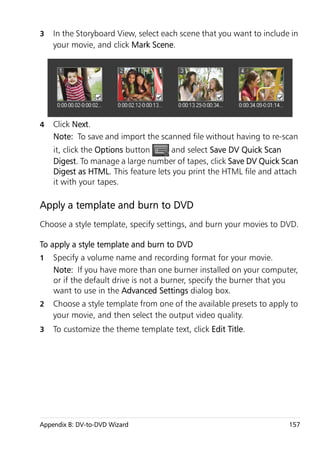
Contents

Welcome . . . . . . . . . . . . . . . . . . . . . . . . . . . . . . . . . . . . . . . 1
    Introducing Corel VideoStudio Pro. . . . . . . . . . . . . . . . . . . . . . . . . 2
    What’s new in Corel VideoStudio Pro X4? . . . . . . . . . . . . . . . . . . . 3
    System requirements . . . . . . . . . . . . . . . . . . . . . . . . . . . . . . . . . . . 4
        Minimum system requirements . . . . . . . . . . . . . . . . . . . . . . . . 4
           Recommended system specifications . . . . . . . . . . . . . . . . . . . . 4
           Supported input/output devices. . . . . . . . . . . . . . . . . . . . . . . . 5
           Hardware acceleration . . . . . . . . . . . . . . . . . . . . . . . . . . . . . . . 6
           To change hardware acceleration settings . . . . . . . . . . . . . . . . 6
    Installing and uninstalling the application . . . . . . . . . . . . . . . . . . . 6
    Starting and quitting the application . . . . . . . . . . . . . . . . . . . . . . . 8
    Accessing the Corel Guide . . . . . . . . . . . . . . . . . . . . . . . . . . . . . . . 8
       To access the Corel Guide . . . . . . . . . . . . . . . . . . . . . . . . . . . . 8
    Learning how to use the application . . . . . . . . . . . . . . . . . . . . . . . 9
    Preparing for video capture and editing. . . . . . . . . . . . . . . . . . . . 10
    Registering Corel products. . . . . . . . . . . . . . . . . . . . . . . . . . . . . . 10
    Updating the application. . . . . . . . . . . . . . . . . . . . . . . . . . . . . . . 11
    Corel Support Services. . . . . . . . . . . . . . . . . . . . . . . . . . . . . . . . . 12
    About Corel . . . . . . . . . . . . . . . . . . . . . . . . . . . . . . . . . . . . . . . . 12

Corel VideoStudio Pro Editor . . . . . . . . . . . . . . . . . . . . . . . 13
    Workspace . . . . . . . . . . . . . . . . . . . . . . . . . . . . . . . . . . . . . . . . . 14
    Step Panel. . . . . . . . . . . . . . . . . . . . . . . . . . . . . . . . . . . . . . . . . . 17
    Menu Bar . . . . . . . . . . . . . . . . . . . . . . . . . . . . . . . . . . . . . . . . . . 17


Contents                                                                                           i
Preview Window and Navigation Panel . . . . . . . . . . . . . . . . . . . . 18
     Toolbar . . . . . . . . . . . . . . . . . . . . . . . . . . . . . . . . . . . . . . . . . . . . 20
     Project Timeline. . . . . . . . . . . . . . . . . . . . . . . . . . . . . . . . . . . . . . 21
         Storyboard View . . . . . . . . . . . . . . . . . . . . . . . . . . . . . . . . . . 22
          Timeline View . . . . . . . . . . . . . . . . . . . . . . . . . . . . . . . . . . . . 22
     Options Panel . . . . . . . . . . . . . . . . . . . . . . . . . . . . . . . . . . . . . . . 24
     Library . . . . . . . . . . . . . . . . . . . . . . . . . . . . . . . . . . . . . . . . . . . . 25
         Saving Titles to the Library . . . . . . . . . . . . . . . . . . . . . . . . . . . 27
          Thumbnail Views. . . . . . . . . . . . . . . . . . . . . . . . . . . . . . . . . . 28

Starting a new movie project . . . . . . . . . . . . . . . . . . . . . . . 29
     Using Instant Project templates . . . . . . . . . . . . . . . . . . . . . . . . . . 30
     Setting your preferences . . . . . . . . . . . . . . . . . . . . . . . . . . . . . . . 31
     Setting project properties . . . . . . . . . . . . . . . . . . . . . . . . . . . . . . 31
     Adding clips . . . . . . . . . . . . . . . . . . . . . . . . . . . . . . . . . . . . . . . . 32
        Copying and pasting clip attributes . . . . . . . . . . . . . . . . . . . . 32
     Previewing . . . . . . . . . . . . . . . . . . . . . . . . . . . . . . . . . . . . . . . . . 33
         Setting a preview range . . . . . . . . . . . . . . . . . . . . . . . . . . . . . 33
     Undoing and redoing actions . . . . . . . . . . . . . . . . . . . . . . . . . . . 34
     Showing and hiding grid lines . . . . . . . . . . . . . . . . . . . . . . . . . . . 34
     Saving projects . . . . . . . . . . . . . . . . . . . . . . . . . . . . . . . . . . . . . . 35
     Saving projects by using Smart Package. . . . . . . . . . . . . . . . . . . . 36

Capture . . . . . . . . . . . . . . . . . . . . . . . . . . . . . . . . . . . . . . . 37
     The Capture Step Options Panel . . . . . . . . . . . . . . . . . . . . . . . . . 38
     Capturing Video . . . . . . . . . . . . . . . . . . . . . . . . . . . . . . . . . . . . . 38
        Split by scene . . . . . . . . . . . . . . . . . . . . . . . . . . . . . . . . . . . . 40
          Digital Video (DV) . . . . . . . . . . . . . . . . . . . . . . . . . . . . . . . . . 41
          Controlling the DV camcorder with the Navigation Panel . . . . 41
          High Definition Video (HDV) . . . . . . . . . . . . . . . . . . . . . . . . . 42

ii                                                               Corel VideoStudio Pro User Guide
Digital TV or DVB-T video. . . . . . . . . . . . . . . . . . . . . . . . . . . . 42
           Analog video . . . . . . . . . . . . . . . . . . . . . . . . . . . . . . . . . . . . . 43
           TV footage . . . . . . . . . . . . . . . . . . . . . . . . . . . . . . . . . . . . . . 44
    DV Quick Scan . . . . . . . . . . . . . . . . . . . . . . . . . . . . . . . . . . . . . . 44
    Importing from digital media . . . . . . . . . . . . . . . . . . . . . . . . . . . 45
    Importing from mobile devices . . . . . . . . . . . . . . . . . . . . . . . . . . 47
    Creating stop motion animations . . . . . . . . . . . . . . . . . . . . . . . . 48

Edit . . . . . . . . . . . . . . . . . . . . . . . . . . . . . . . . . . . . . . . . . . 51
    Working with clips . . . . . . . . . . . . . . . . . . . . . . . . . . . . . . . . . . . 52
      Adding video clips . . . . . . . . . . . . . . . . . . . . . . . . . . . . . . . . . 52
           Adding photos . . . . . . . . . . . . . . . . . . . . . . . . . . . . . . . . . . . 52
           Color . . . . . . . . . . . . . . . . . . . . . . . . . . . . . . . . . . . . . . . . . . . 53
           Speed and Time-lapse . . . . . . . . . . . . . . . . . . . . . . . . . . . . . . 53
           Reversing video playback . . . . . . . . . . . . . . . . . . . . . . . . . . . . 56
           Replacing media clips . . . . . . . . . . . . . . . . . . . . . . . . . . . . . . 56
           Trimming a clip . . . . . . . . . . . . . . . . . . . . . . . . . . . . . . . . . . . 58
           Split by Scene . . . . . . . . . . . . . . . . . . . . . . . . . . . . . . . . . . . . 60
           Multi-trimming your video . . . . . . . . . . . . . . . . . . . . . . . . . . . 62
           Saving trimmed clips . . . . . . . . . . . . . . . . . . . . . . . . . . . . . . . 64
    The Edit Step Options Panel . . . . . . . . . . . . . . . . . . . . . . . . . . . . 65
    Assets and Effects . . . . . . . . . . . . . . . . . . . . . . . . . . . . . . . . . . . . 68
       Media . . . . . . . . . . . . . . . . . . . . . . . . . . . . . . . . . . . . . . . . . . 68
           Transitions. . . . . . . . . . . . . . . . . . . . . . . . . . . . . . . . . . . . . . . 70
           Adding transitions to My Favorites . . . . . . . . . . . . . . . . . . . . . 72
           Titles . . . . . . . . . . . . . . . . . . . . . . . . . . . . . . . . . . . . . . . . . . . 73
           Saving your titles to My Favorites in the Library . . . . . . . . . . . 74
           The Title Safe Area. . . . . . . . . . . . . . . . . . . . . . . . . . . . . . . . . 75
           Editing titles . . . . . . . . . . . . . . . . . . . . . . . . . . . . . . . . . . . . . 75


Contents                                                                                                iii
Modifying text attributes . . . . . . . . . . . . . . . . . . . . . . . . . . . . 76
          Applying animation . . . . . . . . . . . . . . . . . . . . . . . . . . . . . . . . 78
          Applying title effects . . . . . . . . . . . . . . . . . . . . . . . . . . . . . . . 78
          Graphic . . . . . . . . . . . . . . . . . . . . . . . . . . . . . . . . . . . . . . . . . 79
          Adding Color Clips. . . . . . . . . . . . . . . . . . . . . . . . . . . . . . . . . 79
          Adding Objects or Frames . . . . . . . . . . . . . . . . . . . . . . . . . . . 80
          Adding Flash animations . . . . . . . . . . . . . . . . . . . . . . . . . . . . 81
          Customizing objects, frames and animations . . . . . . . . . . . . . 81
          Filters . . . . . . . . . . . . . . . . . . . . . . . . . . . . . . . . . . . . . . . . . . 81
          Key frame settings . . . . . . . . . . . . . . . . . . . . . . . . . . . . . . . . . 83
          Audio . . . . . . . . . . . . . . . . . . . . . . . . . . . . . . . . . . . . . . . . . . 85
     Taking snapshots in the Edit Step . . . . . . . . . . . . . . . . . . . . . . . . 85
     Ripple Editing . . . . . . . . . . . . . . . . . . . . . . . . . . . . . . . . . . . . . . . 86
     Editing with Smart Proxy . . . . . . . . . . . . . . . . . . . . . . . . . . . . . . . 87
     Converting multiple files . . . . . . . . . . . . . . . . . . . . . . . . . . . . . . . 89
     Enhancing clips. . . . . . . . . . . . . . . . . . . . . . . . . . . . . . . . . . . . . . 89
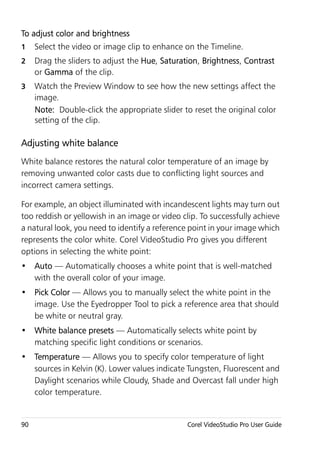
        Adjusting color and brightness . . . . . . . . . . . . . . . . . . . . . . . 89
          Adjusting white balance . . . . . . . . . . . . . . . . . . . . . . . . . . . . 90
          Adjusting tones . . . . . . . . . . . . . . . . . . . . . . . . . . . . . . . . . . . 92
          Applying pan and zoom effect. . . . . . . . . . . . . . . . . . . . . . . . 92
          Resizing and distorting clips. . . . . . . . . . . . . . . . . . . . . . . . . . 95
     Adding cues and chapters . . . . . . . . . . . . . . . . . . . . . . . . . . . . . . 96
     Working with Overlays . . . . . . . . . . . . . . . . . . . . . . . . . . . . . . . . 98
       Adding clips to the Overlay Track. . . . . . . . . . . . . . . . . . . . . . 98
          Adding Multiple Tracks . . . . . . . . . . . . . . . . . . . . . . . . . . . . 100
          Working with Overlay clips . . . . . . . . . . . . . . . . . . . . . . . . . 100
          Trimming Overlay clips . . . . . . . . . . . . . . . . . . . . . . . . . . . . 101
          Repositioning the current Overlay clip . . . . . . . . . . . . . . . . . 101
          Resizing an Overlay clip . . . . . . . . . . . . . . . . . . . . . . . . . . . . 102

iv                                                                Corel VideoStudio Pro User Guide
Distorting an Overlay clip. . . . . . . . . . . . . . . . . . . . . . . . . . . 102
           Applying motion to an Overlay clip . . . . . . . . . . . . . . . . . . . 103
           Enhancing Overlay clips . . . . . . . . . . . . . . . . . . . . . . . . . . . . 104
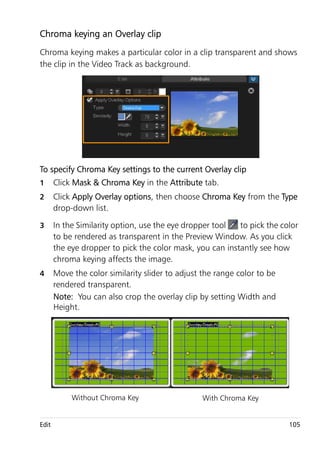
           Chroma keying an Overlay clip . . . . . . . . . . . . . . . . . . . . . . . 105
           Adding a mask frame . . . . . . . . . . . . . . . . . . . . . . . . . . . . . 106
    Painting images and animations using Painting Creator . . . . . . . 107
        Painting Creator interface basics . . . . . . . . . . . . . . . . . . . . . 107
           Painting Creator control buttons and sliders. . . . . . . . . . . . . 108
           Painting Creator modes . . . . . . . . . . . . . . . . . . . . . . . . . . . . 110
    Working with Audio . . . . . . . . . . . . . . . . . . . . . . . . . . . . . . . . . 112
      Adding audio files . . . . . . . . . . . . . . . . . . . . . . . . . . . . . . . . 112
           Adding voice-over narration. . . . . . . . . . . . . . . . . . . . . . . . . 113
           Adding background music. . . . . . . . . . . . . . . . . . . . . . . . . . 113
           Importing music from an audio CD . . . . . . . . . . . . . . . . . . . 114
           Auto Music . . . . . . . . . . . . . . . . . . . . . . . . . . . . . . . . . . . . . 114
           Using the Clip Volume Control. . . . . . . . . . . . . . . . . . . . . . . 115
           Trimming and cutting audio clips . . . . . . . . . . . . . . . . . . . . . 116
           Stretching audio duration . . . . . . . . . . . . . . . . . . . . . . . . . . 117
           Fade-in/out . . . . . . . . . . . . . . . . . . . . . . . . . . . . . . . . . . . . . 118
           Audio view . . . . . . . . . . . . . . . . . . . . . . . . . . . . . . . . . . . . . 118
           Using the Surround Sound Mixer . . . . . . . . . . . . . . . . . . . . . 118
           Adjusting stereo channels . . . . . . . . . . . . . . . . . . . . . . . . . . 119
           Mixing Surround Sound. . . . . . . . . . . . . . . . . . . . . . . . . . . . 120
           Duplicating an audio channel . . . . . . . . . . . . . . . . . . . . . . . 121
           Applying audio filters. . . . . . . . . . . . . . . . . . . . . . . . . . . . . . 122

Share . . . . . . . . . . . . . . . . . . . . . . . . . . . . . . . . . . . . . . . . 123
    The Share Step Options Panel . . . . . . . . . . . . . . . . . . . . . . . . . . 123
       Create video file. . . . . . . . . . . . . . . . . . . . . . . . . . . . . . . . . . 124
           Create sound file . . . . . . . . . . . . . . . . . . . . . . . . . . . . . . . . . 130

Contents                                                                                          v
Create disc . . . . . . . . . . . . . . . . . . . . . . . . . . . . . . . . . . . . . 130
          Assembling files . . . . . . . . . . . . . . . . . . . . . . . . . . . . . . . . . 132
          Adding and Editing chapters . . . . . . . . . . . . . . . . . . . . . . . . 133
          To create or edit chapters linked to a video clip . . . . . . . . . . 134
          Creating selection menus. . . . . . . . . . . . . . . . . . . . . . . . . . . 135
          Previewing . . . . . . . . . . . . . . . . . . . . . . . . . . . . . . . . . . . . . 136
          Burning your project onto a disc . . . . . . . . . . . . . . . . . . . . . 136
          Export to mobile device . . . . . . . . . . . . . . . . . . . . . . . . . . . . 139
          Exporting your movie . . . . . . . . . . . . . . . . . . . . . . . . . . . . . 140
          Project Playback. . . . . . . . . . . . . . . . . . . . . . . . . . . . . . . . . . 141
          Record to a DV camcorder. . . . . . . . . . . . . . . . . . . . . . . . . . 141
          Record to an HDV camcorder . . . . . . . . . . . . . . . . . . . . . . . 142
          Upload to Web . . . . . . . . . . . . . . . . . . . . . . . . . . . . . . . . . . 143
     Creating movie templates . . . . . . . . . . . . . . . . . . . . . . . . . . . . . 146

Appendix A: Shortcuts . . . . . . . . . . . . . . . . . . . . . . . . . . . 149
     Menu command shortcuts . . . . . . . . . . . . . . . . . . . . . . . . . . . . 149
     Step Panel shortcuts . . . . . . . . . . . . . . . . . . . . . . . . . . . . . . . . . 150
     Navigation Panel shortcuts . . . . . . . . . . . . . . . . . . . . . . . . . . . . 150
     Timeline shortcuts. . . . . . . . . . . . . . . . . . . . . . . . . . . . . . . . . . . 151
     Multi-trim Video shortcuts . . . . . . . . . . . . . . . . . . . . . . . . . . . . 152
     Layout settings shortcuts. . . . . . . . . . . . . . . . . . . . . . . . . . . . . . 153
     Others . . . . . . . . . . . . . . . . . . . . . . . . . . . . . . . . . . . . . . . . . . . 153

Appendix B: DV-to-DVD Wizard . . . . . . . . . . . . . . . . . . . . 155
     Scan for scenes . . . . . . . . . . . . . . . . . . . . . . . . . . . . . . . . . . . . . 155
     Apply a template and burn to DVD . . . . . . . . . . . . . . . . . . . . . . 157

Glossary . . . . . . . . . . . . . . . . . . . . . . . . . . . . . . . . . . . . . . 159


vi                                                              Corel VideoStudio Pro User Guide
Welcome
Thank you for purchasing Corel® VideoStudio® Pro, the video-editing
software that lets you produce professional-looking videos, regardless of
your skill level. Corel VideoStudio Pro provides a complete set of tools for
capturing, importing, and editing video and other media, and for
sharing your final production on a DVD or Blu-ray Disc™, mobile devices,
or the Web.


       The availability of features depends on the version of the software
       you have.

This section contains the following topics:
• Introducing Corel VideoStudio Pro
• What’s new in Corel VideoStudio Pro X4?
• System requirements
• Installing and uninstalling the application
• Starting and quitting the application
• Accessing the Corel® Guide
• Learning how to use the application
• Preparing for video capture and editing
• Registering Corel products
• Updating the application
• Corel® Support Services™
• About Corel


Welcome                                                                    1
Introducing Corel VideoStudio Pro
Corel VideoStudio Pro guides you step-by-step through the process of
capturing, editing, and sharing videos. The application also offers more
than a hundred transitions, professional titling capabilities, and simple
tools for creating soundtracks.

To produce a video, you must capture or import footage from a
camcorder or other video source. You can then trim the captured videos,
arrange their order, apply transitions, and add overlays, animated titles,
voice-over narration, and background music. These elements are
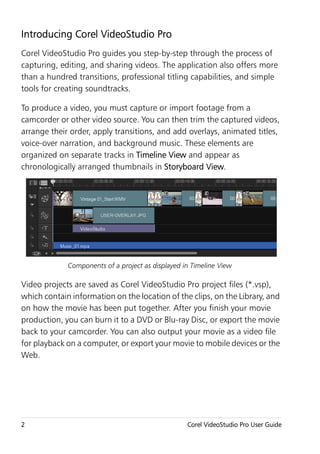
organized on separate tracks in Timeline View and appear as
chronologically arranged thumbnails in Storyboard View.


             Components of a project as displayed in Timeline View

Video projects are saved as Corel VideoStudio Pro project files (*.vsp),
which contain information on the location of the clips, on the Library, and
on how the movie has been put together. After you finish your movie
production, you can burn it to a DVD or Blu-ray Disc, or export the movie
back to your camcorder. You can also output your movie as a video file
for playback on a computer, or export your movie to mobile devices or the
Web.


2                                                  Corel VideoStudio Pro User Guide
What’s new in Corel VideoStudio Pro X4?
Corel VideoStudio Pro X4 provides you with advanced features that
support the latest in video editing technologies, making it possible to
create home movies with ease.
• Customizable interface — The fully-customizable workspace lets you
  change the size and position of each panel to your desired working
  environment, giving you more convenience and flexibility while
  editing your videos. This feature optimizes your editing workflow,
  especially on today’s large displays or dual-monitor setups.
   For more information, see “Workspace” on page 14.
• Stop motion animation — You can now create stop motion
  animations by using photos from DSLRs and digital still cameras, or
  captured frames from videos.
   For more information, see “Creating stop motion animations” on
   page 48.
• Enhanced Library Panel — Organize your media clips by using the
  new Navigation Panel, custom folders and new media filters.
   For more information, see “Library” on page 25.
• WinZip® Smart Package integration — You can now save your video
  projects using Smart Package as zipped files with WinZip’s
  technology. This is a great way to backup your videofiles or prepare
  them for uploading to an online storage site.
   For more information, see “Saving projects” on page 35.
• Project template sharing — Export your projects as Instant Project
  templates and use them to create a consistent style across your video
  projects.
   For more information, see “Using Instant Project templates” on
   page 30.


Welcome                                                                   3
• Time-lapse and Strobe Effects — Achieve Time-lapse and Strobe
  effects on your videos and photos with just a few tweaks on frame
  settings.
    For more information, see “Speed and Time-lapse” on page 53.

System requirements
For optimal performance of Corel VideoStudio Pro, make sure that your
system meets the recommended specifications.

Minimum system requirements
• Intel® Core™ Duo 1.83-GHz processor, or AMD® Dual Core 2.0-GHz
  or faster processor
• Microsoft Windows® 7 (32-bit or 64-bit edition), Windows Vista®
  SP2 (32-bit or 64-bit editions), or Windows® XP SP3 operating
  system software
• 1 GB of RAM
• Minimum display resolution: 1024 × 768
• Windows®-compatible sound card
• Windows-compatible DVD-ROM (for program installation)
• Windows-compatible DVD Burner (for DVD output)

Recommended system specifications
• Intel® Core™2 Duo 2.4-GHz processor, or AMD® Dual Core 2.4-GHz
  or faster processor
• Microsoft Windows 7 (32-bit or 64-bit edition), Windows Vista SP2
  (32-bit or 64-bit editions), or Windows XP SP3 operating system
  software
• 2 GB RAM (4 GB or higher recommended)
• 512 MB or more of VRAM

4                                           Corel VideoStudio Pro User Guide
• Minimum display resolution: 1024 × 768
• Windows-compatible sound card
• Windows-compatible Blu-ray Disc™ Burner (for Blu-ray Disc and DVD
  output)
• Hard drive: SATA 7200 RPM for PCs, SATA 5400 RPM for Laptops

Supported input/output devices
• 1394 FireWire® cards for use with DV, D8, or HDV™ camcorders
• USB Video Class (UVC) DV
• Support for OHCI Compliant IEEE-1394
• Analog capture cards for analog camcorders (VFW and WDM
  support for Windows XP and Broadcast Driver Architecture support
  for Windows Vista and Windows 7)
• Analog and digital TV capture device (Broadcast Driver Architecture
  support)
• Camcorders that record to internal memory, memory card, DVD disc
  or hard drive
• USB capture devices, PC cameras, webcams
• Windows-compatible Blu-ray Disc, DVD-R/RW, DVD+R/RW, DVD-
  RAM and CD-R/RW drive
• iPhone®, iPad®, iPod Classic® with video, iPod touch®, Sony® PSP®,
  Pocket PC, Smartphone, and Nokia® mobile phones


Welcome                                                                 5
Hardware acceleration
Depending on your hardware specifications, Corel VideoStudio Pro lets
you optimize the performance of your system through hardware
acceleration.


       Hardware decoder and encoder acceleration is supported only by
       Windows Vista and later versions of Windows operating system
       software and requires at least 512 MB of VRAM.

To change hardware acceleration settings
1   Select Settings > Preferences [F6] to open the Preferences dialog
    box.
2   Click the Performance tab and select the following options under
    Editing Process and File Creation:
    • Use Hardware Decoder acceleration — Enhances editing
      performance, and improves clip and project playback, by using
      video graphics acceleration technologies with your available
      hardware.
    Note: For optimum performance, VGA cards must support DXVA2
    VLD mode with Vertex and Pixel Shader 2.0 or later.
    • Use Hardware Encoder acceleration — Improves the rendering
      time required for producing your movies.


       The program automatically detects the hardware acceleration
       capabilities of your system. If the feature is not supported, this
       option will be grayed out.

Installing and uninstalling the application
The Corel VideoStudio Pro DVD has an autorun feature that is designed
to start installing the application automatically.

6                                               Corel VideoStudio Pro User Guide
To install Corel VideoStudio Pro
1   Insert the Corel VideoStudio Pro DVD into your DVD-ROM drive.
2   When the Setup screen appears, follow the instructions to install
    Corel VideoStudio Pro on your computer.
    Note: If the Setup screen does not appear after you load the DVD,
    you can manually launch it by double-clicking the My Computer icon
    on your desktop and then double-clicking the icon for the DVD-ROM
    drive where the installation disc is inserted. When the DVD-ROM
    window appears, double-click the Setup icon.
3   In addition to Corel VideoStudio Pro, the following programs and
    drivers are automatically installed:
    • DirectX® 2007
    • Microsoft® Visual C++® 2005 Redistributable Package
    • Microsoft Visual C++ 2008 Redistributable Package
    • SmartSound®
    • Adobe® Flash® Player
    • QuickTime®

To uninstall Corel VideoStudio Pro
1   On the Windows taskbar, click Start > Control Panel.
2   Click the Add or Remove Programs icon.
    The Add or Remove Programs dialog box appears.
3   From the Currently installed programs list, choose Corel VideoStudio
    Pro X4, and click Remove.
4   Follow the instructions to remove Corel VideoStudio Pro from your
    computer.


Welcome                                                                 7
Starting and quitting the application
You can start Corel VideoStudio Pro from the Windows desktop or Start
menu, and quit the program from the application window.

To start the application
• Double-click the Corel VideoStudio Pro X4 icon on the Windows
  desktop.
  Note: You can also start Corel VideoStudio Pro from the list of
  programs on the Windows Start menu.

To quit the application
• Click the Close button    in the upper-right corner of the application
  window.

Accessing the Corel Guide
The Corel Guide provides the most up-to-date information and content
for your application. You can find tips and tricks, download new styles
and content for your projects, explore new ways to share your photos and
videos, and access the latest updates for your application.

To access the Corel Guide
• On the upper right corner of the application window, click the Help
  and product information button . The Corel Guide window
  appears.


       The Help and product information button flashes orange when
       there are new messages or content available.


8                                             Corel VideoStudio Pro User Guide
Learning how to use the application
You can learn how to use Corel VideoStudio Pro in various ways: by
searching the Help, by accessing the tips and tricks in the Corel Guide, or
by exploring the Corel Web site (www.corel.com).

To use the Help
1   On the application window, click the Help and product information
    button .
2   On the Learn tab of the Corel Guide, click Launch Help.
3   In the Help window, click one of the following tabs:
    • Contents — lets you browse through topics in the Help
    • Index — lets you use the keywords from the index to find a topic.
    • Search — lets you search the full text of the Help for a particular
      word or phrase. If you are looking for information about a specific
      tool or command, you can type keywords to display a list of
      relevant topics.


       You can also press F1 to launch the Help.


Welcome                                                                   9
Preparing for video capture and editing
Video capture and editing are tasks that require a lot of computer
resources. Your computer must be properly set up to ensure successful
capturing and smooth video editing. Below are some tips on how to
prepare and optimize your computer for capturing and editing.
• It is recommended that you close all other applications when
  working with Corel VideoStudio Pro. To avoid interruptions while
  capturing, it is best to turn off any automatically launched software,
  such as a screen saver.
• If you have two hard drives in your system, it is recommended that
  you install Corel VideoStudio Pro to your system drive (usually C:) and
  store captured videos on your other drive (usually D:).
• It is recommended that you store video files on a dedicated hard
  drive.
• Increase the Paging File (Swap File) size to twice your amount of
  RAM.

Registering Corel products
Registering Corel products is important to ensure that you receive timely
access to the latest product updates, as well as valuable information
about product releases. Registration also gives you access to free
downloads, articles, tips and tricks, and special offers.

The Corel Guide provides you with information about registering your
Corel products. You can also check the Knowledgebase articles on how to
register your Corel products.


10                                             Corel VideoStudio Pro User Guide
To access registration information in the Corel Guide
1   Click the Help and product information button       .
2   In the Corel Guide, click the Product information and preferences
    button    , and choose Register now from the menu.

Updating the application
You can check for and install product updates. Updates provide
important new information about your application.

To update the application
1   Click the Help and product information button       .
2   In the Corel Guide, click the Product information and preferences
    button     , and choose Check for Updates.


       You can turn automatic program updates on or off by choosing
       Message preferences from the Product information and
       preferences menu and marking options in the dialog box.
       You can find the application version information and serial
       number by choosing About Corel VideoStudio Pro X4 from the
       Product information and preferences menu.


Welcome                                                                 11
Corel Support Services
Corel Support Services can provide you with prompt and accurate
information about product features, specifications, pricing, availability,
services, and technical support options. For the most current information
on available support and professional services for your Corel product,
please visit the Corel Software Support page of your region.

About Corel
Corel is one of the world’s top software companies, with more than 100
million active users in over 75 countries. We develop software that helps
people express their ideas and share their stories in more exciting,
creative, and persuasive ways. Through the years, we’ve built a reputation
for delivering innovative, trusted products that are easy to learn and use,
helping people achieve new levels of productivity. The industry has
responded with hundreds of awards for software innovation, design, and
value.

Our award-winning product portfolio includes some of the world's most
widely recognized and popular software brands, including CorelDRAW®
Graphics Suite, Corel® Painter™, Corel DESIGNER® Technical Suite,
Corel® PaintShop Photo® Pro, Corel® VideoStudio®, Corel® WinDVD®,
Corel® WordPerfect® Office, WinZip®, and the recently released Corel®
Digital Studio™ 2010. Our global headquarters are in Ottawa, Canada,
and our major offices are in the United States, the United Kingdom,
Germany, China, Taiwan, and Japan.


12                                              Corel VideoStudio Pro User Guide
Corel VideoStudio Pro Editor
Corel VideoStudio Pro provides a hands-on workflow to produce
professional-looking videos, giving you the liberty to customize all the
elements in your video project.

This section introduces you to the Corel VideoStudio Pro interface and
briefly explains the steps involved in creating a movie.

This section contains the following topics:
• Workspace
• Step Panel
• Menu Bar
• Preview Window and Navigation Panel
• Toolbar
• Project Timeline
• Options Panel
• Library


Corel VideoStudio Pro Editor                                               13
Workspace
The new workspace is designed for a better editing experience. You can
now change the size and position of the elements on your screen.

Each panel acts like an independent window that can be modified
according to your editing preferences, which is very useful when you are
editing using large displays or dual monitors.
                          1

2


                                                                           4
3


                                                                           5


• 1 — Step Panel
     Contains the Capture, Edit, and Share buttons, which correspond to
     the different steps in the video editing process.
• 2 — Menu Bar
     Contains the File, Edit, Tools, and Settings menus, which provide
     different sets of commands.
• 3 — Player Panel
     Contains the Preview Window and Navigation Panel.


14                                             Corel VideoStudio Pro User Guide
• 4 — Library Panel
    Contains the Media Library, Media Filters and Options Panel.
• 5 — Timeline Panel
    Contains the Toolbar and Project Timeline.

To move a panel
• Double-click the top-left corner of the Player Panel, Timeline Panel or
  Library Panel.
    When the panel is active, you can minimize, maximize, resize each
    panel.
    Note: You can also drag the panel outside the main window into the
    second display area for dual-monitor setups.


Corel VideoStudio Pro Editor                                           15
To dock a panel
1    Click and hold an active panel.
     The docking guide appears.


2    Drag your mouse over the docking guide and choose a docking
     position to snap the panel in place.

To save a custom workspace layout
• Click Settings > Layout Settings > Save to and click a Custom
  option.

To load a custom workspace layout
• Click Settings > Layout Settings > Switch to and choose Default or
  one of the custom settings you have saved.
     To know more about hotkey combinations assigned for each preset,
     see “Layout settings shortcuts” on page 153.


        You can also change the layout settings from the UI Layout tab in
        Settings > Preferences.


16                                             Corel VideoStudio Pro User Guide
Step Panel
Corel VideoStudio Pro simplifies the process of creating movies into three
simple steps. Click the buttons in the Step Panel to switch between steps.
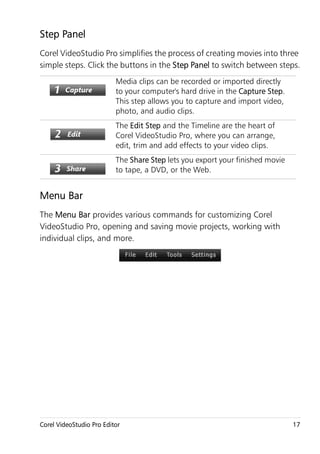
                          Media clips can be recorded or imported directly
                          to your computer's hard drive in the Capture Step.
                          This step allows you to capture and import video,
                          photo, and audio clips.
                          The Edit Step and the Timeline are the heart of
                          Corel VideoStudio Pro, where you can arrange,
                          edit, trim and add effects to your video clips.
                          The Share Step lets you export your finished movie
                          to tape, a DVD, or the Web.


Menu Bar
The Menu Bar provides various commands for customizing Corel
VideoStudio Pro, opening and saving movie projects, working with
individual clips, and more.


Corel VideoStudio Pro Editor                                                   17
Preview Window and Navigation Panel
The Navigation Panel provides buttons for playback and for precision
trimming of clips. Use the Navigation Controls to move around a selected
clip or your project. Use the Trim Markers and Scrubber to edit your clips.

In the Capture Step, this panel also acts as the device control for the DV
or HDV camcorder.


           1


                                                                     15
           2                                                         14
           3                                                         13
           4

                         5   6 7 8 9 10 11                 12

• 1 — Preview Window
     Shows the current project or clip being played.
• 2 — Scrubber
     Lets you scrub through the project or clip.
• 3 — Trim Markers
     Lets you drag to set a preview range in the project or to trim a clip.
• 4 — Project/Clip Mode


18                                                 Corel VideoStudio Pro User Guide
Specifies a preview of the entire project or of a selected clip only.
• 5 — Play
    Plays, pauses, or resumes the current project or a selected clip.
• 6 — Home
    Returns to the starting segment or cue.
• 7 — Previous
    Moves to the previous frame.
• 8 — Next
    Moves to the next frame.
• 9 — End
    Moves to the end segment or cue.
• 10 — Repeat
    Loops playback.
• 11 — System Volume
    Lets you adjust the volume of your computer's speakers by dragging
    a slider.
• 12 — Timecode
    Lets you jump directly to a part of your project or selected clip by
    specifying the exact timecode.
• 13 — Enlarge Preview Window
    Increases the size of the Preview Window.
• 14 — Split Clip
    Splits the selected clip. Position the Scrubber to where you want the
    clip to be split, and then click this button.
• 15 — Mark-in/Mark-out
    Sets a preview range in the project, or sets the start and end points
    for trimming a clip.


Corel VideoStudio Pro Editor                                                19
Toolbar
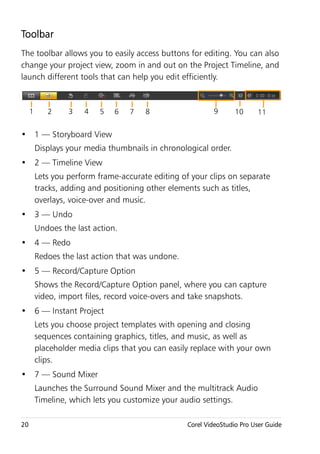
The toolbar allows you to easily access buttons for editing. You can also
change your project view, zoom in and out on the Project Timeline, and
launch different tools that can help you edit efficiently.


     1      2     3   4    5   6   7   8                   9       10     11


• 1 — Storyboard View
         Displays your media thumbnails in chronological order.
• 2 — Timeline View
         Lets you perform frame-accurate editing of your clips on separate
         tracks, adding and positioning other elements such as titles,
         overlays, voice-over and music.
• 3 — Undo
         Undoes the last action.
• 4 — Redo
         Redoes the last action that was undone.
• 5 — Record/Capture Option
         Shows the Record/Capture Option panel, where you can capture
         video, import files, record voice-overs and take snapshots.
• 6 — Instant Project
         Lets you choose project templates with opening and closing
         sequences containing graphics, titles, and music, as well as
         placeholder media clips that you can easily replace with your own
         clips.
• 7 — Sound Mixer
         Launches the Surround Sound Mixer and the multitrack Audio
         Timeline, which lets you customize your audio settings.

20                                                 Corel VideoStudio Pro User Guide
• 8 — Auto Music
    Launches the Auto Music Options Panel for adding Smartsound
    background music to your project in a variety of styles and moods
    and you can set the music to match the duration of your project.
• 9 — Zoom Controls
    Lets you adjust your view of the Project Timeline by using the zoom
    slider and buttons.
• 10 — Fit Project in Timeline Window
    Adjusts your project view to fit the entire span of your Timeline.
• 11 — Project Duration
    Shows the duration of the project.

Project Timeline
The Project Timeline is where you assemble the media clips to use in your
video project.

Two types of views are displayed in the Project Timeline: Storyboard View
and Timeline View. To switch between the different views, click the
buttons at the left side of the Toolbar.


Corel VideoStudio Pro Editor                                             21
Storyboard View
The fastest and simplest way to organize photos and video clips in a
project is to use the Storyboard View. Each thumbnail in the storyboard
represents a photo, video clip, or a transition. Thumbnails are shown in
the order in which they appear in your project, and you can drag
thumbnails to rearrange them. The duration of each clip is shown at the
bottom of each thumbnail. In addition, you can insert transitions
between video clips, and you can trim a selected video clip in the Preview
Window.


Timeline View
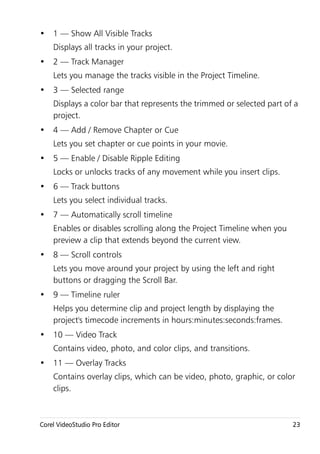
Timeline View gives you the most comprehensive display of the elements
in your movie project. It divides a project into separate tracks for video,
overlay, title, voice, and music.
                                                 3
      1 2
                                                                         9
 4
 5                                                                       10
                                                                         11
                                                                         12
 6                                                                       13
                                                                         14


      7   8


22                                              Corel VideoStudio Pro User Guide
• 1 — Show All Visible Tracks
    Displays all tracks in your project.
• 2 — Track Manager
    Lets you manage the tracks visible in the Project Timeline.
• 3 — Selected range
    Displays a color bar that represents the trimmed or selected part of a
    project.
• 4 — Add / Remove Chapter or Cue
    Lets you set chapter or cue points in your movie.
• 5 — Enable / Disable Ripple Editing
    Locks or unlocks tracks of any movement while you insert clips.
• 6 — Track buttons
    Lets you select individual tracks.
• 7 — Automatically scroll timeline
    Enables or disables scrolling along the Project Timeline when you
    preview a clip that extends beyond the current view.
• 8 — Scroll controls
    Lets you move around your project by using the left and right
    buttons or dragging the Scroll Bar.
• 9 — Timeline ruler
    Helps you determine clip and project length by displaying the
    project's timecode increments in hours:minutes:seconds:frames.
• 10 — Video Track
    Contains video, photo, and color clips, and transitions.
• 11 — Overlay Tracks
    Contains overlay clips, which can be video, photo, graphic, or color
    clips.


Corel VideoStudio Pro Editor                                            23
• 12 — Title Track
     Contains title clips.
• 13 — Voice Track
     Contains voice-over clips.
• 14 — Music Track
     Contains music clips from audio files.


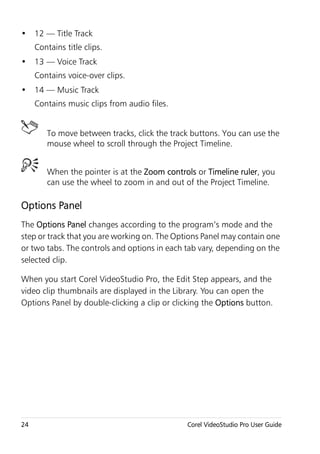
        To move between tracks, click the track buttons. You can use the
        mouse wheel to scroll through the Project Timeline.


        When the pointer is at the Zoom controls or Timeline ruler, you
        can use the wheel to zoom in and out of the Project Timeline.

Options Panel
The Options Panel changes according to the program’s mode and the
step or track that you are working on. The Options Panel may contain one
or two tabs. The controls and options in each tab vary, depending on the
selected clip.

When you start Corel VideoStudio Pro, the Edit Step appears, and the
video clip thumbnails are displayed in the Library. You can open the
Options Panel by double-clicking a clip or clicking the Options button.


24                                            Corel VideoStudio Pro User Guide
Library
The Library is a storage depot for everything you need to create a movie:
video clips, photos, transitions, titles, filters, color clips, and audio files.


         Right-click a clip in the Library to view the clip's properties as well
         as copy, delete, or Split by Scene.
         You can also trim a clip in the Library by using the Trim markers.
         Hold [Ctrl] or [Shift] to select multiple clips.


To add media clips to the Library
1   Click Add to create a new library folder where your media clips will
    be saved.
    Note: You can add custom folders to separate your personal media
    clips from sample media clips for more efficient editing or to keep all
    clips that belong to one project in a single folder.

Corel VideoStudio Pro Editor                                                  25
2    Click Import Media Files to locate your files.
3    Select all files you want to import.
4    Click Open.


        Click Browse from the Library Panel to open the File Explorer
        where you can drag and drop files to the Library or Timeline
        directly. You can also drag and drop files from Windows Explorer
        straight to the Library.

To delete media clips from the Library
1    Select the clip to remove from the Library, then press [Delete].
     Or, right-click the clip in the Library and select Delete.
     Note: This action only deletes the Library media clip entry in the
     program. You can still access the actual file from the path where it is
     saved.
2    When prompted, verify whether you want to delete the thumbnail
     from the Library.
     You can also import your exported Library to restore media files and
     other library information. Click on Settings > Library Manager >
     Import Library and find the directory you specified.
     Note: To reset your Library to the default settings, select Settings >
     Library Manager > Reset Library.
3    To automatically locate and relink the files in your library, click File >
     Relink. A notification on the number of clips relinked successfully will
     be displayed.
     If there are clips left unlinked, you can manually relink them by
     browsing for the corresponding file in your computer.


26                                                 Corel VideoStudio Pro User Guide
Back up your Library to avoid losing important library information
         and media clips. This action will create a backup of the virtual
         media files information of your current library in the directory you
         will specify. You can find this option in Settings > Library
         Manager > Export Library and specify your target location.

Saving Titles to the Library
When you are creating multiple title clips that share the same attributes,
such as font type and style, it is useful to store a copy of your title clip in
the Library.

To save your title as a preset
• Right-click the title clip in the Timeline and click Add to My Favorites.
  This way, you can easily change the text by dragging it from My
  Favorites in the Library back onto the Title Track while still
  maintaining the attributes of the title clip.

Sorting clips in the Library by using Media Filters

There are different ways to sort your media clips according to
classifications and views.

To sort media clips by name, date or rating

• Click the Sort clips in the Library button        , then select Sort by
  Name, Sort by Type or Sort by Date.

To change the media clips views

• Click the List view button        to display your media clips in a list that
    includes file properties, or click the Thumbnail view button          to
    display thumbnails.


Corel VideoStudio Pro Editor                                                   27
To show or hide media clips
• Click one or more of the following buttons:

     • Show / Hide Videos

     • Show / Hide Photos

     • Show / Hide Audio Files


        You can also use the icons in the Media Library to display media
        clips, transitions, titles, graphics and filters.


Thumbnail Views
Corel VideoStudio Pro allows you to adjust the size of thumbnails for
easier access to the different media clips in the Library.
                                                    Thumbnail size
                                                    slider


To adjust thumbnail size
• Move the slider to the left or right to decrease and increase
  thumbnail size.
     In your next session, Corel VideoStudio Pro will use the last-selected
     thumbnail size as default.

28                                              Corel VideoStudio Pro User Guide
Starting a new movie project
When you start Corel VideoStudio Pro, it automatically opens a new
project and lets you start creating your movie. New projects are always
based on the default settings of the application.

Corel VideoStudio Pro combines the video, titles, sounds, and effects in a
process called rendering. Project settings determine how your movie
project is rendered when you preview it. The output video can then be
played back on your computer, burned to disc, or uploaded to the
internet.

This section contains the following topics:
• Using Instant Project templates
• Setting your preferences
• Setting project properties
• Adding clips
• Previewing
• Undoing and redoing actions
• Showing and hiding grid lines
• Saving projects
• Saving projects by using Smart Package


Starting a new movie project                                            29
Using Instant Project templates
Corel VideoStudio Pro has sample project templates that can help
acquaint you with the the application's tasks and features. You can also
use the Instant Project templates to create your video project or create
your own custom templates.

To open an Instant Project template

1    Click the Instant Project button      on the Toolbar.
     Note: The Custom category contains templates you have created.
2    Choose a template category from the drop-down menu and click a
     project thumbnail to preview the selected template.
3    Choose the point of insertion in the Timeline between Add at the
     beginning and Add at the end.
4    Click Insert.

To create an Instant Project template
1    Open the video project that you want to save as a templete.
2    Click File > Export as template.
3    Click Yes when prompted to save your project.
4    Enter a File name, Subject and Description.
5    Browse for the folder where you want to save your template and
     click Save.
6    In the Export project as template dialog box, move the slider to
     display the thumbnail that you want to use for the template and
     indicate the path and folder name.
     Template details will also be displayed.
7    Click OK.


30                                              Corel VideoStudio Pro User Guide
To import project templates
1   Click Import a project template and browse for the template file that
    you have created.
2   Click OK.
    Your template will be imported into the Custom category.

Setting your preferences
Customize the program's working environment through the Preferences
dialog box. You can specify a working folder for saving files, set undo
levels, choose preferred settings for program behavior, enable Smart
Proxy, choose the default transition effect for your project and more.

To set program preferences
• Click Settings > Preferences or press F6 to launch the Preferences
  dialog box.

Setting project properties
Project Properties serve as your template for previewing your movie
projects. The project settings in the Project Properties dialog box
determine the appearance and quality of a project when it is previewed
on-screen.

To modify project properties
1   Click Settings > Project Properties.
2   Choose the appropriate setting options in the Project Properties
    dialog box.
3   Click OK.


Starting a new movie project                                           31
When customizing project settings, it is recommended that you
        make the settings the same as the attributes of the video footage
        that will be captured to avoid distorting the video images and
        have smooth playback without jumping frames.

Adding clips
There are five ways to add clips to your project:

To add clips
• Do one of the following:
     • Capture video clips from a video source. The video clips will be
       inserted onto the Video track.
     • Drag clips from the Library onto the appropriate tracks.
     • Drag clips from File Explorer onto the appropriate tracks.
     • In the Library, right-click on the thumbnail, select Insert to: and
       choose which track to insert media file.
     • Right-click on the Timeline and choose the type of media you want
       to add from the right-click menu.

Copying and pasting clip attributes
You can use the attributes of one clip and apply it to a different clip on
your movie project. When working with audio, you can also add filters to
audio clips in the Music & Voice Options Panel in the Edit Step.

To apply all the attributes of one clip to another clip
1    Right-click the source clip, and then select Copy Attributes.
2    Right-click the target clip, and then select Paste Attributes.


32                                                Corel VideoStudio Pro User Guide
Previewing
The Play button in the Navigation Panel serves two purposes: for playback
of your entire project or a selected clip.

To preview projects or clips
• Click Project or Clip, then click Play.


While working on your project, you will want to preview your work
frequently to see how your project is progressing. Instant Playback allows
you to quickly preview changes in your project without the need to create
a temporary preview file. Playback quality will be dependent on your
computer’s resources.

Setting a preview range
You may choose to play only a part of your project. The selected range of
frames to preview is referred to as the preview range, and it is marked as
a colored bar in the Ruler Panel.


Starting a new movie project                                            33
To play the preview area only
1    Use the Trim Markers or the Mark-in/out buttons to select the
     preview range.
2    To preview the selected range, select what you want to preview
     (Project or Clip), then click Play. To preview the entire clip, hold
     [Shift], then click Play.

Undoing and redoing actions
You can undo or redo the last set of actions that you performed while
working on your movie by clicking Undo [Ctrl+Z] or Redo [Ctrl+Y] in the
toolbar. You can adjust the number of undo levels in the Preferences
dialog box.

Showing and hiding grid lines
You can use grid lines to guide you when repositioning OR resizing
photos and videos or when adding titles to your movie.

To show grid lines
1    In the Edit step, double-click a clip to display the Options Panel.
2    Click the Attribute tab and choose Distort clip.
3    Check Show grid lines.


34                                                Corel VideoStudio Pro User Guide
Click        to adjust grid line settings.

Saving projects
To save your project
• Click File > Save [Ctrl + S].
  Note: Corel VideoStudio Pro project files are saved in *.vsp file
  format.

To automatically save your work
1   Click Settings > Preferences and click the General tab.
2   Choose Automatic save interval: and specify the time interval
    between saves.
    Note: This setting is set at 10 minutes by default.

To open an existing project
• Click File > Open Project [Ctrl + O].

To create a new project
• Click File > New Project [Ctrl + N].


        Save your project frequently to avoid accidental loss of work.


Starting a new movie project                                             35
Saving projects by using Smart Package
Packaging a video project is useful if you want to back up your work or
transfer your files for sharing or for editing in a laptop or another
computer. You can also package your project as a zipped folder or
prepare them for online storage using WinZip’s file compression
technology that is integrated into the Smart Package feature.

To save projects by using Smart Package
1    Click File > Smart Package and choose to pack your project as a
     folder or Zip file.
2    Specify the Folder path, Project folder name and Project file name.
3    Click OK.


        You need to save your project before you use Smart Package.


36                                             Corel VideoStudio Pro User Guide
Capture
Corel VideoStudio Pro lets you capture or import video from DVD-video,
DVD-VR, AVCHD™, BDMV discs including camcorders that record on
memory cards, internal memory of discs, DV or HDV camcorders,
mobile devices, as well as analog and digital TV capture devices.


This section contains the following topics:
• The Capture Step Options Panel
• Capturing Video
• DV Quick Scan
• Importing from digital media
• Importing from mobile devices
• Creating stop motion animations


Capture                                                             37
The Capture Step Options Panel
In the Capture Step, Corel VideoStudio Pro displays the Library and the
Capture Options Panel where different media capture and import
methods are available.

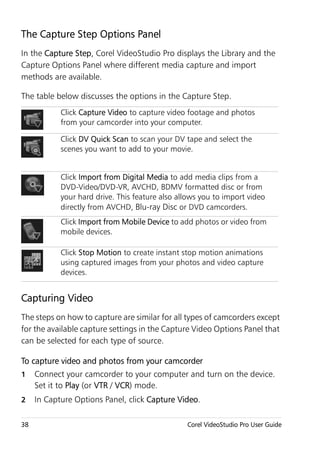
The table below discusses the options in the Capture Step.
            Click Capture Video to capture video footage and photos
            from your camcorder into your computer.

            Click DV Quick Scan to scan your DV tape and select the
            scenes you want to add to your movie.


            Click Import from Digital Media to add media clips from a
            DVD-Video/DVD-VR, AVCHD, BDMV formatted disc or from
            your hard drive. This feature also allows you to import video
            directly from AVCHD, Blu-ray Disc or DVD camcorders.
            Click Import from Mobile Device to add photos or video from
            mobile devices.

            Click Stop Motion to create instant stop motion animations
            using captured images from your photos and video capture
            devices.


Capturing Video
The steps on how to capture are similar for all types of camcorders except
for the available capture settings in the Capture Video Options Panel that
can be selected for each type of source.

To capture video and photos from your camcorder
1    Connect your camcorder to your computer and turn on the device.
     Set it to Play (or VTR / VCR) mode.
2    In Capture Options Panel, click Capture Video.

38                                               Corel VideoStudio Pro User Guide
3   Select your capture device from the Source drop-down list.
4   Select a file format to use for saving your captured video from the
    Format drop-down list. Browse the folder location where the files
    will be saved under Capture folder.
    Note: Click Options to customize capture settings specific to your
    video device.
5   Scan your video to search the part for capture.
    Note: If you are capturing video from a DV or HDV camcorder, use
    the Navigation Panel to play your video tape.
6   Click Capture Video, when your video for capture is already on cue.
    Click Stop Capture or press [Esc] to stop capturing.
7   To capture a photo from the video footage, pause the video on the
    desired photo then click Take a Snapshot.
    Note: When your camcorder is in Record mode (usually named
    CAMERA or MOVIE), you can capture live video.
    Note: The available settings in the Video properties dialog box vary,
    depending on the capture file format that you have chosen.
Capture Video Options Panel
• Duration — Sets the length of time for the capture.
• Source — Displays the detected capture device and lists other
  capture devices installed in your computer.
• Format — Gives you a list of options where you select a file format
  for saving your captured video.
• Capture folder — This feature allows you to specify a folder where
  you want your captured files to be saved.
• Split by scene — Automatically separates captured video into several
  files based on changes in shooting date and time when capturing
  video from a DV camcorder.
• Capture to library — Choose or create a Library folder where you
  want your video to be saved.


Capture                                                                   39
• Options — Displays a menu allowing you to modify your capture
  settings.
• Capture Video — Transfers video from your source to your hard
  drive.
• Take a Snapshot — Captures the displayed video frame as a photo.

Direct video capture to MPEG format

Corel VideoStudio Pro supports real-time capture from DV, analog, or any
video source to MPEG-2 format.

To capture video in MPEG-2 format
1    In Source, choose your video source.
2    Specify or browse for the destination folder where you want your
     clips to be stored in Capture folder.
3    Click Options and select Video Properties. In the dialog box that
     opens, select a profile in the Current Profile drop-down menu.
4    Click OK.
5    Click Capture Video to start capturing and Stop Capture to end your
     capturing session. Your media clip will automatically be stored as
     MPEG-2 format in the folder you specified.

Split by scene
A single DV tape may contain several videos that were shot at different
times. Corel VideoStudio Pro automatically detects these segments and
saves them as separate files.

To use Split by scene option in Capture Step
1    Select the Split by scene option in the Options Panel.
2    Click Capture Video. Corel VideoStudio Pro will automatically look
     for the scenes according to their shooting date and time and capture
     them as separate files.

40                                              Corel VideoStudio Pro User Guide
Digital Video (DV)
To capture Digital Video (DV) in its native format, select DV from the
Format list in the Options Panel. This saves the captured video as a DV AVI
file (.avi).


          You can also use the DV Quick Scan option to capture DV video
          DV AVI Type-1 and Type-2

When capturing DV, click Options in the Options Panel and select Video
properties to open a menu. In the Current Profile, choose whether to
capture DV as DV Type-1 or DV Type-2.

Controlling the DV camcorder with the Navigation Panel
When capturing from a DV camcorder, use the Navigation Panel to scan
your footage and locate the scenes you want to capture.


                       Shuttle Slider

To find scenes in your video
• Drag the Shuttle Slider to move forward and back through the
  footage at variable speeds.


Capture                                                                  41
High Definition Video (HDV)
You can capture high definition video using the following methods:
• For HDV camcorders, use the Capture video feature.
• For AVCHD and Blu-ray Disc devices, use Import from Digital Media.

To capture video from an HDV camcorder
1    Connect your HDV camcorder to your computer’s IEEE-1394 port
     using the IEEE-1394 cable.
2    Turn on your camcorder and switch it to Play/Edit mode and make
     sure that your HDV camcorder is switched to HDV mode.
     Note: For Sony HDV camcorders, flip open the LCD screen and see if
     HDVout I-Link is on the LCD screen to check if the camera is set to
     HDV mode. If you see DVout I-Link, press P-MENU at the lower right
     of the screen. In the menu, press MENU > STANDARD SET > VCR
     HDV/DV and press HDV.
3    Click Capture Step and click     to capture video.

Digital TV or DVB-T video
Before capturing, ensure that the DVB-T source is connected via a
compatible capture card installed on your computer.

To capture DVB-T video
1    Click Capture Step and select Capture Video.
2    Select Digital TV Source from the Source drop-down list.
3    Click Options and select Video Properties. The Video properties
     dialog box will appear.
4    In the Input Source tab, select TV from the Input source drop-down
     list. Click OK.
5    In Channel List, click Start Scan to start scanning for channels.


42                                               Corel VideoStudio Pro User Guide
Note: DVB-T channels are not automatically scanned. Make sure to
    manually scan the channels first before capturing.
6   Click Capture Video.
7   Click Yes when prompted if you want to start capturing and
    automatically recovering DVB-T video.
8   Follow the remaining steps as described in the procedure for
    capturing videos.

Analog video
When footage is captured from analog sources such as VHS, S-VHS,
Video-8, or Hi8 camcorders/VCRs, it is converted to a digital format that
can be read and stored by the computer. Before capturing, choose the
desired file format to use for saving the captured video in the Options
Panel’s Format list.

To specify the type of video source you are capturing from
1   Click Options and select Video properties.
2   In the dialog box that opens, you can customize the following
    capture settings:
    • In the Input Source tab, choose whether you are capturing NTSC,
      PAL, or SECAM video and select the Input source (TV, Composite,
      or S-Video).
    • In the Color Manager tab, you can fine tune the video source to
      ensure good quality captures.
    • In the Template tab, choose the frame size and compression
      method to use for saving the captured video.


Capture                                                                 43
TV footage
Corel VideoStudio Pro allows you to capture TV footage through a TV
tuner. Capture a segment of your favorite television show on regular TV
or cable then save it in your hard drive in AVI or MPEG.

To capture TV footage
1    Select your TV tuner device from the Source drop-down list.
2    Click Options > Video Properties to open the Video properties dialog
     box. If needed, adjust the settings accordingly.
     Click the Tuner Information tab to choose Antenna or Cable, scan
     available channels in your region, and more.
3    In the Channel box, specify the channel number from which to
     capture.

DV Quick Scan
Use this option to scan a DV device for scenes to import. You can add
the date and time of your video.

For more information on this feature, see “Appendix B: DV-to-DVD
Wizard” on page 155.

To add the date and time of your video
1    After scanning your DV tape, click Next.
     This will then display the Import Settings dialog box.
2    Select Insert to Timeline and choose Add video date information as
     title.
     Note: If you want the shooting date to appear in the entire duration
     of the video, select Entire video or only during a specified time.


44                                              Corel VideoStudio Pro User Guide
Video date information


Importing from digital media
You can import DVD/DVD-VR, AVCHD, BDMV video and photos from a
disc, hard drive, memory card, digital camcorders and DSLRs into Corel
VideoStudio Pro.

To import digital media
1   Click Capture Step then click Import from Digital Media.
2   Click Select Import Source Folders and browse for folders that
    contain your digital media and click OK.


Capture                                                              45
3    Click Start and the Import from Digital Media dialog box appears.


4    Choose the media clips you want to import and click Start import. All
     imported videos will be added to the thumbnail list in the Library.

To enable timecode retrieval for AVCHD
1    In the Capture Step Options Panel, click Import from Digital Media.
2    Select the thumbnail of the video file. Click Start import to launch
     Import Settings.
3    In Import Destination, select Insert to Timeline or select Add video
     date information as title.
4    Choose Entire video to import the timecode of video file to appear as
     a title spanning the entire duration of the video. Choose Duration to
     import the timecode as a title within a specified duration. Click OK to
     apply the settings.
     Note: You can apply the same settings for all video files for
     importing. Click the Apply this setting and never ask me again box or
     press [F6] to turn on the settings.


46                                               Corel VideoStudio Pro User Guide
Importing from mobile devices
You can import media clips from your mobile devices like Nokia and
Windows Mobile®-based phones, and PSP to your project. You can also
use this feature to import from memory cards, digital still cameras and
DSLRs.


          Make sure your device is properly connected and it can be
          recognized by Corel VideoStudio Pro.

To import videos from a mobile device
1   In Capture Step Options Panel, click Import from Mobile Device. The
    Insert Media File from Hard Drive/External Device panel will launch.

2   Select from the list of devices. Click   to display all your media files
    in your device. The thumbnails of the media files contained in the
    device appears in the panel.
    Note: Click Settings to set where to browse for files and where to
    save imported and exported files.
3   Select the media file and click OK. The Import Settings dialog box will
    appear.
4   You can apply the following settings:
    • Check/uncheck Capture to Library. Select Library Folder from the
      drop-down list.
    • Check/uncheck Insert to Timeline. You have the option to apply
      timecode as title by checking Add video date information as title.
      Choose between Entire video and Duration. If Duration is chosen,
      set value in seconds.
    • Click OK.


Capture                                                                   47
To trim video clips before inserting into your project
1    Select the clip you want to trim and click      to preview the clip.
2    At the bottom of the dialog box, drag the Scrubber until you locate
     the point in the video clip that you want to set as the start of the
     clip. Click   .
3    Drag the Scrubber until you locate the point in the video clip that
     you want to set as the end of the clip. Click     .

4    Click     to watch your trimmed clip. When finished, click OK.

Creating stop motion animations
Using captured images from DV/HDV camcorders or webcam, or photos
imported from DSLRs, you can create stop motion animations directly in
Corel VideoStudio and add them to your video projects.


         For best results, use a tripod when you shoot photos and videos
         that you want to use in your stop motion animation project.

To open the Stop Motion window
• Click Stop Motion in the Capture Step Options Panel to launch the
  Stop Motion window.
  Note: You can also launch the Stop Motion window when you click
         Stop Motion from       Record/Capture Option.

To create a new stop motion animation project
1    Click Create to create a new stop motion project.
     Note: If you have an existing project open, you will be prompted to
     save your work before proceeding.
2    In Project Name, enter a name for your stop motion project .
3    In Capture Folder, specify or browse for the destination folder where
     you want your clips to be stored.

48                                                Corel VideoStudio Pro User Guide
4   Select where you want you stop motion project to be stored by
    choosing an existing Library folder from the drop-down menu in
    Save to Library.
    Note: You can also create a new Library folder when you click Add a
    new folder.

To capture images
1   Connect your capture device (webcam / DV/HDV camcorder) to your
    computer.
    If you are using a DV/HDV camcorder, switch it to Play/Edit mode
    and make sure that your DV/HDV camcorder is switched to DV/HDV
    mode.
2   In Image Duration, choose the exposure time for each image.
    Note: A higher frame rate results in a shorter exposure time for each
    image.
3   In Capture Resolution, adjust the screen capture quality.
    Note: Options vary according to the capabilities of your capture
    device.
4   In Onion Skin, move the slider from left to right to control the
    opacity of the new captured image and the previous captured frame.
5   Click Capture image to capture a specific frame that you want to
    include in your project.
    Captured frames automatically appear in the Stop Motion timeline.
    Note: If you are using a webcam or a camcorder in Record mode,
    move your subject between each capture to show movement in the
    images. If you are using footage from a DV/HDV camcorder, you can
    make screen captures during video playback.


          You can also configure the program to capture automatically
          using preset intervals. In Auto Capture, click Enable auto capture
          and set the Capture Frequency and Total Capture Duration in Set
          Time.


Capture                                                                   49
To open an existing stop motion animation project
1    Click Open and browse for the stop motion animation project that
     you want to work on.
     Note: Stop motion animation projects created in Corel VideoStudio
     Pro are in Ulead Image Sequence (*uisx) format.
2    Click Open to activate the project.

To import images into a stop motion animation project
1    Connect your DSLR to your computer.
2    Click Import and browse for the photos that you want to include in
     your stop motion animation projects.
3    Click Open.
     Your photos are automatically included in the stop motion animation
     project.


        A series of photos shot with your DSLR on auto/continuous mode
        is a good example for stop motion animation projects.

To play your stop motion animation project
• Click Play.

To save your stop motion animation project
• Click Save. Your project is automatically saved in the Capture and
  Library folders that you specified.

To exit Stop Motion
• Click Exit to go back to your video project.


50                                               Corel VideoStudio Pro User Guide
Edit
The Edit Step is where you put together all the elements of your project.
You can select videos, transitions, titles, graphics, effects, and audio clips
from the Library and add them to your Timeline. Using the Options
Panel, you can further customize the attributes of each element that you
use.

This section contains the following topics:
• Working with clips
• The Edit Step Options Panel
• Assets and Effects
• Taking snapshots in the Edit Step
• Ripple Editing
• Editing with Smart Proxy
• Converting multiple files
• Enhancing clips
• Adding cues and chapters
• Working with Overlays
• Painting images and animations using Painting Creator
• Working with Audio


Edit                                                                        51
Working with clips
Clips whether audio, video, or photos are the foundation of your project
and manipulating them is the most important skill you can master.

Adding video clips
There are several ways of inserting video clips to the Timeline:
• Select a clip in the Library and drag and drop it to the Video Track or
  Overlay Track. Multiple clips can be selected by pressing [Shift].
• Right-click a clip in the Library then select Insert To: Video Track or
  Insert To: Overlay Track.
• Select one or more video files in Windows Explorer then drag and
  drop to the Video Track or Overlay Track.
• To insert a clip from a file folder directly to the Video Track or Overlay
  Track, right-click the Timeline, select Insert Video and locate the
  video to use.


        Aside from video files, you can also add video from DVD or DVD-
        VR formatted discs.

Adding photos
Photo clips are added to the Video Track the same way as video clips.
Before you start adding photos to your project, determine first the photo
size that you want for all your photos. By default, Corel VideoStudio Pro
adjusts the size to keep the photo’s aspect ratio.

To make the size of all inserted photos the same as your project’s
frame size
1    Select Settings > Preferences > Edit.
2    Change the Image resampling option default to Fit to project size.

52                                              Corel VideoStudio Pro User Guide
Color
Color clips are usually added as backgrounds and are useful for titles.
Adding of color clips on the Video Track follows the same procedure as
that of video and image clips. For more information about adding color
clips, see “Adding Color Clips” on page 79.

Speed and Time-lapse
You can modify the playback speed of your videos. Set your video in slow
motion to emphasize a movement, or set it to play at lightning speed and
give your movie a comical air. You can also use this feature to achieve
time-lapse and strobe effects on your videos and photos.

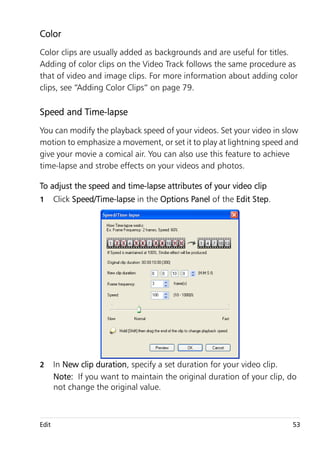
To adjust the speed and time-lapse attributes of your video clip
1      Click Speed/Time-lapse in the Options Panel of the Edit Step.


2      In New clip duration, specify a set duration for your video clip.
       Note: If you want to maintain the original duration of your clip, do
       not change the original value.


Edit                                                                     53
3    In Frame Frequency, specify the number of frames to be removed at
     regular intervals during video playback.
     Note: A higher value entered in Frame Frequency will produce a
     more noticeable time-lapse effect on your video. Otherwise,
     maintain the value at 0 to retain all frames in your video clip.
4    Drag the Speed slider according to your preferences (i.e., slow,
     normal or fast), or enter a value.
     Note: The higher the value you set, the faster the playback of your
     clip. (Values range from 10-1000%).
5    Click Preview to view the results of your settings.
6    Click OK.

To apply Time-lapse/Strobe effects on your photos
1    Click File > Insert Media File to Timeline > Insert Photo for Time-
     lapse/Strobe.
2    Browse for the photos you want to include in your project and click
     Open.
     Note: It is recommended to choose a series of photos taken in
     succession from your DSLR.
3    Specify the number of frames to be retained and removed in Keep
     and Drop.


54                                               Corel VideoStudio Pro User Guide
Note: For example, you enter a value of 1 in Keep and 3 in Drop.
       This means that it will follow the interval to retain one frame and
       remove three frames for the entire video clip.
4      In Frame duration, specify the exposure time for each frame.
5      Use the playback controls to preview the effect of the frame settings
       on your photos.
6      Click OK.


Edit                                                                         55
If the value of Frame Frequency is more than 1 and clip duration
       is the same, Strobe effect will be produced. If the value of Frame
       Frequency is more than 1 and clip duration is shortened, Time-
       lapse effect will be produced.


       Hold [Shift] then drag the end of the clip on the Timeline to
       change the playback speed.
       The black arrow means you are trimming or extending the clip,
       while the white arrow means that you are changing the playback
       speed.


Reversing video playback
You can reverse the playback of video clips.

To reverse video playback
• Click Reverse video in the Options Panel.

Replacing media clips
Media clips in the Timeline can be replaced in its current position. When
you replace a clip, the attributes of the original clip are applied to the new
clip.


56                                                Corel VideoStudio Pro User Guide
To replace a clip
1      In the Timeline, right-click the media clips you want to replace.
2      Choose Replace clip from the right-click menu.
       The Replace/relink clip dialog box appears.
3      Browse for the replacement media clips and click Open.
       The clip in the Timeline is automatically replaced.


          The duration of the replacement clip must be equal to or longer
          than the duration of the original clip.
          Hold [Shift] and click multiple clips to select two or more clips in
          the Timeline and repeat the process for replacing multiple clips.
          The number of replacement clips must match the number of clips
          that you selected in the Timeline.


          You can also drag a video clip from the Library to the Timeline and
          hold the [Ctrl] key to automatically snap on a clip to be replaced.


Edit                                                                        57
Trimming a clip
The best part of editing your movie on your computer is the ease with
which you can split and trim your clips with frame accuracy.

To split a clip into two
1    In Storyboard View or Timeline View, select the clip you want to split.
2    Drag the Scrubber to the point where you want to split the clip.


     Note: Click     or      to set the cutting point more precisely.
3    Click    to split the clip into two clips. To remove one of these clips,
     select the unwanted clip and press [Delete].

To trim a clip with the Trim markers using Single Clip Trimmer
1    Double-click a video clip in the Library or right-click on a video clip
     and choose Single Clip Trim to launch the Single Clip Trim dialog box.
2    Click and drag the Trim markers to set the Mark-in/Mark-out points
     on the clip.
3    For more precise trimming, click on a Trim marker, hold it, and use
     the left or right arrow keys on your keyboard to trim one frame at a
     time. The Mark-in/Mark-out points can also be set by pressing [F3]
     and [F4], respectively.


                           Trim markers              Mark-in/
                                                     Mark-out


58                                                Corel VideoStudio Pro User Guide
4      To preview the trimmed clip only, press [Shift + Space] or hold [Shift]
       and click the Play button.
       Note: You can also use zoom controls to display each frame of your
       video on the Timeline and trim one frame at a time. The Scroll Bar
       makes navigating through your project quicker and easier. A wheel
       mouse can also be used to scroll, and to zoom by pressing [Ctrl].

To trim a clip directly on the Timeline
1      Click a clip on the Timeline to select it.
2      Drag the Trim markers on either side of the clip to change its length.
       The Preview Window reflects the position of the Trim marker in the
       clip.
       Note: Instant timecode tip is a feature of Corel VideoStudio Pro that
       allows you to add clips with a specific timecode. It appears while
       trimming and inserting overlapping clips on the Timeline, enabling
       you to make adjustments based on the timecode shown. For
       example, the instant timecode tip appears with the format
       00:00:00.00 (00 - 04.25). 00:00:00.00 indicates the current
       timecode where the selected clip is located. The (00 - 04.25) start-
       end range represents the duration of one overlapping clip with the
       previous clip and another overlapping with the next clip.


                                                    Instant timecode tip


Edit                                                                        59
To trim a clip using the Duration box
1    Click a clip on the Timeline to select it.
2    Click the timecode in the Duration box in the Options Panel and
     enter the desired clip length.

                                                  Duration


                                                  Trim
                                                  markers

     Note: Changes made in the video Duration box only affect the
     Mark-out point. The Mark-in point remains unchanged.

Split by Scene
Use the Split by Scene feature in the Edit Step to detect different scenes
in a video file and automatically break it down into several clip files.

The way Corel VideoStudio Pro detects scenes depends on the type of
video file. In a captured DV AVI file, scenes can be detected in two ways:
• DV Recording Time Scan detects scenes according to their shooting
  date and time.
• Frame Content detects content changes, such as motion change,
  camera shifting, brightness change, etc., and splits them into
  separate files.

In an MPEG-1 or MPEG-2 file, scenes can only be detected based on
content changes (i.e., by Frame Content).

60                                                    Corel VideoStudio Pro User Guide
To use Split by Scene on a DV AVI or MPEG file
1      Go to the Edit Step and select a captured DV AVI file or an MPEG file
       on the Timeline.
2      Click Split by Scene button       in the Options Panel. This will open
       the Scenes dialog box.
3      Choose your preferred scan method (DV Recording Time Scan or
       Frame Content).
4      Click Options. In the Scene Scanning Sensitivity dialog box, drag the
       slider to set the Sensitivity level. A higher value means more precision
       in the scene detection.
5      Click OK.
6      Click Scan. Corel VideoStudio Pro then scans through the video file
       and lists all the detected scenes.
       You may merge some of the detected scenes into a single clip.
       Simply select all the scenes that you want to join together then click
       Join. The plus sign (+) and a number indicates how many scenes are
       merged into that particular clip. Click Split to undo any Join actions
       that you have done.
7      Click OK to split the video.


Edit                                                                         61
Multi-trimming your video
The Multi-trim Video feature is another method for breaking down a clip
into multiple segments. While Split by Scene is automatically done by the
program, Multi-trim Video gives you complete control over the clips you
wish to extract, making it even easier to include only the scenes you want.


     1
                                                                              2
                                                                              3
                                                                              4


• 1 - Timeline zoom
     Drag up and down to sub-divide a video clip into frames per second.
• 2 - AccuCut Timeline
     Scan a video clip frame by frame for accurate mark-in and mark-out
     positions.
• 3 - Jog Wheel
     Use to scroll to different parts of the clip.
• 4 - AccuCut Timeline
     Preview the clip at different playback speeds.


62                                                   Corel VideoStudio Pro User Guide
To trim a video file into multiple clips
1      Go to the Edit Step and select the clip that you want to trim.
2      Double click the clip to open the Options Panel.
3      Click Multi-trim Video in the Options Panel.
4      View the whole clip first by clicking Play to determine how you want
       to mark segments in the Multi-trim Video dialog box.
5      Choose the number of frames to display by dragging the Timeline
       zoom. You can choose to display the smallest subdivision of one
       frame per second.
6      Drag the Scrubber until you get to the part of the video that you
       want to use as the beginning frame of the first segment. Click Set
       Mark-in button      .
7      Drag the Scrubber again, this time, to the point where you want the
       segment to end. Click Set Mark-out button          .
8      Do steps 4 and 5 repeatedly until you have marked all the segments
       you want keep or remove.
       Note: To mark segments in and out, you can press [F3] and [F4]
       while playing the video. You can also click the Invert Selection button
            or press [Alt+I] to toggle between marking segments that you
       want to retain or marking segments that you want taken out from
       the clip.
       Quick search interval allows you to set a fixed interval between
       frames and browse through the movie using the set value.
9      Click OK when finished. The video segments that you kept are then
       inserted onto the Timeline.


Edit                                                                        63
Navigation controls in the Multi-trim Video dialog box
                 Reverses or advances through the video in fixed
                 increments. By default, these buttons move up or
     [F5] [F6]   down through the video in increments of 15
                 seconds.
                 Plays a preview of the final trimmed video.


                 Plays the video file. Hold [Shift] then click to play only
                 the selected segments.

                 Moves to the start or end frame of a trimmed
                 segment.
                 Moves to the previous/next frame in the video.

                 Repeats playback of video


Saving trimmed clips
Frequently, when you make changes (i.e., after auto-splitting clips using
Split by Scene, extracting clips using Multi-trim Video, or manually
trimming clips), you may wish to make a permanent change to the clip
and save the edited file. Corel VideoStudio Pro gives you a margin of
safety since it saves the trimmed video to a new file and does not alter the
original file.

To save a trimmed clip
1    In the Storyboard View, Timeline View, or the Library, select a
     trimmed clip.
• Click File > Save Trimmed Video.


64                                                  Corel VideoStudio Pro User Guide
The Edit Step Options Panel
The Options Panel in the Edit Step allows you to modify the media,
transitions, titles, graphics, animation, and filters that you add to the
Timeline.

The elements that you use in your project or effects that you apply to your
clips can be modified or fine tuned in the Attribute tab.


Video: Video tab
• Video Duration — Displays the duration of the selected clip in
  hours:minutes:seconds:frames. You can trim the selected clip by
  changing the clip duration.
• Clip volume — Allows you to adjust the volume of the audio
  segment of your video.
• Mute — Silences the audio segment of your video without deleting
  it.
• Fade-in/out — Gradually increases/decreases the volume of the clip
  for a smooth transition. Select Settings > Preferences > Edit to set
  the fade-in/out duration.


Edit                                                                        65
• Rotate — Rotates the video clip.
• Color Correction — Allows you to adjust the hue, saturation,
  brightness, contrast, and gamma of the video clip. You can also
  adjust the White balance of the video or photo clip or make auto
  tone adjustments.
• Speed/Time-lapse — Allows you to adjust the playback speed of your
  clip and apply Time-lapse and Strobe effects.
• Reverse video — Plays the video backward.
• Take a Snapshot — Saves the current frame as a new image file and
  places it in the Photo Library. All enhancements made to the file are
  discarded before saving.
• Split Audio — Allows you to separate the audio from a video file and
  place it on the Voice Track.
• Split by Scene — Splits a captured DV AVI file based on the shooting
  date and time, or the changes in video content (i.e., motion change,
  camera shifting, brightness change, etc.).
• Multi-trim Video — Allows you to choose desired segments from a
  video file and extract them.

Photo: Photo tab
• Duration — Sets the duration of the selected image clip.
• Rotate — Rotates the image clip.
• Color Correction — Allows you to adjust the hue, saturation,
  brightness, contrast, and gamma of the image. You can also adjust
  the White balance of the video or image clip or make auto tone
  adjustments.
• Resampling Option — Lets you modify a photo’s aspect ratio when a
  transition or effect is applied.
• Pan & Zoom — Applies the Pan & Zoom effect to the current image.


66                                           Corel VideoStudio Pro User Guide
• Presets — Provides various Pan & Zoom presets. Choose a preset
  from the drop-down list.
• Customize — Allows you to define how to pan and zoom the
  current image.

Color: Color tab
• Duration — Sets the duration of the selected color clip.
• Color Picker — Click the color box to adjust the color.

Attribute tab
• Mask & Chroma Key — Allows you to apply overlay options such as
  mask, chroma key, and transparency.
• Alignment Options — Allows you to adjust object position in
  preview window. Set the option through the Alignment Options
  pop-up menu.
• Replace last filter — Allows the last filter applied to a clip to be
  replaced when you drag a new filter onto the clip. Clear this option if
  you want to add multiple filters to your clips.
• Applied filters — Lists the video filters that were applied to a clip.
  Click     or    to arrange the order of the filters; click   to remove
  a filter.
• Presets — Provides various filter presets. Choose a preset from the
  drop-down list.
• Customize Filter — Allows you to define the behavior of the filter
  throughout the clip.
• Direction/Style — Allows you to set the direction and style of entry/
  exit of the clip. This can be set to static, top/bottom, left/right, top-
  left/top-right, bottom-left/bottom-right.
       As for the style, you can set direction of entry/exit of clips through:
       Rotate before/after pause duration and Fade in/out motion effect.


Edit                                                                         67
• Distort clip — Allows you to modify the size and proportions of the
  clip.
• Show grid lines — Select to display the grid lines. Click   to open a
  dialog box where you can specify settings for the grid lines.

Assets and Effects
Video and photo files, transitions, titles, graphics, filters, and audio files
are common elements in a movie production. The Library Panel provides
quick access to these elements. Clicking a button in the Library Panel
displays a specific media type or effect in the Library.

Media
The Media Library displays a selection of photos, videos and audio in the
Library. These elements can be added to the corresponding tracks.


68                                                Corel VideoStudio Pro User Guide
Video format support:

Input: AVI, MPEG-1, MPEG-2, HDV, AVCHD, M2T, MPEG-4, M4V, H.264,
QuickTime®, Windows Media® Format, MOD (JVC MOD File Format),
M2TS, TOD, BDMV, 3GPP, 3GPP2, DVR-MS, FLI, FLC, FLX, SWF, DivX®*,
RM*, UIS, UISX

Output: DVAVI, MPEG-2, MPEG-4, H.264, QuickTime, Windows Media
Format, 3GP, 3GP2, AVCHD, BDMV, FLI, FLC, FLX , FLV, RM*, DivX*, UIS,
UISX

*Drivers need to be installed to enable this option.

Image format support:

Input: BMP, CLP, CUR, EPS, FAX, FPX, GIF87a, ICO, IFF, IMG, JP2, JPC, JPG,
PCD, PCT, PCS, PIC, PNG, PSD, PXR, RAS, SCT, SHG, TGA, TIF/TIFF, UFO,
UFP, WMF, PSPImage, Camera RAW (RAW/CRW/CR2/BAY/RAF/DCR/MRW/
NEF/ORF/PEF/X3F/SRF/ERF/DNG/KDC/D25/HDR/SR2/ARW/NRW/OUT/TIF/
MOS/FFF), 001, DCS, DCX, ICO, MSP, PBM, PCX, PGM, PPM, SCI, WBM,
WBMP

Output: BMP, JPG

Audio format support:

Input: Dolby Digital® Stereo, , Dolby Digital®5.1, MP3, MPA, QuickTime,
WAV, Windows Media® Audio, MP4, M4a, Aiff, AU, CDA, RM, AMR,
AAC

Output: Dolby Digital Stereo, Dolby Digital 5.1, WAV, MP4, WMA


Edit                                                                   69
Transitions
Transitions can help your movie switch smoothly from one scene to the
next. They can be applied to single clips or in between clips on all tracks
in the Timeline. Effective use of this feature can add a professional touch
to your movie.

There are 16 types of transitions in the Library. For every type, you choose
a specific preset effect by using the thumbnails.


To add a transition
• In the Corel VideoStudio Pro Editor, do one of the following:
     • Click Transitions in the Library and select from various categories of
       transitions from the drop-down list. Scroll through the transitions
       in the Library. Select and drag an effect between two video clips in
       the Timeline. Drop your effect and it will snap into place. You can
       only drag and drop one transition at a time.
     • Double-click a transition in the Library to automatically insert it
       into the first empty transition slot between two clips. Repeat this
       process to insert a transition at the next cut. To replace a transition
       in your project, drag the new transition onto the transition


70                                                Corel VideoStudio Pro User Guide
thumbnail for replacement in the Storyboard View or Timeline
         View.
       • Overlap two clips in the Timeline.

To add a transition automatically
1      Select Settings > Preferences > Edit, then select Automatically add
       transition effect.
2      Choose a transition effect from the Default transition effect drop-
       down menu.
3      The default transition is added automatically between clips.
       Note: A default transition, however, is always added automatically
       between overlapping clips, whether the Automatically add transition
       effect in Preferences is enabled or not.

To add a selected transition to all video track clips
1      Select the thumbnail of the transition.

2      Click the Apply current effect to video track button     or right-click
       on the transition and select Apply current effect to video track.

To add random transitions to all video track clips

• Click the Apply random effect(s) to video track button           .


Edit                                                                         71
To customize a preset transition
1    Double-click a transition effect in the Timeline.
2    Modify the attributes or behavior of the transition in the Options
     Panel.


To delete a transition
• Click on the transition to be removed and press [Delete].
• Right-click on the transition and select Delete.
• Drag to separate two clips with transition effect.

Adding transitions to My Favorites
You can collect your favorite transitions from different categories and
save them in the My Favorites folder. This way, you can easily find the
transitions you use most often.

To save a transition in My Favorites
1    Select the thumbnail of the transition.

2    Click the Add to My Favorites button       to add the transition in the
     Favorites Library list.


72                                               Corel VideoStudio Pro User Guide
Titles
Corel VideoStudio Pro lets you create professional-looking titles,
complete with special effects, in minutes. While a picture may be worth
a thousand words, the text in your video production (i.e., subtitles,
opening and closing credits, etc.) adds to the clarity of your movie.

Corel VideoStudio Pro allows you to add text either in multiple text boxes
or in a single text box. Using multiple text boxes gives you the flexibility
to position the different words of your text anywhere on the video frame
and allows you to arrange the stacking order of the text. A single text box
works well when you are creating opening titles and end credits for your
projects.

To add multiple titles directly on the Preview Window
1      Click Title in the Library Panel.
2      Double-click the Preview Window.
3      In the Edit tab, select Multiple titles.
4      Use the buttons in the Navigation Panel to scan your movie and
       select the frame where you want to add the title.
5      Double-click the Preview Window and type in your text.
       Click outside the text box when you are done typing. To add another
       set of text, double-click again on the Preview Window.
       You can also add a preset title from the Library and modify the text
       on the Preview Window by dragging a preset title thumbnail from
       the Library to the Title Track. and modifying the text on the Preview
       Window.


Edit                                                                       73
You can add multiple titles and modify the attributes of
               each title.


        Title clips can be placed on both Title and Video tracks.

To add a preset title to your project
1    Click Title in the Library Panel.
2    Drag and drop the preset text onto the Title Track.
     Note: You can modify a preset title by double-clicking it on the
     Preview Window and entering new text. Open the Options Panel to
     edit the title attributes.

Saving your titles to My Favorites in the Library
If you still intend to use the title you have created for other projects, it is
recommended that you save to My Favorites in the Library. You can drag
a title to the Library to save it or right-click the title clip in the Timeline
and click Add to My Favorites.


74                                                     Corel VideoStudio Pro User Guide
The Title Safe Area
It is recommended to keep your text within the title safe area. The title
safe area is the rectangular white outline on the Preview Window.
Keeping the text within the bounds of the title safe area will make sure
the title does not get cut off at the edges.

To show or hide the title safe area
1      Click Settings > Preferences.
2      Under the General tab, click Display title safe area on Preview
       Window.

Editing titles

To edit titles
1      Select the title clip on the Title Track and click the Preview Window to
       enable title editing.
2      Modify the properties of the title clip by using the different options
       in the Edit and Attribute tabs of the Options Panel.

To adjust the duration of title clips
• Do one of the following:
       • Drag the handles of the clip
       • Enter a Duration value in the Edit tab.


          To see how the title appears on the underlying video clip, select
          the title clip and then click Play Trimmed Clip or drag the Scrubber.
          You can also copy and paste attributes from one clip to another.
          To do this, right-click the source clip, select Copy Attributes, and
          then right-click the target clip and select Paste Attributes.


Edit                                                                         75
Modifying text attributes
Modify the attributes of your text, such as font face, style, size, and more,
by using the available settings in the Edit tab of the Title Library. Click Title
in the Library then go to the Edit tab to apply options available for
modifying text attributes.


More options allow you to set the style and alignment, apply Border,
Shadow and Transparency and add a Text backdrop to your text.


              You can apply preset styles to your title by clicking the
              Title Style Preset button.

A text backdrop superimposes your text on an ellipse, rounded rectangle,
curve-edged rectangle and a rectangle color bar.

To add a text backdrop
1    Click the Customize text backdrop attributes button                  to open the
     Text Backdrop dialog box.
2    Choose a solid background bar or shapes that fit with text.


76                                                     Corel VideoStudio Pro User Guide
3      Choose the color of your backdrop. Use a solid or gradient color and
       set the transparency.


To modify text border, transparency, and add shadows
• Click the Border/Shadow/Transparency button       in the Options
  Panel and set attributes using the Border/Shadow/Transparency
  dialog box.


To rotate text in the Preview Window
1      Select a text to display the yellow and purple handles in the Preview
       Window.
2      Click and drag a purple handle to the position you want.
       Note: You can also rotate text using the Options Panel. In the Edit
       tab, specify a value in Rotate by degree to apply a more precise angle
       of rotation.


Edit                                                                       77
Applying animation
Apply motion to your text using title animation tools, such as Fade,
Moving Path, and Drop.

To apply animation to the current text
1    In the Attribute tab, select Animation and Apply.
2    Select the animation category from the Type drop-down list and
     select the specific preset animation from the box under Type.

3    Click the Customize animation attributes button               to open a
     dialog box where you can specify animation attributes.
4    In some animation effects, you can drag the Pause duration handles
     to specify how long the text will pause after it enters and before it
     exits the screen.


                             Pause duration handles


Applying title effects
Apply filters to your text using preset Title Effects such as Bubble, Mosaic,
and Ripple. The title filters are in a separate Title Effects category.

To apply title filters to the current text
1    Click Filter and choose Title Effects in the Gallery drop-down menu.
     The Library displays the thumbnails of various filters under the Title
     Effects category.
2    Select the clip in the Timeline then choose the title filter from
     thumbnails shown in the Library.
3    Drag and drop the title filter onto your clip in the Title Track.


78                                                    Corel VideoStudio Pro User Guide
Note: By default, the filter applied to a clip is always replaced with
       the new filter dragged onto the clip. In the Attribute tab of the
       Options Panel, clear Replace last filter to apply multiple filters to a
       single title.
4      Click Customize Filter in the Attribute tab of the Options Panel to
       customize the attributes of the title filter. Available options depend
       on the selected filter.
5      Preview how your clip looks with the video filter applied to it using
       the Navigator.
       Note: When there is more than one title filter applied to a clip, you
       can change the order of filters by clicking        or    . Changing the
       order of the title filters will have different effects on your clip.

Graphic
The Graphic Library contains color clips, objects, frames and flash
animation.

Adding Color Clips
Color clips are solid colored backgrounds. You can use the preset color
clips or create new color clips in the Library. For example, you can insert
a black color clip as background for end credits.

To select a color clip in the Color Library
1      Select Graphic from the Library Panel and choose Color from the
       Library drop-down list.
2      Choose the desired color as displayed in the Library and drag to the
       Video or Overlay Track.


Edit                                                                             79
3    To add a color that is not in the Library, click the color box beside the
     color picker. Here, you can select a color either from Corel Color
     Picker or the Windows Color Picker.


4    Set the Duration of the color clip in the Options Panel.

Adding Objects or Frames
Add decorative objects or frames to your videos as Overlay clips.

To add an object or frame
1    Select Graphic in the Library.
2    From the drop-down list, you can choose to add Object or Frame.
3    Select an object or frame and drag it onto the Overlay Track in the
     Timeline.
4    Click the Attribute tab to resize and reposition the object or frame.
     Note: You can also resize an object by double-clicking it on the
     Preview Window and dragging the yellow handles.


 Object                                  Frame


80                                                Corel VideoStudio Pro User Guide
Adding Flash animations
Give more life to your videos by adding Flash animations as Overlay clips.

To add a Flash animation
1      From the drop-down list in the Graphic Library, select Flash
       Animation.
2      Select a Flash animation then drag it onto the Overlay Track.
3      Click the Options button.
4      In the Attribute tab, customize your Flash Animation.


Customizing objects, frames and animations
Use the various options available in the Edit and Attribute tabs to
customize your object and frame. You can add animation, apply
transparency, resize the object or frame, and more.

Filters
Video filters are effects that you can apply to clips in order to change their
style or appearance. Using filters is a creative way to enhance your clips,
or correct flaws in your video. For example, you can make a clip look like
a painting or improve its color balance.

Filters can be applied alone or in combination to the Video, Overlay, Title
and Audio Tracks.


Edit                                                                        81
To apply a video filter to a photo or video clip in the Video Track
1    Click Filter in the Library to display the thumbnails of various filter
     samples.
2    Select the clip in the Timeline then choose the video filter from
     thumbnails shown in the Library.
3    Drag and drop the video filter onto your clip in the Video Track.


4    Click Customize Filter in the Attribute tab of the Options Panel to
     customize the attributes of the video filter. Available options depend
     on the selected filter.
5    Preview how your clip looks with the video filter applied to it using
     the Navigator.

Applying multiple filters

By default, the filter applied to a clip is always replaced with the new filter
dragged onto the clip. Uncheck Replace last filter to apply multiple filters
to a single clip. Corel VideoStudio Pro allows you to apply a maximum of
five filters to a single clip.

You can also choose the filter to be previewed through the selection in
the view toggle. In the event that you choose to render your project, only
enabled filters will be included in your movie.

When there is more than one video filter applied to a clip, you can change
the order of filters by clicking     or . Changing the order of the video
filters will have different effects on your clip.


82                                                 Corel VideoStudio Pro User Guide
Key frame settings
Corel VideoStudio Pro allows you to customize video filters in a variety of
ways, such as by adding key frames to your clips. Key frames let you
specify a different attribute or behavior for your video filter. This gives you
the flexibility to determine how your video filter will look at any point in
a clip and to vary the intensity of an effect over time.

To set key frames for your clips
1      Drag and drop a video filter from the Library onto a clip on the
       Timeline.
2      Click Customize Filter. The dialog box for the video filter appears.
       Note: The available settings are different for each video filter..
3      In the Key frame controls, drag the Scrubber or use the arrows to go
       to the frame where you'd like to change the attributes of your video
       filter.


    Key frame
    Controls


       Note: You can use the mouse wheel to zoom in or out of the
       Timeline Control bar for precise placement of key frames.
4      Click Add key frame    to set that frame as a key frame in the clip.
       You can adjust the video filter settings for that particular frame.
       Note: A diamond-shaped mark on the Timeline Control bar
       appears and indicates that the frame is a key frame in the clip.


Edit                                                                          83
5    Repeat steps 3 and 4 to add more key frames to your clip.
6    Use the Timeline controls to edit or to go to a key frame in the clip.
     • To delete a key frame, click Remove key frame       .
     • Click Reverse key frames    to reverse the sequence of key frames
       on the Timeline such that the sequence starts with the last key
       frame and ends with the first key frame.
     • To move to the succeeding key frame, click Go to next key frame
         .
     • To move to the key frame prior to the one selected, click Go to
       previous key frame    .
7    Click Fade In   and Fade Out       to establish fade points in your
     filter.
8    Adjust the video filter settings according to your preferences.
9    Preview the changes you've made by clicking Play          in the Preview
     Window of the dialog box.
10 Click OK when finished.
     Note: To preview the clip with the video filter applied, use the
     Preview Window or an external device such as a TV monitor or DV
     camcorder.
     To choose the display medium, click , then click          to open the
     Preview Playback Options dialog box.


84                                               Corel VideoStudio Pro User Guide
Audio
Sounds are one of the elements that determine the success of your video
production. Corel VideoStudio Pro allows you to add both narration and
music to your project.

The Audio feature in Corel VideoStudio Pro consists of two tracks: Voice
and Music. You can insert narration on the Voice Track and background
music or sound effects on the Music Track.

For more information on working with audio files, see Adding audio files,
Adding voice-over narration, and Adding background music.

Taking snapshots in the Edit Step
A photo snapshot can be taken in the Edit Step by selecting a specific
frame on the Timeline and saving it as an image file.

To capture photos
1      Select Settings > Preferences > Capture.
       Choose Bitmap or JPEG as the Snapshot format.
       Note: If you selected JPEG, set the Snapshot quality.
2      Click OK.
3      Select a video clip in your project.
4      Drag the Scrubber to the frame you want to capture.
5      Select Edit > Take a Snapshot. The photo snapshot is automatically
       added in the Library and saved to your working folder.


Edit                                                                     85
Ripple Editing
Ripple Editing allows you to insert or remove clips while automatically
moving other clips (including empty spaces) accordingly, to make room
for it on the Timeline. Ripple editing begins after the insertion point. Use
this mode to maintain the original synchronization of tracks when
inserting or deleting clips.

This feature is useful when you want other titles or tracks to play along
with a particular moment in the video. This also makes editing more
efficient by keeping all tracks synchronized, using the video track as
reference.


             Original Timeline


             Timeline after a clip is inserted in the Video Track with
             Ripple Editing disabled. Only the clips on the Video Track
             are moved when a new clip is inserted.


86                                                    Corel VideoStudio Pro User Guide
Timeline after a clip is inserted in the Video Track with
                Ripple Editing enabled on some tracks. Clips on the
                tracks with Ripple Editing enabled move when a new
                clip is inserted to maintain original synchronization.

To insert clips in Ripple Editing mode
1      Click Ripple Editing to activate the panel, then select the
       corresponding box for each track where you want to apply Ripple
       Editing.
2      Drag the clip to insert from the Library to the desired position on the
       Timeline. As soon as the new clip is in place, all clips where Ripple
       Editing is applied will shift accordingly while maintaining their track
       positions relative to one another.
       Note: Ripple Editing also works in removing clips.

Editing with Smart Proxy
The main purpose of the Smart Proxy feature is to have a more fluid
editing experience when working with large, high resolution video files.

When you edit and preview your project, proxy files will be used as
substitutes for their large video source counterparts. This feature works
especially for handling video footage shot in HD, which can take up a lot
of your computer’s resources to process. Whereas when you render a
video file, the original video source files will be used.


Edit                                                                        87
Proxy files are lower resolution working copies of video files. They are
reduced in resolution or compression bit rate -- to speed up editing of
high definition files such as HDV and AVCHD. Proxy files are source-
dependent rather than project-dependent. In other words, proxy files can
be shared among different projects. Smart Proxy can also be used with
other video file formats and is not limited to HD files.

To enable the creation of proxy files
• Click Settings > Smart Proxy Manager > Enable Smart Proxy.
  Note: The Smart Proxy feature is enabled by default. However, you
  can force the creation of proxies at any time by right-clicking on a
  file, or multiple files in the Timeline, and choose Create Smart Proxy.

To set the environment when smart proxy files will be generated
1    Select Settings > Smart Proxy Manager > Settings.
2    In the Performance tab of the Preferences dialog box, you can
     customize Smart Proxy settings.


        The Smart Proxy feature is enabled in Corel VideoStudio Pro upon
        program startup.
        The Smart Proxy File Manager lists the source and proxy files. You
        can use this manager to delete proxy files you no longer need.
        The Smart Proxy Queue Manager shows the files for which proxies
        will be generated.

In the case of HDV and AVCHD files, Smart Proxy is automatically
activated during capture and use of these files in your project.

Once Smart Proxy is enabled, proxy files will automatically be created and
used in your project whenever you insert video files into the Timeline.


88                                             Corel VideoStudio Pro User Guide
To view the list of video files to be generated as proxy files
1      Go to Settings > Smart Proxy Manager > Smart Proxy Queue
       Manager.
2      Select the files you want to include in your queue.
3      Click OK.

Converting multiple files
Batch Convert allows you to convert a large number of files to another
format in sequence.

To do Batch Convert
1      Click File > Batch Convert.
2      Click Add and then choose the files you want to convert.
3      Select an output folder in Save in folder.
4      In Save as type, choose your desired output type.
5      Click Convert.

The result is shown in the Task Report dialog box. Click OK to finish.

Enhancing clips
Corel VideoStudio Pro lets you improve the appearance of a video or
image clip by adjusting its current properties such as its color settings in
Color Correction.

Adjusting color and brightness
Adjust color and brightness settings of photos and video on the Timeline
by clicking Color Correction in the Options Panel.


Edit                                                                      89
To adjust color and brightness
1    Select the video or image clip to enhance on the Timeline.
2    Drag the sliders to adjust the Hue, Saturation, Brightness, Contrast
     or Gamma of the clip.
3    Watch the Preview Window to see how the new settings affect the
     image.
     Note: Double-click the appropriate slider to reset the original color
     setting of the clip.

Adjusting white balance
White balance restores the natural color temperature of an image by
removing unwanted color casts due to conflicting light sources and
incorrect camera settings.

For example, an object illuminated with incandescent lights may turn out
too reddish or yellowish in an image or video clip. To successfully achieve
a natural look, you need to identify a reference point in your image which
represents the color white. Corel VideoStudio Pro gives you different
options in selecting the white point:
• Auto — Automatically chooses a white point that is well-matched
  with the overall color of your image.
• Pick Color — Allows you to manually select the white point in the
  image. Use the Eyedropper Tool to pick a reference area that should
  be white or neutral gray.
• White balance presets — Automatically selects white point by
  matching specific light conditions or scenarios.
• Temperature — Allows you to specify color temperature of light
  sources in Kelvin (K). Lower values indicate Tungsten, Fluorescent and
  Daylight scenarios while Cloudy, Shade and Overcast fall under high
  color temperature.


90                                              Corel VideoStudio Pro User Guide
To adjust White balance
1      Select an image or video clip on the Timeline or the Library.
2      In the Video tab of the Edit Step Options Panel, click Color
       Correction.
3      Check the White balance option box.
4      Determine how you want to identify the white point. Choose among
       the different options (Auto, Pick color, White balance presets or
       Temperature).


5      If you have selected Pick color, choose Show preview to display a
       preview area in the Options Panel.
6      When you drag your cursor to the Preview area, it will change to an
       eyedropper icon.
7      Click to identify a reference point in your image which represents the
       color white.
8      Watch the Preview Window to see how the new settings affect the
       image.
       Note: Click the White balance drop-down arrow to display more
       color adjustments you can use. Select either Vivid Color or Normal
       Color for the color intensity. As for the level of sensitivity of White
       balance, you can choose any of the following options: Weaker,
       Normal and Stronger.


Edit                                                                         91
Adjusting tones

To adjust the tone quality of your video or image clips
• Click Color Correction in the Edit Step Options Panel and select Auto
  Tone Adjustment.
  Note: You can indicate if you want the clip as Brightest, Brighter,
  Normal, Darker or Darkest by clicking the Auto Tone Adjustment
  drop-down menu.

Applying pan and zoom effect
Pan & Zoom is applied to photos, and it emulates the pan and zoom
movements of a video camera. This is known as the “Ken Burns effect”.

To apply pan and zoom effect to photos
• Right-click the photo in the Timeline and select Auto Pan and Zoom.
  Note: You can also apply pan and zoom to a photo by clicking Pan &
  Zoom in the Photo tab of the Options Panel.


92                                             Corel VideoStudio Pro User Guide
You can customize a pan and zoom effect. The procedure below shows
an example of how to start zoomed in on a subject, then pan and zoom
out to show the whole image.


To customize pan and zoom effect
1      In the Photo tab, select Customize under Pan & Zoom.

2      In the Pan and Zoom dialog box, the crosshairs    in the Original
       Window represent the key frames in the image clip where settings
       can be customized to produce the pan and zoom effect.
3      Drag the Start key frame, represented by crosshairs in the Image
       Window, to the area where you want to focus.


                         Image                  Preview


Edit                                                                      93
4    Zoom in on the area by minimizing the marquee box or by increasing
     the Zoom ratio.


                     Original                     Preview
5    Drag crosshairs of the End key frame to your desired final point.


                      Original                    Preview

6    Click the Play button       to preview the effect.
7    Click OK to apply the effect to the image.

Additional options in the Pan and Zoom dialog box allow you to further
customize this effect. Click the Anchor boxes to move the marquee box
to fixed positions in the Original Window.


        To zoom in or out of a fixed area without panning the image,
        select No panning.
        To include a fade-in/out effect, increase the Transparency. The
        image will fade to the Background color. Click the color box to
        choose a background color, or use the eye dropper tool       to
        select a color on the Image Window.


94                                                Corel VideoStudio Pro User Guide
Resizing and distorting clips

To resize or distort a clip
1      Select a clip in the Video Track then click the Attribute tab in the
       Options Panel.
2      Check the Distort clip option box. The yellow handles will appear. Do
       the following steps:
       • Drag yellow handles at the corners to resize the clip proportionally
         (A).
       • Drag yellow handles at the sides to resize without maintaining
         proportions (B).
       • Drag the green handles at the corners to skew the clip (C).


              A                         B                      C


Edit                                                                          95
Adding cues and chapters
Adding cues and chapters helps you to navigate through your project,
allowing you to place comments on your Timeline. These cue and chapter
marks are also used for DVD production.

To add project cues
1    Click the Chapter/Cue Menu.


2    Select Cue Point.
3    Drag the cursor to the part of the project where you want to add a
     cue point and click the bar below the Timeline ruler. Notice that a
     blue arrow icon is added.


                                Cue points
     Another way to add a cue point is to drag the Timeline slider to the
     desired cue point position in your project. Click the Add/Remove Cue
     Point.
                         Add/Remove Cue Point


                                   Cue points


96                                              Corel VideoStudio Pro User Guide
4      Repeat Step 3 to add more cue points.
       Note: You can also use the Cue Point Manager when adding cue
       points. Select Add and specify the timecode and name of cue for
       easy identification. Click OK and then Close.

To add chapters
1      Make sure that the Chapter Point is selected in the Chapter/Cue
       Menu.


2      Drag the cursor to the part of the project you want to assign as
       chapters and click the bar below the Timeline ruler. Notice that,
       below your Timeline ruler, a green arrow icon appears that serves as
       a marker in your movie.


                                       Chapter points
       You can also drag the Timeline slider to the desired chapter point
       position in your project. Click the Add/Remove Chapter Point.
3      To edit a chapter, click on a chapter point you want to edit and drag
       to a new position.
4      To rename, double click a chapter point and then enter a new
       chapter name. Click OK.
       Note: To remove chapters and cues, simply drag the markers outside
       the Timeline ruler and then drop. Or you can also drag the Timeline
       ruler to the chapter or cue point you want to remove and then click
       Add/Remove Chapter Point or Add/Remove Cue Point.


Edit                                                                        97
Working with Overlays
Another feature under the Edit Step is the application of overlay effects.
This allows you to add overlay clips to combine with your videos in the
Video Track. You can also use an overlay clip to create a picture-within-a-
picture effect. You can also use an overlay clip to create a picture-within-
a-picture effect, or to add a lower third, which can make your movie
production look more professional. Overlay tracks are also used to insert
video while keeping the audio from the main track.

To make overlay clips with transparent backgrounds, you can create a 32-
bit alpha channel AVI video file or an image file with an alpha channel.
You can use programs such as Corel® PaintShop Photo® Pro and
CorelDRAW® to create these video and image files.


Another alternative is to use the Mask & Chroma Key function in Corel
VideoStudio Pro to make a specific color on an image transparent.

Adding clips to the Overlay Track
Drag media files to the Overlay Track on the Timeline to add them as
overlay clips for your project.

To add a clip to the Overlay Track
1    In the Library, select the media folder that contains the Overlay clip
     that you want to add to your project.


98                                               Corel VideoStudio Pro User Guide
2      Drag the media file from the Library to the Overlay Track on the
       Timeline.


       Note: To add more tracks, right-click the Overlay Track. The Track
       Manager will open. You can also use color clips as Overlay clips.
3      To customize the Overlay clip, click the Attribute tab. The Overlay clip
       is then resized to a preset size and positioned at the center. Use the
       options in the Attribute tab to apply direction/style to the Overlay
       clip, add filters, resize and reposition the clip, and more.


Edit                                                                         99
Adding Multiple Tracks
You can also insert media files on another Overlay Track for added impact
for your movie. You can either show or hide these Overlay Tracks in your
project.

To open the Track Manager
1     Click Track Manager in the Toolbar to open the Track Manager dialog
      box.
2     Choose the Overlay Tracks to display.


Working with Overlay clips
Adding multiple Overlay Tracks gives you more creative possibilities for
your movie. You can superimpose clips over a background video with
portions of the overlay being transparent or add objects and frames to
your video. Achieving different effects for your projects is easy when you
know how to use Overlay clips and tracks.


100                                            Corel VideoStudio Pro User Guide
Trimming Overlay clips
You trim a clip in the Overlay Track the same way you trim a clip in the
Video Track.

To split a clip in the Video and Overlay Tracks
1      Click Project as the Play mode and drag the slider to the part you
       want to cut.
2      Click the Split Clip button   .

Repositioning the current Overlay clip

To reposition an Overlay clip
• Do one of the following:
       • Drag the Overlay clip to the desired area on the Preview Window. It
         is recommended that you keep the Overlay clip within the title safe
         area.
       • In Timeline View, click on the Overlay clip and click Options. In the
         Attribute tab, click Alignment Options and choose from a menu of
         position options.


Edit                                                                        101
Resizing an Overlay clip

To resize an Overlay clip
• In the Preview Window, drag the handles on the Overlay clip to
  resize it.
  Note: If you drag the yellow corner handle, it will keep the aspect
  ratio when you resize the clip.


To specify the alignment and size of the Overlay clip
• Click Alignment Options in the Attribute tab and click your desired
  option to achieve your desired effect.
      This resizes and adjusts the position of the Overlay clip.

Distorting an Overlay clip

To distort the Overlay clip
• Drag the green nodes at the corners of the outline box that surround
  the Overlay clip.


               Dragging the green node distorts an overlay clip.


102                                                    Corel VideoStudio Pro User Guide
When you select the green node, the cursor becomes a smaller arrow
with a small black box at its tail.


          Hold [Shift] while dragging the green nodes to keep the distortion
          within the outline box of the current clip.

Applying motion to an Overlay clip

To apply motion to an Overlay clip
1      In the Attribute tab, select the direction and style by which the
       Overlay clip will move to or from the screen under Direction/Style
       option.
2      Click a specific arrow to set where you want your clip to enter and
       exit in your movie.
       You can rotate the clip or fade it in and out.


           Pause duration determines how long your pause will be in the
          designated area before the clip exits the screen. If you applied
          motion to the Overlay clip, drag the Trim markers to set the Pause
          duration.


                                                  Pause duration


Edit                                                                        103
Enhancing Overlay clips
Applying transparency, border, chroma key, and filters can enhance your
Overlay clips.

To apply transparency to an Overlay clip
1     In the Attribute tab, click Mask & Chroma Key.
2     Drag the Transparency slider to set the opacity of the Overlay clip.


To add a border to an Overlay clip
1     In the Attribute tab, click Mask & Chroma Key.
2     Click the Border arrow keys to set the thickness of the border for the
      Overlay clip.
3     Click the Border color box located beside the arrow keys to set the
      color of the border.


104                                               Corel VideoStudio Pro User Guide
Chroma keying an Overlay clip
Chroma keying makes a particular color in a clip transparent and shows
the clip in the Video Track as background.


To specify Chroma Key settings to the current Overlay clip
1      Click Mask & Chroma Key in the Attribute tab.
2      Click Apply Overlay options, then choose Chroma Key from the Type
       drop-down list.

3      In the Similarity option, use the eye dropper tool  to pick the color
       to be rendered as transparent in the Preview Window. As you click
       the eye dropper to pick the color mask, you can instantly see how
       chroma keying affects the image.
4      Move the color similarity slider to adjust the range color to be
       rendered transparent.
       Note: You can also crop the overlay clip by setting Width and
       Height.


            Without Chroma Key                   With Chroma Key


Edit                                                                      105
Adding a mask frame
Adding a mask or a matte to an overlay clip applies a shape around it that
you can render opaque or transparent.


To add a mask frame
1     Click Mask & Chroma Key in the Attribute tab.
2     Click Apply Overlay Options then choose Mask Frame from the Type
      drop-down list.
3     Select a mask frame.
4     Watch the Preview Window to see how the new settings affect the
      image.


5     To import a mask frame, first create a mask for your project. Click
      and browse for the image file.
      Note: You can use any image file for a mask. If your mask is not in
      the required 8-bit bitmap format, Corel VideoStudio Pro
      automatically converts the mask. You can use programs such as
      Corel PaintShop Photo Pro and CorelDRAW to create an image mask.


106                                             Corel VideoStudio Pro User Guide
Painting images and animations using Painting Creator
Painting Creator is a feature of Corel VideoStudio Pro that allows you to
record painting, drawing, or writing strokes as an animation to use as an
overlay effect.

To launch the Painting Creator dialog box
• Click Tools > Painting Creator.

Painting Creator interface basics

1                                                                          3


                                                                           4

2


                                                                           5


• 1 — Brush Thickness
       Defines the thickness of your brush tip through a pair of sliders and a
       preview box.
• 2 — Canvas / Preview Window
       The painting area.


Edit                                                                       107
• 3 — Brush Panel
      Choose from a wide array of paint media, brush/tool tips, and
      transparency.
• 4 — Color Palette
      Allows you to choose or specify color using the Windows Color
      Picker or Corel Color Picker. You can also pick color by clicking the eye
      dropper.
• 5 — Macro / Static Painting Library
      Contains previously recorded clips.

Painting Creator control buttons and sliders
                               New / Clear Button — Launches a new
                               canvas or Preview Window.

                               Zoom In and Zoom Out buttons — Allows
                               you to zoom in and zoom out your view of
                               the painting.
                               Actual Size — Reverts your canvas or
                               Preview Window to its actual size.

                               Background image button and slider —
                               Clicking on the Background Image button
                               allows you to use images as reference for
                               your painting and control its transparency
                               through the slider.
                               Texture Option Button — Allows you to
                               choose and apply textures to your brush
                               tips.
                               Eyedropper Tool — Allows you to select a
                               color from the color palette or surrounding
                               objects.
                               Eraser mode button — Enables you to write
                               or erase your painting / animation.


108                                                Corel VideoStudio Pro User Guide
Undo Button — Allows you to undo and
       redo actions in Still and Animation modes.

       Redo button — Allows you to undo and
       redo actions in Still and Animation modes.

       Start recording / Snapshot button —
       Records your painting session or adds your
       painting to the Painting Library. The
       Snapshot button only appears if in Still
       mode.


       Play / Stop button — Plays or stops the
       current painting animation. Enabled only in
       Animation mode.
       Delete button — Deletes an animation or
       image from the library.

       Change duration button — changes the
       duration of the selected clip.

       Preference setting button — Launches the
       Preferences dialog box.

       Change to Animation or Still mode button
       — Allows you to switch between Animation
       mode and Still mode.
       OK button — Closes Painting Creator and
       inserts the animations and images in the
       Video Library and saves the files in *.uvp
       format in the Corel VideoStudio Library.
       Close button — Closes the Painting Creator
       module dialog box.


Edit                                                 109
Painting Creator modes
There are two modes of Painting Creator for you to choose from.

To choose between Painting Creator modes
• Click one of the following buttons:

      • Animation mode       — lets you record entire painting sessions
        and embed your output in the Timeline.
      • Still mode        — lets you create image files using different sets of
        tools just like any digital imaging program.
      Note: By default, Painting Creator will launch in Animation mode.

To change a default clip duration

1     Click the Preference setting button       .
      The Preferences dialog box appears.
2     In the General tab, increase or decrease the Default macro duration.
3     Click OK.

To use a reference image

• Click the Background Image Option button      and the
  Background Image Option dialog box appears. Set the following
  options:
      • Refer to the default background color — Allows you to select a
        solid background color for your painting or animation.
      • Current timeline image — Uses the video frame currently being
        displayed on the Timeline.
      • Customize image — Allows you to open an image and use it as the
        background for your painting or animation.


110                                                 Corel VideoStudio Pro User Guide
To paint a still image
• Using the different sets of brushes and colors, paint your still image
  on the canvas or Preview Window and click Snapshot when finished.
  Note: Your painting will automatically be saved in the Painting
  Creator Library.

To record a painting animation
1      Click Start recording.
2      Using the different sets of brushes and colors, paint your still image
       on the canvas or Preview Window and click Stop recording when
       finished.
       Note: Your painting animation will automatically be saved in the
       Painting Creator Library.

To play your painting animations
• Choose your desired animations from the Macro/Static Library and
       click the Play button     to play the selected gallery item.

To convert your animation to a still image
• Right-click your animation thumbnail and select Transfer animation
  item to still.
  Note: You can use the still image as an intro or end clip of your
  animation.

To import animations and images in the Corel VideoStudio Library
• Choose your desired animations and images in the Gallery and
  choose OK. Corel VideoStudio Pro will automatically insert your
  animations in the Library’s Video folder and images in the Images
  folder both in *.uvp format.


Edit                                                                      111
To specify your brush settings
1     Click on the Settings button    .
2     Modify the brush properties to achieve your desired brush stroke
      effect.
      Note: Options vary for each painting tool.
3     Click OK.

Working with Audio
Sounds are one of the elements that determine the success of your video
production. Corel VideoStudio Pro allows you to add music, narration,
and sound effects to your project.

The Audio feature in Corel VideoStudio Pro consists of four tracks. You
can insert narrations on the Voice Track and the background music or
sound effects on the Music Track.

Adding audio files
You can add audio files to your project in any of the following ways:
• Add audio files to the Library from a local or network drive.
• Rip audio from CD
• Record a voice-over clip
• Use Auto Music
  Note: You can also extract audio from a video file.

To add an audio file to the Library
• Click the Import Media Files button         to browse for audio files in
  your computer.


112                                             Corel VideoStudio Pro User Guide
Adding voice-over narration
Documentaries, news and travel features often use narrations to help the
audience understand what is going on in the video. Corel VideoStudio
Pro allows you to record your own narration.

To add voice-over narration
1      Move the scrubber to the section of the video where you want to
       insert your voice-over.
2      In Timeline view, click the Record/Capture Option button and select
       Voice-over. The Adjust Volume dialog box appears.
       Note: You cannot record over an existing clip. When a clip is
       selected, recording is disabled. Make sure that a clip is not selected
       by clicking on an empty area on the Timeline.
3      Speak into the microphone and check if the meter responds
       accordingly. You can use the Windows audio mixer to adjust the level
       of the microphone.
4      Click Start and begin speaking into the microphone.
5      Press [Esc] or [Space] to end recording.
       Note: The best way to record narrations is to do the recording in 10
       to 15-second sessions. This makes it easier to remove a badly
       recorded narration and redo it. To remove, just select the clip on the
       Timeline and press [Delete].

Adding background music
Corel VideoStudio Pro can record and convert sound tracks from your CD
into WAV files and then insert them onto the Timeline.

Corel VideoStudio Pro also supports WMA, AVI, and other popular audio
file formats which you can directly insert onto the Music Track.


Edit                                                                       113
Importing music from an audio CD
You can import music tracks from an audio CD. Corel VideoStudio Pro
copies the CDA audio file then saves it in your hard drive as a WAV file.

To import music from an audio CD
1     In Timeline view, click the Record/Capture Option button and click
      Import from audio CD.
      The Rip CD Audio dialog box appears.
2     Select the tracks to be imported in the Track List.
3     Click Browse and select the destination folder where the imported
      files will be saved.
4     Click Rip to start importing the audio tracks.

Auto Music
The Auto Music feature of Corel VideoStudio Pro lets you easily create
high-quality sound tracks from royalty-free music and use them as
background music in your project. You can have different tempos or
musical instrument variations per music.


         Auto Music Maker utilizes the patented SmartSound® Quicktracks
         technology in sound track creation and features a variety of
         SmartSound background music.

With SmartSound, you can set the feel of your movie with the
background music of your choice. Set Mood allows you to adjust
parameters to change the mood or feel of a song. You can create several
moods for a single song.


114                                               Corel VideoStudio Pro User Guide
To add third-party music
1      Click Auto Music in the Toolbar.
2      Select how the program will search for music files in Scope.
3      Select the Library from where to import the music.
4      Select the music to use under Music.
5      Select a Variation of the selected music. Click Play Selected Music to
       play back the music with the variation applied.
6      Set the Volume level then click Add to Timeline.
       Note: Select Auto trim to automatically trim the audio clip or cut
       down to the desired duration.

Using the Clip Volume Control
You will find the volume control in the Music & Voice tab. Clip volume
represents the percentage of the original recorded volume. Values range
from 0 to 500%, where 0% completely silences the clip and 100% retains
the original recorded volume.


Edit                                                                        115
Trimming and cutting audio clips
After recording voice and music, you can easily trim your audio clips in
the Timeline.

To trim audio clips
• Do one of the following:
      • Drag a handle, either from the beginning or end, to shorten a clip.
      Note: In the Timeline, a selected audio clip has two handles that can
      be used for trimming.


      • Drag the Trim markers.


      • Move the Scrubber and use click the Mark-in / Mark-out buttons.


To split the audio clip
• Click the Split Clip button      to split the clip.


116                                               Corel VideoStudio Pro User Guide
Stretching audio duration
The time stretch feature allows you to stretch an audio clip to match
video duration without distorting its pitch. Normally, stretching audio
clips to fit the project results in a distorted sound. The time stretch feature
will make the audio clip sound like it is just played in a slower tempo.


          When you stretch an audio clip by 50-150%, the sound will not
          be distorted however, if stretched below or above that range the
          sound may be distorted.

To stretch the duration of an audio clip
1      Click on an audio clip in the Timeline or Library and open the Options
       Panel.
2      In the Music & Voice tab panel, click Playback Speed to open the
       Playback Speed dialog box.
3      Enter a value in Speed or drag the slider to change the speed of the
       audio clip. A slower speed makes the clip’s duration longer while a
       faster speed makes it shorter.
       Note: You can specify how long the clip will play in Time stretch
       duration. The speed of the clip will automatically adjust to the
       specified duration. This feature will not trim the clip when you
       specify a shorter time.


                You can stretch the time of an audio clip on the Timeline
                by holding [Shift] then dragging the handles on the
                selected clip.


Edit                                                                        117
Fade-in/out
Background music that starts and ends gradually is commonly used to
create smooth transitions.

To apply fade effects to your audio clips
• Click the Fade-in        and Fade-out       buttons.

Audio view
The key to making narrations, background music, and existing audio of
your video clips blend well together is to control the relative volume of
your clips.

To blend the different audio tracks in your project
• Click the Sound Mixer button            in the Toolbar.
      Note: If you are in 5.1 mode, the Surround Sound Mixer is
      displayed. If in Stereo mode, the 2-Channel Mixer is displayed.

Using the Surround Sound Mixer
Unlike a stereo stream that carries only two audio channels, Surround
Sound has five separate audio channels encoded into one file which is
delivered to five speakers and one sub-woofer.

The Surround Sound Mixer has all the controls to position sounds around
the listener, outputting audio through the 5.1 configuration of multiple
speakers. You can also use this mixer to adjust the volume for stereo files,
making it sound as if the audio moves from one speaker to another.


118                                              Corel VideoStudio Pro User Guide
Adjusting stereo channels
In stereo files (two channels), a single waveform represents the left and
right channels.

To use stereo mode
1      Go to Settings and disable or uncheck Enable 5.1 Surround in the
       menu.

2      Click the Sound Mixer button       in the toolbar.
3      Click on the Music Track.
4      Click Play in the Options Panel.
5      Click the music note symbol in the center of the Surround Sound
       Mixer and adjust depending on your preferred sound position.
       Note: Moving the note symbol will affect the sound coming from
       your preferred direction.
6      Drag Volume to adjust the volume level of the audio.


Edit                                                                   119
Mixing Surround Sound
All audio channels in Surround Sound have a set of similar controls that
you will find in the stereo configuration of this panel, plus a few more
specific controls.
• Six-channel VU Meter — Front Left, Front Right, Center, Sub-woofer,
  Surround Left, Surround Right.
• Center — Controls the amount of output sound from the center
  speaker.
• Sub-woofer — Controls the amount of low-frequency sound output.

To use Surround Sound mode
1     Go to Settings and enable or check Enable 5.1 Surround in the
      menu.

2     Click the Sound Mixer button        in the toolbar.
3     Click the music note symbol in the center of the Surround Sound
      Mixer. Drag it to any of the six channels depending on your sound
      position preference. Repeat steps 1 and 2 in using stereo mode.
4     Drag the Volume, Center and Sub-woofer sliders to adjust sound
      controls of your audio
      Note: You can also adjust the sound position preference of your
      tracks in Video, Overlay and Voice. To do this, click your preferred
      track button and repeat steps 2 to 3.


120                                               Corel VideoStudio Pro User Guide
Duplicating an audio channel
Audio files sometimes separate the vocal sound from the background
audio and put them in different channels. Duplicating an audio channel
allows you to mute the other channel.


To duplicate an audio channel, click the Sound Mixer button        in the
toolbar. Click the Attribute tab and select Duplicate audio channel.
Choose which audio channel to duplicate this may be Left or Right.


       In recording voice-overs using the microphone, it will be recorded
       on one channel only. You can improve the audio volume by using
       this feature to duplicate across channels.


Edit                                                                  121
Applying audio filters
Corel VideoStudio Pro allows you to apply filters to your audio clips in the
Music and Voice Tracks.

To apply audio filters
1     Click on an audio clip and open the Options Panel.
2     In the Music & Voice tab, click Audio Filter.
      The Audio Filter dialog box appears.
3     In the Available filters list, select the desired audio filters and click
      Add.


      Note: An audio filter can be customized if the Options button is
      enabled. Click Options to open a dialog box where you can define
      the settings for the particular audio filter.
4     Click OK.


122                                                  Corel VideoStudio Pro User Guide
Share
Share your project in a format that is suitable for your audience or
purpose. You can export your rendered movie as a video file, burn your
project as an AVCHD, DVD and BDMV disc complete with menus, export
to mobile devices or upload directly to your Vimeo®, YouTube™,
Facebook® or Flickr® accounts.

This section contains the following topics:
• The Share Step Options Panel
• Creating movie templates

The Share Step Options Panel
In the Share tab, Corel VideoStudio Pro displays the Media Clips Library
and the Share Options Panel. In the Share Options Panel are the following
tasks:
•        Create Video File — Creates a video file of your project with
    your specified project settings.
•        Create Sound File — Lets you save the audio segment of your
    project as a sound file.
•       Create Disc — Invokes the Disc Authoring Wizard that lets you
    output your project in AVCHD, DVD, or BDMV format.
•        Export to Mobile Device — Creates an exportable version of
    your video file that can be used on an external device such as an
    iPhone, iPad, iPod Classic, iPod touch, Sony PSP, Pocket PC,
    smartphone, Nokia mobile phone, Windows Mobile-based device
    and an SD (Secure Digital) card.

Share                                                                    123
•          Project Playback — Clears the screen and displays the whole
      project or a selected segment against a black background. It can also
      output to tape if you have a VGA to a TV converter, camcorder, or a
      video recorder connected to your system. It also lets you manually
      control the output device when recording.
•          DV Recording — Lets you record a selected video file onto a DV
      tape by using a DV camcorder.
•         HDV Recording — Lets you record a selected video file onto a
      DV tape by using an HDV camcorder.
•        Upload to Web — Lets you share videos online using your
      Vimeo, YouTube, Facebook and Flickr accounts.

Create video file
Corel VideoStudio Pro lets you create video files of your project with
various file formats and qualities to choose from.


         Before rendering your entire project into a movie file, make sure
         to save it first as a Corel VideoStudio Pro project file (*.VSP) by
         clicking File > Save or Save As. This lets you return to your project
         anytime and make edits.

To create a video file of the entire project

1     Click the Create Video File button  in the Share Options Panel. A
      pop-up menu showing several options of creating a video file will be
      displayed.


124                                               Corel VideoStudio Pro User Guide
2   To create a movie file using the current project settings, select Same
    as Project Settings.
    Or, select one of the preset movie templates. These templates let you
    create a movie file that is suitable for the Web or for output to DV,
    DVD, WMV, and MPEG-4.
    Note: To check current project settings, click Settings > Project
    Properties. To check the saving options provided by a movie
    template, select Settings > Make Movie Templates Manager.
    You can also use the settings of the first video clip in the Video Track
    by selecting Same as First Video Clip.
3   Enter the desired file name for your movie and click Save. The movie
    file will then be saved and placed in the current library.


Share                                                                    125
You can also render your project partially. SmartRender technology saves
time when generating previews by rendering only the parts that have
been modified from your last render operation.


         You can click Pause on the progress bar to stop rendering, and you
         can resume whenever you are ready. You can also enable playback
         while rendering or stop the preview for a faster and more efficient
         rendering of your project.


To create a video file of the preview range
1     Make sure that no clip is selected by clicking on the Timeline or by
      clicking Project in the Preview Window.
2     Select a preview range using the Trim Markers. You may also drag
      the triangle along the ruler then press [F3] and [F4] to mark the start
      and end points respectively.


                                                              Trim markers


126                                               Corel VideoStudio Pro User Guide
Note: An orange line representing the selected range should appear
    on the Timeline ruler.


3   Click the Create Video File button     in the Options Panel.
4   Select a movie template.
5   In the Create Video File dialog box, click Options.
6   In the Options dialog box, select Preview range and click OK.
7   Enter a file name and click Save.

Optimizing MPEG video settings

MPEG Optimizer makes creating and rendering movies in MPEG format a
lot faster. It analyzes and finds the best MPEG settings or the Optimal
project settings profile to use and maintains the quality of your project.
As an additional feature, you can now specify the target file size of your
output to comply with file size limitations for your desired output.

The MPEG Optimizer automatically detects changes in your project and
renders out only the edited portions for faster rendering times.

To launch the MPEG Optimizer dialog box
• Click Create Video File and select MPEG Optimizer from the pop-up
  menu.
    Corel VideoStudio Pro displays the MPEG Optimizer dialog box
    where it shows the resulting file size of your project should you
    choose to apply the optimization.


Share                                                                   127
To use MPEG Optimizer
1     In the Share Step Options Panel, click the Create Video File button
           and select MPEG Optimizer.
      Note: MPEG Optimizer is automatically enabled when an MPEG
      movie template is selected. To stop showing the MPEG Optimizer
      dialog box when selecting MPEG movie templates, deselect Show
      MPEG Optimizer dialog box in the General tab of Preferences.
2     The MPEG Optimizer dialog box appears.
3     Choose from the following options:
      • Optimal project settings profile — Lets the program to determine
        the optimal project settings for your output.
      • Customized converted result file size — Lets you enter your desired
        file size output. Video and Audio Settings automatically adjust to
        your specified file size.
4     Click Accept.


128                                              Corel VideoStudio Pro User Guide
Converting 2D video files to 3D

Corel VideoStudio Pro lets you convert regular 2D video into 3D video
files. Through this feature and with the help of a few gadgets, you can
enjoy 3D video popping out of your screen in just a few easy steps.

To convert 2D video to 3D video
1   In the Share Step Options Panel, click the Create Video File button
        and select 3D.
2   Choose the video format from the submenu.
    The Create Video File dialog box appears.
3   Click Options to specify additional video file settings.
4   Check 3D Simulator and enter a value in Depth to adjust the depth
    of the 3D video file.
5   Choose a mode of 3D conversion from the following options:
    • Anaglyph — Requires only the red and blue generic anaglyph 3D
      glasses to view 3D video without the need for special display
      monitors.
    • Side-by-side — Requires polarized 3D glasses and a compatible
      polarized display monitor to view 3D video.
    Note: You need a playback software that supports Side-by-side 3D
    video playback to view your 3D video files. For 3D TVs, 3D
    equipment and glasses are required.
6   Enter the desired file name for your movie and click Save.
    The movie file will then be saved and placed in the current library.


Share                                                                  129
Create sound file
Corel VideoStudio Pro allows you to save the audio track of your video
project as a separate audio file. This is especially useful when you want to
use the same sound with another set of images, or when you want to
convert the audio of a captured live performance into sound files. Corel
VideoStudio Pro makes it easy for you to create an audio file of your
project in MP4, WAV or WMA format.

To create an audio file

1     Click the Create Sound File button      in the Share Step Options
      Panel.
      Note: You can also create a sound file from an existing video file by
      selecting it in the Library.
2     From the Save as type list, select the audio format you want to use
      and select Options to display the Audio Save Options dialog box.
3     Fine tune your audio attributes and click OK.
4     Enter a file name and click Save.


Create disc

Corel VideoStudio Pro lets you burn your projects to a DVD, AVCHD, Blu-
ray or BD-J.

To output your project to a disc
1     Click Create Disc in the Options Panel.
2     In the menu that opens, choose an output format.
      The program will open a new window where you can customize
      your disc output.


130                                              Corel VideoStudio Pro User Guide
Mark-in
                                                    Jog Slider
                                                                    Mark-out


              Change display                                     Media
                                     Navigation
              aspect ratio                                       Clip List
                                     Panel

           Project Settings
        Settings and options


        Your entire VideoStudio project can be brought into the Create
        Disc dialog box for burning, even if you have not saved it as a *.vsp
        file.


        Imported videos are automatically adjusted to the correct aspect
        ratio (as specified in the Disc Templates Manager dialog box), and
        are letterboxed or pillarboxed to fit the correct aspect ratio.


Share                                                                        131
Assembling files
You can import videos or VideoStudio project files (*.vsp) that you want
to include in your final movie.

To add videos
1     Click Add video files. Locate the folder where the videos are stored.
      Select one or more video clips.


2     Click Open.
      Note: After a video clip is added to the Media Clip List, you may see
      a black thumbnail that may be caused by a black first frame of the
      video clip. To change it, click on the video clip and move the Jog
      Slider to the scene that you want. Right-click the thumbnail and
      choose Change Thumbnail.

To add VideoStudio projects
1     Click Add VideoStudio project files. Locate the folder where the
      projects are stored.
      Select one or more video projects you want to add.


2     Click Open.


         You can also add videos from DVD/DVD-VR, AVCHD and BDMV
         discs.


132                                              Corel VideoStudio Pro User Guide
You can trim video clips and VideoStudio project by using the Jog
        Slider, mark-in/out, and navigation controls. Trimming a video
        gives you the freedom to precisely edit the video length.

Adding and Editing chapters
This feature is available only when the Create menu option is selected. By
adding chapters, you can create submenus linked to their associated
video clip.


        You can create up to 99 chapters for a video clip.


Represented as a video thumbnail in a submenu, each chapter is like a
bookmark for a video clip. When viewers click a chapter, the playback of
the video will start from the selected chapter.

If the Create menu option is not selected, you will be guided to the
preview step immediately without creating any menus after clicking Next.


Share                                                                  133
When you are creating a disc with only one VideoStudio project
         or one video clip, do not select Use first clip as introductory video
         if you want to create menus.

To create or edit chapters linked to a video clip
1     Select a video in the Media Clip List.
2     Click Add/Edit Chapter.
3     Drag the Jog Slider to move to a scene that you want to set as a
      chapter point, and click Add Chapter. You can also click Auto Add
      Chapters to let VideoStudio automatically select chapters.
      Note: If you want to use Auto Add Chapters, your video must be at
      least one minute long or the video has scene change information.
4     Repeat Step 3 to add more chapter points.
5     Click OK.


         You can also use Remove Chapter or Remove All Chapters to
         delete unwanted chapters.


         If you click Auto Add Chapters and your video is a DV-formatted
         AVI file, the program automatically detects scene changes and
         add chapters accordingly. For MPEG-2 files, the program uses the
         scene change information to automatically generate chapters.


134                                               Corel VideoStudio Pro User Guide
Creating selection menus
Corel VideoStudio includes a set of menu templates for you to create your
menus and submenus. These menus provide an interactive screen from
which your audience can choose which video to watch.


                  Clip 1                 Clip 2
                             Main menu


                             Submenu #1


In this example, Clip 1 has three chapters, so when you click the Clip 1
video thumbnail, it will jump to submenu #1. If you look at Clip 2, it has
no chapters assigned to it, so when you click Clip 2, the video will start
playing from the beginning.

To edit menus
• Use Currently displayed menu to switch to the menu you want to
  edit.


Share                                                                  135
Previewing
Now, it's time to see how your movie looks before you burn it onto a disc.
Simply move the mouse and click Play to watch your movie and test the
menu on your computer. Use the navigation controls here as you would
on a standard remote control of a standalone disc player.


Burning your project onto a disc
This is the final step in the disc creation process. You can burn your movie
to a disc, disc folders to save on your hard drive, or create a disc image
file so that you can burn the movie at a later time.


136                                             Corel VideoStudio Pro User Guide
To burn your movie onto a disc
1   Click Next after you preview your project.
2   Click Show more output options and enable one or more of the
    following options:
    • Create DVD folders — Creates DVD folders similar to a disc output
      in a specified location.
    • Create disc image — Creates an ISO image file of the DVD for later
      use.
    • Normalize audio — Evens out irregular audio levels during
      playback.


Share                                                                137
3     Click More settings for burning.
      The Burning Options dialog box appears. Define additional burner
      and output settings and click OK.
4     Click Burn to start the burning process.
      Click OK when prompted that the task is done.
5     Click Close to save your work automatically and return to the Corel
      VideoStudio Pro Editor.

Burning options
      • Disc burner — Specifies the settings for your burning device.
      • Label — Enables you to enter a volume name of up to 32
        characters for the Blu-ray Disc/DVD.
      • Drive — Selects the disc burner that you want to use to burn the
        video file.
      • Copies — Sets the number of disc copies to burn.
      • Disc type — Displays the output disc format for the current
        project.
      • Create to disc — Allows you to directly burn your video project
        onto a disc.
      • Recording format — Select DVD-Video format to use the DVD
        industry standard. To quickly re-edit your disc without copying the
        file to the hard drive, select DVD-Video (fast re-editable) which still
        complies with the industry standard and has very high
        compatibility when working with set-top home DVD players and
        computer DVD-ROM. Select DVD+VR for DVD players supporting
        this format.
      • Create DVD folders — This option is only enabled when the video
        file being created is a DVD-Video. The files created are in
        preparation for burning the video file to a DVD. This also allows
        the user to view the finished DVD file on the computer using a
        DVD-Video player software.

138                                                Corel VideoStudio Pro User Guide
• Create disc image — Select this option if you plan to burn the
      video file several times. By selecting this option, you don't have to
      generate the file again when you want to burn the same video file.
    • Normalize audio — Different video clips may have different audio
      recording levels when created. When these video clips are put
      together, the volume may vary greatly. To make volume levels
      consistent between clips, the Normalize audio function evaluates
      and adjusts the audio waveform of the whole project to ensure a
      balanced audio level throughout the video.
    • Erase — Deletes all the data on a rewritable disc.
    • Burning Options — Adjusts the advanced output settings for
      burning your project.
    • Delete temp files — Removes all unnecessary files in your working
      folder.
    • Burn — Begins the recording process.
    • Required space — Serves as a reference when you burn your
      projects. These indicators help determine if you have sufficient
      space to successfully burn your project onto the disc.
    • Required/Available hard disk space — Displays the space needed
      by the project and the available hard drive space.
    • Required/Available disc space — Displays the space needed to fit
      the video file on the disc and the space that is available for use.

Export to mobile device

A video file can be exported to other external devices such as iPod,
iPhone, Sony PSP, mobile phones, and Windows-based mobile devices
such as smartphones and Pocket PCs.


        You can only export your project after you have created a video
        file.

Share                                                                    139
To export to a mobile device
1     Select a video clip from the Library.

2     Click the Export to Mobile Device button        and select the video
      property.
3     In the Save dialog box, type the file name and click the device where
      to export your movie.
4     Click OK.

Exporting your movie
Corel VideoStudio Pro provides you with a number of ways to export and
share a video file. A video file can be exported to a Web page, sent by e-
mail, or set as a desktop screen saver.

To export your movie
1     Select a video file in the Library.
2     Click File > Export and choose the type of output for your video from
      the pop-up menu.

Setting your video as your Screen Saver

Personalize your desktop computer by creating your own video file then
setting it as your screen saver.

To set a video as your desktop screen saver
1     Select a .wmv file from the Library.
      Note: WMV files are played by the built-in player in Windows.
2     Go to File > Export and select Movie Screen Saver. The Display
      Properties dialog box will appear with the video file as the selected
      screen saver.
3     Click OK to apply the settings.


140                                               Corel VideoStudio Pro User Guide
Project Playback
Project Playback is used to output your entire project or part of it to a DV
camcorder. This also gives you an actual size preview of your movie using
the entire screen of either a PC or TV monitor. You can only output your
project on a DV camcorder if your project is using a DV AVI template.
How your video is played back will depend on the Playback method
option that you selected in Preferences.

To play back your project in actual size
1   In the Share Step Options Panel, click the Project Playback button
        .
2   In the Project Playback - Options dialog box, select Entire project or
    Preview range, then click Finish to start viewing the project in full
    screen.
3   To stop the play back, press [Esc].
    Note: If you only want to output the preview range of your project,
    select Preview range.

Record to a DV camcorder
After editing your project and creating a video file, Corel VideoStudio Pro
allows you to record the video to your DV camcorder. You can only record
a video that is using DV AVI format to your DV camcorder.

To record a movie to your DV camcorder
1   Turn your camcorder ON and set it to Play mode (or VTR / VCR
    mode). See your camcorder's manual for specific instructions.
2   Select a compatible DV AVI file from the Library.

3   In the Share Step Options Panel, click the DV Recording button           .
4   The DV Recording - Preview Window dialog box opens. You can
    preview the video file here. After you are done previewing, click Next.

Share                                                                    141
5     In the Project Playback - Record Window dialog box, use the
      Navigation Panel to go to the section of the DV tape where to start
      recording.
      Note: Click Transmit to device unit for preview to preview your
      project on the DV camcorder’s LCD monitor.
6     Click Record. After you are done recording your project to the DV
      camcorder, click Finish.
      Note: Before recording a video file back to your DV camcorder,
      make sure the video is saved with the correct codec. For example,
      the codec DV Video Encoder usually works well for most NTSC DV
      camcorders. You can select it from the Compression tab in the Video
      Save Options dialog box.

Record to an HDV camcorder
To record your finished project to an HDV/HD camcorder, you must first
render it as HDV/HD-encoded MPEG-2 transport stream file.

To record a movie to your HDV camcorder
1     Turn your camcorder ON and set it to Play/Edit mode. See your
      camcorder's manual for specific instructions.

2     In Share Step Options Panel, click the HDV Recording button
      and select a transport stream template.
      The Create Video File dialog box appears.
3     Enter a file name for your video file.
4     Corel VideoStudio Pro renders the project. When done, HDV
      Recording - Preview Window dialog box opens. You can preview the
      video file here.
5     Click Next to start recording.
6     In the Project Playback - Record Window dialog box, use the
      Navigation Panel to go to the section of the DV tape where to start
      recording.

142                                               Corel VideoStudio Pro User Guide
Note: Click Transmit to device unit for preview to preview your
    project on the HDV camcorder’s LCD monitor.
7   Click Record. After recording your project to the HDV camcorder,
    click Finish.

Upload to Web
Share your video projects online by uploading your videos to Vimeo,
YouTube (in 2D and 3D formats), Facebook and Flickr. You can access your
accounts from within Corel VideoStudio Pro.


        Please make sure to abide by the terms of use regarding copyright
        ownership of video and music as set by Vimeo, YouTube,
        Facebook and Flickr.

To upload your video to Vimeo
1   Select a video file or clip from the Library.

2   In the Share step, click the Upload to Web button         and click
    Vimeo. A pop-up menu will appear.
3   If you have already saved your video file, click Browse for a file to
    upload to locate the video from the file directory. If you have not
    saved your video, choose from the list of video qualities. Your video
    will be saved following the quality settings you selected.
4   Enter your e-mail address and password.
    Note: If you do not have an existing Vimeo account, click Join Vimeo
    to establish an account and follow the on-screen instructions.
5   Click Log in. The authorization appears.
6   Fill in the necessary information such as your video title, description,
    privacy settings and additional tags.
7   Click Upload to upload your video. The Upload Video Progress bar
    shows the progress of your upload.


Share                                                                     143
8     Click Done when uploading is completed. This launches the Vimeo
      web page where you can check out the recently uploaded video file.

To upload 2D and 3D videos to YouTube
1     Select a video file or clip from the Library.

2     In the Share step, click the Upload to Web button and click
      YouTube or YouTube 3D. A pop-up menu will appear.
3     If you have already saved your video file, select Browse for a file to
      upload to locate the video from the file directory. If you have not
      saved your video, select from the list of video qualities. Your video
      will be saved following the quality settings you selected.
      Note: To maximize 3D potentials in YouTube, make sure that the 3D
      video files is in Side-by-side format.
4     Choose a video file or clip from the directory folder and click Open.
      This will launch the Log-in YouTube window.
5     If you already have an account, enter username and password.
      Note: If you do not have an existing YouTube account, click Join
      YouTube to establish an account and follow the on-screen
      instructions.
6     Click Next. The Copyright Disclaimer page will appear. Check the
      agreement statement and click Next.
7     Fill in the necessary information about the video in the metadata
      dialog box that appears.
8     Click Upload. The Upload Video Progress bar shows the progress of
      your upload.
9     Click Done when the video has been successfully uploaded. This
      launches the YouTube web page where you can check out the
      recently uploaded video file.


144                                                   Corel VideoStudio Pro User Guide
To upload your video to Facebook

1   In the Share step, click the Upload to Web button        and click
    Facebook. A pop-up menu will appear.
2   If you have already saved your video file, select Browse for a file to
    upload to locate the video from the file directory. If you have not
    saved your video, select from the list of video qualities. Your video
    will be saved following the quality settings you selected.
3   Choose a video file or clip from the directory folder and click Open.
    This will launch the Log in to Facebook window.
4   Enter your e-mail address and password for your Facebook account
    and click Login.
    If you do not have a Facebook account, you can create one by
    clicking the Sign up for Facebook link.
    Note: You can also enable Keep me logged in to Corel VideoStudio
    to allow the program to remember your account details to skip this
    step the next time you log in.
5   Click Allow to permit the program to post the video in your profile.
6   Enter your Title and Description in the text boxes provided and
    choose the Privacy settings for your video.
    You can also click Log in as another user to use another Facebook
    account.
7   Click Upload and monitor the upload progress.
8   Click Done and your default web browser will open to view the video
    you uploaded in your Facebook profile.

To upload your video to Flickr

1   In the Share step, click the Upload to Web button         and click
    Flickr. A pop-up menu will appear.
2   If you have already saved your video file, select Browse for a file to
    upload to locate the video from the file directory. If you have not


Share                                                                     145
saved your video, select from the list of video qualities. Your video
      will be saved following the quality settings you selected.
3     Choose a video file or clip from the directory folder and click Open.
      This will launch the Log in to Flickr window.
4     Enter your e-mail address and password for your Yahoo! Mail
      account and click Sign in.
5     Enter your username for your Flickr account and click OK, I’LL
      AUTHORIZE IT.
      If you click NO THANKS, you will be taken to your Flickr home page
      and will not continue with the upload process.
      If you do not have an associated Flickr account, you will be
      automatically directed to sign up for Flickr.
6     Enter your desired Title, Description and Tags in the text boxes
      provided and choose the set where you want to add your video.
      Choose your desired privacy settings in Set Privacy.
7     Choose the safety level and content type for your video in Set safety
      level and Set content types.
8     Click Upload and monitor the upload progress.
9     Click Done and your default web browser will open to view the video
      you uploaded in your Flickr profile.

Creating movie templates
Movie templates contain settings which define how to create the final
movie file. By using the preset movie templates provided by Corel
VideoStudio Pro or by creating your own templates in the Make Movie
Templates Manager, you can have multiple variations of your final movie.
For instance, you can create movie templates that provide high quality
output for DVD and video recording, and also set up movie templates
that give lower quality but acceptable outputs for different purposes,
such as Web streaming and e-mail distribution.

146                                               Corel VideoStudio Pro User Guide
To create movie templates
1   Click Settings > Make Movie Templates Manager. The Make Movie
    Templates Manager dialog box opens.
2   Click New. In the New Template dialog box, select the File format and
    type in a Template name. Click OK.
3   In the Template Options dialog box, set the options you want in the
    General and Compression tabs.
    Note: The available options in the tabs will depend on the type of
    file format of the template.
4   Click OK.
    Note: Movie templates will appear in a selection menu when you
    click     Create Video File in the Share Step. If you do not want to
    use a movie template, you can select Custom from the pop-up
    menu. This allows you to choose your own settings for creating the
    final movie or simply use the current project settings.
    Note: To modify the settings of a movie template, click Edit in the
    Make Movie Templates Manager dialog box.


Share                                                                 147
Appendix A: Shortcuts

This section contains the following topics:
• Menu command shortcuts
• Step Panel shortcuts
• Navigation Panel shortcuts
• Timeline shortcuts
• Multi-trim Video shortcuts
• Layout settings shortcuts
• Others

Menu command shortcuts
Ctrl + N                            Create a new project
Ctrl + O                            Open a project
Ctrl + S                            Save a project
Alt + Enter                         Project Properties
F6                                  Preferences
Ctrl + Z                            Undo
Ctrl + Y                            Redo
Ctrl + C                            Copy
Ctrl + V                            Paste
Del                                 Delete
F1                                  Help


Appendix A: Shortcuts                                      149
Step Panel shortcuts
Alt + C                      Go to Capture Step
Alt + E                      Go to Edit Step
Alt + F                      Go to Effect in the Gallery list
Alt + O                      Go to Media in the Gallery list
Alt + T                      Go to Title in the Gallery list
Alt + S                      Go to Share Step
Up                           Go to the previous step
Down                         Go to the next step


Navigation Panel shortcuts
F3                           Set mark-in
F4                           Set mark-out
Ctrl + P                     Play/Pause
Space                        Play/Pause
Shift + Play button          Play the currently selected clip
Home                         Return to the starting segment or
                             cue
Ctrl + H                     Home
End                          Move to the end segment or cue
Ctrl + E                     End
B                            Previous frame
F                            Next frame
Ctrl + R                     Repeat
Ctrl + L                     System Volume
Ctrl + I                     Split Video


150                                        Corel VideoStudio Pro User Guide
Tab                     Toggle between the Trim Handles
                        and Scrubber.
Enter                   When the left Trim Handle is active,
                        pressing [Tab] or [Enter] switches
                        to the right handle.
Left                    If you pressed [Tab] or [Enter] to
                        make the Trim Handles or Scrubber
                        active, use the Left-arrow key to
                        move to the previous frame.
Right                   If you pressed [Tab] or [Enter] to
                        make the Trim Handles or Scrubber
                        active, use the Right-arrow key to
                        move to the next frame.
ESC                     If you pressed [Tab] or [Enter] to
                        activate and toggle between the
                        Trim Handles and Scrubber, you
                        can press [Esc] to deactivate the
                        Trim Handles / Scrubber.


Timeline shortcuts
Ctrl + A                Select all clips on the Timeline.
                        Single title: Select all characters in
                        the on-screen edit mode.
Ctrl + X                Single title: Cut selected characters
                        in the on-screen edit mode.
Shift + Click           Select multiple clips in the same
                        track. (To select multiple clips in the
                        Library, [Shift] + [Click] or [Ctrl] +
                        [Click] the clips.)
Left                    Select the previous clip on the
                        Timeline.
Right                   Select the next clip on the Timeline.


Appendix A: Shortcuts                                             151
+/-                          Zoom in/out.
Ctrl + Right                 Scroll forward.
Ctrl + Left                  Scroll backward.
Ctrl + Up /                  Scroll up.
Page Up
Ctrl + Down /                Scroll down.
Page Down
Home                         Move to the start of the Timeline.
End                          Move to the end of the Timeline.
Ctrl + H                     The previous segment.
Ctrl + E                     The next segment.


Multi-trim Video shortcuts
Del                          Delete
F3                           Set mark-in
F4                           Set mark-out
F5                           Go backward in the clip
F6                           Go forward in the clip
Esc                          Cancel


152                                       Corel VideoStudio Pro User Guide
Layout settings shortcuts
F7                                 Switch to Default
Ctrl + 1                           Switch to Custom #1
Ctrl + 2                           Switch to Custom #2
Ctrl + 3                           Switch to Custom #3
Alt + 1                            Save to Custom #1
Alt + 2                            Save to Custom #2
Alt + 3                            Save to Custom #3


Others
ESC                                Stop capturing, recording,
                                   rendering, or close a dialog box
                                   without making any changes.
                                   If you switched to Full Screen
                                   Preview, press [Esc] to return to the
                                   Corel VideoStudio Pro workspace.
Double-click a transition in the   Double-clicking a transition in the
Effects Library                    Library automatically inserts it into
                                   the first empty transition slot
                                   between two clips. Repeating this
                                   process will insert a transition into
                                   the next empty transition slot.


Appendix A: Shortcuts                                                      153
Appendix B: DV-to-DVD Wizard
Using the DV-to-DVD Wizard, you can capture video from FireWire-
enabled DV and HDV tape camcorders, add a theme template, and then
burn to DVD. This video-editing mode provides a fast and direct way to
transfer your videos to a DVD.

You can launch the DV-to-DVD Wizard by clicking Tools > DV-to-DVD
Wizard.

This section contains the following topics:
• Scan for scenes
• Apply a template and burn to DVD

Scan for scenes
Scan the DV tape and select the scenes that you want to add to your
movie.

To scan for scenes
1   Connect your camcorder to your computer, and turn on the device.
    Set your camcorder to Play (or VTR/VCR) mode.
2   Select a recording device under Device.
3   Click the Capture format arrow to select a file format for captured
    videos.
4   Specify whether to burn all videos of the tape (Burn whole tape) or
    scan your DV tape (Scene detection).


Appendix B: DV-to-DVD Wizard                                          155
To burn the whole tape
1     Select Burn whole tape and then specify the tape duration under
      Duration.
2     Click Next to apply the template and burn to DVD.

To use scene detection
1     After selecting Scene detection, choose whether to scan the tape
      from the Beginning or Current position.
      • Beginning — Scans the tape for scenes from the beginning. The
        tape will automatically be rewound if the tape position is not in the
        beginning.
      • Current position — Scans the tape for scenes from the current
        tape position.
2     Specify the scan speed and click Start Scan to begin scanning the DV
      device for scenes. Scenes are video segments that are distinguished
      by date and time stamps on the DV tape.


                               DV-to-DVD Wizard


156                                               Corel VideoStudio Pro User Guide
3   In the Storyboard View, select each scene that you want to include in
    your movie, and click Mark Scene.


4   Click Next.
    Note: To save and import the scanned file without having to re-scan
    it, click the Options button     and select Save DV Quick Scan
    Digest. To manage a large number of tapes, click Save DV Quick Scan
    Digest as HTML. This feature lets you print the HTML file and attach
    it with your tapes.

Apply a template and burn to DVD
Choose a style template, specify settings, and burn your movies to DVD.

To apply a style template and burn to DVD
1   Specify a volume name and recording format for your movie.
    Note: If you have more than one burner installed on your computer,
    or if the default drive is not a burner, specify the burner that you
    want to use in the Advanced Settings dialog box.
2   Choose a style template from one of the available presets to apply to
    your movie, and then select the output video quality.
3   To customize the theme template text, click Edit Title.


Appendix B: DV-to-DVD Wizard                                          157
4     In the Begin tab of the Edit Template Title dialog box, double-click
      the text that you want to modify. You can also modify attributes such
      as font, color or shadow settings.
5     Click the End tab to modify the text. Click OK.
6     To mark your video clips with date information, click Add as title in
      Video date information. Select Entire video if you want the video to
      appear from beginning to end, or specify the duration.

7     Click the Burn button        to burn your movie file to a disc.
      Note: If the movie is too big to fit onto a DVD, click Fit & Burn.


158                                               Corel VideoStudio Pro User Guide
Glossary
Aspect Ratio
The relationship of width to height for a given image or graphic. Keeping
or maintaining the aspect ratio refers to the process of maintaining size
relationships when either the width or height of an image or graphic is
changed. In video, the two most common aspect ratios are 4:3 and 16:9
for Standard definition (SD) and High definition (HD) Widescreen video
formats.
AVI
Audio-Video Interleave is a digital video file format designed specifically
for the Microsoft Windows environment, now commonly used as a
storage for several audio and video codecs.
AVCHD
Advanced Video Codec High Definition is a video format that is designed
for camcorder use. It uses a disc structure designed for Blu-ray Disc / high
definition compatibility and can be burned on standard DVDs.
Blu-ray Disc
Blu-ray Disc is an optical disc format that uses a blue laser for high
definition video recording and playback. Each disc also allows more
information to be burned in 25-GB (single-layer) and 50-GB (dual-layer)
discs, offering more than five times the capacity of standard DVDs.
Capture
The recording of video or images to a computer hard disk.
Capture Plug-ins
These are utilities integrated with Corel VideoStudio Pro that allow the
program to recognize capture devices and automatically detect them
when they are connected to the computer.


Glossary                                                                 159
Clip
A short section or part of a movie. A clip can be audio, video, still images
or a title.
Codec
A special algorithm or program that is used to process video. The origin
of the word is compression/decompression or coder/decoder.
Color Clip
A simple background color used in a movie. It is often used for titles and
credits since they stand out clearly against the solid color.
Compression
Compression is achieved through a codec and works by removing
redundant data or describing it in terms that can be decompressed.
Nearly all digital video is compressed in some way or another but differs
on the degree of compression. The more compressed, the more resources
needed for playback.
Data Rate
The amount of data per second that is transferred from one part of your
computer to another. These data rates vary in different types of media.
Device Control
A software driver that allows programs to control video sources like the
camcorder or VCR.
DNLE
Digital Non-Linear Editing is a method of combining and editing multiple
video clips to produce a finished product. DNLE offers random access to
all source materials at all times during the editing process.
Driver
A software program that controls the connection between a specific
device and a computer.


160                                             Corel VideoStudio Pro User Guide
DV
Digital Video with a capital "D" and a capital "V" stands for a very specific
format of video, just like VHS or High-8. This format can be understood
(played back, recorded) by DV camcorders and your computer, if you
have the proper hardware and software. DV can be copied from your
camcorder to your computer, and then back to your camcorder (after
editing, of course) without any loss of quality.
DVD
DVD (Digital Versatile Disc) is popular in video production because of its
high quality and broad compatibility. Not only does it guarantee audio
and video quality, DVDs make use of the MPEG-2 format, used to
produce discs that are single- or double-sided, and single- or dual-layer.
They can be played on standalone DVD players or on the DVD-ROM drive
of your PC.
Effect
In Corel VideoStudio Pro, an effect is a special computer generated
attribute applied to video clips that alters the appearance and quality of
video to achieve a certain look.
Export
The process of sharing files. When you export a file, the data is usually
converted into a format that is recognizable by the receiving application.
The original file remains unchanged.
Fade
A transition effect where the clip gradually disappears or appears. In
video, the picture would gradually change to or from a solid color; or
from one image to another. For audio, the transition would be from full
volume to complete silence or vice-versa.
FireWire
A standard interface used for connecting digital audio/video devices such
as DV camcorders to computers. It is the Apple’s trademarked name for
the IEEE-1394 standard.


Glossary                                                                  161
Footage
A length of recorded film intended for use in a larger project.
Frame
A single image in a movie.
Frame Rate
The number of frames per second in a video. NTSC video is commonly
29.97 frames per second (fps) while PAL has 25 fps, but smaller video files
can be created on the computer by using lower frame rates.
Frame Size
The size of displayed images in video or animation sequences. If an image
intended for the sequence is larger or smaller than the current frame size,
it must be resized or cropped.
HDV
HDV is a format for recording and playback of high-definition video on a
DV cassette tape. Announced in 2003 as an affordable high definition
format, HDV video supports resolutions up to 1440 × 1080 and is
compressed with MPEG-2. HDV audio is compressed using MPEG-1 Layer
2.
IEEE-1394
Also known as Firewire, 1394 is standard that allows high-speed serial
connections between the computer and an HDV/DV camcorder, or other
high speed peripheral device. Devices conforming to recent updates to
this standard are capable of transmitting digital data at 400 megabits per
second.
Instant Playback
Allows you to view the entire project without rendering. It instantly plays
all the clips in the Preview Window without creating a temporary preview
file in your system. Playback quality is dependent on your hardware
configuration.
If Instant Playback results in drop frames, then use High Quality Playback
to preview a project.


162                                             Corel VideoStudio Pro User Guide
Key frame
A specific frame in a clip that is flagged for special editing or other
activities in order to control the flow, playback or other characteristics of
the completed animation. For example, when applying a video filter,
assigning different effect levels on the beginning and end frames shows
a change in the appearance of the video from start to end of the video
clip. When creating a video, assigning key frames on parts where there
are high data transfer requirements helps control how smoothly the video
plays back.
Library (Corel VideoStudio Pro)
The Library is the repository for all of your media clips. You can store
video, audio, titles, or color clips in the Library and instantly retrieve them
for use in a project.
Link
A method of storing previously saved information in another program
without significantly affecting the size of the resulting file. Linking offers
another advantage in that the original file can be modified in its original
program and the changes will automatically be reflected in the program
where it is linked.
Mark In/Out
Points in a clip that have been marked for editing and trimming purposes.
A section can be selected from a longer clip by setting its beginning (Mark
in) and ending (Mark out).
MP3
Abbreviation of MPEG Audio Layer-3. MP3 is an audio compression
technology that produces near CD audio quality at a very small file size,
making it transfer quickly over the Internet.
MPEG-2
A standard for video and audio compression used in products like DVD.


Glossary                                                                    163
MPEG-4
A video and audio compression format that is commonly used in mobile
devices and video streaming in the Internet that provides high-quality
videos at lower data rates.
NLE
Non-Linear Editing. In the past, conventional editing on a VCR was
necessarily linear because of the need to access clips on a video tape in
order. Computer editing can be done in any order that is convenient.
Noise
Noise may be found in audio and video. In audio, it manifests as
unwanted residual hiss while they are random image specks and dots
onscreen in video. These are electronic interferences that are most
common in analog audio and video.
NTSC/PAL
NTSC is the video standard in North America, Japan, Taiwan, and some
other regions. Its frame rate is 29.97 fps. PAL is common in Europe,
Australia, New Zealand, China, Thailand, and some other Asian places,
which has a frame rate of 25 fps. There are other differences. In the world
of DV and DVD, NTSC has the video resolution of 720 × 480 pixels, while
PAL has 720 × 576 pixels.
Overlay
These are superimposed video or image clips over existing clips in your
project.
Plug-ins
Plug-ins are utilities that add more functions and effects to a program. In
Corel VideoStudio Pro, plug-ins have made it possible for the program to
automatically recognize capture devices as well as output videos for
different purposes such as for e-mail, Web page, video greeting cards,
and DV recording.


164                                             Corel VideoStudio Pro User Guide
Profile
A profile covers various attributes for a Windows Media Format file such
as bit rate, number and type of streams, compression quality, frame size
and so on.
Project File
In Corel VideoStudio Pro, a project file (*.VSP) contains the required
information to link all associated image, audio, and video files. With Corel
VideoStudio Pro, you must open a project file before you can edit a video.
Render
Rendering is the process of making a finished movie from the source files
in a project.
Scenes
A scene is a series of continuous frames. In Corel VideoStudio Pro, each
scene that is captured by using the Split by Scene feature is based on the
recording date and time of the footage. In a captured DV AVI file, scenes
can be separated into several files based on the recording date and time
of the footage or based on changes in the content of the video. In an
MPEG-2 file, the content changes are used to separate scenes into files.
SmartRender
SmartRender technology saves time when generating previews by
rendering only the parts that have been modified from your last render
operation.
Split by scene
This feature automatically splits up different scenes into individual files. In
Corel VideoStudio Pro, the way scenes are detected depends on which
step you are in. In the Capture Step, Split by Scene detects individual
scenes based on the original footage's recording date and time. In the
Edit Step, if Split by Scene is applied to a DV AVI file, scenes can be
detected in two ways: by the recording date and time, or by the changes
in the content of the video. Whereas in an MPEG file, scenes are detected
only based on the content changes.


Glossary                                                                    165
Storyboard
A Storyboard is a visual representation of your movie. Individual clips are
represented as image thumbnails on the Timeline.
Streaming
Allows large files to be played as they are being downloaded. Streaming
is commonly used for large video and audio files that are made available
on the Internet through video-sharing Web sites.
Template
A work pattern in a software program. They are predefined formats and
settings to serve as guides in making projects.
Timecode
The timecode of a video file is a numerical way of representing the
position in a video. Timecodes can be used to make very accurate edits.
Timeline
The Timeline is a graphic representation of your movie in chronological
order. The relative size of clips on the Timeline gives you an accurate idea
of the length of your media clips and the relative positions of titles,
overlays and audio.
Title
A title can be a movie title, a caption or credit. Any text that overlays your
video can be referred to as titles.
Transition Effect
A transition is a method of sequencing between two video clips, like
fading from one into another.
Trim
The process of editing or cropping a video clip. Video can be trimmed
frame by frame.


166                                               Corel VideoStudio Pro User Guide
Video Filters
A video filter is a method of changing the appearance of a video clip, like
mosaic and ripple. It can be used as a corrective measure by
compensating for shooting errors and can also be creative by achieving a
certain effect to video.
Voice-over
The narration of a video or movie is commonly called the voice-over. This
is most notable in documentary films.


Glossary                                                                167
Index

Numerics                         Audio filters 122

2D to 3D 129                     Auto Add Chapters 134


A                                B

ActiveMovie 143                  Batch Convert 89

Add / Remove Chapter or Cue      Blu-ray Disc 159
23
                                 Border 104
Adding
                                 Burn whole tape 156
    audio files 112
    clips to your project 32     Burning
    third-party music 114            Burning your project onto a
                                      disc 136
Adding transitions to My
Favorites 72
                                 C
Adding/Editing chapters 133
                                 Capture Video 38
Adjusting color and brightness       Capture Video Options Panel
89                                    39
Analog video 43                  Chapter Point 97
Applying motion to the Overlay   Chapter/Cue Menu 96
clip 103
                                 Chroma Key 105
Applying selected transition
effect to all clips 71           Color
                                     Color tab 67
Attribute tab 67


Index                                                              169
Color clips 79                   DV 41

Controlling the DV camcorder     DV Quick Scan 44
with the Navigation Panel 41
                                 DV Recording 124
Corel Corporation 12
                                 DVB-T video 42
Corel Guide 8

Create Disc 123                  E

Create Sound File 123            Edit Title 157

Create Video File 123            Editing text 75

Creating 35                      Enhancing Overlay clips 104
    movie project 35             Export
    selection menus 135              Movie Screen Saver 140
Cue Point 96
                                 F
Cue Point Manager 97
                                 Fade-in/out 118
customer support 12
                                 Filter 81
Customize Filter 79, 82
                                 Fit & Burn 158
D                                Flash animations 81
Digital TV 42
                                 G
disc
    burning 130                  Glossary 159
    creating 130                 Graphic 79
Distorting an Overlay clip 102

Duplicating an audio channel
121


170                                       Corel VideoStudio Pro User Guide
H                               M
HDV Recording 124               Make Movie Templates
                                Manager 146
Help system 9
                                Mark-in/out 19
High Definition Videos 42
                                Mask & Chroma Key 104
I                               Mask Frame 106
Importing digital media 45      Menu Bar 17
Importing from Mobile Devices   Mixing audio tracks 118
47
                                Modifying text attributes 76
Instant Playback 33
                                MPEG Optimizer 127
Instant Project 30
                                MPEG-2 40
Instant project
    templates 30                Multiple tracks 100

Instant timecode tip 59         Multi-trim Video 62

                                Music Track 24
K
Key frame 83                    N
                                Navigation Panel 18
L
                                Normalize audio 139
learning the application 9
    Help system 9               O
Library 25                      Opening an existing project 35

                                Options Panel 24

                                Overlay Tracks 23


Index                                                          171
P                            R
Painting Creator             registering Corel products 10
    Modes 110
                             Rendering 29
Panning & Zooming 92
                             Repositioning the current
Pause Duration 103           Overlay clip 101

Photo                        Resizing an Overlay clip 102
    Photo tab 66             Resizing and distorting clips 95
Photos 52                    Rip CD Audio 114
Play Mode 18                 Rotate by degree 77
Playback speed 53            Rotating text 77
Preset text 74
                             S
Preview range 33
                             Save DV Quick Scan Digest 157
Preview Window 18
                             Save DV Quick Scan Digest as
Previewing 136               HTML 157
Project Playback 124         Saving
Project Properties 31            Smart Package 36
                                 Trimmed clips 64
Project Timeline 21
                             Scene detection 156
Q                            Shortcuts 149
quitting the application 8   Shuttle Slider 41

                             Split Audio 66

                             Split by scene 39, 40

                             starting the application 8

172                                   Corel VideoStudio Pro User Guide
Step Panel 17                   Transparency 104

stop motion 48                  Trim Markers 18
    configuring
                                Trimming a clip 58
          capture settings 49
          project settings 48   Trimming Overlay clips 101
    creating 48
                                TV footage 44
    importing images 50
    opening 50
                                U
Storyboard View 22
                                updating the application 11
Stretching audio duration 117

System Volume 19                V
                                Video
T                                   Edit tab 65
technical support 12            Video date information 158
templates                       Video Track 23, 32
    creating 30
                                Voice Track 24
    importing 31
    opening 30
                                W
Text Backdrop 76
                                Working with Overlay clips 100
The Mask transition 72
                                workspace 14
Time-lapse 53

Timeline View 22

Title safe area 75

Title Track 24

Toolbar 20


Index                                                         173
Corel® VideoStudio® Pro X4 User Guide

© 2011 Corel Corporation. All rights reserved. Corel, CorelDRAW, DESIGNER,
Digital Studio, Painter, PaintShop Photo, Ulead, VideoStudio, WinDVD, WinZip,
WordPerfect Office, the Corel logo, and the Corel balloon logo are trademarks or
registered trademarks of Corel Corporation and/or its subsidiaries. All other
product names and any registered and unregistered trademarks mentioned are
used for identification purposes only and remain the exclusive property of their
respective owners.

Product specifications, pricing, packaging, technical support and information
("specifications") refer to the retail English version only. The specifications for all
other versions (including other language versions) may vary.

INFORMATION PROVIDED HEREIN BY COREL IS PROVIDED "AS IS" BASIS, WITHOUT
WARRANTIES OR CONDITIONS, EXPRESS OR IMPLIED, INCLUDING, BUT NOT
LIMITED TO, WARRANTIES OF MERCHANTABLE, FITNESS FOR A PARTICULAR
PURPOSE, TITLE AND NON-INFRINGEMENT, OR THOSE ARISING BY LAW, STATUTE,
USAGE OF TRADE, COURSE OF DEALING OR OTHERWISE. THE ENTIRE RISK AS TO
THE RESULTS OF THE INFORMATION PROVIDED OR ITS USE IS ASSUMED BY YOU.
COREL SHALL HAVE NO LIABILITY TO YOU OR ANY OTHER PERSON OR ENTITY FOR
ANY INDIRECT, INCIDENTAL, SPECIAL, OR CONSEQUENTIAL DAMAGES
WHATSOEVER, INCLUDING, BUT NOT LIMITED TO, LOSS OF REVENUE OR PROFIT,
LOST OR DAMAGED DATA OR OTHER COMMERCIAL OR ECONOMIC LOSS, EVEN
IF COREL HAS BEEN ADVISED OF THE POSSIBILITY OF SUCH DAMAGES OR THEY
ARE FORESEEABLE. COREL IS ALSO NOT LIABLE FOR ANY CLAIMS MADE BY ANY
THIRD PARTY. COREL'S MAXIMUM AGGREGATE LIABILITY TO YOU SHALL NOT
EXCEED THE COSTS PAID BY YOU TO PURCHASE THE MATERIALS. SOME STATES/
COUNTRIES DO NOT ALLOW EXCLUSIONS OR LIMITATIONS OF LIABILITY FOR
CONSEQUENTIAL OR INCIDENTAL DAMAGES, SO THE ABOVE LIMITATIONS MAY
NOT APPLY TO YOU.

This manual may not, in whole or part, be copied, photocopied, reproduced,
translated, or reduced to any electronic medium or machine readable form
without the prior agreement and written permission of Corel Corporation.
Corel vs pro_x4_ug modul corel draw

Corel vs pro_x4_ug modul corel draw

  • 1.
  • 3.
    Contents Welcome . .. . . . . . . . . . . . . . . . . . . . . . . . . . . . . . . . . . . . . 1 Introducing Corel VideoStudio Pro. . . . . . . . . . . . . . . . . . . . . . . . . 2 What’s new in Corel VideoStudio Pro X4? . . . . . . . . . . . . . . . . . . . 3 System requirements . . . . . . . . . . . . . . . . . . . . . . . . . . . . . . . . . . . 4 Minimum system requirements . . . . . . . . . . . . . . . . . . . . . . . . 4 Recommended system specifications . . . . . . . . . . . . . . . . . . . . 4 Supported input/output devices. . . . . . . . . . . . . . . . . . . . . . . . 5 Hardware acceleration . . . . . . . . . . . . . . . . . . . . . . . . . . . . . . . 6 To change hardware acceleration settings . . . . . . . . . . . . . . . . 6 Installing and uninstalling the application . . . . . . . . . . . . . . . . . . . 6 Starting and quitting the application . . . . . . . . . . . . . . . . . . . . . . . 8 Accessing the Corel Guide . . . . . . . . . . . . . . . . . . . . . . . . . . . . . . . 8 To access the Corel Guide . . . . . . . . . . . . . . . . . . . . . . . . . . . . 8 Learning how to use the application . . . . . . . . . . . . . . . . . . . . . . . 9 Preparing for video capture and editing. . . . . . . . . . . . . . . . . . . . 10 Registering Corel products. . . . . . . . . . . . . . . . . . . . . . . . . . . . . . 10 Updating the application. . . . . . . . . . . . . . . . . . . . . . . . . . . . . . . 11 Corel Support Services. . . . . . . . . . . . . . . . . . . . . . . . . . . . . . . . . 12 About Corel . . . . . . . . . . . . . . . . . . . . . . . . . . . . . . . . . . . . . . . . 12 Corel VideoStudio Pro Editor . . . . . . . . . . . . . . . . . . . . . . . 13 Workspace . . . . . . . . . . . . . . . . . . . . . . . . . . . . . . . . . . . . . . . . . 14 Step Panel. . . . . . . . . . . . . . . . . . . . . . . . . . . . . . . . . . . . . . . . . . 17 Menu Bar . . . . . . . . . . . . . . . . . . . . . . . . . . . . . . . . . . . . . . . . . . 17 Contents i
  • 4.
    Preview Window andNavigation Panel . . . . . . . . . . . . . . . . . . . . 18 Toolbar . . . . . . . . . . . . . . . . . . . . . . . . . . . . . . . . . . . . . . . . . . . . 20 Project Timeline. . . . . . . . . . . . . . . . . . . . . . . . . . . . . . . . . . . . . . 21 Storyboard View . . . . . . . . . . . . . . . . . . . . . . . . . . . . . . . . . . 22 Timeline View . . . . . . . . . . . . . . . . . . . . . . . . . . . . . . . . . . . . 22 Options Panel . . . . . . . . . . . . . . . . . . . . . . . . . . . . . . . . . . . . . . . 24 Library . . . . . . . . . . . . . . . . . . . . . . . . . . . . . . . . . . . . . . . . . . . . 25 Saving Titles to the Library . . . . . . . . . . . . . . . . . . . . . . . . . . . 27 Thumbnail Views. . . . . . . . . . . . . . . . . . . . . . . . . . . . . . . . . . 28 Starting a new movie project . . . . . . . . . . . . . . . . . . . . . . . 29 Using Instant Project templates . . . . . . . . . . . . . . . . . . . . . . . . . . 30 Setting your preferences . . . . . . . . . . . . . . . . . . . . . . . . . . . . . . . 31 Setting project properties . . . . . . . . . . . . . . . . . . . . . . . . . . . . . . 31 Adding clips . . . . . . . . . . . . . . . . . . . . . . . . . . . . . . . . . . . . . . . . 32 Copying and pasting clip attributes . . . . . . . . . . . . . . . . . . . . 32 Previewing . . . . . . . . . . . . . . . . . . . . . . . . . . . . . . . . . . . . . . . . . 33 Setting a preview range . . . . . . . . . . . . . . . . . . . . . . . . . . . . . 33 Undoing and redoing actions . . . . . . . . . . . . . . . . . . . . . . . . . . . 34 Showing and hiding grid lines . . . . . . . . . . . . . . . . . . . . . . . . . . . 34 Saving projects . . . . . . . . . . . . . . . . . . . . . . . . . . . . . . . . . . . . . . 35 Saving projects by using Smart Package. . . . . . . . . . . . . . . . . . . . 36 Capture . . . . . . . . . . . . . . . . . . . . . . . . . . . . . . . . . . . . . . . 37 The Capture Step Options Panel . . . . . . . . . . . . . . . . . . . . . . . . . 38 Capturing Video . . . . . . . . . . . . . . . . . . . . . . . . . . . . . . . . . . . . . 38 Split by scene . . . . . . . . . . . . . . . . . . . . . . . . . . . . . . . . . . . . 40 Digital Video (DV) . . . . . . . . . . . . . . . . . . . . . . . . . . . . . . . . . 41 Controlling the DV camcorder with the Navigation Panel . . . . 41 High Definition Video (HDV) . . . . . . . . . . . . . . . . . . . . . . . . . 42 ii Corel VideoStudio Pro User Guide
  • 5.
    Digital TV orDVB-T video. . . . . . . . . . . . . . . . . . . . . . . . . . . . 42 Analog video . . . . . . . . . . . . . . . . . . . . . . . . . . . . . . . . . . . . . 43 TV footage . . . . . . . . . . . . . . . . . . . . . . . . . . . . . . . . . . . . . . 44 DV Quick Scan . . . . . . . . . . . . . . . . . . . . . . . . . . . . . . . . . . . . . . 44 Importing from digital media . . . . . . . . . . . . . . . . . . . . . . . . . . . 45 Importing from mobile devices . . . . . . . . . . . . . . . . . . . . . . . . . . 47 Creating stop motion animations . . . . . . . . . . . . . . . . . . . . . . . . 48 Edit . . . . . . . . . . . . . . . . . . . . . . . . . . . . . . . . . . . . . . . . . . 51 Working with clips . . . . . . . . . . . . . . . . . . . . . . . . . . . . . . . . . . . 52 Adding video clips . . . . . . . . . . . . . . . . . . . . . . . . . . . . . . . . . 52 Adding photos . . . . . . . . . . . . . . . . . . . . . . . . . . . . . . . . . . . 52 Color . . . . . . . . . . . . . . . . . . . . . . . . . . . . . . . . . . . . . . . . . . . 53 Speed and Time-lapse . . . . . . . . . . . . . . . . . . . . . . . . . . . . . . 53 Reversing video playback . . . . . . . . . . . . . . . . . . . . . . . . . . . . 56 Replacing media clips . . . . . . . . . . . . . . . . . . . . . . . . . . . . . . 56 Trimming a clip . . . . . . . . . . . . . . . . . . . . . . . . . . . . . . . . . . . 58 Split by Scene . . . . . . . . . . . . . . . . . . . . . . . . . . . . . . . . . . . . 60 Multi-trimming your video . . . . . . . . . . . . . . . . . . . . . . . . . . . 62 Saving trimmed clips . . . . . . . . . . . . . . . . . . . . . . . . . . . . . . . 64 The Edit Step Options Panel . . . . . . . . . . . . . . . . . . . . . . . . . . . . 65 Assets and Effects . . . . . . . . . . . . . . . . . . . . . . . . . . . . . . . . . . . . 68 Media . . . . . . . . . . . . . . . . . . . . . . . . . . . . . . . . . . . . . . . . . . 68 Transitions. . . . . . . . . . . . . . . . . . . . . . . . . . . . . . . . . . . . . . . 70 Adding transitions to My Favorites . . . . . . . . . . . . . . . . . . . . . 72 Titles . . . . . . . . . . . . . . . . . . . . . . . . . . . . . . . . . . . . . . . . . . . 73 Saving your titles to My Favorites in the Library . . . . . . . . . . . 74 The Title Safe Area. . . . . . . . . . . . . . . . . . . . . . . . . . . . . . . . . 75 Editing titles . . . . . . . . . . . . . . . . . . . . . . . . . . . . . . . . . . . . . 75 Contents iii
  • 6.
    Modifying text attributes. . . . . . . . . . . . . . . . . . . . . . . . . . . . 76 Applying animation . . . . . . . . . . . . . . . . . . . . . . . . . . . . . . . . 78 Applying title effects . . . . . . . . . . . . . . . . . . . . . . . . . . . . . . . 78 Graphic . . . . . . . . . . . . . . . . . . . . . . . . . . . . . . . . . . . . . . . . . 79 Adding Color Clips. . . . . . . . . . . . . . . . . . . . . . . . . . . . . . . . . 79 Adding Objects or Frames . . . . . . . . . . . . . . . . . . . . . . . . . . . 80 Adding Flash animations . . . . . . . . . . . . . . . . . . . . . . . . . . . . 81 Customizing objects, frames and animations . . . . . . . . . . . . . 81 Filters . . . . . . . . . . . . . . . . . . . . . . . . . . . . . . . . . . . . . . . . . . 81 Key frame settings . . . . . . . . . . . . . . . . . . . . . . . . . . . . . . . . . 83 Audio . . . . . . . . . . . . . . . . . . . . . . . . . . . . . . . . . . . . . . . . . . 85 Taking snapshots in the Edit Step . . . . . . . . . . . . . . . . . . . . . . . . 85 Ripple Editing . . . . . . . . . . . . . . . . . . . . . . . . . . . . . . . . . . . . . . . 86 Editing with Smart Proxy . . . . . . . . . . . . . . . . . . . . . . . . . . . . . . . 87 Converting multiple files . . . . . . . . . . . . . . . . . . . . . . . . . . . . . . . 89 Enhancing clips. . . . . . . . . . . . . . . . . . . . . . . . . . . . . . . . . . . . . . 89 Adjusting color and brightness . . . . . . . . . . . . . . . . . . . . . . . 89 Adjusting white balance . . . . . . . . . . . . . . . . . . . . . . . . . . . . 90 Adjusting tones . . . . . . . . . . . . . . . . . . . . . . . . . . . . . . . . . . . 92 Applying pan and zoom effect. . . . . . . . . . . . . . . . . . . . . . . . 92 Resizing and distorting clips. . . . . . . . . . . . . . . . . . . . . . . . . . 95 Adding cues and chapters . . . . . . . . . . . . . . . . . . . . . . . . . . . . . . 96 Working with Overlays . . . . . . . . . . . . . . . . . . . . . . . . . . . . . . . . 98 Adding clips to the Overlay Track. . . . . . . . . . . . . . . . . . . . . . 98 Adding Multiple Tracks . . . . . . . . . . . . . . . . . . . . . . . . . . . . 100 Working with Overlay clips . . . . . . . . . . . . . . . . . . . . . . . . . 100 Trimming Overlay clips . . . . . . . . . . . . . . . . . . . . . . . . . . . . 101 Repositioning the current Overlay clip . . . . . . . . . . . . . . . . . 101 Resizing an Overlay clip . . . . . . . . . . . . . . . . . . . . . . . . . . . . 102 iv Corel VideoStudio Pro User Guide
  • 7.
    Distorting an Overlayclip. . . . . . . . . . . . . . . . . . . . . . . . . . . 102 Applying motion to an Overlay clip . . . . . . . . . . . . . . . . . . . 103 Enhancing Overlay clips . . . . . . . . . . . . . . . . . . . . . . . . . . . . 104 Chroma keying an Overlay clip . . . . . . . . . . . . . . . . . . . . . . . 105 Adding a mask frame . . . . . . . . . . . . . . . . . . . . . . . . . . . . . 106 Painting images and animations using Painting Creator . . . . . . . 107 Painting Creator interface basics . . . . . . . . . . . . . . . . . . . . . 107 Painting Creator control buttons and sliders. . . . . . . . . . . . . 108 Painting Creator modes . . . . . . . . . . . . . . . . . . . . . . . . . . . . 110 Working with Audio . . . . . . . . . . . . . . . . . . . . . . . . . . . . . . . . . 112 Adding audio files . . . . . . . . . . . . . . . . . . . . . . . . . . . . . . . . 112 Adding voice-over narration. . . . . . . . . . . . . . . . . . . . . . . . . 113 Adding background music. . . . . . . . . . . . . . . . . . . . . . . . . . 113 Importing music from an audio CD . . . . . . . . . . . . . . . . . . . 114 Auto Music . . . . . . . . . . . . . . . . . . . . . . . . . . . . . . . . . . . . . 114 Using the Clip Volume Control. . . . . . . . . . . . . . . . . . . . . . . 115 Trimming and cutting audio clips . . . . . . . . . . . . . . . . . . . . . 116 Stretching audio duration . . . . . . . . . . . . . . . . . . . . . . . . . . 117 Fade-in/out . . . . . . . . . . . . . . . . . . . . . . . . . . . . . . . . . . . . . 118 Audio view . . . . . . . . . . . . . . . . . . . . . . . . . . . . . . . . . . . . . 118 Using the Surround Sound Mixer . . . . . . . . . . . . . . . . . . . . . 118 Adjusting stereo channels . . . . . . . . . . . . . . . . . . . . . . . . . . 119 Mixing Surround Sound. . . . . . . . . . . . . . . . . . . . . . . . . . . . 120 Duplicating an audio channel . . . . . . . . . . . . . . . . . . . . . . . 121 Applying audio filters. . . . . . . . . . . . . . . . . . . . . . . . . . . . . . 122 Share . . . . . . . . . . . . . . . . . . . . . . . . . . . . . . . . . . . . . . . . 123 The Share Step Options Panel . . . . . . . . . . . . . . . . . . . . . . . . . . 123 Create video file. . . . . . . . . . . . . . . . . . . . . . . . . . . . . . . . . . 124 Create sound file . . . . . . . . . . . . . . . . . . . . . . . . . . . . . . . . . 130 Contents v
  • 8.
    Create disc .. . . . . . . . . . . . . . . . . . . . . . . . . . . . . . . . . . . . 130 Assembling files . . . . . . . . . . . . . . . . . . . . . . . . . . . . . . . . . 132 Adding and Editing chapters . . . . . . . . . . . . . . . . . . . . . . . . 133 To create or edit chapters linked to a video clip . . . . . . . . . . 134 Creating selection menus. . . . . . . . . . . . . . . . . . . . . . . . . . . 135 Previewing . . . . . . . . . . . . . . . . . . . . . . . . . . . . . . . . . . . . . 136 Burning your project onto a disc . . . . . . . . . . . . . . . . . . . . . 136 Export to mobile device . . . . . . . . . . . . . . . . . . . . . . . . . . . . 139 Exporting your movie . . . . . . . . . . . . . . . . . . . . . . . . . . . . . 140 Project Playback. . . . . . . . . . . . . . . . . . . . . . . . . . . . . . . . . . 141 Record to a DV camcorder. . . . . . . . . . . . . . . . . . . . . . . . . . 141 Record to an HDV camcorder . . . . . . . . . . . . . . . . . . . . . . . 142 Upload to Web . . . . . . . . . . . . . . . . . . . . . . . . . . . . . . . . . . 143 Creating movie templates . . . . . . . . . . . . . . . . . . . . . . . . . . . . . 146 Appendix A: Shortcuts . . . . . . . . . . . . . . . . . . . . . . . . . . . 149 Menu command shortcuts . . . . . . . . . . . . . . . . . . . . . . . . . . . . 149 Step Panel shortcuts . . . . . . . . . . . . . . . . . . . . . . . . . . . . . . . . . 150 Navigation Panel shortcuts . . . . . . . . . . . . . . . . . . . . . . . . . . . . 150 Timeline shortcuts. . . . . . . . . . . . . . . . . . . . . . . . . . . . . . . . . . . 151 Multi-trim Video shortcuts . . . . . . . . . . . . . . . . . . . . . . . . . . . . 152 Layout settings shortcuts. . . . . . . . . . . . . . . . . . . . . . . . . . . . . . 153 Others . . . . . . . . . . . . . . . . . . . . . . . . . . . . . . . . . . . . . . . . . . . 153 Appendix B: DV-to-DVD Wizard . . . . . . . . . . . . . . . . . . . . 155 Scan for scenes . . . . . . . . . . . . . . . . . . . . . . . . . . . . . . . . . . . . . 155 Apply a template and burn to DVD . . . . . . . . . . . . . . . . . . . . . . 157 Glossary . . . . . . . . . . . . . . . . . . . . . . . . . . . . . . . . . . . . . . 159 vi Corel VideoStudio Pro User Guide
  • 9.
    Welcome Thank you forpurchasing Corel® VideoStudio® Pro, the video-editing software that lets you produce professional-looking videos, regardless of your skill level. Corel VideoStudio Pro provides a complete set of tools for capturing, importing, and editing video and other media, and for sharing your final production on a DVD or Blu-ray Disc™, mobile devices, or the Web. The availability of features depends on the version of the software you have. This section contains the following topics: • Introducing Corel VideoStudio Pro • What’s new in Corel VideoStudio Pro X4? • System requirements • Installing and uninstalling the application • Starting and quitting the application • Accessing the Corel® Guide • Learning how to use the application • Preparing for video capture and editing • Registering Corel products • Updating the application • Corel® Support Services™ • About Corel Welcome 1
  • 10.
    Introducing Corel VideoStudioPro Corel VideoStudio Pro guides you step-by-step through the process of capturing, editing, and sharing videos. The application also offers more than a hundred transitions, professional titling capabilities, and simple tools for creating soundtracks. To produce a video, you must capture or import footage from a camcorder or other video source. You can then trim the captured videos, arrange their order, apply transitions, and add overlays, animated titles, voice-over narration, and background music. These elements are organized on separate tracks in Timeline View and appear as chronologically arranged thumbnails in Storyboard View. Components of a project as displayed in Timeline View Video projects are saved as Corel VideoStudio Pro project files (*.vsp), which contain information on the location of the clips, on the Library, and on how the movie has been put together. After you finish your movie production, you can burn it to a DVD or Blu-ray Disc, or export the movie back to your camcorder. You can also output your movie as a video file for playback on a computer, or export your movie to mobile devices or the Web. 2 Corel VideoStudio Pro User Guide
  • 11.
    What’s new inCorel VideoStudio Pro X4? Corel VideoStudio Pro X4 provides you with advanced features that support the latest in video editing technologies, making it possible to create home movies with ease. • Customizable interface — The fully-customizable workspace lets you change the size and position of each panel to your desired working environment, giving you more convenience and flexibility while editing your videos. This feature optimizes your editing workflow, especially on today’s large displays or dual-monitor setups. For more information, see “Workspace” on page 14. • Stop motion animation — You can now create stop motion animations by using photos from DSLRs and digital still cameras, or captured frames from videos. For more information, see “Creating stop motion animations” on page 48. • Enhanced Library Panel — Organize your media clips by using the new Navigation Panel, custom folders and new media filters. For more information, see “Library” on page 25. • WinZip® Smart Package integration — You can now save your video projects using Smart Package as zipped files with WinZip’s technology. This is a great way to backup your videofiles or prepare them for uploading to an online storage site. For more information, see “Saving projects” on page 35. • Project template sharing — Export your projects as Instant Project templates and use them to create a consistent style across your video projects. For more information, see “Using Instant Project templates” on page 30. Welcome 3
  • 12.
    • Time-lapse andStrobe Effects — Achieve Time-lapse and Strobe effects on your videos and photos with just a few tweaks on frame settings. For more information, see “Speed and Time-lapse” on page 53. System requirements For optimal performance of Corel VideoStudio Pro, make sure that your system meets the recommended specifications. Minimum system requirements • Intel® Core™ Duo 1.83-GHz processor, or AMD® Dual Core 2.0-GHz or faster processor • Microsoft Windows® 7 (32-bit or 64-bit edition), Windows Vista® SP2 (32-bit or 64-bit editions), or Windows® XP SP3 operating system software • 1 GB of RAM • Minimum display resolution: 1024 × 768 • Windows®-compatible sound card • Windows-compatible DVD-ROM (for program installation) • Windows-compatible DVD Burner (for DVD output) Recommended system specifications • Intel® Core™2 Duo 2.4-GHz processor, or AMD® Dual Core 2.4-GHz or faster processor • Microsoft Windows 7 (32-bit or 64-bit edition), Windows Vista SP2 (32-bit or 64-bit editions), or Windows XP SP3 operating system software • 2 GB RAM (4 GB or higher recommended) • 512 MB or more of VRAM 4 Corel VideoStudio Pro User Guide
  • 13.
    • Minimum displayresolution: 1024 × 768 • Windows-compatible sound card • Windows-compatible Blu-ray Disc™ Burner (for Blu-ray Disc and DVD output) • Hard drive: SATA 7200 RPM for PCs, SATA 5400 RPM for Laptops Supported input/output devices • 1394 FireWire® cards for use with DV, D8, or HDV™ camcorders • USB Video Class (UVC) DV • Support for OHCI Compliant IEEE-1394 • Analog capture cards for analog camcorders (VFW and WDM support for Windows XP and Broadcast Driver Architecture support for Windows Vista and Windows 7) • Analog and digital TV capture device (Broadcast Driver Architecture support) • Camcorders that record to internal memory, memory card, DVD disc or hard drive • USB capture devices, PC cameras, webcams • Windows-compatible Blu-ray Disc, DVD-R/RW, DVD+R/RW, DVD- RAM and CD-R/RW drive • iPhone®, iPad®, iPod Classic® with video, iPod touch®, Sony® PSP®, Pocket PC, Smartphone, and Nokia® mobile phones Welcome 5
  • 14.
    Hardware acceleration Depending onyour hardware specifications, Corel VideoStudio Pro lets you optimize the performance of your system through hardware acceleration. Hardware decoder and encoder acceleration is supported only by Windows Vista and later versions of Windows operating system software and requires at least 512 MB of VRAM. To change hardware acceleration settings 1 Select Settings > Preferences [F6] to open the Preferences dialog box. 2 Click the Performance tab and select the following options under Editing Process and File Creation: • Use Hardware Decoder acceleration — Enhances editing performance, and improves clip and project playback, by using video graphics acceleration technologies with your available hardware. Note: For optimum performance, VGA cards must support DXVA2 VLD mode with Vertex and Pixel Shader 2.0 or later. • Use Hardware Encoder acceleration — Improves the rendering time required for producing your movies. The program automatically detects the hardware acceleration capabilities of your system. If the feature is not supported, this option will be grayed out. Installing and uninstalling the application The Corel VideoStudio Pro DVD has an autorun feature that is designed to start installing the application automatically. 6 Corel VideoStudio Pro User Guide
  • 15.
    To install CorelVideoStudio Pro 1 Insert the Corel VideoStudio Pro DVD into your DVD-ROM drive. 2 When the Setup screen appears, follow the instructions to install Corel VideoStudio Pro on your computer. Note: If the Setup screen does not appear after you load the DVD, you can manually launch it by double-clicking the My Computer icon on your desktop and then double-clicking the icon for the DVD-ROM drive where the installation disc is inserted. When the DVD-ROM window appears, double-click the Setup icon. 3 In addition to Corel VideoStudio Pro, the following programs and drivers are automatically installed: • DirectX® 2007 • Microsoft® Visual C++® 2005 Redistributable Package • Microsoft Visual C++ 2008 Redistributable Package • SmartSound® • Adobe® Flash® Player • QuickTime® To uninstall Corel VideoStudio Pro 1 On the Windows taskbar, click Start > Control Panel. 2 Click the Add or Remove Programs icon. The Add or Remove Programs dialog box appears. 3 From the Currently installed programs list, choose Corel VideoStudio Pro X4, and click Remove. 4 Follow the instructions to remove Corel VideoStudio Pro from your computer. Welcome 7
  • 16.
    Starting and quittingthe application You can start Corel VideoStudio Pro from the Windows desktop or Start menu, and quit the program from the application window. To start the application • Double-click the Corel VideoStudio Pro X4 icon on the Windows desktop. Note: You can also start Corel VideoStudio Pro from the list of programs on the Windows Start menu. To quit the application • Click the Close button in the upper-right corner of the application window. Accessing the Corel Guide The Corel Guide provides the most up-to-date information and content for your application. You can find tips and tricks, download new styles and content for your projects, explore new ways to share your photos and videos, and access the latest updates for your application. To access the Corel Guide • On the upper right corner of the application window, click the Help and product information button . The Corel Guide window appears. The Help and product information button flashes orange when there are new messages or content available. 8 Corel VideoStudio Pro User Guide
  • 17.
    Learning how touse the application You can learn how to use Corel VideoStudio Pro in various ways: by searching the Help, by accessing the tips and tricks in the Corel Guide, or by exploring the Corel Web site (www.corel.com). To use the Help 1 On the application window, click the Help and product information button . 2 On the Learn tab of the Corel Guide, click Launch Help. 3 In the Help window, click one of the following tabs: • Contents — lets you browse through topics in the Help • Index — lets you use the keywords from the index to find a topic. • Search — lets you search the full text of the Help for a particular word or phrase. If you are looking for information about a specific tool or command, you can type keywords to display a list of relevant topics. You can also press F1 to launch the Help. Welcome 9
  • 18.
    Preparing for videocapture and editing Video capture and editing are tasks that require a lot of computer resources. Your computer must be properly set up to ensure successful capturing and smooth video editing. Below are some tips on how to prepare and optimize your computer for capturing and editing. • It is recommended that you close all other applications when working with Corel VideoStudio Pro. To avoid interruptions while capturing, it is best to turn off any automatically launched software, such as a screen saver. • If you have two hard drives in your system, it is recommended that you install Corel VideoStudio Pro to your system drive (usually C:) and store captured videos on your other drive (usually D:). • It is recommended that you store video files on a dedicated hard drive. • Increase the Paging File (Swap File) size to twice your amount of RAM. Registering Corel products Registering Corel products is important to ensure that you receive timely access to the latest product updates, as well as valuable information about product releases. Registration also gives you access to free downloads, articles, tips and tricks, and special offers. The Corel Guide provides you with information about registering your Corel products. You can also check the Knowledgebase articles on how to register your Corel products. 10 Corel VideoStudio Pro User Guide
  • 19.
    To access registrationinformation in the Corel Guide 1 Click the Help and product information button . 2 In the Corel Guide, click the Product information and preferences button , and choose Register now from the menu. Updating the application You can check for and install product updates. Updates provide important new information about your application. To update the application 1 Click the Help and product information button . 2 In the Corel Guide, click the Product information and preferences button , and choose Check for Updates. You can turn automatic program updates on or off by choosing Message preferences from the Product information and preferences menu and marking options in the dialog box. You can find the application version information and serial number by choosing About Corel VideoStudio Pro X4 from the Product information and preferences menu. Welcome 11
  • 20.
    Corel Support Services CorelSupport Services can provide you with prompt and accurate information about product features, specifications, pricing, availability, services, and technical support options. For the most current information on available support and professional services for your Corel product, please visit the Corel Software Support page of your region. About Corel Corel is one of the world’s top software companies, with more than 100 million active users in over 75 countries. We develop software that helps people express their ideas and share their stories in more exciting, creative, and persuasive ways. Through the years, we’ve built a reputation for delivering innovative, trusted products that are easy to learn and use, helping people achieve new levels of productivity. The industry has responded with hundreds of awards for software innovation, design, and value. Our award-winning product portfolio includes some of the world's most widely recognized and popular software brands, including CorelDRAW® Graphics Suite, Corel® Painter™, Corel DESIGNER® Technical Suite, Corel® PaintShop Photo® Pro, Corel® VideoStudio®, Corel® WinDVD®, Corel® WordPerfect® Office, WinZip®, and the recently released Corel® Digital Studio™ 2010. Our global headquarters are in Ottawa, Canada, and our major offices are in the United States, the United Kingdom, Germany, China, Taiwan, and Japan. 12 Corel VideoStudio Pro User Guide
  • 21.
    Corel VideoStudio ProEditor Corel VideoStudio Pro provides a hands-on workflow to produce professional-looking videos, giving you the liberty to customize all the elements in your video project. This section introduces you to the Corel VideoStudio Pro interface and briefly explains the steps involved in creating a movie. This section contains the following topics: • Workspace • Step Panel • Menu Bar • Preview Window and Navigation Panel • Toolbar • Project Timeline • Options Panel • Library Corel VideoStudio Pro Editor 13
  • 22.
    Workspace The new workspaceis designed for a better editing experience. You can now change the size and position of the elements on your screen. Each panel acts like an independent window that can be modified according to your editing preferences, which is very useful when you are editing using large displays or dual monitors. 1 2 4 3 5 • 1 — Step Panel Contains the Capture, Edit, and Share buttons, which correspond to the different steps in the video editing process. • 2 — Menu Bar Contains the File, Edit, Tools, and Settings menus, which provide different sets of commands. • 3 — Player Panel Contains the Preview Window and Navigation Panel. 14 Corel VideoStudio Pro User Guide
  • 23.
    • 4 —Library Panel Contains the Media Library, Media Filters and Options Panel. • 5 — Timeline Panel Contains the Toolbar and Project Timeline. To move a panel • Double-click the top-left corner of the Player Panel, Timeline Panel or Library Panel. When the panel is active, you can minimize, maximize, resize each panel. Note: You can also drag the panel outside the main window into the second display area for dual-monitor setups. Corel VideoStudio Pro Editor 15
  • 24.
    To dock apanel 1 Click and hold an active panel. The docking guide appears. 2 Drag your mouse over the docking guide and choose a docking position to snap the panel in place. To save a custom workspace layout • Click Settings > Layout Settings > Save to and click a Custom option. To load a custom workspace layout • Click Settings > Layout Settings > Switch to and choose Default or one of the custom settings you have saved. To know more about hotkey combinations assigned for each preset, see “Layout settings shortcuts” on page 153. You can also change the layout settings from the UI Layout tab in Settings > Preferences. 16 Corel VideoStudio Pro User Guide
  • 25.
    Step Panel Corel VideoStudioPro simplifies the process of creating movies into three simple steps. Click the buttons in the Step Panel to switch between steps. Media clips can be recorded or imported directly to your computer's hard drive in the Capture Step. This step allows you to capture and import video, photo, and audio clips. The Edit Step and the Timeline are the heart of Corel VideoStudio Pro, where you can arrange, edit, trim and add effects to your video clips. The Share Step lets you export your finished movie to tape, a DVD, or the Web. Menu Bar The Menu Bar provides various commands for customizing Corel VideoStudio Pro, opening and saving movie projects, working with individual clips, and more. Corel VideoStudio Pro Editor 17
  • 26.
    Preview Window andNavigation Panel The Navigation Panel provides buttons for playback and for precision trimming of clips. Use the Navigation Controls to move around a selected clip or your project. Use the Trim Markers and Scrubber to edit your clips. In the Capture Step, this panel also acts as the device control for the DV or HDV camcorder. 1 15 2 14 3 13 4 5 6 7 8 9 10 11 12 • 1 — Preview Window Shows the current project or clip being played. • 2 — Scrubber Lets you scrub through the project or clip. • 3 — Trim Markers Lets you drag to set a preview range in the project or to trim a clip. • 4 — Project/Clip Mode 18 Corel VideoStudio Pro User Guide
  • 27.
    Specifies a previewof the entire project or of a selected clip only. • 5 — Play Plays, pauses, or resumes the current project or a selected clip. • 6 — Home Returns to the starting segment or cue. • 7 — Previous Moves to the previous frame. • 8 — Next Moves to the next frame. • 9 — End Moves to the end segment or cue. • 10 — Repeat Loops playback. • 11 — System Volume Lets you adjust the volume of your computer's speakers by dragging a slider. • 12 — Timecode Lets you jump directly to a part of your project or selected clip by specifying the exact timecode. • 13 — Enlarge Preview Window Increases the size of the Preview Window. • 14 — Split Clip Splits the selected clip. Position the Scrubber to where you want the clip to be split, and then click this button. • 15 — Mark-in/Mark-out Sets a preview range in the project, or sets the start and end points for trimming a clip. Corel VideoStudio Pro Editor 19
  • 28.
    Toolbar The toolbar allowsyou to easily access buttons for editing. You can also change your project view, zoom in and out on the Project Timeline, and launch different tools that can help you edit efficiently. 1 2 3 4 5 6 7 8 9 10 11 • 1 — Storyboard View Displays your media thumbnails in chronological order. • 2 — Timeline View Lets you perform frame-accurate editing of your clips on separate tracks, adding and positioning other elements such as titles, overlays, voice-over and music. • 3 — Undo Undoes the last action. • 4 — Redo Redoes the last action that was undone. • 5 — Record/Capture Option Shows the Record/Capture Option panel, where you can capture video, import files, record voice-overs and take snapshots. • 6 — Instant Project Lets you choose project templates with opening and closing sequences containing graphics, titles, and music, as well as placeholder media clips that you can easily replace with your own clips. • 7 — Sound Mixer Launches the Surround Sound Mixer and the multitrack Audio Timeline, which lets you customize your audio settings. 20 Corel VideoStudio Pro User Guide
  • 29.
    • 8 —Auto Music Launches the Auto Music Options Panel for adding Smartsound background music to your project in a variety of styles and moods and you can set the music to match the duration of your project. • 9 — Zoom Controls Lets you adjust your view of the Project Timeline by using the zoom slider and buttons. • 10 — Fit Project in Timeline Window Adjusts your project view to fit the entire span of your Timeline. • 11 — Project Duration Shows the duration of the project. Project Timeline The Project Timeline is where you assemble the media clips to use in your video project. Two types of views are displayed in the Project Timeline: Storyboard View and Timeline View. To switch between the different views, click the buttons at the left side of the Toolbar. Corel VideoStudio Pro Editor 21
  • 30.
    Storyboard View The fastestand simplest way to organize photos and video clips in a project is to use the Storyboard View. Each thumbnail in the storyboard represents a photo, video clip, or a transition. Thumbnails are shown in the order in which they appear in your project, and you can drag thumbnails to rearrange them. The duration of each clip is shown at the bottom of each thumbnail. In addition, you can insert transitions between video clips, and you can trim a selected video clip in the Preview Window. Timeline View Timeline View gives you the most comprehensive display of the elements in your movie project. It divides a project into separate tracks for video, overlay, title, voice, and music. 3 1 2 9 4 5 10 11 12 6 13 14 7 8 22 Corel VideoStudio Pro User Guide
  • 31.
    • 1 —Show All Visible Tracks Displays all tracks in your project. • 2 — Track Manager Lets you manage the tracks visible in the Project Timeline. • 3 — Selected range Displays a color bar that represents the trimmed or selected part of a project. • 4 — Add / Remove Chapter or Cue Lets you set chapter or cue points in your movie. • 5 — Enable / Disable Ripple Editing Locks or unlocks tracks of any movement while you insert clips. • 6 — Track buttons Lets you select individual tracks. • 7 — Automatically scroll timeline Enables or disables scrolling along the Project Timeline when you preview a clip that extends beyond the current view. • 8 — Scroll controls Lets you move around your project by using the left and right buttons or dragging the Scroll Bar. • 9 — Timeline ruler Helps you determine clip and project length by displaying the project's timecode increments in hours:minutes:seconds:frames. • 10 — Video Track Contains video, photo, and color clips, and transitions. • 11 — Overlay Tracks Contains overlay clips, which can be video, photo, graphic, or color clips. Corel VideoStudio Pro Editor 23
  • 32.
    • 12 —Title Track Contains title clips. • 13 — Voice Track Contains voice-over clips. • 14 — Music Track Contains music clips from audio files. To move between tracks, click the track buttons. You can use the mouse wheel to scroll through the Project Timeline. When the pointer is at the Zoom controls or Timeline ruler, you can use the wheel to zoom in and out of the Project Timeline. Options Panel The Options Panel changes according to the program’s mode and the step or track that you are working on. The Options Panel may contain one or two tabs. The controls and options in each tab vary, depending on the selected clip. When you start Corel VideoStudio Pro, the Edit Step appears, and the video clip thumbnails are displayed in the Library. You can open the Options Panel by double-clicking a clip or clicking the Options button. 24 Corel VideoStudio Pro User Guide
  • 33.
    Library The Library isa storage depot for everything you need to create a movie: video clips, photos, transitions, titles, filters, color clips, and audio files. Right-click a clip in the Library to view the clip's properties as well as copy, delete, or Split by Scene. You can also trim a clip in the Library by using the Trim markers. Hold [Ctrl] or [Shift] to select multiple clips. To add media clips to the Library 1 Click Add to create a new library folder where your media clips will be saved. Note: You can add custom folders to separate your personal media clips from sample media clips for more efficient editing or to keep all clips that belong to one project in a single folder. Corel VideoStudio Pro Editor 25
  • 34.
    2 Click Import Media Files to locate your files. 3 Select all files you want to import. 4 Click Open. Click Browse from the Library Panel to open the File Explorer where you can drag and drop files to the Library or Timeline directly. You can also drag and drop files from Windows Explorer straight to the Library. To delete media clips from the Library 1 Select the clip to remove from the Library, then press [Delete]. Or, right-click the clip in the Library and select Delete. Note: This action only deletes the Library media clip entry in the program. You can still access the actual file from the path where it is saved. 2 When prompted, verify whether you want to delete the thumbnail from the Library. You can also import your exported Library to restore media files and other library information. Click on Settings > Library Manager > Import Library and find the directory you specified. Note: To reset your Library to the default settings, select Settings > Library Manager > Reset Library. 3 To automatically locate and relink the files in your library, click File > Relink. A notification on the number of clips relinked successfully will be displayed. If there are clips left unlinked, you can manually relink them by browsing for the corresponding file in your computer. 26 Corel VideoStudio Pro User Guide
  • 35.
    Back up yourLibrary to avoid losing important library information and media clips. This action will create a backup of the virtual media files information of your current library in the directory you will specify. You can find this option in Settings > Library Manager > Export Library and specify your target location. Saving Titles to the Library When you are creating multiple title clips that share the same attributes, such as font type and style, it is useful to store a copy of your title clip in the Library. To save your title as a preset • Right-click the title clip in the Timeline and click Add to My Favorites. This way, you can easily change the text by dragging it from My Favorites in the Library back onto the Title Track while still maintaining the attributes of the title clip. Sorting clips in the Library by using Media Filters There are different ways to sort your media clips according to classifications and views. To sort media clips by name, date or rating • Click the Sort clips in the Library button , then select Sort by Name, Sort by Type or Sort by Date. To change the media clips views • Click the List view button to display your media clips in a list that includes file properties, or click the Thumbnail view button to display thumbnails. Corel VideoStudio Pro Editor 27
  • 36.
    To show orhide media clips • Click one or more of the following buttons: • Show / Hide Videos • Show / Hide Photos • Show / Hide Audio Files You can also use the icons in the Media Library to display media clips, transitions, titles, graphics and filters. Thumbnail Views Corel VideoStudio Pro allows you to adjust the size of thumbnails for easier access to the different media clips in the Library. Thumbnail size slider To adjust thumbnail size • Move the slider to the left or right to decrease and increase thumbnail size. In your next session, Corel VideoStudio Pro will use the last-selected thumbnail size as default. 28 Corel VideoStudio Pro User Guide
  • 37.
    Starting a newmovie project When you start Corel VideoStudio Pro, it automatically opens a new project and lets you start creating your movie. New projects are always based on the default settings of the application. Corel VideoStudio Pro combines the video, titles, sounds, and effects in a process called rendering. Project settings determine how your movie project is rendered when you preview it. The output video can then be played back on your computer, burned to disc, or uploaded to the internet. This section contains the following topics: • Using Instant Project templates • Setting your preferences • Setting project properties • Adding clips • Previewing • Undoing and redoing actions • Showing and hiding grid lines • Saving projects • Saving projects by using Smart Package Starting a new movie project 29
  • 38.
    Using Instant Projecttemplates Corel VideoStudio Pro has sample project templates that can help acquaint you with the the application's tasks and features. You can also use the Instant Project templates to create your video project or create your own custom templates. To open an Instant Project template 1 Click the Instant Project button on the Toolbar. Note: The Custom category contains templates you have created. 2 Choose a template category from the drop-down menu and click a project thumbnail to preview the selected template. 3 Choose the point of insertion in the Timeline between Add at the beginning and Add at the end. 4 Click Insert. To create an Instant Project template 1 Open the video project that you want to save as a templete. 2 Click File > Export as template. 3 Click Yes when prompted to save your project. 4 Enter a File name, Subject and Description. 5 Browse for the folder where you want to save your template and click Save. 6 In the Export project as template dialog box, move the slider to display the thumbnail that you want to use for the template and indicate the path and folder name. Template details will also be displayed. 7 Click OK. 30 Corel VideoStudio Pro User Guide
  • 39.
    To import projecttemplates 1 Click Import a project template and browse for the template file that you have created. 2 Click OK. Your template will be imported into the Custom category. Setting your preferences Customize the program's working environment through the Preferences dialog box. You can specify a working folder for saving files, set undo levels, choose preferred settings for program behavior, enable Smart Proxy, choose the default transition effect for your project and more. To set program preferences • Click Settings > Preferences or press F6 to launch the Preferences dialog box. Setting project properties Project Properties serve as your template for previewing your movie projects. The project settings in the Project Properties dialog box determine the appearance and quality of a project when it is previewed on-screen. To modify project properties 1 Click Settings > Project Properties. 2 Choose the appropriate setting options in the Project Properties dialog box. 3 Click OK. Starting a new movie project 31
  • 40.
    When customizing projectsettings, it is recommended that you make the settings the same as the attributes of the video footage that will be captured to avoid distorting the video images and have smooth playback without jumping frames. Adding clips There are five ways to add clips to your project: To add clips • Do one of the following: • Capture video clips from a video source. The video clips will be inserted onto the Video track. • Drag clips from the Library onto the appropriate tracks. • Drag clips from File Explorer onto the appropriate tracks. • In the Library, right-click on the thumbnail, select Insert to: and choose which track to insert media file. • Right-click on the Timeline and choose the type of media you want to add from the right-click menu. Copying and pasting clip attributes You can use the attributes of one clip and apply it to a different clip on your movie project. When working with audio, you can also add filters to audio clips in the Music & Voice Options Panel in the Edit Step. To apply all the attributes of one clip to another clip 1 Right-click the source clip, and then select Copy Attributes. 2 Right-click the target clip, and then select Paste Attributes. 32 Corel VideoStudio Pro User Guide
  • 41.
    Previewing The Play buttonin the Navigation Panel serves two purposes: for playback of your entire project or a selected clip. To preview projects or clips • Click Project or Clip, then click Play. While working on your project, you will want to preview your work frequently to see how your project is progressing. Instant Playback allows you to quickly preview changes in your project without the need to create a temporary preview file. Playback quality will be dependent on your computer’s resources. Setting a preview range You may choose to play only a part of your project. The selected range of frames to preview is referred to as the preview range, and it is marked as a colored bar in the Ruler Panel. Starting a new movie project 33
  • 42.
    To play thepreview area only 1 Use the Trim Markers or the Mark-in/out buttons to select the preview range. 2 To preview the selected range, select what you want to preview (Project or Clip), then click Play. To preview the entire clip, hold [Shift], then click Play. Undoing and redoing actions You can undo or redo the last set of actions that you performed while working on your movie by clicking Undo [Ctrl+Z] or Redo [Ctrl+Y] in the toolbar. You can adjust the number of undo levels in the Preferences dialog box. Showing and hiding grid lines You can use grid lines to guide you when repositioning OR resizing photos and videos or when adding titles to your movie. To show grid lines 1 In the Edit step, double-click a clip to display the Options Panel. 2 Click the Attribute tab and choose Distort clip. 3 Check Show grid lines. 34 Corel VideoStudio Pro User Guide
  • 43.
    Click to adjust grid line settings. Saving projects To save your project • Click File > Save [Ctrl + S]. Note: Corel VideoStudio Pro project files are saved in *.vsp file format. To automatically save your work 1 Click Settings > Preferences and click the General tab. 2 Choose Automatic save interval: and specify the time interval between saves. Note: This setting is set at 10 minutes by default. To open an existing project • Click File > Open Project [Ctrl + O]. To create a new project • Click File > New Project [Ctrl + N]. Save your project frequently to avoid accidental loss of work. Starting a new movie project 35
  • 44.
    Saving projects byusing Smart Package Packaging a video project is useful if you want to back up your work or transfer your files for sharing or for editing in a laptop or another computer. You can also package your project as a zipped folder or prepare them for online storage using WinZip’s file compression technology that is integrated into the Smart Package feature. To save projects by using Smart Package 1 Click File > Smart Package and choose to pack your project as a folder or Zip file. 2 Specify the Folder path, Project folder name and Project file name. 3 Click OK. You need to save your project before you use Smart Package. 36 Corel VideoStudio Pro User Guide
  • 45.
    Capture Corel VideoStudio Prolets you capture or import video from DVD-video, DVD-VR, AVCHD™, BDMV discs including camcorders that record on memory cards, internal memory of discs, DV or HDV camcorders, mobile devices, as well as analog and digital TV capture devices. This section contains the following topics: • The Capture Step Options Panel • Capturing Video • DV Quick Scan • Importing from digital media • Importing from mobile devices • Creating stop motion animations Capture 37
  • 46.
    The Capture StepOptions Panel In the Capture Step, Corel VideoStudio Pro displays the Library and the Capture Options Panel where different media capture and import methods are available. The table below discusses the options in the Capture Step. Click Capture Video to capture video footage and photos from your camcorder into your computer. Click DV Quick Scan to scan your DV tape and select the scenes you want to add to your movie. Click Import from Digital Media to add media clips from a DVD-Video/DVD-VR, AVCHD, BDMV formatted disc or from your hard drive. This feature also allows you to import video directly from AVCHD, Blu-ray Disc or DVD camcorders. Click Import from Mobile Device to add photos or video from mobile devices. Click Stop Motion to create instant stop motion animations using captured images from your photos and video capture devices. Capturing Video The steps on how to capture are similar for all types of camcorders except for the available capture settings in the Capture Video Options Panel that can be selected for each type of source. To capture video and photos from your camcorder 1 Connect your camcorder to your computer and turn on the device. Set it to Play (or VTR / VCR) mode. 2 In Capture Options Panel, click Capture Video. 38 Corel VideoStudio Pro User Guide
  • 47.
    3 Select your capture device from the Source drop-down list. 4 Select a file format to use for saving your captured video from the Format drop-down list. Browse the folder location where the files will be saved under Capture folder. Note: Click Options to customize capture settings specific to your video device. 5 Scan your video to search the part for capture. Note: If you are capturing video from a DV or HDV camcorder, use the Navigation Panel to play your video tape. 6 Click Capture Video, when your video for capture is already on cue. Click Stop Capture or press [Esc] to stop capturing. 7 To capture a photo from the video footage, pause the video on the desired photo then click Take a Snapshot. Note: When your camcorder is in Record mode (usually named CAMERA or MOVIE), you can capture live video. Note: The available settings in the Video properties dialog box vary, depending on the capture file format that you have chosen. Capture Video Options Panel • Duration — Sets the length of time for the capture. • Source — Displays the detected capture device and lists other capture devices installed in your computer. • Format — Gives you a list of options where you select a file format for saving your captured video. • Capture folder — This feature allows you to specify a folder where you want your captured files to be saved. • Split by scene — Automatically separates captured video into several files based on changes in shooting date and time when capturing video from a DV camcorder. • Capture to library — Choose or create a Library folder where you want your video to be saved. Capture 39
  • 48.
    • Options —Displays a menu allowing you to modify your capture settings. • Capture Video — Transfers video from your source to your hard drive. • Take a Snapshot — Captures the displayed video frame as a photo. Direct video capture to MPEG format Corel VideoStudio Pro supports real-time capture from DV, analog, or any video source to MPEG-2 format. To capture video in MPEG-2 format 1 In Source, choose your video source. 2 Specify or browse for the destination folder where you want your clips to be stored in Capture folder. 3 Click Options and select Video Properties. In the dialog box that opens, select a profile in the Current Profile drop-down menu. 4 Click OK. 5 Click Capture Video to start capturing and Stop Capture to end your capturing session. Your media clip will automatically be stored as MPEG-2 format in the folder you specified. Split by scene A single DV tape may contain several videos that were shot at different times. Corel VideoStudio Pro automatically detects these segments and saves them as separate files. To use Split by scene option in Capture Step 1 Select the Split by scene option in the Options Panel. 2 Click Capture Video. Corel VideoStudio Pro will automatically look for the scenes according to their shooting date and time and capture them as separate files. 40 Corel VideoStudio Pro User Guide
  • 49.
    Digital Video (DV) Tocapture Digital Video (DV) in its native format, select DV from the Format list in the Options Panel. This saves the captured video as a DV AVI file (.avi). You can also use the DV Quick Scan option to capture DV video DV AVI Type-1 and Type-2 When capturing DV, click Options in the Options Panel and select Video properties to open a menu. In the Current Profile, choose whether to capture DV as DV Type-1 or DV Type-2. Controlling the DV camcorder with the Navigation Panel When capturing from a DV camcorder, use the Navigation Panel to scan your footage and locate the scenes you want to capture. Shuttle Slider To find scenes in your video • Drag the Shuttle Slider to move forward and back through the footage at variable speeds. Capture 41
  • 50.
    High Definition Video(HDV) You can capture high definition video using the following methods: • For HDV camcorders, use the Capture video feature. • For AVCHD and Blu-ray Disc devices, use Import from Digital Media. To capture video from an HDV camcorder 1 Connect your HDV camcorder to your computer’s IEEE-1394 port using the IEEE-1394 cable. 2 Turn on your camcorder and switch it to Play/Edit mode and make sure that your HDV camcorder is switched to HDV mode. Note: For Sony HDV camcorders, flip open the LCD screen and see if HDVout I-Link is on the LCD screen to check if the camera is set to HDV mode. If you see DVout I-Link, press P-MENU at the lower right of the screen. In the menu, press MENU > STANDARD SET > VCR HDV/DV and press HDV. 3 Click Capture Step and click to capture video. Digital TV or DVB-T video Before capturing, ensure that the DVB-T source is connected via a compatible capture card installed on your computer. To capture DVB-T video 1 Click Capture Step and select Capture Video. 2 Select Digital TV Source from the Source drop-down list. 3 Click Options and select Video Properties. The Video properties dialog box will appear. 4 In the Input Source tab, select TV from the Input source drop-down list. Click OK. 5 In Channel List, click Start Scan to start scanning for channels. 42 Corel VideoStudio Pro User Guide
  • 51.
    Note: DVB-T channelsare not automatically scanned. Make sure to manually scan the channels first before capturing. 6 Click Capture Video. 7 Click Yes when prompted if you want to start capturing and automatically recovering DVB-T video. 8 Follow the remaining steps as described in the procedure for capturing videos. Analog video When footage is captured from analog sources such as VHS, S-VHS, Video-8, or Hi8 camcorders/VCRs, it is converted to a digital format that can be read and stored by the computer. Before capturing, choose the desired file format to use for saving the captured video in the Options Panel’s Format list. To specify the type of video source you are capturing from 1 Click Options and select Video properties. 2 In the dialog box that opens, you can customize the following capture settings: • In the Input Source tab, choose whether you are capturing NTSC, PAL, or SECAM video and select the Input source (TV, Composite, or S-Video). • In the Color Manager tab, you can fine tune the video source to ensure good quality captures. • In the Template tab, choose the frame size and compression method to use for saving the captured video. Capture 43
  • 52.
    TV footage Corel VideoStudioPro allows you to capture TV footage through a TV tuner. Capture a segment of your favorite television show on regular TV or cable then save it in your hard drive in AVI or MPEG. To capture TV footage 1 Select your TV tuner device from the Source drop-down list. 2 Click Options > Video Properties to open the Video properties dialog box. If needed, adjust the settings accordingly. Click the Tuner Information tab to choose Antenna or Cable, scan available channels in your region, and more. 3 In the Channel box, specify the channel number from which to capture. DV Quick Scan Use this option to scan a DV device for scenes to import. You can add the date and time of your video. For more information on this feature, see “Appendix B: DV-to-DVD Wizard” on page 155. To add the date and time of your video 1 After scanning your DV tape, click Next. This will then display the Import Settings dialog box. 2 Select Insert to Timeline and choose Add video date information as title. Note: If you want the shooting date to appear in the entire duration of the video, select Entire video or only during a specified time. 44 Corel VideoStudio Pro User Guide
  • 53.
    Video date information Importingfrom digital media You can import DVD/DVD-VR, AVCHD, BDMV video and photos from a disc, hard drive, memory card, digital camcorders and DSLRs into Corel VideoStudio Pro. To import digital media 1 Click Capture Step then click Import from Digital Media. 2 Click Select Import Source Folders and browse for folders that contain your digital media and click OK. Capture 45
  • 54.
    3 Click Start and the Import from Digital Media dialog box appears. 4 Choose the media clips you want to import and click Start import. All imported videos will be added to the thumbnail list in the Library. To enable timecode retrieval for AVCHD 1 In the Capture Step Options Panel, click Import from Digital Media. 2 Select the thumbnail of the video file. Click Start import to launch Import Settings. 3 In Import Destination, select Insert to Timeline or select Add video date information as title. 4 Choose Entire video to import the timecode of video file to appear as a title spanning the entire duration of the video. Choose Duration to import the timecode as a title within a specified duration. Click OK to apply the settings. Note: You can apply the same settings for all video files for importing. Click the Apply this setting and never ask me again box or press [F6] to turn on the settings. 46 Corel VideoStudio Pro User Guide
  • 55.
    Importing from mobiledevices You can import media clips from your mobile devices like Nokia and Windows Mobile®-based phones, and PSP to your project. You can also use this feature to import from memory cards, digital still cameras and DSLRs. Make sure your device is properly connected and it can be recognized by Corel VideoStudio Pro. To import videos from a mobile device 1 In Capture Step Options Panel, click Import from Mobile Device. The Insert Media File from Hard Drive/External Device panel will launch. 2 Select from the list of devices. Click to display all your media files in your device. The thumbnails of the media files contained in the device appears in the panel. Note: Click Settings to set where to browse for files and where to save imported and exported files. 3 Select the media file and click OK. The Import Settings dialog box will appear. 4 You can apply the following settings: • Check/uncheck Capture to Library. Select Library Folder from the drop-down list. • Check/uncheck Insert to Timeline. You have the option to apply timecode as title by checking Add video date information as title. Choose between Entire video and Duration. If Duration is chosen, set value in seconds. • Click OK. Capture 47
  • 56.
    To trim videoclips before inserting into your project 1 Select the clip you want to trim and click to preview the clip. 2 At the bottom of the dialog box, drag the Scrubber until you locate the point in the video clip that you want to set as the start of the clip. Click . 3 Drag the Scrubber until you locate the point in the video clip that you want to set as the end of the clip. Click . 4 Click to watch your trimmed clip. When finished, click OK. Creating stop motion animations Using captured images from DV/HDV camcorders or webcam, or photos imported from DSLRs, you can create stop motion animations directly in Corel VideoStudio and add them to your video projects. For best results, use a tripod when you shoot photos and videos that you want to use in your stop motion animation project. To open the Stop Motion window • Click Stop Motion in the Capture Step Options Panel to launch the Stop Motion window. Note: You can also launch the Stop Motion window when you click Stop Motion from Record/Capture Option. To create a new stop motion animation project 1 Click Create to create a new stop motion project. Note: If you have an existing project open, you will be prompted to save your work before proceeding. 2 In Project Name, enter a name for your stop motion project . 3 In Capture Folder, specify or browse for the destination folder where you want your clips to be stored. 48 Corel VideoStudio Pro User Guide
  • 57.
    4 Select where you want you stop motion project to be stored by choosing an existing Library folder from the drop-down menu in Save to Library. Note: You can also create a new Library folder when you click Add a new folder. To capture images 1 Connect your capture device (webcam / DV/HDV camcorder) to your computer. If you are using a DV/HDV camcorder, switch it to Play/Edit mode and make sure that your DV/HDV camcorder is switched to DV/HDV mode. 2 In Image Duration, choose the exposure time for each image. Note: A higher frame rate results in a shorter exposure time for each image. 3 In Capture Resolution, adjust the screen capture quality. Note: Options vary according to the capabilities of your capture device. 4 In Onion Skin, move the slider from left to right to control the opacity of the new captured image and the previous captured frame. 5 Click Capture image to capture a specific frame that you want to include in your project. Captured frames automatically appear in the Stop Motion timeline. Note: If you are using a webcam or a camcorder in Record mode, move your subject between each capture to show movement in the images. If you are using footage from a DV/HDV camcorder, you can make screen captures during video playback. You can also configure the program to capture automatically using preset intervals. In Auto Capture, click Enable auto capture and set the Capture Frequency and Total Capture Duration in Set Time. Capture 49
  • 58.
    To open anexisting stop motion animation project 1 Click Open and browse for the stop motion animation project that you want to work on. Note: Stop motion animation projects created in Corel VideoStudio Pro are in Ulead Image Sequence (*uisx) format. 2 Click Open to activate the project. To import images into a stop motion animation project 1 Connect your DSLR to your computer. 2 Click Import and browse for the photos that you want to include in your stop motion animation projects. 3 Click Open. Your photos are automatically included in the stop motion animation project. A series of photos shot with your DSLR on auto/continuous mode is a good example for stop motion animation projects. To play your stop motion animation project • Click Play. To save your stop motion animation project • Click Save. Your project is automatically saved in the Capture and Library folders that you specified. To exit Stop Motion • Click Exit to go back to your video project. 50 Corel VideoStudio Pro User Guide
  • 59.
    Edit The Edit Stepis where you put together all the elements of your project. You can select videos, transitions, titles, graphics, effects, and audio clips from the Library and add them to your Timeline. Using the Options Panel, you can further customize the attributes of each element that you use. This section contains the following topics: • Working with clips • The Edit Step Options Panel • Assets and Effects • Taking snapshots in the Edit Step • Ripple Editing • Editing with Smart Proxy • Converting multiple files • Enhancing clips • Adding cues and chapters • Working with Overlays • Painting images and animations using Painting Creator • Working with Audio Edit 51
  • 60.
    Working with clips Clipswhether audio, video, or photos are the foundation of your project and manipulating them is the most important skill you can master. Adding video clips There are several ways of inserting video clips to the Timeline: • Select a clip in the Library and drag and drop it to the Video Track or Overlay Track. Multiple clips can be selected by pressing [Shift]. • Right-click a clip in the Library then select Insert To: Video Track or Insert To: Overlay Track. • Select one or more video files in Windows Explorer then drag and drop to the Video Track or Overlay Track. • To insert a clip from a file folder directly to the Video Track or Overlay Track, right-click the Timeline, select Insert Video and locate the video to use. Aside from video files, you can also add video from DVD or DVD- VR formatted discs. Adding photos Photo clips are added to the Video Track the same way as video clips. Before you start adding photos to your project, determine first the photo size that you want for all your photos. By default, Corel VideoStudio Pro adjusts the size to keep the photo’s aspect ratio. To make the size of all inserted photos the same as your project’s frame size 1 Select Settings > Preferences > Edit. 2 Change the Image resampling option default to Fit to project size. 52 Corel VideoStudio Pro User Guide
  • 61.
    Color Color clips areusually added as backgrounds and are useful for titles. Adding of color clips on the Video Track follows the same procedure as that of video and image clips. For more information about adding color clips, see “Adding Color Clips” on page 79. Speed and Time-lapse You can modify the playback speed of your videos. Set your video in slow motion to emphasize a movement, or set it to play at lightning speed and give your movie a comical air. You can also use this feature to achieve time-lapse and strobe effects on your videos and photos. To adjust the speed and time-lapse attributes of your video clip 1 Click Speed/Time-lapse in the Options Panel of the Edit Step. 2 In New clip duration, specify a set duration for your video clip. Note: If you want to maintain the original duration of your clip, do not change the original value. Edit 53
  • 62.
    3 In Frame Frequency, specify the number of frames to be removed at regular intervals during video playback. Note: A higher value entered in Frame Frequency will produce a more noticeable time-lapse effect on your video. Otherwise, maintain the value at 0 to retain all frames in your video clip. 4 Drag the Speed slider according to your preferences (i.e., slow, normal or fast), or enter a value. Note: The higher the value you set, the faster the playback of your clip. (Values range from 10-1000%). 5 Click Preview to view the results of your settings. 6 Click OK. To apply Time-lapse/Strobe effects on your photos 1 Click File > Insert Media File to Timeline > Insert Photo for Time- lapse/Strobe. 2 Browse for the photos you want to include in your project and click Open. Note: It is recommended to choose a series of photos taken in succession from your DSLR. 3 Specify the number of frames to be retained and removed in Keep and Drop. 54 Corel VideoStudio Pro User Guide
  • 63.
    Note: For example,you enter a value of 1 in Keep and 3 in Drop. This means that it will follow the interval to retain one frame and remove three frames for the entire video clip. 4 In Frame duration, specify the exposure time for each frame. 5 Use the playback controls to preview the effect of the frame settings on your photos. 6 Click OK. Edit 55
  • 64.
    If the valueof Frame Frequency is more than 1 and clip duration is the same, Strobe effect will be produced. If the value of Frame Frequency is more than 1 and clip duration is shortened, Time- lapse effect will be produced. Hold [Shift] then drag the end of the clip on the Timeline to change the playback speed. The black arrow means you are trimming or extending the clip, while the white arrow means that you are changing the playback speed. Reversing video playback You can reverse the playback of video clips. To reverse video playback • Click Reverse video in the Options Panel. Replacing media clips Media clips in the Timeline can be replaced in its current position. When you replace a clip, the attributes of the original clip are applied to the new clip. 56 Corel VideoStudio Pro User Guide
  • 65.
    To replace aclip 1 In the Timeline, right-click the media clips you want to replace. 2 Choose Replace clip from the right-click menu. The Replace/relink clip dialog box appears. 3 Browse for the replacement media clips and click Open. The clip in the Timeline is automatically replaced. The duration of the replacement clip must be equal to or longer than the duration of the original clip. Hold [Shift] and click multiple clips to select two or more clips in the Timeline and repeat the process for replacing multiple clips. The number of replacement clips must match the number of clips that you selected in the Timeline. You can also drag a video clip from the Library to the Timeline and hold the [Ctrl] key to automatically snap on a clip to be replaced. Edit 57
  • 66.
    Trimming a clip Thebest part of editing your movie on your computer is the ease with which you can split and trim your clips with frame accuracy. To split a clip into two 1 In Storyboard View or Timeline View, select the clip you want to split. 2 Drag the Scrubber to the point where you want to split the clip. Note: Click or to set the cutting point more precisely. 3 Click to split the clip into two clips. To remove one of these clips, select the unwanted clip and press [Delete]. To trim a clip with the Trim markers using Single Clip Trimmer 1 Double-click a video clip in the Library or right-click on a video clip and choose Single Clip Trim to launch the Single Clip Trim dialog box. 2 Click and drag the Trim markers to set the Mark-in/Mark-out points on the clip. 3 For more precise trimming, click on a Trim marker, hold it, and use the left or right arrow keys on your keyboard to trim one frame at a time. The Mark-in/Mark-out points can also be set by pressing [F3] and [F4], respectively. Trim markers Mark-in/ Mark-out 58 Corel VideoStudio Pro User Guide
  • 67.
    4 To preview the trimmed clip only, press [Shift + Space] or hold [Shift] and click the Play button. Note: You can also use zoom controls to display each frame of your video on the Timeline and trim one frame at a time. The Scroll Bar makes navigating through your project quicker and easier. A wheel mouse can also be used to scroll, and to zoom by pressing [Ctrl]. To trim a clip directly on the Timeline 1 Click a clip on the Timeline to select it. 2 Drag the Trim markers on either side of the clip to change its length. The Preview Window reflects the position of the Trim marker in the clip. Note: Instant timecode tip is a feature of Corel VideoStudio Pro that allows you to add clips with a specific timecode. It appears while trimming and inserting overlapping clips on the Timeline, enabling you to make adjustments based on the timecode shown. For example, the instant timecode tip appears with the format 00:00:00.00 (00 - 04.25). 00:00:00.00 indicates the current timecode where the selected clip is located. The (00 - 04.25) start- end range represents the duration of one overlapping clip with the previous clip and another overlapping with the next clip. Instant timecode tip Edit 59
  • 68.
    To trim aclip using the Duration box 1 Click a clip on the Timeline to select it. 2 Click the timecode in the Duration box in the Options Panel and enter the desired clip length. Duration Trim markers Note: Changes made in the video Duration box only affect the Mark-out point. The Mark-in point remains unchanged. Split by Scene Use the Split by Scene feature in the Edit Step to detect different scenes in a video file and automatically break it down into several clip files. The way Corel VideoStudio Pro detects scenes depends on the type of video file. In a captured DV AVI file, scenes can be detected in two ways: • DV Recording Time Scan detects scenes according to their shooting date and time. • Frame Content detects content changes, such as motion change, camera shifting, brightness change, etc., and splits them into separate files. In an MPEG-1 or MPEG-2 file, scenes can only be detected based on content changes (i.e., by Frame Content). 60 Corel VideoStudio Pro User Guide
  • 69.
    To use Splitby Scene on a DV AVI or MPEG file 1 Go to the Edit Step and select a captured DV AVI file or an MPEG file on the Timeline. 2 Click Split by Scene button in the Options Panel. This will open the Scenes dialog box. 3 Choose your preferred scan method (DV Recording Time Scan or Frame Content). 4 Click Options. In the Scene Scanning Sensitivity dialog box, drag the slider to set the Sensitivity level. A higher value means more precision in the scene detection. 5 Click OK. 6 Click Scan. Corel VideoStudio Pro then scans through the video file and lists all the detected scenes. You may merge some of the detected scenes into a single clip. Simply select all the scenes that you want to join together then click Join. The plus sign (+) and a number indicates how many scenes are merged into that particular clip. Click Split to undo any Join actions that you have done. 7 Click OK to split the video. Edit 61
  • 70.
    Multi-trimming your video TheMulti-trim Video feature is another method for breaking down a clip into multiple segments. While Split by Scene is automatically done by the program, Multi-trim Video gives you complete control over the clips you wish to extract, making it even easier to include only the scenes you want. 1 2 3 4 • 1 - Timeline zoom Drag up and down to sub-divide a video clip into frames per second. • 2 - AccuCut Timeline Scan a video clip frame by frame for accurate mark-in and mark-out positions. • 3 - Jog Wheel Use to scroll to different parts of the clip. • 4 - AccuCut Timeline Preview the clip at different playback speeds. 62 Corel VideoStudio Pro User Guide
  • 71.
    To trim avideo file into multiple clips 1 Go to the Edit Step and select the clip that you want to trim. 2 Double click the clip to open the Options Panel. 3 Click Multi-trim Video in the Options Panel. 4 View the whole clip first by clicking Play to determine how you want to mark segments in the Multi-trim Video dialog box. 5 Choose the number of frames to display by dragging the Timeline zoom. You can choose to display the smallest subdivision of one frame per second. 6 Drag the Scrubber until you get to the part of the video that you want to use as the beginning frame of the first segment. Click Set Mark-in button . 7 Drag the Scrubber again, this time, to the point where you want the segment to end. Click Set Mark-out button . 8 Do steps 4 and 5 repeatedly until you have marked all the segments you want keep or remove. Note: To mark segments in and out, you can press [F3] and [F4] while playing the video. You can also click the Invert Selection button or press [Alt+I] to toggle between marking segments that you want to retain or marking segments that you want taken out from the clip. Quick search interval allows you to set a fixed interval between frames and browse through the movie using the set value. 9 Click OK when finished. The video segments that you kept are then inserted onto the Timeline. Edit 63
  • 72.
    Navigation controls inthe Multi-trim Video dialog box Reverses or advances through the video in fixed increments. By default, these buttons move up or [F5] [F6] down through the video in increments of 15 seconds. Plays a preview of the final trimmed video. Plays the video file. Hold [Shift] then click to play only the selected segments. Moves to the start or end frame of a trimmed segment. Moves to the previous/next frame in the video. Repeats playback of video Saving trimmed clips Frequently, when you make changes (i.e., after auto-splitting clips using Split by Scene, extracting clips using Multi-trim Video, or manually trimming clips), you may wish to make a permanent change to the clip and save the edited file. Corel VideoStudio Pro gives you a margin of safety since it saves the trimmed video to a new file and does not alter the original file. To save a trimmed clip 1 In the Storyboard View, Timeline View, or the Library, select a trimmed clip. • Click File > Save Trimmed Video. 64 Corel VideoStudio Pro User Guide
  • 73.
    The Edit StepOptions Panel The Options Panel in the Edit Step allows you to modify the media, transitions, titles, graphics, animation, and filters that you add to the Timeline. The elements that you use in your project or effects that you apply to your clips can be modified or fine tuned in the Attribute tab. Video: Video tab • Video Duration — Displays the duration of the selected clip in hours:minutes:seconds:frames. You can trim the selected clip by changing the clip duration. • Clip volume — Allows you to adjust the volume of the audio segment of your video. • Mute — Silences the audio segment of your video without deleting it. • Fade-in/out — Gradually increases/decreases the volume of the clip for a smooth transition. Select Settings > Preferences > Edit to set the fade-in/out duration. Edit 65
  • 74.
    • Rotate —Rotates the video clip. • Color Correction — Allows you to adjust the hue, saturation, brightness, contrast, and gamma of the video clip. You can also adjust the White balance of the video or photo clip or make auto tone adjustments. • Speed/Time-lapse — Allows you to adjust the playback speed of your clip and apply Time-lapse and Strobe effects. • Reverse video — Plays the video backward. • Take a Snapshot — Saves the current frame as a new image file and places it in the Photo Library. All enhancements made to the file are discarded before saving. • Split Audio — Allows you to separate the audio from a video file and place it on the Voice Track. • Split by Scene — Splits a captured DV AVI file based on the shooting date and time, or the changes in video content (i.e., motion change, camera shifting, brightness change, etc.). • Multi-trim Video — Allows you to choose desired segments from a video file and extract them. Photo: Photo tab • Duration — Sets the duration of the selected image clip. • Rotate — Rotates the image clip. • Color Correction — Allows you to adjust the hue, saturation, brightness, contrast, and gamma of the image. You can also adjust the White balance of the video or image clip or make auto tone adjustments. • Resampling Option — Lets you modify a photo’s aspect ratio when a transition or effect is applied. • Pan & Zoom — Applies the Pan & Zoom effect to the current image. 66 Corel VideoStudio Pro User Guide
  • 75.
    • Presets —Provides various Pan & Zoom presets. Choose a preset from the drop-down list. • Customize — Allows you to define how to pan and zoom the current image. Color: Color tab • Duration — Sets the duration of the selected color clip. • Color Picker — Click the color box to adjust the color. Attribute tab • Mask & Chroma Key — Allows you to apply overlay options such as mask, chroma key, and transparency. • Alignment Options — Allows you to adjust object position in preview window. Set the option through the Alignment Options pop-up menu. • Replace last filter — Allows the last filter applied to a clip to be replaced when you drag a new filter onto the clip. Clear this option if you want to add multiple filters to your clips. • Applied filters — Lists the video filters that were applied to a clip. Click or to arrange the order of the filters; click to remove a filter. • Presets — Provides various filter presets. Choose a preset from the drop-down list. • Customize Filter — Allows you to define the behavior of the filter throughout the clip. • Direction/Style — Allows you to set the direction and style of entry/ exit of the clip. This can be set to static, top/bottom, left/right, top- left/top-right, bottom-left/bottom-right. As for the style, you can set direction of entry/exit of clips through: Rotate before/after pause duration and Fade in/out motion effect. Edit 67
  • 76.
    • Distort clip— Allows you to modify the size and proportions of the clip. • Show grid lines — Select to display the grid lines. Click to open a dialog box where you can specify settings for the grid lines. Assets and Effects Video and photo files, transitions, titles, graphics, filters, and audio files are common elements in a movie production. The Library Panel provides quick access to these elements. Clicking a button in the Library Panel displays a specific media type or effect in the Library. Media The Media Library displays a selection of photos, videos and audio in the Library. These elements can be added to the corresponding tracks. 68 Corel VideoStudio Pro User Guide
  • 77.
    Video format support: Input:AVI, MPEG-1, MPEG-2, HDV, AVCHD, M2T, MPEG-4, M4V, H.264, QuickTime®, Windows Media® Format, MOD (JVC MOD File Format), M2TS, TOD, BDMV, 3GPP, 3GPP2, DVR-MS, FLI, FLC, FLX, SWF, DivX®*, RM*, UIS, UISX Output: DVAVI, MPEG-2, MPEG-4, H.264, QuickTime, Windows Media Format, 3GP, 3GP2, AVCHD, BDMV, FLI, FLC, FLX , FLV, RM*, DivX*, UIS, UISX *Drivers need to be installed to enable this option. Image format support: Input: BMP, CLP, CUR, EPS, FAX, FPX, GIF87a, ICO, IFF, IMG, JP2, JPC, JPG, PCD, PCT, PCS, PIC, PNG, PSD, PXR, RAS, SCT, SHG, TGA, TIF/TIFF, UFO, UFP, WMF, PSPImage, Camera RAW (RAW/CRW/CR2/BAY/RAF/DCR/MRW/ NEF/ORF/PEF/X3F/SRF/ERF/DNG/KDC/D25/HDR/SR2/ARW/NRW/OUT/TIF/ MOS/FFF), 001, DCS, DCX, ICO, MSP, PBM, PCX, PGM, PPM, SCI, WBM, WBMP Output: BMP, JPG Audio format support: Input: Dolby Digital® Stereo, , Dolby Digital®5.1, MP3, MPA, QuickTime, WAV, Windows Media® Audio, MP4, M4a, Aiff, AU, CDA, RM, AMR, AAC Output: Dolby Digital Stereo, Dolby Digital 5.1, WAV, MP4, WMA Edit 69
  • 78.
    Transitions Transitions can helpyour movie switch smoothly from one scene to the next. They can be applied to single clips or in between clips on all tracks in the Timeline. Effective use of this feature can add a professional touch to your movie. There are 16 types of transitions in the Library. For every type, you choose a specific preset effect by using the thumbnails. To add a transition • In the Corel VideoStudio Pro Editor, do one of the following: • Click Transitions in the Library and select from various categories of transitions from the drop-down list. Scroll through the transitions in the Library. Select and drag an effect between two video clips in the Timeline. Drop your effect and it will snap into place. You can only drag and drop one transition at a time. • Double-click a transition in the Library to automatically insert it into the first empty transition slot between two clips. Repeat this process to insert a transition at the next cut. To replace a transition in your project, drag the new transition onto the transition 70 Corel VideoStudio Pro User Guide
  • 79.
    thumbnail for replacementin the Storyboard View or Timeline View. • Overlap two clips in the Timeline. To add a transition automatically 1 Select Settings > Preferences > Edit, then select Automatically add transition effect. 2 Choose a transition effect from the Default transition effect drop- down menu. 3 The default transition is added automatically between clips. Note: A default transition, however, is always added automatically between overlapping clips, whether the Automatically add transition effect in Preferences is enabled or not. To add a selected transition to all video track clips 1 Select the thumbnail of the transition. 2 Click the Apply current effect to video track button or right-click on the transition and select Apply current effect to video track. To add random transitions to all video track clips • Click the Apply random effect(s) to video track button . Edit 71
  • 80.
    To customize apreset transition 1 Double-click a transition effect in the Timeline. 2 Modify the attributes or behavior of the transition in the Options Panel. To delete a transition • Click on the transition to be removed and press [Delete]. • Right-click on the transition and select Delete. • Drag to separate two clips with transition effect. Adding transitions to My Favorites You can collect your favorite transitions from different categories and save them in the My Favorites folder. This way, you can easily find the transitions you use most often. To save a transition in My Favorites 1 Select the thumbnail of the transition. 2 Click the Add to My Favorites button to add the transition in the Favorites Library list. 72 Corel VideoStudio Pro User Guide
  • 81.
    Titles Corel VideoStudio Prolets you create professional-looking titles, complete with special effects, in minutes. While a picture may be worth a thousand words, the text in your video production (i.e., subtitles, opening and closing credits, etc.) adds to the clarity of your movie. Corel VideoStudio Pro allows you to add text either in multiple text boxes or in a single text box. Using multiple text boxes gives you the flexibility to position the different words of your text anywhere on the video frame and allows you to arrange the stacking order of the text. A single text box works well when you are creating opening titles and end credits for your projects. To add multiple titles directly on the Preview Window 1 Click Title in the Library Panel. 2 Double-click the Preview Window. 3 In the Edit tab, select Multiple titles. 4 Use the buttons in the Navigation Panel to scan your movie and select the frame where you want to add the title. 5 Double-click the Preview Window and type in your text. Click outside the text box when you are done typing. To add another set of text, double-click again on the Preview Window. You can also add a preset title from the Library and modify the text on the Preview Window by dragging a preset title thumbnail from the Library to the Title Track. and modifying the text on the Preview Window. Edit 73
  • 82.
    You can addmultiple titles and modify the attributes of each title. Title clips can be placed on both Title and Video tracks. To add a preset title to your project 1 Click Title in the Library Panel. 2 Drag and drop the preset text onto the Title Track. Note: You can modify a preset title by double-clicking it on the Preview Window and entering new text. Open the Options Panel to edit the title attributes. Saving your titles to My Favorites in the Library If you still intend to use the title you have created for other projects, it is recommended that you save to My Favorites in the Library. You can drag a title to the Library to save it or right-click the title clip in the Timeline and click Add to My Favorites. 74 Corel VideoStudio Pro User Guide
  • 83.
    The Title SafeArea It is recommended to keep your text within the title safe area. The title safe area is the rectangular white outline on the Preview Window. Keeping the text within the bounds of the title safe area will make sure the title does not get cut off at the edges. To show or hide the title safe area 1 Click Settings > Preferences. 2 Under the General tab, click Display title safe area on Preview Window. Editing titles To edit titles 1 Select the title clip on the Title Track and click the Preview Window to enable title editing. 2 Modify the properties of the title clip by using the different options in the Edit and Attribute tabs of the Options Panel. To adjust the duration of title clips • Do one of the following: • Drag the handles of the clip • Enter a Duration value in the Edit tab. To see how the title appears on the underlying video clip, select the title clip and then click Play Trimmed Clip or drag the Scrubber. You can also copy and paste attributes from one clip to another. To do this, right-click the source clip, select Copy Attributes, and then right-click the target clip and select Paste Attributes. Edit 75
  • 84.
    Modifying text attributes Modifythe attributes of your text, such as font face, style, size, and more, by using the available settings in the Edit tab of the Title Library. Click Title in the Library then go to the Edit tab to apply options available for modifying text attributes. More options allow you to set the style and alignment, apply Border, Shadow and Transparency and add a Text backdrop to your text. You can apply preset styles to your title by clicking the Title Style Preset button. A text backdrop superimposes your text on an ellipse, rounded rectangle, curve-edged rectangle and a rectangle color bar. To add a text backdrop 1 Click the Customize text backdrop attributes button to open the Text Backdrop dialog box. 2 Choose a solid background bar or shapes that fit with text. 76 Corel VideoStudio Pro User Guide
  • 85.
    3 Choose the color of your backdrop. Use a solid or gradient color and set the transparency. To modify text border, transparency, and add shadows • Click the Border/Shadow/Transparency button in the Options Panel and set attributes using the Border/Shadow/Transparency dialog box. To rotate text in the Preview Window 1 Select a text to display the yellow and purple handles in the Preview Window. 2 Click and drag a purple handle to the position you want. Note: You can also rotate text using the Options Panel. In the Edit tab, specify a value in Rotate by degree to apply a more precise angle of rotation. Edit 77
  • 86.
    Applying animation Apply motionto your text using title animation tools, such as Fade, Moving Path, and Drop. To apply animation to the current text 1 In the Attribute tab, select Animation and Apply. 2 Select the animation category from the Type drop-down list and select the specific preset animation from the box under Type. 3 Click the Customize animation attributes button to open a dialog box where you can specify animation attributes. 4 In some animation effects, you can drag the Pause duration handles to specify how long the text will pause after it enters and before it exits the screen. Pause duration handles Applying title effects Apply filters to your text using preset Title Effects such as Bubble, Mosaic, and Ripple. The title filters are in a separate Title Effects category. To apply title filters to the current text 1 Click Filter and choose Title Effects in the Gallery drop-down menu. The Library displays the thumbnails of various filters under the Title Effects category. 2 Select the clip in the Timeline then choose the title filter from thumbnails shown in the Library. 3 Drag and drop the title filter onto your clip in the Title Track. 78 Corel VideoStudio Pro User Guide
  • 87.
    Note: By default,the filter applied to a clip is always replaced with the new filter dragged onto the clip. In the Attribute tab of the Options Panel, clear Replace last filter to apply multiple filters to a single title. 4 Click Customize Filter in the Attribute tab of the Options Panel to customize the attributes of the title filter. Available options depend on the selected filter. 5 Preview how your clip looks with the video filter applied to it using the Navigator. Note: When there is more than one title filter applied to a clip, you can change the order of filters by clicking or . Changing the order of the title filters will have different effects on your clip. Graphic The Graphic Library contains color clips, objects, frames and flash animation. Adding Color Clips Color clips are solid colored backgrounds. You can use the preset color clips or create new color clips in the Library. For example, you can insert a black color clip as background for end credits. To select a color clip in the Color Library 1 Select Graphic from the Library Panel and choose Color from the Library drop-down list. 2 Choose the desired color as displayed in the Library and drag to the Video or Overlay Track. Edit 79
  • 88.
    3 To add a color that is not in the Library, click the color box beside the color picker. Here, you can select a color either from Corel Color Picker or the Windows Color Picker. 4 Set the Duration of the color clip in the Options Panel. Adding Objects or Frames Add decorative objects or frames to your videos as Overlay clips. To add an object or frame 1 Select Graphic in the Library. 2 From the drop-down list, you can choose to add Object or Frame. 3 Select an object or frame and drag it onto the Overlay Track in the Timeline. 4 Click the Attribute tab to resize and reposition the object or frame. Note: You can also resize an object by double-clicking it on the Preview Window and dragging the yellow handles. Object Frame 80 Corel VideoStudio Pro User Guide
  • 89.
    Adding Flash animations Givemore life to your videos by adding Flash animations as Overlay clips. To add a Flash animation 1 From the drop-down list in the Graphic Library, select Flash Animation. 2 Select a Flash animation then drag it onto the Overlay Track. 3 Click the Options button. 4 In the Attribute tab, customize your Flash Animation. Customizing objects, frames and animations Use the various options available in the Edit and Attribute tabs to customize your object and frame. You can add animation, apply transparency, resize the object or frame, and more. Filters Video filters are effects that you can apply to clips in order to change their style or appearance. Using filters is a creative way to enhance your clips, or correct flaws in your video. For example, you can make a clip look like a painting or improve its color balance. Filters can be applied alone or in combination to the Video, Overlay, Title and Audio Tracks. Edit 81
  • 90.
    To apply avideo filter to a photo or video clip in the Video Track 1 Click Filter in the Library to display the thumbnails of various filter samples. 2 Select the clip in the Timeline then choose the video filter from thumbnails shown in the Library. 3 Drag and drop the video filter onto your clip in the Video Track. 4 Click Customize Filter in the Attribute tab of the Options Panel to customize the attributes of the video filter. Available options depend on the selected filter. 5 Preview how your clip looks with the video filter applied to it using the Navigator. Applying multiple filters By default, the filter applied to a clip is always replaced with the new filter dragged onto the clip. Uncheck Replace last filter to apply multiple filters to a single clip. Corel VideoStudio Pro allows you to apply a maximum of five filters to a single clip. You can also choose the filter to be previewed through the selection in the view toggle. In the event that you choose to render your project, only enabled filters will be included in your movie. When there is more than one video filter applied to a clip, you can change the order of filters by clicking or . Changing the order of the video filters will have different effects on your clip. 82 Corel VideoStudio Pro User Guide
  • 91.
    Key frame settings CorelVideoStudio Pro allows you to customize video filters in a variety of ways, such as by adding key frames to your clips. Key frames let you specify a different attribute or behavior for your video filter. This gives you the flexibility to determine how your video filter will look at any point in a clip and to vary the intensity of an effect over time. To set key frames for your clips 1 Drag and drop a video filter from the Library onto a clip on the Timeline. 2 Click Customize Filter. The dialog box for the video filter appears. Note: The available settings are different for each video filter.. 3 In the Key frame controls, drag the Scrubber or use the arrows to go to the frame where you'd like to change the attributes of your video filter. Key frame Controls Note: You can use the mouse wheel to zoom in or out of the Timeline Control bar for precise placement of key frames. 4 Click Add key frame to set that frame as a key frame in the clip. You can adjust the video filter settings for that particular frame. Note: A diamond-shaped mark on the Timeline Control bar appears and indicates that the frame is a key frame in the clip. Edit 83
  • 92.
    5 Repeat steps 3 and 4 to add more key frames to your clip. 6 Use the Timeline controls to edit or to go to a key frame in the clip. • To delete a key frame, click Remove key frame . • Click Reverse key frames to reverse the sequence of key frames on the Timeline such that the sequence starts with the last key frame and ends with the first key frame. • To move to the succeeding key frame, click Go to next key frame . • To move to the key frame prior to the one selected, click Go to previous key frame . 7 Click Fade In and Fade Out to establish fade points in your filter. 8 Adjust the video filter settings according to your preferences. 9 Preview the changes you've made by clicking Play in the Preview Window of the dialog box. 10 Click OK when finished. Note: To preview the clip with the video filter applied, use the Preview Window or an external device such as a TV monitor or DV camcorder. To choose the display medium, click , then click to open the Preview Playback Options dialog box. 84 Corel VideoStudio Pro User Guide
  • 93.
    Audio Sounds are oneof the elements that determine the success of your video production. Corel VideoStudio Pro allows you to add both narration and music to your project. The Audio feature in Corel VideoStudio Pro consists of two tracks: Voice and Music. You can insert narration on the Voice Track and background music or sound effects on the Music Track. For more information on working with audio files, see Adding audio files, Adding voice-over narration, and Adding background music. Taking snapshots in the Edit Step A photo snapshot can be taken in the Edit Step by selecting a specific frame on the Timeline and saving it as an image file. To capture photos 1 Select Settings > Preferences > Capture. Choose Bitmap or JPEG as the Snapshot format. Note: If you selected JPEG, set the Snapshot quality. 2 Click OK. 3 Select a video clip in your project. 4 Drag the Scrubber to the frame you want to capture. 5 Select Edit > Take a Snapshot. The photo snapshot is automatically added in the Library and saved to your working folder. Edit 85
  • 94.
    Ripple Editing Ripple Editingallows you to insert or remove clips while automatically moving other clips (including empty spaces) accordingly, to make room for it on the Timeline. Ripple editing begins after the insertion point. Use this mode to maintain the original synchronization of tracks when inserting or deleting clips. This feature is useful when you want other titles or tracks to play along with a particular moment in the video. This also makes editing more efficient by keeping all tracks synchronized, using the video track as reference. Original Timeline Timeline after a clip is inserted in the Video Track with Ripple Editing disabled. Only the clips on the Video Track are moved when a new clip is inserted. 86 Corel VideoStudio Pro User Guide
  • 95.
    Timeline after aclip is inserted in the Video Track with Ripple Editing enabled on some tracks. Clips on the tracks with Ripple Editing enabled move when a new clip is inserted to maintain original synchronization. To insert clips in Ripple Editing mode 1 Click Ripple Editing to activate the panel, then select the corresponding box for each track where you want to apply Ripple Editing. 2 Drag the clip to insert from the Library to the desired position on the Timeline. As soon as the new clip is in place, all clips where Ripple Editing is applied will shift accordingly while maintaining their track positions relative to one another. Note: Ripple Editing also works in removing clips. Editing with Smart Proxy The main purpose of the Smart Proxy feature is to have a more fluid editing experience when working with large, high resolution video files. When you edit and preview your project, proxy files will be used as substitutes for their large video source counterparts. This feature works especially for handling video footage shot in HD, which can take up a lot of your computer’s resources to process. Whereas when you render a video file, the original video source files will be used. Edit 87
  • 96.
    Proxy files arelower resolution working copies of video files. They are reduced in resolution or compression bit rate -- to speed up editing of high definition files such as HDV and AVCHD. Proxy files are source- dependent rather than project-dependent. In other words, proxy files can be shared among different projects. Smart Proxy can also be used with other video file formats and is not limited to HD files. To enable the creation of proxy files • Click Settings > Smart Proxy Manager > Enable Smart Proxy. Note: The Smart Proxy feature is enabled by default. However, you can force the creation of proxies at any time by right-clicking on a file, or multiple files in the Timeline, and choose Create Smart Proxy. To set the environment when smart proxy files will be generated 1 Select Settings > Smart Proxy Manager > Settings. 2 In the Performance tab of the Preferences dialog box, you can customize Smart Proxy settings. The Smart Proxy feature is enabled in Corel VideoStudio Pro upon program startup. The Smart Proxy File Manager lists the source and proxy files. You can use this manager to delete proxy files you no longer need. The Smart Proxy Queue Manager shows the files for which proxies will be generated. In the case of HDV and AVCHD files, Smart Proxy is automatically activated during capture and use of these files in your project. Once Smart Proxy is enabled, proxy files will automatically be created and used in your project whenever you insert video files into the Timeline. 88 Corel VideoStudio Pro User Guide
  • 97.
    To view thelist of video files to be generated as proxy files 1 Go to Settings > Smart Proxy Manager > Smart Proxy Queue Manager. 2 Select the files you want to include in your queue. 3 Click OK. Converting multiple files Batch Convert allows you to convert a large number of files to another format in sequence. To do Batch Convert 1 Click File > Batch Convert. 2 Click Add and then choose the files you want to convert. 3 Select an output folder in Save in folder. 4 In Save as type, choose your desired output type. 5 Click Convert. The result is shown in the Task Report dialog box. Click OK to finish. Enhancing clips Corel VideoStudio Pro lets you improve the appearance of a video or image clip by adjusting its current properties such as its color settings in Color Correction. Adjusting color and brightness Adjust color and brightness settings of photos and video on the Timeline by clicking Color Correction in the Options Panel. Edit 89
  • 98.
    To adjust colorand brightness 1 Select the video or image clip to enhance on the Timeline. 2 Drag the sliders to adjust the Hue, Saturation, Brightness, Contrast or Gamma of the clip. 3 Watch the Preview Window to see how the new settings affect the image. Note: Double-click the appropriate slider to reset the original color setting of the clip. Adjusting white balance White balance restores the natural color temperature of an image by removing unwanted color casts due to conflicting light sources and incorrect camera settings. For example, an object illuminated with incandescent lights may turn out too reddish or yellowish in an image or video clip. To successfully achieve a natural look, you need to identify a reference point in your image which represents the color white. Corel VideoStudio Pro gives you different options in selecting the white point: • Auto — Automatically chooses a white point that is well-matched with the overall color of your image. • Pick Color — Allows you to manually select the white point in the image. Use the Eyedropper Tool to pick a reference area that should be white or neutral gray. • White balance presets — Automatically selects white point by matching specific light conditions or scenarios. • Temperature — Allows you to specify color temperature of light sources in Kelvin (K). Lower values indicate Tungsten, Fluorescent and Daylight scenarios while Cloudy, Shade and Overcast fall under high color temperature. 90 Corel VideoStudio Pro User Guide
  • 99.
    To adjust Whitebalance 1 Select an image or video clip on the Timeline or the Library. 2 In the Video tab of the Edit Step Options Panel, click Color Correction. 3 Check the White balance option box. 4 Determine how you want to identify the white point. Choose among the different options (Auto, Pick color, White balance presets or Temperature). 5 If you have selected Pick color, choose Show preview to display a preview area in the Options Panel. 6 When you drag your cursor to the Preview area, it will change to an eyedropper icon. 7 Click to identify a reference point in your image which represents the color white. 8 Watch the Preview Window to see how the new settings affect the image. Note: Click the White balance drop-down arrow to display more color adjustments you can use. Select either Vivid Color or Normal Color for the color intensity. As for the level of sensitivity of White balance, you can choose any of the following options: Weaker, Normal and Stronger. Edit 91
  • 100.
    Adjusting tones To adjustthe tone quality of your video or image clips • Click Color Correction in the Edit Step Options Panel and select Auto Tone Adjustment. Note: You can indicate if you want the clip as Brightest, Brighter, Normal, Darker or Darkest by clicking the Auto Tone Adjustment drop-down menu. Applying pan and zoom effect Pan & Zoom is applied to photos, and it emulates the pan and zoom movements of a video camera. This is known as the “Ken Burns effect”. To apply pan and zoom effect to photos • Right-click the photo in the Timeline and select Auto Pan and Zoom. Note: You can also apply pan and zoom to a photo by clicking Pan & Zoom in the Photo tab of the Options Panel. 92 Corel VideoStudio Pro User Guide
  • 101.
    You can customizea pan and zoom effect. The procedure below shows an example of how to start zoomed in on a subject, then pan and zoom out to show the whole image. To customize pan and zoom effect 1 In the Photo tab, select Customize under Pan & Zoom. 2 In the Pan and Zoom dialog box, the crosshairs in the Original Window represent the key frames in the image clip where settings can be customized to produce the pan and zoom effect. 3 Drag the Start key frame, represented by crosshairs in the Image Window, to the area where you want to focus. Image Preview Edit 93
  • 102.
    4 Zoom in on the area by minimizing the marquee box or by increasing the Zoom ratio. Original Preview 5 Drag crosshairs of the End key frame to your desired final point. Original Preview 6 Click the Play button to preview the effect. 7 Click OK to apply the effect to the image. Additional options in the Pan and Zoom dialog box allow you to further customize this effect. Click the Anchor boxes to move the marquee box to fixed positions in the Original Window. To zoom in or out of a fixed area without panning the image, select No panning. To include a fade-in/out effect, increase the Transparency. The image will fade to the Background color. Click the color box to choose a background color, or use the eye dropper tool to select a color on the Image Window. 94 Corel VideoStudio Pro User Guide
  • 103.
    Resizing and distortingclips To resize or distort a clip 1 Select a clip in the Video Track then click the Attribute tab in the Options Panel. 2 Check the Distort clip option box. The yellow handles will appear. Do the following steps: • Drag yellow handles at the corners to resize the clip proportionally (A). • Drag yellow handles at the sides to resize without maintaining proportions (B). • Drag the green handles at the corners to skew the clip (C). A B C Edit 95
  • 104.
    Adding cues andchapters Adding cues and chapters helps you to navigate through your project, allowing you to place comments on your Timeline. These cue and chapter marks are also used for DVD production. To add project cues 1 Click the Chapter/Cue Menu. 2 Select Cue Point. 3 Drag the cursor to the part of the project where you want to add a cue point and click the bar below the Timeline ruler. Notice that a blue arrow icon is added. Cue points Another way to add a cue point is to drag the Timeline slider to the desired cue point position in your project. Click the Add/Remove Cue Point. Add/Remove Cue Point Cue points 96 Corel VideoStudio Pro User Guide
  • 105.
    4 Repeat Step 3 to add more cue points. Note: You can also use the Cue Point Manager when adding cue points. Select Add and specify the timecode and name of cue for easy identification. Click OK and then Close. To add chapters 1 Make sure that the Chapter Point is selected in the Chapter/Cue Menu. 2 Drag the cursor to the part of the project you want to assign as chapters and click the bar below the Timeline ruler. Notice that, below your Timeline ruler, a green arrow icon appears that serves as a marker in your movie. Chapter points You can also drag the Timeline slider to the desired chapter point position in your project. Click the Add/Remove Chapter Point. 3 To edit a chapter, click on a chapter point you want to edit and drag to a new position. 4 To rename, double click a chapter point and then enter a new chapter name. Click OK. Note: To remove chapters and cues, simply drag the markers outside the Timeline ruler and then drop. Or you can also drag the Timeline ruler to the chapter or cue point you want to remove and then click Add/Remove Chapter Point or Add/Remove Cue Point. Edit 97
  • 106.
    Working with Overlays Anotherfeature under the Edit Step is the application of overlay effects. This allows you to add overlay clips to combine with your videos in the Video Track. You can also use an overlay clip to create a picture-within-a- picture effect. You can also use an overlay clip to create a picture-within- a-picture effect, or to add a lower third, which can make your movie production look more professional. Overlay tracks are also used to insert video while keeping the audio from the main track. To make overlay clips with transparent backgrounds, you can create a 32- bit alpha channel AVI video file or an image file with an alpha channel. You can use programs such as Corel® PaintShop Photo® Pro and CorelDRAW® to create these video and image files. Another alternative is to use the Mask & Chroma Key function in Corel VideoStudio Pro to make a specific color on an image transparent. Adding clips to the Overlay Track Drag media files to the Overlay Track on the Timeline to add them as overlay clips for your project. To add a clip to the Overlay Track 1 In the Library, select the media folder that contains the Overlay clip that you want to add to your project. 98 Corel VideoStudio Pro User Guide
  • 107.
    2 Drag the media file from the Library to the Overlay Track on the Timeline. Note: To add more tracks, right-click the Overlay Track. The Track Manager will open. You can also use color clips as Overlay clips. 3 To customize the Overlay clip, click the Attribute tab. The Overlay clip is then resized to a preset size and positioned at the center. Use the options in the Attribute tab to apply direction/style to the Overlay clip, add filters, resize and reposition the clip, and more. Edit 99
  • 108.
    Adding Multiple Tracks Youcan also insert media files on another Overlay Track for added impact for your movie. You can either show or hide these Overlay Tracks in your project. To open the Track Manager 1 Click Track Manager in the Toolbar to open the Track Manager dialog box. 2 Choose the Overlay Tracks to display. Working with Overlay clips Adding multiple Overlay Tracks gives you more creative possibilities for your movie. You can superimpose clips over a background video with portions of the overlay being transparent or add objects and frames to your video. Achieving different effects for your projects is easy when you know how to use Overlay clips and tracks. 100 Corel VideoStudio Pro User Guide
  • 109.
    Trimming Overlay clips Youtrim a clip in the Overlay Track the same way you trim a clip in the Video Track. To split a clip in the Video and Overlay Tracks 1 Click Project as the Play mode and drag the slider to the part you want to cut. 2 Click the Split Clip button . Repositioning the current Overlay clip To reposition an Overlay clip • Do one of the following: • Drag the Overlay clip to the desired area on the Preview Window. It is recommended that you keep the Overlay clip within the title safe area. • In Timeline View, click on the Overlay clip and click Options. In the Attribute tab, click Alignment Options and choose from a menu of position options. Edit 101
  • 110.
    Resizing an Overlayclip To resize an Overlay clip • In the Preview Window, drag the handles on the Overlay clip to resize it. Note: If you drag the yellow corner handle, it will keep the aspect ratio when you resize the clip. To specify the alignment and size of the Overlay clip • Click Alignment Options in the Attribute tab and click your desired option to achieve your desired effect. This resizes and adjusts the position of the Overlay clip. Distorting an Overlay clip To distort the Overlay clip • Drag the green nodes at the corners of the outline box that surround the Overlay clip. Dragging the green node distorts an overlay clip. 102 Corel VideoStudio Pro User Guide
  • 111.
    When you selectthe green node, the cursor becomes a smaller arrow with a small black box at its tail. Hold [Shift] while dragging the green nodes to keep the distortion within the outline box of the current clip. Applying motion to an Overlay clip To apply motion to an Overlay clip 1 In the Attribute tab, select the direction and style by which the Overlay clip will move to or from the screen under Direction/Style option. 2 Click a specific arrow to set where you want your clip to enter and exit in your movie. You can rotate the clip or fade it in and out. Pause duration determines how long your pause will be in the designated area before the clip exits the screen. If you applied motion to the Overlay clip, drag the Trim markers to set the Pause duration. Pause duration Edit 103
  • 112.
    Enhancing Overlay clips Applyingtransparency, border, chroma key, and filters can enhance your Overlay clips. To apply transparency to an Overlay clip 1 In the Attribute tab, click Mask & Chroma Key. 2 Drag the Transparency slider to set the opacity of the Overlay clip. To add a border to an Overlay clip 1 In the Attribute tab, click Mask & Chroma Key. 2 Click the Border arrow keys to set the thickness of the border for the Overlay clip. 3 Click the Border color box located beside the arrow keys to set the color of the border. 104 Corel VideoStudio Pro User Guide
  • 113.
    Chroma keying anOverlay clip Chroma keying makes a particular color in a clip transparent and shows the clip in the Video Track as background. To specify Chroma Key settings to the current Overlay clip 1 Click Mask & Chroma Key in the Attribute tab. 2 Click Apply Overlay options, then choose Chroma Key from the Type drop-down list. 3 In the Similarity option, use the eye dropper tool to pick the color to be rendered as transparent in the Preview Window. As you click the eye dropper to pick the color mask, you can instantly see how chroma keying affects the image. 4 Move the color similarity slider to adjust the range color to be rendered transparent. Note: You can also crop the overlay clip by setting Width and Height. Without Chroma Key With Chroma Key Edit 105
  • 114.
    Adding a maskframe Adding a mask or a matte to an overlay clip applies a shape around it that you can render opaque or transparent. To add a mask frame 1 Click Mask & Chroma Key in the Attribute tab. 2 Click Apply Overlay Options then choose Mask Frame from the Type drop-down list. 3 Select a mask frame. 4 Watch the Preview Window to see how the new settings affect the image. 5 To import a mask frame, first create a mask for your project. Click and browse for the image file. Note: You can use any image file for a mask. If your mask is not in the required 8-bit bitmap format, Corel VideoStudio Pro automatically converts the mask. You can use programs such as Corel PaintShop Photo Pro and CorelDRAW to create an image mask. 106 Corel VideoStudio Pro User Guide
  • 115.
    Painting images andanimations using Painting Creator Painting Creator is a feature of Corel VideoStudio Pro that allows you to record painting, drawing, or writing strokes as an animation to use as an overlay effect. To launch the Painting Creator dialog box • Click Tools > Painting Creator. Painting Creator interface basics 1 3 4 2 5 • 1 — Brush Thickness Defines the thickness of your brush tip through a pair of sliders and a preview box. • 2 — Canvas / Preview Window The painting area. Edit 107
  • 116.
    • 3 —Brush Panel Choose from a wide array of paint media, brush/tool tips, and transparency. • 4 — Color Palette Allows you to choose or specify color using the Windows Color Picker or Corel Color Picker. You can also pick color by clicking the eye dropper. • 5 — Macro / Static Painting Library Contains previously recorded clips. Painting Creator control buttons and sliders New / Clear Button — Launches a new canvas or Preview Window. Zoom In and Zoom Out buttons — Allows you to zoom in and zoom out your view of the painting. Actual Size — Reverts your canvas or Preview Window to its actual size. Background image button and slider — Clicking on the Background Image button allows you to use images as reference for your painting and control its transparency through the slider. Texture Option Button — Allows you to choose and apply textures to your brush tips. Eyedropper Tool — Allows you to select a color from the color palette or surrounding objects. Eraser mode button — Enables you to write or erase your painting / animation. 108 Corel VideoStudio Pro User Guide
  • 117.
    Undo Button —Allows you to undo and redo actions in Still and Animation modes. Redo button — Allows you to undo and redo actions in Still and Animation modes. Start recording / Snapshot button — Records your painting session or adds your painting to the Painting Library. The Snapshot button only appears if in Still mode. Play / Stop button — Plays or stops the current painting animation. Enabled only in Animation mode. Delete button — Deletes an animation or image from the library. Change duration button — changes the duration of the selected clip. Preference setting button — Launches the Preferences dialog box. Change to Animation or Still mode button — Allows you to switch between Animation mode and Still mode. OK button — Closes Painting Creator and inserts the animations and images in the Video Library and saves the files in *.uvp format in the Corel VideoStudio Library. Close button — Closes the Painting Creator module dialog box. Edit 109
  • 118.
    Painting Creator modes Thereare two modes of Painting Creator for you to choose from. To choose between Painting Creator modes • Click one of the following buttons: • Animation mode — lets you record entire painting sessions and embed your output in the Timeline. • Still mode — lets you create image files using different sets of tools just like any digital imaging program. Note: By default, Painting Creator will launch in Animation mode. To change a default clip duration 1 Click the Preference setting button . The Preferences dialog box appears. 2 In the General tab, increase or decrease the Default macro duration. 3 Click OK. To use a reference image • Click the Background Image Option button and the Background Image Option dialog box appears. Set the following options: • Refer to the default background color — Allows you to select a solid background color for your painting or animation. • Current timeline image — Uses the video frame currently being displayed on the Timeline. • Customize image — Allows you to open an image and use it as the background for your painting or animation. 110 Corel VideoStudio Pro User Guide
  • 119.
    To paint astill image • Using the different sets of brushes and colors, paint your still image on the canvas or Preview Window and click Snapshot when finished. Note: Your painting will automatically be saved in the Painting Creator Library. To record a painting animation 1 Click Start recording. 2 Using the different sets of brushes and colors, paint your still image on the canvas or Preview Window and click Stop recording when finished. Note: Your painting animation will automatically be saved in the Painting Creator Library. To play your painting animations • Choose your desired animations from the Macro/Static Library and click the Play button to play the selected gallery item. To convert your animation to a still image • Right-click your animation thumbnail and select Transfer animation item to still. Note: You can use the still image as an intro or end clip of your animation. To import animations and images in the Corel VideoStudio Library • Choose your desired animations and images in the Gallery and choose OK. Corel VideoStudio Pro will automatically insert your animations in the Library’s Video folder and images in the Images folder both in *.uvp format. Edit 111
  • 120.
    To specify yourbrush settings 1 Click on the Settings button . 2 Modify the brush properties to achieve your desired brush stroke effect. Note: Options vary for each painting tool. 3 Click OK. Working with Audio Sounds are one of the elements that determine the success of your video production. Corel VideoStudio Pro allows you to add music, narration, and sound effects to your project. The Audio feature in Corel VideoStudio Pro consists of four tracks. You can insert narrations on the Voice Track and the background music or sound effects on the Music Track. Adding audio files You can add audio files to your project in any of the following ways: • Add audio files to the Library from a local or network drive. • Rip audio from CD • Record a voice-over clip • Use Auto Music Note: You can also extract audio from a video file. To add an audio file to the Library • Click the Import Media Files button to browse for audio files in your computer. 112 Corel VideoStudio Pro User Guide
  • 121.
    Adding voice-over narration Documentaries,news and travel features often use narrations to help the audience understand what is going on in the video. Corel VideoStudio Pro allows you to record your own narration. To add voice-over narration 1 Move the scrubber to the section of the video where you want to insert your voice-over. 2 In Timeline view, click the Record/Capture Option button and select Voice-over. The Adjust Volume dialog box appears. Note: You cannot record over an existing clip. When a clip is selected, recording is disabled. Make sure that a clip is not selected by clicking on an empty area on the Timeline. 3 Speak into the microphone and check if the meter responds accordingly. You can use the Windows audio mixer to adjust the level of the microphone. 4 Click Start and begin speaking into the microphone. 5 Press [Esc] or [Space] to end recording. Note: The best way to record narrations is to do the recording in 10 to 15-second sessions. This makes it easier to remove a badly recorded narration and redo it. To remove, just select the clip on the Timeline and press [Delete]. Adding background music Corel VideoStudio Pro can record and convert sound tracks from your CD into WAV files and then insert them onto the Timeline. Corel VideoStudio Pro also supports WMA, AVI, and other popular audio file formats which you can directly insert onto the Music Track. Edit 113
  • 122.
    Importing music froman audio CD You can import music tracks from an audio CD. Corel VideoStudio Pro copies the CDA audio file then saves it in your hard drive as a WAV file. To import music from an audio CD 1 In Timeline view, click the Record/Capture Option button and click Import from audio CD. The Rip CD Audio dialog box appears. 2 Select the tracks to be imported in the Track List. 3 Click Browse and select the destination folder where the imported files will be saved. 4 Click Rip to start importing the audio tracks. Auto Music The Auto Music feature of Corel VideoStudio Pro lets you easily create high-quality sound tracks from royalty-free music and use them as background music in your project. You can have different tempos or musical instrument variations per music. Auto Music Maker utilizes the patented SmartSound® Quicktracks technology in sound track creation and features a variety of SmartSound background music. With SmartSound, you can set the feel of your movie with the background music of your choice. Set Mood allows you to adjust parameters to change the mood or feel of a song. You can create several moods for a single song. 114 Corel VideoStudio Pro User Guide
  • 123.
    To add third-partymusic 1 Click Auto Music in the Toolbar. 2 Select how the program will search for music files in Scope. 3 Select the Library from where to import the music. 4 Select the music to use under Music. 5 Select a Variation of the selected music. Click Play Selected Music to play back the music with the variation applied. 6 Set the Volume level then click Add to Timeline. Note: Select Auto trim to automatically trim the audio clip or cut down to the desired duration. Using the Clip Volume Control You will find the volume control in the Music & Voice tab. Clip volume represents the percentage of the original recorded volume. Values range from 0 to 500%, where 0% completely silences the clip and 100% retains the original recorded volume. Edit 115
  • 124.
    Trimming and cuttingaudio clips After recording voice and music, you can easily trim your audio clips in the Timeline. To trim audio clips • Do one of the following: • Drag a handle, either from the beginning or end, to shorten a clip. Note: In the Timeline, a selected audio clip has two handles that can be used for trimming. • Drag the Trim markers. • Move the Scrubber and use click the Mark-in / Mark-out buttons. To split the audio clip • Click the Split Clip button to split the clip. 116 Corel VideoStudio Pro User Guide
  • 125.
    Stretching audio duration Thetime stretch feature allows you to stretch an audio clip to match video duration without distorting its pitch. Normally, stretching audio clips to fit the project results in a distorted sound. The time stretch feature will make the audio clip sound like it is just played in a slower tempo. When you stretch an audio clip by 50-150%, the sound will not be distorted however, if stretched below or above that range the sound may be distorted. To stretch the duration of an audio clip 1 Click on an audio clip in the Timeline or Library and open the Options Panel. 2 In the Music & Voice tab panel, click Playback Speed to open the Playback Speed dialog box. 3 Enter a value in Speed or drag the slider to change the speed of the audio clip. A slower speed makes the clip’s duration longer while a faster speed makes it shorter. Note: You can specify how long the clip will play in Time stretch duration. The speed of the clip will automatically adjust to the specified duration. This feature will not trim the clip when you specify a shorter time. You can stretch the time of an audio clip on the Timeline by holding [Shift] then dragging the handles on the selected clip. Edit 117
  • 126.
    Fade-in/out Background music thatstarts and ends gradually is commonly used to create smooth transitions. To apply fade effects to your audio clips • Click the Fade-in and Fade-out buttons. Audio view The key to making narrations, background music, and existing audio of your video clips blend well together is to control the relative volume of your clips. To blend the different audio tracks in your project • Click the Sound Mixer button in the Toolbar. Note: If you are in 5.1 mode, the Surround Sound Mixer is displayed. If in Stereo mode, the 2-Channel Mixer is displayed. Using the Surround Sound Mixer Unlike a stereo stream that carries only two audio channels, Surround Sound has five separate audio channels encoded into one file which is delivered to five speakers and one sub-woofer. The Surround Sound Mixer has all the controls to position sounds around the listener, outputting audio through the 5.1 configuration of multiple speakers. You can also use this mixer to adjust the volume for stereo files, making it sound as if the audio moves from one speaker to another. 118 Corel VideoStudio Pro User Guide
  • 127.
    Adjusting stereo channels Instereo files (two channels), a single waveform represents the left and right channels. To use stereo mode 1 Go to Settings and disable or uncheck Enable 5.1 Surround in the menu. 2 Click the Sound Mixer button in the toolbar. 3 Click on the Music Track. 4 Click Play in the Options Panel. 5 Click the music note symbol in the center of the Surround Sound Mixer and adjust depending on your preferred sound position. Note: Moving the note symbol will affect the sound coming from your preferred direction. 6 Drag Volume to adjust the volume level of the audio. Edit 119
  • 128.
    Mixing Surround Sound Allaudio channels in Surround Sound have a set of similar controls that you will find in the stereo configuration of this panel, plus a few more specific controls. • Six-channel VU Meter — Front Left, Front Right, Center, Sub-woofer, Surround Left, Surround Right. • Center — Controls the amount of output sound from the center speaker. • Sub-woofer — Controls the amount of low-frequency sound output. To use Surround Sound mode 1 Go to Settings and enable or check Enable 5.1 Surround in the menu. 2 Click the Sound Mixer button in the toolbar. 3 Click the music note symbol in the center of the Surround Sound Mixer. Drag it to any of the six channels depending on your sound position preference. Repeat steps 1 and 2 in using stereo mode. 4 Drag the Volume, Center and Sub-woofer sliders to adjust sound controls of your audio Note: You can also adjust the sound position preference of your tracks in Video, Overlay and Voice. To do this, click your preferred track button and repeat steps 2 to 3. 120 Corel VideoStudio Pro User Guide
  • 129.
    Duplicating an audiochannel Audio files sometimes separate the vocal sound from the background audio and put them in different channels. Duplicating an audio channel allows you to mute the other channel. To duplicate an audio channel, click the Sound Mixer button in the toolbar. Click the Attribute tab and select Duplicate audio channel. Choose which audio channel to duplicate this may be Left or Right. In recording voice-overs using the microphone, it will be recorded on one channel only. You can improve the audio volume by using this feature to duplicate across channels. Edit 121
  • 130.
    Applying audio filters CorelVideoStudio Pro allows you to apply filters to your audio clips in the Music and Voice Tracks. To apply audio filters 1 Click on an audio clip and open the Options Panel. 2 In the Music & Voice tab, click Audio Filter. The Audio Filter dialog box appears. 3 In the Available filters list, select the desired audio filters and click Add. Note: An audio filter can be customized if the Options button is enabled. Click Options to open a dialog box where you can define the settings for the particular audio filter. 4 Click OK. 122 Corel VideoStudio Pro User Guide
  • 131.
    Share Share your projectin a format that is suitable for your audience or purpose. You can export your rendered movie as a video file, burn your project as an AVCHD, DVD and BDMV disc complete with menus, export to mobile devices or upload directly to your Vimeo®, YouTube™, Facebook® or Flickr® accounts. This section contains the following topics: • The Share Step Options Panel • Creating movie templates The Share Step Options Panel In the Share tab, Corel VideoStudio Pro displays the Media Clips Library and the Share Options Panel. In the Share Options Panel are the following tasks: • Create Video File — Creates a video file of your project with your specified project settings. • Create Sound File — Lets you save the audio segment of your project as a sound file. • Create Disc — Invokes the Disc Authoring Wizard that lets you output your project in AVCHD, DVD, or BDMV format. • Export to Mobile Device — Creates an exportable version of your video file that can be used on an external device such as an iPhone, iPad, iPod Classic, iPod touch, Sony PSP, Pocket PC, smartphone, Nokia mobile phone, Windows Mobile-based device and an SD (Secure Digital) card. Share 123
  • 132.
    Project Playback — Clears the screen and displays the whole project or a selected segment against a black background. It can also output to tape if you have a VGA to a TV converter, camcorder, or a video recorder connected to your system. It also lets you manually control the output device when recording. • DV Recording — Lets you record a selected video file onto a DV tape by using a DV camcorder. • HDV Recording — Lets you record a selected video file onto a DV tape by using an HDV camcorder. • Upload to Web — Lets you share videos online using your Vimeo, YouTube, Facebook and Flickr accounts. Create video file Corel VideoStudio Pro lets you create video files of your project with various file formats and qualities to choose from. Before rendering your entire project into a movie file, make sure to save it first as a Corel VideoStudio Pro project file (*.VSP) by clicking File > Save or Save As. This lets you return to your project anytime and make edits. To create a video file of the entire project 1 Click the Create Video File button in the Share Options Panel. A pop-up menu showing several options of creating a video file will be displayed. 124 Corel VideoStudio Pro User Guide
  • 133.
    2 To create a movie file using the current project settings, select Same as Project Settings. Or, select one of the preset movie templates. These templates let you create a movie file that is suitable for the Web or for output to DV, DVD, WMV, and MPEG-4. Note: To check current project settings, click Settings > Project Properties. To check the saving options provided by a movie template, select Settings > Make Movie Templates Manager. You can also use the settings of the first video clip in the Video Track by selecting Same as First Video Clip. 3 Enter the desired file name for your movie and click Save. The movie file will then be saved and placed in the current library. Share 125
  • 134.
    You can alsorender your project partially. SmartRender technology saves time when generating previews by rendering only the parts that have been modified from your last render operation. You can click Pause on the progress bar to stop rendering, and you can resume whenever you are ready. You can also enable playback while rendering or stop the preview for a faster and more efficient rendering of your project. To create a video file of the preview range 1 Make sure that no clip is selected by clicking on the Timeline or by clicking Project in the Preview Window. 2 Select a preview range using the Trim Markers. You may also drag the triangle along the ruler then press [F3] and [F4] to mark the start and end points respectively. Trim markers 126 Corel VideoStudio Pro User Guide
  • 135.
    Note: An orangeline representing the selected range should appear on the Timeline ruler. 3 Click the Create Video File button in the Options Panel. 4 Select a movie template. 5 In the Create Video File dialog box, click Options. 6 In the Options dialog box, select Preview range and click OK. 7 Enter a file name and click Save. Optimizing MPEG video settings MPEG Optimizer makes creating and rendering movies in MPEG format a lot faster. It analyzes and finds the best MPEG settings or the Optimal project settings profile to use and maintains the quality of your project. As an additional feature, you can now specify the target file size of your output to comply with file size limitations for your desired output. The MPEG Optimizer automatically detects changes in your project and renders out only the edited portions for faster rendering times. To launch the MPEG Optimizer dialog box • Click Create Video File and select MPEG Optimizer from the pop-up menu. Corel VideoStudio Pro displays the MPEG Optimizer dialog box where it shows the resulting file size of your project should you choose to apply the optimization. Share 127
  • 136.
    To use MPEGOptimizer 1 In the Share Step Options Panel, click the Create Video File button and select MPEG Optimizer. Note: MPEG Optimizer is automatically enabled when an MPEG movie template is selected. To stop showing the MPEG Optimizer dialog box when selecting MPEG movie templates, deselect Show MPEG Optimizer dialog box in the General tab of Preferences. 2 The MPEG Optimizer dialog box appears. 3 Choose from the following options: • Optimal project settings profile — Lets the program to determine the optimal project settings for your output. • Customized converted result file size — Lets you enter your desired file size output. Video and Audio Settings automatically adjust to your specified file size. 4 Click Accept. 128 Corel VideoStudio Pro User Guide
  • 137.
    Converting 2D videofiles to 3D Corel VideoStudio Pro lets you convert regular 2D video into 3D video files. Through this feature and with the help of a few gadgets, you can enjoy 3D video popping out of your screen in just a few easy steps. To convert 2D video to 3D video 1 In the Share Step Options Panel, click the Create Video File button and select 3D. 2 Choose the video format from the submenu. The Create Video File dialog box appears. 3 Click Options to specify additional video file settings. 4 Check 3D Simulator and enter a value in Depth to adjust the depth of the 3D video file. 5 Choose a mode of 3D conversion from the following options: • Anaglyph — Requires only the red and blue generic anaglyph 3D glasses to view 3D video without the need for special display monitors. • Side-by-side — Requires polarized 3D glasses and a compatible polarized display monitor to view 3D video. Note: You need a playback software that supports Side-by-side 3D video playback to view your 3D video files. For 3D TVs, 3D equipment and glasses are required. 6 Enter the desired file name for your movie and click Save. The movie file will then be saved and placed in the current library. Share 129
  • 138.
    Create sound file CorelVideoStudio Pro allows you to save the audio track of your video project as a separate audio file. This is especially useful when you want to use the same sound with another set of images, or when you want to convert the audio of a captured live performance into sound files. Corel VideoStudio Pro makes it easy for you to create an audio file of your project in MP4, WAV or WMA format. To create an audio file 1 Click the Create Sound File button in the Share Step Options Panel. Note: You can also create a sound file from an existing video file by selecting it in the Library. 2 From the Save as type list, select the audio format you want to use and select Options to display the Audio Save Options dialog box. 3 Fine tune your audio attributes and click OK. 4 Enter a file name and click Save. Create disc Corel VideoStudio Pro lets you burn your projects to a DVD, AVCHD, Blu- ray or BD-J. To output your project to a disc 1 Click Create Disc in the Options Panel. 2 In the menu that opens, choose an output format. The program will open a new window where you can customize your disc output. 130 Corel VideoStudio Pro User Guide
  • 139.
    Mark-in Jog Slider Mark-out Change display Media Navigation aspect ratio Clip List Panel Project Settings Settings and options Your entire VideoStudio project can be brought into the Create Disc dialog box for burning, even if you have not saved it as a *.vsp file. Imported videos are automatically adjusted to the correct aspect ratio (as specified in the Disc Templates Manager dialog box), and are letterboxed or pillarboxed to fit the correct aspect ratio. Share 131
  • 140.
    Assembling files You canimport videos or VideoStudio project files (*.vsp) that you want to include in your final movie. To add videos 1 Click Add video files. Locate the folder where the videos are stored. Select one or more video clips. 2 Click Open. Note: After a video clip is added to the Media Clip List, you may see a black thumbnail that may be caused by a black first frame of the video clip. To change it, click on the video clip and move the Jog Slider to the scene that you want. Right-click the thumbnail and choose Change Thumbnail. To add VideoStudio projects 1 Click Add VideoStudio project files. Locate the folder where the projects are stored. Select one or more video projects you want to add. 2 Click Open. You can also add videos from DVD/DVD-VR, AVCHD and BDMV discs. 132 Corel VideoStudio Pro User Guide
  • 141.
    You can trimvideo clips and VideoStudio project by using the Jog Slider, mark-in/out, and navigation controls. Trimming a video gives you the freedom to precisely edit the video length. Adding and Editing chapters This feature is available only when the Create menu option is selected. By adding chapters, you can create submenus linked to their associated video clip. You can create up to 99 chapters for a video clip. Represented as a video thumbnail in a submenu, each chapter is like a bookmark for a video clip. When viewers click a chapter, the playback of the video will start from the selected chapter. If the Create menu option is not selected, you will be guided to the preview step immediately without creating any menus after clicking Next. Share 133
  • 142.
    When you arecreating a disc with only one VideoStudio project or one video clip, do not select Use first clip as introductory video if you want to create menus. To create or edit chapters linked to a video clip 1 Select a video in the Media Clip List. 2 Click Add/Edit Chapter. 3 Drag the Jog Slider to move to a scene that you want to set as a chapter point, and click Add Chapter. You can also click Auto Add Chapters to let VideoStudio automatically select chapters. Note: If you want to use Auto Add Chapters, your video must be at least one minute long or the video has scene change information. 4 Repeat Step 3 to add more chapter points. 5 Click OK. You can also use Remove Chapter or Remove All Chapters to delete unwanted chapters. If you click Auto Add Chapters and your video is a DV-formatted AVI file, the program automatically detects scene changes and add chapters accordingly. For MPEG-2 files, the program uses the scene change information to automatically generate chapters. 134 Corel VideoStudio Pro User Guide
  • 143.
    Creating selection menus CorelVideoStudio includes a set of menu templates for you to create your menus and submenus. These menus provide an interactive screen from which your audience can choose which video to watch. Clip 1 Clip 2 Main menu Submenu #1 In this example, Clip 1 has three chapters, so when you click the Clip 1 video thumbnail, it will jump to submenu #1. If you look at Clip 2, it has no chapters assigned to it, so when you click Clip 2, the video will start playing from the beginning. To edit menus • Use Currently displayed menu to switch to the menu you want to edit. Share 135
  • 144.
    Previewing Now, it's timeto see how your movie looks before you burn it onto a disc. Simply move the mouse and click Play to watch your movie and test the menu on your computer. Use the navigation controls here as you would on a standard remote control of a standalone disc player. Burning your project onto a disc This is the final step in the disc creation process. You can burn your movie to a disc, disc folders to save on your hard drive, or create a disc image file so that you can burn the movie at a later time. 136 Corel VideoStudio Pro User Guide
  • 145.
    To burn yourmovie onto a disc 1 Click Next after you preview your project. 2 Click Show more output options and enable one or more of the following options: • Create DVD folders — Creates DVD folders similar to a disc output in a specified location. • Create disc image — Creates an ISO image file of the DVD for later use. • Normalize audio — Evens out irregular audio levels during playback. Share 137
  • 146.
    3 Click More settings for burning. The Burning Options dialog box appears. Define additional burner and output settings and click OK. 4 Click Burn to start the burning process. Click OK when prompted that the task is done. 5 Click Close to save your work automatically and return to the Corel VideoStudio Pro Editor. Burning options • Disc burner — Specifies the settings for your burning device. • Label — Enables you to enter a volume name of up to 32 characters for the Blu-ray Disc/DVD. • Drive — Selects the disc burner that you want to use to burn the video file. • Copies — Sets the number of disc copies to burn. • Disc type — Displays the output disc format for the current project. • Create to disc — Allows you to directly burn your video project onto a disc. • Recording format — Select DVD-Video format to use the DVD industry standard. To quickly re-edit your disc without copying the file to the hard drive, select DVD-Video (fast re-editable) which still complies with the industry standard and has very high compatibility when working with set-top home DVD players and computer DVD-ROM. Select DVD+VR for DVD players supporting this format. • Create DVD folders — This option is only enabled when the video file being created is a DVD-Video. The files created are in preparation for burning the video file to a DVD. This also allows the user to view the finished DVD file on the computer using a DVD-Video player software. 138 Corel VideoStudio Pro User Guide
  • 147.
    • Create discimage — Select this option if you plan to burn the video file several times. By selecting this option, you don't have to generate the file again when you want to burn the same video file. • Normalize audio — Different video clips may have different audio recording levels when created. When these video clips are put together, the volume may vary greatly. To make volume levels consistent between clips, the Normalize audio function evaluates and adjusts the audio waveform of the whole project to ensure a balanced audio level throughout the video. • Erase — Deletes all the data on a rewritable disc. • Burning Options — Adjusts the advanced output settings for burning your project. • Delete temp files — Removes all unnecessary files in your working folder. • Burn — Begins the recording process. • Required space — Serves as a reference when you burn your projects. These indicators help determine if you have sufficient space to successfully burn your project onto the disc. • Required/Available hard disk space — Displays the space needed by the project and the available hard drive space. • Required/Available disc space — Displays the space needed to fit the video file on the disc and the space that is available for use. Export to mobile device A video file can be exported to other external devices such as iPod, iPhone, Sony PSP, mobile phones, and Windows-based mobile devices such as smartphones and Pocket PCs. You can only export your project after you have created a video file. Share 139
  • 148.
    To export toa mobile device 1 Select a video clip from the Library. 2 Click the Export to Mobile Device button and select the video property. 3 In the Save dialog box, type the file name and click the device where to export your movie. 4 Click OK. Exporting your movie Corel VideoStudio Pro provides you with a number of ways to export and share a video file. A video file can be exported to a Web page, sent by e- mail, or set as a desktop screen saver. To export your movie 1 Select a video file in the Library. 2 Click File > Export and choose the type of output for your video from the pop-up menu. Setting your video as your Screen Saver Personalize your desktop computer by creating your own video file then setting it as your screen saver. To set a video as your desktop screen saver 1 Select a .wmv file from the Library. Note: WMV files are played by the built-in player in Windows. 2 Go to File > Export and select Movie Screen Saver. The Display Properties dialog box will appear with the video file as the selected screen saver. 3 Click OK to apply the settings. 140 Corel VideoStudio Pro User Guide
  • 149.
    Project Playback Project Playbackis used to output your entire project or part of it to a DV camcorder. This also gives you an actual size preview of your movie using the entire screen of either a PC or TV monitor. You can only output your project on a DV camcorder if your project is using a DV AVI template. How your video is played back will depend on the Playback method option that you selected in Preferences. To play back your project in actual size 1 In the Share Step Options Panel, click the Project Playback button . 2 In the Project Playback - Options dialog box, select Entire project or Preview range, then click Finish to start viewing the project in full screen. 3 To stop the play back, press [Esc]. Note: If you only want to output the preview range of your project, select Preview range. Record to a DV camcorder After editing your project and creating a video file, Corel VideoStudio Pro allows you to record the video to your DV camcorder. You can only record a video that is using DV AVI format to your DV camcorder. To record a movie to your DV camcorder 1 Turn your camcorder ON and set it to Play mode (or VTR / VCR mode). See your camcorder's manual for specific instructions. 2 Select a compatible DV AVI file from the Library. 3 In the Share Step Options Panel, click the DV Recording button . 4 The DV Recording - Preview Window dialog box opens. You can preview the video file here. After you are done previewing, click Next. Share 141
  • 150.
    5 In the Project Playback - Record Window dialog box, use the Navigation Panel to go to the section of the DV tape where to start recording. Note: Click Transmit to device unit for preview to preview your project on the DV camcorder’s LCD monitor. 6 Click Record. After you are done recording your project to the DV camcorder, click Finish. Note: Before recording a video file back to your DV camcorder, make sure the video is saved with the correct codec. For example, the codec DV Video Encoder usually works well for most NTSC DV camcorders. You can select it from the Compression tab in the Video Save Options dialog box. Record to an HDV camcorder To record your finished project to an HDV/HD camcorder, you must first render it as HDV/HD-encoded MPEG-2 transport stream file. To record a movie to your HDV camcorder 1 Turn your camcorder ON and set it to Play/Edit mode. See your camcorder's manual for specific instructions. 2 In Share Step Options Panel, click the HDV Recording button and select a transport stream template. The Create Video File dialog box appears. 3 Enter a file name for your video file. 4 Corel VideoStudio Pro renders the project. When done, HDV Recording - Preview Window dialog box opens. You can preview the video file here. 5 Click Next to start recording. 6 In the Project Playback - Record Window dialog box, use the Navigation Panel to go to the section of the DV tape where to start recording. 142 Corel VideoStudio Pro User Guide
  • 151.
    Note: Click Transmitto device unit for preview to preview your project on the HDV camcorder’s LCD monitor. 7 Click Record. After recording your project to the HDV camcorder, click Finish. Upload to Web Share your video projects online by uploading your videos to Vimeo, YouTube (in 2D and 3D formats), Facebook and Flickr. You can access your accounts from within Corel VideoStudio Pro. Please make sure to abide by the terms of use regarding copyright ownership of video and music as set by Vimeo, YouTube, Facebook and Flickr. To upload your video to Vimeo 1 Select a video file or clip from the Library. 2 In the Share step, click the Upload to Web button and click Vimeo. A pop-up menu will appear. 3 If you have already saved your video file, click Browse for a file to upload to locate the video from the file directory. If you have not saved your video, choose from the list of video qualities. Your video will be saved following the quality settings you selected. 4 Enter your e-mail address and password. Note: If you do not have an existing Vimeo account, click Join Vimeo to establish an account and follow the on-screen instructions. 5 Click Log in. The authorization appears. 6 Fill in the necessary information such as your video title, description, privacy settings and additional tags. 7 Click Upload to upload your video. The Upload Video Progress bar shows the progress of your upload. Share 143
  • 152.
    8 Click Done when uploading is completed. This launches the Vimeo web page where you can check out the recently uploaded video file. To upload 2D and 3D videos to YouTube 1 Select a video file or clip from the Library. 2 In the Share step, click the Upload to Web button and click YouTube or YouTube 3D. A pop-up menu will appear. 3 If you have already saved your video file, select Browse for a file to upload to locate the video from the file directory. If you have not saved your video, select from the list of video qualities. Your video will be saved following the quality settings you selected. Note: To maximize 3D potentials in YouTube, make sure that the 3D video files is in Side-by-side format. 4 Choose a video file or clip from the directory folder and click Open. This will launch the Log-in YouTube window. 5 If you already have an account, enter username and password. Note: If you do not have an existing YouTube account, click Join YouTube to establish an account and follow the on-screen instructions. 6 Click Next. The Copyright Disclaimer page will appear. Check the agreement statement and click Next. 7 Fill in the necessary information about the video in the metadata dialog box that appears. 8 Click Upload. The Upload Video Progress bar shows the progress of your upload. 9 Click Done when the video has been successfully uploaded. This launches the YouTube web page where you can check out the recently uploaded video file. 144 Corel VideoStudio Pro User Guide
  • 153.
    To upload yourvideo to Facebook 1 In the Share step, click the Upload to Web button and click Facebook. A pop-up menu will appear. 2 If you have already saved your video file, select Browse for a file to upload to locate the video from the file directory. If you have not saved your video, select from the list of video qualities. Your video will be saved following the quality settings you selected. 3 Choose a video file or clip from the directory folder and click Open. This will launch the Log in to Facebook window. 4 Enter your e-mail address and password for your Facebook account and click Login. If you do not have a Facebook account, you can create one by clicking the Sign up for Facebook link. Note: You can also enable Keep me logged in to Corel VideoStudio to allow the program to remember your account details to skip this step the next time you log in. 5 Click Allow to permit the program to post the video in your profile. 6 Enter your Title and Description in the text boxes provided and choose the Privacy settings for your video. You can also click Log in as another user to use another Facebook account. 7 Click Upload and monitor the upload progress. 8 Click Done and your default web browser will open to view the video you uploaded in your Facebook profile. To upload your video to Flickr 1 In the Share step, click the Upload to Web button and click Flickr. A pop-up menu will appear. 2 If you have already saved your video file, select Browse for a file to upload to locate the video from the file directory. If you have not Share 145
  • 154.
    saved your video,select from the list of video qualities. Your video will be saved following the quality settings you selected. 3 Choose a video file or clip from the directory folder and click Open. This will launch the Log in to Flickr window. 4 Enter your e-mail address and password for your Yahoo! Mail account and click Sign in. 5 Enter your username for your Flickr account and click OK, I’LL AUTHORIZE IT. If you click NO THANKS, you will be taken to your Flickr home page and will not continue with the upload process. If you do not have an associated Flickr account, you will be automatically directed to sign up for Flickr. 6 Enter your desired Title, Description and Tags in the text boxes provided and choose the set where you want to add your video. Choose your desired privacy settings in Set Privacy. 7 Choose the safety level and content type for your video in Set safety level and Set content types. 8 Click Upload and monitor the upload progress. 9 Click Done and your default web browser will open to view the video you uploaded in your Flickr profile. Creating movie templates Movie templates contain settings which define how to create the final movie file. By using the preset movie templates provided by Corel VideoStudio Pro or by creating your own templates in the Make Movie Templates Manager, you can have multiple variations of your final movie. For instance, you can create movie templates that provide high quality output for DVD and video recording, and also set up movie templates that give lower quality but acceptable outputs for different purposes, such as Web streaming and e-mail distribution. 146 Corel VideoStudio Pro User Guide
  • 155.
    To create movietemplates 1 Click Settings > Make Movie Templates Manager. The Make Movie Templates Manager dialog box opens. 2 Click New. In the New Template dialog box, select the File format and type in a Template name. Click OK. 3 In the Template Options dialog box, set the options you want in the General and Compression tabs. Note: The available options in the tabs will depend on the type of file format of the template. 4 Click OK. Note: Movie templates will appear in a selection menu when you click Create Video File in the Share Step. If you do not want to use a movie template, you can select Custom from the pop-up menu. This allows you to choose your own settings for creating the final movie or simply use the current project settings. Note: To modify the settings of a movie template, click Edit in the Make Movie Templates Manager dialog box. Share 147
  • 157.
    Appendix A: Shortcuts Thissection contains the following topics: • Menu command shortcuts • Step Panel shortcuts • Navigation Panel shortcuts • Timeline shortcuts • Multi-trim Video shortcuts • Layout settings shortcuts • Others Menu command shortcuts Ctrl + N Create a new project Ctrl + O Open a project Ctrl + S Save a project Alt + Enter Project Properties F6 Preferences Ctrl + Z Undo Ctrl + Y Redo Ctrl + C Copy Ctrl + V Paste Del Delete F1 Help Appendix A: Shortcuts 149
  • 158.
    Step Panel shortcuts Alt+ C Go to Capture Step Alt + E Go to Edit Step Alt + F Go to Effect in the Gallery list Alt + O Go to Media in the Gallery list Alt + T Go to Title in the Gallery list Alt + S Go to Share Step Up Go to the previous step Down Go to the next step Navigation Panel shortcuts F3 Set mark-in F4 Set mark-out Ctrl + P Play/Pause Space Play/Pause Shift + Play button Play the currently selected clip Home Return to the starting segment or cue Ctrl + H Home End Move to the end segment or cue Ctrl + E End B Previous frame F Next frame Ctrl + R Repeat Ctrl + L System Volume Ctrl + I Split Video 150 Corel VideoStudio Pro User Guide
  • 159.
    Tab Toggle between the Trim Handles and Scrubber. Enter When the left Trim Handle is active, pressing [Tab] or [Enter] switches to the right handle. Left If you pressed [Tab] or [Enter] to make the Trim Handles or Scrubber active, use the Left-arrow key to move to the previous frame. Right If you pressed [Tab] or [Enter] to make the Trim Handles or Scrubber active, use the Right-arrow key to move to the next frame. ESC If you pressed [Tab] or [Enter] to activate and toggle between the Trim Handles and Scrubber, you can press [Esc] to deactivate the Trim Handles / Scrubber. Timeline shortcuts Ctrl + A Select all clips on the Timeline. Single title: Select all characters in the on-screen edit mode. Ctrl + X Single title: Cut selected characters in the on-screen edit mode. Shift + Click Select multiple clips in the same track. (To select multiple clips in the Library, [Shift] + [Click] or [Ctrl] + [Click] the clips.) Left Select the previous clip on the Timeline. Right Select the next clip on the Timeline. Appendix A: Shortcuts 151
  • 160.
    +/- Zoom in/out. Ctrl + Right Scroll forward. Ctrl + Left Scroll backward. Ctrl + Up / Scroll up. Page Up Ctrl + Down / Scroll down. Page Down Home Move to the start of the Timeline. End Move to the end of the Timeline. Ctrl + H The previous segment. Ctrl + E The next segment. Multi-trim Video shortcuts Del Delete F3 Set mark-in F4 Set mark-out F5 Go backward in the clip F6 Go forward in the clip Esc Cancel 152 Corel VideoStudio Pro User Guide
  • 161.
    Layout settings shortcuts F7 Switch to Default Ctrl + 1 Switch to Custom #1 Ctrl + 2 Switch to Custom #2 Ctrl + 3 Switch to Custom #3 Alt + 1 Save to Custom #1 Alt + 2 Save to Custom #2 Alt + 3 Save to Custom #3 Others ESC Stop capturing, recording, rendering, or close a dialog box without making any changes. If you switched to Full Screen Preview, press [Esc] to return to the Corel VideoStudio Pro workspace. Double-click a transition in the Double-clicking a transition in the Effects Library Library automatically inserts it into the first empty transition slot between two clips. Repeating this process will insert a transition into the next empty transition slot. Appendix A: Shortcuts 153
  • 163.
    Appendix B: DV-to-DVDWizard Using the DV-to-DVD Wizard, you can capture video from FireWire- enabled DV and HDV tape camcorders, add a theme template, and then burn to DVD. This video-editing mode provides a fast and direct way to transfer your videos to a DVD. You can launch the DV-to-DVD Wizard by clicking Tools > DV-to-DVD Wizard. This section contains the following topics: • Scan for scenes • Apply a template and burn to DVD Scan for scenes Scan the DV tape and select the scenes that you want to add to your movie. To scan for scenes 1 Connect your camcorder to your computer, and turn on the device. Set your camcorder to Play (or VTR/VCR) mode. 2 Select a recording device under Device. 3 Click the Capture format arrow to select a file format for captured videos. 4 Specify whether to burn all videos of the tape (Burn whole tape) or scan your DV tape (Scene detection). Appendix B: DV-to-DVD Wizard 155
  • 164.
    To burn thewhole tape 1 Select Burn whole tape and then specify the tape duration under Duration. 2 Click Next to apply the template and burn to DVD. To use scene detection 1 After selecting Scene detection, choose whether to scan the tape from the Beginning or Current position. • Beginning — Scans the tape for scenes from the beginning. The tape will automatically be rewound if the tape position is not in the beginning. • Current position — Scans the tape for scenes from the current tape position. 2 Specify the scan speed and click Start Scan to begin scanning the DV device for scenes. Scenes are video segments that are distinguished by date and time stamps on the DV tape. DV-to-DVD Wizard 156 Corel VideoStudio Pro User Guide
  • 165.
    3 In the Storyboard View, select each scene that you want to include in your movie, and click Mark Scene. 4 Click Next. Note: To save and import the scanned file without having to re-scan it, click the Options button and select Save DV Quick Scan Digest. To manage a large number of tapes, click Save DV Quick Scan Digest as HTML. This feature lets you print the HTML file and attach it with your tapes. Apply a template and burn to DVD Choose a style template, specify settings, and burn your movies to DVD. To apply a style template and burn to DVD 1 Specify a volume name and recording format for your movie. Note: If you have more than one burner installed on your computer, or if the default drive is not a burner, specify the burner that you want to use in the Advanced Settings dialog box. 2 Choose a style template from one of the available presets to apply to your movie, and then select the output video quality. 3 To customize the theme template text, click Edit Title. Appendix B: DV-to-DVD Wizard 157
  • 166.
    4 In the Begin tab of the Edit Template Title dialog box, double-click the text that you want to modify. You can also modify attributes such as font, color or shadow settings. 5 Click the End tab to modify the text. Click OK. 6 To mark your video clips with date information, click Add as title in Video date information. Select Entire video if you want the video to appear from beginning to end, or specify the duration. 7 Click the Burn button to burn your movie file to a disc. Note: If the movie is too big to fit onto a DVD, click Fit & Burn. 158 Corel VideoStudio Pro User Guide
  • 167.
    Glossary Aspect Ratio The relationshipof width to height for a given image or graphic. Keeping or maintaining the aspect ratio refers to the process of maintaining size relationships when either the width or height of an image or graphic is changed. In video, the two most common aspect ratios are 4:3 and 16:9 for Standard definition (SD) and High definition (HD) Widescreen video formats. AVI Audio-Video Interleave is a digital video file format designed specifically for the Microsoft Windows environment, now commonly used as a storage for several audio and video codecs. AVCHD Advanced Video Codec High Definition is a video format that is designed for camcorder use. It uses a disc structure designed for Blu-ray Disc / high definition compatibility and can be burned on standard DVDs. Blu-ray Disc Blu-ray Disc is an optical disc format that uses a blue laser for high definition video recording and playback. Each disc also allows more information to be burned in 25-GB (single-layer) and 50-GB (dual-layer) discs, offering more than five times the capacity of standard DVDs. Capture The recording of video or images to a computer hard disk. Capture Plug-ins These are utilities integrated with Corel VideoStudio Pro that allow the program to recognize capture devices and automatically detect them when they are connected to the computer. Glossary 159
  • 168.
    Clip A short sectionor part of a movie. A clip can be audio, video, still images or a title. Codec A special algorithm or program that is used to process video. The origin of the word is compression/decompression or coder/decoder. Color Clip A simple background color used in a movie. It is often used for titles and credits since they stand out clearly against the solid color. Compression Compression is achieved through a codec and works by removing redundant data or describing it in terms that can be decompressed. Nearly all digital video is compressed in some way or another but differs on the degree of compression. The more compressed, the more resources needed for playback. Data Rate The amount of data per second that is transferred from one part of your computer to another. These data rates vary in different types of media. Device Control A software driver that allows programs to control video sources like the camcorder or VCR. DNLE Digital Non-Linear Editing is a method of combining and editing multiple video clips to produce a finished product. DNLE offers random access to all source materials at all times during the editing process. Driver A software program that controls the connection between a specific device and a computer. 160 Corel VideoStudio Pro User Guide
  • 169.
    DV Digital Video witha capital "D" and a capital "V" stands for a very specific format of video, just like VHS or High-8. This format can be understood (played back, recorded) by DV camcorders and your computer, if you have the proper hardware and software. DV can be copied from your camcorder to your computer, and then back to your camcorder (after editing, of course) without any loss of quality. DVD DVD (Digital Versatile Disc) is popular in video production because of its high quality and broad compatibility. Not only does it guarantee audio and video quality, DVDs make use of the MPEG-2 format, used to produce discs that are single- or double-sided, and single- or dual-layer. They can be played on standalone DVD players or on the DVD-ROM drive of your PC. Effect In Corel VideoStudio Pro, an effect is a special computer generated attribute applied to video clips that alters the appearance and quality of video to achieve a certain look. Export The process of sharing files. When you export a file, the data is usually converted into a format that is recognizable by the receiving application. The original file remains unchanged. Fade A transition effect where the clip gradually disappears or appears. In video, the picture would gradually change to or from a solid color; or from one image to another. For audio, the transition would be from full volume to complete silence or vice-versa. FireWire A standard interface used for connecting digital audio/video devices such as DV camcorders to computers. It is the Apple’s trademarked name for the IEEE-1394 standard. Glossary 161
  • 170.
    Footage A length ofrecorded film intended for use in a larger project. Frame A single image in a movie. Frame Rate The number of frames per second in a video. NTSC video is commonly 29.97 frames per second (fps) while PAL has 25 fps, but smaller video files can be created on the computer by using lower frame rates. Frame Size The size of displayed images in video or animation sequences. If an image intended for the sequence is larger or smaller than the current frame size, it must be resized or cropped. HDV HDV is a format for recording and playback of high-definition video on a DV cassette tape. Announced in 2003 as an affordable high definition format, HDV video supports resolutions up to 1440 × 1080 and is compressed with MPEG-2. HDV audio is compressed using MPEG-1 Layer 2. IEEE-1394 Also known as Firewire, 1394 is standard that allows high-speed serial connections between the computer and an HDV/DV camcorder, or other high speed peripheral device. Devices conforming to recent updates to this standard are capable of transmitting digital data at 400 megabits per second. Instant Playback Allows you to view the entire project without rendering. It instantly plays all the clips in the Preview Window without creating a temporary preview file in your system. Playback quality is dependent on your hardware configuration. If Instant Playback results in drop frames, then use High Quality Playback to preview a project. 162 Corel VideoStudio Pro User Guide
  • 171.
    Key frame A specificframe in a clip that is flagged for special editing or other activities in order to control the flow, playback or other characteristics of the completed animation. For example, when applying a video filter, assigning different effect levels on the beginning and end frames shows a change in the appearance of the video from start to end of the video clip. When creating a video, assigning key frames on parts where there are high data transfer requirements helps control how smoothly the video plays back. Library (Corel VideoStudio Pro) The Library is the repository for all of your media clips. You can store video, audio, titles, or color clips in the Library and instantly retrieve them for use in a project. Link A method of storing previously saved information in another program without significantly affecting the size of the resulting file. Linking offers another advantage in that the original file can be modified in its original program and the changes will automatically be reflected in the program where it is linked. Mark In/Out Points in a clip that have been marked for editing and trimming purposes. A section can be selected from a longer clip by setting its beginning (Mark in) and ending (Mark out). MP3 Abbreviation of MPEG Audio Layer-3. MP3 is an audio compression technology that produces near CD audio quality at a very small file size, making it transfer quickly over the Internet. MPEG-2 A standard for video and audio compression used in products like DVD. Glossary 163
  • 172.
    MPEG-4 A video andaudio compression format that is commonly used in mobile devices and video streaming in the Internet that provides high-quality videos at lower data rates. NLE Non-Linear Editing. In the past, conventional editing on a VCR was necessarily linear because of the need to access clips on a video tape in order. Computer editing can be done in any order that is convenient. Noise Noise may be found in audio and video. In audio, it manifests as unwanted residual hiss while they are random image specks and dots onscreen in video. These are electronic interferences that are most common in analog audio and video. NTSC/PAL NTSC is the video standard in North America, Japan, Taiwan, and some other regions. Its frame rate is 29.97 fps. PAL is common in Europe, Australia, New Zealand, China, Thailand, and some other Asian places, which has a frame rate of 25 fps. There are other differences. In the world of DV and DVD, NTSC has the video resolution of 720 × 480 pixels, while PAL has 720 × 576 pixels. Overlay These are superimposed video or image clips over existing clips in your project. Plug-ins Plug-ins are utilities that add more functions and effects to a program. In Corel VideoStudio Pro, plug-ins have made it possible for the program to automatically recognize capture devices as well as output videos for different purposes such as for e-mail, Web page, video greeting cards, and DV recording. 164 Corel VideoStudio Pro User Guide
  • 173.
    Profile A profile coversvarious attributes for a Windows Media Format file such as bit rate, number and type of streams, compression quality, frame size and so on. Project File In Corel VideoStudio Pro, a project file (*.VSP) contains the required information to link all associated image, audio, and video files. With Corel VideoStudio Pro, you must open a project file before you can edit a video. Render Rendering is the process of making a finished movie from the source files in a project. Scenes A scene is a series of continuous frames. In Corel VideoStudio Pro, each scene that is captured by using the Split by Scene feature is based on the recording date and time of the footage. In a captured DV AVI file, scenes can be separated into several files based on the recording date and time of the footage or based on changes in the content of the video. In an MPEG-2 file, the content changes are used to separate scenes into files. SmartRender SmartRender technology saves time when generating previews by rendering only the parts that have been modified from your last render operation. Split by scene This feature automatically splits up different scenes into individual files. In Corel VideoStudio Pro, the way scenes are detected depends on which step you are in. In the Capture Step, Split by Scene detects individual scenes based on the original footage's recording date and time. In the Edit Step, if Split by Scene is applied to a DV AVI file, scenes can be detected in two ways: by the recording date and time, or by the changes in the content of the video. Whereas in an MPEG file, scenes are detected only based on the content changes. Glossary 165
  • 174.
    Storyboard A Storyboard isa visual representation of your movie. Individual clips are represented as image thumbnails on the Timeline. Streaming Allows large files to be played as they are being downloaded. Streaming is commonly used for large video and audio files that are made available on the Internet through video-sharing Web sites. Template A work pattern in a software program. They are predefined formats and settings to serve as guides in making projects. Timecode The timecode of a video file is a numerical way of representing the position in a video. Timecodes can be used to make very accurate edits. Timeline The Timeline is a graphic representation of your movie in chronological order. The relative size of clips on the Timeline gives you an accurate idea of the length of your media clips and the relative positions of titles, overlays and audio. Title A title can be a movie title, a caption or credit. Any text that overlays your video can be referred to as titles. Transition Effect A transition is a method of sequencing between two video clips, like fading from one into another. Trim The process of editing or cropping a video clip. Video can be trimmed frame by frame. 166 Corel VideoStudio Pro User Guide
  • 175.
    Video Filters A videofilter is a method of changing the appearance of a video clip, like mosaic and ripple. It can be used as a corrective measure by compensating for shooting errors and can also be creative by achieving a certain effect to video. Voice-over The narration of a video or movie is commonly called the voice-over. This is most notable in documentary films. Glossary 167
  • 177.
    Index Numerics Audio filters 122 2D to 3D 129 Auto Add Chapters 134 A B ActiveMovie 143 Batch Convert 89 Add / Remove Chapter or Cue Blu-ray Disc 159 23 Border 104 Adding Burn whole tape 156 audio files 112 clips to your project 32 Burning third-party music 114 Burning your project onto a disc 136 Adding transitions to My Favorites 72 C Adding/Editing chapters 133 Capture Video 38 Adjusting color and brightness Capture Video Options Panel 89 39 Analog video 43 Chapter Point 97 Applying motion to the Overlay Chapter/Cue Menu 96 clip 103 Chroma Key 105 Applying selected transition effect to all clips 71 Color Color tab 67 Attribute tab 67 Index 169
  • 178.
    Color clips 79 DV 41 Controlling the DV camcorder DV Quick Scan 44 with the Navigation Panel 41 DV Recording 124 Corel Corporation 12 DVB-T video 42 Corel Guide 8 Create Disc 123 E Create Sound File 123 Edit Title 157 Create Video File 123 Editing text 75 Creating 35 Enhancing Overlay clips 104 movie project 35 Export selection menus 135 Movie Screen Saver 140 Cue Point 96 F Cue Point Manager 97 Fade-in/out 118 customer support 12 Filter 81 Customize Filter 79, 82 Fit & Burn 158 D Flash animations 81 Digital TV 42 G disc burning 130 Glossary 159 creating 130 Graphic 79 Distorting an Overlay clip 102 Duplicating an audio channel 121 170 Corel VideoStudio Pro User Guide
  • 179.
    H M HDV Recording 124 Make Movie Templates Manager 146 Help system 9 Mark-in/out 19 High Definition Videos 42 Mask & Chroma Key 104 I Mask Frame 106 Importing digital media 45 Menu Bar 17 Importing from Mobile Devices Mixing audio tracks 118 47 Modifying text attributes 76 Instant Playback 33 MPEG Optimizer 127 Instant Project 30 MPEG-2 40 Instant project templates 30 Multiple tracks 100 Instant timecode tip 59 Multi-trim Video 62 Music Track 24 K Key frame 83 N Navigation Panel 18 L Normalize audio 139 learning the application 9 Help system 9 O Library 25 Opening an existing project 35 Options Panel 24 Overlay Tracks 23 Index 171
  • 180.
    P R Painting Creator registering Corel products 10 Modes 110 Rendering 29 Panning & Zooming 92 Repositioning the current Pause Duration 103 Overlay clip 101 Photo Resizing an Overlay clip 102 Photo tab 66 Resizing and distorting clips 95 Photos 52 Rip CD Audio 114 Play Mode 18 Rotate by degree 77 Playback speed 53 Rotating text 77 Preset text 74 S Preview range 33 Save DV Quick Scan Digest 157 Preview Window 18 Save DV Quick Scan Digest as Previewing 136 HTML 157 Project Playback 124 Saving Project Properties 31 Smart Package 36 Trimmed clips 64 Project Timeline 21 Scene detection 156 Q Shortcuts 149 quitting the application 8 Shuttle Slider 41 Split Audio 66 Split by scene 39, 40 starting the application 8 172 Corel VideoStudio Pro User Guide
  • 181.
    Step Panel 17 Transparency 104 stop motion 48 Trim Markers 18 configuring Trimming a clip 58 capture settings 49 project settings 48 Trimming Overlay clips 101 creating 48 TV footage 44 importing images 50 opening 50 U Storyboard View 22 updating the application 11 Stretching audio duration 117 System Volume 19 V Video T Edit tab 65 technical support 12 Video date information 158 templates Video Track 23, 32 creating 30 Voice Track 24 importing 31 opening 30 W Text Backdrop 76 Working with Overlay clips 100 The Mask transition 72 workspace 14 Time-lapse 53 Timeline View 22 Title safe area 75 Title Track 24 Toolbar 20 Index 173
  • 183.
    Corel® VideoStudio® ProX4 User Guide © 2011 Corel Corporation. All rights reserved. Corel, CorelDRAW, DESIGNER, Digital Studio, Painter, PaintShop Photo, Ulead, VideoStudio, WinDVD, WinZip, WordPerfect Office, the Corel logo, and the Corel balloon logo are trademarks or registered trademarks of Corel Corporation and/or its subsidiaries. All other product names and any registered and unregistered trademarks mentioned are used for identification purposes only and remain the exclusive property of their respective owners. Product specifications, pricing, packaging, technical support and information ("specifications") refer to the retail English version only. The specifications for all other versions (including other language versions) may vary. INFORMATION PROVIDED HEREIN BY COREL IS PROVIDED "AS IS" BASIS, WITHOUT WARRANTIES OR CONDITIONS, EXPRESS OR IMPLIED, INCLUDING, BUT NOT LIMITED TO, WARRANTIES OF MERCHANTABLE, FITNESS FOR A PARTICULAR PURPOSE, TITLE AND NON-INFRINGEMENT, OR THOSE ARISING BY LAW, STATUTE, USAGE OF TRADE, COURSE OF DEALING OR OTHERWISE. THE ENTIRE RISK AS TO THE RESULTS OF THE INFORMATION PROVIDED OR ITS USE IS ASSUMED BY YOU. COREL SHALL HAVE NO LIABILITY TO YOU OR ANY OTHER PERSON OR ENTITY FOR ANY INDIRECT, INCIDENTAL, SPECIAL, OR CONSEQUENTIAL DAMAGES WHATSOEVER, INCLUDING, BUT NOT LIMITED TO, LOSS OF REVENUE OR PROFIT, LOST OR DAMAGED DATA OR OTHER COMMERCIAL OR ECONOMIC LOSS, EVEN IF COREL HAS BEEN ADVISED OF THE POSSIBILITY OF SUCH DAMAGES OR THEY ARE FORESEEABLE. COREL IS ALSO NOT LIABLE FOR ANY CLAIMS MADE BY ANY THIRD PARTY. COREL'S MAXIMUM AGGREGATE LIABILITY TO YOU SHALL NOT EXCEED THE COSTS PAID BY YOU TO PURCHASE THE MATERIALS. SOME STATES/ COUNTRIES DO NOT ALLOW EXCLUSIONS OR LIMITATIONS OF LIABILITY FOR CONSEQUENTIAL OR INCIDENTAL DAMAGES, SO THE ABOVE LIMITATIONS MAY NOT APPLY TO YOU. This manual may not, in whole or part, be copied, photocopied, reproduced, translated, or reduced to any electronic medium or machine readable form without the prior agreement and written permission of Corel Corporation.