Buee construction andindustrial college
Information Technology Support Service
Level -One
Install Software Application
INFORMATION SHEET
Prepared by: Bizuneh.G
2.
Learning Outcome
Determinesoftware and upgrade
requirements
Obtain software or software upgrade
Install or upgrade software
Install Software Application
3.
OBJECTIVES
Introduction tocomputer software
Identify and document Client software
requirements
LO1: Determine software and upgrade requirements
4.
Contents
1. What issoftware?
2. Types of Software
System s/w, Application s/w, Open source &
Proprietary s/w
3. Examples of system Software
Operating System, Device driver, Utilities
4. Examples of Application Software
Word processors, Spreadsheets, Graphics
Presentation, Database systems, Multimedia
sw, Simulation sw, Educational sw etc.
1.1 INTRODUCTION TO COMPUTER
SOFTWARE
5.
What is ComputerSoftware?
Computer software is a program that tells a
computer what to do or how to carry out a
task.
Computer software is the actual programs
that run inside the computer that make
everything function. Whether it's the start-up
program, Windows, a word processor or
Internet Explorer, software is what you use to
make your computer provide certain
functions.
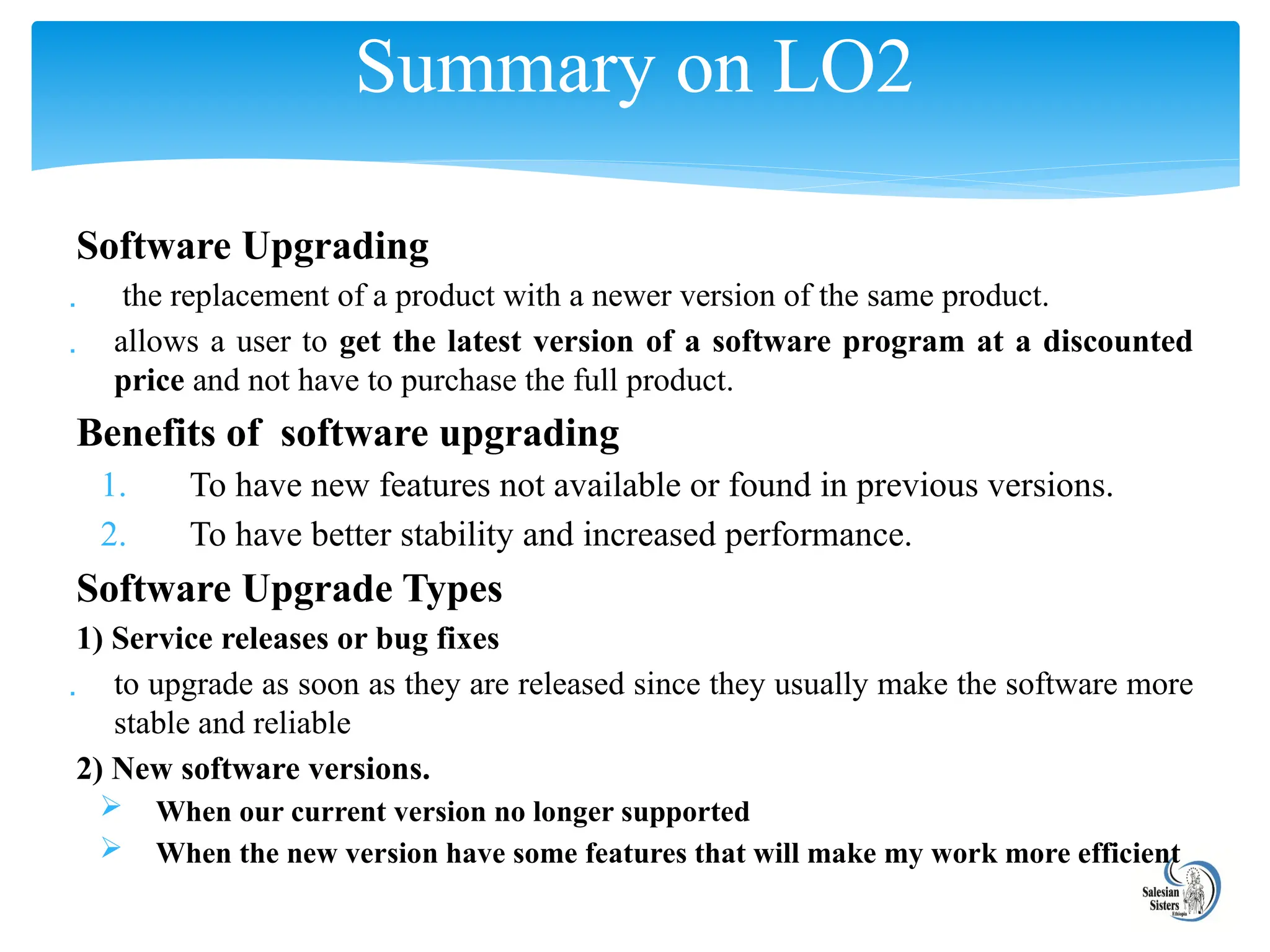
Computer Instructions or data, anything that
can be stored electronically.
For example: There is a problem in the
Software implies – Problem with program or
data.
1.1 INTRODUCTION TO COMPUTER
SOFTWARE
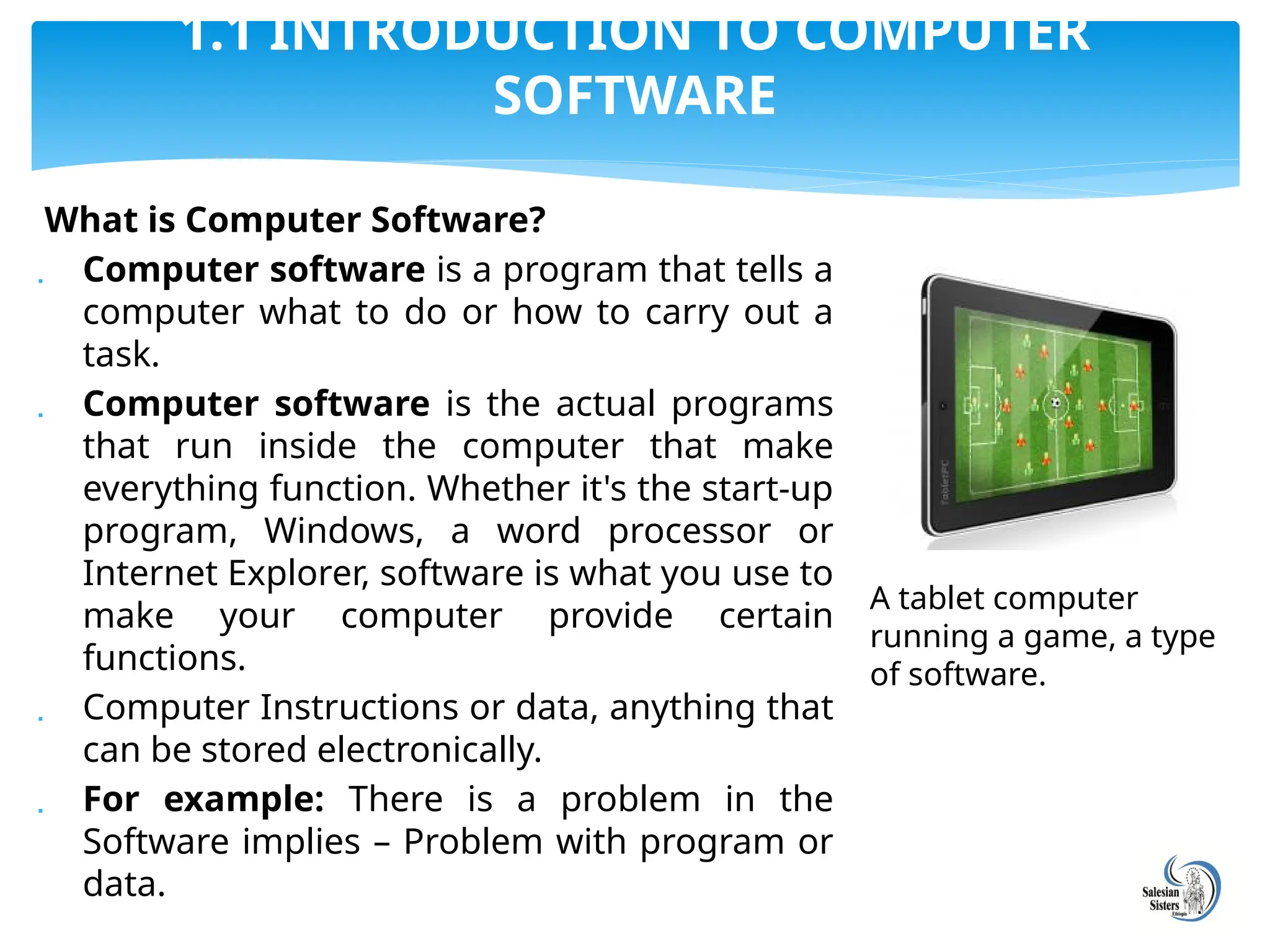
A tablet computer
running a game, a type
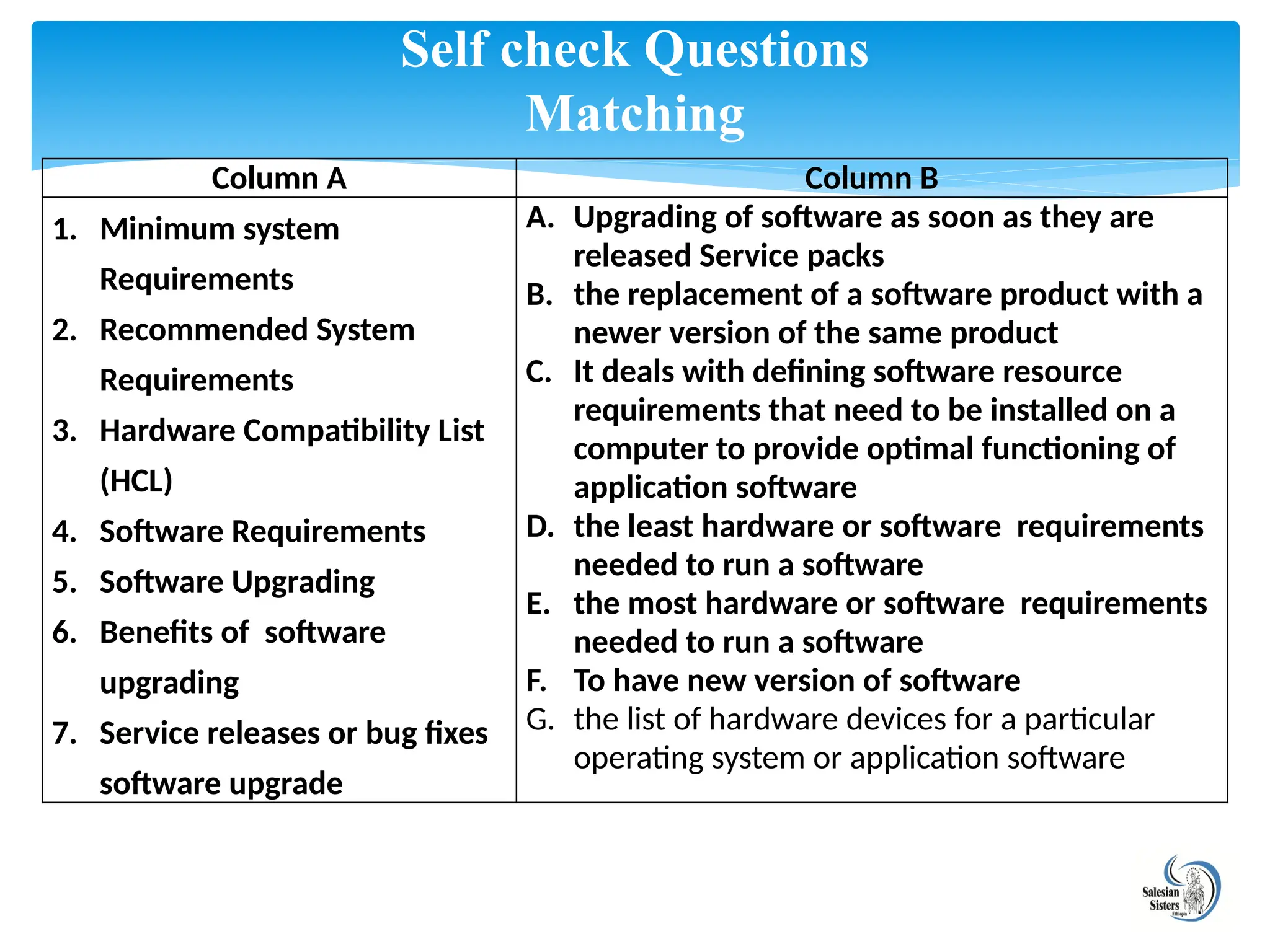
of software.
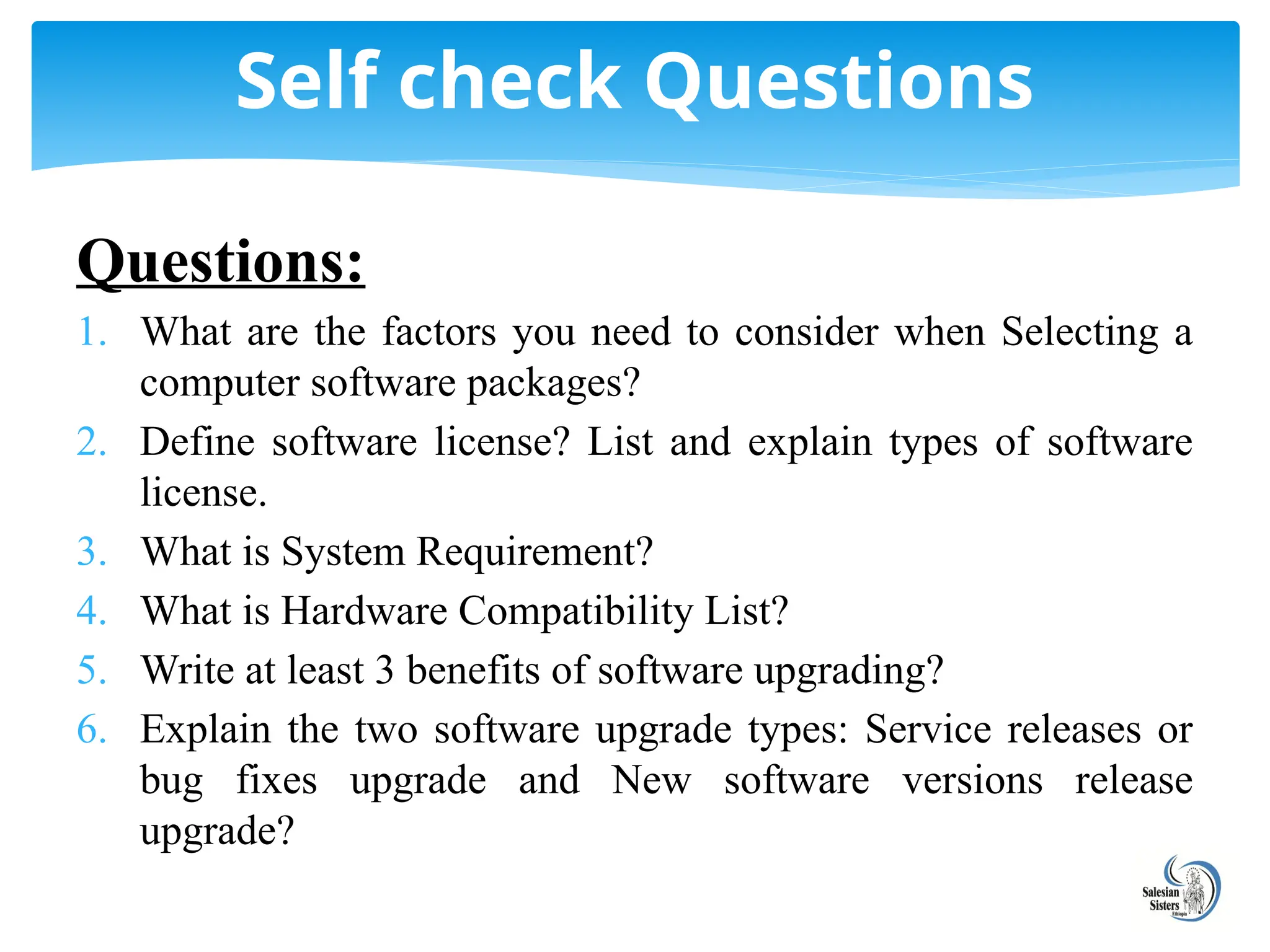
6.
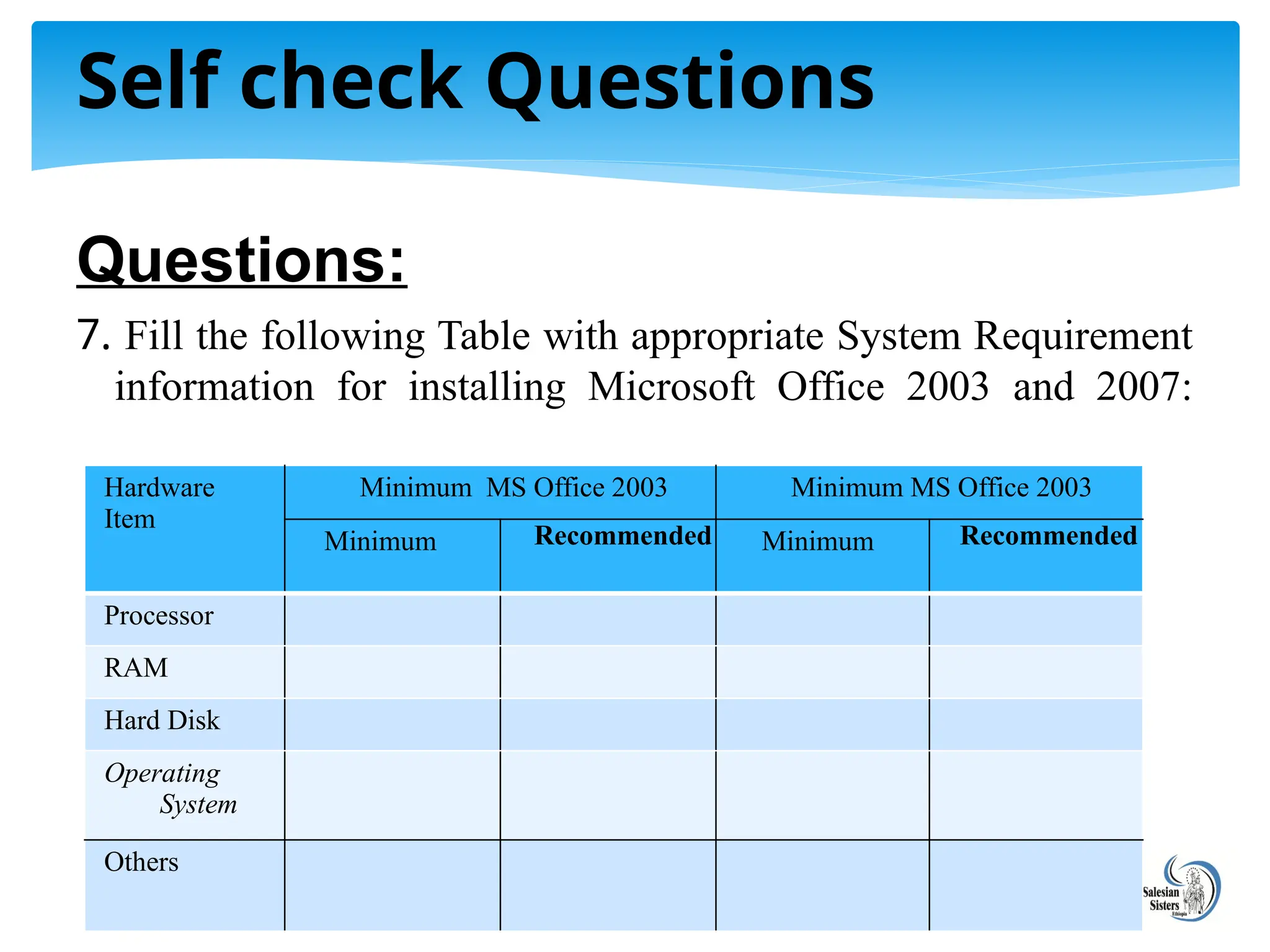
1.Think about somemachine / items / devices
having only Hardware.
2. Think about some machine / items / devices
having both Hardware and Software.
Questions
?
7.
Types of ComputerSoftware?
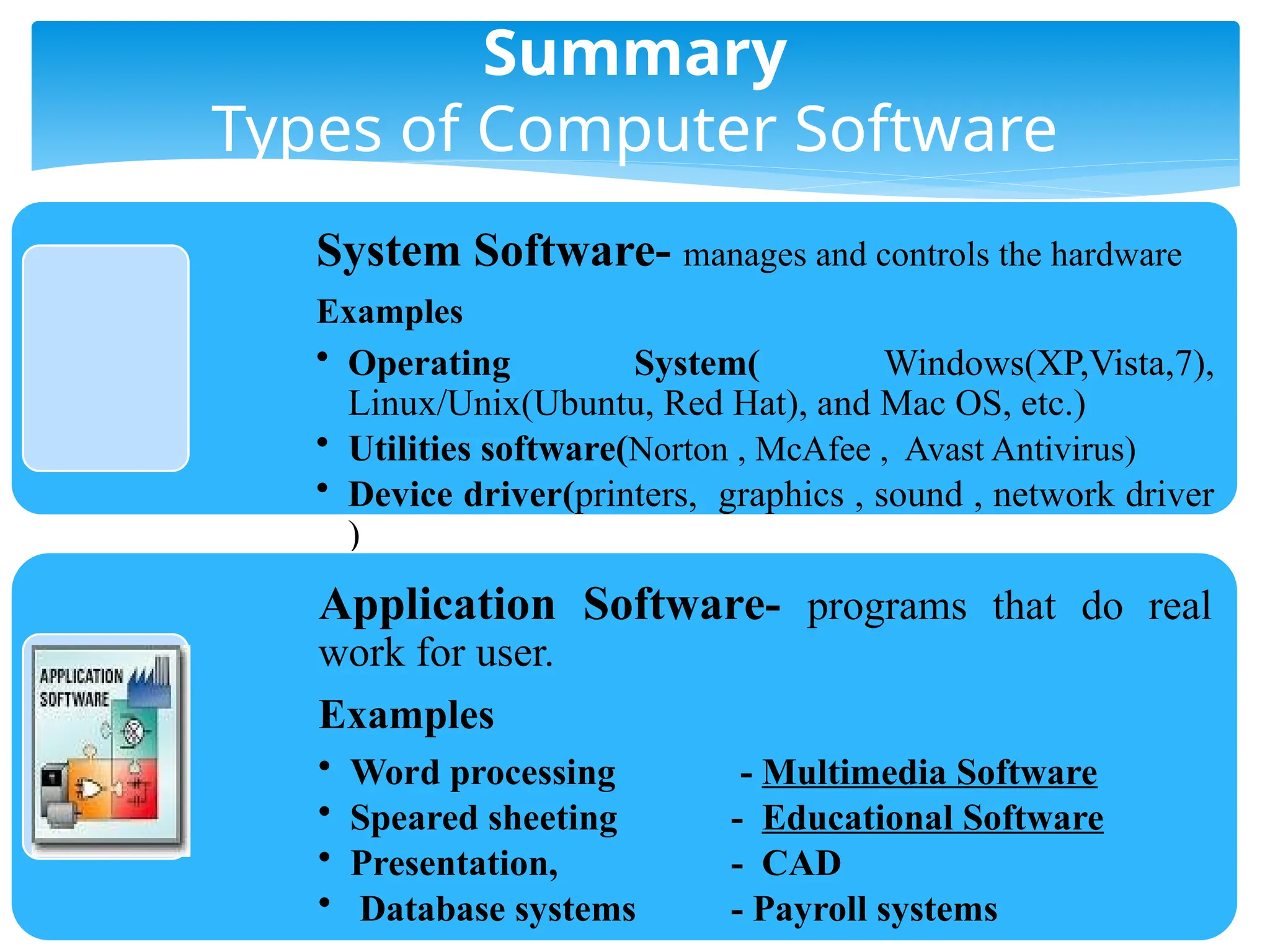
System Software and
Application Software
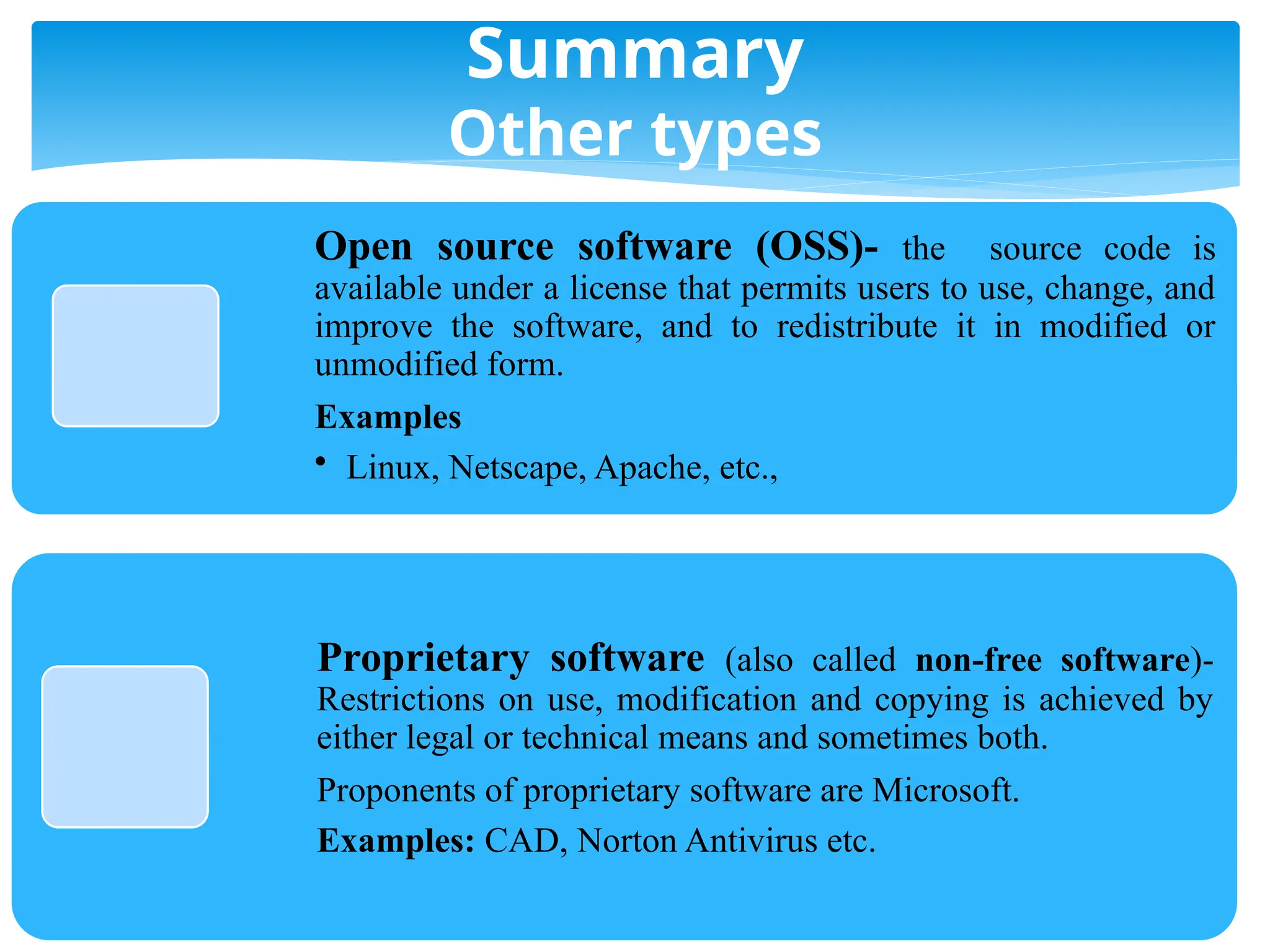
Open Source Software and
Proprietary Software
1.1 INTRODUCTION TO COMPUTER
SOFTWARE
8.
What is SystemSoftware?
System Software includes the Operating System and all the utilities
that enable the computer to function.
System software is a term referring to any computer software which
manages and controls the hardware so that application software can
perform a task.
Example:
Operating Systems, Utilities Software, Device drivers.
What is Application Software?
Application Software includes programs that do real work for user.
Example: Payroll systems, Inventory Control, Manage student
database, Word Processor, Spreadsheet and Database Management
System etc.,
1.1 INTRODUCTION TO COMPUTER
SOFTWARE
9.
What is OpenSource Software?
Open source software (also called Free Software) is computer
software whose source code is available under a license that permits
users to use, change, and improve the software, and to redistribute
it in modified or unmodified form.
It is often developed in a public, collaborative manner.
Well-known OSS products are Linux/Unix, Netscape, Apache, etc.,
What is Proprietary Software?
Proprietary software (also called non-free software) is software with
restrictions on using, copying and modifying as enforced by the
proprietor. Restrictions on use, modification and copying is achieved
by either legal or technical means and sometimes both.
A good example of proprietary software is Microsoft.
Other examples: CAD, Norton Antivirus, Microsoft Office etc.
1.1 INTRODUCTION TO COMPUTER
SOFTWARE
10.
Questions
1. What areadvantages of free software?
1) Available at minimal cost
2) Provides full freedom
3) No compulsory upgrades
4) Provides better security
7) No monopolies
8) Truly user-oriented
9) No lock-in standards
Questions
?
11.
Types of SystemSoftware
I. Operating System:
Operating System is a software, which makes a computer to actually work.
It is the software the enables all the programs we use.
The OS organizes and controls the hardware.
OS acts as an interface between the application programs and the machine
hardware.
Examples: Windows(XP,Vista,7), Linux/Unix(Ubuntu, Red Hat), and Mac OS,
etc.
II. Utilities:
Utility software is designed to help you monitor and configure settings for your
computer system equipment, the operating system, or application software.
utilities focus on computer-centric tasks such as blocking viruses or diagnosing
hard disk errors.
Examples: security software (Norton Antivirus, McAfee Virus Scan Plus, and a
vast! Antivirus) and diagnostic tools
1.1 INTRODUCTION TO COMPUTER
SOFTWARE
12.
Types of SystemSoftware
III. Device driver
A device driver is software that helps a peripheral device
establish communication with a computer.
This type of system software is used by printers, monitors,
graphics cards, sound cards, network cards, modems, storage
devices, mice, and scanners.
Once installed, a device driver automatically starts when it is
needed.
Device drivers usually run in the background, without opening
a window on the screen.
1.1 INTRODUCTION TO COMPUTER
SOFTWARE
13.
Application Software:
I. WordProcessing
Word processing is a tool that helps user in creating, editing, and printing
documents. Word processors will normally have the following capabilities
built into them:
Spell checking
Standard layouts for normal documents
Have some characters appear in bold print, italics, or underlined
Center lines, make text line up on the left side of the paper, or
the right side of the paper
Save the document so it can be used again
print the document.
Examples: WordPerfect and Microsoft Word
1.1 INTRODUCTION TO COMPUTER
SOFTWARE
14.
Application Software:
II. Spreadsheets:The spreadsheet packages are designed
to use numbers and formulas to do calculations with
ease. Examples of spreadsheets include:
Budgets
Payrolls
Grade Calculations
Address Lists
The most commonly used spreadsheet programs are
Microsoft Excel and Lotus 123.
1.1 INTRODUCTION TO COMPUTER
SOFTWARE
15.
Application Software:
III. GraphicPresentations: The presentation programs can
make giving presentations and using overheads easier. Other uses
include:
Slide Shows
Repeating Computer Presentations on a computer monitor
Using Sound and animation in slide shows
The most recognized graphic presentation programs are Microsoft
PowerPoint and Harvard Graphics.
1.1 INTRODUCTION TO COMPUTER
SOFTWARE
16.
Application Software:
IV. DatabaseManagement System (DBMS):
A DBMS is a software tool that allows multiple users to store, access, and
process data into useful information.
Database programs are designed for these types of applications:
Membership lists
Student lists
Grade reports
Instructor schedules
All of these have to be maintained so you can find what you need
quickly and accurately.
Example: Microsoft Access, dBASE, Oracle.
1.1 INTRODUCTION TO COMPUTER
SOFTWARE
17.
Application Software:
V. MultimediaSoftware:
They allow users to create and play audio and video files. They are
capable of playing media files.
Audio converters, audio players, Video players, burners, video
encoders and decoders are some forms of multimedia software.
VI. Educational Software:
It has the capabilities of running tests and tracking progress.
It also has the capabilities of collaborative software.
It is often used in teaching and self-learning.
Dictionaries like Britannica and Encarta, mathematical software
like Matlab and others like Google Earth and NASA World Wind
are some of the well-known names in this category.
1.1 INTRODUCTION TO COMPUTER
SOFTWARE
18.
Application Software:
VII. SimulationSoftware:
Used to simulate physical or abstract systems, simulation software
finds applications in both, research and entertainment.
Flight simulators and scientific simulators are examples of
simulation software.
VIII. Software that aid Engineering and Development of Products:
These software are used in the design and development of hardware
and software products.
Integrated development environments (IDE) and computer
language editing tools falls under this type of application software.
Application programming interfaces which aid the communication
of two or more software, are examples of this application software
type.
1.1 INTRODUCTION TO COMPUTER
SOFTWARE
19.
Why Client needscomputer software?
Depending on what a client need to accomplish, a number of different
advantages exist for using software of a variety of types:
a) Make Tasks Easier
o Software, and computers in general, offer you the ability to make a
lot of tasks much easier.
o For instance, it is completely possible to write a novel by hand or
on a typewriter. However, if you use a word processing program,
you can re-arrange your text as you wish, save it, delete it and
check your spelling and grammar. Additionally, you won't need to
re-learn any typing technique.
o Software can make lots of routine tasks easier, such as keeping
records with spreadsheet programs, or letting you use a digital
calculator that you won't lose or misplace when you need it.
1.2 Identify and document Client software
requirements
20.
Why Client needscomputer software?
b) Spreads Information
o Software can often help you do things that you may not know
how to do. For instance, accounting software and tax software
can help people with no knowledge of tax law or accounting
principles keep track of a business's books and find all necessary
deductions come tax time.
o Software programs can also help people who have no
knowledge of hypertext markup language, which is the
computer language used to make websites, design and build
websites.
o Software makes all of these tasks, which would normally require
a much more knowledgeable expert to complete, possible.
1.2 Identify and document Client software
requirements
21.
Why Client needscomputer software?
c) Minimize Cost
o Software is a cost-effective means of solving problems.
o For instance, say that you need to find a way to store all of
your records. You could put years, if not decades, of physical
records onto a digital database using database software and/or
a spreadsheet program.
o Between eliminating the need for your physical files, saving
you physical room, and giving you a way to more easily track
your records, the software has saved you time and money.
o Additionally, some types of software like this are completely
free to download, increasing the savings even more.
1.2 Identify and document Client software
requirements
22.
Summary
Types of ComputerSoftware
System Software- manages and controls the hardware
Examples
• Operating System( Windows(XP,Vista,7),
Linux/Unix(Ubuntu, Red Hat), and Mac OS, etc.)
• Utilities software(Norton , McAfee , Avast Antivirus)
• Device driver(printers, graphics , sound , network driver
)
Application Software- programs that do real
work for user.
Examples
• Word processing - Multimedia Software
• Speared sheeting - Educational Software
• Presentation, - CAD
• Database systems - Payroll systems
23.
Summary
Other types
Open sourcesoftware (OSS)- the source code is
available under a license that permits users to use, change, and
improve the software, and to redistribute it in modified or
unmodified form.
Examples
• Linux, Netscape, Apache, etc.,
Proprietary software (also called non-free software)-
Restrictions on use, modification and copying is achieved by
either legal or technical means and sometimes both.
Proponents of proprietary software are Microsoft.
Examples: CAD, Norton Antivirus etc.
24.
Summary
Advantages using computersoftware
A number of different advantages exist for
using software of a variety of types:
- Make Tasks Easier
- Spreads Information
- Minimize Cost
25.
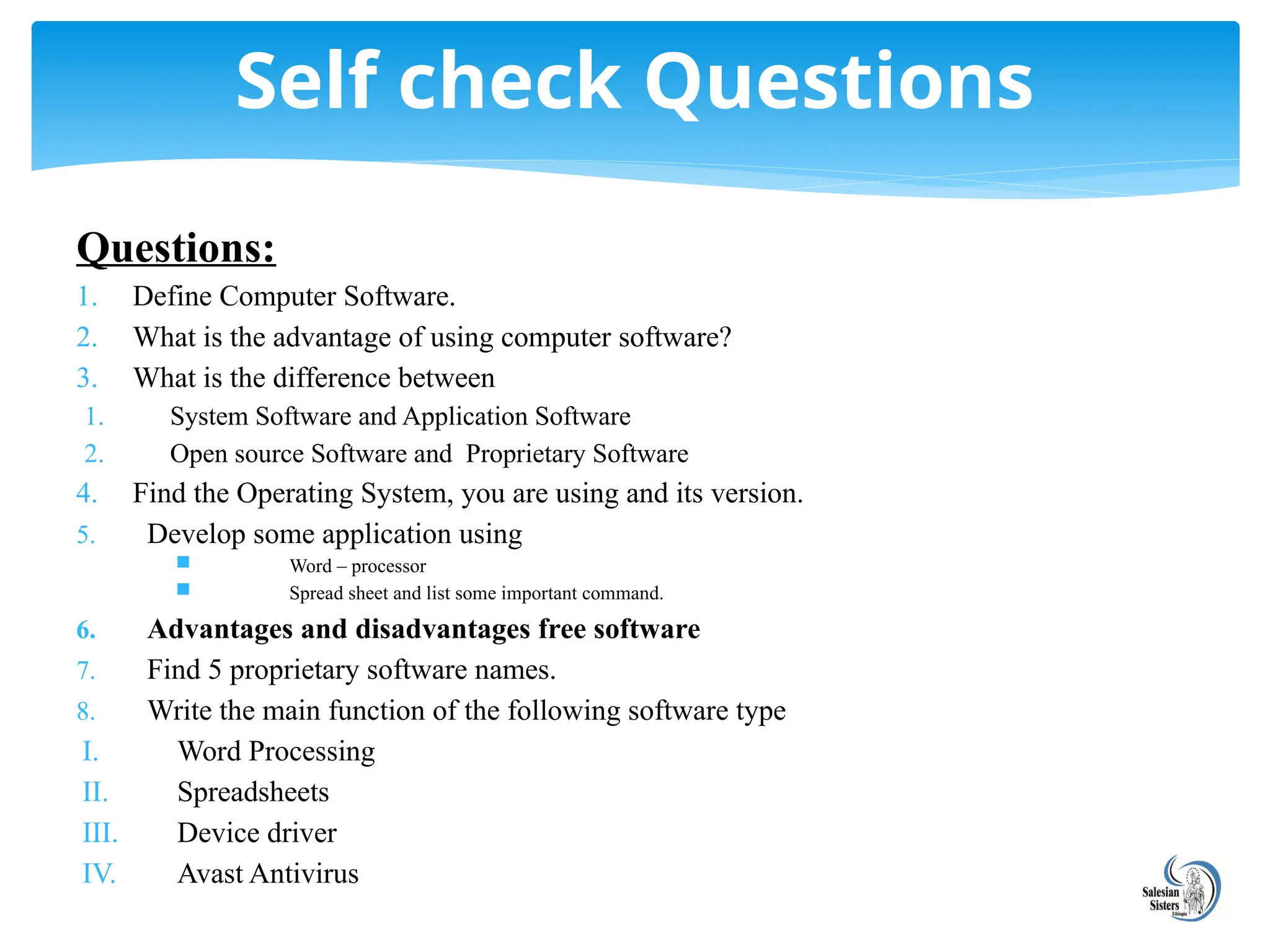
Questions:
1. Define ComputerSoftware.
2. What is the advantage of using computer software?
3. What is the difference between
1. System Software and Application Software
2. Open source Software and Proprietary Software
4. Find the Operating System, you are using and its version.
5. Develop some application using
Word – processor
Spread sheet and list some important command.
6. Advantages and disadvantages free software
7. Find 5 proprietary software names.
8. Write the main function of the following software type
I. Word Processing
II. Spreadsheets
III. Device driver
IV. Avast Antivirus
Self check Questions
26.
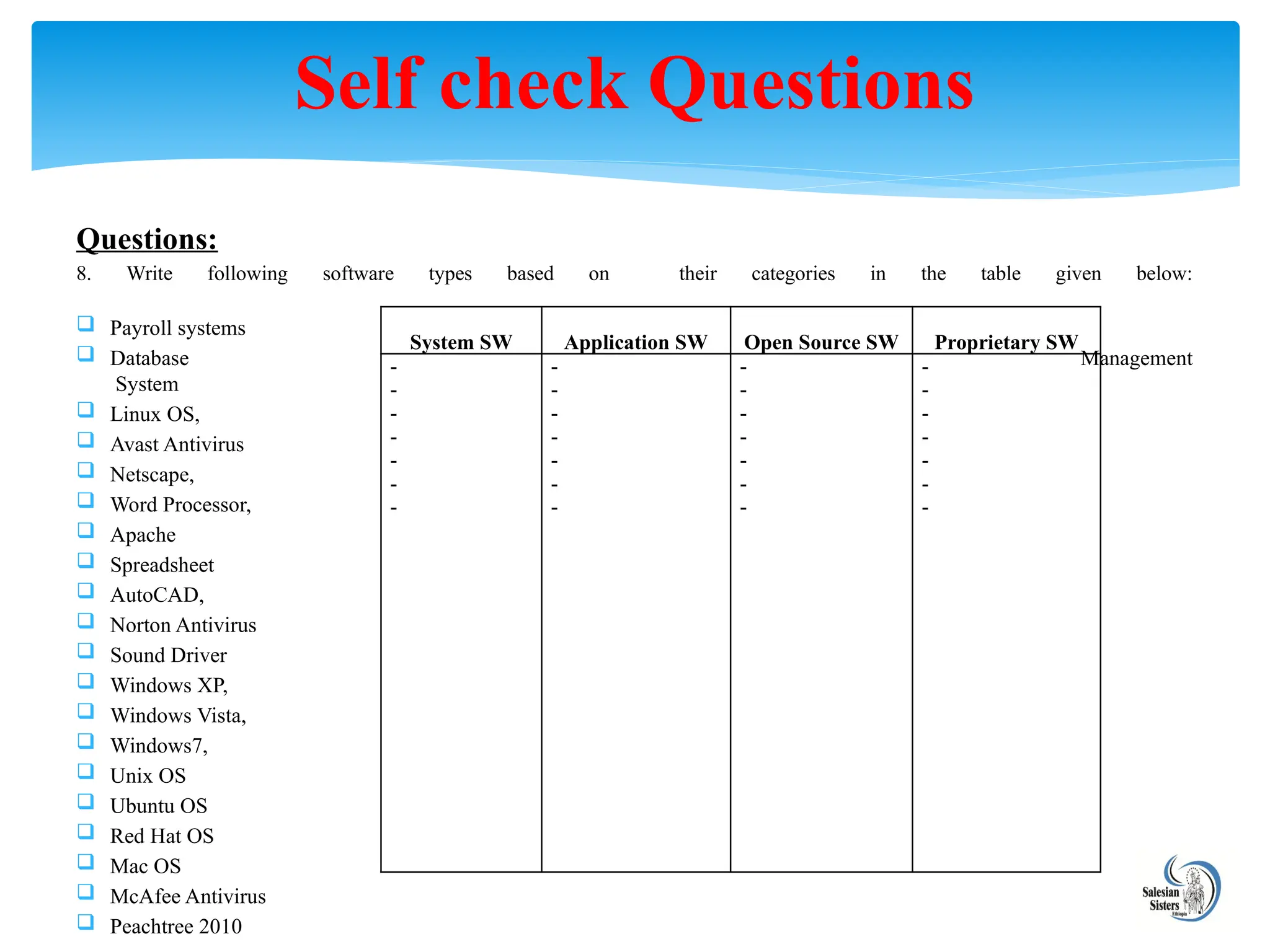
Questions:
8. Write followingsoftware types based on their categories in the table given below:
Payroll systems
Database Management
System
Linux OS,
Avast Antivirus
Netscape,
Word Processor,
Apache
Spreadsheet
AutoCAD,
Norton Antivirus
Sound Driver
Windows XP,
Windows Vista,
Windows7,
Unix OS
Ubuntu OS
Red Hat OS
Mac OS
McAfee Antivirus
Peachtree 2010
Self check Questions
System SW Application SW Open Source SW Proprietary SW
-
-
-
-
-
-
-
-
-
-
-
-
-
-
-
-
-
-
-
-
-
-
-
-
-
-
-
-
27.
OBJECTIVES
Selecting anapplication program that best conforms
to requirements and organizational policies
Determining Licensing requirements in line with
organizational guidelines
Confirming minimum hardware and Software
requirements for installing and using System and
Application software.
LO2: Obtain software or software upgrade
28.
THINGS TO CONSIDERWHEN SELECTING A SOFTWARE
PACKAGE
Your needs:
The software should do the specific things your business needs to do
It is should be the best choice available for the investment you are
prepared to make.
Make sure the software makes you how confident and efficient for
your work.
Return policies:
If the software doesn’t work for you , the should be return policy to
return the software for a refund.
A return period gives you time to test the software. You probably won’t
be able to get a full picture of the software’s usability in a typical 30-
day return period, but you will have a good idea if you are headed in
the right direction.
2.1 Selecting an application program that best
conforms to requirements and organizational policies
29.
THINGS TO CONSIDER…
Referencecheck:
Ask the software maker for a list of current users whose businesses
are similar to your own (custom, remodeling, production, etc.).
Call these references and ask them about their experience with the
software, customer service, and any problems that they may have
encountered
Hardware and other requirements:
Review the hardware requirements for the new software. Will you
need to upgrade your computers or printers?
Does the software require special equipment such as
plotter/digitizers or network cards? How much does this hardware
add to the investment? Will you need to get Internet access or
change Internet service providers?
2.1 Selecting an application program that best
conforms to requirements and organizational policies
30.
THINGS TO CONSIDER…
Trainingand documentation:
Look at training support and user’s manuals (documentation)
for the software package.
What training is available from the documentation (via
tutorials), online (at the company’s web site), and from the
software vendor (some will provide on-site training for a fee)?
Customer support:
Check into the software publisher’s customer support. What
comes with the original purchase price? What is available for
additional fees? What happens if there is a problem? How
quickly can you get help? Who provides this help and how?
2.1 Selecting an application program that best
conforms to requirements and organizational policies
31.
THINGS TO CONSIDER…
Upgradepolicies:
Look at the software company’s maintenance and
upgrade policies. Do they have a good track record on
providing timely upgrades? How much do upgrades
typically cost? Is there a new version in the works?
When will it be delivered? Do they offer software
patches (fixes) when bugs are discovered? How?
2.1 Selecting an application program that best
conforms to requirements and organizational policies
32.
WHAT IS SOFTWARELICENSE?
A software license is a legal instrument (usually by way
of contract law or Copyright law) governing the usage or
redistribution of software.
Any software you buy comes with a license, unless it's freeware.
When you install the software, you have to enter a license code.
This code is included with the software and an agreement called
the end user licensee agreement (EULA), which explains how
you can use the software.
The license terms are often enforced by a built-in license
manager.
You have to agree to the terms and conditions of the EULA
before you can install the software.
2.2 Determining Licensing requirements in line with
organizational guidelines .
33.
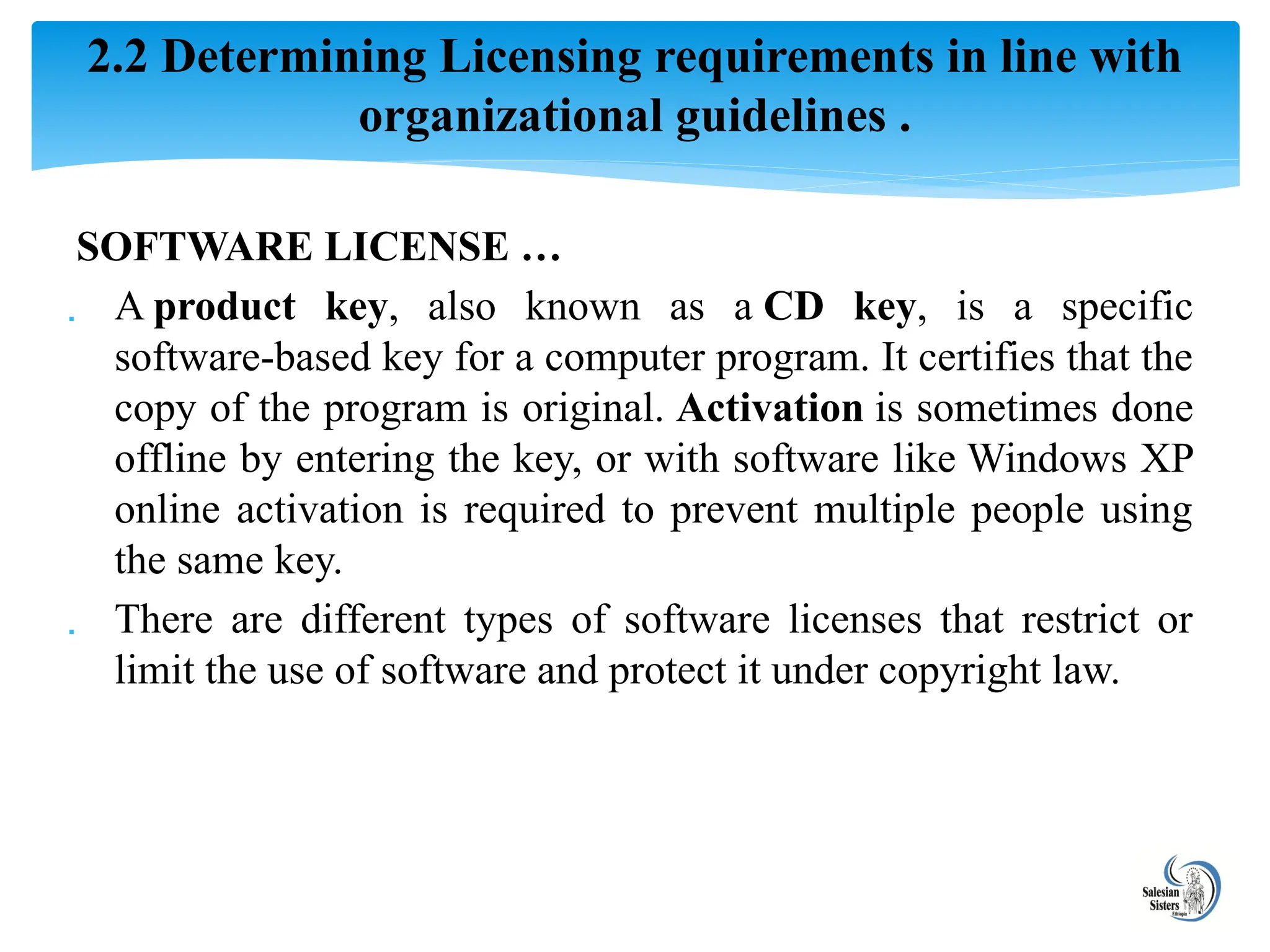
SOFTWARE LICENSE …
A product key, also known as a CD key, is a specific
software-based key for a computer program. It certifies that the
copy of the program is original. Activation is sometimes done
offline by entering the key, or with software like Windows XP
online activation is required to prevent multiple people using
the same key.
There are different types of software licenses that restrict or
limit the use of software and protect it under copyright law.
2.2 Determining Licensing requirements in line with
organizational guidelines .
34.
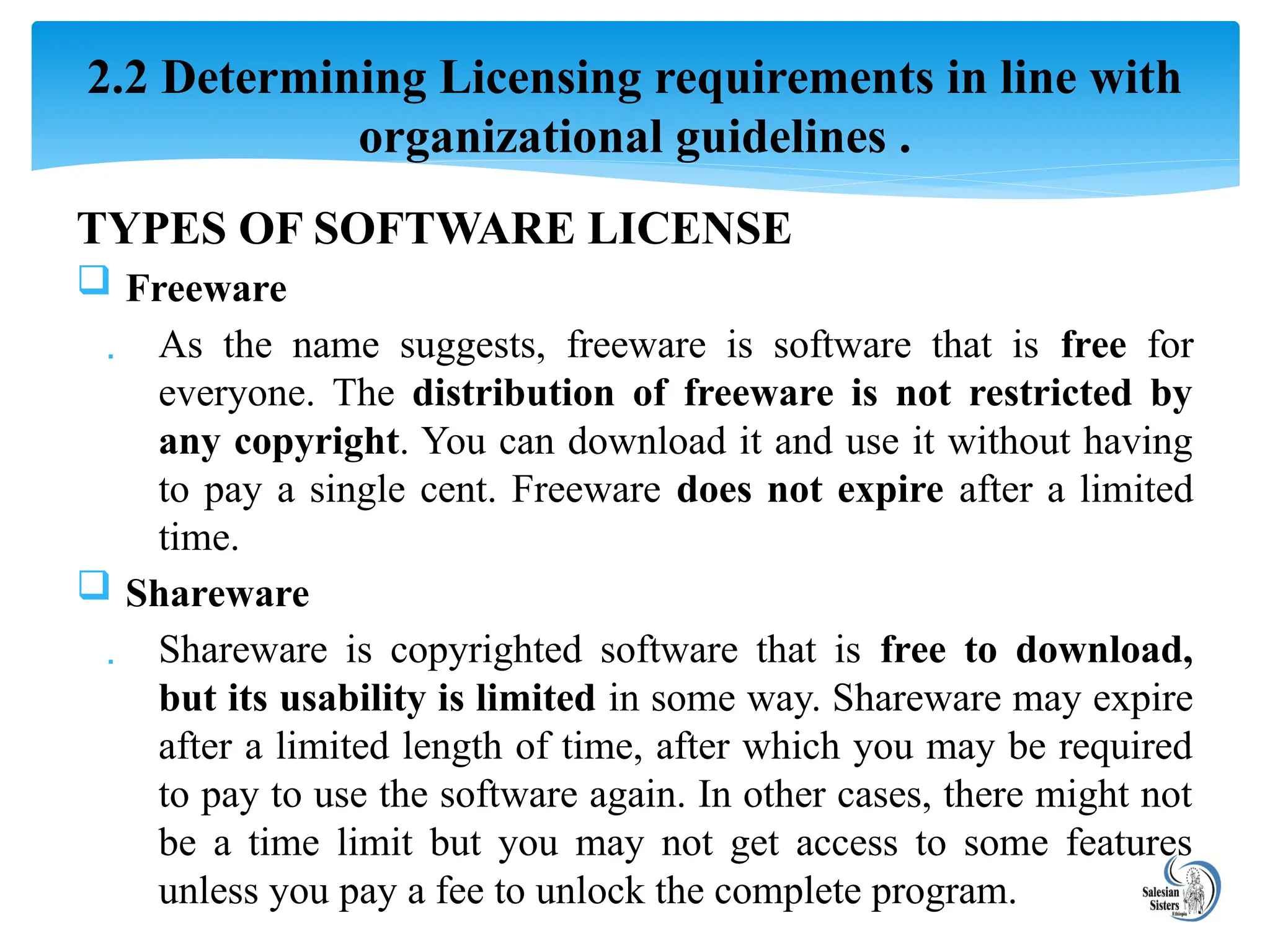
TYPES OF SOFTWARELICENSE
Freeware
As the name suggests, freeware is software that is free for
everyone. The distribution of freeware is not restricted by
any copyright. You can download it and use it without having
to pay a single cent. Freeware does not expire after a limited
time.
Shareware
Shareware is copyrighted software that is free to download,
but its usability is limited in some way. Shareware may expire
after a limited length of time, after which you may be required
to pay to use the software again. In other cases, there might not
be a time limit but you may not get access to some features
unless you pay a fee to unlock the complete program.
2.2 Determining Licensing requirements in line with
organizational guidelines .
35.
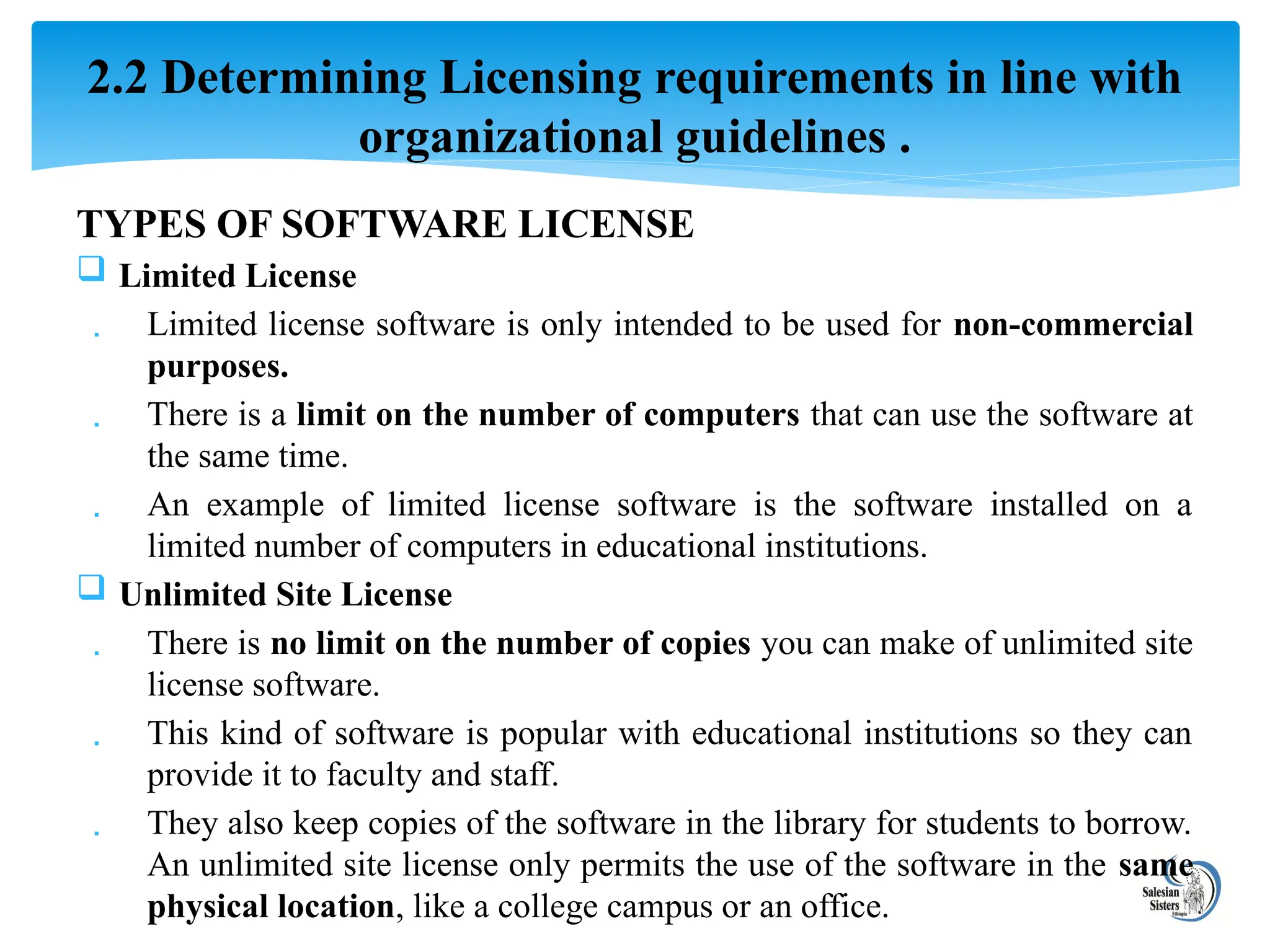
TYPES OF SOFTWARELICENSE
Limited License
Limited license software is only intended to be used for non-commercial
purposes.
There is a limit on the number of computers that can use the software at
the same time.
An example of limited license software is the software installed on a
limited number of computers in educational institutions.
Unlimited Site License
There is no limit on the number of copies you can make of unlimited site
license software.
This kind of software is popular with educational institutions so they can
provide it to faculty and staff.
They also keep copies of the software in the library for students to borrow.
An unlimited site license only permits the use of the software in the same
physical location, like a college campus or an office.
2.2 Determining Licensing requirements in line with
organizational guidelines .
36.
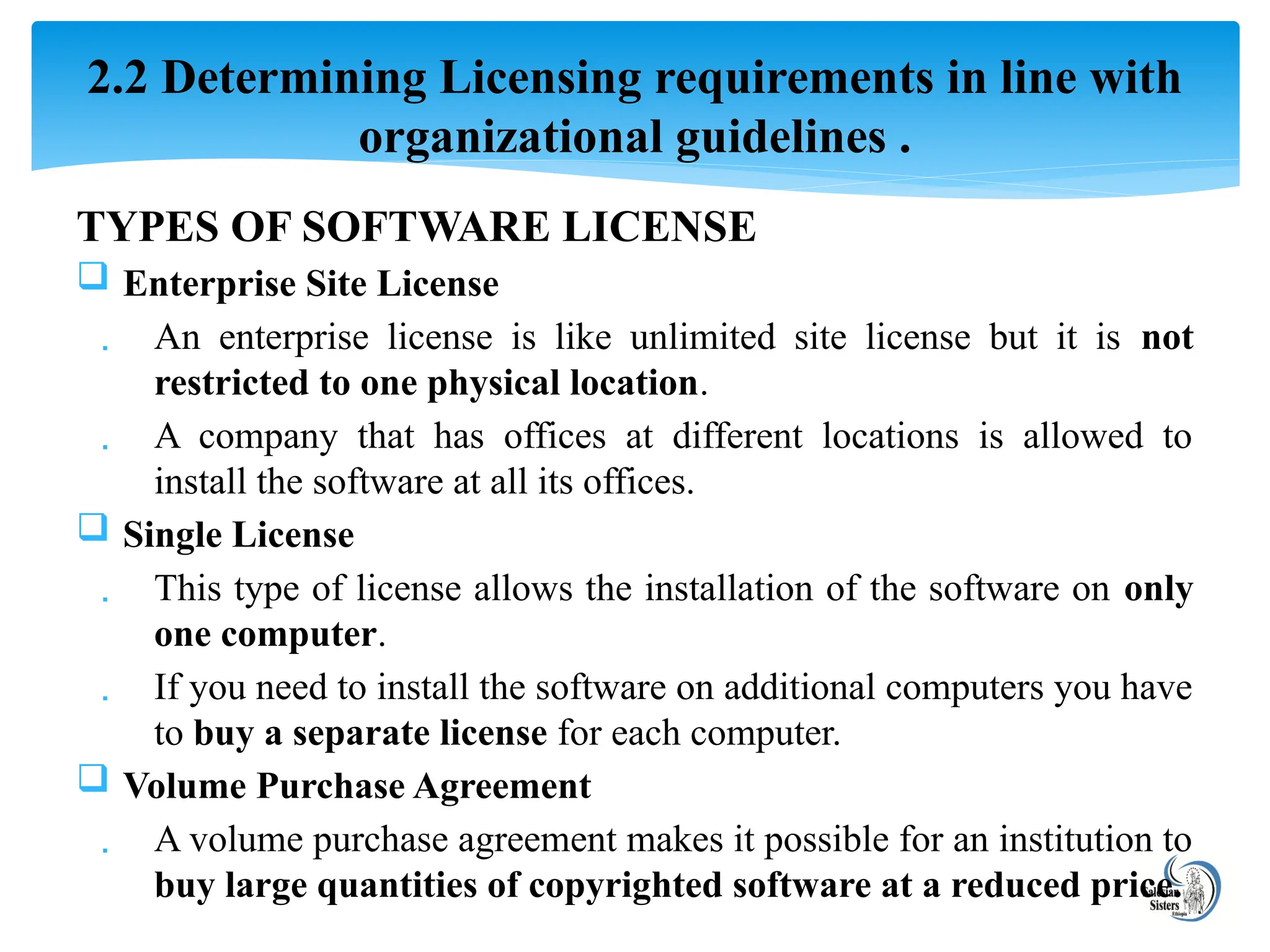
TYPES OF SOFTWARELICENSE
Enterprise Site License
An enterprise license is like unlimited site license but it is not
restricted to one physical location.
A company that has offices at different locations is allowed to
install the software at all its offices.
Single License
This type of license allows the installation of the software on only
one computer.
If you need to install the software on additional computers you have
to buy a separate license for each computer.
Volume Purchase Agreement
A volume purchase agreement makes it possible for an institution to
buy large quantities of copyrighted software at a reduced price.
2.2 Determining Licensing requirements in line with
organizational guidelines .
37.
What is SystemRequirement?
To be used efficiently, all computer software needs certain hardware
components or other software resources to be present on a computer. These
prerequisites are known as system requirements.
Most software defines two sets of system requirements: minimum and
recommended.
Minimum system requirements are the minimum hardware requirements
needed to run a software . For the sake of performance, you should usually
stay away from the minimum requirements and stick to the recommended
settings (or better).
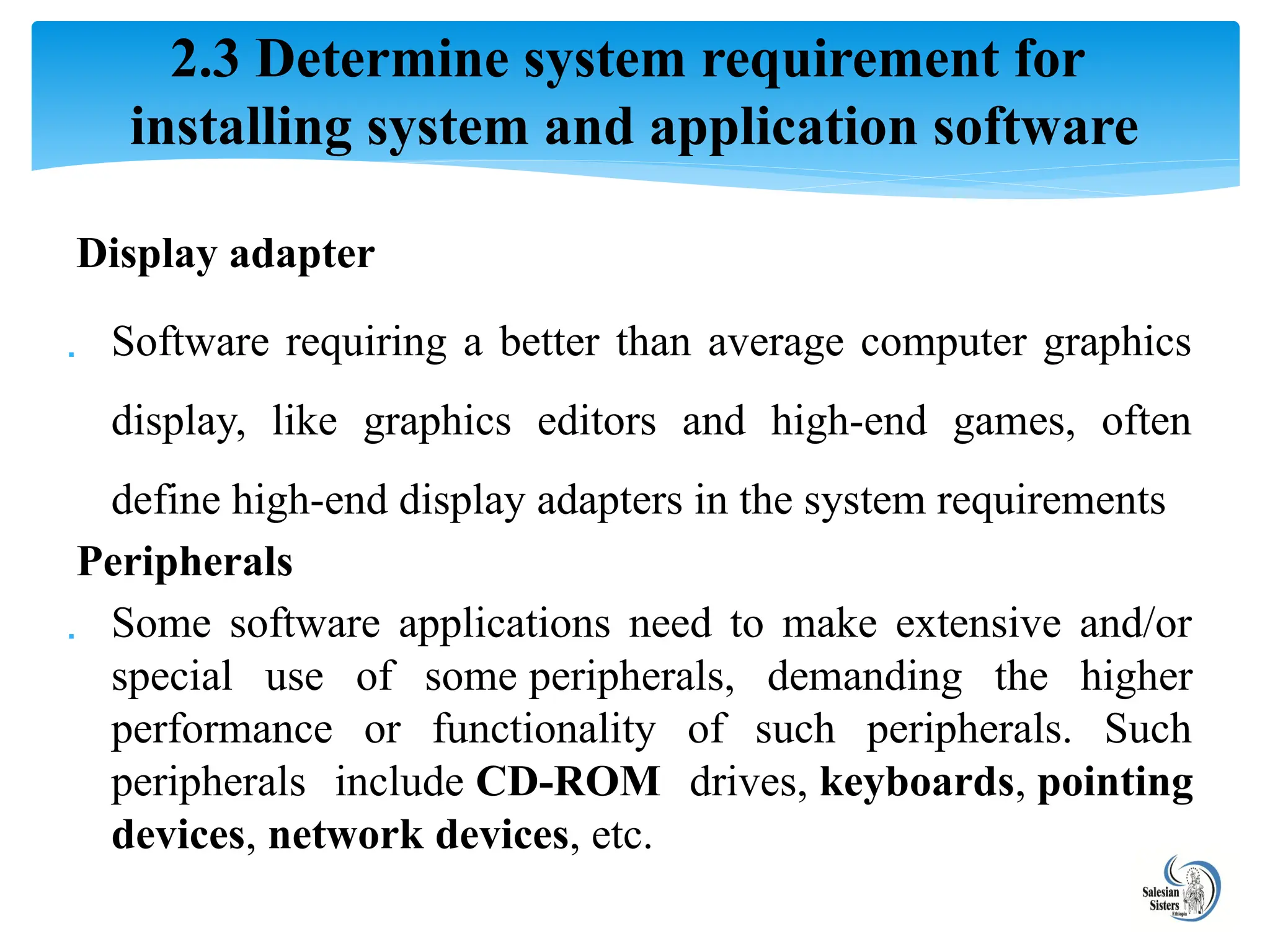
2.3 Determine system requirement for
installing system and application software
38.
I. Hardware Requirement
The most common set of requirements defined by any operating
system or software application is the physical computer
resources, also known as hardware.
A hardware requirements list is often accompanied by a hardware
compatibility list (HCL), especially in case of operating systems.
An HCL lists tested, compatible, and sometimes incompatible
hardware devices for a particular operating system or application.
To be used efficiently, all computer software needs certain
hardware components requirement such as
o CPU Speed(Processing Power) , RAM Capacity , Hard disk
capacity , Display adapter , Peripheral devices.
2.3 Determine system requirement for
installing system and application software
39.
CPU Speed (Processing power)
The power of the central processing unit (CPU) is a fundamental system
requirement for any software.
Most software running on x86 architecture define processing power as the
model and the clock speed of the CPU.
Many other features of a CPU that influence its speed and power, like bus
speed, and cache. This definition of power is often erroneous, as AMD,
Athlon and Intel Pentium CPUs at similar clock speed often have different
throughput speeds. Intel Pentium CPUs have enjoyed a considerable
degree of popularity, and are often mentioned in this category.
2.3 Determine system requirement for
installing system and application software
40.
Memory(RAM Capacity)
Allsoftware, when run, resides in the random access memory (RAM) of a
computer.
Memory requirements are defined after considering demands of the
application, operating system, supporting software and files, and other
running processes.
Secondary storage (Hard disk capacity )
Hard-disk requirements vary, depending on the size of software installation,
temporary files created and maintained while installing or running the
software, and possible use of swap space (if RAM is insufficient).
2.3 Determine system requirement for
installing system and application software
41.
Display adapter
Softwarerequiring a better than average computer graphics
display, like graphics editors and high-end games, often
define high-end display adapters in the system requirements
Peripherals
Some software applications need to make extensive and/or
special use of some peripherals, demanding the higher
performance or functionality of such peripherals. Such
peripherals include CD-ROM drives, keyboards, pointing
devices, network devices, etc.
2.3 Determine system requirement for
installing system and application software
42.
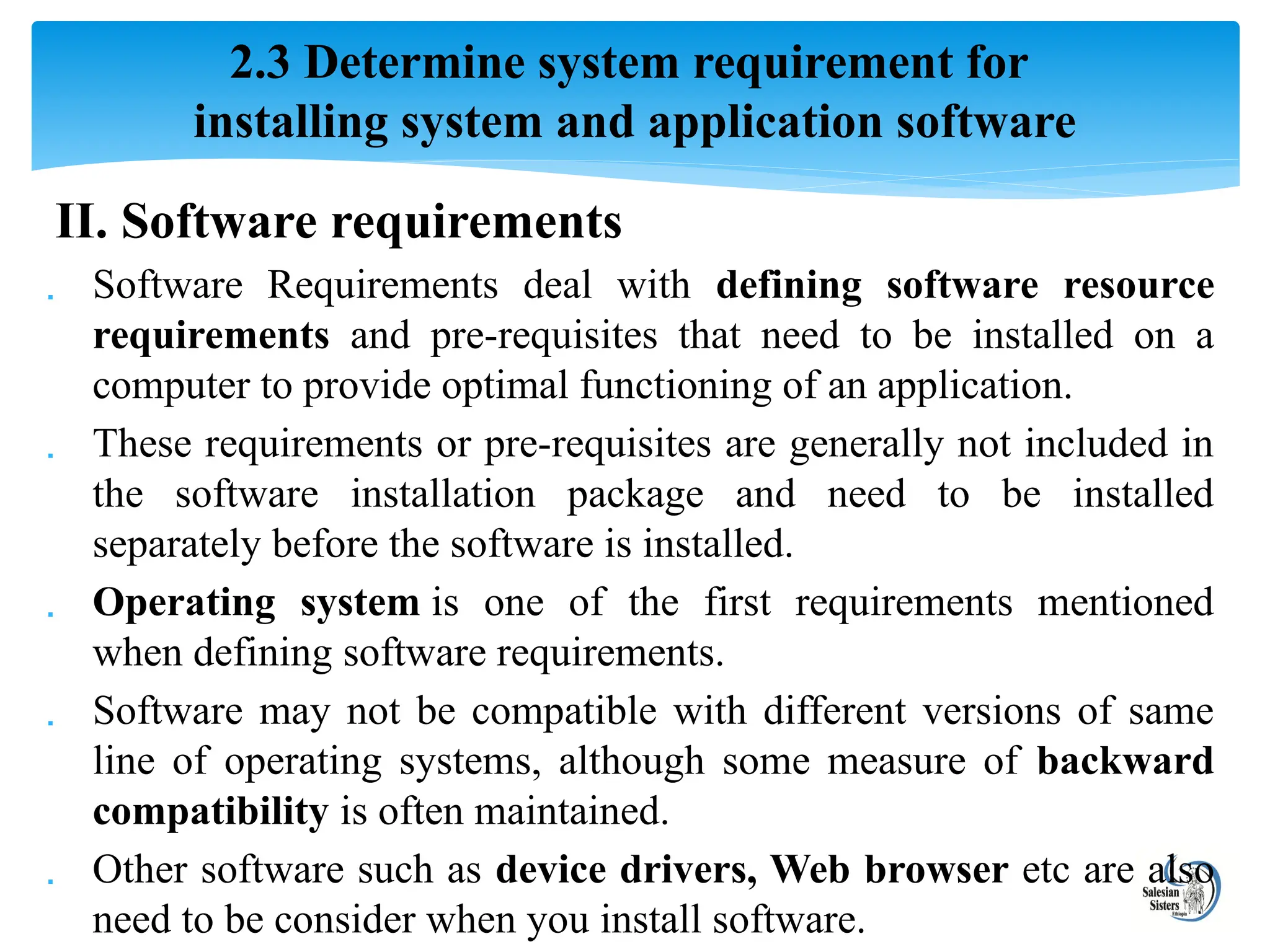
II. Software requirements
Software Requirements deal with defining software resource
requirements and pre-requisites that need to be installed on a
computer to provide optimal functioning of an application.
These requirements or pre-requisites are generally not included in
the software installation package and need to be installed
separately before the software is installed.
Operating system is one of the first requirements mentioned
when defining software requirements.
Software may not be compatible with different versions of same
line of operating systems, although some measure of backward
compatibility is often maintained.
Other software such as device drivers, Web browser etc are also
need to be consider when you install software.
2.3 Determine system requirement for
installing system and application software
43.
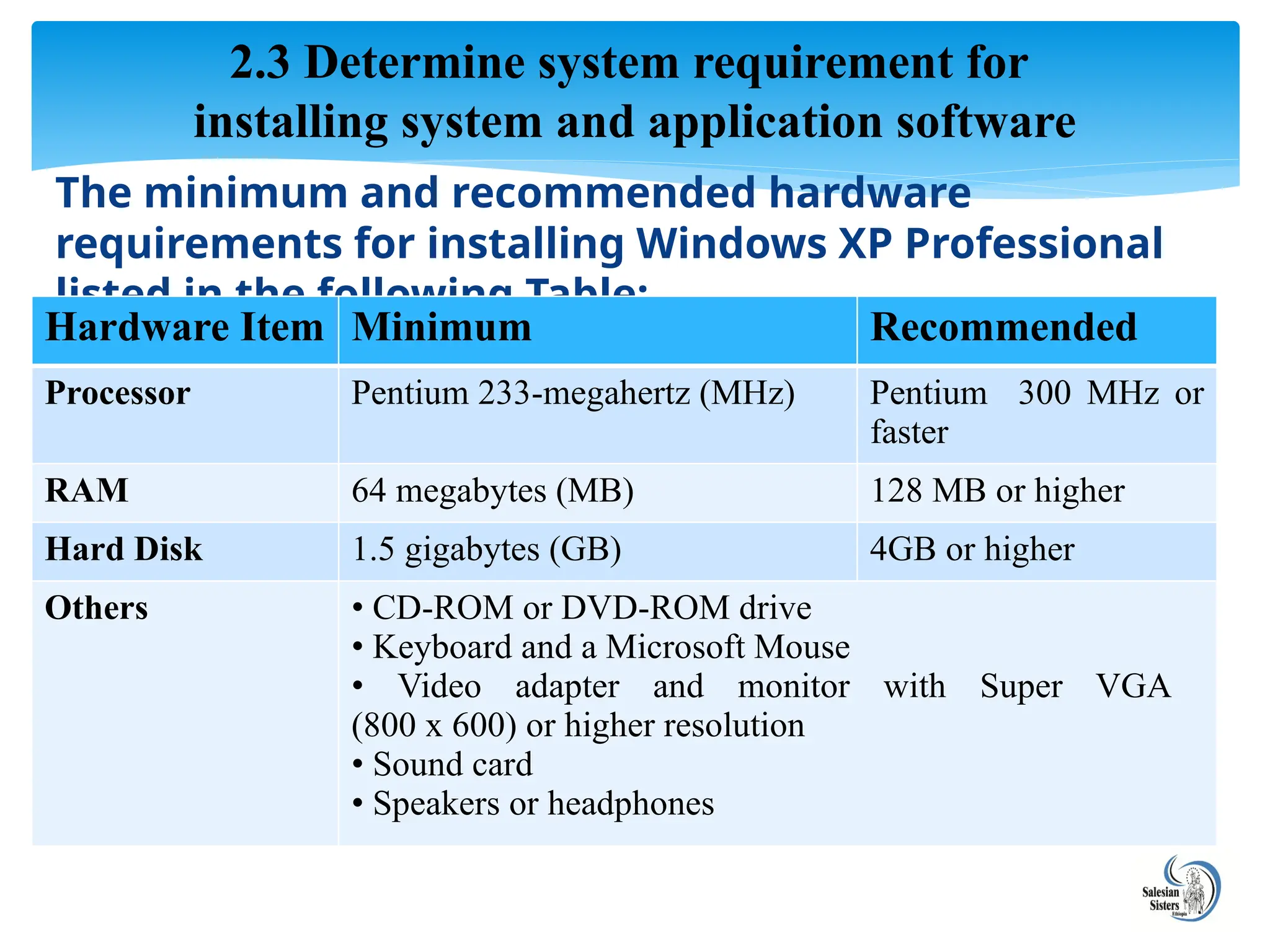
The minimum andrecommended hardware
requirements for installing Windows XP Professional
listed in the following Table:
2.3 Determine system requirement for
installing system and application software
Hardware Item Minimum Recommended
Processor Pentium 233-megahertz (MHz) Pentium 300 MHz or
faster
RAM 64 megabytes (MB) 128 MB or higher
Hard Disk 1.5 gigabytes (GB) 4GB or higher
Others • CD-ROM or DVD-ROM drive
• Keyboard and a Microsoft Mouse
• Video adapter and monitor with Super VGA
(800 x 600) or higher resolution
• Sound card
• Speakers or headphones
44.
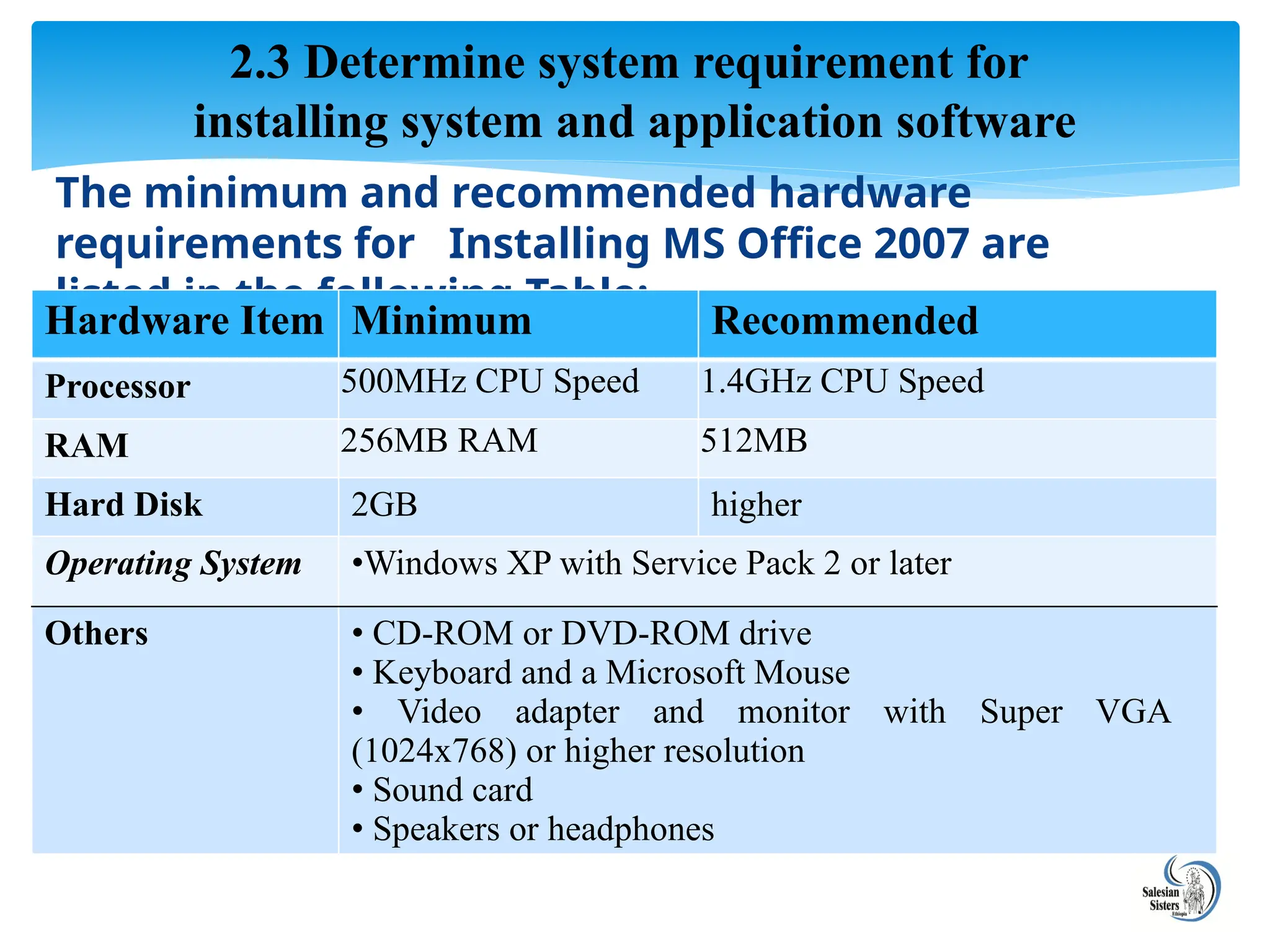
The minimum andrecommended hardware
requirements for Installing MS Office 2007 are
listed in the following Table:
2.3 Determine system requirement for
installing system and application software
Hardware Item Minimum Recommended
Processor 500MHz CPU Speed 1.4GHz CPU Speed
RAM 256MB RAM 512MB
Hard Disk 2GB higher
Operating System •Windows XP with Service Pack 2 or later
Others • CD-ROM or DVD-ROM drive
• Keyboard and a Microsoft Mouse
• Video adapter and monitor with Super VGA
(1024x768) or higher resolution
• Sound card
• Speakers or headphones
45.
Software Upgrading
Theterm upgrade refers to the replacement of a product with a newer version
of the same product.
With software, an upgrade allows a user to get the latest version of a
software program at a discounted price and not have to purchase the full
product.
For example, a user running Microsoft Windows 95 could purchase the
Microsoft Windows 98 upgrade for a low price when compared to the full
version of Windows 98.
Benefits of software upgrading
Benefits of upgrading your software products to the latest version are
1. New features not available or found in previous versions.
2. Often, the new version of a program will have better stability and
increased performance.
2.4 What is Software Upgrading?
46.
Software Upgrade Types
We generally separate software upgrades into two categories: 1)
Service releases or bug fixes and
2) New software versions.
For service releases or bug fixes, we tend to upgrade as soon as they
are released since they usually make the software more stable and
reliable.
For new software versions, we should answer the following
questions to determine whether we want to upgrade:
Is our current version no longer supported?
Does the new version have some features that will make my work
more efficient?
Has the software been out long enough to detect any significant
problems?
2.4 What is Software Upgrading ?
47.
THINGS TO CONSIDERWHEN selecting A SOFTWARE PACKAGE
Your needs:
The software should do the specific things your business needs to do
Return policies:
If the software doesn’t work for you , the should be return policy to return the software for a
refund.
Reference check:
Ask the software maker for a list of current users whose businesses are similar to your own
Hardware and other requirements:
Review the hardware requirements for the new software.
Training and documentation:
Look at training support and user’s manuals (documentation) for the software package.
Customer support:
Check into the software publisher’s customer support
Upgrade policies:
Look at the software company’s maintenance and upgrade policies.
Summary on LO2
48.
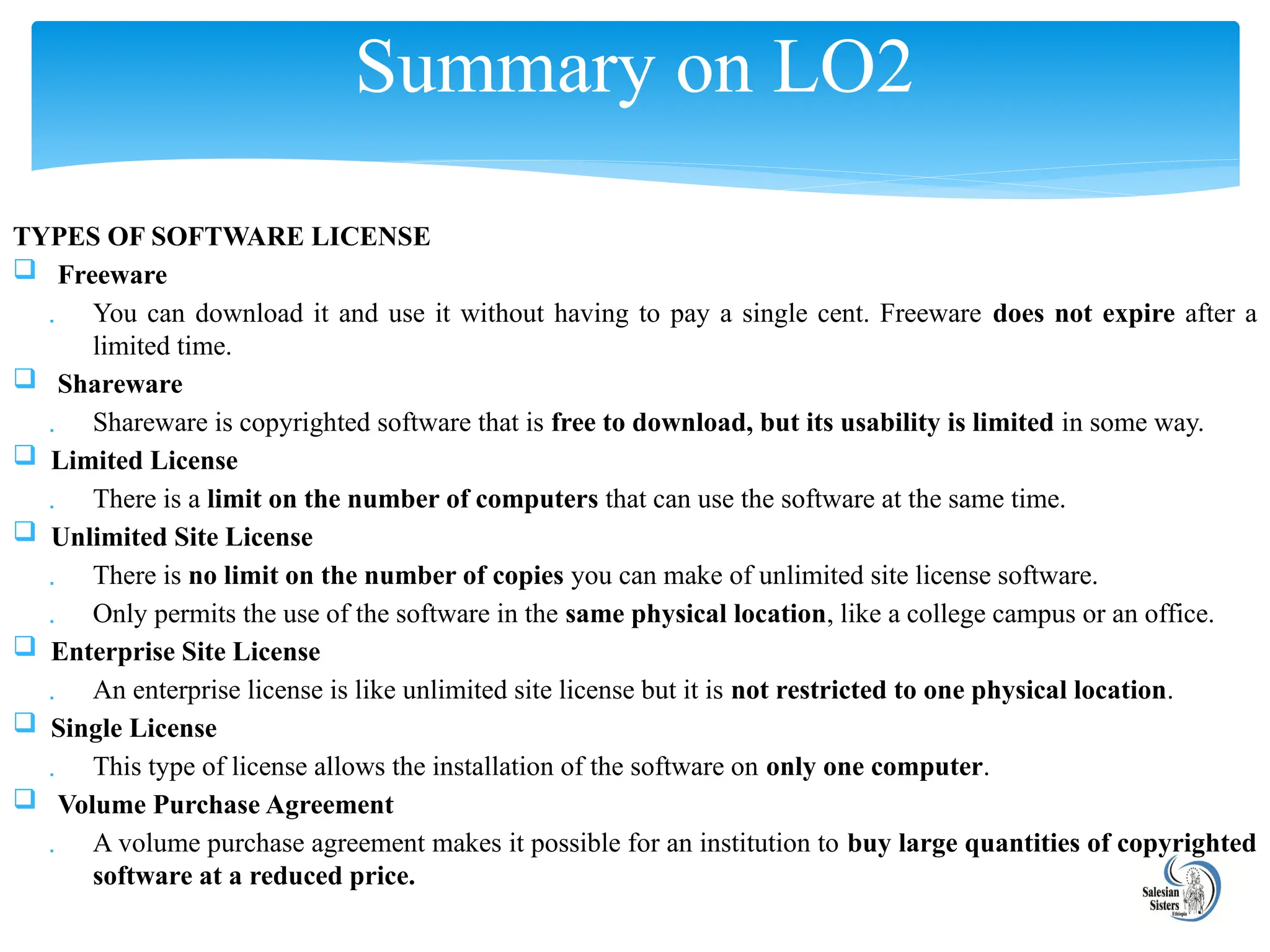
SOFTWARE LICENSE
Ais a legal instrument (usually by way of contract law
or Copyright law) governing the usage or redistribution of
software.
This code is included with the software and an
agreement called the end user licensee agreement
(EULA), which explains how you can use the software.
A product key, also known as a CD key that certifies
the copy of the program is original.
Activation is sometimes done offline by entering the
key, or online to prevent multiple people using the same
key.
Summary on LO2
49.
TYPES OF SOFTWARELICENSE
Freeware
You can download it and use it without having to pay a single cent. Freeware does not expire after a
limited time.
Shareware
Shareware is copyrighted software that is free to download, but its usability is limited in some way.
Limited License
There is a limit on the number of computers that can use the software at the same time.
Unlimited Site License
There is no limit on the number of copies you can make of unlimited site license software.
Only permits the use of the software in the same physical location, like a college campus or an office.
Enterprise Site License
An enterprise license is like unlimited site license but it is not restricted to one physical location.
Single License
This type of license allows the installation of the software on only one computer.
Volume Purchase Agreement
A volume purchase agreement makes it possible for an institution to buy large quantities of copyrighted
software at a reduced price.
Summary on LO2
50.
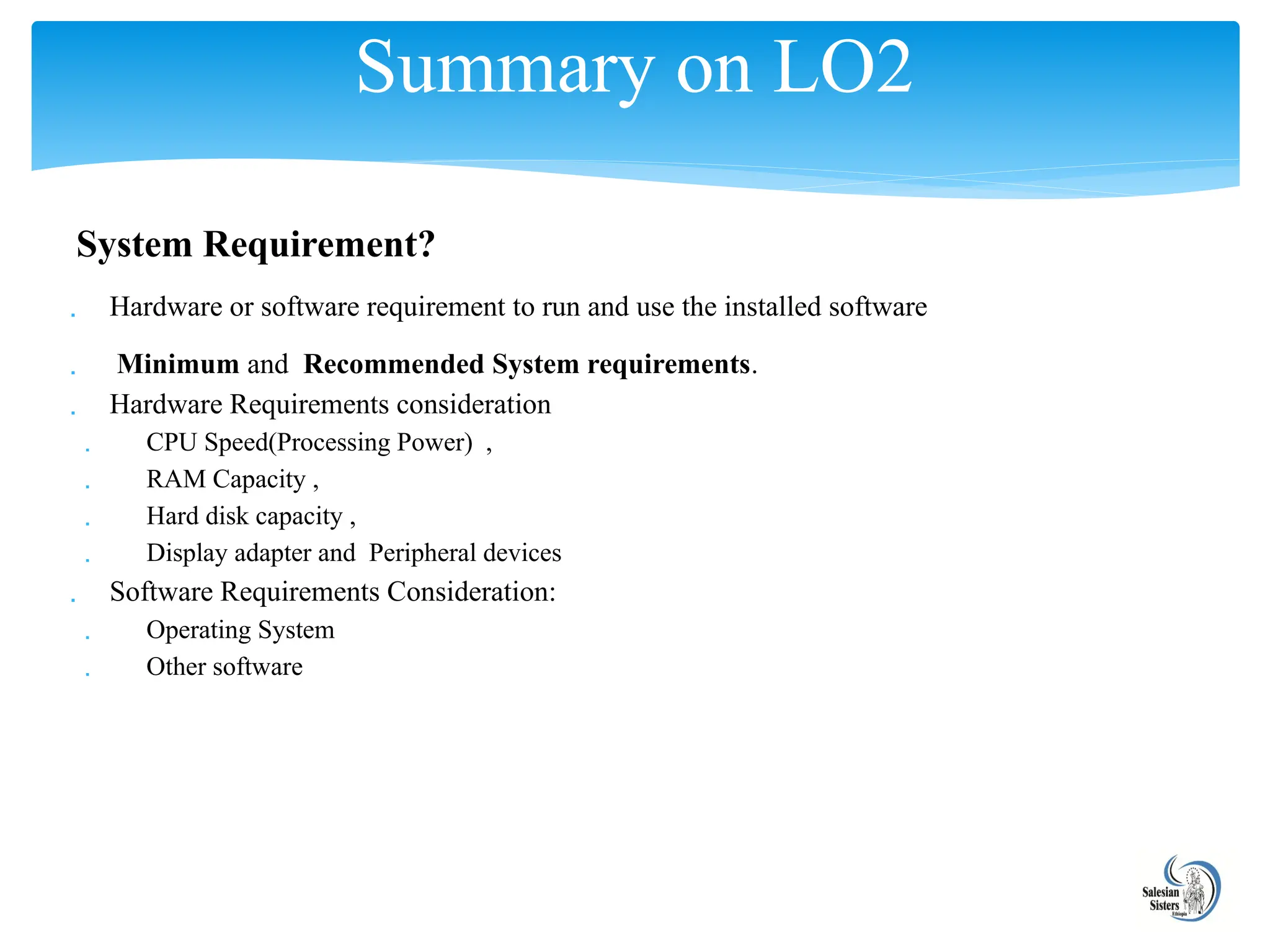
System Requirement?
Hardwareor software requirement to run and use the installed software
Minimum and Recommended System requirements.
Hardware Requirements consideration
CPU Speed(Processing Power) ,
RAM Capacity ,
Hard disk capacity ,
Display adapter and Peripheral devices
Software Requirements Consideration:
Operating System
Other software
Summary on LO2
51.
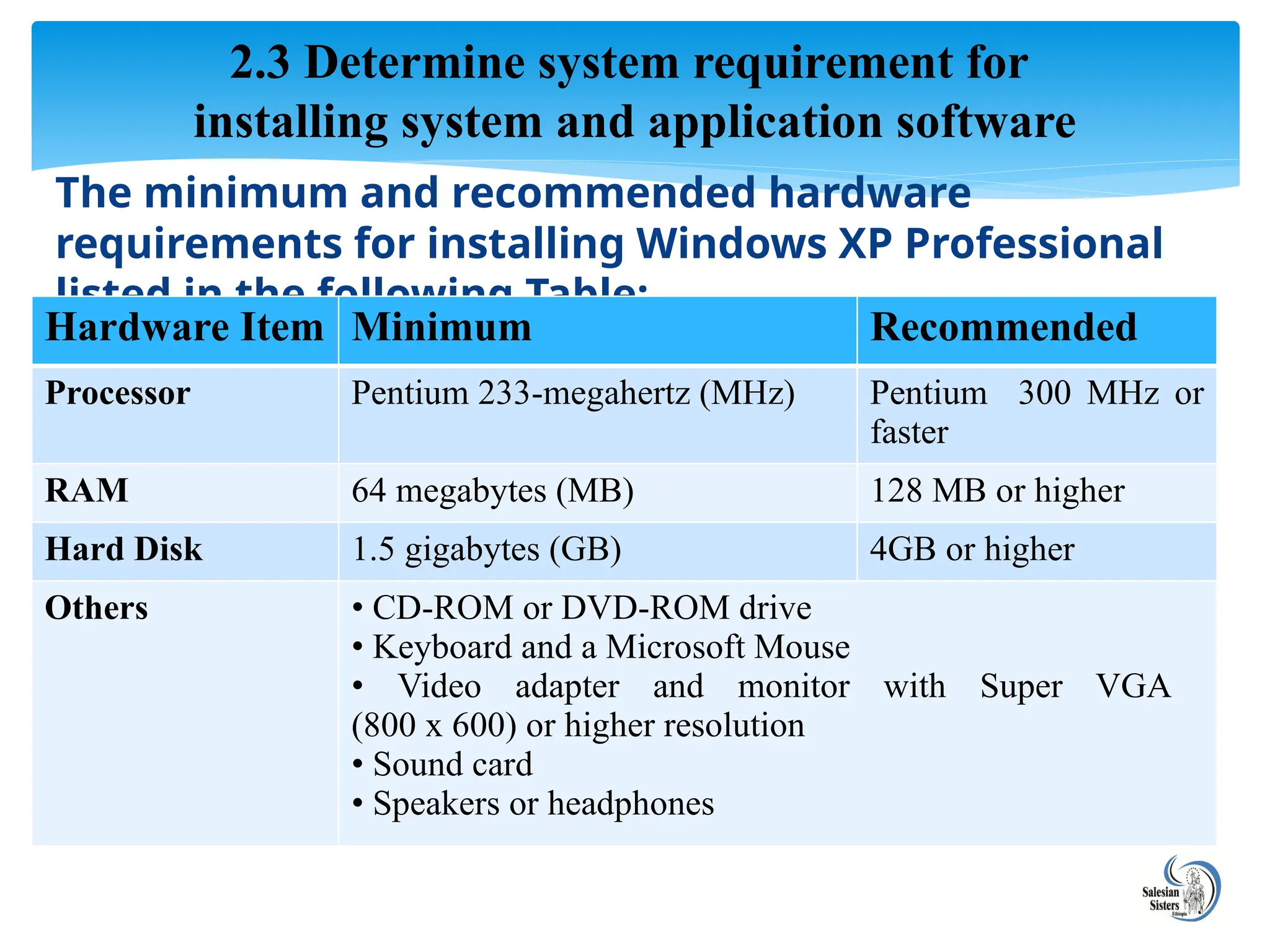
The minimum andrecommended hardware
requirements for installing Windows XP Professional
listed in the following Table:
2.3 Determine system requirement for
installing system and application software
Hardware Item Minimum Recommended
Processor Pentium 233-megahertz (MHz) Pentium 300 MHz or
faster
RAM 64 megabytes (MB) 128 MB or higher
Hard Disk 1.5 gigabytes (GB) 4GB or higher
Others • CD-ROM or DVD-ROM drive
• Keyboard and a Microsoft Mouse
• Video adapter and monitor with Super VGA
(800 x 600) or higher resolution
• Sound card
• Speakers or headphones
52.
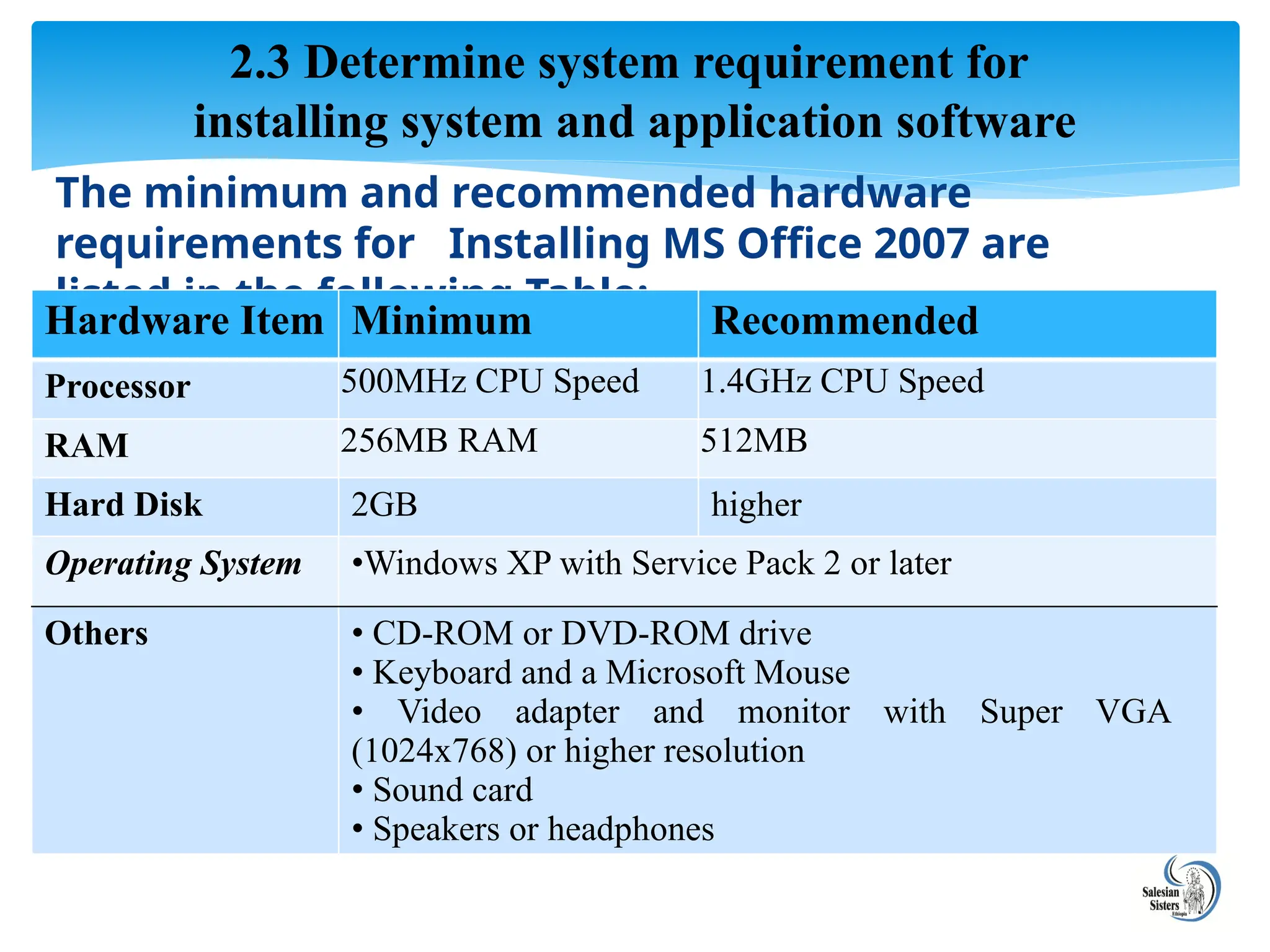
The minimum andrecommended hardware
requirements for Installing MS Office 2007 are
listed in the following Table:
2.3 Determine system requirement for
installing system and application software
Hardware Item Minimum Recommended
Processor 500MHz CPU Speed 1.4GHz CPU Speed
RAM 256MB RAM 512MB
Hard Disk 2GB higher
Operating System •Windows XP with Service Pack 2 or later
Others • CD-ROM or DVD-ROM drive
• Keyboard and a Microsoft Mouse
• Video adapter and monitor with Super VGA
(1024x768) or higher resolution
• Sound card
• Speakers or headphones
53.
Software Upgrading
thereplacement of a product with a newer version of the same product.
allows a user to get the latest version of a software program at a discounted
price and not have to purchase the full product.
Benefits of software upgrading
1. To have new features not available or found in previous versions.
2. To have better stability and increased performance.
Software Upgrade Types
1) Service releases or bug fixes
to upgrade as soon as they are released since they usually make the software more
stable and reliable
2) New software versions.
When our current version no longer supported
When the new version have some features that will make my work more efficient
Summary on LO2
54.
Self check Questions
Matching
ColumnA Column B
1. Minimum system
Requirements
2. Recommended System
Requirements
3. Hardware Compatibility List
(HCL)
4. Software Requirements
5. Software Upgrading
6. Benefits of software
upgrading
7. Service releases or bug fixes
software upgrade
A. Upgrading of software as soon as they are
released Service packs
B. the replacement of a software product with a
newer version of the same product
C. It deals with defining software resource
requirements that need to be installed on a
computer to provide optimal functioning of
application software
D. the least hardware or software requirements
needed to run a software
E. the most hardware or software requirements
needed to run a software
F. To have new version of software
G. the list of hardware devices for a particular
operating system or application software
55.
Questions:
1. What arethe factors you need to consider when Selecting a
computer software packages?
2. Define software license? List and explain types of software
license.
3. What is System Requirement?
4. What is Hardware Compatibility List?
5. Write at least 3 benefits of software upgrading?
6. Explain the two software upgrade types: Service releases or
bug fixes upgrade and New software versions release
upgrade?
Self check Questions
56.
Questions:
7. Fill thefollowing Table with appropriate System Requirement
information for installing Microsoft Office 2003 and 2007:
Self check Questions
Hardware
Item
Minimum MS Office 2003 Minimum MS Office 2003
Minimum Recommended Minimum Recommended
Processor
RAM
Hard Disk
Operating
System
Others
57.
Objectives
Installing Newor upgraded software in accordance with
appropriate person or organizational instructions
Completing Installation process efficiently and effectively with
minimal disruption
Carrying out Testing and acceptance in line with corporate
guidelines, paying particular attention to possible impact on
other systems
Ensuring client requirements are satisfied in accordance with
the organizational standard
Referring Outstanding client issues to appropriate person as
necessary
LO3: Install or upgrade software
58.
General Tips forsoftware installation
Before you install computer software, the first important step is to
check the hardware and software requirement of the software you
are installing. The configuration of your computer must match the
requirements of the software to be installed.
Sometimes, the software to be installed is compressed in a .RAR
or .ZIP file. In these cases, before you install the software you have
to uncompress all the installation files and folders.
To uncompress the files and folders, ensure that you have a
decompression software application installed on your computer.
Computer software comes with a 'Read me' file. This 'Read me' file
contains all the instructions that are required to install the software
on your computer.
3.1 Installing software in accordance with
appropriate person or organizational instructions
59.
General Tips …
Sometimes, when you install software, the software may ask you to install
another program that is required for the proper execution of the software to
be installed.
The computer may even prompt you to install the supporting software after
you complete the installation.
When you install any software program on the computer, it is advisable to
close all other programs and utilities.
Some antivirus software applications may require you to turn off the
firewall in order to install the software.
When installing software applications related to computer networking or
web browsing, it is recommended to disable the antivirus and the firewall.
After installing a new program if it prompts you to reboot the computer, do
it.
3.1 Installing software in accordance with
appropriate person or organizational instructions
60.
Type of Installations
Silentinstallation
A silent (or quiet) installation is one which does not display any
indication of its progress. It does not display messages or windows
during its progress.
Unattended installation
Installation that is performed without user interaction during its progress
or, in a stricter sense, with no user present at all, except eventually for
the initial launch of the process.
Self installation
Unattended installation, without the need of initial launch of the process
(i.e. Vodafone Mobile Connect USB Modem or Huawei E220's Mobile
Partner software that self-installs from the USB port).
3.1 Installing software in accordance with
appropriate person or organizational instructions
61.
Clean installation
Aninstallation performed in absence of such interfering factors (which
may vary from program to program) is called a clean installation.
In particular, a clean operating system installation can be performed by
formatting its destination partition before the actual installation process.
Flat installation
An installation of a program performed from a copy (called a flat copy)
of its original media contents (mostly CDs or DVDs) to a hard drive,
rather than directly from the media. This may help in some situations
where the target machine isn't able to cope with random access reads
from CD/DVD at the same time as performing the CPU-intensive tasks
often required by an installation, or where the target machine does not
have an appropriate physical drive.
3.1 Installing software in accordance with
appropriate person or organizational instructions
62.
Network Installation
Installationof a program from a shared network drive, this
may simply be a copy of the original media (as in a Flat
Installation), but frequently, software publishers which offer
site licenses for institutional customers provide a version
intended for installation over a network.
3.1 Installing software in accordance with
appropriate person or organizational instructions
63.
Materials Needed toinstall Software:
Computer
Working CD or DVD drive
Installation disc
manuals for the program or the readme file(optional)
Internet connection (optional)
Web browser(optional)
3.1 Installing software in accordance with
appropriate person or organizational instructions
64.
Application software installationmethods
You can install Application software using the
following methods:
from Installation CD/DVD disc
using control panel Add or Remove Program
window
from the Web
from the Network
3.1 Installing software in accordance with
appropriate person or organizational instructions
65.
The most commonsteps for installing application software are:
Welcome Screen
it indicates that the installation of software is already begin. Usually you click Next to proceed it.
User License Agreement
It is an agreement between the user and developer on use of the software. Usually you click Yes or I Agree
to proceed it.
Destination path(Folder)
It is a place where the installed software is stored. Usually to you click Change button to modify the
destination path and click Install or Next to proceed it.
Product or CD Keys
You are required to enter the CD Keys during installation of application software. The CD keys usually is
written on the installation CD disc or found together with the software.
Installation Type
Typical Installation- Recommended installation
Complete Installation- Full Installation
Custom Installation- Cu
Minimum Installation
3.1 Installing software in accordance with
appropriate person or organizational instructions