Hardware and Network Servicing Level III LEARNING
GUIDE
Unit of Competence: Monitor and Administer System and
Network Security
Module Title: Monitoring and Administering System and
Network Security
LG Code:- ICT HNS3 05 1114
TTLM Code: - ICT HNS3 TTML 1114
12/27/2022
1
LO1:- Ensure user accounts are controlled Introduction to Monitor
and Administer System and Network Security
1. Control User Accounts
 A user account defines the actions a user can perform in
Windows. On a stand-alone computer or a computer that is a
member of a workgroup, a user account establishes the privileges
assigned to each user. On a computer that is part of a network
domain, a user must be a member of at least one group. The
permissions and rights granted to a group are assigned to
its members. User accounts on a computer that is a member of a
network domain. You must be logged on as an administrator or a
member of the Administrators group to use User Accounts in
Control Panel. User Accounts allows you to add users to
your computer and to add users to a group In Windows,
permissions and user rights usually are granted to groups. By
adding a user to a group, you give the user all the permissions
and user rights assigned to that group. 12/27/2022
2
Authentication: -
The process of verifying the identity of people who are attempting to
access the network or system. This is usually the first step in gaining
access to a computer system. A process of determining what activities or
access will be permitted for user. This may include access to network
resources, data and applications.
Strong passwords
Computer security includes the use of strong passwords for your network
logon and the administrator account on your computer. For a password to
be strong, it should: Be at least seven characters long. Because of the
way passwords are encrypted, the most secure passwords are seven or 14
characters long.
Contain characters from each of the following three groups:
Group Examples
 Letters (uppercase and lowercase)A, B, C...Z (And a, b, c...z)
 Numerals 0, 1, 2, 3, 4, 5, 6, 7, 8, 9
 Symbols (all characters not defined as letters or numerals) ` ~ ! @ # $
% ^ & * ( ) _ + - = { } | [ ]  : " ; ‘ < > ? , . /
12/27/2022
3
Network Security
 Network Security is the prevention and protection of network assets
from unauthorized access, use, alteration, degradation, destruction, and
other threats. It involves the authorization of access to data in a
network which is controlled by the network administrator and the
organization policies. Users choose or an ID and password or
authenticating information that allows them access to information
and program within their authority.
Group policy
 Group policy is a User Account Control; helps to protect the systems
even though a user is logged on as an administrator.
Creating and managing User and Computer Account
User and computer accounts
 Active Directory user accounts and computer accounts represent a
physical entity such as a computer or person. User accounts can also
be used as dedicated service accounts for some applications.
 User accounts and computer accounts (as well as groups) are also
referred to as security principals. Security principals are directory
objects that are automatically assigned security IDs which can be used
to access domain resources. A user or computer account is used.
12/27/2022
4
Defining Group Types and Scope
A group can be defined as a collection of accounts that are
grouped together so that
 Administrators can assign permissions and rights to the group as a
single entity. This removesthe need for an Administrator to
individually assign permissions and rights to each account.
Group Types
 Two types of groups can be created in Active Directory. Each group
type is used for a different purpose.
 security group is one that is created for security purposes, while
 Distribution group is one created for purposes other than security
purposes. Security groups are typically created to assign permissions,
while distribution groups are usually created to distribute bulk e-
mail to users. As one may notice, the main difference between the two
groups is the manner in which Each group type is used. Active
Directory allows users to convert a security group into a
distribution group and to convert a distribution group into a
security group if the domain functional level is raised to Windows
2000 Native or above. 12/27/2022
5
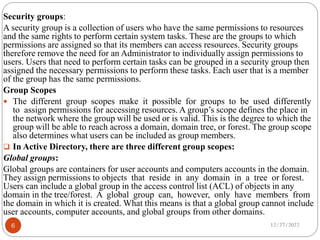
Security groups:
A security group is a collection of users who have the same permissions to resources
and the same rights to perform certain system tasks. These are the groups to which
permissions are assigned so that its members can access resources. Security groups
therefore remove the need for an Administrator to individually assign permissions to
users. Users that need to perform certain tasks can be grouped in a security group then
assigned the necessary permissions to perform these tasks. Each user that is a member
of the group has the same permissions.
Group Scopes
 The different group scopes make it possible for groups to be used differently
to assign permissions for accessing resources. A group’s scope defines the place in
the network where the group will be used or is valid. This is the degree to which the
group will be able to reach across a domain, domain tree, or forest. The group scope
also determines what users can be included as group members.
 In Active Directory, there are three different group scopes:
Global groups:
Global groups are containers for user accounts and computers accounts in the domain.
They assign permissions to objects that reside in any domain in a tree or forest.
Users can include a global group in the access control list (ACL) of objects in any
domain in the tree/forest. A global group can, however, only have members from
the domain in which it is created. What this means is that a global group cannot include
user accounts, computer accounts, and global groups from other domains.
12/27/2022
6
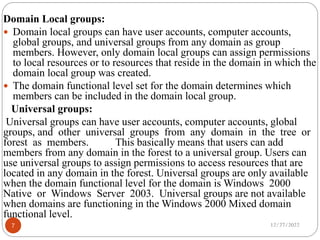
Domain Local groups:
 Domain local groups can have user accounts, computer accounts,
global groups, and universal groups from any domain as group
members. However, only domain local groups can assign permissions
to local resources or to resources that reside in the domain in which the
domain local group was created.
 The domain functional level set for the domain determines which
members can be included in the domain local group.
Universal groups:
Universal groups can have user accounts, computer accounts, global
groups, and other universal groups from any domain in the tree or
forest as members. This basically means that users can add
members from any domain in the forest to a universal group. Users can
use universal groups to assign permissions to access resources that are
located in any domain in the forest. Universal groups are only available
when the domain functional level for the domain is Windows 2000
Native or Windows Server 2003. Universal groups are not available
when domains are functioning in the Windows 2000 Mixed domain
functional level.
12/27/2022
7
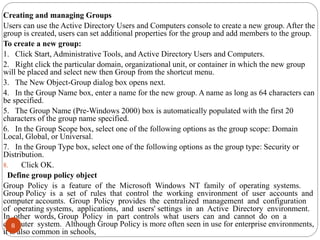
Creating and managing Groups
Users can use the Active Directory Users and Computers console to create a new group. After the
group is created, users can set additional properties for the group and add members to the group.
To create a new group:
1. Click Start, Administrative Tools, and Active Directory Users and Computers.
2. Right click the particular domain, organizational unit, or container in which the new group
will be placed and select new then Group from the shortcut menu.
3. The New Object-Group dialog box opens next.
4. In the Group Name box, enter a name for the new group. A name as long as 64 characters can
be specified.
5. The Group Name (Pre-Windows 2000) box is automatically populated with the first 20
characters of the group name specified.
6. In the Group Scope box, select one of the following options as the group scope: Domain
Local, Global, or Universal.
7. In the Group Type box, select one of the following options as the group type: Security or
Distribution.
8. Click OK.
Define group policy object
Group Policy is a feature of the Microsoft Windows NT family of operating systems.
Group Policy is a set of rules that control the working environment of user accounts and
computer accounts. Group Policy provides the centralized management and configuration
of operating systems, applications, and users' settings in an Active Directory environment.
In other words, Group Policy in part controls what users can and cannot do on a
computer system. Although Group Policy is more often seen in use for enterprise environments,
it is also common in schools,
8
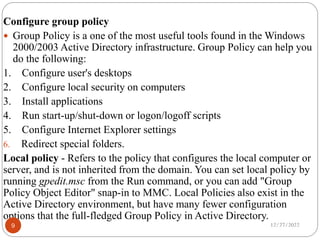
Configure group policy
 Group Policy is a one of the most useful tools found in the Windows
2000/2003 Active Directory infrastructure. Group Policy can help you
do the following:
1. Configure user's desktops
2. Configure local security on computers
3. Install applications
4. Run start-up/shut-down or logon/logoff scripts
5. Configure Internet Explorer settings
6. Redirect special folders.
Local policy - Refers to the policy that configures the local computer or
server, and is not inherited from the domain. You can set local policy by
running gpedit.msc from the Run command, or you can add "Group
Policy Object Editor" snap-in to MMC. Local Policies also exist in the
Active Directory environment, but have many fewer configuration
options that the full-fledged Group Policy in Active Directory.
12/27/2022
9
GPO - Group Policy Object –
Refers to the policy that is configured at the Active Directory level and is inherited by
the domain member computers. You can configure a GPO – Group Policy Object - at
the site level, domain level or Organization Unit level.
Network resource access permission
All production Windows networks need to have resources (folders, files,
documents, spreadsheets, printer, modem, HDD, CD/DVD –Drive etc) made available
from servers so users on the network can access them. The way this is done is
through the use of shared folders configured on the servers which house the
resource.
Authenticated users and users should manipulate the resources based on the level of
permission.
Given for them by the network administrator. In order to protect the resources
that are made available through shared folders, administrators must configure
“permissions” for the folders and files that are made available over the network.
Permissions include:
 Full Control
 Modify
 Read & Execute
 List Folder Contents
 Read
 Write 12/27/2022
10
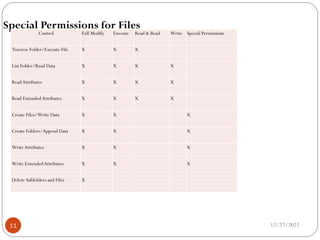
Special Permissions for Files
Control Full Modify Execute Read & Read Write Special Permissions
Traverse Folder/Execute File X X X
List Folder/Read Data X X X X
Read Attributes X X X X
Read ExtendedAttributes X X X X
Create Files/Write Data X X X
Create Folders/Append Data X X X
Write Attributes X X X
Write ExtendedAttributes X X X
Delete Subfolders and Files X
12/27/2022
11
Connecting and configuring network printers
 If you have multiple computers that need to share one printer, then you
need to know how to configure a print server. A print server is most
often a single computer set up to handle print jobs sent to one or more
printers from several other computers. By setting up one computer as
the server, you allow any computer sharing the network to send and
print documents utilizing the same printer(s).
Connecting and configuring printer
 You can connect your printer using parallel, serial, USB ports or even
possible make printer connect through infrared and Bluetooth.
 Configure a Print: You can configure your printer on a local computer,
remote computer/network printer, or TCP/IP/network printer.
Install Printer
 By default, a Windows Server 2008-based computer is installed with
Client for Microsoft Networks, File and Printer Sharing for Microsoft
Networks, and TCP/IP. 12/27/2022
12
Planning and Implementing Security
Security refers to the measures taken to protect certain things or elements of
information. There are three main elements
Confidentiality
 This means keeping information secret and safe. It means controlling access to
information so that only the people with authorization will access the information.
No one else should have access to the information.
 With Network Security this means keeping all information stored in a network
environment confidential and safe. This means keeping unauthorized people off the
network and preventing them from browsing around and accessing thing they have
no authority to access.
Integrity
 This refers to the correctness of information. It means making sure that the
information is kept as
it should be and not altered or changed by unauthorized people. It also means
protecting the information from
changes or corruption by other things like system or program failures or external
events.
With Network Security this means keeping all information stored in a network
environment as it should be. Information includes user generated data, programs,
computer services and processes
(email, DNS, etc). This means protecting information from unauthorized changes and
deletion by people, network devices or external influences.
12/27/2022
13
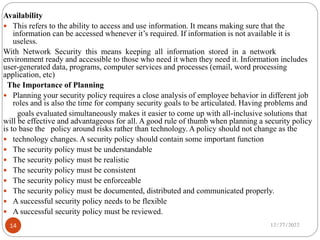
Availability
 This refers to the ability to access and use information. It means making sure that the
information can be accessed whenever it’s required. If information is not available it is
useless.
With Network Security this means keeping all information stored in a network
environment ready and accessible to those who need it when they need it. Information includes
user-generated data, programs, computer services and processes (email, word processing
application, etc)
The Importance of Planning
 Planning your security policy requires a close analysis of employee behavior in different job
roles and is also the time for company security goals to be articulated. Having problems and
goals evaluated simultaneously makes it easier to come up with all-inclusive solutions that
will be effective and advantageous for all. A good rule of thumb when planning a security policy
is to base the policy around risks rather than technology. A policy should not change as the
 technology changes. A security policy should contain some important function
 The security policy must be understandable
 The security policy must be realistic
 The security policy must be consistent
 The security policy must be enforceable
 The security policy must be documented, distributed and communicated properly.
 A successful security policy needs to be flexible
 A successful security policy must be reviewed.
12/27/2022
14
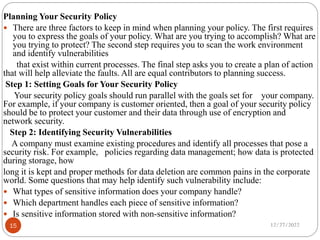
Planning Your Security Policy
 There are three factors to keep in mind when planning your policy. The first requires
you to express the goals of your policy. What are you trying to accomplish? What are
you trying to protect? The second step requires you to scan the work environment
and identify vulnerabilities
that exist within current processes. The final step asks you to create a plan of action
that will help alleviate the faults. All are equal contributors to planning success.
Step 1: Setting Goals for Your Security Policy
Your security policy goals should run parallel with the goals set for your company.
For example, if your company is customer oriented, then a goal of your security policy
should be to protect your customer and their data through use of encryption and
network security.
Step 2: Identifying Security Vulnerabilities
A company must examine existing procedures and identify all processes that pose a
security risk. For example, policies regarding data management; how data is protected
during storage, how
long it is kept and proper methods for data deletion are common pains in the corporate
world. Some questions that may help identify such vulnerability include:
 What types of sensitive information does your company handle?
 Which department handles each piece of sensitive information?
 Is sensitive information stored with non-sensitive information?
12/27/2022
15
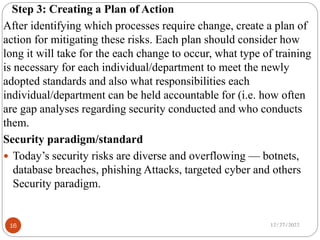
Step 3: Creating a Plan of Action
After identifying which processes require change, create a plan of
action for mitigating these risks. Each plan should consider how
long it will take for the each change to occur, what type of training
is necessary for each individual/department to meet the newly
adopted standards and also what responsibilities each
individual/department can be held accountable for (i.e. how often
are gap analyses regarding security conducted and who conducts
them.
Security paradigm/standard
 Today’s security risks are diverse and overflowing — botnets,
database breaches, phishing Attacks, targeted cyber and others
Security paradigm.
12/27/2022
16
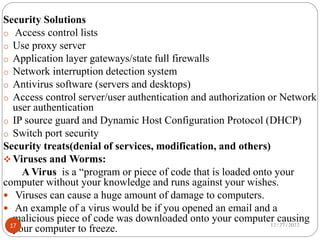
Security Solutions
o Access control lists
o Use proxy server
o Application layer gateways/state full firewalls
o Network interruption detection system
o Antivirus software (servers and desktops)
o Access control server/user authentication and authorization or Network
user authentication
o IP source guard and Dynamic Host Configuration Protocol (DHCP)
o Switch port security
Security treats(denial of services, modification, and others)
 Viruses and Worms:
A Virus is a “program or piece of code that is loaded onto your
computer without your knowledge and runs against your wishes.
 Viruses can cause a huge amount of damage to computers.
 An example of a virus would be if you opened an email and a
malicious piece of code was downloaded onto your computer causing
your computer to freeze. 12/27/2022
17
Trojan Horses:
A Trojan horse is “a program in which malicious or harmful code is contained inside
it appears that harmless programming or data in such a way that it can get control and
do its chosen form of damage, such as corrupted the file allocation table on your hard
disk.
SPAM:
 SPAM is “flooding the Internet with many copies of the same message, in an attempt
to force the message on people who would not otherwise choose to receive it.
 SPAM may not be the biggest risk to a network because even though it may
get maddening and plentiful it still doesn’t destroy any physical elements of the
network.
Phishing:
 Phishing is “an e-mail fraud method in which the performer sends out legitimate-
looking emails in an attempt to gather personal and financial information from
recipients.
 phishing is one of the worst security threats over a network because a lot of people
that use computers linked up to a network are unpaid and would be very vulnerable
to giving out information that could cause situations such as theft of money or
identity theft.
Packet Sniffers:
A packet sniffer is a device or program that allows listen on traffic traveling
between networked computers. The packet sniffer will capture data that is
addressed to other machines, saving it for later analysis. 12/27/2022
18
Maliciously Coded Websites:
 Some websites across the net contain code that is malicious.
 Malicious code is “Programming code that is capable of causing harm to
availability, integrity of code or data, or confidentiality in a computer system.
Password Attacks:
 Password attacks are attacks by hackers that are able to determine
passwords or find passwords to different protected electronic areas.
 Many systems on a network are password protected and hence it would be
easy for a hacker to hack into the systems and steal data.
Hardware Loss and Residual Data Fragments:
 Hardware loss and residual data fragments are a growing worry for
companies, governments etc.
Shared Computers:
 Shared computers are always a threat.
 Shared computers involve sharing a computer with one or more people.
 The following are a series of tips to follow when sharing computers:
“Do not check the
“Remember my ID on this computer” box
19
Install and update latest antivirus
 Prevent virus infections: Anti-virus software is one of the main defenses against online problems. It
continually scans for viruses, including Trojans and worms. To be effective it must be kept up-to-date.
Why install anti-virus software?
 Without anti-virus software you are very vulnerable to computer viruses, including:
Infected email attachments.
Drive-by infections caused by visiting corrupt websites.
Viruses that attack over the internet (“worms”).
Spyware that is introduced by virus infections.
Viruses that are spread using macros in application documents.
Depending on the software you use, it may detect some (but not all) spyware.
What anti-virus software does?
Anti-virus software covers the main lines of attack:
It scans incoming emails for attached viruses.
It monitors files as they are opened or created to make sure they are not infected.
It performs periodic scans of every file on the computer.
What anti-virus software does NOT do?
Anti-virus software will not protect you against:202020202020
Programs that you choose to install that may contain unwanted features.
Spam.
Against any kind of fraud or criminal activity online.
A hacker trying break into your computer over the internet.
20

Presentation gggffggggg.pdf

  • 1.
    Hardware and NetworkServicing Level III LEARNING GUIDE Unit of Competence: Monitor and Administer System and Network Security Module Title: Monitoring and Administering System and Network Security LG Code:- ICT HNS3 05 1114 TTLM Code: - ICT HNS3 TTML 1114 12/27/2022 1
  • 2.
    LO1:- Ensure useraccounts are controlled Introduction to Monitor and Administer System and Network Security 1. Control User Accounts  A user account defines the actions a user can perform in Windows. On a stand-alone computer or a computer that is a member of a workgroup, a user account establishes the privileges assigned to each user. On a computer that is part of a network domain, a user must be a member of at least one group. The permissions and rights granted to a group are assigned to its members. User accounts on a computer that is a member of a network domain. You must be logged on as an administrator or a member of the Administrators group to use User Accounts in Control Panel. User Accounts allows you to add users to your computer and to add users to a group In Windows, permissions and user rights usually are granted to groups. By adding a user to a group, you give the user all the permissions and user rights assigned to that group. 12/27/2022 2
  • 3.
    Authentication: - The processof verifying the identity of people who are attempting to access the network or system. This is usually the first step in gaining access to a computer system. A process of determining what activities or access will be permitted for user. This may include access to network resources, data and applications. Strong passwords Computer security includes the use of strong passwords for your network logon and the administrator account on your computer. For a password to be strong, it should: Be at least seven characters long. Because of the way passwords are encrypted, the most secure passwords are seven or 14 characters long. Contain characters from each of the following three groups: Group Examples  Letters (uppercase and lowercase)A, B, C...Z (And a, b, c...z)  Numerals 0, 1, 2, 3, 4, 5, 6, 7, 8, 9  Symbols (all characters not defined as letters or numerals) ` ~ ! @ # $ % ^ & * ( ) _ + - = { } | [ ] : " ; ‘ < > ? , . / 12/27/2022 3
  • 4.
    Network Security  NetworkSecurity is the prevention and protection of network assets from unauthorized access, use, alteration, degradation, destruction, and other threats. It involves the authorization of access to data in a network which is controlled by the network administrator and the organization policies. Users choose or an ID and password or authenticating information that allows them access to information and program within their authority. Group policy  Group policy is a User Account Control; helps to protect the systems even though a user is logged on as an administrator. Creating and managing User and Computer Account User and computer accounts  Active Directory user accounts and computer accounts represent a physical entity such as a computer or person. User accounts can also be used as dedicated service accounts for some applications.  User accounts and computer accounts (as well as groups) are also referred to as security principals. Security principals are directory objects that are automatically assigned security IDs which can be used to access domain resources. A user or computer account is used. 12/27/2022 4
  • 5.
    Defining Group Typesand Scope A group can be defined as a collection of accounts that are grouped together so that  Administrators can assign permissions and rights to the group as a single entity. This removesthe need for an Administrator to individually assign permissions and rights to each account. Group Types  Two types of groups can be created in Active Directory. Each group type is used for a different purpose.  security group is one that is created for security purposes, while  Distribution group is one created for purposes other than security purposes. Security groups are typically created to assign permissions, while distribution groups are usually created to distribute bulk e- mail to users. As one may notice, the main difference between the two groups is the manner in which Each group type is used. Active Directory allows users to convert a security group into a distribution group and to convert a distribution group into a security group if the domain functional level is raised to Windows 2000 Native or above. 12/27/2022 5
  • 6.
    Security groups: A securitygroup is a collection of users who have the same permissions to resources and the same rights to perform certain system tasks. These are the groups to which permissions are assigned so that its members can access resources. Security groups therefore remove the need for an Administrator to individually assign permissions to users. Users that need to perform certain tasks can be grouped in a security group then assigned the necessary permissions to perform these tasks. Each user that is a member of the group has the same permissions. Group Scopes  The different group scopes make it possible for groups to be used differently to assign permissions for accessing resources. A group’s scope defines the place in the network where the group will be used or is valid. This is the degree to which the group will be able to reach across a domain, domain tree, or forest. The group scope also determines what users can be included as group members.  In Active Directory, there are three different group scopes: Global groups: Global groups are containers for user accounts and computers accounts in the domain. They assign permissions to objects that reside in any domain in a tree or forest. Users can include a global group in the access control list (ACL) of objects in any domain in the tree/forest. A global group can, however, only have members from the domain in which it is created. What this means is that a global group cannot include user accounts, computer accounts, and global groups from other domains. 12/27/2022 6
  • 7.
    Domain Local groups: Domain local groups can have user accounts, computer accounts, global groups, and universal groups from any domain as group members. However, only domain local groups can assign permissions to local resources or to resources that reside in the domain in which the domain local group was created.  The domain functional level set for the domain determines which members can be included in the domain local group. Universal groups: Universal groups can have user accounts, computer accounts, global groups, and other universal groups from any domain in the tree or forest as members. This basically means that users can add members from any domain in the forest to a universal group. Users can use universal groups to assign permissions to access resources that are located in any domain in the forest. Universal groups are only available when the domain functional level for the domain is Windows 2000 Native or Windows Server 2003. Universal groups are not available when domains are functioning in the Windows 2000 Mixed domain functional level. 12/27/2022 7
  • 8.
    Creating and managingGroups Users can use the Active Directory Users and Computers console to create a new group. After the group is created, users can set additional properties for the group and add members to the group. To create a new group: 1. Click Start, Administrative Tools, and Active Directory Users and Computers. 2. Right click the particular domain, organizational unit, or container in which the new group will be placed and select new then Group from the shortcut menu. 3. The New Object-Group dialog box opens next. 4. In the Group Name box, enter a name for the new group. A name as long as 64 characters can be specified. 5. The Group Name (Pre-Windows 2000) box is automatically populated with the first 20 characters of the group name specified. 6. In the Group Scope box, select one of the following options as the group scope: Domain Local, Global, or Universal. 7. In the Group Type box, select one of the following options as the group type: Security or Distribution. 8. Click OK. Define group policy object Group Policy is a feature of the Microsoft Windows NT family of operating systems. Group Policy is a set of rules that control the working environment of user accounts and computer accounts. Group Policy provides the centralized management and configuration of operating systems, applications, and users' settings in an Active Directory environment. In other words, Group Policy in part controls what users can and cannot do on a computer system. Although Group Policy is more often seen in use for enterprise environments, it is also common in schools, 8
  • 9.
    Configure group policy Group Policy is a one of the most useful tools found in the Windows 2000/2003 Active Directory infrastructure. Group Policy can help you do the following: 1. Configure user's desktops 2. Configure local security on computers 3. Install applications 4. Run start-up/shut-down or logon/logoff scripts 5. Configure Internet Explorer settings 6. Redirect special folders. Local policy - Refers to the policy that configures the local computer or server, and is not inherited from the domain. You can set local policy by running gpedit.msc from the Run command, or you can add "Group Policy Object Editor" snap-in to MMC. Local Policies also exist in the Active Directory environment, but have many fewer configuration options that the full-fledged Group Policy in Active Directory. 12/27/2022 9
  • 10.
    GPO - GroupPolicy Object – Refers to the policy that is configured at the Active Directory level and is inherited by the domain member computers. You can configure a GPO – Group Policy Object - at the site level, domain level or Organization Unit level. Network resource access permission All production Windows networks need to have resources (folders, files, documents, spreadsheets, printer, modem, HDD, CD/DVD –Drive etc) made available from servers so users on the network can access them. The way this is done is through the use of shared folders configured on the servers which house the resource. Authenticated users and users should manipulate the resources based on the level of permission. Given for them by the network administrator. In order to protect the resources that are made available through shared folders, administrators must configure “permissions” for the folders and files that are made available over the network. Permissions include:  Full Control  Modify  Read & Execute  List Folder Contents  Read  Write 12/27/2022 10
  • 11.
    Special Permissions forFiles Control Full Modify Execute Read & Read Write Special Permissions Traverse Folder/Execute File X X X List Folder/Read Data X X X X Read Attributes X X X X Read ExtendedAttributes X X X X Create Files/Write Data X X X Create Folders/Append Data X X X Write Attributes X X X Write ExtendedAttributes X X X Delete Subfolders and Files X 12/27/2022 11
  • 12.
    Connecting and configuringnetwork printers  If you have multiple computers that need to share one printer, then you need to know how to configure a print server. A print server is most often a single computer set up to handle print jobs sent to one or more printers from several other computers. By setting up one computer as the server, you allow any computer sharing the network to send and print documents utilizing the same printer(s). Connecting and configuring printer  You can connect your printer using parallel, serial, USB ports or even possible make printer connect through infrared and Bluetooth.  Configure a Print: You can configure your printer on a local computer, remote computer/network printer, or TCP/IP/network printer. Install Printer  By default, a Windows Server 2008-based computer is installed with Client for Microsoft Networks, File and Printer Sharing for Microsoft Networks, and TCP/IP. 12/27/2022 12
  • 13.
    Planning and ImplementingSecurity Security refers to the measures taken to protect certain things or elements of information. There are three main elements Confidentiality  This means keeping information secret and safe. It means controlling access to information so that only the people with authorization will access the information. No one else should have access to the information.  With Network Security this means keeping all information stored in a network environment confidential and safe. This means keeping unauthorized people off the network and preventing them from browsing around and accessing thing they have no authority to access. Integrity  This refers to the correctness of information. It means making sure that the information is kept as it should be and not altered or changed by unauthorized people. It also means protecting the information from changes or corruption by other things like system or program failures or external events. With Network Security this means keeping all information stored in a network environment as it should be. Information includes user generated data, programs, computer services and processes (email, DNS, etc). This means protecting information from unauthorized changes and deletion by people, network devices or external influences. 12/27/2022 13
  • 14.
    Availability  This refersto the ability to access and use information. It means making sure that the information can be accessed whenever it’s required. If information is not available it is useless. With Network Security this means keeping all information stored in a network environment ready and accessible to those who need it when they need it. Information includes user-generated data, programs, computer services and processes (email, word processing application, etc) The Importance of Planning  Planning your security policy requires a close analysis of employee behavior in different job roles and is also the time for company security goals to be articulated. Having problems and goals evaluated simultaneously makes it easier to come up with all-inclusive solutions that will be effective and advantageous for all. A good rule of thumb when planning a security policy is to base the policy around risks rather than technology. A policy should not change as the  technology changes. A security policy should contain some important function  The security policy must be understandable  The security policy must be realistic  The security policy must be consistent  The security policy must be enforceable  The security policy must be documented, distributed and communicated properly.  A successful security policy needs to be flexible  A successful security policy must be reviewed. 12/27/2022 14
  • 15.
    Planning Your SecurityPolicy  There are three factors to keep in mind when planning your policy. The first requires you to express the goals of your policy. What are you trying to accomplish? What are you trying to protect? The second step requires you to scan the work environment and identify vulnerabilities that exist within current processes. The final step asks you to create a plan of action that will help alleviate the faults. All are equal contributors to planning success. Step 1: Setting Goals for Your Security Policy Your security policy goals should run parallel with the goals set for your company. For example, if your company is customer oriented, then a goal of your security policy should be to protect your customer and their data through use of encryption and network security. Step 2: Identifying Security Vulnerabilities A company must examine existing procedures and identify all processes that pose a security risk. For example, policies regarding data management; how data is protected during storage, how long it is kept and proper methods for data deletion are common pains in the corporate world. Some questions that may help identify such vulnerability include:  What types of sensitive information does your company handle?  Which department handles each piece of sensitive information?  Is sensitive information stored with non-sensitive information? 12/27/2022 15
  • 16.
    Step 3: Creatinga Plan of Action After identifying which processes require change, create a plan of action for mitigating these risks. Each plan should consider how long it will take for the each change to occur, what type of training is necessary for each individual/department to meet the newly adopted standards and also what responsibilities each individual/department can be held accountable for (i.e. how often are gap analyses regarding security conducted and who conducts them. Security paradigm/standard  Today’s security risks are diverse and overflowing — botnets, database breaches, phishing Attacks, targeted cyber and others Security paradigm. 12/27/2022 16
  • 17.
    Security Solutions o Accesscontrol lists o Use proxy server o Application layer gateways/state full firewalls o Network interruption detection system o Antivirus software (servers and desktops) o Access control server/user authentication and authorization or Network user authentication o IP source guard and Dynamic Host Configuration Protocol (DHCP) o Switch port security Security treats(denial of services, modification, and others)  Viruses and Worms: A Virus is a “program or piece of code that is loaded onto your computer without your knowledge and runs against your wishes.  Viruses can cause a huge amount of damage to computers.  An example of a virus would be if you opened an email and a malicious piece of code was downloaded onto your computer causing your computer to freeze. 12/27/2022 17
  • 18.
    Trojan Horses: A Trojanhorse is “a program in which malicious or harmful code is contained inside it appears that harmless programming or data in such a way that it can get control and do its chosen form of damage, such as corrupted the file allocation table on your hard disk. SPAM:  SPAM is “flooding the Internet with many copies of the same message, in an attempt to force the message on people who would not otherwise choose to receive it.  SPAM may not be the biggest risk to a network because even though it may get maddening and plentiful it still doesn’t destroy any physical elements of the network. Phishing:  Phishing is “an e-mail fraud method in which the performer sends out legitimate- looking emails in an attempt to gather personal and financial information from recipients.  phishing is one of the worst security threats over a network because a lot of people that use computers linked up to a network are unpaid and would be very vulnerable to giving out information that could cause situations such as theft of money or identity theft. Packet Sniffers: A packet sniffer is a device or program that allows listen on traffic traveling between networked computers. The packet sniffer will capture data that is addressed to other machines, saving it for later analysis. 12/27/2022 18
  • 19.
    Maliciously Coded Websites: Some websites across the net contain code that is malicious.  Malicious code is “Programming code that is capable of causing harm to availability, integrity of code or data, or confidentiality in a computer system. Password Attacks:  Password attacks are attacks by hackers that are able to determine passwords or find passwords to different protected electronic areas.  Many systems on a network are password protected and hence it would be easy for a hacker to hack into the systems and steal data. Hardware Loss and Residual Data Fragments:  Hardware loss and residual data fragments are a growing worry for companies, governments etc. Shared Computers:  Shared computers are always a threat.  Shared computers involve sharing a computer with one or more people.  The following are a series of tips to follow when sharing computers: “Do not check the “Remember my ID on this computer” box 19
  • 20.
    Install and updatelatest antivirus  Prevent virus infections: Anti-virus software is one of the main defenses against online problems. It continually scans for viruses, including Trojans and worms. To be effective it must be kept up-to-date. Why install anti-virus software?  Without anti-virus software you are very vulnerable to computer viruses, including: Infected email attachments. Drive-by infections caused by visiting corrupt websites. Viruses that attack over the internet (“worms”). Spyware that is introduced by virus infections. Viruses that are spread using macros in application documents. Depending on the software you use, it may detect some (but not all) spyware. What anti-virus software does? Anti-virus software covers the main lines of attack: It scans incoming emails for attached viruses. It monitors files as they are opened or created to make sure they are not infected. It performs periodic scans of every file on the computer. What anti-virus software does NOT do? Anti-virus software will not protect you against:202020202020 Programs that you choose to install that may contain unwanted features. Spam. Against any kind of fraud or criminal activity online. A hacker trying break into your computer over the internet. 20