ActivInspire Training Digital Oasis 2010
ActivInspire is the Newest Update for ActivStudio
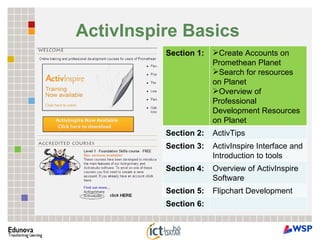
ActivInspire Basics   Section 1:  Create Accounts on Promethean Planet  Search for resources on Planet  Overview of Professional Development Resources on Planet  Section 2:  ActivTips  Section 3:  ActivInspire Interface and Introduction to tools  Section 4: Overview of ActivInspire Software  Section 5: Flipchart Development  Section 6:
Promethean Planet  provides Activclassroom educators from around the globe the ability to share innovative lessons, great ideas and best practices. Create a free account and find a resource you can use in the classroom tomorrow.
Promethean Planet   http://www.prometheanplanet.com   Promethean Planet is the online resource for Promethean users.  Registration is free, and gives access to pre-made FlipCharts lessons, extra art and media, useful websites, help menus, user forums, and the latest software downloads. The Professional upgrade (with all the teacher tools) for ActivInspire is free to users until September 2010. After logging in click the “ Download ActivInspire” button at the top of the website toolbar and follow the directions.
Differences between the ActivInspire Personal and Professional Edition Personal Edition provides a feature rich environment with around two thirds of the functionality of the Professional Edition. Some key reasons to upgrade include the ability to access the following features and capabilities: Dual input Screen & Sound Recorder Advanced authoring capabilities Access to themed templates and to shapes library Import from ExamView®,  QTI/XML Export results to Excel Page Zoom Teacher Lock Desk-top annotation Handwriting recognition Reveal or blind tool Compass tool
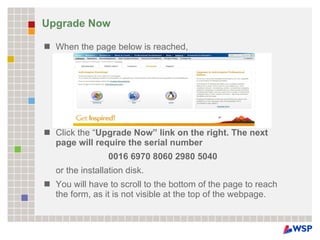
Upgrade Now When the page below is reached,  Click the “ Upgrade Now” link on the right. The next page will require the serial number  0016 6970 8060 2980 5040  or the installation disk.  You will have to scroll to the bottom of the page to reach the form, as it is not visible at the top of the webpage.
Promethean Resources Promethean Planet  - Search for Lessons/Flipcharts  Search for Resource Packs  Share one or two items you have found with the group  Professional Development on Promethean Planet  ActivTips   Converting powerpoint to a flipchart  Free Download of  Inspire  for parents    ActivinspireTopTips.pdf   Promethean World
Adding to Your Resources from  www.prometheanplanet.com   Go to Resources tabs Select Resource Packs Choose mathematics From here, you find backgrounds, grids, images, teacher notes, actvities and even downloads flipcharts that other teachers have created. There are less resources in Inspire than there were in ActivStudio. Go to Promethean Planet to add to the resources in your specific content area. Find the resource pack you want. Click on DOWNLOAD RESOURCE PACK and choose the place to which you want the resources saved. The best place is a network directory or some other place rather than the computer's hard drive. This will save the resource in the event that the computer crashes. You can then save to MY RESOURCES or to SHARED RESOURCES.
ActivInspire Introductions ActivTips  from the Planet are short videos that walk you through a lot of "how-to's.“ http://www.atomiclearning.com/k12/en/activinsp_pc   ActivInspire Flipchart (featured in Video http://www.prometheanplanet.com/server.php?show=ConResource.20353
Retrieving Resources To retrieve, go to  View > Browsers.  The single silhouette is the icon for MY RESOURCES.  The 3-headed silhouette is for SHARED RESOURCES.  Make sure that you know the location to where you downloaded the resource pack. If the resource pack is not there, close out of ActivInspire and open the software again. The resource pack will then appear (small glitch). To use the resources, choose the image, background, etc that you want and DRAG it onto your flipchart page.
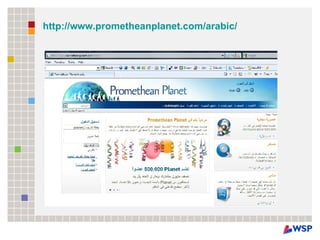
http://www.prometheanplanet.com/arabic/
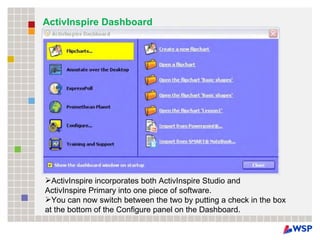
ActivInspire Dashboard ActivInspire incorporates both ActivInspire Studio and  ActivInspire Primary into one piece of software.  You can now switch between the two by putting a check in the box at the bottom of the Configure panel on the Dashboard.
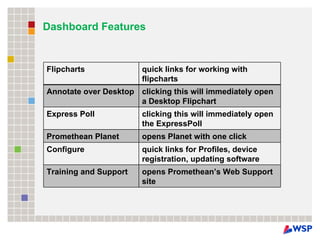
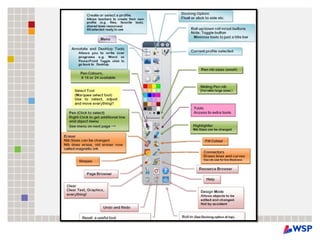
Dashboard Features Flipcharts quick links for working with flipcharts Annotate over Desktop  clicking this will immediately open a Desktop Flipchart Express Poll  clicking this will immediately open the ExpressPoll Promethean Planet  opens Planet with one click Configure quick links for Profiles, device registration, updating software Training and Support  opens Promethean’s Web Support site
 
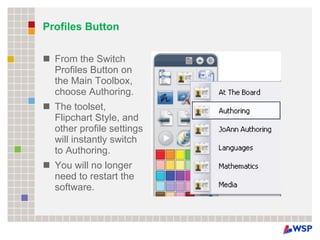
Profiles Button From the Switch Profiles Button on the Main Toolbox, choose Authoring. The toolset, Flipchart Style, and other profile settings will instantly switch to Authoring.  You will no longer need to restart the software.
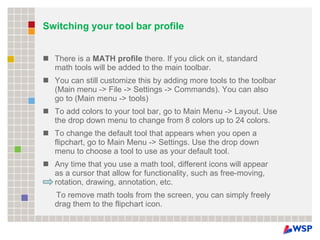
Switching your tool bar profile There is a  MATH profile  there. If you click on it, standard math tools will be added to the main toolbar. You can still customize this by adding more tools to the toolbar (Main menu -> File -> Settings -> Commands). You can also go to (Main menu -> tools) To add colors to your tool bar, go to Main Menu -> Layout. Use the drop down menu to change from 8 colors up to 24 colors. To change the default tool that appears when you open a flipchart, go to Main Menu -> Settings. Use the drop down menu to choose a tool to use as your default tool. Any time that you use a math tool, different icons will appear as a cursor that allow for functionality, such as free-moving, rotation, drawing, annotation, etc. To remove math tools from the screen, you can simply freely drag them to the flipchart icon.
 
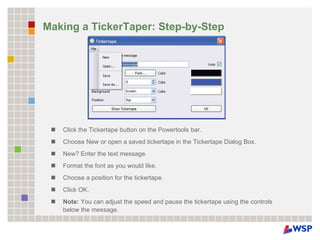
Making a TickerTaper: Step-by-Step Click the Tickertape button on the Powertools bar. Choose New or open a saved tickertape in the Tickertape Dialog Box. New? Enter the text message. Format the font as you would like. Choose a position for the tickertape. Click OK. Note:  You can adjust the speed and pause the tickertape using the controls below the message.
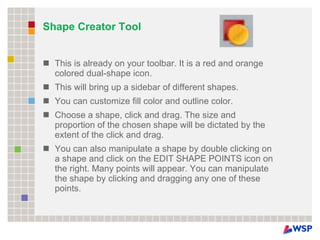
Shape Creator Tool This is already on your toolbar. It is a red and orange colored dual-shape icon. This will bring up a sidebar of different shapes. You can customize fill color and outline color. Choose a shape, click and drag. The size and proportion of the chosen shape will be dictated by the extent of the click and drag. You can also manipulate a shape by double clicking on a shape and click on the EDIT SHAPE POINTS icon on the right. Many points will appear. You can manipulate the shape by clicking and dragging any one of these points.
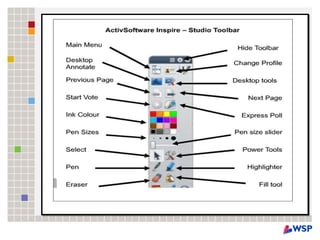
How Do I Access More Tools? Click on the “Tools” icon to access valuable tools such as  Magic Ink, Handwriting  Recognition,  Shape Recognition,  the Revealer,  the Spotlight, etc.
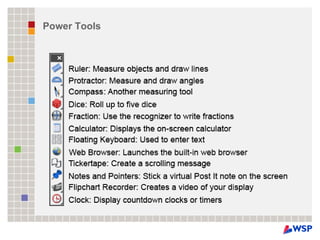
Power Tools
ActivInspire Flipcharts When you launch ActivInspire, a blank ‘flipchart’ (lesson space) opens, ready for your input. You can work with as many flipcharts at the same time as you wish. You can quickly move back and forth between flipcharts using the document tabs. A flipchart can contain as many pages as you like. You can also create desktop flipcharts, where you annotate either the live desktop, or a snapshot of the desktop. Flipcharts created with ActivInspire have the file extension  .flipchart. You can open flipcharts created with Activprimary and Activstudio in ActivInspire. Once you save these flipcharts in  ActivInspire, you cannot open them in Activprimary or Activstudio.
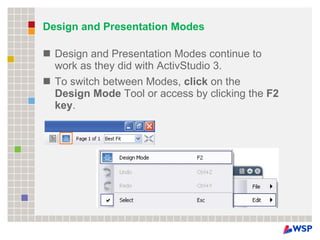
Design and Presentation Modes Design and Presentation Modes continue to work as they did with ActivStudio 3.  To switch between Modes,  click  on the  Design Mode  Tool or access by clicking the  F2 key .
ActivInspire Flipcharts Marzano_Question_1_Templates1.flipchart  Question_Templates.flipchart     2_tutorial3.flipchart     3_basic_start.flipchart     Hair_color_questions.flipchart
Math Flipcharts From Promethean in 30 seconds:  http://edubuzz.org/blogs/timschmitz/page/2/ My Solution to the Square Root Problem Wolfram Alpha solution:  Type Solve sqrt(x-2)=11 into the Wolfram Alpha search field. You can see it's output here: http://www36.wolframalpha.com/input/?i=Solve+sqrt%28x-2%29%3D11   How do you put that it ActivInspire? Do not try to drag it, it won't work. Right click (or control-click) on the equation displayed beneath the words "Input interpretation:“  You can then paste it into ActivInspire.
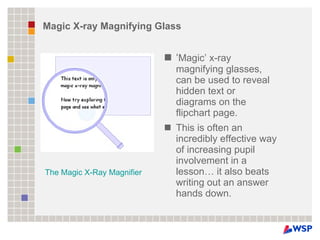
Magic X-ray Magnifying Glass ‘ Magic’ x-ray magnifying glasses, can be used to reveal hidden text or diagrams on the flipchart page.  This is often an incredibly effective way of increasing pupil involvement in a lesson… it also beats writing out an answer hands down.  The Magic X-Ray Magnifier
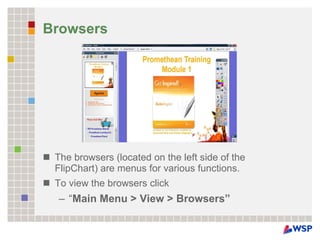
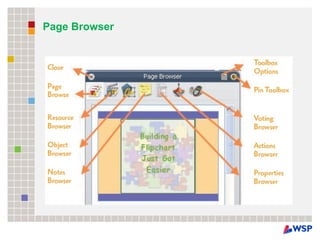
Browsers The browsers (located on the left side of the FlipChart) are menus for various functions.  To view the browsers click “ Main Menu > View > Browsers”
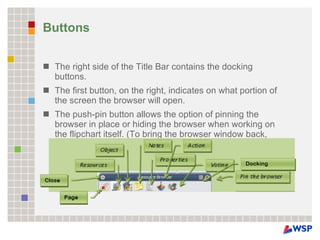
Buttons The right side of the Title Bar contains the docking buttons.  The first button, on the right, indicates on what portion of the screen the browser will open.  The push-pin button allows the option of pinning the browser in place or hiding the browser when working on the flipchart itself. (To bring the browser window back, scroll the mouse to the far left side of the screen).
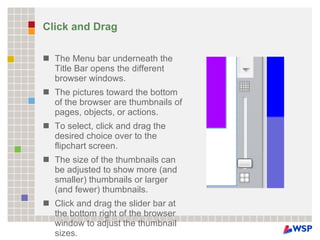
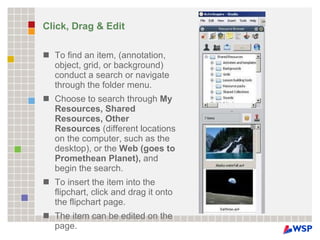
Click and Drag The Menu bar underneath the Title Bar opens the different browser windows. The pictures toward the bottom of the browser are thumbnails of pages, objects, or actions. To select, click and drag the desired choice over to the flipchart screen. The size of the thumbnails can be adjusted to show more (and smaller) thumbnails or larger (and fewer) thumbnails.  Click and drag the slider bar at the bottom right of the browser window to adjust the thumbnail sizes.
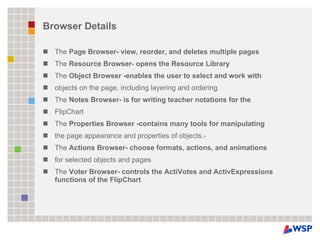
Browser Details The  Page Browser- view, reorder, and deletes multiple pages The  Resource Browser- opens the Resource Library The  Object Browser -enables the user to select and work with objects on the page, including layering and ordering The  Notes Browser- is for writing teacher notations for the FlipChart The  Properties Browser -contains many tools for manipulating the page appearance and properties of objects.- The  Actions Browser- choose formats, actions, and animations for selected objects and pages The  Voter Browser- controls the ActiVotes and ActivExpressions functions of the FlipChart
Page Browser
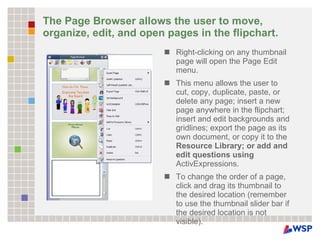
The Page Browser allows the user to move, organize, edit, and open pages in the flipchart.  Right-clicking on any thumbnail page will open the Page Edit menu. This menu allows the user to cut, copy, duplicate, paste, or delete any page; insert a new page anywhere in the flipchart; insert and edit backgrounds and gridlines; export the page as its own document, or copy it to the  Resource Library; or add and edit questions using  ActivExpressions. To change the order of a page, click and drag its thumbnail to the desired location (remember to use the thumbnail slider bar if the desired location is not visible).
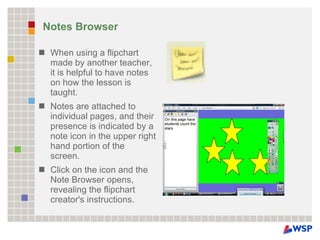
Notes Browser When using a flipchart made by another teacher, it is helpful to have notes on how the lesson is taught.  Notes are attached to individual pages, and their presence is indicated by a note icon in the upper right hand portion of the screen.  Click on the icon and the Note Browser opens, revealing the flipchart creator's instructions.
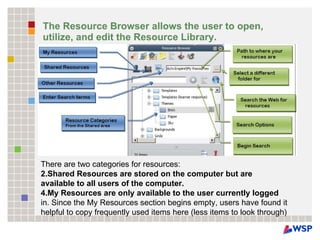
The Resource Browser allows the user to open, utilize, and edit the Resource Library. There are two categories for resources: Shared Resources are stored on the computer but are available to all users of the computer.  My Resources are only available to the user currently logged in. Since the My Resources section begins empty, users have found it helpful to copy frequently used items here (less items to look through)
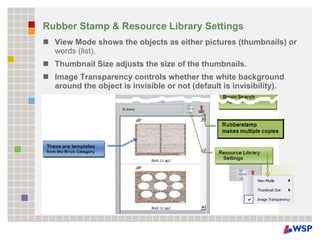
Rubber Stamp & Resource Library Settings View Mode shows the objects as either pictures (thumbnails) or  words (list).  Thumbnail Size adjusts the size of the thumbnails.  Image Transparency controls whether the white background around the object is invisible or not (default is invisibility).
Click, Drag & Edit To find an item, (annotation, object, grid, or background) conduct a search or navigate through the folder menu.  Choose to search through  My Resources, Shared Resources, Other Resources  (different locations on the computer, such as the desktop), or the  Web (goes to Promethean Planet),  and begin the search.  To insert the item into the flipchart, click and drag it onto the flipchart page.  The item can be edited on the page.
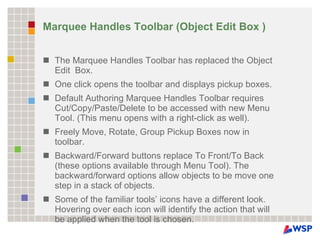
Marquee Handles Toolbar (Object Edit Box ) The Marquee Handles Toolbar has replaced the Object Edit  Box. One click opens the toolbar and displays pickup boxes. Default Authoring Marquee Handles Toolbar requires Cut/Copy/Paste/Delete to be accessed with new Menu Tool. (This menu opens with a right-click as well). Freely Move, Rotate, Group Pickup Boxes now in toolbar. Backward/Forward buttons replace To Front/To Back (these options available through Menu Tool). The backward/forward options allow objects to be move one step in a stack of objects. Some of the familiar tools’ icons have a different look. Hovering over each icon will identify the action that will be applied when the tool is chosen.
PowerPoint and Flip Chart Tips If you are using a PC, go to the menu - flipchart - import - ppt converter. A wizard will walk you through converting the ppt to a flipchart.  Voila!! Give it a try! Import the ppt as separate objects so that they'll be easily manipulable! If you want it to advance like a powerpoint, there's no harm in simply using powerpoint and the desktop flipchart mode to annotate on top. You could use the reveal tool to uncover point by point, etc. But if you do have access to a PC, the ppt converter on the PC side will bring each of the items in as objects so they can be manipulated.  From the Promethean Planet Blog: “The best thing about converting power points is the ability to use the fill /deconstruct tools with text and create interactive cloze procedures”.
Saving Your Work Please note Save normally - But NOT TO THE C DRIVE, onto school shared drive as this will back up correctly. Ensure the file type is correct e.g. 2010 Give it a sensible name which others can understand- so you can share resources e.g. Sm1_Gd7_Plants
Atomic Learning Tutorials Atomic Learning Tutorials   Username-caiu password-caiu  GettingStartedGuide_k12.pdf
Ways to create assessments Template pages in Resource Library  Insert Question Generator Wizard  Adhoc Question - Use with any existing document  Use camera tool for PDFs  Resources to Check out Marzano_Question_1_Templates1.flipchart   Question_Templates.flipchart   Assessment Resources Resource Library Templates  Registering Eggs
ActivBoard Maintenance The surface of your ActivBoard can be cleaned with a Mr. Clean Magic Eraser or baby wipes. Don't use any type of abrasive cleaners as these will scratch the surface of the board. Marks made on the board with a dry eraser marker can be cleaned with dry erase board cleaner. Spray the cleaner on a rag first, and then clean the board. Remove marks made with a permanent marker by first covering the mark with dry erase marker. Then clean with dry eraser board cleaner sprayed on a rag.
Resources
Promethean Learning  provides online training and professional development courses for users of Promethean products. Create an account and start with the Level 1 - Foundation Skills course. It is a free, 6 hour online course introducing the Promethean interactive whiteboard.
Resources The European schoolnet have just launched a new portal for educators -the  MELT Learning Resource Exchange  (LRE) portal for schools. You can find open educational resources and assets from many different countries and providers, including 16 Ministries of Education and Promethean, who is an associate partner in the programme and equally committed to learning about and developing effective, globally connected, educator communities. A large number of Promethean flipcharts have been synchronised with the LRE from Promethean Planet and can now be found in searches and can be used by any teacher either using promethean technology or by using the freely downloadable and fully interactive flipchart viewer. This allows teachers to use the resources with other makes of Interactive Whiteboard or through other technologies such as projectors.
More Resources Atomic Learning Atomic Learning  provides web-based software training for the Promethean board. The videos are short, easy-to-view, tutorials introducing the main features of the board. Click on the link to see the free videos available for the Promethean board.  You-Tube Promethean Maths http://www.youtube.com/watch?v=G26_4lRN5As&NR=1 Good Skew Lines demo, Congruent Triangle (matching using flip across y-axis), review homework with scans and text CD worksheets.
Citations and Resources http://insttech.tulsaschools.org/cms/One.aspx?portalId=819009&pageId=1687764 sites.fcps.org/trt/taxonomy/term/18 http://www.prometheanlearning.com/ http://www.tale.edu.au/tale/live/parents/help/topic/flipcharts.jsp?muid=309701&taleUserId=-445990256&userType=u&username=  https://aasdtechworkshops.wikispaces.com/aajhs https://activstudio-3.wikispaces.com/   http://edubuzz.org/blogs/timschmitz/page/2/  Great advice for maths IWB - PLUS he has invented an interactive scientific calculator.
National Professional Standards for Teachers  The areas which you may impact on are as follows 1.4, 1.5 2.1, 2.2 5.2, 5.3 6.2 9.2 10.1, 10.2, 10.3, 10.4 12.1, 12.2

Promethean ActivInspire IWB Introduction

  • 1.
  • 2.
    ActivInspire is theNewest Update for ActivStudio
  • 3.
    ActivInspire Basics Section 1: Create Accounts on Promethean Planet Search for resources on Planet Overview of Professional Development Resources on Planet Section 2: ActivTips Section 3: ActivInspire Interface and Introduction to tools Section 4: Overview of ActivInspire Software Section 5: Flipchart Development Section 6:
  • 4.
    Promethean Planet provides Activclassroom educators from around the globe the ability to share innovative lessons, great ideas and best practices. Create a free account and find a resource you can use in the classroom tomorrow.
  • 5.
    Promethean Planet http://www.prometheanplanet.com Promethean Planet is the online resource for Promethean users. Registration is free, and gives access to pre-made FlipCharts lessons, extra art and media, useful websites, help menus, user forums, and the latest software downloads. The Professional upgrade (with all the teacher tools) for ActivInspire is free to users until September 2010. After logging in click the “ Download ActivInspire” button at the top of the website toolbar and follow the directions.
  • 6.
    Differences between theActivInspire Personal and Professional Edition Personal Edition provides a feature rich environment with around two thirds of the functionality of the Professional Edition. Some key reasons to upgrade include the ability to access the following features and capabilities: Dual input Screen & Sound Recorder Advanced authoring capabilities Access to themed templates and to shapes library Import from ExamView®, QTI/XML Export results to Excel Page Zoom Teacher Lock Desk-top annotation Handwriting recognition Reveal or blind tool Compass tool
  • 7.
    Upgrade Now Whenthe page below is reached, Click the “ Upgrade Now” link on the right. The next page will require the serial number 0016 6970 8060 2980 5040 or the installation disk. You will have to scroll to the bottom of the page to reach the form, as it is not visible at the top of the webpage.
  • 8.
    Promethean Resources PrometheanPlanet - Search for Lessons/Flipcharts Search for Resource Packs Share one or two items you have found with the group Professional Development on Promethean Planet ActivTips Converting powerpoint to a flipchart Free Download of Inspire for parents   ActivinspireTopTips.pdf Promethean World
  • 9.
    Adding to YourResources from www.prometheanplanet.com Go to Resources tabs Select Resource Packs Choose mathematics From here, you find backgrounds, grids, images, teacher notes, actvities and even downloads flipcharts that other teachers have created. There are less resources in Inspire than there were in ActivStudio. Go to Promethean Planet to add to the resources in your specific content area. Find the resource pack you want. Click on DOWNLOAD RESOURCE PACK and choose the place to which you want the resources saved. The best place is a network directory or some other place rather than the computer's hard drive. This will save the resource in the event that the computer crashes. You can then save to MY RESOURCES or to SHARED RESOURCES.
  • 10.
    ActivInspire Introductions ActivTips from the Planet are short videos that walk you through a lot of "how-to's.“ http://www.atomiclearning.com/k12/en/activinsp_pc ActivInspire Flipchart (featured in Video http://www.prometheanplanet.com/server.php?show=ConResource.20353
  • 11.
    Retrieving Resources Toretrieve, go to View > Browsers. The single silhouette is the icon for MY RESOURCES. The 3-headed silhouette is for SHARED RESOURCES. Make sure that you know the location to where you downloaded the resource pack. If the resource pack is not there, close out of ActivInspire and open the software again. The resource pack will then appear (small glitch). To use the resources, choose the image, background, etc that you want and DRAG it onto your flipchart page.
  • 12.
  • 13.
    ActivInspire Dashboard ActivInspireincorporates both ActivInspire Studio and ActivInspire Primary into one piece of software. You can now switch between the two by putting a check in the box at the bottom of the Configure panel on the Dashboard.
  • 14.
    Dashboard Features Flipchartsquick links for working with flipcharts Annotate over Desktop clicking this will immediately open a Desktop Flipchart Express Poll clicking this will immediately open the ExpressPoll Promethean Planet opens Planet with one click Configure quick links for Profiles, device registration, updating software Training and Support opens Promethean’s Web Support site
  • 15.
  • 16.
    Profiles Button Fromthe Switch Profiles Button on the Main Toolbox, choose Authoring. The toolset, Flipchart Style, and other profile settings will instantly switch to Authoring. You will no longer need to restart the software.
  • 17.
    Switching your toolbar profile There is a MATH profile there. If you click on it, standard math tools will be added to the main toolbar. You can still customize this by adding more tools to the toolbar (Main menu -> File -> Settings -> Commands). You can also go to (Main menu -> tools) To add colors to your tool bar, go to Main Menu -> Layout. Use the drop down menu to change from 8 colors up to 24 colors. To change the default tool that appears when you open a flipchart, go to Main Menu -> Settings. Use the drop down menu to choose a tool to use as your default tool. Any time that you use a math tool, different icons will appear as a cursor that allow for functionality, such as free-moving, rotation, drawing, annotation, etc. To remove math tools from the screen, you can simply freely drag them to the flipchart icon.
  • 18.
  • 19.
    Making a TickerTaper:Step-by-Step Click the Tickertape button on the Powertools bar. Choose New or open a saved tickertape in the Tickertape Dialog Box. New? Enter the text message. Format the font as you would like. Choose a position for the tickertape. Click OK. Note: You can adjust the speed and pause the tickertape using the controls below the message.
  • 20.
    Shape Creator ToolThis is already on your toolbar. It is a red and orange colored dual-shape icon. This will bring up a sidebar of different shapes. You can customize fill color and outline color. Choose a shape, click and drag. The size and proportion of the chosen shape will be dictated by the extent of the click and drag. You can also manipulate a shape by double clicking on a shape and click on the EDIT SHAPE POINTS icon on the right. Many points will appear. You can manipulate the shape by clicking and dragging any one of these points.
  • 21.
    How Do IAccess More Tools? Click on the “Tools” icon to access valuable tools such as Magic Ink, Handwriting Recognition, Shape Recognition, the Revealer, the Spotlight, etc.
  • 22.
  • 23.
    ActivInspire Flipcharts Whenyou launch ActivInspire, a blank ‘flipchart’ (lesson space) opens, ready for your input. You can work with as many flipcharts at the same time as you wish. You can quickly move back and forth between flipcharts using the document tabs. A flipchart can contain as many pages as you like. You can also create desktop flipcharts, where you annotate either the live desktop, or a snapshot of the desktop. Flipcharts created with ActivInspire have the file extension .flipchart. You can open flipcharts created with Activprimary and Activstudio in ActivInspire. Once you save these flipcharts in ActivInspire, you cannot open them in Activprimary or Activstudio.
  • 24.
    Design and PresentationModes Design and Presentation Modes continue to work as they did with ActivStudio 3. To switch between Modes, click on the Design Mode Tool or access by clicking the F2 key .
  • 25.
    ActivInspire Flipcharts Marzano_Question_1_Templates1.flipchart Question_Templates.flipchart   2_tutorial3.flipchart   3_basic_start.flipchart   Hair_color_questions.flipchart
  • 26.
    Math Flipcharts FromPromethean in 30 seconds: http://edubuzz.org/blogs/timschmitz/page/2/ My Solution to the Square Root Problem Wolfram Alpha solution: Type Solve sqrt(x-2)=11 into the Wolfram Alpha search field. You can see it's output here: http://www36.wolframalpha.com/input/?i=Solve+sqrt%28x-2%29%3D11 How do you put that it ActivInspire? Do not try to drag it, it won't work. Right click (or control-click) on the equation displayed beneath the words "Input interpretation:“ You can then paste it into ActivInspire.
  • 27.
    Magic X-ray MagnifyingGlass ‘ Magic’ x-ray magnifying glasses, can be used to reveal hidden text or diagrams on the flipchart page. This is often an incredibly effective way of increasing pupil involvement in a lesson… it also beats writing out an answer hands down. The Magic X-Ray Magnifier
  • 28.
    Browsers The browsers(located on the left side of the FlipChart) are menus for various functions. To view the browsers click “ Main Menu > View > Browsers”
  • 29.
    Buttons The rightside of the Title Bar contains the docking buttons. The first button, on the right, indicates on what portion of the screen the browser will open. The push-pin button allows the option of pinning the browser in place or hiding the browser when working on the flipchart itself. (To bring the browser window back, scroll the mouse to the far left side of the screen).
  • 30.
    Click and DragThe Menu bar underneath the Title Bar opens the different browser windows. The pictures toward the bottom of the browser are thumbnails of pages, objects, or actions. To select, click and drag the desired choice over to the flipchart screen. The size of the thumbnails can be adjusted to show more (and smaller) thumbnails or larger (and fewer) thumbnails. Click and drag the slider bar at the bottom right of the browser window to adjust the thumbnail sizes.
  • 31.
    Browser Details The Page Browser- view, reorder, and deletes multiple pages The Resource Browser- opens the Resource Library The Object Browser -enables the user to select and work with objects on the page, including layering and ordering The Notes Browser- is for writing teacher notations for the FlipChart The Properties Browser -contains many tools for manipulating the page appearance and properties of objects.- The Actions Browser- choose formats, actions, and animations for selected objects and pages The Voter Browser- controls the ActiVotes and ActivExpressions functions of the FlipChart
  • 32.
  • 33.
    The Page Browserallows the user to move, organize, edit, and open pages in the flipchart. Right-clicking on any thumbnail page will open the Page Edit menu. This menu allows the user to cut, copy, duplicate, paste, or delete any page; insert a new page anywhere in the flipchart; insert and edit backgrounds and gridlines; export the page as its own document, or copy it to the Resource Library; or add and edit questions using ActivExpressions. To change the order of a page, click and drag its thumbnail to the desired location (remember to use the thumbnail slider bar if the desired location is not visible).
  • 34.
    Notes Browser Whenusing a flipchart made by another teacher, it is helpful to have notes on how the lesson is taught. Notes are attached to individual pages, and their presence is indicated by a note icon in the upper right hand portion of the screen. Click on the icon and the Note Browser opens, revealing the flipchart creator's instructions.
  • 35.
    The Resource Browserallows the user to open, utilize, and edit the Resource Library. There are two categories for resources: Shared Resources are stored on the computer but are available to all users of the computer. My Resources are only available to the user currently logged in. Since the My Resources section begins empty, users have found it helpful to copy frequently used items here (less items to look through)
  • 36.
    Rubber Stamp &Resource Library Settings View Mode shows the objects as either pictures (thumbnails) or words (list). Thumbnail Size adjusts the size of the thumbnails. Image Transparency controls whether the white background around the object is invisible or not (default is invisibility).
  • 37.
    Click, Drag &Edit To find an item, (annotation, object, grid, or background) conduct a search or navigate through the folder menu. Choose to search through My Resources, Shared Resources, Other Resources (different locations on the computer, such as the desktop), or the Web (goes to Promethean Planet), and begin the search. To insert the item into the flipchart, click and drag it onto the flipchart page. The item can be edited on the page.
  • 38.
    Marquee Handles Toolbar(Object Edit Box ) The Marquee Handles Toolbar has replaced the Object Edit Box. One click opens the toolbar and displays pickup boxes. Default Authoring Marquee Handles Toolbar requires Cut/Copy/Paste/Delete to be accessed with new Menu Tool. (This menu opens with a right-click as well). Freely Move, Rotate, Group Pickup Boxes now in toolbar. Backward/Forward buttons replace To Front/To Back (these options available through Menu Tool). The backward/forward options allow objects to be move one step in a stack of objects. Some of the familiar tools’ icons have a different look. Hovering over each icon will identify the action that will be applied when the tool is chosen.
  • 39.
    PowerPoint and FlipChart Tips If you are using a PC, go to the menu - flipchart - import - ppt converter. A wizard will walk you through converting the ppt to a flipchart. Voila!! Give it a try! Import the ppt as separate objects so that they'll be easily manipulable! If you want it to advance like a powerpoint, there's no harm in simply using powerpoint and the desktop flipchart mode to annotate on top. You could use the reveal tool to uncover point by point, etc. But if you do have access to a PC, the ppt converter on the PC side will bring each of the items in as objects so they can be manipulated. From the Promethean Planet Blog: “The best thing about converting power points is the ability to use the fill /deconstruct tools with text and create interactive cloze procedures”.
  • 40.
    Saving Your WorkPlease note Save normally - But NOT TO THE C DRIVE, onto school shared drive as this will back up correctly. Ensure the file type is correct e.g. 2010 Give it a sensible name which others can understand- so you can share resources e.g. Sm1_Gd7_Plants
  • 41.
    Atomic Learning TutorialsAtomic Learning Tutorials Username-caiu password-caiu GettingStartedGuide_k12.pdf
  • 42.
    Ways to createassessments Template pages in Resource Library Insert Question Generator Wizard Adhoc Question - Use with any existing document Use camera tool for PDFs Resources to Check out Marzano_Question_1_Templates1.flipchart Question_Templates.flipchart Assessment Resources Resource Library Templates Registering Eggs
  • 43.
    ActivBoard Maintenance Thesurface of your ActivBoard can be cleaned with a Mr. Clean Magic Eraser or baby wipes. Don't use any type of abrasive cleaners as these will scratch the surface of the board. Marks made on the board with a dry eraser marker can be cleaned with dry erase board cleaner. Spray the cleaner on a rag first, and then clean the board. Remove marks made with a permanent marker by first covering the mark with dry erase marker. Then clean with dry eraser board cleaner sprayed on a rag.
  • 44.
  • 45.
    Promethean Learning provides online training and professional development courses for users of Promethean products. Create an account and start with the Level 1 - Foundation Skills course. It is a free, 6 hour online course introducing the Promethean interactive whiteboard.
  • 46.
    Resources The Europeanschoolnet have just launched a new portal for educators -the MELT Learning Resource Exchange (LRE) portal for schools. You can find open educational resources and assets from many different countries and providers, including 16 Ministries of Education and Promethean, who is an associate partner in the programme and equally committed to learning about and developing effective, globally connected, educator communities. A large number of Promethean flipcharts have been synchronised with the LRE from Promethean Planet and can now be found in searches and can be used by any teacher either using promethean technology or by using the freely downloadable and fully interactive flipchart viewer. This allows teachers to use the resources with other makes of Interactive Whiteboard or through other technologies such as projectors.
  • 47.
    More Resources AtomicLearning Atomic Learning provides web-based software training for the Promethean board. The videos are short, easy-to-view, tutorials introducing the main features of the board. Click on the link to see the free videos available for the Promethean board. You-Tube Promethean Maths http://www.youtube.com/watch?v=G26_4lRN5As&NR=1 Good Skew Lines demo, Congruent Triangle (matching using flip across y-axis), review homework with scans and text CD worksheets.
  • 48.
    Citations and Resourceshttp://insttech.tulsaschools.org/cms/One.aspx?portalId=819009&pageId=1687764 sites.fcps.org/trt/taxonomy/term/18 http://www.prometheanlearning.com/ http://www.tale.edu.au/tale/live/parents/help/topic/flipcharts.jsp?muid=309701&taleUserId=-445990256&userType=u&username= https://aasdtechworkshops.wikispaces.com/aajhs https://activstudio-3.wikispaces.com/ http://edubuzz.org/blogs/timschmitz/page/2/ Great advice for maths IWB - PLUS he has invented an interactive scientific calculator.
  • 49.
    National Professional Standardsfor Teachers The areas which you may impact on are as follows 1.4, 1.5 2.1, 2.2 5.2, 5.3 6.2 9.2 10.1, 10.2, 10.3, 10.4 12.1, 12.2

Editor's Notes

  • #24 It is no longer necessary to choose a size for your flipchart. The default flipchart size is 1024x768. As you will later discover, page size can be altered through settings or by individual page properties.