Introduction to
ActivInspire







The ActivBoard is NOT to be written on
using dry erase markers.
The ActivPen is used to write on the
ActivBoard.
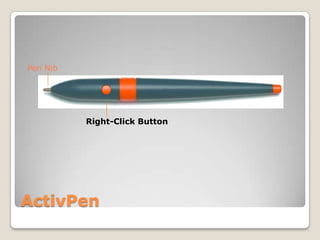
The orange button works as a right mouse
button.
The Pen Nib works as a left mouse button.
The ActivPen is battery free.

ActivPen & ActivBoard
Pen Nib

Right-Click Button

ActivPen


If the ActivBoard is written on with dry
erase or permanent markers, you can use
the following products to clean the board.
◦ Expo Marker Cleaner
◦ Mr. Clean Magic Eraser

Emergency Cleaning Procedures
Calibrating the board aligns the pen to the
ActivBoard. Simply hover the pen over the
flame light on the Activboard and follow
the directions that appear on the
Activboard.

Calibrating the ActivBoard
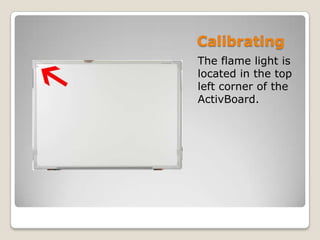
Calibrating
The flame light is
located in the top
left corner of the
ActivBoard.
“Flipchart” is the name given to lessons
created using the ActivInspire software.
They are called “flipcharts” because you
can simply turn the page and add-on to
your lesson.

What is a flipchart?
Build lessons in advance, allowing for
more instructional time.
 Illustrate and present content using
various types of media (pictures, video,
and text).
 Save, print, and share lessons easily with
colleagues.


Benefits of Flipcharts
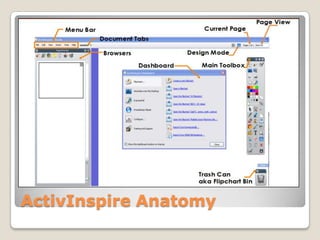
ActivInspire Anatomy
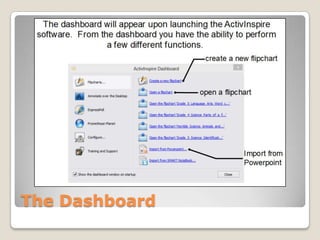
The Dashboard
There are two modes for flipcharts in
ActivInspire: Design Mode & Presentation
Mode.

Design Mode & Presentation Mode
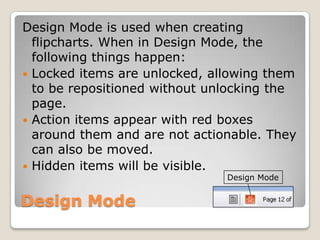
Design Mode is used when creating
flipcharts. When in Design Mode, the
following things happen:
 Locked items are unlocked, allowing them
to be repositioned without unlocking the
page.
 Action items appear with red boxes
around them and are not actionable. They
can also be moved.
 Hidden items will be visible.
Design Mode

Design Mode
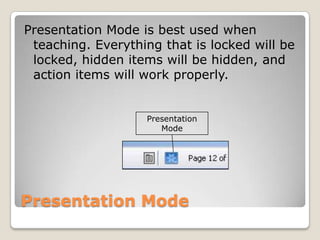
Presentation Mode is best used when
teaching. Everything that is locked will be
locked, hidden items will be hidden, and
action items will work properly.

Presentation
Mode

Presentation Mode
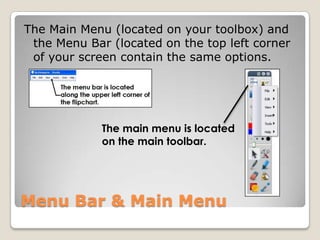
The Main Menu (located on your toolbox) and
the Menu Bar (located on the top left corner
of your screen contain the same options.

The main menu is located
on the main toolbar.

Menu Bar & Main Menu


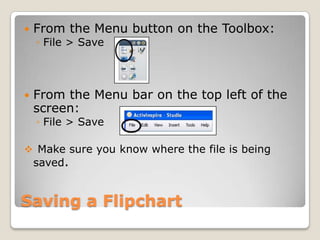
From the Menu button on the Toolbox:
◦ File > Save



From the Menu bar on the top left of the
screen:
◦ File > Save

 Make sure you know where the file is being

saved.

Saving a Flipchart

Introduction to ActivInspire

  • 1.
  • 2.
         The ActivBoard isNOT to be written on using dry erase markers. The ActivPen is used to write on the ActivBoard. The orange button works as a right mouse button. The Pen Nib works as a left mouse button. The ActivPen is battery free. ActivPen & ActivBoard
  • 3.
  • 4.
     If the ActivBoardis written on with dry erase or permanent markers, you can use the following products to clean the board. ◦ Expo Marker Cleaner ◦ Mr. Clean Magic Eraser Emergency Cleaning Procedures
  • 5.
    Calibrating the boardaligns the pen to the ActivBoard. Simply hover the pen over the flame light on the Activboard and follow the directions that appear on the Activboard. Calibrating the ActivBoard
  • 6.
    Calibrating The flame lightis located in the top left corner of the ActivBoard.
  • 7.
    “Flipchart” is thename given to lessons created using the ActivInspire software. They are called “flipcharts” because you can simply turn the page and add-on to your lesson. What is a flipchart?
  • 8.
    Build lessons inadvance, allowing for more instructional time.  Illustrate and present content using various types of media (pictures, video, and text).  Save, print, and share lessons easily with colleagues.  Benefits of Flipcharts
  • 9.
  • 10.
  • 11.
    There are twomodes for flipcharts in ActivInspire: Design Mode & Presentation Mode. Design Mode & Presentation Mode
  • 12.
    Design Mode isused when creating flipcharts. When in Design Mode, the following things happen:  Locked items are unlocked, allowing them to be repositioned without unlocking the page.  Action items appear with red boxes around them and are not actionable. They can also be moved.  Hidden items will be visible. Design Mode Design Mode
  • 13.
    Presentation Mode isbest used when teaching. Everything that is locked will be locked, hidden items will be hidden, and action items will work properly. Presentation Mode Presentation Mode
  • 14.
    The Main Menu(located on your toolbox) and the Menu Bar (located on the top left corner of your screen contain the same options. The main menu is located on the main toolbar. Menu Bar & Main Menu
  • 15.
     From the Menubutton on the Toolbox: ◦ File > Save  From the Menu bar on the top left of the screen: ◦ File > Save  Make sure you know where the file is being saved. Saving a Flipchart