ACTIVINSPIRE TRAINING Tips and tools for creating Flipcharts on ActivInspire
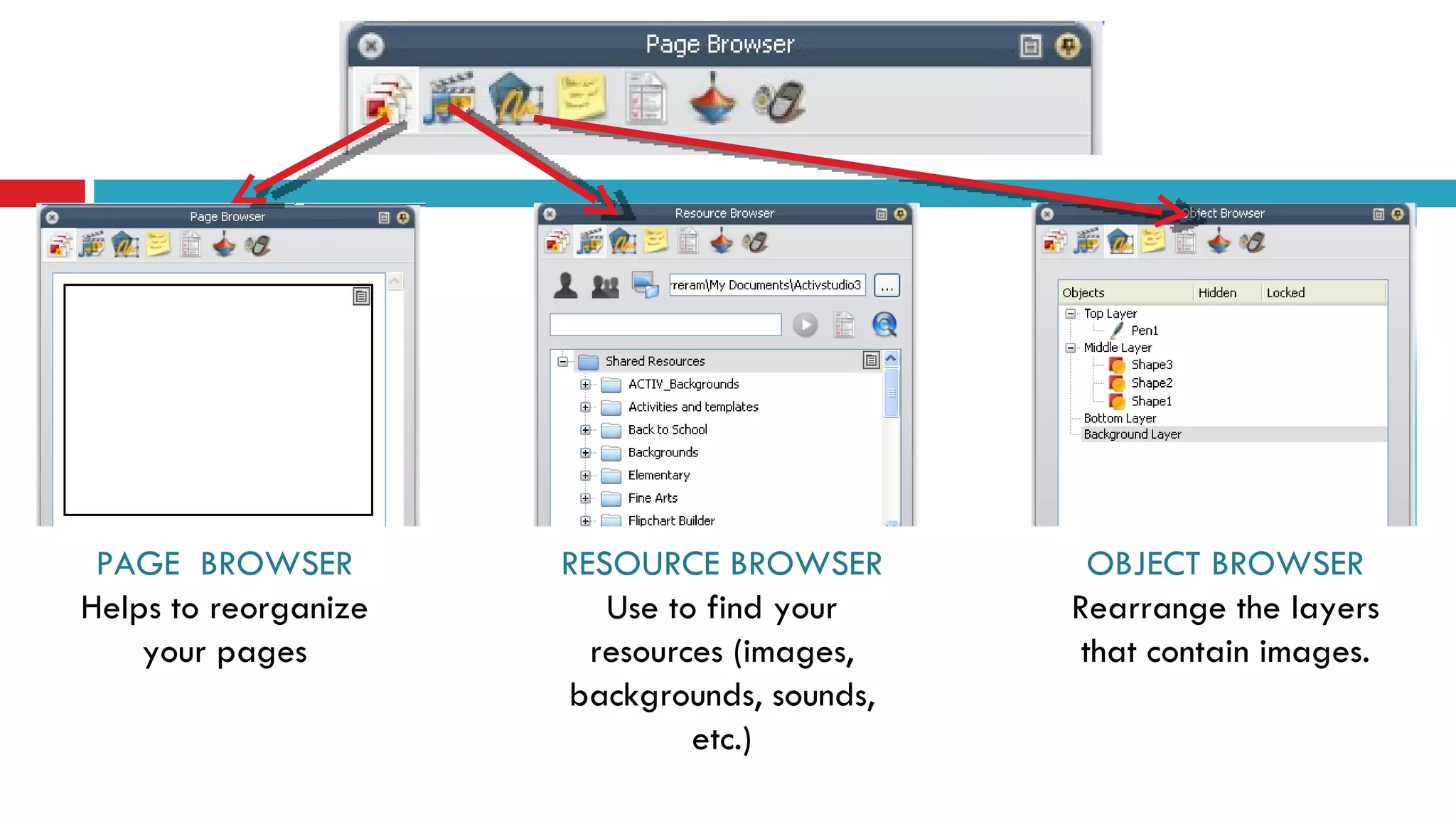
PAGE  BROWSER Helps to reorganize your pages RESOURCE BROWSER Use to find your resources (images, backgrounds, sounds, etc.) OBJECT BROWSER Rearrange the layers that contain images.
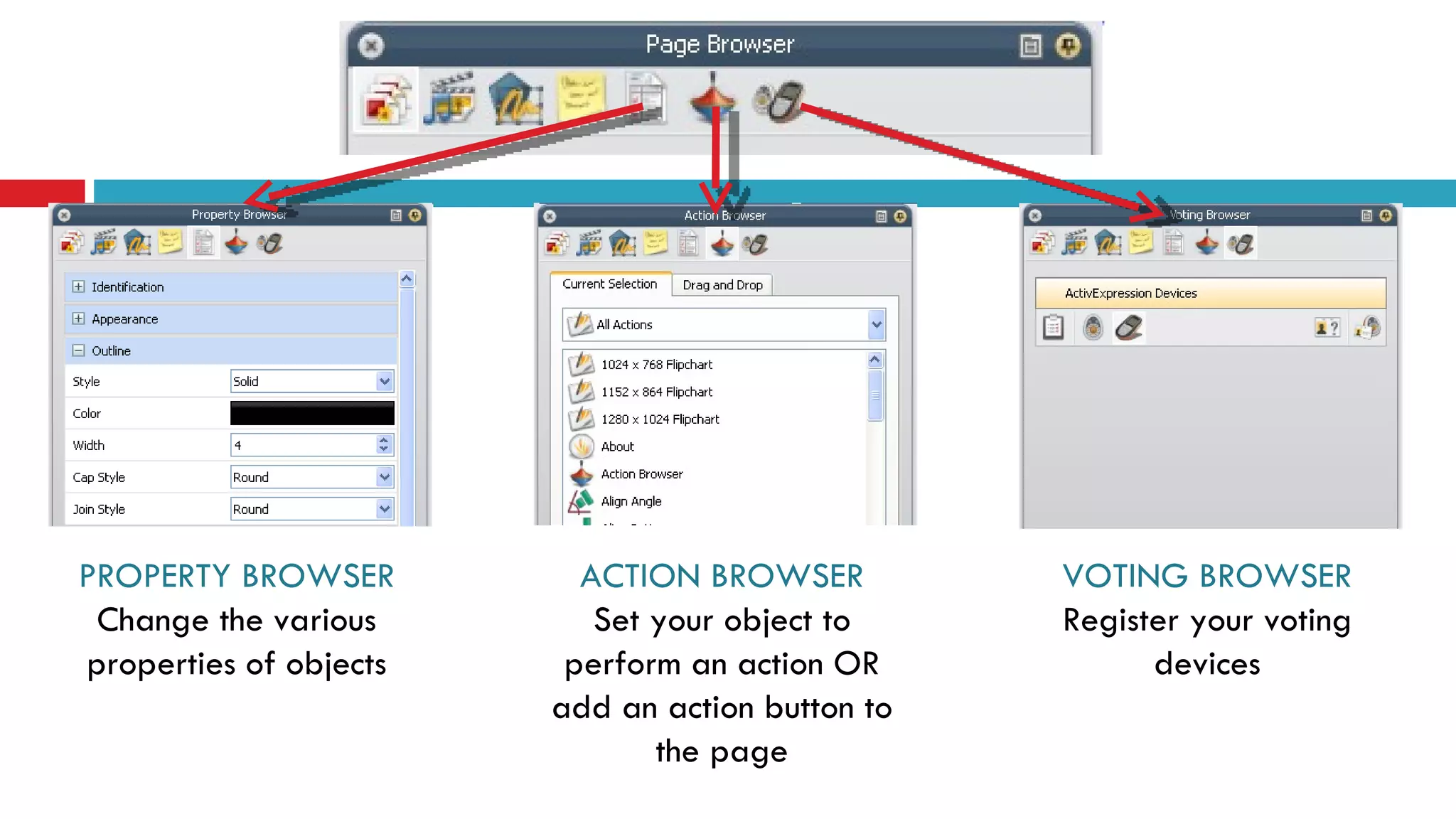
PROPERTY BROWSER Change the various properties of objects ACTION BROWSER Set your object to perform an action OR add an action button to the page VOTING BROWSER Register your voting devices
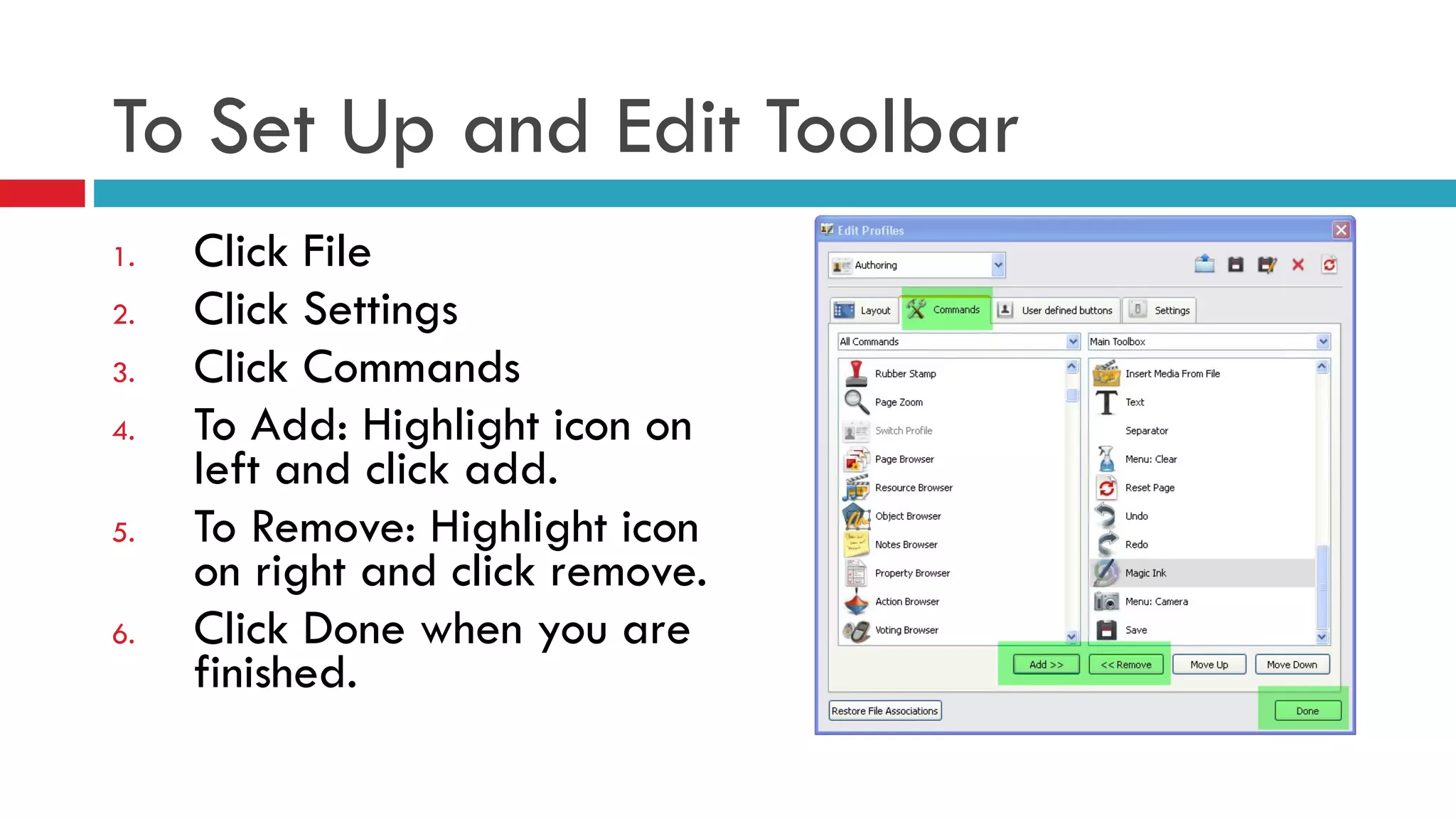
To Set Up and Edit Toolbar  Click File Click Settings Click Commands To Add: Highlight icon on left and click add. To Remove: Highlight icon on right and click remove. Click Done when you are finished.
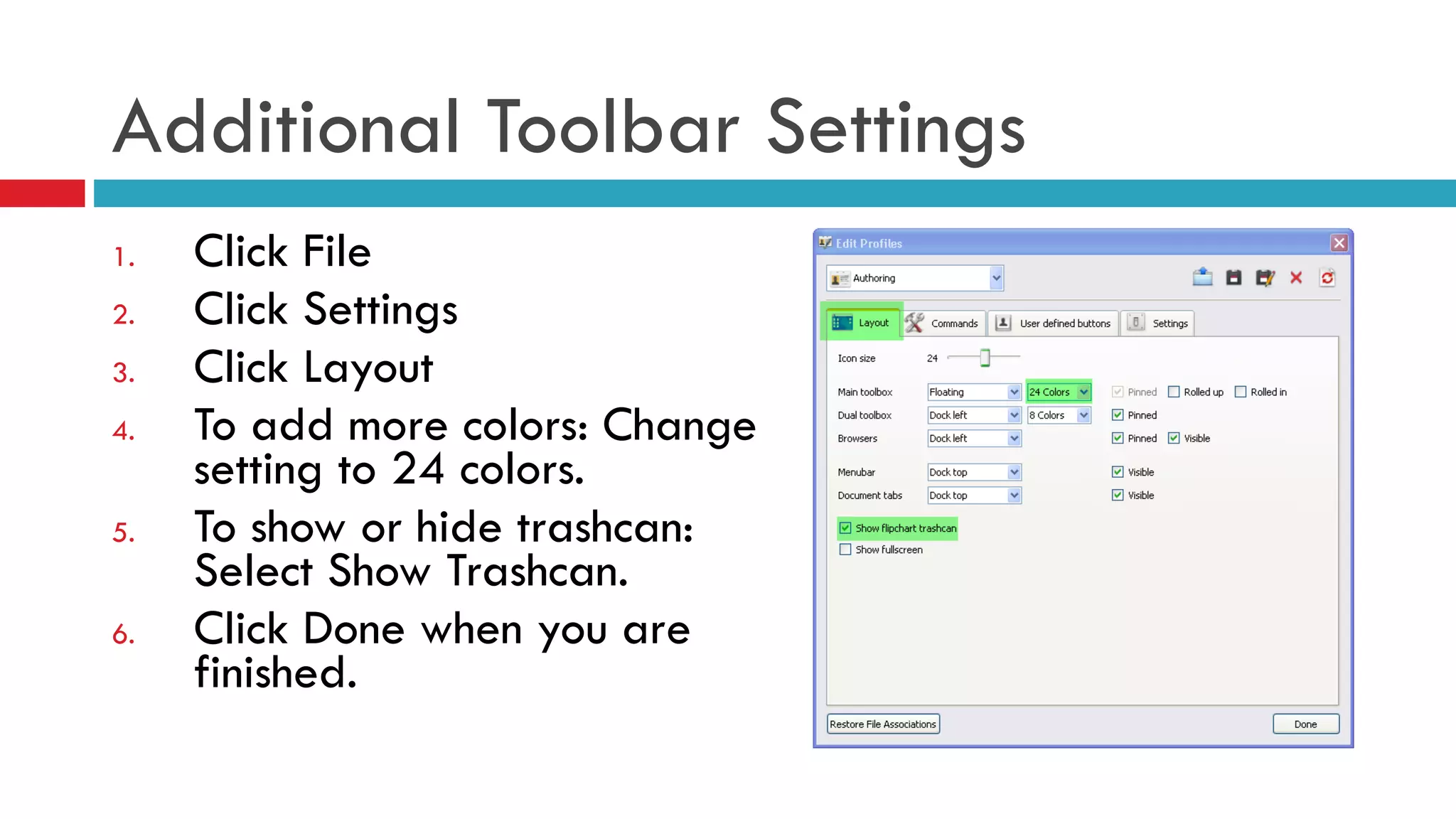
Additional Toolbar Settings Click File Click Settings Click Layout To add more colors: Change setting to 24 colors. To show or hide trashcan: Select Show Trashcan. Click Done when you are finished.
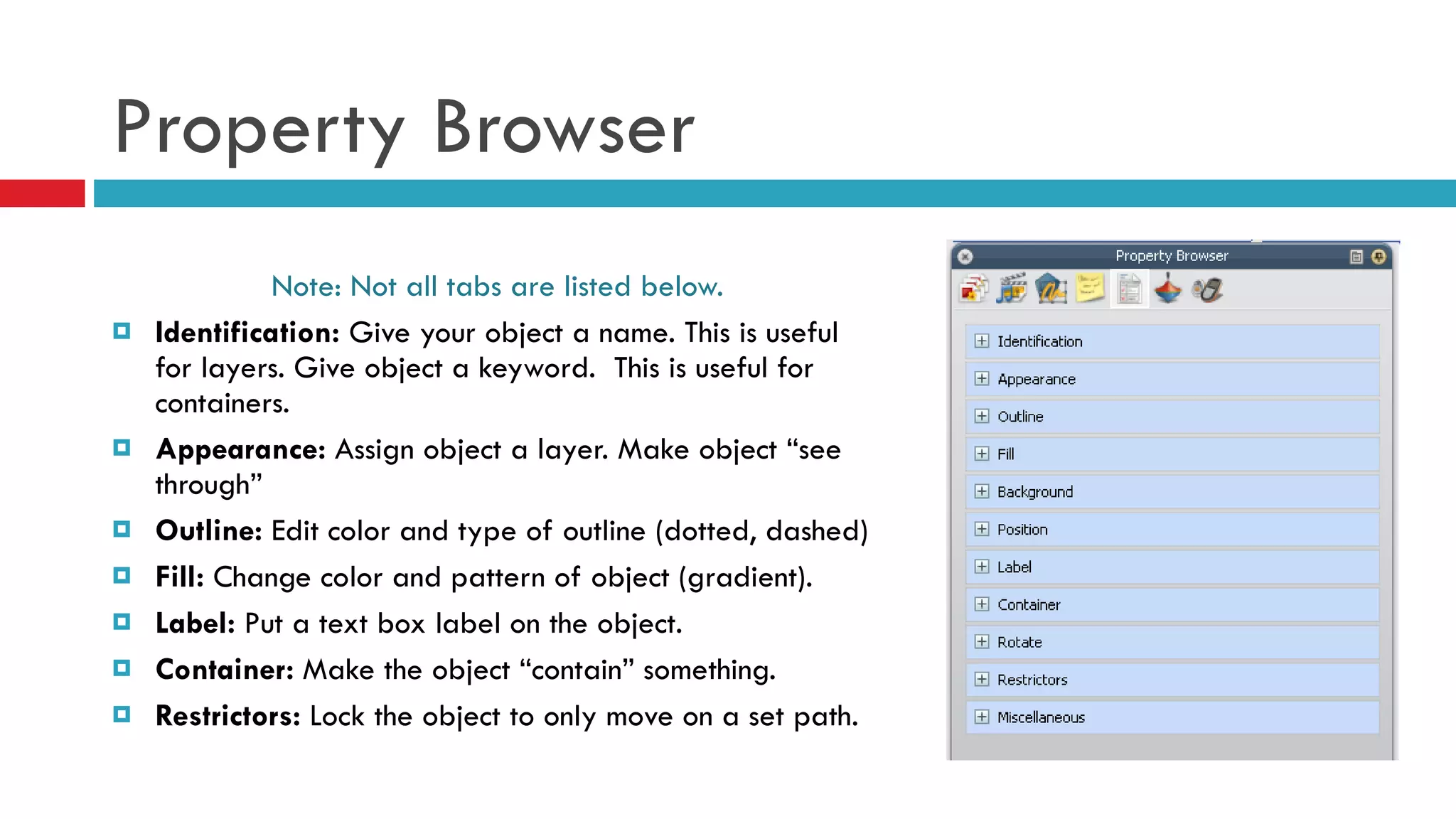
Property Browser Note: Not all tabs are listed below. Identification:  Give your object a name. This is useful for layers. Give object a keyword.  This is useful for containers. Appearance:  Assign object a layer. Make object “see through” Outline:  Edit color and type of outline (dotted, dashed) Fill:  Change color and pattern of object (gradient). Label:  Put a text box label on the object. Container:  Make the object “contain” something.  Restrictors:  Lock the object to only move on a set path.
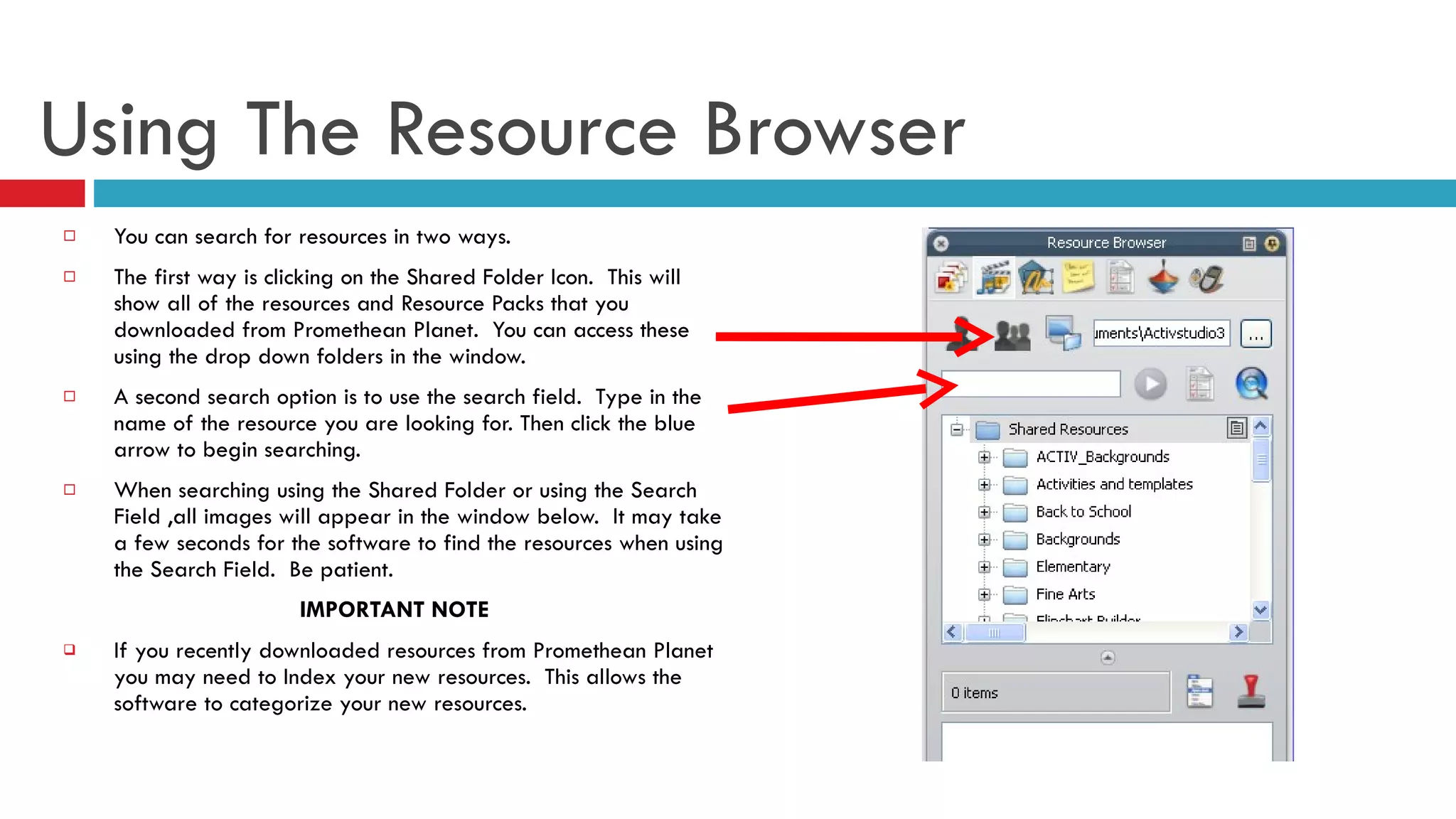
Using The Resource Browser You can search for resources in two ways.  The first way is clicking on the Shared Folder Icon.  This will show all of the resources and Resource Packs that you downloaded from Promethean Planet.  You can access these using the drop down folders in the window. A second search option is to use the search field.  Type in the name of the resource you are looking for. Then click the blue arrow to begin searching.  When searching using the Shared Folder or using the Search Field ,all images will appear in the window below.  It may take a few seconds for the software to find the resources when using the Search Field.  Be patient.  IMPORTANT NOTE If you recently downloaded resources from Promethean Planet you may need to Index your new resources.  This allows the software to categorize your new resources.
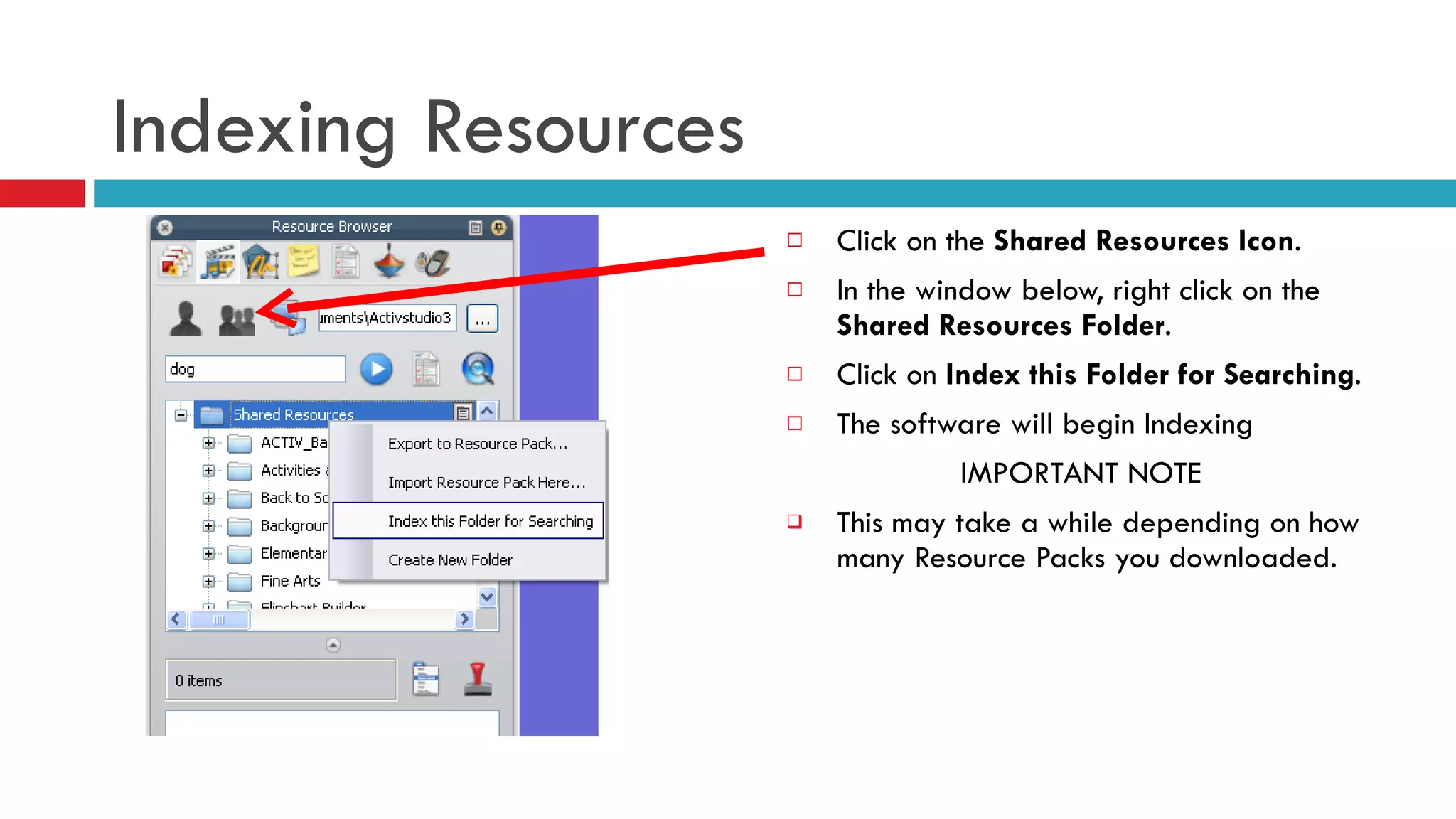
Indexing Resources Click on the  Shared Resources Icon . In the window below, right click on the  Shared Resources Folder .  Click on  Index this Folder for Searching . The software will begin Indexing IMPORTANT NOTE This may take a while depending on how many Resource Packs you downloaded.
USING THE TOOLS How to use the tools on Inspire
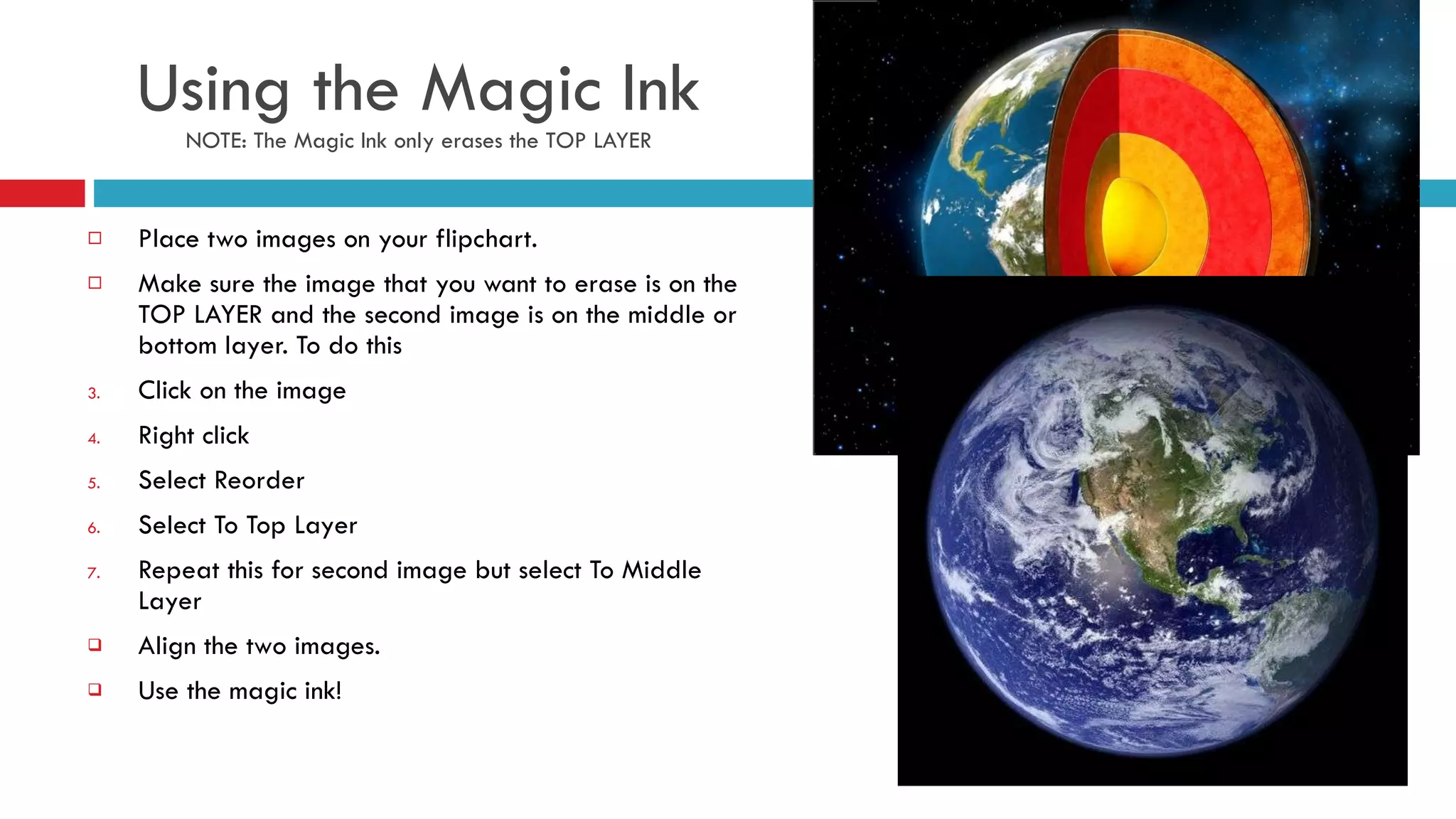
Using the Magic Ink NOTE: The Magic Ink only erases the TOP LAYER Place two images on your flipchart. Make sure the image that you want to erase is on the TOP LAYER and the second image is on the middle or bottom layer. To do this  Click on the image  Right click Select Reorder  Select To Top Layer Repeat this for second image but select To Middle Layer Align the two images. Use the magic ink!
Using Containers – Basics 1 of 2 NOTE:  Any object that becomes a container can have a second object, annotation, or text appear on top (visible) or behind the container.  If you then move the container, the second object moves with it. Determine an object to be the container.  Determine a second object to be put “in” the container. The second object must be smaller. Right click on the container and select  Property Browser . Scroll down and find the  Container Tab .  Change the  Can Contain Tab  to Specific Object. In the  Contain Object  field select the box with three dots.  This opens up a window.  Select the object you want to be put “in” the container. Go back to your flipchart and right click the second object and select  Property Browser .  Scroll down to the  Container Tab .  Change the  Return if Not Contained Tab  to True.  Go back to your flipchart.  Try moving the second object anywhere on the page.  It should snap back to its original position.  Place the second object into the container and it will stay.  Move the container, with the other object in it, and everything moves together.

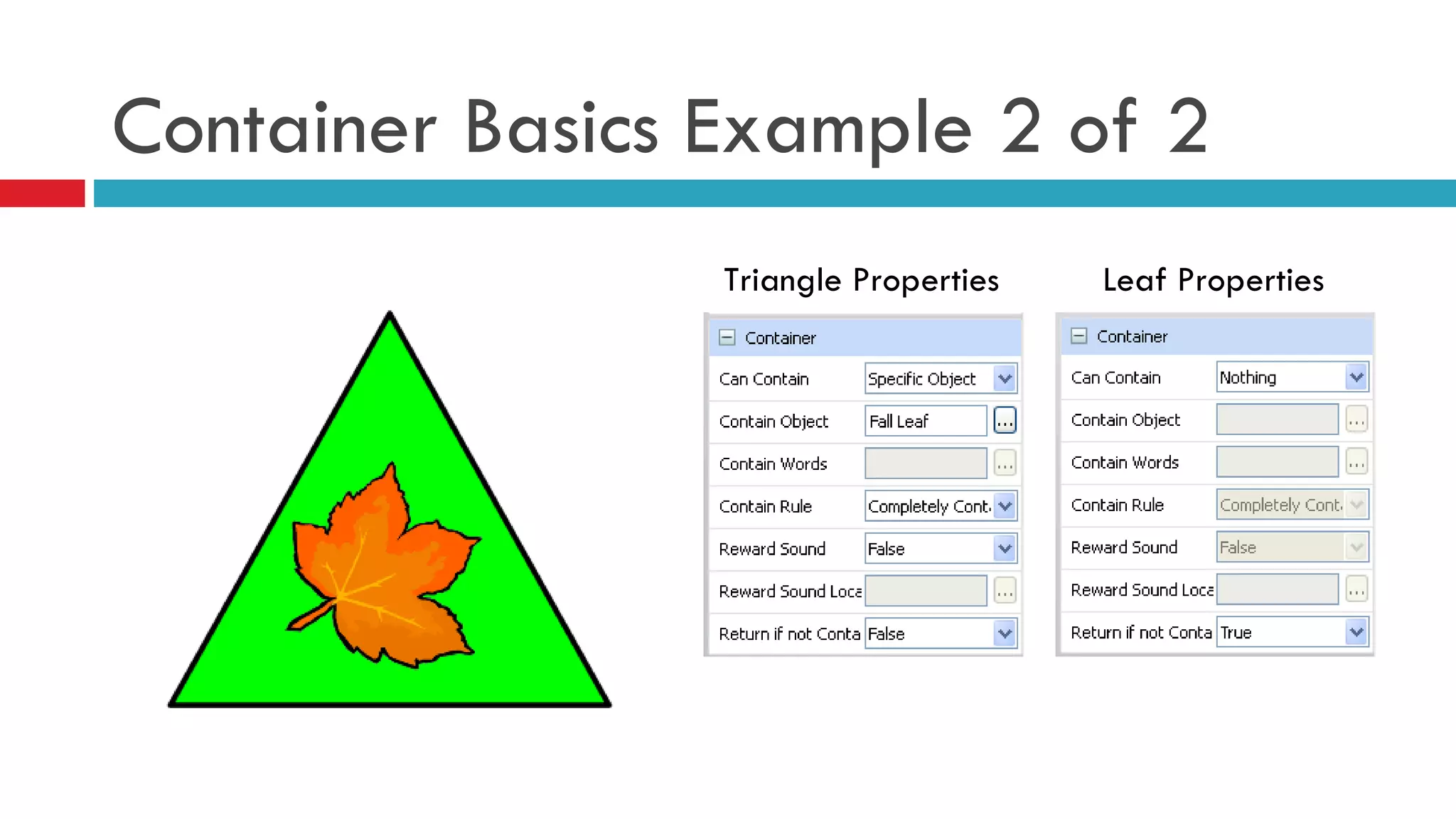
Container Basics Example 2 of 2 Triangle Properties Leaf Properties
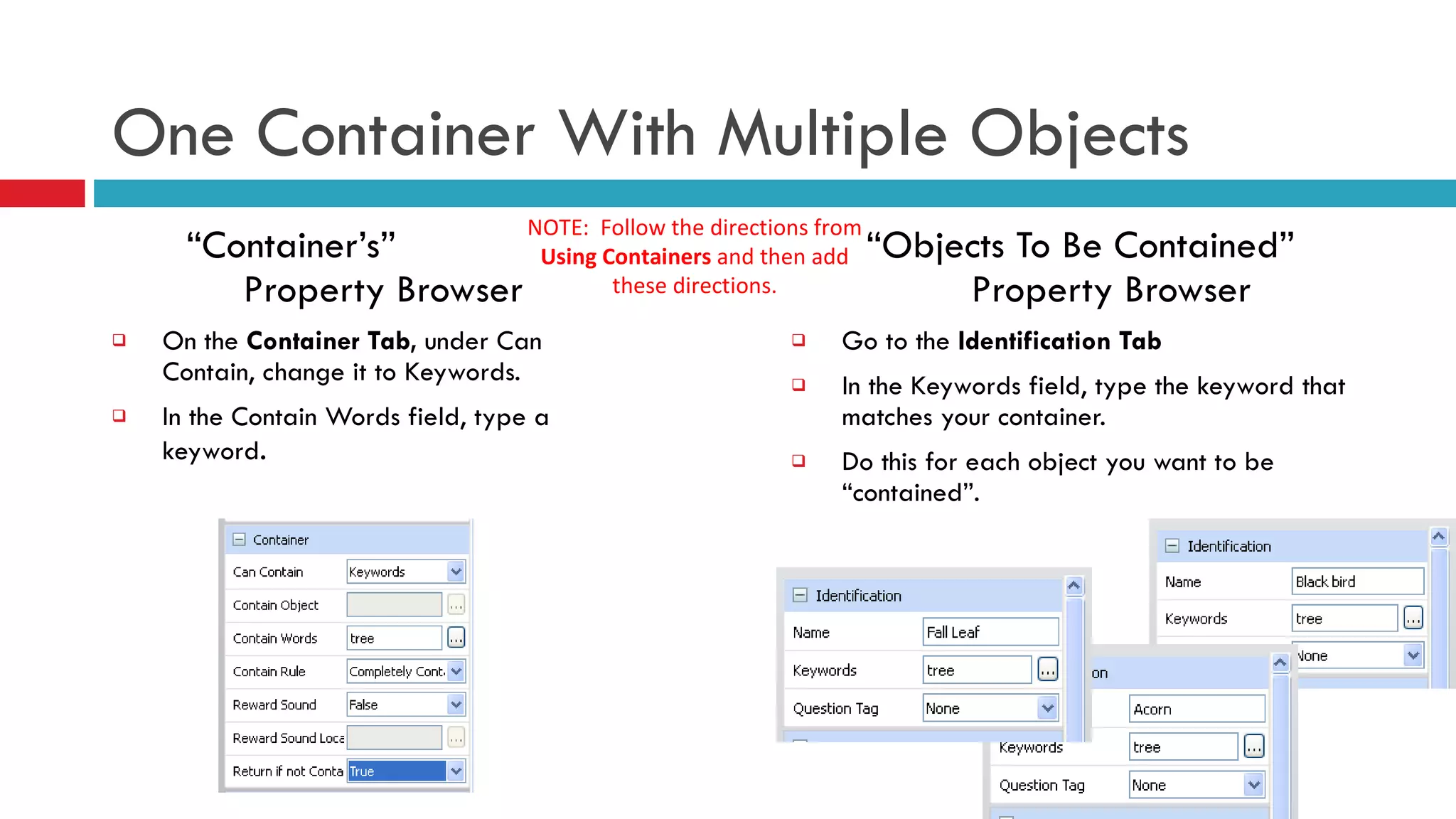
One Container With Multiple Objects “ Container’s”  Property Browser On   the  Container Tab,  under Can Contain, change it to Keywords.  In the Contain Words field, type a keyword .  “ Objects To Be Contained”  Property Browser Go to the  Identification Tab In the Keywords field, type the keyword that matches your container. Do this for each object you want to be “contained”. NOTE:  Follow the directions from  Using Containers  and then add these directions.
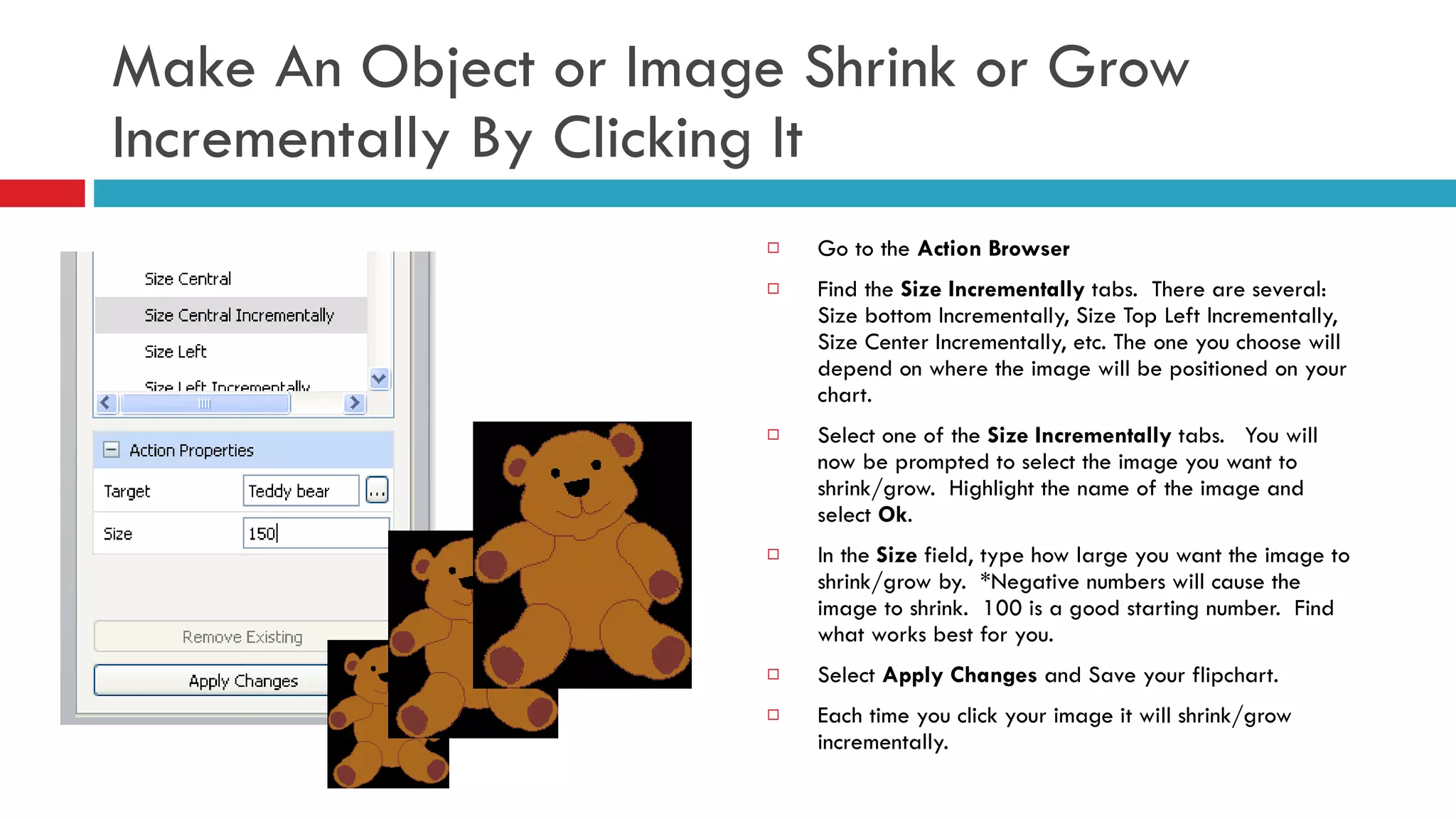
Make An Object or Image Shrink or Grow Incrementally By Clicking It Go to the  Action Browser Find the  Size Incrementally  tabs.  There are several:  Size bottom Incrementally, Size Top Left Incrementally, Size Center Incrementally, etc. The one you choose will depend on where the image will be positioned on your chart.  Select one of the  Size Incrementally  tabs.  You will now be prompted to select the image you want to shrink/grow.  Highlight the name of the image and select  Ok . In the  Size  field, type how large you want the image to shrink/grow by.  *Negative numbers will cause the image to shrink.  100 is a good starting number.  Find what works best for you. Select  Apply Changes  and Save your flipchart. Each time you click your image it will shrink/grow incrementally.
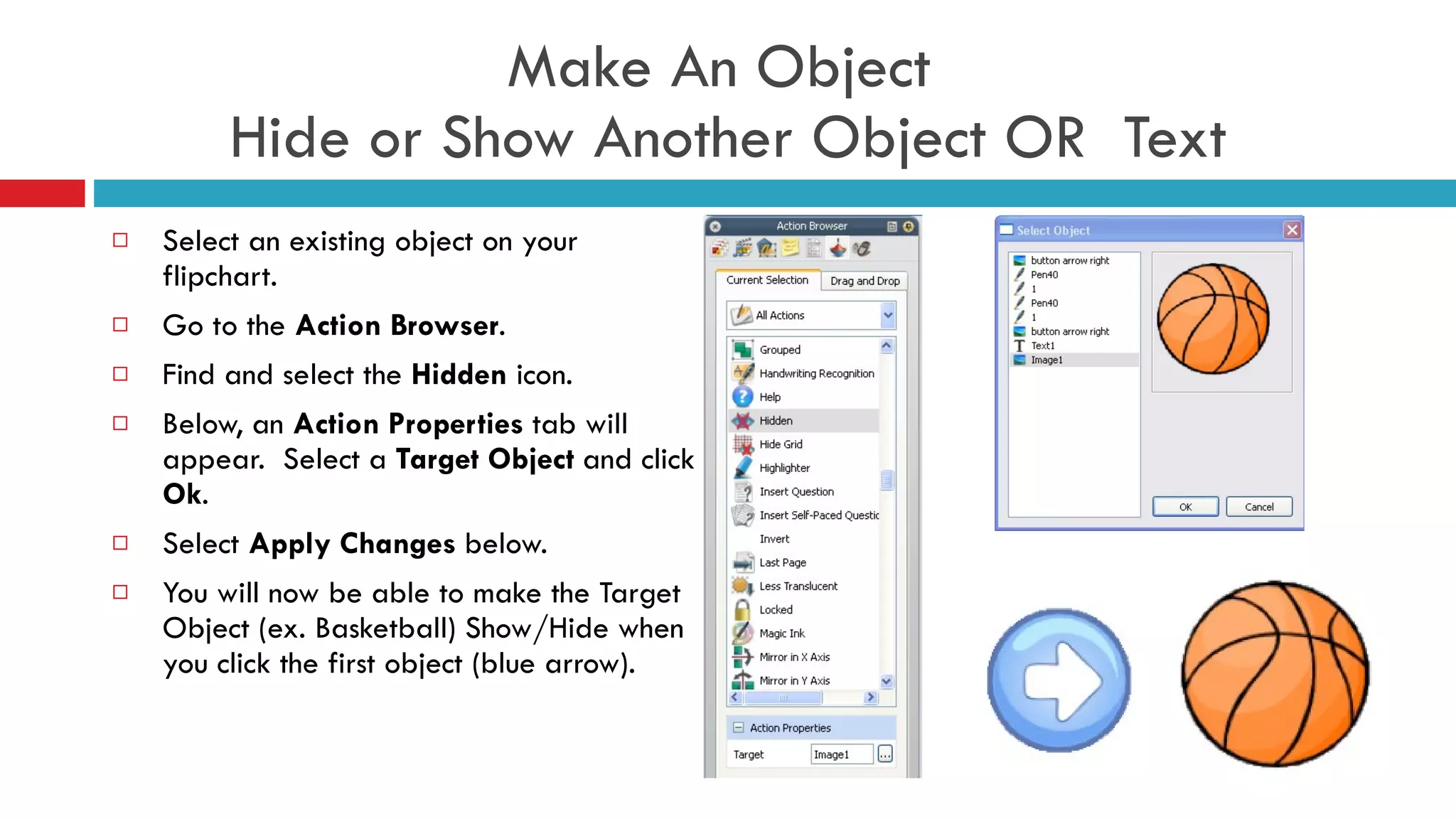
Make An Object  Hide or Show Another Object OR  Text Select an existing object on your flipchart. Go to the  Action Browser . Find and select the  Hidden  icon. Below, an  Action Properties  tab will appear.  Select a  Target Object  and click  Ok . Select  Apply Changes  below.  You will now be able to make the Target Object (ex. Basketball) Show/Hide when you click the first object (blue arrow).
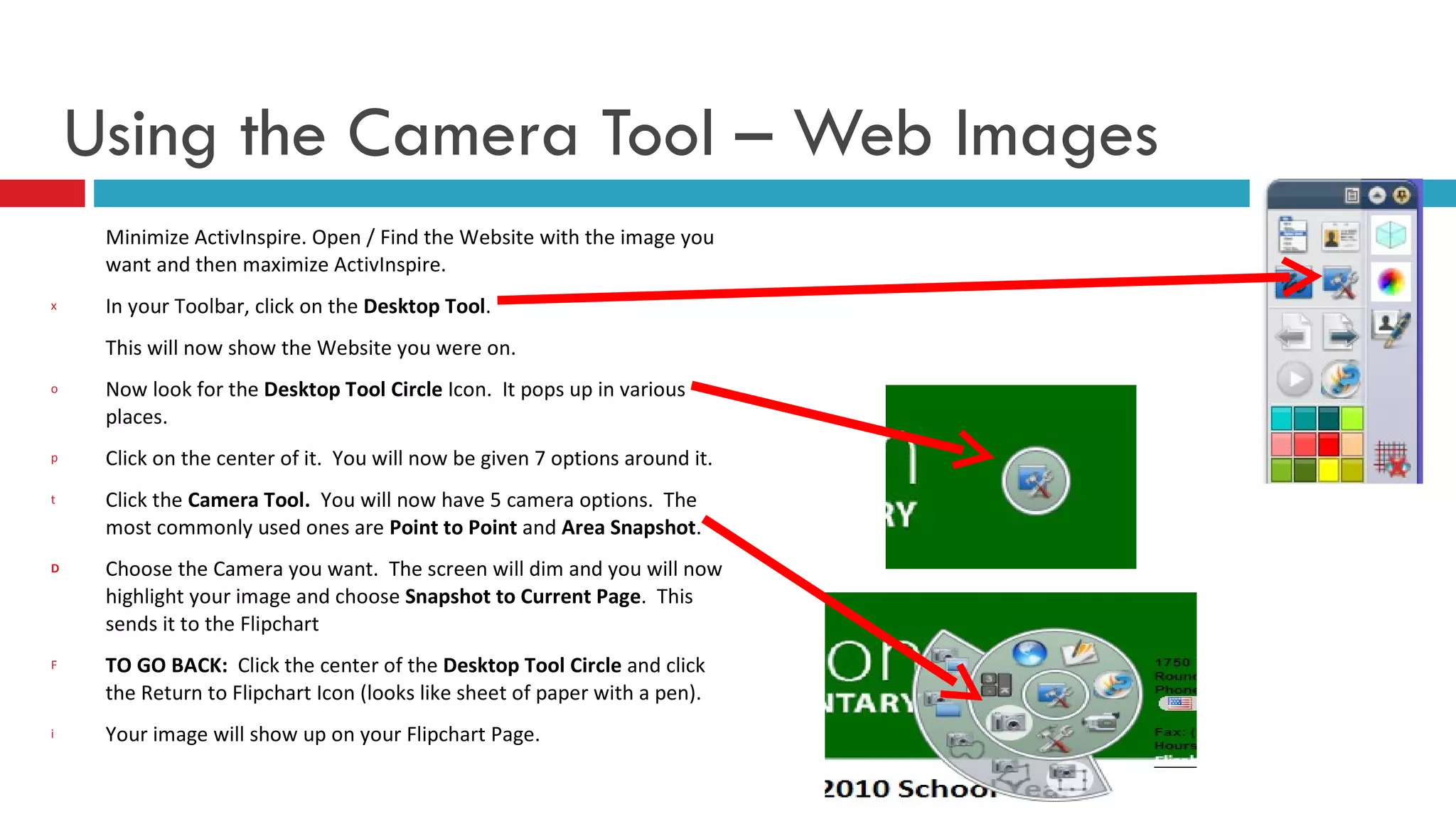
Using the Camera Tool – Web Images Minimize ActivInspire. Open / Find the Website with the image you want and then maximize ActivInspire.  In your Toolbar, click on the  Desktop Tool . This will now show the Website you were on. Now look for the  Desktop Tool Circle  Icon.  It pops up in various places.  Click on the center of it.  You will now be given 7 options around it. Click the  Camera Tool.   You will now have 5 camera options.  The most commonly used ones are  Point to Point  and  Area Snapshot .  Choose the Camera you want.  The screen will dim and you will now highlight your image and choose  Snapshot to Current Page .  This sends it to the Flipchart TO GO BACK:  Click the center of the  Desktop Tool Circle  and click the Return to Flipchart Icon (looks like sheet of paper with a pen). Your image will show up on your Flipchart Page.
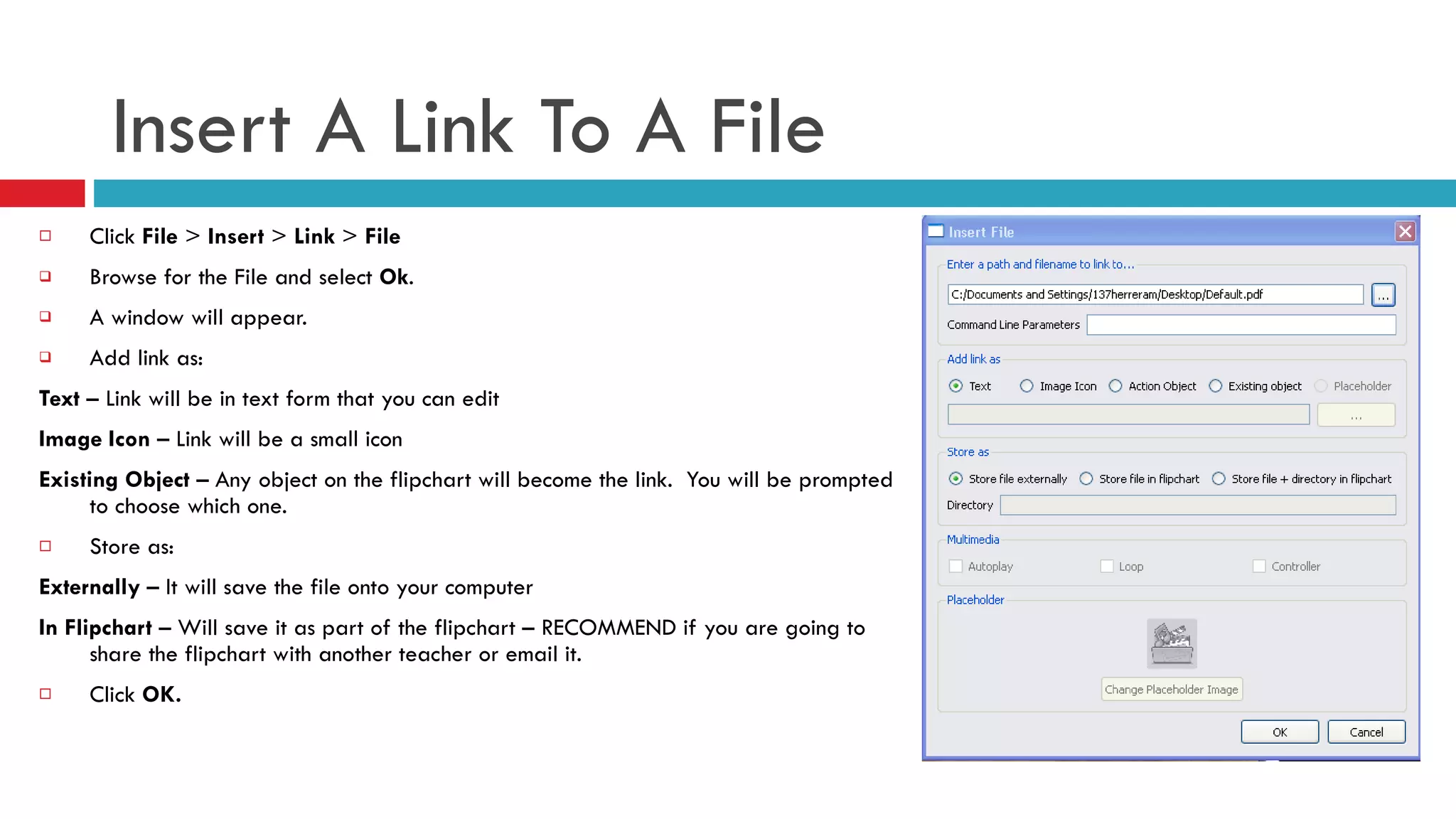
Insert A Link To A File Click  File  >  Insert  >  Link  >  File Browse for the File and select  Ok . A window will appear.  Add link as: Text  – Link will be in text form that you can edit Image Icon  – Link will be a small icon Existing Object  – Any object on the flipchart will become the link.  You will be prompted to choose which one. Store as:  Externally  – It will save the file onto your computer In Flipchart  – Will save it as part of the flipchart – RECOMMEND if you are going to share the flipchart with another teacher or email it. Click  OK.
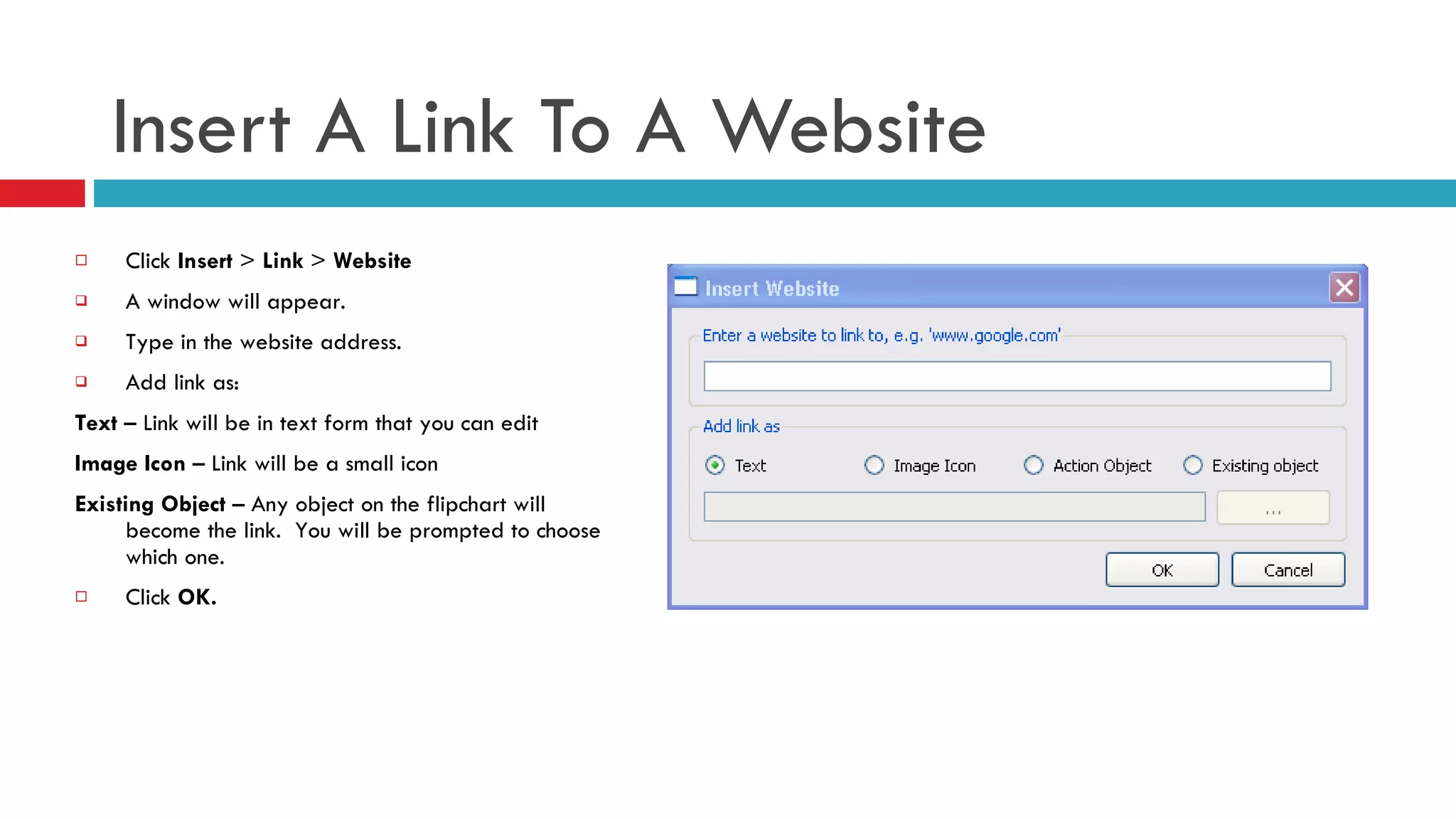
Insert A Link To A Website Click  Insert  >  Link  >  Website A window will appear.  Type in the website address. Add link as: Text  – Link will be in text form that you can edit Image Icon  – Link will be a small icon Existing Object  – Any object on the flipchart will become the link.  You will be prompted to choose which one. Click  OK.
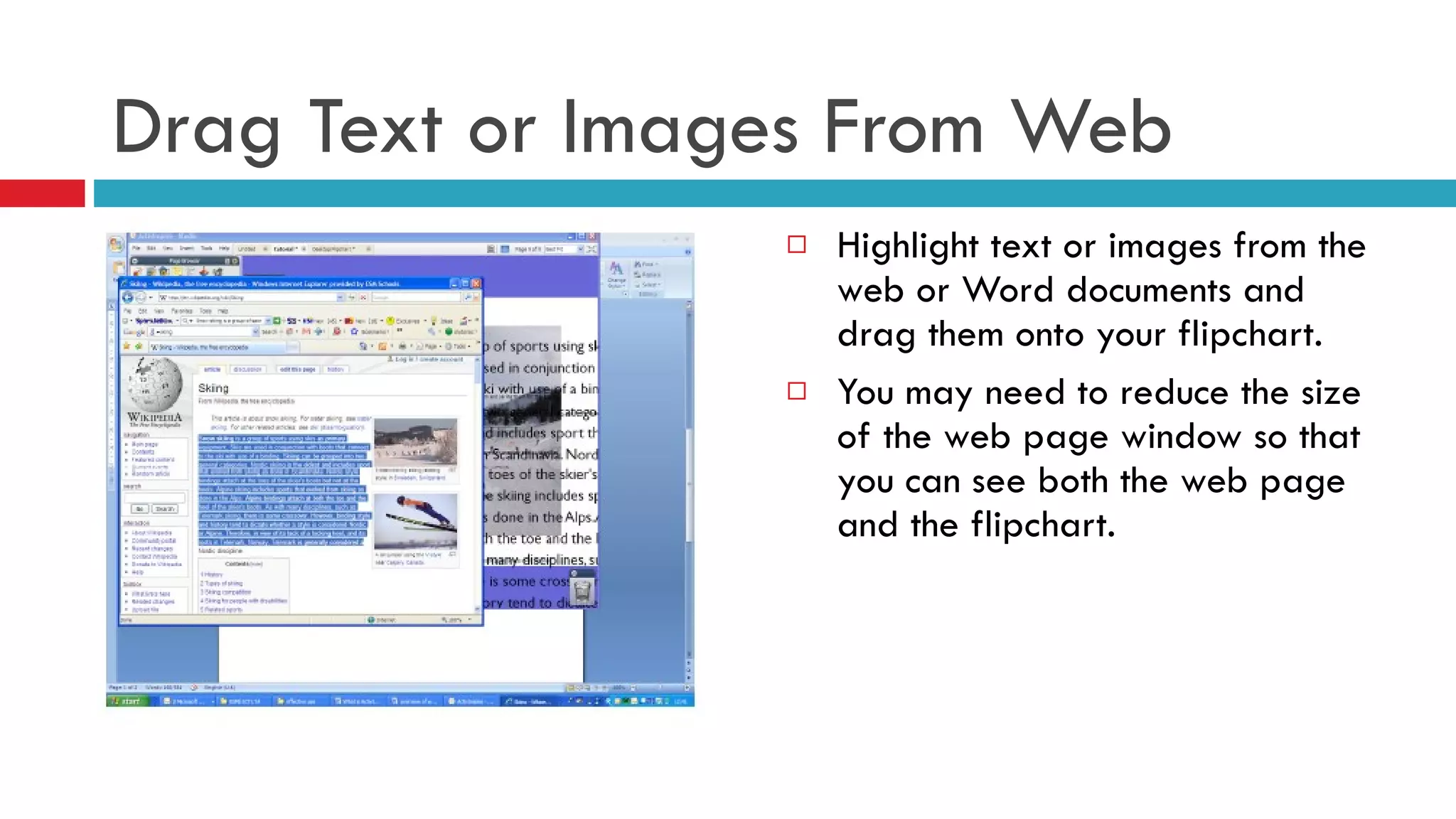
Drag Text or Images From Web  Highlight text or images from the web or Word documents and drag them onto your flipchart.  You may need to reduce the size of the web page window so that you can see both the web page and the flipchart.
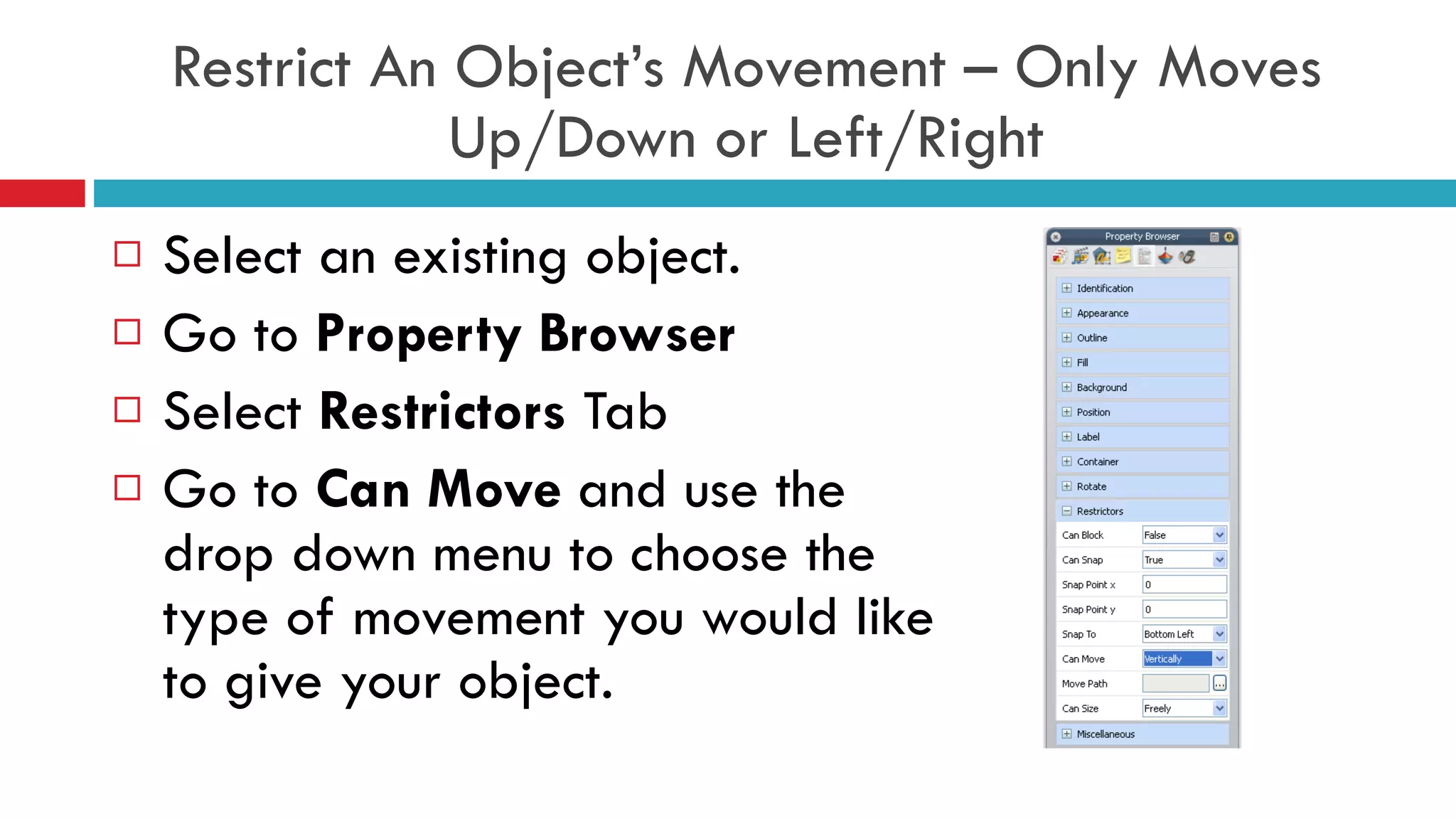
Restrict An Object’s Movement – Only Moves Up/Down or Left/Right Select an existing object. Go to  Property Browser Select  Restrictors  Tab Go to  Can Move  and use the drop down menu to choose the type of movement you would like to give your object.
VOTING AND EXPRESS POLL How to set up question slides
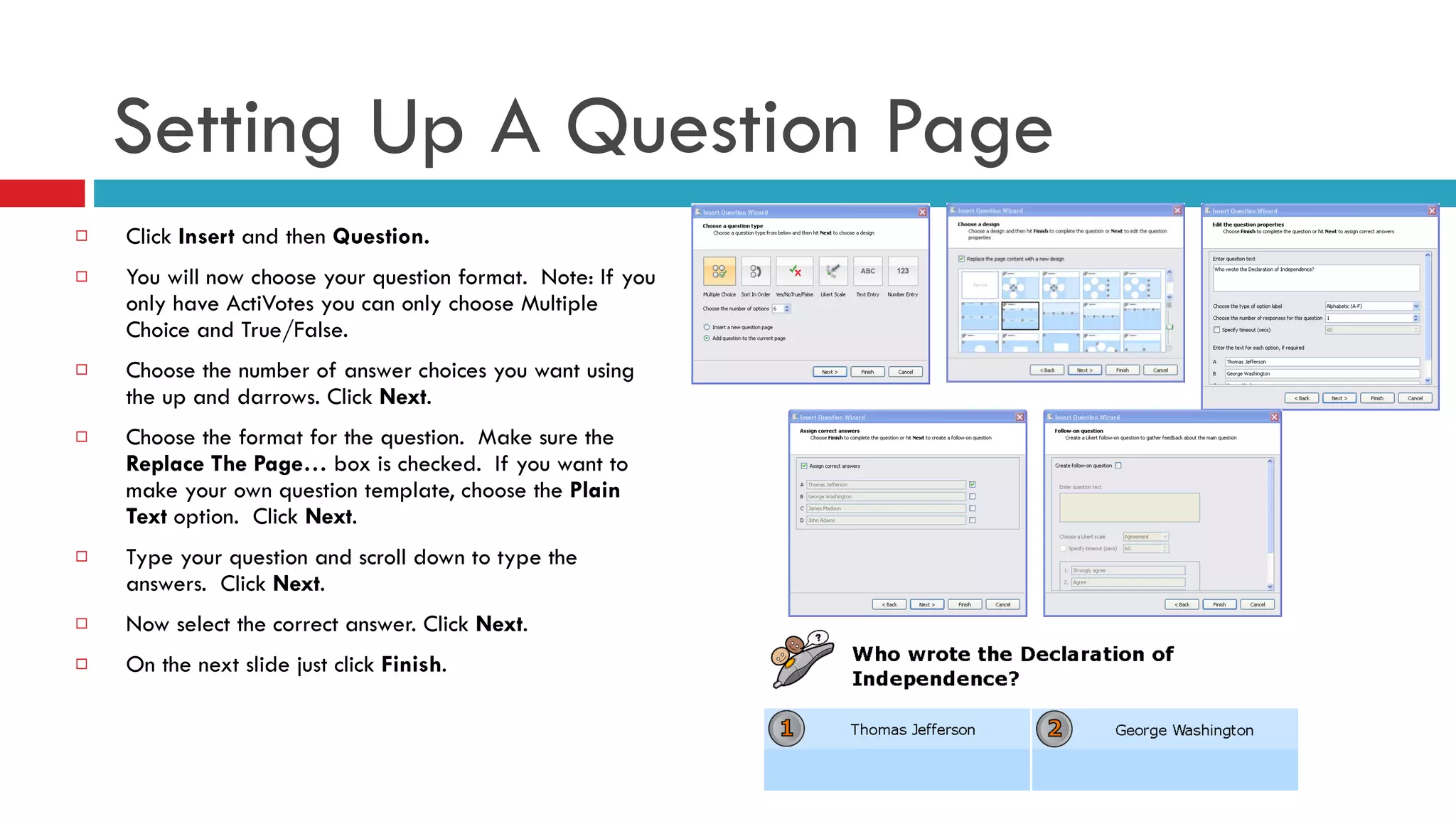
Click  Insert  and then  Question. You will now choose your question format.  Note: If you only have ActiVotes you can only choose Multiple Choice and True/False. Choose the number of answer choices you want using the up and darrows. Click  Next . Choose the format for the question.  Make sure the  Replace The Page…  box is checked.  If you want to make your own question template, choose the  Plain Text  option.  Click  Next . Type your question and scroll down to type the answers.  Click  Next . Now select the correct answer. Click  Next . On the next slide just click  Finish . Setting Up A Question Page
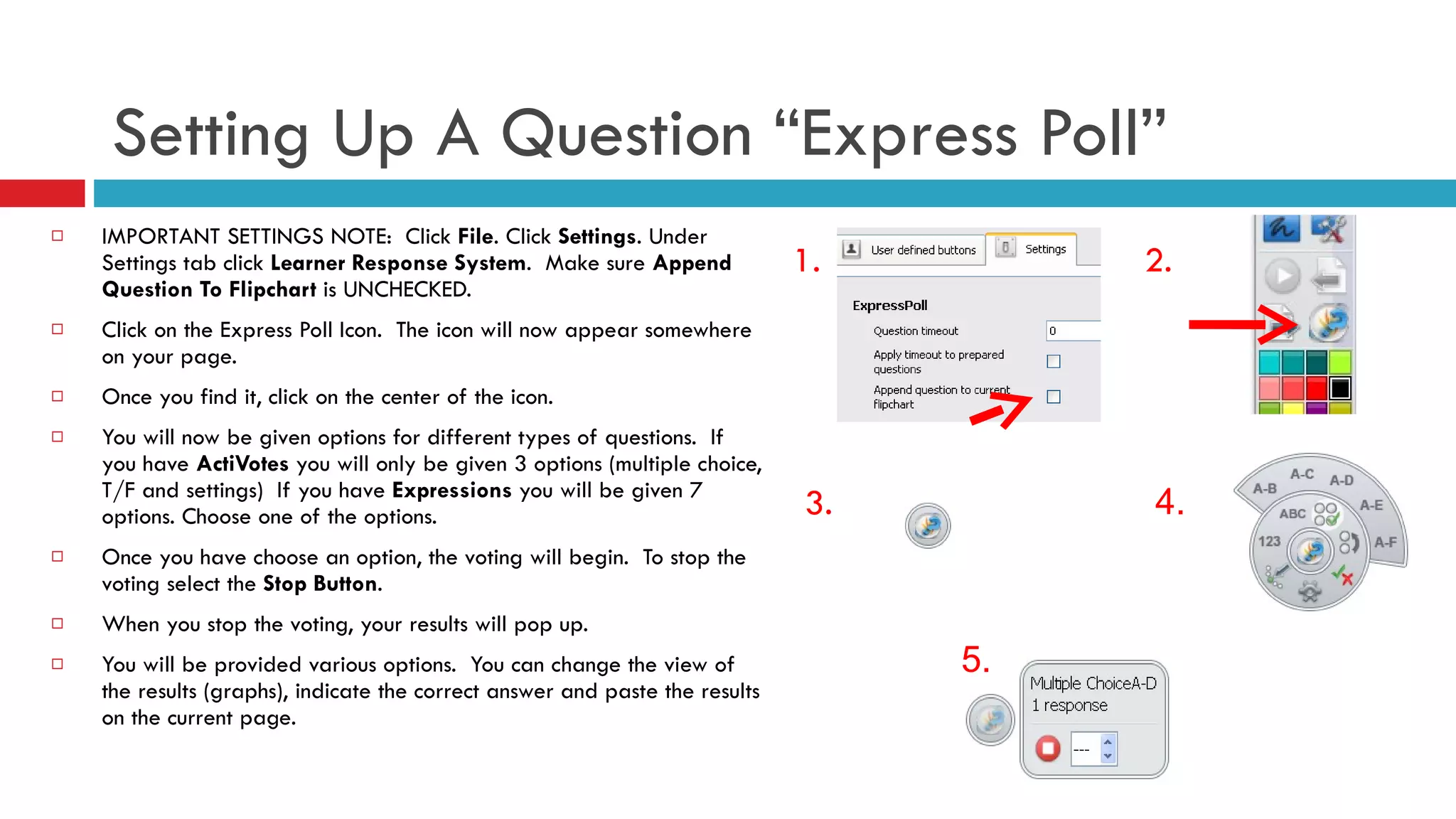
Setting Up A Question “Express Poll” IMPORTANT SETTINGS NOTE:  Click  File . Click  Settings . Under Settings tab click  Learner Response System .  Make sure  Append Question To Flipchart  is UNCHECKED. Click on the Express Poll Icon.  The icon will now appear somewhere on your page. Once you find it, click on the center of the icon. You will now be given options for different types of questions.  If you have  ActiVotes  you will only be given 3 options (multiple choice, T/F and settings)  If you have  Expressions  you will be given 7 options. Choose one of the options.  Once you have choose an option, the voting will begin.  To stop the voting select the  Stop Button . When you stop the voting, your results will pop up.  You will be provided various options.  You can change the view of the results (graphs), indicate the correct answer and paste the results on the current page. 1. 2. 3. 4. 5.
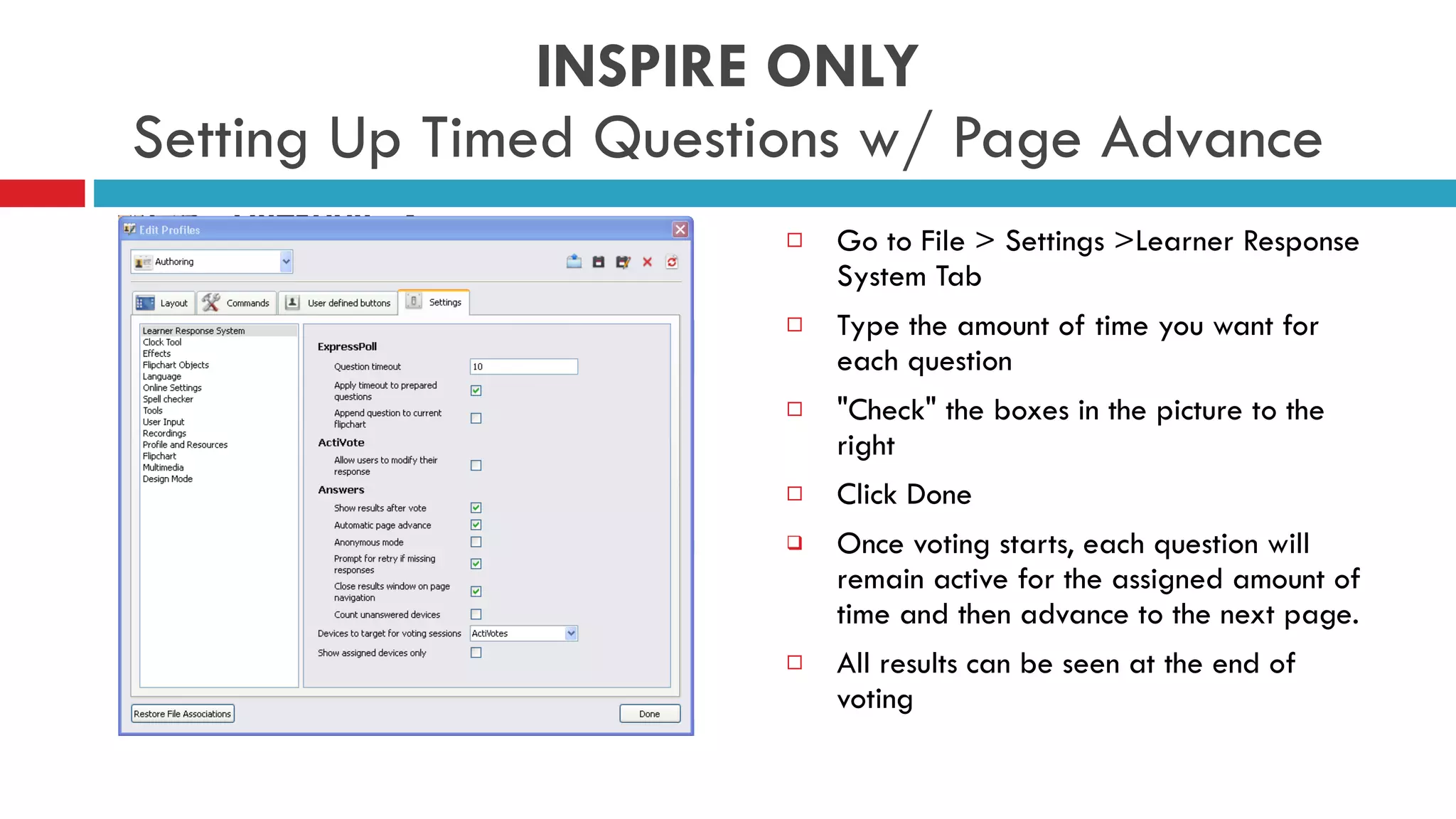
INSPIRE ONLY Setting Up Timed Questions w/ Page Advance Go to File > Settings >Learner Response System Tab  Type the amount of time you want for each question  "Check" the boxes in the picture to the right Click Done  Once voting starts, each question will remain active for the assigned amount of time and then advance to the next page.  All results can be seen at the end of voting
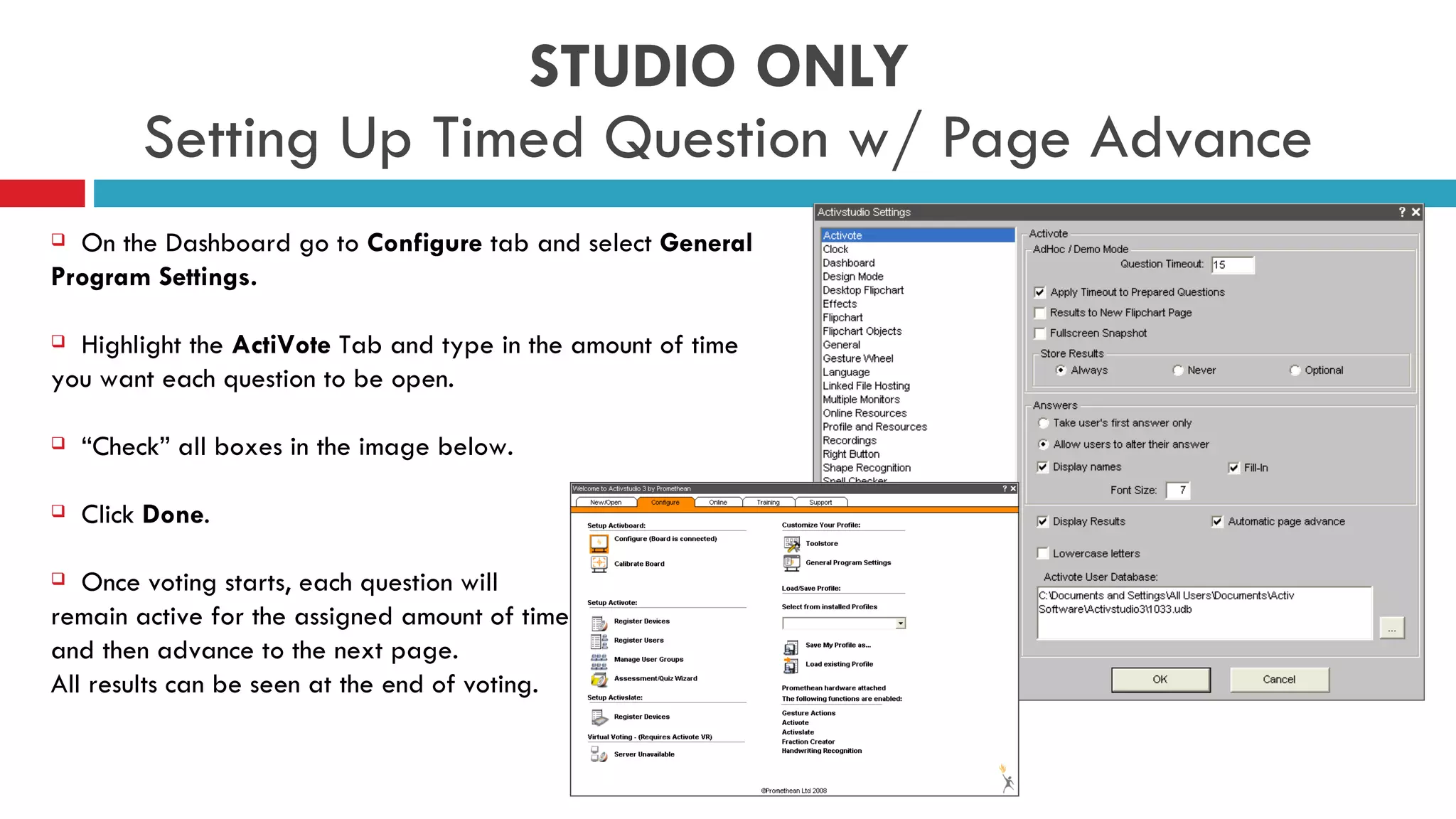
STUDIO ONLY  Setting Up Timed Question w/ Page Advance On the Dashboard go to  Configure  tab and select  General Program Settings. Highlight the  ActiVote  Tab and type in the amount of time you want each question to be open.  “ Check” all boxes in the image below. Click  Done .  Once voting starts, each question will  remain active for the assigned amount of time  and then advance to the next page.  All results can be seen at the end of voting.
REGISTERING ACTIVE DEVICES How to register ActivExpressions and ActiVotes
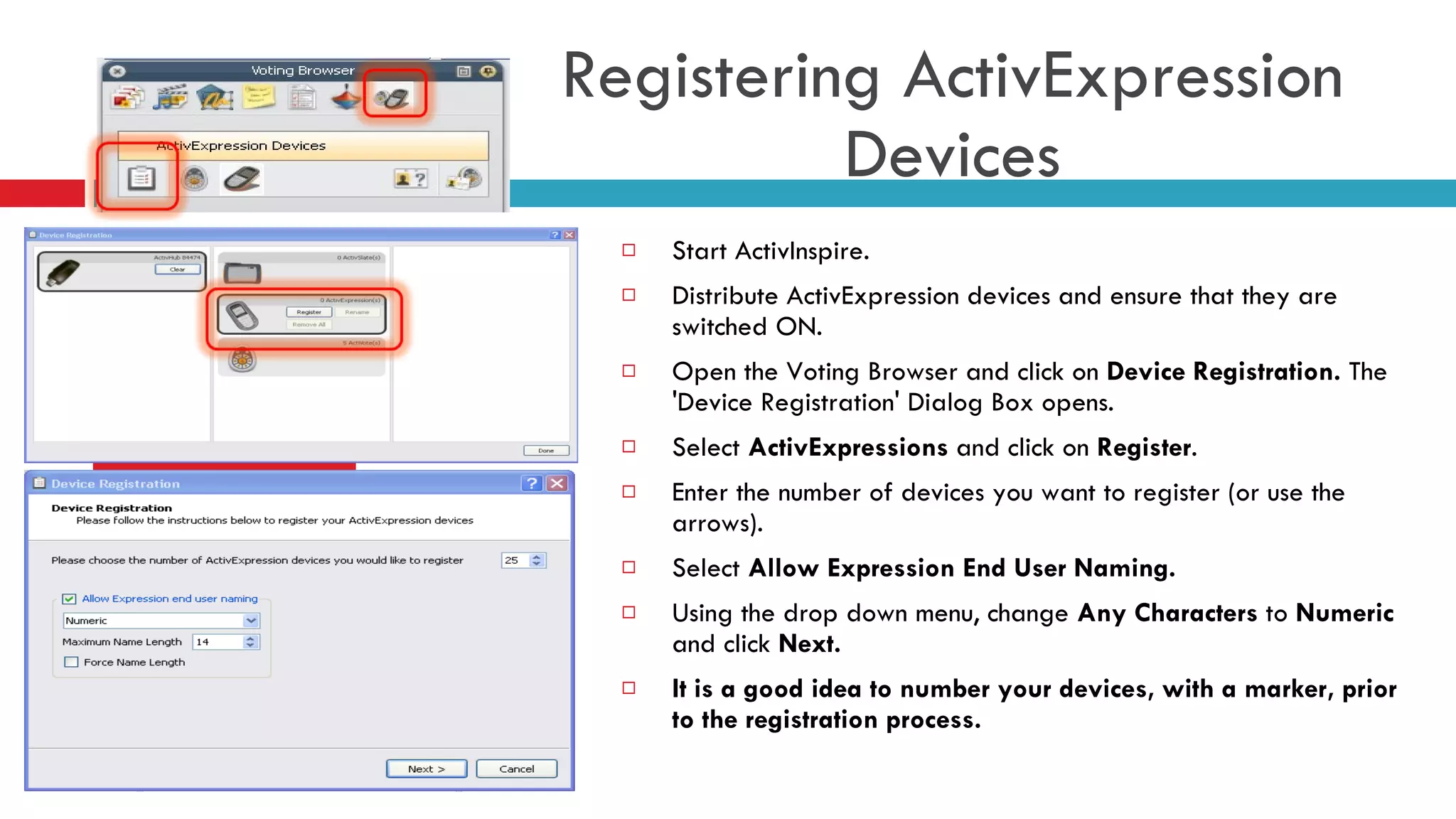
Start ActivInspire. Distribute ActivExpression devices and ensure that they are switched ON. Open the Voting Browser and click on  Device Registration.  The 'Device Registration' Dialog Box opens.  Select  ActivExpressions  and click on  Register .  Enter the number of devices you want to register (or use the arrows). Select  Allow Expression End User Naming. Using the drop down menu, change  Any Characters  to  Numeric  and click  Next. It is a good idea to number your devices, with a marker, prior to the registration process. Registering ActivExpression Devices
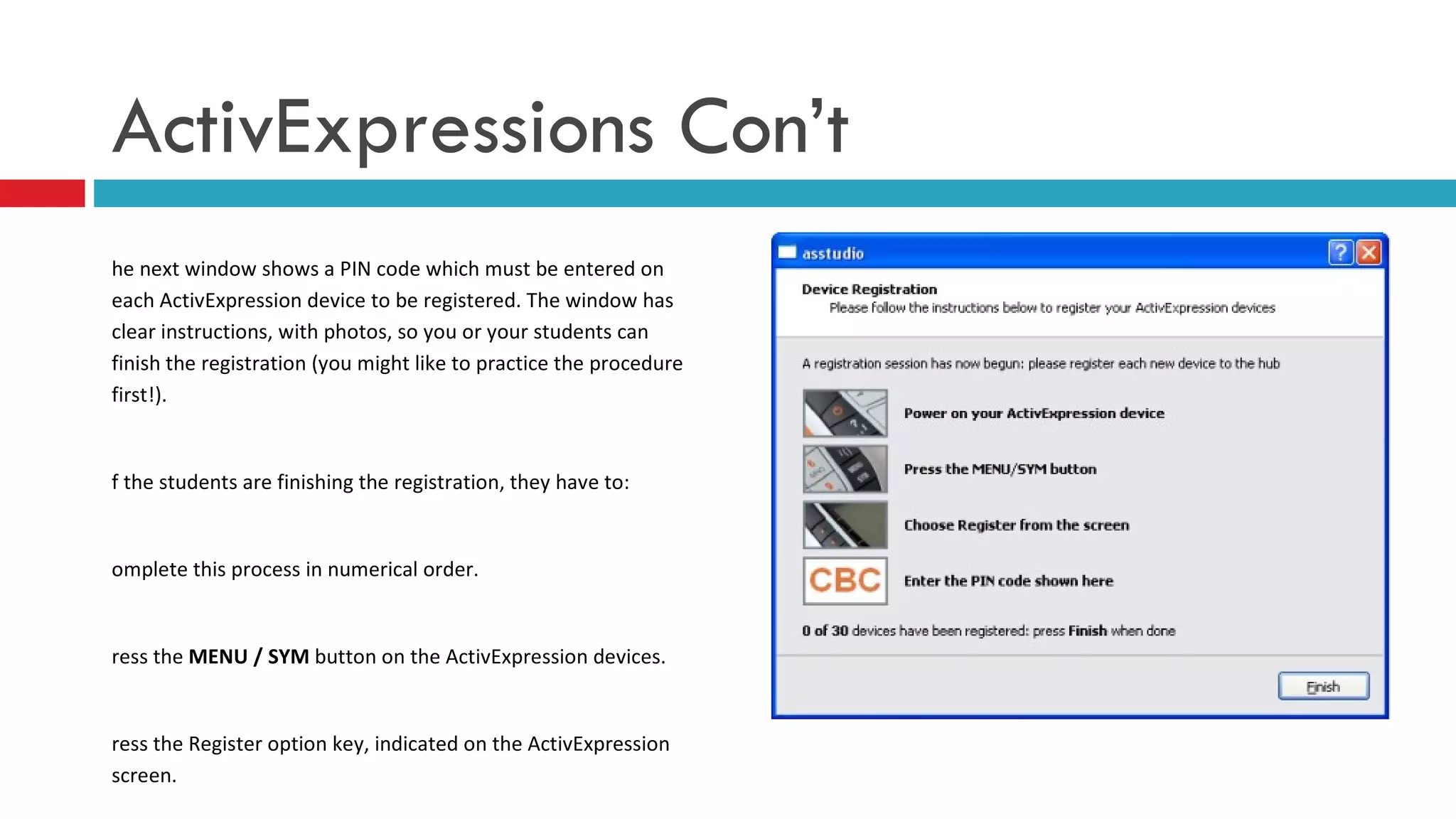
The next window shows a PIN code which must be entered on each ActivExpression device to be registered. The window has clear instructions, with photos, so you or your students can finish the registration (you might like to practice the procedure first!). If the students are finishing the registration, they have to: Complete this process in numerical order. Press the  MENU / SYM  button on the ActivExpression devices.  Press the Register option key, indicated on the ActivExpression screen. Enter the PIN code, by pressing the ActivExpression option keys corresponding to the PIN code, as indicated on the screen. ActivExpressions Con’t
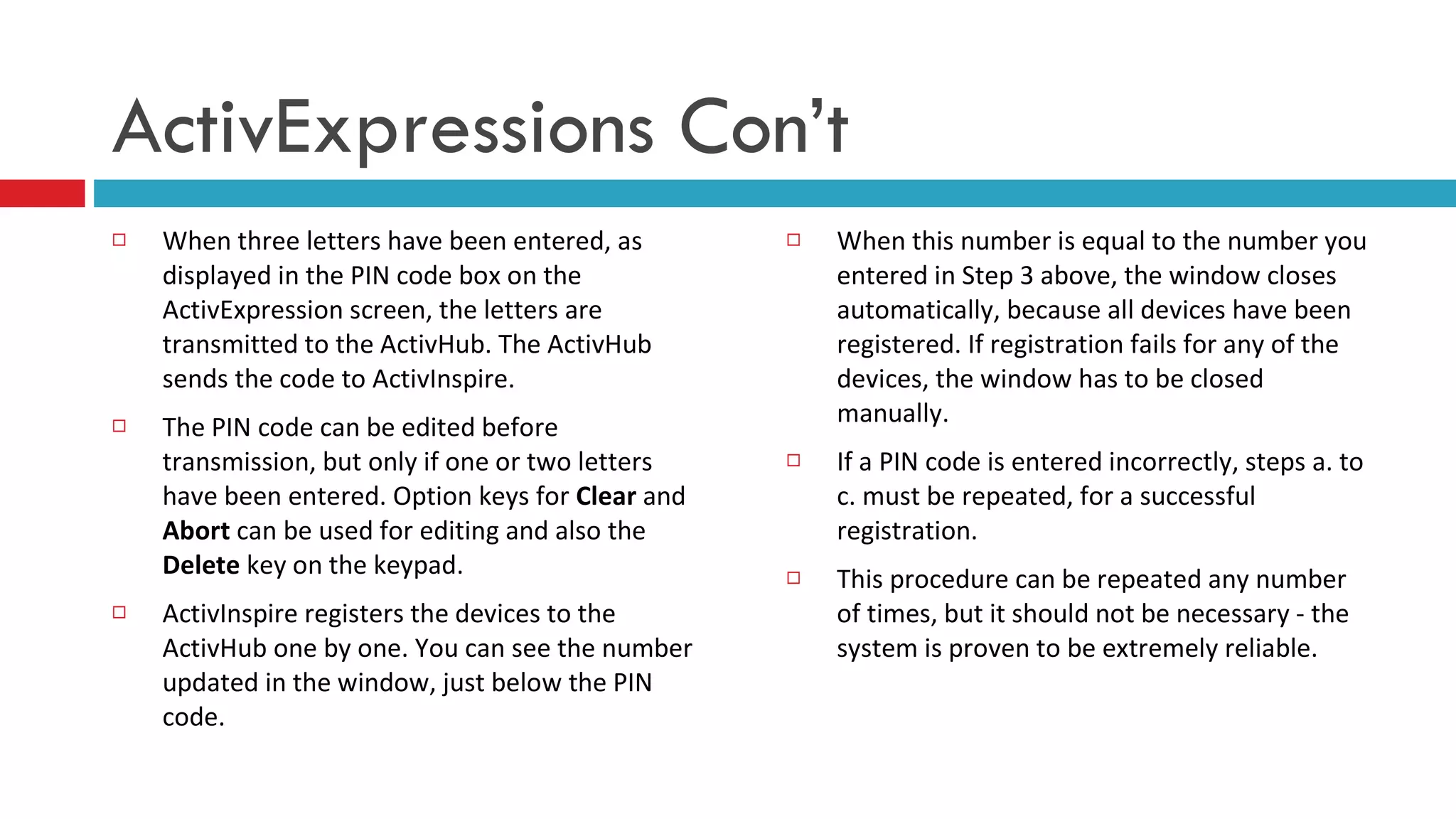
When three letters have been entered, as displayed in the PIN code box on the ActivExpression screen, the letters are transmitted to the ActivHub. The ActivHub sends the code to ActivInspire. The PIN code can be edited before transmission, but only if one or two letters have been entered. Option keys for  Clear  and  Abort  can be used for editing and also the  Delete  key on the keypad. ActivInspire registers the devices to the ActivHub one by one. You can see the number updated in the window, just below the PIN code.  When this number is equal to the number you entered in Step 3 above, the window closes automatically, because all devices have been registered. If registration fails for any of the devices, the window has to be closed manually.      If a PIN code is entered incorrectly, steps a. to c. must be repeated, for a successful registration.  This procedure can be repeated any number of times, but it should not be necessary - the system is proven to be extremely reliable.  ActivExpressions Con’t
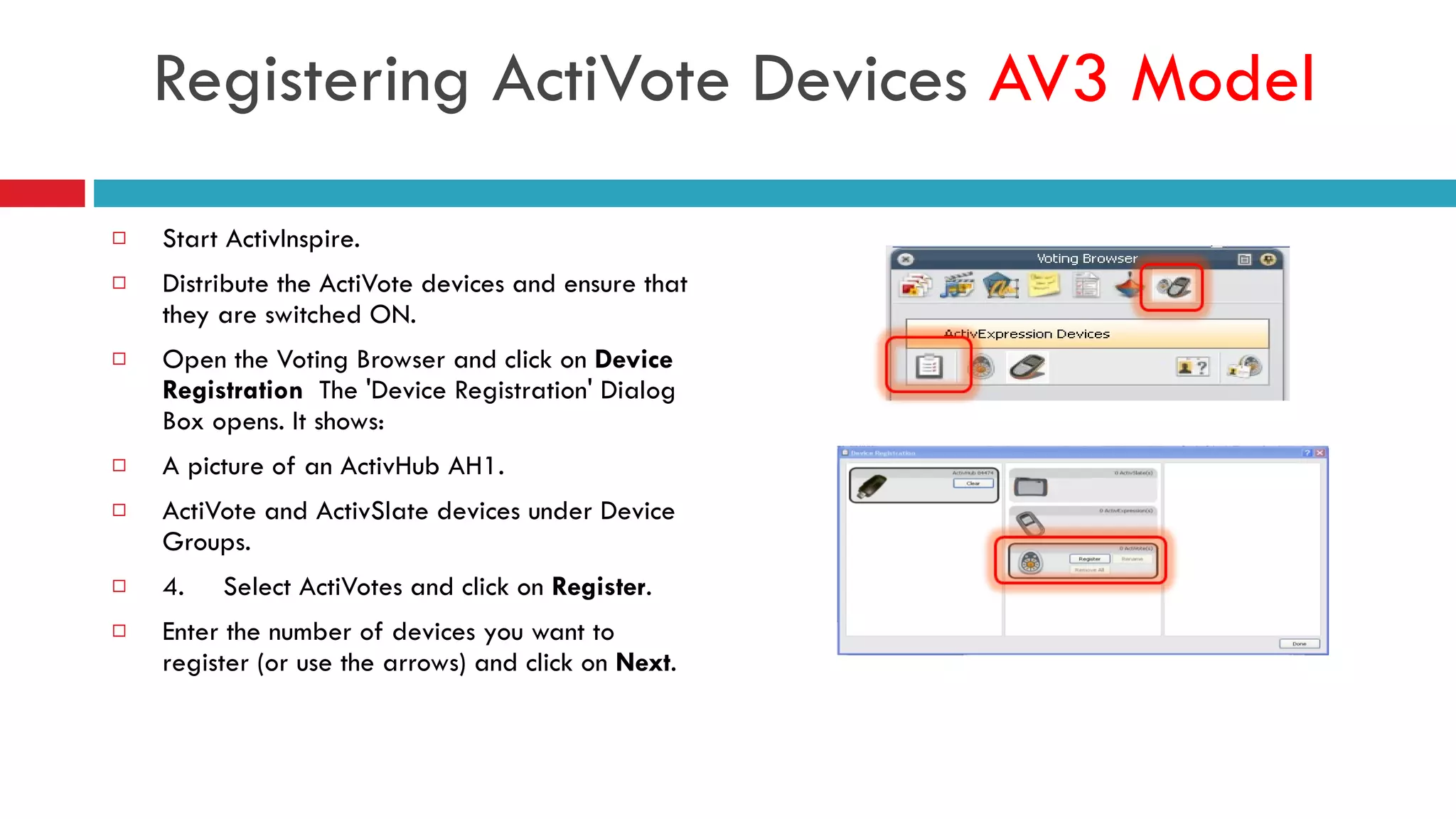
Start ActivInspire. Distribute the ActiVote devices and ensure that they are switched ON. Open the Voting Browser and click on  Device Registration   The 'Device Registration' Dialog Box opens. It shows: A picture of an ActivHub AH1. ActiVote and ActivSlate devices under Device Groups. 4.  Select ActiVotes and click on  Register . Enter the number of devices you want to register (or use the arrows) and click on  Next . Registering ActiVote Devices  AV3 Model
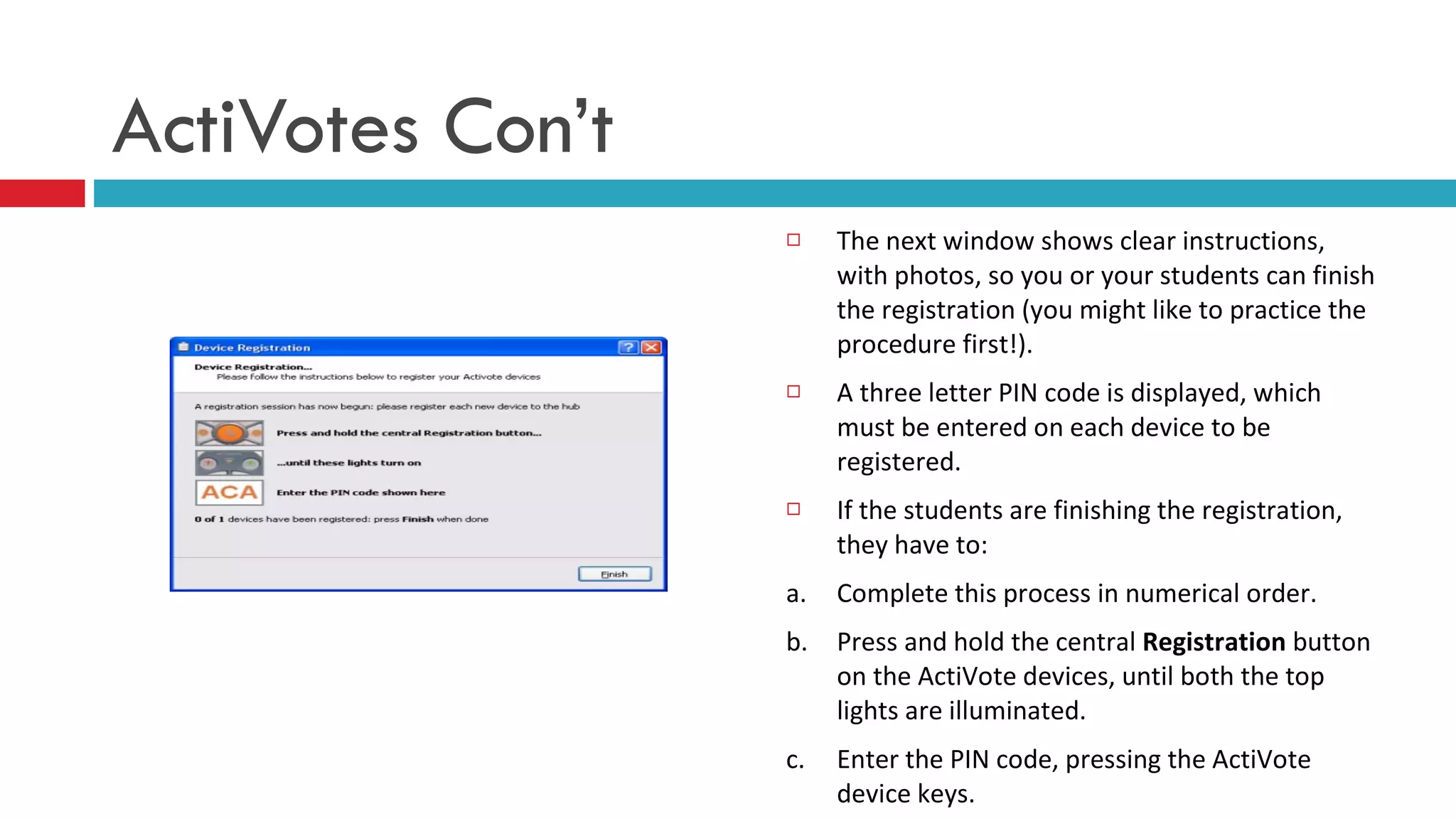
The next window shows clear instructions, with photos, so you or your students can finish the registration (you might like to practice the procedure first!). A three letter PIN code is displayed, which must be entered on each device to be registered. If the students are finishing the registration, they have to: a.  Complete this process in numerical order. b.  Press and hold the central  Registration  button on the ActiVote devices, until both the top lights are illuminated. c. Enter the PIN code, pressing the ActiVote device keys.   ActiVotes Con’t
ActivInspire registers the devices to the ActivHub one by one. You can see the number updated in the window, just below the PIN code.  When this number is equal to the number you entered in Step 3. above, the window closes automatically, because all devices have been registered. If registration fails for any of the devices, the window has to be closed manually.  If a PIN code is entered incorrectly, both steps a. and b. must be repeated, that is, the central button must be pressed and held until both lights are on and the correct PIN code must be entered, for a successful registration.  This procedure can be repeated any number of times, but it should not be necessary - the system is proven to be extremely reliable.   ActiVotes Con’t
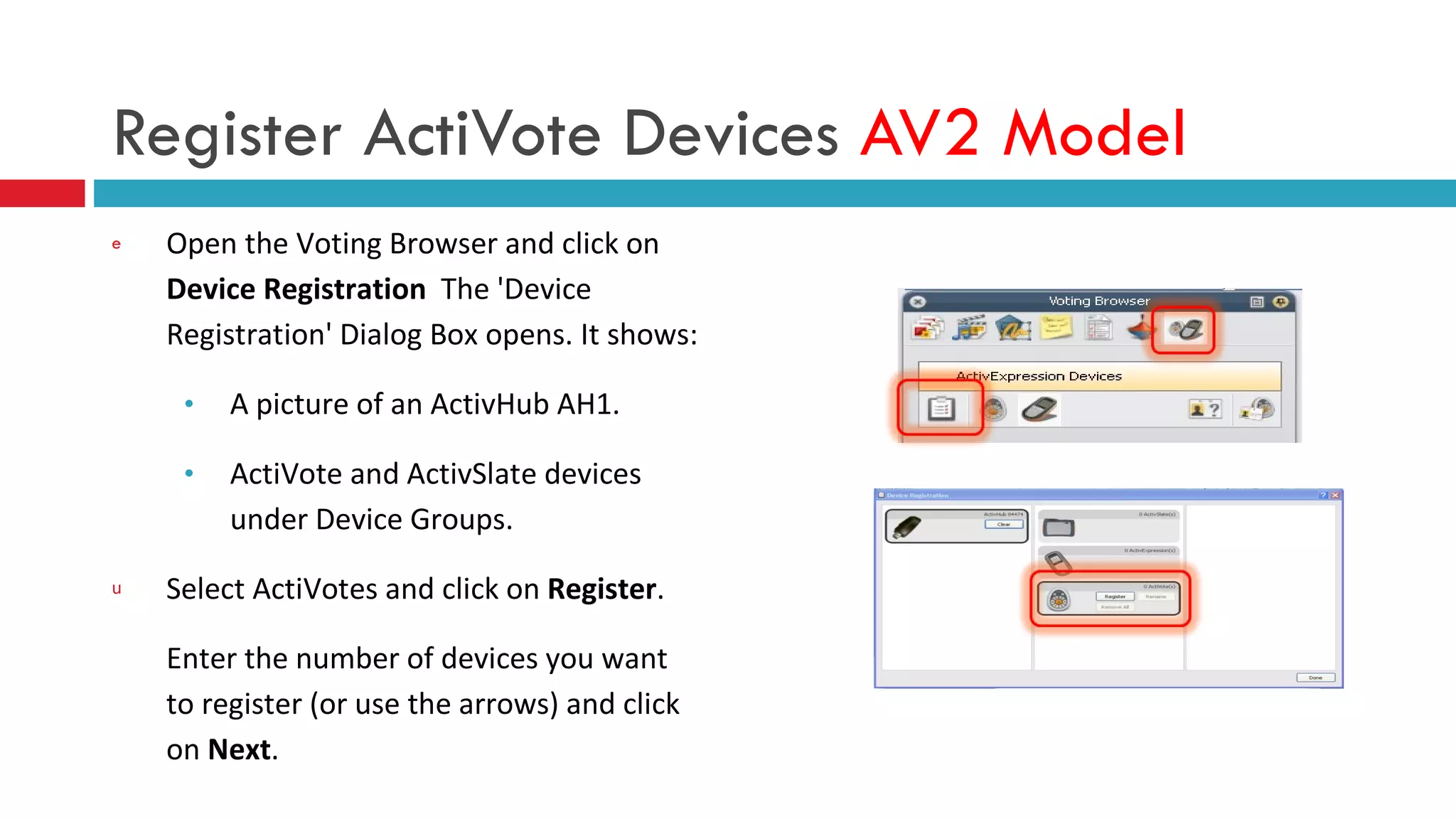
Register ActiVote Devices  AV2 Model Open the Voting Browser and click on  Device Registration   The 'Device Registration' Dialog Box opens. It shows: A picture of an ActivHub AH1. ActiVote and ActivSlate devices under Device Groups. Select ActiVotes and click on  Register . Enter the number of devices you want to register (or use the arrows) and click on  Next .
The next window shows clear instructions, with photos, so your students can finish the registration (you might like to practice the procedure first!). If the students are finishing the registration, they have to: Press and hold the central  Registration  button on the ActiVote devices. The top red light flashes, followed by the green light. Release the  Registration  button. ActivInspire registers the devices to the ActivHub one by one. You can see the number updated in the window.  ActivInspire registers the devices to the ActivHub one by one. You can see the number updated in the window.  When this number is equal to the number you entered in Step 3. above, the window closes automatically, because all devices have been registered. If registration fails for any of the devices, the window must be closed manually.        ActiVotes Con’t
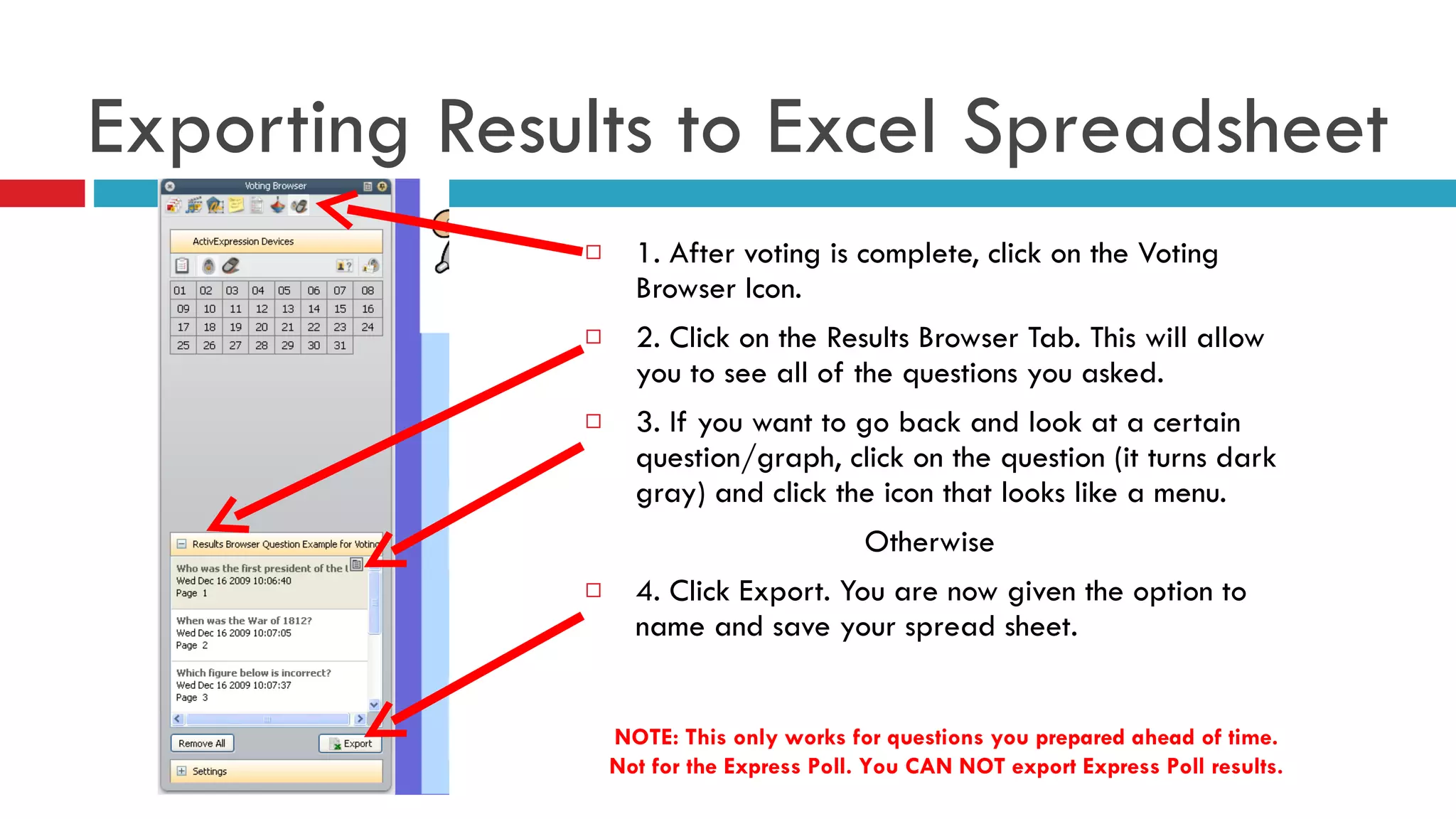
1. After voting is complete, click on the Voting Browser Icon. 2. Click on the Results Browser Tab. This will allow you to see all of the questions you asked.  3. If you want to go back and look at a certain question/graph, click on the question (it turns dark gray) and click the icon that looks like a menu. Otherwise  4. Click Export. You are now given the option to name and save your spread sheet.  Exporting Results to Excel Spreadsheet NOTE: This only works for questions you prepared ahead of time. Not for the Express Poll. You CAN NOT export Express Poll results.
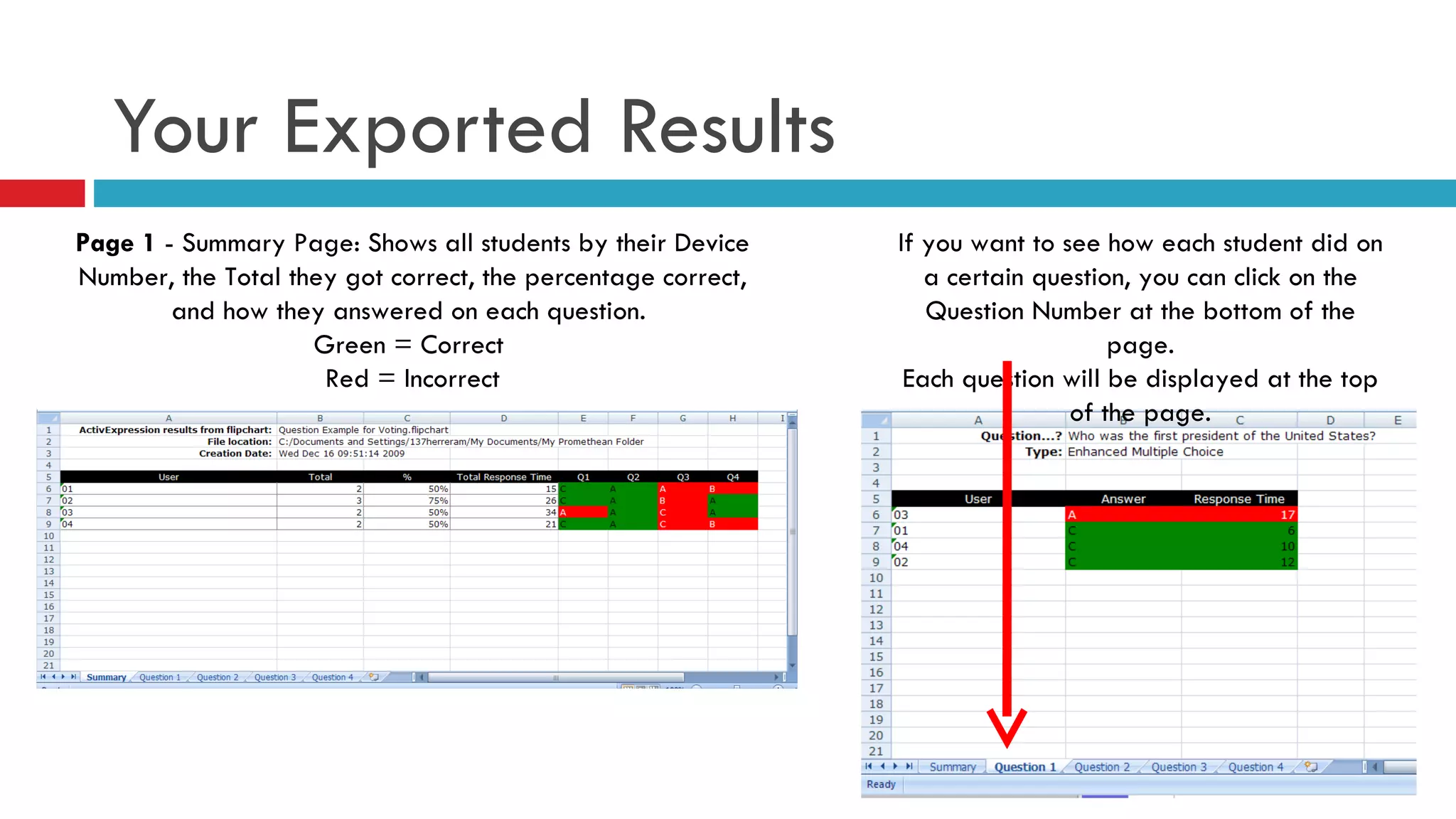
Your Exported Results Page 1  - Summary Page: Shows all students by their Device Number, the Total they got correct, the percentage correct, and how they answered on each question.  Green = Correct  Red = Incorrect If you want to see how each student did on a certain question, you can click on the Question Number at the bottom of the page. Each question will be displayed at the top of the page.
SELF PACED QUESTION SETS How to create Self Paced Question Sets
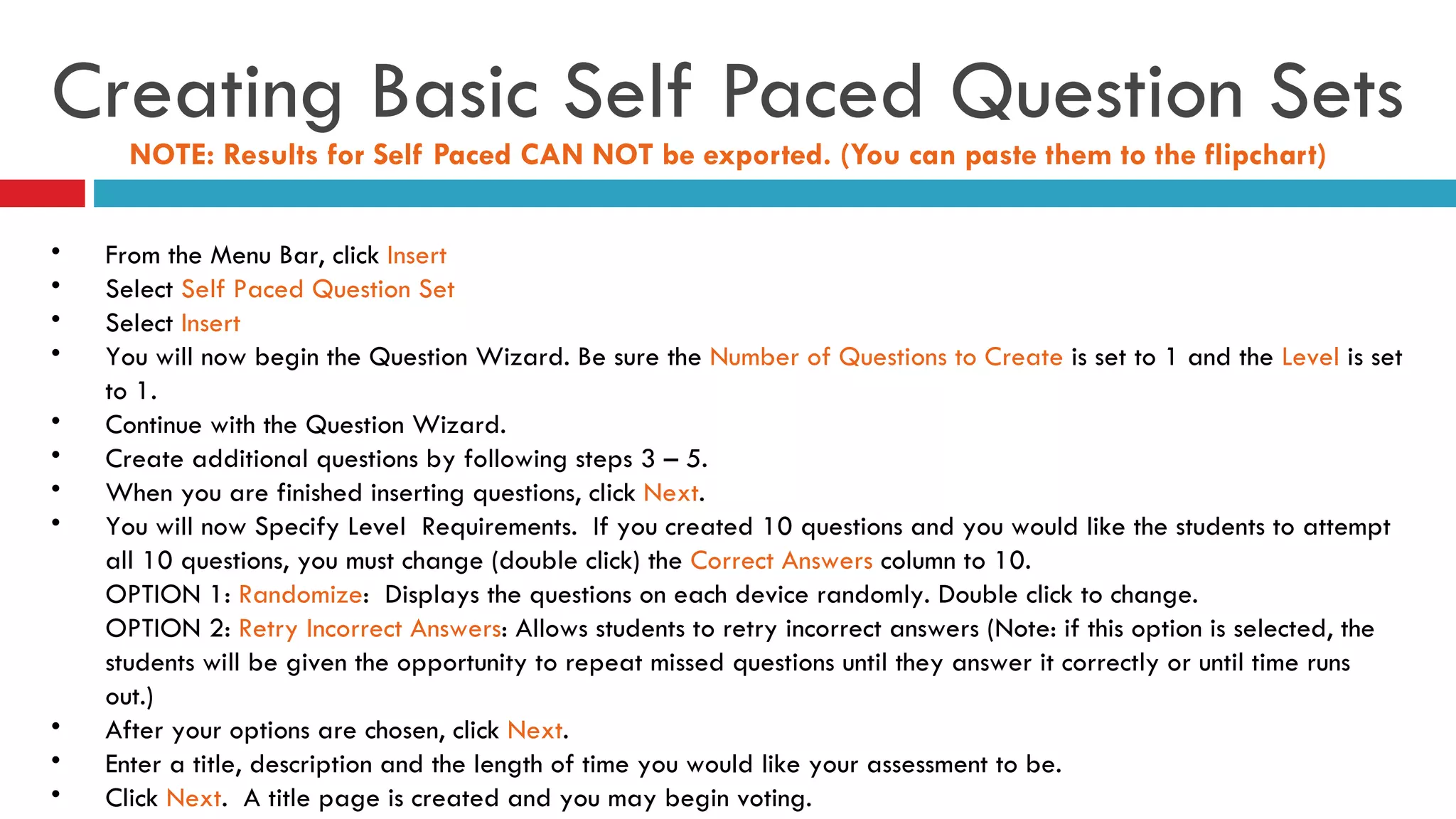
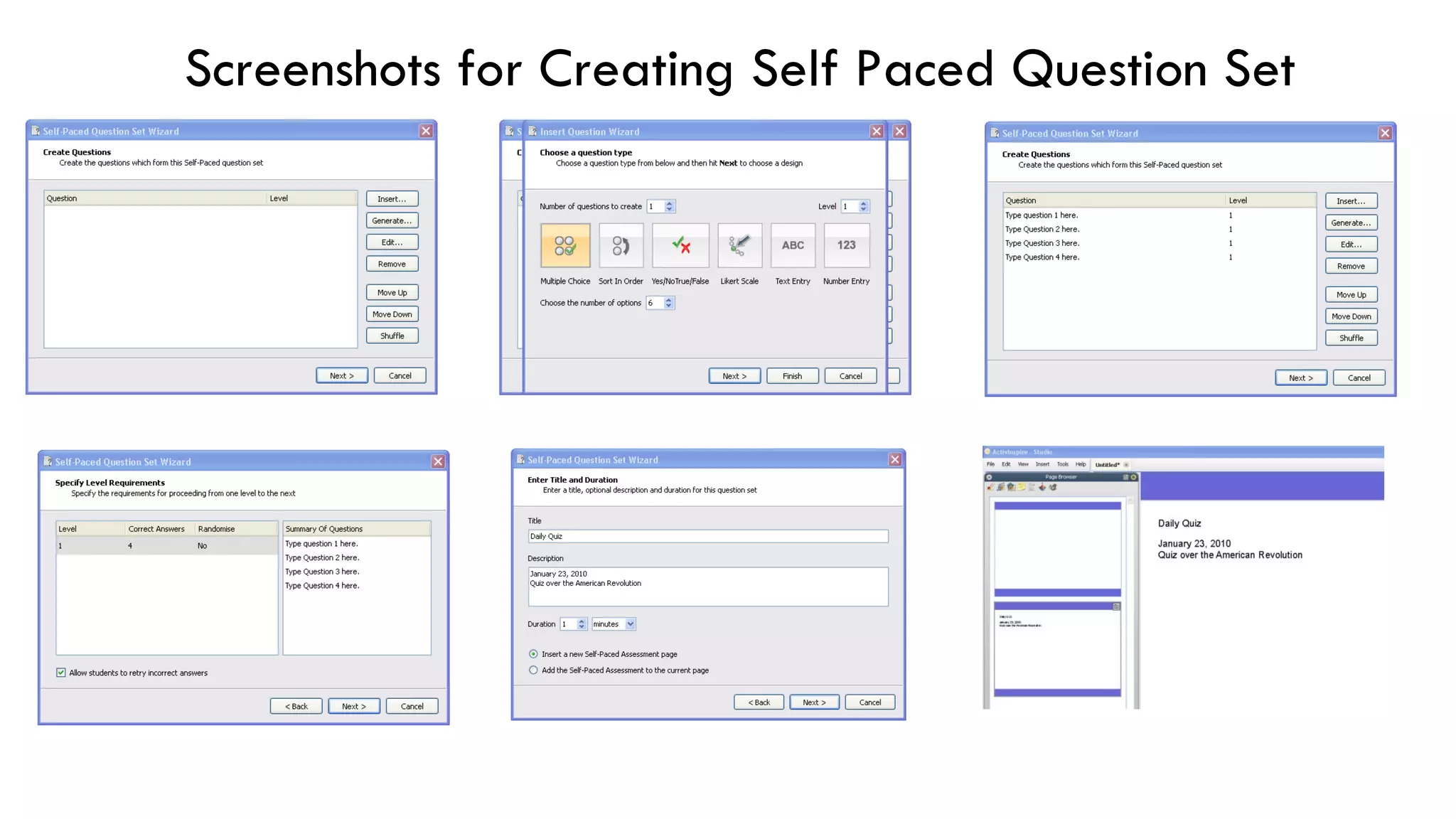
Creating Basic Self Paced Question Sets NOTE: Results for Self Paced CAN NOT be exported. (You can paste them to the flipchart) From the Menu Bar, click  Insert Select  Self Paced Question Set Select  Insert You will now begin the Question Wizard. Be sure the  Number of Questions to Create  is set to 1 and the  Level  is set to 1. Continue with the Question Wizard. Create additional questions by following steps 3 – 5.  When you are finished inserting questions, click  Next . You will now Specify Level  Requirements.  If you created 10 questions and you would like the students to attempt all 10 questions, you must change (double click) the  Correct Answers  column to 10.  OPTION 1:  Randomize :  Displays the questions on each device randomly. Double click to change. OPTION 2:  Retry Incorrect Answers : Allows students to retry incorrect answers (Note: if this option is selected, the students will be given the opportunity to repeat missed questions until they answer it correctly or until time runs out.) After your options are chosen, click  Next . Enter a title, description and the length of time you would like your assessment to be.  Click  Next .  A title page is created and you may begin voting.
Screenshots for Creating Self Paced Question Set
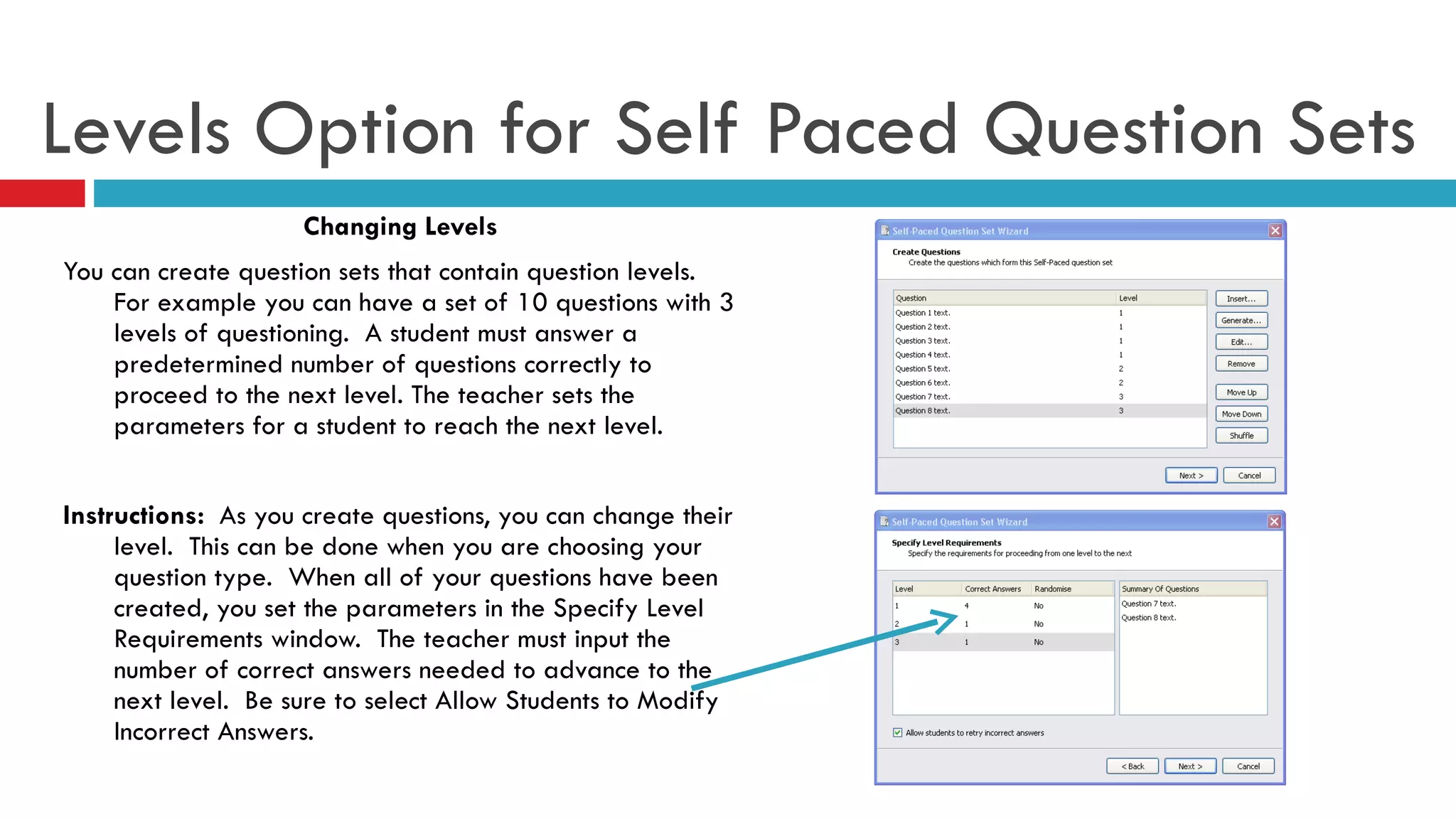
Levels Option for Self Paced Question Sets Changing Levels You can create question sets that contain question levels.  For example you can have a set of 10 questions with 3 levels of questioning.  A student must answer a predetermined number of questions correctly to proceed to the next level. The teacher sets the parameters for a student to reach the next level.  Instructions:  As you create questions, you can change their level.  This can be done when you are choosing your question type.  When all of your questions have been created, you set the parameters in the Specify Level Requirements window.  The teacher must input the number of correct answers needed to advance to the next level.  Be sure to select Allow Students to Modify Incorrect Answers.
 

Tips and tools for creating flipcharts

  • 1.
    ACTIVINSPIRE TRAINING Tipsand tools for creating Flipcharts on ActivInspire
  • 2.
    PAGE BROWSERHelps to reorganize your pages RESOURCE BROWSER Use to find your resources (images, backgrounds, sounds, etc.) OBJECT BROWSER Rearrange the layers that contain images.
  • 3.
    PROPERTY BROWSER Changethe various properties of objects ACTION BROWSER Set your object to perform an action OR add an action button to the page VOTING BROWSER Register your voting devices
  • 4.
    To Set Upand Edit Toolbar Click File Click Settings Click Commands To Add: Highlight icon on left and click add. To Remove: Highlight icon on right and click remove. Click Done when you are finished.
  • 5.
    Additional Toolbar SettingsClick File Click Settings Click Layout To add more colors: Change setting to 24 colors. To show or hide trashcan: Select Show Trashcan. Click Done when you are finished.
  • 6.
    Property Browser Note:Not all tabs are listed below. Identification: Give your object a name. This is useful for layers. Give object a keyword. This is useful for containers. Appearance: Assign object a layer. Make object “see through” Outline: Edit color and type of outline (dotted, dashed) Fill: Change color and pattern of object (gradient). Label: Put a text box label on the object. Container: Make the object “contain” something. Restrictors: Lock the object to only move on a set path.
  • 7.
    Using The ResourceBrowser You can search for resources in two ways. The first way is clicking on the Shared Folder Icon. This will show all of the resources and Resource Packs that you downloaded from Promethean Planet. You can access these using the drop down folders in the window. A second search option is to use the search field. Type in the name of the resource you are looking for. Then click the blue arrow to begin searching. When searching using the Shared Folder or using the Search Field ,all images will appear in the window below. It may take a few seconds for the software to find the resources when using the Search Field. Be patient. IMPORTANT NOTE If you recently downloaded resources from Promethean Planet you may need to Index your new resources. This allows the software to categorize your new resources.
  • 8.
    Indexing Resources Clickon the Shared Resources Icon . In the window below, right click on the Shared Resources Folder . Click on Index this Folder for Searching . The software will begin Indexing IMPORTANT NOTE This may take a while depending on how many Resource Packs you downloaded.
  • 9.
    USING THE TOOLSHow to use the tools on Inspire
  • 10.
    Using the MagicInk NOTE: The Magic Ink only erases the TOP LAYER Place two images on your flipchart. Make sure the image that you want to erase is on the TOP LAYER and the second image is on the middle or bottom layer. To do this Click on the image Right click Select Reorder Select To Top Layer Repeat this for second image but select To Middle Layer Align the two images. Use the magic ink!
  • 11.
    Using Containers –Basics 1 of 2 NOTE: Any object that becomes a container can have a second object, annotation, or text appear on top (visible) or behind the container. If you then move the container, the second object moves with it. Determine an object to be the container. Determine a second object to be put “in” the container. The second object must be smaller. Right click on the container and select Property Browser . Scroll down and find the Container Tab . Change the Can Contain Tab to Specific Object. In the Contain Object field select the box with three dots. This opens up a window. Select the object you want to be put “in” the container. Go back to your flipchart and right click the second object and select Property Browser . Scroll down to the Container Tab . Change the Return if Not Contained Tab to True. Go back to your flipchart. Try moving the second object anywhere on the page. It should snap back to its original position. Place the second object into the container and it will stay. Move the container, with the other object in it, and everything moves together.
  • 12.
    Container Basics Example2 of 2 Triangle Properties Leaf Properties
  • 13.
    One Container WithMultiple Objects “ Container’s” Property Browser On the Container Tab, under Can Contain, change it to Keywords. In the Contain Words field, type a keyword . “ Objects To Be Contained” Property Browser Go to the Identification Tab In the Keywords field, type the keyword that matches your container. Do this for each object you want to be “contained”. NOTE: Follow the directions from Using Containers and then add these directions.
  • 14.
    Make An Objector Image Shrink or Grow Incrementally By Clicking It Go to the Action Browser Find the Size Incrementally tabs. There are several: Size bottom Incrementally, Size Top Left Incrementally, Size Center Incrementally, etc. The one you choose will depend on where the image will be positioned on your chart. Select one of the Size Incrementally tabs. You will now be prompted to select the image you want to shrink/grow. Highlight the name of the image and select Ok . In the Size field, type how large you want the image to shrink/grow by. *Negative numbers will cause the image to shrink. 100 is a good starting number. Find what works best for you. Select Apply Changes and Save your flipchart. Each time you click your image it will shrink/grow incrementally.
  • 15.
    Make An Object Hide or Show Another Object OR Text Select an existing object on your flipchart. Go to the Action Browser . Find and select the Hidden icon. Below, an Action Properties tab will appear. Select a Target Object and click Ok . Select Apply Changes below. You will now be able to make the Target Object (ex. Basketball) Show/Hide when you click the first object (blue arrow).
  • 16.
    Using the CameraTool – Web Images Minimize ActivInspire. Open / Find the Website with the image you want and then maximize ActivInspire. In your Toolbar, click on the Desktop Tool . This will now show the Website you were on. Now look for the Desktop Tool Circle Icon. It pops up in various places. Click on the center of it. You will now be given 7 options around it. Click the Camera Tool. You will now have 5 camera options. The most commonly used ones are Point to Point and Area Snapshot . Choose the Camera you want. The screen will dim and you will now highlight your image and choose Snapshot to Current Page . This sends it to the Flipchart TO GO BACK: Click the center of the Desktop Tool Circle and click the Return to Flipchart Icon (looks like sheet of paper with a pen). Your image will show up on your Flipchart Page.
  • 17.
    Insert A LinkTo A File Click File > Insert > Link > File Browse for the File and select Ok . A window will appear. Add link as: Text – Link will be in text form that you can edit Image Icon – Link will be a small icon Existing Object – Any object on the flipchart will become the link. You will be prompted to choose which one. Store as: Externally – It will save the file onto your computer In Flipchart – Will save it as part of the flipchart – RECOMMEND if you are going to share the flipchart with another teacher or email it. Click OK.
  • 18.
    Insert A LinkTo A Website Click Insert > Link > Website A window will appear. Type in the website address. Add link as: Text – Link will be in text form that you can edit Image Icon – Link will be a small icon Existing Object – Any object on the flipchart will become the link. You will be prompted to choose which one. Click OK.
  • 19.
    Drag Text orImages From Web Highlight text or images from the web or Word documents and drag them onto your flipchart. You may need to reduce the size of the web page window so that you can see both the web page and the flipchart.
  • 20.
    Restrict An Object’sMovement – Only Moves Up/Down or Left/Right Select an existing object. Go to Property Browser Select Restrictors Tab Go to Can Move and use the drop down menu to choose the type of movement you would like to give your object.
  • 21.
    VOTING AND EXPRESSPOLL How to set up question slides
  • 22.
    Click Insert and then Question. You will now choose your question format. Note: If you only have ActiVotes you can only choose Multiple Choice and True/False. Choose the number of answer choices you want using the up and darrows. Click Next . Choose the format for the question. Make sure the Replace The Page… box is checked. If you want to make your own question template, choose the Plain Text option. Click Next . Type your question and scroll down to type the answers. Click Next . Now select the correct answer. Click Next . On the next slide just click Finish . Setting Up A Question Page
  • 23.
    Setting Up AQuestion “Express Poll” IMPORTANT SETTINGS NOTE: Click File . Click Settings . Under Settings tab click Learner Response System . Make sure Append Question To Flipchart is UNCHECKED. Click on the Express Poll Icon. The icon will now appear somewhere on your page. Once you find it, click on the center of the icon. You will now be given options for different types of questions. If you have ActiVotes you will only be given 3 options (multiple choice, T/F and settings) If you have Expressions you will be given 7 options. Choose one of the options. Once you have choose an option, the voting will begin. To stop the voting select the Stop Button . When you stop the voting, your results will pop up. You will be provided various options. You can change the view of the results (graphs), indicate the correct answer and paste the results on the current page. 1. 2. 3. 4. 5.
  • 24.
    INSPIRE ONLY SettingUp Timed Questions w/ Page Advance Go to File > Settings >Learner Response System Tab Type the amount of time you want for each question "Check" the boxes in the picture to the right Click Done Once voting starts, each question will remain active for the assigned amount of time and then advance to the next page. All results can be seen at the end of voting
  • 25.
    STUDIO ONLY Setting Up Timed Question w/ Page Advance On the Dashboard go to Configure tab and select General Program Settings. Highlight the ActiVote Tab and type in the amount of time you want each question to be open. “ Check” all boxes in the image below. Click Done . Once voting starts, each question will remain active for the assigned amount of time and then advance to the next page. All results can be seen at the end of voting.
  • 26.
    REGISTERING ACTIVE DEVICESHow to register ActivExpressions and ActiVotes
  • 27.
    Start ActivInspire. DistributeActivExpression devices and ensure that they are switched ON. Open the Voting Browser and click on Device Registration. The 'Device Registration' Dialog Box opens. Select ActivExpressions and click on Register . Enter the number of devices you want to register (or use the arrows). Select Allow Expression End User Naming. Using the drop down menu, change Any Characters to Numeric and click Next. It is a good idea to number your devices, with a marker, prior to the registration process. Registering ActivExpression Devices
  • 28.
    The next windowshows a PIN code which must be entered on each ActivExpression device to be registered. The window has clear instructions, with photos, so you or your students can finish the registration (you might like to practice the procedure first!). If the students are finishing the registration, they have to: Complete this process in numerical order. Press the MENU / SYM button on the ActivExpression devices. Press the Register option key, indicated on the ActivExpression screen. Enter the PIN code, by pressing the ActivExpression option keys corresponding to the PIN code, as indicated on the screen. ActivExpressions Con’t
  • 29.
    When three lettershave been entered, as displayed in the PIN code box on the ActivExpression screen, the letters are transmitted to the ActivHub. The ActivHub sends the code to ActivInspire. The PIN code can be edited before transmission, but only if one or two letters have been entered. Option keys for Clear and Abort can be used for editing and also the Delete key on the keypad. ActivInspire registers the devices to the ActivHub one by one. You can see the number updated in the window, just below the PIN code. When this number is equal to the number you entered in Step 3 above, the window closes automatically, because all devices have been registered. If registration fails for any of the devices, the window has to be closed manually.      If a PIN code is entered incorrectly, steps a. to c. must be repeated, for a successful registration. This procedure can be repeated any number of times, but it should not be necessary - the system is proven to be extremely reliable. ActivExpressions Con’t
  • 30.
    Start ActivInspire. Distributethe ActiVote devices and ensure that they are switched ON. Open the Voting Browser and click on Device Registration  The 'Device Registration' Dialog Box opens. It shows: A picture of an ActivHub AH1. ActiVote and ActivSlate devices under Device Groups. 4. Select ActiVotes and click on Register . Enter the number of devices you want to register (or use the arrows) and click on Next . Registering ActiVote Devices AV3 Model
  • 31.
    The next windowshows clear instructions, with photos, so you or your students can finish the registration (you might like to practice the procedure first!). A three letter PIN code is displayed, which must be entered on each device to be registered. If the students are finishing the registration, they have to: a. Complete this process in numerical order. b. Press and hold the central Registration button on the ActiVote devices, until both the top lights are illuminated. c. Enter the PIN code, pressing the ActiVote device keys. ActiVotes Con’t
  • 32.
    ActivInspire registers thedevices to the ActivHub one by one. You can see the number updated in the window, just below the PIN code. When this number is equal to the number you entered in Step 3. above, the window closes automatically, because all devices have been registered. If registration fails for any of the devices, the window has to be closed manually. If a PIN code is entered incorrectly, both steps a. and b. must be repeated, that is, the central button must be pressed and held until both lights are on and the correct PIN code must be entered, for a successful registration. This procedure can be repeated any number of times, but it should not be necessary - the system is proven to be extremely reliable.   ActiVotes Con’t
  • 33.
    Register ActiVote Devices AV2 Model Open the Voting Browser and click on Device Registration  The 'Device Registration' Dialog Box opens. It shows: A picture of an ActivHub AH1. ActiVote and ActivSlate devices under Device Groups. Select ActiVotes and click on Register . Enter the number of devices you want to register (or use the arrows) and click on Next .
  • 34.
    The next windowshows clear instructions, with photos, so your students can finish the registration (you might like to practice the procedure first!). If the students are finishing the registration, they have to: Press and hold the central Registration button on the ActiVote devices. The top red light flashes, followed by the green light. Release the Registration button. ActivInspire registers the devices to the ActivHub one by one. You can see the number updated in the window. ActivInspire registers the devices to the ActivHub one by one. You can see the number updated in the window. When this number is equal to the number you entered in Step 3. above, the window closes automatically, because all devices have been registered. If registration fails for any of the devices, the window must be closed manually.        ActiVotes Con’t
  • 35.
    1. After votingis complete, click on the Voting Browser Icon. 2. Click on the Results Browser Tab. This will allow you to see all of the questions you asked. 3. If you want to go back and look at a certain question/graph, click on the question (it turns dark gray) and click the icon that looks like a menu. Otherwise 4. Click Export. You are now given the option to name and save your spread sheet. Exporting Results to Excel Spreadsheet NOTE: This only works for questions you prepared ahead of time. Not for the Express Poll. You CAN NOT export Express Poll results.
  • 36.
    Your Exported ResultsPage 1 - Summary Page: Shows all students by their Device Number, the Total they got correct, the percentage correct, and how they answered on each question. Green = Correct Red = Incorrect If you want to see how each student did on a certain question, you can click on the Question Number at the bottom of the page. Each question will be displayed at the top of the page.
  • 37.
    SELF PACED QUESTIONSETS How to create Self Paced Question Sets
  • 38.
    Creating Basic SelfPaced Question Sets NOTE: Results for Self Paced CAN NOT be exported. (You can paste them to the flipchart) From the Menu Bar, click Insert Select Self Paced Question Set Select Insert You will now begin the Question Wizard. Be sure the Number of Questions to Create is set to 1 and the Level is set to 1. Continue with the Question Wizard. Create additional questions by following steps 3 – 5. When you are finished inserting questions, click Next . You will now Specify Level Requirements. If you created 10 questions and you would like the students to attempt all 10 questions, you must change (double click) the Correct Answers column to 10. OPTION 1: Randomize : Displays the questions on each device randomly. Double click to change. OPTION 2: Retry Incorrect Answers : Allows students to retry incorrect answers (Note: if this option is selected, the students will be given the opportunity to repeat missed questions until they answer it correctly or until time runs out.) After your options are chosen, click Next . Enter a title, description and the length of time you would like your assessment to be. Click Next . A title page is created and you may begin voting.
  • 39.
    Screenshots for CreatingSelf Paced Question Set
  • 40.
    Levels Option forSelf Paced Question Sets Changing Levels You can create question sets that contain question levels. For example you can have a set of 10 questions with 3 levels of questioning. A student must answer a predetermined number of questions correctly to proceed to the next level. The teacher sets the parameters for a student to reach the next level. Instructions: As you create questions, you can change their level. This can be done when you are choosing your question type. When all of your questions have been created, you set the parameters in the Specify Level Requirements window. The teacher must input the number of correct answers needed to advance to the next level. Be sure to select Allow Students to Modify Incorrect Answers.
  • 41.

Editor's Notes

  • #2 Herrera Apr 15, 2010
  • #3 Herrera Apr 15, 2010
  • #4 Herrera Apr 15, 2010
  • #5 Herrera Apr 15, 2010
  • #6 Herrera Apr 15, 2010
  • #7 Herrera Apr 15, 2010
  • #10 Herrera Apr 15, 2010
  • #11 Herrera Apr 15, 2010
  • #12 Herrera Apr 15, 2010
  • #13 Herrera Apr 15, 2010
  • #14 Herrera Apr 15, 2010
  • #15 Herrera Apr 15, 2010
  • #19 Herrera Apr 15, 2010
  • #20 Herrera Apr 15, 2010
  • #22 Herrera Apr 15, 2010
  • #27 Herrera Apr 15, 2010
  • #28 Herrera Apr 15, 2010
  • #38 Herrera Apr 15, 2010
  • #42 Herrera Apr 15, 2010