




PROGRAMMING
INTRODUCTION
MS DOS COMMAND
What is DOS?
Short for Microsoft Disk Operating
System, MS-DOS is a non-graphical command
line operating system derived from 86-DOS that
was created for IBM compatible computers. MS-
DOS originally written by Tim Paterson and
introduced by Microsoft in August 1981and was
last updated in 1994 when MS-DOS 6.22 was
released.
Today, MS-DOS is no longer used; however,
the command shell, more commonly known
as the Windows command line is still used
by many users. In the picture to the right, is
an example of what a MS-DOS window
more appropriately referred to as the
Windows command line looks like under
Microsoft Windows.
WHAT WILL YOU
LEARN?
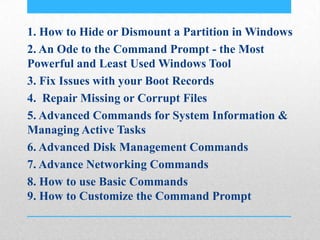
1. How to Hide or Dismount a Partition in Windows
2. An Ode to the Command Prompt - the Most
Powerful and Least Used Windows Tool
3. Fix Issues with your Boot Records
4. Repair Missing or Corrupt Files
5. Advanced Commands for System Information &
Managing Active Tasks
6. Advanced Disk Management Commands
7. Advance Networking Commands
8. How to use Basic Commands
9. How to Customize the Command Prompt
HOW TO OPEN
COMMAND PROMPT IN
WINDOWS 7 AND
WINDOWS 8
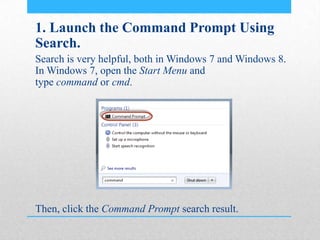
1. Launch the Command Prompt Using
Search.
Search is very helpful, both in Windows 7 and Windows 8.
In Windows 7, open the Start Menu and
type command or cmd.
Then, click the Command Prompt search result.
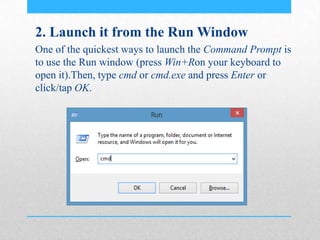
2. Launch it from the Run Window
One of the quickest ways to launch the Command Prompt is
to use the Run window (press Win+Ron your keyboard to
open it).Then, type cmd or cmd.exe and press Enter or
click/tap OK.
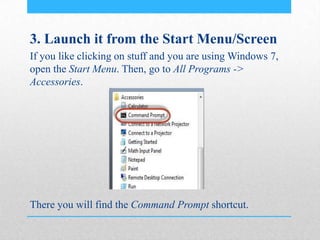
3. Launch it from the Start Menu/Screen
If you like clicking on stuff and you are using Windows 7,
open the Start Menu. Then, go to All Programs ->
Accessories.
There you will find the Command Prompt shortcut.
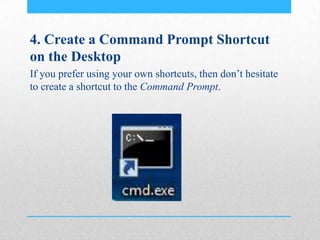
4. Create a Command Prompt Shortcut
on the Desktop
If you prefer using your own shortcuts, then don’t hesitate
to create a shortcut to the Command Prompt.
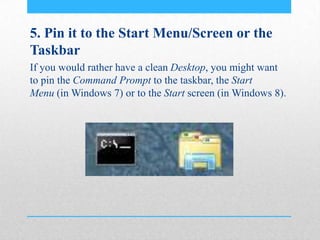
5. Pin it to the Start Menu/Screen or the
Taskbar
If you would rather have a clean Desktop, you might want
to pin the Command Prompt to the taskbar, the Start
Menu (in Windows 7) or to the Start screen (in Windows 8).
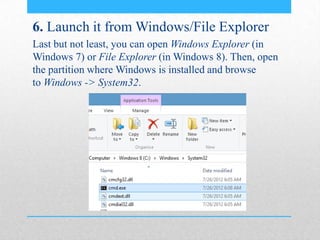
6. Launch it from Windows/File Explorer
Last but not least, you can open Windows Explorer (in
Windows 7) or File Explorer (in Windows 8). Then, open
the partition where Windows is installed and browse
to Windows -> System32.
HOW TO CUSTOMIZE
THE COMMAND
PROMPT
WHAT IS COMMAND
PROMPT?
Before Windows came into the picture, the most common
operating system was DOS (Disk Operating System). It was
a text-based operating system, that enabled you to run
programs by manually typing in commands. The launch of
the Windows operating system simplified the whole
computing experience by making it more visual. Even
though DOS has not been included in Windows operating
systems for years, there still is the Command Prompt - the
text command-line interpreter, analog of the command shell
of its old DOS ancestor.
• This tool is generally used by more advanced
users such as system administrators to run
commands which might not be triggered from the
visual interface of Windows.
• Even though it may look a bit unfriendly, it does
not mean that you cannot learn how to use it. If
you will follow our mini-series you will see that
this tool is useful and can be used by anyone.
ACCESS THE
PROPERTIES OF THE
COMMAND PROMPT
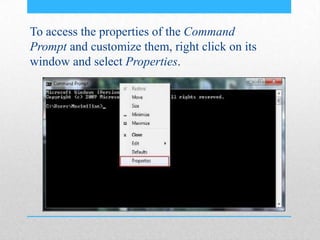
To access the properties of the Command
Prompt and customize them, right click on its
window and select Properties.
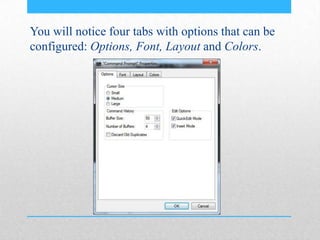
You will notice four tabs with options that can be
configured: Options, Font, Layout and Colors.
CUSTOMIZE THE COMMAND
PROMPT CURSOR SIZE,
BUFFERS AND EDIT MODES
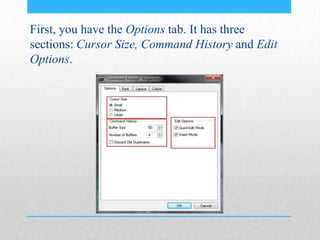
First, you have the Options tab. It has three
sections: Cursor Size, Command History and Edit
Options.
For the cursor you can choose its size by using one
of the available options: Small, Medium or Large.
Command History area you can customize how
many commands are retained in the buffer.
The buffer serves as a historical record of the
commands you have run and you can use the up
and down arrow keys to navigate through the
previously entered commands.
'Number of Buffers' determines for how many
concurrent instances of the Command
Prompt you’re having separate buffers created.
'Discard Old Duplicates', allows Windows to
remove duplicate command entries from the buffer.
Edit Options area you have only two
options: Quick Edit Mode and Insert Mode.
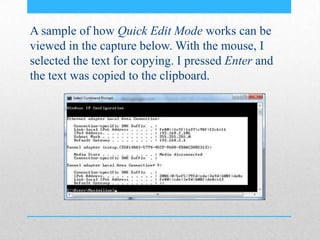
A sample of how Quick Edit Mode works can be
viewed in the capture below. With the mouse, I
selected the text for copying. I pressed Enter and
the text was copied to the clipboard.
ADJUST THE FONT IN THE
COMAMND PROMPT
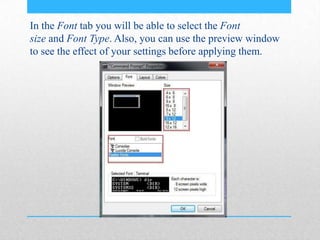
In the Font tab you will be able to select the Font
size and Font Type. Also, you can use the preview window
to see the effect of your settings before applying them.
CHANGE THE COMMAND
PROMPT WINDOW SIZE
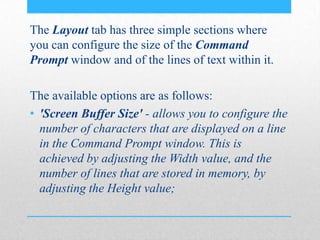
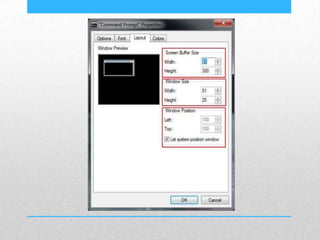
The Layout tab has three simple sections where
you can configure the size of the Command
Prompt window and of the lines of text within it.
The available options are as follows:
• 'Screen Buffer Size' - allows you to configure the
number of characters that are displayed on a line
in the Command Prompt window. This is
achieved by adjusting the Width value, and the
number of lines that are stored in memory, by
adjusting the Height value;
• 'Window Size' - allows you to select
the Width and Height of the window.
• 'Window Position' - enables you to configure
the Command Prompt's window distance from
the left and top edges of the screen. This option
works only if the 'Let System Position
Window' check box is not checked.
• 'Let System Position Window' - if it's checked,
you won’t be able to configure the window
position settings.
HOW TO SET THE
COMMAND PROMPT
WINDOWS
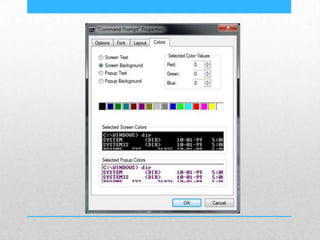
• The Colors tab is easy to configure. There are
four items that can be customized:
• Screen Text - allows you to set the color of the
text displayed in the Command Prompt window;
• Screen Background - enables you to choose the
background color of the Command Prompt
window;
• Popup Text - allows you to set the color of the
text displayed in a pop-up window;
• Popup Background - permits you to set the
background color of a pop-up window.
HOW TO USE THE BASIC
COMAMNDS IN
COMMAND PROMPT
HOW TO NAVIGATE BETWEEN FOLDERS
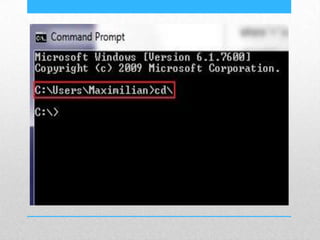
The first command from the list is CD (Change
Directory). This command enables you to change
the current directory (or folder).
The command CD takes you to the top of the
directory tree.
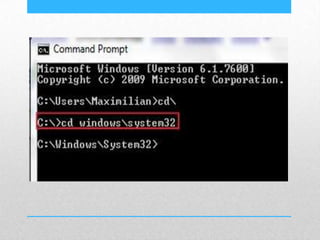
Now you are working on the 'C:' drive. If
you need to go to a specific folder from this
drive just type CD DIRECTORYNAME.
The subdirectory names are separated by .
For example when you need to access
the System32 folder that is located
on 'C:Windows' just type cd
windowssystem32, and then press Enter.
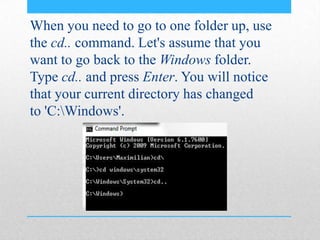
When you need to go to one folder up, use
the cd.. command. Let's assume that you
want to go back to the Windows folder.
Type cd.. and press Enter. You will notice
that your current directory has changed
to 'C:Windows'.
HOW TO ACCESS A
CERTAIN DRIVE
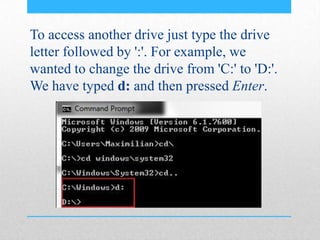
To access another drive just type the drive
letter followed by ':'. For example, we
wanted to change the drive from 'C:' to 'D:'.
We have typed d: and then pressed Enter.
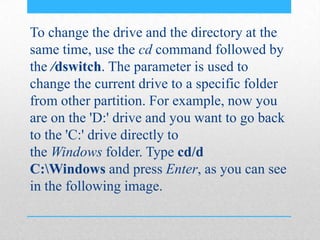
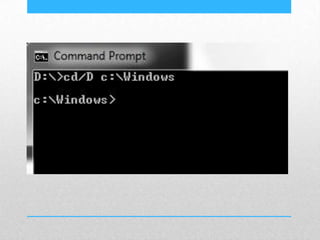
To change the drive and the directory at the
same time, use the cd command followed by
the /dswitch. The parameter is used to
change the current drive to a specific folder
from other partition. For example, now you
are on the 'D:' drive and you want to go back
to the 'C:' drive directly to
the Windows folder. Type cd/d
C:Windows and press Enter, as you can see
in the following image.
HOW TO VIEW THE
CONTENT OF A FOLDER
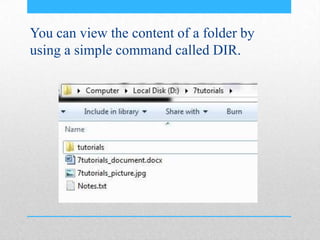
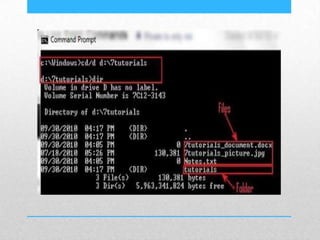
You can view the content of a folder by
using a simple command called DIR.
HOW TO CREATE A
FOLDER USING THE
COMMAND PROMPT
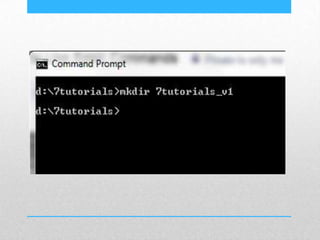
You can make a new directory using
the MKDIR (Make Directory) command.
The syntax of this command is MKDIR
directory name.
Let's say we need to create a new folder
called 7tutorials_v1 that will be placed in
the'd:7tutorials' folder. We will type mkdir
7tutorials_v1 and then we press Enter.
HOW TO RENAME FILES
AND FOLDERS
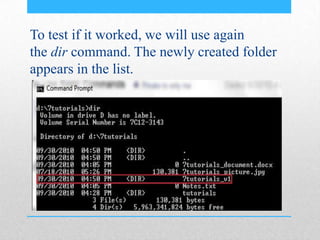
To test if it worked, we will use again
the dir command. The newly created folder
appears in the list.
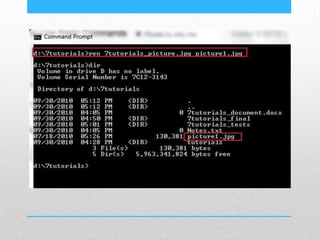
To rename files and folders you need to
use the REN (Rename) command.
For folders just type ren foldername
newname.
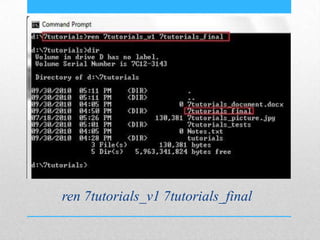
ren 7tutorials_v1 7tutorials_final
COPY FILES AND
FOLDERS
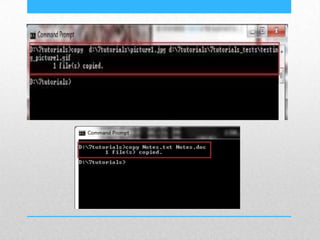
The Copy command allows you to copy files
from one location to another. To use this
command you have to type
copy locationfilename.extension
locationnewname.extension.
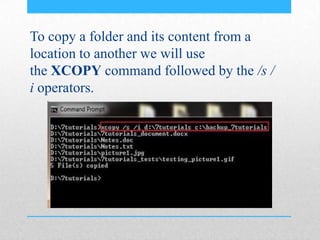
To copy a folder and its content from a
location to another we will use
the XCOPY command followed by the /s /
i operators.
DELETE FILES AND
WORDS
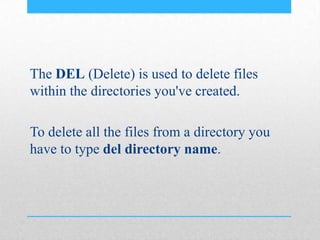
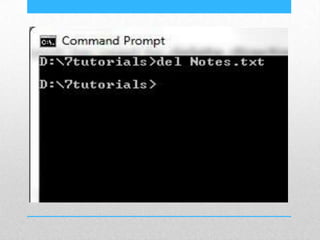
The DEL (Delete) is used to delete files
within the directories you've created.
To delete all the files from a directory you
have to type del directory name.
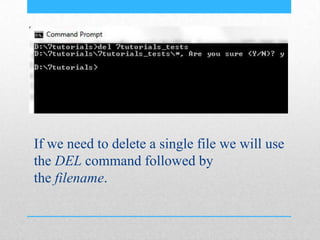
If we need to delete a single file we will use
the DEL command followed by
the filename.
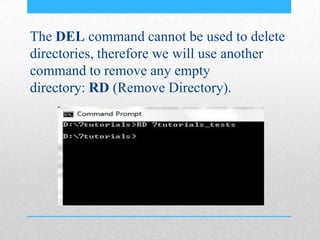
The DEL command cannot be used to delete
directories, therefore we will use another
command to remove any empty
directory: RD (Remove Directory).
LAUNCH AN APPLICATION
FROM COMAMND
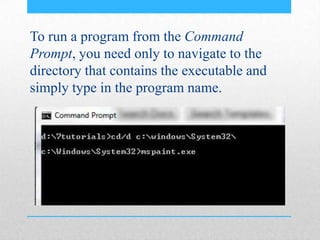
To run a program from the Command
Prompt, you need only to navigate to the
directory that contains the executable and
simply type in the program name.
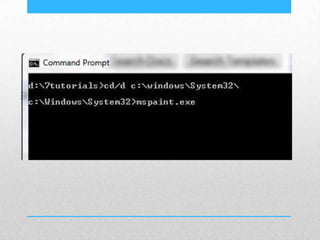
For example, if we want to launch
Paint using Command Line, we have to go
to C:WindowsSystem32 and there we will
find the executable called mspaint.exe. Let's
see how this operation can be done, if we are
on D:7tutorials. First off all we have to
change the working directory to the
application's folder by typing cd/d
c:windowsSystem32. Then we just
write mspaint.exe and press Enter. Both
commands can be seen in the capture below.
HOW TO USE HELP IN
COMMAND PROMPT
To access help in Command Prompt you just
have to type the help command and then
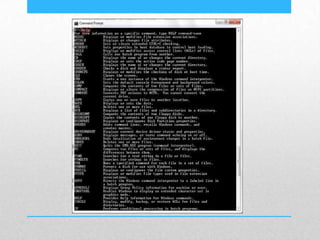
press Enter. A list off all available
commands will be displayed.
REPAIR MISSING OR
CORRUPT FILES
NOTE: When a corrupt or missing system
file prevents the operating system from
booting normally, you need to use the
Windows 7 setup DVD or a System Repair
Disc to start the Command Prompt and, from
there the System File Checker (SFC). If
Windows 7 boots, but you get messages
about missing system files, you will be able
to fix the problem by running the System
File Checker (SFC) in the Command Prompt
FIX MISSING OR
CORRUPT FILES WHEN
THE COMPUTER WON’T
BOOT
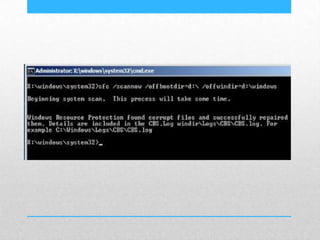
In the Command Prompt window, use
the sfc command with two additional
parameters:/offbootdir and /offwindir.
The parameter /offbootdir is used to specify the
boot partition - the partition that contains the boot
files needed for booting Windows 7.
The /offwindir parameter is designed to specify the
location of the Windows 7 directory.
FIX MISSING OR
CORRUPTED FILES
Programming

Programming

  • 1.
  • 2.
    What is DOS? Shortfor Microsoft Disk Operating System, MS-DOS is a non-graphical command line operating system derived from 86-DOS that was created for IBM compatible computers. MS- DOS originally written by Tim Paterson and introduced by Microsoft in August 1981and was last updated in 1994 when MS-DOS 6.22 was released.
  • 3.
    Today, MS-DOS isno longer used; however, the command shell, more commonly known as the Windows command line is still used by many users. In the picture to the right, is an example of what a MS-DOS window more appropriately referred to as the Windows command line looks like under Microsoft Windows.
  • 4.
  • 5.
    1. How toHide or Dismount a Partition in Windows 2. An Ode to the Command Prompt - the Most Powerful and Least Used Windows Tool 3. Fix Issues with your Boot Records 4. Repair Missing or Corrupt Files 5. Advanced Commands for System Information & Managing Active Tasks 6. Advanced Disk Management Commands 7. Advance Networking Commands 8. How to use Basic Commands 9. How to Customize the Command Prompt
  • 6.
    HOW TO OPEN COMMANDPROMPT IN WINDOWS 7 AND WINDOWS 8
  • 7.
    1. Launch theCommand Prompt Using Search. Search is very helpful, both in Windows 7 and Windows 8. In Windows 7, open the Start Menu and type command or cmd. Then, click the Command Prompt search result.
  • 8.
    2. Launch itfrom the Run Window One of the quickest ways to launch the Command Prompt is to use the Run window (press Win+Ron your keyboard to open it).Then, type cmd or cmd.exe and press Enter or click/tap OK.
  • 9.
    3. Launch itfrom the Start Menu/Screen If you like clicking on stuff and you are using Windows 7, open the Start Menu. Then, go to All Programs -> Accessories. There you will find the Command Prompt shortcut.
  • 10.
    4. Create aCommand Prompt Shortcut on the Desktop If you prefer using your own shortcuts, then don’t hesitate to create a shortcut to the Command Prompt.
  • 11.
    5. Pin itto the Start Menu/Screen or the Taskbar If you would rather have a clean Desktop, you might want to pin the Command Prompt to the taskbar, the Start Menu (in Windows 7) or to the Start screen (in Windows 8).
  • 12.
    6. Launch itfrom Windows/File Explorer Last but not least, you can open Windows Explorer (in Windows 7) or File Explorer (in Windows 8). Then, open the partition where Windows is installed and browse to Windows -> System32.
  • 14.
    HOW TO CUSTOMIZE THECOMMAND PROMPT
  • 16.
    WHAT IS COMMAND PROMPT? BeforeWindows came into the picture, the most common operating system was DOS (Disk Operating System). It was a text-based operating system, that enabled you to run programs by manually typing in commands. The launch of the Windows operating system simplified the whole computing experience by making it more visual. Even though DOS has not been included in Windows operating systems for years, there still is the Command Prompt - the text command-line interpreter, analog of the command shell of its old DOS ancestor.
  • 17.
    • This toolis generally used by more advanced users such as system administrators to run commands which might not be triggered from the visual interface of Windows. • Even though it may look a bit unfriendly, it does not mean that you cannot learn how to use it. If you will follow our mini-series you will see that this tool is useful and can be used by anyone.
  • 18.
    ACCESS THE PROPERTIES OFTHE COMMAND PROMPT
  • 19.
    To access theproperties of the Command Prompt and customize them, right click on its window and select Properties.
  • 20.
    You will noticefour tabs with options that can be configured: Options, Font, Layout and Colors.
  • 21.
    CUSTOMIZE THE COMMAND PROMPTCURSOR SIZE, BUFFERS AND EDIT MODES
  • 22.
    First, you havethe Options tab. It has three sections: Cursor Size, Command History and Edit Options.
  • 23.
    For the cursoryou can choose its size by using one of the available options: Small, Medium or Large. Command History area you can customize how many commands are retained in the buffer. The buffer serves as a historical record of the commands you have run and you can use the up and down arrow keys to navigate through the previously entered commands.
  • 24.
    'Number of Buffers'determines for how many concurrent instances of the Command Prompt you’re having separate buffers created. 'Discard Old Duplicates', allows Windows to remove duplicate command entries from the buffer. Edit Options area you have only two options: Quick Edit Mode and Insert Mode.
  • 25.
    A sample ofhow Quick Edit Mode works can be viewed in the capture below. With the mouse, I selected the text for copying. I pressed Enter and the text was copied to the clipboard.
  • 26.
    ADJUST THE FONTIN THE COMAMND PROMPT
  • 27.
    In the Fonttab you will be able to select the Font size and Font Type. Also, you can use the preview window to see the effect of your settings before applying them.
  • 28.
  • 29.
    The Layout tabhas three simple sections where you can configure the size of the Command Prompt window and of the lines of text within it. The available options are as follows: • 'Screen Buffer Size' - allows you to configure the number of characters that are displayed on a line in the Command Prompt window. This is achieved by adjusting the Width value, and the number of lines that are stored in memory, by adjusting the Height value;
  • 30.
    • 'Window Size'- allows you to select the Width and Height of the window. • 'Window Position' - enables you to configure the Command Prompt's window distance from the left and top edges of the screen. This option works only if the 'Let System Position Window' check box is not checked. • 'Let System Position Window' - if it's checked, you won’t be able to configure the window position settings.
  • 32.
    HOW TO SETTHE COMMAND PROMPT WINDOWS
  • 33.
    • The Colorstab is easy to configure. There are four items that can be customized: • Screen Text - allows you to set the color of the text displayed in the Command Prompt window; • Screen Background - enables you to choose the background color of the Command Prompt window; • Popup Text - allows you to set the color of the text displayed in a pop-up window; • Popup Background - permits you to set the background color of a pop-up window.
  • 36.
    HOW TO USETHE BASIC COMAMNDS IN COMMAND PROMPT
  • 37.
    HOW TO NAVIGATEBETWEEN FOLDERS The first command from the list is CD (Change Directory). This command enables you to change the current directory (or folder). The command CD takes you to the top of the directory tree.
  • 39.
    Now you areworking on the 'C:' drive. If you need to go to a specific folder from this drive just type CD DIRECTORYNAME. The subdirectory names are separated by . For example when you need to access the System32 folder that is located on 'C:Windows' just type cd windowssystem32, and then press Enter.
  • 41.
    When you needto go to one folder up, use the cd.. command. Let's assume that you want to go back to the Windows folder. Type cd.. and press Enter. You will notice that your current directory has changed to 'C:Windows'.
  • 42.
    HOW TO ACCESSA CERTAIN DRIVE
  • 43.
    To access anotherdrive just type the drive letter followed by ':'. For example, we wanted to change the drive from 'C:' to 'D:'. We have typed d: and then pressed Enter.
  • 44.
    To change thedrive and the directory at the same time, use the cd command followed by the /dswitch. The parameter is used to change the current drive to a specific folder from other partition. For example, now you are on the 'D:' drive and you want to go back to the 'C:' drive directly to the Windows folder. Type cd/d C:Windows and press Enter, as you can see in the following image.
  • 46.
    HOW TO VIEWTHE CONTENT OF A FOLDER
  • 47.
    You can viewthe content of a folder by using a simple command called DIR.
  • 49.
    HOW TO CREATEA FOLDER USING THE COMMAND PROMPT
  • 50.
    You can makea new directory using the MKDIR (Make Directory) command. The syntax of this command is MKDIR directory name. Let's say we need to create a new folder called 7tutorials_v1 that will be placed in the'd:7tutorials' folder. We will type mkdir 7tutorials_v1 and then we press Enter.
  • 52.
    HOW TO RENAMEFILES AND FOLDERS
  • 53.
    To test ifit worked, we will use again the dir command. The newly created folder appears in the list.
  • 54.
    To rename filesand folders you need to use the REN (Rename) command. For folders just type ren foldername newname.
  • 55.
  • 57.
  • 58.
    The Copy commandallows you to copy files from one location to another. To use this command you have to type copy locationfilename.extension locationnewname.extension.
  • 60.
    To copy afolder and its content from a location to another we will use the XCOPY command followed by the /s / i operators.
  • 61.
  • 62.
    The DEL (Delete)is used to delete files within the directories you've created. To delete all the files from a directory you have to type del directory name.
  • 63.
    If we needto delete a single file we will use the DEL command followed by the filename.
  • 65.
    The DEL commandcannot be used to delete directories, therefore we will use another command to remove any empty directory: RD (Remove Directory).
  • 66.
  • 67.
    To run aprogram from the Command Prompt, you need only to navigate to the directory that contains the executable and simply type in the program name.
  • 68.
    For example, ifwe want to launch Paint using Command Line, we have to go to C:WindowsSystem32 and there we will find the executable called mspaint.exe. Let's see how this operation can be done, if we are on D:7tutorials. First off all we have to change the working directory to the application's folder by typing cd/d c:windowsSystem32. Then we just write mspaint.exe and press Enter. Both commands can be seen in the capture below.
  • 70.
    HOW TO USEHELP IN COMMAND PROMPT
  • 71.
    To access helpin Command Prompt you just have to type the help command and then press Enter. A list off all available commands will be displayed.
  • 73.
  • 74.
    NOTE: When acorrupt or missing system file prevents the operating system from booting normally, you need to use the Windows 7 setup DVD or a System Repair Disc to start the Command Prompt and, from there the System File Checker (SFC). If Windows 7 boots, but you get messages about missing system files, you will be able to fix the problem by running the System File Checker (SFC) in the Command Prompt
  • 75.
    FIX MISSING OR CORRUPTFILES WHEN THE COMPUTER WON’T BOOT
  • 76.
    In the CommandPrompt window, use the sfc command with two additional parameters:/offbootdir and /offwindir. The parameter /offbootdir is used to specify the boot partition - the partition that contains the boot files needed for booting Windows 7. The /offwindir parameter is designed to specify the location of the Windows 7 directory.
  • 78.