Welcome to 
Salesforce Basics for the 
Accidental Administrator! 
The webinar will begin shortly.
Introduction 
Presenter: Carolyn Fischer, CRM Administrator at Idealist Consulting
Agenda 
• Salesforce Introduction 
• Standard Objects- Leads, Accounts, Contacts and 
Opportunities 
• Navigation, List Views and My Settings 
• Leads and Sales Management (DEMO) 
• Activity Management & Email Communications 
• Advanced Configuration 
• Wrap Up
Intro to Salesforce: 
Standard Terms & Definitions
CRM: A definition 
• Customer Relationship Management 
– Is a disciplined business strategy to create and 
sustain long-term, profitable customer 
relationships 
– Salesforce.com is a Customer Success Platform
Salesforce Clouds and Editions 
• Clouds- Sales Cloud, Service Cloud, Marketing 
Cloud and Analytics Cloud 
• Editions- Group, Professional, Enterprise, and 
Unlimited
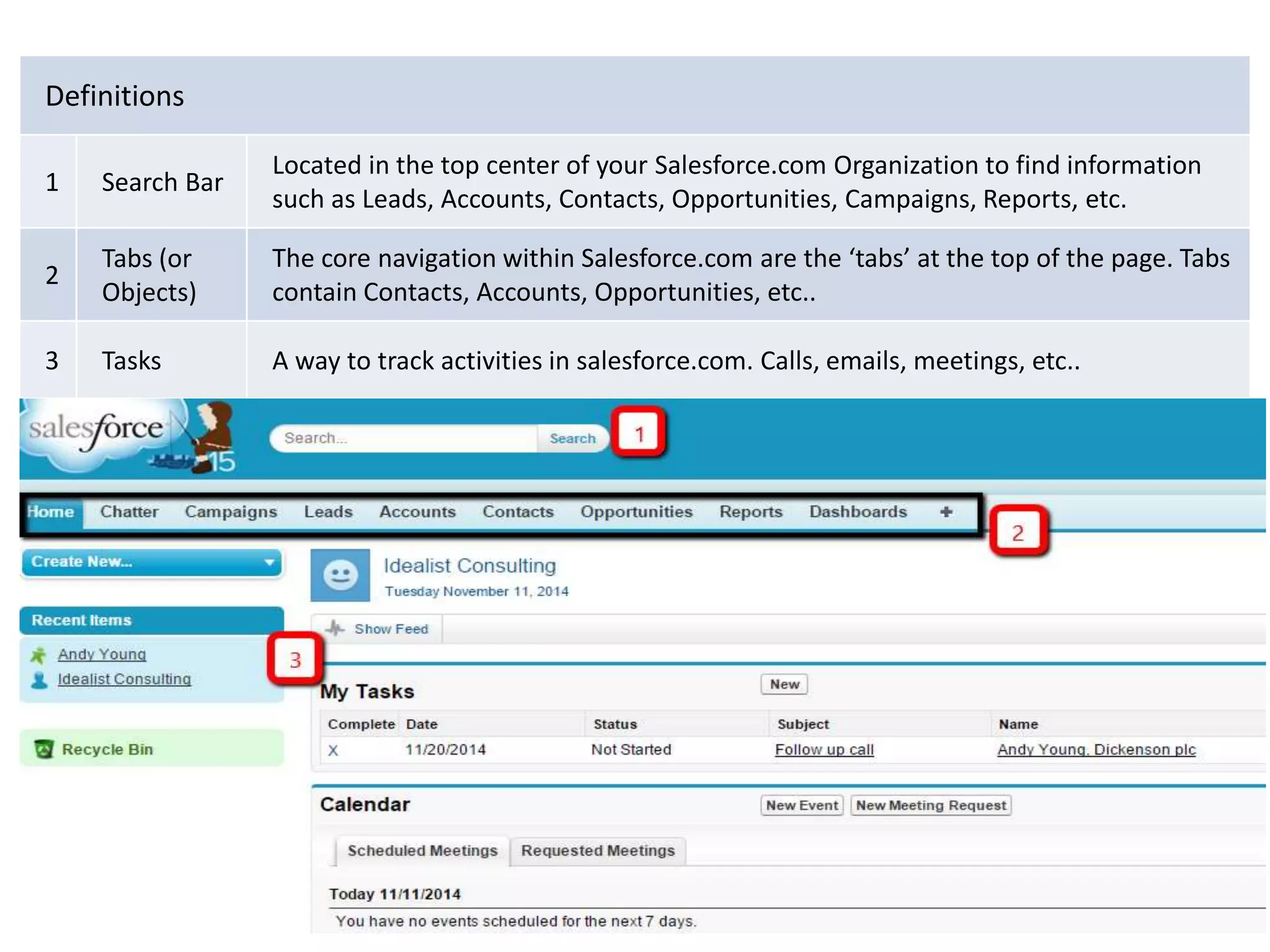
Definitions 
1 Search Bar 
Located in the top center of your Salesforce.com Organization to find information 
such as Leads, Accounts, Contacts, Opportunities, Campaigns, Reports, etc. 
2 
Tabs (or 
Objects) 
The core navigation within Salesforce.com are the ‘tabs’ at the top of the page. Tabs 
contain Contacts, Accounts, Opportunities, etc.. 
3 Tasks A way to track activities in salesforce.com. Calls, emails, meetings, etc..
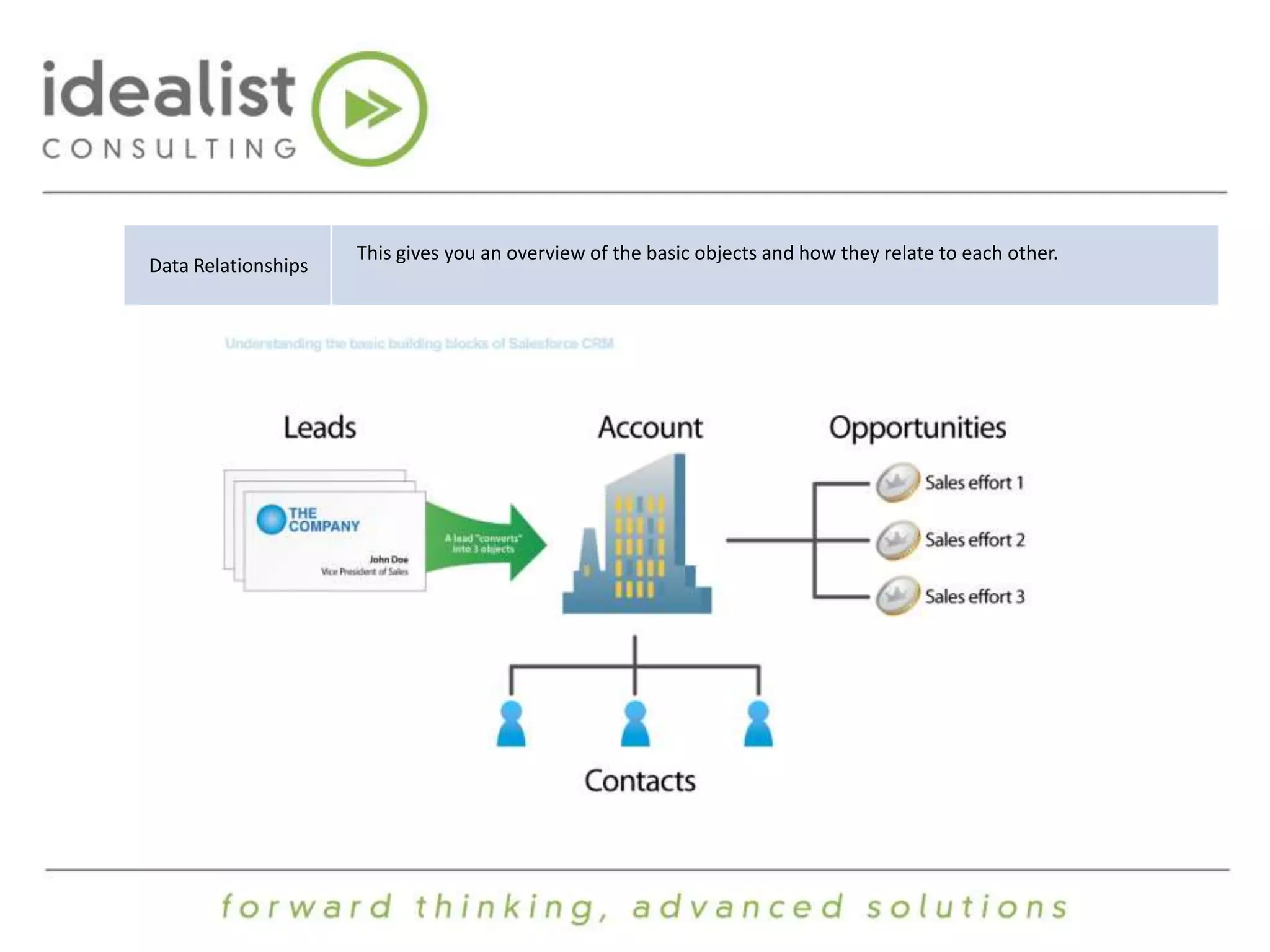
Data Relationships 
This gives you an overview of the basic objects and how they relate to each other.
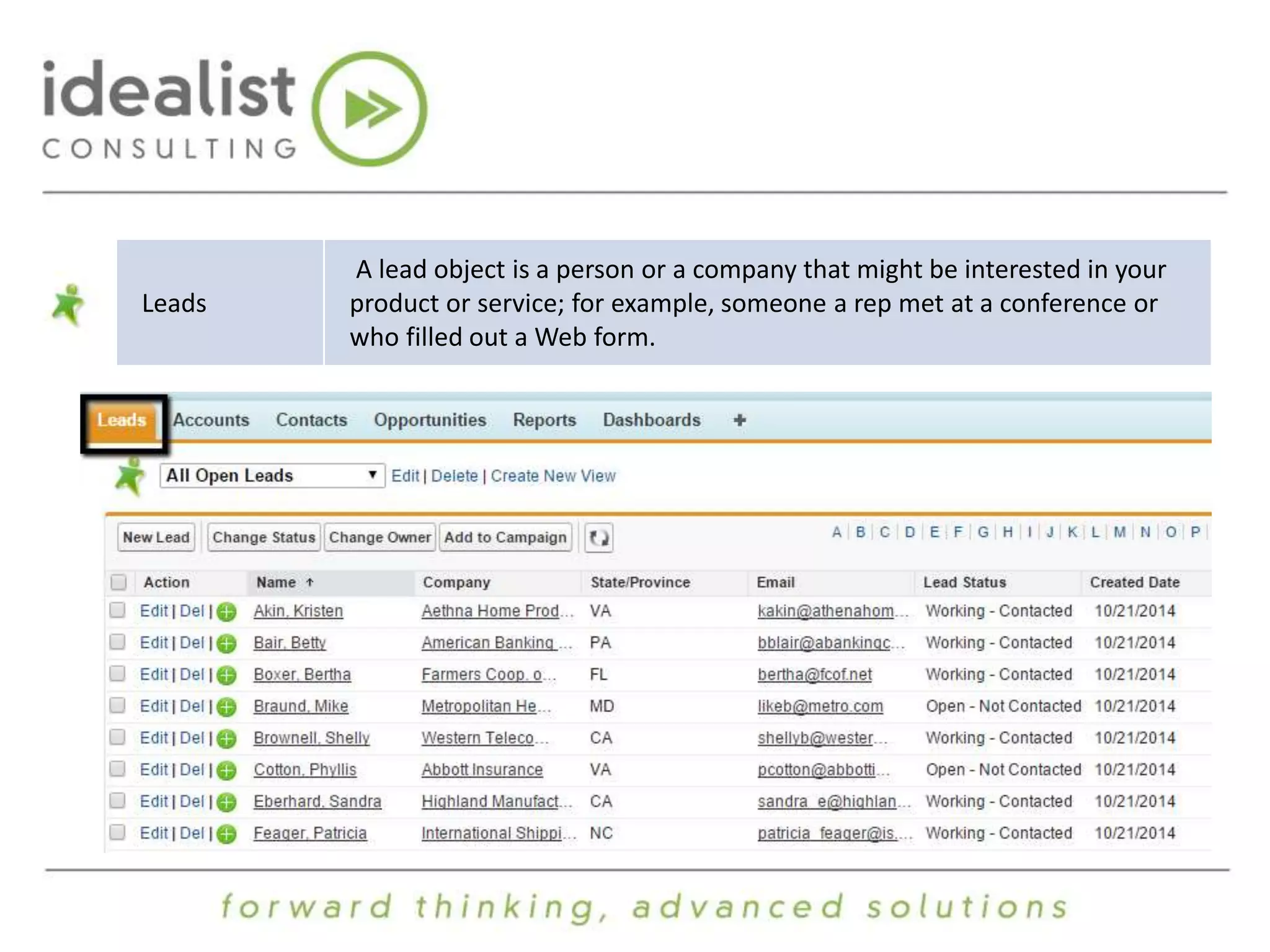
Leads 
A lead object is a person or a company that might be interested in your 
product or service; for example, someone a rep met at a conference or 
who filled out a Web form.
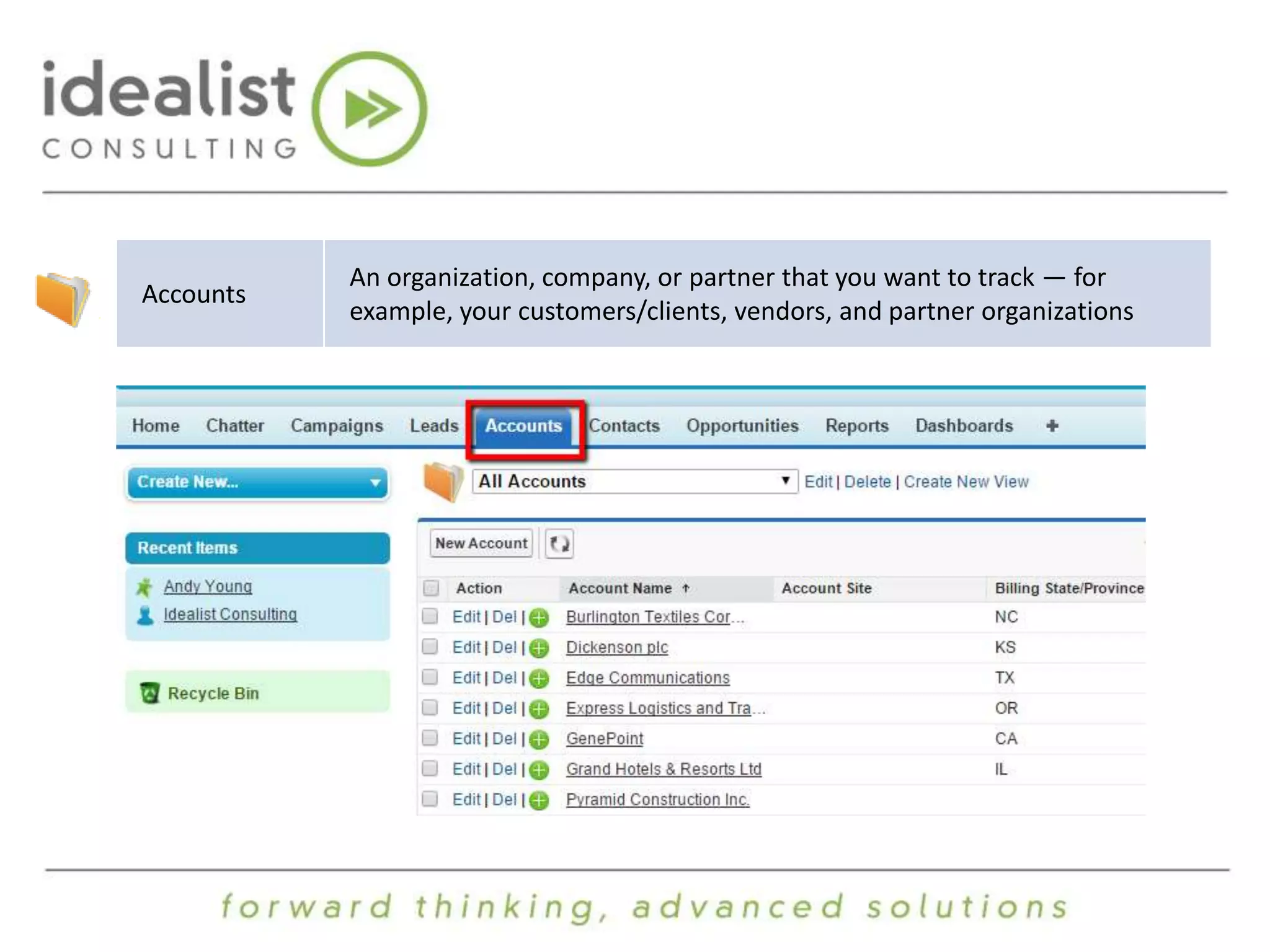
Accounts 
An organization, company, or partner that you want to track — for 
example, your customers/clients, vendors, and partner organizations
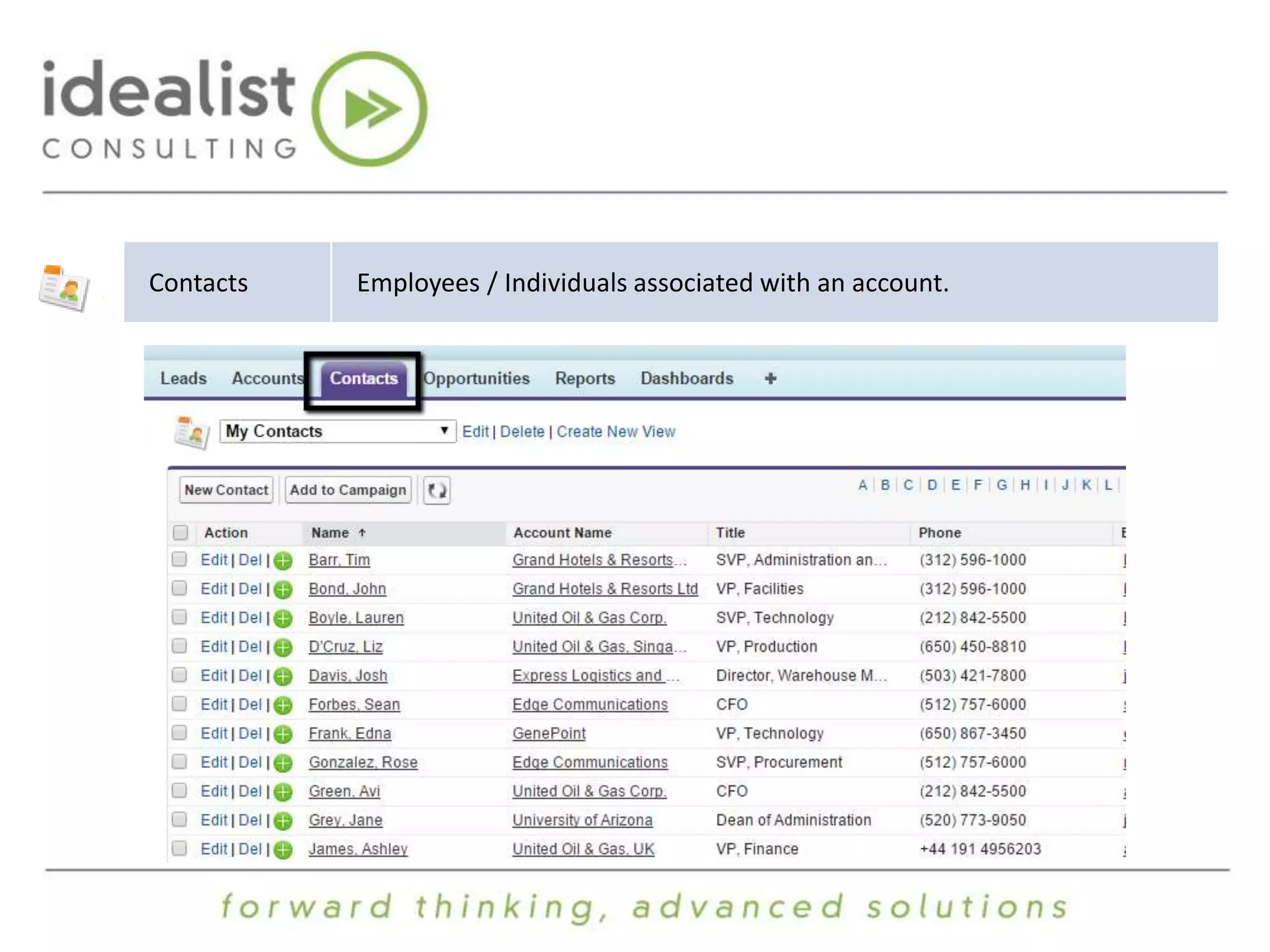
Contacts Employees / Individuals associated with an account.
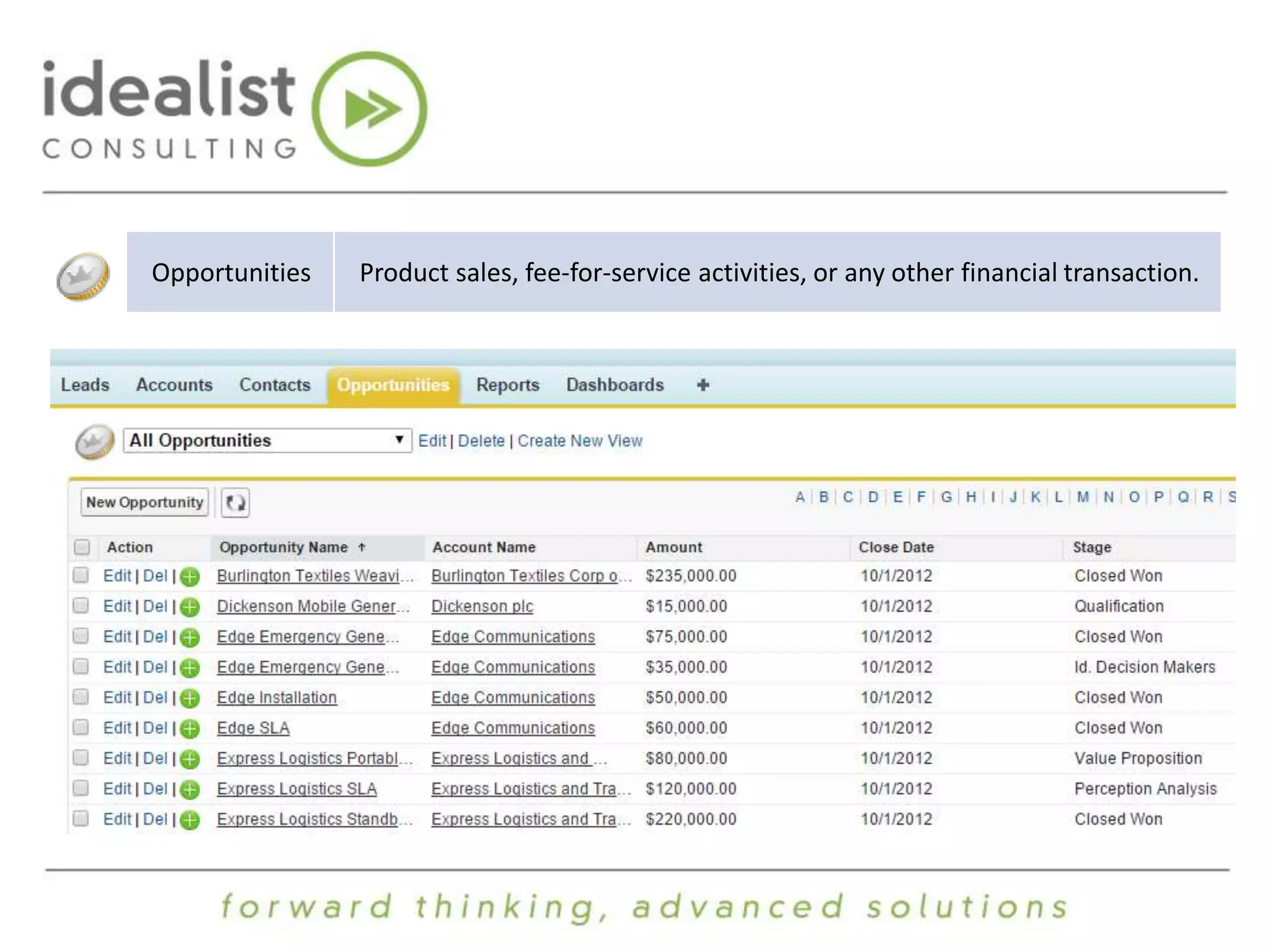
Opportunities Product sales, fee-for-service activities, or any other financial transaction.
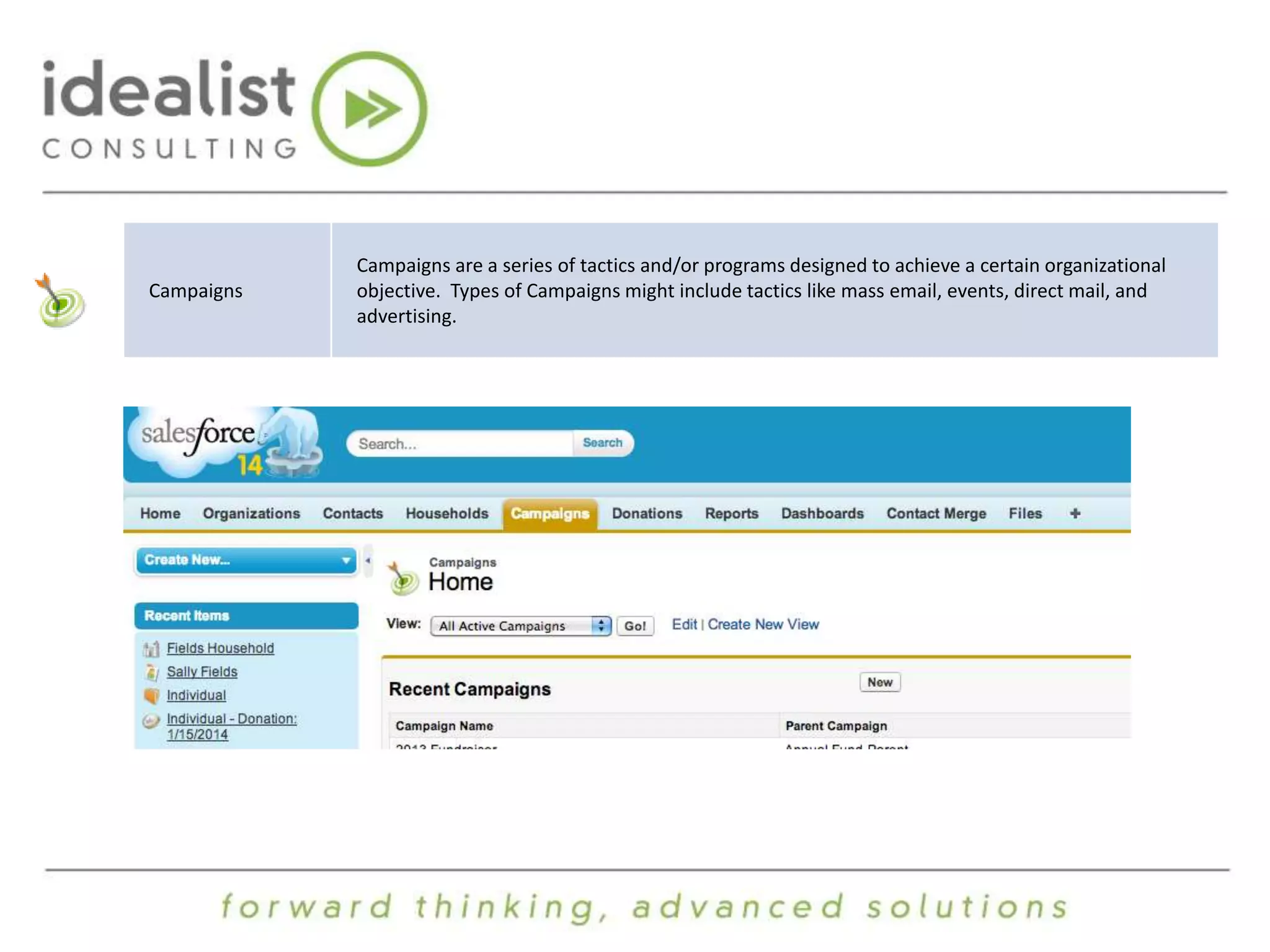
Campaigns 
Campaigns are a series of tactics and/or programs designed to achieve a certain organizational 
objective. Types of Campaigns might include tactics like mass email, events, direct mail, and 
advertising.
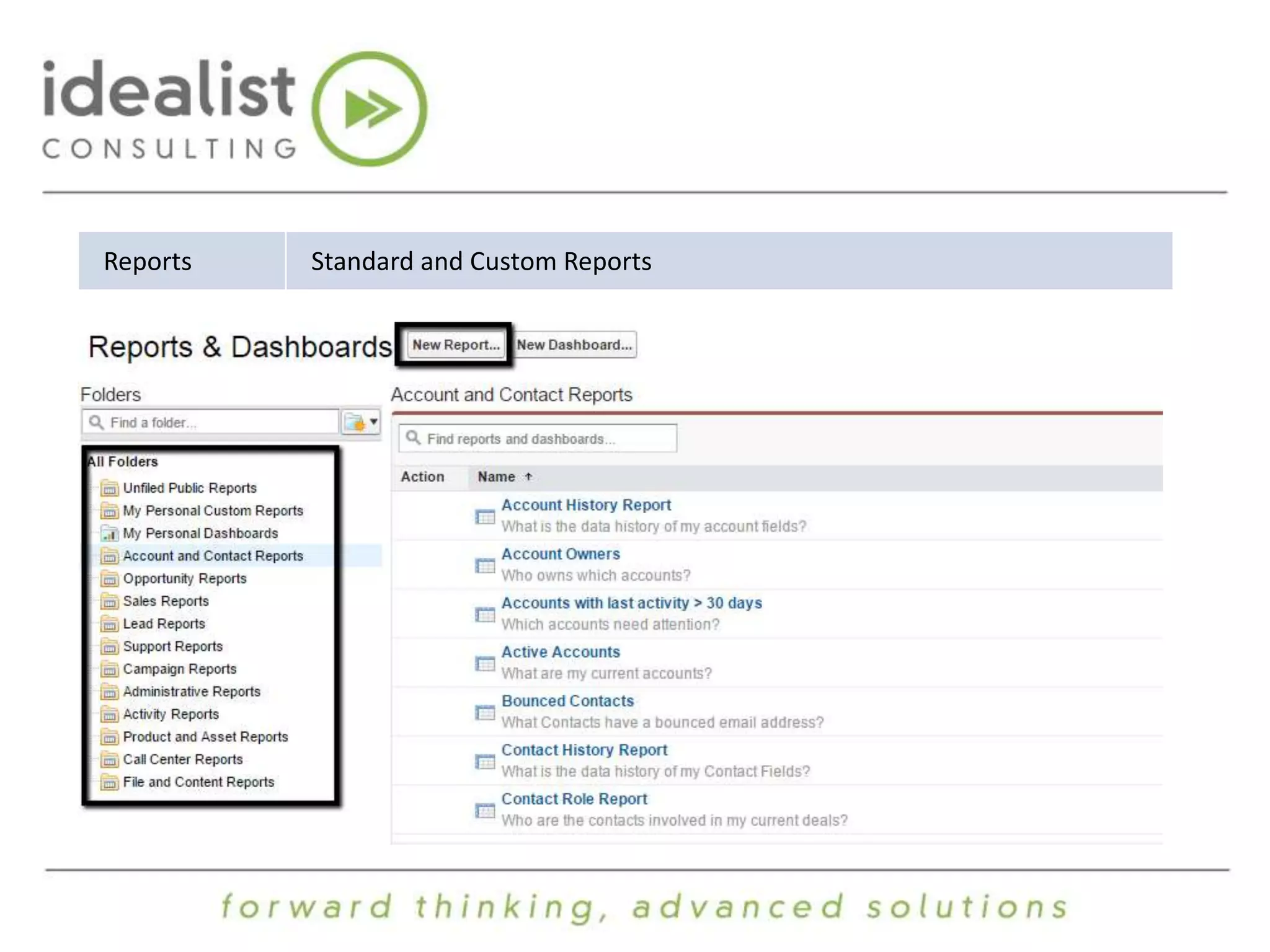
Reports Standard and Custom Reports
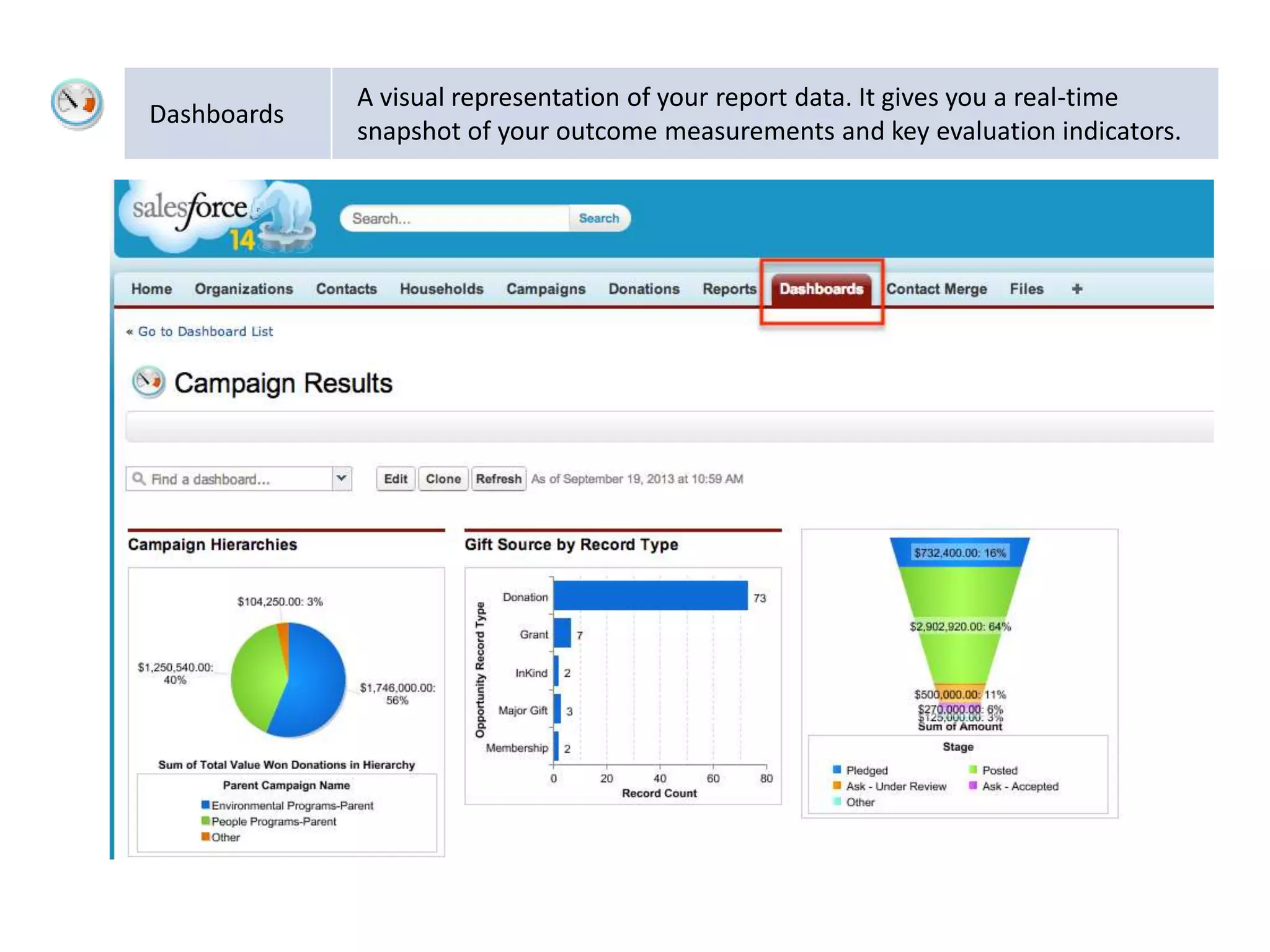
Dashboards 
A visual representation of your report data. It gives you a real-time 
snapshot of your outcome measurements and key evaluation indicators.
Live Demo Topics 
• Navigation, List views and My Settings 
• Standard Objects- Leads, Accounts, Contacts and Opportunities 
• Lead and Sales Management Scenario 
• Activity Management & Email Communications 
• Wrap Up 
• COMING UP….
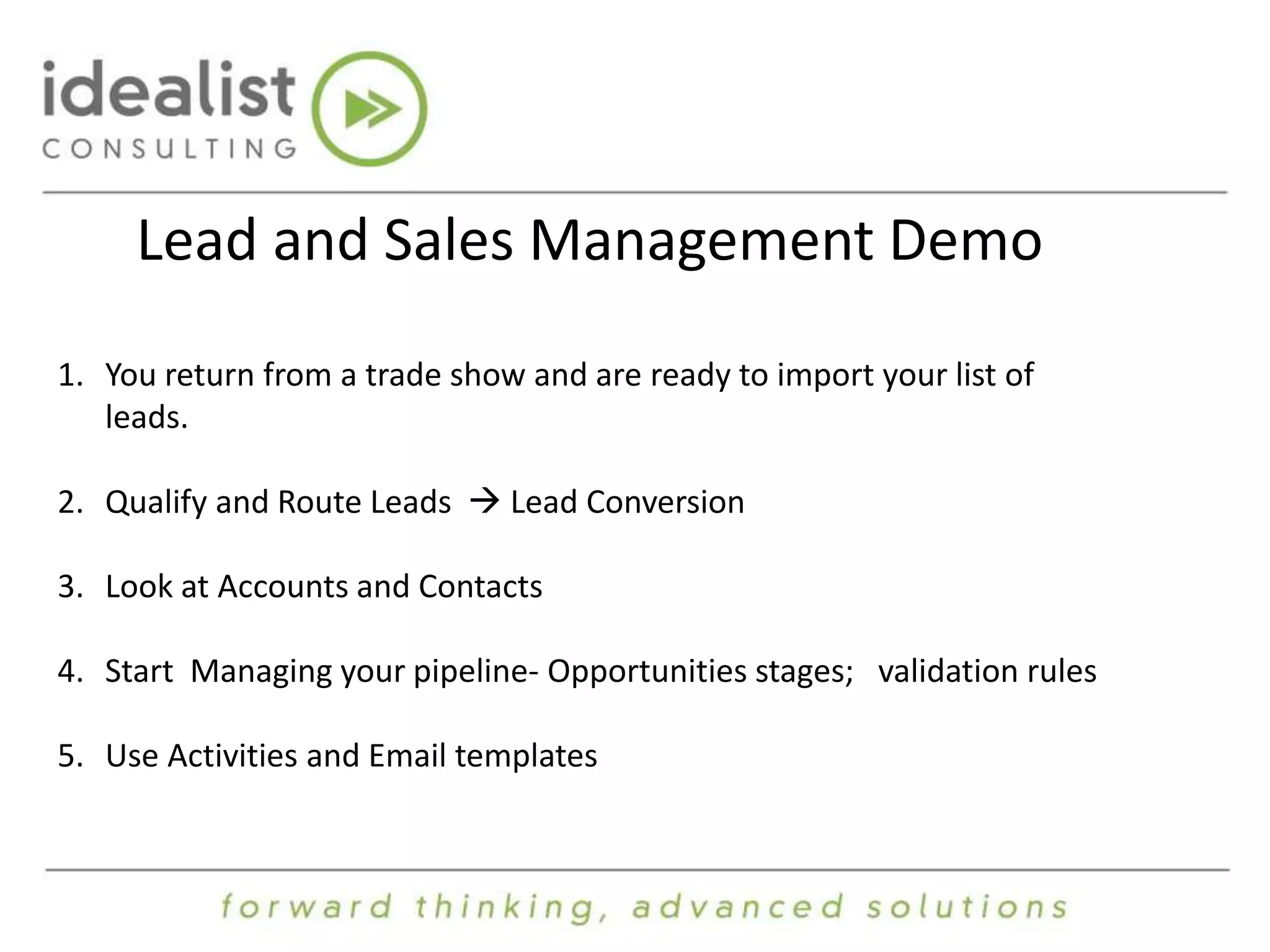
Lead and Sales Management Demo 
1. You return from a trade show and are ready to import your list of 
leads. 
2. Qualify and Route Leads  Lead Conversion 
3. Look at Accounts and Contacts 
4. Start Managing your pipeline- Opportunities stages; validation rules 
5. Use Activities and Email templates
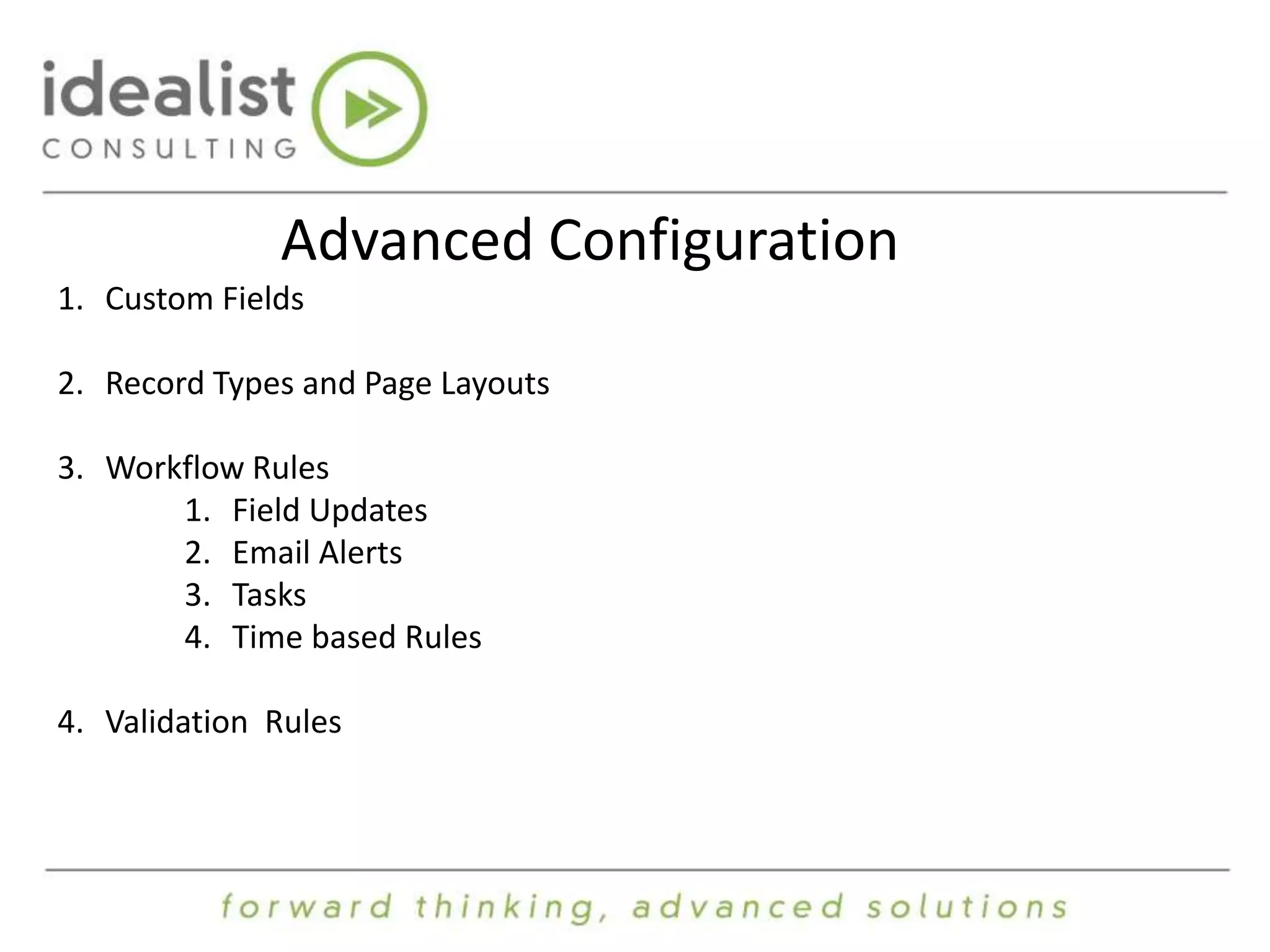
Advanced Configuration 
1. Custom Fields 
2. Record Types and Page Layouts 
3. Workflow Rules 
1. Field Updates 
2. Email Alerts 
3. Tasks 
4. Time based Rules 
4. Validation Rules
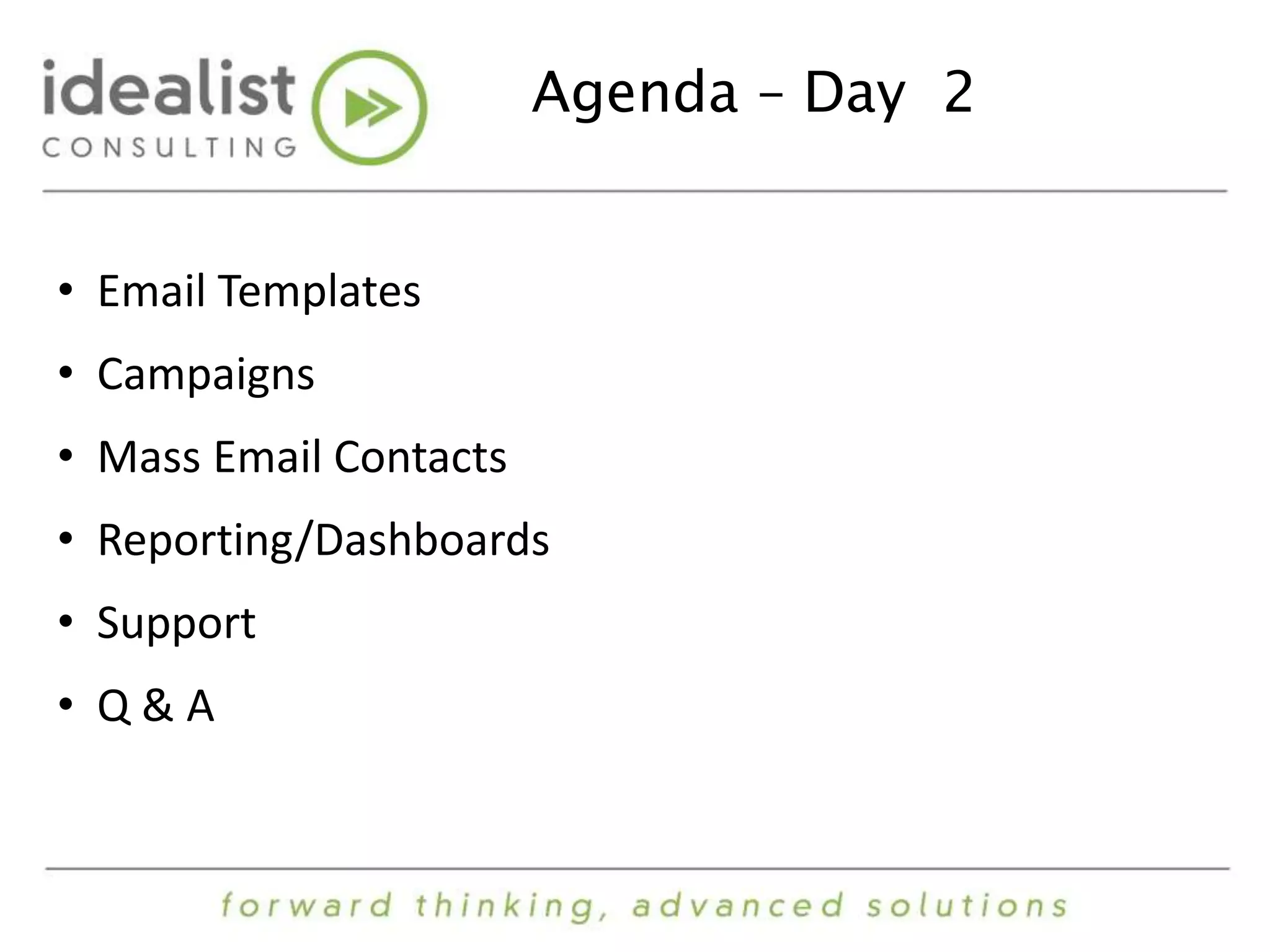
Agenda – Day 2 
• Email Templates 
• Campaigns 
• Mass Email Contacts 
• Reporting/Dashboards 
• Support 
• Q & A

Private sector accidental admin

  • 1.
    Welcome to SalesforceBasics for the Accidental Administrator! The webinar will begin shortly.
  • 2.
    Introduction Presenter: CarolynFischer, CRM Administrator at Idealist Consulting
  • 3.
    Agenda • SalesforceIntroduction • Standard Objects- Leads, Accounts, Contacts and Opportunities • Navigation, List Views and My Settings • Leads and Sales Management (DEMO) • Activity Management & Email Communications • Advanced Configuration • Wrap Up
  • 4.
    Intro to Salesforce: Standard Terms & Definitions
  • 5.
    CRM: A definition • Customer Relationship Management – Is a disciplined business strategy to create and sustain long-term, profitable customer relationships – Salesforce.com is a Customer Success Platform
  • 6.
    Salesforce Clouds andEditions • Clouds- Sales Cloud, Service Cloud, Marketing Cloud and Analytics Cloud • Editions- Group, Professional, Enterprise, and Unlimited
  • 7.
    Definitions 1 SearchBar Located in the top center of your Salesforce.com Organization to find information such as Leads, Accounts, Contacts, Opportunities, Campaigns, Reports, etc. 2 Tabs (or Objects) The core navigation within Salesforce.com are the ‘tabs’ at the top of the page. Tabs contain Contacts, Accounts, Opportunities, etc.. 3 Tasks A way to track activities in salesforce.com. Calls, emails, meetings, etc..
  • 8.
    Data Relationships Thisgives you an overview of the basic objects and how they relate to each other.
  • 9.
    Leads A leadobject is a person or a company that might be interested in your product or service; for example, someone a rep met at a conference or who filled out a Web form.
  • 10.
    Accounts An organization,company, or partner that you want to track — for example, your customers/clients, vendors, and partner organizations
  • 11.
    Contacts Employees /Individuals associated with an account.
  • 12.
    Opportunities Product sales,fee-for-service activities, or any other financial transaction.
  • 13.
    Campaigns Campaigns area series of tactics and/or programs designed to achieve a certain organizational objective. Types of Campaigns might include tactics like mass email, events, direct mail, and advertising.
  • 14.
    Reports Standard andCustom Reports
  • 15.
    Dashboards A visualrepresentation of your report data. It gives you a real-time snapshot of your outcome measurements and key evaluation indicators.
  • 16.
    Live Demo Topics • Navigation, List views and My Settings • Standard Objects- Leads, Accounts, Contacts and Opportunities • Lead and Sales Management Scenario • Activity Management & Email Communications • Wrap Up • COMING UP….
  • 17.
    Lead and SalesManagement Demo 1. You return from a trade show and are ready to import your list of leads. 2. Qualify and Route Leads  Lead Conversion 3. Look at Accounts and Contacts 4. Start Managing your pipeline- Opportunities stages; validation rules 5. Use Activities and Email templates
  • 18.
    Advanced Configuration 1.Custom Fields 2. Record Types and Page Layouts 3. Workflow Rules 1. Field Updates 2. Email Alerts 3. Tasks 4. Time based Rules 4. Validation Rules
  • 19.
    Agenda – Day2 • Email Templates • Campaigns • Mass Email Contacts • Reporting/Dashboards • Support • Q & A

Editor's Notes

  • #4 Introduction to Salesforce Standard Terms and Definitions Review of the Data Model- What they are; how they work together Navigation and List views Lists are only for that Object Trash can Personal Setup Import Wizard Leads, Contacts, Accounts, Opportunities Activity Management & Email Templates Creation of tasks Send emails using Email Templates Wrap Up
  • #6 Salesforce has broadened it’s scope to be much more than just CRM. It’s now a complete platform including their mobile app called Saleforce1
  • #7 Each Cloud focuses on key business processes Sales Cloud- Salesforce Automation Service Cloud- Customer Service and Support Marketing Cloud– email marketing, mobile marketing, Social Media Marketing, and much more Analytics Cloud Within each Cloud there are Editions- Each Edition builds on / adds functionality and features Workflow, increased # of custom objects, integrations, Appexchange products Start with one and as you grow, you can add more features and functionality, complexity and integrations. Also increase # of users but you cost will also increase. I think this is good to know that you don’t have to stay with what you have and that the upgrade process is very seamless and easy.
  • #8 This is an overview of the Salesforce Navigation I’ll quickly review this and we’ll see this more during our demo.
  • #9 I like this graphic because its simple to understand and if the core of the data relationships in the Sales Cloud Tasks can be associated to any of these objects The next few slides we’ll review each of these objects and then also see them in action during our demo
  • #10 Leads are business cards People with whom you don’t yet have a relationship yet but they have expressed interest in your company Leads are important because some of them will become Customers Your marketing efforts will drive your lead generation The goal is to capture as much information you can and act on these leads in a fast and efficient manner
  • #11 Accounts are Companies that you work with Customers Vendors Partners They are the backbone of the CRM system The information you capture is really up to you and your type of business # of Employees, Revenue, Type of business, How long they’ve been in business, etc
  • #12 Contacts are people who work for Companies. You can capture detailed information related to each contact Send email communications to contacts Assign them to Campaigns Associate them to Opportunities
  • #13 Opportunities are your sales efforts that you want to track- What’s in your pipeline Let’s you plan your sales forecast Can see the performance of your Sales Reps and also track what is closing each month/quarter, etc.
  • #14 With Campaigns you can track mass emails, set up events and workshops and then target Leads and Contacts for specific types of campaigns. AJ will be going into more detail tomorrow
  • #15 You can organize your reports into folders and also assign folder access to specific users.
  • #17 Review These Topics and then move to SFDC ORG Now I’ll be switching over to the Salesforce Org for our Live demo Start Demo with Navigation, List Views and My Settings
  • #18 Other ways to capture leads include: Manually create Leads Use a Web to Lead Form Create Leads through Social Media Today we will be Importing Leads using the Import Wizard Checks for Duplicates using email or Name Leads Source can help you analyze which marketing leads are getting the best results -What is the conversion rate? Route Leads using Lead Assignment rules Lead Conversion- Show Field Mapping