Empowerment
Technologies
Lesson 5: Advanced
Presentation Skills
Microsoft
PowerPoint
Presentation
Microsoft
PowerPoint
Presentation
• Powerpoint is highly
innovative and versatile
program that can ensure a
successful communication
whether you're presenting
in front of potential
investors, a lecture theatre
or simply in front of your
colleagues.
Five Features of Microsoft
PowerPoint Presentation
• Adding Smart Art
• Inserting Shapes
• Inserting Image
• Transitions
• Adding Animations
Creating an Effective
Presentation
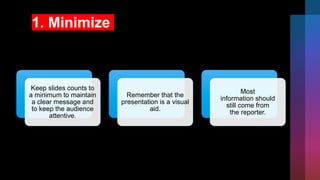
1. Minimize
Keep slides counts to
a minimum to maintain
a clear message and
to keep the audience
attentive.
Remember that the
presentation is a visual
aid.
Most
information should
still come from
the reporter.
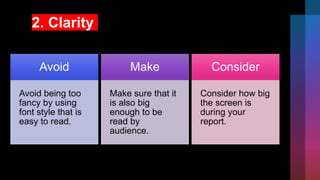
2. Clarity
Avoid
Avoid being too
fancy by using
font style that is
easy to read.
Make
Make sure that it
is also big
enough to be
read by
audience.
Consider
Consider how big
the screen is
during your
report.
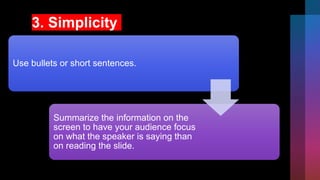
3. Simplicity
Use bullets or short sentences.
Summarize the information on the
screen to have your audience focus
on what the speaker is saying than
on reading the slide.
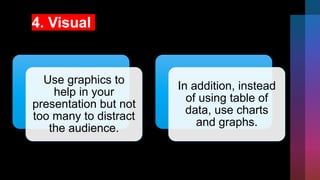
4. Visual
Use graphics to
help in your
presentation but not
too many to distract
the audience.
In addition, instead
of using table of
data, use charts
and graphs.
5. Consistency
Make your
design uniform.
Avoid having
different font
styles and
backgrounds.
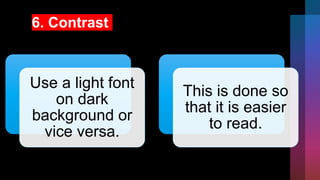
6. Contrast
Use a light font
on dark
background or
vice versa.
This is done so
that it is easier
to read.
Using Hyperlinks
in Microsoft
PowerPoint
Using hyperlinks in your presentation is
an easy way to navigate slides during
your presentation.
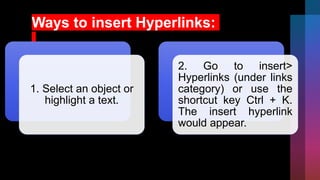
Ways to insert Hyperlinks:
1. Select an object or
highlight a text.
2. Go to insert>
Hyperlinks (under links
category) or use the
shortcut key Ctrl + K.
The insert hyperlink
would appear.
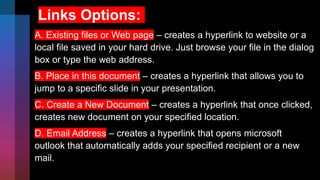
Links Options:
A. Existing files or Web page – creates a hyperlink to website or a
local file saved in your hard drive. Just browse your file in the dialog
box or type the web address.
B. Place in this document – creates a hyperlink that allows you to
jump to a specific slide in your presentation.
C. Create a New Document – creates a hyperlink that once clicked,
creates new document on your specified location.
D. Email Address – creates a hyperlink that opens microsoft
outlook that automatically adds your specified recipient or a new
mail.

Presentation 24.pptx

  • 1.
  • 2.
  • 3.
    Microsoft PowerPoint Presentation • Powerpoint ishighly innovative and versatile program that can ensure a successful communication whether you're presenting in front of potential investors, a lecture theatre or simply in front of your colleagues.
  • 5.
    Five Features ofMicrosoft PowerPoint Presentation • Adding Smart Art • Inserting Shapes • Inserting Image • Transitions • Adding Animations
  • 6.
  • 7.
    1. Minimize Keep slidescounts to a minimum to maintain a clear message and to keep the audience attentive. Remember that the presentation is a visual aid. Most information should still come from the reporter.
  • 8.
    2. Clarity Avoid Avoid beingtoo fancy by using font style that is easy to read. Make Make sure that it is also big enough to be read by audience. Consider Consider how big the screen is during your report.
  • 9.
    3. Simplicity Use bulletsor short sentences. Summarize the information on the screen to have your audience focus on what the speaker is saying than on reading the slide.
  • 10.
    4. Visual Use graphicsto help in your presentation but not too many to distract the audience. In addition, instead of using table of data, use charts and graphs.
  • 11.
    5. Consistency Make your designuniform. Avoid having different font styles and backgrounds.
  • 12.
    6. Contrast Use alight font on dark background or vice versa. This is done so that it is easier to read.
  • 13.
    Using Hyperlinks in Microsoft PowerPoint Usinghyperlinks in your presentation is an easy way to navigate slides during your presentation.
  • 14.
    Ways to insertHyperlinks: 1. Select an object or highlight a text. 2. Go to insert> Hyperlinks (under links category) or use the shortcut key Ctrl + K. The insert hyperlink would appear.
  • 15.
    Links Options: A. Existingfiles or Web page – creates a hyperlink to website or a local file saved in your hard drive. Just browse your file in the dialog box or type the web address. B. Place in this document – creates a hyperlink that allows you to jump to a specific slide in your presentation. C. Create a New Document – creates a hyperlink that once clicked, creates new document on your specified location. D. Email Address – creates a hyperlink that opens microsoft outlook that automatically adds your specified recipient or a new mail.