Basic Web Page
Creation
At the end of this lesson, the students should be
able to:
Create a web page using Microsoft Word;
Create your own website using a free host;
Design a website using an online WYSIWYG
platform; and
Edit and insert elements for their website.
How Basic is basic?
HTML (hypertext Markup Language)
CSS (Cascading Style Sheets)
We use a WYSIWYG editor.
WYSIWYG is the acronym for
What You See Is What You Get.
This means that whatever you
type, insert, draw, place,
rearrange, and everything you do
on a page is what the audience will
see.
As mentioned earlier, people use
HMTL codes to create pages and
CSS codes to design them.
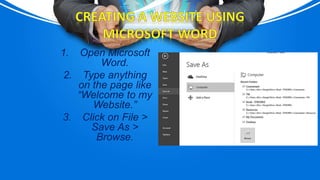
1. Open Microsoft
Word.
2. Type anything
on the page like
“Welcome to my
Website.”
3. Click on File >
Save As >
Browse.
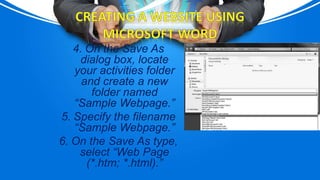
4. On the Save As
dialog box, locate
your activities folder
and create a new
folder named
“Sample Webpage.”
5. Specify the filename
“Sample Webpage.”
6. On the Save As type,
select “Web Page
(*.htm; *.html).”
7. Click the Change
Title button.
8. Input the title as
seen below, then
click OK then Save.
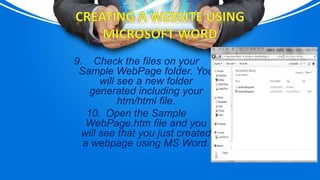
9. Check the files on your
Sample WebPage folder. You
will see a new folder
generated including your
htm/html file.
10. Open the Sample
WebPage.htm file and you
will see that you just created
a webpage using MS Word.

PPT-8-Basic-Web-Page-Creation (1).pptx

  • 1.
  • 2.
    At the endof this lesson, the students should be able to: Create a web page using Microsoft Word; Create your own website using a free host; Design a website using an online WYSIWYG platform; and Edit and insert elements for their website.
  • 4.
    How Basic isbasic? HTML (hypertext Markup Language) CSS (Cascading Style Sheets) We use a WYSIWYG editor.
  • 5.
    WYSIWYG is theacronym for What You See Is What You Get. This means that whatever you type, insert, draw, place, rearrange, and everything you do on a page is what the audience will see.
  • 6.
    As mentioned earlier,people use HMTL codes to create pages and CSS codes to design them.
  • 7.
    1. Open Microsoft Word. 2.Type anything on the page like “Welcome to my Website.” 3. Click on File > Save As > Browse.
  • 8.
    4. On theSave As dialog box, locate your activities folder and create a new folder named “Sample Webpage.” 5. Specify the filename “Sample Webpage.” 6. On the Save As type, select “Web Page (*.htm; *.html).”
  • 9.
    7. Click theChange Title button. 8. Input the title as seen below, then click OK then Save.
  • 10.
    9. Check thefiles on your Sample WebPage folder. You will see a new folder generated including your htm/html file. 10. Open the Sample WebPage.htm file and you will see that you just created a webpage using MS Word.