By  Lenona Packer Designing Effective Power Point  Presentations
Prepare An Outline Handwrite an outline of major points and sub-points  Decide what information you will want on each slide
Keep It Simple Use large text Use simple fonts  Only give basic information Don’t go into detail Don’t use too many words – less is better Aa
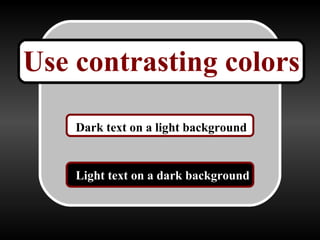
Use contrasting colors Dark text on a light background Light text on a dark background
Keep visual effects  to a minimum Visual Effects Visual effects should  add to , not detract from, your presentation Do not over-use animations or moving text
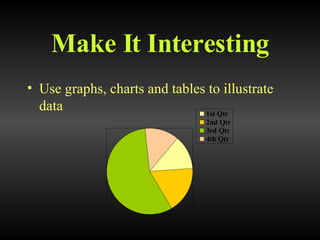
Make It Interesting Use graphs, charts and tables to illustrate data
Use Quality Pictures
Be Organized Use slide layouts Use bullets and numbers Create slides in an order that makes sense to viewers
Maintain Harmony To keep a natural flow throughout your  presentation use similar: Text Colors Layouts  or Backgrounds
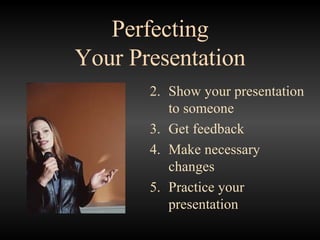
Perfecting Your Presentation Show your presentation to someone Get feedback Make necessary changes Practice your presentation
Know How To Operate Power Point Know how to   skip slides Know how to   blank the screen Know how to   eliminate the cursor Know how to   use the writing option
In the Classroom: Keep it short Keep it interesting Keep it on their level Use lots of visual aids Ask questions to keep their attention
Other Helpful Tips: When preparing your presentation, use the assistant to guide you. Click on the light bulbs for hints on how to better your power point presentation. Be prepared to answer questions at the end of your presentation. Create a blank slide at the end of your presentation.
 

Power Point Presentation

  • 1.
    By LenonaPacker Designing Effective Power Point Presentations
  • 2.
    Prepare An OutlineHandwrite an outline of major points and sub-points Decide what information you will want on each slide
  • 3.
    Keep It SimpleUse large text Use simple fonts Only give basic information Don’t go into detail Don’t use too many words – less is better Aa
  • 4.
    Use contrasting colorsDark text on a light background Light text on a dark background
  • 5.
    Keep visual effects to a minimum Visual Effects Visual effects should add to , not detract from, your presentation Do not over-use animations or moving text
  • 6.
    Make It InterestingUse graphs, charts and tables to illustrate data
  • 7.
  • 8.
    Be Organized Useslide layouts Use bullets and numbers Create slides in an order that makes sense to viewers
  • 9.
    Maintain Harmony Tokeep a natural flow throughout your presentation use similar: Text Colors Layouts or Backgrounds
  • 10.
    Perfecting Your PresentationShow your presentation to someone Get feedback Make necessary changes Practice your presentation
  • 11.
    Know How ToOperate Power Point Know how to skip slides Know how to blank the screen Know how to eliminate the cursor Know how to use the writing option
  • 12.
    In the Classroom:Keep it short Keep it interesting Keep it on their level Use lots of visual aids Ask questions to keep their attention
  • 13.
    Other Helpful Tips:When preparing your presentation, use the assistant to guide you. Click on the light bulbs for hints on how to better your power point presentation. Be prepared to answer questions at the end of your presentation. Create a blank slide at the end of your presentation.
  • 14.