1
Topic 5: Form Validation and Dynamic Effects with Javascript
Learning Objectives
By completing this topic, the learner should be able to:
Knowledge and Understanding
1. Describe how roll-over buttons are created with Javascrip.t
2. Discuss the objectives and principles of HTML form validation.
3. Explain the structure and operation of dynamic presentations based on the
Javascript timer.
Skills
4. Insert rollover buttons into web pages Using Javascript.
5. Implement HTML form validation using Javascript.
6. Create dynamic presentations using Javascript and Javascript libraries such as
JQuery.
Key Concepts
Application
Programming
Interface (API)
An API is a group of functions or methods created to permit
applications to be extended without creating code from scratch. APIs
are used add functionality to an application.
Code Library Programming libraries are usually precompiled functions or classes that
provide a way to add functionality to a computer program without
writing source code from scratch. They would normally focus on a
specific set of tasks such as database access or graphics.
Framework Frameworks are application skeletons that require flesh. They provide
the basic functionality allowing developers to quickly create
applications by implementing interfaces and the business logic. API,
libraries and frameworks are overlapping concepts. Some libraries are
also classified as frameworks and APIs.
Form Validation Form validation is the process of verifying that the information you
enter into an HTML form meets some preset conditions. For example,
only numbers may be permitted in a field requesting your phone
number, therefore, we can check that only numbers are entered and no
other characters.
Event Timer In programming, it is sometimes necessary to create time delays or
control the duration of events. Timers are functions or methods used for
controlling the duration of events or for creating predetermined delays.
Regular
Expressions
Regular expressions are an application programming interface
consisting of tools for processing text to search for patterns. Regular
expressions have their own notation and semantics. Most modern
programming languages provide access to regular expressions.
2
Introduction to Javascript Applications
In the previous topic, we had an introduction to Javascript programming but did not spend
much time creating actual Javascript programs. In this topic, we shall spend some time
learning to create some of the most important Javascript applications. These include button
roll-over effects, form validation and dynamic presentations. Javascript is also used for
creating menus and other complex applications but these advanced uses are beyond the scope
of this course. However, this topic will provide you with a good foundation on which to build
more advanced Javascript programming skills.
Rollover Buttons
Rollover buttons are buttons that change appearance when the mouse cursor hovers over
them. We can create such an effect using Javascript by providing event-handlers that cause
the button’s image to change when the mouse cursor moves over the button and revert to the
original image when the cursor moves off the button.
As we saw in the previous topic, these two events are the mouseover and mouseout
respectively. Therefore, the systematic way of creating a roll-over button is as follows:
1. Prepare the button images. Buttons are typically less than 100 pixels in width and
height of about 25 pixels. The image file format should fit the type of image content
you are using. With pictorial images, use JPEG while less complex images can use
GIF or PGN. However, you can experiment to find the best image type where you try
to get the highest visual quality while reducing the file size to a minimum. Each
button requires two images. The same two images can be reused for different buttons
unless you prefer that different buttons display different images to allow the user to
associate image and function. From the perspective of user interface design, a button
image that suggests its function is more intuitive and hence easier for the user to learn
how to use.
2. You would then need to decide on the locations where the web page and images will
be located. Often, images are places in a folder called “images”.
3. The basic web page is created and buttons placed on the page. It is possible to place
buttons using the <img> and <a> element as follows:
<a href= "test.html" ><img src = "one.jpg" width = "100" height =
"25" border = "0" /> </a>
The anchor element allows us to link the button image to an URL. The border
attribute is inserted to prevent browsers drawing a border around the image. Width
and height can be set using the attributes show although it is better to create button
images of the correct size to simplify your code and prevent use of excessively large
images, image distortion of degradation due to stretching.
If the images are in a folder called “images” itself located in the same folder as the
web page, then the src value should reflect the collect URL (src = “images/one.jpg”).
One can use images from other web sites as well by providing the full URL for the
image. For example:
<a href= "test.html"><img src =
"http://www.example.com/images/one.jpg" border = "0" name= "pic1"/>
</a>
3
4. Add the event-handlers either as inline Javascript code, as internal scripts or as en
external Javascript source file. Internal scripts usually make use of Javascript
functions with the advantage that the functions can be reused an unlimited number of
times while inline code is associated with a single element and is difficult to maintain.
With a little effort the same Javascript function can be used to load different image
files by passing the image file name as a function argument.
The following example shows the simplest inline Javascript code that we can use to
implement the roll-over effect. The code “document.images.pic1.src =
„two.jpg‟” refers to the src (source) property of the pic1 image in the web document
using the DOM notation. In simple terms, we are assigning the <img> element a new
image file called “two.jpg”.
All we now need to do is to indicate the events that will trigger this change and also
the events that will cause the <img> src property to revert to the previous vale
(“one.jpg”). The code will now look like this:
<a href= "test.html" onMouseover="document.images.pic1.src='two.jpg'"
onMouseout="document.images.pic1.src='one.jpg'">
<img src = "one.jpg" width = "100" height = "25" border = "0" name=
"pic1"/>
</a>
However, the inline Javascript code can be simplified to the following:
<a href= "test.html" onMouseover="pic1.src='two.jpg'"
onMouseout="pic1.src='one.jpg'">
<img src = "one.jpg" width = "100" height = "25" border = "0" name=
"pic1"/>
</a>
5. Once complete, test the page with all the leading browsers such as Firefox, Chrome,
Internet Explorer, Opera and Safari (Mac OS). Browser-specific differences exist that
can cause Javascript applications to behave differently depending on the browser.
Using Javascript Functions
The roll-over button can be implemented using Javascript functions. It means that the event-
handler will call a Javascript function instead of using inline code. Let us assume the
functions for changing the images are called “rollover” and “rollout” respectively
corresponding to the mouseover and mouseout events.
The code now will involve a <script> element in the <head> section which will contain the
code as follows (the functions have no code in this example):
<html>
<head>
<title> Topic 5 Example 1b </title>
<script type="text/javascript">
function rollover()
{
//code to come here
}
4
function rollout()
{
//code to come here
}
</script>
</head>
<body>
<a href= "test.html" onMouseover="rollover();" onMouseout="rollout();">
<img src = "one.jpg" width = "100" height = "25" border = "0" name=
"pic1"/>
</a>
</body>
</html>
Example 1: Using functions to implement button roll-over effects
Notice that the event-handlers now call the functions “rollover()” and “rollout()” respectively.
Now all we need to do is to implement the two functions. In this example, the code that was
in the inline example can be transferred to the respective functions so that we get the two
functions looking as follows:
function rollover()
{
document.images.pic1.src='two.jpg';
}
function rollout()
{
document.images.pic1.src='one.jpg';
}
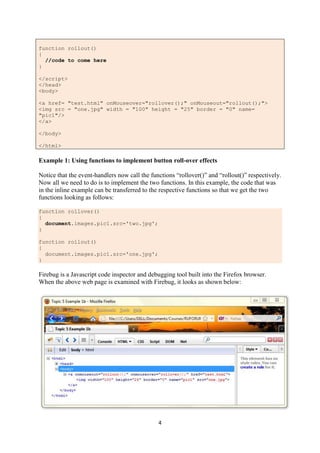
Firebug is a Javascript code inspector and debugging tool built into the Firefox browser.
When the above web page is examined with Firebug, it looks as shown below:
5
Figure 1a: Firebug view of roll-over button page
Figure 1b: Firebug view of roll-over button page (script)
Function Re-use
To allow the two functions to be reused for other buttons in the web page, we can modify the
functions so that the image file names are not indicated in the function itself but is passed to
the function by the even-handler as shown below where the new form of the fuction is shown
on the right side:
Non-Reusable Version Reusable Version
<html>
<head>
<title> Topic 5 Example 1b </title>
<script type="text/javascript">
function rollover()
{
document.images.pic1.src='two.jpg';
}
function rollout()
{
document.images.pic1.src='one.jpg';
}
</script>
</head>
<body>
<a href= "test.html"
onMouseover="rollover();"
<html>
<head>
<title> Topic 5 Example 1b </title>
<script type="text/javascript">
function rollover(pica, bttn)
{
document.images[bttn].src=pica;
}
function rollout(picb, bttn)
{
document.images[bttn].src=picb;
}
</script>
</head>
<body>
<a href= "test.html"
onMouseover="rollover('two.jpg',
6
onMouseout="rollout();">
<img src = "one.jpg" width = "100"
height = "25" border = "0" name=
"pic1"/>
</a>
</body>
</html>
'pic1');"
onMouseout="rollout('one.jpg',
'pic1');">
<img src = "one.jpg" width = "100"
height = "25" border = "0" name=
"pic1"/>
</a>
</body>
</html>
Example 2: Converting the Javascript functions to make them re-usable
Note that the functions have been modified in such a way that the name of the image file to
be used is passed on to the function by the event-handler. So is the name of the HTML
element whose src property is to be changed. When you examine the function, you notice that
it receives two parameters when it is called by the event handler. These parameters are “picb”
and “bttn”. One contains the name of the image file to be used while the second contains the
name of the HTML element to be used. The function below can now be used by other web
pages hence can be placed in an external Javascript file and used by any number of web
pages as long as each passes to it the values for “picb” and “bttn”.
function rollout(picb, bttn)
{
document.images[bttn].src=picb;
}
As discussed in Topic 4, you can use an external Javascript file by using the modified
<script> element as follows where “script-example.js” is the Javascript source file:
<script src = “script-example.js”>
</script>
Our source file in this example would be:
Table 1: Source file “script-example.js”
function rollover(pica, bttn)
{
document.images[bttn].src=pica;
}
function rollout(picb, bttn)
{
document.images[bttn].src=picb;
}
Preloading Images
When using roll-over images with a slow Internet connection, the roll-over effect may be
affected by the slow download of images because the new image to be used on a button is
downloaded when the event-handler calls the rollover() function. There is a way to force
Javascript to preload the images meaning that the images to be used in the roll-ove button are
downloaded before use. To force preloading we proceed as follows:
1. Instruct Javascript to preload the images
7
2. Use inline code or functions to call the preloaded images
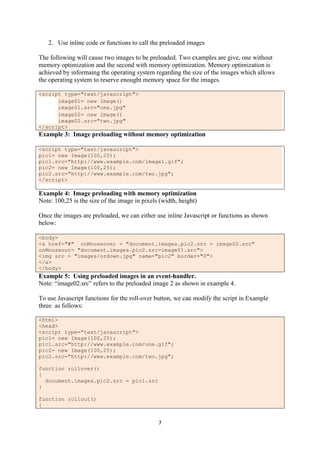
The following will cause two images to be preloaded. Two examples are give, one without
memory optimization and the second with memory optimization. Memory optimization is
achieved by informaing the operating system regarding the size of the images which allows
the operating system to reserve enought memory space for the images.
<script type="text/javascript">
image01= new Image()‫‏‬
image01.src="one.jpg"
image02= new Image()‫‏‬
image02.src="two.jpg"
</script>
Example 3: Image preloading without memory optimization
<script type="text/javascript">
pic1= new Image(100,25);
pic1.src="http://www.example.com/image1.gif";
pic2= new Image(100,25);
pic2.src="http://www.example.com/two.jpg";
</script>
Example 4: Image preloading with memory optimization
Note: 100,25 is the size of the image in pixels (width, height)
Once the images are preloaded, we can either use inline Javascript or functions as shown
below:
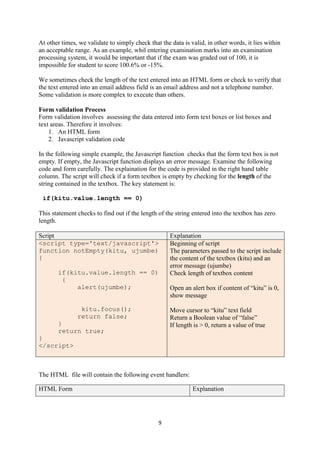
<body>
<a href="#" onMouseover = "document.images.pic2.src = image02.src"
onMouseout= "document.images.pic2.src=image01.src">
<img src = "images/ordown.jpg" name="pic2" border="0">
</a>
</body>
Example 5: Using preloaded images in an event-handler.
Note: “image02.src” refers to the preloaded image 2 as shown in example 4.
To use Javascript functions for the roll-over button, we can modify the script in Example
three as follows:
<html>
<head>
<script type="text/javascript">
pic1= new Image(100,25);
pic1.src="http://www.example.com/one.gif";
pic2= new Image(100,25);
pic2.src="http://www.example.com/two.jpg";
function rollover()
{
document.images.pic2.src = pic1.src
}
function rollout()
{
8
document.images.pic2.src = pic2.src
}
</script>
</head>
<body>
<a href="#" onmouseover="rollover()" onmouseout= "rollout()" >
<img src="http://www.example.com/one.gif" name="pic2" border="0"> </a>
</body>
</html>
Example 6: Complete example of image preloading with memory optimization and use
of functions
Example 6 is very similar to Example 2 but we have now implemented image preloading.
Quiz 1:
1. Correct the following roll-over button script:
<a href="#" onMouseover = "document.images.pic2.src = image02.src"
onMouseout= "document.images.pic2.src=image01.src">
<img src = "one.jpg" name="pic2" border="0" onMouseover = "pic2.src =
two.jpg” onMouseout= "pic2.src=two.jpg”>
2. Complete the following script to create a function that uses preloaded images for a
roll-over button:
<script type="text/javascript">
Img1= new Image(800,30);
Img1.src="blue.gif";
Img2= new Image(80,30);
Img2.src="red.jpg";
function rollover()
{
document.images.xy1.src =
}
function rollout()
{
document.images.xy1.src =
}
</script>
Form Validation
Form validation is the process of checking that a form has been filled in correctly before it is
processed. In many cases, data collected by a form is stored in a database. If the wrong kind
of data is collected, it may be impossible to save it in the database because the database
stucture may not permit it. For example, if a database table has a column designed to store
dates, then it is important to provide date data otherwise the application may crash.
Form validation is also a security measure because some hacker techniques involve passing
source code to a form and causing the application to execute such source code. If the data
entered into the form was checked, then it is possible to eliminate this form of hacking.
9
At other times, we validate to simply check that the data is valid, in other words, it lies within
an acceptable range. As an example, whil entering examination marks into an examination
processing system, it would be important that if the exam was graded out of 100, it is
impossible for student to score 100.6% or -15%.
We sometimes check the length of the text entered into an HTML form or check to verify that
the text entered into an email address field is an email address and not a telephone number.
Some validation is more complex to execute than others.
Form validation Process
Form validation involves assessing the data entered into form text boxes or list boxes and
text areas. Therefore it involves:
1. An HTML form
2. Javascript validation code
In the following simple example, the Javascript function checks that the form text box is not
empty. If empty, the Javascript function displays an error message. Examine the following
code and form carefully. The explaination for the code is provided in the right hand table
column. The script will check if a form textbox is empty by checking for the length of the
string contained in the textbox. The key statement is:
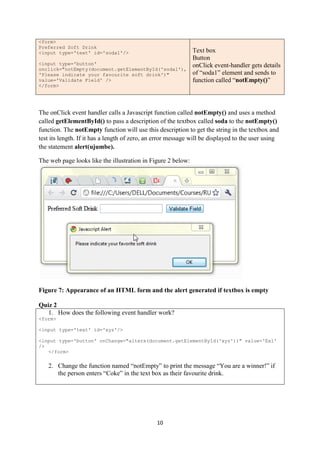
if(kitu.value.length == 0)
This statement checks to find out if the length of the string entered into the textbox has zero
length.
Script Explanation
<script type='text/javascript'>
function notEmpty(kitu, ujumbe)
{
if(kitu.value.length == 0)
{
alert(ujumbe);
kitu.focus();
return false;
}
return true;
}
</script>
Beginning of script
The parameters passed to the script include
the content of the textbox (kitu) and an
error message (ujumbe)
Check length of textbox content
Open an alert box if content of “kitu” is 0,
show message
Move cursor to “kitu” text field
Return a Boolean value of “false”
If length is > 0, return a value of true
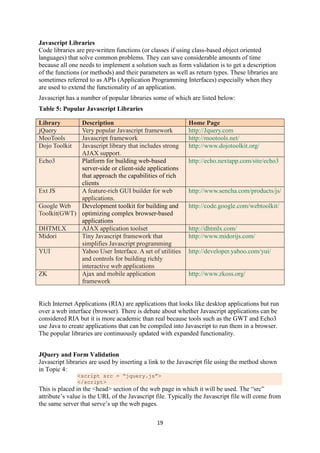
The HTML file will contain the following event handlers:
HTML Form Explanation
10
<form>
Preferred Soft Drink
<input type='text' id='soda1'/>
<input type='button'
onclick="notEmpty(document.getElementById('soda1'),
'Please indicate your favourite soft drink')"
value='Validate Field' />
</form>
Text box
Button
onClick event-handler gets details
of “soda1” element and sends to
function called “notEmpty()”
The onClick event handler calls a Javascript function called notEmpty() and uses a method
called getElementById() to pass a description of the textbox called soda to the notEmpty()
function. The notEmpty function will use this description to get the string in the textbox and
test its length. If it has a length of zero, an error message will be displayed to the user using
the statement alert(ujumbe).
The web page looks like the illustration in Figure 2 below:
Figure 7: Appearance of an HTML form and the alert generated if textbox is empty
Quiz 2
1. How does the following event handler work?
<form>
<input type='text' id='xyz'/>
<input type='button' onChange="alterx(document.getElementById('xyz'))" value='Ex1'
/>
</form>
2. Change the function named “notEmpty” to print the message “You are a winner!” if
the person enters “Coke” in the text box as their favourite drink.
11
Using Regular Expressions
Regular expressions, often shortened to regex or regexp, is a way to write patterns of text that
we can use for searching or verifying that data is correctly entered. These patterns have a
specific format. The regular expressions includes a list of the characters you are looking for
and an indication of whether they can be repeated in the text you are analyzing. For example,
if you are looking for the letter “o” in this paragraph, you will first encounter it in the words
“expressions” but it also occurs 28 more times.
There are special characters called metacharacters used for construct the pattern. The pattern
can be simple words such as Javascript or more complex patterns such as /^[a-z]+$/ or /^[A-
Z0-9._%+-]+@[A-Z0-9.-]+.[A-Z]{2,4}$/
In the second example, the meaning is as follows:
1. Pattern should be searched starting at the beginning (^) and terminate at the end ($) of
the text to be searched.
2. The search pattern includes only the letters a-z of the alphabet (lower case) which
may occur once or more (+)
Therefore, the regex includes a list or range of characters to be matched called a character
class, the location of the search (at the beginning or at the end of the text to be searched and
the number of occurrences to search for. The following three tables shows the way regex are
created. Simple examples are given to help you understand the notation.
Table 2: Character Classes
Regex
Notation
Explanation Examples
[xyz] Match any one character in the list enclosed square
bracket which is called the character set. Use a
hyphen to denote range. For example. /[a-z]/ matches
any letter in the alphabet, /[0-9]/ matches any single
digit.
/[AI]CM/ matches "ACM"
and "ICM" but not
"DCM" since the leading
“D” is not in the set.
[^xyz] Match any one character not included in the character
set. The caret (^) within the square brackets indicates
that the characters to be matched are those NOT in
the list.
NOTE: The negation caret used within a character
class is different is meaning from the caret used
outside the character set to indicate that the search
should begin at the beginning of the search text.
/[^AI]CM/ matches
"DCM" but not "ACM" or
"ICM".
. (Dot). Match any character except newline or another
Unicode line terminator.
/d.t/ matches "dat", "dit",
"det" and so on.
w Match any numeral or alphabetic (alphanumeric)
character including the underscore. Equivalent to [a-
zA-Z0-9_].
/w/ matches "400" in
"400%"
12
W Match any single non-word character. Equivalent to
[^a-zA-Z0-9_].
/W/ matches "%" in
"400%"
d Match any single digit. Equivalent to [0-9].
D Match any non-digit. Equivalent to [^0-9]. /D/ matches "No" in "No
342222"
s Match any single space character. Equivalent to [
trnvf].
S Match any single non-space character. Equivalent to
[^ trnvf].
Table 3: Repetition
Regex
Notation
Explanation Example
{y} Match y occurrences of a regex. /d{5}/ matches 5 digits.
{y,} Match y or more occurrences of a regex. /s{2,}/ matches at least 2 whitespace
characters.
{x,y} Matches x to y number of occurrences of a regex. /d{2,4}/ matches at least 2 but no more
than 4 digits.
? Match zero or one occurrences. Equivalent to {0,1}. /as?b/ matches "ab" or "a b".
* Match zero or more occurrences. Equivalent to {0,}. /we*/ matches "w" in "why" and "wee" in
"between", but nothing in "bad"
+ Match one or more occurrences. Equivalent to {1,}. /fe+d/ matches both "fed" and "feed"
Note that the repetition symbols affect the preceding single character or character set. Let us
examine the examples given earlier:
/^[a-z]+$/ The first caret (^) and the dollar symbol ($) mean that pattern matching should
start from the beginning of the text to be searched and end at the end.
[a-z] means that we want to search for the occurence of any charcter from a to
z. This is called the character set.
The “+” immediately after the character set means we will search for one or
more occurences of these characters.
In summary, the pattern above searches for any number of alphabetic
characters a-z (lower case).
The pattern /^[A-Z0-9._%+-]+@[A-Z0-9.-]+.[A-Z]{2,4}$/ is more complex but can be
analysed in a similar manner. It can be simplified as follows: /^[]+@[]+.[]{2,4}$/
 Pattern matching will begin at the beginning and terminate at the end of the text to be
searched.
 There are three character sets: [A-Z0-9._%+-], [A-Z0-9.-], and [A-Z]
13
 The first two can occur one or more times. The last one [A-Z] can occur 2 to 4 times.
Note that if the regular expression “engine” is set to ignore case (which is assumed in
this example), then [A-Z] also includes [a-z].
 A “@” character is permitted after the first character set.
 Dots (.) are permitted
The following code examples are adopted from
http://www.tizag.com/javascriptT/javascriptform.php with modifications to clarify them.
<html>
<head> </head>
<script type='text/javascript'>
function isNumeric(elem, helperMsg){
var numericExpression = /^[a-z]+$/;
if(elem.value.match(numericExpression)){
return true;
}else{
alert(helperMsg);
elem.focus();
return false;
}
}
</script>
<body>
<form>
Enter the price (KSh.): <input type='text' id='numbers'/>
<input type='button'
onclick="isNumeric(document.getElementById('numbers'), 'Enter Numbers Only
Please')"
value='Check Field' />
</form>
</body>
</html>
Example 8: Use of regular expressions in validation scripts
Note: /^[a-z]+$/; means “search for strings that have characters a to z (lower case. This is
a simple regular expression.
<html>
<head> </head>
<script type='text/javascript'>
function isNumeric(elem, helperMsg){
var numericExpression = /^[0-9a-zA-Z]+$/;
if(elem.value.match(numericExpression)){
return true;
}else{
alert(helperMsg);
elem.focus();
return false;
}
}
</script>
<body>
<form>
enter one word: <input type='text' id='numbers'/>
<input type='button'
onclick="isNumeric(document.getElementById('numbers'), 'Enter lower case
letters Only Please')"
value='Check Field' />
</form>
14
</body>
</html>
Example 9: Checking for alphanumeric entries with a regular expression.
<html>
<head> </head>
<script type='text/javascript'>
function emailValidator(elem, helperMsg){
var emailExp = /^[w-.+]+@[a-zA-Z0-9.-]+.[a-zA-z0-9]{2,4}$/;
if(elem.value.match(emailExp)){
return true;
}else{
alert(helperMsg);
elem.focus();
return false;
}
}
</script>
<body>
<form>
Your Text: <input type='text' id='req1'/>
<input type='button'
onclick="emailValidator(document.getElementById('req1'), 'Please Enter a
Valid email address')"
value='Check Field' />
</form>
</body>
</html>
Example 10: Checking for an email address.
Note: There are several regular expressions people have developed to check for valid email
addresses. There is debate about which is most comprehensive. Two examples are shown in
this section. You can test each one and find out how effective they are.
<html>
<head> </head>
<script type='text/javascript'>
function formValidator()
{
// Make quick references to our fields
var firstname = document.getElementById('firstname');
var addr = document.getElementById('addr');
var postalcode = document.getElementById('postalcode');
var county = document.getElementById('county');
var username = document.getElementById('username');
var email = document.getElementById('email');
// Check each input in the order that it appears in the form!
if (isAlphabet(firstname, "Please enter only letters for your name"))
{
if (isAlphanumeric(addr, "Numbers and Letters Only for Address"))
{
if (isNumeric(postalcode, "Please enter a valid postal code"))
{
if (madeSelection(county, "Please Choose a county"))
{
if (lengthRestriction(username, 6, 8))
{
if (emailValidator(email, "Please enter a valid email address"))
{
return true;
15
}
}
}
}
}
}
return false;
}
function notEmpty(elem, helperMsg)
{
if (elem.value.length == 0)
{
alert(helperMsg);
elem.focus(); // set the focus to this input
return false;
}
return true;
}
function isNumeric(elem, helperMsg)
{
var numericExpression = /^[0-9]+$/;
if (elem.value.match(numericExpression))
{
return true;
}
else
{
alert(helperMsg);
elem.focus();
return false;
}
}
function isAlphabet(elem, helperMsg)
{
var alphaExp = /^[a-zA-Z]+$/;
if (elem.value.match(alphaExp))
{
return true;
}
else
{
alert(helperMsg);
elem.focus();
return false;
}
}
function isAlphanumeric(elem, helperMsg)
{
var alphaExp = /^[0-9a-zA-Z]+$/;
if (elem.value.match(alphaExp))
{
return true;
}
else
{
alert(helperMsg);
elem.focus();
return false;
}
}
16
function lengthRestriction(elem, min, max)
{
var uInput = elem.value;
if (uInput.length >= min && uInput.length <= max)
{
return true;
}
else
{
alert("Please enter between " + min + " and " + max + " characters");
elem.focus();
return false;
}
}
function madeSelection(elem, helperMsg)
{
if (elem.value == "Please Choose")
{
alert(helperMsg);
elem.focus();
return false;
}
else
{
return true;
}
}
function emailValidator(elem, helperMsg)
{
var emailExp = /^[w-.+]+@[a-zA-Z0-9.-]+.[a-zA-z0-9]{2,4}$/;
if (elem.value.match(emailExp))
{
return true;
}
else
{
alert(helperMsg);
elem.focus();
return false;
}
}
</script>
<body>
<form onsubmit='return formValidator()' >
<table width="80%">
<tr>
<td width="30%">
First Name: </td><td><input type='text' id='firstname' /></td>
</tr>
<tr>
<td width="30%">
Address: </td><td><input type='text' id='addr' /></td>
</tr>
<tr>
<td width="30%">Postal Code:</td><td> <input type='text' id='postalcode' /></td>
</tr>
<tr>
<td width="30%">
County: </td><td> <select id='county'>
<option>Please Choose</option>
<option>Nairobi</option>
<option>Nakuru</option>
17
<option>Narok</option>
<option>Machakos</option>
</select></td>
</tr>
<tr>
<td>Username(6-8 characters): </td><td><input type='text' id='username' /></td>
</tr>
<tr>
<td>
Email: </td><td><input type='text' id='email' /></td>
</td>
</tr>
</table>
<input type='submit' value='Check Form' /><br />
</form>
</body>
</html>
Example 11: Full scale validation script.
Note: This script is provided for illustrative purposes only. It uses a set of functions to
validate names, addresses, postal or zip code, length of text entered and email address. The
form used is shown below:
The following code collects all the user entries and saves them in Javascript variables:
var firstname = document.getElementById('firstname');
var addr = document.getElementById('addr');
var postalcode = document.getElementById('postalcode');
var state = document.getElementById('state');
var username = document.getElementById('username');
var email = document.getElementById('email');
The functions used are as follows:
Function name Purpose Regex
isAlphabet() Checks your “First name” field; should be alphabetic /^[a-zA-Z]+$/
isAlphanumeric () Checks your “Address” field; should be
alphanumeric
/^[0-9a-zA-Z]+$/
isNumeric() Checks the “Postal Code” field; should be numeric /^[0-9]+$/
madeSelection() Checks that a county has been selected No regex used
lengthRestriction() Checks that the name is between 6 and 8 characters No regex used
emailValidator() Checks the email address /^[w-.+]+@[a-zA-Z0-
9.-]+.[a-zA-z0-9]{2,4}$/
18
The following example shows the typical validation function using a regex:
Table 4: Explanation of the operation of a typical validation function using regex
Function code Explanation
function isAlphanumeric(elem,
helperMsg)
{
var alphaExp = /^[0-9a-zA-Z]+$/;
if(elem.value.match(alphaExp))
{
return true;
}else
{
alert(helperMsg);
elem.focus();
return false;
}
}
 Function name and parameters. Parameters (elem,
helperMsg) are passed to the function by the event-handler.
 Regular expression pattern is saved in the variable alphaExp.
 The data entered in the form (elem.value) is matched with the
regex.
 If it matches, return “true” else print an error message and
return false.
 “elem.focus” places the cursor in the textbox where
correction is to be done.
The function is called by the event handler in the HTML element. In the case of forms,
validation scripts are called either after each field is filled (onChange) or upon submission of
the form(onSubmit). The last method is disadvantageous because the user gets feedback only
after filling in the whole form. The first method is often better because errors are indicated as
soon as they occur. Many Javascript libraries exist to help you construct effective form
validation scripts with minimal code.
Quiz 3
1. Write a regular expressions to match the following patterns:
a. Numerals (0 to 9) as well as the the “+” sign are permitted
b. The character “+” occurs not more than once a string and is only permitted at
the beginning of the string
c. The numerals 0 to 9 occur between 1 and 3 times in a string
.
2. What does each of the following symbol indicate when included in a regular
expression:
a. d
b. D
c. s
d. S
e. w
f. W
g. b
h. B
3. What do the following regular expressions mean:
a. [^XQ]
b. [^0-9]
19
Javascript Libraries
Code libraries are pre-written functions (or classes if using class-based object oriented
languages) that solve common problems. They can save considerable amounts of time
because all one needs to implement a solution such as form validation is to get a description
of the functions (or methods) and their parameters as well as return types. These libraries are
sometimes referred to as APIs (Application Programming Interfaces) especially when they
are used to extend the functionality of an application.
Javascript has a number of popular libraries some of which are listed below:
Table 5: Popular Javascript Libraries
Library Description Home Page
jQuery Very popular Javascript framework http://Jquery.com
MooTools Javascript framework http://mootools.net/
Dojo Toolkit Javascript library that includes strong
AJAX support.
http://www.dojotoolkit.org/
Echo3 Platform for building web-based
server-side or client-side applications
that approach the capabilities of rich
clients
http://echo.nextapp.com/site/echo3
Ext JS A feature-rich GUI builder for web
applications.
http://www.sencha.com/products/js/
Google Web
Toolkit(GWT)
Development toolkit for building and
optimizing complex browser-based
applications
http://code.google.com/webtoolkit/
DHTMLX AJAX application toolset http://dhtmlx.com/
Midori Tiny Javascript framework that
simplifies Javascript programming
http://www.midorijs.com/
YUI Yahoo User Interface. A set of utilities
and controls for building richly
interactive web applications
http://developer.yahoo.com/yui/
ZK Ajax and mobile application
framework
http://www.zkoss.org/
Rich Internet Applications (RIA) are applications that looks like desktop applications but run
over a web interface (browser). There is debate about whether Javascript applications can be
considered RIA but it is more academic than real because tools such as the GWT and Echo3
use Java to create applications that can be compiled into Javascript to run them in a browser.
The popular libraries are continuously updated with expanded functionality.
JQuery and Form Validation
Javascript libraries are used by inserting a link to the Javascript file using the method shown
in Topic 4:
<script src = “jquery.js”>
</script>
This is placed in the <head> section of the web page in which it will be used. The “src”
attribute’s value is the URL of the Javascript file. Typically the Javascript file will come from
the same server that serve’s up the web pages.
20
Refactoring Javascript
Refactoring is the process of re-structuring programming code to remove common causes of
lack of optimisation (called anti-patterns) and makes software difficult to maintain. Design
patterns are good solutions that have been developed over time by experienced developers.
Removing antipatterns is called refactoring and is intended to make code easier to maintain
and to improve its performance.
As an aspiring Javascript programmer, one of the ways to improve the quality of your product
is to study design patterns especially for Javascript and also antipatterns. Knowledge of
patterns and antipatterns would be expected to help a programmer produce better programs.
Learning Activities
Javascript Application Exercises
Ex. 1
i. Create a webpage that has a single rollover button using Javascript where the
Javascript code is written inline (inside the anchor element). Use mouseover and
mouseout events to trigger the rollover.
ii. Create a second web page with a rollover button but this time, use two functions to
implement the rollover effect.
iii. Create a third web page where pre-loading of the images is implemented together with
Javascript functions.
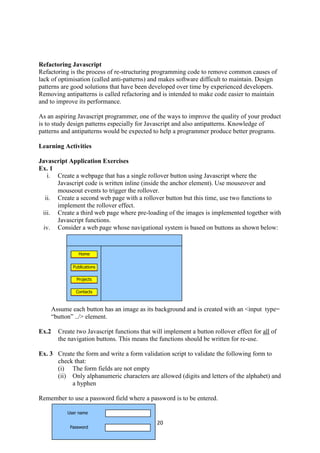
iv. Consider a web page whose navigational system is based on buttons as shown below:
Assume each button has an image as its background and is created with an <input type=
“button” ../> element.
Ex.2 Create two Javascript functions that will implement a button rollover effect for all of
the navigation buttons. This means the functions should be written for re-use.
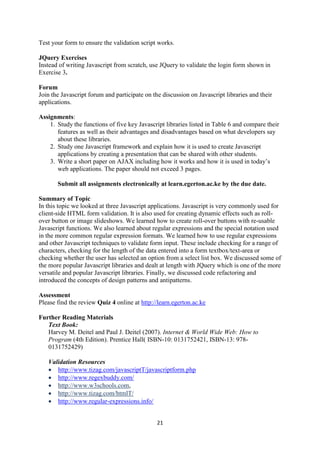
Ex. 3 Create the form and write a form validation script to validate the following form to
check that:
(i) The form fields are not empty
(ii) Only alphanumeric characters are allowed (digits and letters of the alphabet) and
a hyphen
Remember to use a password field where a password is to be entered.
Home
Publications
Projects
Contacts
User name
Password
21
Test your form to ensure the validation script works.
JQuery Exercises
Instead of writing Javascript from scratch, use JQuery to validate the login form shown in
Exercise 3.
Forum
Join the Javascript forum and participate on the discussion on Javascript libraries and their
applications.
Assignments:
1. Study the functions of five key Javascript libraries listed in Table 6 and compare their
features as well as their advantages and disadvantages based on what developers say
about these libraries.
2. Study one Javascript framework and explain how it is used to create Javascript
applications by creating a presentation that can be shared with other students.
3. Write a short paper on AJAX including how it works and how it is used in today’s
web applications. The paper should not exceed 3 pages.
Submit all assignments electronically at learn.egerton.ac.ke by the due date.
Summary of Topic
In this topic we looked at three Javascript applications. Javascript is very commonly used for
client-side HTML form validation. It is also used for creating dynamic effects such as roll-
over button or image slideshows. We learned how to create roll-over buttons with re-usable
Javascript functions. We also learned about regular expressions and the special notation used
in the more common regular expression formats. We learned how to use regular expressions
and other Javascript techniques to validate form input. These include checking for a range of
characters, checking for the length of the data entered into a form textbox/text-area or
checking whether the user has selected an option from a select list box. We discussed some of
the more popular Javascript libraries and dealt at length with JQuery which is one of the more
versatile and popular Javascript libraries. Finally, we discussed code refactoring and
introduced the concepts of design patterns and antipatterns.
Assessment
Please find the review Quiz 4 online at http://learn.egerton.ac.ke
Further Reading Materials
Text Book:
Harvey M. Deitel and Paul J. Deitel (2007). Internet & World Wide Web: How to
Program (4th Edition). Prentice Hall( ISBN-10: 0131752421, ISBN-13: 978-
0131752429)
Validation Resources
 http://www.tizag.com/javascriptT/javascriptform.php
 http://www.regexbuddy.com/
 http://www.w3schools.com,
 http://www.tizag.com/htmlT/
 http://www.regular-expressions.info/
22
Javascript Libraries
 Javascript Libraries: http://www.smashingmagazine.com/2009/03/02/40-stand-alone-
javascript-libraries-for-specific-purposes/
 JQuery tutorials:
o http://www.w3schools.com/jquery/default.asp
o http://docs.jquery.com/Tutorials
Code Refactoring Resources
 Code beautifier: http://jsbeautifier.org/
 Smart Javasript Editor:
http://www.jetbrains.com/editors/javascript_editor.jsp?ide=idea#JavaScript%5Frefactoring
 Refactoring Javascript article:
http://www.softwaresecretweapons.com/jspwiki/javascriptrefactoringforsaferfasterbetteraj
ax
Free Javascript E-Books
 Free Javascript Books: http://www.blazonry.com/javascript/free-books.php
 JavaScript Essentials: http://www.techotopia.com/index.php/JavaScript_Essentials
 Introduction to Web applications development:
http://ftacademy.org/files/materials/fta-m4-web_development.pdf
 http://www.freetechbooks.com/

POLITEKNIK MALAYSIA

  • 1.
    1 Topic 5: FormValidation and Dynamic Effects with Javascript Learning Objectives By completing this topic, the learner should be able to: Knowledge and Understanding 1. Describe how roll-over buttons are created with Javascrip.t 2. Discuss the objectives and principles of HTML form validation. 3. Explain the structure and operation of dynamic presentations based on the Javascript timer. Skills 4. Insert rollover buttons into web pages Using Javascript. 5. Implement HTML form validation using Javascript. 6. Create dynamic presentations using Javascript and Javascript libraries such as JQuery. Key Concepts Application Programming Interface (API) An API is a group of functions or methods created to permit applications to be extended without creating code from scratch. APIs are used add functionality to an application. Code Library Programming libraries are usually precompiled functions or classes that provide a way to add functionality to a computer program without writing source code from scratch. They would normally focus on a specific set of tasks such as database access or graphics. Framework Frameworks are application skeletons that require flesh. They provide the basic functionality allowing developers to quickly create applications by implementing interfaces and the business logic. API, libraries and frameworks are overlapping concepts. Some libraries are also classified as frameworks and APIs. Form Validation Form validation is the process of verifying that the information you enter into an HTML form meets some preset conditions. For example, only numbers may be permitted in a field requesting your phone number, therefore, we can check that only numbers are entered and no other characters. Event Timer In programming, it is sometimes necessary to create time delays or control the duration of events. Timers are functions or methods used for controlling the duration of events or for creating predetermined delays. Regular Expressions Regular expressions are an application programming interface consisting of tools for processing text to search for patterns. Regular expressions have their own notation and semantics. Most modern programming languages provide access to regular expressions.
  • 2.
    2 Introduction to JavascriptApplications In the previous topic, we had an introduction to Javascript programming but did not spend much time creating actual Javascript programs. In this topic, we shall spend some time learning to create some of the most important Javascript applications. These include button roll-over effects, form validation and dynamic presentations. Javascript is also used for creating menus and other complex applications but these advanced uses are beyond the scope of this course. However, this topic will provide you with a good foundation on which to build more advanced Javascript programming skills. Rollover Buttons Rollover buttons are buttons that change appearance when the mouse cursor hovers over them. We can create such an effect using Javascript by providing event-handlers that cause the button’s image to change when the mouse cursor moves over the button and revert to the original image when the cursor moves off the button. As we saw in the previous topic, these two events are the mouseover and mouseout respectively. Therefore, the systematic way of creating a roll-over button is as follows: 1. Prepare the button images. Buttons are typically less than 100 pixels in width and height of about 25 pixels. The image file format should fit the type of image content you are using. With pictorial images, use JPEG while less complex images can use GIF or PGN. However, you can experiment to find the best image type where you try to get the highest visual quality while reducing the file size to a minimum. Each button requires two images. The same two images can be reused for different buttons unless you prefer that different buttons display different images to allow the user to associate image and function. From the perspective of user interface design, a button image that suggests its function is more intuitive and hence easier for the user to learn how to use. 2. You would then need to decide on the locations where the web page and images will be located. Often, images are places in a folder called “images”. 3. The basic web page is created and buttons placed on the page. It is possible to place buttons using the <img> and <a> element as follows: <a href= "test.html" ><img src = "one.jpg" width = "100" height = "25" border = "0" /> </a> The anchor element allows us to link the button image to an URL. The border attribute is inserted to prevent browsers drawing a border around the image. Width and height can be set using the attributes show although it is better to create button images of the correct size to simplify your code and prevent use of excessively large images, image distortion of degradation due to stretching. If the images are in a folder called “images” itself located in the same folder as the web page, then the src value should reflect the collect URL (src = “images/one.jpg”). One can use images from other web sites as well by providing the full URL for the image. For example: <a href= "test.html"><img src = "http://www.example.com/images/one.jpg" border = "0" name= "pic1"/> </a>
  • 3.
    3 4. Add theevent-handlers either as inline Javascript code, as internal scripts or as en external Javascript source file. Internal scripts usually make use of Javascript functions with the advantage that the functions can be reused an unlimited number of times while inline code is associated with a single element and is difficult to maintain. With a little effort the same Javascript function can be used to load different image files by passing the image file name as a function argument. The following example shows the simplest inline Javascript code that we can use to implement the roll-over effect. The code “document.images.pic1.src = „two.jpg‟” refers to the src (source) property of the pic1 image in the web document using the DOM notation. In simple terms, we are assigning the <img> element a new image file called “two.jpg”. All we now need to do is to indicate the events that will trigger this change and also the events that will cause the <img> src property to revert to the previous vale (“one.jpg”). The code will now look like this: <a href= "test.html" onMouseover="document.images.pic1.src='two.jpg'" onMouseout="document.images.pic1.src='one.jpg'"> <img src = "one.jpg" width = "100" height = "25" border = "0" name= "pic1"/> </a> However, the inline Javascript code can be simplified to the following: <a href= "test.html" onMouseover="pic1.src='two.jpg'" onMouseout="pic1.src='one.jpg'"> <img src = "one.jpg" width = "100" height = "25" border = "0" name= "pic1"/> </a> 5. Once complete, test the page with all the leading browsers such as Firefox, Chrome, Internet Explorer, Opera and Safari (Mac OS). Browser-specific differences exist that can cause Javascript applications to behave differently depending on the browser. Using Javascript Functions The roll-over button can be implemented using Javascript functions. It means that the event- handler will call a Javascript function instead of using inline code. Let us assume the functions for changing the images are called “rollover” and “rollout” respectively corresponding to the mouseover and mouseout events. The code now will involve a <script> element in the <head> section which will contain the code as follows (the functions have no code in this example): <html> <head> <title> Topic 5 Example 1b </title> <script type="text/javascript"> function rollover() { //code to come here }
  • 4.
    4 function rollout() { //code tocome here } </script> </head> <body> <a href= "test.html" onMouseover="rollover();" onMouseout="rollout();"> <img src = "one.jpg" width = "100" height = "25" border = "0" name= "pic1"/> </a> </body> </html> Example 1: Using functions to implement button roll-over effects Notice that the event-handlers now call the functions “rollover()” and “rollout()” respectively. Now all we need to do is to implement the two functions. In this example, the code that was in the inline example can be transferred to the respective functions so that we get the two functions looking as follows: function rollover() { document.images.pic1.src='two.jpg'; } function rollout() { document.images.pic1.src='one.jpg'; } Firebug is a Javascript code inspector and debugging tool built into the Firefox browser. When the above web page is examined with Firebug, it looks as shown below:
  • 5.
    5 Figure 1a: Firebugview of roll-over button page Figure 1b: Firebug view of roll-over button page (script) Function Re-use To allow the two functions to be reused for other buttons in the web page, we can modify the functions so that the image file names are not indicated in the function itself but is passed to the function by the even-handler as shown below where the new form of the fuction is shown on the right side: Non-Reusable Version Reusable Version <html> <head> <title> Topic 5 Example 1b </title> <script type="text/javascript"> function rollover() { document.images.pic1.src='two.jpg'; } function rollout() { document.images.pic1.src='one.jpg'; } </script> </head> <body> <a href= "test.html" onMouseover="rollover();" <html> <head> <title> Topic 5 Example 1b </title> <script type="text/javascript"> function rollover(pica, bttn) { document.images[bttn].src=pica; } function rollout(picb, bttn) { document.images[bttn].src=picb; } </script> </head> <body> <a href= "test.html" onMouseover="rollover('two.jpg',
  • 6.
    6 onMouseout="rollout();"> <img src ="one.jpg" width = "100" height = "25" border = "0" name= "pic1"/> </a> </body> </html> 'pic1');" onMouseout="rollout('one.jpg', 'pic1');"> <img src = "one.jpg" width = "100" height = "25" border = "0" name= "pic1"/> </a> </body> </html> Example 2: Converting the Javascript functions to make them re-usable Note that the functions have been modified in such a way that the name of the image file to be used is passed on to the function by the event-handler. So is the name of the HTML element whose src property is to be changed. When you examine the function, you notice that it receives two parameters when it is called by the event handler. These parameters are “picb” and “bttn”. One contains the name of the image file to be used while the second contains the name of the HTML element to be used. The function below can now be used by other web pages hence can be placed in an external Javascript file and used by any number of web pages as long as each passes to it the values for “picb” and “bttn”. function rollout(picb, bttn) { document.images[bttn].src=picb; } As discussed in Topic 4, you can use an external Javascript file by using the modified <script> element as follows where “script-example.js” is the Javascript source file: <script src = “script-example.js”> </script> Our source file in this example would be: Table 1: Source file “script-example.js” function rollover(pica, bttn) { document.images[bttn].src=pica; } function rollout(picb, bttn) { document.images[bttn].src=picb; } Preloading Images When using roll-over images with a slow Internet connection, the roll-over effect may be affected by the slow download of images because the new image to be used on a button is downloaded when the event-handler calls the rollover() function. There is a way to force Javascript to preload the images meaning that the images to be used in the roll-ove button are downloaded before use. To force preloading we proceed as follows: 1. Instruct Javascript to preload the images
  • 7.
    7 2. Use inlinecode or functions to call the preloaded images The following will cause two images to be preloaded. Two examples are give, one without memory optimization and the second with memory optimization. Memory optimization is achieved by informaing the operating system regarding the size of the images which allows the operating system to reserve enought memory space for the images. <script type="text/javascript"> image01= new Image()‫‏‬ image01.src="one.jpg" image02= new Image()‫‏‬ image02.src="two.jpg" </script> Example 3: Image preloading without memory optimization <script type="text/javascript"> pic1= new Image(100,25); pic1.src="http://www.example.com/image1.gif"; pic2= new Image(100,25); pic2.src="http://www.example.com/two.jpg"; </script> Example 4: Image preloading with memory optimization Note: 100,25 is the size of the image in pixels (width, height) Once the images are preloaded, we can either use inline Javascript or functions as shown below: <body> <a href="#" onMouseover = "document.images.pic2.src = image02.src" onMouseout= "document.images.pic2.src=image01.src"> <img src = "images/ordown.jpg" name="pic2" border="0"> </a> </body> Example 5: Using preloaded images in an event-handler. Note: “image02.src” refers to the preloaded image 2 as shown in example 4. To use Javascript functions for the roll-over button, we can modify the script in Example three as follows: <html> <head> <script type="text/javascript"> pic1= new Image(100,25); pic1.src="http://www.example.com/one.gif"; pic2= new Image(100,25); pic2.src="http://www.example.com/two.jpg"; function rollover() { document.images.pic2.src = pic1.src } function rollout() {
  • 8.
    8 document.images.pic2.src = pic2.src } </script> </head> <body> <ahref="#" onmouseover="rollover()" onmouseout= "rollout()" > <img src="http://www.example.com/one.gif" name="pic2" border="0"> </a> </body> </html> Example 6: Complete example of image preloading with memory optimization and use of functions Example 6 is very similar to Example 2 but we have now implemented image preloading. Quiz 1: 1. Correct the following roll-over button script: <a href="#" onMouseover = "document.images.pic2.src = image02.src" onMouseout= "document.images.pic2.src=image01.src"> <img src = "one.jpg" name="pic2" border="0" onMouseover = "pic2.src = two.jpg” onMouseout= "pic2.src=two.jpg”> 2. Complete the following script to create a function that uses preloaded images for a roll-over button: <script type="text/javascript"> Img1= new Image(800,30); Img1.src="blue.gif"; Img2= new Image(80,30); Img2.src="red.jpg"; function rollover() { document.images.xy1.src = } function rollout() { document.images.xy1.src = } </script> Form Validation Form validation is the process of checking that a form has been filled in correctly before it is processed. In many cases, data collected by a form is stored in a database. If the wrong kind of data is collected, it may be impossible to save it in the database because the database stucture may not permit it. For example, if a database table has a column designed to store dates, then it is important to provide date data otherwise the application may crash. Form validation is also a security measure because some hacker techniques involve passing source code to a form and causing the application to execute such source code. If the data entered into the form was checked, then it is possible to eliminate this form of hacking.
  • 9.
    9 At other times,we validate to simply check that the data is valid, in other words, it lies within an acceptable range. As an example, whil entering examination marks into an examination processing system, it would be important that if the exam was graded out of 100, it is impossible for student to score 100.6% or -15%. We sometimes check the length of the text entered into an HTML form or check to verify that the text entered into an email address field is an email address and not a telephone number. Some validation is more complex to execute than others. Form validation Process Form validation involves assessing the data entered into form text boxes or list boxes and text areas. Therefore it involves: 1. An HTML form 2. Javascript validation code In the following simple example, the Javascript function checks that the form text box is not empty. If empty, the Javascript function displays an error message. Examine the following code and form carefully. The explaination for the code is provided in the right hand table column. The script will check if a form textbox is empty by checking for the length of the string contained in the textbox. The key statement is: if(kitu.value.length == 0) This statement checks to find out if the length of the string entered into the textbox has zero length. Script Explanation <script type='text/javascript'> function notEmpty(kitu, ujumbe) { if(kitu.value.length == 0) { alert(ujumbe); kitu.focus(); return false; } return true; } </script> Beginning of script The parameters passed to the script include the content of the textbox (kitu) and an error message (ujumbe) Check length of textbox content Open an alert box if content of “kitu” is 0, show message Move cursor to “kitu” text field Return a Boolean value of “false” If length is > 0, return a value of true The HTML file will contain the following event handlers: HTML Form Explanation
  • 10.
    10 <form> Preferred Soft Drink <inputtype='text' id='soda1'/> <input type='button' onclick="notEmpty(document.getElementById('soda1'), 'Please indicate your favourite soft drink')" value='Validate Field' /> </form> Text box Button onClick event-handler gets details of “soda1” element and sends to function called “notEmpty()” The onClick event handler calls a Javascript function called notEmpty() and uses a method called getElementById() to pass a description of the textbox called soda to the notEmpty() function. The notEmpty function will use this description to get the string in the textbox and test its length. If it has a length of zero, an error message will be displayed to the user using the statement alert(ujumbe). The web page looks like the illustration in Figure 2 below: Figure 7: Appearance of an HTML form and the alert generated if textbox is empty Quiz 2 1. How does the following event handler work? <form> <input type='text' id='xyz'/> <input type='button' onChange="alterx(document.getElementById('xyz'))" value='Ex1' /> </form> 2. Change the function named “notEmpty” to print the message “You are a winner!” if the person enters “Coke” in the text box as their favourite drink.
  • 11.
    11 Using Regular Expressions Regularexpressions, often shortened to regex or regexp, is a way to write patterns of text that we can use for searching or verifying that data is correctly entered. These patterns have a specific format. The regular expressions includes a list of the characters you are looking for and an indication of whether they can be repeated in the text you are analyzing. For example, if you are looking for the letter “o” in this paragraph, you will first encounter it in the words “expressions” but it also occurs 28 more times. There are special characters called metacharacters used for construct the pattern. The pattern can be simple words such as Javascript or more complex patterns such as /^[a-z]+$/ or /^[A- Z0-9._%+-]+@[A-Z0-9.-]+.[A-Z]{2,4}$/ In the second example, the meaning is as follows: 1. Pattern should be searched starting at the beginning (^) and terminate at the end ($) of the text to be searched. 2. The search pattern includes only the letters a-z of the alphabet (lower case) which may occur once or more (+) Therefore, the regex includes a list or range of characters to be matched called a character class, the location of the search (at the beginning or at the end of the text to be searched and the number of occurrences to search for. The following three tables shows the way regex are created. Simple examples are given to help you understand the notation. Table 2: Character Classes Regex Notation Explanation Examples [xyz] Match any one character in the list enclosed square bracket which is called the character set. Use a hyphen to denote range. For example. /[a-z]/ matches any letter in the alphabet, /[0-9]/ matches any single digit. /[AI]CM/ matches "ACM" and "ICM" but not "DCM" since the leading “D” is not in the set. [^xyz] Match any one character not included in the character set. The caret (^) within the square brackets indicates that the characters to be matched are those NOT in the list. NOTE: The negation caret used within a character class is different is meaning from the caret used outside the character set to indicate that the search should begin at the beginning of the search text. /[^AI]CM/ matches "DCM" but not "ACM" or "ICM". . (Dot). Match any character except newline or another Unicode line terminator. /d.t/ matches "dat", "dit", "det" and so on. w Match any numeral or alphabetic (alphanumeric) character including the underscore. Equivalent to [a- zA-Z0-9_]. /w/ matches "400" in "400%"
  • 12.
    12 W Match anysingle non-word character. Equivalent to [^a-zA-Z0-9_]. /W/ matches "%" in "400%" d Match any single digit. Equivalent to [0-9]. D Match any non-digit. Equivalent to [^0-9]. /D/ matches "No" in "No 342222" s Match any single space character. Equivalent to [ trnvf]. S Match any single non-space character. Equivalent to [^ trnvf]. Table 3: Repetition Regex Notation Explanation Example {y} Match y occurrences of a regex. /d{5}/ matches 5 digits. {y,} Match y or more occurrences of a regex. /s{2,}/ matches at least 2 whitespace characters. {x,y} Matches x to y number of occurrences of a regex. /d{2,4}/ matches at least 2 but no more than 4 digits. ? Match zero or one occurrences. Equivalent to {0,1}. /as?b/ matches "ab" or "a b". * Match zero or more occurrences. Equivalent to {0,}. /we*/ matches "w" in "why" and "wee" in "between", but nothing in "bad" + Match one or more occurrences. Equivalent to {1,}. /fe+d/ matches both "fed" and "feed" Note that the repetition symbols affect the preceding single character or character set. Let us examine the examples given earlier: /^[a-z]+$/ The first caret (^) and the dollar symbol ($) mean that pattern matching should start from the beginning of the text to be searched and end at the end. [a-z] means that we want to search for the occurence of any charcter from a to z. This is called the character set. The “+” immediately after the character set means we will search for one or more occurences of these characters. In summary, the pattern above searches for any number of alphabetic characters a-z (lower case). The pattern /^[A-Z0-9._%+-]+@[A-Z0-9.-]+.[A-Z]{2,4}$/ is more complex but can be analysed in a similar manner. It can be simplified as follows: /^[]+@[]+.[]{2,4}$/  Pattern matching will begin at the beginning and terminate at the end of the text to be searched.  There are three character sets: [A-Z0-9._%+-], [A-Z0-9.-], and [A-Z]
  • 13.
    13  The firsttwo can occur one or more times. The last one [A-Z] can occur 2 to 4 times. Note that if the regular expression “engine” is set to ignore case (which is assumed in this example), then [A-Z] also includes [a-z].  A “@” character is permitted after the first character set.  Dots (.) are permitted The following code examples are adopted from http://www.tizag.com/javascriptT/javascriptform.php with modifications to clarify them. <html> <head> </head> <script type='text/javascript'> function isNumeric(elem, helperMsg){ var numericExpression = /^[a-z]+$/; if(elem.value.match(numericExpression)){ return true; }else{ alert(helperMsg); elem.focus(); return false; } } </script> <body> <form> Enter the price (KSh.): <input type='text' id='numbers'/> <input type='button' onclick="isNumeric(document.getElementById('numbers'), 'Enter Numbers Only Please')" value='Check Field' /> </form> </body> </html> Example 8: Use of regular expressions in validation scripts Note: /^[a-z]+$/; means “search for strings that have characters a to z (lower case. This is a simple regular expression. <html> <head> </head> <script type='text/javascript'> function isNumeric(elem, helperMsg){ var numericExpression = /^[0-9a-zA-Z]+$/; if(elem.value.match(numericExpression)){ return true; }else{ alert(helperMsg); elem.focus(); return false; } } </script> <body> <form> enter one word: <input type='text' id='numbers'/> <input type='button' onclick="isNumeric(document.getElementById('numbers'), 'Enter lower case letters Only Please')" value='Check Field' /> </form>
  • 14.
    14 </body> </html> Example 9: Checkingfor alphanumeric entries with a regular expression. <html> <head> </head> <script type='text/javascript'> function emailValidator(elem, helperMsg){ var emailExp = /^[w-.+]+@[a-zA-Z0-9.-]+.[a-zA-z0-9]{2,4}$/; if(elem.value.match(emailExp)){ return true; }else{ alert(helperMsg); elem.focus(); return false; } } </script> <body> <form> Your Text: <input type='text' id='req1'/> <input type='button' onclick="emailValidator(document.getElementById('req1'), 'Please Enter a Valid email address')" value='Check Field' /> </form> </body> </html> Example 10: Checking for an email address. Note: There are several regular expressions people have developed to check for valid email addresses. There is debate about which is most comprehensive. Two examples are shown in this section. You can test each one and find out how effective they are. <html> <head> </head> <script type='text/javascript'> function formValidator() { // Make quick references to our fields var firstname = document.getElementById('firstname'); var addr = document.getElementById('addr'); var postalcode = document.getElementById('postalcode'); var county = document.getElementById('county'); var username = document.getElementById('username'); var email = document.getElementById('email'); // Check each input in the order that it appears in the form! if (isAlphabet(firstname, "Please enter only letters for your name")) { if (isAlphanumeric(addr, "Numbers and Letters Only for Address")) { if (isNumeric(postalcode, "Please enter a valid postal code")) { if (madeSelection(county, "Please Choose a county")) { if (lengthRestriction(username, 6, 8)) { if (emailValidator(email, "Please enter a valid email address")) { return true;
  • 15.
    15 } } } } } } return false; } function notEmpty(elem,helperMsg) { if (elem.value.length == 0) { alert(helperMsg); elem.focus(); // set the focus to this input return false; } return true; } function isNumeric(elem, helperMsg) { var numericExpression = /^[0-9]+$/; if (elem.value.match(numericExpression)) { return true; } else { alert(helperMsg); elem.focus(); return false; } } function isAlphabet(elem, helperMsg) { var alphaExp = /^[a-zA-Z]+$/; if (elem.value.match(alphaExp)) { return true; } else { alert(helperMsg); elem.focus(); return false; } } function isAlphanumeric(elem, helperMsg) { var alphaExp = /^[0-9a-zA-Z]+$/; if (elem.value.match(alphaExp)) { return true; } else { alert(helperMsg); elem.focus(); return false; } }
  • 16.
    16 function lengthRestriction(elem, min,max) { var uInput = elem.value; if (uInput.length >= min && uInput.length <= max) { return true; } else { alert("Please enter between " + min + " and " + max + " characters"); elem.focus(); return false; } } function madeSelection(elem, helperMsg) { if (elem.value == "Please Choose") { alert(helperMsg); elem.focus(); return false; } else { return true; } } function emailValidator(elem, helperMsg) { var emailExp = /^[w-.+]+@[a-zA-Z0-9.-]+.[a-zA-z0-9]{2,4}$/; if (elem.value.match(emailExp)) { return true; } else { alert(helperMsg); elem.focus(); return false; } } </script> <body> <form onsubmit='return formValidator()' > <table width="80%"> <tr> <td width="30%"> First Name: </td><td><input type='text' id='firstname' /></td> </tr> <tr> <td width="30%"> Address: </td><td><input type='text' id='addr' /></td> </tr> <tr> <td width="30%">Postal Code:</td><td> <input type='text' id='postalcode' /></td> </tr> <tr> <td width="30%"> County: </td><td> <select id='county'> <option>Please Choose</option> <option>Nairobi</option> <option>Nakuru</option>
  • 17.
    17 <option>Narok</option> <option>Machakos</option> </select></td> </tr> <tr> <td>Username(6-8 characters): </td><td><inputtype='text' id='username' /></td> </tr> <tr> <td> Email: </td><td><input type='text' id='email' /></td> </td> </tr> </table> <input type='submit' value='Check Form' /><br /> </form> </body> </html> Example 11: Full scale validation script. Note: This script is provided for illustrative purposes only. It uses a set of functions to validate names, addresses, postal or zip code, length of text entered and email address. The form used is shown below: The following code collects all the user entries and saves them in Javascript variables: var firstname = document.getElementById('firstname'); var addr = document.getElementById('addr'); var postalcode = document.getElementById('postalcode'); var state = document.getElementById('state'); var username = document.getElementById('username'); var email = document.getElementById('email'); The functions used are as follows: Function name Purpose Regex isAlphabet() Checks your “First name” field; should be alphabetic /^[a-zA-Z]+$/ isAlphanumeric () Checks your “Address” field; should be alphanumeric /^[0-9a-zA-Z]+$/ isNumeric() Checks the “Postal Code” field; should be numeric /^[0-9]+$/ madeSelection() Checks that a county has been selected No regex used lengthRestriction() Checks that the name is between 6 and 8 characters No regex used emailValidator() Checks the email address /^[w-.+]+@[a-zA-Z0- 9.-]+.[a-zA-z0-9]{2,4}$/
  • 18.
    18 The following exampleshows the typical validation function using a regex: Table 4: Explanation of the operation of a typical validation function using regex Function code Explanation function isAlphanumeric(elem, helperMsg) { var alphaExp = /^[0-9a-zA-Z]+$/; if(elem.value.match(alphaExp)) { return true; }else { alert(helperMsg); elem.focus(); return false; } }  Function name and parameters. Parameters (elem, helperMsg) are passed to the function by the event-handler.  Regular expression pattern is saved in the variable alphaExp.  The data entered in the form (elem.value) is matched with the regex.  If it matches, return “true” else print an error message and return false.  “elem.focus” places the cursor in the textbox where correction is to be done. The function is called by the event handler in the HTML element. In the case of forms, validation scripts are called either after each field is filled (onChange) or upon submission of the form(onSubmit). The last method is disadvantageous because the user gets feedback only after filling in the whole form. The first method is often better because errors are indicated as soon as they occur. Many Javascript libraries exist to help you construct effective form validation scripts with minimal code. Quiz 3 1. Write a regular expressions to match the following patterns: a. Numerals (0 to 9) as well as the the “+” sign are permitted b. The character “+” occurs not more than once a string and is only permitted at the beginning of the string c. The numerals 0 to 9 occur between 1 and 3 times in a string . 2. What does each of the following symbol indicate when included in a regular expression: a. d b. D c. s d. S e. w f. W g. b h. B 3. What do the following regular expressions mean: a. [^XQ] b. [^0-9]
  • 19.
    19 Javascript Libraries Code librariesare pre-written functions (or classes if using class-based object oriented languages) that solve common problems. They can save considerable amounts of time because all one needs to implement a solution such as form validation is to get a description of the functions (or methods) and their parameters as well as return types. These libraries are sometimes referred to as APIs (Application Programming Interfaces) especially when they are used to extend the functionality of an application. Javascript has a number of popular libraries some of which are listed below: Table 5: Popular Javascript Libraries Library Description Home Page jQuery Very popular Javascript framework http://Jquery.com MooTools Javascript framework http://mootools.net/ Dojo Toolkit Javascript library that includes strong AJAX support. http://www.dojotoolkit.org/ Echo3 Platform for building web-based server-side or client-side applications that approach the capabilities of rich clients http://echo.nextapp.com/site/echo3 Ext JS A feature-rich GUI builder for web applications. http://www.sencha.com/products/js/ Google Web Toolkit(GWT) Development toolkit for building and optimizing complex browser-based applications http://code.google.com/webtoolkit/ DHTMLX AJAX application toolset http://dhtmlx.com/ Midori Tiny Javascript framework that simplifies Javascript programming http://www.midorijs.com/ YUI Yahoo User Interface. A set of utilities and controls for building richly interactive web applications http://developer.yahoo.com/yui/ ZK Ajax and mobile application framework http://www.zkoss.org/ Rich Internet Applications (RIA) are applications that looks like desktop applications but run over a web interface (browser). There is debate about whether Javascript applications can be considered RIA but it is more academic than real because tools such as the GWT and Echo3 use Java to create applications that can be compiled into Javascript to run them in a browser. The popular libraries are continuously updated with expanded functionality. JQuery and Form Validation Javascript libraries are used by inserting a link to the Javascript file using the method shown in Topic 4: <script src = “jquery.js”> </script> This is placed in the <head> section of the web page in which it will be used. The “src” attribute’s value is the URL of the Javascript file. Typically the Javascript file will come from the same server that serve’s up the web pages.
  • 20.
    20 Refactoring Javascript Refactoring isthe process of re-structuring programming code to remove common causes of lack of optimisation (called anti-patterns) and makes software difficult to maintain. Design patterns are good solutions that have been developed over time by experienced developers. Removing antipatterns is called refactoring and is intended to make code easier to maintain and to improve its performance. As an aspiring Javascript programmer, one of the ways to improve the quality of your product is to study design patterns especially for Javascript and also antipatterns. Knowledge of patterns and antipatterns would be expected to help a programmer produce better programs. Learning Activities Javascript Application Exercises Ex. 1 i. Create a webpage that has a single rollover button using Javascript where the Javascript code is written inline (inside the anchor element). Use mouseover and mouseout events to trigger the rollover. ii. Create a second web page with a rollover button but this time, use two functions to implement the rollover effect. iii. Create a third web page where pre-loading of the images is implemented together with Javascript functions. iv. Consider a web page whose navigational system is based on buttons as shown below: Assume each button has an image as its background and is created with an <input type= “button” ../> element. Ex.2 Create two Javascript functions that will implement a button rollover effect for all of the navigation buttons. This means the functions should be written for re-use. Ex. 3 Create the form and write a form validation script to validate the following form to check that: (i) The form fields are not empty (ii) Only alphanumeric characters are allowed (digits and letters of the alphabet) and a hyphen Remember to use a password field where a password is to be entered. Home Publications Projects Contacts User name Password
  • 21.
    21 Test your formto ensure the validation script works. JQuery Exercises Instead of writing Javascript from scratch, use JQuery to validate the login form shown in Exercise 3. Forum Join the Javascript forum and participate on the discussion on Javascript libraries and their applications. Assignments: 1. Study the functions of five key Javascript libraries listed in Table 6 and compare their features as well as their advantages and disadvantages based on what developers say about these libraries. 2. Study one Javascript framework and explain how it is used to create Javascript applications by creating a presentation that can be shared with other students. 3. Write a short paper on AJAX including how it works and how it is used in today’s web applications. The paper should not exceed 3 pages. Submit all assignments electronically at learn.egerton.ac.ke by the due date. Summary of Topic In this topic we looked at three Javascript applications. Javascript is very commonly used for client-side HTML form validation. It is also used for creating dynamic effects such as roll- over button or image slideshows. We learned how to create roll-over buttons with re-usable Javascript functions. We also learned about regular expressions and the special notation used in the more common regular expression formats. We learned how to use regular expressions and other Javascript techniques to validate form input. These include checking for a range of characters, checking for the length of the data entered into a form textbox/text-area or checking whether the user has selected an option from a select list box. We discussed some of the more popular Javascript libraries and dealt at length with JQuery which is one of the more versatile and popular Javascript libraries. Finally, we discussed code refactoring and introduced the concepts of design patterns and antipatterns. Assessment Please find the review Quiz 4 online at http://learn.egerton.ac.ke Further Reading Materials Text Book: Harvey M. Deitel and Paul J. Deitel (2007). Internet & World Wide Web: How to Program (4th Edition). Prentice Hall( ISBN-10: 0131752421, ISBN-13: 978- 0131752429) Validation Resources  http://www.tizag.com/javascriptT/javascriptform.php  http://www.regexbuddy.com/  http://www.w3schools.com,  http://www.tizag.com/htmlT/  http://www.regular-expressions.info/
  • 22.
    22 Javascript Libraries  JavascriptLibraries: http://www.smashingmagazine.com/2009/03/02/40-stand-alone- javascript-libraries-for-specific-purposes/  JQuery tutorials: o http://www.w3schools.com/jquery/default.asp o http://docs.jquery.com/Tutorials Code Refactoring Resources  Code beautifier: http://jsbeautifier.org/  Smart Javasript Editor: http://www.jetbrains.com/editors/javascript_editor.jsp?ide=idea#JavaScript%5Frefactoring  Refactoring Javascript article: http://www.softwaresecretweapons.com/jspwiki/javascriptrefactoringforsaferfasterbetteraj ax Free Javascript E-Books  Free Javascript Books: http://www.blazonry.com/javascript/free-books.php  JavaScript Essentials: http://www.techotopia.com/index.php/JavaScript_Essentials  Introduction to Web applications development: http://ftacademy.org/files/materials/fta-m4-web_development.pdf  http://www.freetechbooks.com/