Interaction Styles
dialogue … computer and user
distinct styles of interaction
Common interaction styles
• command line interface
• menus
• natural language
• question/answer and query dialogue
• form-fills and spreadsheets
• WIMP
• point and click
• three–dimensional interfaces
Command line interface
• Way of expressing instructions to the computer directly
– function keys, single characters, short abbreviations, whole words, or
a combination
• suitable for repetitive tasks
• better for expert users than novices
• offers direct access to system functionality
• command names/abbreviations should be meaningful!
Typical example: the Unix system
Menus
• Set of options displayed on the screen
• Options visible
– less recall - easier to use
– rely on recognition so names should be meaningful
• Selection by:
– numbers, letters, arrow keys, mouse
– combination (e.g. mouse plus accelerators)
• Often options hierarchically grouped
– sensible grouping is needed
• Restricted form of full WIMP system
Natural language
• Familiar to user
• speech recognition or typed natural language
• Problems
– vague
– ambiguous
– hard to do well!
• Solutions
– try to understand a subset
– pick on key words
Query interfaces
• Question/answer interfaces
– user led through interaction via series of questions
– suitable for novice users but restricted functionality
– often used in information systems
• Query languages (e.g. SQL)
– used to retrieve information from database
– requires understanding of database structure and language syntax,
hence requires some expertise
Form-fills
• Primarily for data entry or data retrieval
• Screen like paper form.
• Data put in relevant place
• Requires
– good design
– obvious correction
facilities
Spreadsheets
• first spreadsheet VISICALC, followed by Lotus
1-2-3
MS Excel most common today
• sophisticated variation of form-filling.
– grid of cells contain a value or a formula
– formula can involve values of other cells
e.g. sum of all cells in this column
– user can enter and alter data spreadsheet
maintains consistency
WIMP Interface
Windows
Icons
Menus
Pointers
… or windows, icons, mice, and pull-down menus!
• default style for majority of interactive computer systems,
especially PCs and desktop machines
Point and click interfaces
• used in ..
– multimedia
– web browsers
– hypertext
• just click something!
– icons, text links or location on map
• minimal typing
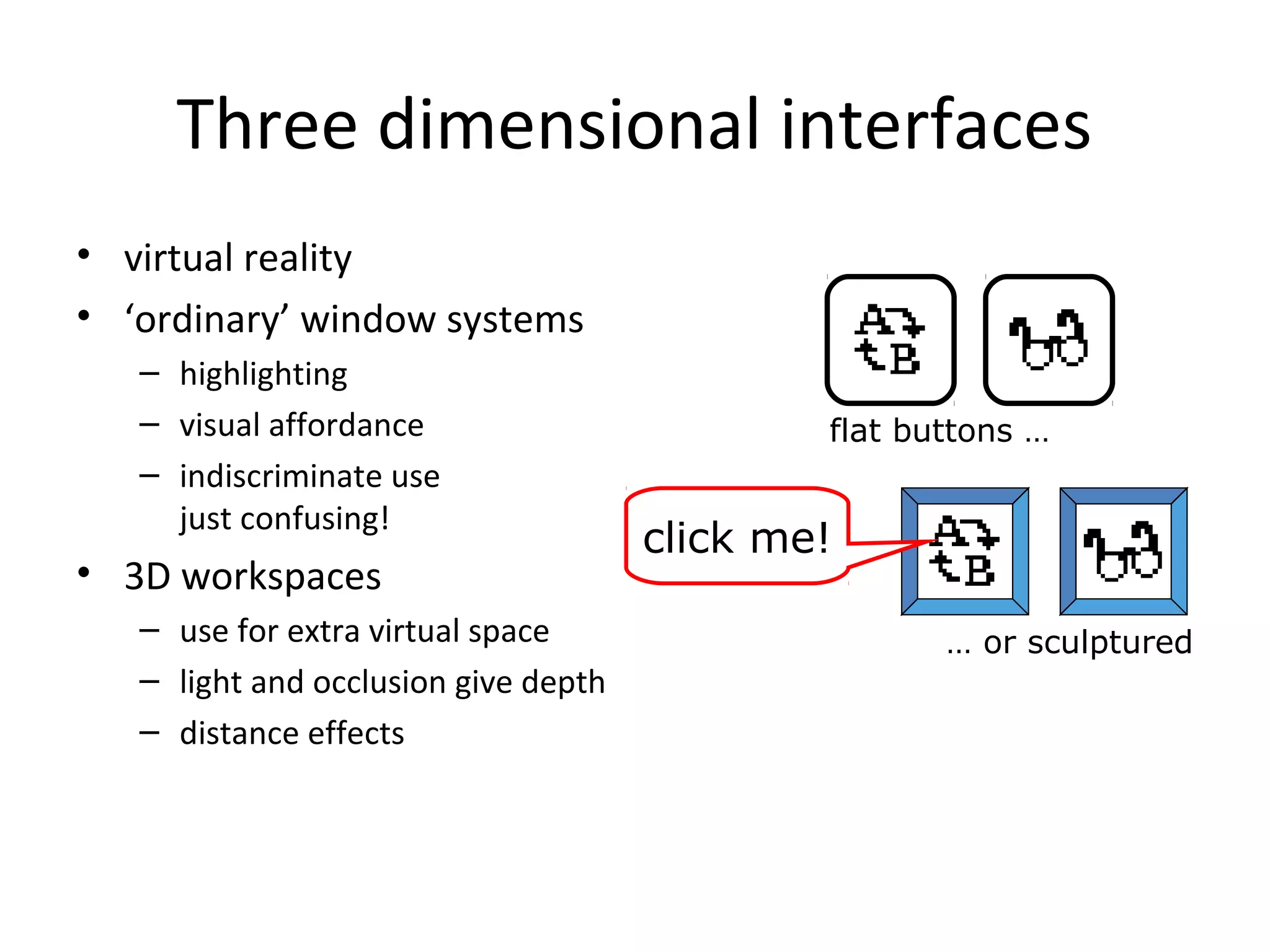
Three dimensional interfaces
• virtual reality
• ‘ordinary’ window systems
– highlighting
– visual affordance
– indiscriminate use
just confusing!
• 3D workspaces
– use for extra virtual space
– light and occlusion give depth
– distance effects
flat buttons …
… or sculptured
click me!
elements of the wimp interface
windows, icons, menus, pointers
+++
buttons, toolbars,
palettes, dialog boxes
also see supplementary material
on choosing wimp elements
Windows
• Areas of the screen that behave as if they were independent
– can contain text or graphics
– can be moved or resized
– can overlap and obscure each other, or can be laid out next to one
another (tiled)
• scrollbars
– allow the user to move the contents of the window up and down or
from side to side
• title bars
– describe the name of the window
Icons
• small picture or image
• represents some object in the interface
– often a window or action
• windows can be closed down (iconised)
– small representation fi many accessible windows
• icons can be many and various
– highly stylized
– realistic representations.
Pointers
• important component
– WIMP style relies on pointing and selecting things
• uses mouse, trackpad, joystick, trackball, cursor keys or
keyboard shortcuts
• wide variety of graphical images
Menus
• Choice of operations or services offered on the screen
• Required option selected with pointer
problem – take a lot of screen space
solution – pop-up: menu appears when needed
File Edit Options
Typewriter
Screen
Times
Font
Kinds of Menus
• Menu Bar at top of screen (normally), menu drags down
– pull-down menu - mouse hold and drag down menu
– drop-down menu - mouse click reveals menu
– fall-down menus - mouse just moves over bar!
• Contextual menu appears where you are
– pop-up menus - actions for selected object
– pie menus - arranged in a circle
• easier to select item (larger target area)
• quicker (same distance to any option)
… but not widely used!
Menus extras
• Cascading menus
– hierarchical menu structure
– menu selection opens new menu
– and so in ad infinitum
• Keyboard accelerators
– key combinations - same effect as menu item
– two kinds
• active when menu open – usually first letter
• active when menu closed – usually Ctrl + letter
usually different !!!
Menus design issues
• which kind to use
• what to include in menus at all
• words to use (action or description)
• how to group items
• choice of keyboard accelerators
Buttons
• individual and isolated regions within a display
that can be selected to invoke an action
• Special kinds
– radio buttons
– set of mutually exclusive choices
– check boxes
– set of non-exclusive choices
Toolbars
• long lines of icons …
… but what do they do?
• fast access to common actions
• often customizable:
– choose which toolbars to see
– choose what options are on it
Palettes and tear-off menus
• Problem
menu not there when you want it
• Solution
palettes – little windows of actions
– shown/hidden via menu option
e.g. available shapes in drawing package
tear-off and pin-up menus
– menu ‘tears off’ to become palette
Dialogue boxes
• information windows that pop up to inform of
an important event or request information.
e.g: when saving a file, a dialogue box is displayed
to allow the user to specify the filename and
location. Once the file is saved, the box
disappears.

POLITEKNIK MALAYSIA

  • 1.
    Interaction Styles dialogue …computer and user distinct styles of interaction
  • 2.
    Common interaction styles •command line interface • menus • natural language • question/answer and query dialogue • form-fills and spreadsheets • WIMP • point and click • three–dimensional interfaces
  • 3.
    Command line interface •Way of expressing instructions to the computer directly – function keys, single characters, short abbreviations, whole words, or a combination • suitable for repetitive tasks • better for expert users than novices • offers direct access to system functionality • command names/abbreviations should be meaningful! Typical example: the Unix system
  • 4.
    Menus • Set ofoptions displayed on the screen • Options visible – less recall - easier to use – rely on recognition so names should be meaningful • Selection by: – numbers, letters, arrow keys, mouse – combination (e.g. mouse plus accelerators) • Often options hierarchically grouped – sensible grouping is needed • Restricted form of full WIMP system
  • 5.
    Natural language • Familiarto user • speech recognition or typed natural language • Problems – vague – ambiguous – hard to do well! • Solutions – try to understand a subset – pick on key words
  • 6.
    Query interfaces • Question/answerinterfaces – user led through interaction via series of questions – suitable for novice users but restricted functionality – often used in information systems • Query languages (e.g. SQL) – used to retrieve information from database – requires understanding of database structure and language syntax, hence requires some expertise
  • 7.
    Form-fills • Primarily fordata entry or data retrieval • Screen like paper form. • Data put in relevant place • Requires – good design – obvious correction facilities
  • 8.
    Spreadsheets • first spreadsheetVISICALC, followed by Lotus 1-2-3 MS Excel most common today • sophisticated variation of form-filling. – grid of cells contain a value or a formula – formula can involve values of other cells e.g. sum of all cells in this column – user can enter and alter data spreadsheet maintains consistency
  • 9.
    WIMP Interface Windows Icons Menus Pointers … orwindows, icons, mice, and pull-down menus! • default style for majority of interactive computer systems, especially PCs and desktop machines
  • 10.
    Point and clickinterfaces • used in .. – multimedia – web browsers – hypertext • just click something! – icons, text links or location on map • minimal typing
  • 11.
    Three dimensional interfaces •virtual reality • ‘ordinary’ window systems – highlighting – visual affordance – indiscriminate use just confusing! • 3D workspaces – use for extra virtual space – light and occlusion give depth – distance effects flat buttons … … or sculptured click me!
  • 12.
    elements of thewimp interface windows, icons, menus, pointers +++ buttons, toolbars, palettes, dialog boxes also see supplementary material on choosing wimp elements
  • 13.
    Windows • Areas ofthe screen that behave as if they were independent – can contain text or graphics – can be moved or resized – can overlap and obscure each other, or can be laid out next to one another (tiled) • scrollbars – allow the user to move the contents of the window up and down or from side to side • title bars – describe the name of the window
  • 14.
    Icons • small pictureor image • represents some object in the interface – often a window or action • windows can be closed down (iconised) – small representation fi many accessible windows • icons can be many and various – highly stylized – realistic representations.
  • 15.
    Pointers • important component –WIMP style relies on pointing and selecting things • uses mouse, trackpad, joystick, trackball, cursor keys or keyboard shortcuts • wide variety of graphical images
  • 16.
    Menus • Choice ofoperations or services offered on the screen • Required option selected with pointer problem – take a lot of screen space solution – pop-up: menu appears when needed File Edit Options Typewriter Screen Times Font
  • 17.
    Kinds of Menus •Menu Bar at top of screen (normally), menu drags down – pull-down menu - mouse hold and drag down menu – drop-down menu - mouse click reveals menu – fall-down menus - mouse just moves over bar! • Contextual menu appears where you are – pop-up menus - actions for selected object – pie menus - arranged in a circle • easier to select item (larger target area) • quicker (same distance to any option) … but not widely used!
  • 18.
    Menus extras • Cascadingmenus – hierarchical menu structure – menu selection opens new menu – and so in ad infinitum • Keyboard accelerators – key combinations - same effect as menu item – two kinds • active when menu open – usually first letter • active when menu closed – usually Ctrl + letter usually different !!!
  • 19.
    Menus design issues •which kind to use • what to include in menus at all • words to use (action or description) • how to group items • choice of keyboard accelerators
  • 20.
    Buttons • individual andisolated regions within a display that can be selected to invoke an action • Special kinds – radio buttons – set of mutually exclusive choices – check boxes – set of non-exclusive choices
  • 21.
    Toolbars • long linesof icons … … but what do they do? • fast access to common actions • often customizable: – choose which toolbars to see – choose what options are on it
  • 22.
    Palettes and tear-offmenus • Problem menu not there when you want it • Solution palettes – little windows of actions – shown/hidden via menu option e.g. available shapes in drawing package tear-off and pin-up menus – menu ‘tears off’ to become palette
  • 23.
    Dialogue boxes • informationwindows that pop up to inform of an important event or request information. e.g: when saving a file, a dialogue box is displayed to allow the user to specify the filename and location. Once the file is saved, the box disappears.