JavaScript Events
Mrs.C.Santhiya
Assistant Professor
TCE,Madurai.
2
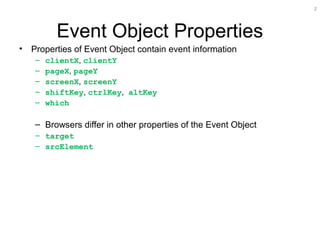
Event Object Properties
• Properties of Event Object contain event information
– clientX, clientY
– pageX, pageY
– screenX, screenY
– shiftKey, ctrlKey, altKey
– which
– Browsers differ in other properties of the Event Object
– target
– srcElement
3
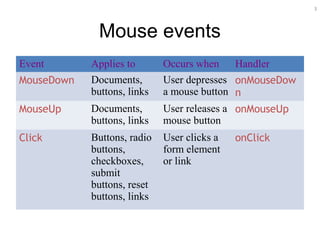
Mouse events
Event Applies to Occurs when Handler
MouseDown Documents,
buttons, links
User depresses
a mouse button
onMouseDow
n
MouseUp Documents,
buttons, links
User releases a
mouse button
onMouseUp
Click Buttons, radio
buttons,
checkboxes,
submit
buttons, reset
buttons, links
User clicks a
form element
or link
onClick
4
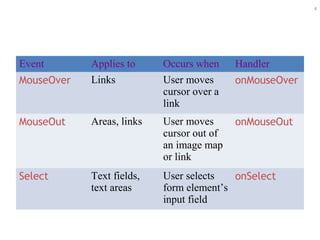
Event Applies to Occurs when Handler
MouseOver Links User moves
cursor over a
link
onMouseOver
MouseOut Areas, links User moves
cursor out of
an image map
or link
onMouseOut
Select Text fields,
text areas
User selects
form element’s
input field
onSelect
5
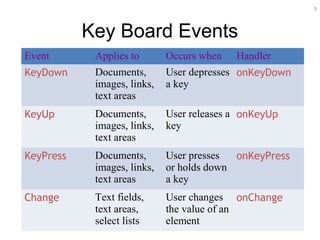
Key Board Events
Event Applies to Occurs when Handler
KeyDown Documents,
images, links,
text areas
User depresses
a key
onKeyDown
KeyUp Documents,
images, links,
text areas
User releases a
key
onKeyUp
KeyPress Documents,
images, links,
text areas
User presses
or holds down
a key
onKeyPress
Change Text fields,
text areas,
select lists
User changes
the value of an
element
onChange
6
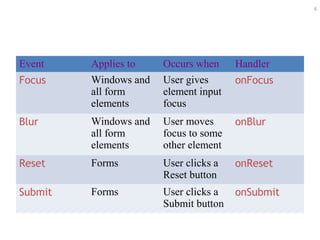
Event Applies to Occurs when Handler
Focus Windows and
all form
elements
User gives
element input
focus
onFocus
Blur Windows and
all form
elements
User moves
focus to some
other element
onBlur
Reset Forms User clicks a
Reset button
onReset
Submit Forms User clicks a
Submit button
onSubmit
7
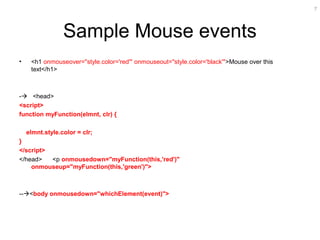
Sample Mouse events
• <h1 onmouseover="style.color='red'" onmouseout="style.color='black'">Mouse over this
text</h1>
- <head>
<script>
function myFunction(elmnt, clr) {
elmnt.style.color = clr;
}
</script>
</head> <p onmousedown="myFunction(this,'red')"
onmouseup="myFunction(this,'green')">
--<body onmousedown="whichElement(event)">
8
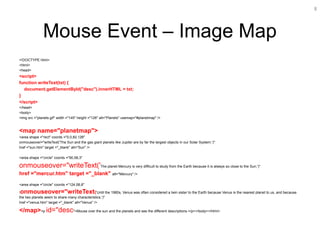
Mouse Event – Image Map
<!DOCTYPE html>
<html>
<head>
<script>
function writeText(txt) {
document.getElementById("desc").innerHTML = txt;
}
</script>
</head>
<body>
<img src ="planets.gif" width ="145" height ="126" alt="Planets" usemap="#planetmap" />
<map name="planetmap">
<area shape ="rect" coords ="0,0,82,126"
onmouseover="writeText('The Sun and the gas giant planets like Jupiter are by far the largest objects in our Solar System.')"
href ="sun.htm" target ="_blank" alt="Sun" />
<area shape ="circle" coords ="90,58,3"
onmouseover="writeText('The planet Mercury is very difficult to study from the Earth because it is always so close to the Sun.')"
href ="mercur.htm" target ="_blank" alt="Mercury" />
<area shape ="circle" coords ="124,58,8"
onmouseover="writeText('Until the 1960s, Venus was often considered a twin sister to the Earth because Venus is the nearest planet to us, and because
the two planets seem to share many characteristics.')"
href ="venus.htm" target ="_blank" alt="Venus" />
</map><p id="desc">Mouse over the sun and the planets and see the different descriptions.</p></body></html>
<HTML>
<HEAD>
<TITLE>Rollover</TITLE>
</HEAD>
<BODY>
<P ALIGN=RIGHT>
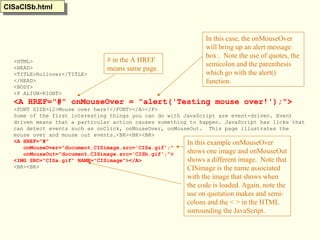
<A HREF="#" onMouseOver = "alert('Testing mouse over!');">
<FONT SIZE=12>Mouse over here!</FONT></A></P>
Some of the first interesting things you can do with JavaScript are event-driven. Event
driven means that a particular action causes something to happen. JavaScript has licks that
can detect events such as onClick, onMouseOver, onMouseOut. This page illustrates the
mouse over and mouse out events.<BR><BR><BR>
<A HREF="#"
onMouseOver="document.CISimage.src='CISa.gif';"
onMouseOut="document.CISimage.src='CISb.gif';">
<IMG SRC="CISa.gif" NAME="CISimage"></A>
<BR><BR>
In this case, the onMouseOver
will bring up an alert message
box . Note the use of quotes, the
semicolon and the parenthesis
which go with the alert()
function.
# in the A HREF
means same page.
CISaCISb.htmlCISaCISb.html
In this example onMouseOver
shows one image and onMouseOut
shows a different image. Note that
CISimage is the name associated
with the image that shows when
the code is loaded. Again, note the
use on quotation makes and semi-
colons and the < > in the HTML
surrounding the JavaScript.
<HTML>
<HEAD>
<TITLE>More events in JavaScript</TITLE>
<SCRIPT language="JavaScript">
var CISa_image = new Image();
CISa_image.src = "CISa.gif";
var CISb_image = new Image();
CISb_image.src = "CISb.gif";
</SCRIPT>
The word var is optional - however if used it should be lower case.
When I write this program with VAR I get an error in explorer about missing ; which
essentially means their is a problem with the code.
</HEAD>
<BODY>
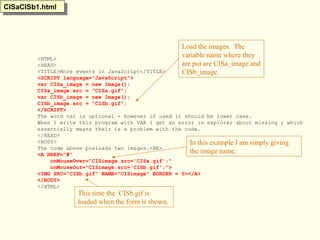
The code above preloads two images.<BR>
<A HREF="#"
onMouseOver="CISimage.src='CISa.gif';"
onMouseOut="CISimage.src='CISb.gif';">
<IMG SRC="CISb.gif" NAME="CISimage" BORDER = 0></A>
</BODY>
</HTML>
CISaCISb1.htmlCISaCISb1.html
Load the images. The
variable name where they
are put are CISa_image and
CISb_image.
This time the CISb.gif is
loaded when the form is shown.
In this example I am simply giving
the image name.
<HTML>
<HEAD>
<TITLE>Java rotate</TITLE>
<SCRIPT>
originalz = new Image;
originalz.src="house.jpg";
flipz = new Image;
flipz.src = "houseusd.jpg";
</SCRIPT>
</HEAD>
<BODY bgcolor=beige>
<DIV ALIGN=CENTER>
<H1>Here is an image to roll the mouse over</H1>
<H3>Rolling the mouse over and out are called events.</H3>
<A HREF="javamouse.html"
onMouseOver="document.myhouse.src = flipz.src"
onMouseOut="document.myhouse.src = originalz.src">
<IMG SRC="house.jpg"
NAME="myhouse"></A>
</DIV>
</BODY>
</HTML>
javamouse.htmljavamouse.html
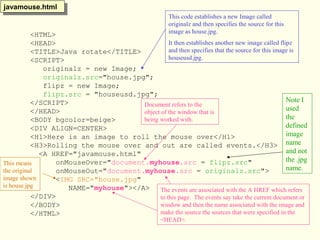
This code establishes a new Image called
originalz and then specifies the source for this
image as house.jpg.
It then establishes another new image called flipz
and then specifies that the source for this image is
houseusd.jpg.
The events are associated with the A HREF which refers
to this page. The events say take the current document or
window and then the name associated with the image and
make the source the sources that were specified in the
<HEAD>.
This means
the original
image shown
is house.jpg
Document refers to the
object of the window that is
being worked with.
Note I
used
the
defined
image
name
and not
the .jpg
name.
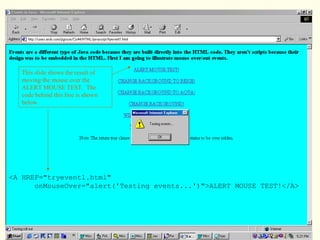
<A HREF="tryevent1.html"
onMouseOver="alert('Testing events...')">ALERT MOUSE TEST!</A>
This slide shows the result of
moving the mouse over the
ALERT MOUSE TEST. The
code behind this line is shown
below.
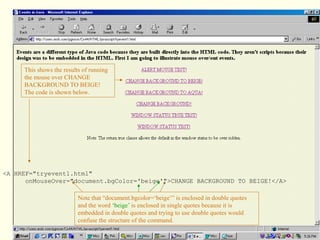
<A HREF="tryevent1.html"
onMouseOver="document.bgColor='beige'">CHANGE BACKGROUND TO BEIGE!</A>
This shows the results of running
the mouse over CHANGE
BACKGROUND TO BEIGE!
The code is shown below.
Note that “document.bgcolor=‘beige’” is enclosed in double quotes
and the word ‘beige’ is enclosed in single quotes because it is
embedded in double quotes and trying to use double quotes would
confuse the structure of the command.
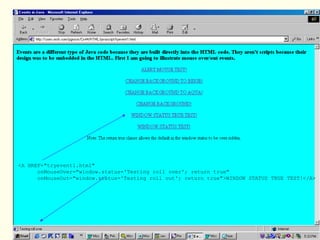
<A HREF="tryevent1.html"
onMouseOver="window.status='Testing roll over'; return true"
onMouseOut="window.status='Testing roll out'; return true">WINDOW STATUS TRUE TEST!</A>
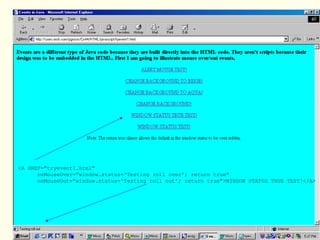
<A HREF="tryevent1.html"
onMouseOver="window.status='Testing roll over'; return true"
onMouseOut="window.status='Testing roll out'; return true">WINDOW STATUS TRUE TEST!</A>
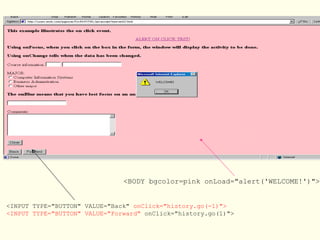
<BODY bgcolor=pink onLoad="alert('WELCOME!')">
<INPUT TYPE="BUTTON" VALUE="Back" onClick="history.go(-1)">
<INPUT TYPE="BUTTON" VALUE="Forward" onClick="history.go(1)">
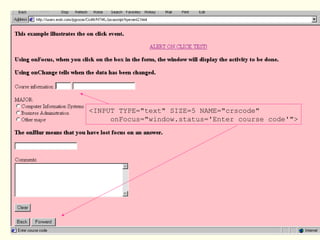
<INPUT TYPE="text" SIZE=5 NAME="crscode"
onFocus="window.status='Enter course code'">
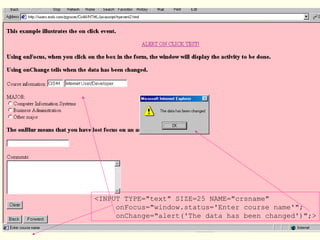
<INPUT TYPE="text" SIZE=25 NAME="crsname"
onFocus="window.status='Enter course name'";
onChange="alert('The data has been changed')";>
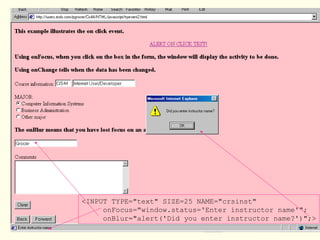
<INPUT TYPE="text" SIZE=25 NAME="crsinst"
onFocus="window.status='Enter instructor name'";
onBlur="alert('Did you enter instructor name?')";>
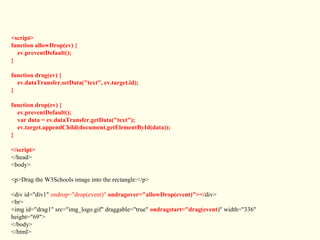
<script>
function allowDrop(ev) {
ev.preventDefault();
}
function drag(ev) {
ev.dataTransfer.setData("text", ev.target.id);
}
function drop(ev) {
ev.preventDefault();
var data = ev.dataTransfer.getData("text");
ev.target.appendChild(document.getElementById(data));
}
</script>
</head>
<body>
<p>Drag the W3Schools image into the rectangle:</p>
<div id="div1" ondrop="drop(event)" ondragover="allowDrop(event)"></div>
<br>
<img id="drag1" src="img_logo.gif" draggable="true" ondragstart="drag(event)" width="336"
height="69">
</body>
</html>
21
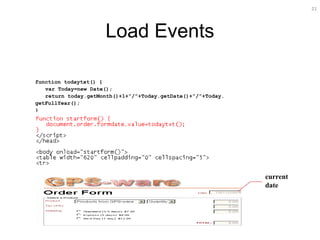
Load Events
function todaytxt() {
var Today=new Date();
return today.getMonth()+1+”/”+Today.getDate()+”/”+Today.
getFullYear();
}
current
date
22
23
24
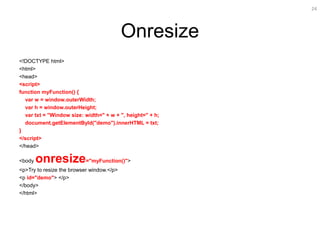
Onresize
<!DOCTYPE html>
<html>
<head>
<script>
function myFunction() {
var w = window.outerWidth;
var h = window.outerHeight;
var txt = "Window size: width=" + w + ", height=" + h;
document.getElementById("demo").innerHTML = txt;
}
</script>
</head>
<body onresize="myFunction()">
<p>Try to resize the browser window.</p>
<p id="demo"> </p>
</body>
</html>
25
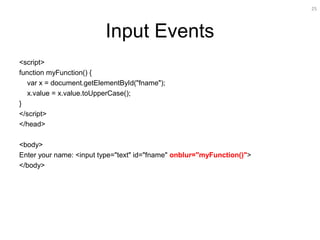
Input Events
<script>
function myFunction() {
var x = document.getElementById("fname");
x.value = x.value.toUpperCase();
}
</script>
</head>
<body>
Enter your name: <input type="text" id="fname" onblur="myFunction()">
</body>
26
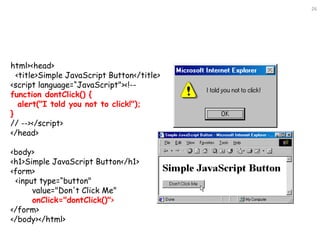
html><head>
<title>Simple JavaScript Button</title>
<script language=“JavaScript"><!--
function dontClick() {
alert("I told you not to click!");
}
// --></script>
</head>
<body>
<h1>Simple JavaScript Button</h1>
<form>
<input type=“button"
value="Don't Click Me"
onClick="dontClick()">
</form>
</body></html>
27
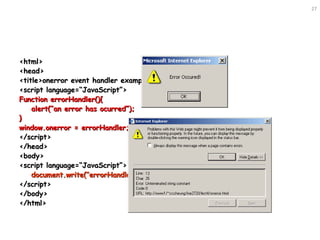
<html><html>
<head><head>
<title>onerror event handler example</title><title>onerror event handler example</title>
<script language=“JavaScript”><script language=“JavaScript”>
Function errorHandler(){Function errorHandler(){
alert(“an error has ocurred”);alert(“an error has ocurred”);
}}
window.onerror = errorHandler;window.onerror = errorHandler;
</script></script>
</head></head>
<body><body>
<script language=“JavaScript”><script language=“JavaScript”>
document.write(“errorHandler()”);document.write(“errorHandler()”);
</script></script>
</body></body>
</html></html>
28
<script>
function preferedBrowser() {
prefer = document.forms[0].browsers.value;
alert("You prefer browsing internet with " + prefer);
}
</script>
<body>
<form>
Choose which browser you prefer:
<select id="browsers" onchange="preferedBrowser()">
<option value="Chrome">Chrome</option>
<option value="Internet Explorer">Internet Explorer</option>
<option value="Firefox">Firefox</option>
</select>
</form></body></html>
29
<script>
function myFunction(x) {
x.style.background = "yellow";
}
</script>
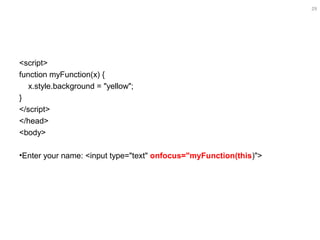
</head>
<body>
•Enter your name: <input type="text" onfocus="myFunction(this)">
30
<script>
function color(color) {
document.forms[0].myInput.style.background = color;
}
</script>
</head>
<body>
<form>
Write a message:<br>
<input type="text“ onkeydown="color('yellow')“ onkeyup="color('white')“ name="myInput">
</form>
31
Others
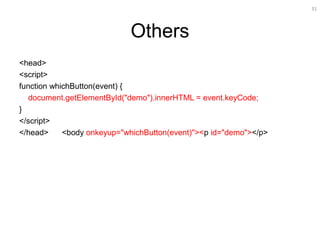
<head>
<script>
function whichButton(event) {
document.getElementById("demo").innerHTML = event.keyCode;
}
</script>
</head> <body onkeyup="whichButton(event)"><p id="demo"></p>
32
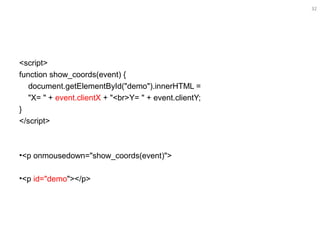
<script>
function show_coords(event) {
document.getElementById("demo").innerHTML =
"X= " + event.clientX + "<br>Y= " + event.clientY;
}
</script>
•<p onmousedown="show_coords(event)">
•<p id="demo"></p>
33
Type representation &validation
<script>
function getEventType(event) {
document.getElementById("demo").innerHTML = event.type;
}
</script>
<p id=demo onmousedown="getEventType(event)"></p>
Client Side Validation
– Phone: /^(?(d{3}))?[- ]?(d{3})[- ]?(d{4})$/
– Email: /^[0-9a-zA-Z]+@[0-9a-zA-Z]+[.]{1}
[0-9a-zA-Z]+[.]?[0-9a-zA-Z]+$/
– Currency: /^s*(+|-)?((d+(.dd)?)|(.dd))s*$/

Events Lecture Notes

  • 1.
  • 2.
    2 Event Object Properties •Properties of Event Object contain event information – clientX, clientY – pageX, pageY – screenX, screenY – shiftKey, ctrlKey, altKey – which – Browsers differ in other properties of the Event Object – target – srcElement
  • 3.
    3 Mouse events Event Appliesto Occurs when Handler MouseDown Documents, buttons, links User depresses a mouse button onMouseDow n MouseUp Documents, buttons, links User releases a mouse button onMouseUp Click Buttons, radio buttons, checkboxes, submit buttons, reset buttons, links User clicks a form element or link onClick
  • 4.
    4 Event Applies toOccurs when Handler MouseOver Links User moves cursor over a link onMouseOver MouseOut Areas, links User moves cursor out of an image map or link onMouseOut Select Text fields, text areas User selects form element’s input field onSelect
  • 5.
    5 Key Board Events EventApplies to Occurs when Handler KeyDown Documents, images, links, text areas User depresses a key onKeyDown KeyUp Documents, images, links, text areas User releases a key onKeyUp KeyPress Documents, images, links, text areas User presses or holds down a key onKeyPress Change Text fields, text areas, select lists User changes the value of an element onChange
  • 6.
    6 Event Applies toOccurs when Handler Focus Windows and all form elements User gives element input focus onFocus Blur Windows and all form elements User moves focus to some other element onBlur Reset Forms User clicks a Reset button onReset Submit Forms User clicks a Submit button onSubmit
  • 7.
    7 Sample Mouse events •<h1 onmouseover="style.color='red'" onmouseout="style.color='black'">Mouse over this text</h1> - <head> <script> function myFunction(elmnt, clr) { elmnt.style.color = clr; } </script> </head> <p onmousedown="myFunction(this,'red')" onmouseup="myFunction(this,'green')"> --<body onmousedown="whichElement(event)">
  • 8.
    8 Mouse Event –Image Map <!DOCTYPE html> <html> <head> <script> function writeText(txt) { document.getElementById("desc").innerHTML = txt; } </script> </head> <body> <img src ="planets.gif" width ="145" height ="126" alt="Planets" usemap="#planetmap" /> <map name="planetmap"> <area shape ="rect" coords ="0,0,82,126" onmouseover="writeText('The Sun and the gas giant planets like Jupiter are by far the largest objects in our Solar System.')" href ="sun.htm" target ="_blank" alt="Sun" /> <area shape ="circle" coords ="90,58,3" onmouseover="writeText('The planet Mercury is very difficult to study from the Earth because it is always so close to the Sun.')" href ="mercur.htm" target ="_blank" alt="Mercury" /> <area shape ="circle" coords ="124,58,8" onmouseover="writeText('Until the 1960s, Venus was often considered a twin sister to the Earth because Venus is the nearest planet to us, and because the two planets seem to share many characteristics.')" href ="venus.htm" target ="_blank" alt="Venus" /> </map><p id="desc">Mouse over the sun and the planets and see the different descriptions.</p></body></html>
  • 9.
    <HTML> <HEAD> <TITLE>Rollover</TITLE> </HEAD> <BODY> <P ALIGN=RIGHT> <A HREF="#"onMouseOver = "alert('Testing mouse over!');"> <FONT SIZE=12>Mouse over here!</FONT></A></P> Some of the first interesting things you can do with JavaScript are event-driven. Event driven means that a particular action causes something to happen. JavaScript has licks that can detect events such as onClick, onMouseOver, onMouseOut. This page illustrates the mouse over and mouse out events.<BR><BR><BR> <A HREF="#" onMouseOver="document.CISimage.src='CISa.gif';" onMouseOut="document.CISimage.src='CISb.gif';"> <IMG SRC="CISa.gif" NAME="CISimage"></A> <BR><BR> In this case, the onMouseOver will bring up an alert message box . Note the use of quotes, the semicolon and the parenthesis which go with the alert() function. # in the A HREF means same page. CISaCISb.htmlCISaCISb.html In this example onMouseOver shows one image and onMouseOut shows a different image. Note that CISimage is the name associated with the image that shows when the code is loaded. Again, note the use on quotation makes and semi- colons and the < > in the HTML surrounding the JavaScript.
  • 10.
    <HTML> <HEAD> <TITLE>More events inJavaScript</TITLE> <SCRIPT language="JavaScript"> var CISa_image = new Image(); CISa_image.src = "CISa.gif"; var CISb_image = new Image(); CISb_image.src = "CISb.gif"; </SCRIPT> The word var is optional - however if used it should be lower case. When I write this program with VAR I get an error in explorer about missing ; which essentially means their is a problem with the code. </HEAD> <BODY> The code above preloads two images.<BR> <A HREF="#" onMouseOver="CISimage.src='CISa.gif';" onMouseOut="CISimage.src='CISb.gif';"> <IMG SRC="CISb.gif" NAME="CISimage" BORDER = 0></A> </BODY> </HTML> CISaCISb1.htmlCISaCISb1.html Load the images. The variable name where they are put are CISa_image and CISb_image. This time the CISb.gif is loaded when the form is shown. In this example I am simply giving the image name.
  • 11.
    <HTML> <HEAD> <TITLE>Java rotate</TITLE> <SCRIPT> originalz =new Image; originalz.src="house.jpg"; flipz = new Image; flipz.src = "houseusd.jpg"; </SCRIPT> </HEAD> <BODY bgcolor=beige> <DIV ALIGN=CENTER> <H1>Here is an image to roll the mouse over</H1> <H3>Rolling the mouse over and out are called events.</H3> <A HREF="javamouse.html" onMouseOver="document.myhouse.src = flipz.src" onMouseOut="document.myhouse.src = originalz.src"> <IMG SRC="house.jpg" NAME="myhouse"></A> </DIV> </BODY> </HTML> javamouse.htmljavamouse.html This code establishes a new Image called originalz and then specifies the source for this image as house.jpg. It then establishes another new image called flipz and then specifies that the source for this image is houseusd.jpg. The events are associated with the A HREF which refers to this page. The events say take the current document or window and then the name associated with the image and make the source the sources that were specified in the <HEAD>. This means the original image shown is house.jpg Document refers to the object of the window that is being worked with. Note I used the defined image name and not the .jpg name.
  • 12.
    <A HREF="tryevent1.html" onMouseOver="alert('Testing events...')">ALERTMOUSE TEST!</A> This slide shows the result of moving the mouse over the ALERT MOUSE TEST. The code behind this line is shown below.
  • 13.
    <A HREF="tryevent1.html" onMouseOver="document.bgColor='beige'">CHANGE BACKGROUNDTO BEIGE!</A> This shows the results of running the mouse over CHANGE BACKGROUND TO BEIGE! The code is shown below. Note that “document.bgcolor=‘beige’” is enclosed in double quotes and the word ‘beige’ is enclosed in single quotes because it is embedded in double quotes and trying to use double quotes would confuse the structure of the command.
  • 14.
    <A HREF="tryevent1.html" onMouseOver="window.status='Testing rollover'; return true" onMouseOut="window.status='Testing roll out'; return true">WINDOW STATUS TRUE TEST!</A>
  • 15.
    <A HREF="tryevent1.html" onMouseOver="window.status='Testing rollover'; return true" onMouseOut="window.status='Testing roll out'; return true">WINDOW STATUS TRUE TEST!</A>
  • 16.
    <BODY bgcolor=pink onLoad="alert('WELCOME!')"> <INPUTTYPE="BUTTON" VALUE="Back" onClick="history.go(-1)"> <INPUT TYPE="BUTTON" VALUE="Forward" onClick="history.go(1)">
  • 17.
    <INPUT TYPE="text" SIZE=5NAME="crscode" onFocus="window.status='Enter course code'">
  • 18.
    <INPUT TYPE="text" SIZE=25NAME="crsname" onFocus="window.status='Enter course name'"; onChange="alert('The data has been changed')";>
  • 19.
    <INPUT TYPE="text" SIZE=25NAME="crsinst" onFocus="window.status='Enter instructor name'"; onBlur="alert('Did you enter instructor name?')";>
  • 20.
    <script> function allowDrop(ev) { ev.preventDefault(); } functiondrag(ev) { ev.dataTransfer.setData("text", ev.target.id); } function drop(ev) { ev.preventDefault(); var data = ev.dataTransfer.getData("text"); ev.target.appendChild(document.getElementById(data)); } </script> </head> <body> <p>Drag the W3Schools image into the rectangle:</p> <div id="div1" ondrop="drop(event)" ondragover="allowDrop(event)"></div> <br> <img id="drag1" src="img_logo.gif" draggable="true" ondragstart="drag(event)" width="336" height="69"> </body> </html>
  • 21.
    21 Load Events function todaytxt(){ var Today=new Date(); return today.getMonth()+1+”/”+Today.getDate()+”/”+Today. getFullYear(); } current date
  • 22.
  • 23.
  • 24.
    24 Onresize <!DOCTYPE html> <html> <head> <script> function myFunction(){ var w = window.outerWidth; var h = window.outerHeight; var txt = "Window size: width=" + w + ", height=" + h; document.getElementById("demo").innerHTML = txt; } </script> </head> <body onresize="myFunction()"> <p>Try to resize the browser window.</p> <p id="demo"> </p> </body> </html>
  • 25.
    25 Input Events <script> function myFunction(){ var x = document.getElementById("fname"); x.value = x.value.toUpperCase(); } </script> </head> <body> Enter your name: <input type="text" id="fname" onblur="myFunction()"> </body>
  • 26.
    26 html><head> <title>Simple JavaScript Button</title> <scriptlanguage=“JavaScript"><!-- function dontClick() { alert("I told you not to click!"); } // --></script> </head> <body> <h1>Simple JavaScript Button</h1> <form> <input type=“button" value="Don't Click Me" onClick="dontClick()"> </form> </body></html>
  • 27.
    27 <html><html> <head><head> <title>onerror event handlerexample</title><title>onerror event handler example</title> <script language=“JavaScript”><script language=“JavaScript”> Function errorHandler(){Function errorHandler(){ alert(“an error has ocurred”);alert(“an error has ocurred”); }} window.onerror = errorHandler;window.onerror = errorHandler; </script></script> </head></head> <body><body> <script language=“JavaScript”><script language=“JavaScript”> document.write(“errorHandler()”);document.write(“errorHandler()”); </script></script> </body></body> </html></html>
  • 28.
    28 <script> function preferedBrowser() { prefer= document.forms[0].browsers.value; alert("You prefer browsing internet with " + prefer); } </script> <body> <form> Choose which browser you prefer: <select id="browsers" onchange="preferedBrowser()"> <option value="Chrome">Chrome</option> <option value="Internet Explorer">Internet Explorer</option> <option value="Firefox">Firefox</option> </select> </form></body></html>
  • 29.
    29 <script> function myFunction(x) { x.style.background= "yellow"; } </script> </head> <body> •Enter your name: <input type="text" onfocus="myFunction(this)">
  • 30.
    30 <script> function color(color) { document.forms[0].myInput.style.background= color; } </script> </head> <body> <form> Write a message:<br> <input type="text“ onkeydown="color('yellow')“ onkeyup="color('white')“ name="myInput"> </form>
  • 31.
    31 Others <head> <script> function whichButton(event) { document.getElementById("demo").innerHTML= event.keyCode; } </script> </head> <body onkeyup="whichButton(event)"><p id="demo"></p>
  • 32.
    32 <script> function show_coords(event) { document.getElementById("demo").innerHTML= "X= " + event.clientX + "<br>Y= " + event.clientY; } </script> •<p onmousedown="show_coords(event)"> •<p id="demo"></p>
  • 33.
    33 Type representation &validation <script> functiongetEventType(event) { document.getElementById("demo").innerHTML = event.type; } </script> <p id=demo onmousedown="getEventType(event)"></p> Client Side Validation – Phone: /^(?(d{3}))?[- ]?(d{3})[- ]?(d{4})$/ – Email: /^[0-9a-zA-Z]+@[0-9a-zA-Z]+[.]{1} [0-9a-zA-Z]+[.]?[0-9a-zA-Z]+$/ – Currency: /^s*(+|-)?((d+(.dd)?)|(.dd))s*$/

Editor's Notes

  • #2 In this presentation, we will focus on events. The next presentation will cover more of the actual scripting.
  • #10 This shows the actual code using the onMouseOver and onMouseOut.
  • #11 This shows the code with the preload of the images done in JavaScript in the header. Note that with things other than events, JavaScript is enclosed in the SCRIPT shown. It is better to include the clause language = &amp;quot;JavaScript&amp;quot; since ther are other scripting languages. In the previous example instead of CISimage I used document.CISimage. I could also have used window.document.CISimage.
  • #12 In the SCRIPT in &amp;lt;HEAD&amp;gt; I establish the two images and name them originalz and flips. Establishing the images in the &amp;lt;HEAD&amp;gt; means that they will be loaded initially and there will not be a delay in the mouse over and mouse out events. Please read an explanation of this click event in one of the many tutorials and fact sheets available on the Web. The explanation here needs to be elaborated on. Note that in this example, I used the name defined in the script for the image instead of the actual .jpg name. In previous examples I used the actual image name enclosed in quotes.
  • #13 This slide shows the alert which brings up the alert popup window which displays the message inside the parenthesis.
  • #14 Read about the use of quotes in JavaScript in one of the tutorials.
  • #15 Note the Testing roll over in the window status. return true &amp;quot;locks&amp;quot; the message into the status line so it won&amp;apos;t be replaced by the default URL.
  • #16 Compare this to the next set which does not have the return true.
  • #17 In this example, the BODY statement has an onLoad event which displays the alert window when the page is opened.
  • #18 This causes Enter course code to show on the status line when the focus is on the first box after Course information.
  • #19 When the course name got the focus, the message appeared on the status line. When I left the course name (NAME=&amp;quot;crsnmae&amp;quot;) then the alert window appeared.
  • #20 When I left the instructor box (NAME=&amp;quot;crsinst&amp;quot;) the onBlur was activated and the alert popup message appeared.